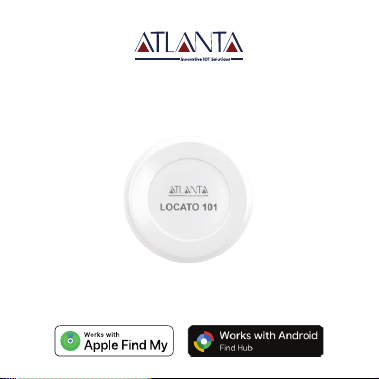
LOCATO 101
Works with Appleʼs Find My & Googleʼs Find Hub

FCC Regulatory Information
This device complies with part 15 of the FCC Rules.
Operation is subject to the following two conditions:
(1) This device may not cause harmful interference, and (2) this
device must accept any interference received, including
interference that may cause undesired operation.
Any changes or modifications not expressly approved by the party
responsible for compliance could void the user's authority to
operate the equipment.
NOTE: This equipment has been tested and found to comply with
the limits for a Class B digital device, pursuant to Part 15 of the
FCC Rules. These limits are designed to provide reasonable
protection against harmful interference in a residential
installation. This equipment generates, uses and can radiate radio
frequency energy and, if not installed and used in accordance with
the instructions, may cause harmful interference to radio
communications. However, there is no guarantee that
interference will not occur in a particular installation.
If this equipment does cause harmful interference to radio or
television reception,
equipment and receiver. -- Connect the equipment into an outlet
on a circuit different

which can be determined by turning the equipment off and on,
the user is encouraged to try to correct the interference by one
or more of the following measures:
-- Reorient or relocate the receiving antenna.
-- Increase the separation between the equipment and receiver.
-- Connect the equipment into an outlet on a circuit different
from that to which the receiver is connected.
-- Consult the dealer or an experienced radio/TV technician for
help.
The device has been evaluated to meet general RF exposure
requirement. The device can be
used in portable exposure condition without restriction.
3
The FCC identification label is permanently printed on the back side
of the LOCATO 101 device.
The label contains the Model Number and FCC ID (2BWNX-LOCATO).
The electronic label is located on the back side of the LOCATO 101
device. The circular label has a diameter of 20 mm. The overall
product diameter is 33 mm.
Electronic Label Exhibit
Electronic Label Description
Label Location Statement
Product: LOCATO 101
Manufacturer: Atlanta Systems Pvt. Ltd.
FCC ID: 2BWNX-LOCATO
4
Item
Product Model
FCC ID
Label Type
Label Location
Back Label Diameter
Overall Device Diameter
Description
LOCATO 101
2BWNX-LOCATO
Permanent printed product label
Back side of the device
20 mm
33 mm
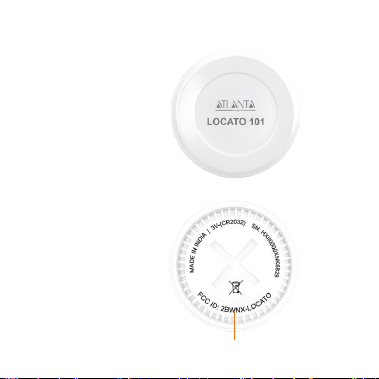
Front View (Ø33 mm)
Back View (Ø20 mm)
Width: 20mm, Height: 5mm(Approx)
Illustrative Layout (Not to Scale)
5
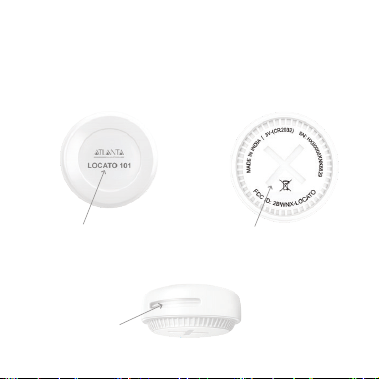
IN THE BOX
1 x LOCATO 101 Device (IP67 waterproof & dustproof)
1 x User Manual
Overview
6
FRONT REAR
SIDE
Power Button
Lanyard Space
Battery Cover
Operation
Apple Find My App
Before using your LOCATO 101, attach it to your keys, wallet,
backpack, luggage, handbag, or any valuable item you want to keep
track of. Then, connect it to the Apple Find My app by following the
steps below:
• Turn on Bluetooth function.
• Wi-Fi and mobile network connection must be in good condition.
• Turn on 'Location Services' :
Open 'Settings' > 'Privacy & Security' > 'Location Services' >
'Find My' (To see the most accurate location for your LOCATO 101,
device turn on 'Precise Location' for Find My app.)
Note:
1. It is better to update your Apple devices to the latest version of iOS.
2. Allow notifications from the App.
Google Find Hub App
1. Download and install Find Hub App from Google Play Store.
Note: If your phone already includes the app (Find Hub), proceed to the next step.
2. Turn on Bluetooth function of your phone.
3. Connect your phone to the Internet and keep the network signal
strong.
4. Allow 'Find Hub' to access the location of your phone.
Note: One LOCATO 101 device can only be connected to one smart phone.
7
Power On
1. Press the Power Button once.
2. The red LED flashes once, indicating that the device has powered
on.
3. The device automatically initializes and sends its data.
4. After completing the transmission, LOCATO 101 automatically
enters sleep mode to conserve battery power.
Note: Sleep mode is the normal operating state of the device. It
automatically wakes up whenever required during normal operation.
Power Off
LOCATO 101 does not require manual power-off during normal
operation. After initialization and data transmission, the device
automatically enters a low-power sleep mode to maximize battery
life.
8
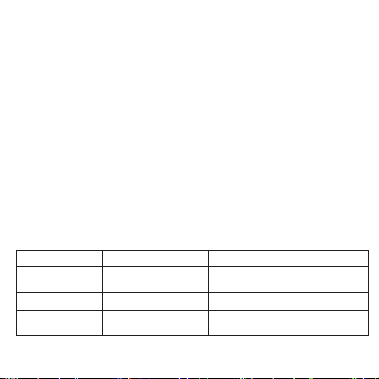
Operation
Power On
Data Transmission
Sleep Mode
LED Status
Red LED flashes once
No user action required
LED Off
Description
Device powers on and starts
initialization
Device automatically sends data
Device enters low-power sleep mode
to conserve battery
LOCATO 101 Device Setup
Apple
Quick Setup
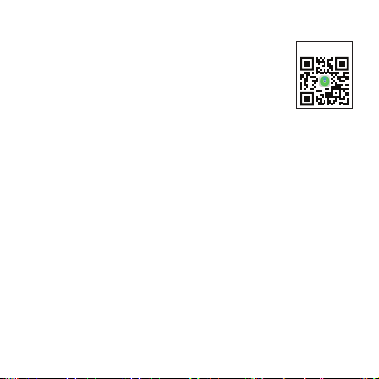
Scan the QR code with the Camera App on your
device to directly search for the LOCATO 101 device.
1. Press the Power Button once. The red LED will flash once, indicating that
the device has powered on. The tracker will automatically enter pairing
mode.
2. On your iPhone, open the Apple Find My app, select the ‘Items’ tab, then
tap ‘Add Item’ > ‘Other Supported Item’.
3. When ‘LOCATO 101’ appears in the list of available devices, tap Connect.
4. Assign a recognizable name to your ‘LOCATO 101’ and choose an emoji
to help identify it in the Find My app.
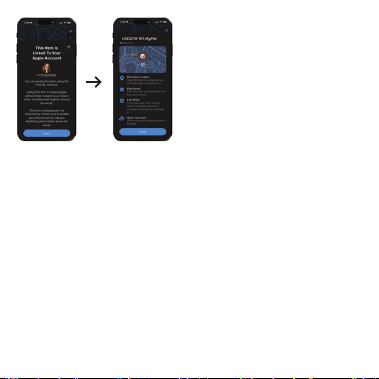
5. Review the information and tap Agree to link the tracker to your Apple ID.
6. Once setup is complete, your ‘LOCATO 101’ will appear on the map in the
Find My app. Tap Finish to complete the setup.
7. Your ‘LOCATO 101’ is now ready to use. Attach it to your keys, wallet,
backpack, handbag, luggage, or any other valuable personal belongings
using the built-in keyring hole.
Note: If the device is not paired with an Apple device within 10 minutes after
being powered on, it will automatically power off to conserve battery power.
9
the QR code support
iOS, iPadQS
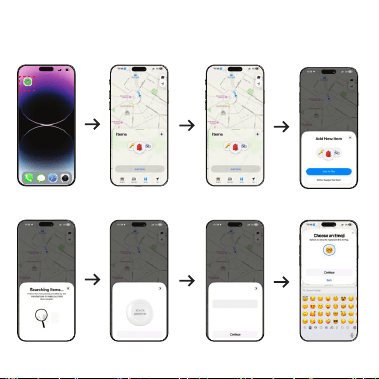
Reference: The following screenshots are for illustration purposes only.
The actual interface may vary depending on your iPhone model and iOS
version.
1. Open ‘Find My’ 2. Tap ‘Item’ 3. Tap ‘Add Item’ 4. Select ‘Other
Supported Item’
6. Tap ‘Connect’
5. Searching
7. Enter ‘Name’ 8. Choose ‘Emoji’
10
11:18
5G
64
Find My
Enter name
Name Item
Add a name for this item
LOCATO 101
Connect
Google
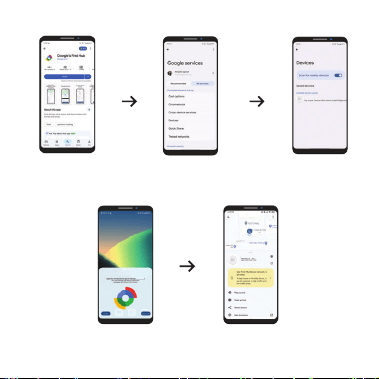
1. Turn on the Bluetooth function of your phone and make sure the
network is in good condition.
2. Open the Google ‘Find Hubʼ app on your phone and log in to your
Google account. (If you do not have an account, please register
one.)
3. Press the Power button on LOCATO 101 device to power on.
4. A connection window will automatically pop up on your phone,
select to connect the smart card. When successfully connected,
you will hear a beep.
9. Click ‘Agree’ 10. Click ‘Finish’
11
12
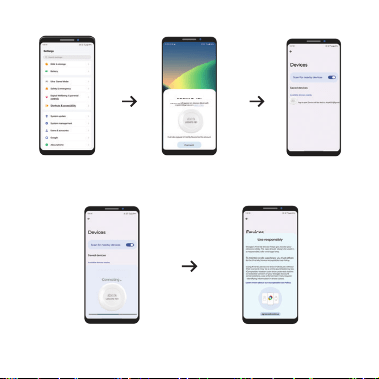
1. Install the Google ‘Find
Hub’ app from the Google
Play Store on your phone.
4. Just tap on the "Done"
button and with that, your
LOCATO 101 Setup is complete.
5. Now you can open the Google
Find Hub app to explore all the
features of LOCATO 101
Automatic Setup
2. Tap ‘All Services’, then
open ‘Connected Devices and
Sharing’ and select ‘Devices’.
3. Enable "Scan for Nearby
Devices" on your phone. When
your LOCATO 101 appears
under "Available Devices
Nearby", tap it.
LOCATO 101
LOCATO 101
LOCATO 101
LOCATO 101
13
2. Turn on the LOCATO 101
near your phone and once
the Fast Pair popup shows,
tap "Connect".
3. Read the terms of use
carefully and proceed by
clicking on "Agree and
continue".
Manual Setup
1. Go to your phone's
Settings and select
Google.
4. Bring the LOCATO 101 close to your
phone and wait for the device to
be detected and paired.
5. Read the Terms of Use carefully
and tap "Agree & Continue" to
complete the setup.
LOCATO 101
LOCATO 101
LOCATO 101
LOCATO 101

Find Your Device When It Is Nearby
Apple
1. Open the ‘Find My’ app on your Apple device and select the ‘Items’ tab.
2. Tap on your named LOCATO 101 from the list shown and tap ‘Play Sound’.
3. Your LOCATO 101 will beep.
4. Tap ‘Stop Sound’ to stop the beeps.
Google
1. Open the ‘Find Hub’ app on your phone and select the LOCATO 101
device..
2. Select ‘Find nearby’ then ‘play sound’ to get hints as you approach
device.
3. Stop playing sound when you found the LOCATO 101.
Find Your Device Last Known Location (Apple)
1. Open the ‘Find My’ app on your Apple device and select the ‘Items’ tab.
2. Tap on your named LOCATO 101 from the list shown.
3. Your device last known location will be shown on the map in the emoji
way.
4. To navigate to your device last known location, tap ‘Directions’ to open
the Maps app and tap ‘Go’.
5. Tap ‘End Route’ when you have located your device.
14

Notify When Left Behind (Apple)
1. Open the ‘Find My’ app on your Apple device and select the ‘Items’ tab.
2. Tap on your named LOCATO 101 from the list shown.
3. Pull up the App options and enable ‘Notify When Left Behind’ and tap
‘Done’ .
4. You will receive a notification on your Apple device when you leave
your device behind and itʼs no longer in range.
Notify When Your LOCATO 101 Has Been Found In Lost Mode
(Apple)
1. Open the ‘Find My’ app on your Apple device and select the ‘Items’ tab.
2. Tap on your named LOCATO 101 from the list shown.
3. Pull up the App options and tap on ‘Enable’ under ‘Lost Mode’.
4. Information about Lost Mode will be displayed, tap ‘Continue’.
5. Enter a contact phone number or email address and tap ‘Next’.
6. You can now enter a message that will be shared with the person who
finds your LOCATO 101 device.
Note: When ‘Lost Mode’ is enabled, your device is locked and cannot be
paired to a new Apple device.
Operations may vary depending on the mobile version.
Please refer to the actual version for details.
15

Find Your Device When It Is Lost (Google)
When your device is lost:
1. Open ‘Find Hub’ app on your phone and select the ‘LOCATO 101’ device.
2. Select ‘Mark as lost’and leave your contact information.
Note: If someone finds your device, they will receive a notification on their phone,
They can learn about the contact information you left and contact you to return
the device to you.
3. The last location of device will be shown on the map.
You can select ‘Get directions’ to navigate and look for it.
4. When you arrive at the last location of the device, your phone will
receive a notification that indicates you have been to the location. You
can choose ‘End Route’ and ‘Play Sound’ to get some hints for finding.
5. Once the device has been found, you can mark it as found.
16

Remove the LOCATO 101 from Device
Apple
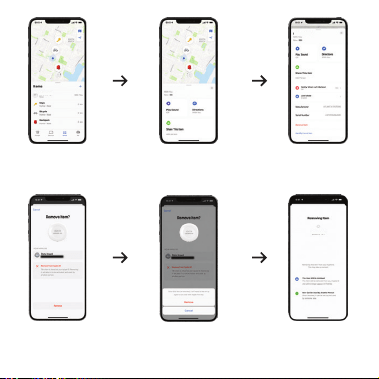
1. Open the ‘Find My’ app on your Apple device and select the ‘Items’ tab.
2. Tap on your named LOCATO 101 from the list shown.
3. Pull up the App options and tap on ‘Remove Item’.
4. A ‘Remove Item’ check screen will appear, and then tap on ‘Remove’.
5. Your device will be disconnected from your Apple ID and automatically
power off, you need to power it on before connecting to another Apple ID.
※ (You can operate as the following images which is for reference only.)
17
18
1. Select the item you
want to remove from
the list.
2. Open the selected
item's details.
3. Swipe up and tap
Remove Item.
4. Review the warning and
item details.
5. Tap Remove to permanently
remove the item.
LOCATO 101
LOCATO 101
LOCATO 101
LOCATO 101
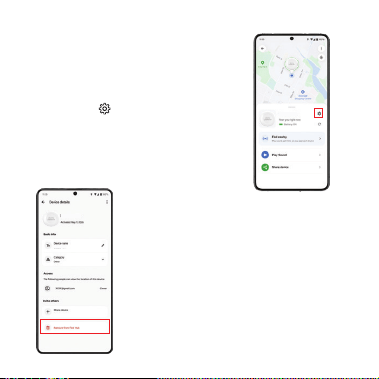
Google
1. Open the ‘Find Hub’ app on your phone
and select the LOCATO 101 device
2. Select the icon to enter device
details.
3. Select ‘Remove from Find Hub’ to remove
the LOCATO 101 from Find Hub app.
4. When the LOCATO 101 device is removed
successfully, it will automatically power
off and you need to power it on before
connecting to another Google account.
19
LOCATO 101
LOCATO 101
LOCATO 101

Reset the LOCATO 101 to factory settings
If you would like to disconnect your LOCATO 101 from your account so that
it can be paired to another account, follow the steps below:
1. Remove the LOCATO 101 from the app as instructed on previous page.
2. On your LOCATO 101, press the Power button 5 times in quick succession
and hold the button on the 5th pressing.
3. The LOCATO 101 will sound an audible beep with a flash of red light and
perform the factory reset.
How to Find the Serial Number (Apple)
To find your deviceʼs serial number, follow the steps below.
1. Via the Find My app:
A. Open the Find My app, tap on ‘Itemsʼ tab, and tap you named
LOCATO 101 device from the list shown.
B. Scroll to the bottom of the Item Detail. The serial number is displayed
below ‘Manufacturerʼ.
20

TROUBLESHOOTING
Battery Status
Apple
1. Open the Find My app on your Apple device and select the 'Items' tab.
2. Tap on your named device from the list shown.
3. Underneath the name you have given to your LOCATO 101, a battery icon
will display the current battery status.
4. When your named LOCATO 101 is in low battery, it will send notification to
your Apple device.
Google
Check the battery status of the LOCATO 101 within the 'Find Hub' app.
1. Open the 'Find Hub app on your phone and select the LOCATO 101 from
the list shown.
2. A battery icon will display the current battery status under the device
name.
3. If the device battery is low, change it immediately.
21

Cannot connect to the LOCATO 101
Apple
Please check the following situation:
1. Bluetooth function is turned on;
2. Network signal is good;
3. If neither of the above situations, you can identify your card or reset to
connect again:
A. Open Find My app > 'Items' > 'Identify Found Item' > follow the
prompt (If it has been linked to other ID, please contact with the
manufacturer.)
B. Reset the LOCATO 101 and try to connect again. (If it has been linked
to other ID, please contact with the manufacturer.)
Google
Please check the following situation:
1. Bluetooth function is turned on;
2. Network signal is good;
3. If neither of the above situations, you can reset the LOCATO 101 to factory
settings or reboot your phone, then try to connect again.
22

The Location of item is not update timely
Apple
Please check the following situation:
1. LOCATO 101 and Bluetooth function of Apple devices are turned on;
2. Check whether your LOCATO 101 is reset and linked to other ID by
identifying your LOCATO 101 in Find My app:
Open Find My app > 'Items' > 'Identify Found Item' > follow the prompt
(If it has been linked to other ID, please contact with the manufacturer.)
3. If neither of the above situations, please try to reboot your Apple device.
Google
1. Real-time location updates may be unavailable under poor network
conditions;
2. The LOCATO 101 battery may be depleted;
3. If neither of the above situations, please try to reboot your phone.
Play a Sound Does not Work Within the Find My App
The LOCATO 101 is out of Bluetooth range, which is 40 meters/131.2 feet.
Move closer to the LOCATO 101 using Directions within the Find My app,
and then tap ‘Play Soundʼ again.
23

DECLARATION
Find Hub helps you find and connect to what matters in a single, secure
place. Find your belongings quickly and safely – even if your devices are
offline. Plus, seamlessly and securely share your location with friends &
family for peace of mind.
The Apple® Find My® network provides an easy, secure way to locate
compatible personal items using the Find My app on your iPhone®, iPad®,
Mac®, or the Find Items app on Apple Watch®.
Find Hub network requires location services and Bluetooth to be turned on.
Requires cell service or internet connection. Works on Android™ 9 and
above on select devices [devices or phones] and in certain countries for
age-eligible users.
To use the Apple Find My app to locate this item, the latest version of iOS®,
iPadOS®, or macOS® is recommended. The Find Items app on Apple Watch
requires the latest version of watchOS®.
24

Use of the Works with Apple badge means that a product has been
designed to work specifically with the technology identified in the badge
and has been certified by the product manufacturer to meet Apple Find My
network product specifications and requirements. Apple is not responsible
for the operation of this device or use of this product or its compliance with
safety and regulatory standards.
Apple, Apple Find My, Apple Watch, Find My, iPhone, iPad, iPadOS, Mac,
macOS and watchOS are trademarks of Apple Inc. IOS is a trademark or
registered trademark of Cisco in the U.S. and other countries and is used
under license.
Android is a trademark of Google LLC.
This product has been certified by Google to meet Find Hub network
accessory specifications. Google is not responsible for the operation of
this product. Google is also not responsible for ensuring that the product
complies with any applicable safety standards or other requirements.
25
MADE IN INDIA
ATLANTA SYSTEMS PVT. LTD.
M-135, 2nd FLOOR, CONNAUGHT PLACE
NEW DELHI-110001
https://atlantasys.com
Tel: +91 999 0333 888
Email: [email protected]
Get Assistance at
Use camera or
QR scanner to scan