Source: avantree.com/pages/aura-c-interactive-user-guide 1
INTERACTIVE PDF MANUAL
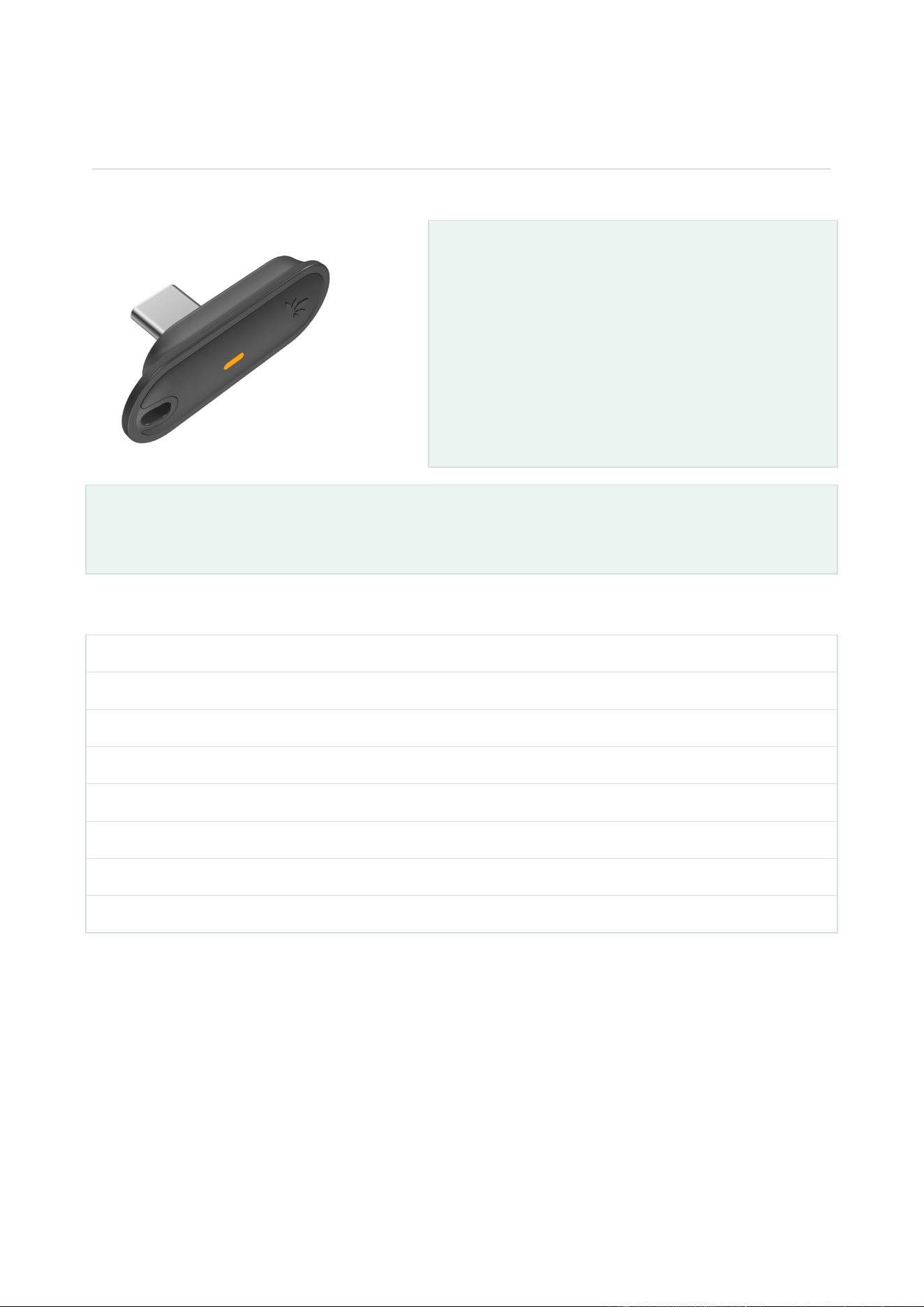
Avantree Aura C
Receive Auracast audio. Listen or read captions.
Use Aura C with a USB-C phone or tablet to receive
an Auracast broadcast. Listen through connected
Bluetooth headphones or hearing aids, read captions
on the phone, or use an AuraCaption Kit receiver for
computer captions.
Before you start
For sound, connect Bluetooth headphones or hearing aids to the phone first. For captions only, skip
that step.
Choose a task - select a whole row
Quick Start
2
Install the App and connect Aura C
3
Find and join a broadcast
4
Listen or read phone captions
5
AuraCaption Kit - Windows captions
6
AuraCaption Kit - Mac captions
7
Fix connection, audio, or caption problems
8
Firmware and official support
9
BTRC-C83 · English · Updated October 23, 2026
AVANTREE AURA C ENGLISH PDF MANUAL
CONTENTS QUICK FIXES < PREVIOUS NEXT >
Source: avantree.com/pages/aura-c-interactive-user-guide 2
START HERE
Quick Start - join a broadcast
1
Connect headphones if you want sound
Connect Bluetooth headphones or hearing aids to the phone. Confirm the listening device shows
Connected. For captions only, skip this step.
2
Install VenuCast Connect
APPLE APP STORE
Download for iPhone / iPad ->
GOOGLE PLAY
Download for Android ->
Open the App. The ready screen shows Insert Aura C.
3
Plug in Aura C
Insert Aura C fully into the USB-C port. If asked to allow USB access, tap Allow.
Lightning iPhone?
Use a USB-C-to-Lightning adapter with USB audio + OTG/data. A charging-only adapter will not
work.
4
Find and join
Tap Find Auracast, then tap the broadcast. Enter the password only for an encrypted broadcast.
Joined
The Aura C indicator stays solid orange.
HEAR THE BROADCAST
Choose the connected listening device ->
READ PHONE CAPTIONS
Choose iPhone / iPad or Android ->
COMPUTER CAPTIONS
Use the AuraCaption Kit ->
FIX A PROBLEM
Open the shortest recovery checks ->
AVANTREE AURA C ENGLISH PDF MANUAL
CONTENTS QUICK FIXES < PREVIOUS NEXT >
Source: avantree.com/pages/aura-c-interactive-user-guide 3
SETUP
Install the App and connect Aura C
Want to hear the broadcast?
Connect Bluetooth headphones or hearing aids to this phone or tablet. Confirm the device shows
Connected. For captions only, continue without headphones.
APPLE APP STORE
Install VenuCast Connect ->
GOOGLE PLAY
Install VenuCast Connect ->
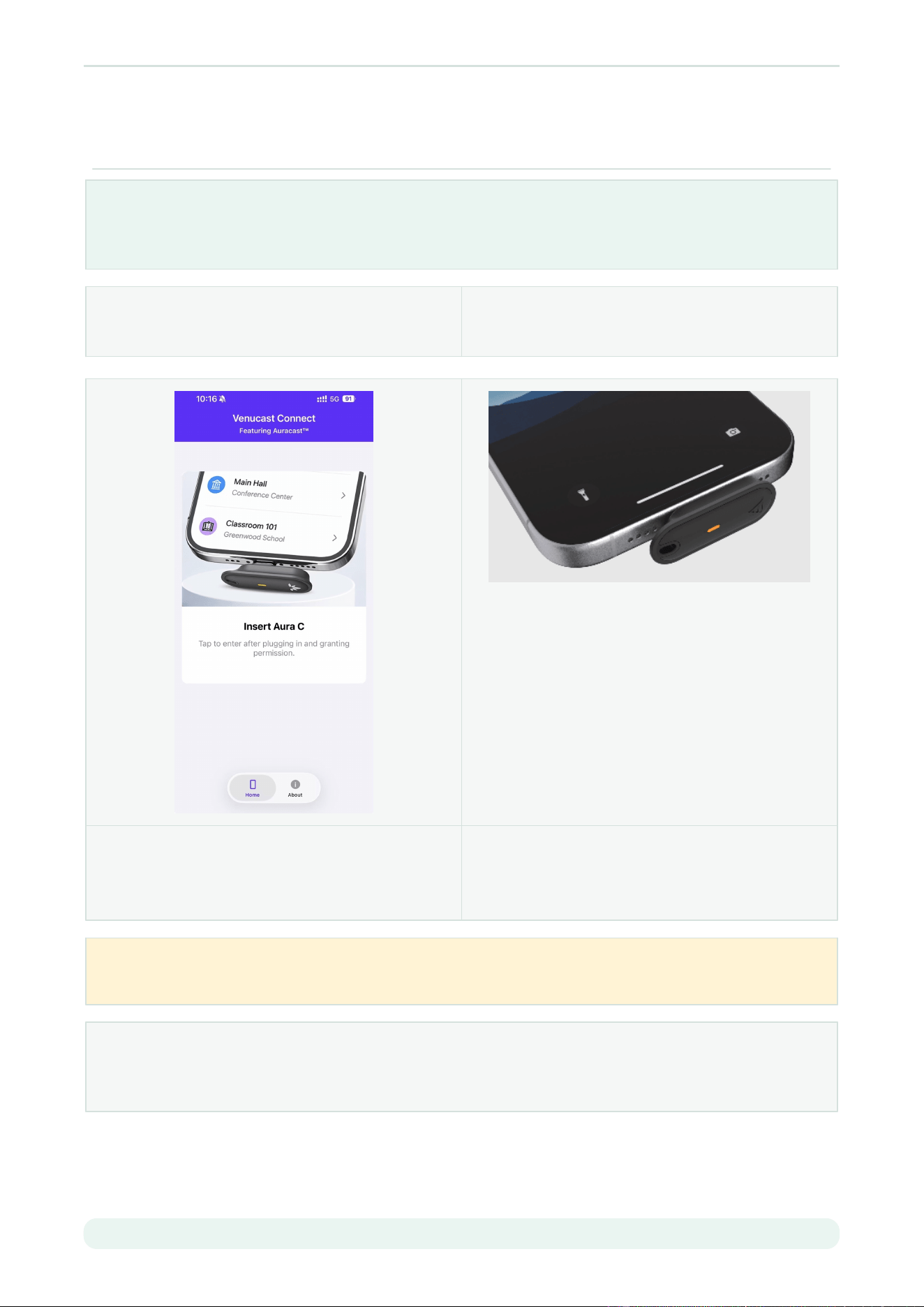
1. Open VenuCast Connect
The App shows Insert Aura C.
2. Insert Aura C fully
Plug it into the USB-C port. Tap Allow if asked
for USB access.
USB access denied?
Unplug Aura C, reconnect it, then choose Allow in the USB prompt.
Lightning iPhone?
Use a USB-C-to-Lightning adapter with USB audio + OTG/data. Charging-only adapters will not
work. The adapter is not included.
AVANTREE AURA C ENGLISH PDF MANUAL
CONTENTS QUICK FIXES < PREVIOUS NEXT >
Source: avantree.com/pages/aura-c-interactive-user-guide 4
SETUP
Find and join the broadcast
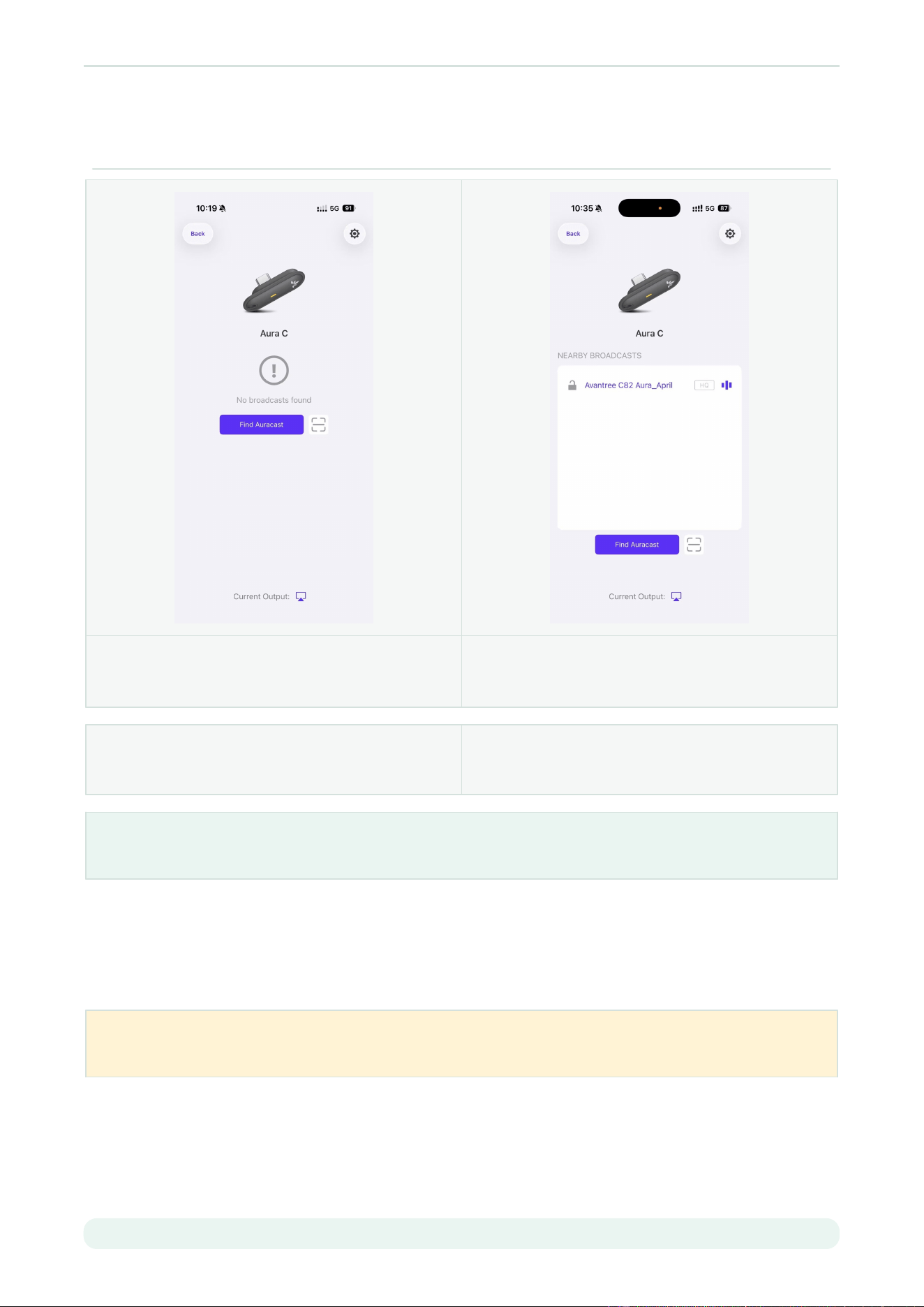
1. Tap Find Auracast 2. Tap your broadcast
Its name appears blue when selected.
PUBLIC BROADCAST
Joins automatically.
ENCRYPTED BROADCAST
Enter the password in the pop-up, then confirm.
Joined
The Aura C indicator stays solid orange.
Auto Reconnect
iPhone: enabled by default.
Android: off by default. Tap Settings at the top right, then enable Auto Reconnect.
If the broadcast is missing
Confirm the broadcaster is active and nearby, then tap Find Auracast again.
AVANTREE AURA C ENGLISH PDF MANUAL
CONTENTS QUICK FIXES < PREVIOUS NEXT >
Source: avantree.com/pages/aura-c-interactive-user-guide 5
LISTEN OR READ CAPTIONS
Choose your phone goal
Hear the broadcast
Ready to listen
The broadcast should play through the Bluetooth headphones or hearing aids connected before
setup.
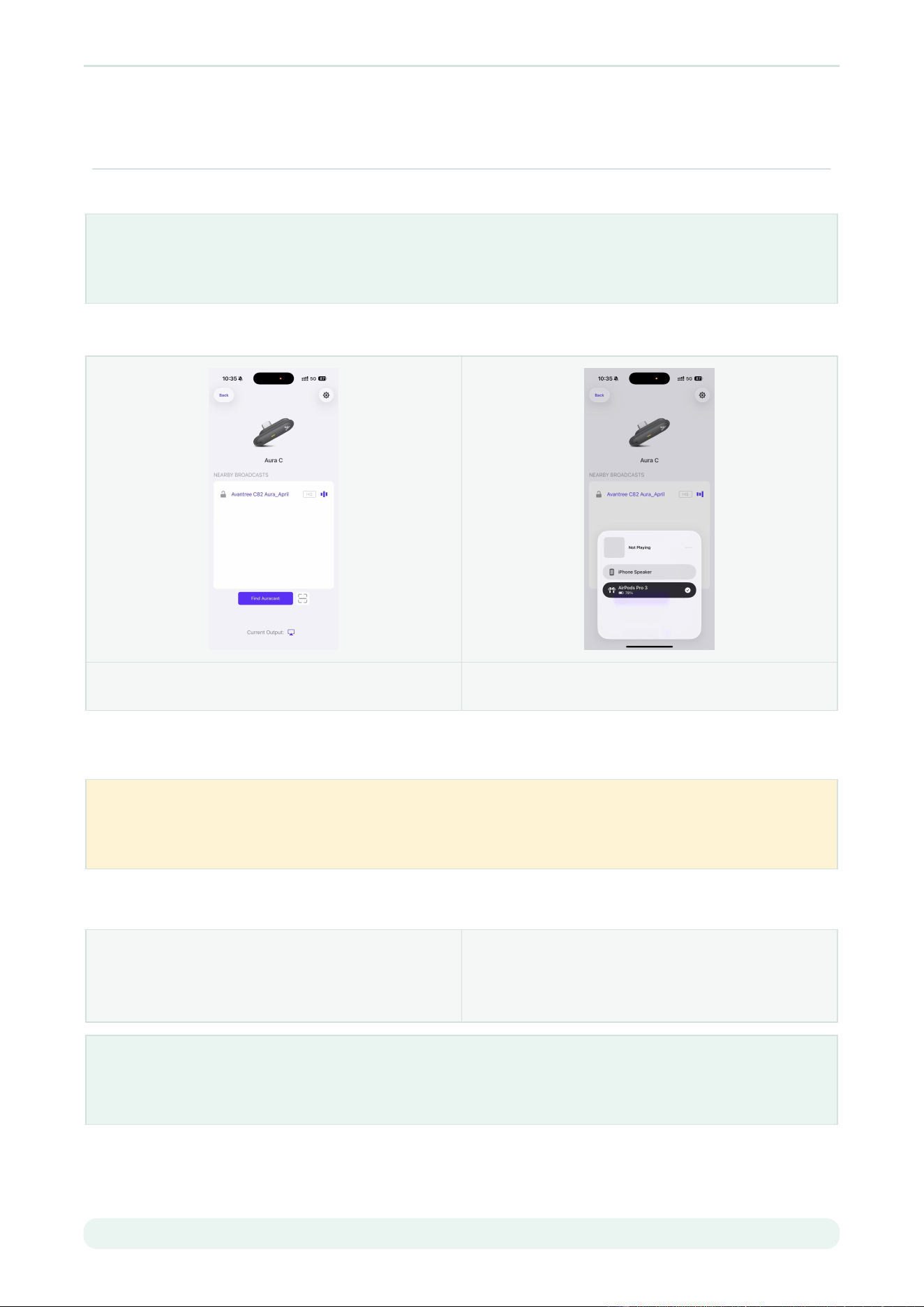
Sound coming from the phone? In VenuCast Connect, tap Output, then select the connected
headphones or hearing aids.
Tap Current Output Select your connected device
Adjust volume
Use the controls on the headphones or hearing aids, phone, or tablet.
Before answering a phone call
Android: answer normally.
iPhone: unplug Aura C first. Otherwise, the caller cannot hear you.
Read phone captions
iPHONE / iPAD
Settings -> Accessibility -> Live Captions. Turn it
on; choose iPhone Audio in the floating control.
ANDROID
Search Settings for Live Caption. Turn it on and
download the language pack if asked.
Done
Captions follow the Auracast broadcast. Availability varies by device, language, system version, and
region.
AVANTREE AURA C ENGLISH PDF MANUAL
CONTENTS QUICK FIXES < PREVIOUS NEXT >
Source: avantree.com/pages/aura-c-interactive-user-guide 6
AURACAPTION KIT
Show computer captions on Windows
Kit setup
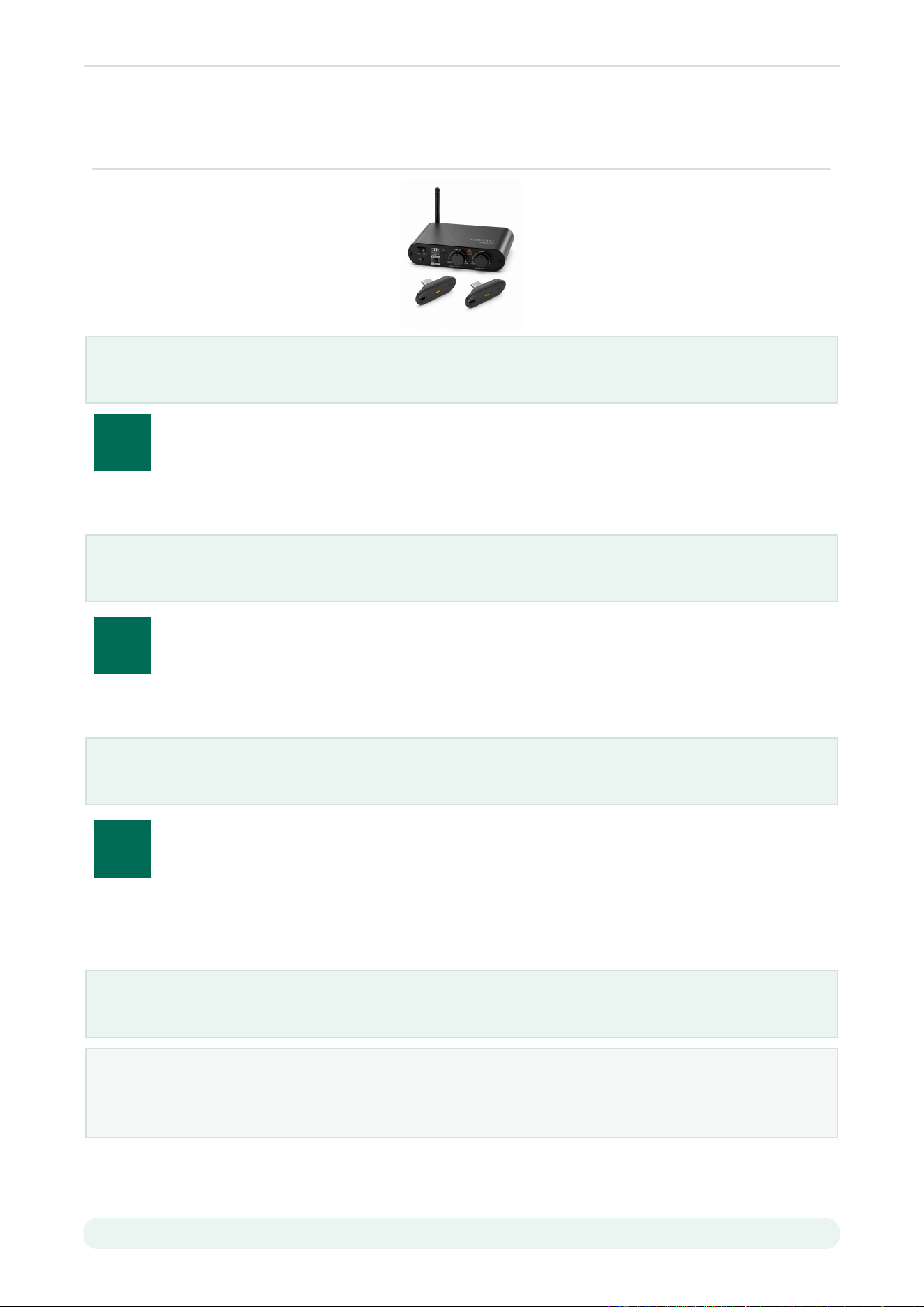
AuraCaption Kit receivers are preconfigured. No mobile App is needed.
1
Connect Aura C
1
Turn on AirCast and play speech.
2
Plug a kit Aura C into the computer.
Check
Aura C reconnects automatically and stays solid orange.
2
Select Aura C as the input
1
Open Settings -> System -> Sound -> Input.
2
Select Aura C or its USB microphone name.
Check
The input level moves during speech.
3
Turn on Live Captions
1
Press Win + Ctrl + L.
2
Download the language if prompted.
3
Open Caption window -> Settings -> Preferences, then enable Include microphone audio.
Done
Captions follow the speech.
Requires
Windows 11 22H2 or later. Live translation requires a supported Copilot+ PC with Windows 11 24H2
or later.

AVANTREE AURA C ENGLISH PDF MANUAL
CONTENTS QUICK FIXES < PREVIOUS NEXT >
Source: avantree.com/pages/aura-c-interactive-user-guide 7
AURACAPTION KIT
Show computer captions on Mac
1
Connect Aura C
1
Turn on AirCast and play speech.
2
Plug a kit Aura C into the Mac.
Check
Aura C reconnects automatically and stays solid orange.
2
Select Aura C as the input
1
Open System Settings -> Sound -> Input.
2
Select Aura C or its USB microphone name.
Check
The input level moves during speech.
3
Turn on Live Captions
1
Open System Settings -> Accessibility -> Live Captions.
2
Turn on Live Captions.
3
Select the microphone in the caption window.
Done
Captions follow the speech.
Requires
A supported Apple silicon Mac. Availability varies by macOS version, language, and region.
Full-screen caption viewing
Open the online Aura C guide on the caption computer and use its black-background full-screen
view. Press Esc to exit. This page does not record audio or generate captions; the computer
controls caption size and position.
OPEN FULL-SCREEN GUIDE
Use the current online guide ->
SECOND COMPUTER
Connect the second kit Aura C and repeat the
setup.

AVANTREE AURA C ENGLISH PDF MANUAL
CONTENTS QUICK FIXES < PREVIOUS NEXT >
Source: avantree.com/pages/aura-c-interactive-user-guide 8
QUICK FIXES
Choose the symptom
Aura C is not detected
The App does not continue
after insertion.
1
Unplug Aura C and reconnect it fully.
2
When the USB prompt appears, choose Allow.
3
For a Lightning iPhone, confirm the adapter supports USB audio +
OTG/data.
Expected: The App recognizes Aura C.
The broadcast does not
appear or join
Find Auracast shows no
usable broadcast.
1
Confirm the broadcaster is active and stay nearby.
2
Tap Find Auracast again, then select the correct broadcast.
3
For an encrypted broadcast, enter the exact password and
confirm.
Expected: The selected name is blue and Aura C stays solid orange.
Joined, but no audio
Aura C is solid orange but
the listener is silent.
1
Confirm the headphones or hearing aids show Connected in
phone Bluetooth settings.
2
In VenuCast Connect, tap Output and select that listening device.
3
Raise volume from a low level.
Expected: Broadcast audio plays through the selected device.
Input moves, but no
computer captions
The computer receives
speech but shows no
captions.
1
Check the caption language and microphone permissions.
2
Windows: enable Include microphone audio each time captions
reopen; pause other computer audio if needed.
3
Mac: select the microphone in the caption window.
Expected: Captions follow the speech.
NOTICEABLE AUDIO DELAY
Delay varies by phone and listening device.
Move away from venue loudspeakers or lower
them to reduce echo.
MULTIPLE LISTENERS
One Aura C serves one phone and selected
output. Each listener needs their own receiver
setup.
AVANTREE AURA C ENGLISH PDF MANUAL
CONTENTS QUICK FIXES < PREVIOUS START OVER >
Source: avantree.com/pages/aura-c-interactive-user-guide 9
FIRMWARE AND SUPPORT
Update only when prompted
1
Prepare
Keep the phone charged and Aura C firmly connected.
2
Start the update
Open Aura C Settings -> Firmware Update, review the release note, then confirm.
3
Wait for completion
Wait until the App confirms success.
During the update
Do not unplug Aura C, close the App, or power off the phone.
Official help
CONTACT SUPPORT
Include phone/computer model, symptom, and
screenshots ->
AURA C FAQs
Open official answers and troubleshooting ->
APPLE APP STORE
Download VenuCast Connect ->
GOOGLE PLAY
Download VenuCast Connect ->
EMAIL
US PHONE
800 232 2078
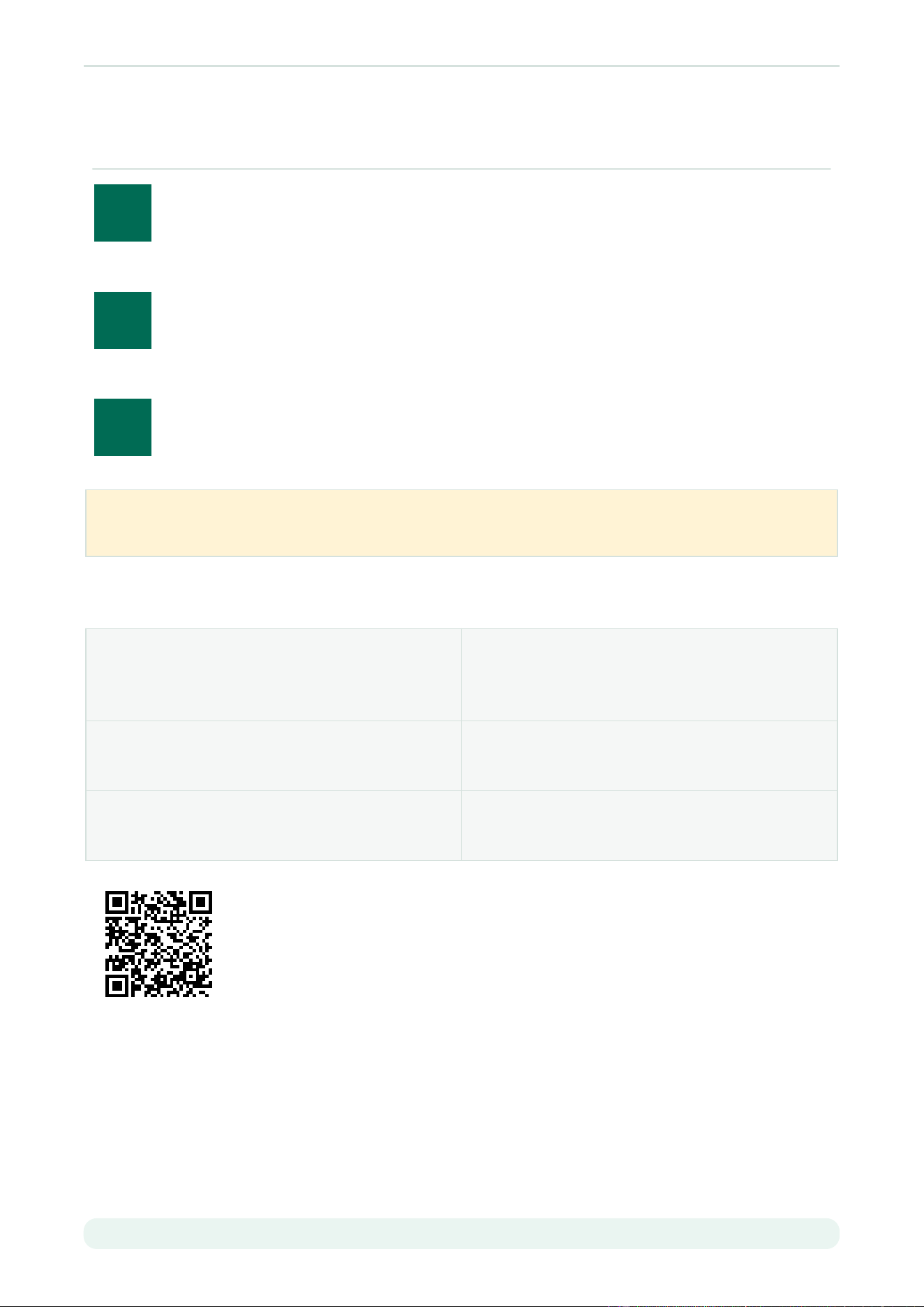
Scan for the latest online guide. Contents rows, task cards, support cards, and bottom navigation are clickable.
FCC Requirement
Any changes or modifications not expressly approved by the party responsible for compliance could
void the user
’
s authority to operate the equipment.
This device complies with Part 15 of the FCC Rules. Operation is subject to the following two
conditions:
(1) this device may not cause harmful interference, and
(2) this device must accept any interference received, including interference that may cause
undesired operation.
Note: This equipment has been tested and found to comply with the limits for a Class B digital device,
pursuant to Part 15 of the FCC Rules. These limits are designed to provide reasonable protection
against harmful interference in a residential installation. This equipment generates, uses, and can
radiate radio frequency energy, and if not installed and used in accordance with the instructions,
may cause harmful interference to radio communications. However, there is no guarantee that
interference will not occur in a particular installation. If this equipment does cause harmful
interference to radio or television reception, which can be determined by turning the equipment off
and on, the user is encouraged to try to correct the interference by one or more of the following
measures:
– Reorient or relocate the receiving antenna.
– Increase the separation between the equipment and receiver.
– Connect the equipment into an outlet on a circuit different from that to which the receiver is
connected.
– Consult the dealer or an experienced radio/TV technician for help.
This equipment complies with FCC radiation exposure limits set forth for an uncontrolled
environment.