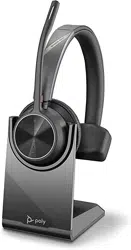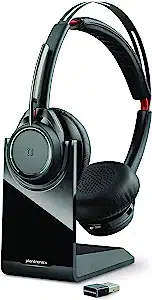

Voyager Focus UC
Bluetooth stereo headset
User Guide

Contents
Overview 3
Headset 3
Headset LEDs 4
Charge stand* 4
USB Bluetooth adapter 5
Connect and pair 6
Connect to PC 6
Configure USB adapter 6
Pair to mobile device 6
Pair USB adapter again 7
Fit and charge 9
Wear on the right or left 9
Charge your headset 9
Check headset battery status 9
Load software 10
Update your Poly device 10
The basics 11
Make/Take/End Calls 12
Mute/unmute 12
OpenMic 12
Volume 12
Play or pause music 12
Track selection 12
Use sensors 12
ANC 13
Interact with Microsoft softphone 13
More Features 14
DeepSleep Mode 14
Answer calls from a second device 14
Change language 14
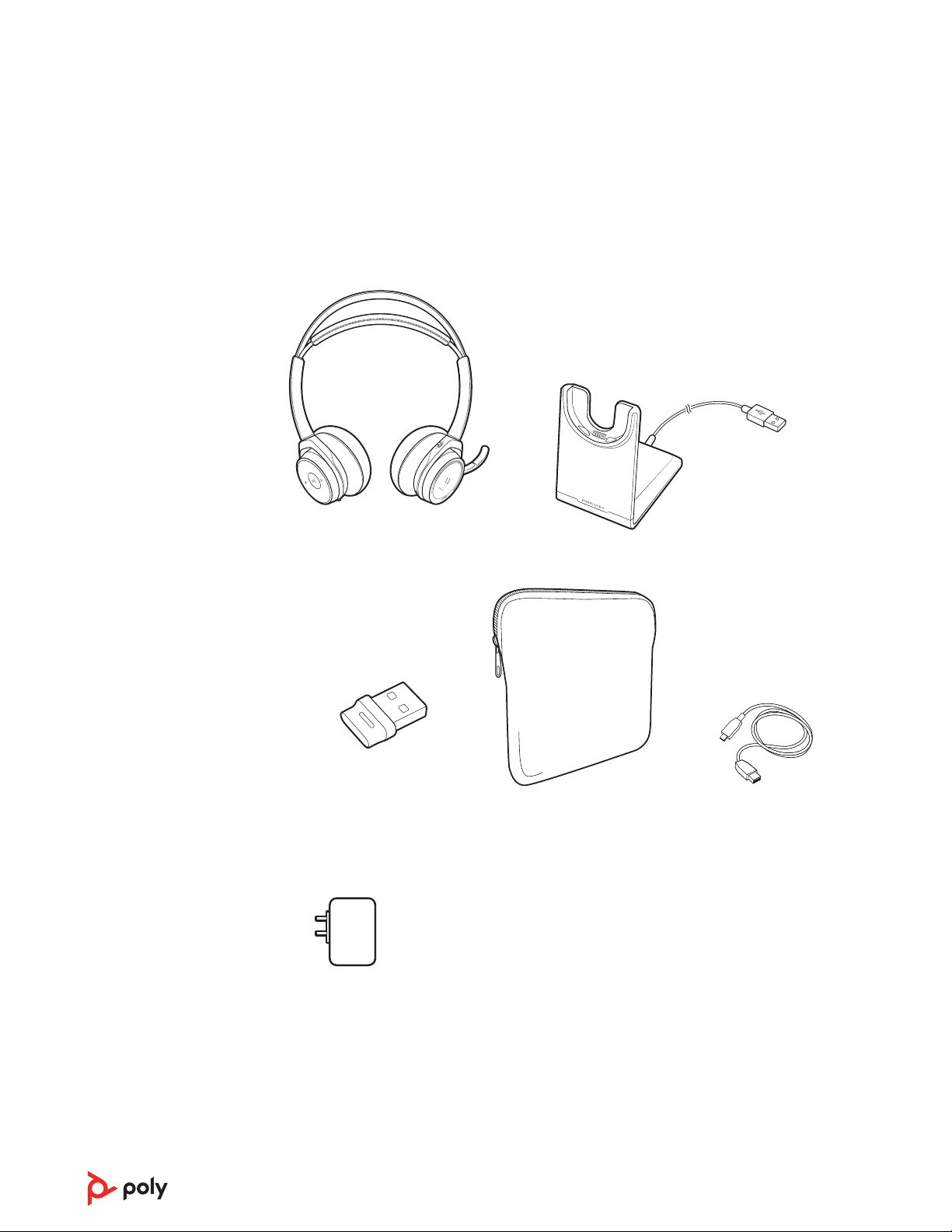
What's in the box 15
Accessories 15
Troubleshoot 16
Support 18
2
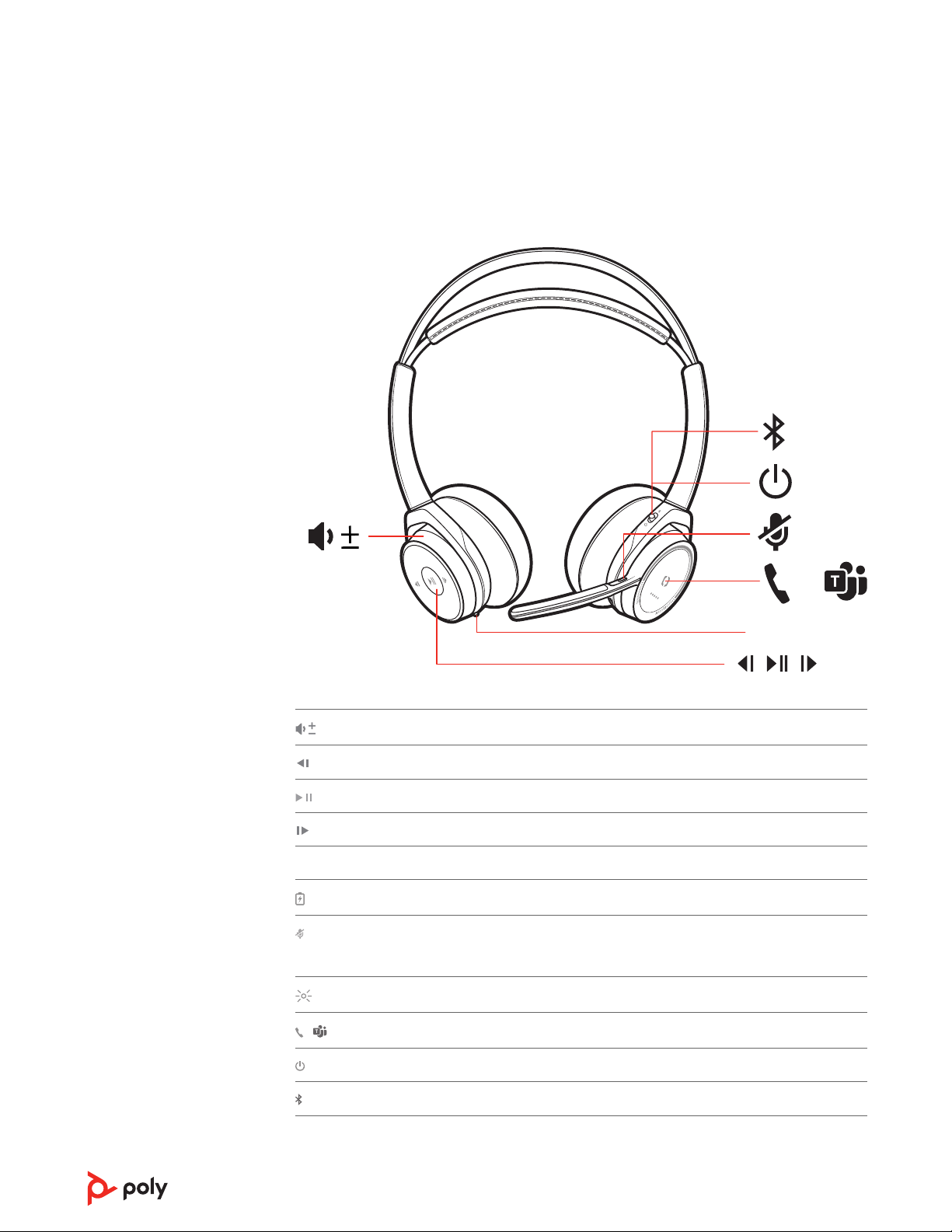
ANC
/
Volume up/down
Track backward*
Play/pause music*
Track forward*
ANC
Active noise cancelling
Charge port
Active call = mute/unmute
Idle = OpenMic (hear your surroundings)
Headset LEDs for pairing, battery status, online indicator
/
Call button ([ ])/Press to interact with Microsoft Teams (app required)
Power button
Bluetooth pair button
NOTE *Functionality varies by application. Does not function with web-based apps.
Overview
Headset
3
1 Connection status
Headset LEDs What they mean
Flashing red and blue Pairing
3 red flashes Incoming call
Flashing red On a call
2 Battery status: View LEDs when the headset is charging or by pressing the Call button,
Mute button or Pairing button when the headset is idle.
Headset LEDs What they mean
4–5 blue flashes Battery high
2–3 blue flashes Battery medium
1 red flash Battery low
3 red flashes Battery critical; Recharge headset
NOTE *Contents may vary by product.
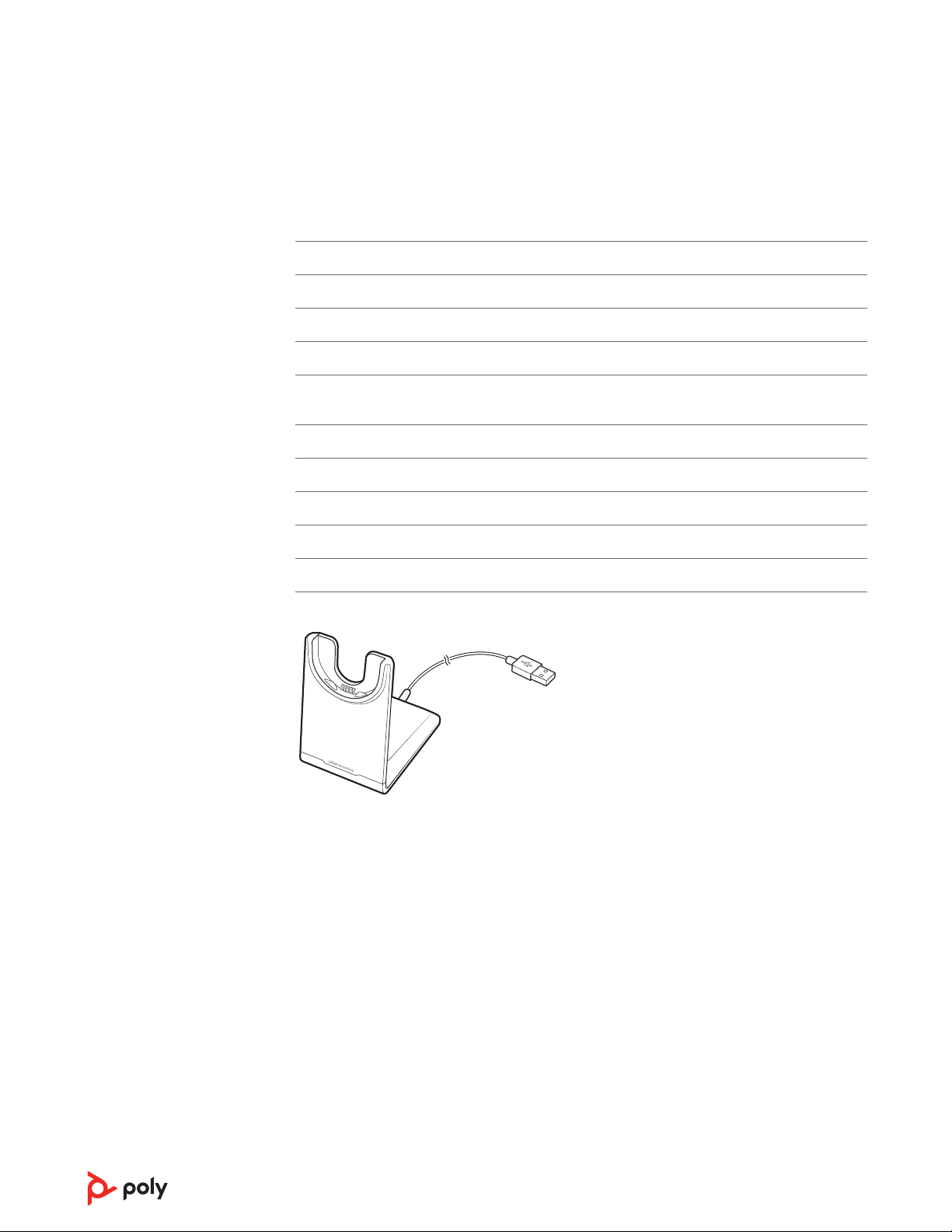
NOTE Both the charge stand and micro USB cable can be plugged into either a computer or
wall charger. It is only necessary to plug the charge stand into a computer to update rmware.
Headset LEDs
Charge stand*
4

Your high-fidelity Bluetooth USB adapter comes pre-paired to your Poly device. Plug it
into your computer to connect to high-fidelity computer audio.
NOTE Adapter's USB connection and design may vary, but function is the same.
Standard LEDs
USB LEDs What they mean
Flashing red and blue Pairing
Solid blue Headset connected
Flashing blue On a call
Solid red Mute active
Flashing purple Streaming media from computer
LEDs when Microsoft Teams* is detected
USB LEDs What they mean
Flashing red and blue Pairing
Solid purple Microsoft Teams connected
Flashing blue On a call
Solid red Mute active
Pulsing purple Microsoft Teams notification
NOTE *Requires Microsoft Teams desktop application.
USB Bluetooth adapter
5
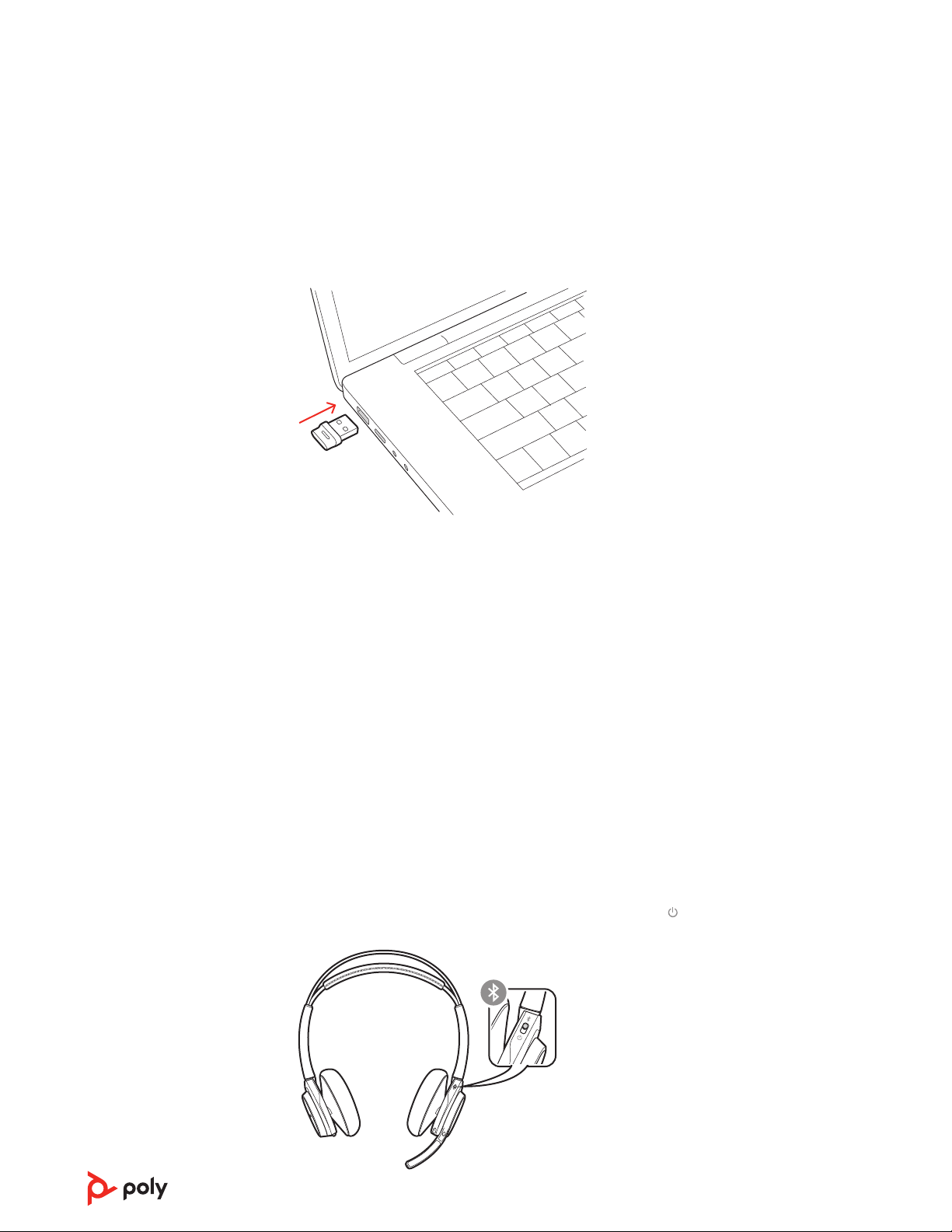
Your Bluetooth USB adapter comes pre-paired to your headset.
1 Turn on your headset and insert the Bluetooth USB adapter into your laptop or PC.
2 The USB adapter LED flashes and then turns solid to indicate the headset is connected to
the USB adapter. If you are wearing your headset you hear “PC connected” to indicate the
connection has been established. When on a call, the LED on the USB adapter flashes blue.
When not on a call the LED is solid.
3
Load Poly Lens Desktop App by visiting poly.com/lens. This allows you to customize your
headset behavior through advanced settings and options.
Your high-fidelity Bluetooth USB adapter comes ready to take calls. If you want to listen to
music, you will need to configure your Bluetooth USB adapter.
Windows
1 To configure your Bluetooth USB adapter to play music, go to Start menu > Control Panel
> Sound > Playback tab. Select Poly BT700 or Plantronics BT600, set it as the Default
Device and click OK.
2 To pause music when you place or receive calls, go to Start menu > Control Panel > Sound
> Communications tab and select the desired parameter.
Mac
1 To configure the Bluetooth USB adapter, go to Apple menu > System Preferences > Sound.
On both the Input and Output tabs, select Poly BT700 or Plantronics BT600.
1 To put your headset in pair mode, slide and hold the Power
switch away from the off
position until you hear "pairing" and the headset LEDs flash red and blue.
Connect and pair
Connect to PC
Configure USB adapter
Pair to mobile device
6
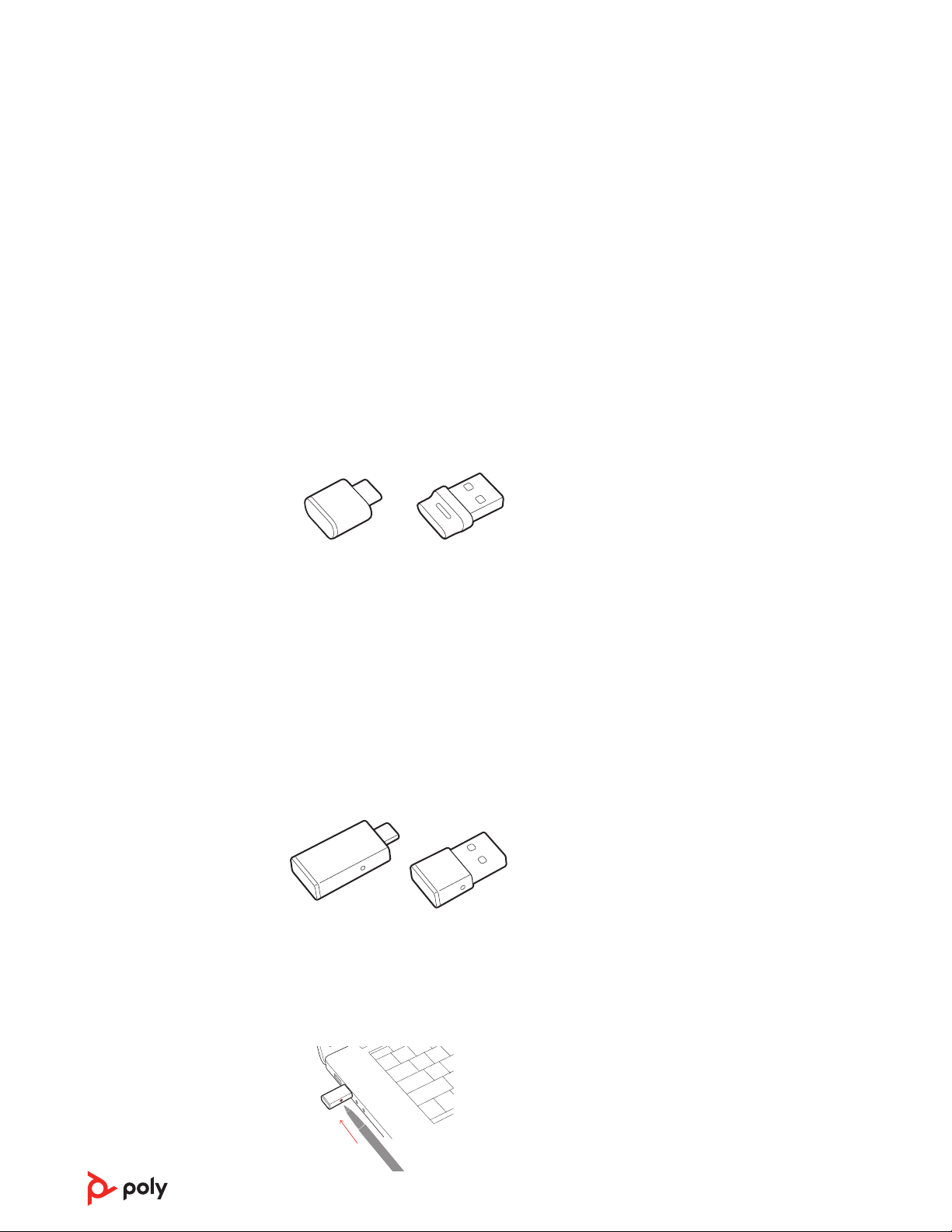
2 Select “Poly VFocus.”
Once successfully paired, you hear “pairing successful” and the headset LEDs stop flashing.
NOTE Your headset can pair with up to 8 devices but only maintain 2 connections
simultaneously; this includes the Bluetooth USB adapter.
Typically, your USB adapter is pre-paired to your Poly audio device. In the event that your
adapter is disconnected or bought separately, you will need to pair the adapter to your Poly
device. The adapter pairing method depends on which USB adapter you use.
Pair BT700 USB adapter again
Your USB adapter requires Poly Lens Desktop App to pair to a Poly audio device.
Download: poly.com/lens.
BT700 USB-C BT700 USB-A
1 Insert the high-fidelity Bluetooth USB adapter into your laptop or computer and wait for
your computer to recognize it.
2 Put your Poly audio device in pair mode.
3 Launch Poly Lens Desktop App and navigate to Poly BT700.
4 Put your Bluetooth USB adapter into pair mode by selecting "Pair new device" on the
adapter's main page or overflow menu. Your adapter flashes red and blue.
Pairing is successful when you hear "pairing successful" and "PC connected" and the
Bluetooth USB adapter LED is solid.
NOTE To pair again using Plantronics Hub Desktop App, navigate to the app's Poly BT700
general settings and select "Pair."
Pair BT600 USB adapter again
BT600 USB-C BT600 USB-A
1 Insert the high-fidelity Bluetooth USB adapter into your laptop or computer and wait for
your computer to recognize it.
2 Put your Poly audio device in pair mode.
3 Put your Bluetooth USB adapter into pair mode by pressing and holding the recessed pair
button with a pen or paperclip until the Bluetooth USB adapter flashes red and blue.
Pair USB adapter
again
7

NOTE Adapter design varies by USB connection.
Pairing is successful when you hear "pairing successful" and "PC connected" and the
Bluetooth USB adapter LED is solid.
8
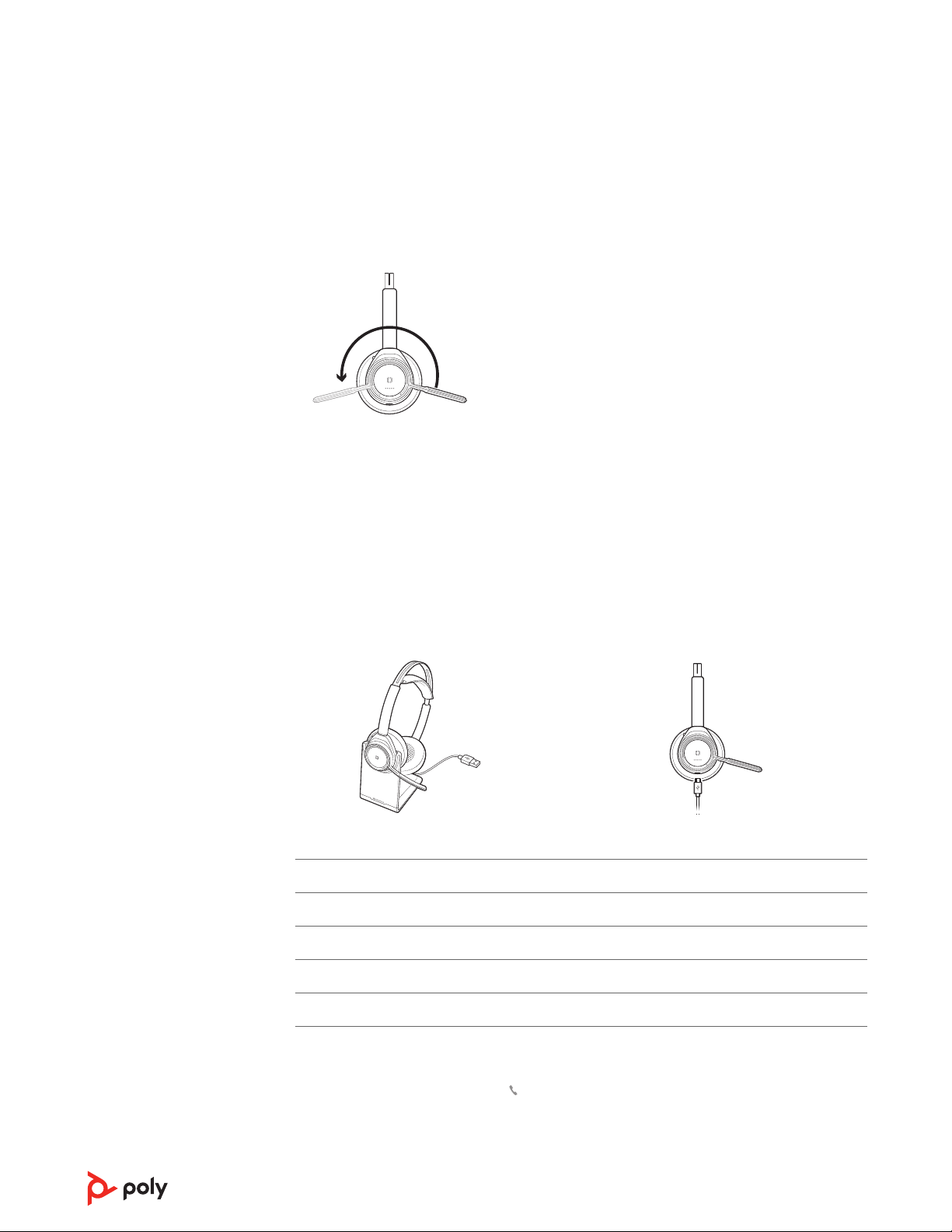
To position the microphone on the right or left side, rotate the microphone boom up and
over. Adjust the boom so it points to the corner of your mouth.
TIP Your headset senses when you change the microphone boom from one side to the other and
syncs the audio and controls specific to each side.
IMPORTANT Before using, charge the headset fully to reset the accuracy of the talk time
prompts.
Charge your headset with the charge stand or the micro USB cable. The headset LEDs
flash when charging. It takes up to 2 hours to fully charge your headset. The LEDs turn off
once charging is complete.
NOTE Both the charge stand and micro USB cable can be plugged into either a computer or wall
charger. It is only necessary to plug into a computer to update firmware.
Charge stand Micro USB cable
Headset LEDs Battery status
4–5 blue blinks Battery high
2–3 blue blinks Battery medium
1 red blink Battery low
flashing red Battery critical; Recharge headset
There are several ways to check your headset battery status.
1 Wearing the headset, tap the Call
button and listen to the voice alert (smartphone only).
2 When not wearing the headset, tap any button except the Call button and observe the
headset LEDs.
3 Place the headset in the charge cradle and observe the headset LEDs.
Fit and charge
Wear on the right or left
Charge your headset
Check headset battery
status
9

Customize your device behavior through advanced settings and options with Poly Lens
App. Some softphones require the installation of Poly software to enable device call
control (answer/end and mute) functionality. Download: poly.com/lens.
NOTE Device settings and updates are also available in Plantronics Hub App.
Keep your firmware and software up-to-date to improve performance and add new
features to your Poly device.
1 Download Poly Lens Desktop App at poly.com/software.
2 To update your headset, dock your headset in the charge stand and plug it directly into
your computer.
3 Open Poly Lens Desktop App on your computer and select your device name and then
select the update button, if available.
While updating:
• Do not use your Poly device until the update is complete.
• Disconnect your Poly device from paired devices such as phones, tablets and computers.
• Do not start a second update from a second device.
• Do not stream media.
• Do not answer or place a call.
Load software
Update your Poly
device
10
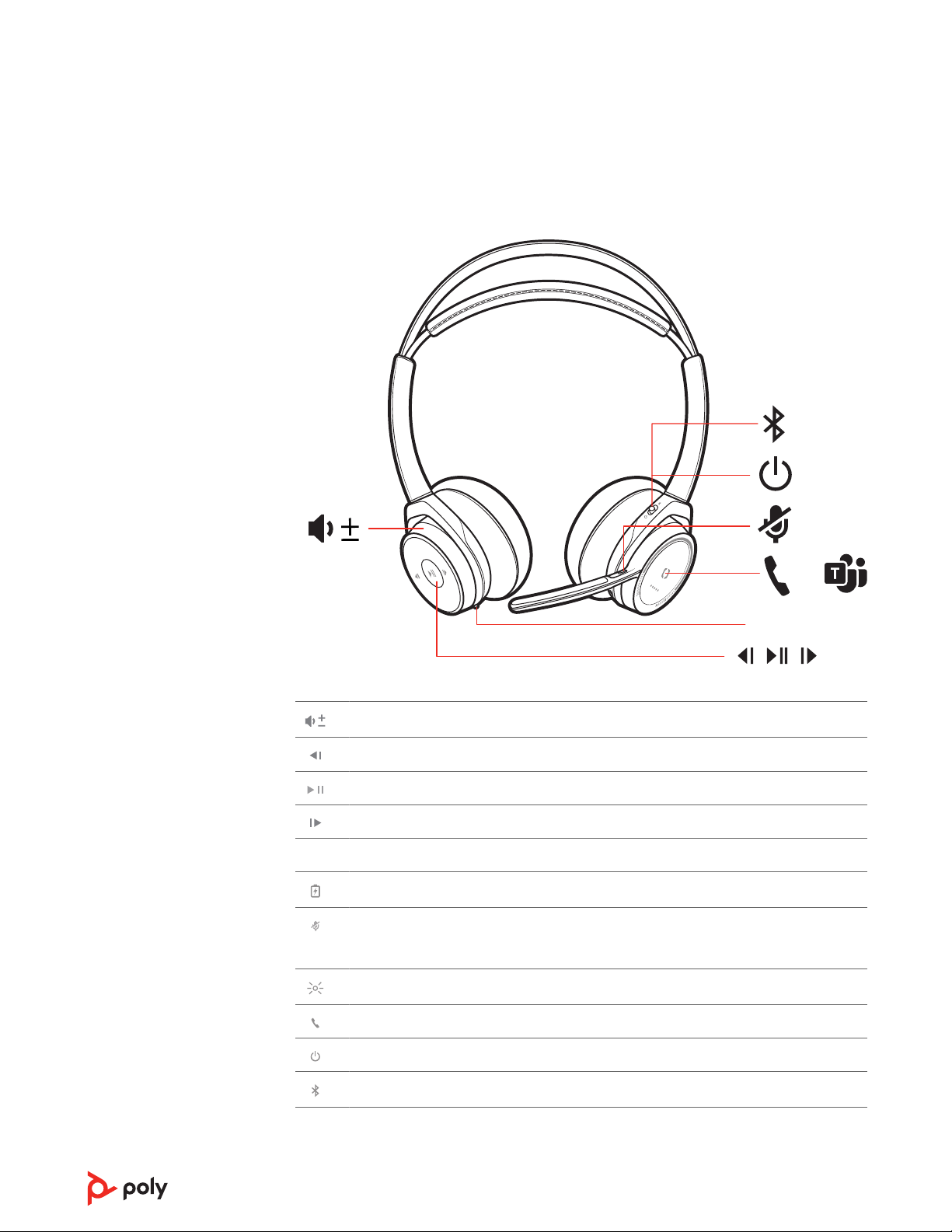
ANC
/
Volume up/down
Track backward*
Play/pause music*
Track forward*
ANC
Active noise cancelling
Charge port
Active call = mute/unmute
Idle = OpenMic (hear your surroundings)
Headset LEDs for pairing, battery status, online indicator
Call button ([ ])
Power button
Bluetooth pair button
NOTE *Functionality varies by application. Does not function with web-based apps.
The basics
11

Answer or end a call
Tap the Call button.
Call back last call (smartphone)
To dial your last number you dialed, double-tap the Call button.
Voice assistant
Siri, Google Assistant
™
, Cortana Press and hold the Call button for 2 seconds to activate
your phone's default voice assistant. Wait for the phone prompt to activate voice dialing,
search, and other smartphone voice controls.
While on an active call, choose:
• Tap the red Mute button
• Take off/put on your headset while on an active call (requires active smart sensors)
While not on a call, tap the red Mute button to activate OpenMic and hear your
surroundings. Control the level of ambient noise you hear by adjusting the volume wheel.
Rotate the volume wheel
forward (+) or backward (–) to control the volume.
Choose:
• Put on/take off the headset (requires active smart sensors)
• Tap the Play/pause
button
NOTE Functionality varies by application. Does not function with web-based apps.
Tap the Forward button or Back button to control the track selection.
NOTE Functionality varies by application. Does not function with web-based apps.
Smart sensors respond when you put on or take off your headphones.
With active sensors putting on the headset will: taking off the headset will:
Call answer the call mute the headset
Music/media resume music/media (if
playing previous to taking off)*
pause music/media (if
playing)*
Mute unmute if on an active call mute if on an active call
NOTE *Functionality varies by application. Does not function with web-based apps.
Reset sensors
You may need to reset the sensors if they are not working as expected.
There are two ways to reset the headset sensors. Choose:
• With your headset powered on, charge your headset on the charge stand for 10 seconds
• Press and hold both the Mute
and Play/pause buttons for more than 4 seconds until
the LEDs flash purple twice, being careful to not touch the earcup padding or allow it to
come in contact with surfaces
Disable sensors
You can disable your headset smart sensors 2 ways:
Make/Take/End Calls
Mute/unmute
OpenMic
Volume
Play or pause music
Track selection
Use sensors
12

• Manage sensors in Poly Lens App
• Hold both the Mute and Call buttons for more than 4 seconds until the LED flashes
purple then red. Repeat to reactivate; the LED flashes purple then blue
NOTE Sensors cannot be disabled while streaming audio.
Active Noise Canceling (ANC) reduces external noise and enhances your music and sound
quality.
Your headset ships with ANC on. To turn ANC off, slide the switch away from "ANC."
• For Microsoft Teams, tap the headset's Call
button to interact (Teams desktop
application required).
• For Skype for Business, press and hold the headset's Call
button for 2 seconds to interact
(Skype for Business desktop application required).
ANC
Interact with Microsoft
softphone
13

If you leave your headphones powered on but out of range of your paired phone or USB
adapter for more than 7 days, your headset conserves its battery power by entering into
DeepSleep mode.
Once back in range with your phone or USB adapter, press the Call control
button to exit
DeepSleep mode.
It's easy to answer calls from two devices (including softphone).
When on a call, you hear a ringtone notification of the incoming call from the second
paired device.
To answer a second call from the other device, first tap the Call
button to end the current
call and tap the Call button again to answer the new call. If you choose to not answer the
second call, it will go to voicemail.
You can change the voice prompts language of your headset (for example "mute on").
1 Load Poly Lens App on your computer. Download: poly.com/lens.
2 Dock your headset in the charge stand and plug it directly into your computer.
3 Disconnect your headset from other devices.
4 Open Poly Lens App and go to your device's Settings > Language to view language choices
for voice prompts.
More Features
DeepSleep Mode
Answer calls from a
second device
Change language
14

When I use my headset with a
softphone, the headset call
control and mute buttons don't
work.
• If required to enable headset control (answer/end and mute)
functionality, ensure you have Poly Lens Desktop App or
Plantronics Hub for Windows/Mac installed. See Load
software.
I can't unmute my headset when
I'm on a softphone call.
• Ensure that you have Poly Lens Desktop App or Plantronics
Hub for Windows/Mac installed on your computer.
How do I interact with Microsoft
Teams or Skype for Business
desktop apps?
• For Microsoft Teams, tap the Call button to interact.
• For Skype for Business, press and hold the Call button for 2
seconds to interact.
• Set your target phone by going to Poly Lens Desktop App >
Software Settings > Softphone > Target Softphone
Does my Microsoft Teams-
enabled headset work with other
softphones?
Yes, while your headset is optimized for Microsoft Teams, it
can be configured to use with other supported softphones.
Set your target phone by going to Poly Lens Desktop App >
Software Settings > Softphone > Target Softphone
When you configure another softphone, the Call button:
• doesn't interact with Teams
• doesn't go to Teams notifications
• will not launch Cortana
The headset sensors are not
working as expected.
• A call is not automatically
answered when I put on my
headset
• Mute/unmute is not working
when I take on/off my headset
during a cal
• During a call, mute unexpectedly
turns on.
If your headset sensors are not working as expected, you may
need to reset the sensors. See Reset sensors.
During a call, nobody can hear
me.
Configure the headset as the recording/output default
device.
For Windows, go to Start menu > Control Panel > Sound >
Recording tab. Select BT700 or BT600, right-click, select
“Select as Default Device” and click OK.
For Mac, go to Apple menu > System Preferences > Sound >
Output tab and select BT700 or BT600.
During a call, I can't hear
anybody.
Configure the headset as the playback/input default device.
For Windows, go to Start menu > Control Panel > Sound >
Playback tab. Select BT700 or BT600, right-click, select
“Select as Default Device” and click OK.
For Mac, go to Apple menu > System Preferences > Sound >
Input tab and select BT700 or BT600.
Troubleshoot
16

During a call, I get interference
and drops in sound.
Your headset is configured for optimal performance during
conference calls. Stereo telephony is on by default. To
increase Bluetooth density, change the setting from stereo
telephony to mono telephony by holding the Mute button for
four seconds while not on a call, until you hear "Wideband
stereo off."
You can also change the setting in Poly Lens Desktop App or
Plantronics Hub for Windows/Mac by going to Settings >
Wireless > Extended Range Mode.
Music from my computer is not
coming through my headset.
To configure your USB adapter to play music, see Configure
USB adapter.
On my Mac, if I'm listening to
streaming audio and take off the
headset, iTunes starts playing
when I put the headset back on.
This is a known issue. Turn off play/pause setting in the
sensors tab of Plantronics Hub for Windows/Mac or Poly
Lens App.
When I play music and a call
comes in, the music is too loud or
doesn't pause.
To configure your USB adapter to play music, see Configure
USB adapter.
The headset talk time is not
accurate.
Charge the headset fully to reset the accuracy of the talk
time prompts.
I hear an echo when not on a call. Check and see if OpenMic is on by pressing the red mute
button on the boom when you are not on a call. Our exclusive
OpenMic feature lets you control the level of ambient noise
you hear.
17

Support
NEED MORE HELP?
poly.com/support
Manufacturer:
Plantronics, Inc. Plantronics B.V.
345 Encinal Street
Santa Cruz, CA 95060
United States
Scorpius 171
2132 LR Hoofddorp
Netherlands
©
2021 Plantronics, Inc. All rights reserved. Poly, the propeller design, and the Poly logo
are trademarks of Plantronics, Inc. Bluetooth is a registered trademark of Bluetooth SIG,
Inc. and any use by Plantronics, Inc. is under license. All other trademarks are the
property of their respective owners. Manufactured by Plantronics, Inc.
Model ID: B825 / B825 USB-C
205084-06 07.21
18