
Contents
Guide to This Manual
Introduction to the Manuals...................8
Important Safety Instructions (paper manual). . . . 8
Start Here (paper manual)..................8
User's Guide (digital manual)................8
Information on the Latest Manuals............8
Searching for Information.................... 8
Printing Only the Pages You Need.............. 9
About is Manual......................... 9
Marks and Symbols......................10
Notes on Screenshots and Illustrations. . . . . . . . 10
Operating System References...............10
Trademarks..............................11
Copyright...............................11
Important Instructions
Safety Instructions.........................14
Safety Instructions for Ink................. 14
Printer Advisories and Warnings.............. 15
Advisories and Warnings for Setting Up the
Printer................................15
Advisories and Warnings for Using the Printer. . 15
Advisories and Warnings for Using the
Touchscreen........................... 16
Advisories for Using Memory Devices.........16
Advisories and Warnings for Connecting to
the Internet............................16
Advisories and Warnings for Transporting or
Storing the Printer.......................16
Notes on the Administrator Password...........16
Default Value of the Administrator Password. . . .17
Changing the Administrator Password........ 17
Operations that Require You to Enter the
Administrator Password...................17
Initializing the Administrator Password....... 17
Protecting Your Personal Information...........18
Part Names and Functions
Front...................................20
Inside..................................21
Rear...................................22
Guide to the Control Panel
Control Panel............................ 24
Home Screen Conguration..................24
Guide to the Network Icons................26
Menu Screen Conguration..................26
Entering Characters........................27
Loading Paper
Paper Handling Precautions..................30
Precautions for Photo Paper................30
Paper Size and Type Settings..................31
List of Paper Types.......................31
Loading Paper Using Instructions on the LCD
screen..................................32
Loading Pre-punched Paper................33
Loading Long Paper......................33
Placing Originals
Placing Originals..........................36
Originals that are not Supported by the ADF. . . . . . 37
Using a Memory Device
Inserting and Removing an External USB Device. . .39
Sharing Data on a Memory Device.............39
Printing
Printing Documents........................42
Printing from a Computer - Windows.........42
Printing from a Computer - Mac OS..........64
Printing Photos...........................72
Printing JPEG Files from a Memory Device. . . . .72
Printing TIFF Files from a Memory Device. . . . . 73
Printing Photos from Mobile Devices.........74
Printing on Envelopes...................... 76
Printing on Envelopes from a Computer
(Windows)............................ 76
Printing on Envelopes from a Computer
(Mac OS)..............................77
Printing Web Pages........................ 77
Printing Web Pages from a Computer.........77
Printing Web Pages from Mobile Devices...... 77
Printing Using a Cloud Service................78
Copying
Available Copying Methods..................80
2

Copying Originals.......................80
Copying on 2-Sides...................... 81
Copying by Enlarging or Reducing...........81
Copying Multiple Originals onto One Sheet. . . . .82
Copying Multi-Page Originals with the Pages
in Order.............................. 83
Copying Originals Without Shadows or
Punched Holes..........................83
Copying the Front and Back of an ID Card
onto One Side of Paper....................84
Copying Bar Codes Clearly.................84
Copying Envelopes.......................85
Basic Menu Options for Copying.............. 85
Color Mode:........................... 85
Density:...............................85
Paper Setting:.......................... 86
Reduce/Enlarge:.........................86
Original Type:..........................86
2-Sided:...............................86
Advanced Menu Options for Copying...........87
Multi-Page:............................87
Original Size:...........................87
Finishing:............................. 87
Orientation (Original):....................88
Image Quality:..........................88
Binding Margin:.........................88
Reduce to Fit Paper:......................88
Remove Shadow:........................88
Remove Punch Holes:.................... 88
ID Card Copy:..........................88
Clear All Settings:....................... 89
Scanning
Available Scanning Methods..................91
Scanning Originals to a Network Folder.........91
Destination Menu Options for Scanning to a
Network Folder.........................92
Scan Menu Options for Scanning to a Folder. . . . 93
Scanning Originals to an Email. . . . . . . . . . . . . . . .94
Recipient Menu Options for Scanning to an
Email................................ 95
Scan Menu Options for Scanning to an Email. . . 96
Scanning Originals to a Computer............. 98
Scanning Originals to a Memory Device.........98
Basic Menu Options for Scanning to a
Memory Device.........................99
Advanced Menu Options for Scanning to a
Memory Device........................100
Scanning Originals to the Cloud..............101
Basic Menu Options for Scanning to the Cloud. 101
Advanced Menu Options for Scanning to the
Cloud............................... 102
Scanning Using WSD......................103
Setting Up a WSD Port...................104
Scanning Using Mopria Scan................ 105
Scanning Originals to a Mobile Device.........105
Faxing
Before Using Fax Features...................108
Overview of this Printer's Fax Features.........108
Sending Faxes......................... 108
Receiving Faxes........................109
PC-FAX Send/Receive (Windows/Mac OS). . . . 110
Various Fax Reports.....................111
Security when Sending and Receiving Faxes. . . .111
Other Useful Features....................111
Sending Faxes Using the Printer..............112
Selecting Recipients.....................113
Various Ways of Sending Faxes.............113
Receiving Faxes on the Printer............... 116
Receiving Incoming Faxes.................116
Receiving Faxes by Making a Phone Call......118
Viewing Received Faxes on the Printer's LCD
Screen...............................119
Menu Options for Faxing...................120
Recipient.............................120
Fax Settings...........................120
More................................123
Menu Options for Inbox....................124
Open Inbox (XX Unread).................124
Using Other Faxing Features.................125
Printing Fax Report Manually..............125
Sending a Fax from a Computer..............125
Sending Documents Created Using an
Application (Windows).................. 126
Sending Documents Created Using an
Application (Mac OS)....................128
Receiving Faxes on a Computer...............130
Checking for New Faxes (Windows).........130
Checking for New Faxes (Mac OS).......... 131
Canceling the Feature that Saves Incoming
Faxes to the Computer...................132
Maintaining the Printer
Checking the Status of Consumables...........134
Improving Print, Copy, Scan, and Fax Quality. . . . 134
3

Adjusting the Print Quality................134
Checking and Cleaning the Print Head.......135
Preventing nozzle clogging................136
Aligning the Print Head..................137
Cleaning the Paper Path for Ink Smears.......137
Cleaning the Scanner Glass................137
Cleaning the ADF...................... 138
Cleaning the Translucent Film............. 141
Cleaning the Printer.......................143
In These Situations
When Replacing a Computer................ 146
Installing or Uninstalling Applications Separately. 146
Installing the Applications Separately........ 146
Adding a Genuine Epson Printer (for Mac OS
Only)................................149
Uninstalling Applications.................149
Conguring
Settings for Connecting to the
Computer..............................151
Adjusting Settings When Connecting to a
Mobile Device...........................151
Checking the Printer's Network Connection
Status (Network Connection Report)...........152
Connecting a Device and Printer Directly (Wi-
Fi Direct)...............................152
About Wi-Fi Direct..................... 153
Connecting to Devices using Wi-Fi Direct. . . . . 153
Disconnecting a Wi-Fi Direct (Simple AP)
Connection...........................154
Changing Wi-Fi Direct (Simple AP) Settings. . . 155
Adding or Changing the Printer's Connection. . . . 156
To Set Up a Printer on Multiple Computers. . . . 156
Changing the Connection from Wi-Fi to USB. . 156
Changing the Connection from Wi-Fi to
Wired LAN...........................157
Setting a Static IP Address for the Printer. . . . . 157
Using a Printer with the Access Control Feature
Enabled................................158
Logging on to the Printer from the Control
Panel................................158
Registering a User Account on the Printer
Driver (Windows)......................159
Authenticating Users on Epson Scan 2 when
Using Access Control....................160
Transporting and Storing the Printer...........160
Solving Problems
Problem Solving..........................164
Check the printer's error status..............164
Check the printer connection...............164
Check the printer settings................. 165
Cannot Print, Copy, Scan, or Fax..............166
e Application or Printer Driver do not
Work Properly.........................166
e Printer Cannot Connect via USB........ 169
Cannot Send or Receive Faxes..............170
Paper Does Not Feed or Eject Correctly.......175
Printing, Copying, Scanning, and Faxing
Quality is Poor...........................178
Print Quality is Poor.....................178
Copy Quality is Poor.................... 188
Scanned Image Problems.................195
e Quality of the Sent Fax is Poor..........197
Received Fax Quality is Poor...............199
A Message is Displayed on the LCD Screen. . . . . . 200
Paper Gets Jammed.......................202
Preventing Paper Jams...................203
It is Time to Replace the Ink Cartridges.........203
Ink Cartridge Handling Precautions.........203
Replacing Ink Cartridges................. 206
Continue Printing Temporarily without
Replacing Ink Cartridges................. 206
It is Time to Replace the Maintenance Box. . . . . . .210
Maintenance Box Handling Precautions. . . . . . 210
Replacing a Maintenance Box..............211
Cannot Operate the Printer as Expected........ 212
e Printer Does Not Turn On or O........212
Operations are Slow.....................213
LCD Screen Gets Dark...................214
Cannot Operate from the Control Panel. . . . . . 214
"x" is Displayed on the Screen and you
Cannot Select Photos....................214
Memory Device Is not Recognized..........215
Cannot Save Data to a Memory Device.......215
e Printer Is Loud..................... 215
e
Date and Time Are Incorrect...........216
e
Root
Certicate
Needs to be Updated.....216
Cannot Perform Manual 2-sided Printing
(Windows)............................216
e Print Settings Menu is Not Displayed
(Mac OS).............................216
Sender's Fax Number Not Displayed.........217
Sender's Fax Number Displayed on Received
Faxes is Wrong.........................217
Cannot Make Calls on the Connected Phone. . . 217
Answering Machine Cannot Answer Voice Calls217
A Lot of Junk Faxes Have Been Received......217
Cannot Solve Problem.....................218
Cannot Solve Printing Problems............218
4

Product Information
Paper Information........................221
Available Paper and Capacities.............221
Unavailable Paper Types..................230
Consumable Products Information............231
Ink Cartridge Codes.....................231
Maintenance Box Code...................232
Soware Information......................233
Soware
for Printing.................... 233
Soware for Faxing..................... 235
Soware for Making Settings or Managing
Devices..............................236
Soware for Updating................... 239
Settings Menu List........................240
General Settings........................240
Print Counter..........................260
Supply Status..........................260
Maintenance..........................260
Language
..........................261
Printer Status/Print..................... 261
User Settings
........................262
Product
Specications
..................... 263
Printer Specications....................263
Scanner
Specications
...................264
ADF Specications......................265
Fax Specications.......................266
Using Port for the Printer.................266
Interface
Specications
...................268
Network Specications...................268
Supported ird Party Services.............271
Memory Device Specications............. 271
Supported Data Specications..............272
Dimensions...........................272
Electrical Specications.................. 273
Environmental Specications..............274
Installation Location and Space.............275
System Requirements....................276
Regulatory Information....................276
Standards and Approvals................. 276
German Blue Angel.....................280
Restrictions on Copying..................280
Nameplate..............................280
Administrator Information
Creating and
Conguring
a Network Connection. 282
Connecting the Printer to the Network.......282
Settings to Use the Printer...................298
Selecting Printer Settings.................298
Protecting Settings Using Panel Lock.........299
Controlling the Panel Operation............301
Using the Print Functions.................303
Setting Up AirPrint..................... 309
Registering an Email Server............... 310
Creating a Network Folder................317
Making Contacts Available................332
Preparing to Scan.......................344
Making Fax Features Available.............345
Selecting the Default Values for Scanning,
Copying, and Sending Faxes (User Default
Settings)............................. 360
Problems when Making Settings............360
Managing the Printer......................362
Checking Information for a Remote Printer. . . . 362
Setting Up the Control Panel...............363
Managing the Network Connection..........363
Power Saving Settings During Inactivity...... 368
Conguring
Sounds.....................370
Backing Up and Importing Printer Settings. . . . 371
Updating the Firmware...................373
Synchronizing the Date and Time with Time
Server...............................374
Controlling the Power Supply to the Printer
Using Web Cong......................375
Restore Default Settings..................375
Product Security Settings...................376
Restricting Available Features..............376
Restricting USB Connections and Use of
External Memory.......................379
Encrypting the Password................. 380
Changing the Administrator Password Using
Web Cong...........................381
Administrator Email Address..............382
Enabling Program
Ver icat ion
on Start Up....382
Advanced Security Settings..................383
Security Settings and Prevention of Danger. . . . 383
Controlling Using Protocols...............384
Using a Digital Certicate.................389
SSL/TLS Communication with the Printer. . . . .396
Encrypted Communication Using IPsec/IP
Filtering..............................398
Connecting the Printer to an IEEE802.1X
Network............................. 410
Solving Problems for Advanced Security......413
Where to Get Help
Technical Support Web Site..................421
Contacting Epson Support..................421
Before Contacting Epson................. 421
5

Help for Users in the U.S. and Canada........421
Help for Users in Europe..................422
Help for Users in Taiwan..................422
Help for Users in Australia................423
Help for Users in New Zealand.............423
Help for Users in Singapore............... 424
Help for Users in ailand................424
Help for Users in Vietnam................ 424
Help for Users in Indonesia................425
Help for Users in Hong Kong..............425
Help for Users in Malaysia................ 426
Help for Users in India...................426
Help for Users in the Philippines............426
Help for Users in the Republic of Korea.......427
6

Guide to This Manual
Introduction to the Manuals...........................................8
Searching for Information.............................................8
Printing Only the Pages You Need.......................................9
About is Manual..................................................9
Trademarks...................................................... 11
Copyright........................................................11
Introduction to the Manuals
e following manuals are supplied with your Epson printer. As well as the manuals, check the various types
of help information available from the printer itself or from the Epson soware applications. e availability of
manuals varies by location.
Important Safety Instructions (paper manual)
Provides you with instructions to ensure the safe use of this printer.
Start Here (paper manual)
Provides you with information on setting up the printer and installing the soware.
User's Guide (digital manual)
is manual. Available as a PDF and Web manual. Provides detailed information and instructions on
using the printer and solving problems.
Information on the Latest Manuals
U.S. and Canada
To view the latest manuals, visit https://support.epson.com and search for your product.
Other Regions
O Paper manual
Visit the Epson Europe support website at https://www.epson.eu/support, or the Epson worldwide
support website at https://support.epson.net/.
O Digital manual
Visit the following website, enter the product name, and then go to Support.
https://epson.sn
Searching for Information
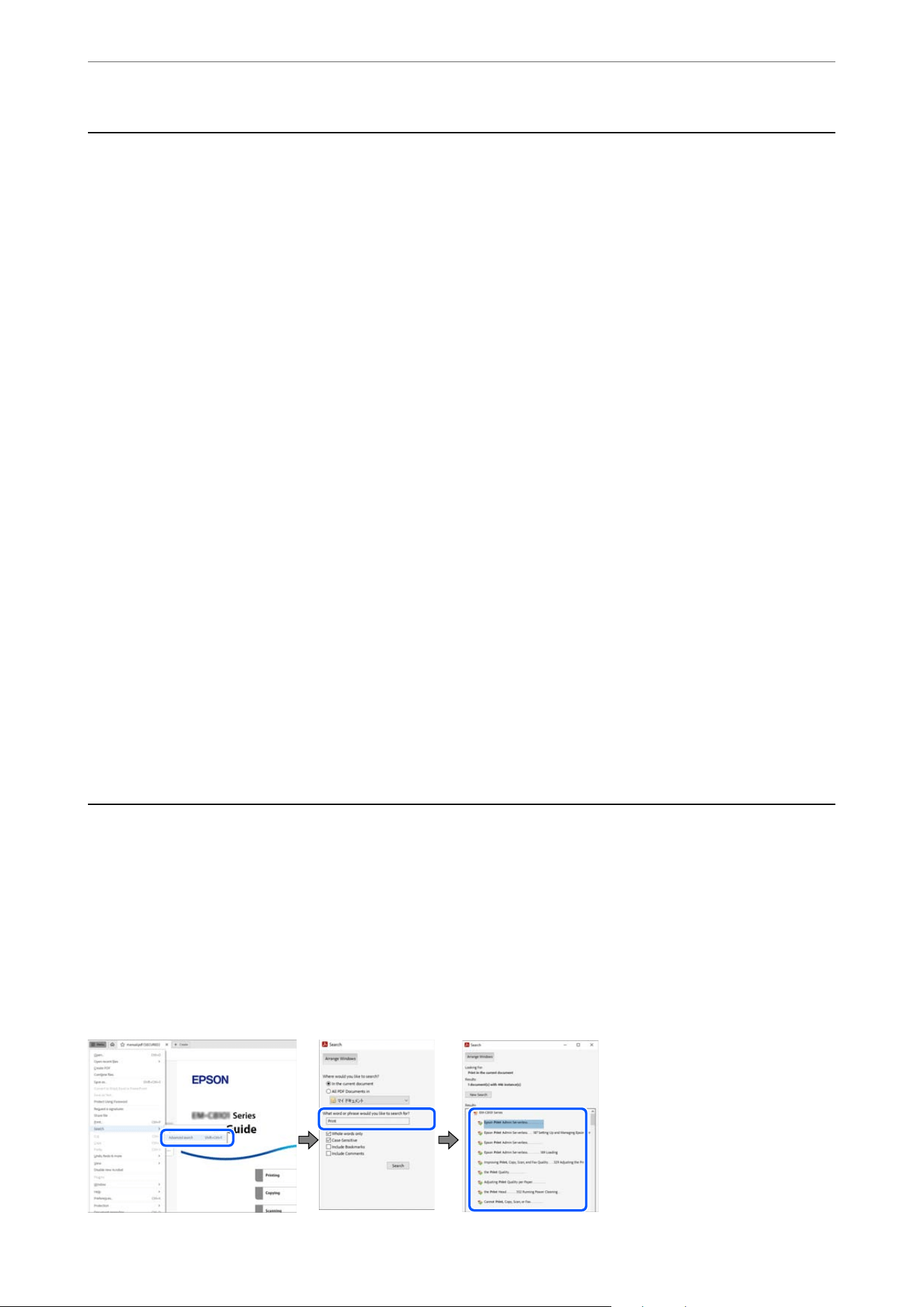
e PDF manual allows you to search for information you are looking for by keyword, or jump directly to specic
sections using the bookmarks. is section explains how to use a PDF manual that has been opened in Adobe
Acrobat Reader on your computer.
Searching by keyword
Click Menu > Search > Advanced Search. Enter the keyword (text) for information you want to
nd
in the search
window, and then click Search. Hits are displayed as a list. Click one of the displayed hits to jump to that page.
Guide to This Manual
>
Searching for Information
8
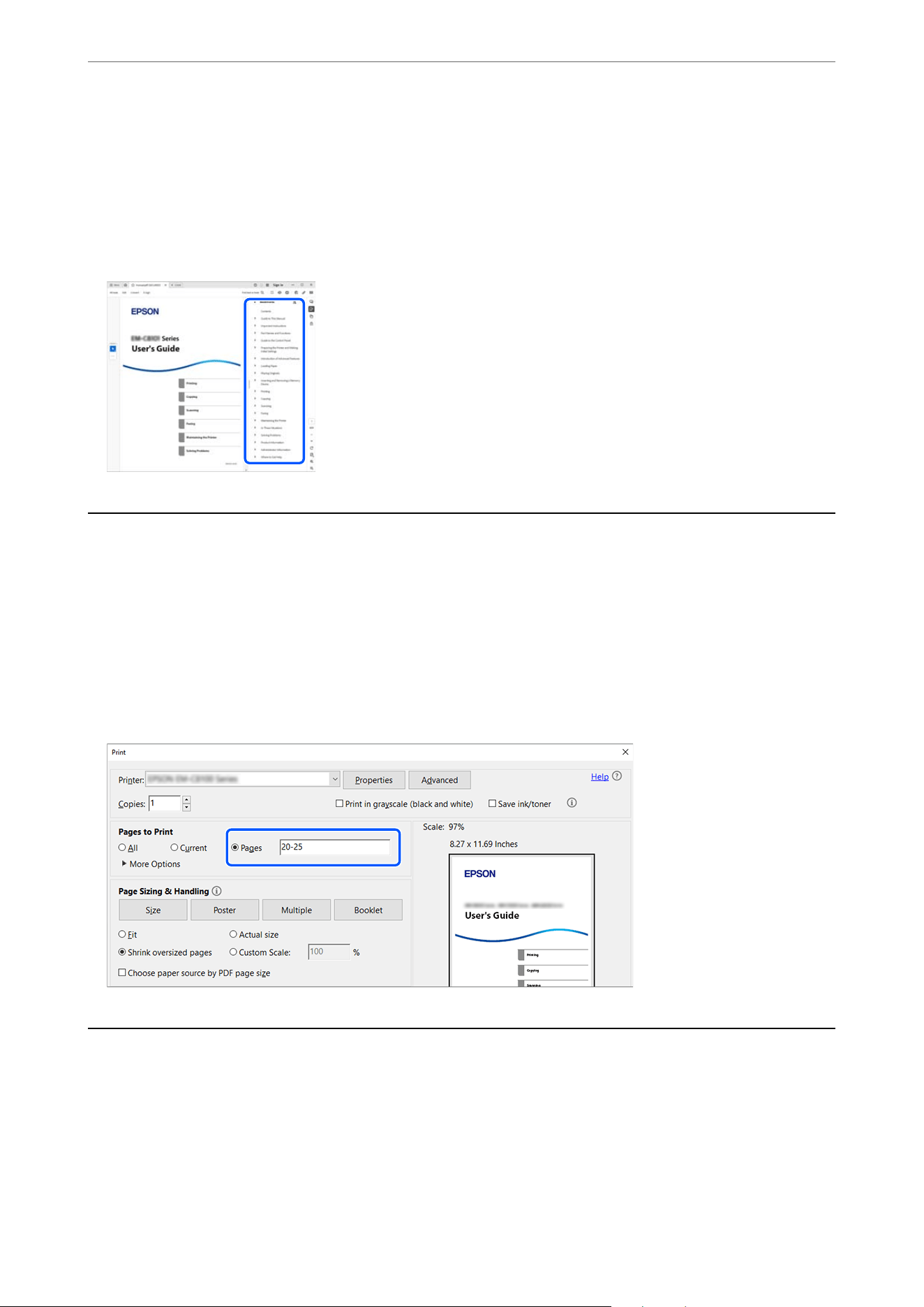
Jumping directly from bookmarks
Click a title to jump to that page. Click + or > to view the lower level titles in that section. To return to the previous
page, perform the following operation on your keyboard.
O Windows: Hold down Alt. and then press ←.
O Mac OS: Hold down the command key, and then press ←.
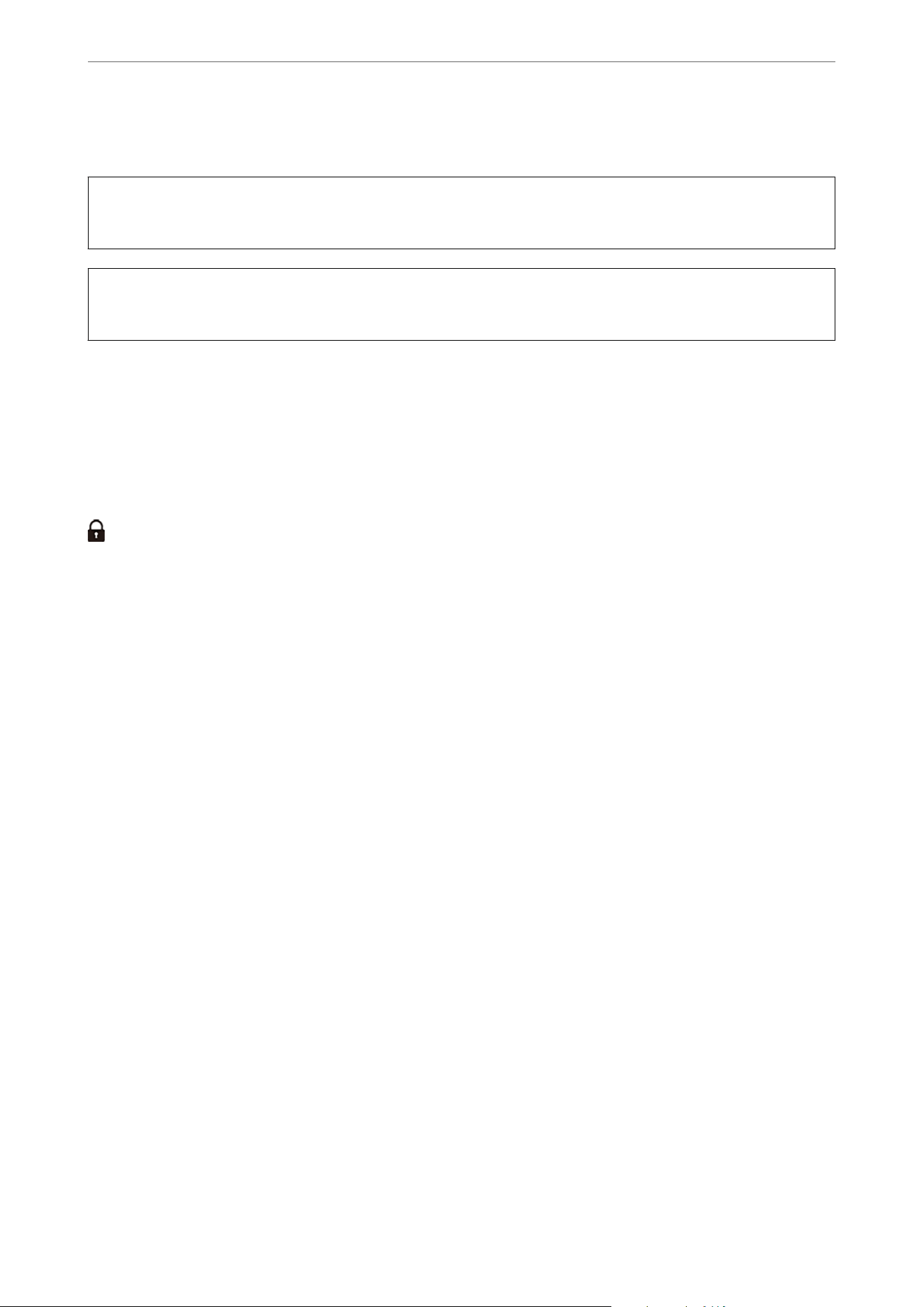
Printing Only the Pages You Need
You can extract and print only the pages you need. Click Print in the File menu, and then specify the pages you
want to print in Pages in Pages to Print.
O To specify a series of pages, enter a hyphen between the start page and the end page.
Example: 20-25
O To specify pages that are not in series, divide the pages with commas.
Example: 5, 10, 15
About This Manual
is
section explains the meanings of marks and symbols, notes on descriptions, and operating system reference
information used in this manual.
Guide to This Manual
>
About This Manual
9
Marks and Symbols
!
Caution:
Instructions that must be followed carefully to avoid bodily injury.
c
Important:
Instructions that must be observed to avoid damage to your equipment.
Note:
Provides complementary and reference information.
Related Information
& A link to a related section
Control panel menu items that are restricted when the panel lock is enabled.
Notes on Screenshots and Illustrations
O Screenshots of the printer driver are from Windows 11 or macOS High Sierra (10.13). e content displayed on
the screens varies depending on the model, situation, and region.
O Illustrations used in this manual are examples only. Although there may be slight dierences depending on the
model, the instructions are the same.
O Some of the menu items on the LCD screen vary depending on the model, settings, and region.
O You can read any QR codes in this guide with a QR code reader app.
Operating System References
Windows
In this manual, terms such as "Windows 11", "Windows 10", "Windows 8.1", "Windows 7", "Windows Server 2025",
"Windows Server 2022", "Windows Server 2019", "Windows Server 2016", "Windows Server 2012 R2", "Windows
Server 2008 R2", and "Windows Server 2008" refer to the following operating systems. Additionally, "Windows" is
used to refer to all versions.
O Microso
®
Windows
®
11 operating system
O Microso
®
Windows
®
10 operating system
O
Microso
®
Windows
®
8.1 operating system
O Microso
®
Windows
®
7 operating system
O Microso
®
Windows Server
®
2025 operating system
O
Microso
®
Windows Server
®
2022 operating system
O Microso
®
Windows Server
®
2019 operating system
O Microso
®
Windows Server
®
2016 operating system
Guide to This Manual
>
About This Manual
>
Operating System References
10

O Microso
®
Windows Server
®
2012 R2 operating system
O Microso
®
Windows Server
®
2008 R2 operating system
O
Microso
®
Windows Server
®
2008 operating system
Mac OS
In this manual, "Mac OS" is used to refer to Mac OS X 10.9.5 or later as well as macOS 11 or later.
Trademarks
O e Bluetooth
®
word mark and logos are registered trademarks owned by Bluetooth SIG, Inc. and any use of
such marks by Seiko Epson Corporation is under license.
O Wi-Fi
®
and Wi-Fi Direct
®
are registered trademarks of Wi-Fi Alliance
®
. Wi-Fi Protected Setup™, WPA™,
WPA2™ and WPA3™ are trademarks of Wi-Fi Alliance
®
.
O Apple, Mac, macOS, OS X, Bonjour, ColorSync, Safari, AirPrint, iPad, and iPhone are trademarks of Apple Inc.,
registered in the U.S. and other countries.
O Use of the Works with Apple badge means that an accessory has been designed to work specically with
the technology identied in the badge and has been certied by the developer to meet Apple performance
standards.
O IOS is a trademark or registered trademark of Cisco in the U.S. and other countries and is used under license.
O e Mopria™ wordmark and the Mopria™ Logo are registered and/or unregistered trademarks of Mopria
Alliance, Inc. in the United States and other countries. Unauthorized use is strictly prohibited.
O Android, Chrome, ChromeOS, Chromebook, and Google Play are trademarks of Google LLC.
O Adobe, Acrobat, and Reader are either registered trademarks or trademarks of Adobe in the United States
and/or other countries.
Copyright © 2026 Adobe Inc. All Rights Reserved.
O Firefox is a trademark of the Mozilla Foundation in the U.S. and other countries.
O Dropbox is a trademark or registered trademark of Dropbox Inc..
O Evernote is a registered trademark or trademark of the Evernote Corporation in the United States.
O Microso, Excel, Microso 365, Microso Edge, Microso Entra, Microso Exchange Online, Outlook.com,
SharePoint, Windows and Windows Server are trademarks of the Microso group of companies.
O QR Code is a registered trademark of DENSO WAVE INCORPORATED in Japan and other countries.
O General Notice: All other trademarks are the property of their respective owners and used for identication
purposes only.
Copyright
No part of this publication may be reproduced, stored in a retrieval system, or transmitted in any form or by
any means, electronic, mechanical, photocopying, recording, or otherwise, without the prior written permission
of Seiko Epson Corporation. No patent liability is assumed with respect to the use of the information contained
herein. Neither is any liability assumed for damages resulting from the use of the information herein. e
information contained herein is designed only for use with this Epson product. Epson is not responsible for any
use of this information as applied to other products.
Guide to This Manual
>
Copyright
11

Neither Seiko Epson Corporation nor its aliates shall be liable to the purchaser of this product or third parties
for damages, losses, costs, or expenses incurred by the purchaser or third parties as a result of accident, misuse, or
abuse of this product or unauthorized
modications,
repairs, or alterations to this product, or (excluding the U.S.)
failure to strictly comply with Seiko Epson Corporation's operating and maintenance instructions.
Seiko Epson Corporation and its aliates shall not be liable for any damages or problems arising from the use
of any options or any consumable products other than those designated as Original Epson Products or Epson
Approved Products by Seiko Epson Corporation.
Seiko Epson Corporation shall not be held liable for any damage resulting from electromagnetic interference that
occurs from the use of any interface cables other than those designated as Epson Approved Products by Seiko
Epson Corporation.
© 2026 Seiko Epson Corporation
e
contents of this manual and the
specications
of this product are subject to change without notice.
Guide to This Manual
>
Copyright
12

Important Instructions
Safety Instructions................................................. 14
Printer Advisories and Warnings.......................................15
Notes on the Administrator Password................................... 16
Protecting Your Personal Information................................... 18

Safety Instructions
Read and follow these instructions to ensure safe use of this printer. Make sure you keep this manual for future
reference. Also, be sure to follow all warnings and instructions marked on the printer.
O Use only the power cord supplied with the printer and do not use the cord with any other equipment. Use of
other cords with this printer or the use of the supplied power cord with other equipment may result in re or
electric shock.
O If the power cord that comes with your printer has a grounding pin, connect the printer to a grounded outlet.
Failure to follow this instruction may result in re or electric shock.
O Be sure your power cord meets the relevant local safety standard.
O Never disassemble, modify, or attempt to repair the power cord, plug, printer unit, scanner unit, or options by
yourself, except as
specically
explained in the printer's manuals.
O Unplug the printer and refer servicing to qualied service personnel under the following conditions:
e power cord or plug is damaged; liquid has entered the printer; the printer has been dropped or the casing
damaged; the printer does not operate normally or exhibits a distinct change in performance. Do not adjust
controls that are not covered by the operating instructions.
O Place the printer near a wall outlet where the plug can be easily unplugged.
O Do not place or store the printer outdoors, near excessive dirt or dust, water, heat sources, or in locations
subject to shocks, vibrations, high temperature or humidity.
O Do not spill liquid on the printer or handle the printer with wet hands.
O Keep the printer at least 22 cm (8.7 in.) away from cardiac pacemakers. Radio waves from this printer may
adversely aect the operation of cardiac pacemakers.
O If the LCD screen is damaged, contact Epson support (U.S. and Canada) or your dealer (other regions). If the
liquid crystal solution gets on your hands, wash them thoroughly with soap and water. If the liquid crystal
solution gets into your eyes, ush them immediately with water. If discomfort or vision problems remain aer a
thorough ushing, see a doctor immediately.
O Avoid using a telephone during an electrical storm. ere may be a remote risk of electric shock from lightning.
O Do not use a telephone to report a gas leak in the vicinity of the leak.
Safety Instructions for Ink
O Be careful when you handle used ink cartridges, as there may be some ink around the ink supply ports.
O If ink gets on your skin, wash the area thoroughly with soap and water.
O If ink gets into your eyes, ush them immediately with water. If discomfort or vision problems continue aer
a thorough ushing, see a doctor immediately.
O If ink gets into your mouth, see a doctor right away.
O Do not disassemble the ink cartridges or the maintenance box; otherwise ink may get into your eyes or on your
skin.
O Do not shake ink cartridges too vigorously and do not drop them. Also, be careful not to squeeze them or tear
their labels. Doing so may cause ink leakage.
O Keep ink cartridges and maintenance box out of the reach of children. Do not drink the ink.
Important Instructions
>
Safety Instructions
>
Safety Instructions for Ink
14

Printer Advisories and Warnings
Read and follow these instructions to avoid damaging the printer or your property. Make sure you keep this
manual for future reference.
Advisories and Warnings for Setting Up the Printer
O Do not block or cover the vents and openings in the printer.
O Use only the type of power source indicated on the printer's label.
O Avoid using outlets on the same circuit as photocopiers or air control systems that regularly switch on and o.
O Avoid electrical outlets controlled by wall switches or automatic timers.
O Keep the entire computer system away from potential sources of electromagnetic interference, such as
loudspeakers or the base units of cordless telephones.
O e power cord should be placed to avoid abrasions, cuts, fraying, crimping, and kinking. Do not place objects
on top of the power cord and do not allow the power cord to be stepped on or run over. Be particularly careful
to keep all the power cord straight at the ends.
O If you use an extension cord with the printer, make sure that the total ampere rating of the devices plugged into
the extension cord does not exceed the cord's ampere rating. Also, make sure that the total ampere rating of all
devices plugged into the wall outlet does not exceed the wall outlet's ampere rating.
O If you plan to use the printer in Germany, the building installation must be protected by a 10 or 16 amp circuit
breaker to provide adequate short-circuit protection and over-current protection for the printer.
O When connecting the printer to a computer or other device with a cable, ensure the correct orientation of the
connectors. Each connector has only one correct orientation. Inserting a connector in the wrong orientation
may damage both devices connected by the cable.
O Place the printer on a at, stable surface that extends beyond the base of the printer in all directions. e printer
will not operate properly if it is tilted at an angle.
O Allow space above the printer so that you can fully raise the document cover.
O Leave enough space in front of the printer for the paper to be fully ejected.
O Avoid places subject to rapid changes in temperature and humidity. Also, keep the printer away from direct
sunlight, strong light, or heat sources.
Related Information
& “Installation Location and Space” on page 275
Advisories and Warnings for Using the Printer
O Do not insert objects through the slots in the printer.
O Do not put your hand inside the printer during printing.
O Do not touch the white at cable inside the printer.
O Do not use aerosol products that contain ammable gases inside or around the printer. Doing so may cause re.
O Do not move the print head by hand; otherwise, you may damage the printer.
O Be careful not to trap your ngers when closing the scanner unit.
Important Instructions
>
Printer Advisories and Warnings
>
Advisories and Warnings for Using the Printer
15

O Do not press too hard on the scanner glass when placing originals.
O Always turn the printer
o
using the
P
button. Do not unplug the printer or turn
o
the power at the outlet
until the
P
light stops
ashing.
O If you are not going to use the printer for a long period, be sure to unplug the power cord from the electrical
outlet.
Advisories and Warnings for Using the Touchscreen
O e LCD screen may contain a few small bright or dark spots, and because of its features it may have an uneven
brightness. ese conditions are normal and do not indicate that it is damaged in any way.
O Only use a dry,
so
cloth for cleaning. Do not use liquid or chemical cleaners.
O e exterior cover of the touchscreen could break if it receives a heavy impact. If the screen's surface chips or
cracks, contact Epson support (U.S. and Canada) or your dealer (other regions), and do not touch or attempt to
remove the broken pieces.
O Press the touchscreen gently with your nger.
O Do not use a pointy or sharp object, such as a pen or your
ngernail,
to operate the LCD screen.
O Condensation inside the touchscreen due to abrupt changes in temperature or humidity may cause
performance to deteriorate.
Advisories for Using Memory Devices
When you connect a memory device to the printer, any device that is on the same network as the printer might be
able to access the data on the memory device.
To prevent access, you need to disable the following setting in Web Cong.
Network tab > MS Network > File Sharing
Advisories and Warnings for Connecting to the Internet
Do not connect this product to the Internet directly. Connect it to a network protected by a router or rewall.
Advisories and Warnings for Transporting or Storing the Printer
O When storing or transporting the printer, avoid tilting it, placing it vertically, or turning it upside down;
otherwise ink may leak.
O Before transporting the printer, make sure that the print head is in the home (far right) position.
Notes on the Administrator Password
is
printer allows you to set an administrator password to prevent unauthorized access or changes to its settings
when the product is connected to a network.
Important Instructions
>
Notes on the Administrator Password
16
Default Value of the Administrator Password
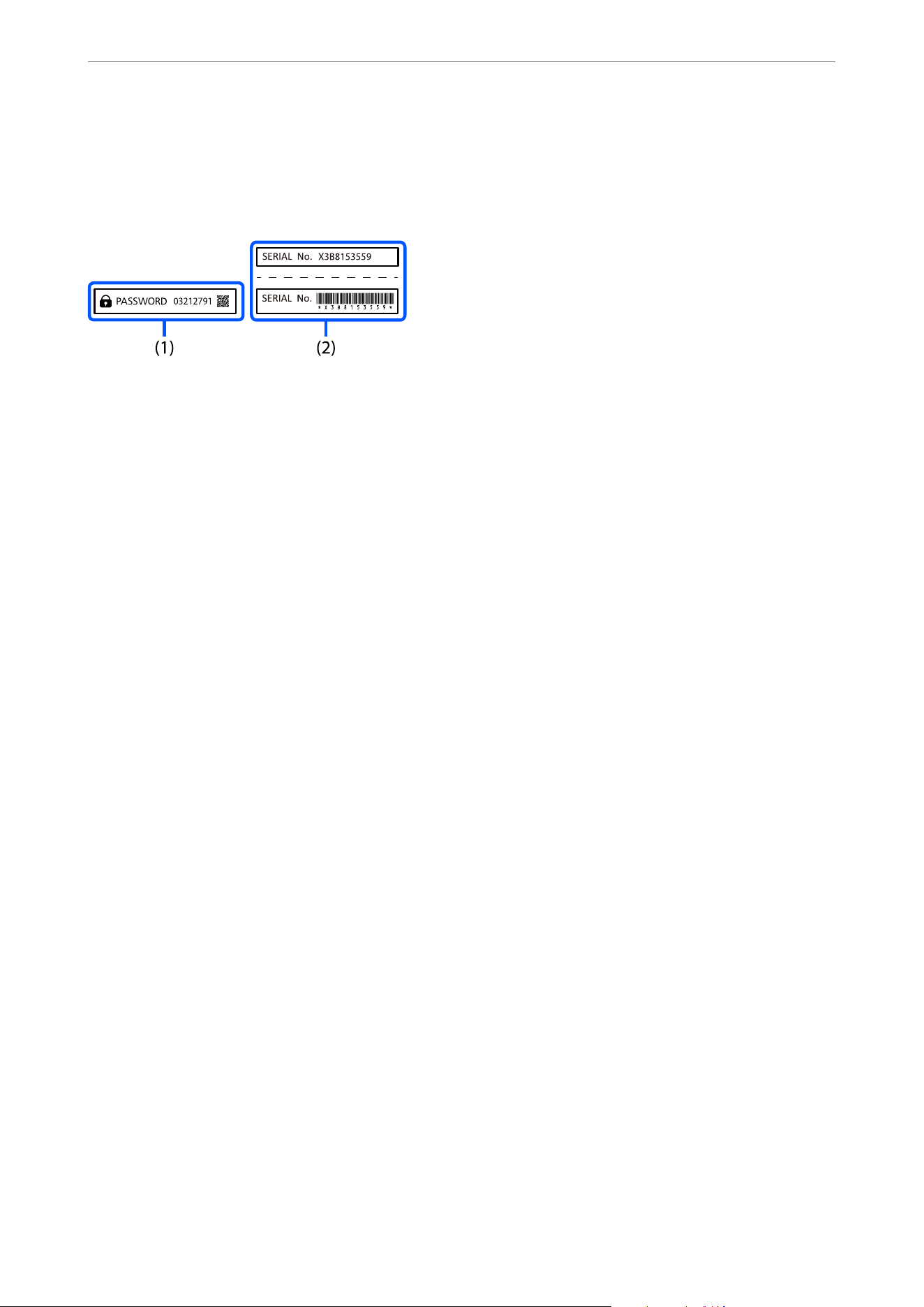
e default value of the administrator password is printed on a label on the product, such as one of the labels
shown below.
If both labels (1) and (2) are attached, the value next to PASSWORD written on the label in (1) is the default value.
In this example, the default value is 03212791.
Note:
As the label (1) may be attached in a location that is dicult to see, check the information in the link to conrm the location.
https://support.epson.net/manu/adminpw/index.html
If you cannot nd the label (1), the serial number printed on the label in (2) is the default value. In this example,
the default value is X3B8153559.
Changing the Administrator Password
For security reasons, we recommend changing the default password.
It can be changed from the printer control panel, Web
Cong
, or Epson Device Admin. When changing the
password, make sure the new password has at least 8 single-byte alphanumerical characters and symbols.
Related Information
& “Admin Password:” on page 259
& “Changing the Administrator Password Using Web Cong” on page 381
Operations that Require You to Enter the Administrator Password
If you are prompted to enter the administrator password when performing the following operations, enter the
administrator password set on the printer.
O When updating the rmware of the printer from a computer or mobile device
O When accessing the advanced settings in Web Cong
O When adjusting settings using an application, such as Fax Utility, that can change the printer's settings
Related Information
& “Default Value of the Administrator Password” on page 17
Initializing the Administrator Password
You can return the administrator password to its default setting by initializing the network settings.
Important Instructions
>
Notes on the Administrator Password
>
Initializing the Administrator Password
17

Related Information
& “Restore Default Settings:” on page 259
Protecting Your Personal Information
When you give the printer to someone else or dispose of it, erase all the personal information stored in the printer's
memory by selecting the menus on the control panel as described below.
Settings > General Settings > System Administration > Restore Default Settings > Clear All Data and Settings
Important Instructions
>
Protecting Your Personal Information
18

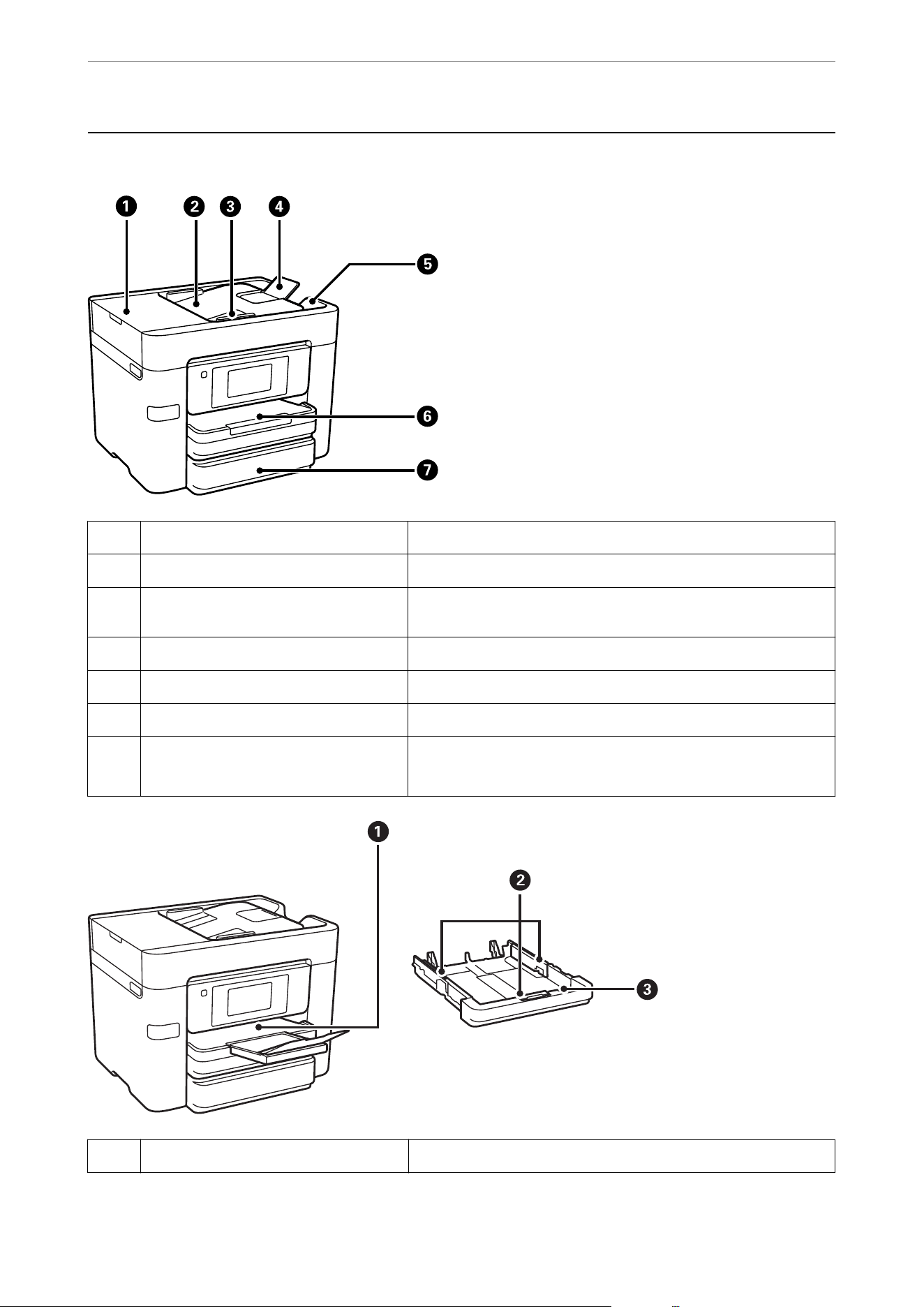
Front
A
ADF (Automatic Document Feeder) cover Open when removing jammed originals in the ADF.
B
ADF input tray Feeds originals automatically.
C
ADF edge guide Slide to the edges of the originals so that they feed straight into the
printer.
D
ADF document support Supports originals larger than Letter or A4 size.
E
ADF output tray Holds originals ejected from the ADF.
F
Paper cassette 1 Loads paper.
G
Paper cassette 2 Loads paper.
This feature is available for WF-4930 Series only.
A
Output tray Holds the ejected paper.
Part Names and Functions
>
Front
20
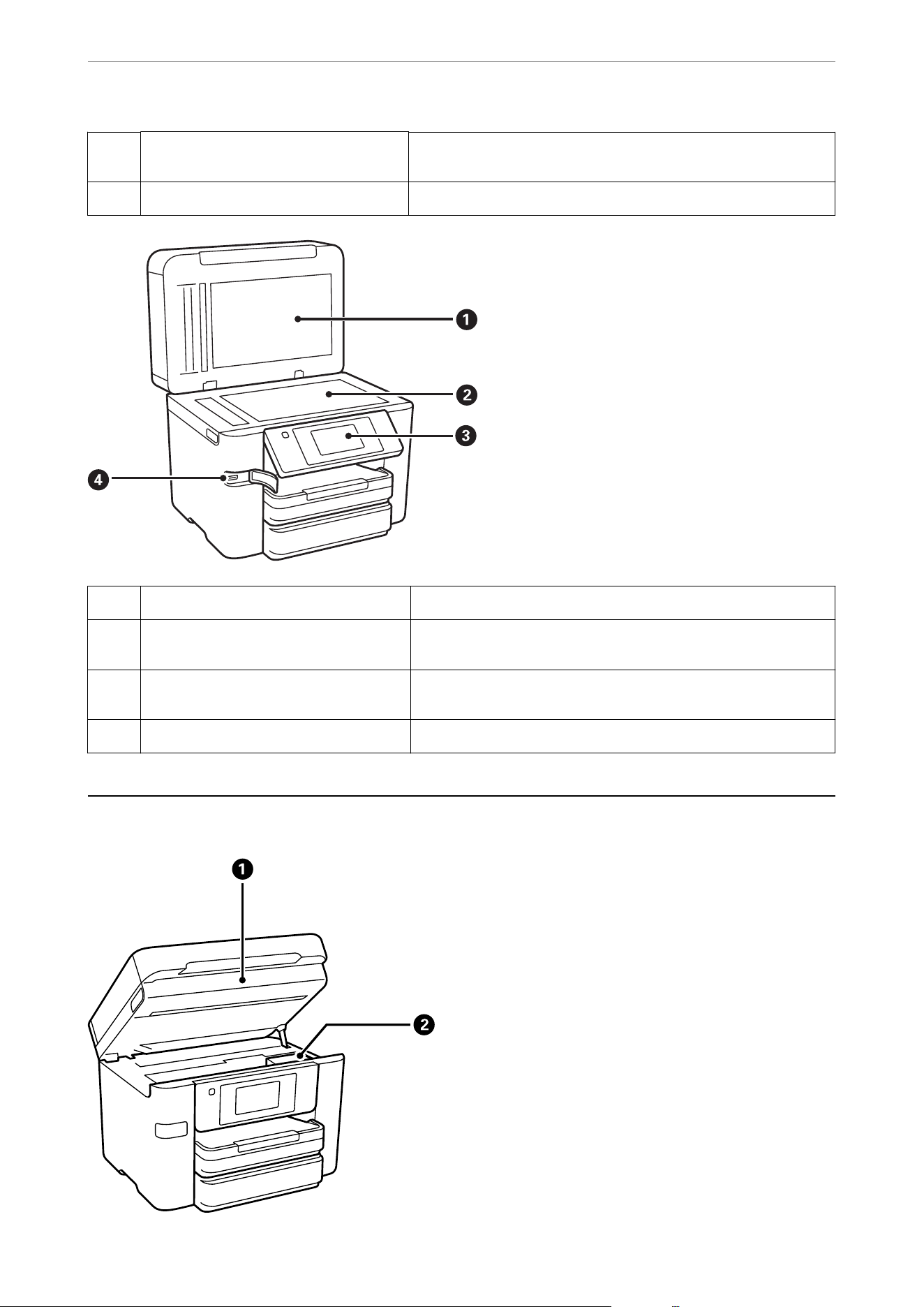
B
Edge guides Slide to the edges of the paper so that it feeds straight into the
printer.
C
Paper cassette Loads paper.
A
Document cover Blocks external light while scanning.
B
Scanner glass Place the originals that cannot be loaded in the ADF, such as
envelopes or thick books.
C
Control panel Indicates the printer's status and allows you to perform maintenance
or select settings.
D
External interface USB port Connect memory devices.
Inside
Part Names and Functions
>
Inside
21
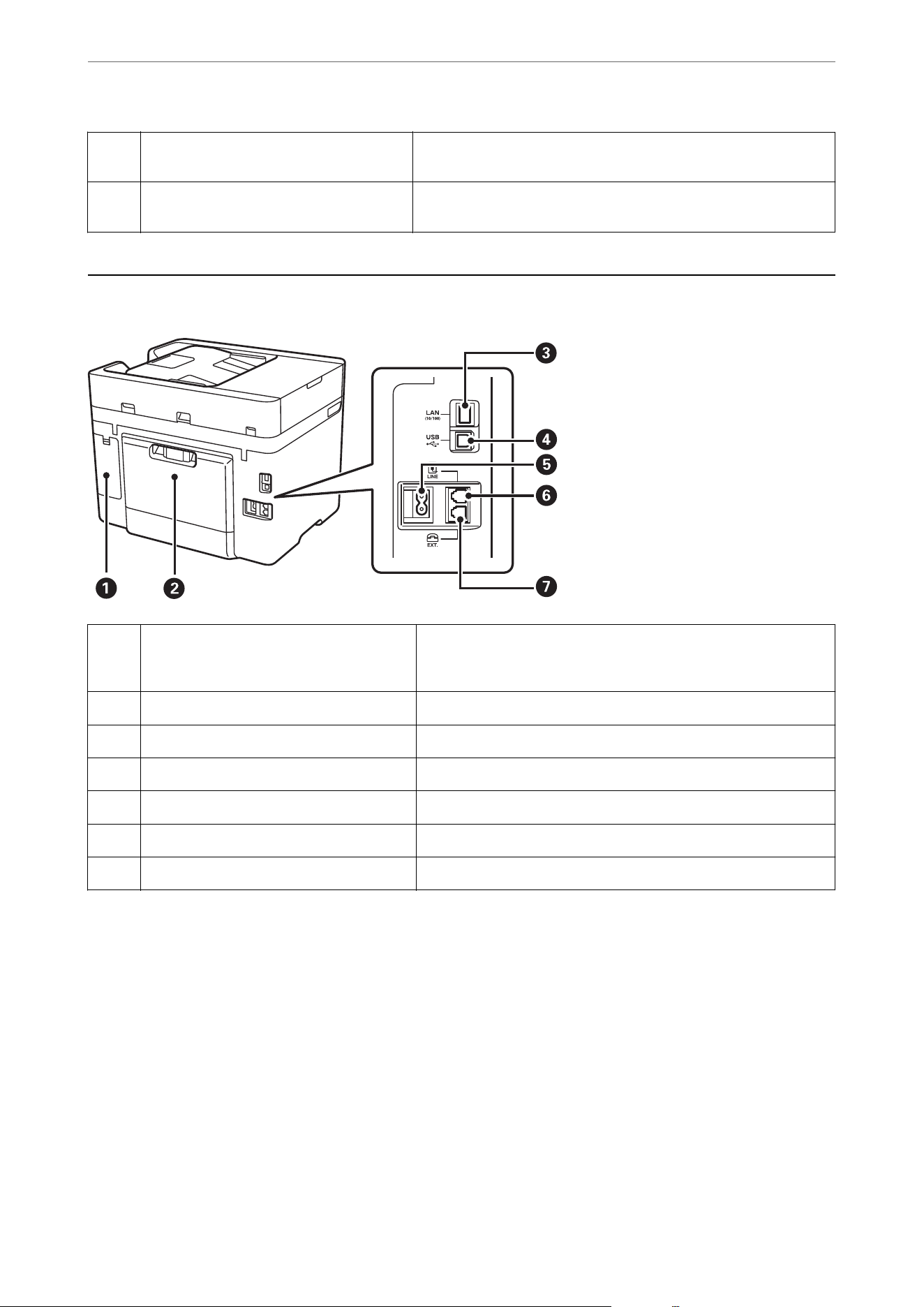
A
Scanner unit Scans placed originals. Open when replacing ink cartridges or
removing jammed paper inside the printer.
B
Ink cartridge holder Install the ink cartridges. Ink is ejected from the print head nozzles
underneath.
Rear
A
Maintenance box cover Remove when replacing the maintenance box. The maintenance
box is a container that collects a very small amount of surplus ink
during cleaning or printing.
B
Rear cover Remove when removing jammed paper.
C
LAN port Connect a LAN cable.
D
USB port Connect a USB cable to connect with a computer.
E
AC inlet Connect the power cord.
F
LINE port Connect a phone line.
G
EXT. port Connect external phone devices.
Part Names and Functions
>
Rear
22

Guide to the Control Panel
Control Panel.....................................................24
Home Screen Conguration.......................................... 24
Menu Screen Conguration...........................................26
Entering Characters................................................ 27
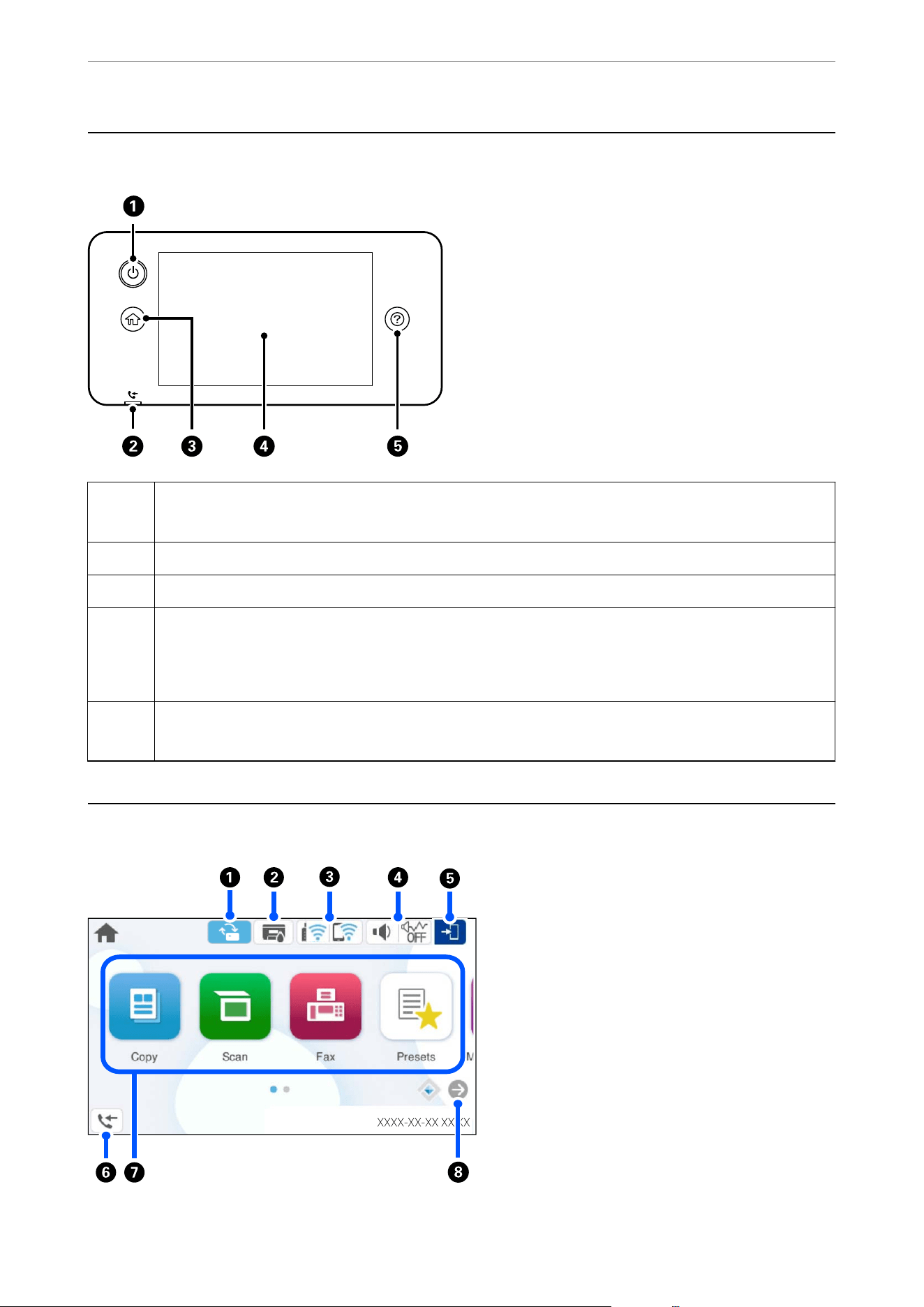
Control Panel
A
Turns the printer on or o.
Make sure the power light is o before you unplug the power cord.
B
Turns on when unprocessed faxes have been received.
C
Displays the home screen.
D
Displays menus and messages. You can change the angle of the control panel.
When no operations are performed for a specic length of time, the printer enters sleep mode and the display
turns o. Tap anywhere on the touch screen to turn on the display. Depending on the current settings, pressing
the power button may also wake the printer from sleep mode.
E
Displays the Help screen.
You can view operating instructions or solutions to problems.
Home Screen Conguration
Guide to the Control Panel
>
Home Screen Conguration
24
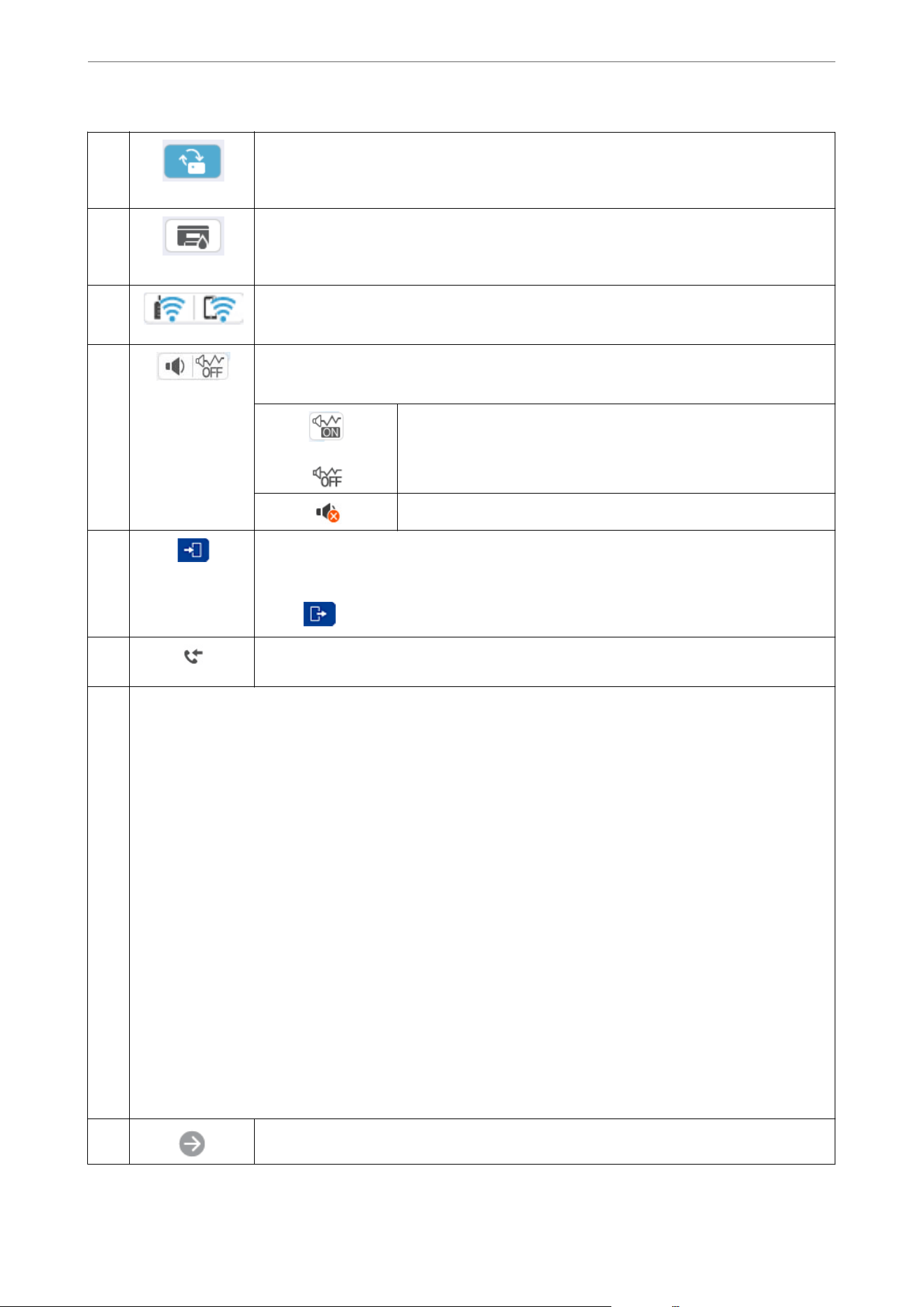
A
This is displayed when a rmware update is available.
Tap it to update the rmware to improve the printer's features. We recommend using the printer
with the latest version of the rmware.
B
Tap this to display the Supply Status screen.
You can check the approximate ink levels and the approximate service life of the maintenance
box.
C
Tap this to display the network connection status. See the following for more details.
“Guide to the Network Icons” on page 26
D
Tap this to display the Device Sound Settings screen.
You can enable Mute and Quiet Mode. You can access the Sounds menu from this screen.
Indicates whether or not Quiet Mode is enabled. When this feature is
enabled, the noise made by printer during printing may be reduced
depending on the selected paper type and print quality, but print
speed may decrease.
Indicates that Mute is enabled.
E
Indicates that the user restriction feature is enabled. Select this icon to log in to the printer. You
need to select a user name and then enter a password. Contact your printer administrator for
login information.
When
is displayed, a user with access permission has logged in. Select the icon to logout.
F
Tap this to display the Fax Data Information screen. The number displayed indicates the
number of faxes that have not yet been read, printed, or saved.
G
Allows you to access the following menus.
O Copy
Allows you to copy documents.
O Scan
Allows you to scan documents and save them to a memory device or a computer.
O Fax
Allows you to send faxes.
O Presets
Allows you to register frequently used settings for copying, scanning, or faxing as a preset.
O Memory Device
Allows you to print JPEG or TIFF data from a memory device such as a USB memory device connected to the
printer.
O Maintenance
Access this menu to improve the quality of your printouts. You can unclog nozzles by printing a nozzle check
pattern and performing head cleaning, and improve blurring or banding in your printouts by aligning the print
head.
O Settings
Allows you to select settings related to maintenance, printer settings, and operations.
H
Scrolls the screen to the right.
Guide to the Control Panel
>
Home Screen Conguration
25
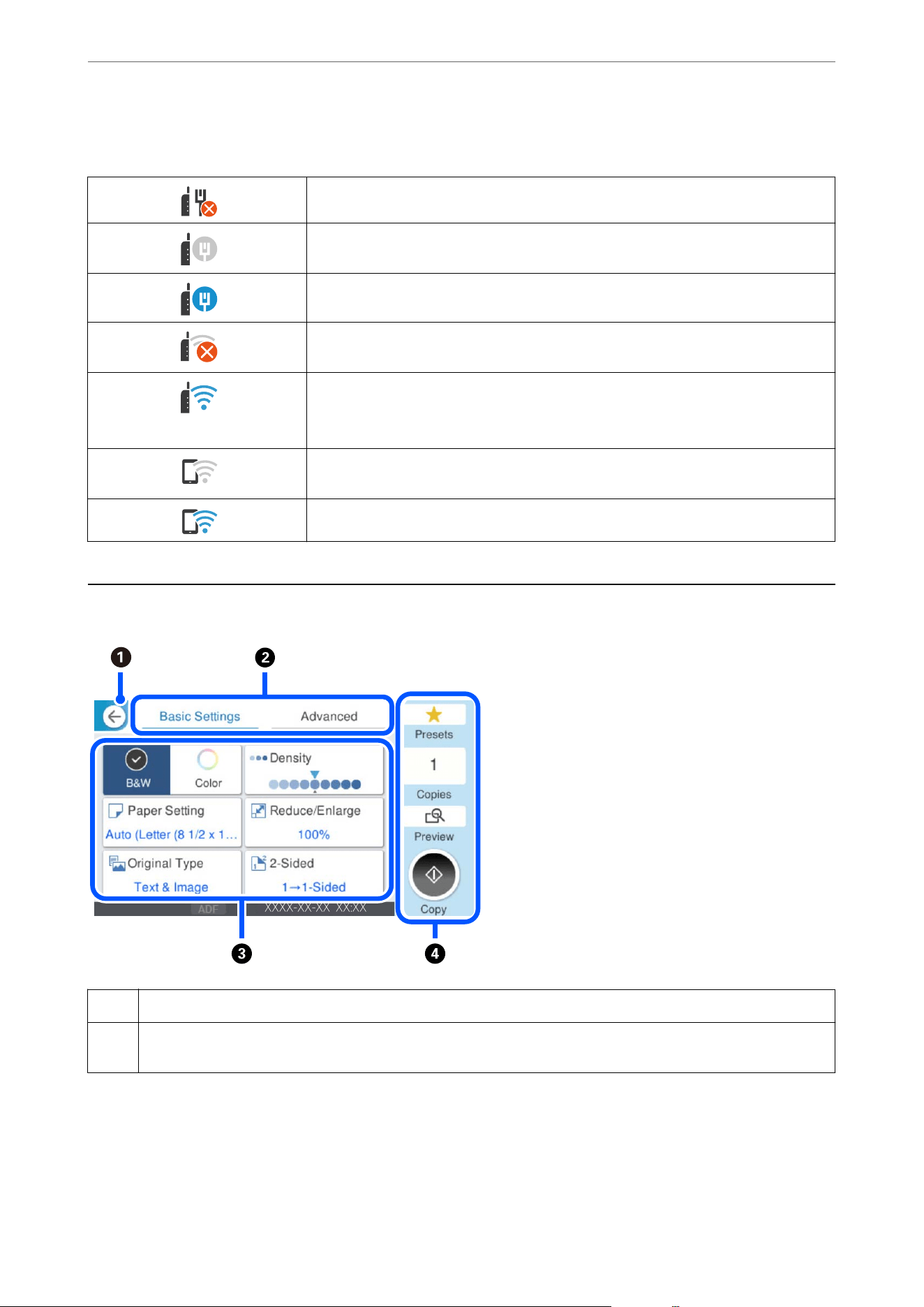
Guide to the Network Icons
The printer is disabled on a wired (Ethernet) network.
The printer is not connected to a wired (Ethernet) network or a wireless (Wi-Fi)
network.
The printer is connected to a wired (Ethernet) network.
The printer is searching for an SSID or unset IP address, or having a problem with a
wireless (Wi-Fi) network.
The printer is connected to a wireless (Wi-Fi) network.
The number of bars indicates the signal strength of the connection. The more bars
there are, the stronger the connection.
The printer is not connected to a wireless (Wi-Fi) network in Wi-Fi Direct (Simple AP)
mode.
The printer is connected to a wireless (Wi-Fi) network in Wi-Fi Direct (Simple AP) mode.
Menu Screen Conguration
A
Returns to the previous screen.
B
Tap this to switch the list of settings using the tabs. The Basic Settings tab displays frequently used items. The
Advanced tab displays other items that you can set as necessary.
Guide to the Control Panel
>
Menu Screen Conguration
26
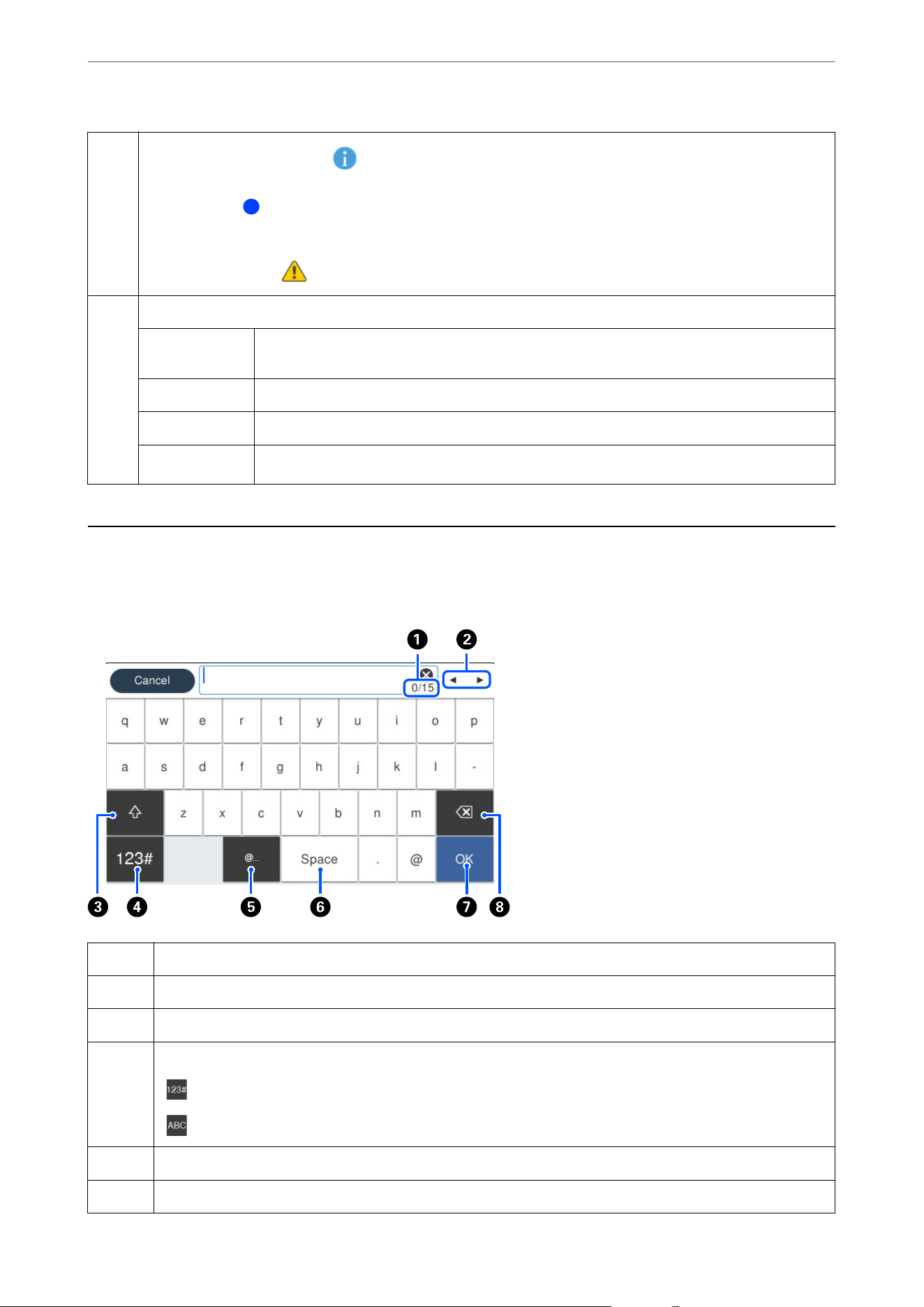
C
Display a list of settings. When is displayed, you can view additional information by selecting the icon. Select
settings by selecting the item or adding a check mark. When you have changed an item from the user default or the
factory default,
is displayed on the item.
Grayed out items are not available. Select the item to check why it is unavailable.
If any problems occur,
is displayed on the item. Select the icon to check how to solve the problem.
D
Starts an action using the current settings. Items in this area vary depending on the menu.
Presets Tap this to display the preset list. You can register current settings as a preset, or load registered
presets.
Copies Tap this to display the on-screen keypad and enter the number of copies.
Preview Tap this to display a preview of the image before printing, copying, or sending faxes.
x
Tap this to start printing, copying, scanning, or sending faxes.
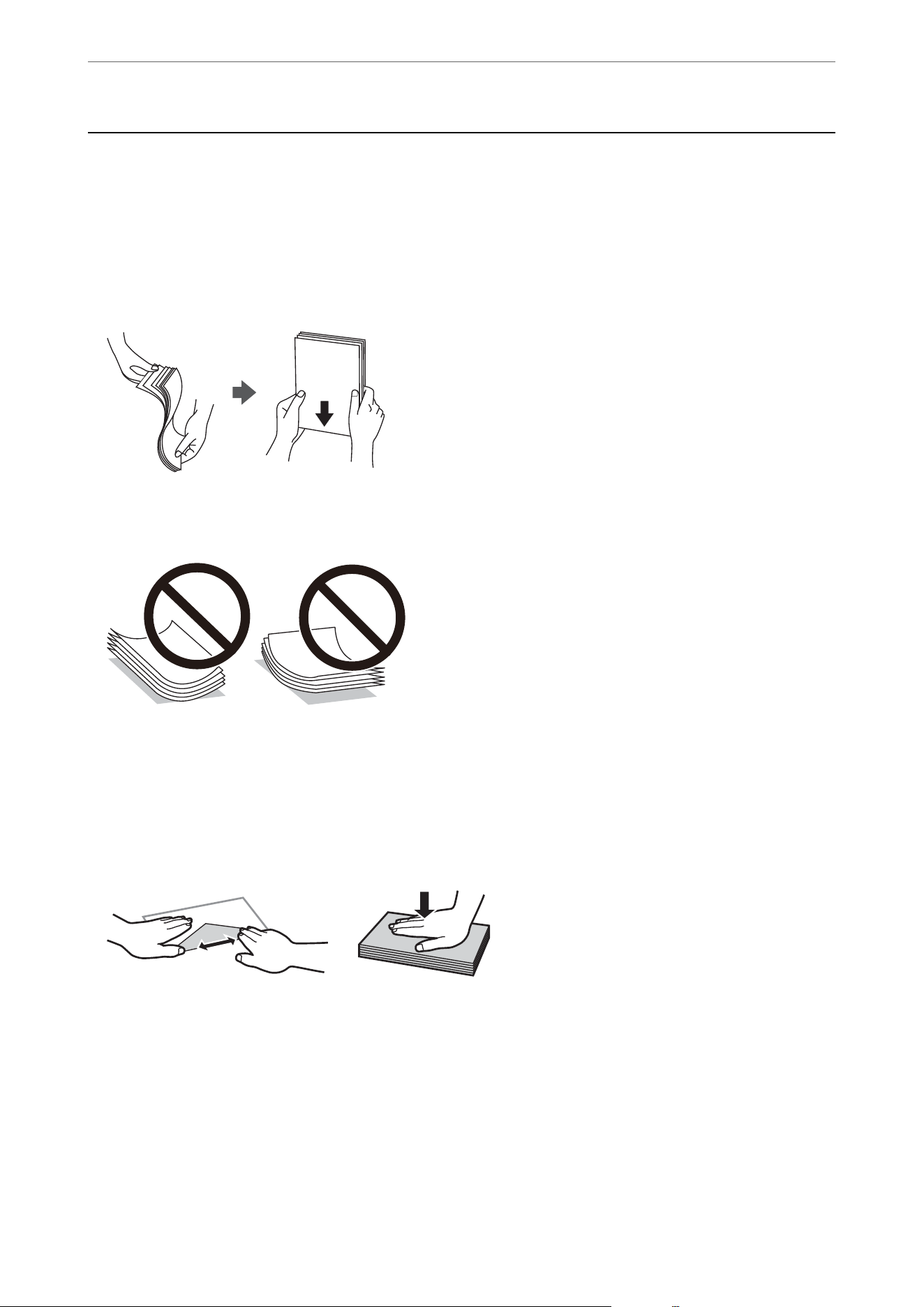
Entering Characters
You can enter characters and symbols by using on-screen keyboard when you enter network and other settings.
A
Indicates the character count.
B
Moves the cursor to the input position.
C
Switches between upper case and lower case or numbers and symbols.
D
Switches the character type.
: You can enter numbers and symbols.
: You can enter letters.
E
Enters frequently used email domain addresses or URLs by simply selecting the item.
F
Enters a space.
Guide to the Control Panel
>
Entering Characters
27


Paper Handling Precautions
O Read the instruction sheets supplied with the paper.
O To achieve high-quality printouts with genuine Epson paper, use the paper in the environment stated on the
instruction sheets supplied with the paper.
O Fan and align the edges of the paper before loading. Do not fan or curl photo paper. Doing so may damage the
printable side.
O If the paper is curled or folded, atten it or curl it slightly in the opposite direction before loading. Printing on
curled or folded paper may cause paper feeding problems and smears on the printouts.
O Paper feed problems may occur for manual 2-sided printing when printing on one side of pre-printed paper.
Reduce the number of sheets to half or less, or load one sheet of paper at a time if paper jams continue.
O Make sure you are using long-grain paper. If you are not sure what type of paper you are using, check the paper
packaging or contact the manufacturer to
conrm
the paper
specications.
O Fan and align the edges of envelopes before loading. When the stacked envelopes are pued up with air, press
them down to atten them before loading.
Related Information
& “Available Paper and Capacities” on page 221
& “Unavailable Paper Types” on page 230
Precautions for Photo Paper
When printing on glossy photo paper, ink drying time will be considerably extended. Drying time depends on
humidity, temperature, and other conditions. Do not touch the printed side until ink is completely dry. Moisture
Loading Paper
>
Paper Handling Precautions
>
Precautions for Photo Paper
30
and oils from your skin can also aect print quality. Even aer the ink is dry, avoid rubbing or scratching the
printed side.
Paper Size and Type Settings
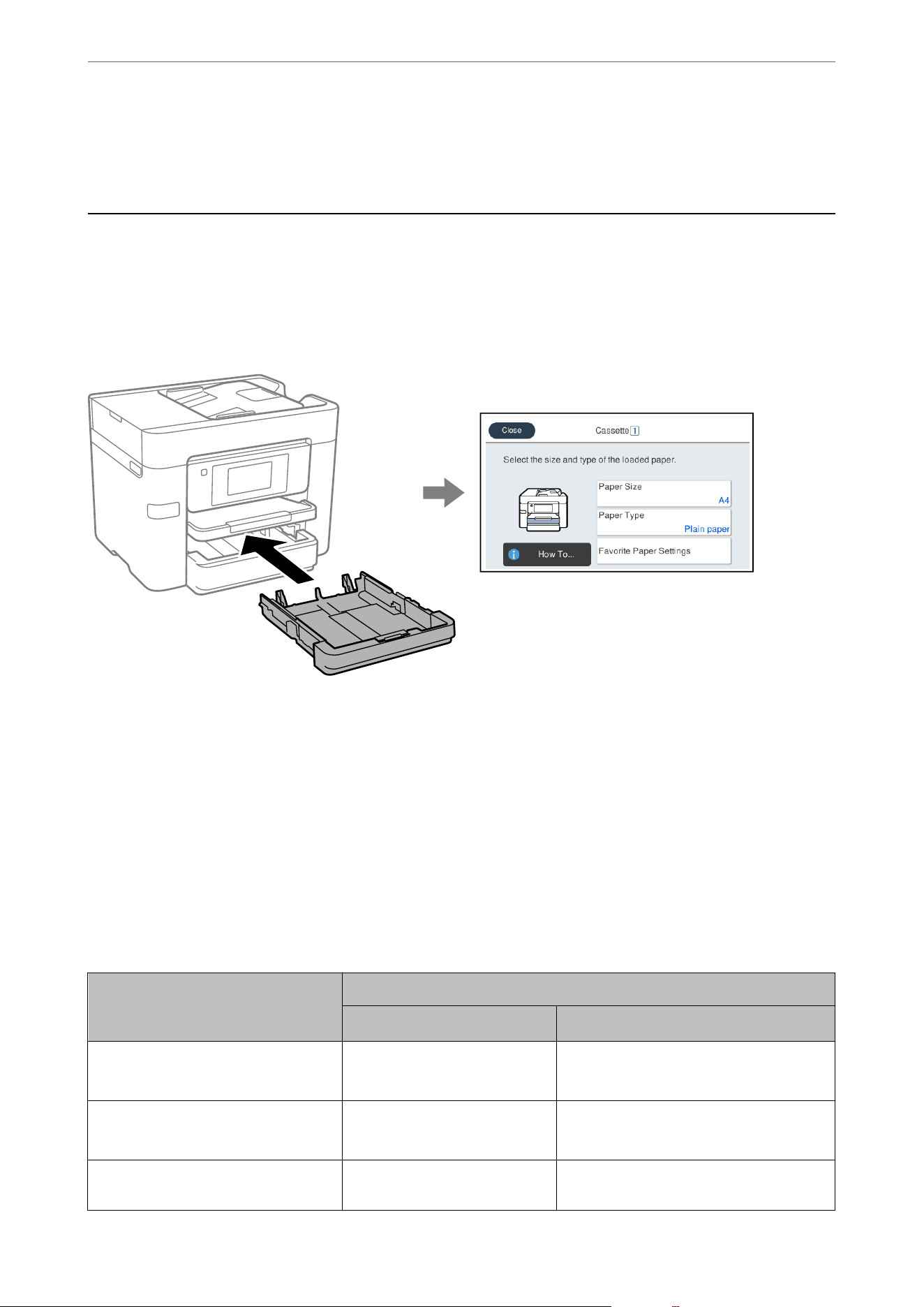
If you register the paper size and type on the screen when you load paper, the printer informs you when the
registered information and print settings
dier.
is
prevents you from wasting paper and ink by making sure you
are not printing on the wrong paper size or seeing unexpected colors due to using settings that do not match the
paper type.
If the displayed paper size and type dier from the loaded paper, select the item to change. If the settings match the
loaded paper, close the screen.
Note:
You can also display the paper size and paper type settings screen by selecting Settings > General Settings > Printer
Settings > Paper Source Settings > Paper Setting.
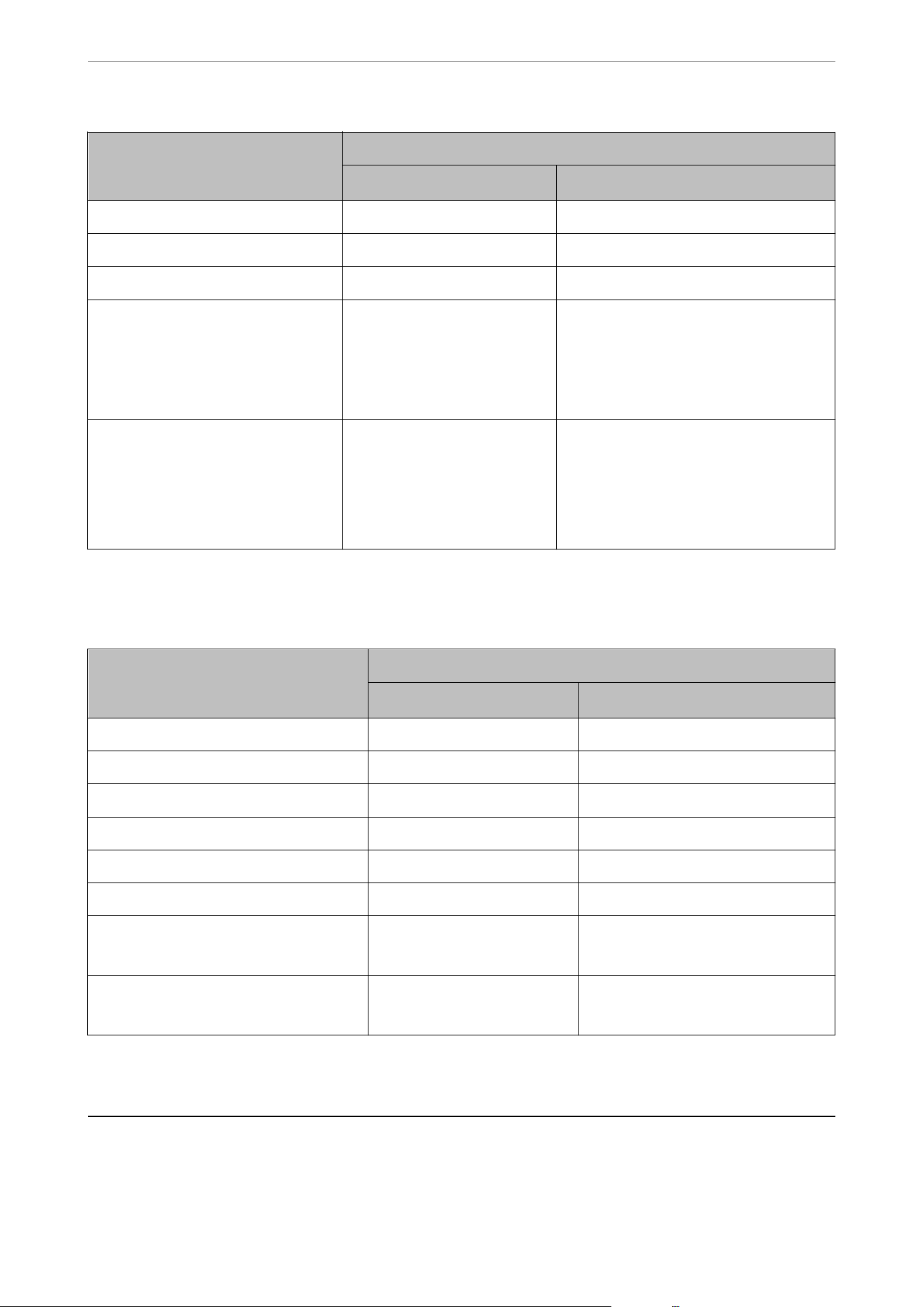
List of Paper Types
To obtain optimum printing results, select the paper type that suits the paper.
U.S. and Canada
Media Name Media Type
Control Panel
Printer Driver, Mobile Devices
*
Epson Bright White Paper
Epson Bright White Pro Paper
Plain Paper Plain Paper
Epson Bright White Premium Paper
Epson Multipurpose Plus Paper
High Quality Plain Paper High Quality Plain Paper
Epson Ultra Premium Photo Paper
Glossy
Ultra Glossy Ultra Premium Photo Paper Glossy
Loading Paper
>
Paper Size and Type Settings
>
List of Paper Types
31
Media Name Media Type
Control Panel
Printer Driver, Mobile Devices
*
Epson Premium Photo Paper Glossy Prem. Glossy Premium Photo Paper Glossy
Epson Premium Photo Paper Semi-gloss Prem. Semi-Gloss Premium Photo Paper Semi-Gloss
Epson Photo Paper Glossy Glossy Photo Paper Glossy
Epson Premium Presentation Paper
Matte
Epson Premium Presentation Paper
Matte Double-sided
Epson Brochure & Flyer Paper Matte
Prem. Matte Premium Presentation Paper Matte
Epson Presentation Paper Matte
Epson High Quality Ink Jet Paper
Epson Photo Quality Ink Jet Cards
Epson Photo Quality Self Adhesive
Sheets
Presentation Matte Presentation Paper Matte
* For mobile devices, these media types can be selected when printing using Epson Smart Panel.
Euro and Asia
Media Name Media Type
Control Panel
Printer Driver, Mobile Devices
*
Epson Bright White Ink Jet Paper Plain paper Plain Paper
Epson Business Paper High Quality Plain Paper High Quality Plain Paper
Epson Ultra Glossy Photo Paper Ultra Glossy Ultra Premium Photo Paper Glossy
Epson Premium Glossy Photo Paper Prem. Glossy Epson Premium Glossy
Epson Premium Semigloss Photo Paper Prem. Semigloss Epson Premium Semigloss
Epson Photo Paper Glossy Glossy Photo Paper Glossy
Epson Matte Paper-Heavyweight
Epson Double-Sided Matte Paper
Matte Epson Matte
Epson Photo Quality Ink Jet Paper
Epson Photo Quality Self Adhesive Sheets
Photo Quality Ink Jet Epson Photo Quality Ink Jet
* For mobile devices, these media types can be selected when printing using Epson Smart Panel.
Loading Paper Using Instructions on the LCD screen
You can also load paper by referring to the animated instructions displayed on the printer's LCD screen.
Loading Paper
>
Loading Paper Using Instructions on the LCD screen
32
Select , and then select How To > Load paper.
Select the paper type and paper source you want to use, and then view the animated instructions.
If you want to stop viewing the animation, close the screen.
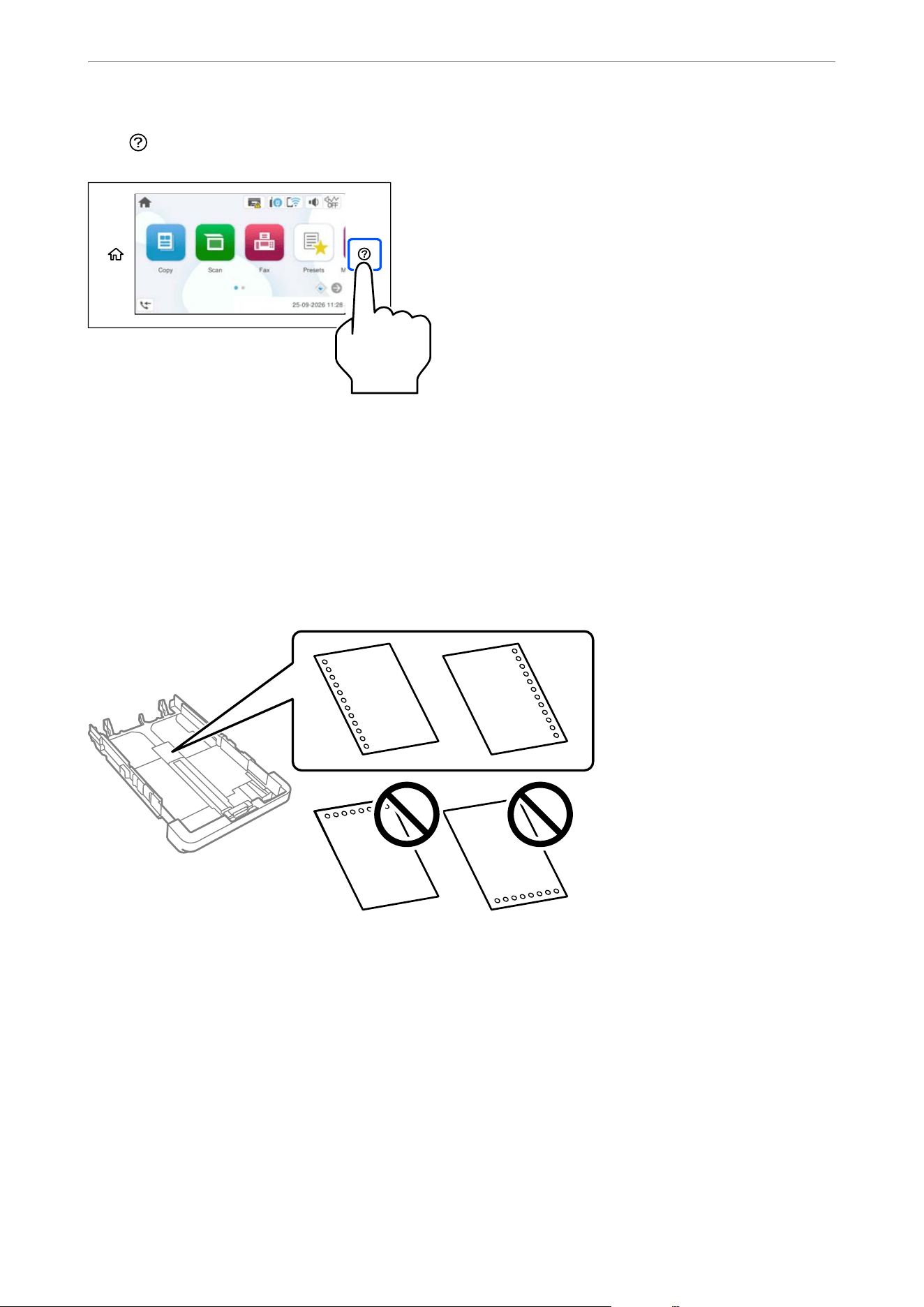
Loading Pre-punched Paper
Load a single sheet of pre-punched paper in the paper cassette.
Paper size: A4, B5, A5, A6, Letter, Legal
O Adjust the print content in your
le
as needed to avoid printing over the holes.
O Automatic 2-sided printing is not available for pre-punched paper.
O Select Letterhead or Preprinted as the paper type setting.
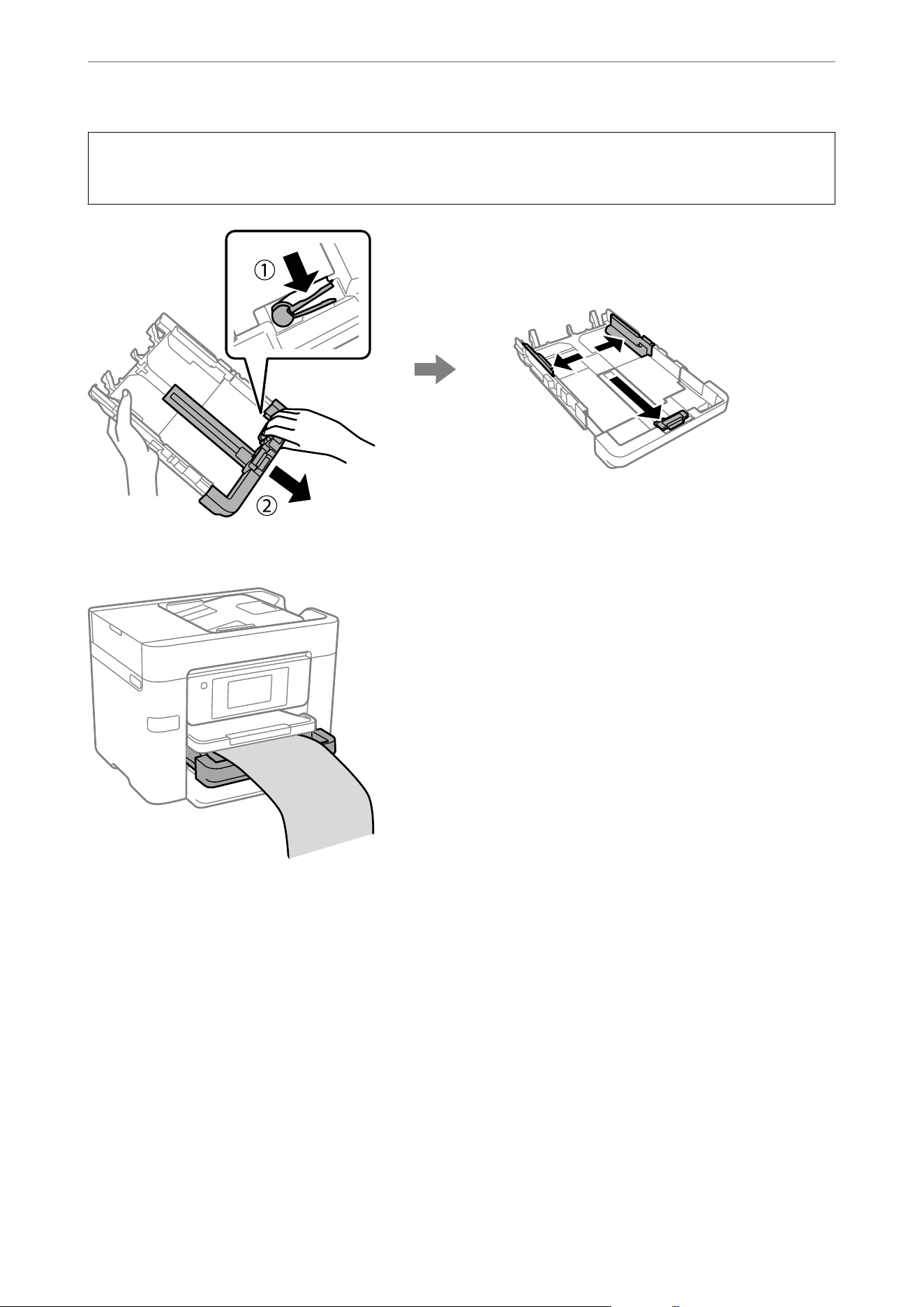
Loading Long Paper
When loading Legal size or longer, extend the paper cassette.
Loading Paper
>
Loading Paper Using Instructions on the LCD screen
>
Loading Long Paper
33
c
Important:
Extend the paper cassette, and then slide the edge guides to their maximum positions.
Select User dened as the paper size setting.
O Make sure the leading edge of the paper is cut perpendicularly. A diagonal cut may cause paper feed problems.
O If the paper is curled,
atten
it or curl it slightly in the opposite direction before loading. Printing on curled
paper may cause paper jams and smears on the printout.
O Do not touch paper that is being fed or ejected. It could injure your hand or cause print quality to decline.
Related Information
& “Available Paper and Capacities” on page 221
& “Unavailable Paper Types” on page 230
Loading Paper
>
Loading Paper Using Instructions on the LCD screen
>
Loading Long Paper
34

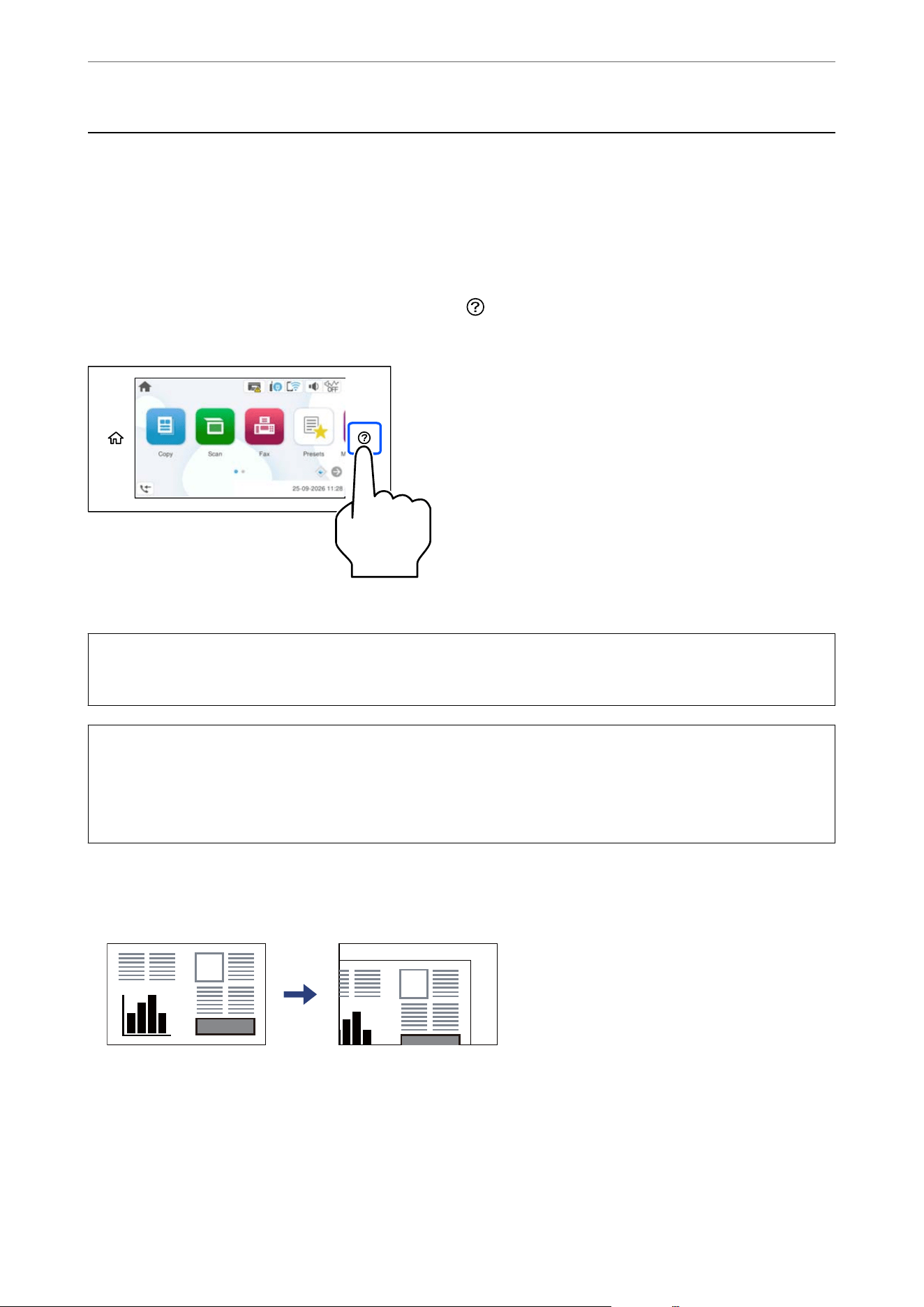
Placing Originals
Place originals on the scanner glass or in the ADF.
You can place multiple originals in the ADF. If auto duplex scanning is available, you can scan both sides of the
originals at the same time. See the link below for the specications of the ADF.
“ADF Specications” on page 265
To view animated instructions for placing originals, select
, and then select How To > Place Originals. Select
the method of placing originals that you want to view. Select Finish to close the animation screen.
When using the scanner glass
!
Caution:
Be careful not to trap your
ngers
when closing the document cover. Otherwise you may be injured.
c
Important:
O When placing bulky originals such as books, make sure exterior light is not shining directly onto the scanner
glass.
O Do not apply too much force to the scanner glass or the document cover. Otherwise, they may be damaged.
Note:
O If there is any dust or dirt on the scanner glass, the scanning range may expand to include it, so the image of the original
may be displaced or reduced. Remove any dust and dirt from the scanner glass before scanning.
O e area 1.5 mm (0.06 in.) from the edges of the scanner glass is not scanned.
O When originals are placed in the ADF and on the scanner glass, priority is given to the originals in the ADF.
O If you leave the originals on the scanner glass for a long time, they may stick to the surface of the glass.
Placing Originals
>
Placing Originals
36
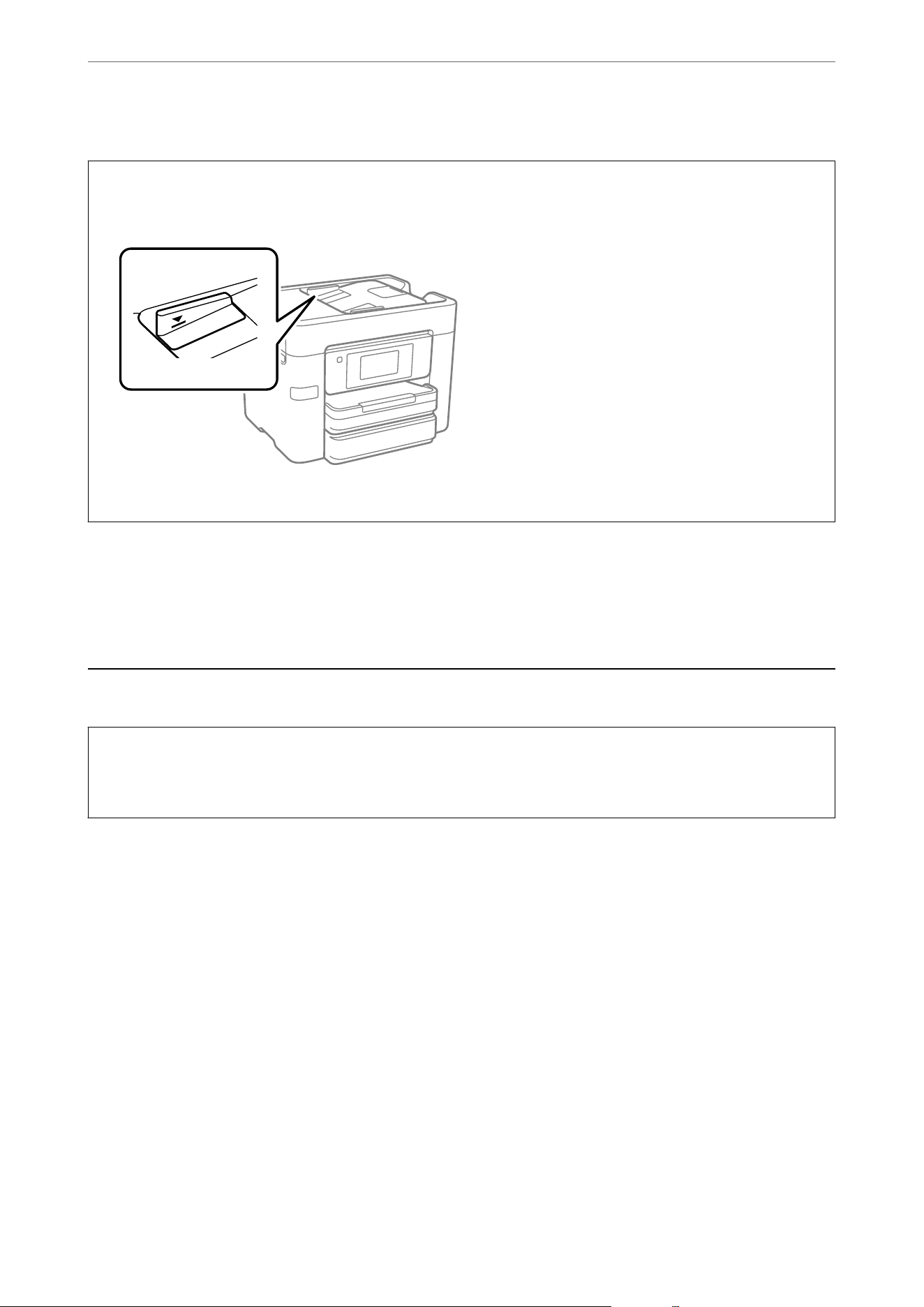
When using the ADF
c
Important:
O Do not load originals above the line just under the triangle symbol on the ADF edge guide.
O Do not add originals while scanning.
Related Information
& “Originals that are not Supported by the ADF” on page 37
& “Scanner Specications” on page 264
Originals that are not Supported by the ADF
c
Important:
Do not feed photographs or valuable original artwork into the ADF. Misfeeding may wrinkle or damage the
original. Scan these documents on the scanner glass instead.
To prevent paper jams, avoid placing the following originals in the ADF. For these types, use the scanner glass.
O Originals that are torn, folded, wrinkled, deteriorated, or curled
O Originals with binder holes
O Originals held together with tape, staples, paper clips etc.
O Originals that have stickers or labels stuck to them
O Originals that are cut irregularly or not right angled
O Originals that are bound
O OHPs, thermal transfer paper, or carbon backs
Placing Originals
>
Originals that are not Supported by the ADF
37

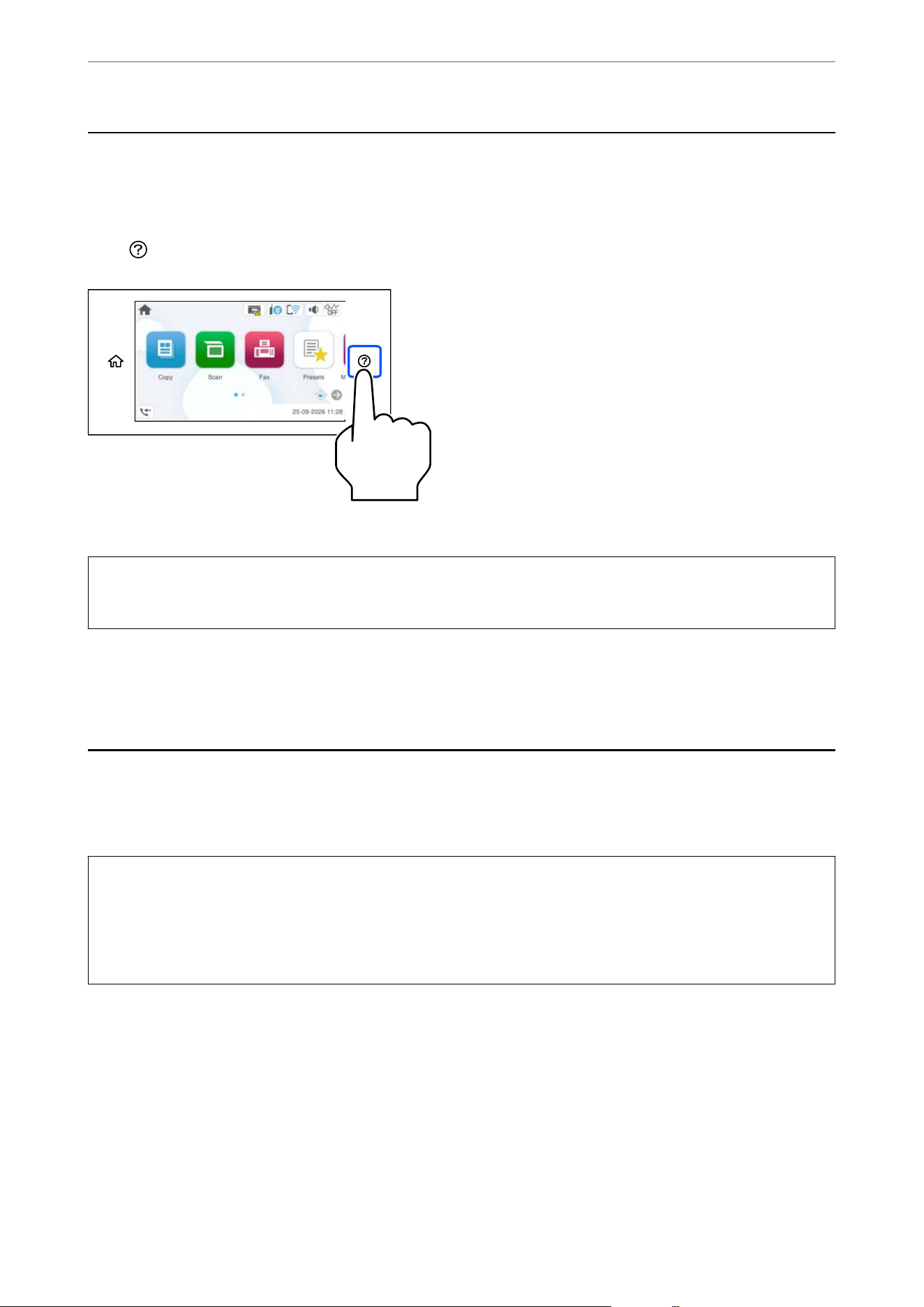
Inserting and Removing an External USB Device
You can insert an external USB device into the external interface USB port by referring to the animations displayed
on the printer's LCD screen.
Select
, and then select How To > USB memory connection.
Perform the steps in reverse order to remove the external USB device.
c
Important:
If you remove the external USB device while operating the printer, the data on the external USB device may be lost.
Related Information
& “Memory Device Specications” on page 271
Sharing Data on a Memory Device
From a computer, you can write or read data on a memory device such as a USB
ash
drive that has been
connected to the printer.
c
Important:
When sharing a memory device inserted in the printer between computers connected by USB or over a network,
write access is only allowed on computers that are connected by the method you selected on the printer. To write
to the memory device, select Settings > General Settings > Printer Settings > Memory Device Interface > File
Sharing on the control panel and then select a connection method.
Note:
It takes a while to view the data from a computer if a large memory device, such as 2 TB HDD, is connected.
Windows
Select a memory device from PC or Computer.
e
data on the memory device is displayed.
Note:
If you connected the printer to the network without using the installer, map an external interface USB port as a network
drive. Open Run and enter a printer name \\XXXXX or a printer's IP address \\XXX.XXX.XXX.XXX in the Open eld.
Right-click a device icon displayed to assign the network. e network drive appears in PC or Computer.
Using a Memory Device
>
Sharing Data on a Memory Device
39

Mac OS
Select the corresponding device icon. e data on the external storage device is displayed.
Note:
O To remove a memory device, drag and drop the device icon to the trash icon. Otherwise, data on the shared drive may
not be displayed correctly when another memory device is inserted.
O To access a memory device through the network, select Go > Connect to Server from the menu on the desktop. Enter a
printer name cifs://XXXXX or smb://XXXXX (Where "XXXXX" is the printer name) in the Server Address, and then
click Connect.
Related Information
& “Memory Device Specications” on page 271
Using a Memory Device
>
Sharing Data on a Memory Device
40

Printing
Printing Documents................................................42
Printing Photos....................................................72
Printing on Envelopes...............................................76
Printing Web Pages.................................................77
Printing Using a Cloud Service........................................ 78
Printing Documents
Printing from a Computer - Windows
Printing Using Easy Settings
Note:
Operations may dier depending on the application. See the application's help for details.
1. Load paper in the printer.
“Loading Paper Using Instructions on the LCD screen” on page 32
2. Open the le you want to print.
3. Select Print or Print Setup from the File menu.
4.
Select your printer.
5. Select Preferences or Properties to access the printer driver window.
6. Change the settings as necessary.
See the related information below for more details.
Printing
>
Printing Documents
>
Printing from a Computer - Windows
42

Note:
O You can also see the online help for explanations of the setting items. Right-clicking an item displays Help.
O When you select Print Preview, you can see a preview of your document before printing.
7. Click OK to close the printer driver window.
8. Click Print.
Note:
O When you select Print Preview, a preview window is displayed. To change the settings, click Cancel, and then repeat
the procedure from step 3.
O If you want to cancel printing, on your computer right-click on your printer in Devices and Printers, Printer, or
in Printers and Faxes. Click See what's printing, right-click on the job you want to cancel, and then select Cancel.
However, you cannot cancel a print job from the computer once it has been completely sent to the printer. In this
case, cancel the print job by using the printer's control panel.
Related Information
& “Available Paper and Capacities” on page 221
& “List of Paper Types” on page 31
& “Menu Options for the Printer Driver” on page 43
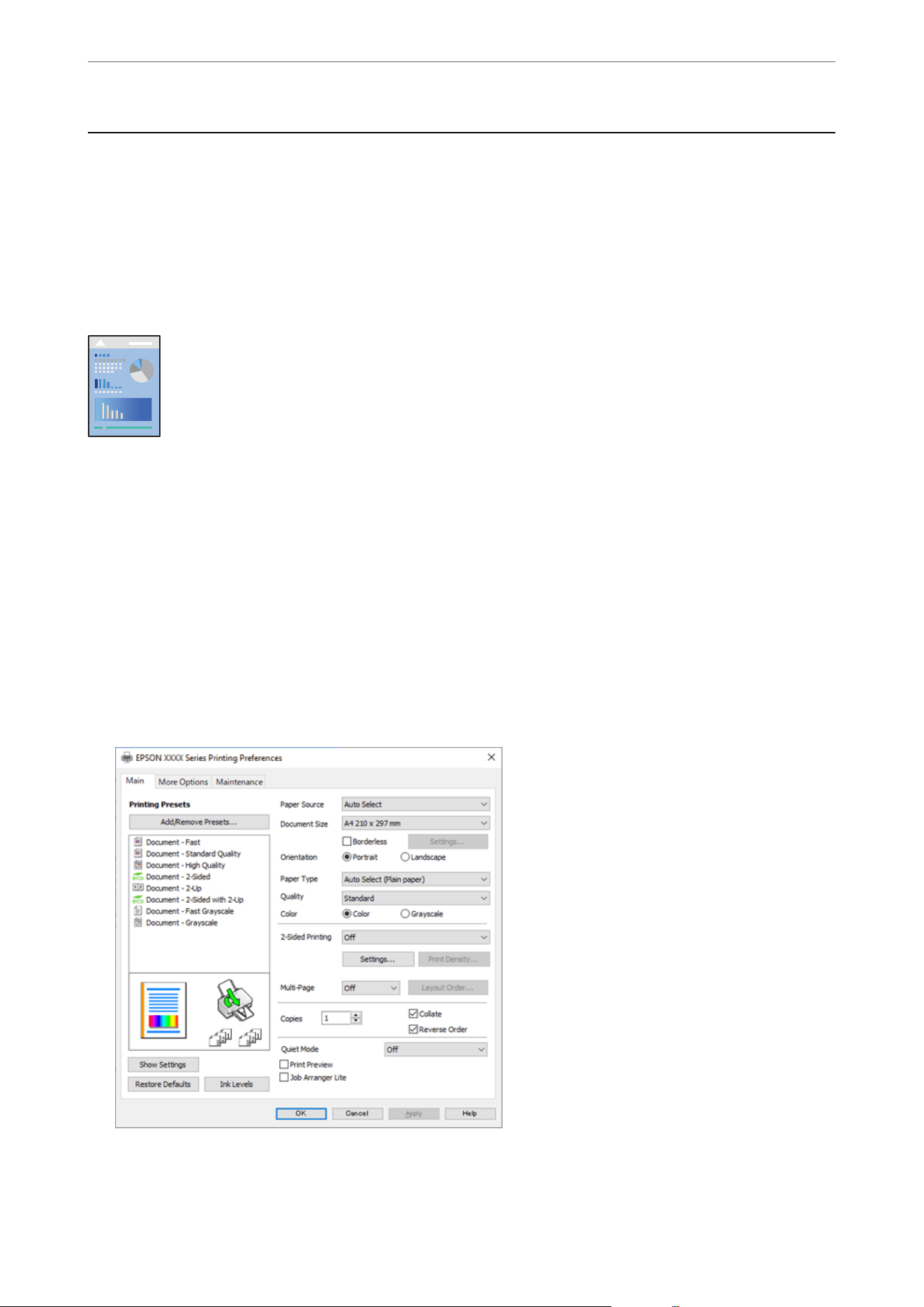
Menu Options for the Printer Driver
Open the print window in an application, select the printer, and then access the printer driver window.
Note:
Menus vary depending on the option you selected.
Main Tab
Printing Presets:
Add/Remove Presets:
You can add or remove your own presets for frequently used print settings. Select the preset you want
to use from the list.
Paper Source:
Select the paper source you want to use. Select Auto Select to automatically choose the paper source
assigned to your document size and paper type in the printer's control panel settings. is feature is
available for the WF-4930 Series only.
Document Size:
Select the paper size you will print on. If you select User-Dened, enter the paper width and height,
and then register the size.
Borderless:
Enlarges the print data slightly more than the paper size so that no margins are printed around the
edges of the paper. Click Settings to select the amount of enlargement.
Orientation:
Select the orientation you want to use to print.
Printing
>
Printing Documents
>
Printing from a Computer - Windows
43

Paper Type:
Select the type of paper you will print on.
Quality:
Select the print quality you want to use for printing. Available settings depend on the paper type you
select. If you select More Settings, you can make additional print quality settings.
Color:
Select whether to print in color or in monochrome.
2-Sided Printing:
Allows you to perform 2-sided printing.
Settings:
You can specify the binding edge and the binding margins. When printing multi-page
documents, you can select to print starting from either the front or the back side of the
page.
Print Density:
Select the document type to adjust the print density. If the appropriate print density is selected,
you can prevent images from bleeding through to the reverse side. Select User Dened to
adjust the print density manually.
Multi-Page:
Allows you to print several pages on one sheet or perform poster printing. Click Layout Order to
specify the order in which pages are printed.
Copies:
Select the number of copies you want to print.
Collate:
Prints multi-page documents collated in order and sorted into sets.
Reverse Order:
Allows you to print the pages in reverse order so that they are stacked in the correct order aer
printing.
Quiet Mode:
Reduces the noise the printer makes. However, enabling this may reduce print speed.
Print Preview:
Displays a preview of your document before printing.
Job Arranger Lite:
Job Arranger Lite allows you to combine several les created by dierent applications and print them
as a single print job.
Printing
>
Printing Documents
>
Printing from a Computer - Windows
44

Show Settings/Hide Settings:
Displays a list of the settings selected on the Main and More Options tabs. You can show or hide the
list.
Restore Defaults:
Returns all settings to their factory default values.
e
settings on the More Options tab are also reset
to their defaults.
Ink Levels:
Displays the approximate ink levels.
More Options Tab
Printing Presets:
Add/Remove Presets:
You can add or remove your own presets for frequently used print settings. Select the preset you want
to use from the list.
Document Size:
Select the paper size you will print on.
Output Paper:
Select the paper size you will print on. If the Document Size diers from the Output Paper, Reduce/
Enlarge Document is selected automatically. You do not have to select this setting when printing
without reducing or enlarging the size of a document.
Reduce/Enlarge Document:
Allows you to reduce or enlarge the size of a document.
Fit to Page:
Automatically reduce or enlarge the document to t to the paper size selected in Output
Paper.
Zoom to:
Reduce or enlarge the document by a specic percentage.
Center:
Prints images in the center of the paper.
Color Correction:
Automatic:
Adjusts the tone of images automatically.
Custom:
Allows you to perform manual color correction. Clicking Advanced opens the Color
Correction screen where you can select a detailed method of color correction. Allows you
to set the method for Color Universal Print and emphasize text and thin lines when you click
Printing
>
Printing Documents
>
Printing from a Computer - Windows
45

Image Options. You can also enable Edge Smoothing, Fix Red-Eye, and print settings with
reduced edge blurring.
Watermark Features:
Allows you to select settings for anti-copy patterns, watermarks, or headers and footers.
Add/Delete:
Allows you to add or remove any anti-copy patterns or watermarks that you want to use.
Settings:
Allows you to set the printing method for anti-copy patterns or watermarks.
Header/Footer:
You can print information such as a user name and printing date in headers or footers. You can
then set color, font, size, or style.
Additional Settings:
Rotate 180°:
Rotates pages 180 degrees before printing. Select this item when printing on paper such as
envelopes that are loaded in xed direction in the printer.
Bidirectional Printing:
Prints when the print head moves in both directions.
e
print speed is faster, but the quality
may decline.
Mirror Image:
Inverts the image so that it prints as it would appear in a mirror.
Show Settings/Hide Settings:
Displays a list of the settings selected on the Main and More Options tabs. You can show or hide the
list.
Restore Defaults:
Returns all settings to their factory default values.
e
settings on the Main tab are also reset to their
defaults.
Maintenance Tab
Job Arranger Lite:
Opens the Job Arranger Lite window. Here you can open and edit previously saved data.
EPSON Status Monitor 3:
Opens the EPSON Status Monitor 3 window. Here you can conrm the status of the printer and the
consumables.
Monitoring Preferences:
Allows you to select settings for items on the EPSON Status Monitor 3 window.
Printing
>
Printing Documents
>
Printing from a Computer - Windows
46
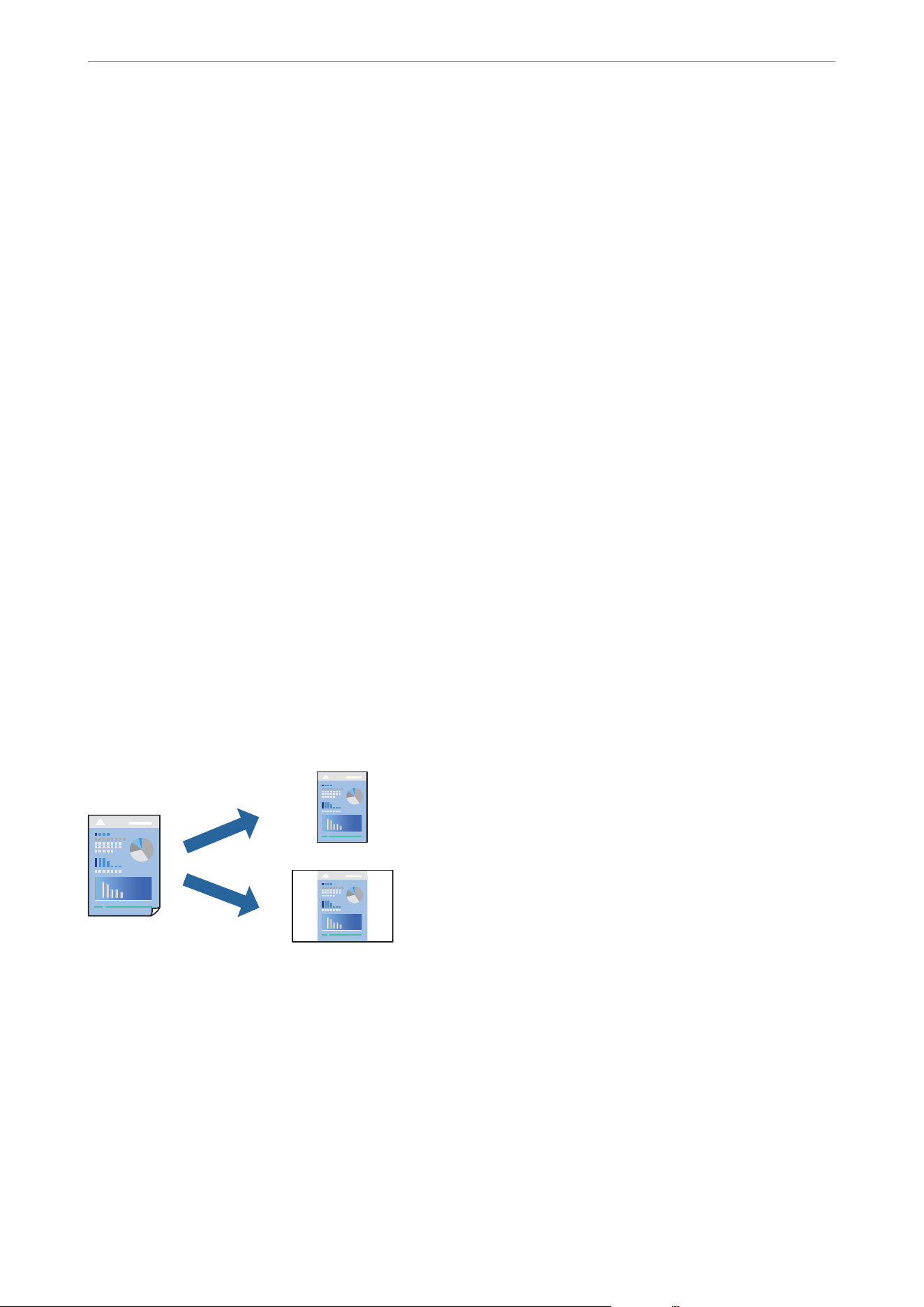
Extended Settings:
Allows you to select a variety of settings. Right-click each item to view the Help for more details.
Print Queue:
Displays the jobs waiting to be printed. You can check, pause, or resume print jobs.
Printer and Option Information:
You can register user accounts. If access control is set on the printer, you must register your account.
Language:
Allows you to select the language used in the printer driver window. To apply a change to this setting,
close the printer driver, and then open it again.
Software Update:
Starts EPSON
Soware
Updater to check for the latest versions of applications on the Internet.
Online Order:
Allows you to access the site where you can purchase Epson's ink cartridges.
Technical Support:
If the manual is installed on your computer, the manual is displayed. If it is not installed, you can
connect to the Epson Web site to check the manual and available technical support.
Adding Printing Presets for Easy Printing
If you create your own preset for frequently used print settings in the printer driver, you can print easily by
selecting the preset from the list.
1. On the printer driver's Main or More Options tab, select the settings you want to include in the preset (such
as Document Size and Paper Type).
2.
Click Add/Remove Presets in Printing Presets.
3. Enter a Name and, if necessary, enter a comment.
4.
Click Save.
Note:
To delete an added preset, click Add/Remove Presets, select the preset name you want to delete from the list, and then
delete it.
Printing
>
Printing Documents
>
Printing from a Computer - Windows
47
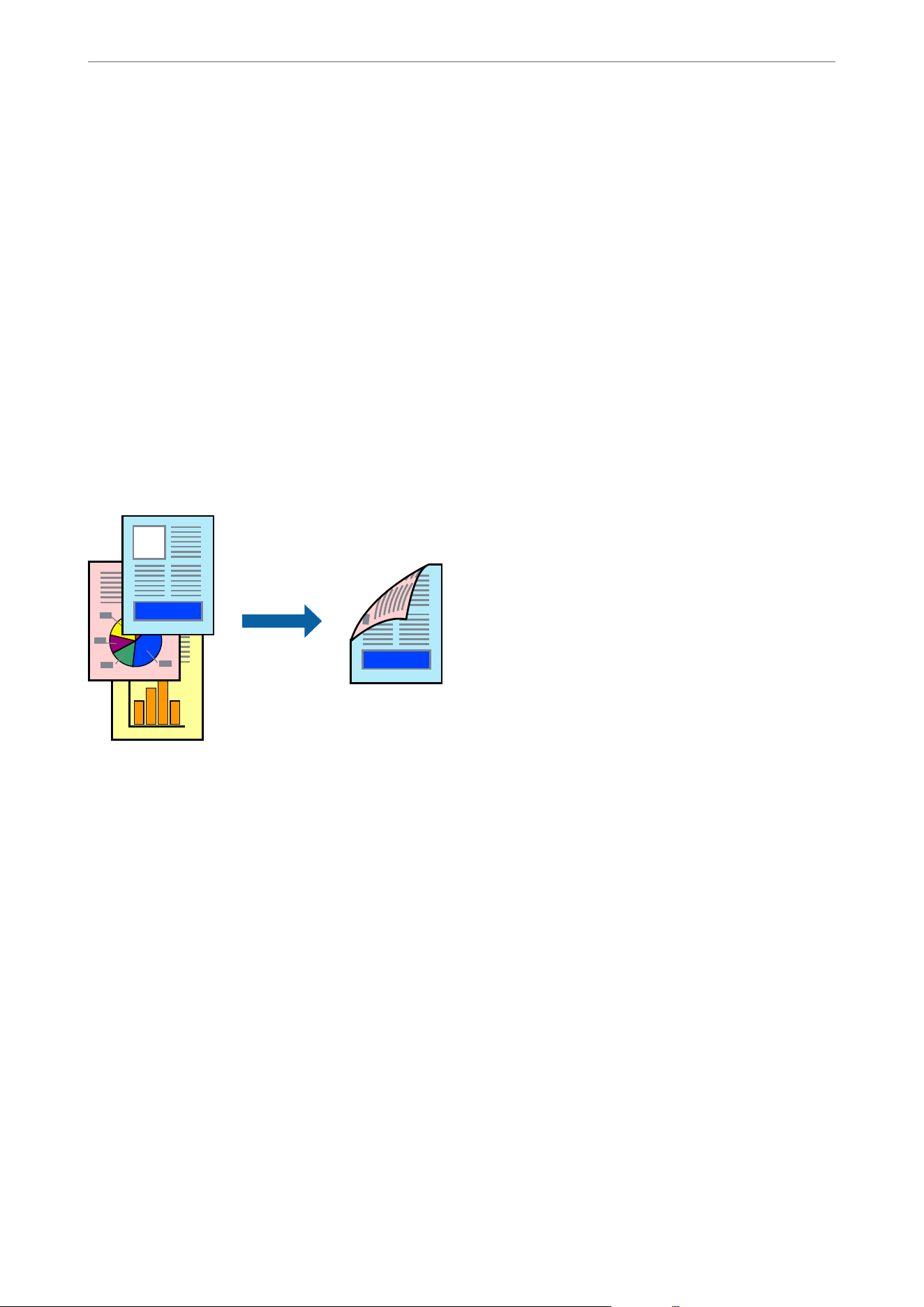
5. Click Print.
e next time you want to print using the same settings, select the registered setting name from Printing Presets,
and click OK.
Related Information
& “Loading Paper Using Instructions on the LCD screen” on page 32
& “Printing Using Easy Settings” on page 42
Printing on 2-Sides
You can use either of the following methods to print on both sides of the paper.
O Automatic 2-sided printing
O Manual 2-sided printing
When the printer has nished printing the rst side, ip the paper over to print on the other side.
Note:
O is feature is not available for borderless printing.
O If you do not use paper that is suitable for 2-sided printing, the print quality may decline and paper jams may occur.
“Paper for 2-Sided Printing” on page 229
O Depending on the paper and the data, ink may bleed through to the other side of the paper.
O You cannot perform manual 2-sided printing unless EPSON Status Monitor 3 is enabled. If EPSON Status Monitor 3
is disabled, access the printer driver window, click Extended Settings on the Maintenance tab, and then select Enable
EPSON Status Monitor 3.
O However, it may not be available when the printer is accessed over a network or is used as a shared printer.
1. On the printer driver's Main tab, select the method of 2-Sided Printing.
2. Click Settings, make the appropriate settings, and then click OK.
3. Click Print Density, make the appropriate settings, and then click OK.
When setting Print Density, you can adjust print density according to the document type.
Note:
O is setting is not available when you select manual 2-sided printing.
O Printing may be slow depending on the combination of options selected for Select Document Type in the Print
Density Adjustment window and for Quality on the Main tab.
Printing
>
Printing Documents
>
Printing from a Computer - Windows
48
4. Select other settings on the Main and More Options tabs as necessary, and then click OK.
5. Click Print.
For manual 2-sided printing, when the rst side has nished printing, a pop-up window is displayed on the
computer. Follow the on-screen instructions.
Related Information
& “Available Paper and Capacities” on page 221
& “Loading Paper Using Instructions on the LCD screen” on page 32
& “Printing Using Easy Settings” on page 42
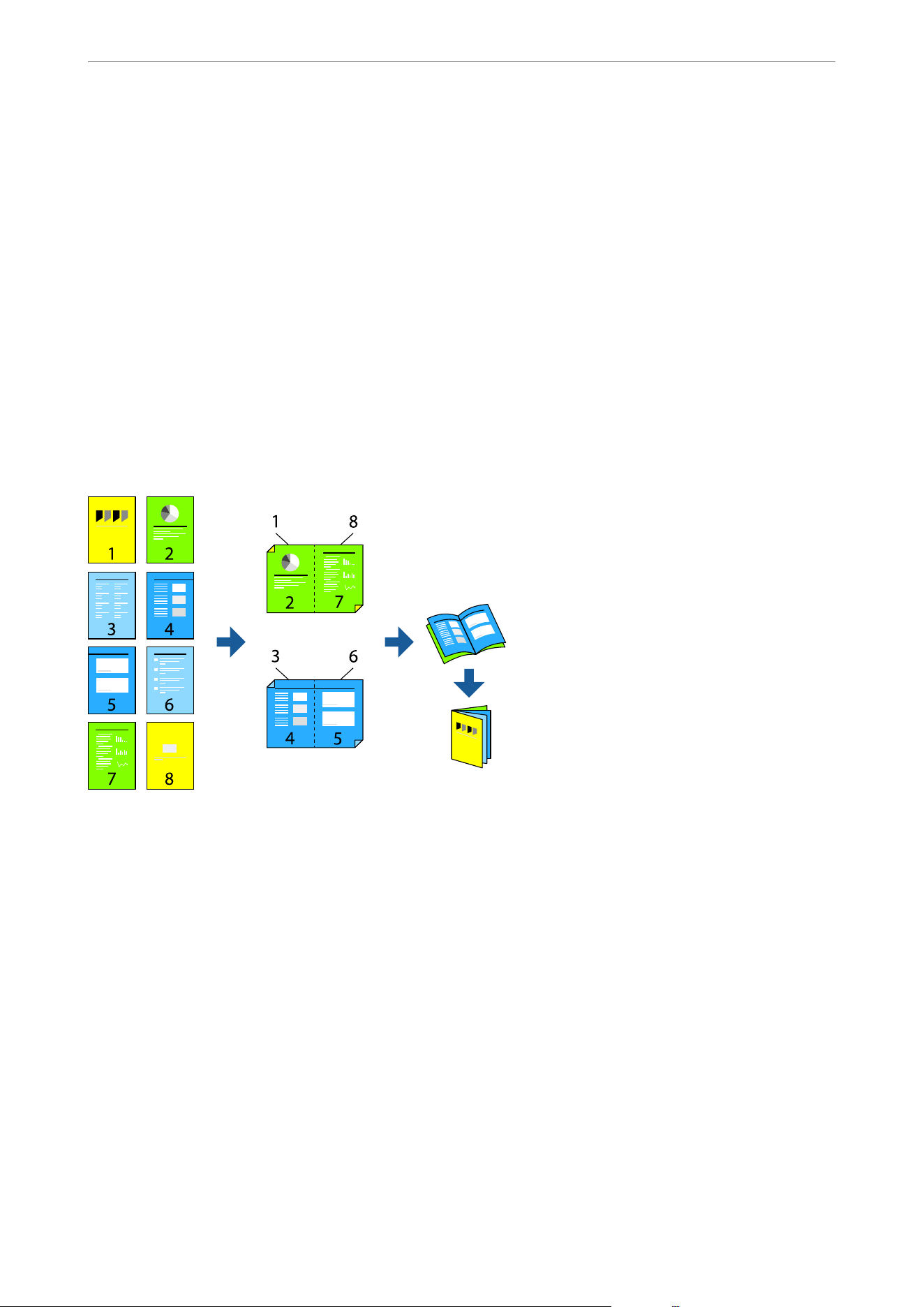
Printing a Booklet
You can also print a booklet that can be created by reordering the pages and folding the printout.
Note:
O is feature is not available with borderless printing.
O If you do not use paper that is suitable for 2-sided printing, the print quality may decline and paper jams may occur.
“Paper for 2-Sided Printing” on page 229
O Depending on the paper and the data, ink may bleed through to the other side of the paper.
O You cannot perform manual 2-sided printing unless EPSON Status Monitor 3 is enabled. If EPSON Status Monitor 3
is disabled, access the printer driver window, click Extended Settings on the Maintenance tab, and then select Enable
EPSON Status Monitor 3.
O However, it may not be available when the printer is accessed over a network or is used as a shared printer.
1. On the printer driver's Main tab, select the type of long-edge binding you want to use from 2-Sided Printing.
2. Click Settings, select Booklet, and then select Center Binding or Side Binding.
O Center Binding: Use this method when printing a small number of pages that can be stacked and easily
folded in half at the same time.
O Side Binding. Use this method when printing one sheet (four pages) at a time, folding each in half, and then
putting them together to create a booklet.
Printing
>
Printing Documents
>
Printing from a Computer - Windows
49
3. Click OK.
4. When printing data that has a lot of photos and images, click Print Density, select the appropriate settings,
and then click OK.
When setting Print Density, you can adjust print density according to the document type.
Note:
Printing may be slow depending on the combination of options selected for Select Document Type in the Print Density
Adjustment window and for Quality on the Main tab.
5. Select other settings on the Main and More Options tabs as necessary, and then click OK.
6. Click Print.
Related Information
& “Available Paper and Capacities” on page 221
& “Loading Paper Using Instructions on the LCD screen” on page 32
& “Printing Using Easy Settings” on page 42
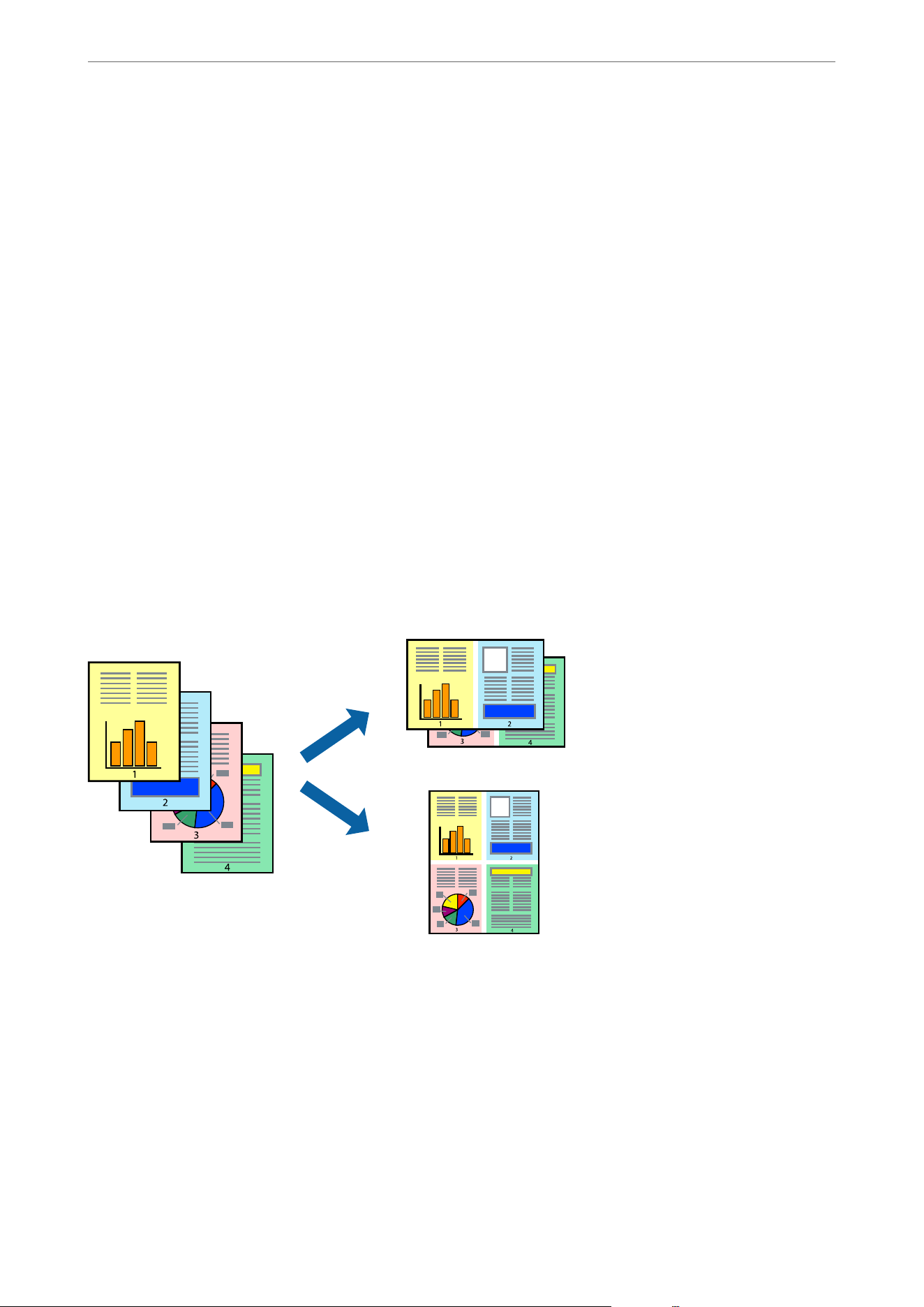
Printing Several Pages on One Sheet
You can print several pages of data on a single sheet of paper.
Note:
is feature is not available with borderless printing.
1.
On the printer driver's Main tab, select 2-Up, 4-Up, 6-Up, 8-Up, 9-Up, or 16-Up as the Multi-Page setting.
2. Click Layout Order, make the appropriate settings, and then click OK.
3. Select other settings on the Main and More Options tabs as necessary, and then click OK.
4.
Click Print.
Printing
>
Printing Documents
>
Printing from a Computer - Windows
50
Related Information
& “Loading Paper Using Instructions on the LCD screen” on page 32
& “Printing Using Easy Settings” on page 42
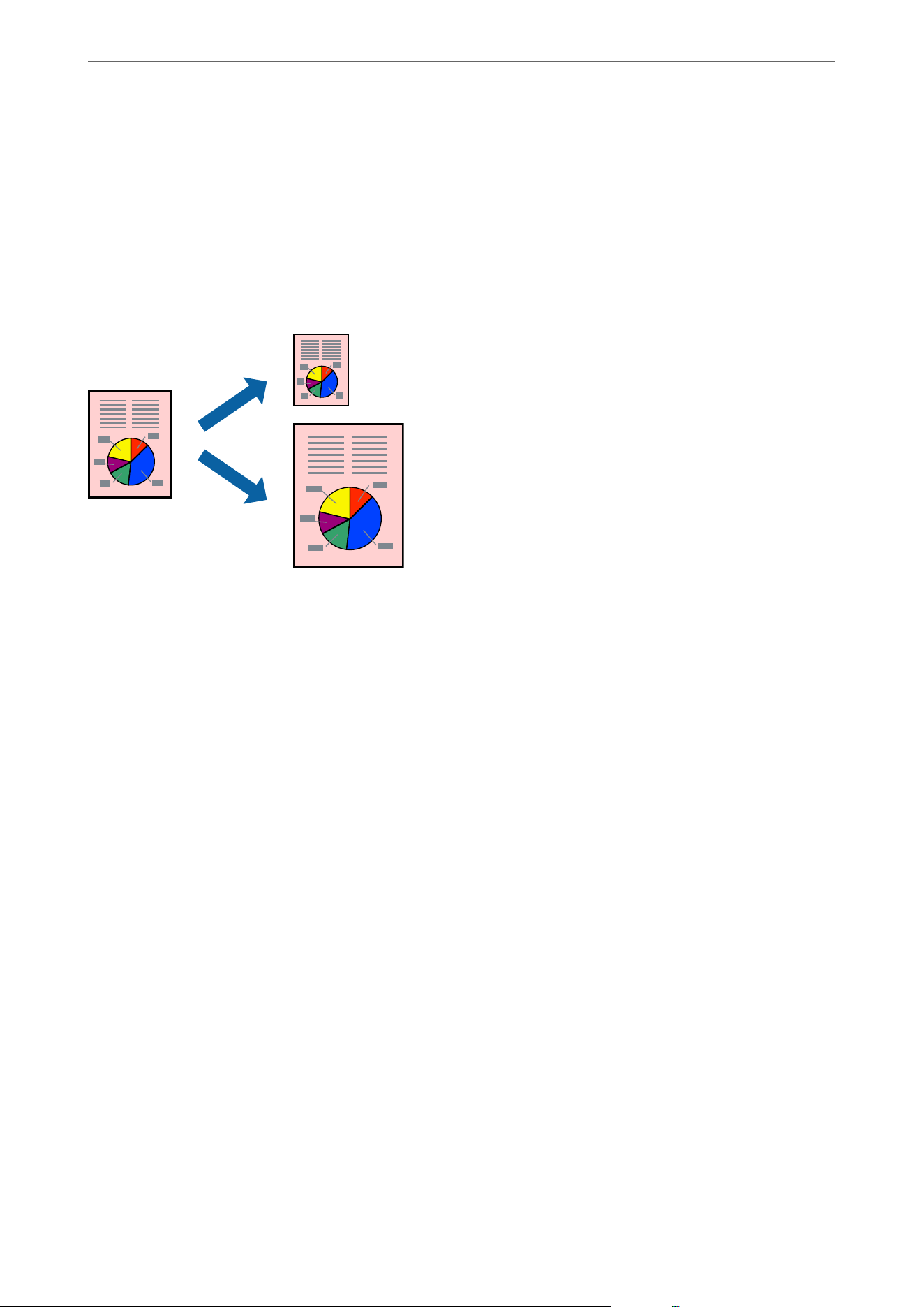
Printing to Fit the Paper Size
Select the paper size you loaded in the printer as the Destination Paper Size setting.
Note:
is feature is not available with borderless printing.
1. On the printer driver's More Options tab, make the following settings.
O Document Size: Select the size of the paper you set in the application setting.
O Output Paper: Select the paper size you loaded in the printer.
Fit to Page is automatically selected.
Note:
Click Center to print the reduced image in the middle of the paper.
2. Select other settings on the Main and More Options tabs as necessary, and then click OK.
3. Click Print.
Related Information
& “Loading Paper Using Instructions on the LCD screen” on page 32
& “Printing Using Easy Settings” on page 42
Printing
>
Printing Documents
>
Printing from a Computer - Windows
51
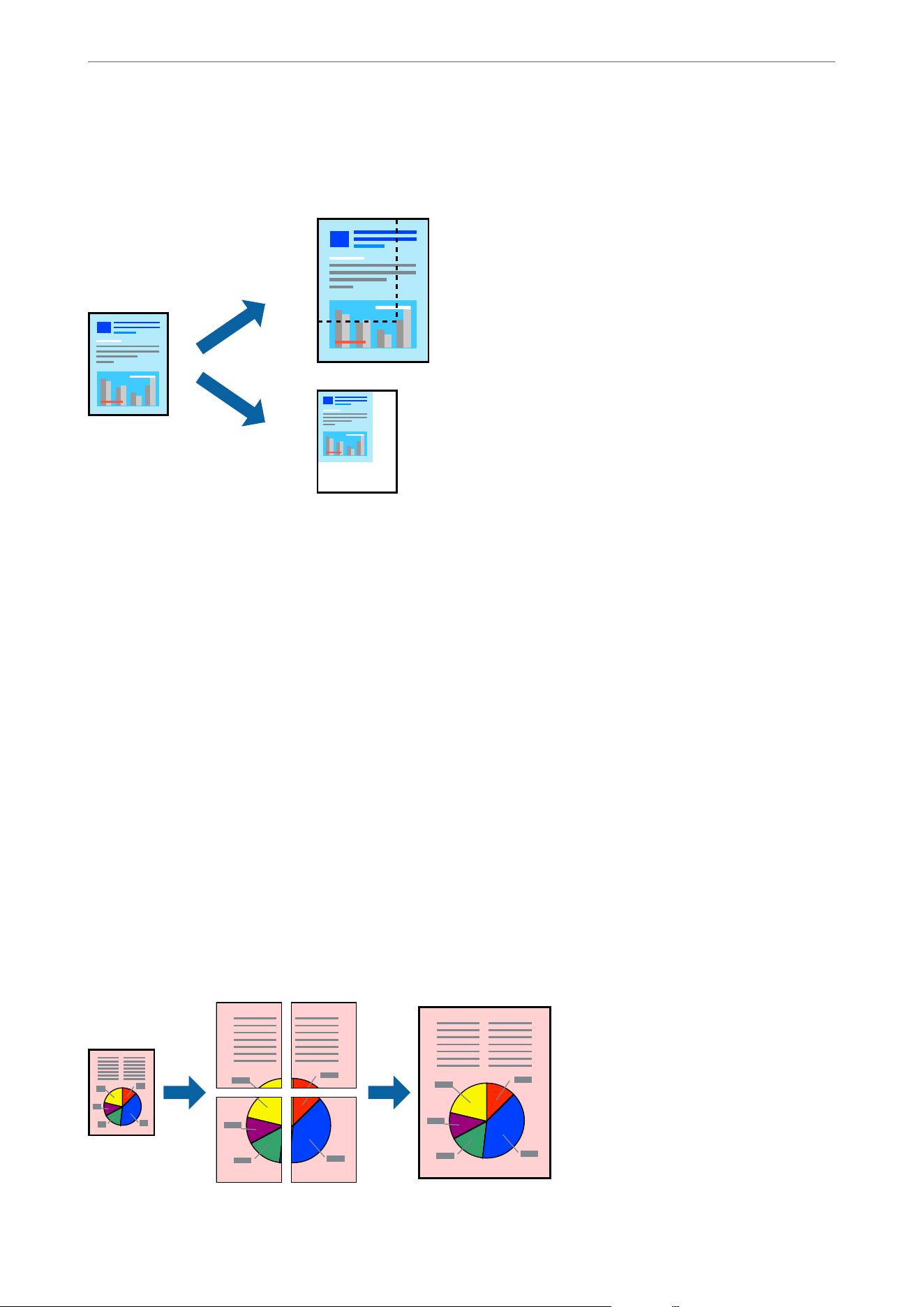
Printing a Reduced or Enlarged Document at any Magnication
You can reduce or enlarge the size of a document by a specic percentage.
Note:
is feature is not available with borderless printing.
1. On the printer driver's More Options tab, select the document size from the Document Size setting.
2. Select the paper size you want to print on from the Output Paper setting.
3. Select Reduce/Enlarge Document, Zoom to, and then enter a percentage.
4. Select other settings on the Main and More Options tabs as necessary, and then click OK.
5.
Click Print.
Related Information
& “Loading Paper Using Instructions on the LCD screen” on page 32
& “Printing Using Easy Settings” on page 64
Printing One Image on Multiple Sheets for Enlargement (Creating a Poster)
is feature allows you to print one image on multiple sheets of paper. You can create a larger poster by taping
them together.
Printing
>
Printing Documents
>
Printing from a Computer - Windows
52
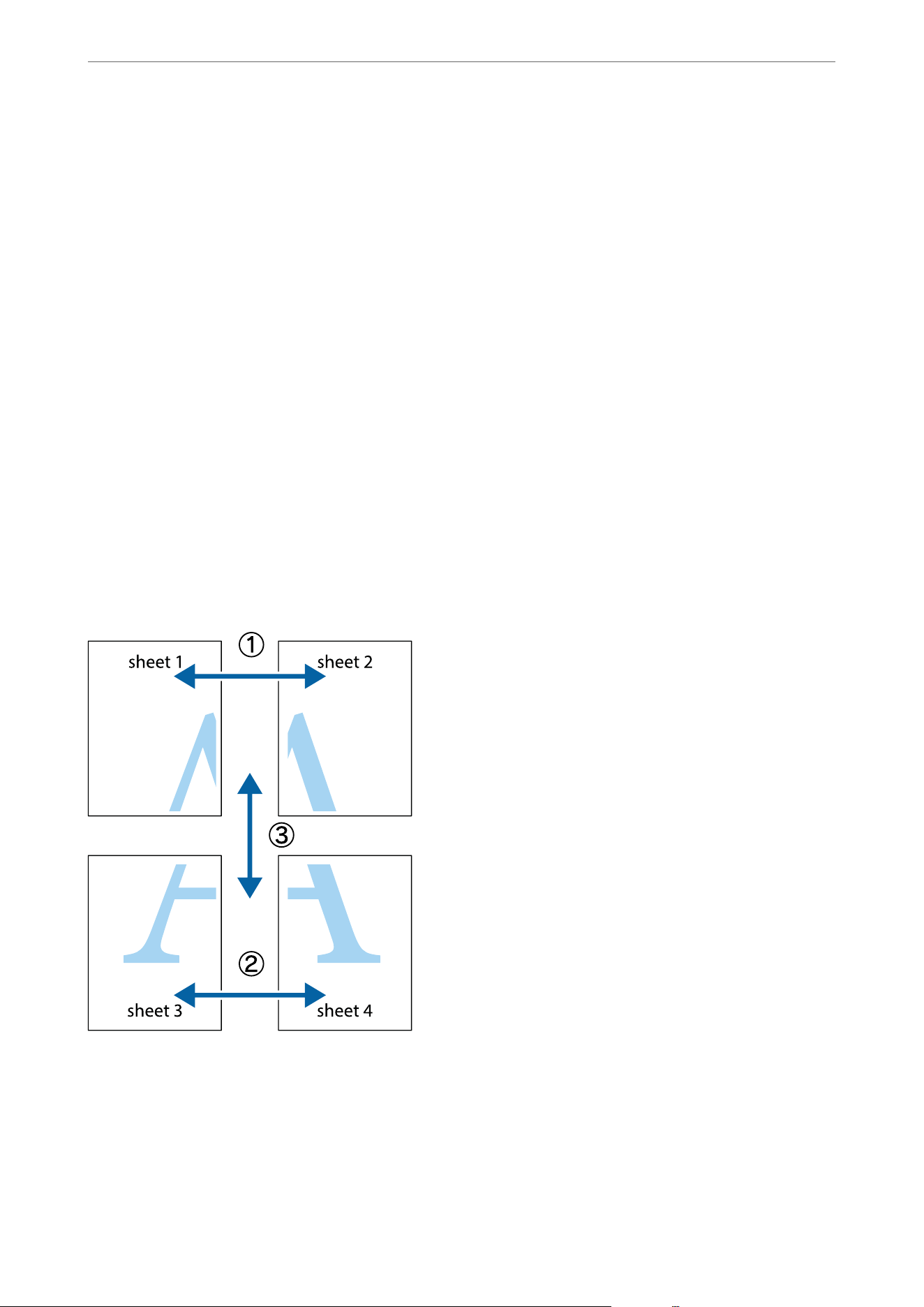
Note:
is feature is not available with borderless printing.
1. On the printer driver's Main tab, select 2x1 Poster, 2x2 Poster, 3x3 Poster, or 4x4 Poster as the Multi-Page
setting.
2. Click Settings, make the appropriate settings, and then click OK.
Note:
Print Cutting Guides allows you to print a cutting guide.
3. Select other settings on the Main and More Options tabs as necessary, and then click OK.
4.
Click Print.
Related Information
& “Loading Paper Using Instructions on the LCD screen” on page 32
& “Printing Using Easy Settings” on page 42
Making Posters Using Overlapping Alignment Marks
Here is an example of how to make a poster when 2x2 Poster is selected, and Overlapping Alignment Marks is
selected in Print Cutting Guides.
Printing
>
Printing Documents
>
Printing from a Computer - Windows
53
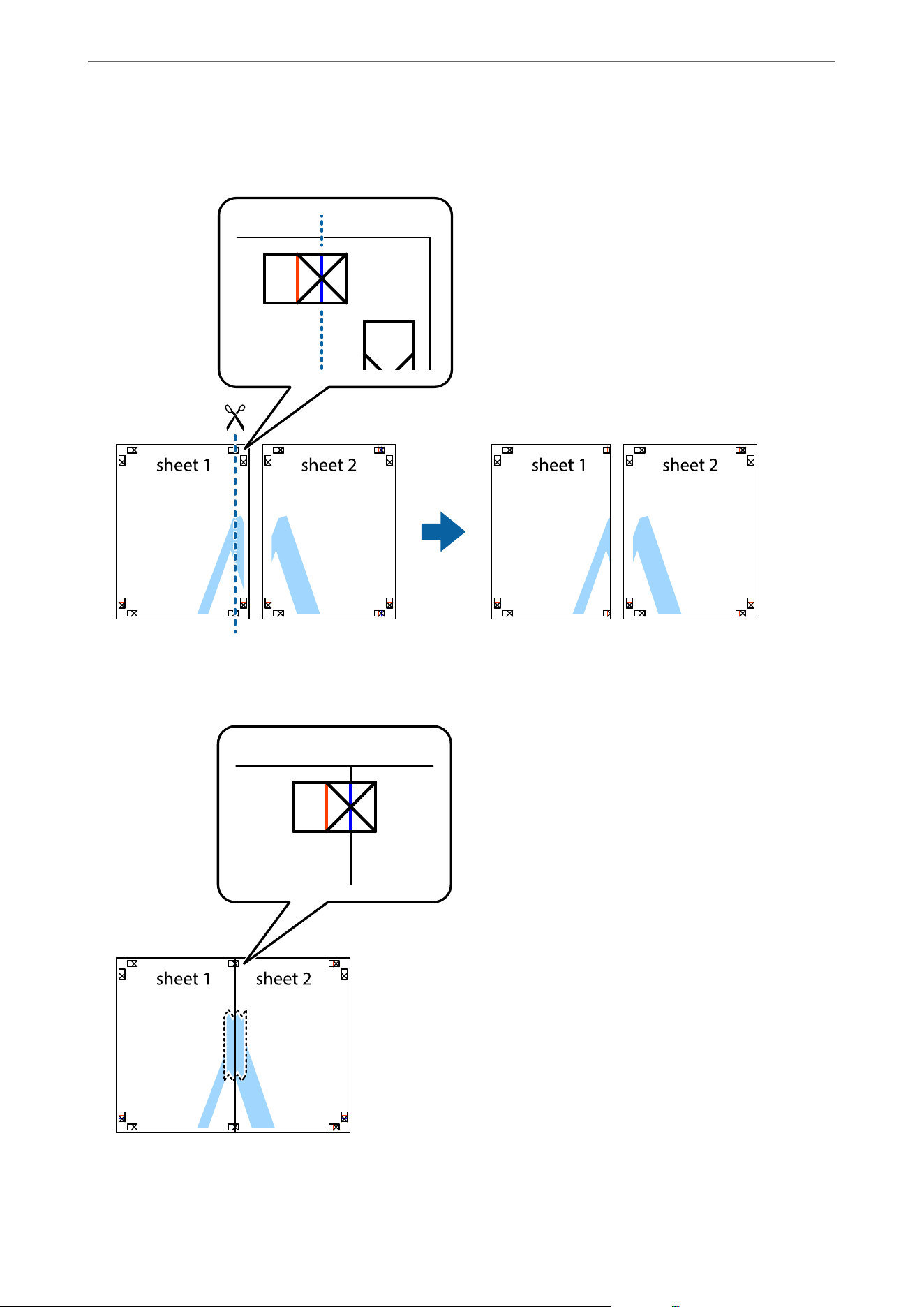
1. Prepare Sheet 1 and Sheet 2. Cut o the margins of Sheet 1 along the vertical blue line through the center of
the top and bottom cross marks.
2. Place the edge of Sheet 1 on top of Sheet 2 and align the cross marks, then temporarily tape the two sheets
together from the back.
Printing
>
Printing Documents
>
Printing from a Computer - Windows
54
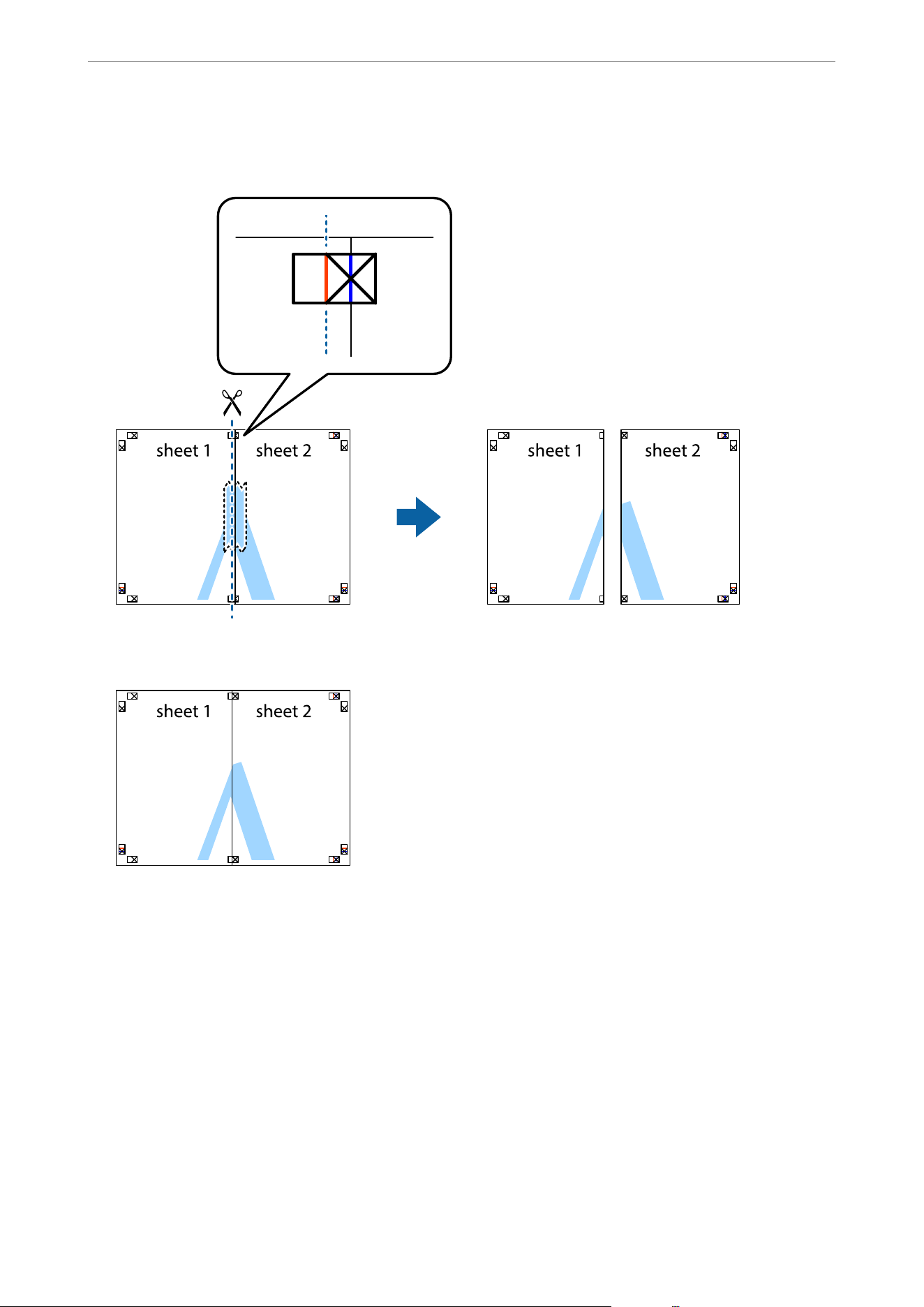
3. Cut the taped sheets in two along the vertical red line through the alignment markers (this time, the line to the
le
of the cross marks).
4. Tape the sheets together from the back.
5. Repeat steps 1 to 4 to tape Sheet 3 and Sheet 4 together.
Printing
>
Printing Documents
>
Printing from a Computer - Windows
55
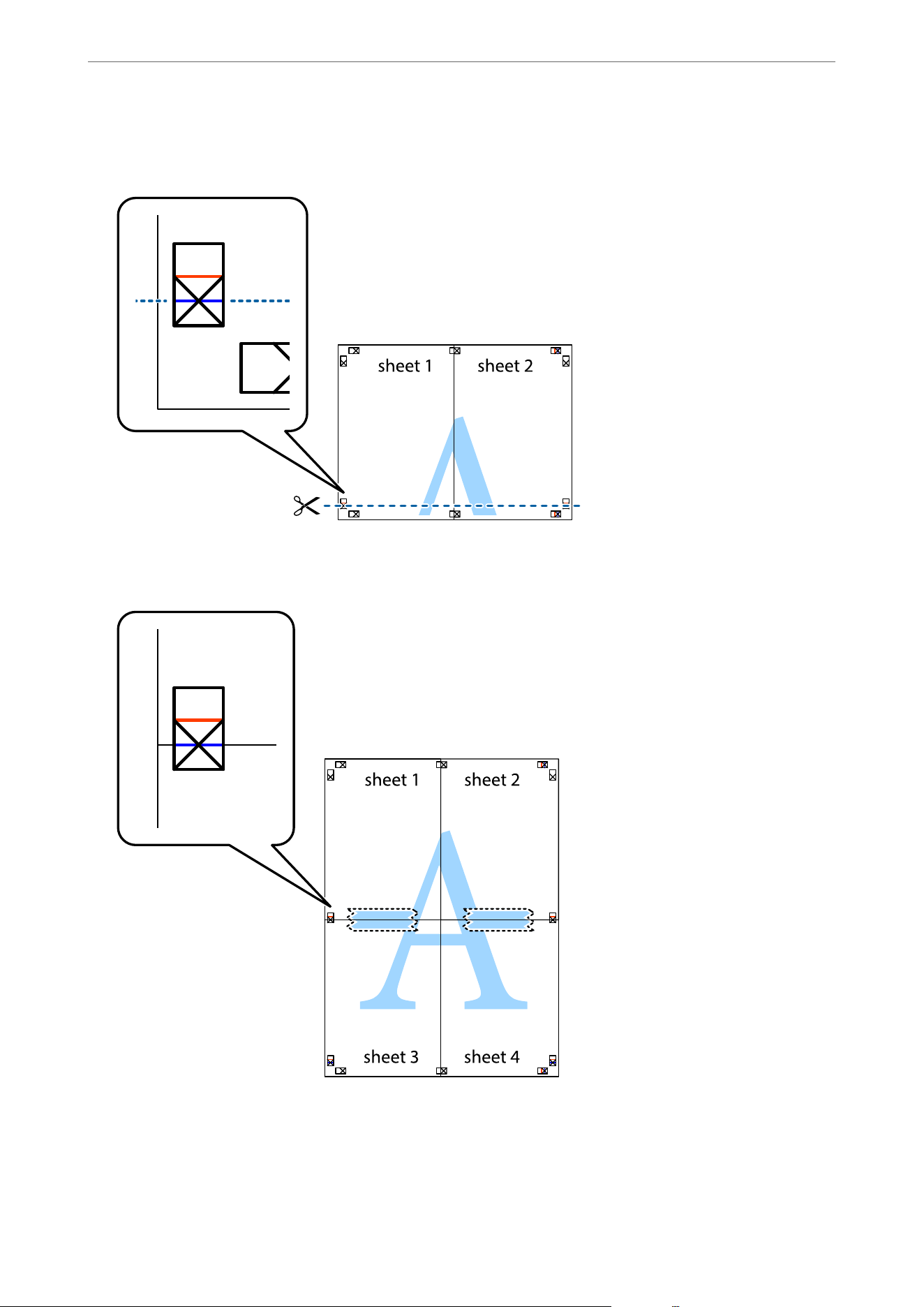
6. Cut o the margins of Sheet 1 and Sheet 2 along the horizontal blue line through the center of the le and right
side cross marks.
7. Place the edge of Sheet 1 and Sheet 2 on top of Sheet 3 and Sheet 4 and align the cross marks, and then
temporarily tape them together from the back.
Printing
>
Printing Documents
>
Printing from a Computer - Windows
56
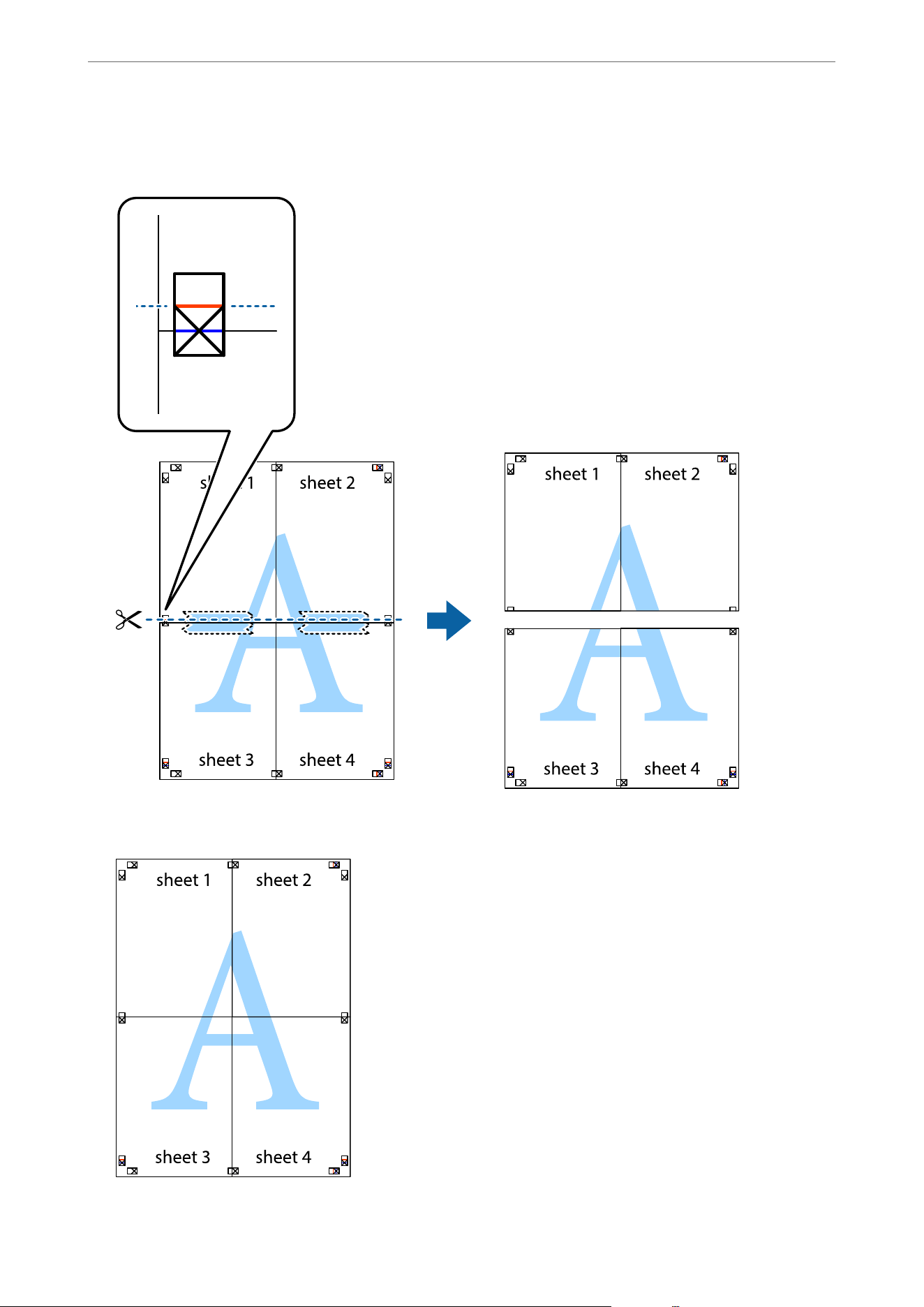
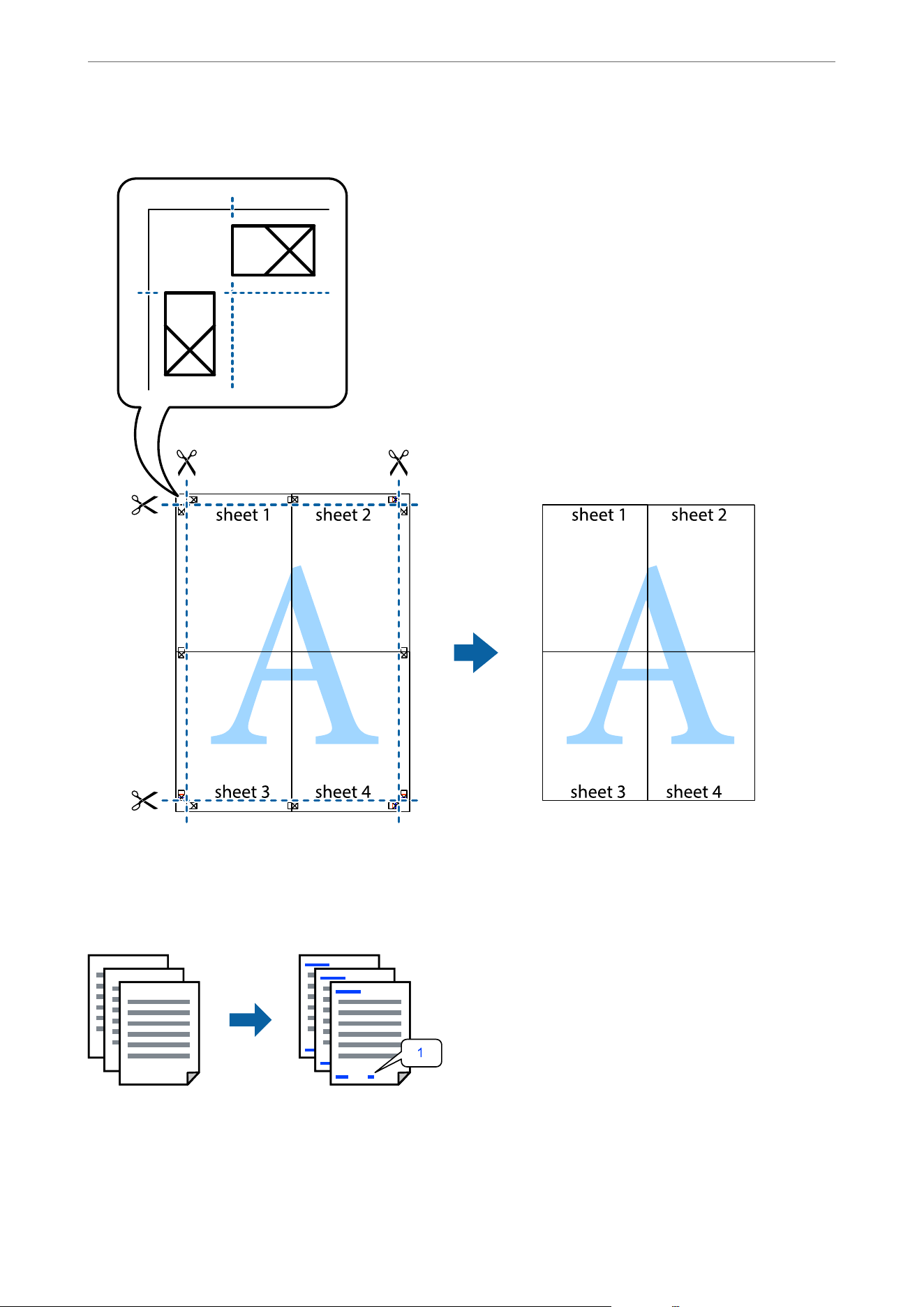
10. Cut o the remaining margins along the outer guide.
Printing with a Header and Footer
You can print information such as a user name or printing date in headers or footers.
1.
On the printer driver's More Options tab, click Watermark Features, and then select Header/Footer.
Printing
>
Printing Documents
>
Printing from a Computer - Windows
58
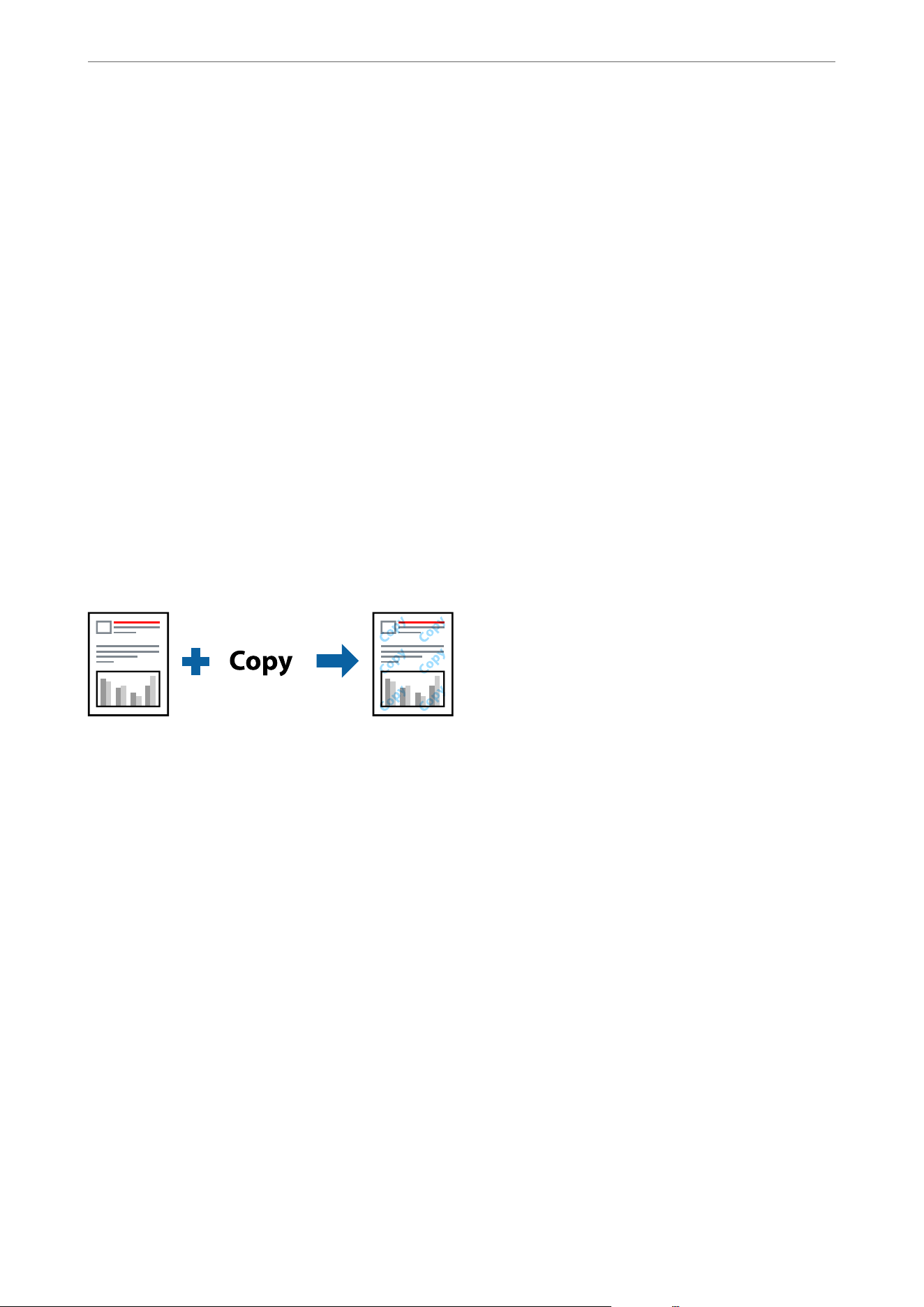
2. Select Settings, select the items you want to print and then click OK.
Note:
O To specify the rst page number, select Page Number from the position you want to print in the header or footer, and
then select the number in Starting number.
O If you want to print text in the header or footer, select the position you want to print, and then select Te x t. Enter the
text you want to print in the text input eld.
3. Select other settings on the Main and More Options tabs as necessary, and then click OK.
4. Click Print.
Related Information
& “Loading Paper Using Instructions on the LCD screen” on page 32
& “Printing Using Easy Settings” on page 42
Printing an Anti-Copy Pattern
You can print an anti-copy pattern on your printouts. When printing, the letters themselves are not printed and the
entire print is screen-toned lightly.
e
hidden letters appear when photocopied to easily distinguish the original
from the copies.
is feature is available when the printer settings are congured as follows:
O Paper Type: Plain paper, Letterhead, Recycled, Color, Preprinted, High Quality Plain Paper, or ick paper
O Borderless: Not selected
O Quality: Standard
O 2-Sided Printing: O, Manual (Long-edge binding), or Manual (Short-edge binding)
O Color Correction: Automatic
Note:
You can also add your own anti-copy pattern.
1. On the printer driver's More Options tab, click Watermark Features, and then select anti-copy pattern.
2. Click Settings to change details such as the size or density of the pattern.
3. Select other settings on the Main and More Options tabs as necessary, and then click OK.
“Main Tab” on page 43
“More Options Tab” on page 45
4. Click Print.
Printing
>
Printing Documents
>
Printing from a Computer - Windows
59
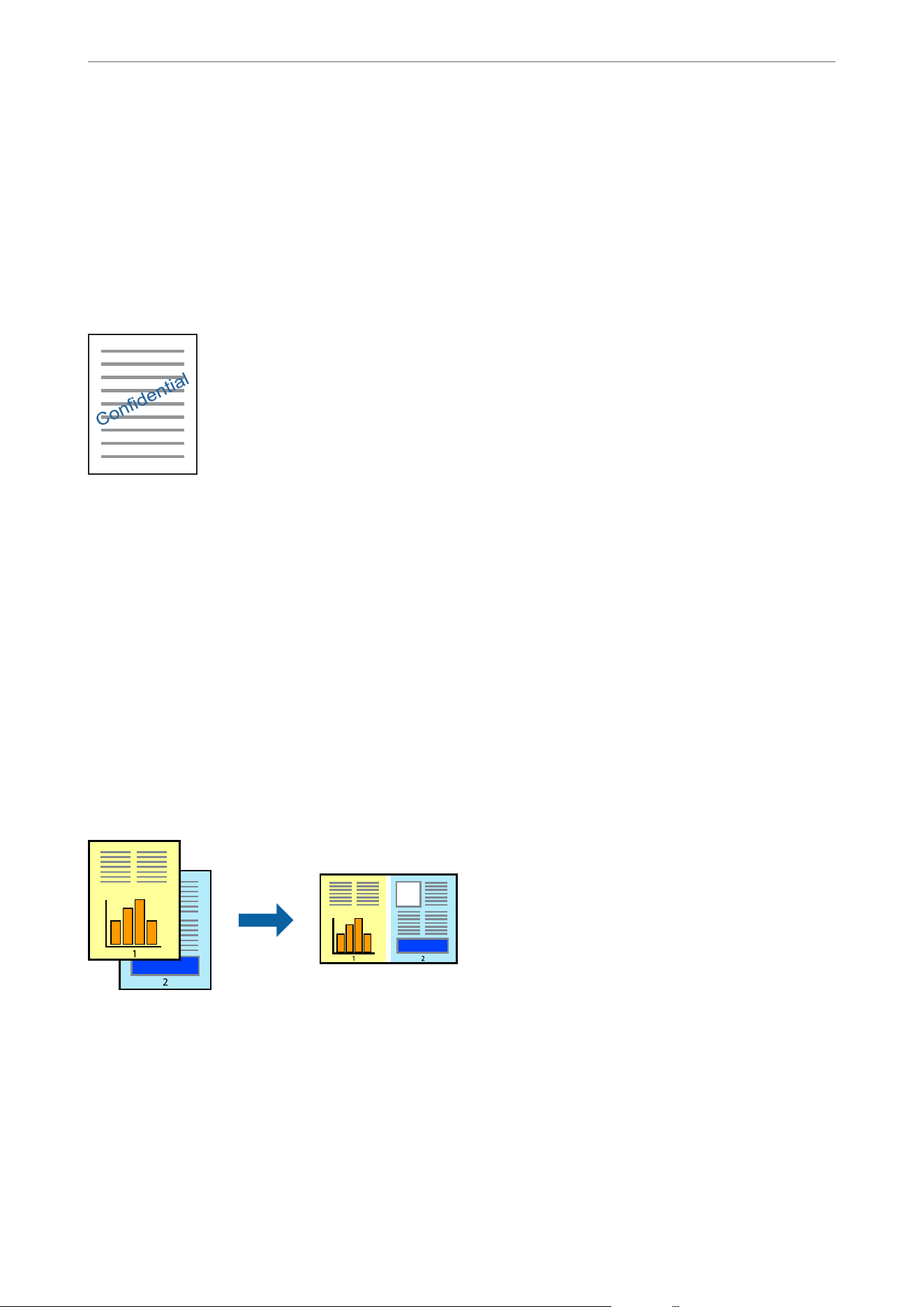
Related Information
& “Loading Paper Using Instructions on the LCD screen” on page 32
& “Printing Using Easy Settings” on page 42
Printing a Watermark
You can print a watermark such as "Condential" on your printouts. You can also add your own watermark.
Note:
is feature is not available with borderless printing.
1. On the printer driver's More Options tab, click Watermark Features, and then select watermark pattern.
2. Click Settings to change details such as the size, density, or position of the pattern or the mark.
3. Select other settings on the Main and More Options tabs as necessary, and then click OK.
4. Click Print.
Printing Multiple Files Together
Job Arranger Lite allows you to combine several les created by dierent applications and print them as a single
print job. You can specify the print settings for combined les, such as multi-page layout, and 2-sided printing.
1. On the printer driver's Main tab, select Job Arranger Lite, and then click OK.
2. Click Print.
When you start printing, the Job Arranger Lite window is displayed.
3. With the Job Arranger Lite window opened, open the le that you want to combine with the current le, and
then repeat the above steps.
Printing
>
Printing Documents
>
Printing from a Computer - Windows
60
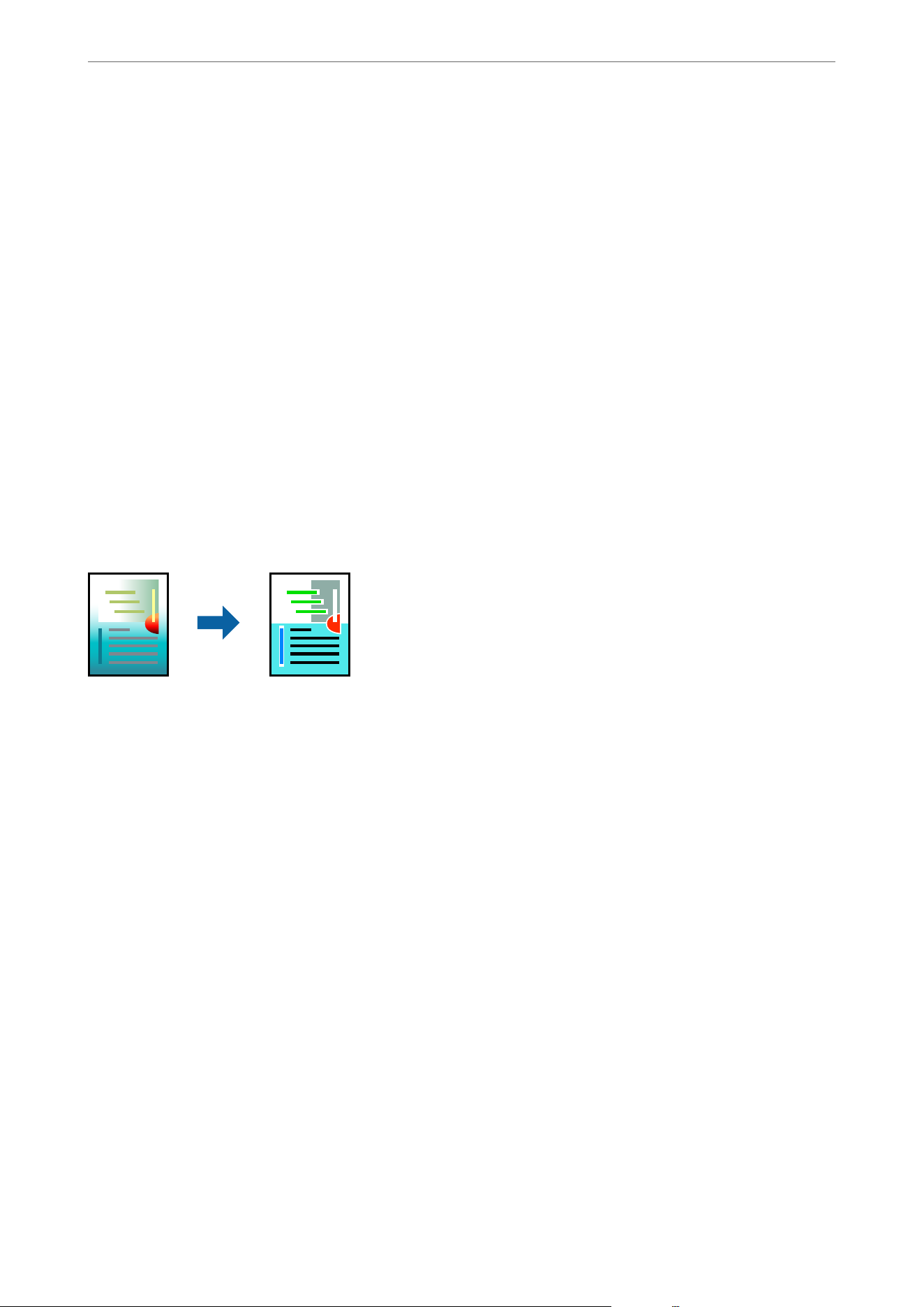
4. When you select a print job added to Print Project in the Job Arranger Lite window, you can edit the page
layout.
5. Click Print from the File menu to start printing.
Note:
If you close the Job Arranger Lite window before adding all the print data to the Print Project, the print job you are
currently working on is canceled. Click Save from the File menu to save the current job. e extension of the saved les
is "ecl".
To open a Print Project, click Job Arranger Lite on the printer driver's Maintenance tab to open the Job Arranger Lite
window. Next, select Open from the File menu to select the le.
Related Information
& “Loading Paper Using Instructions on the LCD screen” on page 32
& “Printing Using Easy Settings” on page 42
Printing Using the Color Universal Print Feature
You can enhance the visibility of text and images in printouts.
Color Universal Print is only available when all of the following conditions are met.
O Paper Type: Plain paper, Copy paper, Letterhead, Recycled paper, Colored paper, Preprinted paper, High quality
plain paper
O Quality: Standard or a higher quality
O Print Color: Color
O Applications: Microso® Oce 2007 or later
O Text Size: 96 pts or smaller
1. On the printer driver's More Options tab, click Image Options in the Color Correction setting.
2. Select an option from the Color Universal Print setting.
3. Select Enhancement Options to make further settings.
4. Select other settings on the Main and More Options tabs as necessary, and then click OK.
5. Click Print.
Note:
O Certain characters may be altered by patterns, such as "+" appearing as "±".
O Application-specic patterns and underlines may alter content printed using these settings.
O Print quality may decrease in photos and other images when using Color Universal Print settings.
O Printing is slower when using Color Universal Print settings.
Printing
>
Printing Documents
>
Printing from a Computer - Windows
61
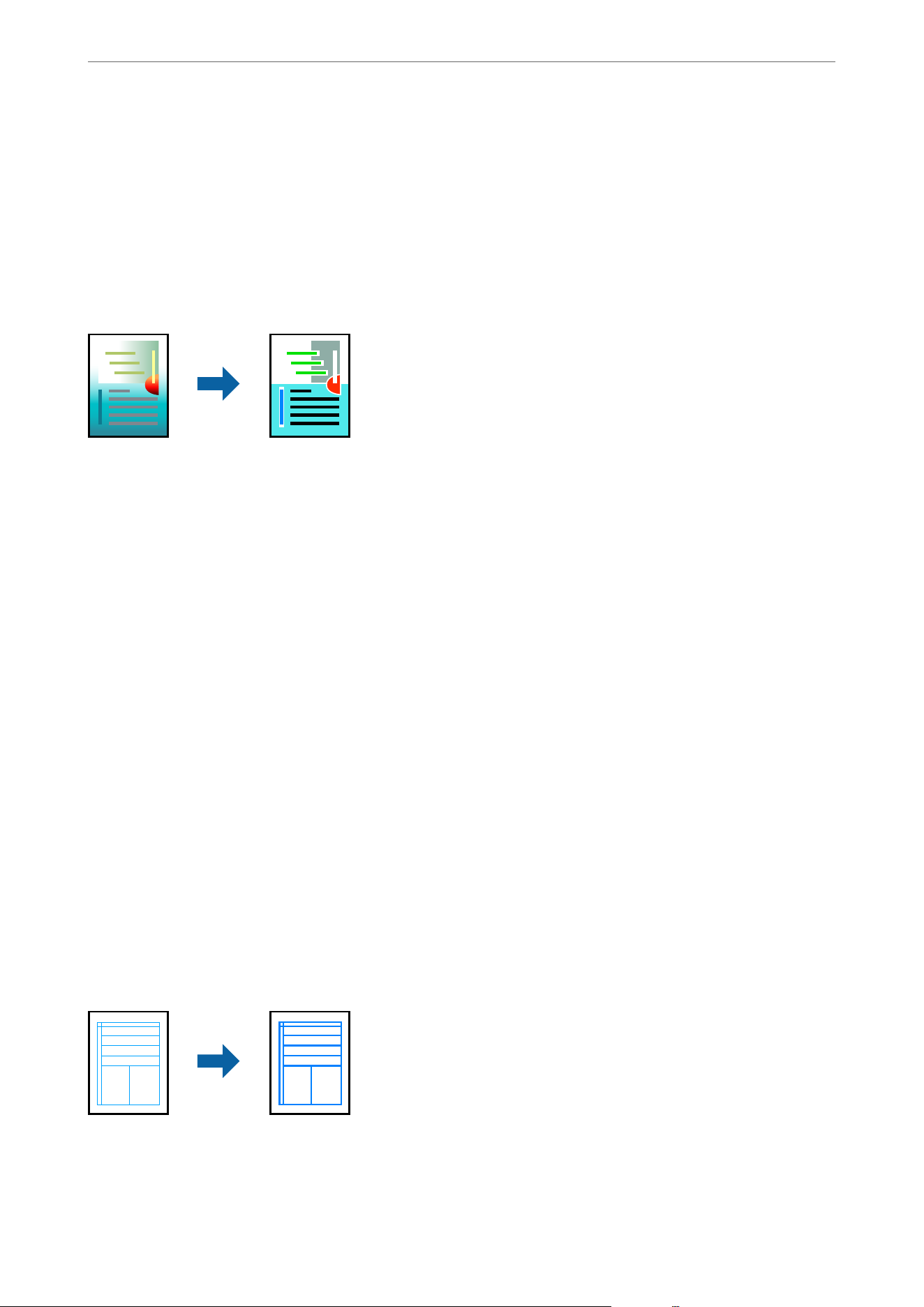
Related Information
& “Loading Paper Using Instructions on the LCD screen” on page 32
& “Printing Using Easy Settings” on page 42
Adjusting the Print Color
You can adjust the colors used in the print job. ese adjustments are not applied to the original data.
PhotoEnhance produces sharper images and more vivid colors by automatically adjusting the contrast, saturation,
and brightness of the original image data.
Note:
PhotoEnhance adjusts the color by analyzing the location of the subject. erefore, if you have changed the location of the
subject by reducing, enlarging, cropping, or rotating the image, the color may change unexpectedly. Selecting the borderless
setting also changes the location of the subject resulting in changes in color. If the image is out of focus, the tone may be
unnatural. If the color is changed or becomes unnatural, print in a mode other than PhotoEnhance.
1. On the printer driver's More Options tab, select a Color Correction setting.
O Automatic:
is
setting automatically adjusts the tone to match the paper type and print quality settings.
O Custom: Click Advanced, and then select your own settings.
2. Select other settings on the Main and More Options tabs as necessary, and then click OK.
3. Click Print.
Related Information
& “Loading Paper Using Instructions on the LCD screen” on page 32
& “Printing Using Easy Settings” on page 42
Printing to Emphasize Thin Lines
You can thicken thin lines that are too thin to print.
1. On the printer driver's More Options tab, click Image Options in the Color Correction setting.
2. Select Emphasize in Lines.
Printing
>
Printing Documents
>
Printing from a Computer - Windows
62
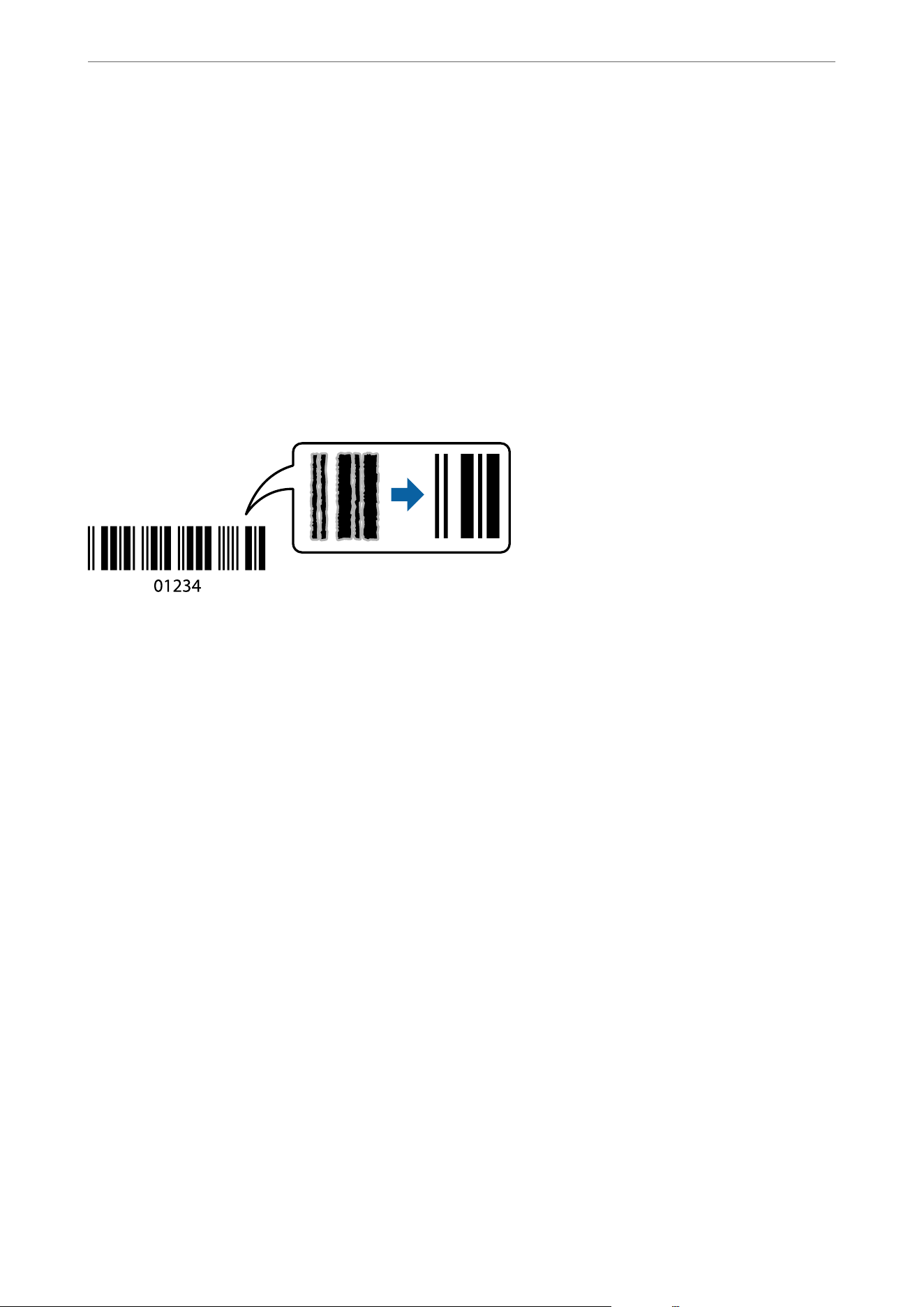
3. Select other settings on the Main and More Options tabs as necessary, and then click OK.
4. Click Print.
Related Information
& “Loading Paper Using Instructions on the LCD screen” on page 32
& “Printing Using Easy Settings” on page 42
Printing Clear Bar Codes
You can print a bar code clearly and make it easy to scan. Only enable this feature if the bar code you printed
cannot be scanned.
is feature is available when the printer settings are congured as follows:
O Paper Type: Plain paper, Letterhead, Recycled, Color, Preprinted, High Quality Plain Paper, ick paper, Epson
Photo Quality Ink Jet, Epson Matte, or Envelope
O Quality: Standard
Note:
Some barcodes may not be readable due to their size or the paper type.
1. On the printer driver's Maintenance tab, click Extended Settings, and then select Barcode mode.
2. Select other settings on the Main and More Options tabs as necessary, and then click OK.
3.
Click Print.
Related Information
& “Loading Paper Using Instructions on the LCD screen” on page 32
& “Printing Using Easy Settings” on page 42
Printing
>
Printing Documents
>
Printing from a Computer - Windows
63
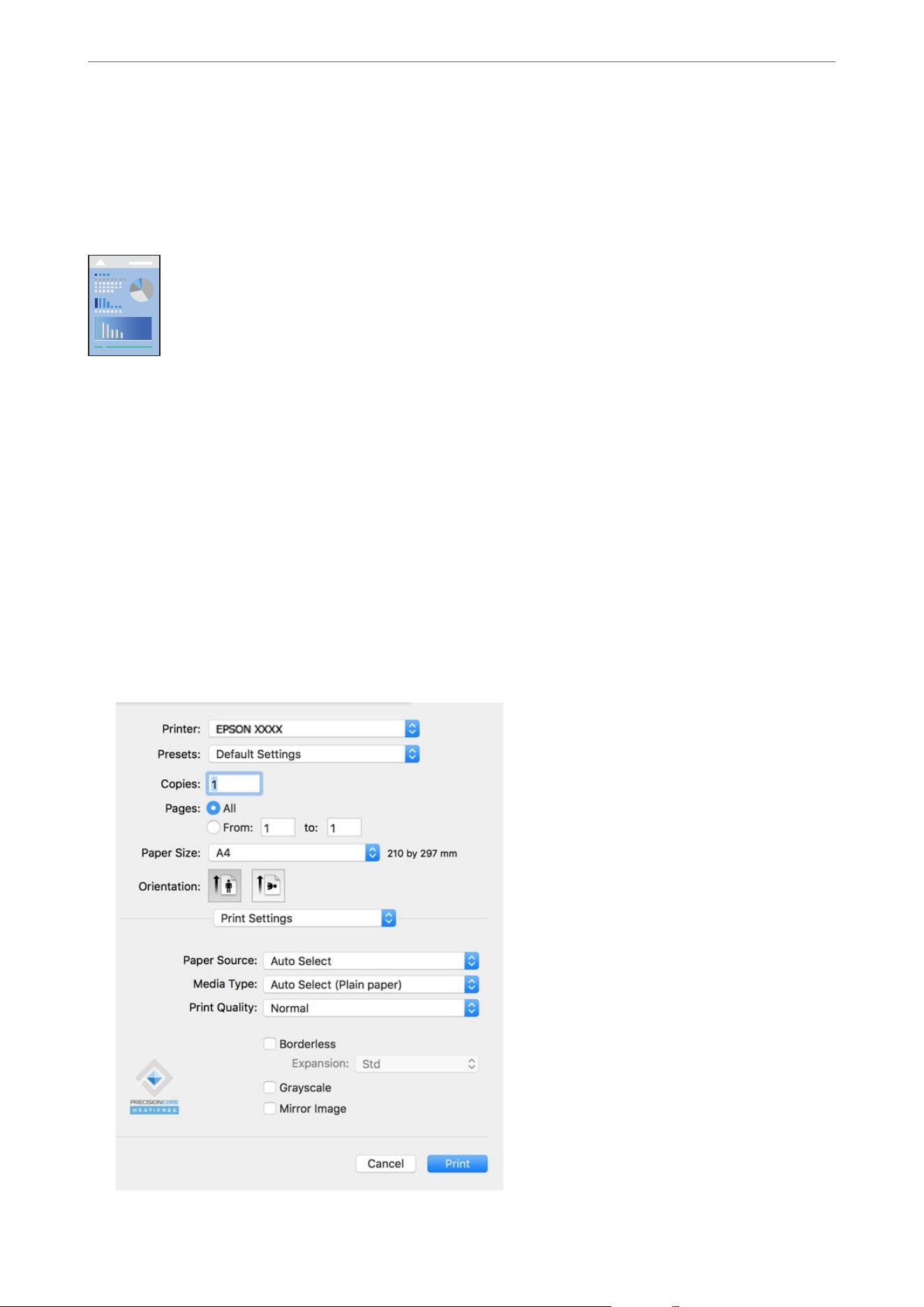
Printing from a Computer - Mac OS
Printing Using Easy Settings
Note:
Operations and screens dier depending on the application. See the application's help for details.
1.
Load paper in the printer.
“Loading Paper Using Instructions on the LCD screen” on page 32
2. Open the
le
you want to print.
3. Select Print from the File menu or another command to access the print dialog.
If necessary, click Show Details or
d
to expand the print window.
4. Select your printer.
5. Select Print Settings from the pop-up menu.
Printing
>
Printing Documents
>
Printing from a Computer - Mac OS
64

Note:
If the Print Settings menu is not displayed on macOS Catalina (10.15) or later, macOS High Sierra (10.13), macOS
Sierra (10.12), OS X El Capitan (10.11), OS X Yosemite (10.10), OS X Mavericks (10.9), the Epson printer driver has
not been installed correctly. Enable it from the following menu.
Select System Preferences from the Apple menu > Printers & Scanners (or Print & Scan, Print & Fax), remove the
printer, and then add the printer again. See the following to add a printer.
“Adding a Genuine Epson Printer (for Mac OS Only)” on page 149
macOS Mojave (10.14) cannot access Print Settings in applications made by Apple such as TextEdit.
6. Change the settings as necessary.
See the related information below for more details.
7. Click Print.
Note:
If you want to cancel printing, on your computer click the printer icon in the Dock. Select the job you want to cancel,
and then click
next to the progress meter. However, you cannot cancel a print job from the computer once it has
been completely sent to the printer. In this case, cancel the print job by using the printer's control panel.
Related Information
& “Available Paper and Capacities” on page 221
& “List of Paper Types” on page 31
& “Menu Options for Print Settings” on page 66
Menu Options for the Printer Driver
Open the print window in an application, select the printer, and then access the printer driver window.
Note:
Menus vary depending on the option you selected.
Menu Options for Layout
Pages per Sheet:
Select the number of pages to be printed on one sheet.
Layout Direction:
Specify the order in which the pages will be printed.
Border:
Prints a border around the pages.
Reverse page orientation:
Rotates pages 180 degrees before printing. Select this item when printing on paper such as envelopes
that are loaded in xed direction in the printer.
Flip horizontally:
Inverts an image to print as it would appear in a mirror.
Printing
>
Printing Documents
>
Printing from a Computer - Mac OS
65

Menu Options for Color Matching
ColorSync/EPSON Color Controls:
Select the method for color adjustment. ese options adjust colors to minimize the dierence in color
between the printer and computer display.
Menu Options for Paper Handling
Collate pages:
Prints multi-page documents collated in order and sorted into sets.
Pages to Print:
Select to print only odd pages or even pages.
Page Order:
Select to print from the rst or the last page.
Scale to t paper size:
Prints to
t
to the paper size you loaded.
O Destination Paper Size:
Select the paper size to print on.
O Scale down only:
Select this when you want to reduce the size only if the print data is too large for the paper size
loaded in the printer.
Menu Options for Cover Page
Print Cover Page:
Select whether or not to print a cover page. When you want to add a back cover, select Aer document.
Cover Page Type:
Select the contents of the cover page.
Menu Options for Print Settings
Paper Source:
Select the paper source from which the paper is fed. Select Auto Select to automatically choose the
paper source assigned to your document size and paper type in the printer's control panel settings. is
feature is available for the WF-4930 Series only.
Media Type:
Select the type of paper you will print on.
Print Quality:
Select the print quality you want to use for printing. e options vary depending on the paper type.
Printing
>
Printing Documents
>
Printing from a Computer - Mac OS
66

Borderless:
is checkbox is selected when you select a borderless paper size.
In borderless printing, the print data is enlarged slightly to remove margins from the edges of the paper.
Expansion: Select the amount of enlargement.
Grayscale:
Select when you want to print in black or shades of gray.
Mirror Image:
Inverts the image so that it prints as it would appear in a mirror.
Menu Options for Color Options
Manual Settings:
Adjusts the color manually. In Advanced Settings, you can select detailed settings.
PhotoEnhance:
Produces sharper images and more vivid colors by automatically adjusting the contrast, saturation, and
brightness of the original image data.
O (No Color Adjustment):
Print without enhancing or adjusting the color in any way.
Menu Options for Two-sided Printing Settings
Two-sided Printing:
Prints on both sides of the paper.
Adding Printing Presets for Easy Printing
If you create your own preset of frequently used print settings on the printer driver, you can print easily by
selecting the preset from the list.
1. Set each item such as Print Settings and Layout (Paper Size, Media Type).
2. Click Presets to save the current settings as a preset.
Printing
>
Printing Documents
>
Printing from a Computer - Mac OS
67
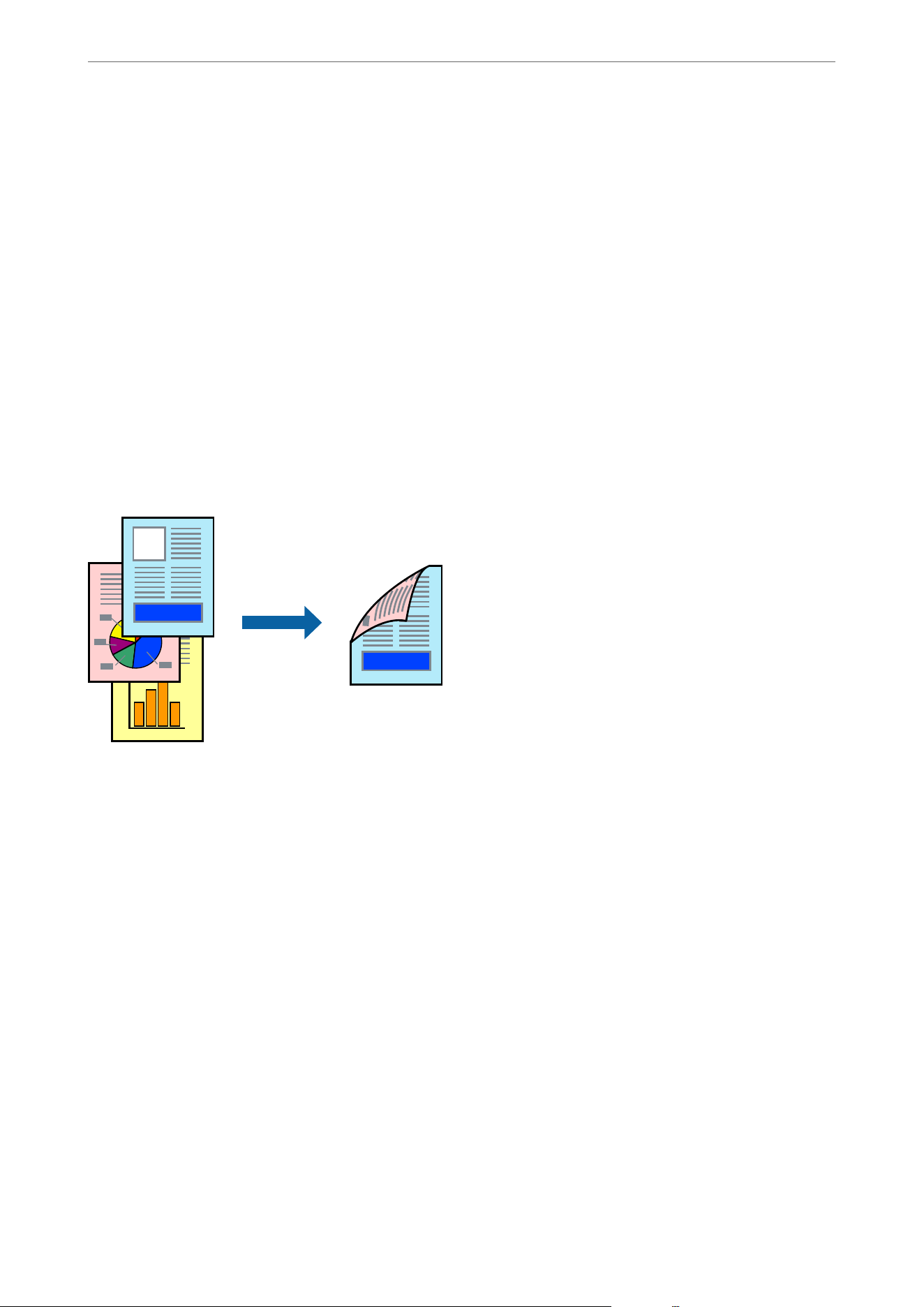
3. Click OK.
Note:
To delete an added preset, click Presets > Show Presets, select the preset name you want to delete from the list, and then
delete it.
4.
Click Print.
e next time you want to print using the same settings, select the registered preset name from the Presets.
Related Information
& “Loading Paper Using Instructions on the LCD screen” on page 32
& “Printing Using Easy Settings” on page 64
Printing on 2-Sides
You can print on both sides of the paper.
Note:
O is feature is not available with borderless printing.
O If you do not use paper that is suitable for 2-sided printing, the print quality may decline and paper jams may occur.
“Paper for 2-Sided Printing” on page 229
O Depending on the paper and the data, ink may bleed through to the other side of the paper.
1. Select Two-sided Printing Settings from the pop-up menu.
2. Select the binding setting in Two-sided Printing.
3. Select the type of original in Document Type.
Note:
O Printing may be slow depending on the Document Type setting.
O If you are printing high-density data such as photos or graphs, select Text & Photo s or Te x t & Graphi c s as the
Document Type setting. If scung occurs or the image bleeds through to the reverse side, adjust the print density
and ink drying time by clicking the arrow mark next to Adjustments.
4.
Select other settings as necessary.
5. Click Print.
Printing
>
Printing Documents
>
Printing from a Computer - Mac OS
68
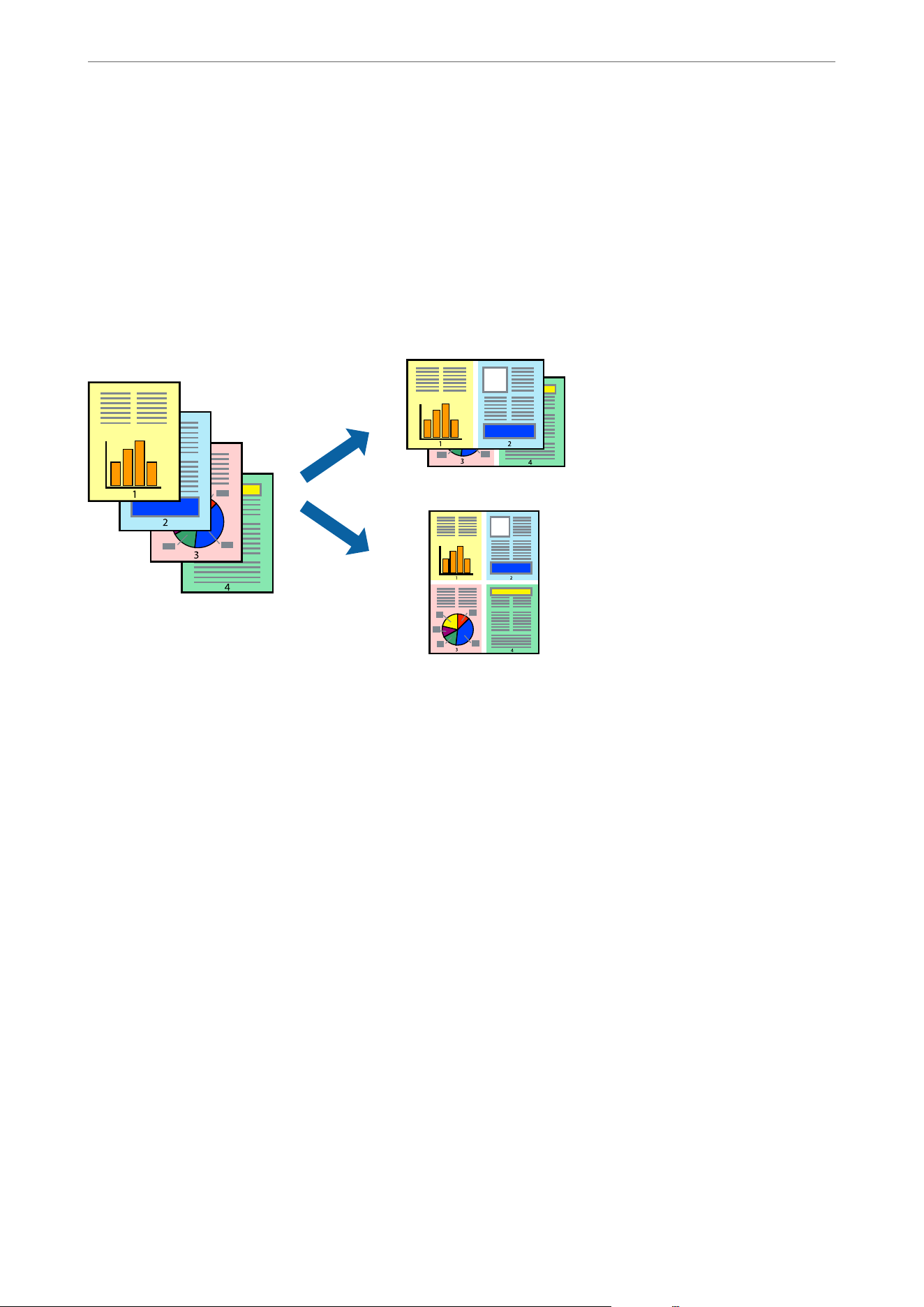
Related Information
& “Available Paper and Capacities” on page 221
& “Loading Paper Using Instructions on the LCD screen” on page 32
& “Printing Using Easy Settings” on page 64
Printing Several Pages on One Sheet
You can print several pages of data on a single sheet of paper.
1. Select Layout from the pop-up menu.
2. Select the number of pages in Pages per Sheet, the Layout Direction (page order), and Border.
“Menu Options for Layout” on page 65
3.
Select other settings as necessary.
4. Click Print.
Related Information
& “Loading Paper Using Instructions on the LCD screen” on page 32
& “Printing Using Easy Settings” on page 64
Printing
>
Printing Documents
>
Printing from a Computer - Mac OS
69
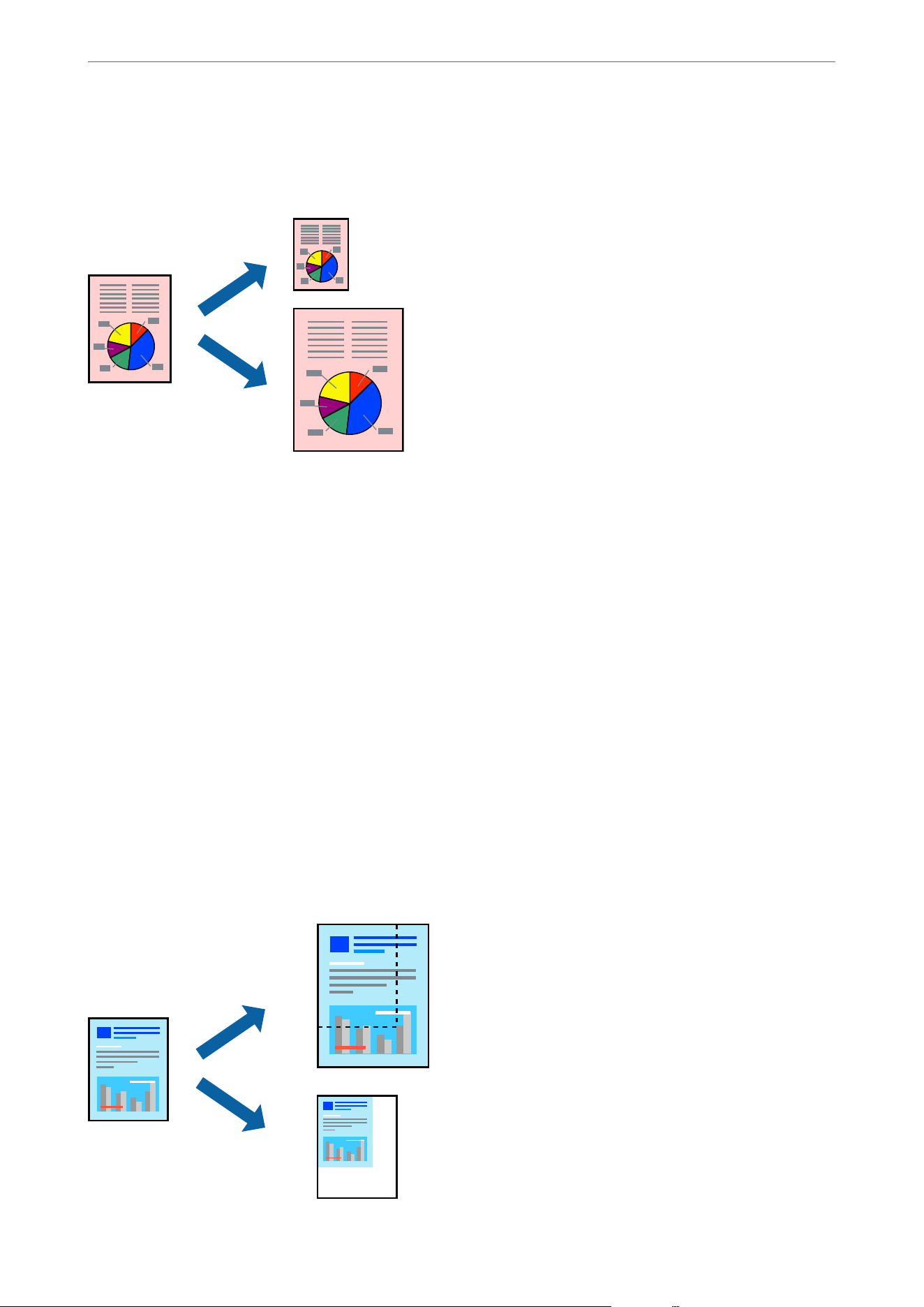
Printing to Fit the Paper Size
Select the paper size you loaded in the printer as the Destination Paper Size setting.
1. Select the size of the paper you set in the application as the Paper Size setting.
2. Select Paper Handling from the pop-up menu.
3. Select Scale to t paper size.
4. Select the paper size you loaded in the printer as the Destination Paper Size setting.
5. Select other settings as necessary.
6. Click Print.
Related Information
& “Loading Paper Using Instructions on the LCD screen” on page 32
& “Printing Using Easy Settings” on page 64
Printing a Reduced or Enlarged Document at any Magnication
You can reduce or enlarge the size of a document by a specic percentage.
Printing
>
Printing Documents
>
Printing from a Computer - Mac OS
70
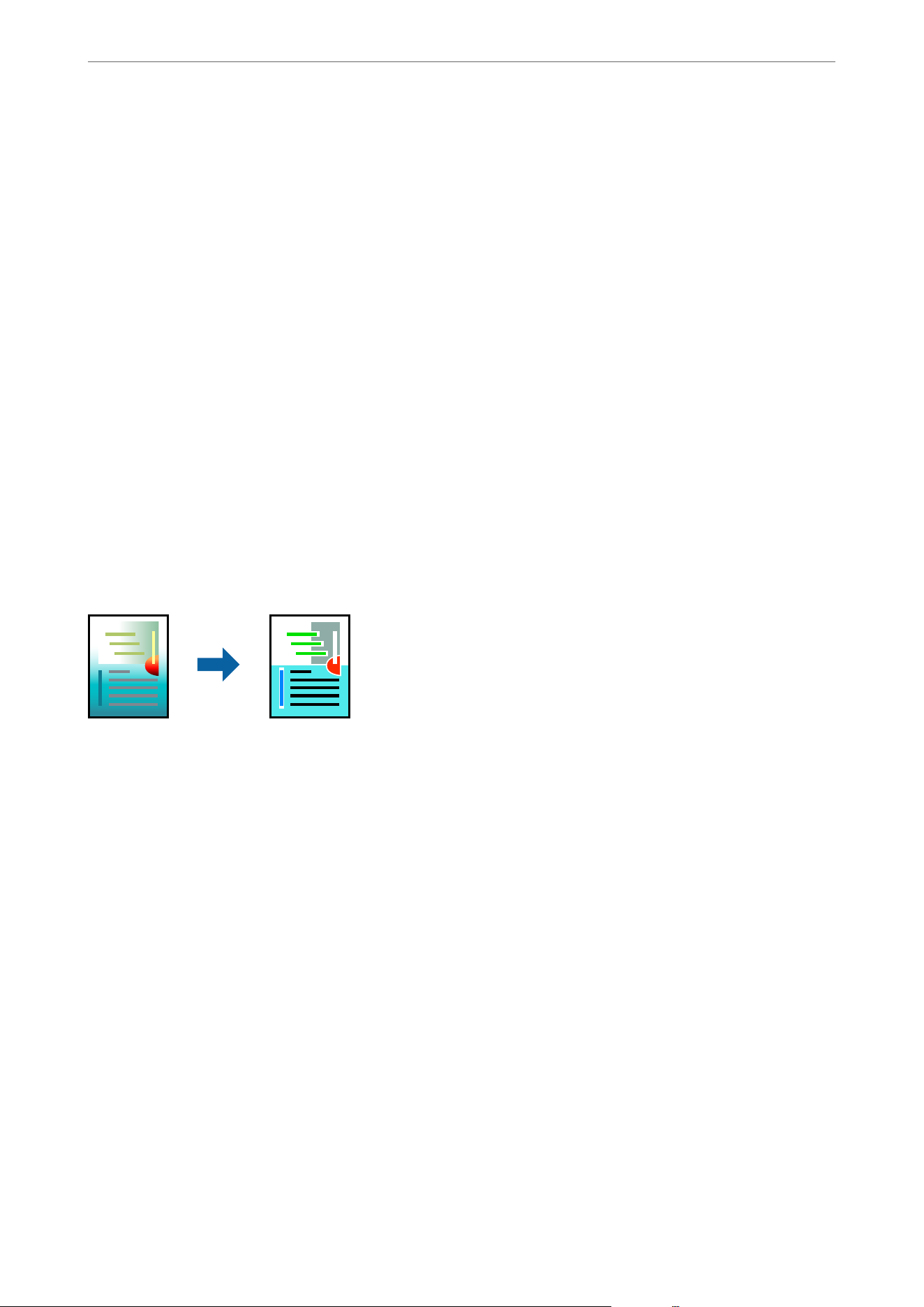
Note:
Operations dier depending on the application. See the application's help for details.
1. Do one of the following:
O Select Print from the File menu of the application. Select your printer in Printer. Select the size of the data
to be printed from Paper Size, enter a percentage in the application's scaling settings, and then click OK.
O Select Page Setup from the File menu of the application. Select your printer in Format For. Select the size
of the data to be printed from Paper Size, enter a percentage in Scaling, and then click OK.
2. Select other settings as necessary.
3. Click Print.
Related Information
& “Loading Paper Using Instructions on the LCD screen” on page 32
& “Printing Using Easy Settings” on page 64
Adjusting the Print Color
You can adjust the colors used in the print job. ese adjustments are not applied to the original data.
PhotoEnhance produces sharper images and more vivid colors by automatically adjusting the contrast, saturation,
and brightness of the original image data.
Note:
PhotoEnhance adjusts the color by analyzing the location of the subject. erefore, if you have changed the location of the
subject by reducing, enlarging, cropping, or rotating the image, the color may change unexpectedly. Selecting the borderless
setting also changes the location of the subject resulting in changes in color. If the image is out of focus, the tone may be
unnatural. If the color is changed or becomes unnatural, print in a mode other than PhotoEnhance.
1.
Select Color Matching from the pop-up menu, and then select EPSON Color Controls.
2. Select Color Options from the pop-up menu, and then select one of the available options.
3. Click the arrow next to Advanced Settings and make the appropriate settings.
4.
Select other settings as necessary.
5. Click Print.
Related Information
& “Loading Paper Using Instructions on the LCD screen” on page 32
& “Printing Using Easy Settings” on page 64
Printing
>
Printing Documents
>
Printing from a Computer - Mac OS
71

Printing Photos
Printing JPEG Files from a Memory Device
You can print JPEG les from a memory device connected to the printer.
1.
Connect the memory device to the printer's external interface USB port.
“Inserting and Removing an External USB Device” on page 39
2. Select Memory Device on the home screen.
3. Select JPEG.
4. Select the le, and then proceed to the next screen.
5.
Set each item in Basic Settings and Advanced as necessary, and then tap
x
.
JPEG Settings
You can make print settings for JPEG format les in your memory devices.
(Options) :
Select settings for ordering, selecting, and deselecting image data.
Basic Settings:
O Paper Setting
Specify the settings for the paper you want to use.
O Color Mode
Select B&W or Color.
Advanced:
O Layout
Select how to layout the JPEG les. With Border is for printing one le per sheet with margins
around the edges. Borderless is for printing one
le
per sheet without margins around the edges.
e image is enlarged a little to remove borders from the edges of the paper. 20-up is for printing 20
les
on one sheet. Index is for creating index prints with information.
O Fit Frame
Select On to crop the image to t into the selected print layout automatically. If the aspect ratio of
the image data and the paper size is dierent, the image is automatically enlarged or reduced so that
the short sides match the short sides of the paper.
e
long side of the image is cropped if it extends
beyond the long side of the paper. is feature may not work for panorama photos.
O Quality
Select Best for higher quality printing. e printing speed may be slower.
O Date
Select the format of the date the photo was taken or saved. e date is not printed for some layouts.
Printing
>
Printing Photos
>
Printing JPEG Files from a Memory Device
72

O Fix Photo
Select this mode to improve the brightness, contrast, and saturation of the photo automatically. To
turn o automatic improvement, select Enhance O.
O Fix Red-Eye
Select On to automatically x the red-eye eect in photos. Corrections are not applied to the
original le, only to the printouts. Depending on the type of photo, parts of the image other than the
eyes may be corrected.
Printing TIFF Files from a Memory Device
You can print TIFF les from a memory device connected to the printer.
1. Connect the memory device to the printer's external interface USB port.
“Inserting and Removing an External USB Device” on page 39
2.
Select Memory Device on the home screen.
3. Select TIFF.
4. Select the le.
5.
Select other settings in Basic Settings and Advanced as necessary, and then tap
x
.
TIFF Settings
You can select print settings for TIFF format les in your memory devices.
(Display order) :
Changes the order of the les.
Basic Settings:
O Paper Setting
Specify the settings for the paper you want to use.
O Color Mode
Select B&W or Color.
Advanced:
O Layout
Select how to layout the Multi-TIFF le. With Border is for printing one page per sheet with
margins around the edges. Borderless is for printing one page per sheet without margins around
the edges. e image is enlarged a little to remove borders from the edges of the paper. 20-up is for
printing 20 pages on one sheet. Index is for creating index prints with information.
O Fit Frame
Select On to crop the photo to t into the selected photo layout automatically. If the aspect ratio of
the image data and the paper size is dierent, the image is automatically enlarged or reduced so that
the short sides match the short sides of the paper. e long side of the image is cropped if it extends
beyond the long side of the paper. is feature may not work for panorama photos.
Printing
>
Printing Photos
>
Printing TIFF Files from a Memory Device
73
O Quality
Select Best for higher quality printing. e printing speed may be slower.
O Print Order
Select the order for printing multi-page TIFF les.
O Date
Select the format of the date the photo was taken or saved. e date is not printed for some layouts.
Printing Photos from Mobile Devices
You can print photos from a mobile device.
Printing Using Epson Smart Panel
Epson Smart Panel is an application that allows you to perform printer operations easily including printing,
copying, or scanning from a mobile device. You can connect the printer and mobile device over a wireless network,
check the ink levels and printer status, and check for solutions if an error occurs. You can also copy easily by
registering a copy favorite.
Install Epson Smart Panel from the following URL or QR code.
https://support.epson.net/smpdl/
Start Epson Smart Panel, and then select the print menu on the home screen.
Printing
>
Printing Photos
>
Printing Photos from Mobile Devices
74

Printing Documents Using AirPrint
AirPrint enables instant wireless printing from iPhone, iPad, and Mac without the need to install drivers or
download soware.
Note:
If you disabled paper conguration messages on your printer control panel, you cannot use AirPrint. See the link below to
enable the messages, if necessary.
1. Set up your printer for wireless printing. See the link below.
U.S. and Canada
“Connecting the Printer to the Network” on page 282
Other Regions
https://epson.sn
2. Connect your Apple device to the same wireless network that your printer is using.
3. Print from your device to your printer.
Note:
For details, see the AirPrint page on the Apple website.
Related Information
& “Cannot Print Even ough a Connection has been Established (iOS)” on page 169
Printing Using Mopria Print Service
Mopria technology allows you to print or scan from devices using the Android, ChromeOS, and Microso
Windows operating systems to and from Mopria certied printers, scanners, and multifunction printers from
many manufacturers.
e
Mopria Print Service app for Android enables printing to Mopria
certied
printers and multifunction printers
from many manufacturers. You can print from your Android phone or tablet using the Mopria Print Service app
from the Google Play Store.
For more details, visit the Mopria website at https://mopria.org.
Printing
>
Printing Photos
>
Printing Photos from Mobile Devices
75

Printing Using a Chromebook
1.
Connect the Chromebook and the printer to the same network.
You can also connect the Chromebook and the printer directly using Wi-Fi Direct settings.
2. Open the
le
you want to print.
3. Select Print from the File menu.
4. Select Destination, and then See more... to select your printer.
5. Select Print.
Note:
For detailed information, see Chromebook Help.
Related Information
& “Connecting a Device and Printer Directly (Wi-Fi Direct)” on page 152
Printing Using Epson Print Enabler
You can wirelessly print your documents, emails, photos, and web pages right from your Android smartphone
or tablet (Android v7.0 or later). With a few taps, your Android device will discover an Epson printer that is
connected to the same wireless network.
Search for and install Epson Print Enabler from Google Play.
Go to Settings on your Android device, select Printing, and then enable Epson Print Enabler. From an Android
application such as Chrome, tap the menu icon and print whatever is on the screen.
Note:
If you do not see your printer, tap All Printers and select your printer.
Printing on Envelopes
Printing on Envelopes from a Computer (Windows)
1. Load envelopes in the printer.
“Loading Paper Using Instructions on the LCD screen” on page 32
2.
Open the le you want to print.
3. Access the printer driver window.
4.
Select the envelope size from Document Size on the Main tab, and then select Envelope from Paper Type.
5. Select other settings on the Main and More Options tabs as necessary, and then click OK.
6. Click Print.
Printing
>
Printing on Envelopes
>
Printing on Envelopes from a Computer (Windows)
76

Printing on Envelopes from a Computer (Mac OS)
1. Load envelopes in the printer.
“Loading Paper Using Instructions on the LCD screen” on page 32
2. Open the le you want to print.
3. Select Print from the File menu or another command to access the print dialog.
4. Select the size as the Paper Size setting.
5. Select Print Settings from the pop-up menu.
6.
Select Envelope as the Media Type setting.
7. Select other settings as necessary.
8. Click Print.
Printing Web Pages
Printing Web Pages from a Computer
Epson Photo+ allows you to display web pages, crop to a specied area, and then edit and print them. See the
application’s help for details.
Printing Web Pages from Mobile Devices
Install Epson Smart Panel from the following URL or QR code.
https://support.epson.net/smpdl/
Open the web page you want to print in your web browser app. Tap Share from the menu of the web browser
application, select Smart Panel, and then start printing.
Printing
>
Printing Web Pages
>
Printing Web Pages from Mobile Devices
77
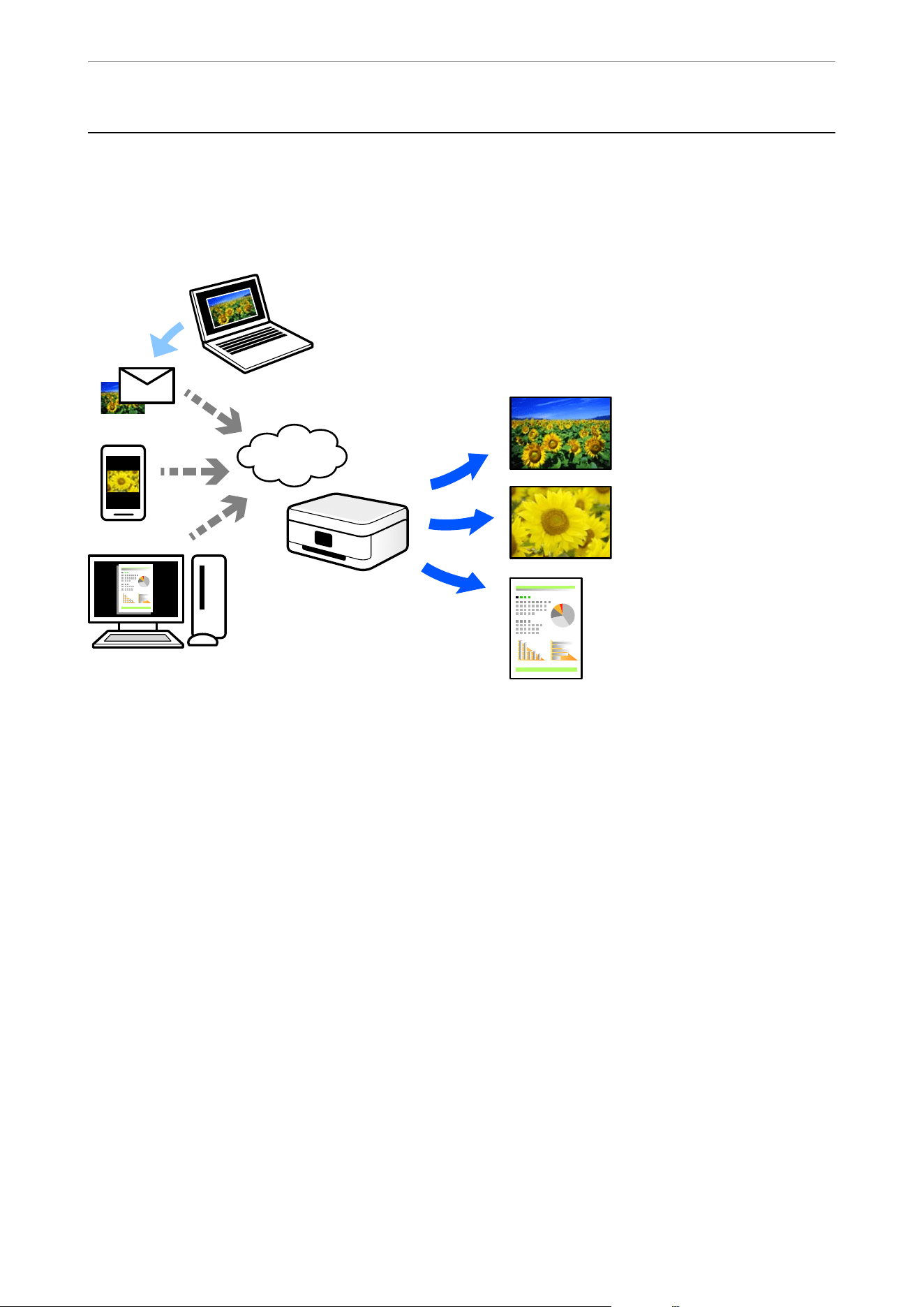
Printing Using a Cloud Service
By using the Epson Connect service available on the Internet, you can print from your smartphone, tablet PC, or
laptop, anytime and practically anywhere. To use this service, you need to register the user and the printer in Epson
Connect.
e features available are as follows.
O Email Print
When you send an email with attachments such as documents or images to an email address assigned to the
printer, you can print that email and the attachments from remote locations such as your home or oce printer.
O Epson Smart Panel
is
Application is for iOS and Android, and allows you to print or scan from a smartphone or tablet. You can
print documents, images, and web sites by sending them directly to a printer on the same wireless LAN.
O Remote Print Driver
When you print using a printer in a remote location, you can print by changing the printer on the usual
applications window.
See the Epson Connect web portal for details on how to setup or print.
https://epson.com/connect (U.S.)
https://epson.ca/connect (Canada)
http://www.epsonconnect.eu (Europe)
https://www.epsonconnect.ae
(Middle East, Turkey, Africa, Central and West Asia)
https://www.epsonconnect.com (Other regions)
Printing
>
Printing Using a Cloud Service
78

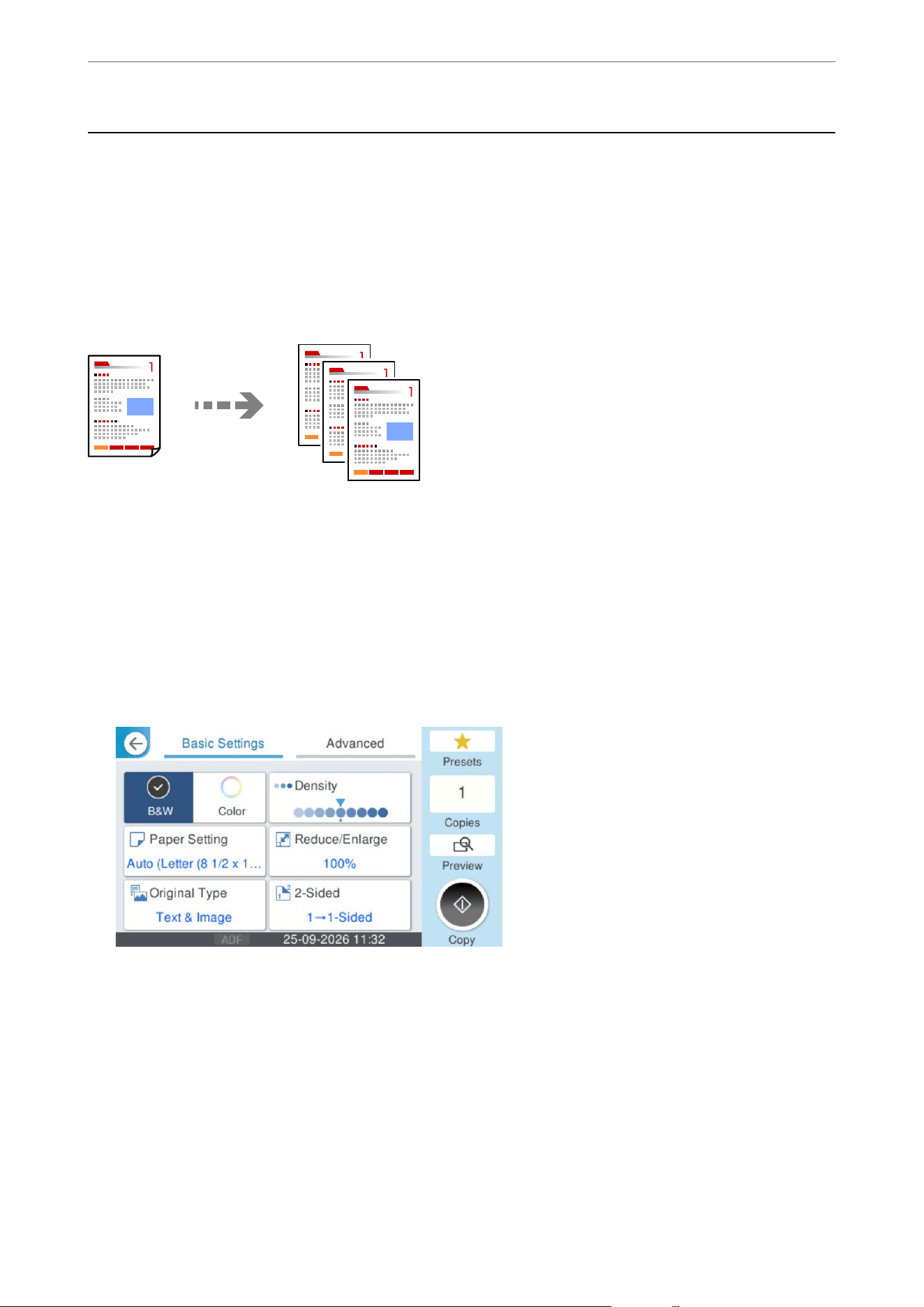
Available Copying Methods
Place the originals on the scanner glass or the ADF, and then select the Copy menu on the home screen.
Copying Originals
is section explains the steps for copying originals in color or monochrome.
1.
Load paper in the printer.
“Loading Paper Using Instructions on the LCD screen” on page 32
2. Place the originals.
“Placing Originals” on page 36
3. Select Copy on the home screen.
4. Select the Basic Settings tab, and then select B&W or Color.
5. Tap
x
.
Copying
>
Available Copying Methods
>
Copying Originals
80
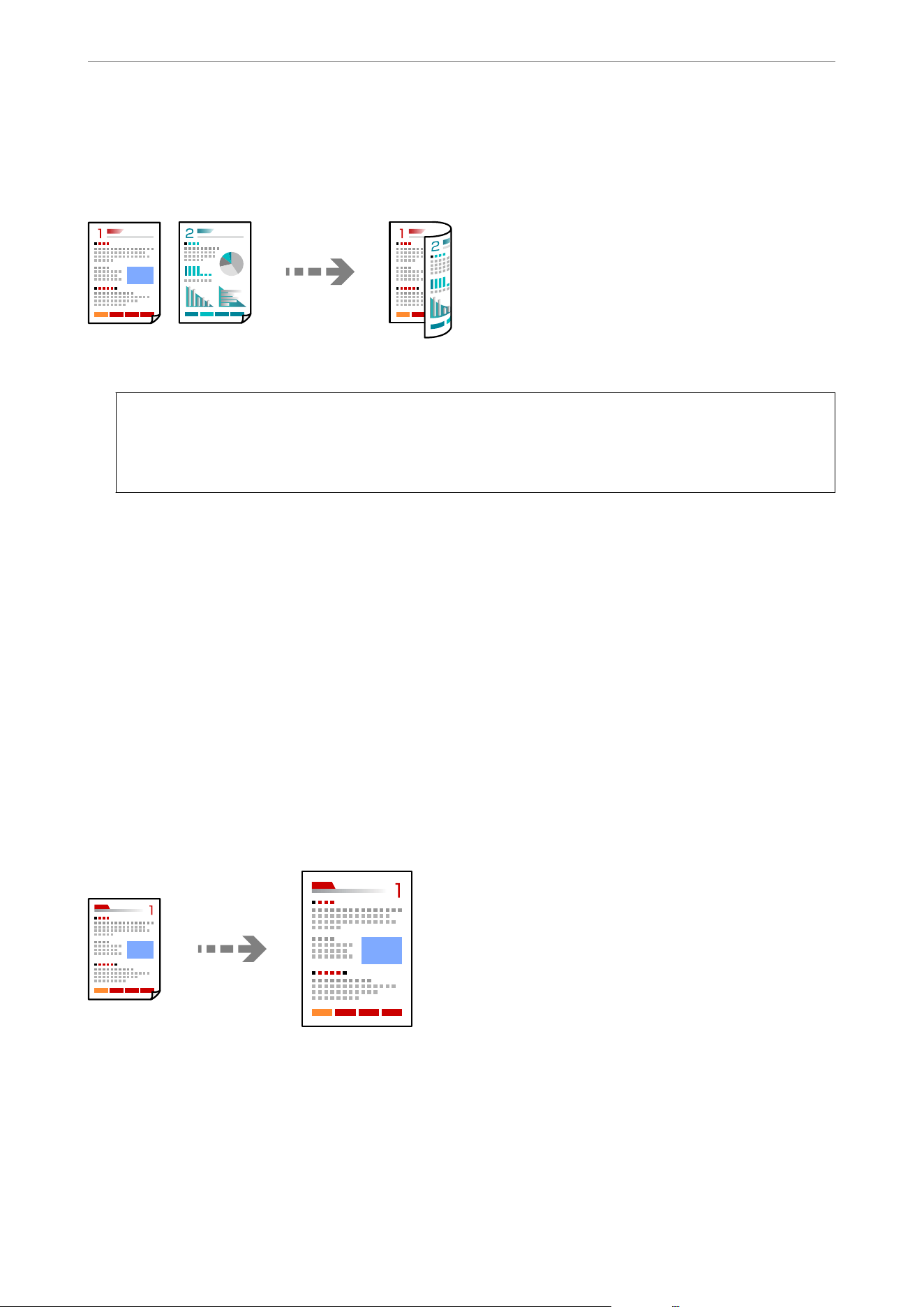
Copying on 2-Sides
Copy multiple originals on both sides of the paper.
1. Place all originals face up in the ADF.
c
Important:
If you want to copy originals that are not supported by the ADF, use the scanner glass.
“Originals that are not Supported by the ADF” on page 37
Note:
You can also place the originals on the scanner glass.
“Placing Originals” on page 36
2. Select Copy on the home screen.
3. Select the Basic Settings tab, select 2-Sided, and then select the 2-sided menu option you want to perform.
4. Specify other settings such as the original orientation and the binding position.
5. Tap
x
.
Copying by Enlarging or Reducing
You can copy originals at a specied magnication.
1. Place the originals.
“Placing Originals” on page 36
2.
Select Copy on the home screen.
3. Select the Basic Settings tab, and then select Reduce/Enlarge.
4. Specify the amount of enlargement or reduction.
Copying
>
Available Copying Methods
>
Copying by Enlarging or Reducing
81
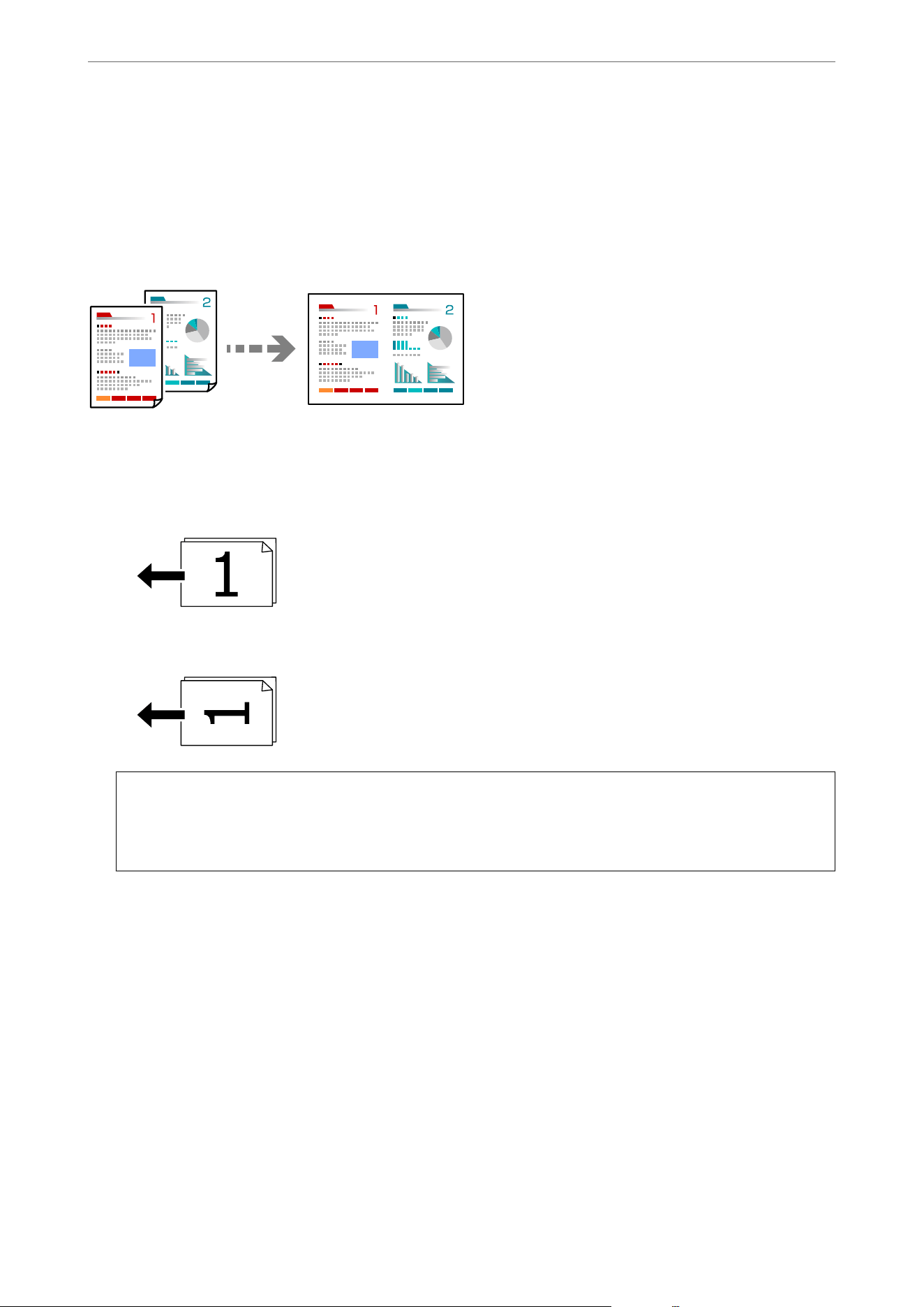
5. Tap
x
.
Copying Multiple Originals onto One Sheet
You can copy the multiple originals onto a single sheet.
1. Place all originals face up in the ADF.
Place them in the direction shown in the illustration.
O Readable Direction
O Le Direction
c
Important:
If you want to copy originals that are not supported by the ADF, use the scanner glass.
“Originals that are not Supported by the ADF” on page 37
Note:
You can also place the originals on the scanner glass.
“Placing Originals” on page 36
2. Select Copy on the home screen.
3. Select the Advanced tab, select Multi-Page, and then select 2-up or 4-up.
4. Specify the layout order and the original orientation.
5. Tap
x
.
Copying
>
Available Copying Methods
>
Copying Multiple Originals onto One Sheet
82
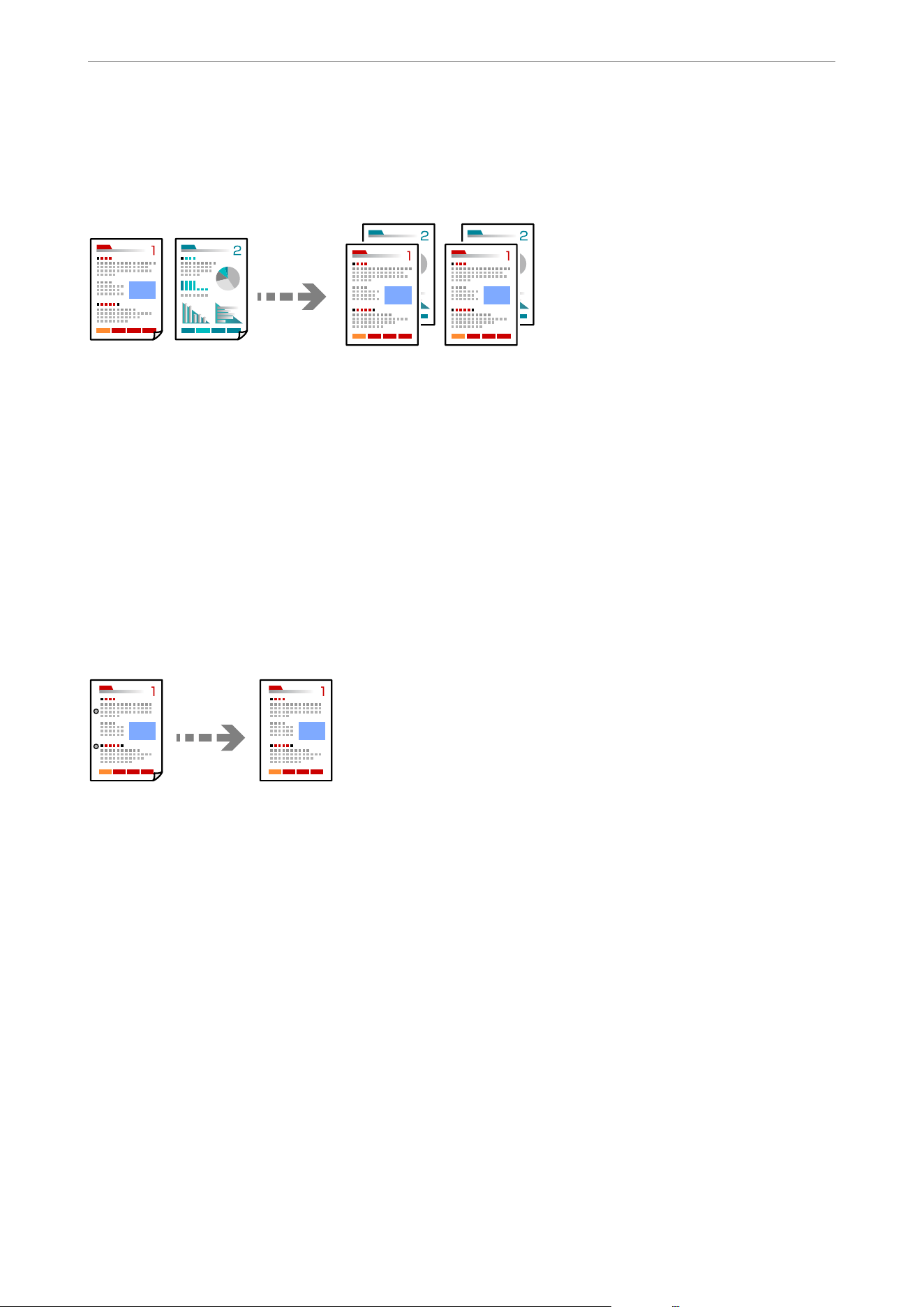
Copying Multi-Page Originals with the Pages in Order
When making multiple copies of a multi-page document, you can discharge one copy at a time in page order.
1. Place the originals.
“Placing Originals” on page 36
2. Select Copy on the home screen.
3. Select the Advanced tab, and then select Finishing > Collate (Page Order).
4. Tap
x
.
Copying Originals Without Shadows or Punched Holes
You can copy originals without shadows or punched holes or adjust the image quality.
1.
Place the originals.
“Placing Originals” on page 36
2.
Select Copy on the home screen.
3. Select the Advanced tab, and then enable Remove Shadow or Remove Punch Holes or adjust the image
quality in Image Quality.
4. Tap
x
.
Copying
>
Available Copying Methods
>
Copying Originals Without Shadows or Punched Holes
83
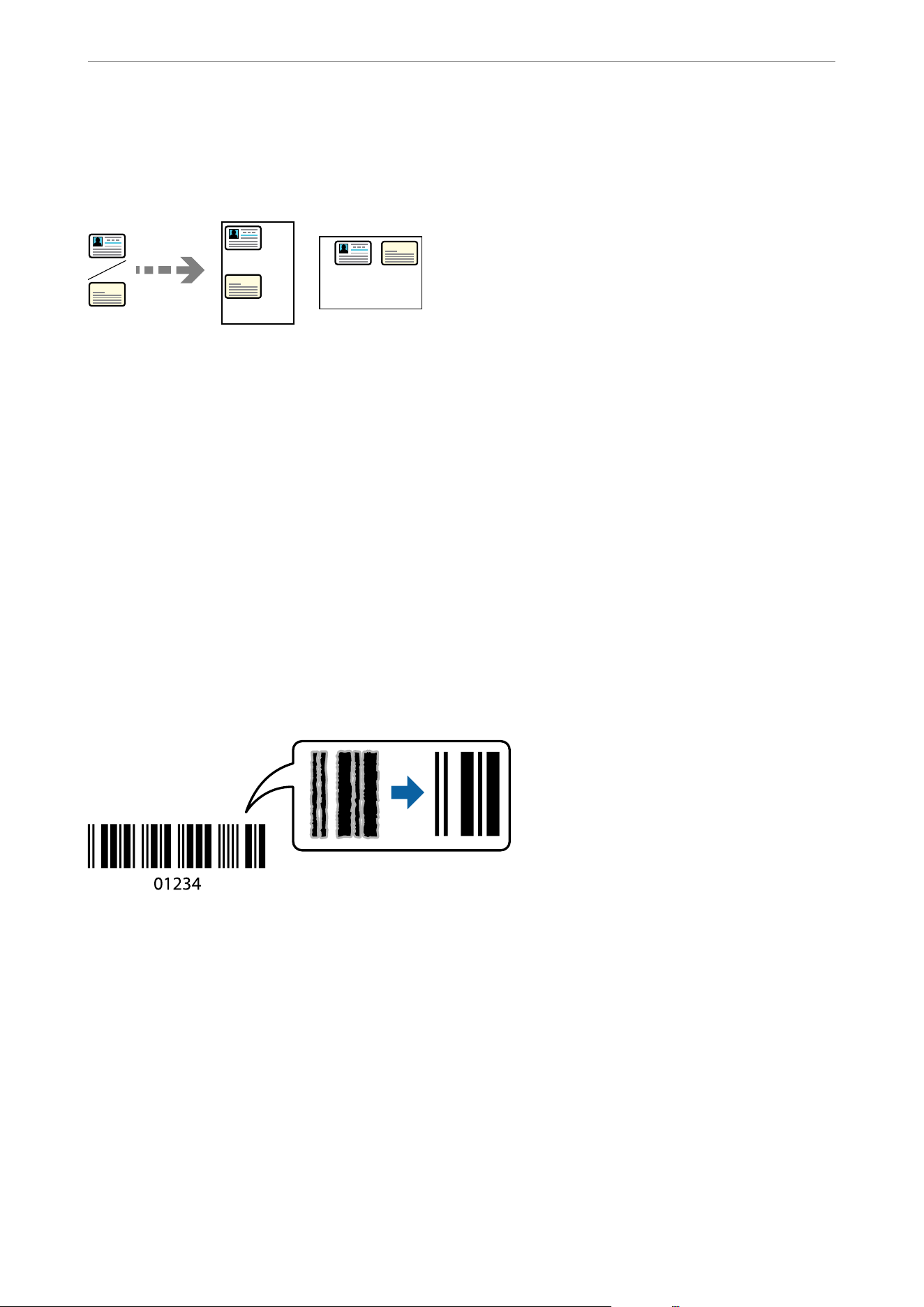
Copying the Front and Back of an ID Card onto One Side of Paper
You can scan both sides of an ID card and copy it onto one side of paper.
1. Place the originals.
“Placing Originals” on page 36
2. Select Copy on the home screen.
3. Select the Advanced tab, select ID Card Copy, and then enable the setting.
4. Specify the Orientation (Original).
5. Tap
x
.
Follow the on-screen instructions to place the reverse side of the original.
Copying Bar Codes Clearly
You can copy a bar code clearly and make it easy to scan. Only enable this feature if the bar code you printed
cannot be scanned.
1. Place the originals.
“Placing Originals” on page 36
2. Select Copy on the home screen.
3. Select the Basic Settings tab, and then select Original Type > Barcode.
4. Tap
x
.
Copying
>
Available Copying Methods
>
Copying Bar Codes Clearly
84
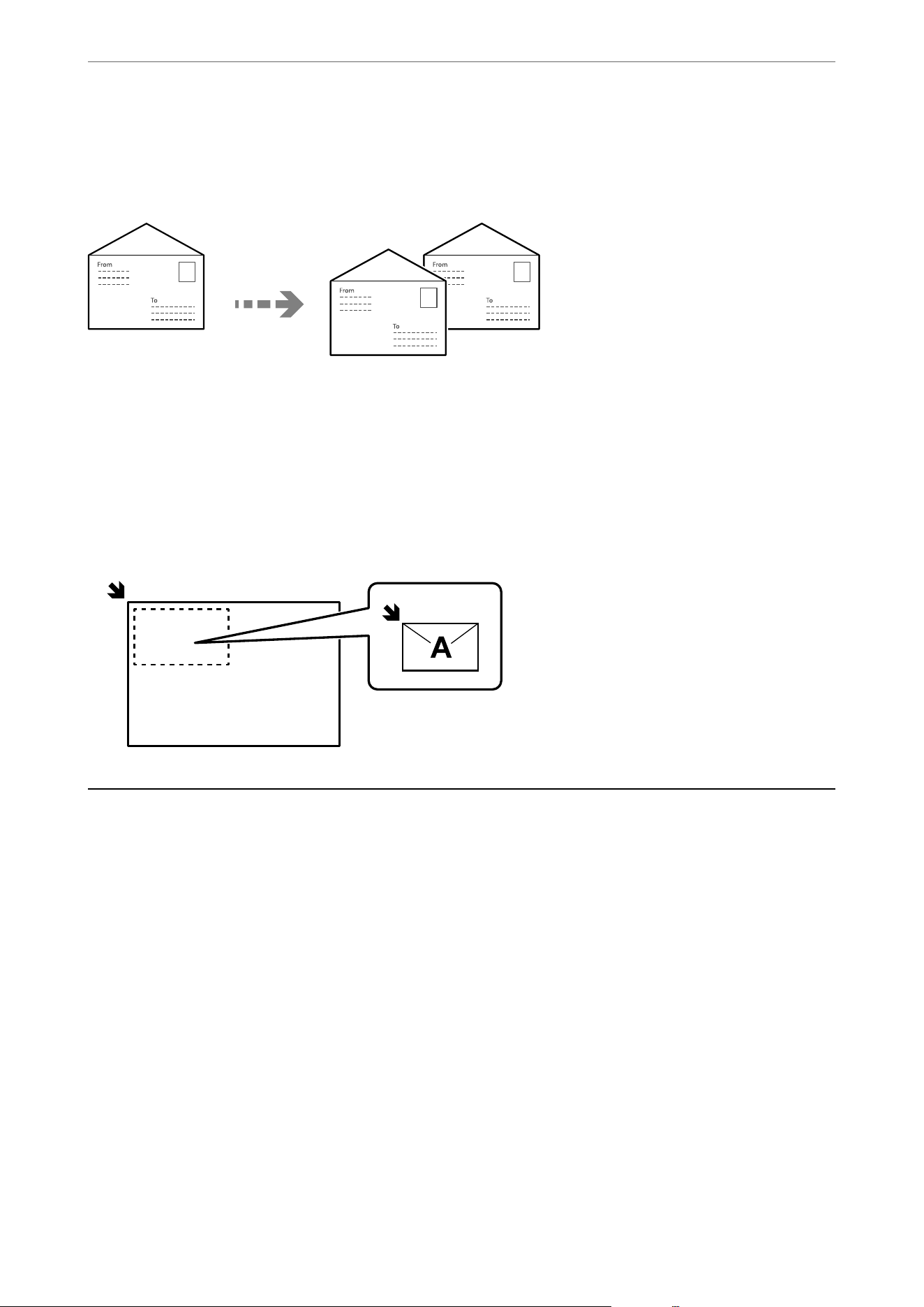
Copying Envelopes
You ca n c op y e nvel op e s .
Make sure the envelopes are loaded in the correct orientation.
O Loading paper
See the related information below for more details.
“Loading Paper Using Instructions on the LCD screen” on page 32
O Placing originals
Place the original on the scanner glass. When placing an envelope, place it in the orientation as shown in the
illustration.
Basic Menu Options for Copying
Note:
e items may not be available depending on other settings you made.
Color Mode:
Select whether to copy in color or in monochrome.
O B&W
Copies the original in black and white (monochrome).
O Color
Copies the original in color.
Density:
Increase the level of density when the copying results are faint. Decrease the level of density when ink
smears.
Copying
>
Basic Menu Options for Copying
85
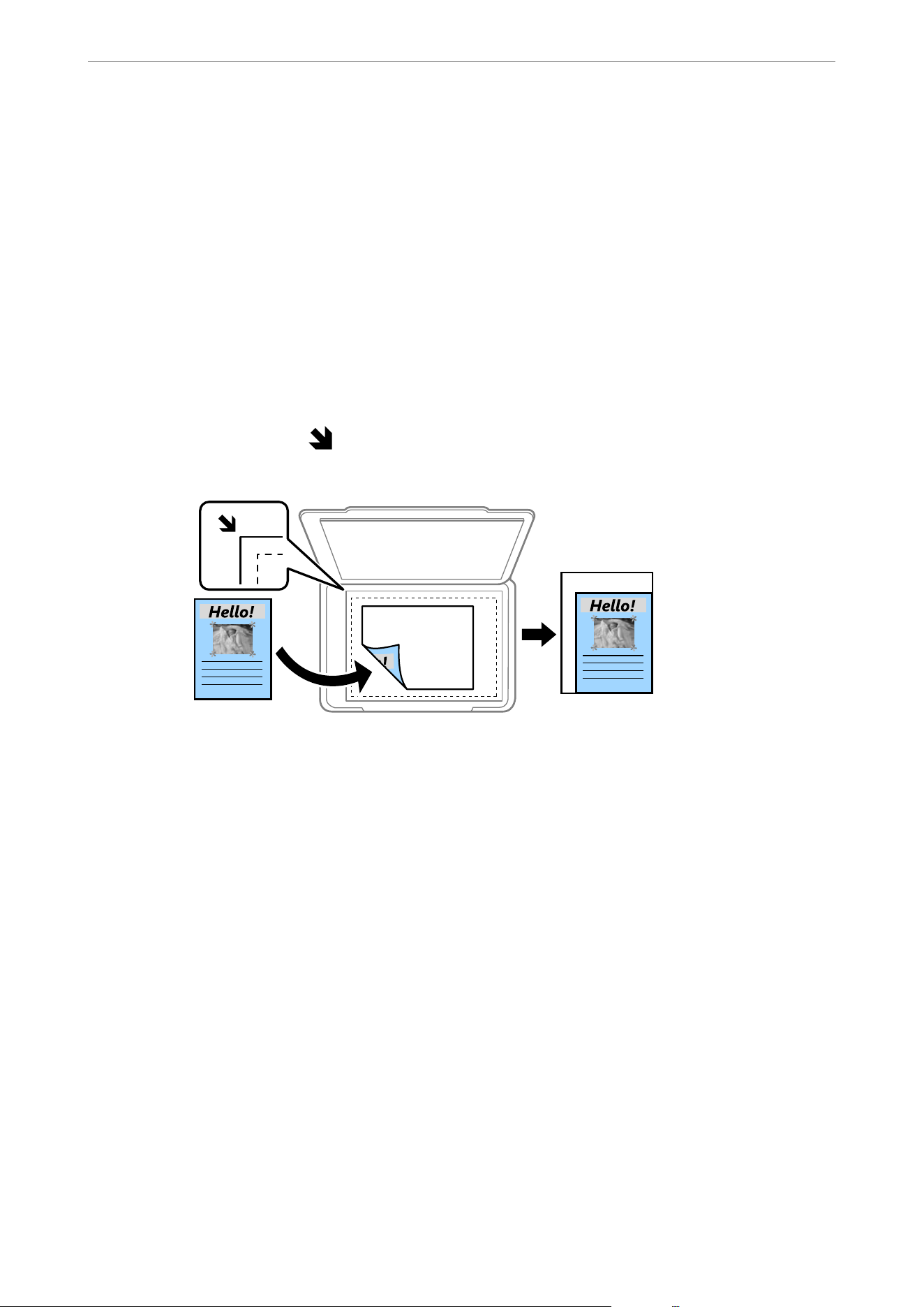
Paper Setting:
Select the paper source that you want to use. When Auto is selected, paper is fed automatically using
the Paper Setting settings made when you loaded the paper. is feature is available for the WF-4930
Series only.
Reduce/Enlarge:
Select the percentage of enlargement or reduction. Tap the value and specify the magnication used
to enlarge or reduce the original over a range of 25 to 400%.
O Auto
Enlarge or reduce the original size automatically to the magnication of the paper size. For
example, if you set the original size to A6 and set the paper size to A4, the magnication
automatically adjusts to 200%.
When there are white margins around the original, the white margins on the sides nearest to
the corner mark (
) on the scanner glass are detected as the scan area, but the margins at the
opposite sides may be cropped.
O Reduce to Fit Paper
Copies the scanned image at a smaller size than the Reduce/Enlarge value to t within the paper
size. If the Reduce/Enlarge value is larger than the paper size, data may be printed beyond the
edges of the paper.
O Actual Size
Copies at 100 % magnication.
O Legal→Half Letter and other option
Automatically enlarges or reduces the original to t to a specic paper size.
Original Type:
Select the type of your original. e printer in optimal quality to match the type of original.
2-Sided:
Select 2-sided layout.
e features marked with * are available for the WF-4930 Series only.
O 1→1-Sided
Copies one side of an original onto a single side of paper.
Copying
>
Basic Menu Options for Copying
86

O 2→2-Sided*
Copies both sides of a double-sided original onto both sides of a single sheet of paper. Select the
orientation of your original and the binding position of the original and the paper.
O 1→2-Sided
Copies two single-sided originals onto both sides of a single sheet of paper. Select the orientation
of your original and the binding position of the paper.
O 2→1-Sided*
Copies both sides of a double-sided original onto one side of two sheets of paper. Select the
orientation of your original and the binding position of the original.
Advanced Menu Options for Copying
Note:
e items may not be available depending on other settings you made.
Multi-Page:
Select the copy layout.
O Single Page
Copies a single-sided original onto a single sheet.
O 2-up
Copies two single-sided originals onto a single sheet in 2-up layout. Select the layout order and the
orientation of your original.
O 4-up
Copies four single-sided originals onto a single sheet in 4-up layout. Select the layout order and
the orientation of your original.
Original Size:
Select the size of your original. When copying non-standard size originals, select the size closest to
your original.
Finishing:
Select how to eject the paper for multiple copies of multiple originals.
O Group (Same Pages)
Copies the originals with same-numbered pages grouped together.
Copying
>
Advanced Menu Options for Copying
87

O Collate (Page Order)
Copies the originals collated in order and sorted into sets.
Orientation (Original):
Select the orientation of your original.
Image Quality:
Adjust image settings.
O Contrast
Adjust the dierence between the bright and dark parts.
O Saturation
Adjust the vividness of the colors.
O Red Balance, Green Balance, Blue Balance
Adjust the density for each color.
O Sharpness
Adjust the outline of the image.
O Hue Regulation
Adjust the color tone of the skin. Tap + to make it cold (increase green) and tap - to make it warm
(increase red).
O Remove Background
Adjust the density of the background color. Tap + to make it bright (white) and tap - to make it
dark (black).
Binding Margin:
Select the binding position, margin, and orientation of your original.
Reduce to Fit Paper:
Copies the scanned image at a smaller size than the Reduce/Enlarge value to
t
within the paper size.
If the Reduce/Enlarge value is larger than the paper size, data may be printed beyond the edges of the
paper.
Remove Shadow:
Removes shadows that appear around copies when copying thick paper or that appear in the center of
copies when copying a booklet.
Remove Punch Holes:
Removes the binding holes when copying.
ID Card Copy:
Select to scan both sides of an ID card and copy them onto one side of a paper.
Copying
>
Advanced Menu Options for Copying
88


Scanning
Available Scanning Methods..........................................91
Scanning Originals to a Network Folder..................................91
Scanning Originals to an Email........................................94
Scanning Originals to a Computer......................................98
Scanning Originals to a Memory Device..................................98
Scanning Originals to the Cloud...................................... 101
Scanning Using WSD.............................................. 103
Scanning Using Mopria Scan.........................................105
Scanning Originals to a Mobile Device..................................105

Available Scanning Methods
You can use any of the following methods to scan using this printer.
Scanning to a Network Folder
You can save the scanned image to a pre-congured folder on a network.
“Scanning Originals to a Network Folder” on page 91
Scanning to an Email
You can email the scanned image directly from the printer through a
pre-congured
email server.
“Scanning Originals to an Email” on page 94
Scanning to a Computer
You can save the scanned image to a computer connected to the printer.
“Scanning Originals to a Computer” on page 98
Scanning to a Memory Device
You can save the scanned image directly to a memory device inserted into the printer.
“Scanning Originals to a Memory Device” on page 98
Sending to a Cloud Service
You can send the scanned image to a pre-registered cloud service.
“Scanning Originals to the Cloud” on page 101
Scanning Using WSD
You can save the scanned image to a computer connected to the printer, using the WSD feature.
“Scanning Using WSD” on page 103
Scanning Directly from Smart Devices
You can save the scanned image to a smart device such as a smartphone or tablet with the Epson Smart
Panel app.
“Scanning Originals to a Mobile Device” on page 105
Scanning Originals to a Network Folder
Save the scanned image to a
specied
folder on a network.
You need to select settings in advance. See the following link for details on the work ow for selecting settings.
“Settings of Servers and Folders” on page 344
Note:
Make sure the printer's Date/Time and Time Dierence settings are correct. Access the settings from Settings > General
Settings > Basic Settings > Date/Time Settings.
1. Place the originals.
“Placing Originals” on page 36
Scanning
>
Scanning Originals to a Network Folder
91

2. Select Scan > Network Folder/FTP on the control panel.
3. Specify the destination.
O To select from frequently used addresses: Select a contact from Destination tab.
O To enter the folder path directly: Select Keyboard. Select Communication Mode, enter the folder path as
the Location (Required), and then select other folder settings as needed.
Selecting Browse searches for folders on computers connected to the network. You can use Browse only
when Communication Mode is set to SMB.
Enter the folder path in the following format.
When using SMB as the communication mode: \\host name\folder name
When using FTP as the communication mode: p://host name/folder name
When using FTPS as the communication mode: ps://host name/folder name
When using WebDAV (HTTPS) as the communication mode: https://host name/folder name
When using WebDAV (HTTP) as the communication mode: http://host name/folder name
O To select from the contacts list: Select Contacts, and then select a contact. You can search for a contact from
the contacts list. Enter the search keyword into the box at the top of the screen.
Note:
You can print the history of the folder in which documents are saved, by selecting .
4. Select Scan Settings, check settings such as the save format, and change them if necessary.
“Scan Menu Options for Scanning to a Folder” on page 93
Note:
Select to save your settings as a preset.
5. Tap
x
.
Destination Menu Options for Scanning to a Network Folder
Keyboard:
Open the Edit Location screen. Enter the folder path and set each item on the screen.
Edit Location:
Enter the folder path and set each item on the screen.
O Communication Mode:
Select the communication mode for the folder.
O Location (Required):
Enter the path for the folder where you will save the scanned image.
Selecting Browse searches for folders on computers connected to the network. You can use Browse
only when Communication Mode is set to SMB.
O User Name:
Enter a user name to log on to the specied folder.
O Password:
Enter a password corresponding to the user name.
Scanning
>
Scanning Originals to a Network Folder
>
Destination Menu Options for Scanning to a Network Folder
92

O Connection Mode:
Select the connection mode for the folder.
O Port Number:
Enter a port number for the folder.
O Proxy Server Settings:
Select whether or not to use a proxy server.
Contacts:
Select a destination from the contacts list.
You can search for a contact from the contacts list. Enter the search keyword into the box at the top of
the screen.
Scan Menu Options for Scanning to a Folder
Note:
Some items may not be available depending on other settings you select.
Color Mode:
Select whether to scan in color or in monochrome.
File Format:
Select the format in which to save the scanned image.
When you select PDF, PDF/A, or TIFF as the le format, select whether to save all originals as one le
(multi-page) or save each original separately (single page).
O Compression Ratio:
Select how much to compress the scanned image.
O PDF Settings:
When you have selected PDF as the save format setting, use these settings to protect PDF les.
To create a PDF le that requires a password when opening, set Document Open Password. To
create a PDF le that requires a password when printing or editing, set Permissions Password.
Resolution:
Select the scanning resolution.
2-Sided:
Note:
is feature is available for the WF-4930 Series only.
Scan both sides of the original.
O Orientation (Original):
Select the orientation of the original.
O Binding(Original):
Select the binding direction of the original.
Scanning
>
Scanning Originals to a Network Folder
>
Scan Menu Options for Scanning to a Folder
93

Scan Area:
Select the scan area. To crop the white space around the text or image when scanning, select Auto
Cropping. To scan at the maximum area of the scanner glass, select Max Area.
O Orientation (Original):
Select the orientation of the original.
Original Type
Select the type of your original.
Orientation (Original):
Select the orientation of the original.
Density:
Select the contrast of the scanned image.
Remove Shadow:
Remove the shadows of the original that appear in the scanned image.
O Frame:
Remove the shadows at the edge of the original.
O Center:
Remove the shadows of the binding margin of the booklet.
Remove Punch Holes:
Remove the punch holes that appear in the scanned image. You can specify the area to erase the
punch holes by entering a value in the box on the right.
O Erasing Position:
Select the position to remove the punch holes.
O Orientation (Original):
Select the orientation of the original.
File Name:
O Filename Prex:
Enter a prex for the name of the le in alphanumeric characters and symbols.
O Add Date:
Add the date to the le name.
O Add Time:
Add the time to the le name.
Clear All Settings
Resets the scan settings to their defaults.
Scanning Originals to an Email
You can email scanned image les directly from the printer through a pre-congured email server.
Scanning
>
Scanning Originals to an Email
94

You need to select settings in advance to perform scanning. See the following link for details on the work ow for
selecting settings.
“Settings of Servers and Folders” on page 344
Note:
Before scanning, make sure the printer's Date/Time and Time Dierence settings are correct. Access the settings from
Settings > General Settings > Basic Settings > Date/Time Settings.
1. Place the originals.
“Placing Originals” on page 36
2. Select Scan > Email on the control panel.
3. Specify the recipient.
O To select from frequently used addresses: Select a contact from Recipient tab.
O To enter the email address manually: Select Keyboard, and then enter the email address.
O To select from the contacts list: Select Contacts, and then select a contact. You can search for a contact from
the contacts list. Enter the search keyword into the box at the top of the screen.
O To select from the history list: Select History, and then select a recipient from the displayed list.
Note:
O e number of recipients you selected is displayed on the right of the screen. You can send emails to up to 10
addresses and groups.
If groups are included in recipients, you can select up to 108 individual addresses in total, taking addresses in the
groups into account.
O Select the address box at the top of the screen to display the list of selected addresses.
O Select
to display or print the sending history, or change the email server settings.
4. Select Scan Settings, check settings such as the save format, and change them if necessary.
“Scan Menu Options for Scanning to an Email” on page 96
Note:
Select
to save your settings as a preset.
5.
Tap
x
.
Recipient Menu Options for Scanning to an Email
Keyboard:
Enter the email address manually.
Contacts:
Select a destination from the contacts list.
You can search for a contact from the contacts list. Enter the search keyword into the box at the top of
the screen.
History:
Select the address from the history list.
Scanning
>
Scanning Originals to an Email
>
Recipient Menu Options for Scanning to an Email
95

Scan Menu Options for Scanning to an Email
Note:
e items may not be available depending on other settings you made.
Color Mode:
Select whether to scan in color or in monochrome.
File Format:
Select the format in which to save the scanned image.
When you select PDF, PDF/A, or TIFF as the le format, select whether to save all originals as one le
(multi-page) or save each original separately (single page).
O Compression Ratio:
Select how much to compress the scanned image.
O PDF Settings:
When you have selected PDF as the save format setting, use these settings to protect PDF
les.
To create a PDF
le
that requires a password when opening, set Document Open Password. To
create a PDF
le
that requires a password when printing or editing, set Permissions Password.
Resolution:
Select the scanning resolution.
2-Sided:
Note:
is feature is available for the WF-4930 Series only.
Scan both sides of the original.
O Orientation (Original):
Select the orientation of the original.
O Binding(Original):
Select the binding direction of the original.
Scan Area:
Select the scan area. To crop the white space around the text or image when scanning, select Auto
Cropping. To scan at the maximum area of the scanner glass, select Max Area.
O Orientation (Original):
Select the orientation of the original.
Original Type:
Select the type of your original.
Orientation (Original):
Select the orientation of the original.
Density:
Select the contrast of the scanned image.
Scanning
>
Scanning Originals to an Email
>
Scan Menu Options for Scanning to an Email
96

Remove Shadow:
Remove the shadows of the original that appear in the scanned image.
O Frame:
Remove the shadows at the edge of the original.
O Center:
Remove the shadows of the binding margin of the booklet.
Remove Punch Holes:
Remove the punch holes that appear in the scanned image. You can specify the area to erase the
punch holes by entering a value in the box on the right.
O Erasing Position:
Select the position to remove the punch holes.
O Orientation (Original):
Select the orientation of the original.
Subject:
Enter a subject for the email in alphanumeric characters and symbols.
Attached File Max Size:
Select the maximum le size that can be attached to the email.
File Name:
O Filename Prex:
Enter a prex for the name of the le in alphanumeric characters and symbols.
O Add Date:
Add the date to the le name.
O Add Time:
Add the time to the
le
name.
Clear All Settings
Resets the scan settings to their defaults.
Scanning
>
Scanning Originals to an Email
>
Scan Menu Options for Scanning to an Email
97

Scanning Originals to a Computer
Note:
To use this feature, make sure the following applications are installed on your computer.
O Epson ScanSmart (Windows 7 or later, or OS X El Capitan (10.11) or later)
O Epson Event Manager (OS X Yosemite (10.10)/OS X Mavericks (10.9.5))
O Epson Scan 2 (application required to use the scanner feature)
See the following to check for installed applications.
Windows 11: Click the start button, and then check the All apps > Epson Soware folder > Epson ScanSmart, and the
EPSON folder > Epson Scan 2.
Windows 10: Click the start button, and then check the Epson Soware folder > Epson ScanSmart, and the EPSON folder
> Epson Scan 2.
Windows 8.1: Enter the application name in the search charm, and then check the displayed icon.
Windows 7: Click the start button, and then select All Programs. Next, check the Epson Soware folder > Epson
ScanSmart, and the EPSON folder > Epson Scan 2.
Mac OS: Select Go > Applications > Epson Soware.
1. Place the originals.
“Placing Originals” on page 36
2. Select Scan > Computer on the control panel.
3. Select a computer on which to save the scanned images.
4. Select the scan settings.
O Select action: Select saving method.
When using Windows 7 or later, or OS X El Capitan or later: Select Preview on Computer to preview the
scanned image on your computer before saving images.
O 2-Sided (only for WF-4930 Series): Scan both sides of the original.
5. Tap
x
.
When using Windows 7 or later, or OS X El Capitan or later: Epson ScanSmart automatically starts on your
computer, and scanning starts.
Note:
O See the Epson ScanSmart help for detailed instructions for the soware. Click Help on the Epson ScanSmart screen
to open the help.
O You can also start scanning from your computer by using Epson ScanSmart.
Scanning Originals to a Memory Device
1. Place the originals.
“Placing Originals” on page 36
Scanning
>
Scanning Originals to a Memory Device
98

2. Insert a memory device into the printer.
“Inserting and Removing an External USB Device” on page 39
3. Select Scan > Memory Device on the control panel.
4.
Select the scan settings.
“Basic Menu Options for Scanning to a Memory Device” on page 99
Note:
Select to save your settings as a preset.
5. Tap
x
.
Basic Menu Options for Scanning to a Memory Device
Note:
e items may not be available depending on other settings you made.
Color Mode:
Select whether to scan in color or in monochrome.
File Format:
Select the format in which to save the scanned image.
When you select PDF, PDF/A, or TIFF as the le format, select whether to save all originals as one le
(multi-page) or save each original separately (single page).
O Compression Ratio:
Select how much to compress the scanned image.
O PDF Settings:
When you have selected PDF as the save format setting, use these settings to protect PDF
les.
To create a PDF le that requires a password when opening, set Document Open Password. To
create a PDF le that requires a password when printing or editing, set Permissions Password.
Resolution:
Select the scanning resolution.
2-Sided:
Note:
is feature is available for the WF-4930 Series only.
Scan both sides of the original.
O Orientation (Original):
Select the orientation of the original.
O Binding(Original):
Select the binding direction of the original.
Scanning
>
Scanning Originals to a Memory Device
>
Basic Menu Options for Scanning to a Memory Device
99

Scan Area:
Select the scan area. To crop the white space around the text or image when scanning, select Auto
Cropping. To scan at the maximum area of the scanner glass, select Max Area.
O Orientation (Original):
Select the orientation of the original.
Original Type
Select the type of your original.
Orientation (Original):
Note:
is feature is available on the Basic Settings tab for the WF-4920 Series.
Select the orientation of the original.
Advanced Menu Options for Scanning to a Memory Device
Note:
e items may not be available depending on other settings you made.
Density:
Select the contrast of the scanned image.
Orientation (Original):
Note:
is feature is available on the Advanced tab for the WF-4930 Series.
Select the orientation of the original.
Remove Shadow:
Remove the shadows of the original that appear in the scanned image.
O Frame:
Remove the shadows at the edge of the original.
O Center:
Remove the shadows of the binding margin of the booklet.
Remove Punch Holes:
Remove the punch holes that appear in the scanned image. You can specify the area to erase the
punch holes by entering a value in the box on the right.
O Erasing Position:
Select the position to remove the punch holes.
O Orientation (Original):
Select the orientation of the original.
Scanning
>
Scanning Originals to a Memory Device
>
Advanced Menu Options for Scanning to a Memory Device
100

File Name:
O Filename Prex:
Enter a prex for the name of the le in alphanumeric characters and symbols.
O Add Date:
Add the date to the le name.
O Add Time:
Add the time to the le name.
Clear All Settings
Resets the scan settings to their defaults.
Scanning Originals to the Cloud
Send scanned images to destinations registered in Epson Connect.
You need to select settings in advance. See the following link for details on the work ow for selecting settings.
“Settings of Servers and Folders” on page 344
1. Place the originals.
“Placing Originals” on page 36
2. Select Scan > Cloud on the control panel.
3.
Select
on the top of the screen, and then select a destination.
4. Select the scan settings.
“Basic Menu Options for Scanning to the Cloud” on page 101
Note:
Select to save your settings as a preset.
5. Tap
x
.
Basic Menu Options for Scanning to the Cloud
Note:
e items may not be available depending on other settings you made.
Color Mode:
Select whether to scan in color or in monochrome.
File Format:
Select the format in which to save the scanned image.
When you select PDF as the le format, select whether to save all originals as one le (multi-page) or
save each original separately (single page).
Scanning
>
Scanning Originals to the Cloud
>
Basic Menu Options for Scanning to the Cloud
101

Resolution:
Select the scanning resolution.
2-Sided:
Note:
is feature is available for the WF-4930 Series only.
Scan both sides of the original.
O Orientation (Original):
Select the orientation of the original.
O Binding(Original):
Select the binding direction of the original.
Scan Area:
Note:
O For the WF-4920 Series, this feature is available on the Basic Settings tab.
O For the WF-4930 Series, this feature is available on the Advanced tab.
Select the scan area. To crop the white space around the text or image when scanning, select Auto
Cropping. To scan at the maximum area of the scanner glass, select Max Area.
O Orientation (Original):
Select the orientation of the original.
Advanced Menu Options for Scanning to the Cloud
Note:
e items may not be available depending on other settings you made.
Scan Area:
Note:
O For the WF-4920 Series, this feature is available on the Basic Settings tab.
O For the WF-4930 Series, this feature is available on the Advanced tab.
Select the scan area. To crop the white space around the text or image when scanning, select Auto
Cropping. To scan at the maximum area of the scanner glass, select Max Area.
O Orientation (Original):
Select the orientation of the original.
Original Type
Select the type of your original.
Orientation (Original):
Select the orientation of the original.
Density:
Select the contrast of the scanned image.
Scanning
>
Scanning Originals to the Cloud
>
Advanced Menu Options for Scanning to the Cloud
102

Remove Shadow:
Remove the shadows of the original that appear in the scanned image.
O Frame:
Remove the shadows at the edge of the original.
O Center:
Remove the shadows of the binding margin of the booklet.
Remove Punch Holes:
Remove the punch holes that appear in the scanned image. You can specify the area to erase the
punch holes by entering a value in the box on the right.
O Erasing Position:
Select the position to remove the punch holes.
O Orientation (Original):
Select the orientation of the original.
File Name:
O Filename Prex:
Enter a prex for the name of the le in alphanumeric characters and symbols.
O Add Date:
Add the date to the le name.
O Add Time:
Add the time to the
le
name.
Clear All Settings
Resets the scan settings to their defaults.
Scanning Using WSD
Note:
O is feature is only available for computers running Windows 7 or later.
O If you are using Windows 7, you need to setup your computer in advance using this feature.
“Setting Up a WSD Port” on page 104
1. Place the originals.
“Placing Originals” on page 36
2. Select Scan > WSD on the control panel.
3. Select a computer.
4. Tap
x
.
Scanning
>
Scanning Using WSD
103
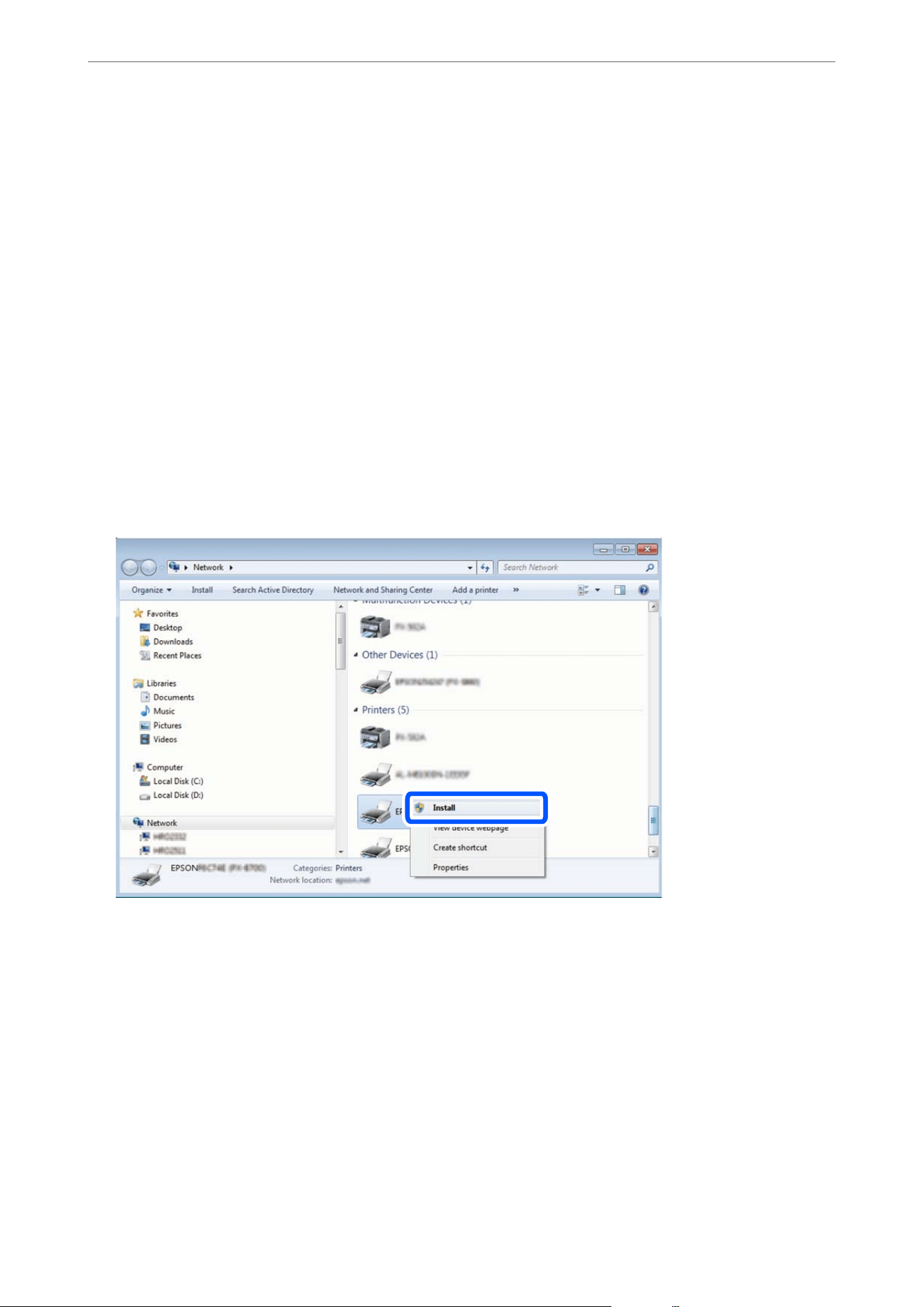
Setting Up a WSD Port
is section explains how to set up a WSD port for Windows 7.
Note:
For Windows 8.1 or later, the WSD port is set up automatically.
e following is necessary to set up a WSD port.
O
e
printer and the computer are connected to the network.
O e printer driver is installed on the computer.
1. Turn the printer on.
2. Click start, and then click Network on the computer.
3.
Right-click the printer, and then click Install.
Click Continue when the User Account Control screen is displayed.
Click Uninstall and start again if the Uninstall screen is displayed.
Note:
e printer name you set on the network and model name (EPSON XXXXXX (XX-XXXX)) are displayed on the
network screen. You can check the printer's name set on the network from the printer's control panel or by printing a
network status sheet.
Scanning
>
Scanning Using WSD
>
Setting Up a WSD Port
104
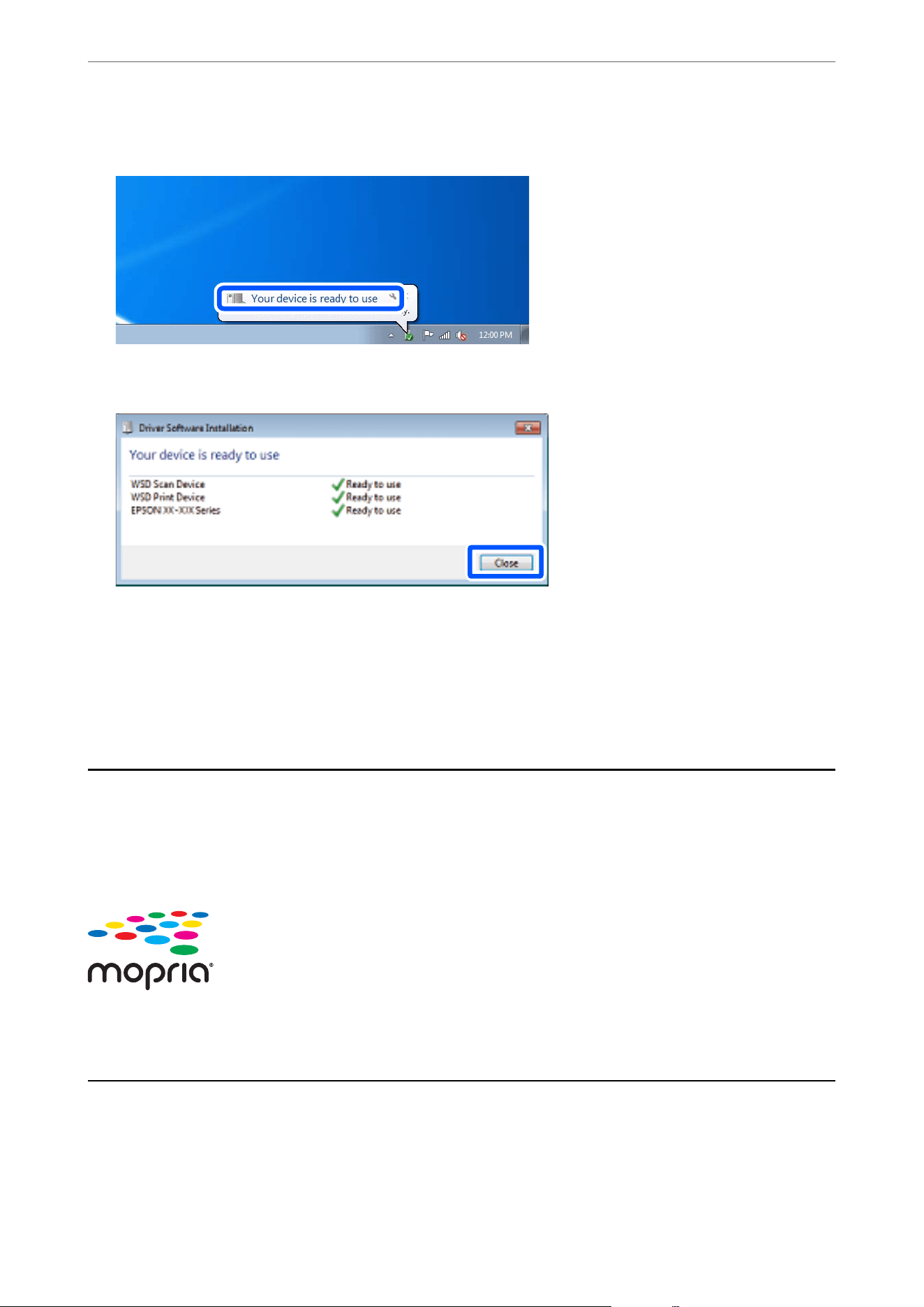
4. Click Your device is ready to use.
5.
Check the message, and then click Close.
6. Open the Devices and Printers screen.
Click start > Control Panel > Hardware and Sound (or Hardware) > Devices and Printers.
7. Check that an icon with the printer's name on the network is displayed.
Select the printer name when using with WSD.
Scanning Using Mopria Scan
Mopria Scan enables scanning from Mopria
certied
multifunction printers and scanners from many
manufacturers. Mobile scanning from your Android phone or tablet may be accomplished using the Mopria
Scan app in the Google Play Store.
For more details, access the Mopria Web site at https://mopria.org.
Scanning Originals to a Mobile Device
Note:
Before scanning, install Epson Smart Panel on your mobile device.
Scanning
>
Scanning Originals to a Mobile Device
105


Faxing
Before Using Fax Features...........................................108
Overview of this Printer's Fax Features..................................108
Sending Faxes Using the Printer.......................................112
Receiving Faxes on the Printer........................................116
Menu Options for Faxing............................................120
Menu Options for Inbox............................................ 124
Using Other Faxing Features.........................................125
Sending a Fax from a Computer.......................................125
Receiving Faxes on a Computer.......................................130
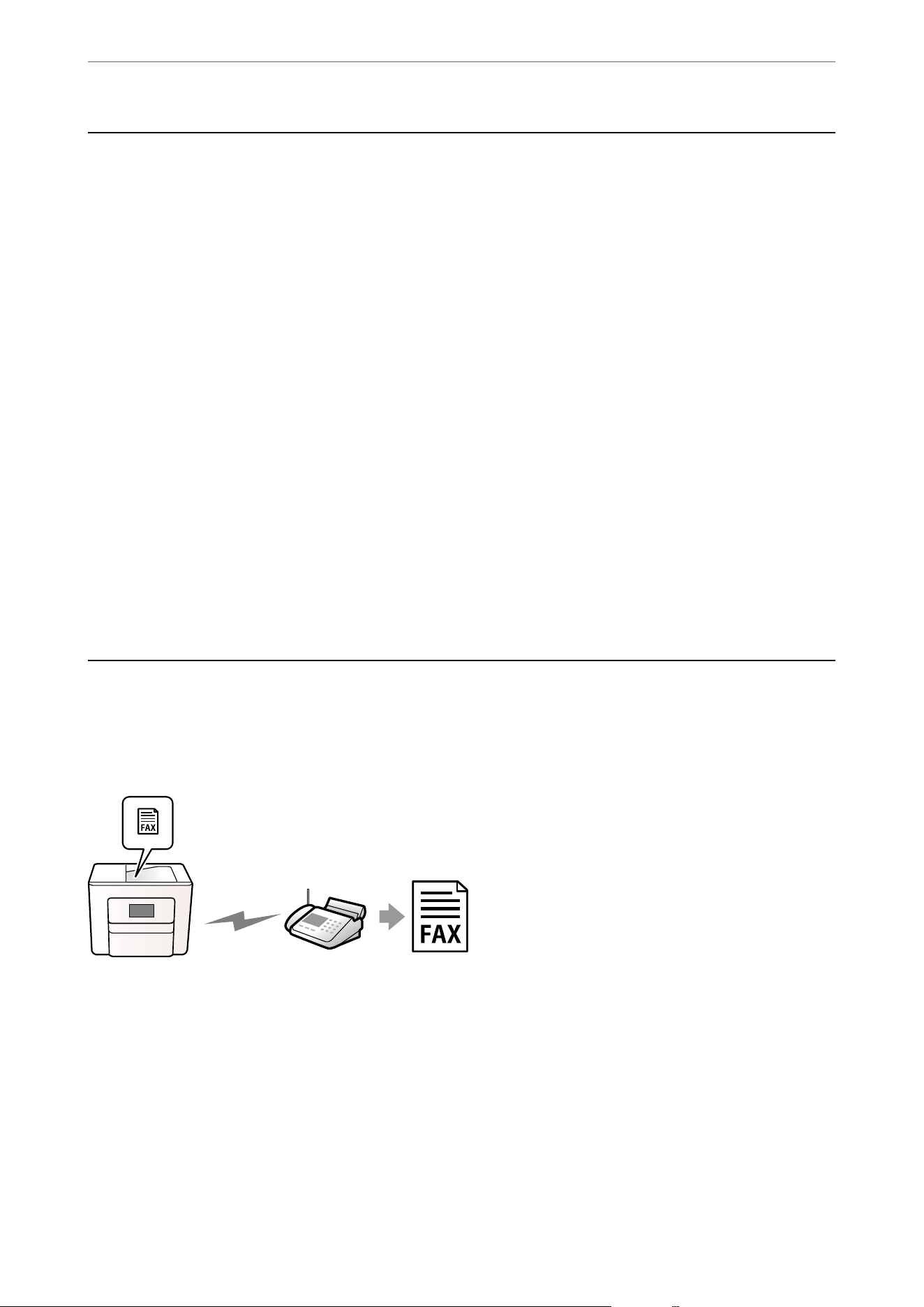
Before Using Fax Features
Conrm the following before you start using the fax features.
O
e
printer and the phone line, and any external phone device (if it is being used) are connected correctly
O Fax basic settings (Fax Setting Wizard) is complete
O e date and time are set correctly
O Other necessary Fax Settings are selected
See "Related Information" below to select settings.
Related Information
& “Connecting the Printer to a Phone Line” on page 346
& “Preparing the Printer to Send and Receive Faxes” on page 349
& “Conguring the Printer's Fax Features” on page 351
& “Basic Settings” on page 250
& “Send Settings” on page 252
& “Making Contacts Available” on page 332
& “User Settings” on page 262
& “Date/Time Settings:” on page 243
Overview of this Printer's Fax Features
Sending Faxes
Sending Methods
O Sending automatically
When you scan an original by tapping
x
(Send), the printer dials the recipients and sends the fax.
“Sending Faxes Using the Printer” on page 112
Faxing
>
Overview of this Printer's Fax Features
>
Sending Faxes
108
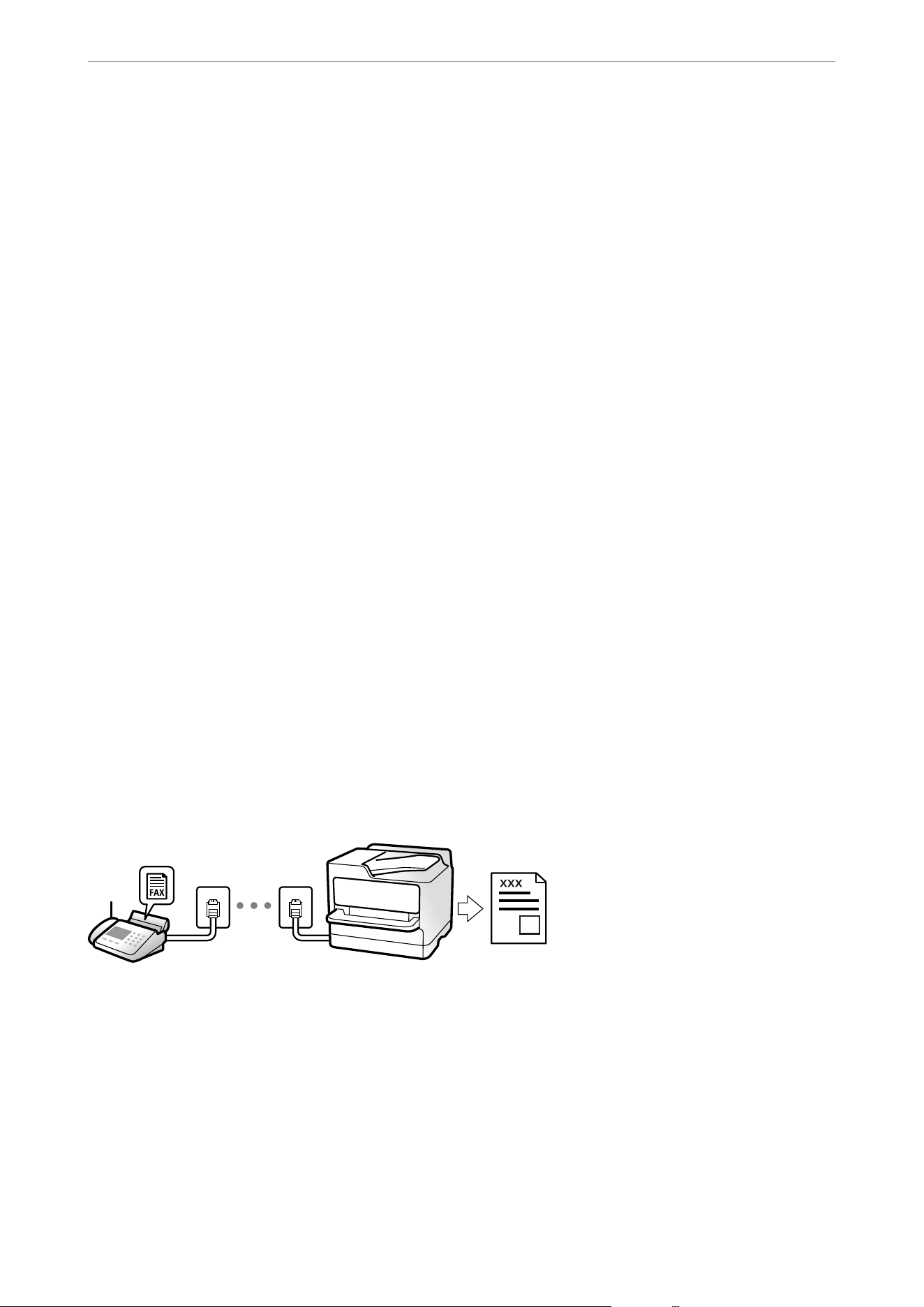
O Sending manually
When you perform a manual check on the line connection by dialing the recipient, tap
x
(Send) to start
sending a fax directly.
“Sending Faxes Aer Conrming the Recipient's Status” on page 114
“Sending Faxes Dialing from the External Phone Device” on page 114
Recipient Designation when Sending a Fax
You can enter recipients using Keypad, Contacts, and Recent.
“Recipient” on page 120
“Making Contacts Available” on page 332
Scan Settings when Sending a Fax
You ca n s e l e c t i t e m s s u ch a s Resolution or Original Size (Glass) when sending faxes.
“Scan Settings:” on page 121
Using Fax Send Settings when Sending a Fax
You can use Fax Send Settings such as Direct Send (to send a large document stably) or Backup when normal
sending fails. If you select settings to back up sent faxes when sending a fax but the backup fails, the printer can
send an email notication automatically when the backup is performed.
“Fax Send Settings:” on page 121
“Registering an Email Server” on page 310
Receiving Faxes
Setting Receive Mode
O Manual
Mainly for phone calls, but also for faxing
“Usage of Manual Mode” on page 117
Faxing
>
Overview of this Printer's Fax Features
>
Receiving Faxes
109
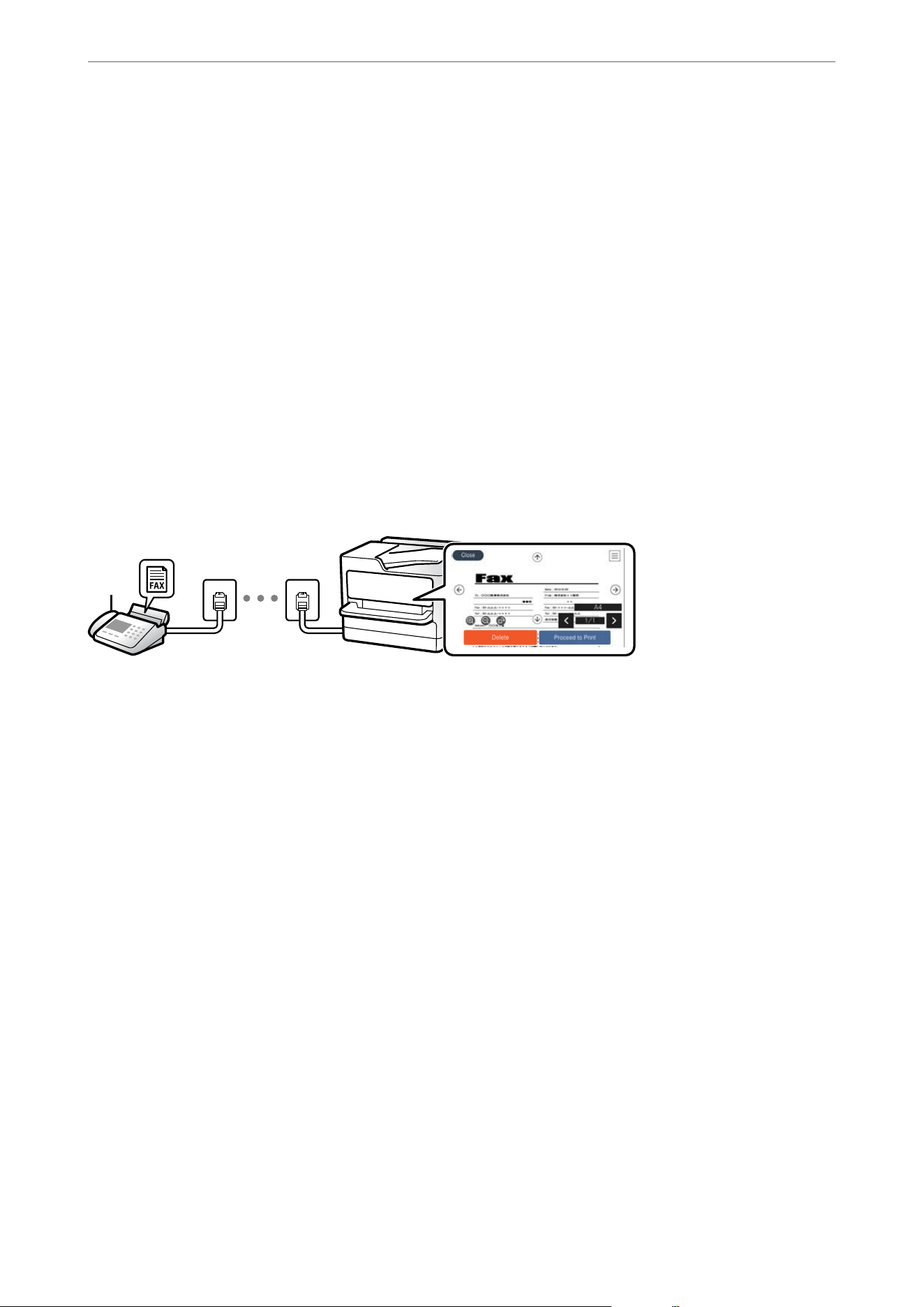
O Auto
- Only for faxing (external phone device is not required)
- Mainly for faxing, and sometimes phoning
“Usage of Auto Mode” on page 117
Receiving Faxes with a Connected Phone
You can receive faxes by using an external phone device.
“Remote Receive:” on page 251
“Selecting Settings When You Connect a Phone Device” on page 352
Destinations of Received Faxes
Received faxes are printed by default. You can select settings to save received faxes to the inbox and/or an external
memory device. If you save in the inbox, you can check the contents on the screen.
“Fax Output Settings” on page 253
“Menu Options for Inbox” on page 124
“Viewing Received Faxes on the Printer's LCD Screen” on page 119
PC-FAX Send/Receive (Windows/Mac OS)
PC-FAX Send
You can send faxes from a computer.
“Enabling Sending Faxes from a Computer” on page 355
“Application for Conguring Fax Operations and Sending Faxes (FAX Utility)” on page 235
“Application for Sending Faxes (PC-FAX Driver)” on page 236
“Sending a Fax from a Computer” on page 125
PC-FAX Receive
You can receive faxes on a computer.
“Selecting Settings to Send and Receive Faxes on a Computer” on page 355
“Application for Conguring Fax Operations and Sending Faxes (FAX Utility)” on page 235
Faxing
>
Overview of this Printer's Fax Features
>
PC-FAX Send/Receive (Windows/Mac OS)
110
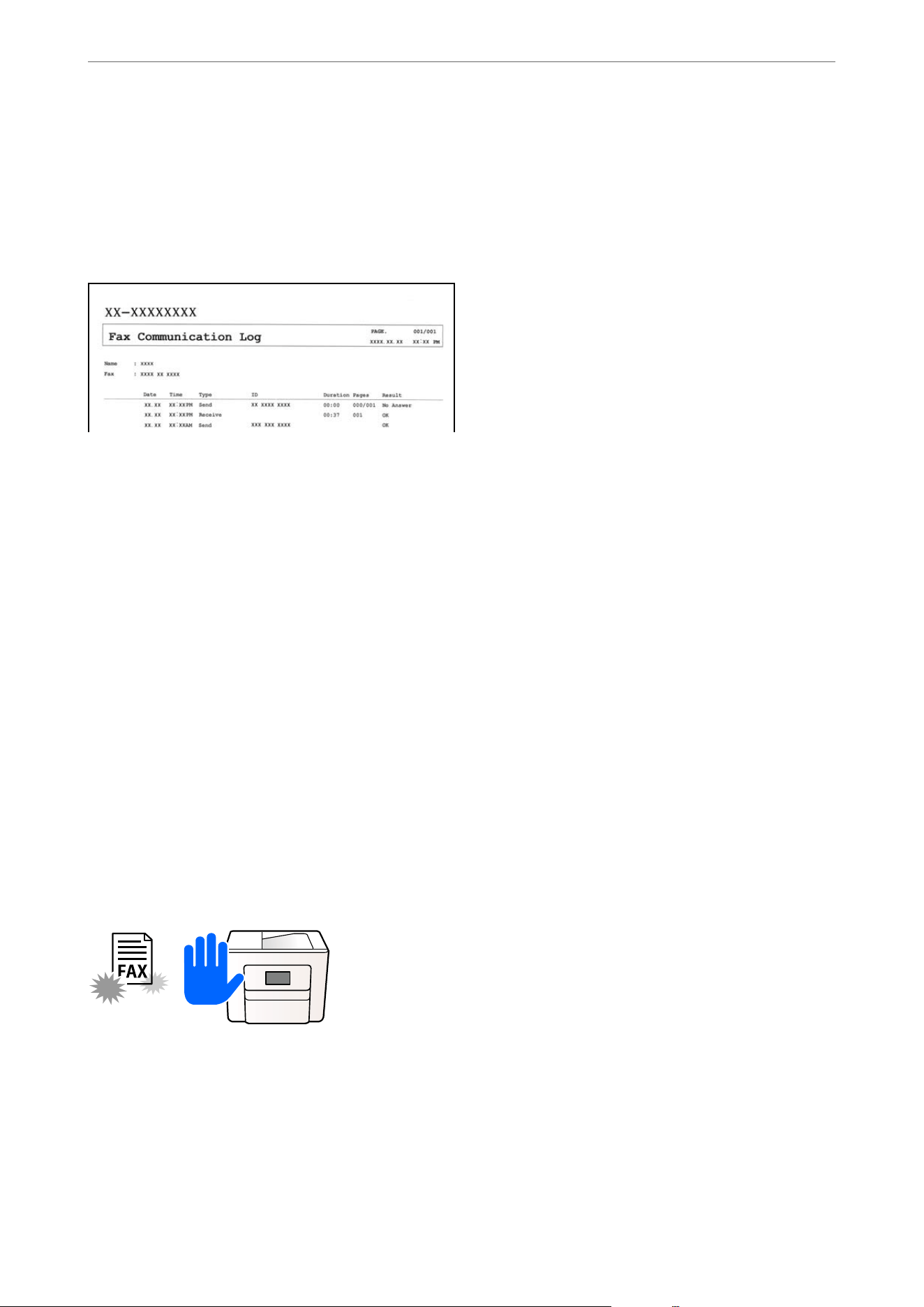
“Receiving Faxes on a Computer” on page 130
Various Fax Reports
You can check the status of sent and received faxes in a report.
“Report Settings” on page 256
“Fax Send Settings:” on page 121
“Transmission Log:” on page 123
“Fax Report:” on page 123
Security when Sending and Receiving Faxes
You can use many security features such as Direct Dialing Restrictions to prevent sending to the wrong
destination, or Backup Data Auto Clear to prevent information leakage. You can set a password for the inbox in
the printer.
“Security Settings” on page 256
“Save to Inbox:” on page 253
Other Useful Features
Blocking Junk Faxes
You can reject junk faxes.
“Selecting Settings for Blocking Junk Faxes” on page 354
Receiving Faxes After Dialing
Aer dialing to another fax machine, you can receive the document from the fax machine.
Faxing
>
Overview of this Printer's Fax Features
>
Other Useful Features
111
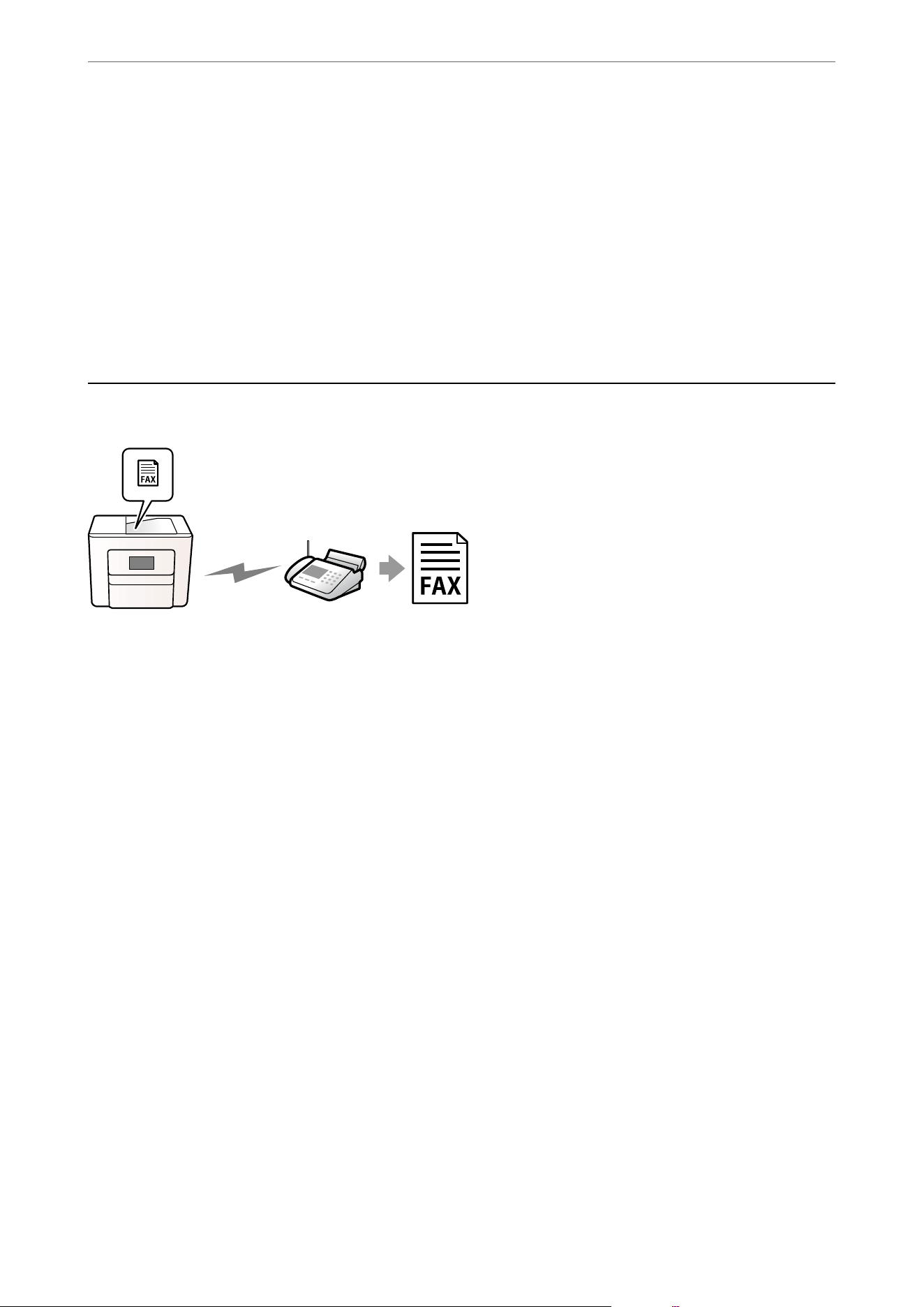
“Receiving Faxes by Making a Phone Call” on page 118
“Polling Receive:” on page 123
Regarding Sending Faxes
You can display the settings that you use frequently to send faxes at the top of the Fax Settings tab.
“Quick Operation Button” on page 250
“Quick Operation Button:” on page 121
Sending Faxes Using the Printer
You can send faxes by entering fax numbers for recipients on the printer's control panel.
Note:
When sending a fax in monochrome, you can preview the scanned image on the LCD screen before sending.
1. Place the originals.
You can send up to 100 pages in one transmission. Depending on the remaining amount of memory, however,
the number of pages you can send may be less than 100 pages.
“Placing Originals” on page 36
2. Select Fax on the printer's control panel.
3. Specify the recipient.
“Selecting Recipients” on page 113
4. Select the Fax Settings tab, and then select settings as necessary.
“Fax Settings” on page 120
5. Tap
x
on the Recipient tab to send the fax.
Note:
O If the fax number is busy or there are any sending issues, the printer automatically redials aer one minute.
O To cancel sending, tap
y
.
O It takes longer to send a fax in color because the printer performs scanning and sending simultaneously. While the
printer is sending a fax in color, you cannot use the other features.
Faxing
>
Sending Faxes Using the Printer
112

Selecting Recipients
You can specify recipients on the Recipient tab to send the fax using the following methods.
Entering Fax Number Manually
Select Keypad, enter a fax number on the screen displayed, and then select OK.
- To add a pause (for three seconds during dialing), enter a hyphen (-).
- If you have set an external access code in Line Type, enter "#" (hash) instead of the actual external access code at
the beginning of the fax number.
Note:
If you cannot manually enter a fax number, Direct Dialing Restrictions in Security Settings is set to On. Select fax
recipients from the contacts list or the sent fax history.
Selecting the recipients from the contacts list
Select Contacts, select a recipient, and then select Close. If the recipient you want to send to has not been
registered in Contacts yet, select Add Entry and register it.
Selecting the recipients from the sent fax history
Select Recent, and then select a recipient.
Note:
To delete recipients you entered, display the list of recipients by tapping on the eld of a fax number or the number of
recipients on the LCD screen, select the recipient from the list, and then select Remove.
Related Information
& “Making Contacts Available” on page 332
& “Destination Setting Items” on page 333
& “Recipient” on page 120
Various Ways of Sending Faxes
Sending a Fax after Checking the Scanned Image
You can preview the scanned image on the LCD screen before sending the fax. (Monochrome faxes only)
1. Place the originals.
“Placing Originals” on page 36
2. Select Fax on the home screen.
3. Specify the recipient.
“Selecting Recipients” on page 113
4.
Select the Fax Settings tab, and then select settings as necessary.
“Fax Settings” on page 120
Faxing
>
Sending Faxes Using the Printer
>
Various Ways of Sending Faxes
113

5. Select Preview on the Recipient tab to scan, and then check the scanned document image.
-
: Moves the screen in the direction of the arrows.
-
: Reduces or enlarges.
-
: Moves to the previous or the next page.
Note:
O When Direct Send is enabled, you cannot preview.
O When the preview screen is le untouched for the time set in Settings > General Settings > Fax Settings > Send
Settings > Fax Preview Display Time, the fax is sent automatically.
O e image quality of a sent fax may be dierent from what you previewed depending on the capability of the
recipient machine.
6. Select Start Sending. Otherwise, select Cancel.
Note:
e image quality of a sent fax may be dierent from what you previewed depending on the capability of the recipient
machine.
Sending Faxes After Conrming the Recipient's Status
You can send a fax while listening to sounds or voices through the printer's speaker while dialing, communicating,
and transmitting.
1. Select Fax on the home screen.
2. Select the Fax Settings tab, and then selecting settings such as the resolution and the sending method as
necessary. When you have nished selecting settings, select the Recipient tab.
“Fax Settings” on page 120
3. Tap
and then specify the recipient.
Note:
You can adjust the speaker volume.
4.
When you hear a fax tone, select Send/Receive at the upper right corner of the LCD screen, and then select
Send.
5. Tap
x
to start sending the fax.
Related Information
& “Sending Faxes Dialing from the External Phone Device” on page 114
Sending Faxes Dialing from the External Phone Device
You can send a fax by dialing using the connected telephone when you want to talk over the phone before sending
a fax, or when the recipient's fax machine does not switch to the fax automatically.
Faxing
>
Sending Faxes Using the Printer
>
Various Ways of Sending Faxes
114

1. Pick up the handset of the connected telephone, and then dial the recipient's fax number using the phone.
Note:
When the recipient answers the phone, you can talk with the recipient.
2. Select Fax on the home screen.
3. Make necessary settings on the Fax Settings.
“Fax Settings” on page 120
4. When you hear a fax tone, tap
x
, and then hang up the handset.
Note:
When a number is dialed using the connected telephone, it takes longer to send a fax because the printer performs
scanning and sending simultaneously. While sending the fax, you cannot use the other features.
Sending Many Pages of a Monochrome Document (Direct Send)
When sending a fax in monochrome, the scanned document is temporarily stored in the printer's memory.
erefore, sending a lot of pages may cause the printer to run out of memory and stop sending the fax. You
can avoid this by enabling the Direct Send feature, however, it takes longer to send the fax because the printer
performs scanning and sending simultaneously. You can use this feature when there is only one recipient.
Accessing the Menu
You ca n
nd
the menu on the printer's control panel below.
Fax > Fax Settings > Fax Send Settings > Direct Send.
Sending Faxes in Monochrome at
Specied
Time of the Day (Send Fax Later)
You can send a fax at a specied time. Only monochrome faxes can be sent using this feature.
1. Select Fax on the home screen.
2. Specify the recipient.
“Selecting Recipients” on page 113
3.
Select the Fax Settings tab, and then select Send Fax Later.
4. Tap the Send Fax Later
eld
to set this to On.
5. Select the Time eld, enter the time you want to send the fax, and then select OK.
6.
Select OK to apply the settings.
You can also select settings such as the resolution and the sending method as necessary.
7. Send the fax.
Note:
You cannot send another fax until the fax has been sent at the specied time. If you want to send another one, you need
to cancel the scheduled fax by selecting Fax on the home screen, and then deleting it.
Faxing
>
Sending Faxes Using the Printer
>
Various Ways of Sending Faxes
115
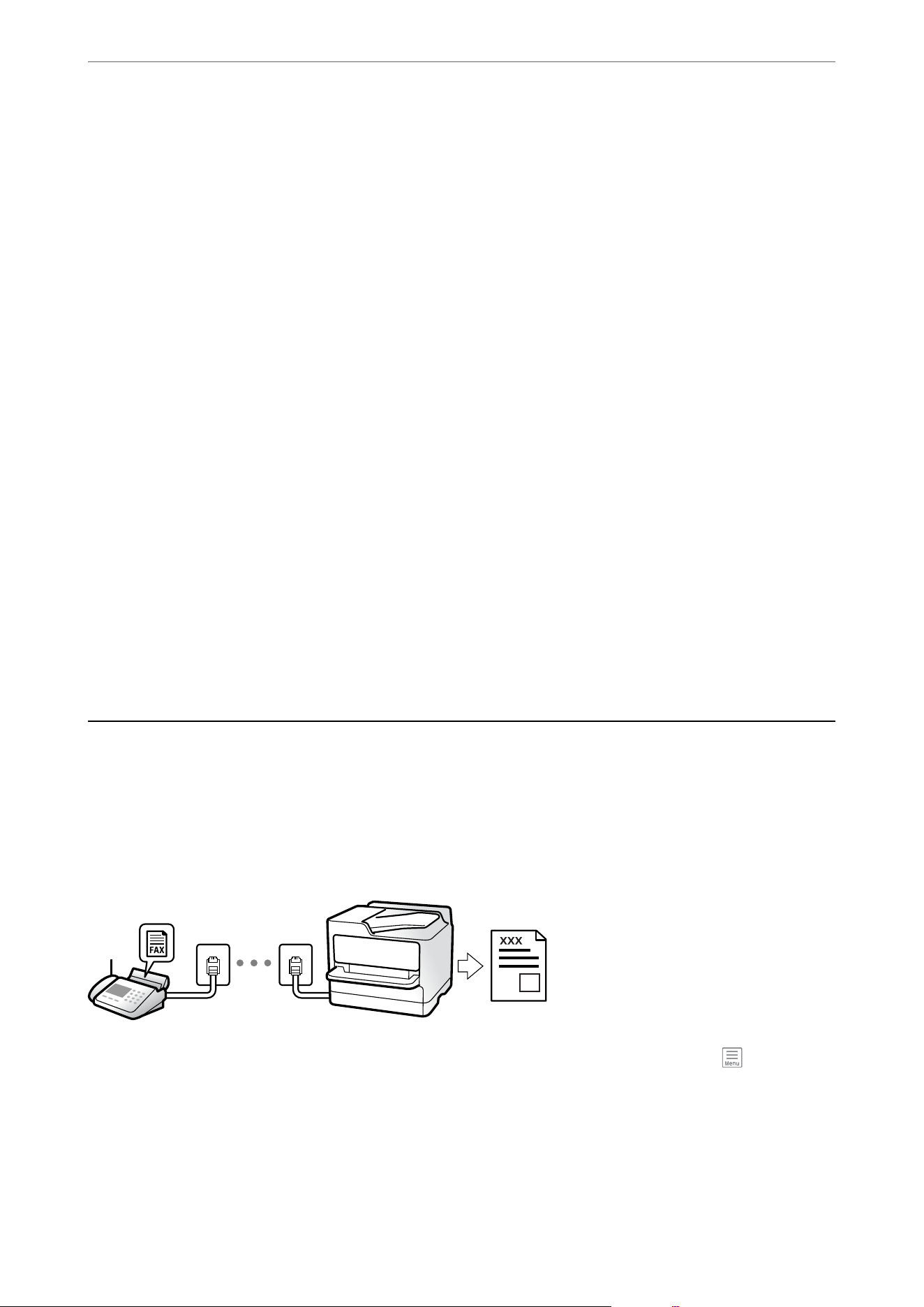
Sending Dierent Size Documents Using ADF (Continuous Scan(ADF))
By placing originals one by one, or by placing batches of same-sized originals in the ADF, you can send them as
one fax document at their original sizes.
Note:
If you load a batch of mixed-size originals into the ADF, the originals are sent at the width of the widest original and the
length of each original.
1. Place the rst batch of same-sized originals.
2. Select Fax on the home screen.
3. Specify the recipient.
“Selecting Recipients” on page 113
4. Select the Fax Settings tab, and then tap Continuous Scan(ADF) to set this to On.
You can also select settings such as the resolution and the sending method as necessary.
5. Tap
x
(Send) on the Recipient tab.
6. When scanning the rst set of originals is complete and a message is displayed on the control panel asking you
to scan the next set of originals, select Ye s , set the next originals, and then select Start Scanning.
Note:
If you leave the printer untouched for the time set in Settings > General Settings > Fax Settings > Send Settings >
Wait Time for Next Original aer you have been prompted to set the next originals, the printer stops storing and starts
sending the document.
Receiving Faxes on the Printer
If the printer is connected to the phone line and basic settings have been completed using the Fax Setting Wizard,
you can receive faxes.
You can save received faxes, check them on the printer screen, and print them as necessary.
Received faxes are printed in the printer's initial settings.
When you want to check the status of the fax settings, print a Fax Settings List by selecting Fax > (More) > Fax
Report > Fax Settings List.
Receiving Incoming Faxes
ere are two options in Receive Mode.
Faxing
>
Receiving Faxes on the Printer
>
Receiving Incoming Faxes
116

Related Information
& “Usage of Manual Mode” on page 117
& “Usage of Auto Mode” on page 117
Usage of Manual Mode
is mode is mainly for making phone calls, but is also for faxing.
Receiving Faxes
When the connected phone device rings, you can answer the ringing manually by picking up the handset.
O When you hear a fax signal (baud):
Select Fax on the printer's home screen, select Send/Receive > Receive, and then tap
x
. Once the printer starts
receiving the fax, you can hang up the handset.
O If the ringing is for a voice call:
You can answer the phone as normal.
Receiving Faxes Using only the Connected Phone Device
When Remote Receive is set, you can receive faxes by simply entering the Start Code.
When the connected phone device rings, pick up the handset. When you hear a fax tone (baud), dial the two digit
Start Code, and then hang up the handset. If you do not know the start code, ask the administrator.
Related Information
& “Remote Receive:” on page 251
Usage of Auto Mode
is mode allows you to use the line for the following uses.
O Using the line for faxing only (external telephone is not necessary)
O Using the line for faxing mainly, and sometimes phoning
Receiving Faxes Without an External Phone Device
e printer automatically switches to receive faxes when the number of rings you set in Rings to Answer is
complete.
Receiving Faxes With an External Phone Device
A printer with an external phone device works as follows.
O When the answering machine answers within the number of rings set in Rings to Answer:
- If the ringing is for a fax:
e
printer automatically switches to receive faxes.
- If the ringing is for a voice call: e answering machine can receive voice calls and record voice messages.
Faxing
>
Receiving Faxes on the Printer
>
Receiving Incoming Faxes
117

O When you pick up the handset within the number of rings set in Rings to Answer:
- If the ringing is for a fax: Hold the line until the printer automatically starts receiving the fax by displaying
Connecting on the printer's control panel. Once the printer starts receiving the fax, you can hang up the
handset. To start receiving the fax immediately, use the same steps as for Manual. Select Fax on the printer's
control panel, and then select Send/Receive > Receive. Next, tap
x
, and then hang up the handset.
- If the ringing is for a voice call: You can answer the phone as normal.
O When the ringing stops and the printer automatically switches to receive faxes:
- If the ringing is for a fax: e printer starts receiving faxes.
- If the ringing is for a voice call: You cannot answer the phone. Ask the person to call you back.
Note:
Set the number of rings to answer for the answering machine to a lower number than the number set in Rings to Answer.
Otherwise, the answering machine cannot receive voice calls to record voice messages. For details on setting up the answering
machine, see the manual supplied with the answering machine.
Receiving Faxes by Making a Phone Call
You can receive a fax stored on another fax machine by dialing the fax number.
Related Information
& “Receiving Faxes Aer Conrming the Sender's Status” on page 118
& “Receiving Faxes by Polling (Polling Receive)” on page 119
Receiving Faxes After Conrming the Sender's Status
You can receive a fax while listening to sounds or voices through the printer's speaker while dialing,
communicating, and transmitting. You can use this feature when you want to receive a fax from a fax information
service by following an audio guide.
1. Select Fax on the home screen.
2. Tap
(On Hook), and then specify the sender.
Note:
You can adjust the speaker volume.
3. Wait until the sender answers your call. When you hear a fax tone, select Send/Receive at the upper right
corner of the LCD screen, and then select Receive.
Note:
If you are receiving a fax from a fax information service and the service provides audio guidance, follow the guidance to
proceed.
4. Tap
x
to start receiving the fax.
Faxing
>
Receiving Faxes on the Printer
>
Receiving Faxes by Making a Phone Call
118
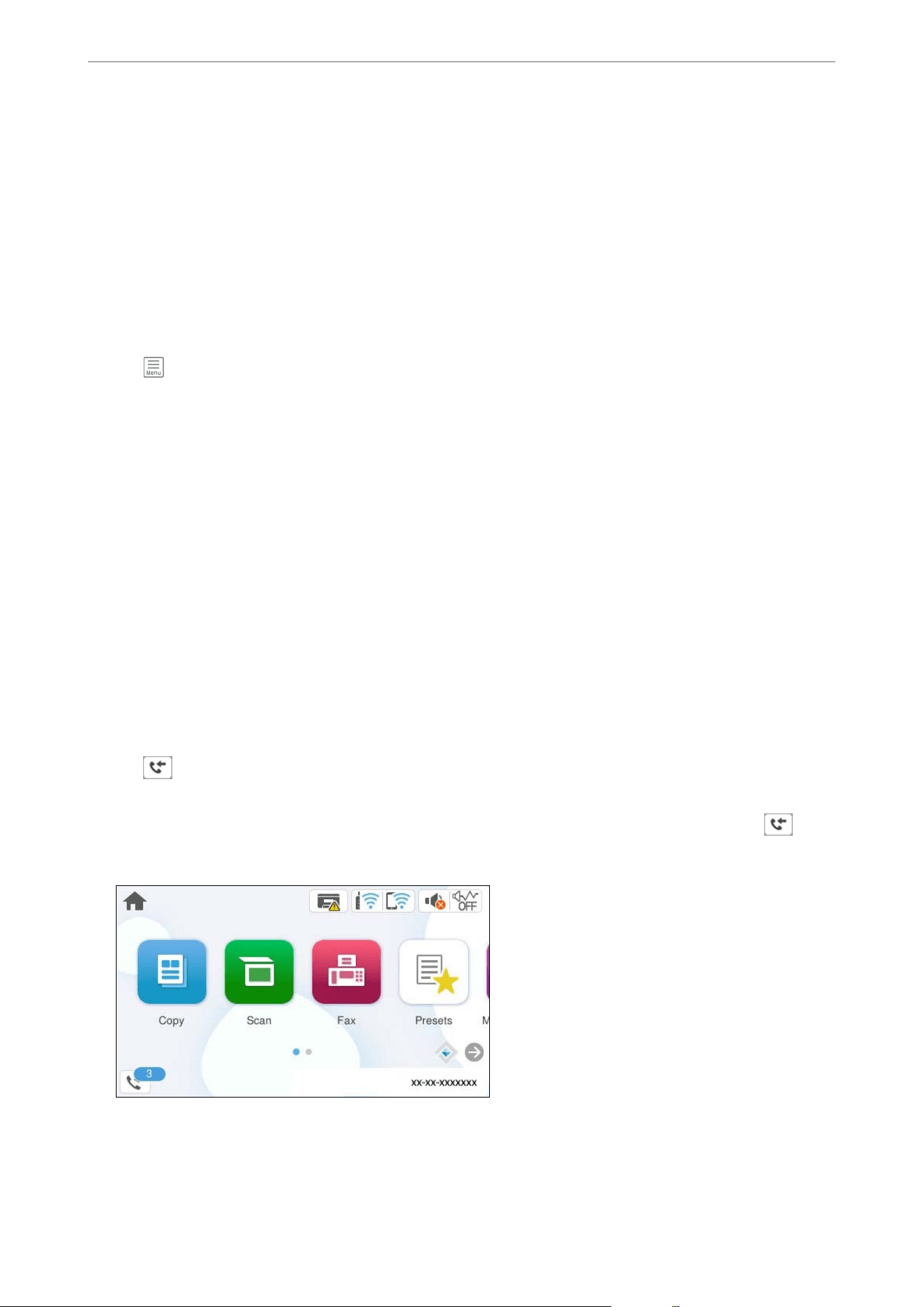
Receiving Faxes by Polling (Polling Receive)
You can receive a fax stored on another fax machine by dialing the fax number. Use this feature to receive a
document from a fax information service. However, if the fax information service has an audio guidance feature
that you need to follow to receive a document, you cannot use this feature.
Note:
To receive a document from a fax information service that uses audio guidance, just dial the fax number using the connected
telephone, and then follow the audio guidance.
1. Select Fax on the home screen.
2. Tap
(More).
3. Tap Polling Receive to set this to On, and then tap Close.
4.
Enter the fax number.
“Selecting Recipients” on page 113
Note:
When Fax Settings > Security Settings > Direct Dialing Restrictions is set to On, you can only select fax recipients
from the contact list or the sent fax history. You cannot manually enter a fax number.
5. Tap
x
to start Polling Receive.
Viewing Received Faxes on the Printer's LCD Screen
If you set up to save received faxes in the printer, you can view and print them as necessary.
“Making Settings to Save Received Faxes to the Inbox” on page 353
1.
Tap
on the home screen.
Note:
When there are received faxes that have not been read, the number of unread documents is displayed on the
on the
home screen.
2. Tap Open Inbox (XX Unread).
3. If the inbox has been password protected, enter the inbox password.
Faxing
>
Receiving Faxes on the Printer
>
Viewing Received Faxes on the Printer's LCD Screen
119
4. Select the fax you want to view from the list.
e contents of the fax are displayed.
O
: Moves the screen in the direction of the arrows.
O
: Reduces or enlarges.
O
: Rotates the image to the right by 90 degrees.
O
: Moves to the previous or the next page.
O To hide the operation icons, tap anywhere on the preview screen except for the icons. Tap again to display
the icons.
5. Select whether to print or delete the document you have viewed, and then follow the on-screen instructions.
c
Important:
If the printer runs out of memory, receiving and sending faxes is disabled. Delete documents that you have
already read or printed.
Menu Options for Faxing
Recipient
Select the menus on the control panel as described below.
Fax > Recipient
Keypad:
Manually enter a fax number.
Contacts:
Select a recipient from the contacts list. You can also add or edit a contact.
Recent:
Select a recipient from the sent fax history. You can also add the recipient to the contacts list.
Related Information
& “Selecting Recipients” on page 113
Fax Settings
Select the menus on the control panel as described below.
Fax > Fax Settings
Faxing
>
Menu Options for Faxing
>
Fax Settings
120

Quick Operation Button:
Assign up to three frequently used items such as Transmission Log and Original Type in Settings >
General Settings > Fax Settings > Quick Operation Button. e items are displayed at the top of the
Fax Settings tab.
Scan Settings:
Resolution:
Select the resolution of the outgoing fax. If you select a higher resolution, the data size becomes
larger and it takes more time to send the fax.
Density:
Sets the density of the outgoing fax. + makes the density darker, and - makes it lighter.
Remove Background:
Select the darkness of the background. Tap + to lighten (whiten) the background and tap - to
darken (blacken) it.
If you select Auto, the background colors of the originals are detected, and they are removed
or lightened automatically. e feature may not work correctly if the background color is too
dark or not detected.
Sharpness:
Enhances or defocuses the outline of the image. + enhances the sharpness, and - defocuses the
sharpness.
ADF 2-Sided:
Scans both sides of originals placed in the ADF and sends a monochrome fax.
is
feature is
available for the WF-4930 Series only.
Continuous Scan(ADF):
Send faxes by placing originals one by one or in same-sized batches.
“Sending
Dierent
Size Documents Using ADF (Continuous Scan(ADF))” on page 116
Original Size (Glass):
Select the size and orientation of the original you placed on the scanner glass.
Color Mode:
Select whether to scan in color or in monochrome.
Fax Send Settings:
Direct Send:
Sends a monochrome fax while scanning the originals. Since scanned originals are not stored
temporarily in the printer's memory even when sending a large volume of pages, you can avoid
printer errors due to a lack of memory. Note that sending using this feature takes longer than
not using this feature.
You cannot use this feature when:
O Sending a fax using the ADF 2-Sided option (WF-4930 Series only)
Faxing
>
Menu Options for Faxing
>
Fax Settings
121

O Sending a fax to multiple recipients
“Sending Many Pages of a Monochrome Document (Direct Send)” on page 115
Send Fax Later:
Sends a fax at a time you specify. You can only send monochrome faxes when using this
option.
“Sending Faxes in Monochrome at
Specied
Time of the Day (Send Fax Later)” on page 115
Add Sender Information:
Add Sender Information:
Select the position where you want to include the header information (sender name and
fax number) in the outgoing fax, or not to include the information.
O O: Sends a fax with no header information.
O Outside of Image: Sends a fax with header information in the top white margin of
the fax. is keeps the header from overlapping with the scanned image, but the fax
received by the recipient may be printed across two sheets depending on the size of
the originals.
O Inside of Image: Sends a fax with header information approximately 7 mm lower
than the top of the scanned image. e header may overlap with the image, but the
fax received by the recipient will not be split into two documents.
Fax Header:
Select the header for the recipient. To use this feature, you should register multiple
headers in advance.
Additional Information:
Select the information you want to add. You can select one from You r Phone Numb er
and Destination List.
Transmission Report:
Prints a transmission report aer you send the fax.
Print on Error prints a report only when an error occurs.
When Attach Fax image to report has been set in Settings > General Settings > Fax Settings
> Report Settings, faxes with errors are also printed with the report.
Clear All Settings:
Restores all settings in Scan Settings and Fax Send Settings to their defaults.
Related Information
& “Sending Dierent Size Documents Using ADF (Continuous Scan(ADF))” on page 116
& “Sending Many Pages of a Monochrome Document (Direct Send)” on page 115
& “Sending Faxes in Monochrome at Specied Time of the Day (Send Fax Later)” on page 115
Faxing
>
Menu Options for Faxing
>
Fax Settings
122

More
Selecting in Fax on the home screen displays the More menu.
Transmission Log:
You can check the history of sent or received fax jobs.
Fax Report:
Last Transmission:
Prints a report for the previous fax that was sent or received through polling.
Fax Log:
Prints a transmission report. You can set to print this report automatically using the following
menu.
Settings > General Settings > Fax Settings > Report Settings > Fax Log Auto
Print
Fax Settings List:
Prints the current fax settings.
Protocol Trace:
Prints a detailed report for the previous fax that was sent or received.
Polling Receive:
When this is set to On and you call the sender's fax number, you can receive documents from the
sender's fax machine.
“Receiving Faxes by Polling (Polling Receive)” on page 119
Inbox:
Accesses (Inbox) on the home screen.
Reprint received fax:
Reprints the received faxes in the printer.
Fax Settings:
Accesses Settings > General Settings > Fax Settings. Access the setting menu as an administrator.
Related Information
& “Receiving Faxes by Polling (Polling Receive)” on page 119
Faxing
>
Menu Options for Faxing
>
More
123

Menu Options for Inbox
:
You can access the Inbox where the received faxes are stored by tapping this icon. When there are received
faxes that have not been read, the number of unread documents is displayed on the
.
Open Inbox (XX Unread)
(Box Menu)
Settings
Save to Inbox:
Saves received faxes to the printer's Inbox. Up to 100 documents can be saved.
Note that saving 100 documents may not be possible depending on the usage
conditions such as the
le
size of saved documents, and using of multiple fax
saving features at a time.
ough the received faxes are not automatically printed, you can view them on
the printer's screen and print only the ones you need.
Options when memory is full:
You can select the option to print the received fax or refuse to receive it when the
Inbox memory is full.
Inbox Password Settings:
Password protects the Inbox to restrict users from viewing received faxes. Select
Change to change the password, and select Reset to cancel password protection.
When changing or resetting the password, you need the current password.
You c a n not s e t a p a s s wor d w he n Options when memory is full has been set to
Receive and print faxes.
Print All:
Selecting this prints out all received faxes in the inbox.
Delete All:
Selecting this deletes all received faxes in the inbox.
Inbox (List)
You can save up to 100 documents in the inbox in total.
page preview screen
O : Reduces or enlarges.
O
: Rotates the image to the right by 90 degrees.
O
: Moves the screen in the direction of the arrows.
O
: Moves to the previous or the next page.
Faxing
>
Menu Options for Inbox
124

To hide the operation icons, tap anywhere on the preview screen except for the icons.
Tap again to display the icons.
Delete:
Deletes the document you are previewing.
Proceed to Print:
Prints the document you are previewing. You can select settings such as 2-Sided before
starting printing.
(Preview menu)
Details:
Displays information for the selected document such as the saved date and time,
and total number of pages.
Related Information
& “Making Settings to Save Received Faxes to the Inbox” on page 353
Using Other Faxing Features
Printing Fax Report Manually
1. Select Fax on the home screen.
2. Tap
(More).
3. Select Fax Report.
4. Select the report you want to print, and then follow the on-screen instructions.
Note:
You can change the report format. From the home screen, select Settings > General Settings > Fax Settings > Report
Settings, and then change the Attach Fax image to report or Report Format settings.
Sending a Fax from a Computer
You can send faxes from the computer by using the FAX Utility and PC-FAX driver.
For details on how to operate FAX Utility, see Basic Operations in the FAX Utility help (displayed on the main
window).
Faxing
>
Sending a Fax from a Computer
125

Note:
O Check if the FAX Utility and the printer's PC-FAX driver are installed before using this feature.
“Application for
Conguring
Fax Operations and Sending Faxes (FAX Utility)” on page 235
“Application for Sending Faxes (PC-FAX Driver)” on page 236
O If the FAX Utility is not installed, install the FAX Utility using the EPSON Soware Updater (application for updating
soware).
“Application for Updating Soware and Firmware (Epson Soware Updater)” on page 239
Related Information
& “Enabling Sending Faxes from a Computer” on page 355
Sending Documents Created Using an Application (Windows)
By selecting a printer fax from the Print menu of an application like Microso Word or Excel, you can directly
transmit data such as documents, drawings, and tables you have created, with a cover sheet.
Note:
e following explanation uses Microso Word as an example. e actual operation may dier depending on the application
you use. For details, see the application’s help.
1. Using an application, create a document to transmit by fax.
2. Click Print from the File menu.
e application’s Print window appears.
3. Select XXXXX (FAX) (where XXXXX is your printer name) in Printer, and then check the settings for fax
sending.
O Specify 1 in Number of copies.
e
fax may not be transmitted correctly if you specify 2 or more.
O You can send up to 100 pages in one fax transmission.
4. Click Printer Properties or Properties if you want to specify Paper Size, Orientation, Color, Image Quality,
or Character Density.
For details, see the PC-FAX driver help.
5. Click Print.
Note:
When Using FAX Utility for the rst time, a window for registering your information is displayed. Enter the necessary
information, and then click OK.
e
Recipient Settings screen is displayed.
6. When you want to send other documents in the same fax transmission, select the Add documents to send
checkbox.
e screen for adding documents is displayed when you click Next in step 9.
7. Select theAttach a cover sheet checkbox if necessary.
Faxing
>
Sending a Fax from a Computer
>
Sending Documents Created Using an Application (Windows)
126

8. Specify a recipient.
O Selecting a recipient from PC-FAX Phone Book:
If the recipient is saved in the phone book, do the steps below.
A
Click the PC-FAX Phone Book tab.
B
Select the recipient from the list and click Add.
O Selecting a recipient from the contacts on the printer:
If the recipient is saved in the contacts on the printer, do the steps below.
A
Click the Contacts on Printer tab.
B
Select contacts from the list and click Add to proceed to the Add to Recipient window.
C
Select the contacts from the list displayed, and then click Edit.
D
Add the personal data such as Company/Corp. and Title as necessary, and then click OK to return to
the Add to Recipient window.
E
As necessary, select the Register in the PC-FAX Phone Book checkbox to save the contacts to PC-FAX
Phone Book.
F
Click OK.
O Specifying a recipient directly:
Do the steps below.
A
Click the Manual Dial tab.
B
Enter the necessary information.
C
Click Add.
Furthermore, by clicking Save to Phone Book, you can save the recipient in the list under the PC-FAX
Phone Book tab.
Note:
O If your printer's Line Type is set to PBX and the access code has been set to use # (hash) instead of entering the
exact prex code, enter # (hash). For details, see Line Type in Basic Settings from the related information link
below.
O If you have selected Enter fax number twice in the Optional Settings on the FAX Utility main screen, you need
to enter the same number again when you click Add or Next.
e recipient is added to the Recipient List displayed in the upper part of the window.
9. Click Next.
O If you selected the Add documents to send checkbox, follow the steps below to add documents in the
Document Merging window.
A
Open a document you want to add, and then select the same printer (fax name) in the Print window.
e document is added to the Document List to Merge list.
B
Click Preview to check the merged document.
C
Click Next.
Note:
e Image Quality and Color settings you have selected for the rst document are applied to other documents.
Faxing
>
Sending a Fax from a Computer
>
Sending Documents Created Using an Application (Windows)
127

O If you selected the Attach a cover sheet checkbox, specify the content of the cover sheet in the Cover Sheet
Settings window.
A
Select a cover sheet from samples in the Cover Sheet list. Note that there is no function to create an
original cover sheet or to add an original cover sheet to the list.
B
Enter the Subject and Message.
C
Click Next.
Note:
Set the following as necessary in Cover Sheet Settings.
O Click Cover Sheet Formatting if you want to change the order of the items on the cover sheet. You can select
the cover sheet size in Paper Size. You can also select a cover sheet at a dierent size to the document being
transmitted.
O Click Font if you want to change the font used for the text on the cover sheet.
O Click Sender Settings if you want to change the sender information.
O Click Detailed Preview if you want to check the cover sheet with the subject and the message you entered.
10. Check the transmission content and click Send.
Make sure the name and fax number of the recipient are correct before transmitting. Click Preview to preview
the cover sheet and document to transmit.
Once transmission starts, a window displaying the transmission status appears.
Note:
O To stop transmitting, select the data, and click Cancel
. You can also cancel using the printer's control panel.
O If an error occurs during transmission, the Communication error window appears. Check the error information
and retransmit.
O e Fax Status Monitor screen (the screen mentioned above where you can check the transmission status) is not
displayed if Display Fax Status Monitor During Transmission is not selected in the Optional Settings screen of the
FAX Utility main screen.
Related Information
& “Basic Settings” on page 250
Sending Documents Created Using an Application (Mac OS)
By selecting a fax-capable printer from the Print menu of a commercially available application, you can send data
such as documents, drawings, and tables, you have created.
Note:
e following explanation uses TextEdit, a standard Mac OS application as an example.
1. Create the document you want to send by fax in an application.
2. Click Print from the File menu.
e application’s Print window is displayed.
3. Select your printer (fax name) in Name, click
d
to display the detailed settings, check the print settings, and
then click OK.
Faxing
>
Sending a Fax from a Computer
>
Sending Documents Created Using an Application (Mac OS)
128

4. Select settings for each item.
O Specify 1 in Number of copies. Even if you specify 2 or more, only 1 copy is sent.
O You can send up to 100 pages in one fax transmission.
Note:
e page size of documents you can send is the same as the paper size you can fax from the printer.
5. Select Fax Settings from the popup menu, and then select settings for each item.
See the PC-FAX driver's help for explanations on each setting.
Click
in the bottom le corner of the window to open the PC-FAX driver's help.
6. Select the Recipient Settings menu, and then specify the recipient.
O Specifying a recipient directly:
Click the Add item, enter the necessary information, and then click
. e recipient is added to the
Recipient List displayed in the upper part of the window.
If you have selected Enter fax number twice in the PC-FAX driver settings, you need to enter the same
number again when you click
.
If your fax connection line requires a prex code, enter External Access Prex.
Note:
If your printer's Line Type is set to PBX and the access code has been set to use # (hash) instead of entering the exact
prex code, enter # (hash). For details, see Line Type in Basic Settings from the Related Information link below.
O Selecting a recipient from the phone book:
If the recipient is saved in the phone book, click
. Select the recipient from the list, and then click Add
> OK.
If your fax connection line requires a prex code, enter External Access Prex.
Note:
If your printer's Line Type is set to PBX and the access code has been set to use # (hash) instead of entering the exact
prex code, enter # (hash). For details, see Line Type in Basic Settings from the Related Information link below.
7. Check the recipient settings, and then click Fax.
Sending starts.
Make sure the name and fax number of the recipient are correct before transmitting.
Note:
O If you click the printer icon in Dock, the transmission status check screen is displayed. To stop sending, click the data,
and then click Delete.
O If an error occurs during transmission, the Sending failed message is displayed. Check the transmission records on
the Fax Transmission Record screen.
O Mixed paper size documents may not be sent correctly.
Related Information
& “Basic Settings” on page 250
Faxing
>
Sending a Fax from a Computer
>
Sending Documents Created Using an Application (Mac OS)
129

Receiving Faxes on a Computer
Faxes can be received by a printer and saved in PDF format on a computer connected to the printer. Use the FAX
Utility (application) to select settings.
For details on how to operate FAX Utility, see Basic Operations in the FAX Utility help (displayed on the main
window). If the password entry screen is displayed on the computer screen while you are making settings, enter the
password. If you do not know the password, contact your administrator.
Note:
O Check if the FAX Utility has been installed and the FAX Utility settings have been made before using this feature.
“Application for
Conguring
Fax Operations and Sending Faxes (FAX Utility)” on page 235
O If the FAX Utility is not installed, install the FAX Utility using the EPSON
Soware
Updater (application for updating
soware).
“Application for Updating Soware and Firmware (Epson Soware Updater)” on page 239
c
Important:
O To receive faxes on a computer, the Receive Mode on the printer's control panel must be set to Auto. Contact
your administrator for information on the printer settings status. To select settings on the printer's control panel,
select Settings > General Settings > Fax Settings > Basic Settings > Receive Mode.
O e computer set to receive faxes should always be on. Received documents are saved in the printer's memory
temporarily before the documents are saved on the computer. If you turn o the computer, the printer's memory
might become full as it cannot send the documents to the computer.
O
e
number of documents that have been temporarily saved to the printer’s memory are displayed on the
on
the printer's control panel.
O To read the received faxes, you need to install a PDF viewer such as Adobe Reader in the computer.
Related Information
& “Selecting Settings to Send and Receive Faxes on a Computer” on page 355
Checking for New Faxes (Windows)
By setting up a computer to save faxes received by the printer, you can check the processing status of received faxes,
and whether or not there are any new faxes using the fax icon on the Windows task bar. By setting up the computer
to display a notication when new faxes are received, a notication screen pops up near the Windows system tray,
and you can check the new faxes.
Note:
O Received fax data saved to the computer is removed from the printer's memory.
O You need Adobe Reader to view the received faxes saved as PDF les.
Using the Fax Icon on the Task Bar (Windows)
You can check for new faxes and the operation status by using the fax icon displayed on the Windows taskbar.
Faxing
>
Receiving Faxes on a Computer
>
Checking for New Faxes (Windows)
130

1. Check the icon.
O
: Standing by.
O
: Checking for new faxes.
O
: New faxes received.
2. Right-click the icon, and then click View Receiving Fax Record.
e Receiving Fax Record screen is displayed.
3. Check the date and the sender in the list, and then open the received le as a PDF.
Note:
O Received faxes are automatically renamed using the following naming format.
YYYYMMDDHHMMSS_xxxxxxxxxx_nnnnn (Year/Month/Day/Hour/Minute/Second_sender’s number)
O You can also open the received fax folder directly when you right-click the icon. For details, see Optional Settings in
the FAX Utility and its help (displayed on the main window).
While the fax icon indicates that it is standing by, you can check for new faxes instantly by selecting Check new
faxes now.
Using the Notication Window (Windows)
When you enable the FAX Utility to notify you about new faxes a notication window is displayed near the task
bar for each the fax.
1. Check the notication screen displayed on your computer screen.
Note:
e notication screen disappears if no operation is performed for a given length of time. You can change the
notication settings such as the display time.
2. Click anywhere in the notication screen, except for the button.
e
Receiving Fax Record screen is displayed.
3. Check the date and the sender in the list, and then open the received
le
as a PDF.
Note:
O Received faxes are automatically renamed using the following naming format.
YYYYMMDDHHMMSS_xxxxxxxxxx_nnnnn (Year/Month/Day/Hour/Minute/Second_sender’s number)
O You can also open the received fax folder directly when you right-click the icon. For details, see Optional Settings in
the FAX Utility and its help (displayed on the main window).
Checking for New Faxes (Mac OS)
You can check for new faxes using one of the following methods. is is only available when "Save" (save faxes on
this computer) is enabled in the FAX Utility.
O Open the received fax folder
(specied
in Received Fax Output Settings.).
O Open the Fax Receive Monitor and click Check new faxes now.
Faxing
>
Receiving Faxes on a Computer
>
Checking for New Faxes (Mac OS)
131

O Select the Notify me of new faxes via a dock icon in Fax Receive Monitor > Preferences in the FAX Utility.
e
fax receive monitor icon on the Dock jumps to notify you that new faxes have arrived.
For details, see Fax Receive Monitor in the FAX Utility help.
Open the Received Fax Folder from Received Fax Monitor (Mac OS)
You can open the save folder from the computer specied to receive faxes when selecting "Save" (save faxes on
this computer).
1.
Click the received fax monitor icon on the Dock to open Fax Receive Monitor.
2. Select the printer and click Open folder, or double click the printer name.
3. Check the date and the sender in the le name, and then open the PDF le.
Note:
O Received faxes are automatically renamed using the following naming format.
YYYYMMDDHHMMSS_xxxxxxxxxx_nnnnn (Year/Month/Day/Hour/Minute/Second_sender's number)
O Information sent from the sender is displayed as the sender's number. is number may not be displayed depending
on the sender.
Canceling the Feature that Saves Incoming Faxes to the Computer
You can cancel saving faxes to the computer by using the FAX Utility.
For details, see Basic Operations in the FAX Utility help (displayed on the main window).
Note:
O If there are any faxes that have not been saved to the computer, you cannot cancel the feature that saves faxes on the
computer.
O You can also change the settings on the printer. Contact your administrator for information on canceling settings to save
received faxes on the computer.
Related Information
& “Disabling the Saving of Received Faxes on a Computer” on page 356
Faxing
>
Receiving Faxes on a Computer
>
Canceling the Feature that Saves Incoming Faxes to the Computer
132

Checking the Status of Consumables
You can check the approximate ink levels and the approximate service life of the maintenance box from the
printer's control panel. Select
on the home screen.
Note:
O You can also check the approximate ink levels and the approximate service life of the maintenance box from the status
monitor in the printer driver.
O Windows
Click EPSON Status Monitor 3 on the Maintenance tab.
If EPSON Status Monitor 3 is disabled, click Extended Settings on the Maintenance tab, and then select
Enable EPSON Status Monitor 3.
O Mac OS
Apple menu > System Preferences (or System Settings) > Printers & Scanners (or Print & Scan, Print &
Fax) > Epson(XXXX) > Options & Supplies > Utility > Open Printer Utility > EPSON Status Monitor
O You can continue printing while the ink low message is displayed. Replace the ink cartridges when required.
Related Information
& “It is Time to Replace the Ink Cartridges” on page 203
& “It is Time to Replace the Maintenance Box” on page 210
Improving Print, Copy, Scan, and Fax Quality
Adjusting the Print Quality
If you notice a misaligned vertical lines, blurred images, or horizontal banding, try Print Quality Adjustment.
c
Important:
Head cleaning may be necessary aer performing Print Quality Adjustment. Note the following items before
performing head cleaning.
O Head cleaning consumes ink and should not be performed more than necessary.
O When ink is low, you may not be able to clean the print head.
O Do not turn o the printer during head cleaning. If the head cleaning is incomplete, you may not be able to print.
1. Select Maintenance on the printer's control panel.
2. Select Print Quality Adjustment.
3. Follow the on-screen instructions to print the adjustment pattern and scan it.
!
Caution:
Close the document cover before scanning.
Maintaining the Printer
>
Improving Print, Copy, Scan, and Fax Quality
>
Adjusting the Print Quality
134

Adjustments are performed automatically.
Note:
O If scanning fails, check the conditions of the adjustment pattern and its location on the scanner glass, and then select
Start Scanning. If the paper is folded or not properly aligned with the corner mark, it cannot be scanned.
O Even if a blank sheet is ejected, follow the on-screen instructions to scan it. If you scan a blank sheet of paper,
scanning will fail. If this occurs, select Cancel and follow the on-screen instructions.
O If the problem does not improve even aer performing Print Quality Adjustment, go to Maintenance to perform all
available print head adjustments (nozzle check, cleaning, Alignment adjustment). See the related information below
for more details.
Related Information
& “Checking and Cleaning the Print Head” on page 135
& “Aligning the Print Head” on page 137
Checking and Cleaning the Print Head
If the nozzles are clogged, the printouts become faint, there is visible banding, or unexpected colors appear. If the
nozzles are severely clogged, a blank sheet will be printed. When print quality has declined, rst use the nozzle
check feature to check if the nozzles are clogged. If the nozzles are clogged, clean the print head.
c
Important:
O Do not open the scanner unit or turn o the printer during head cleaning. If the head cleaning is incomplete, you
may not be able to print.
O Head cleaning consumes ink and should not be performed more than necessary.
O When ink is low, you may not be able to clean the print head.
O If all nozzle check lines are not printed completely aer running a nozzle check and Cleaning alternately 3 times,
wait for at least 12 hours without printing, run the nozzle check once again, and then repeat head cleaning if
necessary. We recommend turning o the printer by using the
P
button. If all nozzle check lines are still not
printed completely, contact Epson support.
O To prevent the print head from drying out, do not unplug the printer while the power is on.
You can check and clean the print head by using the printer's control panel.
1. Select Maintenance on the printer's control panel.
2. Select Print Head Nozzle Check.
3. Follow the on-screen instructions to load paper and print the nozzle check pattern.
4. Examine the printed pattern.
O If there are broken lines or missing segments as shown in the "NG" pattern, the print head nozzles may be
clogged. Select
and go to the next step.
Maintaining the Printer
>
Improving Print, Copy, Scan, and Fax Quality
>
Checking and Cleaning the Print Head
135
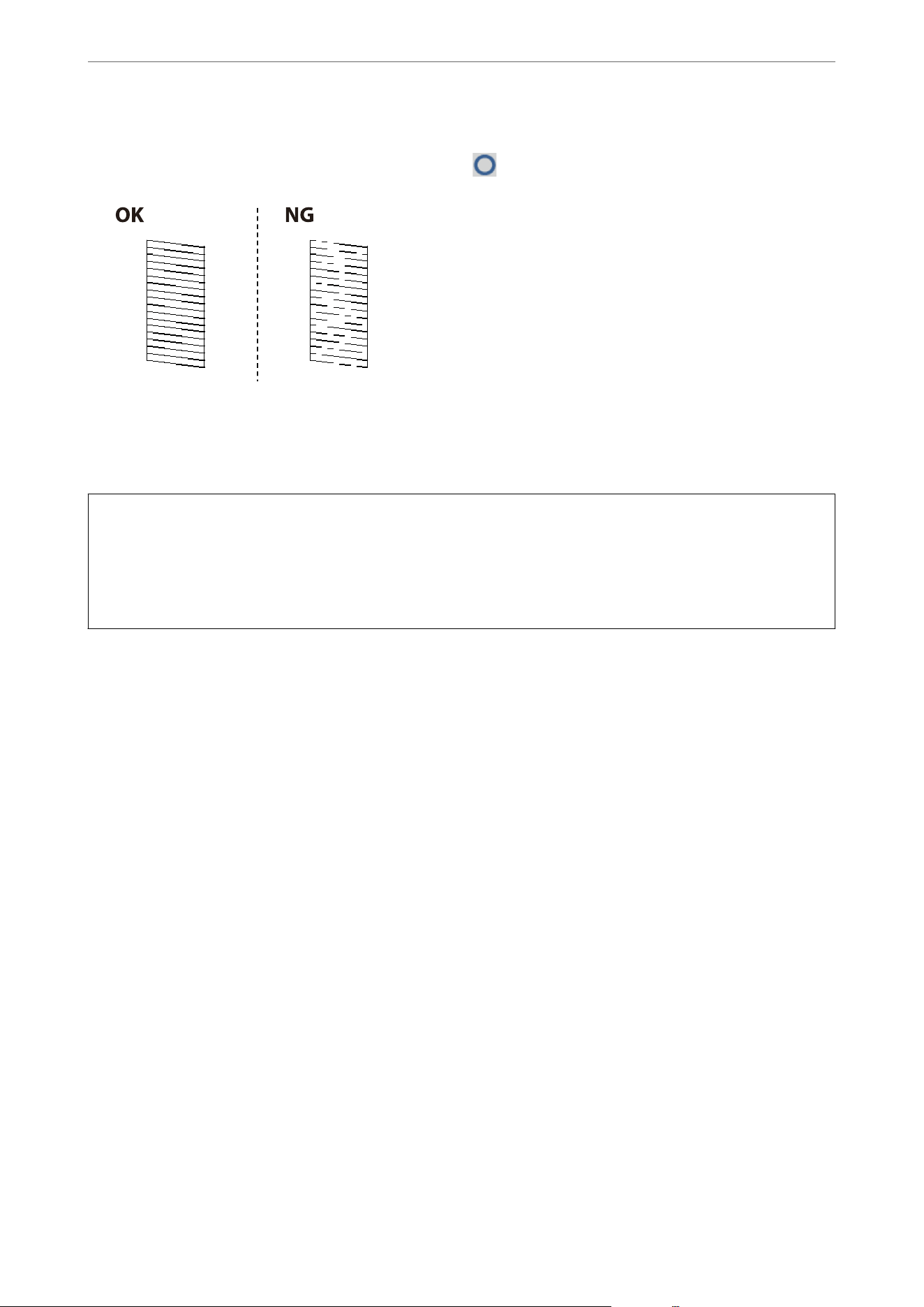
O If you cannot see any broken lines or missing segments as shown in "OK" pattern, the nozzles are not
clogged. Print head cleaning is not necessary. Select
to exit.
5. Follow the on-screen instructions to clean the print head.
6. When cleaning is nished, follow the on-screen instructions to print another nozzle check pattern. Repeat
cleaning and printing the pattern until all lines are printed completely.
c
Important:
If all nozzle check lines are not printed completely aer running a nozzle check and Cleaning alternately 3 times,
wait for at least 12 hours without printing, run the nozzle check once again, and then repeat head cleaning if
necessary. We recommend turning
o
the printer by using the
P
button. If all nozzle check lines are still not printed
completely, contact Epson support.
Note:
You can also check and clean the print head from the printer driver.
O Windows
Click Maintenance on the Maintenance tab, and then select Print Head Nozzle Check.
O Mac OS
Apple menu > System Preferences (or System Settings) > Printers & Scanners (or Print & Scan, Print & Fax) >
Epson(XXXX) > Options & Supplies > Utility > Open Printer Utility > Print Head Nozzle Check
Related Information
& “Maintenance Tab” on page 46
& “Guide to Mac OS Printer Driver” on page 235
Preventing nozzle clogging
When the power cord is unplugged or a power outage occurs while the printer is in operation, the print head may
not be capped properly. If the print head is le as it is, it will dry out and its nozzles (ink outlets) will clog. In these
cases, turn the printer on and
o
again as soon as possible to cap the print head.
Always use the power button when turning the printer on and o.
Check that the power light is o before you disconnect the power cord.
e
ink itself can dry out if it is not covered. In the same way you place a cap on a fountain pen or an oil pen to
prevent it from drying, make sure the print head is capped properly to prevent the ink from drying.
Maintaining the Printer
>
Improving Print, Copy, Scan, and Fax Quality
>
Preventing nozzle clogging
136
Aligning the Print Head
If you notice a misalignment of vertical or horizontal lines, or blurred images, align the print head.
1. Select Maintenance on the printer's control panel.
2. Select Print Head Alignment.
3. Select one of the alignment menus.
O If vertical lines look misaligned or the printouts look blurry, select Ruled Line Alignment.
O If horizontal banding occurs at regular intervals, select Horizontal Alignment.
4. Follow the on-screen instructions.
Cleaning the Paper Path for Ink Smears
When the printouts are smeared or scued, clean the roller inside.
c
Important:
Do not use tissue paper to clean the inside of the printer. e print head nozzles may be clogged with lint.
1. Select Maintenance on the printer's control panel.
2. Select Paper Guide Cleaning.
3. Select the paper source, load plain paper in the paper source you selected, and then follow the on-screen
instructions to clean the paper path.
“Loading Paper Using Instructions on the LCD screen” on page 32
Note:
Repeat this procedure until the paper is not smeared with ink. If the printouts are still smeared or scued, clean the
other paper sources.
Cleaning the Scanner Glass
When the copies or scanned images are smeared, clean the scanner glass.
!
Caution:
Be careful not to trap your hand or ngers when opening or closing the document cover. Otherwise you may be
injured.
c
Important:
Never use alcohol or thinner to clean the printer.
ese
chemicals can damage the printer.
Maintaining the Printer
>
Improving Print, Copy, Scan, and Fax Quality
>
Cleaning the Scanner Glass
137
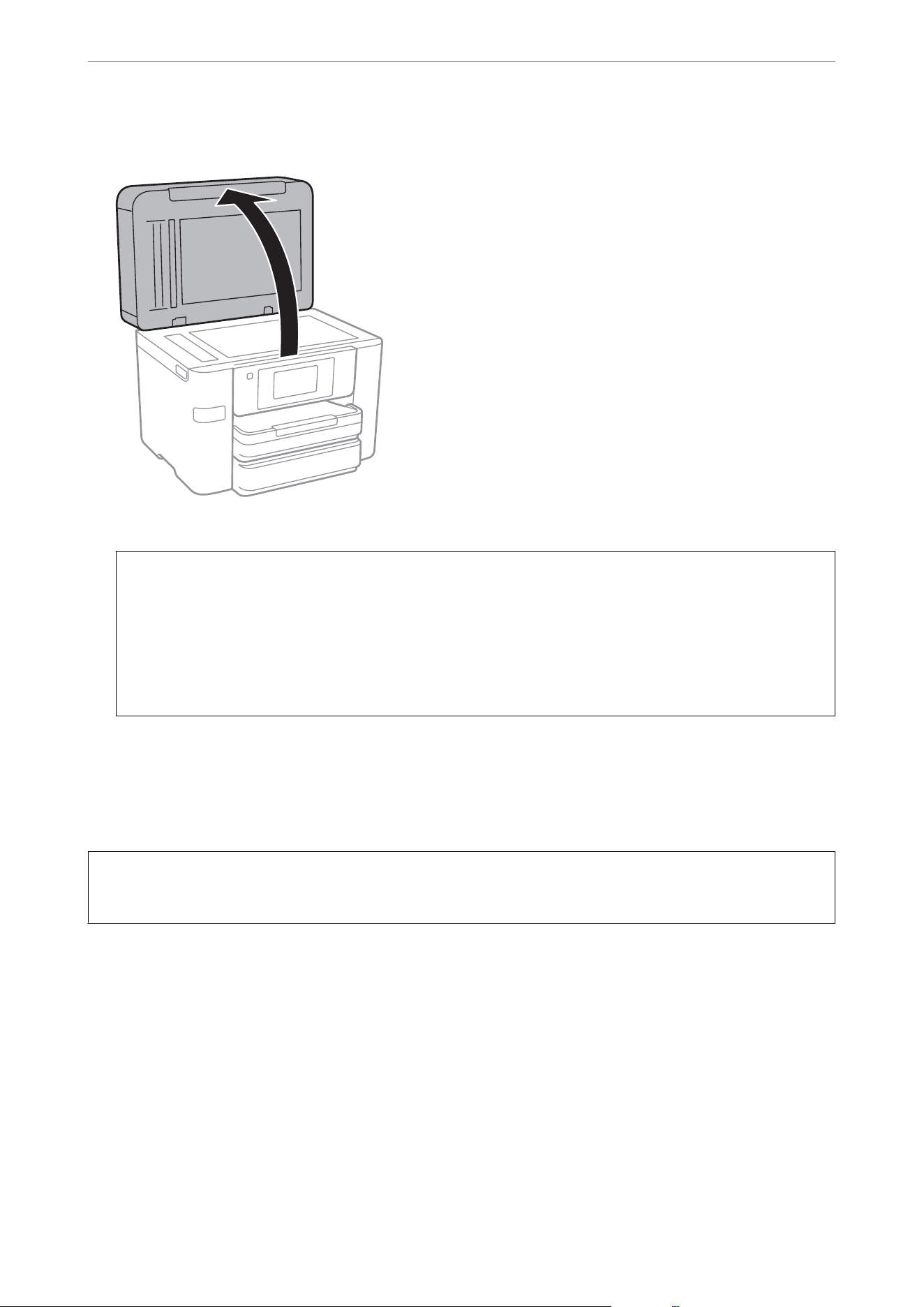
1. Open the document cover.
2. Use a so, dry, clean cloth to clean the scanner glass.
c
Important:
O If the glass surface is stained with grease or some other hard-to-remove material, use a small amount of
glass cleaner and a so cloth to remove it. Wipe o all remaining liquid.
O Do not press the glass surface too hard.
O Be careful not to scratch or damage the surface of the glass. A damaged glass surface can decrease the scan
quality.
Cleaning the ADF
When the copied or scanned images from the ADF are smeared or the originals do not feed into the ADF correctly,
clean the ADF.
c
Important:
Never use alcohol or thinner to clean the printer. ese chemicals can damage the printer.
Maintaining the Printer
>
Improving Print, Copy, Scan, and Fax Quality
>
Cleaning the ADF
138
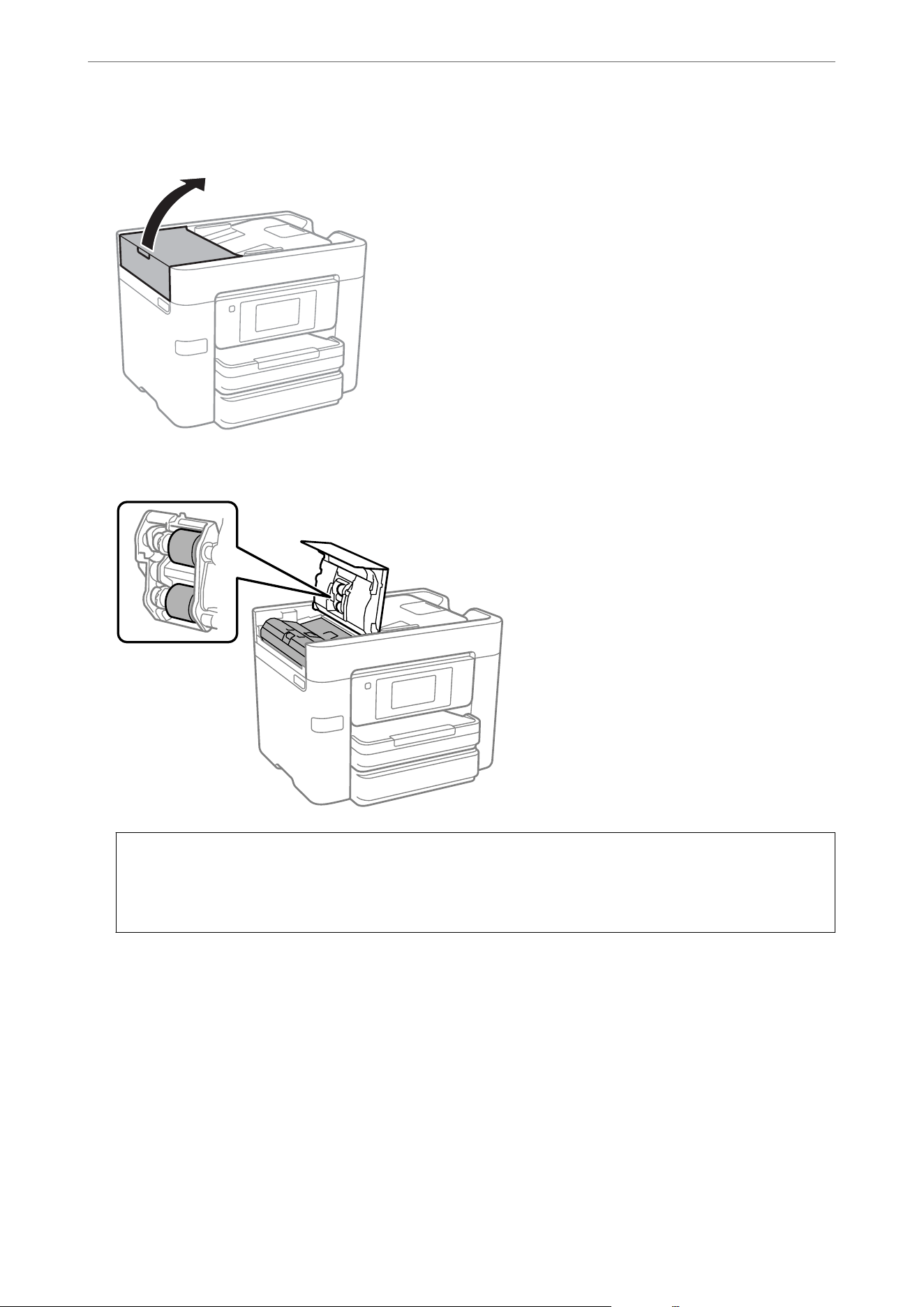
1. Open the ADF cover.
2. Use a so, damp cloth to clean the roller and the interior of the ADF.
c
Important:
O Using a dry cloth may damage the surface of the roller.
O Do not use the ADF untill the roller has dried.
Maintaining the Printer
>
Improving Print, Copy, Scan, and Fax Quality
>
Cleaning the ADF
139
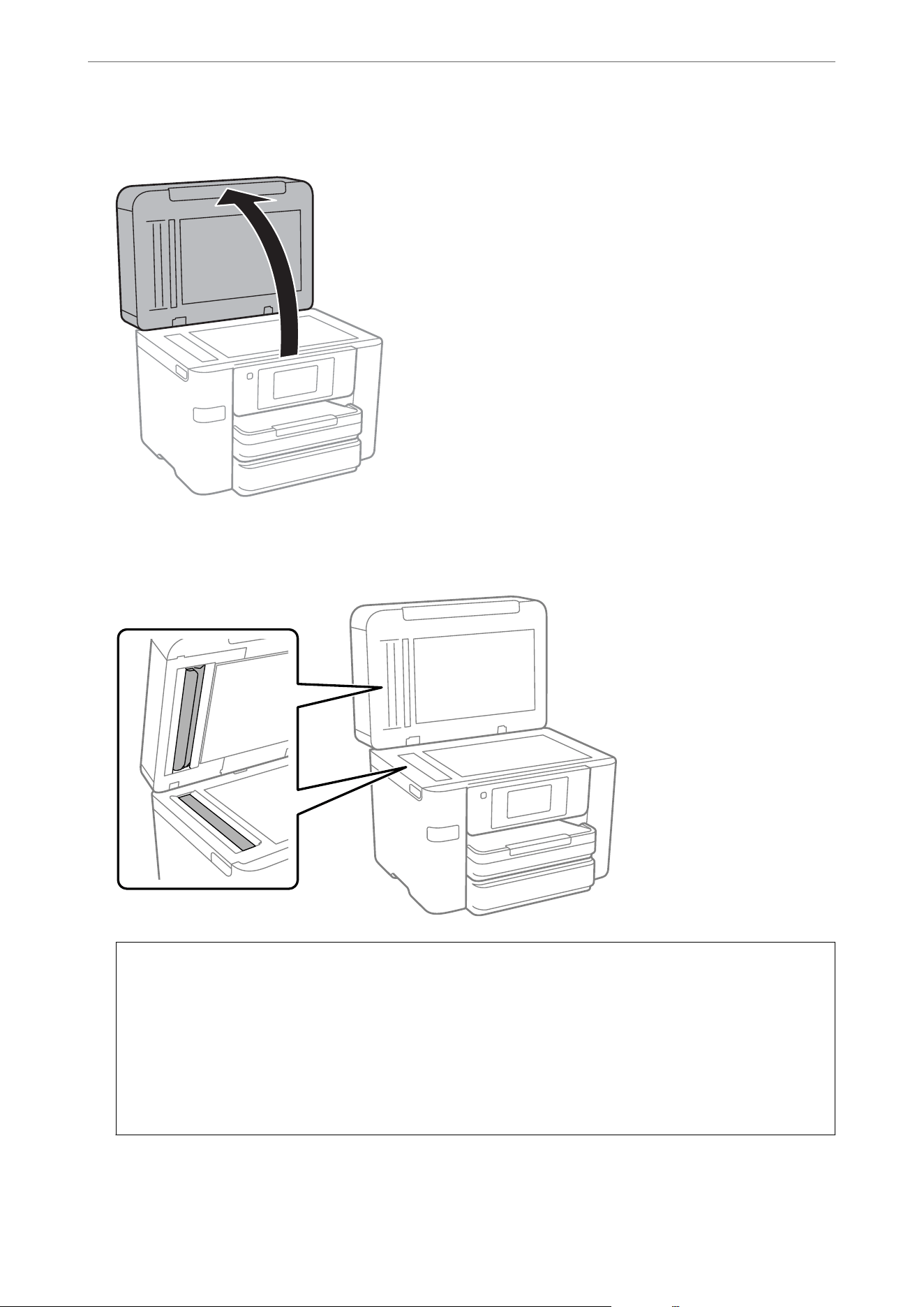
3. Close the ADF cover, and then open the document cover.
4. Use the damp cloth to clean the area shown in the illustration.
Repeat cleaning until there is no dirt remaining.
c
Important:
O Aer cleaning o the dirt, wipe o all remaining liquid.
O If the glass surface is stained with grease or some other hard-to-remove material, use a small amount of
glass cleaner and a so cloth to remove it.
O Do not press the glass surface too hard.
O Be careful not to scratch or damage the surface of the glass. A damaged glass surface can decrease the scan
quality.
Maintaining the Printer
>
Improving Print, Copy, Scan, and Fax Quality
>
Cleaning the ADF
140
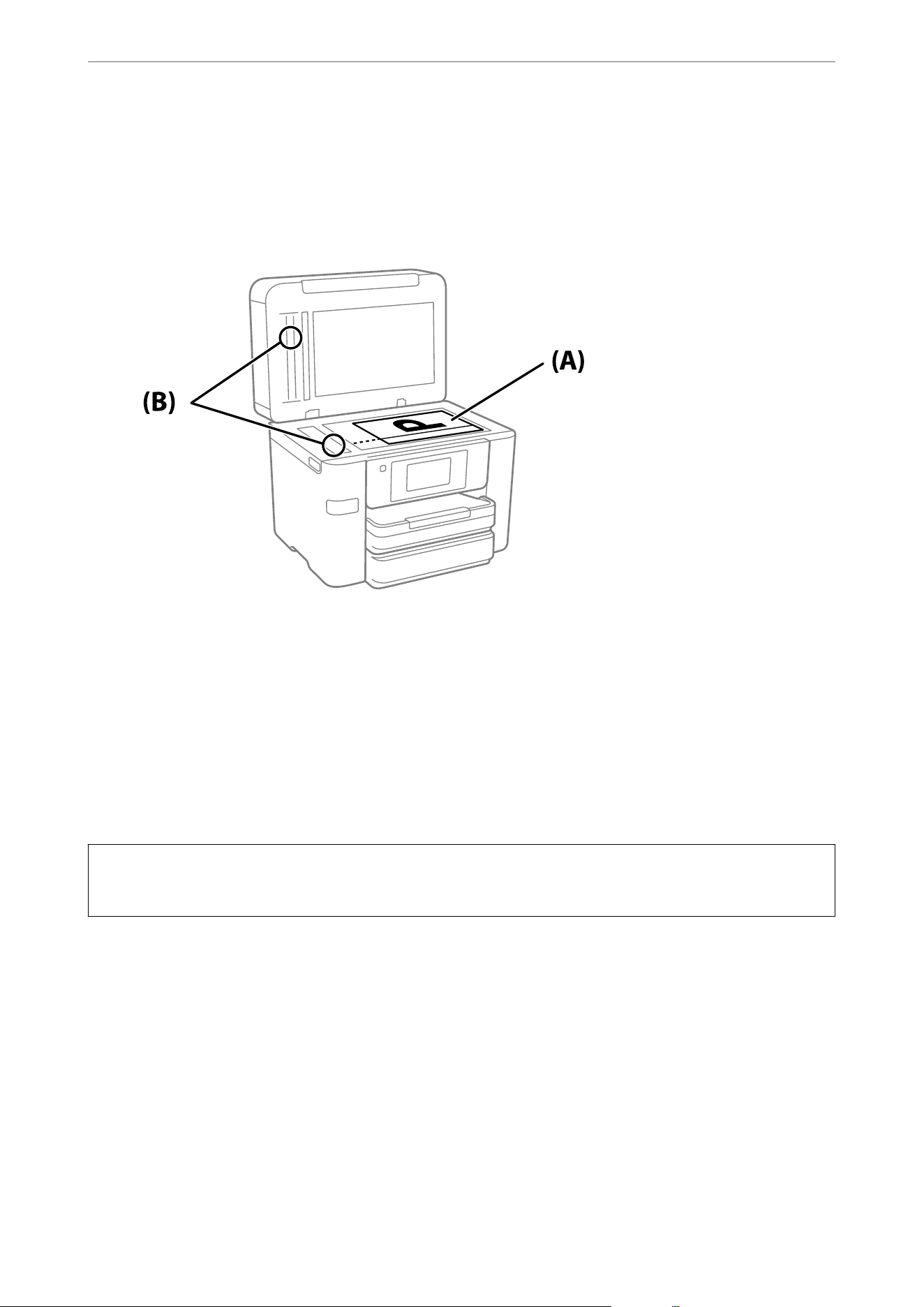
Note:
If a black line appears when copying from the ADF, location (B) shown in the illustration below may be dirty.
Place the copy on the scanner glass and wipe away any dirt on the surface of the glass at the point extending from where
the black line appears in the copy. Be sure to wipe the same point on the opposite surface as well.
(A) Copy result where the black line appears, (B) dirty glass areas
Cleaning the Translucent Film
When the printout is not improved aer aligning the print head or cleaning the paper path, the translucent lm
inside the printer may be smeared.
Items required:
O Cotton swabs (several)
O Water with a few drops of detergent (2 to 3 drops of detergent in 1/4 cup of tap water)
O Light for checking smears
c
Important:
Do not use cleaning liquid other than water with a few drops of detergent.
1.
Tur n
o
the printer by pressing the
P
button.
Maintaining the Printer
>
Improving Print, Copy, Scan, and Fax Quality
>
Cleaning the Translucent Film
141
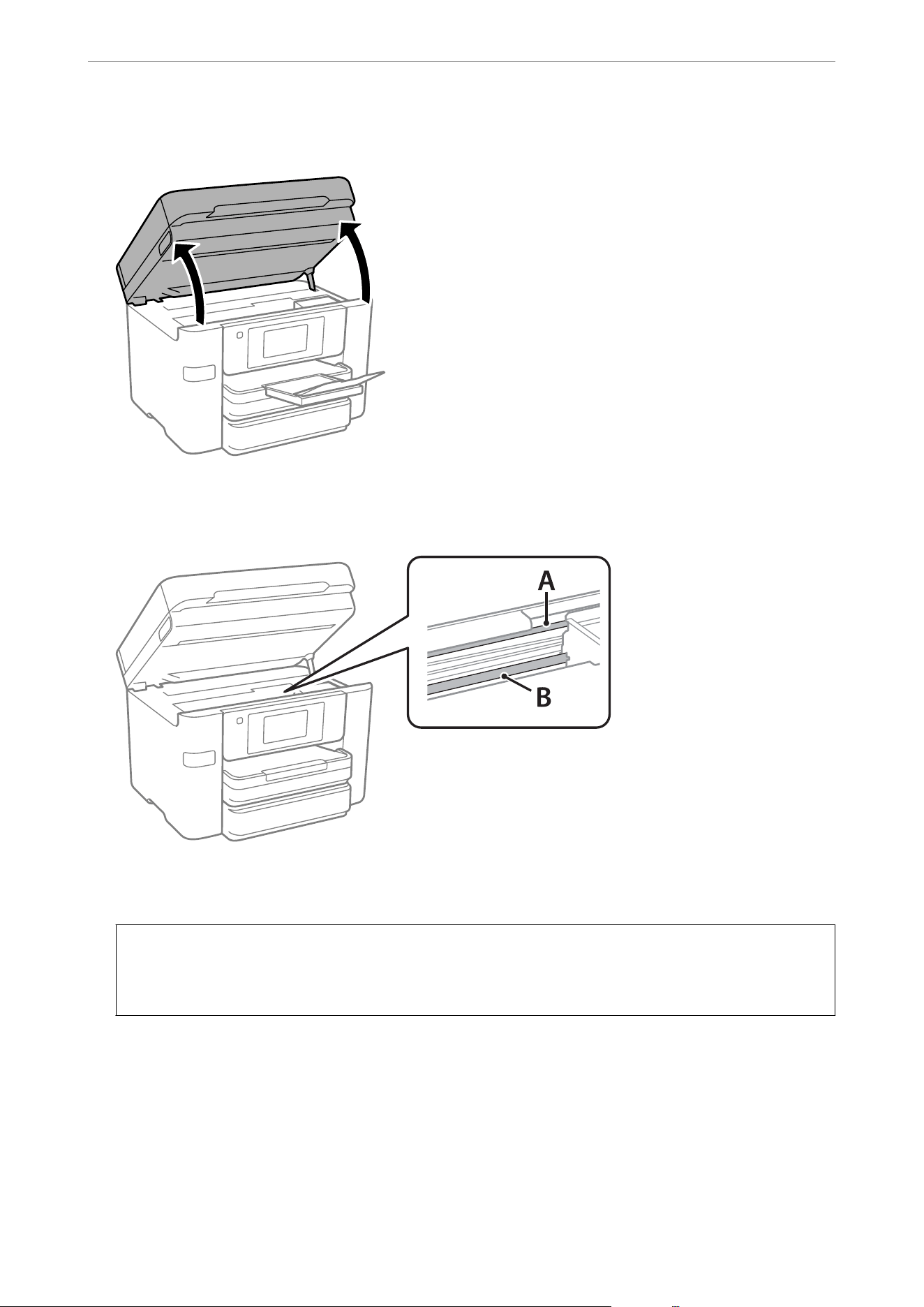
2. Open the scanner unit.
3. Check if the translucent lm is smeared. Smears are easier to see if you use a light.
If there are smears (such as nger marks or grease) on the translucent lm (A), go to the next step.
A: Translucent lm
B: Rail
c
Important:
Be careful not to touch the rail (B). Otherwise, you may not be able to print. Do not wipe o the grease on the
rail, because the printer needs this to function properly.
Maintaining the Printer
>
Improving Print, Copy, Scan, and Fax Quality
>
Cleaning the Translucent Film
142
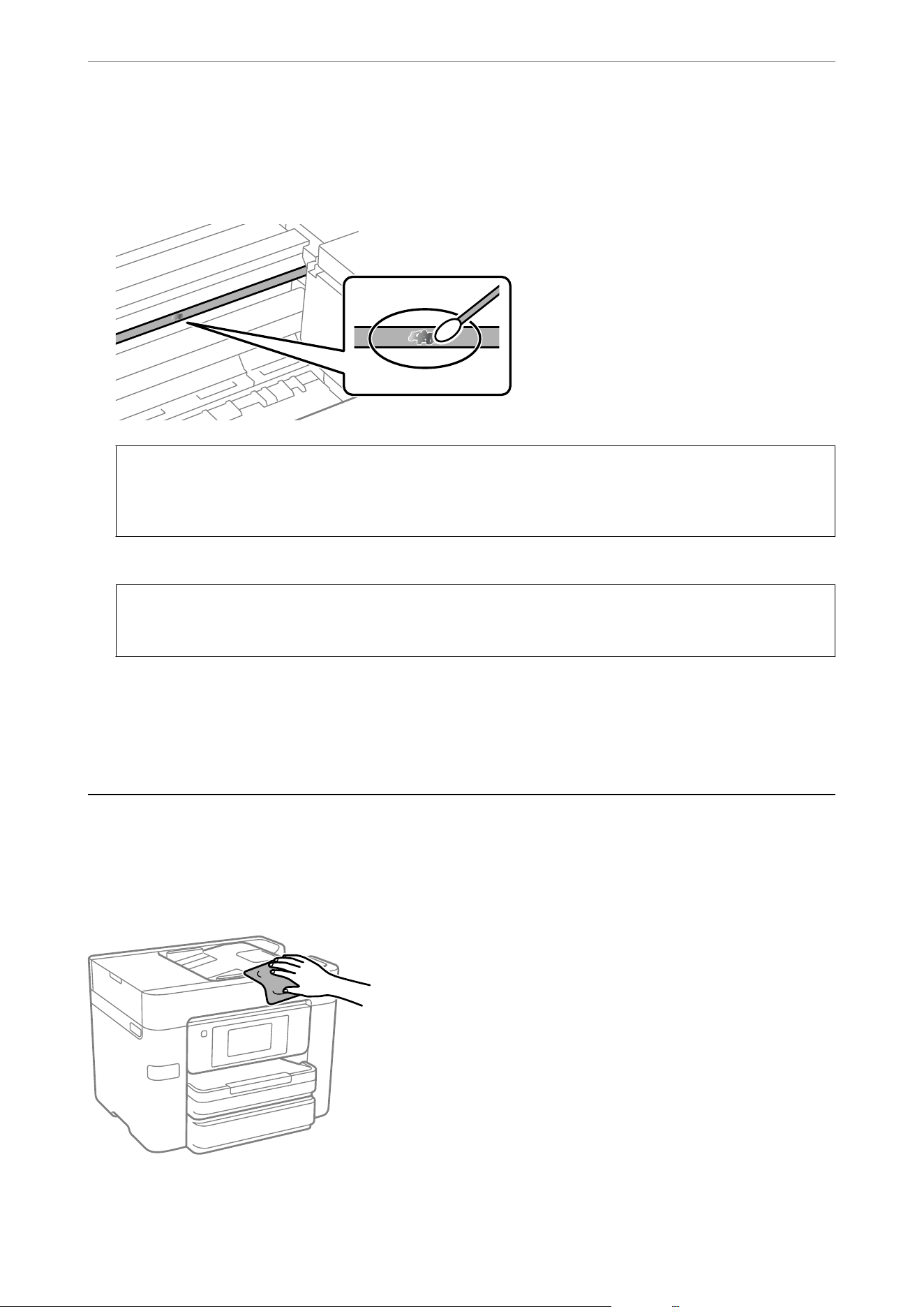
4. Dampen a cotton swab with the water and detergent mix, make sure it is not dripping water, and then wipe the
smeared area.
Be careful not to touch any ink that has collected inside the printer.
c
Important:
Wipe o the smear gently. If you press the cotton swab too hard against the lm, the springs of the lm may be
dislocated and the printer may be damaged.
5. Use a new dry cotton swab to wipe the lm again.
c
Important:
Do not leave any bers on the lm.
Note:
To prevent the smear from spreading, frequently replace the cotton swab with a new one.
6. Repeat steps 4 and 5 until you can visually conrm that the lm is not smeared.
Cleaning the Printer
If the components and the case are dirty or dusty, turn o the printer and clean them using a so, clean cloth that
has been dampened with water. If you cannot remove the dirt, try adding a small amount of mild detergent to the
damp cloth.
Maintaining the Printer
>
Cleaning the Printer
143
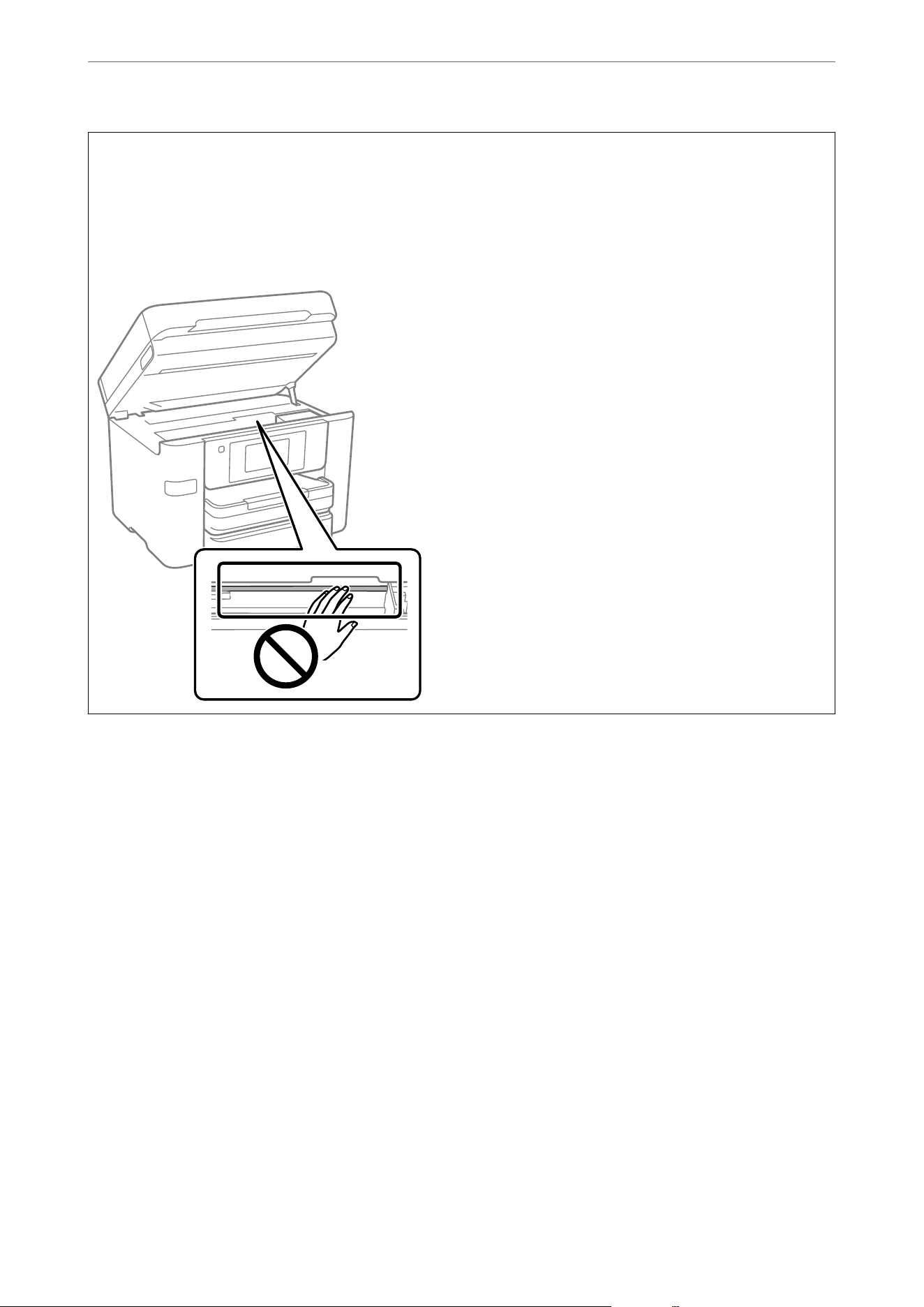
c
Important:
O Be careful not to get water onto the printer mechanism or any electrical components. Otherwise, the printer
could be damaged.
O Never use alcohol or thinner to clean the printer. ese chemicals can damage the printer.
O Do not touch the parts shown in the following illustration. Doing so may cause a malfunction.
Maintaining the Printer
>
Cleaning the Printer
144

In These Situations
When Replacing a Computer.........................................146
Installing or Uninstalling Applications Separately..........................146
Conguring Settings for Connecting to the Computer.......................151
Adjusting Settings When Connecting to a Mobile Device.................... 151
Checking the Printer's Network Connection Status (Network Connection Report). . 152
Connecting a Device and Printer Directly (Wi-Fi Direct).................... 152
Adding or Changing the Printer's Connection.............................156
Using a Printer with the Access Control Feature Enabled.....................158
Transporting and Storing the Printer...................................160

When Replacing a Computer
You need to install the printer driver and other soware on the new computer.
U.S. and Canada
Access the following website and search for your product. Download and run your product's soware package,
then follow the instructions on the computer screen to run the setup program.
https://support.epson.com
Other Regions
Access the following website, and then enter the product name. Go to Setup, and then start setting up. Follow the
on-screen instructions.
https://epson.sn
Installing or Uninstalling Applications Separately
Connect your computer to the network and install the latest versions of applications from the website. Log in to
your computer as an administrator. Enter the administrator password if the computer prompts you.
Installing the Applications Separately
Note:
O When reinstalling an application, you need to uninstall it rst.
O You can download the latest applications from the Epson website.
https://www.epson.com
O If you use Windows Server operating systems, you cannot use Epson Soware Updater. Download the latest applications
from the Epson website.
1.
Make sure the printer and the computer are available for communication, and the printer is connected to the
Internet.
In These Situations
>
Installing or Uninstalling Applications Separately
>
Installing the Applications Separately
146
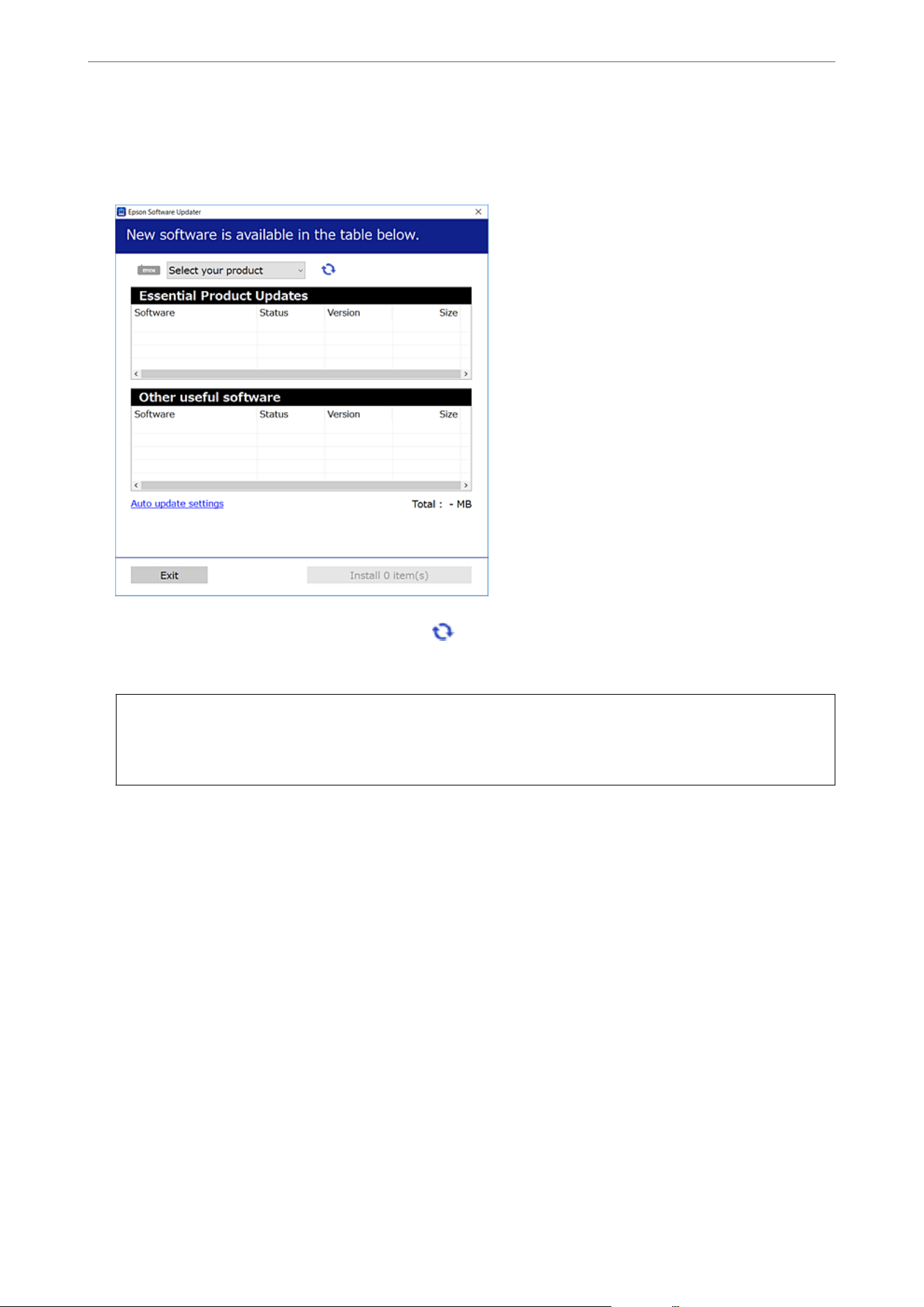
2. Start Epson Soware Updater.
e screenshot is an example from Windows.
3. For Windows, select your printer, and then click to check for the latest available applications.
4. Select the items you want to install or update, and then click the install button.
c
Important:
Do not turn o or unplug the printer until the update is complete. Doing so may result in malfunction of the
printer.
Related Information
& “Application for Updating Soware and Firmware (Epson Soware Updater)” on page 239
& “Uninstalling Applications” on page 149
Checking if a genuine Epson printer driver is installed - Windows
You can check if a genuine Epson printer driver is installed on your computer by using one of the following
methods.
O Windows 11/Windows Server 2025
Click on the start button, select Settings > Bluetooth & devices > Printers & scanners, and then click Print
server properties under Related settings.
In These Situations
>
Installing or Uninstalling Applications Separately
>
Installing the Applications Separately
147
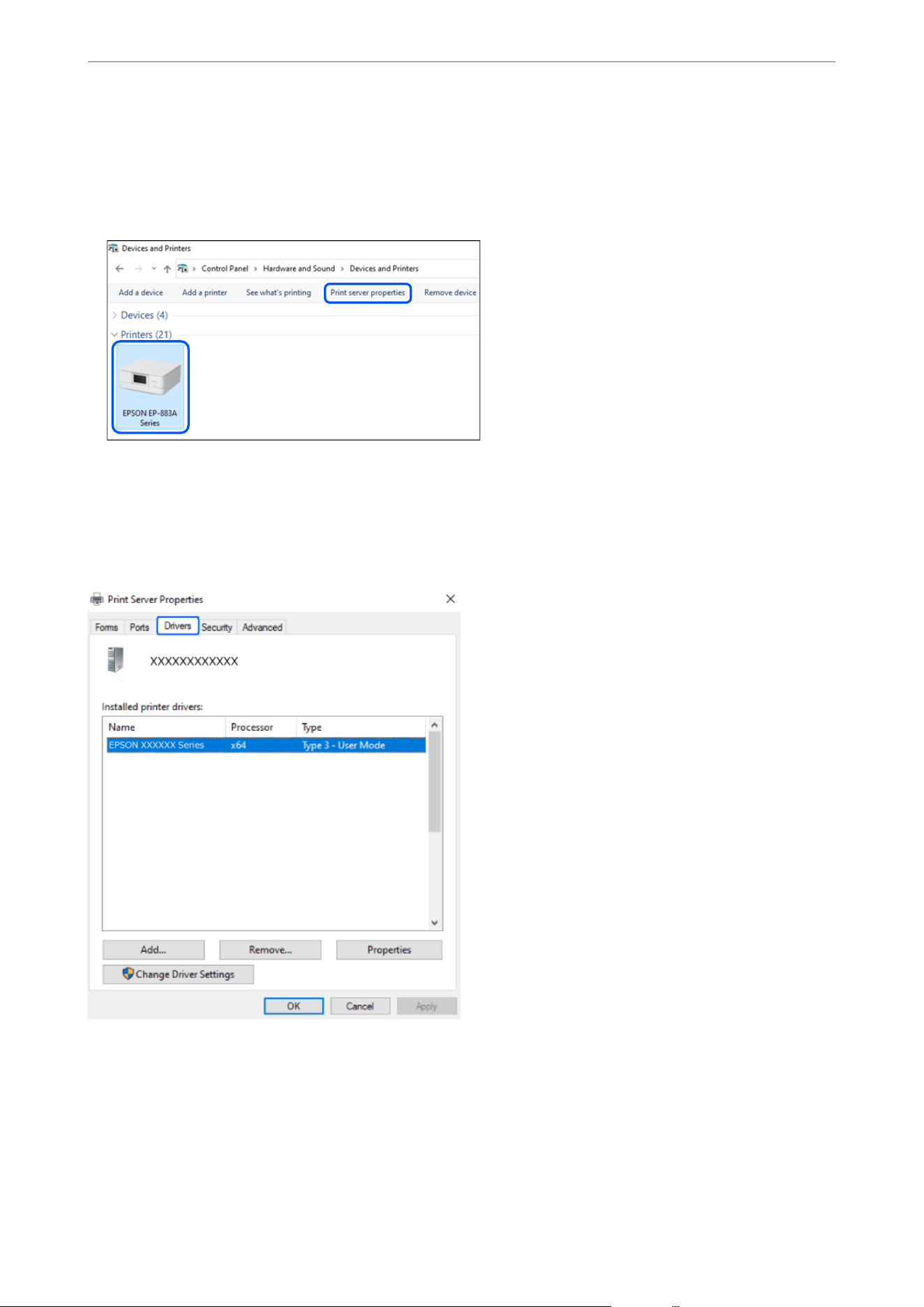
O Windows 10/Windows 8.1/Windows 7/Windows Server 2022/Windows Server 2019/Windows Server 2016/
Windows Server 2012 R2/Windows Server 2008 R2
Select Control Panel > View devices and printers (Printers, Printers and Faxes) in Hardware and Sound,
click the printer icon, and then click Print server properties at the top of the window.
O Windows Server 2008
Right-click on the Printers folder, and then click Run as administrator > Server Properties.
Click the Drivers tab. If your printer name is displayed in the list, a genuine Epson printer driver is installed on
your computer.
Related Information
& “Installing the Applications Separately” on page 146
Checking if a genuine Epson printer driver is installed - Mac OS
You can check if a genuine Epson printer driver is installed on your computer by using the following method:
In These Situations
>
Installing or Uninstalling Applications Separately
>
Installing the Applications Separately
148
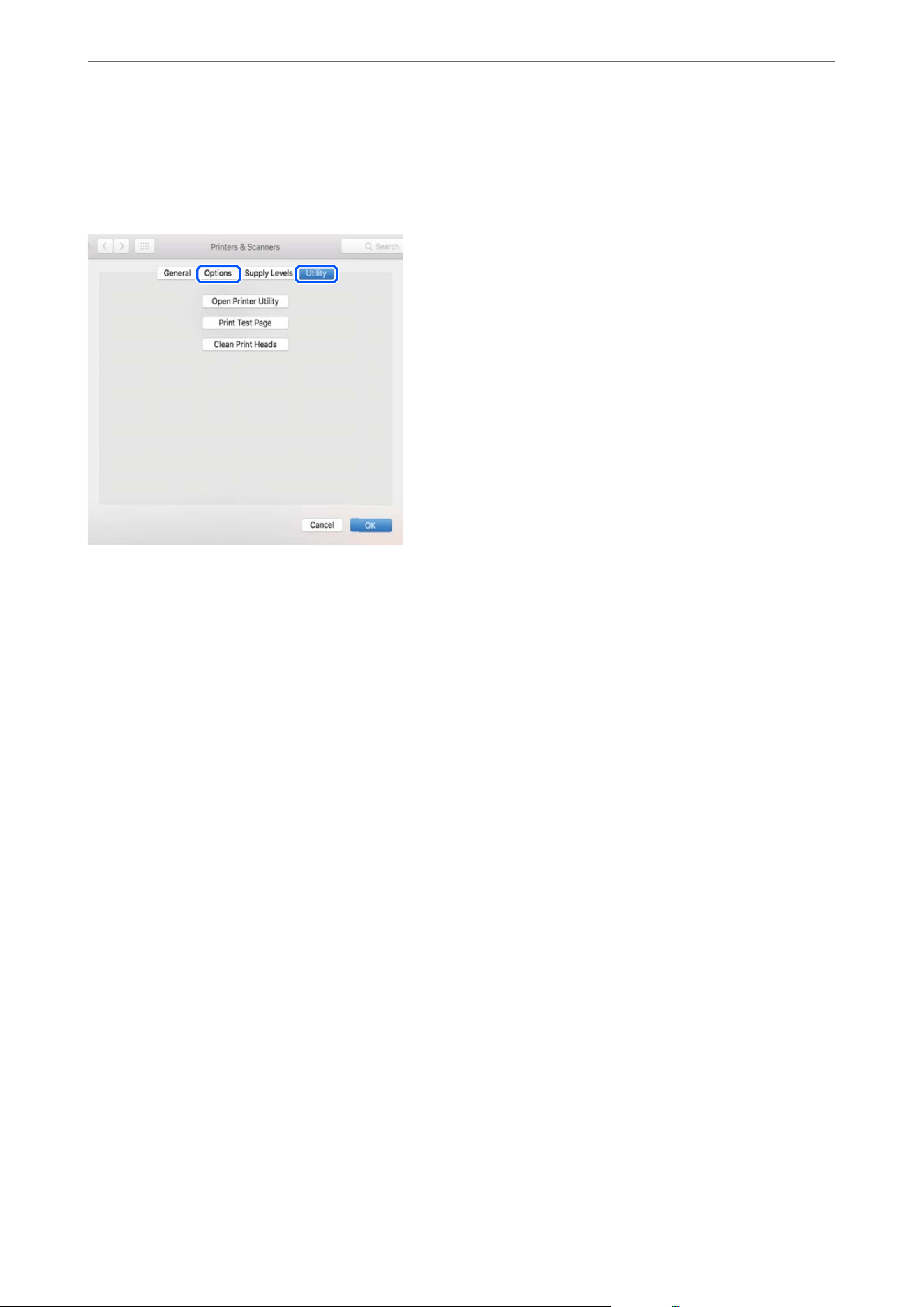
Select the Apple menu > System Preferences (or System Settings) > Printers & Scanners (or Print & Scan or
Print & Fax), and then select the printer. If the Options and Utility tabs are displayed when you click Options &
Supplies, and an Open Printer Utility button is displayed when you click the Utility tab, then a genuine Epson
printer driver is already installed on your computer.
Related Information
& “Installing the Applications Separately” on page 146
Adding a Genuine Epson Printer (for Mac OS Only)
1. Select System Preferences from the Apple menu > Printers & Scanners (or Print & Scan, Print & Fax).
2. Click +, and then select your printer on the screen displayed.
3. Do one of the following:
O macOS Monterey (12.x) or later
Click Select
Soware
from Use, select your printer on the screen displayed, and then click OK.
O Mac OS X Mavericks (10.9) through macOS Big Sur (11.x)
Select your printer from Use.
4. Click Add.
Note:
If your printer is not listed, check that it is correctly connected to the computer and that the printer is on.
Uninstalling Applications
Log in to your computer as an administrator. Enter the administrator password if the computer prompts you.
In These Situations
>
Installing or Uninstalling Applications Separately
>
Uninstalling Applications
149

Uninstalling Applications - Windows
1. Press the
P
button to turn
o
the printer.
2. Quit all running applications.
3. Open Control Panel:
O Windows 11/Windows Server 2025
Click on the start button, and then select All apps > Windows Tools > Control Panel.
O Windows 10/Windows Server 2022/Windows Server 2019/Windows Server 2016
Click on the start button, and then select Windows System > Control Panel.
O Windows 8.1/Windows Server 2012 R2
Select Desktop > Settings > Control Panel.
O Windows 7/Windows Server 2008 R2/Windows Server 2008
Click the start button and select Control Panel.
4. Open Programs and select Uninstall a program (or Add or Remove Programs).
5. Select the application you want to uninstall.
You cannot uninstall the printer driver if there are any print jobs. Delete print jobs or wait for them to nish
before uninstalling.
6. Click Uninstall/Change or Uninstall.
Note:
If the User Account Control window is displayed, click Continue.
7. Follow the on-screen instructions.
Uninstalling Applications - Mac OS
1. Download the Uninstaller using EPSON Soware Updater.
Once you have downloaded the Uninstaller, you do not need to download it again each time you uninstall the
application.
2. Press the
P
button to turn o the printer.
3. To uninstall the printer driver or PC-FAX driver, select System Preferences from the Apple menu > Printers &
Scanners (or Print & Scan, Print & Fax), and then remove the printer from the enabled printers list.
4. Quit all running applications.
5. Select Go > Applications > Epson Soware > Uninstaller.
In These Situations
>
Installing or Uninstalling Applications Separately
>
Uninstalling Applications
150
6. Select the application you want to uninstall, and then click Uninstall.
c
Important:
e Uninstaller removes all drivers for Epson inkjet printers on the computer. If you use multiple Epson inkjet
printers and you only want to delete some drivers, delete all of them rst, and then install the necessary printer
driver again.
Note:
If you cannot nd the application you want to uninstall in the application list, you cannot uninstall using the
Uninstaller. In this situation, select Go > Applications > Epson Soware, select the application you want to uninstall,
and then drag it to the trash icon.
Related Information
& “Application for Updating
Soware
and Firmware (Epson
Soware
Updater)” on page 239
Conguring Settings for Connecting to the Computer
U.S. and Canada
Access the following website and search for your product. Download and run your product's soware package,
then follow the instructions on the computer screen to run the setup program.
https://epson.com/support
Other Regions
Access the following website, and then enter the product name. Go to Setup , and then start setting up.
https://epson.sn
You can also watch the procedure in the Web Video Manuals. Access the following website.
https://support.epson.net/publist/vlink.php?code=VM00016
To congure a shared printer on the network, select a printer found on the network and begin conguration.
Adjusting Settings When Connecting to a Mobile
Device
You can use the printer from your mobile device when they are connected to the same wireless network.
U.S. and Canada
Make sure you have the following.
O A mobile device that is connected to the wireless network, has Bluetooth enabled, and has the Epson Smart
Panel app installed (Epson Smart Panel is available for iOS and Android devices.)
O e wireless network name (SSID) and password
Note:
Your mobile device must be close enough to the printer to create and maintain a Bluetooth connection.
In These Situations
>
Adjusting Settings When Connecting to a Mobile Device
151

1. Make sure the product is turned on and ready to print.
Note:
You must perform initial setup and ink installation before setting up wireless printing
2. Open the Epson Smart Panel app.
3. Do one of the following.
O If the app automatically recognizes the product, follow the on-screen instructions to set up the wireless
connection.
O If the app does not automatically recognize the product, select the + icon, select the option to set up a new
product, and follow the on-screen instructions.
Other Regions
To set up a new connection, access the following website from the mobile device that you want to connect to the
printer. Enter the product name, go to Setup, and then start the setup.
https://epson.sn
You can watch the procedure in the Web Video Manuals. Access the following website.
https://support.epson.net/publist/vlink.php?code=VM00017
Note:
If you have already set up the connection between your mobile device and the printer but need to recongure it, you can do
so from an app such as Epson Smart Panel.
Checking the Printer's Network Connection Status
(Network Connection Report)
You can print a report to check the status of the network connection between the printer and the router.
1. Select Settings on the home screen.
2.
Select General Settings > Network Settings > Connection Check.
e connection check starts.
3. Follow the instructions on the printer's screen to print the network connection report.
If an error has occurred, check the network connection report and review the possible causes and solutions.
Related Information
& “Messages and Solutions on the Network Connection Report” on page 292
Connecting a Device and Printer Directly (Wi-Fi Direct)
Wi-Fi Direct (Simple AP) allows you to connect a device directly to the printer without a wireless router and print
from the device.
In These Situations
>
Connecting a Device and Printer Directly (Wi-Fi Direct)
152
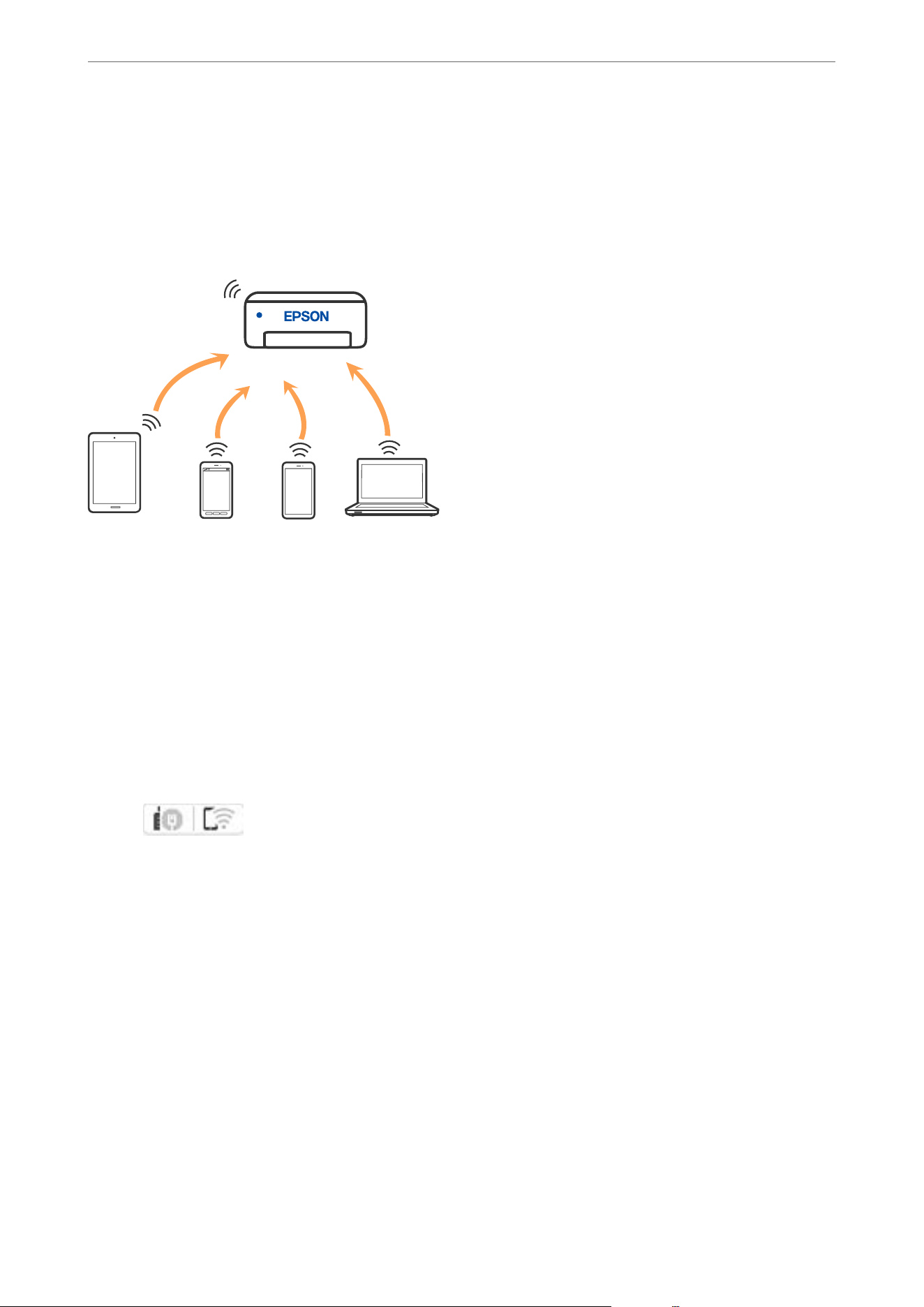
About Wi-Fi Direct
Use this connection method when you are not using Wi-Fi at home or at the oce, or when you want to connect
mobile devices or computers to the printer directly. In this mode, the printer acts as a wireless router and you can
connect the devices to the printer without having to use a standard wireless router, but devices directly connected
to the printer cannot communicate with each other.
e printer can be connected via a Wi-Fi Direct (Simple AP) connection and either a Wi-Fi(Infrastructure) or
Ethernet connection simultaneously.
Connecting to Devices using Wi-Fi Direct
is method allows you to connect the printer directly to devices without a wireless router.
Note:
For iOS or Android users, it is convenient to set up from Epson Smart Panel.
You only need to congure these settings for the printer and the device that you want to connect to once. Unless you disable
Wi-Fi Direct or restore the network settings to their defaults, you do not need to congure these settings again.
1. Tap on the home screen.
2. Tap Wi-Fi Direct.
3.
Tap Start Setup.
In These Situations
>
Connecting a Device and Printer Directly (Wi-Fi Direct)
>
Connecting to Devices using Wi-F
…
153
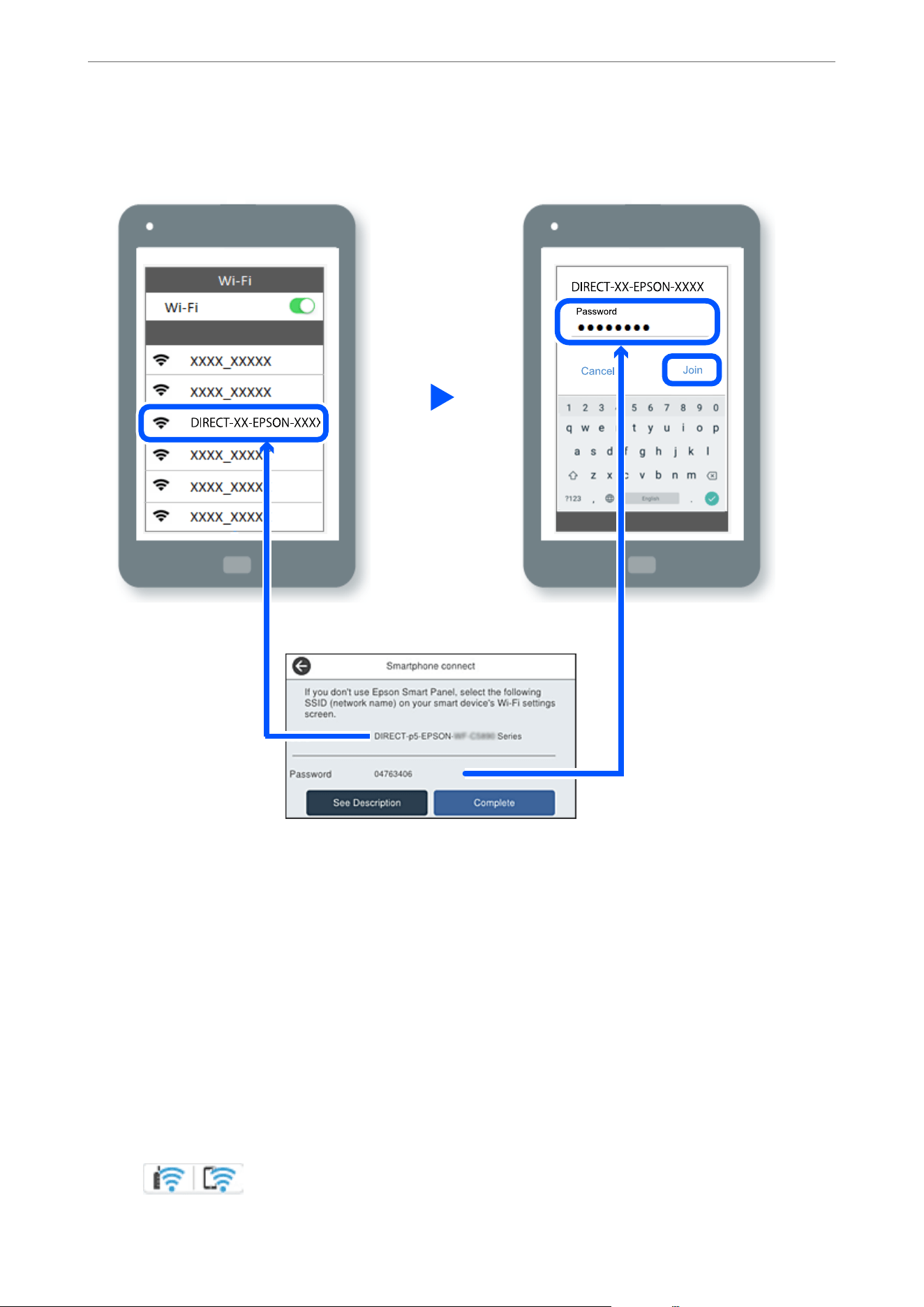
4. Scroll down the printer screen to display the SSID and password required to set up the connection. On your
device, select the same SSID and enter the password.
5.
On the device's printing app screen, select the printer that you want to connect to.
6. On the printer's control panel, select Complete.
For devices that have been connected to the printer before, select the network name (SSID) on the device's Wi-Fi
screen to connect them again.
Disconnecting a Wi-Fi Direct (Simple AP) Connection
Note:
When Wi-Fi Direct (Simple AP) is disabled, all computers and mobile devices connected to the printer in Wi-Fi Direct
(Simple AP) connection are disconnected. If you want to disconnect a specic device, disconnect from the device instead of
the printer.
1. Tap on the printer's home screen.
In These Situations
>
Connecting a Device and Printer Directly (Wi-Fi Direct)
>
Disconnecting a Wi-Fi Direct (Sim
…
154

2. Select Wi-Fi Direct.
e Wi-Fi Direct information is displayed.
3. Tap Start Setup.
4. Tap
.
5.
Select Disable Wi-Fi Direct.
6. Tap the Disable the settings.
7. Follow the on-screen instructions.
Changing Wi-Fi Direct (Simple AP) Settings
When Wi-Fi Direct (simple AP) is enabled, you can change the settings from > Wi-Fi Direct >
Start Setup >
, and then the following menu items are displayed.
Change Network Name
Change the Wi-Fi Direct (simple AP) network name (SSID) to a name of your choice. You can enter the network
name (SSID) using ASCII characters displayed on the soware keyboard on the control panel.
When changing the network name (SSID), all connected devices are disconnected. Use the new network name
(SSID) if you want to reconnect the devices.
Change Password
Change the Wi-Fi Direct (simple AP) password to a password of your choice. You can enter the password using
ASCII characters displayed on the
soware
keyboard on the control panel.
When changing the password, all connected devices are disconnected. Use the new password if you want to
reconnect the devices.
Change Frequency Range
Change the Wi-Fi Direct frequency range. You can select 2.4 GHz or 5 GHz.
When changing the frequency range, all connected devices are disconnected. Reconnect the devices.
Note that you can only reconnect devices that support the 5 GHz frequency range when changing to 5 GHz.
Disable Wi-Fi Direct
Disable the printer's Wi-Fi Direct (simple AP) feature. When you do this, all devices connected to the printer in
Wi-Fi Direct (Simple AP) connection are disconnected.
Restore Default Settings
Restore all Wi-Fi Direct (simple AP) settings to their defaults.
Any saved Wi-Fi Direct (simple AP) connection information about connected devices is deleted.
In These Situations
>
Connecting a Device and Printer Directly (Wi-Fi Direct)
>
Changing Wi-Fi Direct (Simple AP)
…
155
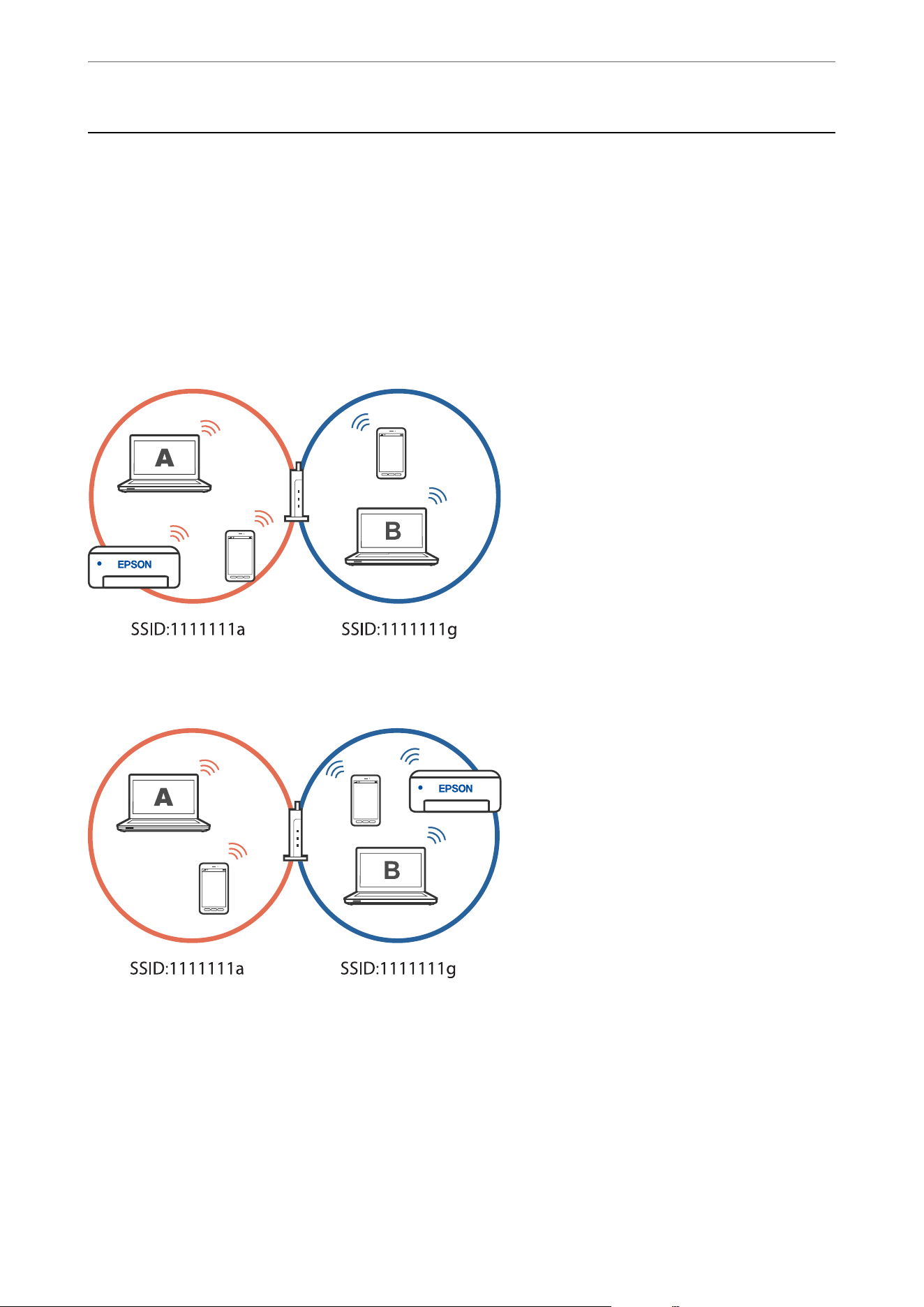
Adding or Changing the Printer's Connection
To Set Up a Printer on Multiple Computers
Although several computers can be connected to the same wireless router, each computer may be assigned a
dierent SSID.
If the SSIDs assigned by the wireless router are not handled as the same network, then each computer is
eectively
connected to a dierent network. When you start setting up the printer from computer A, the printer is added to
the same network as computer A allowing computer A to print from it.
Furthermore, if you start setting up the printer from computer B in the conguration shown above, the printer is
set up on computer B's network allowing computer B to print but not computer A.
To prevent this from happening, when you want to connect the printer to a second computer, make sure the
second computer is on the same network as the printer before you begin setup.
Changing the Connection from Wi-Fi to USB
Follow the steps below if the Wi-Fi you are using is unstable, or if you want to change to a more stable USB
connection.
1. Connect the printer to a computer using a USB cable.
In These Situations
>
Adding or Changing the Printer's Connection
>
Changing the Connection from Wi-Fi to USB
156
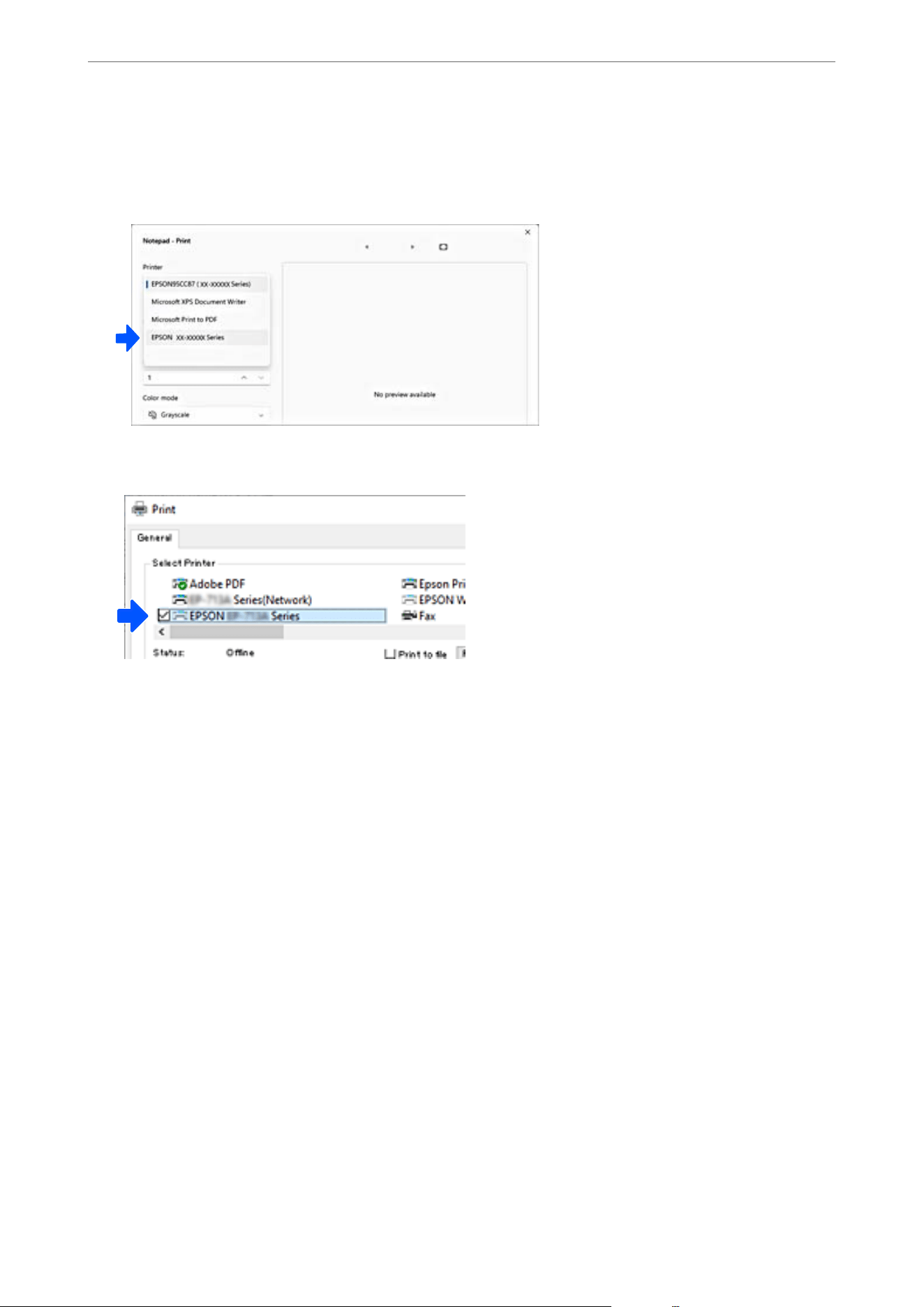
2. When you print, select the printer whose name does not end with "(Network)" or the printer name in
parentheses.
Example of Windows 11
Example of Windows 10
Related Information
& “Rear” on page 22
Changing the Connection from Wi-Fi to Wired LAN
If the Wi-Fi you are using is unstable, or if you want to change to a more stable wired LAN connection, follow
these instructions.
1.
Select Settings on the home screen.
2. Select General Settings > Network Settings > Connection Settings > Ethernet.
3. Follow the guide to connect the LAN cable.
Setting a Static IP Address for the Printer
is section describes how to select settings from the printer's control panel.
1. Select Settings on the printer's home screen.
2. Select General Settings > Network Settings > Advanced > TCP/IP.
3.
Select Obtain IP Address, and then select Manual.
In These Situations
>
Adding or Changing the Printer's Connection
>
Setting a Static IP Address for the Printer
157

4. Enter the IP address.
You can change the highlighted part of the segment by selecting
l
and
r
.
Make sure you see the IP address under Obtain IP Address.
5. Set up the Subnet Mask and Default Gateway.
Make sure you see the Subnet Mask and Default Gateway.
c
Important:
If the combination of the IP Address, Subnet Mask and Default Gateway is incorrect, you cannot proceed with
the settings. Conrm that there is no error in the entry.
6.
Enter the IP address for the primary DNS server.
Make sure you see the Primary DNS.
Note:
When you select Auto for the IP address assignment settings, you can select the DNS server settings from Manual or
Auto. If you cannot obtain the DNS server address automatically, select Manual and enter the DNS server address.
en, enter the secondary DNS server address directly. If you select Auto, go to step 8.
7. Enter the IP address for the secondary DNS server.
Make sure you see the Secondary DNS.
8.
Tap Start Setup.
Using a Printer with the Access Control Feature
Enabled
When you see on the printer’s control panel, users are restricted by the printer administrator.
In this situation, users cannot make changes to printer settings and cannot use some of the printer's features. You
need to log in to the printer to use it.
Logging on to the Printer from the Control Panel
is gives instructions for logging in to the printer with the panel lock and access control features enabled and
when one or more users are registered. e content displayed on the screens varies depending on the model and
situation, and region.
In These Situations
>
Using a Printer with the Access Control Feature Enabled
>
Logging on to the Printer from t
…
158
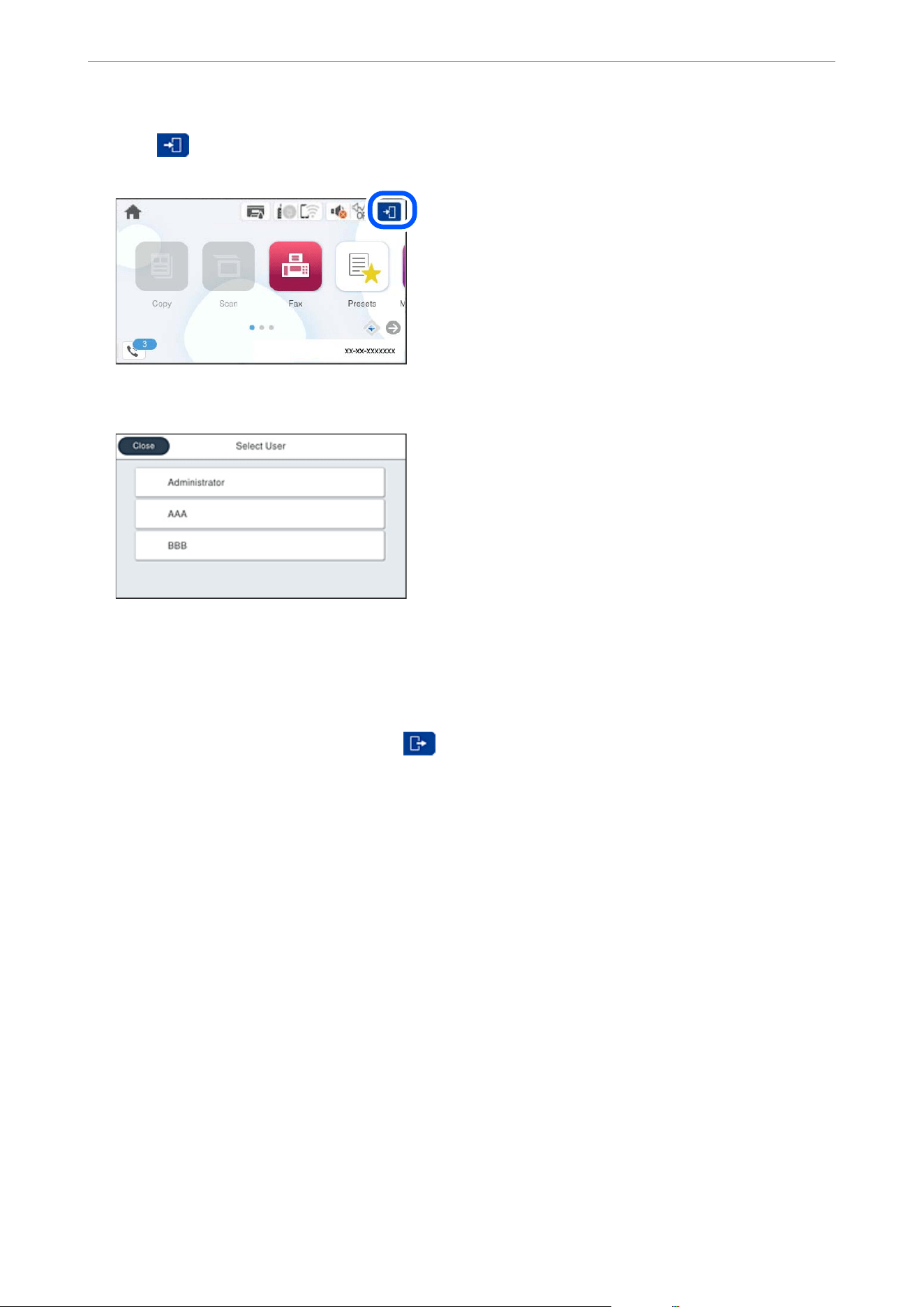
1. Select on the printer's control panel.
2. Select a user.
3. Enter the password to log in to the printer.
Contact your printer administrator for login information. See the related information below for more details.
Registered users can use the printer with the features that are authorized. If you log in as an administrator, you can
congure settings from the control panel.
When you have
nished
using the printer, select
to logout.
Related Information
& “Default Value of the Administrator Password” on page 17
Registering a User Account on the Printer Driver (Windows)
When the access control feature is enabled for a printer, you can print from drivers aer registering the user
account on the drivers to which authentication information can be registered.
is section explains the procedure for registering a user account to a genuine Epson printer driver.
1. Access the Epson printer driver window.
2. Select the following menu.
Maintenance tab > Printer and Option Information
3. Select Save Access Control settings, and then click Settings.
4. Enter the User Name and Password provided by your printer administrator, and then click OK.
Enter the user account provided by your printer administrator.
In These Situations
>
Using a Printer with the Access Control Feature Enabled
>
Registering a User Account on t
…
159

5. Click OK in each printer driver window to close it.
Related Information
& “Application for Printing from a Computer (Windows Printer Driver)” on page 233
& “Creating the User Account” on page 376
Authenticating Users on Epson Scan 2 when Using Access Control
When the access control function is enabled for a printer, you need to register a user name and password when
scanning using Epson Scan 2. If you do not know the password, contact your printer administrator.
1. Start Epson Scan 2.
2. On the Epson Scan 2 screen, make sure that your printer is selected in the Scanner list.
3. Select Settings from the Scanner list to open the Scanner Settings screen.
4. Click Access Control.
5. On the Access Control screen, enter the User Name and the Password for an account that has permission to
scan.
6. Click OK.
Related Information
& “Creating the User Account” on page 376
Transporting and Storing the Printer
When you need to store the printer or transport it when moving or for repairs, follow the steps below to pack the
printer.
1.
Turn o the printer by pressing the
P
button.
2. Make sure the power light turns o, and then unplug the power cord.
c
Important:
Make sure the power light is o before you unplug the power cord. Otherwise, the print head will not return to
the home position, which can cause the ink to dry and make printing impossible.
3. Make sure there are no external USB devices connected.
4. Disconnect all cables such as the power cord and USB cable.
5.
Remove all of the paper from the printer.
6. Make sure there are no originals on the printer.
In These Situations
>
Transporting and Storing the Printer
160
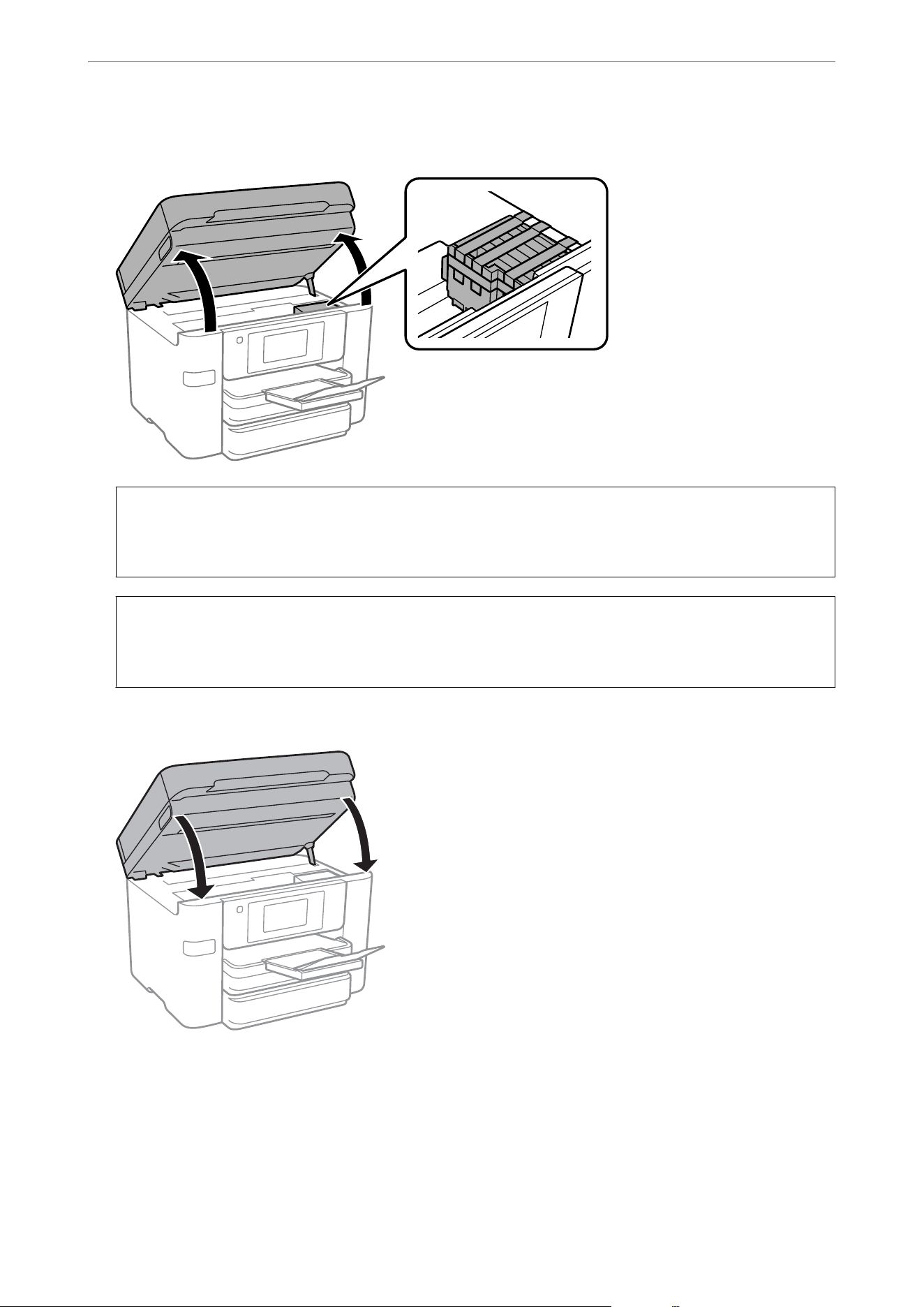
7. Open the scanner unit with the document cover closed. Secure the ink cartridge holder to the case with tape.
!
Caution:
Be careful not to trap your hand or
ngers
when opening or closing the scanner unit. Otherwise you may be
injured.
c
Important:
Leave the ink cartridges installed. Removing the cartridges can dry out the print head and may prevent the
printer from printing.
8. Close the scanner unit.
In These Situations
>
Transporting and Storing the Printer
161
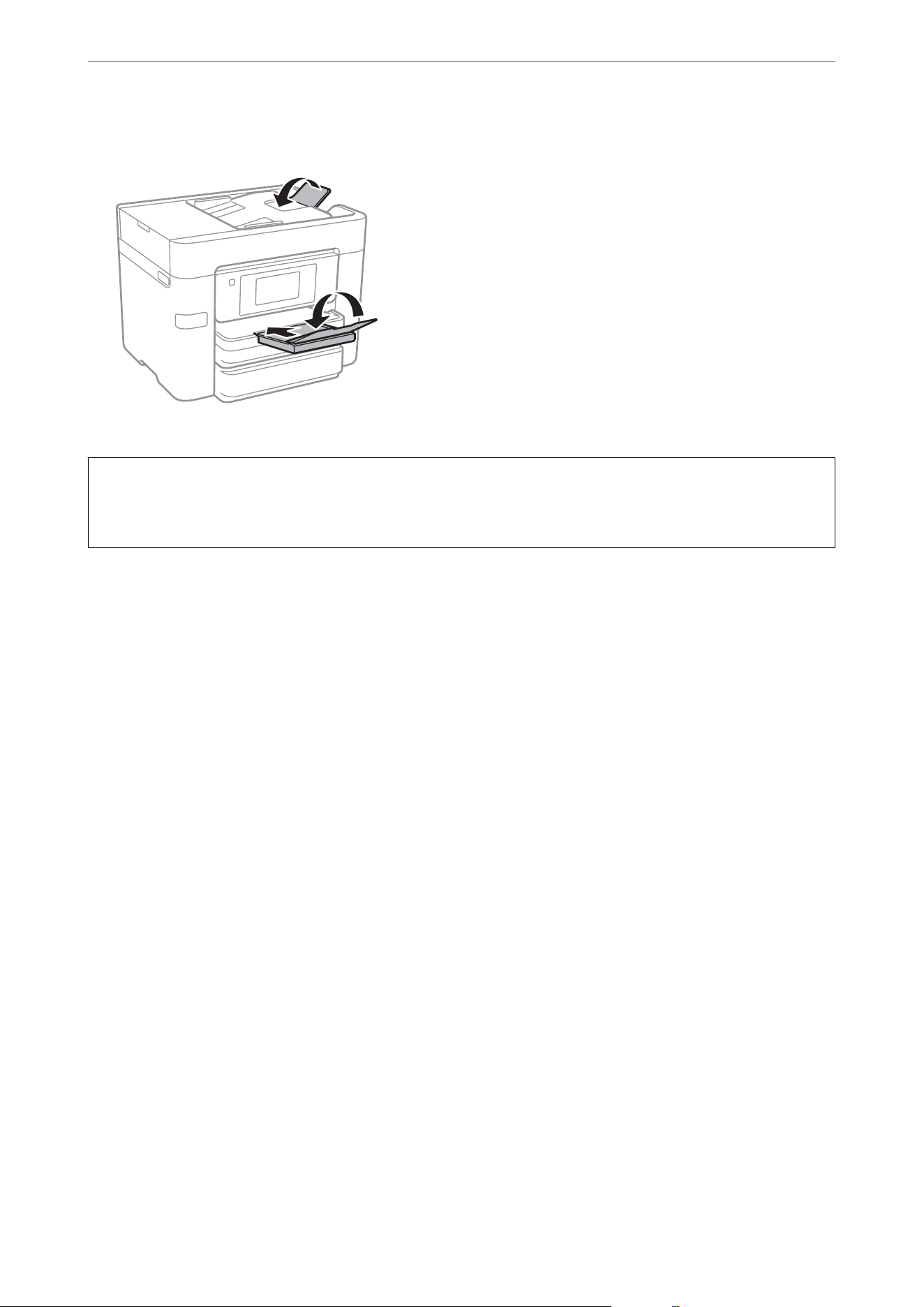
9. Prepare to pack the printer as shown below.
10. Pack the printer in its box, using the protective materials.
c
Important:
When storing or transporting the printer, avoid tilting it, placing it vertically, or turning it upside down; otherwise
ink may leak.
When you use the printer again, make sure you remove the tape securing the ink cartridge holder. If print quality
has declined the next time you print, adjust the print quality. For details, see the related information link below.
Related Information
& “Adjusting the Print Quality” on page 134
In These Situations
>
Transporting and Storing the Printer
162

Solving Problems
Problem Solving..................................................164
Cannot Print, Copy, Scan, or Fax......................................166
Printing, Copying, Scanning, and Faxing Quality is Poor.....................178
A Message is Displayed on the LCD Screen...............................200
Paper Gets Jammed................................................202
It is Time to Replace the Ink Cartridges................................. 203
It is Time to Replace the Maintenance Box...............................210
Cannot Operate the Printer as Expected.................................212
Cannot Solve Problem..............................................218
Problem Solving
If any problems occur, check the following in order to nd the cause.
Check the printer's error status.
Check if there is a problem with the printer itself.
Check Point Solution
Is there an error on the printer? If an error message is displayed on the LCD screen, follow the message to
solve the problem. If you cannot solve it due to limited access controls,
contact the administrator.
If the paper is jammed, check the LCD screen to see where the paper is
jammed, and then follow the instructions to remove it. For precautions, see
the applicable descriptions in this manual.
If a message for replacing consumables is displayed, follow the on-screen
instructions to replace them. For handling precautions, see the applicable
descriptions in this manual.
Are there any problems with the cables or the
printer's appearance?
If the covers are not closed properly, close them. If the cables are about to
disconnect, insert them rmly.
Is the power o?
If the power is o, press the
P
button to turn it on.
Related Information
& “A Message is Displayed on the LCD Screen” on page 200
& “Paper Gets Jammed” on page 202
& “It is Time to Replace the Ink Cartridges” on page 203
& “It is Time to Replace the Maintenance Box” on page 210
Check the printer connection.
Check if there is a problem with the printer connection.
Check point Solution
Is the printer connected to the network
properly?
Run a network connection check.
On the LCD screen, select
> > When you cannot
connect to the network. Print the network connection report, and then
ask the administrator to solve the problem if there is a connection
problem.
Is the printer driver installed on your
computer?
You can check if the printer driver is installed by checking Settings >
Devices > Printers on your computer. See the related information below
for more details.
Solving Problems
>
Problem Solving
>
Check the printer connection.
164
Check point Solution
Is the printer's information displayed on your
computer?
You can use Epson Status Monitor 3 to check the connection status
between the computer and the printer. See the related information below
for more details.
If you cannot check the printer status, the correct port may not be
selected. When you connect to the printer on the network, we recommend
that you select EpsonNet Print Port. If EpsonNet Print Port is not
available, reinstall the printer driver.
Has the wireless LAN (Wi-Fi) connection been
interrupted or is it unable to connect when
you are using a USB 3.0 device on your
computer?
When you connect a device to the USB 3.0 port on a Mac, radio frequency
interference may occur. Try the following.
O Place the device that is connected to the USB 3.0 port further away
from the computer.
O Turn
o
any unused USB 3.0 devices or connect them only when
necessary.
O Connect to the SSID for the 5 GHz range.
Can your computer or mobile device be
connected to the network?
Check if you can view the website on your computer or mobile device
(data communication turned o). If you cannot view it, there is a problem
with the network. Ask the administrator to solve the problem.
Related Information
& “Installing the Applications Separately” on page 146
& “Checking the Printer's Network Connection Status (Network Connection Report)” on page 152
& “ere is a problem with the printer's status.” on page 166
& “
e
Printer Cannot Connect via USB” on page 169
Check the printer settings.
Check the printer settings. Printers managed by the administrator may be restricted so that the printer settings
cannot be changed. If you cannot perform operations, contact the administrator.
Check point Solution
Printing does not start. There may still be data remaining in the printer. Open the printer queue,
and then check the status of the print job. If it is pending with an error,
clear the error and restart it or delete the job with the error, and then the
rest of the data will start printing.
If the default printer is paused or oine, set it to online in the printer
settings on the Windows computer.
Make sure the correct printer and port are selected.
The menu that you want to use is not
displayed.
Access control has been set by your administrator. Contact the
administrator for the information required to use the missing menu.
Some features require a separate contract to use. Contact your
administrator to check if the feature is available for your printer.
Cannot fax. If you have any problems when faxing, see the solutions to fax related
problems.
Solving Problems
>
Problem Solving
>
Check the printer settings.
165

Check point Solution
Cannot copy or scan. If you have any problems when copying or scanning, see the solutions to
copy or scan related problems.
Related Information
& “Cannot Send or Receive Faxes” on page 170
& “ere is still a job waiting to be printed.” on page 167
& “e printer is paused or oine.” on page 167
& “Using Port for the Printer” on page 266
& “Cannot Scan Even ough a Connection has been Correctly Established” on page 169
& “e printer port is not set correctly.” on page 167
Cannot Print, Copy, Scan, or Fax
The Application or Printer Driver do not Work Properly
Cannot Print Even Though a Connection has been Established (Windows)
One of the following situations may be the cause.
There is a problem with the software or data.
Solutions
O Make sure a genuine Epson printer driver (EPSON XXXXX) is installed. If a genuine Epson printer
driver is not installed, the available functions are limited. We recommend using a genuine Epson
printer driver.
O If you are printing a large image, the computer may run out of memory. Print the image at a lower
resolution or a smaller size.
O You may be able to clear the problem by updating the soware to the latest version. To check the
soware
status, use the
soware
update tool.
O If you have tried all of the solutions and have not solved the problem, try uninstalling and then
reinstalling the printer driver.
& “Checking if a genuine Epson printer driver is installed - Windows” on page 147
& “Checking if a genuine Epson printer driver is installed - Mac OS” on page 148
& “Installing or Uninstalling Applications Separately” on page 146
& “Application for Updating Soware and Firmware (Epson Soware Updater)” on page 239
There is a problem with the printer's status.
Solutions
Click EPSON Status Monitor 3 on the printer driver's Maintenance tab, and then check the printer
status. You need to install EPSON Status Monitor 3 to enable this feature. You can download it from the
Epson website.
Solving Problems
>
Cannot Print, Copy, Scan, or Fax
>
The Application or Printer Driver do not Work Properly
166
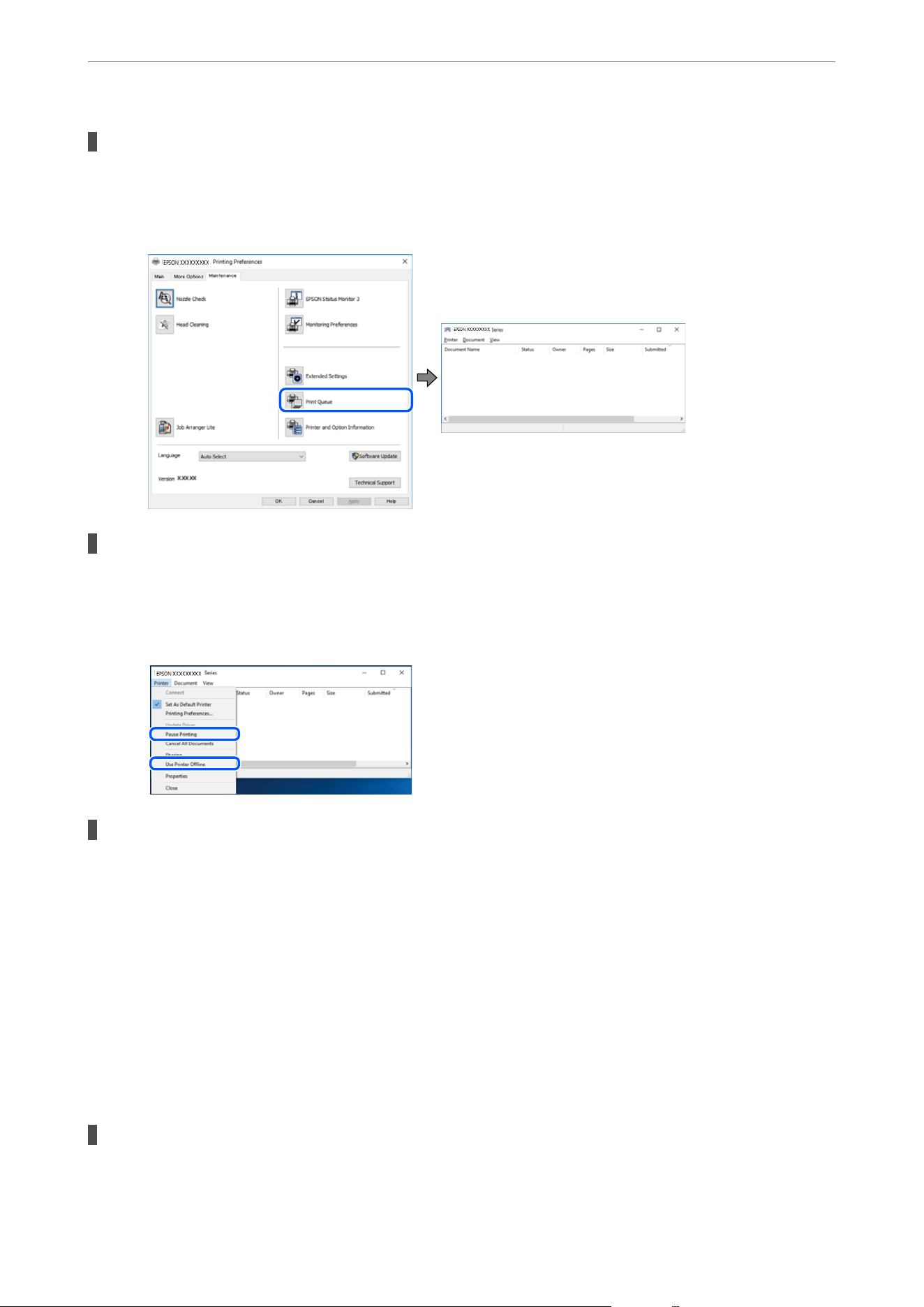
There is still a job waiting to be printed.
Solutions
Click Print Queue on the printer driver's Maintenance tab. If unnecessary data remains, select Cancel all
documents from the Printer menu.
The printer is paused or
oine.
Solutions
Click Print Queue on the printer driver's Maintenance tab.
If the printer is paused or oine, clear the related setting from the Printer menu.
The printer is not selected as the default printer.
Solutions
Right-click the printer icon in Control Panel > View devices and printers (or Printers, or Printers and
Faxes) and click Set as default printer.
Note:
If there are multiple printer icons, select the correct one based on the connection type, as described below.
USB connection: EPSON XXXX Series
Network connection: EPSON XXXX Series (network)
If you install the printer driver multiple times, copies of the printer driver may be created. If copies such
as "EPSON XXXX Series (copy 1)" are created, right-click the copied driver icon, and then click Remove
Device.
The printer port is not set correctly.
Solutions
Click Print Queue on the printer driver's Maintenance tab.
Solving Problems
>
Cannot Print, Copy, Scan, or Fax
>
The Application or Printer Driver do not Work Properly
167
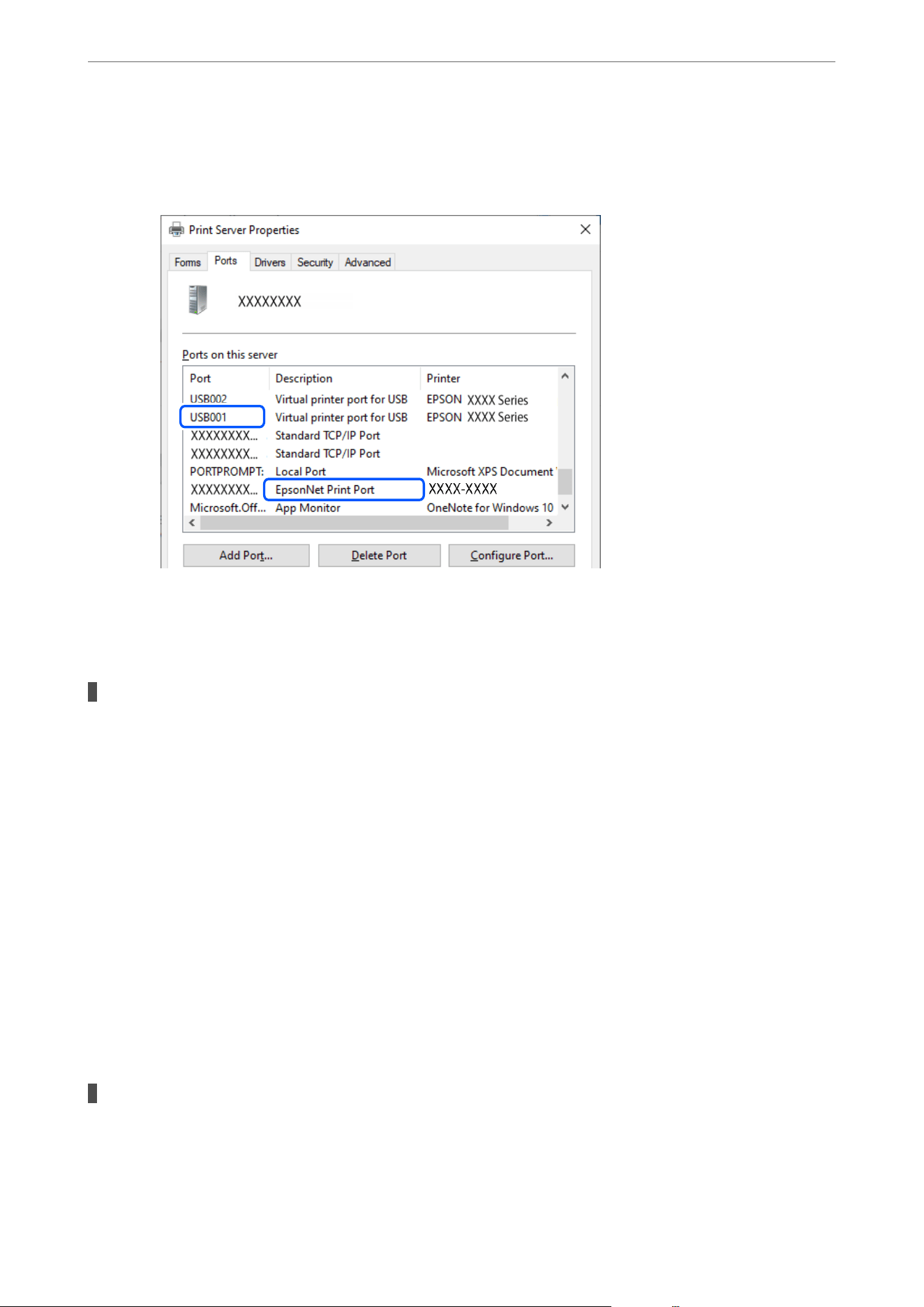
Make sure the printer port is set correctly as shown below in Properties > Ports from the Printer menu.
USB connection: USBXXX, Network connection: EpsonNet Print Port
Cannot Print Even Though a Connection has been Established (Mac OS)
One of the following situations may be the cause.
There is a problem with the software or data.
Solutions
O Make sure a genuine Epson printer driver (EPSON XXXXX) is installed. If a genuine Epson printer
driver is not installed, the available functions are limited. We recommend using a genuine Epson
printer driver.
O If you are printing a large image, the computer may run out of memory. Print the image at a lower
resolution or a smaller size.
O You may be able to clear the problem by updating the soware to the latest version. To check the
soware
status, use the
soware
update tool.
O If you have tried all of the solutions and have not solved the problem, try uninstalling and then
reinstalling the printer driver.
& “Checking if a genuine Epson printer driver is installed - Windows” on page 147
& “Checking if a genuine Epson printer driver is installed - Mac OS” on page 148
& “Installing or Uninstalling Applications Separately” on page 146
& “Application for Updating Soware and Firmware (Epson Soware Updater)” on page 239
There is a problem with the printer's status.
Solutions
Make sure the printer status is not set to Pause.
Select System Preferences (or System Settings) from the Apple menu > Printers & Scanners (or Print &
Scan or Print & Fax), and then double-click the printer. If the printer is paused, click Resume.
Solving Problems
>
Cannot Print, Copy, Scan, or Fax
>
The Application or Printer Driver do not Work Properly
168

User feature restrictions are enabled for the printer.
Solutions
e printer may not print when the user feature restriction is enabled. Contact your printer
administrator.
Cannot Print Even Though a Connection has been Established (iOS)
One of the following situations may be the cause.
Paper Setup Auto Display is disabled.
Solutions
Enable Paper Setup Auto Display in the following menu.
Settings > General Settings > Printer Settings > Paper Source Settings > Paper Setup Auto Display
AirPrint is disabled.
Solutions
Enable the AirPrint setting in Web Cong.
& “Application for Conguring Printer Operations (Web Cong)” on page 236
Cannot Scan Even Though a Connection has been Correctly Established
Scanning at a high resolution over a network.
Solutions
Try scanning at a lower resolution.
The Printer Cannot Connect via USB
One of the following situations may be the cause.
The USB cable is not plugged into the USB inlet correctly.
Solutions
Connect the USB cable securely to the printer and the computer.
There is a problem with the USB hub.
Solutions
If you are using a USB hub, try to connect the printer directly to the computer.
There is a problem with the USB cable or the USB inlet.
Solutions
Connect the USB cable to a
dierent
port, or change the USB cable.
Solving Problems
>
Cannot Print, Copy, Scan, or Fax
>
The Application or Printer Driver do not Work Properly
169

The printer is connected to a SuperSpeed USB port.
Solutions
If you connect the printer to a SuperSpeed USB port using a USB 2.0 cable, a communication error may
occur on some computers. In this case, reconnect the printer using one of the following methods:
O Use a USB 3.0 cable (supported models only).
O Connect to a Hi-Speed USB port on the computer.
O Connect to a SuperSpeed USB port other than the port that generated the communication error.
& “Interface
Specications
” on page 268
Cannot Send or Receive Faxes
Cannot Send or Receive Faxes
If you cannot send or receive faxes, contact your printer administrator. For printer administrators, see the
following section to troubleshoot fax problems.
“Cannot Send or Receive Faxes” on page 356
Cannot Send Faxes
One of the following situations may be the cause.
Sending faxes without entering an access code in an environment in which a PBX is
installed.
Solutions
If your phone system requires an external access code to get an outside line, register the access code to the
printer, and enter # (hash) at the beginning of a fax number when sending.
& “Settings for a PBX Phone System” on page 351
The recipient's fax number is wrong.
Solutions
Check that the recipient's number registered in your contacts list or that you entered directly using the
keypad is correct. Or, check with the recipient that the fax number is correct.
The available memory in the printer is not enough.
Solutions
You cannot send faxes when the printer's memory is insucient because of a lot of received documents
in inbox or condential boxes or many unprocessed fax documents stored in the printer. Delete the
unnecessary documents in inbox or condential boxes or process the unprocessed documents to increase
available memory.
Solving Problems
>
Cannot Print, Copy, Scan, or Fax
>
Cannot Send or Receive Faxes
170

The data being sent is too large.
Solutions
You can send faxes at a smaller data size using one of the following methods.
O When you send the fax in monochrome, enable Direct Send in Fax > Fax Settings > Fax Send
Settings.
“Sending Many Pages of a Monochrome Document (Direct Send)” on page 115
O Use an external phone device
“Sending Faxes Dialing from the External Phone Device” on page 114
O Use with the phone on the hook
“Sending Faxes Aer Conrming the Recipient's Status” on page 114
O Send sections of the originals as separate faxes
The recipient's fax machine is not ready to receive faxes.
Solutions
Ask the recipient if the recipient's fax machine is ready to receive a fax.
Cannot Send Faxes After Trying the Solutions Above
Solutions
If you cannot solve the problem, contact your printer administrator. For printer administrators, see the
following section to troubleshoot fax problems.
“Cannot Send Faxes” on page 357
Cannot Receive Faxes
One of the following situations may be the cause.
Subscribing to a call forwarding service.
Solutions
If you have subscribed to a call forwarding service, the printer may not be able to receive faxes. Contact
the service provider.
The Receive Mode is set to Manual while an external phone device is connected to the
printer.
Solutions
If an external phone device is connected to the printer and is sharing a phone line with the printer, select
Settings > General Settings > Fax Settings > Basic Settings, and then set Receive Mode to Auto.
The available memory of the inbox is not enough.
Solutions
100 received documents have been saved in the inbox in total. Delete the unnecessary documents.
Solving Problems
>
Cannot Print, Copy, Scan, or Fax
>
Cannot Send or Receive Faxes
171

The computer that will save the received faxes is not turned on.
Solutions
When you have selected settings to save received faxes to a computer, turn on the computer. e received
fax is deleted once it has been saved to the computer.
The sender's fax number has been registered to the Rejection Number List.
Solutions
Make sure that the sender's number can be deleted from the Rejection Number List before deleting
it. Delete it from Settings > General Settings > Fax Settings > Basic Settings > Rejection Fax > Edit
Blocked Number list. Or disable the Rejection Number List in Settings > General Settings > Fax
Settings > Basic Settings > Rejection Fax > Rejection Fax. Faxes sent from numbers that have been
registered to this list are blocked when this setting is enabled.
The sender's fax number has not been registered in the contacts list.
Solutions
Register the sender's fax number to contacts list. Or disable Unregistered Contacts in Settings > General
Settings > Fax Settings > Basic Settings > Rejection Fax > Rejection Fax. Faxes sent from numbers that
have not been registered to this list are blocked when this setting is enabled.
The sender has sent the fax without header information.
Solutions
Ask the sender if header information is setup on their fax machine. Or, disable Fax Header Blank in
Settings > General Settings > Fax Settings > Basic Settings > Rejection Fax > Rejection Fax. Faxes that
do not include header information are blocked when this setting is enabled.
Cannot Send Faxes to a Specic Recipient
One of the following situations may be the cause.
The recipient's machine takes a long time to answer.
Solutions
If the recipient machine does not pick up your call within 50 seconds aer the printer has nished dialing,
the call ends with an error. Dial using the
(On Hook) feature or using a connected telephone to
check how long it takes before you hear a fax tone. If it takes more than 50 seconds, add pauses
aer
the
fax number to send the fax. Tap
to enter the pause. A hyphen is entered as the pause mark. One pause
is about three seconds. Add multiple pauses as needed.
The Fax Speed setting registered in the contact list is wrong.
Solutions
Select the recipient from the contact list, and then select Edit > Fax Speed > Slow(9,600bps).
Cannot Send Faxes at a Specied Time
e date and time set on the printer may be incorrect. Contact your printer administrator. For printer
administrators, see the following section to troubleshoot fax problems.
Solving Problems
>
Cannot Print, Copy, Scan, or Fax
>
Cannot Send or Receive Faxes
172

“Cannot Send Faxes at a Specied Time” on page 358
Faxes Are Sent at the Wrong Size
One of the following situations may be the cause.
The original is not placed correctly on the scanner glass.
Solutions
O Make sure the original is placed correctly against the alignment marks.
O If the edge of the scanned image is missing, move the original slightly away from the edge of the
scanner glass. You cannot scan the area within approximately 1.5 mm (0.06 in.) from the edge of the
scanner glass.
& “Placing Originals” on page 36
There is dust or dirt on the scanner glass.
Solutions
When scanning from the control panel and selecting auto scan area cropping function, remove any dust
or dirt from the scanner glass and document cover. If there is any dust or dirt around the original, the
scanning range expands to include it.
“Cleaning the Scanner Glass” on page 137
Cannot Save Received Faxes to a Memory Device
One of the following situations may be the cause.
A memory device is not connected to the printer.
Solutions
Connect a memory device, in which you have created a folder to save faxes, to the printer. Once the faxes
are saved in the device, they are deleted from the printer's memory.
There is not enough free space in the device.
Solutions
Delete unnecessary data from the device to increase the amount of free space. Or, connect another device
that has enough free space.
The memory device is write-protected.
Solutions
Disable write protection on the memory device.
Saving received faxes to external memory is disabled.
Solutions
Contact your printer administrator. For printer administrators, see the following section to troubleshoot
fax problems.
“Cannot Save Received Faxes to a Memory Device” on page 358
Solving Problems
>
Cannot Print, Copy, Scan, or Fax
>
Cannot Send or Receive Faxes
173

Received Faxes Are Not Printed
One of the following situations may be the cause.
An error has occurred in the printer such as a paper jam.
Solutions
Clear the printer error, and then ask the sender to resend the fax.
& “A Message is Displayed on the LCD Screen” on page 200
& “Preventing Paper Jams” on page 203
Cannot Print Faxes After Trying the Solutions Above
Solutions
If you cannot solve the problem, contact your printer administrator. For printer administrators, see the
following section to troubleshoot fax problems.
“Received Faxes Are Not Printed” on page 359
Cannot Send or Receive Faxes in Windows Even Though a Connection has been
Successfully Established
One of the following situations may be the cause.
The software is not installed.
Solutions
Make sure that the PC-FAX driver is installed on the computer. e PC-FAX driver is installed with FAX
Utility. Follow the steps below to check if it is installed.
Make sure the printer (fax) is displayed in Devices and Printers, Printer, or Printers and Other
Hardware.
e
printer (fax) is displayed as "EPSON XXXXX (FAX)". If the printer (fax) is not displayed,
uninstall and then reinstall the FAX Utility. See the following to access Devices and Printers, Printer, or
Printers and Other Hardware.
O Windows 11
Click on the start button, and then select Settings > Bluetooth & devices > Printers & scanners.
O Windows 10
Click on the start button, and then select Windows System > Control Panel > View devices and
printers in Hardware and Sound.
O Windows 8.1
Select Desktop > Settings > Control Panel > View devices and printers in Hardware and Sound or
Hardware.
O Windows 7
Click the start button, and select Control Panel > View devices and printers in Hardware and Sound
or Hardware.
There are some problems with fax connection and fax settings.
Solutions
Try the resolutions for fax connection and fax settings.
Solving Problems
>
Cannot Print, Copy, Scan, or Fax
>
Cannot Send or Receive Faxes
174

Cannot Send or Receive Faxes in Mac OS Even Though a Connection has been
Correctly Established
One of the following situations may be the cause.
The software is not installed.
Solutions
Make sure that the PC-FAX driver is installed on the computer. e PC-FAX driver is installed with FAX
Utility. Follow the steps below to check if it is installed.
Select System Preferences (or System Settings) from the Apple menu > Printers & Scanners (or Print &
Scan or Print & Fax), and then make sure the printer (fax) is displayed. e printer (fax) is displayed as
"FAX XXXX (USB)" or "FAX XXXX (IP)". If the printer (fax) is not displayed, click [+] and then register
the printer (fax).
PC-FAX driver is paused.
Solutions
Select System Preferences (or System Settings) from the Apple menu > Printers & Scanners (or Print &
Scan or Print & Fax), and then double-click the printer (fax). If the printer is paused, click Resume (or
Resume Printer).
There are some problems with fax connection and fax settings.
Solutions
Try the resolutions for fax connection and fax settings.
Paper Does Not Feed or Eject Correctly
Points to Check
One of the following situations may be the cause.
The installation location is inappropriate.
Solutions
Place the printer on a
at
surface and use it in the recommended environment.
& “Environmental
Specications
” on page 274
Unsupported paper is being used.
Solutions
Use paper supported by this printer.
& “Available Paper and Capacities” on page 221
& “Unavailable Paper Types” on page 230
Solving Problems
>
Cannot Print, Copy, Scan, or Fax
>
Paper Does Not Feed or Eject Correctly
175

Paper handling is inappropriate.
Solutions
Follow paper handling precautions.
& “Paper Handling Precautions” on page 30
Too many sheets are loaded in the printer.
Solutions
Do not load more than the maximum number of sheets specied for the paper. For plain paper, do not
load above the line indicated by the triangle symbol on the edge guide.
& “Available Paper and Capacities” on page 221
The paper settings on the printer are incorrect.
Solutions
Make sure the paper size and paper type settings match the actual paper size and paper type loaded in the
printer.
& “List of Paper Types” on page 31
The paper settings in the printer driver are incorrect.
Solutions
Make sure the paper size and paper type settings in the printer driver match the actual paper size and
paper type loaded in the printer.
Paper slips when paper dust adheres to the roller.
Solutions
Paper dust may have adhered to the roller. Clean the roller.
& “Cleaning the Paper Path for Ink Smears” on page 137
Paper Feeds at a Slant
One of the following situations may be the cause.
The paper is loaded incorrectly.
Solutions
Load paper in the correct direction, and slide the edge guides against the edges of the paper.
& “Loading Paper Using Instructions on the LCD screen” on page 32
Several Sheets of Paper are Fed at a Time
One of the following situations may be the cause.
Solving Problems
>
Cannot Print, Copy, Scan, or Fax
>
Paper Does Not Feed or Eject Correctly
176
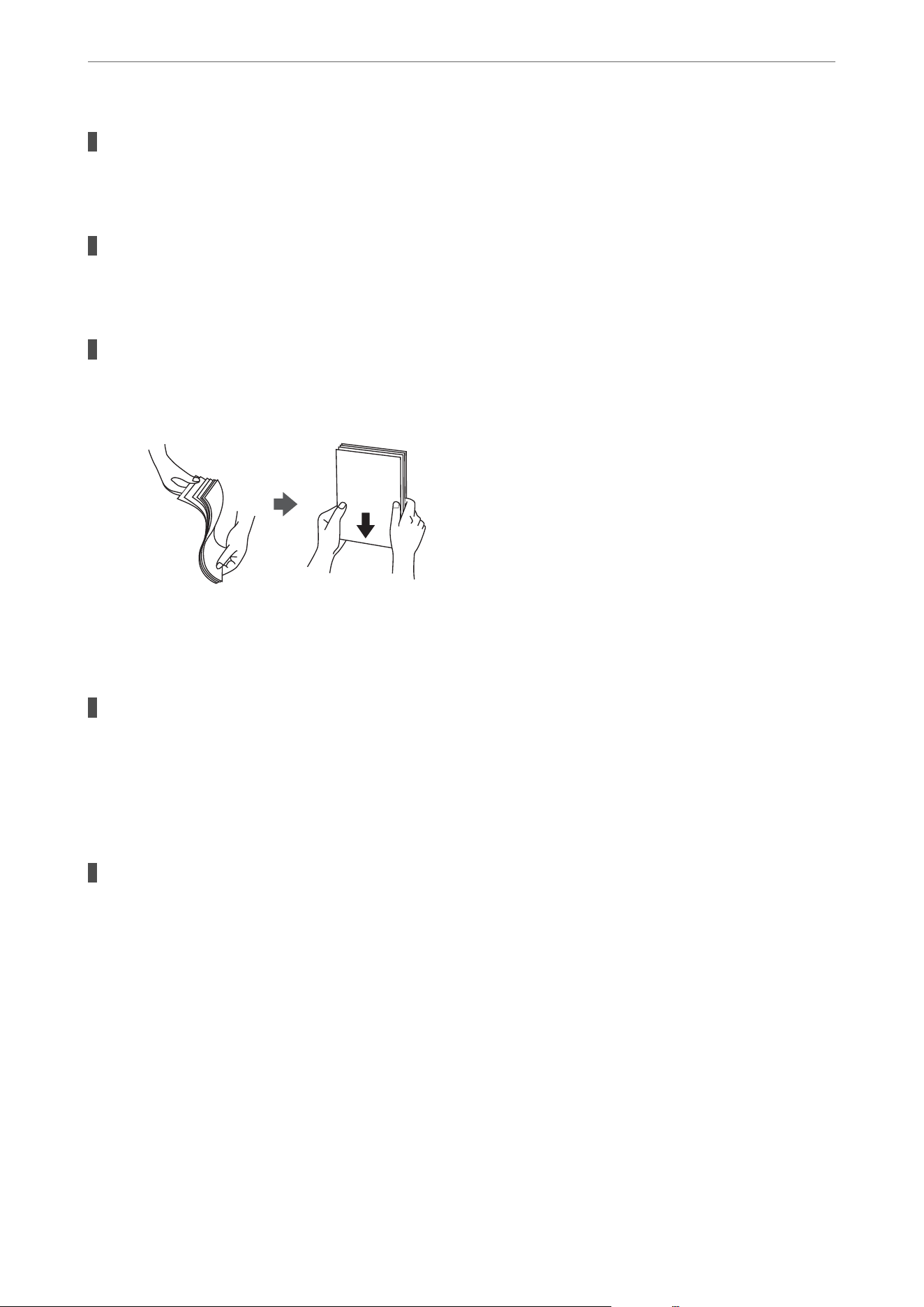
The paper is moist or damp.
Solutions
Load new paper.
Multiple sheets of paper feed at the same time during manual 2-sided printing.
Solutions
Remove any paper that is loaded in the paper source before you reload the paper.
Static electricity is causing sheets of paper to stick to each other.
Solutions
Fan the paper before loading. If the paper still does not feed, load one sheet of paper at a time.
Original Does Not Feed into the ADF
One of the following situations may be the cause.
Unsupported originals are being used.
Solutions
Use originals supported by the ADF.
& “ADF Specications” on page 265
& “Originals that are not Supported by the ADF” on page 37
The originals are loaded incorrectly.
Solutions
Load originals in the correct direction, and slide the ADF edge guide against the edge of the originals.
& “Placing Originals” on page 36
Solving Problems
>
Cannot Print, Copy, Scan, or Fax
>
Paper Does Not Feed or Eject Correctly
177
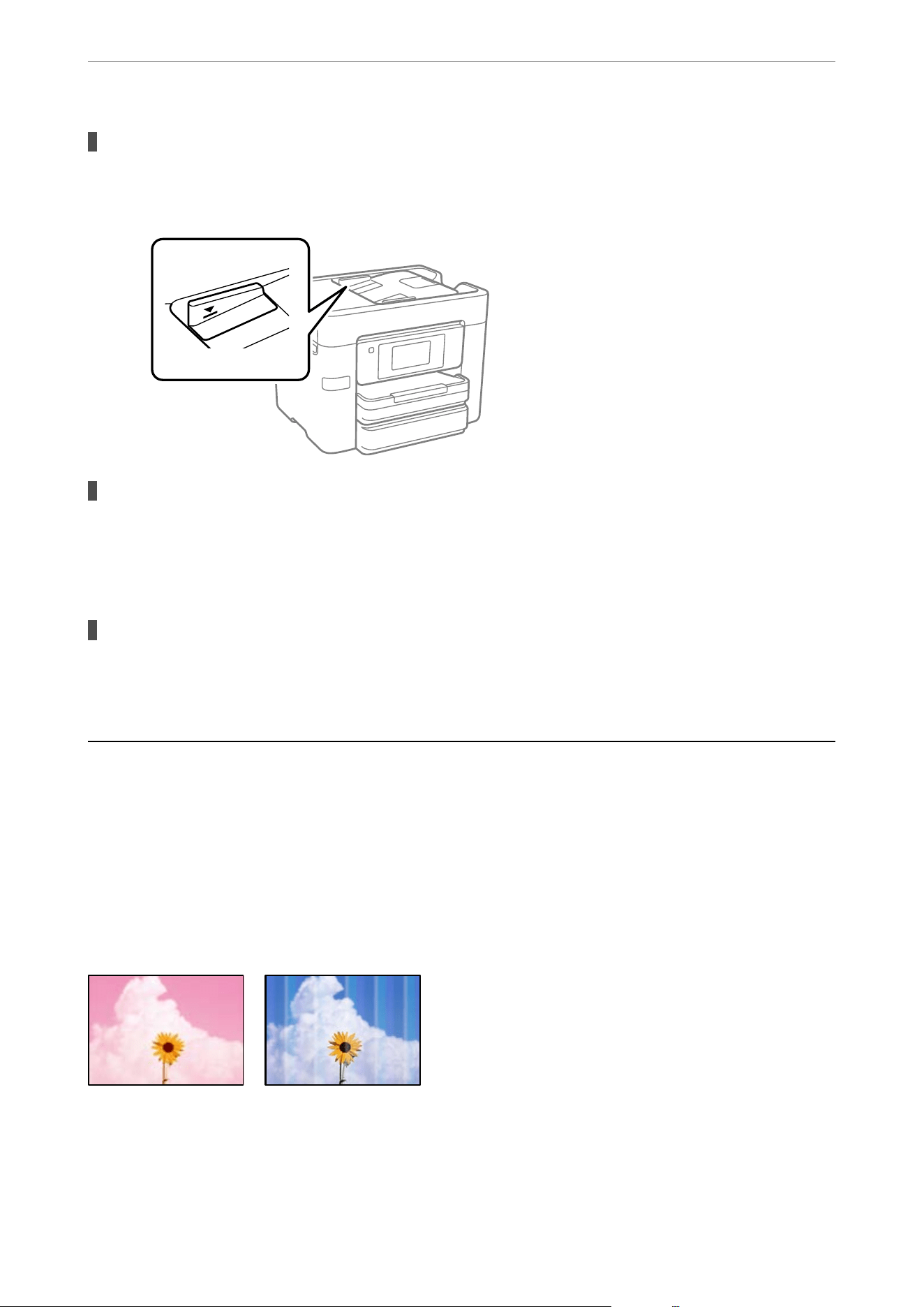
Too many originals are loaded in the ADF.
Solutions
Do not load originals above the line indicated by the triangle symbol on the ADF.
The original slips when paper dust adheres to the roller.
Solutions
Clean the inside of the ADF.
& “Cleaning the ADF” on page 138
Originals are not detected.
Solutions
On the screen for copy, scan, or fax, check that the ADF icon is on. If it is o, place the originals again.
Printing, Copying, Scanning, and Faxing Quality is
Poor
Print Quality is Poor
Banding or Unexpected Colors Appear, or Colors Are Missing
Solving Problems
>
Printing, Copying, Scanning, and Faxing Quality is Poor
>
Print Quality is Poor
178

The print head nozzles may be clogged.
Solutions
Use the Print Quality Adjustment feature. If you have not used the printer for a long time, the print head
nozzles may be clogged and ink drops may not be discharged.
& “Adjusting the Print Quality” on page 134
Colored Banding Appears at Intervals of Approximately 3.3 cm (1.3 in.)
One of the following situations may be the cause.
The paper type in the printer settings is incorrect.
Solutions
Make sure the paper type in the printer settings matches the actual paper type.
& “List of Paper Types” on page 31
The print quality setting is too low.
Solutions
When printing on plain paper, use a higher quality setting.
O Control panel
In the print settings, select the Advanced tab if there is an Advanced tab, and then select Best as the
Quality.
O Windows
Select High from Quality on the printer driver's Main tab.
O Mac OS
Select Fine as Print Quality from the print dialog's Print Settings menu.
The print head is out of alignment.
Solutions
Align the print head using the Print Quality Adjustment feature.
& “Adjusting the Print Quality” on page 134
Solving Problems
>
Printing, Copying, Scanning, and Faxing Quality is Poor
>
Print Quality is Poor
179
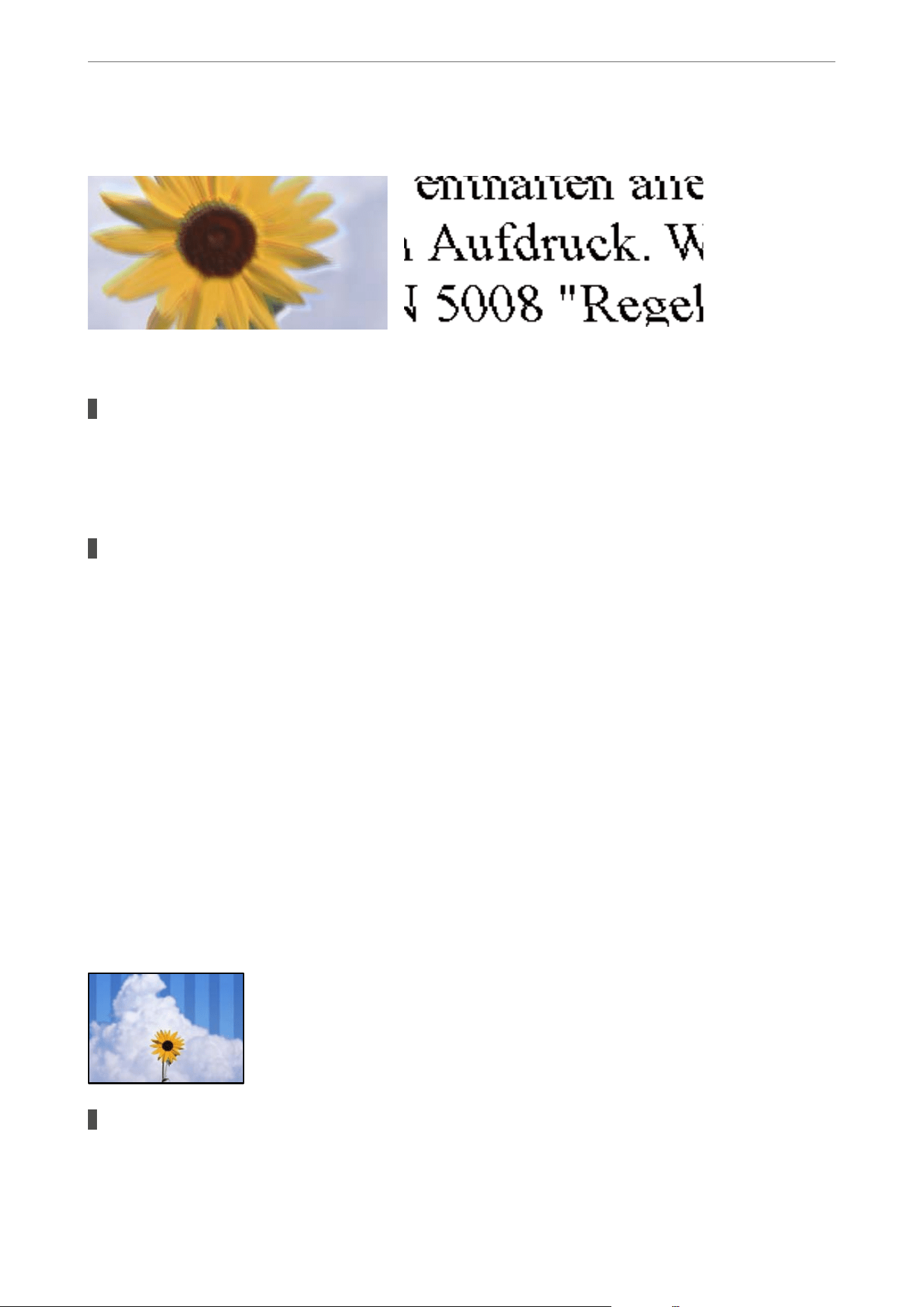
Blurry Prints, Vertical Banding, or Misalignment
One of the following situations may be the cause. Try the solutions in the order shown.
The print head is out of alignment.
Solutions
Align the print head using the Print Quality Adjustment feature.
& “Adjusting the Print Quality” on page 134
The bidirectional printing setting is enabled.
Solutions
If print quality does not improve even aer aligning the print head, disable the bidirectional setting.
During bidirectional (or high speed) printing, the print head prints while moving in both directions, and
vertical lines may be misaligned. Disabling this setting may slow down printing speed but improve print
quality.
O Control panel
Select Settings > General Settings > Printer Settings, and then disable Bidirectional.
O Windows
Clear Bidirectional Printing on the printer driver’s More Options tab.
O Mac OS
Select System Preferences from the Apple menu > Printers & Scanners (or Print & Scan, Print &
Fax), and then select the printer. Click Options & Supplies > Options (or Driver). Select O as the
Bidirectional Printing setting.
Striped Patterns Appear
The bidirectional printing setting is enabled.
Solutions
When printing on plain paper, disable the bidirectional setting.
Solving Problems
>
Printing, Copying, Scanning, and Faxing Quality is Poor
>
Print Quality is Poor
180

During bidirectional (or high speed) printing, the print head prints while moving in both directions, and
vertical lines may be misaligned. Disabling this setting may slow down printing speed but improve print
quality.
O Control panel
Select Settings > General Settings > Printer Settings, and then disable Bidirectional.
O Windows
Clear Bidirectional Printing on the printer driver’s More Options tab.
O Mac OS
Select System Preferences from the Apple menu > Printers & Scanners (or Print & Scan, Print &
Fax), and then select the printer. Click Options & Supplies > Options (or Driver). Select O as the
Bidirectional Printing setting.
The print head nozzles may be clogged.
Solutions
Use the Print Quality Adjustment feature. If you have not used the printer for a long time, the print head
nozzles may be clogged and ink drops may not be discharged.
& “Adjusting the Print Quality” on page 134
Printouts are Blank or Only Some Lines are Printed
The print head nozzles may be clogged.
Solutions
Use the Print Quality Adjustment feature. If you have not used the printer for a long time, the print head
nozzles may be clogged and ink drops may not be discharged.
& “Adjusting the Print Quality” on page 134
The paper size in the print settings is incorrect.
Solutions
Make sure the paper size in the print settings matches the actual paper size.
Multiple sheets of paper are fed into the printer at the same time.
Solutions
See the following to prevent multiple sheets of paper from being fed into the printer at the same time.
& “Several Sheets of Paper are Fed at a Time” on page 176
Solving Problems
>
Printing, Copying, Scanning, and Faxing Quality is Poor
>
Print Quality is Poor
181
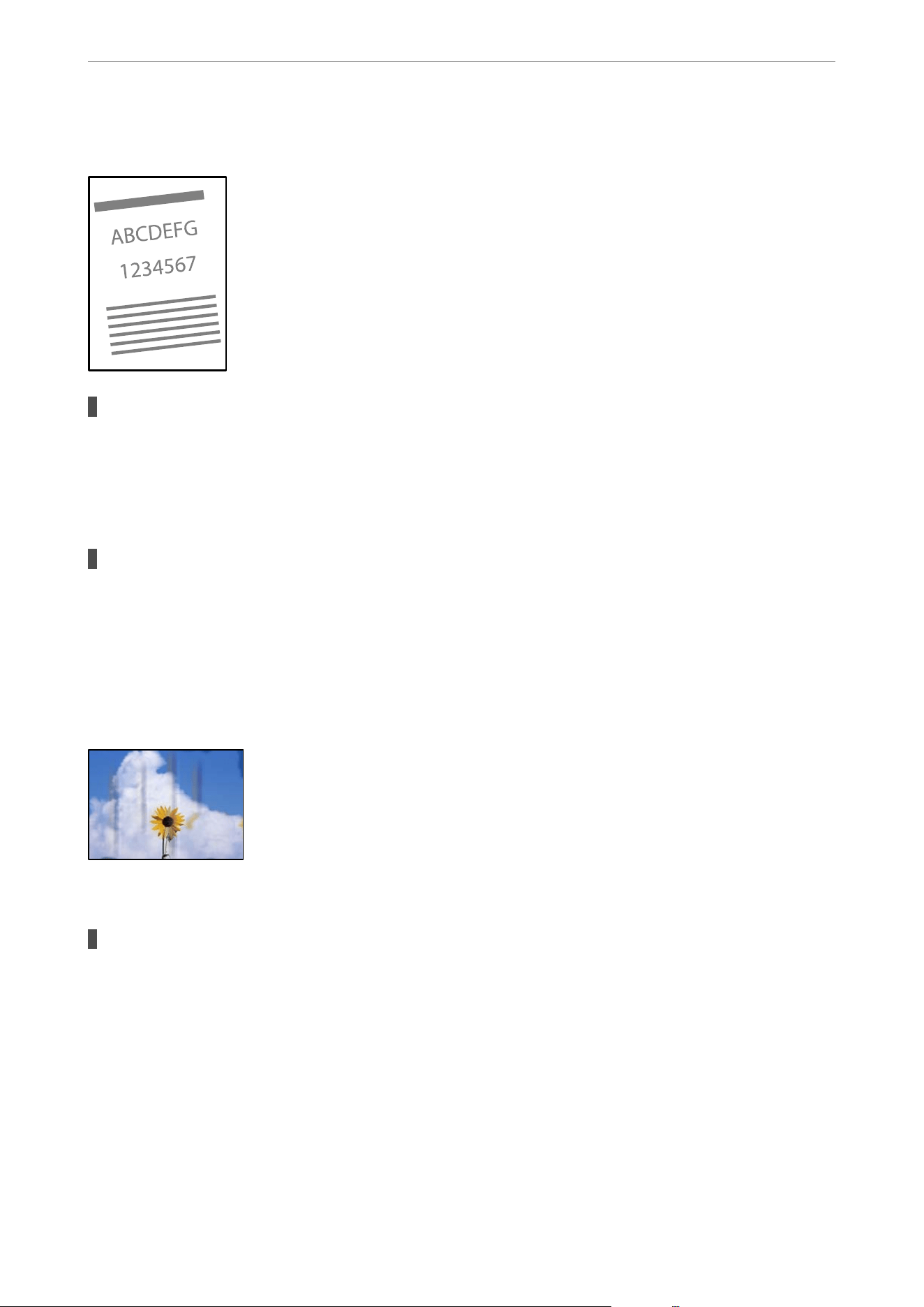
Printed at an Angle
The paper is curled.
Solutions
If the paper is curled or the edges of the paper are folded, it may touch the print head and be fed at an
angle.
Place the paper on a at surface to check if it is curled. If it is, atten it.
The paper is loaded incorrectly.
Solutions
Load paper in the correct direction, and slide the edge guides against the edges of the paper.
& “Loading Paper Using Instructions on the LCD screen” on page 32
Paper Is Smeared or Scued
One of the following situations may be the cause.
The paper is loaded incorrectly.
Solutions
When horizontal banding (perpendicular to the printing direction) appears, or the top or bottom of the
paper is smeared, load paper in the correct direction and slide the edge guides to the edges of the paper.
& “Loading Paper Using Instructions on the LCD screen” on page 32
Solving Problems
>
Printing, Copying, Scanning, and Faxing Quality is Poor
>
Print Quality is Poor
182

The paper path is smeared.
Solutions
When vertical banding (parallel to the printing direction) appears, or the paper is smeared, clean the
paper path.
& “Cleaning the Paper Path for Ink Smears” on page 137
The paper is curled.
Solutions
Place the paper on a
at
surface to check if it is curled. If it is,
atten
it.
The print head is rubbing the surface of the paper.
Solutions
When printing on thick paper, the print head is close to the printing surface and the paper may be
scued. In this case, enable the reduce scu setting. If you enable this setting, print quality may decline or
printing may slow down.
O Control panel
Select Settings > General Settings > Printer Settings, and then enable ick Paper.
O Windows
Click Extended Settings on the printer driver's Maintenance tab, and then select
ick
Paper and
Envelopes.
If the paper is still scued aer selecting the ick Paper and Envelopes setting, select Short Grain
Paper in the Extended Settings window of the printer driver.
O Mac OS
Select System Preferences from the Apple menu > Printers & Scanners (or Print & Scan, Print &
Fax), and then select the printer. Click Options & Supplies > Options (or Driver). Select On as the
ick paper and envelopes setting.
The back of the paper was printed before the side that had already been printed was dry.
Solutions
When performing manual 2-sided printing, make sure that the ink is completely dry before reloading the
paper.
When printing using automatic 2-sided printing, the print density is too high and the drying
time is too short.
Solutions
When using the automatic 2-sided printing feature and printing high density data such as images and
graphs, lower the print density and increase the drying time.
& “Printing on 2-Sides” on page 48
& “Printing on 2-Sides” on page 68
Solving Problems
>
Printing, Copying, Scanning, and Faxing Quality is Poor
>
Print Quality is Poor
183
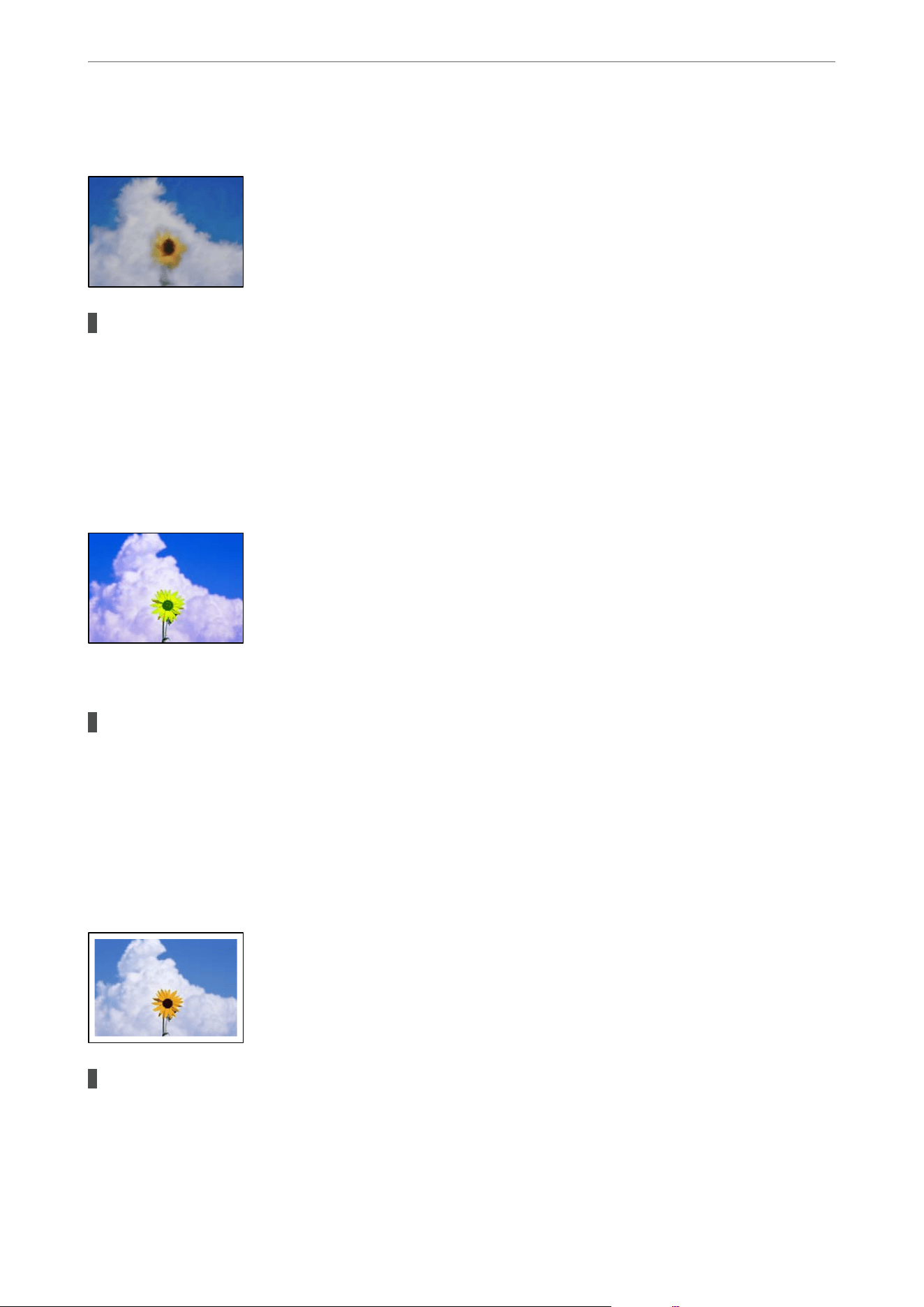
Printed Photos are Sticky
The wrong side of the photo paper was used.
Solutions
Make sure the paper size in the printer settings matches the actual paper size. If you print on the wrong
side of the photo paper, you need to clean the paper path.
& “Cleaning the Paper Path for Ink Smears” on page 137
Images or Photos Contain Unexpected Colors
One of the following situations may be the cause.
The print head nozzles may be clogged.
Solutions
Use the Print Quality Adjustment feature. If you have not used the printer for a long time, the print head
nozzles may be clogged and ink drops may not be discharged.
& “Adjusting the Print Quality” on page 134
Cannot Print Without Margins
The borderless feature is not enabled in the print settings.
Solutions
Enable the borderless feature in the print settings. If you select a paper type that does not support
borderless printing, you cannot select Borderless. Select a paper type that supports borderless printing.
Solving Problems
>
Printing, Copying, Scanning, and Faxing Quality is Poor
>
Print Quality is Poor
184

O Control panel
Select Borderless as the Layout setting.
O Windows
Select Borderless on the printer driver's Main tab.
O Mac OS
Select a borderless paper size from Paper Size.
& “JPEG Settings” on page 72
& “TIFF Settings” on page 73
& “Paper for Borderless Printing” on page 227
The Edges of the Image are Cropped During Borderless Printing
Because the image is slightly enlarged, the area beyond the paper size boundaries is
cropped.
Solutions
Select a smaller enlargement setting.
O Control panel
Change the Expansion setting.
O Windows
Click Settings next to the Borderless checkbox on the printer driver's Main tab, and then change the
setting.
O Mac OS
Change the Expansion setting from the print dialog's Print Settings menu.
Aspect ratios of the image data and paper size are dierent.
Solutions
If the aspect ratios of the image data and paper size are
dierent,
the long side of the image is cropped if it
extends beyond the long side of the paper.
Solving Problems
>
Printing, Copying, Scanning, and Faxing Quality is Poor
>
Print Quality is Poor
185
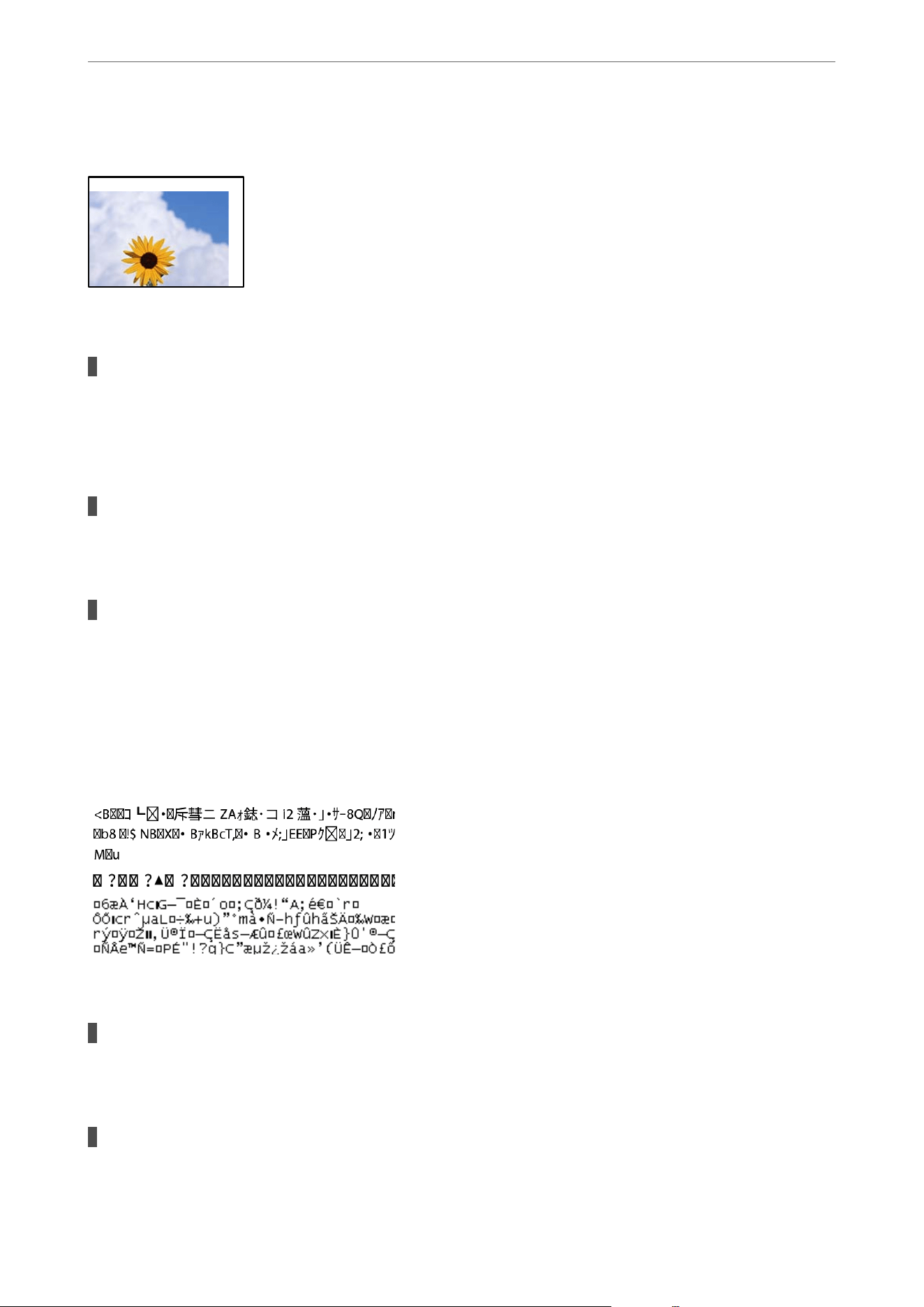
The Position, Size, or Margins of the Printout Are Incorrect
One of the following situations may be the cause.
The paper is loaded incorrectly.
Solutions
Load paper in the correct direction, and slide the edge guides against the edges of the paper.
& “Loading Paper Using Instructions on the LCD screen” on page 32
The paper size in the printer settings is incorrect.
Solutions
Make sure the paper size in the printer settings matches the actual paper size.
The margin setting in the application software is not within the printable area.
Solutions
Adjust the margin setting in the application so that it falls within the printable area.
& “Printable Area” on page 263
Printed Characters Are Incorrect or Garbled
One of the following situations may be the cause.
The USB cable is not connected correctly.
Solutions
Connect the USB cable securely to the printer and the computer.
There is a job waiting to be printed.
Solutions
If there are any paused print jobs, printed characters may be corrupted.
Solving Problems
>
Printing, Copying, Scanning, and Faxing Quality is Poor
>
Print Quality is Poor
186
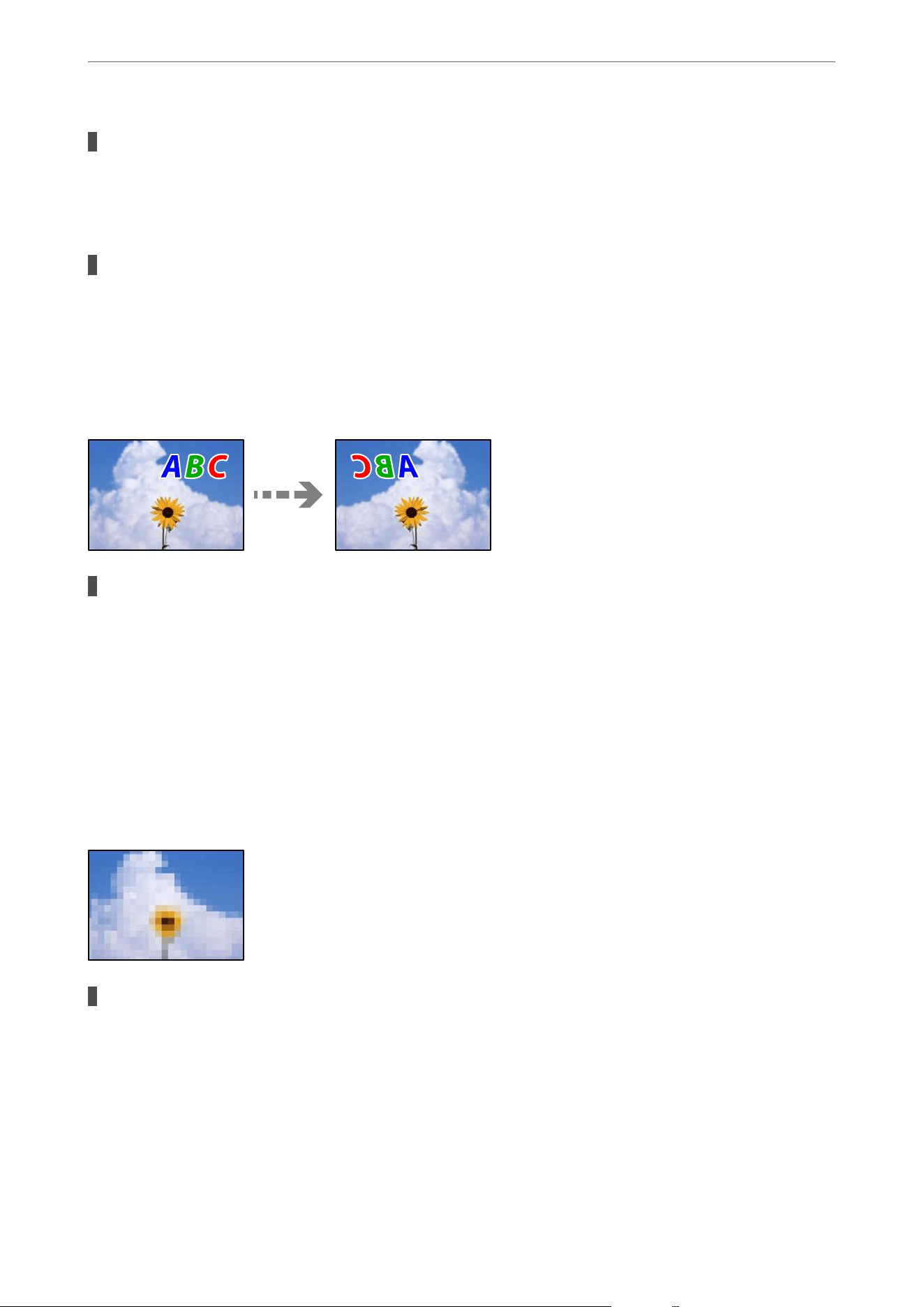
The computer has been manually put into Hibernate or Sleep mode while printing.
Solutions
Do not put the computer manually into Hibernate or Sleep mode while printing. Pages of garbled text
may be printed the next time you start the computer.
You are using the wrong printer driver.
Solutions
Make sure the printer driver you are using is for this printer. Check the printer name on the top of the
printer driver window.
The Printed Image Is Inverted
The invert option is enabled in the print settings.
Solutions
Clear any mirror image settings in the printer driver or the application.
O Windows
Clear Mirror Image on the printer driver’s More Options tab.
O Mac OS
Clear Mirror Image from the print dialog's Print Settings menu.
Mosaic-Like Patterns Appear in the Printout
Low resolution images or photos were printed.
Solutions
When printing images or photos, print using high-resolution data. Images on web sites are
oen
low
resolution even if they look good enough on the display, and so print quality may be poor.
Solving Problems
>
Printing, Copying, Scanning, and Faxing Quality is Poor
>
Print Quality is Poor
187
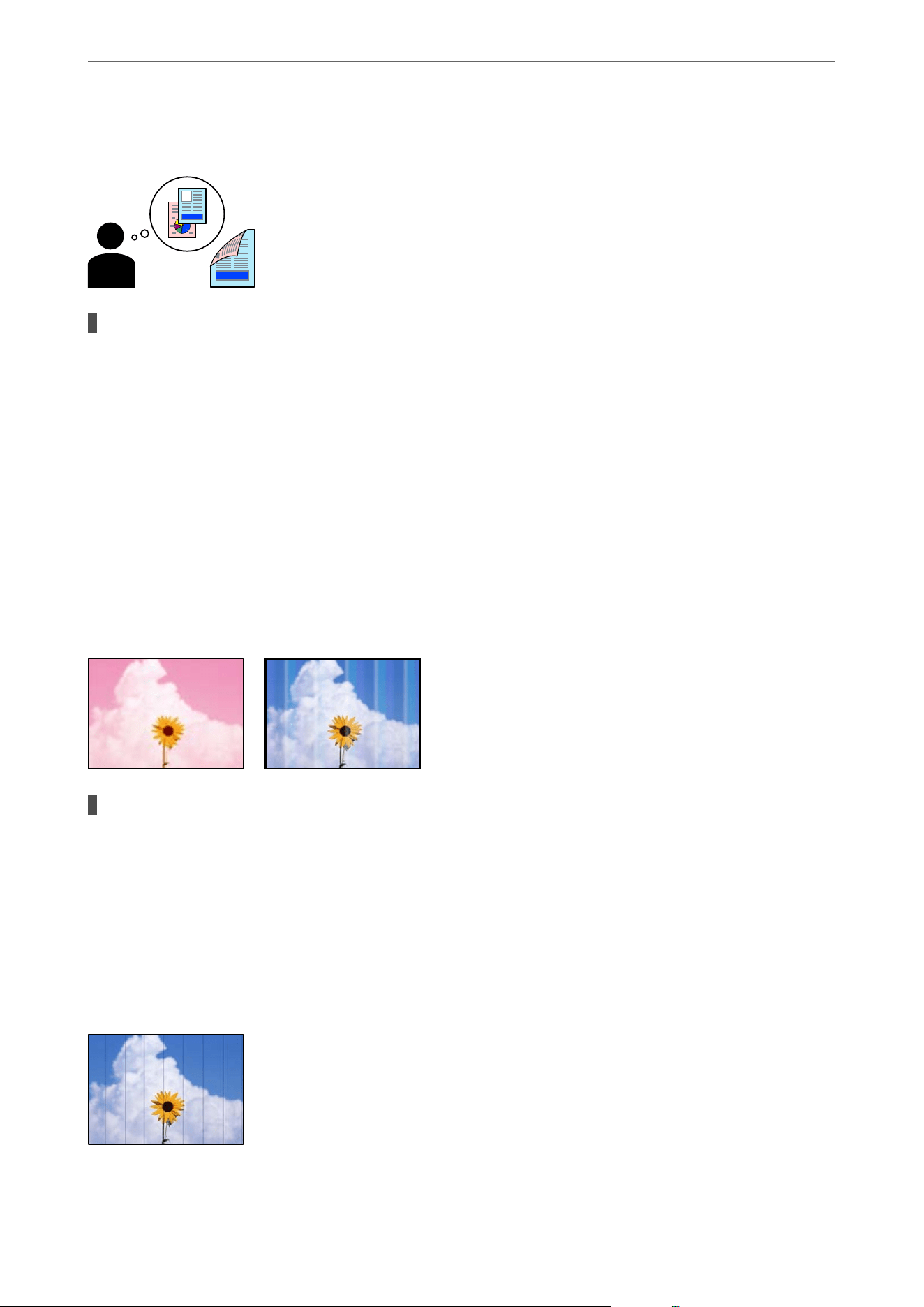
Unintentionally Printing on 2-Sides
The 2-sided printing setting is enabled.
Solutions
Clear any 2-sided printing settings in the printer driver.
O Windows
Select
O
from 2-Sided Printing on the printer driver's Main tab.
O Mac OS
Select O from Two-sided Printing on the print dialog's Two-sided Printing Settings menu.
Copy Quality is Poor
Banding or Unexpected Colors Appear, or Colors Are Missing
The print head nozzles may be clogged.
Solutions
Use the Print Quality Adjustment feature. If you have not used the printer for a long time, the print head
nozzles may be clogged and ink drops may not be discharged.
& “Adjusting the Print Quality” on page 134
Colored Banding Appears at Intervals of Approximately 3.3 cm (1.3 in.) or 1.1 cm
(0.4 in.)
One of the following situations may be the cause.
Solving Problems
>
Printing, Copying, Scanning, and Faxing Quality is Poor
>
Copy Quality is Poor
188

The paper type in the printer settings is incorrect.
Solutions
Make sure the paper type in the printer settings matches the actual paper type.
& “List of Paper Types” on page 31
The print quality setting is too low.
Solutions
When copying on plain paper, use a higher quality setting.
Select Advanced > Quality and then select Best in each copy menu.
The print head is out of alignment.
Solutions
Align the print head using the Print Quality Adjustment feature.
& “Adjusting the Print Quality” on page 134
Blurry Copies, Vertical Banding, or Misalignment
One of the following situations may be the cause.
The print head is out of alignment.
Solutions
Align the print head using the Print Quality Adjustment feature.
& “Adjusting the Print Quality” on page 134
The bidirectional printing setting is enabled.
Solutions
If print quality does not improve even aer aligning the print head, disable the bidirectional setting.
During bidirectional (or high speed) printing, the print head prints while moving in both directions, and
vertical lines may be misaligned. Disabling this setting may slow down printing speed but improve print
quality.
Select Settings > General Settings > Printer Settings, and then disable Bidirectional on the control
panel.
Solving Problems
>
Printing, Copying, Scanning, and Faxing Quality is Poor
>
Copy Quality is Poor
189

Striped Patterns Appear
The bidirectional printing setting is enabled.
Solutions
When printing on plain paper, disable the bidirectional setting.
During bidirectional (or high speed) printing, the print head prints while moving in both directions, and
vertical lines may be misaligned. Disabling this setting may slow down printing speed but improve print
quality.
Select Settings > General Settings > Printer Settings, and then disable Bidirectional on the control
panel.
The print head nozzles may be clogged.
Solutions
Use the Print Quality Adjustment feature. If you have not used the printer for a long time, the print head
nozzles may be clogged and ink drops may not be discharged.
& “Adjusting the Print Quality” on page 134
Printouts are Blank or Only Some Lines are Printed
The print head nozzles may be clogged.
Solutions
Use the Print Quality Adjustment feature. If you have not used the printer for a long time, the print head
nozzles may be clogged and ink drops may not be discharged.
& “Adjusting the Print Quality” on page 134
The paper size in the print settings is incorrect.
Solutions
Make sure the paper size in the print settings matches the actual paper size.
Solving Problems
>
Printing, Copying, Scanning, and Faxing Quality is Poor
>
Copy Quality is Poor
190

Multiple sheets of paper are fed into the printer at the same time.
Solutions
See the following to prevent multiple sheets of paper from being fed into the printer at the same time.
& “Several Sheets of Paper are Fed at a Time” on page 176
Paper Is Smeared or Scued
One of the following situations may be the cause.
The paper is loaded incorrectly.
Solutions
When horizontal banding (perpendicular to the printing direction) appears, or the top or bottom of the
paper is smeared, load paper in the correct direction and slide the edge guides to the edges of the paper.
& “Loading Paper Using Instructions on the LCD screen” on page 32
The paper path is smeared.
Solutions
When vertical banding (parallel to the printing direction) appears, or the paper is smeared, clean the
paper path.
& “Cleaning the Paper Path for Ink Smears” on page 137
The paper is curled.
Solutions
Place the paper on a
at
surface to check if it is curled. If it is,
atten
it.
The print head is rubbing the surface of the paper.
Solutions
When copying on thick paper, the print head is close to the printing surface and the paper may be
scued. In this case, enable the reduce scu setting.
Select Settings > General Settings > Printer Settings, and then enable ick Paper on the control panel.
If you enable this setting, copy quality may decline or may slow down.
Solving Problems
>
Printing, Copying, Scanning, and Faxing Quality is Poor
>
Copy Quality is Poor
191

Copied Photos are Sticky
The copy was made on the wrong side of the photo paper.
Solutions
Make sure you are copying on the printable side. If you copy on the wrong side of the photo paper, you
need to clean the paper path.
& “Cleaning the Paper Path for Ink Smears” on page 137
The Position, Size, or Margins of the Copies are Incorrect
One of the following situations may be the cause.
The paper is loaded incorrectly.
Solutions
Load paper in the correct direction, and slide the edge guides against the edges of the paper.
& “Loading Paper Using Instructions on the LCD screen” on page 32
The original is not placed correctly on the scanner glass.
Solutions
O Make sure the original is placed correctly against the alignment marks.
O If the edge of the scanned image is missing, move the original slightly away from the edge of the
scanner glass. You cannot scan the area within approximately 1.5 mm (0.06 in.) from the edge of the
scanner glass.
& “Placing Originals” on page 36
There is dust or dirt on the scanner glass.
Solutions
When placing the originals on the scanner glass, remove any dust or dirt from the originals, and clean the
scanner glass. If there is dust or stains on the glass, the copy area may extend to include the dust or stains,
resulting in the wrong copying position or small images.
& “Cleaning the Scanner Glass” on page 137
Solving Problems
>
Printing, Copying, Scanning, and Faxing Quality is Poor
>
Copy Quality is Poor
192

The paper size in the printer settings is incorrect.
Solutions
Make sure the paper size in the printer settings matches the actual paper size.
Original Size is wrong in copy setting.
Solutions
Select the appropriate Original Size in the copy setting.
& “Advanced Menu Options for Copying” on page 87
If the printer is placed in a location near a light source or subjected to direct sunlight, the
original size may not be detected correctly.
Solutions
Select the original size manually, and then try again.
Uneven Colors, Smears, Dots, or Straight Lines Appear in the Copied Image
One of the following situations may be the cause.
The paper path is dirty.
Solutions
Clean the paper path.
& “Cleaning the Paper Path for Ink Smears” on page 137
There is dust or dirt on the originals or the scanner glass.
Solutions
Remove any dust or dirt from the originals, and clean the scanner glass.
& “Cleaning the Scanner Glass” on page 137
There is dust or dirt on the ADF or originals.
Solutions
Clean the ADF, and remove any dust or dirt from the originals.
& “Cleaning the ADF” on page 138
Solving Problems
>
Printing, Copying, Scanning, and Faxing Quality is Poor
>
Copy Quality is Poor
193

The original was pressed with too much force.
Solutions
If you press with too much force, blurring, smudges, and spots may occur.
Do not press with too much force on the original or the document cover.
& “Placing Originals” on page 36
The copy density setting is too high.
Solutions
Lower the copy density setting.
& “Basic Menu Options for Copying” on page 85
Moiré (Cross-Hatch) Patterns Appear in the Copied Image
If the original is a printed document such as a magazine or a catalog, a dotted moiré pattern
appears.
Solutions
Change the reduce and enlarge setting. If a moiré pattern still appears, place the original at a slightly
dierent
angle.
& “Basic Menu Options for Copying” on page 85
An Image of the Reverse Side of the Original Appears in the Copied Image
One of the following situations may be the cause.
When scanning thin originals, images on the back may be scanned at the same time.
Solutions
Place the original on the scanner glass and then place a piece of black paper over it.
& “Placing Originals” on page 36
Solving Problems
>
Printing, Copying, Scanning, and Faxing Quality is Poor
>
Copy Quality is Poor
194
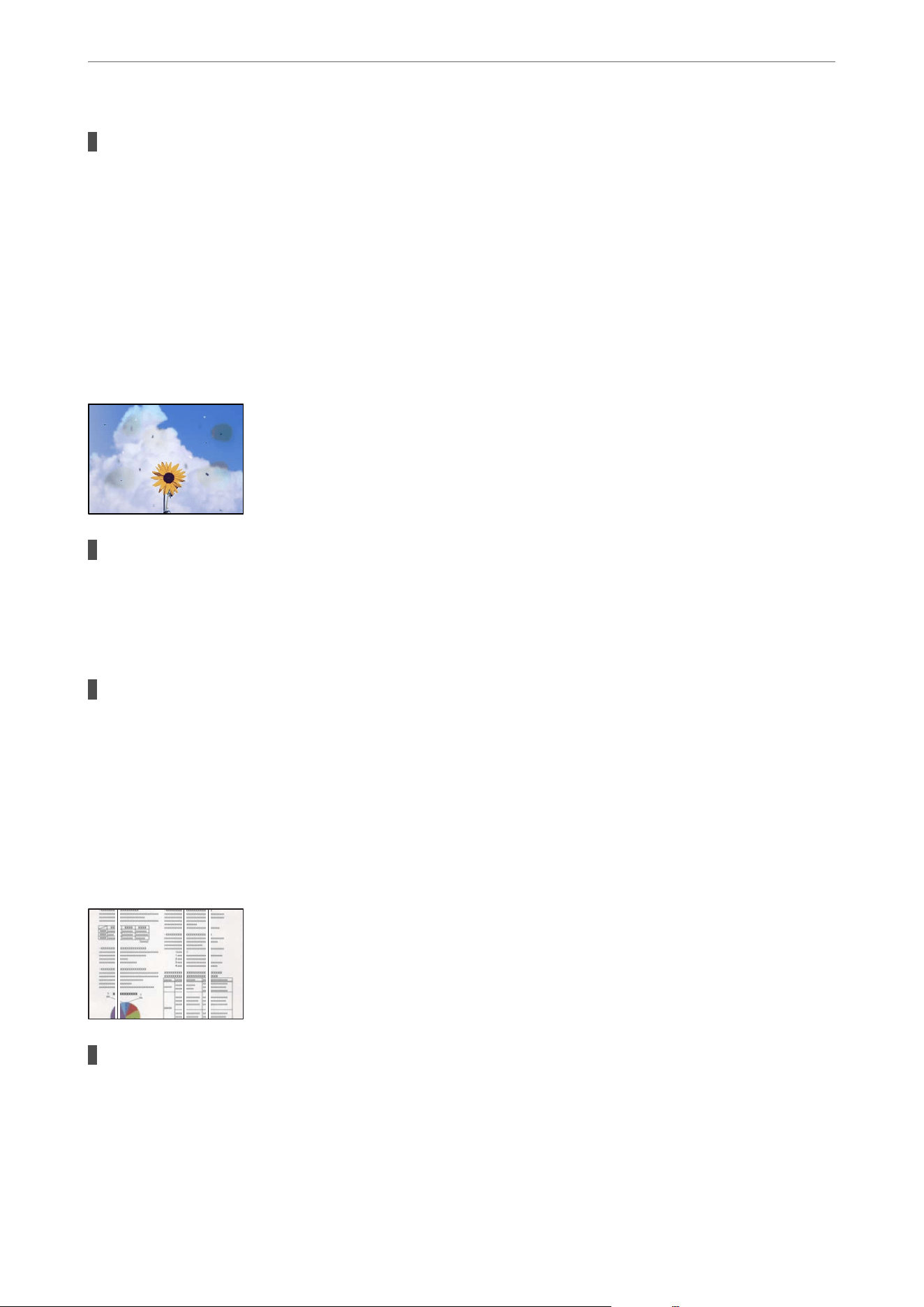
The copy density setting is too high.
Solutions
Lower the copy density setting.
& “Basic Menu Options for Copying” on page 85
Scanned Image Problems
Uneven Colors, Dirt, Spots, Appear when Scanning from the Scanner Glass
There is dust or dirt on the originals or the scanner glass.
Solutions
Remove any dust or dirt from the originals, and clean the scanner glass.
& “Cleaning the Scanner Glass” on page 137
The original was pressed with too much force.
Solutions
If you press with too much force, blurring, smudges, and spots may occur.
Do not press with too much force on the original or the document cover.
& “Placing Originals” on page 36
Straight Lines Appear when Scanning from ADF
There is dust or dirt on the ADF or originals.
Solutions
Clean the ADF, and remove any dust or dirt from the originals.
& “Cleaning the ADF” on page 138
Solving Problems
>
Printing, Copying, Scanning, and Faxing Quality is Poor
>
Scanned Image Problems
195
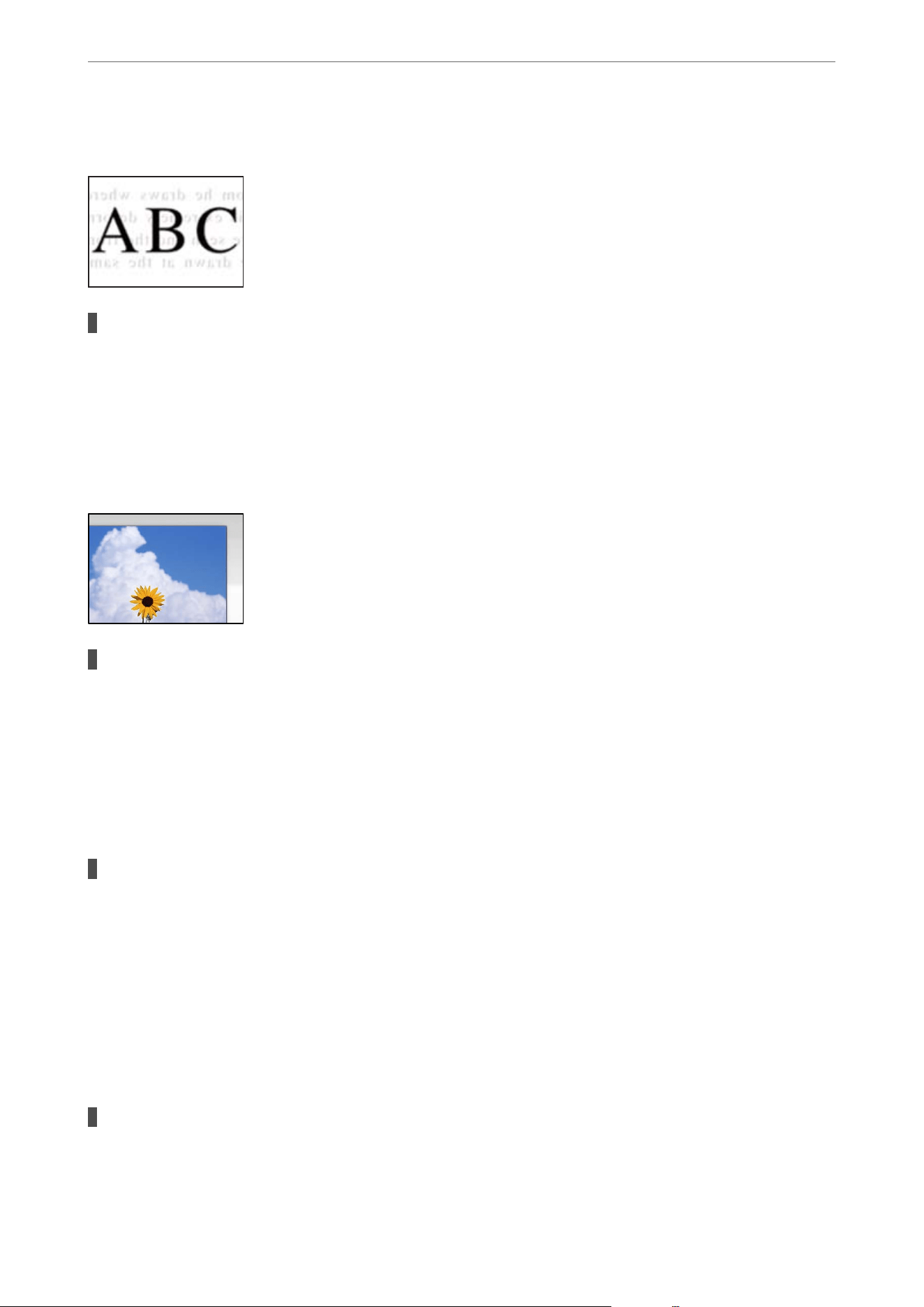
An Image of the Reverse Side of the Original Appears in the Scanned Image
When scanning thin originals, images on the back may be scanned at the same time.
Solutions
Place the original on the scanner glass and then place a piece of black paper over it.
& “Placing Originals” on page 36
Cannot Scan the Correct Area on the Scanner Glass
The original is not placed correctly on the scanner glass.
Solutions
O Make sure the original is placed correctly against the alignment marks.
O If the edge of the scanned image is missing, move the original slightly away from the edge of the
scanner glass. You cannot scan the area within approximately 1.5 mm (0.06 in.) from the edge of the
scanner glass.
& “Placing Originals” on page 36
There is dust or dirt on the scanner glass.
Solutions
Remove any dust or dirt from the scanner glass and document cover. If there is any dust or dirt around
the original, the scanning range expands to include it.
& “Cleaning the Scanner Glass” on page 137
Cannot Solve Problems in the Scanned Image
Check the following if you have tried all of the solutions and have not solved the problem.
There are problems with the scanning software settings.
Solutions
Use Epson Scan 2 Utility to initialize the settings for the scanner soware.
Solving Problems
>
Printing, Copying, Scanning, and Faxing Quality is Poor
>
Scanned Image Problems
196

Note:
Epson Scan 2 Utility is an application supplied with the scanner soware.
Note:
For Windows Server operating systems, make sure the Desktop Experience feature is installed.
1. Start the Epson Scan 2 Utility.
O Windows 11/Windows Server 2025
Click the start button, and then select All apps > EPSON > Epson Scan 2 Utility.
O Windows 10/Windows Server 2022/Windows Server 2019/Windows Server 2016
Click the start button, and then select EPSON > Epson Scan 2 Utility.
O Windows 8.1/Windows Server 2012 R2
Enter the application name in the search charm, and then select the displayed icon.
O Windows 7/Windows Server 2008 R2/Windows Server 2008
Click the start button, and then select All Programs > EPSON > Epson Scan 2 > Epson Scan 2
Utility.
O Mac OS
Select Go > Applications > Epson Soware > Epson Scan 2 Utility.
2. Select the Other tab.
3. Click Reset.
If initialization does not solve the problem, uninstall and reinstall the scanner soware.
& “Installing the Applications Separately” on page 146
The Quality of the Sent Fax is Poor
Quality of the Sent Fax is Poor
One of the following situations may be the cause.
There is dust or dirt on the originals or the scanner glass.
Solutions
Remove any dust or dirt from the originals, and clean the scanner glass.
& “Cleaning the Scanner Glass” on page 137
Solving Problems
>
Printing, Copying, Scanning, and Faxing Quality is Poor
>
The Quality of the Sent Fax is Poor
197

The original was pressed with too much force.
Solutions
If you press with too much force, blurring, smudges, and spots may occur.
Do not press with too much force on the original or the document cover.
& “Placing Originals” on page 36
Straight Lines Appear when Sending Faxes from the ADF
There is dust or dirt on the ADF or originals.
Clean the ADF, and remove any dust or dirt from the originals.
Related Information
& “Cleaning the ADF” on page 138
The Image Quality of the Sent Fax is Poor
One of the following situations may be the cause.
The resolution setting is too low.
Solutions
If you do not know the performance of the sender’s fax machine, select the following settings before
sending a fax.
O Select Fax > Fax Settings and then set the Resolution setting to set the highest quality image.
O Select Fax > Fax Settings and then enable Direct Send.
Note that if you set Resolution to Photo but you send the fax without enabling Direct Send, the fax
may be sent at a lower resolution.
Solving Problems
>
Printing, Copying, Scanning, and Faxing Quality is Poor
>
The Quality of the Sent Fax is Poor
198

Image Quality of Sent Faxes does not Improve After Trying the Solutions Above
Solutions
If you cannot solve the problem, contact your printer administrator. For printer administrators, see the
following section to troubleshoot fax problems.
“e Quality of the Sent or Received Fax is Poor” on page 359
An Image of the Reverse Side of the Original Appears in the Sent Fax
One of the following situations may be the cause.
When scanning thin originals, images on the back may be scanned at the same time.
Solutions
Place the original on the scanner glass and then place a piece of black paper over it.
& “Placing Originals” on page 36
The density setting is high when sending faxes.
Solutions
Select Fax > Fax Settings > Scan Settings > Density, and then lower the setting.
Received Fax Quality is Poor
The Image Quality of Received Faxes is Poor
One of the following situations may be the cause.
ECM setting is disabled.
Solutions
Select Settings > General Settings > Fax Settings > Basic Settings and enable the ECM setting on
the control panel. is may clear errors that occur due to connection problems. Note that the speed of
sending and receiving faxes may be slower than when ECM is disabled.
Solving Problems
>
Printing, Copying, Scanning, and Faxing Quality is Poor
>
Received Fax Quality is Poor
199
The image quality setting is low on the sender's fax machine.
Solutions
Ask the sender to send faxes at a higher quality.
Image Quality of Received Faxes does not Improve After Trying the Solutions Above
Solutions
If you cannot solve the problem, contact your printer administrator. For printer administrators, see the
following section to troubleshoot fax problems.
“e Quality of the Sent or Received Fax is Poor” on page 359
A Message is Displayed on the LCD Screen
If an error message is displayed on the LCD screen, follow the on-screen instructions or the solutions below to
solve the problem.
Error Messages Solutions
Printer error. Turn the power o and on again. If
the problem persists, contact Epson Support.
Remove any paper or protective material in the printer. If the error
message is still displayed, contact Epson support.
Paper out in Paper Cassette. Load paper. Paper
Size: XX/Paper Type: XX
Load paper, and then insert the paper cassette all the way.
Ink is low. You can continue printing until you are prompted to replace the ink
cartridges. However, note that the printer cannot print if any one of the
ink cartridges is expended. Obtain new cartridges as soon as possible.
When black ink is running low and there is enough color ink remaining,
see the following.
“Continue Printing to Conserve Black Ink (for Windows Only)” on
page 209
You need to replace Ink Cartridge. To ensure you receive premium print quality and to help protect your
print head, a variable ink safety reserve remains in the cartridge when
your printer indicates it is time to replace the cartridge. Replace the
cartridge when you are prompted to do so.
“Replacing Ink Cartridges” on page 206
When color ink is expended and black ink still remains, see the
following.
“Continue Printing Temporarily with Only Black Ink (Windows)” on
page 207
Cannot recognize Ink Cartridge. Try installing
again.
O An ink cartridge is not installed correctly. Press down each of the ink
cartridges gently.
O An installed ink cartridge is cannot be used with this printer. Replace
the cartridge with one compatible with this printer.
“Ink Cartridge Codes” on page 231
The printer's ink pad is at the end of its service
life. Please contact Epson Support.
Contact Epson or an authorised Epson service provider to replace the
ink pad*1. It is not a user-serviceable part.
However, non-printing features such as scanning are available.
Solving Problems
>
A Message is Displayed on the LCD Screen
200
Error Messages Solutions
The printer's ink pad is nearing the end of its
service life. Please contact Epson Support.
Contact Epson or an authorised Epson service provider to replace the
ink pad
*1
. It is not a user-serviceable part. The message will be displayed
until the ink pad is replaced.
Tap the OK button to resume printing.
The printer's borderless printing ink pad is
nearing the end of its service life. It is not a user-
replaceable part. Please contact Epson support.
Contact Epson or an authorized Epson service provider to replace the
borderless printing ink pad
*1*2
. It is not a user-serviceable part.
Borderless printing is not available, but printing with a border is
available.
The printer's borderless printing ink pad has
reached the end of its service life. It is not a user-
replaceable part. Please contact Epson support.
Contact Epson or an authorized Epson service provider to replace the
borderless printing ink pad
*1*2
. It is not a user-serviceable part.
Borderless printing is not available, but printing with a border is
available.
Paper Setup Auto Display is set to O. Some
features may not be available. For details, see
your documentation.
If Paper Setup Auto Display is disabled, you cannot use AirPrint.
No dial tone is detected. This problem might be resolved by selecting Settings > General
Settings > Fax Settings > Basic Settings > Line Type and then
selecting PBX. If your phone system requires an external access code
to get an outside line, set the access code after selecting PBX. Use #
(hash) instead of the actual access code when entering an outside fax
number. This makes connection more secure.
If the error message is still displayed, set the Dial Tone Detection
settings to disabled. However, disabling this feature may drop the rst
digit of a fax number and send the fax to the wrong number.
The combination of the IP address and the
subnet mask is invalid. See your documentation
for more details.
Enter the correct IP address or default gateway. Contact the person who
set up the network for assistance.
Communication error. Check if the computer is
connected.
Connect the computer and the printer correctly. If you are connecting
over a network, recongure your settings from the computer.
“Conguring Settings for Connecting to the Computer” on page 151
If the error message is displayed during scanning, make sure that Epson
ScanSmart is installed on the computer.
To use cloud services, update the root certicate
from the Epson Web Cong utility.
Run Web Cong, and then update the root certicate.
Check that the printer driver is installed on the
computer and that the port settings for the
printer are correct.
Make sure the printer port is selected correctly in Property > Port from
the Printer menu as follows.
Select "USBXXX" for a USB connection, or "EpsonNet Print Port" for a
network connection.
Solving Problems
>
A Message is Displayed on the LCD Screen
201
Error Messages Solutions
Recovery Mode Follow the steps below to retry the rmware update.
1. Connect the computer and the printer with a USB cable.
c
Important:
O During recovery mode, you cannot update the rmware over
a network connection. You can only use a USB connection.
O Use a USB 2.0 type A‐B cable.
2. Download the latest rmware from your local Epson website to your
computer, and then start the update.
Note:
Note for users in the U.S. and Canada: Your printer is designed to work only with genuine Epson-brand ink cartridges.
Other brands of ink cartridges and ink supplies are not compatible and, even if described as compatible, may not function
properly or at all. Epson periodically provides rmware updates to address issues of security, performance, minor bug xes
and ensure the printer functions as designed. ese updates may aect the functionality of third-party ink. Non-Epson
branded or altered Epson cartridges that functioned prior to a rmware update may not continue to function.
e included initial cartridges are designed for reliable printer setup and cannot be used as replacement cartridges or
resold. Aer setup, the remaining ink is available for printing. Yields are based on ISO 24711 in default mode, printing
continuously. Yields vary due to print images, settings, and temperatures. Printing infrequently or primarily with one color
reduces yields. All cartridges must be installed with ink for printing and printer maintenance. For print quality, some ink
remains in replaced cartridges.
*1 Note for users in regions other than the U.S. and Canada: The ink pads in the printer collect, distribute, and contain the
ink that is not used on printed pages. During the life of your product it may reach a condition where either satisfactory print
quality cannot be maintained or the ink pads have reached the end of their usable life. The Epson Status Monitor, your LCD
screen, or lights on the control panel will advise you when these parts need replacing. If this happens during the standard
warranty of the product, the exchange of the product or replacement of the pads is covered under the standard warranty. If
the product is out of warranty, the pads can be replaced by any Epson authorized service provider. The waste ink pads are
not a user-replaceable part.
*2 Note for users in the U.S. and Canada: In some print cycles a very small amount of surplus ink may be collected in the
borderless printing ink pad. To prevent ink leakage from the pad, the product is designed to stop borderless printing when
the pad has reached its limit. Whether and how often this is required will vary according to the number of pages you print
using the borderless print option. The need for replacement of the pad does not mean that your printer has ceased to
operate in accordance with its specications. The printer will advise you when the pad requires replacing and this can only
be performed by an authorized Epson Service provider. If this happens during the standard warranty of the product, the
replacement of borderless printing ink pads is covered under the standard warranty.
Paper Gets Jammed
Check the error displayed on the control panel and follow the instructions to remove the jammed paper, including
any torn pieces. e LCD screen displays an animation that shows you how to remove jammed paper.
!
Caution:
Never touch the buttons on the control panel while your hand is inside the printer. If the printer starts operating, it
could cause an injury. To avoid injury, be careful not to touch any protruding parts.
c
Important:
Remove the jammed paper carefully. Removing the paper with too much force may damage the printer.
Solving Problems
>
Paper Gets Jammed
202
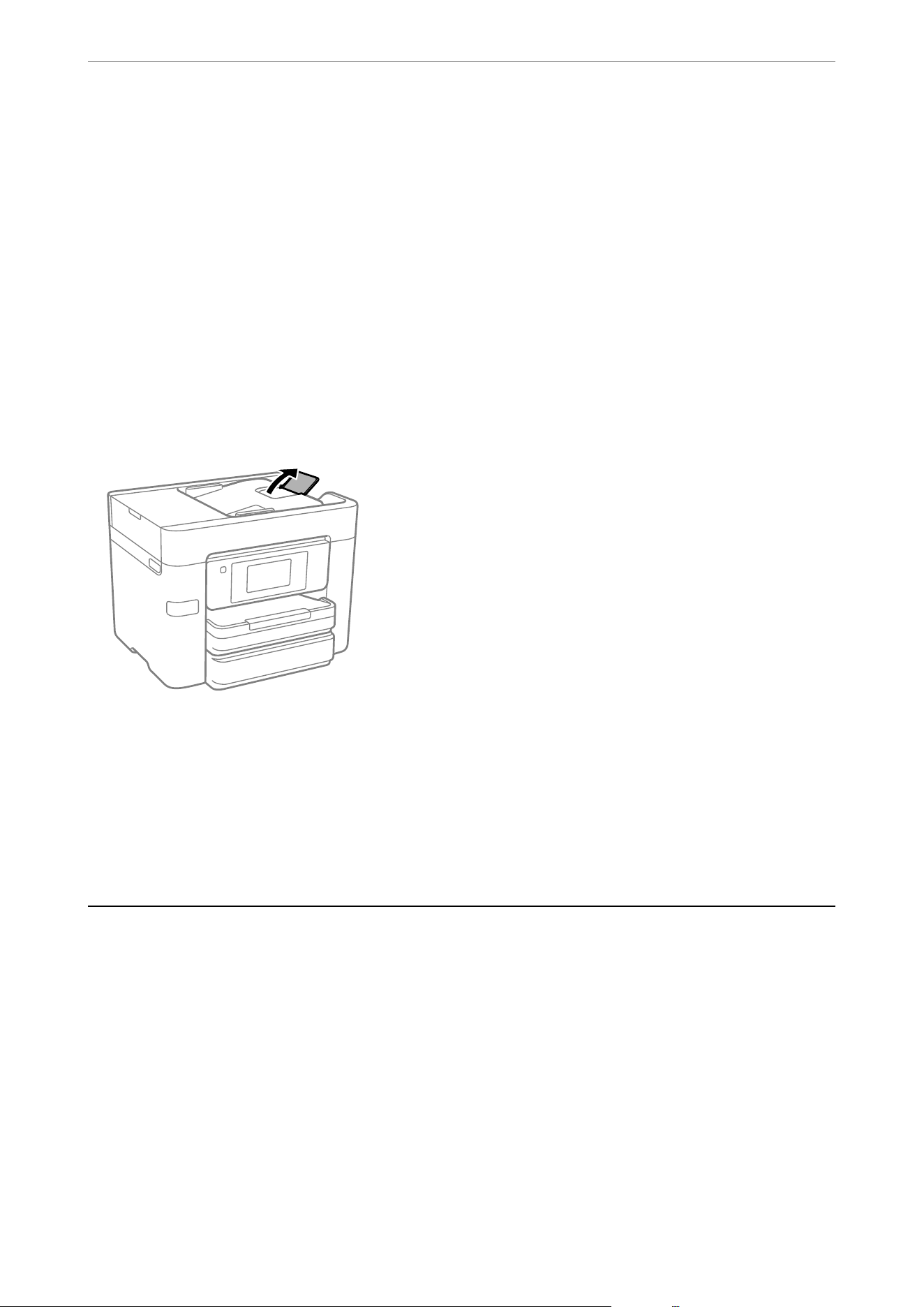
Preventing Paper Jams
Check the following if paper jams occur frequently.
O Place the printer on a at surface and use it in the recommended environment.
“Environmental Specications” on page 274
O Use paper supported by this printer.
“Available Paper and Capacities” on page 221
O Follow paper handling precautions.
“Paper Handling Precautions” on page 30
O Load paper in the correct direction, and slide the edge guides against the edges of the paper.
“Loading Paper Using Instructions on the LCD screen” on page 32
O Raise the ADF document support.
O Do not load more than the maximum number of sheets specied for the paper.
“Available Paper and Capacities” on page 221
O If a paper jam occurs when you load several sheets of paper, load one sheet at the time.
O Make sure the paper size and paper type settings match the actual paper size and paper type loaded in the
printer.
“List of Paper Types” on page 31
It is Time to Replace the Ink Cartridges
Ink Cartridge Handling Precautions
Read the following instructions before replacing ink cartridges.
Storing precautions for ink cartridges
O Keep the ink cartridges out of direct sunlight.
O Do not store the ink cartridges in high or freezing temperatures.
O For best results, Epson recommends using up ink cartridges before the best before date printed on the package,
or within six months of opening the package, whichever is earlier.
Solving Problems
>
It is Time to Replace the Ink Cartridges
>
Ink Cartridge Handling Precautions
203
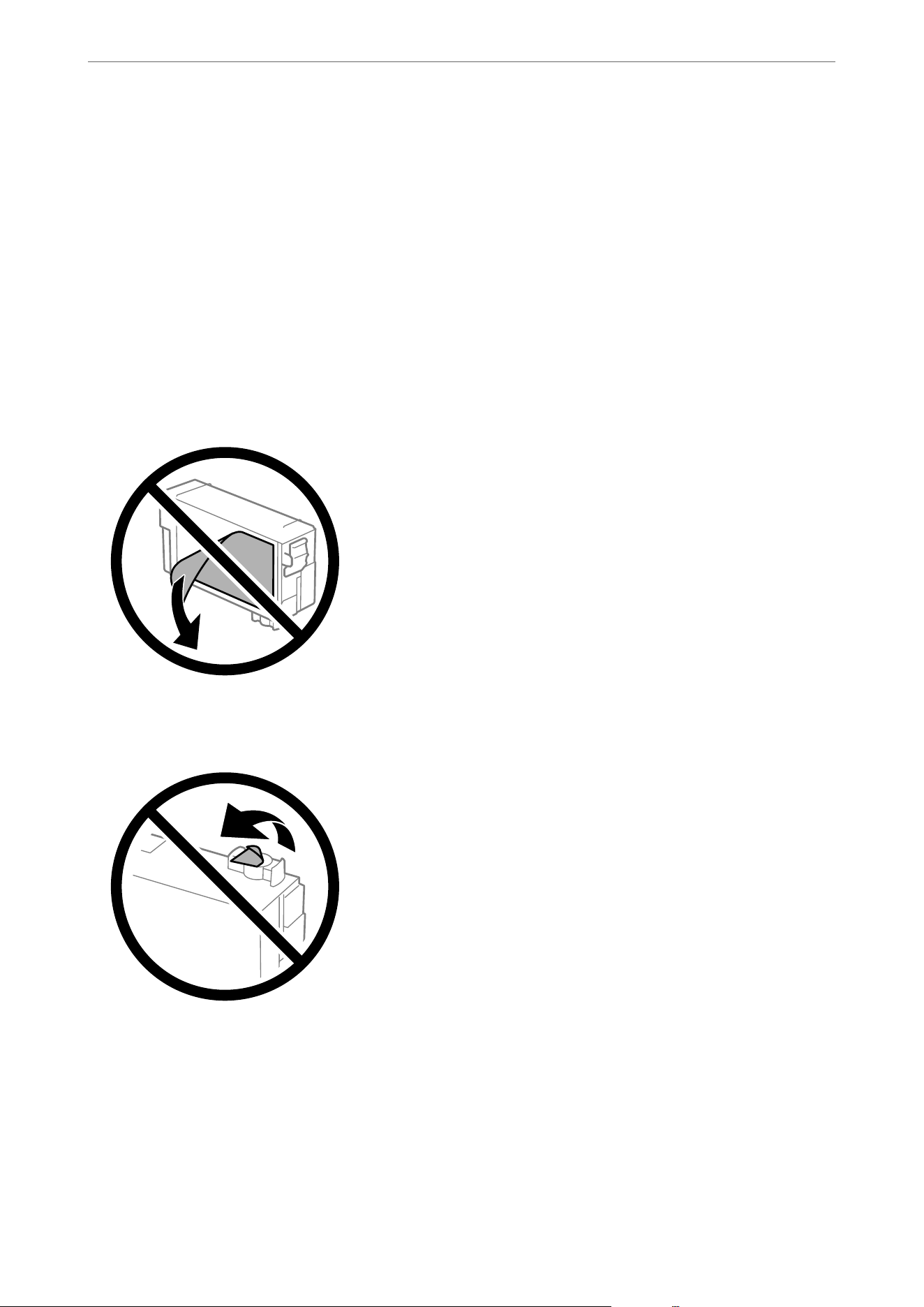
O For best results, store ink cartridge packages with their bottoms down.
O Aer bringing an ink cartridge inside from a cold storage site, allow it to warm up at room temperature for at
least three hours before using it.
O Do not open the ink cartridge package until you are ready to install it in the printer. e cartridge is vacuum
packed to maintain its reliability. If you leave a cartridge unpacked for a long time before using it, normal
printing may not be possible.
Handling precautions for replacing ink cartridges
O Be careful not to break the hooks on the side of the ink cartridge when you remove it from the package.
O Do not shake cartridges aer opening the package, as they may leak.
O You must remove the yellow tape from the cartridge before installing it; otherwise, print quality may decline or
you may not be able to print. Do not remove or tear the label on the cartridge; this can cause leakage.
O Do not remove the transparent seal from the bottom of the cartridge; otherwise, the cartridge may become
unusable.
Solving Problems
>
It is Time to Replace the Ink Cartridges
>
Ink Cartridge Handling Precautions
204

O Do not touch the sections shown in the illustration. Doing so may prevent normal operation and printing.
O Do not replace ink cartridge with the power o. Do not move the print head by hand; otherwise, you may
damage the printer.
O Do not turn
o
the printer during ink charging. If the ink charging is incomplete, you may not be able to print.
O Do not leave the printer with the ink cartridges removed and do not turn o the printer during cartridge
replacement. Otherwise, ink remaining in the print head nozzles will dry out and you may not be able to print.
O If you need to remove an ink cartridge temporarily, make sure you protect the ink supply area from dirt and
dust. Store the ink cartridge in the same environment as the printer, with the ink supply port facing down
or sideways. Do not store ink cartridges with the ink supply port facing up. Because the ink supply port is
equipped with a valve designed to contain the release of excess ink, there is no need to supply your own covers
or plugs.
O Removed ink cartridges may have ink around their ink supply ports, so be careful not to get any ink on the
surrounding area when removing the cartridges.
O is printer uses ink cartridges equipped with green chips that monitor information such as the amount of
remaining ink for each cartridge. is means that even if a cartridge is removed from the printer before it is
expended, you can still use the cartridge aer reinserting it back into the printer. However, when reinserting a
cartridge, some ink may be consumed to guarantee printer performance.
O For maximum ink
eciency,
only remove an ink cartridge when you are ready to replace it. Ink cartridges with
low ink status may not be used when reinserted.
O To ensure you receive premium print quality and to help protect your print head, a variable ink safety reserve
remains in the cartridge when your printer indicates to replace the cartridge. e yields quoted for you do not
include this reserve.
O Do not disassemble or remodel the ink cartridge, otherwise you may not be able to print normally.
O You cannot use the cartridges that came with the printer for the replacement.
Ink consumption
O To maintain optimum print head performance, some ink is consumed from all cartridges during maintenance
operations. Ink may also be consumed when you replace ink cartridge or turn the printer on.
O When printing in monochrome or grayscale, color inks instead of black ink may be used depending on the
paper type or print quality settings.
is
is because a mixture of color inks is used to create black.
Solving Problems
>
It is Time to Replace the Ink Cartridges
>
Ink Cartridge Handling Precautions
205
O e ink in the ink cartridges supplied with your printer is partly used during initial setup. In order to produce
high quality printouts, the print head in your printer will be fully charged with ink.
is
one-o
process
consumes a quantity of ink and therefore these cartridges may print fewer pages compared to subsequent ink
cartridges.
O Quoted yields may vary depending on the images that you are printing, the paper type that you are using, the
frequency of your prints and environmental conditions such as temperature.
Related Information
& “Replacing Ink Cartridges” on page 206
Replacing Ink Cartridges
When a message is displayed prompting you to replace the ink cartridges, select How To and then view the
animated instructions displayed on the control panel to learn how to replace the ink cartridges.
If you need to replace the ink cartridges before they are expended, select Maintenance > Ink Cartridge(s)
Replacement on the home screen, and then follow the on-screen instructions. Select How To for details.
Note:
For users in the U.S. and Canada: Please dispose of your used Epson branded ink cartridges responsibly and in accordance
with local requirements. If you would like to return your used ink cartridges to Epson for proper disposal, please go to
https://epson.com/recycle (U.S.) or https://epson.ca/recycle (Canada) for more information.
!
Caution:
Be careful not to trap your hand or ngers when opening or closing the scanner unit. Otherwise you may be injured.
Related Information
& “Ink Cartridge Codes” on page 231
& “Ink Cartridge Handling Precautions” on page 203
Continue Printing Temporarily without Replacing Ink Cartridges
Temporarily Printing with Black Ink
When color ink is expended and black ink still remains, you can use the following settings to continue printing for
a short time using only black ink.
O Paper Type: Plain paper, Preprinted, Letterhead, Color, Recycled, High quality plain paper, ick-Paper,
Envelope
O Color: B&W or Grayscale
O Borderless: Not selected
O EPSON Status Monitor 3: Enabled (When printing from the printer driver on Windows.)
Because this feature is only available for approximately ve days, replace the expended ink cartridge as soon as
possible.
Solving Problems
>
It is Time to Replace the Ink Cartridges
>
Continue Printing Temporarily without Replacing In
…
206
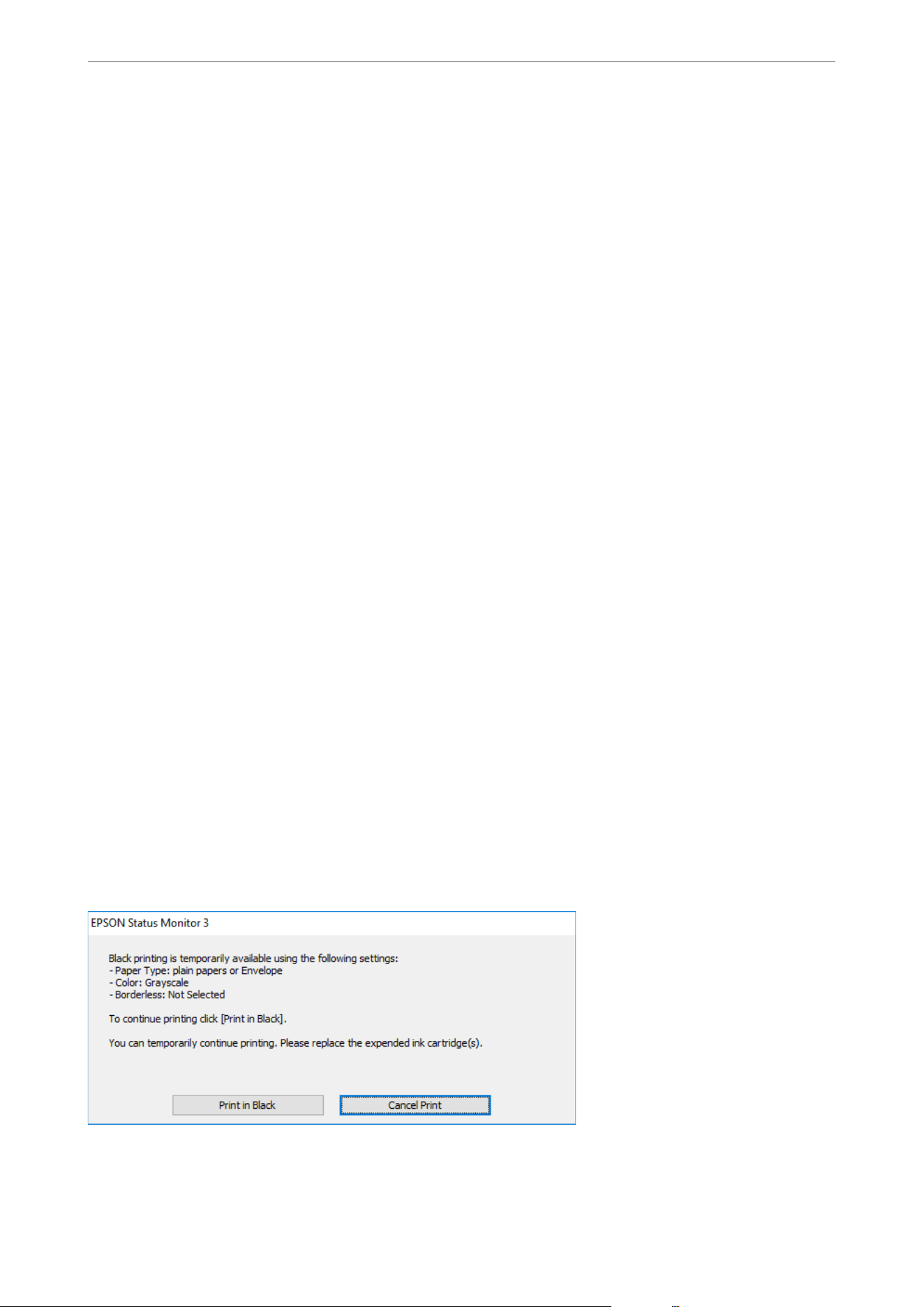
Note:
O If EPSON Status Monitor 3 is disabled, access the printer driver, click Extended Settings on the Maintenance tab, and
then select Enable EPSON Status Monitor 3.
O e available period varies depending on the usage conditions.
Related Information
& “Continue Printing Temporarily with Only Black Ink (Control Panel)” on page 207
& “Continue Printing Temporarily with Only Black Ink (Windows)” on page 207
& “Continue Printing Temporarily with Only Black Ink (Mac OS)” on page 208
Continue Printing Temporarily with Only Black Ink (Control Panel)
1. When a message is displayed prompting you to replace the ink cartridges, select Proceed.
A message is displayed telling you that you can temporarily print with black ink.
2. Check the message, and then select Proceed.
3. If you want to print in monochrome, select No, remind me later.
e ongoing job is canceled.
4. Now you can copy originals or print received faxes on plain paper in monochrome. Select the feature you want
to use on the home screen.
Note:
Borderless copying is not available.
Related Information
& “Temporarily Printing with Black Ink” on page 206
Continue Printing Temporarily with Only Black Ink (Windows)
Do one of the following.
O When the following window is displayed, select Print in Black.
Solving Problems
>
It is Time to Replace the Ink Cartridges
>
Continue Printing Temporarily without Replacing In
…
207
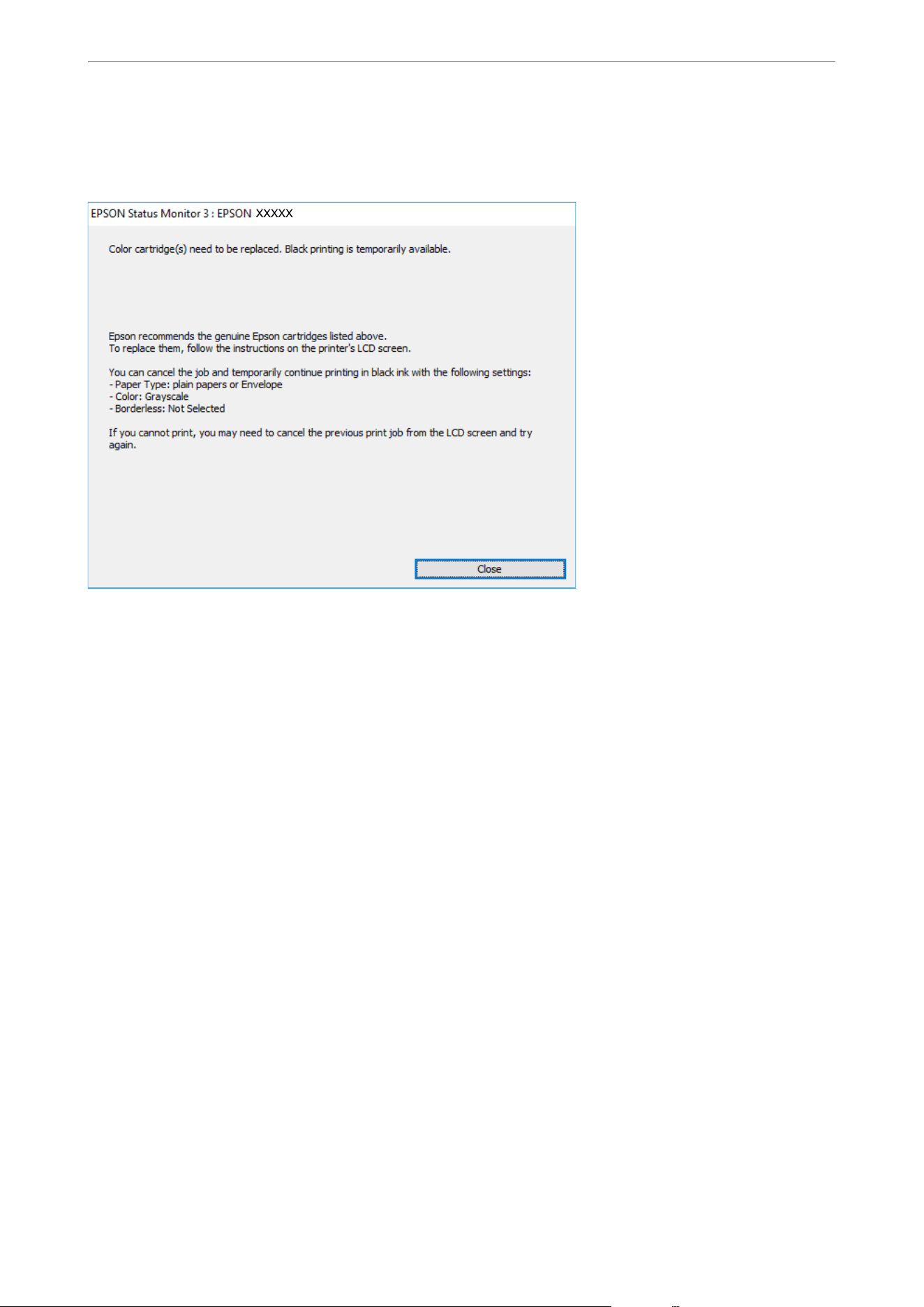
O When the following window is displayed, cancel printing, and then print again.
* e following screen is an example.
Note:
If you cannot cancel printing from the computer, cancel using the printer's control panel.
Follow the steps below when printing again.
1. Access the printer driver window.
2. Clear Borderless on the Main tab.
3. Select a Paper Type that supports Print in Black.
4. Select Grayscale.
5. Set the other settings on the Main and More Options tabs as necessary, and then click OK.
6.
Click Print.
7. Click Print in Black in the window displayed.
Related Information
& “Temporarily Printing with Black Ink” on page 206
Continue Printing Temporarily with Only Black Ink (Mac OS)
Note:
To use this feature through a network, connect with Bonjour.
1.
Click the printer icon in the Dock.
Solving Problems
>
It is Time to Replace the Ink Cartridges
>
Continue Printing Temporarily without Replacing In
…
208

2. Cancel the job.
Note:
If you cannot cancel printing from the computer, cancel using the printer's control panel.
3. Select System Preferences (or System Settings) from the Apple menu > Printers & Scanners (or Print &
Scan, Print & Fax), and then select the printer. Click Options & Supplies > Options (or Driver).
4. Select On as the Permit temporary black printing setting.
5. Access the print dialog.
6. Select Print Settings from the pop-up menu.
7. Select any paper size except for a borderless size as the Paper Size setting.
8. Select a paper type that supports Permit temporary black printing as the Media Type setting.
9. Select Grayscale.
10. Select other settings as necessary.
11. Click Print.
Related Information
& “Temporarily Printing with Black Ink” on page 206
Continue Printing to Conserve Black Ink (for Windows Only)
When black ink is running low and there is enough color ink remaining, you can use a mixture of color inks to
create black. You can continue printing while preparing a replacement black ink cartridge.
is feature is only available when you select the following settings in the printer driver.
O Paper Type: Plain paper, Preprinted, Letterhead, Color, Recycled, High quality plain paper, ick-Paper
O Quality: Standard
O EPSON Status Monitor 3: Enabled
Solving Problems
>
It is Time to Replace the Ink Cartridges
>
Continue Printing Temporarily without Replacing In
…
209
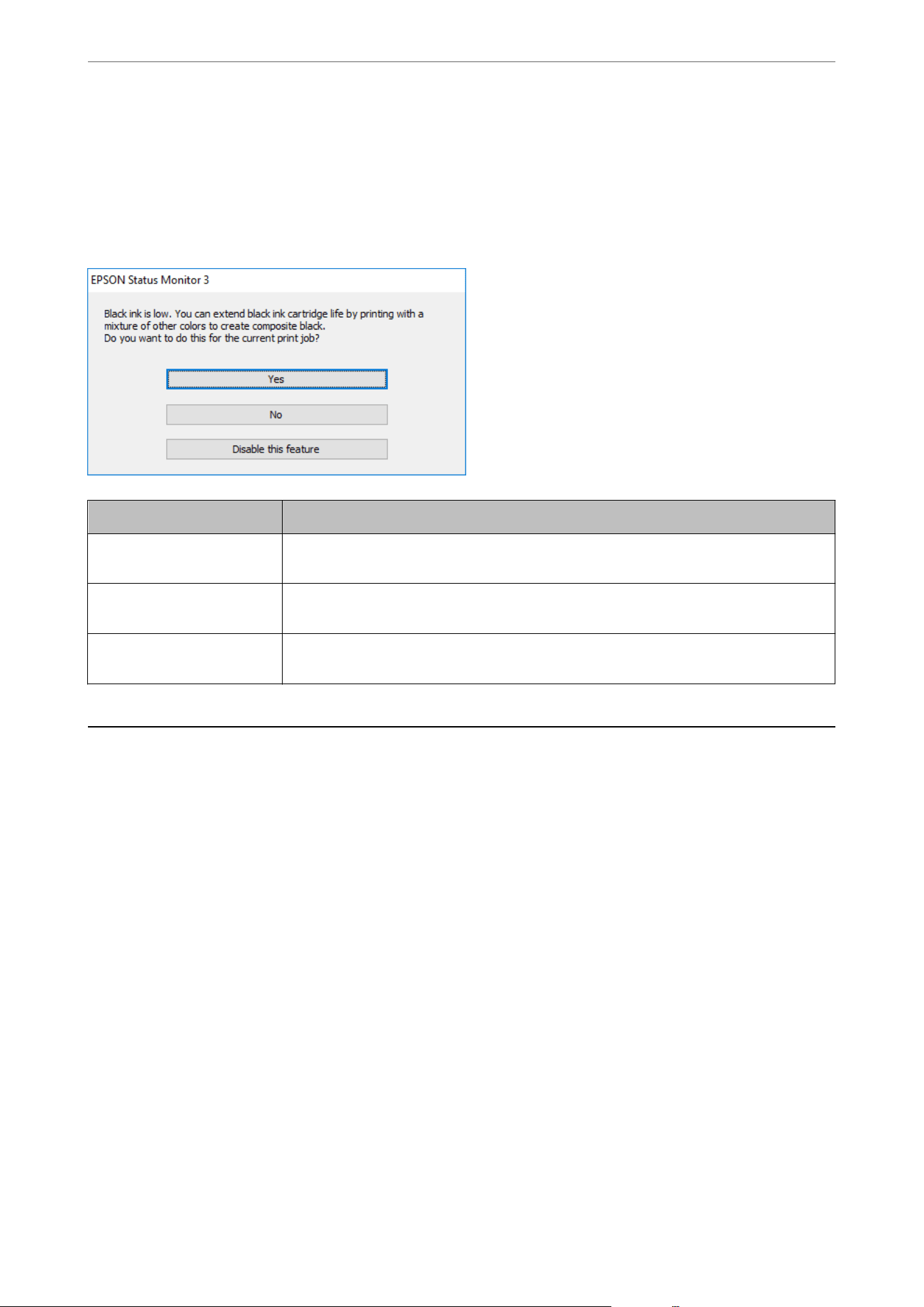
Note:
O If EPSON Status Monitor 3 is disabled, access the printer driver, click Extended Settings on the Maintenance tab, and
then select Enable EPSON Status Monitor 3.
O Composite black looks slightly dierent from pure black. In addition, the print speed is reduced.
O To maintain the quality of the print head, black ink is also consumed.
Options Description
Yes Select to use a mixture of color inks to create black. This window is displayed the next time
you print a similar job.
No Select to continue using the remaining black ink. This window is displayed the next time
you print a similar job.
Disable this feature Select to continue using the remaining black ink. This window is not displayed until you
replace the black ink cartridge and it runs low again.
It is Time to Replace the Maintenance Box
Maintenance Box Handling Precautions
Read the following instructions before replacing the maintenance box.
O Do not touch the green chip on the side of the maintenance box. Doing so may prevent normal operation and
printing.
O Do not drop the maintenance box or subject it to strong shocks.
O Do not replace the maintenance box during printing; otherwise, ink may leak.
O Do not remove the maintenance box or its cover except when replacing the maintenance box; otherwise ink
may leak.
O Do not tilt the used maintenance box until
aer
it is sealed in the plastic bag; otherwise ink may leak.
O Do not touch the openings in the maintenance box as you may get smeared with ink.
O Do not reuse a maintenance box which has been removed and le detached for a long period. Ink inside the box
will solidify and prevent the box from absorbing any more ink.
O Keep the maintenance box out of direct sunlight.
O Do not store the maintenance box in high or freezing temperatures.
Solving Problems
>
It is Time to Replace the Maintenance Box
>
Maintenance Box Handling Precautions
210
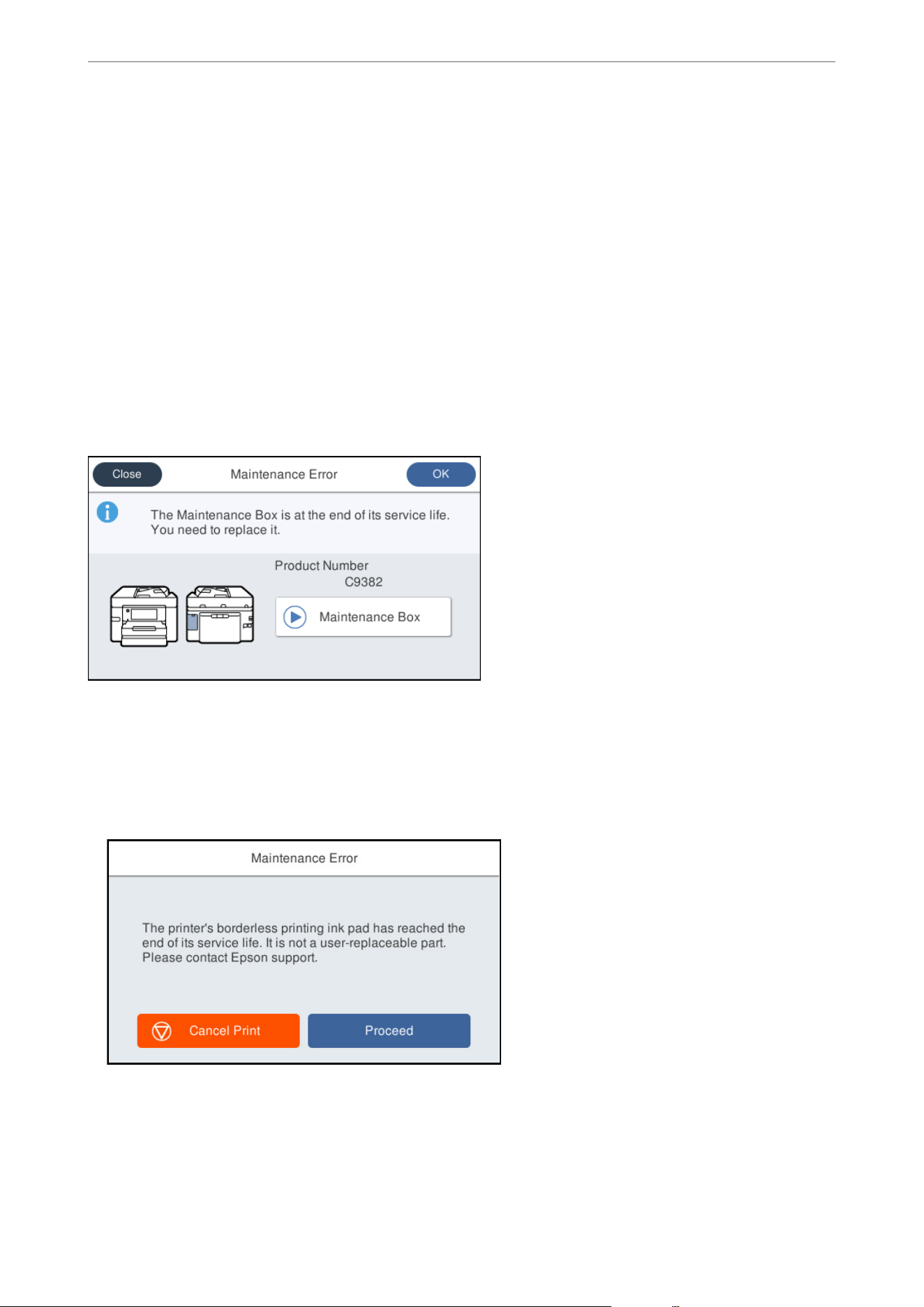
Related Information
& “Replacing a Maintenance Box” on page 211
Replacing a Maintenance Box
In some print cycles a very small amount of surplus ink may be collected in the maintenance box. To prevent ink
leakage from the maintenance box, the printer is designed to stop printing when the absorbing capacity of the
maintenance box has reached its limit. Whether and how oen this is required will vary according to the number
of pages you print, the type of material that you print and the number of cleaning cycles that the printer performs.
When a message is displayed prompting you to replace the maintenance box, refer to the animated instructions
displayed on the control panel.
e
need for replacement of the box does not mean that your printer has ceased to
operate in accordance with its
specications.
e
Epson warranty does not cover the cost of this replacement. It is a
user-serviceable part.
Note:
O When the maintenance box is full, you cannot print or clean the print head until the maintenance box is replaced, in
order to avoid ink leakage. However, you can perform operations that do not use ink such as scanning.
O When the following screen is displayed, the part cannot be replaced by users. Contact Epson support.
Borderless printing is not available, but printing with a border is available.
Note:
For users in the U.S. and Canada: Please dispose of your used Epson branded maintenance boxes responsibly and in
accordance with local requirements. If you would like to return your used maintenance boxes to Epson for proper disposal,
please go to https://epson.com/recycle (U.S.) or https://epson.ca/recycle (Canada) for more information.
Solving Problems
>
It is Time to Replace the Maintenance Box
>
Replacing a Maintenance Box
211

Related Information
& “Maintenance Box Code” on page 232
& “Maintenance Box Handling Precautions” on page 210
Cannot Operate the Printer as Expected
The Printer Does Not Turn On or O
Power Does Not Turn On
One of the following situations may be the cause.
The power cord is not properly plugged into the electrical outlet.
Solutions
Make sure the power cord is securely plugged in.
The
P
button was not pressed for long enough.
Solutions
Hold down the
P
button for a little longer.
Power Does Not Turn O
The
P
button was not pressed for long enough.
Solutions
Hold down the
P
button for a little longer. If you still cannot turn o the printer, unplug the power cord.
en plug the power cord back in and turn the printer back on and o by pressing the
P
button, in order
avoid drying out the print head.
Power Turns
O
Automatically
The Power O Settings or Power O Timer feature is enabled.
Solutions
O Select Settings > General Settings > Basic Settings > Power O Settings, and then disable the Power
O
If Inactive and Power
O
If Disconnected settings.
O Select Settings > General Settings > Basic Settings, and then disable the Power O Timer Setting.
Note:
Your product may have the Power O Settings or Power O Timer feature depending on the location of purchase.
Solving Problems
>
Cannot Operate the Printer as Expected
>
The Printer Does Not Turn On or O
212

Operations are Slow
Printing Is Too Slow
One of the following situations may be the cause.
Unnecessary applications are running.
Solutions
Close any unnecessary applications on your computer or mobile devices.
The print quality setting is too high.
Solutions
Lower the quality setting on the printer driver. You may not be able to select a lower quality setting on
some printer models.
Bidirectional printing is disabled.
Solutions
Enable the bidirectional (or high speed) setting. When this setting is enabled, the print head prints while
moving in both directions, and the printing speed increases.
O Control panel
Select Settings > General Settings > Printer Settings, and then enable Bidirectional.
O Windows
Select Bidirectional Printing on the printer driver's More Options tab.
O Mac OS
Select System Preferences from the Apple menu > Printers & Scanners (or Print & Scan, Print
&Fax), and then select the printer. Click Options & Supplies > Options (or Driver). Select On as the
Bidirectional Printing setting.
Quiet Mode is enabled.
Solutions
Disable Quiet Mode.
e
printing speed slows down when the printer is running in Quiet Mode.
O Control panel
Select
on the home screen, and then select O.
O Windows
Select O as the Quiet Mode setting on the printer driver's More Options tab.
O Mac OS
Select System Preferences from the Apple menu > Printers & Scanners (or Print & Scan, Print &
Fax), and then select the printer. Click Options & Supplies > Options (or Driver). Select O as the
Quiet Mode setting.
Solving Problems
>
Cannot Operate the Printer as Expected
>
Operations are Slow
213

Printing Slows Down Dramatically During Continuous Printing
The printer has slowed down to prevent the printer mechanism from overheating and being
damaged.
Solutions
You can continue printing. To return to normal printing speed, leave the printer idle for at least 30
minutes with the power turned on.
Scanning Speed Is Slow
The scanning resolution setting is too high.
Solutions
Try scanning at a lower resolution.
LCD Screen Gets Dark
The printer is in sleep mode.
Solutions
Tap anywhere on the LCD screen to return it to its former state. When Energy Saving Priority Mode is
set to On, press the power button to wake the printer from sleep mode.
Cannot Operate from the Control Panel
To use product features when Access Control is set, you must log in as a registered user.
Solutions
If you do not know the password, contact your printer administrator.
"x" is Displayed on the Screen and you Cannot Select Photos
The image le is not supported.
Solutions
"x" is displayed on the LCD screen when the image le is not supported by the product. Use les
supported by the product.
& “Supported Data Specications” on page 272
The le name is too long to be recognized by the printer.
Solutions
You can print the photo by saving it to your computer or mobile device instead. With a mobile device,
you can print using Epson Smart Panel.
Solving Problems
>
Cannot Operate the Printer as Expected
>
Operations are Slow
214

Memory Device Is not Recognized
The memory device is set to disabled.
Solutions
On the control panel, select Settings > General Settings > Printer Settings > Memory Device Interface,
and the enable the memory device.
Cannot Save Data to a Memory Device
One of the following situations may be the cause.
The setting to save to a memory device has not been set.
Solutions
Select Settings > General Settings > Fax Settings > Receive Settings > Fax Output Settings on the home
screen. Select the item you want to change, and then select Create a folder to save fax data from Save to
Memory Device. You cannot use the external memory unless you set this setting.
The memory device is write-protected.
Solutions
Disable write protection on the memory device.
There is not enough free space on the memory device.
Solutions
Delete unnecessary data or insert another memory device.
The Printer Is Loud
Quiet Mode is disabled on the printer.
Solutions
If the printer is too loud, enable Quiet Mode. Enabling this feature may reduce print speed.
O Control panel
Select
on the home screen, and then select On.
O Windows
Select On as the Quiet Mode on the printer driver's More Options tab.
O Mac OS
Select System Preferences from the Apple menu > Printers & Scanners (or Print & Scan, Print &
Fax), and then select the printer. Click Options & Supplies > Options (or Driver). Select On as the
Quiet Mode setting.
Solving Problems
>
Cannot Operate the Printer as Expected
>
Operations are Slow
215

The Date and Time Are Incorrect
Error occurred in power supply.
Solutions
If there is power failure caused by a lightning strike or the power is le o for a long time, the clock may
show the wrong time. Set the date and the time correctly in Settings > General Settings > Basic Settings
> Date/Time Settings on the control panel.
The Root Certicate Needs to be Updated
The root certicate has expired.
Solutions
Run Web Cong, and then update the root certicate.
& “Application for Conguring Printer Operations (Web Cong)” on page 236
Cannot Perform Manual 2-sided Printing (Windows)
EPSON Status Monitor 3 is disabled.
Solutions
On the printer driver's Maintenance tab, click Extended Settings, and then select Enable EPSON Status
Monitor 3.
Manual 2-sided printing may not be available when the printer is accessed over a network or is used as a
shared printer.
The Print Settings Menu is Not Displayed (Mac OS)
The Epson Printer Driver has Not been Installed Correctly.
Solutions
If the Print Settings menu is not displayed on macOS Catalina (10.15) or later, macOS High Sierra
(10.13), macOS Sierra (10.12), OS X El Capitan (10.11), OS X Yosemite (10.10), or OS X Mavericks
(10.9), the Epson printer driver has not been installed correctly. Enable it from the following menu.
Select System Preferences (or System Settings) from the Apple menu > Printers & Scanners (or Print &
Scan or Print & Fax), remove the printer, and then add the printer again.
In macOS Mojave (10.14), you cannot access Print Settings in applications made by Apple such as
Text Edit.
& “Adding a Genuine Epson Printer (for Mac OS Only)” on page 149
Solving Problems
>
Cannot Operate the Printer as Expected
>
Operations are Slow
216

Sender's Fax Number Not Displayed
The fax number has not been added in the sender's machine.
Solutions
e sender may not have set the fax number. Contact the sender.
Sender's Fax Number Displayed on Received Faxes is Wrong
The fax number entered in the sender's machine is wrong.
Solutions
e sender may have set the fax number incorrectly. Contact the sender.
Cannot Make Calls on the Connected Phone
Contact your printer administrator to check the external phone connection and printer settings. For printer
administrators, see the following section to troubleshoot fax problems.
“Cannot Make Calls on the Connected Phone” on page 217
Answering Machine Cannot Answer Voice Calls
The number of rings for your answering machine is set to same or more than the printer's
Rings to Answer setting.
Solutions
Set a number of rings for your answering machine lower than the printer's Rings to Answer.
To check the status of the fax settings, print a Fax Settings List. You can access the menu from the
printer's control panel as described bellow.
Fax > (More) > Fax Report > Fax Settings List
Answering Machine Cannot Answer Voice Calls After Trying the Solutions Above
Solutions
If you cannot solve the problem, contact your printer administrator. For printer administrators, see the
following section to troubleshoot fax problems.
“Answering Machine Cannot Answer Voice Calls” on page 359
A Lot of Junk Faxes Have Been Received
Contact your printer administrator to review the printer settings. For printer administrators, see the following
section to troubleshoot fax problems.
“A Lot of Junk Faxes Have Been Received” on page 217
Solving Problems
>
Cannot Operate the Printer as Expected
>
Operations are Slow
217

Cannot Solve Problem
If you cannot solve the problem aer trying all of the solutions, contact Epson support.
If you cannot solve printing or copying problems, see the following related information.
Related Information
& “Cannot Solve Printing Problems” on page 218
Cannot Solve Printing Problems
Try the solutions in the order shown, until you solve the problem.
O Make sure you match the paper type loaded in the printer and the paper type selected on the printer to the
paper type setting in the printer driver.
“Paper Size and Type Settings” on page 31
O Use a higher quality setting on the control panel or in the printer driver.
O Align the print head.
“Aligning the Print Head” on page 137
O Run a nozzle check to see if the print head nozzles are clogged.
If there are missing segments in the nozzle check pattern, the nozzles may be clogged. Repeat head cleaning and
the nozzle check alternately 3 times and check if the clogging has cleared.
Note that print head cleaning uses some ink.
“Checking and Cleaning the Print Head” on page 135
O Tur n
o
the printer, wait for at least 12 hours, and then check if the clogging has cleared.
If the problem is clogging, leaving the printer for a while without printing may solve the problem.
You can check the following items while the printer is
o.
O Make sure you are using genuine Epson ink cartridges.
Try to use genuine Epson ink cartridges. is product is designed to adjust colors based on the use of genuine
Epson ink cartridges. e use of non-genuine ink cartridges may cause print quality to decline.
“Ink Cartridge Codes” on page 231
O Make sure there are no paper fragments le inside the printer.
When you remove the paper, do not touch the translucent lm with your hand or the paper.
O Make sure the paper is loaded with the printable side facing up and not curled.
“Paper Handling Precautions” on page 30
“Available Paper and Capacities” on page 221
“Unavailable Paper Types” on page 230
O Make sure you are not using an old ink cartridge.
For best results, Epson recommends using up ink cartridges before the best before date printed on the package,
or within six months of opening the package, whichever is earlier.
Solving Problems
>
Cannot Solve Problem
>
Cannot Solve Printing Problems
218

O Reinstall the ink cartridge already installed in the printer.
Reinstalling the ink cartridge may clear clogging in the print head nozzles and allow the ink to ow smoothly.
However, because the ink is consumed when the ink cartridge is reinstalled, a message asking you to replace the
ink cartridge may be displayed depending on the amount of ink remaining.
“It is Time to Replace the Ink Cartridges” on page 203
If you cannot solve the problem by checking the solutions above, contact Epson support.
Related Information
& “Before Contacting Epson” on page 421
& “Contacting Epson Support” on page 421
Solving Problems
>
Cannot Solve Problem
>
Cannot Solve Printing Problems
219

Product Information
Paper Information.................................................221
Consumable Products Information.....................................231
Soware Information. . . . . . . . . . . . . . . . . . . . . . . . . . . . . . . . . . . . . . . . . . . . . . 233
Settings Menu List.................................................240
Product Specications..............................................263
Regulatory Information.............................................276
Nameplate...................................................... 280
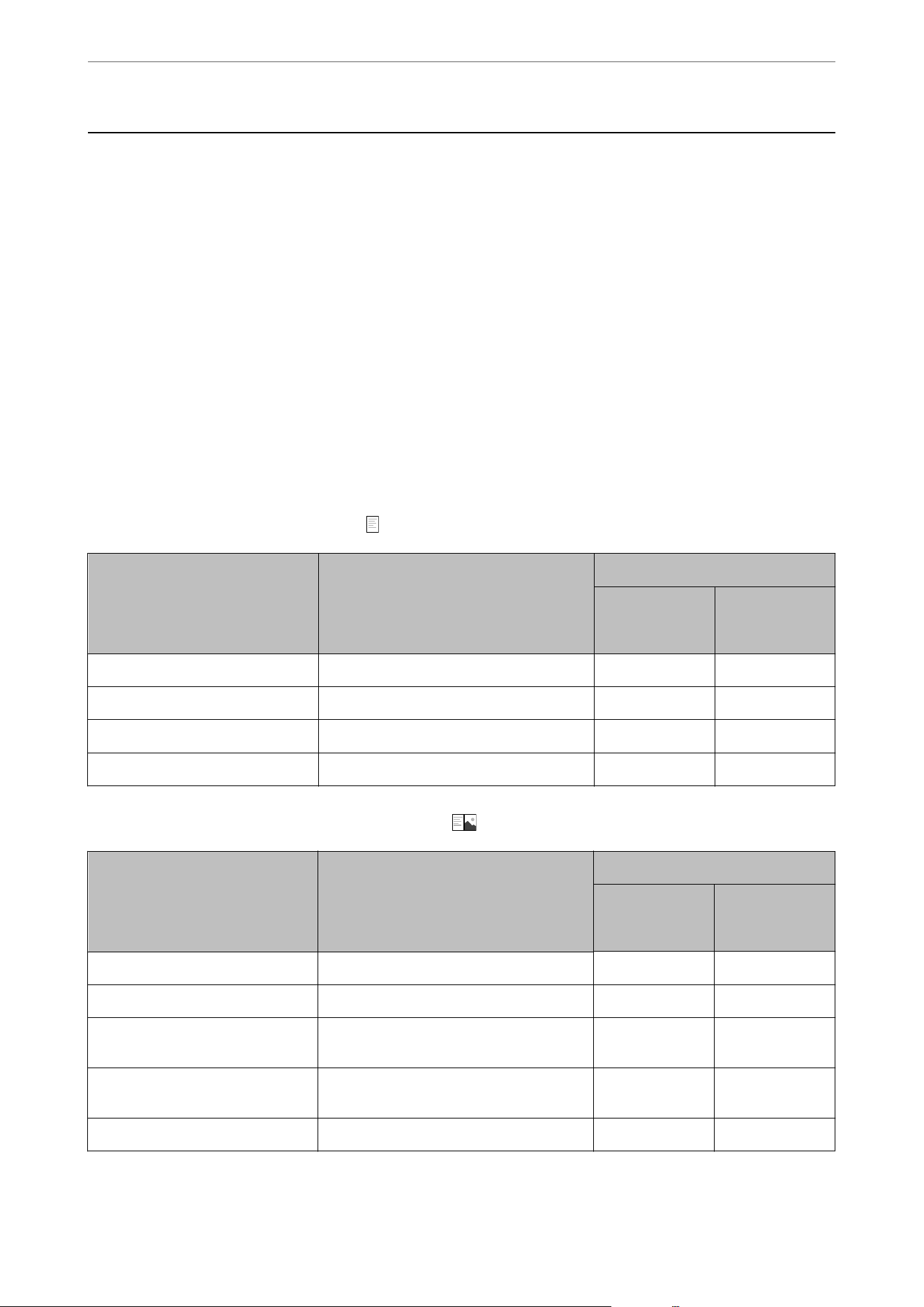
Paper Information
Available Paper and Capacities
Genuine Epson Paper for North America
Epson recommends using genuine Epson paper to ensure high-quality printouts.
Note:
O e availability of paper varies by location. For the latest information on paper available in your area, contact Epson
support.
O See the following for information on available paper types for borderless and 2-sided printing.
“Paper for Borderless Printing” on page 227
“Paper for 2-Sided Printing” on page 229
Paper suitable for printing documents
Media Name Size Loading Capacity (Sheets)
Paper Cassette
1 or Paper
Cassette
Paper Cassette
2 (WF-4930
Series only)
Epson Bright White Paper Letter 250 250
Epson Bright White Pro Paper Letter 250 250
Epson Bright White Premium Paper Letter 250 250
Epson Multipurpose Plus Paper Letter 250 250
Paper suitable for printing documents and photos
Media Name Size Loading Capacity (Sheets)
Paper Cassette
1 or Paper
Cassette
Paper Cassette
2 (WF-4930
Series only)
Epson High Quality Ink Jet Paper A4, Letter 100 -
Epson Presentation Paper Matte Letter, Legal 100 -
Epson Premium Presentation Paper
Matte
8×10 in. (203×254 mm), Letter 50 -
Epson Premium Presentation Paper
Matte Double-sided
Letter 50 -
Epson Brochure & Flyer Paper Matte Letter 50 -
Product Information
>
Paper Information
>
Available Paper and Capacities
221
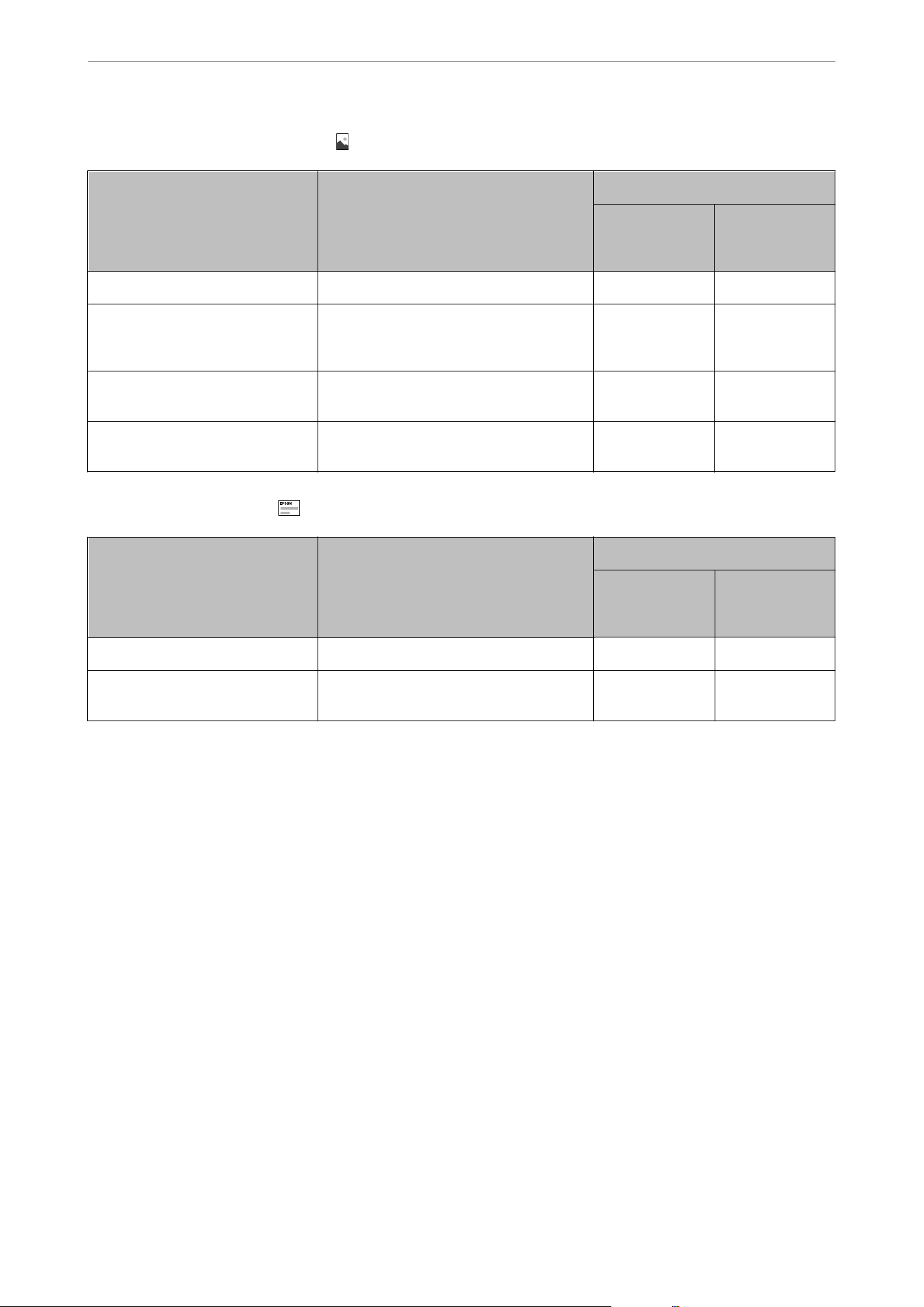
Paper suitable for printing photos
Media Name Size Loading Capacity (Sheets)
Paper Cassette
1 or Paper
Cassette
Paper Cassette
2 (WF-4930
Series only)
Epson Photo Paper Glossy A4, 4×6 in. (102×152 mm), Letter 50 -
Epson Premium Photo Paper Glossy 4×6 in. (102×152 mm), 16:9 (4×7.11 in.
[102×181 mm]), 5×7 in. (127×178 mm),
8×10 in. (203×254 mm), Letter
50 -
Epson Premium Photo Paper Semi-
gloss
4×6 in. (102×152 mm), Letter 50 -
Epson Ultra Premium Photo Paper
Glossy
4×6 in. (102×152 mm), 5×7 in. (127×178
mm), 8×10 in. (203×254 mm), Letter
50 -
Various other paper types
Media Name Size Loading Capacity (Sheets)
Paper Cassette
1
Paper Cassette
2 (WF-4930
Series only)
Epson Photo Quality Ink Jet Cards A6 50 -
Epson Photo Quality Self Adhesive
Sheets
A4 1 -
Related Information
& “Precautions for Photo Paper” on page 30
Genuine Epson Paper for Other Regions
Epson recommends using genuine Epson paper to ensure high-quality printouts.
Note:
O e availability of paper varies by location. For the latest information on paper available in your area, contact Epson
support.
O See the following for information on available paper types for borderless and 2-sided printing.
“Paper for Borderless Printing” on page 227
“Paper for 2-Sided Printing” on page 229
Product Information
>
Paper Information
>
Available Paper and Capacities
222
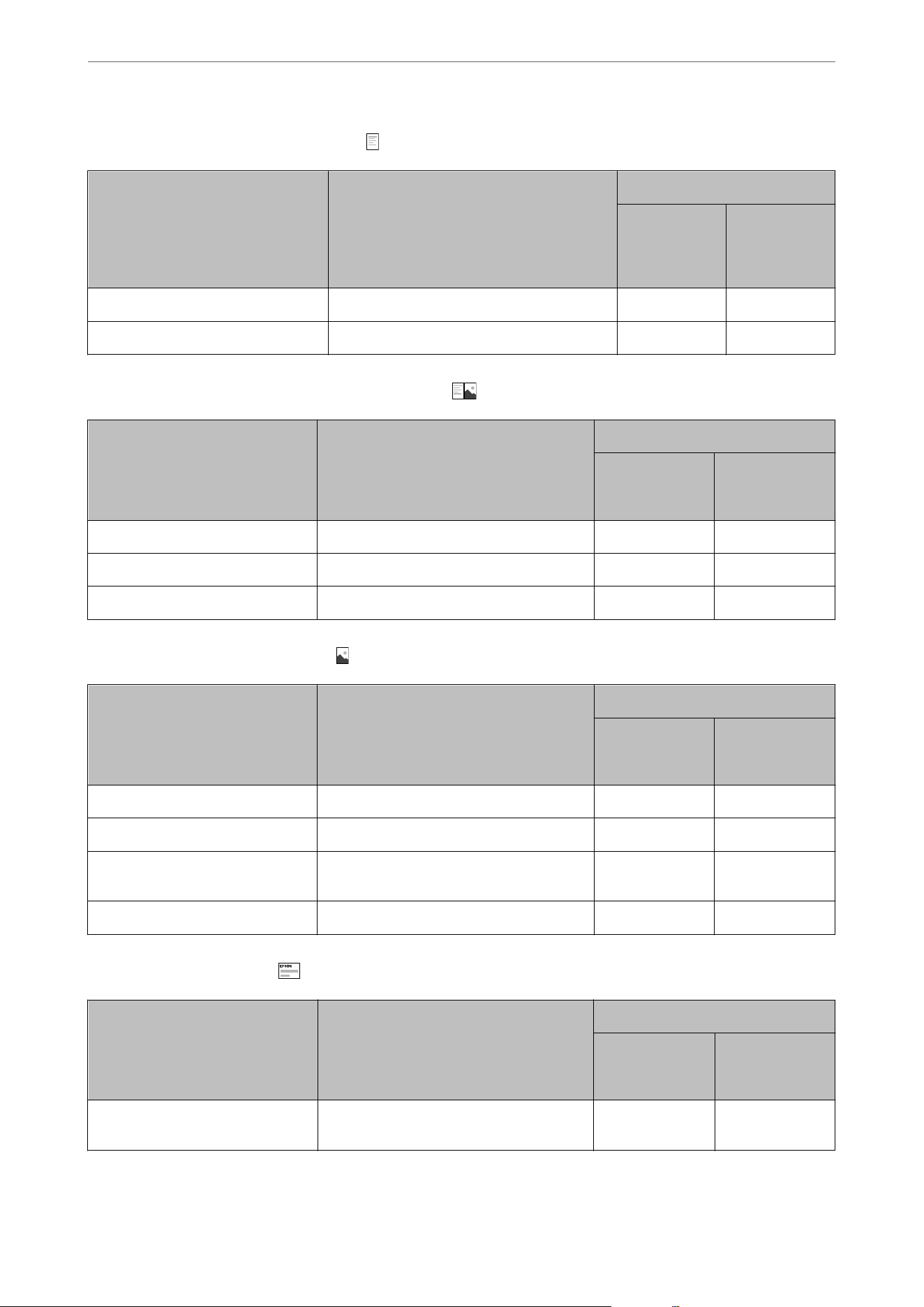
Paper suitable for printing documents
Media Name Size Loading Capacity (Sheets)
Paper
Cassette 1 or
Paper
Cassette
Paper
Cassette 2
(WF-4930
Series only)
Epson Business Paper A4 250 250
Epson Bright White Ink Jet Paper A4 250 250
Paper suitable for printing documents and photos
Media Name Size Loading Capacity (Sheets)
Paper Cassette
1 or Paper
Cassette
Paper Cassette
2 (WF-4930
Series only)
Epson Photo Quality Ink Jet Paper A4 100 -
Epson Matte Paper-Heavyweight A4, 20x25 cm (8x 10 in.) 50 -
Epson Double-Sided Matte Paper A4 50 -
Paper suitable for printing photos
Media Name Size Loading Capacity (Sheets)
Paper Cassette
1 or Paper
Cassette
Paper Cassette
2 (WF-4930
Series only)
Epson Ultra Glossy Photo Paper A4, 13x18 cm (5x7 in.), 10x15 cm (4x6 in.) 50 -
Epson Premium Glossy Photo Paper A4, 13x18 cm (5x7 in.), 10x15 cm (4x6 in.) 50 -
Epson Premium Semigloss Photo
Paper
A4, 13x18 cm (5x7in.), 10x15 cm (4x6 in.) 50 -
Epson Photo Paper Glossy A4, 13x18 cm (5x7in.), 10x15 cm (4x6 in.) 50 -
Various other paper types
Media Name Size Loading Capacity (Sheets)
Paper Cassette
1
Paper Cassette
2 (WF-4930
Series only)
Epson Photo Quality Self Adhesive
Sheets
A4 1 -
Product Information
>
Paper Information
>
Available Paper and Capacities
223
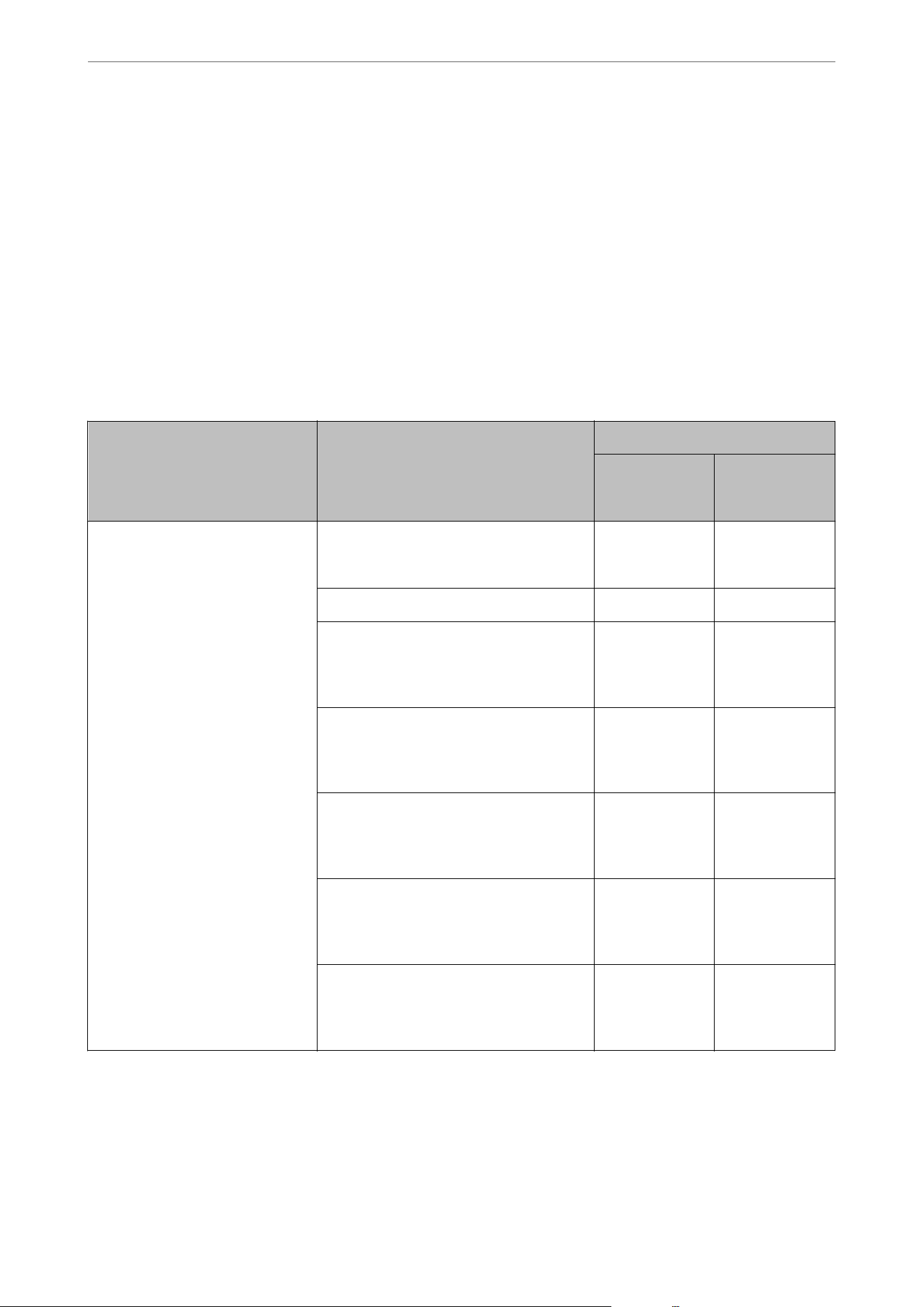
Related Information
& “Precautions for Photo Paper” on page 30
Commercially Available Paper for North America
Note:
See the following for information on available paper types for borderless and 2-sided printing.
“Paper for Borderless Printing” on page 227
“Paper for 2-Sided Printing” on page 229
Plain papers (64-90 g/m
2
)
Media Name Size Loading Capacity (Sheets)
Paper Cassette
1 or Paper
Cassette
Paper Cassette
2 (WF-4930
Series only)
Plain paper, Copy paper
Preprinted paper
*1
Letterhead
*2
Color paper
Recycled paper
High quality plain paper
A4, B5, Letter, Executive, 8×10 in. (203×254
mm), Legal, 8.5×13 in., Mexico-Ocio, Ocio
9
250 250
A5, A6, B6, Half Letter 250 –
User Dened
Width: 89 to 215.9 mm (3.5 to 8.5 in.),
Length: 127 to 355.6 mm (5 to 14 in.)
250 –
User Dened
Width: 89 to 215.9 mm (3.5 to 8.5 in.),
Length: 355.7 to 1200 mm (14 to 47.2 in.)
1–
User Dened
Width: 182 to 215.9 mm (7.2 to 8.5 in.),
Length: 257 to 297 mm (10.1 to 11.7 in.)
250 250
User Dened
Width: 182 to 215.9 mm (7.2 to 8.5 in.),
Length: 257 to 355.6 mm (10.1 to 14 in.)
– 250
User Dened
Width: 182 to 215.9 mm (7.2 to 8.5 in.),
Length: 355.7 to 1200 mm (14 to 47.2 in.)
–1
*1 Paper on which various forms are pre-printed such as slips or securities.
*2 Paper on which information such as the sender's name or corporation name are pre-printed in the header. There must be a
margin of 5 mm (0.2 in.) or more at the top of the paper.
Product Information
>
Paper Information
>
Available Paper and Capacities
224
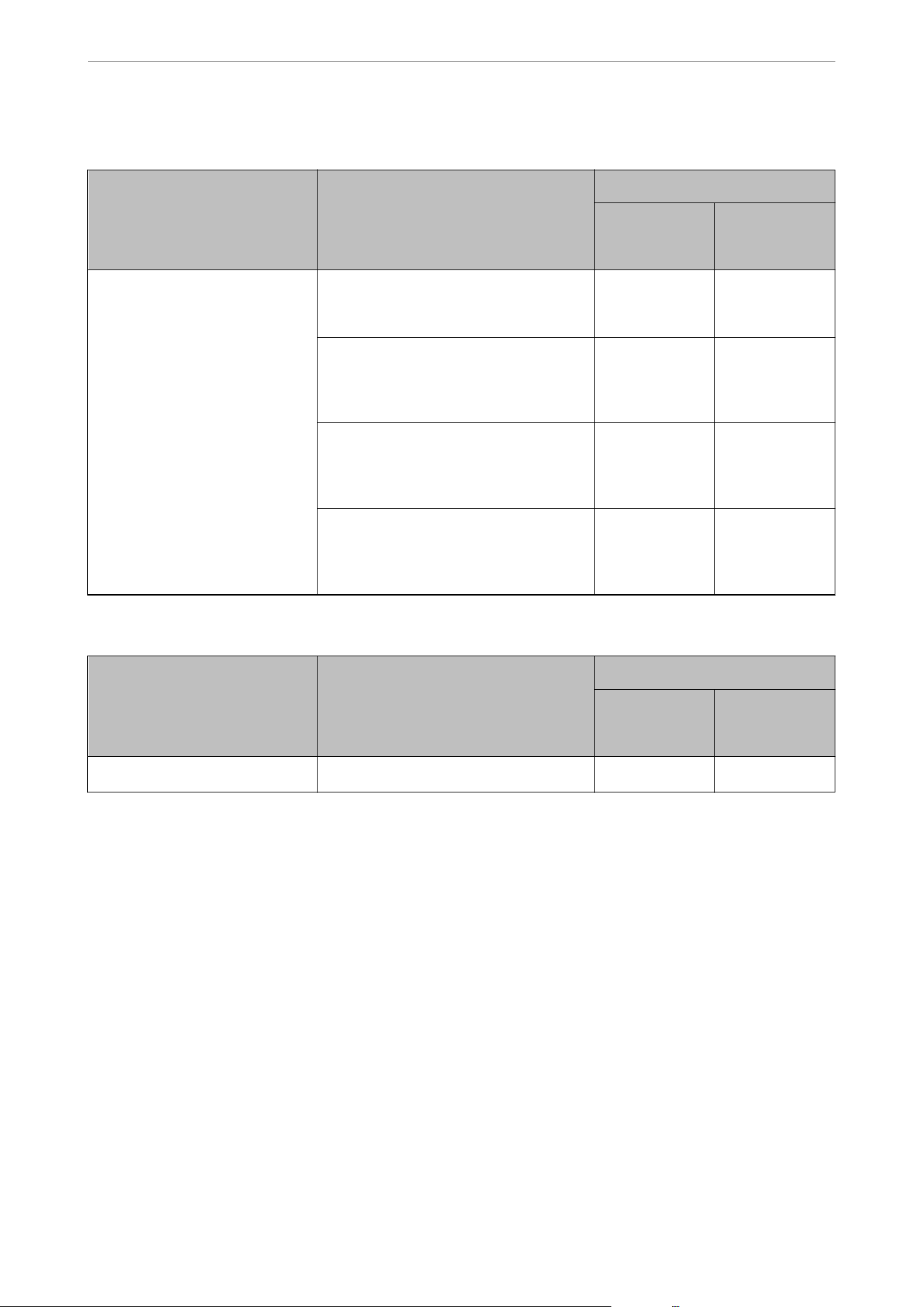
Thick papers (91-256 g/m
2
)
Media Name Size Loading Capacity (Sheets)
Paper Cassette
1 or Paper
Cassette
Paper Cassette
2 (WF-4930
Series only)
Card Stock A6, A5, A4, B6, B5, Legal, Letter, Half Letter,
Executive, 8.5×13 in., 8×10 in. (203×254
mm),
Mexico-Ocio,
Ocio
9
50 –
User Dened
Width: 89 to 215.9 mm (3.5 to 8.5 in.),
Length: 127 to 355.6 mm (5 to 14 in.)
50 –
User Dened
Width: 89 to 215.9 mm (3.5 to 8.5 in.),
Length: 355.7 to 1200 mm (14 to 47.2 in.)
1–
User Dened
Width: 182 to 215.9 mm (7.2 to 8.5 in.),
Length: 257 to 297 mm (10.1 to 11.7 in.)
50 –
Envelope
Media Name Size Loading Capacity (Envelopes)
Paper Cassette
1 or Paper
Cassette
Paper Cassette
2 (WF-4930
Series only)
Envelope
*
Envelope #10, Envelope DL, Envelope C6 10 –
* You can only print on the front side of the envelope.
Related Information
& “Available Paper and Capacities” on page 221
Commercially Available Paper for Other Regions
Note:
See the following for information on available paper types for borderless and 2-sided printing.
“Paper for Borderless Printing” on page 227
“Paper for 2-Sided Printing” on page 229
Product Information
>
Paper Information
>
Available Paper and Capacities
225

Plain papers (64-90 g/m
2
)
Media Name Size Loading Capacity (Sheets)
Paper Cassette
1 or Paper
Cassette
Paper Cassette
2 (WF-4930
Series only)
Plain paper, Copy paper
Preprinted paper
*1
Letterhead
*2
Color paper
Recycled paper
High quality plain paper
A4, B5, Letter, Executive, 203x254 mm
(8x10in.), Legal, 8.5×13 in., 16K (195×270
mm), Indian-Legal, SP1 (210×270 mm)
250 250
A5, A6, B6, 100×148 mm (3.9x5.8 in.), SP2
(210×149 mm), SP3 (100×170mm), SP4
(130×182 mm), SP5 (192×132 mm)
250 –
User Dened
Width: 89 to 215.9 mm (3.5 to 8.5 in.)
Length: 127 to 355.6 mm (5 to 14 in.)
250 –
User Dened
Width: 89 to 215.9 mm (3.5 to 8.5 in.)
Length: 355.7 to 1200 mm (14 to 47.2 in.)
1–
User Dened
Width: 182 to 215.9 mm (7.2 to 8.5 in.),
Length: 257 to 297 mm (10.1 to 11.7 in.)
250 250
User Dened
Width: 182 to 215.9 mm (7.2 to 8.5 in.)
Length: 257 to 355.6 mm (10.1 to 14 in.)
– 250
User Dened
Width: 182 to 215.9 mm (7.2 to 8.5 in.)
Length: 355.7 to 1200 mm (14 to 47.2 in.)
–1
*1 Paper on which various forms are pre-printed such as slips or securities.
*2 Paper on which information such as the sender's name or corporation name are pre-printed in the header. There must be a
margin of 5 mm (0.2 in.) or more at the top of the paper.
Product Information
>
Paper Information
>
Available Paper and Capacities
226
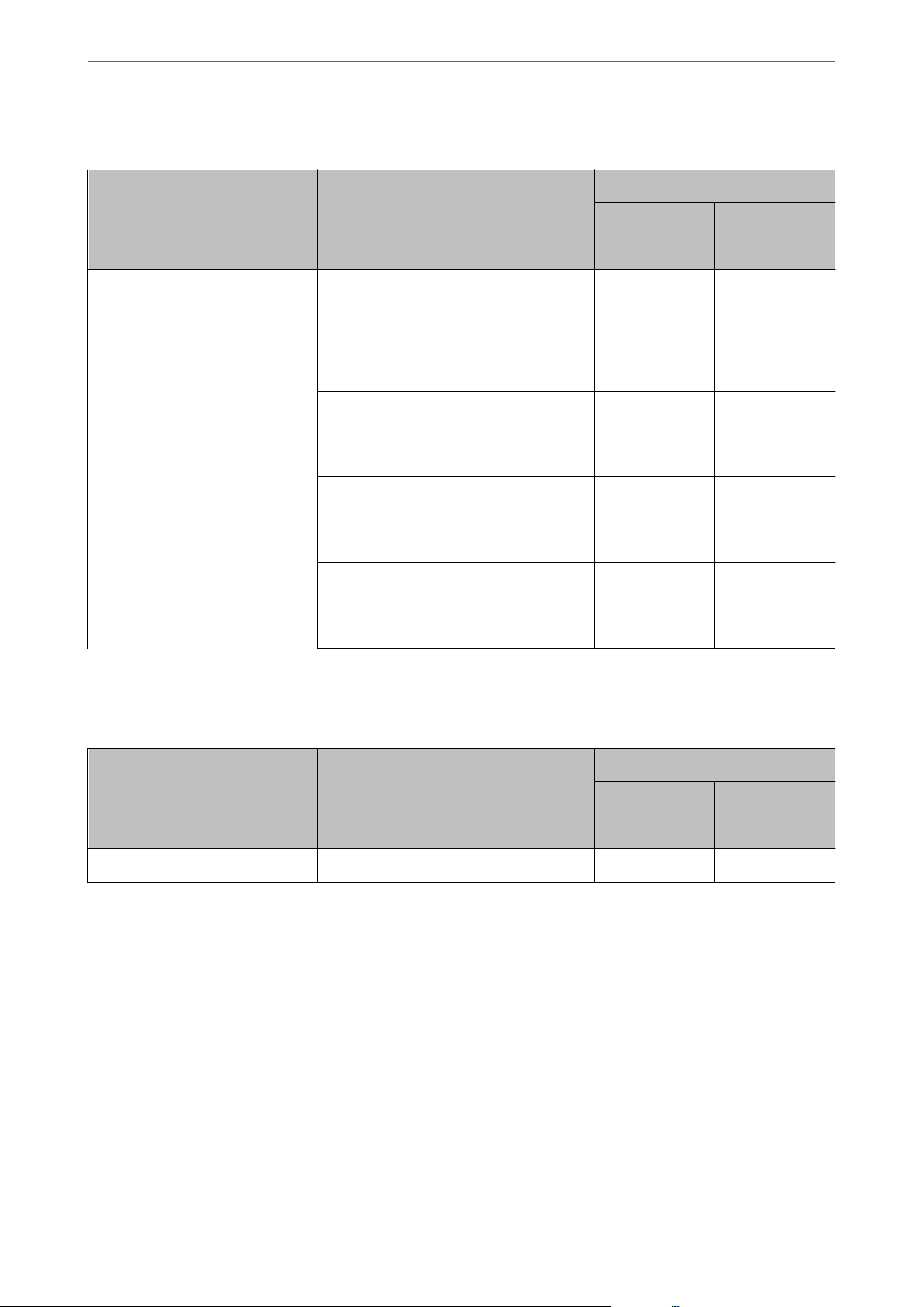
Thick papers (91-256 g/m
2
)
Media Name Size Loading Capacity (Sheets)
Paper Cassette
1 or Paper
Cassette
Paper Cassette
2 (WF-4930
Series only)
Thick paper A4, A5, A6, B5, B6, Letter, Executive,
20×25 cm (8x10 in.) 8.5×13 in., Legal,
16K (195×270 mm), Indian-Legal, SP1
(210×270 mm), SP2 (210×149 mm), SP3
(100×170mm), SP4 (130×182 mm), SP5
(192×132 mm), 100×148 mm (3.9x5.8 in.)
*
50 –
User Dened
Width: 89 to 215.9 mm (3.5 to 8.5 in.)
Length: 127 to 355.6 mm (5 to 14 in.)
50 –
User Dened
Width: 89 to 215.9 mm (3.5 to 8.5 in.)
Length: 355.7 to 1200 mm (14 to 47.2 in.)
1–
User Dened
Width: 182 to 215.9 mm (7.2 to 8.5 in.),
Length: 257 to 297 mm (10.1 to 11.7 in.)
50 –
* Only printing from computer is available.
Envelope
Media Name Size Loading Capacity (Envelopes)
Paper Cassette
1 or Paper
Cassette
Paper Cassette
2 (WF-4930
Series only)
Envelope* Envelope #10, Envelope DL, Envelope C6 10 –
* You can only print on the front side of the envelope.
Related Information
& “Available Paper and Capacities” on page 221
Paper for Borderless Printing
Genuine Epson Paper
for North America
Product Information
>
Paper Information
>
Available Paper and Capacities
227
Media Name Size
Epson Bright White Paper
*
Letter
Epson Bright White Pro Paper
*
Letter
Epson Bright White Premium Paper
*
Letter
Epson Multipurpose Plus Paper
*
Letter
Epson Ultra Premium Photo Paper Glossy 4×6 in. (102×152 mm), 5x7 in. (127x178 mm), 8x10 in.
(203x254 mm), Letter
Epson Premium Photo Paper Glossy 4×6 in. (102×152 mm), 16:9 (4×7.11 in. [102×181 mm]),
5x7 in. (127x178 mm), 8x10 in. (203x254 mm), Letter
Epson Premium Photo Paper Semi-gloss 4×6 in. (102×152 mm), Letter
Epson Photo Paper Glossy A4, 4×6 in. (102×152 mm), Letter
Epson Premium Presentation Paper Matte Double-sided Letter
Epson Brochure & Flyer Paper Matte Letter
Epson Premium Presentation Paper Matte 8x10 in. (203x254 mm), Letter
Epson Presentation Paper Matte
*
Letter
Epson High Quality Ink Jet Paper
*
A4, Letter
Epson Photo Quality Ink Jet Cards A6
*These may
scu
the print head causing printouts to be smeared.
for Other Regions
Media Name Size
Epson Bright White Ink Jet Paper
*
A4
Epson Business Paper
*
A4
Epson Ultra Glossy Photo Paper A4, 10×15 cm (4×6 in.), 13x18 cm (5x7 in.)
Epson Premium Glossy Photo Paper A4, 10×15 cm (4×6 in.), 13x18 cm (5x7 in.)
Epson Premium Semigloss Photo Paper A4, 10×15 cm (4×6 in.), 13x18 cm (5x7 in.)
Epson Photo Paper Glossy A4, 10×15 cm (4×6 in.), 13x18 cm (5x7 in.)
Epson Double-Sided Matte Paper A4
Epson Matte Paper-Heavyweight A4, 20x25 cm (8x10 in.)
Epson Photo Quality Ink Jet Paper
*
A4
* These may scu the print head causing printouts to be smeared.
Related Information
& “Available Paper and Capacities” on page 221
Product Information
>
Paper Information
>
Available Paper and Capacities
228

Commercially Available Paper
for North America
Plain paper, card stock (A4 and Letter size)
Note:
Using these paper types may scu the print head, causing printouts to be smeared.
for Other Regions
Plain paper, thick paper (A4 and Letter size)
Note:
Using these paper types may scu the print head, causing printouts to be smeared.
Related Information
& “Available Paper and Capacities” on page 221
Paper for 2-Sided Printing
Genuine Epson Paper
for North America
O Epson Bright White Paper
O Epson Bright White Pro Paper
O Epson Bright White Premium Paper
O Epson Multipurpose Plus Paper
O Epson Premium Presentation Paper Matte Double-sided
*
O Epson Brochure & Flyer Paper Matte
*
O Epson Photo Quality Ink Jet Cards
*
*: Manual 2-sided printing only.
for Other Regions
O Epson Bright White Ink Jet Paper
O Epson Business Paper
O Epson Double-Sided Matte Paper
*
O Epson Photo Quality Ink Jet Card
*
*: Manual 2-sided printing only.
Related Information
& “Available Paper and Capacities” on page 221
Product Information
>
Paper Information
>
Available Paper and Capacities
229

Commercially Available Paper
for North America
Plain papers (64-90 g/m
2
)
O A4, B5, Letter, Executive, User Dened
*
O Manual 2-sided printing only : A6, A5, B6, Half Letter, Legal, 8.5×13 in., 8×10 in., Mexico-Ocio, Ocio 9
*: For automatic 2-sided printing with User Dened paper sizes, you can use 182 to 215.9×257 to 297 mm (7.2 to 8.5×10.1 to
11.7 in.) paper sizes.
ick papers (91-256 g/m
2
)
O A4, B5, Letter, Executive, 8×10 in., User Dened
*
O Manual 2-sided printing only : A6, A5, B6, Legal, Half Letter, 8.5×13 in., Mexico-Ocio, Ocio 9
*: For automatic 2-sided printing with User Dened paper sizes, you can use 182 to 215.9×257 to 297 mm (7.2 to 8.5×10.1 to
11.7 in.) paper sizes.
for Other Regions
Plain papers (64-90 g/m
2
)
O A4, B5, Letter, Executive, 16K , SP1, User Dened
*
O Manual 2-sided printing only : A6, A5, B6, 3.9x 5.8 in., Indian Legal, 8×10 in., 8.5×13 in., Legal, SP2, SP3, SP4,
SP5
*: For automatic 2-sided printing with User Dened paper sizes, you can use 182 to 215.9×257 to 297 mm (7.2 to 8.5×10.1 to
11.7 in.) paper sizes.
ick papers (91-256 g/m
2
)
O A4, B5, Letter, Executive, 8×10 in., 16K, SP1, User Dened
*
O Manual 2-sided printing only : A6, A5, B6, 3.9x 5.8 in., Indian Legal, 8.5×13 in., Legal, SP2, SP3, SP4, SP5
*: For automatic 2-sided printing with User Dened paper sizes, you can use 182 to 215.9×257 to 297 mm (7.2 to 8.5×10.1 to
11.7 in.) paper sizes.
Related Information
& “Available Paper and Capacities” on page 221
Unavailable Paper Types
Do not use the following papers. Using these types of paper causes paper jams and smears on the printout.
O Papers that are wavy
O Papers that are torn or cut
O Papers that are folded
O Papers that are damp
O Papers that are too thick or too thin
O Papers that have stickers
Product Information
>
Paper Information
>
Unavailable Paper Types
230

Do not use the following envelopes. Using these types of envelope causes paper jams and smears on the printout.
O Envelopes that are curled or folded
O Envelopes with adhesive surfaces on the
aps
or window envelopes
O Envelopes that are too thin
ey may curl during printing.
Consumable Products Information
Ink Cartridge Codes
e
following are the codes for genuine Epson ink cartridges.
Note:
O Ink cartridge codes may vary by location. For the correct codes in your area, contact Epson support.
O Not all cartridges are available in all regions.
O Although the ink cartridges may contain recycled materials, this does not aect printer function or performance.
O Specications and appearance of the ink cartridges are subject to change for improvement without prior notice.
For U.S. and Canada
BK: Black C: Cyan M: Magenta Y: Yellow
842
842XL
*
842
842XL
*
842
842XL
*
842
842XL
*
* "XL" indicates high-capacity cartridges.
Note:
Visit the following website for information on Epson's ink cartridge yields.
https://epson.com/ink-yield-cartridge-info (U.S.)
https://epson.ca/ink-yield-cartridge-info (Canada)
Note: Your printer is designed to work only with genuine Epson-brand ink cartridges. Other brands of ink
cartridges and ink supplies are not compatible and, even if described as compatible, may not function properly or
at all. Epson periodically provides rmware updates to address issues of security, performance, minor bug xes and
ensure the printer functions as designed. ese updates may aect the functionality of third-party ink. Non-Epson
branded or altered Epson cartridges that functioned prior to a rmware update may not continue to function.
e included initial cartridges are designed for reliable printer setup and cannot be used as replacement cartridges
or resold. Aer setup, the remaining ink is available for printing. Yields are based on ISO 24711 in default
mode, printing continuously. Yields vary due to print images, settings, and temperatures. Printing infrequently
or primarily with one color reduces yields. All cartridges must be installed with ink for printing and printer
maintenance. For print quality, some ink remains in replaced cartridges.
Product Information
>
Consumable Products Information
>
Ink Cartridge Codes
231
For Europe
Icon BK: Black C: Cyan M: Magenta Y: Yellow
Umbrella
406
406XL
*
406
406XL
*
406
406XL
*
406
406XL
*
* "XL" indicates high-capacity cartridge.
Note:
For users in Europe, visit the following website for information on Epson's ink cartridge yields.
https://www.epson.eu/pageyield
For Australia and New Zealand
Product BK: Black C: Cyan M: Magenta Y: Yellow
WF-4930 Series 815
815XL
*
815
815XL
*
815
815XL
*
815
815XL
*
* "XL" indicates high-capacity cartridge.
For China
Product BK: Black C: Cyan M: Magenta Y: Yellow
WF-4930 Series 17J 17J 17J 17J
Epson recommends the use of genuine Epson ink cartridges. Epson cannot guarantee the quality or reliability of
non-genuine ink. e use of non-genuine ink may cause damage that is not covered by Epson’s warranties, and
under certain circumstances, may cause erratic printer behavior. Information about non-genuine ink levels may
not be displayed.
Related Information
& “Replacing Ink Cartridges” on page 206
Maintenance Box Code
Epson recommends the use of a genuine Epson maintenance box.
Maintenance box code: C9382
c
Important:
Once a maintenance box has been installed in a printer it cannot be used with other printers.
Product Information
>
Consumable Products Information
>
Maintenance Box Code
232

Related Information
& “Replacing a Maintenance Box” on page 211
Software Information
is
section introduces some of the applications available for your printer. For a list of supported
soware,
see
the following Epson website or launch Epson Soware Updater for conrmation. You can download the latest
applications.
https://www.epson.com
Related Information
& “Application for Updating Soware and Firmware (Epson Soware Updater)” on page 239
Software for Printing
Application for Printing from a Computer (Windows Printer Driver)
e printer driver controls the printer based on the commands from an application. Selecting settings in the
printer driver provides the best printing results. You can also check the status of the printer or keep it in top
operating condition using the printer driver utility.
Note:
You can change the language of the printer driver. Select the language you want to use from the Language setting on the
Maintenance tab.
Accessing the printer driver from applications
To select settings that apply only to the application you are using, access the driver from that application.
Select Print or Print Setup from the File menu. Select your printer, and then click Preferences or Properties.
Note:
Operations dier depending on the application. See the application's help for details.
Accessing the printer driver from the Windows control panel
To select settings that apply to all of the applications, follow the steps below.
O Windows 11/Windows Server 2025
Click on the start button, and then select Settings > Bluetooth & devices > Printers & scanners. Click your
printer, and then select Printing preferences.
O Windows 10/Windows Server 2022/Windows Server 2019/Windows Server 2016
Click on the start button, and then select Windows System > Control Panel > View devices and printers in
Hardware and Sound. Right-click on your printer, or press and hold it and then select Printing preferences.
O Windows 8.1/Windows Server 2012 R2
Select Desktop > Settings > Control Panel > View devices and printers in Hardware and Sound. Right-click
on your printer, or press and hold it and then select Printing preferences.
Product Information
>
Software Information
>
Software for Printing
233

O Windows 7/Windows Server 2008 R2
Click the start button, and select Control Panel > View devices and printers in Hardware and Sound.
Right-click on your printer and select Printing preferences.
O Windows Server 2008
Click the start button, and select Control Panel > Printers in Hardware and Sound. Right-click on your printer
and select Printing preferences.
Accessing the printer driver from the printer icon on the task bar
e printer icon on the desktop task bar is a shortcut icon allowing you to quickly access the printer driver.
If you click the printer icon and select Printer Settings, you can access the same printer settings window as the
ones displayed from the Windows control panel. If you double-click this icon, you can check the status of the
printer.
Note:
If the printer icon is not displayed on the task bar, access the printer driver window, click Monitoring Preferences on the
Maintenance tab, and then select Register the shortcut icon to the taskbar.
Starting the utility
Access the printer driver window. Click the Maintenance tab.
Related Information
& “Menu Options for the Printer Driver” on page 43
Application for Printing from a Computer (Mac OS Printer Driver)
e printer driver controls the printer based on the commands from an application. Selecting settings in the
printer driver provides the best printing results. You can also check the status of the printer or keep it in top
operating condition using the printer driver utility.
Accessing the printer driver from applications
Click Page Setup or Print on the File menu of your application. If necessary, click Show Details (or
d
) to expand
the print window.
Note:
Depending on the application being used, Page Setup may not be displayed in the File menu, and the operations for
displaying the print screen may dier. See the application's help for details.
Starting the utility
Select System Preferences (or System Settings) from the Apple menu > Printers & Scanners (or Print & Scan or
Print & Fax), and then select the printer. Click Options & Supplies > Utility > Open Printer Utility.
Related Information
& “Menu Options for the Printer Driver” on page 65
Product Information
>
Software Information
>
Software for Printing
234
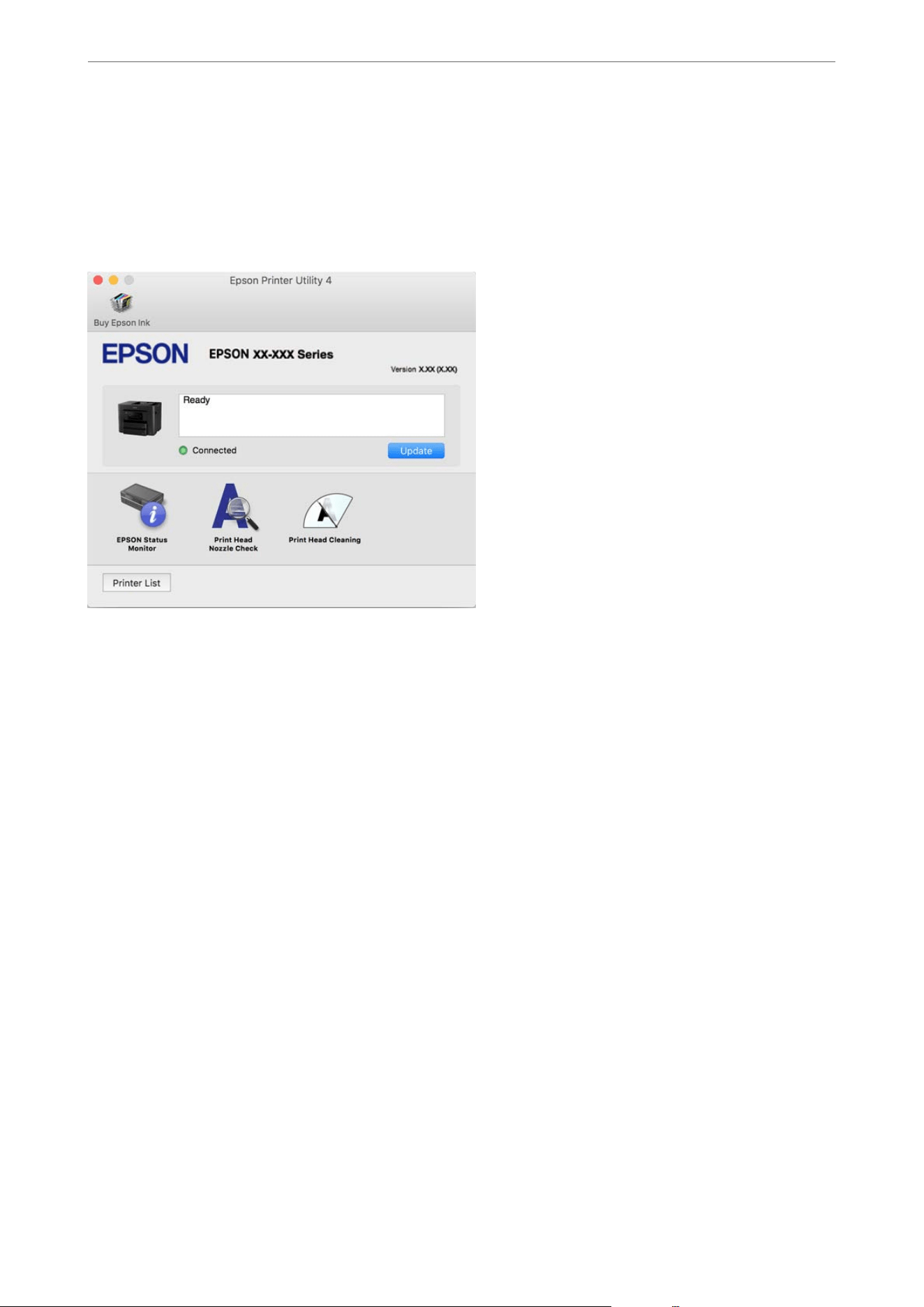
Guide to Mac OS Printer Driver
Epson Printer Utility
You can run a maintenance feature such as nozzle check and print head cleaning, and by starting EPSON Status
Monitor, you can check printer status and error information.
Software for Faxing
Application for
Conguring
Fax Operations and Sending Faxes (FAX Utility)
FAX Utility is an application that allows you to congure various settings for sending and receiving faxes on a
computer. You can create or edit the contacts list to be used when sending a fax, and congure to save received
faxes in PDF format on the computer. See the application's help for details.
Note:
O Windows Server operating systems are not supported.
O Make sure you have installed the printer driver before installing FAX Utility.
O Make sure the FAX Utility has been installed. See "Starting on Windows" or "Starting on Mac OS" below to check if the
application has been installed.
Starting on Windows
O Windows 11
Click the start button, and select All Apps > Epson Soware > FAX Utility.
O Windows 10
Click the start button, and select Epson Soware > FAX Utility.
O Windows 8.1
Enter the application name in the search charm, and then select the displayed icon.
O Windows 7
Click the start button, and select All Programs (or Programs) > Epson
Soware
> FAX Utility.
Product Information
>
Software Information
>
Software for Faxing
235

Starting on Mac OS
Select System Preferences (or System Settings) from the Apple menu > Printers & Scanners (or Print & Scan,
Print & Fax), and then select the printer (FAX). Click Options & Supplies > Utility > Open Printer Utility.
Related Information
& “Sending a Fax from a Computer” on page 125
& “Receiving Faxes on a Computer” on page 130
Application for Sending Faxes (PC-FAX Driver)
PC-FAX driver is an application that allows you to send a document created on a separate application as a fax
directly from the computer. PC-FAX driver is installed when you install FAX Utility. See the application's help for
details.
Note:
O Windows Server operating systems are not supported.
O Check if PC-FAX driver has been installed. See "Accessing from Windows" or "Accessing from Mac OS" below.
O e operation diers depending on the application you used to create the document. See the application's help for details.
Accessing from Windows
In the application, select Print or Print Setup from the File menu. Select your printer (FAX), and then click
Preferences or Properties.
Accessing from Mac OS
In the application, select Print from the File menu. Select your printer (FAX) as the Printer setting, and then select
Fax Settings or Recipient Settings from the pop-up menu.
Related Information
& “Sending a Fax from a Computer” on page 125
Software for Making Settings or Managing Devices
Application for Conguring Printer Operations (Web Cong)
Web Cong is an application that runs in a web browser, such as Microso Edge or Safari, on a computer or
mobile device. You can conrm the printer status or change the network service and printer settings. To use Web
Cong
, connect the printer and the computer or device to the same network.
e following browsers are supported. Use the latest version.
Microso Edge, Firefox, Chrome, Safari
Note:
You may be asked to enter the administrator password while using Web Cong. See the related information below for more
details.
Product Information
>
Software Information
>
Software for Making Settings or Managing Devices
236

Related Information
& “Default Value of the Administrator Password” on page 17
& “Notes on the Administrator Password” on page 16
Running Web
Cong
on a Web Browser
1. Check the printer's IP address.
Select the network icon on the printer's home screen, and then select the active connection method to conrm
the printer's IP address.
Note:
You can also check IP address by printing the Network Connection Report.
2. Launch a Web browser from a computer or mobile device, and then enter the printer's IP address.
Format:
IPv4: https://the printer's IP address/
IPv6: https://[the printer's IP address]/
Examples:
IPv4: https://192.168.100.201/
IPv6: https://[2001:db8::1000:1]/
Note:
If you are using a mobile device, you can also run Web Cong from the product information screen in the Epson Smart
Panel app.
Since the printer uses a self-signed certicate when accessing HTTPS, a warning is displayed on the browser
when you start Web Cong; this does not indicate a problem and can be safely ignored.
Related Information
& “Printing Using Epson Smart Panel” on page 74
& “Checking the Printer's Network Connection Status (Network Connection Report)” on page 152
Running Web Cong on Windows
When connecting a computer to the printer using WSD, follow the steps below to run Web Cong.
1. Open the printer list on the computer.
O Windows 11
Click on the start button, and then select Settings > Bluetooth & devices > Printers & scanners. Click your
printer, and then select More devices and printers settings.
O Windows 10
Click on the start button, and then select Windows System > Control Panel > View devices and printers
in Hardware and Sound.
O Windows 8.1
Select Desktop > Settings > Control Panel > View devices and printers in Hardware and Sound (or
Hardware).
Product Information
>
Software Information
>
Software for Making Settings or Managing Devices
237

O Windows 7
Click the start button, and select Control Panel > View devices and printers in Hardware and Sound.
2. Right-click on your printer and select Properties.
3. Select the Web Ser vi ce tab and click the URL.
Since the printer uses a self-signed certicate when accessing HTTPS, a warning is displayed on the browser
when you start Web Cong; this does not indicate a problem and can be safely ignored.
Running Web Cong on Mac OS
1. Select System Preferences (or System Settings) from the Apple menu > Printers & Scanners (or Print &
Scan, Print & Fax), and then select the printer.
2. Click Options & Supplies > Show Printer Webpage.
Since the printer uses a self-signed certicate when accessing HTTPS, a warning is displayed on the browser
when you start Web Cong; this does not indicate a problem and can be safely ignored.
Application for Setting up the Device on a Network (EpsonNet Cong)
EpsonNet Cong is an application that allows you to set the network interface addresses and protocols. See the
operations guide for EpsonNet Cong or the application's help for more details.
Starting on Windows
O Windows 11/Windows Server 2025
Click the start button, and then select All apps > EpsonNet > EpsonNet Cong.
O Windows 10/Windows Server 2022/Windows Server 2019/Windows Server 2016
Click the start button, and then select EpsonNet > EpsonNet Cong.
O Windows 8.1/Windows Server 2012 R2
Enter the application name in the search charm, and then select the displayed icon.
O Windows 7/Windows Server 2008 R2/Windows Server 2008
Click the start button, and select All Programs or Programs > EpsonNet > EpsonNet Cong SE > EpsonNet
Cong.
Starting on Mac OS
Go > Applications > Epson Soware > EpsonNet > EpsonNet Cong SE > EpsonNet Cong.
Related Information
& “Installing the Applications Separately” on page 146
Software for Managing Devices on the Network (Epson Device Admin)
Epson Device Admin is a multifunctional application
soware
that manages the device on the network.
e following functions are available.
Product Information
>
Software Information
>
Software for Making Settings or Managing Devices
238

O Monitor or manage up to 2,000 printers or scanners over the segment
O Make a detailed report, such as for the consumable or product status
O Update the
rmware
of the product
O Introduce the device to the network
O Apply unied settings to multiple devices.
You can download Epson Device Admin from Epson support website. For more information, see the
documentation or help of Epson Device Admin.
Software for Updating
Application for Updating Software and Firmware (Epson Software Updater)
Epson
Soware
Updater is an application that installs new
soware
and updates
rmware
over the Internet. If you
want to check for update information regularly, you can set the interval for checking for updates in Epson Soware
Updater's Auto Update Settings.
Note:
O Windows Server operating systems are not supported.
O For users in the U.S. and Canada: Your printer is designed to work only with genuine Epson-brand ink cartridges.
Other brands of ink cartridges and ink supplies are not compatible and, even if described as compatible, may not
function properly or at all. Epson periodically provides
rmware
updates to address issues of security, performance, minor
bug xes and ensure the printer functions as designed. ese updates may aect the functionality of third-party ink.
Non-Epson branded or altered Epson cartridges that functioned prior to a rmware update may not continue to function.
Starting on Windows
O Windows 11
Click the start button, and then select All apps > Epson
Soware
> Epson
Soware
Updater.
O Windows 10
Click the start button, and then select Epson Soware > Epson Soware Updater.
O Windows 8.1
Enter the application name in the search charm, and then select the displayed icon.
O Windows 7
Click the start button, and then select All Programs > Epson Soware > Epson Soware Updater.
Note:
You can also start Epson Soware Updater by clicking the printer icon on the task bar on the desktop, and then selecting
Soware Update.
Starting on Mac OS
Select Go > Applications > Epson Soware > Epson Soware Updater.
Related Information
& “Installing the Applications Separately” on page 146
Product Information
>
Software Information
>
Software for Updating
239

Settings Menu List
Select Settings on the home screen of the printer to select various settings.
Feature names and settings may change depending on the
rmware
version.
General Settings
Select the menus on the control panel as described below.
Settings > General Settings
Basic Settings
Select the menus on the control panel as described below.
Settings > General Settings > Basic Settings
LCD Brightness:
Adjust the brightness of the LCD screen.
Sounds:
Mute:
Select On to mute sounds such as those emitted when pressing buttons on the control panel.
Normal Mode:
Select the volume for sounds such as those emitted when pressing buttons on the control
panel.
Fax:
Select the volume for the following fax functions.
Ring Tone:
Set the volume for the sound emitted when the printer receives a fax.
Receive Completion Notice:
Set the volume for the sound emitted when fax reception is complete.
Print Completion Notice:
Set the volume for the sound emitted when a received fax nishes printing.
Receiver:
Set the volume for the dial sound when the printer sends a fax.
Send Completion Notice:
Set the volume for the sound emitted when sending a fax is complete.
Product Information
>
Settings Menu List
>
General Settings
240

Button Press:
Set the volume for the sound emitted when tapping the items on the screen on the
control panel.
ADF Document Set:
Set the volume for the sound emitted when originals are placed in the ADF.
Error Tone:
Set the volume for the sound emitted when an error occurs.
Sound Type:
Set the type of sound.
Quiet Mode:
Select the volume for sounds when using Quiet Mode.
Fax:
Select the volume for the following fax functions.
Ring Tone:
Set the volume for the sound emitted when the printer receives a fax.
Receive Completion Notice:
Set the volume for the sound emitted when fax reception is complete.
Print Completion Notice:
Set the volume for the sound emitted when a received fax
nishes
printing.
Receiver:
Set the volume for the dial sound when the printer sends a fax.
Send Completion Notice:
Set the volume for the sound emitted when sending a fax is complete.
Button Press:
Set the volume for the sound emitted when tapping the items on the screen on the
control panel.
ADF Document Set:
Set the volume for the sound emitted when originals are placed in the ADF.
Error Tone:
Set the volume for the sound emitted when an error occurs.
Sound Type:
Set the type of sound.
Product Information
>
Settings Menu List
>
General Settings
241

Sleep Timer:
Speciify how long the printer waits to enter sleep mode (energy saving mode) if it has not been used.
e LCD screen turns black during sleep mode.
Energy Saving Priority Mode:
Energy Saving Priority Mode:
Reduces power consumption even further than the standard sleep mode. (e default setting is
O.)
When Energy Saving Priority Mode is set to On, pressing the power button will resume the
operation.
Advanced Settings:
Ethernet:
Displayed when Energy Saving Priority Mode is set to On.
When Energy Saving Priority Mode is set, you can turn the Ethernet function On or O.
Turning the Ethernet function o reduces the power used by the Ethernet function, resulting
in lower power consumption.
Power O Timer:
Your product may have this feature or the Power O Settings feature depending on the location of
purchase.
Select this setting to turn the printer o automatically when it is not used for a specied period
of time. You can adjust the time before power management is applied. Any increase will aect the
product’s energy
eciency.
Please consider the environment before making any change.
Power O Settings:
Your product may have this feature or the Power
O
Timer feature depending on the location of
purchase.
Power O If Inactive:
Select this setting to turn the printer o automatically if it is not used for a specied period of
time. You can adjust the time before power management is applied. Any increase will aect the
product’s energy eciency. Please consider the environment before making any change.
Power O If Disconnected:
Select this setting to turn the printer
o
aer
a
specied
period of time when all ports
including the LINE port are disconnected.
is
feature may not be available depending on
your region.
For users in Europe, see the following website for the specied period of time.
https://www.epson.eu/energy-consumption
For Middle East, Turkey, Africa, Central and West Asia users, see the following Website for
details on power consumption.
https://www.epson.com/eme
Product Information
>
Settings Menu List
>
General Settings
242

Date/Time Settings:
Date/Time:
Enter the current date and time.
Daylight Saving Time:
Select the summer time setting that applies to your area.
Time
Dierence
:
Enter the time dierence between your local time and UTC (Coordinated Universal Time).
Language:
Select the language used on the LCD screen.
Start-up Screen:
Specify the initial menu displayed on the LCD screen when the printer turns on and Operation Time
Out is enabled.
Operation Time Out:
Select On to return to the home screen when no operations have been performed for the specied
time. When user restrictions have been applied and no operations are performed for the specied
time, you are logged out and returned to the home screen.
Keyboard:
Change the layout of the keyboard on the LCD screen.
Original Size Auto Detection Option(ADF):
Set the priority for Paper Size Auto Detect. is menu is available in the U.S., Canada, and Latin
America.
e ADF and the scanner glass are equipped with sensors that automatically detect the size of the
paper.
Related Information
& “Power Saving Settings During Inactivity” on page 368
& “Entering Characters” on page 27
Printer Settings
Select the menus on the control panel as described below.
Settings > General Settings > Printer Settings
Paper Source Settings:
Paper Setting:
Select the paper size and paper type you loaded in the paper source. You can make Favorite
Paper Settings in paper size and paper type.
Product Information
>
Settings Menu List
>
General Settings
243

A4/Letter Auto Switching:
Select On to feed paper from the paper source set as A4 size when there is no paper source set
as Letter, or feed from the paper source set as Letter size when there is no paper source set as
A4.
Auto Select Settings:
is menu is available for models with multiple paper sources.
When paper runs out, paper is automatically fed from a paper source that has the same
settings as the paper settings for the print jobs. You can set automatic selection for every paper
source for each function in copy, fax, or other. You cannot set everything to o.
is setting is disabled when you select a specic paper source in the paper settings for the
print jobs. Depending on the paper type setting on the Main tab of the printer driver, paper
may not be fed automatically.
Automatic Selection at Paper Out : For Copy:
is menu is available for models with multiple paper sources.
Enable this to feed paper automatically from another paper source that has paper when paper
runs out. is applies when copying. Paper does not feed automatically from a paper source
that has not been selected in Auto Select Settings or that has dierent paper settings from the
specied paper source.
is
function is not applied in the following cases.
When copying using a paper source that has not been selected in Auto Select Settings.
Error Notice:
Paper Size Notice:
Select On to display an error message when the selected paper size does not match the
loaded paper.
Paper Type Notice:
Select On to display an error message when the selected paper type does not match the
loaded paper.
Paper Setup Auto Display:
Select On to display the Paper Setting screen when loading paper in the paper source. If you
disable this feature, you cannot print from an iPhone or iPad using AirPrint.
Universal Print Settings:
ese
print settings are applied when you print from an external device without using the printer
driver. e oset settings are applied when you print using the printer driver.
Top Oset:
Adjust the top margin of the paper.
Left
Oset
:
Adjust the le margin of the paper.
Product Information
>
Settings Menu List
>
General Settings
244

Top Oset in Back:
Adjust the top margin for the back of the page when performing 2-sided printing.
Left Oset in Back:
Adjust the le margin for the back of the page when performing 2-sided printing.
Check Paper Width:
Select On to check the paper width before printing. is prevents printing beyond the edges of
the paper when the paper size setting is incorrect, but this may lower the print speed.
Skip Blank Page:
Skips blank pages in the print data automatically to save paper.
Auto Error Solver:
Select an action to perform when a 2-sided printing error or a memory full error occurs.
O On
When a 2-sided printing error occurs, the printer displays a warning and prints in single-sided
mode. When a memory full error occurs, the printer prints the portion of the job that it was able
to process.
O
O
Displays an error message and cancels printing.
Memory Device Interface:
Select settings to allow access to your memory device.
Memory Device:
Select Enable to allow the printer to access an inserted memory device. If Disable is selected,
you cannot read, print data in the memory device, or save data to the memory device with the
printer. is prevents condential documents from being removed illegally.
File Sharing:
Select whether to give write access to the memory device from a USB-connected computer or a
network-connected computer.
Thick Paper:
Select On to prevent ink from smearing on your printouts. Enabling this setting may reduce print
speed.
Quiet Mode:
Select On to reduce noise during printing, however, this may lower the print speed. Depending on
the paper type and print quality settings you selected, there may be no dierence in the printer's noise
level. Select On to prioritize reducing operation noise. To prioritize printing speed, select On (Low
Level).
Ink Drying Time:
Select the ink drying time you want to use when performing 2-sided printing. Aer the printer prints
on one side, it waits a little while for it to dry before printing on the other side. If your printout is
smeared, increase the time setting.
Product Information
>
Settings Menu List
>
General Settings
245

Bidirectional:
Select On to change the print direction; Prints while the print head moves to the le and to the right.
If vertical or horizontal ruled lines on your printout look blurred or misaligned, disabling this feature
may solve the problem; however, doing so may reduce print speed.
PC Connection via USB:
Select Enable to allow a computer to access the printer when connected by USB. When Disable is
selected, printing and scanning that is not sent over a network connection is restricted.
Related Information
& “Loading Paper Using Instructions on the LCD screen” on page 32
Network Settings
Select the menus on the control panel as described below.
Settings > General Settings > Network Settings
Connection Settings:
Connect the printer to the network over a wireless LAN. Select your connection method and follow
the on-screen instructions.
Wi-Fi:
Wi-Fi Setup Wizard:
Congures Wi-Fi settings by having you enter the SSID and password.
Push Button Setup(WPS):
Congures Wi-Fi settings via Push Button Setup(WPS).
Others:
PIN Code Setup(WPS):
Congures Wi-Fi settings via PIN Code Setup(WPS).
Disable Wi-Fi:
Disconnects the connection to the Wi-Fi router.
Ethernet:
Set up or change to a network connection that uses a LAN cable and hub. When this setting is
used, any Wi-Fi (Infrastructure) connection is disabled.
Wi-Fi Direct:
(Menu) :
Change Network Name:
Changes the Wi-Fi Direct SSID (network name).
Product Information
>
Settings Menu List
>
General Settings
246

Change Password:
Changes the password for the Wi-Fi Direct connection.
Change Frequency Range:
Select the frequency band for Wi-Fi Direct connection. Changing the frequency
disconnects the connected device.
e availability of these channels and use of the product outdoors over these
channels varies by location.
https://support.epson.net/wi5ghz/
Disable Wi-Fi Direct:
Disables the Wi-Fi Direct function.
Restore Default Settings:
Resets the Wi-Fi Direct settings.
Other Methods:
iOS:
Displays a QR code to connect a mobile device using Wi-Fi Direct.
Android:
Displays a QR code to connect a mobile device using Wi-Fi Direct.
Other OS Devices:
Displays the SSID and password to connect using Wi-Fi Direct.
Easy Connect with App:
Establish a wireless LAN connection using the wireless LAN information for your computer or
mobile device.
Network Status:
Wired LAN/Wi-Fi Status:
Displays the printer's network information.
Wi-Fi Direct Status:
Displays the Wi-Fi Direct setting information.
Email Server Status:
Displays the mail server setting information.
Print Status Sheet:
Prints a network status sheet.
Information about Ethernet, Wi-Fi, Wi-Fi Direct, and other network parameters is printed on
two or more pages.
Product Information
>
Settings Menu List
>
General Settings
247

Connection Check:
Checks the current network connection and prints a report. If there are any problems with the
connection, see the report for solutions.
Advanced:
Device Name:
Changes the device name to any name from 2 to 53 characters long.
TCP/IP:
Congures the IP settings, if the IP address is static.
For automatic
conguration,
use the IP address assigned by DHCP.
To set manually, switch to Manual and then enter the IP address you want to assign.
Proxy Server:
Set this if you are using a proxy server in your network environment and want to set it for the
printer as well.
Email Server:
Set up the email server information and test connections when using the email forwarding
feature.
IPv6 Address:
Sets whether or not to enable IPv6 addressing.
MS Network Sharing:
Set this when you want to use the le sharing feature.
Link Speed & Duplex:
Select an appropriate Ethernet speed and duplex setting. If you select a setting other than Auto,
make sure the setting corresponds to the settings on the hub you are using.
Redirect HTTP to HTTPS:
Enables or disables redirecting from HTTP to HTTPS.
Disable IPsec/IP Filtering:
Disables the IPsec/IP ltering setting.
Disable IEEE802.1X:
Disables the IEEE802.1X setting.
Related Information
& “Conguring Wi-Fi Settings by Entering the SSID and Password” on page 286
& “Conguring Wi-Fi Settings using Push Button Setup (WPS)” on page 288
Product Information
>
Settings Menu List
>
General Settings
248

& “Conguring Wi-Fi Settings Using PIN Code Setup (WPS)” on page 288
& “Connecting a Device and Printer Directly (Wi-Fi Direct)” on page 152
& “Checking the Printer's Network Connection Status (Network Connection Report)” on page 152
Web Service Settings
Select the menus on the control panel as described below.
Settings > General Settings > Web Service Settings
Epson Connect Services:
Displays whether the printer is registered and connected to Epson Connect.
You can register with the service by selecting Register and following the instructions.
https://epson.com/connect (U.S.)
https://epson.ca/connect (Canada)
https://latin.epson.com/connect
(Latin America)
http://www.epsonconnect.eu (Europe)
https://www.epsonconnect.ae (Middle East, Türkiye, Africa, Central and West Asia)
https://www.epsonconnect.com/ (Other regions)
When you have registered, you can change the following settings.
Related Information
& “Printing Using a Cloud Service” on page 78
Fax Settings
Select the menus on the control panel as described below.
Settings > General Settings > Fax Settings
Note:
O You can also access Fax Settings from Web Cong. Click the Fax tab on the Web Cong screen.
O When you use Web Cong to display the Fax Settings menu, there may be slight dierences in the user interface and in
location compared to the printer's control panel.
Related Information
& “Quick Operation Button” on page 250
& “Basic Settings” on page 250
& “Send Settings” on page 252
& “Receive Settings :” on page 253
& “Report Settings” on page 256
& “Security Settings” on page 256
Product Information
>
Settings Menu List
>
General Settings
249

& “Check Fax Connection” on page 257
& “Fax Setting Wizard” on page 257
Quick Operation Button
You can nd the menu on the printer's control panel below.
Settings > General Settings > Fax Settings > Quick Operation Button
Note:
You cannot display this menu on the Web Cong screen.
Quick Operation Button 1, Quick Operation Button 2, Quick Operation Button 3:
Registers up to three shortcuts allowing you to quickly access the menu you use oen when sending
faxes. e shortcuts are displayed on the following menu.
Fax > Fax Settings tab.
Basic Settings
You can nd the menu on the printer's control panel below.
Settings > General Settings > Fax Settings > Basic Settings
Note:
On the Web Cong screen, you can nd the menu below.
Fax tab > Basic Settings
Fax Speed:
Select the fax transmission speed. We recommend selecting Slow(9,600bps) when a communication
error occurs frequently, when sending/receiving a fax to/from abroad, or when you are using an IP
(VoIP) phone service.
ECM:
Automatically corrects errors in the fax transmission (Error Correction Mode), mostly caused by
telephone line noise. If this is disabled, you cannot send or receive documents in color.
Dial Tone Detection:
Detects a dial tone before starting to dial. If the printer is connected to a PBX (Private Branch
Exchange) or digital phone line, the printer may fail to start dialing. In this situation, change the Line
Type setting to PBX. If this does not work, disable this feature. However, disabling this feature may
drop the rst digit of a fax number and send the fax to the wrong number.
Dial Mode:
Select the type of phone system to which you have connected the printer. When set to Pulse, you
can temporarily switch the dialing mode from pulse to tone by pressing
("T" is displayed) while
entering numbers on the control panel. is setting may not be displayed depending on your region
or country.
Line Type:
Select the line type to which you have connected the printer.
Product Information
>
Settings Menu List
>
General Settings
250

PSTN:
Select PSTN when the printer is connected to a public switched telephone network.
PBX:
Select PBX when using the printer in an environment that uses extensions and requires an
external access code, such as 0 and 9, to get an outside line. For an environment that uses a
DSL modem or terminal adapter, selecting PBX is also recommended.
Access Code:
Select Use, and then register an external access code such as 0 or 9. en, when sending
a fax to an outside fax number, enter # (hash) instead of the real code. When registering
in Contacts, add a # (hash) instead of [0] or [9] to register the destination.
“Settings for a PBX Phone System” on page 351
Header:
Enter your sender name and fax number. ese appear as a header on outgoing faxes.
Your Phone Number:
You can enter up to 20 characters using 0-9, +, or space. For Web Cong, you can enter up to
30 characters.
Fax Header:
You can register up to 21 sender names as necessary. You can enter up to 40 characters for each
sender name. For Web
Cong
, enter the header in Unicode (UTF-8).
Receive Mode:
Select the receive mode.
“Receiving Incoming Faxes” on page 116
Distinctive Ring / DRD:
If you have subscribed to a distinctive ring service from your telephone company, select the ring
pattern to be used for incoming faxes. e distinctive ring service, oered by many telephone
companies (the service name diers by company), allows you to have several phone numbers on one
phone line. Each number is assigned dierent ring pattern. You can use one number for voice calls
and another for fax calls. Depending on the region, this option may be On or O.
Rings to Answer:
Select the number of rings that must occur before the printer automatically receives a fax.
Remote Receive:
Remote Receive:
When you answer an incoming fax call on a phone connected to the printer, you can start
receiving the fax by entering the code using the phone.
Start Code:
Set the start code of Remote Receive. Enter two characters using 0-9, *, #.
Product Information
>
Settings Menu List
>
General Settings
251

Rejection Fax:
Rejection Fax:
Select options to reject receiving junk faxes.
Rejection Number List:
If the other party's phone number is in the rejection number list, set whether to reject
the receiving faxes.
Fax Header Blank:
Rejects faxes that have blank header information.
Unregistered Contacts:
If the other party's phone number is not in the contacts, set whether to reject receiving
the faxes.
Edit Blocked Number list:
You can register up to 30 fax numbers to reject the faxes and calls. Enter up to 20 characters
using 0-9, *, #, or space.
Related Information
& “Preparing the Printer to Send and Receive Faxes” on page 349
& “Settings for a PBX Phone System” on page 351
& “Receiving Incoming Faxes” on page 116
& “Selecting Settings for Blocking Junk Faxes” on page 354
Send Settings
You can nd the menu on the printer's control panel below.
Settings > General Settings > Fax Settings > Send Settings
Note:
On the Web Cong screen, you can nd the menu below.
Fax tab > Send Settings
Wait Time for Next Original:
Wait Time for Next Original:
Enable this to start sending the fax aer you scan a document by tapping
x
, and then wait for
the next original until the time specied has passed.
Time:
Set the time to wait for the next original.
Product Information
>
Settings Menu List
>
General Settings
252

Fax Preview Display Time:
Fax Preview Display Time:
Enable this to start sending the fax aer the specied time has passed without performing any
operations aer displaying the preview screen.
Time:
Specify the time to preview the scanned document before sending it.
Receive Settings :
Related Information
& “Fax Output Settings” on page 253
& “Print Settings” on page 254
Fax Output Settings
You can nd the menu on the printer's control panel below.
Settings > General Settings > Fax Settings > Receive Settings > Fax Output Settings
Note:
On the Web Cong screen, you can nd the menu below.
Fax tab > Fax Output Settings.
Save to Inbox:
Save to Inbox:
Saves received faxes to the printer's Inbox. Up to 100 documents can be saved. Note that saving
100 documents may not be possible depending on the usage conditions such as the le size of
saved documents, and using of multiple fax saving features at a time.
ough the received faxes are not automatically printed, you can view them on the printer's
screen and print only the ones you need.
Options when memory is full:
You can select the option to print the received fax or refuse to receive it when the Inbox
memory is full.
Inbox Password Settings:
Password protects the Inbox to restrict users from viewing received faxes. Select Change to
change the password, and select Reset to cancel password protection. When changing or
resetting the password, you need the current password.
You cannot set a password when Options when memory is full has been set to Receive and
print faxes.
Save to Computer:
Saves received faxes as PDF les on a computer connected to the printer. You can only set this to Ye s
by using the FAX Utility (application). You cannot enable this from printer's control panel. Install the
Product Information
>
Settings Menu List
>
General Settings
253

FAX Utility on the computer in advance. Aer changing change this setting Ye s , you can select Ye s
and Print from the printer's control panel.
Save to Memory Device:
Saves received faxes as PDF les to an external memory device connected to the printer. Selecting Ye s
and Print prints received faxes while saving them to the memory device.
Received documents are saved in the printer's memory temporarily before the documents are saved
in the memory device connected to the printer. Because a memory full error disables sending and
receiving faxes, keep the memory device connected to the printer.
Related Information
& “Making Settings to Save Received Faxes to the Inbox” on page 353
& “Making Settings to Save Received Faxes to an External Memory Device” on page 354
& “PC-FAX Send/Receive (Windows/Mac OS)” on page 110
Print Settings
You can nd the menu on the printer's control panel below.
Settings > General Settings > Fax Settings > Receive Settings > Print Settings
Note:
On the Web Cong screen, you can nd the menu below.
Fax tab > Print Settings
Auto Reduction:
Prints received large-size faxes at a reduced size so they t on the paper in the paper source. Reducing
may not always be possible depending on the received data. If this is turned o, large documents are
printed at their original size on multiple sheets, or a blank second page may be ejected.
Split Page Settings:
Prints received faxes with the page split when their size is larger than the size of the paper loaded in
the printer. If the amount that exceeds the paper length is less than the value set in Delete Print Data
Aer Split > reshold, the excess is discarded. If the amount that exceeds the paper length is over
the set value, the excess is printed on another sheet.
Delete Print Data After Split:
Delete Print Data After Split:
Select the area of the document to delete when the amount that exceeds the paper
length is less than the value set in reshold.
Threshold:
If the amount that exceeds the paper length is less than or equal to this value, the excess
is discarded and is not printed.
Product Information
>
Settings Menu List
>
General Settings
254

Overlap When Split:
Overlap When Split:
When this is set to On and the data is divided and printed because the amount exceeds
the Delete Print Data Aer Split > reshold, the divided data is printed using the
overlapping length specied in Overlapping Width.
Overlapping Width:
Data that exceeds this value is printed over.
Auto Rotation:
Rotates faxes received as landscape-oriented A5 size documents so that they are printed on A5 size
paper. is setting is applied when the paper size setting for at least one paper source used for
printing faxes is set to A5.
By selecting
O
, faxes received as landscape-oriented A5 size, which are the same width as A4
portrait documents, are assumed to be A4 size faxes and printed as such.
Check the paper source settings for printing faxes and paper size for the paper sources in the
following menus in Settings > General Settings > Printer Settings > Paper Source Settings.
O Auto Select Settings
O Paper Setting > Paper Size
Add Reception Information:
Prints reception information on the received fax, even if the sender does not set the header
information. e reception information includes the received date and time, sender's ID, and page
number (such as "P1"). When Split Page Settings is enabled, the split page number is also included.
2-Sided:
2-Sided:
Prints multiple pages of received faxes on both sides of the paper.
Binding Margin:
Select the binding position.
Print Start Timing:
Select options to start printing received faxes.
O All Pages Received: Printing starts aer receiving all of the pages. Printing starts from the rst or
last page depending on the Collation Stack setting. See the explanation for Collation Stack.
O First Page Received: Starts printing when the rst page is received, and then prints the pages in
order as they are received. If the printer cannot start printing, such as when it is printing other
jobs, the printer starts printing received pages as a batch when it is available.
Collation Stack:
When this setting is enabled, the pages are printed in reverse order so that the printed documents are
stacked in the correct order. When the printer is running low on memory, this feature may not be
available.
Product Information
>
Settings Menu List
>
General Settings
255

Print Suspend Time:
Print Suspend Time:
During the specied time period, the printer saves documents received in the printer's
memory without printing them. is feature can be used for noise prevention at night or
to prevent condential documents from being disclosed while you are away. Before using this
feature, make sure there is enough free memory.
Time to Stop:
Stops printing documents.
Time to Restart:
Restarts printing documents automatically.
Quiet Mode:
Reduces the noise the printer makes when printing faxes, print speed may be reduced.
Report Settings
You can nd the menu on the printer's control panel below.
Settings > General Settings > Fax Settings > Report Settings
Note:
On the Web Cong screen, you can nd the menu below.
Fax tab > Report Settings
Fax Log Auto Print:
Prints the fax log automatically. Select On(Every 30) to print a log every time 30 fax jobs are
completed. Select On(Time) to print the log at a
specied
time. However, if the number of fax jobs
exceeds 30, the log is printed before the specied time.
Attach Fax image to report:
Prints a Transmission Report with an image of the rst page of the sent document. Select On(Large
Image) to print the upper part of the page without reducing. Select On(Small Image) to print the
entire page reducing it to t onto the report.
Report Format:
Selects a format for fax reports in Fax > (More) > Fax Report other than Protocol Trace. Select
Detail to print with error codes.
Security Settings
You can nd the menu on the printer's control panel below.
Settings > General Settings > Fax Settings > Security Settings
Note:
On the Web Cong screen, you can nd the menu below.
Fax tab > Security Settings
Product Information
>
Settings Menu List
>
General Settings
256

Direct Dialing Restrictions:
Selecting On disables manual entry of the recipient's fax numbers allowing the operator to select
recipients only from the contacts list or sent history.
Selecting Enter Twice requires the operator to enter the fax number again when the number was
manually entered.
Selecting O enables manual entry of the recipient's fax numbers.
Broadcasting Restrictions:
Selecting On allows only one fax number to be entered as the Recipient.
Conrm Address List:
Selecting On displays a recipient
conrmation
screen before starting the transmission.
You can select the recipients from All or Only for Broadcasting.
Backup Data Auto Clear:
Backup copies of sent and received documents are usually temporarily stored in the printer's memory
in case of an unexpected power failure or incorrect operations.
Selecting On automatically erases the backups when sending or receiving a document completes
successfully and the backups become unnecessary.
Clear Backup Data:
Erases all backup copies temporarily stored in the printer's memory. Run this before you give the
printer to someone else or dispose of it.
is
menu is not displayed on the Web
Cong
screen.
Check Fax Connection
You can nd the menu on the printer's control panel below.
Settings > General Settings > Fax Settings > Check Fax Connection
Note:
You cannot display this menu on the Web Cong screen.
Selecting Check Fax Connection checks that the printer is connected to the phone line and ready for fax
transmission. You can print the check result on Letter or A4 size plain paper.
Fax Setting Wizard
You can nd the menu on the printer's control panel below:
Settings > General Settings > Fax Settings > Fax Setting Wizard
Note:
You cannot display this menu on the Web Cong screen.
Fax Setting Wizard allows you to select basic fax settings. Follow the on-screen instructions.
Product Information
>
Settings Menu List
>
General Settings
257

Related Information
& “Basic Settings” on page 250
& “Preparing the Printer to Send and Receive Faxes” on page 349
Country/Region:
Select the country or region in which you are using your printer. If you change the country or region, your fax
settings return to their defaults and you must select them again.
Scan Settings
Select the menus on the control panel as described below.
Settings > General Settings > Scan Settings
Conrm Recipient:
Check destination before scanning.
Email Server:
Set the email server settings for Scan to Email.
Select Server Settings to specify the authentication method for the printer to access the mail server.
“Registering an Email Server” on page 310
You can check the connection to the mail server by selecting Connection Check.
System Administration
By using this menu, you can maintain the product as a system administrator. It also allows you to restrict product
features for individual users to suite your work or oce style.
Select the menus on the control panel as described below.
Settings > General Settings > System Administration
Security Settings:
Restrictions:
Select whether functions in this menu can be used individually even when panel lock is
enabled.
“Items at Can Be Set Individually” on page 301
Access Control:
Access Control:
Select On to restrict product features. To use product features when Access Control is
set, you must log in as a registered user.
Product Information
>
Settings Menu List
>
General Settings
258

Accept Unknown User Jobs:
You can select whether or not to allow jobs that do not have the necessary
authentication information.
Admin Settings:
Admin Password:
You can change and clear the administrator password.
Lock Setting:
Select whether or not to lock the control panel using the password registered in Admin
Password.
Password Encryption:
Select On to encrypt your password. If you turn
o
the power while the restart is in progress,
data may be corrupted and the printer settings will be restored to their defaults. If this occurs,
set the password information again.
Program Verication on Start Up:
Select On to verify the printer's program when starting up. is feature is available for the
WF-4930 Series only.
Customer Research:
If you agree to provide customer usage information, product usage information such as the number
of prints will be provided to Seiko Epson Corporation.
e
information collected is used to improve our products and services.
Provide usage data:
Displays whether or not you have agreed to provide your customer usage information.
Country/Region:
Displays the country or region where you are using the product if you have agreed to provide
your customer usage information.
Restore Default Settings:
Network Settings:
Resets the network settings to their defaults.
Copy Settings:
Resets the copy settings to their defaults.
Scan Settings:
Resets the scan setting to the default.
Fax Settings:
Resets the fax setting to the default.
Product Information
>
Settings Menu List
>
General Settings
259

Clear All Data and Settings:
Clears all the personal information stored in the printer's memory and resets all settings to
their defaults.
Firmware Update:
You ca n g e t
rmware
information such as your current version and information on available updates.
Update:
Updates the rmware manually.
Notication:
Select On to display the
rmware
update icon on the home screen.
Firmware Version:
Displays the
rmware
version.
Print Counter
Select the menus on the control panel as described below.
Settings > Print Counter
Displays the total number of B&W and color prints, including status sheet prints, from the time your purchased
the printer. If you select Print Sheet, the Usage History Sheet is printed.
You can also check the number of pages printed from a memory device or other functions on the Usage History
Sheet.
Supply Status
Select the menu on the control panel as described below.
Settings > Supply Status
Displays the approximate level of the ink and service life of the maintenance box.
When
is displayed, the ink is running low or the maintenance box is nearly full. When is displayed, you
need to replace the item as ink is expended or the maintenance box is full.
Related Information
& “Replacing Ink Cartridges” on page 206
Maintenance
Select the menus on the control panel as described below.
Settings > Maintenance
Product Information
>
Settings Menu List
>
Maintenance
260

Print Quality Adjustment:
Select this feature if there are any problems with your printouts. You can check for clogged nozzles
and clean the print head if necessary, and then adjust some parameters to improve print quality.
Print Head Nozzle Check:
Select this feature to check if the print head nozzles are clogged.
e
printer prints a nozzle check
pattern.
Print Head Cleaning:
Select this feature to clean clogged nozzles in the print head.
Print Head Alignment:
Ruled Line Alignment:
Select this feature to align vertical lines.
Horizontal Alignment:
Select this feature if horizontal banding appears at regular intervals in your printouts.
Ink Cartridge(s) Replacement:
Use this feature to replace the ink cartridges before the ink is expended.
Paper Guide Cleaning:
Select this feature if there are ink stains on the internal rollers.
e
printer feeds paper to clean the
internal rollers.
Related Information
& “Checking and Cleaning the Print Head” on page 135
& “Replacing Ink Cartridges” on page 206
& “Cleaning the Paper Path for Ink Smears” on page 137
Language
Select the menus on the control panel as described below.
Settings > Language
Select the language used on the LCD screen.
Printer Status/Print
Select the menus on the control panel as described below.
Settings > Printer Status/Print
Product Information
>
Settings Menu List
>
Printer Status/Print
261

Print Status Sheet:
Conguration Status Sheet:
Print information sheets showing the current printer status and settings.
Supply Status Sheet:
Print information sheets showing the status of consumables.
Usage History Sheet:
Print information sheets showing the usage history of the printer.
Network:
Displays the current network settings. You can also print the status sheet.
Wired LAN/Wi-Fi Status:
Displays the printer's network information.
Wi-Fi Direct Status:
Displays the Wi-Fi Direct setting information.
Email Server Status:
Displays the mail server setting information.
Print Status Sheet:
Prints a network status sheet.
Information about Ethernet, Wi-Fi, Wi-Fi Direct, and other network parameters is printed on
two or more pages.
User Settings
Select the menus on the control panel as described below.
Settings > User Settings
Scan to Network Folder/FTP:
You can change the default settings in the Scan to Network Folder/FTP menu.
“Basic Menu Options for Scanning to the Cloud” on page 101
Scan to Email:
You can change the default settings in the Scan to Email menu.
“Basic Menu Options for Scanning to the Cloud” on page 101
Scan to Computer:
You can change the default settings in the Scan to Computer menu.
Scan to Memory Device:
You can change the default settings in the Scan to Memory Device menu.
Product Information
>
Settings Menu List
>
User Settings
262

“Basic Menu Options for Scanning to the Cloud” on page 101
Scan to Cloud:
You can change the default settings in the Scan to Cloud menu.
“Basic Menu Options for Scanning to the Cloud” on page 101
Copy Settings:
You can change the default settings in the copy menu.
“Basic Menu Options for Copying” on page 85
“Advanced Menu Options for Copying” on page 87
Fax:
You can change the default settings in the Fax menu.
“Fax Settings” on page 120
Product
Specications
Printer Specications
Print Head Nozzle Placement Black ink nozzles: 800
Color ink nozzles: 256 for each color
Weight of
Paper
*1
Plain Paper
*2
0.08 to 0.11 mm (64 to 90 g/m2 )
Thick Paper 0.12 to 0.26 mm (91 to 256 g/m2 )
Envelopes 75 to 100 g/m2
*1 Even when the paper thickness is within this range, the paper may not feed in the printer or the print quality may decline
depending on the paper properties or quality.
*2 Plain paper includes the following paper types.
“Commercially Available Paper for North America” on page 224
“Commercially Available Paper for Other Regions” on page 225
Printable Area
Printable Area for Single Sheets
Print quality may decline in the darker shaded areas due to the printer's mechanism.
Product Information
>
Product Specications
>
Printer Specications
263
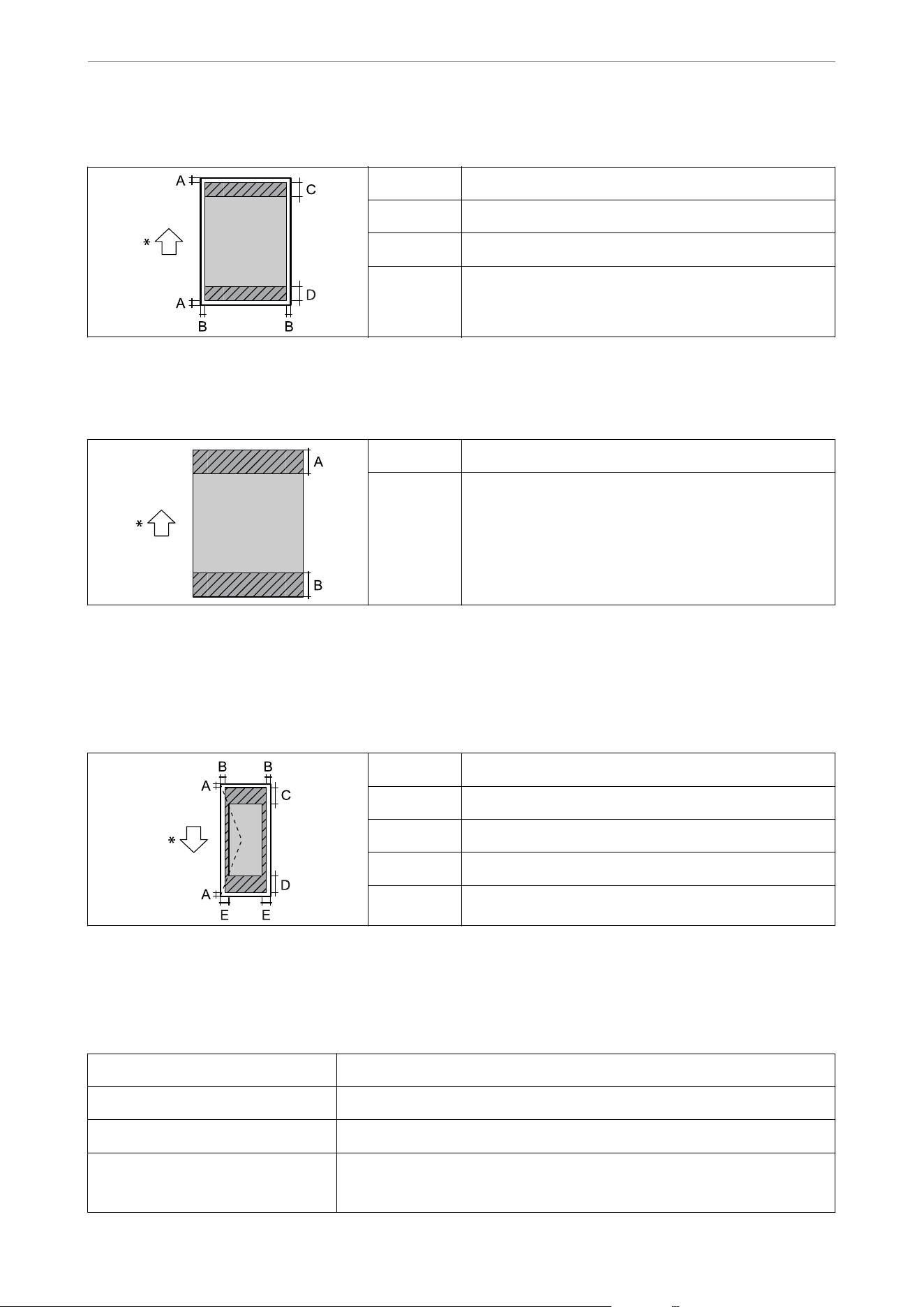
Printing with borders
A 3.0 mm (0.12 in.)
B 3.0 mm (0.12 in.)
C 47.0 mm (1.85 in.)
D 45.0 mm (1.77 in.)
*Direction of paper being fed.
Borderless printing
A 50.0 mm (1.97 in.)
B 48.0 mm (1.89 in.)
*Paper feed direction.
Printable Area for Envelopes
Print quality may decline in the shaded areas due to the printer's mechanism.
A 3.0 mm (0.12 in.)
B 3.0 mm (0.12 in.)
C 18.0 mm (0.71 in.)
D 47.0 mm (1.85 in.)
E 5.0 mm (0.20 in.)
*Direction of paper being fed.
Scanner Specications
Scanner Type Flatbed
Photoelectric Device CIS
Eective Pixels 10200×14040 pixels (1200 dpi)
Maximum Document Size 216×297 mm (8.5×11.7 in.)
A4, Letter
Product Information
>
Product Specications
>
Scanner Specications
264
Scanning Resolution 1200 dpi (main scan)
2400 dpi (sub scan)
Output Resolution 50 to 9600 dpi in 1 dpi increments
Color Depth Color
O 48 bits per pixel internal (16 bits per pixel per color internal)
O 24 bits per pixel external (8 bits per pixel per color external)
Grayscale
O 16 bits per pixel internal
O 8 bits per pixel external
Light Source LED
ADF Specications
Available Paper Sizes WF-4930 Series
A5
*1
, A4, B5, Executive, 8x10 in., Legal
*1
, Indian-Legal
*1
,
16K, Letter, 8.5×13 in.
*1
,
Mexico-Ocio
*1 *2
,
Ocio
9
*1 *2
WF-4920 Series
A4, Indian-Legal
*1
, Letter, 8.5×13 in.
*1
, Legal
*1
,
Mexico-
Ocio
*1 *2
,
Ocio
9
*1 *2
Paper Type Plain Paper, PrePrinted Paper, Letterhead Paper, Color Paper, Recycled Paper,
Epson Bright White Paper
*2
, Epson Bright White Pro Paper
*2
, Epson Bright White
Premium Paper
*2
, Epson Multi Purpose Plus Paper
*2
, Epson Bright White Ink Jet
Paper, Epson Business Paper
Weight of Paper 64 to 90 g/m2
Loading Capacity WF-4930 Series A5, A4, B5, Executive, 8x10 in., 16K, Letter: 50 sheets or 5.5
mm
Legal
*1
, Indian-Legal
*1
, 8.5×13 in.
*1
, Mexico-Ocio
*1 *2
,
Ocio
9
*1 *2
: 10 sheets
WF-4920 Series A4, Letter: 35 sheets or 3.85 mm
Indian-Legal
*1
, 8.5×13 in.
*1
, Legal
*1
, Mexico-Ocio
*1 *2
,
Ocio 9
*1 *2
: 10 sheets
Auto Duplex Scanning WF-4930 Series Supported
WF-4920 Series Not supported
*1 Single-sided scanning only.
*2 Only available for North America.
Even when the original meets the specications for media that can be placed in the ADF, it may not feed from the
ADF or the scan quality may decline depending on the paper properties or quality.
Product Information
>
Product Specications
>
ADF Specications
265
Fax Specications
Fax Type Walk-up black and white and color fax capability (ITU-T Super Group
3)
Supported Lines Standard analogue telephone lines, PBX (Private Branch Exchange)
telephone systems
Resolution Monochrome O Standard: 8 pel/mm×3.85 line/mm (203 pel/in.×98 line/in.)
O Fine: 8 pel/mm×7.7 line/mm (203 pel/in.×196 line/in.)
O Super Fine: 8 pel/mm×15.4 line/mm (203 pel/in.×392 line/in.)
O Ultra Fine: 16 pel/mm×15.4 line/mm (406 pel/in.×392 line/in.)
O Photo: 8 pel/mm×7.7 line/mm (203 pel/in.×196 line/in.)
Color 200×200 dpi
Speed Up to 33.6 kbps
Compression Method Monochrome MH/MR/MMR
Color JPEG
Communication Standards G3, SuperG3
Sending Paper Size Scanner Glass Half Letter, A5, Letter, A4
ADF Half Letter, A5, Letter, A4
Recording Paper Size A5, A4, B5, Half Letter, Letter, Legal
Transmission Speed
*1
Approx. 3 sec. (A4 ITU-T chart No.1 Standard MMR 33.6 kbps)
Page Memory
*2
Up to 180 pages (when an ITU-T No.1 chart is received in
monochrome standard mode)
Contacts Number of Contacts Up to 100
Number of Grouped
Contacts
Up to 99
Redial
*3
2 times (with 1 minute intervals)
Interface RJ-11 Phone Line, RJ-11 Telephone set connection
*1 The actual speed depends on the document, recipient's device, and the status of the phone line.
*2 Retained even during a power outage.
*3 The specications may dier by country or region.
Using Port for the Printer
e
printer uses the following port.
ese
ports should be allowed to become available by the network
administrator as necessary.
Product Information
>
Product Specications
>
Using Port for the Printer
266
When the Sender (Client) is the Printer
Use Destination
(Server)
Protocol Port
Number
File sending (When scan to network folder is
used from the printer)
FTP/FTPS server FTP/FTPS (TCP) 20
21
File server SMB (TCP) 445
NetBIOS (UDP) 137
138
NetBIOS (TCP) 139
WebDAV server Protocol HTTP (TCP) 80
Protocol HTTPS (TCP) 443
Email sending (When scan to mail is used
from the printer)
SMTP server SMTP (TCP) 25
SMTP SSL/TLS (TCP) 465
SMTP STARTTLS (TCP) 587
POP before SMTP connection (When scan to
mail is used from the printer)
POP server POP3 (TCP) 110
When Epson Connect is used Epson Connect
Server
HTTPS 443
XMPP 5222
Collecting user information (Use the contacts
from the printer)
LDAP server LDAP (TCP) 389
LDAP SSL/TLS (TCP) 636
LDAP STARTTLS (TCP) 389
User authentication function KDC server Kerberos (TCP/UDP) 88
Control WSD Client computer WSD (TCP) 5357
When the Sender (Client) is the Client Computer
Use Destination
(Server)
Protocol Port
Number
Discover the printer from an application
such as EpsonNet Cong, printer driver, and
scanner driver.
Printer ENPC (UDP) 3289
Collect and set up the MIB information from
an application such as EpsonNet Cong,
printer driver, and scanner driver.
Printer SNMP (UDP) 161
Forwarding LPR data Printer LPR (TCP) 515
Forwarding RAW data Printer RAW (Port9100) (TCP) 9100
Forwarding AirPrint (IPP/IPPS printing) data Printer IPP/IPPS (TCP) 631
Product Information
>
Product Specications
>
Using Port for the Printer
267
Use Destination
(Server)
Protocol Port
Number
Searching WSD printer Printer WS-Discovery (UDP) 3702
Web Cong Printer HTTP (TCP) 80
HTTPS (TCP) 443
Forwarding FaxOut Data Printer IPP FaxOut (TCP) 631
PC-FAX Printer HTTP (TCP) 80
HTTPS (TCP)
443
*
* This port is not available outside Europe, the Middle East, and Africa.
Interface Specications
For Computer
Hi-Speed USB
*
For External USB Device Hi-Speed USB
* USB 3.0 cables are not supported.
Network Specications
Wi-Fi Specications
Standards
IEEE802.11a/b/g/n
*1
/ac/k/v/r
Frequency Ranges IEEE802.11b/g/n: 2.4 GHz, IEEE802.11a/n/ac: 5.0 GHz
Channels Wi-Fi 2.4 GHz
1/2/3/4/5/6/7/8/9/10/11/12
*2
/13
*2
5.0 GHz
*3
W52 (36/40/44/48),
W53 (52/56/60/64),
W56 (100/104/108/112/116/120/124/128/132/136/140),
W58 (149/153/157/161/165)
Wi-Fi Direct 2.4 GHz
1/2/3/4/5/6/7/8/9/10/11/12
*2
/13
*2
5.0 GHz
*3
W52 (36/40/44/48),
W58 (149/153/157/161/165)
Connection Modes
Infrastructure, Wi-Fi Direct (Simple AP)
*4*5
Security Protocols
*6
WEP (64/128bit), WPA2-PSK (AES)
*7
, WPA3-SAE (AES), WPA2/WPA3-Enterprise
*1 Only available for the HT20.
Product Information
>
Product Specications
>
Network Specications
268
*2 Not available in the U.S., Canada, Latin America, and Taiwan.
*3 The availability of these channels and use of the product outdoors over these channels varies by location. For more
information, see the following website.
https://support.epson.net/wi5ghz/
*4 Not supported for IEEE 802.11b.
*5 Infrastructure and Wi-Fi Direct modes or an Ethernet connection can be used simultaneously.
*6 Wi-Fi Direct only supports WPA2-PSK (AES).
*7 Complies with WPA2 standards with support for WPA/WPA2 Personal.
Ethernet Specications
Standards
IEEE802.3i (10BASE-T)
*1
IEEE802.3u (100BASE-TX)
IEEE802.3az (Energy Ecient Ethernet)
*2
Communication Mode Auto, 10Mbps Full duplex, 10Mbps Half duplex, 100Mbps
Full duplex, 100Mbps Half duplex
Connector RJ-45
*1 Use a category 5e or higher STP (Shielded twisted pair) cable to prevent risk of radio interference.
*2 The connected device should comply with IEEE802.3az standards.
Network Functions and IPv4/IPv6
Functions Supported Remarks
Network Printing EpsonNet Print (Windows) IPv4
✓
-
Standard TCP/IP (Windows) IPv4, IPv6
✓
-
WSD Printing (Windows) IPv4, IPv6
✓
-
Bonjour Printing (Mac OS) IPv4, IPv6
✓
-
IPP Printing (Windows, Mac
OS)
IPv4, IPv6
✓
-
Epson Connect (Email Print,
Remote Print)
IPv4
✓
-
AirPrint (iOS, Mac OS) IPv4, IPv6
✓
iOS 5 or later, OS
X Mavericks (10.9.5)
or later
*
Mopria Print IPv4, IPv6
✓
-
Chromebook Print
(ChromeOS)
IPv4, IPv6
✓
-
Microsoft IPP Class Driver
(Windows)
IPv4, IPv6
✓
-
Product Information
>
Product Specications
>
Network Specications
269
Functions Supported Remarks
Network Scanning Epson Scan 2 IPv4, IPv6
✓
-
Epson ScanSmart IPv4
✓
Windows 7 or later,
or OS X El Capitan
(10.11) or later
Epson Event Manager (Mac
OS)
IPv4
✓
OS X Yosemite
(10.10)/OS X
Mavericks (10.9.5)
Epson Connect (Scan to
Cloud)
IPv4
✓
-
AirPrint (Scan) IPv4, IPv6
✓
OS X Mavericks
(10.9.5) or later
*
Mopria Scan IPv4, IPv6
✓
-
Chromebook Scan
(ChromeOS)
IPv4, IPv6
✓
-
Fax Send a fax IPv4
✓
-
Receive a fax IPv4
✓
-
AirPrint (Faxout) IPv4, IPv6
✓
OS X Mavericks
(10.9.5) or later
*
* We recommend using the latest version of iOS or Mac OS.
Security Protocol
IEEE802.1X
*1
IPsec/IP Filtering
SSL/TLS HTTPS Server/Client
IPPS
TLS Version
1.3, 1.2, 1.1
*2
, 1.0
*2
SMTPS (STARTTLS, SSL/TLS)
SNMP (Simple Network Management
Protocol)
SNMPv3
*1 You need to use a device for connection that complies with IEEE802.1X.
*2 Disabled by default.
Product Information
>
Product Specications
>
Network Specications
270
Supported Third Party Services
Services Supported Remarks
AirPrint Print
✓
iOS 5 or later/OS X Mavericks
(10.9.5) or later
*1
Scan
✓
OS X Mavericks (10.9.5) or later
*1
Fax
✓
OS X Mavericks (10.9.5) or later
*1
Mopria Print
✓
Android 8.0 or later, Windows 10 or
later
*2
Scan
✓
Android 12.0 or later, Windows 10
or later
*2
, ChromeOS 89 or later
*3
Chromebook Print
✓
ChromeOS 89 or later
*3
Scan
✓
ChromeOS 89 or later
*3
*1 We recommend using the latest version of iOS or Mac OS.
*2 We recommend using the latest version of Windows.
*3 We recommend using the latest version of ChromeOS.
Memory Device Specications
Devices Maximum Capacities
Hard Disk Drive
*1
USB Memory Device
2 TB (formatted in FAT, FAT32, or exFAT.)
Multi-card reader
*2
2 TB (formatted in FAT, FAT32, or exFAT)
*1: We do not recommend using external USB devices that are powered by USB. Use only external USB devices with
independent AC power sources.
*2: Only insert one memory card into the multi-card reader. Multi-card readers with more than two memory cards inserted are
not supported.
You cannot use the following devices:
O A device that requires a dedicated driver
O A device with security settings (password, encryption)
O A device with a built-in USB hub
Epson cannot guarantee all operations of externally connected devices.
Product Information
>
Product Specications
>
Memory Device Specications
271
Supported Data Specications
File Format JPEGs (*.JPG, *.JPE, *.JPEG, and *.JFIF) with the Exif Version 2.31 standard taken by
digital cameras DCF
*1
version 1.0 or 2.0
*2
compliant
TIFF 6.0 compliant images as below
O RGB full color images (not compressed)
O Binary images (not compressed or CCITT encoded)
Image Size Horizontal: 80 to 10200 pixels
Vertical: 80 to 10200 pixels
File Size Less than 2 GB
Maximum Number of Files
JPEG: 9990
*3
TIFF: 999
*1 Design rule for Camera File system.
*2 Photo data stored on digital cameras with a built-in memory is not supported.
*3 Up to 999 les can be displayed at a time. (If the number of les exceeds 999, the les are displayed in groups.)
Note:
"
" is displayed on the LCD screen when the printer cannot recognize the image le. In this situation, if you select a multiple
image layout, blank sections will be printed.
Dimensions
WF-4930 Series
Dimensions Storage
O Width: 425 mm (16.7 in.)
O Depth: 388 mm (15.3 in.)
O Height: 330 mm (13.0 in.)
Printing
O Width: 425 mm (16.7 in.)
O Depth: 502.2 mm (19.8 in.)
O Height: 330 mm (13.0 in.)
Weight
*
Approx. 12.0 kg (26.5 lb)
* Without the ink cartridges and the power cord.
Product Information
>
Product Specications
>
Dimensions
272
WF-4920 Series
Dimensions Storage
O Width: 425 mm (16.7 in.)
O Depth: 388 mm (15.3 in.)
O Height: 277 mm (11.0 in.)
Printing
O Width: 425 mm (16.7 in.)
O Depth: 502.2 mm (19.8 in.)
O Height: 277 mm (11.0 in.)
Weight
*
Approx. 10.3 kg (23.0 lb)
* Without the ink cartridges and the power cord.
Electrical Specications
WF-4930 Series
Power Supply Rating AC 100-240 V AC 220-240 V
Rated Frequency Range 50-60 Hz 50-60 Hz
Rated Current 0.6-0.4 A 0.4 A
Power Consumption (with USB Con-
nection)
Standalone copying: Approx. 23.0 W
(ISO/IEC24712)
Ready mode: Approx. 8.2 W
Sleep mode: Approx. 0.5 W
*
(Energy
Saving Priority Mode is On.)
Sleep mode: Approx. 0.7 W
*
(Energy
Saving Priority Mode is O.)
Power o: Approx. 0.05 W
Standalone copying: Approx. 23.0 W
(ISO/IEC24712)
Ready mode: Approx. 8.2 W
Sleep mode: Approx. 0.5 W
*
(Energy
Saving Priority Mode is On.)
Sleep mode: Approx. 0.7 W
*
(Energy
Saving Priority Mode is O.)
Power o: Approx. 0.1 W
* This is a reference value. Actual power consumption may vary depending on your environment.
Note:
O Check the label on the printer for its voltage.
O For European users, see the following Website for details on power consumption.
https://www.epson.eu/energy-consumption
O For Middle East, Turkey, Africa, Central and West Asia users, see the following Website for details on power
consumption.
https://www.epson.com/eme
WF-4920 Series
Power Supply Rating AC 100-240 V
Product Information
>
Product Specications
>
Electrical Specications
273
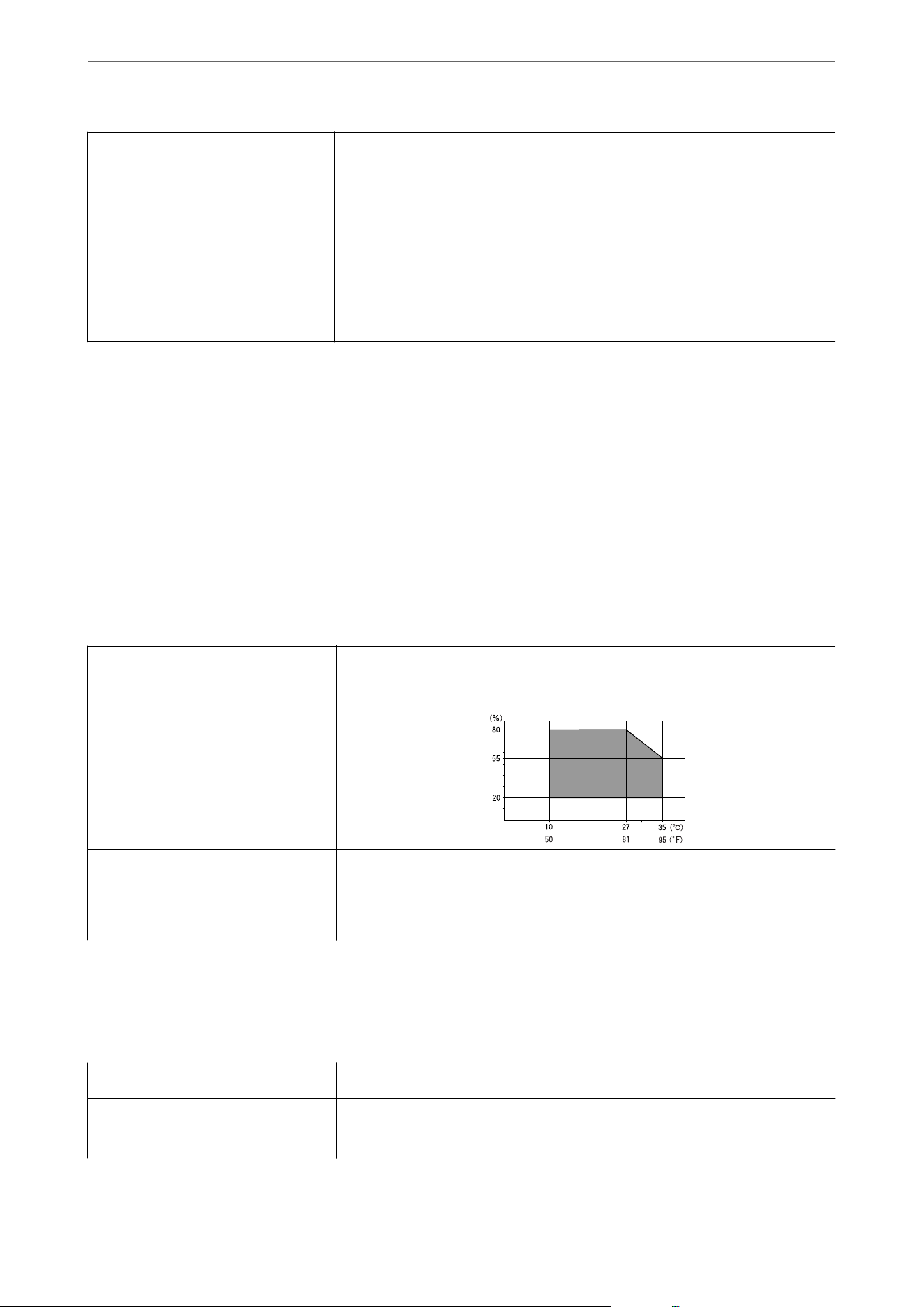
Rated Frequency Range 50-60 Hz
Rated Current 0.6-0.4 A
Power Consumption (with USB
Connection)
Standalone copying: Approx. 17.0 W (ISO/IEC24712)
Ready mode: Approx. 7.0 W
Sleep mode: Approx. 0.5 W
*
(Energy Saving Priority Mode is On.)
Sleep mode: Approx. 0.7 W
*
(Energy Saving Priority Mode is O.)
Power
o:
Approx. 0.05 W
* This is a reference value. Actual power consumption may vary depending on your environment.
Note:
O Check the label on the printer for its voltage.
O For European users, see the following Website for details on power consumption.
https://www.epson.eu/energy-consumption
O For Middle East, Turkey, Africa, Central and West Asia users, see the following Website for details on power
consumption.
https://www.epson.com/eme
Environmental Specications
Operation Use the printer within the temperature (°C or °F) and humidity (%) ranges shown
in the graph, and in an environment without condensation.
Storage
Temperature after initial ink charging: -15 to 40°C (5 to 104°F)
*
Temperature before initial ink charging: -20 to 40°C (-4 to 104°F)
*
Humidity: 5 to 85% RH (without condensation)
* You can store the printer for one month at 40°C (104°F).
Environmental Specications for Ink Cartridges
Storage Temperature
-30 to 40 °C (-22 to 104 °F)
*
Freezing Temperature Ink may freeze if it is stored below -16 °C (3.2 °F).
Ink thaws and is usable after approximately 3 hours at 25 °C (77 °F).
* You can store ink cartridges for one month at 40 °C (104 °F).
Product Information
>
Product Specications
>
Environmental Specications
274
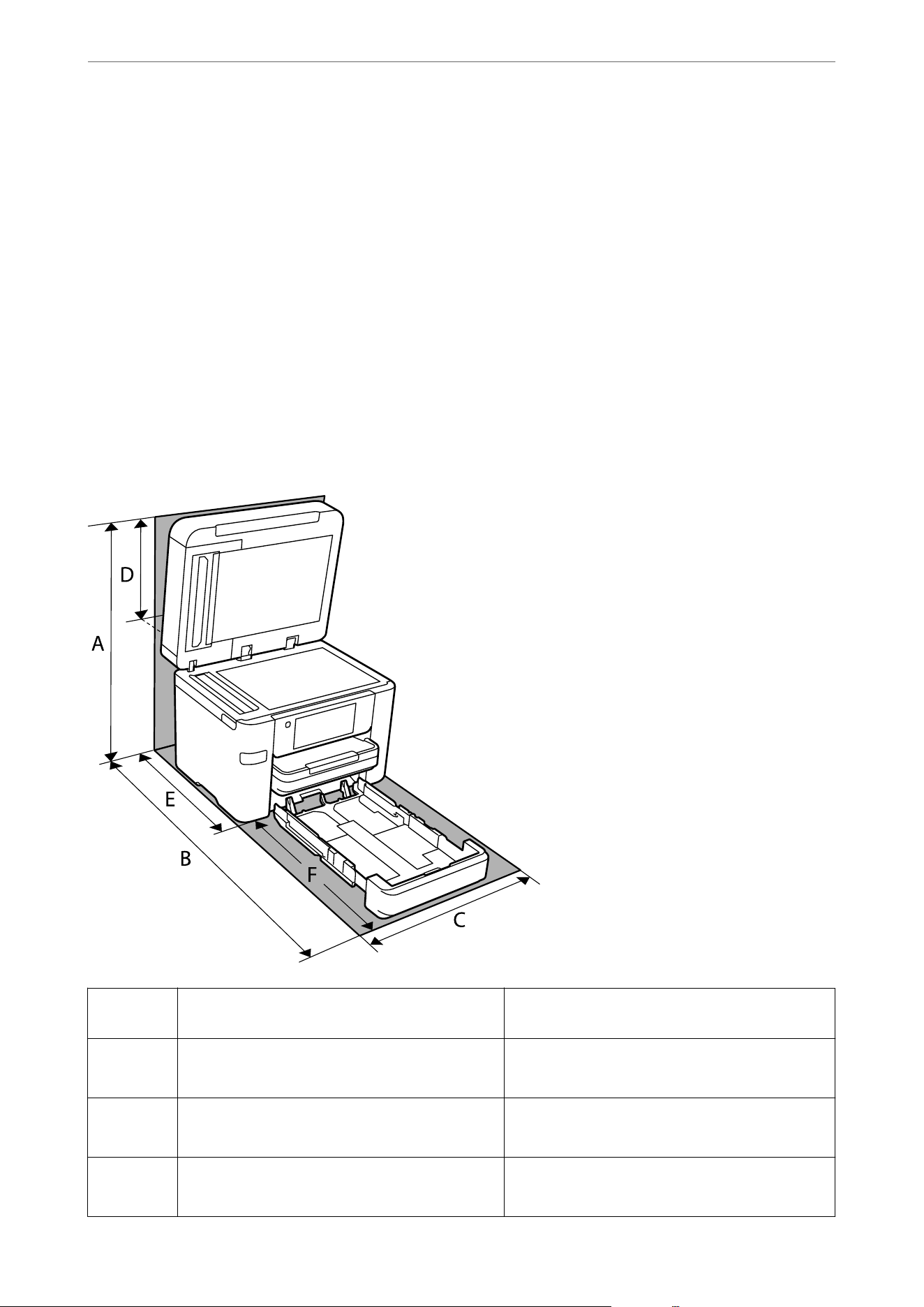
Note for users in the U.S. and Canada:
Your printer is designed to work only with genuine Epson-brand ink cartridges. Other brands of ink cartridges and
ink supplies are not compatible and, even if described as compatible, may not function properly or at all. Epson
periodically provides rmware updates to address issues of security, performance, minor bug xes and ensure the
printer functions as designed. ese updates may aect the functionality of third-party ink. Non-Epson branded or
altered Epson cartridges that functioned prior to a rmware update may not continue to function.
e included initial cartridges are designed for reliable printer setup and cannot be used as replacement cartridges
or resold. Aer setup, the remaining ink is available for printing. Yields are based on ISO 24711 in default
mode, printing continuously. Yields vary due to print images, settings, and temperatures. Printing infrequently
or primarily with one color reduces yields. All cartridges must be installed with ink for printing and printer
maintenance. For print quality, some ink remains in replaced cartridges.
Installation Location and Space
Secure enough place to install and operate the printer correctly.
Product
Name
WF-4930 Series WF-4920 Series
A 595.2 mm
(23.44 in.)
560.7 mm
(22.07 in.)
B 756.4 mm
(29.78 in.)
756.0 mm
(29.76 in.)
C 425.0 mm
(16.73 in.)
425.0 mm
(16.73 in.)
Product Information
>
Product Specications
>
Installation Location and Space
275
D 334.2 mm
(13.15 in.)
338.6 mm
(13.33 in.)
E 378.0 mm
(14.88 in.)
395.4 mm
(15.56 in.)
F 378.4mm
(14.90 in.)
360.6mm
(14.19 in.)
See "Safety Instructions" in this manual to conrm the environmental conditions.
Related Information
& “Safety Instructions” on page 14
& “Advisories and Warnings for Setting Up the Printer” on page 15
System Requirements
O Windows
Windows 7, Windows 8.1, Windows 10, Windows 11 or later
Windows Server 2008, 2008 R2, 2012 R2 or later
O Mac OS
Mac OS X 10.9.5 or later, macOS 11 or later
O ChromeOS
Note:
Only supports the standard OS features.
Regulatory Information
Standards and Approvals
Standards and Approvals for the U.S. and Canadian Models
Safety UL60950-1
CAN/CSA C22.2 No. 60950-1-07
EMC FCC Part 15 Subpart B Class B
CAN ICES (B)/NMB (B)
is
equipment contains the following wireless module.
Manufacturer: Seiko Epson Corporation
Type: J26H005
Product Information
>
Regulatory Information
>
Standards and Approvals
276

is product conforms to Part 15 of FCC Rules and RSS-210 of the IC Rules. Epson cannot accept responsibility
for any failure to satisfy the protection requirements resulting from a non-recommended
modication
of the
product. Operation is subject to the following two conditions: (1) this device may not cause harmful interference,
and (2) this device must accept any interference received, including interference that may cause undesired
operation of the device.
To prevent radio interference to the licensed service, this device is intended to be operated indoors and away from
windows to provide maximum shielding. Equipment (or its transmit antenna) that is installed outdoors is subject
to licensing.
is
equipment complies with FCC/IC radiation exposure limits set forth for an uncontrolled environment and
meets the FCC radio frequency (RF) Exposure Guidelines in Supplement C to OET65 and RSS-102 of the IC radio
frequency (RF) Exposure rules.
is
equipment should be installed and operated so that the radiator is kept at least
7.9 inches (20 cm) or more away from a person's body (excluding extremities: hands, wrists, feet and ankles).
FCC Compliance Statement
For United States Users
is
equipment complies with Part 68 of the FCC rules and the requirements adopted by the Administrative
Council for Terminal Attachments ("ACTA"). On the surface of this equipment is a label that contains, among
other information, a product
identier
in the format US:AAAEQ##TXXXX. If requested, this number must be
provided to the telephone company.
Applicable certication jack Universal Service Order Codes ("USOC") for the equipment: RJ11C.
A plug and jack used to connect this equipment to the premises wiring and telephone network must comply
with the applicable FCC Part 68 rules and requirements adopted by the ACTA. A compliant telephone cord and
modular plug is provided with this product. It is designed to be connected to a compatible modular jack that is also
compliant. See installation instructions for details.
e REN is used to determine the number of devices that may be connected to a telephone line. Excessive RENs on
a telephone line may result in the devices not ringing in response to an incoming call. In most but not all areas, the
sum of RENs should not exceed ve (5.0). To be certain of the number of devices that may be connected to a line,
as determined by the total RENs, contact the local telephone company. For products approved aer July 23, 2001,
the REN for this product is part of the product identier that has the format US:AAAEQ##TXXXX. e digits
represented by ## are the REN without a decimal point (e.g., 03 is a REN of 0.3). For earlier products, the REN is
separately shown on the label.
If this equipment causes harm to the telephone network, the telephone company will notify you in advance that
temporary discontinuance of service may be required. But if advance notice isn't practical, the telephone company
will notify the customer as soon as possible. Also, you will be advised of your right to
le
a complaint with the FCC
if you believe it is necessary.
e telephone company may make changes in its facilities, equipment, operations, or procedures that could aect
the operation of the equipment. If this happens the telephone company will provide advance notice in order for
you to make necessary modications to maintain uninterrupted service.
If you have problems with this product and require technical or customer support, please visit www.epson.com for
more information.
is product is not intended to be repaired by the customer. If you experience trouble connecting this equipment
to a telephone line, please contact:
Name: Epson America, Inc.
Address: 3131 Katella Ave., Los Alamitos, CA 90720 U.S.A.
Telephone: (562) 981-3840
Product Information
>
Regulatory Information
>
Standards and Approvals
277

If the equipment is causing harm to the telephone network, the telephone company may request that you
disconnect the equipment until the problem is resolved.
is equipment may not be used on coin service provided by the telephone company. Connection to party
line service is subject to state taris. Contact the state public utility commission, public service commission or
corporation commission for information.
If your home has specially wired alarm equipment connected to the telephone line, ensure the installation of this
equipment does not disable your alarm equipment. If you have questions about what will disable alarm equipment,
consult your telephone company or a qualied installer.
e Telephone Consumer Protection Act of 1991 makes it unlawful for any person to use a computer or other
electronic device, including fax machines, to send any message unless such message clearly contains in a margin at
the top or bottom of each transmitted page or on the rst page of the transmission, the date and time it is sent and
an identication of the business or other entity, or other individual sending the message and the telephone number
of the sending machine or such business, other entity, or individual. (e telephone number provided may not be a
900 number or any other number for which charges exceed local or long-distance transmission charges.)
To comply with this law, you must enter the following information in your fax unit. See the Faxing section of this
guide for instructions on doing this.
O Date and time
O Name and telephone number which identify the source of your fax transmission
According to the FCC's electrical safety advisory, we recommend that you may install an AC surge arrester in
the AC outlet to which this equipment is connected. Telephone companies report that electrical surges, typically
lightning transients, are very destructive to customer terminal equipment connected to AC power sources and that
this is a major nationwide problem.
is equipment has been tested and found to comply with the limits for a Class B digital device, pursuant to Part
15 of the FCC Rules. ese limits are designed to provide reasonable protection against harmful interference in a
residential installation. is equipment generates, uses, and can radiate radio frequency energy and, if not installed
and used in accordance with the instructions, may cause harmful interference to radio communications. However,
there is no guarantee that interference will not occur in a particular installation. If this equipment does cause
harmful interference to radio or television reception, which can be determined by turning the equipment o and
on, the user is encouraged to try to correct the interference by one or more of the following measures:
O Reorient or relocate the receiving antenna.
O Increase the separation between the equipment and receiver.
O Connect the equipment into an outlet on a circuit dierent from that to which the receiver is connected.
O Consult the dealer or an experienced radio/TV technician for help.
WARNING
e connection of a non-shielded equipment interface cable to this equipment will invalidate the FCC
Certication or Declaration of this device and may cause interference levels which exceed the limits established by
the FCC for this equipment. It is the responsibility of the user to obtain and use a shielded equipment interface
cable with this device. If this equipment has more than one interface connector, do not leave cables connected to
unused interfaces. Changes or modications not expressly approved by the party responsible for compliance could
void the user’s authority to operate this equipment.
For Canadian Users
O is product meets the applicable Innovation, Science and Economic Development Canada technical
specications.
Product Information
>
Regulatory Information
>
Standards and Approvals
278
O e Ringer Equivalence Number indicates the maximum number of devices allowed to be connected to a
telephone interface.
e
termination of an interface may consist of any combination of devices subject only to
the requirement that the sum of the RENs of all the devices does not exceed
ve.
CAN ICES (B)/NMB (B)
Standards and Approvals for European Models
e following models are CE/UKCA marked and in compliance with the relevant statutory requirements.
e full text of the declaration of conformity is available at the following website:
https://www.epson.eu/conformity
C874A, C876A
is product meets international guidelines (ICNIRP) for exposure to radio frequency radiation.
If it incorporates a radio transmitting and receiving device that in normal use, a separation distance of 20 cm
ensures that radio frequency exposure levels comply with EU requirements.
Standards and Approvals for Australian Model
EMC AS/NZS CISPR32 Class B
Epson hereby declares that the following equipment Models are in compliance with the essential requirements and
other relevant provisions of AS/NZS4268:
C874A, C876A
Epson cannot accept responsibility for any failure to satisfy the protection requirements resulting from a non-
recommended modication of the product.
Standards and Approvals for New Zealand Model
General Warning
e grant of a Telepermit for any item of terminal equipment indicates only that Telecom has accepted that the
item complies with minimum conditions for connection to its network. It indicates no endorsement of the product
by Telecom, nor does it provide any sort of warranty. Above all, it provides no assurance that any item will work
correctly in all respects with another item of Telepermitted equipment of a dierent make or model, nor does it
imply that any product is compatible with all of Telecom's network services.
Telepermitted equipment only may be connected to the EXT telephone port. is port is not specically designed
for 3-wire-connected equipment. 3-wire-connected equipment might not respond to incoming ringing when
attached to this port.
Important Notice
Under power failure conditions, this telephone may not operate. Please ensure that a separate telephone, not
dependent on local power, is available for emergency use.
Product Information
>
Regulatory Information
>
Standards and Approvals
279

is equipment is not capable, under all operating conditions, of correct operation at the higher speeds for which it
is designed. Telecom will accept no responsibility should
diculties
arise in such circumstances.
is equipment shall not be set up to make automatic calls to the Telecom '111' Emergency Service.
German Blue Angel
See the following website to check whether or not this printer meets the standards for the German Blue Angel.
https://www.epson.de/blauerengel
Restrictions on Copying
Observe the following restrictions to ensure the responsible and legal use of the printer.
Copying of the following items is prohibited by law:
O Bank bills, coins, government-issued marketable securities, government bond securities, and municipal
securities
O Unused postage stamps, pre-stamped postcards, and other ocial postal items bearing valid postage
O Government-issued revenue stamps, and securities issued according to legal procedure
Exercise caution when copying the following items:
O Private marketable securities (stock certicates, negotiable notes, checks, etc.), monthly passes, concession
tickets, etc.
O Passports, driver’s licenses, warrants of tness, road passes, food stamps, tickets, etc.
Note:
Copying these items may also be prohibited by law.
Responsible use of copyrighted materials:
Printers can be misused by improperly copying copyrighted materials. Unless acting on the advice of a
knowledgeable attorney, be responsible and respectful by obtaining the permission of the copyright holder before
copying published material.
Nameplate
e nameplate is located on the rear side of the product.
Product Information
>
Nameplate
280

Administrator Information
Creating and
Conguring
a Network Connection..........................282
Settings to Use the Printer...........................................298
Managing the Printer...............................................362
Product Security Settings............................................376
Advanced Security Settings..........................................383

Creating and Conguring a Network Connection
is section explains the necessary settings so that users in the same network can use the printer.
Connecting the Printer to the Network
You can connect the printer to the network in several ways.
O Connect by using advanced settings on the control panel.
O Connect by using the installer.
You can run the installer from the web site or from the soware disc (for models that come with a soware disc
and for which the soware disc is available.)
is section explains the procedure to connect the printer to the network using the printer's control panel.
Before Making a Network Connection
To connect to the network, check the connection method and setting information for connection in advance.
Gathering Information on the Connection Setting
Prepare the necessary setting information to connect. Check the following information in advance.
Divisions Items Note
Device connection
method
O Ethernet
O Wi-Fi
Decide how to connect the printer to the network.
For Wired LAN, connects to the LAN switch.
For Wi-Fi, connects to the network (SSID) of the access point.
LAN connection
information
O IP address
O Subnet mask
O Default gateway
Decide the IP address to assign to the printer.
When you assign the IP address statically, all values are required.
When you assign the IP address dynamically using the DHCP function,
this information is not required because it is set automatically.
Wi-Fi connection
information
O SSID
O Password
These are the SSID (network name) and the password of the access
point that the printer connects to.
If MAC address ltering has been set, register the MAC address of the
printer in advance to register the printer.
See the following for the supported standards.
“Wi-Fi
Specications
” on page 268
DNS server information O IP address for
primary DNS
O IP address for
secondary DNS
These are required when specifying DNS servers. The secondary DNS
is set when the system has a redundant conguration and there is a
secondary DNS server.
If you are in a small organization and do not set the DNS server, set
the IP address of the router.
Administrator Information
>
Creating and Conguring a Network Connection
>
Connecting the Printer to t
…
282

Divisions Items Note
Proxy server
information
O Proxy server name Set this when your network environment uses the proxy server to
access the internet from the intranet, and you use the function that
the printer directly accesses to the internet.
For the following functions, the printer directly connects to the
internet .
O Epson Connect Services
O Cloud services of other companies
O Firmware updating
Port number
information
O Port number to
release
Check the port number used by the printer and computer, then
release the port that is blocked by a rewall, if necessary.
See the following for the port number used by the printer.
“Using Port for the Printer” on page 266
IP Address Assignment
e IP address assignment types are described below.
Static IP address:
A predetermined xed IP address is assigned to the printer (host) manually.
e
information to connect to the network (Subnet Mask, Default Gateway, Primary DNS, Secondary DNS) needs
to be entered manually.
e IP address does not change even when the device is turned o, so this is useful when using devices an
environment where you cannot change the IP address or you want to manage devices using in the IP address. We
recommend settings to the printer, server, and other devices on the network that many computers access. Also,
when using security features such as IPsec / IP ltering, assign a xed IP address so that the IP address does not
change.
Automatic assignment by using DHCP function (dynamic IP address):
An IP address is assigned to the printer (host) automatically by the DHCP function of the server or router.
e information to connect to the network (Subnet Mask, Default Gateway, Primary DNS, Secondary DNS) is set
automatically, so you can easily connect the device to the network.
If the device or the router is turned
o,
or depending on the DHCP server settings, the printer's IP address may
change when reconnecting.
We recommend managing the device using a method other than the IP address and communicating with protocols
that can follow the IP address even if it changes.
Note:
When you use the DHCP IP address reservation function, you can assign the same IP address to the devices at any time.
DNS Server and Proxy Server
e DNS server has a host name, domain name of the email address, etc. in association with the IP address
information.
Communication is impossible if the other party is described by host name, domain name, etc. when the computer
or the printer performs IP communication.
Administrator Information
>
Creating and Conguring a Network Connection
>
Connecting the Printer to t
…
283

e DNS server queries for that information and gets the IP address of the other party. is process is called name
resolution.
erefore, the devices such as computers and printers can communicate using the IP address.
Name resolution is necessary for the printer to communicate using the email function or Internet connection
function.
When you use those functions, make the DNS server settings.
When you assign the printer's IP address by using the DHCP function of the DHCP server or router, it is
automatically set.
e
proxy server is placed at the gateway between the network and the Internet, and it communicates to the
computer, printer, and Internet (opposite server) on behalf of each of them. e opposite server communicates
only to the proxy server.
erefore,
printer information such as the IP address and port number cannot be read
and increased security is expected.
When you connect to the Internet via a proxy server, congure the proxy server on the printer.
Connecting to the Network from the Control Panel
Connect the printer to the network by using the printer's control panel.
Assigning the IP Address
Set up the basic items such as IP Address, Subnet Mask, Default Gateway.
is section explains the procedure for setting a static IP address.
If you want to congure settings on a printer with Lock Setting enabled, you must log in as an administrator.
If
is displayed on the printer screen, tap this icon and log in as an administrator.
1. Turn on the printer.
2. Select Settings > General Settings > Network Settings > on the home screen on the printer's control panel.
3. Select Advanced, and then select OK to conrm the message than appears.
4. Select TCP/IP, and then Manual for Obtain IP Address.
If you want to set the IP address automatically by using the DHCP function of the router, select Auto. In that
case, the IP Address, Subnet Mask, and Default Gateway on steps 5 and 6 are also set automatically, so go to
step 7.
5.
Enter the IP address, and then select OK.
Make sure you see the IP address under Obtain IP Address aer entering it.
6. Enter the Subnet Mask and Default Gateway.
Make sure you see the Subnet Mask and Default Gateway aer entering them.
c
Important:
If the combination of the IP Address, Subnet Mask and Default Gateway is incorrect, Start Setup is inactive
and you cannot proceed with the settings. Conrm that there is no error in the entry.
Administrator Information
>
Creating and Conguring a Network Connection
>
Connecting the Printer to t
…
284

7. Enter the IP address for the primary DNS server, and then select OK.
Make sure you see the primary DNS server IP address aer entering it.
When you select Auto for the IP address assignment settings, you can select the DNS server settings from
Manual or Auto. If you cannot obtain the DNS server address automatically, select Manual and enter the DNS
server address. en, enter the secondary DNS server address directly. If you select Auto, go to step 9.
8. Enter the IP address for the secondary DNS server, and then select OK.
Make sure you see the secondary DNS server IP address aer entering it.
9. Tap Start Setup.
Related Information
& “Default Value of the Administrator Password” on page 17
Setting the Proxy Server
Set up the proxy server if both of the following are true.
O
e
proxy server is built for Internet connection.
O When using a function in which a printer directly connects to the Internet, such as Epson Connect service or
another company's cloud services.
1. Select Settings on the home screen.
When making settings aer IP address setting, the Advanced screen is displayed. Go to step 3.
2. Select General Settings > Network Settings > Advanced.
3.
Select Proxy Server.
4. Select Use for Proxy Server Settings.
5. Enter the address for the proxy server in IPv4 or FQDN format, and then select OK.
Make sure you see the Proxy Server Settings.
6. Enter the port number for the proxy server, and them select OK.
Make sure you see the Port Number.
7. Tap Start Setup.
Connecting to LAN
Connect the printer to the network by Ethernet or Wi-Fi.
Connecting to Ethernet
Connect the printer to the network by using an Ethernet cable, and check the connection.
1. Connect the printer and hub (LAN switch) with an Ethernet cable.
2. Select Settings on the home screen.
Administrator Information
>
Creating and Conguring a Network Connection
>
Connecting the Printer to t
…
285

3. Select General Settings > Network Settings > Connection Check.
e connection diagnosis result is displayed. Conrm the connection is correct.
Related Information
& “Changing the Connection from Wi-Fi to Wired LAN” on page 157
Connecting to the Wireless LAN (Wi-Fi)
You can connect the printer to the wireless LAN (Wi-Fi) in several ways. Choose the connection method that
matches the environment and conditions that you are using.
If you know the information for the wireless router such as SSID and password, you can select settings manually.
If the wireless router supports WPS, you can select settings by using push button setup.
Aer connecting the printer to the network, connect to the printer from the device that you want to use (computer,
mobile device, tablet).
Related Information
& “Note when Using a Wi-Fi 5 GHz Connection” on page 286
& “Conguring Wi-Fi Settings by Entering the SSID and Password” on page 286
& “Conguring Wi-Fi Settings using Push Button Setup (WPS)” on page 288
& “Conguring Wi-Fi Settings Using PIN Code Setup (WPS)” on page 288
& “Conguring Wi-Fi Settings by Entering the SSID and Password” on page 286
& “Conguring Wi-Fi Settings using Push Button Setup (WPS)” on page 288
& “
Conguring
Wi-Fi Settings Using PIN Code Setup (WPS)” on page 288
Note when Using a Wi-Fi 5 GHz Connection
is printer normally uses W52 (36ch) as the channel when connecting to Wi-Fi Direct (Simple AP). Since the
channel for wireless LAN (Wi-Fi) connection is selected automatically, the channel used may
dier
when used
at the same time as a Wi-Fi Direct connection. Sending data to the printer may be delayed if the channels are
dierent. If it does not interfere with use, connect to the SSID in the 2.4 GHz band. In the 2.4 GHz frequency band,
the channels used will match.
When setting the wireless LAN to 5 GHz, we recommend disabling Wi-Fi Direct.
Conguring Wi-Fi Settings by Entering the SSID and Password
You can set up a Wi-Fi connection by entering the necessary information from the printer's control panel. To set
up using this method, you need the SSID and password for your wireless router.
Administrator Information
>
Creating and Conguring a Network Connection
>
Connecting the Printer to t
…
286
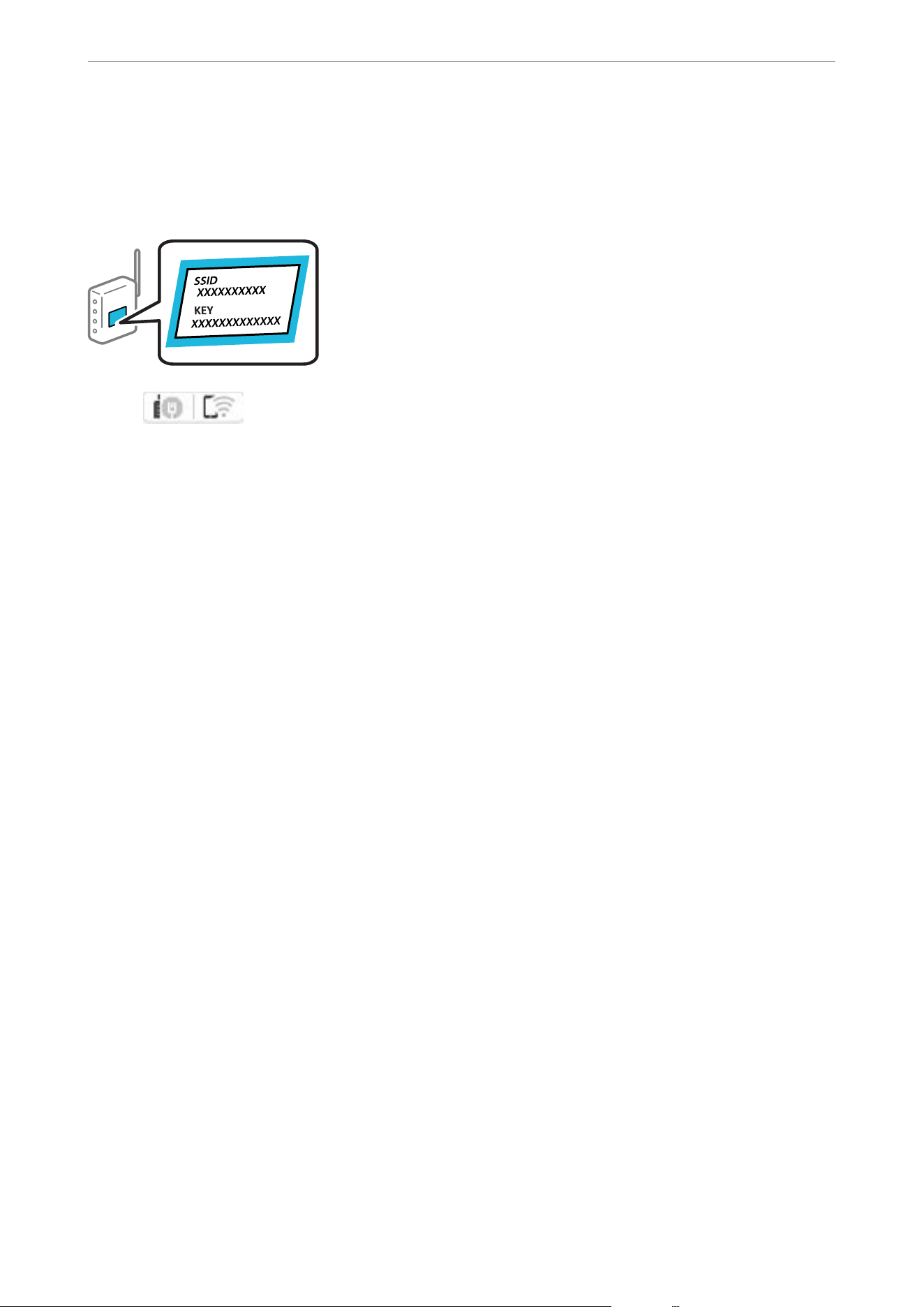
Note:
If you are using a wireless router with its default settings, the SSID and password are on the label. If you do not know the
SSID and password, contact the person who set up the wireless router, or see the documentation provided with the wireless
router.
1. Tap on the home screen.
2. Select Wi-Fi.
3. Tap Start Setup.
If the network connection is already set up, the connection details are displayed. Tap Change Settings to
change the settings.
If the printer has already been connected by Ethernet, tap Change to Wi-Fi connection., and then select Ye s
aer checking the message.
4. Select Wi-Fi Setup Wizard.
5. Follow the on-screen instructions to select the SSID, enter the password for the wireless router, and start setup.
If you want to check the network connection status for the printer aer setup is complete, see the related
information link below for details.
Note:
O If you do not know the network name (SSID), check if the information is written on the label on the wireless router.
If you are using the wireless router with its default settings, use the SSID on the label. If you cannot nd any
information, see the documentation provided with the wireless router.
O
e
password is case-sensitive.
O If you do not know the password, check if the information is written on the label of the wireless router. On the label,
the password may be named "Network Key", "Wireless Password", or another similar name. If you are using the
wireless router with its default settings, use the password written on the label.
O If the SSID you want to connect to is not displayed, congure Wi-Fi settings using soware or apps on your computer
or mobile device.
U.S. and Canada
Access the following website and search for your product. Download and run your product's soware package, then
follow the instructions on the computer screen to run the setup program.
https://support.epson.com
Other Regions
Access the following website, and then enter the product name. Go to Setup, and then start setting up.
https://epson.sn
Related Information
& “Checking the Printer's Network Connection Status (Network Connection Report)” on page 152
Administrator Information
>
Creating and Conguring a Network Connection
>
Connecting the Printer to t
…
287

Conguring Wi-Fi Settings using Push Button Setup (WPS)
You can automatically set up a Wi-Fi network by pressing a button on the wireless router, if the following
conditions are met.
O e wireless router is compatible with WPS (Wi-Fi Protected Setup).
O e current Wi-Fi connection was established by pressing a button on the wireless router.
Note:
If you cannot nd the button or you are setting up using the soware, see the documentation provided with the wireless
router.
1. Tap on the home screen.
2. Select Wi-Fi.
3. Tap Start Setup.
If the network connection is already set up, the connection details are displayed. Tap Change Settings to
change the settings.
If the printer has already been connected by Ethernet, tap Change to Wi-Fi connection., and then select Ye s
aer
checking the message.
4. Select Push Button Setup(WPS).
5. Follow the on-screen instructions.
If you want to check the network connection status for the printer aer setup is complete, see the related
information link below for details.
Note:
If connection fails, restart the wireless router, move it closer to the printer, and try again. If it still does not work, print a
network connection report and check the solution.
Related Information
& “Checking the Printer's Network Connection Status (Network Connection Report)” on page 152
Conguring Wi-Fi Settings Using PIN Code Setup (WPS)
You can automatically connect to a wireless router by using a PIN code. You can use this method to set up if a
wireless router is capable of WPS (Wi-Fi Protected Setup). Use a computer to enter a PIN code into the wireless
router.
1. Tap
on the home screen.
2. Select Wi-Fi.
3.
Tap Start Setup.
If the network connection is already set up, the connection details are displayed. Tap Change Settings to
change the settings.
If the printer has already been connected by Ethernet, tap Change to Wi-Fi connection., and then select Ye s
aer checking the message.
Administrator Information
>
Creating and Conguring a Network Connection
>
Connecting the Printer to t
…
288

4. Select Others > PIN Code Setup(WPS).
5. Follow the on-screen instructions.
If you want to check the network connection status for the printer aer setup is complete, see the related
information link below for details.
Note:
See the documentation provided with your wireless router for details on entering a PIN code.
Related Information
& “Checking the Printer's Network Connection Status (Network Connection Report)” on page 152
Troubleshooting Network Connections
Checking the Printer's Network Connection Status (Network Connection Report)
You can print a report to check the status of the network connection between the printer and the router.
1. Select Settings on the home screen.
2. Select General Settings > Network Settings > Connection Check.
e connection check starts.
3. Follow the instructions on the printer's screen to print the network connection report.
If an error has occurred, check the network connection report and review the possible causes and solutions.
Related Information
& “Messages and Solutions on the Network Connection Report” on page 292
Cannot Connect to the Network
The IP address is incorrectly assigned.
If the IP address assigned to the printer is 169.254.XXX.XXX, and the subnet mask is 255.255.0.0, the IP address
may not be assigned correctly.
Select Settings > General Settings > Network Settings > Advanced > TCP/IP on the printer’s control panel, and
then check the IP address and the subnet mask assigned to the printer.
Restart the wireless router or reset the network settings for the printer.
If the printer network settings are incorrect, recongure the printer network settings based on the network
environment.
Related Information
& “Connecting to the Network from the Control Panel” on page 284
Administrator Information
>
Creating and Conguring a Network Connection
>
Connecting the Printer to t
…
289

The printer has been connected via Ethernet using devices that support IEEE802.3az (Energy Ecient
Ethernet).
When you connect the printer via Ethernet using devices that support IEEE802.3az (Energy Ecient Ethernet), the
following problems may occur depending on the hub or router that you are using.
is setting is only available on models with wired LAN functionality.
O e printer connection is unstable, and continuously connects and disconnects.
O You cannot connect to the printer.
O e communication speed is slow.
Follow the steps below to disable IEEE802.3az for the printer and then reconnect.
1. Remove the Ethernet cable connected to the computer and the printer.
2.
If IEEE802.3az is enabled on the computer, disable it.
See the documentation provided with the computer for details.
3. Connect the computer and the printer directly with an Ethernet cable.
4. On the printer, print a Network Connection Report.
“Checking the Printer's Network Connection Status (Network Connection Report)” on page 152
5. Check the printer's IP address on the Network Connection Report.
6. On the computer, access Web Cong.
Launch a Web browser, and then enter the printer's IP address.
“Running Web
Cong
on a Web Browser” on page 237
7. Select the Network tab > Wired LAN.
8. Select OFF for IEEE 802.3az.
9.
Click Next.
10. Click OK.
11. Remove the Ethernet cable connected to the computer and the printer.
12. If you disabled IEEE802.3az for the computer in step 2, enable it.
13. Connect the Ethernet cables that you removed in step 1 to the computer and the printer.
If the problem still occurs, devices other than the printer may be causing the problem.
Something is wrong with the network devices for Wi-Fi connection.
Try the following if you can reset the wireless LAN router in your environment:
Tur n
o
the devices you want to connect to the network. Wait for about 10 seconds, and then turn on the
devices in the following order: wireless router, computer or mobile devices, and then printer. Move the printer and
Administrator Information
>
Creating and Conguring a Network Connection
>
Connecting the Printer to t
…
290
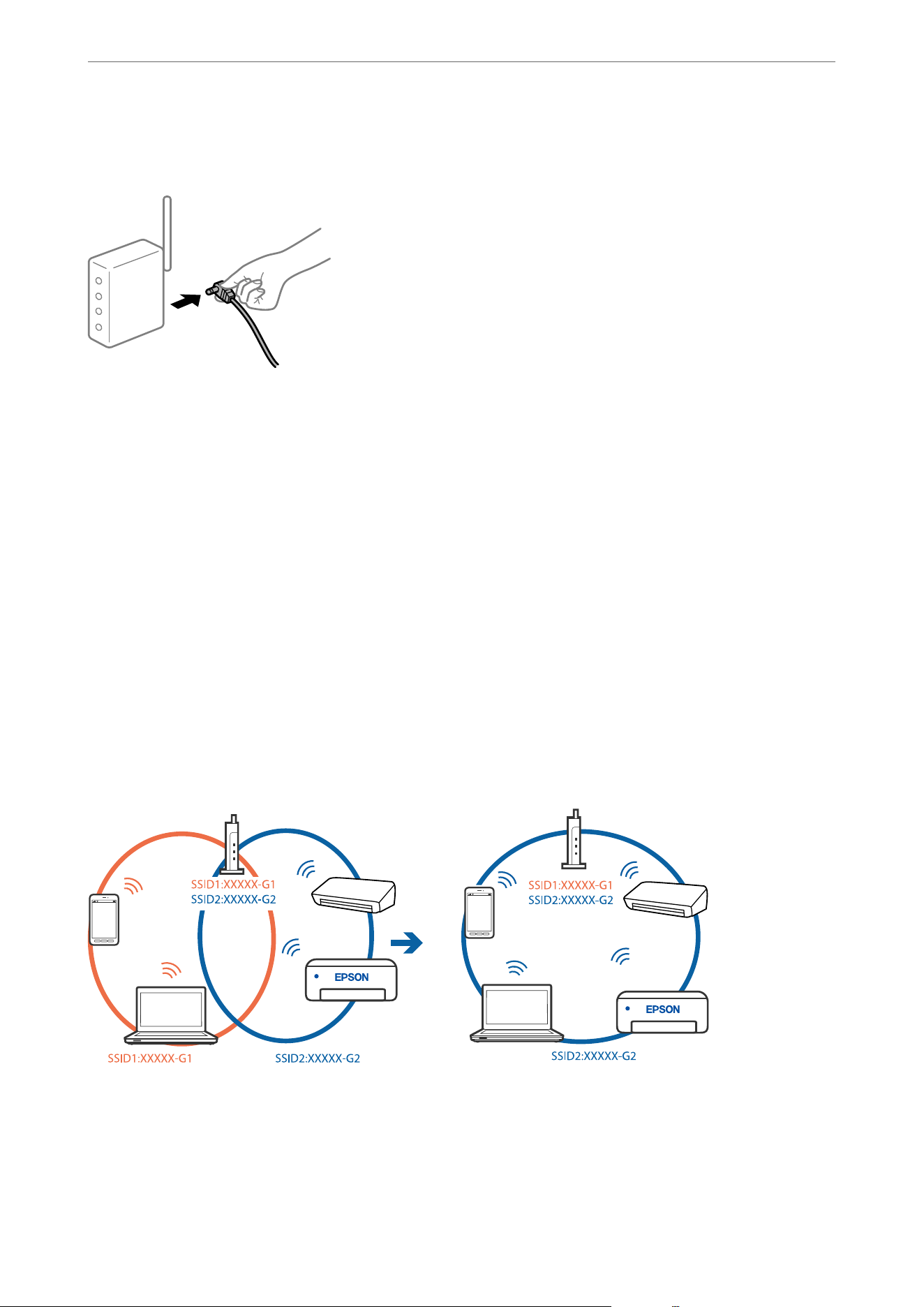
computer or mobile devices closer to the wireless router to help with radio wave communication, and then try to
congure
network settings again.
Devices cannot receive signals from the wireless router because they are too far apart.
Try the following if you can move the devices within the setup environment.
Aer moving the computer or the mobile devices and the printer closer to the wireless router, turn o the wireless
router, and then turn it back on.
When changing the wireless router, the settings do not match the new router.
Recongure the settings so that they match the new wireless router.
Related Information
& “Conguring Settings for Connecting to the Computer” on page 151
The SSIDs connected from the computer or mobile devices and computer are dierent.
When you are using multiple wireless routers at the same time or the wireless router has multiple SSIDs and
devices are connected to dierent SSIDs, you cannot connect to the wireless router.
Connect the computer or mobile devices to the same SSID as the printer.
O Check the SSID that the printer is connected to by printing out the network connection check report.
O On all of the computers and mobile devices you want to connect to the printer, check the name of the Wi-Fi or
network you are connected to.
Administrator Information
>
Creating and Conguring a Network Connection
>
Connecting the Printer to t
…
291
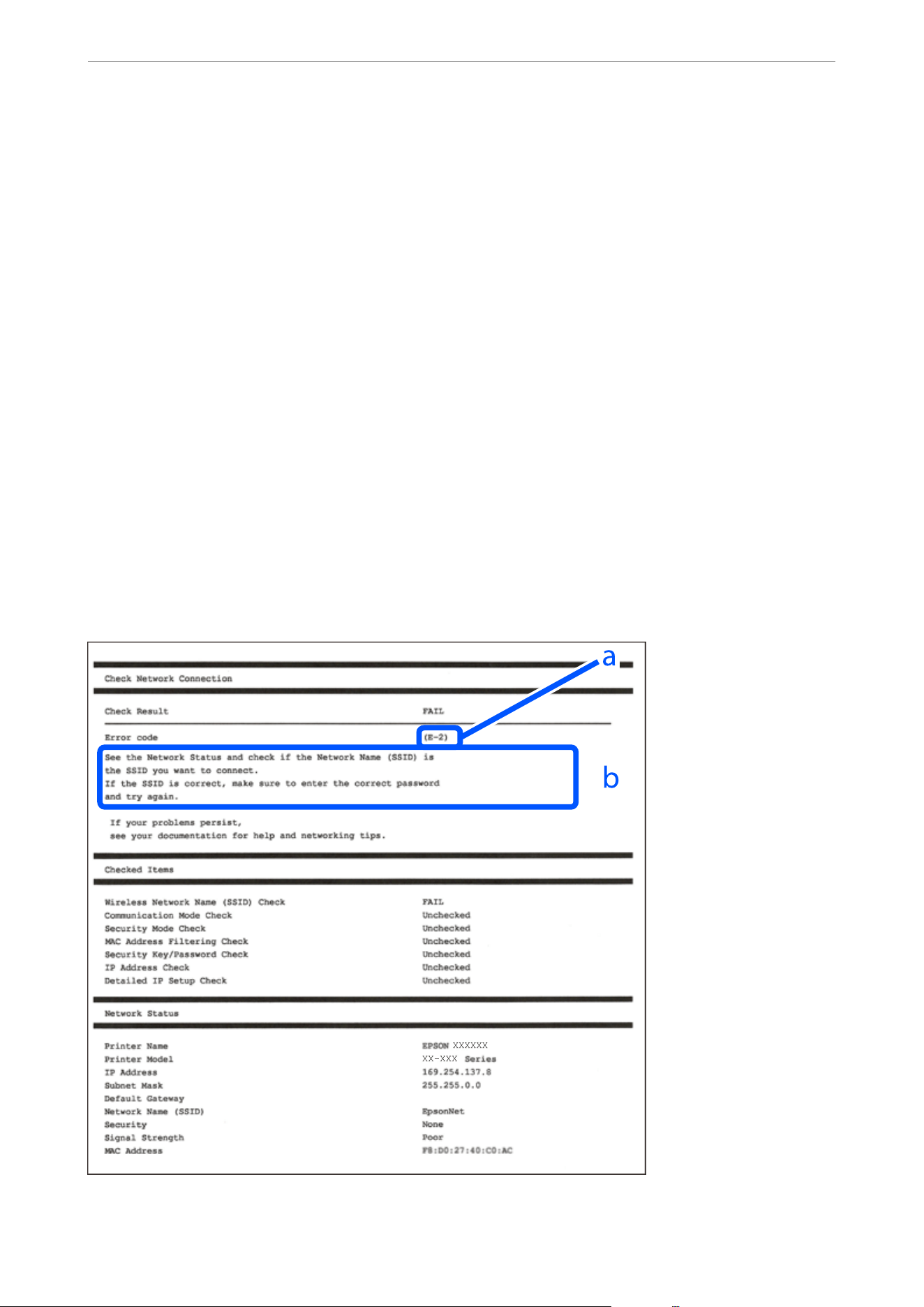
O If the printer and your computer or mobile devices are connected to dierent networks, reconnect the devices to
the SSID that the printer is connected to.
A privacy separator on the wireless router is enabled.
Most wireless routers have a separator function that blocks communication between devices within the same SSID.
If you cannot communicate between the printer and the computer or mobile devices even if they are connected to
the same network, disable the separator function on the wireless router. See the manual provided with the wireless
router for details.
The wired LAN function is disabled.
Enable the wired LAN function.
1. Select Settings from the home screen.
2. Select General Settings > Basic Settings > Energy Saving Priority Mode.
3. Set Advanced Settings - Ethernet to On.
Messages and Solutions on the Network Connection Report
Check the messages and error codes on the Network Connection Report, and then follow the solutions.
Administrator Information
>
Creating and Conguring a Network Connection
>
Connecting the Printer to t
…
292

a. Error code
b. Network Environment Message
Related Information
& “E-1” on page 293
& “E-2, E-3, E-7” on page 293
& “E-5” on page 294
& “E-6” on page 294
& “E-8” on page 295
& “E-9” on page 295
& “E-10” on page 295
& “E-11” on page 296
& “E-12” on page 296
& “E-13” on page 297
& “Network Environment Messages” on page 298
E-1
Solutions:
O Make sure the Ethernet cable is securely connected to your printer and to your hub or other network device.
O Make sure your hub or other network device is turned on.
O If you want to set up a Wi-Fi connection, reselect the Wi-Fi settings because they are currently disabled.
E-2, E-3, E-7
Solutions:
O Make sure your wireless router is turned on.
O Conrm that your computer or device is connected correctly to the wireless router.
O Tur n
o
the wireless router. Wait for about 10 seconds, and then turn it on.
O Place the printer closer to your wireless router and remove any obstacles between them.
O If you have entered the SSID manually, check if it is correct. Check the SSID from the Network Status section of
the network connection report.
O If a wireless router has multiple SSIDs, select the SSID that is displayed. If the SSID is using a non-compliant
frequency, the printer will not display it.
O If you are using push button setup to establish a network connection, make sure your wireless router supports
WPS. You cannot use push button setup if your wireless router does not support WPS.
O Make sure you know your SSID and password before connecting to the wireless router. If you are using a
wireless router with its default settings, the SSID and password are located on a label on the wireless router.
If you do not know your SSID and password, contact the person who set up the wireless router, or see the
documentation provided with the wireless router.
O If you are connecting to an SSID generated from a tethering mobile device, check for the SSID and password in
the documentation provided with the mobile device.
Administrator Information
>
Creating and Conguring a Network Connection
>
Connecting the Printer to t
…
293

O If your Wi-Fi connection suddenly disconnects, check for the conditions below. If any of these conditions are
applicable, reset your network settings by downloading and running the
soware
from the following website.
https://support.epson.com (U.S. and Canada)
https://epson.sn > Setup (Other regions)
O A mobile device was added to the network using push button setup.
O e printer was connected to the network using any method other than push button setup.
O
e
wireless router was replaced.
Related Information
& “
Conguring
Settings for Connecting to the Computer” on page 151
& “Conguring Wi-Fi Settings by Entering the SSID and Password” on page 286
E-5
Solutions:
Make sure the wireless router’s security type is set to one of the options below. If it is not, change the security type
on the wireless router, and then reset the printer’s network settings.
O WEP-64 bit (40 bit)
O WEP-128 bit (104 bit)
O WPA PSK (TKIP/AES)
*
O WPA2 PSK (TKIP/AES)
*
O WPA3-SAE (AES)
O WPA2-Enterprise
O WPA3-Enterprise
* WPA PSK is also known as WPA Personal. WPA2 PSK is also known as WPA2 Personal.
E-6
Solutions:
O If MAC address ltering is enabled, register the printer’s MAC address so that it is not ltered. See the
documentation provided with the wireless router for details. You can check the printer’s MAC address from the
Network Status section of the Network Connection Report.
O If your wireless router is using shared authentication with WEP security, make sure the authentication key and
index are correct.
O If the number of connections allowed on the wireless router is less than the number of devices that you want
to connect,
recongure
settings on the wireless router to increase the number of connections allowed. See the
documentation provided with the wireless router for details.
O Turn o the wireless router. Wait for about 10 seconds, and then turn it on.
O
Recongure
the printer's network settings.
Administrator Information
>
Creating and Conguring a Network Connection
>
Connecting the Printer to t
…
294

Related Information
& “Conguring Settings for Connecting to the Computer” on page 151
E-8
Solutions:
O If the wireless router's DHCP is enabled, set the printer's TCP/IP settings to Auto.
O If the printer’s Obtain IP Address setting is set to Manual, the IP address you manually set is invalid because it is
out of range (for example: 0.0.0.0). Enter a valid IP address from the printer’s control panel.
O Tur n
o
the wireless router. Wait for about 10 seconds, and then turn it on.
O Recongure the printer's network settings.
Related Information
& “Assigning the IP Address” on page 284
E-9
Solutions:
Conrm the following:
O
e
devices are turned on.
O You can access the Internet and other computers or network devices on the same network from the devices you
want to connect to the printer.
If your printer and network devices still do not connect aer conrming the above, try the following.
O Tur n
o
the wireless router. Wait for about 10 seconds, and then turn it on.
O Congure network settings from a computer on the same network as the printer by downloading and running
the soware from the following website.
https://support.epson.com (U.S. and Canada)
https://epson.sn > Setup (Other regions)
If the problem continues to occur, check the IP address of the printer listed in the Network Connection Report and
contact your router manufacturer.
Related Information
& “Conguring Settings for Connecting to the Computer” on page 151
E-10
Solutions:
Conrm the following:
O Other devices on the network are turned on.
Administrator Information
>
Creating and Conguring a Network Connection
>
Connecting the Printer to t
…
295

O e network addresses (IP address, subnet mask, and default gateway) are correct if you have set the printer’s
Obtain IP Address setting set to Manual.
Reset the network addresses if they are incorrect. You can check the IP address, subnet mask, and default gateway
from the Network Status section on the network connection report.
If DHCP is enabled, change the printer’s Obtain IP Address setting to Auto. If you want to set the IP address
manually, check the printer’s IP address from the Network Status section of the network connection report, and
then select Manual on the network settings screen. Set the subnet mask to [255.255.255.0].
If your printer and network devices still do not connect aer conrming the above, try the following.
O Turn o the wireless router. Wait for about 10 seconds, and then turn it on.
O
Congure
network settings from a computer on the same network as the printer by downloading and running
the soware from the following website.
https://support.epson.com
(U.S. and Canada)
https://epson.sn > Setup (Other regions)
Related Information
& “Assigning the IP Address” on page 284
E-11
Solutions:
Conrm the following:
O e default gateway address is correct if you set the printer’s TCP/IP Setup setting to Manual.
O
e
device that is set as the default gateway is turned on.
Set the correct default gateway address. You can check the default gateway address from the Network Status
section on the network connection report.
If your printer and network devices still do not connect aer conrming the above, try the following.
O Tur n
o
the wireless router. Wait for about 10 seconds, and then turn it on.
O Congure network settings from a computer on the same network as the printer by downloading and running
the soware from the following website.
https://support.epson.com (U.S. and Canada)
https://epson.sn > Setup (Other regions)
Related Information
& “Assigning the IP Address” on page 284
E-12
Solutions:
Conrm the following:
O Other devices on the network are turned on.
Administrator Information
>
Creating and Conguring a Network Connection
>
Connecting the Printer to t
…
296

O e network addresses (IP address, subnet mask, and default gateway) are correct if you are entering them
manually.
O e network addresses for other devices (subnet mask and default gateway) are the same.
O e IP address does not conict with other devices.
If your printer and network devices still do not connect aer conrming the above, try the following.
O Turn o the wireless router. Wait for about 10 seconds, and then turn it on.
O
Congure
network settings again using the installer. You can run it from the following website.
https://support.epson.com (U.S. and Canada)
https://epson.sn > Setup (Other regions)
O You can register several passwords on a wireless router that uses the WEP security type. If several passwords are
registered, check if the rst registered password is entered in the printer.
Related Information
& “Assigning the IP Address” on page 284
& “Conguring Settings for Connecting to the Computer” on page 151
E-13
Solutions:
Conrm the following:
O Network devices such as a wireless router, hub, and router are turned on.
O e TCP/IP Setup for network devices has not been done manually. (If the printer’s TCP/IP Setup is done
automatically while the TCP/IP Setup for other network devices is done manually, the printer’s network may
dier from the network for other devices.)
If it still does not work aer checking the above, try the following.
O Tur n
o
the wireless router. Wait for about 10 seconds, and then turn it on.
O Congure network settings from a computer on the same network as the printer by downloading and running
the soware from the following website.
https://support.epson.com (U.S. and Canada)
https://epson.sn > Setup (Other regions)
O You can register several passwords on a wireless router that uses the WEP security type. If several passwords are
registered, check if the rst registered password is entered in the printer.
Related Information
& “Assigning the IP Address” on page 284
& “
Conguring
Settings for Connecting to the Computer” on page 151
Administrator Information
>
Creating and Conguring a Network Connection
>
Connecting the Printer to t
…
297
Network Environment Messages
Message Solution
The Wi-Fi environment needs to be
improved. Turn the wireless router o and
then turn it on. If the connection does not
improve, see the documentation for the
wireless router.
After moving the printer closer to the wireless router and removing any
obstacles between them, turn o the wireless router. Wait for about
10 seconds, and then turn it on. If it still does not connect, see the
documentation supplied with the wireless router.
*No more devices can be connected.
Disconnect one of the connected devices
if you want to add another one.
You have connected the maximum number of devices allowed via the
printer's Wi-Fi Direct (Simple AP) connection. To add another computer or
mobile device, disconnect one of the connected devices.
You can conrm the number of devices that can be connected simultaneously
and the number of connected devices by checking the network status sheet
or the printer’s control panel.
The same SSID as Wi-Fi Direct exists in the
environment. Change the Wi-Fi Direct SSID
if you cannot connect a mobile device to
the printer.
On the printer’s control panel, go to the Wi-Fi Direct Setup screen and select
the menu to change the setting. You can change the part of the network
name that after DIRECT-XX-. The network name must be 22 characters or less.
Related Information
& “Print Status Sheet:” on page 247
Settings to Use the Printer
Selecting Printer Settings
Several methods are available when you select settings for the printer.
Related Information
& “Setting from the Printer's Control Panel” on page 298
& “Setting Using Web Cong from a Computer” on page 299
& “Setting Using Epson Device Admin from a Computer (Windows Only)” on page 299
Setting from the Printer's Control Panel
If the panel lock is enabled, you will need an administrator password to select the locked items.
See the related information below for more details.
Related Information
& “Default Value of the Administrator Password” on page 17
Administrator Information
>
Settings to Use the Printer
>
Selecting Printer Settings
298

Setting Using Web Cong from a Computer
Web Cong is a built-in web page of the printer for conguring the printer's settings. You can access Web Cong
using a computer that is connected to the same network as the printer.
To access Web
Cong
, you need to have
rst
assigned an IP address to the printer.
Note:
O Before setting the IP address, you can open Web Cong by connecting the computer and printer directly with a LAN cable
and specifying the default IP address.
O Since the printer uses a self-signed certicate when accessing HTTPS, a warning is displayed on the browser when you
start Web Cong; this does not indicate a problem and can be safely ignored.
O To open the administrative page aer starting Web Cong, you need to log in to the printer with the administrator
password.
See the related information below for more details.
Related Information
& “Default Value of the Administrator Password” on page 17
& “Application for Conguring Printer Operations (Web Cong)” on page 236
Setting Using Epson Device Admin from a Computer (Windows Only)
Use Epson Device Admin when setting up multiple printers in a batch.
Related Information
& “Soware for Managing Devices on the Network (Epson Device Admin)” on page 238
Protecting Settings Using Panel Lock
To prevent unauthorized users from viewing or changing printer settings or network settings when connected to
the network, administrators can lock the control panel menu items by using the Panel Lock function. You need to
log in as an administrator to select the locked menu items.
Note:
You can change the password later.
Related Information
& “Changing the Administrator Password Using Web
Cong
” on page 381
Enabling the Lock Setting from the Control Panel
1. Select Settings on the printer's control panel.
2. Select General Settings > System Administration > Security Settings > Admin Settings.
3.
Enable the Lock Setting.
Select Ye s on the conrmation screen.
Administrator Information
>
Settings to Use the Printer
>
Protecting Settings Using Panel Lock
299

Check that is displayed on the home screen.
When Lock Setting is enabled, you must log in as an administrator to enter a locked menu.
Related Information
& “Default Value of the Administrator Password” on page 17
Enabling the Lock Setting from a Computer
1. On a computer connected to the same network as the printer, open a browser and enter the printer's IP
address.
You can check the printer's IP address using the following menu.
O Wired LAN or Wireless LAN
Settings > General Settings > Network Settings > Network Status > Wired LAN/Wi-Fi Status
2. Enter the administrator password to log in as an administrator.
3.
Select the following menu.
Device Management tab > Control Panel
4. Select ON for the Panel Lock setting.
5. Click OK.
Check that
is displayed on the home screen.
When Lock Setting is enabled, you must log in as an administrator to enter a locked menu.
Related Information
& “Application for Conguring Printer Operations (Web Cong)” on page 236
& “Default Value of the Administrator Password” on page 17
Logging on the Printer Using the Control Panel
1. Tap .
2. Enter the administrator password, and then tap OK.
is displayed when you are logged in, and you can select the locked menu items.
Tap
to log o.
Note:
When you select On for Settings > General Settings > Basic Settings > Operation Time Out, you log o automatically
aer a specic length of time if there is no activity on the control panel.
Administrator Information
>
Settings to Use the Printer
>
Protecting Settings Using Panel Lock
300

Related Information
& “Default Value of the Administrator Password” on page 17
Controlling the Panel Operation
If you enable the Lock Setting, you can lock the items related to the printer's system settings so that users cannot
change them.
Target Items for Lock Setting
Lock Setting items in the Settings menu
Locked menus are marked with
. Lower level menus will also be locked.
Lock Setting items other than those in the Settings menu
Besides the Settings menu, Lock Setting is applied to the following items in the Presets menu.
O Add New
O Sort
O
(Delete)
O Add /Remove
Related Information
& “Settings Menu List” on page 240
& “Items at Can Be Set Individually” on page 301
Operating Display and Function Setting Individually
For the some target items of the Lock Setting, you can individually set whether they are enabled or disabled.
You can set each user’s availability as necessary, such as registering or changing the contacts, displaying job history,
etc.
1.
Select Settings on the printer's control panel.
2. Select General Settings > System Administration > Security Settings > Restrictions.
3. Select the item for the function that you want to change the setting of, and then set to On or O.
Items That Can Be Set Individually
e administrator can permit the items below to display and change settings individually.
O Access to Register/Delete Contacts
Fax > Recipient > Contacts
Control the registering and changing of contacts. Select On to register or change the contacts.
Administrator Information
>
Settings to Use the Printer
>
Controlling the Panel Operation
301

O Fax Recent Access
Fax > Recipient > Recent
Control the display of destination when sending and receiving a fax. Select On to display the destination.
O Fax Transmission Log Access
Fax >
> Transmission Log
Control the display of the communication history of a fax. Select On to display the communication history.
O Access to Fax Report
Fax >
> Fax Report
Control the printing of the fax report. Select On to permit printing.
O Access to Print Save History of Scan to Network Folder/FTP
Scan > Network Folder/FTP > Menu > Print Save History
Control the printing of save history for scan to network folder function. Select On to permit the printing.
O Access to Recent of Scan to Email
Scan > Email > Recipient
Control the display of the history for the scan to mail function. Select On to display the history.
O Access to Show Sent History of Scan to Email
Scan > Email > Menu > Show Sent History
Control the display of the history of email sending for the scan to mail function. Select On to display the history
of email sending.
O Access to Print Sent History of Scan to Email
Scan > Email > Menu > Print Sent History
Control the printing of the history of email sending for the scan to mail function. Select On to permit the
printing.
O Access to Language
Settings > General Settings > Basic Settings > Language
Control the changing of the language displayed on the control panel. Select On to change the languages.
O Access to ick Paper
Settings > General Settings > Printer Settings > ick Paper
Control the changing of the settings of the ick Paper function. Select On to change the settings.
O Access to Quiet Mode
Settings > General Settings > Printer Settings > Quiet Mode
Control the changing of settings of the Quiet Mode function. Select On to change the settings.
O Protection of Personal Data
Control the display of the destination information on speed dial registration. Select On to display the
destination as (***).
Related Information
& “Settings Menu List” on page 240
& “Operating Display and Function Setting Individually” on page 301
Administrator Information
>
Settings to Use the Printer
>
Controlling the Panel Operation
302

Using the Print Functions
Enable to use the print function through the network.
To use the printer on the network, you need to set the port for network connection on the computer as well as the
printer’s network connection.
Printer Connection Types
e following two methods are available for the printer's network connection.
O Peer to peer connection (direct printing)
O Server / client connection (printer sharing using the Windows server)
Peer to Peer Connection Settings
is is the connection to connect the printer on the network and the computer directly. Only a network-capable
model can be connected.
Connection method:
Connect the printer to the network directly via hub or access point.
Printer driver:
Install the printer driver on each client computer.
When using EpsonNet SetupManager, you can provide the driver's package that includes the printer settings.
Features:
O e print job starts immediately because the print job is sent to the printer directly.
O You can print as long as the printer is turned on.
Server / Client Connection Settings
is
is the connection that the server computer shares with the printer. To prohibit the connection without going
through the server computer, you can enhance the security.
When using USB, the printer without the network function can be also shared.
Connection method:
Connect the printer to the network via LAN switch or access point.
You can also connect the printer to the server directly by USB cable.
Printer driver:
Install the printer driver on the Windows server depending on the OS of the client computers.
By accessing the Windows server and linking the printer, the printer driver is installed on the client computer and
can be used.
Administrator Information
>
Settings to Use the Printer
>
Using the Print Functions
303

Features:
O Manage the printer and the printer driver in batch.
O Depending on the server spec, it may take time to start the print job because all print jobs go through the print
server.
O You cannot print when the Windows server is turned o.
Print Settings for Peer to Peer Connection
For peer to peer connection (direct printing), a printer and a client computer have a one-to-one relationship.
e printer driver must be installed on each client computer.
Print Settings for Server / Client Connection
Enable to print from the printer that is connected as the server / client connection.
For the server / client connection, set up the print server
rst,
and then share the printer on the network.
When using the USB cable to connect to the server, also set the print server rst, and then share the printer on the
network.
Setting Up the Network Port
Create the print queue for network printing on the print server using standard TCP/IP, and then create the
network port.
is section gives instructions for Windows Server 2012 R2.
1. Open the devices and printers screen.
Desktop > Settings > Control Panel > Hardware and Sound or Hardware > Devices and Printers.
2. Add a printer.
Click Add printer, and then select e printer that I want isn't listed.
3. Add a local printer.
Select Add a local printer or network printer with manual settings, and then click Next.
Administrator Information
>
Settings to Use the Printer
>
Using the Print Functions
304
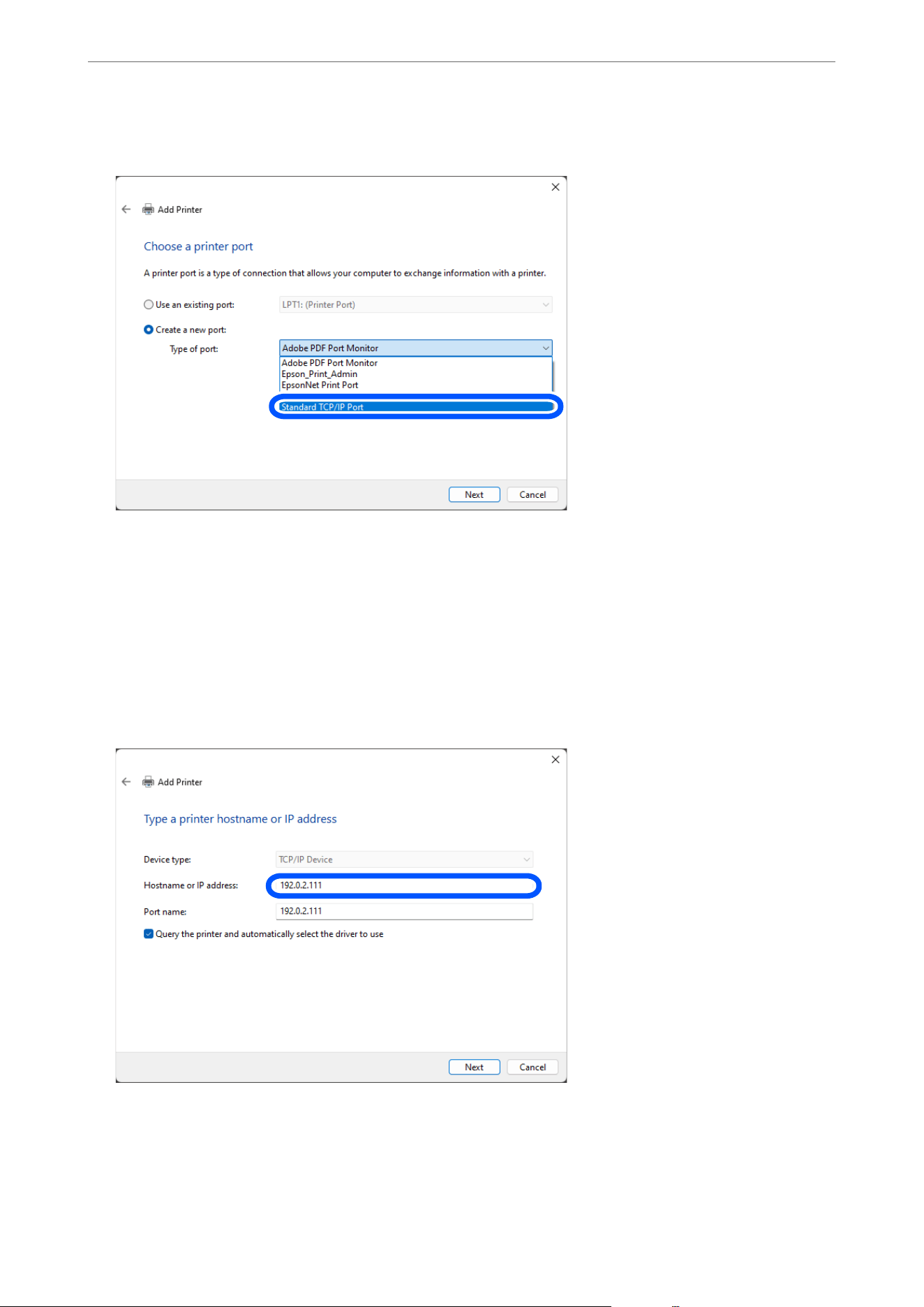
4. Select Create a new port, select Standard TCP/IP Port as the Port Type, and then click Next.
5. Enter the printer's IP address or printer name in Host Name or IP Address or Printer Name or IP Address,
and then click Next.
Example:
O Printer name : EPSONA1A2B3C
O IP address : 192.0.2.111
Do not change Port name.
Click Continue when the User Account Control screen is displayed.
Note:
If you specify the printer name on the network where the name resolution is available, the IP address is tracked even if
printer's IP address has been changed by DHCP. You can conrm the printer name from the network status screen on
the printer's control panel or network status sheet.
Administrator Information
>
Settings to Use the Printer
>
Using the Print Functions
305

6. Select the printer driver.
O If the printer driver is already installed:
Select Manufacturer and Printers. Click Next.
7. Follow the on-screen instructions.
When using the printer under the server / client connection (printer sharing using the Windows server), make the
sharing settings
hereaer.
Checking the Port Conguration - Windows
Check if the correct port is set for the print queue.
1. Open the devices and printers screen.
Select Desktop > Settings > Control Panel > Hardware and Sound or Hardware > Devices and Printers.
2. Open the printer properties screen.
Right-click the printer icon, and then click Printer properties.
3. Click the Ports tab, select Standard TCP/IP Port, and then click Congure Port.
4.
Check the port conguration.
O For RAW
Check that Raw is selected in Protocol, and then click OK.
O For LPR
Check that LPR is selected in Protocol. Enter "PASSTHRU" in Queue name from LPR Settings. Select LPR
Byte Counting Enabled, and then click OK.
Sharing the Printer (Windows only)
When using the printer under the server / client connection (printer sharing using the Windows server), set up the
printer sharing from the print server.
1. Select Control Panel > View devices and printers on the print server.
2.
Right-click the printer icon (print queue) that you want to share with, and then select Printer Properties >
Sharing tab.
3.
Select Share this printer and then enter the Share name.
Installing Additional Drivers (Windows only)
If the Windows versions for a server and clients are dierent, it is recommended to install additional drivers to the
print server.
1. Select Control Panel > View devices and printers on the print server.
2.
Right-click the printer icon that you want to share with the clients, and then click Printer Properties >
Sharing tab.
3.
Click Additional Drivers.
Administrator Information
>
Settings to Use the Printer
>
Using the Print Functions
306

4. Select versions of Windows for clients, and then click OK.
5. Select the information
le
for the printer driver (*.inf) and then install the driver.
Using the Shared Printer – Windows
e administrator needs to inform the clients of the computer name assigned to the print server and how to add it
to their computers. If the additional driver(s) have not been congured yet, inform the clients how to use Devices
and Printers to add the shared printer.
If additional driver(s) have already been congured on the print server, follow these steps:
1. Select the name assigned to the print server in Windows Explorer.
2. Double-click the printer that you want to use.
Initial Settings for Printing
Select the print settings, such as paper size and which printing errors to display.
Conguring
the Paper Sources
Select the size and type of paper to be loaded in each paper source.
1.
On a computer connected to the same network as the printer, open a browser and enter the printer's IP
address.
You can check the printer's IP address using the following menu.
O Wired LAN or Wireless LAN
Settings > General Settings > Network Settings > Network Status > Wired LAN/Wi-Fi Status
2. Enter the administrator password to log in as an administrator.
3. Select these menu items in the following order.
Print tab > Paper Source Settings
4. Select settings as necessary.
e displayed items may vary depending on the printer conguration.
O Paper source name
Display the target paper source name, such as Paper Tray, Cassette 1.
O Paper Size
Select the paper size you will use.
O Unit
Select the unit of measurement you want to use for a user-dened size. You can select it when User dened
is selected on Paper Size.
Administrator Information
>
Settings to Use the Printer
>
Using the Print Functions
307

O Width
Enter the horizontal length of the user-dened size.
e range you can enter here depends on the paper source, which is indicated next to Width.
When you select mm in Unit, you can enter up to one decimal place.
When you select inch in Unit, you can enter up to two decimal places.
O Height
Enter the vertical length of the
user-dened
size.
e range you can enter here depends on the paper source, which is indicated next to Height.
When you select mm in Unit, you can enter up to one decimal place.
When you select inch in Unit, you can enter up to two decimal places.
O Paper Type
Select the paper type you will use.
5. Review the settings, and then click OK.
Selecting Errors to Display
Select the errors that will display on the device.
1. On a computer connected to the same network as the printer, open a browser and enter the printer's IP
address.
You can check the printer's IP address using the following menu.
O Wired LAN or Wireless LAN
Settings > General Settings > Network Settings > Network Status > Wired LAN/Wi-Fi Status
2. Enter the administrator password to log in as an administrator.
3. Select these menu items in the following order.
Print tab > Error Settings
4.
Select the following settings.
O Paper Size Notice
Select whether to display an error on the control panel when the paper size in the specied paper source is
dierent from the paper size of the print data.
O Paper Type Notice
Select whether to display an error on the control panel when the paper type in the specied paper source is
dierent from the paper type of the print data.
O Auto Error Solver
Select whether to automatically cancel the error aer ve seconds if there is no user interaction with the
control panel.
5. Review the settings, and then click OK.
Selecting Universal Print Settings
ese settings are used when you print from external devices without using the printer driver.
Administrator Information
>
Settings to Use the Printer
>
Using the Print Functions
308
Some items are not displayed depending on the printing language of your printer.
1. On a computer connected to the same network as the printer, open a browser and enter the printer's IP
address.
You can check the printer's IP address using the following menu.
O Wired LAN or Wireless LAN
Settings > General Settings > Network Settings > Network Status > Wired LAN/Wi-Fi Status
2. Enter the administrator password to log in as an administrator.
3. Select these menu items in the following order.
Print tab > Universal Print Settings
4. Select settings as necessary.
5.
Review the settings, and then click OK.
Basic
Items Explanation
Top Oset(-30.0-30.0mm) Sets the vertical position of the paper on which printing starts.
Left Oset(-30.0-30.0mm) Sets the horizontal position of the paper on which printing starts.
Top Oset in Back(-30.0-30.0mm) Sets the vertical position of the paper on which printing on the back side of the
paper starts in duplex printing.
Left Oset in Back(-30.0-30.0mm) Sets the horizontal position of the paper on which printing on the back side of the
paper starts in duplex printing.
Check Paper Width Set whether to check paper width when printing.
Skip Blank Page If there is a blank page in the print data, set not to print a blank page.
Setting Up AirPrint
Set when using AirPrint printing and scanning.
Access Web Cong and select the Network tab > AirPrint Setup.
Items Explanation
Bonjour Service Name Enter the Bonjour service name between 1 and 41 characters in ASCII (0x20-0x7E).
Bonjour Location Enter location information such as the printer's placement within 127 bytes or less
in Unicode (UTF-8).
Geolocation
Latitude and Longitude (WGS84)
Enter the printer's location information. This entry is optional.
Enter values by using WGS-84 datum, which separates latitude and longitude with
a comma.
You can enter -90 to +90 for the latitude value, and -180 to +180 for the longitude
value. You can enter less than a decimal to the sixth place, and you can omit "+".
Administrator Information
>
Settings to Use the Printer
>
Setting Up AirPrint
309
Items Explanation
Top Priority Protocol Select top priority protocol from IPP and Port9100.
Registering an Email Server
Check the following before conguring the email server.
O e printer is connected to the network
O Setup information for email server
When you are using an Internet based email server, check the setting information from the provider or website.
Note:
You can also send scanned images by email through Epson's cloud service, Epson Connect, without having to setup an email
server. For more details, see the Scan to Cloud feature.
“Settings of Servers and Folders” on page 344
How to Register
Access Web Cong, then select the Network tab > Email Server > Basic.
“Running Web Cong on a Web Browser” on page 237
You can also select settings on the printer's control panel. Select Settings > General Settings > Network Settings >
Advanced > Email Server > Server Settings.
Email Server Setting Items
Item Settings and Explanation
Authentication Method Specify the authentication method for the printer to access the mail server.
For Microsoft Exchange Online users:
Due to enhanced security in Microsoft Exchange Online, the previous Basic Authentication
method has been discontinued and SMTP authentication (SMTP AUTH) has been disabled by
default. Therefore, to use the email service from now on, you will need to use the OAuth2
authentication method. If you use the email sending/email notication functions of a printer,
congure the email server settings to use OAuth2 authentication.
Also, enable SMTP AUTH in Exchange Online in preparation.
“Enabling SMTP AUTH in Exchange Online” on page 312
O Select when the mail server does not need authentication.
SMTP AUTH Authenticates on the SMTP server (outgoing mail server)
when sending the email. The mail server needs to support
SMTP authentication.
POP before SMTP Authenticates on the POP3 server (receiving mail server)
before sending the email. When you select this item, set the
POP3 server.
OAuth2 Authenticates using OAuth2. When you select this item, you
also need to set Email service.
Administrator Information
>
Settings to Use the Printer
>
Registering an Email Server
310
Item Settings and Explanation
Email service (Web Cong
only)
If you select OAuth2 as the Authentication Method, select an email service from the list.
Click Sign In, and then follow the on-screen instructions to sign in to the service.
“Setting Up OAuth2.0 Authentication for the Email Server” on page 312
Note:
For personal use, select Outlook.com.
Authenticated Account If you select SMTP AUTH or POP before SMTP as the Authentication Method, enter the
authenticated account name between 0 and 255 characters in ASCII (0x20-0x7E).
When you select SMTP AUTH, enter the SMTP server account. When you select POP before
SMTP, enter the POP3 server account.
Authenticated Password If you select SMTP AUTH or POP before SMTP as the Authentication Method, enter the
authenticated password between 0 and 70 characters in ASCII (0x20-0x7E).
When you select SMTP AUTH, enter the authenticated account for the SMTP server. When
you select POP before SMTP, enter the authenticated account for the POP3 server.
Sender's Email Address Enter the sender's email address such as the email address of the system administrator. This
is used when authenticating, so enter a valid email address that is registered to the mail
server.
Enter between 0 and 255 characters in ASCII (0x20-0x7E) except for : ( ) < > [ ] ; ¥. A period "."
cannot be the rst character.
SMTP Server Address Enter between 0 and 255 characters using A-Z a-z 0-9 . - . You can use IPv4 or FQDN format.
SMTP Server Port Number Enter a number between 1 and 65535.
Secure Connection Select the encryption method of the communication to the mail server.
None If you select POP before SMTP in Authentication Method,
the connection is not encrypted.
SSL/TLS This is available when Authentication Method is set to O
or SMTP AUTH. Communication is encrypted from the start.
STARTTLS This is available when Authentication Method is set to
O or SMTP AUTH. Communication is not encrypted from
the start, but could be encrypted later depending on the
network environment.
Certicate Validation (Web
Cong only)
The certicate is validated when this is enabled. We recommend this is set to Enable. To set
up, you need to import the CA Certicate to the printer.
If an error message is displayed saying that the certicate is untrusted, see the following.
“The Date and Time Are Incorrect” on page 216
“The Root
Certicate
Needs to be Updated” on page 216
POP3 Server Address If you select POP before SMTP as the Authentication Method, enter the POP3 server
address between 0 and 255 characters using A-Z a-z 0-9 . - . You can use IPv4 or FQDN
format.
POP3 Server Port Number If you select POP before SMTP as the Authentication Method, enter a number between 1
and 65535.
Administrator Information
>
Settings to Use the Printer
>
Registering an Email Server
311
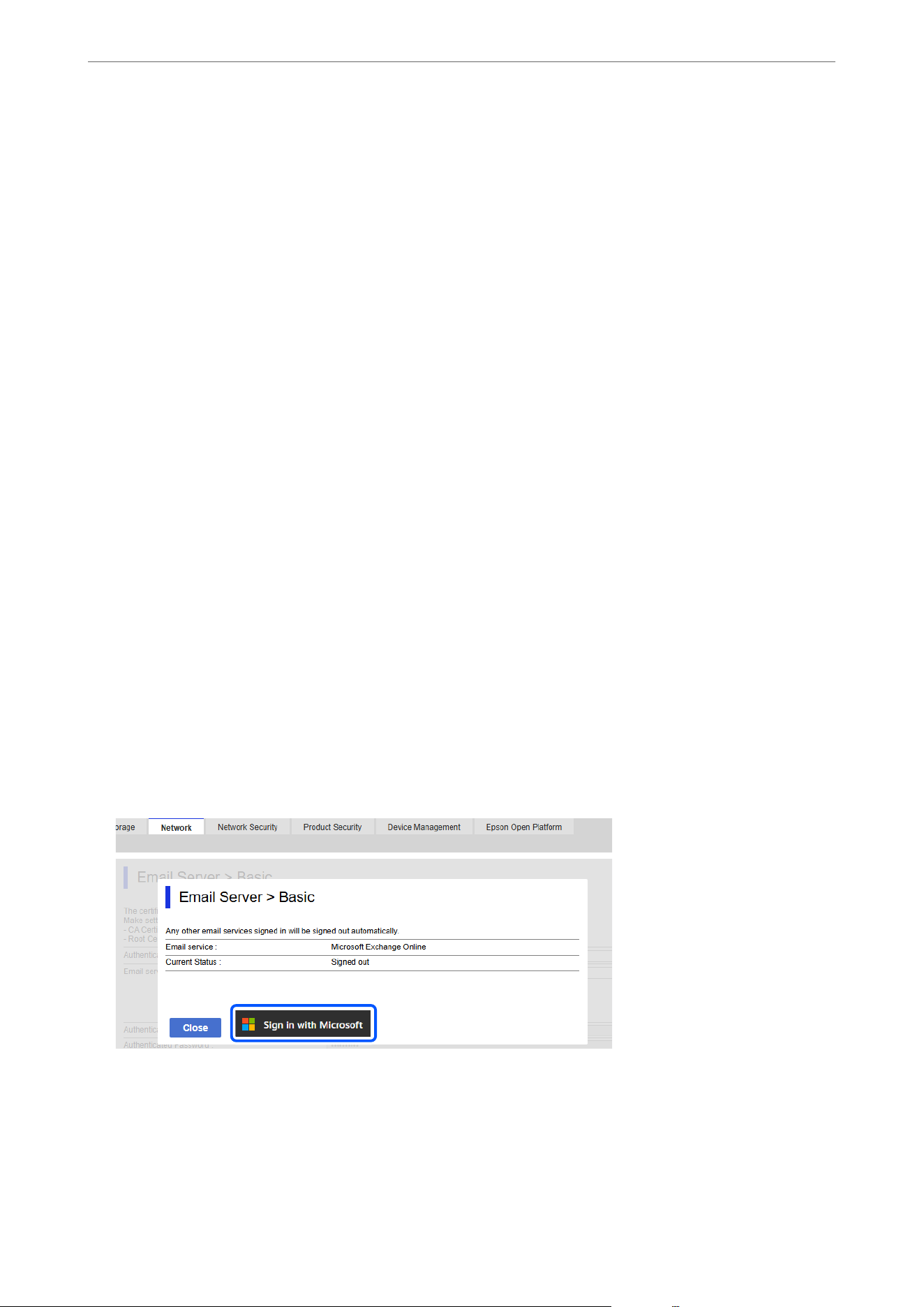
Enabling SMTP AUTH in Exchange Online
Products use the SMTP protocol to send emails, so you must enable SMTP AUTH in Exchange Online.
For detailed instructions, search for and refer to the document on the "Microso Learn" site.
Setup procedure
O In the Exchange admin center, disable security defaults for the entire organization and enable SMTP AUTH.
O In the
Microso
365 admin center, enable SMTP AUTH for the product administrator's mailbox.
Setting Up OAuth2.0 Authentication for the Email Server
Use Web Cong to congure OAuth 2.0 authentication for the email server.
1. Enter the printer's IP address into a browser to access Web
Cong
.
You can check the IP address of the printer from the following menu.
Settings > General Settings > Network Settings > Network Status > Wired LAN/Wi-Fi Status
2. Enter the administrator password to log in as an administrator.
Select Log in, enter the administrator password, and then click OK.
3. Select Network tab > Email Server > Basic.
4. Select OAuth2 as the Authentication Method.
5. Select Microso Exchange Online as the Email service.
Note:
For personal use, select Outlook.com.
6. Click Sign In, and then click Sign in with Microso on the screen that appears.
Administrator Information
>
Settings to Use the Printer
>
Registering an Email Server
312
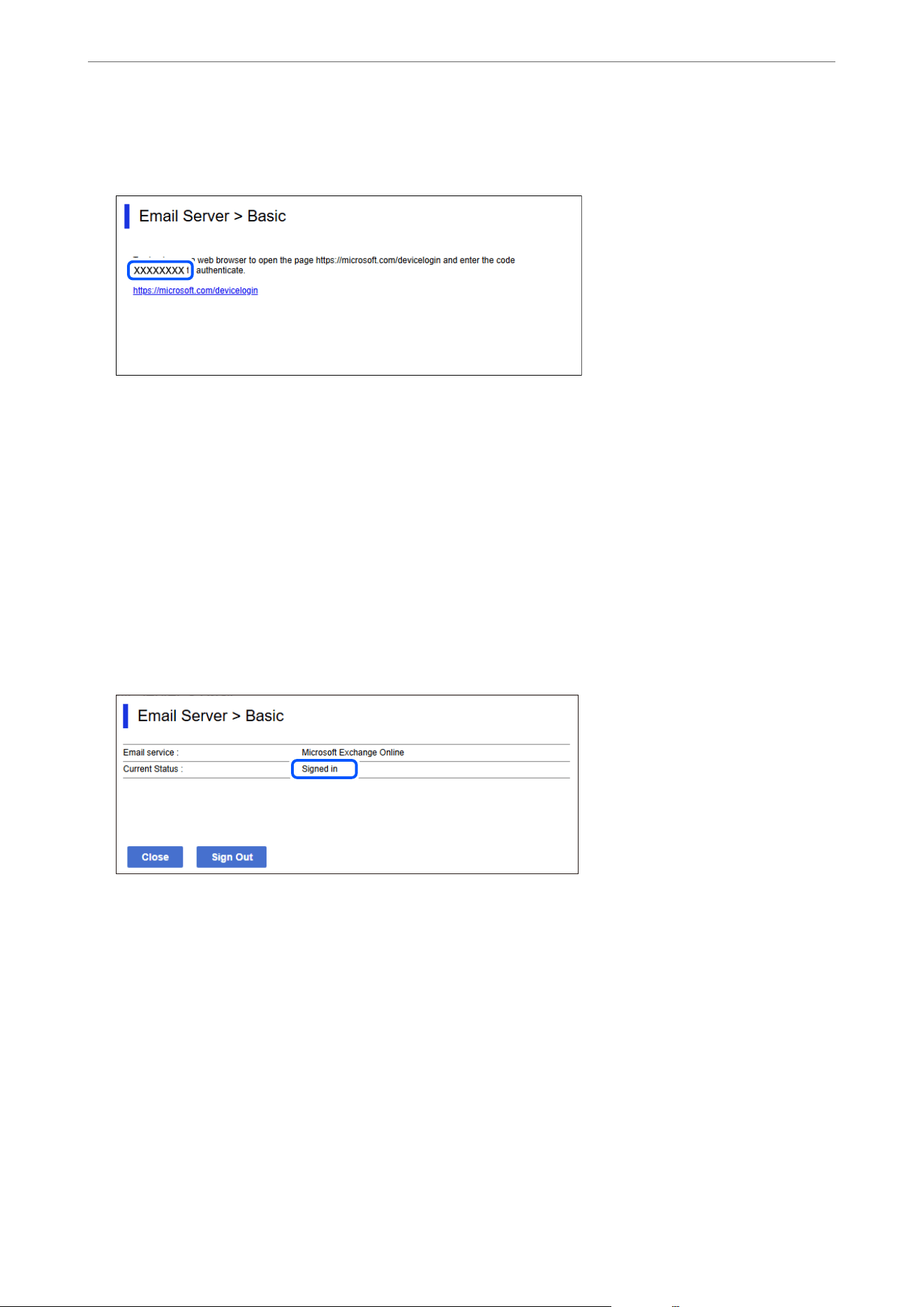
7. Copy the authentication code displayed on the screen, and then click the URL displayed to open the
authentication screen.
8. On the authentication code entry screen, enter the code you copied, and then click Next.
9. On the Microso sign in screen, enter your account details, and then click Next.
To sign in, your account must have the Cloud Application Administrator role assigned.
10. Enter the password and click Sign In.
Note:
If additional steps are required to sign in, follow the on-screen instructions.
11. On the requested permission screen, select "Consent on behalf of organization", and then click Accept.
When authentication is complete, a sign-in message is displayed and you can close the browser screen.
You can check the sign-in status on the Network tab > Email Server > Basic page in Web
Cong
.
When the status shows Signed in, account information for OAuth 2.0 authentication is displayed.
12. Click OK to send the OAuth 2.0 authentication setting information to the product.
Checking an Email Server Connection
1. Select the connection test menu.
O When setting up from Web Cong:
Select the Network tab > Email Server > Connection Test > Start.
O When setting from the control panel:
Select Settings > General Settings > Network Settings > Advanced > Email Server > Connection Check.
e
connection test to the mail server is started.
Administrator Information
>
Settings to Use the Printer
>
Registering an Email Server
313
2. Check the test results.
O e test is successful when the message Connection test was successful. is displayed.
O If an error is displayed, follow the instructions in the message to clear the error.
“Mail Server Connection Test References” on page 314
Mail Server Connection Test References
Messages Cause
Connection test was successful. This message appears when the connection with the server is successful.
SMTP server communication error.
Check the following. - Network
Settings
This message appears when
O The printer is not connected to a network
O SMTP server is down
O Network connection is disconnected while communicating
O Received incomplete data
POP3 server communication error.
Check the following. - Network
Settings
This message appears when
O The printer is not connected to a network
O POP3 server is down
O Network connection is disconnected while communicating
O Received incomplete data
An error occurred while connecting to
SMTP server. Check the followings. -
SMTP Server Address - DNS Server
This message appears when
O Connecting to a DNS server failed
O Name resolution for an SMTP server failed
An error occurred while connecting to
POP3 server. Check the followings. -
POP3 Server Address - DNS Server
This message appears when
O Connecting to a DNS server failed
O Name resolution for a POP3 server failed
SMTP server authentication error.
Check the followings. - Authentication
Method - Authenticated Account -
Authenticated Password
This message appears when SMTP server authentication failed.
POP3 server authentication error.
Check the followings. - Authentication
Method - Authenticated Account -
Authenticated Password
This message appears when POP3 server authentication failed.
Unsupported communication method.
Check the followings. - SMTP Server
Address - SMTP Server Port Number
This message appears when you try to communicate with unsupported protocols.
Connection to SMTP server failed.
Change Secure Connection to None.
This message appears when an SMTP mismatch occurs between a server and
a client, or when the server does not support SMTP secure connection (SSL
connection).
Connection to SMTP server failed.
Change Secure Connection to SSL/TLS.
This message appears when an SMTP mismatch occurs between a server and a
client, or when the server requests to use an SSL/TLS connection for an SMTP
secure connection.
Administrator Information
>
Settings to Use the Printer
>
Registering an Email Server
314
Messages Cause
Connection to SMTP server failed.
Change Secure Connection to
STARTTLS.
This message appears when an SMTP mismatch occurs between a server and a
client, or when the server requests to use a STARTTLS connection for an SMTP
secure connection.
The connection is untrusted. Check the
following. - Date and Time
This message appears when the printer’s date and time setting is incorrect or the
certicate has expired.
“The Date and Time Are Incorrect” on page 216
The connection is untrusted. Check the
following. - CA Certicate
This message appears when the printer does not have a root certicate
corresponding to the server or a CA Certicate has not been imported.
“The Root Certicate Needs to be Updated” on page 216
The connection is not secured. This message appears when the obtained certicate is damaged.
SMTP server authentication failed.
Change Authentication Method to
SMTP-AUTH.
This message appears when an authentication method mismatch occurs between
a server and a client. The server supports SMTP AUTH.
SMTP server authentication failed.
Change Authentication Method to
POP before SMTP.
This message appears when an authentication method mismatch occurs between
a server and a client. The server does not support SMTP AUTH.
Sender's Email Address is incorrect.
Change to the email address for your
email service.
This message appears when the specied sender’s Email address is wrong.
Cannot access the printer until
processing is complete.
This message appears when the printer is busy.
Solving Problems with Sending Email
Cannot sign in or users cannot sign in
Solutions
Yo u r
Microso
Entra ID may be blocked by a conditional access policy.
Solution:
Check your conditional access policies with
Microso
Entra ID.
For detailed instructions, see the "Microso Learn" site.
Cannot send email
Solutions
Status:
"To use this function, you must sign in to your email service. Please contact your administrator." is
displayed.
Solution:
Check Web Cong for the current status.
Administrator Information
>
Settings to Use the Printer
>
Registering an Email Server
315
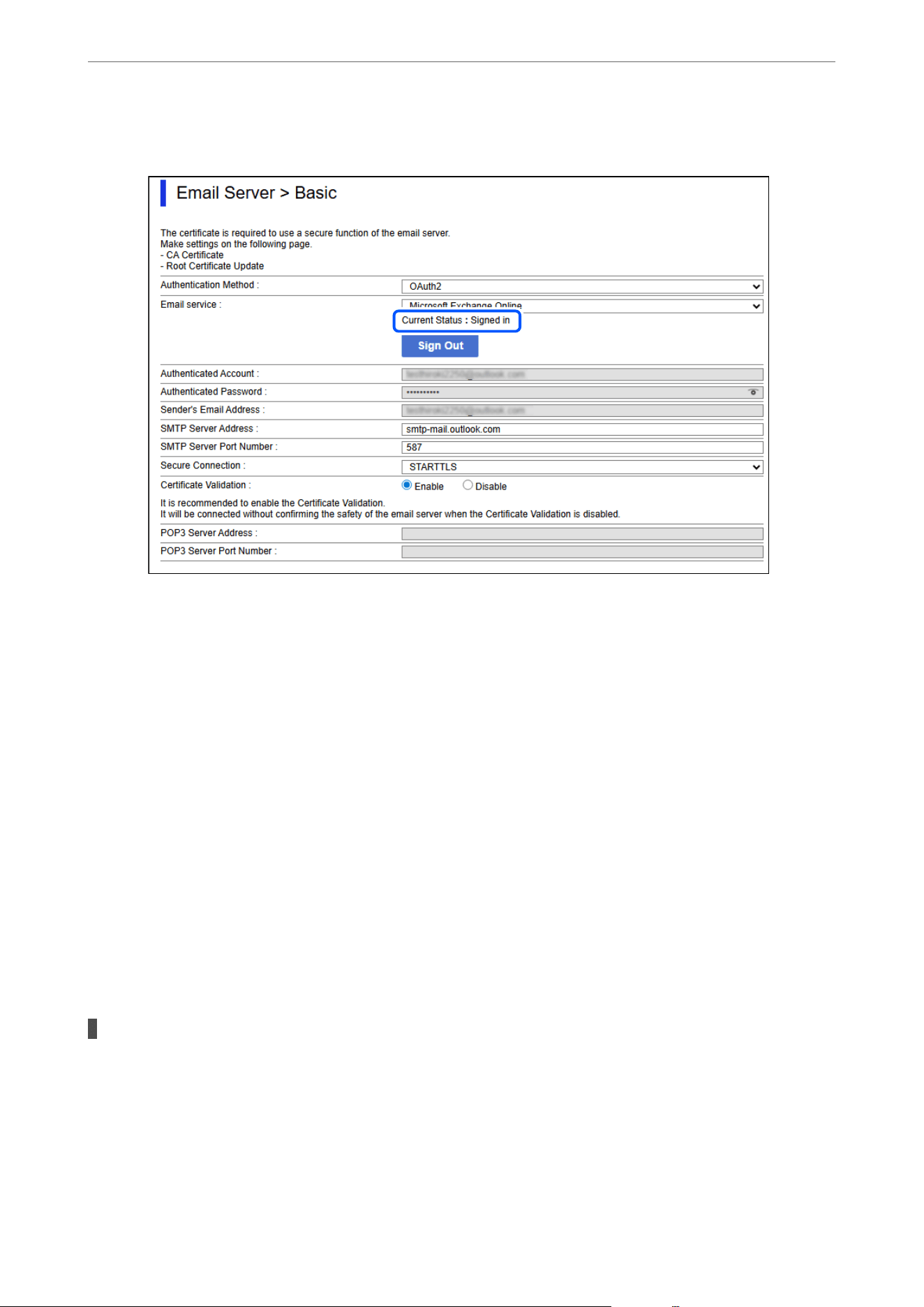
Select the Network tab > Email Server > Basic
If the Current Status is Signed in the sign-in information may not have been saved to the printer. Click
OK to send the setting information to the printer.
If there is no Current Status and the Sign In button is displayed, sign in.
“Setting Up OAuth2.0 Authentication for the Email Server” on page 312
Status:
e
cloud service or email service is not connected, or the connection has expired.
Solution:
Connect to cloud service or email service.
Status:
You need to sign in to cloud service again.
Solution:
Sign in to cloud service.
Expiration message is displayed
Solutions
A certain period of time has passed since signing in without using the email sending function.
If a printer using OAuth 2.0 authentication has not been used for an extended period, or the email-
sending function has not been used, the access token and refresh token will become invalid.
Administrator Information
>
Settings to Use the Printer
>
Registering an Email Server
316
Solution:
e administrator should perform the sign-in operation again.
“Setting Up OAuth2.0 Authentication for the Email Server” on page 312
Creating a Network Folder
Create a network folder on your computer to save a le from the printer. e computer must be connected to the
same network as the printer.
When saving les, the printer logs into the computer where the network folder is located as a user.
To create a network folder, follow the steps below in order.
1 Check and change the device
name (computer name)
Check if there are any issues with the device name. The device name is required
when registering the contacts.
2 Check and change the
computer settings
Conrm that the computer is connected to the network and that access from the
printer or other computers is allowed.
3 Create and set the network
folder
Create a folder to be shared, and congure sharing settings so that the printer and
other computers can access the folder. Two settings are required to share a folder.
O Settings to make the folder can be nd from other computers on the network
O Detailed access permissions such as read and write access to the folder
Note:
e security and convenience of a network folder can vary depending on where it is created.
If you create a network folder on the desktop and set Everyone in the folder’s Sharing Permissions, you are granting access
to all users who can access the folder over the network.
However, the user who does not have authority cannot access them because the desktop (folder) is under the control of
the user folder, and then the security settings of the user folder are handed down to it. Only users or groups with access
permissions set in the Security tab (on Mac OS, write permissions per user) can access the folder.
In the case of a le server, it is recommended to create the network folder directly under the drive or at the root of the drive to
make it easier to manage access rights for multiple users. Refer to the procedure for creating a network folder and create it in
an appropriate location.
Aer creating and conguring the network folder, check the MS Network settings in Web Cong.
Related Information
& “Using Microso Network Sharing” on page 327
Creating a Network Folder (Windows)
e procedure for creating the network folder varies depending on the environment. is section gives
instructions for creating a network folder in the following environment.
O Operating system: Windows 11
O Location for creating shared folder: Desktop
O Folder name: scan_folder
Administrator Information
>
Settings to Use the Printer
>
Creating a Network Folder
317
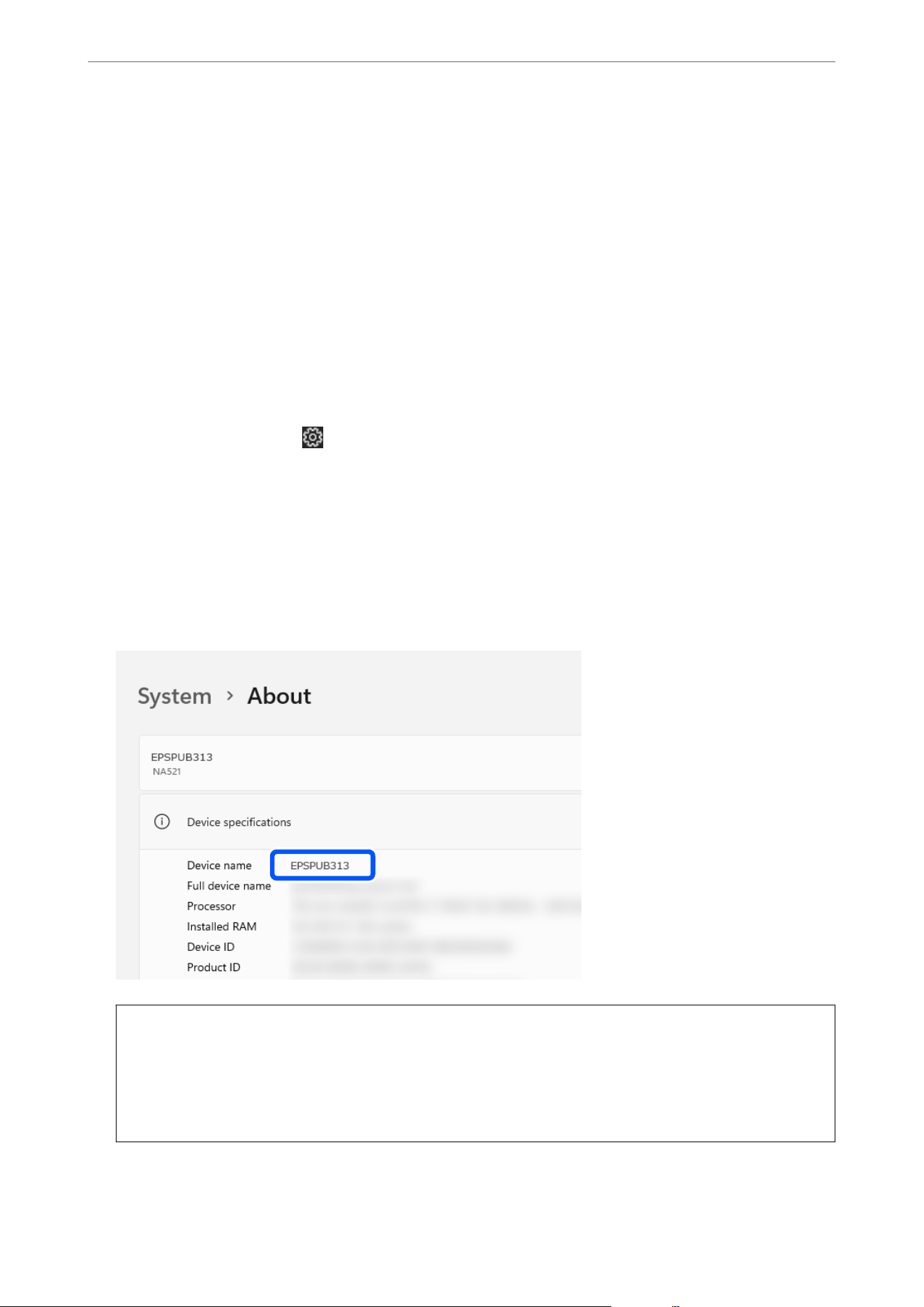
Note:
is section also describes how to create a network folder at the root of a shared computer’s drive such as le servers under
the following conditions.
O Place for creating shared folder: Root of drive
O Folder path: C:\scan_folder
First, check the device name (computer name).
1. Log in to the computer where you want to create the network folder.
Note:
If you log in with a user account that does not have administrator privileges, you may be prompted to enter the
administrator password. If you do not know the administrator password, please check with the computer administrator.
2.
Make sure that the device name (computer name) does not contain double-byte characters. Click the Windows
Start button, and then select
Settings > System > About.
3. Check that the string displayed in Device Specications > Device Name does not contain any double-byte
characters.
Note:
If there are double-byte characters in the device name, le saving may fail.
ere should be no issues if the device name contains only single-byte characters. Close the screen.
Example: EPSPUB313
c
Important:
If the device name contains double-byte characters, use a computer that does not use double-byte characters or
rename the device.
If you need to change the device name, make sure you check with your computer administrator in advance as it
may aect computer management and access to resources.
Next, check that File and Printer Sharing is turned on.
Administrator Information
>
Settings to Use the Printer
>
Creating a Network Folder
318
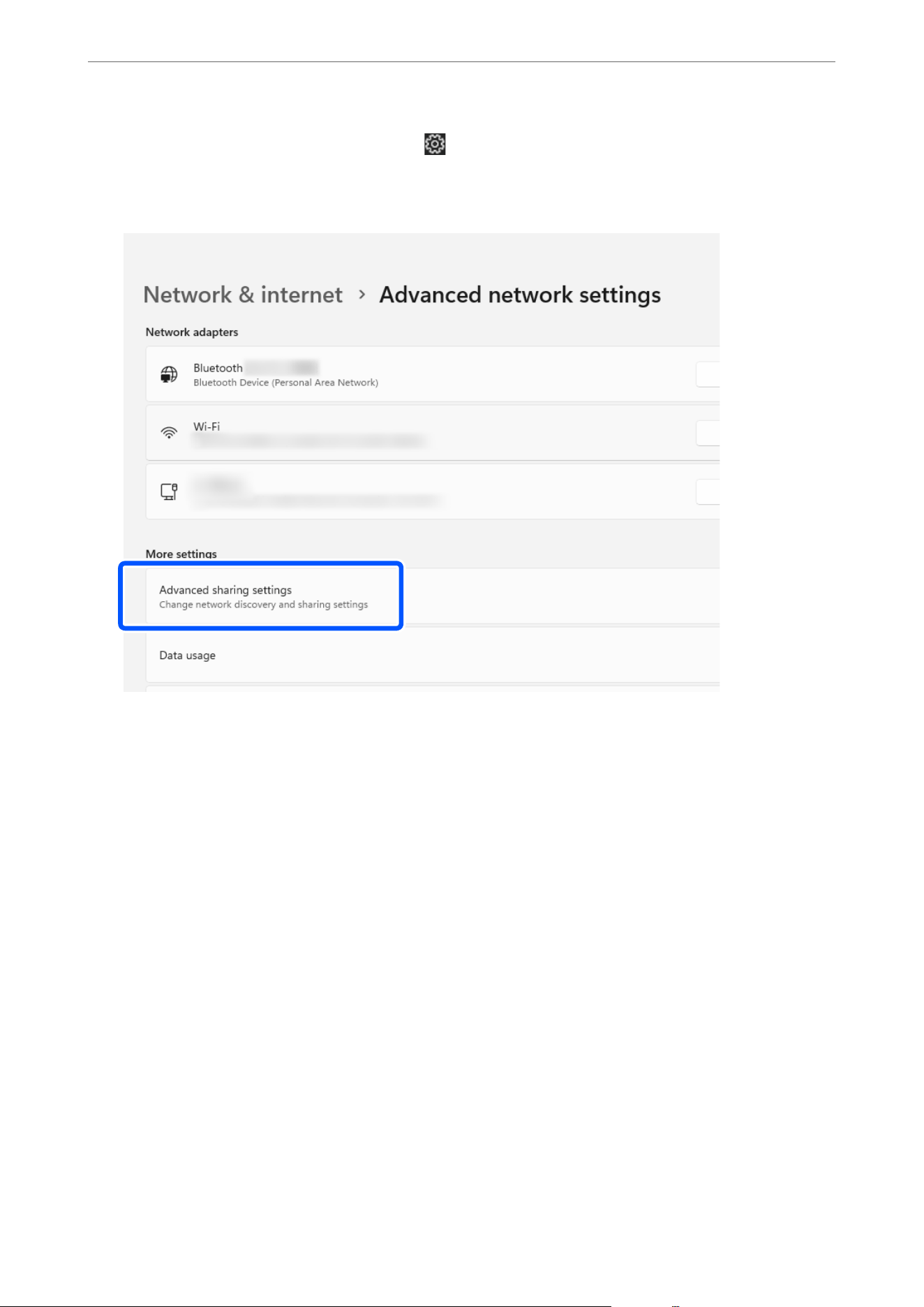
4. Click the Windows Start button, and then click Settings > Network & Internet > Advanced Network
Settings > Advanced Sharing Settings.
e network prole is displayed.
5.
Make sure File and Printer Sharing is turned on for the
prole
labeled Current
Prole
.
If it is turned o, turn it on.
Next, create the network folder and congure sharing for the user.
6. Create and name a folder on your desktop.
For the folder name, enter 1 to 12 alphanumeric characters. If the name exceeds 12 characters, you may not be
able to access the folder depending on your environment.
Example: scan_folder
Note:
If you are using a le server, create the folder at the root of the C drive.
Administrator Information
>
Settings to Use the Printer
>
Creating a Network Folder
319
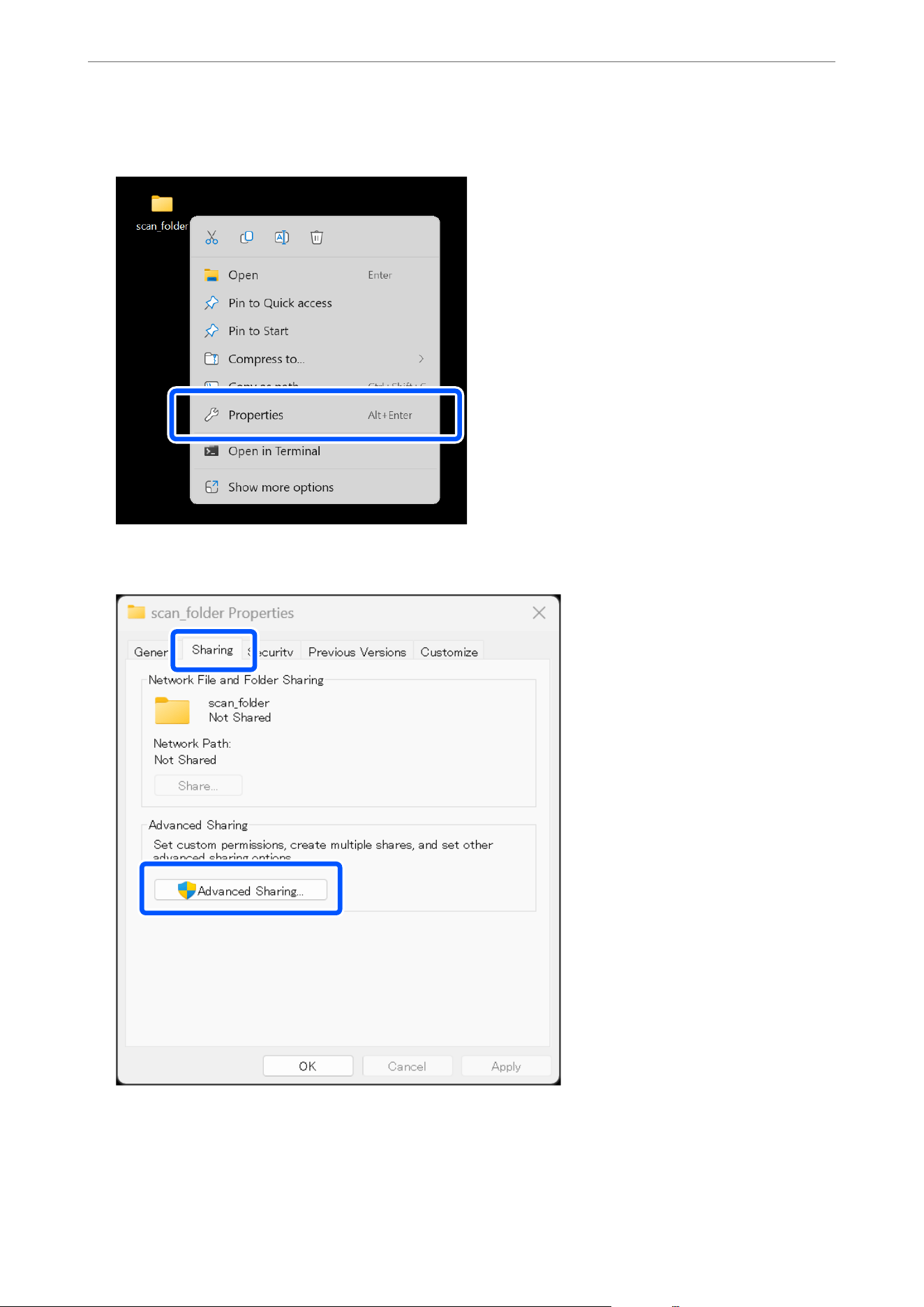
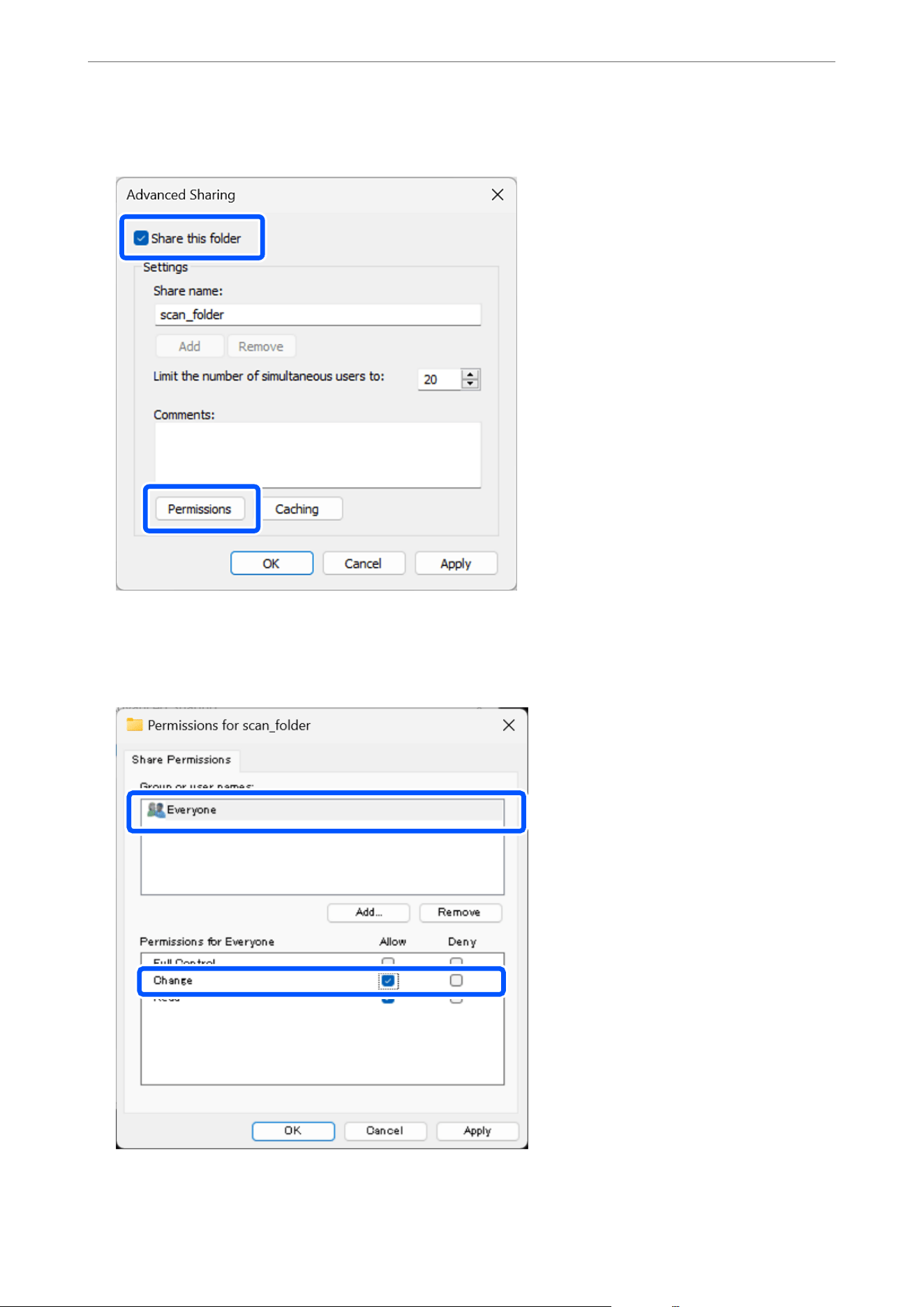
9. Select Share this folder, and then click Permissions.
10. Select Everyone in Group or user names, select Allow in Change, and then click OK.
Note:
If you are using a le server, add groups or users and congure access permissions.
11. Click OK to close the screen and return to the Properties window.
Administrator Information
>
Settings to Use the Printer
>
Creating a Network Folder
321
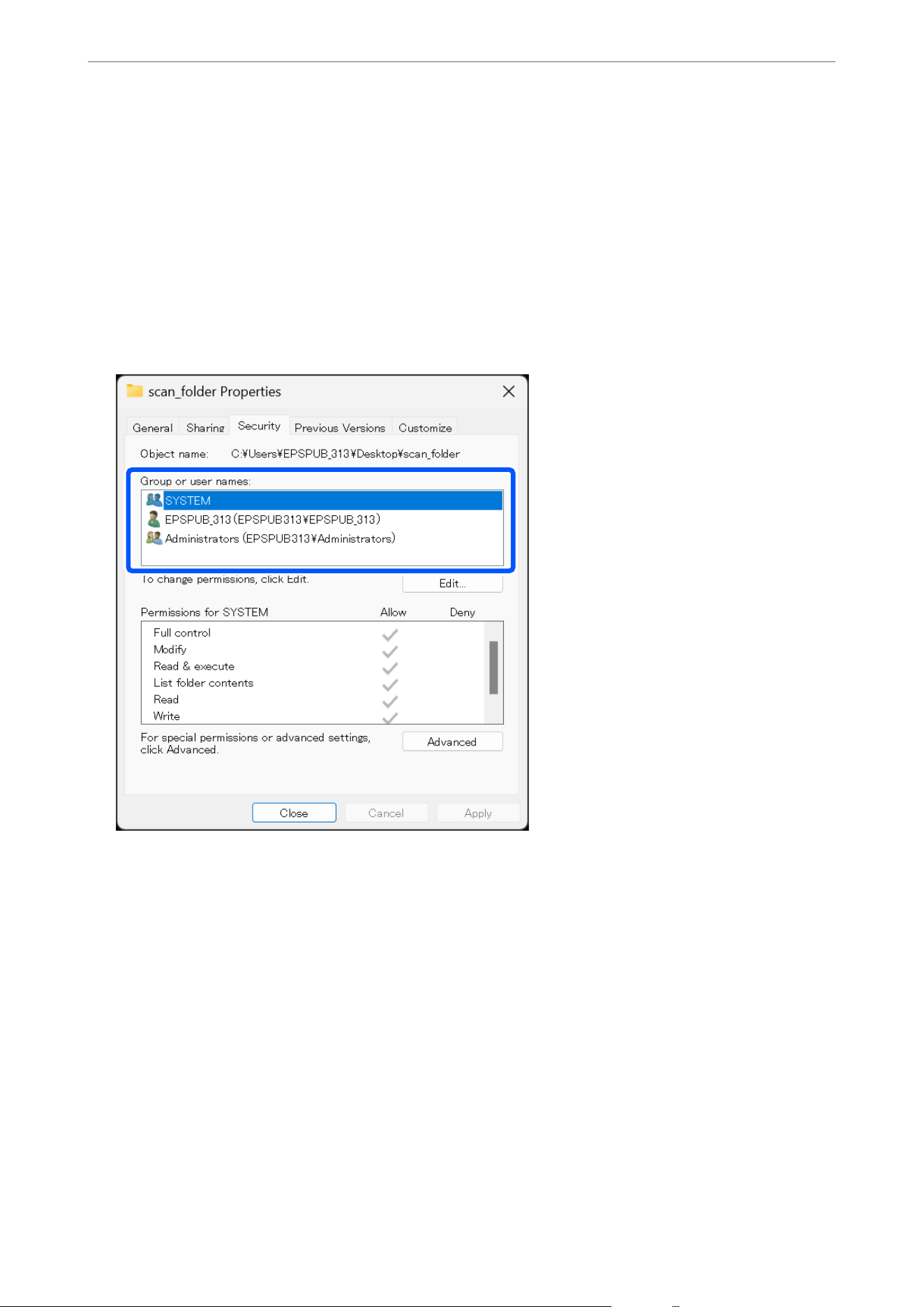
12. Select the Security tab, and then check the Group or user names.
e groups or users that are displayed here can access the network folder.
Click Edit to add access permissions, if necessary.
In this case, the user who logs in to this computer and the Administrator can access the network folder.
Note:
If you are using a le server, select Authenticated Users and conrm that Allow is checked in Change under
Permissions.
Authenticated Users is the special group that includes all users who can log in to the domain or computer. is group is
displayed only when the folder is created just below the root folder. If it is not displayed, you can add it by clicking Edit.
13. Select the Sharing tab again and make a note of the displayed network folder path.
is
is used when registering to your contacts for the printer.
Administrator Information
>
Settings to Use the Printer
>
Creating a Network Folder
322
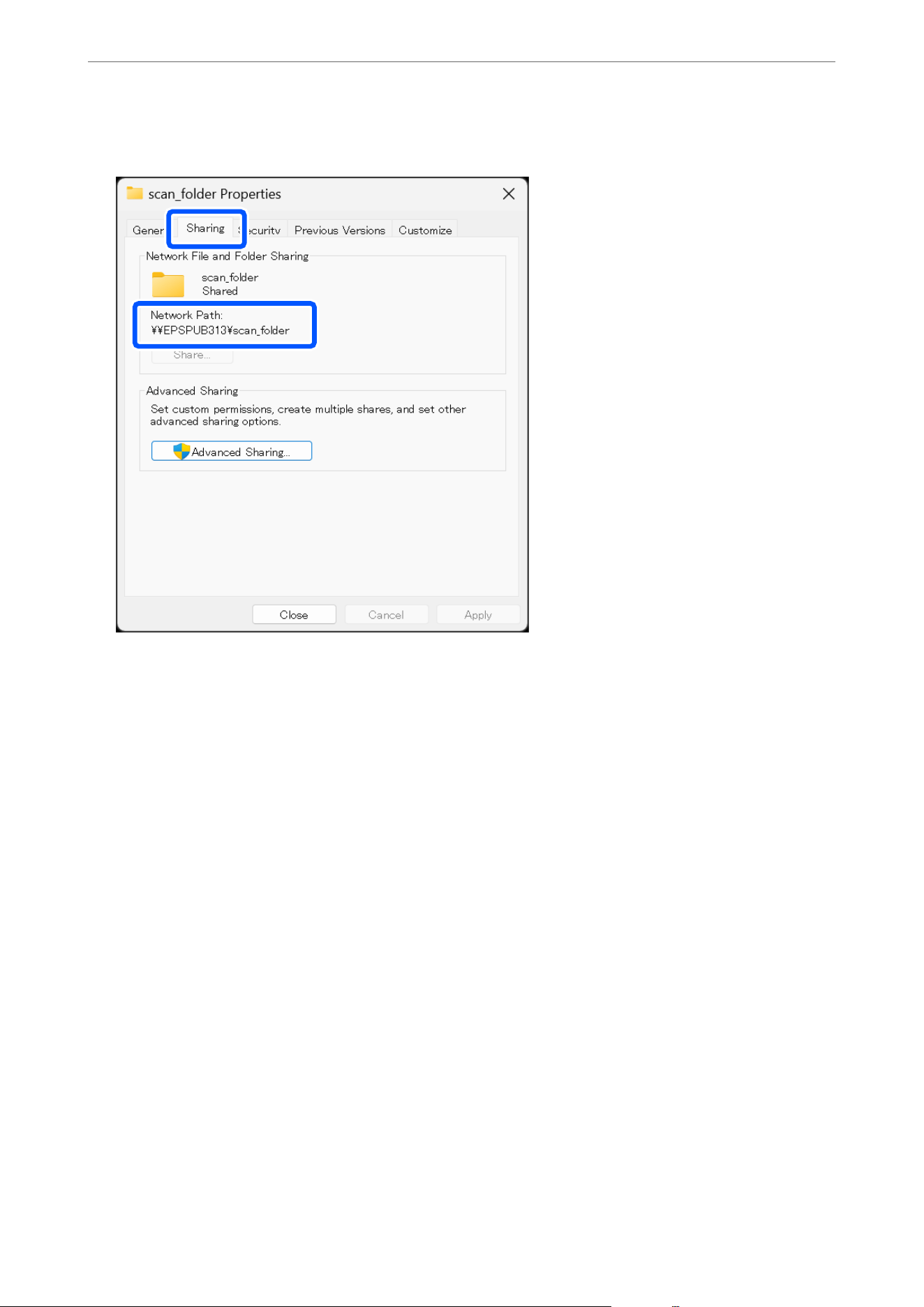
Example: \\EPSPUB313\scan_folder
14. Click OK to close the screen.
is completes creating a network folder.
Creating a Network Folder (Mac OS)
e procedure for creating the network folder varies depending on the environment. is section gives
instructions for creating a network folder in the following environment.
O Operating system: macOS 15
O Location for creating shared folder: Desktop
O Folder name: scan_folder
First, check the device name (computer name).
1. Log in to the computer where you want to create the network folder.
Note:
If you log in with a user account that does not have administrator privileges, you may be prompted to enter the
administrator password. If you do not know the administrator password, please check with the computer administrator.
2. Make sure that the device name (computer name) does not contain double-byte characters. From the Apple
menu, select System Settings > Network.
Administrator Information
>
Settings to Use the Printer
>
Creating a Network Folder
323
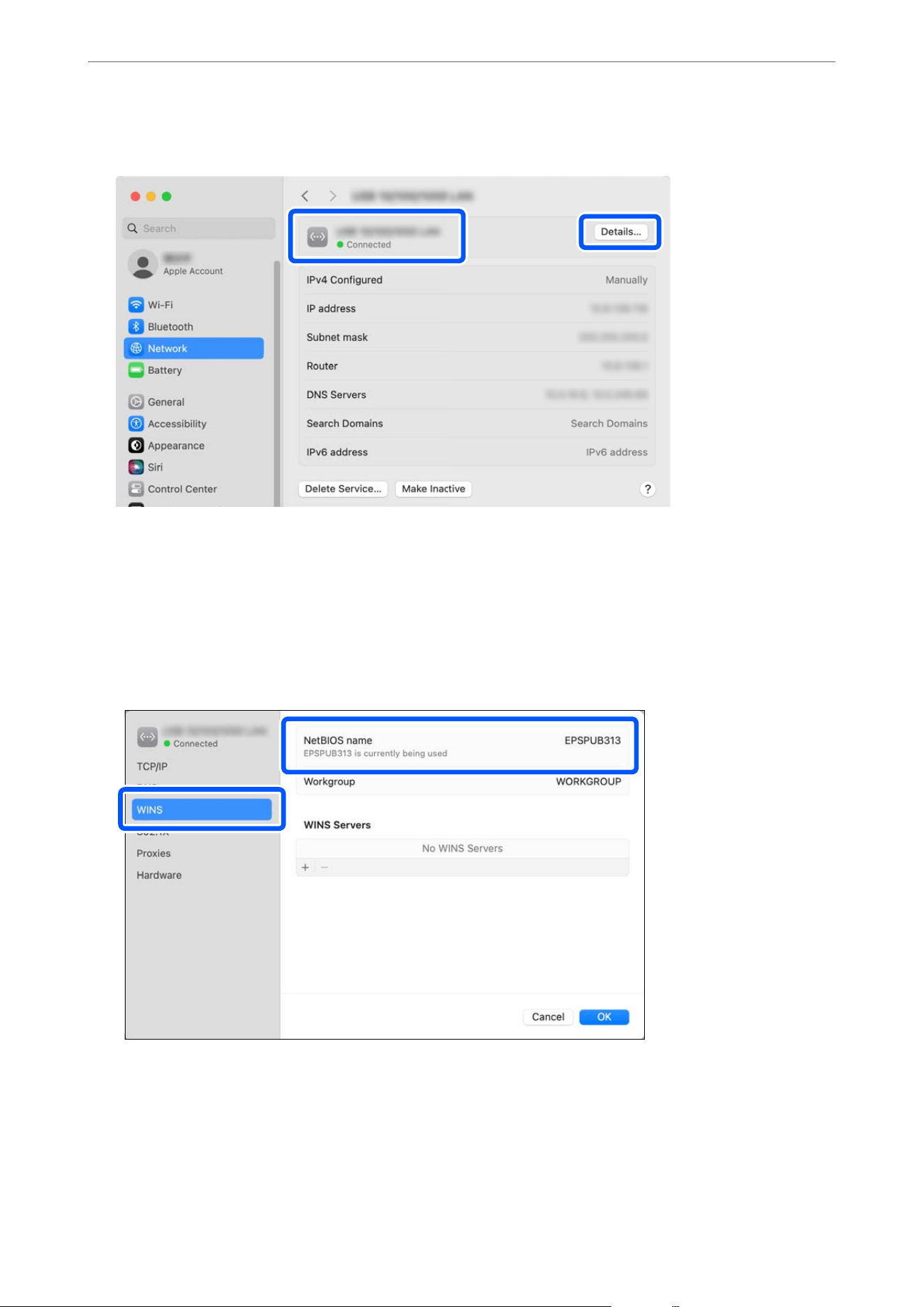
3. Select the connected network and click the Details button.
4.
Select WINS, and check that the string displayed in NetBIOS name does not contain double-byte characters.
Note:
If there are double-byte characters in the device name, le saving may fail.
ere should be no issues if the device name contains only single-byte characters. e device name will be
used when registering the address in the printer’s contacts. Please write it down. Click OK to close the window.
Example: EPSPUB313
Note:
e folder path to register in the printer’s contacts will be as follows:
[Computer name (or IP address)]\[Network folder name]
In this example:
\\EPSPUB313\scan_folder
Administrator Information
>
Settings to Use the Printer
>
Creating a Network Folder
324
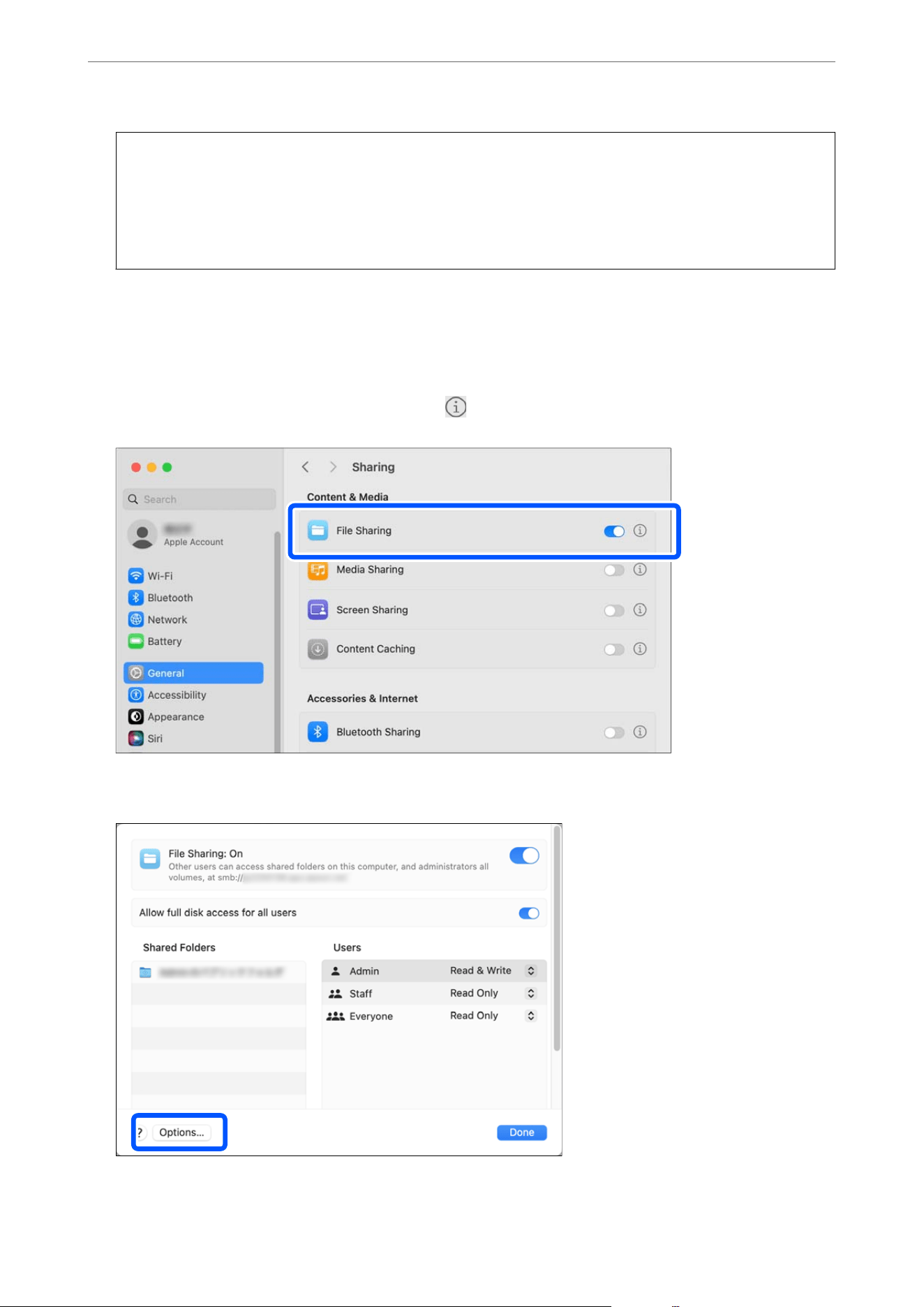
c
Important:
If the device name contains double-byte characters, use a computer that does not use double-byte characters or
rename the device.
If you need to change the device name, make sure you check with your computer administrator in advance as it
may aect computer management and access to resources.
Next, check your computer settings.
5. From the Apple menu, click System Settings > General > Sharing.
e
sharing settings screen will appear.
6. Make sure File Sharing is turned on, and click the
icon to the right of File Sharing.
7. Click the Options button.
Administrator Information
>
Settings to Use the Printer
>
Creating a Network Folder
325
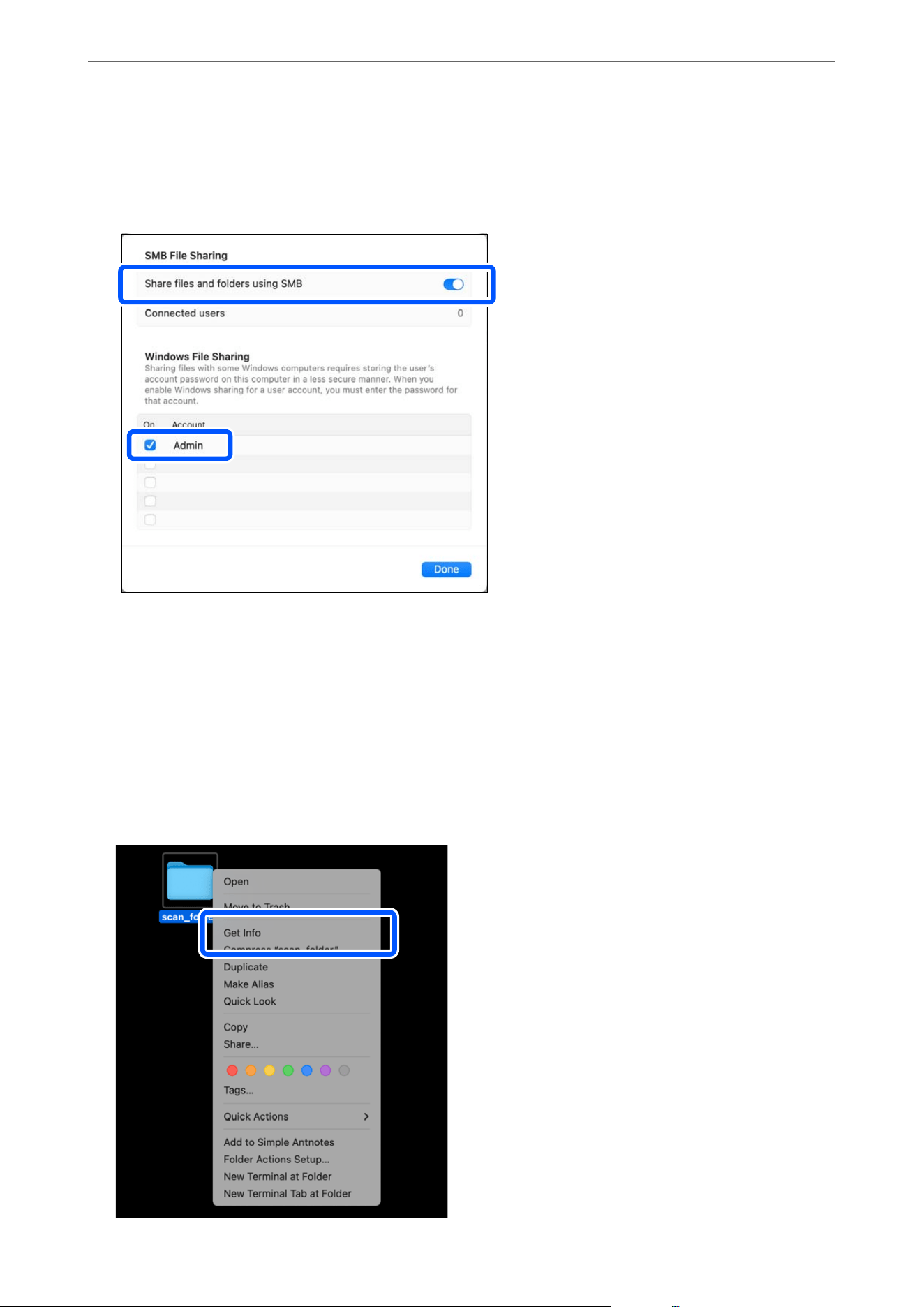
8. Make sure Share les and folders using SMB is enabled, and turn on the user account you want to share.
If prompted for a password, enter the account password and click OK.
Click Done to close the screen.
9. Click Done again on the File Sharing screen to close it.
Next, create the network folder and congure sharing for the user.
10. Create and name a folder on your desktop.
For the folder name, enter 1 to 12 alphanumeric characters. If the name exceeds 12 characters, you may not be
able to access the folder depending on your environment.
Example: scan_folder
11. Right click the folder and select Get Info.
Administrator Information
>
Settings to Use the Printer
>
Creating a Network Folder
326
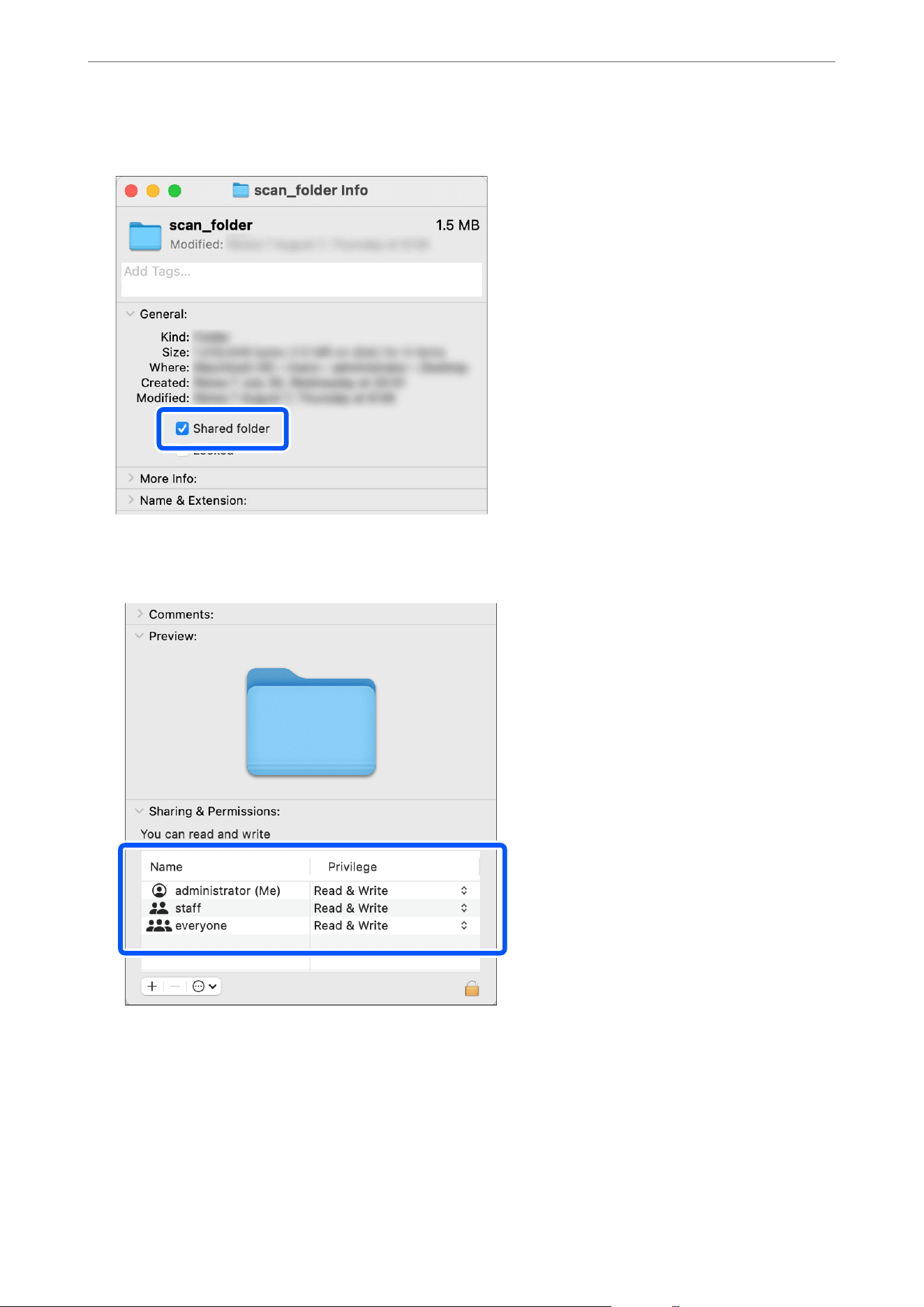
12. Check Shared folder.
13. Under Sharing & Permissions, make sure the user to whom you want to grant access has Read & Write
privileges.
is completes creating and setting a network folder.
Using Microsoft Network Sharing
Enable this to save a le on a shared network folder from the printer.
Administrator Information
>
Settings to Use the Printer
>
Creating a Network Folder
327

1. On a computer connected to the same network as the printer, open a browser and enter the printer's IP
address.
You can check the printer's IP address using the following menu.
O Wired LAN or Wireless LAN
Settings > General Settings > Network Settings > Network Status > Wired LAN/Wi-Fi Status
2. Enter the administrator password to log in as an administrator.
3. Select Network tab > MS Network.
4. Enable Use Microso network sharing.
5. Set each item if necessary.
6. Click Next.
7. Conrm the settings, and then click OK.
Related Information
& “Running Web Cong on a Web Browser” on page 237
Browsing Network Folders from the Control Panel
e Browse function is useful in the following situations.
O By simply entering the computer’s device name or IP address, User Name, and Password, you can navigate
through shared folders to select a save location, without the need to manually input the folder path.
O When editing a destination already registered in the contacts, you can use the Browse function to verify the
connection
aer
updating the password or other settings, allowing you to check the operation without sending a
scan.
Note:
is function is available when selecting Network Folder (SMB) as the Communication Mode during direct input of the
save location or when registering/editing a contact entry.
1. On the destination settings screen for network folders, enter the following items:
Location:
e
device name or IP address of the computer where the network folder was created
User Name: e user name used to log in (sign in) to the destination computer
Password: e password corresponding to the user name
2. Tap Browse in the Location eld to search for network folders.
Folders shared on the referenced computer will be displayed.
If a "Communication Error" occurs, the device name or IP address may be incorrect, or there may be an issue
on the computer side. Please check the settings and try again.
If a "Authentication Error" occurs, the connection to the computer has been established, but the user name or
password is incorrect. Please verify and try again.
3. Select the desired network folder and tap OK.
You will return to the destination settings screen, and the folder path will appear in the Location
eld.
Administrator Information
>
Settings to Use the Printer
>
Creating a Network Folder
328

Note:
Depending on the network conguration, you may be able to tap Browse to search for folders even if the Location, User
Name, and Password elds are le blank.
O If you tap Browse when the Location, User Name, and Password elds are le blank, the Windows network
discovery feature will display folders shared on the network to which the printer is connected. Shared printers may
also appear, but they cannot be selected as save folders.
O If Windows network discovery is disabled or the network folder is on a Mac OS system, shared folders will not be
displayed if the Location, User Name, and Password elds are le blank.
Related Information
& “Unable to Browse Network Folders from the Control Panel” on page 331
Solving Problems When Scanning to a Network Folder
Error Messages are Displayed on the Control Panel
When error messages are displayed on the control panel, check the message itself or the following list to solve the
problems.
Messages Solutions
DNS error. Check DNS settings. Cannot connect to the computer. Check the following.
O Make sure that the address in the contacts list on the printer and the address
of the shared folder are the same.
O If the IP address of the computer is static and is set manually, change the
computer name in the network path to the IP address.
Example: \\EPSON02\SCAN to \\192.168.xxx.xxx\SCAN
O Make sure that the computer is turned on and does not sleep. If the computer
sleeps, you cannot save scanned images to the shared folder.
O Temporarily disable the computer's Firewall and security software. If this clears
the error, check the settings in the security software.
O If Public network is selected as the network place, you cannot save the
scanned images to the shared folder. Set the forward settings for each port.
O If you are using a laptop computer and the IP address is set as DHCP, the IP
address may change when reconnecting to the network. Obtain the IP address
again.
O Make sure the DNS setting is correct. Contact your network administrator
about the DNS settings.
O The computer name and the IP address may
dier
when the management
table of the DNS server is not updated. Contact your DNS server administrator.
Authentication error. Check the
authentication method, authenticated
account, and authenticated password.
Make sure the user name and the password are correct on the computer and the
contacts on the printer. Also, make sure that the password has not expired.
Administrator Information
>
Settings to Use the Printer
>
Creating a Network Folder
329
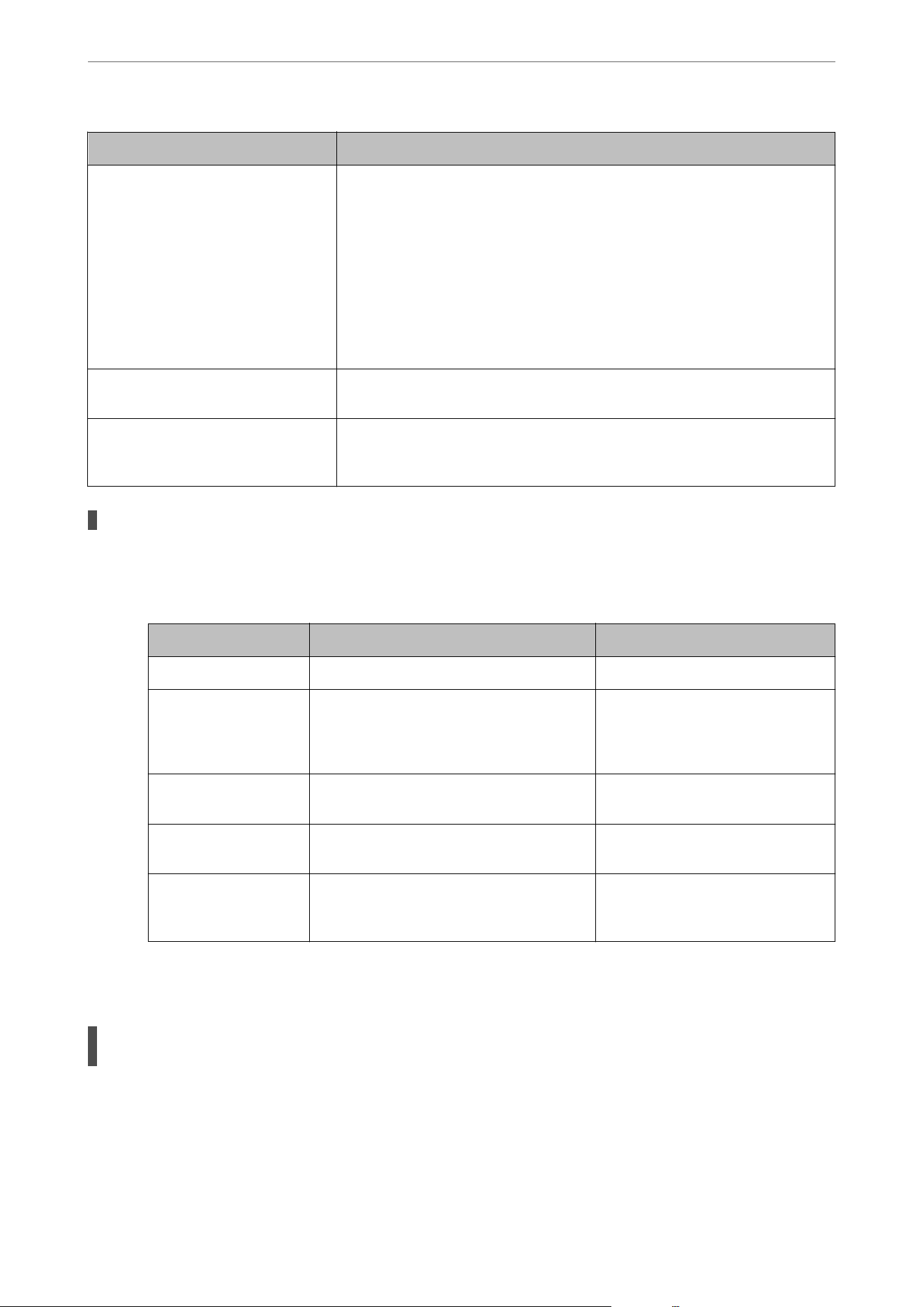
Messages Solutions
Communication error. Check the Wi-Fi/
network connection.
Cannot communicate with a network folder that is registered on the contacts list.
Check the following.
O Make sure that Use Microsoft network sharing is enabled in Web Cong.
Select Network > MS Network in Web Cong.
O Make sure that the address in the contacts list on the printer and the address
of the shared folder are the same.
O Access rights for the user in the contacts list should be added on the
Sharing tab and the Security tab of the shared folder's properties. Also, the
permissions for the user should be set to Allow.
The le name is already in use. Rename
the le and scan again.
Change the le name settings. Otherwise, move or delete the les, or change the
le name on the shared folder.
Scanned le(s) are too large. Only XX
page(s) have been sent. Check if the
destination has enough space.
There is not enough disk space on the computer. Increase the free space on the
computer.
Checking the Point where the Error Occurred
Solutions
When saving scanned images to the shared folder, saving process proceeds as following. You can then
check the point where the error occurred.
Items Operation Error Messages
Connecting Connect to the computer from the printer. DNS error. Check DNS settings.
Logging on to the
computer
Log on to the computer with the user name
and the password.
Authentication error. Check
the authentication method,
authenticated account, and
authenticated password.
Checking the folder to
save
Check the network path of the shared folder. Communication error. Check the Wi-
Fi/network connection.
Checking the le name Check if there is a le with the same name as
the le you want to save in the folder.
The le name is already in use.
Rename the le and scan again.
Writing the le Write a new le. Scanned le(s) are too large. Only XX
page(s) have been sent. Check if the
destination has enough space.
Saving the Scanned Images Takes a Long Time
It takes a long time for the name resolution to correspond to the "Domain Name" and the "IP
Address".
Solutions
Check the following points.
O Make sure the DNS setting is correct.
O Make sure each DNS setting is correct when checking the Web Cong.
O Make sure the DNS domain name is correct.
Administrator Information
>
Settings to Use the Printer
>
Creating a Network Folder
330

Unable to Browse Network Folders from the Control Panel
If you cannot browse network folders using the Browse function on the printer's control panel, one of the
following situations may be the cause.
You are using Mac OS.
Solutions
O When using Mac OS, enter the computer’s device name or IP address in Location, along with the
User Name and Password, then tap Browse. e network folders within the specied computer will be
searched and displayed, then select the desired folder to specify it.
O If browsing is not possible when entering the computer’s device name in Location, try entering the
computer’s IP address instead.
O If Location is le blank and Browse is tapped, the computer or network folders will not be displayed.
Folder sharing settings are not congured.
Solutions
Make sure the sharing settings for the created folder are properly congured.
“Creating a Network Folder (Windows)” on page 317
“Creating a Network Folder (Mac OS)” on page 323
Sharing settings are disabled on the computer.
Solutions
O Windows:
Click the Windows Start button, and then click
Settings > Network & Internet > Advanced
Network Settings > Advanced Sharing Settings. Check that File and Printer Sharing is turned on for
the prole labeled Current Prole.
O Mac OS:
From the Apple menu, click System Settings > General > Sharing. Make sure File Sharing under
Content & Media is turned on.
Network Discovery Service is stopped on the computer (Windows).
Solutions
Right-click the Windows Start button, go to Computer Management > Services and Applications >
Services, and then check that Function Discovery Resource Publication is in the Running state.
Depending on the network environment, network folders cannot be browsed if Location is
left blank.
Solutions
O Click the Windows Start button, and then click
Settings > Network & Internet > Advanced
Network Settings > Advanced Sharing Settings. Check that both Network Discovery and File and
Printer Sharing are turned on for the network labeled Current Prole.
O Depending on your network environment, it may not be possible to browse network folders.
Enter the computer’s device name or IP address in Location, along with the User Name and
Password, then tap Browse. e network folders on the specied computer will be searched.
Administrator Information
>
Settings to Use the Printer
>
Creating a Network Folder
331
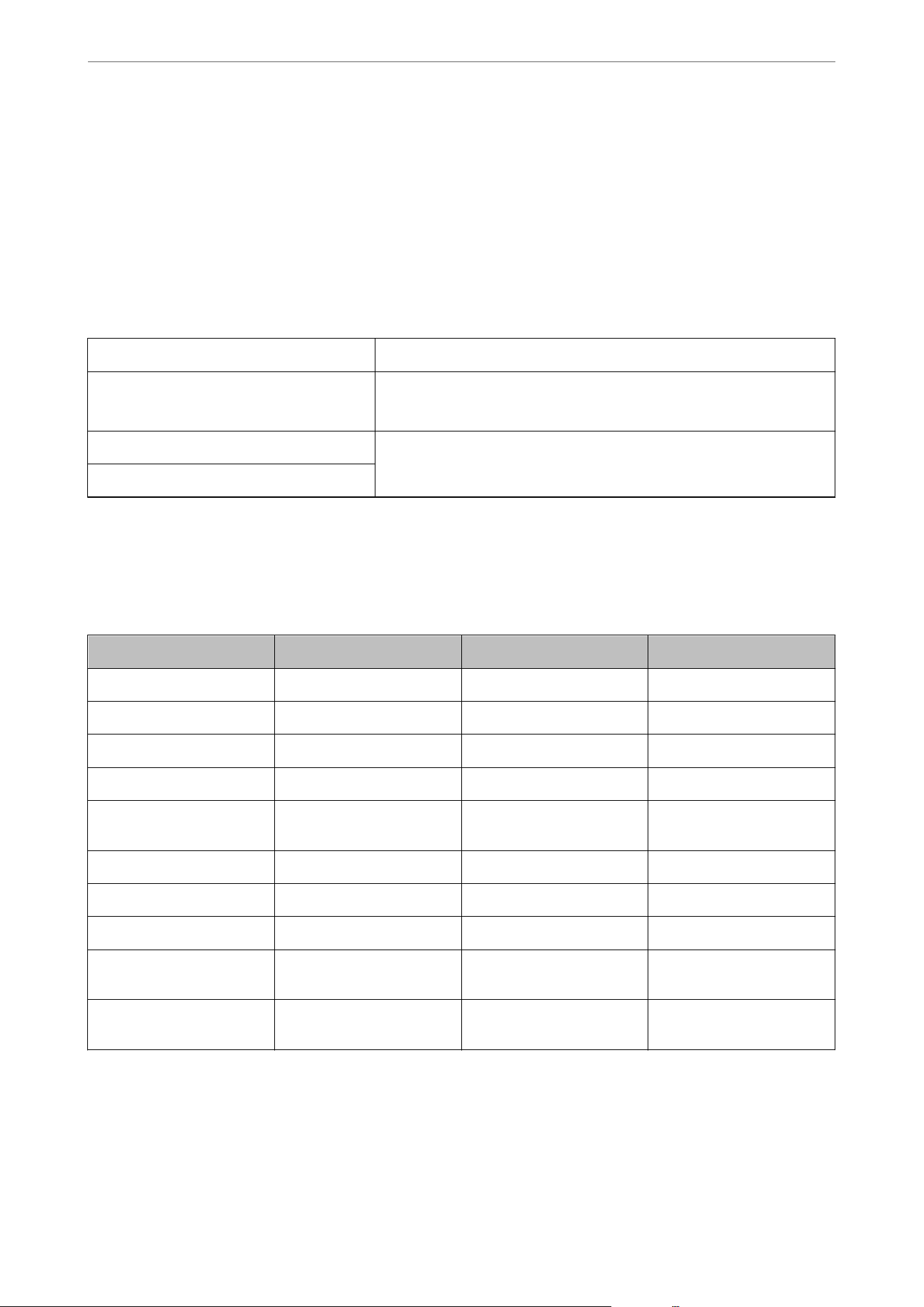
Making Contacts Available
Registering destinations in the printer's contacts list allows you to easily enter the destination when scanning or
sending faxes.
You can also use the LDAP server (LDAP search) to enter the destination.
Note:
O You can switch between your printer's contacts list and the LDAP using the printer’s control panel.
O You can register the following types of destinations in the contacts list. You can register up to 100 entries in total.
Fax Destination for fax
Email Destination for email
You need to congure the email server settings beforehand.
Network Folder (SMB) Destination for scan data and fax forwarding data
Network Folder/FTP
Contacts Conguration Comparison
ere are three tools for conguring the printer's contacts: Web Cong, Epson Device Admin, and the printer’s
control panel. e dierences between three tools are listed in the table below.
Features Web Cong Epson Device Admin Printer’s control panel
Registering a destination
✓✓✓
Editing a destination
✓✓✓
Adding a group
✓✓✓
Editing a group
✓✓✓
Deleting a destination or
groups
✓✓✓
Deleting all destinations
✓✓
–
Importing a le
✓✓
–
Exporting to a le
✓✓
–
Assigning destinations to
frequent use
✓✓✓
Sorting destinations
assigned to frequent use
––
✓
Note:
You can also congure the fax destination using the FAX Utility.
Administrator Information
>
Settings to Use the Printer
>
Making Contacts Available
332
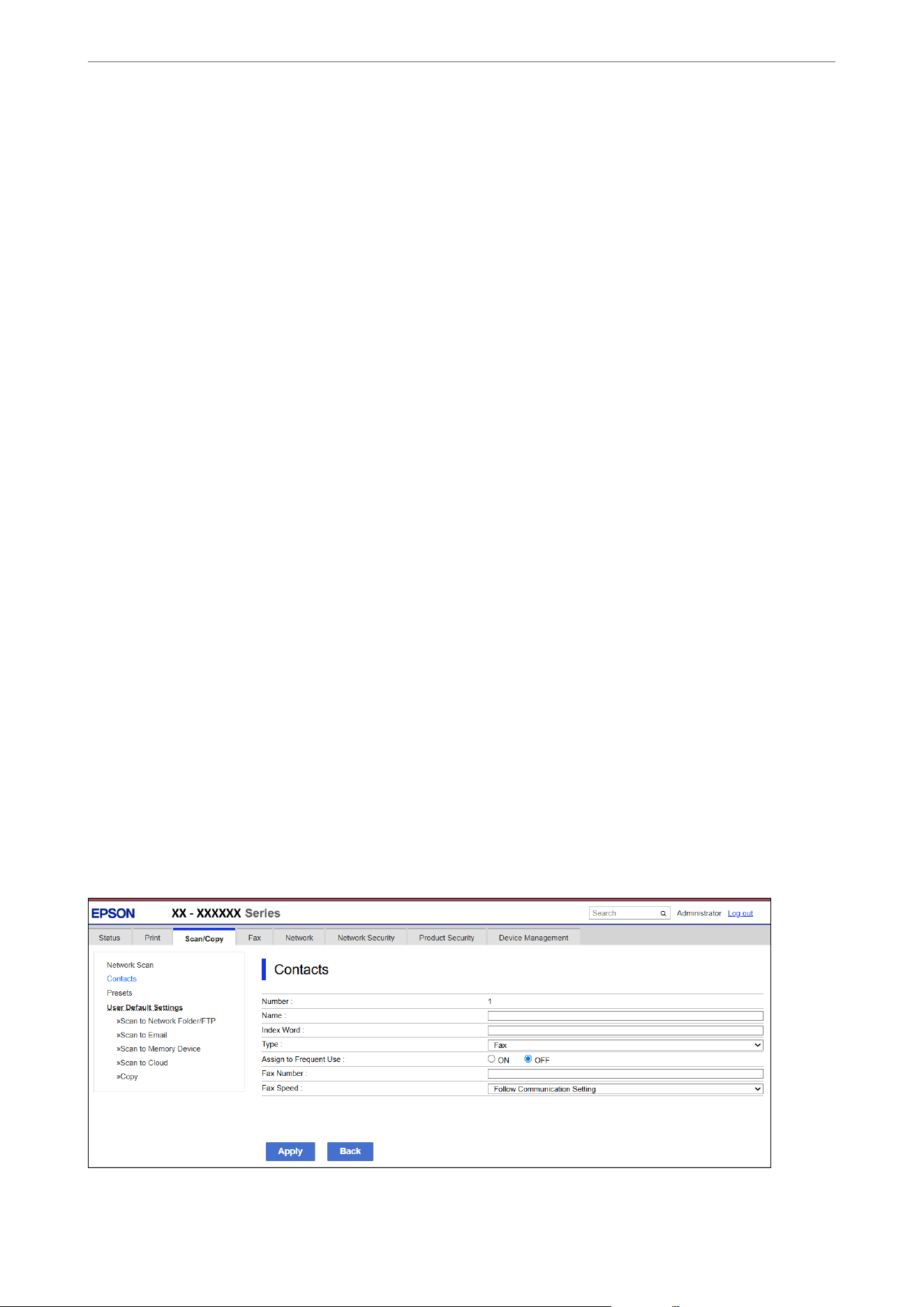
Registering a Destination to Contacts from Web Cong
1.
On a computer connected to the same network as the printer, open a browser and enter the printer's IP
address.
You can check the printer's IP address using the following menu.
O Wired LAN or Wireless LAN
Settings > General Settings > Network Settings > Network Status > Wired LAN/Wi-Fi Status
2. Enter the administrator password to log in as an administrator.
3. Select the following menu.
Scan/Copy or Fax tab > Contacts
4. Select the number that you want to register, and then click Edit.
5.
Enter Name and Index Word.
6. Select the destination type as the Type option.
Note:
You cannot change the Ty pe option aer registration is complete. If you want to change the type, delete the destination
and then register it.
7. Enter a value for each item, and then click Apply.
“Destination Setting Items” on page 333
Related Information
& “Application for Conguring Printer Operations (Web Cong)” on page 236
& “Default Value of the Administrator Password” on page 17
& “Scanning Originals to a Network Folder” on page 91
& “Scanning Originals to an Email” on page 94
Destination Setting Items
Administrator Information
>
Settings to Use the Printer
>
Making Contacts Available
333
Items Settings and Explanation
Common Settings
Name Enter a name displayed in the contacts in 30 characters or less in Unicode (UTF-8).
If you do not specify this, leave it blank.
Index Word Enter words to search in 30 characters or less in Unicode (UTF-8). If you do not
specify this, leave it blank.
Type Select the type of the address that you want to register.
Assign to Frequent Use Select to set the registered address as a frequently used address.
When setting as a frequently used address, it is displayed on the top screen of fax
and scan, and you can specify the destination without displaying the contacts.
Fax
Fax Number Enter between 1 and 64 characters using 0-9 - * # and space.
Fax Speed Select a communication speed for a destination.
Email
Email Address Enter between 1 and 255 characters using A-Z a-z 0-9 ! # $ % & ' * + - . / = ? ^ _ { | }
~ @.
Network Folder (SMB)
Save to \\“Folder path”
Enter the location where the target folder is located between 1 and 253 characters
in Unicode (UTF-8), omitting "\\".
User Name Enter a user name to access a network folder in 30 characters or less in Unicode
(UTF-8). However, avoid using control characters (0x00 to 0x1f, 0x7F).
Password Enter a password to access a network folder in 20 characters or less in Unicode
(UTF-8). However, avoid using control characters (0x00 to 0x1f, 0x7F).
FTP
Secure Connection Select FTP or FTPS according to the le transfer protocol the FTP server supports.
Select FTPS to allow the printer to communicate with security measures.
Save to Enter the server name between 1 and 253 characters in ASCII (0x20-0x7E),
omitting "ftp://" or "ftps://".
User Name Enter a user name to access an FTP server in 30 characters or less in Unicode
(UTF-8). However, avoid using control characters (0x00 to 0x1f, 0x7F). If the server
allows anonymous connections, enter a user name such as Anonymous and FTP. If
you do not specify this, leave it blank.
Password Enter a password to access to an FTP server within 20 characters or less in Unicode
(UTF-8). However, avoid using control characters (0x00 to 0x1f, 0x7F). If you do not
specify this, leave it blank.
Connection Mode Select the connection mode from the menu. If a rewall is set between the printer
and the FTP server, select Passive Mode.
Port Number Enter the FTP server port number between 1 and 65535.
Administrator Information
>
Settings to Use the Printer
>
Making Contacts Available
334
Items Settings and Explanation
Certicate Validation The FTP server's certicate is validated when this is enabled. This is available when
FTPS is selected for Secure Connection.
To set up, you need to import the CA Certicate to the printer.
SharePoint(WebDAV)
Secure Connection Select HTTP or HTTPS according to the hyper-text transfer protocol the HTTP
server supports. Select HTTPS to allow the printer to communicate with security
measures.
Save to Enter the server address between 1 and 253 characters in Unicode (UTF-16)
omitting “http://”or "https://". However, avoid using control characters (0x0000 to
0x001f, 0x007F).
User Name Enter a user name to access an HTTP server in 30 characters or less in Unicode
(UTF-8). However, avoid using control characters (0x00 to 0x1f, 0x7F). If the server
allows anonymous connections, enter a user name such as Anonymous. If you do
not specify this, leave it blank.
Password Enter a password to access an HTTP server in 70 characters or less in Unicode
(UTF-8). However, avoid using control characters (0x00 to 0x1f, 0x7F). If you do not
specify this, leave it blank.
Certicate Validation The HTTP server's certicate is validated when this is enabled. This is available
when HTTPS is selected for Secure Connection.
To set up, you need to import the CA Certicate to the printer.
Proxy Server Select whether or not to use a proxy server to access an HTTP server.
Registering Destinations as a Group
If the destination type is set to Fax or Email, you can register the destinations as a group.
You can register up to 100 destinations and groups to the contacts list in total.
Registering Destinations as a Group from Web
Cong
1. On a computer connected to the same network as the printer, open a browser and enter the printer's IP
address.
You can check the printer's IP address using the following menu.
O Wired LAN or Wireless LAN
Settings > General Settings > Network Settings > Network Status > Wired LAN/Wi-Fi Status
2. Enter the administrator password to log in as an administrator.
3. Select the following menu.
Scan/Copy or Fax tab > Contacts
4.
Select the number that you want to register, and then click Edit.
5. Select a group from Type.
Administrator Information
>
Settings to Use the Printer
>
Making Contacts Available
335
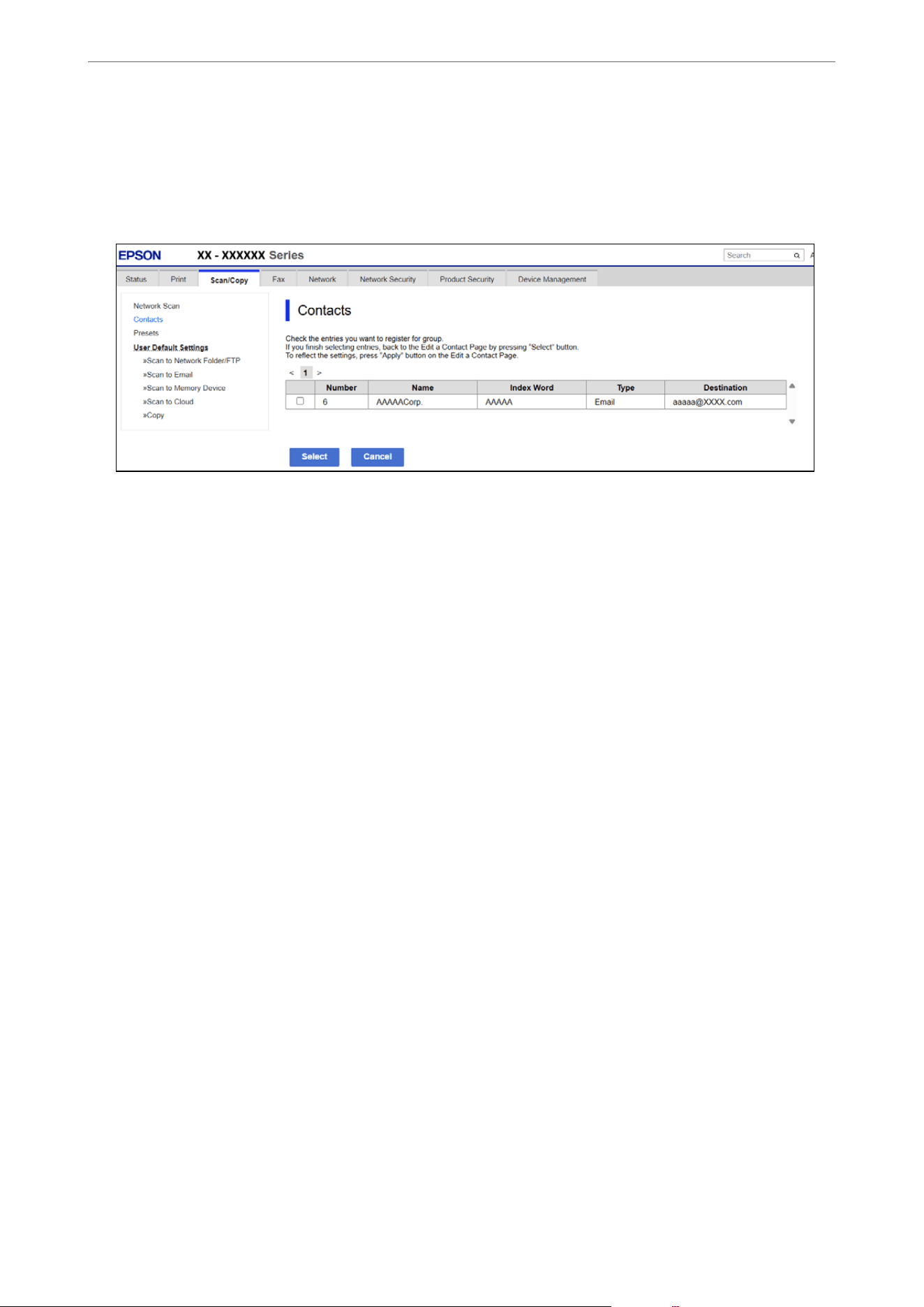
6. Click Select for Contact(s) for Group.
e available destinations are displayed.
7. Select the destination that you want to register to the group, and then click Select.
8. Enter a Name and Index Word.
9. Select whether or not to assign the registered group to the frequently used groups.
Note:
Destinations can be registered to multiple groups.
10. Click Apply.
Related Information
& “Application for
Conguring
Printer Operations (Web
Cong
)” on page 236
& “Default Value of the Administrator Password” on page 17
Backing Up and Importing Contacts
Using Web Cong or other tools, you can back up and import contacts.
For Web
Cong
, you can back up contacts by exporting the printer settings that include contacts.
e
exported
le
cannot be edited because it is exported as a binary le.
When importing the printer settings to the printer, contacts are overwritten.
For Epson Device Admin, only contacts can be exported from the device’s property screen. Also, if you do not
export the security-related items, you can edit the exported contacts and import them because this can be saved as
a SYLK le or csv le.
Importing Contacts Using Web
Cong
If you have a printer that allows you to backup contacts and is compatible with this printer, you can register
contacts easily by importing the backup le.
Note:
For instructions on how to back up contacts on the other printer, see the other printer's documentation.
Follow the steps below to import the contacts to this printer.
Administrator Information
>
Settings to Use the Printer
>
Making Contacts Available
336

1. On a computer connected to the same network as the printer, open a browser and enter the printer's IP
address.
You can check the printer's IP address using the following menu.
O Wired LAN or Wireless LAN
Settings > General Settings > Network Settings > Network Status > Wired LAN/Wi-Fi Status
2. Enter the administrator password to log in as an administrator.
3. Select the following menu.
Device Management tab > Export and Import Setting Value > Import
4. Select the backup le you created in File, enter the password, and then click Next.
5. Select the Contacts checkbox, and then click Next.
Related Information
& “Application for Conguring Printer Operations (Web Cong)” on page 236
& “Default Value of the Administrator Password” on page 17
Exporting Contacts Using Web Cong
Contacts data may be lost due to a printer malfunction. We recommend that you make a backup of the data
whenever you update it. Epson is not responsible for the loss of any data, or for backing up or recovering data
and/or settings, even during a warranty period.
1. On a computer connected to the same network as the printer, open a browser and enter the printer's IP
address.
You can check the printer's IP address using the following menu.
O Wired LAN or Wireless LAN
Settings > General Settings > Network Settings > Network Status > Wired LAN/Wi-Fi Status
2. Enter the administrator password to log in as an administrator.
3. Select the following menu.
Device Management tab > Export and Import Setting Value > Export
4.
Select one of the Contacts checkboxes.
If you select Contacts under the Scan/Copy category, the same checkbox under the Fax category is also
selected.
5. Enter a password to encrypt the exported le.
If you enter a password, you will need it to import the le. Leave this blank if you do not want to encrypt the
le.
6. Click Export.
Related Information
& “Application for Conguring Printer Operations (Web Cong)” on page 236
Administrator Information
>
Settings to Use the Printer
>
Making Contacts Available
337

& “Default Value of the Administrator Password” on page 17
Export and Bulk Registration of Contacts Using Tool
If you use Epson Device Admin, you can back up just the contacts and edit the exported
les,
then register them all
at once.
It is useful if you want to back up only the contacts or when you replace the printer and you want to transfer the
contacts from the old one to new one.
Related Information
& “Soware for Managing Devices on the Network (Epson Device Admin)” on page 238
Exporting Contacts Using Epson Device Admin
Save the contacts information to the le.
You can edit les saved in SYLK format or csv format by using a spreadsheet application or text editor. You can
register all at once aer deleting or adding the information.
Information that includes security items such as password and personal information can be saved in binary format
with a password. You cannot edit the le. is can be used as the backup le of the information including the
security items.
1. Start Epson Device Admin.
2. Select Devices on the side bar task menu.
3. Select the device you want to congure from the device list.
4. Click Device Conguration on the Home tab on the ribbon menu.
When the administrator password has been set, enter the password and click OK.
5. Click Common > Contacts.
6.
Select the export format from Export > Export items.
O All Items
Export the encrypted binary le. Select when you want to include the security items such as password
and personal information. You cannot edit the
le.
If you select it, you have to set the password. Click
Conguration
and set a password between 8 and 63 characters long in ASCII.
is
password is required
when importing the binary le.
O Items except Security Information
Export the SYLK format or csv format les. Select when you want to edit the information of the exported
le.
7. Click Export.
8. Specify the place to save the le, select the le type, and then click Save.
e
completion message is displayed.
Administrator Information
>
Settings to Use the Printer
>
Making Contacts Available
338

9. Click OK.
Check that the le is saved to the specied place.
Related Information
& “Default Value of the Administrator Password” on page 17
& “Soware for Managing Devices on the Network (Epson Device Admin)” on page 238
Importing Contacts Using Epson Device Admin
Import the contacts information from the le.
You ca n i mp or t t he
les
saved in SYLK format or csv format or the backed-up binary
le
that includes the security
items.
1.
Start Epson Device Admin.
2. Select Devices on the side bar task menu.
3. Select the device you want to congure from the device list.
4. Click Device Conguration on the Home tab on the ribbon menu.
When the administrator password has been set, enter the password and click OK.
5. Click Common > Contacts.
6. Click Browse on Import.
7. Select the le you want to import and then click Open.
When you select the binary
le,
in Password enter the password you set when exporting the
le.
8. Click Import.
e conrmation screen is displayed.
9. Click OK.
e
validation result is displayed.
O Edit the information read
Click when you want to edit the information individually.
O Read more le
Click when you want to import multiple les.
10. Click Import, and then click OK on the import completion screen.
Return to the device's property screen.
11.
Click Transmit.
12. Click OK on the
conrmation
message.
e settings are sent to the printer.
Administrator Information
>
Settings to Use the Printer
>
Making Contacts Available
339

13. On the sending completion screen, click OK.
e printer's information is updated.
Open the contacts from Web
Cong
or printer's control panel, and then check that the contact is updated.
Related Information
& “
Soware
for Managing Devices on the Network (Epson Device Admin)” on page 238
Settings to Use Users Information on the LDAP Server as Destinations
By linking the LDAP server and the printer in advance, you can search for user information registered in the
LDAP server, and use the information directly as destinations for faxes or emails.
Conguring the LDAP Server
To use LDAP server information, register it on the printer.
1. On a computer connected to the same network as the printer, open a browser and enter the printer's IP
address.
You can check the printer's IP address using the following menu.
O Wired LAN or Wireless LAN
Settings > General Settings > Network Settings > Network Status > Wired LAN/Wi-Fi Status
2. Enter the administrator password to log in as an administrator.
3.
Select the following menu.
Network tab > LDAP Server > Basic (Primary Server) or Basic (Secondary Server)
4. Enter a value for each item.
5. Select OK.
e settings you have selected are displayed.
Related Information
& “Application for Conguring Printer Operations (Web Cong)” on page 236
& “Default Value of the Administrator Password” on page 17
LDAP Server Settings
Items Settings and Explanation
Use LDAP Server Select Use or Do Not Use.
LDAP Server Address Enter the address of the LDAP server. Enter between 1 and 255 characters of
either IPv4, IPv6, or FQDN format. For the FQDN format, you can use alphanumeric
characters in ASCII (0x20-0x7E) and "- " except for the beginning and end of the
address.
Administrator Information
>
Settings to Use the Printer
>
Making Contacts Available
340
Items Settings and Explanation
LDAP server Port Number Enter the LDAP server port number between 1 and 65535.
Secure Connection Specify the authentication method when the printer accesses the LDAP server.
Certicate Validation When this is enabled, the certicate of the LDAP sever is validated. We
recommend this is set to Enable.
To set up, the CA Certicate needs to be imported to the printer.
Search Timeout (sec) Set the length of time for searching before timeout occurs between 5 and 300.
Authentication Method Select one of the methods.
If you select Kerberos Authentication, select Kerberos Settings to select
settings for Kerberos.
To perform Kerberos Authentication, the following environment is required.
O The printer and the DNS server can communicate.
O The time of the printer, KDC server, and the server that is required for
authentication (LDAP server, SMTP server, File server) are synced.
O When the service server is assigned as the IP address, the FQDN of the service
server is registered on the DNS server reverse lookup zone.
Kerberos Realm to be Used If you select Kerberos Authentication for Authentication Method, select the
Kerberos realm that you want to use.
Administrator DN / User Name Enter the user name for the LDAP server in 128 characters or less in Unicode
(UTF-8). You cannot use control characters, such as 0x00-0x1F and 0X7F. This
setting is not used when Anonymous Authentication is selected as the
Authentication Method. If you do not specify this, leave it blank.
Password Enter the password for the LDAP server authentication in 128 characters or less
in Unicode (UTF-8). You cannot use control characters, such as 0x00-0x1F and
0X7F. This setting is not used when Anonymous Authentication is selected as
the Authentication Method. If you do not specify this, leave it blank.
Kerberos Settings
If you select Kerberos Authentication for Authentication Method of LDAP Server > Basic, make the following
Kerberos settings from the Network tab > Kerberos Settings. You can register up to 10 settings for the Kerberos
settings.
Items Settings and Explanation
Realm (Domain) Enter the realm of the Kerberos authentication in 255 characters or less in ASCII
(0x20-0x7E). If you do not register this, leave it blank.
KDC Address Enter the address of the Kerberos authentication server. Enter 255 characters or
less in either IPv4, IPv6 or FQDN format. If you do not register this, leave it blank.
Port Number (Kerberos) Enter the Kerberos server port number between 1 and 65535.
Conguring the LDAP Server Search Settings
When you set up the search settings, you can use the email address and fax number registered to the LDAP server.
Administrator Information
>
Settings to Use the Printer
>
Making Contacts Available
341
1. On a computer connected to the same network as the printer, open a browser and enter the printer's IP
address.
You can check the printer's IP address using the following menu.
O Wired LAN or Wireless LAN
Settings > General Settings > Network Settings > Network Status > Wired LAN/Wi-Fi Status
2. Enter the administrator password to log in as an administrator.
3. Select the following menu.
Network tab > LDAP Server > Search Settings (Contacts)
4. Enter a value for each item.
5. Click OK.
e settings you have selected are displayed.
Related Information
& “Application for Conguring Printer Operations (Web Cong)” on page 236
& “Default Value of the Administrator Password” on page 17
LDAP Server Search Settings
Items Settings and Explanation
Search Base (Distinguished Name) If you want to search an arbitrary domain, specify the domain name of the LDAP
server. Enter between 0 and 128 characters in Unicode (UTF-8). If you do not
search for arbitrary attribute, leave this blank.
Example for the local server directory: dc=server,dc=local
Number of search entries Specify the maximum number of search results to return (between 5 and 500).
If the number of search results returned exceeds the maximum value specied,
a warning message is displayed and some server entries may be excluded from
the search.
Rene
your search criteria to reduce the number of search results and
ensure that all server entries are included in the search.
User name Attribute Specify the attribute name to display when searching for user names. Enter
between 1 and 255 characters in Unicode (UTF-8). The rst character should be a-z
or A-Z.
Example: cn, uid
User name Display Attribute Specify the attribute name to display as the user name. Enter between 0 and 255
characters in Unicode (UTF-8). The rst character should be a-z or A-Z.
Example: cn, sn
Fax Number Attribute Specify the attribute name to display when searching for fax numbers. Enter a
combination of between 1 and 255 characters using A-Z, a-z, 0-9, and -. The rst
character should be a-z or A-Z.
Example: facsimileTelephoneNumber
Administrator Information
>
Settings to Use the Printer
>
Making Contacts Available
342
Items Settings and Explanation
Email Address Attribute Specify the attribute name to display when searching for email addresses. Enter a
combination of between 1 and 255 characters using A-Z, a-z, 0-9, and -. The rst
character should be a-z or A-Z.
Example: mail
Arbitrary Attribute 1 - Arbitrary
Attribute 4
You can specify other arbitrary attributes to search for. Enter between 0 and 255
characters in Unicode (UTF-8). The rst character should be a-z or A-Z. If you do
not want to search for arbitrary attributes, leave this blank.
Example: o, ou
Checking the LDAP Server Connection
You can perform an LDAP server connection test using the values entered in LDAP Server > Search Settings.
1. On a computer connected to the same network as the printer, open a browser and enter the printer's IP
address.
You can check the printer's IP address using the following menu.
O Wired LAN or Wireless LAN
Settings > General Settings > Network Settings > Network Status > Wired LAN/Wi-Fi Status
2. Enter the administrator password to log in as an administrator.
3.
Select the following menu.
Network tab > LDAP Server > Connection Test
4. Select Start.
e connection test is started. Aer the test, the check report is displayed.
Related Information
& “Application for Conguring Printer Operations (Web Cong)” on page 236
& “Default Value of the Administrator Password” on page 17
LDAP Server Connection Test References
Messages Explanation
Connection test was successful. This message appears when the connection with the server is successful.
Connection test failed.
Check the settings.
This message appears for the following reasons:
O The LDAP server address or the port number is incorrect.
O A timeout has occurred.
O Do Not Use is selected as the Use LDAP Server.
O If Kerberos Authentication is selected as the Authentication Method,
settings such as Realm (Domain), KDC Address and Port Number (Kerberos)
are incorrect.
Administrator Information
>
Settings to Use the Printer
>
Making Contacts Available
343
Messages Explanation
Connection test failed.
Check the date and time on your
product or server.
This message appears when the connection fails because the time settings for the
printer and the LDAP server are mismatched.
Authentication failed.
Check the settings.
This message appears for the following reasons:
O User Name and/or Password is incorrect.
O If Kerberos Authentication is selected as the Authentication Method, the
time/date may not be
congured.
Cannot access the printer until
processing is complete.
This message appears when the printer is busy.
Preparing to Scan
Scanning using the control panel
e scan to network folder function and the scan to mail function using the printer’s control panel, as well as the
transfer of scan results to mail, folders, etc. are performed by executing a job from the computer.
Settings of Servers and Folders
Name Settings Location Requirement
Scan to Network Folder
(SMB)
Create and set up sharing of
the save folder
A computer that has a save
folder location
The administrative user
account to the computer
that creates save folders.
Destination for Scan to
Network Folder (SMB)
Contacts of the device User name and password
to log on to the
computer that has the
save folder, and the
privilege to update the
save folder.
Scan to Network Folder
(FTP)
Setup for FTP server log on Contacts of the device Logon information for
the FTP server and the
privilege to update the
save folder.
Scan to Email Setup for email server Device Setup information for
email server
Scan to Cloud Printer registration to Epson
Connect
Device Internet connection
environment
Contact registration to Epson
Connect
Epson Connect service User and printer
registration to Epson
Connect
Related Information
& “Creating a Network Folder” on page 317
Administrator Information
>
Settings to Use the Printer
>
Preparing to Scan
344

& “Registering an Email Server” on page 310
Scanning From a Computer
Install the
soware
and check that the network scan service is enabled to scan via a network from the computer.
Software to be installed
O Epson ScanSmart
O Epson Scan 2 (application required to use the scanner feature)
Conrming that Network Scan is Enabled
You can enable the network scan service to scan from a client computer over the network. e default setting is
enabled.
1.
On a computer connected to the same network as the printer, open a browser and enter the printer's IP
address.
You can check the printer's IP address using the following menu.
O Wired LAN or Wireless LAN
Settings > General Settings > Network Settings > Network Status > Wired LAN/Wi-Fi Status
2. Enter the administrator password to log in as an administrator.
3. Select these menu items in the following order.
Scan/Copy tab > Network Scan
4.
Make sure that Enable scanning of Epson Scan 2 is selected.
If it was already selected, this task is completed. Close Web Cong.
If it was not already selected, select it and go to next step.
5. Click Next.
6. Click OK.
e network scanning service is re-enabled.
Related Information
& “Running Web Cong on a Web Browser” on page 237
Making Fax Features Available
Before Using Fax Features
Set up the following to use the fax features.
Administrator Information
>
Settings to Use the Printer
>
Making Fax Features Available
345

O Connect the printer correctly with the phone line, and (if it is being used) the phone machine
“Connecting the Printer to a Phone Line” on page 346
O Complete the Fax Setting Wizard, which is required to make basic settings.
“Preparing the Printer to Send and Receive Faxes” on page 349
Set the following as necessary.
O Output destinations and related settings, such as network settings and mail server settings
“
Conguring
the Printer's Fax Features” on page 351
“Fax Settings:” on page 123
“Registering an Email Server” on page 310
“Creating a Network Folder” on page 317
O Contacts registration
“Making Contacts Available” on page 332
O User Settings that dene default values for Fax menu items
“User Settings” on page 262
O Report Settings to print reports when faxes are sent, received, or forwarded
“Report Settings” on page 256
Connecting the Printer to a Phone Line
Compatible Telephone Lines
You can use the printer over standard analog telephone lines (PSTN = Public Switched Telephone Network) and
PBX (Private Branch Exchange) telephone systems.
You may not be able to use the printer with the following phone lines or systems.
O VoIP phone lines such as DSL or ber-optic digital service
O Digital phone lines (ISDN)
O Some PBX telephone systems
O Systems where adapters such as terminal adapters, VoIP adapters, splitters, or DSL router are connected
between the telephone wall jack and the printer
Connecting the Printer to a Phone Line
Connect the printer to a phone device wall jack using an RJ-11 (6P2C) phone cable. When connecting a phone
device to the printer, use a second RJ-11 (6P2C) phone cable.
Depending on the area, a phone cable may be included with the printer. If it is included, use that cable.
You may need to connect the phone cable to an adapter provided for your country or region.
Note:
Remove the cap from the EXT. port of the printer only when connecting your phone device to the printer. Do not remove the
cap if you are not connecting your phone device.
In areas where lightning strikes occur frequently, we recommend that you use a surge protector.
Administrator Information
>
Settings to Use the Printer
>
Making Fax Features Available
346
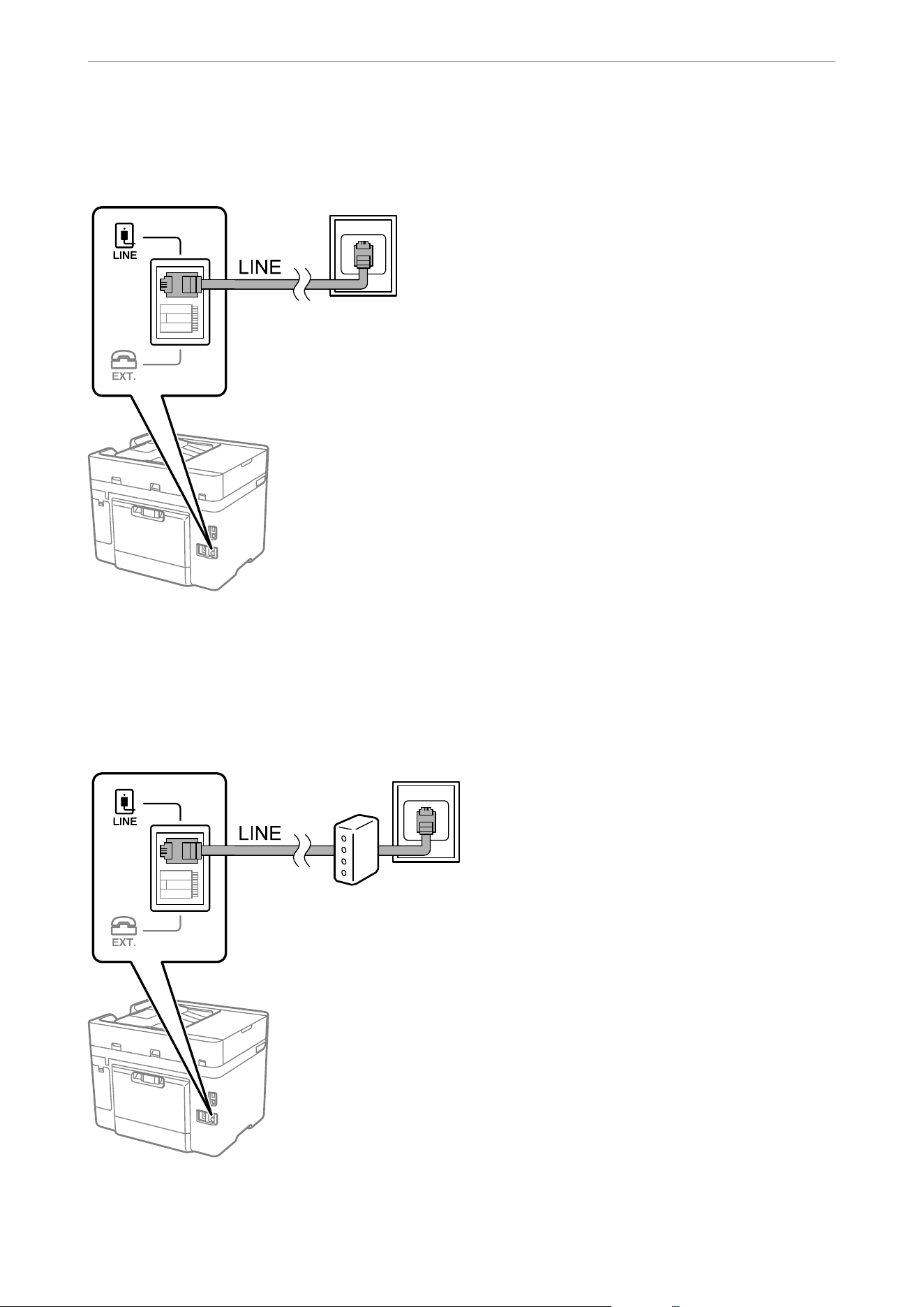
Connecting to a Standard Phone Line (PSTN) or PBX
Connect a phone cable from the telephone wall jack or PBX port to the LINE port on the back of the printer.
Connecting to DSL or ISDN
Connect a phone cable from the DSL modem or the ISDN terminal adapter to the LINE port on the back of the
printer. See the documentation provided with the modem or the adapter for more details.
Note:
If your DSL modem is not equipped with a built-in DSL lter, connect a separate DSL lter.
Administrator Information
>
Settings to Use the Printer
>
Making Fax Features Available
347
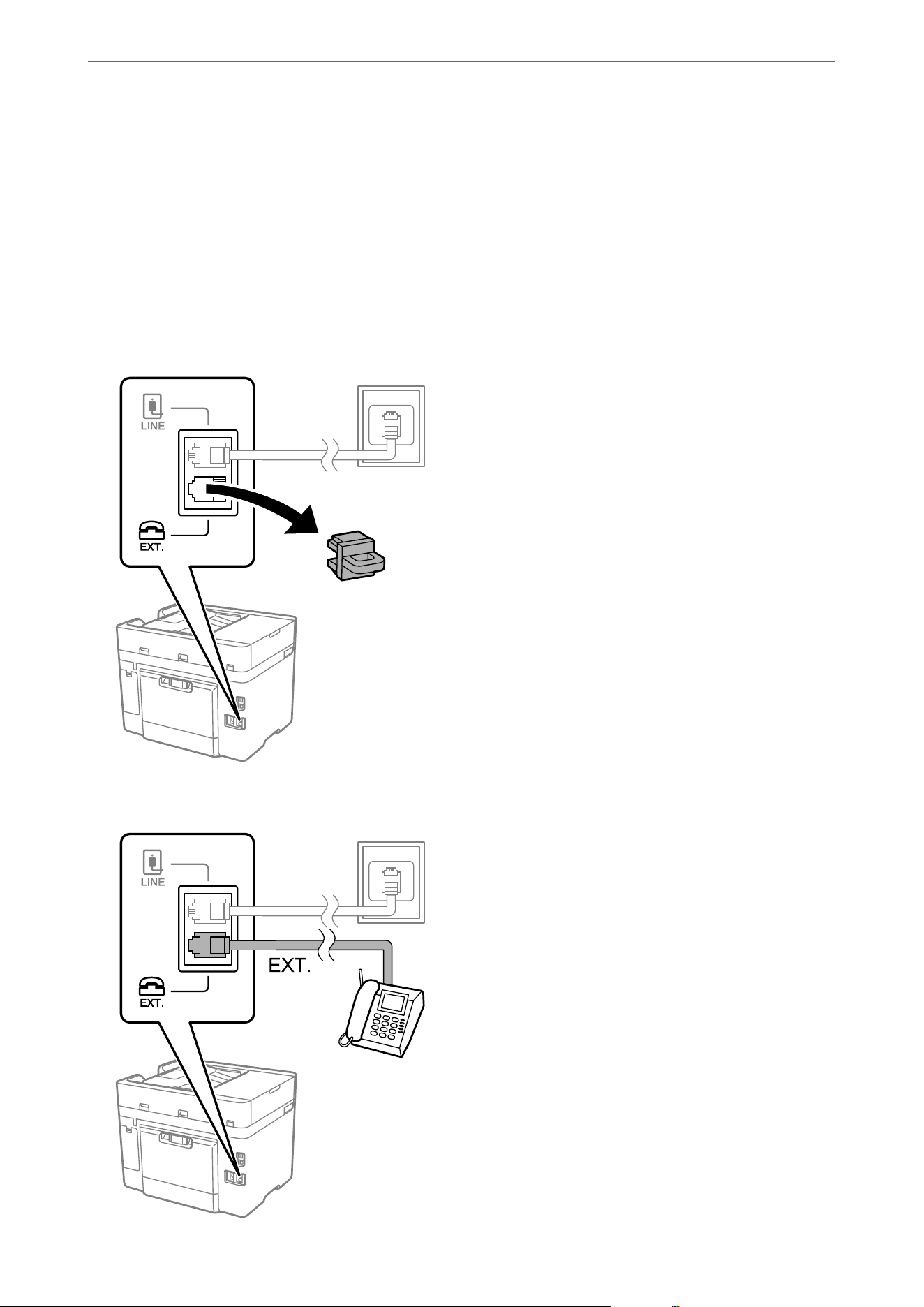
Connecting Your Phone Device to the Printer
When using the printer and your phone device on a single phone line, connect the phone device to the printer.
Note:
O If your phone device has a fax function, disable the fax function before connecting. See the manuals that came with the
phone device for details. If the fax function cannot be completely disabled, you may not be able to use your phone device
as an external phone.
O If you connect an answering machine, make sure the printer's Rings to Answer setting is set higher than the number of
rings for the answering machine.
1. Remove the cap from the EXT. port on the back of the printer.
2. Connect the phone device and the EXT. port with a phone cable.
Administrator Information
>
Settings to Use the Printer
>
Making Fax Features Available
348
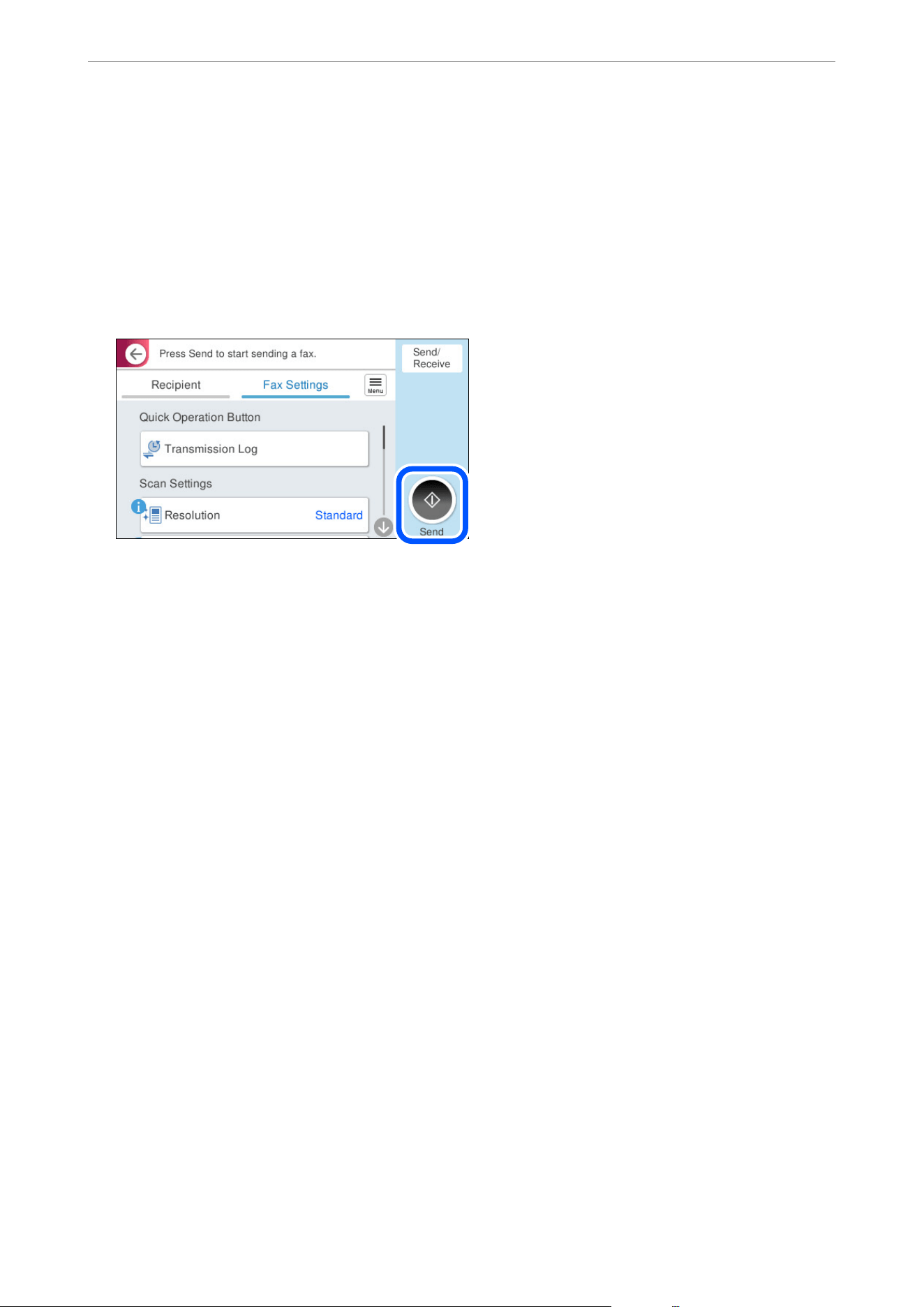
Note:
When sharing a single phone line, make sure you connect the phone device to the EXT. port of the printer. If you split
the line to connect the phone device and the printer separately, the phone and the printer will not work correctly.
3. Select Fax on the printer's control panel.
4. Pick up the handset on the phone device.
If a message to start sending or receiving faxes is displayed as shown on the following screen, the connection
has been established.
Related Information
& “Preparing the Printer to Send and Receive Faxes” on page 349
& “Selecting Settings When Using the Answering Machine Function on a Connected Phone” on page 352
& “Selecting Settings to Receive Faxes with a Connected Phone” on page 352
& “Receive Mode:” on page 251
Preparing the Printer to Send and Receive Faxes
Fax Setting Wizard congures the basic fax features to prepare the printer to send and receive faxes.
e Wizard is displayed automatically when the printer is turned on for the rst time. You can also display the
wizard manually from the printer's control panel. You need to run the wizard again if the wizard is skipped when
the printer is rst turned on or when the connection environment has changed.
O You c a n
congure
the following items through the wizard.
O Header (Your Phone Number and Fax Header)
O Receive Mode (Auto or Manual)
O Distinctive Ring Detection (DRD) Setting
O e following items are set automatically according to the connection environment.
O Dial Mode (such as Ton e or Pulse)
Fax Setting Wizard may not
congure
Dial Mode automatically when Line Type is set to PBX. In that case,
congure Dial Mode manually.
O Other items in Basic Settings remain as they are.
Related Information
& “Basic Settings” on page 250
Administrator Information
>
Settings to Use the Printer
>
Making Fax Features Available
349

Preparing the Printer to Send and Receive Faxes Using Fax Setting Wizard
1. Select Settings on the home screen on the printer's control panel.
2. Select General Settings > Fax Settings > Fax Setting Wizard.
3. Following the on-screen instructions, enter the sender name such as your company name, and your fax
number.
Note:
Your sender name and your fax number appear as the header for outgoing faxes.
4. Select the distinctive ring detection (DRD) setting.
O If you have subscribed to a distinctive ring service from your telephone company:
Go to the next screen and select the ring pattern to be used for incoming faxes.
When you select any item except All, Receive Mode is set to Auto and you continue to the next screen
where you can check the settings you made.
O If you have not subscribed to a distinctive ring service from your telephone company, or you do not need to
set this option:
Skip this setting and go to the screen where you can check the settings you made.
Note:
O Distinctive ring services, oered by many telephone companies (the service name diers by company), allow you to
have several phone numbers on one phone line. Each number is assigned a dierent ring pattern. You can use one
number for voice calls and another for fax calls. Select the ring pattern assigned to fax calls in DRD.
O Depending on the region, On and O are displayed as the DRD options. Select On to use the distinctive ring feature.
5. Select the Receive Mode setting.
O If you do not need to connect a phone device to the printer:
Select No.
Receive Mode is set to Auto.
O If you need to connect a phone device to the printer:
Select Ye s , and then select whether or not to receive faxes automatically.
6.
Check the settings you made on the screen displayed, and then proceed to the next screen.
To correct or change settings, select
.
7. Check the fax connection by selecting Start Checking, and then select Print to print a report that shows the
connection status.
Note:
O If there are any errors reported, follow the instructions on the report to solve them.
O If the Select Line Type screen is displayed, select the line type.
- When you are connecting the printer to a PBX phone system or terminal adapter, select PBX.
- When you are connecting the printer to a standard phone line, select PSTN, and then select Do Not Detect on the
Conrmation screen displayed. However, setting this to Do Not Detect may cause the printer to skip the rst digit of
a fax number when dialing and send the fax to the wrong number.
Related Information
& “Connecting the Printer to a Phone Line” on page 346
Administrator Information
>
Settings to Use the Printer
>
Making Fax Features Available
350

& “Selecting Settings When Using the Answering Machine Function on a Connected Phone” on page 352
& “Receive Mode:” on page 251
& “Selecting Settings to Receive Faxes with a Connected Phone” on page 352
& “Basic Settings” on page 250
Conguring the Printer's Fax Features
Using the printer's control panel, you can congure the printer's fax features individually based on your
requirements.
e
settings made using Fax Setting Wizard can also be changed. For more details, see the
descriptions of the Fax Settings menu.
“Fax Settings:” on page 123
Related Information
& “Settings for a PBX Phone System” on page 351
& “Selecting Settings When You Connect a Phone Device” on page 352
& “Receiving Incoming Faxes” on page 116
& “Settings to Save Received Faxes” on page 353
& “Selecting Settings for Blocking Junk Faxes” on page 354
& “Selecting Settings to Send and Receive Faxes on a Computer” on page 355
Settings for a PBX Phone System
Selecting Settings to Use the Access Code as it is when Dialing an External Line
Select the following settings if you need to use numbers such as 0 or 9 as they are instead of as part of an external
access code.
1. Select Settings on the printer's control panel.
2. Select General Settings > Fax Settings > Basic Settings.
3. Select Line Type, and then select PBX.
4. When sending a fax to an outside fax number using the actual external access code, select the Access Code
box, and then select Do Not Use.
5. Select OK to apply the settings.
Selecting Settings to Send Faxes Using External Access Code (#)
You can send faxes to an outside fax number using # (hash) instead of the actual external access code such as 0 or
9.
1. Select Settings on the printer's control panel.
2. Select General Settings > Fax Settings > Basic Settings.
Administrator Information
>
Settings to Use the Printer
>
Making Fax Features Available
351

3. Select Line Type, and then select PBX.
4. Select the Access Code box, and then select Use.
5. Tap the Access Code input box, enter the external access code used for your phone system, and then tap OK.
6. Select OK to apply the settings.
e # entered is replaced with the stored access code, such as 0 or 9, when dialing. Using a hash (#) helps
to avoid connection problems when connecting to an outside line, as the dial tone from the outside line is
detected before making an outside call.
Note:
If you have registered recipients in Contacts using an external access code such as 0 or 9, set the Access Code to Do Not
Use. Otherwise, you must change the code to # in Contacts.
Selecting Settings When You Connect a Phone Device
Selecting Settings When Using the Answering Machine Function on a Connected Phone
Set up the printer to use the answering machine function of a connected phone.
1. Select Settings on the printer's control panel.
2. Select General Settings > Fax Settings > Basic Settings.
3. Set Receive Mode to Auto.
4. Set the Rings to Answer setting to a higher number than the number of rings for the answering machine.
If Rings to Answer is set lower than the number of rings for the answering machine, the answering machine
cannot receive voice calls to record voice messages. See the manuals that came with the answering machine for
its settings.
e
Rings to Answer setting may not be displayed, depending on the region.
Related Information
& “Basic Settings” on page 250
Selecting Settings to Receive Faxes with a Connected Phone
When you enable Remote Receive, you can receive faxes just by picking up the handset of the connected phone
and dialing the two-digit activation code. No operation is required on the printer.
e Remote Receive feature is available for telephones that support tone dialing.
1. Select Settings on the printer's control panel.
2. Select General Settings > Fax Settings > Basic Settings > Remote Receive.
3. Tap Remote Receive to select On.
4. Select Start Code, enter a two digit code (you can enter 0 to 9, *, and #), and then tap OK.
5. Select OK to apply the settings.
Administrator Information
>
Settings to Use the Printer
>
Making Fax Features Available
352

Related Information
& “Basic Settings” on page 250
Settings to Save Received Faxes
e printer is set to print received faxes by default. Besides printing, you can set the printer to save received faxes.
O Inbox in the Printer
You can save received faxes to the Inbox. You can view them on the printer's control panel so that you can print
only the ones you want to print or delete unnecessary faxes.
O An external memory device
You can set to convert received documents into PDF format and save them to an external memory device
connected to the printer.
O A computer (PC-FAX reception)
To receive faxes on a computer, make settings using FAX Utility.
e above features can be used at the same time. If you use them at the same time, received documents are saved
to the inbox, to an external memory device, and on a computer.
Related Information
& “Making Settings to Save Received Faxes to the Inbox” on page 353
& “Making Settings to Save Received Faxes to an External Memory Device” on page 354
& “Selecting Settings to Send and Receive Faxes on a Computer” on page 355
Making Settings to Save Received Faxes to the Inbox
You can set to save received faxes to the Inbox. You can view them on the printer's control panel so that you can
print only the ones you want to print or delete unnecessary faxes.
1. Select Settings on the printer's control panel.
2. Select General Settings > Fax Settings > Receive Settings > Fax Output Settings.
3. If a conrmation message is displayed, conrm it, and then tap OK.
4. Select Save to Inbox.
5. Select Save to Inbox to set this to On
6. Select Options when memory is full, select the option to use when the inbox is full.
O Receive and print faxes:
e
printer prints all received documents that cannot be saved in the Inbox.
O Reject incoming faxes: e printer does not answer incoming fax calls.
7. You can set a password for the inbox. Select Inbox Password Settings, and then set the password.
Note:
You cannot set a password when Options when memory is full is set to Receive and print faxes.
Administrator Information
>
Settings to Use the Printer
>
Making Fax Features Available
353
Related Information
& “Viewing Received Faxes on the Printer's LCD Screen” on page 119
Making Settings to Save Received Faxes to an External Memory Device
You can set to convert received documents into PDF format and save them to an external memory device
connected to the printer.
c
Important:
Received documents are saved in the printer's memory temporarily before the documents are saved to the memory
device connected to the printer. Because a memory full error disables sending and receiving faxes, keep the memory
device connected to the printer. e number of documents that have temporarily saved in the printer's memory is
displayed on
on the printer's control panel.
1. Select Settings on the printer's control panel.
2. Select General Settings > Fax Settings > Receive Settings > Fax Output Settings.
3.
If a
conrmation
message is displayed,
conrm
it, and then tap OK.
4. Select Save to Memory Device.
5. Select Ye s . To print the documents automatically while saving them in the memory device, select Yes a n d
Print.
6. Check the message on the screen and then select Create.
A folder for saving received documents is created in the memory device.
Selecting Settings for Blocking Junk Faxes
You can block junk faxes.
1. Select Settings on the printer's control panel.
2. Select General Settings > Fax Settings > Basic Settings > Rejection Fax.
3. Set the condition to block junk faxes.
Select Rejection Fax, and then enable the following options.
O Rejection Number List: Rejects faxes that are in the Rejection Number List.
O Fax Header Blank: Rejects faxes that have blank header information.
O Unregistered Contacts: Rejects faxes that have not been added to the contacts list.
4. Tap
to return to the Rejection Fax screen.
5. If you are using the Rejection Number List, select Edit Blocked Number list, and then edit the list.
Behavior for Rejecting Faxes
e printer behaves as follows.
Administrator Information
>
Settings to Use the Printer
>
Making Fax Features Available
354

O Ring tone rings
O Communication error is sent to the sender
O
e
action is recorded in Transmission Log
You can access the Transmission Log from the following:
Fax >
(More) > Transmission Log
O e action is recorded in Fax Log
You can print the Fax Log from the following:
Fax >
(More) > Fax Report > Fax Log
Selecting Settings to Send and Receive Faxes on a Computer
To send and receive faxes on a computer, FAX Utility must be installed on a computer connected by network or
USB cable.
Related Information
& “Running Web
Cong
on a Web Browser” on page 237
& “Default Value of the Administrator Password” on page 17
Enabling Sending Faxes from a Computer
Set up the following using Web Cong.
1. On a computer connected to the same network as the printer, open a browser and enter the printer's IP
address.
You can check the printer's IP address using the following menu.
O Wired LAN or Wireless LAN
Settings > General Settings > Network Settings > Network Status > Wired LAN/Wi-Fi Status
2. Enter the administrator password to log in as an administrator.
3. Select the following menu.
Fax tab, and then click Send Settings
4. Select Use for the PC to FAX Function.
e default setting value of the PC to FAX Function is Use. To disable sending faxes from any computer, select
Do Not Use.
5. Click OK.
Saving Received Faxes on a Computer
You can receive faxes on a computer by using the FAX Utility. Install FAX Utility on the computer and make the
setting. For details, see Basic Operations in the FAX Utility help (displayed on the main window).
e setting item below on the printer's control panel is set to Ye s , and the faxes received can be saved on the
computer.
Administrator Information
>
Settings to Use the Printer
>
Making Fax Features Available
355

Settings > General Settings > Fax Settings > Receive Settings > Fax Output Settings > Save to Computer
Saving Received Faxes on a Computer and Printing Them
You can make the setting to print received faxes on the printer as well as save them on a computer.
1. Select Settings on the home screen on the printer's control panel.
2. Select General Settings > Fax Settings > Receive Settings.
3. Select Fax Output Settings > Save to Computer > Yes a nd Pr int.
Disabling the Saving of Received Faxes on a Computer
To set the printer not to save received faxes on the computer, change the settings on the printer.
Note:
You can also change the settings using the FAX Utility. However, if there are any faxes that have been unsaved to the
computer, the feature does not work.
1. Select Settings on the home screen on the printer's control panel.
2.
Select General Settings > Fax Settings > Receive Settings.
3. Select Fax Output Settings > Save to Computer > No.
Troubleshooting Fax Problems
Cannot Send or Receive Faxes
One of the following situations may be the cause.
There are some problems in the telephone wall jack.
Solutions
Check that the telephone wall jack works by connecting a phone to it and testing it. If you cannot make or
receive calls, contact your telecommunication company.
There are some problems in connecting to the telephone line.
Solutions
Select Settings > General Settings > Fax Settings > Check Fax Connection on the control panel to run
the automatic fax connection check. Try the solutions printed on the report.
Communication error occurs.
Solutions
Select Slow(9,600bps) in Settings > General Settings > Fax Settings > Basic Settings > Fax Speed on
the control panel.
Administrator Information
>
Settings to Use the Printer
>
Making Fax Features Available
356

Connected to a DSL phone line without DSL lter.
Solutions
To connect to a DSL phone line, you need to use a DSL modem equipped with a built-in DSL lter, or
install a separate DSL lter to the line. Contact your DSL provider.
“Connecting to DSL or ISDN” on page 347
There are some problems in the DSL lter when you connect to a DSL phone line.
Solutions
If you can not send or receive fax, connect the printer directly to a telephone wall jack to see if the printer
can send a fax. If it works, the problem may be caused by the DSL lter. Contact your DSL provider.
Cannot Send Faxes
One of the following situations may be the cause.
The connection line is set to PSTN in a facility where a private branch exchange (PBX) is
being used.
Solutions
Select PBX in Settings > General Settings > Fax Settings > Basic Settings > Line Type on the control
panel.
Your caller ID is blocked.
Solutions
Contact your telecommunications company to unblock your caller ID. Some phones or fax machines
automatically reject anonymous calls.
The header information for outgoing faxes is not registered.
Solutions
Select Settings > General Settings > Fax Settings > Basic Settings > Header and set up the header
information. Some fax machines automatically reject incoming faxes that do not include header
information.
Cannot Receive Faxes
One of the following situations may be the cause.
The Receive Mode is set to Manual while an external phone device is connected to the
printer.
Solutions
If an external phone device is connected to the printer and is sharing a phone line with the printer, select
Settings > General Settings > Fax Settings > Basic Settings, and then set Receive Mode to Auto.
Administrator Information
>
Settings to Use the Printer
>
Making Fax Features Available
357

The sender's fax number has been registered to the Rejection Number List.
Solutions
Make sure that the sender's number can be deleted from the Rejection Number List before deleting
it. Delete it from Settings > General Settings > Fax Settings > Basic Settings > Rejection Fax > Edit
Blocked Number list. Or disable the Rejection Number List in Settings > General Settings > Fax
Settings > Basic Settings > Rejection Fax > Rejection Fax. Faxes sent from numbers that have been
registered to this list are blocked when this setting is enabled.
The sender's fax number has not been registered in the contacts list.
Solutions
Register the sender's fax number to contacts list. Or disable Unregistered Contacts in Settings > General
Settings > Fax Settings > Basic Settings > Rejection Fax > Rejection Fax. Faxes sent from numbers that
have not been registered to this list are blocked when this setting is enabled.
The sender has sent the fax without header information.
Solutions
Ask the sender if header information is setup on their fax machine. Or, disable Fax Header Blank in
Settings > General Settings > Fax Settings > Basic Settings > Rejection Fax > Rejection Fax. Faxes that
do not include header information are blocked when this setting is enabled.
Subscribing to a call forwarding service.
Solutions
If you have subscribed to a call forwarding service, the printer may not be able to receive faxes. Contact
the service provider.
Cannot Send Faxes at a Specied Time
The printer's date and time is wrong.
Solutions
Select Settings > General Settings > Basic Settings > Date/Time Settings, and then set the correct date
and time.
Cannot Save Received Faxes to a Memory Device
Saving received faxes to external memory is disabled.
Solutions
Select Settings > General Settings > Fax Settings > Receive Settings > Fax Output Settings, and then
enable Save to Memory Device in each menu.
Administrator Information
>
Settings to Use the Printer
>
Making Fax Features Available
358

Received Faxes Are Not Printed
Printing received faxes is disabled under the current settings.
Solutions
If Save to Computer is set to Ye s , change the setting to Yes an d Print. Or, disable Save to Inbox and Save
to Computer allows printing to be performed.
You ca n
nd
Save to Inbox and Save to Computer in Settings > General Settings > Fax Settings >
Receive Settings > Fax Output Settings.
The Quality of the Sent or Received Fax is Poor
ECM setting is disabled.
Solutions
Select Settings > General Settings > Fax Settings > Basic Settings and enable the ECM setting on
the control panel. is may clear errors that occur due to connection problems. Note that the speed of
sending and receiving faxes may be slower than when ECM is disabled.
Cannot Make Calls on the Connected Telephone
The phone cable is not connected correctly.
Solutions
Connect the telephone to the EXT. port on the printer, and pick up the receiver. If you cannot hear a dial
tone through the receiver, connect the phone cable correctly.
Answering Machine Cannot Answer Voice Calls
The printer's Rings to Answer setting is set to less than the number of rings for your
answering machine.
Solutions
Select Settings > General Settings > Fax Settings > Basic Settings > Rings to Answer, and then set a
number higher than the number of rings for your answering machine.
A Lot of Junk Faxes Have Been Received
The printer's feature to block junk faxes has not been set up.
Solutions
Make Rejection Fax settings in Settings > General Settings > Fax Settings > Basic Settings.
“Selecting Settings for Blocking Junk Faxes” on page 354
Administrator Information
>
Settings to Use the Printer
>
Making Fax Features Available
359

Selecting the Default Values for Scanning, Copying, and Sending
Faxes (User Default Settings)
You can set the default value for the following functions.
O Scan to Network Folder/FTP
O Scan to Email
O Scan to Memory Device
O Scan to Cloud
O Copy
O Fax
1. On a computer connected to the same network as the printer, open a browser and enter the printer's IP
address.
You can check the printer's IP address using the following menu.
O Wired LAN or Wireless LAN
Settings > General Settings > Network Settings > Network Status > Wired LAN/Wi-Fi Status
2. Enter the administrator password to log in as an administrator.
3. Select one of the following menus, depending on the default settings you want to congure.
Scan/Copy tab > User Default Settings
Fax tab > User Default Settings
4. Select settings as necessary.
5. Click OK.
If an invalid combination of values is selected, it is automatically adjusted to a valid setting.
Problems when Making Settings
Hints to Solving Problems
O Checking the error message
When trouble has occurred,
rst
check whether there are any messages on the printer's control panel or driver
screen. If you have the
notication
email set when the events occur, you can promptly learn the status.
O Network connection report
Diagnose the network and the printer status, and then print the result.
You can nd the diagnosed error from the printer side.
O Checking the communication status
Check the communication status of server computer or client computer by using the command such as ping
and ipcong.
Administrator Information
>
Settings to Use the Printer
>
Problems when Making Settings
360

O Connection test
For checking the connection between the printer to the mail server, perform the connection test from the
printer. Also, check the connection from the client computer to the server to check the communication status.
O Initializing the settings
If the settings and communication status show no problem, the problems may be solved by disabling or
initializing the network settings of the printer, and then setting up again.
Cannot Access Web Cong
The IP address is not assigned to the printer.
Solutions
A valid IP address may not be assigned to the printer. Congure the IP address using the printer’s control
panel. You can conrm the current setting information with a network status sheet or from the printer’s
control panel.
Web browser does not support the Encryption Strength for SSL/TLS.
Solutions
SSL/TLS has the Encryption Strength. You can open Web
Cong
by using a web browser that supports
bulk encryptions as indicated below. Check you are using a supported browser.
O 80bit: AES256/AES128/3DES
O 112bit: AES256/AES128/3DES
O 128bit: AES256/AES128
O 192bit: AES256
O 256bit: AES256
CA-signed Certicate is expired.
Solutions
If there is a problem with the expiration date of the certicate, "e certicate has expired" is displayed
when connecting to Web Cong with SSL/TLS communication (https). If the message appears before its
expiration date, make sure that the printer's date is congured correctly.
The common name of the
certicate
and the printer do not match.
Solutions
If the common name of the certicate and the printer do not match, the message "e name of
the security certicate does not match···" is displayed when accessing Web Cong using SSL/TLS
communication (https). is happens because the following IP addresses do not match.
O
e
printer's IP address entered to common name for creating a Self-signed
Certicate
or CSR
O IP address entered to web browser when running Web Cong
For Self-signed Certicate, update the certicate.
For CA-signed
Certicate
, take the
certicate
again for the printer.
Administrator Information
>
Settings to Use the Printer
>
Problems when Making Settings
361

The proxy server setting of local address is not set to web browser.
Solutions
When the printer is set to use a proxy server, congure the web browser not to connect to the local
address via the proxy server.
O Windows:
Select Control Panel > Network and Internet > Internet Options > Connections > LAN settings >
Proxy server, and then congure not to use the proxy server for LAN (local addresses).
O Mac OS:
Select System Preferences (or System Settings) > Network > Advanced > Proxies, and then register
the local address for Bypass proxy settings for these Hosts & Domains.
Example:
192.168.1.*: Local address 192.168.1.XXX, subnet mask 255.255.255.0
192.168.*.*: Local address 192.168.XXX.XXX, subnet mask 255.255.0.0
Managing the Printer
Checking Information for a Remote Printer
You can check the following information of the operating printer from Status by using Web Cong.
O Product Status
Check the various status, cloud service, rmware version, root certicate version, serial number, MAC address,
etc.
If you have registered information in Administrator Name/Contact Information on the Device Management
tab, administrator information is displayed on the Status tab.
O Network Status
Check the information of the Network, Wi-Fi Direct.
O Usage Status
Check the rst day of printings, Printing Information, Number of Pages Sorted by Size , Total Number of Pages
Sorted by Function, Total Number of Pages Sorted by Print Language, Pages(Fax).
Check the rst day of scanning, scanning count, etc.
O Hardware Status
Check the status of each function of the printer.
O Panel Snapshot
Display a screen image snapshot that is displayed on the control panel of the device.
Related Information
& “Application for Conguring Printer Operations (Web Cong)” on page 236
& “Default Value of the Administrator Password” on page 17
Administrator Information
>
Managing the Printer
>
Checking Information for a Remote Printer
362

Setting Up the Control Panel
You can set up the printer's control panel as follows.
1. On a computer connected to the same network as the printer, open a browser and enter the printer's IP
address.
You can check the printer's IP address using the following menu.
O Wired LAN or Wireless LAN
Settings > General Settings > Network Settings > Network Status > Wired LAN/Wi-Fi Status
2. Enter the administrator password to log in as an administrator.
3. Select the following menu.
Device Management tab > Control Panel
4. Set up the following items as necessary.
O Language
Select the language you want to display on the control panel.
O Panel Lock
If you select ON, you cannot select items that require the administrator's authority. To select them, log in to
the printer as the administrator.
O Operation Timeout
If you select ON, a logged in access control user or administrator will be automatically logged out and go to
the home screen if there is no activity for a certain period of time.
You can select 10 seconds to 240 minutes, in one second increments.
Note:
You can also set up from the printer’s control panel.
O Language : Settings > General Settings > Basic Settings > Language
O Panel Lock : Settings > General Settings > System Administration > Security Settings > Admin Settings > Lock
Setting
O Operation Timeout : Settings > General Settings > Basic Settings > Operation Time Out (You can specify On or
O.)
5. Click OK.
Related Information
& “Application for Conguring Printer Operations (Web Cong)” on page 236
& “Default Value of the Administrator Password” on page 17
Managing the Network Connection
You ca n c h e ck or
congure
the network connection.
Administrator Information
>
Managing the Printer
>
Managing the Network Connection
363
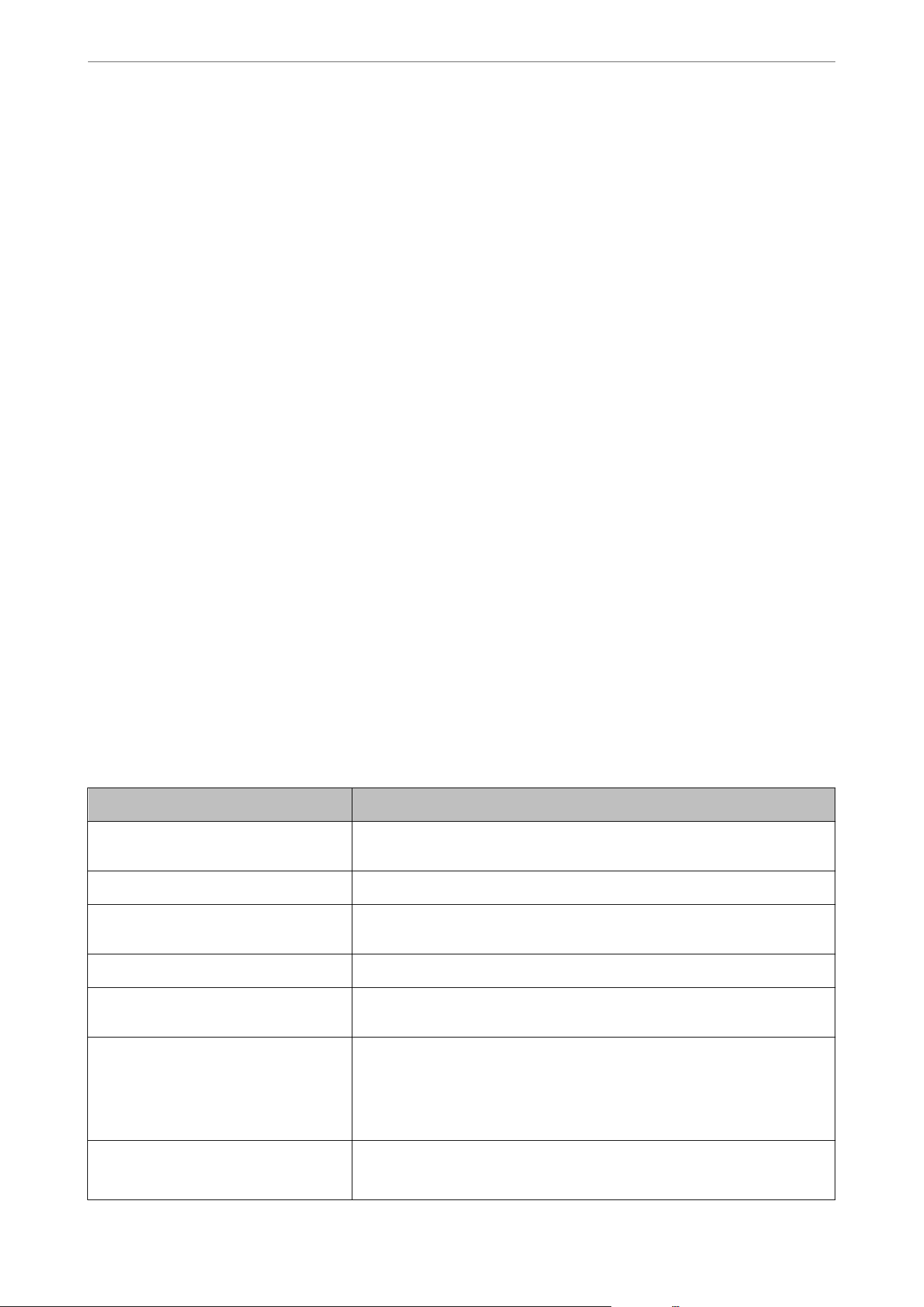
Checking or Conguring Basic Network Settings
1.
On a computer connected to the same network as the printer, open a browser and enter the printer's IP
address.
You can check the printer's IP address using the following menu.
O Wired LAN or Wireless LAN
Settings > General Settings > Network Settings > Network Status > Wired LAN/Wi-Fi Status
2. Enter the administrator password to log in as an administrator.
3. Select these menu items in the following order.
Network tab > Basic
4. Select settings as needed.
5.
Click Next.
A conrmation message is displayed.
6. Click OK.
e printer is updated.
Related Information
& “Application for Conguring Printer Operations (Web Cong)” on page 236
& “Default Value of the Administrator Password” on page 17
& “Network Settings” on page 364
Network Settings
Items Setting value and Description
Device Name Display the Device Name. To change the Device Name, enter the new Device
Name in the text box.
Location Enter the Location of the device.
Obtain IP Address Select the IP Address setting method from Auto or Manual. If you select
Manual, you will need to enter the IP address, subnet mask, and other settings.
Set using BOOTP You can specify whether or not to enable Set using BOOTP.
Set using Automatic Private IP
Addressing (APIPA)
You can specify whether or not to enable Set using Automatic Private IP
Addressing (APIPA).
IP Address Enter the IP Address.
Use the format xxx.xxx.xxx.xxx. Enter a number from 0 to 255 for xxx.
Make sure that the IP Address is unique and does not conict with any other
device on the network.
Subnet Mask Enter the Subnet Mask.
Enter in the format xxx.xxx.xxx.xxx. Enter a number from 0 to 255 for xxx.
Administrator Information
>
Managing the Printer
>
Managing the Network Connection
364
Items Setting value and Description
Default Gateway Enter the Default Gateway.
Enter in the format xxx.xxx.xxx.xxx. Enter a number from 0 to 255 for xxx.
DNS Server Setting Select the DNS Server Setting method from Auto or Manual. Manual is selected
when Obtain IP Address is set to Manual.
Primary DNS Server Enter the Primary DNS Server.
Enter in the format xxx.xxx.xxx.xxx. Enter a number from 0 to 255 for xxx.
Secondary DNS Server Enter the Secondary DNS Server.
Enter in the format xxx.xxx.xxx.xxx. Enter a number from 0 to 255 for xxx.
DNS Host Name Setting Select the DNS Host Name Setting method from Auto or Manual.
DNS Host Name Display the current DNS Host Name.
DNS Domain Name Setting Select the DNS Domain Name setting method from Auto or Manual.
DNS Domain Name Enter the DNS Domain Name according to the following rules.
O Enter between 2 and 249 characters using "A-Z", "a-z", "0-9", hyphen "-", and a
period ".".
O "0-9", hyphen "-", and a period "." cannot be the
rst
character.
O A hyphen "-", and a period "." cannot be the last character.
O Each label in the domain name must be between 1 and 63 characters and
separated by a period.
The total number of characters of the host name and the domain name must
not exceed 251.
Register the network interface address to
DNS
You can specify whether or not to enable Register the network interface
address to DNS.
Enable if you want to register the host name and domain name with the DNS
server through a DHCP server that supports dynamic DNS.
If you select Enable, you will need to set the host name and domain name.
Proxy Server Setting You can specify whether or not to use Proxy Server Setting. When this is
selected, you need to congure the subsequent proxy server settings.
Proxy Server Enter the address for the Proxy Server in IPv4 or FQDN format.
Proxy Server Port Number Enter a number between 1 and 65535.
Proxy Server User Name Enter a proxy server user name between 0 and 255 characters in ASCII
(0x20-0x7E).
Proxy Server Password Enter a proxy server password between 0 and 255 characters in ASCII
(0x20-0x7E).
IPv6 Setting You can specify whether or not to enable IPv6 Setting.
IPv6 Privacy Extension You can specify whether or not to enable IPv6 Privacy Extension.
IPv6 DHCP Server Setting You can specify whether or not to enable IPv6 DHCP Server Setting.
Administrator Information
>
Managing the Printer
>
Managing the Network Connection
365
Items Setting value and Description
IPv6 Address When using IPv6 Address, enter in the following format.
O xxxx: xxxx: xxxx: xxxx: xxxx: xxxx: xxxx: xxxx / prex
O xxxx is a hexadecimal number from 1 to 4 digits, and the
prex
is a decimal
number from 1 to 128.
O If there are consecutive blocks where xxxx is all 0s, it can be omitted as ::.
(Only one place).
IPv6 Address Default Gateway When assigning IPv6 Address Default Gateway, enter in the following format.
O xxxx: xxxx: xxxx: xxxx: xxxx: xxxx: xxxx: xxxx
O xxxx is a hexadecimal number from 1 to 4 digits.
O If there are consecutive blocks where xxxx is all 0s, it can be omitted as ::.
(Only one place).
IPv6 Link-Local Address Displays the valid IPv6 Link-Local Address.
IPv6 Stateful Address Displays the valid IPv6 Stateful Address.
IPv6 Stateless Address 1 Displays the valid IPv6 Stateless Address 1.
IPv6 Stateless Address 2 Displays the valid IPv6 Stateless Address 2.
IPv6 Stateless Address 3 Displays the valid IPv6 Stateless Address 3.
IPv6 Primary DNS Server Enter the IPv6 primary DNS server in the following format.
O xxxx: xxxx: xxxx: xxxx: xxxx: xxxx: xxxx: xxxx
O xxxx is a hexadecimal number from 1 to 4 digits.
O If there are consecutive blocks where xxxx is all 0s, it can be omitted as ::.
(Only one place).
IPv6 Secondary DNS Server When assigning IPv6 Secondary DNS Server, enter in the following format.
O xxxx: xxxx: xxxx: xxxx: xxxx: xxxx: xxxx: xxxx
O xxxx is a hexadecimal number from 1 to 4 digits.
O If there are consecutive blocks where xxxx is all 0s, it can be omitted as ::.
(Only one place).
IEEE802.11k/v You can specify whether or not to enable IEEE802.11k/v.
Displayed only when the wireless LAN function is available.
IEEE802.11r You can specify whether or not to enable IEEE802.11r.
Displayed only when the wireless LAN function is available.
Wi-Fi
You can check the Wi-Fi or Wi-Fi Direct connection status.
To display the Wi-Fi Direct status, click Wi-Fi Direct tab.
Note:
For models that support Wi-Fi, this item is displayed when the Wireless LAN Interface is installed.
Administrator Information
>
Managing the Printer
>
Managing the Network Connection
366

O Setup button
Click the Setup button to display a list of networks (SSIDs) that can be connected to the printer. Connect by
specifying the network (SSID).
O Disable Wi-Fi button
When the Disable Wi-Fi button is clicked, the Wi-Fi (infrastructure mode) function is disabled.
If you used to use Wi-Fi (wireless LAN) but no longer need to do so due to a change in connection mode and
other settings, by removing unnecessary Wi-Fi signals, you can also reduce the load on the printer's standby
power usage.
Note:
You can also set up from the printer's control panel.
Settings > General Settings > Network Settings > Connection Settings > Wi-Fi
Conguring Wired LAN Settings
1. On a computer connected to the same network as the printer, open a browser and enter the printer's IP
address.
You can check the printer's IP address using the following menu.
O Wired LAN or Wireless LAN
Settings > General Settings > Network Settings > Network Status > Wired LAN/Wi-Fi Status
2. Enter the administrator password to log in as an administrator.
3. Select the following menu.
Network tab >Wired LAN
4. Select each item.
O Link Speed & Duplex
Select the communication mode from the list.
O IEEE 802.3az
You can specify whether or not to enable IEEE 802.3az.
5. Click Next.
A
conrmation
message is displayed.
6. Click OK.
e printer is updated.
Related Information
& “Application for Conguring Printer Operations (Web Cong)” on page 236
& “Default Value of the Administrator Password” on page 17
Conguring Wi-Fi Direct Settings
You ca n c h e ck or
congure
the Wi-Fi Direct Settings.
Administrator Information
>
Managing the Printer
>
Managing the Network Connection
367

Note:
For models that support Wi-Fi, this item is displayed when the Wireless LAN Interface is installed.
1. On a computer connected to the same network as the printer, open a browser and enter the printer's IP
address.
You can check the printer's IP address using the following menu.
O Wired LAN or Wireless LAN
Settings > General Settings > Network Settings > Network Status > Wired LAN/Wi-Fi Status
2. Enter the administrator password to log in as an administrator.
3. Select the following menu.
Network tab >Wi-Fi Direct
4.
Select each item.
O Wi-Fi Direct
You can specify whether or not to enable the Wi-Fi Direct.
O SSID
You can change the SSID (Network Name).
O Password
When changing the Wi- Direct password, enter a new password.
O Frequency Range
Select the frequency range to be used in Wi-Fi Direct.
O IP Address
Select the IP Address setting method from Auto or Manual. If you select Manual, enter the IP address.
5. Click Next.
A conrmation message is displayed.
Note:
To reset the Wi-Fi Direct settings, click the Restore Default Settings button.
6. Click OK.
e printer is updated.
Related Information
& “Application for Conguring Printer Operations (Web Cong)” on page 236
& “Default Value of the Administrator Password” on page 17
Power Saving Settings During Inactivity
You can set up the time to shi to the power saving mode or to turn the power o when the printer’s control panel
is not operated for a certain period of time. Set the time depending on your usage environment.
Administrator Information
>
Managing the Printer
>
Power Saving Settings During Inactivity
368

1. On a computer connected to the same network as the printer, open a browser and enter the printer's IP
address.
You can check the printer's IP address using the following menu.
O Wired LAN or Wireless LAN
Settings > General Settings > Network Settings > Network Status > Wired LAN/Wi-Fi Status
2. Enter the administrator password to log in as an administrator.
3. Select these menu items in the following order.
Device Management tab > Power Saving
4. Set up the following items as necessary.
O Sleep Timer
Enter the time to switch power saving mode when inactivity occurs.
Note:
You can also set up from the printer’s control panel.
Settings > General Settings > Basic Settings > Sleep Timer
O Power O Timer or Power O If Inactive
Select a time to automatically turn o the printer aer it has been inactive for a specic time. When you are
using the fax features, select None or
O
.
Note:
You can also set up from the printer’s control panel.
Settings > General Settings > Basic Settings > Power O Timer or Power O Settings
O Power
O
If Disconnected
Select this setting to turn the printer o aer a specied period of time when all ports including the LINE
port are disconnected. is feature may not be available depending on your region.
For users in Europe, see the following website for the specied period of time.
https://www.epson.eu/energy-consumption
Note:
You can also set up from the printer’s control panel.
Settings > General Settings > Basic Settings > Power O Settings >Power O If Disconnected
Administrator Information
>
Managing the Printer
>
Power Saving Settings During Inactivity
369

O Energy Saving Priority Mode
Reduces power consumption even further than the standard sleep mode.
Note:
O Aer entering sleep mode, the operation panel screen and all LEDs turn o. e LEDs remain lit while a job is
being executed.
O Pressing the power button during sleep mode will wake the device (the display and LEDs return to their original
brightness). e recovery time is slightly longer than when Energy Saving Priority Mode is set to O.
O Scanning from a computer or mobile device during sleep mode may fail.
Ethernet :
Enabled when Energy Saving Priority Mode is set to On.
When Energy Saving Priority Mode is set, you can turn the Ethernet function On or O.
Note:
You can also set up from the printer’s control panel.
Settings > General Settings > Basic Settings > Energy Saving Priority Mode
5. Click OK.
Related Information
& “Application for Conguring Printer Operations (Web Cong)” on page 236
& “Default Value of the Administrator Password” on page 17
Conguring Sounds
Congure sounds that occur when operating the control panel, printing, faxing and other settings.
Note:
You can also set up from the printer’s control panel.
Settings > General Settings > Basic Settings > Sounds
1.
On a computer connected to the same network as the printer, open a browser and enter the printer's IP
address.
You can check the printer's IP address using the following menu.
O Wired LAN or Wireless LAN
Settings > General Settings > Network Settings > Network Status > Wired LAN/Wi-Fi Status
2. Enter the administrator password to log in as an administrator.
3. Select the following menu.
Device Management tab > Sound
4. Select the following items as necessary.
O Normal Mode
Set the sound when the printer is set to Normal Mode.
Administrator Information
>
Managing the Printer
>
Conguring Sounds
370

O Quiet Mode
Set the sound when the printer is set to Quiet Mode.
is is enabled when the one of the following items is enabled.
O Printer's control panel:
Settings > General Settings > Printer Settings > Quiet Mode
Settings > General Settings > Fax Settings > Receive Settings > Print Settings > Quiet Mode
O Web Cong :
Fax tab > Print Settings > Quiet Mode
5. Click OK.
Related Information
& “Application for Conguring Printer Operations (Web Cong)” on page 236
& “Default Value of the Administrator Password” on page 17
Backing Up and Importing Printer Settings
You can export the setting value set from Web Cong to the le. You can import the exported le to the printer by
using Web Cong. You can use it for backing up the contacts, setting values, replacing the printer, etc.
e exported le cannot be edited because it is exported as a binary le.
Export the settings
Export the settings from the printer.
1. On a computer connected to the same network as the printer, open a browser and enter the printer's IP
address.
You can check the printer's IP address using the following menu.
O Wired LAN or Wireless LAN
Settings > General Settings > Network Settings > Network Status > Wired LAN/Wi-Fi Status
2. Enter the administrator password to log in as an administrator.
3. Select these menu items in the following order.
Device Management tab > Export and Import Setting Value > Export
4. Select the settings that you want to export.
Select the settings you want to export. If you select the parent category, subcategories are also selected.
However, subcategories that cause errors by duplicating within the same network (such as IP addresses and so
on) cannot be selected.
5. Enter a password to encrypt the exported le.
You need the password to import the
le.
Leave this blank if you do not want to encrypt the
le.
Administrator Information
>
Managing the Printer
>
Backing Up and Importing Printer Settings
371
6. Click Export.
c
Important:
If you want to export the printer’s network settings such as the device name and IPv6 address, select Enable to
select the individual settings of device and select more items. Only use the selected values for the replacement
printer.
Related Information
& “Application for Conguring Printer Operations (Web Cong)” on page 236
& “Default Value of the Administrator Password” on page 17
Import the settings
Import the exported Web Cong le to the printer.
c
Important:
When importing values that include individual information such as a printer name or IP address, make sure the
same IP address does not exist on the same network.
1. On a computer connected to the same network as the printer, open a browser and enter the printer's IP
address.
You can check the printer's IP address using the following menu.
O Wired LAN or Wireless LAN
Settings > General Settings > Network Settings > Network Status > Wired LAN/Wi-Fi Status
2. Enter the administrator password to log in as an administrator.
3. Select the following menu.
Device Management tab > Export and Import Setting Value > Import
4. Select the exported le, and then enter the encrypted password if necessary.
5. Click Next.
6. Select the settings that you want to import, and then click Next.
7. Click OK.
e settings are applied to the printer.
Related Information
& “Application for Conguring Printer Operations (Web Cong)” on page 236
& “Default Value of the Administrator Password” on page 17
Administrator Information
>
Managing the Printer
>
Backing Up and Importing Printer Settings
372

Updating the Firmware
Updating the Printer's Firmware using the Control Panel
If the printer can be connected to the Internet, you can update the printer's
rmware
using the control panel. You
can also set the printer to regularly check for rmware updates and notify you if any are available.
1. Select Settings on the home screen.
2. Select General Settings > System Administration > Firmware Update > Update.
Note:
Select Notication > On to set the printer to regularly check for available rmware updates.
3. Check the message displayed on the screen and start searching for available updates.
4. If a message is displayed on the LCD screen informing you that a
rmware
update is available, follow the
on-screen instructions to start the update.
c
Important:
O Do not turn o or unplug the printer until the update is complete; otherwise, the printer may malfunction.
O If the rmware update is not completed or is unsuccessful, the printer does not start up normally and
"Recovery Mode" is displayed on the LCD screen the next time the printer is turned on. In this situation,
you need to update the rmware again using a computer. Connect the printer to the computer with a
USB cable. While "Recovery Mode" is displayed on the printer, you cannot update the rmware over a
network connection. On the computer, access your local Epson website, and then download the latest printer
rmware. See the instructions on the website for the next steps.
Updating Firmware Using Web Cong
When the printer can connect to the Internet, you can update the
rmware
from Web
Cong
.
1. On a computer connected to the same network as the printer, open a browser and enter the printer's IP
address.
You can check the printer's IP address using the following menu.
O Wired LAN or Wireless LAN
Settings > General Settings > Network Settings > Network Status > Wired LAN/Wi-Fi Status
2. Enter the administrator password to log in as an administrator.
3. Select the following menu.
Device Management tab > Firmware Update
4.
Click Start, and then follow the on-screen instructions.
e rmware conrmation starts, and the rmware information is displayed if the updated rmware exists.
Note:
You can also update the rmware using Epson Device Admin. You can visually conrm the rmware information on the
device list. It is useful when you want to update multiple devices' rmware. See the Epson Device Admin guide or help for
more details.
Administrator Information
>
Managing the Printer
>
Updating the Firmware
373

Related Information
& “Application for Conguring Printer Operations (Web Cong)” on page 236
& “Default Value of the Administrator Password” on page 17
Updating Firmware without Connecting to the Internet
You can download the device's rmware from Epson website on the computer, and then connect the device and the
computer by USB cable to update the rmware. If you cannot update over the network, try this method.
1. Access Epson website and download the rmware.
2. Connect the computer that contains the downloaded rmware to the printer by USB cable.
3. Double-click the downloaded .exe le.
Epson Firmware Updater starts.
4.
Follow the on-screen instructions.
Synchronizing the Date and Time with Time Server
When synchronizing with the time server (NTP server), you can synchronize the time of the printer and the
computer on the network. e time server may be operated within the organization or published on the Internet.
When using the CA certicate or Kerberos authentication, time-related trouble can be prevented by synchronizing
with the time server.
1. On a computer connected to the same network as the printer, open a browser and enter the printer's IP
address.
You can check the printer's IP address using the following menu.
O Wired LAN or Wireless LAN
Settings > General Settings > Network Settings > Network Status > Wired LAN/Wi-Fi Status
2. Enter the administrator password to log in as an administrator.
3. Select these menu items in the following order.
Device Management tab > Date and Time > Time Server.
4. Select Use for Use Time Server.
5. Enter the time server address for Time Server Address.
You can use IPv4, IPv6 or FQDN format. Enter 252 characters or less. If you do not specify this, leave it blank.
6. Enter Update Interval (min).
You can set up to 10,080 minutes in one minute increments.
7. Click OK.
Note:
You can conrm the connection status with the time server on Time Server Status.
Administrator Information
>
Managing the Printer
>
Synchronizing the Date and Time with Time Server
374

Related Information
& “Application for Conguring Printer Operations (Web Cong)” on page 236
& “Default Value of the Administrator Password” on page 17
Controlling the Power Supply to the Printer Using Web
Cong
You can turn o or restart the printer from a computer using Web Cong even when the computer is located
remotely.
1.
On a computer connected to the same network as the printer, open a browser and enter the printer's IP
address.
You can check the printer's IP address using the following menu.
O Wired LAN or Wireless LAN
Settings > General Settings > Network Settings > Network Status > Wired LAN/Wi-Fi Status
2. Enter the administrator password to log in as an administrator.
3. Select the following menu.
Device Management tab > Power
4. Select Power O or Reboot
5.
Click Execute.
Related Information
& “Application for Conguring Printer Operations (Web Cong)” on page 236
& “Default Value of the Administrator Password” on page 17
Restore Default Settings
You can select network or other settings stored in the printer and restore them to their defaults.
1. On a computer connected to the same network as the printer, open a browser and enter the printer's IP
address.
You can check the printer's IP address using the following menu.
O Wired LAN or Wireless LAN
Settings > General Settings > Network Settings > Network Status > Wired LAN/Wi-Fi Status
2. Enter the administrator password to log in as an administrator.
3. Select the following menu.
Device Management tab > Restore Default Settings
4. Select an option from the list.
Administrator Information
>
Managing the Printer
>
Restore Default Settings
375

5. Click Execute.
Follow the on-screen instructions.
Related Information
& “Application for Conguring Printer Operations (Web Cong)” on page 236
& “Default Value of the Administrator Password” on page 17
Product Security Settings
Restricting Available Features
You can register user accounts on the printer, link them with functions, and control functions that users can use.
When enabling access control, the user can use functions such as copy, fax, etc. by entering the password on the
printer’s control panel and logging in to the printer.
e unavailable functions will be grayed out and cannot be selected.
From the computer, when you register the authentication information to the printer driver or scanner driver, you
will be able to print or scan. For details of the driver settings, see the driver's help or manual.
Creating the User Account
Create the user account for access control.
1. On a computer connected to the same network as the printer, open a browser and enter the printer's IP
address.
You can check the printer's IP address using the following menu.
O Wired LAN or Wireless LAN
Settings > General Settings > Network Settings > Network Status > Wired LAN/Wi-Fi Status
2.
Enter the administrator password to log in as an administrator.
3. Select in the following order.
Product Security tab > Access Control Settings > User Settings
4. Click Add for the number you want to register.
c
Important:
When using the printer with the authentication system of Epson or other companies, register the user name of
the restriction setting in number 2 to number 10.
Application soware such as the authentication system uses number one, so that the user name is not displayed
on the printer's control panel.
Administrator Information
>
Product Security Settings
>
Restricting Available Features
376

5. Set each item.
O User Name
Enter the name displayed on the user name list between 1 and 14 characters long using alphanumeric
characters.
O Password
Enter a password between 0 and 70 characters long in ASCII (0x20-0x7E). When initializing the password,
leave it blank.
O Select the check box to enable or disable each function.
Select the function that you permit to use.
If you select Print from Computer in Allow only B&W printing, the printer will not accept color printing
from computers.
6. Click Apply.
Return to the user setting list aer a specic length of time.
Check that the user name you registered on User Name is displayed and changed Add to Edit.
e
administrator who set up the access control should notify the user of the account information and the
range of available functions.
Related Information
& “Application for Conguring Printer Operations (Web Cong)” on page 236
Editing a User Account
Edit an account registered to access control.
1. On a computer connected to the same network as the printer, open a browser and enter the printer's IP
address.
You can check the printer's IP address using the following menu.
O Wired LAN or Wireless LAN
Settings > General Settings > Network Settings > Network Status > Wired LAN/Wi-Fi Status
2. Enter the administrator password to log in as an administrator.
3. Select the following menu.
Product Security tab > Access Control Settings > User Settings
4. Click Edit for the number you want to edit.
5. Change settings as needed.
6. Click Apply.
Return to the user setting list aer a specic length of time.
Related Information
& “Application for
Conguring
Printer Operations (Web
Cong
)” on page 236
Administrator Information
>
Product Security Settings
>
Restricting Available Features
377
Deleting a User Account
Delete an account registered to access control.
1. On a computer connected to the same network as the printer, open a browser and enter the printer's IP
address.
You can check the printer's IP address using the following menu.
O Wired LAN or Wireless LAN
Settings > General Settings > Network Settings > Network Status > Wired LAN/Wi-Fi Status
2. Enter the administrator password to log in as an administrator.
3. Select the following menu.
Product Security tab > Access Control Settings > User Settings
4. Click Edit for the number you want to delete.
5.
Click Delete.
c
Important:
When clicking Delete, the user account will be deleted without a
conrmation
message. Take care when
deleting the account.
Return to the user setting list
aer
a
specic
length of time.
Related Information
& “Application for
Conguring
Printer Operations (Web
Cong
)” on page 236
Enabling Access Control
When enabling access control, only the registered user will be able to use the printer.
Note:
When Access Control Settings is enabled, you need to notify the user of their account information.
When printing from a computer, set the printer user information on the client computer.
1. On a computer connected to the same network as the printer, open a browser and enter the printer's IP
address.
You can check the printer's IP address using the following menu.
O Wired LAN or Wireless LAN
Settings > General Settings > Network Settings > Network Status > Wired LAN/Wi-Fi Status
2. Enter the administrator password to log in as an administrator.
3. Select in the following order.
Product Security tab > Access Control Settings > Basic
Administrator Information
>
Product Security Settings
>
Restricting Available Features
378

4. Select Enables Access Control.
If you enable Access Control and want to print or scan from smart devices that do not have authentication
information, select Allow printing and scanning without authentication information from a computer.
Epson's Windows printer driver allows you to set user information in advance. In Mac OS, you need to enter
user information each time you print.
5. Click OK.
e completion message is displayed aer a certain period of time.
Conrm that the icons such as copy and scan are grayed out on the printer's control panel.
Related Information
& “Application for
Conguring
Printer Operations (Web
Cong
)” on page 236
& “Default Value of the Administrator Password” on page 17
& “Using a Printer with the Access Control Feature Enabled” on page 158
Restricting USB Connections and Use of External Memory
You can disable the interface that is used to connect the device to the printer. Make the restriction settings to
restrict printing and scanning other than via network.
Note:
You can also make the restriction settings on the printer's control panel.
O Memory Device : Settings > General Settings > Printer Settings > Memory Device Interface > Memory Device
O PC Connection via USB : Settings > General Settings > Printer Settings > PC Connection via USB
1. On a computer connected to the same network as the printer, open a browser and enter the printer's IP
address.
You can check the printer's IP address using the following menu.
O Wired LAN or Wireless LAN
Settings > General Settings > Network Settings > Network Status > Wired LAN/Wi-Fi Status
2.
Enter the administrator password to log in as an administrator.
3. Select in the following order.
Product Security tab > External Interface
4. Select Disable on the functions you want to set.
Select Enable when you want to cancel controlling.
O Memory Device
Prohibit saving the data to external memory via USB port for external device connection.
O PC connection via USB
You can restrict the usage of the USB connection from the computer. If you want to restrict it, select
Disable.
5. Click OK.
Administrator Information
>
Product Security Settings
>
Restricting USB Connections and Use of External M
…
379

6. Check that the disabled port cannot be used.
O Memory Device
Conrm that there is no response when connecting a storage device such as USB memory to the external
interface USB port.
O PC connection via USB
If the driver was installed on the computer
Connect the printer to the computer using a USB cable, and then conrm that the printer does not print
and scan.
If the driver was not installed on the computer
Windows:
Open the device manager and keep it, connect the printer to the computer using a USB cable, and then
conrm that the device manager's display contents stays unchanged.
Mac OS:
Connect the printer to the computer using a USB cable, and then conrm that the printer is not listed if you
want to add the printer from Printers & Scanners.
Related Information
& “Application for Conguring Printer Operations (Web Cong)” on page 236
& “Default Value of the Administrator Password” on page 17
Encrypting the Password
Password encryption allows you to encrypt condential information (all passwords, certicate private keys) stored
in the printer.
1. On a computer connected to the same network as the printer, open a browser and enter the printer's IP
address.
You can check the printer's IP address using the following menu.
O Wired LAN or Wireless LAN
Settings > General Settings > Network Settings > Network Status > Wired LAN/Wi-Fi Status
2. Enter the administrator password to log in as an administrator.
3. Select in the following order.
Product Security tab > Password Encryption
4. Select ON to enable encryption.
5. Click OK.
Related Information
& “Application for Conguring Printer Operations (Web Cong)” on page 236
& “Default Value of the Administrator Password” on page 17
Administrator Information
>
Product Security Settings
>
Encrypting the Password
380

Changing the Administrator Password Using Web Cong
You can change the main administrator password using Web Cong.
Changing the password avoids unauthorized reading or modication of the information stored on the device, such
as ID, password, network settings, contacts, etc. It also reduces a wide range of security risks, such as information
leaks in network environments and security policies.
1. On a computer connected to the same network as the printer, open a browser and enter the printer's IP
address.
You can check the printer's IP address using the following menu.
O Wired LAN or Wireless LAN
Settings > General Settings > Network Settings > Network Status > Wired LAN/Wi-Fi Status
2. Enter the administrator password to log in as an administrator.
3. Select the following menu.
Product Security tab > Administrator Settings > Change Administrator Password
4. Enter the current password in Current password.
5. Enter the administrator's user name in User Name.
If you want to authenticate using the administrator's username and password, enter the User Name.
6. Enter the new password in New Password and in Conrm New Password.
7.
Register or update the administrator's email address if necessary.
Enabling Register Administrator Email Address allows you to register or update the administrator's email
address.
If you register an administrator email address in advance, you can recover your authentication information if
you forget it. You may need to contact Epson Support for recovery if no email address is registered.
Enter the email address you want to register or update in the New Administrator Email Address and
Conrm New Administrator Email Address elds.
Note:
To use the function to recover your authentication information, you must congure your email server rst.
8. Click OK .
Note:
To restore the administrator password to the initial password, click Restore Default Settings on the Change
Administrator Password screen.
Related Information
& “Application for Conguring Printer Operations (Web Cong)” on page 236
& “Default Value of the Administrator Password” on page 17
& “Registering an Email Server” on page 310
Administrator Information
>
Product Security Settings
>
Changing the Administrator Password Using Web
…
381

Administrator Email Address
You can change the main administrator email address
If you register an administrator email address in advance, you can recover your authentication information if you
forget it. You may need to contact Epson Support for recovery if no email address is registered.
1.
On a computer connected to the same network as the printer, open a browser and enter the printer's IP
address.
You can check the printer's IP address using the following menu.
O Wired LAN or Wireless LAN
Settings > General Settings > Network Settings > Network Status > Wired LAN/Wi-Fi Status
2. Enter the administrator password to log in as an administrator.
3. Select the following menu.
Product Security tab > Administrator Settings > Administrator Email Address
4. Enter the administrator's email address.
Enter the email address you want to register or update in the New Administrator Email Address and
Conrm
New Administrator Email Address
elds.
Note:
To use the function to recover your authentication information, you must congure your email server rst.
5. Click OK .
Related Information
& “Application for Conguring Printer Operations (Web Cong)” on page 236
& “Default Value of the Administrator Password” on page 17
& “Registering an Email Server” on page 310
Enabling Program Verication on Start Up
If you enable the Program
Ver i cat ion
feature, the printer performs
verication
at start up to check if
unauthorized third parties have tampered with the program. If any issues are detected, the printer does not
start. is feature is available for the WF-4930 Series only.
1. On a computer connected to the same network as the printer, open a browser and enter the printer's IP
address.
You can check the printer's IP address using the following menu.
O Wired LAN or Wireless LAN
Settings > General Settings > Network Settings > Network Status > Wired LAN/Wi-Fi Status
2. Enter the administrator password to log in as an administrator.
3. Select in the following order.
Product Security tab > Program Verication on Start Up
Administrator Information
>
Product Security Settings
>
Enabling Program Verication on Start Up
382

4. Select ON to enable Program Verication on Start Up.
5. Click OK.
Related Information
& “Application for Conguring Printer Operations (Web Cong)” on page 236
& “Default Value of the Administrator Password” on page 17
Advanced Security Settings
is section explains advanced security features.
Security Settings and Prevention of Danger
When a printer is connected to a network, you can access it from a remote location. In addition, many people
can share the printer, which is helpful in improving operational eciency and convenience. However, risks such as
illegal access, illegal use, and tampering with data are increased. If you use the printer in an environment where
you can access the Internet, the risks are even higher.
For printers that do not have access protection from the outside, it will be possible to read the print job logs that
are stored in the printer from the Internet.
In order to avoid this risk, Epson printers have a variety of security technologies.
Set the printer as necessary according to the environmental conditions that have been built with the customer's
environment information.
Name Feature type What to set What to prevent
Control of protocol Controls the protocols and
services to be used for
communication between
printers and computers, and
it enables and disables
features.
A protocol or service that is
applied to features allowed or
prohibited separately.
Reducing security risks
that may occur through
unintended use by
preventing users from using
unnecessary functions.
SSL/TLS
communications
The communication content
is encrypted with SSL/TLS
communications when
accessing to the Epson
server on the Internet
from the printer, such
as communicating to the
computer via web browser,
using Epson Connect, and
updating rmware.
Obtain a CA-signed
certicate, and then import it
to the printer.
Clearing an identication
of the printer by
the CA-signed
certication
prevents impersonation and
unauthorized access. In
addition, communication
contents of SSL/TLS are
protected, and it prevents
the leakage of contents for
printing data and setup
information.
Administrator Information
>
Advanced Security Settings
>
Security Settings and Prevention of Danger
383

Name Feature type What to set What to prevent
IPsec/IP ltering You can set to allow severing
and cutting o of data that
is from a certain client or
is a particular type. Since
IPsec protects the data by
IP packet unit (encryption
and authentication), you
can safely communicate
unsecured protocol.
Create a basic policy and
individual policy to set the
client or type of data that can
access the printer.
Protect unauthorized
access, and tampering
and interception of
communication data to the
printer.
IEEE802.1X Only allows authenticated
users to connect to the
network. Allows only a
permitted user to use the
printer.
Authentication setting
to the RADIUS server
(authentication server).
Protect unauthorized access
and use to the printer.
Related Information
& “Controlling Using Protocols” on page 384
& “SSL/TLS Communication with the Printer” on page 396
& “Encrypted Communication Using IPsec/IP Filtering” on page 398
& “Connecting the Printer to an IEEE802.1X Network” on page 410
Security Feature Settings
When setting IPsec/IP ltering or IEEE802.1X, it is recommended that you access Web Cong using SSL/TLS to
communicate settings information in order to reduce security risks such as tampering or interception.
Make sure you congure the administrator password before setting IPsec/IP ltering or IEEE802.1X.
Also, you can use Web Cong by connecting the printer directly to the computer using an Ethernet cable, and then
entering the IP address into a web browser. e printer can be connected in a secure environment aer the security
settings have been completed.
Controlling Using Protocols
You can print using a variety of pathways and protocols.
If you are using a multi-function printer, you can use network scanning and PC-FAX from an unspecied number
of network computers.
You can lower unintended security risks by restricting printing from specic pathways or by controlling the
available functions.
Follow the steps below to congure the protocol settings.
1. On a computer connected to the same network as the printer, open a browser and enter the printer's IP
address.
You can check the printer's IP address using the following menu.
O Wired LAN or Wireless LAN
Settings > General Settings > Network Settings > Network Status > Wired LAN/Wi-Fi Status
Administrator Information
>
Advanced Security Settings
>
Controlling Using Protocols
384
2. Enter the administrator password to log in as an administrator.
3. Select the following menu.
Network Security tab > Protocol
4.
Congure each item.
5. Click Next.
6. Click OK.
e
settings are applied to the printer.
Related Information
& “Application for Conguring Printer Operations (Web Cong)” on page 236
& “Default Value of the Administrator Password” on page 17
& “Protocols you can Enable or Disable” on page 385
& “Protocol Setting Items” on page 386
Protocols you can Enable or Disable
Protocol Description
Bonjour Settings You can specify whether to use Bonjour. Bonjour is used to search for devices, print, and so
on.
SLP Settings You can enable or disable the SLP function. SLP is used for push scanning and network
searching in EpsonNet Cong.
WSD Settings You can enable or disable the WSD function. When this is enabled, you can add WSD devices,
and print from the WSD port.
LLTD Settings You can enable or disable the LLTD function. When this is enabled, it is displayed on the
Windows network map.
LLMNR Settings You can enable or disable the LLMNR function. When this is enabled, you can use name
resolution without NetBIOS even if you cannot use DNS.
LPR Settings You can specify whether or not to allow LPR printing. When this is enabled, you can print from
the LPR port.
RAW(Port9100) Settings You can specify whether or not to allow printing from the RAW port (Port 9100). When this is
enabled, you can print from the RAW port (Port 9100).
IPP Settings You can specify whether or not to allow printing from IPP. When this is enabled, you can print
over the Internet.
SNMPv1/v2c Settings You can specify whether or not to enable SNMPv1/v2c. This is used to set up devices,
monitoring, and so on.
SNMPv3 Settings You can specify whether or not to enable SNMPv3. This is used to set up encrypted devices,
monitoring, etc.
Related Information
& “Controlling Using Protocols” on page 384
Administrator Information
>
Advanced Security Settings
>
Controlling Using Protocols
385
& “Protocol Setting Items” on page 386
Protocol Setting Items
Bonjour Settings
Items Setting value and Description
Use Bonjour Select this to search for or use devices through Bonjour.
Bonjour Name Displays the Bonjour name.
Bonjour Service Name Displays the Bonjour service name.
Location Displays the Bonjour location name.
Top Priority Protocol Select the top priority protocol for Bonjour print.
SLP Settings
Items Setting value and Description
Enable SLP Select this to enable the SLP function.
This is used such as network searching in EpsonNet Cong.
WSD Settings
Items Setting value and Description
Enable WSD Select this to enable adding devices using WSD, and print
and scan from the WSD port. If you do not want this product
to search for devices, disable this item and also disable the
Enable IPP item.
Printing Timeout (sec) Enter the communication timeout value for WSD printing
between 3 to 3,600 seconds.
Scanning Timeout (sec) Enter the communication timeout value for WSD scanning
between 3 to 3,600 seconds.
Device Name Displays the WSD device name.
Location Displays the WSD location name.
LLTD Settings
Items Setting value and Description
Enable LLTD Select this to enable LLTD. The printer is displayed in the
Windows network map.
Device Name Displays the LLTD device name.
LLMNR Settings
Administrator Information
>
Advanced Security Settings
>
Controlling Using Protocols
386
Items Setting value and Description
Enable LLMNR Select this to enable LLMNR. You can use name resolution
without NetBIOS even if you cannot use DNS.
LPR Settings
Items Setting value and Description
Allow LPR Port Printing Select to allow printing from the LPR port.
Printing Timeout (sec) Enter the timeout value for LPR printing between 0 to 3,600
seconds. If you do not want to timeout, enter 0.
RAW(Port9100) Settings
Items Setting value and Description
Allow RAW(Port9100) Printing Select to allow printing from the RAW port (Port 9100).
Printing Timeout (sec) Enter the timeout value for RAW (Port 9100) printing be-
tween 0 to 3,600 seconds. If you do not want to timeout,
enter 0.
IPP Settings
Items Setting value and Description
Enable IPP Select to enable IPP communication. When enabled, you
will be able to print over the Internet. It is also displayed
when searching for devices on the network. Only printers
that support IPP are displayed.
Allow Non-secure Communication Select Allowed to allow the printer to communicate without
any security measures (IPP).
Communication Timeout (sec) Enter the timeout value for IPP printing between 0 to 3,600
seconds.
URL(Network) Displays IPP URLs (http and https) when the printer is con-
nected to the network. The URL is a combined value of the
printer’s IP address, Port number, and IPP printer name.
URL(Wi-Fi Direct) Displays IPP URLs (http and https) when the printer is con-
nected by Wi-Fi Direct. The URL is a combined value of the
printer’s IP address, Port number, and IPP printer name.
Printer Name Displays the IPP printer name.
Location Displays the IPP location.
SNMPv1/v2c Settings
Items Setting value and Description
Enable SNMPv1/v2c Select to enable SNMPv1/v2c.
Administrator Information
>
Advanced Security Settings
>
Controlling Using Protocols
387
Items Setting value and Description
Access Authority Set the access authority when SNMPv1/v2c is enabled. Se-
lect Read Only or Read/Write.
Community Name (Read Only) Enter 0 to 32 ASCII (0x20 to 0x7E) characters.
Community Name (Read/Write) Enter 0 to 32 ASCII (0x20 to 0x7E) characters.
Allow access from Epson tools Set whether or not to allow information to be written by
Epson tools such a Epson Device Admin.
SNMPv3 Settings
Items Setting value and Description
Enable SNMPv3 SNMPv3 is enabled when the box is checked.
User Name Enter between 1 and 32 characters using 1 byte characters.
Authentication Settings
Algorithm Select an algorithm for an authentication for SNMPv3.
Password Enter the password for an authentication for SNMPv3.
Enter between 8 and 32 characters in ASCII (0x20-0x7E). If
you do not specify this, leave it blank.
Conrm Password Enter the password you congured for conrmation.
Encryption Settings
Algorithm Select an algorithm for an encryption for SNMPv3.
Password Enter the password for an encryption for SNMPv3.
Enter between 8 and 32 characters in ASCII (0x20-0x7E). If
you do not specify this, leave it blank.
Conrm Password Enter the password you congured for conrmation.
Context Name Enter 32 characters or less in Unicode (UTF-8). If you do not
specify this, leave it blank. The number of characters that can
be entered varies depending on the language.
Related Information
& “Controlling Using Protocols” on page 384
& “Protocols you can Enable or Disable” on page 385
Administrator Information
>
Advanced Security Settings
>
Controlling Using Protocols
388

Using a Digital Certicate
About Digital Certication
O CA-signed
Certicate
is
is a
certicate
signed by the CA
(Certicate
Authority.) You can obtain it by applying to the
Certicate
Authority. is certicate certies the existence of the printer is and used for SSL/TLS communication so that
you can ensure the safety of data communication.
When it is used for SSL/TLS communication, it is used as a server certicate.
When it is set to IPsec/IP Filtering or IEEE802.1x communication, it is used as a client certicate.
O CA
Certicate
is
is a
certicate
that is in chain of the CA-signed
Certicate
, also called the intermediate CA
certicate.
It is
used by the web browser to validate the path of the printer's certicate when accessing the server of the other
party or Web Cong.
For the CA Certicate, set when to validate the path of server certicate being accessed from the printer. For the
printer, set to certify the path of the CA-signed
Certicate
for SSL/TLS connection.
You c a n obt a i n t h e CA
certicate
of the printer from the
Certication
Authority where the CA
certicate
is
issued.
Also, you can obtain the CA certicate used to validate the server of the other party from the Certication
Authority that issued the CA-signed Certicate of the other server.
O Self-signed
Certicate
is
is a
certicate
that the printer signs and issues itself. It is also called the root
certicate.
Because the issuer
certies itself, it is not reliable and cannot prevent impersonation.
Use it when conguring the security setting and performing simple SSL/TLS communication without the
CA-signed
Certicate
.
If you use this certicate for an SSL/TLS communication, a security alert may be displayed on a web browser
because the
certicate
is not registered on a web browser. You can use the Self-signed
Certicate
only for an
SSL/TLS communication.
Related Information
& “Conguring a CA-signed Certicate” on page 389
& “Updating a Self-signed Certicate” on page 394
& “
Conguring
a CA
Certicate
” on page 394
Conguring a CA-signed Certicate
Obtaining a CA-signed Certicate
To obtain a CA-signed certicate, create a CSR (Certicate Signing Request) and apply it to certicate authority.
You can create a CSR using Web Cong and a computer.
Follow the steps to create a CSR and obtain a CA-signed certicate using Web Cong. When creating a CSR using
Web Cong, a certicate is the PEM/DER format.
Administrator Information
>
Advanced Security Settings
>
Using a Digital Certicate
389

1. On a computer connected to the same network as the printer, open a browser and enter the printer's IP
address.
You can check the printer's IP address using the following menu.
O Wired LAN or Wireless LAN
Settings > General Settings > Network Settings > Network Status > Wired LAN/Wi-Fi Status
2. Enter the administrator password to log in as an administrator.
3. Select in the following order.
Network Security tab > SSL/TLS > Certicate or IPsec/IP Filtering > Client Certicate or IEEE802.1X >
Client Certicate
Whatever you choose, you can obtain the same certicate and use it in common.
4. Click Generate of CSR.
A CSR creating page is opened.
5. Enter a value for each item.
Note:
Available key length and abbreviations vary by a certicate authority. Create a request according to rules of each
certicate authority.
6.
Click OK.
A completion message is displayed.
7.
Select the Network Security tab. Next, select SSL/TLS >
Certicate
, or IPsec/IP Filtering > Client
Certicate or IEEE802.1X > Client Certicate.
8.
Click one of the download buttons of CSR according to a
specied
format by each
certicate
authority to
download a CSR to a computer.
c
Important:
Do not generate a CSR again. If you do so, you may not be able to import an issued CA-signed Certicate.
9. Send the CSR to a certicate authority and obtain a CA-signed Certicate.
Follow the rules of each
certicate
authority on sending method and form.
10. Save the issued CA-signed Certicate to a computer connected to the printer.
Obtaining a CA-signed Certicate is complete when you save a certicate to a destination.
Related Information
& “Application for Conguring Printer Operations (Web Cong)” on page 236
& “Default Value of the Administrator Password” on page 17
Administrator Information
>
Advanced Security Settings
>
Using a Digital Certicate
390
CSR Setting Items
Items Settings and Explanation
Key Length Select a key length for a CSR.
Common Name You can enter between 1 and 128 characters. If this is an IP address, it should be a
static IP address. You can enter 1 to 5 IPv4 addresses, IPv6 addresses, host names,
FQDNs by separating them with commas.
The rst element is stored to the common name, and other elements are stored to
the alias eld of the certicate subject.
Example:
Printer's IP address : 192.0.2.123, Printer name : EPSONA1B2C3
Common Name : EPSONA1B2C3,EPSONA1B2C3.local,192.0.2.123
Organization/ Organizational Unit/
Locality/ State/Province
You can enter between 0 and 64 characters in ASCII (0x20-0x7E). You can divide
distinguished names with commas.
Country Enter a country code in two-digit number specied by ISO-3166.
Sender's Email Address You can enter the sender's email address for the mail server setting. Enter the
same email address as the Sender's Email Address for the Network tab > Email
Server > Basic.
Related Information
& “Obtaining a CA-signed
Certicate
” on page 389
Importing a CA-signed Certicate
Import the obtained CA-signed Certicate to the printer.
c
Important:
O Make sure that the printer’s date and time is set correctly. Otherwise, the certicate may be invalid.
O If you obtain a certicate using a CSR created from Web Cong, you can import a certicate one time.
1. On a computer connected to the same network as the printer, open a browser and enter the printer's IP
address.
You can check the printer's IP address using the following menu.
O Wired LAN or Wireless LAN
Settings > General Settings > Network Settings > Network Status > Wired LAN/Wi-Fi Status
2. Enter the administrator password to log in as an administrator.
3. Select the following menu.
Network Security tab.
4. Select one of the following.
O SSL/TLS > Certicate
O IPsec/IP Filtering > Client Certicate
Administrator Information
>
Advanced Security Settings
>
Using a Digital Certicate
391

O IEEE802.1X > Client Certicate
5. Click Import
A certicate importing page is opened.
6.
Enter a value for each item. Set CA Certicate 1 and CA Certicate 2 when verifying the path of the
certicate on the web browser that accesses the printer.
Depending on where you create a CSR and the le format of the certicate, required settings may vary. Enter
values to required items according to the following.
O A certicate of the PEM/DER format obtained from Web Cong
O Private Key: Do not congure because the printer contains a private key.
O Password: Do not
congure.
O CA Certicate 1/CA Certicate 2: Optional
O A certicate of the PEM/DER format obtained from a computer
O Private Key: You need to set.
O Password: Do not congure.
O CA Certicate 1/CA Certicate 2: Optional
O A certicate of the PKCS#12 format obtained from a computer
O Private Key: Do not congure.
O Password: Optional
O CA
Certicate
1/CA
Certicate
2: Do not
congure.
7. Click OK.
A completion message is displayed.
Note:
Click Conrm to verify the certicate information.
Related Information
& “Application for Conguring Printer Operations (Web Cong)” on page 236
& “Default Value of the Administrator Password” on page 17
& “Deleting a CA-signed Certicate” on page 393
CA-signed
Certicate
Importing Setting Items
Items Settings and Explanation
Server Certicate or Client Certicate Select a certicate’s format.
For SSL/TLS connection, the Server Certicate is displayed.
For IPsec/IP Filtering or IEEE802.1x, the Client
Certicate
is displayed.
Private Key If you obtain a certicate of the PEM/DER format by using a CSR created from a
computer, specify a private key le that matches a certicate.
Administrator Information
>
Advanced Security Settings
>
Using a Digital Certicate
392
Items Settings and Explanation
Password If the le format is Certicate with Private Key (PKCS#12), enter the password
for encrypting the private key that is set when you obtain the certicate.
CA Certicate 1 If your certicate’s format is Certicate (PEM/DER), import a certicate of a
certicate authority that issues a CA-signed Certicate used as server certicate.
Specify a le if you need.
CA Certicate 2 If your certicate’s format is Certicate (PEM/DER), import a certicate of a
certicate authority that issues CA Certicate 1. Specify a le if you need.
Related Information
& “Importing a CA-signed
Certicate
” on page 391
Deleting a CA-signed Certicate
You ca n d e le t e a n i mp or t e d
certicate
when the
certicate
has expired or when an encrypted connection is no
longer necessary.
c
Important:
If you obtain a certicate using a CSR created from Web Cong, you cannot import a deleted certicate again. In
this case, create a CSR and obtain a certicate again.
1. On a computer connected to the same network as the printer, open a browser and enter the printer's IP
address.
You can check the printer's IP address using the following menu.
O Wired LAN or Wireless LAN
Settings > General Settings > Network Settings > Network Status > Wired LAN/Wi-Fi Status
2.
Enter the administrator password to log in as an administrator.
3. Select the Network Security tab.
4. Select one of the following.
O SSL/TLS > Certicate
O IPsec/IP Filtering > Client Certicate
O IEEE802.1X > Client Certicate
5.
Click Delete.
6.
Conrm
that you want to delete the
certicate
in the message displayed.
Related Information
& “Application for Conguring Printer Operations (Web Cong)” on page 236
& “Default Value of the Administrator Password” on page 17
Administrator Information
>
Advanced Security Settings
>
Using a Digital Certicate
393

Updating a Self-signed Certicate
Because the Self-signed Certicate is issued by the printer, you can update it when it has expired or when the
content described changes.
1. On a computer connected to the same network as the printer, open a browser and enter the printer's IP
address.
You can check the printer's IP address using the following menu.
O Wired LAN or Wireless LAN
Settings > General Settings > Network Settings > Network Status > Wired LAN/Wi-Fi Status
2.
Enter the administrator password to log in as an administrator.
3. Select in the following order.
Network Security tab > SSL/TLS >
Certicate
4. Click Update.
5. Enter Common Name.
You can enter up to 5 IPv4 addresses, IPv6 addresses, host names, FQDNs between 1 to 128 characters and
separating them with commas. e rst parameter is stored to the common name, and the others are stored to
the alias eld for the subject of the certicate.
Example:
Printer's IP address : 192.0.2.123, Printer name : EPSONA1B2C3
Common name : EPSONA1B2C3,EPSONA1B2C3.local,192.0.2.123
6. Specify a validity period for the certicate.
7. Click Next.
A
conrmation
message is displayed.
8. Click OK.
e printer is updated.
Note:
You can check the certicate information from Network Security tab > SSL/TLS > Certicate > Self-signed Certicate
and click Conrm.
Related Information
& “Application for
Conguring
Printer Operations (Web
Cong
)” on page 236
& “Default Value of the Administrator Password” on page 17
Conguring a CA Certicate
When you set the CA Certicate, you can validate the path to the CA certicate of the server that the printer
accesses. is can avoid impersonation.
You can obtain the CA Certicate from the Certication Authority where the CA-signed Certicate is issued.
Administrator Information
>
Advanced Security Settings
>
Using a Digital Certicate
394

Importing a CA
Certicate
In the following cases, import the CA Certicate to the printer.
O Use IEEE802.1X (Wi-Fi)
O
Certicate
Validation using IEEE802.1X (Wired LAN)
O Authenticate IPsec/IP Filtering with the certicate.
1. On a computer connected to the same network as the printer, open a browser and enter the printer's IP
address.
You can check the printer's IP address using the following menu.
O Wired LAN or Wireless LAN
Settings > General Settings > Network Settings > Network Status > Wired LAN/Wi-Fi Status
2. Enter the administrator password to log in as an administrator.
3. Select the following menu.
Network Security tab > CA Certicate
4. Click Import.
5.
Specify the CA Certicate you want to import.
6. Click OK.
When importing is complete, you are returned to the CA Certicate screen, and the imported CA Certicate is
displayed.
Related Information
& “Application for Conguring Printer Operations (Web Cong)” on page 236
& “Default Value of the Administrator Password” on page 17
& “Conguring a Server Certicate for the Printer” on page 397
& “Connecting the Printer to an IEEE802.1X Network” on page 410
Deleting a CA Certicate
You can delete the imported CA Certicate.
1. On a computer connected to the same network as the printer, open a browser and enter the printer's IP
address.
You can check the printer's IP address using the following menu.
O Wired LAN or Wireless LAN
Settings > General Settings > Network Settings > Network Status > Wired LAN/Wi-Fi Status
2. Enter the administrator password to log in as an administrator.
3. Select the following menu.
Network Security tab > CA
Certicate
Administrator Information
>
Advanced Security Settings
>
Using a Digital Certicate
395

4. Click Delete next to the CA Certicate that you want to delete.
5.
Conrm
that you want to delete the
certicate
in the message displayed.
6. Click Reboot Network, and then check that the deleted CA Certicate is not listed on the updated screen.
Related Information
& “Application for Conguring Printer Operations (Web Cong)” on page 236
& “Default Value of the Administrator Password” on page 17
& “Application for Conguring Printer Operations (Web Cong)” on page 236
& “Default Value of the Administrator Password” on page 17
SSL/TLS Communication with the Printer
When the server
certicate
is set using SSL/TLS (Secure Sockets Layer/Transport Layer Security) communication
to the printer, you can encrypt the communication path between computers. Do this if you want to avoid remote
and unauthorized access.
Conguring
Basic SSL/TLS Settings
If the printer supports the HTTPS server feature, you can use an SSL/TLS communication to encrypt
communications. You can
congure
and manage the printer using Web
Cong
while ensuring security.
Congure encryption strength and redirect feature.
1. On a computer connected to the same network as the printer, open a browser and enter the printer's IP
address.
You can check the printer's IP address using the following menu.
O Wired LAN or Wireless LAN
Settings > General Settings > Network Settings > Network Status > Wired LAN/Wi-Fi Status
2. Enter the administrator password to log in as an administrator.
3. Select the following menu.
Network Security tab > SSL/TLS > Basic
4. Select a value for each item.
O Encryption Strength
Select the level of encryption strength.
O Redirect HTTP to HTTPS
Select enable or disable. e default value is "Enable".
O TLS 1.0
Select enable or disable. e default value is "Disable".
O TLS.1.1
Select enable or disable.
e
default value is "Disable".
Administrator Information
>
Advanced Security Settings
>
SSL/TLS Communication with the Printer
396

O TLS.1.2
Select enable or disable. e default value is "Enable".
5. Click Next.
A conrmation message is displayed.
6.
Click OK.
e printer is updated.
Related Information
& “Application for Conguring Printer Operations (Web Cong)” on page 236
& “Default Value of the Administrator Password” on page 17
Conguring a Server Certicate for the Printer
1. On a computer connected to the same network as the printer, open a browser and enter the printer's IP
address.
You can check the printer's IP address using the following menu.
O Wired LAN or Wireless LAN
Settings > General Settings > Network Settings > Network Status > Wired LAN/Wi-Fi Status
2. Enter the administrator password to log in as an administrator.
3. Select the following menu.
Network Security tab > SSL/TLS > Certicate
4. Specify a certicate to use on Server Certicate.
O Self-signed Certicate
A self-signed certicate has been generated by the printer. If you do not obtain a CA-signed certicate,
select this.
O CA-signed Certicate
If you obtain and import a CA-signed certicate in advance, you can specify this.
5.
Click Next.
A conrmation message is displayed.
6. Click OK.
e printer is updated.
Related Information
& “Application for Conguring Printer Operations (Web Cong)” on page 236
& “Default Value of the Administrator Password” on page 17
& “
Conguring
a CA-signed
Certicate
” on page 389
& “Updating a Self-signed
Certicate
” on page 394
Administrator Information
>
Advanced Security Settings
>
SSL/TLS Communication with the Printer
397

Encrypted Communication Using IPsec/IP Filtering
About IPsec/IP Filtering
You ca n
lter
trac
based on IP addresses, services, and port by using IPsec/IP Filtering function. By combining
the ltering, you can congure the printer to accept or block specied clients and specied data. Additionally, you
can improve security level by using an IPsec.
Conguring Default Policy
To
lter
trac,
congure
the default policy.
e
default policy applies to every user or group connecting to the
printer. For more ne-grained control over users and groups of users, congure group policies.
1. On a computer connected to the same network as the printer, open a browser and enter the printer's IP
address.
You can check the printer's IP address using the following menu.
O Wired LAN or Wireless LAN
Settings > General Settings > Network Settings > Network Status > Wired LAN/Wi-Fi Status
2. Enter the administrator password to log in as an administrator.
3. Select the following menu.
Network Security tab > IPsec/IP Filtering > Basic
4. Enter a value for each item.
5.
Click Next.
A conrmation message is displayed.
6. Click OK.
e printer is updated.
Related Information
& “Application for Conguring Printer Operations (Web Cong)” on page 236
& “Default Value of the Administrator Password” on page 17
Default Policy Settings
Default Policy
Items Settings and Explanation
IPsec/IP Filtering You can enable or disable an IPsec/IP Filtering feature.
Administrator Information
>
Advanced Security Settings
>
Encrypted Communication Using IPsec/IP Filtering
398

O Access Control
Congure a control method for trac of IP packets.
Items Settings and Explanation
Permit Access Select this to permit congured IP packets to pass through.
Refuse Access Select this to refuse congured IP packets to pass through.
IPsec Select this to permit congured IPsec packets to pass through.
Administrator Information
>
Advanced Security Settings
>
Encrypted Communication Using IPsec/IP Filtering
399
O IKE Version
Select IKEv1 or IKEv2 for IKE Version. Select one of them according to the device that the printer is connected
to.
O IKEv1
e following items are displayed when you select IKEv1 for IKE Version.
Items Settings and Explanation
Authentication Method To select Certicate, you need to obtain and import a CA-signed certicate in
advance.
Pre-Shared Key If you select Pre-Shared Key for Authentication Method, enter a pre-shared key
between 1 and 127 characters.
Conrm Pre-Shared Key Enter the key you congured for conrmation.
O IKEv2
e following items are displayed when you select IKEv2 for IKE Version.
Items Settings and Explanation
Local Authentication
Method
To select Certicate, you need to obtain and import a CA-signed
certicate in advance.
ID Type If you select Pre-Shared Key for Authentication Method, select the type
of ID for the printer.
ID Enter the printer's ID that matches the type of ID.
You cannot use "@", "#", and "=" for the rst character.
Distinguished Name : Enter 1 to 255 1-byte ASCII (0x20 to 0x7E)
characters. You need to include "=".
IP Address : Enter IPv4 or IPv6 format.
FQDN : Enter a combination of between 1 and 255 characters using A-Z,
a-z, 0-9, "-", and period (.).
Email Address : Enter 1 to 255 1-byte ASCII (0x20 to 0x7E) characters. You
need to include "@".
Key ID : Enter 1 to 255 1-byte ASCII (0x20 to 0x7E) characters.
Pre-Shared Key If you select Pre-Shared Key for Authentication Method, enter a pre-
shared key between 1 and 127 characters.
Conrm Pre-Shared
Key
Enter the key you congured for conrmation.
Administrator Information
>
Advanced Security Settings
>
Encrypted Communication Using IPsec/IP Filtering
400
Items Settings and Explanation
Remote Authentication
Method
To select Certicate, you need to obtain and import a CA-signed
certicate in advance.
ID Type If you select Pre-Shared Key for Authentication Method, select the type
of ID for the device that you want to authenticate.
ID Enter the printer's ID that matches the type of ID.
You cannot use "@", "#", and "=" for the rst character.
Distinguished Name : Enter 1 to 255 1-byte ASCII (0x20 to 0x7E)
characters. You need to include "=".
IP Address : Enter IPv4 or IPv6 format.
FQDN : Enter a combination of between 1 and 255 characters using A-Z,
a-z, 0-9, "-", and period (.).
Email Address : Enter 1 to 255 1-byte ASCII (0x20 to 0x7E) characters. You
need to include "@".
Key ID : Enter 1 to 255 1-byte ASCII (0x20 to 0x7E) characters.
Pre-Shared Key If you select Pre-Shared Key for Authentication Method, enter a pre-
shared key between 1 and 127 characters.
Conrm Pre-Shared
Key
Enter the key you congured for conrmation.
O Encapsulation
If you select IPsec for Access Control, you need to
congure
an encapsulation mode.
Items Settings and Explanation
Transport Mode If you only use the printer on the same LAN, select this. IP packets of layer 4 or later are
encrypted.
Tunnel Mode If you use the printer on the Internet-capable network such as IPsec-VPN, select this
option. The header and data of the IP packets are encrypted.
Remote Gateway(Tunnel Mode): If you select Tunnel Mode for Encapsulation, enter
a gateway address between 1 and 39 characters.
O Security Protocol
If you select IPsec for Access Control, select an option.
Items Settings and Explanation
ESP Select this to ensure the integrity of an authentication and data, and encrypt data.
AH Select this to ensure the integrity of an authentication and data. Even if encrypting
data is prohibited, you can use IPsec.
Administrator Information
>
Advanced Security Settings
>
Encrypted Communication Using IPsec/IP Filtering
401
O Algorithm Settings
It is recommended that you select Any for all settings or select an item other than Any for each setting. If you
select Any for some of the settings and select an item other than Any for the other settings, the device may not
communicate depending on the other device that you want to authenticate.
Items Settings and Explanation
IKE Encryption Select the encryption algorithm for IKE.
The items vary depending on the version of IKE.
Authentication Select the authentication algorithm for IKE.
Key Exchange Select the key exchange algorithm for IKE.
The items vary depending on the version of IKE.
ESP Encryption Select the encryption algorithm for ESP.
This is available when ESP is selected for Security Protocol.
Authentication Select the authentication algorithm for ESP.
This is available when ESP is selected for Security Protocol.
AH Authentication Select the encryption algorithm for AH.
This is available when AH is selected for Security Protocol.
Related Information
& “Conguring Default Policy” on page 398
Conguring Group Policy
A group policy is one or more rules applied to a user or user group. e printer controls IP packets that match with
congured policies. IP packets are authenticated in the order of a group policy 1 to 10 then a default policy.
1. On a computer connected to the same network as the printer, open a browser and enter the printer's IP
address.
You can check the printer's IP address using the following menu.
O Wired LAN or Wireless LAN
Settings > General Settings > Network Settings > Network Status > Wired LAN/Wi-Fi Status
2. Enter the administrator password to log in as an administrator.
3. Select the following menu.
Network Security tab > IPsec/IP Filtering > Basic
4. Click a numbered tab you want to congure.
5. Enter a value for each item.
6. Click Next.
A conrmation message is displayed.
Administrator Information
>
Advanced Security Settings
>
Encrypted Communication Using IPsec/IP Filtering
402
7. Click OK.
e printer is updated.
Related Information
& “Application for Conguring Printer Operations (Web Cong)” on page 236
& “Default Value of the Administrator Password” on page 17
Group Policy Settings
Items Settings and Explanation
Enable this Group Policy You can enable or disable a group policy.
Access Control
Congure
a control method for
trac
of IP packets.
Items Settings and Explanation
Permit Access Select this to permit congured IP packets to pass through.
Refuse Access Select this to refuse congured IP packets to pass through.
IPsec Select this to permit congured IPsec packets to pass through.
Local Address(Printer)
Select an IPv4 address or IPv6 address that matches your network environment. If an IP address is assigned
automatically, you can select Use auto-obtained IPv4 address.
Note:
If an IPv6 address is assigned automatically, the connection may be unavailable. Congure a static IPv6 address.
Remote Address(Host)
Enter a device's IP address to control access. e IP address must be 43 characters or less. If you do not enter an IP
address, all addresses are controlled.
Note:
If an IP address is assigned automatically (e.g., assigned by DHCP), the connection may be unavailable. Congure a static IP
address.
Method of Choosing Port
Select a method to specify ports.
O Service Name
If you select Service Name for Method of Choosing Port, select an option.
Administrator Information
>
Advanced Security Settings
>
Encrypted Communication Using IPsec/IP Filtering
403
O Transport Protocol
If you select Port Number for Method of Choosing Port, you need to congure an encapsulation mode.
Items Settings and Explanation
Any Protocol Select this to control all protocol types.
TCP Select this to control data for unicast.
UDP Select this to control data for broadcast and multicast.
ICMPv4 Select this to control ping command.
O Local Port
If you select Port Number for Method of Choosing Port and if you select TCP or UDP for Transport
Protocol, enter port numbers to control receiving packets, separating them with commas. You can enter 10 port
numbers at the maximum.
Example: 20,80,119,5220
If you do not enter a port number, all ports are controlled.
O Remote Port
If you select Port Number for Method of Choosing Port and if you select TCP or UDP for Transport
Protocol, enter port numbers to control sending packets, separating them with commas. You can enter 10 port
numbers at the maximum.
Example: 25,80,143,5220
If you do not enter a port number, all ports are controlled.
IKE Version
Select IKEv1 or IKEv2 for IKE Version. Select one of them according to the device that the printer is connected to.
O IKEv1
e following items are displayed when you select IKEv1 for IKE Version.
Items Settings and Explanation
Authentication Method If you select IPsec for Access Control, select an option. Used certicate is common
with a default policy.
Pre-Shared Key If you select Pre-Shared Key for Authentication Method, enter a pre-shared key
between 1 and 127 characters.
Conrm Pre-Shared Key Enter the key you congured for conrmation.
Administrator Information
>
Advanced Security Settings
>
Encrypted Communication Using IPsec/IP Filtering
404
O IKEv2
e following items are displayed when you select IKEv2 for IKE Version.
Items Settings and Explanation
Local Authentication
Method
If you select IPsec for Access Control, select an option. Used certicate is
common with a default policy.
ID Type If you select Pre-Shared Key for Authentication Method, select the type of
ID for the printer.
ID Enter the printer's ID that matches the type of ID.
You cannot use "@", "#", and "=" for the rst character.
Distinguished Name : Enter 1 to 255 1-byte ASCII (0x20 to 0x7E) characters.
You need to include "=".
IP Address : Enter IPv4 or IPv6 format.
FQDN : Enter a combination of between 1 and 255 characters using A-Z, a-z,
0-9, "-", and period (.).
Email Address : Enter 1 to 255 1-byte ASCII (0x20 to 0x7E) characters. You
need to include "@".
Key ID : Enter 1 to 255 1-byte ASCII (0x20 to 0x7E) characters.
Pre-Shared Key If you select Pre-Shared Key for Authentication Method, enter a pre-
shared key between 1 and 127 characters.
Conrm Pre-Shared
Key
Enter the key you congured for conrmation.
Remote Authentication
Method
If you select IPsec for Access Control, select an option. Used certicate is
common with a default policy.
ID Type If you select Pre-Shared Key for Authentication Method, select the type of
ID for the device that you want to authenticate.
ID Enter the printer's ID that matches the type of ID.
You cannot use "@", "#", and "=" for the rst character.
Distinguished Name : Enter 1 to 255 1-byte ASCII (0x20 to 0x7E) characters.
You need to include "=".
IP Address : Enter IPv4 or IPv6 format.
FQDN : Enter a combination of between 1 and 255 characters using A-Z, a-z,
0-9, "-", and period (.).
Email Address : Enter 1 to 255 1-byte ASCII (0x20 to 0x7E) characters. You
need to include "@".
Key ID : Enter 1 to 255 1-byte ASCII (0x20 to 0x7E) characters.
Pre-Shared Key If you select Pre-Shared Key for Authentication Method, enter a pre-
shared key between 1 and 127 characters.
Conrm Pre-Shared
Key
Enter the key you congured for conrmation.
Encapsulation
If you select IPsec for Access Control, you need to congure an encapsulation mode.
Administrator Information
>
Advanced Security Settings
>
Encrypted Communication Using IPsec/IP Filtering
405
Items Settings and Explanation
Transport Mode If you only use the printer on the same LAN, select this. IP packets of layer 4 or later are
encrypted.
Tunnel Mode If you use the printer on the Internet-capable network such as IPsec-VPN, select this
option. The header and data of the IP packets are encrypted.
Remote Gateway(Tunnel Mode): If you select Tunnel Mode for Encapsulation, enter a
gateway address between 1 and 39 characters.
Security Protocol
If you select IPsec for Access Control, select an option.
Items Settings and Explanation
ESP Select this to ensure the integrity of an authentication and data, and encrypt data.
AH Select this to ensure the integrity of an authentication and data. Even if encrypting data is
prohibited, you can use IPsec.
Algorithm Settings
It is recommended that you select Any for all settings or select an item other than Any for each setting. If you
select Any for some of the settings and select an item other than Any for the other settings, the device may not
communicate depending on the other device that you want to authenticate.
Items Settings and Explanation
IKE Encryption Select the encryption algorithm for IKE.
The items vary depending on the version of IKE.
Authentication Select the authentication algorithm for IKE.
Key Exchange Select the key exchange algorithm for IKE.
The items vary depending on the version of IKE.
ESP Encryption Select the encryption algorithm for ESP.
This is available when ESP is selected for Security Protocol.
Authentication Select the authentication algorithm for ESP.
This is available when ESP is selected for Security Protocol.
AH Authentication Select the encryption algorithm for AH.
This is available when AH is selected for Security Protocol.
Related Information
& “Conguring Group Policy” on page 402
& “Combination of Local Address(Printer) and Remote Address(Host) on Group Policy” on page 407
& “References of Service Name on Group Policy” on page 407
Administrator Information
>
Advanced Security Settings
>
Encrypted Communication Using IPsec/IP Filtering
406
Combination of Local Address(Printer) and Remote Address(Host) on Group Policy
Setting of Local Address(Printer)
IPv4
IPv6
*2
Any addresses
*3
Setting of Remote
Address(Host)
IPv4
*1
✓
–
✓
IPv6
*1*2
–
✓✓
Blank
✓✓✓
*1 : If IPsec is selected for Access Control, you cannot specify in a prex length.
*2 : If IPsec is selected for Access Control, you can select a link-local address (fe80::) but group policy will be disabled.
*3 : Except IPv6 link local addresses.
References of Service Name on Group Policy
Note:
Unavailable services are displayed but cannot be selected.
Service Name Protocol type Local port
number
Remote port
number
Features controlled
Any – – – All services
ENPC UDP 3289 Any port Searching for a printer from
applications such as Epson Device
Admin, a printer driver and the a
scanner driver
SNMP UDP 161 Any port Acquiring and conguring of MIB from
applications such as Epson Device
Admin, the Epson printer driver and
the Epson scanner driver
LPR TCP 515 Any port Forwarding LPR data
RAW (Port9100) TCP 9100 Any port Forwarding RAW data
IPP/IPPS TCP 631 Any port Forwarding data of IPP/IPPS printing
WSD TCP Any port 5357 Controlling WSD
WS-Discovery UDP 3702 Any port Searching for a printer from WSD
Network Scan TCP 1865 Any port Forwarding scan data from the
scanning software
Network Push
Scan
TCP Any port 2968 Acquiring job information of push
scanning from the scanning software
Network Push
Scan Discovery
UDP 2968 Any port Searching for a computer when push
scanning from the scanning software
is executed
FTP Data (Local) TCP 20 Any port FTP server (forwarding data of FTP
printing)
Administrator Information
>
Advanced Security Settings
>
Encrypted Communication Using IPsec/IP Filtering
407
Service Name Protocol type Local port
number
Remote port
number
Features controlled
FTP Control
(Local)
TCP 21 Any port FTP server (controlling FTP printing)
FTP Data
(Remote)
TCP Any port 20 FTP client (forwarding scan data and
received fax data)
However this can control only an FTP
server that uses remote port number
20.
FTP Control
(Remote)
TCP Any port 21 FTP client (controlling to forward scan
data and received fax data)
CIFS (Local) TCP 445 Any port CIFS server (Sharing a network folder)
CIFS (Remote) TCP Any port 445 CIFS client (forwarding scan data and
received fax data to a folder)
NetBIOS Name
Service (Local)
UDP 137 Any port CIFS server (Sharing a network folder)
NetBIOS
Datagram
Service (Local)
UDP 138 Any port
NetBIOS Session
Service (Local)
TCP 139 Any port
NetBIOS Name
Service (Remote)
UDP Any port 137 CIFS client (forwarding scan data and
received fax data to a folder)
NetBIOS
Datagram
Service (Remote)
UDP Any port 138
NetBIOS Session
Service (Remote)
TCP Any port 139
HTTP (Local) TCP 80 Any port HTTP(S) server (forwarding data of
Web Cong and WSD)
HTTPS (Local) TCP 443 Any port
HTTP (Remote) TCP Any port 80 HTTP(S) client (communicating
between Epson Connect, rmware
updating and root
certicate
updating)
HTTPS (Remote) TCP Any port 443
Conguration Examples of IPsec/IP Filtering
Receiving IPsec packets only
is example is to congure a default policy only.
Default Policy:
O IPsec/IP Filtering: Enable
O Access Control: IPsec
Administrator Information
>
Advanced Security Settings
>
Encrypted Communication Using IPsec/IP Filtering
408

O Authentication Method: Pre-Shared Key
O Pre-Shared Key: Enter up to 127 characters.
Group Policy: Do not congure.
Receiving printing data and printer settings
is example allows communications of printing data and printer conguration from specied services.
Default Policy:
O IPsec/IP Filtering: Enable
O Access Control: Refuse Access
Group Policy:
O Enable this Group Policy: Check the box.
O Access Control: Permit Access
O Remote Address(Host): IP address of a client
O Method of Choosing Port: Service Name
O Service Name: Check the box of ENPC, SNMP, HTTP (Local), HTTPS (Local) and RAW (Port9100).
Note:
To avoid receiving HTTP (Local) and HTTPS (Local), clear their checkboxes in Group Policy. When doing so, disable
IPsec/IP ltering from the printer's control panel temporarily to change the printer settings.
Receiving access from a specied IP address only
is example allows a specied IP address to access the printer.
Default Policy:
O IPsec/IP Filtering: Enable
O Access Control: Refuse Access
Group Policy:
O Enable this Group Policy: Check the box.
O Access Control: Permit Access
O Remote Address(Host): IP address of an administrator’s client
Note:
Regardless of policy conguration, the client will be able to access and congure the printer.
Conguring a Certicate for IPsec/IP Filtering
Congure the Client Certicate for IPsec/IP Filtering. When you set it, you can use the certicate as an
authentication method for IPsec/IP Filtering. If you want to congure the certication authority, go to CA
Certicate.
1. On a computer connected to the same network as the printer, open a browser and enter the printer's IP
address.
You can check the printer's IP address using the following menu.
Administrator Information
>
Advanced Security Settings
>
Encrypted Communication Using IPsec/IP Filtering
409

O Wired LAN or Wireless LAN
Settings > General Settings > Network Settings > Network Status > Wired LAN/Wi-Fi Status
2. Enter the administrator password to log in as an administrator.
3. Select the following menu.
Network Security tab > IPsec/IP Filtering > Client Certicate
4. Import the certicate in Client Certicate.
If you have already imported a
certicate
published by a
Certication
Authority, you can copy the
certicate
and use it in IPsec/IP Filtering. To copy, select the certicate from Copy From, and then click Copy.
Related Information
& “Application for Conguring Printer Operations (Web Cong)” on page 236
& “Default Value of the Administrator Password” on page 17
& “
Conguring
a CA
Certicate
” on page 394
& “
Conguring
a CA-signed
Certicate
” on page 389
Connecting the Printer to an IEEE802.1X Network
Conguring
an IEEE802.1X Network
When you set IEEE802.1X to the printer, you can use it on the network connected to a RADIUS server, a LAN
switch with authentication function, or an access point.
TLS version 1.3 does not support this function.
1.
On a computer connected to the same network as the printer, open a browser and enter the printer's IP
address.
You can check the printer's IP address using the following menu.
O Wired LAN or Wireless LAN
Settings > General Settings > Network Settings > Network Status > Wired LAN/Wi-Fi Status
2. Enter the administrator password to log in as an administrator.
3. Select the following menu.
Network Security tab > IEEE802.1X > Basic
4. Enter a value for each item.
If you want to use the printer on a Wi-Fi network, click Wi-Fi Setup and select or enter an SSID.
Note:
You can share settings between Ethernet and Wi-Fi.
5. Click Next.
A conrmation message is displayed.
Administrator Information
>
Advanced Security Settings
>
Connecting the Printer to an IEEE802.1X Network
410
6. Click OK.
e printer is updated.
Related Information
& “Application for Conguring Printer Operations (Web Cong)” on page 236
& “Default Value of the Administrator Password” on page 17
IEEE802.1X Network Settings
Items Settings and Explanation
IEEE802.1X (Wired LAN) You can enable or disable settings of the page (IEEE802.1X > Basic) for IEEE802.1X (Wired
LAN).
IEEE802.1X (Wi-Fi) The connection status of IEEE802.1X (Wi-Fi) is displayed.
Connection Method The connection method of a current network is displayed.
EAP Type Select an option for an authentication method between the printer and a RADIUS server.
EAP-TLS You need to obtain and import a CA-signed certicate.
PEAP-TLS
EAP-TTLS You need to congure a password.
PEAP/MSCHAPv2
User ID Congure an ID to use for an authentication of a RADIUS server.
Enter 1 to 128 1-byte ASCII (0x20 to 0x7E) characters.
Password Congure a password to authenticate the printer.
Enter 1 to 128 1-byte ASCII (0x20 to 0x7E) characters. If you are using a Windows server as a
RADIUS server, you can enter up to 127 characters.
Conrm Password Enter the password you congured for conrmation.
Server ID You can congure a server ID to authenticate with a specied RADIUS server. Authenticator
veries whether a server ID is contained in the subject/subjectAltName eld of a server
certicate that is sent from a RADIUS server or not.
Enter 0 to 128 1-byte ASCII (0x20 to 0x7E) characters.
Certicate Validation (Wired
LAN)
If you want to perform Certicate Validation using IEEE802.1X (Wired LAN), select Enable.
If you select Enable, see the related information and import the CA Certicate.
Note that Certicate Validation is always enabled in IEEE802.1X (Wi-Fi). Be sure to import the
CA Certicate.
Anonymous Name If you select PEAP-TLS, EAP-TTLS or PEAP/MSCHAPv2 for EAP Type, you can congure an
anonymous name instead of a user ID for a phase 1 of a PEAP authentication.
Enter 0 to 128 1-byte ASCII (0x20 to 0x7E) characters.
Encryption Strength You can select one of the followings.
High AES256/3DES
Middle AES256/3DES/AES128/RC4
Administrator Information
>
Advanced Security Settings
>
Connecting the Printer to an IEEE802.1X Network
411

Related Information
& “Conguring an IEEE802.1X Network” on page 410
& “Importing a CA-signed Certicate” on page 391
Conguring
a
Certicate
for IEEE802.1X
Congure the Client Certicate for IEEE802.1X. When you set it, you can use EAP-TLS and PEAP-TLS as an
authentication method of IEEE802.1x. If you want to congure the certication authority certicate, go to CA
Certicate.
1. On a computer connected to the same network as the printer, open a browser and enter the printer's IP
address.
You can check the printer's IP address using the following menu.
O Wired LAN or Wireless LAN
Settings > General Settings > Network Settings > Network Status > Wired LAN/Wi-Fi Status
2. Enter the administrator password to log in as an administrator.
3. Select the following menu.
Network Security tab > IEEE802.1X > Client Certicate
4. Enter a certicate in the Client Certicate.
If you have already imported a
certicate
published by a
Certication
Authority, you can copy the
certicate
and use it in IEEE802.1X. To copy, select the
certicate
from Copy From, and then click Copy.
Related Information
& “Application for
Conguring
Printer Operations (Web
Cong
)” on page 236
& “Default Value of the Administrator Password” on page 17
& “Conguring a CA Certicate” on page 394
& “Conguring a CA-signed Certicate” on page 389
Checking IEEE802.1X Network Status
You can check the IEEE802.1X status by printing a network status sheet.
Status ID IEEE802.1X Status
Disable IEEE802.1X feature is disable.
EAP Success IEEE802.1X authentication has succeeded and network connection is available.
Authenticating IEEE802.1X authentication has not been completed.
Cong Error Authentication has failed since the user ID has not been set.
Client Certicate Error Authentication has failed since the client certicate is out of date.
Timeout Error Authentication has failed since there is no answer from the RADIUS server and/or
authenticator.
Administrator Information
>
Advanced Security Settings
>
Connecting the Printer to an IEEE802.1X Network
412
Status ID IEEE802.1X Status
User ID Error Authentication has failed since the printer's user ID and/or certicate protocol is
incorrect.
Server ID Error Authentication has failed since the server ID of the server certicate and the
server's ID do not match.
Server Certicate Error Authentication has failed since there are the following errors in the server
certicate.
O The server certicate is out of date.
O The chain of the server certicate is incorrect.
CA Certicate Error Authentication has failed since there are the following errors in a CA certicate.
O Specied CA certicate is incorrect.
O The correct CA
certicate
is not imported.
O CA certicate is out of date.
EAP Failure Authentication has failed since there are the following errors in the printer
settings.
O If EAP Type is EAP-TLS or PEAP-TLS, client certicate is incorrect or has
certain problems.
O If EAP Type is EAP-TTLS or PEAP/MSCHAPv2, user ID or password is not
correct.
Related Information
& “Print Status Sheet:” on page 247
Solving Problems for Advanced Security
Restoring the Security Settings
When you establish a highly secure environment such as IPsec/IP Filtering or IEEE802.1X, you may not be able to
communicate with devices because of incorrect settings or trouble with the device or server. In this case, restore
the security settings in order to set for the device again or to allow you temporary use.
Disabling the Security Function Using the Control Panel
You can disable IPsec/IP Filtering or IEEE802.1X using the printer's control panel.
1. Select Settings > General Settings > Network Settings.
2. Select Advanced.
3. Select from the following items that you want to disable.
O Disable IPsec/IP Filtering
O Disable IEEE802.1X
4. Select Start Setup on the conrmation screen.
Administrator Information
>
Advanced Security Settings
>
Solving Problems for Advanced Security
413
Problems Using Network Security Features
Forgot a Pre–shared Key
Re-congure a pre-shared key.
To change the key, access Web Cong and select the Network Security tab > IPsec/IP Filtering > Basic > Default
Policy or Group Policy.
When you change the pre-shared key, congure the pre-shared key for computers.
Related Information
& “Application for
Conguring
Printer Operations (Web
Cong
)” on page 236
& “Default Value of the Administrator Password” on page 17
& “Encrypted Communication Using IPsec/IP Filtering” on page 398
Cannot Communicate with IPsec Communication
Specify the algorithm that the printer or the computer does not support.
e printer supports the following algorithms. Check the settings of the computer.
Security Methods Algorithms
IKE encryption algorithm AES-CBC-128, AES-CBC-192, AES-CBC-256, AES-GCM-128*, AES-GCM-192*,
AES-GCM-256*, 3DES
IKE authentication algorithm SHA-1, SHA-256, SHA-384, SHA-512, MD5
IKE key exchange algorithm DH Group1, DH Group2, DH Group5, DH Group14, DH Group15, DH
Group16, DH Group17, DH Group18, DH Group19, DH Group20, DH
Group21, DH Group22, DH Group23, DH Group24, DH Group25, DH
Group26, DH Group27*, DH Group28*, DH Group29*, DH Group30*
ESP encryption algorithm AES-CBC-128, AES-CBC-192, AES-CBC-256, AES-GCM-128, AES-GCM-192,
AES-GCM-256, 3DES
ESP authentication algorithm SHA-1, SHA-256, SHA-384, SHA-512, MD5
AH authentication algorithm SHA-1, SHA-256, SHA-384, SHA-512, MD5
*available for IKEv2 only
Related Information
& “Encrypted Communication Using IPsec/IP Filtering” on page 398
Administrator Information
>
Advanced Security Settings
>
Solving Problems for Advanced Security
414

Cannot Communicate Suddenly
The IP address of the printer has been changed or cannot be used.
When the IP address registered to the local address on Group Policy has been changed or cannot be used, IPsec
communication cannot be performed. Disable IPsec using the printer's control panel.
If the DHCP is out of date, rebooting or the IPv6 address is out of date or has not been obtained, then the IP
address registered for the printer's Web
Cong
(Network Security tab > IPsec/IP Filtering > Basic > Group
Policy > Local Address(Printer)) may not be found.
Use a static IP address.
The IP address of the computer has been changed or cannot be used.
When the IP address registered to the remote address on Group Policy has been changed or cannot be used, IPsec
communication cannot be performed.
Disable IPsec using the printer's control panel.
If the DHCP is out of date, rebooting or the IPv6 address is out of date or has not been obtained, then the IP
address registered for the printer's Web
Cong
(Network Security tab > IPsec/IP Filtering > Basic > Group
Policy > Remote Address(Host)) may not be found.
Use a static IP address.
Related Information
& “Application for Conguring Printer Operations (Web Cong)” on page 236
& “Default Value of the Administrator Password” on page 17
& “Encrypted Communication Using IPsec/IP Filtering” on page 398
Cannot Create the Secure IPP Printing Port
The correct
certicate
is not
specied
as the server
certicate
for SSL/TLS communication.
If the specied certicate is not correct, creating a port may fail. Make sure you are using the correct certicate.
The CA
certicate
is not imported to the computer accessing the printer.
If a CA certicate is not imported to the computer, creating a port may fail. Make sure a CA certicate is imported.
Related Information
& “
Conguring
a Server
Certicate
for the Printer” on page 397
Cannot Connect After Conguring IPsec/IP Filtering
The settings of IPsec/IP Filtering are incorrect.
Disable IPsec/IP
ltering
from the printer’s control panel. Connect the printer and computer and make the
IPsec/IP Filtering settings again.
Related Information
& “Encrypted Communication Using IPsec/IP Filtering” on page 398
Administrator Information
>
Advanced Security Settings
>
Solving Problems for Advanced Security
415

Cannot Access the Printer after
Conguring
IEEE802.1X
The settings of IEEE802.1X are incorrect.
Disable IEEE802.1X and Wi-Fi from the printer’s control panel. Connect the printer and a computer, and then
congure IEEE802.1X again.
Related Information
& “Connecting the Printer to an IEEE802.1X Network” on page 410
Problems on Using a Digital Certicate
Cannot Import a CA-signed Certicate
CA-signed Certicate and the information on the CSR do not match.
If the CA-signed Certicate and CSR do not have the same information, the CSR cannot be imported. Check the
following:
O Are you trying to import the
certicate
to a device that does not have the same information?
Check the information of the CSR and then import the
certicate
to a device that has the same information.
O Did you overwrite the CSR saved into the printer aer sending the CSR to a certicate authority?
Obtain the CA-signed certicate again with the CSR.
CA-signed Certicate is more than 5KB.
You cannot import a CA-signed Certicate that is more than 5KB.
The password for importing the certicate is incorrect.
Enter the correct password. If you forget the password, you cannot import the certicate. Re-obtain the CA-signed
Certicate.
Related Information
& “Importing a CA-signed Certicate” on page 391
Cannot Update a Self-Signed
Certicate
The Common Name has not been entered.
Common Name must be entered.
Unsupported characters have been entered to Common Name.
Enter between 1 and 128 characters of either IPv4, IPv6, host name, or FQDN format in ASCII (0x20-0x7E).
A comma or space is included in the common name.
If a comma is entered, the Common Name is divided at that point. If only a space is entered before or
aer
a
comma, an error occurs.
Administrator Information
>
Advanced Security Settings
>
Solving Problems for Advanced Security
416
Related Information
& “Updating a Self-signed Certicate” on page 394
Cannot Create a CSR
The Common Name has not been entered.
e Common Name must be entered.
Unsupported characters have been entered to Common Name, Organization, Organizational Unit,
Locality, and State/Province.
Enter characters of either IPv4, IPv6, host name, or FQDN format in ASCII (0x20-0x7E).
A comma or space is included in the Common Name.
If a comma is entered, the Common Name is divided at that point. If only a space is entered before or
aer
a
comma, an error occurs.
Related Information
& “Obtaining a CA-signed Certicate” on page 389
Warning Relating to a Digital
Certicate
Appears
Messages Cause/What to do
Enter a Server Certicate. Cause:
You have not selected a le to import.
What to do:
Select a le and click Import.
CA Certicate 1 is not entered. Cause:
CA certicate 1 is not entered and only CA certicate 2 is entered.
What to do:
Import CA
certicate
1
rst.
Invalid value below. Cause:
Unsupported characters are contained in the le path and/or password.
What to do:
Make sure that the characters are entered correctly for the item.
Invalid date and time. Cause:
Date and time for the printer have not been set.
What to do:
Set date and time using Web Cong, EpsonNet Cong or the printer's control
panel.
Administrator Information
>
Advanced Security Settings
>
Solving Problems for Advanced Security
417
Messages Cause/What to do
Invalid password. Cause:
The password set for CA certicate and entered password do not match.
What to do:
Enter the correct password.
Invalid le. Cause:
You are not importing a certicate le in X509 format.
What to do:
Make sure that you are selecting the correct certicate sent by a trusted certicate
authority.
Cause:
The le you have imported is too large. The maximum le size is 5KB.
What to do:
If you select the correct le, the certicate might be corrupted or fabricated.
Cause:
The chain contained in the certicate is invalid.
What to do:
For more information on the
certicate,
see the website of the
certicate
authority.
Cannot use the Server Certicates
that include more than three CA
certicates.
Cause:
The certicate le in PKCS#12 format contains more than 3 CA certicates.
What to do:
Import each
certicate
as converting from PKCS#12 format to PEM format, or
import the certicate le in PKCS#12 format that contains up to 2 CA certicates.
The certicate has expired. Check if the
certicate is valid, or check the date
and time on your printer.
Cause:
The certicate is out of date.
What to do:
O If the certicate is out of date, obtain and import the new certicate.
O If the certicate is not out of date, make sure the printer's date and time are set
correctly.
Administrator Information
>
Advanced Security Settings
>
Solving Problems for Advanced Security
418

Messages Cause/What to do
Private key is required. Cause:
There is no paired private key with the certicate.
What to do:
O If the certicate is the PEM/DER format and it is obtained from a CSR using a
computer, specify the private key
le.
O If the certicate is the PKCS#12 format and it is obtained from a CSR using a
computer, create a le that contains the private key.
Cause:
You have re-imported the PEM/DER certicate obtained from a CSR using Web
Cong.
What to do:
If the certicate is the PEM/DER format and it is obtained from a CSR using Web
Cong
, you can only import it once.
Setup failed. Cause:
Cannot nish the conguration because the communication between the printer
and computer failed or the le cannot be read by some errors.
What to do:
After checking the
specied
le
and communication, import the
le
again.
Related Information
& “About Digital Certication” on page 389
Delete a CA-signed Certicate by Mistake
There is no backup
le
for the CA-signed
certicate.
If you have the backup le, import the certicate again.
If you obtain a
certicate
using a CSR created from Web
Cong
, you cannot import a deleted
certicate
again.
Create a CSR and obtain a new
certicate.
Related Information
& “Importing a CA-signed Certicate” on page 391
& “Deleting a CA-signed Certicate” on page 393
Administrator Information
>
Advanced Security Settings
>
Solving Problems for Advanced Security
419


Technical Support Web Site
If you need further help, visit the Epson support website shown below. e latest drivers, FAQs, manuals, or other
downloadables are also available from the site.
https://support.epson.net/
https://support.epson.com (U.S., Canada, and Latin America)
If your Epson product is not operating properly and you cannot solve the problem, contact Epson support.
Contacting Epson Support
Before Contacting Epson
If your Epson product is not operating properly and you cannot solve the problem using the troubleshooting
information in your product manuals, contact Epson support services for assistance.
e following Epson support list is based on the country of sale. Some products may not be sold in your current
location, so be sure to contact Epson support for the area in which you purchased your product.
If Epson support for your area is not listed below, contact the dealer where you purchased your product.
Epson support will be able to help you much more quickly if you give them the following information:
O Product serial number
(e
label attachment position depends on the product; it may be on the back, the open side of the cover, or the
bottom.)
O Product model
O Product
soware
version
(Click About, Version Info, or a similar button in the product soware.)
O Brand and model of your computer
O Your computer operating system name and version
O Names and versions of the
soware
applications you normally use with your product
Note:
Depending on the product, the dial list data for fax and/or network settings may be stored in the product’s memory. Due to
breakdown or repair of a product, data and/or settings may be lost. Epson shall not be responsible for the loss of any data,
for backing up or recovering data and/or settings even during a warranty period. We recommend that you make your own
backup data or take notes.
Help for Users in the U.S. and Canada
If you need to contact Epson for technical support services, use the following support options.
Internet Support
Visit Epson's support website at https://support.epson.com and select your product for solutions to common
problems. You can download drivers and documentation, get FAQs and troubleshooting advice, or e-mail Epson
with your questions.
Where to Get Help
>
Contacting Epson Support
>
Help for Users in the U.S. and Canada
421

Speak to a Support Representative
Before you call Epson for support, please have the following information ready:
O Product name
O Product serial number (located on a label on the product)
O Proof of purchase (such as a store receipt) and date of purchase
O Computer
conguration
O Description of the problem
en call:
(866) 212-8743, 7 a.m. to 4 p.m., Pacic Time, Monday through Friday
Days and hours of support are subject to change without notice. Toll or long distance charges may apply.
Purchase Supplies and Accessories
You can purchase genuine Epson ink and paper at https://epson.com (U.S. sales) or https://epson.ca (Canadian
sales). You can also purchase supplies from an Epson authorized reseller. To nd the nearest one, call 800-GO-
EPSON (800-463-7766) in the U.S. or 800-807-7766 in Canada.
Help for Users in Europe
Check your Pan-European Warranty Document for information on how to contact Epson support.
Help for Users in Taiwan
Contacts for information, support, and services are:
World Wide Web
https://www.epson.com.tw
Information on product
specications,
drivers for download, and products enquiry are available.
Epson HelpDesk
Phone: +886-2-2165-3138
Our HelpDesk team can help you with the following over the phone:
O Sales enquiries and product information
O Product usage questions or problems
O Enquiries on repair service and warranty
Repair service center:
https://www.tekcare.com.tw/branchMap.page
TekCare corporation is an authorized service center for Epson Taiwan Technology & Trading Ltd.
Where to Get Help
>
Contacting Epson Support
>
Help for Users in Taiwan
422

Help for Users in Australia
Epson Australia wishes to provide you with a high level of customer service. In addition to your product manuals,
we provide the following sources for obtaining information:
Internet URL
https://www.epson.com.au
Access the Epson Australia World Wide Web pages. Worth taking your modem here for the occasional surf! e
site provides a download area for drivers, Epson contact points, new product information and technical support
(e-mail).
Epson Helpdesk
Phone: 1300-361-054
Epson Helpdesk is provided as a nal backup to make sure our clients have access to advice. Operators on the
Helpdesk can aid you in installing, conguring and operating your Epson product. Our Pre-sales Helpdesk sta
can provide literature on new Epson products and advise where the nearest dealer or service agent is located. Many
types of queries are answered here.
We encourage you to have all the relevant information on hand when you ring.
e
more information you
prepare, the faster we can help solve the problem. is information includes your Epson product manuals, type of
computer, operating system, application programs, and any information you feel is required.
Transportation of Product
Epson recommends retaining product packaging for future transportation.
Help for Users in New Zealand
Epson New Zealand wishes to provide you with a high level of customer service. In addition to your product
documentation, we provide the following sources for obtaining information:
Internet URL
https://www.epson.co.nz
Access the Epson New Zealand World Wide Web pages. Worth taking your modem here for the occasional surf!
e site provides a download area for drivers, Epson contact points, new product information and technical
support (e-mail).
Epson Helpdesk
Phone: 0800 237 766
Epson Helpdesk is provided as a nal backup to make sure our clients have access to advice. Operators on the
Helpdesk can aid you in installing, conguring and operating your Epson product. Our Pre-sales Helpdesk sta
can provide literature on new Epson products and advise where the nearest dealer or service agent is located. Many
types of queries are answered here.
We encourage you to have all the relevant information on hand when you ring. e more information you prepare,
the faster we can help solve the problem. is information includes your Epson product documentation, type of
computer, operating system, application programs, and any information you feel is required.
Where to Get Help
>
Contacting Epson Support
>
Help for Users in New Zealand
423

Transportation of Product
Epson recommends retaining product packaging for future transportation.
Help for Users in Singapore
Sources of information, support, and services available from Epson Singapore are:
World Wide Web
https://www.epson.com.sg
Information on product specications, drivers for download, Frequently Asked Questions (FAQ), Sales Enquiries,
and Technical Support via e-mail are available.
Epson HelpDesk
Toll Free: 800-120-5564
Our HelpDesk team can help you with the following over the phone:
O Sales enquiries and product information
O Product usage questions or problem troubleshooting
O Enquiries on repair service and warranty
Help for Users in Thailand
Contacts for information, support, and services are:
World Wide Web
https://www.epson.co.th
Information on product specications, drivers for download, Frequently Asked Questions (FAQ), and e-mail are
available.
Epson Call Centre
Phone: 66-2460-9699
Email: [email protected]
Our Call Centre team can help you with the following over the phone:
O Sales enquiries and product information
O Product usage questions or problems
O Enquiries on repair service and warranty
Help for Users in Vietnam
Contacts for information, support, and services are:
Where to Get Help
>
Contacting Epson Support
>
Help for Users in Vietnam
424

Epson Service Center
27 Yen Lang, Trung Liet Ward, Dong Da District, Ha Noi City. Tel: +84 24 7300 0911
38 Le Dinh Ly,
ac
Gian Ward,
anh
Khe District, Da Nang. Tel: +84 23 6356 2666
194/3 Nguyen Trong Tuyen, Ward 8, Phu Nhuan Dist., HCMC. Tel: +84 28 7300 0911
31 Phan Boi Chau, Ward 14, Binh anh District, HCMC. Tel: +84 28 35100818
Help for Users in Indonesia
Contacts for information, support, and services are:
World Wide Web
https://www.epson.co.id
O Information on product specications, drivers for download
O Frequently Asked Questions (FAQ), Sales Enquiries, questions through e-mail
Epson Hotline
Phone: 1500-766 (Indonesia Only)
Email: customer[email protected].id
Our Hotline team can help you with the following over the phone or email:
O Sales enquiries and product information
O Technic al suppor t
Help for Users in Hong Kong
To obtain technical support as well as other aer-sales services, users are welcome to contact Epson Hong Kong
Limited.
Internet Home Page
https://www.epson.com.hk
Epson Hong Kong has established a local home page in both Chinese and English on the Internet to provide users
with the following information:
O Product information
O Answers to Frequently Asked Questions (FAQs)
O Latest versions of Epson product drivers
Technical Support Hotline
You can also contact our technical sta at the following telephone and fax numbers:
Phone: 852-2827-8911
Fax: 852-2827-4383
Where to Get Help
>
Contacting Epson Support
>
Help for Users in Hong Kong
425

Help for Users in Malaysia
Contacts for information, support, and services are:
World Wide Web
https://www.epson.com.my
O Information on product specications, drivers for download
O Frequently Asked Questions (FAQ), Sales Enquiries, questions through e-mail
Epson Call Centre
Phone: 1800-81-7349 (Toll Free)
Email: websuppo[email protected]m.my
O Sales enquiries and product information
O Product usage questions or problems
O Enquiries on repair services and warranty
Epson Malaysia Sdn Bhd (Head Oce)
Phone: 603-56288288
Fax: 603-5628 8388/603-5621 2088
Help for Users in India
Contacts for information, support, and services are:
World Wide Web
https://www.epson.co.in/
Information on product
specications,
drivers for download, and products enquiry are available.
Toll Free Helpline
For Service, Product information or to order consumables -
18004250011 / 186030001600 / 1800123001600 (9AM – 6PM)
Email
calllog@epson–india.in
WhatsApp
+91 96400 00333
Help for Users in the Philippines
To obtain technical support as well as other aer sales services, users are welcome to contact the Epson Philippines
Corporation at the telephone, fax numbers and e-mail address below:
Where to Get Help
>
Contacting Epson Support
>
Help for Users in the Philippines
426

World Wide Web
https://www.epson.com.ph
Information on product specications, drivers for download, Frequently Asked Questions (FAQ), and E-mail
Enquiries are available.
Epson Philippines Customer Care
Toll Free: (PLDT) 1-800-1069-37766
Toll Free: (Digitel) 1-800-3-0037766
Metro Manila: +632-8441-9030
Web Site: https://www.epson.com.ph/contact
E-mail: customercare@epc.epson.com.ph
Accessible 9am to 6pm, Monday through Saturday (Except public holidays)
Our Customer Care team can help you with the following over the phone:
O Sales enquiries and product information
O Product usage questions or problems
O Enquiries on repair service and warranty
Epson Philippines Corporation
Trunk Line: +632-8706-2609
Fax: +632-8706-2663 / +632-8706-2665
Help for Users in the Republic of Korea
Customer Support Website
https://www.epson.co.kr/sl/s
Without area code
1566-3515
Printer, Projector, Label Printer (for Home Use)
1588-3515
Large Printer, Large Multifunction Printer, Scanner, Laser Printer, Dot Matrix Printer, Label Printer (for Business
Use)
Where to Get Help
>
Contacting Epson Support
>
Help for Users in the Republic of Korea
427