User Manual
For CIC
1. Functional Statement
CarPlay / Android Auto
The built-in vehicle machine interaction system of iPhone cooperates with
the central control knob button to provide voice command and control of
phone, information, navigation, music, to operate Siri voice interaction to
obtain more information; Support wireless and wired connection Carplay
Android Auto. Support voice control of phone, information, navigation.
Reversing Video Input
Smart module can decode video and can be equipped with rear-view
video input (The intelligent module can decode video and install rear view
)
Mirroring
Supportswired&wireless mirroring functions for iphoneand Android
phones
USB Video Playback
Automatic media playback function, can be directly inserted into U disk to
play video and audio media
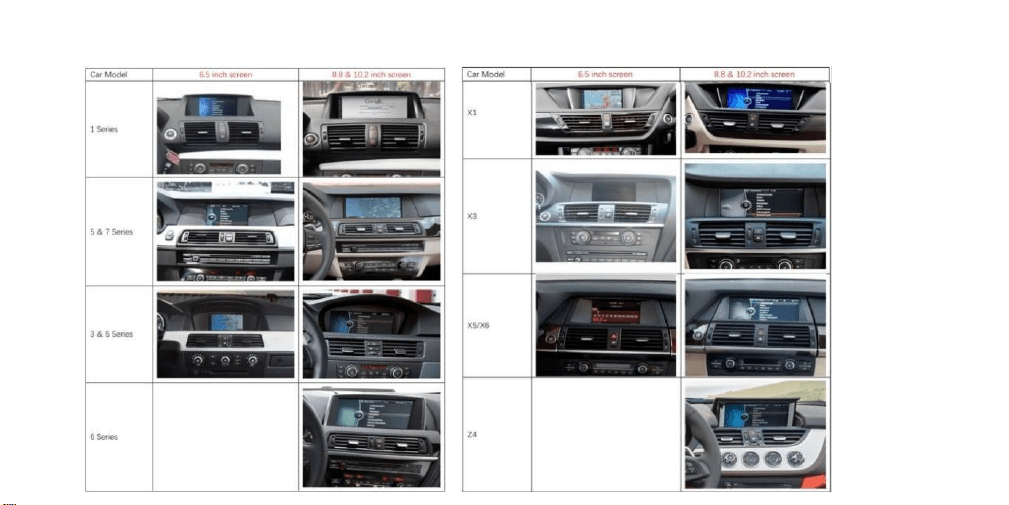
2. Toggle Switch Setup
2.1 Choosethe toggle switch setup by the size of your car’s screen
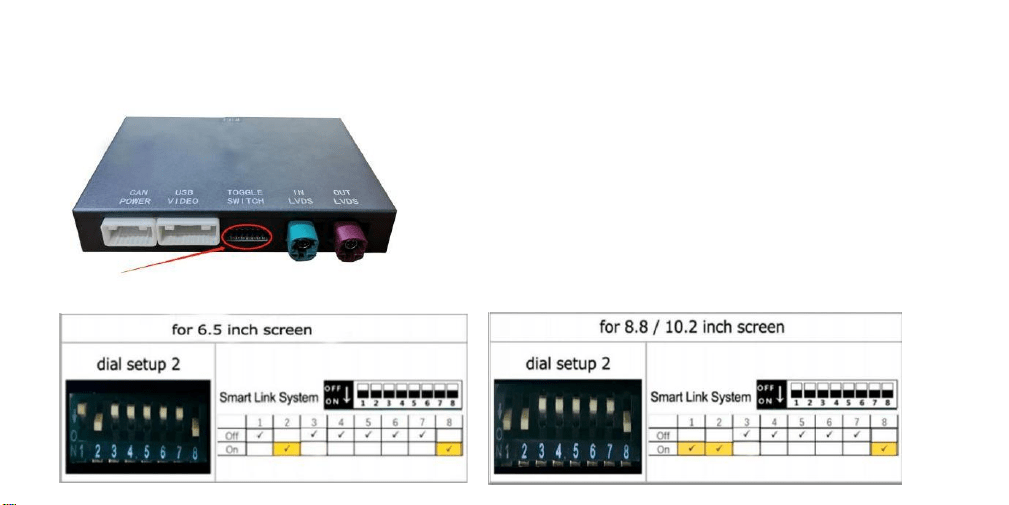
2.2 Where to find the toggle (DIP) switches?
2.3 Set the toggle switch settings according to the size of your car’s screen.
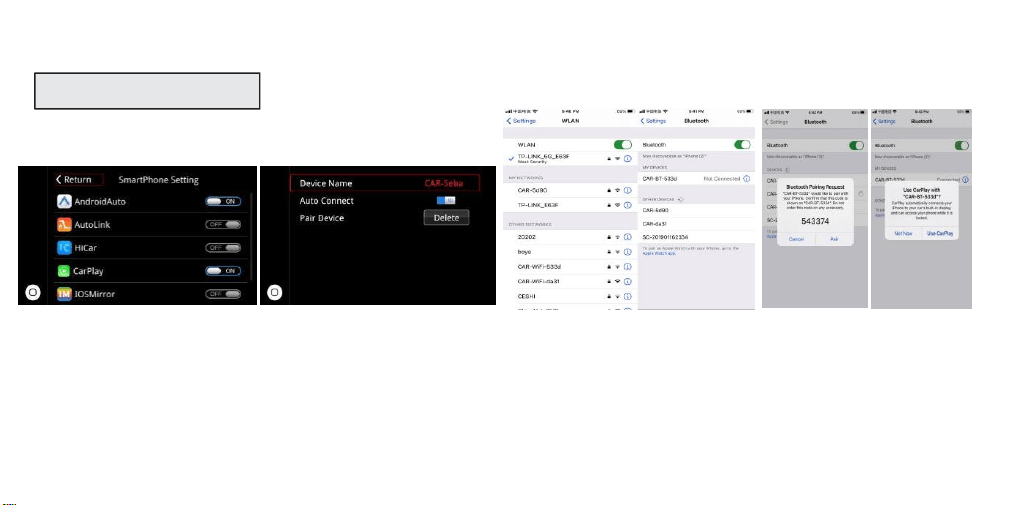
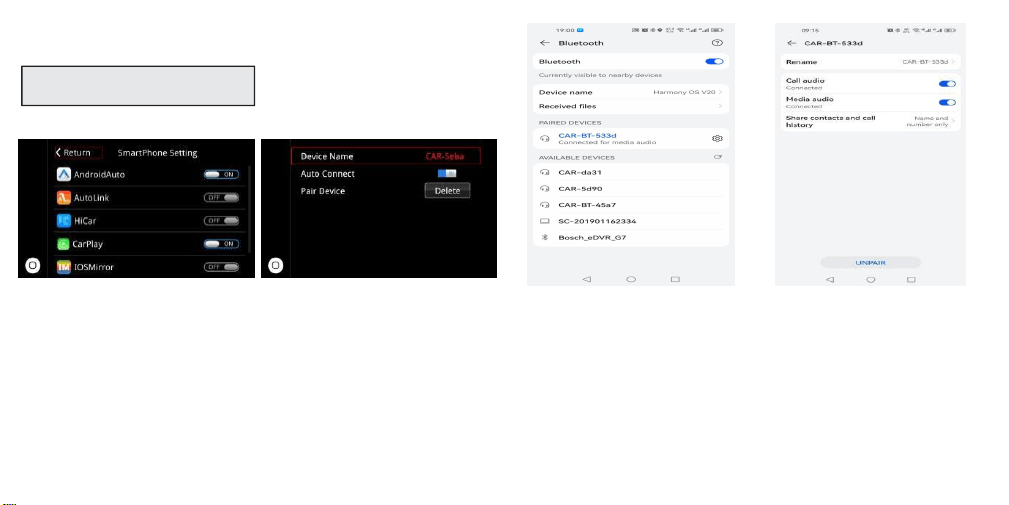
3. Wireless CarPlay Connection Method
Step 1
Select “Bluetooth”
Step 2
Check the Bluetooth Device name
as “ CAR- xxxx"
Step 3
Turn on WIFI and keep it on, then
back to Bluetooth to connect
CarPlay
Step 4
Select Bluetooth Device name as
“ CAR- XXX" - Pair- Use CarPlay
while that pop up a request window
Wireless Connection Method:
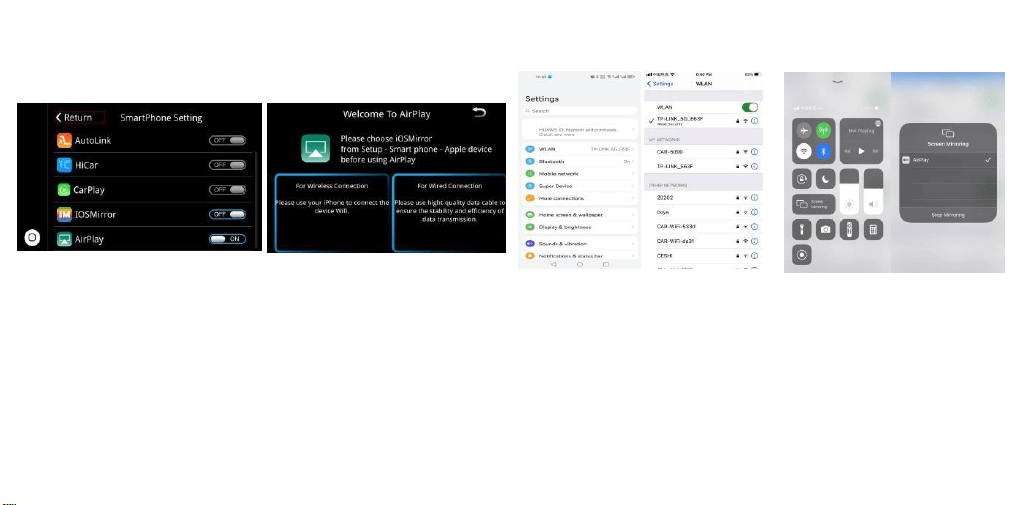
4. Apple Wireless Screen Mirroring
Step 1
Step 2 Step 3 Step 4
Select “AirPlay” Turn on the phone, select the
“Wireless LAN" option, the search
bar will show the “CAR-WIFI-XXX"
and click the link, the password is
66668888
After the WiFi connection is
successful,return to the main
interface of phone,open the shortcut
menu page,select “Screen Mirroring"
and turn on
After the mobile phone
“Screen Mirroring" is turned
on, select “AirPlay" to
complete the wireless Screen
Mirroring
Step 3
Wireless Connection Method:
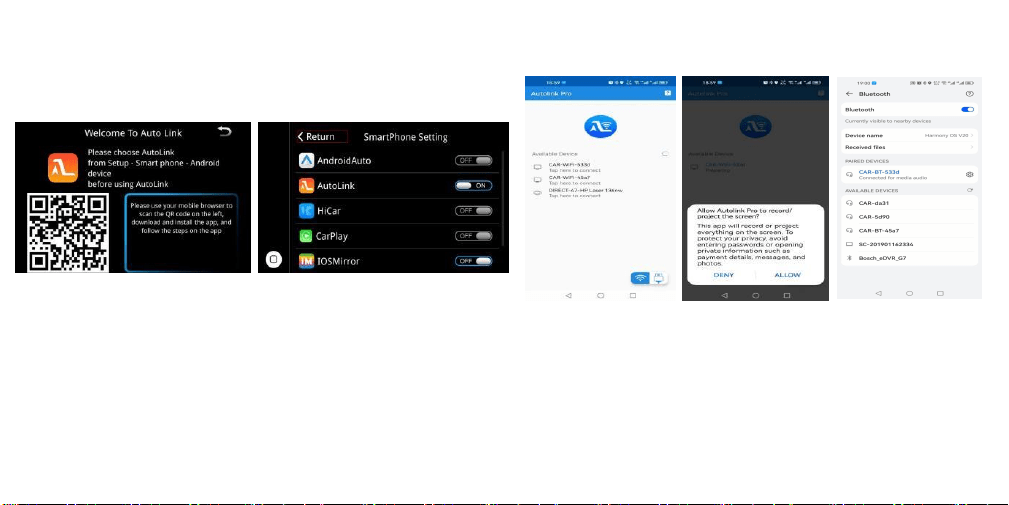
5. Wireless Android Auto Connection Method
Step 1
Select the “Bluetooth”
Step 2
Check the Bluetooth name starting
with “ CAR- xxx" in the
Bluetooth interface
Click on the Bluetooth name
beginning with “CAR-xxx". A
pairing request will pop up, just
click Pairing. After the Bluetooth
pairing is successful, follow the
Android Auto connect process on
screen.
Step 4
Click the Bluetooth name at the
beginning of " CAR-xxx " and
click pairing. Turn on the
Android auto app on the mobile
phone, and the system will
connect automatically.
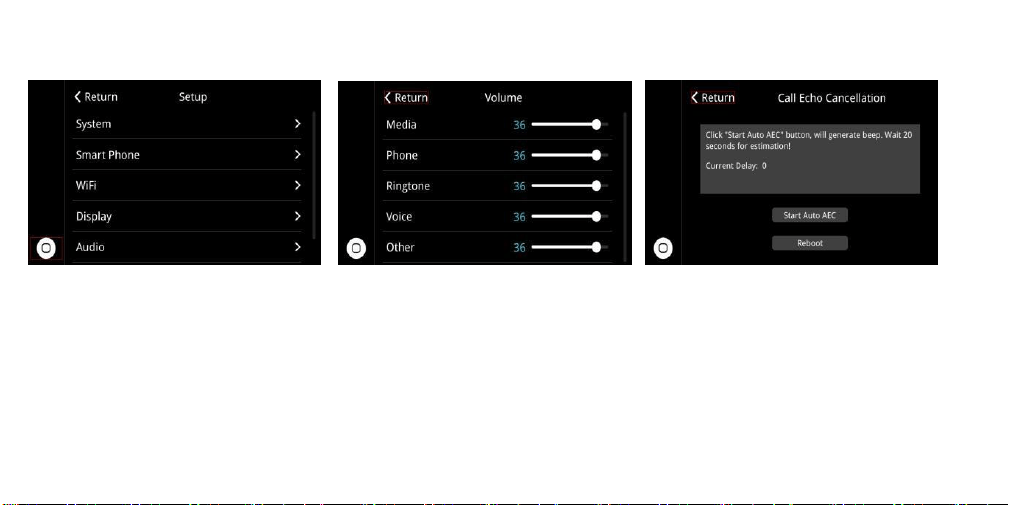
6 . Android Wireless Screen Mirroring
Step 1
Android phone scan and download
the Auto Link by using the Browser
Step 2
Switch the WIFI Auto Link to “ON”
in the Settings page
Step 3
Open the Auto link software you
downloaded, search “CAR-WIFI-
XXXX” and connect, then click
the “START NOW” on the phone
prompt box.
Step 4
The media sound of AutoLink
need to connect with Bluetooth.
7.
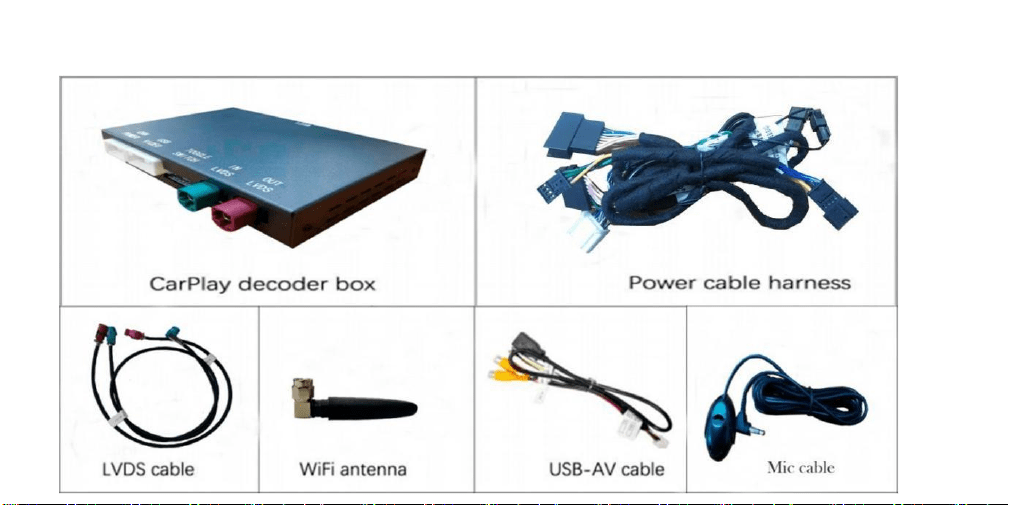
Audio Settings
Call Echo Cancellation:Steps:
Settings-Audio-AEC Delay,then click the button “Start Auto AEC”.
If there is an echo when in phone call. Please click this button for echo correction.When
correcting the echo, we must :
1. Keep quiet in the car;
2. Turn the volume to a moderate position, and then click“Start Auto AEC”.
3. Wait 20 seconds for estimation complete.
8.
Kit Contents
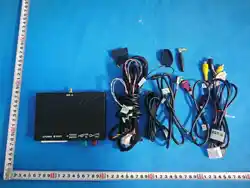
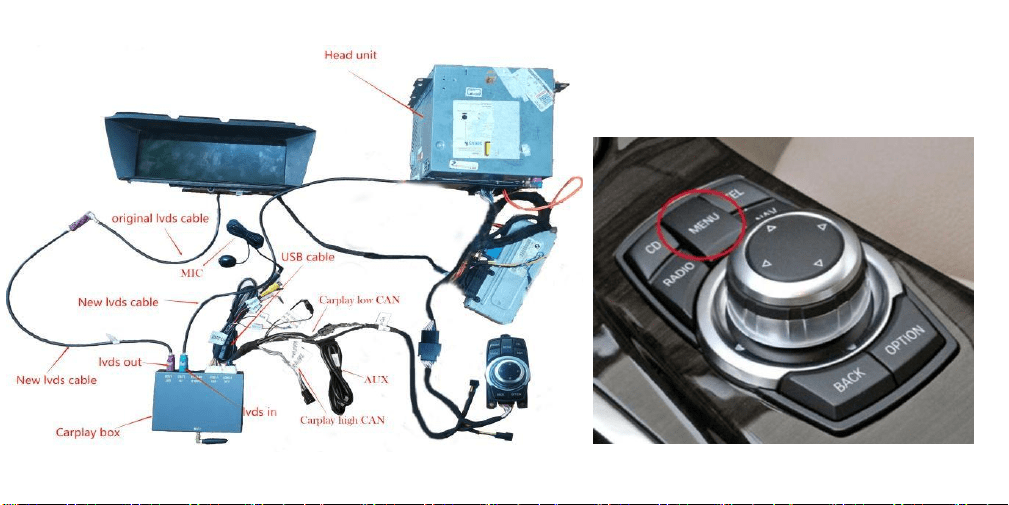
8.1 Cables and accessories
8.2 Cable connection chart
Please follow the connection chart accurately (detailed instructions below).
After the cables are all connected, you will be able to switch
between the original BMW and the CarPlay interfaces by long
pressing the “MENU” button on the iDrive knob.
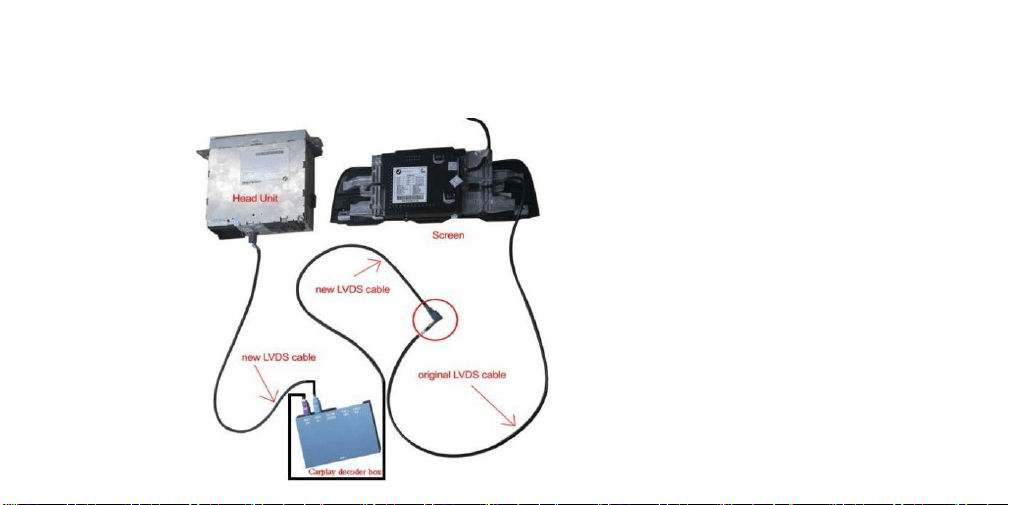
8.3 LVDS cable connection
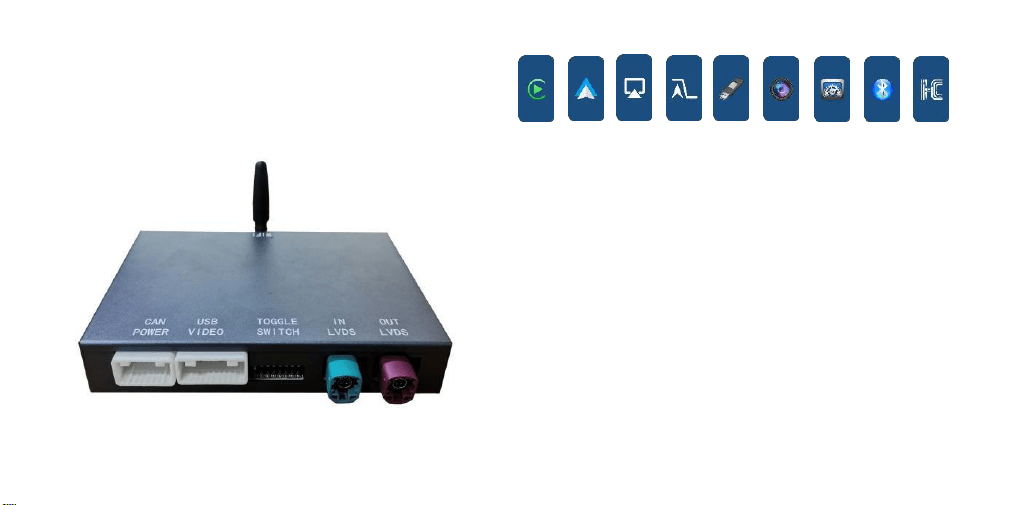
1) The ORIGINAL LVDS cable goes from the HEAD UNIT to “LVDS IN” of the CarPlay box.
2) The NEW LVDS cable goes to THE SCREEN from the “LVDS OUT” of the CarPlay box.
Note: Connecting the LVDS cables incorrectly will result in a black screen!
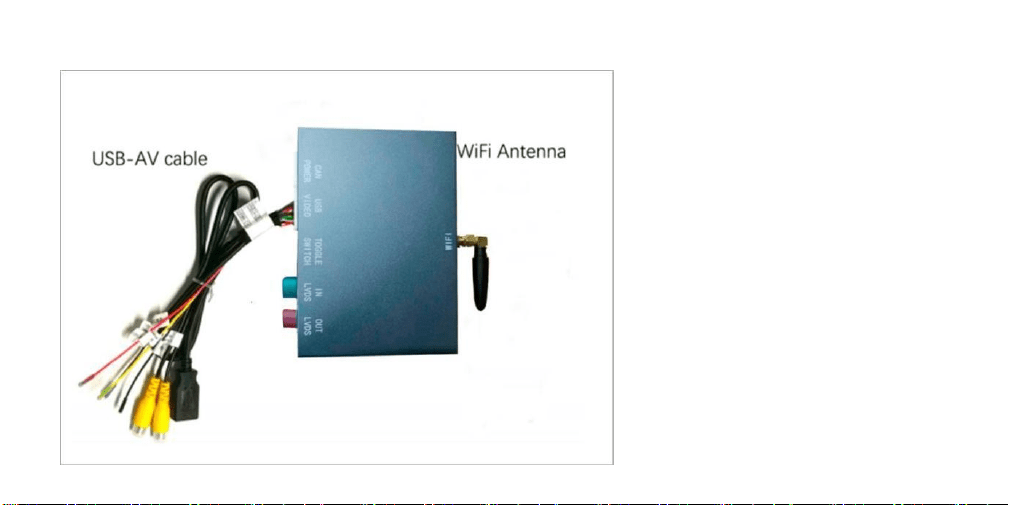
8.4 WiFi antenna and USB-AV cable connection
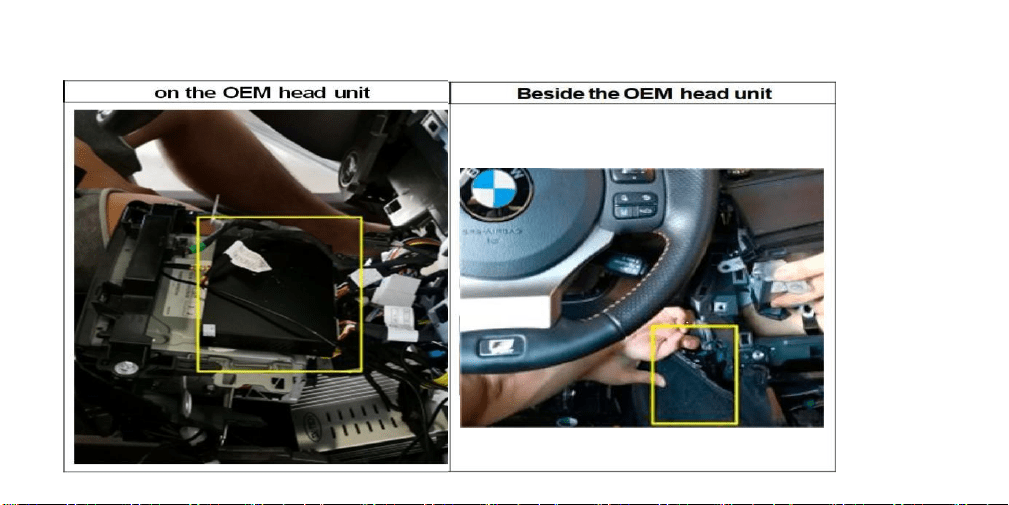
8.6 The CarPlay interface decoder box should be installed in an
appropriate space near, or on, the OEM head unit.
9.
CarPlay Decoder Sound Setup
9.1 Bluetooth settings
If your phone already has a bluetooth connection to your car, disconnect it.
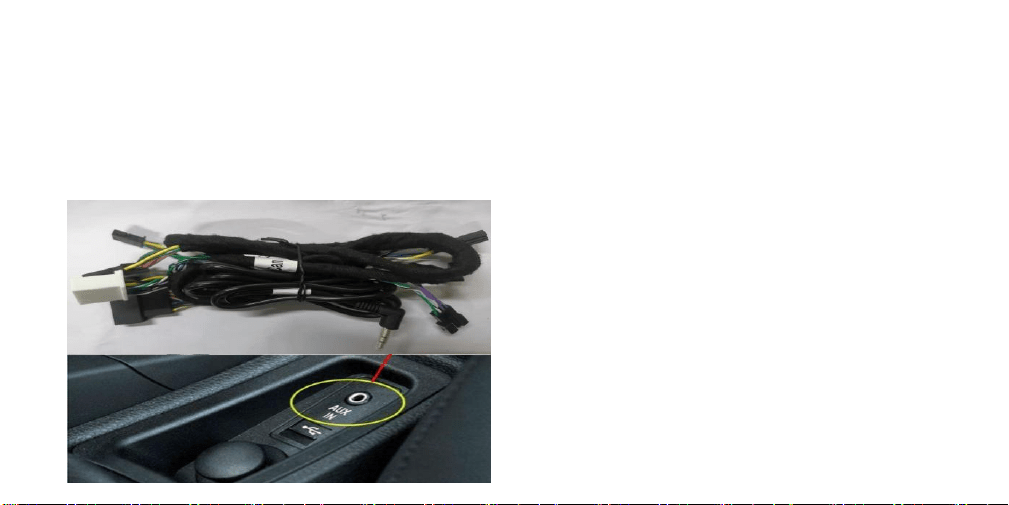
9.2 AUX Connections
There is no need to connect the EXT-AUX cable to your car AUX port, unless your car is a BMW 3 / 4 series or a 1 / 2 series.
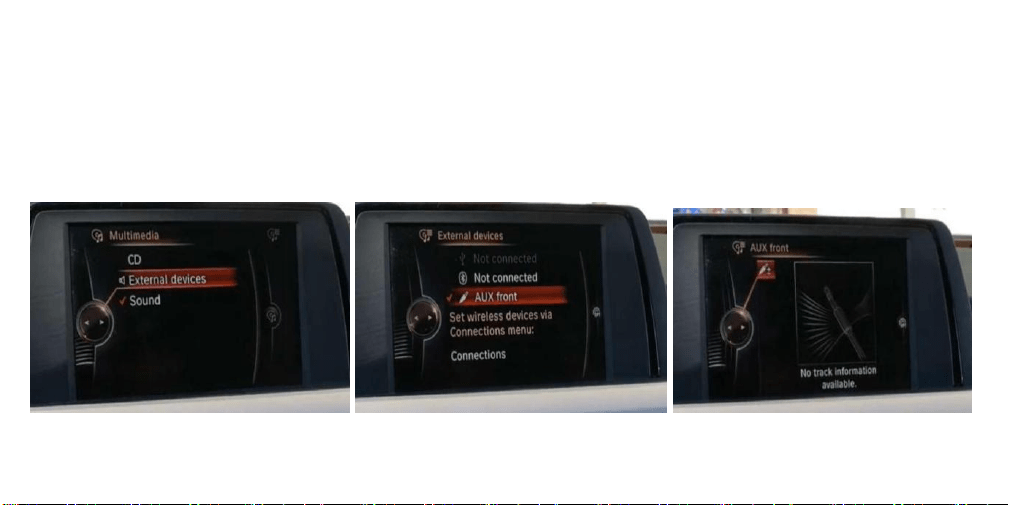
9.3 AUX Settings
Before using the CarPlay system, you need to set the
sound input on your OEM interface to
“AUX ”, otherwise the CarPlay /Android Auto system
will have sound!
9.3.1. On the original BMW System, navigate to
the “Multimedia“ menu and click “External devices”
9.3.2. Click on “AUX front” to activate it.
9.3.3. Keep the setting in the original BMW system
on “AUX front”
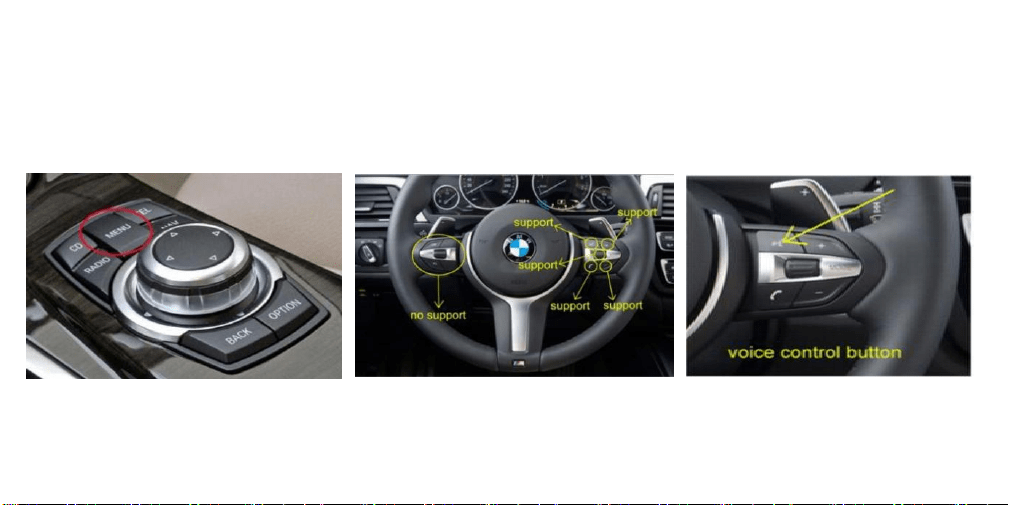
9.3.4 Long press the “MENU” button from iDrive knob
to enter into the CarPlay Decoder main interface.
9.3.5 Which steering wheel control buttons work?
The CarPlay interface decoder box supports the
voice control button, the telephone button, the next
song, prev song buttons and the volume “+” and “-
“ buttons. The other buttons are not supported.

Tip:
before contacting us, please help us to collect the following information.
1. the order ID
2. the car model
3. the year of the car
4. screen size of the car
5. the toggle switch setup
6. pictures about the LVDS cable connection
7. the software version ( in the CarPlay decoder menu, enter into the “Setting”, choose the
“System Version”, you will see the software version.)

FCC STATEMENT
1. This device complies with Part 15 of the FCC Rules. Operation is subject to the following two conditions:
(1) This device may not cause harmful interference, and
(2) This device must accept any interference received, including interference that may cause undesired operation.
2. Changes or modifications not expressly approved by the party responsible for compliance could void the user's authority to
operate the equipment.
NOTE: This equipment has been tested and found to comply with the limits for a Class B digital device, pursuant to Part 15 of the
FCC Rules. These limits are designed to provide reasonable protection against harmful interference in a residential installation.
This equipment generates uses and can radiate radio frequency energy and, if not installed and used in accordance with the
instructions, may cause harmful interference to radio communications. However, there is no guarantee that interference will not
occur in a particular installation. If this equipment does cause harmful interference to radio or television reception, which can be
determined by turning the equipment off and on, the user is encouraged to try to correct the interference by one or more of the
following measures:
Reorient or relocate the receiving antenna.
Increase the separation between the equipment and receiver.
Connect the equipment into an outlet on a circuit different from that to which the receiver is connected.
Consult the dealer or an experienced radio/TV technician for help.
FCC Radiation Exposure Statement
This equipment complies with FCC radiation exposure limits set forth for an uncontrolled environment. This equipment should be
installed and operated with minimum distance 20cm between the radiator & your body