RAPSODO
CLM PRO
INSTALLATION GUIDE
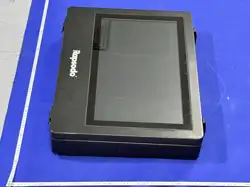
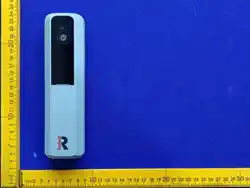
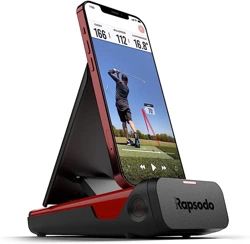
CLM PRO UNIT — PRODUCT PHOTO
Physical Setup Reference
Before You Begin · Ceiling Preparation · Bracket Installation · Cable & Power · Alignment & Verification
support.rapsodo.com

CLM PRO Installation Guide 2
Rapsodo Golf | support.rapsodo.com | © 2025 Rapsodo
Contents
THE SPACE
— Room Layout & Terminology
—
PHASE 1 — BEFORE YOU BEGIN
1.1 What's in the Box
—
1.2 Know Your Space
—
1.3 Choose Your Mounting Type
—
1.4 Tools You'll Need
—
1.5 Safety & Preparation
—
PHASE 2 — CEILING PREPARATION
2.1 Find the Right Mount Location
—
2.2 Ceiling Material Selection
—
2.3 Mark and Drill
—
PHASE 3 — BRACKET INSTALLATION
3.1 Install the Ceiling Plate / VESA Base
—
3.2 Configure the Mount
—
3.3 Mount the CLM Unit
—
PHASE 4 — CABLE & POWER
4.1 Power Connection
—
4.2 Ethernet Connection
—
4.3 Cable Management
—
PHASE 5 — ALIGNMENT & VERIFICATION
5.1 Level the Unit
—
5.2 Height & Distance Measurement
—
5.3 Power On Check
—
5.4 Installation Complete
—
REFERENCE
— Troubleshooting
—
— Hardware Reference
—
CLM PRO Installation Guide 3
Rapsodo Golf | support.rapsodo.com | © 2025 Rapsodo
REFERENCE
The Space
Familiarise yourself with the room terminology used throughout this guide. These labels appear in every step —
knowing them now prevents confusion during installation.
Fig 0 — Labelled room diagram: (A) Hitting Surface · (B) Floor · (C) Hitting Screen/Net · (D) Ceiling
Surface · (E) Tee Area
Fig 0 — Room component overview. Refer back to this diagram at any point during installation.
ROOM COMPONENT DEFINITIONS
LABEL
COMPONENT
DESCRIPTION
A
Hitting Surface
The green mat or turf where the player stands and strikes the ball. Center of the
Hitting Surface must align with the center of the Tee Area.
B
Floor Surface
The room floor. Must be level — an unlevel floor will affect tee placement
accuracy.
C
Hitting Screen / Net
The impact screen or net at the far end of the room that the ball is hit toward.
D
Ceiling Surface
The ceiling where the CLM PRO unit will be mounted. Must be level.
E
Tee Area
The 60 × 40 cm (2' × 16") zone centred on the tee marker. All shots must be
struck from within this area.
MINIMUM DIMENSIONS
• Tee to Hitting Screen: minimum *250 cm / 8'2" (do not place the tee closer than this)
• Tee Area: 70 × 40 cm, centered on the tee marker
• Hitting Surface colour: must be green — the CLM PRO uses colour recognition for ball tracking
ℹ NOTE
This guide covers physical installation only.
Wi-Fi setup, device pairing, and in-software calibration are covered in the CLM PRO app.
Complete all steps in this guide before opening the app.
CLM PRO Installation Guide 4
Rapsodo Golf | support.rapsodo.com | © 2025 Rapsodo
PHASE 1
Before You Begin
5 Steps
STEP 1.1
What you’ll need
Before starting, confirm all components are present. If anything is missing from the box, contact support before
proceeding with installation.
Fig 1.1 — Labeled diagram of all box contents
Fig 1.1 — Labeled diagram of all box contents. See packaging insert for full-size version.
IN THE BOX
☐
CLM PRO Unit - The main launch monitor device
☐
Ceiling Mounting Bracket - Ceiling plate and ball joint assembly
☐
Power Adapter - 12V DC power supply with X ft cable
NEED TO PURCHASE SEPARATELY
☐
Ethernet Cable (placeholder)
☐
Mounting Hardware Kit - Bolts, screws, wall anchors, and washers (placeholder)
☐
Gaming PC / Laptop (placeholder)
☐
Impact Screen and Enclosure / Net (placeholder)
☐
Projector (if desired) + HDMI cable (placeholder)
⚠ WARNING
If any item is missing from your box, do not attempt installation.
Contact Rapsodo support at support.rapsodo.com for a replacement before proceeding.
CLM PRO Installation Guide 5
Rapsodo Golf | support.rapsodo.com | © 2025 Rapsodo
⚑ CRITICAL
Keep the protective foil on the front of the unit and do not insert the power cable until instructed.
Both are removed in Step 3.3 after the unit is fully mounted.
STEP 1.2
Know Your Space
Establish the physical parameters of your room before making any installation decisions. The Installation Table
below determines the correct mounting configuration for your ceiling height.
PLACE THE TEE MARKER NOW
ℹ NOTE
Place a tee marker at your preferred tee/ball position on the Hitting Surface — at least 250 cm / 8'2" from the
Hitting Screen.
Do not remove the tee marker until installation is complete. It is the reference point for positioning the unit on
the ceiling.
INSTALLATION TABLE — FIND YOUR CONFIGURATION
Locate your ceiling height in the table below. The matching row defines your mounting height target and the
horizontal distance from the tee marker to directly below the unit.
CONFIG
CEILING HEIGHT
MOUNTING HEIGHT
(FLOOR TO UNIT)
TEE-TO-UNIT
(HORIZONTAL)
NOTES
HIGH
305–320 cm
9'10"–10'6"
305–320 cm
9'10"–10'6"
103–110 cm
3'5"–3'7"
Max. Use direct ceiling
mount.
MID
290–305 cm
9'6"–10'
290–305 cm
9'6"–10'
98–105 cm
3'3"–3'5"
Recommended for most
rooms.
LOW
270–290 cm
8'10"–9'6"
270–290 cm
8'10"–9'6"
92–100 cm
3'0"–3'3"
Minimum supported height.
> 10'6"
> 320 cm
Per table target
(set via drop arm)
Per table for
selected config
Use Mounting Type B
(extension arm/pole).
⚑ CRITICAL
If your ceiling height is below 270 cm / 8'10", the CLM PRO cannot be installed in this room.
Contact Rapsodo support to discuss alternative options.
CLM PRO Installation Guide 6
Rapsodo Golf | support.rapsodo.com | © 2025 Rapsodo
Record your configuration here for reference throughout the guide:
✦ TIP
My ceiling height: ________ cm / ft | My config: ☐ LOW ☐ MID ☐ HIGH ☐ > 10'6"
Mounting height target: ________ cm / ft | Tee-to-unit distance: ________ cm / ft
STEP 1.3
Choose Your Mounting Type
Select the mounting type that matches your ceiling height. This is the primary decision that determines which
installation path you follow throughout Phases 2 and 3.
MOUNTING TYPE
WHEN TO USE
WHAT'S NEEDED
Type A — Direct Ceiling
Mount
Ceiling ≤ 320 cm / 10'6"
(LOW, MID, or HIGH config)
Ceiling plate and screws (not included). Most
common path.
Type B — Extension Arm /
Drop Pole
Ceiling > 320 cm / 10'6"
VESA 100×100 mount with rotary joint and
adjustable drop pole (not included). M6
screws (included).
Fig 1.3 — Side view comparison: Type A (direct ceiling plate) vs Type B (VESA drop pole with adjustable
height). Both shown at installation table target height.
Fig 1.3 — Mounting Type A (left) mounts directly to the ceiling. Mounting Type B (right) uses an adjustable drop pole when the ceiling
exceeds 320 cm / 10'6".
ℹ NOTE
Mounting Type A is recommended when the ceiling height allows it.
Mounting Type B is required when the ceiling-to-floor distance exceeds 320 cm / 10'6", to bring the unit to the
correct operating height per the Installation Table.
Both types are compatible with all ceiling material types covered in Step 2.2.
STEP 1.4
Tools You'll Need
CLM PRO Installation Guide 7
Rapsodo Golf | support.rapsodo.com | © 2025 Rapsodo
Gather all tools before starting Phase 2. Required tools vary by mounting type and ceiling material — the sections
below call out which items apply to each path.
REQUIRED — ALL INSTALLATION TYPES
☐
Ladder — must safely reach your ceiling height; do not use chairs or unstable surfaces
☐
Pen or pencil — for marking drill points and ceiling position
☐
Portable drill with ceiling surface-specific drill bits
☐
Screwdriver — standard or Phillips depending on your screw type
☐
Bubble level — or a level app on your phone
☐
Measuring tape — minimum 5 m / 16 ft
REQUIRED — MOUNTING TYPE A (DIRECT CEILING MOUNT)
☐
X × X mm × XX mm screws — ceiling surface-specific (included or source per Step 2.2 hardware
table)
☐
X × X mm × XX mm raw plugs / wall anchors — for masonry or concrete ceilings
☐
Stud finder — required for drywall ceilings; electronic models preferred
REQUIRED — MOUNTING TYPE B (EXTENSION ARM / DROP POLE)
☐
VESA 100×100 mount with rotary joint and adjustable drop pole/bracket (not included — source
separately)
☐
X × MX × XX mm screws — for attaching unit to VESA plate (included in box)
☐
Plumb line, laser level, or heavy-duty tape measure — for projecting floor position to ceiling
OPTIONAL — ALL TYPES
✦ TIP
Blanket or towel — to protect the unit body while prepping on the floor
Ethernet cable minimum Cat6 / shielded — if using wired connection (strongly recommended)
Cable clips or adhesive raceways — for clean cable routing along walls and ceiling
Fish tape — if routing cable through walls or above drop ceilings
Second person — strongly recommended for all ladder work and unit mounting
⚠ WARNING
CLM PRO Installation Guide 8
Rapsodo Golf | support.rapsodo.com | © 2025 Rapsodo
If you have a concrete, masonry, or drop ceiling, you will need specialty anchor hardware not included in the box.
See Step 2.2 for anchor kit details.
STEP 1.5
Safety & Preparation
Review these requirements before drilling. Improper mounting is the leading cause of unit damage and
installation support requests.
LOAD & STRUCTURAL REQUIREMENTS
⚑ CRITICAL
The mount point must support a minimum of 50 lbs static load.
The CLM PRO unit weighs X.X lbs — the 50 lb rating ensures safety margin for the bracket and any incidental force.
1. Mount into structural material only — a ceiling joist, stud, beam, or approved anchor into concrete. Do not
mount into drywall alone.
2. Verify no hidden utilities — use a stud finder with AC detection before drilling to locate wiring or plumbing
above the ceiling.
3. Maintain 6 inches minimum clearance on all sides of the mounted unit. Do not mount in a corner.
CABLE PRE-PLANNING
1. Plan your cable route before drilling — trace the path from the unit to your router and power outlet. Measure
the distance.
2. Power outlet placement — the unit's power cable is 6 ft. Your outlet must be within reach, or plan a routed
extension. Do not use extension cords as a permanent solution.
3. Ethernet run — if using wired ethernet (recommended), plan the route from unit to your router or switch. The
included cable is 10 ft; longer runs may require a separate cable.
⚠ WARNING
Cables must not hang in the swing path.
A cable caught by a golf club can damage the unit. Plan your cable route away from the hitting area before
mounting.
ℹ NOTE
Two-person installation is strongly recommended.
One person on the ladder, one person supporting the ladder and assisting with the unit. Ceiling work with one
person significantly increases risk.
CLM PRO Installation Guide 9
Rapsodo Golf | support.rapsodo.com | © 2025 Rapsodo
PHASE 2
Ceiling Preparation
3 Steps
STEP 2.1
Find the Right Mount Location
Use your tee marker (placed in Step 1.2) and the Installation Table measurements to find the exact ceiling point
where the unit must mount. The method differs slightly by Mounting Type.
⚑ CRITICAL
Have a person assist by supporting the ladder for safety during all ceiling work.
MOUNTING TYPE A — DIRECT CEILING MOUNT: POSITIONING METHOD
1. Confirm the tee marker is still in place on the Hitting Surface from Step 1.2.
2. Place two golf clubs or alignment sticks on each side of the tee marker, pointing straight toward the vertical
centre of the Hitting Screen. This establishes your target line.
3. From the centre of the tee marker, measure the tee-to-unit horizontal distance from your Installation Table
(Step 1.2) along the target line toward the screen. Mark this floor spot with an X.
4. Climb the ladder. Use a plumb line (or heavy-duty tape measure held vertically) to identify the ceiling point
directly above the floor X. Mark the ceiling with a pencil — draw an X.
5. Confirm alignment: the ceiling X must sit on the centre line between the tee and the screen centre. Shifting
left/right up to ±8 cm (3") is acceptable if structural constraints require it.
Fig 2.1a — Top-down view: tee marker centred, target line to screen centre, ceiling X at tee-to-unit
distance along target line. 90° alignment shown on both sides.
Fig 2.1a — Top-down view. Ceiling X must sit on the centre line between tee and screen.
CLM PRO Installation Guide 10
Rapsodo Golf | support.rapsodo.com | © 2025 Rapsodo
Fig 2.1b — Side view: plumb line from ceiling X down to floor X, tee marker at base. Mounting height per
Installation Table shown.
Fig 2.1b — Side view. Use a plumb line or tape measure to project floor X to ceiling X.
MOUNTING TYPE B — EXTENSION ARM / DROP POLE: POSITIONING METHOD
1. Confirm the tee marker is still in place on the Hitting Surface from Step 1.2.
2. Align the calibration board or two alignment sticks with the vertical centre of the Hitting Screen to establish
the target line.
3. From the centre of the tee marker, measure the tee-to-unit horizontal distance from your Installation Table
along the target line. Mark this floor spot with an X — this is the centre of the drop pole projected down from
the ceiling.
4. Climb the ladder. Use a plumb line (or laser level) from the ceiling to identify the ceiling point directly above
the floor X. Mark with an X.
5. The VESA mount base will be centred on this ceiling X in Step 3.1.
ℹ NOTE
A plumb bob is a length of string with a weight on the end. Hold the string to the ceiling and let the weight hang —
when still, the weight is directly below the ceiling point.
Alternatively: hold the end of a heavy-duty tape measure to the ceiling and extend the case to the floor. Use a
second level to confirm the tape is vertical.
STEP 2.2
Ceiling Material Selection
The drilling and anchoring method depends entirely on your ceiling material. Identify your ceiling type from the
table below, then follow only the instructions for your type.
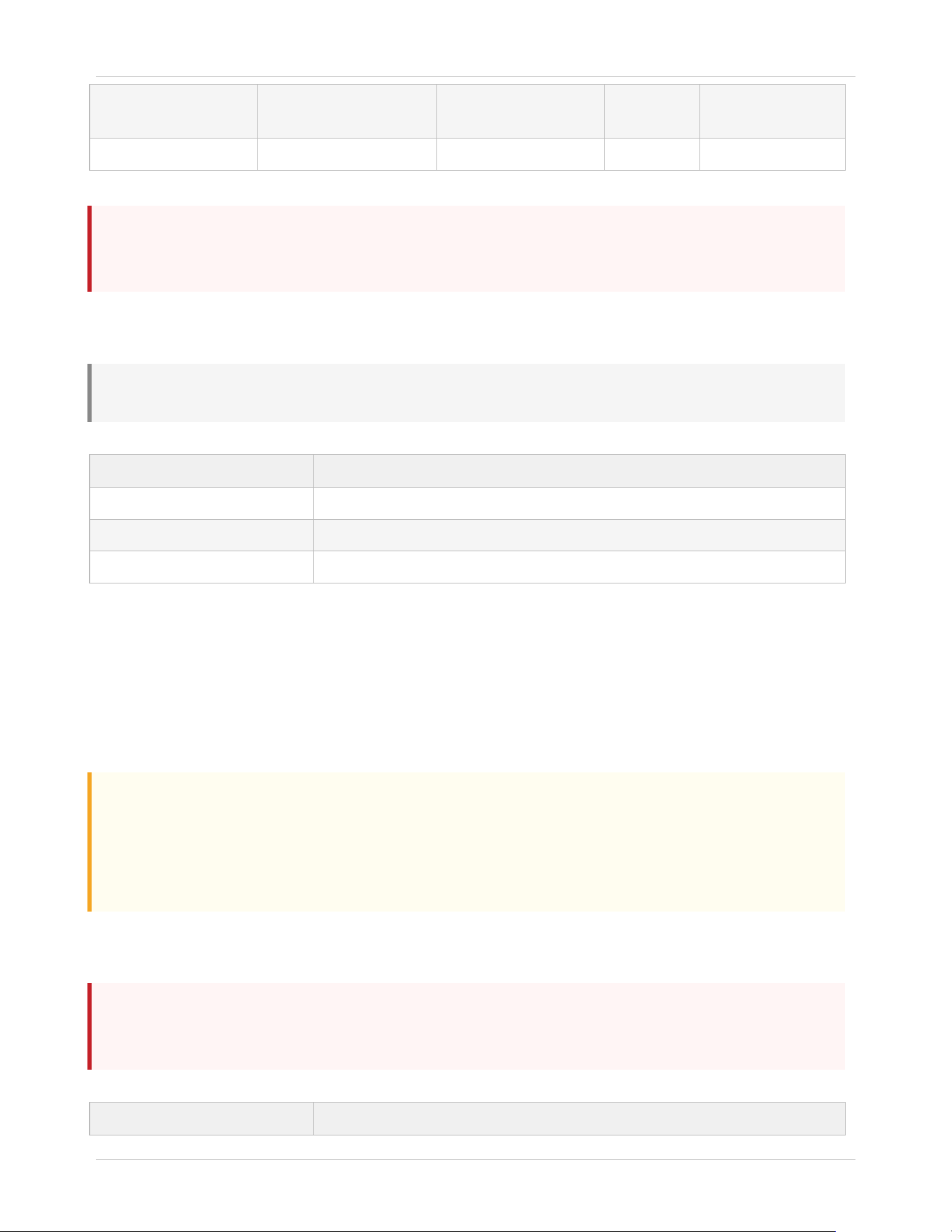
CEILING TYPE OVERVIEW
CEILING TYPE
ANCHOR METHOD
HARDWARE
ANCHOR
KIT?
COMMON IN
Drywall (with studs)
Bolt into ceiling joist
Wood screws
(included)
No
Homes, finished
basements
Drop / Suspended
Anchor through tile into
structure above
Toggle/structural
anchors
Yes
Offices, some
basements
Concrete / Masonry
Masonry sleeve anchor
Carbide bit + sleeve
anchors
Yes
Garages,
commercial spaces
CLM PRO Installation Guide 11
Rapsodo Golf | support.rapsodo.com | © 2025 Rapsodo
Wood / Beam
Lag bolt into beam
Lag bolts (included)
No
Older homes, barns,
cabins
Other / Unknown
—
—
—
—
⚑ CRITICAL
If your ceiling is type 'Other' or you are unsure of the structural material above it, do not drill.
Contact Rapsodo support before proceeding.
Drywall (with Studs) — Installation Instructions
ℹ NOTE
Most common installation type. The bracket mounts directly into a ceiling joist — no separate anchor needed.
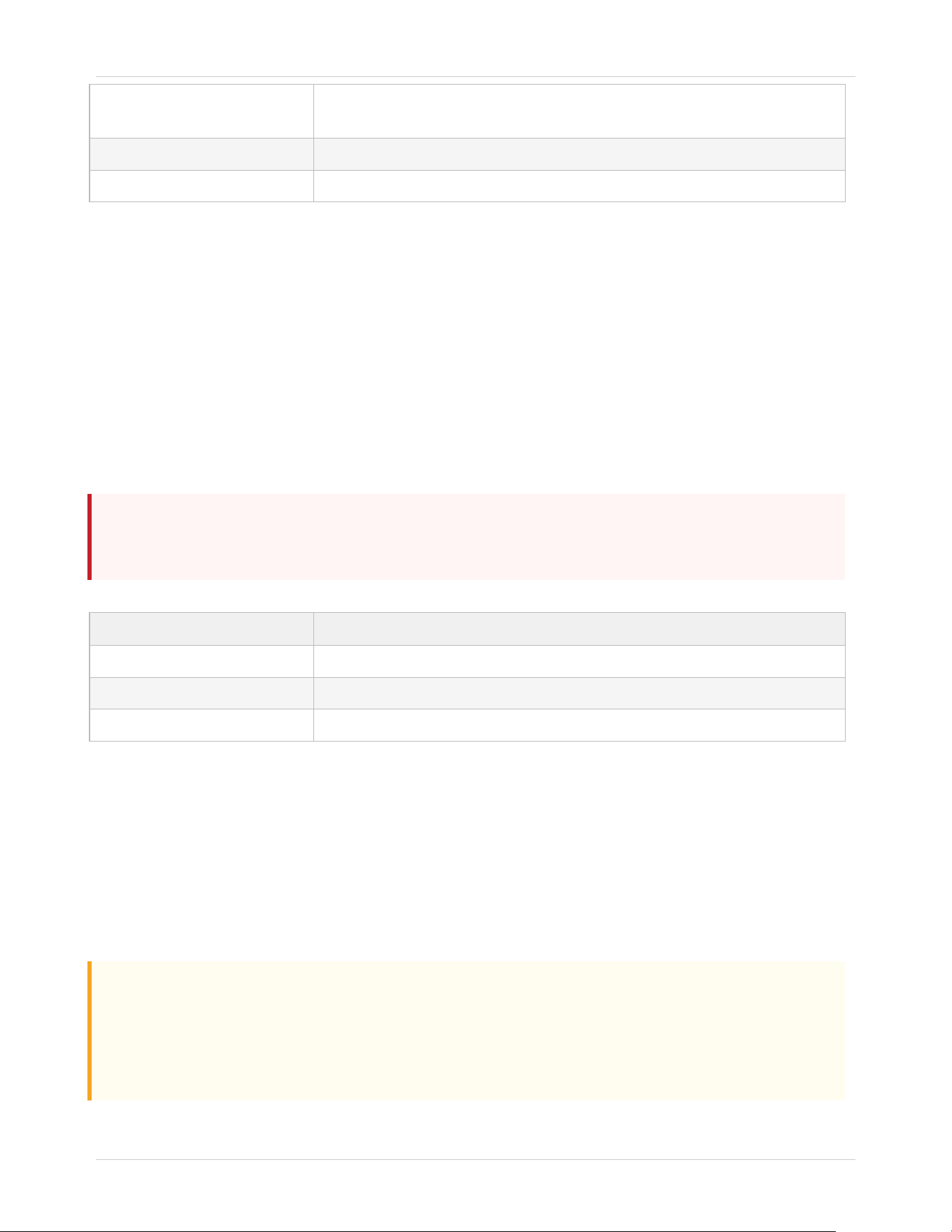
SPEC
VALUE
Drill bits
7/64" pilot bit, 3/16" final clearance bit
Fasteners
Wood screws (included in kit)
Minimum depth
1.5" into joist
1. Locate the ceiling joist with your stud finder. Mark the center of the joist with a pencil.
2. Hold the ceiling plate against the ceiling, aligned with the joist center mark. Trace each bolt hole.
3. Drill 7/64" pilot holes to 2" depth at each marked point.
4. Expand to 3/16" for bolt clearance.
5. Verify pilot holes are in solid wood — no hollow sound, no crumble or dust. If hollow: stop and re-locate.
⚠ WARNING
Common mistakes:
Drilling into drywall only (no joist) — drywall alone cannot support overhead load
Using drywall anchors for this installation — not rated for overhead loading
Drilling too close to joist edge — center the bolt in the joist width
Drop / Suspended Ceiling — Installation Instructions
⚑ CRITICAL
The mount MUST anchor into the structural ceiling above the drop tiles — not into the drop ceiling grid itself.
The grid rail is not load-bearing.
SPEC
VALUE
CLM PRO Installation Guide 12
Rapsodo Golf | support.rapsodo.com | © 2025 Rapsodo
Drill bits
Appropriate for structural material above (wood: 7/64" pilot; concrete: 3/16"
carbide)
Fasteners
Structural anchor kit required (not included — order separately)
Minimum depth
1.5" into structural ceiling above
1. Remove the ceiling tile at the mount location. Set it aside without damaging it.
2. Identify the structural ceiling material above the grid (typically concrete slab or drywall/joist).
3. Measure and mark the drill point on the structural ceiling.
4. Drill into the structural ceiling using the appropriate bit for that material.
5. Install the structural anchor per the anchor kit instructions.
6. Run the threaded rod or bracket hardware through the grid opening and attach to the anchor above.
7. Replace the ceiling tile, trimming if needed to allow clean cable routing.
Concrete / Masonry — Installation Instructions
⚑ CRITICAL
Masonry requires a specialty anchor kit not included in the box.
Order before starting this phase.
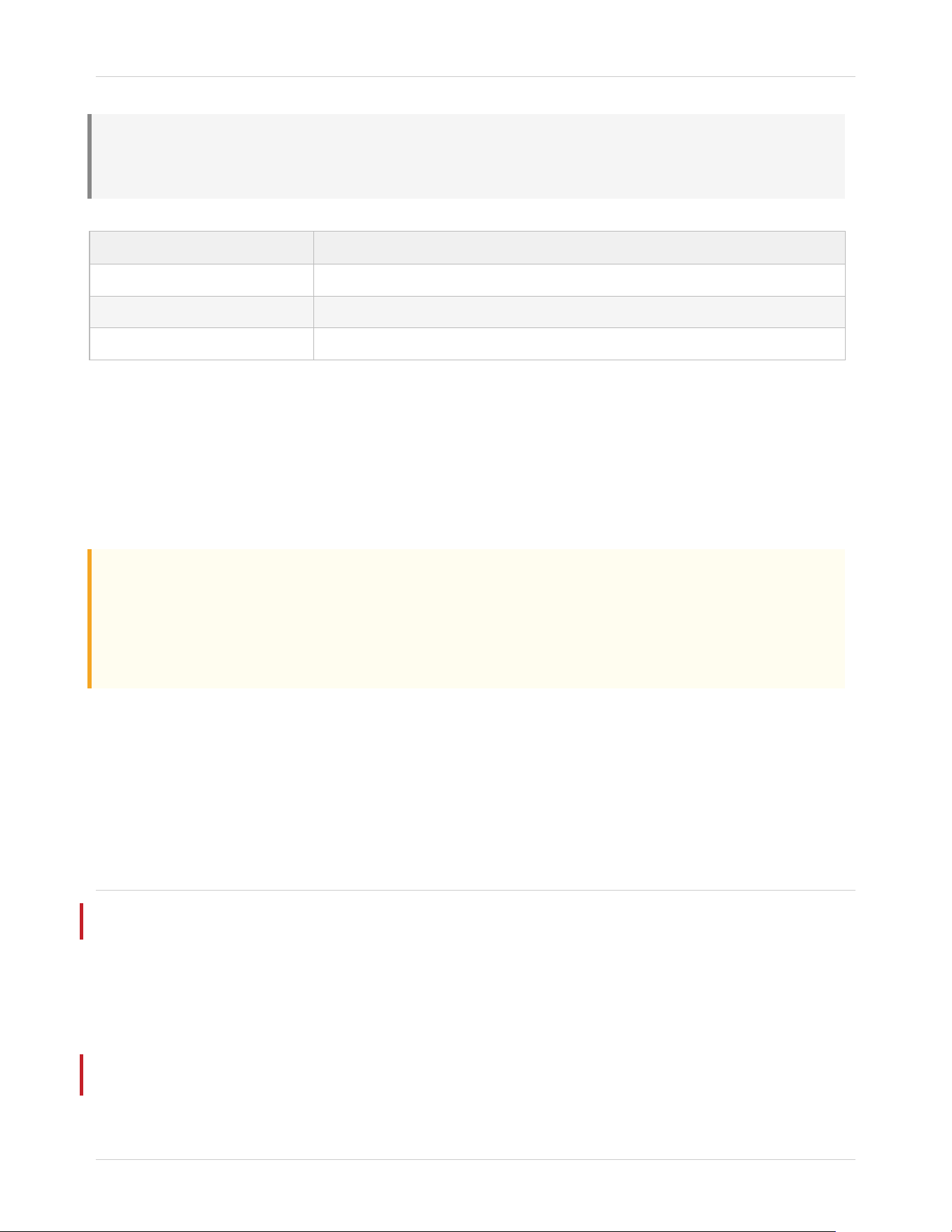
SPEC
VALUE
Drill bits
3/16" carbide-tipped masonry bit
Fasteners
Masonry sleeve anchors 3/16" × 1-1/4" (Anchor Kit)
Minimum depth
1" into masonry
1. Mark drill points with a center punch to prevent the bit from walking on the smooth surface.
2. Use the carbide masonry bit at low speed — do not use high speed, which will overheat the bit.
3. Drill to 1.25" depth. Stop periodically to clear dust.
4. Blow all dust from each hole before inserting anchors — dust prevents full expansion.
5. Tap sleeve anchors flush with the surface.
6. Insert bolt and tighten until the anchor expands and is firmly seated. Do not over-tighten — can crack masonry.
⚠ WARNING
Common mistakes:
Using standard wood or metal bits on masonry — they will not cut and will be destroyed
Not clearing dust before inserting anchors — prevents correct anchor expansion
Over-tightening expansion anchors in aged or porous concrete
CLM PRO Installation Guide 13
Rapsodo Golf | support.rapsodo.com | © 2025 Rapsodo
Wood / Beam — Installation Instructions
ℹ NOTE
Exposed wood beams are an excellent mount surface — strong and easy to work with.
Verify the beam is structural (not decorative) before drilling.
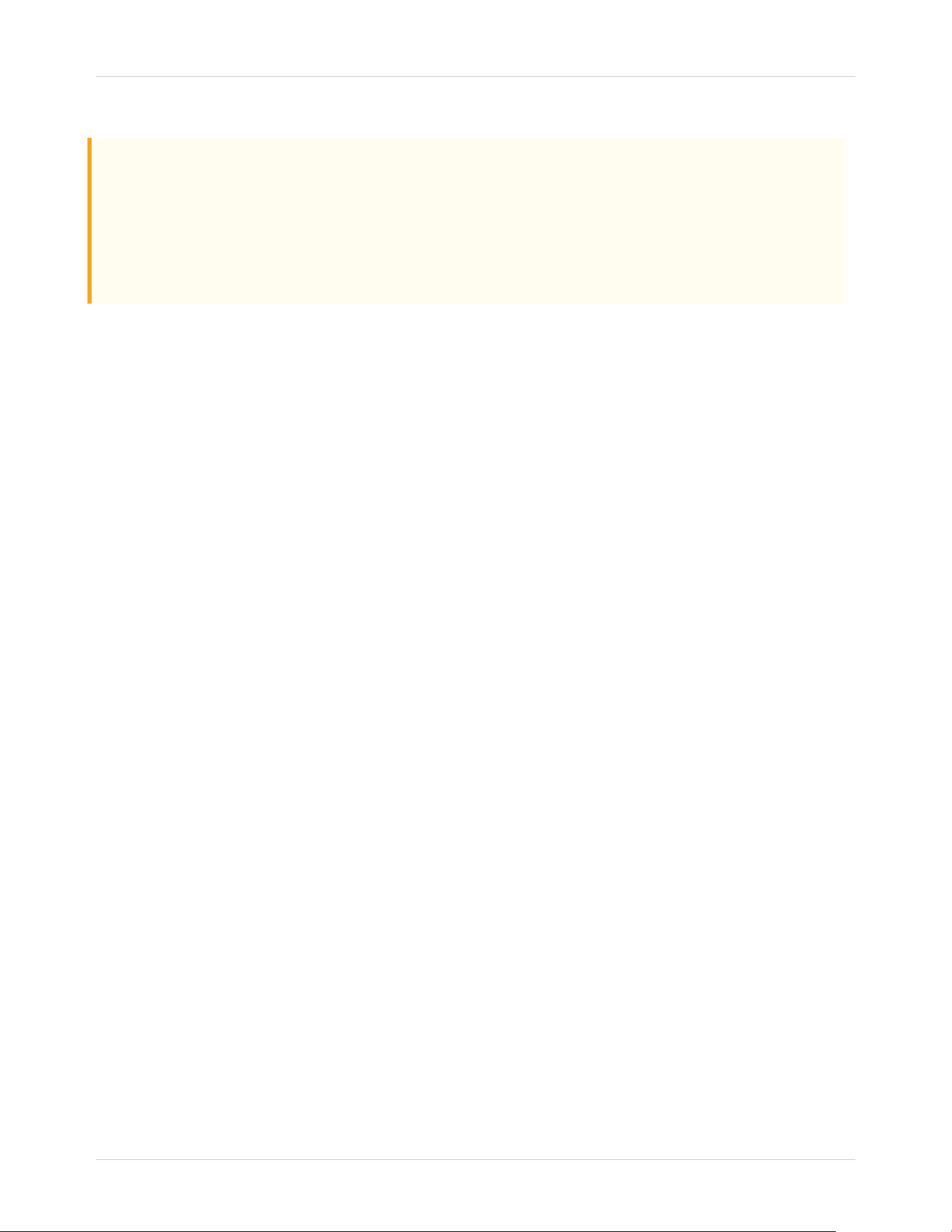
SPEC
VALUE
Drill bits
7/64" pilot bit, 3/16" clearance bit
Fasteners
Lag bolts (included)
Minimum depth
2" into beam
1. Confirm beam is structural: tap test should produce a dull thud, not a hollow ring.
2. Drill 7/64" pilot holes perpendicular to the wood grain, 2.5" depth.
3. Expand pilot holes to 3/16" for bolt clearance.
4. Thread lag bolts using a socket wrench — do not use a screwdriver, which cannot achieve correct torque.
5. Tighten to 25 in-lbs. Do not over-tighten — can split wood at the grain line.
⚠ WARNING
Common mistakes:
Mounting into decorative faux beams — hollow, not structural
Drilling with the grain instead of perpendicular to it — weakens the hold
Using screws too short for beam depth (minimum 2" penetration required)
STEP 2.3
Mark and Drill
With your ceiling type confirmed and its instructions complete, use this step to finalize your drilling pattern and
make any last checks before committing.
MARK THE PATTERN
1. Position the ceiling plate at your marked location. Align the plate center with your pencil mark.
2. Trace each bolt hole onto the ceiling with your pencil. Use painter's tape first if you want to avoid permanent
ceiling marks.
3. Step back and confirm the pattern looks centered and level before drilling.
FINAL DRILL CHECKS
1. Start with a 3/32" pilot hole at one location before drilling all holes — confirm you're in the correct material.
2. If you encounter unexpected resistance, change in sound, or material type: stop. See warning below.
CLM PRO Installation Guide 14
Rapsodo Golf | support.rapsodo.com | © 2025 Rapsodo
3. Once confirmed, drill all remaining pilot holes to spec, then expand to final diameter per your ceiling type
instructions.
⚠ WARNING
Unexpected material — stop and check:
No stud where expected: shift 1–2 inches and probe again. Do not proceed without hitting solid material.
Hollow sound or crumble: you may be in insulation or a gap. Shift position.
Sharp resistance change: may indicate pipes or conduit. Stop, use a detector, re-locate.
Encounter wiring: stop immediately. Relocate mount point. Contact an electrician if needed.
CLM PRO Installation Guide 15
Rapsodo Golf | support.rapsodo.com | © 2025 Rapsodo
PHASE 3
Bracket Installation
3 Steps
STEP 3.1
Install the Ceiling Plate / VESA Base
Attach the primary structural mount to the ceiling. Follow the section for your Mounting Type. This component
must be fully secure before anything else is added.
⚑ CRITICAL
Have a person assist by supporting the ladder for safety.
Mounting Type A — Install the Ceiling Plate
1. If using wall anchors (non-stud installations), tap them flush with the ceiling surface first.
2. Remove the ceiling bracket from the back of the CLM PRO unit by simultaneously pressing the two release
buttons/pins on each side of the bracket housing.
3. Position the ceiling plate on the ceiling surface, aligning the centre of the plate with the X marked in Step 2.1.
Use the pill-shaped slots to fine-adjust alignment.
4. Before tightening the screws, adjust the bracket so it is mounted parallel to the Hitting Screen.
5. Insert all 4 screws finger-tight before tightening any — this ensures the plate seats evenly.
6. Tighten screws in a cross pattern (not circular). Do not overtighten.
STABILITY TEST — REQUIRED BEFORE CONTINUING
ℹ NOTE
Apply firm downward pressure with both hands on the installed plate.
It must not flex, shift, rotate, or produce any movement.
If there is any play: remove the plate, re-examine the anchor points, and re-mount before continuing.
Fig 3.1a — Ceiling plate pressed against ceiling surface with 4 screws; pill-shaped slots shown
for fine-adjustment; cross-tighten order indicated.
Fig 3.1a — Ceiling plate installed. Adjust for parallel alignment to screen before final tighten.
CLM PRO Installation Guide 16
Rapsodo Golf | support.rapsodo.com | © 2025 Rapsodo
Mounting Type B — Install the VESA Mount Base
1. Position the VESA mount base on the ceiling surface so the centre of the adjustable pole extends from the X
marked in Step 2.1.
2. Attach the VESA mount base to the ceiling following the manufacturer's instructions.
3. Adjust the drop pole so the VESA bracket (where the unit attaches) is set to the recommended mounting
height from the Installation Table (Step 1.2).
4. Ensure the VESA mount is level using a bubble level before proceeding.
Fig 3.1b — Side view: VESA mount base on ceiling, drop pole extending to installation table
target height. Plumb line from ceiling X to floor X shown for reference.
Fig 3.1b — VESA mount base at ceiling X; drop pole set to installation table target height.
STEP 3.2
Configure the Mount
Prepare the mount interface based on your selected Mounting Type. Follow only the section for your type.
Mounting Type A — Extension Arm (if required)
For most Type A installations, no arm is needed — skip to Step 3.3. An extension arm is only required if the ceiling
is at the very low end of the installation table range.
CEILING HEIGHT
ACTION
< 270 cm / 8'10"
Not supported — contact support
270–285 cm / 8'10"–9'4"
Short extension arm required — order from Rapsodo
285 cm+ / 9'4"+
No arm needed — proceed directly to Step 3.3
INSTALLING THE EXTENSION ARM (IF APPLICABLE)
1. Before attaching the arm: route both the power cable and ethernet cable through the hollow arm so they exit
from the bottom.
2. Thread the arm onto the ceiling plate receptacle. Turn clockwise until hand-tight.
3. Tighten the set screw on the arm collar using the included hex key until firmly seated.
Mounting Type B — Attach Unit to VESA Plate
CLM PRO Installation Guide 17
Rapsodo Golf | support.rapsodo.com | © 2025 Rapsodo
⚠ WARNING
Have a person assist you fastening the M6 screws while holding the CLM PRO unit in both hands.
Do not let go of the unit until all 4 screws are fully tightened.
1. Gently place the CLM PRO unit on a blanket or towel with the back of the device facing up.
2. Position the VESA 100×100 plate (on the drop pole bracket) against the back of the unit, aligning the 4 screw
holes.
3. Insert all 4× M6 × 12 mm screws and tighten fully.
4. Verify the VESA rotary joint allows the unit to be oriented facing the Hitting Screen. Adjust the rotary joint
angle if needed.
Fig 3.2 — Back of CLM PRO unit showing 4× M6 screw positions and VESA 100×100 plate
alignment.
Fig 3.2 — Attach VESA plate to back of unit using all 4× M6 screws. Have a second person hold the unit.
STEP 3.3
Mount the CLM Unit
Attach the CLM PRO to the ceiling bracket or VESA arm. A second person is required — one person holds the unit,
the other confirms the lock and manages cables.
Mounting Type A — Clip-In Mount
⚠ WARNING
Hold the CLM PRO carefully in both hands when mounting it in the bracket.
Do not release the unit until you have confirmed the lock has engaged.
1. Lift the unit at an angle toward the ceiling bracket.
2. Push the unit lightly into the bracket until you hear and feel a click — the lock has engaged.
3. Tighten the 4 locking bolts on each corner of the unit by hand.
4. Gently tug downward on the unit to confirm it is locked. Do not release until lock is confirmed.
CLM PRO Installation Guide 18
Rapsodo Golf | support.rapsodo.com | © 2025 Rapsodo
Fig 3.3a — Two-step clip-in sequence: (1) unit angled up to bracket, (2) pushed in until click.
Side view.
Fig 3.3a — Mounting Type A clip-in. Push at angle until click. Confirm lock before releasing.
Mounting Type B — VESA Mount (unit already attached to plate in Step 3.2)
1. The unit (already attached to the VESA plate in Step 3.2) should now be on the drop pole bracket.
2. Confirm the unit is facing the Hitting Screen and the VESA mount is level.
3. Tighten the VESA rotary joint and all pole collar locks.
BOTH TYPES — FINAL CHECKS
1. Now peel off the protective foils from the front face and the lens of the CLM PRO.
2. The tee marker can remain in place for now — it will be removed in Step 5.4.
3. Do not insert the power cable yet — power connection is in Step 4.1.
Fig 3.3b — CLM PRO unit mounted, protective foils being
removed. Status indicator and lens locations labelled.
Fig 3.3b — Remove protective foils from front face and lens after mounting is confirmed.
CLM PRO Installation Guide 19
Rapsodo Golf | support.rapsodo.com | © 2025 Rapsodo
PHASE 4
Cable & Power
3 Steps
STEP 4.1
Power Connection
Route and connect the power cable. Do not plug the unit into the wall yet — power-on is performed in Step 5.3
after levelling is complete.
⚠ WARNING
Mounting Type A only: If the CLM PRO is mounted directly to the ceiling, use caution — there will be limited space
when plugging in the ethernet and power connectors.
1. Connect the mains power cable to the AC/DC power adapter.
2. Place the adapter on the shelf of the CLM PRO unit.
3. Plug the DC connector into the DC power port on the side of the unit. Push until it clicks and is fully seated.
4. Secure the adapter to the unit using the Velcro strips so it does not swing or shift.
5. Route the power cable from the adapter along the ceiling and wall toward the outlet, using clips or a raceway
to secure it.
6. Keep the cable at least 1 m / 3 ft away from the hitting position at all points in its run.
7. Do not plug the mains cable into the wall outlet yet.
ℹ NOTE
Power input: 100–240V AC, 50/60Hz — compatible with standard outlets.
Use a direct wall outlet. Do not daisy-chain power strips.
Be sure to disconnect the AC/DC adapter before unmounting the CLM PRO.
STEP 4.2
Ethernet Connection (Recommended)
Ethernet is strongly recommended over Wi-Fi for data accuracy and consistent latency. If running ethernet is not
practical, skip this step — Wi-Fi is configured in the CLM PRO app.
ETHERNET VS. WI-FI
ETHERNET
WI-FI
CLM PRO Installation Guide 20
Rapsodo Golf | support.rapsodo.com | © 2025 Rapsodo
Lower latency — shot data delivered faster
Acceptable for casual use
No interference from nearby networks
May degrade in crowded wireless environments
Plug-and-play, no password required
Requires network password during app setup
Required for competitive/recorded sessions
Sufficient for recreational use
RUNNING THE ETHERNET CABLE
1. Measure your run from the unit to the nearest router or network switch. Use minimum Cat6 / shielded cable.
The included cable is 10 ft — for longer runs source a separate cable (max 300 ft).
2. Route along the ceiling and wall using cable clips. Keep ethernet at least 15 cm / 6 inches away from power
cables where they run parallel.
3. Connect the RJ-45 connector to the ethernet port on the CLM PRO until the locking tab clicks.
4. Connect the other end to any available LAN port on your router or network switch.
⚠ WARNING
If using a network switch between the CLM PRO and router, the switch must be minimum 1 Gb.
A 100 Mb switch will cause data transfer issues.
STEP 4.3
Cable Management
Secure all cables before moving to alignment. Loose cables are both a safety hazard and a common source of
connectivity issues after installation.
1. Use adhesive cable clips along ceiling and wall runs every 12–18 inches to prevent sag.
2. For a cleaner installation, PVC or paintable raceways can be used along wall runs to fully conceal cables.
3. Bundle power and ethernet cables together where they run parallel using velcro straps — not zip ties, which
prevent future adjustment.
4. Leave 6 inches of slack at the unit connection points to prevent connector strain during leveling.
⚑ CRITICAL
Walk through a full swing motion and confirm no cables hang below 7 feet within the swing area.
Clip any remaining loose sections before proceeding to alignment.
CLM PRO Installation Guide 21
Rapsodo Golf | support.rapsodo.com | © 2025 Rapsodo
PHASE 5
Alignment & Verification
4 Steps
STEP 5.1
Level the Unit
Physical leveling gets the unit within operational spec. Fine calibration is completed in the CLM PRO app — you
need to be within ±2 degrees, not perfectly level.
1. Place a torpedo level (or phone with level app) on the widest flat surface on top of the CLM PRO unit.
2. Adjust pitch (front-to-back tilt) using the ball joint adjustment screws — tilt until the bubble centers on the
pitch axis.
3. Adjust roll (side-to-side tilt) by gently rotating the unit in the ball joint until the roll axis is level.
4. Tighten the ball joint locking collar fully with the spanner wrench. Check level once more after tightening —
tightening can shift the angle slightly.
ℹ NOTE
Target spec: ±2.0 degrees in both pitch and roll axes.
The CLM PRO app's calibration process can compensate for up to 5 degrees of tilt, but closer to level is always
better.
STEP 5.2
Height & Distance Measurement
Record two measurements before the app setup. Both values are entered in the CLM PRO app during calibration
— measure now while you still have the ladder available.
MEASUREMENT 1 — MOUNTING HEIGHT
1. Measure from the floor directly below the unit to the bottom surface of the CLM PRO unit body (not the
bracket, arm, or VESA plate — the unit body itself).
2. Record to the nearest cm / ¼ inch.
3. Verify the value falls within the Installation Table range for your config (LOW: 270–290 cm, MID: 285–305 cm,
HIGH: 300–320 cm). Outside this range, contact Rapsodo support.
Fig 5.2a — Side view: measuring tape from floor to bottom of unit body. Bracket and arm not
CLM PRO Installation Guide 22
Rapsodo Golf | support.rapsodo.com | © 2025 Rapsodo
included in measurement. Tee marker shown at floor.
Fig 5.2a — Measure to the bottom of the unit body, not the bracket or arm.
MEASUREMENT 2 — TEE-TO-UNIT HORIZONTAL DISTANCE
1. Measure the horizontal distance from the centre of the tee marker on the floor to the point on the floor
directly below the centre of the unit.
2. Use a plumb line or laser level to confirm the floor reference point is directly below the unit.
3. Record to the nearest cm / ¼ inch.
4. Verify the value falls within the Installation Table range for your config.
✦ TIP
Record both measurements here:
Mounting height (floor to unit bottom): ________ cm / ________ ft ________ in
Tee-to-unit horizontal distance: ________ cm / ________ ft ________ in
Take a photo of this page with your measurements filled in — you will need these in the CLM PRO app.
STEP 5.3
Power On Check
Plug in the unit and verify it powers on correctly. Use the LED status table below to confirm the unit's state before
moving on.
1. Plug the power adapter into the wall outlet. The unit powers on automatically — there is no power button.
2. Wait 30–45 seconds for the unit to complete its boot sequence. The LED will cycle through startup states.
3. Check the status LED on the front face of the unit and match it to the table below.
LED STATUS REFERENCE
LED STATE
MEANING
— — — Blinking green
Booting — normal startup sequence, wait for it to settle
~ ~ ~ Pulsating green
Ready — no PC or app connected yet. Installation successful.
— Solid green
Active — PC or CLM PRO app is connected
—·— Blinking green/red
Recovery mode — firmware recovery in progress; do not unplug
— — — Blinking yellow
No network connection — unit is powered but cannot reach the network
— — — Blinking red
Error — see Troubleshooting section
CLM PRO Installation Guide 23
Rapsodo Golf | support.rapsodo.com | © 2025 Rapsodo
ℹ NOTE
After a successful boot with ethernet connected and network available: expect Pulsating green.
After a successful boot without a network connection: expect Blinking yellow — this is normal before app setup.
Both states confirm the unit hardware is functioning correctly.
Network setup and device pairing are completed in the CLM PRO app.
STEP 5.4
Installation Complete
Physical installation is complete. Confirm the checklist below, then download the CLM PRO app to finish software
setup and calibration.
FINAL VERIFICATION CHECKLIST
☐
Unit is mounted and bracket / VESA mount is fully tightened and locked
☐
Protective foils removed from front face and lens
☐
Unit is level within ±2 degrees (confirmed with level)
☐
Mounting height recorded: ________ cm / ft
☐
Tee-to-unit horizontal distance recorded: ________ cm / ft
☐
Power cable is routed, connected to unit, and adapter is secured with Velcro
☐
All cables are secured — none hang within the swing area
☐
Ethernet cable is connected at unit and at router/switch (if using wired connection)
☐
Unit is powered on — LED is pulsating green (network) or blinking yellow (no network yet)
☐
Tee marker removed from the Tee Area
NEXT STEP: APP SETUP
✦ TIP
Download the Rapsodo Desktop app to complete setup. The app will ask for:
Wi-Fi setup (if not using ethernet) · Device pairing · Firmware update
Mounting height · Tee-to-unit distance · In-app calibration
Available for Windows at: rapsodo.com/clm-pro/download
CLM PRO Installation Guide 24
Rapsodo Golf | support.rapsodo.com | © 2025 Rapsodo
QR Code — Download CLM PRO App
[Replace with live QR before print]
Scan to download the CLM PRO app and complete setup.
CLM PRO Installation Guide 25
Rapsodo Golf | support.rapsodo.com | © 2025 Rapsodo
REFERENCE
Troubleshooting
Common installation issues and resolutions. If your issue is not listed, or the resolution does not work, contact
Rapsodo support at support.rapsodo.com.
PROBLEM
LIKELY CAUSE
RESOLUTION
Unit won't power on after
plugging in
DC connector not fully
seated, or power adapter
fault
Disconnect and firmly re-seat the DC barrel
connector. Test the outlet with another device. Try a
different outlet. If still no power, contact support.
LED stays blinking red
Hardware error detected
during self-test
Note the exact LED pattern. Unplug, wait 10 sec, re-
plug. If red persists, contact support with your LED
pattern and a description.
LED blinking yellow
No network connection —
unit is powered but not on a
network
Check ethernet cable is connected at both ends.
Verify network switch is minimum 1 Gb. If using Wi-
Fi, proceed to app setup — this is normal before
pairing.
LED blinking green/red
Recovery mode active
Do not unplug. Wait for recovery to complete. If it
persists beyond 20 minutes, contact support.
Unit wobbles or shifts after
mounting
Anchors not in structural
material, or under-sized for
load
Remove unit. Verify bolts are in joists or structural
anchors — not drywall only. Relocate to a stud or
use an appropriate anchor kit. Re-mount and apply
stability test.
Ceiling plate or VESA base
feels loose
Under-torqued screws or
incorrect anchor
Re-tighten all screws in cross pattern. For VESA:
check drop pole collar and all M6 screws at the unit.
Perform stability test again before proceeding.
Can't route cable cleanly
Room layout or wall
construction constraint
Surface-mount raceway along ceiling edge or
baseboard. For drop ceilings: route above tile grid.
Wi-Fi is an alternative if ethernet routing is not
practical.
Unit not level after
tightening
Ball joint or rotary joint
shifted during final tighten
Loosen the locking collar/rotary joint 1/4 turn. Re-
adjust level while holding the unit. Tighten in two
slow passes. App calibration compensates for up to 5
degrees of tilt.
Measurements don't match
installation table
Unit positioned outside
supported height or distance
range
Re-check mounting height and tee-to-unit horizontal
distance. For Type B, adjust the drop pole arm
length. Contact support if adjustments are not
possible.
ℹ NOTE
For support, visit support.rapsodo.com or call the number on your Quick Start Card.
CLM PRO Installation Guide 26
Rapsodo Golf | support.rapsodo.com | © 2025 Rapsodo
Have your LED status, ceiling type, mounting type, and installation measurements ready when you contact
support.
CLM PRO Installation Guide 27
Rapsodo Golf | support.rapsodo.com | © 2025 Rapsodo
REFERENCE
Hardware Reference
Fastener and anchor specifications for all installation types. Use this table when sourcing replacement hardware
or verifying that existing hardware meets spec.
MOUNTING SCREWS & ANCHORS
TYPE
DIAMETER
LENGTH
USE / ENVIRONMENT
Screws
4 mm
30 mm
Ceiling plate — wood, plaster, and concrete (with raw plug)
Raw plugs / Wall
anchors
6 mm
35 mm
Ceiling plate anchor — concrete, masonry
M6 Screws
6 mm
12 mm
Unit to VESA 100×100 plate (Mounting Type B drop pole)
PLUGGABLE EQUIPMENT
• The socket outlet must be installed near the equipment, easily accessible, and must always include a
grounded connection.
• Circuit protection: max 20A (USA, Canada, Japan) / max 13A (UK, EU).
• Disconnect the AC/DC adapter before unmounting the CLM PRO.
NETWORK REQUIREMENTS
COMPONENT
MINIMUM SPEC
Ethernet cable
Cat6 / shielded — minimum
Network switch
1 Gb — 100 Mb switches will cause data transfer issues
Internet connection
See rapsodo.com/clm-pro for current upload/download requirements
CLM PRO Installation Guide 28
Rapsodo Golf | support.rapsodo.com | © 2025 Rapsodo
RAPSODO
CLM PRO
For support, visit support.rapsodo.com
or scan the QR code on your Quick Start Card
Support QR Code
v1.0 · 2025 · For CLM PRO Hardware Revision A
CLM PRO Installation Guide 29
Rapsodo Golf | support.rapsodo.com | © 2025 Rapsodo
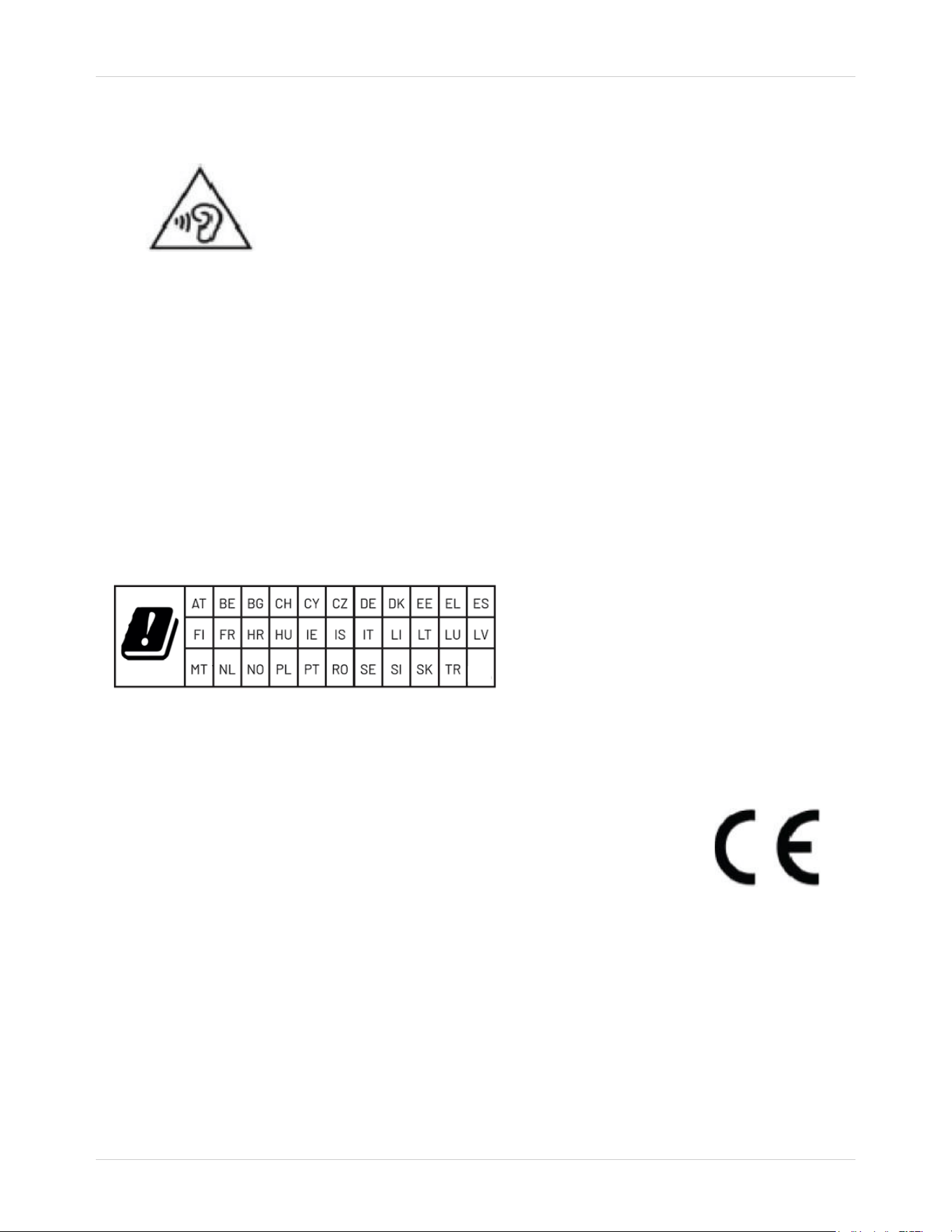
CE Maintenance
1.Use careful with the earphone maybe excessive sound pressure from earphones and headphones can
cause hearing loss.
2.Risk of explosion if battery is replaced by an incorrect type. Dispose of used batteries according to the
instructions.
3.The product shall only be connected to a USB interface of version Type-C.
4.Adapter shall be installed near the equipment and shall be easily accessible.
5.EUT Operating temperature range: 0° C to 40° C .
6.Adapter: The plug considered as disconnect device of adapter
Power supply and ADP(rating):
Input: AC 100-240V 50/60Hz 3A Max
Output: DC 15V 10A
7.The device complies with RF specifications when the device used at 20cm you’re your body.
8.To prevent possible hearing damage. Do not listen at high volume levels for long periods.
This product may be used in the following European member states subject to the following restrictions. For
products that operate in the frequency band 5.150 to 5.350 GHz, wireless access systems (WAS), including radio
local area networks (RLANs), shall be restricted to indoor use.
Declaration of Conformity
Rapsodo Pte Ltd hereby declares that this CLM is in compliance with the essential requirements and other
relevant provisions of Directive 2014/53/EU. In accordance with Article 10(2) and Article 10(10),This product is
allowed to be used in all EU member states.
Frequency Bands:
WLAN 802.11b/g/n20: 2412 MHz to 2472MHz
WLAN 802.11n40: 2422 MHz to 2462MHz
WLAN 802.11a/n20/n40/ac20/ac40/ac80/ax20/ax40/ax80: 5150 MHz to 5250 MHz
WLAN 802.11a/n20/n40/ac20/ac40/ac80/ax20/ax40/ax80: 5250 MHz to 5350 MHz
WLAN 802.11a/n20/n40/ac20/ac40/ac80/ax20/ax40/ax80: 5470 MHz to 5725 MHz
WLAN 802.11a/n20/n40/ac20/ac40/ac80/ax20/ax40/ax80: 5725 MHz to 5850 MHz
Bluetooth: 2402 MHz to 2480 MHz
Max power:
2.4GHz WLAN: 15.77dBm
5GHz WLAN: 16.81dBm
5.8GHz WLAN: 13.54dBm
Bluetooth: 4.49dBm
BLE: 4.12dBm

CLM PRO Installation Guide 30
Rapsodo Golf | support.rapsodo.com | © 2025 Rapsodo
FCC Caution.
This device complies with part 15 of the FCC Rules. Operation is subject to the following two conditions:
(1) This device may not cause harmful interference, and
(2) this device must accept any interference received, including interference that may cause
undesired operation.
Any Changes or modifications not expressly approved by the party responsible for compliance could
void the user's authority to operate the equipment.
Note: This equipment has been tested and found to comply with the limits for a Class B digital device,
pursuant to part 15 of the FCC Rules. These limits are designed to provide reasonable protection
against harmful interference in a residential installation. This equipment generates uses and can
radiate radio frequency energy and, if not installed and used in accordance with the instructions, may
cause harmful interference to radio communications. However, there is no guarantee that interference
will not occur in a particular installation. If this equipment does cause harmful interference to radio or
television reception, which can be determined by turning the equipment off and on, the user is
encouraged to try to correct the interference by one or more of the following measures:
-Reorient or relocate the receiving antenna.
-Increase the separation between the equipment and receiver.
-Connect the equipment into an outlet on a circuit different from that to which the receiver is connected.
-Consult the dealer or an experienced radio/TV technician for help.
FCC Radiation Exposure Statement:
This equipment complies with FCC radiation exposure limits set forth for an uncontrolled
environment. This equipment should be installed and operated with minimum distance 20 cm
between the radiator & your body.