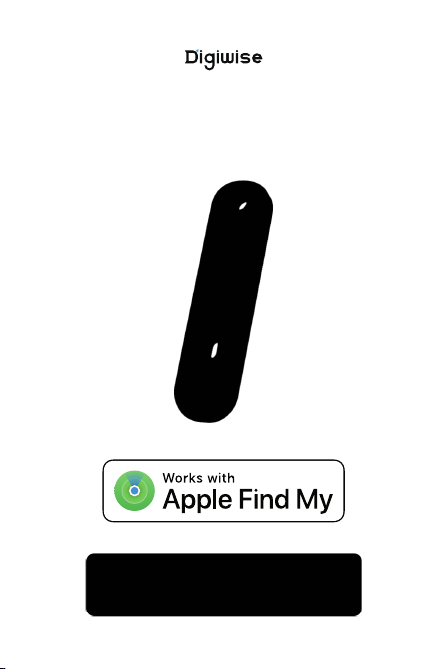
Findwise (BF01)
Manual
Product Feature Overview
Equipment status indicator
BF01 is an intelligent tracking device featuring
integrated multi-layered protection. It supports Find My
network and Find Hub device anti-theft functions, while
also incorporating a professional anti-theft alarm
system. The device connects to a mobile app via
Bluetooth to enable vibration alerts and location
tracking.
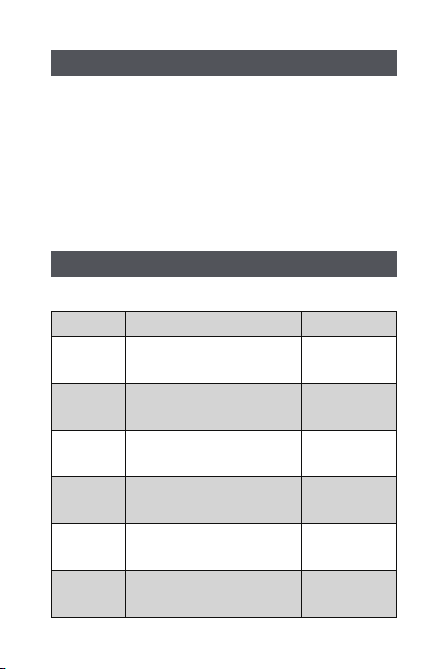
1.Light Indicator System
Green light flashes for 1 second
(with a 0.5-second interval)
Exit anti-theft
mode
Enter anti-theft
mode
Device
shutdown
Device start up
successful
Power On
Power Off
Arm
Disarm
Red light flashes for 1 second
(with a 0.5-second interval)
Green light stays on
for 1 second.
Red light stays on for
1 second.
Lighting EffectsStatus Instruction
Can be paired
via mobile
phone search
Pairing
Mode
Charging
Charging
Green light flashes for 5 minutes
(with 2-second intervals)
Red light stays on.
Detailed Operating Procedures
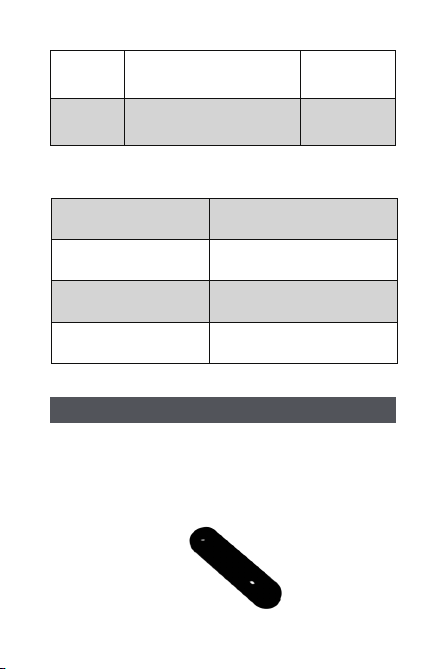
2.Voice Prompt System
1.Equipment Startup and Shutdown
1.1.Power-on procedure
Press and hold the button for 2 seconds. The device's
green light will flash and emit a beep, indicating
successful startup.
Charging
complete
Fully
charged
Low battery
Recharge
required
Green light stays on
Red light flashes
once every 10 seconds
Buzzer sounds once
(lasting 1 second)
Power-on prompt
Power-off prompt
Arm/Disarm
Restore factory settings
Buzzer sounds three times
(with 0.2-second intervals)
Buzzer sounds once
(lasting 1 second)
Buzzer sounds three times
(with 0.2-second intervals)
2. Device Pairing Connection
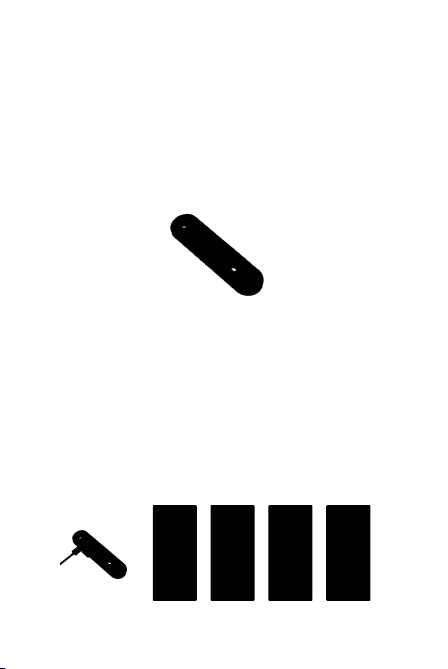
2.1.Findwise App Pairing
①Insert the USB cable, and the device will automatical-
ly enter a 5-minute pairing mode (green light flashing).
②Open the Dita app and locate the “BF01-XXXXX”
device in the device list.
③Follow the app prompts to complete Bluetooth
pairing.
1.2.Auto Power Off
When not paired, the device will automatically power
off after 1 minute of inactivity.
1.3.Force Power Off
Turn the device upside down and press and hold the
button for 10 seconds until the red light flashes.
2.2. Find My Pairing
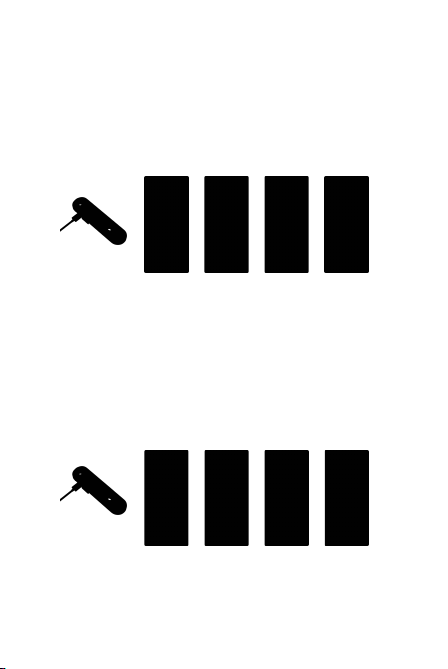
①Insert the USB cable to enter pairing mode.
②Open the Find My app and select “Add Another
Device.”
③Follow the prompts to complete device setup.
2.3. Find Hub Device Pairing
①Insert the USB cable to enter pairing mode.
②Open the Find Hub app and wait for the device
pairing prompt.
③Follow the prompts to complete device setup.

3. Anti-theft Function Settings
3.1.Fortification operation
①APP Security Settings:Configure via the Dita APP
interface
②Arming via button:Press and hold the button for 1
second (requires Bluetooth connection to your phone)
③APP Disarm:Disarm the system via the Dita APP
④Press button to disarm:Press the button for 1
second.
⑤Defense Removal Effect:Red light stays on for 1
second, and the buzzer sounds once.
4. Anti-loss feature usage
4.1.Prerequisites
·The device has been successfully paired with the Find
My/Find Hub app.
·The app has been installed and logged in on the
phone.
4.2.Functional Effects
·Remote Real-Time Location Tracking
·Remote Triggered Alarm Sound
·Complete Anti-Loss Search Process
1.Firmware Update(OTA)
1.1.Prerequisites for Upgrading
·Device battery level > 20%
·The equipment is in normal condition (not in alarm or
abnormal state).
1.2.Upgrade Process
①Follow the app instructions to begin the OTA upgrade.
②The device's indicator light will turn red during the
upgrade process.
③The device will automatically restart upon successful
upgrade. If unsuccessful, you may attempt the upgrade
again.
Security Features:
The device reserves an upgrade backup area and
supports automatic rollback in case of upgrade failure.
2. Restore factory settings
2.1.Applicable Scenarios
·Transferring the device to another user
·Requires re-binding to a new mobile phone
·Other situations requiring reset
Advanced Feature Operations
3. Serial Number Lookup (Learn More Feature)
3.1.Query Steps
①In the Apple Find My app, select “Identify Found
Item”
②Select the target device
③ When prompted, double-click the device button
④Choose “Continue On Website” to view the device
serial number
2.2.Operational Procedure
①Remove Bluetooth connection:Delete the BF01
device in your phone's Bluetooth settings
②Remove app pairing:Delete the original device in the
Dita app
③Remove FindMy pairing:Delete the device in the app
④Device reset:
·Place the device upside down horizontally
·Insert the USB cable
·Press and hold the button for 10 seconds; three
beeps indicate successful reset
Remove app pairing
Remove FindMy pairing

1.Charging Management
· When the battery is low, the red light flashes every
10 seconds as a reminder. Please charge promptly.
· Use the original USB-C charging cable.
· Red light indicates charging; green light indicates
fully charged.
2.Equipment Maintenance
· Regularly inspect the equipment's mounting
condition
· Avoid strong impacts and high-temperature
environments
· Use a soft cloth for cleaning
3.Troubleshooting
If you encounter equipment malfunctions, we
recommend troubleshooting using the following
steps:
① Regularly inspect the equipment's mounting
condition
② Avoid strong impacts and high-temperature
environments
③ Use a soft cloth for cleaning
Maintenance and Precautions

The Apple Find My network provides an easy, secure way to
locate compatible personal items using the Find My app on your
iPhone, iPad, Mac, or the Find Items app on Apple Watch.
To use the Apple Find My app to locate this item, the latest
version of iOS, iPadOS, or macOS is recommended. The Find
Items app on Apple Watch requires the latest version of watchOS.
Use of the Works with Apple badge means that a product has
been designed to work specifically with the technology identified
in the badge and has been certified by the product manufacturer
to meet Apple Find My network product specifications and
requirements. Apple is not responsible for the operation of this
device or use of this product or its compliance with safety and
regulatory standards.
Apple, Apple Find My, Apple Watch, Find My, iPhone, iPad,
iPadOS, Mac, macOS and watchOS are trademarks of Apple Inc.
IOS is a trademark or registered trademark of Cisco in the U.S.
and other countries and is used under license.
This device can works with either the Apple Find My network or
Find Hub, but these two services cannot operates simultaneous-
ly., Activating one will automatically disable the other.
Find Hub helps you find and connect to what matters in a single,
secure place. Find your belongings quickly and safely ‒ even if
your devices are offline. Plus, seamlessly and securely share your
location with friends & family for peace of mind.
Find Hub network requires location services and Bluetooth to be
turned on. Requires cell service or internet connection. Works on
Android
TM
9 and above on select devices [devices or phones] and
in certain countries for age-eligible users.
Google, Android, and Find Hub are trademarks of Google LLC.

This device complies with part 15 of the FCC Rules. Operation is subject to the
following two conditions: (1) This device may not cause harmful interference, and (2)
this device must accept any interference received, including interference that may cause
undesired operation.
Any Changes or modifications not expressly approved by the party responsible for
compliance could void the user's authority to operate the equipment.
Note: This equipment has been tested and found to comply with the limits for a Class B
digital device, pursuant to part 15 of the FCC Rules. These limits are designed to
provide reasonable protection against harmful interference in a residential installation.
This equipment generates uses and can radiate radio frequency energy and, if not
installed and used in accordance with the instructions, may cause harmful interference
to radio communications. However, there is no guarantee that interference will not
occur in a particular installation. If this equipment does cause harmful interference to
radio or television reception, which can be determined by turning the equipment off and
on, the user is encouraged to try to correct the interference by one or more of the
following measures:
-Reorient or relocate the receiving antenna.
-Increase the separation between the equipment and receiver.
-Connect the equipment into an outlet on a circuit different from that to which the
receiver is connected.
-Consult the dealer or an experienced radio/TV technician for help.
FCC Radiation Exposure statement
The device has been evaluatec to meel general RF exposure requirement. The device
can be used in portable exposure condition without restriction.