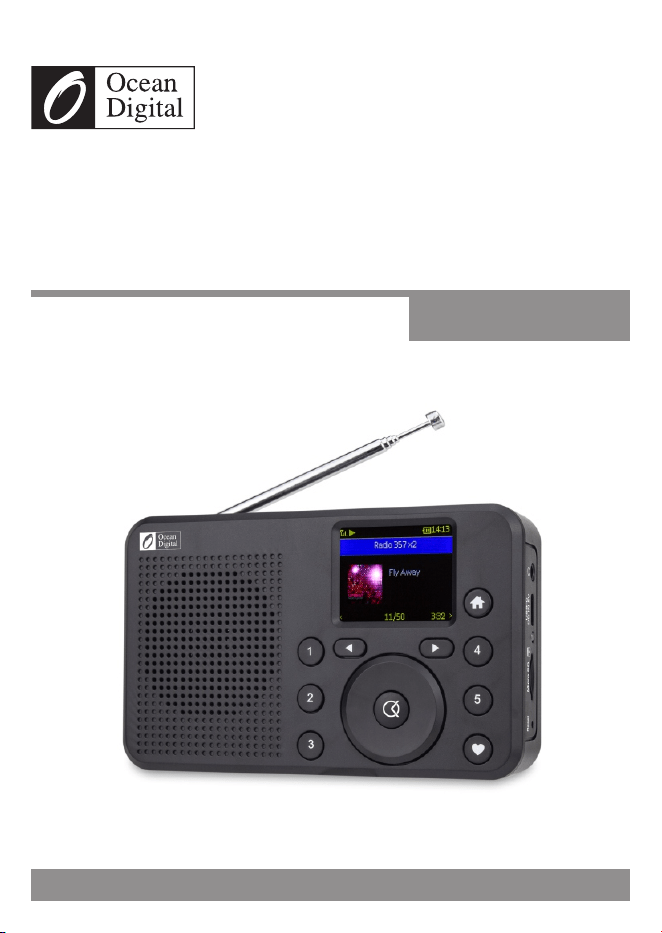
WR-18
Internet Radio with FM
User Manual
Please read this user manual carefully before using the receiver

- 2 -

- 3 -
Contents
1. Introduction to the WR-18 Internet Radio ..............4
2. Location of controls ............................................6
3. Choosing modes and options ..............................8
4. Battery Charging ................................................9
5. Dimmer ...........................................................10
6. Network Setup .................................................11
7. Overview of Radio modes and functions .............14
8. My Favorite .....................................................16
9. Internet Radio ..................................................17
10. Media Center ...................................................18
11. Storage ...........................................................19
12. FM Radio ........................................................20
13. BT streaming ...................................................21
14. Timer ..............................................................22
15. Sleep Timer .....................................................23
16. Configuration ...................................................24
1 . Skytune Web Application for Internet Radio7
www.skytune.net ............................................27
18. Problems and Solutions ....................................30
19. Helpful Tips .....................................................32
20. Technical Specifications ...................................33

- 4 -
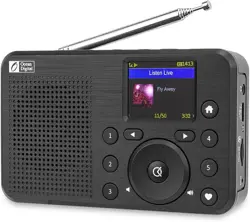
The WR-18 Internet Radio is a compact, multi-purpose and
attractive portable radio with an internal 1800 mAh Lithium
Polymer rechargeable battery for many hours of audio
entertainment and a gateway into the world of digital audio.
There are seven different operating modes requiring different
wireless connections as listed below:
1) My Favorite (Wi-Fi or Internet)
• List of previously Preset (stored) favorite Internet Radio
and FM radio stations
2) Internet Radio (Wi-Fi - Internet connected)
• Internet Radio with more than 30 thousand radio stations
worldwide
3) Media Center (Wi-Fi - No Internet)
• Play music streamed over the Wi-Fi network by UPnP or
DLNA server e.g. smart phone
4) Storage (No Wi-Fi or Internet)
• Play audio entertainment from files stored on Micro SD
memory card
5) FM Radio (No Wi-Fi or Internet)
• Receive ordinary FM radio stations in your local area
6) BT streaming (No Wi-Fi or Internet)
• Play audio transmitted from a Bluetooth source e.g. smart
phone, laptop
7) Timer (No Wi-Fi or Internet)
• To count down from a specified time with alarm
1/ Introduction to the WR-18
Internet Radio

- 5 -
8) Sleep timer
• Enable the timer to turn the radio in standby after the
selected time elapsed.
9) Configuration (No Wi-Fi or Internet)
• Set up options to personalize the radio and information
center
Precautions
Charge the battery until the LED changes from Red to Green
with a USB charger and the USB-C cable provided – do not
apply any other power source or permanent damage to the
radio may occur and be hazardous.
To clean use only a damp cloth and dry with a clean towel -
keep away from all liquids.
To avoid loss of warranty do not attempt to repair or remove
the cover for any reason.
Introduction to the WR-18 Internet Radio
- 6 -
1 2 3 4 5
12
11
7
14
7 8 9
13
15
16
17
18
19
6 10
2/ Location of Controls
20
- 7 -
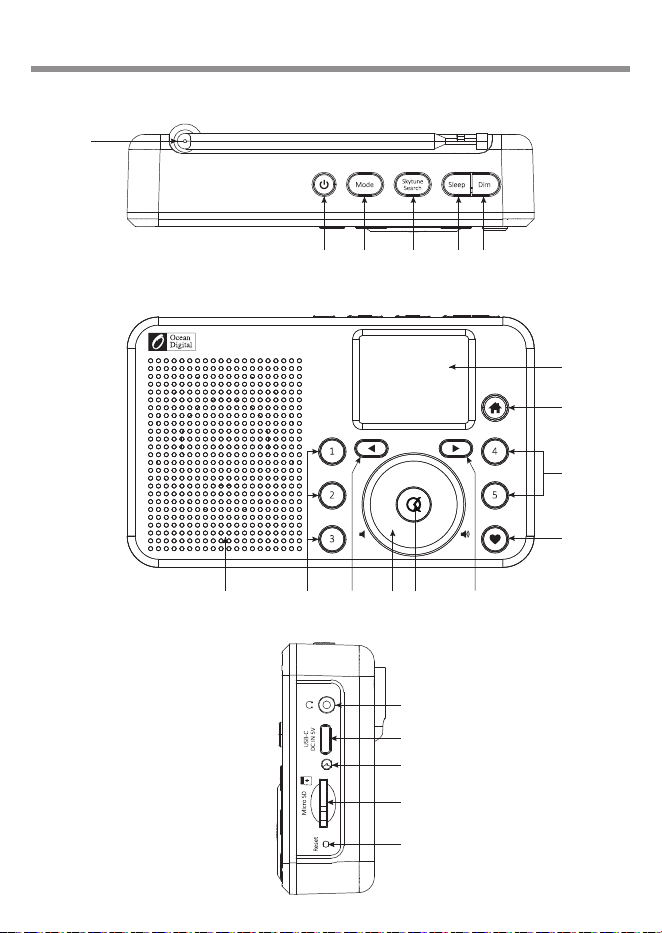
1) ON/OFF ( ) - Press and Hold until display turns on or off
2) Mode – Switch between radio operating modes
3) Skytune Search – Enter keywords to find internet radio
stations
4) Sleep – Setup delay timer before the radio automatically
turns off
5) Dim – Turn on/off backlight; Press and hold for dimmer
setup
6) Speaker – Loud speaker; turned off when earphone
plugged in
7) Preset Buttons 1-5 – Press and Hold to add current audio
source to Favorite list;
Press and release to recall favorite audio source
8) Navigation Control Left ( ◄ ) – Move Back to previous
display or item in lists
9) Dial Knob – Rotate to adjust volume, menus or station list
10) OK – Press and release to select function displayed or
highlighted item in list
11) Navigation Control Right ( ► ) – Move forward to next
display or item in lists
12) Color Display – 1.77” color screen
13) Home ( ) – Go to My Favorite mode or press and hold to
go to EQ setup option list
14) My Favorite ( ) – Go to favorite list or press and hold to
add (preset) audio source to favorite list
15) Earphone Connector – Stereo 3.5 mm (can be used as
Audio Out)
16) USB-C Connector – Battery charger; use USB-C cable
provided
17) LED – Red LED = battery charging; Green LED = battery
fully charged
18) Micro SD Card Slot – Playback audio files stored in MP3
19) Reset – Insert small pin (e.g. paper clip) to activate switch
to turn the radio off
20) Telescopic FM radio antenna
Location of Controls

- 8 -
All user input is information that the Radio uses to provide the
desired audio entertainment and pressing the OK button a
confirmation (Select) and go to command.
Once a desired selection is displayed or highlighted the
selection is confirmed by pressing and releasing the OK
button.
Navigate to modes (i.e. My Favorite, Internet Radio, FM radio,
Media Center, Storage, Bluetooth, Sleep Timer or
Configuration) or a position in a list by using the Navigation
Control to Move Forward or Back until the desired mode is
displayed or highlighted and press the OK button to confirm
the selection.
Throughout this manual “Select” will mean navigating through
display screens or option lists to display or highlight desired
selection and confirming it by pressing and releasing the OK
button.
3/ Choosing modes and options
- 9 -
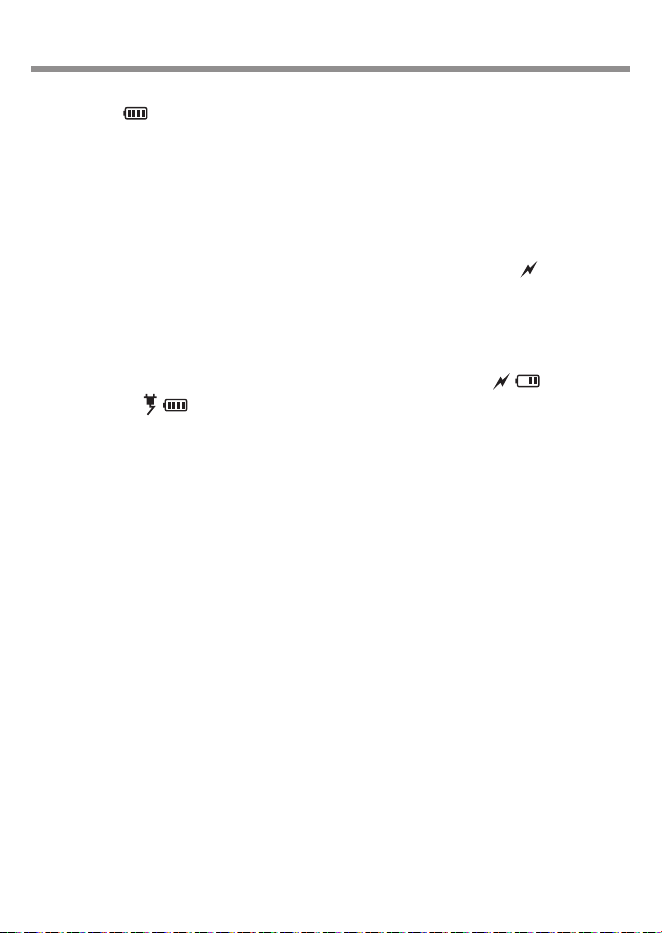
The amount of battery charge is displayed with an indicator
symbol ( ) where all bars indicate a full or nearly full
charge, one bar indicates low charge and flashes
continuously at minimum charge as a reminder to charge the
battery.
To charge the battery connect any USB charger (minimum
charging capacity 1A) to the radio using the USB-C cable
provided in the box. The battery charging symbol ( ) will be
displayed alongside the battery charge level symbol.
Battery charging LED (located on the RHS of the radio) will be
Red while the battery is charging, turn Green when the battery
is fully charged and the battery charge symbol ( ) will
change to ( ) until the USB-C cable is disconnected.
The radio may be used while the battery is charging, however,
this will cause the battery to take longer to fully charge.
The radio can be used with the USB-C cable connected
indefinitely without causing any harm to the radio.
4/ Battery Charging

- 10 -
By pressing the "Dim" button, the screen will turn off. It helps
saving the power of the battery by turning off the screen.
Press the "Dim" button again to turn it back on.
Entering the Dimmer settings by press and hold the "Dim"
button.
Select Mode and option to use Normal or Power Saving
setting.
• Normal – the display backlight will stay at the selected
brightness level all the time without automatically changing
to the dim level to save battery power.
• Dim – after a 20 second period of inactivity (i.e. no changes
to the radio) the display backlight will change to the dim
level.
Select Level and options to adjust Bright or Dim light levels
• Bright – Setup options to adjust the backlight in Normal
mode
• Dim – Setup options to adjust the backlight in Dim mode
5/ Dimmer
- 11 -
The Internet Radio must have a high bandwidth internet
connection and a wireless (Wi-Fi) home network connected to
it to be fully functional.
To configure the Wi-Fi network connection turn on the radio by
pressing and holding the power On/Off button until the display
illuminates - this normally takes a few seconds.
The first time the Radio is turned on after leaving the factory a
list of languages is displayed – navigate to and highlight a
language by rotating the Dial Knob and press the OK button.
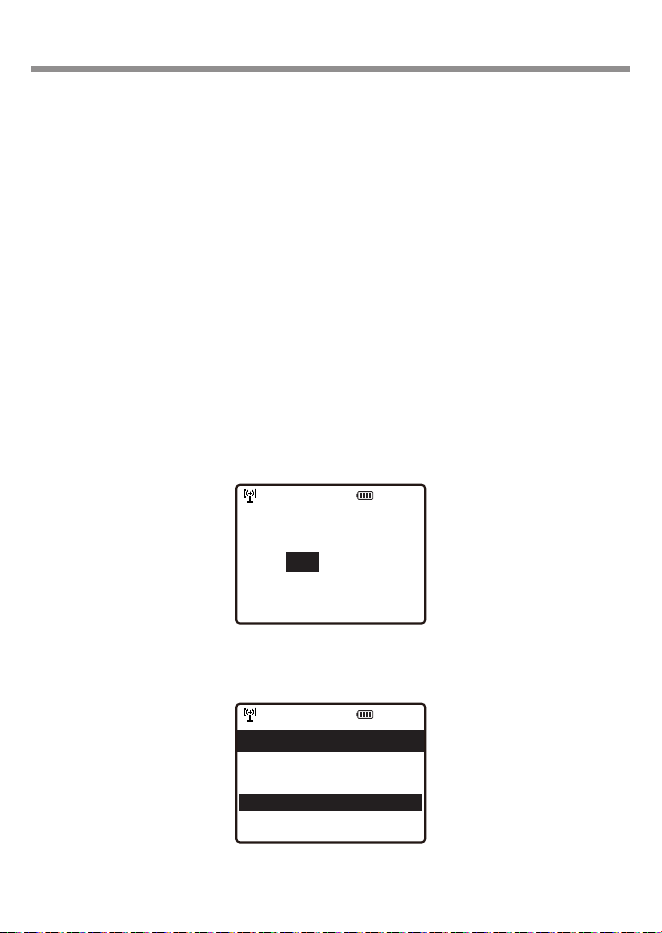
The display will change to ask if the configure network wizard
should be started:
1) To setup the Wi-Fi network Highlight and Select Yes using
the Dial Knob and OK button
2) The display will change and display a list of options – select
Add/Remove AP
12:01am
Configure Network?
NoYes
←to previo us →t o nex t SelectOK whendone
12:01am
Network Options >
Wi-Fi Channels >
< Add/Remove Ap >
AP:[] >
Network 3/7
6/ Network Setup

- 12 -
3) The display will change and display a list of options – Select
Add AP (Scan)
4) The display will show a list of available networks (this may
take a few seconds) – Select your network
5) The display will ask for your passphrase – this is often
called passcode or password
– Using the Dial Knob highlight the first character of your
passphrase
– Press and release OK button
– Highlight the next character
– Press and release OK button
– Repeat highlighting characters and pressing the OK
button until the last character is highlighted
– While the last character is highlighted , press and hold
the OK button until the display changes
6) If the connection is successful “Association Complete” will
be displayed briefly.
To repeat the above procedure, or if Configure Network wizard
does not automatically start, the network can be connected by
using Configuration mode.
1) Press the Home button ( ) to go to My Favorite mode
2) Navigate to and Select Configuration
3) Select Network
There are three different options to connect to the network
from the Configuration mode:
Network Setup
- 13 -
1) Select Add/Remove AP (i.e. highlight and then press OK
button) and repeat steps 1) through 6) above.
2) Select Add/Remove AP and then Select Add AP (WPS
button) – Press WPS button on your router within 2
minutes to complete the connection.
– Select Add AP (Smart Config) – Using a smart phone
or tablet download App Esptouch from iOS App Store
or Android Play Store.
With the Radio and App device on the same network,
select this option and start/launch the App. Select
EspTouch.
The App will display the parameters of your network
and ask for the network password. Enter the password
and select "Broadcast" followed by “Confirm” when
displayed on the App device.
If the network connection is successful “Association
Complete” will be displayed briefly on the radio
screen.
– To remove a previous network connection select
“Remove AP” and delete the connection.
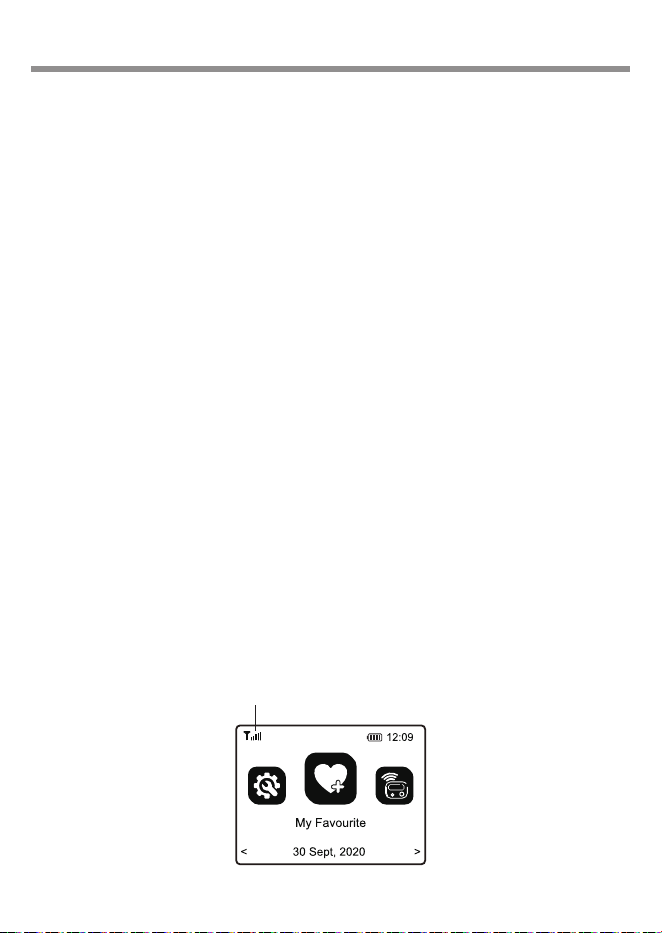
Connection status is displayed in the top left hand corner of
the LCD with the Wi-Fi symbol and signal strength bars.
Wi-Fi signal bar
Network Setup
- 14 -
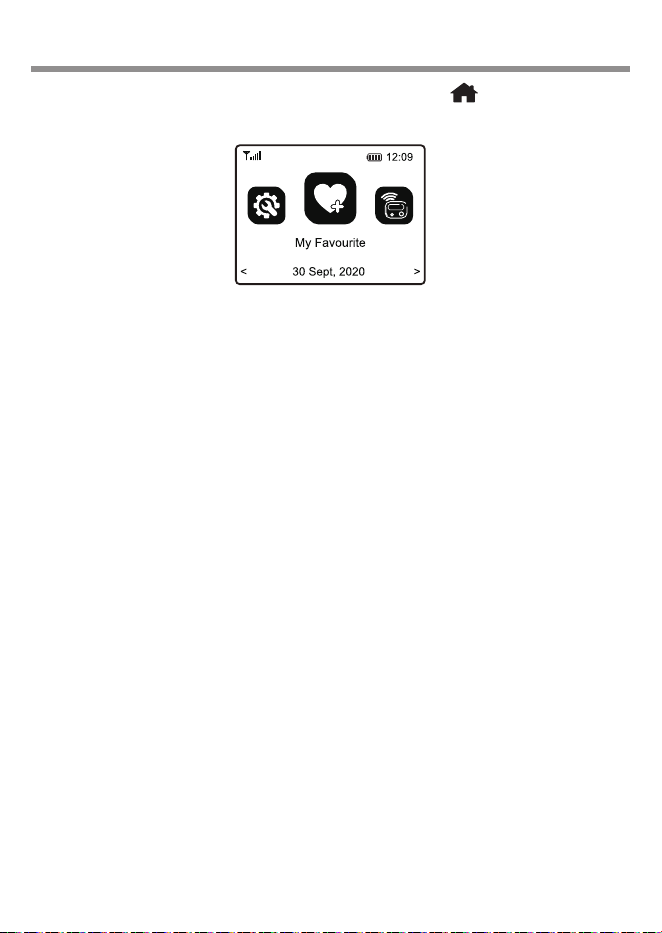
To Select any mode use the Home button ( ) to display
the My Favorite screen:
Navigate through the modes to find and Select any of these
functions:
1) My Favorite – A maximum of 150 previously Preset (saved)
favorite Internet Radio and FM radio stations are listed for
Selection.
2) Internet Radio – Select online radio station from the
thousands available on Skytune or by using the History list
of previously selected radio stations or use Search to find a
preferred radio station.
3) Media Center – Browse and Select music streaming on your
home Wi-Fi network by any UPnP or DLNA compatible
server e.g. Smart phone, Tablet, PC, Laptop.
4) Storage – Play audio entertainment from files stored in MP3
on a Micro SD card.
5) FM radio – Play your favorite local radio station using the
telescopic antenna
6) BT streaming – When “Paired” (connected) to another
Bluetooth device use the Radio as a powered speaker.
7/ Overview of Radio modes and functions

- 15 -
Maximum range of the Bluetooth wireless signal is 10
meters (32 feet) but may be reduced by the presence of
walls or other obstructions.
7) Timer – To count down from a specified time with alarm
8) Sleep Timer – Select a time delay before the Radio turns off
while playing your selected audio entertainment source.
9) Configuration – This mode lists all available options and
settings to personalize your Radio.
Overview of Radio modes and functions
- 16 -
Press and release the My Favorite button ( ) and display a
list of up to 150 Internet Radio and FM radio stations that have
been Preset (stored) for an easier and faster way to play
favorite radio stations.
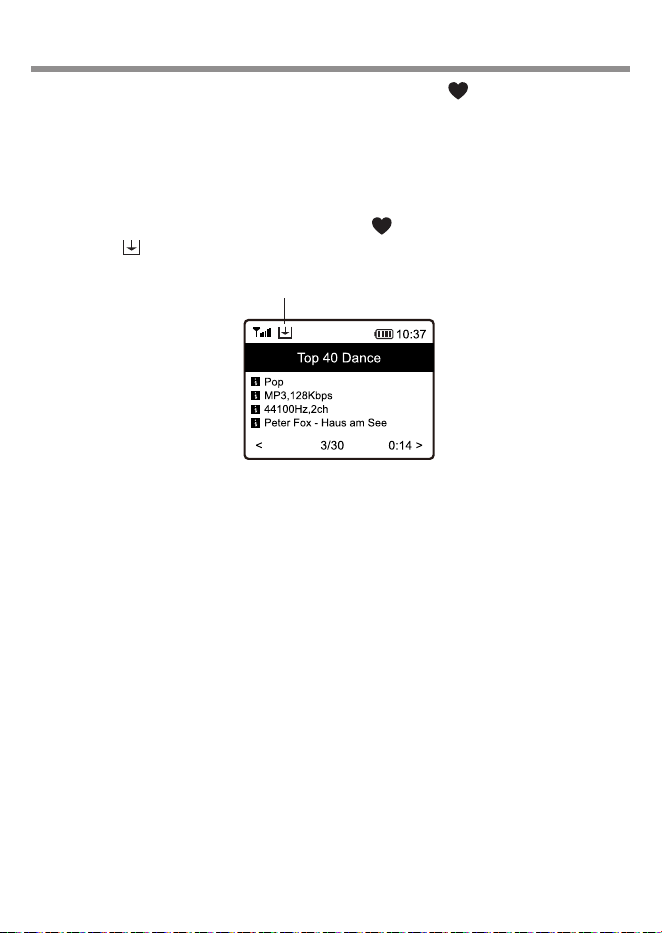
To add a radio station, at the end of the list, while it is playing
press and hold my favorite button ( ) until the Preset
symbol ( ) is displayed in the top left corner of the LCD.
After the first 150 radio stations have been stored the next
Preset will be stored in the first location, the next in the
second location; continuing to overwrite each list location
until looping back to the first location again.
To Edit the list highlight a list item, press the Move Forward
button ( ► ) to go to the Edit list function where the item can be
moved Up, Down, Deleted, To Top or To End of the list.
For convenience there are 5 dedicated Preset buttons
(labeled 1 – 5) to quickly and easily access the top five
favorite radio stations. To Preset a station while it is playing
press and hold one of the five buttons until the Preset symbol
is displayed or to recall a station press and release the button.
Preset icon
8/ My Favorite
- 17 -
Select Internet Radio mode (Home>My Favorite>Internet
Radio>OK) and navigate the extensive list of worldwide radio
stations using these options:
1) Skytune – Select a radio station using the structured lists
that aid and reduce the task of finding the right station.
2) Use Search instead of browsing the extensive radio station
list by searching with the initial letters of the desired station
name, creating a shorter list of stations the more letters
used in the search.
3) The History option will show a list of the radio stations
recently selected. Every station played is added to the end
of the list automatically until a maximum of 99 is reached
when the next station selected will replace the first station
in the list.
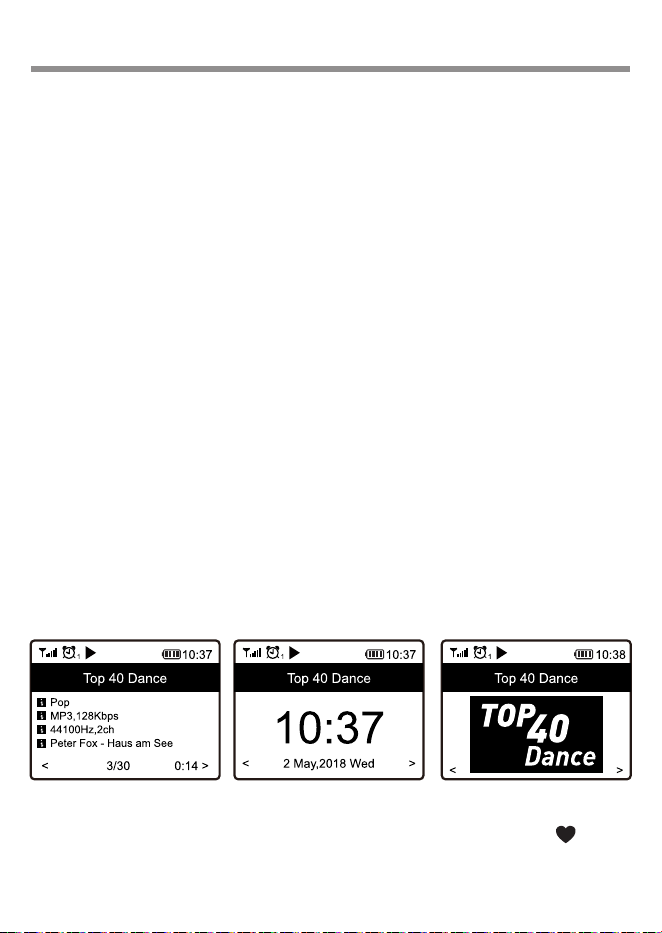
When playing Internet stations information about the station
and what is playing will be displayed on the LCD screen.
Pressing the Move Forward button once will display more
information and pressing Move Forward again will display the
time of day in 12 or 24 hour format depending on the time
format selected in Configuration mode.
Radio Stations can be added to the My Favorite list at anytime
a station is playing by pressing and holding a Preset ( )
button until the Preset symbol is displayed in the top left hand
corner of the display.
9/ Internet Radio

- 18 -
The Radio supports the industry standard Universal Plug and
Play (UPnP) and compatible with Digital Living Network
Alliance (DLNA) standards.
These standards enable the Radio to browse and play media
files located on UPnP or DLNA server provided the server has
been setup to allow sharing of files, are streaming the files and
connected to the same Wi-Fi network as the radio.
Select the Media Center mode to display a list of options:
1) UPnP – A scan is made to find UPnP and DLNA devices that
are streaming on the Wi-Fi network (this can take a few
seconds) and when complete options are listed to select
music or playlists files. If no UPnP or DLNA servers are
found “Empty List” is displayed.
2) My Playlist – Your own play list may be created by playing
selected music and while it is playing pressing and holding
a Preset button until the Preset symbol ( ) is displayed.
3) Clear My Playlist – Select to delete all music files from My
Playlist.
To start playing a streaming media file Select the server and
other options (e.g. Music, Playlists etc.) in the lists displayed
until the final option list is displayed when the media file will
start playing automatically.
Media Center playback options (i.e. normal, repeat all, repeat
once or shuffle) can be setup by selecting
Home>Configuration>Playback Setup.
10/ Media Center

- 19 -
The radio can play audio Files stored in a Micro SD card
provided they are stored in MP3.
To play music from a Micro SD memory card, simply insert a
micro SD card into its port on the side of the radio. Press the
Home ( ) or Mode button and navigate to "Storage", press
OK to confirm. It will take a moment to read the micro SD card
and show the stored file list before it can begin playing music.
Skip the next or previous track by rotating the dial knob and
press OK to start playing music.
To pause/play the music, press in the OK knob.
Note: If a micro SD is not recognized or does not play
properly, the list of files on the device is corrupted or a file in
the list is not played, please format the memory card (all the
files will be deleted) and try again.
Compatible audio format: Mp3
Capacity supported: up to SDHC at 32GB
NTFS and logical drive partitioning are NOT supported.
11/ Storage
- 20 -
12/ FM Radio
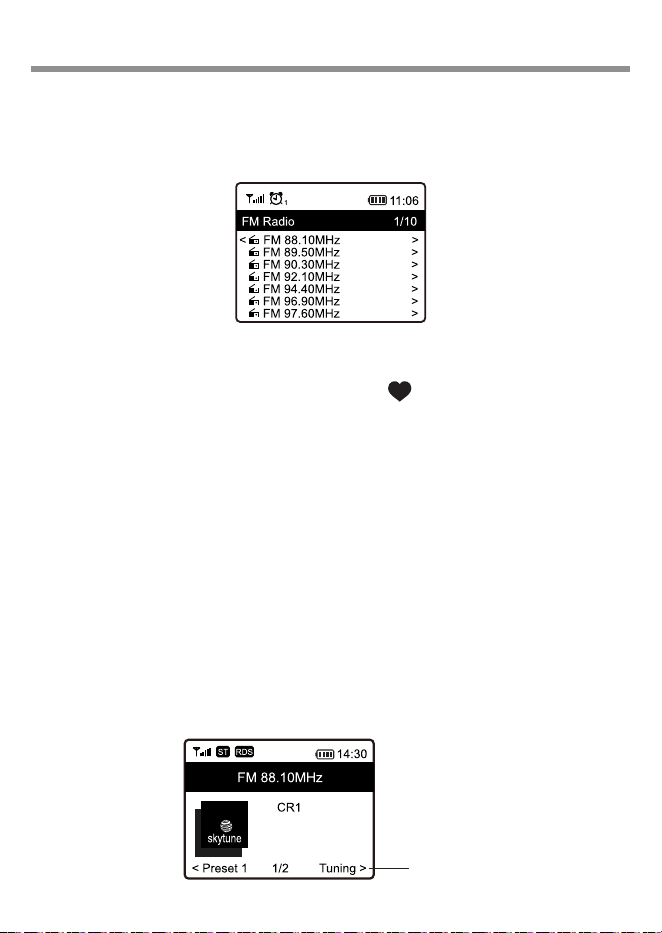
Select FM Radio and press OK if option to Scan and
Preset FM Stations is displayed or if a list of Preset FM
stations is displayed highlight and select station to start
listening.
While a station is playing it can be added to the Favorite
list by pressing a Preset button ( ) or to display more
radio station information use the Forward button ( ► ).
Note: Changes to the available FM stations will not be
automatically included in the available station list
without a new scan for stations. To rescan go to
Configuration > FM Setup > FM Full Scan.
For manual tune on the FM radio, press the button OK
until “Tuning” is displayed in the lower right corner of
the LCD screen. Pressing and releasing the Forward
( ► ) or Back ( ◄ ) button to go up or down in frequency
in small steps (0.1 MHz).
To exit manual tuning long press OK button.
Tuning

- 21 -
After selecting Bluetooth the display will show the Radio’s
Bluetooth identifier code and connection status. If it is not
connected “pairing” must take place with the audio source
Bluetooth device.
When the Radio’s identification code appears in the list of
available devices on the audio source Bluetooth device pair
the two devices so that they can recognize each other and will
automatically connect whenever the Radio is in Bluetooth
mode and within the maximum 10 meter (32 feet) range.
Once pairing is complete the audio file being transmitted by
the source Bluetooth device will be received by the Radio and
played the same as any other audio source.
Note that the radio Bluetooth is a “receive only” device that
cannot transmit Bluetooth signal and cannot support devices
such as Bluetooth earphones.
13/ BT streaming

- 22 -
Press the button and use the button OK or the
arrow buttons to select "TIMER".
Setting the Timer
The device offers the Timer function as a kitchen timer.
The time will count down from a specified time and ends
with a beeping sound. Timer settings is up to 99 hours,
59 minutes, 59 seconds.
The beeping sound volume and sound duration is
adjustable from the Timer settings in Configuration
menu.
Switching off the timer
When the alarm sounds, you can turn it off by pressing
the button OK.
In case the device is switched to other menu rather than
the Timer display when the alarm sounds, return to the
Timer display in order to switch off the alarm.
14/ Timer
- 23 -
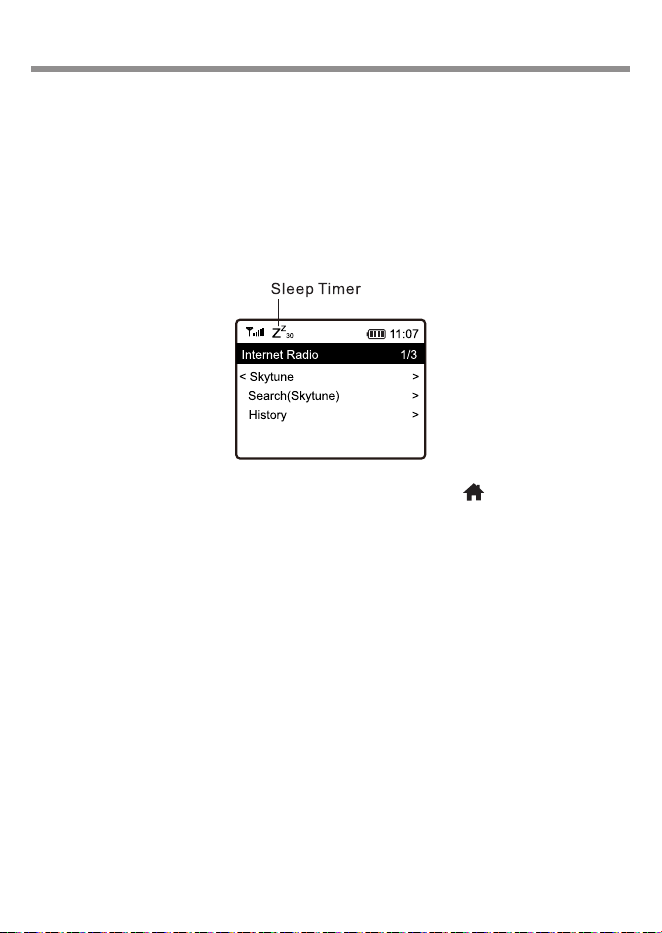
While playing an audio source press and release the Sleep
button on top of the radio and the display will show a list of
different delay times. Select a time delay before the Radio
automatically turns off allowing the listening of audio
entertainment while falling asleep.
Selecting a delay time will automatically start the delay count
down with the Sleep Timer symbol displayed in the top left had
side of the screen.
Use the Move Back control or Home button ( ) to exit Sleep
Timer setup.
15/ Sleep timer

- 24 -
Select Configuration for a list of options to personalize the
radio to be displayed, navigate the list and select the desired
function.
Network
Wi-Fi Network
Ø Network Options – Select if the Radio Wi-Fi should be
permanently connected or to disconnect if the
connection is not active for more than 30 seconds.
Ø Wi-Fi Channels – Select your location to minimize
interruption (drop outs) of the audio stream e.g. music.
Ø Wi-Fi Network
• Add/Remove AP – Scan local area to find and list
available Wi-Fi networks
• AP (WPS button) – Select this option to use automatic
Wi-Fi connection by pressing the WPS button on the
network router
• Add AP (Smart Config) – Select this option to use App
Esptouch to connect the radio to the network.
• AP:[] – If the radio has been connected to more than
one network use this option to select between
networks
• Signal – Display Wi-Fi signal strength in dBm
• IP [current setting] – Factory Reset default is Dynamic
• DNS [current setting] - Factory Reset default is
Dynamic
Date & Time
Set up and select options for time zone, clock and date
formats, adjust for day light saving time, network time, NTP
server address. Default setting is local time using Internet
time standard.
16/ Configuration

- 25 -
You can also set clock style with choices between analog or
digital clock display.
Language
Default is English or Select this option to setup the language
for all displays.
FM setup
Options to select FM area, scan for FM stations to create
station list and the display station list.
Local Radio
Automatically set local stations (default) or set manually to
another location
Playback Setup
Media and Storage modes playback i.e. normal, repeat all,
repeat once or shuffle
Resume play options
Play last when ready (default) or stay at Home display
Auto power save
To set the period time that is inactive for Power save to
activate.
Dimmer
Options to set the display (LCD backlight) brightness levels in
Normal and Dim modes. Set Dim and Bright light levels
independently from dark to full brightness
Configuration

- 26 -
EQ [current setting]
Options for playback sound e.g. Flat, Rock, Classical
Buffer Time [current setting]
Select either a 2 or 5 second minimum amount of audio
streaming data in the buffer (storage) before playing when
recovering from breaks in the Internet data stream
Timer
This is to set the alarm sound volume and duration for the
Timer function.
Information
Network and System information e.g. radio IP address
Software Update
Request an update to the radio software. Do not turn off the
radio until the update has completed. If an error occurs or
radio hangs up (i.e. becomes unresponsive) use a pin to
activate the Reset switch inside the pin hole located on the
right hand side of the radio near the bottom – the radio will
turn off.
Reset to default
Reset all the Radio settings and options back to the exit
factory condition
Configuration
- 27 -
Use Microsoft Internet Explorer or Google Chrome web
browser to manage My Favorite list or select Internet radio
station for playback.
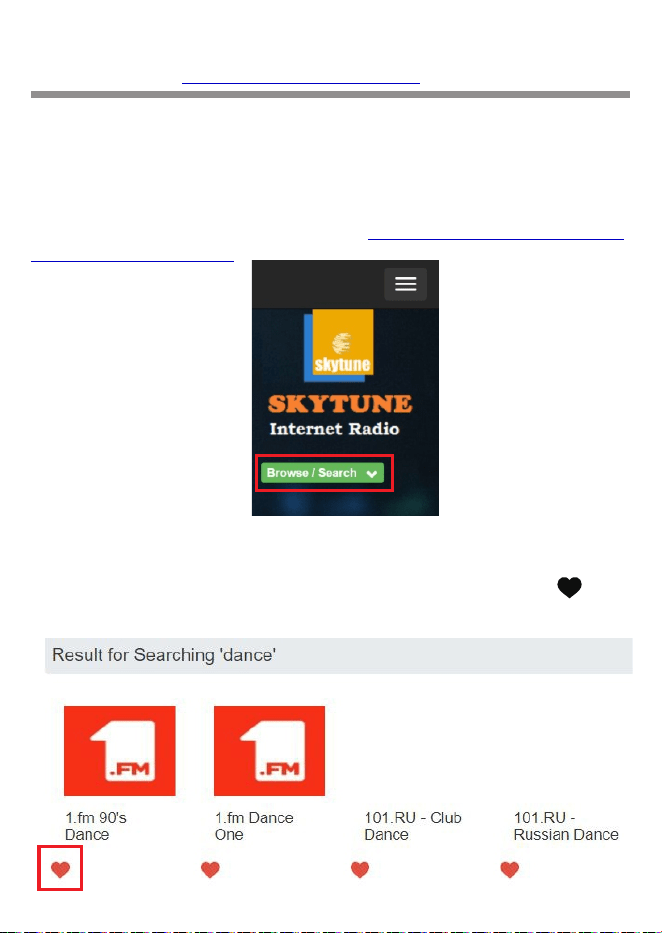
With the PC / Smart phone connected to the same Wi-Fi
network as the radio go to web site www.skytune.net and click
on “Browse / Search”
Browse or enter the name (e.g. Folk, Dance) to search for
radio stations to create a list of radio stations.
Select a radio station by clicking on the heart symbol ( )
below the station name.
17/ Skytune Web Application for Internet
Radio www.skytune.net
- 28 -
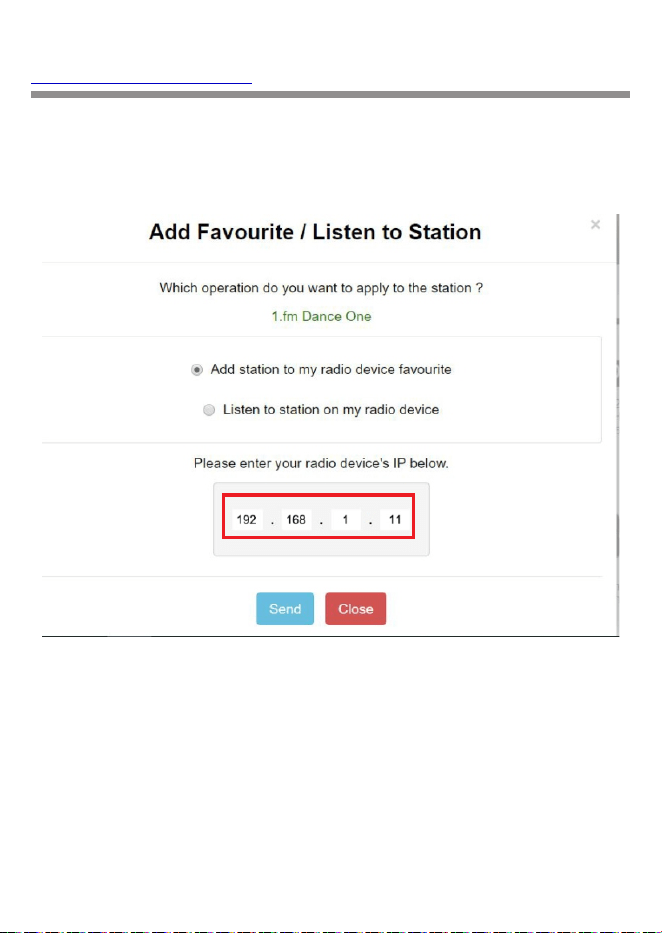
Select either “Add favorite” or “Listen to Station” and enter the
radio’s IP address. To find the IP address of the radio go to
mode>Configuration>Information>Network Information>IP:
Click on “Send” and the radio will start playing the radio
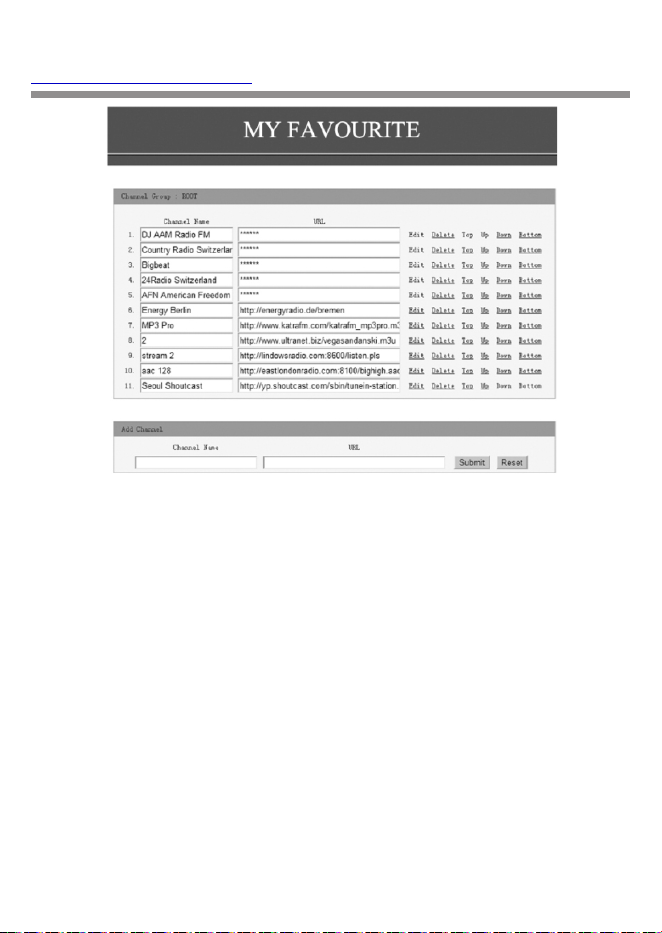
station and the radio’s My Favorite list will be displayed on the
web page. The station can be added to the list or the list edited
using the tools on the web page with any changes
automatically updating the radio’s My Favorite list.
Skytune Web Application for Internet Radio
www.skytune.net
- 29 -
Adding a Radio Station
To add a Radio Station its name and URL can be entered into
the Add Channel section along with selecting the Country
where it is located and Genre of audio entertainment it
provides.
You can also add the radio channel if you know the published
audio stream URL with the streaming format as follow:
1. Audio formats: MP3, AAC, AAC+
2. Stream formats: Shoutcast, Icecast (HTTP, HTTPS) and
HLS
3. Playlist formats: PLS, M3U
4. Sampling frequency: 44.1 KHz and 48 KHz
Request to add Radio Station
If you know the name of a Radio Station but it is not in the list a
request can be made to have it added.
On the opening page select the Suggest Station tab and fill in
the application.
Skytune Web Application for Internet Radio
www.skytune.net

- 30 -
Cannot connect to the Wi-Fi Network
a) Common Causes
• Incorrect passphrase / passcode / password for the
selected Network.
• Location of the Radio has a weak Wi-Fi signal – if possible
check with another Wi-Fi connected device in the same
location or move to a location closer to the router.
b) Unusual Causes
• Incorrect Network security encryption – Radio supports
WEP, WPA and WPA 2
Cannot play UPnP or DLNA Files
• There is no UPnP or DLNA server.
• The UPnP server is not streaming flies over the Wi-Fi
Network.
• The server is not correctly configured to allow sharing of files
over the network
• The streaming device has a Firewall which is blocking
access.
Internet Radio has interruptions (drop outs)
• Wi-Fi Channel interference – incorrect region selected
Configuration>Network>Wi-Fi Channels.
• Weak Wi-Fi signal – check the Wi-Fi symbol (top left hand
side of LCD display) for a minimum of two “Bars” - add a Wi-
Fi Extender to the Network if necessary.
• Radio Station has interrupted streaming – check by trying
stations in the Skytune> Globe Most Popular list.
18/ Problems and Solutions

- 31 -
• The Internet connection does not have sufficient bandwidth
(capacity) to support all the devices connected to the
Network when operating at the same time or is experiencing
excessive error rates – have the Internet connection
checked by the ISP (Internet Service Provider).
Internet Radio cannot play some stations
• The station may not be streaming – not all stations stream for
24 hours a day.
• There are too many users at this time – some stations have a
limited number of users they can support at any given time.
• The station link is out of date – it is updated daily and should
be correct the next day or access via Internet Radio >
Skytune. Contact Ocean Digital support for more help.
• The station link is no longer active – the station is no longer
available.
• The Internet connection between the radio and the radio
station server (streaming device) is too slow or unstable to
support the radio station data stream.
No Sound
• It is possible that the playback has stopped - press the OK
button to resume playing
• Not all audio sources transmit at the same volume – turn up
the volume
• Compare with a different audio source
Radio becomes unresponsive
The radio has a reset switch to turn it off in the unlikely event
this occurs – insert a pin (e.g. paper clip) in the pin hole
located on the right hand side of the radio near the bottom to
activate the reset switch.
Problems and Solutions

- 32 -
The Internet Radio is streaming the audio source data from
the selected radio station by the broadband modem / router
and Wi-Fi network. Problems with the broadband connection
(e.g. high error rate, Internet congestion due to overcrowding)
will cause the radio to stop playing until the data stream starts
again.
If the problem persists call the Internet Service Provider (ISP)
and ask them to test the connection.
What is Buffering?
The digital audio data stream used to provide the sound
(audio) when connected to a wireless network, router and the
Internet. This data stream is transmitted in small bundles
(packets) with the time interval between the packets changing
all the time and turned into a smooth, continues data stream
by a Buffer that stores audio data to bridge the time gaps.
The buffer storage is limited and if the broadband connection
is too slow or the Internet is overcrowded (i.e. anywhere
starting at the radio station geographic location until it
reaches the connection to the modem) errors and large gaps
in the data packets can occur causing the buffer to run out of
audio data and interruptions in the sound.
Similarly the Wi-Fi network shares its bandwidth (i.e. data
capacity) with all the neighboring Wi-Fi networks and can
become overloaded causing errors and interruptions in the
sound.
The buffer will start to refill as soon as the data stream starts
again and resumes playing after a short pause (i.e. 2 or 5
seconds adjustable in Configuration mode) to prevent
constant starting and stopping of the sound.
19/ Helpful Tips

- 33 -
Model: WR-18
DC Power Input: 5 Volts 1 Amp. (USB-C)
Battery: 3.7 Volt 1800 mAh Lithium Polymer
Wi-Fi Wireless: IEEE 802.11b/g/n
(5 GHz only version ac – not supported)
Frequency: 2.4 GHz
Security: WEP, WPA, WPA2
Bluetooth Version: V4.2 BR, EDR Compliant
Frequency: 2.4 GHz
Range: 32 Feet (10 meters) Line of sight
Transmit Power: 0 dBm Receive only (not for earphones)
Storage: Micro SD card (maximum 32 GB) Mp3
Audio File Streaming Formats
UPnP: MP3, AAC, AAC+, WAV
DLNA: MP3, AAC, AAC+
Audio Output: 1 Watts
Analogue Output: 3.5 mm Stereo Earphone
Dimension: L130mm (5.12”) x D29mm (1.14”) x H80mm (3.15”)
Weight: 232g
20/ Technical Specifications
- 34 -
* Internet Radio
* User Manual
* USB-C Cable
The European laws do not allow any more the disposal of
old or defective electric or electronic devices with the
household waste. Return your product to a municipal
collection point for recycling to dispose of it. This system is
financed by the industry and ensures environmentally
responsible disposal and the recycling of valuable raw
materials.
Ocean Digital Technology Ltd.
Flat B, 12/F., Yeung Yiu Chung (No.8) Ind. Bldg.,
20 Wang Hoi Road, Kowloon Bay, Hong Kong
Email: support@oceandigital.com.hk
In the box
WEEE and Recycling

- 35 -
This equipment has been tested and found to comply with the
limits for a Class B digital device, pursuant to part 15 of the
FCC Rules. These limits are designed to provide reasonable
protection against harmful interference in a residential
installation. This equipment generates, uses and can radiate
radio frequency energy and, if not installed and used in
accordance with the instructions, may cause harmful
interference to radio communications. However, there is no
guarantee that interference will not occur in a particular
installation. If this equipment does cause harmful interference
to radio or television reception, which can be determined by
turning the equipment off and on, the user is encouraged to try
to correct the interference by one or more of the following
measures:
• Reorient or relocate the receiving antenna.
• Increase the separation between the equipment and
receiver.
• Connect the equipment into an outlet on a circuit different
from that to which the receiver is connected.
• Consult the dealer or an experienced radio/TV technician for
help.
Caution: Any changes or modifications to this device not
explicitly approved by manufacturer could void your authority
to operate this equipment.
This device complies with part 15 of the FCC Rules. Operation
is subject to the following two conditions: (1) This device may
not cause harmful interference, and (2) this device must
accept any interference received, including interference that
may cause undesired operation.
RF Exposure Information
The device has been evaluated to meet general RF
exposure requirement. The device can be used in portable
exposure condition without restriction.
FCC