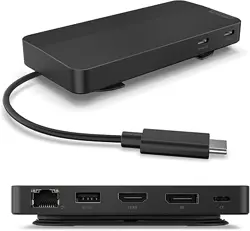

Lenovo USB-C Dual Display Travel Dock
Lenovo USB-C Dual Display Travel Dock (with
power adapter)
User Guide

https://www.lenovo.com/safety
Note: Before using this documentation and the product it supports, ensure that you read and understand
the warranty information in the documentation that comes with the product.
First Edition (March 2024)
© Copyright Lenovo 2024.
LIMITED AND RESTRICTED RIGHTS NOTICE: If data or software is delivered pursuant to a General Services
Administration “GSA” contract, use, reproduction, or disclosure is subject to restrictions set forth in Contract No. GS-
35F-05925.

Contents
Chapter 1. About the dock . . . . . . . 1
In the box . . . . . . . . . . . . . . . . . . 1
Product overview . . . . . . . . . . . . . . . 2
Chapter 2. Set up the dock . . . . . . . 3
Install the dock . . . . . . . . . . . . . . . . 3
Update the dock firmware . . . . . . . . . . . . 3
Chapter 3. Use the dock. . . . . . . . . 5
Use the video output connectors . . . . . . . . . 5
Supported resolution . . . . . . . . . . . . 5
Configure the external displays . . . . . . . . 5
Chapter 4. Troubleshooting . . . . . . . 7
Appendix A. Accessibility
information . . . . . . . . . . . . . . . . 9
Appendix B. Compliance
information . . . . . . . . . . . . . . . 11
Appendix C. Trademarks . . . . . . . 13
© Copyright Lenovo 2024 i

ii Lenovo USB-C Dual Display Travel DockLenovo USB-C Dual Display Travel Dock (with power adapter) User Guide

Chapter 1. About the dock
Thanks for using Lenovo USB-C Dual Display Travel Dock or Lenovo USB-C Dual Display Travel Dock (with
power adapter). Illustrations in this documentation might look different from your product.
This dock is an advanced and versatile docking solution to help you expand your computer. With it, you can
enjoy high-resolution displays, charge your laptop or mobile devices, connect USB devices, transfer data,
and much more.
To view the compatible computers,
1. Go to
https://support.lenovo.com/us/en/solutions/accs-guide.
2. Select ThinkPad, ThinkCentre, ThinkStation, Ideapad and Ideacentre Option Compatibility Matrix.
Then follow the on-screen instructions.
In the box
For Lenovo USB-C Dual Display Travel Dock:
• Dock
• Documentation
For Lenovo USB-C Dual Display Travel Dock (with power adapter):
• Dock
• 100W ac power adapter and power cord
• Documentation
Contact your place of purchase if any item is missing or damaged. Ensure that you retain your proof of
purchase and packing material. They might be required to receive the warranty service.
© Copyright Lenovo 2024 1
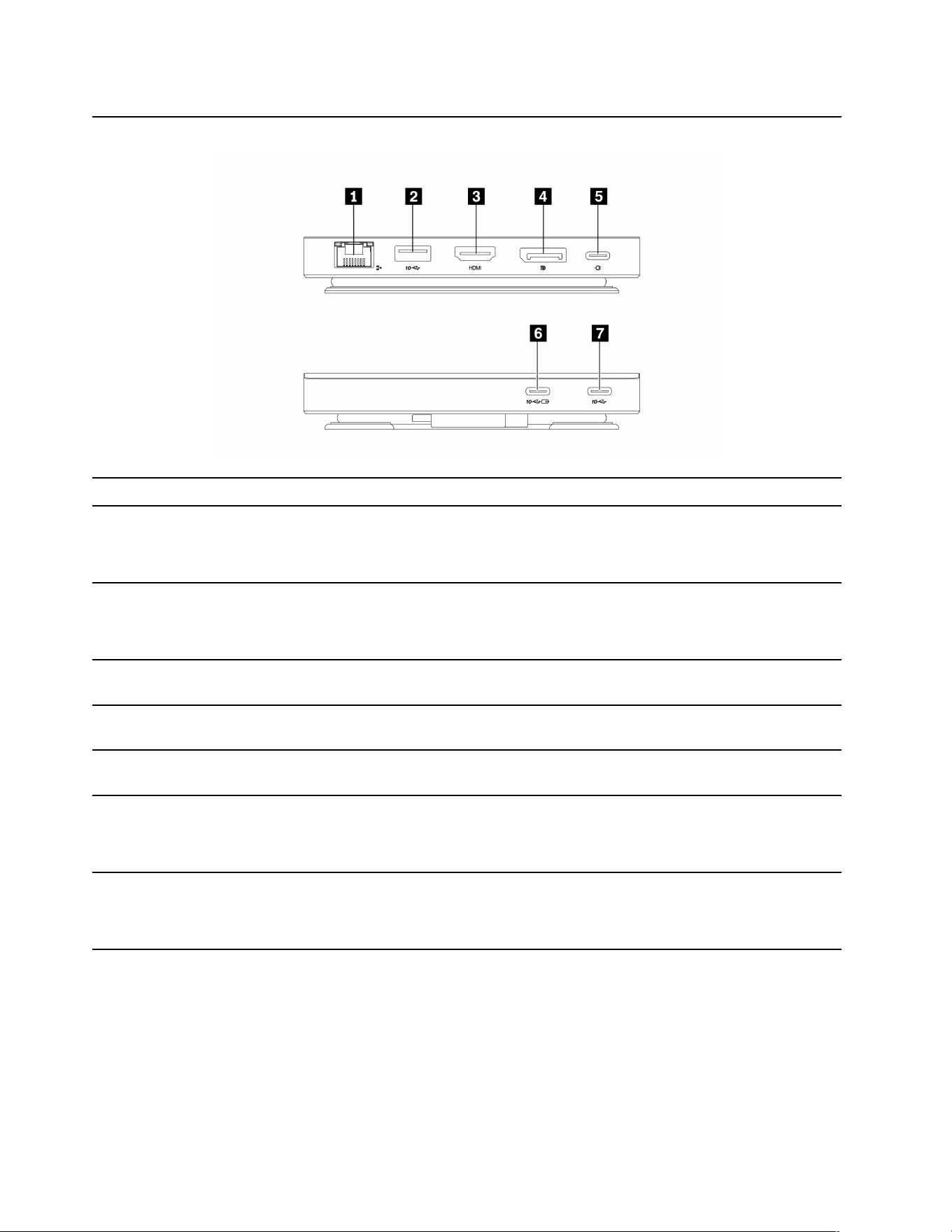
Product overview
Item
Description
1
Gigabit Ethernet connector
• Connect to Ethernet.
• Support 10/100/1000M network transmission.
2
USB-A connector (USB 10Gbps)
• Connect to a USB-A device.
• Support USB charging with up to 5V 1.5A.
3
HDMI
™
connector
Connect to an external display with a High Definition Multimedia Interface (HDMI) cable.
4
DisplayPort® connector
Connect to an external display with a DisplayPort cable.
5
Power connector
Connect to ac power with the accompanying ac power adapter and power cord, if any.
6
USB-C® connector (USB 10Gbps, Always On USB)
• Connect to a USB-C device.
• Support always-on USB charging with up to 5V 2.4A.
7
USB-C connector (USB 10Gbps)
• Connect to a USB-C device.
• Support USB charging with up to 5V 1.5A.
Note: When Item 2 and Item 7 are in use simultaneously, they share a total power of 5V 1.5A.
Statement on USB transfer rate
Depending on many factors such as the processing capability of the host and peripheral devices, file
attributes, and other factors related to system configuration and operating environments, the actual transfer
rate using the various USB connectors on this device will vary and will be slower than the data rate listed in
the connector name for each corresponding device.
2
Lenovo USB-C Dual Display Travel DockLenovo USB-C Dual Display Travel Dock (with power adapter) User Guide
Chapter 2. Set up the dock
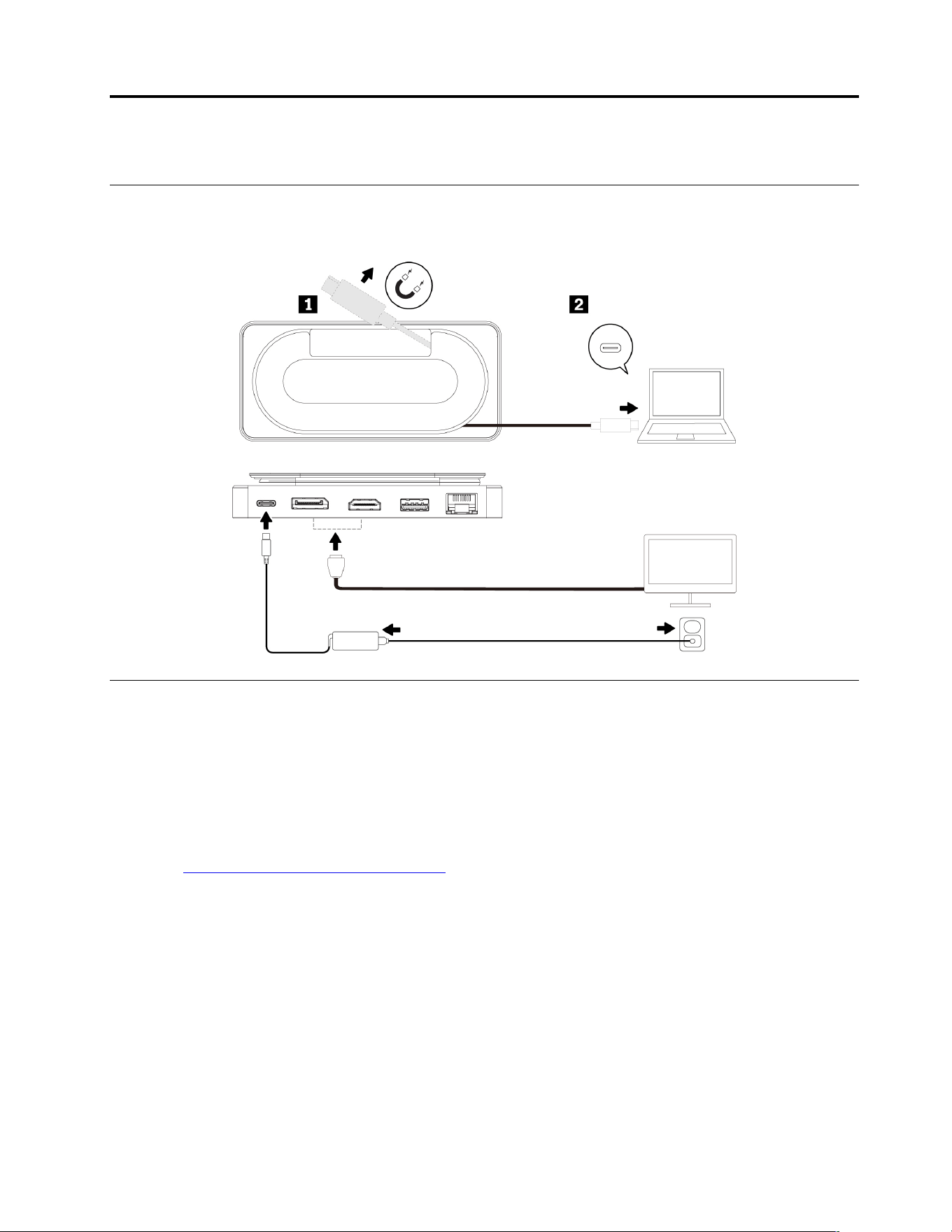
Install the dock
The dock supplies power to the computer when the dock is connected to the ac power and your computer.
Update the dock firmware
The dock firmware is preinstalled on compatible computers and the dock is ready for use after you connect it
to ac power and computer.
It is recommended that you update the dock firmware whenever a new version is available to improve
performance of the dock.
To update the dock firmware:
1. Go to
https://www.lenovo.com/support/docks.
2. Select the entry for the dock and then follow the on-screen instructions to download the firmware.
© Copyright Lenovo 2024 3

4 Lenovo USB-C Dual Display Travel DockLenovo USB-C Dual Display Travel Dock (with power adapter) User Guide

Chapter 3. Use the dock
Use the video output connectors
The dock has two video output connectors and supports up to two external displays:
• One DisplayPort connector (supports DisplayPort 1.4)
• One HDMI connector (supports 4K@60Hz as specified in HDMI 2.1)
Supported resolution
The following table lists the supported maximum resolution of the external display.
Connect the external display to Supported resolution
Displayport connector
up to 3840 x 2160 pixels / 60 Hz
HDMI connector
up to 3840 x 2160 pixels / 60 Hz
To view the maximum display matrix, go to https://support.lenovo.com/us/zh/solutions/pd029622#USB-Cdock
and select the entry for the dock.
Configure the external displays
You can configure the external displays connected to your dock:
• Set the display mode: extend, mirror or duplicate, or single display.
• Set the orientation, brightness, resolution, color, and more.
To configure the external displays:
1. Right-click a blank area on the desktop and select Display settings.
2. Select the display that you want to configure.
3. Configure display settings of your preference.
For more information, see the Windows help information.
© Copyright Lenovo 2024 5

6 Lenovo USB-C Dual Display Travel DockLenovo USB-C Dual Display Travel Dock (with power adapter) User Guide

Chapter 4. Troubleshooting
General
1. The dock does not work after connecting to my device.
Ensure that the USB-C connector on your device works well.
2. My device cannot be charged by the dock.
• Ensure that:
– The USB-C connector on your device supports ac input.
– Your device is compliant with the power specifications of the dock. Charging your device over the
maximum rates, such as charging phones simultaneously through the USB-A connector (USB
10Gbps) and the USB-C connector (USB 10Gbps) connector, might disable the port to which the
device is attached.
• Disconnect and reconnect the fixed USB-C cable of the dock to your device.
• Disconnect and reconnect the power adapter cable to the dock, if any.
3. The charging speed of the dock for my device is slow.
Connect your device to the USB-C connector (USB 10Gbps, Always On USB) on the dock.
4. When I plug in or unplug the power cable that is connected to the dock: my device blacks out; the
Internet disconnects; or data transfer interrupts.
Ensure that:
• Your device supports Fast Role Swap (FRS).
• The dock is not fully loaded. It might be fully loaded in the following scenarios:
– Storage devices are reading or writing through the dock.
– The downstream ports on the dock are charging heavy-loading devices.
Video output
1. The external display is blank.
• Ensure that:
– Your computer is running correctly and is not in the sleep or hibernation mode.
– The dock is securely connected to the computer and external display.
• Reduce the resolution of the external display.
2. The image on the external display flashes.
• Ensure that the display cable is securely connected to the dock.
• Disconnect and reconnect the display cable.
© Copyright Lenovo 2024 7

8 Lenovo USB-C Dual Display Travel DockLenovo USB-C Dual Display Travel Dock (with power adapter) User Guide

Appendix A. Accessibility information
Documentation in accessible formats
Lenovo provides electronic documentation in accessible formats, such as properly tagged PDF files or
HyperText Markup Language (HTML) files. Lenovo electronic documentation is developed to ensure that
visually impaired users can read the documentation through a screen reader. Each image in the
documentation also includes adequate alternative text to explain the image so that visually impaired users
can understand the image when they use a screen reader.
To open and view PDF files, your computer must have the Adobe Reader program installed. The Adobe
Reader program also is available for download at:
http://www.adobe.com
© Copyright Lenovo 2024 9

10 Lenovo USB-C Dual Display Travel DockLenovo USB-C Dual Display Travel Dock (with power adapter) User Guide

Appendix B. Compliance information
EU ErP (EcoDesign) Directive (2009/125/EC) - external power adapters
(Regulation (EU) 2019/1782), Ecodesign for Energy-Related Products
Regulations 2010 - UK SI 2010 No. 2617 (Ext PSU), SI 2020 No. 485 (Ntwk
Standby), SI 2014 No. 1290 as amended
Lenovo products are compliant with the EU EcoDesign (ErP) Directive and UK EcoDesign for Energy-related
Products Regulations. Refer to the following for details. For EU, refer to the system declaration
https://
www.lenovo.com/us/en/compliance/eu-doc
, and for UK refer to the system declaration https://
www.lenovo.com/us/en/compliance/uk-doc
.
© Copyright Lenovo 2024 11

12 Lenovo USB-C Dual Display Travel DockLenovo USB-C Dual Display Travel Dock (with power adapter) User Guide

Appendix C. Trademarks
LENOVO and the LENOVO logo are trademarks of Lenovo.
Windows is a trademark of the Microsoft group of companies.
DisplayPort is a trademark of the Video Electronics Standards Association.
The terms HDMI and HDMI High-Definition Multimedia Interface are trademarks or registered trademarks of
HDMI Licensing LLC in the United States and other countries.
USB-C is a trademark of USB Implementers Forum.
All other trademarks are the property of their respective owners.
© Copyright Lenovo 2024 13

14 Lenovo USB-C Dual Display Travel DockLenovo USB-C Dual Display Travel Dock (with power adapter) User Guide