
●
Thank you for using this APP. Please setup the camera by following the
steps below :
1.In order to connect the camera stably, please install it in the range that
could strongly accept the Wi-Fi signal of the home wireless router.
Before installing the camera, please determine the installation
location(flat surface or wall)
When the camera is installed in a place where is difficult to obtain Wi-Fi
signal, please use a Wi-Fi extender to extend the Wi-Fi network range.
2.Connect power adapter to the camera
Please keep the wires away from children to avoid any
potential danger.
In order to get the best image quality, please don't touch
the camera lens with your hands.
Please make sure to use the matching power adapter
cable, or the camera may not work properly.
Download the app from the App Store (IOS devices) or Google Play
(Android devices).
1. Download the APP
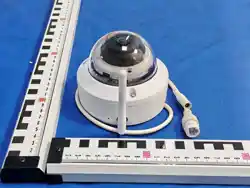
2.4/5GHz WiFi Vandal-proof Dome Camera
2. Connect the power connector to the camera and plug the power
adapter into a power outlet. Wait until the camera status LED turns
solid red.
3. Create an account and tap “Add Device” to add a device into
your device list, follow the instructions to complete the setup.
1 APP Installation
3 Adding Device
2 Register an account
Recommended system specifications
802.11a/b/g/n/ac/ax and BLE 5.4
IOS 11.0 or higher
Android OS 6.0 or higher
Application pre-check function
Make full use of APP to monitor your home(the supported functions
may be varied by different models) :
Event notification
Motion/Human/Vehicle/Sound detection
Customized real-time monitoring
Voice intercom
Run the APP, input user name
and password,Choose Region,
then tap <Login>.
After tap <Login> will reach
the Home menu.
Tap button <Red slow
flashing> when the camera
LED is blinking in red.
Searching device. Please wait. Select a 2.4GHz/ 5GHz WIFI
network for the camera to
connect and input the WIFI
password, tap button <Next>.
Waiting for the WIFI connecting.Input the password, Tap button
<Next>to connect WIFI.
Device was added successfully
and tap <Next>.
Connect power adapter to the camera.
Plug the adapter into an outlet. Wait until the camera indicator light
on.Tap button<Add Device> in the right corner of the main menu.
Aim the scanning window at the QR code on the camera.
●
Scan the QR code below to download the APP

4 Mounting the Camera
5
Tap <Finish> to finish camera
configuration.
Do not peel off the protective film on the front housing during
camera installation to prevent dirt contamination which may
impair image quality.
Make sure the camera receives astrong Wi-Fi connection in
the spotwhere you want to mountit so thatit can stream
video to your app.
Introduce the WiFi PT CameraSet a device name.
Note:
Choose the accurate region in
where you want to setup your
devices.
Please select the micro SD
card and click <Format> to
format the micro SD card. Tap
<Next> after formatting
successfully.
Loosen the front housing screws and remove the front housing.
Changes or modifications not expressly approved by the party
responsible for compliance could void the user's authority to operate
the equipment.
This equipment has been tested and found to comply with the limits
for a Class B digital device, pursuant to Part 15 of the FCC Rules. These
limits are designed to provide reasonable protection against harmful
interference in a residential installation. This equipment generates
uses and can radiate radio frequency energy and, if not installed and
used in accordance with the instructions, may cause harmful
interference to radio communications. However, there is no guarantee
that interference will not occur in a particular installation. If this
equipment does cause harmful interference to radio or television
reception, which can be determined by turning the equipment off and
on, the user is encouraged to try to correct the interference by one or
more of the following measures:
-- Reorient or relocate the receiving antenna.
-- Increase the separation between the equipment and receiver.
-- Connect the equipment into an outlet on a circuit different from that
to which the receiver is connected.
-- Consult the dealer or an experienced radio/TV technician for help
This device complies with part 15 of the FCC rules. Operation is subject
to the following two conditions (1)this device may not cause harmful
interference, and (2) this device must accept any interference received,
including interference that may cause undesired operation.
Compliance Statement
ThisequipmentcomplieswithFCCradiationexposurelimitssetforth
foranuncontrolledenvironment.Thisequipmentshouldbeinstalled
andoperatedwithminimumdistance20cmbetweentheradiator&
yourbody.
This device is in compliance with the essential requirements and other relevant
provision of Directive EN300328,EN301489-1,EN31489-17,EN IEC 62311,EN IEC
62368.
Simplified EU Declaration of Conformity
Notification of Compliance
Antenna
Speaker
Lens
Microphone
IR &White light
SD Card & Rest Button
(Inside the camera)
Mount the camera on celling:
Assemble and tighten the antenna before Mounting the camera.
Secure the camera to the ceiling with screws. Adjust lens
angle afterwards.
Install the front housing and fasten with screws.
Mount the camera on the wall.
Expansion Bolt
Mounting Screw
Step 1.
Step 2.
Step 3.
Step 4.