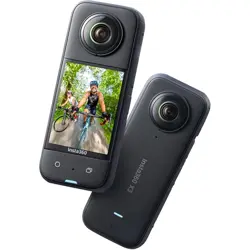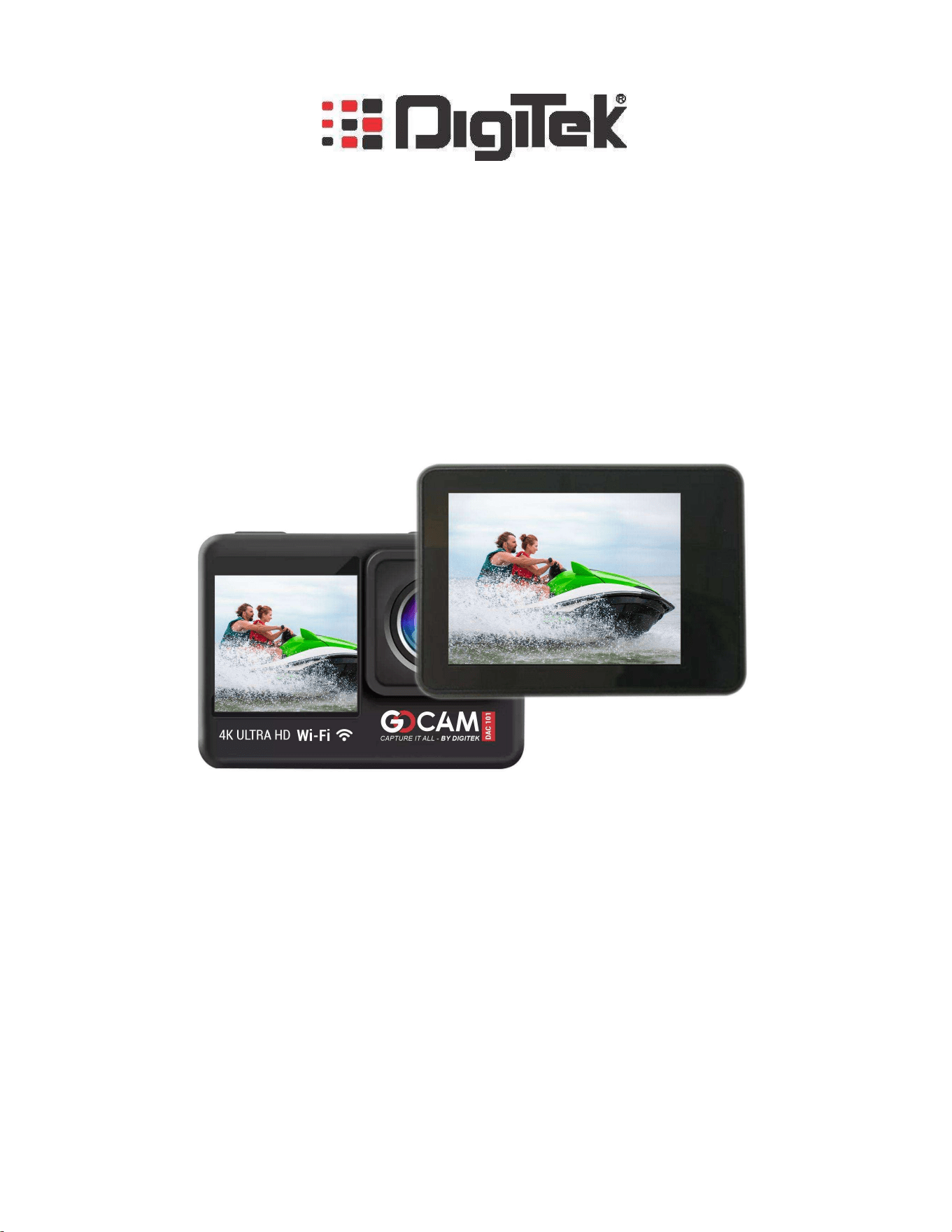
4K Ultra HD Dual Screen
Action Camera
DAC-101
Instruction Manual
CAUTIONS
■
Digitek Dual Screen 5K Action Camera DAC-101, It is normal for the housing to exert heat under use.
■
Don’t expose the product directly to high temperatures over 40°C.
■
Please peel off transparent protective films on lens and screen of camera before using.
■
Please properly protect well the lens and screen of camera after using.
■
Keep it safe from falling and dropping.
■
Keep it distance from any strong magnetic interference objects like electrical machine to avoid strong radio waves
that might be damaging the product and affect the sound or image quality.
■
In case of overheating, unwanted smoke from the device, unplug it immediately from the power outlet to prevent
hazardous fire.
■
Keep it safety from children while on charging.
■
Stored the device in a cool, dry and dust free location.
■
Do not modify the camera it in any way, if the camera has been detached, the warranty will be void.
■
4K60FPS/5K30FPS , with anti-shaking effect video show,1.5G big file, please download it from computer
(Please notice:The computer needs I5 or above system, with 16G memory) ,you will get the super good video quality .
THE BASIC
、
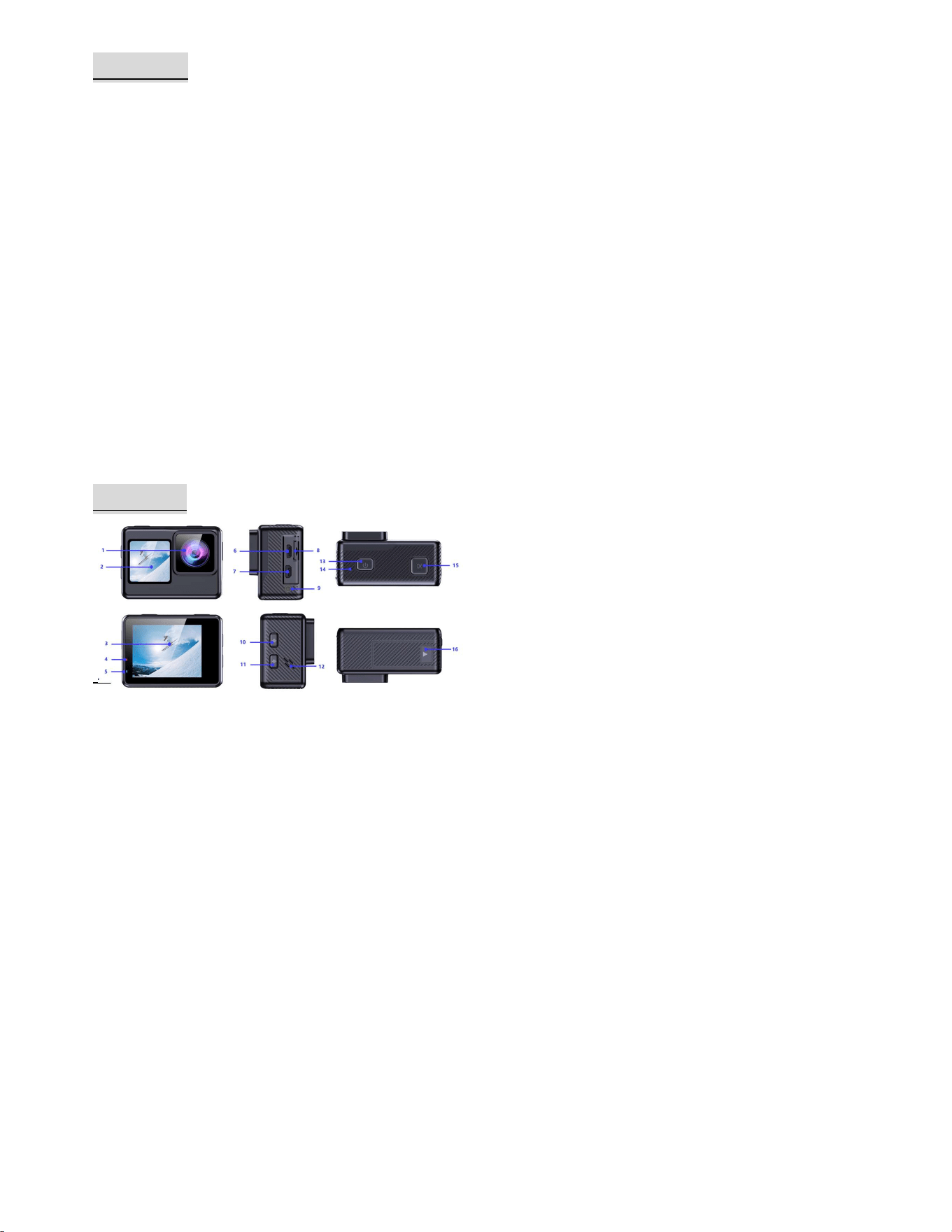
1 - Lens
2 - Front Screen 1.3”
3 - Main Screen 2”-Touch
4 - Charging Indicator
5 - Working Indicator
6 - Micro USB Port
7 - HD Output Port
8 - Micro SD Card Slot
9 - DC2.5 External microphone
10 - UP / Wi-Fi /Zoom in Button
11 - Down /Zoom out /Beauty Button
12 - Speaker
13 - Mode / Power Button
14 - Working Indicator
15 - Shutter / Select Button
16 - Battery Door
Tips:
•Verify the camera is in Video Preview Mode, Long Press and hold the Up Button to turn on Wi-Fi and press quickly Up
Button to turn off Wi-Fi.
•Verify the camera is in Video Preview Mode, Short press
Down Button
to switch to front screen, press
Down Button
again to back the main screen.
•Verify the camera is in Photo Preview Model ,long Press and hold the Up or Down Button to Zoom in/out photo.
•Verify the camera is in Photo Preview Mode, Short press
Down Button
to switch to front screen, press
Down Button
again to back the main screen.
GETTING STARTED
HELLO
Welcome to your new camera. To capture video and photos, you need a micro SD card (sold separately).
We strongly recommend to use the branded memory cards purchased from regular channels for maximum reliability and
stability during recording and in high vibration activities.
STORAGE/MICRO CARDS
Use brand name memory cards that meet following requirements, we strongly recommend to use the branded memory
cards purchased from regular channels for maximum reliability and stability during recording and in high vibration
activities.
• micro SD, micro SDHC, or micro SDXC
•
UHS-III rating at least for 4K Video resolution
• Capacity up to 128GB (FAT32)
NOTES:
• Please format the micro SD, micro SDHC and micro SDXC memory card on the camera before using.
• Please insert the memory card in correct way . if not , the card slot maybe damage by the wrong way.
• To keep your micro SD card in good condition, reformat it on a regular basis.
• Micro SD card stops recording when the storage of each file is over 4GB and starts to record again on a new file.
• Reformatting erases all of your content, so be sure to offload your photos and videos first.
• Don’t place your Micro SD card near strong magnetic objects to avoid data error or loss.
POWERING ON + OFF
To Power On:
Press and hold the Mode button for seconds. The camera beeps while the camera status light is on. When information
appears on the LCD display your camera is on.
To Power Off:
Press and hold the Mode button for seconds. The camera beeps while the camera status light is off.
OVERVIEW OF MODES
⮚
Button Operation:
Turn on the camera, press the
Mode Button
to cycle through camera modes and settings.
⮚
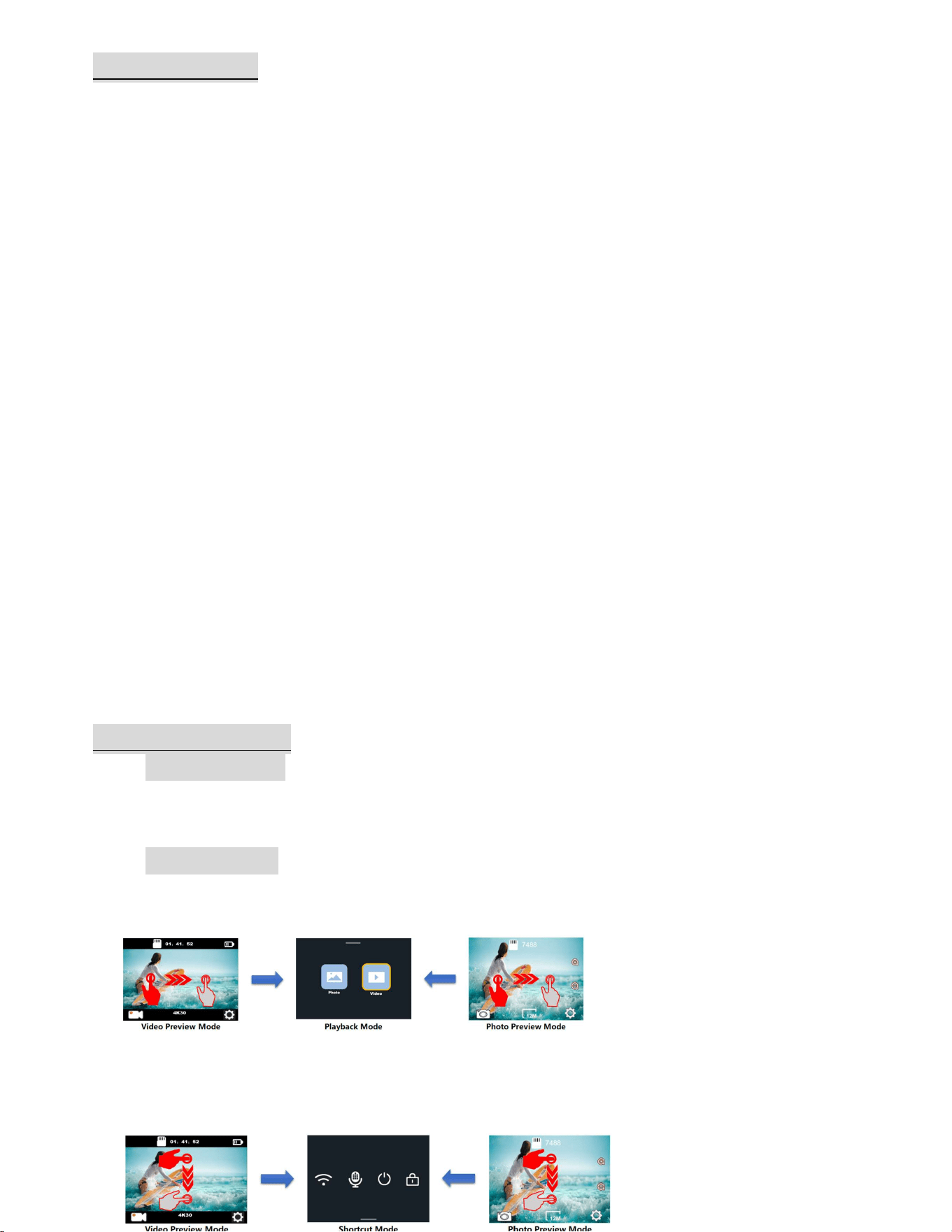
Touch Operation:
1)
Turn on the camera and verify the camera is in
Video Preview Mode or Photo Preview Mode,
quickly
Swipe
from left to right
on the touch screen to enter
Playback Mode
, as shown below:
2)
Turn on the camera and verify the camera is in
Video Preview Mode or Photo Preview Mode
,quickly
swipe
from Up to Down
on the touch screen to switch to the
Shortcut Mode
, as shown below:
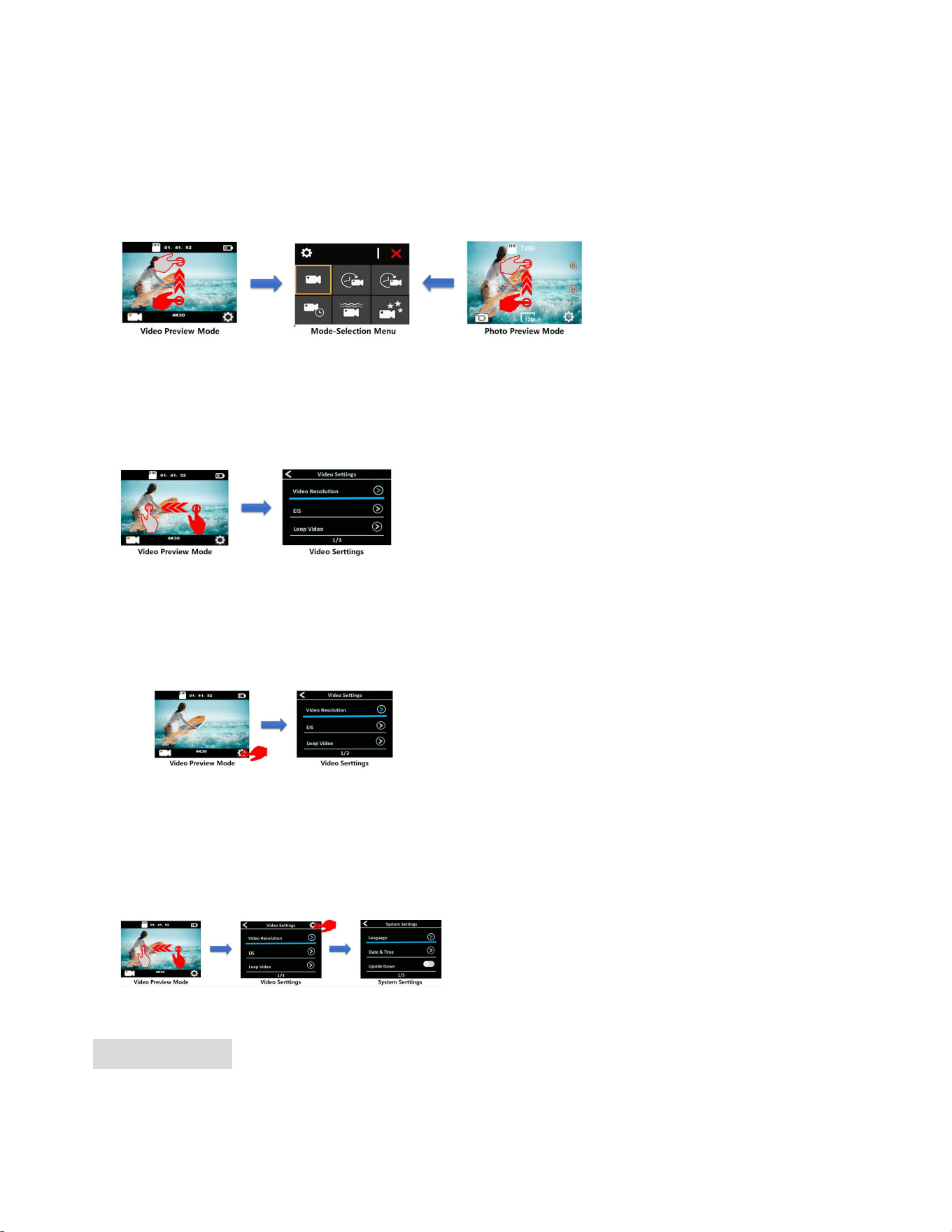
3)
Turn on the camera and verify the camera is in
Video Preview Mode or Photo Preview Mode,
Quickly swipe
from down to up on the screen to switch to the
Mode-Selection Menu
, as shown below:
4)
Turn on the camera and verify the camera is in
Video Preview Mode
or
Photo Preview Mode
:
•
Swipe from right to left
quickly on the touch screen to switch fast to the
Video Settings
or
Photo Settings
, as shown
below:
• Tap the
settings icon
in the bottom right corner of the screen to switch fast to the
Video Settings
or
Photo Settings
,
as shown below:
5)
Turn on the camera and verify the camera is in
Video Preview Mode
or
Photo Preview Mode
,
Swipe from right
to left
quickly on the touch screen to switch fast to the
Video Settings
or
Photo Settings
, then tap the
settings icon
in
the upper right corner of the screen to enter into the system settings.
VIDEO SETTING
Verify the camera is in Video Setting Mode, press the OK button to enter the Video Settings menu. Then press the UP
or Down button repeatedly to cycle through the options, and press the OK button to select the desired option.
To exit, press the Mode button again.

■
Video Resolution:
5K 30FPS(interpolate)/ 4K 60fps / 4K 30fps/ 1080P 120fps
1080P 60fps (1920*1080) / 1080P 30fps (1920*1080)/ 720P 240fps (1080*720)
Default setting is 5K 30fps.
Note:
• When capturing video at high resolution or high frame rates such as 5K 30FPS/4K 60/30fps, the camera may become
hot and consume more power, which is normal.
• FAT32 format Micro SD card stops recording when the storage of each file is over 4GB and starts to record again on a
new file
• Since the exposure time of 4K60 will be shorter than 4K30 in low light scenes, 4K60 video will be darker than 4K30 in
low light environment. In order to get better low-light video effects, it is recommended to turn on low-light mode in low-
light scenes such as indoor/night/tunnel/underground parking. In order to avoid overexposure, it is recommended to
turn off the low light mode in highlights such as beaches and snow.
■
EV
(Exposure Value)
: -3 ~ +3
By default, your camera uses the entire image to determine the appropriate exposure level. However, EV lets you select
an area that you want the camera to prioritize when determining exposure. This setting is particularly useful in shots
where an important region might otherwise be over- or underexposed.
When you change this setting, the LCD display immediately shows you the effect on your image. If you change modes,
the camera returns to using the entire scene to determine the correct level of exposure.
■
EIS
(Electronic Image Stabilization)
: On/Off
This camera is equipped EIS function with 6-axis Gyroscope to detect motion changes. When the camera tilts, moves,
shakes, the sensor use image cross-border compensation algorithm to compensate the change and produce stable
videos, especially in activities with relatively small angle (about 6 degrees) but fast motion including cycling, motorcycling,
and hand-held uses.
Note:
• EIS does not support 1080P 120fps / 720P 240fps video resolution.
• If you turn on EIS, Slow Motion ,Auto Low Light and LDC will not be available automatically.
■
Loop Video : Off / 1min /3min/ 5min
When the micro SD card is full, the new files will cover the old one if loop recording is on.
Note:
• FAT32 format Micro SD card stops recording when the storage of each file is over 4GB and starts to record again on a
new file. You cannot set 5min video file length when camera is at 5K 30PFS/4K 60fps, 5min 4K 60fps video file is over
4GB.
• If you turn on Loop Video, Time-Lapse Video, TL Duration and Slow Motion will not be available automatically.
■
Time-Lapse Video: Off /1Sec/ 3Secs / 5Secs / 10Secs /30Secs /1min
Default setting is off.
Time Lapse Video creates video from frames captured at specific intervals. This option lets you capture a time lapse event
and immediately view or share it as a video.
Select 3 seconds means recording 3 seconds to get one frame per second.
For example: If you select 4K/30FPS and 3 secs, you need to record 90secs, then you can get 1 sec video for 4K/30FPS.
Note:
• Time Lapse Video is captured without audio.
• If you use Time-Lapse Video function, the camera cannot recorded the video over 30fps.
• If you use Time-Lapse Video function, Loop Video, Slow Motion and Fast Motion will not be available automatically.

■
TL Duration: Unlimited/5Mins / 10Mins /15Mins / 20Mins/ 30Mins / 60Mins
Continuously creates Time Lapse Video at specific duration.
Note: If you want to set Time Lapse Duration, please turn on Time Lapse Interval first.
■
Slow Motion:
Slow motion is an effect in film-making whereby time appears to be slowed down.
Note:
• If you want to select Slow Motion, please turn off Image Stabilization first, then choose 1080P120fps/720P240fps under
Video Resolution.
• If you use Slow Motion function, EIS, Time-Lapse Video and Fast Motion will not be available automatically.
■
Fast Motion: Off / 2x / 4x / 6x / 10x /15x
Action that appears to move faster than normal on the screen, accomplished by filming the action at less than normal
speed in the camera and then projecting it at normal speed.
Note: If you use Fast Motion function, Time-Lapse Video and Slow Motion will not be available automatically.
■
Wind Noise Reduction: On / Off
Turn on Wind Noise reduction function, it can lower the noise to an acceptable level.
■
Date Stamp: Off / Date / Date & Time
If you turn on Date Stamp, this camera adds date/time stamp to the videos you record.
If you turn off Date Stamp, this camera will not add date/time stamp to the videos you record.
PHOTO SETTING
Verify the camera is in Photo Setting Mode, press the Shutter button to enter the Photo Settings menu. Then press the
UP or Down button repeatedly to cycle through the options, and press the Shutter button to select the desired option.
To exit, press the Mode button again.
■
Photo Resolution: 48M(interpolate)/24M/ 20M/16M/12M/10M/8M
Default setting is 48M
■
ISO: Auto / 100 / 200 / 400 / 800 / 1600 / 3200
Default setting is Auto.
ISO determines the camera’s sensitivity to light, and creates a trade-off between brightness and resulting image noise.
Image noise refers to the degree of graininess in the image. In low light, higher ISO values result in brighter images, but
with greater image noise. Lower values result in lower image noise, but darker images. When you change this setting,
the display immediately shows you the effect on your image.
■
EV
(Exposure Value)
: -3 ~ +3
By default, your camera uses the entire image to determine the appropriate exposure level. However, EV lets you select
an area that you want the camera to prioritize when determining exposure. This setting is particularly useful in shots
where an important region might otherwise be over- or underexposed.
When you change this setting, the LCD display immediately shows you the effect on your image. If you change modes,
the camera returns to using the entire scene to determine the correct level of exposure.
■
Time Lapse Photo: Off / 3Sec / 5Sec / 10Sec / 30Sec / 1min
Time Lapse Photo captures a series of photos at specified intervals. Use this mode to capture photos of any activity, then
choose the best ones later.

Note: If use Time Lapse Photo function, Burst Photo, Delay Timer and Long Exposure
will not be available automatically.
■
TL Duration: Unlimited /5Mins / 10Mins /15Mins / 20Mins/ 30Mins / 60Mins
Default setting is Unlimited.
Note: If you want to use TL Duration, please turn on Time Lapse Photo interval first.
■
Burst Photo: Off / 3photos / 7photos / 15Photos / 30Photos
Default setting is off.
Continuous shooting can take up to 30 photos in a certain amount of time, making it ideal for fast-moving events.
• If use Burst Photo function, Time Lapse Photo, TL Duration and Long Exposure will not be available automatically.
■
Self-Timer: 2sec / 10sec
A Delay Timer gives a delay between pressing the shutter release and the shutter's firing. It is most commonly used to
let photographers to take a photo of themselves (often with family).
Note:
• If use Delay Timer function, Time Lapse Photo, TL Duration and Long Exposure will not be available automatically.
■
Long Exposure:Off / 1sec / 3sec / 5sec / 8sec / 30sec / 60sec
Default setting is off.
Long Exposure is an exposure method that selects a slow shutter speed. Long exposures can make dark scenes clearer
and get fantastic effects. Especially in night vision scenes such as starry sky or city night traffic, the camera can also take
fantastic photos at night.
Note:
• If use Long Exposure function, Time Lapse Photo, TL Duration, Burst Photo and Delay Timer will not be available
automatically.
■
Date Stamp: Off / Date / Date & Time
If you turn on Stamp, this camera adds stamp to the photos you take.
If you turn off Stamp, this camera will not add stamp to the photos you take.
SYSTEM SETTING
Verify the camera is in System Setting Mode, press the Shutter button to enter the System Settings menu. Then press
the UP or Down button repeatedly to cycle through the options, and press the Shutter button to select the desired
option.
To exit, press the Mode button again.
■
Frequency: 50Hz/60Hz
Default setting is 50 Hz.
■
Sound: Shutter / Boot / Beep / Volume
●
Shutter: On / Off
Sets the camera's shutter sound.
●
Boot : On / Off
Sets your camera's power on sound.
●
Beep: On/Off
Sets the camera's operation sound.
●
Volume: 0 / 1 / 2 / 3
Sets the volume of your camera's record sound.
■
AE Meter: Center-Weight / Multi-Zone / Spot

Default setting is Multi-Zone
In photography, the metering mode refers to the way in which a camera determines exposure. Cameras generally allow
the user to select between center, average or spot metering modes. The different metering modes allow the user to select
the most appropriate one for use in a variety of lighting conditions
■
AWB: Auto / daylight / cloudy / Incandescent / Fluorescent / Snorkeling / Snow Mode
AWB (Auto White Balance) lets you adjust the color temperature of videos and photos to optimize for cool or warm
lighting conditions. When you change this setting, the LCD display immediately shows you the effect on your image.
Note:
• Snorkeling mode provides color correction while capturing footage in blue water or clear freshwater at depths of 5 to
30ft (1.5 to 10m)
• Snow mode can suppress overexposure in high-brightness environments such as snow field or beach.
■
Effect: Standard / Black & White / Natural / Negative / Retro / Brightness Contrast
Default setting is Normal.
■
LDC
(Lens Distortion Correction)
: On / Off
Default setting is off.
Turn on Distortion Correction, it can correct the image distortion.
■
Date & Time:
YYMMDD 00:00:00
The date and time are automatically updated when you connect your camera to the iSmart DV app. However, you can
manually change these settings, if needed.
Note:
• If the battery is removed from the camera for an extended period of time, the date and time will be reset automatically.
■
Screen Saver: Off / 1min / 3min / 5min
Turns off the LCD display after a period of inactivity to save battery life. To turn on the LCD display again, press any button
on the camera.
■
Upside Down: On/Off
This setting determines the orientation of setting menu.
■
Power Off: Off / 1min / 3min / 5min
Powers off your camera after a period of inactivity to save battery life.
■
Wi-Fi: On/Off
Default setting is off.
■
RF Remote: On/Off
Default setting is off.
■
Driving Mode: Off/On
If you turn on car mode and connect camera with car charger, the camera will turn on automatically and start recording
if you start your car’s engine. And the camera will turn off and stop recording if you turn off the car’s engine.
Note:
• Must use 5V 1A output car charger.
• Using as a dash cam, we suggest to turn on the Loop Video, Driving Mode and Screen Saver at same time.

■
Language: English/简体中文/繁体中文/日本語/Italiano/Español/Portugues
Deutsch/Français/Polski/Pусский/한국어
Sets the language that appears on the camera.
■
Format:
Yes/No
To keep your micro SD card in good condition, reformat it on a regular basis. Reformatting erases all of your content, so
be sure to offload your photos and videos first. To reformat your card, press the mode button to enter system setting,
then press down button several times to enter Format > Format Card? > YES.
■
Reset:
Yes/No
This option resets all settings to their default values.
■
Version : Model / Version / Number / Dated
You can check the model, software version and updated time of your camera.
NOTE:
• Software version is the main information of firmware upgrade, troubleshooting and after-sales. If necessary, please
provide the software version information to our after-sales team so that we can serve you in time.
■
Memory Card: Capacity / Free Space
Card Info option let you check the capacity and free space of your micro SD card.
Note:
If the camera's battery is removed, all settings will be restored to the factory default settings.
VIDEO MODE
VIDEO
To record video, verify the camera is in desired Video Setting
option
and set the desired video resolution, if the
Video
icon
in your camera’s LCD is not showing, press the
Mode Button
repeatedly to the
Video Setting
menu and select
the desired option, such as
Loop Video/Time-lapse Video/Slow Motion/Fast Motion
etc.
●
To Start Recording:
To press the
Shutter Button
. The camera’s blue
Working Indicator
will flash and a
Red Dot
will show on the screen
while recording.
●
To Stop Recording:
To press the
Shutter Button
. The camera
Working Indicator
stop flashing and the
Red Dot
disappear on the screen to
indicate recording has stopped
Notes
• FAT32 format Micro SD card stops recording when the storage of each file is over 4 GB and starts to record again on a
new file
• This camera automatically stops recording when the battery is out of power. Your video will saved before the camera
powers off. The video will not be saved, and even the video will be damaged, if the batter is took out or loss power during
recording.
• Due to the battery's characteristics and environmental temperature requirements, such as high temperatures can
cause the battery to expand. In high temperature environments, especially in the summer, when you use this camera
as a dash camera, we strongly recommend that you remove the battery and use the car power directly, but when the
car's engine is turned off, the camera will immediately turn off, the date & time set and last video recorded will not be
saved

• This camera automatically stops recording when the SD card is full, if the looping record function is turn off.
PHOTO MODE
PHOTO
To capture photo, verify the camera is in desired
Photo Setting
option
and set the desired photo resolution, if the photo
icon in your camera’s LCD is not showing, press the
Mode Button
repeatedly to the
Photo Setting
menu and select
the desired option such as
Time-lapse Photo/Burst Photo/Self Timer/Long Exposure
etc.
●
To capture a photo:
In the Photo mode, Press the
Shutter Button
. The camera will emit the camera shutter sound.
●
To capture Time-Lapse Photo series
Verify the camera is selected desired
Time Lapse Photo
mode, Press the
Shutter Button,
The camera will trigger
continuous shooting at the set interval and TL duration, and the camera will emit shutter sound each time a photo is
taken.
To stop
Time Lapse Photo,
Press the
Shutter Button
again.
●
To capture a Burst Photo series:
Verify the camera is selected desired
Burst Photo
option, Press the
Shutter Button
, the camera will emit shutter sound
each time a photo is taken.
●
To capture a Self-Timer Photo:
Verify the camera is selected desired
Self Timer
option, Press the
Shutter Button
, the camera initiates countdown and
emit shutter sound each time a photo is taken.
●
To capture a Long Exposure Photo:
Verify the camera is selected desired
Long Exposure
option, Press the
Shutter Button
, the camera initiates BEEP and
emit a shutter sound as soon as the photo is taken.
NOTE:
• If use
Time Lapse Photo
function,
Burst Photo
,
Delay Time
r and
Long Exposure
will not be available automatically.
• If the
Time Lapse photo
function is not turned on, the TL Duration function is invalid even if the TL Duration’s related
option is set.
• If use
Burst Photo
or
Delay Timer
function,
Time Lapse Photo
,
TL Duration
and
Long Exposure
will not be available
automatically.
• If use
Long Exposure
function,
Time Lapse Photo
,
TL Duration
,
Burst Photo
and
Self Timer
will not be available
automatically.
PLAYBACK
■
PLAYING BACK ON CAMERA
1.
Enter Video or Photo playback mode. If the SD card contains a lot of content, it might take a minute for it to
load.
2.
Press the
Up / Down Button
to scroll through the video or photo files.
3.
Press
Shutter Button
to open video or photo in full-screen view.
4.
To return to the file list, press
Mode Button
.
5.
To exit the Playback mode, press
Mode Button
again.
■
PLAYING BACK ON TV

1.
Turn on the TV
2.
Connect the Mini HDMI end to the port on camera and HDMI end to HDMI port on the TV
3.
Select the right input source on the TV
4.
Turn on the camera after a while, you can preview the camera from TV
5.
Setting your camera into the video/photo playback mode
6.
Select the desired content to playback
Note:
• If the camera is connected TV with HDMI cable, the camera do not support to take videos or photo, only for Playback.
• HDMI cable is not included in the standard package, you will need buy an extra HDMI cable.
■
PLAYING BACK ON COMPUTER
To play back your video and photos on a computer, you must first transfer these files to a computer. Transferring also
frees up space on your micro SD card for new content. To offload files to a computer using a card reader (sold separately)
and your computers file explorer, connect the card reader to the computer, then insert the micro SD card. You can then
transfer files to your computer or delete selected files on your card. Note that you must use a card reader to offload
photos or audio files. With this method, playback resolution depends on the resolution of the device and its ability to
play back that resolution.
NOTE:
• 5K30 requires a high data transmission stream. If you playback 5K30 video file through a card reader, you may not be
able to obtain sound playback. In order to get better playback results, it is strongly recommended to copy the 5K30
video directly to the computer to playback.
• This camera might not be compatible with the files from different solution camera or other device.
• The quick time player is a good compatibility with MOV format video files. We strongly recommend using the Quick
Time Player to play back video files on your computer.
■
DELETE FILE ON CAMERA
1.
Verify the camera is in Video or Photo Playback menu, If your micro SD card contains a lot of content, it might
take a minute for it to load.
2. Press the
Up or Down Button
to locate the file you want to delete.
3. Press and hold the
Up Button
for seconds. The screen shows “Delete File”.
4. Press the
Up or Down Button
to locate the desired option: “Single File “or “All Files”, then Press
Shutter Button
to select the desired option.
5. Press the
Up or Down Button
to locate the desired option: “Yes / No”.
6. If you select “Yes”, then Press
Shutter Button
to deleted the file you want.
If you select “No”, then Press
Shutter Button
to back the playback mode.
BATTERY
The camera contains sensitive components, including the battery.
■
BATTERY STORAGE AND HANDLING
• Do not store in temperature above 140°F/60°C.
•Avoid exposing your camera to very cold or very hot temperatures. Low or high temperature conditions may temporarily
shorten the battery life or cause the camera to temporarily stop working properly. Avoid dramatic changes in temperature
or humidity when using the camera, as condensation may form on or within the camera.
• Do not dry the camera or battery with an external heat source such as a microwave oven or hair dryer.
• Damage to the camera or battery caused by contact with liquid inside the camera is not covered under the warranty.
• Do not store your battery with metal objects, such as coins, keys or necklaces. If the battery terminals come in contact

with metal objects, this may cause a fire.
• Do not make any unauthorized alterations to the camera. Doing so may compromise safety, regulatory compliance,
performance, and may void the warranty.
• Please do not throw the camera or its battery to the garbage, find a specific recycling point for it.
WARNING:
•Do not drop, disassemble, open, crush, bend, deform, puncture, shred, microwave, incinerate or paint the camera or
battery.
•Do not insert foreign objects into the battery opening on the camera.
•Do not use the camera or the battery if it has been damaged - for example, if cracked, punctured or harmed by water.
Disassembling or puncturing the battery can cause an explosion or fire.
■
CHARGING THE BATTERY
1. Connect the camera to USB power supply (5V/1A commended).
2. The charging status light remains ON while the battery is charging.
3. The charging status light will turn OFF when the battery is fully charged.
Notes:
•Charging time: 4-hours for 5V 1A power supply
•Please make sure the camera is shuttled down while charging.
•Remove the battery before using as a dash camera and use 5V/1A brand-name car charger.
■
MAXIMIZING BATTERY LIFE
If the battery reaches 0% while recording, the camera saves the file and powers off.
To maximize battery life, follow these guidelines when possible:
• Turn off Wireless Connections
• Capture video at lower frame rates and resolutions
• Use Screen Saver setting.
Wi-Fi APP
The Wi-Fi App lets you control your camera remotely using a smart phone or tablet. Features include full camera control,
live preview, playback and sharing of selected content and more.
CONNECT TO THE iSmart DV2 APP
1.
Download
iSmart DV2
app to your mobile device from the Apple App Store or Google Play;
2.
Turn on the camera, then press
Up Button
for seconds to turn on Wi-Fi;
3.
Turn on Wi-Fi Setting of your mobile device, connect to the Wi-Fi SSID “
iSmart DV2
”;
4.
Enter the password: “
1234567890
”;
5. Open the app “
iSmart DV2
”on your smart phone or tablet.
6. Tap “
Add new camera
”;
7. Tap “
Wi-Fi Connect
”;
Note: Press
Up Button
for seconds again if you want to turn off Wi-Fi.
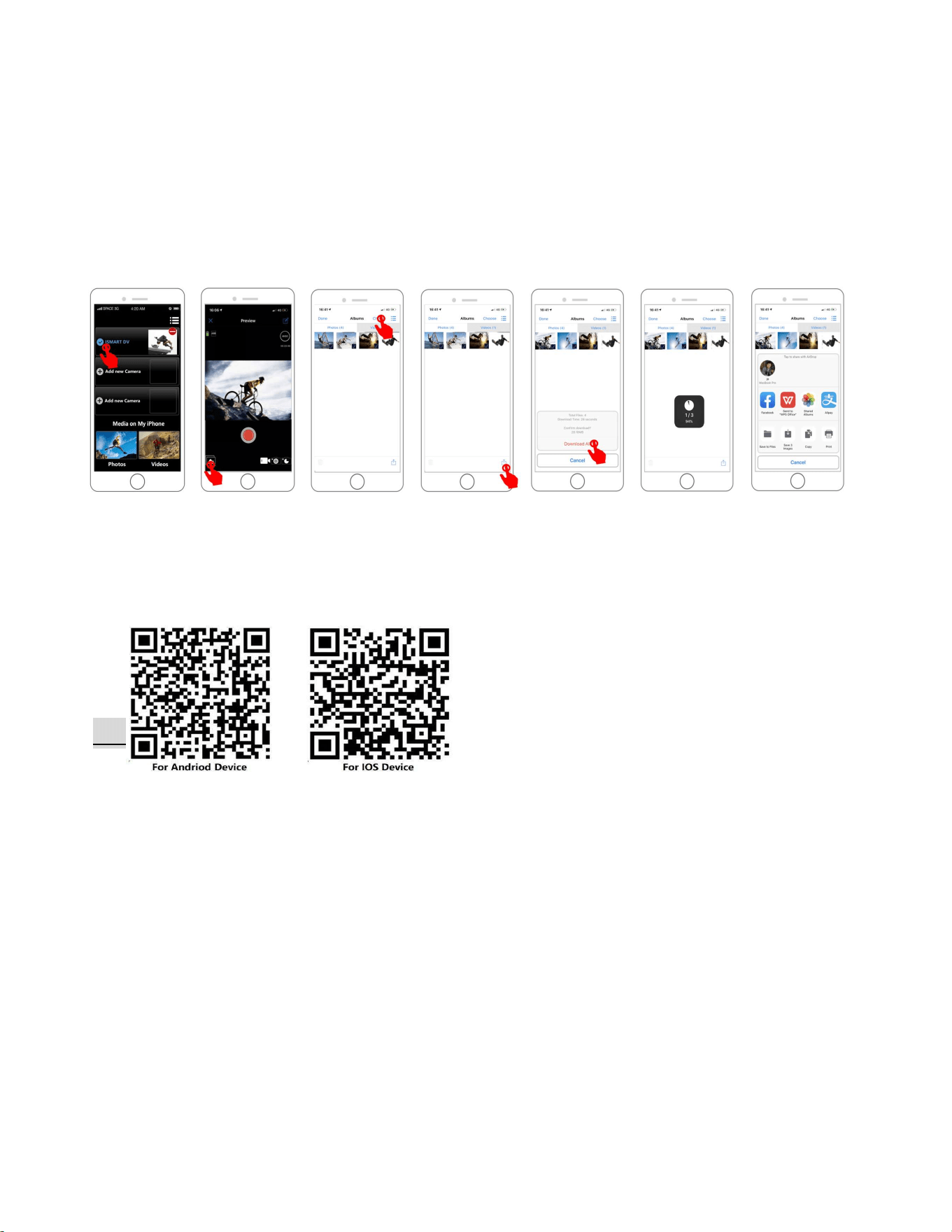
DOWNLOADING AND SHARE YOUR CONTENT
1.
Open the
“iSmart DV2”
app.
2.
Tap
“Albums icon
“at the left corner of the bottom screen.
3.
Select files in
“Photos”
or “
Videos”
at the top of the screen.
4.
Tap “
Download icon”
at the right corner of the bottom screen to download
5.
Save or Share your content.
The
iSmart DV2 App
is compatible with smart phone and tablet listed below:
For Apple IOS
*iPhone6 (plus), 6s(plus),7 (above IOS12)
*iPhone Air & Mini (above IOS12)
For Android
*Android 4x Quad-Core devices (above Android 7.0)
App available on:
EXTERNAL MIC
This camera can be compatible with the external Wired Omani-directional Mono Microphone 2.5mm.
Insert the external MIC to DC2.5 MIC port, the camera will automatically switch to record the sound from the external
MIC. This will help to reduce the noise and get better video sound.(
Please use the picture's microphone
)
Specifications:
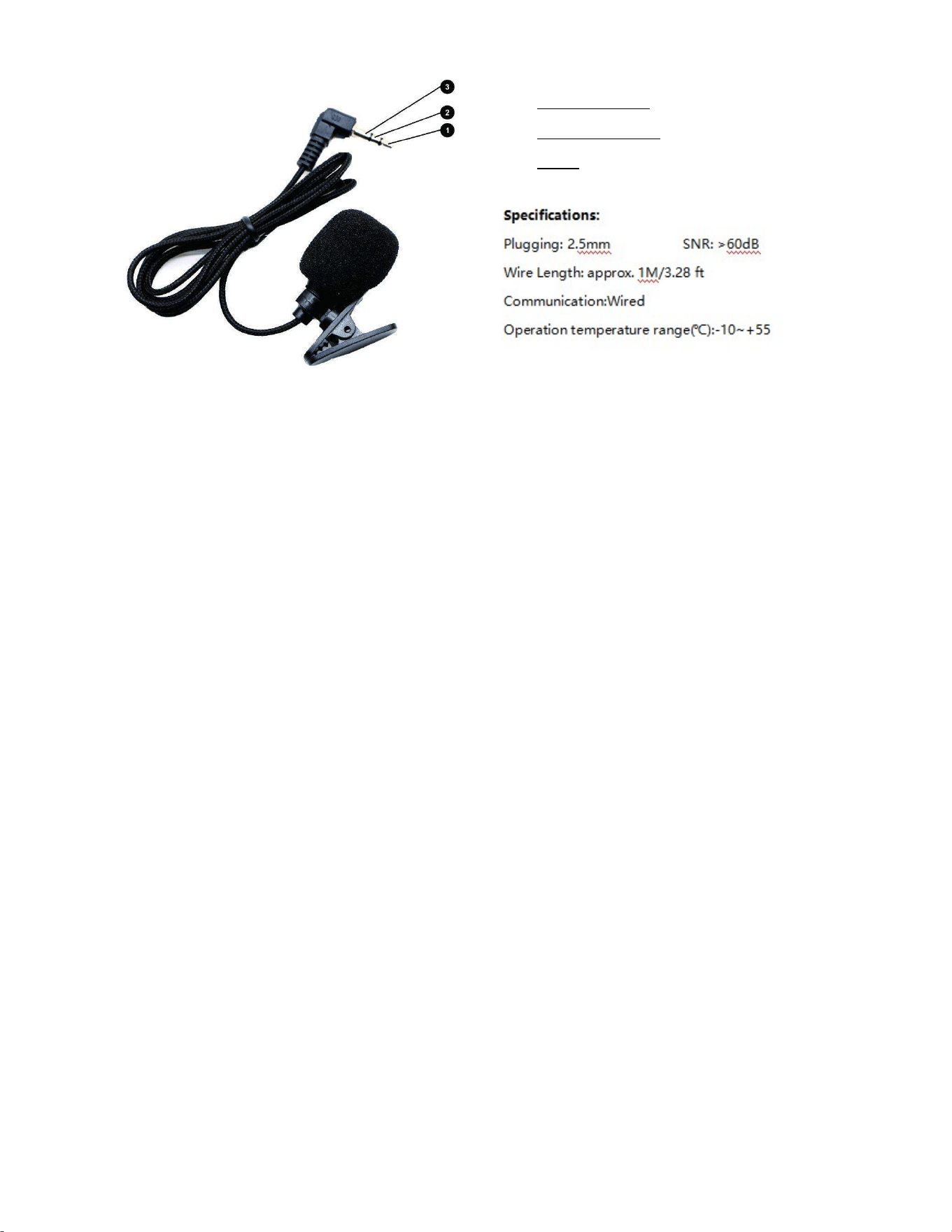
1.
Positive pole
2.
Negative pole
3.
GND
For any query please contact:
IMS Mercantiles Pvt. Ltd.
#704, Ring Road Mall, Outer Ring Road, Near Deepali Chowk,
Sector-3, Rohini, Delhi-110085 Toll Free: 1800-123-544-444
Email: sup[email protected] Website: www.digitek.net.in