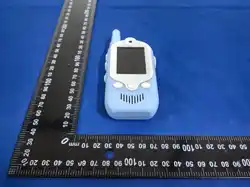
Ch
ildren's Video
Walkie-Talkie Camera
User Manual
Befor
e using this product, please read the instructions carefully
The manual is for reference only; actual operation shall be
based on the physical product
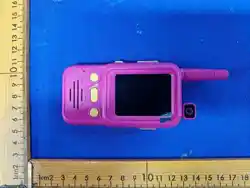
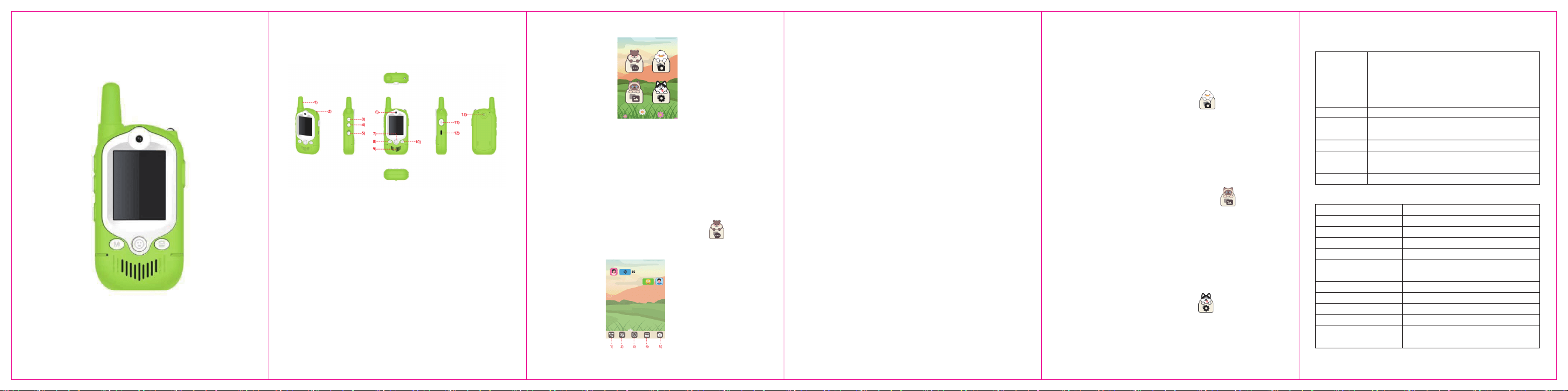
1) Antenna 2) fill light 3)+key 4) - Key
5) Power switch 6) Lens 7) OK key 8) Magic tone key
9) Speaker 10) Return button 11) Intercom button
12) Charging interface 13) Hanging rope hole
1、 Pr
oduct Structure
Pr
oduct Description
2. Main interface
Main interface button operation:
1) Press the 'volume+/- key' to move left and right;
2) First, long press the 'volume key' to switch to AP mode (a
green dot icon will appear in the upper left corner)/STA
Mode (red dot icon appears in the upper left corner), press
and hold the 'volume+key' to switch devices Pair up;
3) Press the 'OK' button to enter the function;
4) Long press the 'Magic Sound Key' to turn on the fill light, and
long press again to turn it off; Long press the 'intercom
button' to quickly dial out video chat requests
3. WeChat
Click the 'Volume+/-' button to select 'Move to '. Click the
'OK' button to enter WeChat mode;
Button operation:
1) Click the 'Volume+/-' button to move left and right to select
the bottom function, and click the 'OK' button to enter;
2) Long press the 'Magic Sound Key' to turn on the fill light, and
long press again to turn it off;
3) Click the 'back' button to exit WeChat
Video chat operation:
1) Click the 'OK' button to select video chat, then dial in and wait
for the other party to connect. Click Press the 'OK' button to
connect or press the 'Return' button to disconnect.
2) Click the 'Magic Sound Key' to switch between magic sounds,
long press to turn on the fill light, long press again to turn off;
3) Press and hold the 'Volume+/-' button to increase or decrease
the volume, and long press the 'Volume+' button to switch
views Frequency window display, press the 'OK' button to
switch stickers/filters;
4) Long press the 'intercom button' for voice communication;
5) Click the 'back' button to end the video chat.
Voice intercom/music operation:
1) After selection, long press the 'intercom button' for voice
intercom, long press to speak, release to end and send out;
2) Click the 'OK' button to enter music selection, click the
'Volume+/-' button to select, click Confirm key to send music.
Emoji operation:
Click the 'Volume+/-' button to move left and right to select the
emoji, and click the 'OK' button to send.
Image manipulation:
1) Click the 'Volume+/-' button to move left and right to select
the image, click the 'OK' button to zoom in and view;
2) Select the image interface, click the 'Magic Sound Key' to
bring up the delete menu, click the 'Intercom Key' send out;
Click the 'back' button to return to the WeChat interface.
Photography operation:
1) Click the 'OK' button to take a photo and send it;
2) When taking photos on the interface, click the 'intercom
button' to switch between stickers/filters; Press the 'back'
button to return Go to the WeChat interface.
4. Take photos
Click the 'Volume+/-' button to move to and click the 'OK'
button to enter the photo mode;
1) Click the 'OK' button to take a photo and save it;
2) Click the 'intercom button' to switch stickers/filters;
3) Long press the 'Magic Sound Key' to turn on the fill light, and
long press again to turn it off;
4) Click the 'back' button to return to the main interface;
5. Album
Click the 'Volume+/-' button to select move to and click
the 'OK' button to enter album mode;
1) Click the 'Volume+/-' button to move left and right to select t
he image, click the 'OK' button to zoom in and view, Click again
to return to the preview interface;
2) Select the image interface and press the 'Magic Sound Key' to
bring up the delete menu;
3) Click the 'back' button to return to the main interface.
6. Settings
Click the 'Volume+/-' button to move to and click the 'OK'
button to enter the setting mode;
1) Click the 'Volume+/-' button to move up and down to select
settings, click the 'OK' button to confirm Change and save;
2) Click the 'back' button to return to the main interface.
2. Product specifications
2、 Intr
oduction to basic operation of buttons
and functions
1. P
ower on and off
Turn on the 'power switch': turn it up to turn on, turn it down
to turn off. (Not available during charging)
1) Video chat
2) V
oice/Music
3) Facial expressions
4) Picture
5) Take photos
language
Brightness
Scr
een saver
mode
Sound
Restore
version
English, Simplified Chinese, French, German,
Spanish、Portuguese, Dutch, Italian, Polish,
Greek、Hungarian, Swedish, Norwegian,
Danish, Finnish、Romanian, Russian, Japanese,
Hebrew, Korean、Arabic, Indonesian
1-5
1 minut
e, 3 minutes, 5 minutes, 10 minutes, off
Silent, low, medium, high
Yes, No
DJ-09-2026-03-16 Demo-STA(AP)
PCB silksc
reen
Master control model
Image sensor
LED display
button
Operating Temperature
Operating Humidity
power supply
standby current
Low battery alert
Power consumption
DJ-09_TXW818_V2
TXW818-C04F
20A6
2.0 inches (240 * 320)
7 keys
High temperature 65 °, low
temperature -10 °
85%
USB:5V, Battery: 3.7V
Battery standby 11.3uA
3.71V
USB 5V: power consumption
4W/battery power consumption 2W
A
ttention: This product reserves the right to make design
and specification changes without prior notice.
3、 Pr
oduct specifications
1. Pr
oduct parameters
fac
tory settings

This device complies with part 15 of the FCC Rules. Operation is subject to the
following two conditions: (1) This device may not cause harmful interference, and (2)
this device must accept any interference received, including interference that may cause
undesired operation.
Any Changes or modifications not expressly approved by the party responsible for
compliance could void the user's authority to operate the equipment.
Note: This equipment has been tested and found to comply with the limits for a Class B
digital device, pursuant to part 15 of the FCC Rules. These limits are designed to
provide reasonable protection against harmful interference in a residential installation.
This equipment generates uses and can radiate radio frequency energy and, if not
installed and used in accordance with the instructions, may cause harmful interference
to radio communications. However, there is no guarantee that interference will not
occur in a particular installation. If this equipment does cause harmful interference to
radio or television reception, which can be determined by turning the equipment off and
on, the user is encouraged to try to correct the interference by one or more of the
following measures:
-Reorient or relocate the receiving antenna.
-Increase the separation between the equipment and receiver.
-Connect the equipment into an outlet on a circuit different from that to which the
receiver is connected.
-Consult the dealer or an experienced radio/TV technician for help.
FCC Radiation Exposure statement
The device has been evaluatec to meel general RF exposure requirement. The device
can be used in portable exposure condition without restriction.