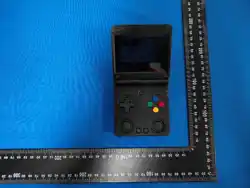
R36 ultrX
instruction manual
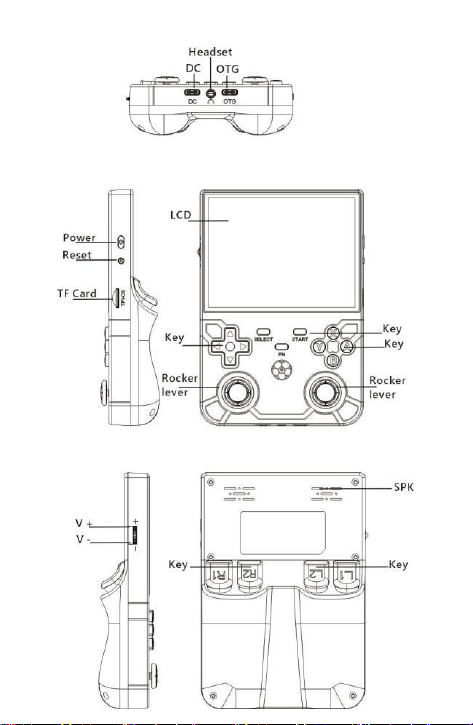
LC
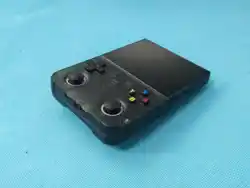
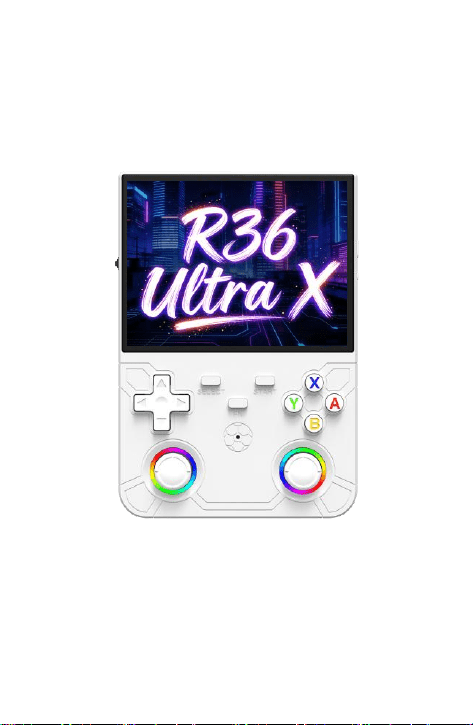
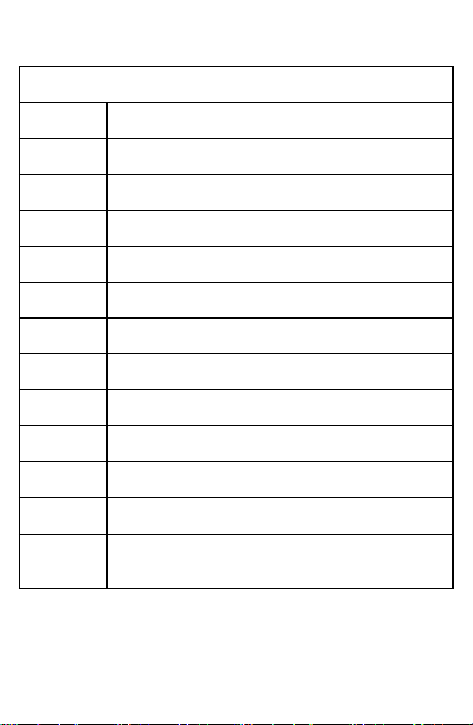
R36 ultrX
D 4.5lnch IPS 1024*768 OCA full lamination
CPU
Cortex-A35 CPU,1.5GHz
RAM DD3 1GB
GPU OpenGL ES 3.2
Language Muiti language
Speaker High quality stereo speaker
Battery
Moto
3500mAH and 4-6 hours of battery life
r 1030
TF Card Maximum 256GB
Charger Maximum 5V&2A
Others
Supports external controllers for two player
battles3.5mm headphones,anddual 3D joysticks
Accessory
Type-C Cable, instruction manual,certificate of
conformity
Games
CPS1/CPS2/CPS3/MAME2003/ATARI5200/ATARI7800/P
CE/FC/NES/SFC/SNES/N64/GB/GBA/GBC/NDS/SG-100/
MD/GG/DC/NEOGEO/NGP/NGPC/PS1/PSP..

Joystick light settings:
Press the FN key Switch the primary color of led lamp
Fix system BUG:
Hold down SELECT+L2+R2 keys , then press A to confirm.
In game shortcut combination (except PSP, NDS):
Save the game progress: SELECT + R1
Load the saved game progress: SELECT + L1
Exit the game: SELECT + START
Display the FPS: SELECT + B
Pause the game: SELECT + A
RA menu: SELECT + X
How to unlock Child Mode?
Press START, select UNLOCK USER INTERFACE MODE, press A, and
press AAABA to unlock
PSP Game Button instructions:
PSP Menu: SELECT+B
Save the game progress: R3
Load the saved game progress: L3
Charging instructions:
When the red light of the main engine is on, please charge in time. The
charging cable is connected to the Dc interface for charging. When fully
charged, the red light automatically goes off. Note: Do not press the
restart button for the charging status. The charger must not
exceed5V2A
How to switch emulator core?
If the game cannot run, the main reason is that the simulator core does
not support the game,which can be solved by changing the simulator
core, Please select the game name with the error in the game list and
press and hold the "A" key, select the second to last item "Advanced
Game Options", and try to change the first item "Simulator" to a different
core, lf all cores in the list can not run the game, it is likely that there is a
problem with the game ROM. Please give me feedback so that l can correct it!
Core selection suggestions:

(1) CPS1, 2, 3: Give priority to the FBAlpha2012 core, followed by the FBNeo
core and other FBA Cores:
(2) FBNeo: Give priority to the FBNeo core, followed by FBAlpha2012 and
other FBA cores:(3)MAME: give priority to the FBNeo core, followed by
MAME2010, and then other cores(4) GBA:!MGBA supports key
combinations, and GPSP supports game modifications.
How to set global settings, individual simulator settings, and individual
game settings?
EE has three ways to set up games
The first is global settings: set in the "Game Settings" section of the ES
menu.
The second is simulator settings: "Game Settings-PER SYSTEM ADVANCED
CONFIGURATION"corresponds to different models.
The third is individual game settings, press and hold the A button on the
game name, and set in the "Advanced Game Options" that appears, pay
attention to the priority:
individual game settings>simulator settings> global settings
How to change the theme?
Press START to pop up the selection menu, select User Interface Settings,
press A to enter Settings, Background Theme, switch to your favorite theme.
Game Display Scale
(1) Press STAET to pop up the selection menu, select Game Settings, press A
to enter the settings pull down to select the game screen ratio, and select
the appropriate screen ratio
(2)X/Y: Select based on the screen resolution, for example, the resolution is
720x720whichhappens to be a 10/10 ratio. lf the "Game Display Ratio" is
set to 10/10, all games will basically display full screen (some games
themselves have black edges, which can not be fully displayed).
(3)CORE PROVDE0: The default resolution of the emulator core, which
corresponds to the default resolution of the game model. This setting can
ensure that the game screen is completely displayed according to the
original scale without deformation. For example if the arcade vertical
shooting game is displayed horizontally, it will be stretched to full screen in
X/Y mode, causing severe deformation of the screen, However, using CORE
PROVDEO can ensure that the original scale remains unchanged, There are
also GB and GBC games, which can severely deform if you use X/Y full
screen.

How to add a game to your favorites list?
Select the game you want to collect in the game list, press and hold the A
button, a menu will pop up, select Add to Favorites, press the A button to
confirm, and the selected game will be added to the favorites list.
How to adjust screen brightness?
Press the START key to pop up the selection menu, select System Settings,
press the A key to enter the System Settings menu, select Brightness, the
left key of the cross key is to reduce the brightness, and the right key of the
cross key is to increase the brightness.
How to switch language?
Press START to pop up the selection menu, select system settings, language,
press A to enter the language selection, select the language that suits you,
press A to confirm changing the language requires a restart, after selecting,
return to the previous menu enter the exit option, and select RESTART
ENULATIONSTATION.
How to set side B in FDS game?
Some of FDS games require you to set up side B before you can start. lf you
open the game and are prompted to set up side B, press Li to set side B and
the game will load normally.
How to add games?
insert the TF card into the computer, enter the disk named EEROMS, put
the downloaded game into the corresponding simulator folder, put the game
image into the media/screenshot folder,and then find the file named game
list. xml. You can choose to open it with Notepad, simulate the existing game
information, add the newly added game to the list, and then save it. Eject the
TF card from the computer ,insert it into the machine, start it, and the newly
added game will appear, if your computer does not show the EEROMS disk,
select This Computer on the desktop,right-click, select Manage, Disk
Management, scroll down to This Disk.select it, right-click, and assign it a
drive letter)
⋇ volume key: Press vertically to mute, and any fluctuation up and down can
unmute it.
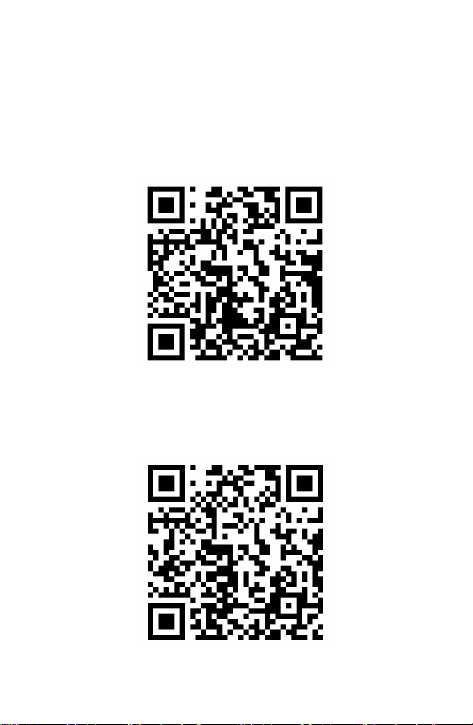
WiFi online matchmaking tutorial
Handle link adaptation video
FCC Caution:
This device complies with part 15 of the FCC Rules. Operation is
subject to the following two conditions: (1) This device may not cause
harmful interference, and (2) this device must accept any interference
received, including interference that may cause undesired operation.
Any changes or modifications not expressly approved by the party
responsible for compliance could void the user's authority to operate the
equipment.
NOTE: This equipment has been tested and found to comply with the
limits for a Class B digital device, pursuant to Part 15 of the FCC Rules.
These limits are designed to provide reasonable protection against
harmful interference in a residential installation. This equipment
generates, uses and can radiate radio frequency energy and, if not
installed and used in accordance with the instructions, may cause harmful
interference to radio communications. However, there is no guarantee that
interference will not occur in a particular installation.
If this equipment does cause harmful interference to radio or television
reception,which can be determined by turning the equipment off and on,
the user is encouraged to try to correct the interference by one or more of
the following measures:
-- Reorient or relocate the receiving antenna.
-- Increase the separation between the equipment and receiver.
-- Connect the equipment into an outlet on a circuit different from that to
which the receiver is connected.
-- Consult the dealer or an experienced radio/TV technician for help.
The device has been evaluated to meet general RF exposure requirement.
The device can be used in portable exposure condition without restriction.