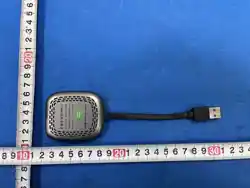

User Manual
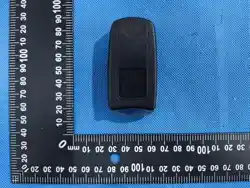
Car Video Box
User Manual
Car Video Box USB A to C Cable C to C Cable User Manual
EN
/SVUXZGTZ4UZKEnabling an unrecognized car screen resolution may result in a reboot.
Insert the TF card as depicted in the illustration,Incorrect insertion may damage the product's card slot.
Dear Customer, thank you for choosing our product! Please read this user manual carefully before operating the device.
Before using the user manual, please confirm whether you have purchased a single WiFi device or a dual WiFi device.

Product Overview
Key Features
Compatibility Cars and Phones
Technical Specifications
· Compatible Vehicles: Models with wired CarPlay/Android Auto
(contact your dealer for channel switching)
· iPhone: Supports iPhone 6 and above, running iOS 10 or later
· Android Phones: Android 10.0 and above, with some requiring
Android 11.0 or later.
1
System
Bluetooth
Version
Android 12
4.2 (for connecting wireless CarPlay)
5.8GHz (for connecting wireless CarPlay/Android Auto)
WiFi 2: 2.4GHz (for connecting to the network to play YouTube and Netflix)
WiFi 1: 5.8GHz (for connecting wireless CarPlay/Android Auto)
Quad-core
A53
2GB+16GB
The Car Video Box can convert the original car's wired
CarPlay/Android Auto to wireless CarPlay/Android Auto. It seamlessly
integrates iOS/Android with the car's central control screen. Additionally, it
supports multimedia systems, enabling you to watch videos on YouTube
and Netflix, thus enhancing the safety of phone usage while driving.
1. Supports wireless CarPlay/Android Auto, allowing for direct connection
to your phone each time you enter the vehicle, which is significantly
more convenient than wired CarPlay/Android Auto.
2. Connect to a mobile hotspot to enjoy your favorite videos on
YouTube and Netflix.
3. Supports video and lossless music playback from a TF card.
4. Wireless CarPlay facilitates music playback, navigation, and Siri usage.
Wireless Android Auto supports navigation, music playback, and Google Voice.
5. An optional dual WiFi device enables simultaneous connection to wireless
CarPlay/wireless Android Auto and YouTube/Netflix.
5V 1A
CPU
Storage
Input
WiFi
(dual WiFi device)
WiFi
(single WiFi device)
2
Product Instructions
Insert into the original car’s
CarPlay interface
Type-C port
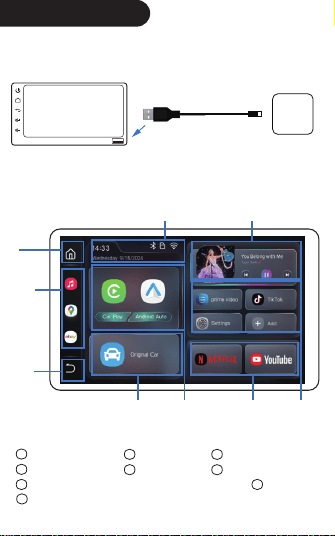
1. Insert the box into the original car’s CarPlay interface and
wait to enter the box interface.
2.Main Interface Introduction
2
)[YZUSO`KGVVYZGVZUUVKTZNKGVVRUTMVXKYYZUINGTMKZNKGVV
Return to the original car
1
Back buttonRecently used apps
3
Music plugin
4
Return to the main interface
5
6
CarPlay/HiCar
7
METFLIX/YouTube
8
Time/Connection status(click the WiFi icon to enter the WiFi interface)
9
ʒ
ʓ
ʔ
ʕ ʖ ʘ
ʚ ʙ
ʗ
3
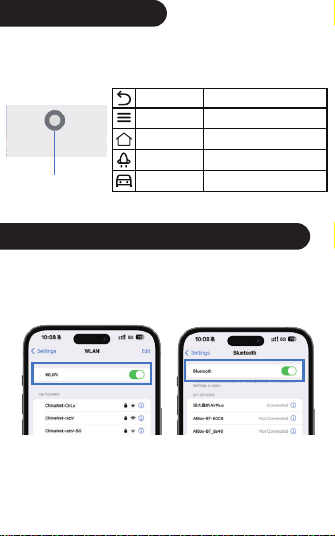
Touch Assistant Usage
Wireless CarPlay/Android Auto Connection
In third-party applications, tap the screen to summon the touch
assistant (white floating ball)
Touch assistant
Program
Background
Enter background programs
Back Button Return to the previous layer
Home Button Return to the main interface
Clear Background
Programs
Return to
Original Car
Clear background programs
Return to the original car system
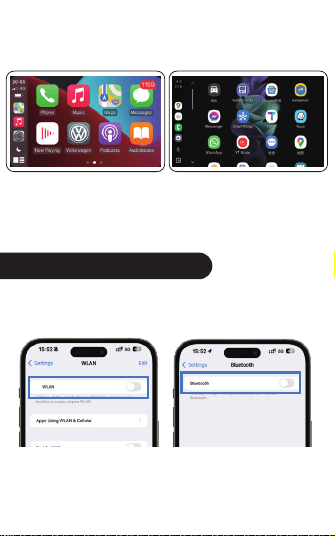
1.Enable WiFi and Bluetooth on your phone
4
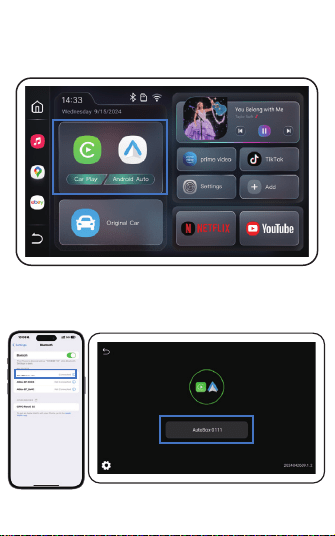
2. Tap the Auto/CarPlay icon on the interface to enter the
connection screen.
3.Pair the box with your phone’s Bluetooth AutoBox-XXXX.
AutoBox-0111
5
How to Play YouTube/Netflix
4.Once the Bluetooth connection is successful, a
CarPlay/Android Auto window will pop up on your phone.
Click to enter the CarPlay/Android Auto interface.
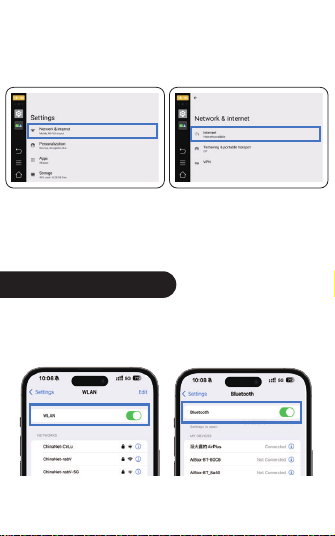
For single WiFi devices, please disconnect wireless
CarPlay/Android Auto before connecting to WiFi to play YouTube/Netflix.
1.Disconnect wireless CarPlay/Android Auto
(phone’s Bluetooth & WiFi)
6
2.Connect to WiFi
3.Play YouTube/Netflix
Note: Single WiFi devices do not support simultaneous use of wireless
CarPlay/Android Auto and YouTube/Netflix
Path: Click Settings - Network & Internet - Internet.
ʒ ʓ
Dual WiFi Device Usage
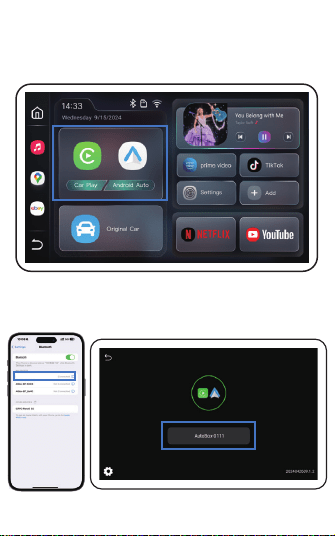
1.Enable WiFi and Bluetooth on your phone
7
AutoBox-0111
2.Tap the Auto/CarPlay icon on the interface to enter the
connection screen
3.Pair the box with your phone’s Bluetooth AutoBox-XXXX
8
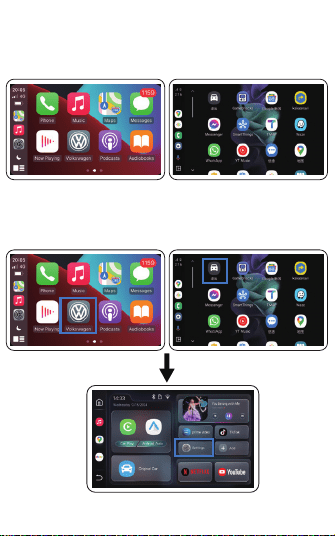
5.After connecting wireless CarPlay/Android Auto, click the
return to the original car icon to enter the Android interface
4.Once the Bluetooth connection is successful, a
CarPlay/Android Auto window will pop up on your phone.
Click to enter the CarPlay/Android Auto interface.
9
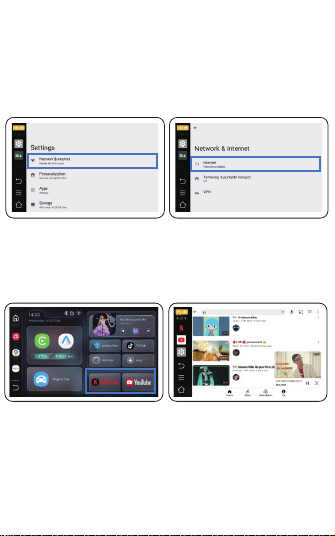
6.Connect to WiFi
7.Enable YouTube/Netflix
Path - Click Settings - Network & Internet - Internet
4UZKDual WiFi devices support simultaneous use of wireless
CarPlay/Android Auto and YouTube/Netflix
ʒ ʓ
10
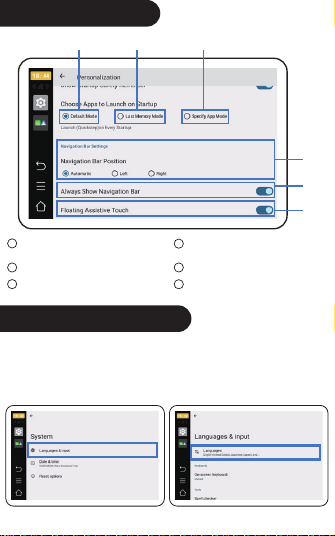
Enter the main interface after booting
1
Boot into the last used application
before shutdown
2
Boot to select a specified application
3
Set the navigation bar to the left or right
4
Turn the navigation bar on/off
5
Turn the touch assistant on/off
6
Personalized Settings
ʕ
ʖ
ʗ
ʒ ʓ ʔ
How to Change Language
Path: Click Settings - System - Language & Input - Language
(drag the desired language to the top)
ʒ ʓ
ઇݧԉ۴
System Upgrade
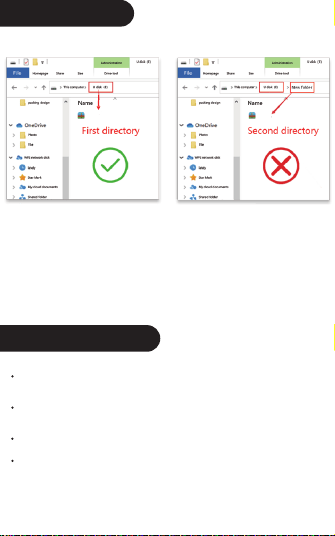
First, download the upgrade file to the memory card. Do not unzip it, do
not change its name, and do not create any new folders. Insert the card
into the box, and the system will automatically enter the update backend.
Wait for the confirmation update system page to pop up, click confirm,
and wait for the update progress bar to complete. The box will
automatically restart. After the upgrade, be sure to delete the upgrade
package from the memory card (delete it in the file manager).
update.zip
update.zip
11
Indicator Light Status
1.Power Indicator (red light): The power indicator will stay on once
the box is powered via USB.
2.Status Indicator (blue light): The status indicator stays on after
the system starts.
3.Upgrade Status: Red/blue light flashes.
4.Upgrade Complete: White light stays on, waiting to restart.

Frequently Asked Questions
12
Q: The box shows a black screen on startup.
A: Set it to Engineering Mode - Delayed Start. After setting, unplug and
replug the box to take effect. Please try until the issue is resolved or
improved.
Q: The picture is not smooth/clear
A: Set it to Engineering Mode - Picture Smoothness. After setting,
unplug and replug the box to take effect. Please try until the issue is
resolved or improved.
Q: The box’s sound is stuttering
A: Set it to Engineering Mode - Choose Others. After setting, unplug
and replug the box to take effect.
Q: Following the procedures did not solve my problem
A1: Set it to Engineering Mode - Auto Copy Logs to External
Storage - Turn on. Insert a TF card into the device, and it will
automatically copy the logs. Then, send the “Autolog” folder
from the TF card to our technical staff. (Both auto and manual log
copying functions can follow this step).
A2: Connect the device to a WiFi network, set it to Engineering
Mode - Submit Logs - Take a photo of the screen after submission
and send it to the technical staff.
A3: Once the technical staff receives the log file, they will handle your
issue as soon as possible. Please be patient.
Q: Why doesn’t the device connect?
A: Please check the USB port you are connecting to and ensure it
supports wired CarPlay. The correct USB port might have a
CarPlay icon.
Q: CarPlay/Android Auto cannot connect to your phone
' ʒ+TGHRK=O,OGTJ(R[KZUUZNUT_U[XVNUTKGTJKTY[XK=O,OOY
not occupied by other devices. If it takes a long time to connect,
manually select the device's hotspot from the WiFi list.
ʓ)RKGXZNKVNUTKȑY(R[KZUUZNXKIUXJYGTJXKIUTTKIZZNKVNUTK’s
Bluetooth
Q: The car box cannot connect to the car and frequently disconnects.
' ʒ;TVGOXZNK(R[KZUUZNIUTTKIZOUTHKZ]KKT_U[XVNUTKGTJZNK
original car screen.
ʓ,UXYUSKIGXYZNK;9(VU]KXY[VVR_OYOTY[LLOIOKTZ!_U[IGT
purchase an additional power cable online.
ʔ8KYKZZNKUXOMOTGRIGXYIXKKTZULGIZUX_YKZZOTMYZNKTXKIUTTKIZZNKHU^

FCC Caution.
This device complies with part 15 of the FCC Rules. Operation is subject to the following two
conditions:
(1) This device may not cause harmful interference, and
(2) this device must accept any interference received, including interference that may cause
undesired operation.
Any Changes or modifications not expressly approved by the party responsible for compliance
could void the user's authority to operate the equipment.
Note: This equipment has been tested and found to comply with the limits for a Class B digital
device, pursuant to part 15 of the FCC Rules. These limits are designed to provide reasonable
protection against harmful interference in a residential installation. This equipment generates
uses and can radiate radio frequency energy and, if not installed and used in accordance with the
instructions, may cause harmful interference to radio communications. However, there is no
guarantee that interference will not occur in a particular installation. If this equipment does
cause harmful interference to radio or television reception, which can be determined by turning
the equipment off and on, the user is encouraged to try to correct the interference by one or
more of the following measures:
-Reorient or relocate the receiving antenna.
-Increase the separation between the equipment and receiver.
-Connect the equipment into an outlet on a circuit different from that to which the receiver is
connected.
-Consult the dealer or an experienced radio/TV technician for help.
* RF warning for Portable device:
The device has been evaluated to meet general RF exposure requirement. The device can be used
in portable exposure condition without restriction.