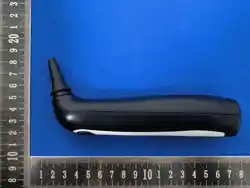
VIDEO OTOSCOPE
VIDEO OTOSCOPE
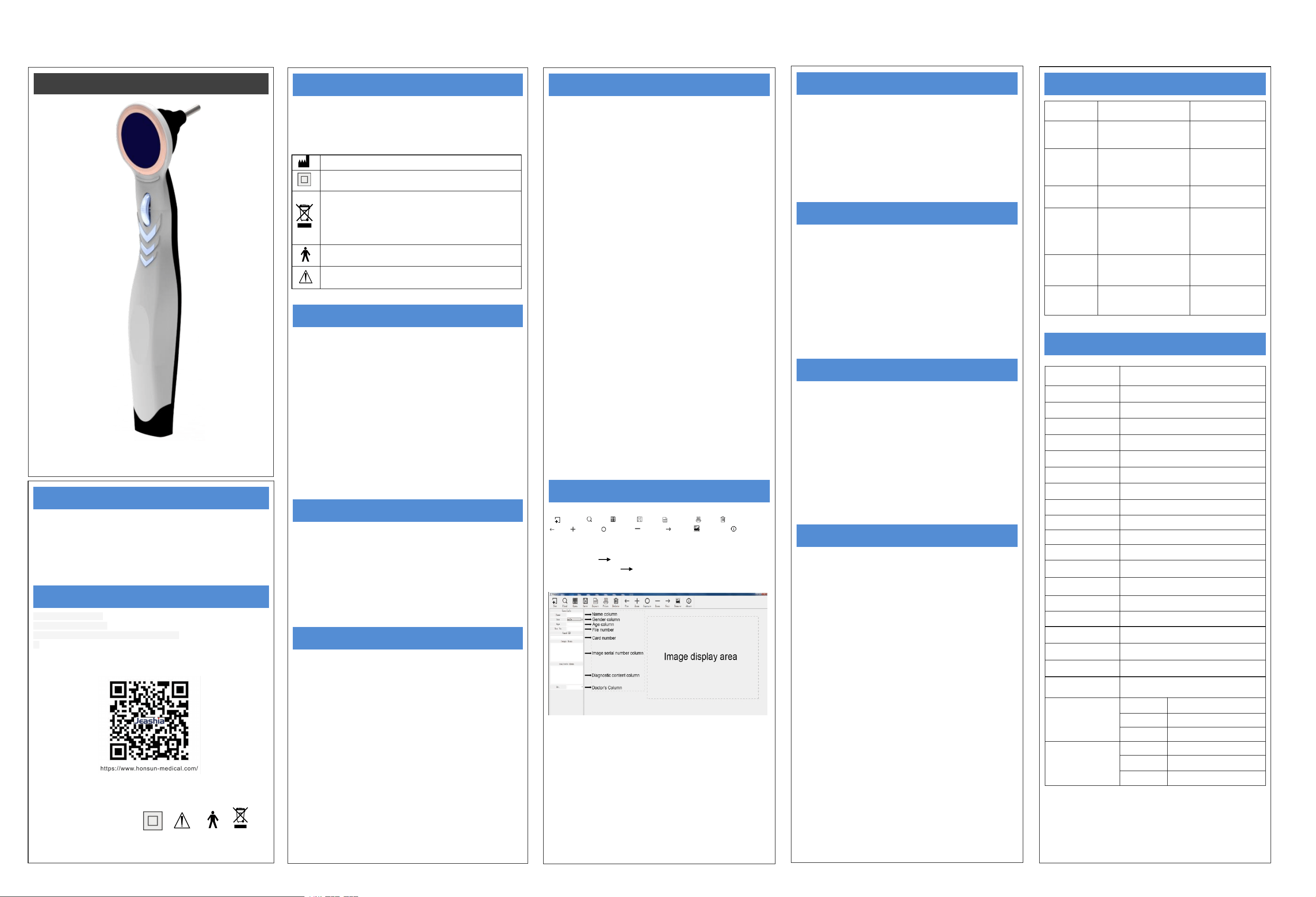
Please read this manual before use the device to ensure proper action
during use of these medical grade instruments. Only trained practitioners of
these devices can use this product. After reading, please keep this manual in
a safe place in case you need to consult it. With stable performance and plug
and play, this product is the best instrument for diagnosis, teaching in ENT.
SAFETY INFORMATION
Basic safety measures should always be followed including the warnings and
cautions listed in this instruction manual.
Warnings & Cautions:
● Please don’t use the device exposed to flammable gas.
● Protect all device parts from water, moisture, impact, dropping, direct
sunlight, heat and fire, freezing, wind, dust, fumes, oils, perfumes, leaking
batteries/corrosive substances, children and animals.
● Please don’t touch the camera lens directly, or touch it with a sharp object.
● This device has no spare light bulb to replace.
● Do not use corrosive or polishing solution to clean the instrument.
● Please do not share with humans and animals, and place the instrument
out of reach of children and animals.
● Please don’t disassemble or repair the device or components. The warranty
will be invalid if this has been attempted. Routine maintenance per this
manual is accepted.
● You can refer to this manual for routine maintenance。
● Store the instruments in box in a dry room at normal room temperature.
GENERAL FEATURES
● Lightweight and compact, easy-to-operate form factor;
● Professional optical lens, clear image with little distortion;
● Professional upper computer operation software;
● 1.28-inch display and brightness adjustment;
● Key switch can take pictures and adjust the brightness of the light source;
● 2000mAh battery with long battery life;
● Highly visible LED cool white light source;
● Ear speculum screw-in type for easy replacement
● Automatic white balance;
● Type-c port compatibility.
USAGE CAUTION
● The temperature of the product will rise slightly when using it (up to 38°C), it
has no effect on the human body, please feel free to use it;
● When cleaning the lens, it is recommended to use an alcohol swab to
wipe it carefully and gently;
● Observe the surrounding area before and during use, and do not use the
product in an environment where people are running or where there are
obvious vibrations;
● For children, it is recommended to use the product above 1 year old, and
minors are prohibited from using the product alone to avoid inadvertently
causing injury;
● Prohibit the use of the main body of the metal rod outside the part of the
use of liquid, so as to avoid damage to the circuit;
● The product has a built-in carp battery, if not used frequently, please charge
it once every two months.
Manufacturer
Electric shock protection Class II equipment
Symbol for the marking of electrical and electronics devices
according to 2002/96/EC. The device, accessories and the
packaging have to be disposed of waste correctly at the end of
the usage. please follow Local Ordinances or Regulations for
disposal.
Type B Applied Part
Attention, consult relative documents
TROUBLE SHOOTING
PARAMETERS
Trouble
Vision
Possible Reason
Solution
Blank screen
Normal display protection;
Equipment failure.
Press and hold the button;
Contact maintenance.
Vague picture,
Discoloration,
Slow speed
Dirty lenses;
USB data cable cord failure;
Wipe the lens with an
alcohol swab or dip it in
pure water;
Replace the USB cable;
Picture
distortion
USB data cable line failure;
Internal camera malfunction.
Replace the USB cable;
Contact for repair.
Lens LED is
dim or does not
light up
Improper selection of
brightness level;
Insufficient battery power;
Damaged LED.
Press the brightness
switch to adjust the
appropriate brightness;
Use it after fully
charged;
Contact for repair.
Application is
crash/quit
unexpectedly
The compatibility between the
device software and the
display terminal system is
abnormal;
Upgrade the computer
operating system;
No response to
boot or Cannot
recognized
The battery is exhausted;
Internal camera malfunction.
Fully charged and used;
Contact for repairs.
Item
Parameters
Name
Video Otoscope
Display
1.28’’ round TFT color display
Backlight LED
10 level adjustable backlight LED
Image Sensor
0.3 Megapixel HD Lens
Depth of field
15~25mm
Field of view
100° (Sensor diagonal field of view)
Image resolution
720×480p
Data Format
JPGE,BMP
Frame rate
Max 30fps
White Balance
Auto
TV Distortion
<25%
Min-illumination
1.0lux
Light sources
LED illumination
Illuminance of source
Max. 500lux (30mmdistance)
Interface Mode
Type-C
Power Input
5.0Vdc from USB port
Working current
200mA (include LED illumination)
Operating system
Windows
Language
(Application)
English, Chinese
Operating ambient
Temperature
-10℃~40℃
Humidity
30%~80%
Air pressure
700hPa~1060hPa
Storage&Transport
Temperature
-20℃~70℃
Humidity
10%~90%(Without condensation)
Air pressure
500hPa~1060hPa
DEVICE APPLICATION
Video Otoscope are used for the direct examination of the auditory canal
and tympanic membrane. Any use other than that described here is not in
accordance of the intended use of the product, we are not liable for any
resulting damages. The handle supplied with the device is the only power
supply that must be used with the device. Only a trained practitioner in these
skills is allowed to use these devices.
PACKAGE LIST
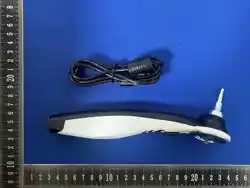
● Video Otoscope 1pc
● Type-C USB cable 1pc
● Ear Speculum tips ,4mm,5mm total 8pcs in all
● Instruction manual 1pc
Mobile App Usage Notes
●
For the security of your device and personal data, please ensure to
download the official mobile application exclusively from our company's
website.
●
Wi-Fi Connection:
1. First, turn on the device. Enable your mobile device's Wi-Fi and looking
for ‘HA-E01-xxxxxx’ to establish a connection.
Your device may display a prompt (varies by operating system); select
‘Keep Connected’.
2. A green indicator lights up once connected with the Wi-iFi successfully.
MAINTENANCE
● Do not use ethanol or other organic solvents to clean the lens;
● Wipe the lens with a lens brush or soft cloth;
● Clean the surface of the device at least once a week with a 75% alcohol
solution;
● The earcups in the accessories can be sterilized by autoclaving at 134°C
for 10 minutes;
● Do not sterilize the instrument in an autoclave;
● If liquid enters, turn off the power immediately and send it to the service
center for repair, do not use a hair dryer;
● Prohibit the use of corrosive or polishing cleaners, do not immerse the
instrument in water or other cleaning solutions;
● Long-term non-use, please keep the lens dustproof or put it back in the
box.
SAFETY & ELECTRICAL CLASSIFICATION
The following safety inspections should be carried out at least once every
12 months by qualified personnel with specialized training and practical
experience and make the following checks.
● Check equipment instruments and accessories for mechanical and
functional damage;
● Check that safety-related labels are recognizable;
● Verify that the equipment and instruments are functioning properly as
described in the instructions for use.
Product electric shock protection classification: Class II Internally powered
equipment.
Degree of protection against electric shock of the applied parts: Type B
Lens inlet protection degree: IP65
Equipment work operation mode: continuous operation
The product is not suitable for use in the presence of flammable mixtures.
WARRANTY INFORMATION
The instrument has 1 year warranty.
Sales Agent will work with the device manufacturer with any claims arising
during the warranty period. The scope of the warranty covers defects in
workmanship and materials only. The warranty period begins from the date
of purchase. If the product is defective due to workmanship or materials
then our company will either repair or replace the part of the device
concerned, whichever our company believes to be appropriate under the
circumstances. Manufacturer is not responsible for removal or shipping the
product to a service centre or delivery back to the customer. We are not
responsible for any incidental or consequential damages resulting from the
defect or from shipping/postal services. Problems from improper
maintenance, incorrect usage, use of non-designated accessories/
replacement parts are not due to defects of workmanship or materials. If
Sales Agent or Manufacturer determines that the problem is not due to
defects in workmanship or materials within the warranty period, customer
will be responsible for the cost of any necessary repairs or replacement.
Defects arising from wear and tear such as scratches, dents, cosmetic
blemishes are not covered. Defects arising from dropping, water, moisture,
impact, direct sunlight, heat and fire, freezing, wind, dust, fumes, oils,
perfumes, leaking batteries/corrosive substances, children and animals
are not covered.
Accessories and ear specula are not covered under warranty.
Manufacturer assure the repair charge will not exceed the sales price.
Our company reserves the right to void any warranty claim, they believe to
involve misconduct, violation of the warranty or liability or damage towards
the company.
Please contact Sales Agent or Manufacturer before returning any product
for warranty inspection, for return details. Failure to do so may result in
your device being destroyed and no liability will be held with our company.
HOW TO USE
● On and off
1. Short press the scroll button for 2 seconds to turn ON/OFF the device:
when the device is turned on, the display screen shows battery range and
“welcome”or“Jeashia”;
2. When the device is in single status/Wi-Fi connected, press and hold the
button for 5 seconds to power off. If no operation is performed, the device
will automatically shut down in 1 min, and show “byebye”;
3. When the device is connected with computer, the screen and camera
will turn to sleep mode if no operation in 1 min; if the device was moved or
operated in another 5 mins, the screen will wake up again; if no operation
is performed for 5 mins after sleep mode, the device will automatically
disconnect with computer and shut down;
● Functions of button
1. In single status/Wi-Fi connected, the button scrolling up is used to
adjust the screen brightness. Scroll up two clicks the brightness is
increased for 1 level, total of 10 levels (D1-D10 shows on screen) of
brightness for a cycle. Press the button to save the screen brightness
level.
2. In single status/Wi-Fi connected, the button scrolling down is used to
adjust the camera light brightness, scroll down two clicks the brightness is
decreased for 1 level, total of 10 levels (L10-L0 shows on screen) of
brightness for a cycle. Press the button to save the screen brightness
level. L0 means no camera light.
3. When Wi-Fi connected with the APP, press the scroll button to take the
pictures. The display screen will flash a letter ”P” when the photo was
taken, and the photo will be saved in the file.
4. When Wi-Fi connected with the APP, long press the scroll button to start
recording, click the button again to finish recording, the video will be saved
in the file.
5. When the device is connected with computer, press the scroll button to
take the pictures. The display screen will flash a letter ”P” when the picture
was taken, and the pictures will be saved in the software that installed on
the computer.
● LED indicator
1. After powering on, a white LED indicator lights up;
2. Wi-Fi connected with the APP, a green LED indicator lights up;
3. During charging, a blue LED indicator lights up accompanied by a white
breathing LED light. Upon fully charged, the white LED indicator lights up.
HOW TO USE THE COMPUTER SOFTWARE
● Icon Description
New Find Open Save Expert Print Delete
Pre Zoom Capture Zoom Next Remove About
● Interface Funtion Description
● Function of the key
Camera restart Press F5 to restart the camera.
Hospital name change Press F8, the rename window will pop up,
press OK to save;
● Video Jump-Through Instructions
Double click the video fixed display area (behind About), the video area will
jump to the main interface; close the video on the main interface, the video
will back to the video fixed area.
● Camera Selection Instructions If the computer has more than one
camera, when this device is plugged into the computer, it will pop up
multiple camera selection, you need to select this device to work properly.
HS-OT10X

FCC Warning
This device complies with Part 15 of the FCC Rules. Operation is subject to the following two conditions:
(1) This device may not cause harmful interference, and (2) this device must accept any interference received, including
interference that may cause undesired operation.
NOTE 1: This equipment has been tested and found to comply with the limits for a Class B digital device, pursuant to part
15 of the FCC Rules. These limits are designed to provide reasonable protection against harmful interference in a
residential installation. This equipment generates, uses and can radiate radio frequency energy and, if not installed and
used in accordance with the instructions, may cause harmful interference to radio communications. However, there is no
guarantee that interference will not occur in a particular installation. If this equipment does cause harmful interference to
radio or television reception, which can be determined by turning the equipment off and on, the user is encouraged to try
to correct the interference by one or more of the following measures:
-Reorient or relocate the receiving antenna.
-Increase the separation between the equipment and receiver.
-Connect the equipment into an outlet on a circuit different from that to which the receiver is connected.
-Consult the dealer or an experienced radio/TV technician for help.
NOTE 2: Any changes or modifications to this unit not expressly approved by the party responsible for compliance could
void the user's authority to operate the equipment.
The device has been evaluated to meet general RF exposure requirement. The device can be used in portable exposure
condition without restriction.