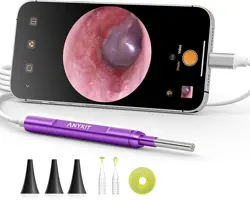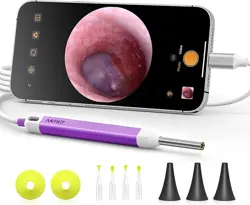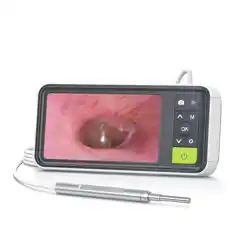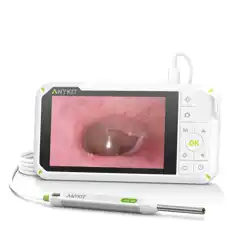
Model No.: AKE390i/AKE100i
Video Tutorials
Online Manual
Scan the QR code to watch the AKE390i/AKE100i tutorial videos,
which guidelines how to use the AKE390i/AKE100i safely.
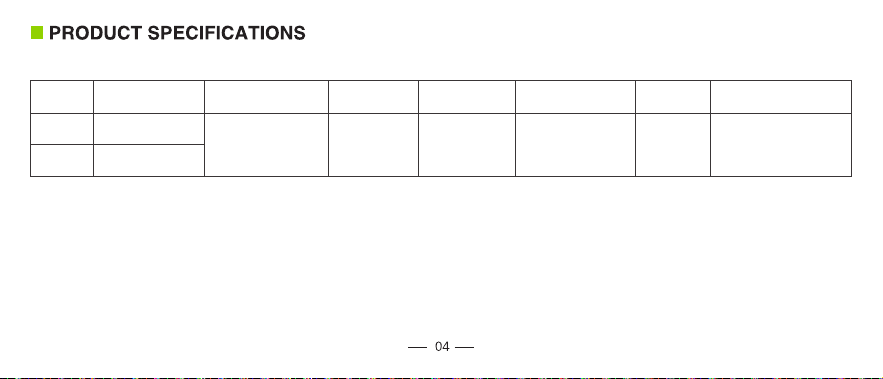
Model Lens Pixels Camera Diameter
Cable Length Camera Lights
Focal Distance
View Angle
Device
Compatiblity
Android&
iOS(Type-C)
68°
0.4 inch-1.2 inch
(10mm-30mm)
5.9 ft (1.8m) 6 LED Lights
3.9 mm
300,000 pixels
1 million pixels
AKE390i
AKE100i
This device complies with part 15 of the FCC Rules. Operation is subject to the following two conditions:
(1) This device may not cause harmful interference.
(2) This device must accept any interference received, including interference that may cause undesired operation.
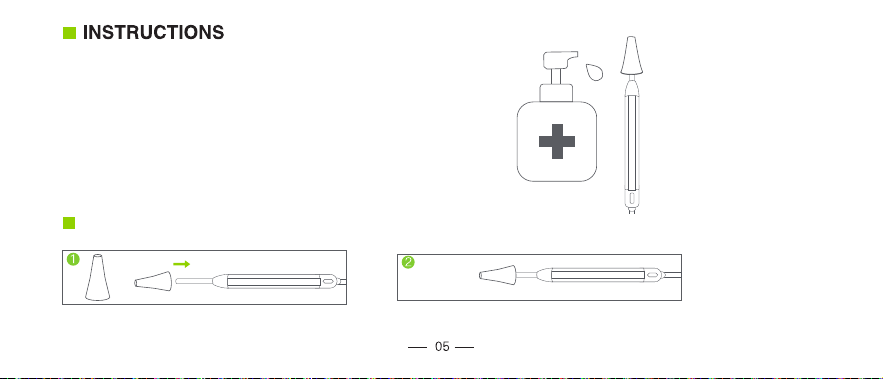
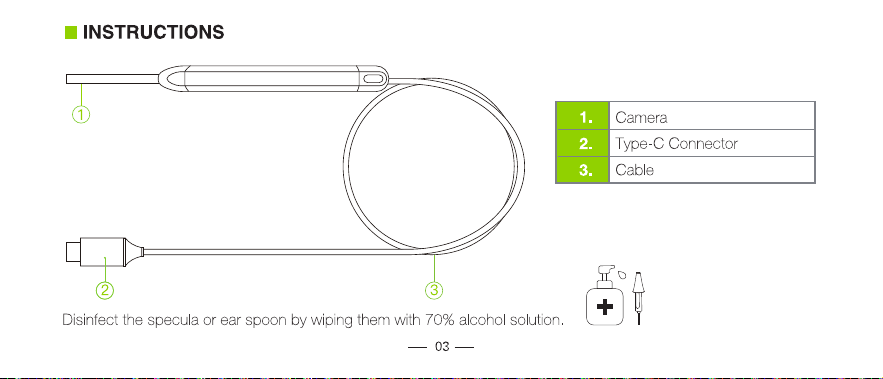
Disinfect the specula or ear spoon by wiping them with
70% alcohol solution before and after EVERY use.
For safer and cleaner ears, please install the speculum or
ear spoon before use.
INSTALL THE SPECULUM ON THE TIP
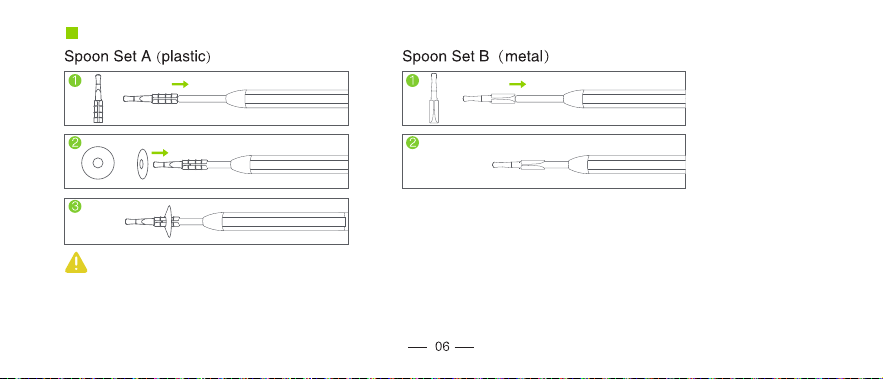
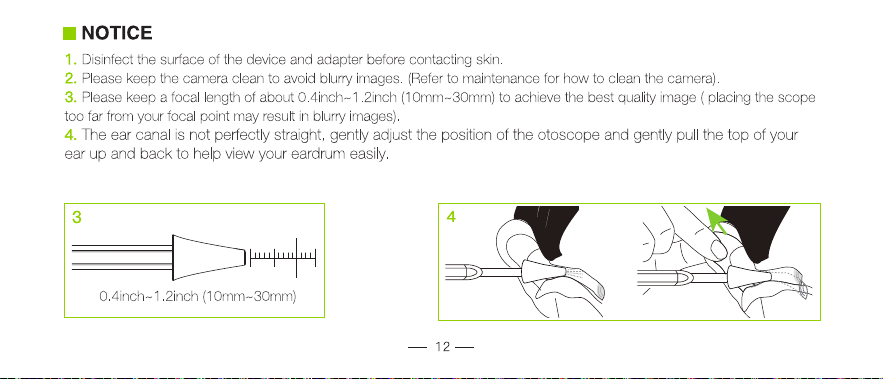
To ensure clarity, please take note of the following:
1. Our ear otoscope is available in two different packages: one includes plastic ear spoons, and the other
includes metal ear spoons.
2. Please check the packaging contents to ensure they match the ear spoon accessories you purchased.
INSTALL THE EAR SPOON ON THE TIP
otoscope
P-2
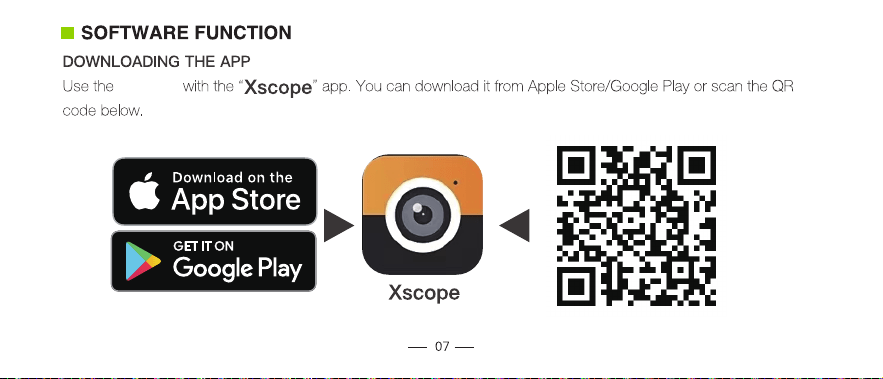
Choose an app for the USB device
Always
Just once
Xscope
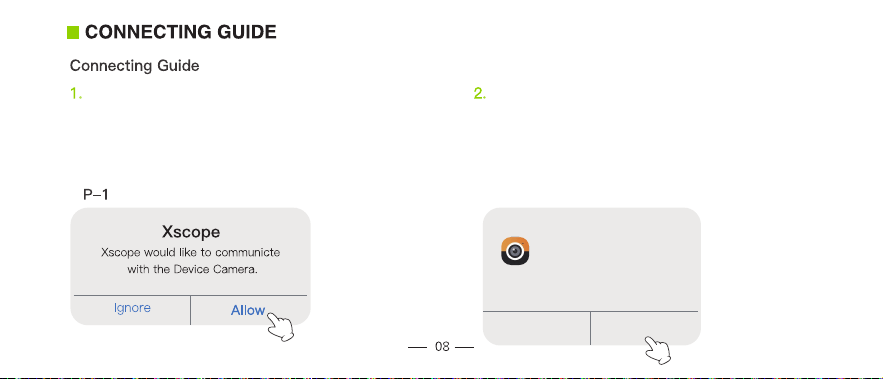
1. Insert the type-C connector of the inspection
camerainto your smart device(Suitable for Apple
devices with type-C interface, such as
iPhone 15/15Pro/15Plus /15ProMaxMacBook
Pro 2020,iPad Pro 2020,iPad Air 4)
2.
You'll receive a notifcation and click“Allow”
to use it. (P-1 for iOS)
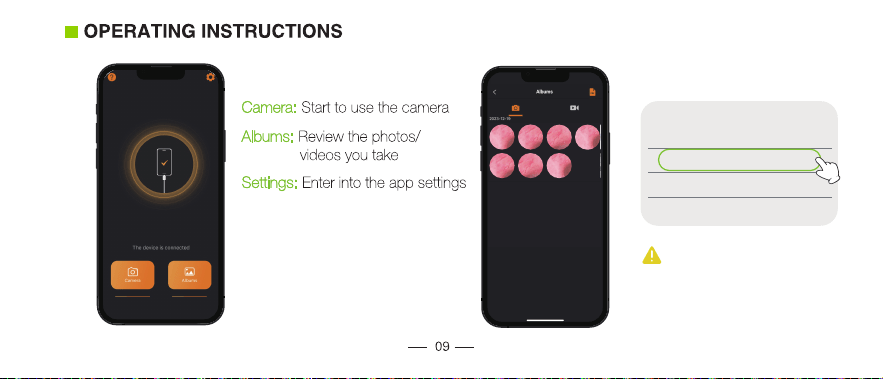
You'll receive a notifcation and click“Always”
to use it. (P-2 for Android)
Allow
Deny
Deny & don't ask again
Allow Xscope to access photos, media, and
files on your device?
If the otoscope is not
connecting(Only the light is
on), unplug it and attempt to
connect again.
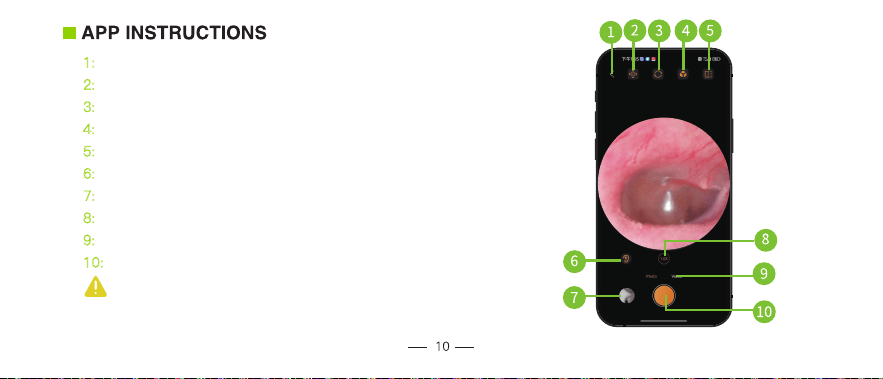
1:
Back
2:
Gyro mode(Automatically displayed when connected to model AKE100i)
3:
Rotate Image 90°
4:
Color/Black and White lmage
5:
Split Screen Mode
6:
Left/Right Ear Switch
7:
Albums
8:
Zoom(Pinch with two fingers)
9:
Photo/Video Switch
10:
Take a Photo/Video
NOTE
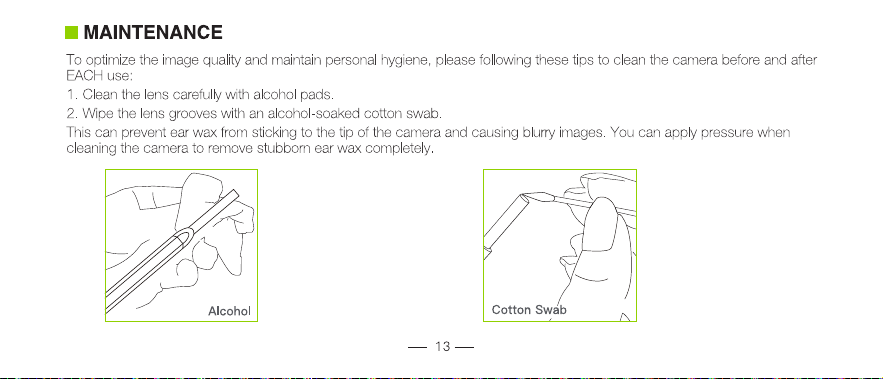
If the image is blurry, clean the leans with alcohol wipe and
cotton swab.

Q: Why does the otoscope show normal color and clarity when viewing the ear canal, but exhibit color
distortion and blurriness in other scenes?
A: The otoscope is specifically designed for observing the ear canal, so we have optimized the focal
length, light brightness, and color settings to ensure normal color and clarity in the ear canal images.
However, when used in other scenes, you may experience color distortion and blurriness due to lighting
and focal length differences.
Focal length issue: The otoscope's focal length is set to accommodate the small, close-up nature of the
ear canal, which can result in some blurriness when observing distant scenes. We recommend maintaining
a moderate observation distance (0.4 inch- 1.2 inch) when using the ear scope to obtain a clearer image.
Brightness issue: The brightness of the otoscope's light is designed to prevent overexposure in the ear
canal images. Therefore, the light may appear relatively dim in other scenes, leading to color distortion
and blurriness. This is a normal phenomenon, and there is no need to worry. If you need to observe other
scenes, we suggest using the ear scope in well-lit environments for a more accurate color display.
Alternatively, you can consider purchasing our other models of borescope, which provide clearer image
quality in the wider area.
FAQ
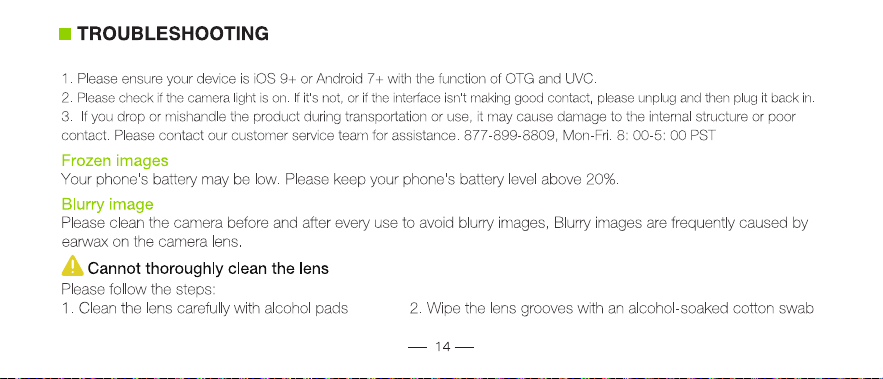
The device lights up, but the app shows it is not connected


3.06.16.000602 D0514 V1.0