Operation manua
Locator
l
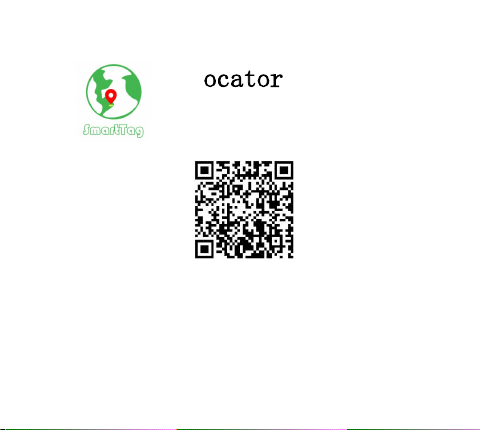
Please scan the QR code
(Install the app or view the electronic manual)
Version:6.0
2
1.
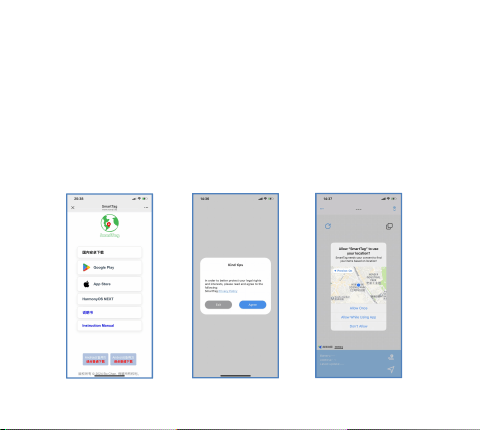
Install APP
1)
Use the built-in browser of your mobile phone to scan the QR
code on the homepage, select the corresponding software according
to your mobile phone, and download and install the software.
2)
Search for "smarttag" in the mobile app store and download
and install the software; Android phones search in Google Play,
and iPhones search in the App Store.
3)
When installing the software, in the warm reminder and the
prompt box where "SmartTag" wants to access location information,
select "Agree" and "Allow" to permit the APP to use all
permissions.
3
2.
Bind device
1)
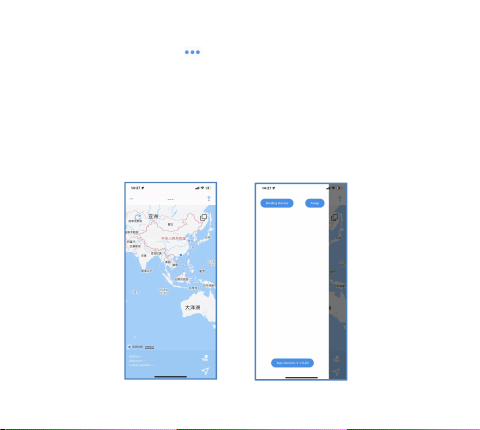
Click on the icon " "in the upper left corner of the
homepage, and a menu will pop up on the left.
2)
Power on the device (the power on methods include button
power on, unplugging the insulation sheet power on, charging
power on, etc., depending on the purchased device). If you hear a
"beep" sound or see the LED light flashing, it indicates that the
device has been successfully powered on and activated (the device
needs to be bound within two minutes after activation, otherwise
it will automatically sleep and needs to be powered on again to
activate the device).
4
3)
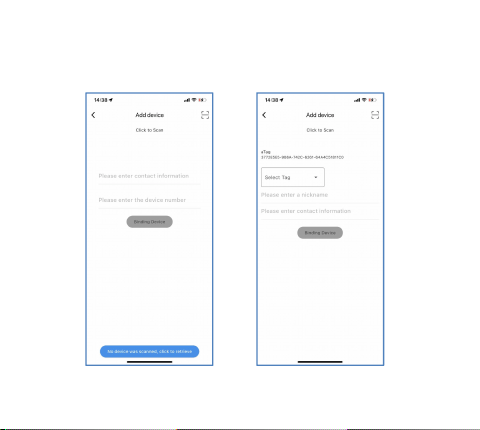
After activating the device, hold it close to your phone and
click "Bind Device". The app will redirect to the "Add Device"
page and automatically detect the device. If it is not detected,
you can click "Click Search" until device information appears.
5
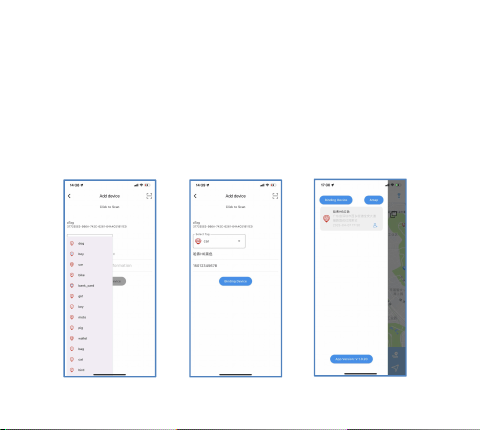
4)
Select input device information.
(1)
Select device label
(2)
Enter device name
(3) Enter contact information
(4) Click on 'Bind Device' to successfully bind the device.
Repeat the above steps to bind multiple devices.
5)
Click on "Amap" to pop up a map selection pop-up and switch
between "Google map" or "Amap".
6
3.
Remote positioning equipment
When the device is far away from the phone, the app can be
opened to update the latest location, which is reported to the map
interface by electronic products near the device and decrypted.
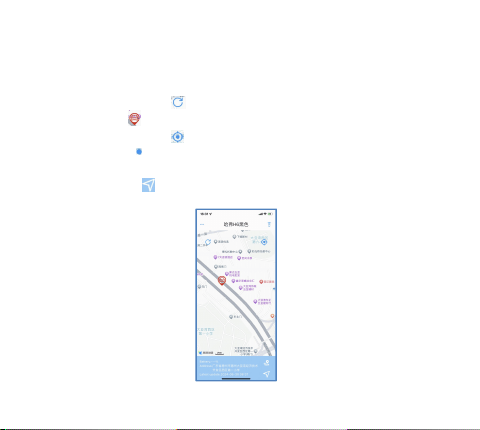
1)
Click on the icon in the upper left corner to refresh the
device location .
2)
Click on the icon in the upper right corner to refresh the
phone's location .
3)
The address information of the device is displayed below.
Click on the icon in the lower right corner to open the installed
"Map App" and navigate to the device location.
7
4.
Find equipment up close
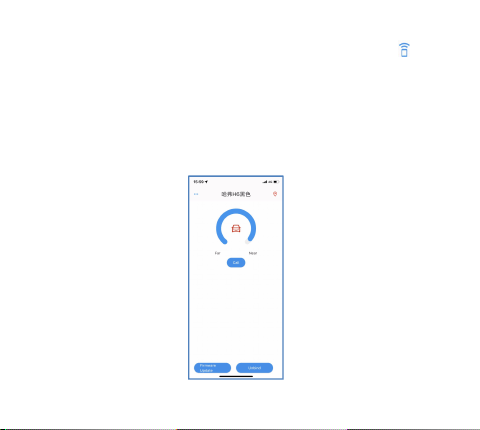
1)
When the device is nearby, users can click on the icon in
the upper right corner of the homepage to enter the search page.
2)
After the device is successfully connected, click "Call" to
make the device emit sound or light.
3)
The LED setting function (only applicable to individual
dazzling devices) can enable the lighting mode, and the lights will
flash according to the selected time and automatically turn off
after the time.
8
5.
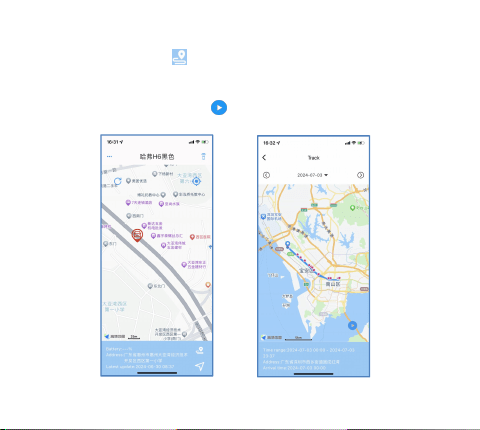
Query trajectory
1)
Click on the icon in the lower right corner to enter the
"Track" page.
2)
On the "Track" page, adjust the date to view the current day's
trajectory. Click on the icon in the lower right corner to play
the current day's trajectory.
9
6.
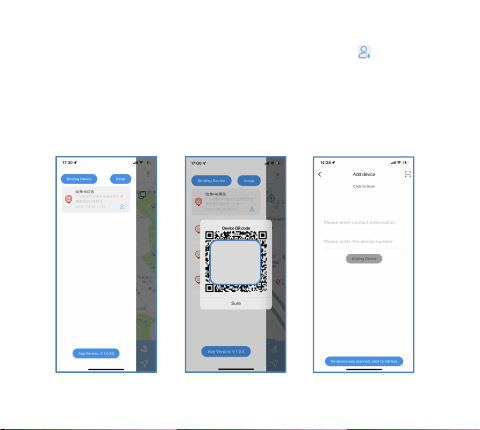
Share device
1)
On the "Binding Device" page, click on the icon behind the
device that needs to be shared, and a "Device QR Code" will pop up.
2)
thers can click the "Scan"button in the upper right corner of
the "Bind Device" page to enter the "Scan QR Code to Bind the
Device" page, scan the QR code of the device they want to share, and
bind the device according to the prompts to share the device
information.
Scan
this
code

10
7.
SmartTag offers more features
Please scan the QR code to view the electronic manual and unlock
more features.
8.
Common problem
1)
Binding failed
Please check if the mobile network cable is normal and if all
permissions are allowed when opening the app. If you accidentally
disable permissions and don't know how to enable them, you can
uninstall the app first and give it all the necessary permissions
when reinstalling.
2)
Slow remote location updates
The remote positioning function of this device is the location
reported by electronic products near the device, and sometimes there
may be a certain delay, which is a normal phenomenon.
FCC Caution
This device complies with part 15 of the FCC Rules. Operation is subject to
the following two conditions: (1) This device may not cause harmful
interference,and (2) this device must accept any interference received,
including interference that may cause undesired operation.
Any changes or modifications not expressly approved by the party responsible
for compliance could void the user's authority to operate the equipment.
NOTE: This equipment has been tested and found to comply with the limits for
a Class B digital device, pursuant to Part 15 of the FCC Rules. These limits
are designed to provide reasonable protection against harmful interference in
a residential installation. This equipment generates, uses and can radiate
radio frequency energy and, if not installed and used in accordance with the
instructions, may cause harmful interference to radio communications.
However, there is no guarantee that interference will not occur in a
particular installation.
If this equipment does cause harmful interference to radio or television
reception,which can be determined by turning the equipment off and on, the
user is encouraged to try to correct the interference by one or more of the
following measures:
-- Reorient or relocate the receiving antenna.
-- Increase the separation between the equipment and receiver.
-- Connect the equipment into an outlet on a circuit different from that to
which the receiver is connected.
-- Consult the dealer or an experienced radio/TV technician for help.
The device has been evaluated to meet general RF exposure requirement.
The device can be used in portable exposure condition without restriction.