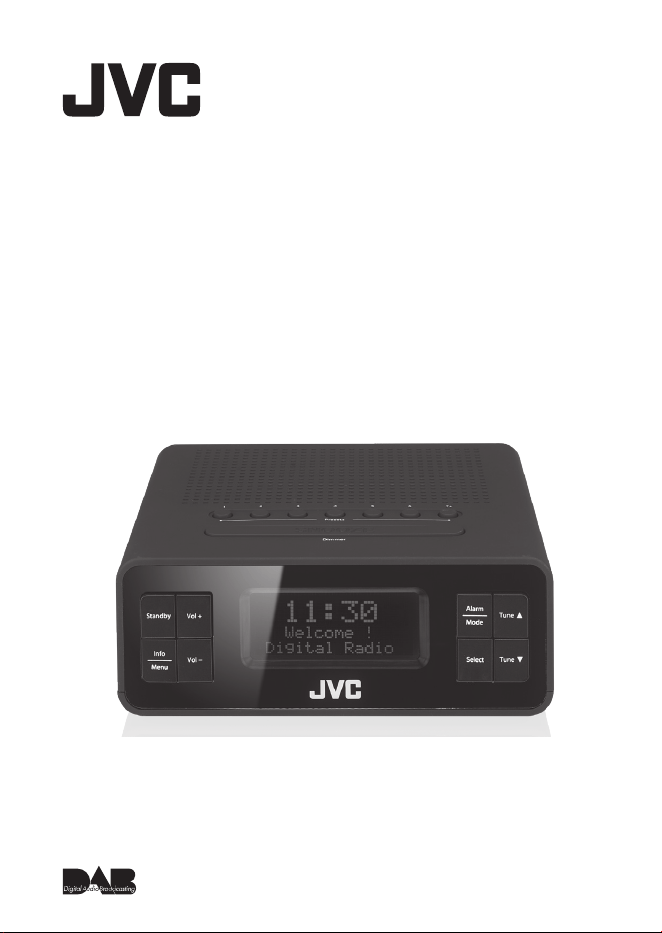
Instruction Manual
DAB Clock Radio
RA-D38B / RA-D38H


Contents
Safety Warnings ...........................................................................5
Unpacking .....................................................................................8
Product Overview ........................................................................9
Front View .....................................................................................................9
Rear View.......................................................................................................9
Top View ..................................................................................................... 10
Connections ................................................................................11
Using Earphones ......................................................................................11
Turning the Radio On for the First Time ..................................12
Basic Operation ..........................................................................14
Switching ON/OFF .................................................................................. 14
Selecting Modes ...................................................................................... 14
Adjusting the Volume ........................................................................... 14
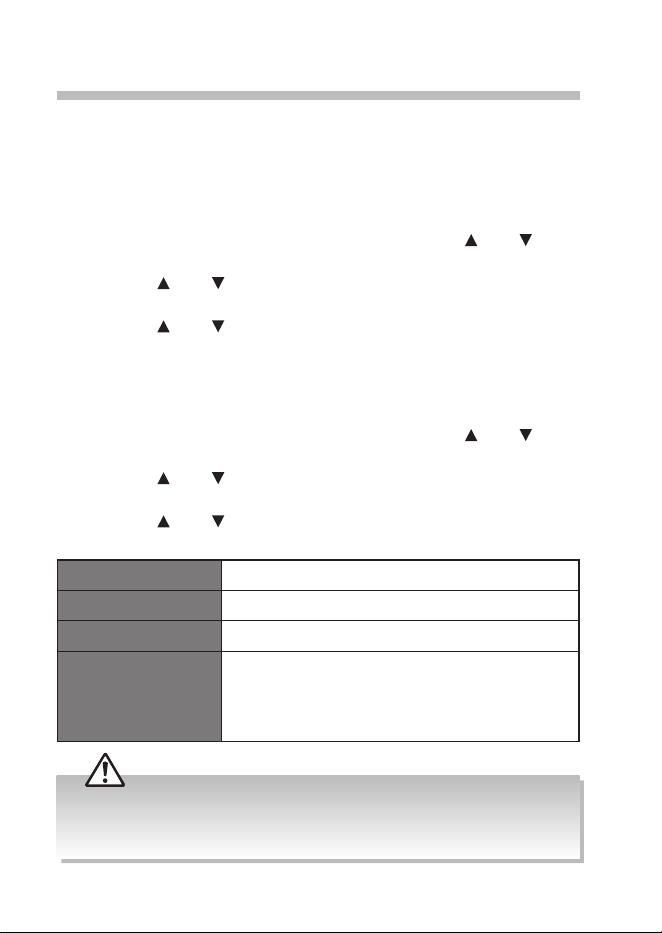
Automatically Setting the Clock ....................................................... 14
System Settings ..........................................................................15
Setting a Sleep Timer ............................................................................ 15
Setting the Time and Date .................................................................. 15
Alarm ........................................................................................................... 16
Software version ......................................................................................17
Factory Reset ............................................................................................ 18
Backlight ..................................................................................................... 18
DAB Operation ...........................................................................19
Full Scan...................................................................................................... 19
Secondary Services ................................................................................ 19
Manual Tune ............................................................................................. 20
Saving Preset Stations ........................................................................... 20
Recalling a Preset Station .................................................................... 20
DAB Display Modes ................................................................................ 21

FM Operation ..............................................................................23
Auto Scan ................................................................................................... 23
Manual Tune ............................................................................................. 23
Scan Setting .............................................................................................. 23
Saving Preset Stations ........................................................................... 24
Recalling a Preset Station .................................................................... 24
FM Display Modes ...................................................................................25
Maintenance ...............................................................................26
Cleaning the Unit .................................................................................... 26
Hints and Tips .............................................................................26
Product Fiche and Specifications .............................................28
Useful Information and Licences ..............................................29

5
Safety Warnings
• Read all the instructions carefully
before using the unit and keep
them for future reference.
• Retain the manual. If you pass the
unit onto a third party make sure
to include this manual.
• Check that the voltage marked
on the rating label matches your
mains voltage.
Damage
• Please inspect the unit for
damage after unpacking.
• Do not continue to operate the
unit if you are in any doubt about
it working normally, or if it is
damaged in any way - switch o,
withdraw the mains plug and
consult your dealer.
Location of Unit
• The unit must be placed on a at
stable surface and should not be
subjected to vibrations.
• Do not place the unit on sloped
or unstable surfaces as the unit
may fall o or tip over.
• The mains socket must be located
near the unit and should be easily
accessible.
• This unit is designed for indoor,
domestic use only.
Temperature
• Avoid extreme degrees of
temperature, either hot or cold.
Place the unit well away from
heat sources such as radiators or
gas / electric res.
• Avoid exposure to direct sunlight
and other sources of heat.
Naked Flames
• Never place any type of candle or
naked ame on the top of or near
the unit.
Moisture
• To reduce the risk of re, electric
shock or product damage, do not
expose this unit to rain, moisture,
dripping or splashing. No objects
lled with liquids, such as vases,
should be placed on the unit. Do
not operate the unit with wet
hands, near water or other liquid.
• If you spill any liquid into the
unit, it can cause serious damage.
Switch it o at the mains
immediately. Withdraw the mains
plug and consult your dealer.
Ventilation
• To prevent the risk of electric
shock or re hazard due to
overheating, ensure that curtains
and other materials do not
obstruct the ventilation vents.
• A minimum distance of 5 cm
around the unit should be
maintained to allow for sucient
ventilation.
• Do not install or place this unit in
a bookcase, built-in cabinet or in
6
another conned space. Ensure
the unit is well ventilated.
Safety
• Always disconnect the unit
from the mains supply before
connecting / disconnecting other
devices or moving the unit.
• Unplug the unit from the mains
socket during a lightning storm.
• In the interests of safety and
to avoid unnecessary energy
consumption, never leave the unit
switched on while unattended
for long periods of time, e.g.
overnight, while on holiday or
while out of the house. Switch it
o and disconnect the mains plug
from the mains socket.
Mains Adapter Cable
• Make sure the unit or unit stand
is not resting on top of the mains
adapter cable, as the weight of
the unit may damage the cable
and create a safety hazard.
Mains Adapter
• The mains adapter will continue
to draw electricity from the mains
supply when plugged in the
mains socket. In the interests of
safety and to avoid unnecessary
energy consumption, never leave
the adapter plugged in the mains
socket while unattended for long
periods of time. Disconnect the
adapter from the power supply.
Use only power supplies
listed in the user
instructions.
Interference
• Do not place the unit on or near
appliances which may cause
electromagnetic interference. If
you do, it may adversely aect
the operating performance of the
unit, and cause a distorted picture
or sound.
Supervision
• Children should be supervised to
ensure that they do not play with
the unit.
• Never let anyone especially
children push anything into the
holes, slots or any other openings
in the case - this could result in a
fatal electric shock.
CAUTION
RISK OF ELECTRIC SHOCK
DO NOT OPEN
The lightning ash with
arrowhead symbol, within
an equilateral triangle, is
intended to alert the user
to the presence of
uninsulated “dangerous
voltage” within the unit’s
enclosure that may be of
sucient magnitude to
constitute a risk of electric
shock.
7
The exclamation point
within an equilateral
triangle is intended to
alert the user to the
presence of important
operating and
maintenance (servicing)
instructions in the manual
accompanying the unit.
Service
• To reduce the risk of electric
shock, do not remove screws. The
unit does not contain any user-
serviceable parts. Please leave all
maintenance work to qualied
personnel.
• Do not open any xed covers
as this may expose dangerous
voltages.
Maintenance
• Ensure to unplug the unit from
the mains socket before cleaning.
• Do not use any type of abrasive
pad or abrasive cleaning solutions
as these may damage the unit’s
surface.
• Do not use liquids to clean the
unit.
• This equipment is a Class
II or double insulated
electrical appliance. It has
been designed in such a
way that it does not require
a safety connection to
electrical earth.
~ AC voltage: This symbol indicates
that the rated voltage marked with
the symbol is AC voltage.
DC voltage: This symbol indicates
that the rated voltage marked with
the symbol is DC voltage.
To prevent the
spread of re,
keep candles
or other open
ames away
from this
product at all
times.
8
Unpacking
Remove all items from the packaging. Retain the packaging. If you dispose
of it please do so according to local regulations.
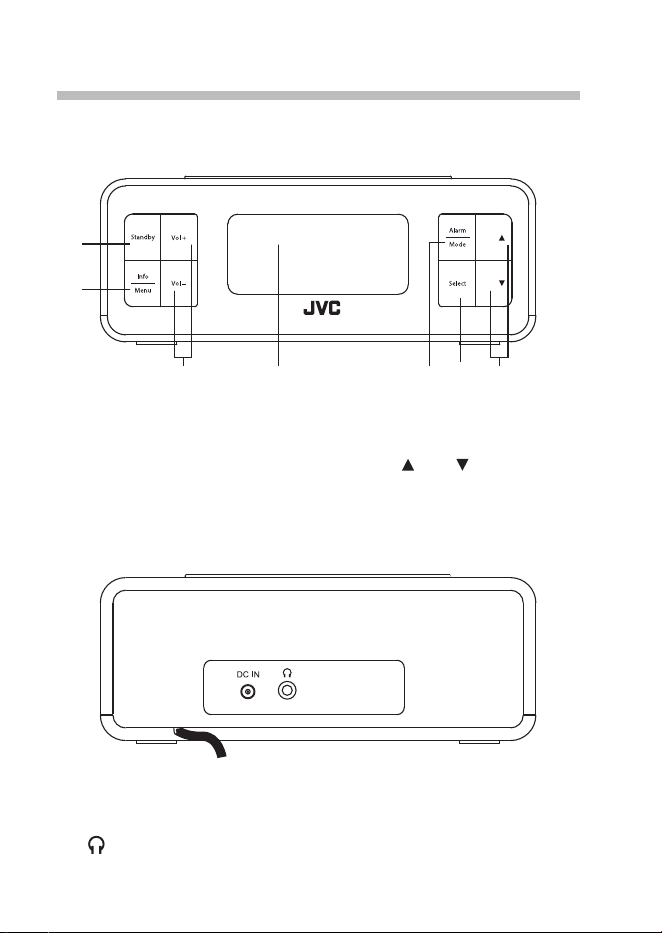
The following items are included:
Main Unit
Mains Adapter Instruction Manual
Thank you for purchasing your new product.
We recommend that you spend some time reading this instruction
manual in order that you fully understand all the operational
features it oers. You will also nd some hints and tips to help you
resolve any issues.
Read all the safety instructions carefully before use and keep this
instruction manual for future reference.
Tune
Tune
Instruction
Manual
• If items are missing, or damaged please contact Partmaster (UK only).
Tel: 0344 800 3456 for assistance.
• If you require additional assistance:
For UK, please call our UK Call Centre on 0344 561 1234.
For Ireland, please call our Ireland Call Center on 1 890 818 575.
9
Product Overview
Front View
Tune
Tune
1
2
3
6 74 5
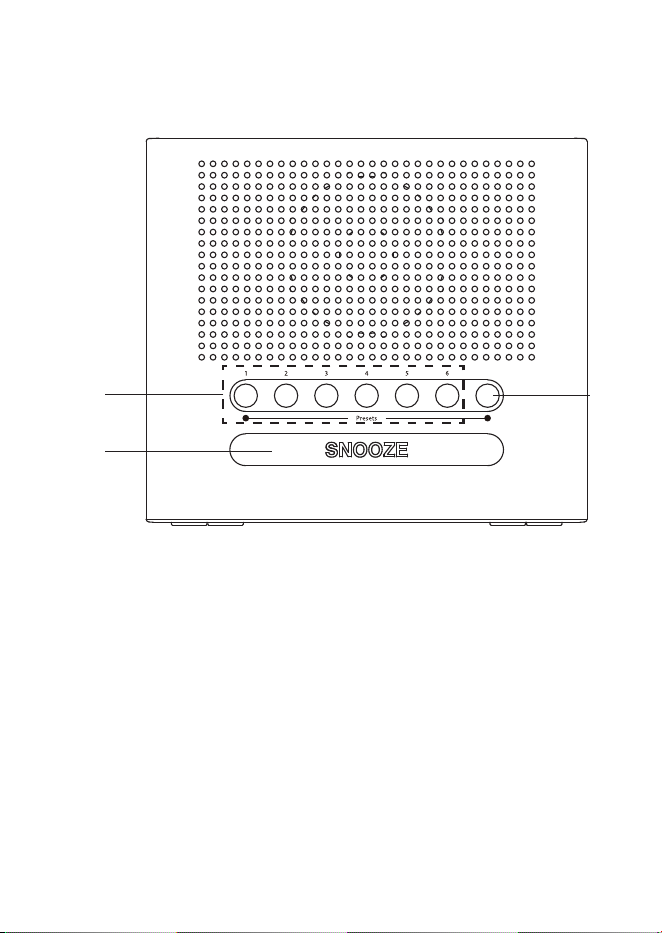
1. Standby Button
2. Info/Menu Button
3. Vol+/Vol– Button
4. LCD Display
5. Alarm/Mode Button
6. Select Button
7. Tune
/Tune Button
1. DAB / FM Aerial
2. DC IN Socket
3.
Earphones Socket
Rear View
10
3
21
1. Preset 1/2/3/4/5/6 Button
• Press and hold to directly
save preset station 1-6.
• Press to directly recall preset
station 1-6.
2. Preset 7+ Button
• Press and hold to enter
<Save to P#> for preset
station setup.
• Press to enter <Preset
Recall> for recalling preset
stations among P1-10.
Top View
Dimmer
7+
3. SNOOZE/DIMMER Button
• Press to activate the snooze
function when the alarm
sounds.
• Press to select the brightness
level.
11
Connections
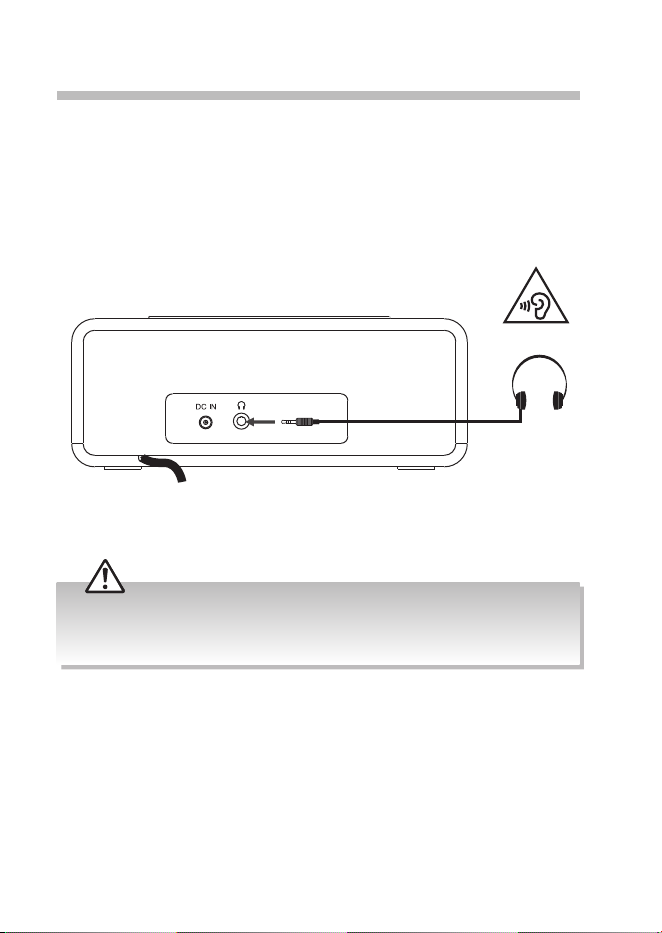
Using Earphones
Turn down the volume before connecting the earphones. Slowly raise the
volume with the earphones on until you reach your desired volume. When
earphones are connected, the speaker is automatically muted.
Rear of the Unit
Long-term exposure to loud music may cause hearing damage. It is best
to avoid extreme volume when using earphones, especially for extended
periods.
12
Turning the Radio On for the First Time
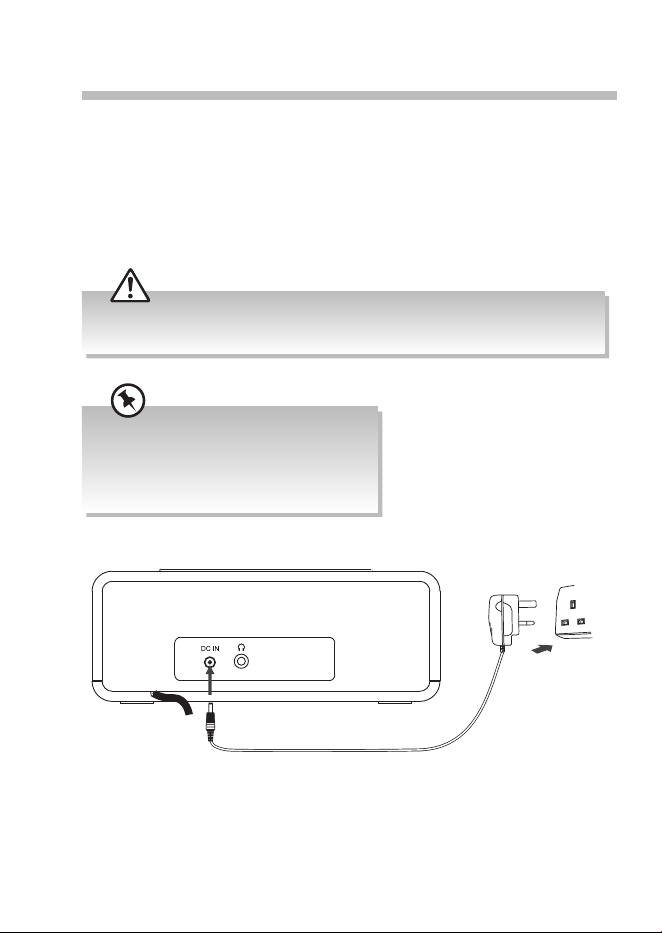
1. Fully extend the aerial before plugging the unit into the mains.
2. Connecting the unit to any other power source may damage the unit.
Unwind the mains adapter cable to its full length. Connect the end of the
cable to the DC IN Socket at the rear of the unit and then connect the
mains adapter to the mains socket. Make sure the mains adapter is rmly
inserted into the mains socket. The unit is now connected and ready to
use.
Ensure all connections are connected before connecting to the mains
power socket.
Extend the aerial before switching to
DAB mode for the rst time. This will
ensure that the initial scan captures all
stations in your area.
To the mains socket
Rear View of the Main Unit
13
Remove the mains plug from the mains socket if you want to switch the
unit o completely.
• Ensure all audio connections of the unit are connected before
connecting to the mains power socket.
• Make sure the mains plug is rmly inserted into the mains socket.
• To switch the unit o completely, remove the mains plug from the
mains socket.
• Please turn the unit o completely to save energy when not in use.
• Use the mains cable as the disconnect device. The disconnect device
shall remain readily operable.
14
Basic Operation
Switching ON/OFF
Press Standby button on the unit to switch the unit between the On and
Standby mode.
Remove the mains plug from the mains socket if you want to switch the
unit o completely.
Selecting Modes
Press and hold Alarm/Mode button to switch between DAB and FM mode.
The unit will automatically go to Standby mode after 15 minutes if there
is no DAB signal. Press Standby button to resume.
Adjusting the Volume
Press Vol+/Vol– button on the unit to increase/decrease the volume.
Automatically Setting the Clock
The clock will be updated automatically if you can receive DAB/FM signal in
your location.
In order to synchronise to the current local time, you must leave it on the
DAB/FM station for a period of time. It may take about 1-2 minutes to
receive the time signal.
If there is no DAB broadcast in your area, switch the unit into FM mode
to receive the time signal, or you may set the clock manually (Refer to
“Setting the Time and Date” section below).
15
System Settings
Setting a Sleep Timer
You can set a sleep timer so if you are listening to your radio and fall asleep,
it will automatically switch o at the preset time. The sleep timer can be
activated for up to a maximum of 90 minutes.
1. Press and hold Info/Menu button, and then press Tune
/Tune
button to select <System>. Press Select button to conrm.
2. Press Tune
/Tune button to select <Sleep>. Press Select button to
conrm.
3. Press Tune
/Tune button to select between Sleep O, 10 minutes,
20 minutes, 30 minutes, 60 minutes, 70 minutes, 80 minutes or 90
minutes, and then press Select button to conrm.
Setting the Time and Date
1. Press and hold Info/Menu button, and then press Tune /Tune
button to select <System>. Press Select button to conrm.
2. Press Tune
/Tune button to select <Time>. Press Select button to
conrm.
3. Press Tune
/Tune button to select options, and then press Select
button to conrm.
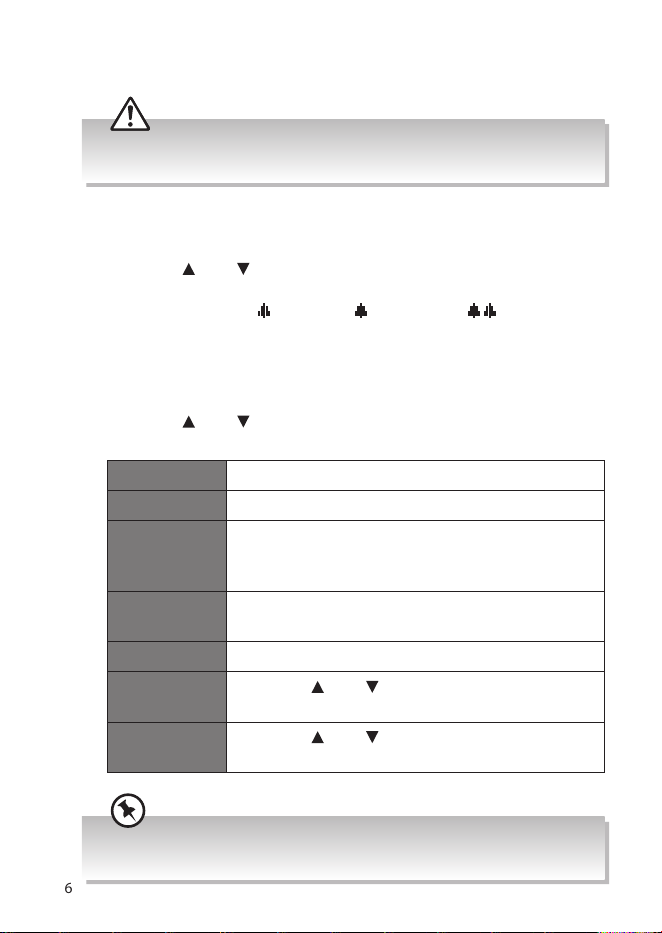
Set Time/Date Here you can manually set the time and date.
Set date format DD-MM-YYYY or MM-DD-YYYY
Set 12/24 hour Set 12 Hour or Set 24 Hour display.
Auto update Choose how you want the time to be
automatically updated: Update from Any /
Update from DAB / Update from FM / No
update
It is highly recommended that “Update from Any“ is selected for
the unit, so that it can easily synchronize the time/date after power
reconnection.
16
Alarm
Ensure the time and date is set before you can activate the alarm
function.
Setting the Alarm On/O
1. Press Alarm/Mode button once to enter Alarm 1 Setup menu, or twice
to enter Alarm 2 Setup menu.
2. Press Tune
/Tune button to select Alarm On or Alarm O, and then
press Select button to conrm. The display will show “Alarm Saved“.
3. Once the alarm is set,
1 (Alarm 1)/ 2 (Alarm 2) or (Both Alarm 1
and Alarm 2) icon will show on the display.
Alarm Setup
1. Press Alarm/Mode button once to enter Alarm 1 Setup, or twice to
enter Alarm 2 setup. Press Select button to conrm.
2. Press Tune
/Tune button to select options, and then press Select
button to conrm.
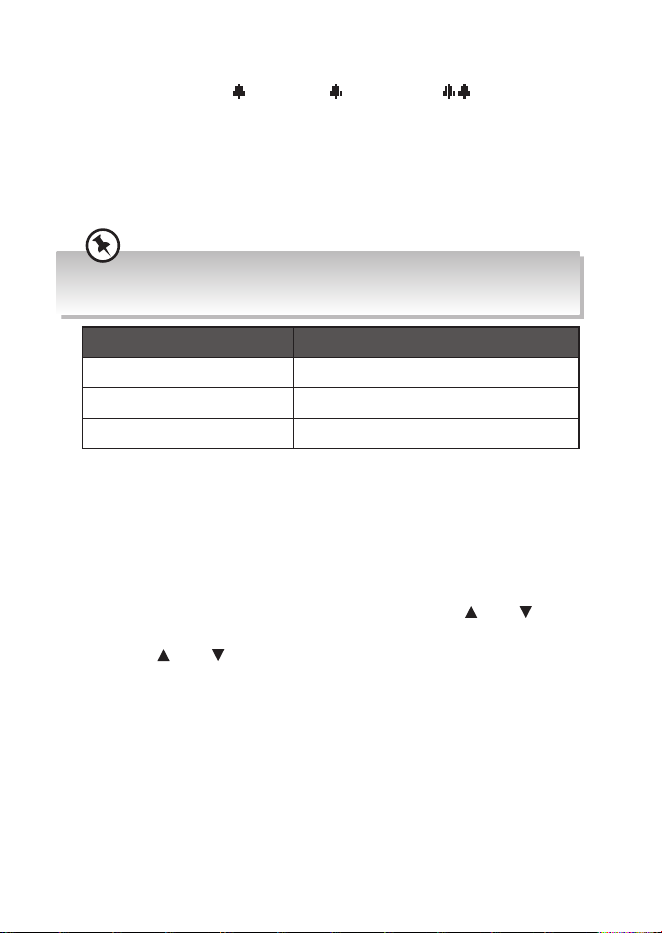
On time 00:00 (manually set up the time)
Duration 15/30/45/60/90/120 minutes
Source Buzzer / FM / DAB
(If the wake-up source is DAB and the signal
strength is low, the Buzzer alarm will be triggered.)
Preset Last listened or saved preset station (not available
for Buzzer mode)
Frequency Daily / Once / Weekends / Weekdays
Alarm
volume
Press Tune
/Tune button to adjust the alarm
volume.
Alarm On/Off Press Tune
/Tune button to select between
Alarm On and Alarm Off.
During the setup process, you may press Alarm/Mode button to exit the
alarm setup menu.
17
3. The display will show “Alarm Saved“ after the setup is done.
4. Once the alarm is set,
1 (Alarm 1)/ 2 (Alarm 2) or (Both Alarm 1
and Alarm 2) icon will show on the display.
5. To temporarily switch o alarm, press SNOOZE/Dimmer button to
activate Snooze function when alarm sounds. Press SNOOZE/Dimmer
button repeatedly to set snooze period time of 5, 10, 15 or 30 minutes
in turn. The set snooze time will show on the display and unit will go to
standby.
The options of Snooze time depends on which alarm duration time you
selected.
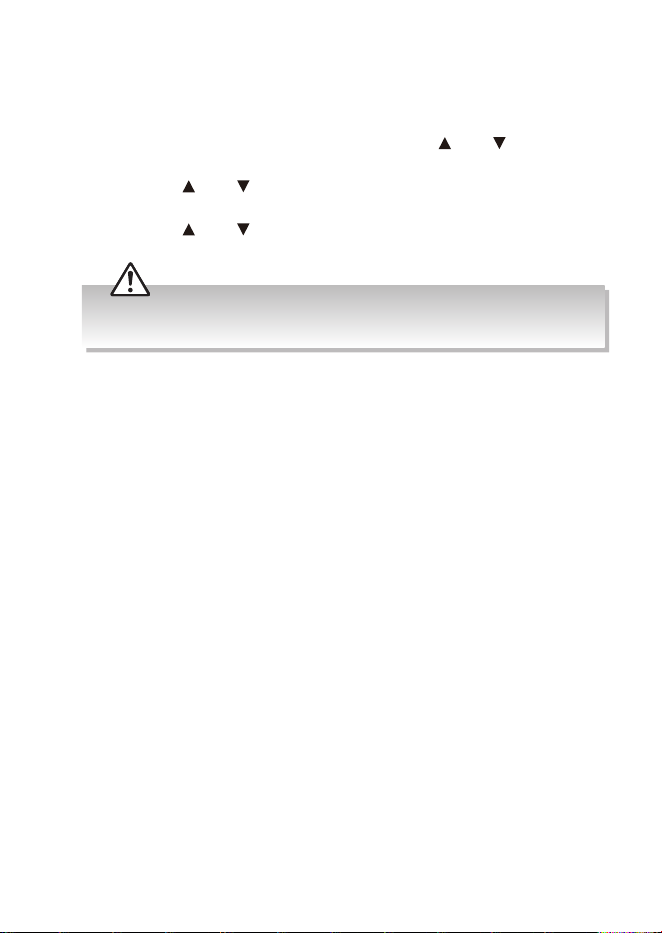
Alarm duration time Snooze time
15 minutes 5 or 10 minutes
30 minutes 5, 10 or 15 minutes
45/60/90/120 minutes 5, 10, 15 or 30 minutes
6. To turn o alarm, press Standby or Alarm/Mode button when alarm
sounds.
Software version
This information may be requested when dealing with technical support
issues.
1. Press and hold Info/Menu button, and then press Tune
/Tune
button to select <System>. Press Select button to conrm.
2. Press Tune
/Tune button to select <SW version>, and then press
Select button to conrm.
3. The software version will show on the display.
4. Press Info/Menu button to exit.
18
Factory Reset
If you want to delete all your stations and settings, you can return your
radio back to the default setting by running a Factory Reset.
1. Press and hold Info/Menu, and then press Tune
/Tune button to
select <System>. Press Select button to conrm.
2. Press Tune
/Tune button to select <Factory Reset>, and then press
Select button to conrm.
3. Press Tune
/Tune button to select <Yes>, and then press Select
button to conrm.
After factory reset, all tuned stations, preset stations and alarm settings
will be erased then your radio will be in Standby mode.
Backlight
Press SNOOZE/Dimmer button repeatedly to set the display brightness
between High, Medium, Low and O.

19
DAB Operation
If the unit is connected to the mains power for the rst time, the unit will
show “Welcome ! Digital Radio“ and then “00:00”. Press Standby button to
switch on the unit and perform auto scan. During the scan the display will
show “Scanning…” together with a slide bar that indicates the progress of
the scan and the number of stations that have been found so far.
Once the scan has nished, the unit will select the rst alphanumerically
found station. To explore the found stations, press Tune
/Tune button
and then Select to conrm selection.
Full Scan
The Full Scan will search for the entire DAB Band III channels. After the scan
has nished, the rst alphanumerically found station will be automatically
selected.
1. To activate full scan, press and hold Info/Menu button, and then press
Tune
/Tune button to select <Full scan>. Press the Select button to
conrm.
2. The display will show Scanning... and a progressing slide bar.
3. All the stations that have been found will be stored automatically. To
explore and listen to the found stations, press Tune
/Tune button
and then Select to conrm selection.
Secondary Services
You may see a symbol before the name of the station, this indicates
that there are secondary services available to that station. These secondary
services contain extra services that are related to the primary station. e.g. a
sports station may want to add extra commentaries. The secondary services
are inserted directly after the primary station in the station list.
To select the secondary station, press Tune
/Tune button on the unit
until you nd the secondary service you want, then press Select button on
the unit to select it.

20
Manual Tune
As well as the auto scan function, you can manually tune them in. You will
need to know which multiplex the station you are looking for is in.
1. Press and hold Info/Menu button, and then press Tune
/Tune
button to select <Manual tune>. Press Select button to conrm.
2. Press Tune
/Tune button to scroll through the DAB channels, which
are numbered from 5A to 13F.
3. Press Select to select the station that you would like to listen to.
Saving Preset Stations
You can store up to 10 of your favourite stations to the memory. This will
enable you to access your favourite stations quickly and easily.
Presets 1 - 6
To store a preset, you must rst be listening to the station that you would
like to save. If you want to store the station in preset positions 1 - 6 press
and hold the Preset (1 - 6) button for 2 seconds. The words <Preset #
stored> will show on the display.
Presets 1 -10
1. Press and hold the 7+ button for 2 seconds. The <Save to P7> list will
show on the display.
2. Press Tune
/Tune button to select the preset position that you
would like to store, and then press Select button to save the station.
The words “Preset # stored” will show on the display.
Recalling a Preset Station
Recall Presets 1 - 6
To recall preset stations that are stored in positions 1-6 just press the
Presets 1-6 button.
Recall Presets 1-10
1. Press 7+ button, the Preset Recall list will be displayed. Press Tune
/
Tune button to select your desired preset station number.
2. Press Select button to conrm
If you choose a preset that hasn’t been allocated a station, “Preset
Empty“ will be displayed.
21
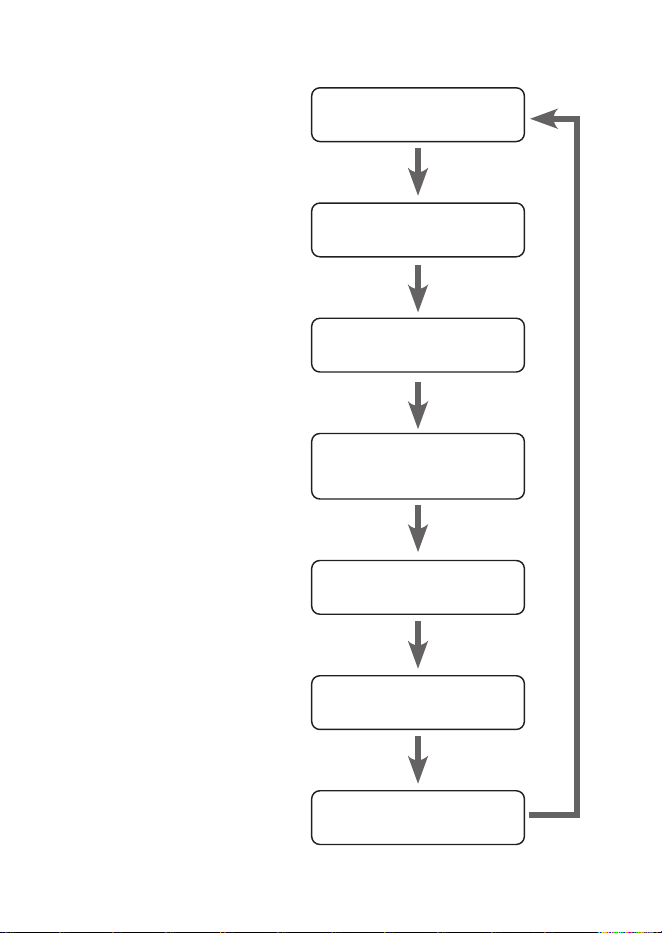
DAB Display Modes
Every time you press Info/Menu
on the unit, the display will cycle
through the following display
modes.
The information is displayed on the
lower segment of the display.
Signal Strength
This shows a slide bar to indicate
the signal strength, the stronger
the signal, the longer the bar will be
from left to right.
Programme Type
This describes the “style” and “genre“
of the programme that is being
broadcast.
Ensemble Name
The Ensemble/Multiplex is a
collection of radio stations that are
bundled and transmitted together
in a single frequency. There are
national and local multiplexes,
local ones contain stations that are
specic to that area.
Channel number/frequency
This displays the Channel number/
frequency of the present station,
such as “11C 220.352MHz”.
Signal error
Show the stability and quality
of signal reception , the best
representation for 0.
Ensemble Name
Signal error
Bit Rate / Codec / Channels
Time/Date
Signal Strength
Programme Type
Channel number/
frequency

22
Bit Rate / Codec / Channels
The display will show the digital audio bit rate being received with
additional information about the audio codec and channel conguration.
Time / Date
This displays the current time and date.
23
FM Operation
Press and hold Alarm/Mode button repeatedly to select FM mode.
Auto Scan
1. To activate auto scan, press Select button or press and hold Tune /
Tune button to perform auto scan. The display will show “Scanning...“
2. Once a station has been found, the scanning will stop automatically.
Manual Tune
To tune FM frequency manually, press Tune /Tune button repeatedly
until your desired frequency is reached.
Each turn will adjust the frequency by 0.05MHz. If reception is still poor,
adjust the position of the DAB/FM aerial or try moving the radio to
another location.
Scan Setting
In the Scan setting menu you can choose if you want your radio to tune
to Strong Stations Only or select All Stations, and it will try to tune to all
stations, however some may be very weak.
1. In FM mode, press and hold Info/Menu button, and then press Tune
/Tune button to select <Scan Setting>. Press Select button to
conrm.
2. Press Tune
/Tune button to select <Strong Stations Only> or <All
Stations>, then press Select button to conrm.
24
Saving Preset Stations
You can store up to 10 of your favourite stations to the memory. This will
enable you to access your favourite stations quickly and easily.
Presets 1 - 6
To store a preset, you must rst be listening to the station that you would
like to save. If you want to store the station in preset positions 1 - 6 press
and hold the Preset (1 - 6) button for 2 seconds. The words <Preset #
stored> will show on the display.
Presets 1 -10
1. Press and hold the 7+ button for 2 seconds. The <Save to P7> list will
show on the display.
2. Press Tune
/Tune button to select the preset position that you
would like to store, and then press Select button to save the station.
The words “Preset # stored” will show on the display.
Recalling a Preset Station
Recall Presets 1 - 6
To recall preset stations that are stored in positions 1-6 just press the
Presets 1-6 button.
Recall Presets 1-10
1. Press 7+ button, the Preset Recall list will be displayed. Press Tune
/
Tune button to select your desired preset station number.
2. Press Select button to conrm
If you choose a preset that hasn’t been allocated a station, “Preset
Empty“ will be displayed.
25
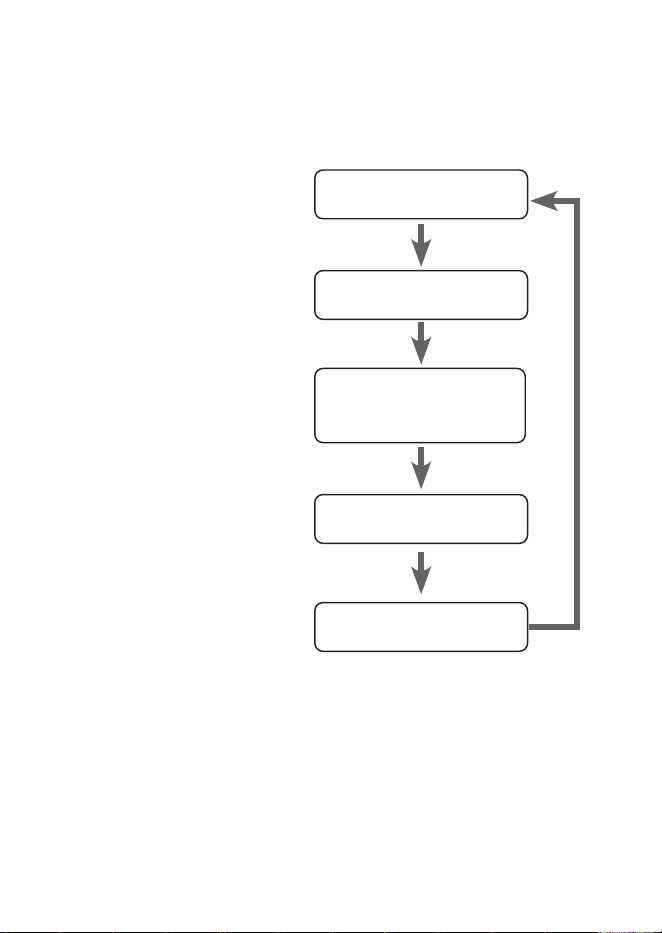
FM Display Modes
Every time you press INFO/MENU button on the unit, the display will cycle
through the following display modes.
The information is displayed on the lower segment of the display.
Radio Text
The broadcaster can include
a message that displays
information about the current
programme.
Programme Type
This describes the “Style” or
“Genre” of music that is being
broadcast.
Station Name / Frequency
When an RDS station is
received, the name of that
station will be displayed, or
if not the frequency will be
displayed.
Time
This displays the
current time provided
automatically by the
broadcaster.
Date
This displays the current
date provided automatically
by the broadcaster.
Radio Text
Programme Type
Station Name /
Frequency
Time
Date
26
Maintenance
Cleaning the Unit
Ensure the unit is fully unplugged from the mains socket before cleaning.
• To clean the unit, wipe the case with a slightly moist, lint-free cloth.
• Do not use any cleaning uids containing alcohol, ammonia or
abrasives.
• Do not spray aerosol at or near the unit.
Hints and Tips
If a problem does occur, it may often be due to something very minor. The
following table contains various tips. If you require additional assistance
• For UK, please call our UK Call Centre on 0344 561 1234.
• For Ireland, please call our Ireland Call Center on 1 890 818 575.
General
Problem Solution
No power. • Ensure the mains plug is connected.
• Make sure that you select the ON mode.
No sound from the unit. Please try either one of the solutions below:
• Make sure that the unit is not muted.
Turn the Vol+/Vol– button on the unit to
resume normal listening.
• Press Standby button on the unit to
switch the unit to standby mode. Then
press the button again to switch the unit
on.
• Unplug the unit from the mains socket,
then plug them again. Switch on the unit.
27
Problem Solution
The unit does not
respond when pressing
any buttons.
• The unit may freeze up during use. Switch
the unit off and then on again at the
mains socket to reset the unit.
Radio DAB/FM
Problem Solution
Poor radio reception. • Make sure the DAB/FM aerial is fully
extended.
• Electrical interference in your home
can cause poor reception. Move the
unit away from them (especially those
with motors and transformers).
Desired station not found. • Weak signal. Search manually.
• If reception is still poor, adjust the
position of the aerial.
If any functional abnormality is encountered, unplug the unit from the
mains socket and reconnect it again.
28
Product Fiche and Specifications
Main Unit
Brand JVC
Model RA-D38B / RA-D38H
Speaker Output Power 1W RMS
Frequency Range FM 87.50 – 108.00 MHz
DAB 174.928 - 239.200 MHz
Net Weight 0.4 kg
Unit Dimension (W) × (D) × (H) 139 mm × 155 mm × 63 mm
Mains Adapter (Use only provided adapter)
Manufacturer’s name and
address
DONGGUAN DONGNIU ELECTRONIC
TECHNOLOGY CO., LTD.
3th Floor, No.8, HengLing Street,
HengJiao Industrial Park, ShiJie Town,
Dongguan City, Guangdong, P.R.
China
Model Number DNS051-0590500-AB
Input Voltage and Frequency 100-240V~ 50-60Hz 0.2A max.
Output Voltage DC 5.9 V
Output Current 0.5 A
Output Power 2.95 W
Average Active Efficiency 74.4 %
No-Load Power Consumption 0.09 W
Features and specications are subject to change without prior notice.
29
Visit Partmaster.co.uk today for the easiest way to buy
electrical spares and accessories. With over 1 million spares
and accessories available we can deliver direct to your
door the very next day. Visit www.partmaster.co.uk or
call 0344 800 3456 (UK customers only). Calls charged at
National Rate.
The symbol on the product or its packaging indicates that this product
must not be disposed of with your other household waste. Instead, it is
your responsibility to dispose of your waste equipment by handing it over
to a designated collection point for the recycling of waste electrical and
electronic equipment. The separate collection and recycling of your waste
equipment at the time of disposal will help conserve natural resources and ensure that
it is recycled in a manner that protects human health and the environment.
For more information about where you can drop o your waste for recycling, please
contact your local authority, or where you purchased your product.
All trademarks are the property of their respective owners and all rights are
acknowledged.
Useful Information and Licences



For Help and Support Call
UK: 0344 561 1234
Ireland: 1890 818 575
The product is distributed and warranted exclusive by Currys Group Limited
“JVC” is the trademark of JVCKENWOOD Corporation,
used by Currys Group Limited under license.
IB-RA-D38x-220419V5
Declaration of Conformity (RED)
Hereby, Currys Group Limited declares that the radio equipment
type [RA-D38B / RA-D38H] is in compliance with Directive
2014/53/EU.
The full text of the EU declaration of conformity is available at
the following internet address:
https://www.currys.co.uk/
Click on HELP & SERVICES/Repairs & maintenance/Product
Manuals and enter the model number.
Declaration of Conformity (RER)
Hereby, Currys Group Limited declares that the radio equipment
type [RA-D38B / RA-D38H] is in compliance with Radio
Equipment Regulations 2017 (S.I. 2017/1206).
The full text of the UK declaration of conformity is available at
the following internet address: https://www.currys.co.uk/
Click on HELP & SERVICES/Repairs & maintenance/Product
Manuals and enter the model number.
Currys Group Limited (co. no. 504877)
1 Portal Way, London, W3 6RS, UK
EU Representative
Currys Ireland Limited (259460)
3rd Floor Oce Suite
Omni Park SC, Santry, Dublin 9, Republic of Ireland