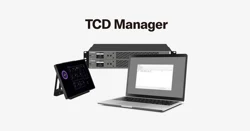

Touchscreen control device
EN
TCD Manager Operation Guide

TCD Manager Operation Guide
2
Contents
Introduction ________________________________________ 3
About TCD Manager .............................................................................................. 3
About this manual ................................................................................................ 3
Software operating environment ............................................................................. 3
Connection diagram .............................................................................................. 4
Installing and starting TCD Manager _____________________ 5
Installation .......................................................................................................... 5
Startup ............................................................................................................... 5
TCD Manager screen __________________________________ 6
Screen layout ....................................................................................................... 6
Screen descriptions ............................................................................................... 7
Function details _____________________________________ 10
Update ................................................................................................................ 10
Export Logs ......................................................................................................... 10
Import Bookmark ................................................................................................. 11
Export Bookmark .................................................................................................. 11
Import Settings .................................................................................................... 11
Export Settings .................................................................................................... 11
Screenshot Capture .............................................................................................. 11
Introduction
TCD Manager Operation Guide
3
Introduction
The TCD10 is a control device equipped with a touchscreen. It allows you to control components of a
sound system comprising the network-connected Yamaha signal processor DME5 or DME3.
This Operation Guide provides details on using the TCD Manager application to manage the data and
software for the TCD10. In order to take full advantage of the various functions of the TCD10, refer
to this Operation Guide as necessary.
About TCD Manager
This is a Windows application for managing the TCD10. It can detect the TCD10 on the network and
remotely manage software updates, settings, bookmarks and log files.
About this manual
This software and Operation Guide are the exclusive copyrights of Yamaha Corporation
(“Yamaha”).
Copying of the software or reproduction of this Operation Guide in whole or in part by any means
is expressly forbidden without the written consent of the manufacturer.
Yamaha Corporation assumes no responsibility whatsoever for results or effects arising from the
use of this software or Operation Guide.
For the purpose of improvement, this software and Operation Guide are subject to change
without notice.
This software is not guaranteed to work with a touchscreen.
The illustrations and screens in this Operation Guide are for instructional purposes only.
The company names and product names in this Operation Guide are trademarks or registered
trademarks of their respective companies.
The explanations in this Operation Guide are based on the latest specifications at the time of
publication.
Software operating environment
This software runs on Windows 11.
Note
Some computers may have requirements that exceed the recommended environment.
Refer to the Yamaha website for up-to-date information on the latest software versions and
operating requirements.
Yamaha Pro Audio global website
https://www.yamahaproaudio.com/
Introduction
TCD Manager Operation Guide
4
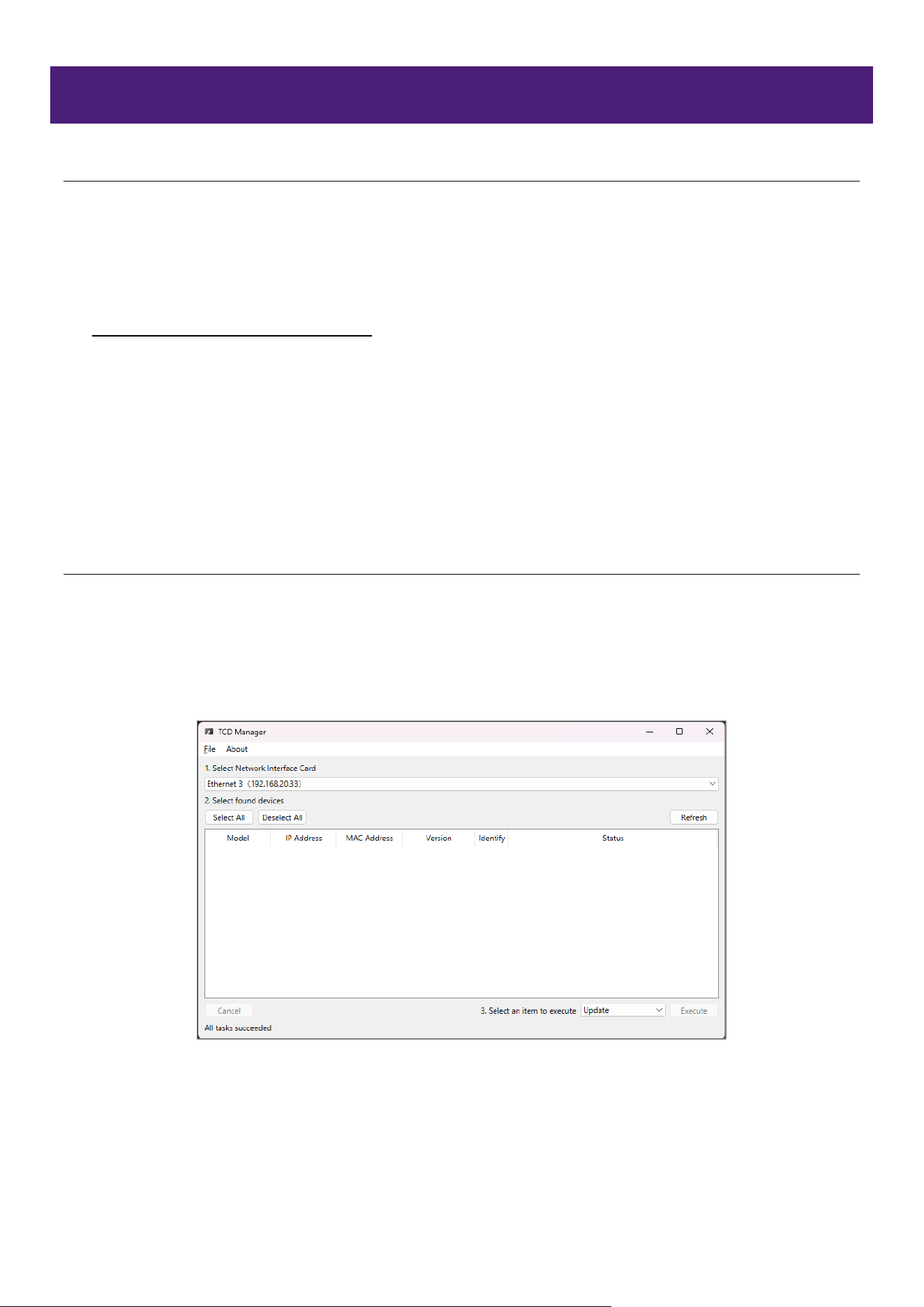
Connection diagram
Installing and starting TCD Manager
TCD Manager Operation Guide
5
Installing and starting TCD Manager
Installation
Download the TCD Manager installer file onto the computer, and then install the software.
1. Download the latest installer file from the Yamaha website.
Yamaha Pro Audio global website
https://www.yamahaproaudio.com/
2. Unzip the compressed file, and then install the application software.
❶ Extract the contents of the ZIP file to an appropriate location.
❷ Double-click the Install_TCDManager.exe file in the folder.
❸ Follow the installer instructions to install the application.
Startup
Start TCD Manager as follows.
Select “Yamaha TCD Manager” from the Windows Start menu.
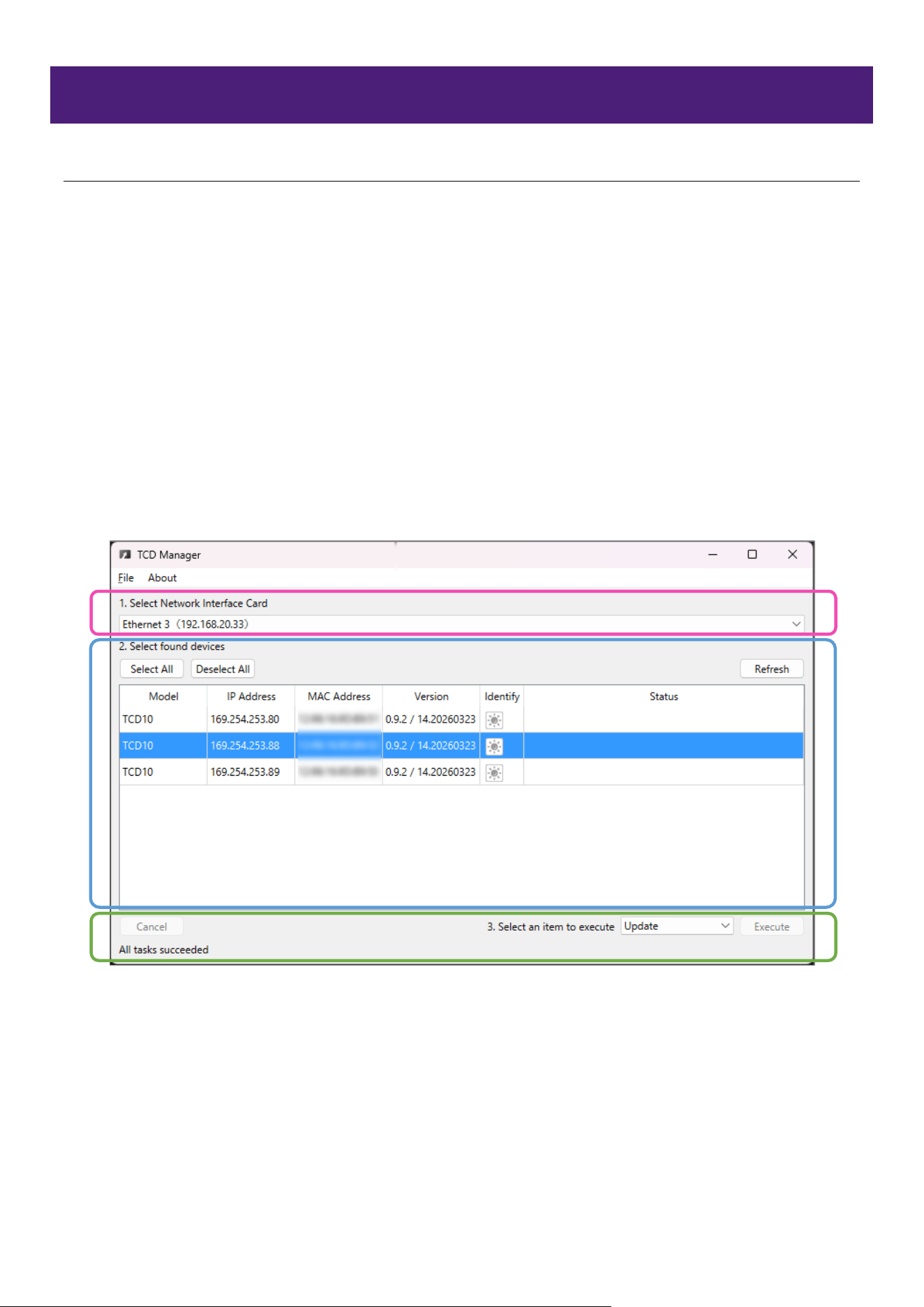
When TCD Manager starts, the following screen is displayed.
TCD Manager screen
TCD Manager Operation Guide
6
TCD Manager screen
Screen layout
TCD Manager comprises three main operating areas.
Perform operations by using the procedure that corresponds to each operating area.
1. Network selection
Select a network where a TCD10 is connected.
2. TCD10 selection
Select the TCD10 to be operated.
3. Function execution
Select the desired function, and then execute it.
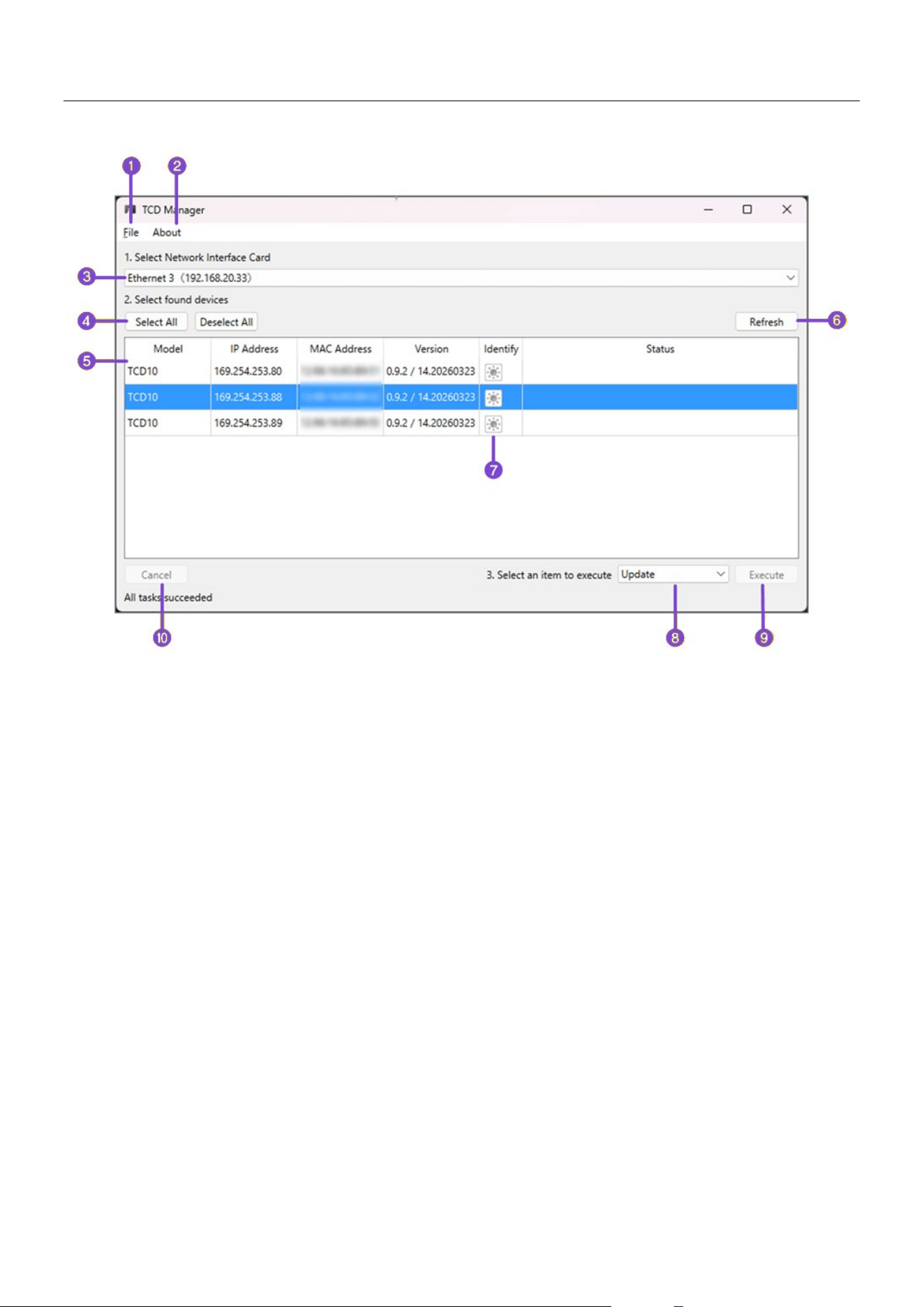
TCD Manager screen
TCD Manager Operation Guide
7
Screen descriptions
a [File] menu
[Exit]
Closes the application.
The application can also be closed as follows.
• Click the [×] button in the window.
b [About] menu
[About]
This displays the application name and version number.
[Legal]
This displays the license information for the open-source software used in this application.
c “1. Select Network Interface Card”
Select a network where a TCD10 is connected. If there are multiple networks, they will be
displayed in a drop-down list.
d [Select All] / [Deselect All] buttons
These select/deselect all TCD10 devices to be operated.
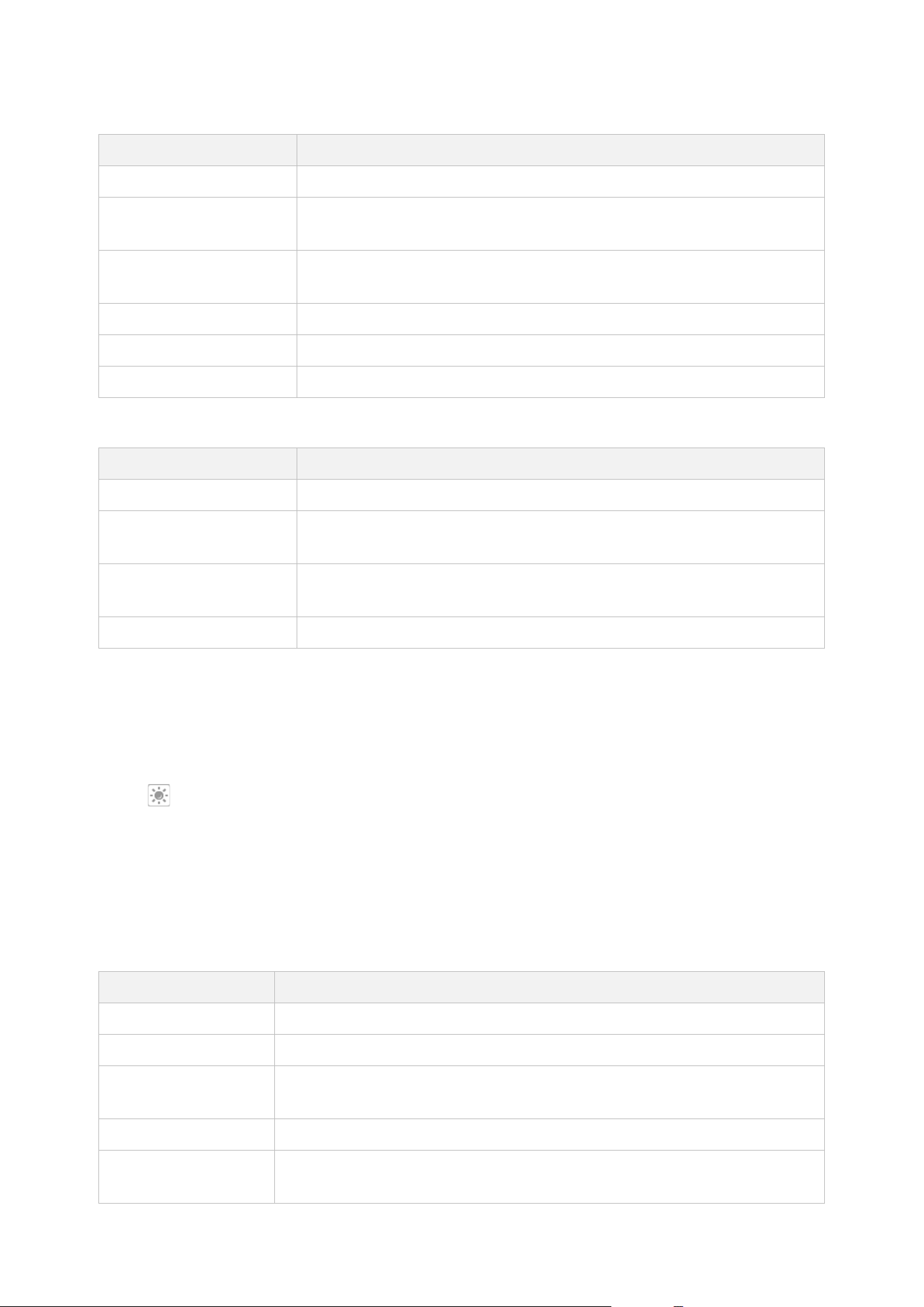
TCD Manager screen
TCD Manager Operation Guide
8
e “2. Select found devices”
Information for the TCD10 devices detected on the selected network is listed.
Item
Details
Model
Model name
IP Address IP address
* This information can be copied by using the right-click menu.
MAC Address MAC address
* This information can be copied by using the right-click menu.
Version
TCD Launcher version / TCD10 operating system version
Identify
Status of Identify function (flashes green when activated)
Status
Status and result of executed function
Use the following methods to select the TCD10 devices to be operated.
Method
Details
Clicking
Selects one TCD10 device.
[Ctrl] key + Clicking
Adds/removes individual TCD10 devices to/from a selection, or
selects multiple devices.
[Select All] button,
[Ctrl] + [A] keys
Selects all TCD10 devices.
[Deselect All] button
Deselects all TCD10 devices.
f [Refresh] button
Clears the list and again detects the TCD10 devices.
g Identify icon
When is clicked, the screen of the corresponding TCD10 device flashes for 5 seconds. In an
environment where multiple devices are installed, this helps identify the specific device to be
operated.
h “3. Select an item to execute”
From the drop-down menu, select the function to be executed.
For details on the functions, refer to “Function details”.
Function
Details
Update
This updates the firmware of the TCD10.
Export Logs
This saves the TCD10 log file to a computer.
Import Bookmark This imports the TCD10 bookmark file from a computer into the
TCD10.
IExpport Bookmark
This saves the TCD10 bookmark file to a computer.
Import Settings This imports the TCD Launcher settings file from a computer into
the TCD10.

TCD Manager screen
TCD Manager Operation Guide
9
Export Settings
This saves the TCD Launcher settings file to a computer.
Screenshot Capture
This takes a screenshot of the TCD10 screen and saves it to a
computer.
i [Execute] button
This executes the selected function.
j [Cancel] button
This stops the function that is being executed.
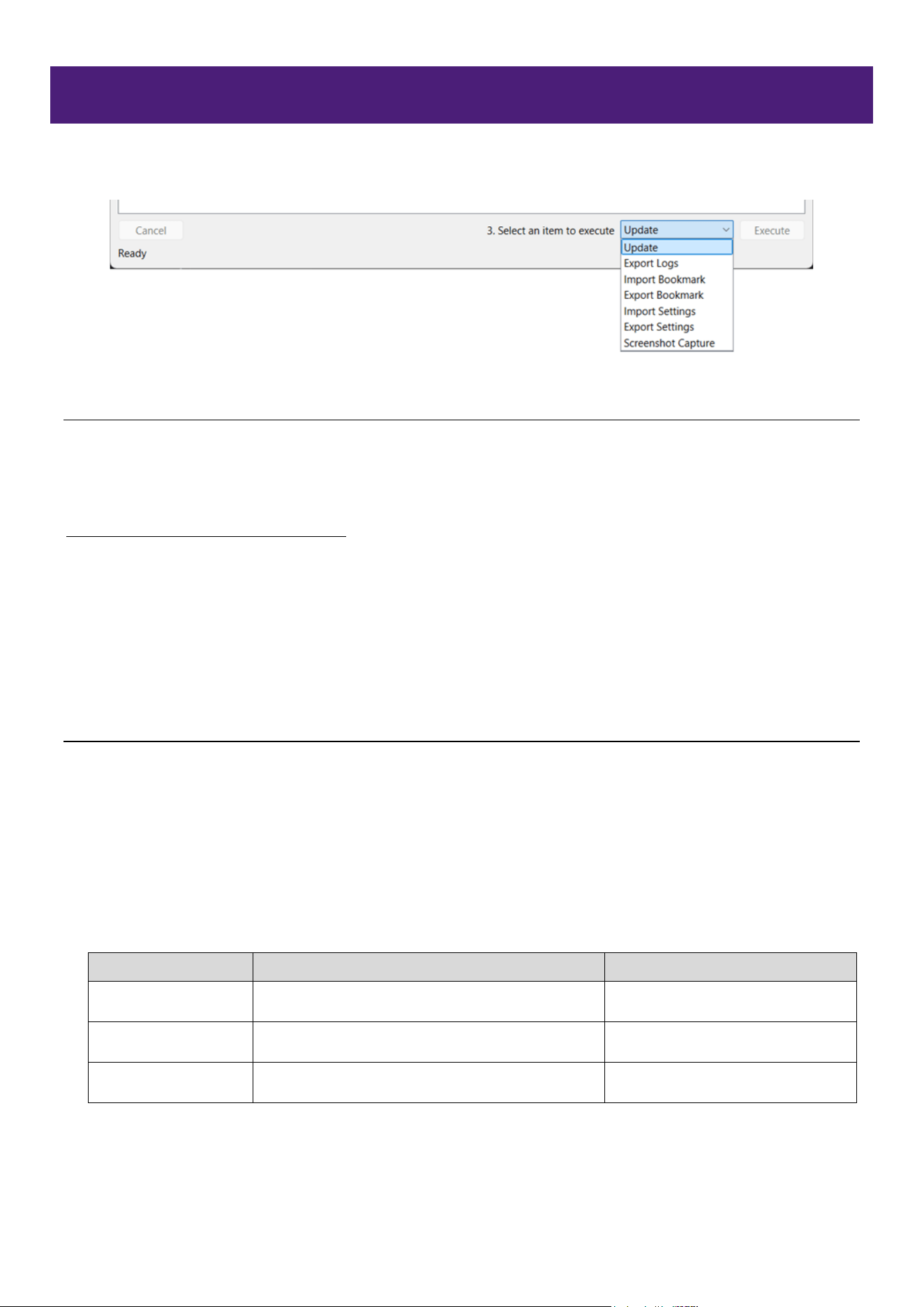
Function details
TCD Manager Operation Guide
10
Function details
The functions described here can be selected from the drop-down menu shown below.
Update
This updates the TCD10 operating system and TCD Launcher application. Execute this function when
new firmware has been released.
The firmware can be downloaded from the Yamaha website.
https://www.yamahaproaudio.com/
Firmware files have the “.bundle” extension.
(Example: TCD10_firmware_V100.bundle)
Executing the Update function transfers data from TCD Manager to the TCD10. Once the transfer
is complete, follow the instructions on the TCD10 screen.
Export Logs
This saves the TCD10 log file to a computer.
The file is compressed and saved with a name in the following format.
“TCD10 - logs - <MACADDRESS>.zip”
The types of log files that can be saved vary depending on the permission settings specified in
TCD Launcher.
Permission settings: TCD Launcher Settings Admin Panel Remote Management
Permissions
File
Details
Permission setting
logs.csv
Standard log and authentication log
Export of basic Log file
auth_logs.csv
Authentication log
Export of basic Log file
detailedLog.txt
Operating system log
Export of Detailed Log file
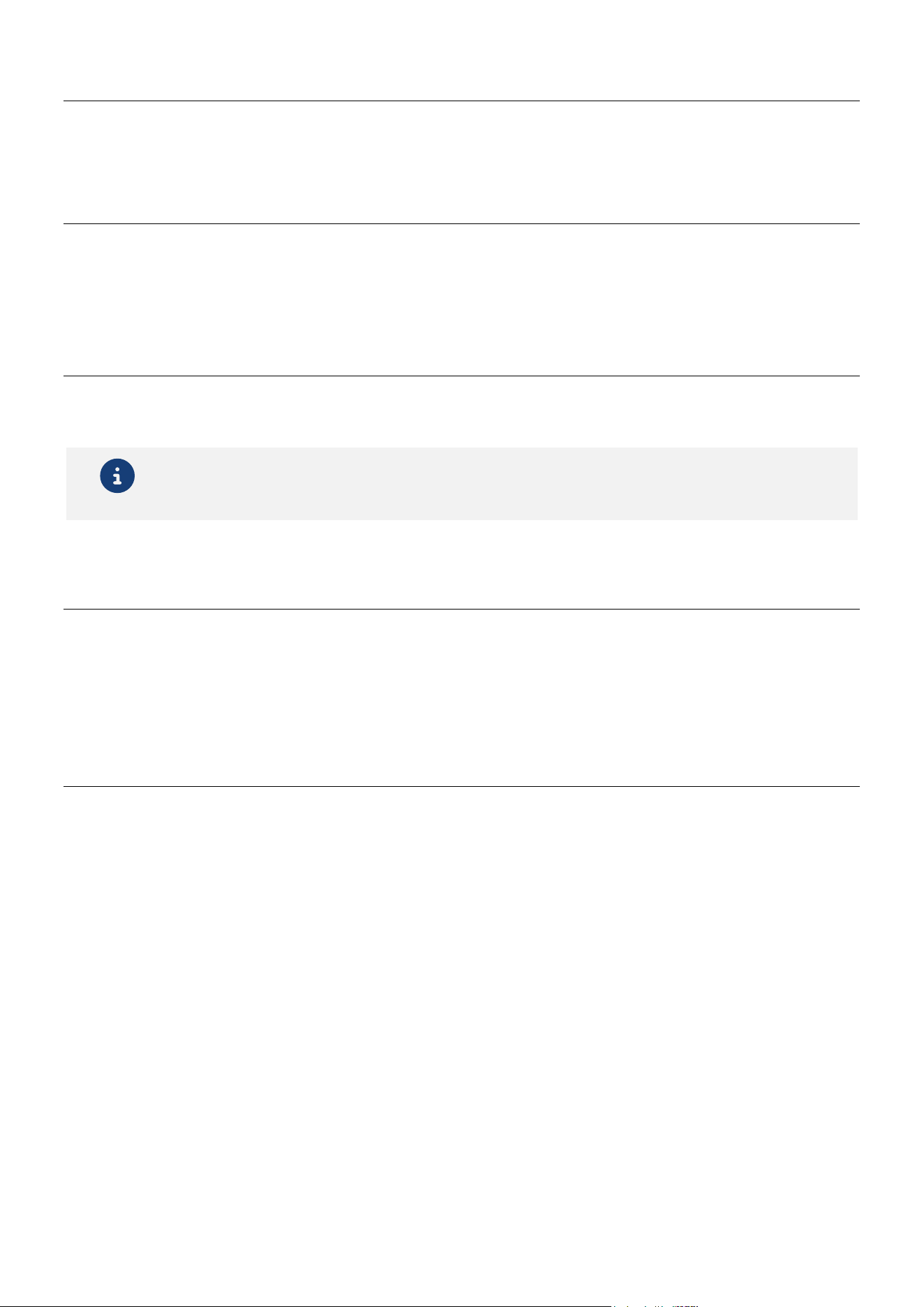
Function details
TCD Manager Operation Guide
11
Import Bookmark
This imports the TCD10 bookmark file (.json) from a computer into the TCD10.
Export Bookmark
This saves the TCD10 bookmark file (.json) to a computer.
The file is saved with a name in the following format.
“TCD10 - bookmark - <MACADDRESS>.json”
Import Settings
This imports the TCD Launcher settings file (.json) from a computer into the TCD10.
Note
If any changes involving screen rotation were applied, the TCD10 will automatically restart.
Export Settings
This saves the TCD Launcher settings file (.json) to a computer.
The file is saved with a name in the following format.
“TCD10 - settings - <MACADDRESS>.json”
Screenshot Capture
This takes a screenshot of the TCD10 screen and saves it in the PNG format to a computer.
The file is saved (with a name in the following format) in the Documents folder.
“TCD10 - screencapture - <MACADDRESS> - datetime.png”

©2026 Yamaha Corporation
Published 06/2026
YJ-A0