User Manual
Smart Alarm Sound Machin
cs@timevocalist.com Model: Sono
Notes: Please review this manual and keep it safe so that you can refer to it at
any time before operation.
V2.0

Your device comes preloaded with 24 sounds, multilingual time
announcements, sleep timers, 100 volume levels, and a rechargeable
battery—ready to use right out of the box. For full access to our complete
sound library, custom sound mixing, multiple alarms, hourly chime, and
advanced scheduling, download our companion app - No registration or
subscription required.
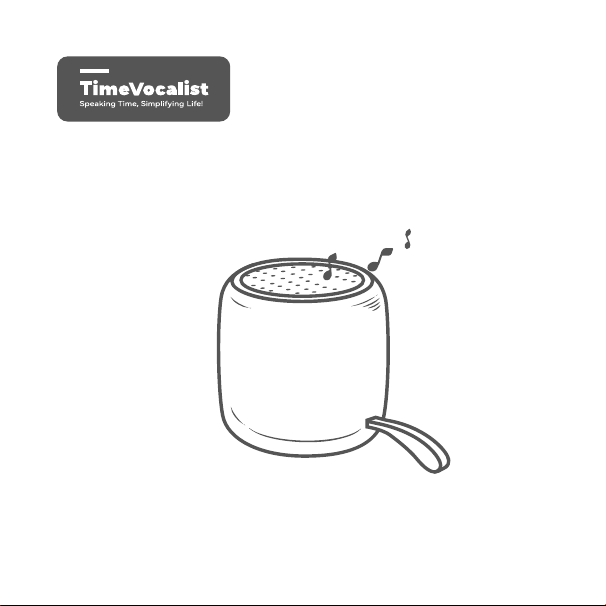
TimeVocalist Sono main device x 1
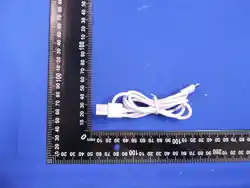
USB charging cable x 1 (adaptor not included)
Quick start guide x 1
Getting Started
What's Included
1. Fully charge the device before first use
2. Press the Power Button to turn on
3. Download our companion app for easy setup, or follow the "Control on
Device" instructions below
Initial Setup
“TimeVocalist” “TimeVocalist”
Requirements:
iOS: Version 11.0 or above Android: Version 9.0 or above
Download:
Available on the App Store (iOS) or Google Play (Android)
App Control
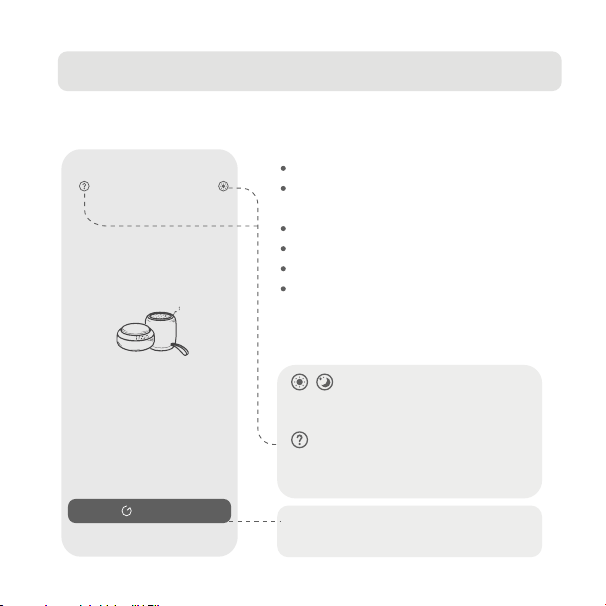
Connecting to the App
Add Device page
Download the companion app and follow
the in-app instructions for pairing.
The app provides:
Access to 100+ sounds and 15 themes
Customizable Soundscapes (blend up
to 10 sounds)
Multiple custom alarms
Sleep routine scheduling
Remote control functionality
Automatic time synchronization
(including DST)
Note: The app cannot connect when
the device is in standby mode.
Add Device – Search for and
connect a new machine.
Theme Toggle – Switch
between normal and night mode for
easier viewing.
Help and Feedback – Contact
us via email or view FAQs about
product features and operation.
You don’t have a device yet
Discover
Add a device
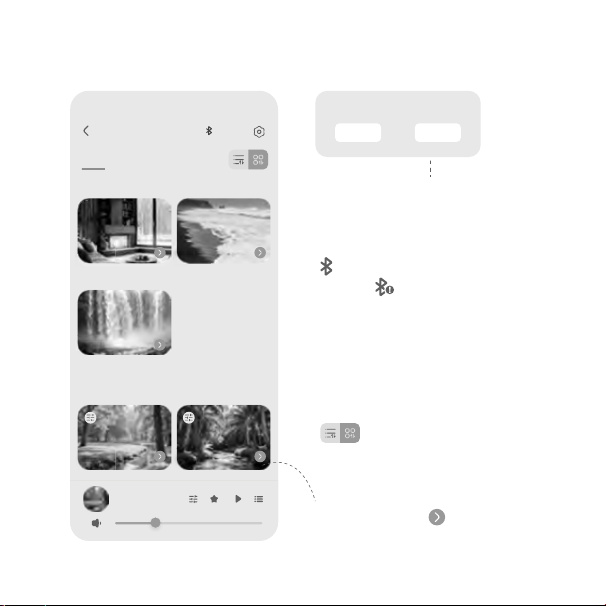
Main sounds page
Local Settings - Confirm default
local settings; you can change
these anytime in Setup.
Bluetooth connection
status : A red icon means
the device is disconnected.
Tap it to reconnect manually.
If reconnection fails, make
sure the device is on and
nearby, or restart the app.
Layout Button - toggle
alternative page layouts.
Apply default local language?
CANCEL OK
Sound Tile – Tap to start a
sound, or tap< >to see
more sound options.
Sono Noise
ScheduleSound
White
Nature
Fireplace
12 tracks
4 tracks
Waterfall
Ocean
Spring Meadow
5 tracks
SoundScape
10 tracks 15 tracks
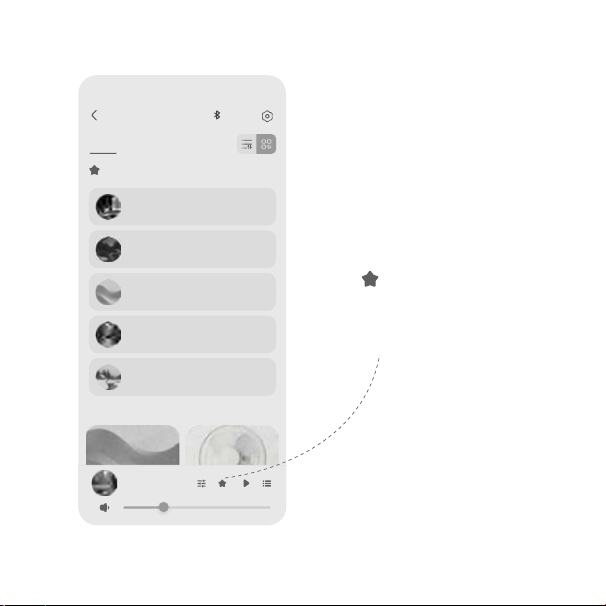
Device Favorites
Tap to save your favorite
tracks to the device, enabling
quick- access switching via
physical buttons.
Sono Noise
ScheduleSound
White
Device Favorites
Spring Meadow
Noise
Quiet Little Fire
Fireplace
My Custom1
Childhood Nights
Brown
Color Noise
Like Paradise
Palm Oasis
Ice Thawing
Lady Winter
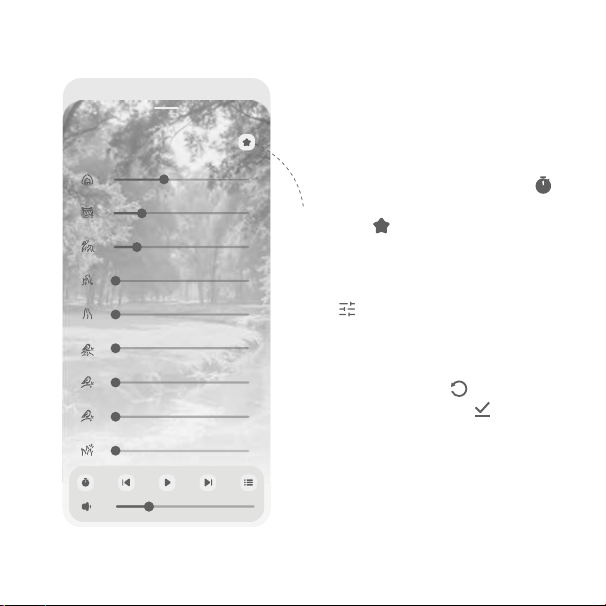
Info Bar – Tap to set a sleep timer
or add the current sound to
Favorites (up to 10).
Customizable Sound – For sounds
with , adjust up to 10 elements to
create your own mix.
Restore/Save – Use to go back
to the original sound, or to
store your custom version.
White
Spring Meadow
Timer, favorites, and custom sounds
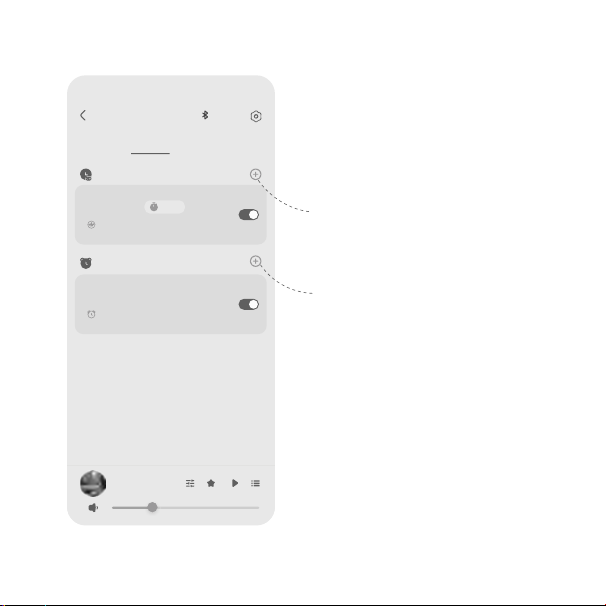
Sleep Routine –Start and stop
sounds automatically for a regular
sleep schedule.
Alarms –Manage multiple alarms
with variable schedules and
ringtones.
Sleep routine and alarms
Sono Noise
ScheduleSound
Sleep
Alarms
White
Spring Meadow
10:00PM
Cabin Noise - Air cabin 1 , Everyday
01:00
Rest time , April 15
05:00PM
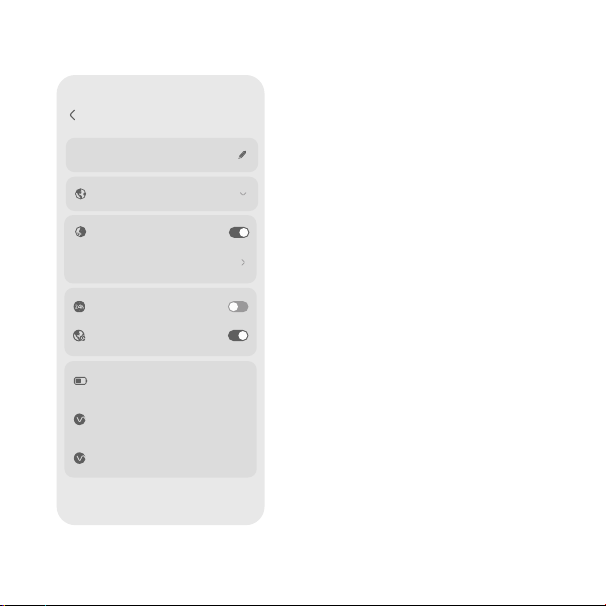
Device Name: Give your machine a
unique name
Language: Choose the language used
for time and date announcements.
Hourly Chime: Turn on hourly time
announcements and customize the
period.
Time Format: Toggle between
12/24-hour format (default: 12-hour)
Daylight Saving Time: Automatically
activated when available in your
country; can be manually disabled
Battery Level: Check the current
battery status of your device.
Firmware Version: Check regularly for
updates to ensure stable
performance
Device settings
Settings
Language
White
24-hour time
DST
Firmware version
V1.0.23
Battery
99%
en-AU(Chloe)
Edit
App Version
1.3.3
Sono Noise
Hourly Chime
Schedule
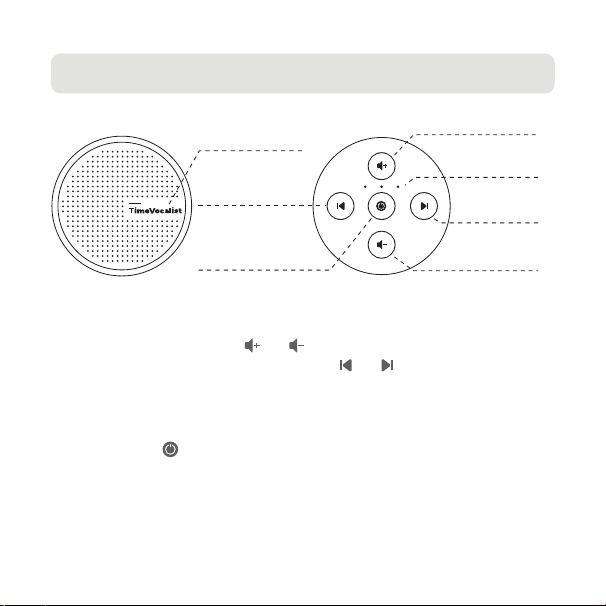
Sleep Timer
Short press the during playback to set a sleep timer (30/60/90 minutes).
The green indicator light will illuminate when active. Press again to cancel.
Time Announcement
Current Time: Long press the Touch Button to hear the current time.
Date: Long press the Touch Button again to hear today's date.
Playing Soundscape
Turn On/Off: Tap the top touch sensor to start playback. Tap again to turn off.
Adjust Volume: Short press or to adjust playback volume.
Switch Sounds: While playing, short press or to cycle through
different sounds.
Volume down
Timer Light
Previous / Setting
Touch: Play/Pause;
Time broadcast
Next / Setting
Power ON / OFF
Timer
Volume up
Control on Device
Standby Mode
Long press the Power Button until the blue indicator light flashes to enter
standby mode.
Note: In standby mode, alarms are suspended and the app cannot connect.
Press the Power Button to wake the device.
Tip: During setup, press the at any time to save, or wait 5 seconds for
automatic saving.
Entering Setup Mode
Long press or to enter setup mode. Follow the voice prompts to
complete each setting.
Language Selection
1. When you hear "Language Setting," use or to scroll through
available languages
2. Press to confirm and proceed to voice settings
Voice Settings
1. Use or to select your preferred accent and voice type
(male/female)
2. Press to confirm and proceed to time settings
Time and Alarm Setup
Time and Date Setup
Follow these steps to set the current time and date:
Enable/Disable Alarms
Press and simultaneously to toggle alarms on or off.
Important: Turning off the device alarm will also suspend all app-based
alarms. Re-enable to activate all alarms.
Alarm and Ringtone Setup
After completing time settings, set up your alarm (optional):
1. Use or to adjust alarm hours, then press
2. Use or to adjust alarm minutes, then press
3. Use or to select your alarm ringtone
4. Press the to confirm, or wait 5 seconds for automatic confirmation
Note: Only one alarm can be set directly on the device. Set multiple alarms
via the app.
Hours: Use or to adjust, then press
Minutes: Use or to adjust, then press
Year: Use or to adjust, then press
Month: Use or to adjust, then press
Day: Use or to adjust, then press
Alarm Management

When the Alarm Sounds
Press any button to stop the alarm immediately
If unanswered, the alarm stops automatically after 5 minutes
Low Battery Alert
When battery drops below 25%:
Reset Function
If you experience operational issues, try charging the device to perform a reset.
Charging Instructions
1. Connect the USB cable to the device and a 5V 1A power adapter
2. Red light indicates charging in progress
3. Green light indicates charging complete
4. Charge every 3 months during extended periods of non-use to maintain
battery health
Soundscape playback is disabled
Alarms will not function
Scheduled playback will not work
A low battery reminder is announced before the time announcement
Battery and Charging
Troubleshooting
Action: Charge the device as soon as possible.
Cannot Connect to App
Ensure the device is not in standby mode.
Input: DC 5V 1A
Battery: 2000mAh lithium battery
Bluetooth: Bluetooth 5.0
Speaker: 5W output
Volume Levels: 100 adjustable levels
Technical Specifications
Safety and Maintenance
Fully charge before first use
Do not use in high temperature, humid, or strong magnetic environments
Do not disassemble or attempt repairs unless you are a qualified
technician
Charge every 3 months during extended periods of non-use
Keep away from water and extreme temperatures

FCC Information
This equipment has been tested and found to comply with the limits for a
Class B digital device, pursuant to Part 15 of the FCC Rules.
These limits are designed to provide reasonable protection against
harmful interference in a residential installation. This equipment generates,
uses and can radiate radio frequency energy and, if not installed and used
in accordance with the instructions, may cause harmful interference
to radio communications. However, there is no guarantee that interference
will not occur in a particular installation. If this equipment does cause
harmful interference to radio or television reception, which can be
determined by turning the equipment off and on, the user is encouraged
to try to correct the interference by one or more of the following
measures:
—Reorient or relocate the receiving antenna.
—Increase the separation between the equipment and receiver.
—Connect the equipment into an outlet on a circuit different from that to
which the receiver is connected.
—Consult the dealer or an experienced radio/TV technician for help.

This device complies with Part 15 of the FCC Rules. Operation is subject to
the following two conditions:
(1) This device may not cause harmful interference, and
(2) this device must accept any interference received, including
interference that may cause undesired operation.changes or modifications
not expressly approved by the party responsible for compliance could
void the user's authority to operate the equipment.
This equipment complies with FCC exposure limits set forth for an
uncontrolled environment.
This transmitter must not be co-located or operating in conjunction with
any other antenna or transmitter.
Customer Service
For assistance, contact us at cs@timevocalist.com.
Your satisfaction is our priority!