Eris
®
Sub 8BT
Bluetooth
®
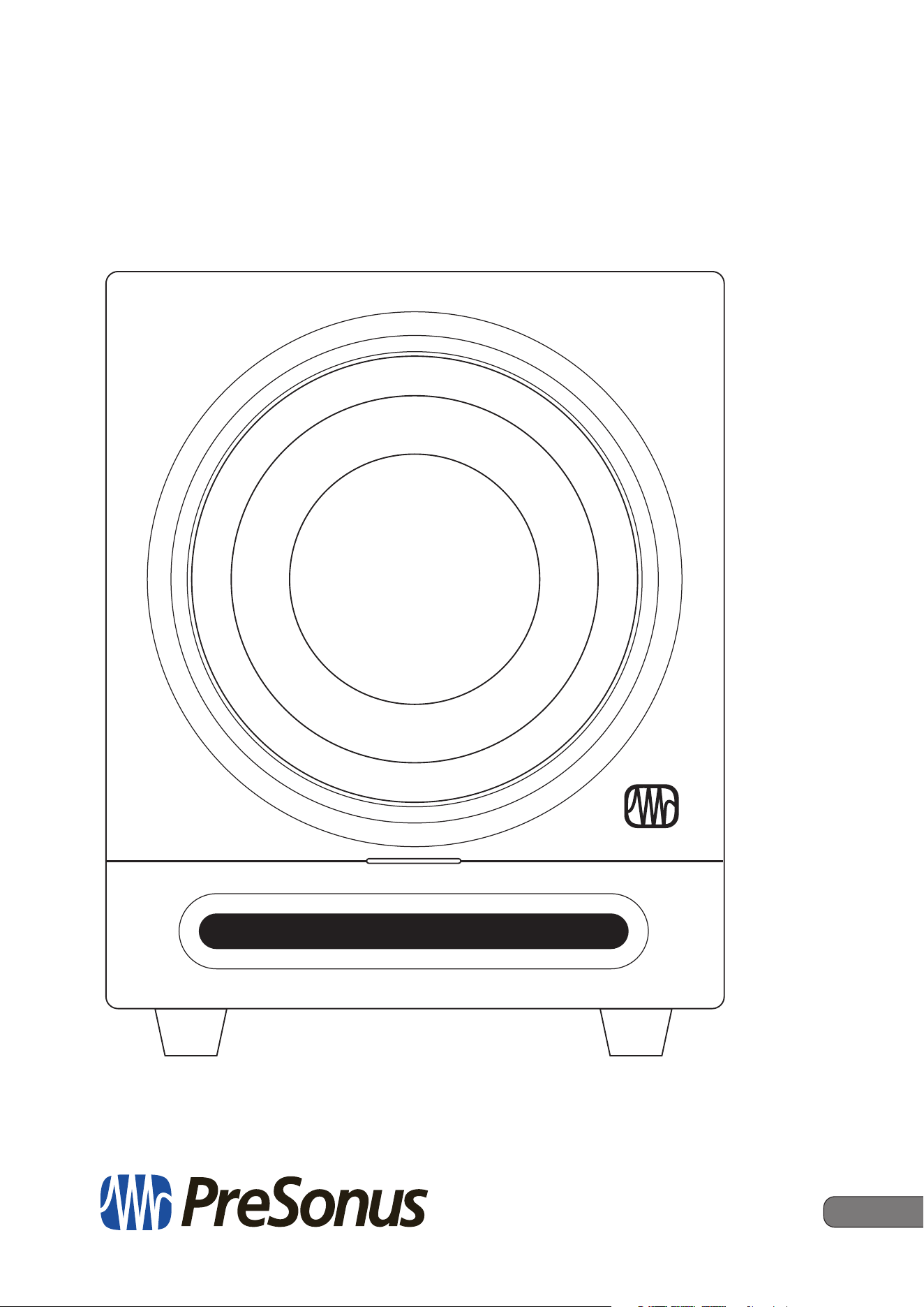
Active Studio Subwoofer
Owner’s Manual
www.presonus.com
®
English

Table of Contents
1 Overview — 1
1.1 Introduction — 1
1.2 Product Registration — 2
1.3 What’s in the Box? — 2
1.4 Summary of Eris Sub 8BT Features — 3
2 Hookup — 4
2.1 Rear-Panel Connections and Controls — 4
2.1.1 Inputs — 4
2.1.2 Outputs — 4
2.1.3 Power — 4
2.1.4 User Controls — 5
2.2 Hookup Diagrams — 6
2.2.1 Basic Setup: Media Player/Mobile
Device — 6
2.2.2 Basic Setup: Audio Interface — 7
2.2.3 Advanced Setup: Home Theater — 8
2.3 Bluetooth Pairing — 9
3 Tutorials — 10
3.1 Subwoofer Placement — 10
3.2 Level Calibration — 10
4 Resources — 13
4.1 Technical Specications — 13
4.2 Setting up your Eris Subwoofer
for Best Performance — 13
4.3 Troubleshooting — 14

1
1 Overview
1.1 Introduction
Eris
®
Sub 8BT
Owner’s Manual
1 Overview
1.1 Introduction
Thank you for purchasing the PreSonus® Eris® Sub 8BT active studio
subwoofer with Bluetooth® wireless connectivity. PreSonus Audio
Electronics has designed the Eris Sub 8BT utilizing high-grade
components to ensure optimum performance that will last.
The Eris Sub 8BT is an active subwoofer featuring an 8-inch paper-composite driver
with a high-density rubber surround in a front-ported cabinet. This conguration
provides responsive, dened bass with low distortion. The result is a natural
and musical sound that enhances full-range speakers without overshadowing
them. The variable (50 to 130 Hz) low pass lter lets you dial in the Eris Sub
8BT to pair perfectly with your full-range system, making it an ideal partner for
compact Eris full-range monitors as part of a 2.1 or surround sound system.
PreSonus Audio Electronics is committed to constant product improvement, and
we value your suggestions highly. We believe the best way to achieve our goal of
constant product improvement is by listening to the real experts: you! We encourage
you to visit My.PreSonus.com with any questions or comments regarding your
PreSonus Eris Sub 8BT. We appreciate the support you have shown us through the
purchase of this product and are condent that you will enjoy your Eris Sub 8BT!
ABOUT THIS MANUAL: We suggest that you use this manual to
familiarize yourself with the features, applications, and correct
connection procedures for your Eris Sub 8BT before connecting it.
This will help you avoid problems during installation and setup.
In addition to all the basic info you’ll need to connect and operate
your Eris Sub 8BT, this manual also provides several tutorials that
cover subwoofer placement, connections, and calibration.
2
1 Overview
1.2 Product Registration
Eris
®
Sub 8BT
Owner’s Manual
1.2 Product Registration
PreSonus is committed to delivering the best experience for our customers.
MyPreSonus is a one-stop portal for all our registered customers’ needs.
From your MyPreSonus account, you can view all your PreSonus hardware
and software registrations; contact support; track orders and more.
To register your Eris media reference monitors, go to
My.PreSonus.com and follow the onscreen instructions.
OR
Download the MyPreSonus app from the Apple App Store or Google Play.
1.3 What’s in the Box?
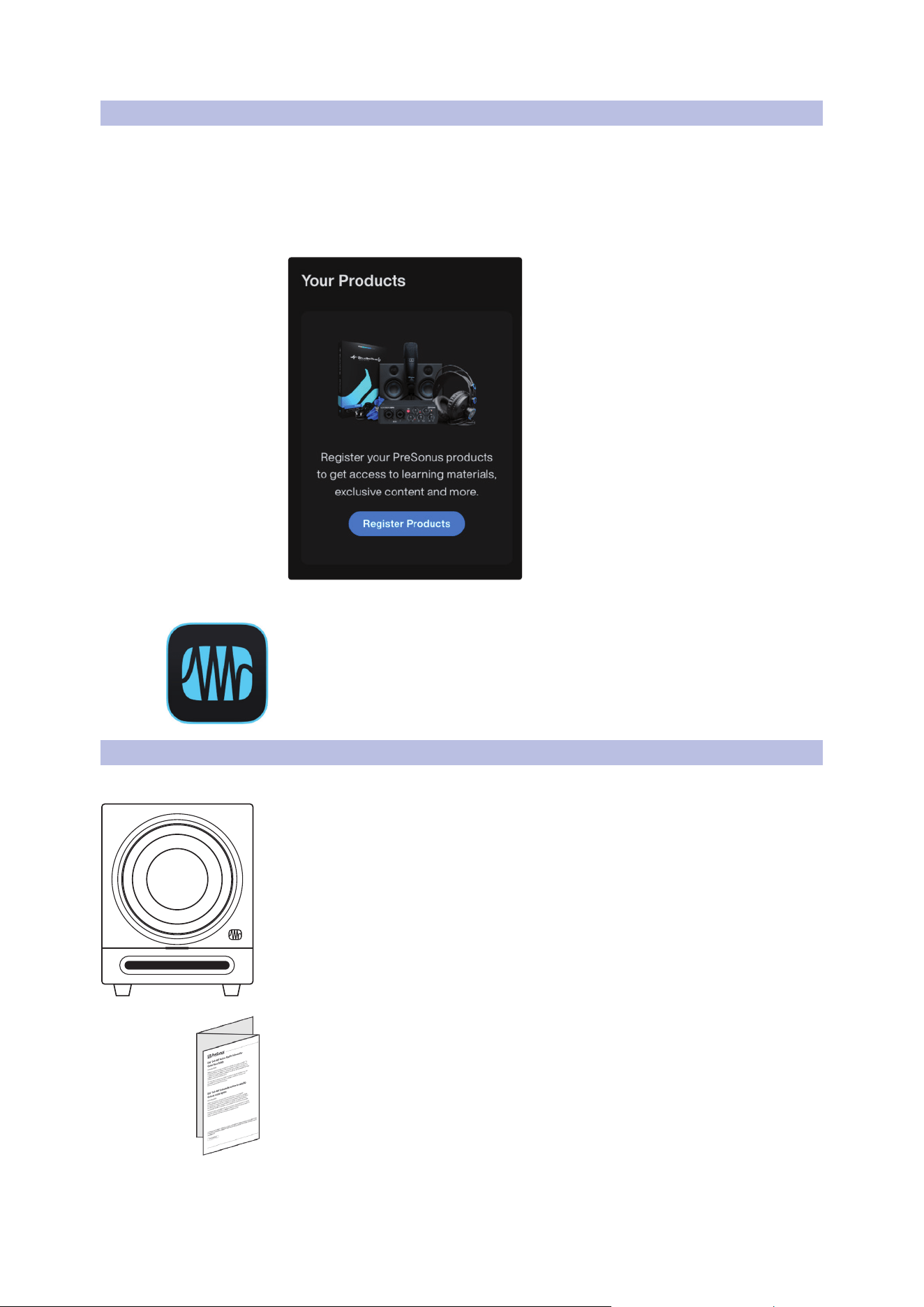
Your Eris Sub 8BT package contains the following:
(1) PreSonus Eris Sub 8BT powered subwoofer
(1) Quick Start Guide

3
1 Overview
1.4 Summary of Eris Sub 8BT Features
Eris
®
Sub 8BT
Owner’s Manual
(1) IEC power cable
1.4 Summary of Eris Sub 8BT Features
• 8-inch composite low-frequency driver
• Bluetooth® 5.0 wireless audio stereo input
• 50W RMS, Class AB power amplier
• 30 Hz to 200 Hz frequency response
• 100 dB SPL (Peak, @ 1 meter)
• Input gain control (-30 dB to +6 dB, continuously variable)
• Continuously variable lowpass lter (50 Hz to 130 Hz)
• Defeatable highpass lter removes frequency content below 80 Hz from the
full-range signal sent from the Eris® Sub 8BT outputs to the main speakers
• Left and right, balanced ¼-inch TRS and unbalanced RCA main inputs
• Left and right, balanced ¼-inch TRS and unbalanced RCA pass-
through outputs for connecting satellite speakers
• Polarity invert switch
• Protection: RF interference, output-current limiting, over-
temperature, turn-on/o transient, subsonic lter
• Power Saver mode (engages after 40 minutes of no signal)
4
2 Hookup
2.1 Rear-Panel Connections and Controls
Eris
®
Sub 8BT
Owner’s Manual
2 Hookup
2.1 Rear-Panel Connections and Controls
2.1.1 Inputs
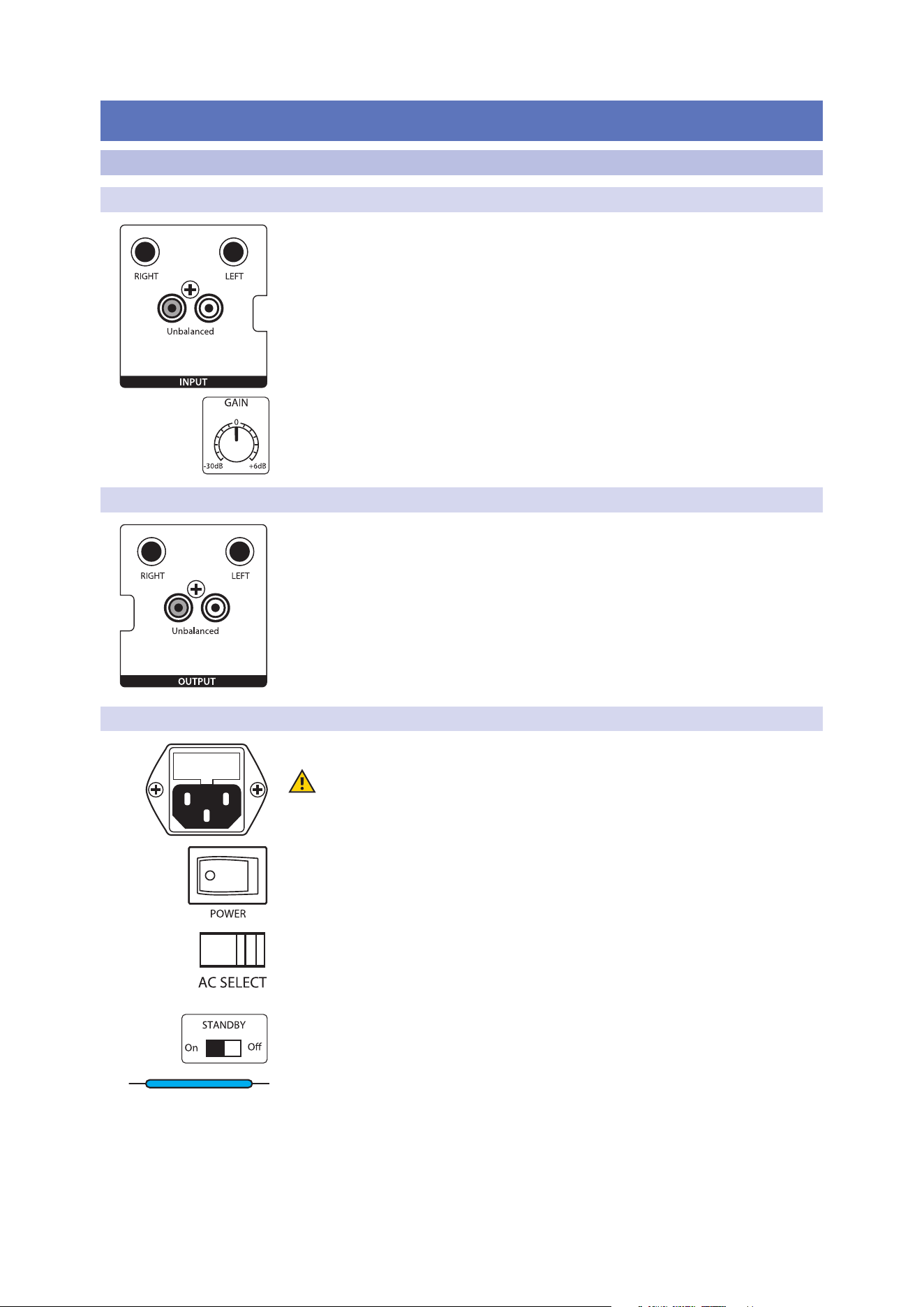
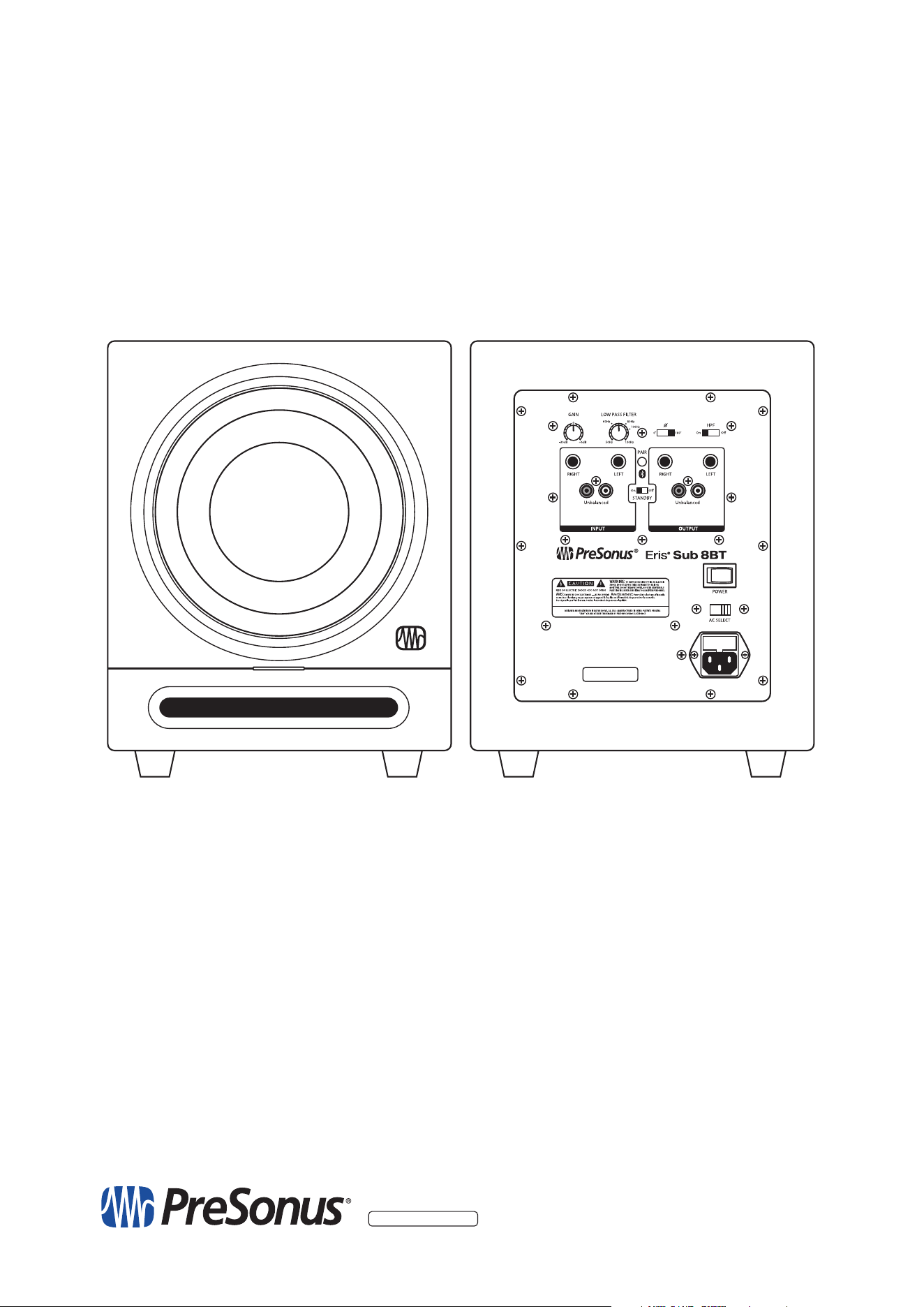
Line-level Inputs. The Eris Sub 8BT provides a choice of two input pairs: a pair
of balanced ¼” TRS inputs and one pair of RCA unbalanced inputs. When both
connections are in use, the RCA inputs will sum into the TRS connections.
Power User Tip: Connect both the left and right inputs if you are connecting your
full-range monitors to the Eris Sub 8BT’s outputs, or if you’re running your Eris Sub 8BT
independently from a stereo source (such as the PreSonus Monitor Station). This will
ensure that your Eris Sub 8BT receives the low-frequency content from both the left and
right sides of a stereo audio signal. If your audio source provides a mono or LFE output,
you only need to connect one input—either L or R.
Input Gain. Sets the level of the input signal before it is amplied.
2.1.2 Outputs
Outputs. The Eris Sub 8BT provides two pairs of outputs: a pair of balanced
¼” TRS outputs and a pair of RCA unbalanced outputs. The full-range signal
connected to the stereo inputs on the Sub 8BT is passed through to these
outputs. Use these outputs to connect your main left and right studio monitors.
If the High Pass Filter switch is engaged, frequencies below 80 Hz are not sent from
these outputs.
2.1.3 Power
IEC Power Connection. Your Eris Sub 8BT accepts a standard IEC power cord.
Warning: Do not remove the center grounding prong or use a separate
ground-lift adapter, as this could result in electric shock.
Power Switch. This is the On/O switch. The power status is indicated by the
illuminated logo on the front of the cabinet.
AC Select Switch. The input-power voltage is set at the factory to correspond
with the country to which it was shipped. Use this switch only if you are
using your Eris Sub 8BT in a country that uses a dierent standard voltage
than is used in the country where you purchased your Sub 8BT.
Standby. When standby is engaged, your Eris subwoofer will go into
power save mode when there is no audio playing for more than 40
minutes. Once audio resumes, the power save mode turns o.
Power / Bluetooth Status LED. The LED in the center of the lower front panel
indicates power status. This LED also displays the Bluetooth status as follows:
• Solid White: Eris Sub 8BT is powered on and in standby mode.
• Solid Blue: Eris Sub 8BT is powered on and not in standby mode.
• Flashing Blue and Green: Eris Sub 8BT is in pairing mode.
• Solid Green: Eris Sub 8BT is paired to a bluetooth device.
5
2 Hookup
2.1 Rear-Panel Connections and Controls
Eris
®
Sub 8BT
Owner’s Manual
2.1.4 User Controls
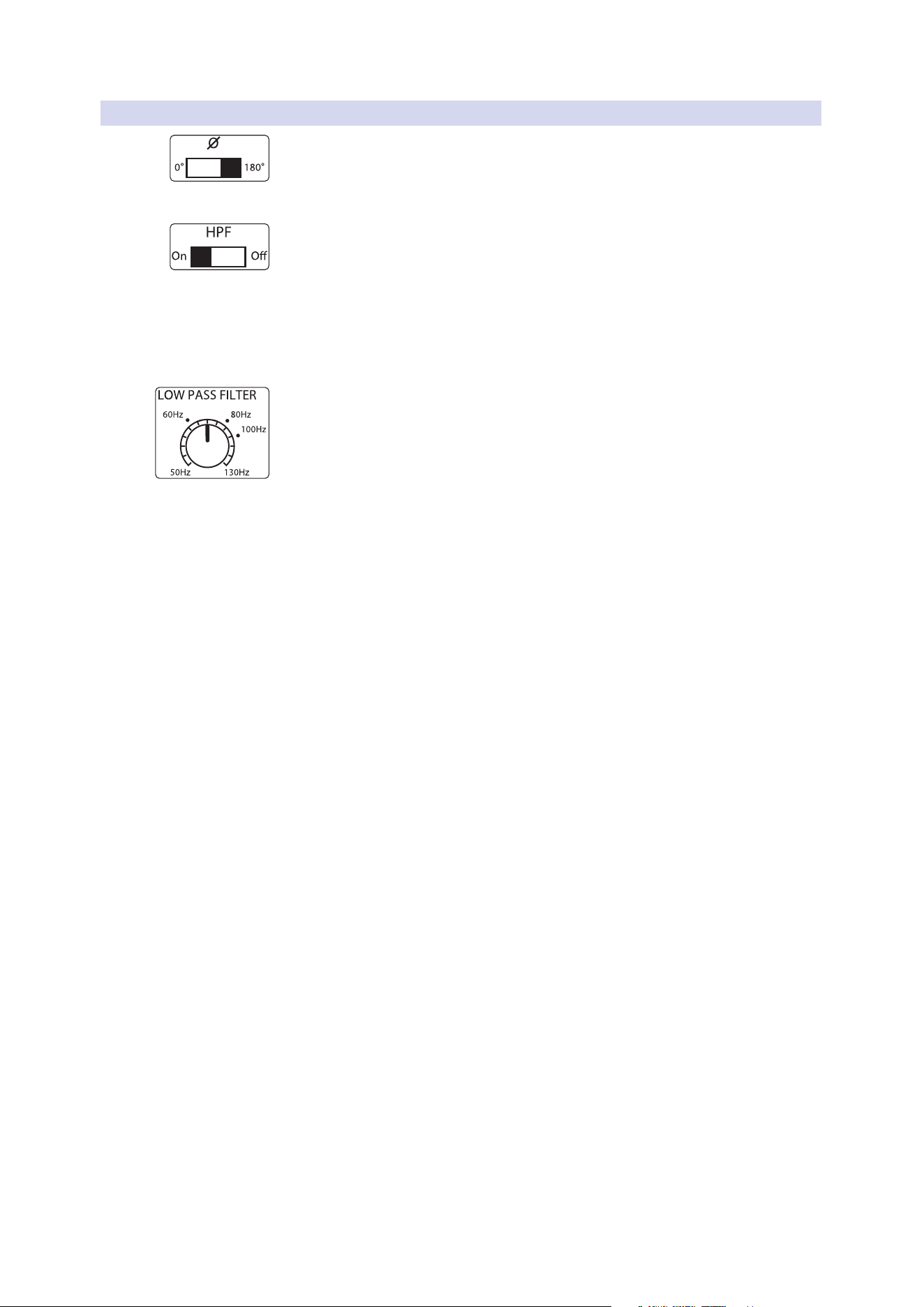
Polarity. The Polarity button reverses the polarity of the input signals.
Power User Tip: Once your have connected your Sub 8BT to your system, try
experimenting with each setting while listening to your favorite music. Leave this switch
in the position where the bass was the loudest.
High Pass Filter. Removes frequency content below 80 Hz from the
full-range signal sent from the Sub 8BT outputs. This is useful if your
main studio monitors do not have their own high pass lter.
Power User Tip: Leaving frequency content below 80 Hz in full-range monitors can
cancel out or reinforce the highest frequencies that are reproduced by the Eris Sub 8BT.
This can make the bass response of the overall system muddy and ill-dened. By rolling
o your full-range speakers, you will create a more linear frequency response between
the subwoofer and full-range content.
Low Pass Filter. This control determines the upper end of the frequency range
reproduced by the Eris Sub 8BT. If you have enabled the onboard High Pass Filter, set
the Low Pass Filter control to 80 Hz. Otherwise, set the Low Pass Filter control to the
lowest frequency that your main monitors can reliably reproduce.
6
2 Hookup
2.2 Hookup Diagrams
Eris
®
Sub 8BT
Owner’s Manual
2.2 Hookup Diagrams
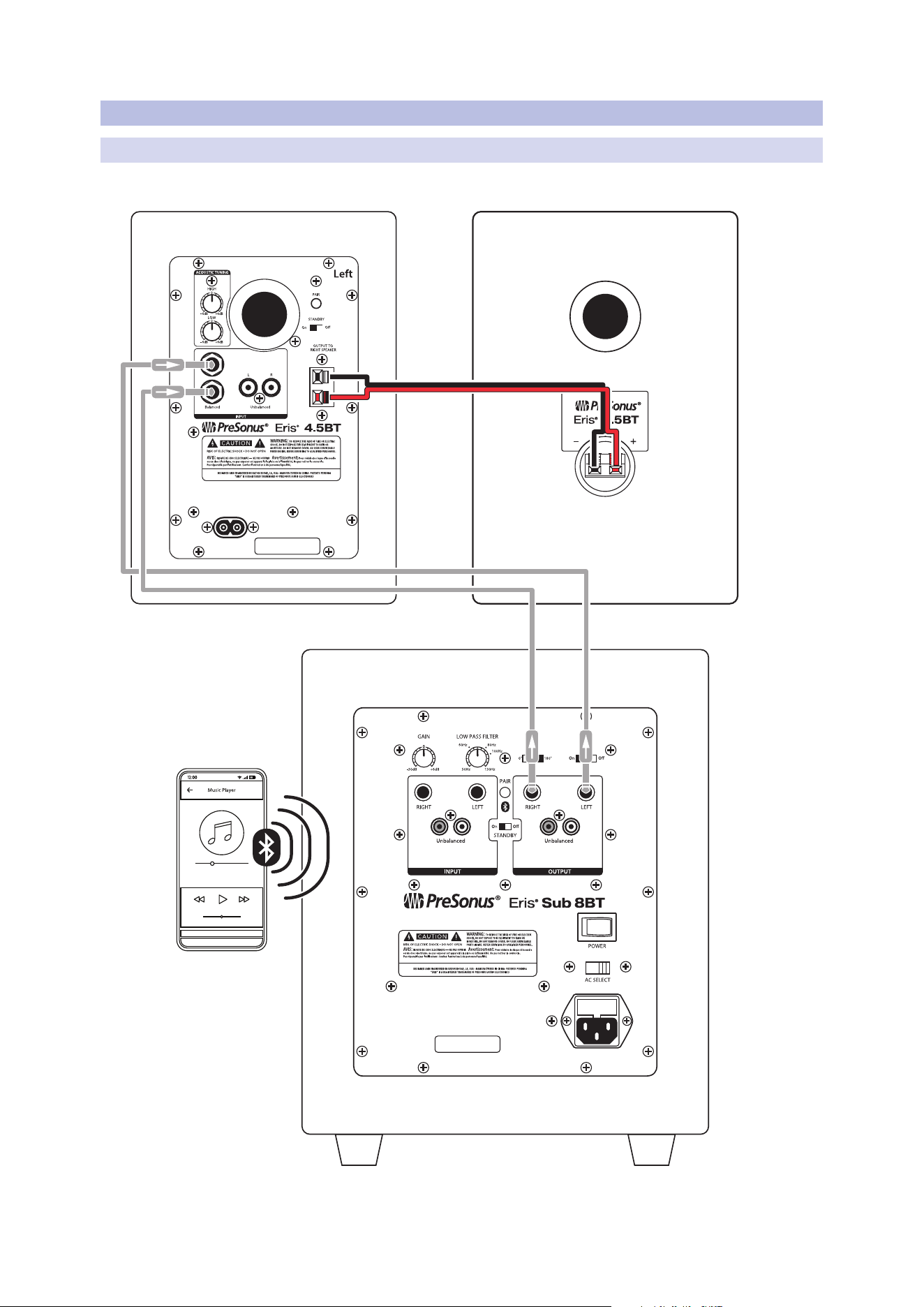
2.2.1 Basic Setup: Media Player/Mobile Device
Mobile Device
Eris 4.5BT Active Speaker Eris 4.5BT Passive Speaker
Eris Sub 8BT
7
2 Hookup
2.2 Hookup Diagrams
Eris
®
Sub 8BT
Owner’s Manual
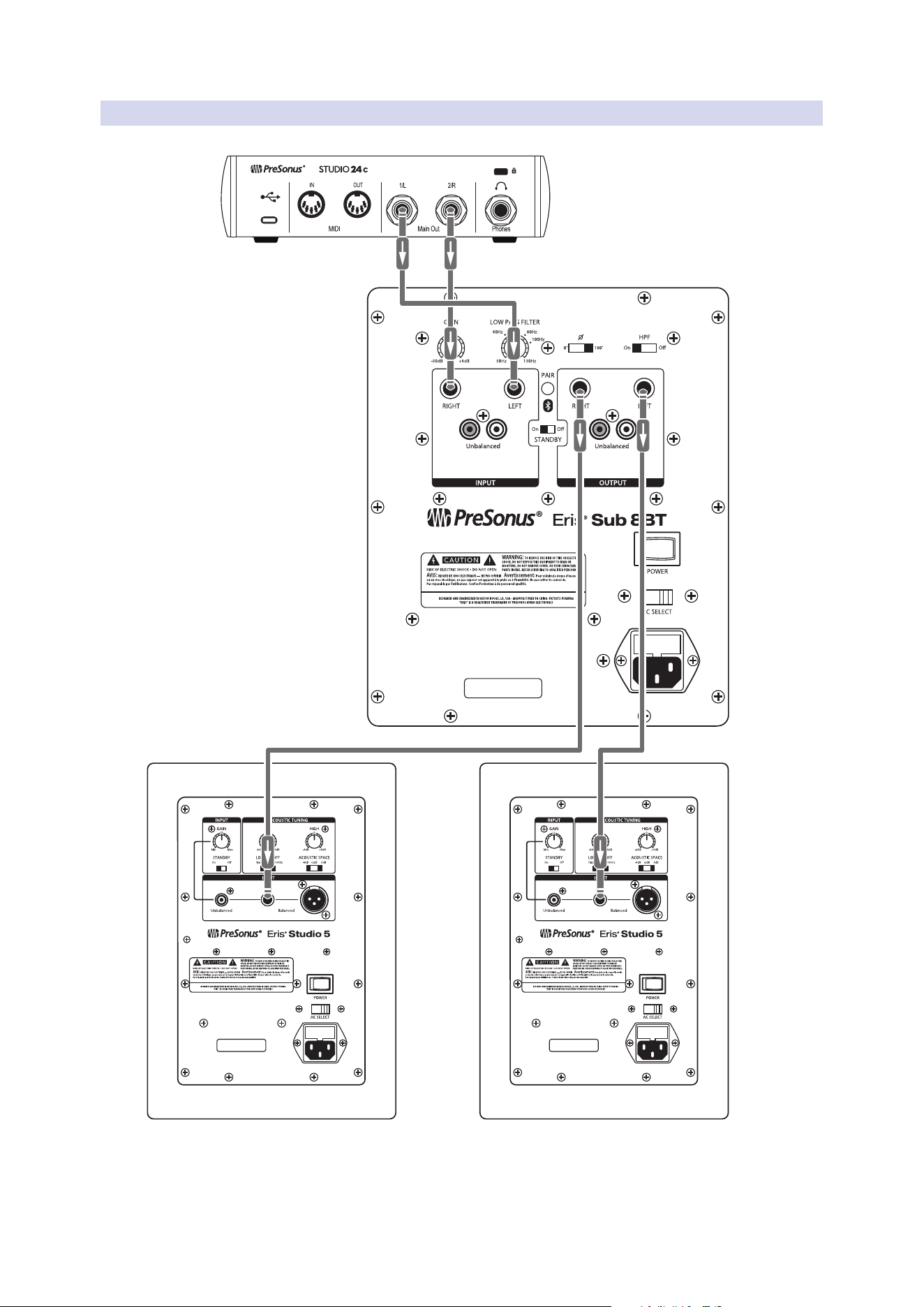
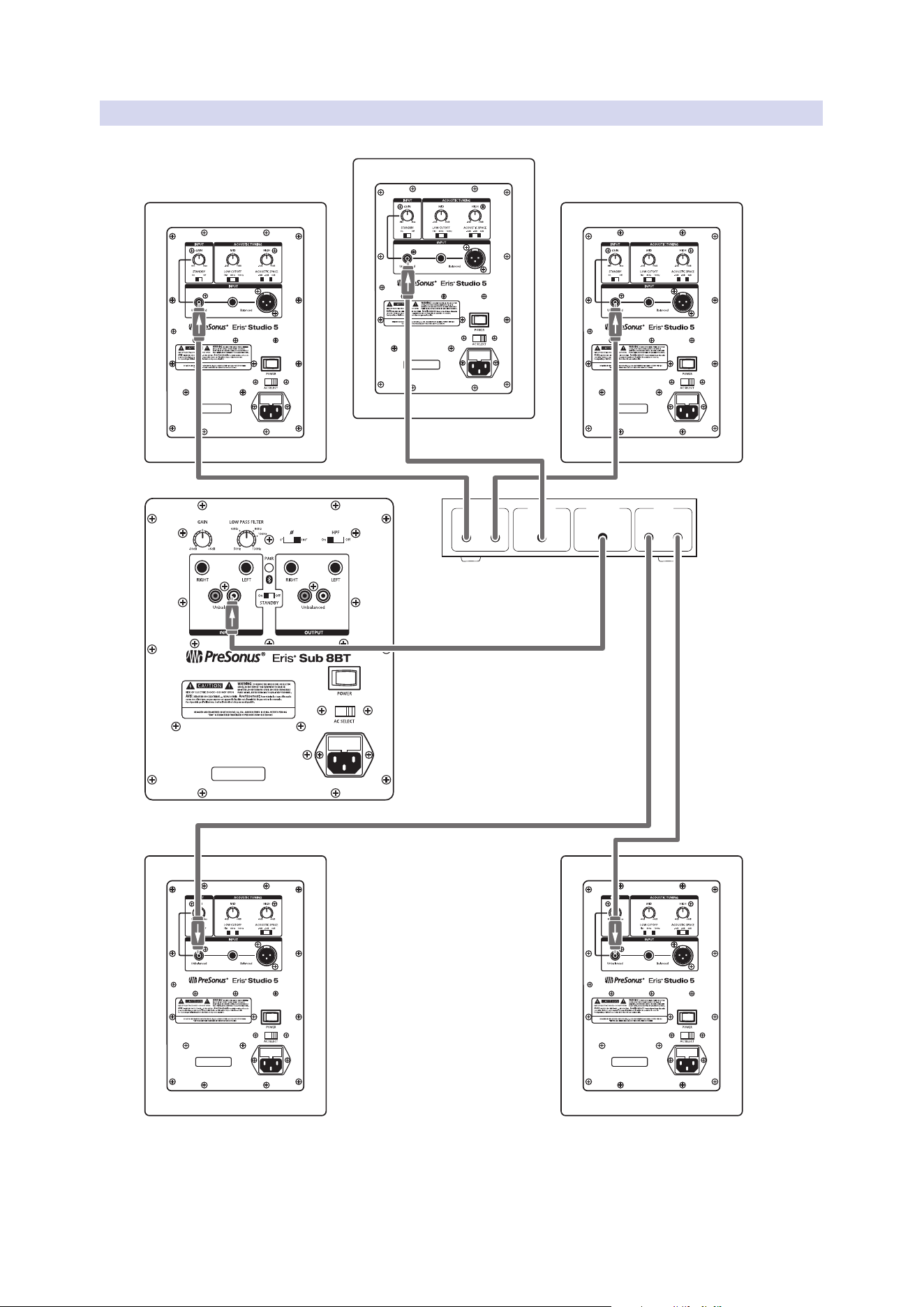
2.2.2 Basic Setup: Audio Interface
Studio 24c
Eris Sub 8BT
Eris Studio 5 (Left)Eris Studio 5 (Right)
8
2 Hookup
2.2 Hookup Diagrams
Eris
®
Sub 8BT
Owner’s Manual
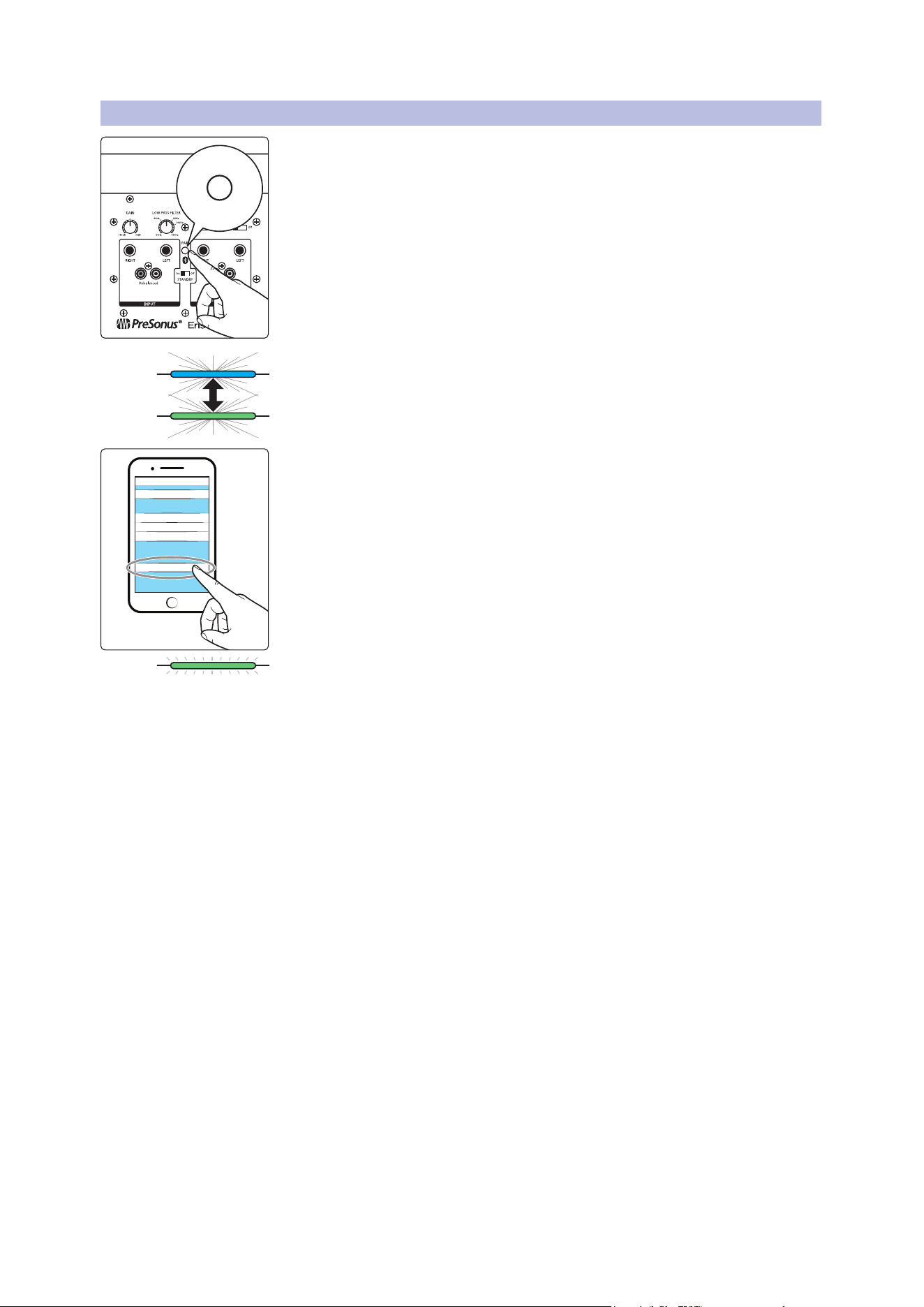
2.2.3 Advanced Setup: Home Theater
Surround Preamp /Computer
Front Center Sub Out Rear
R L R L
Eris Studio 5 (Right Front)
Eris Studio 5 (Center Front)
Eris Studio 5 (Left Front)
Eris Studio 5 (Right Rear) Eris Studio 5 (Left Rear)
Eris Sub 8BT
9
2 Hookup
2.3 Bluetooth Pairing
Eris
®
Sub 8BT
Owner’s Manual
2.3 Bluetooth Pairing
Your Eris Sub 8BT can be paired with any Bluetooth device for audio playback. To pair
your subwoofer, rst press and hold the pair button on the rear of the subwoofer for
three seconds.
The Power/Bluetooth LED on the front of the active speaker will ash blue and green,
indicating pairing is active.
On your Bluetooth device, select “Eris Sub 8BT”,
Once your Eris subwoofer is paired, the Power/Bluetooth LED will illuminate green.
Power User Tip: You can pair an additional device by repeating these steps. Your Eris Sub
8BT can store two Bluetooth device pairings, although audio can only be streamed from
one Bluetooth device at a time. Whenever you power on your Eris Sub 8BT, your stored
Bluetooth devices will automatically pair if within range.
PAIR
Hold 3 sec
Bluetooth< Settings
Bluetooth
PreSonus Eris Sub 8BT
My Devices
Other Devices
Now discoverable as “My Phone”

10
3 Tutorials
3.1 Subwoofer Placement
Eris
®
Sub 8BT
Owner’s Manual
3 Tutorials
3.1 Subwoofer Placement
The goal of proper subwoofer placement is to set up your system so that your
subwoofer acts as a natural extension of your full-range monitors without
boosting the overall bass response of your room or exaggerating any one
frequency or frequency range. Because low frequencies are not directional—
that is, humans cannot perceive the direction from which low frequencies
are coming—you aren’t limited to placing it near your full-range monitors.
However, placing your Sub 8BT in the same side of the room as your full-
range monitors will typically provide the best listening experience.
A quick way to nd the best location for your subwoofer is to temporarily
place it on the ground where you would normally be listening to your system,
then play some music that contains a lot of bass. Walk around the half of the
room where you have placed your full-range monitors until you nd the spot
where the bass sounds its best. In general, you will want to avoid placing
your subwoofer too near to reective surfaces, like a wall or in a corner as this
will exaggerate the bass energy and make your Sub 8BT sound “boomy.”
Once you nd the place in the room where the bass sounds the smoothest,
place your Sub 8BT in that spot, return to the listening position, and listen to it
again. You may need to adjust the location; just keep making small adjustments
(a foot or so at a time) until the bass response sounds as even as possible.
3.2 Level Calibration
Matching the levels of the monitors in your system with your subwoofer
is an easy extra step that will help you to achieve a consistent listening
environment. This will ensure that your subwoofer won’t be too loud with
some types of music and not nearly loud enough with others. You will need an
SPL meter and some pink noise to do this; luckily, there are many inexpensive
and free SPL meter apps for just about every type of smartphone, as well
as a variety of free pink noise samples online that will do the job nicely.
11
3 Tutorials
3.2 Level Calibration
Eris
®
Sub 8BT
Owner’s Manual
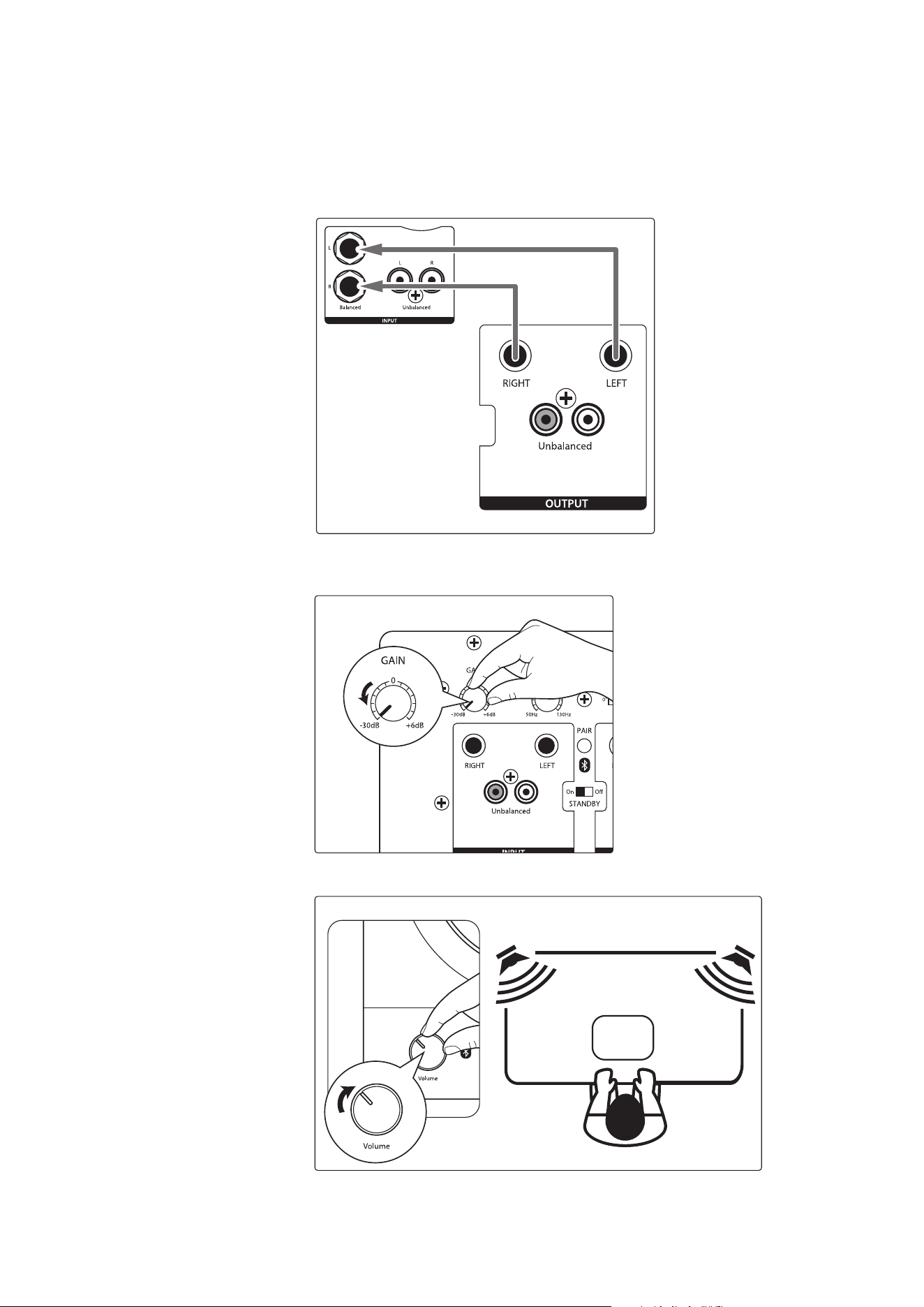
Below is a brief tutorial on how to level match your monitors:
1. Connect your monitors and Eris Sub 8BT as shown
either of the hookup diagrams in Section 2.2.
Power User Tip: If your system has an EQ in it, turn it o or set it to at. You can EQ
your complete system to taste once the levels are evenly matched.
Eris 4.5BT Active Speaker
Eris Sub 8BT
2. Turn your Eris Sub 8BT and your full-range monitors’
input levels to their lowest setting.
3. Play pink noise through your speakers. You should not hear anything yet.
SPL:
82 dB
Eris 4.5BT Active Speaker
12
3 Tutorials
3.2 Level Calibration
Eris
®
Sub 8BT
Owner’s Manual
4. Begin slowly increasing the volume of your left monitor until the acoustic level
of the pink noise reaches 82 dB SPL on your SPL meter when measured at your
listening position. Turn o your left monitor and repeat with your right monitor.
If you’re using monitors that provide a single level control for both the
left and right side, like the Eris 3.5BT, 4.5BT or 5BT, play pink noise through
both monitors, increase the volume until your SPL meter reads 85 dB.
Power User Tip: If 82 dB or 85 dB is too loud or too quiet for your room, set the level to
one that is more comfortable for your listening requirements. Just be sure to set the
same level for both the left and the right monitor.
5. Turn your full-range monitors o. If your Sub 8BT is connected
to the Sub Out on a speaker with a dedicated Sub Out, set the
input volume of your Eris Sub 8BT to “0” and skip to Step 7.
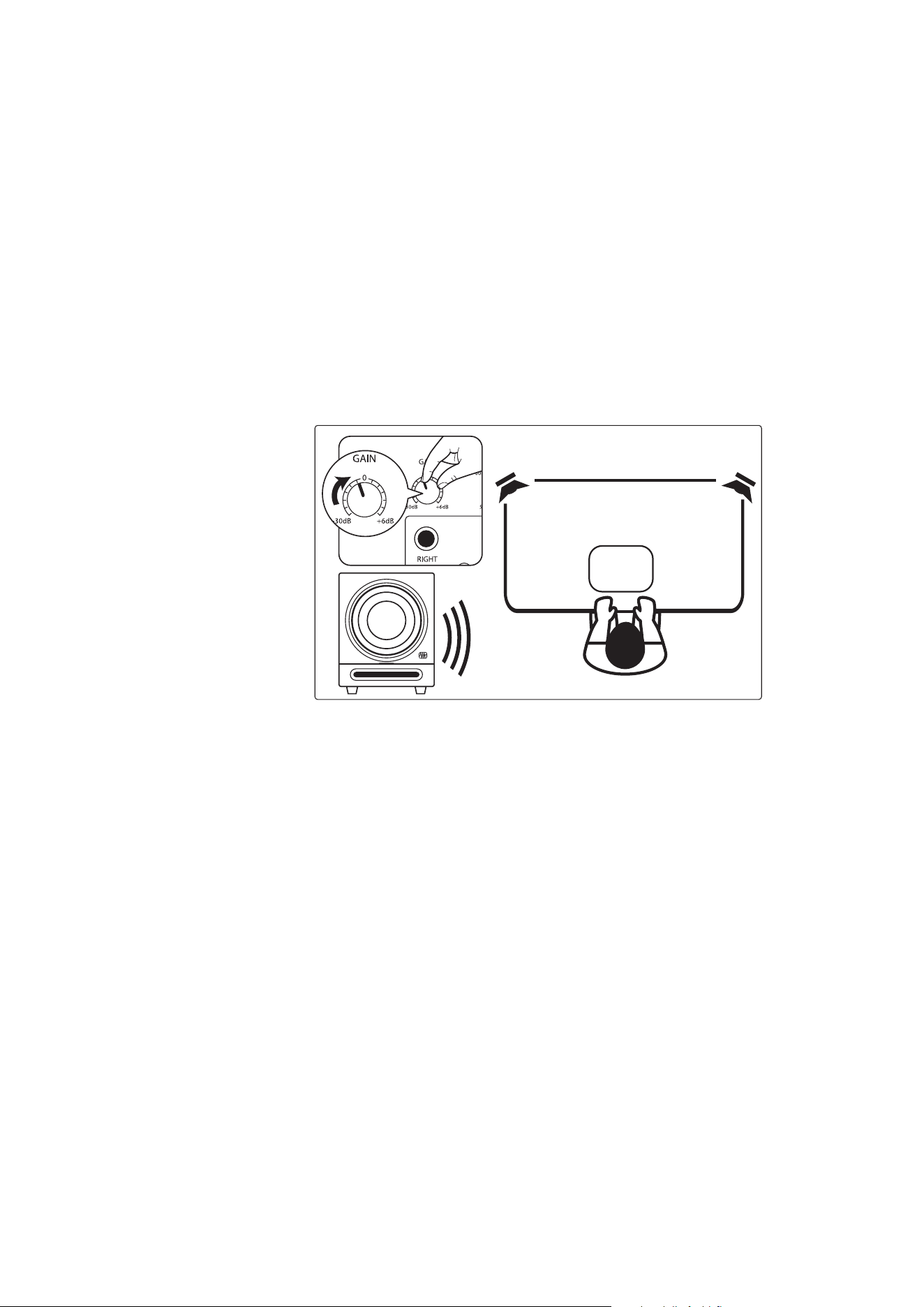
6. Begin slowly increasing the input volume on your Eris Sub 8BT
until the acoustic level of the pink noise reaches 79 dB SPL on
your SPL meter when measured at your listening position.
SPL:
79 dB
Eris Sub 8BT
7. Set the lowpass lter on your Eris Sub 8BT to 130 Hz. This will create a
frequency overlap between your Sub 8BT and your full-range system.
8. Play pink noise through your full system and experiment with the polarity
switch on your Eris Sub 8BT to see which position provides the best bass
response. Leave the polarity switch where the bass is the loudest.
9. Now play some music through your system and experiment with the lowpass
lter on your Eris Sub 8BT until you nd the most natural transition between
your full-range monitors and your subwoofer. If your full-range monitors are
connected to the outputs of your Sub 8BT, you may want to try turning on the
80 Hz High Pass lter on the Sub 8BT and setting the lowpass lter to 80 Hz.
Power User Tip: Once you have matched the levels of your full-range monitors and Eris
Sub 8BT, don’t use their volume controls to adjust the overall level; instead, use the volume
on your audio device (computer, iPad, TV, etc.). This will ensure that your speaker levels
remain matched.
Power User Tip #2: The SPL gures quoted above are guidelines. When increasing the
output level, the point at which your Eris Sub 8BT will hit 79 dB SPL can be highly
dependant upon the acoustic response of the room it’s set up in. Standing waves could
cause resonance around 79 dB, causing you to reach it sooner than anticipated; comb
ltering may cause you to never reach it at all.

13
4 Resources
4.1 Technical Specications
Eris
®
Sub 8BT
Owner’s Manual
4 Resources
4.1 Technical Specications
Frequency Response 30 Hz to 200 Hz
Peak SPL 100 dB (@ 1M)
Amplier Power 50W RMS
LF Driver 8-inch composite
Inputs (2 each) Balanced ¼-inch TRS
Unbalanced RCA
Outputs (2 each) Balanced ¼-inch TRS
Unbalanced RCA
Controls Volume
High Pass
Low Pass
Polarity
Power Saver
Dims (H x W x D) 11.73” x 9.84” x 12.72”
(298mm x 250mm x 323mm)
Weight 16.27 lbs (7.38 kg)
4.2 Setting up your Eris Subwoofer for Best Performance
1. Use balanced cables to when physically connecting your subwoofer to your audio
device. A balanced cable is a type of audio cable that uses three conductors (two signal
conductors and a ground conductor) to transmit audio signals. Balanced cables help
to cancel out any noise or interference picked up along the cable length. Unbalanced
cables are more susceptible to noise and interference and should be avoided.
2. Make sure that your subwoofer is plugged into a good power source.
Unstable or noisy power sources can cause unwanted noise in your audio
signal. Use a surge protector or power conditioner if necessary.
3. Keep your cables away from power sources and other electronic devices to avoid electromagnetic
interference that can cause buzzing, humming, or other noise in your audio signal.
4. Position your subwoofer correctly to minimize noise. Keep them at a reasonable
distance from other electronic devices to avoid interference.
5. Proper gain staging can help you avoid noise in your audio signal. Gain staging
refers to the process of setting the input and output levels of audio signals in a
recording or mixing system to achieve optimal sound quality and avoid distortion.
Make sure that your input levels are not too low or too high. Keep your levels within
a reasonable range and avoid overdriving your audio interface or mixer.

14
4 Resources
4.3 Troubleshooting
Eris
®
Sub 8BT
Owner’s Manual
4.3 Troubleshooting
No power. First ensure that your Eris Sub 8BT is plugged in. If it’s connected to a
power conditioner, verify that the power conditioner is turned on and functioning.
If problem still exists, disconnect the power cable from your studio monitor and
check the fuse on the back panel. The type of fuse needed for your monitor is
listed below the power inlet. Be sure to use the correct fuse for the set input-power
voltage. If the fuse blows again, you will need to contact PreSonus for a repair.
No audio. If your Eris Sub 8BT appears to power on but you hear no sound
when playing audio (the lights are on but nobody’s home), rst make sure
that the cables connected to the subwoofer are working correctly. Also,
verify that the Input Level control is set to provide high enough gain.
Hum. Usually, hum is caused by a ground loop. Verify that all audio equipment is
connected to the same power source. If you are not using a power conditioner,
we highly recommend that you add one. Not only will this help to minimize
hum, it will better protect your equipment from power surges, brownouts, etc.
Use balanced cables whenever possible. If your audio device does
not oer a balanced output, you can connect it to a DI (direct-injection)
box, which will provide a ground-lift switch and a balanced output.
Finally, make sure that your audio cables are not run near power cables,
and use cables that are the appropriate length for your application.
Using cables that are too long not only increases the risk of noise, it
increases the likelihood that the cables are coiled, which will essentially
create an antenna that picks up all kinds of audio interference.

Dinner is Served
Added bonus: PreSonus’ previously Top Secret recipe for…
Andouille & German Red Cabbage Po-Boys
Ingredients:
• 1 small Onion
• 3 Tbsp. fresh Ginger
• 1 small head Red Cabbage
• 1 tsp Salt
• 3 Tbsp. Honey
• ¼ cup Red Vinegar
• 12 oz Andouille or Bratwurst Sausage sliced lengthwise
• ¼ lb. Muenster Cheese
• Creole or German Mustard to taste
• 1 loaf French Bread
Cooking Instructions:
1. Heat 2 tablespoon vegetable oil in large skillet. Add onions and ginger, then cook them for about 3 minutes until onions
begin to wilt. Add cabbage, vinegar, and honey, and then cook for about 5 minutes. Add salt to taste and set aside.
2. Heat oil in a skillet till hot. Add sausage cut side down till nice and brown, turn and cook for about 5 minutes till thoroughly
cooked.
3. Slice bread lengthwise, lay a bed of cabbage, then sausage, and cheese on top. Toast under the broiler or in a hot oven till
cheese is melted and bread is crisp.
4. Spread mustard on bread. Sandwich can then be cut into 2-3 pieces and shared (or not if you’re really hungry).
BONUS: Extra cabbage can be used as a condiment with meat, eggs, sandwiches, etc.
©2023 PreSonus Audio Electronics, Inc. All Rights Reserved. Eris, PreSonus, and the Wave Logo are registered trademarks of PreSonus Audio Electronics, Inc. Bluetooth is a registered trademark of Bluetooth SIG.
Other product names mentioned herein may be trademarks of their respective companies. All specications subject to change without notice... except the recipe, which is a classic.
Baton Rouge • USA
www.presonus.com
Part# 70-52000196-A
Eris
®
Sub 8BT
Bluetooth
®
Active Studio Subwoofer
Owner’s Manual