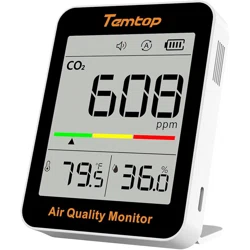

C1 Series
Air Quality Monitor
User Manual
1
Get More Information
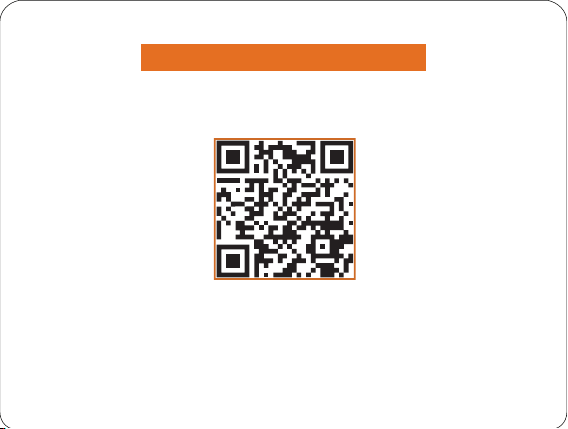
Scan the QR code for multi-language manuals and more.
Scan for multi-language manuals and more product support.
Scannen Sie nach mehrsprachigen Handbüchern und mehr Produktsupport.
Numérisez pour obtenir des manuels multilingues et plus d'assistance sur les produits.
Scansione per manuali multilingue e maggiore supporto al prodotto.
Busque manuales en varios idiomas y más asistencia sobre productos.
Carbon dioxide(CO2) is a colorless and odorless gas usually derived
from the breath of humans and animals. High CO2 concentration
means that fresh air or ventilation is required; otherwise, it may
cause problems such as drowsiness, dizziness, loss of attention,
and cognitive impairment.
Temperature & Humidity may often be ignored. However, they do have
a significant impact on an individual's well-being, comfort, health
and safety, as well as your property. High Humidity may lead to an
increase in household air pollutants, especially the biological contaminants
such as molds, bacteria, viruses, and dust mites; cold, low Humidity
may cause nosebleeds, skin and respiratory irritations, dyspnea, static
electricity, etc.
2

Do not expose the detector to heavily contaminated environments for long
periods, as this can damage the sensor.
Do not use the detector for long periods in environments with a strong, irritating
smell to ensure accurate measurements.
Do not dismantle the unit yourself. In the event of a defect, contact your dealer
instead, who will liaise with the service center and, if necessary, send the
device in for repair.
Children should only use this device under adult supervision. Keep packaging
materials, such as plastic bags and plastic wrap, out of the reach of children
as they present a choking hazard.
If the battery level shows , please charge the detector in time to avoid
being aected during use (it can also recharge when switched o).
This product is intended for monitoring the health of the indoor environment
only and should not be considered a professional measurement tool.
★
★
★
★
★
★
3
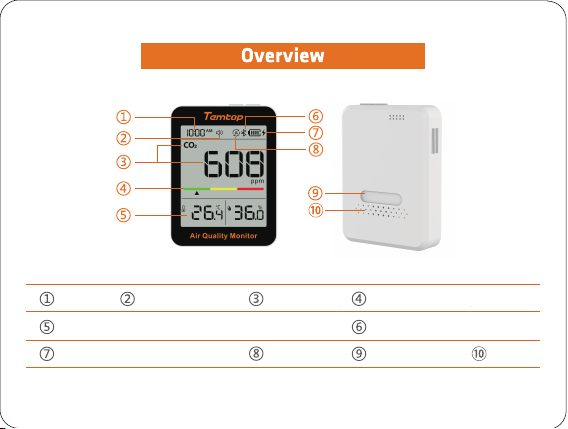
4
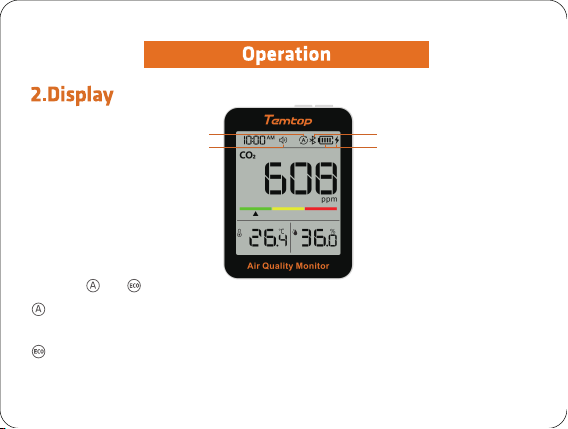
Time*
Temperature & Humidity level
Battery level & Charging status
* Only the C1+ has time and Bluetooth.
Buzzer status CO2 level
Work mode
Health level display area
Bluetooth*
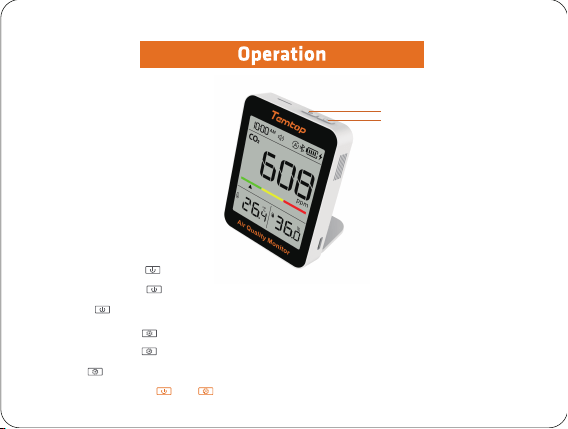
Magnetic back
Vents
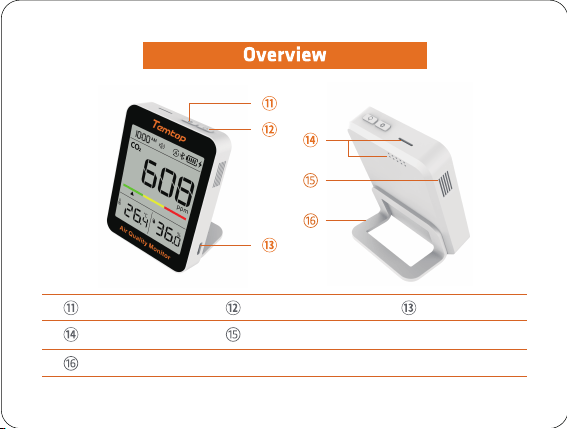
Mode button
CO
2 detection port
Bracket
Power button
Temperature & Humidity detection port
USB port
5
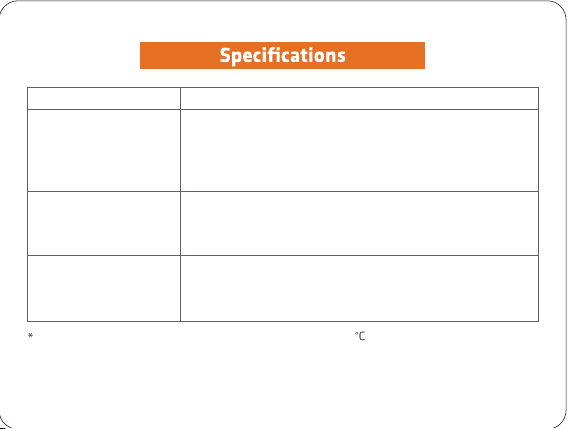
CO2
Measuring range: 400-5000ppm
Resolution: 1ppm
Accuracy: ±(40ppm +5%)
(400-2500ppm)
C1 Series
Model
Temperature*
Humidity
Measuring range: 0-99%RH
Resolution: 0.1%RH
Accuracy: ±3%RH
Measuring range: -10-60°C (14-140°F)
Resolution: 0.1°C
Accuracy: ±0.5°C (±0.9°F)
When charging the product, the temperature will be ± 0.5 error and will be recovered in
about 10 minutes after the charging is completed.
When the temperature measurement environment suddenly changes, and the temperature
dierence is significant, it takes 3 to 5 minutes of adaptation time.
6
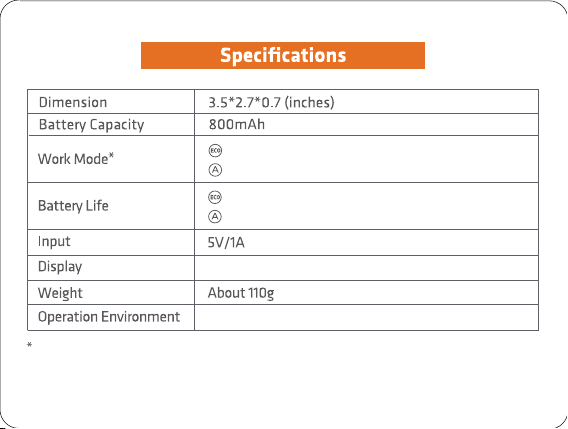
-10-60°C/0-90%RH
When the product is charging, the data will keep refreshing every 5 seconds.
Note: The above data are from Temtop Laboratory.
About 70 days
About 30 days
Power-saving mode (Sampling interval 10 min)
Performance mode (Sampling interval 1 min)
Segment code screen 3.3 inches
7
Power-saving mode (Sampling interval 10 min)
Performance mode (Sampling interval 1 min)
8
1. Button
b
a
a. Power button
1 )
Press and hold for 3s to turn on/o the monitor.
2 ) Click to switch the buzzer on/o.
b. Mode button
1)
Press and hold
2s to switch between the temperature unit (°F/°C).
2) Click to switch operating modes (2 dierent types).
Note: Press and hold and simultaneously for 2 seconds to enter calibration.
9
c
d
e
f
c. Mode or
CO2 sensor works every 10 minutes.
CO2 sensor works every 1 minutes.
Performance mode
Power-saving mode
1 )
When the battery is displayed as empty, please charge it in time, and the
charging icon will be displayed when charging.
2 )
When the battery power is extremely low, the battery icon will flash 3 times
and the shut down.
10
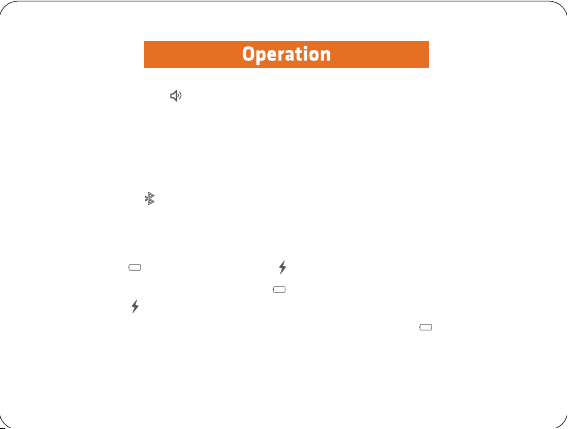
d. Buzzer switch Icon
Displayed: Buzzer sound on the device is turned on.
Not displayed: The buzzer sound is turned o.
1) The buzzer chirps once when the buzzer function is turned on/o (APP operation is synchronised).
2) When the buzzer is switched on, the air quality level deterioration sounds twice.
e. Bluetooth Icon
Displayed: Bluetooth icon is displayed when connected.
Not displayed: Bluetooth icon is not displayed when disconnected.
f. Battery Level and Charging Status
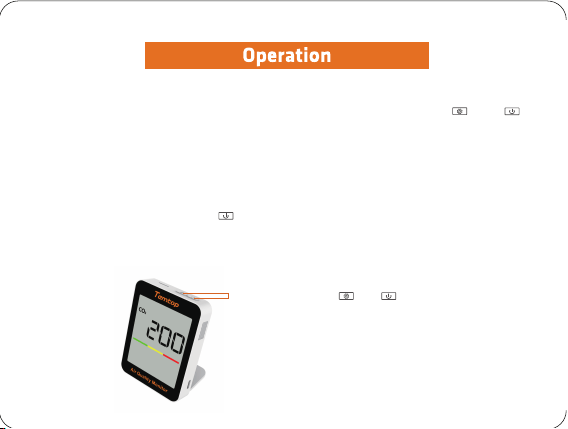
3. CO2 calibration
Switch on the detector in an outdoor ventilated area; Long press the and to
enter the calibration state, the CO2 title on the screen flashes, the CO2 display area starts
to count down 200 seconds; the countdown ends, and the calibration is complete.
During manual calibration, the monitor must be exposed to fresh outdoor air (approx. 400
ppm of CO
2) at least 1 meter away from people or animals.
In calibration mode, press the button to stop calibration mode.
Please ensure the power supply is sucient during the calibration process. If the calibration
mode is forcibly excited due to shutdown or power failure, the calibration may fail, and the
data will be inaccurate, so you need to re-calibrate.
Press and hold the and buttons for 2 seconds.
1)
2)
3)
Note:
11
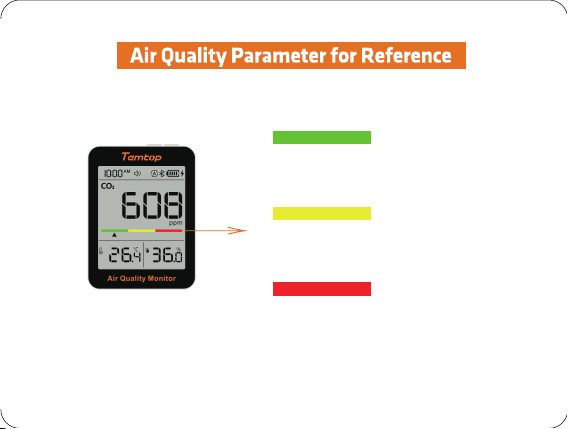
Red represents an unhealthy CO2 level
(1501 to 5000 ppm)
CO
2 threshold level indication
Green represents a good CO
2 level
(400 to 1000 ppm)
Yellow represents the average CO
2 level
(1001 to 1500 ppm)
Note: When an increase in CO2 concentration reaches a poorer level range, the
buzzer alarm is triggered.
12
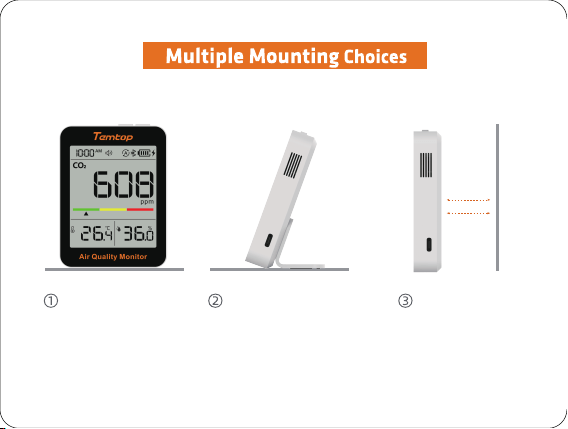
Place Directly
(Bracket Included)
Tabletop Stand
Magnetic Back
13
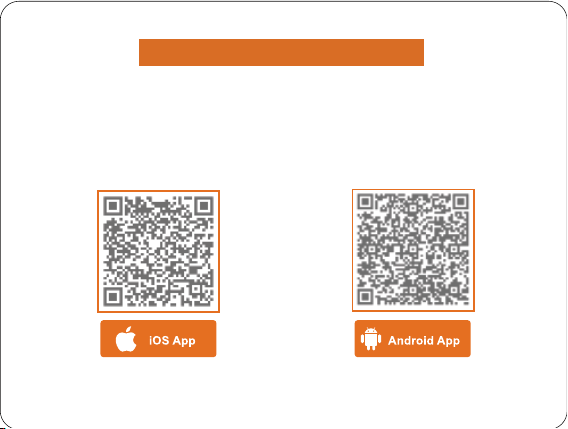
Bluetooth Connection
1. Temtop App
Please search Temtop on App Store or Google Play,
or simply scan the QR code below to download the app:
14
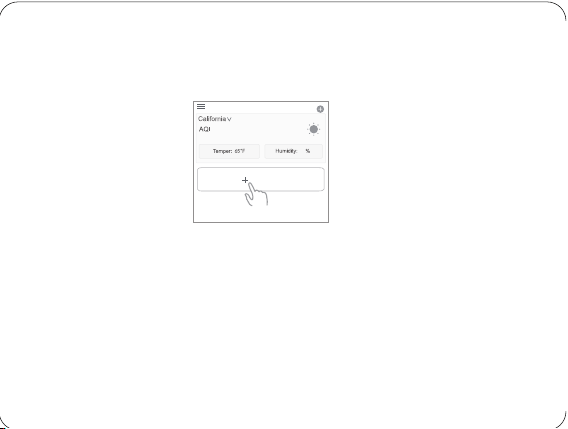
2. Add Device
a.
137
31
Add Device
Start adding devices by clicking the ‘+’ sign on the home page of the Temtop application.
b.
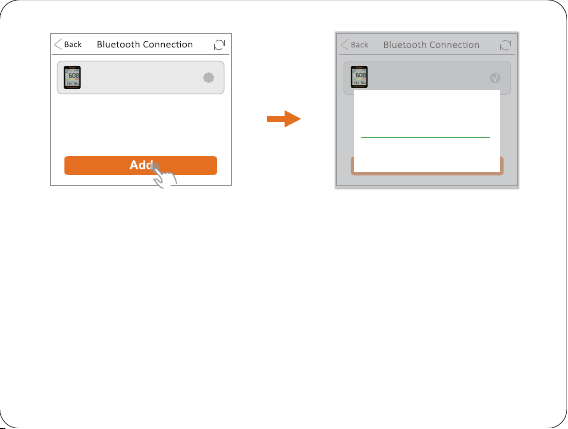
Enable your phone's Bluetooth with the app, which will automatically detect Temtop
devices in range of Bluetooth. Please select the Temtop device you wish to add and click
the Add button.
If you have problems connecting your device, bring the device close to your mobile phone and
make sure they are close enough to make a successful Bluetooth connection.
15
√
√
Change device name
Please enter a new device name
C1+_Temtop
9/50
CANCEL OK
C1+_908642791462510634
42
C1+_908642791462510634
42
3. APP Main Functions
• Access real-time measurement data.
• View historical data curves.
• Data storage and export.
• Calibrate the device.
• Change device parameter preferences and much more...
Note:
1)When using the app, make sure your device is within the Bluetooth range. Please avoid moving too
far away from the device.
2)
Due to the upgrading and updating of Temtop APP, the actual operation may be slightly dierent
from the above description, please follow the current guidelines within Temtop APP.
16

Q: Why can't I receive the verification code when I sign up for an APP account?
A: ① Please check the advertisement mails and spam mails, your mailbox may
automatically. classify the CAPTCHA mails into advertisement mails and
spam mails.
② Google Mail, Outlook, and other major mailboxes are recommended.
Q: Why can't the APP connect to the device?
A: ① Make sure your phone and device are in the same room and as close to the
device as possible.
② Try restarting the device or connecting with another phone.
③
If the issue is still not resolved, please contact our customer service for further
support.
FAQ
17
Q: Why are there two modes?
A: We oer two modes to cater to dierent usage scenarios. Mode is suitable for
situations where real-time monitoring of environmental parameters is needed. It
has a higher data collection frequency but shorter battery life. This Mode is best
suited for scenarios with frequent ecological changes, such as traveling. For regular
usage, we recommend selecting the mode. The mode is designed for long-term
monitoring, oering a longer battery life but a lower data collection frequency.
Choose the Mode that best suits your specific needs.
Q: Why does Mode have a shorter battery life?
A: Mode has a higher data collection frequency, with data being collected every
minute. Therefore, it has a relatively shorter battery life.
18

Q: If I need to monitor CO2 data for an extended period continuously, will this
impact the device's lifespan?
A: According to Temtop Laboratory's testing, continuous real-time monitoring of CO2
data for an extended period has a negligible impact on the device's lifespan.
Q: Why is CO2 data high?
A: The user's environment may be poorly ventilated, resulting in high CO2 concentration;
it is recommended that the user place the product in an outdoor ventilated place for
10 minutes. If the data is still high, the customer is advised to calibrate according to
the user manual.
Q: Why is the temperature high when charging?
A: The temperature and humidity sensor is located inside the product. When charging,
a large amount of heat will be generated, causing the actual temperature of the product
to rise.
19

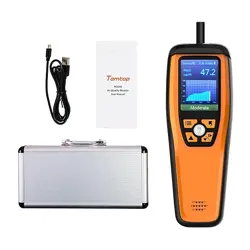
USB cable x 1
Detector x 1
User manual x 1
Bracket or accessories set x 1
20
21

V1.0
Made in China
Elitech Technology, Inc
2528 Qume Dr, Ste 2
San Jose, CA 95131 USA
Tel: (+1) 408-898-2866
Facebook: www.facebook.com/temtopus
Instagram: www.instagram.com/temtopaqm/
youtube: www.youtube.com/@Temtopus
linkedin: www.linkedin.com/company/temtop-us/
X: x.com/temtopus48285
Sales: [email protected]
Website: www.temtopus.com
Elitech Brazil Ltda
R.Dona Rosalina,90-Lgara, Canoas-RS
92410-695,Brazil
Tel: (+55)51-3939-8634
Sales: [email protected]
Website: www.elitechbrasil.com.br
Elitech (UK) Limited
Unit 13 Greenwich Business Park,
53 Norman Road,London, SE10 9QF
Tel: (+44)208-858-1888
Youtube: @elitech_uk
Instagram:@elitechuk_
Facebook: @hvaccontrol
Sales:[email protected]
Website: www.temtop.co.uk