
2
Table of Contents
Usage Notices
5 Precautions for Repair
6 ESD (Electrostatic Discharge) Precautions
7 Instructional Icons
Software Update
8 Updating Software through FOTA
8 Software Update Failure
8 Updating Software through Smart Switch
9 Recovering from a Software Update Failure
9 Recovering on Another Computer
10 Performing a Factory Data Reset
Quality Test
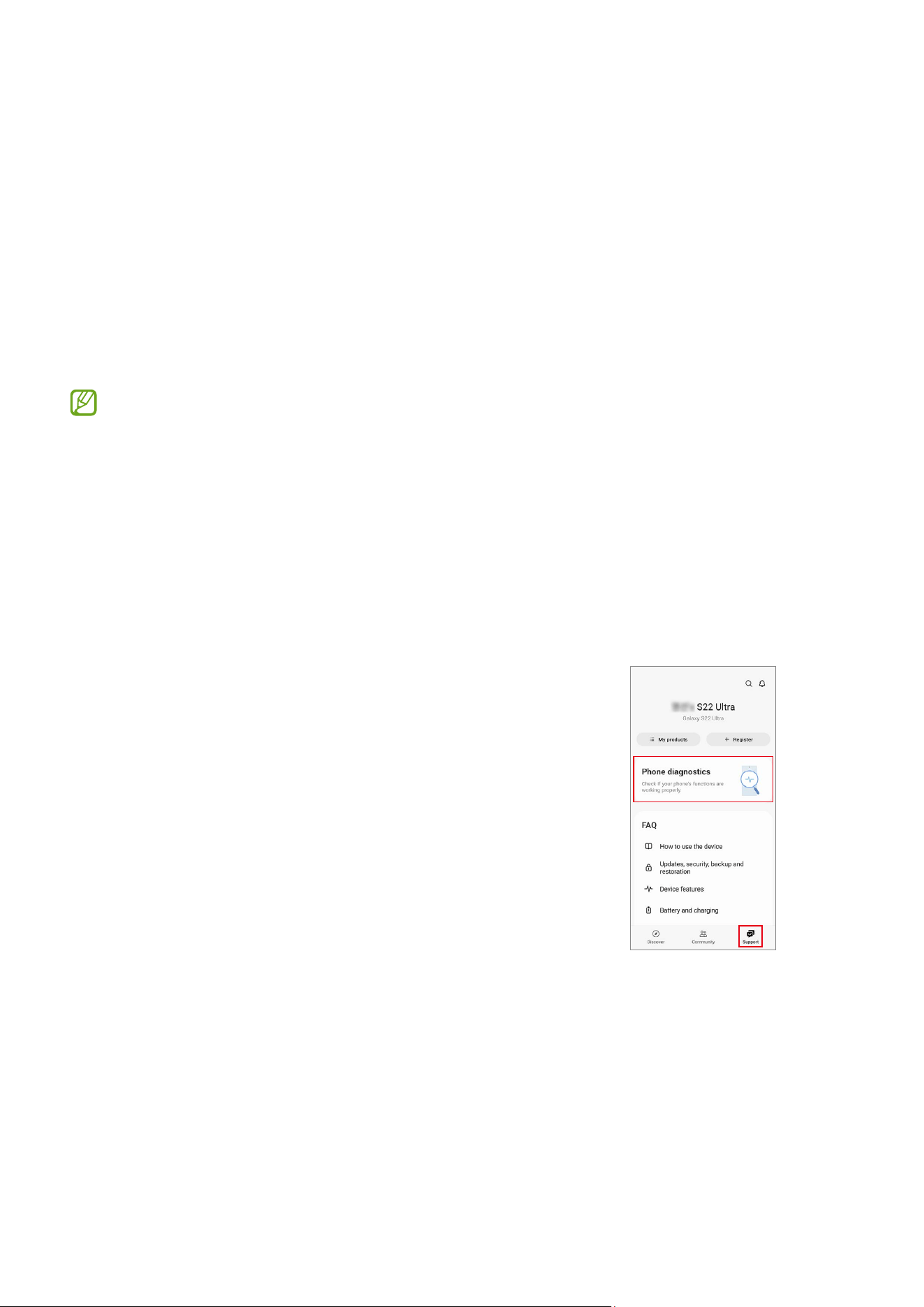
12 Quality Test Using the Samsung Members App
12 Device Diagnostics
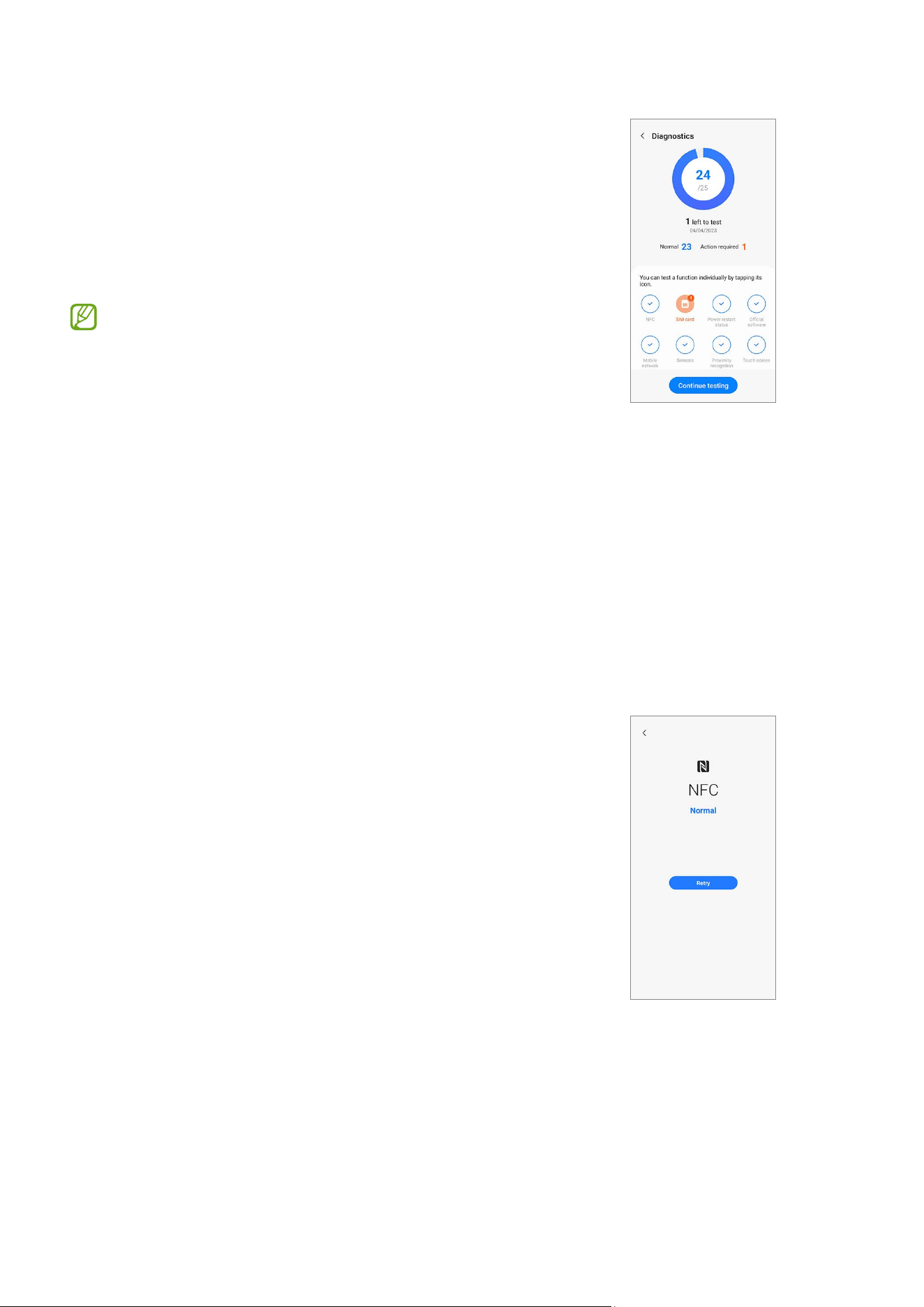
13 Test Items
Calibrations
26 Calibrations
26 Used Parts and Calibration Functions in Supported Models
27 Using the Self Repair Assistant App
32 Optical Fingerprint Sensor Calibration
35 Resetting the Battery Cycle Count
38 Range Sensor Calibration

3
Table of Contents
40 Touch Screen Panel Calibration
42 Speaker Calibration
44 Under-display Camera Calibration (Fold Models Only)
46 Digital Hall Sensor Calibration (Fold and Flip Models Only)
Exploded View and Parts List
49 Exploded View
50 Parts List
Disassembly and Assembly
51 Tools for Disassembly and Assembly
56 Fasteners (Adhesives and Materials) for Assembly
57 Disassembly and Reassembly for replacement
58 Back Cover
58 Disassembly
59 Reassembly
60 Battery
60 Disassembly
61 Reassembly
62 Screen
62 Disassembly
67 Reassembly
80 Charging Port and Microphone
80 Disassembly
86 Reassembly
92 Rear Camera
92 Disassembly
94 Reassembly

4
Table of Contents
96 Front Camera
96 Disassembly
100 Reassembly
105 Top Speaker
105 Disassembly
106 Reassembly
108 Bottom Speaker
108 Disassembly
109 Reassembly
110 Volume/XCover/Emergency Button
110 Disassembly
112 Reassembly
115 Side Button (Fingerprint Recognition Sensor)
115 Disassembly
121 Reassembly
130 Directive 2012/19/EU Annex VII Components

Usage Notices
5
Usage Notices
All functionality, features, specifications, and other device information provided in
this document, including but not limited to, benefits, design, pricing, components,
performance, availability, and capabilities of the device are subject to change without
notice. Samsung reserves the right to alter this document or the device described herein
at any time, without obligation to provide notification of such changes.
Precautions for Repair
Samsung is not liable for any damage or defect determined to be caused by repair by
a non-authorised carrier, self repair or non-professional repair of the device. Samsung
is not liable for any resulting damage to the device, or any injury or other device safety
issue caused by any attempt to repair the device which does not follow these repair and
maintenance instructions.
Any damage to the device or defect caused by an attempt to repair the device by any
person other than a Samsung certified carrier will not be covered by the warranty.
•
Use only demagnetised tools that are specifically designed for small electronic
repairs, as most electronic parts are sensitive to electromagnetic forces.
•
Use only high quality screwdrivers when servicing devices. Low quality screwdrivers
can easily damage the heads of screws.
•
Always use genuine replacement parts. Third-party replacement parts may not
function properly and could cause a fire or injury.
•
Some parts, such as sensors (laser AF/proximity/fingerprint), the rear camera,
the TSP (touch panel), speakers, and other components, may need calibration to
guarantee their performance after repair.
•
The performance of the device’s water and dust resistance cannot be guaranteed
when it is repaired by the user or another unskilled worker.
•
If you need to access the failure data of your device or need to get a more detailed
diagnosis, visit a Samsung Service Centre.
•
If you need to replace unsold parts, visit a Samsung Service Centre and receive
further instruction.
•
Before conducting repairs, remember to make backup copies of all important data
stored in the device.

Usage Notices
6
•
Make sure to wear the appropriate safety equipment before carrying out repairs.
Samsung is not responsible for injuries that may occur because of not wearing the
proper safety equipment. Refer to Tools for Disassembly and Assembly for a list of
tools that you will need for assembling and disassembling the device.
•
Repair the device in a safe place.
•
Before repairing the device, make sure the device is turned off. To turn off the
device, press the Volume Down button and the Side button at the same time, or open
the notification panel and tap the Power icon.
•
If the device is damaged, emits smoke, or if you smell something burning, stop using
the device immediately and contact Samsung.
•
It is recommended to use safety equipment such as glasses, gloves, and a mask
when repairing the device.
•
Be careful not to damage the device when removing the back cover.
•
Before assembly, ensure that there are no screws or foreign objects around the
battery.
•
During assembly, check if there are any abnormalities before reattaching the back
cover, and be careful not to damage the battery by hitting or denting it. If the battery
is damaged, visit a Samsung Service Centre.
•
Do not place the device directly into a microwave and heat it.
•
Before repairing your device, make sure its battery is fully discharged.
•
Visit www.samsung.com to view the device information, related material, and safety
information.
ESD (Electrostatic Discharge) Precautions
It is the sudden flow of electricity between two electrically charged objects caused by
contact, an electrical short, or dielectric breakdown. ESD can cause negative effects on
mobile devices, especially electrical parts.
•
It is recommended to use ESD safety (Anti-static) equipment such as an anti-static
wrist strap and gloves, and an ESD safe mat when repairing the device.
•
Increase the airflow to the work area to decrease the chance of accidental static
electricity discharges, as the potential for static electricity discharge may be
increased in low-humidity environments, such as air-conditioned rooms.

Usage Notices
7
Instructional Icons
Warning: situations that could cause injury to yourself or others
Caution: situations that could cause damage to your device or other equipment
Notice: notes, usage tips, or additional information

Software Update
8
Software Update
Updating Software through FOTA
Update your device’s software through the firmware over-the-air (FOTA) service. You can
also schedule software updates.
Launch the
Settings
app and tap
Software update
→
Download and install
.
•
Install now
: Install updates.
•
Schedule install
: Set the time to install updates automatically.
•
You may incur additional charges when updating the software through a mobile
network.
•
If the latest software has been downloaded to the device, these options will not
appear.
Software Update Failure
If your device becomes disconnected from a network before the update is complete, the
update may fail. Reconnect to a network and complete the update.
Updating Software through Smart Switch
You can use Smart Switch to update your device’s software to the latest
version. You must download the desktop version of the Smart Switch app from
www.samsung.com/smartswitch.
•
This feature may not be supported on some devices or computers.
•
Limitations apply. Visit www.samsung.com/smartswitch for details. Samsung
takes copyright seriously.
1 On the computer, visit www.samsung.com/smartswitch to download Smart Switch.
2 On the computer, launch
Smart Switch
.
3 Connect your device to the computer using the device’s USB cable.
4 Click
Update
.

Software Update
9
5 Read the on-screen instructions and click
Continue
.
6 Read the precautions about the update and click
OK
.
7 Read and agree to the terms and conditions.
The update will start.
Recovering from a Software Update Failure
If a software update is interrupted because of an error on your device or computer, your
device may fail to operate normally. If this occurs, you can perform a factory data reset
on your device for emergency recovery.
Before performing the factory data reset, remember to make backup copies of all
important data stored in the device. Samsung is not responsible for the loss of data
stored in the device.
1 Disconnect your device from the computer and launch
Smart Switch
again on the
computer.
2 Click
→
Emergency Software Recovery and Reset
.
The device list will appear.
3 Click the device that experienced a software update error and click
Device reset
→
OK
.
The device will perform a factory data reset.
Recovering on Another Computer
If the emergency recovery process continues to fail on the computer where the software
update failed, you can repair your device on another computer using the recovery code.
This will include a factory data reset of your device.
•
Before performing the factory data reset, remember to make backup copies of
all important data stored in the device. Samsung is not responsible for the loss
of data stored in the device.
•
The recovery code can be found only on the computer where the software
update has failed.
1 On the computer where the software update has failed, launch
Smart Switch
.
2 Click
→
Emergency Software Recovery and Reset
.
Software Update
10
3 On the devices list, click the device that failed to update the software and check the
recovery code.
4 On another computer, launch
Smart Switch
.
5 Click
→
Emergency Software Recovery and Reset
→
Emergency code recovery
.
6 Enter the recovery code and click
OK
.
7 Follow the on-screen instructions to put your device into recovery mode and
complete the emergency recovery.
Performing a Factory Data Reset
The factory data reset restores the device’s default settings. This erases all data,
including files and downloaded apps, from the device.
Before performing the factory data reset, remember to make backup copies of all
important data stored in the device. Samsung is not responsible for the loss of data
stored in the device.
Make sure your device’s battery level is sufficient, as losing power during a factory
reset may result in system problems.
1 Launch the
Settings
app and tap
General management
→
Reset
→
Factory data
reset
.
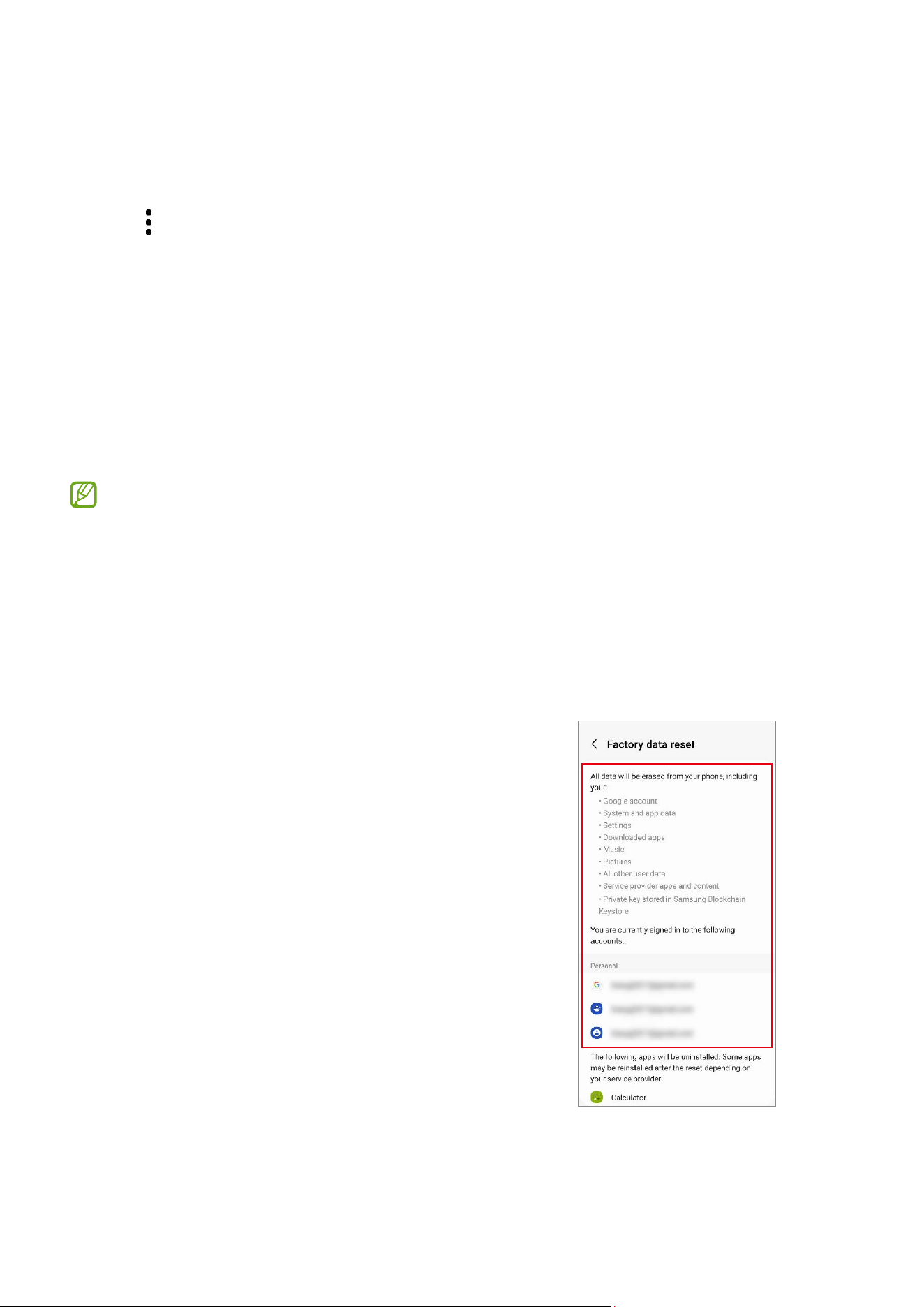
2 Read the on-screen instructions and check
which account you are signed in with.
If your device is signed in to your Google
account, log out of your Google account. If
you do not log out of your Google account,
logging in to another account after the
factory data reset will not be possible,
because your device will be locked.

Software Update
11
3 Tap
Reset
→
Delete all
.
All data will be deleted when rebooting.
During a factory data reset, the device may repeat rebooting and the logo may be
displayed for a long time.
Quality Test
12
Quality Test
Quality Test Using the Samsung Members App
It is recommended to evaluate your device through the Samsung Members app
after it has been repaired to guarantee its performance. If the test results show any
abnormalities or that another malfunction has occurred because of the repair, visit a
Samsung Service Centre to receive further instruction. Any malfunctions caused by your
repair may incur additional repair charges.
•
The Samsung Members app is subject to update without any prior notice.
•
To use this feature, you must sign in to your Samsung account.
•
Some features may not be available depending on the carrier or model.
Device Diagnostics
1 Launch the
Samsung Members
app.
If you do not have the app, download it from the
Galaxy Store
or
Play Store
.
2 Tap
Support
→
Phone diagnostics
.
The diagnostics screen will appear and you can
check the test status and items.
Quality Test
13
3 Tap
Test all
.
The device performs a test on all items.
When the test is finished, you can check the test
results.
•
Tick mark: Working normally
•
Exclamation mark: Needs further inspection
•
The test proceeds automatically, but you may
need to follow the on-screen instructions
depending on the test item. Keep an eye on
the screen during testing to ensure smooth
progress.
•
If the exclamation mark appears on any test
items after finishing the test, tap them to find
the solutions. If the problem persists, visit a
Samsung Service Centre.
Test Items
NFC
•
Function: Check whether your device can read
near field communication (NFC) tags that contain
information about products.
•
Provided information
‒
Status: View whether the feature is working
normally.
Quality Test
14
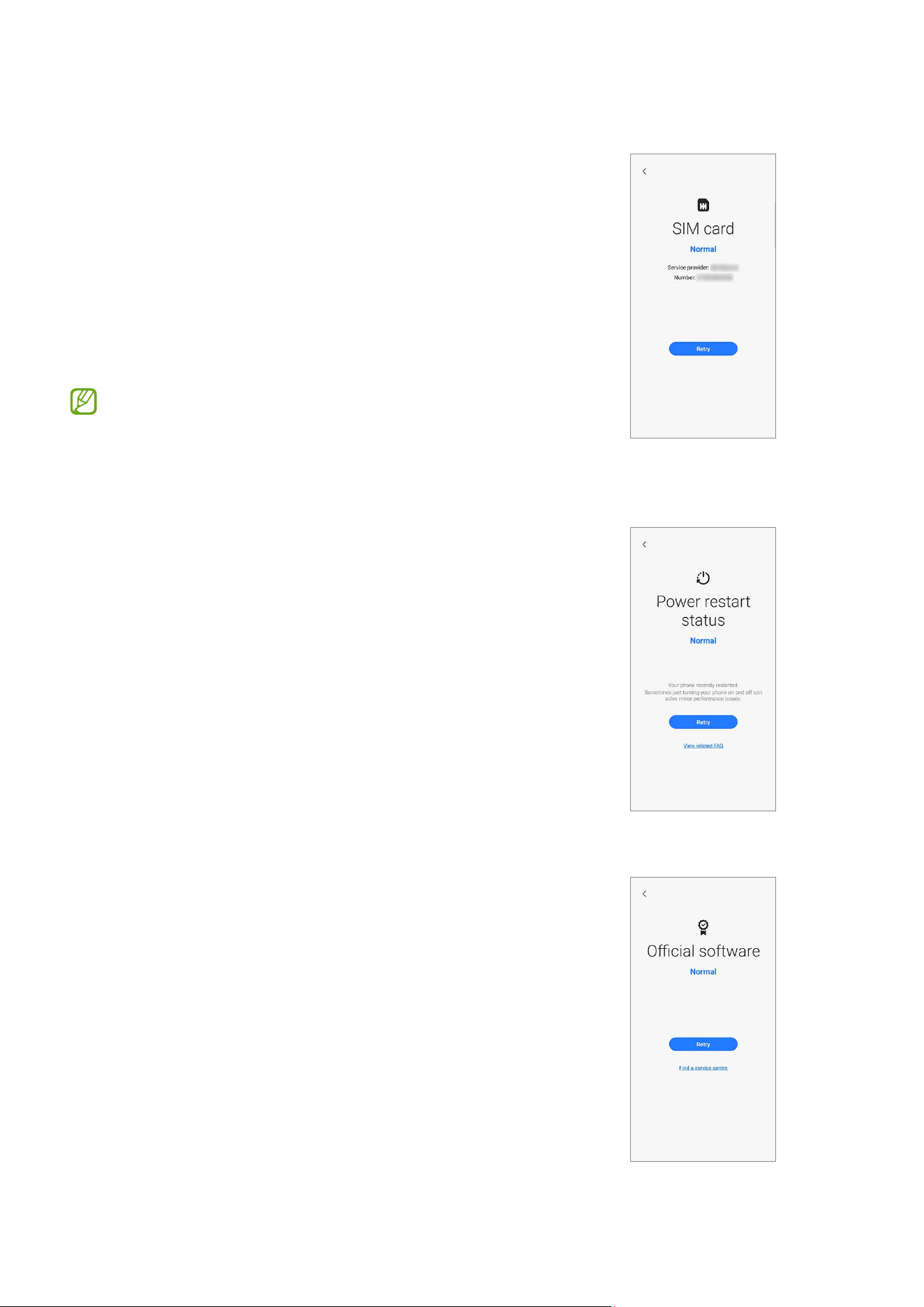
SIM card
•
Function: Check whether the SIM card is working
normally.
•
Provided information
‒
Status: View whether the feature is working
normally.
‒
Service provider: View the carrier.
‒
Number: View the phone number.
If the test result is not
Normal
, remove the SIM
card from the SIM card tray and replace it. If
possible, try again with another SIM card.
Power restart status
•
Function: Check your device’s restart history.
•
Provided information
‒
Status: View whether the feature is working
normally.
‒
FAQ: View frequently asked questions.
‒
History: View your device’s restart history.
Official software
•
Function: Check whether the software is working
normally.
•
Provided information
‒
Status: View whether the feature is working
normally.
‒
Service information: View the Samsung
Service Centre location.
Quality Test
15
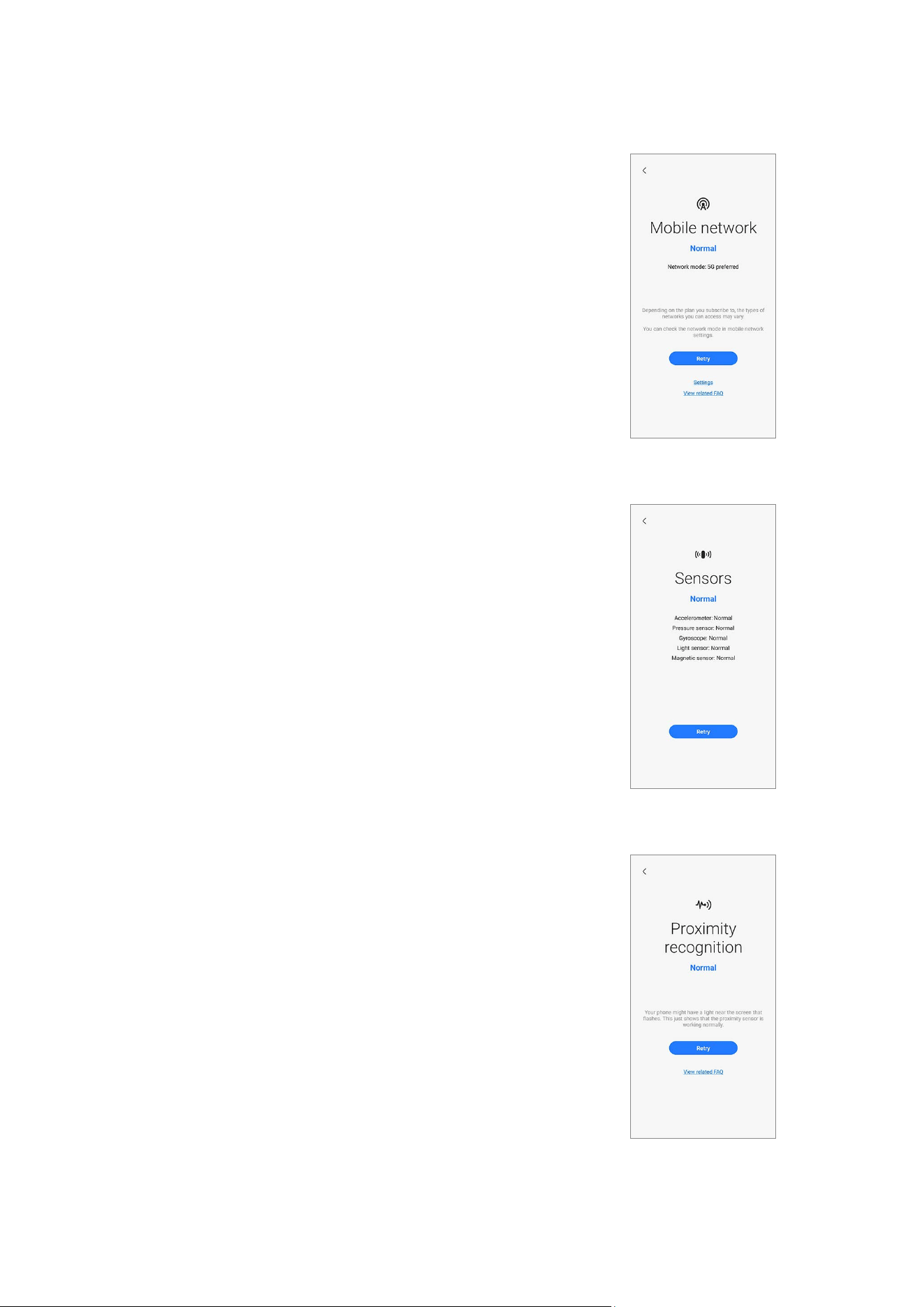
Mobile network
•
Function: Check whether your mobile network is
working normally.
•
Provided information
‒
Status: View whether the feature is working
normally.
‒
Settings: Configure your mobile network
settings.
‒
FAQ: View frequently asked questions.
Sensors
•
Function: Check whether the sensors are working
normally.
•
Provided information
‒
Status: View whether the feature is working
normally.
‒
Sensor types: View the status of each sensor.
Proximity recognition
•
Function: Check whether the proximity
recognition feature is working normally.
•
Provided information
‒
Status: View whether the feature is working
normally.
‒
FAQ: View frequently asked questions.
Quality Test
16
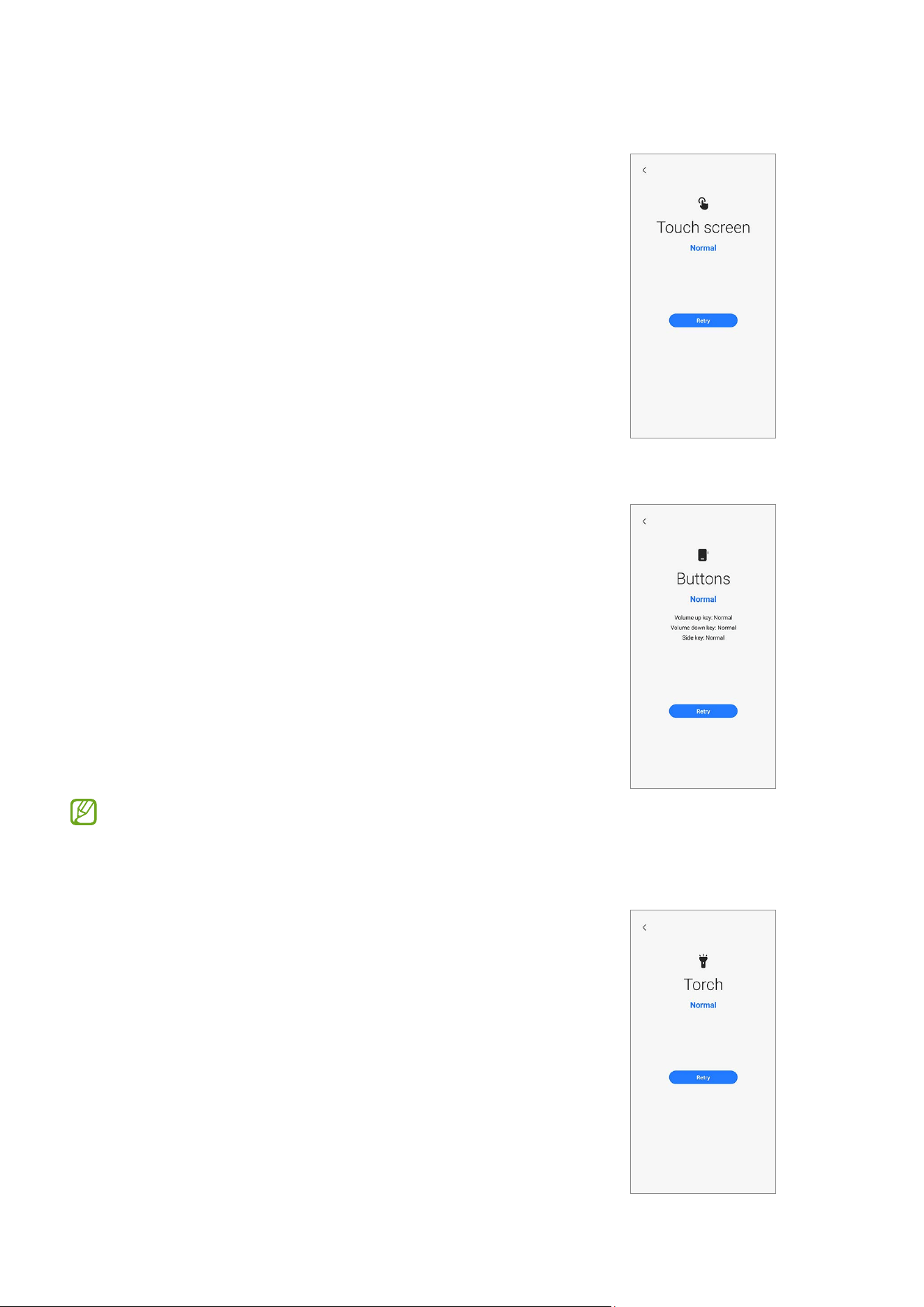
Touch screen
•
Function: Check whether the touchscreen is
working normally.
•
Provided information
‒
Status: View whether the feature is working
normally.
Buttons
•
Function: Check whether the buttons are working
normally.
•
How to check:
Press the buttons by following the directions on
the screen.
•
Provided information
‒
Status: View whether the feature is working
normally.
‒
Button types: View the status of each button.
Make sure that the buttons are not
contaminated to get more accurate test results.
Torch
•
Function: Check whether the torch is working
normally.
•
Provided information
‒
Status: View whether the feature is working
normally.
Quality Test
17
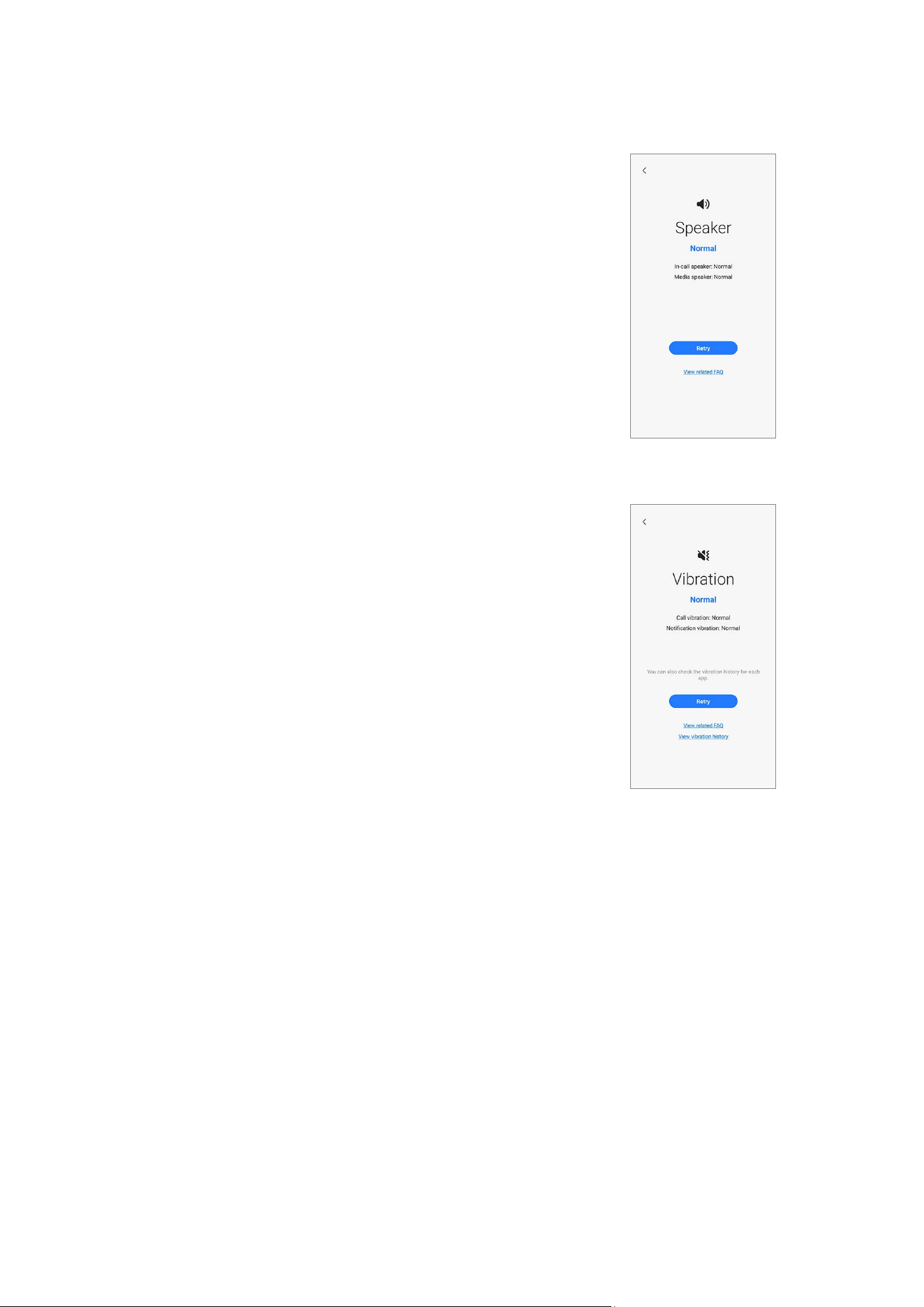
Speaker
•
Function: Check whether the speakers are
working normally.
•
Provided information
‒
Status: View whether the feature is working
normally.
‒
Speaker types: View the status of each
speaker.
‒
FAQ: View frequently asked questions.
Vibration
•
Function: Check whether the vibration feature is
working normally.
•
Provided information
‒
Status: View whether the feature is working
normally.
‒
Vibration types: View the status of each type
of vibration.
‒
FAQ: View frequently asked questions.
‒
History: View the vibration history.
Quality Test
18
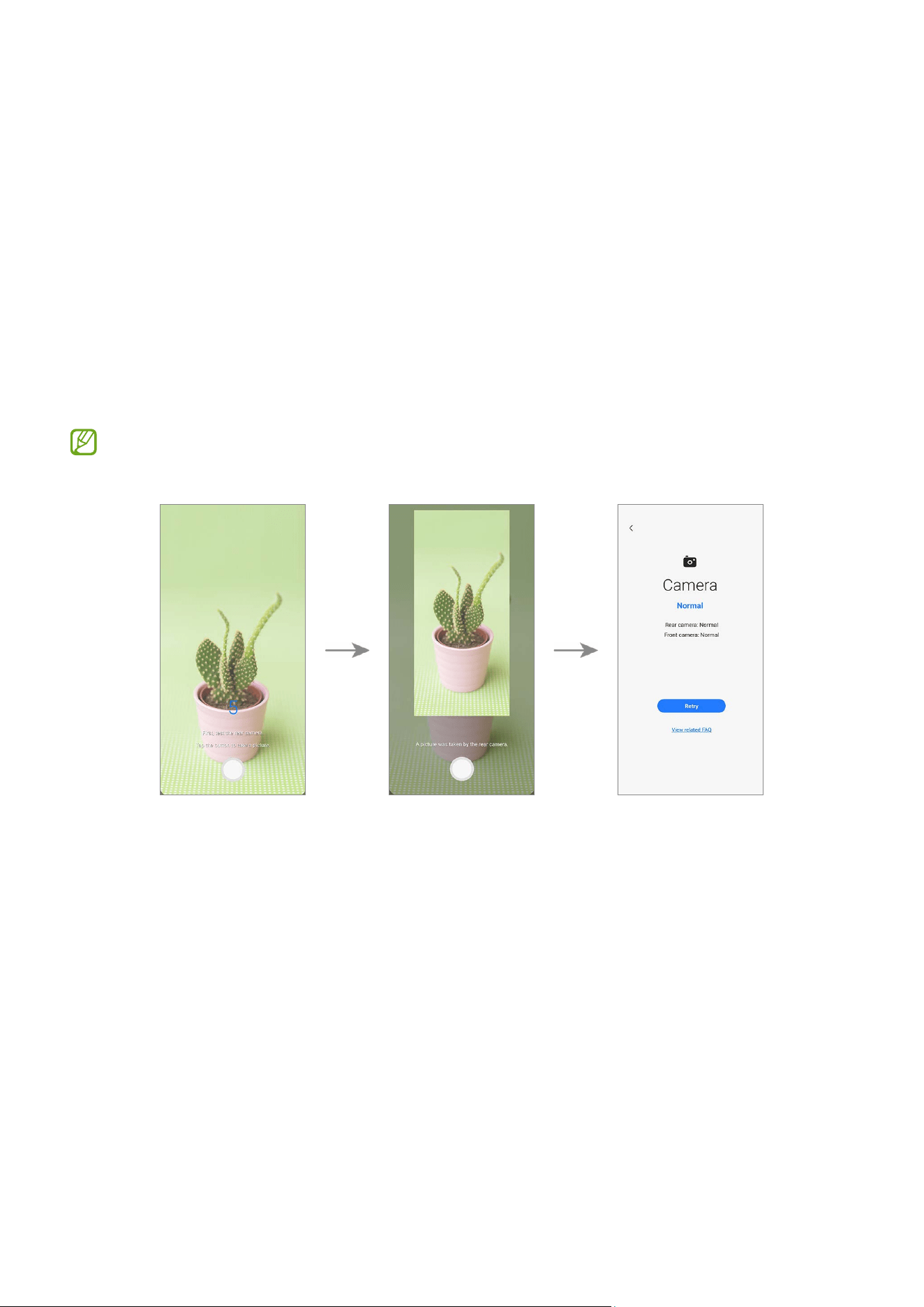
Camera
•
Function: Check whether the rear and front cameras are working normally.
•
How to check:
Tap the camera button to test the rear and front cameras.
The picture that was taken will be displayed to check the quality of the pictures.
•
Provided information
‒
Status: View the status whether the feature is working normally.
‒
Camera types: View the status of each camera.
‒
FAQ: View frequently asked questions.
To test this more accurately, check if the camera is obstructed by foreign objects,
the case, or protective film.
Quality Test
19
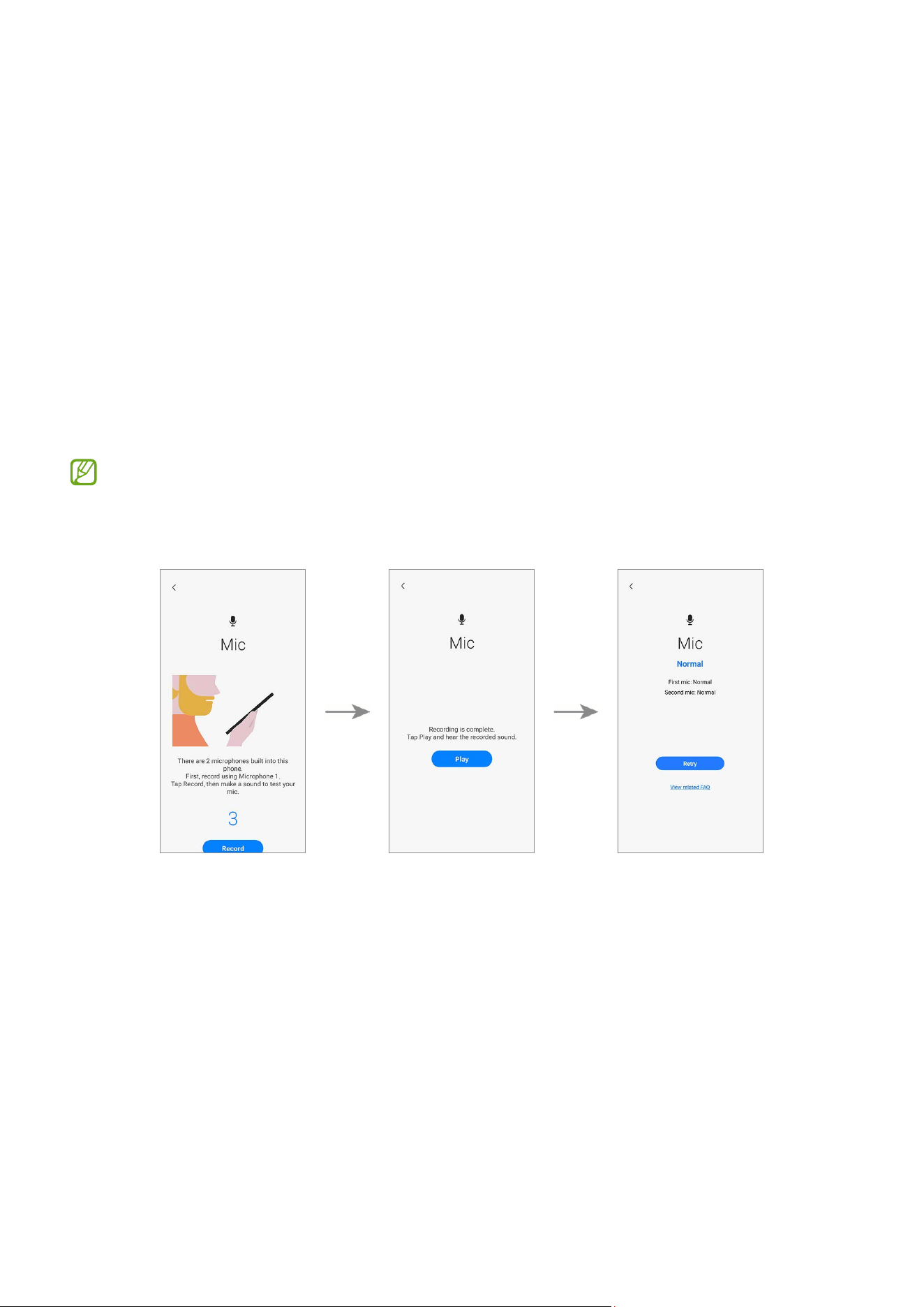
Mic
•
Function: Check whether the microphone is working normally.
•
How to check:
1) Tap
Record
and say something for the recording.
2) When the recording is finished, tap
Play
and select a button according to the
question.
•
Provided information
‒
Status: View whether the feature is working properly.
‒
Mic types: View the status of each mic.
‒
FAQ: View frequently asked questions.
•
The number of tests may vary depending on the model.
•
If you cannot hear anything after recording, check whether the media volume is
turned up.
Quality Test
20
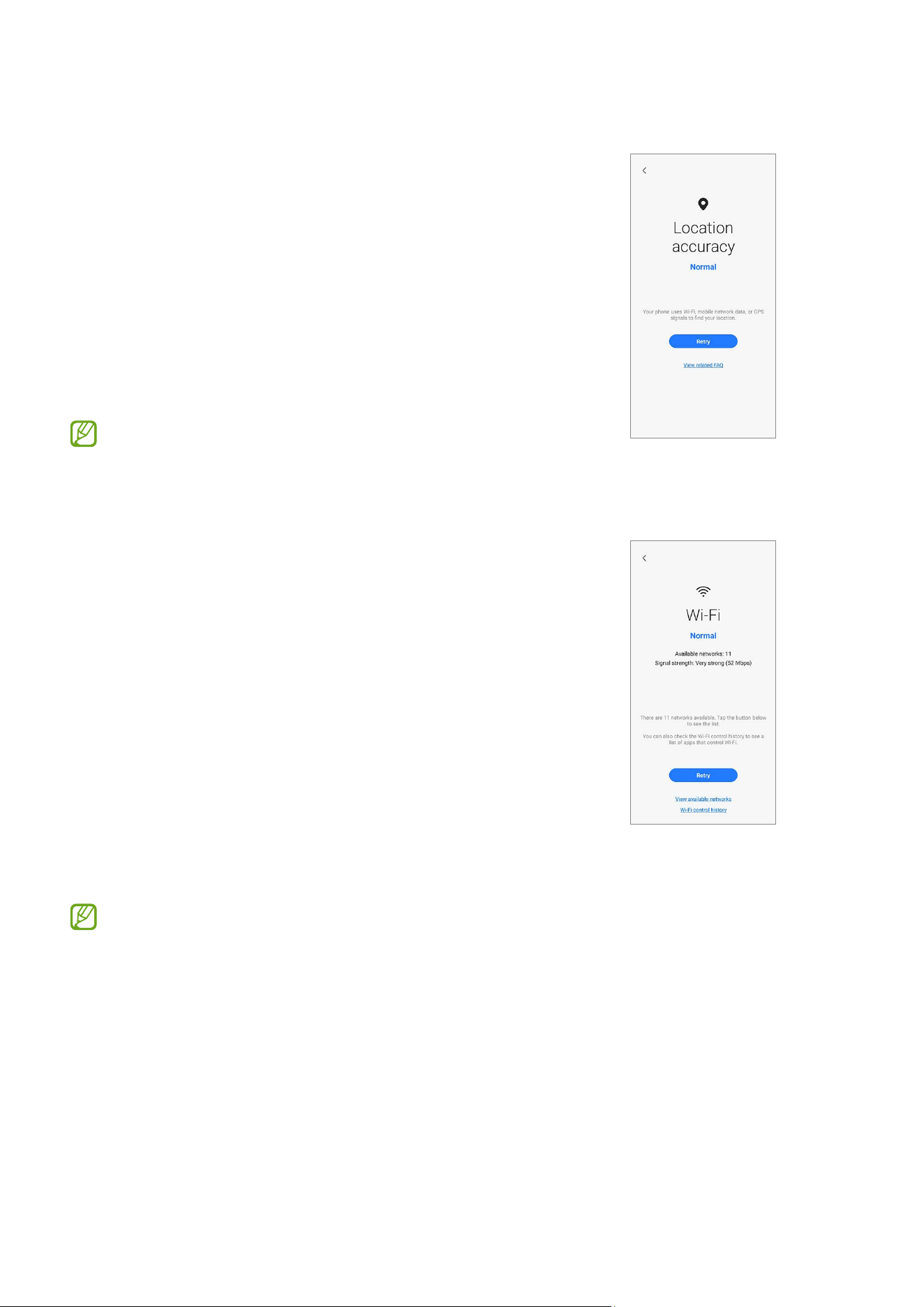
Location accuracy
•
Function: Check whether the location accuracy is
working normally.
•
How to check:
Tap
Start
.
•
Provided information
‒
Status: View whether the feature is working
normally.
‒
FAQ: View frequently asked questions.
The results might be more accurate when you
test outside.
Wi-Fi
•
Function: Check whether Wi-Fi can search for
Wi-Fi routers.
•
Provided information
‒
Status: View whether the feature is working
normally.
‒
Available networks: View the number of
available networks.
‒
Signal strength: View the signal strength of
the connected Wi-Fi router.
‒
Networks: View available networks.
‒
History: View the Wi-Fi control history.
To test this feature, the Wi-Fi feature must be
activated.
Quality Test
21
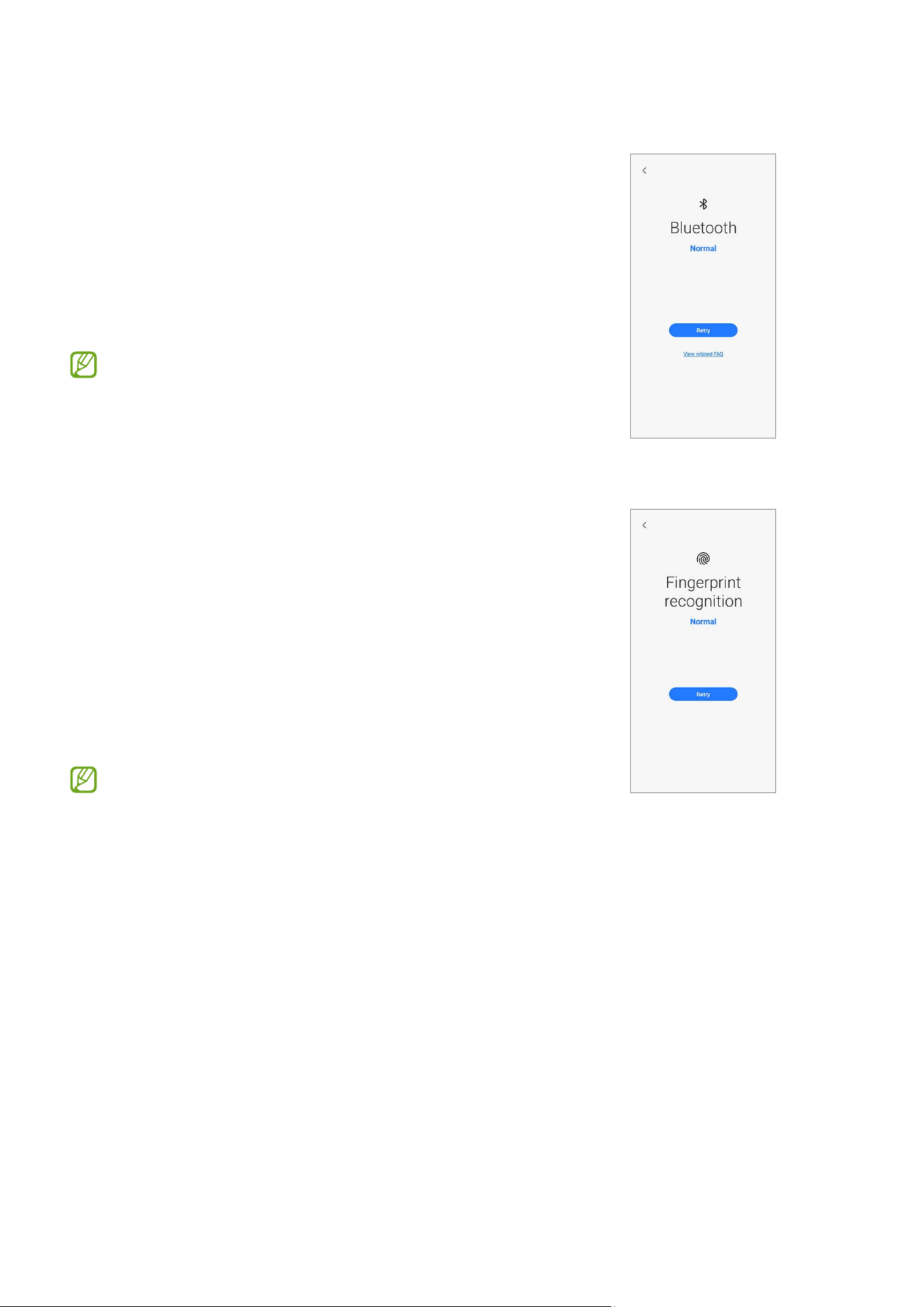
Bluetooth
•
Purpose: Check whether Bluetooth can search for
other Bluetooth devices.
•
Provided information
‒
Status: View whether the feature is working
normally.
‒
FAQ: View frequently asked questions.
To test this feature, the Bluetooth feature must
be activated.
Fingerprint recognition
•
Purpose: Check whether the fingerprint
recognition sensor is working.
•
How to check:
Place your finger on the fingerprint recognition
sensor.
•
Provided information
‒
Status: View whether the feature is working
normally.
To test this feature, your fingerprint must be
registered.
Quality Test
22
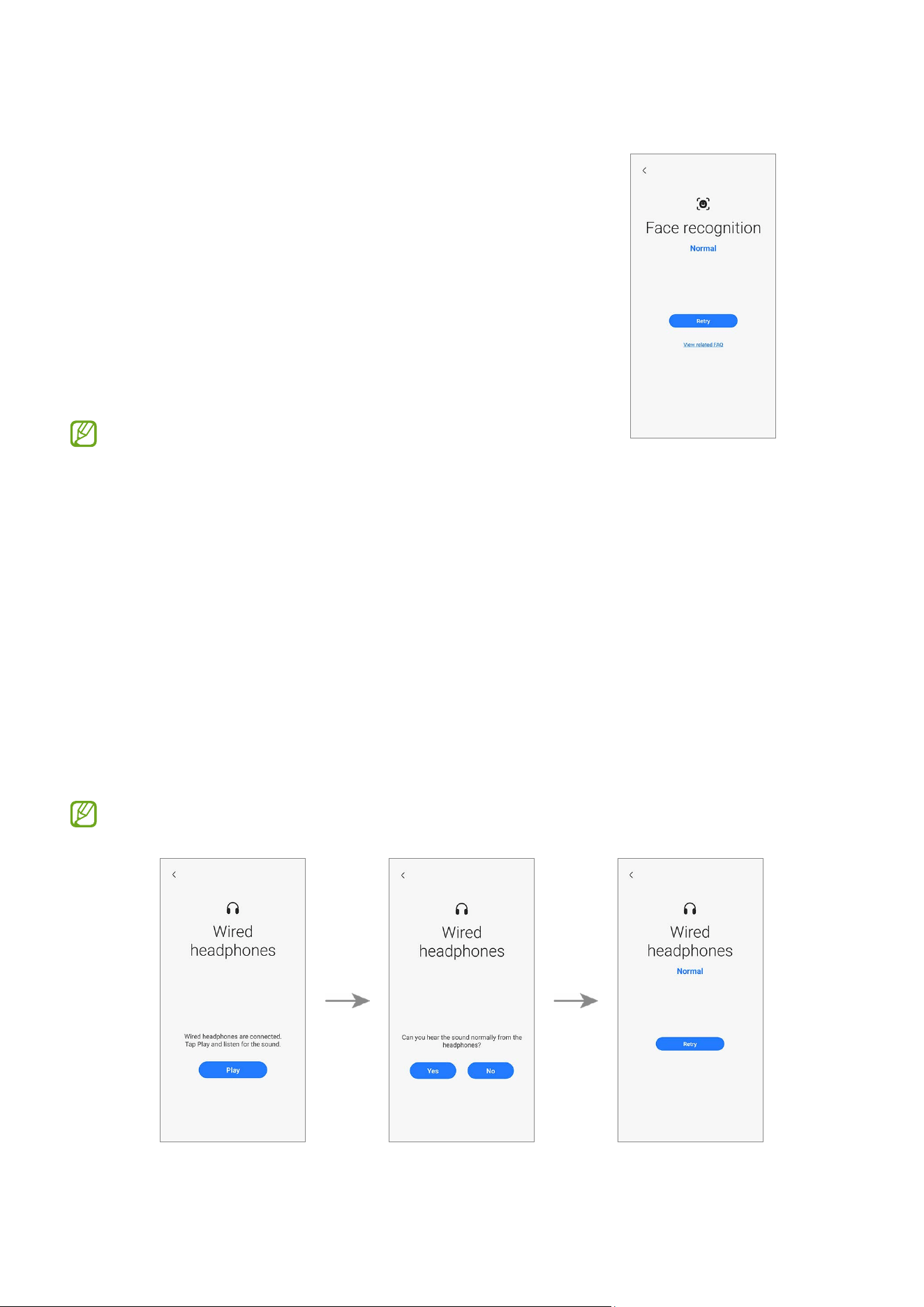
Face recognition
•
Purpose: Check whether the face recognition
sensor is working.
•
How to check:
Look at the screen.
•
Provided information
‒
Status: View whether the feature is working
normally.
‒
FAQ: View frequently asked questions.
To test this feature, your face must be
registered.
Wired headphones
•
Purpose: Check whether the headphone jack recognises the headphones normally.
•
How to check:
1) Connect headphones to your device.
2) Tap
Play
and listen for the sound.
3) Answer the question using the buttons.
•
Provided information
‒
Status: View whether the feature is working normally.
To test this feature, you must connect headphones.
Quality Test
23
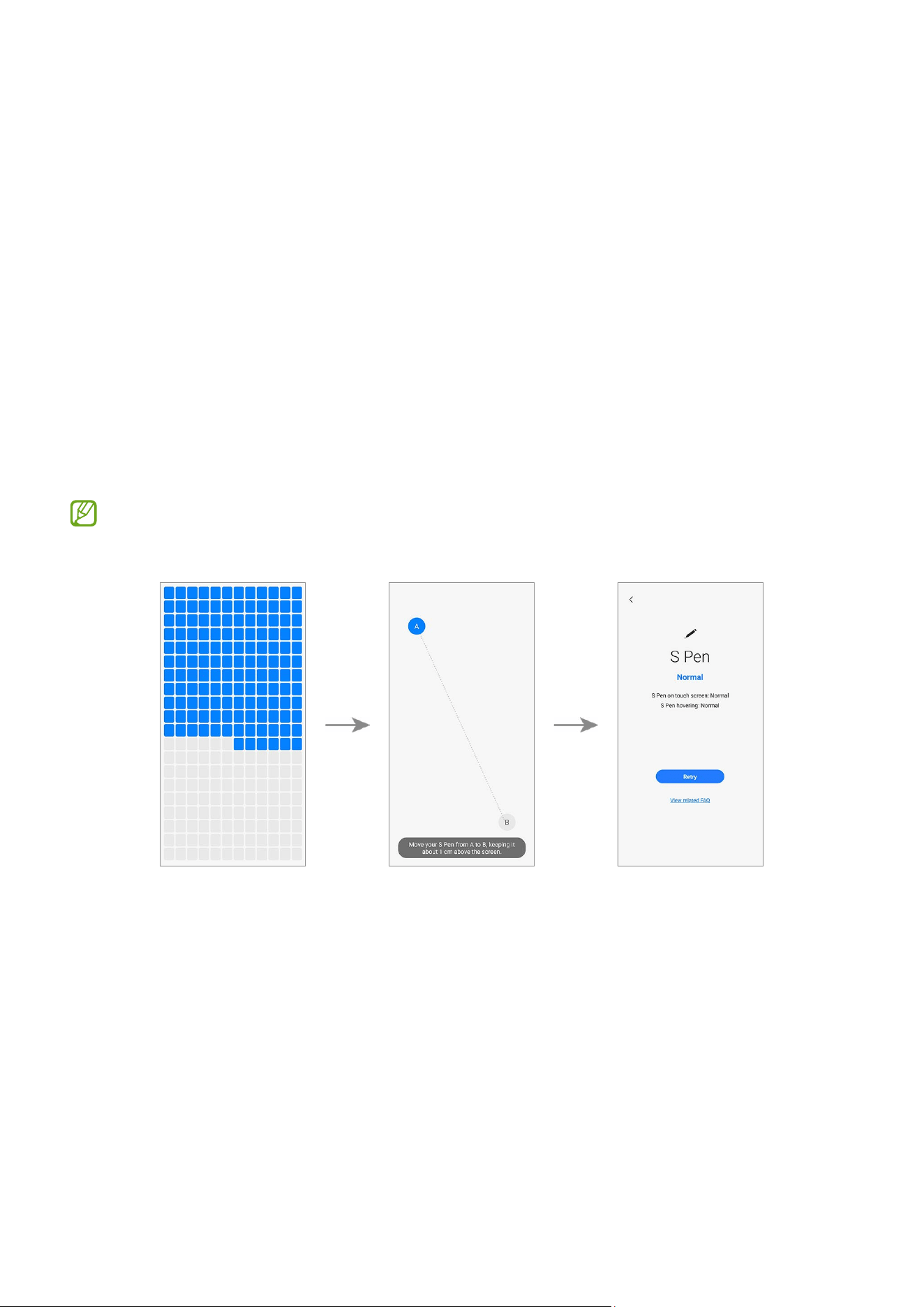
S Pen
•
Purpose: Check whether the S Pen is recognised in all areas of the touchscreen.
•
How to check:
1) Tap all the rectangles on the screen with the S Pen.
The tapped or dragged rectangles will turn blue.
2) Hover the S Pen over the screen and move from A to B.
The blue circle will move along with the S Pen.
•
Provided information
‒
Status: View whether the feature is working normally.
‒
S Pen features: View the status of S Pen features.
‒
FAQ: View frequently asked questions.
•
Make sure that the screen is clean to get more accurate test results.
•
This test is only available for the S Pen supported models.
Quality Test
24
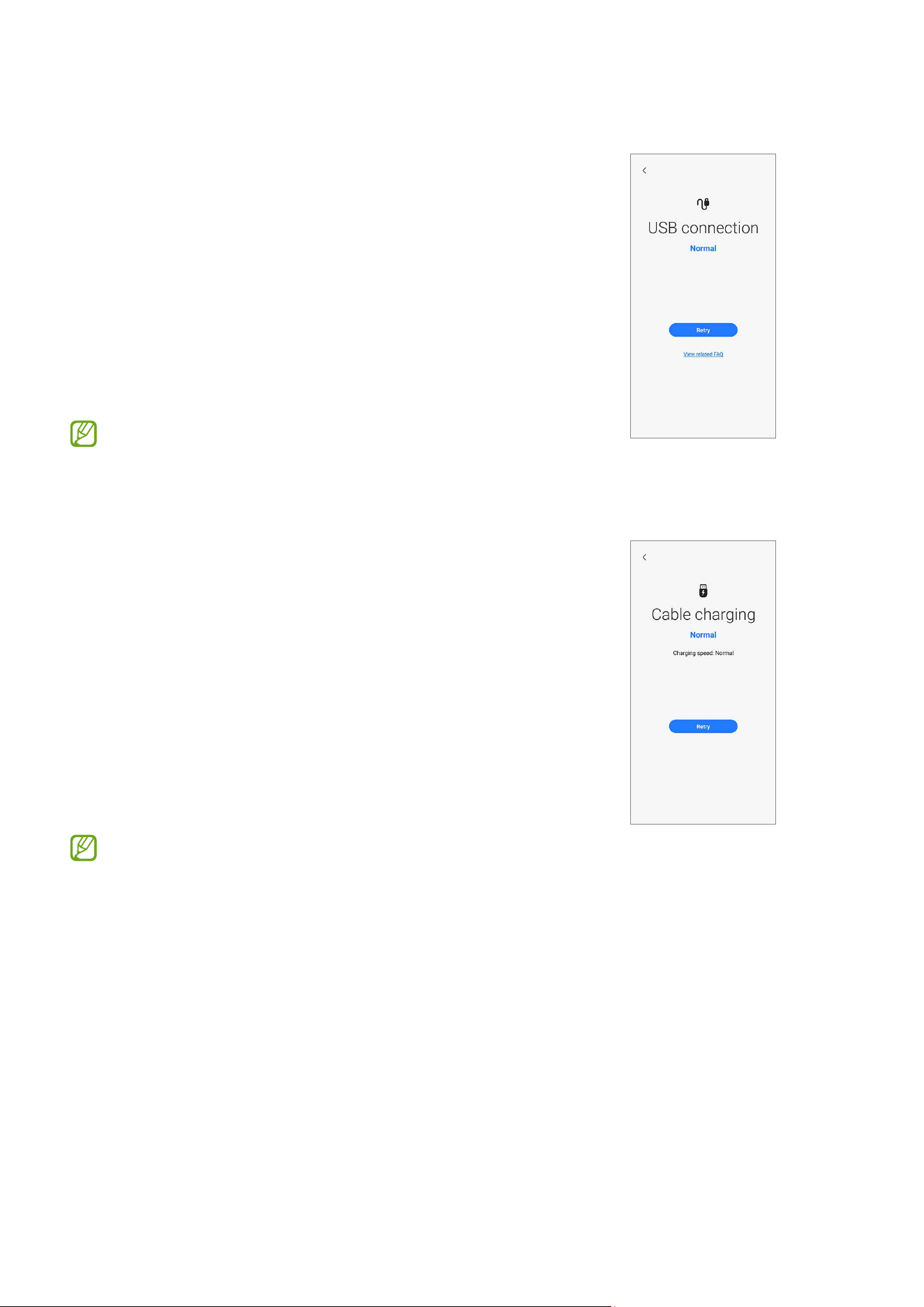
USB connection
•
Purpose: Check whether the multipurpose jack
recognises the USB cable normally.
•
How to check:
Connect any USB cable to your device.
•
Provided information
‒
Status: View whether the feature is working
normally.
‒
FAQ: View frequently asked questions.
To test this feature, the USB cable must be
connected to a computer.
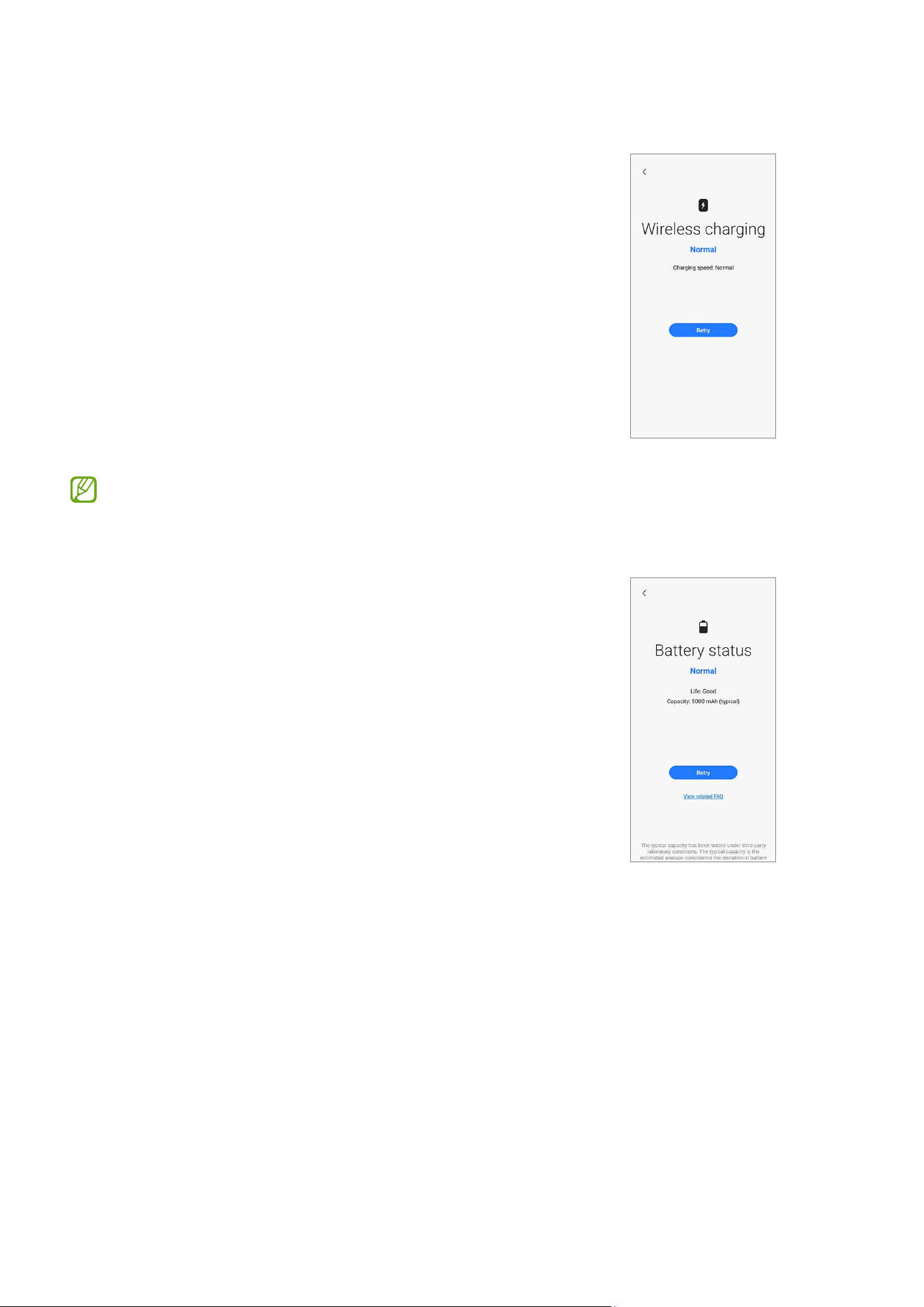
Cable charging
•
Purpose: Check whether the multipurpose jack
recognises the charger normally.
•
How to check:
Connect a charger to your device.
•
Provided information
‒
Status: View whether the feature is working
normally.
‒
Charging speed: View the charging speed
according to the charger you connected.
Use only Samsung-approved chargers.
Quality Test
25
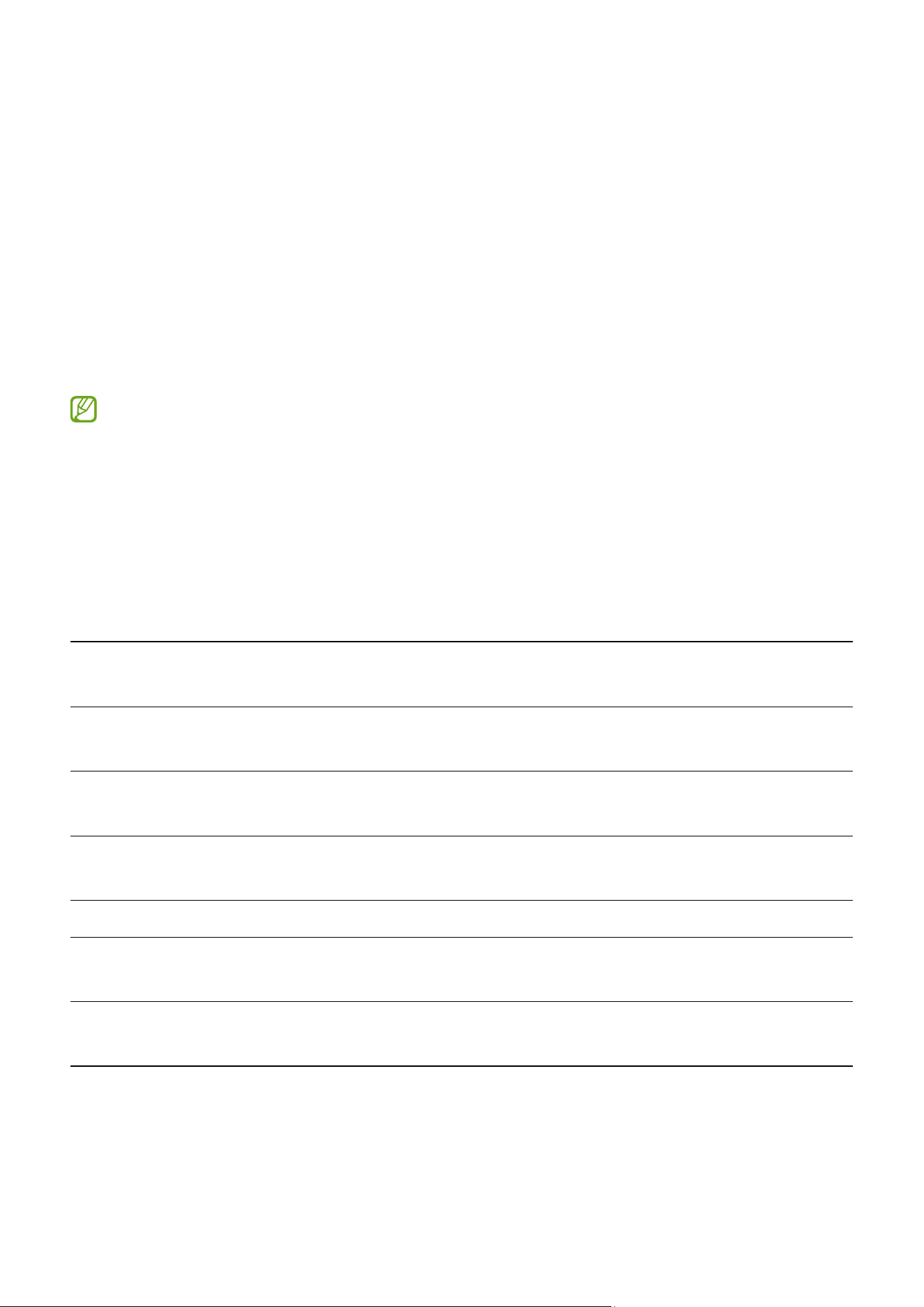
Wireless charging
•
Purpose: Check whether the wireless charging
feature is working normally.
•
How to check:
Put your device on a wireless charger.
•
Provided information
‒
Status: View whether the feature is working
normally.
‒
Charging speed: View the charging speed
according to the wireless charger you put your
device on.
Use only Samsung-approved wireless chargers.
Battery status
•
Function: Check the battery values and analysis.
•
Provided information
‒
Status: View whether the feature is working
normally.
‒
Life: View the remaining battery life
(measured by comprehensive battery values).
‒
Capacity: View the battery capacity.
‒
FAQ: View frequently asked questions.
Calibrations
26
Calibrations
Calibrations
In order to guarantee the stable and correct performance of components or sensors, it is
required to conduct calibrations through the
Self Repair Assistant
app after repair.
If the calibration results show any malfunctions, visit a Samsung Service Centre for
further action. Any malfunctions caused by your repair may incur additional repair
charges.
•
The
Self Repair Assistant
app is subject to update without any prior notice.
•
In order to conduct the accurate calibrations after repair, visit a Samsung Service
Centre or website to buy calibration equipment if you do not have any.
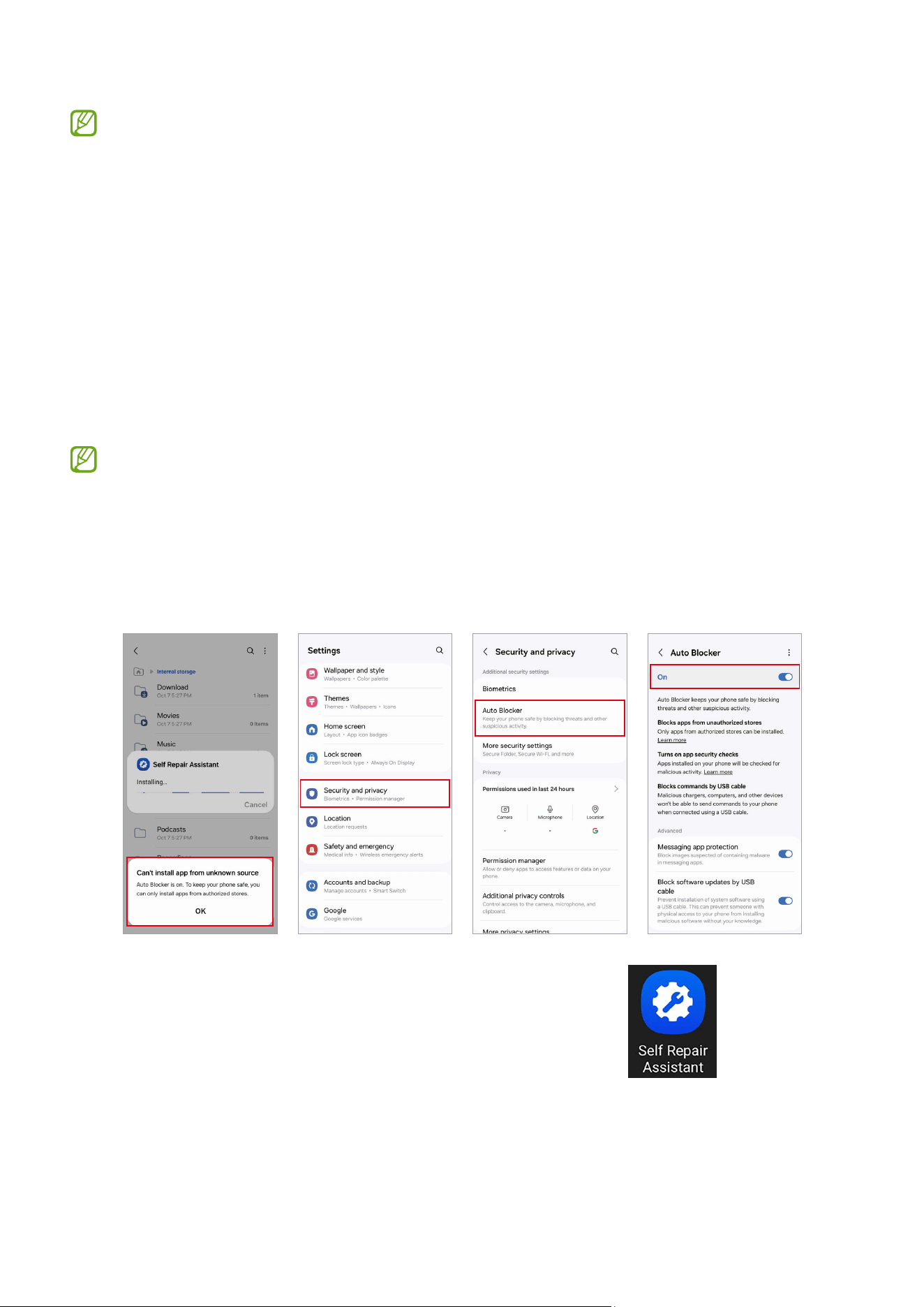
Used Parts and Calibration Functions in Supported Models
The calibration functions are automatically conducted based on the selected parts.
Screen Battery Back Glass Charging Port Speaker
Optical
Fingerprint Cal.
Yes No No No No
Range Sensor
Cal.
Yes Yes Yes Yes Yes
Battery Cycle
Resets.
No Yes No No No
Touch Screen
Panel Cal.
Yes No No No No
Speaker Cal. No No No No Yes
Under-display
Camera Cal.
Yes No No No No
Digital Hall
Sensor Cal.
Yes No No No No
Calibrations
27
•
Depending on the model, the screen module may include batteries. So when
the screen module is replaced, the battery also has to be selected and a battery
cycle reset must be performed.
•
In the Fold models, touch screen panel calibration is performed for both the
main and cover screens.
•
Digital hall sensor calibration is only for the Fold and Flip models and
under-display camera calibration is only for the Fold models.
Using the Self Repair Assistant App
1 Download the
Self Repair Assistant
app from
Galaxy Store
.
For US devices, you need to install the APK file for the
Self Repair Assistant
app
manually. However, if the
Auto Blocker
function which is provided from Android
OS 14 (U OS) is turned on, you cannot install any APK files manually through the
My
Files
app. In this case, launch the
Settings
app, tap
Security and privacy
→
Auto
Blocker
, and then tap the switch to turn it off to install the
Self Repair Assistant
app.
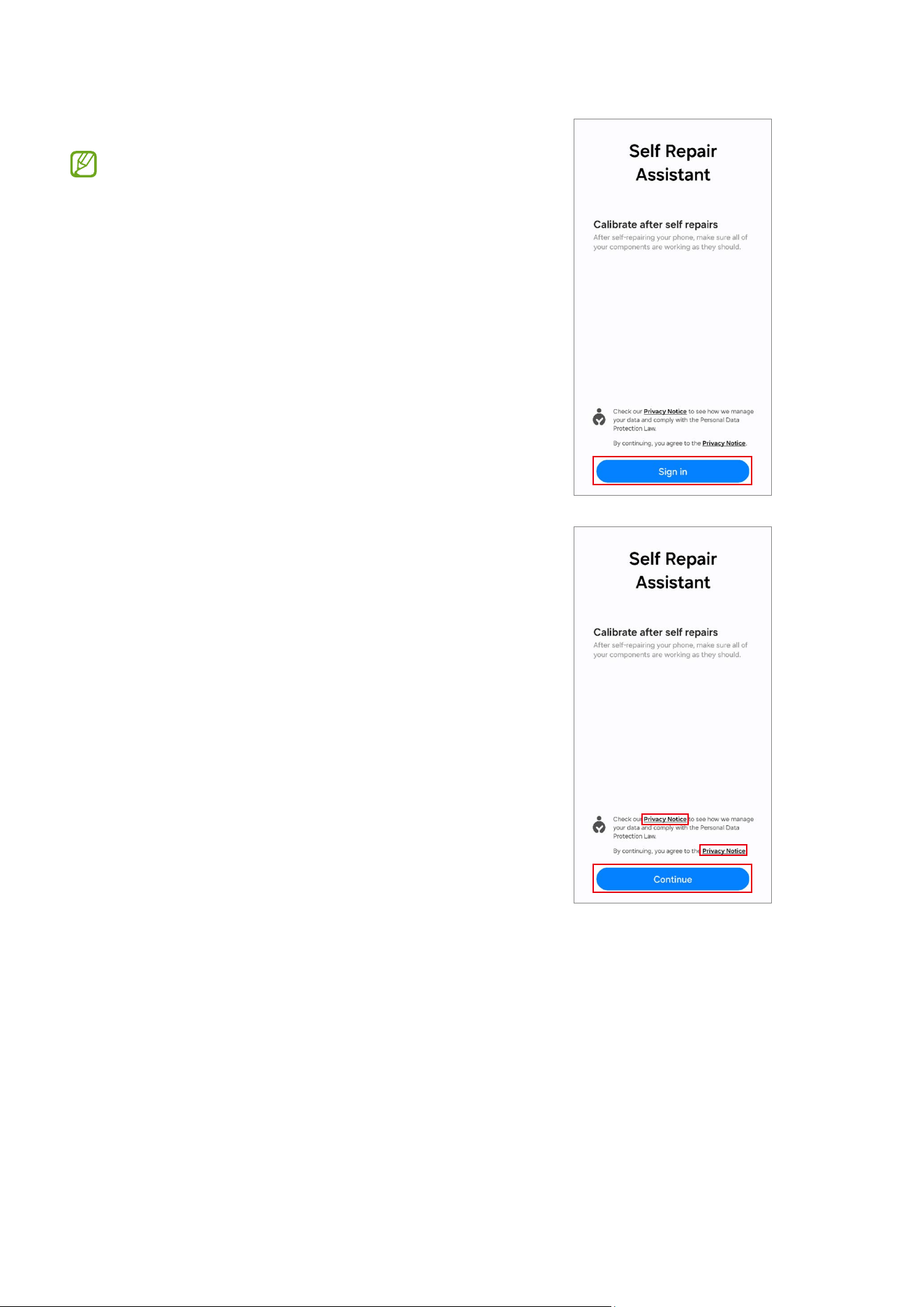
2 Launch the
Self Repair Assistant
app.
Calibrations
28
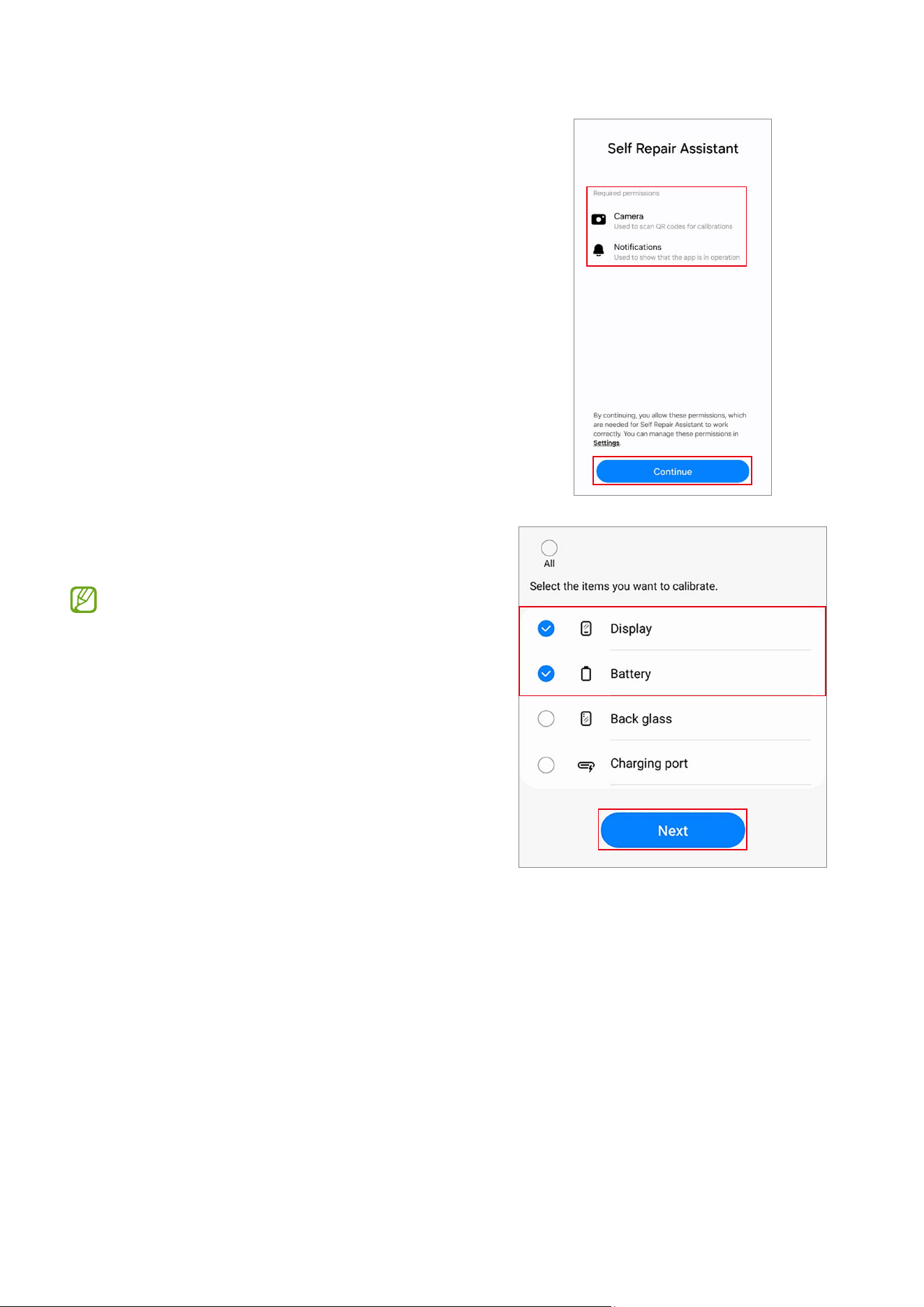
3 Read Privacy Notice and tap
Continue
.
•
If you are not signed in to your
Samsung account, a button will appear
to sign in.
•
If you select the link to read the full
Privacy Notice, you will be directed to
our site.
Calibrations
29
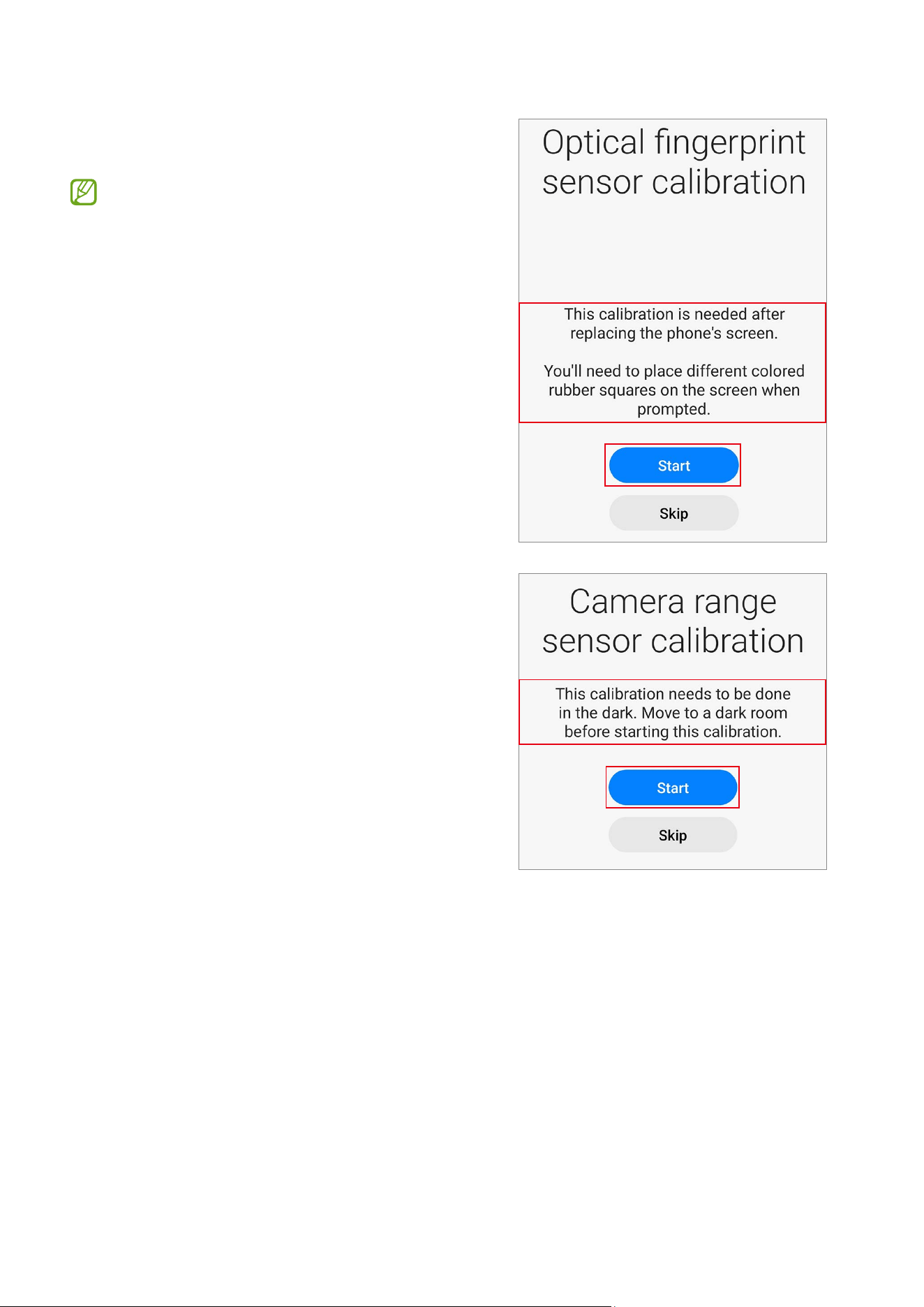
4 Check permissions and tap
Continue
.
5 Select the part that you have replaced and
tap
Next
.
•
The required calibrations will be
conducted automatically.
•
If the device does not have certain
components or sensors associated
with the part that has been replaced,
relative calibration will be skipped
automatically.
Calibrations
30
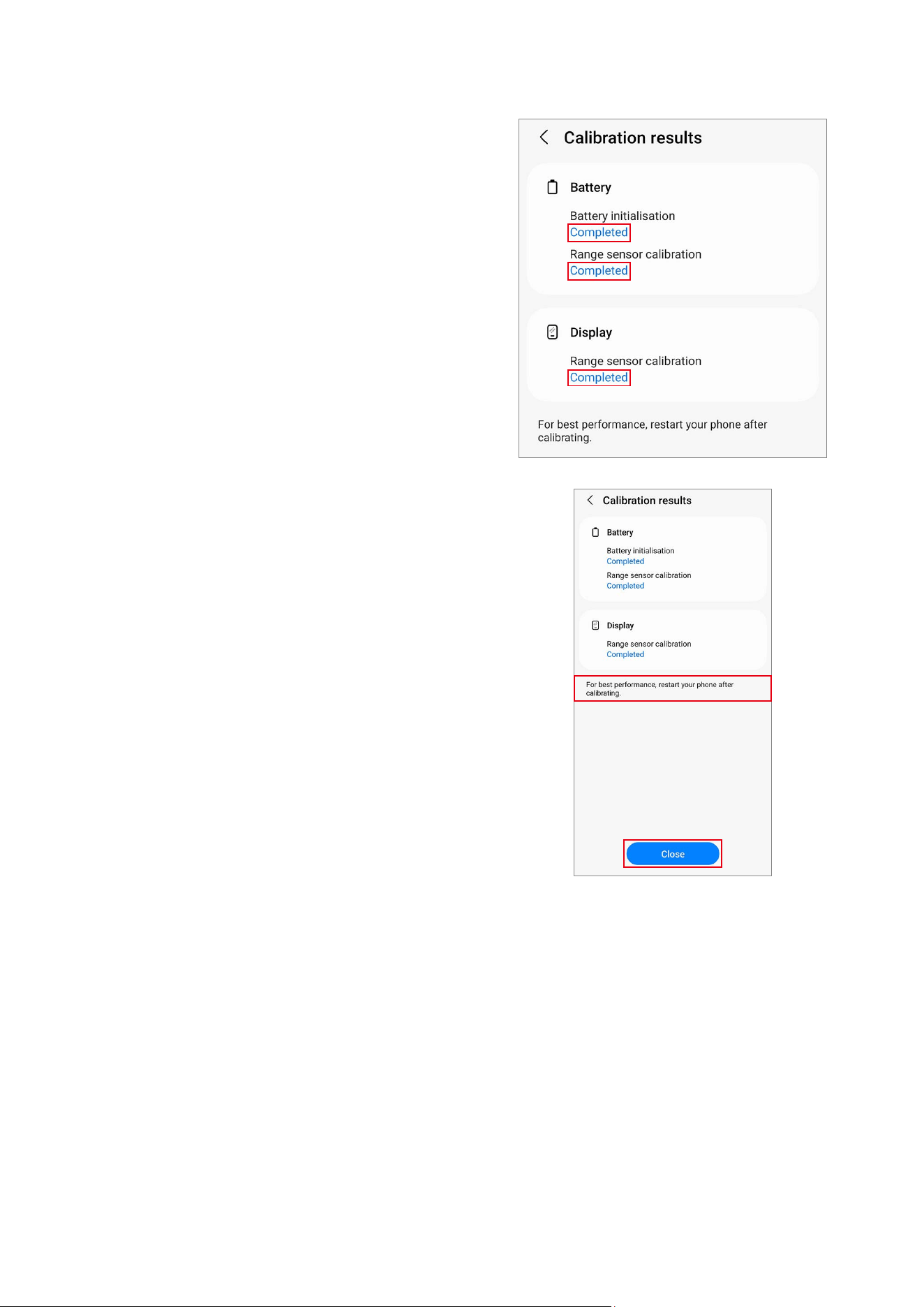
6 Read the on-screen instructions and tap
Start
.
Refer to Optical Fingerprint Sensor
Calibration, Resetting the Battery Cycle
Count, Range Sensor Calibration, Touch
Screen Panel Calibration, Speaker
Calibration, Under-display Camera
Calibration (Fold Models Only), and
Digital Hall Sensor Calibration (Fold and
Flip Models Only) for more information.
Calibrations
31
7 Check the results of each calibration item.
•
Completed
: Calibration was done
normally.
•
Failed
: Calibration failed.
•
Skipped
: Calibration was skipped.
8 On the calibration results page, tap
Close
to close the app.
Restart your device to finish calibrating.
Calibrations
32
Optical Fingerprint Sensor Calibration
Whenever the screen is replaced, the optical fingerprint sensor must be calibrated to
guarantee optimised fingerprint sensor performance for devices that have it.
Optical fingerprint sensor calibration is available through the
Self Repair Assistant
app.
•
This feature may not be available depending on the model. The availability of
this feature can be automatically checked in the Self Repair Assistant app, so
please follow the guidance of the Self Repair Assistant app.
•
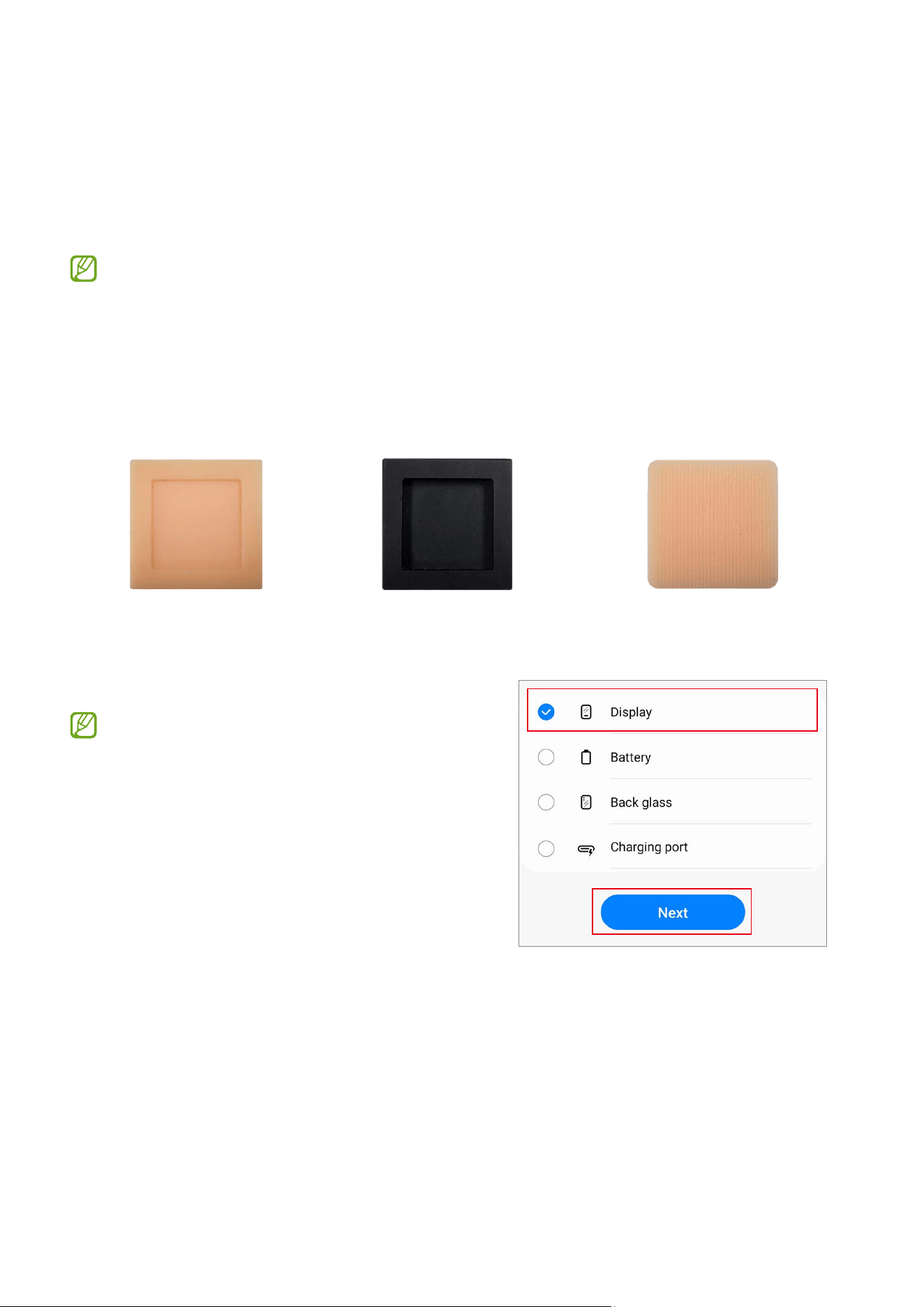
Three rubbers (the white calibration box, the black calibration box, and the 3D
fingerprint dummy rubber) are required to start this calibration.
White calibration box Black calibration box 3D fingerprint dummy rubber
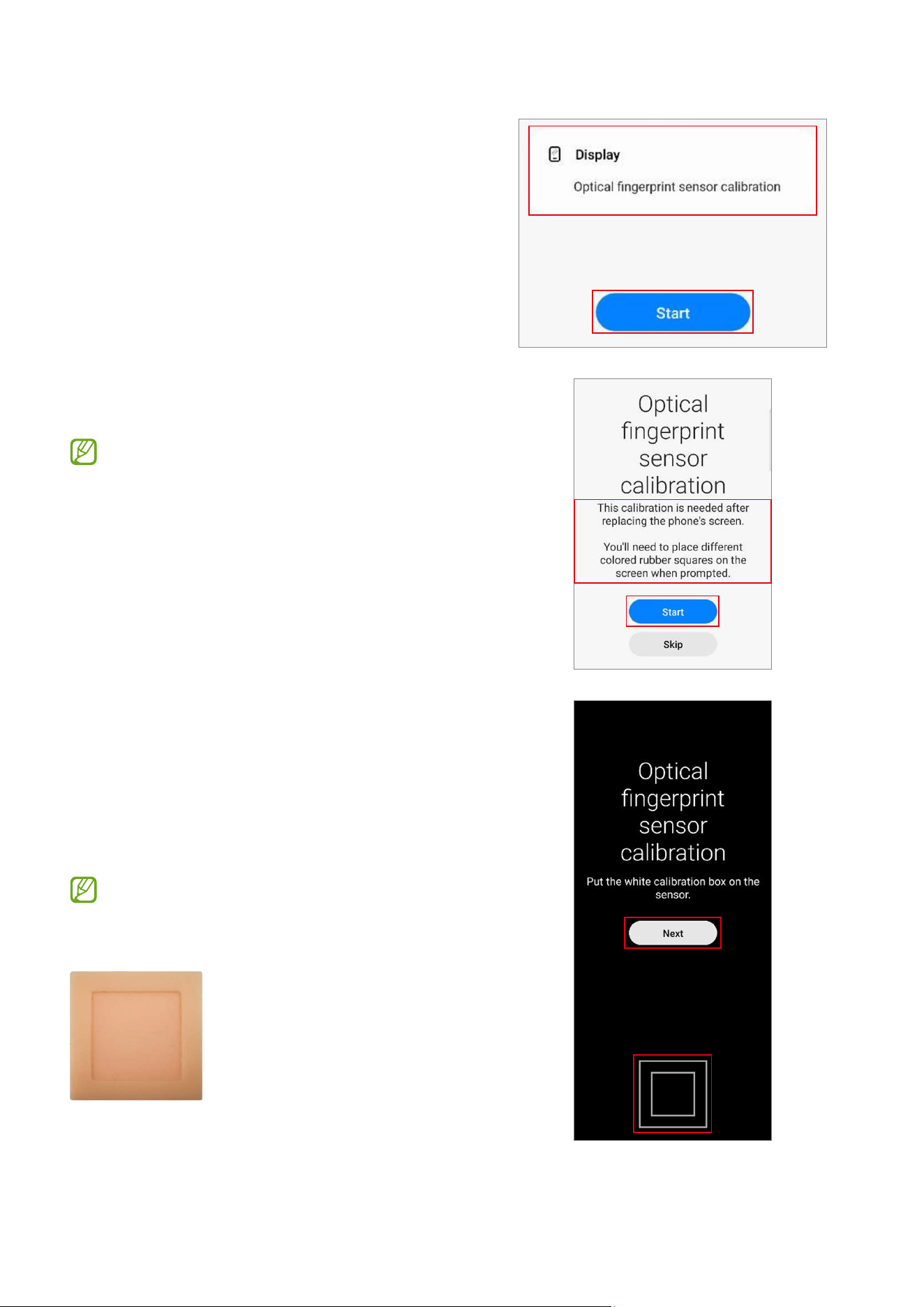
1 Launch the
Self Repair Assistant
app.
2 Tap
Display
→
Next
.
•
The required calibration or test items
will be processed automatically.
•
If the device does not have certain
components or sensors associated
with the part that has been replaced,
relative calibration will be skipped
automatically.
Calibrations
33
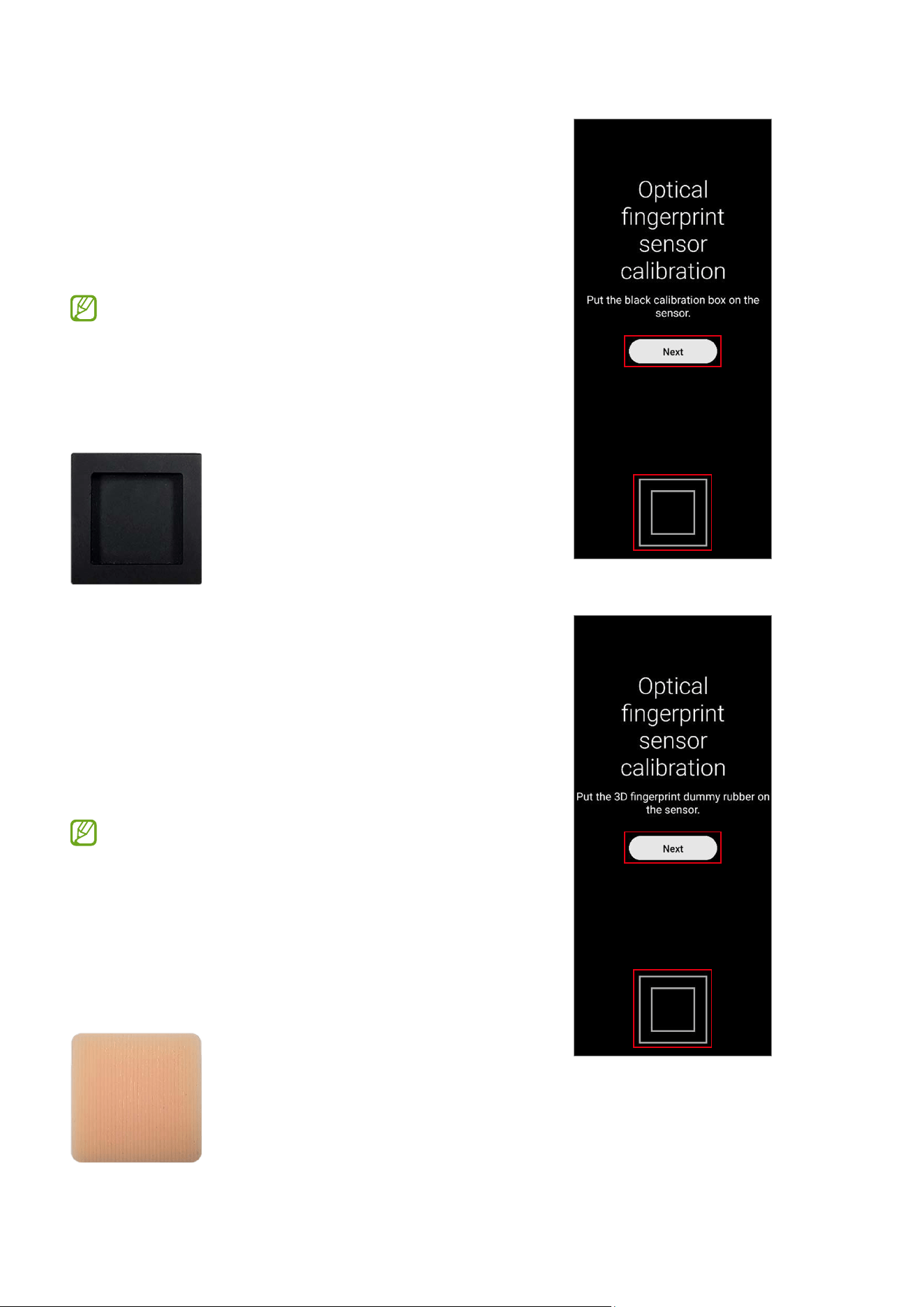
3 Check the part and calibration and then tap
Start
.
4 Read the on-screen instructions and tap
Start
.
The white calibration box must be
prepared before you start.
5 Put the white calibration box on the sensor
area (below the square side) and push the
rubber by applying force with your finger.
Tap
Next
and keep pushing the rubber
with your finger until you see the success
message.
The bottom side of the rubber that is
shaped like a square should be located
on the square guide line.
Calibrations
34
6 Put the black calibration box on the sensor
area (below the square side) and push the
rubber by applying force with your finger.
Tap
Next
and keep pushing the rubber
with your finger until you see the success
message.
•
The black calibration box must be
prepared before you start.
•
The bottom side of the rubber that is
shaped like a square should be located
on the square guide line.
7 Put the 3D fingerprint dummy rubber on
the sensor area (below the square side) and
push the rubber by applying force with your
finger.
Tap
Next
and keep pushing the rubber
with your finger until you see the success
message.
•
The 3D fingerprint dummy rubber
must be prepared before you start.
•
The bottom side of the rubber that is
shaped like a square should be located
on the square guide line. (Do not place
the pattern horizontally on the 3D
fingerprint dummy rubber.)
Calibrations
35
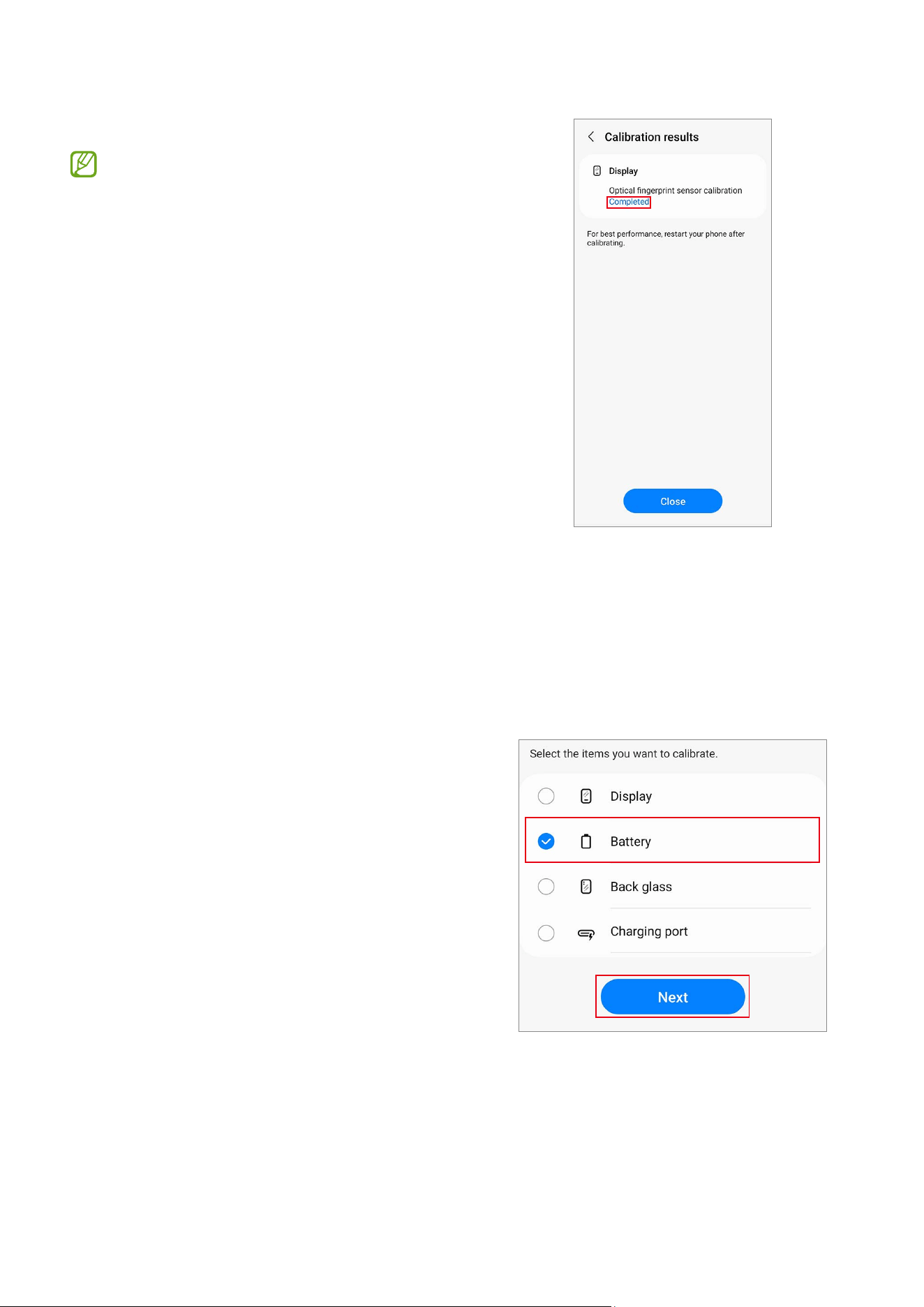
8 Check the result of the calibration.
Completed
appears only when the
calibration is successfully completed.
If
Completed
does not appear, try
calibrating again.
Resetting the Battery Cycle Count
The battery cycle count should be reset whenever your device’s battery is replaced.
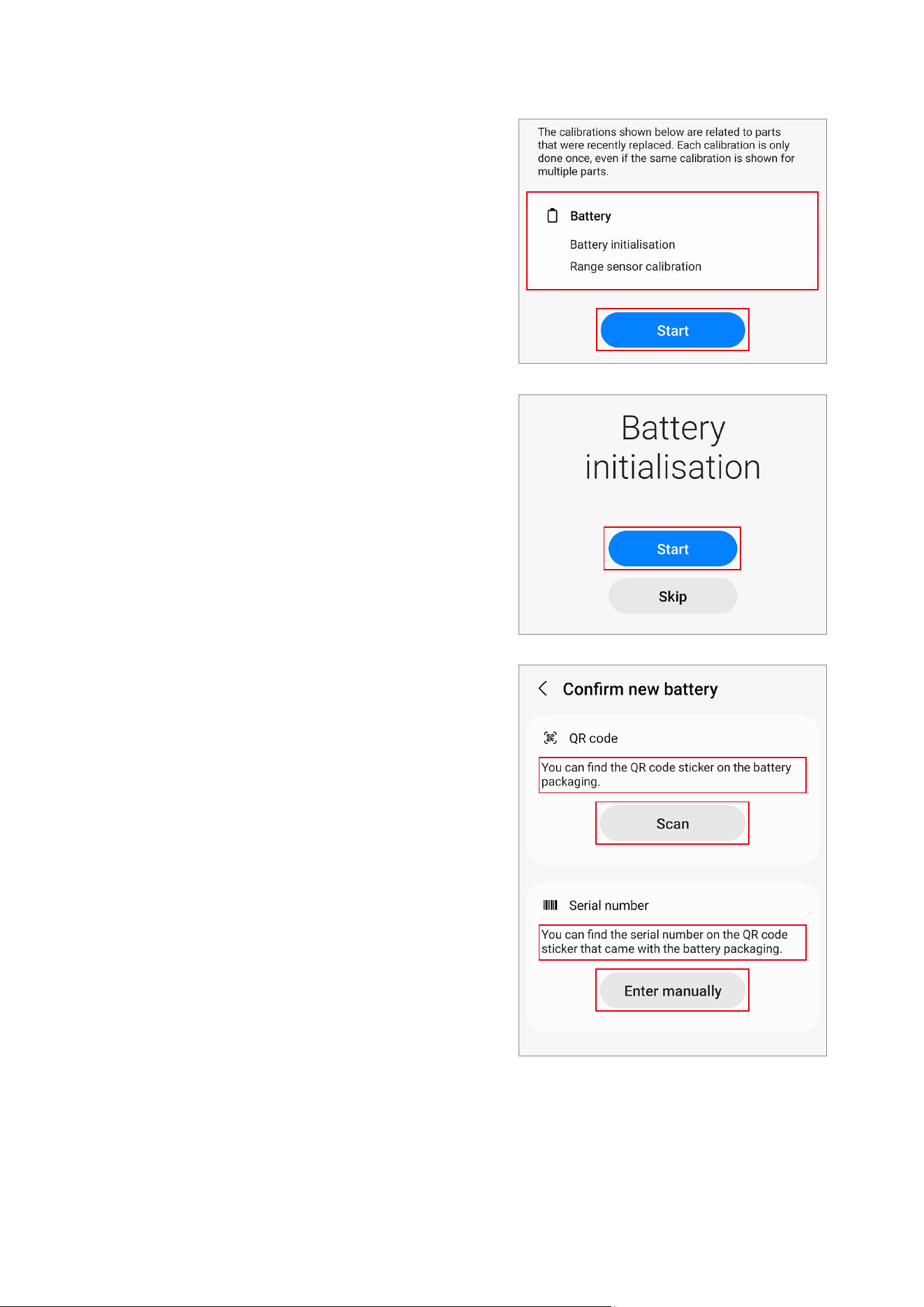
1 Launch the
Self Repair Assistant
app.
2 Select the part that you have replaced.
Tap
Battery
→
Next
.
Calibrations
36
3 Check part and calibration and tap
Start
.
4 Tap
Start
.
5 Read the on-screen instructions and tap
Scan
to scan the QR code, or tap
Enter
manually
to enter the serial number
manually.
Calibrations
37
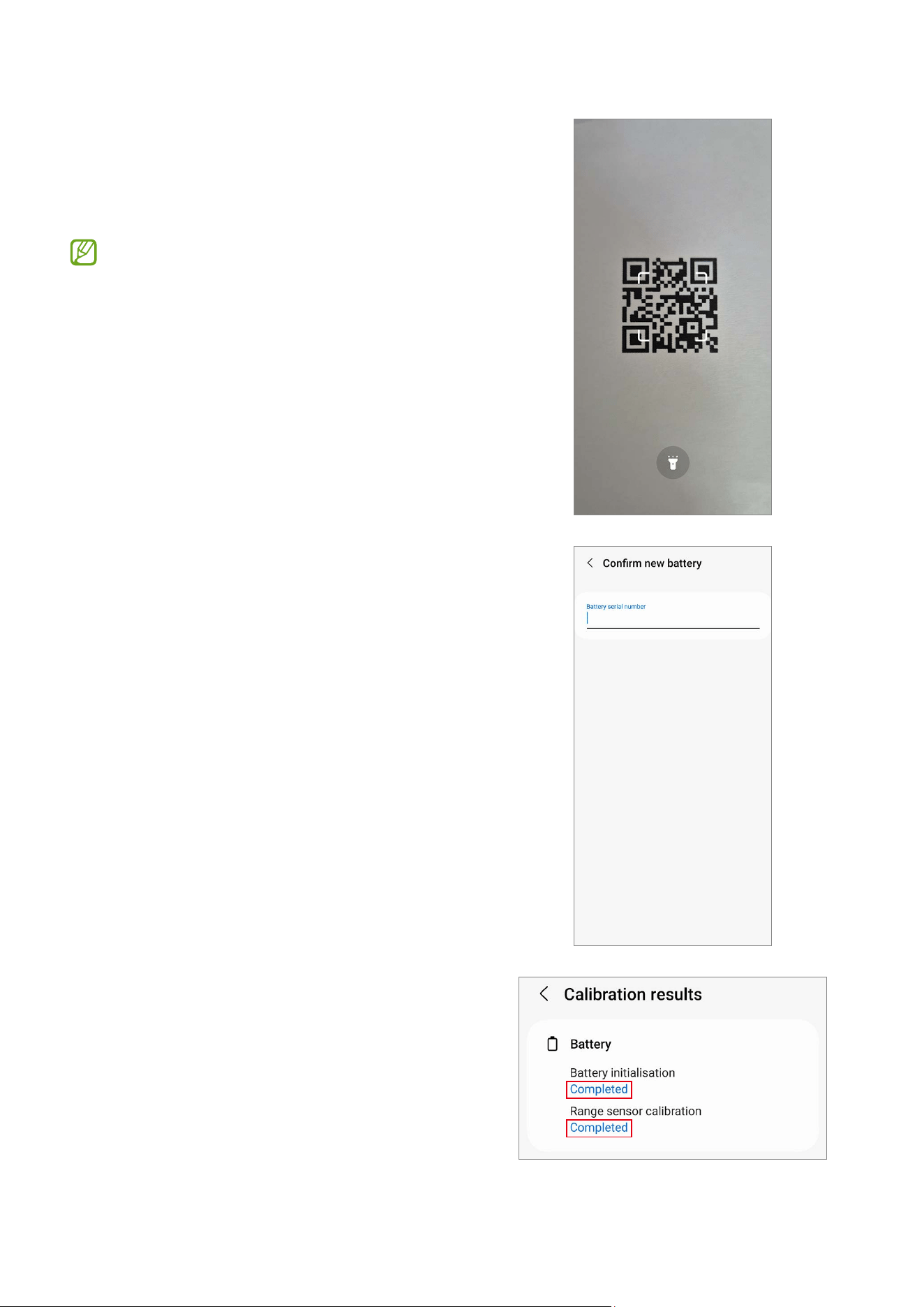
6 Scan the QR code or enter the serial
number that appears on the battery
package.
The reset will begin.
This image is an example of the QR code.
Make sure to scan the QR code on the
battery package.
7 Check the calibration results.
Calibrations
38
Range Sensor Calibration
When replacing screens, batteries, back glasses, or charging ports, range sensor
calibration is required to ensure the range sensors of devices equipped with them are
optimised.
Range sensor calibration is available through the
Self Repair Assistant
app.
Some content may differ from your device depending on the region, service
provider, model specifications, or device’s software.
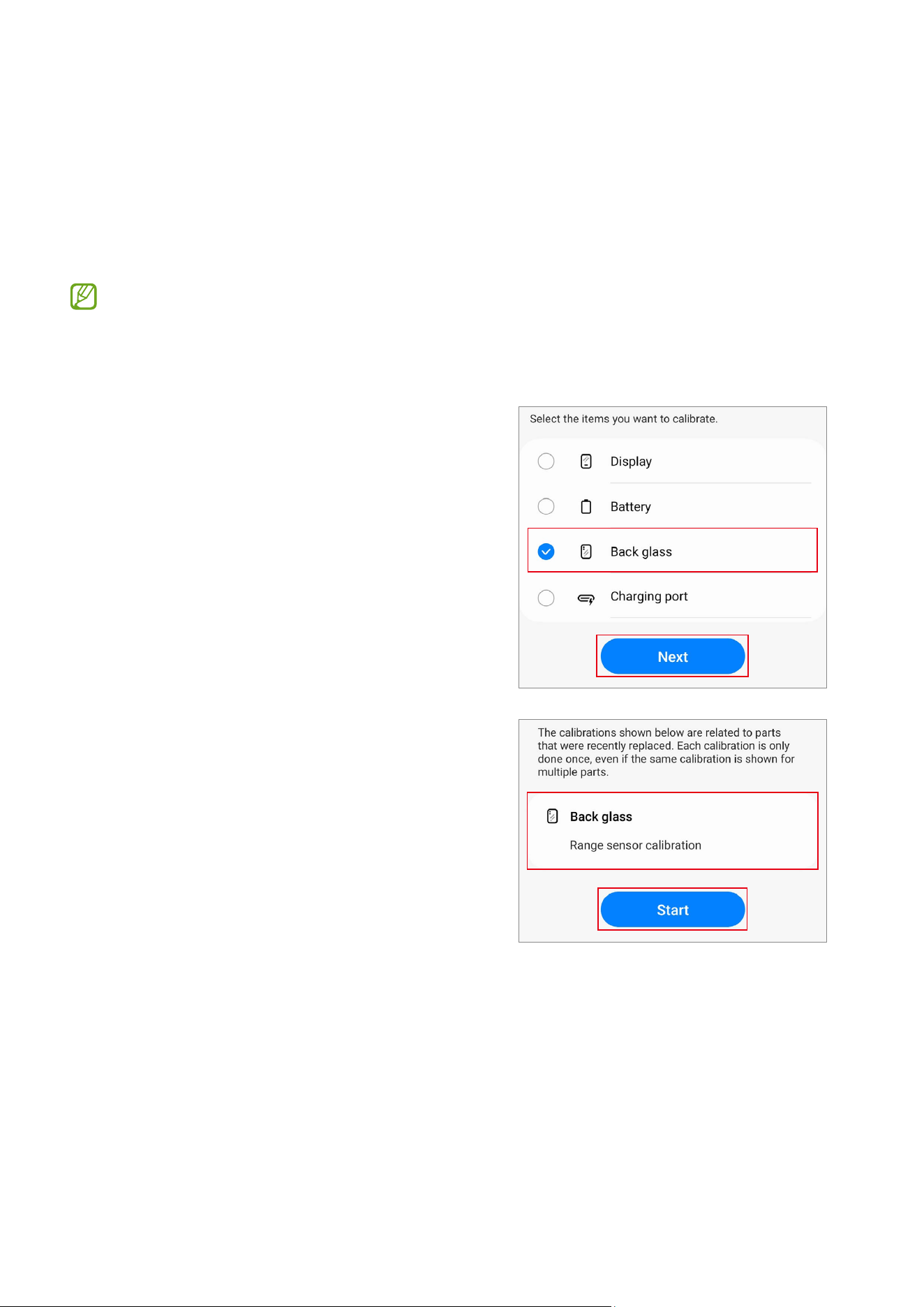
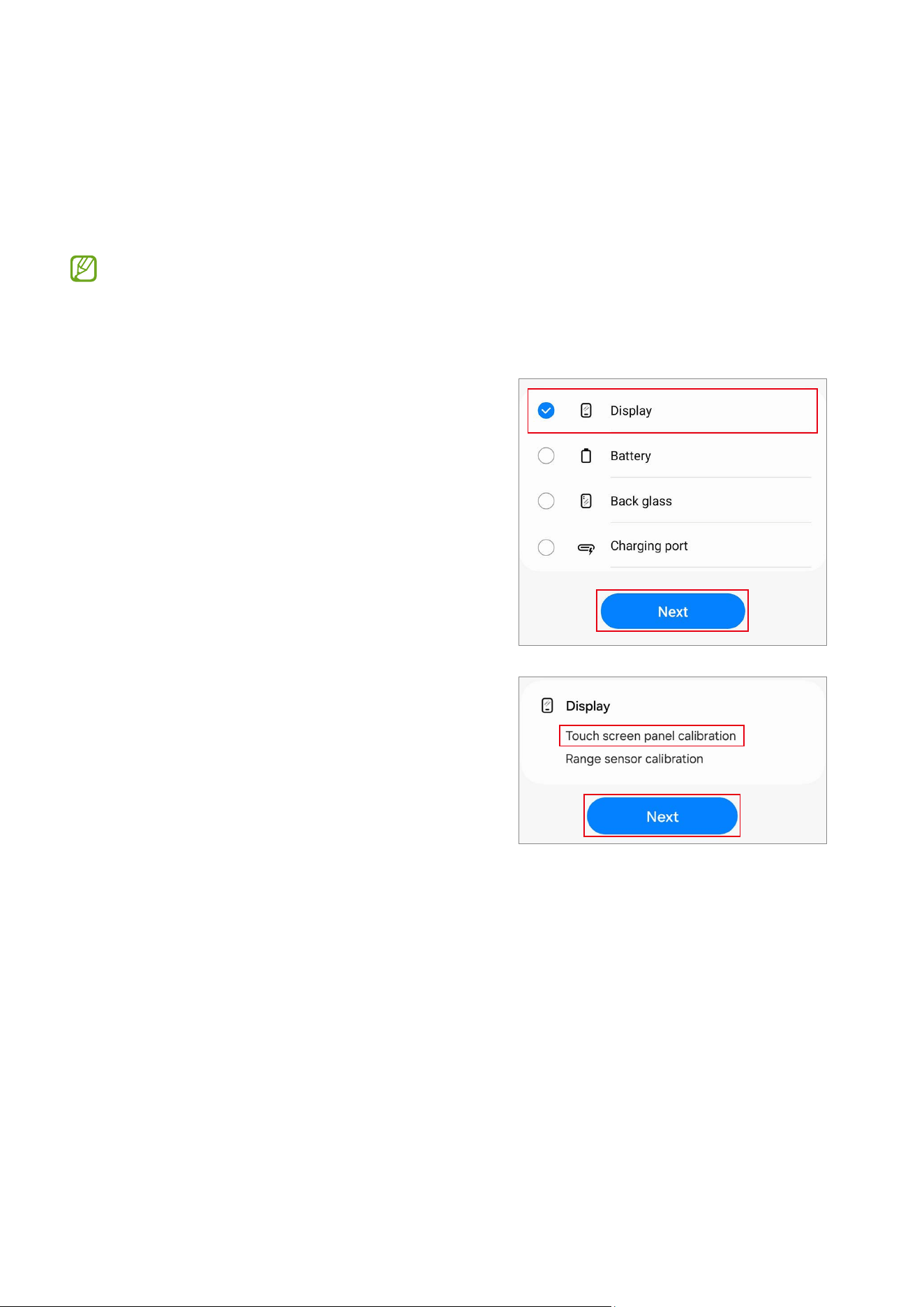
1 Launch the
Self Repair Assistant
app.
2 Select the part that you have replaced and
tap
Next
.
3 Check part and calibration and tap
Start
.
Calibrations
39
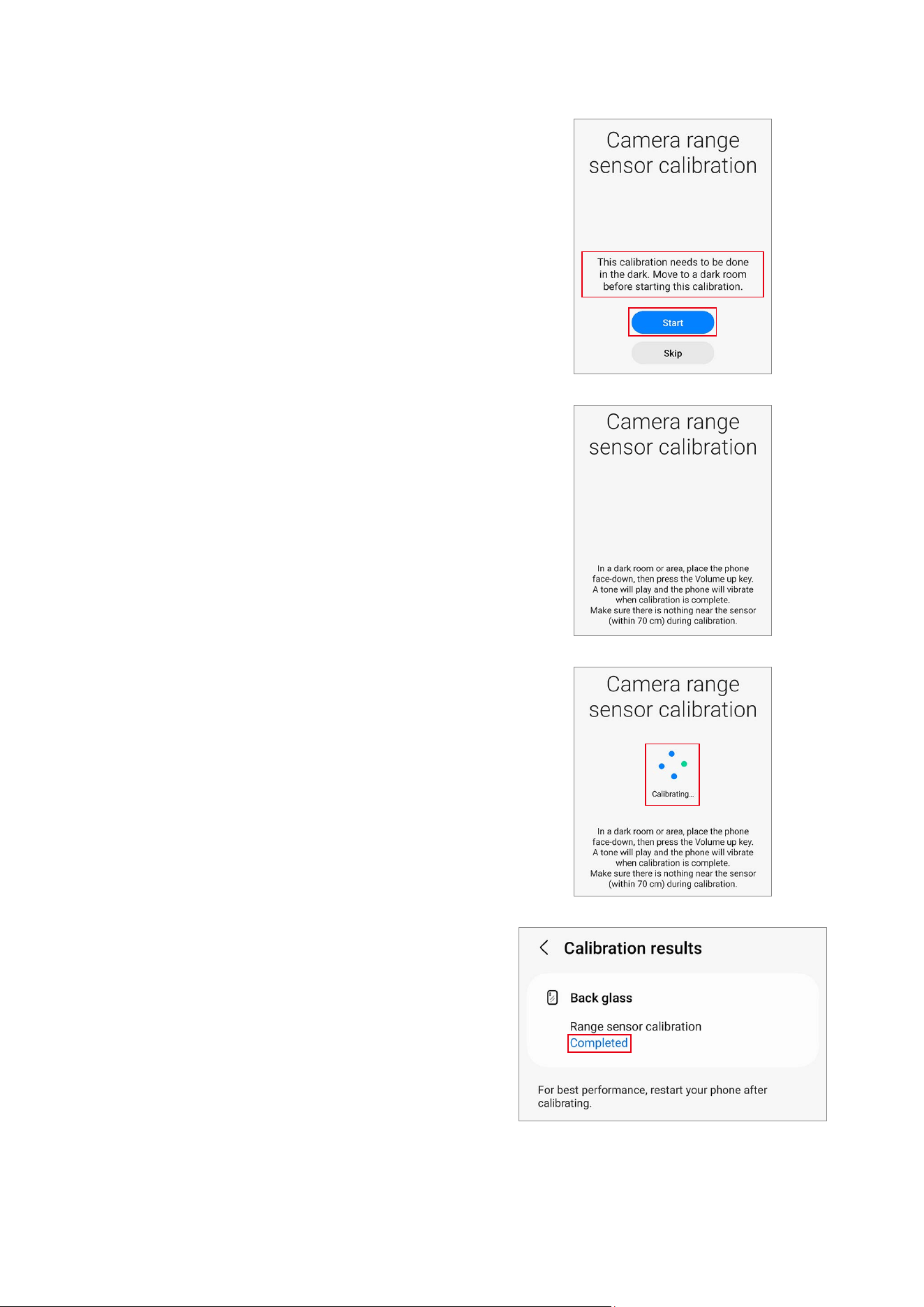
4 Read the on-screen instructions and tap
Start
.
5 In a dark room or area, place the phone
face-down, then press the Volume button.
6 The calibration will perform automatically.
A tone will play when calibration is
complete.
7 Check the calibration result.
Calibrations
40
Touch Screen Panel Calibration
When replacing screens, touch screen panel calibration is required to ensure accurate
touch input.
Touch screen panel calibration is available through the
Self Repair Assistant
app.
In the Fold models, touch screen panel calibration is performed for both the main
and cover screens.
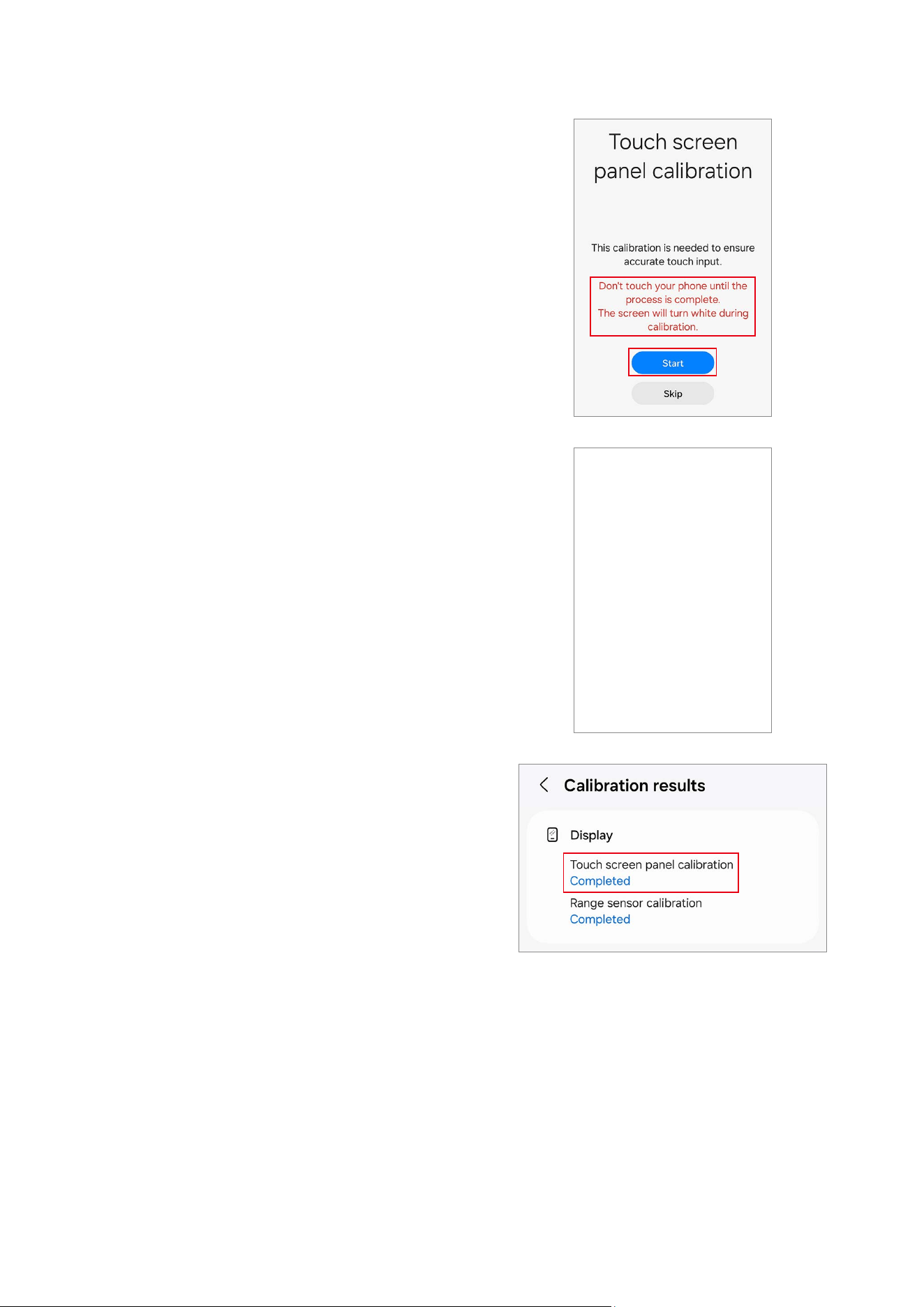
1 Launch the
Self Repair Assistant
app.
2 Select the part that you have replaced and
tap
Next
.
3 Check part and calibration and tap
Next
.
Calibrations
41
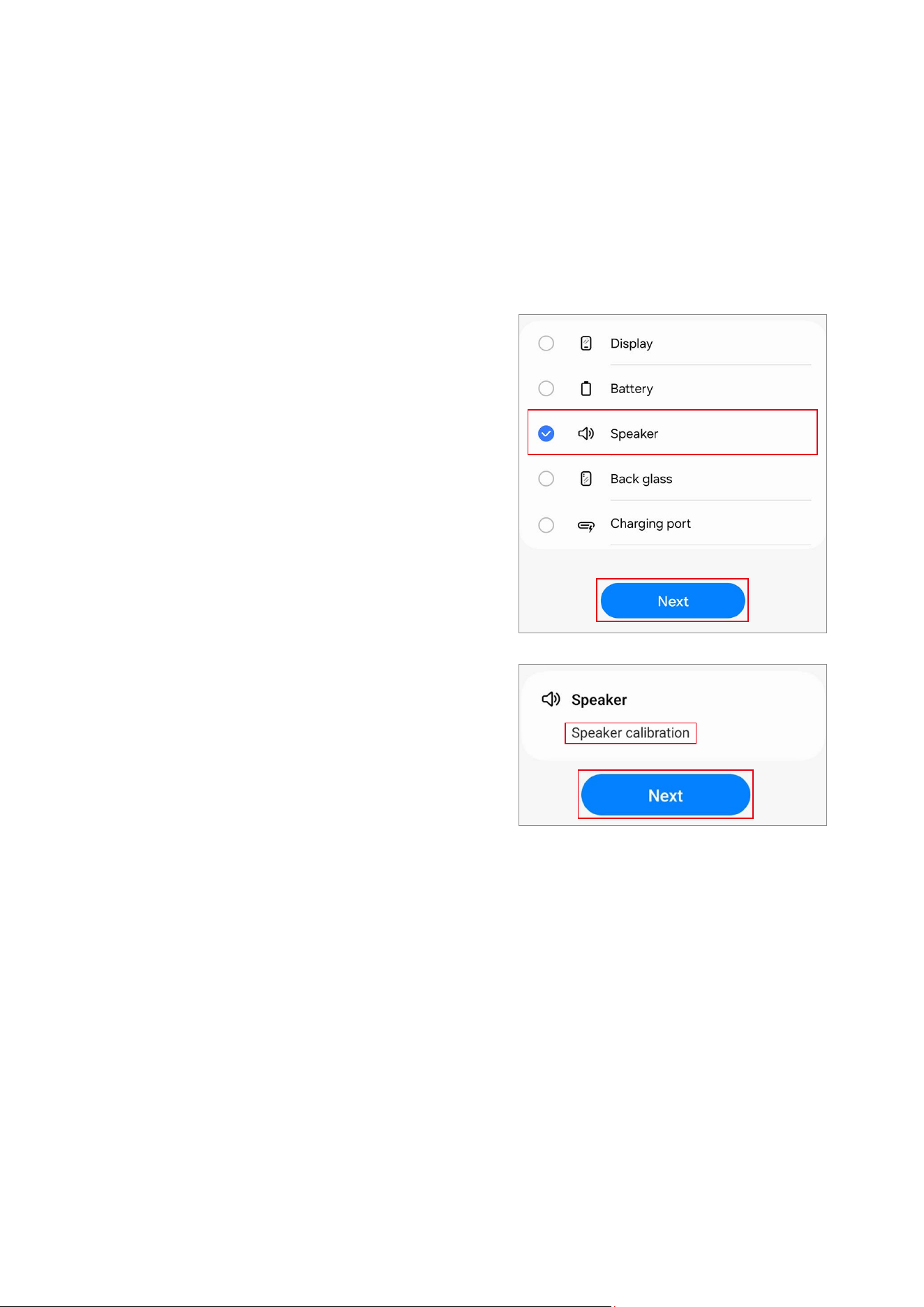
4 Read the on-screen instructions and tap
Start
.
5 The calibration will perform automatically
and the screen will turn white during
calibration.
6 Check the calibration result.
Calibrations
42
Speaker Calibration
When replacing speakers, the speaker must be calibrated to guarantee optimised
speaker performance for devices that have it.
Speaker calibration is available through the
Self Repair Assistant
app.
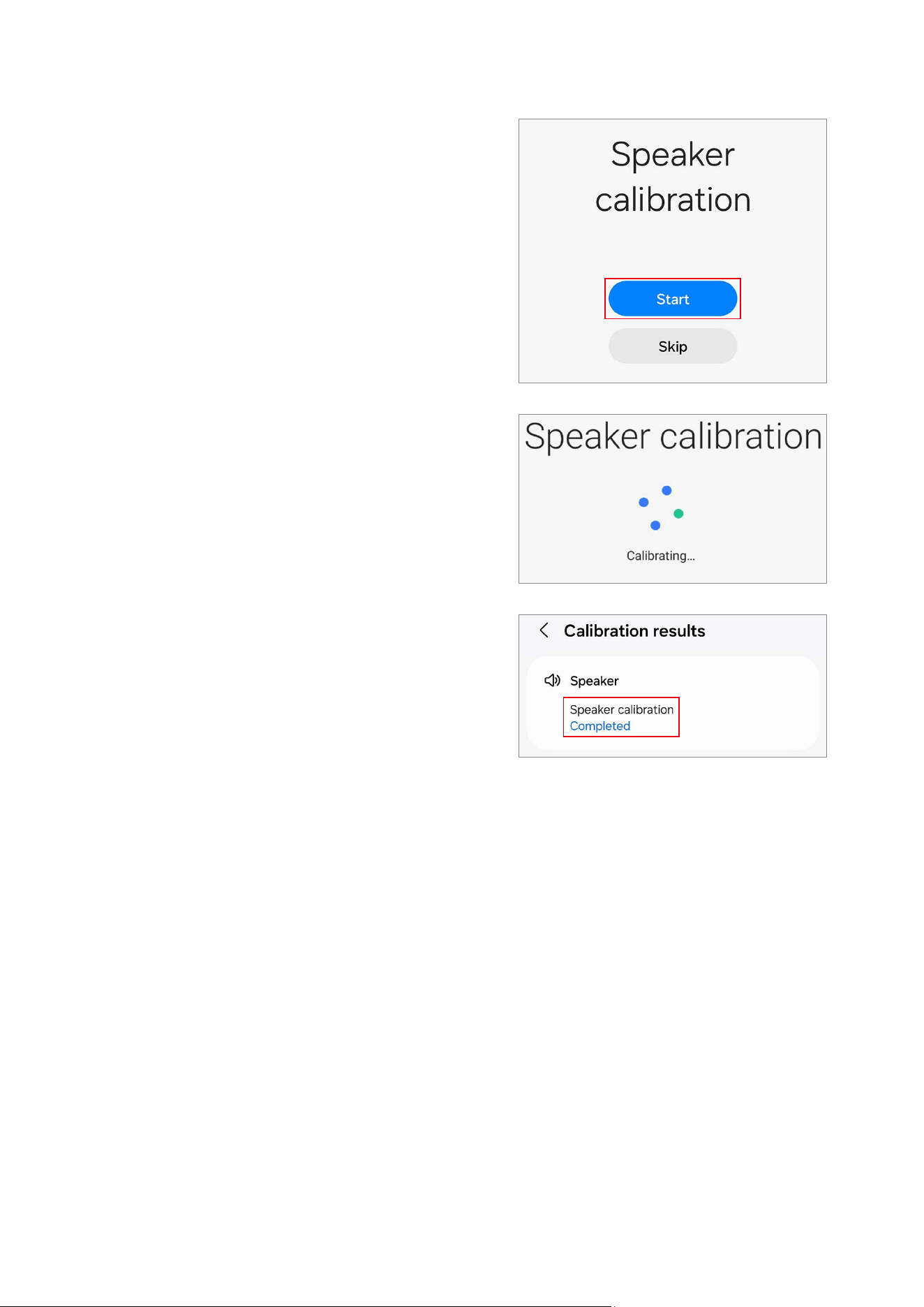
1 Launch the
Self Repair Assistant
app.
2 Select the part that you have replaced and
tap
Next
.
3 Check part and calibration and tap
Next
.
Calibrations
43
4 Tap
Start
.
5 The calibration will perform automatically.
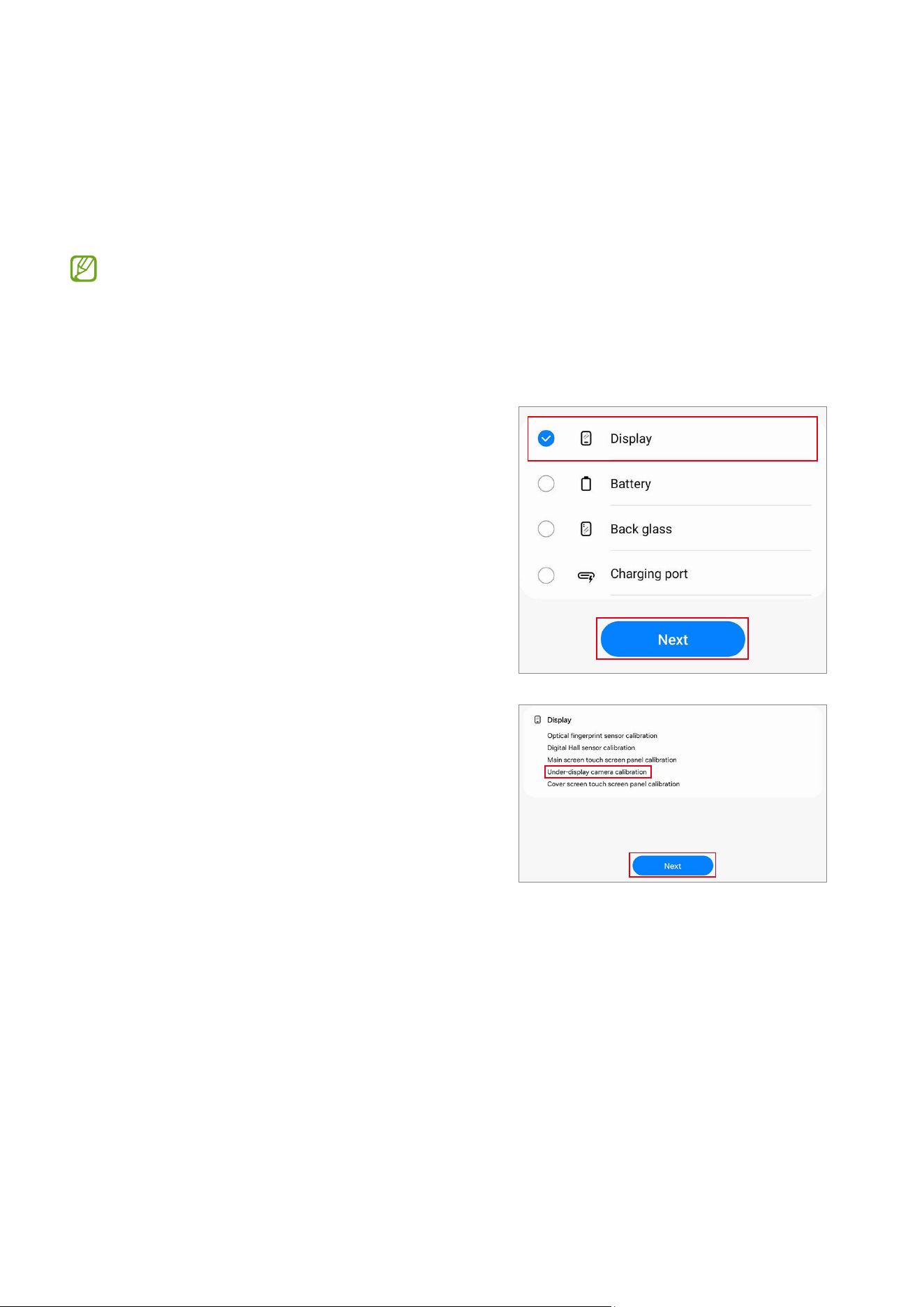
6 Check the calibration result.
Calibrations
44
Under-display Camera Calibration (Fold Models Only)
Whenever the screen is replaced, the under-display camera must be calibrated to
guarantee optimised under-display camera performance for devices that have it.
Under-display camera calibration is available through the
Self Repair Assistant
app.
This feature may not be available depending on the model. The availability of this
feature can be automatically checked in the Self Repair Assistant app, so please
follow the guidance of the Self Repair Assistant app.
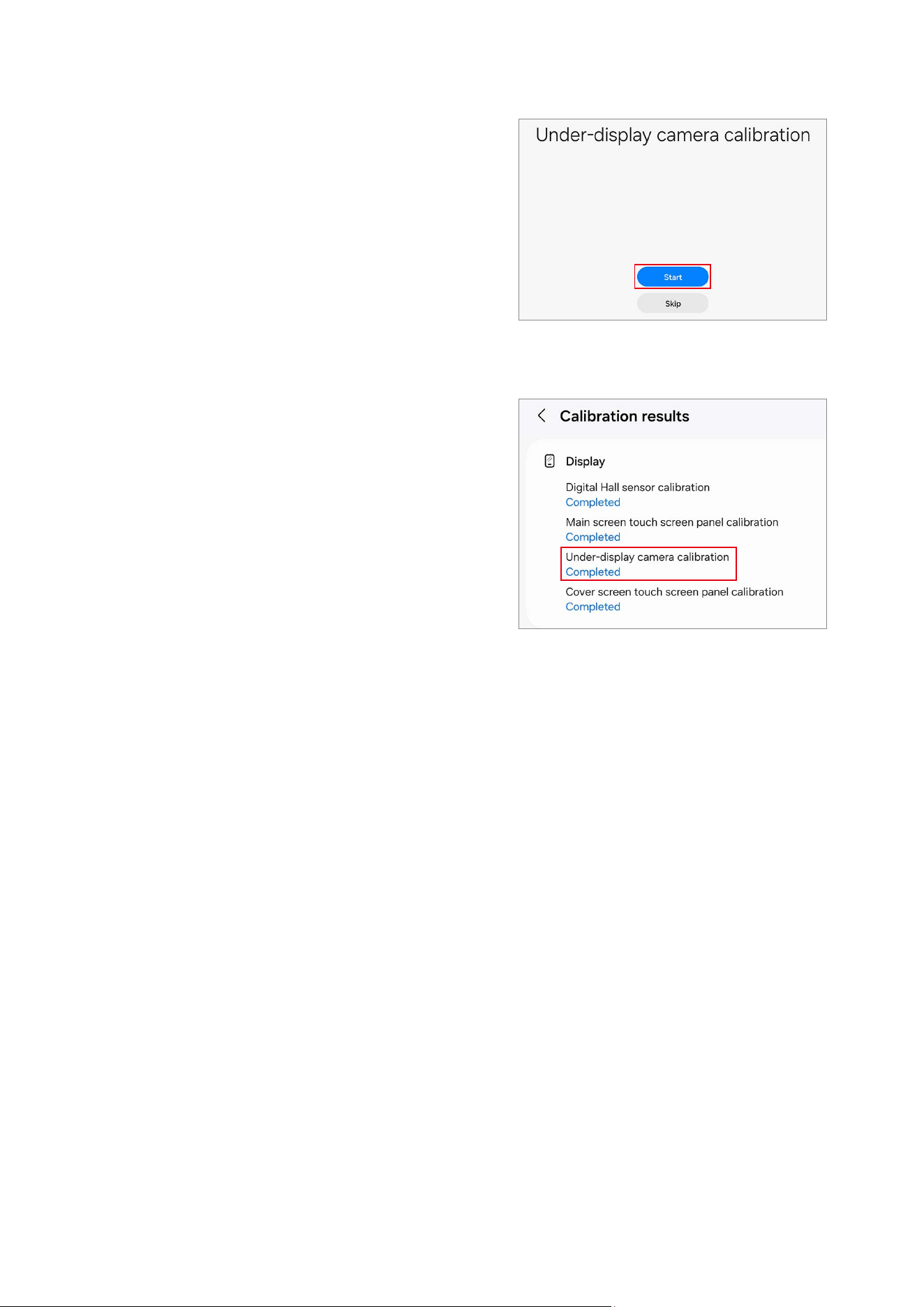
1 Launch the
Self Repair Assistant
app.
2 Select the part that you have replaced and
tap
Next
.
3 Check part and calibration and tap
Next
.
Calibrations
45
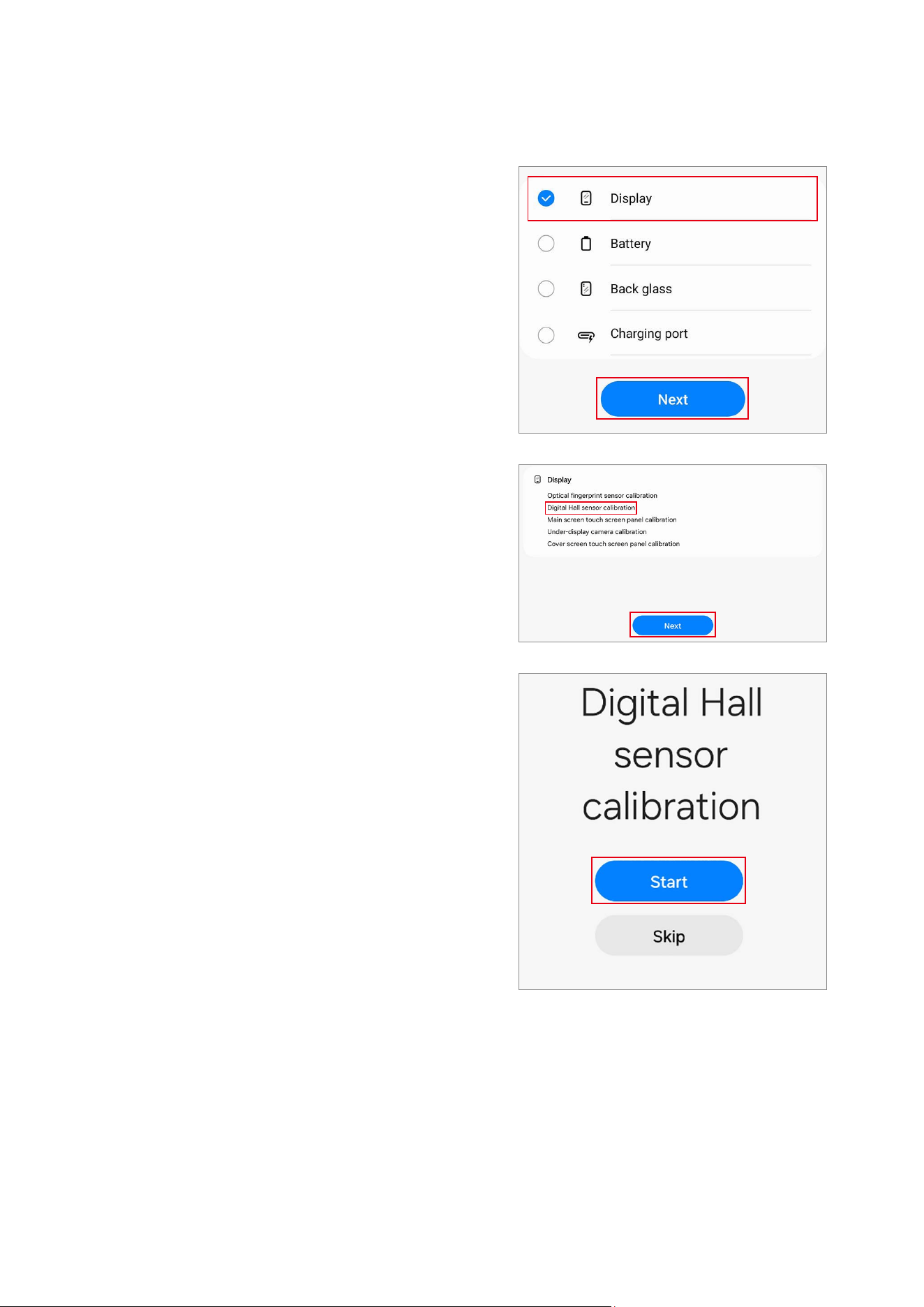
4 Tap
Start
.
5 The calibration will perform automatically.
6 Check the calibration result.

Calibrations
46
Digital Hall Sensor Calibration (Fold and Flip Models Only)
Whenever the screen is replaced, the digital hall sensor must be calibrated to guarantee
optimised digital hall sensor performance for devices that have it.
Digital hall sensor calibration is available through the
Self Repair Assistant
app.
•
This feature may not be available depending on the model. The availability of
this feature can be automatically checked in the Self Repair Assistant app, so
please follow the guidance of the Self Repair Assistant app.
•
For Fold models: If the main screen does not turn on after being replaced (the
main screen is off and the cover screen is on when the device is unfolded),
follow the steps below to perform digital hall sensor calibration. The boot
screen (the screen where the Samsung and carrier logos appear) will appear
normally and then turn off, so it is not a hardware failure.
1) Fold the device and launch the
Self Repair Assistant
app on the cover
screen.
2) Move to the digital hall sensor calibration screen, unfold the device, and
then press the Volume Up button or the Volume Down button.
3) You will hear a vibration, and the calibration will be performed
automatically.
When calibration is complete, the main screen will turn on normally.
•
For Flip models: If the main screen does not turn on after being replaced (the
main screen is off and the cover screen is on when the device is unfolded),
follow the steps below to force the main screen to turn on and perform digital
hall sensor calibration. The boot screen (the screen where the Samsung and
carrier logos appear) will appear normally and then turn off, so it is not a
hardware failure.
1) Connect the USB cable to the device, and connect the other end of the USB
cable to the USB power adapter or your computer.
2) While pressing and holding the Side button, press the Volume Up button
once and the Volume Down button twice.
3) When the main screen turns on, perform digital hall sensor calibration.
Calibrations
47
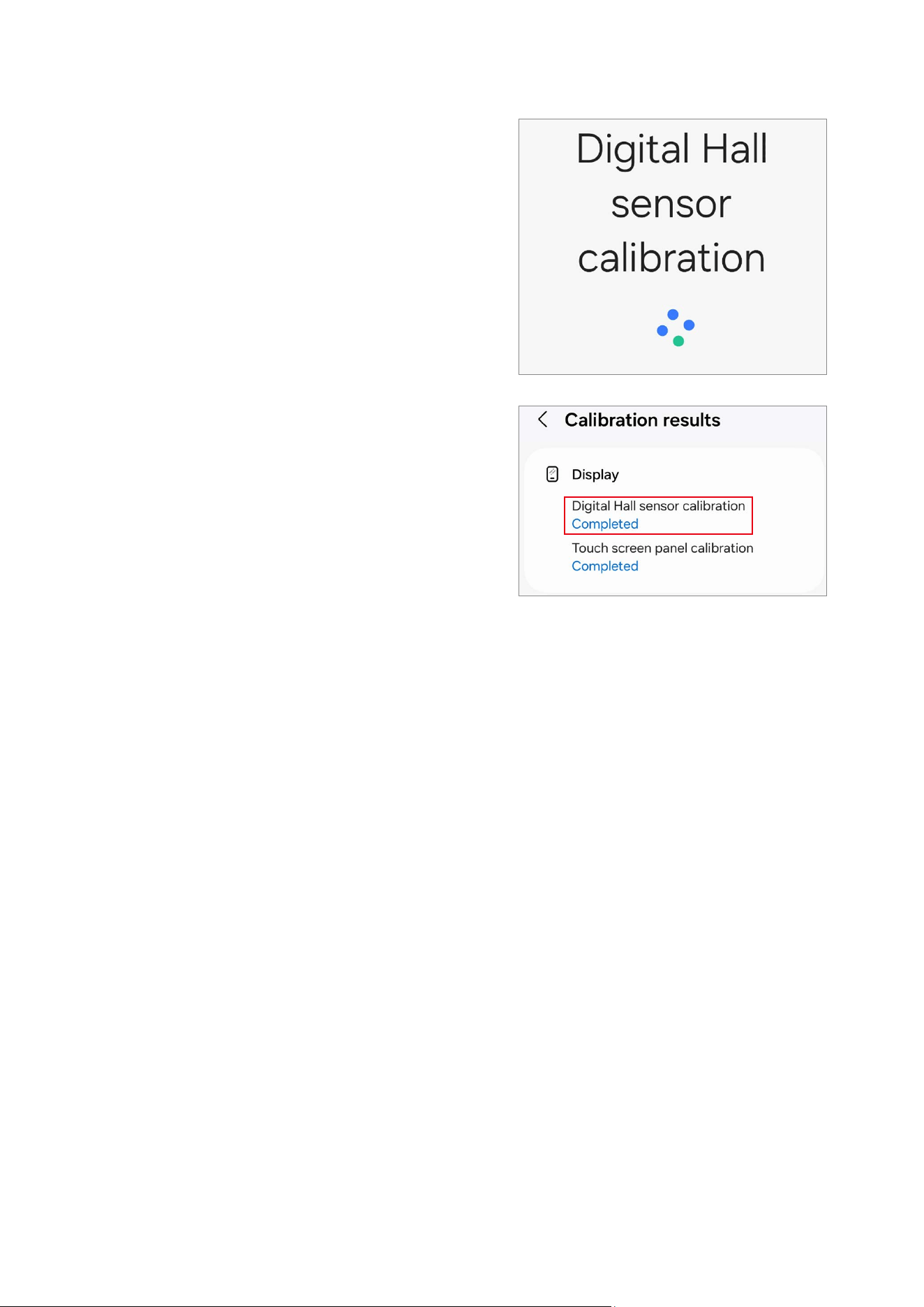
1 Launch the
Self Repair Assistant
app.
2 Select the part that you have replaced and
tap
Next
.
3 Check part and calibration and tap
Next
.
4 Tap
Start
.
Calibrations
48
5 The calibration will perform automatically.
6 Check the calibration result.
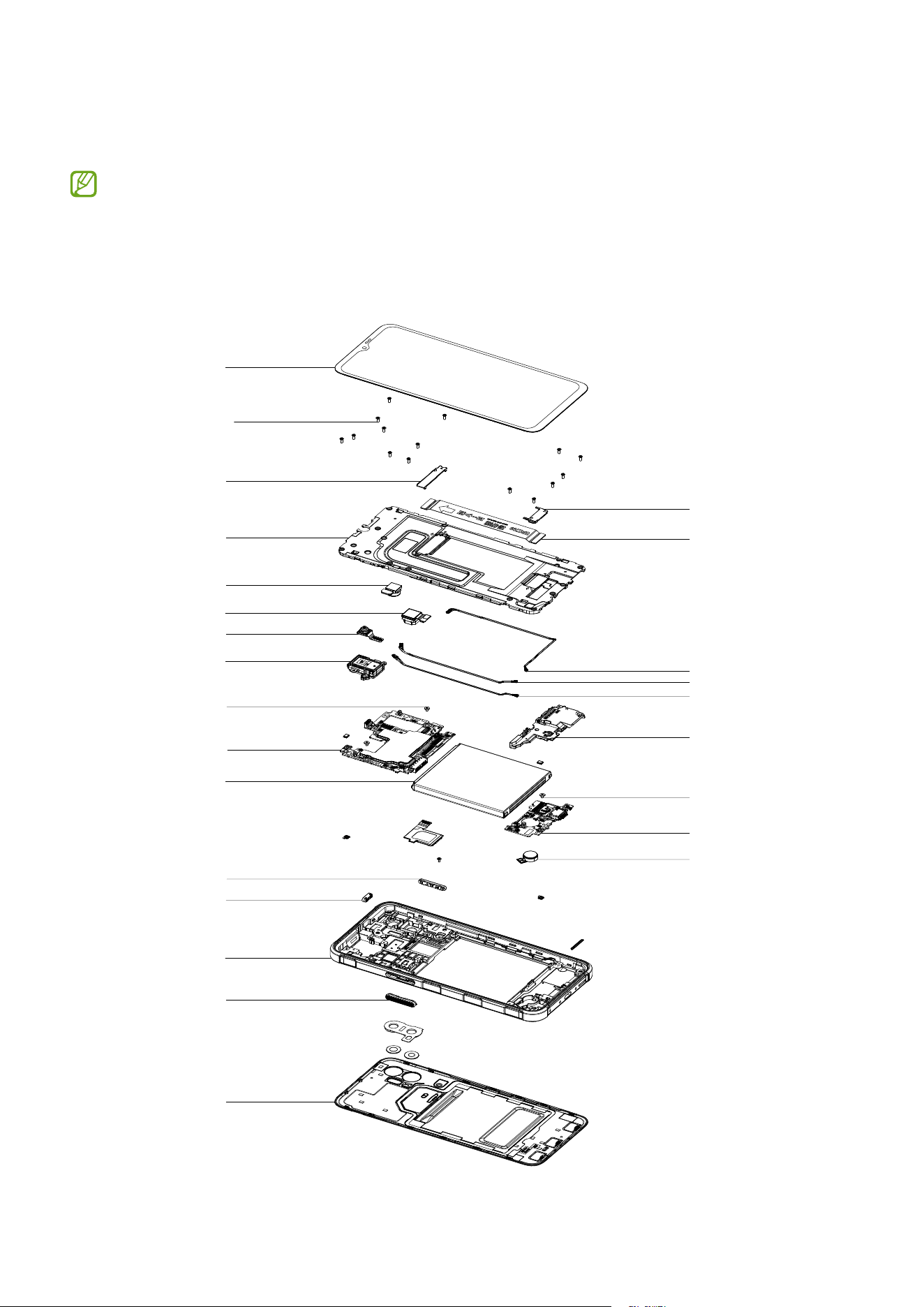
Exploded View and Parts List
49
Exploded View and Parts List
The product’s composition may vary depending on the country, region, or carrier.
Exploded View
QCR532
QME02
QBR03
QBR02
QBA01
QCA12
QCA13
QCA11
QMO01
QCB03
QCB01
QCB05
QCR96
QCR96
QSP02
QSP01
QIF01
QVO01
QBR01
QBC01
QMP01
QFR01
QRE11
QCK01
QCK02

Exploded View and Parts List
50
Parts List
Number Name
QCR96 Screw 2259
QCR532 Screw 3532
QME02 Main Flex Cable(Charging Port to Main Board)
QBR03 Top Cover
QBR02 Bottom Cover
QBA01 Battery
QCA12 Rear Camera(Ultra Wide)
QCA11 Front Camera
QCA13 Rear Camera(Wide)
QMO01 Vibrator Motor
QCB03 Antenna Flex Cable(White)
QCB01 Antenna Flex Cable(Blue)
QCB05 Antenna Flex Cable(Red)
QSP02 Bottom Speaker
QSP01 Top Speaker
QIF01 Charging Port
QCK02 Emergency Button
QVO01 Volume Button
QCK01 XCover Button
QBR01 Bracket
QBC01 Back Cover
QMP01 Main Board(PBA)
QFR01 Screen
QRE11 Rear Frame
Disassembly and Assembly
51
Disassembly and Assembly
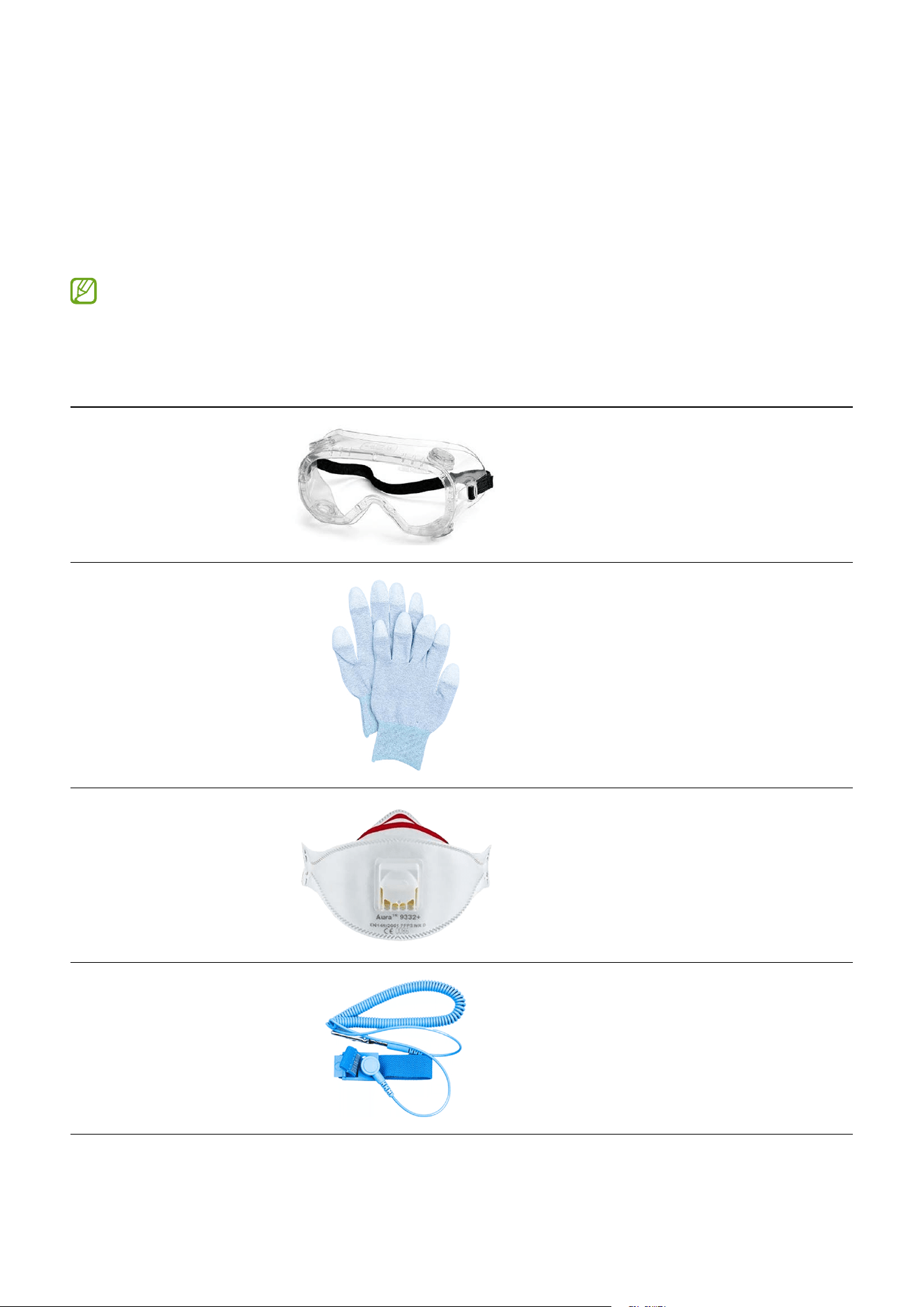
Tools for Disassembly and Assembly
When repairing devices, you absolutely must wear protective equipment for your safety.
Availability of rental services for toolkits with a complete set of tools for self
repair service may vary depending on the country and is currently available only in
limited countries.
Tool & Part Code Image Description
Safety Goggles
Prevents accidents during repair
(protective equipment)
Safety Gloves (ESD
Safe, Cut-resistant)
Prevents accidents during repair
(protective equipment)
Safety Mask
Prevents accidents during repair
(protective equipment)
Anti-static Wrist
Strap
Prevents electrostatic damage
(recommended)
Disassembly and Assembly
52
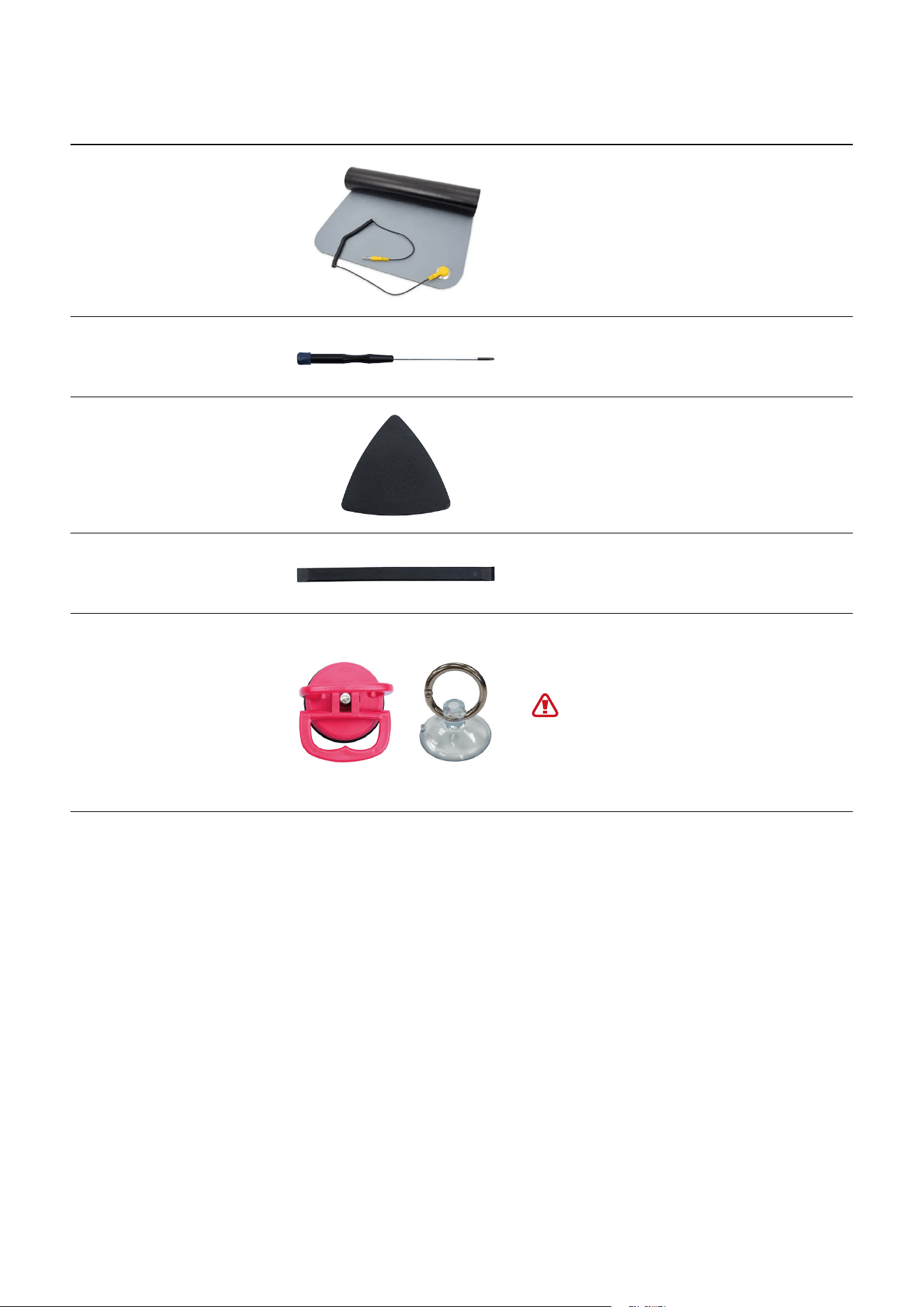
Tool & Part Code Image Description
ESD Safe Mat
Prevent electrostatic damage
(recommended)
Cross-head
Screwdriver
Tools for screwing in cross-head
screws
Opening Pick
Tool for disassembling the screen
and other parts
Opening Tool
Tool for disassembling the
connector and other parts
Suction Cup
Tool for disassembling the screen
and other parts
For separable handle suction
cups, be careful not to injure
yourself as the handle can be
parted during use.
Disassembly and Assembly
53
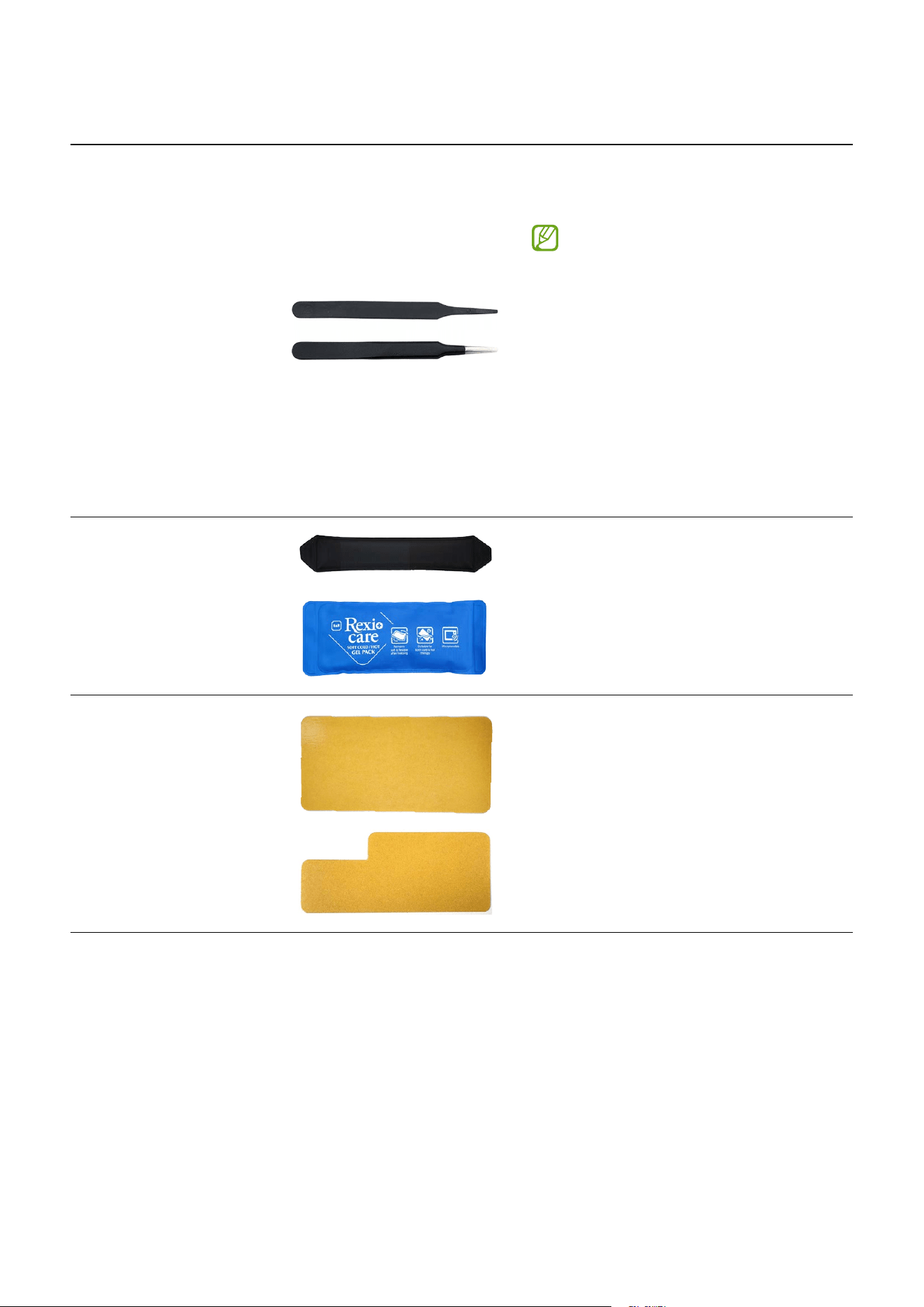
Tool & Part Code Image Description
ESD Safe Tweezers
and Round tip metal
tweezers
Tool for handling connectors,
cables, and other parts
•
Because it is possible
to damage parts or
components when using
sharp tweezers, use
tweezers made with plastic
or rubber material.
•
When removing a vibrator
motor, it is required to
use the round tip metal
tweezers.
Heating Bag
Tool for removing the screen and
other parts
Acrylic Protective
cover for broken
glass
Prevents injuries and scattering
caused by broken glass
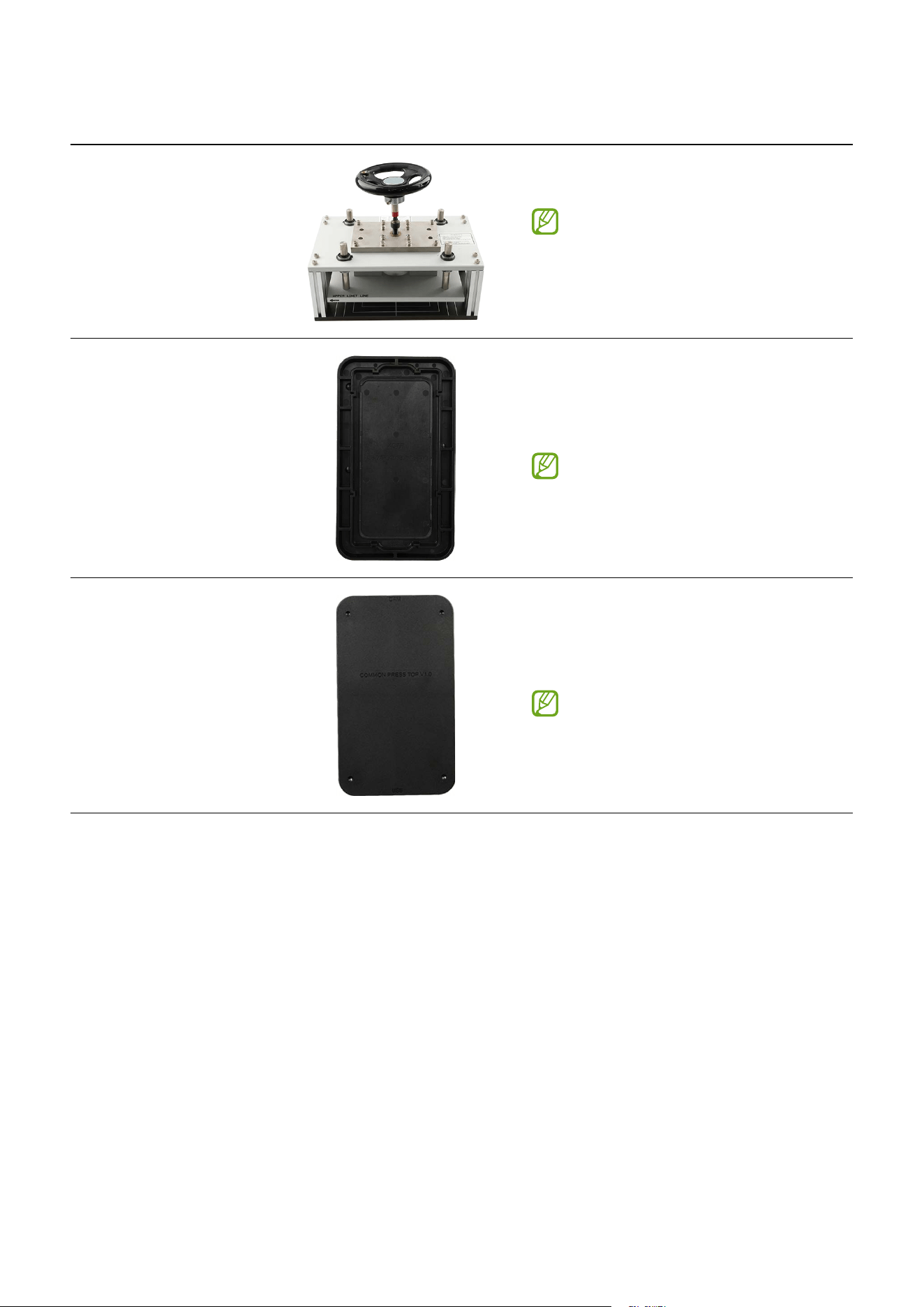
Disassembly and Assembly
54
Tool & Part Code Image Description
Press Fixture
Tool for pressing the screen
This tool is available to use
by the rental of tool kit that
contains a complete set of the
tools for self repair service.
Bottom Press Tray
Tool to place the device when
pressing the screen using press
fixture
This tool is available to use
by the rental of tool kit that
contains a complete set of the
tools for self repair service.
Top Press Tray
Tool to cover the bottom press tray
when pressing the screen using
press fixture
This tool is available to use
by the rental of tool kit that
contains a complete set of the
tools for self repair service.
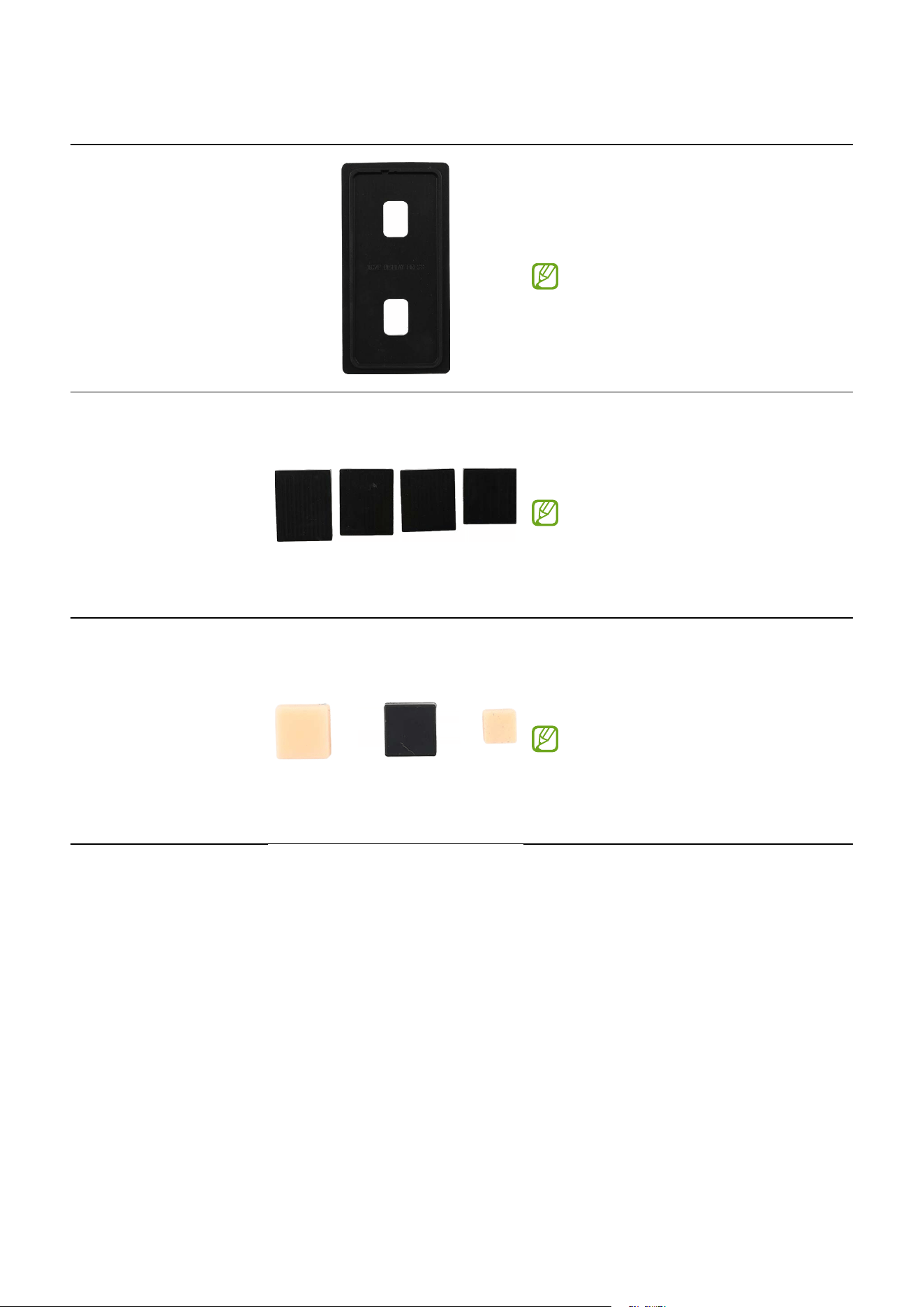
Disassembly and Assembly
55
Tool & Part Code Image Description
Top Rubber Pad
Tool to place into the top press tray
when pressing the screen using
press fixture
This tool is available to use
by the rental of tool kit that
contains a complete set of the
tools for self repair service.
Battery Rubber Pad
Tool to cover the battery when
pressing the battery using press
fixture
This tool is available to use
by the rental of tool kit that
contains a complete set of the
tools for self repair service.
Calibration
Rubber for Optical
Fingerprint Sensor
Tool to calibrate the optical
fingerprint sensor after replacing
the screen
This tool is available to use
by the rental of tool kit that
contains a complete set of the
tools for self repair service.
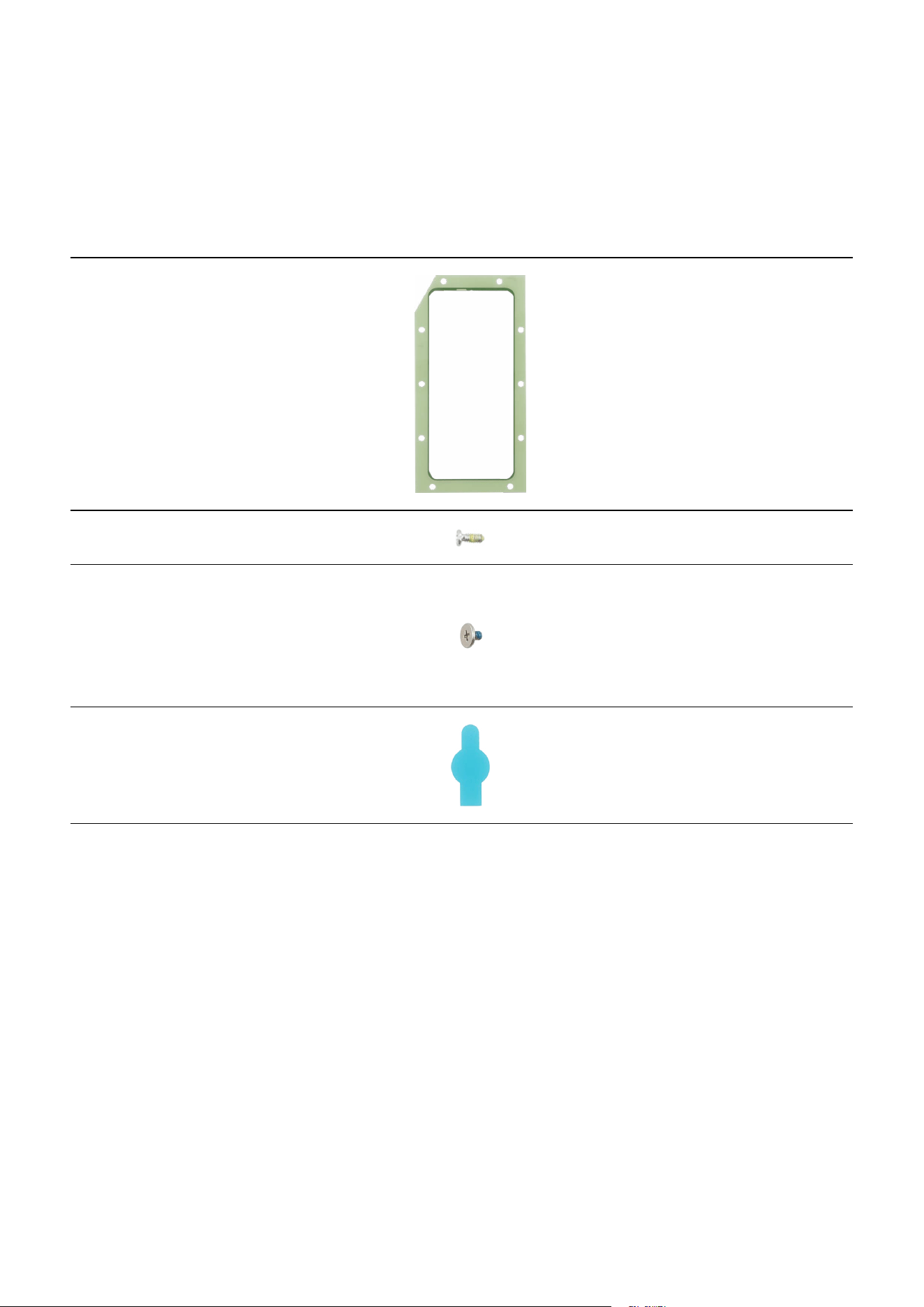
Disassembly and Assembly
56
Fasteners (Adhesives and Materials) for Assembly
The fasteners composition may vary depending on the repair parts, country, region, or
carrier.
Item Quantity Image Description
Screen
Adhesive Tape
1
Double sided adhesive tape
for attaching the screen
Screw 3532 15
Screws for the bracket
Screw 2259 3
Screws for the main board
2 ea
Scr
ew for the charging port
1 ea
Vibrat
or Motor
Adhesive Tape
1
Double sided adhesive tape
for attaching the vibrator
motor

Disassembly and Assembly
57
Disassembly and Reassembly for replacement
•
The product’s composition may vary depending on the country, region, or
carrier.
•
Repairable parts may vary depending on the country or region.
Before disassembling,
•
Unplug and turn off device before disassembling.
•
Wear an anti-static wrist strap and connect it to the grounded ESD safe mat.
Before reassembling,
•
Remove the adhesive tape residues perfectly.
•
Prepare all existing screws of this device and adhesive tapes.
•
Wear an anti-static wrist strap and connect it to the grounded ESD safe mat.
•
Leaving screws inside the device may damage internal components, such as the
battery. When assembling, be extra careful not to leave any unassembled screws
inside the device.
For all cases of broken glass,
1 Wear safety glasses and cut-resistant gloves.
2 To prevent injuries and scattering caused by broken glass, attach the tape on the
broken glass.
If your device’s glass breaks, be careful not to injure your hands or other body parts
on debris.
3 Press the tape with strong force so that it is strongly attached to the broken glass.
Wait until the adhesive between the tape and the glass is strengthened.
4 Follow the disassembly steps in this guide.
Disassembly and Assembly
58
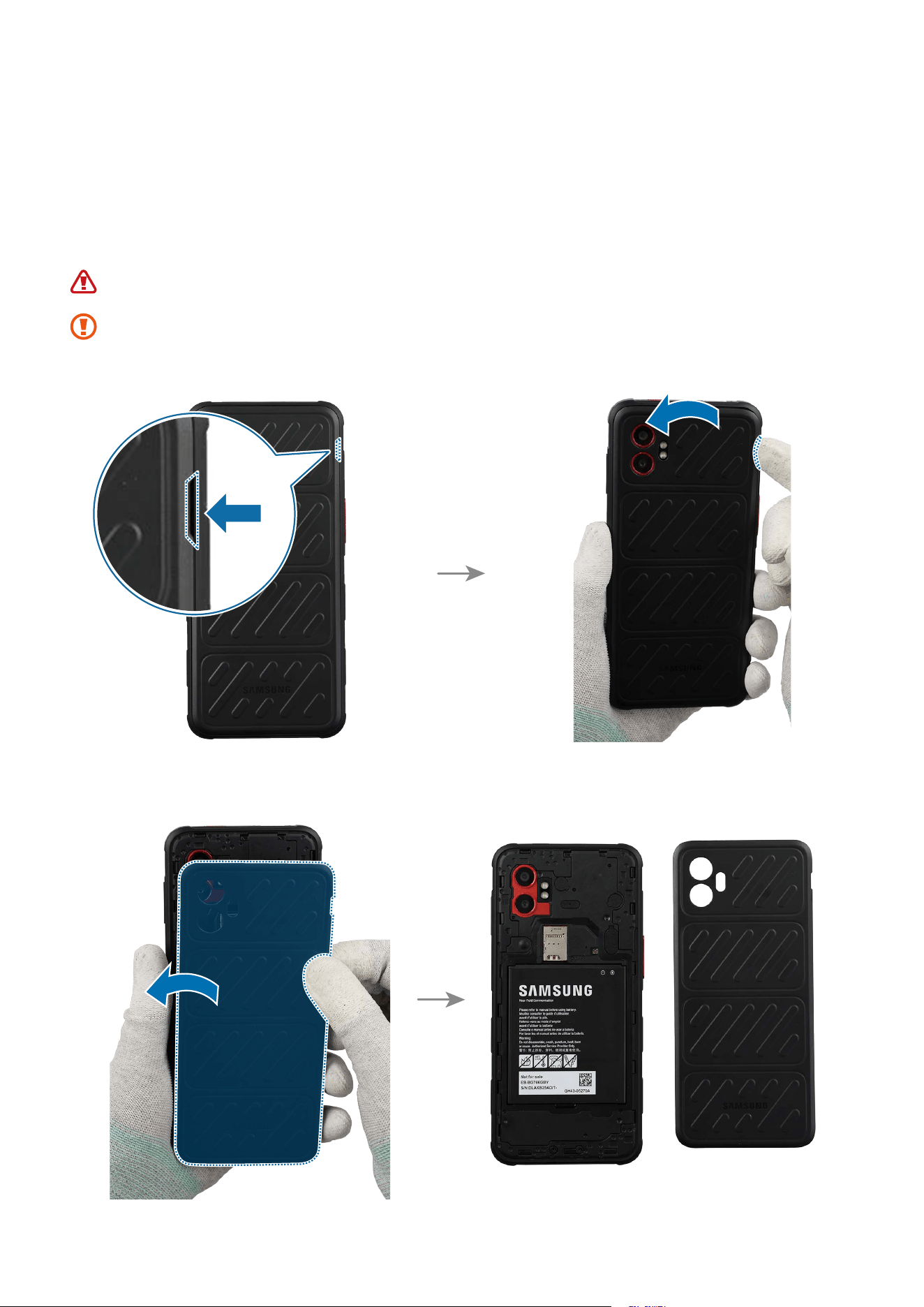
Back Cover
Disassembly
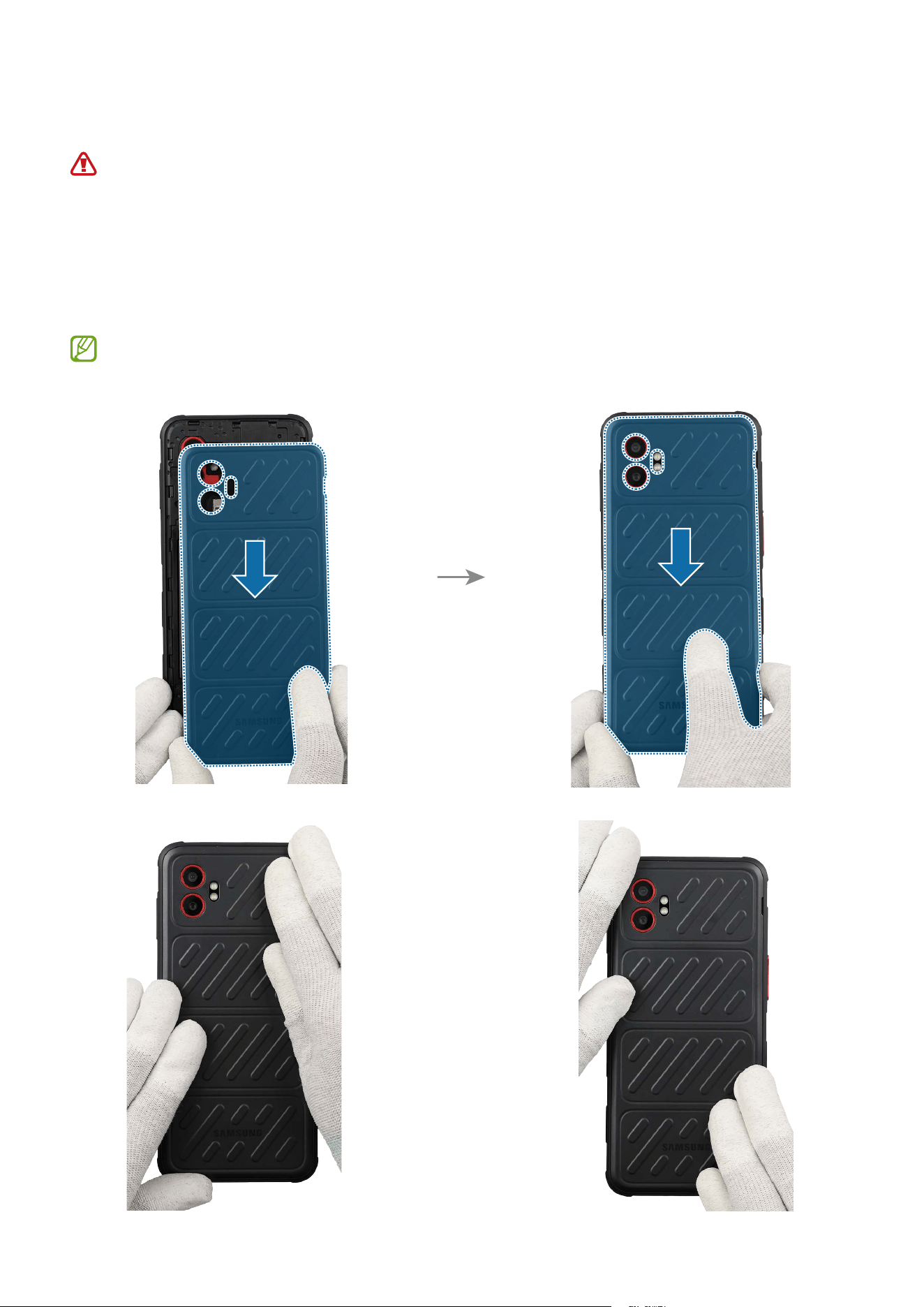
Using your fingers, lift up on the separator groove of the back cover and remove it
carefully.
Be careful not to damage your fingernails when you remove the back cover.
As the back cover can be damaged by excessive force, be careful not to damage
the back cover.
Disassembly and Assembly
59
Reassembly
Leaving screws inside the device may damage internal components, such as the
battery. When assembling, be extra careful not to leave any unassembled screws
inside the device.
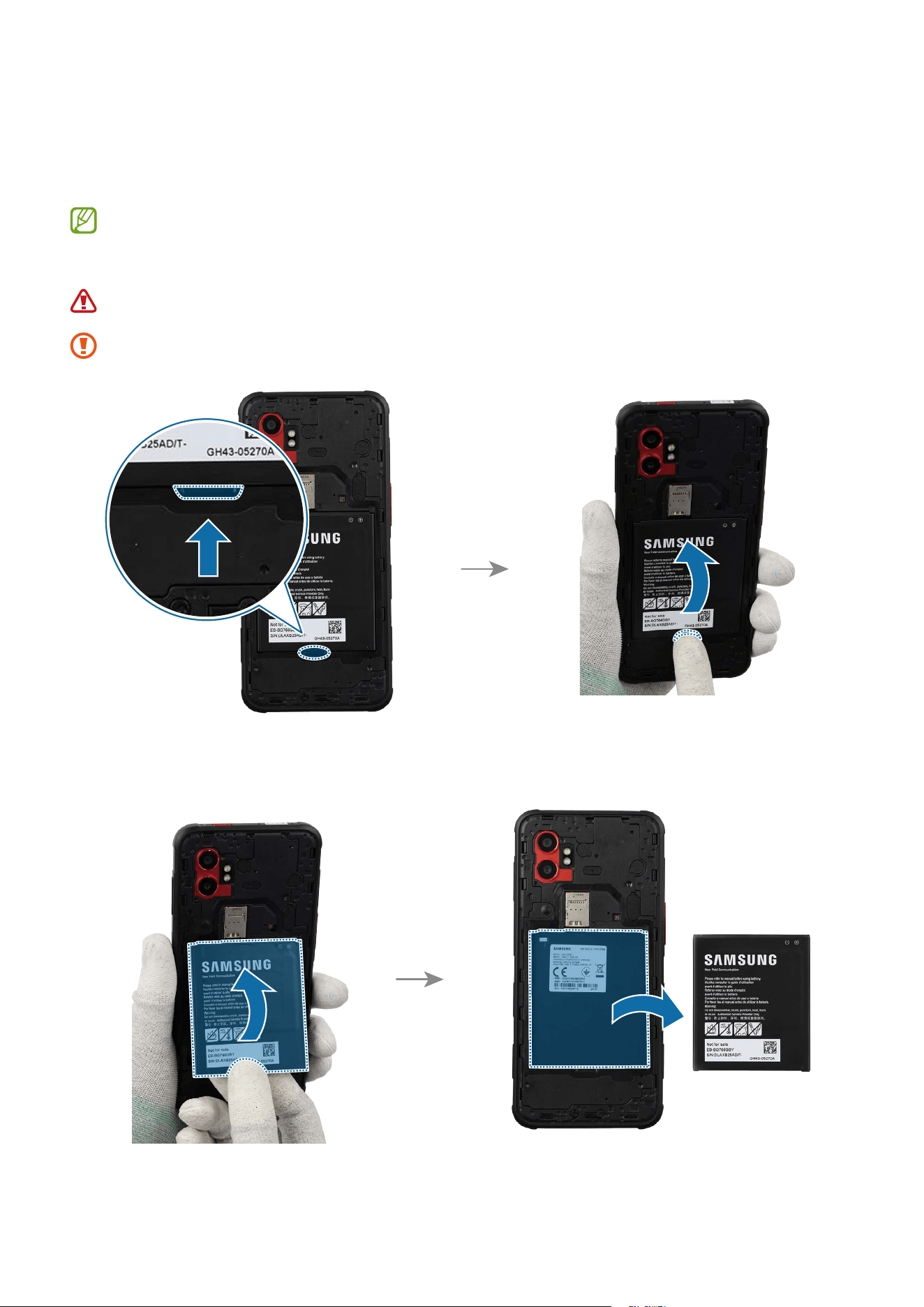
Attach the back cover and press down on the all edges of the back cover evenly in order
to attach the back cover perfectly. Check the gap between the back cover and frame and
ensure that there are no abnormalities.
If you feel the some gap, remove the back cover and attach it again. Some foreign
materials can be inside the device.
Disassembly and Assembly
61
Reassembly
Leaving screws inside the device may damage internal components, such as the
battery. When assembling, be extra careful not to leave any unassembled screws
inside the device.
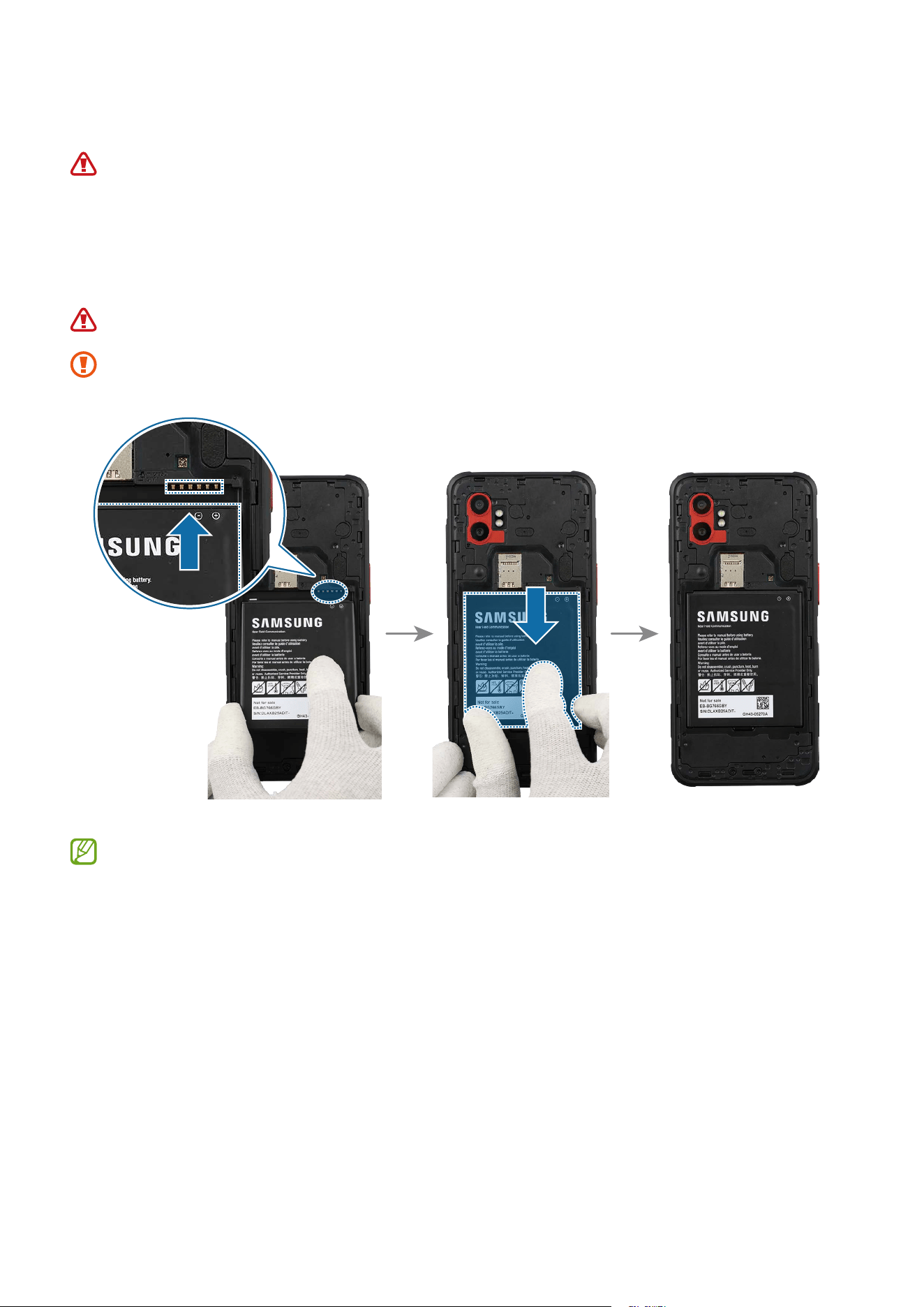
Align the battery contacts with the device contacts and carefully place the battery.
Assemble the battery to the exact position of the frame using your fingers.
Be careful not to damage the battery.
Be careful not to damage the near components.
Reassemble Back Cover to complete assembly.
Disassembly and Assembly
62
Screen
Disassembly
When removing the screen, ensure that the device is fixed on a flat surface.
Remove Back Cover and Battery first before you begin.
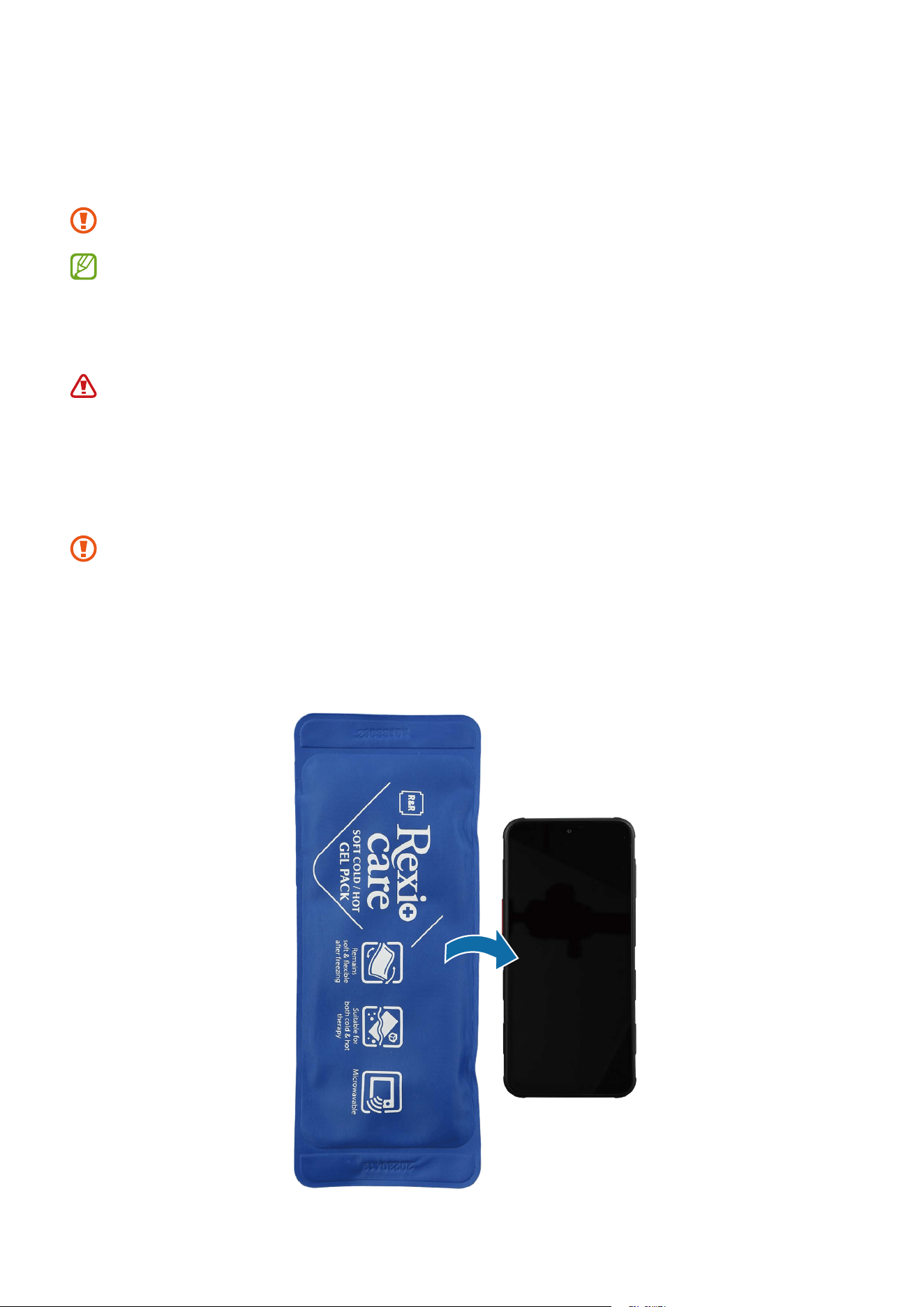
1 Heat the microwaveable heating bag and apply it on the screen for 3 minutes to
soften the adhesive.
•
It is possible for the device or battery to be damaged by heat.
•
Do not heat the device in a microwave. Doing so could cause an explosion.
•
If your device’s glass breaks, the debris can cause injury to your hands or
other body parts. For your safety, attach an acrylic protective cover before
disassembling the device.
•
The recommended time for heating the bag is 50 seconds in a 1000 W
microwave and 70 seconds in a 700 W microwave. (Correct temperature for use:
55-65 ℃.) Follow the heating bag’s instructions for heating.
•
Be careful not to damage the device through excessive heat. (It is recommended
to disassemble the device in an area with temperature gauge.)
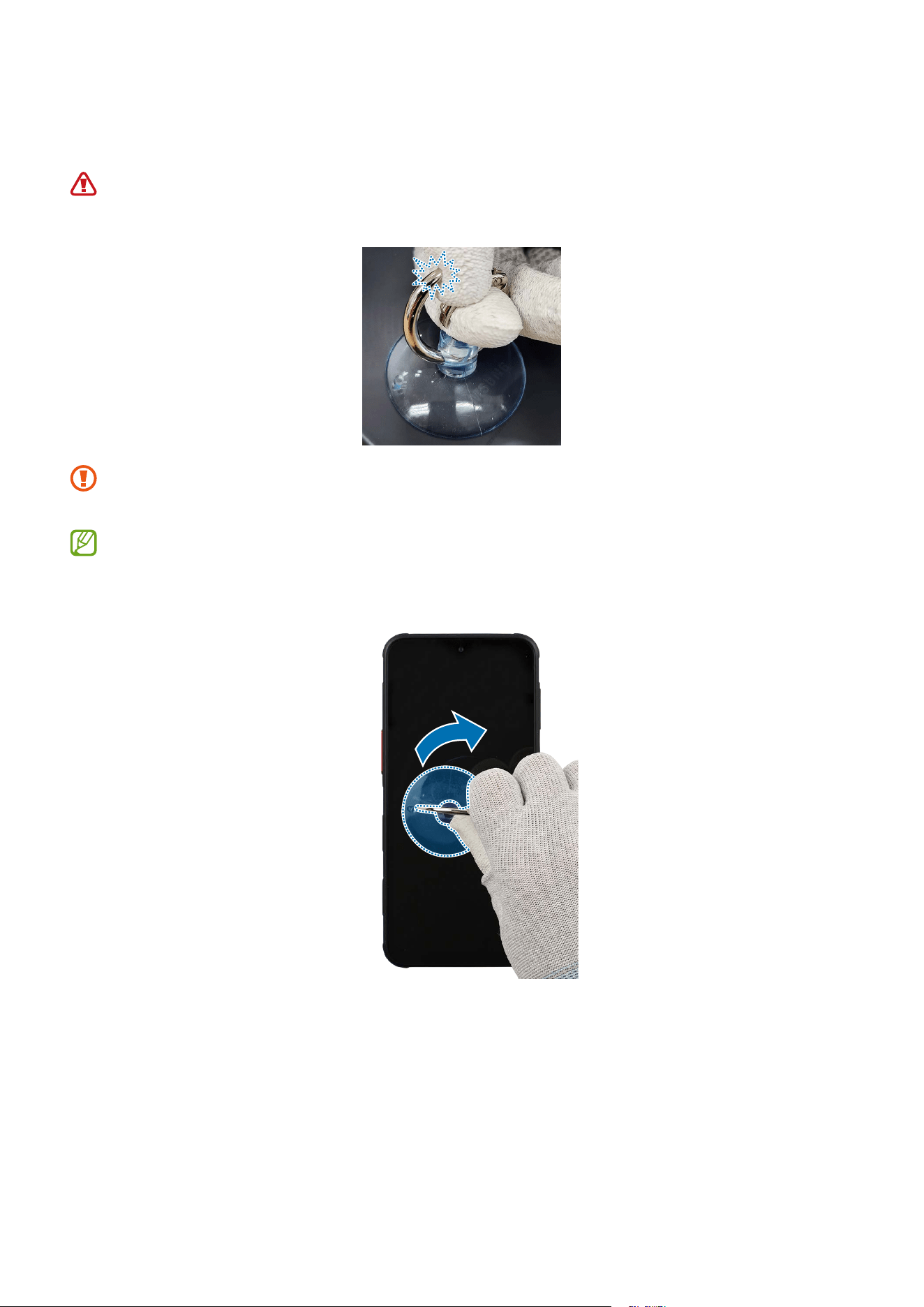
Disassembly and Assembly
63
2 Place the suction cup in the the top left edge of the screen, and lift it upwards
carefully.
For separable handle suction cups, be careful not to injure yourself as the handle
can be parted during use.
Be careful that the suction cup does not adhere to the area where the tape or
sticker is attached.
If you have trouble creating a gap, heat the microwaveable heating bag
additionally, and apply it on the screen to further soften the adhesive. When
reheating, it should be heated no longer than 30 seconds.
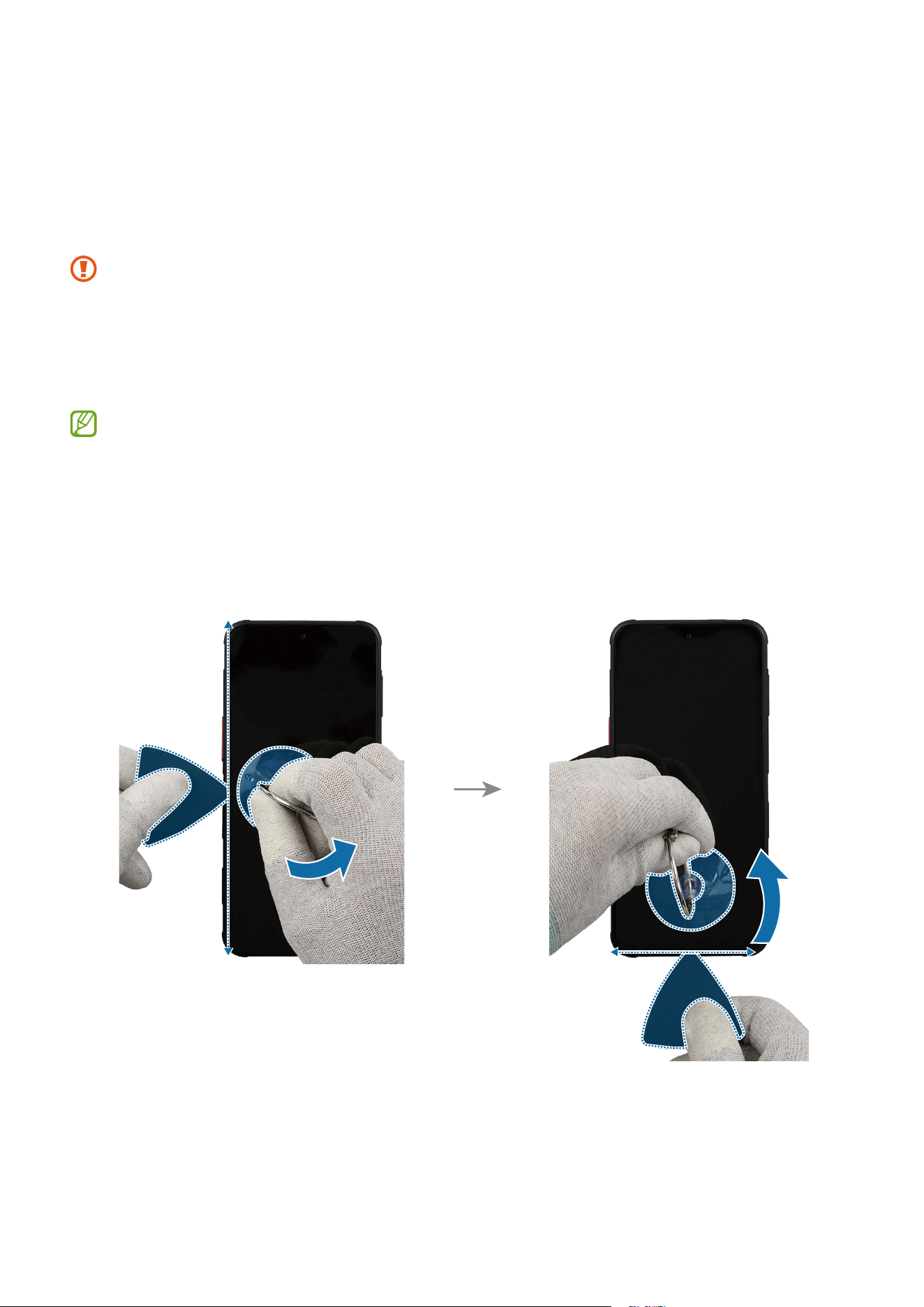
Disassembly and Assembly
64
3 While pulling up the suction cup with strong, steady force to create the gap between
the screen and the frame, place the opening pick in the gap and slide the opening
pick back and forth along the edge to slice through the adhesive. Repeat this on the
all sides of the screen and slice through the adhesive. Lift up from the top of the
screen slowly and remove the screen gently from the device.
•
As the internal circuity can be damaged, do not insert the opening pick more
than 3 mm. Especially, be careful not to damage the front camera at the top by
the opening pick.
•
As the screen can be damaged by excessive force, be careful not to damage the
screen.
•
Make sure to leave the opening pick inserted in the edges to prevent the
adhesive from resealing. It is recommended that a larger area of the opening
pick be inserted.
•
If you have trouble creating a gap, heat the microwaveable heating bag
additionally, and apply it on the screen to further soften the adhesive. When
reheating, it should be heated no longer than 30 seconds.
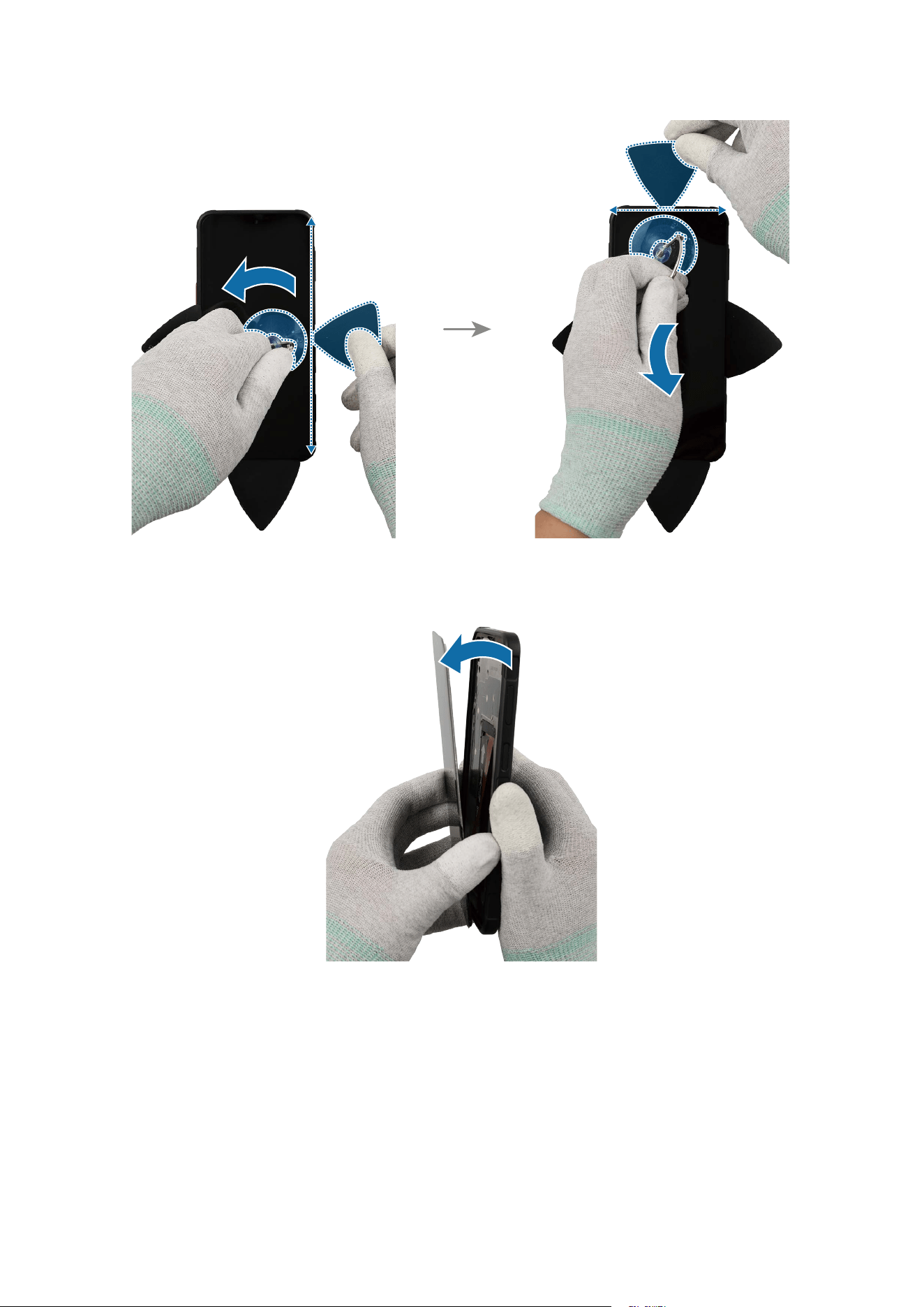
Disassembly and Assembly
65
Disassembly and Assembly
66
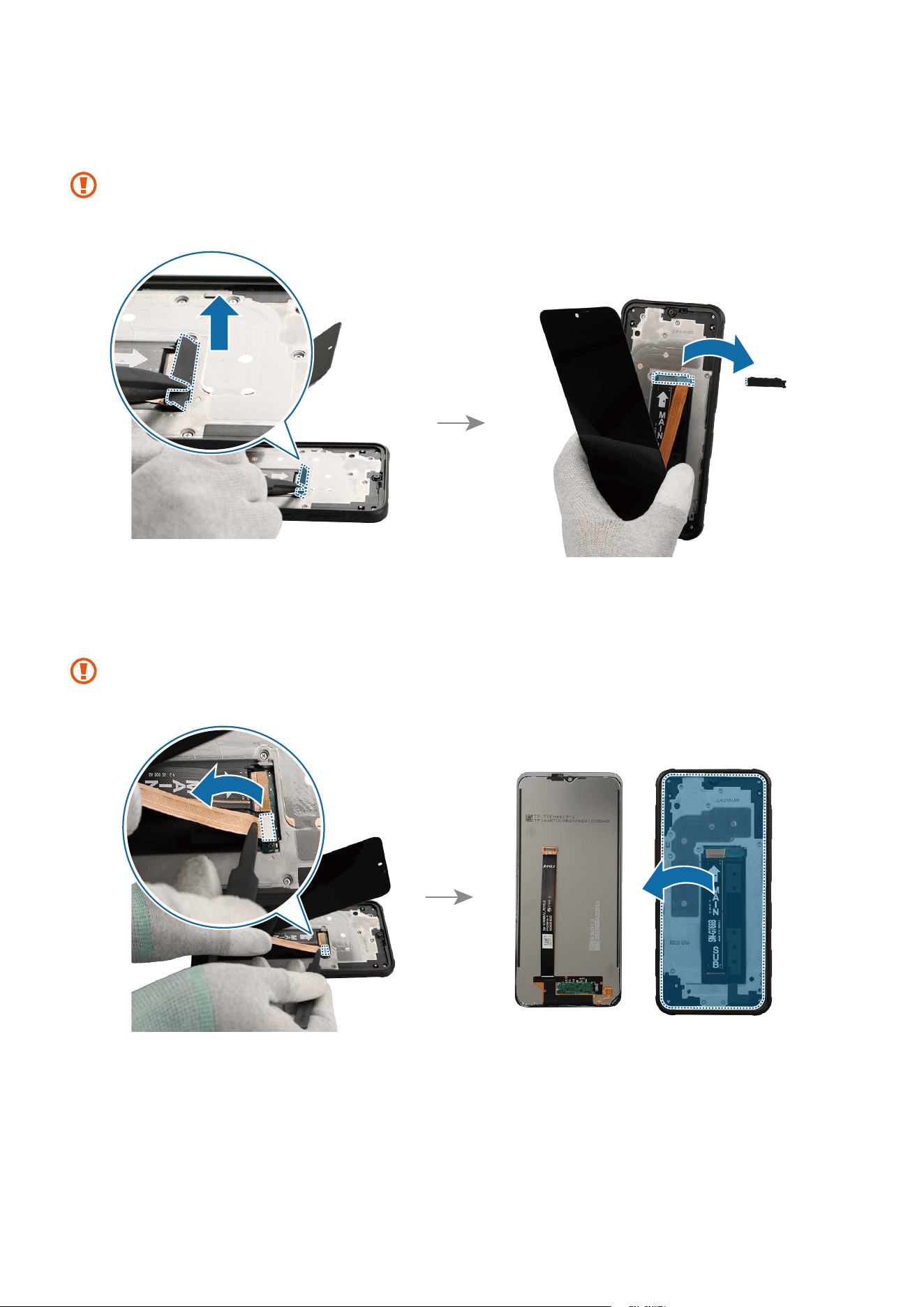
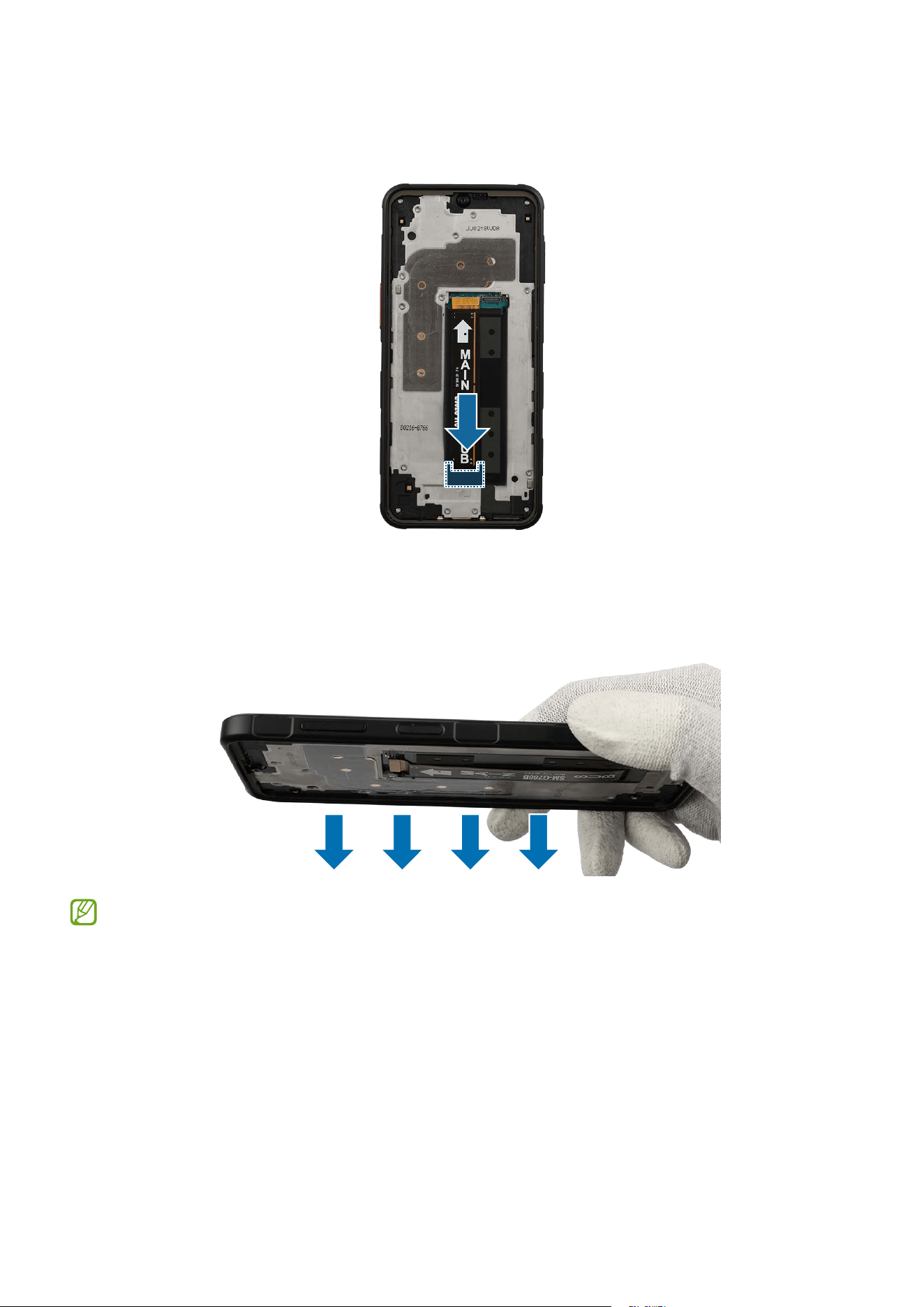
4 Before removing the screen completely, remove the top cover of the flex cable
connector with the tweezers carefully.
Be careful not to damage the cable and cover.
5 Using the tweezers, separate the screen flex cable connector and separate the screen
completely.
Be careful not to damage the cable and the near components.
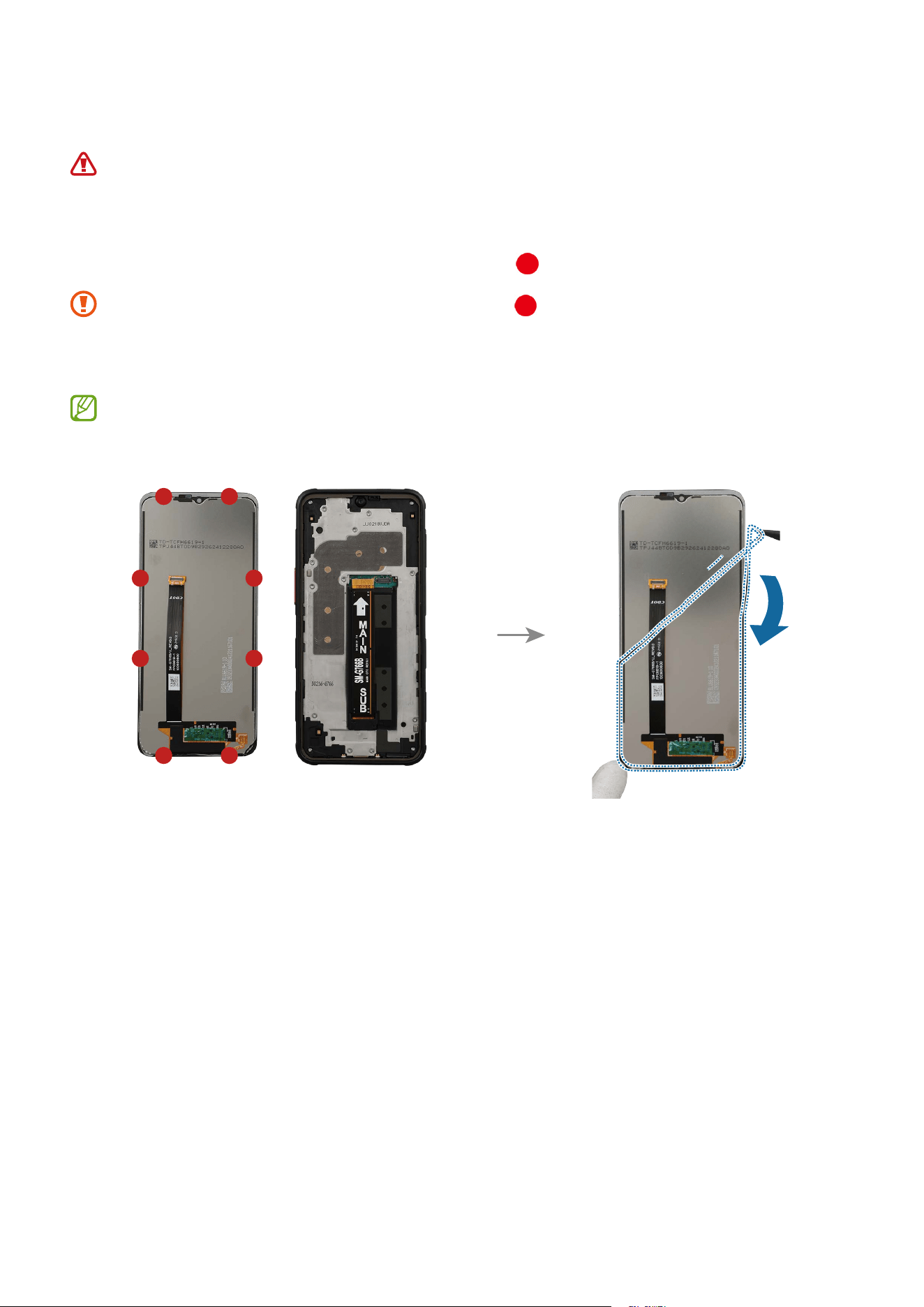
Disassembly and Assembly
67
Reassembly
Leaving screws inside the device may damage internal components, such as the
battery. When assembling, be extra careful not to leave any unassembled screws
inside the device.
1 Using the tweezers, remove all adhesive tapes ( ) on the separated screen.
•
Make sure to remove any residual tapes ( ) attached to the inside of the
screen before reassembling the device.
•
Be careful not to damage the device and the near components.
Apply additional heat with a microwaveable heating bag if you’re having trouble
separating the adhesive.
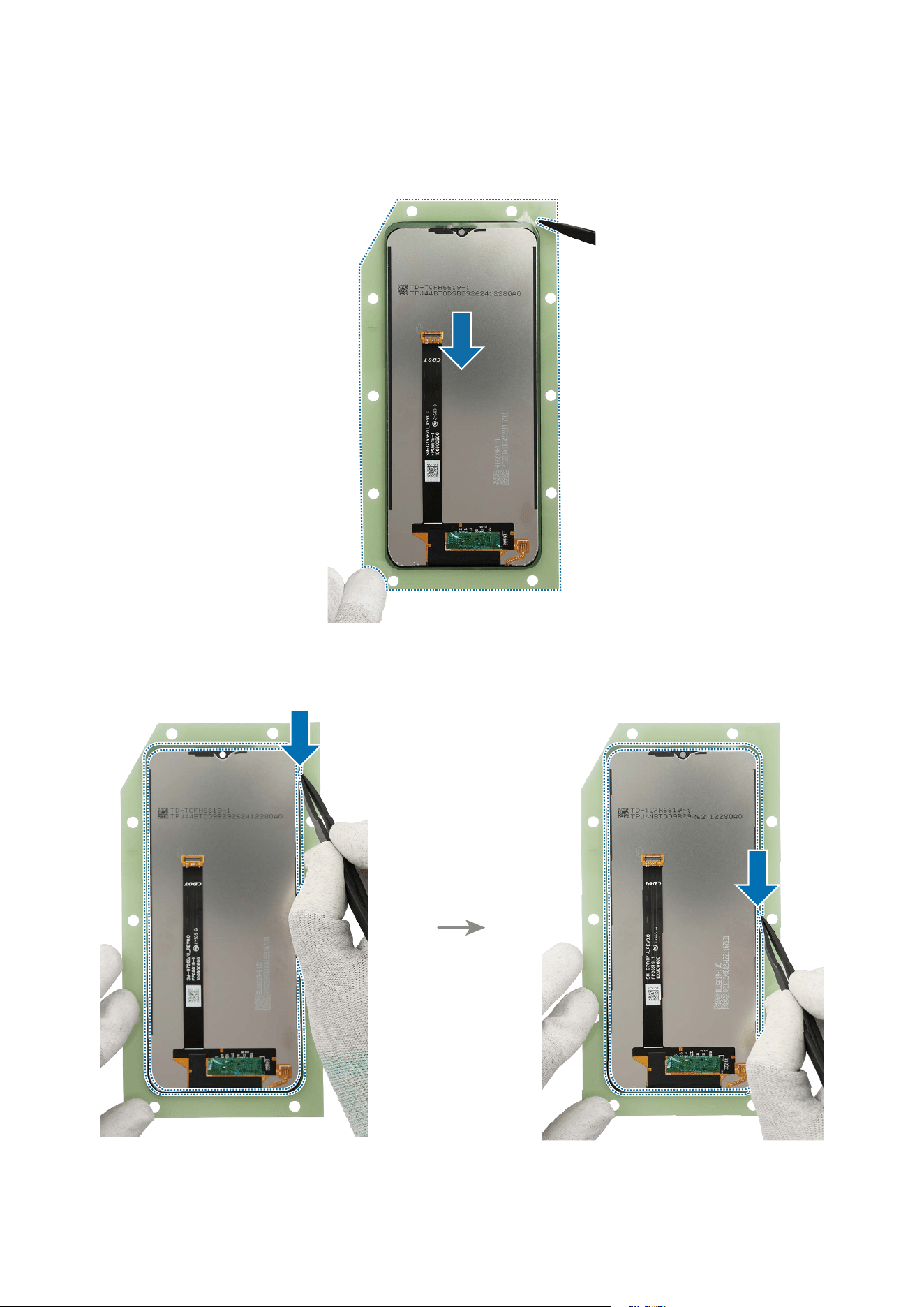
Disassembly and Assembly
68
2 Remove the transparent film of the new screen adhesive tape. Using the tweezers,
align the tape precisely on the screen and attach it.
3 Using the tweezers, gently press around the all edges to ensure a secure fit.
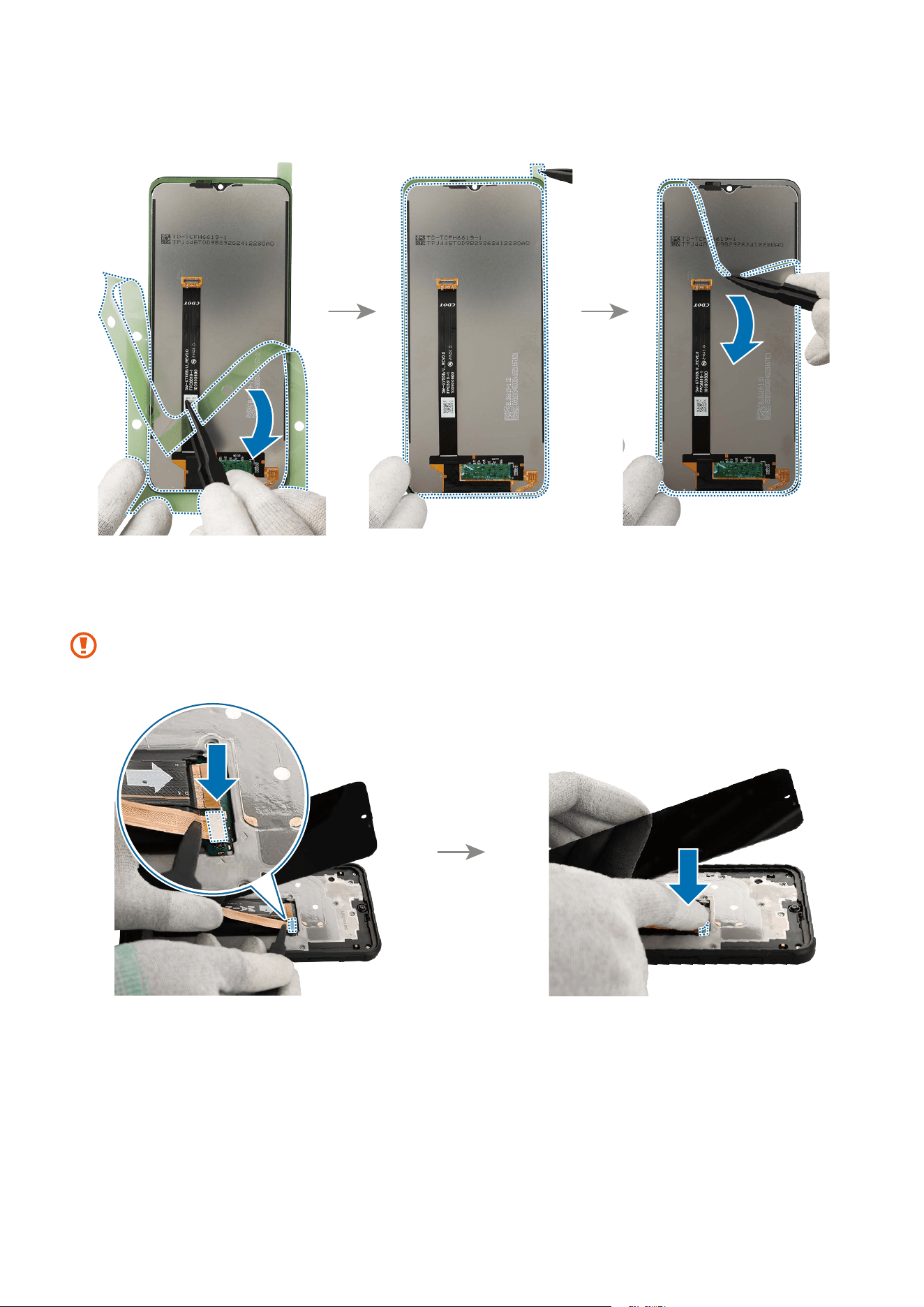
Disassembly and Assembly
69
4 Using the tweezers, remove all release films from attached tape.
5 Using the tweezers, connect the screen flex cable connector carefully. And press on
the connector softly so that it can be completely assembled.
Be careful not to damage the cable and the near components.
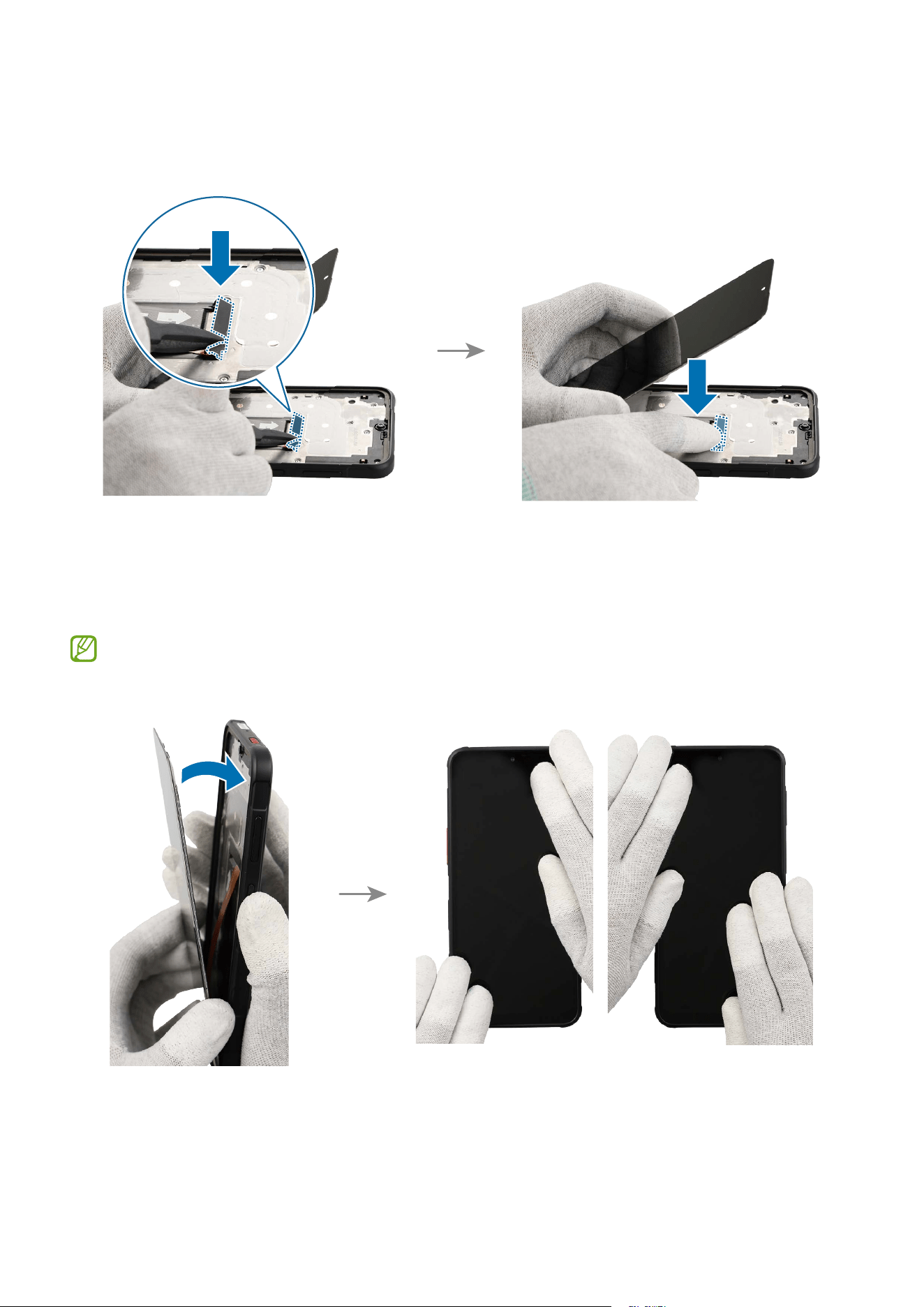
Disassembly and Assembly
70
6 Using the tweezers, assemble the top cover of the flex cable connector. And press on
the cover softly so that it can be completely assembled.
7 Attach the screen and check the gap between the screen and the frame. Press down
the all edges of the screen evenly in order to attach the screen perfectly. Ensure that
there are no abnormalities.
If you feel the some gap, remove the screen and attach it again. Some foreign
materials can be inside the device.
Disassembly and Assembly
71
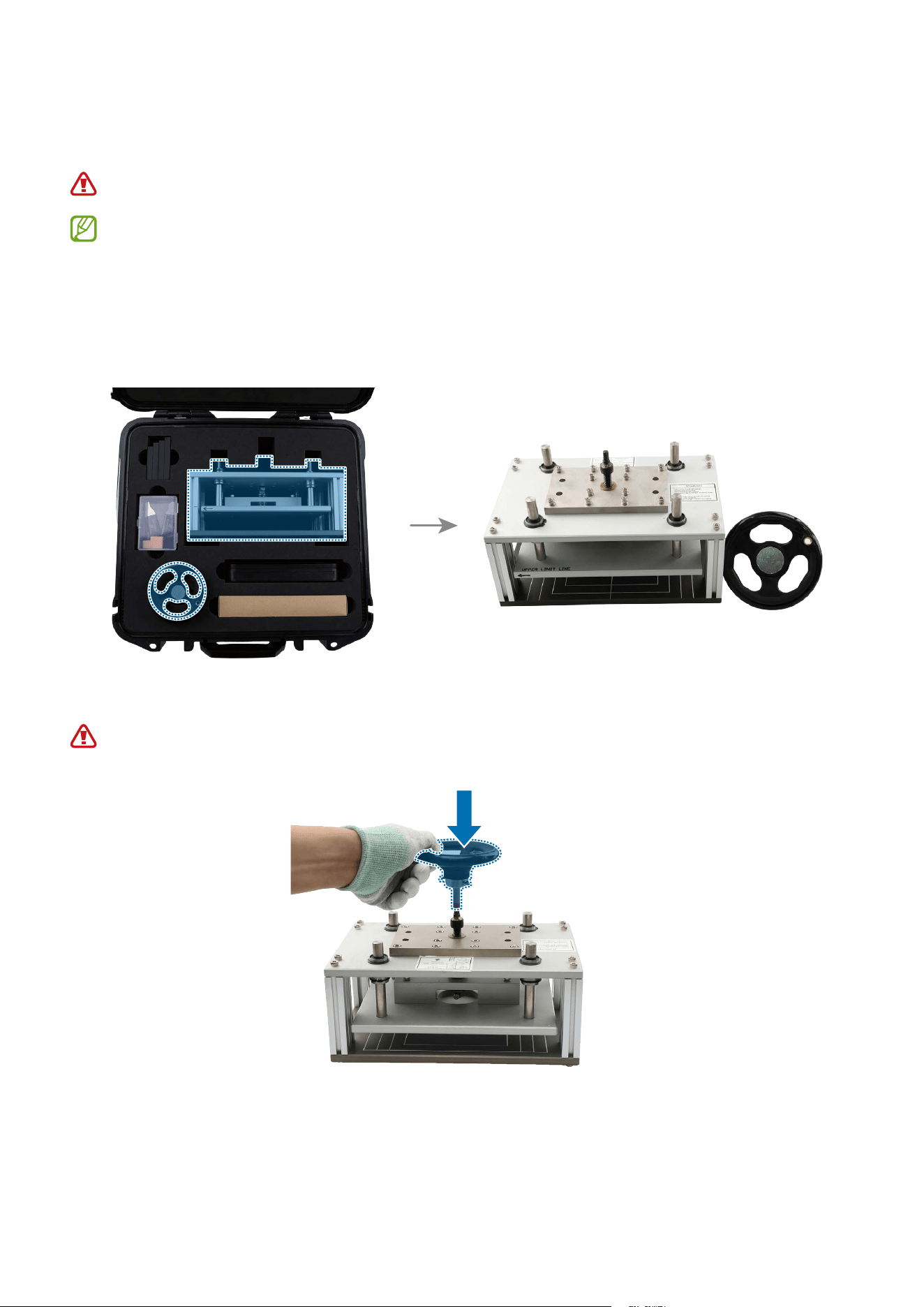
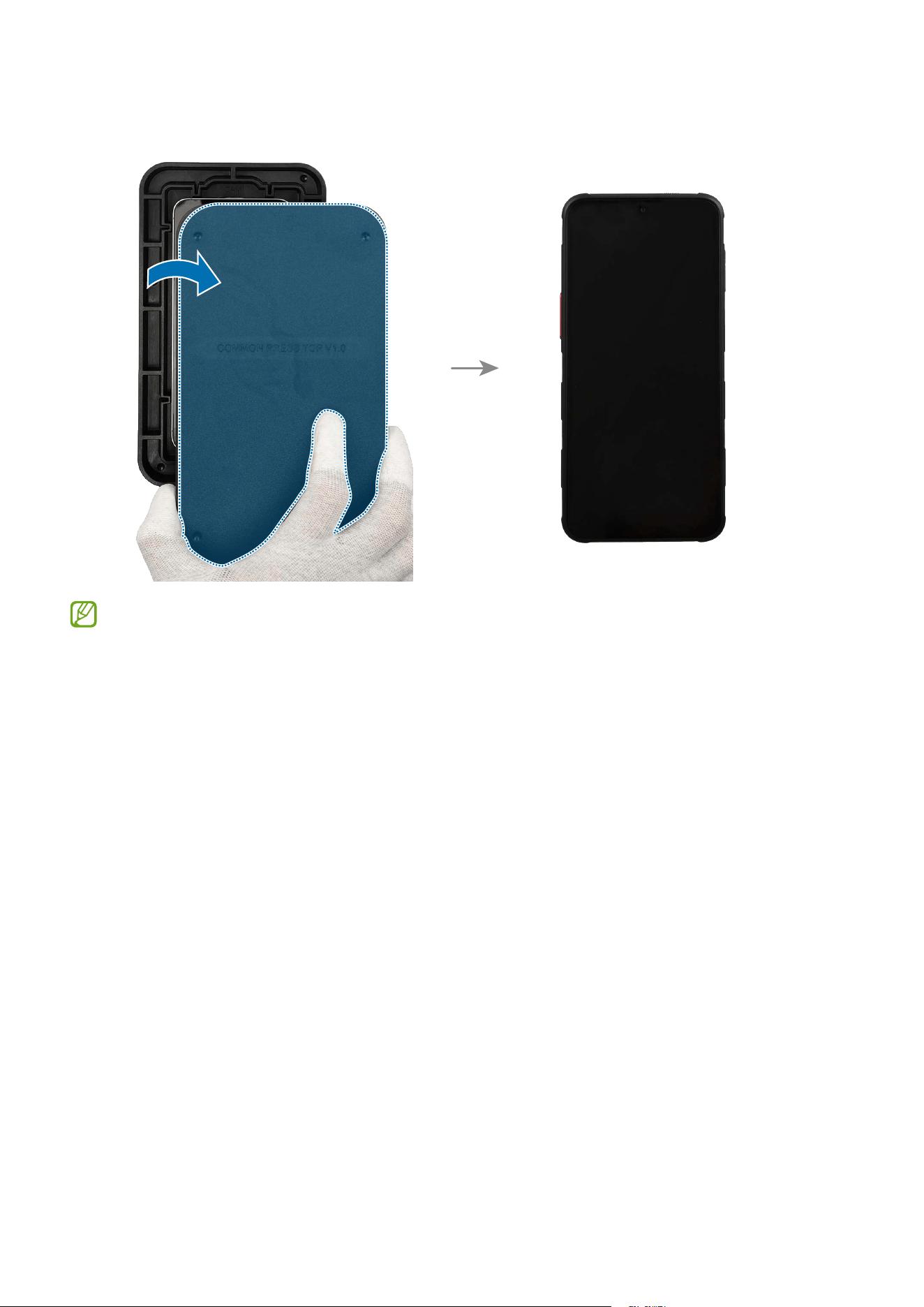
8 Now you can press the fully assembled screen using the press fixture. Remove the
press fixture body and its handle from the rental tool kit packaging.
Keep your hands out of the press fixture to avoid mechanical pinching and injury.
•
This tool is only available to use by the rental of tool kit that contains a
complete set of the tools for self repair service.
•
Availability of rental service may vary depending on the country and is
currently available only in limited countries.
•
A rented tool kit packaging may have different packaging than shown.
9 Carefully position the torque limit handle horizontally at the top of the press fixture.
Keep your hands out of the press fixture to avoid mechanical pinching and injury.
Disassembly and Assembly
72
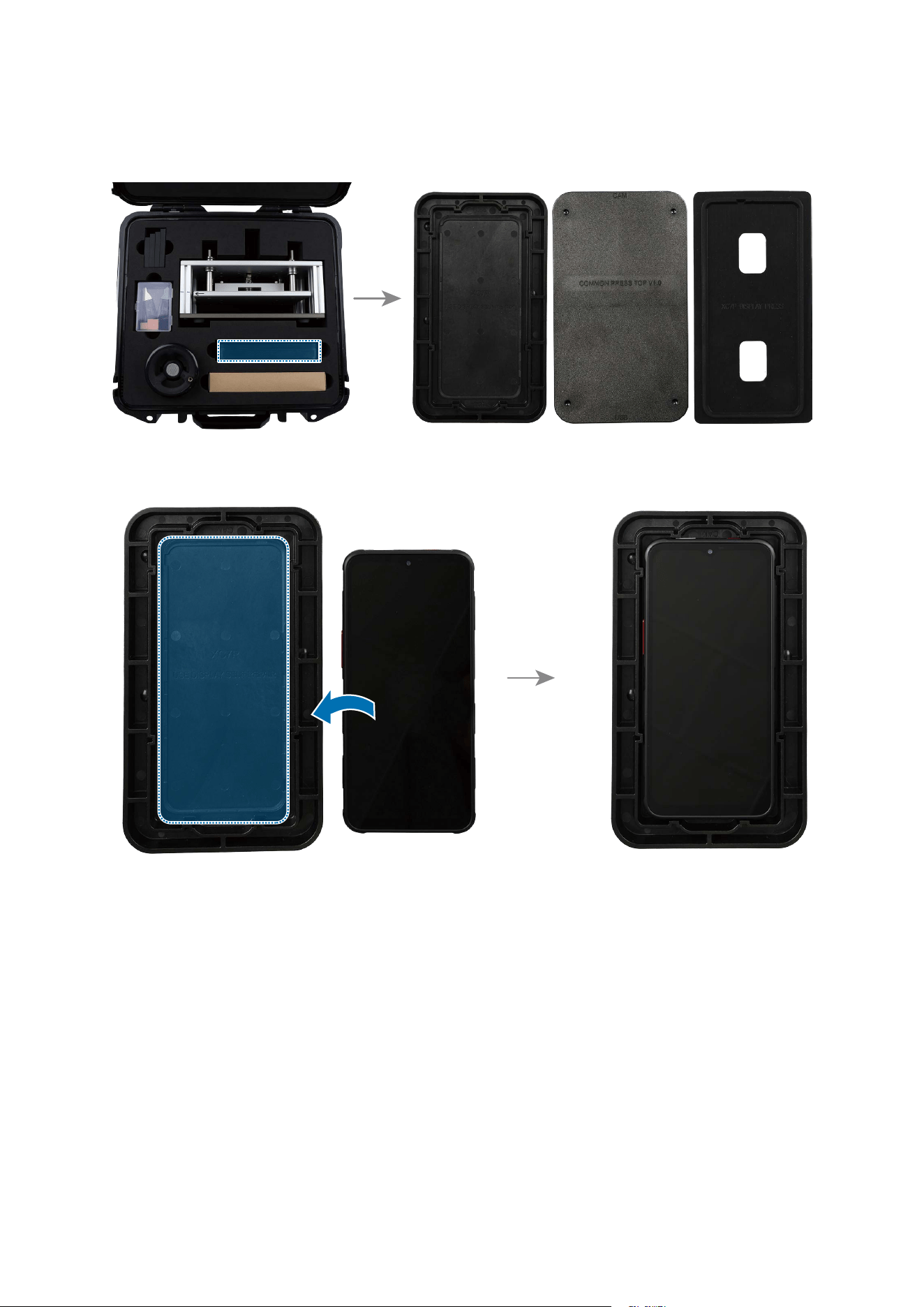
10
Remove the bottom press tray, top press tray, and top rubber pad from the rental tool
kit packaging.
11
Leave the bottom press tray and place the device face up into the tray.
Disassembly and Assembly
73
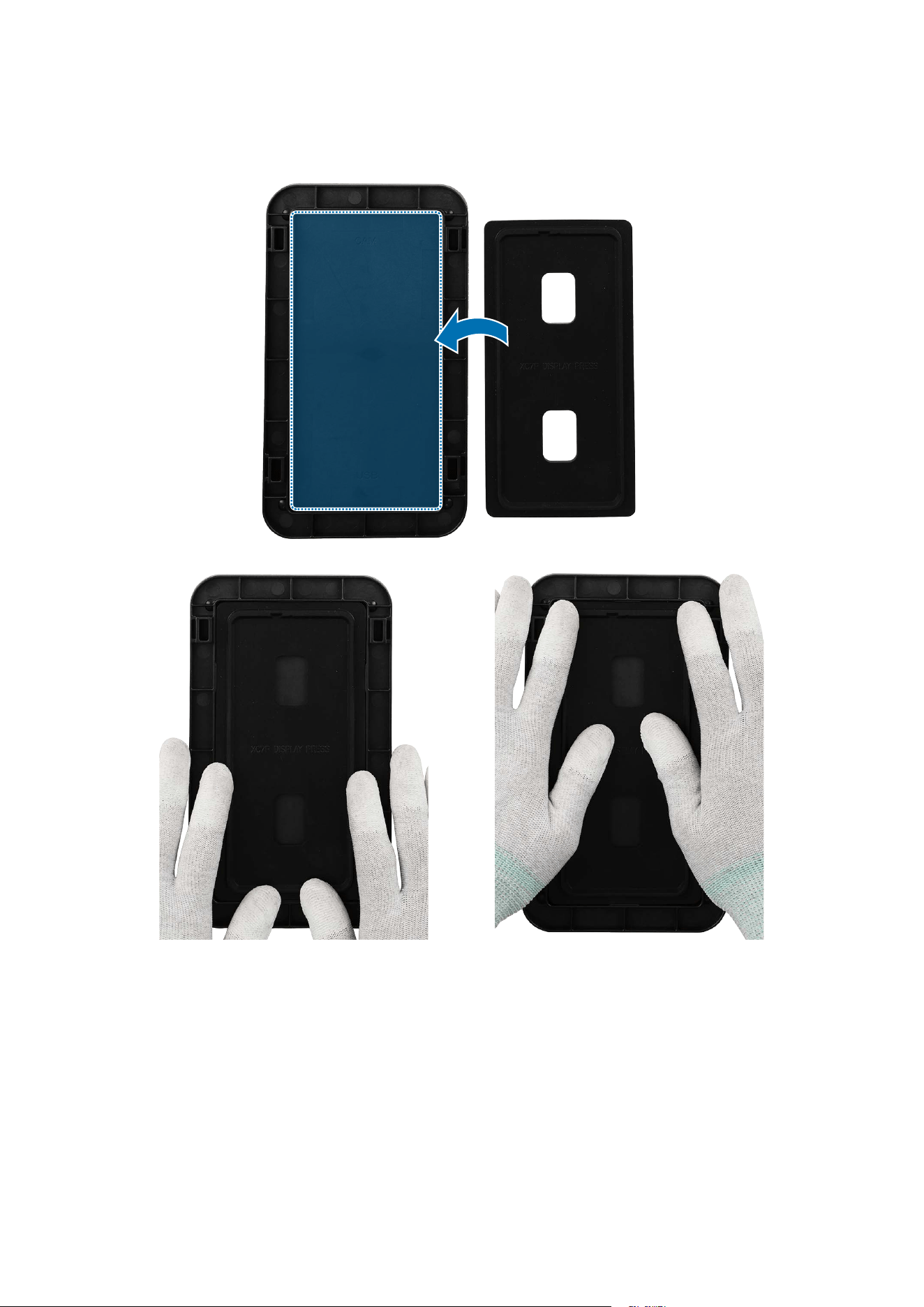
12
Insert the top rubber pad into the top press tray. Press down the edges of the rubber
pad entirely using your fingers and make sure that the pad is pressed in completely.
Disassembly and Assembly
74
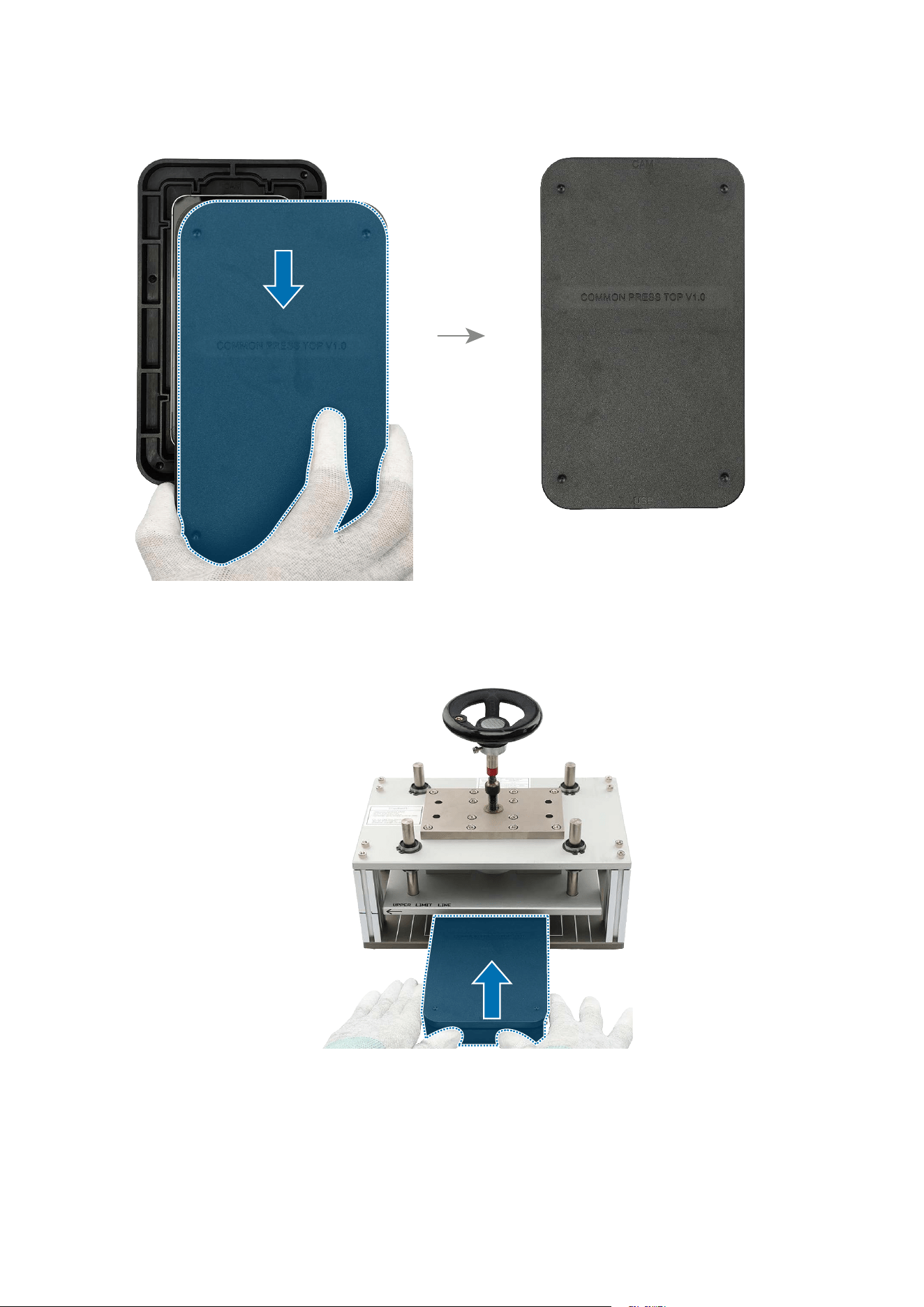
13
Carefully place the top press tray over the bottom press tray.
14
Position the top 2/3 of the screen press tray with the device lengthwise in the centre
of the press fixture.
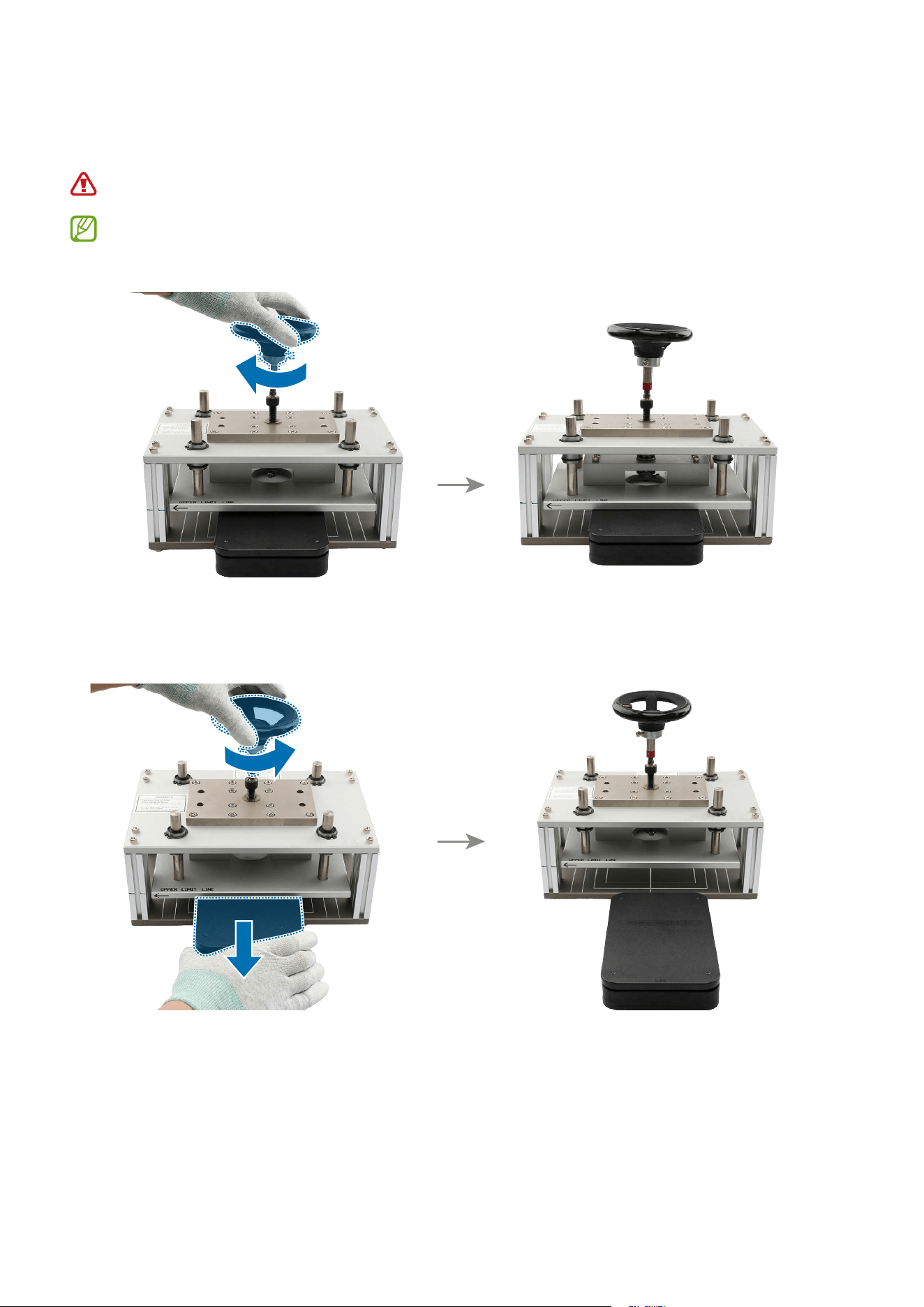
Disassembly and Assembly
75
15
Rotate the torque limit handle to the clockwise until it makes a sound. In that press
state, stay the tray for 30 seconds.
Keep your hands out of the press fixture to avoid mechanical pinching and injury.
When you reach the required maximum force (1N), a sound is made from the
handle if you turn the handle
16
When the press is completed after 30 seconds, rotate the torque limit handle to the
anticlockwise and remove the tray from the press fixture.
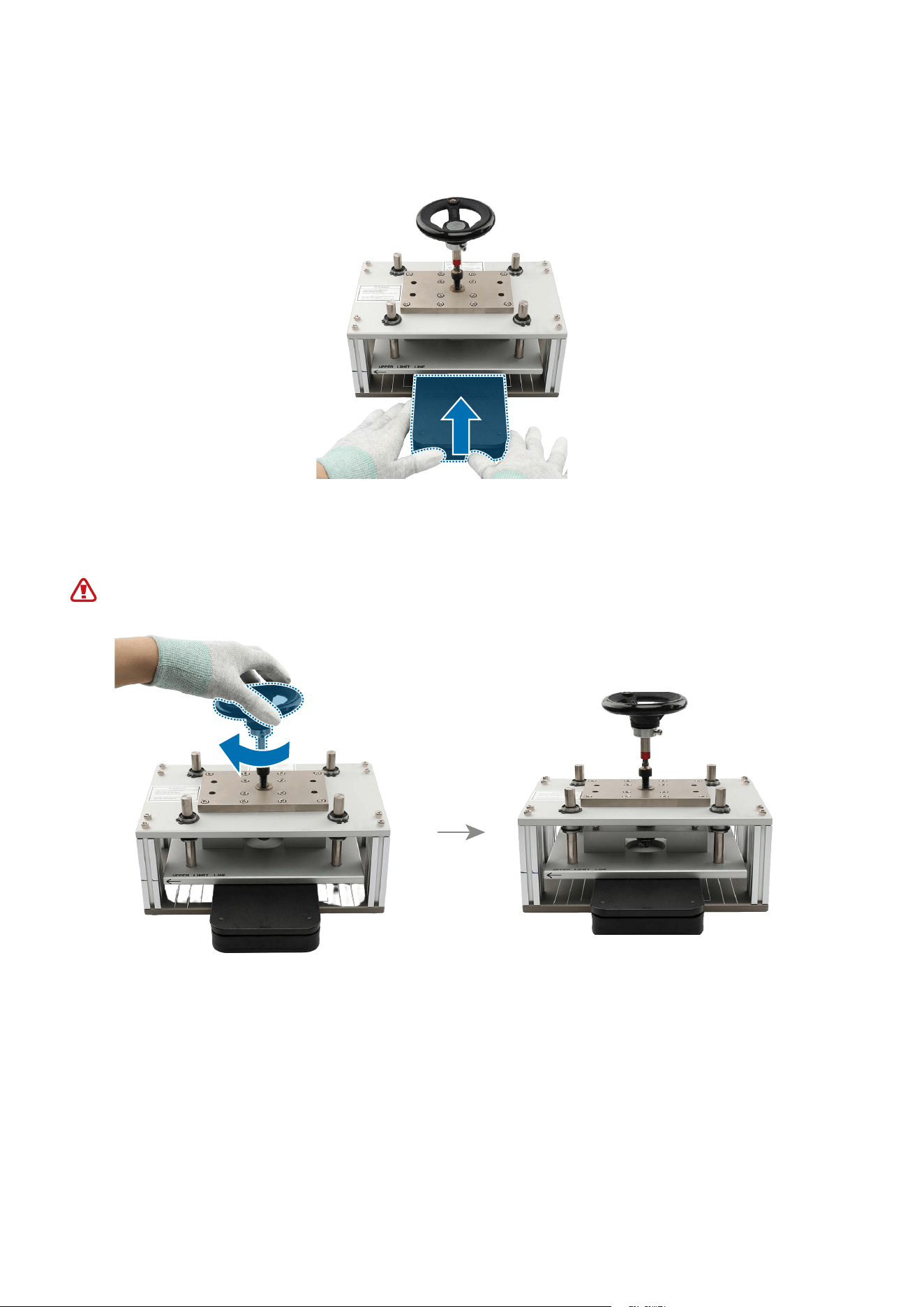
Disassembly and Assembly
76
17
Position the bottom 2/3 of the screen press tray with the device lengthwise in the
centre of the press fixture.
18
Rotate the torque limit handle to the clockwise until it makes a sound. In that press
state, stay the tray again for 30 seconds.
Keep your hands out of the press fixture to avoid mechanical pinching and injury.
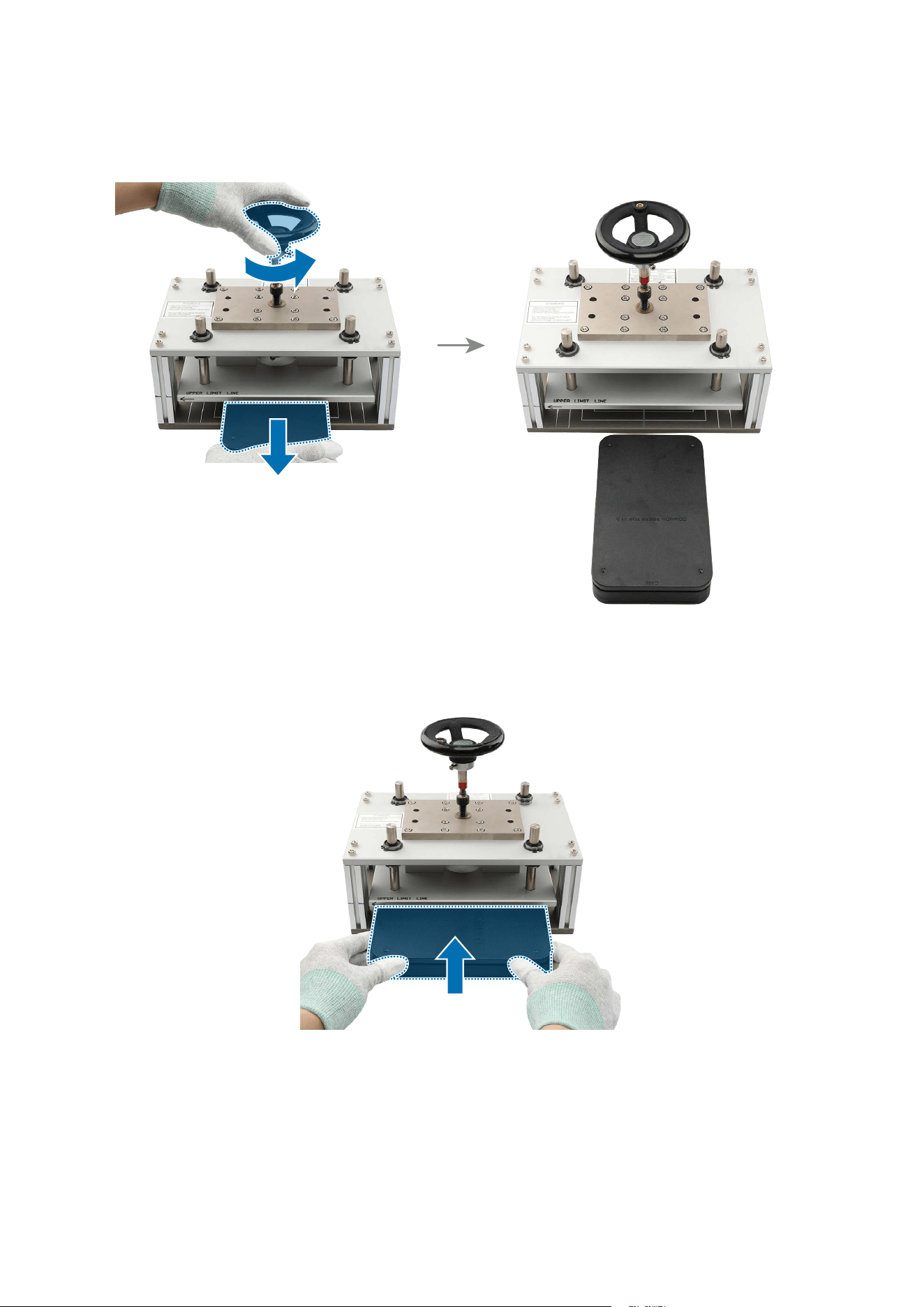
Disassembly and Assembly
77
19
When the second press is completed after 30 seconds, rotate the torque limit handle
to the anticlockwise and remove the tray from the press fixture.
20
Position the entire screen press tray with the device horizontally in the centre of the
press fixture.
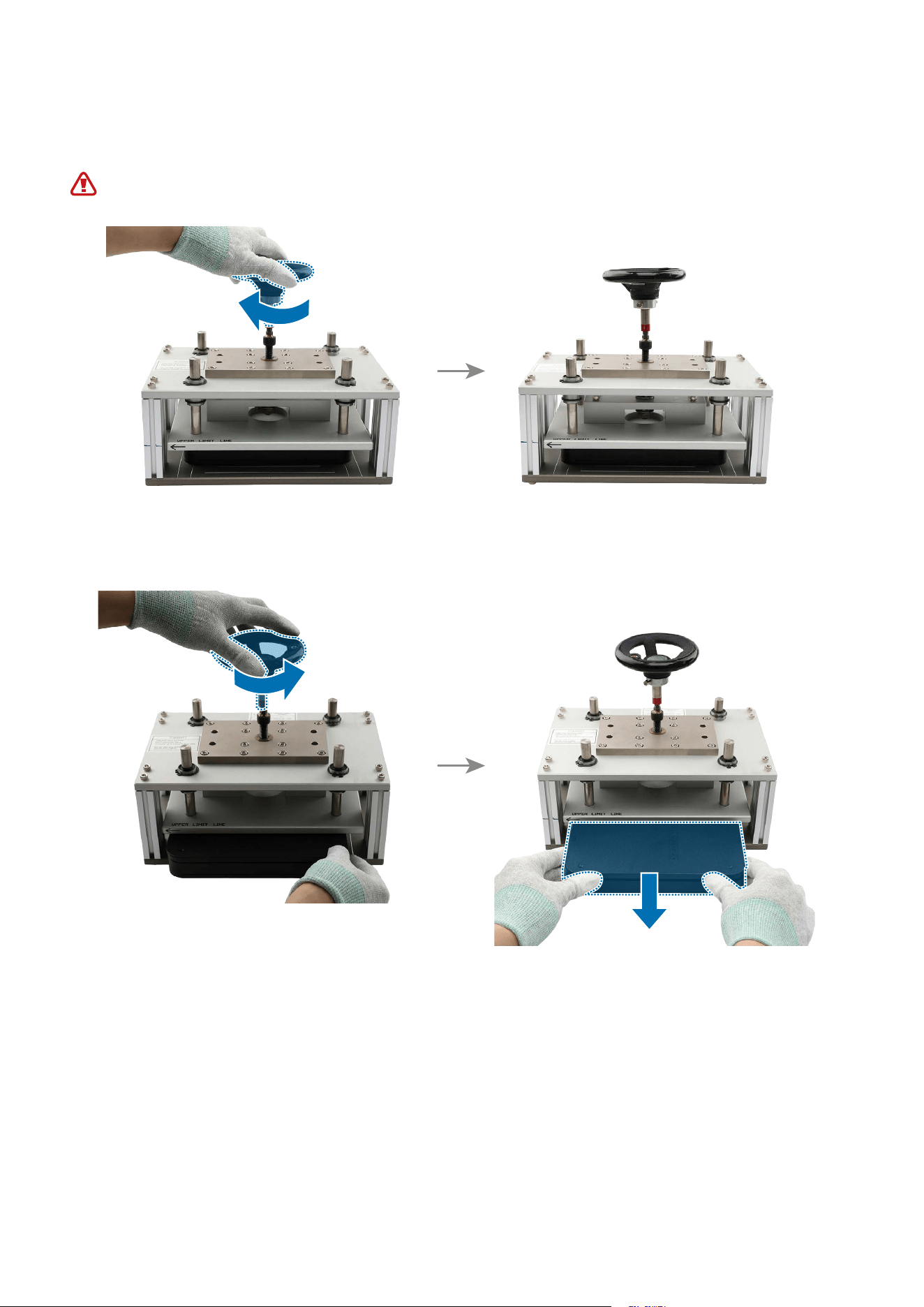
Disassembly and Assembly
78
21
Rotate the torque limit handle to the clockwise until it makes a sound. In that press
state, stay the tray for 30 seconds.
Keep your hands out of the press fixture to avoid mechanical pinching and injury.
22
When the third press is completed after 30 seconds, rotate the torque limit handle to
the anticlockwise and remove the tray from the press fixture.
Disassembly and Assembly
80
Charging Port and Microphone
The microphone is built into the charging port module.
Disassembly
Remove Back Cover, Battery, and Screen first before you begin.
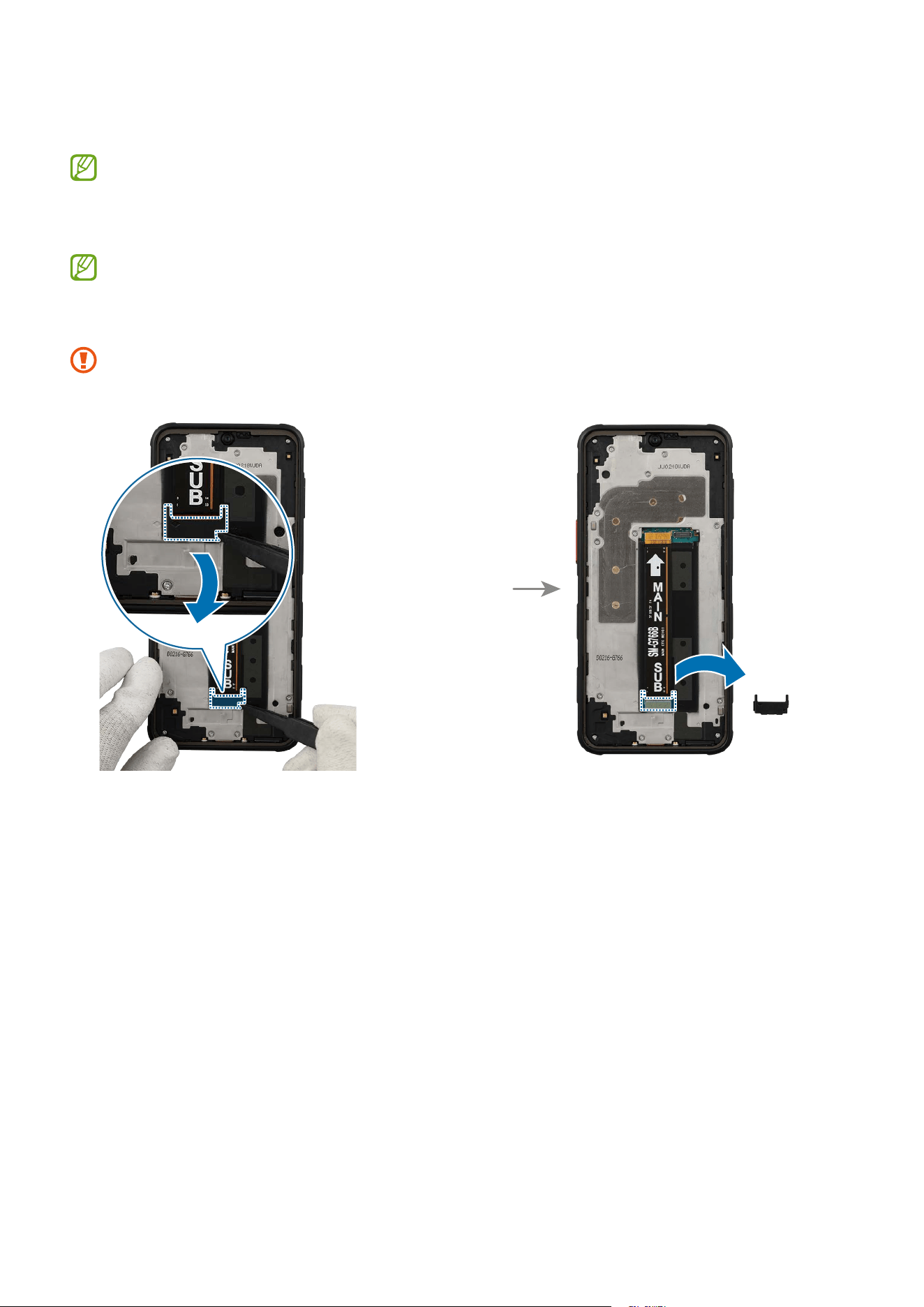
1 Using the tweezers, remove the bottom cover of the flex cable connector carefully.
Be careful not to damage the cable and cover.
Disassembly and Assembly
81
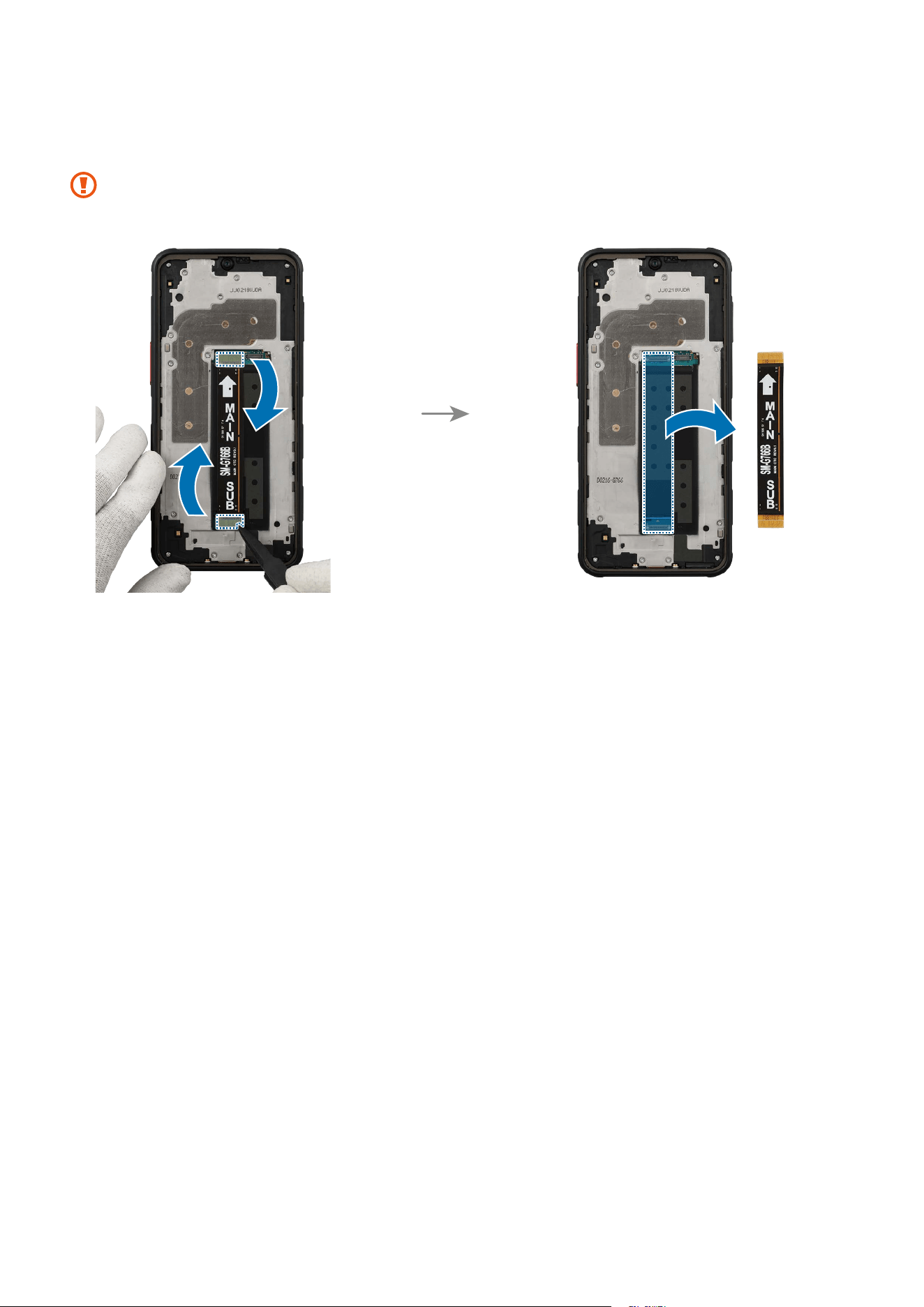
2 Using the tweezers, disconnect the 2 flex cable connectors and remove the flex cable
completely.
When removing the connectors, be careful not to damage the cable.
Disassembly and Assembly
82
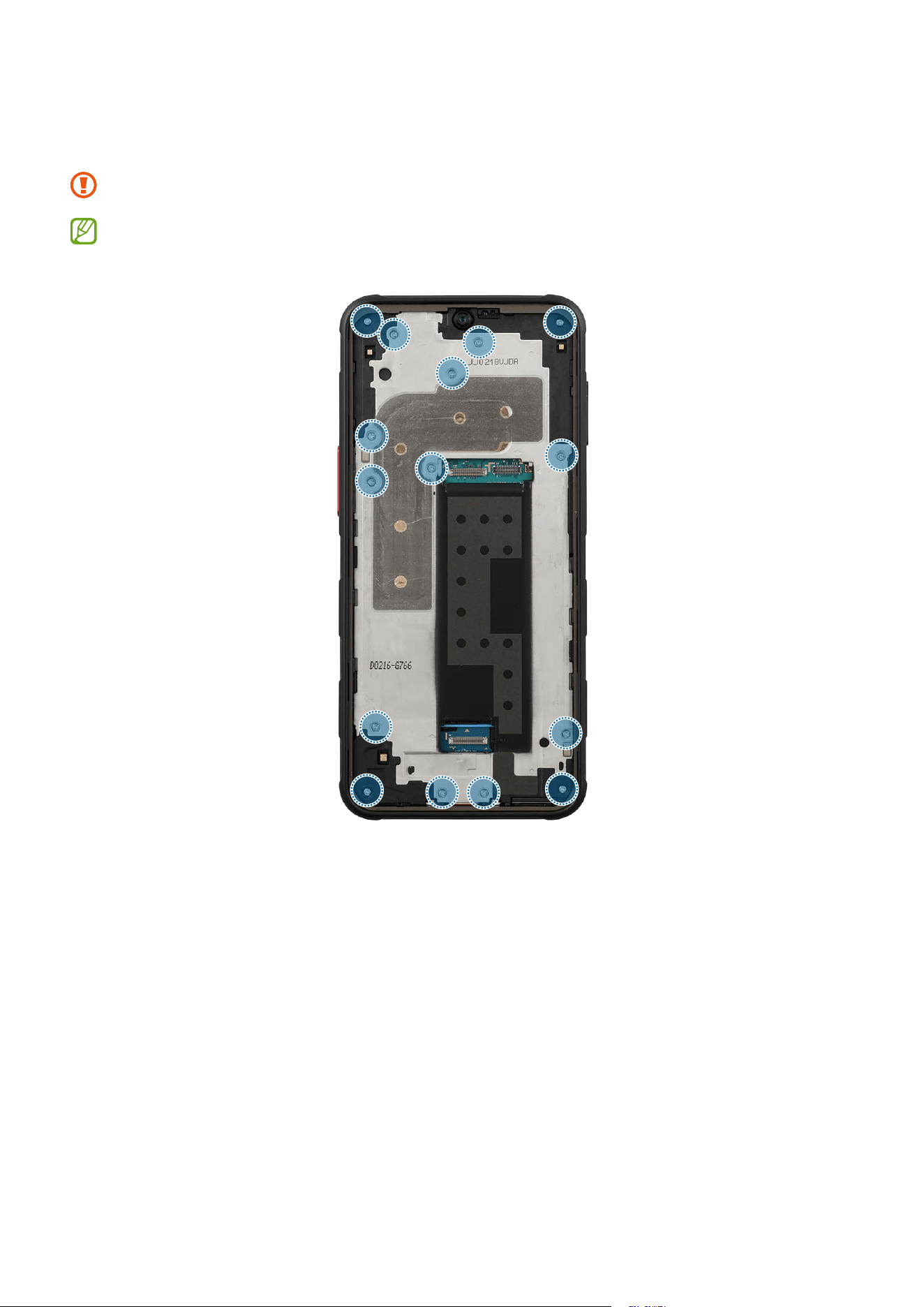
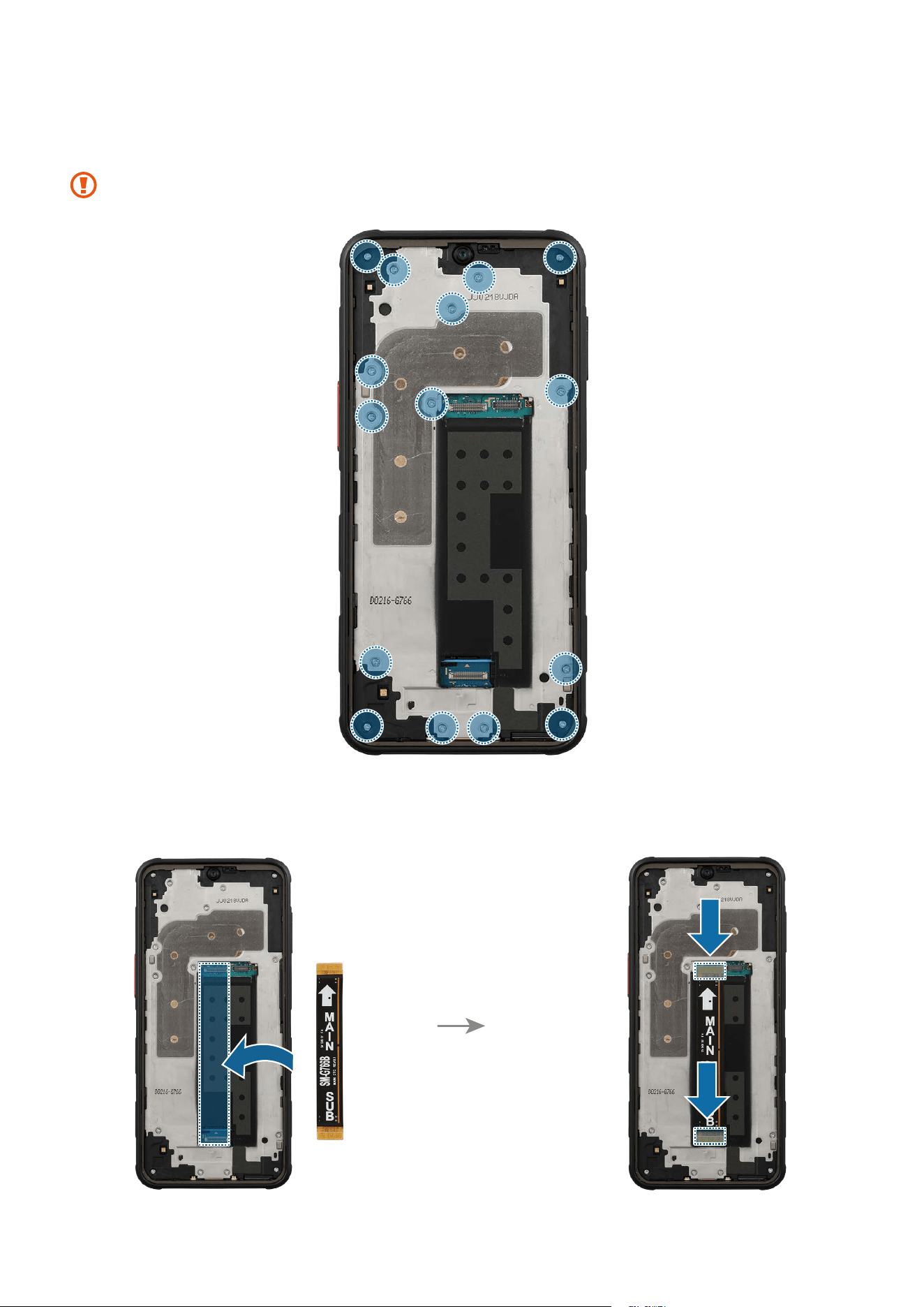
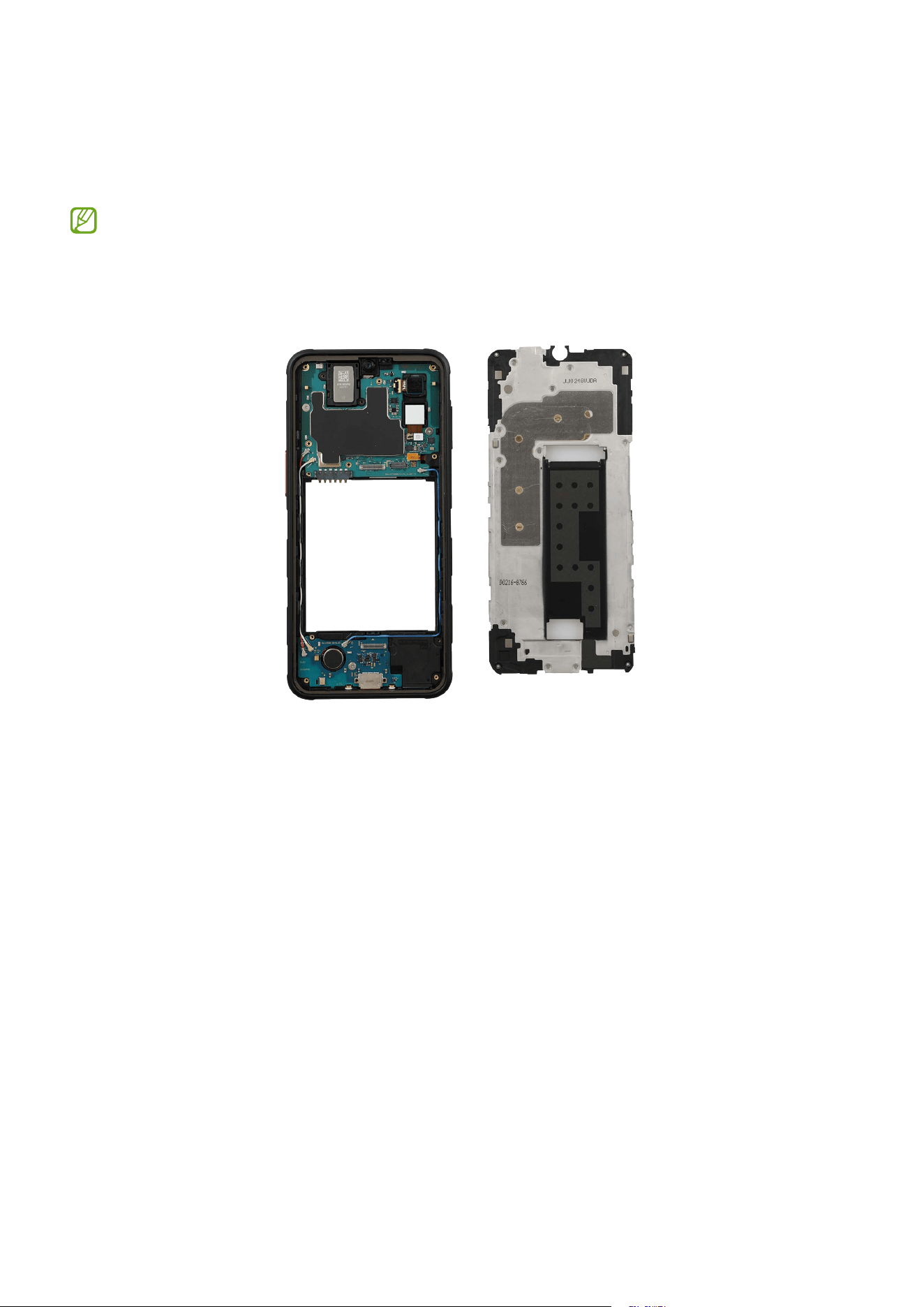
3 Check and remove the screws at the 15 different points on the bracket using a cross-
head screwdriver.
Be careful not to damage the bracket and near components.
Check the number of screws that have been removed, and store them carefully to
make sure that no unassembled screws are left inside the device during assembly.
Disassembly and Assembly
83
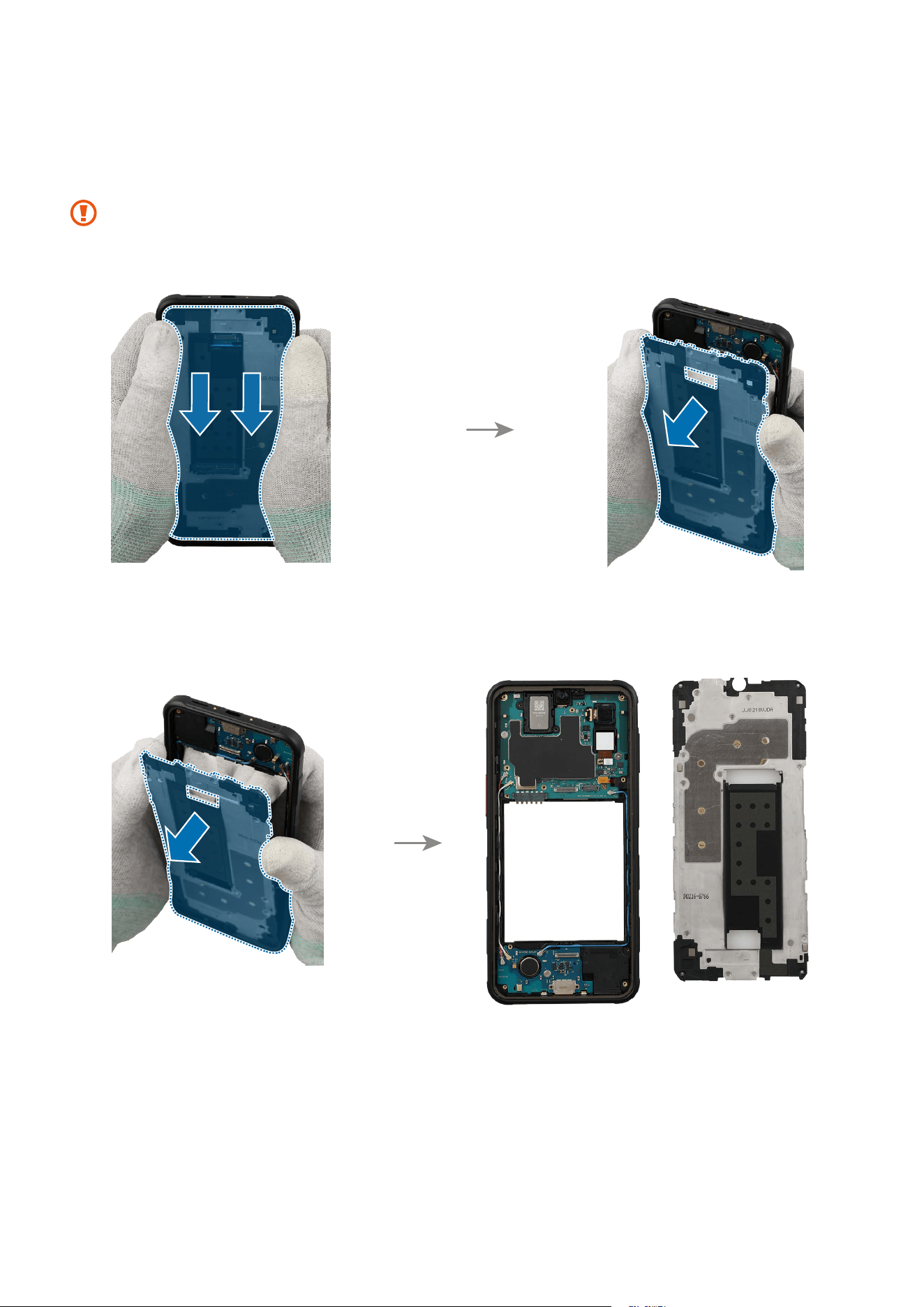
4 Hold the top part of the device using your fingers and carefully press the left and
right parts of the bracket from the back. Separate the upper part of bracket from the
device frame and completely separate it as a whole.
As the bracket can be damaged by excessive force, be careful not to damage the
bracket.
Disassembly and Assembly
84
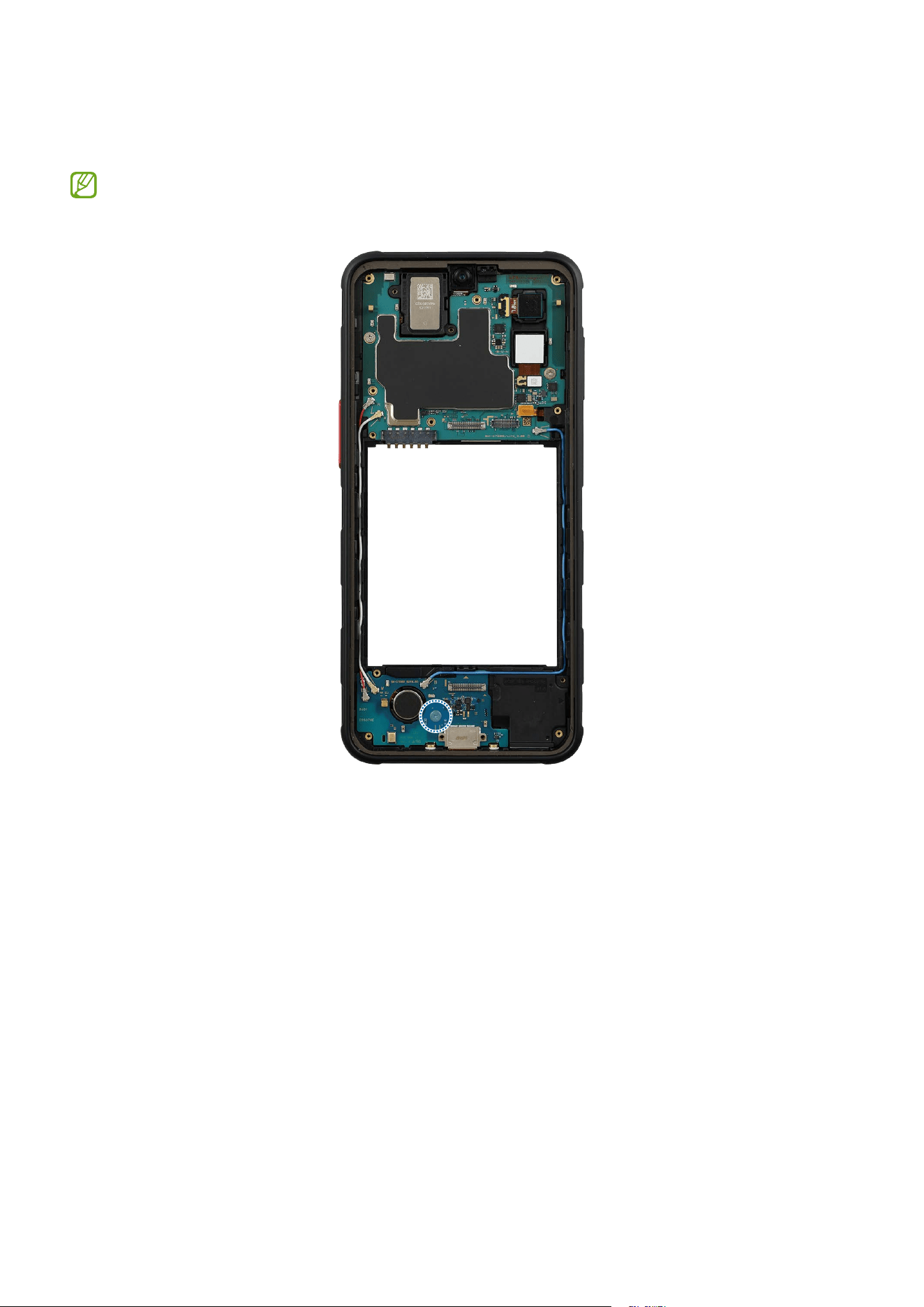
5 Check the screw on the charging port module and remove it using a cross-head
screwdriver.
Check the number of screws that have been removed, and store them carefully to
make sure that no unassembled screws are left inside the device during assembly.
Disassembly and Assembly
85
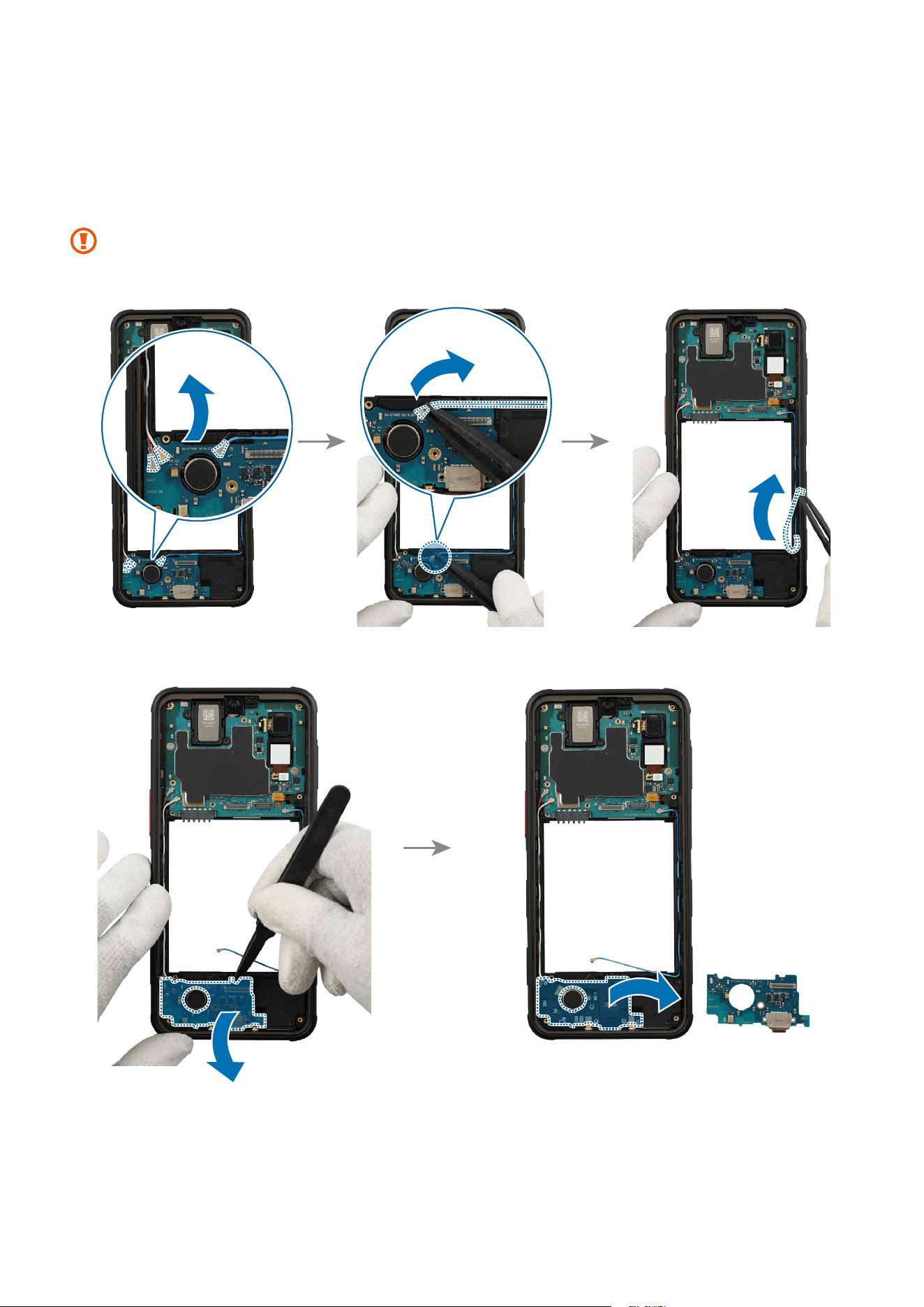
6 Using the tweezers, disconnect the 3 coaxial cable connectors (Red/White/Blue) from
the charging port module. In case of the coaxial cable (Blue), lift up and separate it
from the charging port module. Lift up on the separator groove of the charging port
module using the tweezers and remove it carefully.
Be careful not to damage the charging port and the near components.
Disassembly and Assembly
86
Reassembly
Leaving screws inside the device may damage internal components, such as the
battery. When assembling, be extra careful not to leave any unassembled screws
inside the device.
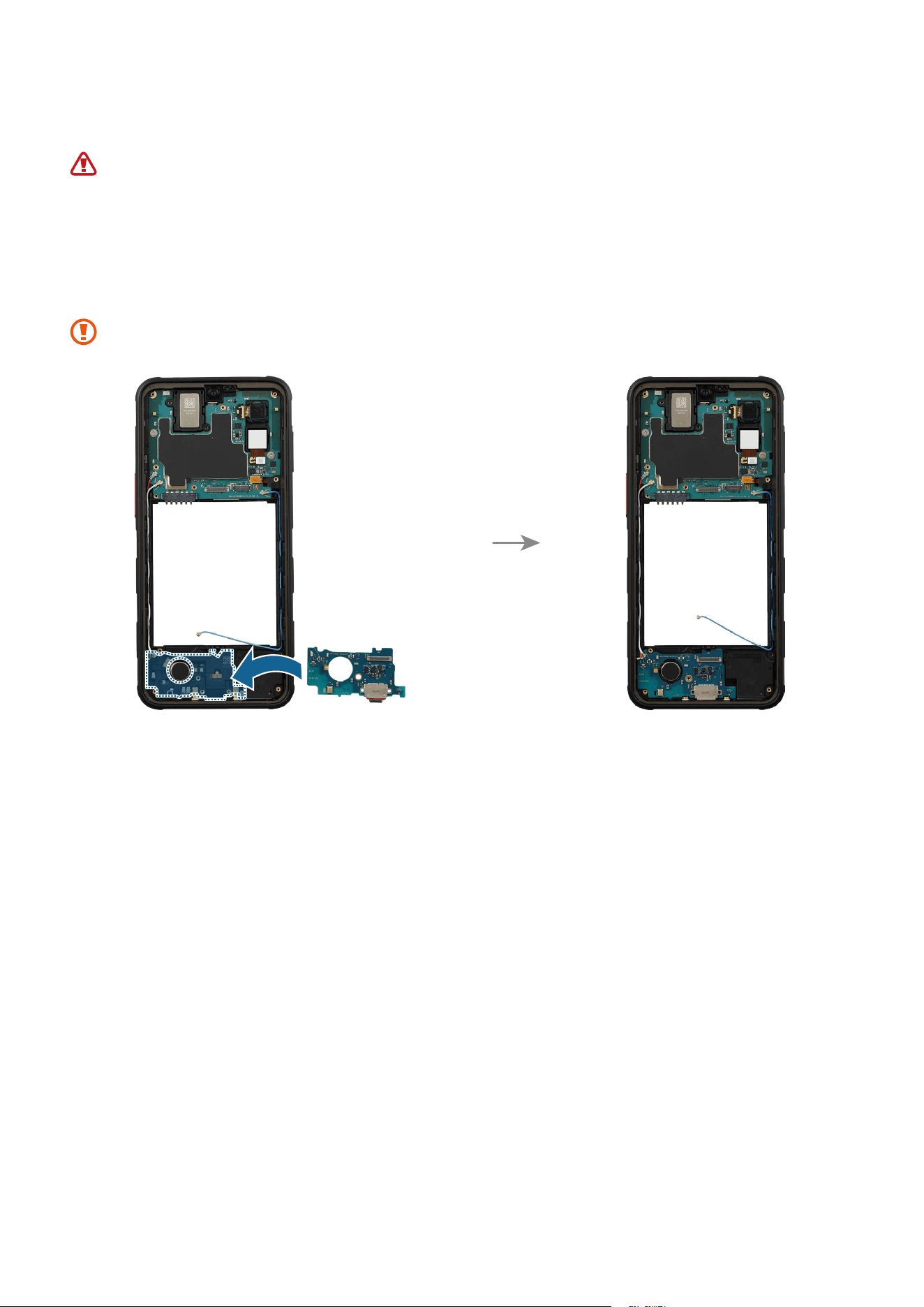
1 Using the tweezers, insert the charging port module to the bottom frame, and press
down on it in its position smoothly.
Be careful not to damage the charging port and the near components.
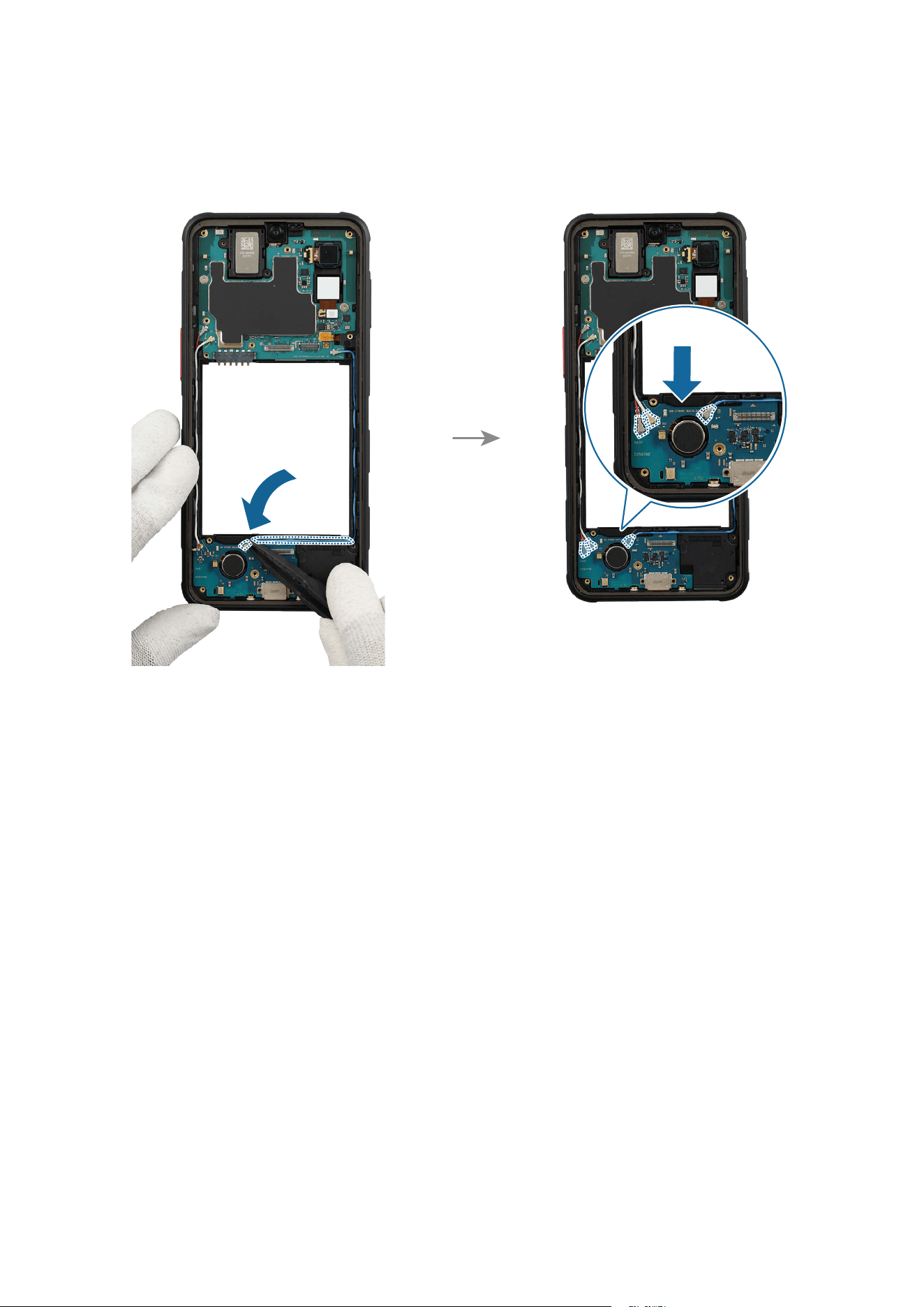
Disassembly and Assembly
87
2 Using the tweezers, assemble the coaxial cable (Blue) to the exact position of the
charging port module. Connect the 3 coaxial cable connectors (Red/White/Blue) on
the charging port module.
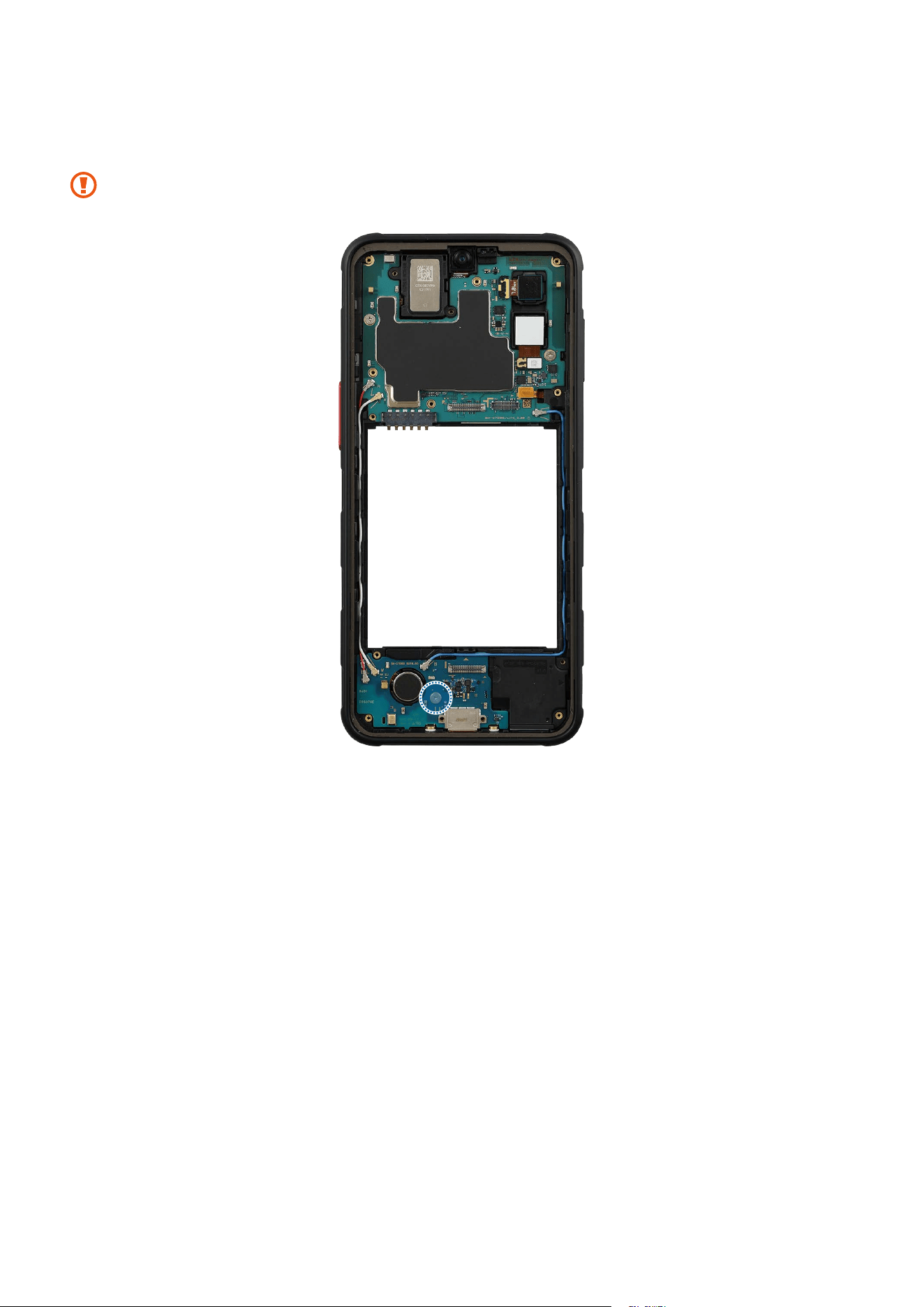
Disassembly and Assembly
88
3 Check the screw 2259 (1 ea) at the point on the charging port module and fasten the
screw using a cross-head screwdriver.
Be careful not to damage the charging port module side contact.
Disassembly and Assembly
89
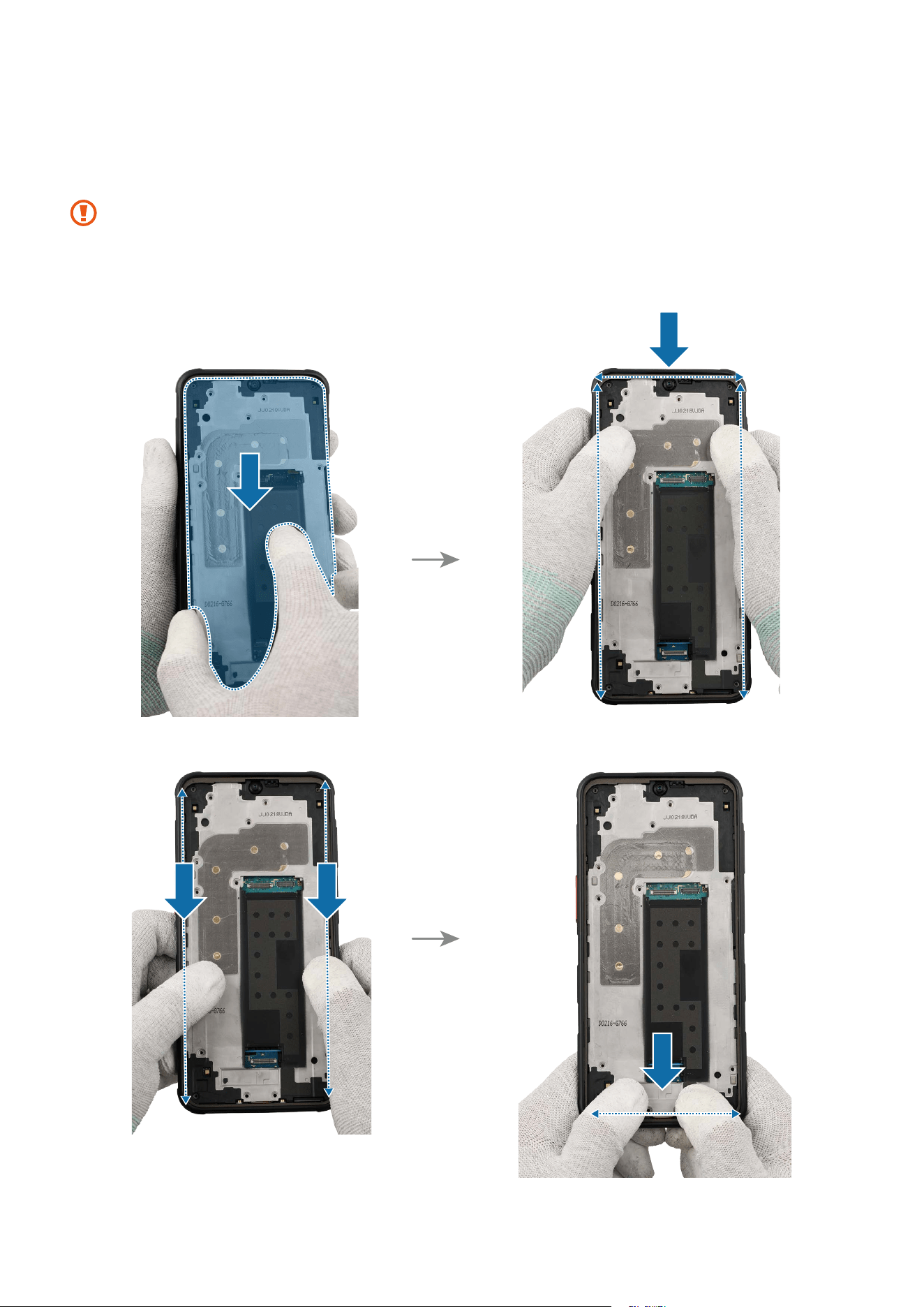
4 Place the upper part of bracket on the device frame and push down all edges of the
bracket using your fingers softly and evenly so that the bracket can be assembled
perfectly.
•
Be careful not to damage the frame and near components.
•
As the bracket can be damaged by excessive force, be careful not to damage the
bracket.
Disassembly and Assembly
90
5 Check the screw 3532 (15 ea) at the 15 different points on the bracket and fasten
them using a cross-head screwdriver.
Be careful not to damage the bracket and near components.
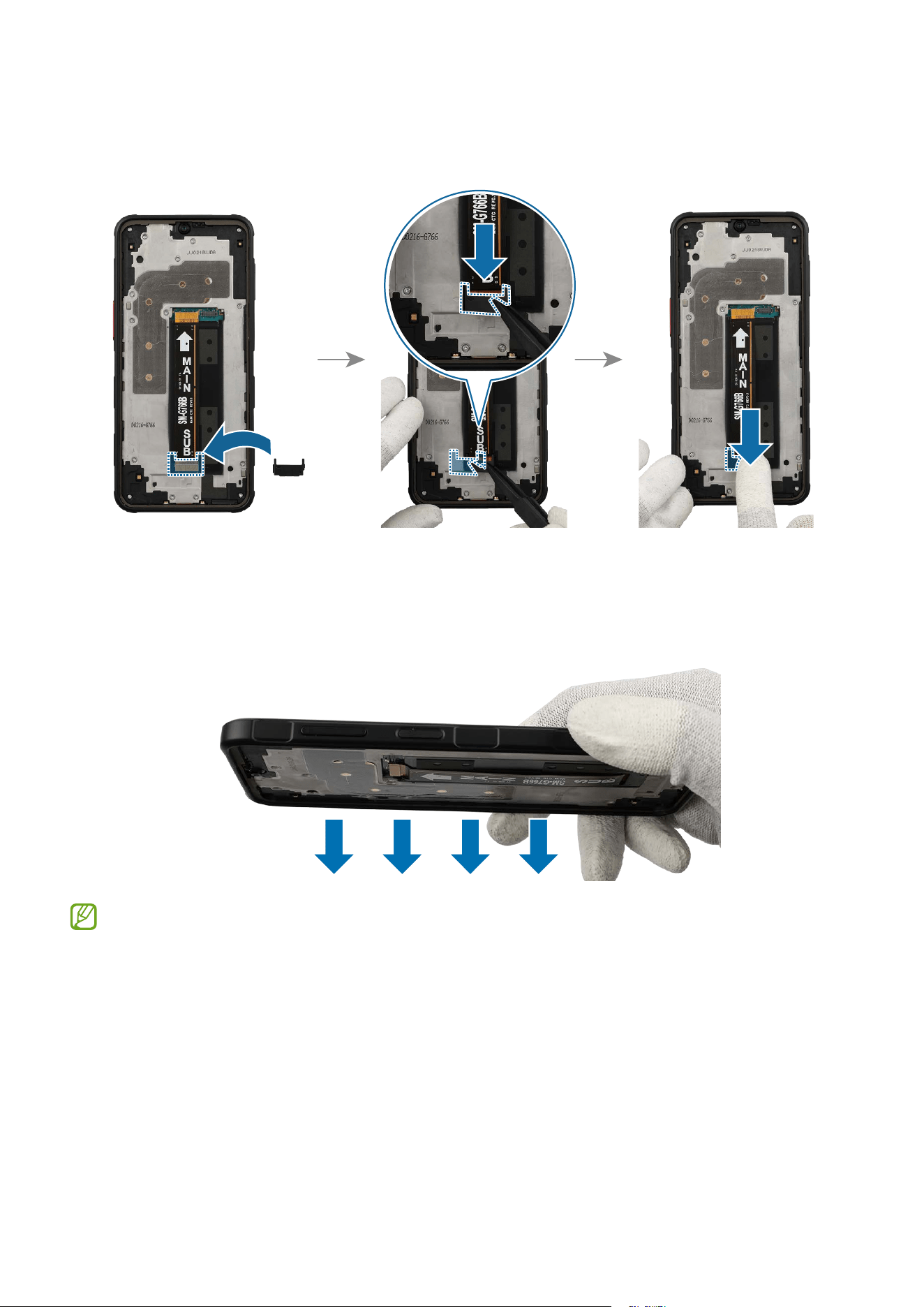
6 Place the flex cable to the device frame and connect the 2 flex cable connectors
carefully.
Disassembly and Assembly
91
7 Using the tweezers, assemble the bottom cover of the flex cable connector. And press
on the cover softly so that it can be completely assembled.
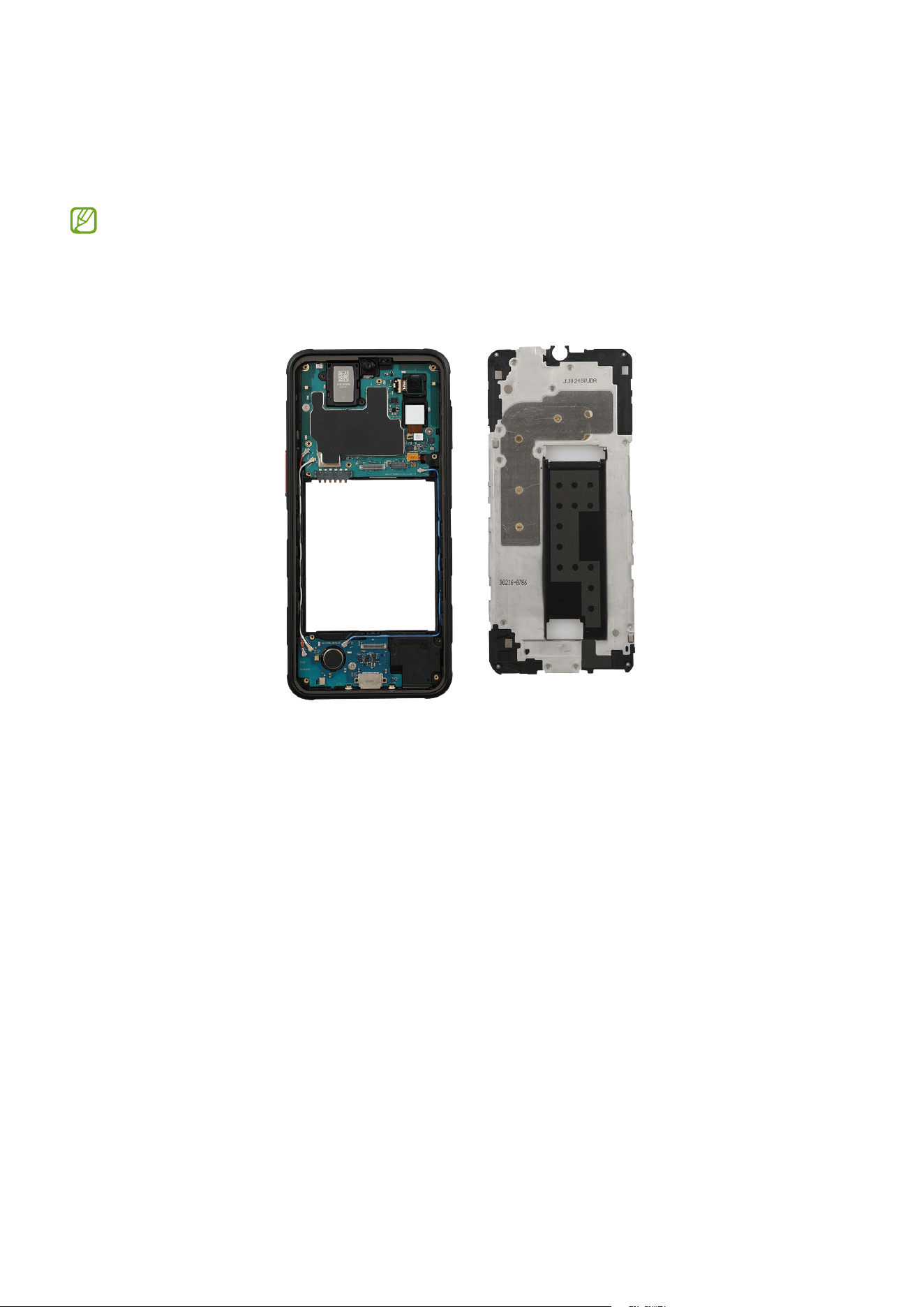
8 Check carefully to see if there are any screws or other foreign substances inside the
device (battery, PBA, cable, etc.). Shake the device lightly with the back of the device
facing down to remove any remaining screws.
Reassemble Screen, Battery, and Back Cover to complete reassembly.
Disassembly and Assembly
93
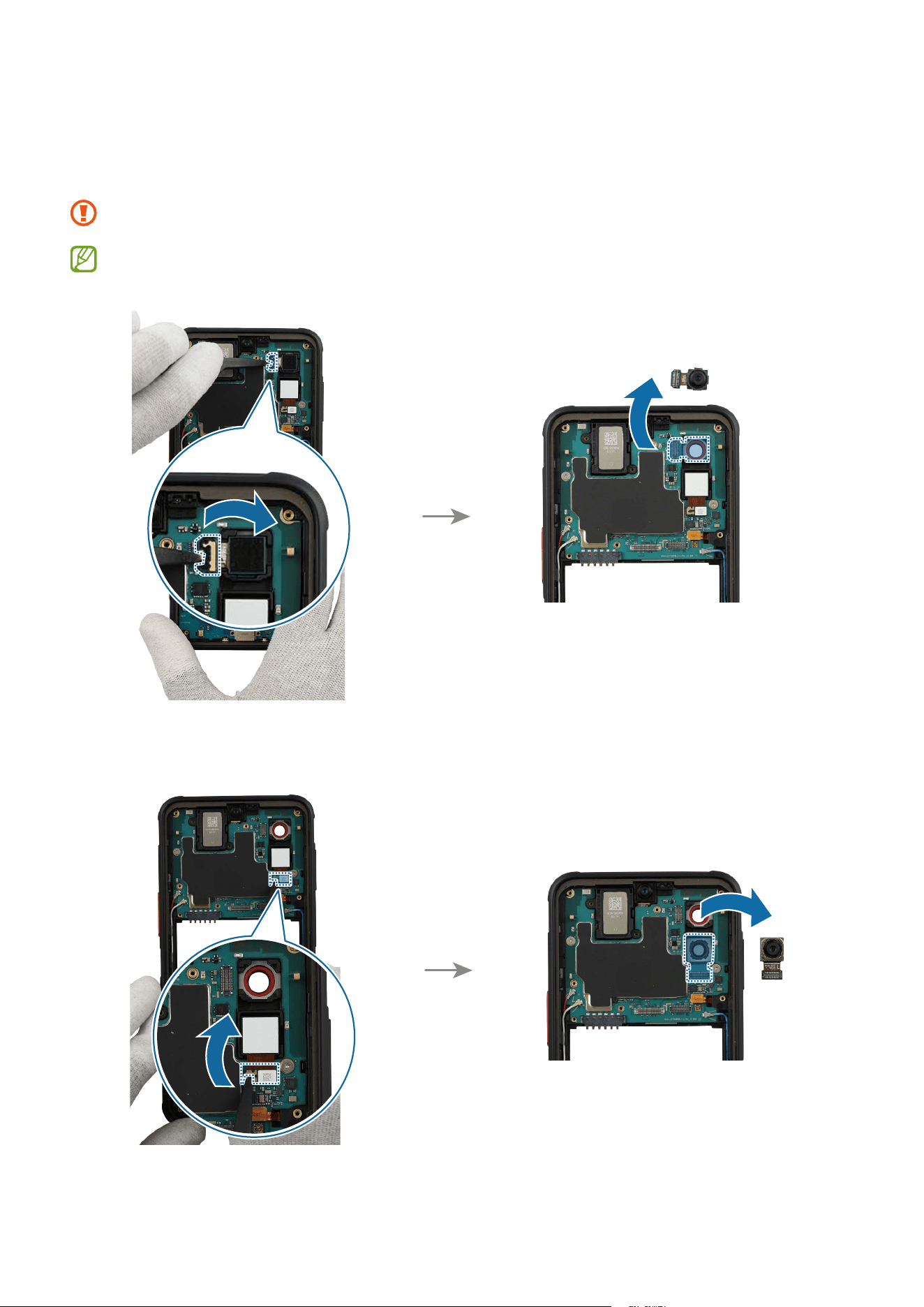
2 Disconnect the rear camera connector from the main board using the tweezers, and
remove the rear camera carefully from the main board. Leave the camera lens facing
up.
Be careful not to damage the main board.
Separate and replace only the problematic camera.
Disassembly and Assembly
94
Reassembly
Leaving screws inside the device may damage internal components, such as the
battery. When assembling, be extra careful not to leave any unassembled screws
inside the device.
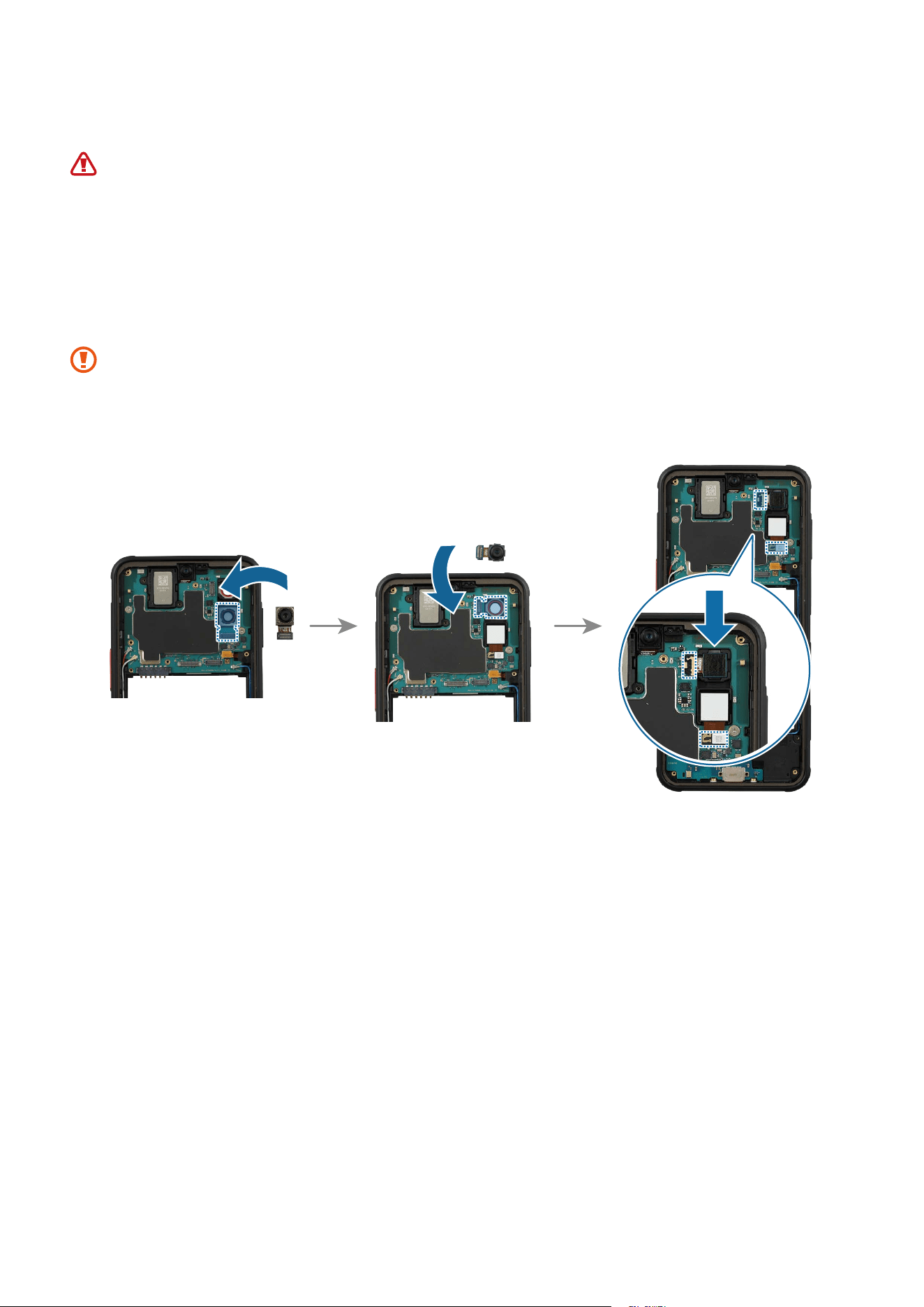
1 Remove all release films from the new rear camera module. Using the tweezers,
gently insert the rear camera into the camera hole so that the lens faces backward.
And connect the rear camera connector carefully on the main board.
•
Be careful not to drop the camera while connecting the connector.
•
Be careful not to damage the camera lens and near components.
•
Be careful not to damage the main board.
Disassembly and Assembly
95
2 Check for the reassembly steps of the Charging Port and Microphone and completely
reassemble the bracket, the flex cable, with the bottom cover.
3 Check carefully to see if there are any screws or other foreign substances inside the
device (battery, PBA, cable, etc.). Shake the device lightly with the back of the device
facing down to remove any remaining screws.
Reassemble Screen, Battery, and Back Cover to complete reassembly.
Disassembly and Assembly
97
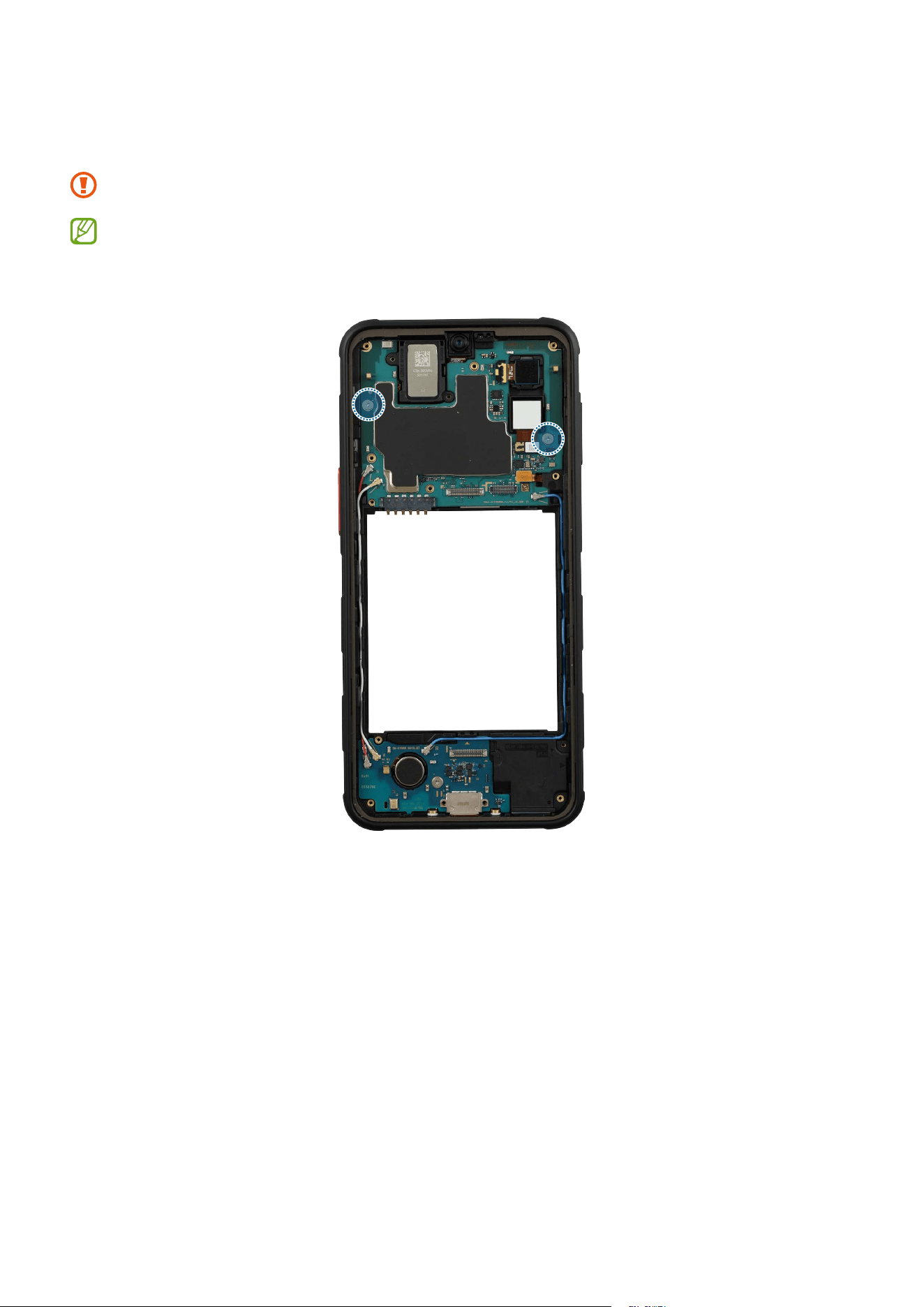
2 Check the 2 screws on the main board and remove them using a cross-head
screwdriver.
Be careful not to damage the main board and the near components.
Check the number of screws that have been removed, and store them carefully to
make sure that no unassembled screws are left inside the device during assembly.
Disassembly and Assembly
98
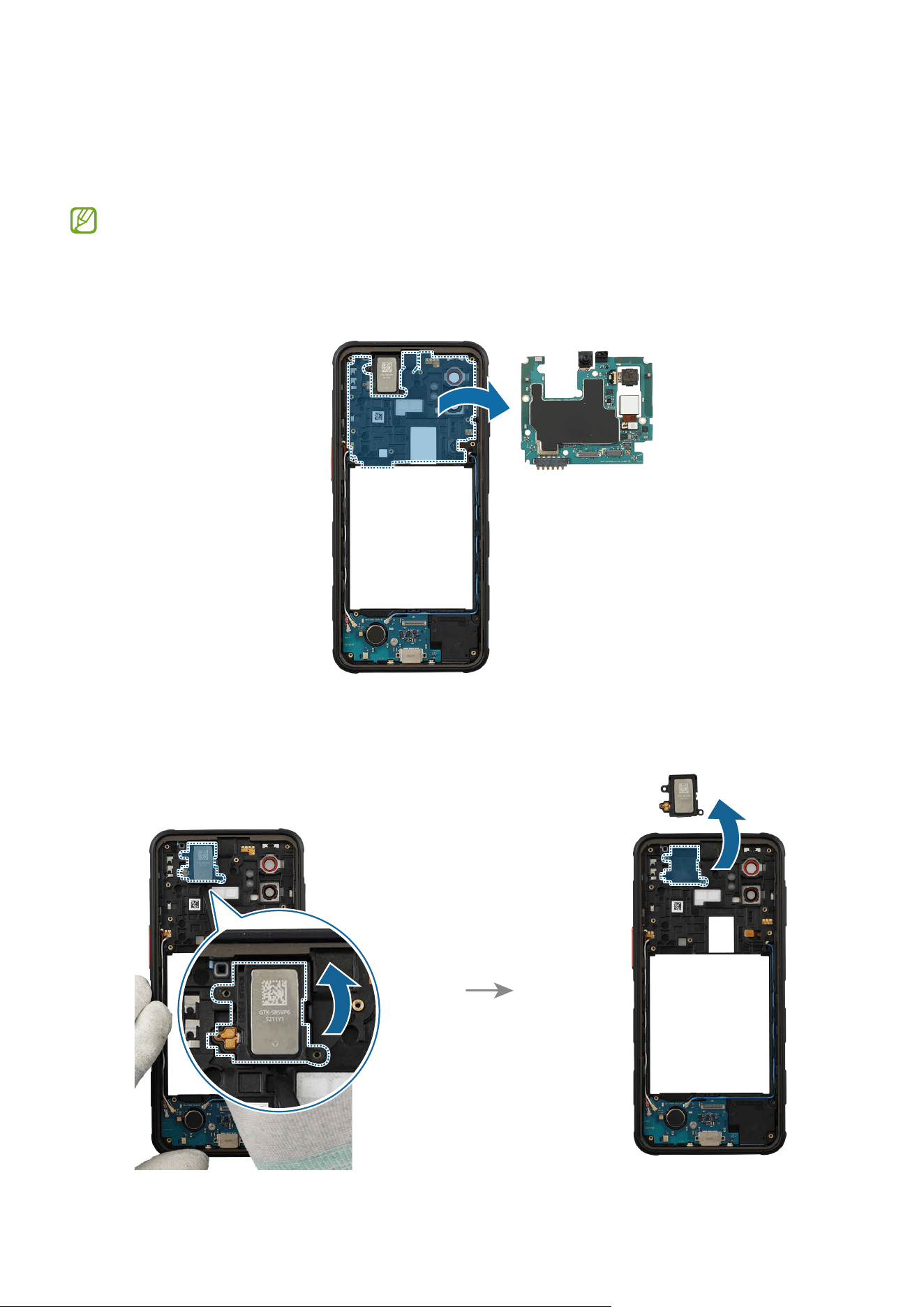
3 Using the tweezers, disconnect the 3 coaxial cable connectors (Red/White/Blue) and
the side button connector from the main board. Lift up on the separator groove of the
main board using the tweezers and remove it carefully.
Be careful not to damage the cable.
Disassembly and Assembly
99
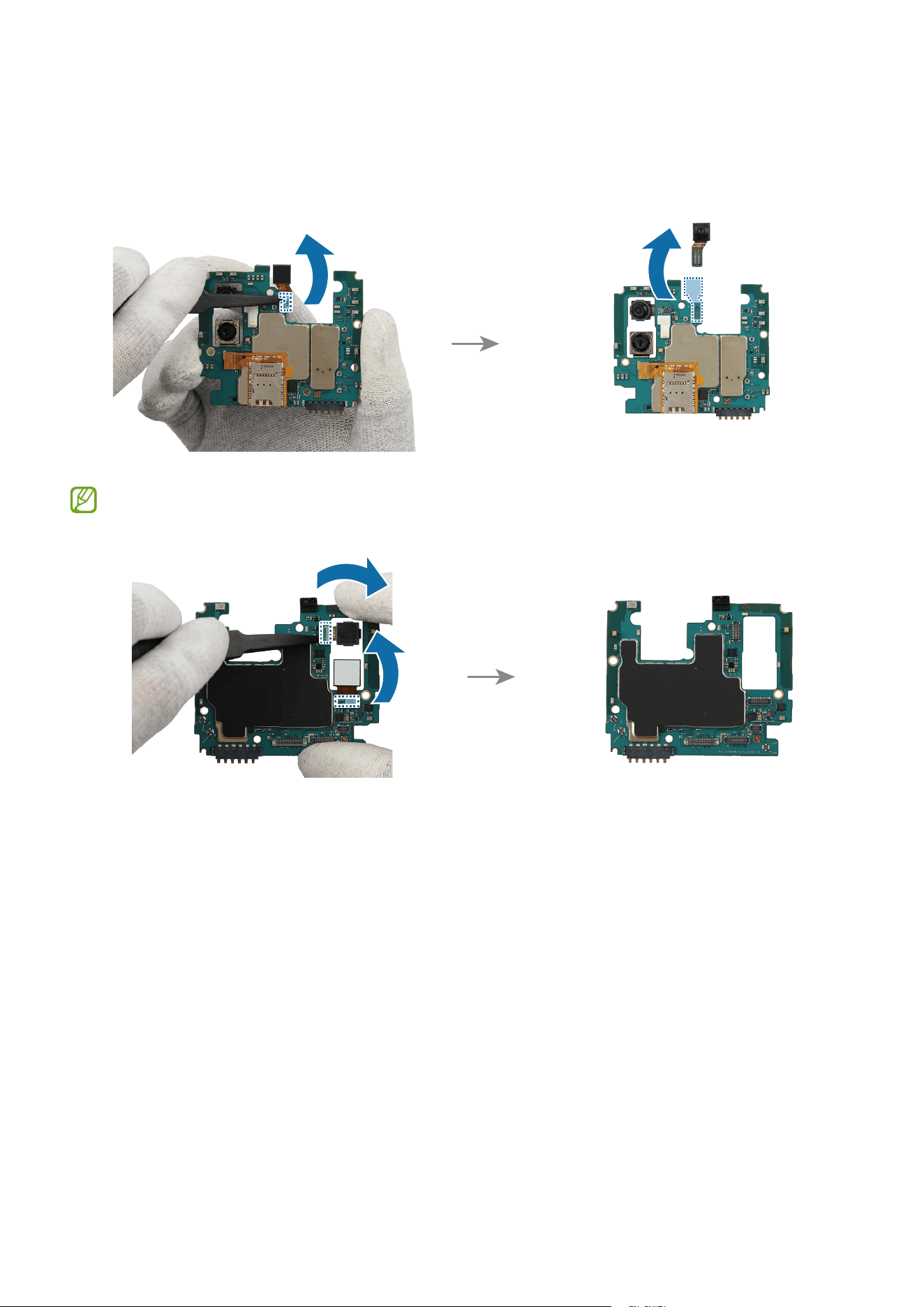
4 Disconnect the front camera connector from the main board using the tweezers, and
remove the front camera carefully from the main board. Leave the camera lens facing
up.
Remove the rear cameras additionally to disassemble only the main board.
Disassembly and Assembly
100
Reassembly
Leaving screws inside the device may damage internal components, such as the
battery. When assembling, be extra careful not to leave any unassembled screws
inside the device.
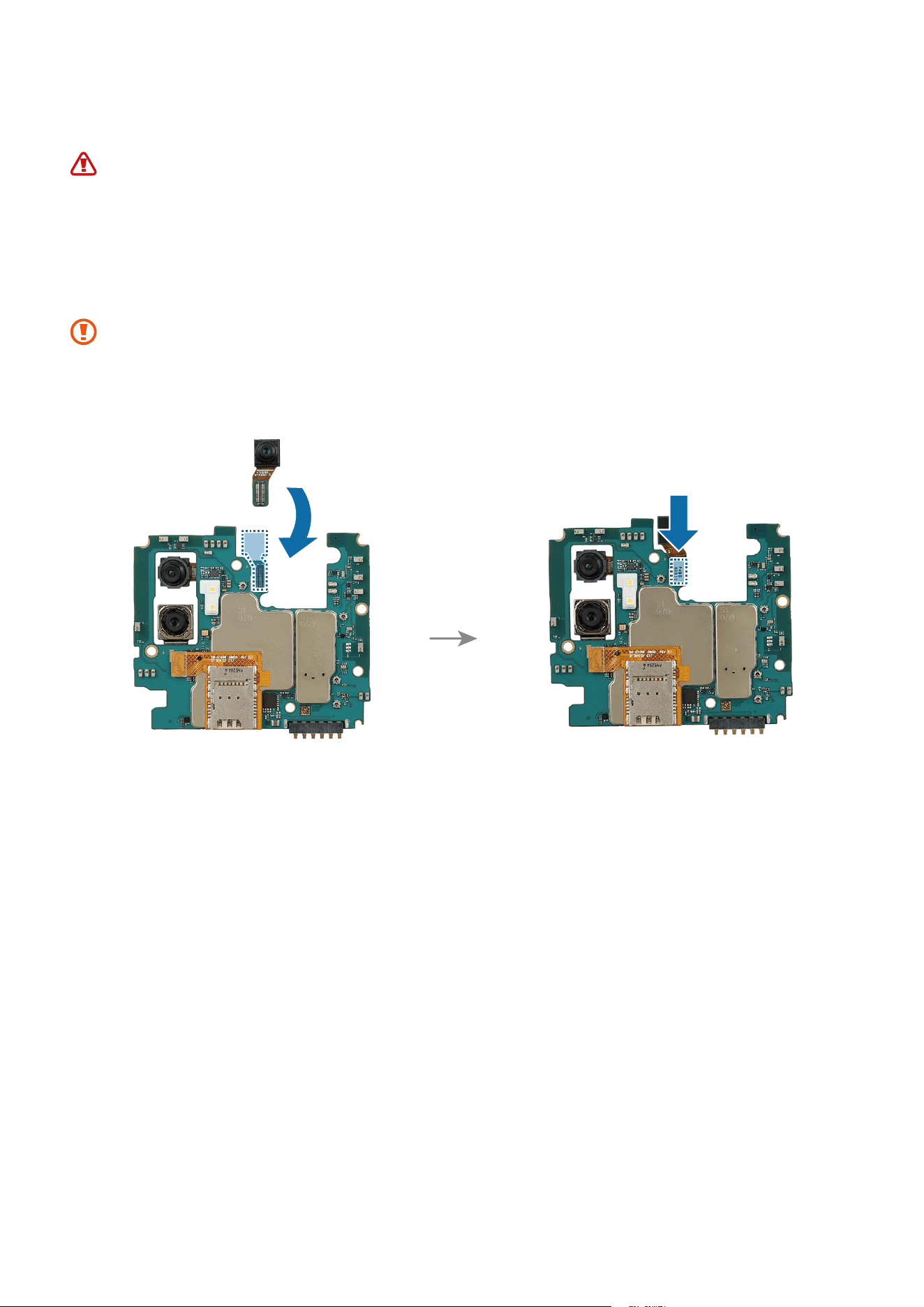
1 Remove all release films from the new front camera module. Using the tweezers,
connect the front camera connector carefully on the main board.
•
Be careful not to drop the camera while connecting the connector.
•
Be careful not to damage the camera lens and near components.
•
Be careful not to damage the main board.
Disassembly and Assembly
101
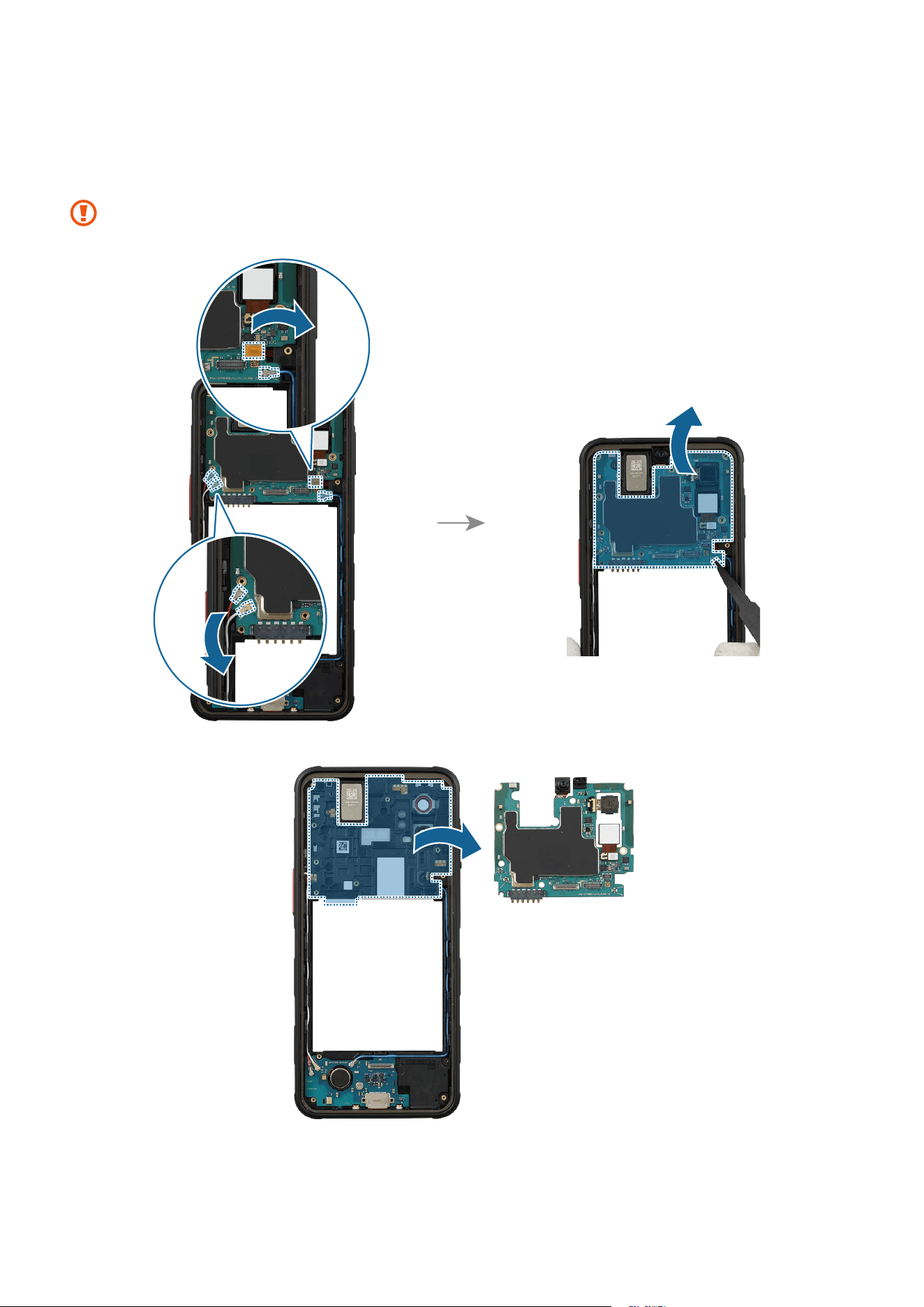
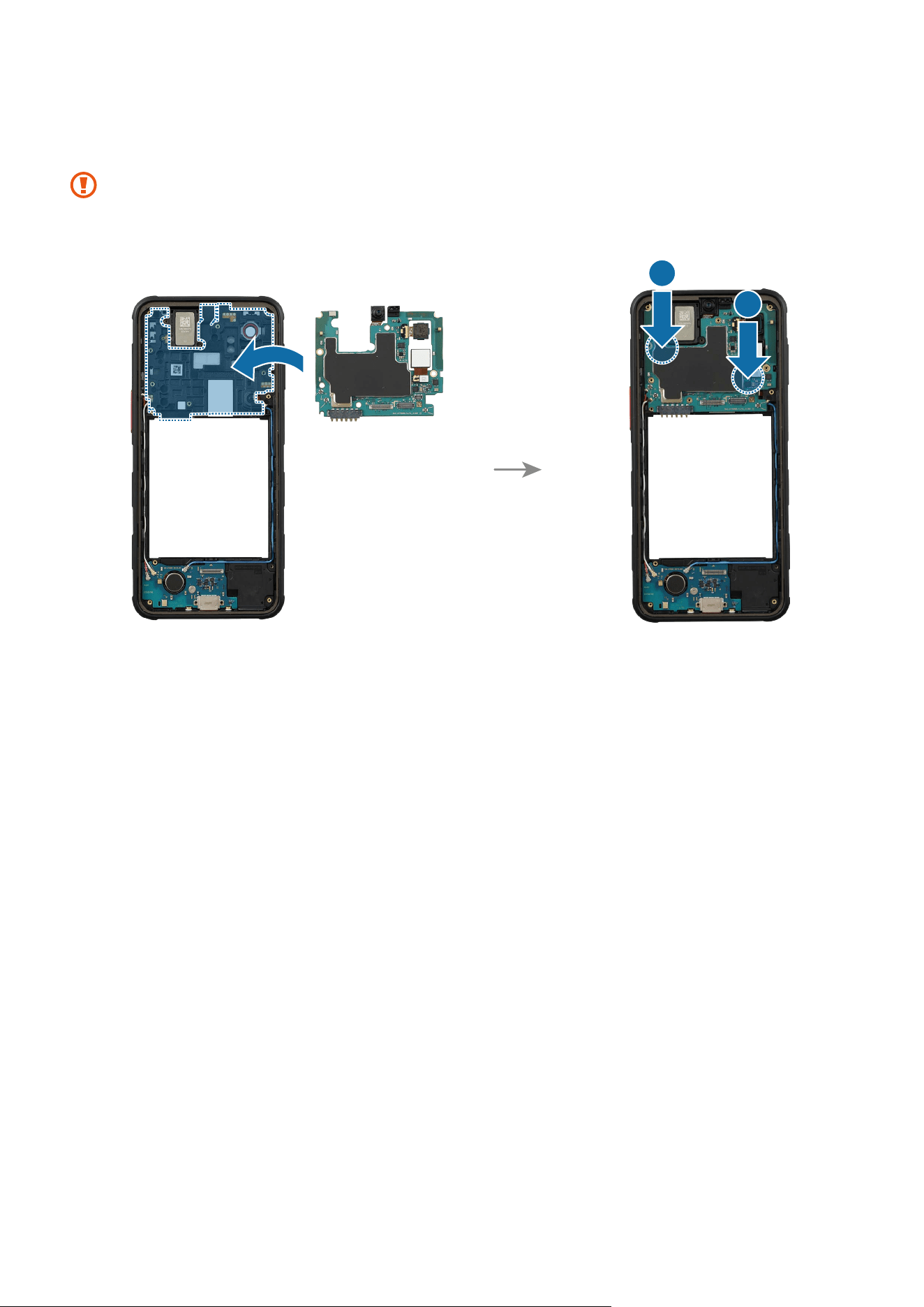
2 Align the main board module onto the device frame. After attaching the upper part of
the main board diagonally on the screen module, assemble the lower part.
The cables have to be positioned outside so as not to interfere when assembling
the main board.
1
2
Disassembly and Assembly
102
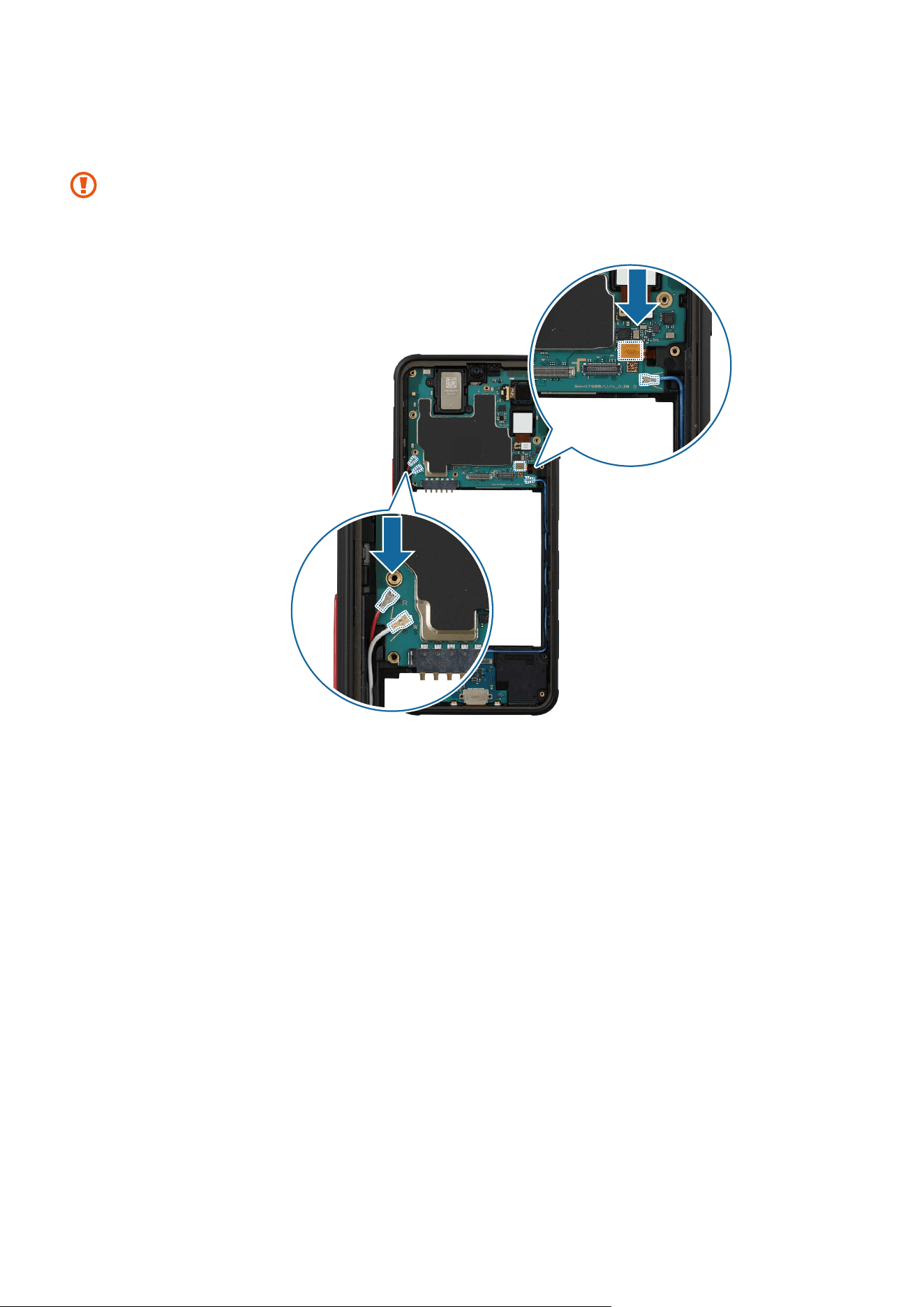
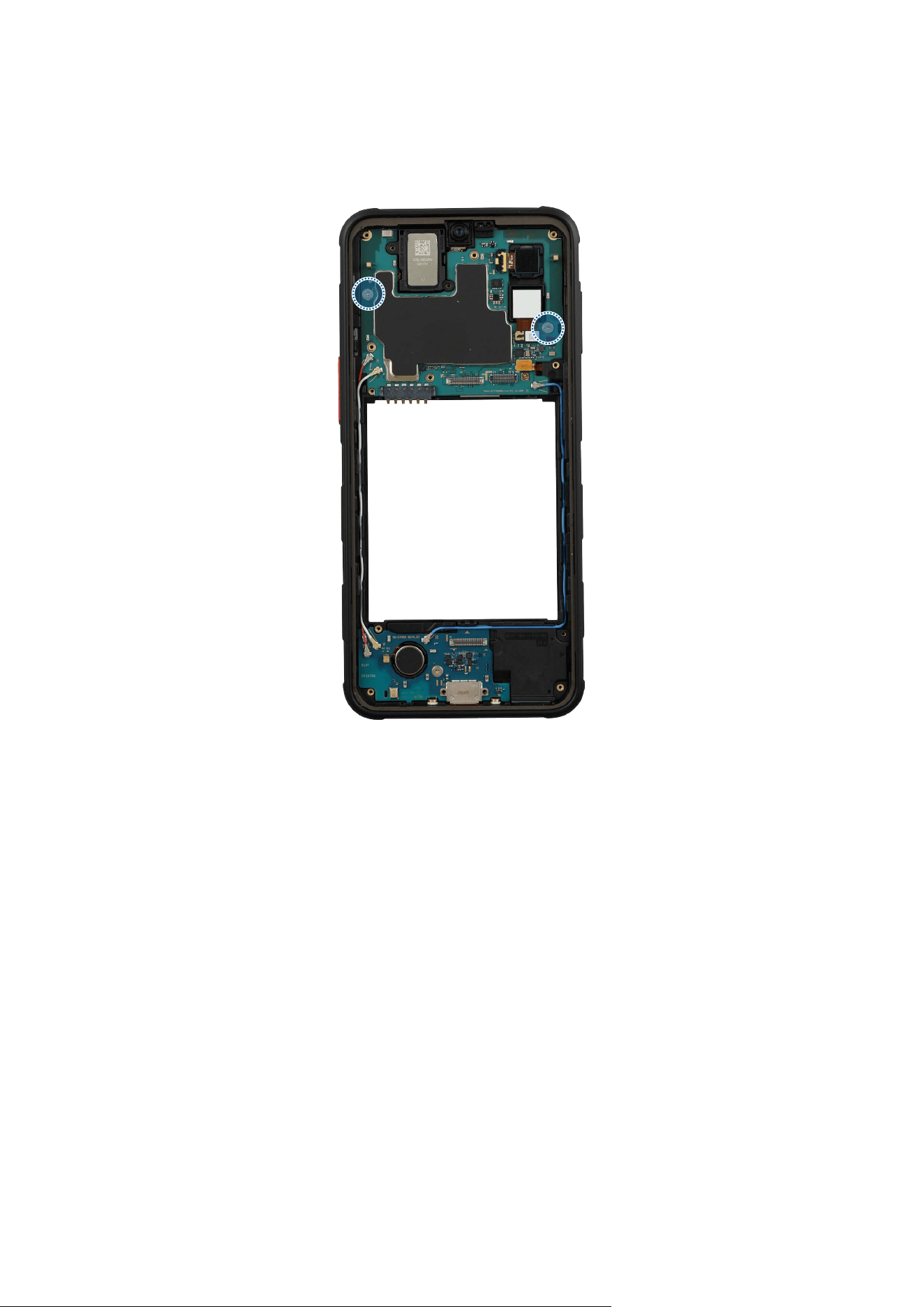
3 Connect the 3 coaxial cable connectors (Red/White/Blue) and the side button
connector to the main board.
•
Be careful not to damage the main board and the near components.
•
Be careful not to damage the cable.
Disassembly and Assembly
103
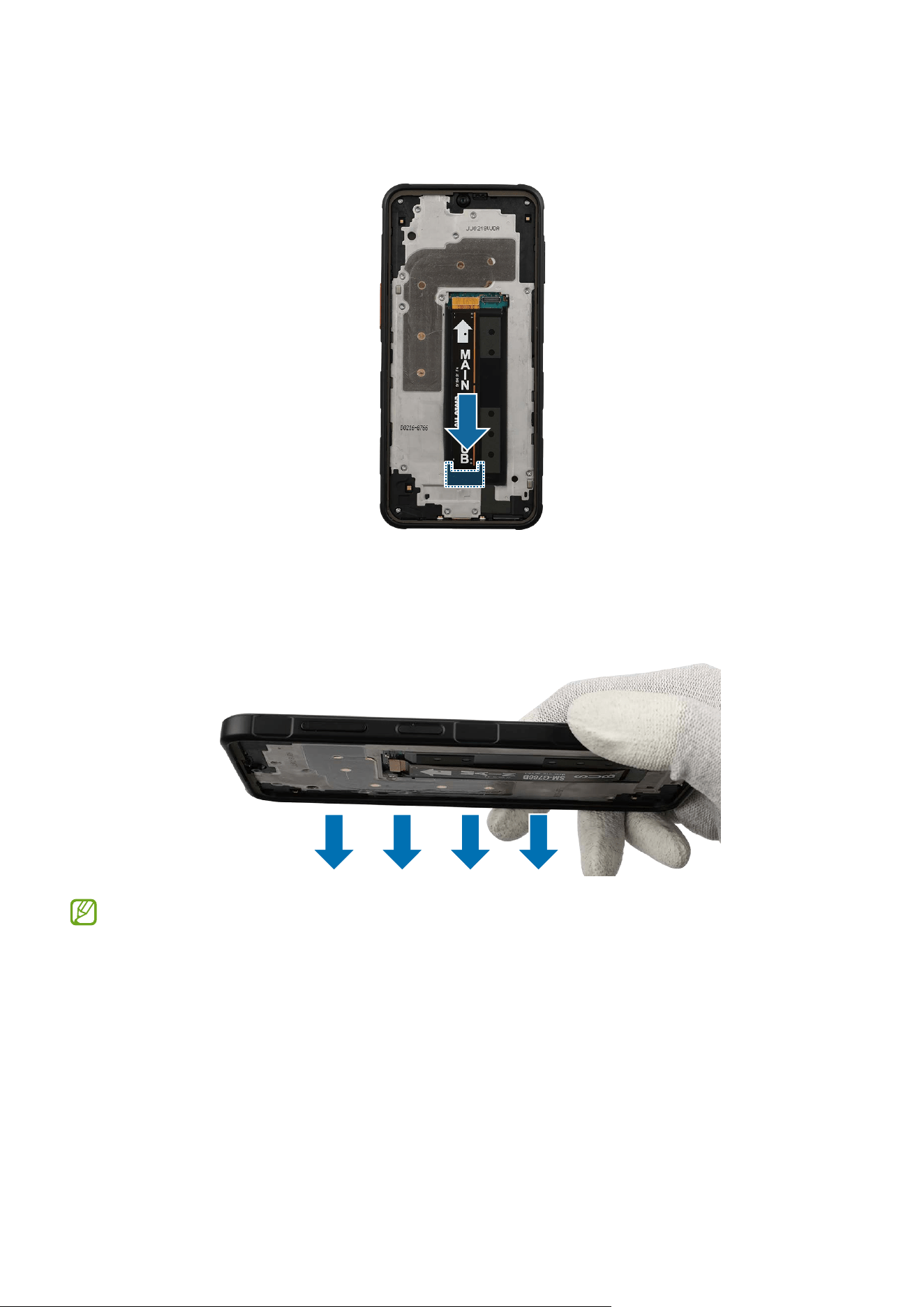
4 Check the screw 2259 (2 ea) at the 2 different points on the main board and fasten
them using a cross-head screwdriver.
Disassembly and Assembly
104
5 Check for the reassembly steps of the Charging Port and Microphone and completely
reassemble the bracket, the flex cable, with the bottom cover.
6 Check carefully to see if there are any screws or other foreign substances inside the
device (battery, PBA, cable, etc.). Shake the device lightly with the back of the device
facing down to remove any remaining screws.
Reassemble Screen, Battery, and Back Cover to complete reassembly.
Disassembly and Assembly
106
Reassembly
Leaving screws inside the device may damage internal components, such as the
battery. When assembling, be extra careful not to leave any unassembled screws
inside the device.
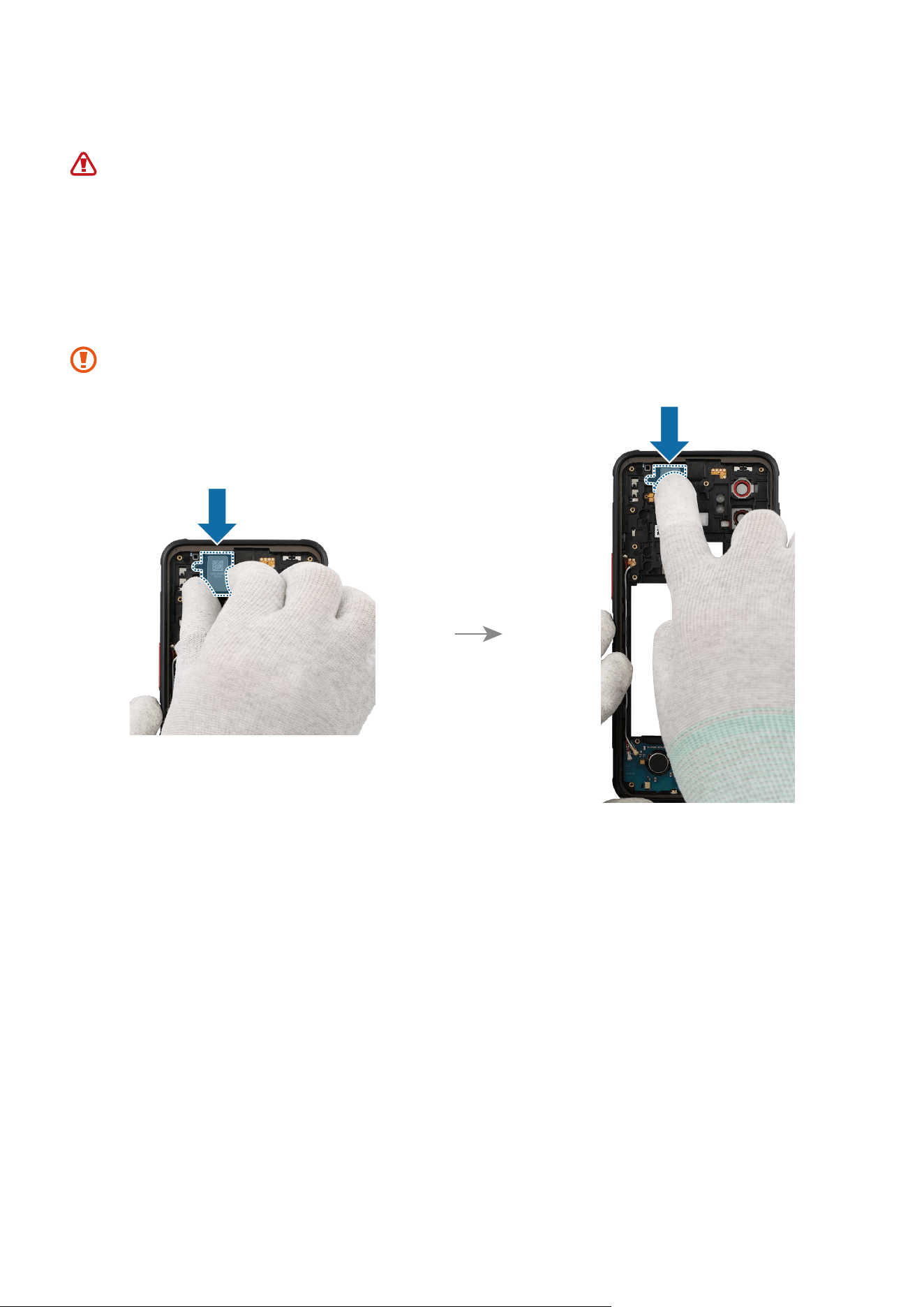
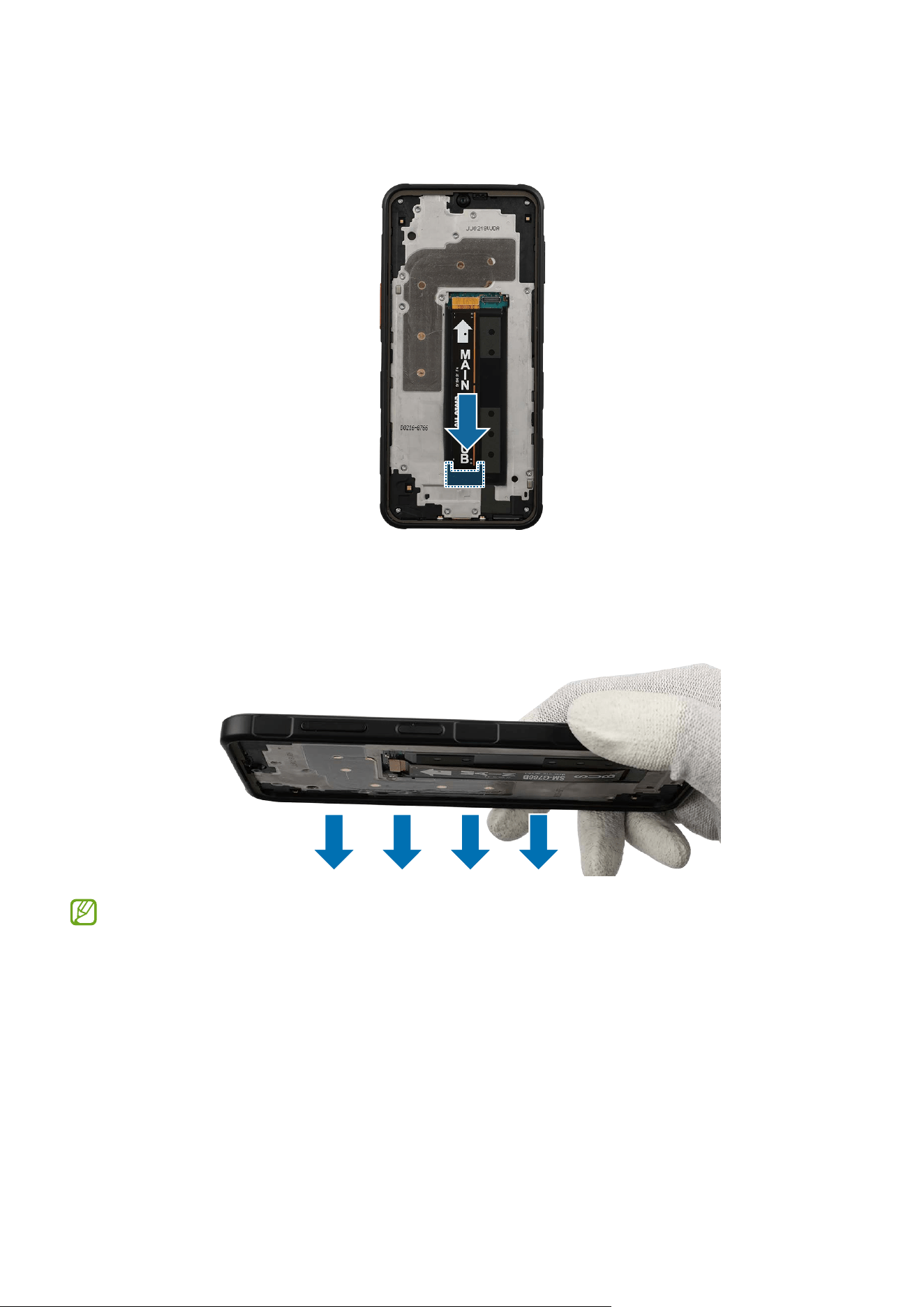
1 Place the new speaker module to the exact position, and assemble it to the device
frame. Press down softly and evenly on the speaker module so that the speaker
module can be completely assembled.
Be careful not to damage the speaker module and the near components.
Disassembly and Assembly
107
2 Check for the reassembly steps of the Front Camera and completely reassemble the
main board, bracket, the flex cable, with the bottom cover.
3 Check carefully to see if there are any screws or other foreign substances inside the
device (battery, PBA, cable, etc.). Shake the device lightly with the back of the device
facing down to remove any remaining screws.
Reassemble Screen, Battery, and Back Cover to complete reassembly.
Disassembly and Assembly
109
Reassembly
Leaving screws inside the device may damage internal components, such as the
battery. When assembling, be extra careful not to leave any unassembled screws
inside the device.
Place the new speaker module to the exact position, and assemble it to the device frame.
Press down softly and evenly on the speaker module so that the speaker module can be
completely assembled.
Be careful not to damage the speaker module and the near components.
Reassemble Charging Port and Microphone, Screen, Battery, and Back Cover to
complete reassembly.
Disassembly and Assembly
110
Volume/XCover/Emergency Button
Disassembly
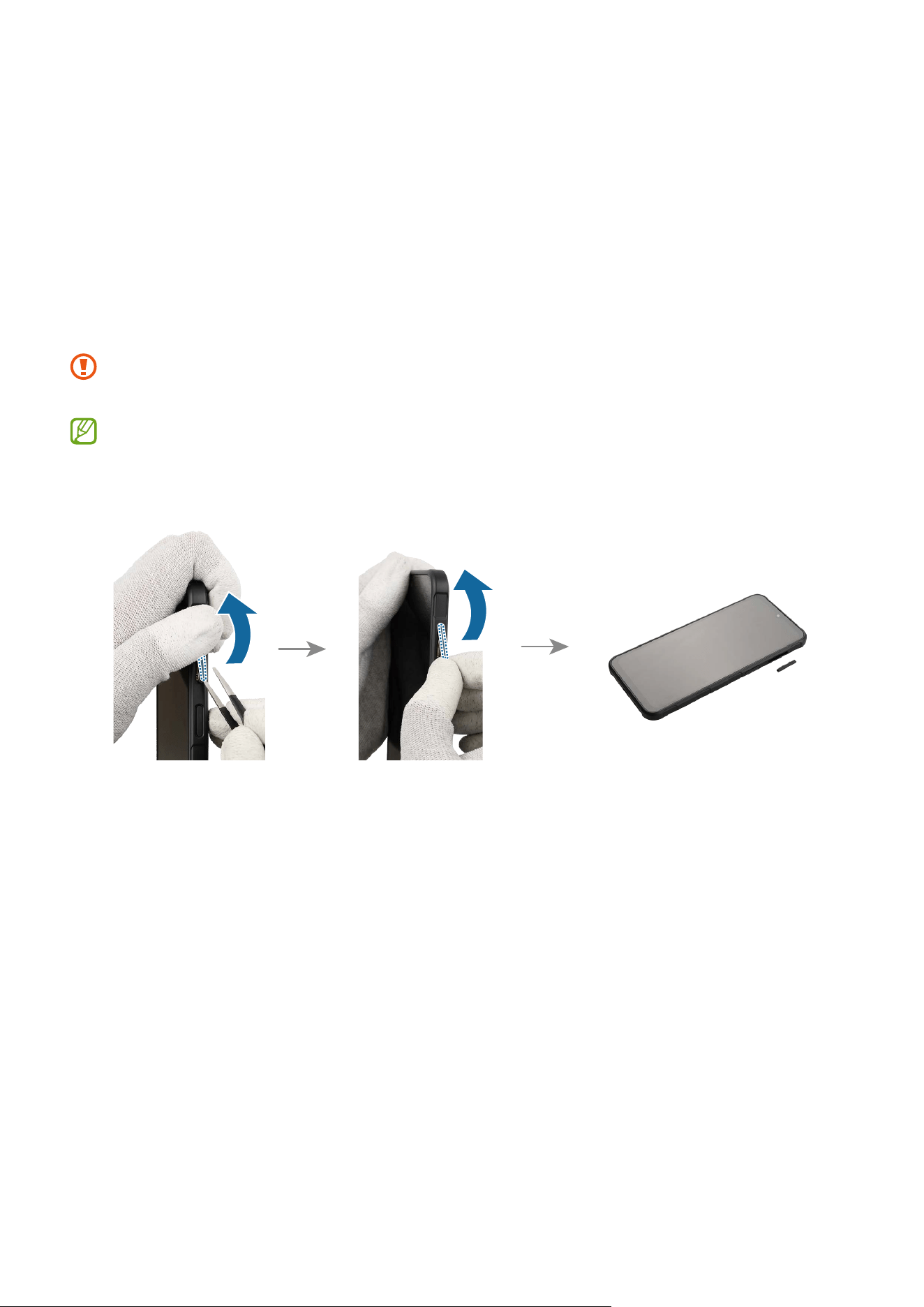
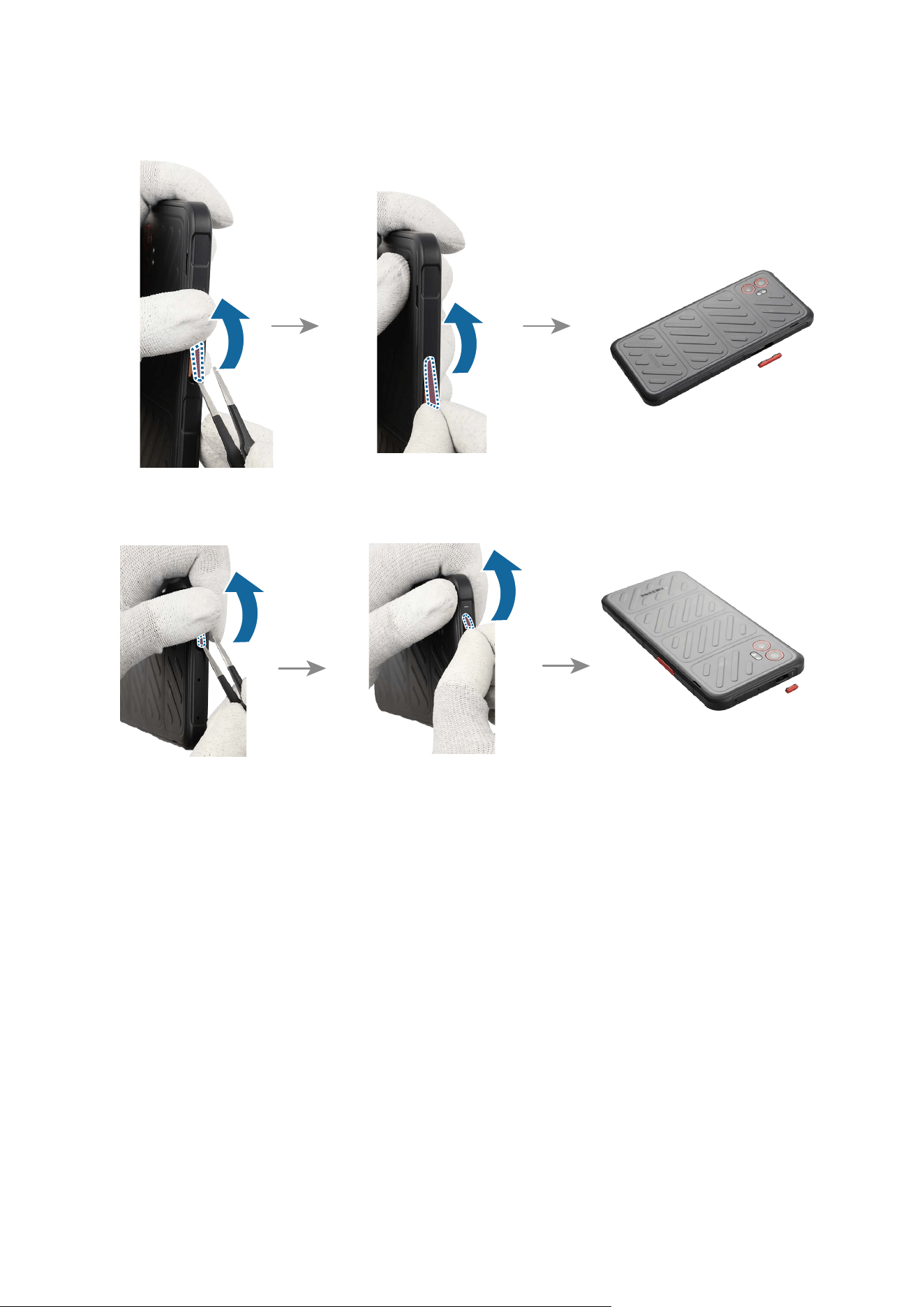
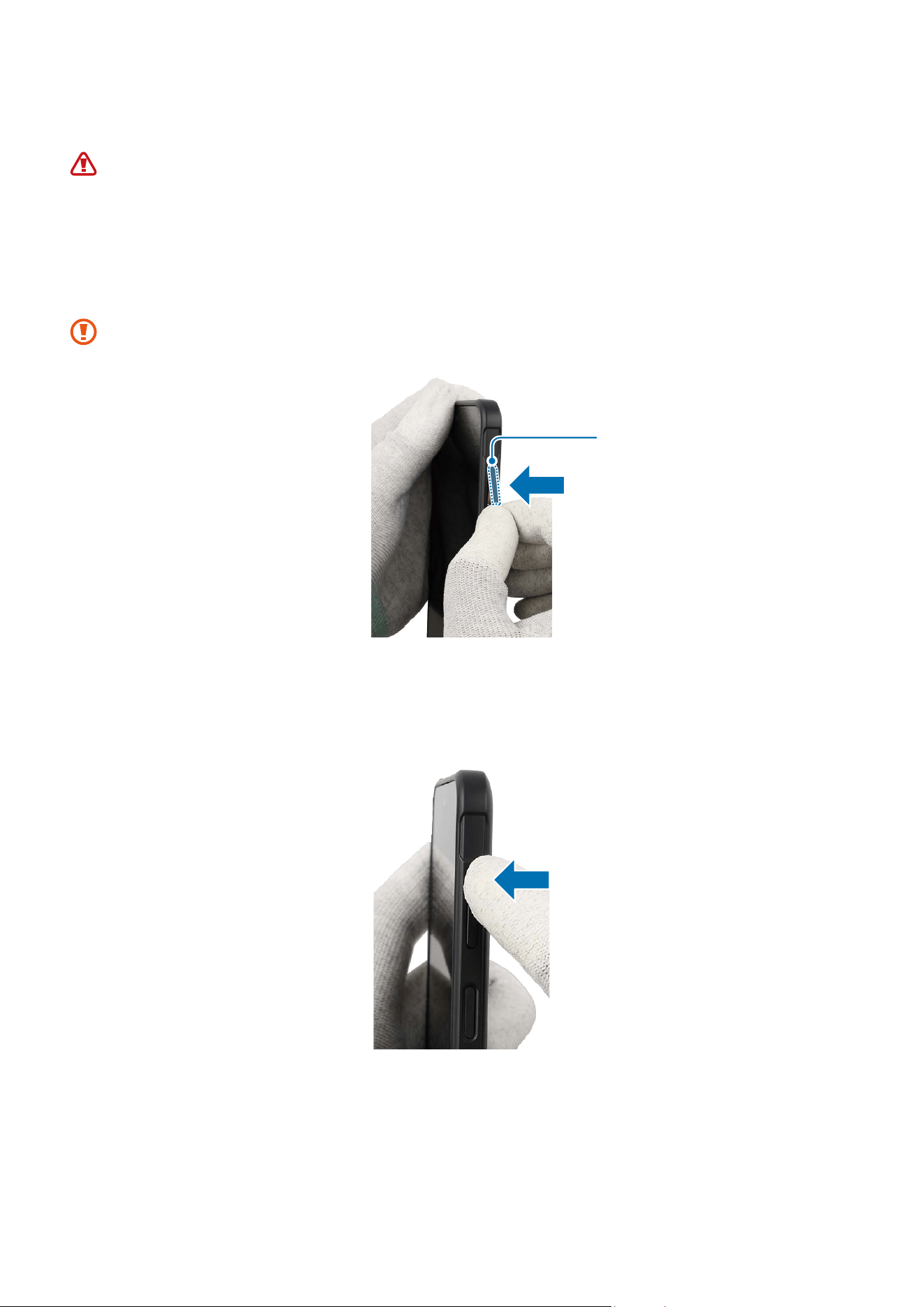
To remove the Volume button, the XCover button, or the Emergency button, lightly press
one end of the button with your fingers so that the other end protrudes. Push the tip of
the protruding button up carefully with a round-tip metal tweezer and lift it up until you
can grab it with your fingers. Grab the button with your fingers and pull out it carefully
from the device.
When holding the buttons with a tweezer, be very careful not to damage or scratch
the device.
If you have trouble separating the buttons with your tweezers, please try using a
sharper and thinner tool.
<Volume Button>
Disassembly and Assembly
111
<XCover Button>
<Emergency Button>
Disassembly and Assembly
112
Reassembly
Leaving screws inside the device may damage internal components, such as the
battery. When assembling, be extra careful not to leave any unassembled screws
inside the device.
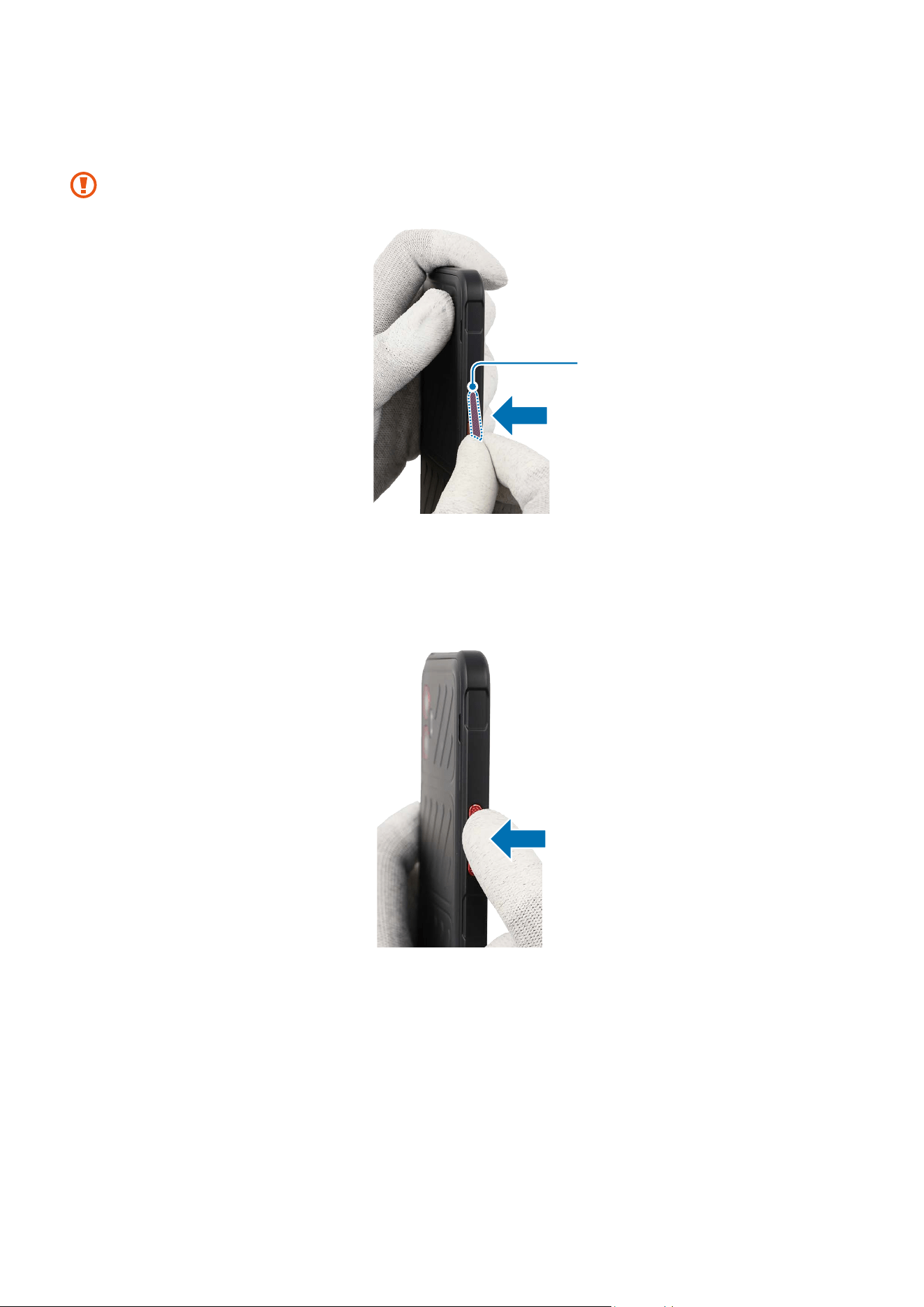
1 Remove the release film of the new Volume button. Use your fingers to grab the
Volume button and insert the button on the slot carefully.
Be careful not to damage the button and device.
Volume Button
2 Press down the Volume button softly and evenly so that the button can be completely
assembled. Press the Volume button to make sure it clicks. It should have the same
sound and feel as before disassembly.
Disassembly and Assembly
113
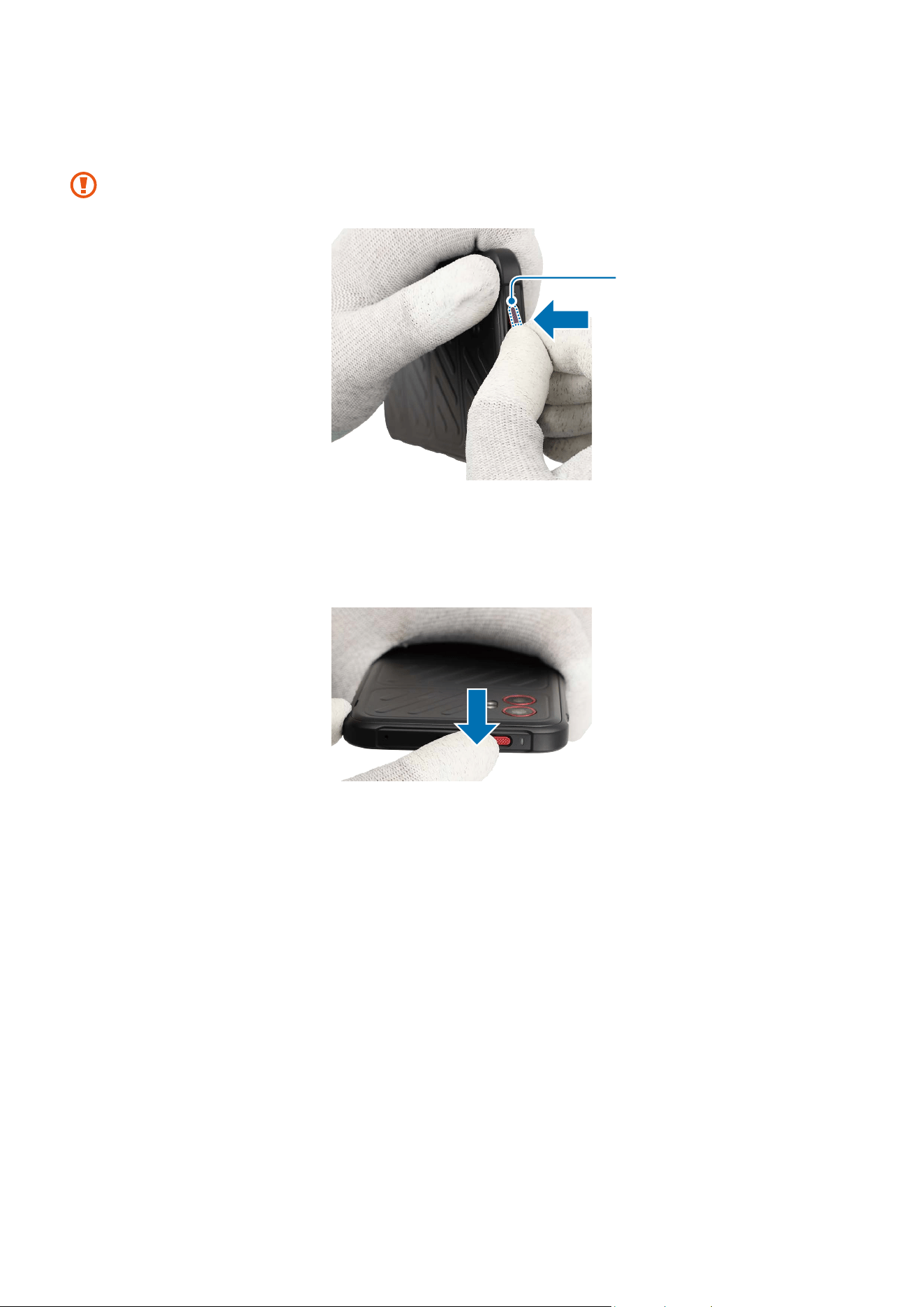
3 Remove the release film of the new XCover button. Use your fingers to grab the
XCover button and insert the button on the slot carefully.
Be careful not to damage the button and device.
XCover Button
4 Press down the XCover button softly and evenly so that the button can be completely
assembled. Press the XCover button to make sure it clicks. It should have the same
sound and feel as before disassembly.
Disassembly and Assembly
114
5 Remove the release film of the new Emergency button. Use your fingers to grab the
Emergency button and insert the button on the slot carefully.
Be careful not to damage the button and device.
Emergency Button
6 Press down the Emergency button softly and evenly so that the button can be
completely assembled. Press the Emergency button to make sure it clicks. It should
have the same sound and feel as before disassembly.
Disassembly and Assembly
115
Side Button (Fingerprint Recognition Sensor)
•
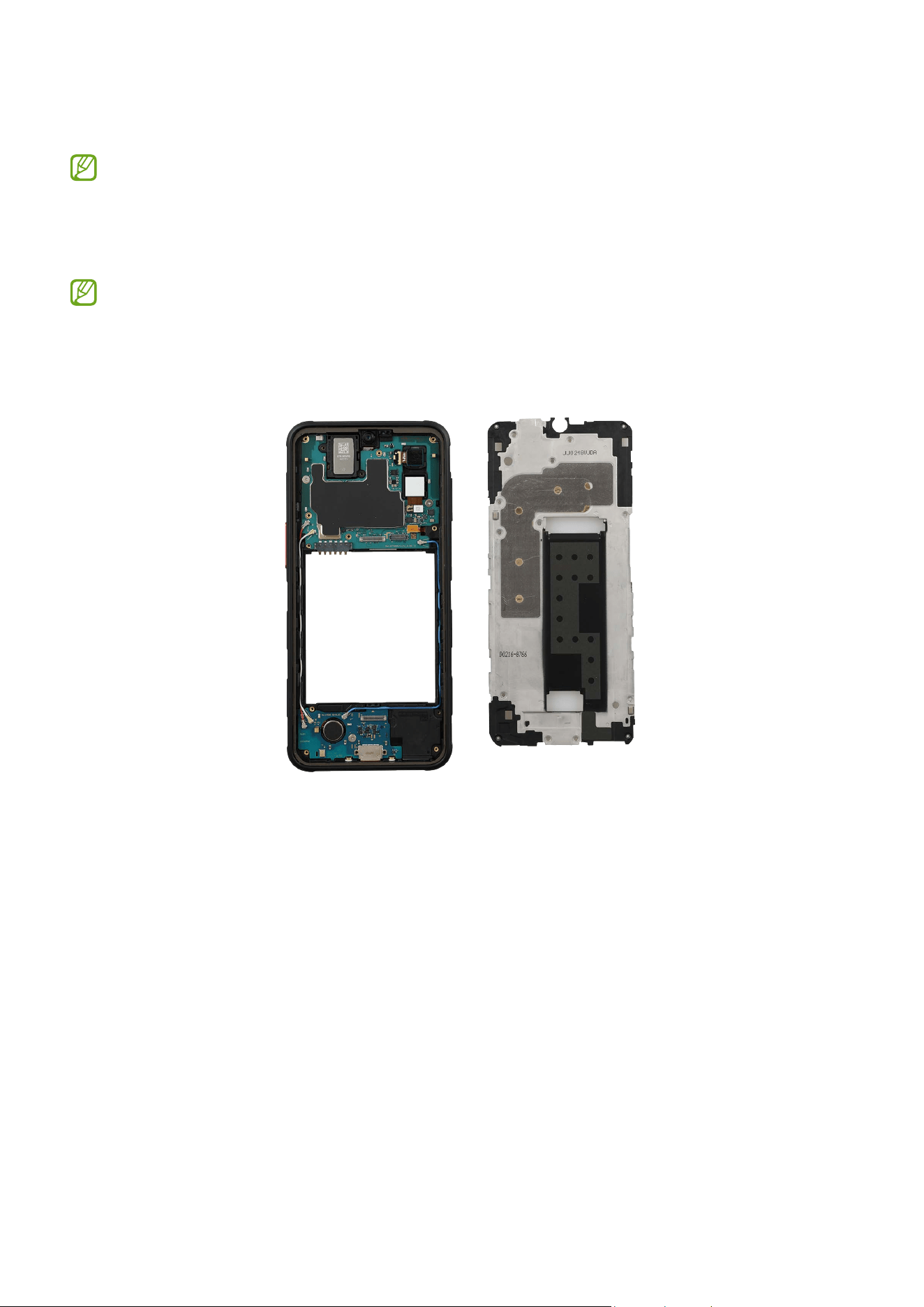
The Side Button is built into the rear frame and cannot be disassembled alone.
•
The Side button has a built-in fingerprint recognition sensor.
Disassembly
Remove Back Cover, Battery, and Screen first before you begin.
1 Check for the disassembly steps of the Charging Port and Microphone and completely
separate the bracket.
Disassembly and Assembly
116
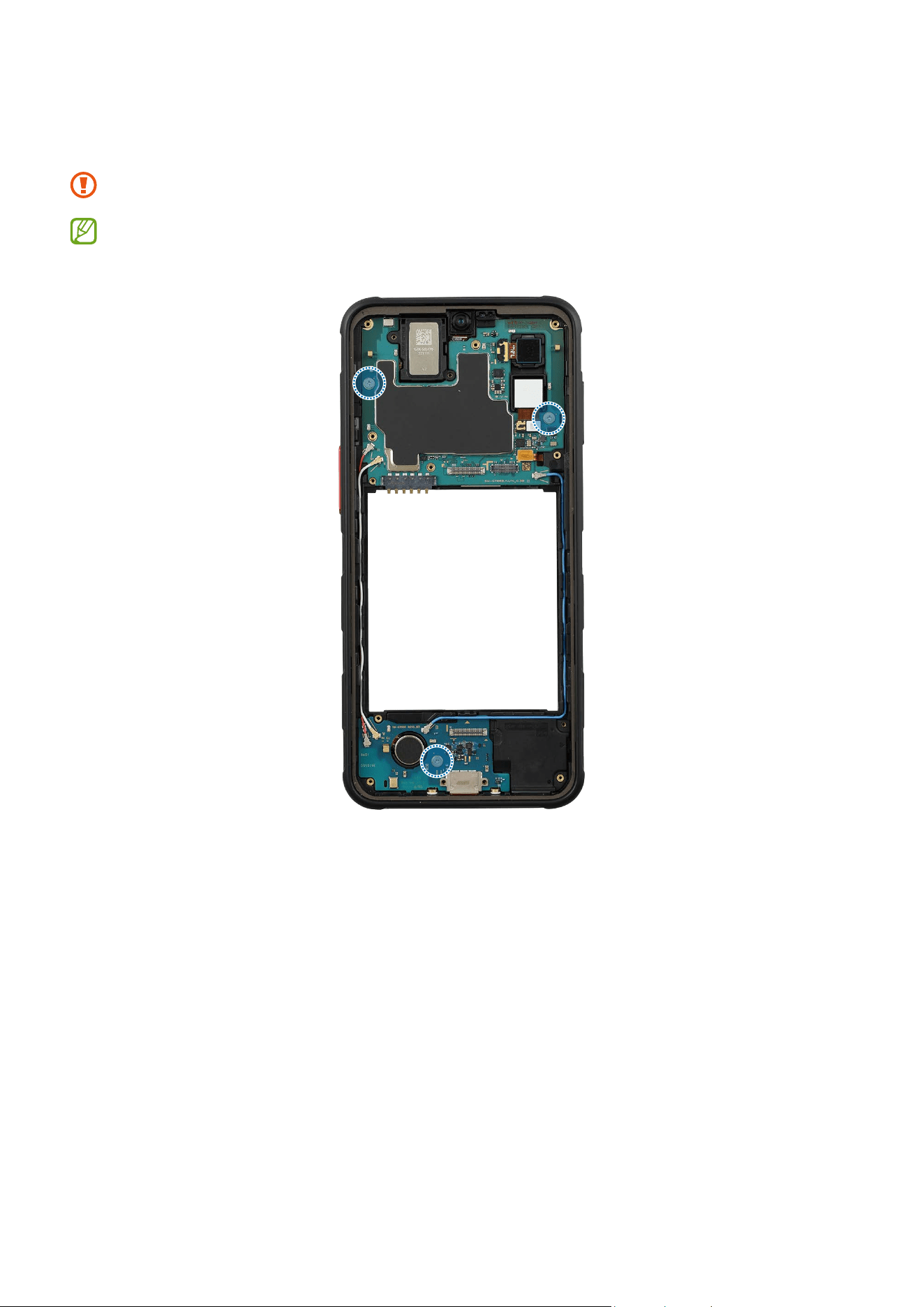
2 Check the 2 screws on the main board and the screw on the charging port module,
then remove them using a cross-head screwdriver.
Be careful not to damage the main board and the charging port module.
Check the number of screws that have been removed, and store them carefully to
make sure that no unassembled screws are left inside the device during assembly.
Disassembly and Assembly
117
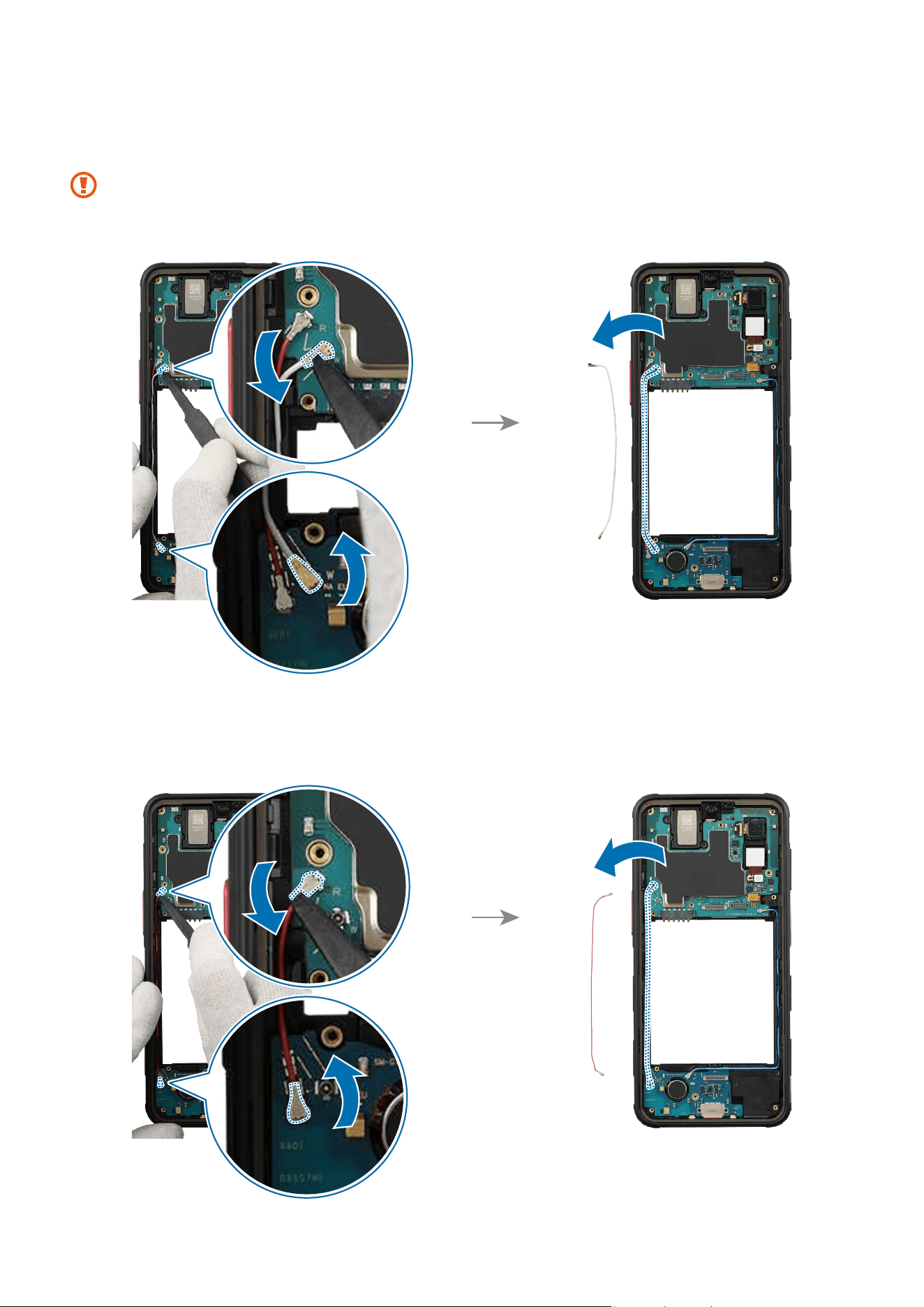
3 Separate 2 connectors of the coaxial cable (White) with the tweezers and remove the
cable (White) from the device frame.
•
When removing the connectors, be careful not to damage the cable.
•
Be careful not to damage the near components.
4 Separate 2 connectors of the coaxial cable (Red) with the tweezers and remove the
cable (Red) from the device frame.
Disassembly and Assembly
118
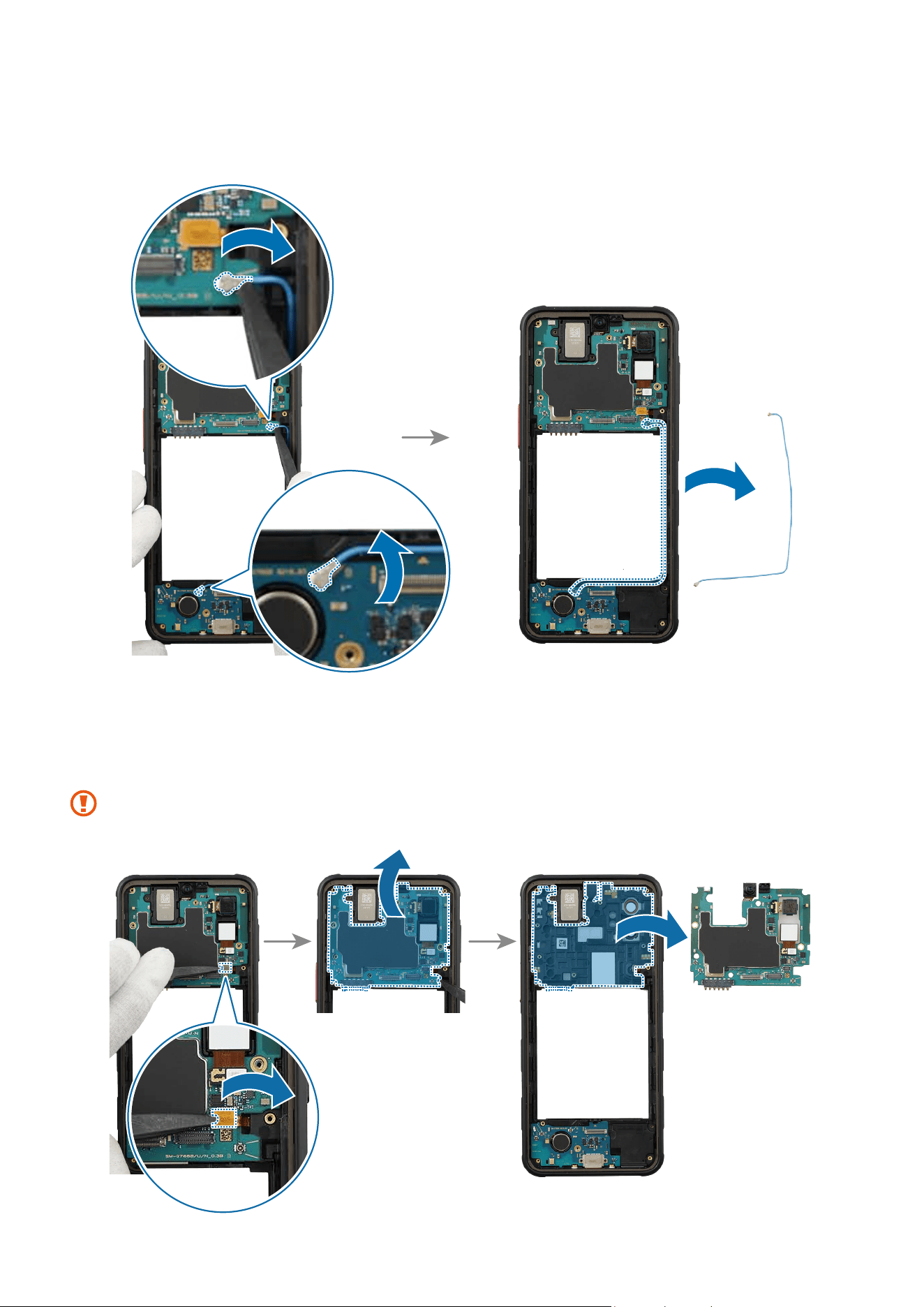
5 Separate 2 connectors of the coaxial cable (Blue) with the tweezers and remove the
cable (Blue) from the device frame.
6 Using the tweezers, disconnect the side button connector from the main board. Lift
up on the separator groove of the main board using the tweezers and remove it
carefully.
Be careful not to damage the main board and the near components.
Disassembly and Assembly
119
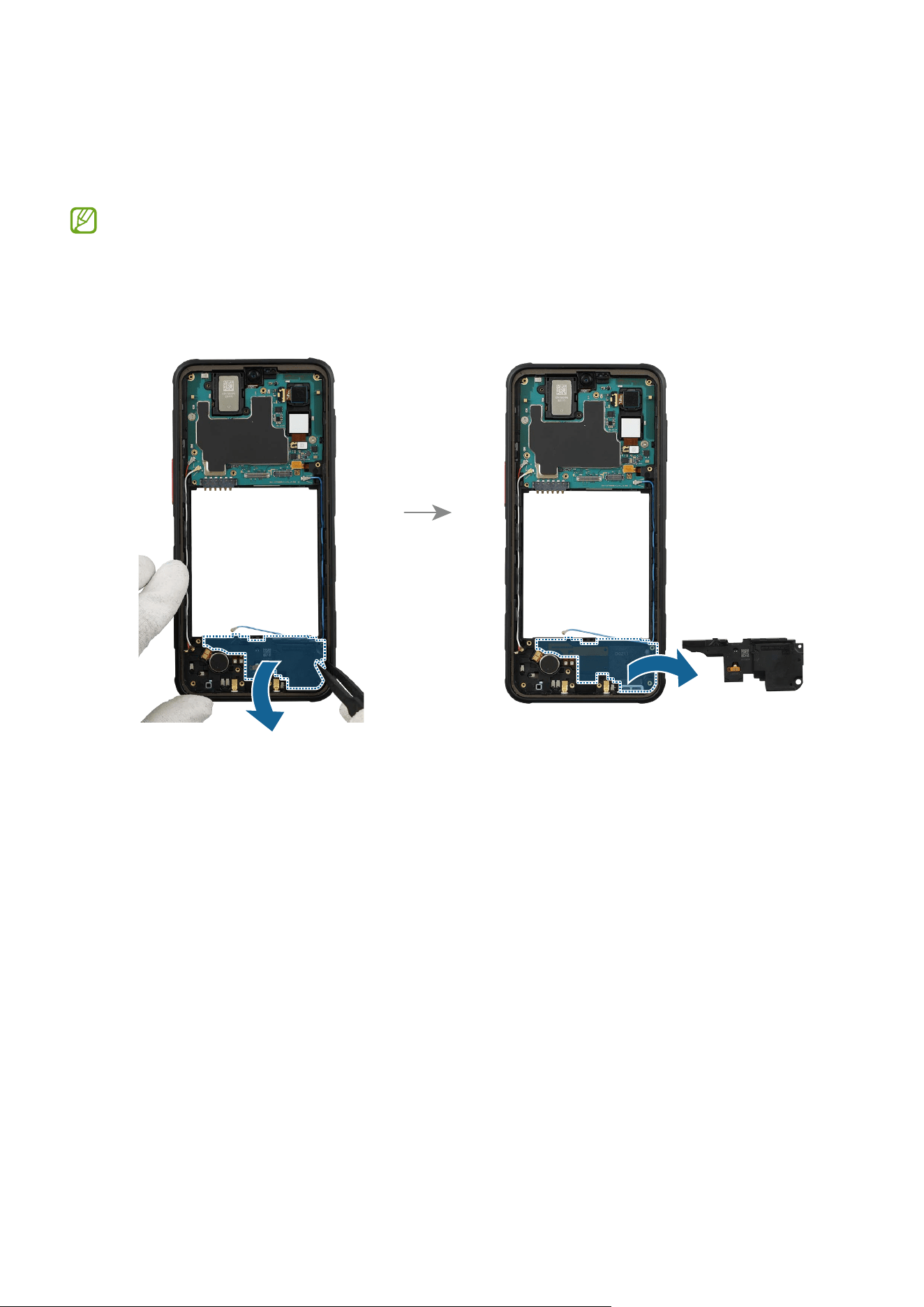
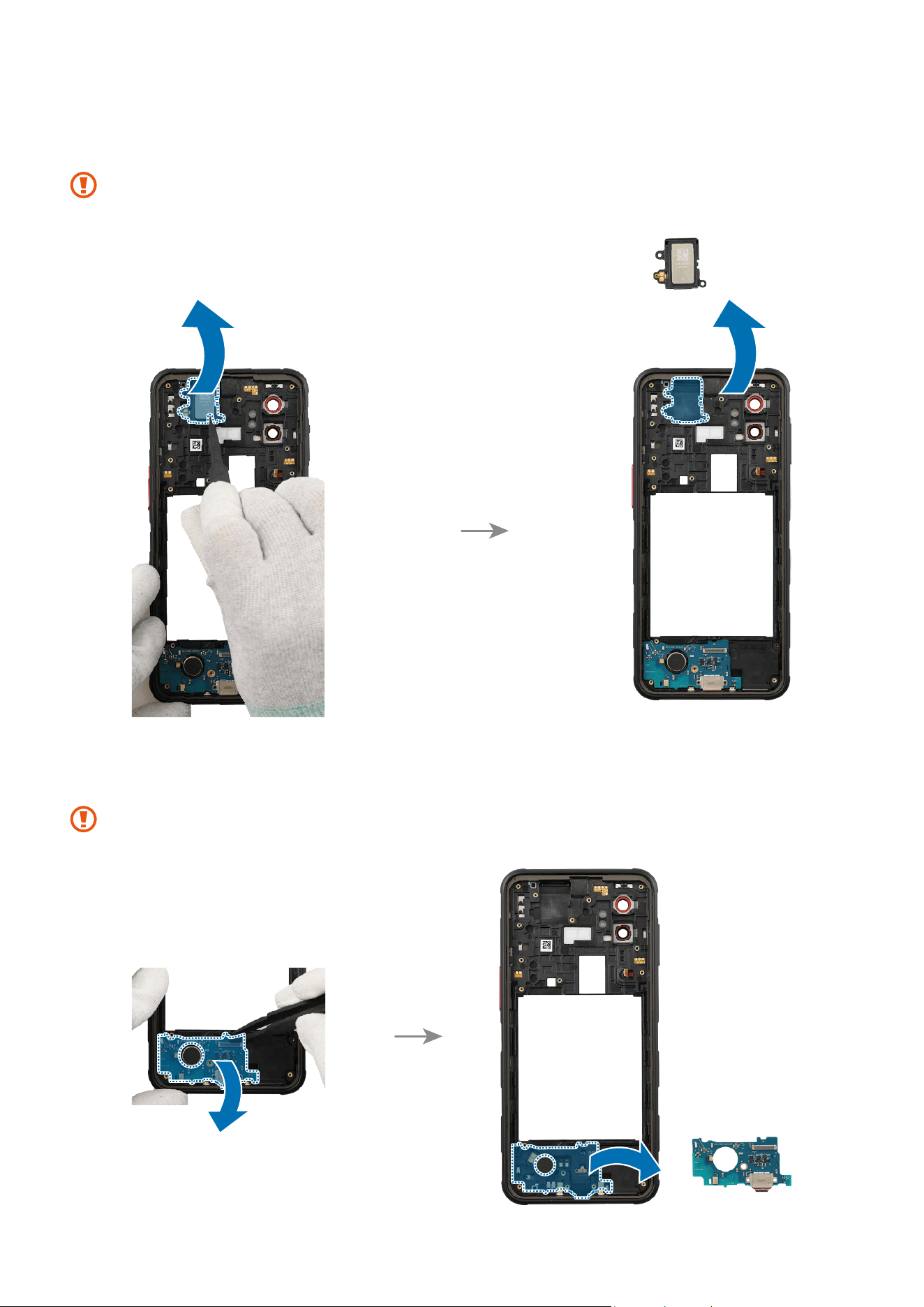
7 Using the tweezers, lift up on the separator groove of top speaker and remove it
carefully.
Be careful not to damage the speaker module.
8 Lift up on the separator groove of the charging port module using the tweezers and
remove it carefully.
Be careful not to damage the charging port and the near components.
Disassembly and Assembly
120
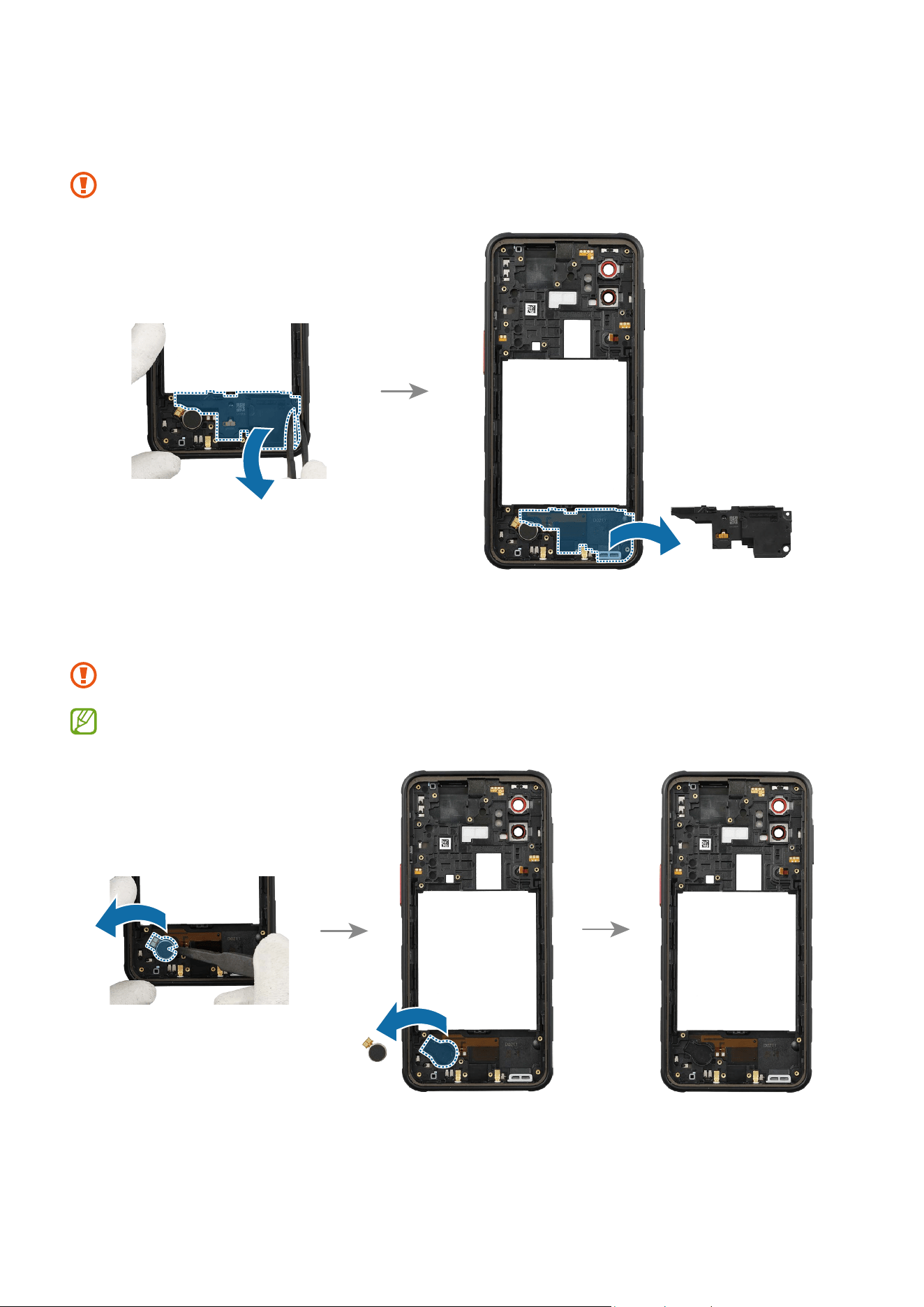
9 Using the tweezers, lift up on the separator groove of bottom speaker and remove it
carefully.
Be careful not to damage the speaker module.
10
Using the tweezers, lift up on the separator groove of vibrator motor and remove it
carefully.
Be careful not to damage the vibrator motor.
The Side Button is built into the rear frame and cannot be disassembled alone.
Disassembly and Assembly
121
Reassembly
Leaving screws inside the device may damage internal components, such as the
battery. When assembling, be extra careful not to leave any unassembled screws
inside the device.
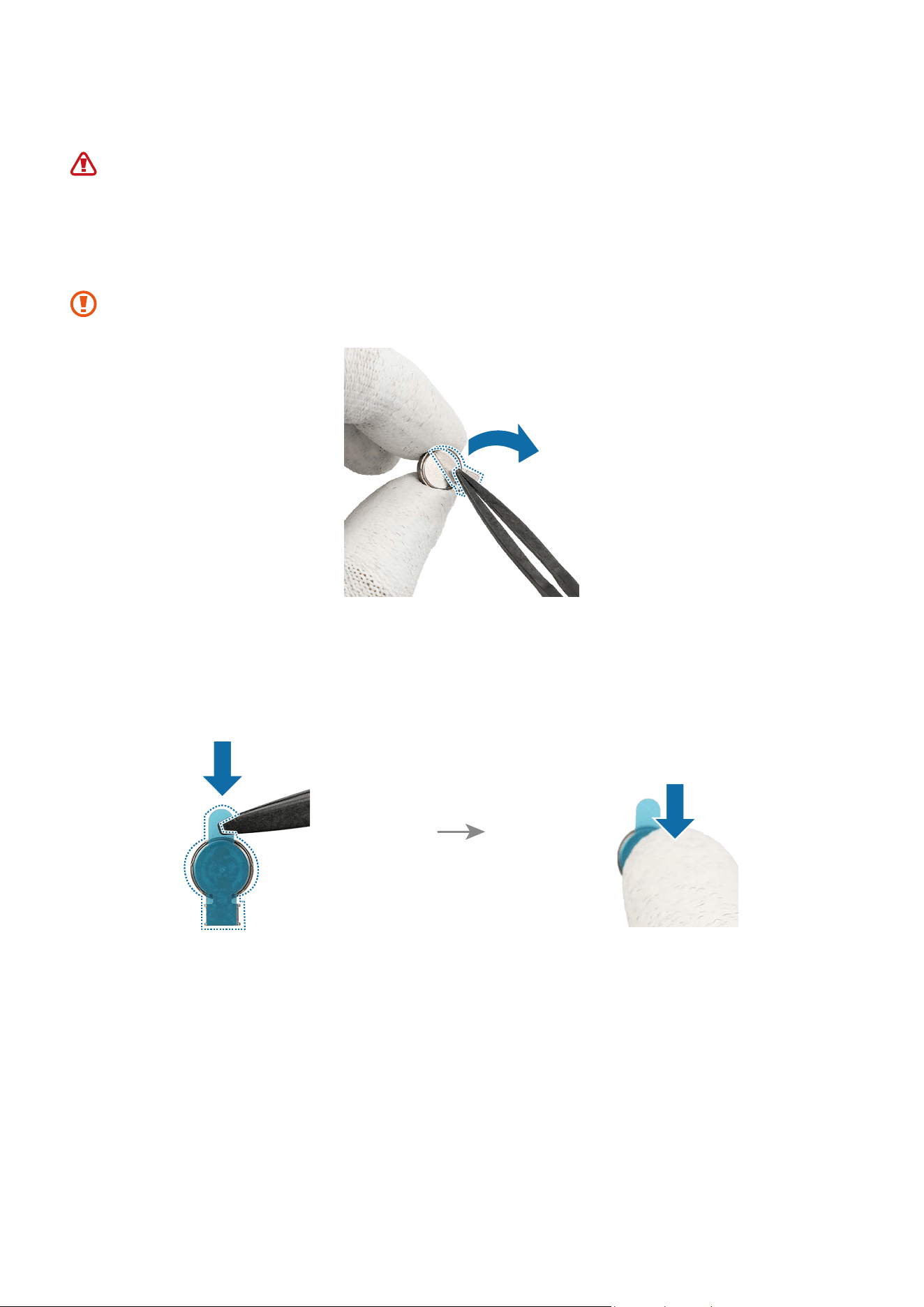
1 Using the tweezers, remove the adhesive tape on the bottom of the vibrator motor.
Be careful not to damage the vibrator motor.
2 Remove the clear film from the new vibrator motor adhesive tape and apply it to the
bottom of the vibrator motor. Press the tape softly so that the tape can be attached
well.
Disassembly and Assembly
122
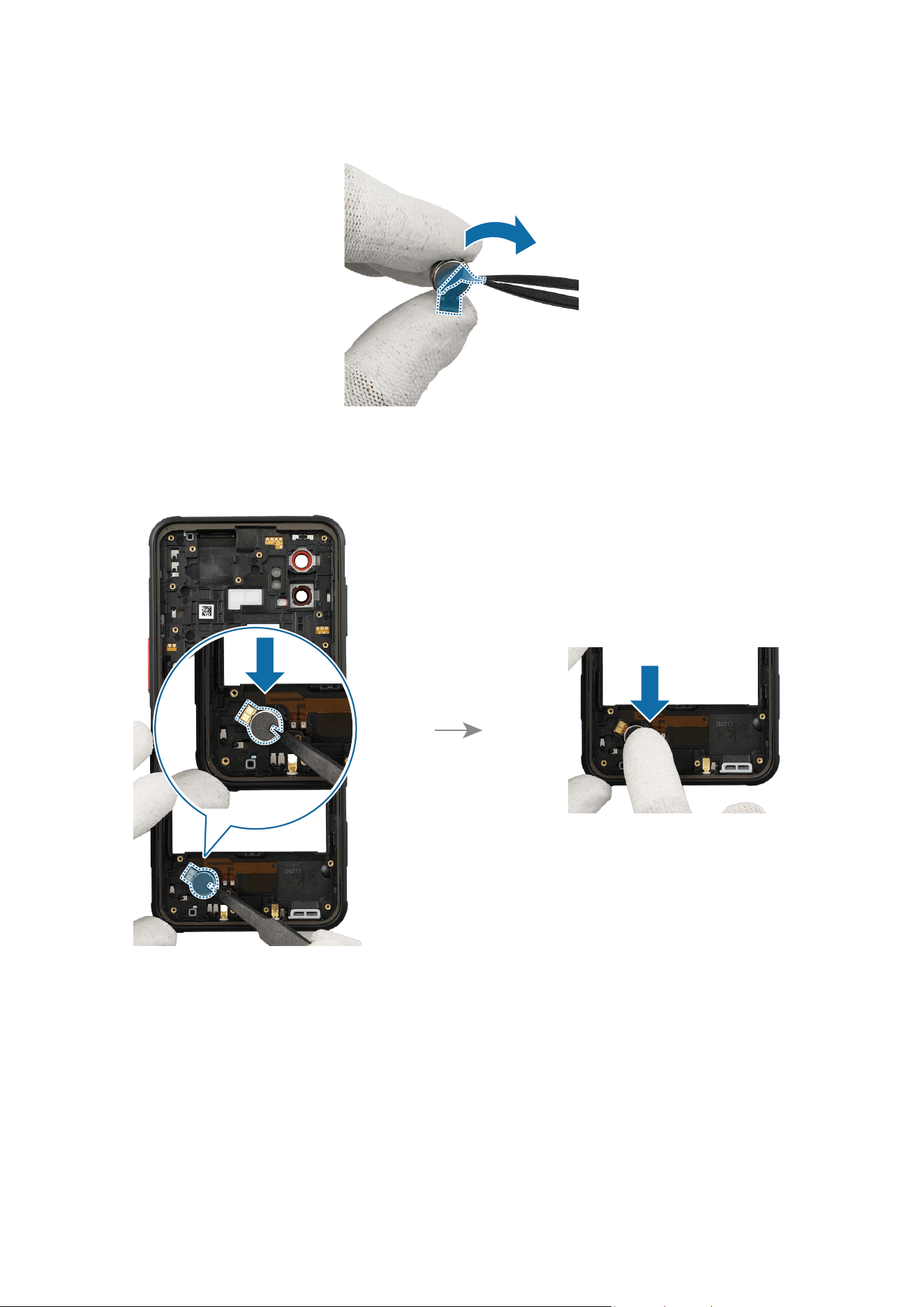
3 Remove the release film from the adhesive tape.
4 Using the tweezers, assemble the vibrator motor to the exact position of the device
frame. Press the vibrator motor lightly so that it is fully attached.
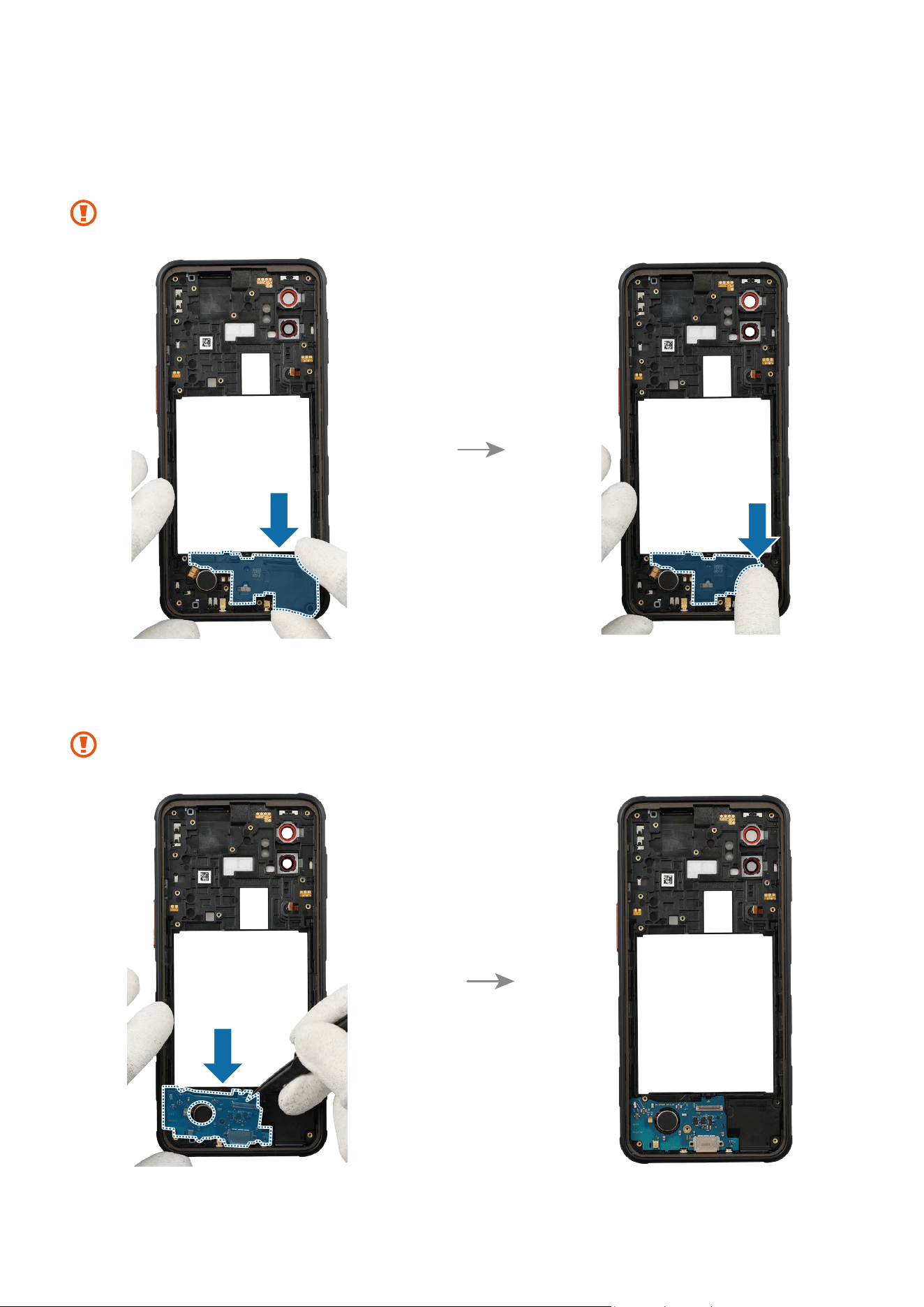
Disassembly and Assembly
123
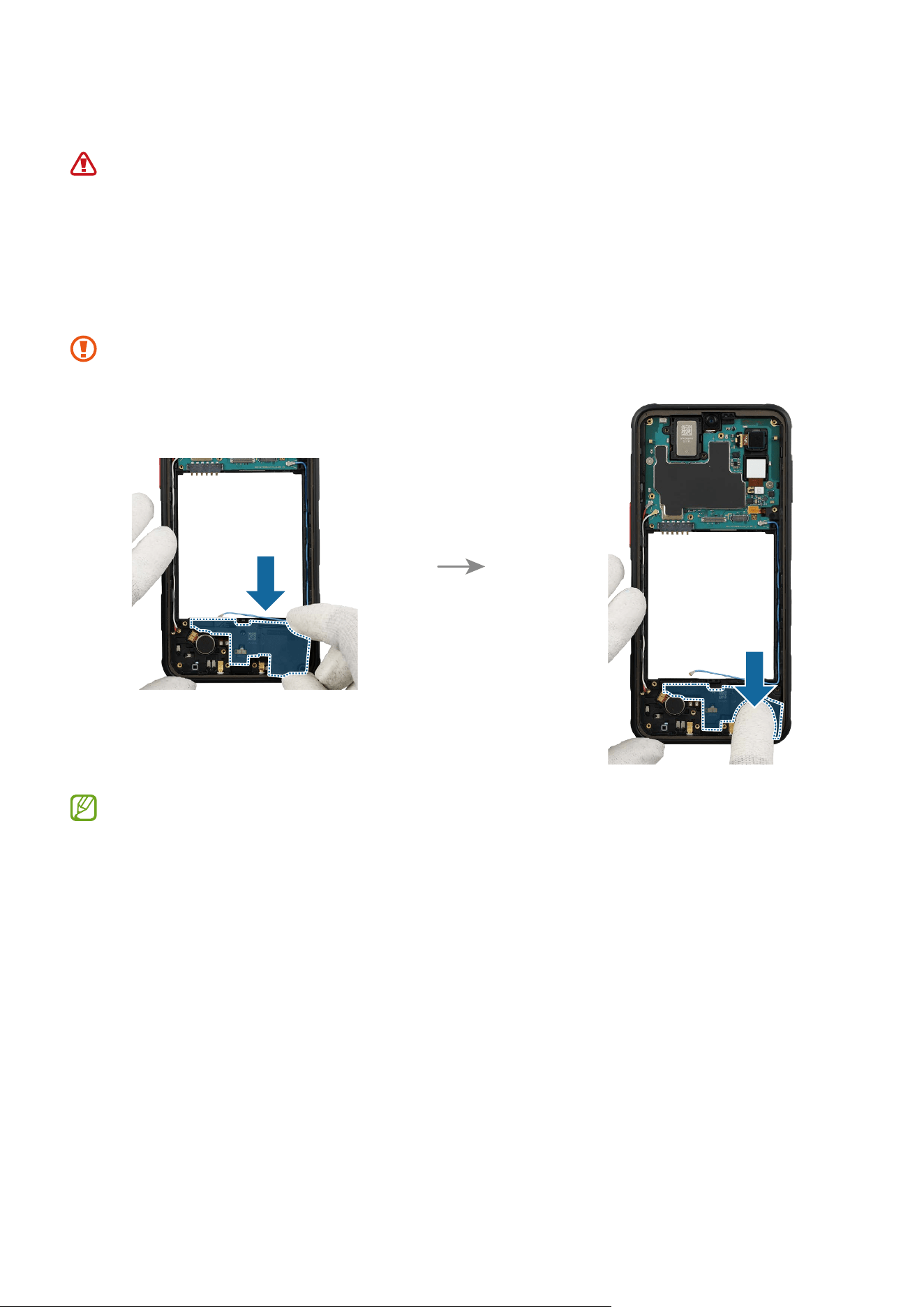
5 Place the bottom speaker module to the exact position, and assemble it to the device
frame. Press down softly and evenly on the speaker so that it can be completely
assembled.
Be careful not to damage the speaker module and the near components.
6 Using the tweezers, insert the charging port module to the bottom frame, and press
down on it in its position smoothly.
Be careful not to damage the charging port and the near components.
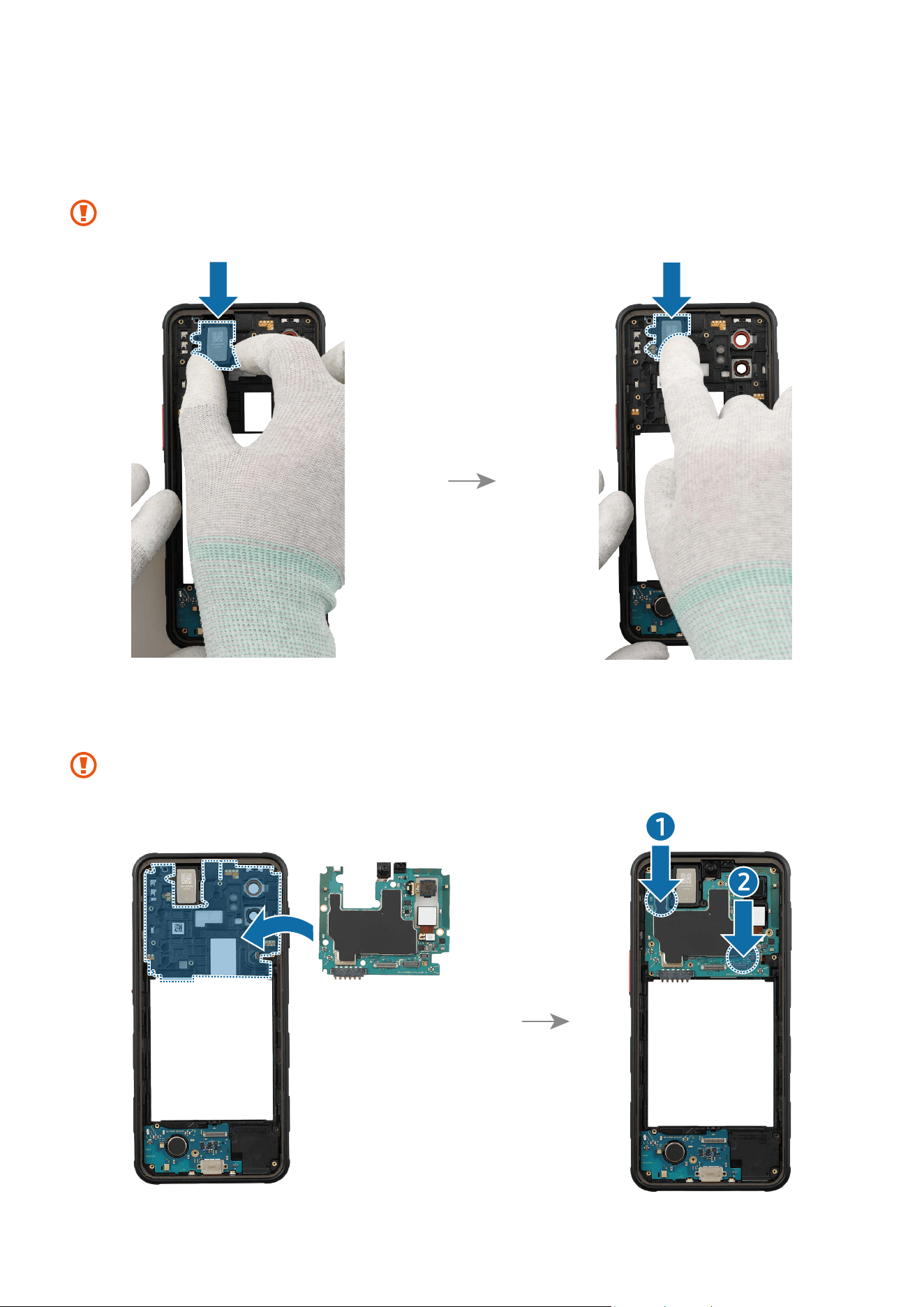
Disassembly and Assembly
124
7 Place the top speaker module to the exact position, and assemble it to the device
frame. Press down softly and evenly on the speaker so that it can be completely
assembled.
Be careful not to damage the speaker module and the near components.
8 Align the main board module onto the device frame. After attaching the upper part of
the main board diagonally on the screen module, assemble the lower part.
Be careful not to damage the main board.
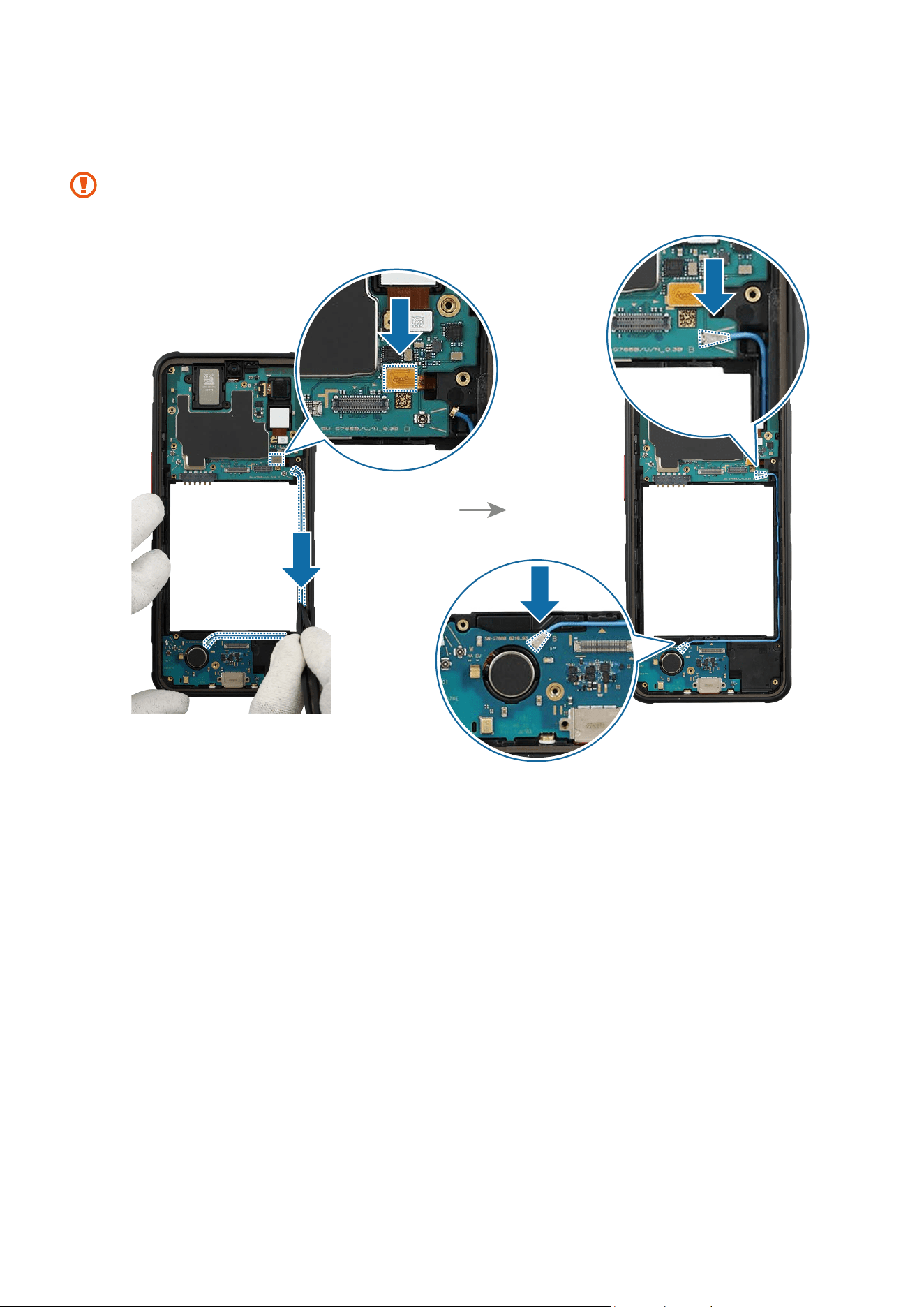
Disassembly and Assembly
125
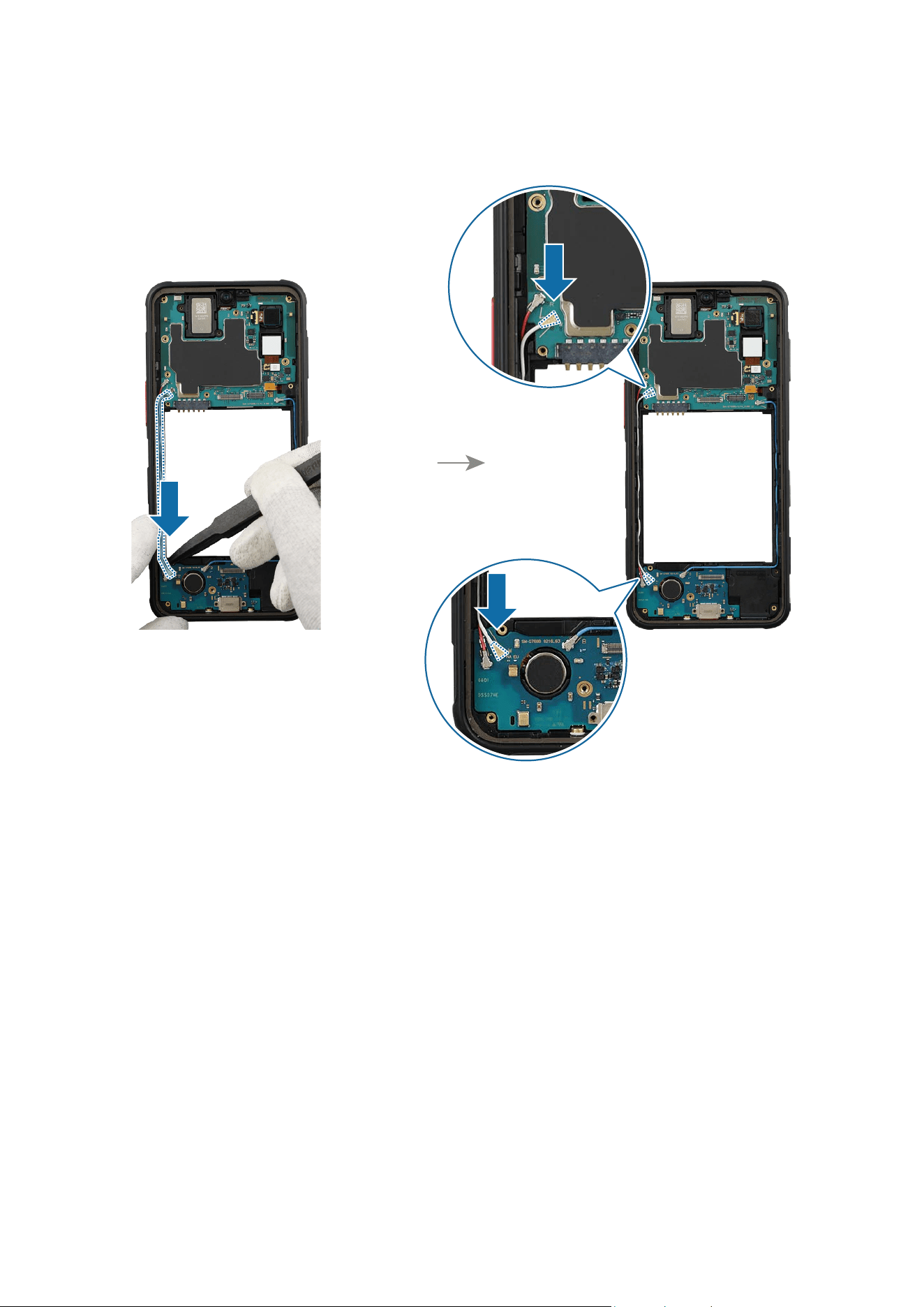
9 Connect the side button connector to the main board and assemble the coaxial cable
(Blue) to the device frame. Carefully connect 2 connectors of the coaxial cable (Blue).
Be careful not to damage the cable and the near components.
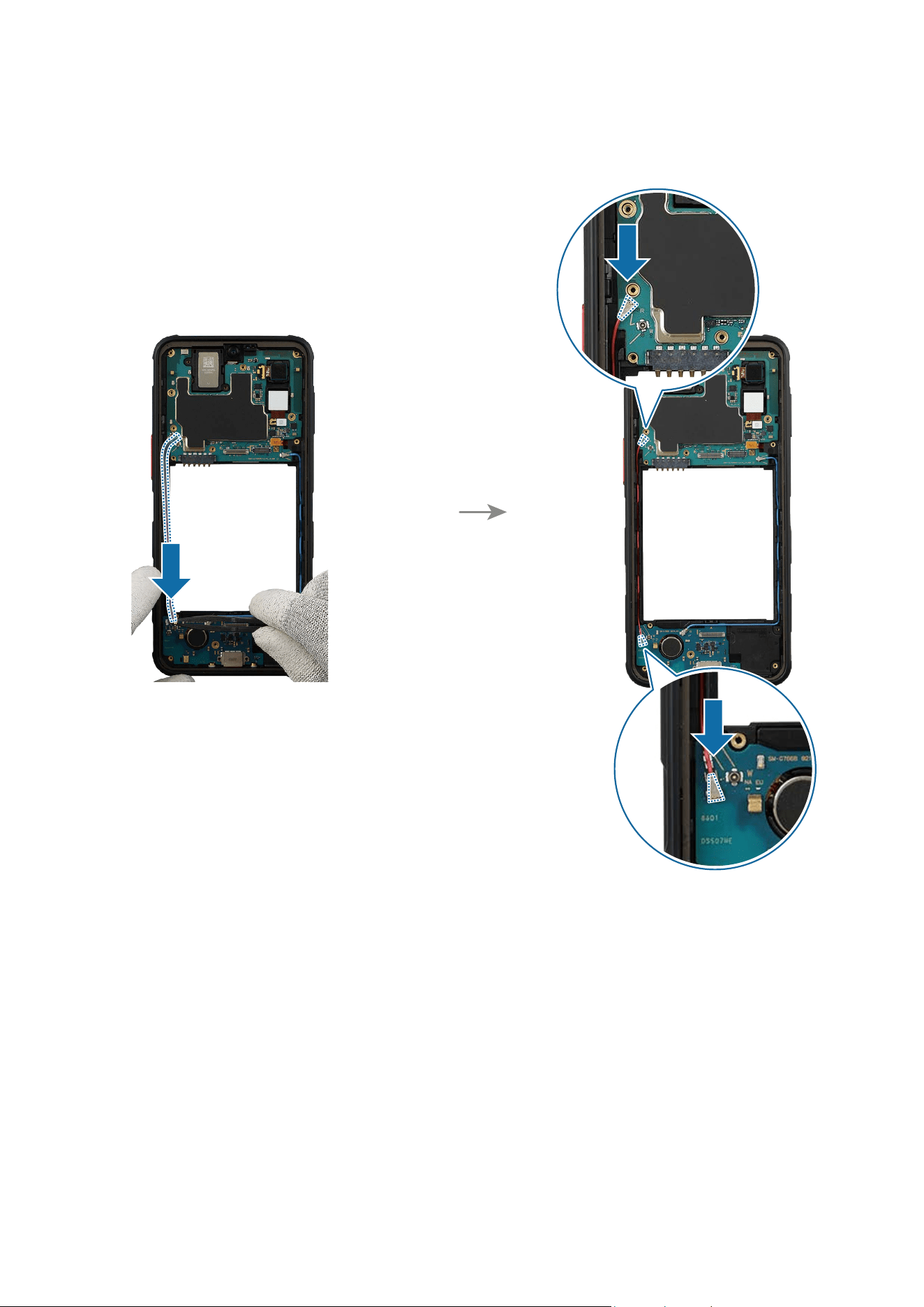
Disassembly and Assembly
126
10
Assemble the coaxial cable (Red) to the device frame and carefully connect 2
connectors of the coaxial cable (Red).
Disassembly and Assembly
127
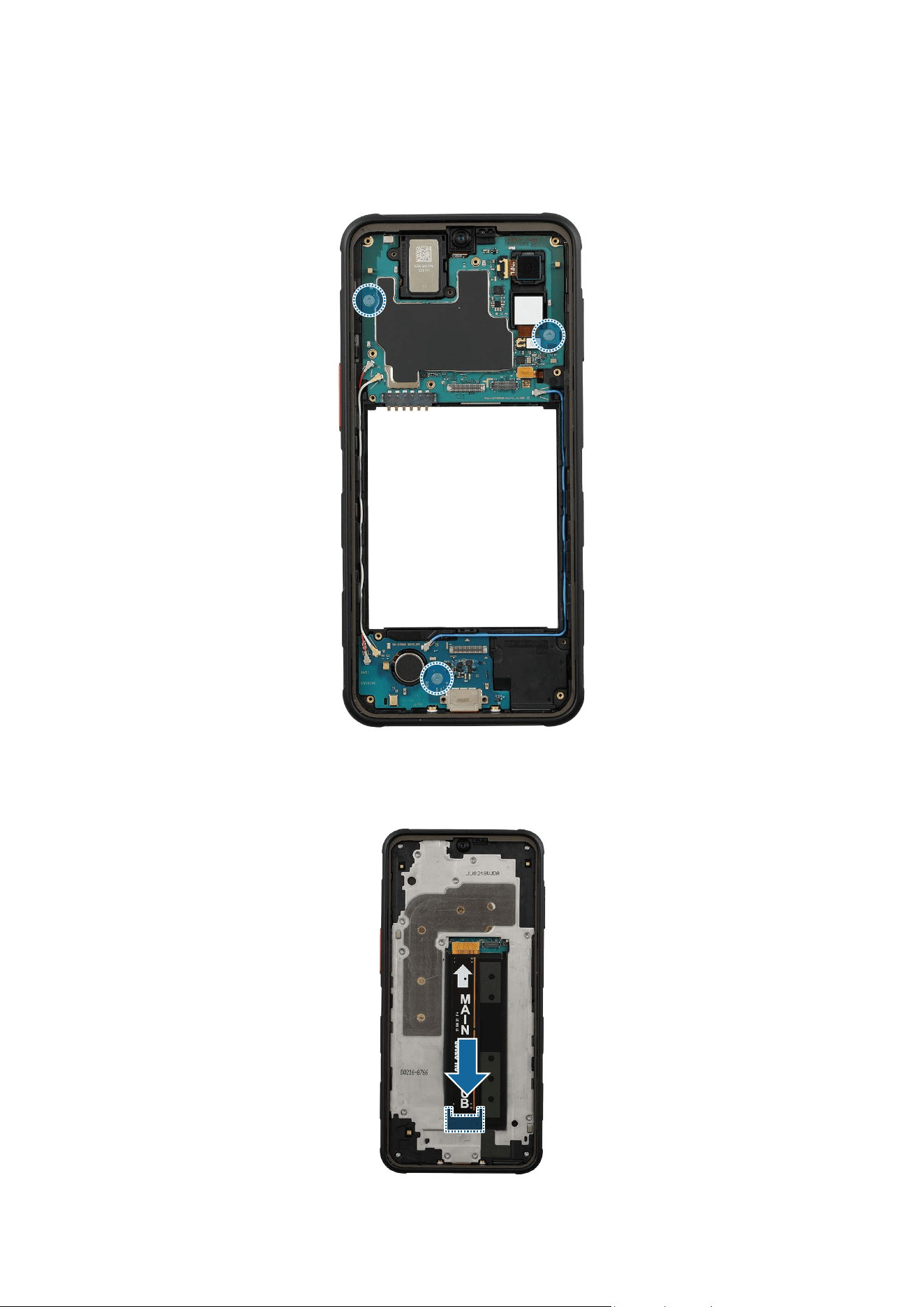
11
Assemble the coaxial cable (White) to the device frame and carefully connect 2
connectors of the coaxial cable (White).
Disassembly and Assembly
128
12
Check the screw 2259 (2 ea) at the 2 different points on the main board and the screw
2259 (1 ea) at the point on the charging port module. Fasten them using the cross-
head screwdriver.
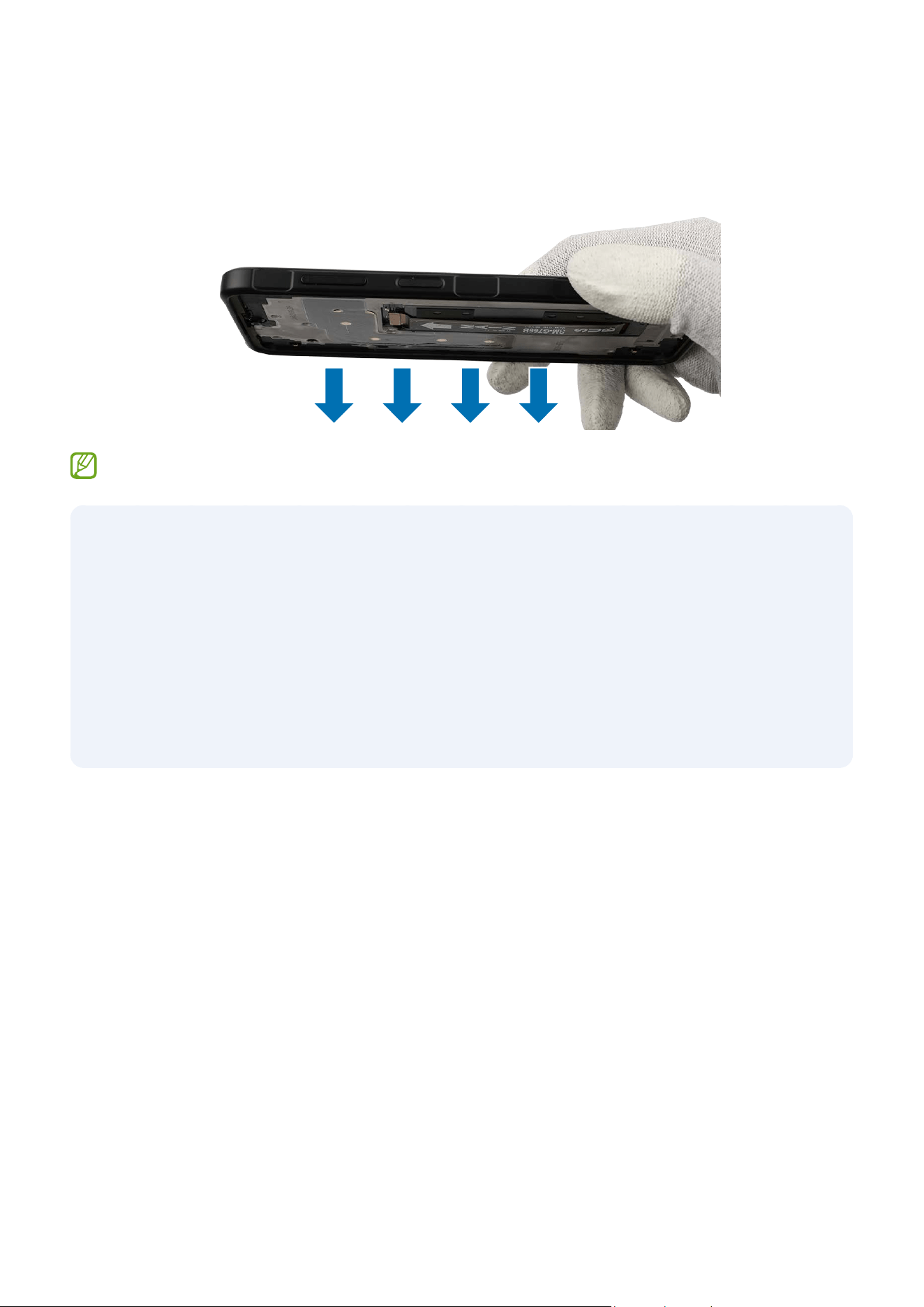
13
Check for the reassembly steps of the Charging Port and Microphone and completely
reassemble the bracket, the flex cable, with the bottom cover.
Disassembly and Assembly
129
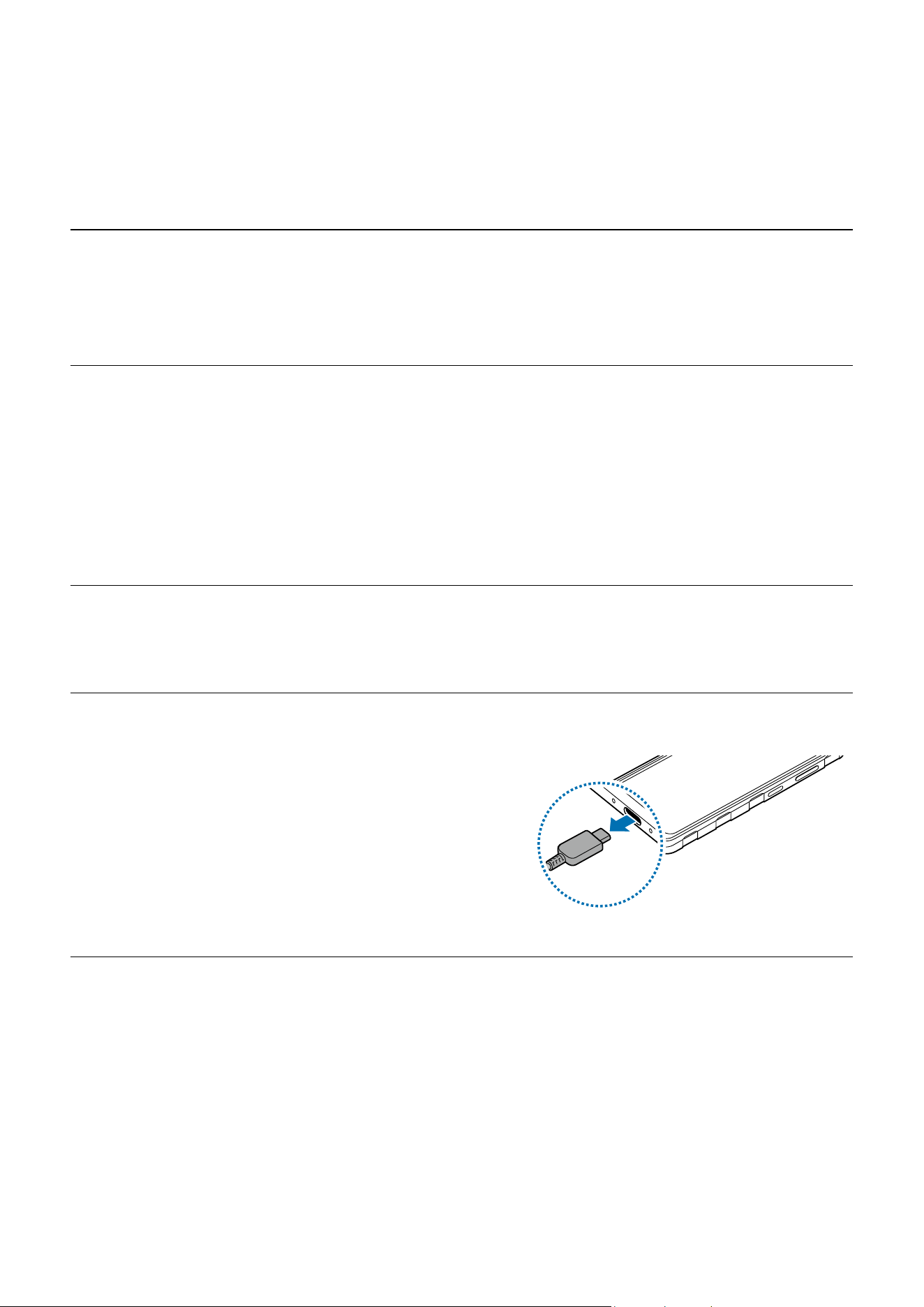
14
Check carefully to see if there are any screws or other foreign substances inside the
device (battery, PBA, cable, etc.). Shake the device lightly with the back of the device
facing down to remove any remaining screws.
Reassemble Screen, Battery, and Back Cover to complete reassembly.
After reassembling
•
Check whether the parts or sensors in the device work properly with the Self
Repair Assistant app after repairing and assembling your device. Refer to
Calibrations for more information.
•
Visit a Samsung Service Centre when finding some issues from the calibration
results. However, you may incur additional charges if the device has a
malfunction because of DIY repairs.
Disassembly and Assembly
130
Directive 2012/19/EU Annex VII Components
Directive 2012/19/EU Annex VII requirements apply to the following components.
Component Samsung Part Name Removal Instructions
Printed circuit board
if the surface is
greater than 10 square
centimetres
Main Board (PBA)
Check for the disassembly steps of
the Front Camera and separate the
main board.
Liquid crystal display
of a surface greater
than 100 square
centimetres and all
those back-lighted
with gas discharge
lamps
Screen
Check for the disassembly steps
of the Screen and separate the
screen.
Battery Battery
Check for the disassembly steps
of the Battery and separate the
battery.
External Electric Cable USB Cable
Disconnect the USB cable.

This guide is a property of Samsung Electronics Co., Ltd.
Any unauthorised use of guide can be punished under applicable international and/or
domestic law.
© Samsung Electronics Co., Ltd.
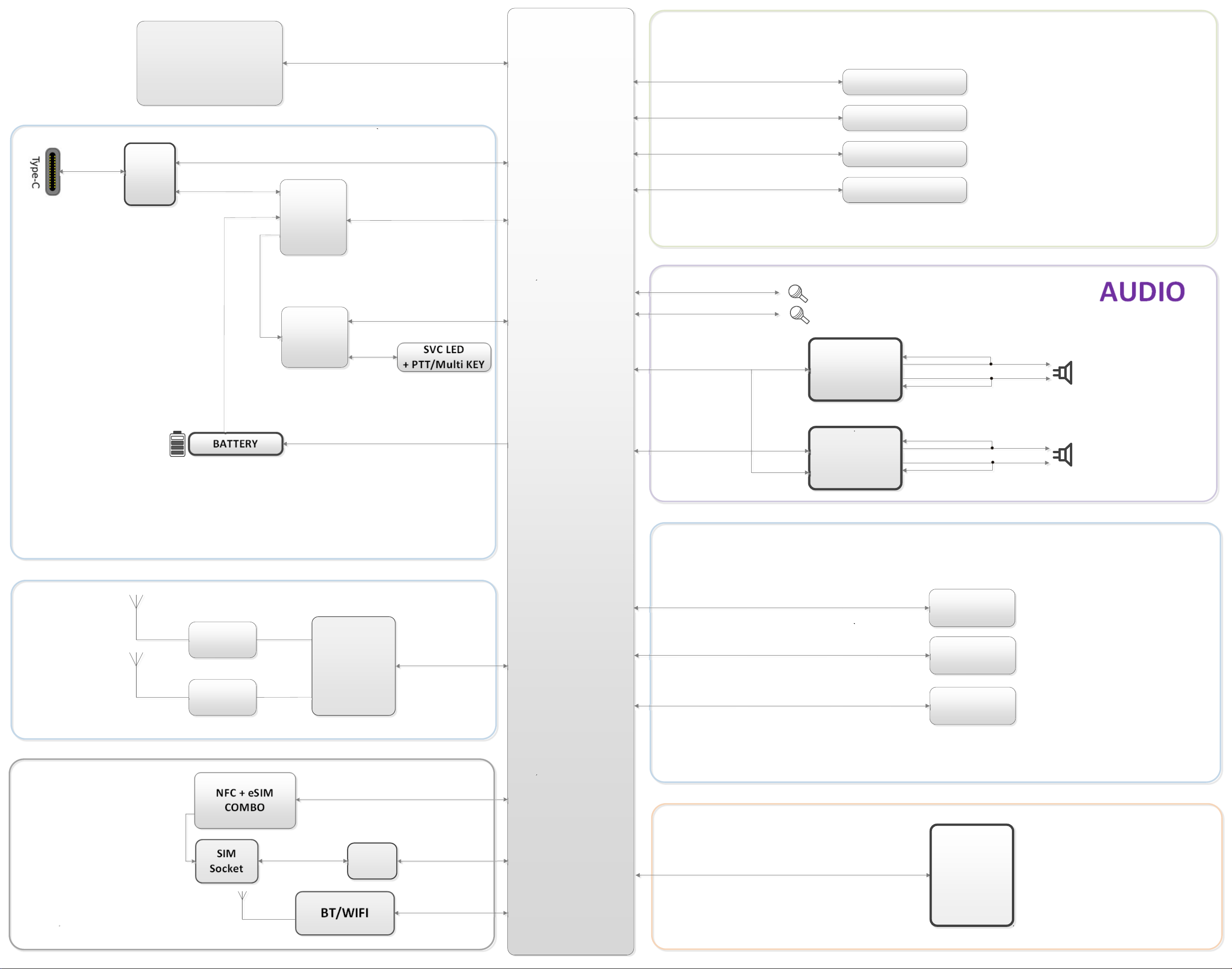
AP
[ G766B ] Block Diagram
REAR
WIDE CAM
SENSOR
AUDIO
CAMERA
FRONT CAM
SVC LED
+ PTT/Multi KEY
REAR
UW CAM
Memory
(Storage)
BT/WIFI
NFC + eSIM
COMBO
SIM
Socket
SIM/BT
/WIFI/NFC
SIM LS
RCV
MAIN MIC
2nd MIC
SPK
RCV Amp
SPK Amp
BATTERY
POWER
PMIC
6 axis & GYRO
DISPLAY
MAIN
Display
+
TSP
IF PMIC
OVP
RF
RF TX & RX
TRANSCIEVER
RF TX & RX
Magnetic
Proxy / Ambient
Secure NVM