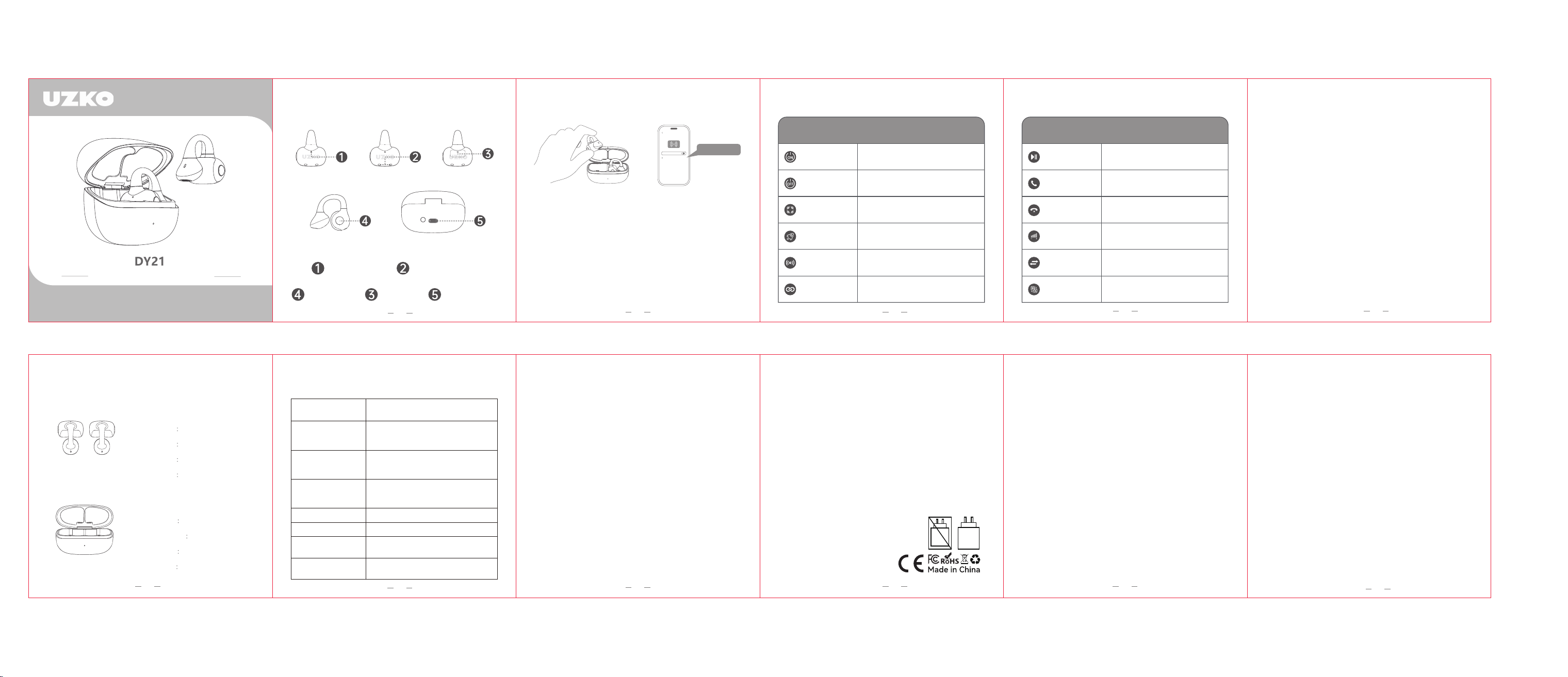
�. Open the charging case or press and hold the
physical button on the earbuds for � seconds while
they are powered off to turn them on.
�. Enable pairing on your device and select the earbud
model displayed on the screen.
�. After connecting to the first device, turn off the
headphones' pairing function. The headphones will
disconnect and enter pairing mode.
�. On the second device, enable pairing and connect
to the headphones, Once connected.
�. Re-enable pairing on the first device, select the
headphone model, and reconnect.
Function Introduction Headphones Connection Guide
Product Model
Product Model
Wireless
Steps to connect headphones to your device:
One-to-two mode:
Indicator light
Physical key
Charging port
Charging contact
Touch key
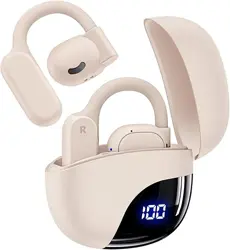
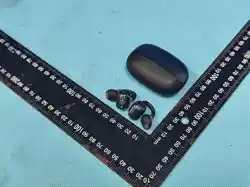
Open Ear clip Wireless Headphones
User Manual
Please read the instructions for use
A small number of people will have special reactions to specific materials.
When in certain environments, long-term contact with potentially irritating
substances to the skin such as soap, sweat, and UV protection products may
cause skin allergic reactions.
To reduce the risk of skin irritation, please do not wear the product on parts of
the body with skin injuries.If your skin becomes red, swollen, itchy, or has any
other irritation, please stop wearing it immediately and consult a doctor!
Instructions for wearing and use
This product should be stored in a cool and dry place. The operating
temperature is �-��℃. Please use a soft dry cloth for daily cleaning.
Never disassemble your headphones at any time, as doing so may damage the
headphones or cause the battery to self-ignite.Keep the product away from
heat sources or other corrosive liquids, and avoid using or placing it in any
high-temperature places.
If any part of this product is damaged or hot, please stop using this product
immediately.Avoid exposing the headphones to rain or immersion in liquids.
If not used for a long time, please charge them again before use.
Storage and maintenance
Listening to music at too high a volume may damage your hearing and the
sound may be distorted.
Hearing Damage
It is recommended that the power provided by the
charger must be between the minimum [�.�] watts
and the maximum [�.�] watts required by the radio
device to achieve maximum charging speed.
Charging Safety Tips
Do not use this product in places where wireless devices are prohibited or
inappropriate (for example, airports in some areas, medical facilities, etc.).
Otherwise, it may interfere with other electronic devices or cause other
dangers.
Some electronic devices may malfunction due to radio interference from this
product (for example, some automotive electronic devices).Please contact the
manufacturer of the electronic device for details.
This device complies with part �� of the FCC Rules. Operation is subject to the
following two conditions: (�) This device may not cause harmful interference,
and (�) this device must accept any interference received, including
interference that may cause undesired operation.
Any changes or modifications not expressly approved by the party responsible
for compliance could void the user's authority to operate the equipment.
NOTE: This equipment has been tested and found to comply with the limits for
a Class B digital device, pursuant to Part �� of the FCC Rules. These limits are
designed to provide reasonable protection against harmful interference in a
residential installation. This equipment generates, uses and can radiate radio
frequency energy and, if not installed and used in accordance with the
instructions, may cause harmful interference to radio communications.
However, there is no guarantee that interference will not occur in a particular
installation.
If this equipment does cause harmful interference to radio or television
reception,
which can be determined by turning the equipment off and on, the user is
encouraged to try to correct the interference by one or more of the following
measures:
-- Reorient or relocate the receiving antenna.
-- Increase the separation between the equipment and receiver.
-- Connect the equipment into an outlet on a circuit different from that to which
the receiver is connected.
-- Consult the dealer or an experienced radio/TV technician for help.
The device has been evaluated to meet general RF exposure requirement. The
device can be used in portable exposure condition without restriction.
Electromagnetic Interference Tips
FCC Caution:
Headphone Function Control Headphone Function Control
Please NotesCommon Problems
Your headset can be used with devices that support
the Bluetooth version and features of that headset.
Wireless telephones and wireless network devices such
as these devices may cause interference, which typically
sounds like static noise.Please do not place headphones
near other devices that use or emit radio waves.
Headphones produce far less interference than regular
cell phones, so don't worry about the
When the headset is docked to a Bluetooth cell phone,
an encrypted link is established between the two devices,
making it difficult for devices other than the headset to
listen in.
Adjust the headphone volume, or move to another area
and try again.
Wipe with a dry, soft cloth.
The headset and travel charger may not be connected,
reconnect and charge the headset.
Available functions may vary depending on the connected
device.
Will my headset work with
laptops, desktop computers
and PDAs?
Why do I hear static or
interference during a call?
Do headphones interfere with
electronic devices, radios or
computers in the car?
Can other Bluetooth cell
hone users hear my calls?
Why do I hear an echo during
a call?
How do I clean my headphones?
Headphones won't fully charge?
I am unable to use some
of the features described in.
Product Parameters
V �.�
��m (obstacle-free)
About �� hours
About �.� hours
Chip Version
Effective Range
Usage Duration
Charging Duration
Headphone Specifications
USB Type-C
� times
��� mAh
About � hours
Charging port
Number of discharges
Battery capacity
Charging duration
Charging Dock Specifications
�.� - �.�
W
Headset Physical Button Functions
Press and hold the physical button for �
seconds to reset the headphones.
Press any three times on the L/R physical
buttons to activate; press once to exit.
Double-click the R ear physical button to
switch between Game / Music mode.
Double-click the L ear physical button to
activate / Double-click again to exit.
PPlace the earbuds in the charging case and
close the lid.
Open the charging case or press the physical
button for three seconds to turn on.
Headset Reset
(Initialize)
Voice Assistant
Game Mode/
Music Mode
Spatial Audio
Power Off
Power On
Headphone Touch Button Function
When no device is connected, double-tap
either earbud's touch control button
Double-tap the L/R earbud touch control:
Previous track / Next track
Press and hold the L/R earbud touch control:
Volume Down / Volume Up
Double-tap either earbud's touch control
Single-tap either earbud's touch control
Single-tap either earbud's touch control
CN-US Voice
Switch
Skip Track
Volume Control
Reject Call
Answer/End Call
Play/Pause
DY21
��
��
��
��
��
��
��
��
��
��
��