FCC Compliance Statement
This device complies with Part 15 of the FCC Rules. Operation is
subject to the following two conditions:
(1) This device may not cause harmful interference.
(2) This device must accept any interference received, including
interference that may cause undesired operation.
Warning: Changes or modifications not expressly approved by
the party responsible for compliance could void the user's
authority to operate the equipment.
Note: This equipment has been tested and found to comply
with the limits for a ClassB digital device, pursuant to Part 15 of
the FCC Rules.These limits are designed toprovide reasonable
protection against harmful interference in a residential
installation.
This equipment generates, uses, and can radiate radio
frequency energy and, if not installed and used in accordance
with the instructions, may cause harmful interferenceto radio
communications. However, there is no guarantee that
interference will notoccur in a particular installation.
lf this equipment does cause harmful interference to radio or
television reception, which can be determined by turning the
equipment off and on, the user is encouraged to tryto correct
the interference by one or more of the following measures:
IMPORTANTWEEE INFORMATION
This symbol on the product(s) and / or accompany-
ing documents indicates that, under the new
Directive 2012/19/EU on waste electrical and
electronic equipment (WEEE),product(s) used
electrical and electronic equipment (WEEE) should
not be mixed with general household waste.
For proper treatment, recovery and recycling, please
take this product(s) to designated collection points
where it will be accepted free of charge.
Disposing of this product correctly will help save
valuable resources and prevent any potential
negative effects on human health and the
environment,which could otherwise arise from
inappropriate waste handling.
● Reorient or relocate the receiving antenna.
● lncrease the separation between the equipment and receiver.
● Connect the equipment into an outlet on a circuit different
from that to whichthe receiver is connected.
● Consult the dealer or an experienced radio / TV technician for
help.
Please contact your local authority for further
details of your nearest designated collection
point.
Penalties may be applicable for incorrect
disposal of this waste, in accordance with your
national legislation.
For professional users in the European Union If
you wish to discard electrical and electronic
equipment (EEE),please contact your dealer or
supplier for further information.
For disposal in countries outside of the European
Union This symbol is only valid in the European
Union (EU). If you wish to discard this product
please contact your local authorities or dealer
and ask for the correct method of disposal.
WARRANTY INFORMATION
A limited 2-year warranty applies to all Soomfon
products purchased from Soomfon ocial store
sellers. Please feel free to contact us if you run
into any problems.
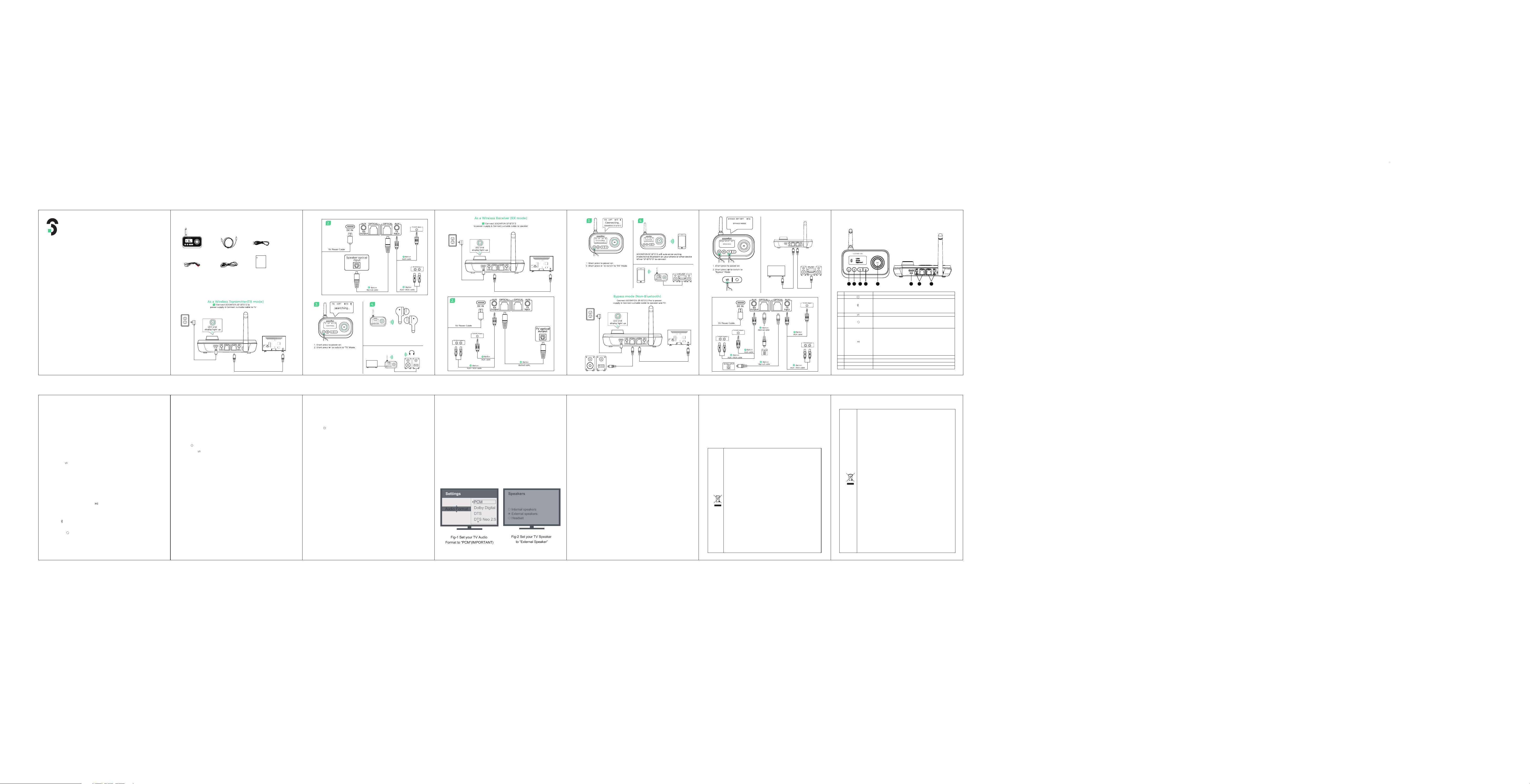
Quick User Guide
As a Wireless Transmitter (TX Mode)
1). Connect audio source (TV, DVD etc.) to "soomfon SF-BT013"
from TV port with the audio cables provided (optical or
AUX/RCA);
2). Connect "soomfon SF-BT013" to power source (TV, PC USB
socket or power adapter) with USB cable;
3). “soomfon SF-BT013" automatically boots after power on or
short press power buttn 3s to power on ;
4). Click button to choose the "TX" mode, the display shows
"seaching......",
5). Pair “soomfon SF-BT013" with your Bluetooth-enabled
headsets/speakers:
1. Set your headsets/speakers to pairing mode ;
2. Then the searched bluetooth device name will be shown on
the display.
3. Rotate the MFB knob , select the device and click to
confirm, Wait and connected.
6). Pairing the scond Bluetooth-enabled headsets/speakers:
Click to quickly disconnect the connected Bluetooth device,
restart the search mode, then Repeat "5)" step ;
or Click to disconnect the connected Bluetooth device,
re-open the blind search mode for other Bluetooth devices and
connect automatically.
As a Wireless Receiver (RX mode)
1). Connect your speaker to “soomfon SF-BT013" to "RX output"
port with the audio cable provided (optical or AUX/RCA).
2). Connect “soomfon SF-BT013" to power source with USB
cable and adapter;
3). Connect the power to automatically turn on or short
click buttn to power on;
4). Click button to choose the "RX" mode, the display shows
"connecting......",
5). Pair “soomfon SF-BT013" with your Bluetooth-enabled
phone/pc/tablet.
1. Active Bluetooth on your phone or other device to find
"SOOMFON SF-BT013" to connect.
2. Wait and connected.
3. Pair “soomfon SF-BT013" with the scond Bluetooth-enabled
phone/pc/tablet.
Repeat "5)" step
Bypass mode (Non-Bluetooth mode)
1). Connect audio source (TV, DVD etc.) to "SOOMFON SF-BT013"
"TX Input" port with the audio cables provided (optical or
AUX/RCA).
2). Connect your speaker to "SOOMFON SF-BT013" "Output" port
with your own audio cable (optical or AUX/RCA).
3).Connect "SOOMFON SF-BT013" to power source with USB
cable and adapter.
4). Connect the power to automatically turn on or short
click buttn to power on
5). Click button to the "Bypass" mode, the display shows
"Bypass Mode".
6).Ready for use. Important Notice:
1. Make sure your(TV) output is valid. AUX test with earphones.
2. Does NOT support Dolby/DTS under OPT.
3. Bypass can only work with the same type of input / output i.e.
AUX input to AUX output or OPT input to OPT output.
Trouble shooting
1) I am having trouble pairing and connecting to my Bluetooth
device.
Please check the following:
1. Your wireless device supports the wireless profiles listed in
the specifications.
2. "SOOMFON SF-BT013" and your device are next to each other
or within 3 feet/1 meter.
3. Make sure both "SOOMFON SF-BT013" and the wireless
device are in pairing mode.
4. When SOOMFON SF-BT013 and cell phone wireless pairing
reboot , please confirm whether the use of the correct input
power, the machine supports 5V DC power supply, please do
not use fast charging or poor quality miscellaneous power
input, there will be possible undervoltage or current
overprotection phenomenon;
2) After connecting and pairing with my wireless device, I
cannot hear any music from my sound system:
1. Output defaults to AUX output priority. If optical fiber output
is required, please ensure that there is no external AUX cable
connected to the AUX output port.
2. In Optical mode, "SOOMFON SF-BT013" support device with
sampling rate under 48kHz.
3. Need to make sure TV audio format is set to PCM(Fig-1) and
TV sound out as“External Speakers”(Fig-2)
Packing Content:
Product Overview:
1 2 3 4 5 6 7 8
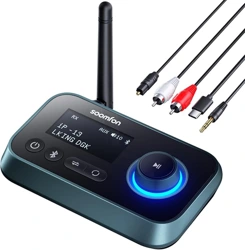
Wireless Audio Adaptor Optical Audio Cable*1 3.5mm Audio Cable*1
3.5mm to RCA Audio Cable*1
Type-C Power Cable*1
USER MANUAL*1
Model: BT17
USER MANUAL
Audio Streaming Box
- a multifunctional audio adaptor for home appliances
EN EN EN EN
Model: SF-BT013
USER MANUAL
Audio Streaming Box
- a multifunctional audio adaptor for home appliances
EN
How does it work?
NO.
①
②
③
④
⑤
⑥
⑦
⑧
⑨
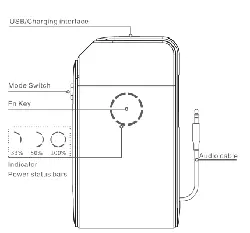
Button & Interface Function & Operation
Click to choose TX, RX, BYPASS mode
TX mode: short press to quickly disconnect the connected
Bluetooth device, restart the search mode, select the second
Bluetooth device and connect.
RX mode: Short press to quickly disconnect the connected
Bluetooth device and re-enter pairing mode.
TX mode: short press to disconnect the connected Bluetooth
device, re-open the blind search mode for other Bluetooth
devices and connect automatically.
RX Mode: No function
MFB button
RX-Mode:
Rotate clockwise: volume +
Rotate counterclockwise: volume -
Short press: Pause / Play
TX Mode:
Rotate clockwise: Screen options move down
Rotate counterclockwise: Screen options move down
Short press: Confirm selected device
Short press to power on or power off
Type-C charging port
Output (RX mode)
Input (TX mode)
Display working status
DC IN
RX Output
TX Input
Display
EN EN
EN EN EN EN EN EN EN
Soomfon SF-BT013 will auto-into the pairing mode.
Set your Bluetooth earphone or speaker to pairing
mode, then rotate the MFB knob , select the device
and click to confirm, Wait and connected.