MOTION DIMMER
ZEN12
USER MANUAL
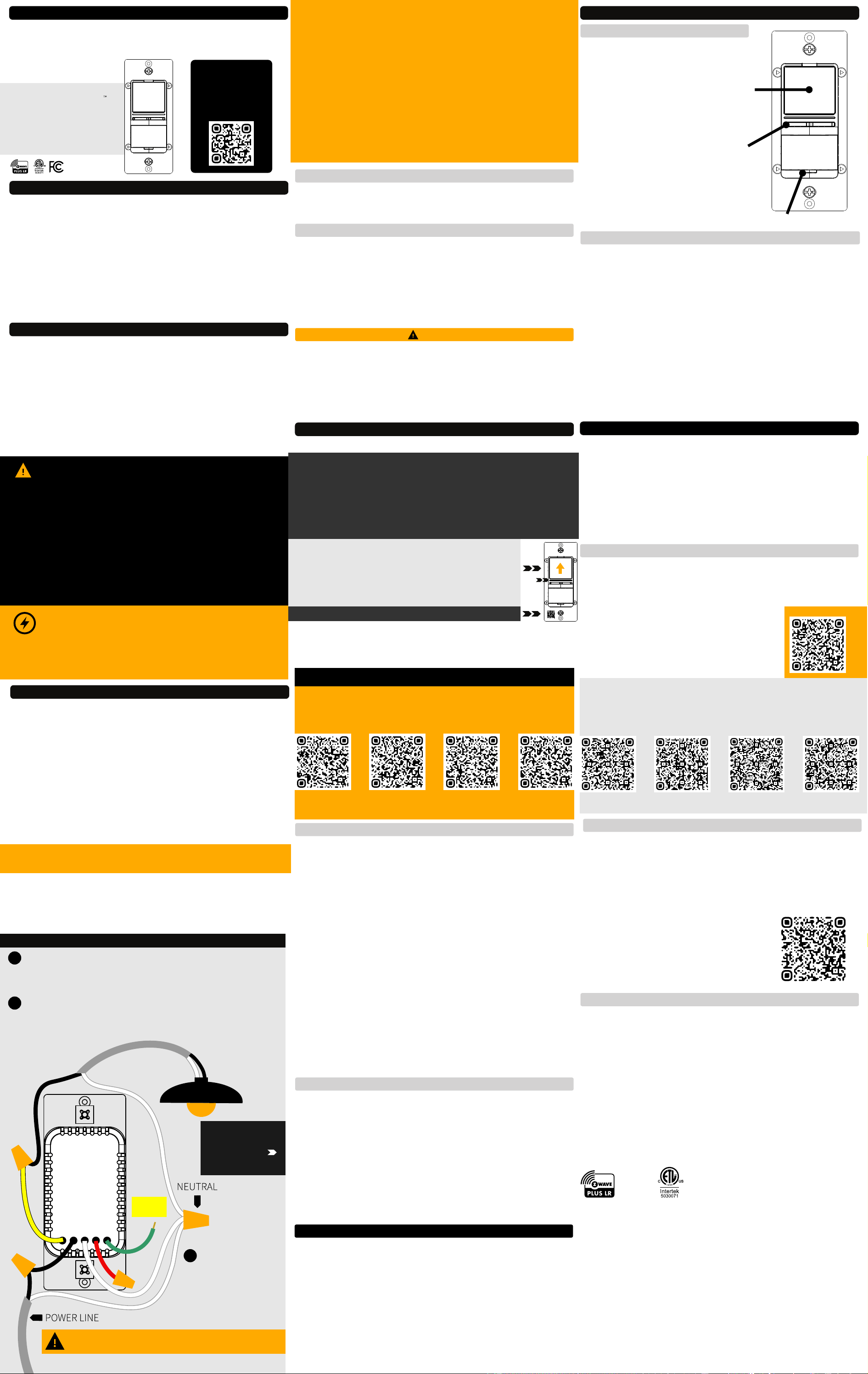
FEATURES
Ÿ Smart dimmer with built-in motion and lux sensors
Ÿ Works with LED lights up to 150 W, incandescent up to 500 W
Ÿ Adjustable sensor settings for quick and reliable automation
Ÿ 800 series Z-Wave chip for better range and faster control
Ÿ Direct 3-Way: works with regular on/off switches in a 3-way
Ÿ Scene control: trigger actions with multi-tap (select hubs only)
Ÿ Smart bulb mode: disable relay and control the light via Z-Wave
Ÿ Z-Wave Long Range for ultra reliable no-mesh communication
Ÿ Remembers and restores on/off status aer power failure
Ÿ Maximum Load: , 500W Incandescent lighting only (do
Ÿ Model Number: ZEN12
Ÿ Z-Wave Region: US / CA / MX
Ÿ Power: 125V AC, 60 Hz
150W LED
NOT connect to motors, tube lights, receptacles, or fans)
Ÿ Motion Sensor Detection: Up to 25 feet
Ÿ Range: Up to 500 feet line of sight (or 1300 feet with ZWLR)
Ÿ Operating Temperature: 32-104° F (0-40° C)
Ÿ Installation and Use: Indoor only
CAUTION
This is an electrical device - please use caution when installing and
operating the dimmer. Remote control of appliances may result in
unintentional or automated activation of power.
Do not use this Z-Wave device to control electric heaters or other
appliances which produce the risk of fire, burns, or electrical shock
when unattended. Use with lighting fixtures only.
To reduce risk of overheating and possible damage to other equipment,
do not install this unit to control a receptacle; a motor-operated
appliance; a fluorescent lighting fixture; or a transformer-supplied
fixture.
WIRING: READ IT!
This switch is intended for installation in accordance with the
National Electric Code and local regulations. It is recommen-
ded that a licensed electrician perform this installation.
BEFORE YOU INSTALL
1. CHECK THE LOAD: make sure that the load you’re about to
connect is within the electrical specs of this switch listed on
the back of the device. Connect to light fixtures only.
2. POWER OFF: turn the circuit power off in the breaker panel
before you start. If installing in a multi-switch box with
multiple circuits, turn power off at all of the circuits.
3. CHECK THE WIRES: mark load (most oen black), line
(most oen black), neutral (most oen white), and ground
(most oen bare). Don’t rely exclusively on your multimeter
to identify the wires!
4. REMOVE THE OLD SWITCH: disconnect the wires and label
them with the included label stickers.
5. CONNECT THE Z-WAVE SWITCH: follow all installation
steps carefully. Wire the switch EXACTLY like in the diagram.
1 Connect the ground (bare) wire with the green Ground
pigtail on the switch (ground wires aren’t shown in the
diagram).
ZEN12 WIRING DIAGRAM FOR SINGLE POLE INSTALLATION
Secure your Z-Wave switch in the box with mounting screws,
handling the wires with care. Isolate all bare wires with electrical
tape. Install the wall plate and only now restore power to circuit.
COMPLETE INSTALLATION
The LED indicator should light up as soon as you turn the power
back on if the switch (light) is OFF. Tap the switch button for ON
and OFF, hold the horizontal buttons below to dim or increase
brightness. If the test fails, please check that:
Ÿ power is fully restored to the circuit
Ÿ wiring matches the instructions exactly
Ÿ the load isn’t too large and causing emergency shut off
TEST THE SWITCH
Ÿ This product should be installed indoors upon completion of any building renovations.
Ÿ Prior to installation, the device should be stored in a dry, dust-and-mold-proof place.
Ÿ Do not install the switch in a place with direct sun exposure, high temperature, or humidity.
Ÿ Keep away from chemicals, water, and dust.
Ÿ Ensure the device is never close to any heat source or open flame to prevent fire.
Ÿ Ensure the device is connected to an electric power source that does not exceed the
maximum load power.
Ÿ No part of the device may be replaced or repaired by the user.
WARNING
Z-WAVE CONTROL
The LED indicator will blink blue to signal communication
and turn green for 2 seconds if inclusion is successful or turn
red for 2 seconds if the pairing attempt fails.
1. Bring your Z-Wave gateway (hub) close to the switch if
possible
2. Put the Z-Wave hub into exclusion mode (not sure how to
do that? ask@getzooz.com)
3. Tap the top button on the switch 3 times quickly (the LED
indicator will start blinking magenta)
4. Your hub will confirm exclusion, the LED indicator on the
switch will turn green for 2 seconds, and the device will
disappear from your controller's device list
EXCLUSION (REMOVING / UNPAIRING DEVICE)
FACTORY RESET
If your primary controller is missing or inoperable, you may
need to reset the device to factory settings. To reset the
switch, hold the top button for 10 seconds until the LED
indicator starts blinking green. Release the button, and
immediately aer, tap the le dimmer button 5 times to
complete the reset. The LED indicator will flash red 5 times to
confirm successful reset.
NOTE: All previously recorded activity and custom settings will be erased from
the device’s memory.
TROUBLESHOOTING
The switch won’t add to your system? Try this:
1. Initiate EXCLUSION and tap the top button 3 times
quickly.
2. Tap the top button 3 times as quickly as you can.
3. Bring the gateway controller (hub) closer to the switch, it
may be out of range.
4. Get troubleshooting tips for your hub at
www.support.getzooz.com
The switch won’t control the lights manually anymore?
Try this:
1. Turn the power off at the breaker and check if a wire
didn’t get loose.
2. Exclude the switch from the hub or reset it in case
manual control was accidentally disabled.
3. The load may be incompatible so try it with a single
incandescent bulb.
SmartThings
Hubitat
Z-Box Hub
Choose your hub and scan the QR code with your phone’s
camera. Then click on the link to access the step-by-step
pairing instructions.
Get more tutorials and helpful tips at ww.support.getzooz.com
Home Assistant
www.getzooz.com
ask@getzooz.com
2 Connect the power source wire with the black Line
pigtail and load wire to the yellow Load pigtail. Load and
line CAN’T be swapped, don’t attempt unless you’re
100% sure!
3 Connect the white
Neutral pigtail to the
neutral wire bundle.
Cap the red Traveler
pigtail on the switch.
SEE BACK PAGE
FOR 3-WAY & 4-WAY
DIAGRAMS AND
INSTRUCTIONS
DON’T TURN THE POWER BACK ON UNTIL THE SWITCH
IS FULLY INSTALLED AND ARRANGED BACK IN THE BOX.
µ
NOT SURE WHAT YOU’RE SEEING? WE’LL HELP! SUPPORT.GETZOOZ.COM
SEND US PICTURES OF YOUR SET-UP, BEFORE YOU DISCONNECT WIRES.
SCAN THE QR CODE / ENTER PIN FOR SMARTSTART
NEED SOME HELP? ask@getzooz.com
Scan to register
your product for
extended warranty
and direct access to
firmware files.
zooz
smart move
ASSOCIATION
This dimmer supports group 1 with up to 1 devices for
Lifeline communication and groups 2-6 with up to 5 devices.
This device will send BASIC REPORT to group 1 and BASIC
SET command to group 2, MULTILEVEL SET to group 3, and
MULTILEVEL CHANGE to group 4 when operated manually.
It will send BASIC SET command to group 5 when motion is
triggered and BASIC SET command to group 6 when the lux
sensor is triggered. Not every hub exposes direct association
settings in the interface so please go to
www.support.getzooz.com to see if your system allows for
direct association.
This product can be included and operated in any Z-Wave network
with other Z-Wave certified devices from other manufacturers
and/or other applications. All non-battery operated nodes within
the network will act as repeaters regardless of vendor to increase
reliability of the network.
This product features the latest Security 2 (S2) framework to
remove smart home network hacking risks. This device is equipped
with a unique authentication code for trusted wireless
communication.
This is an ETL certified device. ETL, just like UL, is a Nationally
Recognized Testing Laboratory. The ETL mark is proof of product
compliance with North American safety standards.
S2
ADVANCED SETTINGS
Please refer to your hub's user guide for advanced
programming instructions as they are a little different for
every soware.
Not sure where to start? Go to www.support.getzooz.com
for detailed instructions on how to change the settings
on Home Assistant, SmartThings, Hubitat, and more.
Or just email us: ask@getzooz.com
CUSTOMIZE YOUR SWITCH
Here is a selection of settings available to customize your
switch. Scan the QR code for a full list of parameters and
look below for how to access them on your hub.
Ÿ LED Indicator behavior, color, brightness
Ÿ Smart Bulb Mode (disable the relay)
Ÿ Motion and lux sensor reporting mode
Ÿ Ramp rate for the dimmer
Ÿ On/off status aer power failure
SmartThings
Hubitat
Z-Box Hub
Choose your hub and scan the QR code with your phone’s
camera. Then click on the link to learn how to access and
change the advanced settings for the switch on your hub.
Home Assistant
SCAN SETTINGS
Neutral
Line
Traveler
Ground
Load
Zooz Motion
Dimmer
PAGE 2PAGE 1 PAGE 3
CONNECT
GROUND!
SAFETY FIRST!
Wire colors and romex layout are for illustration
only. You should not follow the colors and
positioning in the illustration blindly. Always
identify all wires prior to installing Zooz switches
and make sure you can match the diagrams to your
set-up exactly. Don’t experiment or attempt a “trial-
and-error” installation for your own safety.
Always cap any exposed wires and isolate electrical
elements with appropriate protectiction.
There are 2 methods to ADD THE SWITCH TO YOUR HUB:
SmartStart: use the hub UI / app to scan the SmartStart QR
code on the switch, located on the metal plate (below the
motion sensor). Power the device on for SmartStart inclusion,
it will add automatically. On SmartThings, you may need to
tap the top button 3 times quickly to complete inclusion.
See below for QR codes to hub-specific instructions.
Manual inclusion: initiate inclusion (pairing) in
the app or hub UI. Make sure the switch is
powered and finalize the inclusion at the switch:
tap the top button 3 times quickly.
LED
SPECIFICATIONS
WARRANTY
This product is covered under a 1-year limited warranty and
extended 5-year warranty if registered within 30 days of
purchase. To read the full warranty policy or file a warranty
claim, please go to www.getzooz.com/warranty
IN NO EVENT SHALL ZOOZ OR ITS SUBSIDIARIES AND AFFILIATES BE LIABLE FOR ANY INDIRECT,
INCIDENTAL, PUNITIVE, SPECIAL, OR CONSEQUENTIAL DAMAGES, OR DAMAGES FOR LOSS OF PROFITS,
REVENUE, OR USE INCURRED BY CUSTOMER OR ANY THIRD PARTY, WHETHER IN AN ACTION IN CONTRACT,
OR OTHERWISE EVEN IF ADVISED OF THE POSSIBILITY OF SUCH DA-MAGES. ZOOZ'S LIABILITY AND
CUSTOMER'S EXCLUSIVE REMEDY FOR ANY CAUSE OF ACTION ARISING IN CON-NECTION WITH THIS
AGREEMENT OR THE SALE OR USE OF THE PRODUCTS, WHETHER BASED ON NEGLIGENCE, STRICT
LIABILITY, BREACH OF WARRANTY, BREACH OF AGREEMENT, OR EQUITABLE PRINCIPLES, IS EXPRESSLY
LIMITED TO, AT ZOOZ'S OPTION, REPLACEMENT OF, OR REPAYMENT OF THE PURCHASE PRICE FOR THAT
PORTION OF PRODUCTS WITH RESPECT TO WHICH DA-MAGES ARE CLAIMED. ALL CLAIMS OF ANY KIND
ARISING IN CONNECTION WITH THIS AGREEMENT OR THE SALE OR USE OF PRODUCTS SHALL BE DEEMED
WAIVED UNLESS MADE IN WRITING WITHIN THIRTY (30) DAYS FROM ZOOZ'S DELIVERY, OR THE DATE FIXED
FOR DELI-VERY IN THE EVENT OF NONDELIVERY.
FCC NOTE
THE MANUFACTURER IS NOT RESPONSIBLE FOR ANY RADIO OR TV INTERFERENCE CAUSED BY UNAUTHORIZED
MODIFICATIONS TO THIS EQUIPMENT. SUCH MODIFICATIONS COULD VOID THE USER’S AUTHORITY TO
OPERATE THE EQUIPMENT. STORE INDOORS WHEN NOT IN USE. SUITABLE FOR DRY LOCATIONS ONLY. DO NOT
IMMERSE IN WATER. NOT FOR USE WHERE DIRECTLY EXPOSED TO WATER.
This device complies with Part 15 of the FCC Rules.
Operation is subject to the following conditions:
1. This device may not cause harmful interference,
2. This device must accept any interference received, including interference that may cause undesired operation.
This equipment has been tested and found to comply with the limits for a Class B digital device, pursuant to part
15 of the FCC Rules.
These limits are designed to provide reasonable protection against harmful interference in a residential
installation.
This equipment generates, uses and can radiate radio frequency energy and, if not installed and used according
to instructions, may cause harmful interference to radio communications.
However, there is no guarantee that interference will not occur in any given installation.
If this equipment causes harmful interference to radio or television reception, the user may try to correct the
interference by taking one or more of the following measures:
- Reorient or relocate receiving antenna
- Increase the separation between equipment and receiver
- Connect equipment into a separate outlet or circuit from receiver
- Consult the dealer or an experienced radio/TV technician for additional assistance
All brand names displayed are trademarks of their respective holders.
© Zooz 2026
HOW IT WORKS
TAP THE TOP BUTTON for on/off
control of the connected lights. The
light will turn on to the last brightness
level by default. You can change that
behavior in the advanced settings (see
below for details).
HOLD THE LEFT DIMMING BUTTON
to decrease brightness of the
controlled light and HOLD THE RIGHT
DIMMING BUTTON to increase
brightness. If installed upside down
with motion sensor on top, the
dimming buttons will work in reverse.
PHYSICAL CONTROL
MOTION
SENSOR
LUX SENSOR
The motion dimmer will automatically turn on the light it
controls when motion is detected. It will automatically turn
the light off aer 30 seconds from the last detected motion
event. Wait 1 minute aer power-up for the motion sensor
to warm up before it starts detecting activity.
If you’d like to change this behavior, you can adjust it in the
advanced settings of the switch. There, you’ll be able to
decide if, when, and how the built-in motion sensor triggers
your dimmer. This includes the time of inactivity, the
brightness level for “night mode”, as well as lux level offset
and motion sensitivity. See below how to access and change
the advanced settings for this device on your Z-Wave hub.
DEFAULT BEHAVIOR
SCENE CONTROL
You can trigger scenes or control other connected devices in
your network using this switch. Just enable the setting in
Parameter 8 and verify that your hub supports scene control.
Assign scenes or actions to 1-tap, 2-tap, 3-tap, 4-tap, and 5-
tap as well as to held and released for any of the buttons.
Scan the QR code for scene control
programming instructions on your hub.
QUESTIONS?
ask@getzooz.com
NEED HELP?
If you’re having trouble reading the diagrams or don’t see your
wiring set-up here, get in touch! We have more 3-way, 4-way,
and 5-way diagrams and will create custom instructions for
your set-up if needed.
There are many ways to wire multi-point control set-ups so
unless you can match your wiring to the diagrams here, please
don’t attempt the installation for your own safety.
www.support.getzooz.com
ask@getzooz.com
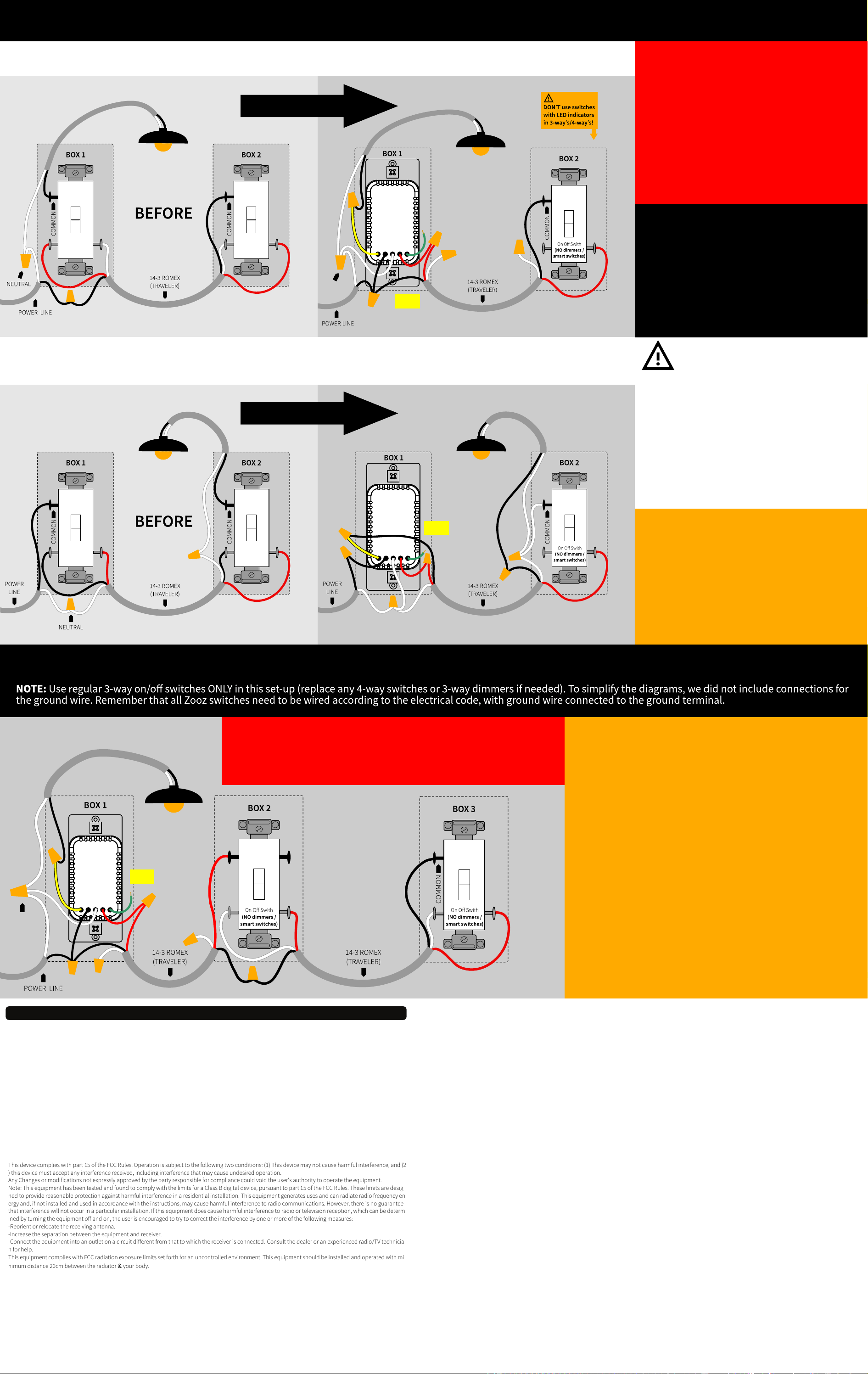
ZEN12 WIRING DIAGRAMS FOR THE MOST COMMON 3-WAY INSTALLATIONS
For more diagrams or to request custom
instructions go to support.getzooz.com
Wire and screw position, as well as color codes
are for illustration only. You should not follow the
colors and positioning in the illustration blindly.
Always identify all wires prior to installing Zooz
switches and make sure you can match the
diagrams to your set-up exactly. Don’t
experiment or attempt a “trial-and-error”
installation for your own safety. Don’t disconnect
any wires before documenting your set-up in
each box with detailed images!
STOP!
NOTE!
If you are not comfortable identifying the wiring
and completing the installation, please consult a
licensed electrician.
Make sure you have identified all wiring correctly
before connecting the switch. If your wiring
doesn’t match any of the below diagrams,
contact our support: ask@getzooz.com
ON/OFF SWITCHES ONLY
Do not connect Zooz Z-Wave switches to an
existing 3-way dimmer, illuminated switch, or
an electronic add-on switch. Zooz switches can
only be wired with mechanical on/off or
momentary switches in a 3-way or 4-way setting!
To simplify the diagrams, we did not include
connections for the ground wire. Remember that
all Zooz switches need to be wired according to
the electrical code, with ground wire connected
to the ground terminal.
POWER OFF!
Cut power to the circuit before handling the
wiring.
Always install your Zooz switch in the box
with direct connection to power line.
Diagrams and instructions in this manual
are for ZEN12 model ONLY!
ZEN12 4-WAY INSTALLATION WIRING DIAGRAM (LINE AND LOAD MUST BE IN THE SAME BOX)
EACH BOX NEEDS TO BE REWIRED ACCORDING TO
THE 4-WAY DIAGRAM.
Follow this diagram ONLY if you confirmed you
have direct connection to power and light in the
same box. If they’re in separate boxes, ask us
about using the ZEN12 switch with ZAC99
momentary switches in 4-way and 5-way
installations.
If you have power or load coming into the box
with the 4-way switch, contact us for custom
instructions: ask@getzooz.com
Neutral
Line
Traveler
Ground
Load
3-WAY DIAGRAM FOR 2-POINT CONTROL WITH ZEN12 AND REGULAR 3-WAY SWITCH: OPTION 1
ZEN12 3-WAY SWITCH
NEUTRAL
3-WAY DIAGRAM FOR 2-POINT CONTROL WITH ZEN12 AND REGULAR 3-WAY SWITCH: OPTION 2
ZEN12 3-WAY SWITCH
REWIRE BOTH BOXES!
REWIRE BOTH BOXES!
NEUTRAL
ZEN12
CHECK 3-WAY / 4-WAY TYPE!
Your 3-way and 4-way switches may have a different terminal
layout so identify the in and out terminals on the 4-way switch and
the common terminal on the 3-way switch before the installation.
Neutral
Line
Traveler
Ground
Load
Zooz Motion
Dimmer
CONNECT
GROUND!
AFTER
AFTER
Neutral
Line
Traveler
Ground
Load
CONNECT
GROUND!
CONNECT
GROUND!
2 Connect the power source wire with the black Line
pigtail and load wire to the yellow Load pigtail. Load and
line CAN’T be swapped, don’t attempt unless you’re
100% sure!
3 Connect the white
Neutral pigtail to the
neutral wire bundle.
Cap the red Traveler
pigtail on the switch.
SEE BACK PAGE
FOR 3-WAY & 4-WAY
DIAGRAMS AND
INSTRUCTIONS
DON’T TURN THE POWER BACK ON UNTIL THE SWITCH
IS FULLY INSTALLED AND ARRANGED BACK IN THE BOX.
Neutral
Line
Traveler
Ground
Load
Zooz Motion
Dimmer
PAGE 1
CONNECT
GROUND!
WARRANTY
This product is covered under a 1-year limited warranty and extended 5-year warranty if
registered within 30 days of purchase. To read the full warranty policy or file a warranty
claim, please go to www.getzooz.com/warranty
IN NO EVENT SHALL ZOOZ OR ITS SUBSIDIARIES AND AFFILIATES BE LIABLE FOR ANY INDIRECT, INCIDENTAL, PUNITIVE, SPECIAL, OR CONSEQUENTIAL
DAMAGES, OR DAMAGES FOR LOSS OF PROFITS, REVENUE, OR USE INCURRED BY CUSTOMER OR ANY THIRD PARTY, WHETHER IN AN ACTION IN CONTRACT,
OR OTHERWISE EVEN IF ADVISED OF THE POSSIBILITY OF SUCH DA-MAGES. ZOOZ'S LIABILITY AND CUSTOMER'S EXCLUSIVE REMEDY FOR ANY CAUSE OF
ACTION ARISING IN CON-NECTION WITH THIS AGREEMENT OR THE SALE OR USE OF THE PRODUCTS, WHETHER BASED ON NEGLIGENCE, STRICT LIABILITY,
BREACH OF WARRANTY, BREACH OF AGREEMENT, OR EQUITABLE PRINCIPLES, IS EXPRESSLY LIMITED TO, AT ZOOZ'S OPTION, REPLACEMENT OF, OR
REPAYMENT OF THE PURCHASE PRICE FOR THAT PORTION OF PRODUCTS WITH RESPECT TO WHICH DA-MAGES ARE CLAIMED. ALL CLAIMS OF ANY KIND
ARISING IN CONNECTION WITH THIS AGREEMENT OR THE SALE OR USE OF PRODUCTS SHALL BE DEEMED WAIVED UNLESS MADE IN WRITING WITHIN
THIRTY (30) DAYS FROM ZOOZ'S DELIVERY, OR THE DATE FIXED FOR DELI-VERY IN THE EVENT OF NONDELIVERY.
All brand names displayed are trademarks of their respective holders.
© Z
FCC NOTE
This device complies with part 15 of the FCC Rules. Operation is subject to the following two conditions: (1) This device may not cause harmful interference, and (2
) this device must accept any interference received, including interference that may cause undesired operation.
Any Changes or modifications not expressly approved by the party responsible for compliance could void the user's authority to operate the equipment.
Note: This equipment has been tested and found to comply with the limits for a Class B digital device, pursuant to part 15 of the FCC Rules. These limits are desig
ned to provide reasonable protection against harmful interference in a residential installation. This equipment generates uses and can radiate radio frequency en
ergy and, if not installed and used in accordance with the instructions, may cause harmful interference to radio communications. However, there is no guarantee
that interference will not occur in a particular installation. If this equipment does cause harmful interference to radio or television reception, which can be determ
ined by turning the equipment off and on, the user is encouraged to try to correct the interference by one or more of the following measures:
-Reorient or relocate the receiving antenna.
-Increase the separation between the equipment and receiver.
-Connect the equipment into an outlet on a circuit different from that to which the receiver is connected.-Consult the dealer or an experienced radio/TV technicia
n for help.
This equipment complies with FCC radiation exposure limits set forth for an uncontrolled environment. This equipment should be installed and operated with mi
nimum distance 20cm between the radiator & your body.
ooz 2026
Zooz Motion
Dimmer
Zooz Motion
Dimmer