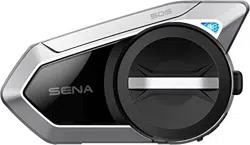
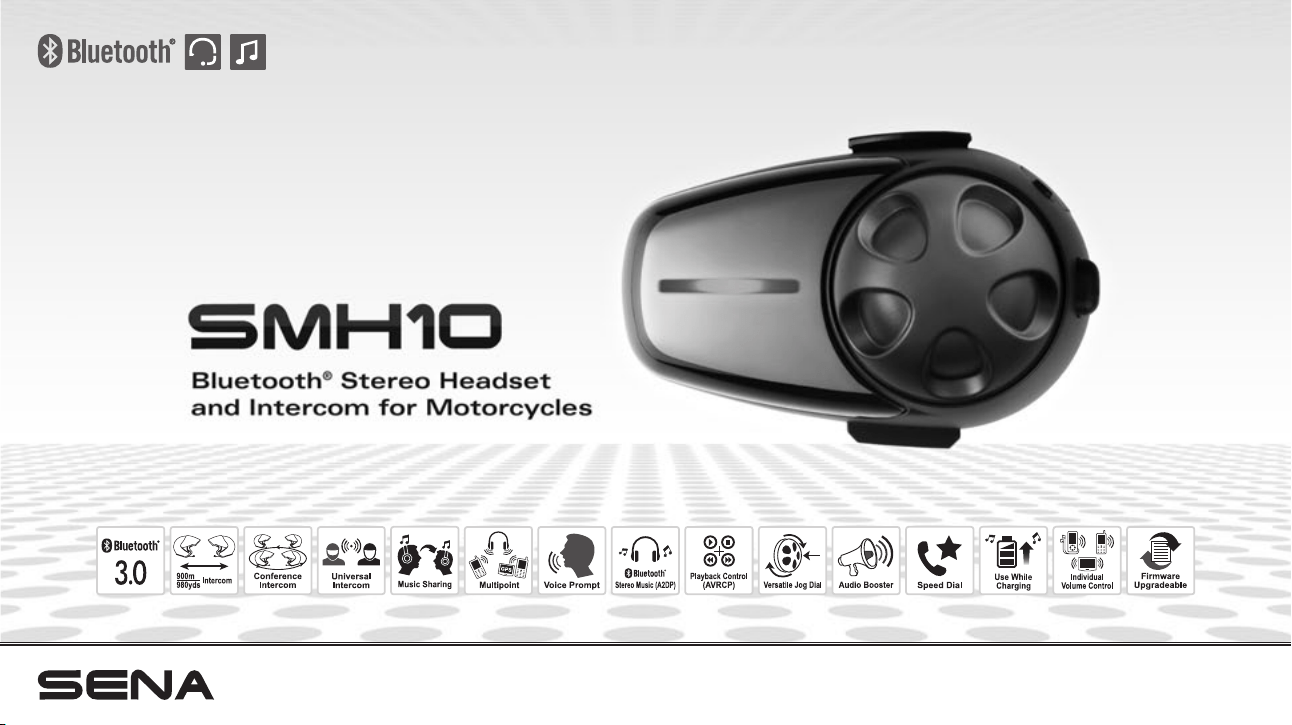

SMH10
2
© 1998-2014 Sena Technologies, Inc. All rights reserved.
Sena Technologies, Inc. reserves the right to make any changes and improvements to its product without providing prior notice.
Sena™ is a trademark of Sena Technologies, Inc. or its subsidiaries in the USA and other countries. SMH10™, SMH10R™, SMH5™, SMH5-FM™,
SMH3™, SPH10™, EXPAND™, SPH10H™, SPH10H-FM™, SPH10S™, SR10™, SR10i™, SM10™ are trademarks of Sena Technologies, Inc. or its
subsidiaries. These trademarks may not be used without the express permission of Sena.
The Bluetooth
®
word mark and logos are owned by the Bluetooth SIG, Inc. and any use of such marks by Sena is under license. iPhone, iPod
touch are the registered trademark of Apple Inc. Zumo™ is a trademark of Garmin Ltd. or its subsidiaries. TomTom™ is the trademark or
registered trademark owned by TomTom International B.V. Other trademarks and trade names are those of their respective owners.

SMH10
3
English
CONTENTS
1. INTRODUCTION................................................................................ 5
2. PACKAGE CONTENTS ..................................................................... 6
3. INSTALLING THE SMH10 ON YOUR HELMET................................ 7
4. POWERING ON/OFF AND CHARGING.......................................... 10
4.1 Powering On .................................................................................. 10
4.2 Powering Off .................................................................................. 10
4.3 Charging ........................................................................................ 10
4.4 Low Battery Warning ...................................................................... 11
4.5 Checking the Battery Level ........................................................... 11
5. VOLUME ADJUSTMENT ................................................................. 11
6. PAIRING THE SMH10 WITH BLUETOOTH DEVICES ................... 12
6.1 Mobile Phone Pairing ..................................................................... 12
6.2 Multipoint Pairing ........................................................................... 12
6.3 Bluetooth Stereo Device Pairing .................................................... 13
6.4 Bluetooth GPS Navigation Pairing ................................................. 13
6.5 Pairing with the Sena SR10, Bluetooth Two-way Radio Adapter .... 15
7. PAIRING WITH SELECTIVE PROFILE: A2DP STEREO OR
HANDSFREE
................................................................................... 17
7.1 A2DP Stereo Music Only ............................................................... 17
7.2 HFP for Phone Call Only ................................................................ 17
8. INTERCOM PAIRING ...................................................................... 18
8.1 Pairing with Other SMH10 Headsets for Intercom Conversation ... 18
8.2 Pairing with Other Sena Headset Models for Intercom
Conversation
.................................................................................. 19
9. SMH10 CONFIGURATION SETTING ............................................. 19
9.1 Assigning Speed Dial ................................................................... 20
9.2 Enabling/Disabling Voice Activated Phone Answering ................ 21
9.3 Enabling/Disabling Voice Activated Intercom .............................. 21
9.4 Enabling/Disabling Voice Prompts ................................................ 21
9.5 Enabling/Disabling Sidetone ......................................................... 22
9.6 Enabling/Disabling Advanced Noise Control ................................ 22
9.7 Delete all Bluetooth Pairing Information ....................................... 22
9.8 ExitVoiceCongurationMenu ...................................................... 23
10. FUNCTION PRIORITY..................................................................... 23
11. STEREO MUSIC .............................................................................. 24
11.1 By Stereo Audio Cable .................................................................. 24
11.2 By Bluetooth Wireless Stereo ........................................................ 24
12. MOBILE PHONE CALL MAKING AND ANSWERING ..................... 25
12.1 Mobile Phone Call Making and Answering .................................... 25
12.2 Speed Dialing ................................................................................ 26

SMH10
4
13. TWO-WAY INTERCOM ................................................................... 27
13.1 Start and End Two-way Intercom ................................................... 27
13.2 Intercom and Mobile Phone Call ................................................... 28
13.3 Intercom and GPS ........................................................................ 28
13.4 Intercom and Two-way Radio ........................................................ 29
14. THREE-WAY CONFERENCE INTERCOM ..................................... 30
14.1 Start Three-way Intercom ............................................................... 30
14.2 End Three-way Intercom ................................................................ 31
15. FOUR WAY CONFERENCE INTERCOM ....................................... 32
15.1 Start Four-way Intercom ................................................................. 32
15.2 End Four-way Intercom .................................................................. 32
16. MUSIC SHARING ............................................................................ 33
17. UNIVERSAL INTERCOM................................................................. 33
17.1 Universal Intercom Pairing ............................................................. 34
17.2 Two-way Universal Intercom .......................................................... 34
17.3 Three-way Universal Intercom ....................................................... 34
17.4 Four-way Universal Intercom ......................................................... 36
18. THREE-WAY CONFERENCE PHONE CALL WITH INTERCOM
PARTICIPANT ................................................................................. 37
19. INTERCOM FAILURE ...................................................................... 38
20. INTERCOM RECONNECTION ........................................................ 38
21. RESET TO FACTORY DEFAULT SETTINGS................................. 38
22. FAULT RESET ................................................................................. 39
23. FIRMWARE UPGRADE ................................................................... 39
24. SENA BLUETOOTH CONNECTION CASE STUDIES .................... 40
25. OPERATION QUICK REFERENCE ................................................ 48
CERTIFICATION AND SAFETY APPROVALS
...................................... 49
• FCC Compliance Statement ............................................................... 49
• FCC RF Exposure Statement
.............................................................. 49
• FCC Caution
....................................................................................... 49
• CE Declaration of Conformity
............................................................ 49
• Industry Canada Statement
............................................................... 50
• Bluetooth License
.............................................................................. 50
• WEEE (Waste Electrical and Electronic Equipment)
........................... 50
SAFETY INFORMATION ........................................................................ 50
• Product Storage and Management .................................................... 50
• Product Use
........................................................................................ 51
• Battery
................................................................................................ 51
PRODUCT WARRANTY AND DISCLAIMER ......................................... 52
• Limited Warranty ................................................................................. 52
• Warranty Exclusions
........................................................................... 54
• Warranty Service
................................................................................. 55
• Return for Full Refund
......................................................................... 55

SMH10
5
English
Thank you for choosing the Sena SMH10, Bluetooth Stereo Headset
and Intercom for Motorcycles. With the SMH10, you can call
handsfree on your Bluetooth mobile phone, listen to stereo music or
voice instructions of GPS navigations by Bluetooth wirelessly, and
have intercom conversations in full duplex with a passenger or other
motorcycle riders.
The SMH10 is compliant with the Bluetooth 3.0 supporting the following
proles:HeadsetProle,Hands-FreeProle(HFP),AdvancedAudio
DistributionProle(A2DP),andAudioVideoRemoteControlProle
(AVRCP). Please check with the manufacturers of other devices to
determine their compatibility with this headset.
Please read this user’s guide carefully before using the headset.
Also check www.sena.com for the latest version of the user’s guide
and additional information related to Sena Bluetooth products.
1. INTRODUCTION
TheSMH10features:
• Bluetooth handsfree for Bluetooth mobile phones
• Bluetooth stereo headset for Bluetooth audio devices such as MP3
players
•
Bluetooth stereo headset for Bluetooth GPS navigations
• Music sharing during two-way interocm conversation
• Bluetooth intercom up to 900 meters (980 yards)*
• Four-way conference intercom
• Intercom with non-Sena Bluetooth headsets
• Three-way conference phone call with intercom participant
• Multipoint Bluetooth pairing with GPS navigation or Sena SR10
two-way radio adapter
•
Multipoint Bluetooth for dual mobile phone
• Stereo music by 3.5mm audio cable
• Firmware upgradeable
KeySpecications:
• Bluetooth 3.0
•Supporting proles: Headset Prole, Hands-Free Prole (HFP),
AdvancedAudioDistributionProle(A2DP),AudioVideoRemote
ControlProle(AVRCP)
* in open terrain
SMH10
6
2. PACKAGE CONTENTS
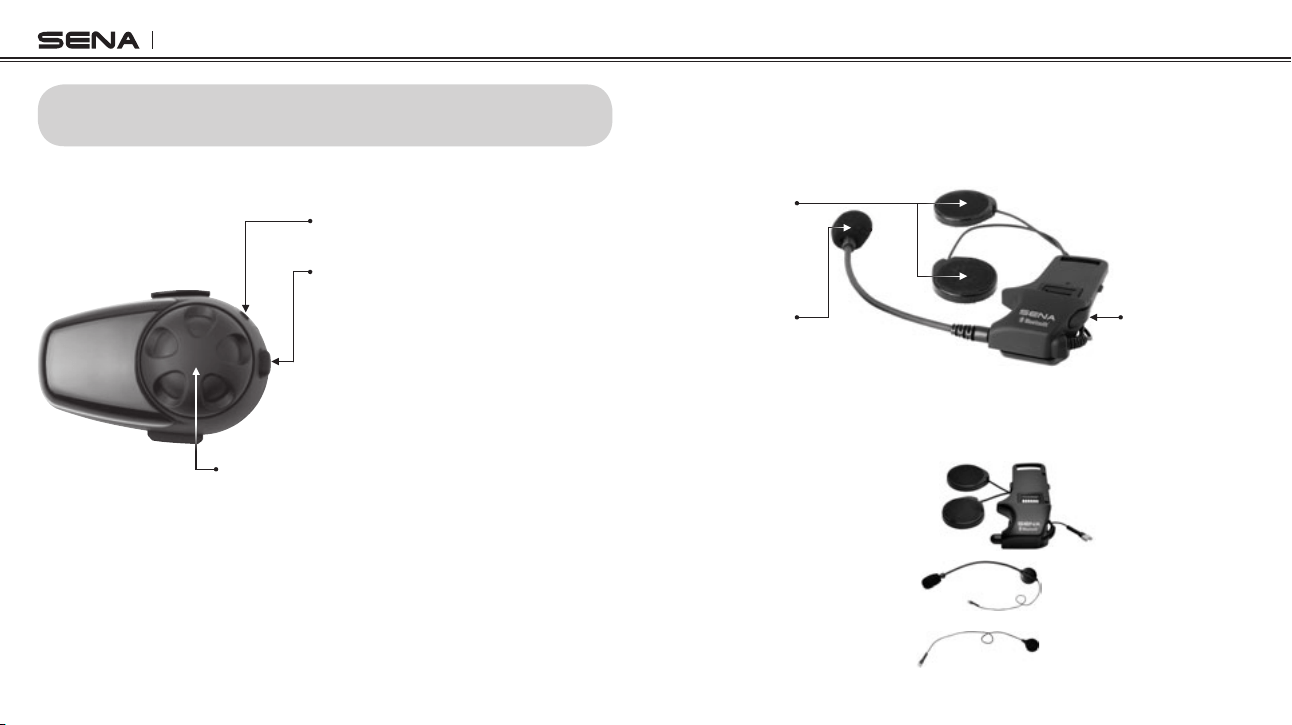
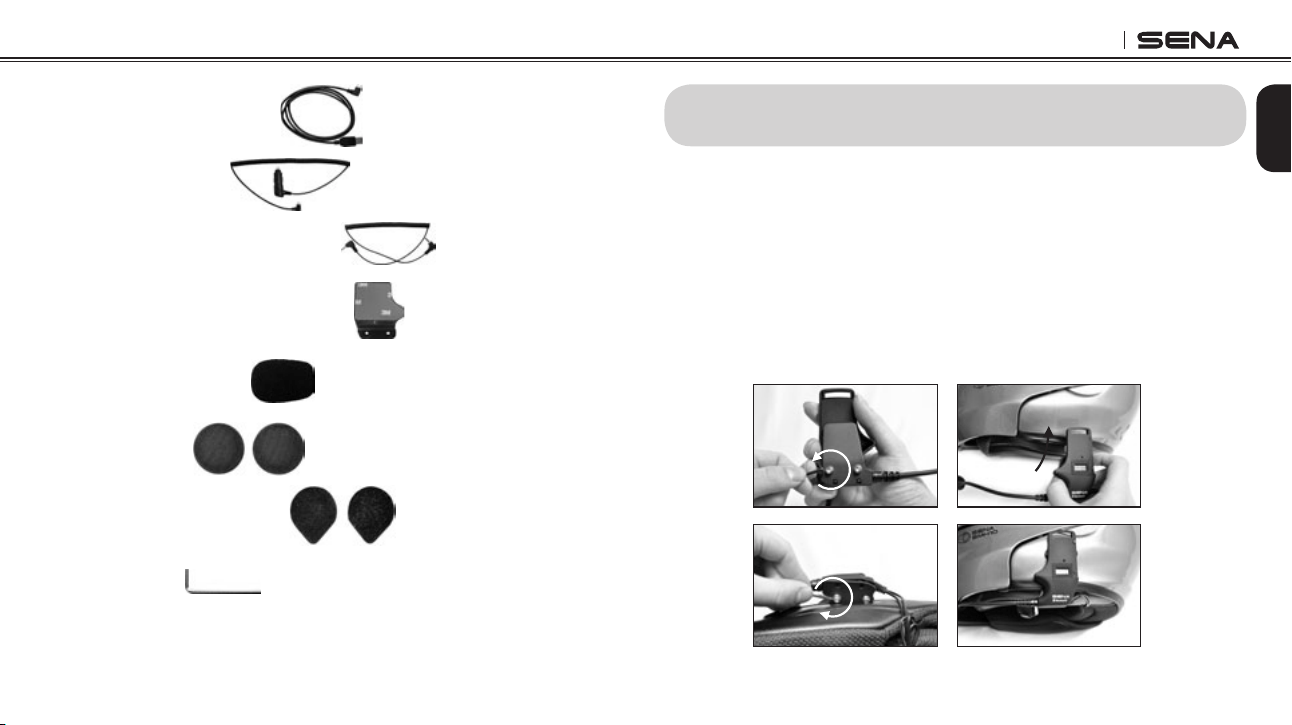
• Headset Main Unit
Jog Dial
• Answer and end a mobile phone call
• Reject an incoming mobile phone call
• Start and end intercom conversation
• Volume adjustment by rotating
• Play and pause Bluetooth stereo device
• Track-forward and track-back by rotating while pressing the
button
• Enter into intercom pairing mode
• Enter into voice configuration setting
• Navigate through configuration menu
Phone Button
• Answer and end a mobile phone call
• Redial last number
• Call transfer between mobile phone and headset
• Enter into mobile phone pairing mode
• Enter into Bluetooth stereo device paring mode
• Enter into factory reset mode
DC Power Charging & Firmware Upgrade Port
MP3 Jack
Microphone
Speakers
• Clamp and Speakers
• Boom Microphone
• Wired Microphone
• Clamp Unit
- Speaker-Microphone Clamp Unit - Basic Kit
(SMH10-10/SMH10D-10)
- Speaker-Microphone Clamp Unit with Universal Microphone Kit
(SMH10-11/SMH10D-11)
SMH10
7
English
To securely install the SMH10 on the helmet, please follow the
procedure.
1. Loosen the two screws on the back plate of the speaker-
microphone clamp unit using the enclosed Allen Wrench. Insert
the back plate of the clamp unit between the internal padding and
external shell of the helmet, and tighten the two screws. Please
make sure that the microphone is located properly close to your
mouth when you wear the helmet.
Insert
3. INSTALLING THE SMH10 ON YOUR HELMET
• USB Power & Data Cable
• Cigarette Charger
• 3.5mm Stereo Audio Jack Cable
• Glued Surface Mounting Adapter
• Microphone Sponges
• Speaker Pads
• Velcro Pads for Speakers
• Allen Wrench
SMH10
8
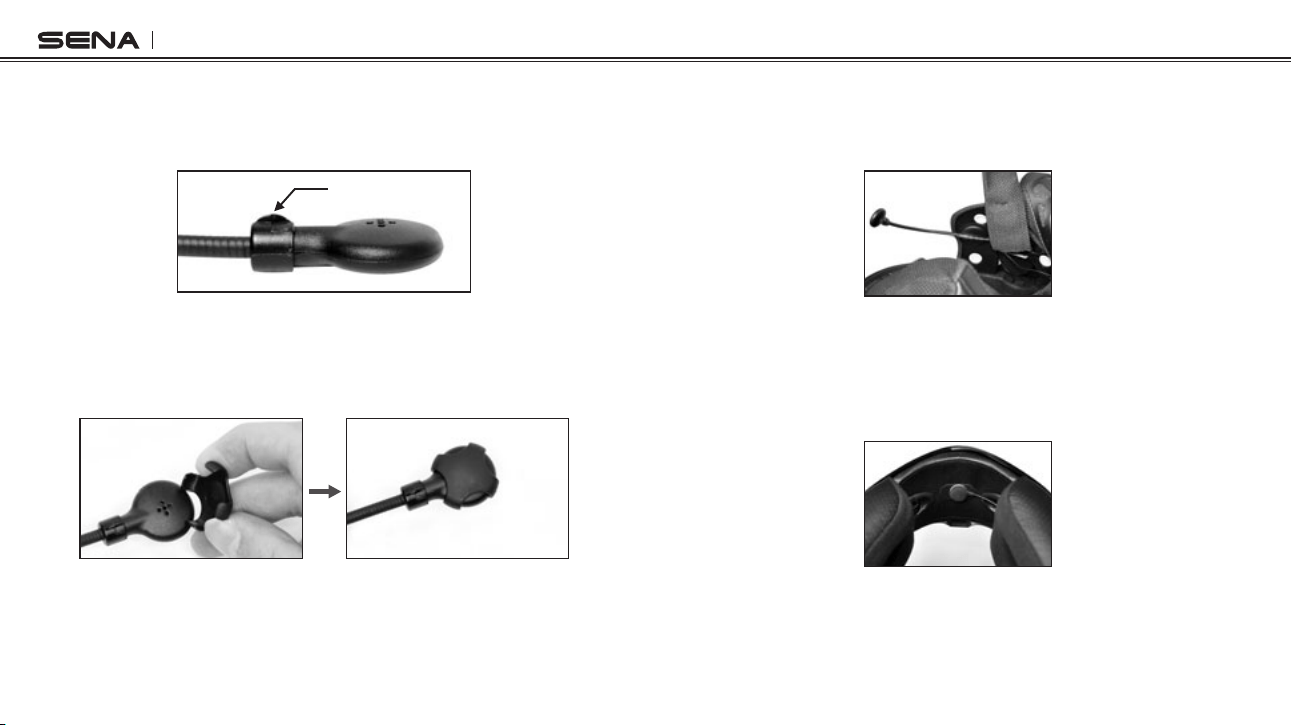
2.Pleaseadjustthedirectionofthemicrophonesothatthenside
of the microphone is facing outward; away from your lips. You can
easilyrecognizeitbytouchingthenwithyourngers.
fin
The microphone cap helps you to cut down incoming microphone
wind noise by protecting the microphone from the wind and provide
clearer voice audio sound. Put the microphone cap on the side of
themicrophonethathasthenonit.
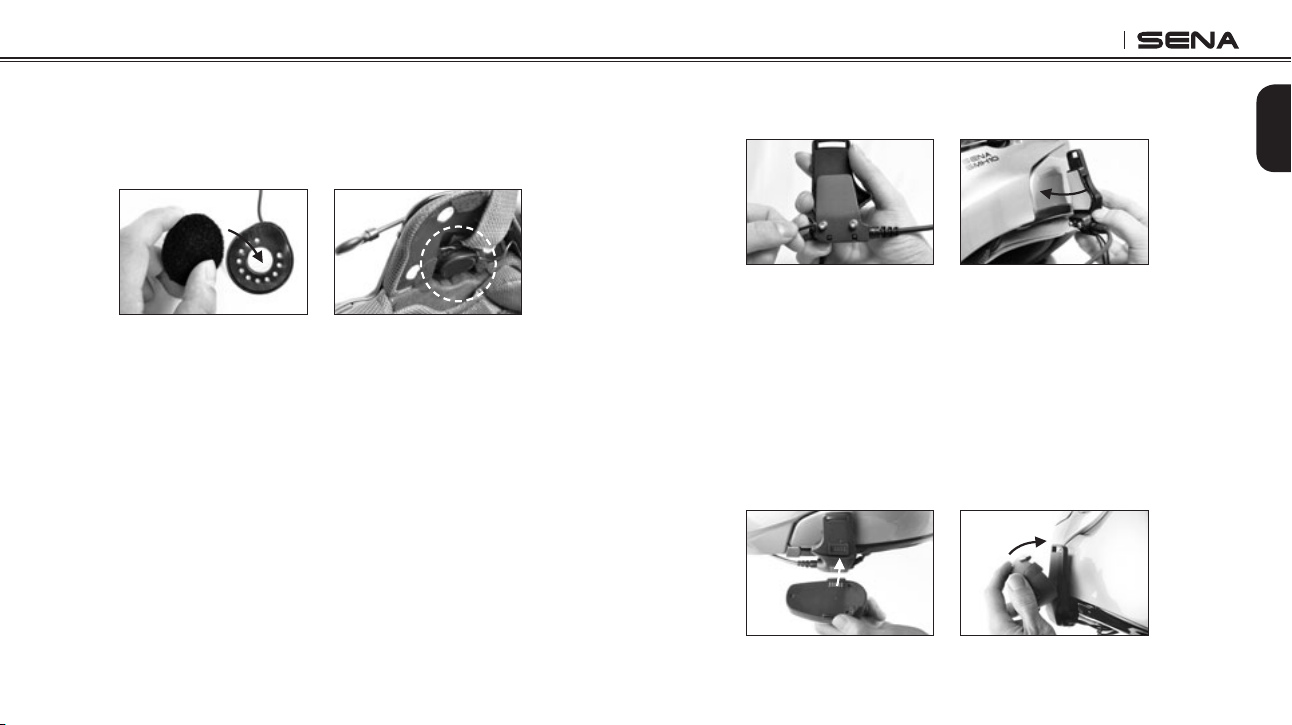
When installing the boom microphone included in the “Universal
Microphone Kit”, place the velcro end of the boom microphone
between the internal helmet cheek pad and the internal wall of the
helmet shell. The boom microphone should be mounted so it is
facing close to your mouth when you wear the helmet. You can use
the enclosed velcro pad and holder for the boom microphone to
ensure secure placement.
In the case of the wired microphone also included in the “Universal
Microphone Kit”, attach the enclosed velcro pad for wired
microphone to the inside of the chin guard for full-face helmets.
Place the wired microphone on the velcro pad and connect it to the
connector of the clamp unit.
SMH10
9
English
3. Place the helmet speakers along with the velcro pads, centered to
your ear, in the ear pockets of the helmet. If the helmet has deep
ear pockets, you can use the speaker pads to place the speakers
closer to your ears.
4. If you have any problem to clamp the speaker-microphone unit
on the helmet for any reason, you may use the glued surface
mounting adapter to attach the speaker-microphone clamp unit
on the external surface of the helmet.
•
Remove the back plate of the speaker-microphone clamp unit by
loosening the two screws with the enclosed Allen Wrench.
•
Attach the glued external adapter to the speaker-microphone
clamp unit by tightening the two screws instead of the removed
back plate.
•
Locate a proper surface on the helmet to attach the unit, clean
the helmet surface location with a moistened towel, and allow to
dry thoroughly.
•
Peel off the cover of the adhesive tape of the adapter and attach
the unit on the proper surface of your helmet.
Attach
Sena recommends the clamp unit over the glued surface
mounting adapter. Even though the glued surface mounting
adapter is provided for convenience, Sena does not assume
any responsibility for use of it. Users may have to use the glued
adapter at their own risk and responsibility.
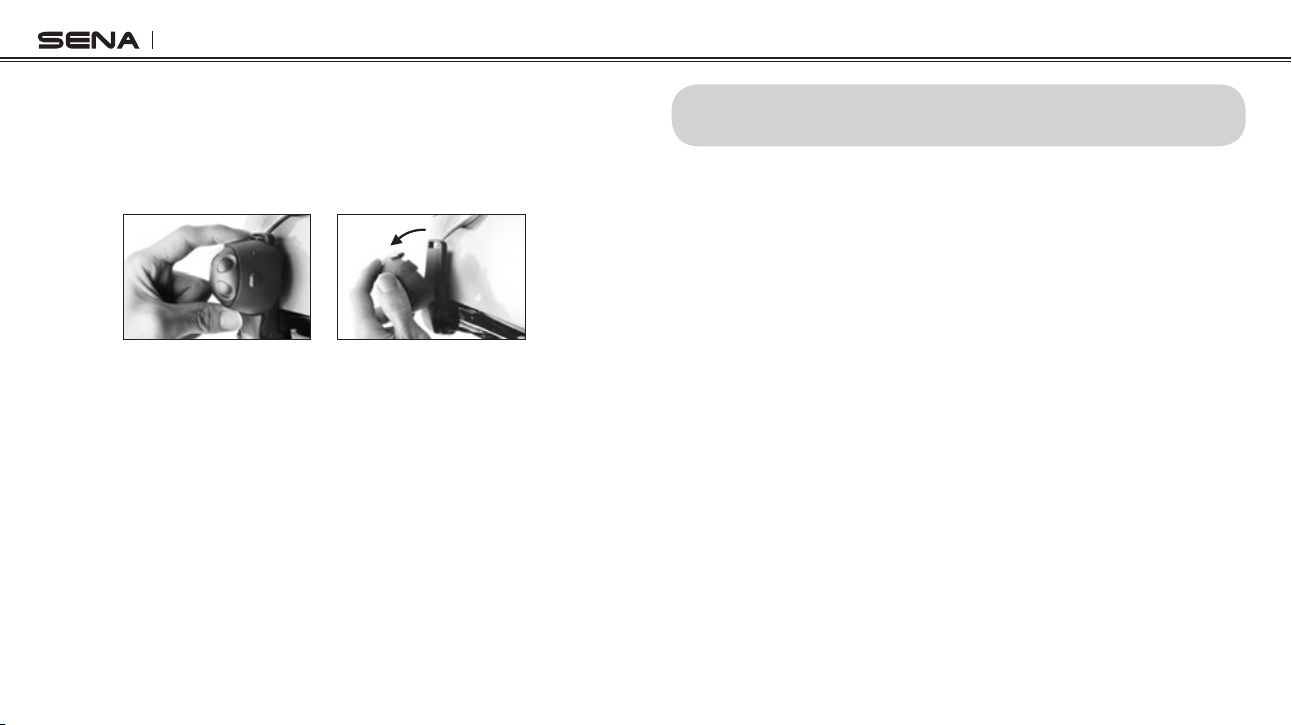
5. Attach the headset main unit to the speaker-microphone clamp
unit. Insert the bottom part of the main unit completely into the
lowerslotoftheclampunitrst.Thenpushtheupperpartofthe
main unit until it clicks into the upper holder of the clamp unit.
SMH10
10
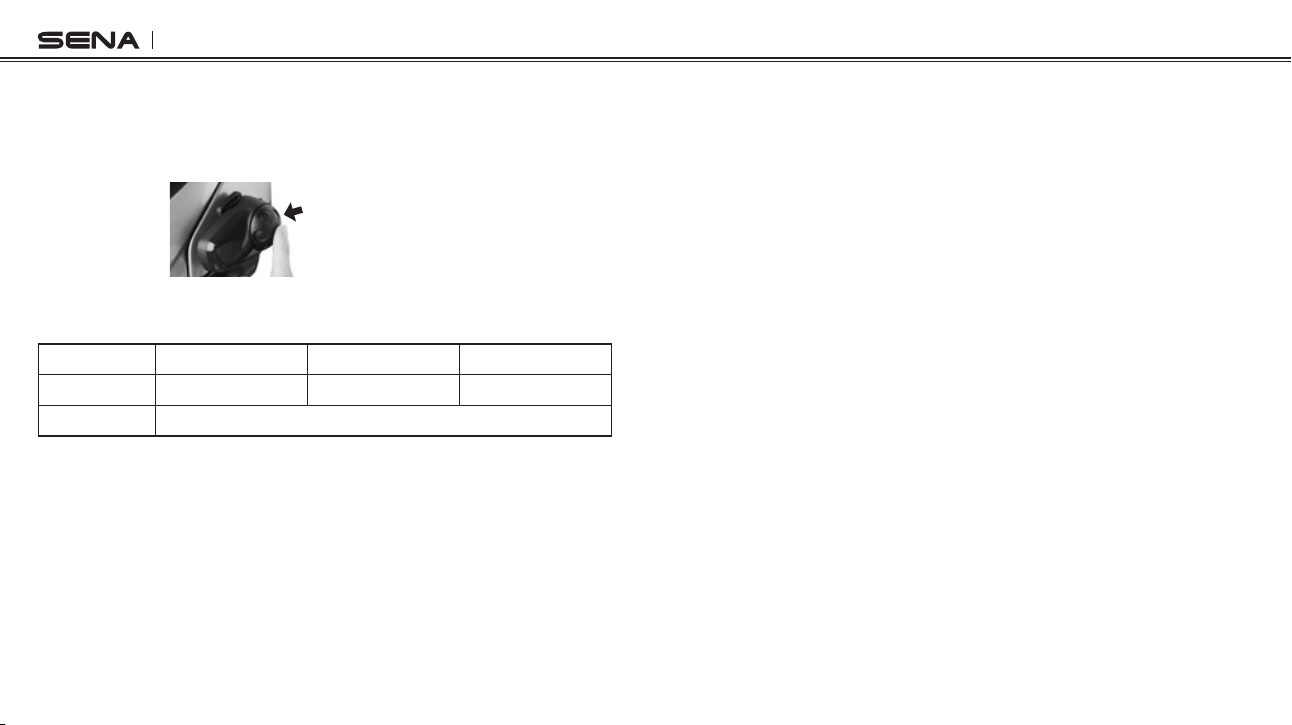
6. To remove the main headset from the speaker-microphone clamp
unit, hold the lower part of the speaker-microphone clamp unit with
your thumb and gently press down the hook on the upper part of
theheadsetmainunitwithyourindexngeruntilitclicksout.You
may have to do this to charge up or to carry the headset main unit.
4. POWERING ON/OFF AND CHARGING
To power on and off the headset, you don’t need to press and hold
any button for several seconds. Just short press the Jog Dial and
the Phone Button simultaneously, and you will get quick on-and-off
convenience.
4.1 Powering On
Press the Jog Dial and the Phone Button at the same time for about
1 second to power on. The blue LED turns on and you will hear
ascending beeps.
4.2 Powering Off
Just short press the Jog Dial and the Phone Button simultaneously,
you don’t need to press and hold for a few seconds. The red LED
turns on for a while until it turns off completely and you will hear
descending beeps.
4.3 Charging
The LED turns on red while charging, and turns to blue when the
headset is fully charged. It takes about 2.5 hours to be completely
charged.
SMH10
11
English
4.4 Low Battery Warning
When the battery is low, the blinking blue LED in stand-by mode
turns to red and you will hear mid-tone triple beeps and a voice
prompt saying “Low battery”.
4.5 Checking the Battery Level
You can check the battery level in two different ways when the
headset is powering on.
4.5.1 LED Indicator
When the headset is powering on, the red LED ashes rapidly
indicating the battery level.
4ashes=High,70~100%
3ashes=Medium,30~70%
2ashes=Low,0~30%
4.5.2 Voice Prompt Indicator
When you power on the headset, keep pressing the Jog Dial and
Phone Button simultaneously for about 3 seconds until you hear high
tone triple beeps. Then you will hear voice prompt indicating the
battery level. However, if you release the buttons as soon as the
headset turns on, you will not hear the voice prompt of battery level
indication.
5. VOLUME ADJUSTMENT
You can easily adjust the volume by rotating the Jog Dial. You will
hear a beep when the volume reaches maximum or minimum level.
The volume is set and maintained independently at different levels
for each audio source even when you turn off and on the headset.
For example, once you set the volume for mobile phone handsfree,
it will not change even if you adjust the volume when you hear
Bluetooth MP3 music. So you can always maintain the preferred
optimum volume level for each audio source.

SMH10
12
Before using the SMH10 Bluetooth headset with any of Bluetooth
devicesforthersttime,youneedtodothepairingoperation.Itcan
be paired with Bluetooth mobile phones, Bluetooth stereo devices
suchasMP3,ormotorcyclespecicBluetoothGPS,andwithother
Sena Bluetooth headsets. This pairing operation is only required
once for each Bluetooth device. The headset will remain paired with
the devices and automatically connects to the paired devices again
when they are within range. You will hear a high tone single beep
and a voice prompt when the headset connects to the paired device
automatically: “Phone connected” to a mobile phone, “Media
connected” to a Bluetooth stereo device.
6.1 Mobile Phone Pairing
1. Turn on the SMH10 and press the Phone Button for 5 seconds until
the LED ashes red and blue alternately and you hear multiple
beeps. You will hear a voice prompt saying “Phone pairing”.
2. Search for Bluetooth devices on your mobile phone. Select the
Sena SMH10 in the list of the devices detected on the mobile
phone.
6. PAIRING THE SMH10 WITH BLUETOOTH DEVICES
3. Enter 0000 for the PIN. Some mobile phones may not ask for the
PIN.
4.The mobile phone conrms that pairing has completed and the
SMH10 is ready to use. You will hear a voice prompt from the
SMH10 saying “Your headset is paired”.
5. If the pairing process is not completed within three minutes, the
SMH10 will return to stand-by mode.
6.2 Multipoint Pairing
Typical Bluetooth headsets can connect with only one HFP (Hands-
Free Prole) device, but multipoint pairing allows the headset to
connect with two HFP devices at the same time. So, when you already
have a mobile phone connected with the SMH10, you can also pair
and connect a second mobile phone or other HFP devices such as
GPS or Sena SR10, Bluetooth adapter.
1. To pair the second mobile phone, press the Jog Dial for 5 seconds
againuntiltheredLEDisrapidlyashingand you hear multiple
beeps.
2. Within 2 seconds, tap the Phone Button again, then the LED turns
toblueashingandthebeepsturntohightonedoublebeeps.You
will hear a voice prompt saying “Multipoint pairing”.
3. Search for Bluetooth devices on your mobile phone. Select the
Sena SMH10 in the list of the devices detected on the mobile
phone.

SMH10
13
English
4. Enter 0000 for the PIN. Some mobile phones may not ask for the
PIN.
5.The mobile phoneconrms that pairinghascompleted and the
SMH10 is ready to use. You will hear a voice prompt from the
SMH10 saying “Your headset is paired”.
6. If you want to pair a GPS by multipoint pairing, search for the
Bluetooth device on the GPS screen, and select the Sena SMH10
at step 3. Please refer to the section “6.4.1 Multipoint GPS Pairing”
for more details.
7. If you want to pair the Sena SR10, Bluetooth adapter, please refer
to the section “6.5 Pairing with the Sena SR10, Bluetooth Two-way
Radio Adapter”.
6.3 Bluetooth Stereo Device Pairing
1. If the Bluetooth stereo device is integrated with the mobile phone
such as smartphones, you don’t need to pair the SMH10 with it
separately. When the SMH10 is paired with the mobile phone, it is
also paired as a stereo music device.
2. If you have a stand alone Bluetooth stereo device, follow the
paring procedure separately. The procedure is the same as the
procedure in “6.1 Mobile Phone Pairing”.
Note:
1. If Bluetooth connection between the headset and a mobile phone is
disconnected, tap the Phone Button to recover the Bluetooth connection
immediately.
2. If Bluetooth connection between the headset and a media player is
disconnected, press the Jog Dial for 1 second to recover the Bluetooth
connection and play.
6.4 Bluetooth GPS Navigation Pairing
You can listen to voice instruction from Bluetooth GPS navigation.
Some GPS systems use mobile phone prole (HFP, Hands-Free
Prole) and others use stereo music prole (A2DP, Advanced
Audio Distribution Prole). Most motorcycle specic GPS systems
usemobilephoneproleforturn-by-turnvoiceinstruction.Youcan
simultaneously use a mobile phone and a GPS which uses mobile
phoneprolebyoneofthefollowingprocedures.
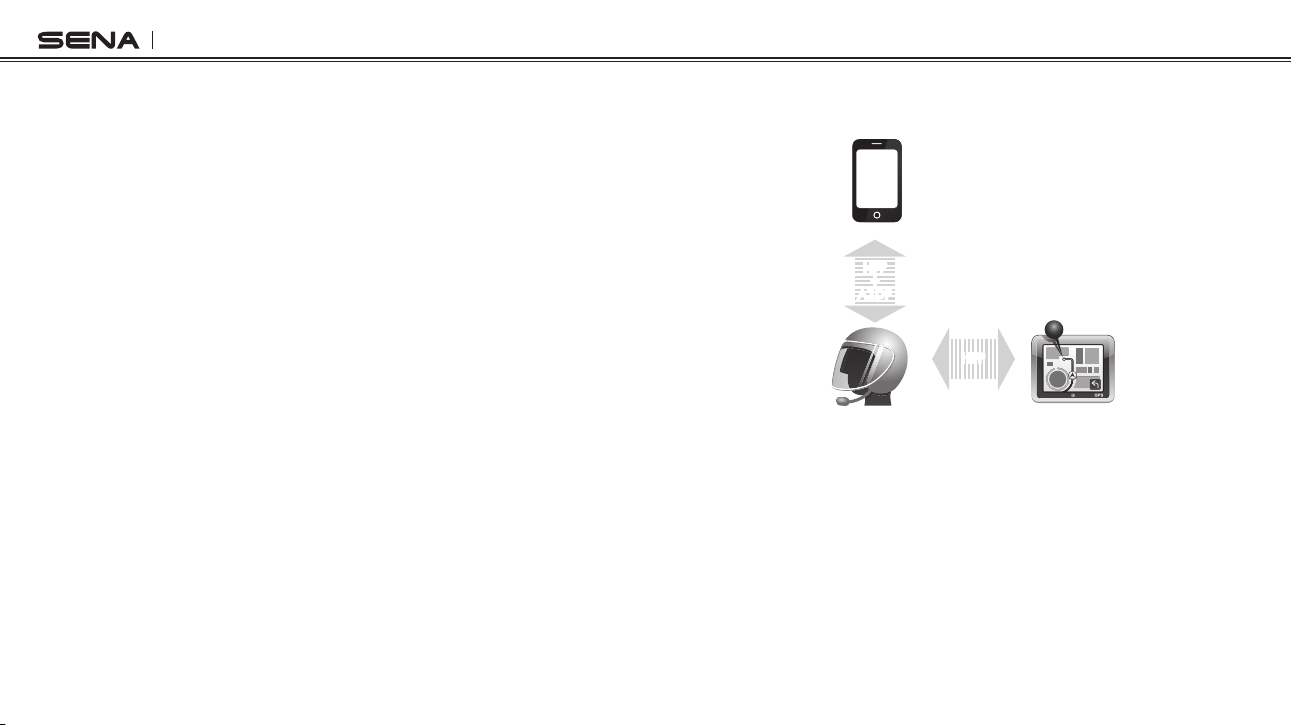
6.4.1 Multipoint GPS Pairing
If you use GPS only for turn-by-turn voice instructions, not for Bluetooth
stereo music streaming, multipoint pairing is recommended for the
GPS connection. Multipoint Bluetooth pairing allows the SMH10
to connect two HFP devices at the same time: mobile phone and
GPS navigation. Follow the steps below to pair the GPS using the
multipoint pairing.
SMH10
14
1. Turn on the headset and press the Jog Dial for 5 seconds until the
redLEDisrapidlyashingandyouhearmultiplebeeps.
2. Within 2 seconds, tap the Phone Button again, then the LED turns
toblueashingandthebeepsturntohightonedoublebeeps.You
will hear a voice prompt saying “Multipoint pairing”.
3. Search for Bluetooth devices on the GPS navigation screen. Select
the Sena SMH10 in the list of the devices detected on the GPS.
4. Enter 0000 for the PIN.
5.TheGPSconrmsthatpairinghascompletedandthe SMH10 is
ready to use. You will hear a voice prompt from the SMH10 saying
“Your headset is paired”.
6. If the pairing process is not completed within three minutes, the
SMH10 will return to stand-by mode.
ThepairingdiagramformultipointGPSpairingisshowninthegure
below.
Smart Phone
SMH10
GPS
HFP
+
A2DP
Mobile Phone
Pairing
Multipoint
Pairing
HFP
Multipoint GPS Pairing
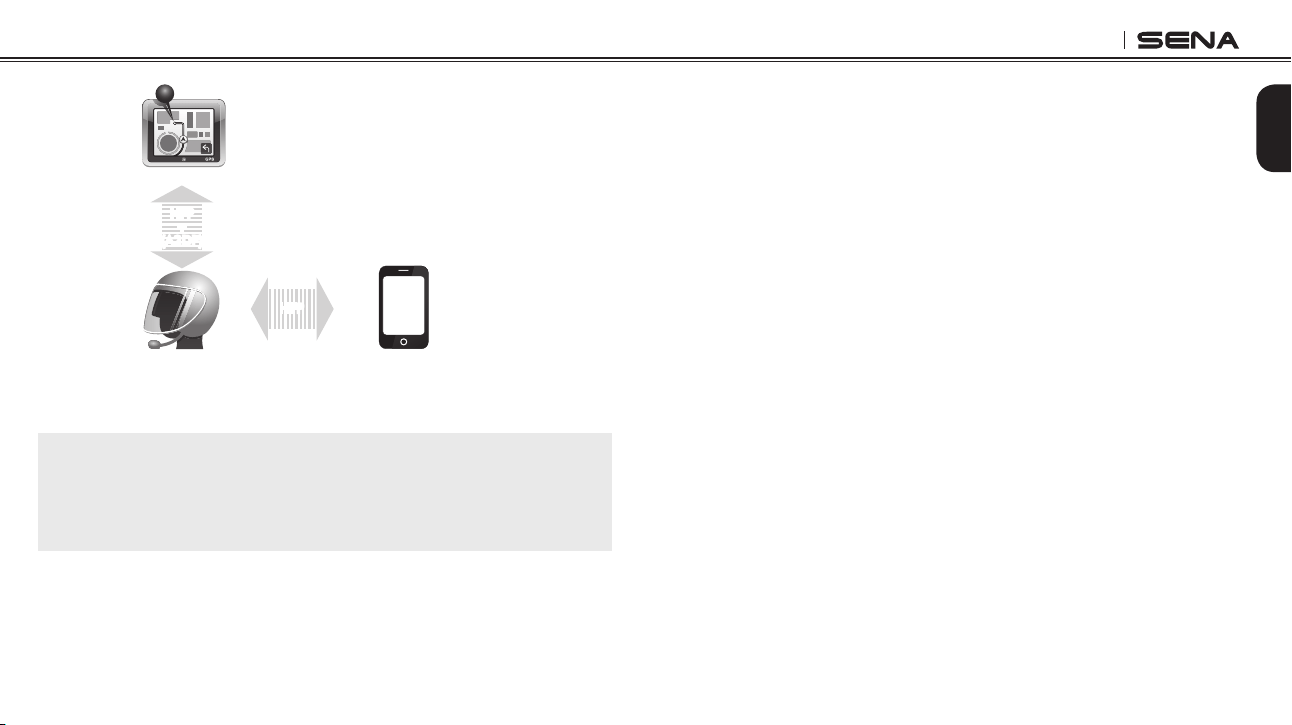
6.4.2 GPS Pairing as Mobile Phone
If GPS is not only used for turn-by-turn voice instructions but also is
your preferred Bluetooth stereo music source, you can pair the GPS to
the SMH10 by following the simple procedures in “6.1 Mobile Phone
Pairing”. When you do this, the SMH10 thinks the GPS is a mobile
phone. But the SMH10 can directly pair an additional mobile phone.
SMH10
15
English
Mobile Phone
SMH10
GPS
HFP
+
(A2DP)
Mobile Phone
Pairing
Multipoint
Pairing
HFP
GPS Pairing as Mobile Phone
Note:
You have to use a motorcycle specific GPS which transmits turn-by-
turn voice instruction to the headset by Bluetooth. Most automotive GPS
systems don’t have this feature.
6.5 Pairing with the Sena SR10, Bluetooth Two-way
Radio Adapter
The Sena SR10 is a Bluetooth two-way radio adapter for group
communication,andusesHFPasdomostmotorcyclespecicGPS
navigation systems. If you pair the SMH10 with a SR10 by multipoint
pairing, the SMH10 is able to have two HFP devices at the same
time:mobilephoneandSenaSR10.
1. Turn on the headset and press the Jog Dial for 5 seconds until the
redLEDisrapidlyashingandyouhearmultiplebeeps.
2. Within 2 seconds, tap the Phone Button again, then the LED turns
toblueashingandthebeepsturn to high tone double beeps.
You will hear a voice prompt saying “Multipoint pairing”.
3. Turn on the SR10 and follow the SR10’s “Bluetooth Headset
Pairing” procedure to complete the process. Please refer to the
SR10 user's guide for details.
4. When the pairing is completed, you will hear a voice prompt
saying “Your headset is paired”.
5. If the pairing process is not completed within three minutes, the
SMH10 will return to stand-by mode.
SMH10
16
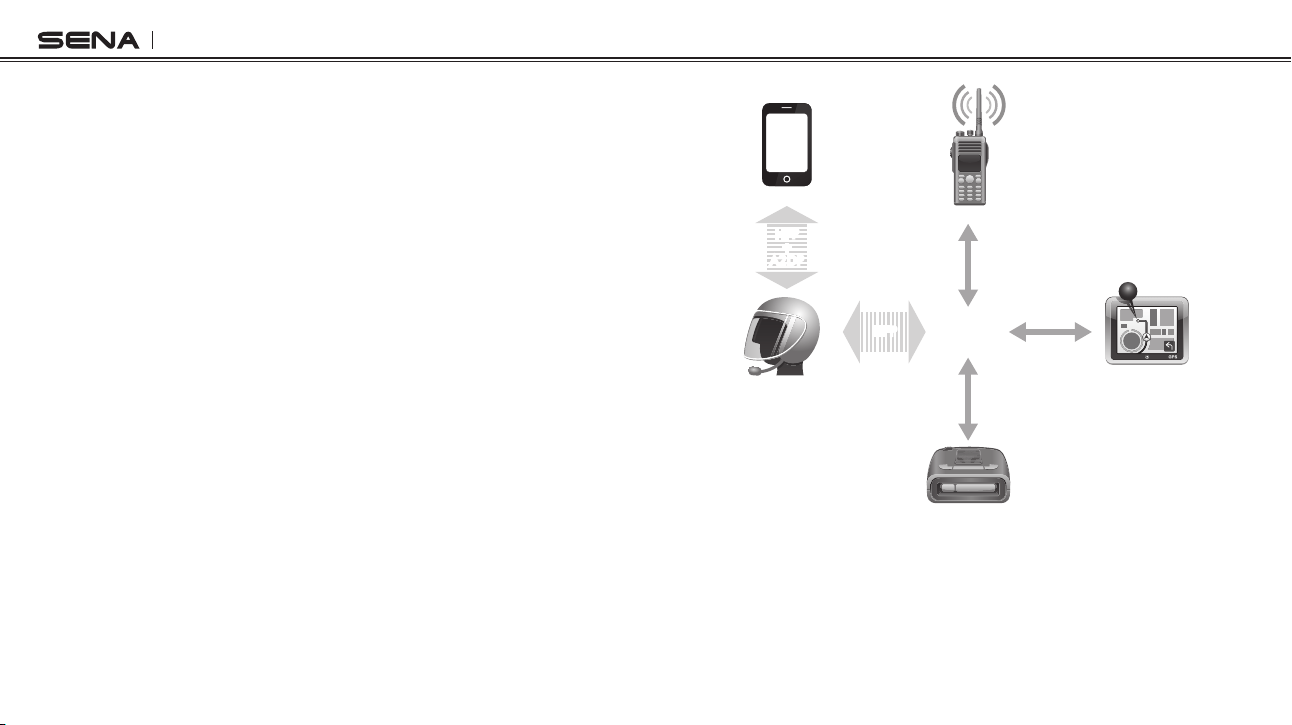
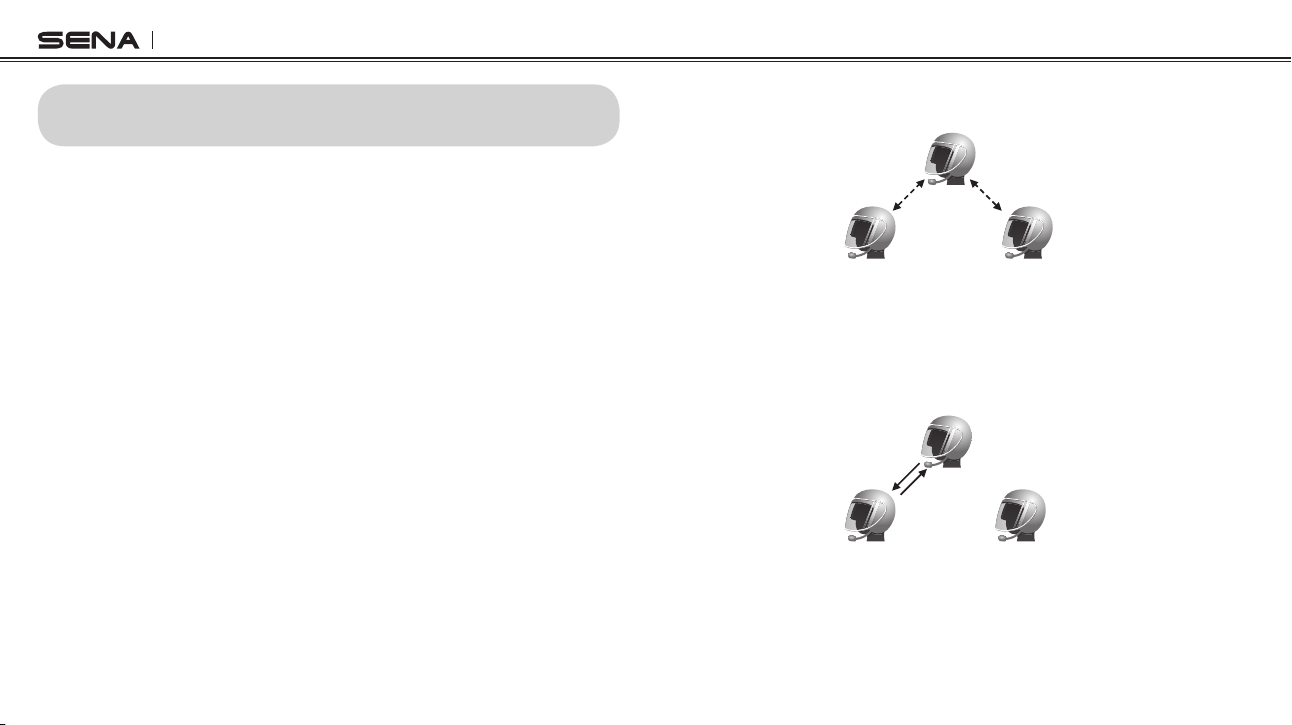
The incoming audio from the two-way radio via SR10 is heard in
the background while having an intercom conversation or a mobile
phone call. You can listen to music, answer a mobile call, have an
intercom conversation and use a two-way radio via SR10 for group
communication as shown in the gure below. A GPS navigation or
a radar detector could be connected to the SR10 by wire. The GPS
voice instruction or the radar detector alarm is also heard in the
background via SR10 while having an intercom conversation or a
phone call. Please refer to the SR10 user's guide for details.
Smart Phone
Two-way Radio
SMH10
GPS
Sena SR10
Radar Detector
HFP
+
A2DP
Mobile Phone
Pairing
Multipoint
Pairing
HFP
Wired
Connection
Wired
Connection
Wired
Connection
Parallel Connection of SR10 and Mobile Phone by
Bluetooth Multipoint Pairing

SMH10
17
English
7. PAIRING WITH SELECTIVE PROFILE:
A2DP STEREO OR HANDSFREE
If you have a MP3 stereo music phone such as a smartphone,
sometimes you may need to selectively use the SMH10 for
A2DP stereo music only or for mobile phone handsfree only. This
instruction is for advanced users who want to pair the SMH10 to their
smartphonesonlywithoneselectiveprole:A2DPstereoformusic
or HFP for phone call.
If you have previously paired a mobile phone to the SMH10, you
must clear the previous paring list on both devices; the mobile phone
and SMH10. To clear the pairing list on SMH10, please do a factory
reset or follow the pairing list clearing procedure described in this
manual. To clear the pairing list on the mobile phone, please refer to
the mobile phone manual. For most smartphones, delete the Sena
SMH10 from the list of Bluetooth devices in setting menu.
7.1 A2DP Stereo Music Only
1. Turn on the headset and press the Phone Button for 5 seconds
until the LED ashes red and blue alternately and you hear
multiple beeps.
2. Within 2 seconds, tap the Jog Dial again, then the LED turns to
redashingandthebeepsturntodouble mid-tone beeps. You
will hear a voice prompt saying “Media selective pairing”.
3. Search for Bluetooth devices on your smartphone. Select the
Sena SMH10 in the list of devices detected on your phone.
4. Enter 0000 for the PIN. Some smartphones may not ask for PIN.
7.2 HFP for Phone Call Only
1. Turn on the headset and press the Phone Button for 5 seconds
until the LED ashes red and blue alternately and you hear
multiple beeps.
2. Within 2 seconds, tap the Phone Button again, then the LED turns
toblueashingand the beepsturn tomultiplemid-tonebeeps.
You will hear a voice prompt saying “Phone selective pairing”.
3. Search for Bluetooth devices on your smartphone. Select the
Sena SMH10 in the list of devices detected on your phone.
4. Enter 0000 for the PIN. Some smart phones may not ask for PIN.
SMH10
18
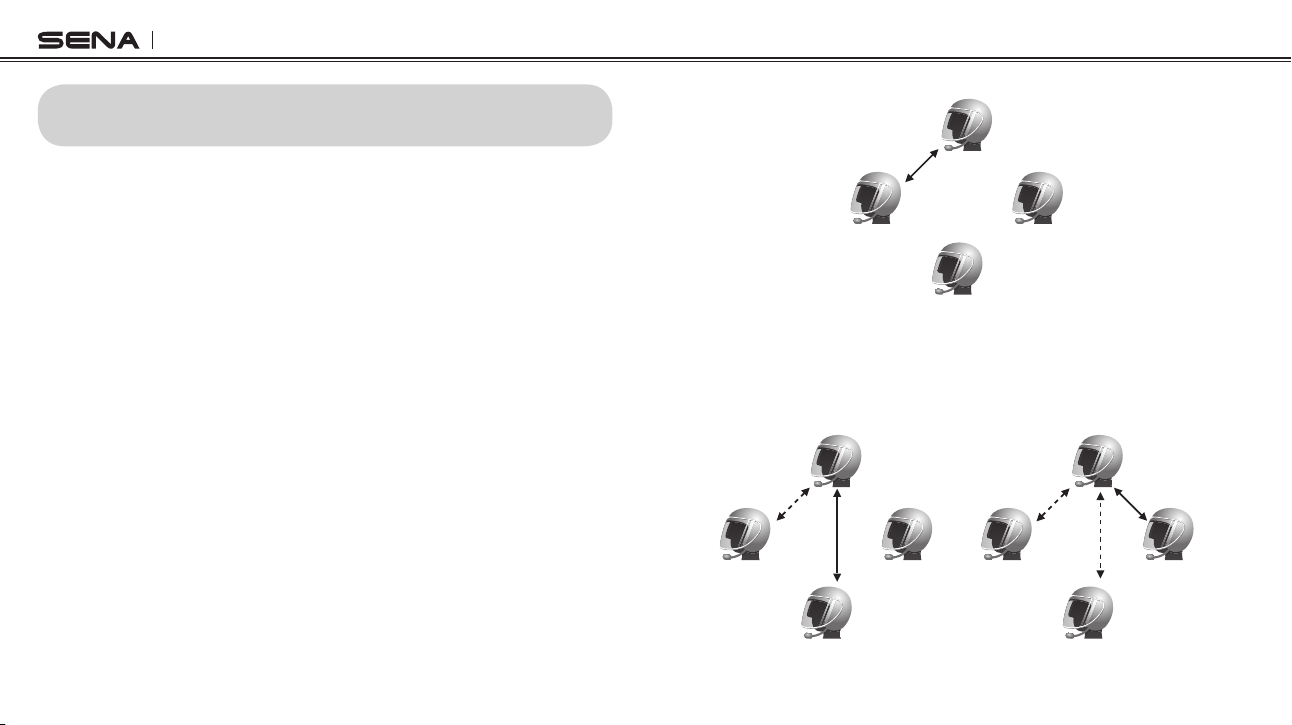
8.1 Pairing with Other SMH10 Headsets for Intercom
Conversation
The SMH10 can be paired with up to three other headsets for
Bluetooth intercom conversation.
1. Turn on the two SMH10 headsets (A and B) that you would like to
pair with each other.
2. Press and hold the Jog Dial of the headset A and B for 5 seconds
untilredLEDsofthebothunitsstarttoashrapidly.Youwillheara
voice prompt saying “Intercom pairing”.
3. Simply tap the Jog Dial of any one of the two headsets A or B (It
doesn’t matter that you choose A or B.) and wait until the LEDs of
both headsets turn to blue and intercom connection is automatically
established. The two SMH10 headsets A and B are paired with
each other for intercom conversation. If the pairing process is not
completed within one minute, the SMH10 will return to stand-by
mode.
8. INTERCOM PAIRING
A
B D
C
Pairing A & B
4. You can make other pairings between the headset A and C, and
between the headset A and D by following the same procedure as
above.
A A
B BD D
C C
Pairing A & C Pairing A & D

SMH10
19
English
5. The intercom pairing queue is ‘Last-Come, First-Served’. If a
headset has multiple paired headsets for intercom conversations,
the last paired headset is set as rst intercom friend. The
previous intercom friend becomes second intercom friend, and
third intercom friend.
Note:
For example, after the pairing procedures listed above, headset D is the rst
intercom friend of headset A. Headset C is the second intercom friend of
headset A, and headset B is the third intercom friend of headset A.
8.2 Pairing with Other Sena Headset Models for Intercom
Conversation
The SMH10 can be paired with all other Sena headset models such
as the SMH5 and the SPH10 for intercom conversation. Please follow
the same procedure as above to pair with these headset models.
Note:
The SMH5 cannot participate in three-way or four-way conference intercom
with the SMH10 or the SPH10. The SMH5 has a limited capability of having
two-way intercom with each other or with other Sena headsets such as the
SMH10 and the SPH10.
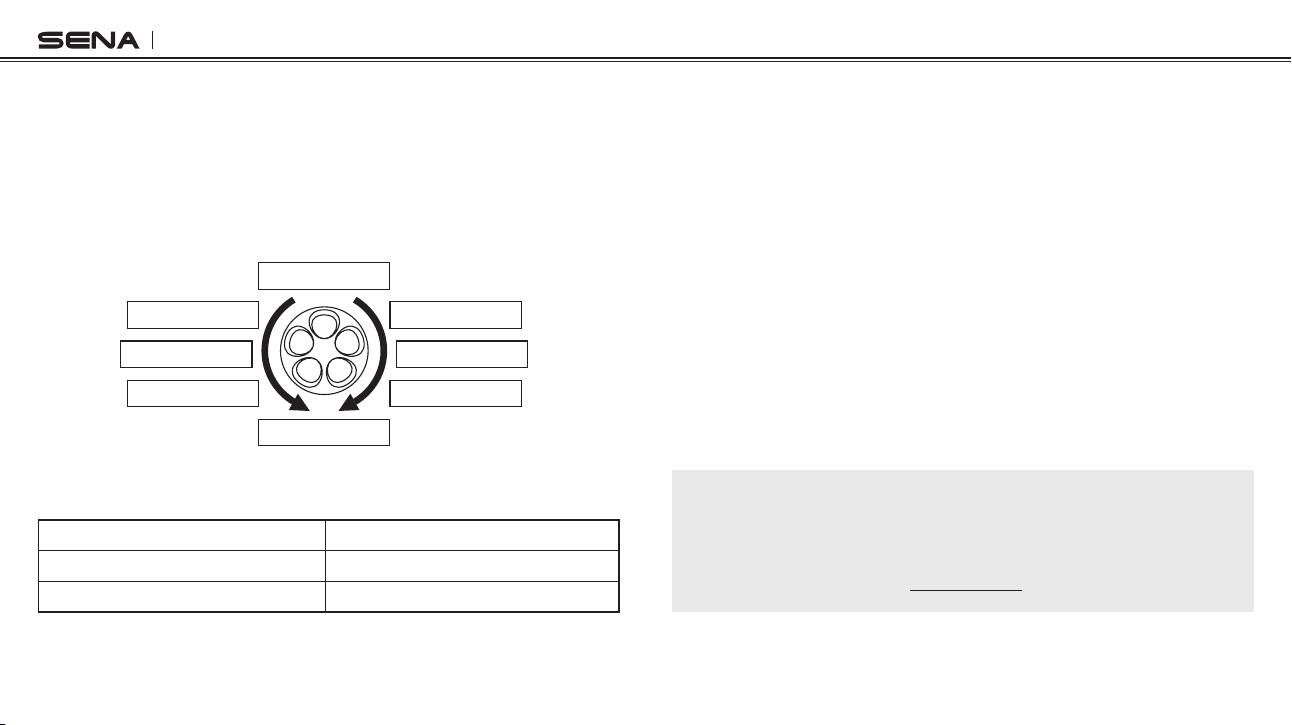
You can set the conguration of the SMH10 by the voice menu
instruction as below.
1.To enterinto voice conguration menu, pressand hold theJog
Dial for 12 seconds until the LED shows solid blue and you hear
high tone double beeps. You will also hear a voice prompt saying
“Conguration menu”.
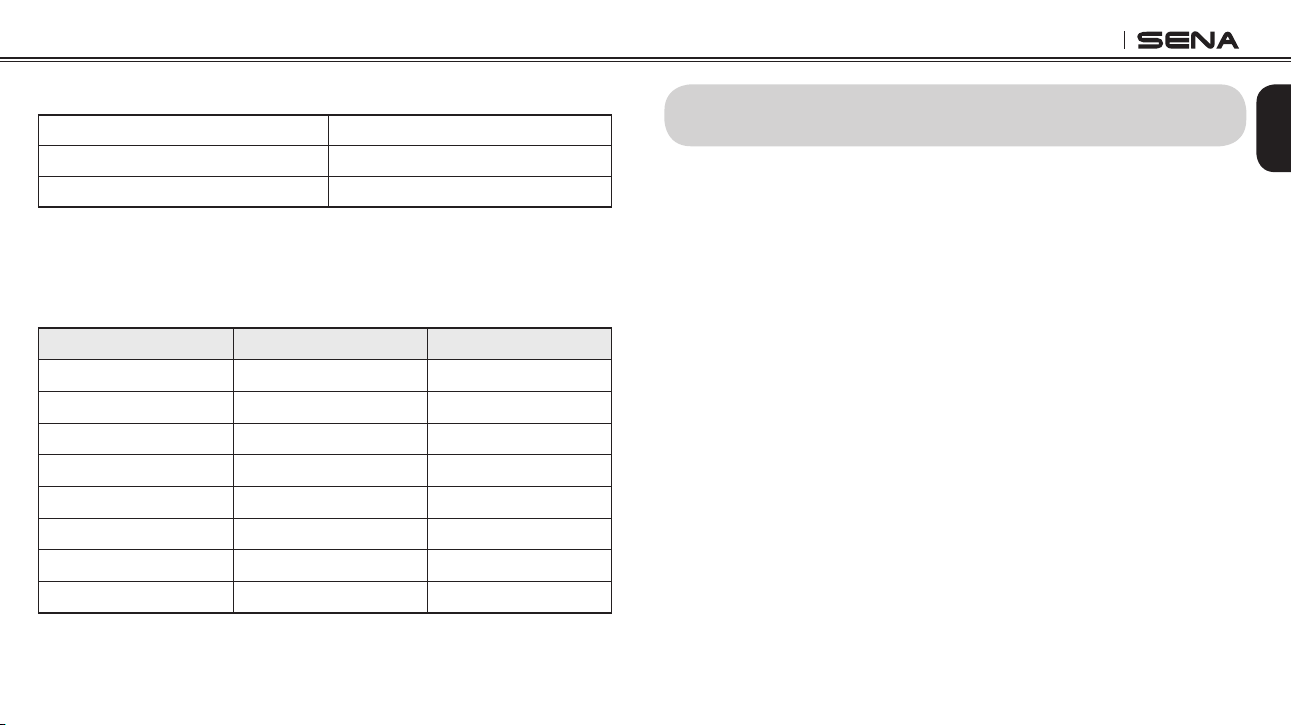
2. Rotate the Jog Dial clockwise or counter-clockwise to navigate
between the menus. You will hear voice prompts for each menu
items as below.
3. You can enable the feature or execute the command by tapping
the Phone Button, or disable the feature by tapping the Jog Dial.
4. If any button is not pressed within 10 seconds, the SMH10 will exit
thecongurationandgoesbacktostand-bymode.
5.If you want to exitthe conguration immediately, rotatetheJog
Dial until you hear a voice prompt saying “Exit conguration”,
and tap the Phone Button.
9. SMH10 CONFIGURATION SETTING
SMH10
20
Thevoicepromptforeachmenuitemisasbelow:
(1) Speed dial (5) Sidetone
(2) VOX phone (6) Noise control
(3) VOX intercom (7) Delete all pairings
(4) Voice prompt (8) Exit conguration
Exit configuration
Delete all pairings
Noise control
VOX phone
VOX intercom
Voice prompt
Speed dial
Sidetone
9.1 Assigning Speed Dial
Voice Prompt
“Speed dial”
Factory Default N/A
Execute Tap the Phone Button
1. To assign a phone number as a speed dial, rotate the Jog Dial until
you hear a voice prompt saying “Speed dial”.
2. Tap the Phone Button, and you will hear a voice prompt saying
“Speed dial one” and “Phone connected”.
3. Rotate the Jog Dial to select one of three speed dial numbers and
you hear a voice prompt saying “Speed dial (#)”.
4. Call a phone number you want to assign and you will hear a
voice prompt saying “Save speed dial (#)”. The phone number is
automatically assigned to the selected speed dial number. Then
the phone call will hang up before being connected.
5. To exit the menu, rotate the Jog Dial clockwise or counter clockwise
until you hear a voice prompt saying “Cancel”, and tap the Phone
Button to conrm. You will then hear a voice prompt saying
“Cancel”. If any button is not pressed within 1 minute, the SMH10
willexitthecongurationmenuandgobacktostand-bymode.
Note:
1. After assigning a phone number to one of three speed dials, you can
continually assign another phone number to the rest of two speed dials.
2. You can assign phone numbers to speed dials in your PC. Please visit the
Sena Bluetooth web site at www.sena.com for more information.
SMH10
21
English
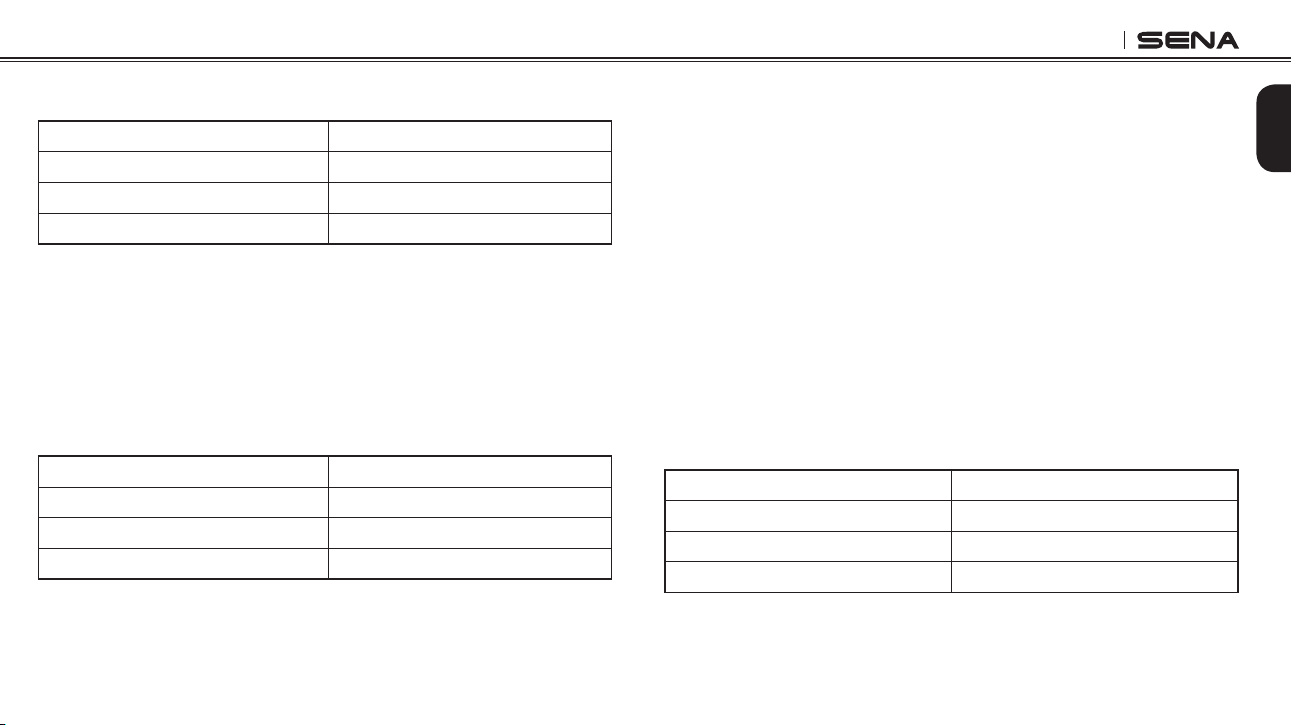
9.2 Enabling/Disabling Voice Activated Phone Answering
Voice Prompt
“VOX phone”
Factory Default Enable
Enable Tap the Phone Button
Disable Tap the Jog Dial
If this feature is enabled, you can answer incoming calls by simply
saying a word loudly enough. For example, when you hear a series
of beeps for an incoming call, you can answer the phone by saying
“Hello” or any other word loudly. This is enabled from the factory but
you can disable this. If this mode is disabled, you have to tap the Jog
Dial or the Phone Button to answer an incoming call.
9.3 Enabling/Disabling Voice Activated Intercom
Voice Prompt
“VOX intercom”
Factory Default Disable
Enable Tap the Phone Button
Disable Tap the Jog Dial
If this feature is enabled, you can initiate an intercom conversation
with the last connected intercom friend by speaking any word loudly
enough. The most effortless way to trigger intercom VOX is to blow
into the microphone as if blowing dust off the microphone. If you
start an intercom conversation by VOX, the intercom terminates
automatically when you and your intercom friend remain silent for 20
seconds. However, if you manually start an intercom conversation by
tapping the Jog Dial, you have to terminate the intercom conversation
manually.
However, even when this feature is enabled, if you terminate intercom
conversation manually with the Jog Dial, you are not able to start
intercom by voice temporarily. In this case, you have to tap the Jog
Dial to restart the intercom. This is to prevent repeated unintentional
intercom connections by strong wind noise. If you tap the Jog Dial
to start an intercom conversation, it is not terminated by 20 seconds
of silence. After turning SMH10 off and on, you can start intercom
by voice again.
9.4 Enabling/Disabling Voice Prompts
Voice Prompt
“Voice prompt”
Factory Default Enable
Enable Tap the Phone Button
Disable Tap the Jog Dial
You can disable voice prompts by conguration setting, but the
following voice prompts are always on.
- Voicepromptsforcongurationsettingmenu
SMH10
22
- Voice prompts for battery level Indicator
- Voice prompts for factory reset
9.5 Enabling/Disabling Sidetone
Voice Prompt
"Sidetone"
Factory Default Disable
Enable Tap the Phone Button
Disable Tap the Jog Dial
Sidetone is the sound of your own voice as picked up by your
headset’s microphone and reproduced in your own ear, by your own
speaker. It helps you to naturally speak at the correct level according
to varying helmet noise conditions. If this feature is enabled, you can
hear what you are speaking during an intercom conversation or a
phone call.
9.6 Enabling/Disabling Advanced Noise Control
Voice Prompt
"Noise control"
Factory Default Enable
Enable Tap the Phone Button
Disable Tap the Jog Dial
When Advanced Noise Control is enabled, the background noise is
reduced during an intercom conversation. When it is disabled, the
background noise is mixed with your voice during intercom.
Note:
If you use your SMH10 with the Bluetooth Audio Pack for GoPro, you can
enable or disable this feature only during Normal Voice Recording. This feature
is automatically disabled while in Ultra HD (UHD) Voice Recording mode.
9.7 Delete all Bluetooth Pairing Information
Voice Prompt
“Delete all pairings”
Factory Default N/A
Execute Tap the Phone Button
To delete all Bluetooth pairing information of the SMH10, rotate the
Jog Dial until you hear a voice prompt saying “Delete all pairings”,
and tap the Phone Button to conrm. Taping the Jog Dial is not
available for this setting.
SMH10
23
English
9.8 ExitVoiceCongurationMenu
Voice Prompt
“Exit conguration”
Factory Default N/A
Execute Tap the Phone Button
To exit voice conguration menu and get back tostand-by mode,
rotate the Jog Dial until you hear a voice prompt saying “Exit
conguration”
,andtapthePhoneButton to conrm.Tappingthe
Jog Dial is not available for this setting.
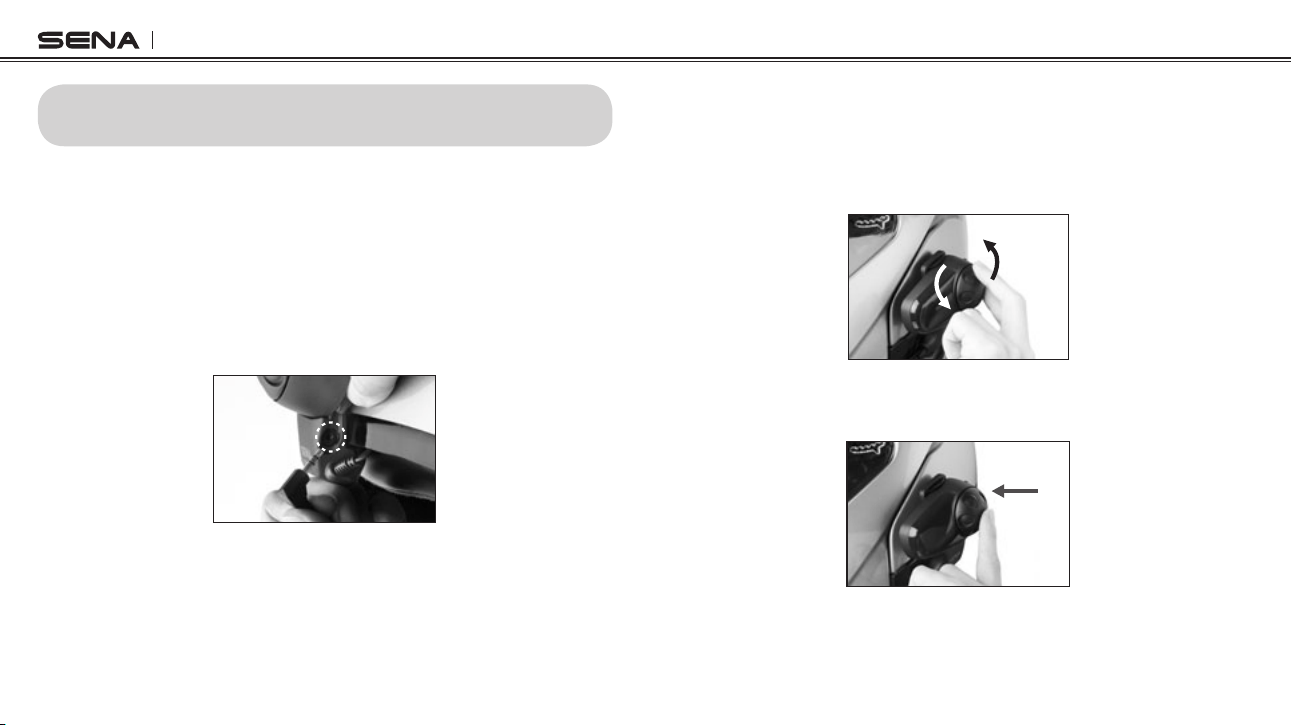
Rotate Jog Dial Tap Phone Button Tap Jog Dial
Speed Dial Execute N/A
VOX Phone Enable Disable
VOX Intercom Enable Disable
Voice Prompt Enable Disable
Sidetone Enable Disable
Advanced Noise Control Enable Disable
Delete All Pairings Execute N/A
ExitConguration Execute N/A
Voice Conguration Menu & Button Operations
TheSMH10operatesinthefollowingorderofpriority:
(highest) Mobile phone,
Intercom,
Stereo music by audio cable,
Music sharing by Bluetooth stereo music,
(lowest) Bluetooth stereo music
A lower priority function is always interrupted by a higher priority
function. For example, stereo music is interrupted by intercom call,
and intercom conversation is interrupted by incoming mobile phone
call.
10. FUNCTION PRIORITY
SMH10
24
Youcanlistentostereomusicintwoways:withtheenclosedstereo
audio cable or by Bluetooth wireless stereo.
11.1 By Stereo Audio Cable
Plug your stereo MP3 player directly to the SMH10 by using the
enclosed 3.5mm stereo audio jack cable. To adjust the volume, rotate
the Jog Dial on the headset. You may adjust the volume on the MP3
player also.
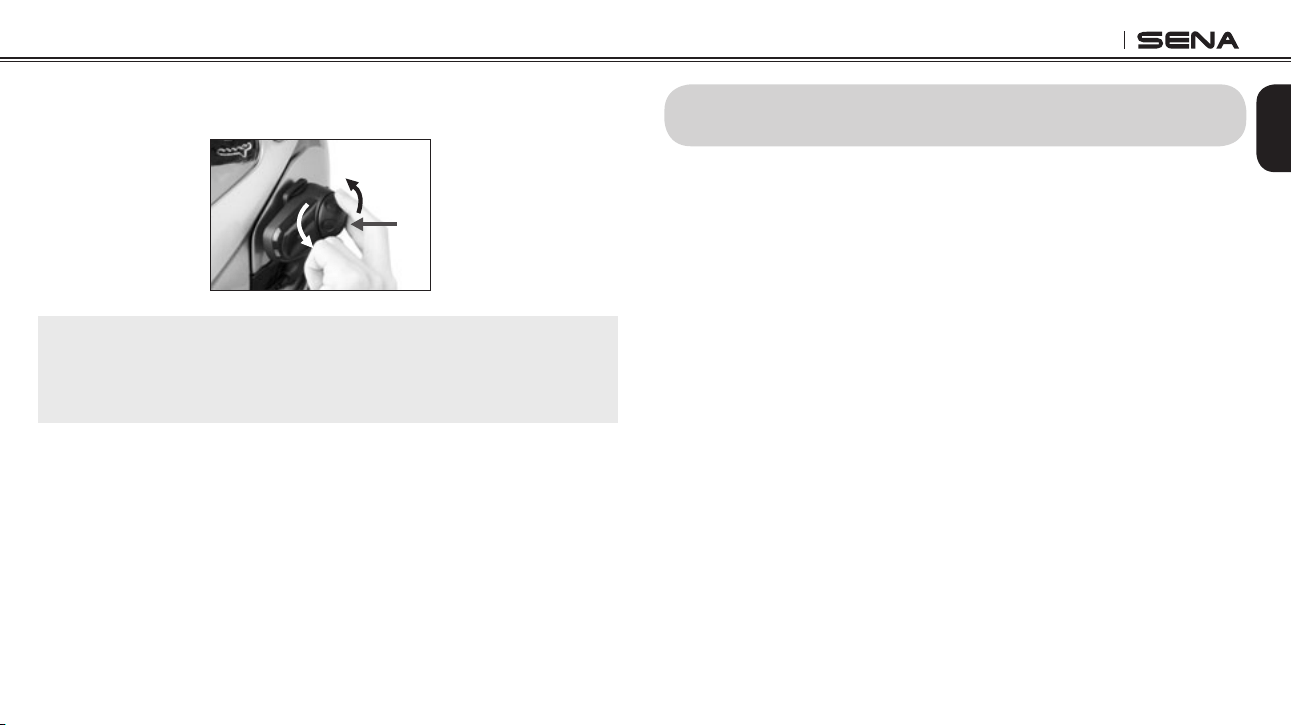
MP3 Jack
11.2 By Bluetooth Wireless Stereo
The Bluetooth audio device must be paired with the SMH10 by following
the “Bluetooth Stereo Device Pairing” procedures described in the
6.3 chapter. The SMH10 supports the Audio/Video Remote Control
11. STEREO MUSIC
Prole(AVRCP),soifyourBluetoothaudiodevicealsosupportsthe
AVRCP, you can use the SMH10 to remotely control music playback.
You not only can adjust the volume but also use the functions such as
play, pause, next track and previous track.
1. To adjust the volume, rotate the Jog Dial.
2. To play or pause music, press and hold the Jog Dial for 1 second
until you hear a double beep.
SMH10
25
English
3. To track forward or track back, rotate while pressing the Jog Dial
clockwise or counter clockwise.
Note:
Bluetooth music is available only when the MP3 jack port remains open.
Please make sure the audio cable is unplugged from the clamp unit to play
music by Bluetooth.
12.1 Mobile Phone Call Making and Answering
1. When you have an incoming call, simply tap the Phone Button or
the Jog Dial to answer the call.
2. You can also answer the incoming call by loudly speaking any word
of your choice if Voice Activated Phone Answering is enabled.
3. To end a call, tap the Phone Button or press the Jog Dial for 2
seconds until you hear a beep, or wait for the called person to end
the call.
4. To reject a call, press the Jog Dial for 2 seconds until you hear a
beep while the phone is ringing.
5. To transfer a call between the mobile phone and the headset
during the phone conversation, press the Phone Button for 2
seconds until you hear a beep.
6.Thereareseveralwaystomakeaphonecall:
• Enter numbers on your mobile phone keypad and make a call.
Then the call is automatically transferred to the headset.
•
For some older mobile phones which do not automatically
transfer calls to the headset, press the Phone Button after
entering phone numbers on the mobile phone keypad.
12. MOBILE PHONE CALL MAKING AND ANSWERING

SMH10
26
• Tap the Phone Button in stand-by mode to activate the voice
dialing of your mobile phone. For this, the voice dialing feature
must be available on the mobile phone. Refer to your mobile
phone manual for further instruction.
Note:
1. If you are using multipoint mobile phone connection and you have an
incoming call from the second phone during the call of the first phone,
then you may still receive the call from second phone. In this case, the
call from the first phone is on waiting mode. If you end a call, then it will
automatically guide you to the first phone call.
2. If you are using multipoint connection of mobile phone and GPS, you may
not be able to listen to the GPS voice instruction during the phone call.
12.2 Speed Dialing
You can quickly make a phone call by using the voice speed dial
menu.
1. To enter into the voice speed dial menu, double tap the Phone
Button and you will hear a mid-tone single beep and a voice
prompt saying “Speed dial”.
2. Rotate the Jog Dial clockwise or counter-clockwise to navigate
between the menus. You will hear voice prompts for each menu
items.
3. Tap the Phone Button or the Jog Dial to select a voice menu among
thefollowings:
(1) Last number redial (4) Speed dial 3
(2) Speed dial 1 (5) Cancel
(3) Speed dial 2
4. After selecting the last number redial menu, you will hear a voice
prompt saying “Last number redial”. Then, to redial the last phone
call number, tap the Phone Button or the Jog Dial.
5. To call one of the speed dials, rotate the Jog Dial clockwise or
counter-clockwise to navigate between the menus until you hear a
voice prompt saying “Speed dial (#)”. Then, tap the Phone Button
or the Jog Dial.
6. If you want to exit the speed dial immediately, rotate the Jog
Dial until you hear a voice prompt saying “Cancel”, and tap the
Phone Button or the Jog Dial. If any button is not pressed within 15
seconds, the SMH10 will exit the voice speed dial menu and goes
back to stand-by mode.
Note:
Make sure that you should connect the mobile phone and the headset in
order to use the speed dial function.
SMH10
27
English
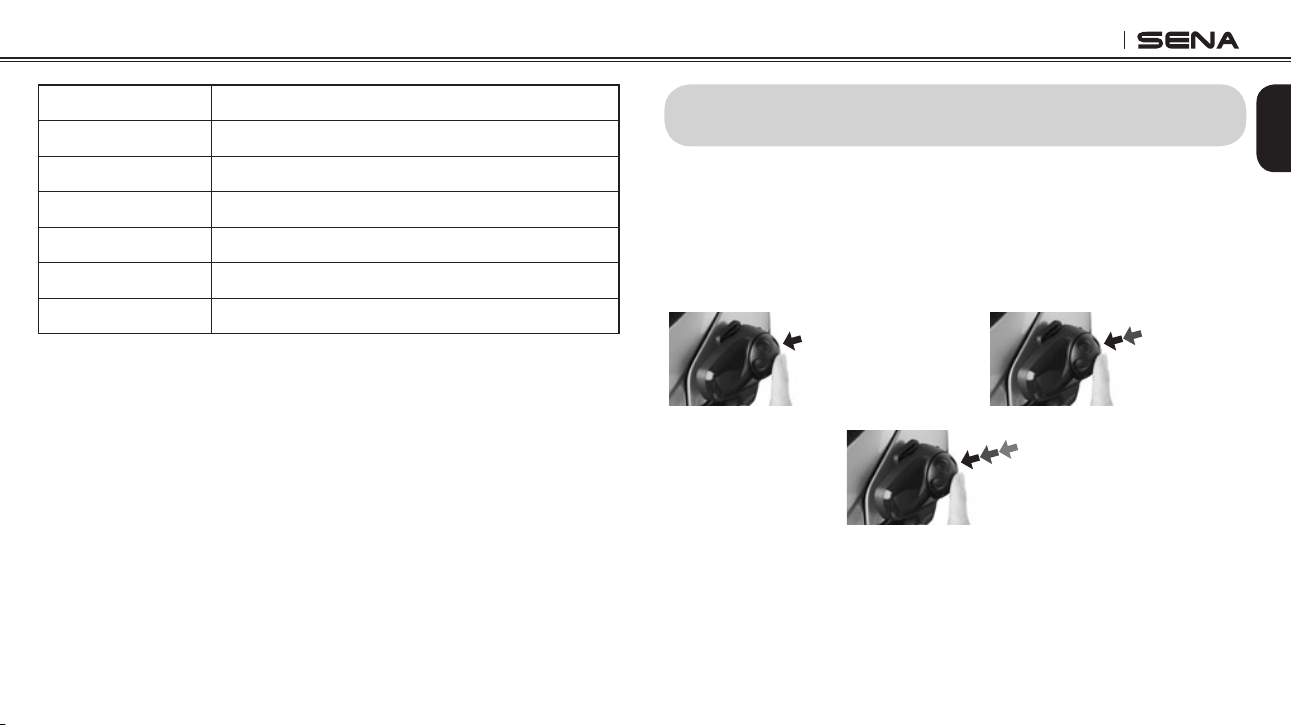
Answer
Tap Phone Button or Tap Jog Dial or Say “Hello”
End Tap Phone Button or Press Jog Dial for 2”
Reject Press Jog Dial for 2”
Transfer Press Phone Button for 2”
Call Use phone keypad
Speed Dial Double tap Phone Button
Voice Command Tap Phone Button
Mobile Phone Call Button Operations
13.1 Start and End Two-way Intercom
1. You can start an intercom conversation with one of any intercom
friendsbytappingtheJogDial:singletappingtointercomwith
therstintercomfriend,doubletappingwiththesecondintercom
friend, and triple tapping with the third intercom friend.
2
nd
Intercom
Friend
1
st
Intercom
Friend
3
rd
Intercom
Friend
Start Two-way Intercom Conversation
13. TWO-WAY INTERCOM
SMH10
28
a. To answer the phone call and stop the intercom conversation,
tap the Jog Dial or the Phone Button. When you hang up the
phone call, the intercom will automatically be recovered.
b. To reject the phone call and stay on the intercom conversation,
press the Jog Dial for 2 seconds until you hear a beep.
Unlike other motorcycle Bluetooth headsets, this prevents a
user from being dropped out of an intercom conversation by an
incoming mobile call.
2. When you have an incoming intercom call during a mobile phone
call, you will hear 4 high tone beeps, alerting you that there is an
incoming intercom call. You will also hear a voice prompt saying
“Intercom requested”. In this case, the intercom call does not
override the mobile phone call because intercom has lower priority
than mobile call. You have to hang up the mobile phone call to
make or receive an intercom call.
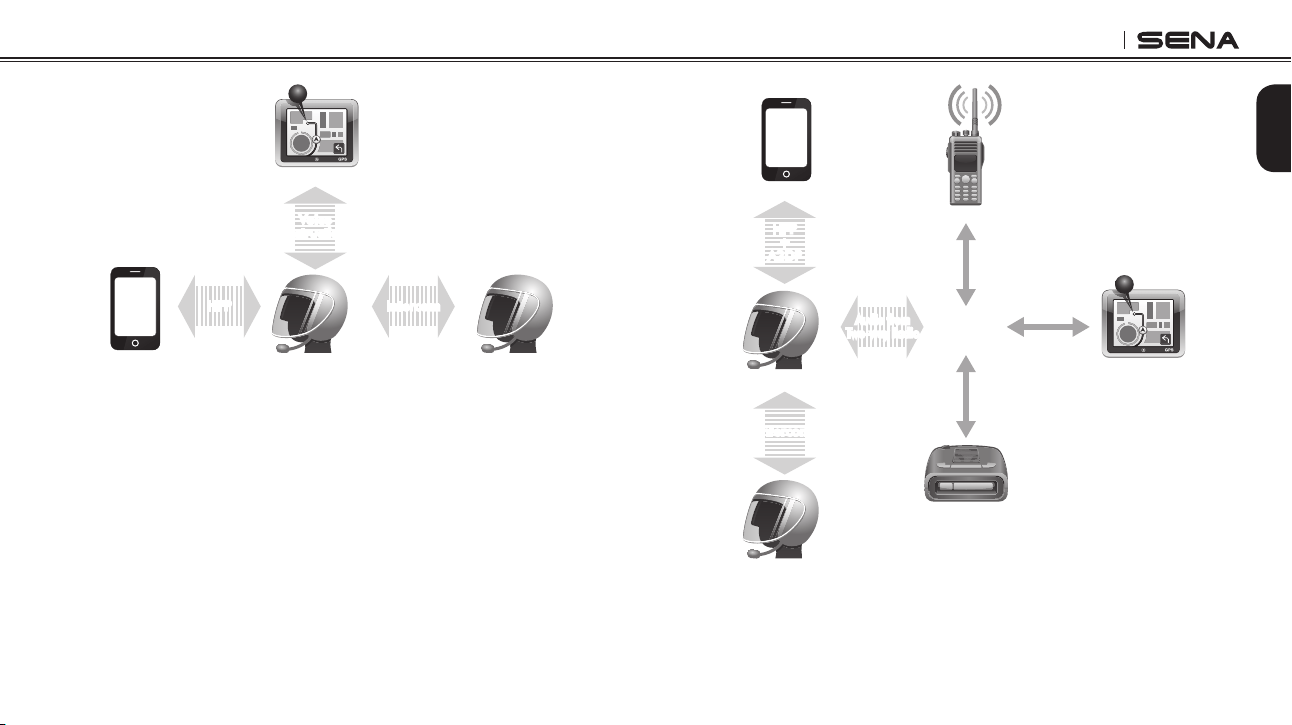
13.3 Intercom and GPS
If you pair a Bluetooth GPS to the SMH10 as described in 6.4 of
this user's guide, you can hear the turn-by-turn voice instruction
of the GPS while having an intercom conversation. The GPS voice
instruction interrupts intercom conversation, but it is automatically
reestablished after the GPS voice instruction ends.
2. To terminate an intercom conversation, single tap the Jog Dial. Any
intercom connection with any intercom friend will be terminated by
a single tapping. A double or triple tapping will do nothing in this
case.
End Two-way Intercom Conversation
Terminate
1st intercom friend 2nd intercom friend 3rd intercom friend
Start intercom Single tap Double tap Triple tap
End intercom Single tap
13.2 Intercom and Mobile Phone Call
1. When you have an incoming mobile phone call during an intercom
conversation, you will hear a ring tone. You can choose whether to 1)
answer the mobile phone call and stop the intercom conversation,
or 2) reject the phone call and stay on the intercom conversation.
SMH10
29
English
Smart Phone
SMH10
GPS
Intercom Friend
Voice
Instruction
Multipoint
Pairing
Intercom
Pairing
Mobile Phone
Pairing
IntercomHFP
Intercom and GPS voice instruction
13.4 Intercom and Two-way Radio
As described in 6.5 of this user's guide, you can use a two-way
radio and SMH10 Bluetooth intercom simultaneously by using the
Sena SR10, a Bluetooth Two-way Radio Adapter, along with the
SMH10. Incoming audio from the two-way radio is not interrupting
an intercom conversation but is heard in background. This is useful
when you have an intercom conversation with a passenger on the
back seat and use a two-way radio for group communication with
other motorcycle riders.
Intercom and Two-way Radio
Smart Phone
Two-way Radio
SMH10
GPS
Radar Detector
Sena SR10
Mobile Phone
Pairing
Multipoint
Pairing
Intercom
Pairing
Audio from
Two-way Radio
Intercom
Wired
Connection
Wired
Connection
Wired
Connection
HFP
+
A2DP
Intercom Friend
SMH10
30
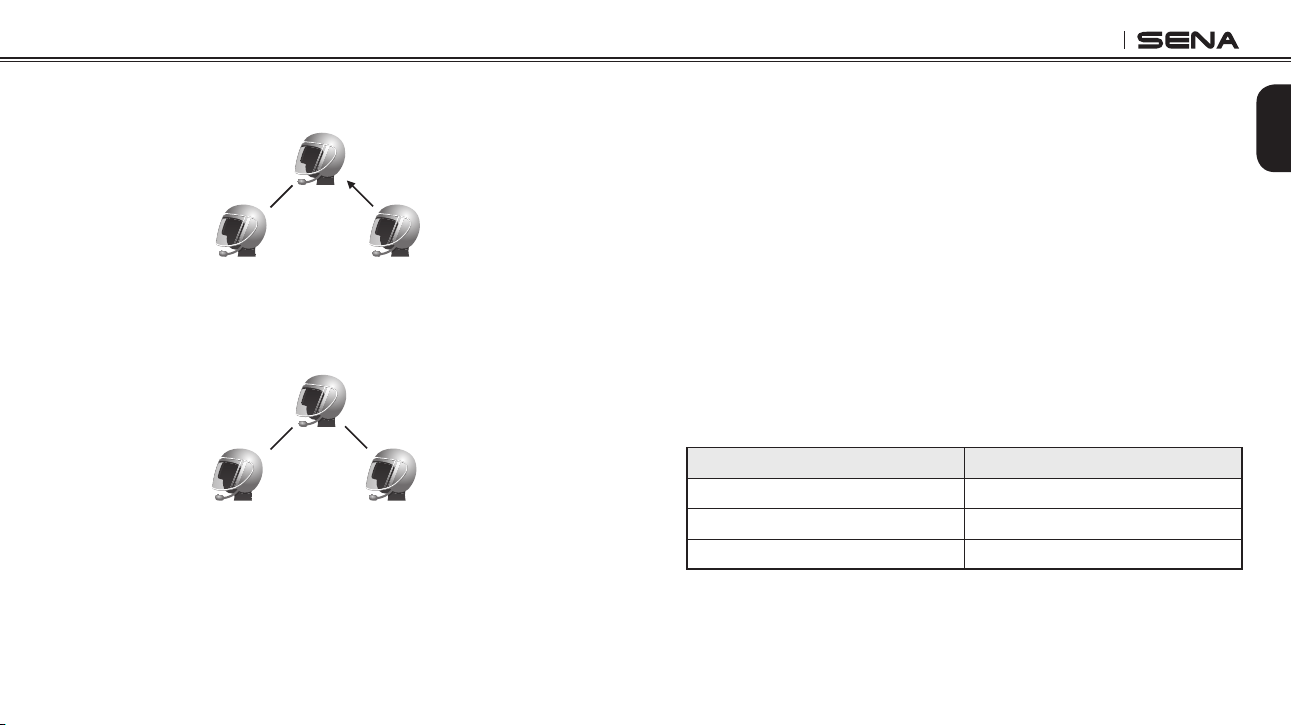
14.1 Start Three-way Intercom
You (A) can have a three-way conference intercom with two other
SMH10 friends (B & C) by establishing two intercom connections
at the same time. While a three-way conference intercom is in
progress, mobile phone connection of all three participants would be
temporarily disconnected, but as soon as the conference intercom
terminates or one of the participants leaves the intercom, all mobile
phones would be automatically reconnected. During the conference
intercom, if you have an incoming mobile phone call, terminate the
conference intercom to automatically reconnect the mobile phone
and receive the call.
14. THREE-WAY CONFERENCE INTERCOM
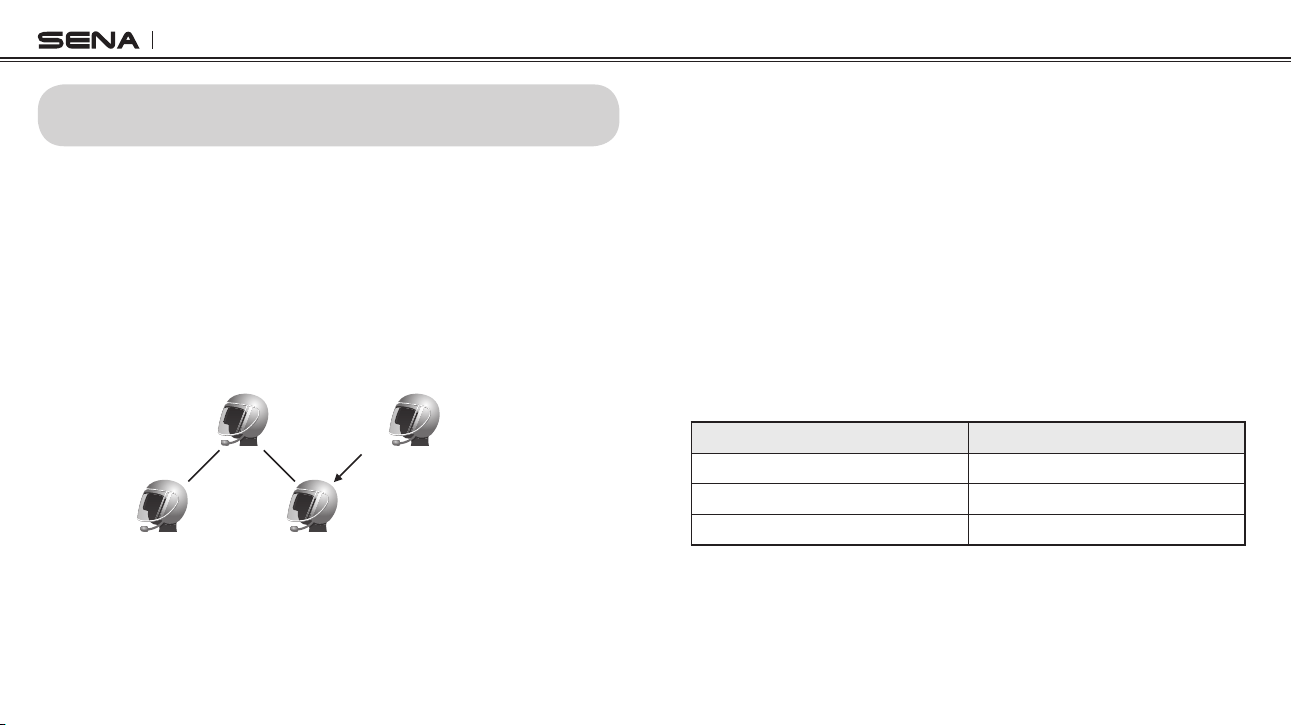
1. You (A) need to be paired with two other friends (B & C) for three-
way conference intercom.
(A)
(B)
First Friend Second Friend
(C)
Pairing
Pairing
2. Start an intercom conversation with one of the two friends in
your intercom group. For example, you (A) may start an intercom
conversation with the intercom friend (B). Or intercom friend (B)
may start an intercom call with you (A).
(A)
(B)
First Friend Second Friend
(C)
SMH10
31
English
3. The second intercom friend (C) may join the intercom by making
an intercom call to you (A).
(A)
(B)
First Friend Second Friend
(C)
4. Now you (A) and two SMH10 intercom friends (B & C) are having
a three-way conference intercom.
(A)
(B)
First Friend Second Friend
(C)
14.2 End Three-way Intercom
When you are a member of an active three-way conference intercom,
you can completely terminate the conference intercom or just
disconnect an intercom connection with one of your active intercom
friends.
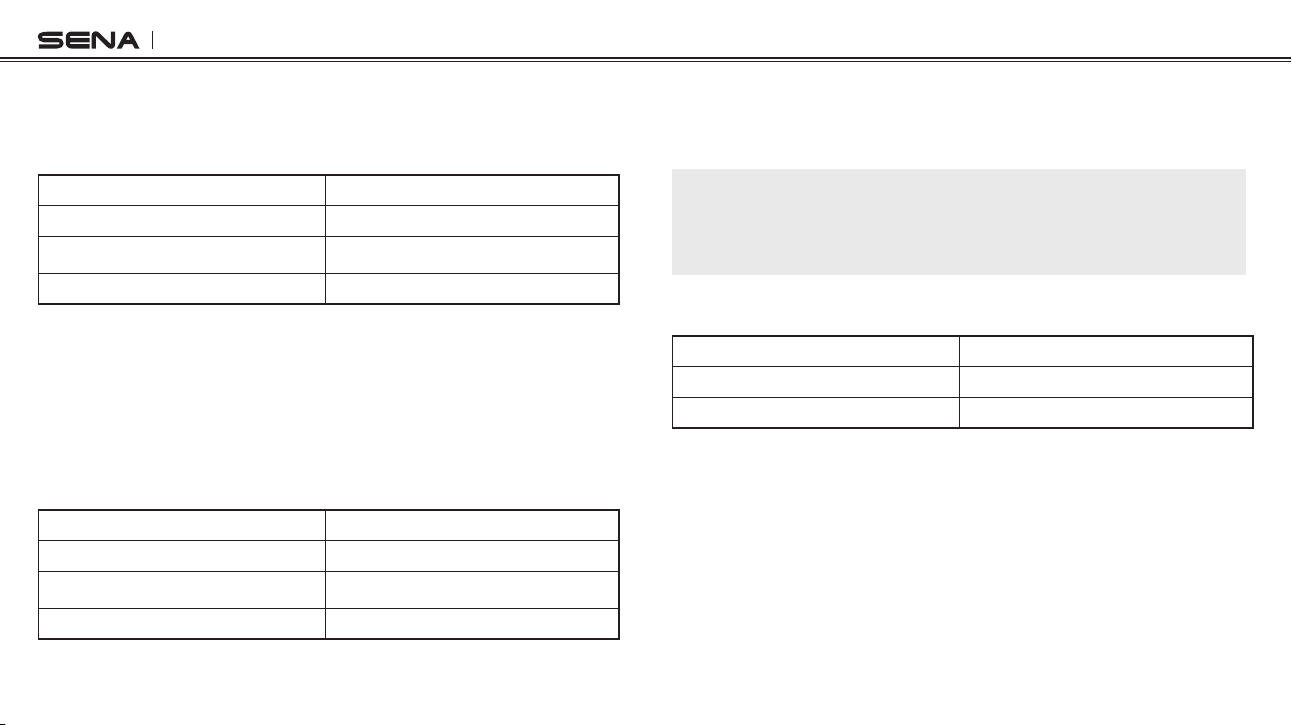
1. Press the Jog Dial for 1 second until you hear a beep to terminate
three-way conference intercom completely. It terminates both
intercom connections with (B) and (C).
2. Tap or double tap the Jog Dial to disconnect intercom connection
with one of the two intercom friends accordingly. For example, by
single tapping the Jog Dial, you can just terminate the intercom
connection with the rst intercom friend (B). However, you still
have the intercom connection with your second intercom friend
(C).
Jog Dial Operation Result
Press for 1” Disconnect (B) & (C)
Single tap Disconnect (B)
Double tap Disconnect (C)
End Three-way Intercom
SMH10
32
15.1 Start Four-way Intercom
You can have four-way conference intercom with three other SMH10
users by adding one more intercom participant to the three-way intercom.
Whileyouarehavingthree-wayintercomasspeciedinsection14.1,a
new participant (D), who is an intercom friend of your intercom friend
(C), may join the conference intercom by making an intercom call to your
intercom friend (C). Please note that in this case, the new participant (D)
is an intercom friend of (C), not of you (A).
First Friend
(B)
Second Friend
(C)
You
(A)
New Participant
(D)
= Intercom Friend of (C)
15. FOUR WAY CONFERENCE INTERCOM
15.2 End Four-way Intercom
As same in the case of three-way intercom, you can completely get
out of the four-way conference intercom or just disconnect a single
intercom connection.
1. Press the Jog Dial for 1 second until you hear a beep to terminate
four-way conference intercom. It terminates the intercom connections
between you (A), and your intercom friends (B), (C) and (D).
2. Tap or double tap the Jog Dial to disconnect the intercom connection
with one of the two intercom friends accordingly. However, when
you disconnect the second friend (C) by double tapping the Jog
Dial, you will be disconnected with the third participant (D) as well.
This is because the third participant (D) is connected with you via
the second friend (C).
Jog Dial Operation Result
Press for 1” Disconnect (B), (C) & (D)
Single tap Disconnect (B)
Double tap Disconnect (C) & (D)
End Four-way Intercom

SMH10
33
English
You can start sharing music with an intercom friend using Bluetooth
stereo music during a two-way intercom conversation. When you
terminate music sharing, you can go back to the intercom conversation.
To start or terminate sharing music, press and hold the Jog Dial for
1 second during an intercom conversation until you hear a double
beep and you and your intercom friend will listen to or terminate
sharing music. To track forward or track back, rotate while pressing
down the Jog Dial clockwise or counter clockwise.
Note:
1. Both you and your intercom friend can remotely control music playback
during music sharing such as track forward and track back.
2. When you have an incoming call, make a phone call, or hear the turn-
by-turn voice instruction of GPS during music sharing, the function will
be paused.
3. In order to share music, make sure that you update both headsets with the
firmware that has the music sharing feature, and enable the EDR setting
in the Sena Device Manager.
16. MUSIC SHARING 17. UNIVERSAL INTERCOM
You can have an intercom conversation with non-Sena Bluetooth
headsets using the Universal Intercom function. Non-Sena Bluetooth
headsets can be connected to the Sena Bluetooth headset if they
support the Bluetooth Hands-Free Prole (HFP). The working
distance may differ depending on the performance of Bluetooth
headset that it is connected to. In general, it is shorter than normal
intercomdistancesinceitusestheBluetoothHands-FreeProle.
The Universal Intercom affects both the phone call connection and
the multipoint connection (mostly used for GPS connections for
riders). You cannot use a multipoint connection device while you are
using the Universal Intercom in case as below.
1. If a non-Sena headset doesn’t support a multipoint connection,
it cannot use a phone call connection while using the Universal
Intercom.
2. As for Sena headsets, the Universal Intercom affects the multipoint
connection.
3. If non-Sena headset (already paired as Universal Intercom with
Sena) is turned on, then the multipoint connection is automatically
deactivated. And the non-Sena headset is automatically
connected to Sena headset as a Universal Intercom. So you

SMH10
34
cannot use multipoint connection devices such as GPS, while a
non-Sena headset is turned on.
4. Even though you disconnect the non-Sena headset as a Universal
Intercom, it will not automatically restore the multipoint connection.
To restore the multipoint connection, you should turn off the
non-Sena headset rst, then try to connect to multipoint device
manually from the device screen or simply reboot the device so
that it automatically connects to the Sena headset.
17.1 Universal Intercom Pairing
The SMH10 can be paired with non-Sena Bluetooth headsets for
Bluetooth intercom conversation. You can pair the SMH10 with only
one non-Sena Bluetooth headset; if you pair with a different non-Sena
Bluetooth headset, the previous pairing list will be removed.
1. Turn on the SMH10 and a non-Sena Bluetooth headset which you
want to pair with.
2. Press and hold the Jog Dial on the SMH10 for 8 seconds until
theblueLEDashesrapidly.Youwillhearavoicepromptsaying
“Universal intercom pairing”.
3. Perform the operation required for handsfree pairing on the non-
Sena Bluetooth headset (refer to the users’ manual of the headsets
you want to use). The SMH10 will automatically perform pairing
with non-Sena Bluetooth headsets in pairing mode.
17.2 Two-way Universal Intercom
You can initiate the Universal Intercom connection with non-Sena
Bluetooth headsets using the same intercom connection method as
you would between other Sena headsets. You may single tap the Jog
Dialtobeginanintercomconversationwiththerstintercomfriend,
double tap with the second intercom friend, and triple tap with the
third intercom friend.
Non-Sena Bluetooth headsets may initiate the Universal Intercom
connection, activating the voice dialing or using the redialing
operation. You may also disconnect the existing connection by ending
a call operation function (refer to the users’ manual of the headsets
for voice dialing, redialing, and ending a call).
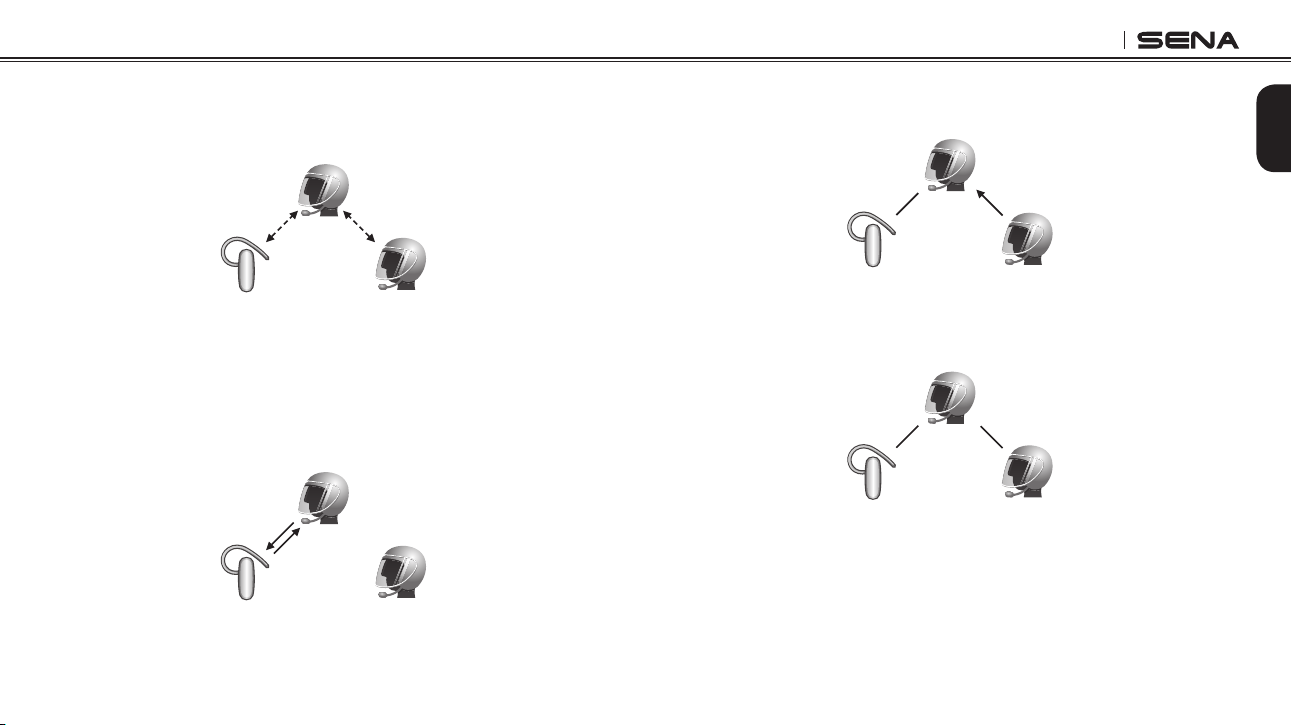
17.3 Three-way Universal Intercom
You may make a three-way Universal Intercom connection with
two SMH10s and one non-Sena Bluetooth headset. If the intercom
connection is made, all headsets connected cannot use the mobile
phone call function since the connection between the headset and
the phone is disconnected temporarily. If you disconnect the intercom
call, the mobile phone connection is made again automatically so that
you can use a mobile phone call function. During the intercom call,
you cannot pick up the incoming phone call since it is disconnected,
however, you can pick it up if you disconnect the intercom call.
SMH10
35
English
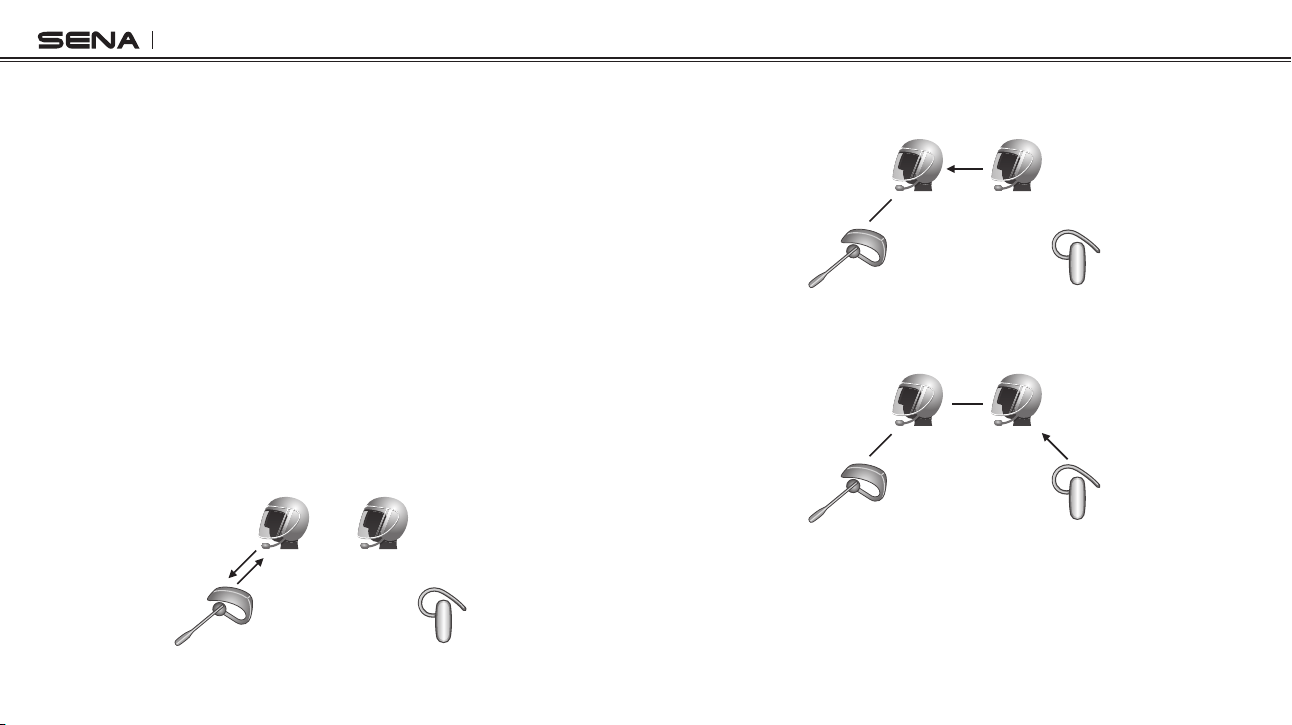
1. You (A) need to be paired with non-Sena Bluetooth headset (B)
and another SMH10 headset (C) for the three-way conference
intercom.
(A)
(B) (C)
Pairing
Pairing
2. Start an intercom conversation with non-Sena Bluetooth headset
(B) in your intercom group. For example, you (A) may start an
intercom conversation with non-Sena Bluetooth headset (B). The
non-Sena Bluetooth headset (B) may also start an intercom call
with you (A).
(A)
(B) (C)
3. The Other SMH10 (C) may join the intercom by making an intercom
call to you (A).
(A)
(B) (C)
4. Now you (A), non-Sena Bluetooth headset (B), and the other
SMH10 (C) are having a three-way conference intercom.
(A)
(B) (C)
5. You may disconnect the three-way Universal Intercom using the
same way as you do in normal three-way intercom. Please refer to
section, 14.2 “End Three-way Intercom”.
SMH10
36
17.4 Four-way Universal Intercom
You may make a four-way Universal Intercom connection with a couple
ofdifferentcongurations,1)threeSMH10sandonenon-SenaBluetooth
headset or 2) two SMH10s and two non-Sena Bluetooth headsets.
You may have a couple of other four-way Universal Intercom
congurations, 1) your headset (A), a non-Sena Bluetooth headset
(B), another SMH10 (C), and a non-Sena Bluetooth headset (D), 2)
your headset (A), a non-Sena Bluetooth headset (B), and two other
SMH10 headsets (C and D). You may make the four-way Universal
Intercom call the same way as a normal four-way intercom call.
17.4.1 Four-way Universal Intercom Case 1
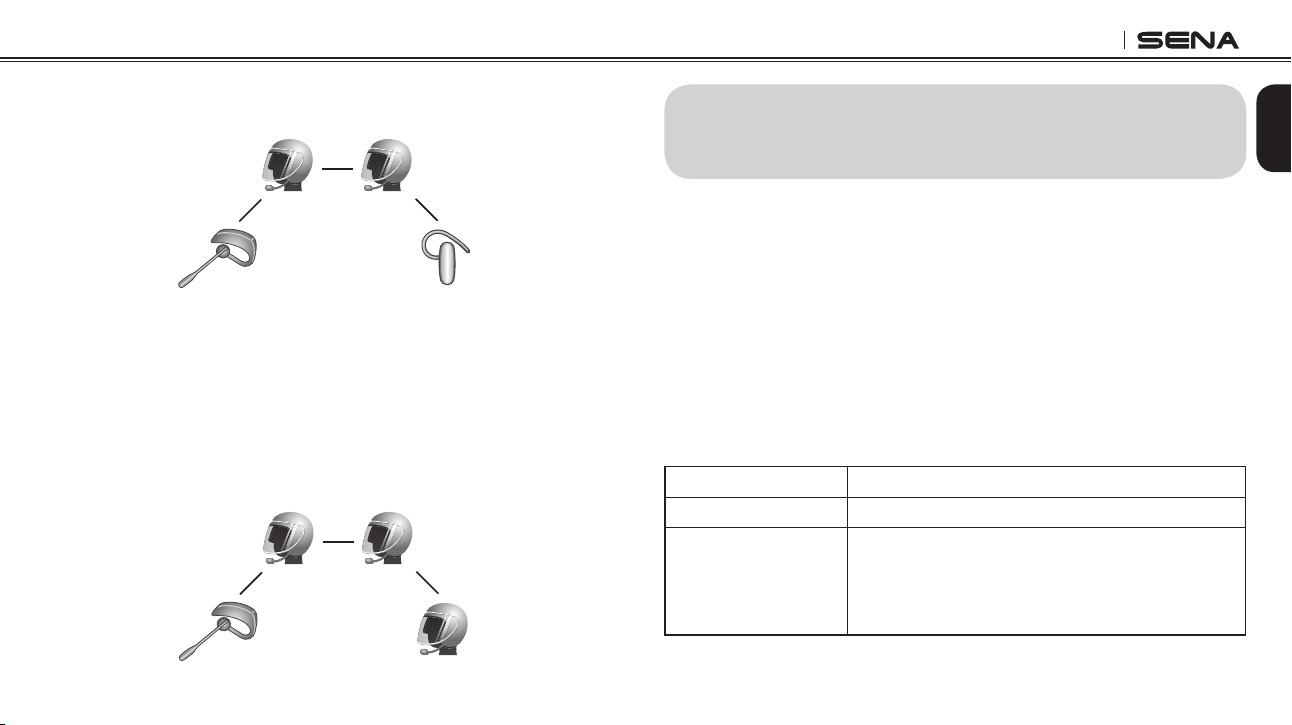
Two SMH10 headsets (A and C) and two non-Sena Bluetooth headsets
(B and D).
1. You (A) may start an intercom conversation with the non-Sena
Bluetooth headset (B).
(B)
(D)
(A)
(C)
2. The other SMH10 (C) may join the intercom by making an intercom
call to you (A).
(B)
(D)
(A)
(C)
3. The non-Sena Bluetooth headset (D) may join the conference
intercom by making an intercom call to the SMH10 (C).
(B)
(D)
(A)
(C)
SMH10
37
English
4. Now two SMH10 headsets (A & C) and two non-Sena Bluetooth
headsets (B & D) are connected with the four-way Universal Intercom.
(B)
(D)
(A)
(C)
You may disconnect a four-way Universal Intercom using the same
way as you do in a normal four-way intercom. Please refer to section,
15.2 “End Four-way Intercom”.
17.4.2 Four-way Universal Intercom Case 2
Three SMH10 headsets (A, C and D) and one non-Sena Bluetooth
headset (B). The procedure is the same as the case 1 described in
section 17.4.1.
(B)
(D)
(A)
(C)
You can have a three-way conference phone call by adding an
intercom friend to the mobile phone conversation. While having a
mobile phone call, make an intercom call to one of the intercom
friends by tapping the Jog Dial to form a three-way conference call
with the person on the mobile phone line. To disconnect the intercom
rst and go back to your private mobile phone call, terminate the
intercom by tapping the Jog Dial. To end the mobile phone call
rstandmaintaintheintercomconversation,presstheJogDialfor
2 seconds, or tap the phone button, or wait for the person on the
mobile phone line to end the call.
Start Tap Jog Dial while having a mobile phone call
Endintercomrst Tap Jog Dial
Endphonecallrst
Press Jog Dial for 2”
or
Tap Phone Button
or
Wait for the called person to end the call
Start & End Three-way Conference Phone Call
18. THREE-WAY CONFERENCE PHONE CALL
WITH INTERCOM PARTICIPANT

SMH10
38
When you try to start an intercom conversation with an intercom friend
who is already having a conference intercom with other riders or a
mobile phone call, you will hear a low tone double beep signifying an
intercom busy signal. In this case, you have to try again later.
If your intercom friend goes out of range while having an intercom
conversation, you may hear static noise and eventually the intercom
will be disconnected. In this case, the SMH10 automatically tries to
reconnect the intercom every 8 seconds and you will hear high tone
double beeps until the intercom is reestablished. If you don’t want to
make a reconnection, tap the Jog Dial to stop the attempt.
19. INTERCOM FAILURE
20. INTERCOM RECONNECTION
1. To restore the SMH10 to factory default settings, press and hold
the Phone Button for 12 seconds until the LED shows solid red
and you hear double beeps. You will hear a voice prompt saying
“Factory reset”.
2.Within5seconds,presstheJogDialtoconrmreset.Theheadset
will be restored to factory setting and switched off automatically.
You will hear a voice prompt saying “Headset reset, good-bye”.
3. If you don’t press the Jog Dial within 5 seconds, the reset attempt
is canceled and the headset returns to stand-by mode. You will
hear a voice prompt saying “Canceled”.
21. RESET TO FACTORY DEFAULT SETTINGS
SMH10
39
English
22. FAULT RESET
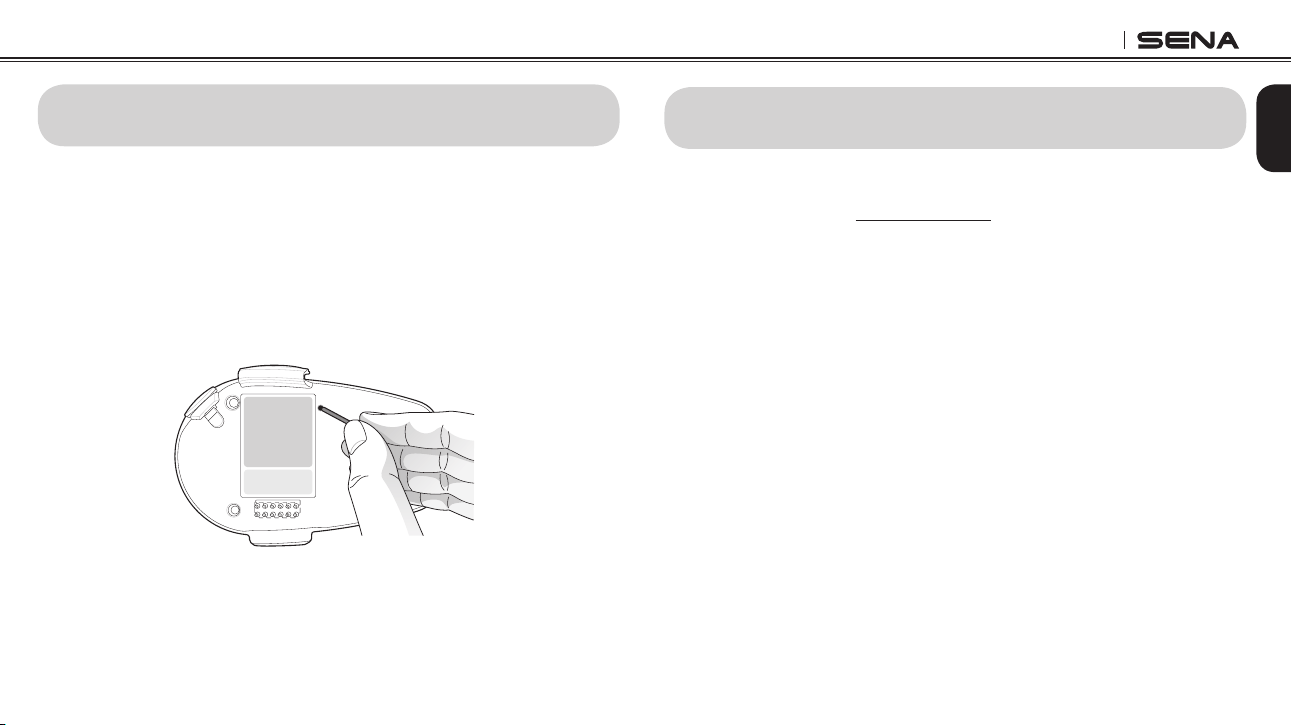
When the SMH10 is not working properly or is in faulty status for any
reason, you may reset by pushing the pin-hole reset button at the
back of the headset main unit. Insert a paper clip into the reset pin-
hole and press the reset button for a second with light pressure. The
SMH10 will be switched off, and you have to turn the system back
on and try again. However, this will not restore the headset to factory
default settings.
23. FIRMWARE UPGRADE
TheSMH10supportsrmwareupgradefunction.PleasevisitSena
Bluetooth web site at www.sena.com to check the latest software
downloads.
SMH10
40
24. SENA BLUETOOTH
CONNECTION CASE
STUDIES
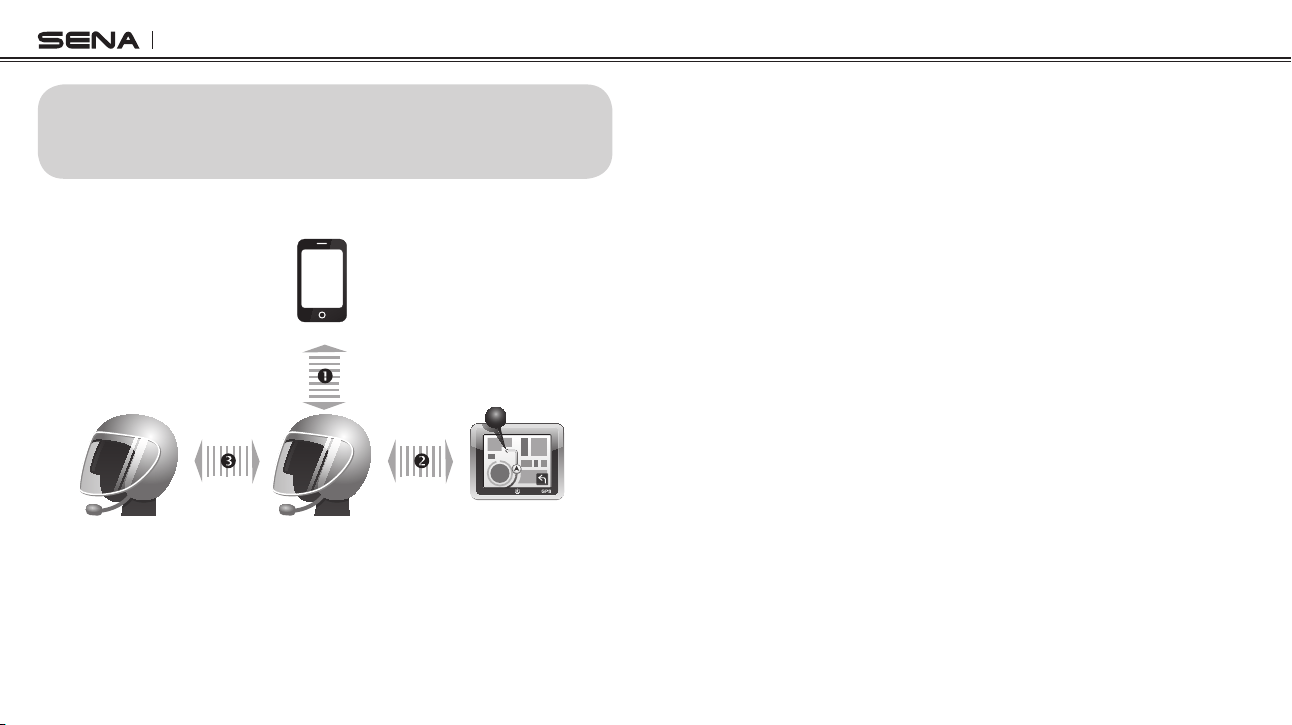
Case 1
Mobile Phone
Bluetooth GPS*
Mobile Phone
Pairing
Multipoint
Pairing
Intercom
Pairing
Bluetooth Pairing Procedure
1
Mobile Phone Pairing
2 Multipoint Pairing
3 Intercom Pairing
Bluetooth GPS*
zumo 220/350/550/660/665, TomTom Rider
Usage
•
Mobilephone:phonecall,listeningtomusic
• GPS:GPSinstruction
• Intercom
SMH10
41
English
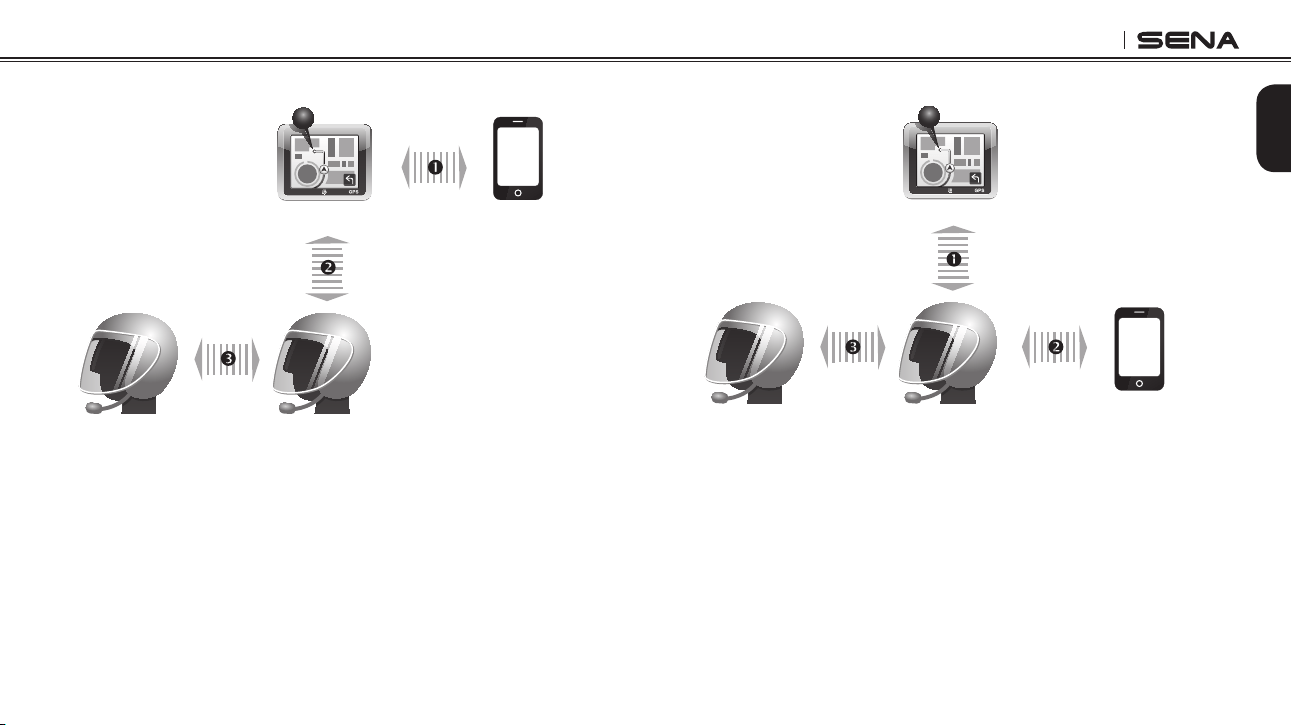
Case 2
Mobile Phone
Bluetooth GPS*
Mobile Phone
Pairing
GPS - Mobile
Phone Pairing
Intercom
Pairing
Bluetooth Pairing Procedure
1 GPS - Mobile Phone Pairing
2 Mobile Phone Pairing
3 Intercom Pairing
Bluetooth GPS*
zumo 550/660/665, TomTom Rider
Usage
• GPS
zumo660/665:GPSinstruction,phonecall,listeningtomusic
zumo550,TomTomRider:GPSinstruction,phonecall
• Intercom
Case 3
Mobile Phone
Bluetooth GPS*
Mobile Phone
Pairing
Multipoint
Pairing
Intercom
Pairing
Bluetooth Pairing Procedure
1 Mobile Phone Pairing
2 Multipoint Pairing
3 Intercom Pairing
Bluetooth GPS*
zumo 220/350/550/660/665, TomTom Rider
Usage
•
MobilePhone:phonecall
• GPS
zumo660/665:GPSinstruction,listeningtomusic
zumo220/350/550,TomTomRider:GPSinstruction
• Intercom
SMH10
42
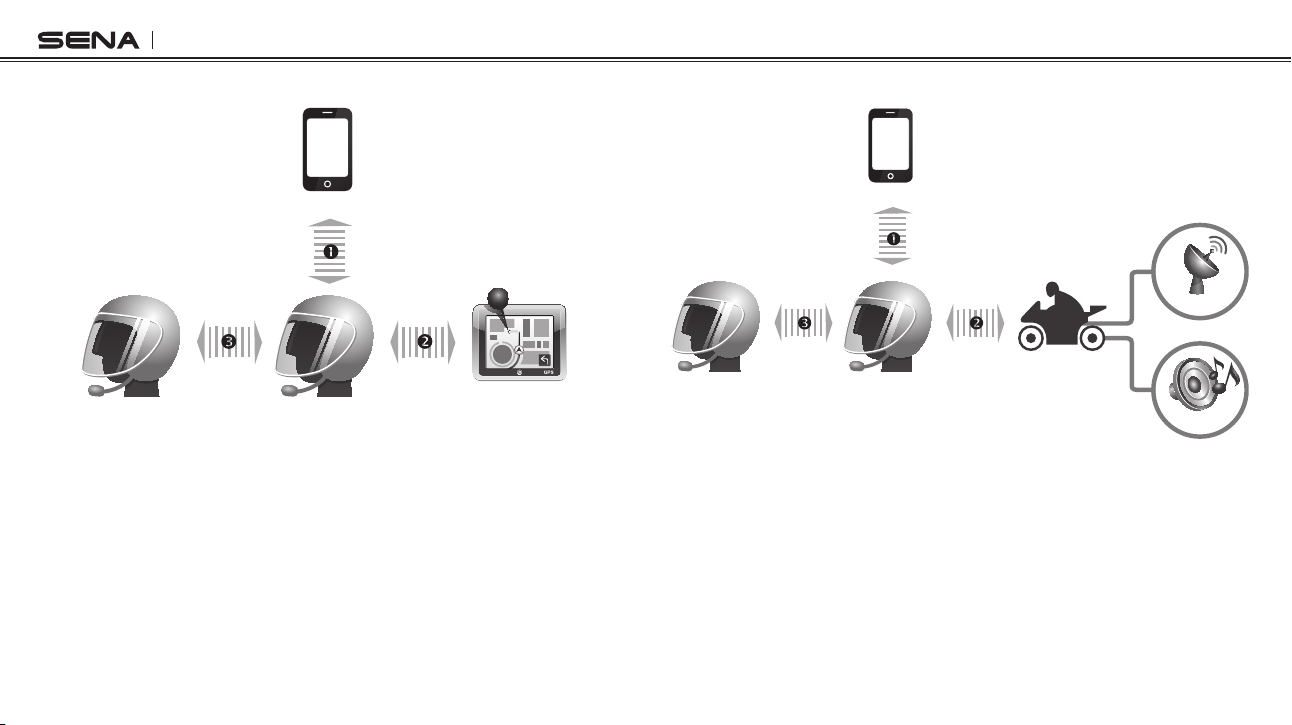
Case 4
Mobile Phone
Bluetooth GPS*
Mobile Phone
Pairing
Mobile Phone
Pairing
Intercom
Pairing
Bluetooth Pairing Procedure
1
Mobile Phone Pairing
2 Mobile Phone Pairing
3 Intercom Pairing
Bluetooth GPS*
Yupiteru, smartphone apps
Usage
•
MobilePhone:phonecall
• GPS:GPSinstruction
• Intercom
Case 5
Mobile Phone
GPS
Music
Motorcycle Bluetooth
Audio System*
Intercom
Pairing
Mobile Phone
Pairing
Mobile Phone
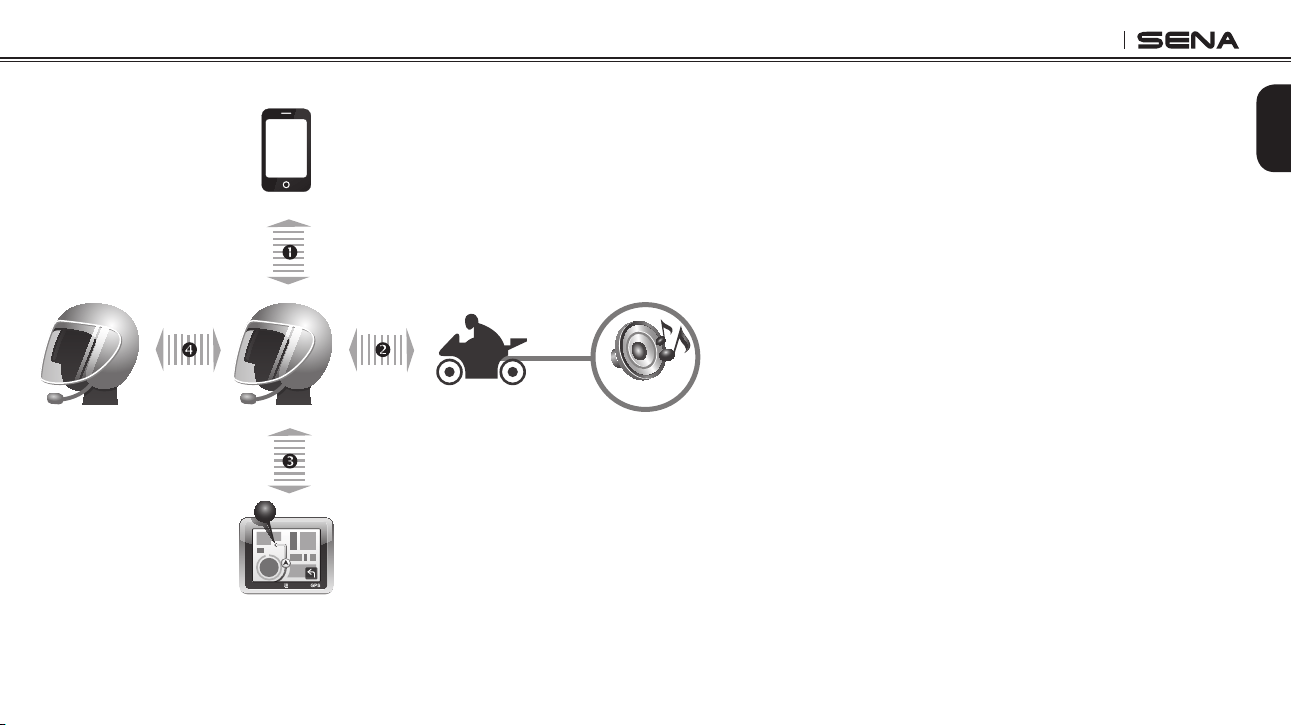
Pairing
Bluetooth Pairing Procedure
1 Mobile Phone Pairing
2 Mobile Phone Pairing
3 Intercom Pairing
Motorcycle Bluetooth Audio System*
BMW R1200RT, K1600GT, K1600GTL
Usage
•
MobilePhone:phonecall
• MotorcycleBluetoothAudioSystem:listeningtomusic,GPSinstruction
• Intercom
SMH10
43
English
Case 6
Mobile Phone
Music
Bluetooth GPS*
Mobile Phone
Pairing
Mobile Phone
Pairing
Motorcycle Bluetooth
Audio System*
Multipoint
Pairing
Intercom
Pairing
Bluetooth Pairing Procedure
1
Mobile Phone Pairing
2 Mobile Phone Pairing
3
Multipoint Pairing
4 Intercom Pairing
Bluetooth GPS*
zumo 220/350/550/660/665, TomTom Rider
Motorcycle Bluetooth Audio System*
BMW R1200RT, K1600GT, K1600GTL
Usage
•
MobilePhone:phonecall
• MotorcycleBluetoothAudioSystem:listeningtomusic
• GPS:GPSinstruction
• Intercom
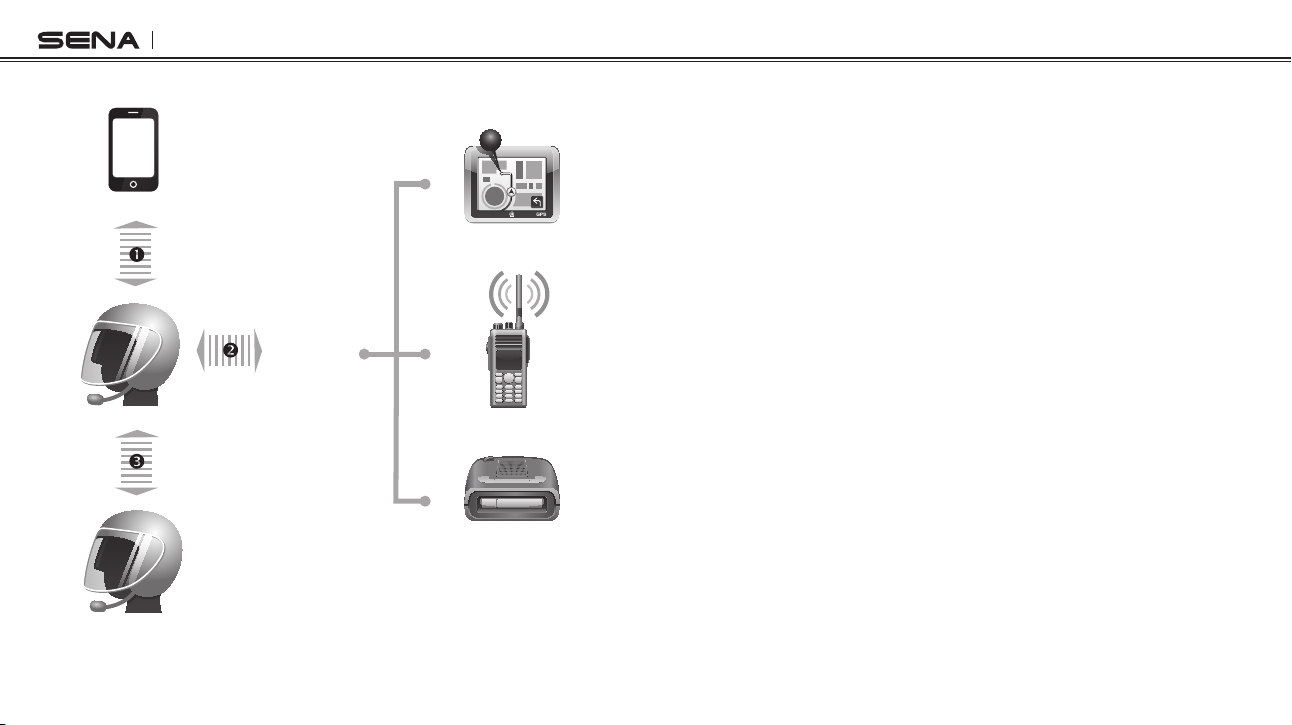
SMH10
44
Case 7
Mobile Phone
GPS
Mobile Phone
Pairing
Two-way Radio
Radar Detector
Multipoint
Pairing
Intercom
Pairing
SR10
Bluetooth Pairing Procedure
1 Mobile Phone Pairing
2
Multipoint Pairing
3 Intercom Pairing
Usage
•
MobilePhone:phonecall
• SR10:two-wayradio,GPSguidance,Radardetectingsignal
• Intercom
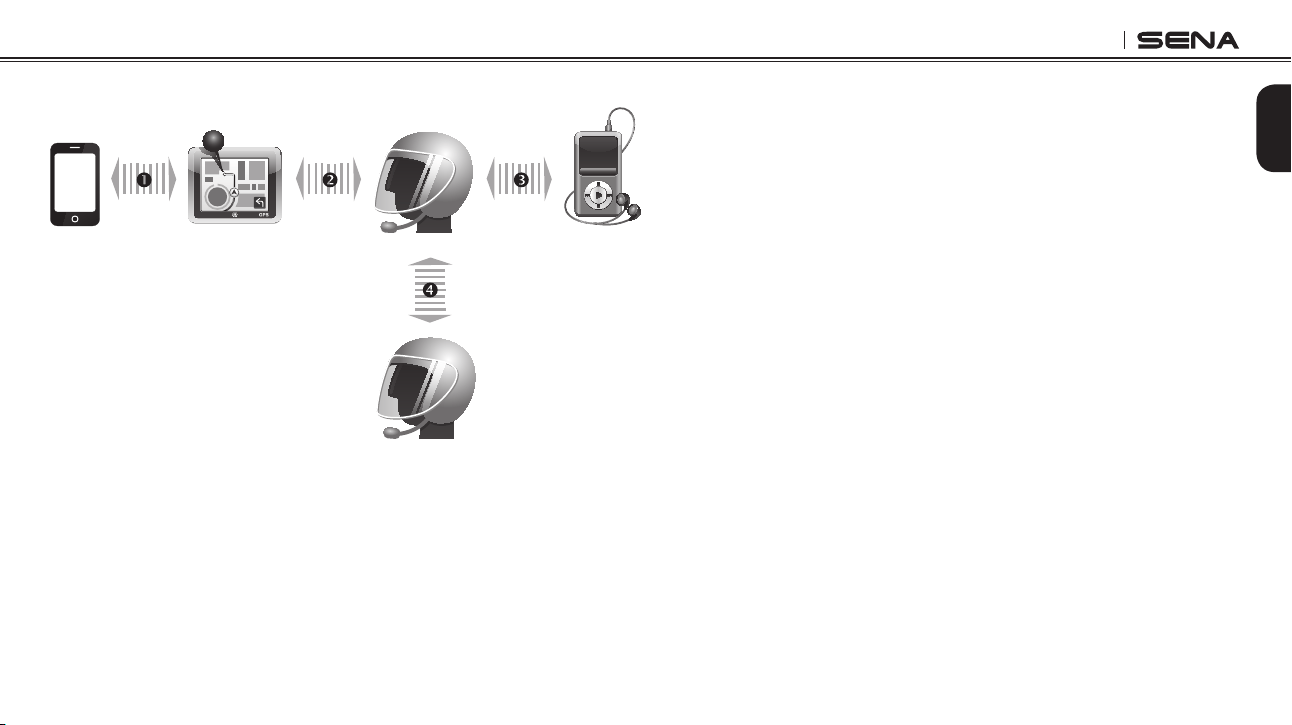
SMH10
45
English
Case 8
Mobile
Phone
Bluetooth GPS*
Mobile Phone
Pairing
Intercom
Pairing
MP3 Player
Mobile Phone
Pairing
GPS -
Mobile Phone
Pairing
Bluetooth Pairing Procedure
1
GPS - Mobile Phone Pairing
2
Mobile Phone Pairing
3
Mobile Phone Pairing
4
Intercom Pairing
Bluetooth GPS*
zumo 220/350/550/660/665, TomTom Rider
Usage
•
GPS:phonecall,GPSinstruction
• MP3Player:listeningtomusic
• Intercom
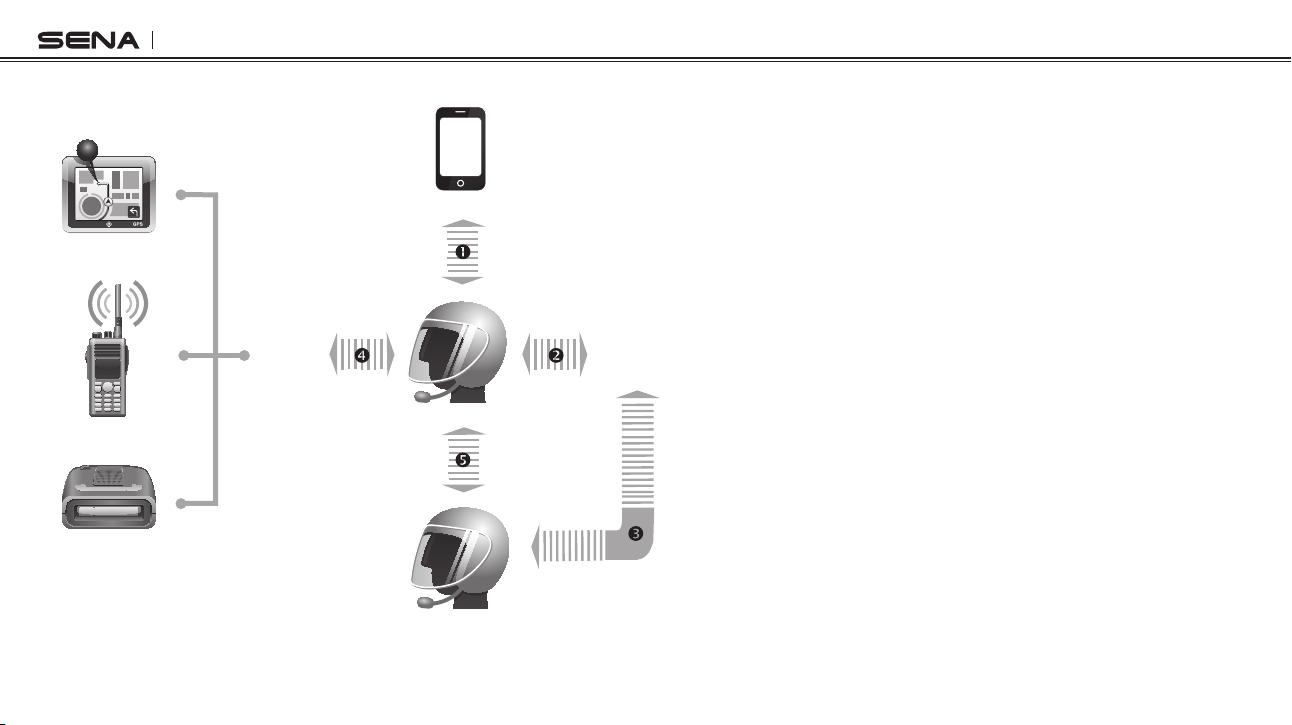
SMH10
46
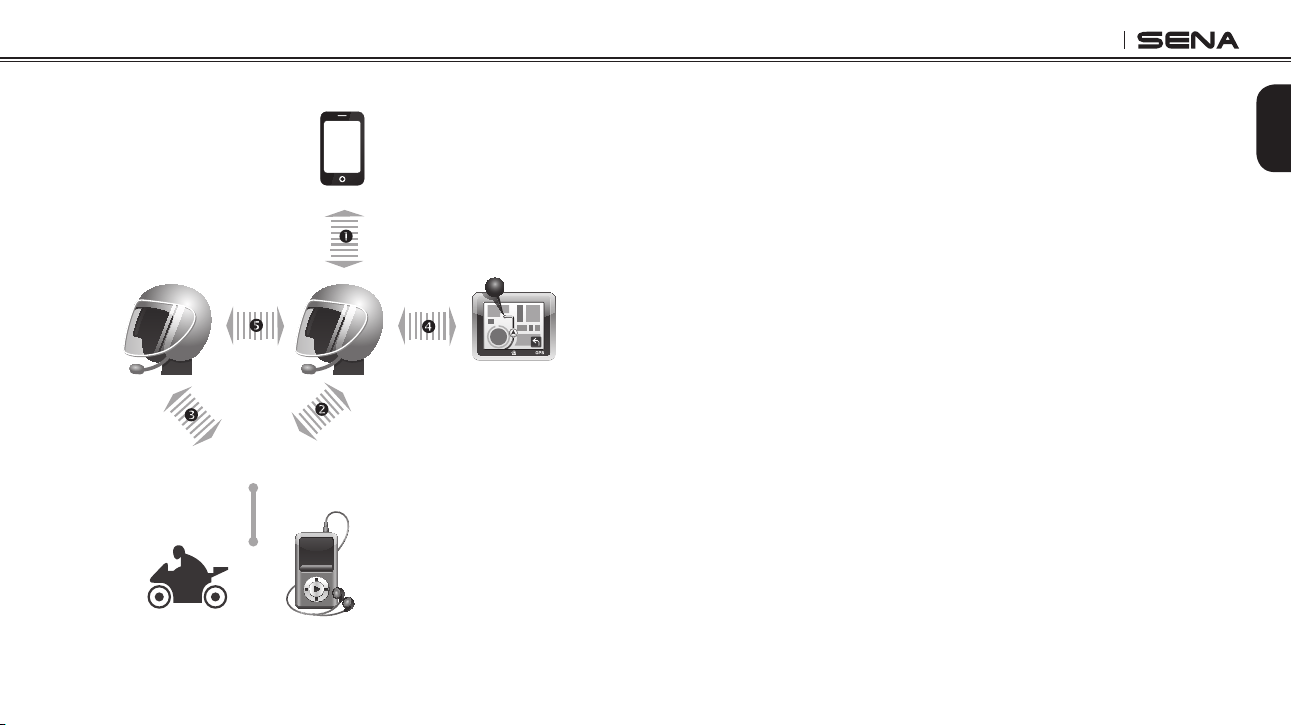
Bluetooth Pairing Procedure
1
Mobile Phone Pairing
2
Mobile Phone Pairing
3
Mobile Phone Pairing
4
Multipoint Pairing
5 Intercom Pairing
Usage
•
MobilePhone:phonecall
• SR10:two-wayradio,GPSinstruction,Radardetectingsignal
• SM10:listeningtomusic/sharing
• Intercom
Case 9
SR10
SM10
Mobile Phone
GPS
Two-way Radio
Mobile Phone
Pairing
Mobile Phone
Pairing
Mobile Phone
Pairing
Intercom
Pairing
Multipoint
Pairing
Radar Detector
SMH10
47
English
Bluetooth Pairing Procedure
1
Mobile Phone Pairing
2 Mobile Phone Pairing
3 Mobile Phone Pairing
4 Multipoint Pairing
5 Intercom Pairing
Bluetooth GPS*
zumo 220/350/550/660/665, TomTom Rider
Usage
•
MobilePhone:phonecall
• GPS:GPSinstruction
• SM10:listeningtomusic/sharing
• Intercom
Case 10
SM10
Mobile Phone
Bluetooth GPS*
Mobile Phone
Pairing
Mobile Phone
Pairing
OR
Mobile Phone
Pairing
Intercom
Pairing
Multipoint
Pairing
MP3 Player
Motorcycle
Audio System
SMH10
48
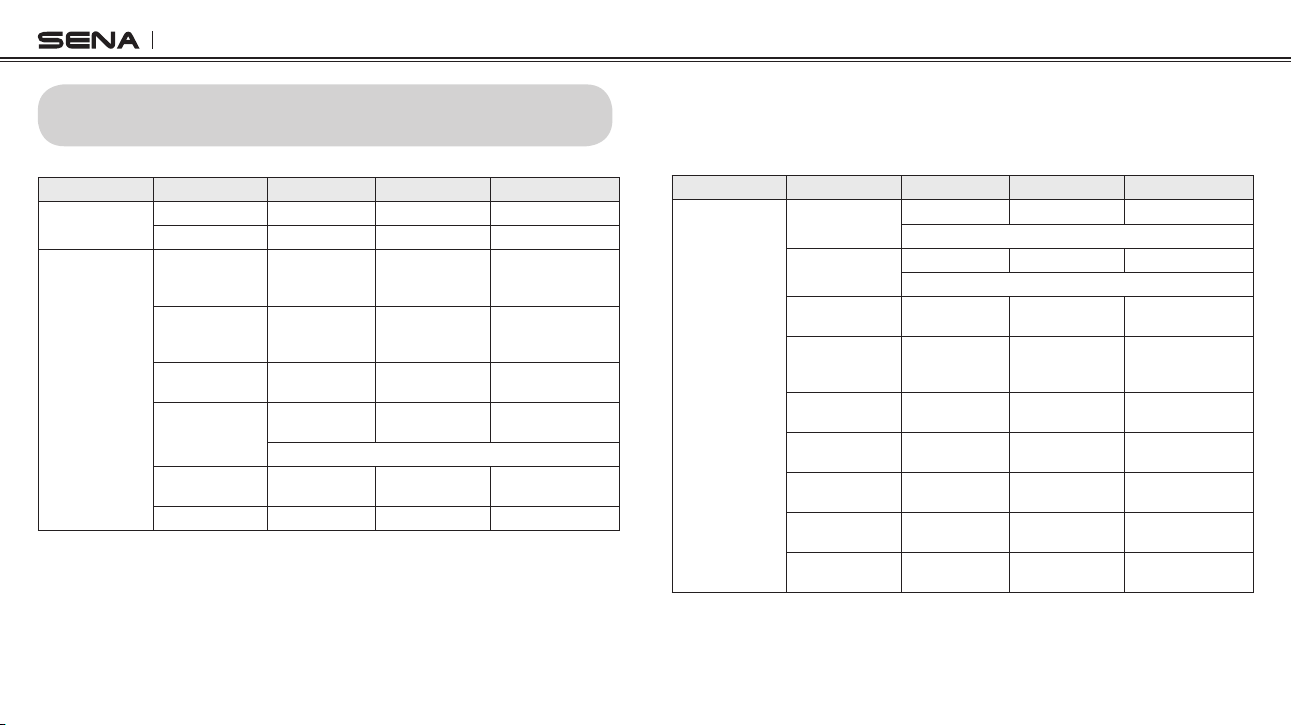
25. OPERATION QUICK REFERENCE
Button Description Duration LED Beep
Phone Button
+ Jog Dial
Power-on 1 sec Solid blue Ascending beeps
Power-off Tapping Solid red Descending beeps
Phone Button
Mobile phone
pairing
5 sec
Blue & red
alternatively
flashing
High tone multiple
beeps
MP3, GPS
pairing
5 sec
Blue & red
alternatively
flashing
High tone multiple
beeps
Call transfer 2 sec -
High tone single
beep
Factory reset
12 sec Solid red
High tone double
beeps
Jog Dial within 5 sec to confirm reset
Make & answer
phone call
Tapping - -
Speed dial Double tapping - -
Button Description Duration LED Beep
Jog Dial
Intercom pairing
5 sec Red flashing Double tone beeps
Jog Dial of any one of the two headsets
Multipoint pairing
5 sec Red flashing Multiple beeps
Phone Button within 2 sec
Universal
intercom pairing
8 sec
Blueashing -
Start/end
intercom
conversation
Tapping - -
End conference
intercom
1 sec
Blueashing
Mid-tone single
beep
Reject incoming
call
2 sec - -
Volume
adjustment
Rotating - -
Track forward/
back
Rotating while
pressing
- -
Play/pause
Bluetooth music
1 sec -
Mid-tone double
beeps

SMH10
49
English
CERTIFICATION AND SAFETY APPROVALS
FCC Compliance Statement
This device complies with part 15 of the FCC rules. Operation is subject to
thefollowingtwoconditions:
(1) This device may not cause harmful interference, and
(2) This device must accept any interference received, including
interference that may cause undesired operation.
This equipment has been tested and found to comply with the limits for a
Class B digital device pursuant to part 15 of the FCC rules. These limits are
designed to provide reasonable protection against harmful interference in
a residential installation. This equipment generates, uses and can radiate
radio frequency energy and, if not installed and used in accordance with
the instructions, may cause harmful interference to radio communications.
However, there is no guarantee that interference will not occur in a particular
installation. If this equipment does cause harmful interference to radio or
television reception, which can be determined by turning the equipment on
and off, the user is encouraged to try to correct the interference by one or
moreofthefollowingmeasures:
• Reorient or relocate the receiving antennae
•
Increase the separation between the equipment and the receiver
•
Connect the equipment into an outlet on a circuit different from that to
which the receiver is connected.
•
Consult the dealer or an experienced radio/TV technician for help.
FCC RF Exposure Statement
This equipment complies with FCC radiation exposure limits set forth for
anuncontrolledenvironment.Endusersmustfollowthespecicoperating
instructions for satisfying RF exposure compliance. The antenna used for
this transmitter must not transmit simultaneously with any other antenna
or transmitter, except in accordance with FCC multi-transmitter product
procedures.
FCC Caution
Anychangesormodicationstotheequipmentnotexpresslyapproved
by the party responsible for compliance could void user’s authority to
operate the equipment.
CE Declaration of Conformity
This product is CE marked according to the provisions of the R&TTE
Directive (99/5/EC). Hereby, Sena declares that this product is in
compliance with the essential requirements and other relevant provisions
of Directive 1999/5/EC. For further information, please consult www.
sena.com. Please note that this product uses radio frequency bands not
harmonized within EU. Within the EU this product is intended to be used
in Austria, Belgium, Denmark, Finland, France, Germany, Greece, Ireland,
Italy, Luxembourg, The Netherlands, Portugal, Spain, Sweden, United
Kingdom and within EFTA in Iceland, Norway and Switzerland.
SMH10
50
Industry Canada Statement
This device complies with Industry Canada license-exempt RSS
standard(s).Operationissubjecttothefollowingtwoconditions:
(1) This device may not cause interference.
(2) This device must accept any interference, including interference that
may cause undesired operation of the device.
Bluetooth License
The Bluetooth
®
word mark and logos are owned by the Bluetooth SIG, Inc.
and any use of such marks by Sena is under license. Other trademarks and
trade names are those of their respective owners.
The product is compliant with and adopts the Bluetooth
®
Specication 3.0
andhassuccessfullypassedallinteroperabilityteststhatarespeciedinthe
Bluetooth
®
specication. However, interoperability between the device and
other Bluetooth
®
-enabled products is not guaranteed.
WEEE (Waste Electrical and Electronic Equipment)
The crossed-out wheel bin symbol on the product, literature, or
packaging reminds you that all electrical and electronic
products, batteries, and accumulators must be taken to
separate collection at the end of their working life. This
requirement applies to the European Union and other locations
where separate collection systems are available. To prevent
possible harm to the environment or human health from uncontrolled waste
disposal, please do not dispose of these products as unsorted municipal
waste,buthanditinatanofcialcollectionpointforrecycling.
SAFETY INFORMATION
Please ensure that the product is properly used by observing the
warnings and cautions below to prevent any risk and/or damage to
property.
Product Storage and Management
• Keep the product free of dust. It may damage mechanical and
electronic parts of the product.
•
Do not store the product in high temperatures as this may reduce the
life span of electronic devices, damage the battery, and/or melt plastic
parts of the product.
•
Do not store the product in cold temperatures. Abrupt changes
in temperatures may cause condensation and damage electronic
circuits.
•
Do not clean the product with cleaning solvents, toxic chemicals, or
strong detergents as this may damage the product.
•
Do not paint the product. Paint may obstruct moving parts or interfere
with the normal operation of the product.
•
Do not drop or otherwise shock the product. It may damage the
product or its internal electronic circuits.
•
Do not disassemble, repair or modify the product as this may damage
the product and invalidate the product warranty.

SMH10
51
English
Product Use
• In some regions, it is prohibited by law to ride motorcycles or bicycles
while wearing headsets. Therefore be certain to comply with all
relevant laws in the region before using the product.
•
Use of the product at a high volume for a long period of time may
damage your eardrums or hearing ability. Keep the volume at a
modest level.
•
Do not cause impact to the product or touch it with sharp tools as this
may damage the product.
•
Do not use the product in high-temperatures or apply heat to the
productasthismaycausedamage,explosion,orre.
• Keep the product dry and away from water. It may damage the
product.
•
Keep product away from pets or small children. It may damage the
product or cause accidents.
•
Do not use the product near a microwave oven or a wireless LAN
device as this may cause malfunction or interference with the product.
•
In any place where wireless communication is prohibited, such as
hospitals or airplanes, turn off the power and refrain from using the
product. In a place where wireless communication is prohibited,
electromagnetic waves may cause hazards or accidents.
•
Do not use the product near hazardous explosives. When there
are near any explosion hazards, turn off the power and heed any
regulations, instructions, and signs in the area.
•
When using the product, drive at a low speed (slower than 35km/h) for
safety. In addition, be certain to conform to laws regarding the use of
communications devices while driving.
•
Do not put the product where it may hamper the driver's vision or
manipulateitwhiledriving.Thismaycausetrafcaccidents.
• Before driving, fasten the product to the helmet, and double-check
that it is fastened. Separation of the product while driving may cause
damage to the product or accidents.
•
If the product is damaged, stop using it immediately. It may cause
damage,explosion,orre.
Battery
This product has an irreplaceable rechargeable battery inside.
Therefore,whenusingtheproduct,makesuretoadheretothefollowing:
• Never separate the battery from the product as this may damage the
product.
•
The battery performance may be reduced over time with usage.
•
In recharging the battery, make sure to use an approved charger
provided by the manufacturer. Use of a non-approved charger may
causere,explosion,leakage,and other hazardsmayalsoreduce
the life time or performance of the battery.

SMH10
52
• Storethebatteryattemperaturesof15°C~25°C(59°F~77°F).Higher
or lower temperatures may reduce the capacity and life of the battery,
or may cause temporary non-operation. Do not use the product in
sub-zero temperature, because it may cause serious reduction of the
battery performance.
•
Ifyouapplyheattothebatteryorthrowitintore,itmayexplode.
• Do not use the product with a damaged battery. It may explode and/
or cause accidents.
•
Never use a damaged charger. It may explode and/or cause accidents.
•
Battery life may vary depending on conditions, environmental factors,
functions of the product in use, and devices used with it.
PRODUCT WARRANTY AND DISCLAIMER
Limited Warranty
Limited Warranty
Sena Technologies, Inc. (“Sena”) guarantees the product quality based
on the technical specication stated in the product manual, and data
regarding product warranty. Here, product warranty extends to the product
only. Sena will not be liable for any loss, damage of human life, or loss of
property which may result from using the product beyond defective parts
orawsthatoccurduetoproblemsinmanufacture.
Warranty Period
Sena guarantees free-of-charge replacements of defective parts of the
productorawsthatmayhaveoccurredduetoproblemsinmanufacture
for a period of 2 years from the date of initial purchase.
Termination
Quality warranty of the product becomes effective on the date of initial
purchase. In addition, the quality warranty of the product expires when the
warranty period expires. However, in the following cases, the warranty will
be terminated prematurely.
•
In the event the product has been sold or transferred to a third party.
•
In the event the manufacturer's name, serial number, product label, or
othermarkingshavebeenmodiedorremoved.

SMH10
53
English
• In the event any unauthorized person has tried to disassemble, repair,
or modify the product.
Notice and Waiver
By buying and using this product, you relinquish considerable legal rights
including any claim for compensation for damages. Therefore, be certain
to read and understand the following terms and conditions before using
the product. Use of this product will constitute consent to this agreement,
and forfeiture of rights to all claims. If you do not consent to all the terms
and conditions of this agreement, return the product for a refund. (Refer to
the section “Return for Full Refund”.)
1. You agree that you, your descendants, legal proxies, successors, or
transferees will not raise permanent volitional request for any suit, claim,
implementation, redemption or similar action from Sena with regard to
any occasion such as difculty, pain, suffering, inconvenience, loss,
injury, or death which may occur to you or a third party during the use
of this product.
2. You must completely understand and accept all risks (including those
occurring due to any careless behavior of yours or others) which may
occur during the use of this product.
3. You are responsible for ensuring that your medical condition permits
usageoftheproductandthatyouareinsufcientphysicalcondition
for using any device which can be used with it. In addition, you must
ensure that the product does not limit your abilities and that you are
able to use it safely.
4. You must be an adult who can take responsibilities for using the product.
5.Youmustreadandunderstandthefollowingwarningsandalerts:
• Sena; together with employees, managers, partners, subsidiaries,
representatives,agents,supportingrmsandsuppliers,solesellers
of Sena (collectively referred to as “the company”) recommend that,
before using the product and similar devices of any brands including
its derivative models, you collect any relevant information in advance
and be entirely prepared in terms of weather, trafc situation, and
road conditions.
•
When you use the product while you operating any vehicle or
equipment such as motorcycles, scooters, mopeds, ATVs, or quad-
bikes (hereinafter called as “transportation means”), you must take
complete caution regardless of the location of such operation.
•
Use of the product on the road may cause such risks as fracture,
serious disability, or death.
•
Risk factors, which may occur when you use the product, may be
due to errors of the manufacturer, its agents, or third parties which are
involved in the manufacturing.
•
Risk factors, which may occur when you use the product, may be
unforeseeable. Therefore, you must take full responsibility for any
damage or loss caused by all risk factors which may occur when
using the product.
•
When you use the product, use good judgment; never use it under the
inuenceofalcohol.

SMH10
54
6. You must read and completely understand all terms and conditions
of legal rights and warnings that are involved in using the product. In
addition, usage of the product constitutes acceptance of all terms and
conditions regarding waiver of rights.
Warranty Exclusions
Reasons for Limited Liabilities
If you do not return the product after purchasing it, you relinquish all rights
to liabilities, loss, claims, and claims for reimbursement of expenses
(including attorney's fees). Therefore, Sena will not be liable for physical
injury, death, or any loss or damage of transportation means, possessions,
or assets which belong to you or third parties that may have occurred while
you use the product. Further, Sena will not be liable for any substantial
damage not related to the, condition, environment, or malfunction of the
product. All risks related with the operation of the product depend entirely
on the user regardless of its use by the initial purchaser of a third party.
Use of this product may violate local or national laws. In addition, be
aware once again that correct and safe use of the product is entirely your
responsibility.
Limitation of Liability
TO THE FULL EXTENT ALLOWED BY LAW, SENA EXCLUDES FOR ITSELF
AND ITS SUPPLIERS ANY LIABILITY, WHETHER BASED IN CONTRACT OR
TORT (INCLUDING NEGLIGENCE), FOR INCIDENTAL, CONSEQUENTIAL,
INDIRECT, SPECIAL, OR PUNITIVE DAMAGES OF ANY KIND, OR FOR
LOSS OF REVENUE OR PROFITS, LOSS OF BUSINESS, LOSS OF
INFORMATION OR DATA, OR OTHER FINANCIAL LOSS ARISING OUT OF
OR IN CONNECTION WITH THE SALE, INSTALLATION, MAINTENANCE,
USE, PERFORMANCE, FAILURE, OR INTERRUPTION OF ITS PRODUCTS,
EVEN IF SENA OR ITS AUTHORIZED RESELLER HAS BEEN ADVISED OF
THE POSSIBILITY OF SUCH DAMAGES, AND LIMITS ITS LIABILITY TO
REPAIR, REPLACEMENT, OR REFUND OF THE PURCHASE PRICE PAID,
AT SENA’S OPTION. THIS DISCLAIMER OF LIABILITY FOR DAMAGES WILL
NOT BE AFFECTED IF ANY REMEDY PROVIDED HEREIN SHALL FAIL OF
ITS ESSENTIAL PURPOSE. IN ANY CASE, THE TOTAL COMPENSATION
LIABILITIES OF SENA OR ITS SALES AGENTS SHALL NOT EXCEED THE
PRICE PAID FOR THE PRODUCT BY THE PURCHASER.
Liabilities Disclaimer
In addition to damages which may occur due to the use of the product,
Sena will not be liable for damages of the product which occur due to the
following events.
•
In the event the product is misused or used for purposes other than its
intended purposes.
•
In the event the product is damaged because the user does not follow the
content of the product manual.
•
In the event the product is damaged because it has been left unattended
or has undergone any other accident.

SMH10
55
English
• In the event the product is damaged because the user has used any
parts or software which are not provided by the manufacturer.
•
In the event the product is damaged because the user has disassembled,
repaired,ormodieditinsuchwayasisnotexplainedintheproduct
manual.
•
In the event the product is damaged by a third party.
•
IntheeventtheproductisdamagedduetoActsofGod(includingre,
ood,earthquake,storm,hurricaneorothernaturaldisaster).
• In the event the surface of the product is damaged by use.
Warranty Service
To obtain product warranty service, send the defective product, at your
expense, to the manufacturer or the seller along with proof of purchase
(areceiptthatshowsthepurchasedate,aproductregistrationcerticate
of the Website, and other relevant information). Take necessary measures
to protect the product. In order to get a refund or replacement, you must
include the whole package as it was purchased.
Free-of-charge Service
Sena will provide free-of-charge repair or replacement service for the
product when product defects occur within the scope of the product
warranty during the warranty period.
Return for Full Refund
Should you not agree to the terms and conditions explained above, you
may return the product for a full refund. To get a refund, within 14 days
from the purchase date you must return the product to the seller in such a
condition as it was purchased.
Unless you return the product within 14 days from the purchase date,
you will have read and agreed to all the terms and conditions explained
above, and Sena will not be liable for any claim for damages related with
the product.