1
Nova
Please read this user manual
carefully before system
connection
Rechargeable
Karaoke Speaker

2
for purchasing our speaker. Please read the
manual carefully before operating.
Thank you
Contents
Important Safety Measures
Features
Connection
Wireless Instructions
TWS Connection
Battery and Charging
Remote Control
Control Panel Instructions
3
4
4
5
5
6
6
7
01
02
03
04
05
06
07
08

3
Before using this machine, please read all the safety and operating instructions.
Please adhere to all the instructions herein, and save this information in a
safe place for future use.
Please ensure the power cord for this unit is out of the path of foot
trac. Do not place heavy objects on the power cord as it will cause
damage to the cord. Always rmly grasp the plug and pull the plug
from the power supply, never yank the cable in order to pull out the
plug. Avoid the use of an extension cable.
Ventilation: This unit should be placed in a well ventilated space
where it has no less than 10cm ventilation space on either side of it.
Do not cover the unit with a cloth or blanket. Do not put it on a bed,
sofa, or carpet as this will stie the ventilation of the unit.
Casing Dismantling: DO NOT dismantle the casing. There are no
usable parts inside the unit. Make use of a service center in order to
have your unit repaired.
Should the unit emit any smell or smoke, immediately turn o the
power supply. Take the unit to the service center from which you
bought it for repairs.
Important Safety Measures
01
1
2
3
4
4
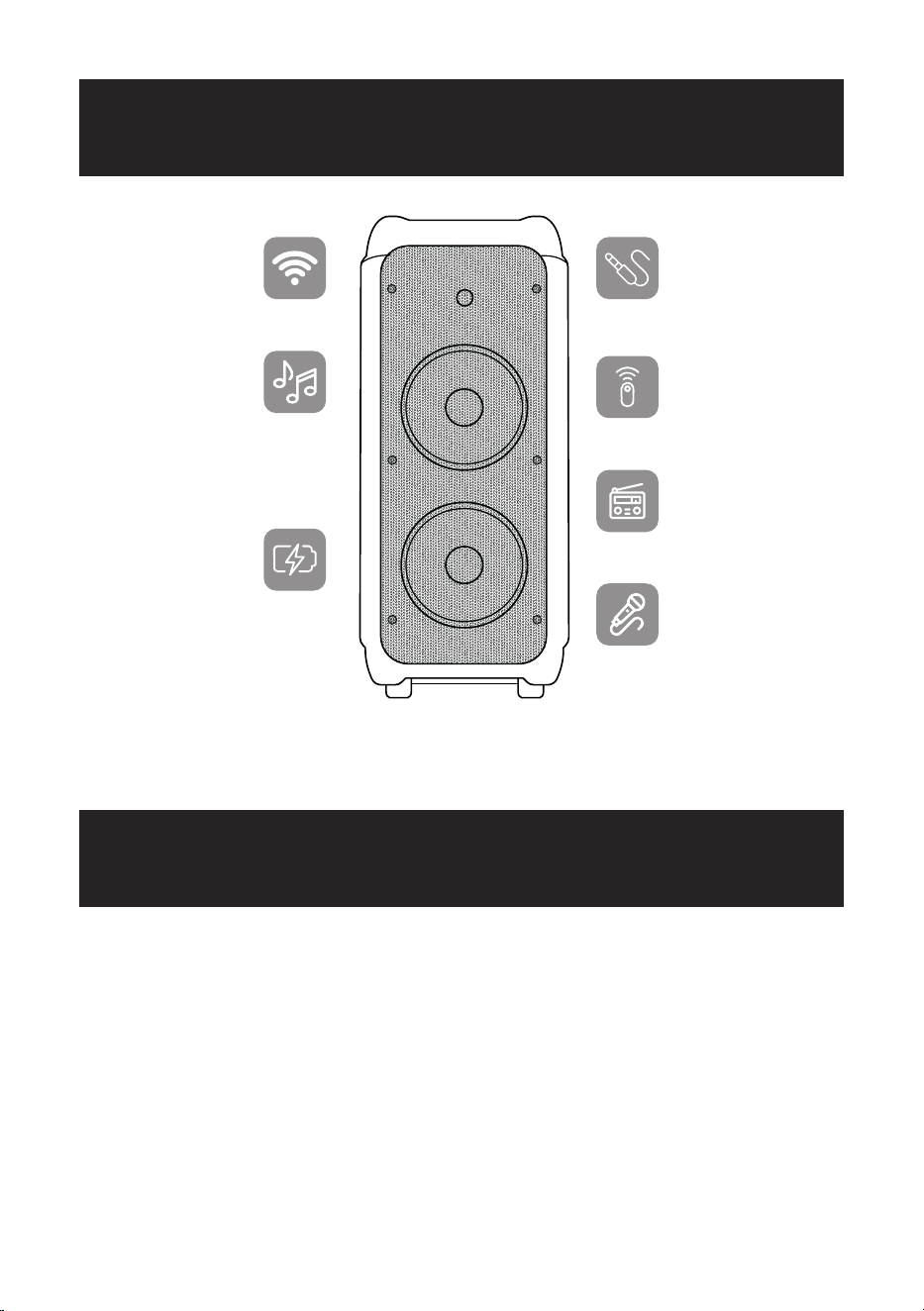
Speaker size: 27 inches
Wireless & TWS
Function
Aux input
FM radio
Plays Mp3 les
stored in SD
card/USB drive/
external audio
device.
Built-in
rechargeable
battery
Remote control
Microphone input
This set applies to AC 110V-240V, 50/60Hz
1. AC power: battery can be charged when connected to AC power.
2. Red light on battery is charging, it will change to green once battery
complete charge.
3. Internal battery will be charged even device switch o when plugged in
to AC power
4. Adjust function keys to your personal audio preference.
Features
Connection
02
03
5
Wireless Instruction
TWS Connection
04
05
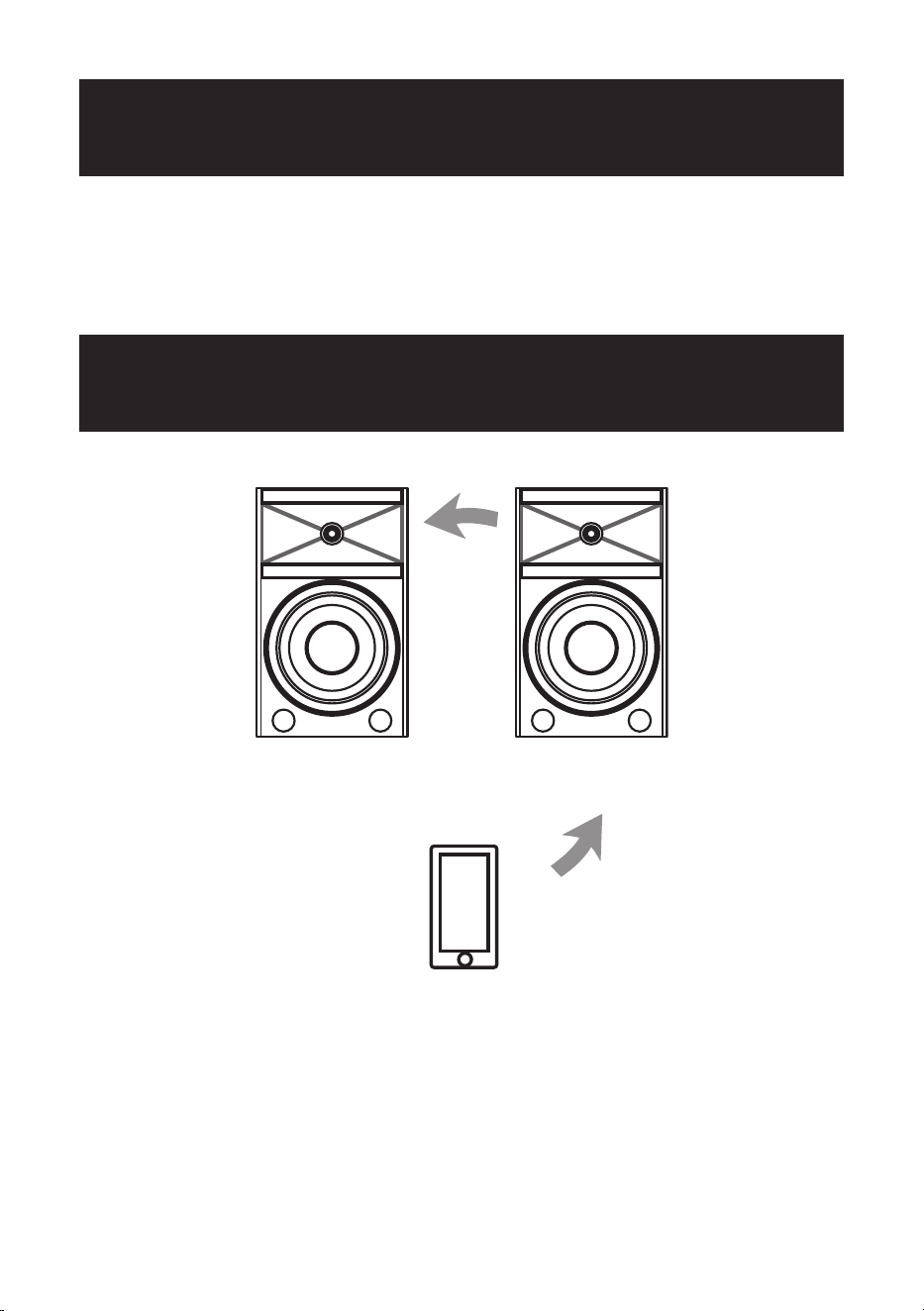
Change the mode into “BT”, the Wireless sign light twinkles, and speaker
will give an alarm. Ensure you enable the Wireless function on your Wireless
device. Search for Wireless connection until you nd device model and pair.
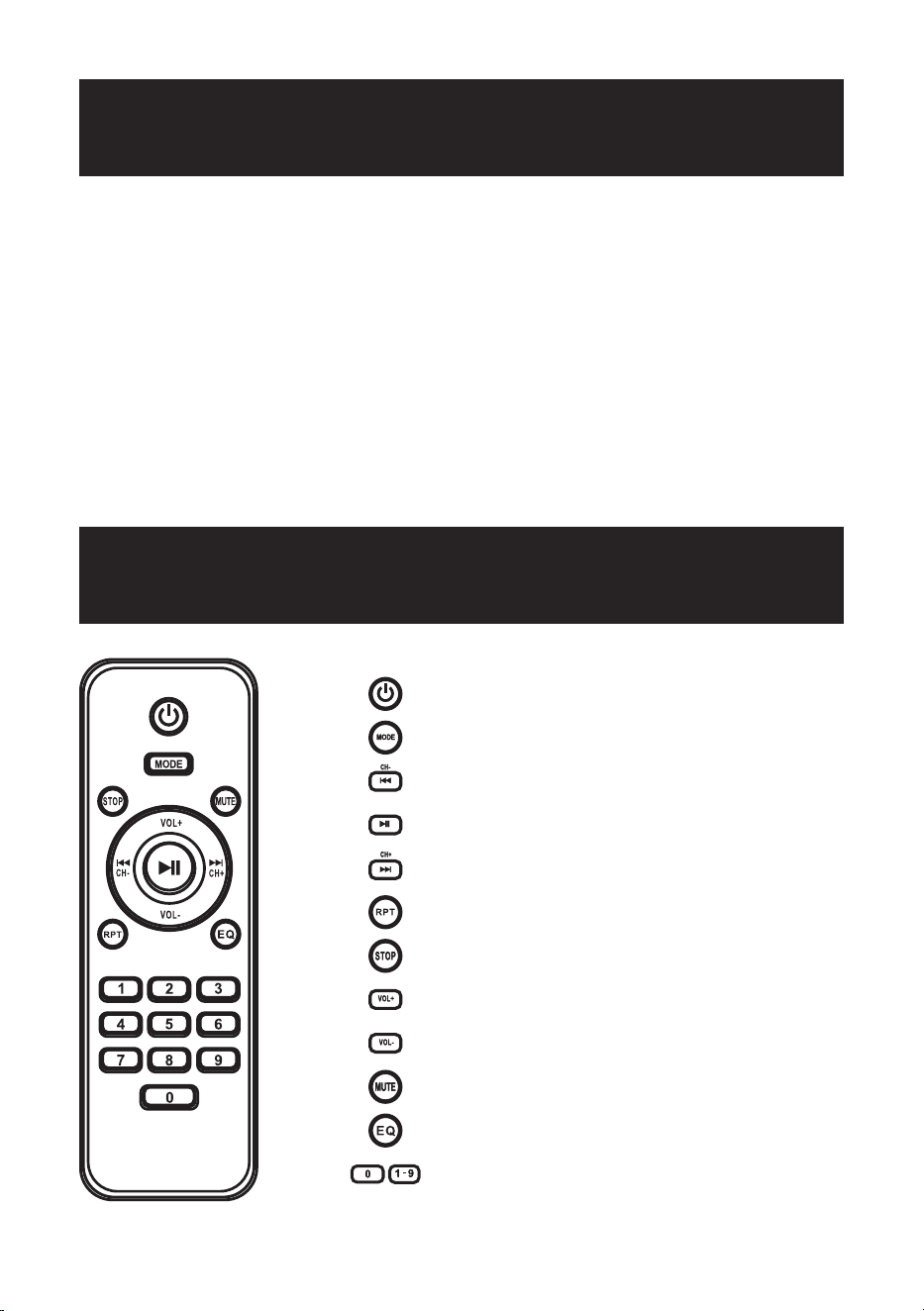
In Wireless mode, press the TWS button and hold it down for three seconds,
the primary speaker will sound an alarm and the screen will show “BTST”. The
secondary speaker switch to Wireless mode it will automatically connect to
the primary speaker and the screen will show “BT”.
6
Battery and Charging
Remote Control
06
07
1. The units takes approximately 8 hours to fully charge. It will automatically
begin charging once the power cord is connected.
2. If the battery power is low may caused sound distortion or stop play,
please charge the battery on time.
3. To maximize the battery’s lifespan, please charge the battery immediately.
When the unit is not used for prolonged periods of time, the battery will
gradually lose its power. It is recommended to fully charge the battery at
least every 30 days.
4. To save battery, please power o once stop using.
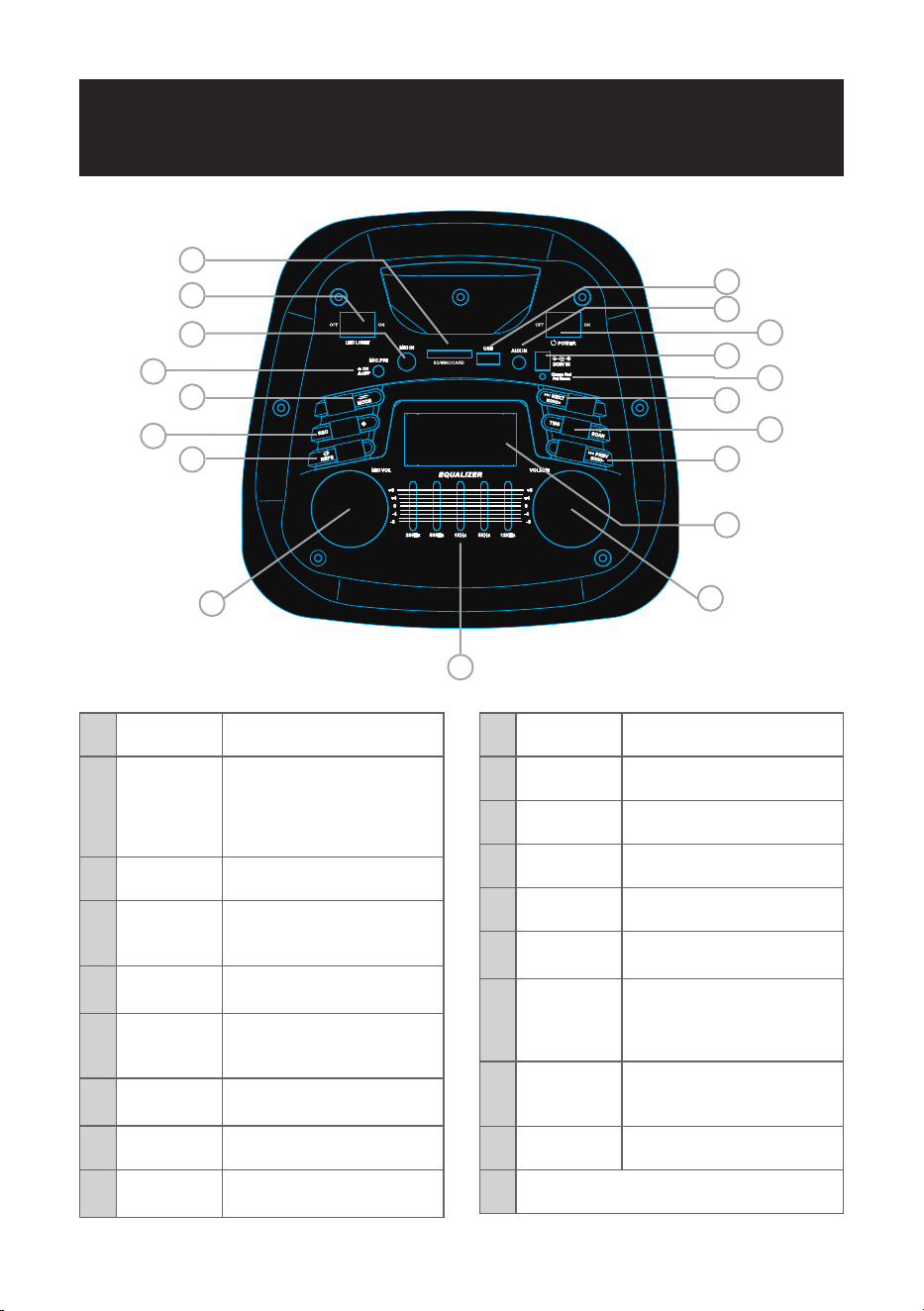
Standby
USS/SD/LINE/BT (Audio input)
Prov/FM CH-
Play/peuoe/FM tuner
Next/FM CH+
Repeat
Stop
Volume up
Volume down
Mute
Equalizer
Number
7
Control Panel Instruction
08
1 REPE: REPEAT
2 REC Recording; insert USB/SD
card press this button for
recording, press again to
stop and play recording
sound
3 MODE Mode Select
4 PREV
ECHO
Previous Song
Echo Adjust
5 SCAN/TWS Play/Pause/Tws/Fm Station
Automatic Search
6 NEXT
ECHO
Next Song
Echo Adjust
7 CHAR LIGHT Charging in Red, Full in
Green
8 DC9V IN Dc 9v Charging Input
9 M.PR1 Microphone Priority On/O
Switch
10 MIC.IN Microphone Input Jack
11 LED LIGHT On/O Switch
12 POWER On/O Switch
13 AUX Input
14 USB USB input
15 SD/MMC
CARD
SD/MMC CARD: SD/MMC
Card slot
16 MIC.VOL
MIC. VOL
Microphone volume increase
Microphone volume
decrease
17 VOLUME
VOLUME
Master volume decrease
Master volume increase
18 EQUALIZER Treble and Bass Adjust
19 DISPLAY SCREEN
14
13
8
6
4
19
17
18
16
1
3
10
11
15
12
7
2
9
5

FCC Warning
This device complies with part 15 of the FCC rules. Operation is subject to the following
two conditions: (1) this device may not cause harmful interference, and (2) this device
must accept any inte rference received, including interference that may cause undesired
operation.
Changes or modifications not expressly approved by the party responsible for
compliance could void the user's authority to operate the equipment.
NOTE: This equipment has been tested and found to comply with the limits for a Class
B digital device, pursuant to part 15 of the FCC Rules. These limits are designed to
provide reasonable protection against harmful interference in a residential installation.
This equipment generates uses and can radiate radio frequency energy and, if not
installed and used in accordance with the instructions, may cause harmful interference
to radio communications. However, there is no guarantee that interference will not
occur in a particular installation. If this equipment does cause harmful interferenceto
radio or television reception, which can be determined by turning the equipment off
and on, the user is encouraged to try to correct the interference by one or more of the
following measures:
· Reorient or relocate the receiving antenna.
· Increase the separation between the equipment and receiver.
· Connect the equipment into an outlet on a circuit different from that to which
the receiver is connected.
· Consult the dealer or an experienced radio/TV technician for help.
Radiation Exposure Statement
The device has been evaluated to meet general RF exposure requirement. The device
can be used in portable exposure condition without restriction.
8
8
Customer Support:
info@fuzix.co
www.fuzix.co
@shopfuzix
@fuzix
fuzix
shopfuzix