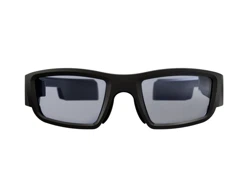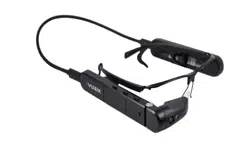

QuickStart Guide
vra.vuzix.com | academy.vuzix.com
2
Introduction
Welcome to Vuzix Remote Assist. The place where you optimize
fieldworker communication. This start-up guide will guide you through
the process of creating your own, private environment.
Next to that, it will guide you through the steps of getting started with
Vuzix Remote Assist, installing software on the glasses and more.
Vuzix Remote Assist is made to fit every device and to meet the needs
of different industries. So. whether you work in healthcare, industry,
maritime or another industry, Vuzix Remote Assist will provide a fit.

vra.vuzix.com | academy.vuzix.com
3
Table of contents
Introduction ............................................................................................................................................ 2
Vuzix Remote Assist Academy .................................................................................................................. 4
Creating an account for Vuzix Remote Assist ........................................................................................... 4
Users & User management ...................................................................................................................... 4
Users ................................................................................................................................................................... 5
Inviting users ....................................................................................................................................................... 5
User management ............................................................................................................................................... 6
Activity log & shared files .................................................................................................................................... 6
Groups ..................................................................................................................................................... 7
Augmented Videocall features ................................................................................................................. 9
Start a video call ................................................................................................................................................. 9
Augmented instructions ...................................................................................................................................... 9
Screen sharing ................................................................................................................................................... 10
Stream recording .............................................................................................................................................. 10
Digital zoom ...................................................................................................................................................... 11
Remote flashlight .............................................................................................................................................. 11
Guest call ................................................................................................................................................ 11
Workflows .............................................................................................................................................. 12
Adding steps ..................................................................................................................................................... 13
Offline workflows ............................................................................................................................................. 14
Workflow support call ....................................................................................................................................... 14
Smart Glasses ......................................................................................................................................... 14
WIFI and connection setup ................................................................................................................................ 15
Vuzix app store account to install VRA .............................................................................................................. 15
Installation with Vuzix companion app .............................................................................................................. 16
Manual setup .................................................................................................................................................... 16
Login to your smart glasses ............................................................................................................................... 17
vra.vuzix.com | academy.vuzix.com
4
Vuzix Remote Assist Academy
Are you familiar with the interactive Vuzix Remote Assist Academy? This where you learn everything there
is to know about using Vuzix Remote Assist and setting up smart glasses. You can sign up for free and
take the courses that are most relevant for you. This the list of the courses that we offer free of charge:
• Vuzix Remote Assist Setup&Start
• Users & User management
• Augmented video call
• Groups & Teams
• Workflows & Digital instructions
• Vuzix Remote Assist & Smart Glasses.
Go to https://academy.vuzix.com/ to subscribe to a free course.
Creating an account for Vuzix Remote Assist
Have you already completed registration for Vuzix Remote Assist? If not, just follow the steps and create
your account. Make sure you confirm your e-mail address. An e-mail is automatically sent to your e-mail
address. You will be able to invite users, download software and manage the team in a later stage.
Go to https://vra.vuzix.com to sign up!
vra.vuzix.com | academy.vuzix.com
5
Users & User management
Once your account has been activated, it’s time to add users. We have internal users and external users.
Users
• Users are for example colleagues, field workers or any other 'users' that you cooperate with. These
users are sometimes referred to as 'field users'. They are part of the organisation, but often operate
remotely. When these users have an activated account, they can be added to groups, start a
videocall for remote support, or use digital workflows.
Inviting users
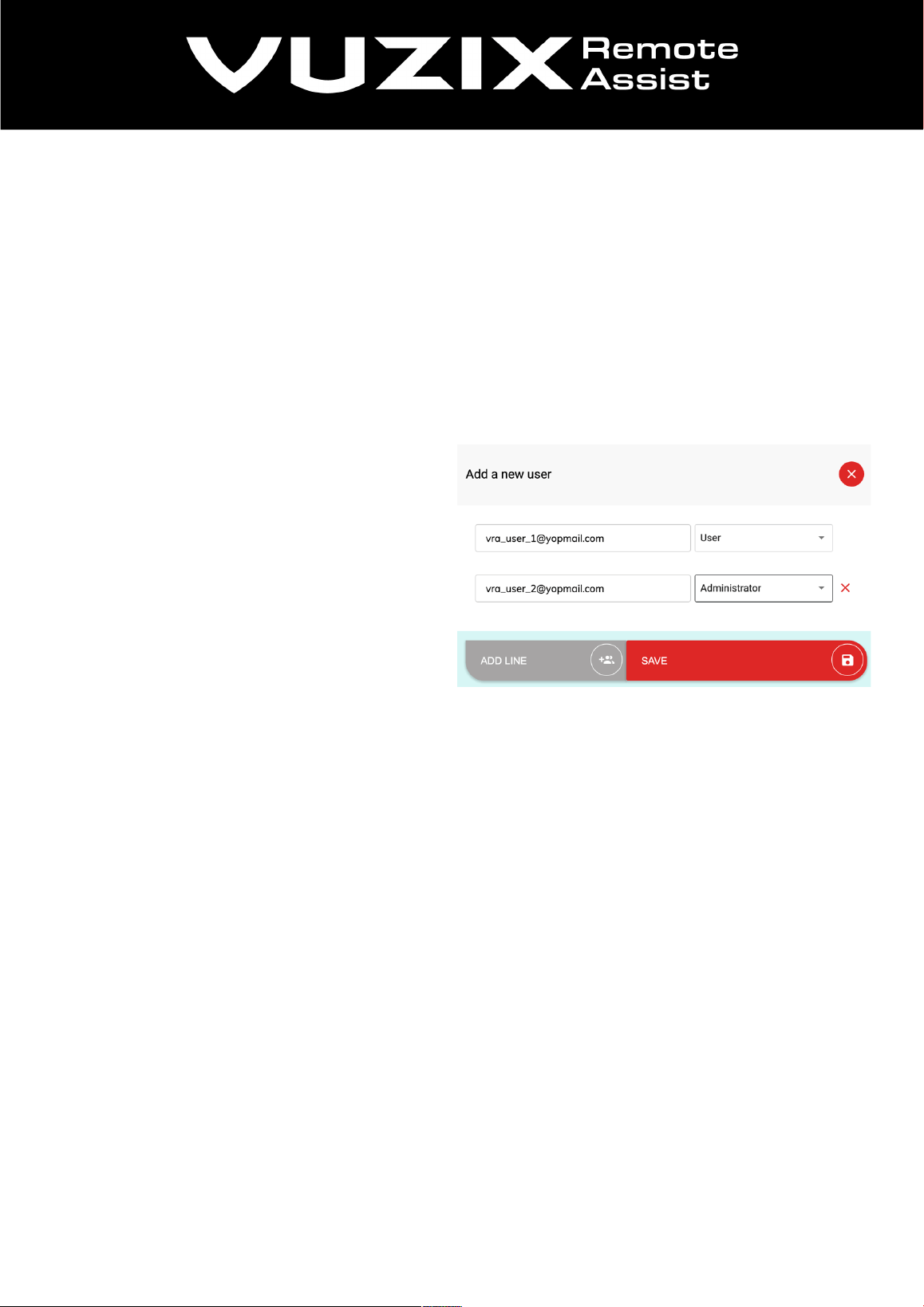
When you select ‘add users’, you can fill in their e-
mail addresses and select a user type. If a user will
use Vuzix Remote Assist with smart glasses, a
mobile device or desktop, you will select ‘user’. If
they need to be able to edit user information or
make groups, select ‘administrator’.
Please note: you can add multiple users with
different roles by clicking ‘add line’ and adding an
additional user.
vra.vuzix.com | academy.vuzix.com
6
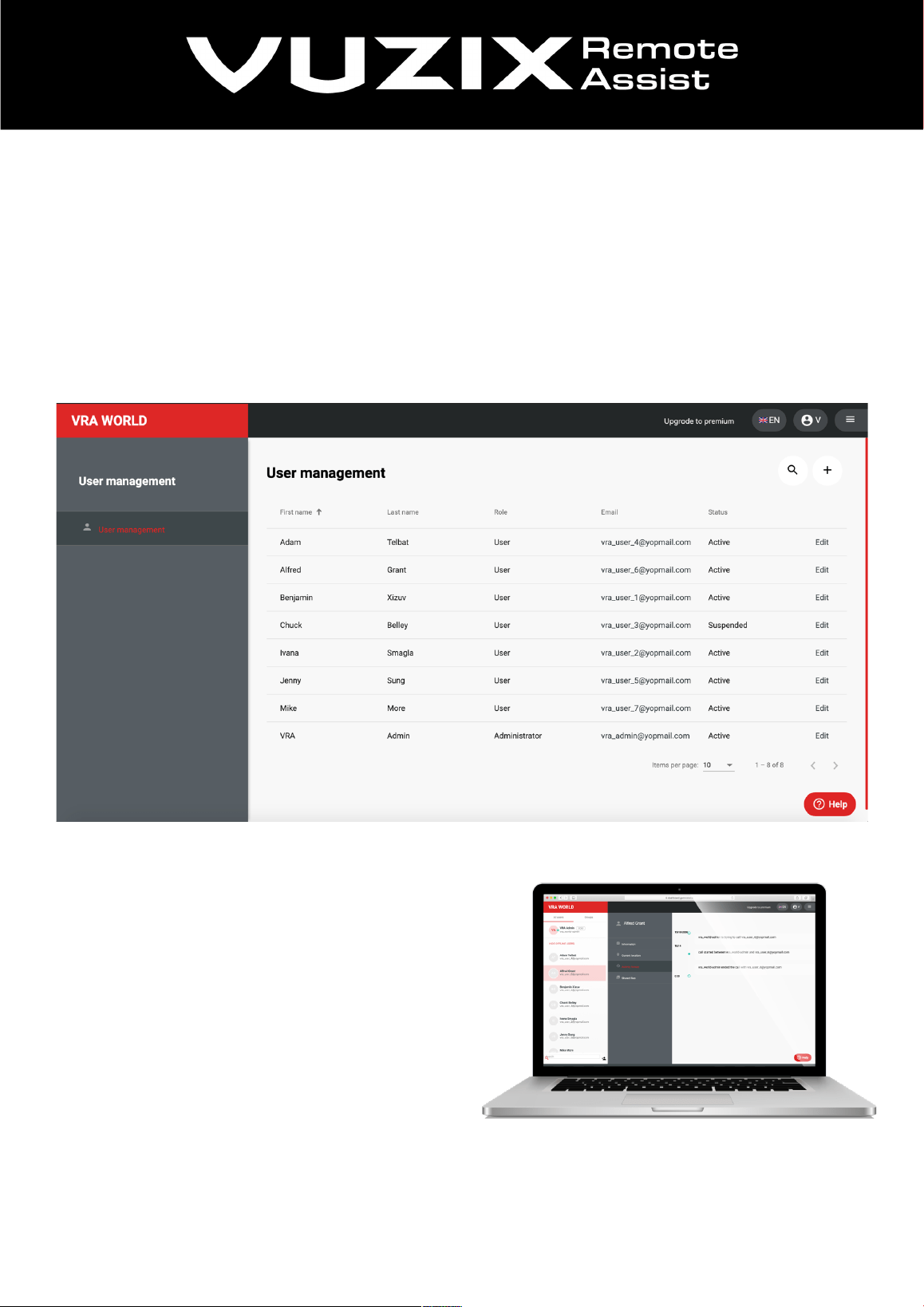
User management
From the menu we can navigate to the user management module. This is where administrators edit user
information and can check on activity. Other features are resetting passwords, suspending or removing
accounts and checking device serial numbers. When a user uses smart glasses, the serial number of those
glasses is automatically paired and saved user’s account. But when this user logs into a smartphone app
for example, the serial number will reset.
Please note: Invited users that have not completed registration yet, also show up in the list and can be
edited or removed.
Activity log & shared files
When users take pictures and safe them during a
videocall, they will be saved in the shared files
directory. The users can access, download and
rewatch them there. All the other activities from a
call a registered in the activity log. This is ideal to
trace back your steps and see who you talked to and
what you’ve shared.
If you’re an admin, you can view the activity of
multiple users. Go to the designated user and click
on activity history or shared files.
vra.vuzix.com | academy.vuzix.com
7
Groups
The group feature is used to create private
platforms for a group of users. This ‘group’ could
for example function as an independent store or a
separate location connected to a larger chain.
Members of a private group will only see the
users that are in that particular group. If users are
invited to join two or more groups, then they will
see them separately, but in one environment and
do not need multiple accounts.
All the group data, pictures and calls are only
visible for your team members. This is to ensure
maximum privacy.
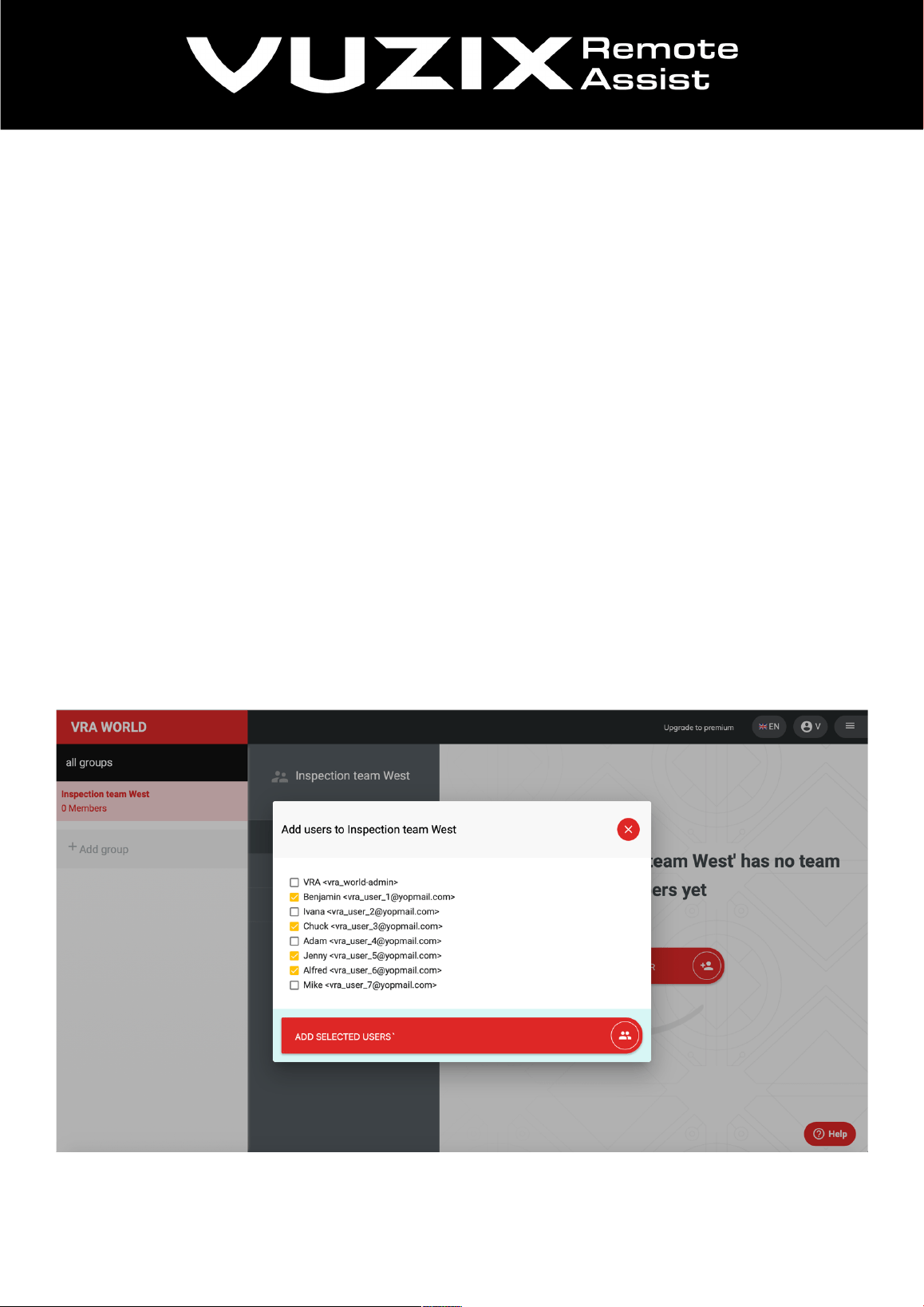
• Go to ‘Groups’ from the menu.
• Select ‘Add a group’
• Type the name of the new group
• Select ‘Create group’
• Go to you newly create group
• Select ‘Group members’
• Select ‘Add members’
• Select the users you want to add
• Press ‘Add selected users’
Before users can be added to a group, they need to be invited to your environment first. After they
completed registration, you can add them to a team. By selecting the group, you can edit the group and its
members.
vra.vuzix.com | academy.vuzix.com
8
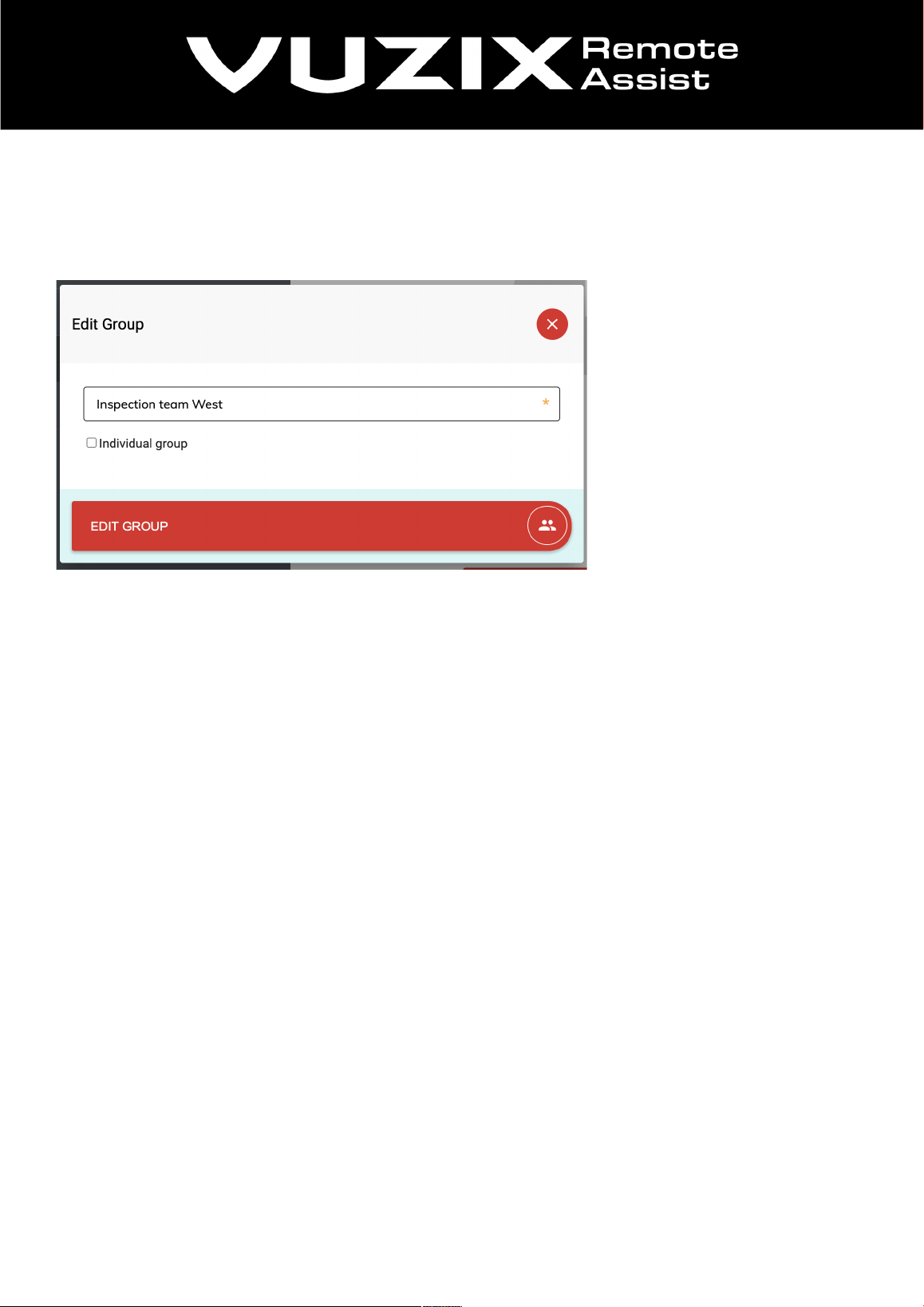
Individual group
In some cases, it is necessary that members of a group, cannot see other members of a group. This means
they can be called but cannot initiate a call themselves. If you need this feature, edit the group and select
‘individual group’ to activate this.
vra.vuzix.com | academy.vuzix.com
9
Augmented Videocall features
The Augmented Video call is one of the core features of
Vuzix Remote Assist’s communication platform. You can
start a video call from almost every device. When you use
a pc or laptop, you can access Vuzix Remote Assist from
your browser, preferably Google Chrome or Firefox. Field
users can use a smartphone or tablet with the Vuzix
Remote Assist Android or iOS application, or access their
account from a mobile web browser.
And last but not least: you can use Vuzix Remote Assist
on smart glasses. Vuzix Remote Assist has a dedicated
application in de Vuzix Appstore. In another course we’ll
help you set up and install Vuzix Remote Assist on smart glasses.
Start a video call
If you want to start a call, look for the user in the list and check if he or she is online. Select the user and
start the call. Once the other user accepts the call, a video connection is established. During the call, you
can adjust the video quality to different levels such as HD and audio only.
It’s important to know that the actual quality and speed of the connection itself will determine the quality of
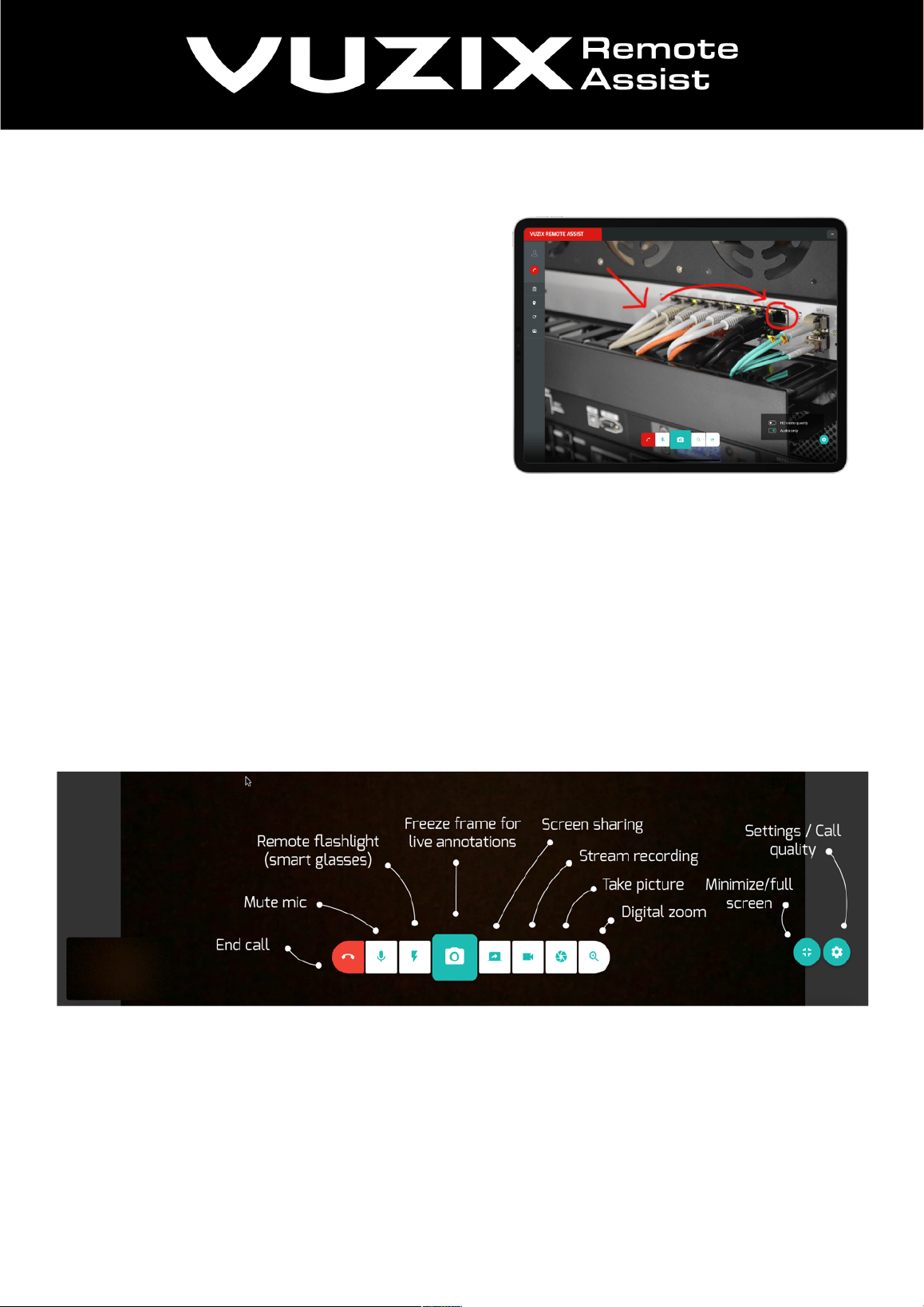
the video call. Even when you have HD enabled. All the features shown below will be explained in the next
couple of pages.
The visual below shows the features of the call dashboard:
vra.vuzix.com | academy.vuzix.com
10
Augmented instructions
Or live annotation is drawing and writing on a 'frozen' screen snapshot
of what the caller sees.
In essence, you can give augmented instructions from any device with a
web browser. This means, not from a smartphone, tablet or smart
glasses application. This is because this application is mostly used by
field users, that request help through the video call.
Once you’re connected with a colleague in the field, you can use
augmented instructions. When you click on the camera icon, it will
freeze the video call. You’ll see that the features to draw and write on
the screenshot become available. Draw on screen and use different colours and font sizes to instruct the
user as best as possible. And do you need to save the screen with instructions for future use? Then you can
save the picture. Finally, when you’re done with this instruction, you can go back to the live stream by
clicking ‘go back to live’.
Screen sharing
Screen sharing is the next tool in the remote workers' toolbox. Fast, clear and available from desktop to all
mobile devices.
Screen sharing is the fastest way to show someone in the field what you’d like to show on your screen.
Screen sharing works from a pc or laptop to a smartphone, tablet or smart glasses.
When you initiate screen sharing, click through the instruction that appear on your screen.
Did you know that you can even stream video’s from Youtube through screen sharing to users in the field?
Stream recording
Recording a stream can add so much
value to the remote support activities.
Recording, re-watching a videocall or
using video content for training purposes.
With stream recording you can do just
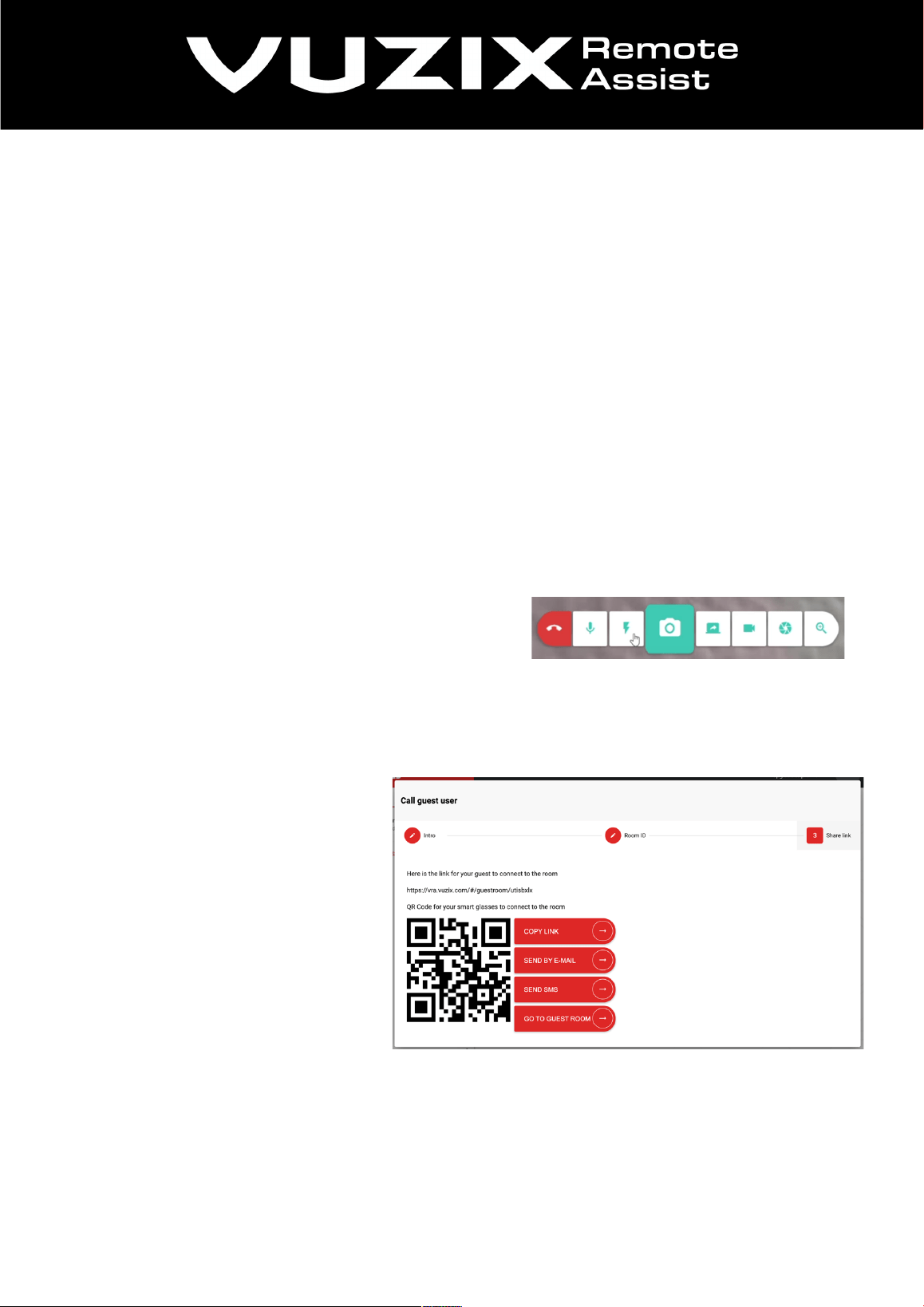
that and more! Recording your stream
means recording what your camera sees.
Recording the stream of the caller is
recording what they see.
This is currently a ‘clean’ video without drawings and other augmented instructions. You can later add
saved screens with instructions in the edit. This could be great for training purposes or quality assurance.
So, choose what side you’d like to record and just continue with the job at hand.
vra.vuzix.com | academy.vuzix.com
11
Digital zoom
Digital zoom, for when you want to see what the caller sees, but up close.
Please remember that the quality of the zoom is also based upon the quality of the stream and connection.
Digital zoom enlarges the image digitally, since smartphones or smart glasses do not have optical zoom.
Use the magnifier icon with the plus to activate digital zoom from a desktop device.
Digital zoom is the feature that allows you to zoom into a specific area that for example a smart glasses-
user is looking at.
Because the users aren’t able to zoom in, you can enlarge the image to get a better look, freeze the screen
and provide augmented instructions.
Remote flashlight
The flashlight feature comes in handy when the work area isn’t well lit. You can turn this on remotely during
a videocall. So, for example: an expert on its pc uses the feature to turn on the smart glasses flash to
illuminate the area.
Step 1: Make sure you have a live video call
Step 2: Use the button with the 'Flash' icon to activate and
deactivate the flashlight
The flashlight can be turned on from the dashboard.
Guest call
Using a guest call means inviting a non-
platform user, or ‘anonymous user’ to join
a meeting.
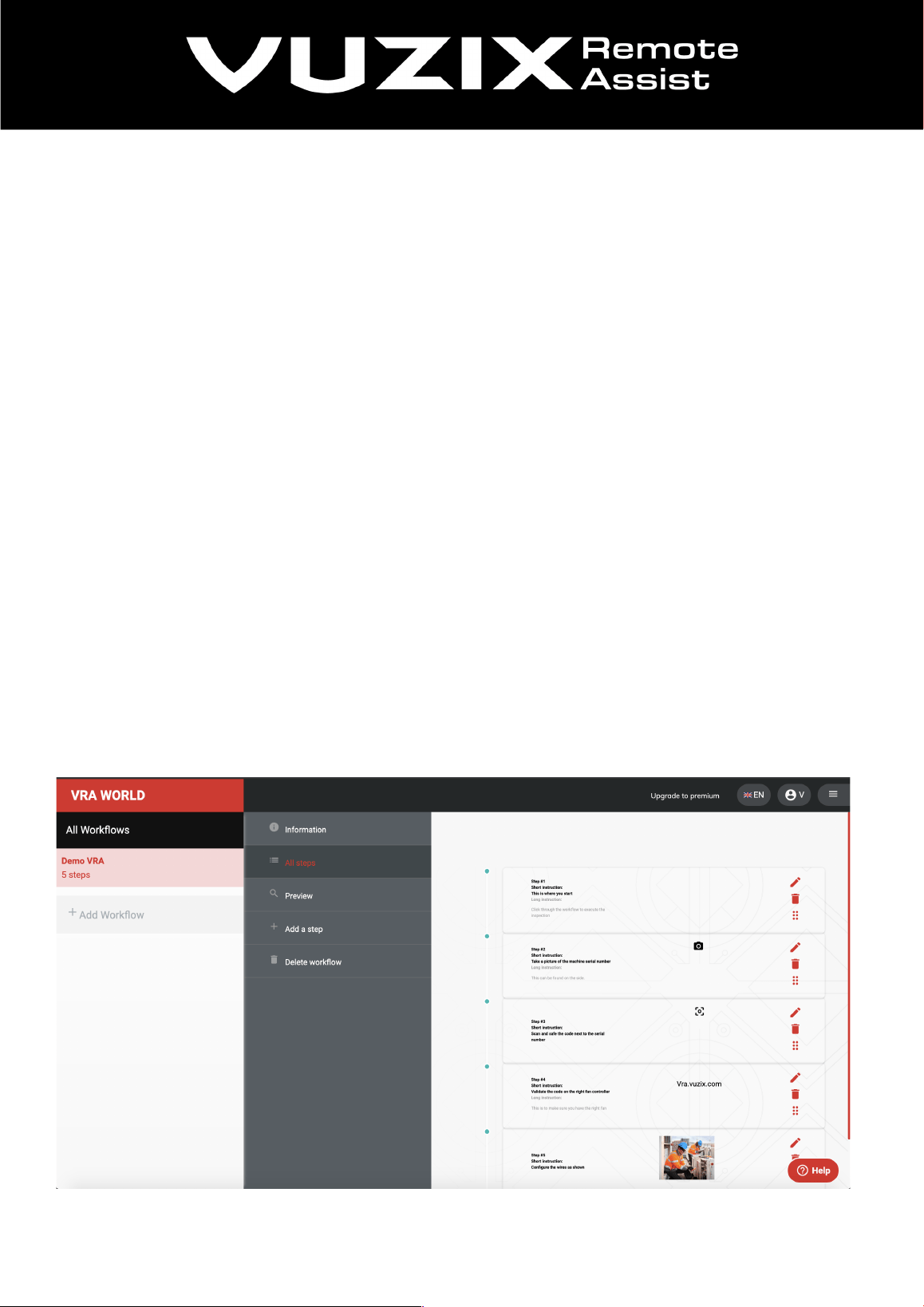
You can copy the link, share it through e-
mail, or invite a guest through SMS. They
will receive the meeting link in a SMS
message. Fill in a phone number and your
name and press ‘send’.
To access the meeting, save the link to the
meeting room and access it from your
browser. You can also access it directly
from the page.
Please note that the link is only valid for 24 hours.
So, create a link just before the meeting and share it with your guest.
vra.vuzix.com | academy.vuzix.com
12
Workflows
The workflow builder is great for learning on the
job by giving field workers an on the job digital
guide. Next to that, these workflows can be used
for inspection, data collection, quality assurance
and much more. The generic setup allows you to
use this for many different use cases. This is
because the content makes it branch specific.
A workflow is a set of steps that help workers
complete a job, or make sure that a procedure is
followed to the letter.
This can reduce errors or
enable learning on the job. The current workflow
builder is a linear setup. This means you cannot
use ‘if-this-then-that’ logic and have conditional
sections that branch of to alternative instructions
The workflow and the steps
In the workflow you can make use of different types of steps. You can use a written instruction, show a
photo or video and let the user scan a QR-code to validate information such as a serial number of a
machine. Once a workflow is created, it is available for all users that are linked to your platform. These
users can choose to download certain workflows locally in the mobile or smart glasses app. Once
downloaded, they can use them offline. When the workflow is not downloaded, it will fetch the photos and
videos when you start with a workflow using your internet connection. Not downloading all the content is to
prevent your device from using too much storage space.
Creating a workflow
Let’s walk through the workflow builder and create a few steps.
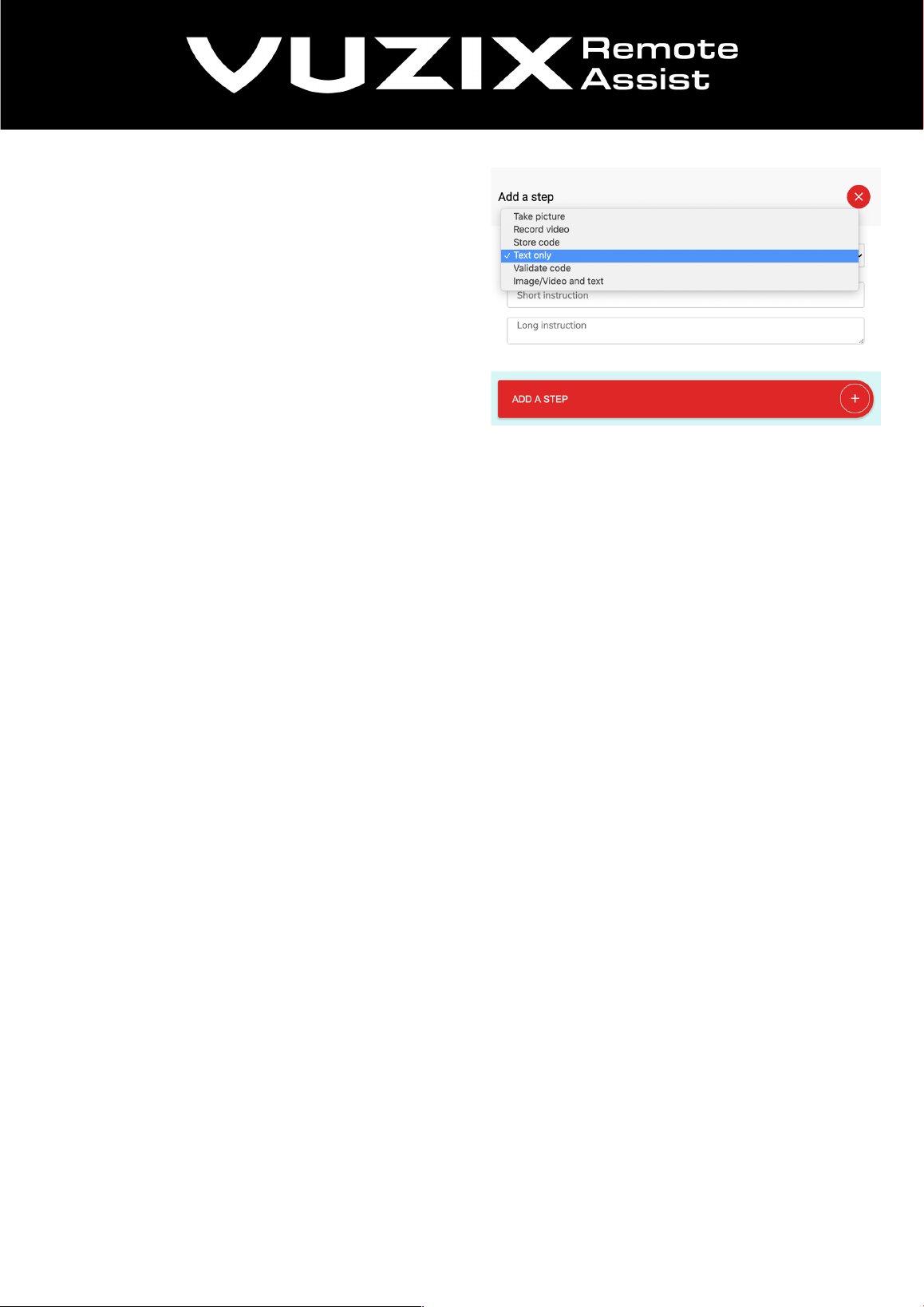
• Create and name your workflow.
• Then select the workflow in the left column and click on: ‘add a step’.
This is also where you can ‘view all steps’ of your workflow, test it with the ‘preview’ feature and continue
adding steps.
vra.vuzix.com | academy.vuzix.com
13
Adding steps
• Select ‘Add a step’.
• The first option from the dropdown is a step for
text instructions.
• Create a title and write a short instruction.
I recommend keeping it short, especially when you
design a workflow for smart glasses. Furthermore,
never use more than one instruction per step.
QR code:
The next option is to add a QR code. This is used
to validate items such as serial numbers of
machinery, kinds of medicine or any other
information you need to validate. This could be
done before starting a workflow, or during a
workflow before a certain instruction.
Before you use this feature, make sure you have
the QR-codes in place on the item that has to be
validated.
(You can use an existing QR code, or
use the QR code that is generated by the platform,
visible from the preview window)
Next, add a title and a short description. This
could be about the location of the QR code itself,
or an instruction on what has to be validated in
this step. If you do not know exactly what
information is in the QR code, scan it with your
smartphone camera and it will tell you exactly
what it is. It could be a serial number, a name, a
URL or any other type of information. Copy-paste
this information into the step.
Picture or video:
Next up: the step with a picture or video. Check before you upload whether the picture is not too large, as
this will make the workflow slower when it is not stored offline to the device. This also counts for the
videoclips. It’s better to have to multiple steps with two short clips, than one large movie. Also make sure
that the pictures and videos are as close to the subject as possible. The closer it is, the better you can see it
on the small smart glasses screen.
• So, set a title and write a short description about the step.
• Then select the media and upload it to the workflow.
Once you’re ready, preview and test the workflow you’ve built. The workflow is automatically available to
every user in the platform.
Take a picture in the workflow:
You can also take a picture and upload it in the
workflow while you’re working the field.
The step where you select ‘take picture’ is a
feature where you can take a picture in the
workflow. This is used for when you have to save
a proof of work, take pictures during an
inspection or any other situation that requires a
visual recording. So, if you use this step in the
workflow, write a short instruction about what has
to be photographed.
Record video in the workflow:
Next to taking a picture, you can also record
content with the step: recording a video. Once the
user has made a video in the workflow, the video
will be uploaded to the platform automatically
and will be available from the ‘shared files’. And if
there is no internet connection, it will store it and
upload it automatically once the connection is
restored.

Scan QR code to log in report:
We also have the option to scan a QR code and put that in the workflow report. This is to show what
machine, equipment or area you’ve worked on.
Offline workflows
Normally the workflows fetch content such as photos and videos when the workflow is operational. But
when you operate in a place without a n internet connection, it’s necessary to have the workflow offline,
including all the content.
Smart Glasses: To download a workflow in your
smart glasses:
• Go to; ‘workflows’ and navigate to the one
you want to download.
• Long press the first button on the smart
glasses until the message box pops up.
• Then choose ‘download’.
• To remove the workflow, repeat the steps
and select ‘remove’.
When you remove the workflow, it will never
disappear completely. You will only delete the
media such as the photos and videos that are
stored on your device.
Mobile devices:
To download a workflow in the mobile app:
• Go to: ‘workflows’, navigate to the one you
want to download and use the slider
button to download the workflow.
• To remove the workflow, slide the button
back and the workflow will be removed.
So, now you know how to use the workflow
builder. Make sure to always test your workflow
on different devices to ensure good readability.
Workflow support call
Once you’re in the field and using the workflow, you might have some questions about the workflow or the
situation. You can start a remote support call from within the workflow.
Use the menu to display the ‘video call’ option from within the smartphone or tablet application. On smart
glasses, long press the first button for the M-Series smart glasses or tap and hold on the Vuzix Blade while
in the workflow to reveal the option to call a colleague. Once you’re done, you can continue the workflow.
vra.vuzix.com | academy.vuzix.com
15
Smart Glasses
Using Vuzix Remote Assist with smart glasses is where hands-on work becomes hands-free. We support
Vuzix smart glasses and will explain how to set them up.
Glasses Manual:
Do you also need written manuals for your smart glasses?
These are available on the Vuzix website.
WIFI and connection setup
Connect to Wi-Fi via QR-Code:
1. Generate a Special Wi-Fi QR-Code via the VRA app using the WiFi QR Code option to generate the special
QR-Code or in our webpage: https://www.vuzix.com/wifiqr
2. On you M-Series Device, Open the Scanner app and scan the QR-Code. The scanner will prompt to
connect to the Wi-Fi and follow the instructions on the smart glass.
Connection setup with Companion App:
1. Get your smartphone and download the Vuzix Companion App from the store.
2. Launch it and follow the instructions;
3. Go to settings and turn on the Bluetooth
4. Select connectivity or connected devices
5. Select ‘Companion app’ and scan the QR code presented on your phone.
6. Continue through the steps.
7. Go to settings in the Companion App and select WIFI to fill in your network credentials.
8. You can even use this app as a ‘virtual trackpad’ to navigate through the smart glasses app.
Vuzix app store account to install VRA
Before you can install Vuzix Remote Assist you have to create a Vuzix App Store account, if you haven’t
done this already. It’s actually similar to what you do with a smartphone.
• Get your laptop and go to the vuzix website.
• Sign up, activate your account and log in on the Vuzix website.
• Next up we have to connect your pair of glasses to your account, in order to install Vuzix Remote
Assist.
• So, go to your account and select ‘devices’.
• Click on ‘add new device’ and scan the QR-code with the scanner app on your smart glasses.
Once completed, your glasses will show up under ‘my devices’.
Now we continue to the Vuzix App Store page and search for Vuzix Remote Assist.
• Select and add this app to your library.
• Select your type of glasses and continue.
Once you’re finished, the app is pushed to your glasses automatically.
Make sure it’s switched on and connected to the internet.
vra.vuzix.com | academy.vuzix.com
16
Get you glasses and check if Vuzix Remote Assist is installed.You’re now ready to enjoy Vuzix Remote
Assist!
Installation with Vuzix companion app
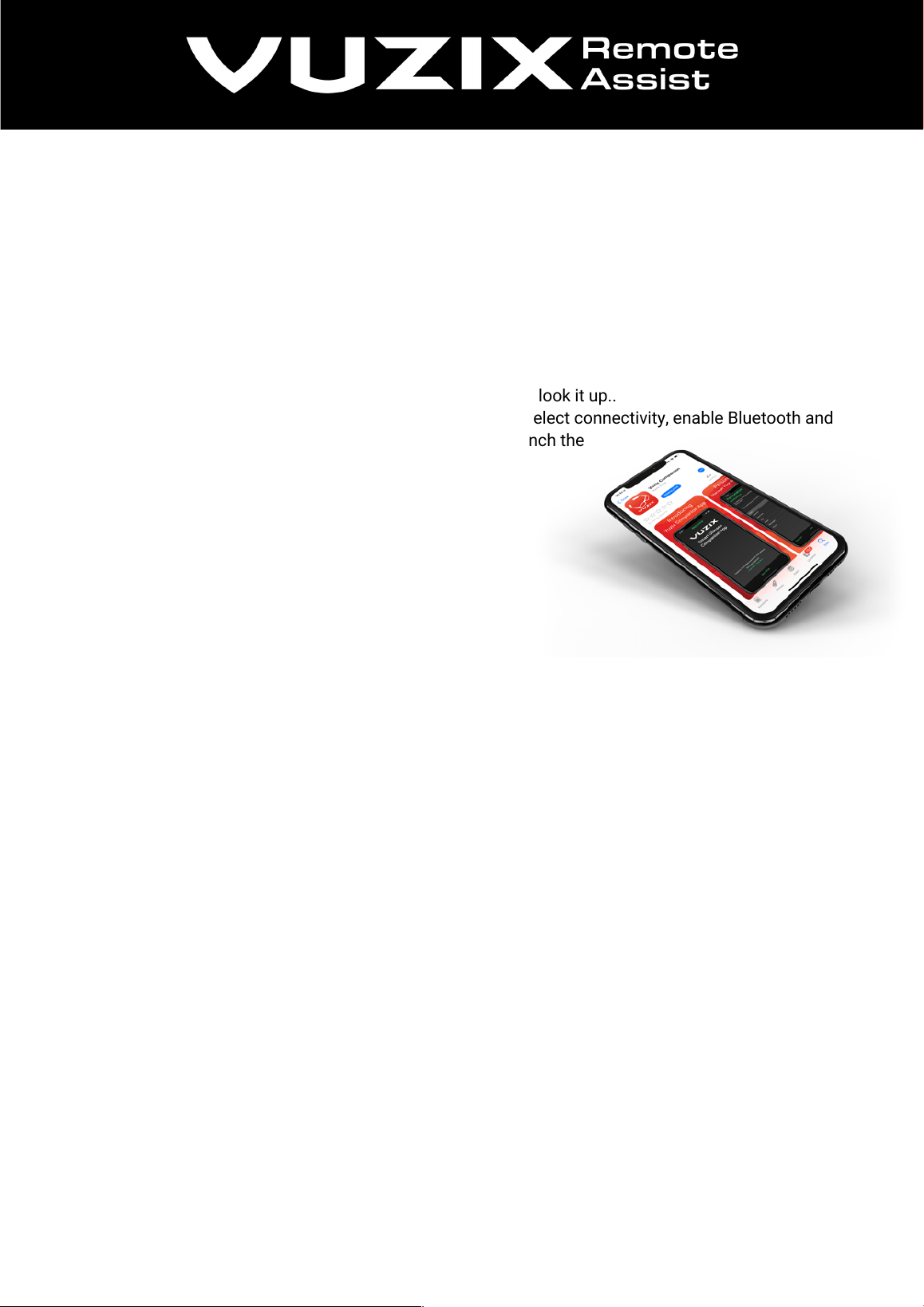
Vuzix has made the ‘Companion app’. This is an application for smartphones and tablets, that lets you
configure your smart glasses.
Installation with the companion app is compatible with: Blade
So, get your smartphone or tablet, browse to your Appstore and look it up..
• Next up, get your smart glasses and swipe to settings, select connectivity, enable Bluetooth and
then select ‘companion link’. You’ll see that this will launch the
scanner.
Now back to your smartphone or tablet.
• Open the Vuzix Blade app and follow the instructions
until a QR code is presented.
• Scan the QR code with your smart glasses.
• When your glasses are verified, you complete the steps
and select Vuzix Blade store from the menu.
• Fill in your Appstore credentials, look for Vuzix Remote
Assist in the list and press install.
Manual setup
This is for: M300, M300XL, M400, M4000. Only Blade glasses can be installed with the application
This part shows the manual installation of smart glasses. This means you'll have to use the smart glasses
navigation to select the network and type in the password. Use this version when the Vuzix companion app
does not work.
In order to install Vuzix Remote Assist, we need to configure your glasses if they are fresh out of the box.
This means connecting the wifi and enabling app store connection.
So, assemble your glasses and power up.
• Go to settings, network & internet and turn on the wifi.
• Next, select wifi and look for your network.
• Fill in the credentials and doublecheck the password by revealing it.
• Once you’re connected, go back to settings and select ‘apps & notifications’.
• Select ‘Vuzix App store’ and enable it.
Once that is connected, we can install Vuzix Remote Assist.
Leave the glasses switched on, we’ll need them in a bit.
Go back to the section: Vuzix app store account. You need an account to download Vuzix Remote Assist.
vra.vuzix.com | academy.vuzix.com
17
Login to your smart glasses
Once you have your account setup and the Wifi connected, you have to login to the glasses to start a call.
This is done by scanning a QR code on the dashboard.
Option A
1. Go to: https://vra.vuzix.com/#/glasslogin
2. Fill in your user credentials
3. Generate QR code
4. Open the Vuzix Remote Assist app on the glasses
5. Select the login option, scan the QR code and you’re in!
Option B: Dashboard
1. Go to the dashboard and login to the desktop
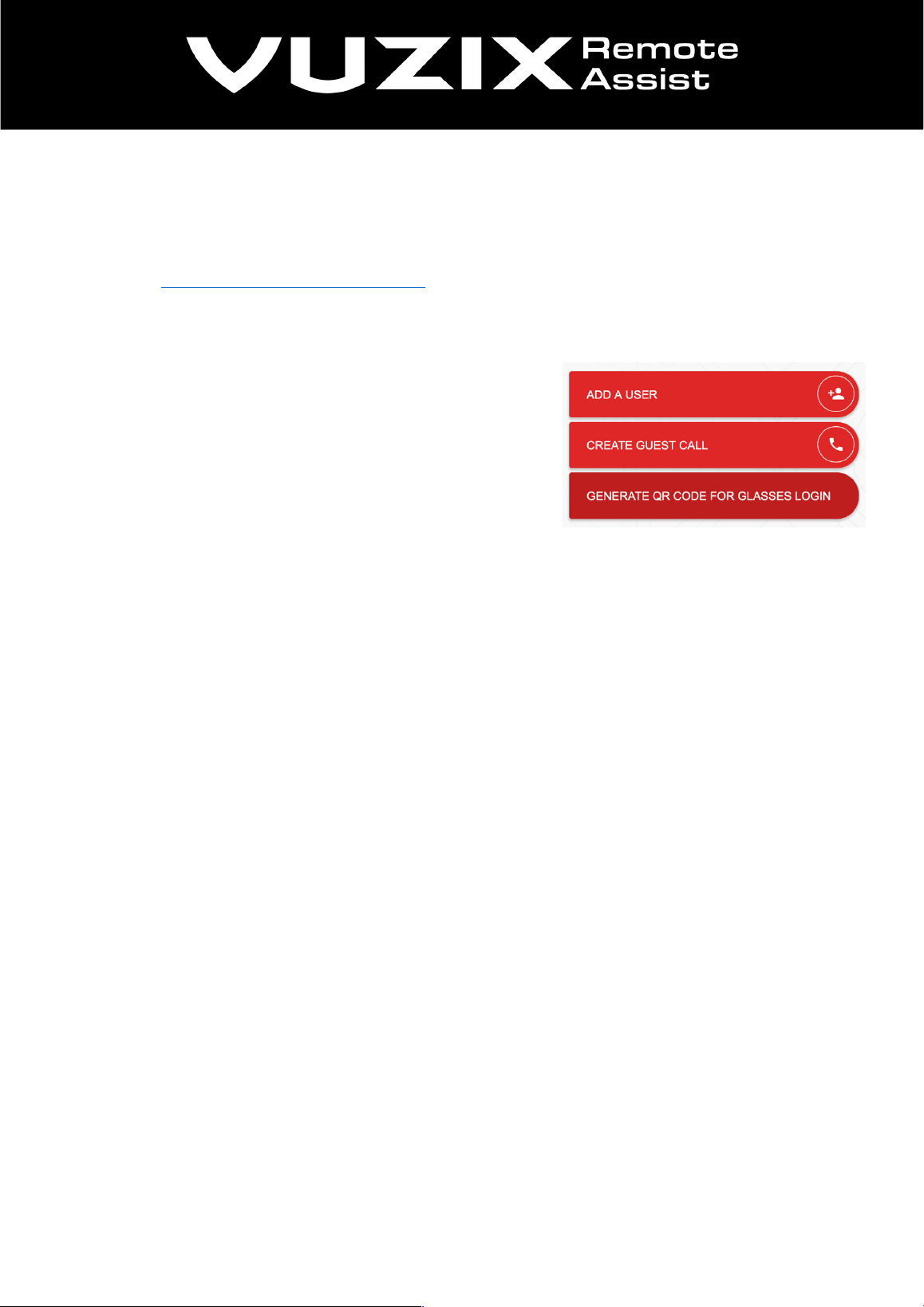
2. Click ‘Generate qr code login’.
3. Fill in your credentials
4. Generate QR-code
5. Scan it with the scanner on you glasses.
Option C: VRA mobile
1. Open the VRA application
2. Activate the switch that says: Login on glasses
3. Fill in your credentials
4. Generate QR-code
5. Scan it with the scanner on you glasses.