v1.1.0
2
Table of Contents
What’s in the Box. ..............
3
Selecting Your Dominant Eye .....
4
Assembly of Smart Swim™......
5
Charging Smart Swim...........
Power On Smart Swim...............
Application Overview ...............
Button Interface ............
16
17
18
22
23
24
30
Carousel Operations ........
System Configure...........
System Settings............
Apps and Updates .. .......
Lap Trainer ................
Open Water................
HUD Table Letter Definitions..
Media Player...............
40
46
YouTube Streamer .........
Streamer Playlist Formats...
Sport DV Camera ..........
48
51
55
56
58
Naming Your Smart Swim ......
Your First Swim ................
Date and Time Settings .........
Enable Wi-Fi Networks ..........
Pairing Bluetooth devices ........
59
61
63
71
Managing Installed Applications....
Smart Swim Phone App ............
Wi-Fi Uploader.......................
*Trouble Shooting............
Smart Swim – Theme Design ....
Theme Tutorial ................
75
Technical Specifications............
Trouble Shooting.....................
Creating GPS Course Map........
37
36
77
79
Selecting GPS Course Map........ .
80
81
82
83
11
15
14
3
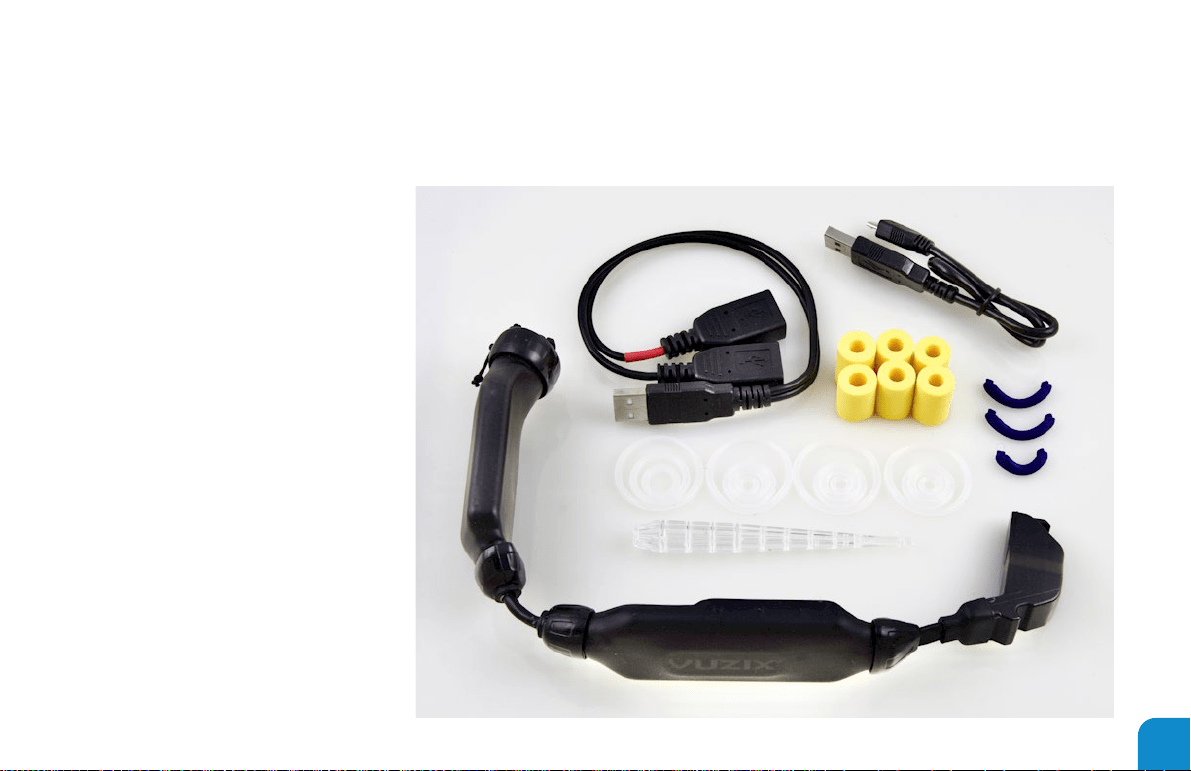
WHAT’S IN THE BOX
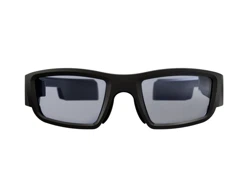
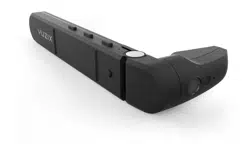
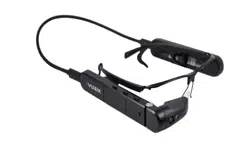
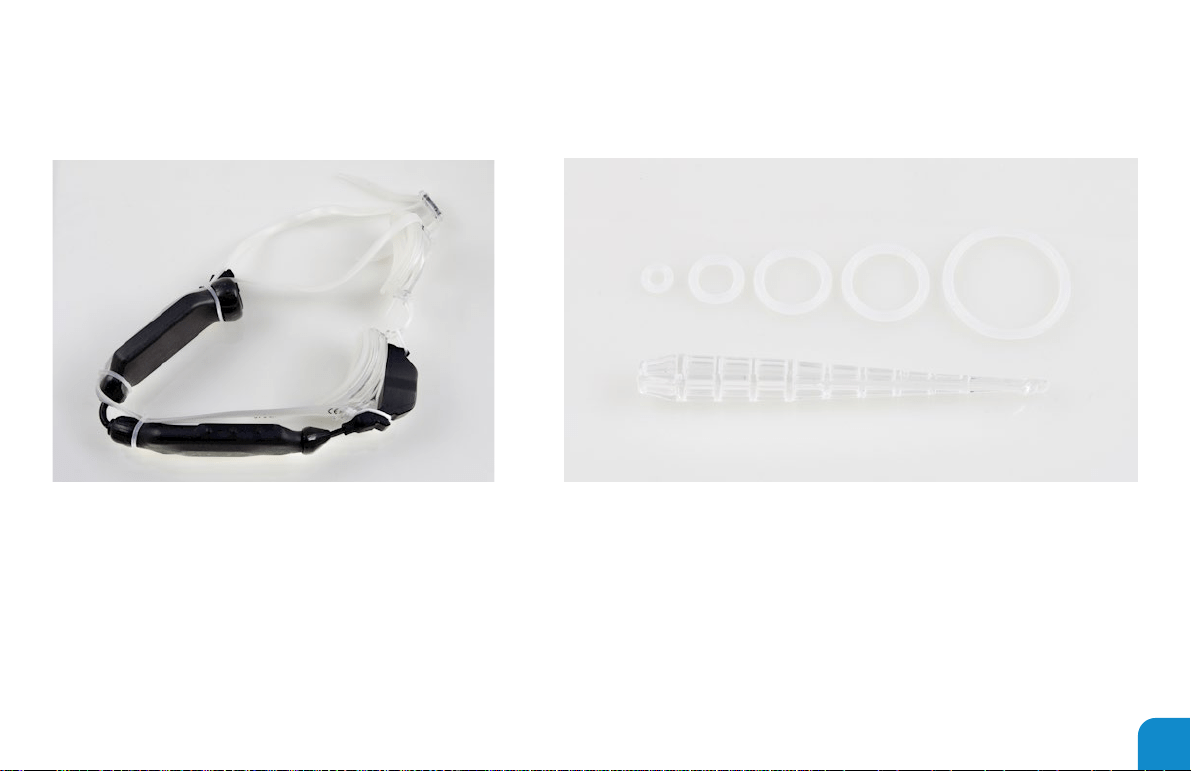
• Smart Swim™ (1x)
• TYR goggles Attached
• Bungees (4@5 sizes)
• Battery pack (1x) (not waterproof)
• USB charge cable (1x)
• USB splitter cable (1x)
• Floats (6x)
• Grappling tool (1x)
• Case (1x)
• Reference Card (1x)
• Warranty (1x)
• The Box (1x)
4
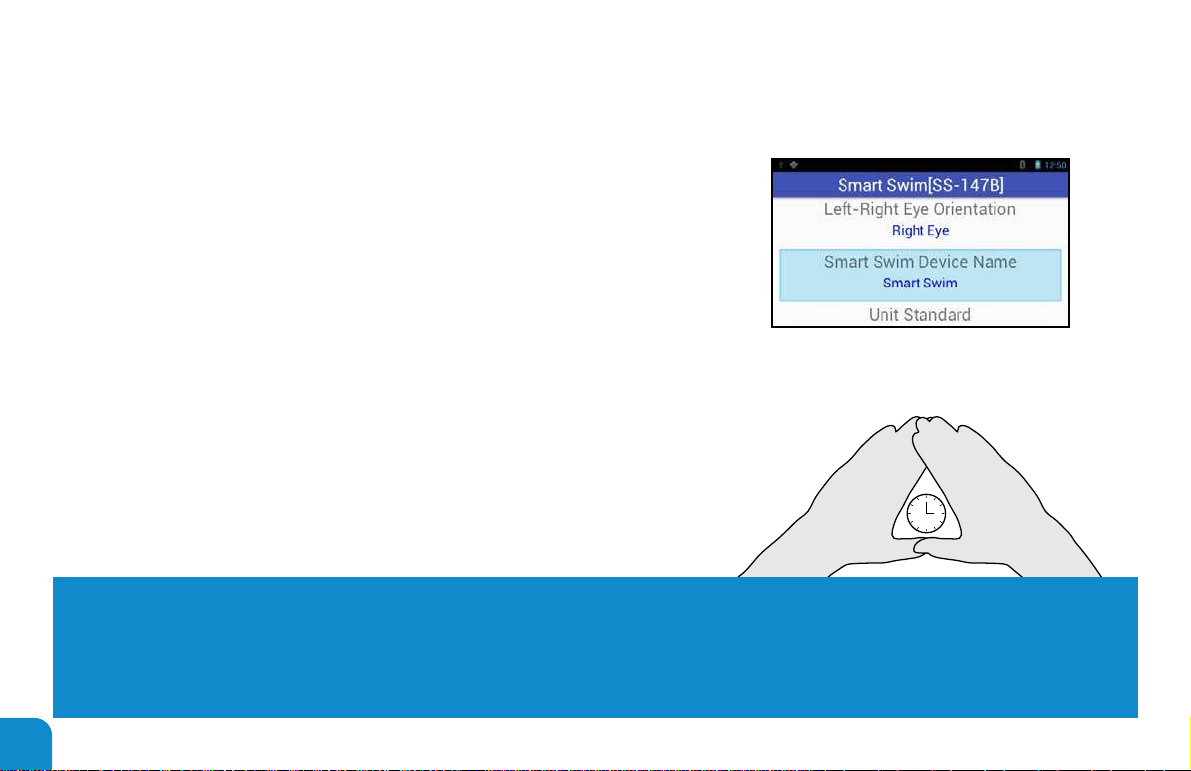
SELECTING YOUR DOMINANT EYE
1. Power on Smart Swim™
2. Scroll to “System Congure”
3. Open “System Congure” App
― *The rst time opening this app will require a system reboot
4. Select the “eye orientation” property
5. Use the Select button to select your dominant eye setting
― See below for instructions on how to determine your dominant eye
DETERMINE YOUR DOMINANT EYE
Extend your hands, placing them together to make a small triangle between your thumbs and knuckle. Keeping both eyes open,
center a nearby object inside the triangle. Close each eye one at a time. Notice how the object moves out of view when one eye
is closed? When the object remains in view, the open eye is your dominat eye.
5
ASSEMBLY OF SMART SWIM™
BUNGIE SIZE CHART:
EXTRA-SMALL(9MM), SMALL(14MM), MEDIUM(19MM), LARGE(23MM),
EXTRA-LARGE(32MM)
6
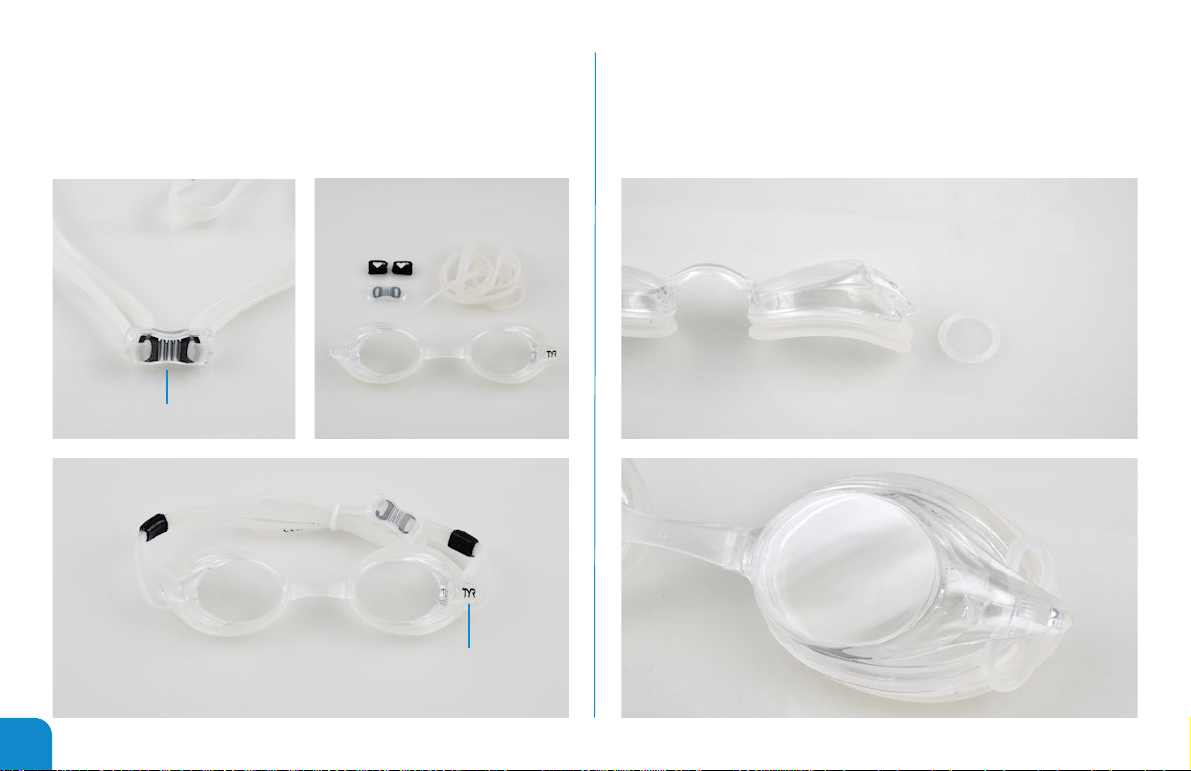
Step 1:
Remove strap and Adjustable Strap Retainer from the goggles.
Step 2:
Pull the 23mm O-Ring through the right hole of the goggle. Use
the tip of the Grappling Tool to help push the O-ring through and
use the Grappling Tool to grab it from the other end.
RETAINER
RIGHT EYE HAVE A TYR LOGO
(LOOKING FROM THE FRONT)
7
Step 3:
Pull the lower strap through three of the 23mm O-rings as
shown and repeat with the upper strap.
Step 4:
Put inside strap through left goggle slot and pull it through.
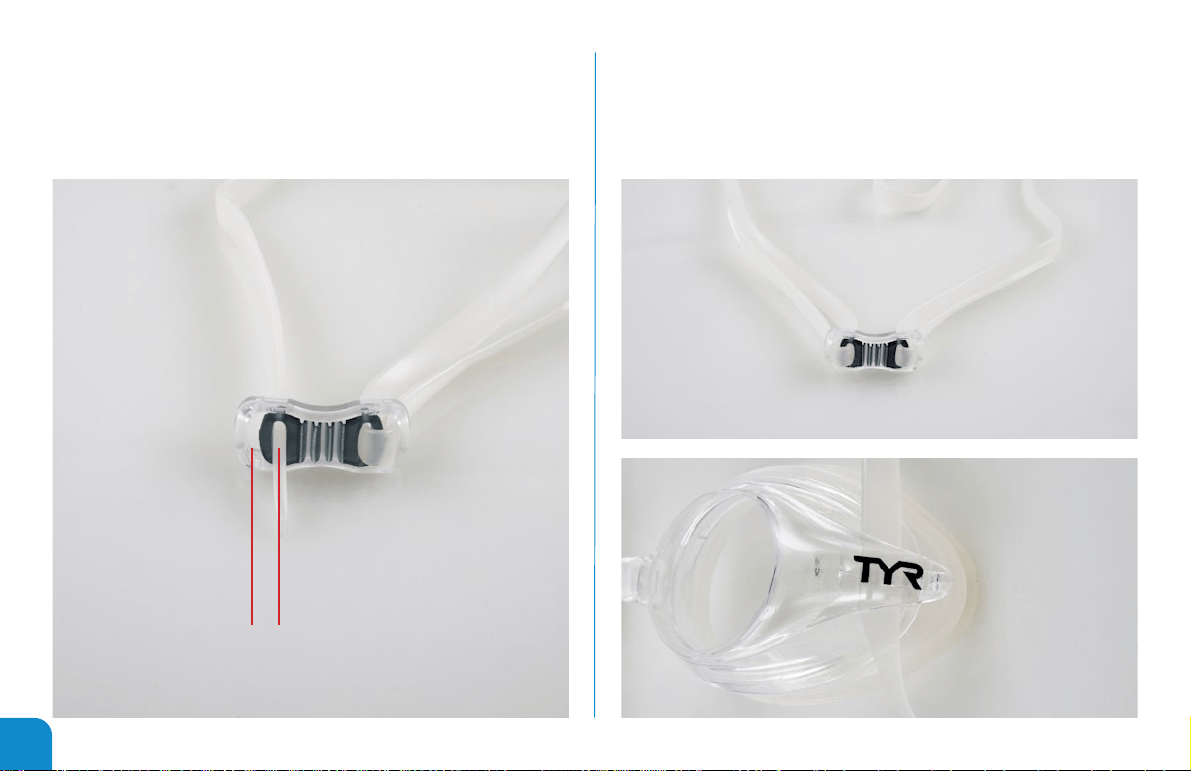
8
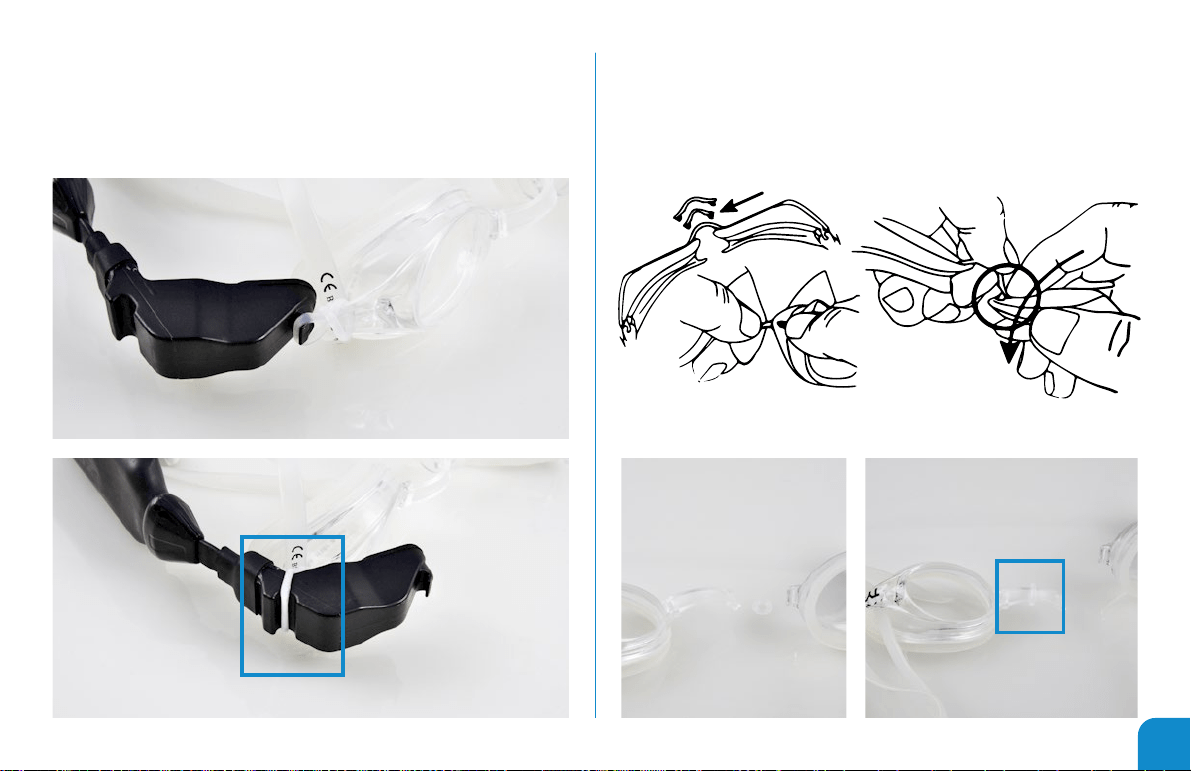
Step 5:
Put the end of the strap through the inner hole of the
Adjustable Strap Retainer.
Step 6:
Put the end of the strap through the outer hole of the
Adjustable Strap Retainer to secure it.
OUTER HOLE INNER HOLE
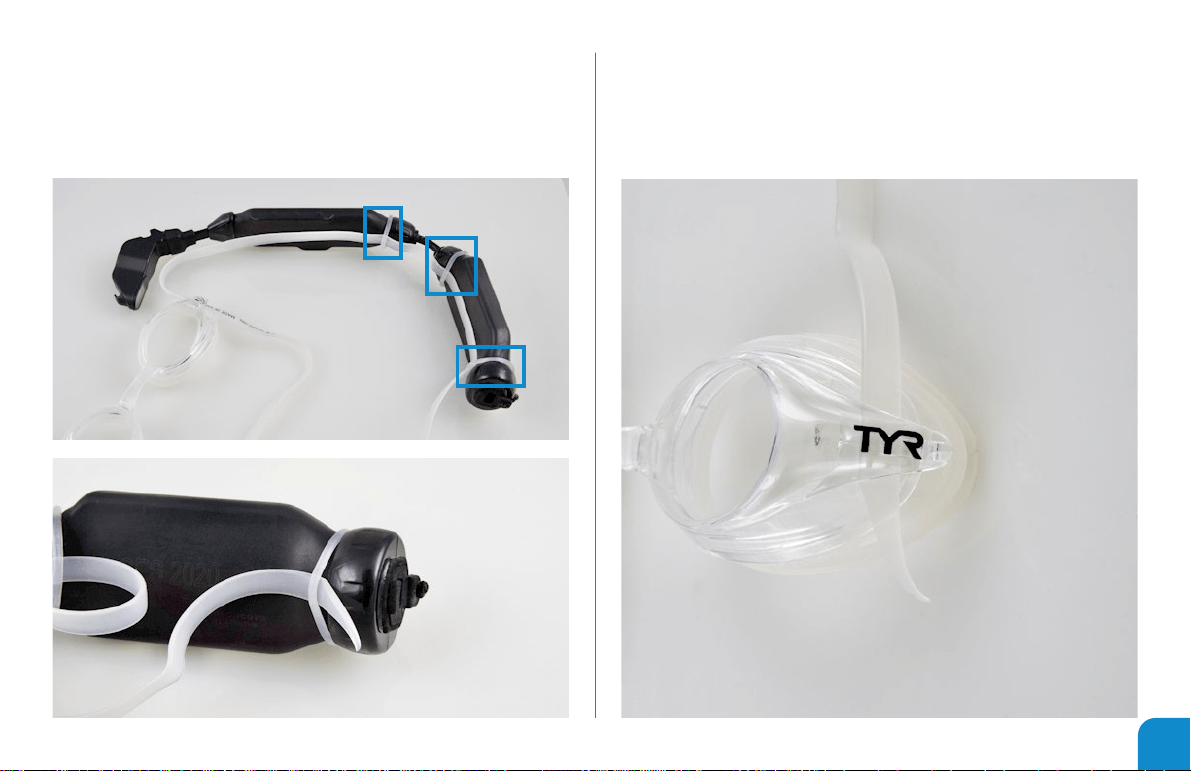
NOTE:
ENSURE THAT
THE “TYR”
LOGO IS FACING
UPRIGHT. IF THE
LOGO IS UPSIDE
DOWN, THE GOG-
GLES MAY NOT
WORK WELL.
9
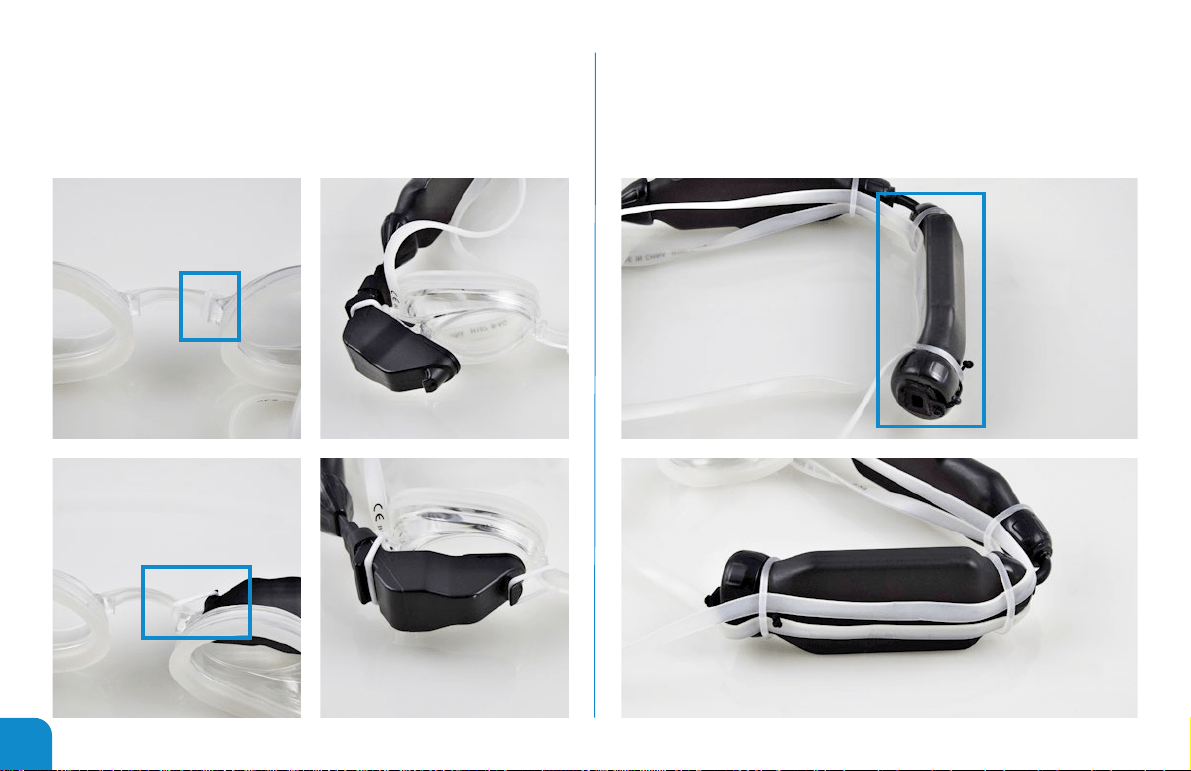
Step 7:
Grab the O-Ring loop on the right goggle slot and pull over
eyepiece. Then, slide the O-ring to the second Hook of the
Smart Swim Eyepiece.
Step 8:
In the Goggle Guide, follow the instructions to disconnect the
right side of the nose piece. Then, push the nosepiece through
the 9mm O-ring and reassemble the goggles.
10
Step 9:
Slide the 9mm O-ring all the way to the right and over the
bump. Then, pull the O-ring to the rst hook of the Smart
Swim Eyepiece.
Step 10: Optional
Slide the upper strap over the battery and the lower strap
under the battery to get the straps behind the battery.
11
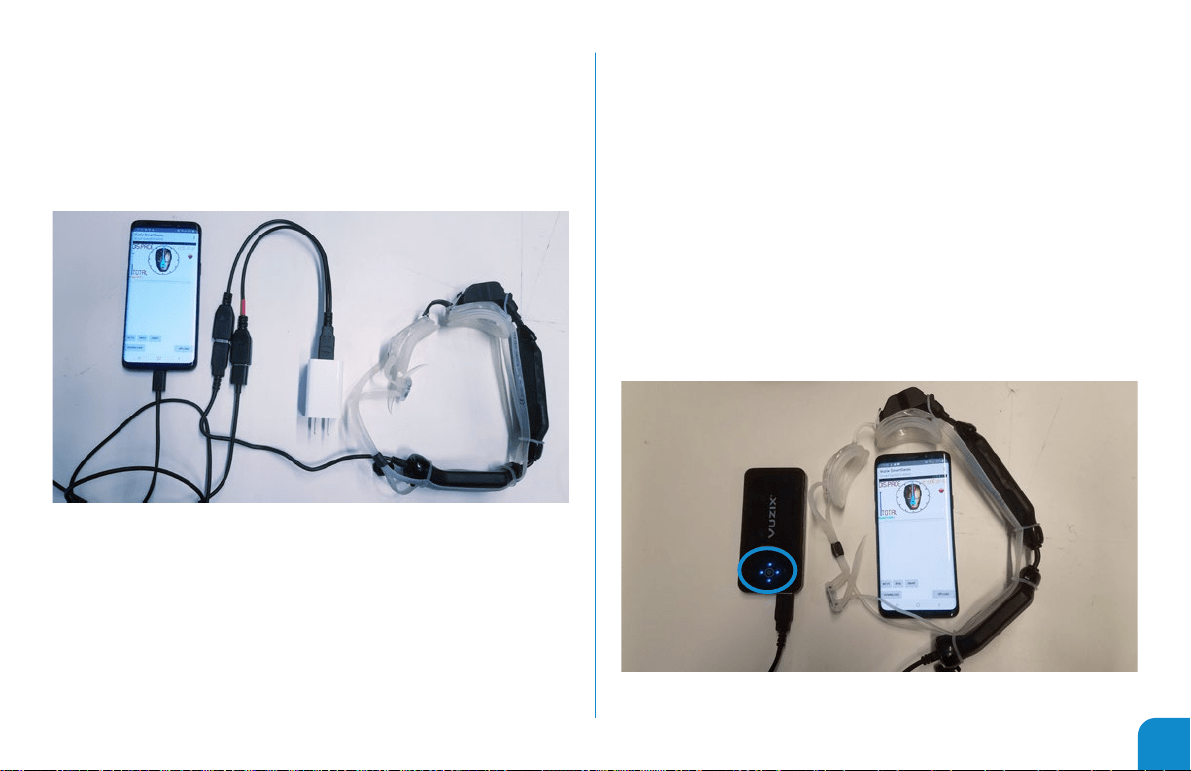
CHARGING SMART SWIM™
Use the included Y-Splitter to share your charging source with
your smart swim.
Charge state can be determined by plugging in the battery
pack and observing.
• Blue LEDs: Flashing (charging)
• Blue LEDs: Not Flashing (not charging)
• LEDs must be lit to ensure device is being charged
• LEDs Circled in
red
• Removes requirement of a laptop or desktop to charge
your Smart Swim.
• Will require extra time to charge both systems depending on
current rating of charger and charge rate of both devices.
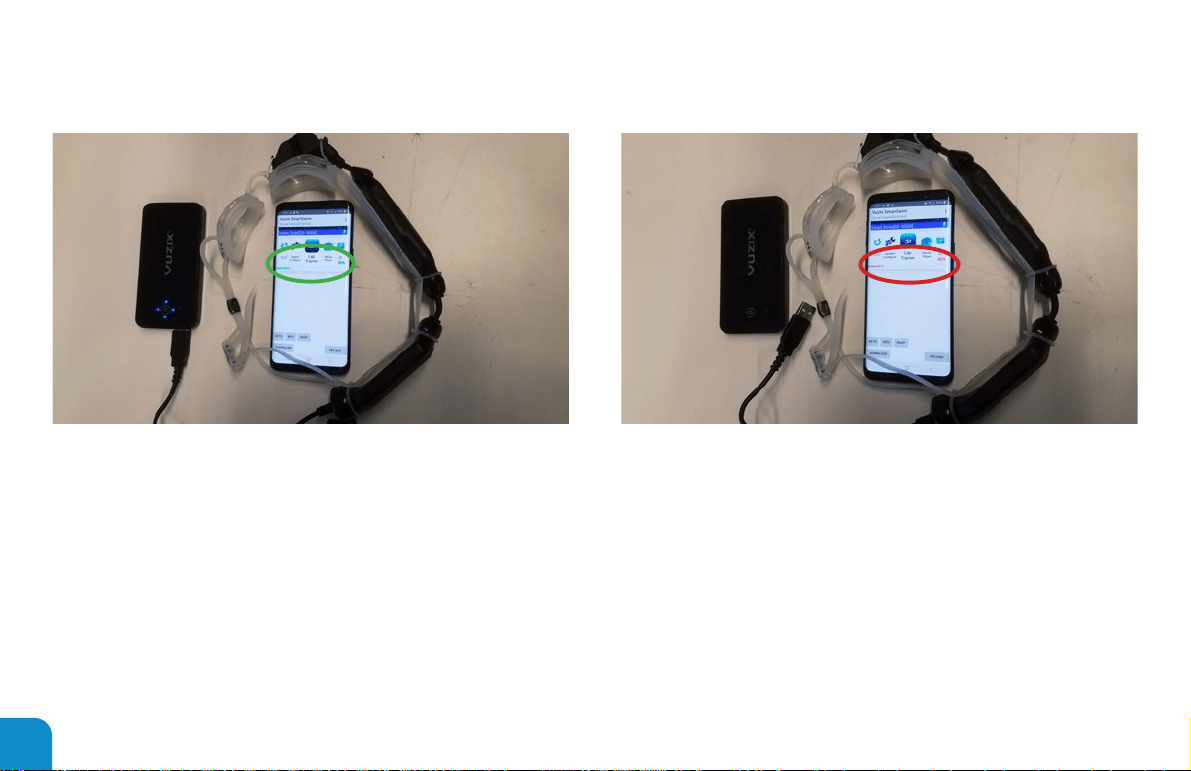
12
Using the phone pairing app, you will observe the power percent:
Red = Not ChargingGreen = Charging
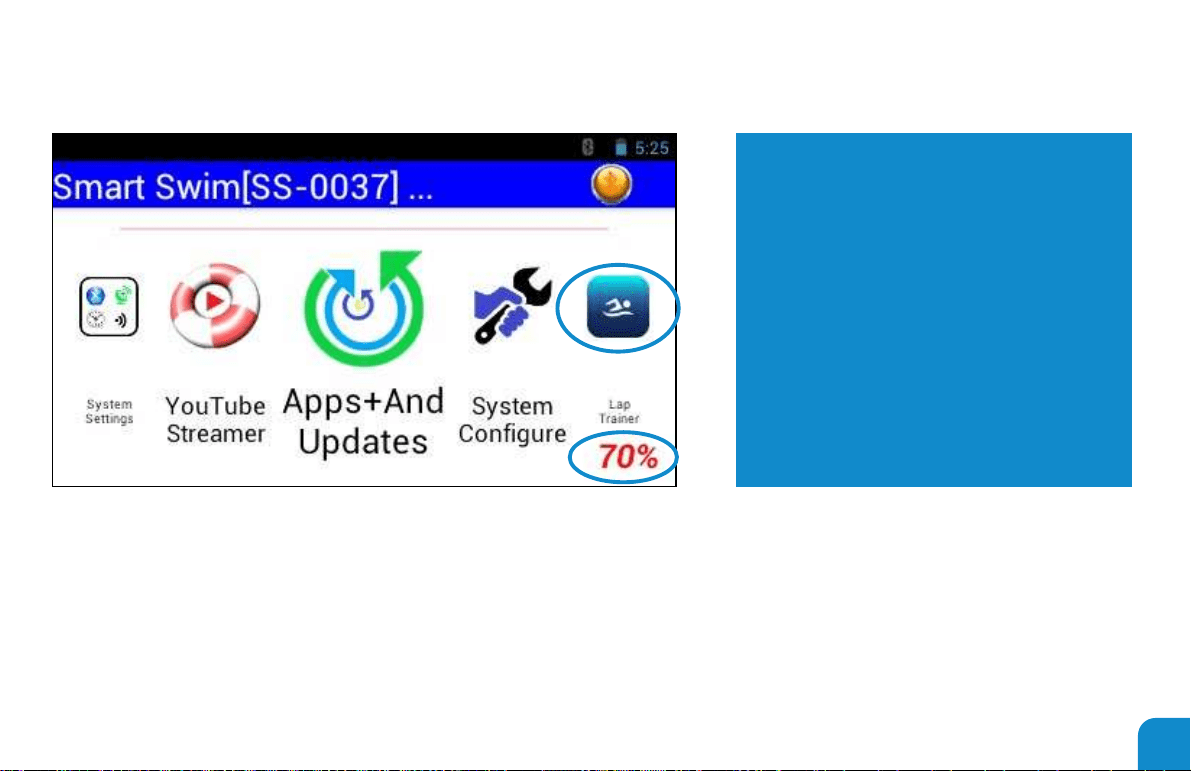
13
The carousel will indicate the charge state from the lower right corner.
Green Percent = Charging
Red Percent = Not Charging
NOTE:
YOUR SMART SWIM REQUIRES 3+ HOURS TO
FULLY CHARGE. 100% INDICATED ON THE
CHARGE STATE WILL NOT BE ACCURATE WITH-
OUT 3+ HOURS OF CONTINUOUS CHARGING.
NOTE:
MAY TAKE LONGER IF CHARGE SOURCE IS
SHARED WITH OTHER DEVICES.
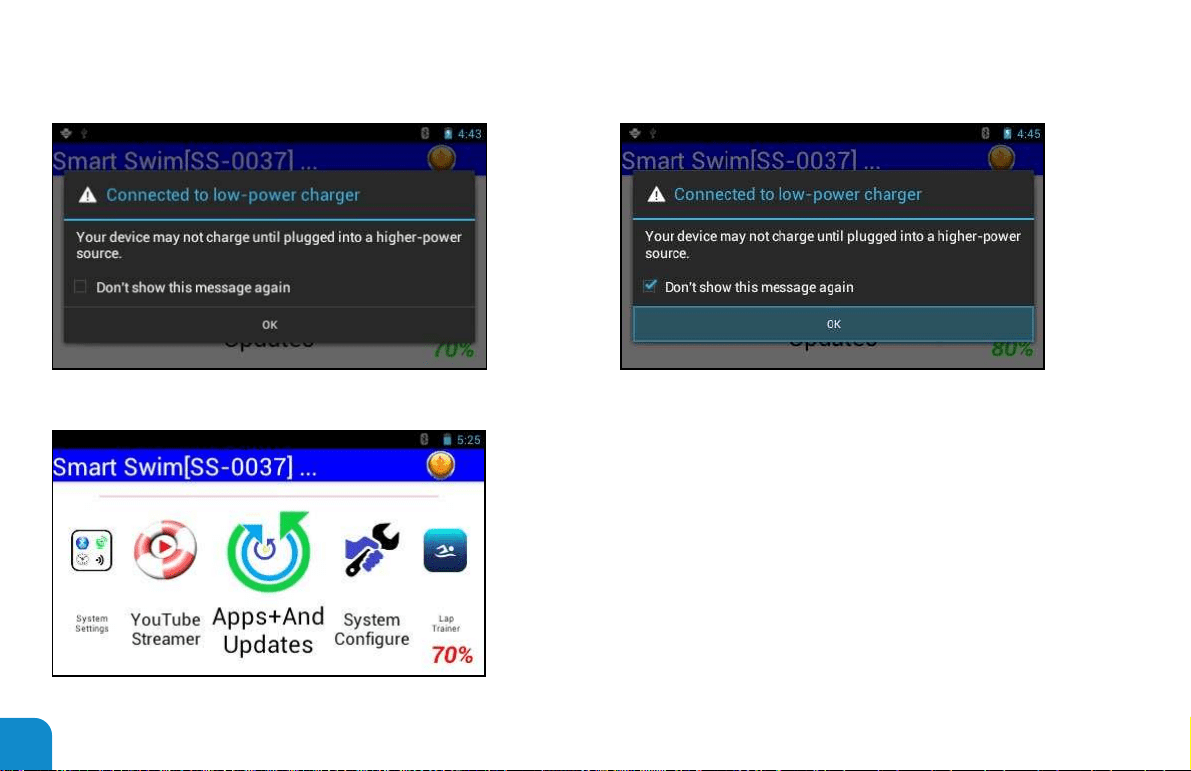
14
POWER ON SMART SWIM™
Power on Smart Swim™
Carousel is ready for navigation
Power on Smart Swim™
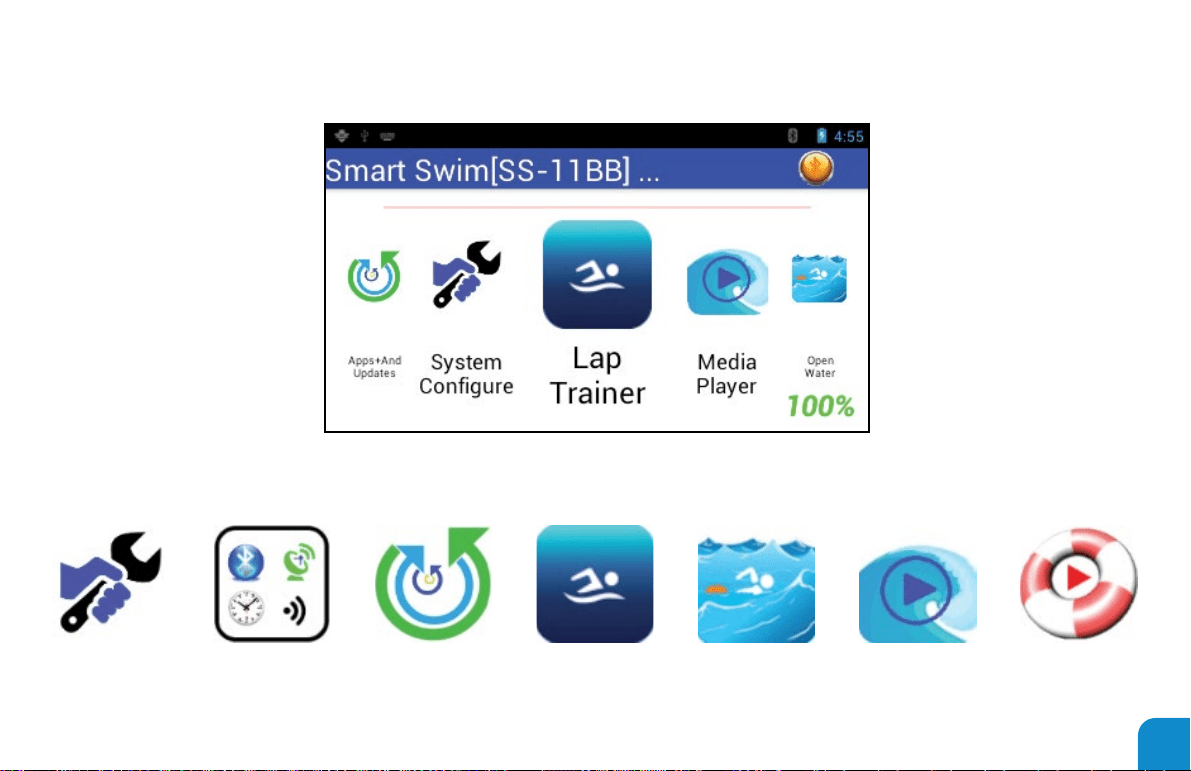
15
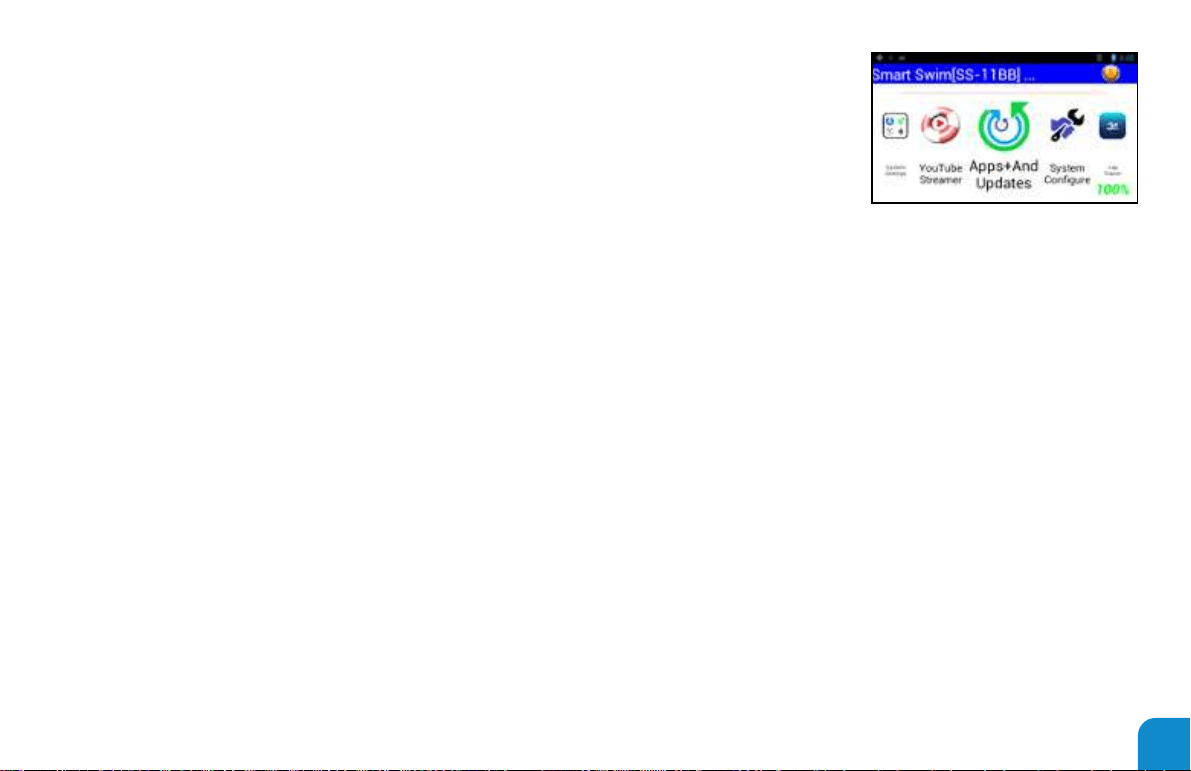
APPLICATION OVERVIEW
THE SMART - CAROUSEL
Apps+And
Updates
Lap
Trainer
Open
Water
YouTube
Streamer
System
Settings
Media
Player
System
Congure
16
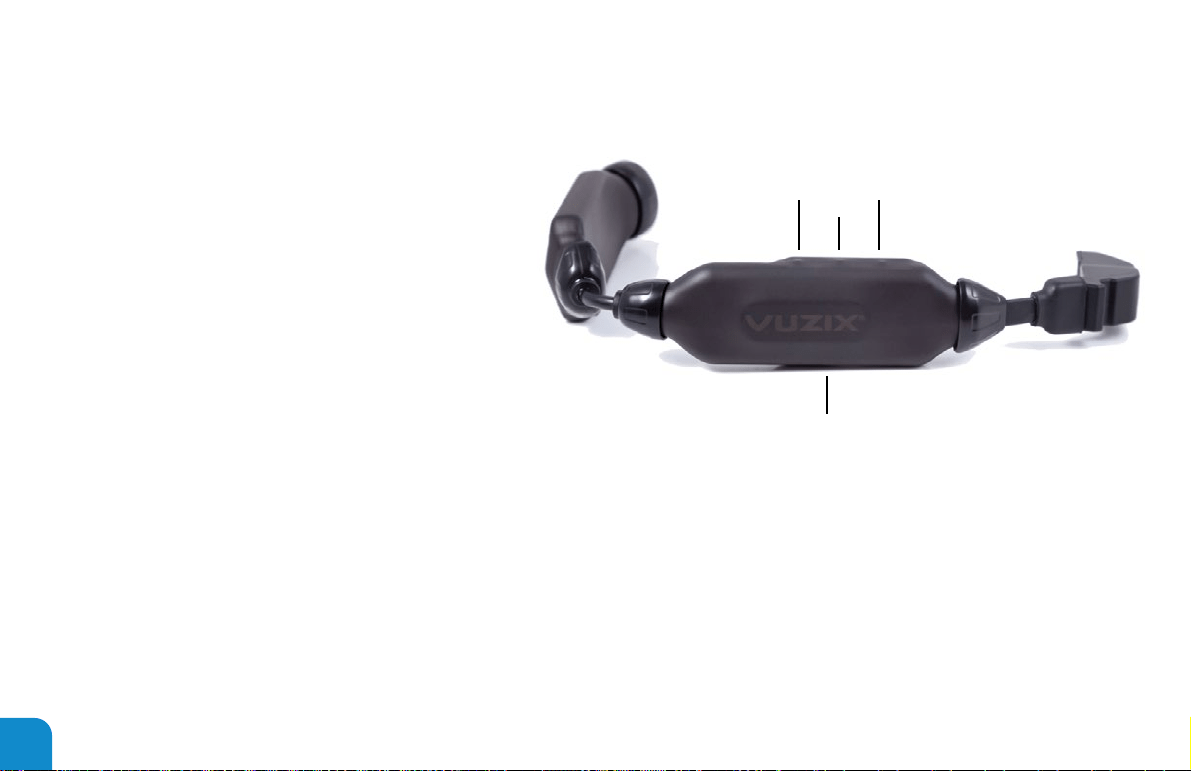
SELECT
BACK
POWER
FORWARD
BUTTON INTERFACE
• SELECT = Select current item.
• BACK (Button A) = Move cursor down/right.
• FORWARD (Button B) = Move cursor up/left.
• POWER = Sleep or Power off system.
• Button Actions are application dependent.
• When keyboard is open, press and hold Button B to
switch keyboard mode to numbers and back to letters.
• Press and hold Button A to go to the main carousel.
17
CAROUSEL OPERATIONS
• Scroll the icons left or right using button A or button B
― Use the Select button to open the center icon/
application
• Display the Date and Time by triple pressing the up button
• A Progress Bar will update during data transfers
• The battery Power Charge State is indicated by the
Percent value in the lower right corner of the display
• The smart carousel will remember your last active
application and will execute that application upon startup
• Booting to Safe Mode is accomplished by continuously
pressing and releasing the up or down button during the
boot up process
• A Blue Tooth Connection can be established by the phone
pairing app to connect and congure the Smart Swim™
• Several Blue Tooth Commands are available to enhance
the congurability of your Smart Swim™ from your phone
• Press and hold Select to reset Bluetooth interface
Button Chart
(Single Press)
Button B: Scroll Icons Right
Button A: Scroll Icons Left
Select: Select/Open Application
(Double Press)
Button B: n/a
Button A: n/a
Select: n/a
(Triple Press)
Button B: Show Date-Time
Button A: n/a
Select: n/a
Theme-Settings
BackGroundColor, CountDownColor, HidePowerState

18
1. SYSTEM CONFIGURE
• Setup misc. non-Realtime settings
• Select dominant eye
• Create Smart Swim™ Device Name. (Format: “username”
“[SS-####]”)
― requires reboot
― all user generated sessions will be stored in this
location
― all workout les will be in this folder
• Select Unit Standard (Yards, Meters, Laps, Miles,
Kilometers)
― Used by Lap Training app
― Used by Open Water app
• Select Length of Pool (25, 50, 100) Sets length of pool for
sessions
• Select Countdown Timer (3, 5, 10, 15) Provides delay to
start of sessions
• Select Log Splits (Yes, No)
― Removes splits from session les
― Splits can be enabled or disable via pre-programmed
workouts
• Select Split Interval Distance (25, 50, 100, 200, 500)
― Sets split distance for lap training sessions
• Select Speed Display Format (Split Interval Time, MPH,
KPH)
― Split Interval Time…aka x.xx seconds in 100 yards.
• Select SPM – Calorie Display (Disabled, Swimming,
Running-Paddling, calories Burned)
― Disable do not show any SPM info
― Swimming Use gyroscope to compute SPM
― Running-Paddling Use Accelerometer to compute SPM
― Calories burned only show calories no SPM will be
display or computed
19
• Body Weight – Used in calorie computations
― The current algorithm considers users weight, and
weather the user is resting or actively moving, total
active time vs total rest time.
• Compass Options (Performance=Use Gyroscope with acc
and mags to determine heading (No ltering), Accuracy =
Use only acc and mags to determine heading (highly ltered)
― conserve power
• GPS Category – Running, Swimming, Walking, Biking,
Paddling, Hiking, Canoe, Kayak, Kite Surng, Rowing,
Show Shoeing, Wind Surng, Workout, Navigating. This
will be the activity users are doing when using their
smart swim.
• Select GPS le Format (KML-Google
Earth, GPX-Garmin Uploads)
― Only one format will be saved during a session
― Open Water app will generate a session le that mates
with the GPS le created
― Smart Courses will be saved with Raw GPS course
maps
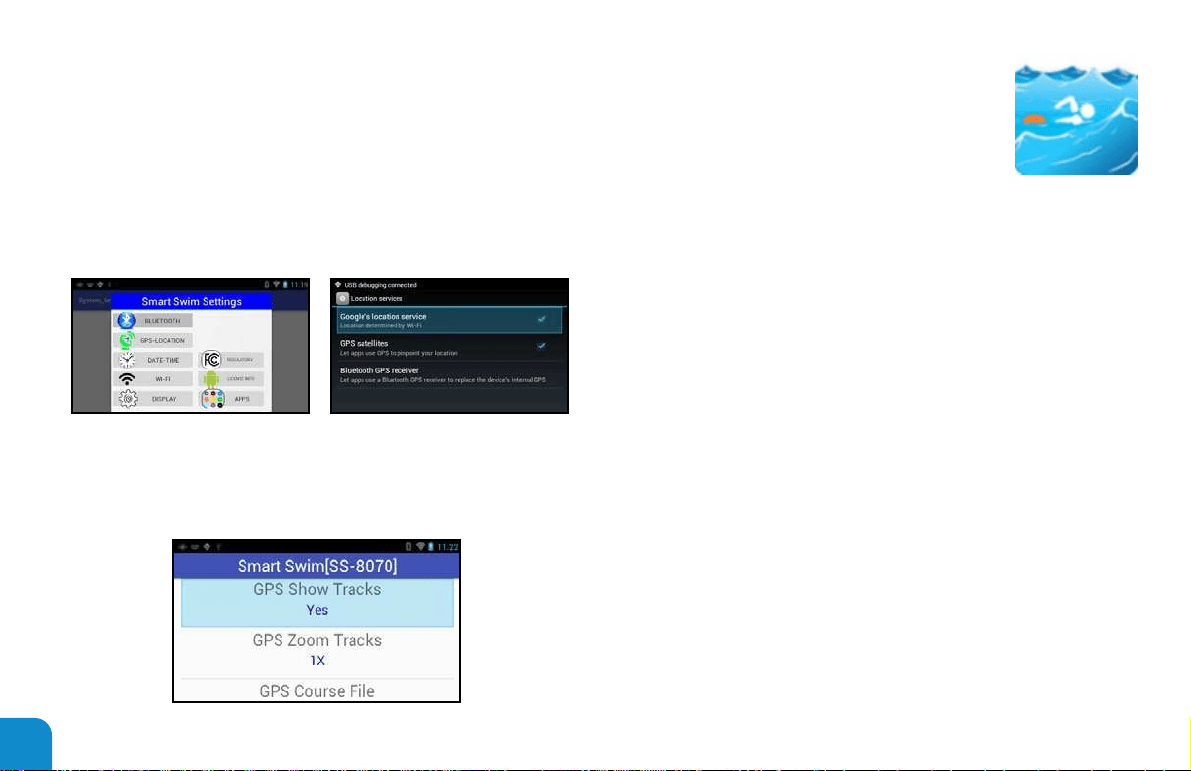
• GPS Show Tracks (Yes, No)
― Will render a grid with distances from starting point.
― Will render the current course tracks being received
from GPS
― Will render a pre-dened course map selected by user.
See “GPS Course File” Below
• GPS Zoom Tracks (1x, 2x, 4x, 8x)
― Provides a means of zooming into or out of the current
rendered tracks
― Can be changed in Realtime in the GPS open Water
App using Buttons A and B

20
• GPS Course File (Undened, “File Name”)
― Allows the user to select a GPS Course mapping to
overlay onto the current rendered tracks
• Display Clock Format (Digital, Analog)
― Will use the currently selected analog clock from
the Theme or the default system analog clock if not
dened by the current theme
• Media Still image Time (Seconds) (5, 15, 30)
― Media Player option to determine when to render the
next picture if any exist
• Snapshot Period (Seconds) (Disabled, 3, 15, 30)
― Provides a means of saving HUD snapshot images
during a session
― These images can be post processed
• Exist in the “\android\data\HUD Images” folder
• Display Theme (“lename”)
― This option allows the user to change the appearance
of the apps based on the theme le selected.
Ex: Black on White background vs. White on Black
background
― Theme Settings can be used to disable portions of the
HUD in any apps that support themes
― All Themes are stored here: “\android\data\Themes”
― All Analog Clock designs are stored here: “\android\
data\Analogclocks”
― Restore System Defaults – Will restore all system
default Theme settings and all configuration settings to
their default states. Option to preserve user's device
name during the restore. This option may reqquire a
reboot
21
Button-Chart
(Single Press)
Button B: Scroll up settings
Button A: Scroll down settings
Select: Select to change setting
(Double Press)
Button B: n/a
Button A: n/a
Select: n/a
(Triple Press)
Button B: n/a
Button A: n/a
Select: n/a
*** Press and hold Select to exit app
Theme-Settings: n/a
• The rst time the conguration App is
executed the system will require a reboot
• Any time the device name is changed the system will
require a reboot
• Restoring System Defaults May require a system reboot
22
Access android operating system settings on Smart Swim™
― Blue Tooth
― Wi-Fi
― GPS location services
― Clock date and time
― System Brightness
― Application control
― License information
― Certication Logo Information
Button-Chart
(Single Press)
Button B: Scroll up settings.
Button A: Scroll down settings.
Select: Select to change setting.
(Double Press)
Button B: n/a
Button A: n/a
Select: n/a
(Triple Press)
Button B: n/a
Button A: n/a
Select: n/a
*** Press and hold Select to exit app
Theme-Settings
BackGroundColor, StopWatchColor
2. SYSTEM SETTINGS
23
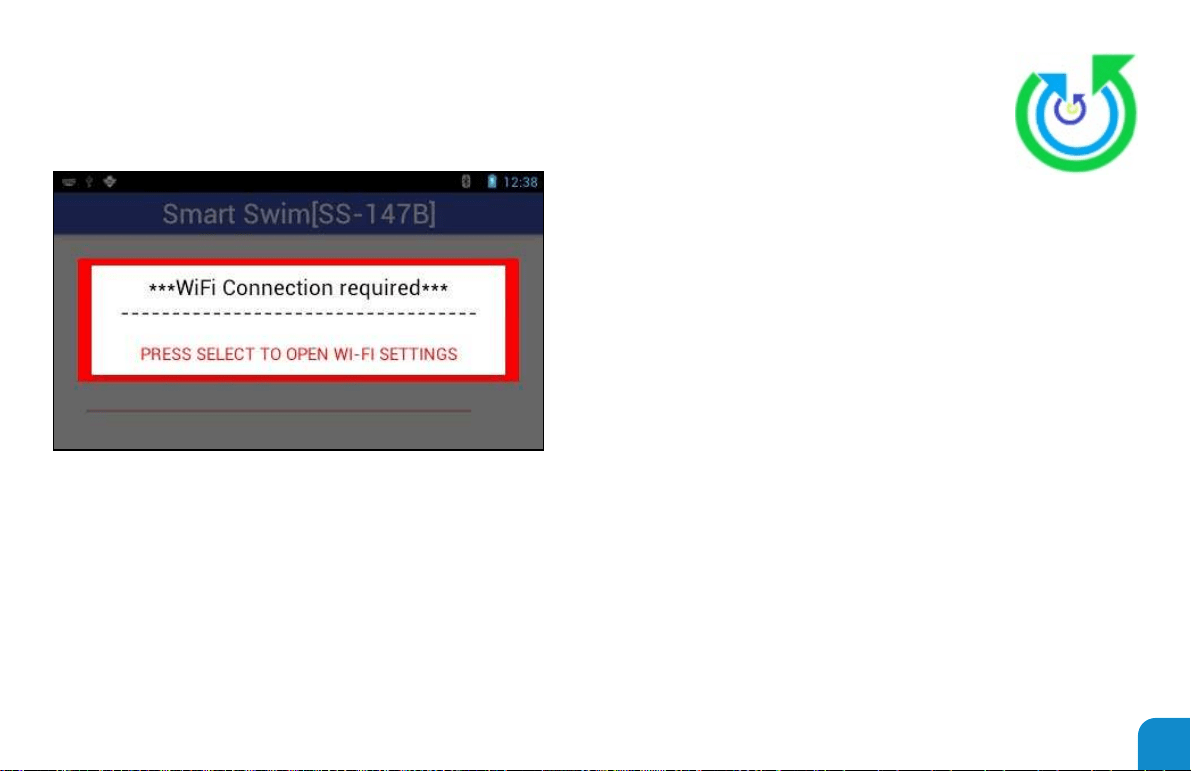
• Access available updates on Smart Swim™ Private Server
• Only displays new or updates that are available
• Requires Wi-Fi
• Will open Wi-Fi settings if not detected or congured
• Will be asked for conrmation prior to any update
Button-Chart
(Single Press)
Button B: Scroll up to previous App update
Button A: Scroll down to next App update
Select: Select App Update
(Double Press)
Button B: n/a
Button A: n/a
Select: n/a
(Triple Press)
Button B: n/a
Button A: n/a
Select: n/a
*** Press and hold Select to exit app
Theme-Settings
BackGroundColor, CountDownColor, StopWatchColor
3. APPS AND UPDATES

24
• Lap training tool for pool swimming sessions
• Shows stats on current speed and distance
• Shows pace clock
• Shows current pace
• Shows battery state
• Shows compass heading
• Shows swim state
• Shows date and time
• Shows calories burned in session les
• Saves Session with intervals and total distances
• Saves snapshot of nal session time and distance.
• Session les saved are
• SS_Session_#_”Date+Time”.txt – Denes workout
achieved
• SS_Session_#_”Date+Time”.png – Trophy le for
completed session
• If lap training distance calculations are not properly in
sync with your session you may need to recalibrate your
sensors. See topic on Calibrate Smart Swim™ sensors.
4. LAP TRAINER

25
Button-Chart
(Single Press)
Button B: Finish current set and show next workout-set.
Button A: Show previous workout set.
Select: Start/Re-Start and save current session.
(Double Press)
Button B:
Toggle "Interval Trainer" mode timer.
Interval counter will be reset, and the master clock
will now show the time for each interval.
Upon starting a new interval, the clock will restart.
Button A: Show current workout-set, resets countdown timer
on preprogrammed workouts to provide more rest
on the current set
Select: Finish current session and Load workout le
(Triple Press)
Button B: Show Date-Time.
Button A: n/a
Select: n/a
*** Press and hold Select to nish session and exit app
Theme
-Settings
BackGroundColor, CountDownColor, StopWatchColor,
StopWatchSize, HidePowerState, FontSelect, DistanceColor,
DistanceSize, SetxIntervalColor, IntervalSize,
TotalDistanceColor, TotalDistanceSize, AnalogScale,
ClockHorizontal, ClockVertical, HideHeading, HideSwimState
ClockName, AnalogColor, AnalogCountDownColor,
AnalogSecondColor, AnalogMinuteColor, AnalogHourColor
26
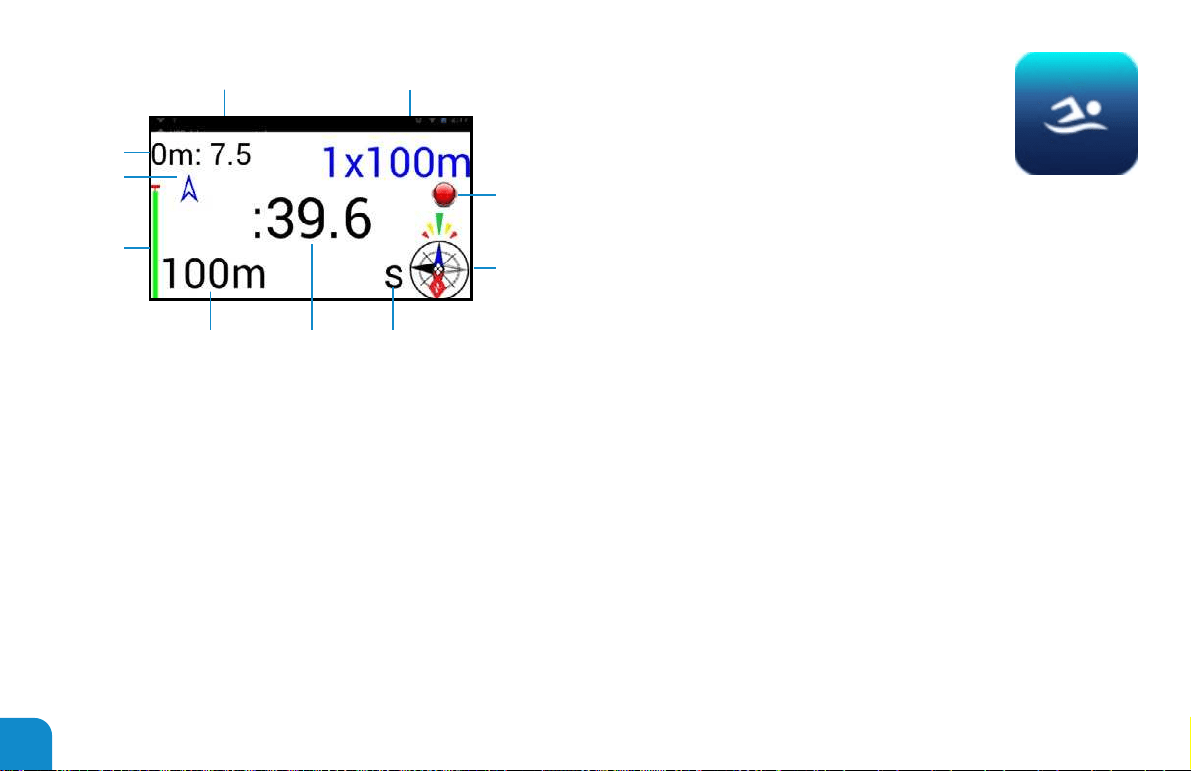
1. Total Distance in current interval.
2. Pace for current interval.
(Based on split distance setting)
3. Intervals accomplished at previous interval
distance achieved.
4. Swim state: Red = resting
Green = swimming
Yellow=backstroke
5. Compass heading indicator and heading.
6. Strokes Per Minute or Calorie output or disabled.
7. Time since session started.
8. Total Distance in current session.
9. Battery power state.
10. Heading Indicator, transitions at every detected lap.
1
2 3
4
5
678
9
10
27
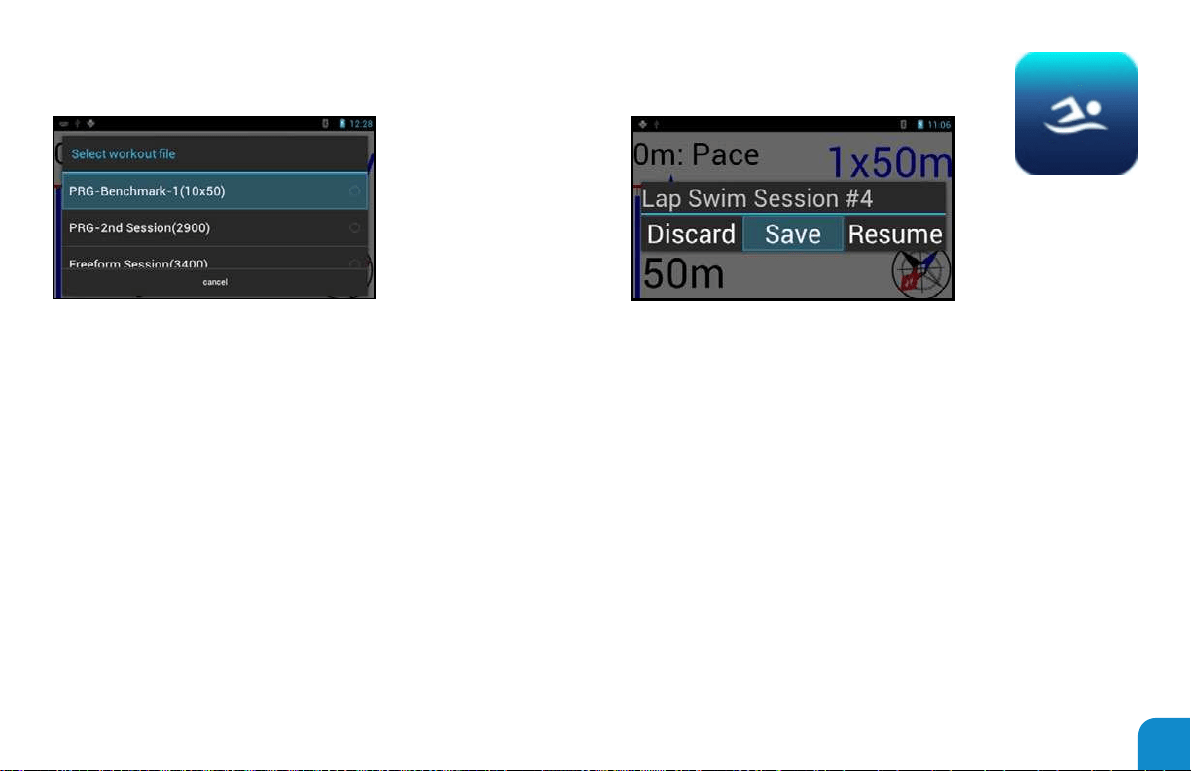
Double press Select Button to open a workout le.
Workout/Session mode can be:
• Free form = no workouts, just swim.
• Loaded workout = scroll workout le with Button A or
Button B Next/Previous set. Swim at athletes’ pace.
• Preprogrammed workout = Once started computer will
automate and walk users from start to nish of the
workout/session loaded.
Note: all time is frozen, and the system is in pause state
when dialog is onscreen.
Note: pressing and holding the Select/Back button will
resume the session.
“Discard” will discard the current session and reset all
metrics for the same session.
“Save” will save the current session and prepare to start the
next session.
“Resume” resumes all time where it was frozen for the
current session.

28
Preprogrammed instruction set:
All preprogrammed instructions start with the PRG= tag.
1. PRG=@Resting (resting set)
― Ex: PRG=@Resting=0:00:30, next=7x500s 30 rest,
with splits
― This record will provide a 30 second rest period
prior to starting the next set. The info to the right of
the rest time “0:00:30” is displayed to the user for
providing information about the next set.
2. PRG=@Set (Denes a set for user to execute)
― Ex: PRG=@Set=7x500, @rest=0:0:30, @splits=true
― This record will begin a programmed 7x500’s with 30
seconds rest after each 500. Splits will be overridden
and will be logged during this set.
― PRG=@Set=100x100,@on=0:1:20,@onend=0:1:30,@
blocks=10,@random=true
― This record denes a Set of 100 x 100s On 1:20
seconds to 1:30 randomly generated in blocks of 10
segments.
3. PRG=@Repeating=0:0:30,4xSets,4xtimes,
set1=1x150(mix), set2=2x75s(IM),
set3=4x50s(free), set4=6x25s repeat 4x.
― PRG=@Set=2x150, @rest=0:0:15
― PRG=@Set=2x75, @on=0:1:05
― PRG=@Set=4x50, @on=0:0:45
― PRG=@Set=6x25, @on=0:0:30
― This record denes a group of 4 sets that are to be
repeated 4 times. With information to the user about
how each set is to be performed.
4. PRG=@Saving (Finishes the session and forces a save of
all sets to the session le.)
― Ex: PRG=@Saving, Congratulations=3500 yards
― This record auto-saves the session and displays the
text message “Congratulations=3500 yards” to the
user.
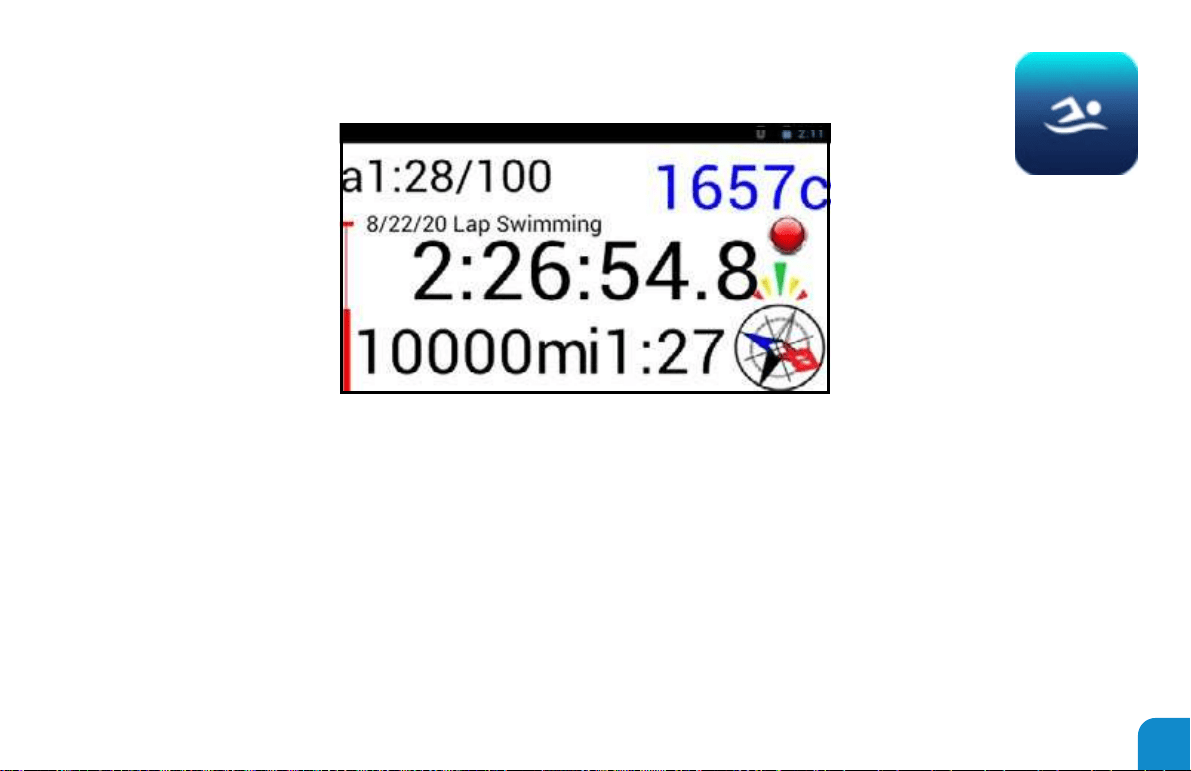
29
Shows users nal metrics as completed for each session.
Provides session category and date. Time is in upper right.
Total Time
Total Calories
Total Distance
Average Pace. (Includes Rest)
Interval Pace. (Excludes Rest)
(See table letter denitions for symbols)
Lap Training Trophy File denition
30
• Shows metrics on current speed and distance
• Shows pace clock
• Open Water training tool for GPS Open water sessions
• Be sure to enable GPS location services from the settings app
• Enable courses as overlay tracks with grid and current
location tracking. See conguration tool “GPS Show
Tracks”, “GPS Course File”
1. Shows current and average pace
2. Shows battery state
3. Shows compass heading
4. Shows swim/motion state
5. Shows date and time
6. Saves GPS as google earth or Garmin GPS formats
7. Shows calories burned in session les
8. Saves Session with intervals and total distances
9. Saves snapshot of nal session time and distance
10. Session les saved are
― SS_OW_Session_#_”Date+Time”.txt – Denes workout
achieved
― SS_OW_Session_#_”Date+Time”.png – Trophy le for
completed session
― SS_GPS_Smart_#_”Date+Time”.kml or gpx – Smart GPS le
captured compatible with google earth and Garmin formats
― SS_GPS_Full_#_”Date+Time”.kml or gpx – Raw GPS capture
5. OPEN WATER

31
Button-Chart
(Single Press)
Button B: Finish current set and show next workout-set. When Grid mode is enabled zoom in.
Button A: Show previous workout set. When grid mode is enabled zoom out.
Select: Start/Re-Start and save current session.
(Double Press)
Button A: Show current workout-set.
Select: Finish current session and Load workout le.
(Triple Press)
Button B: Show Date-Time.
Button A: n/a
Select: n/a
*** Press and hold S ele ct to nish ses sion and exit app.
Th em e- S e ttin gs
BackGroundColor, CountDownColor, StopWatchColor, StopWatchSize, HidePowerState, FontSelect, DistanceColor, DistanceSize, SetxIntervalColor, IntervalSize,
TotalDistanceColor, TotalDistanceSize, AnalogScale, ClockHorizontal, ClockVertical, HideHeading, HideSwimState, GPSLineColor, GPSLineThickness, MapLineColor,
MapLineThickness, SmartColor, SmartLineThickness, GridColor, ClockName, AnalogColor, AnalogCountDownColor, AnalogSecondColor, AnalogMinuteColor,
AnalogHourColor
Button B:
Toggle "Interval Trainer" mode timer.
Interval counter will be reset, and the master clock
will now show the time for each interval.
Upon starting a new interval, the clock will restart.
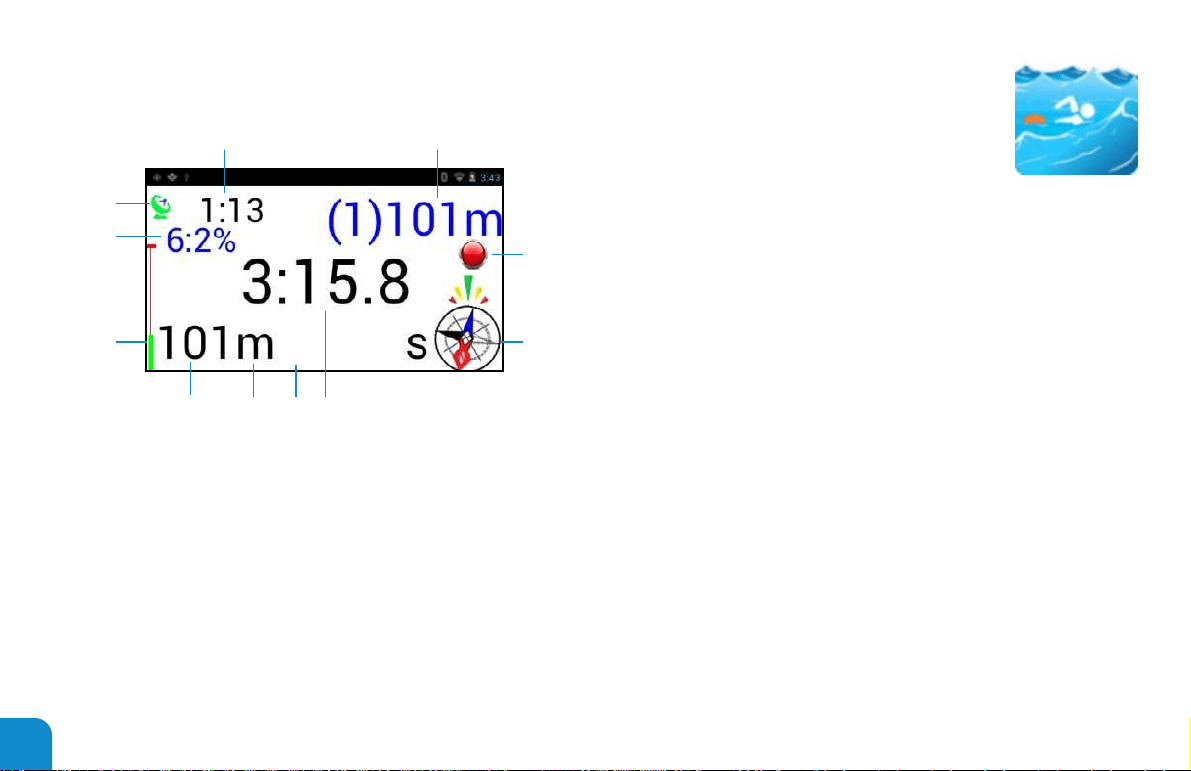
32
1. GPS Satellite connection status
― Red = no satellites connected.
(Must wait several minutes for first connection.)
― Green with red X = Invalid GPS samples.
― Green with Pause = waiting for user to press start.
― Green = Receiving and recording GPS mapping data
2. Average Pace for session
3. Number of intervals achieved(in
parentheses), with total distance in
current interval
4. Swim state: Red = resting
Green = swimming
Yellow = backstroke
5. Compass heading indicator and heading
6. Time since session started
7. Instant pace from the last minute
― (Not available in Grid mode or with SPM enabled)
― Split distance will affect this setting
8. Distance format indicator (m=meters, y=yards, etc...)
9. Total Distance in current session
10.Battery power state
11. The number of satellites and the percent error of the
signal
Note: only 9% or less with at least 4 or more satellites will
be acceptable samples.
GPS Digital Mode
1
2 3
4
5
678
10
11
9
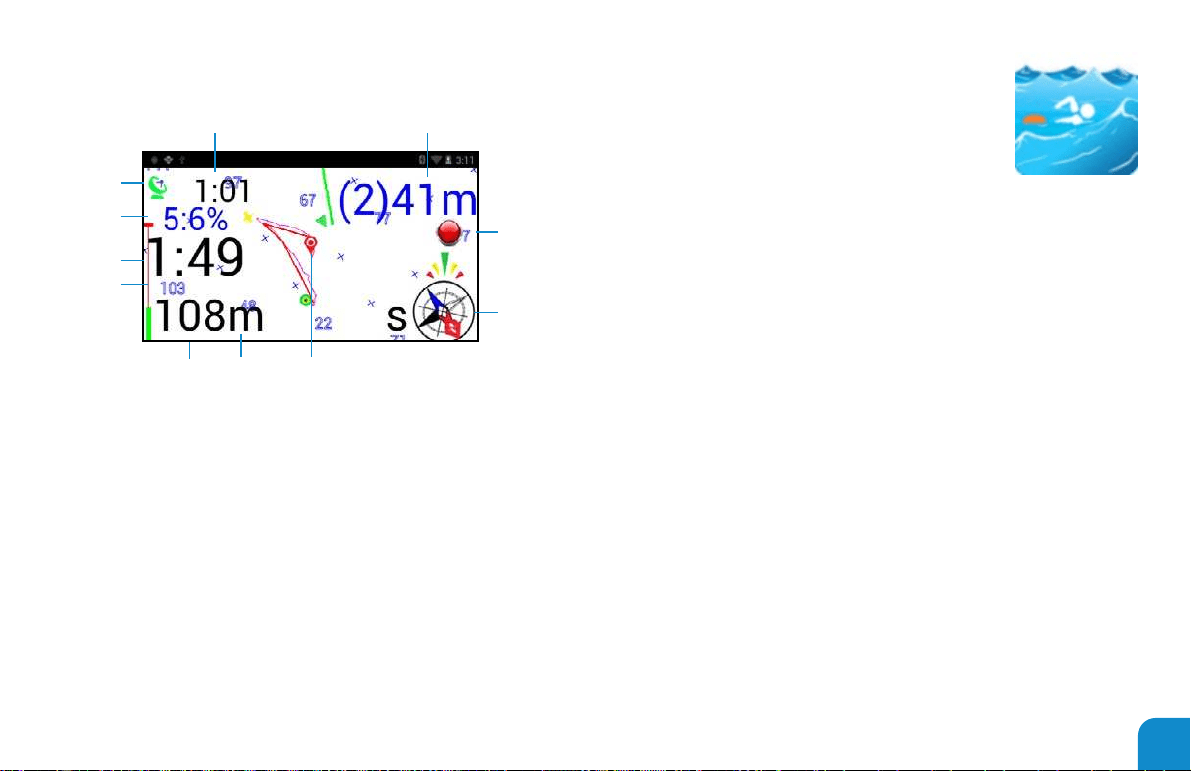
33
Orientation of Grid is based on compass heading when not
moving. Reverts to GPS heading when movement is detected.
As you are progressing the Grid and your course will align
itself with your direction of travel.
1. GPS Satellite connection status
― Red = no satellites connected
(Must wait several minutes for rst connection)
― Green with X = waiting for initial lock to settle
(20+ seconds)
― Green with Pause = waiting for user to
press start
― Green = Receiving and recording GPS
mapping data
2. Average Pace for session
3. (Total number of intervals) Total Distance in current interval
4. Swim state: Red = resting
Green = swimming
Yellow = backstroke
5.Compass heading indicator and heading
6.Your Location, Grid indicates distances from Start of session
Red = Smart Course
Cyan = Raw Course
Green = Loaded Track to follow
7.Distance format indicator (m=meters, y=yards, etc...)
8.Total Distance in current session
9.Battery power state
10.Time since session started
11.The number of satellites and the percent error of the signal
GPS Grid Mode
2
3
4
10
1
5
9
67
8
11
34
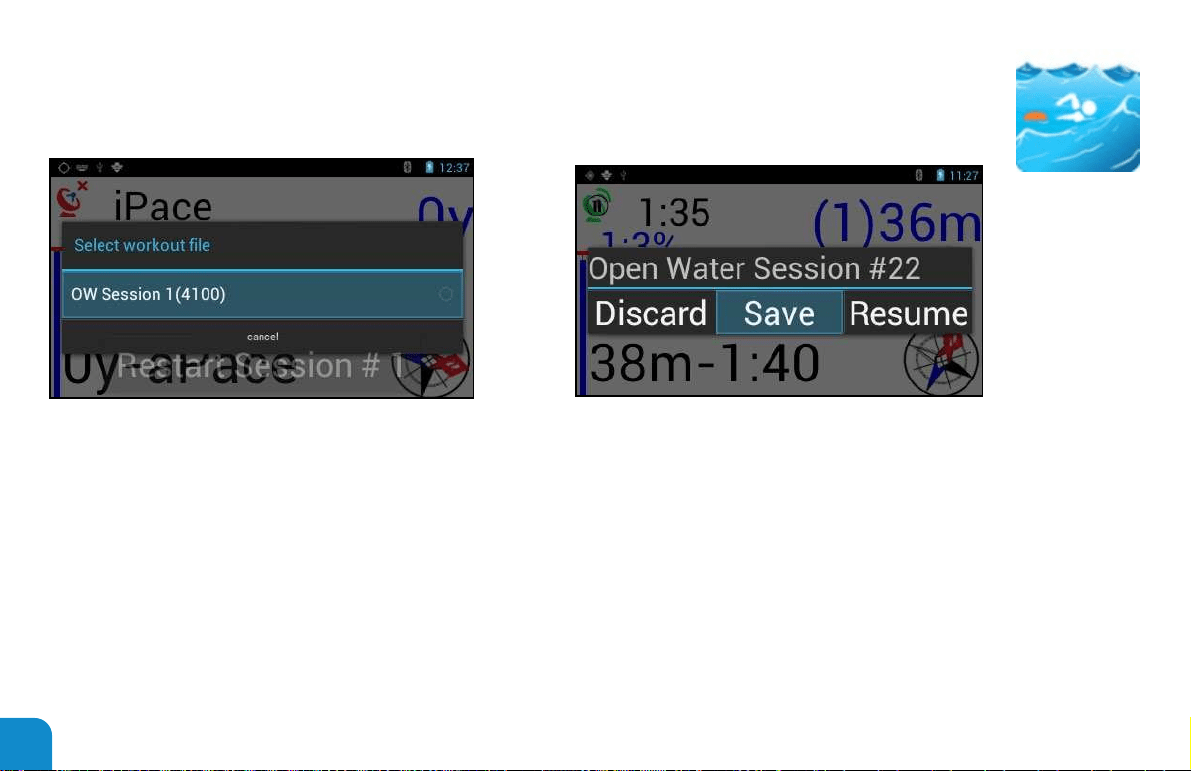
Workout/Session mode can be:
― Free form = no workouts, just swim.
― Loaded workout = scroll workout le with Button A or
Button B Next/Previous set. Swim at athletes’ pace.
* No preprogrammed workouts available for Open Water mode
Workout Loa
d Screen
Note: all time is frozen, and the system is in pause state
when dialog is onscreen.
Note: pressing and holding the Select/Back button will
resume the session.
“Discard” will discard the current session and reset all
metrics for the same session.
“Save” will save the current session and prepare to start the
next session.
“Resume” resumes all time where it was frozen for the
current session.
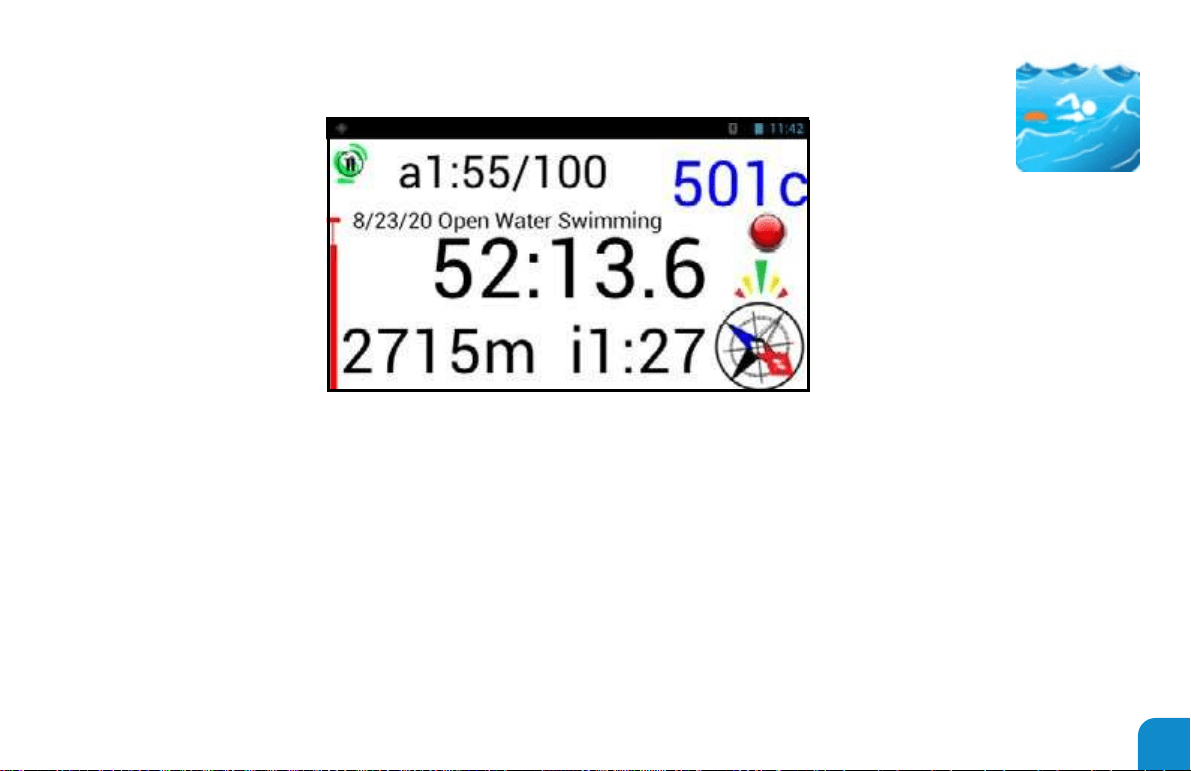
Open Water Trophy File denition
Shows users final metrics as completed for each session.
Provides session category and date. time is in upper right.
Total Time
Total Calories
Total Distance
Average Pace. (Includes Rest)
Interval Pace. (Excludes Rest)
(See table letter denitions for symbols)
35
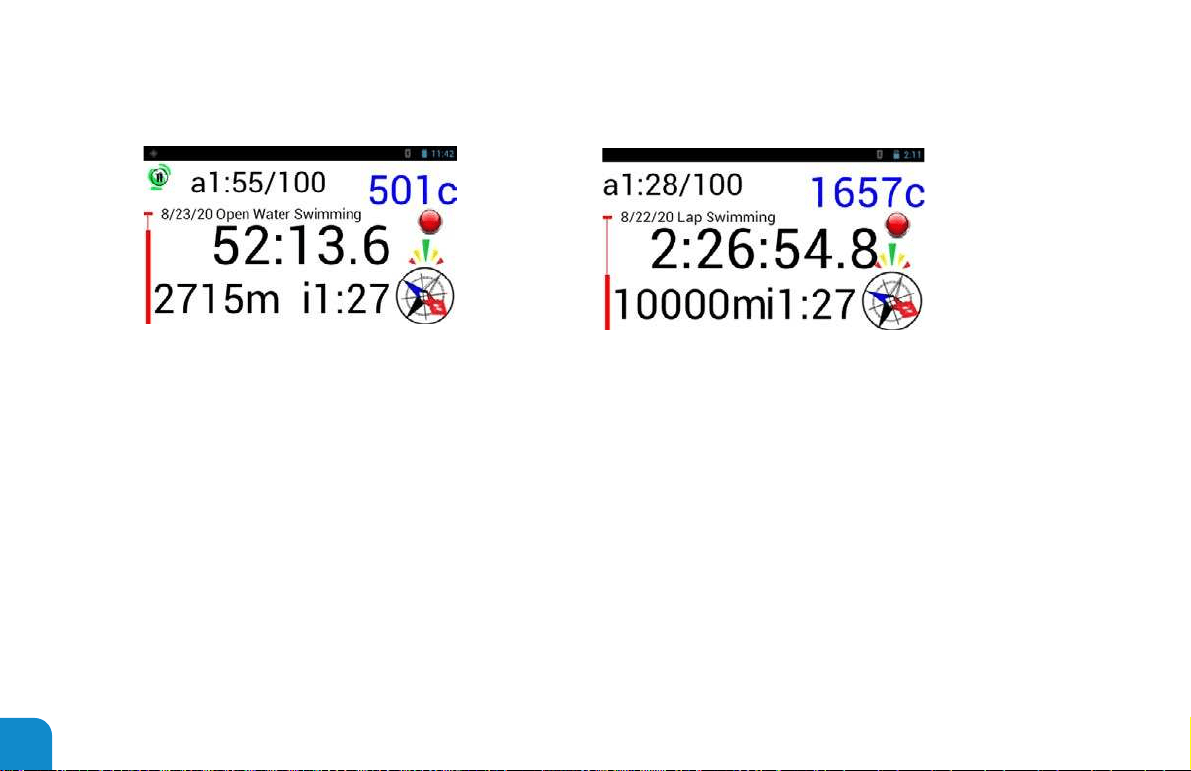
"a" = Average Pace: the average pace for the full session time include rest periods.
"i" = Interval Pace: the average pace for the full session time excluding rest periods.
"c" = Total Calories.
"y" = Distance is Yards.
"d" = Distance is Miles.
"m" = Distance is Meters
"k" = Distance is kilometers
"mp" = Miles Per Hour
"kp" = Kilometers per Hour
"time/xxx" = Speed is "Time / Interval Split Distance"
Note: Letter symbols depend on configuration user selects.
HUD Table Letter Definitions
36

37
6. MEDIA PLAYER
• Renders local media content stored on swim.
• Supports blue tooth audio devices.
• Includes /music les.
• Includes /movies les.
• Includes /pictures les.
• Allows selection of current track.
• Shows swim state.
• Shows compass heading.
• Shows battery state.
• Shows date and time.
• Provides play/pause.
• Provides volume control.
• Provides blue tooth reset logic.
• Provides auto pause based on swim state.

38
Button-Chart
(Single Press)
Button B: If video is playing (Volume up) If video is paused (play next track)
If video is playing (Volume down) If video is paused (play previous track)Button A:
Select: Play/Pause
(Double Press)
Button B: If video is playing (Reset Bluetooth devices)
Button A:
Select:
n/a
Show Track Selection dialog
(Triple Press)
Button B: Show Date-Time
Button A: n/a
Select: n/a
*** Press and hold Select to exit app
Theme-Settings
BackGroundColor, CountDownColor, StopWatchColor, HidePowerState, DistanceSize, TotalDistanceSize, AnalogScale, ClockHorizontal, ClockVertical,
HideHeading, HideSwimState, ClockName, AnalogColor, AnalogCountDownColor, AnalogSecondColor, AnalogMinuteColor, AnalogHourColor
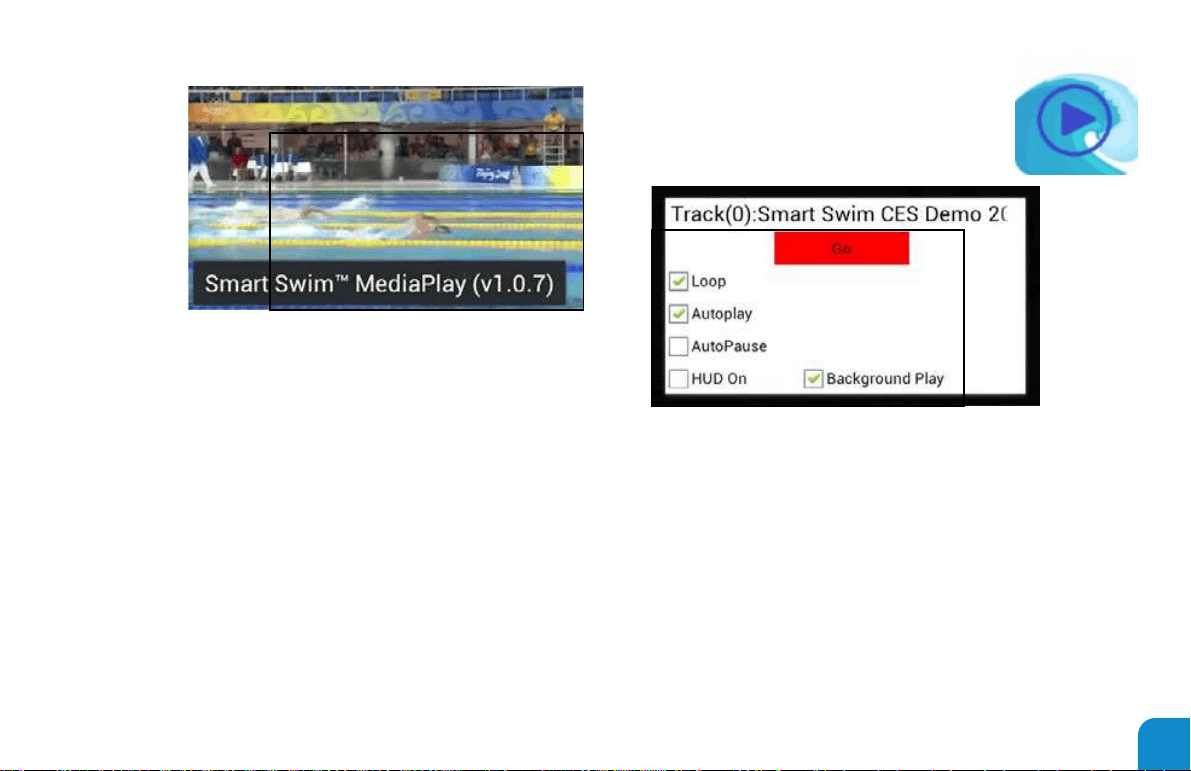
The Media player remembers last
location and track.
The Media player provides a dialog for
controlling special features.
Loop
Loops on currently selected track
Autoplay
Loops on All videos, audios and images
AutoPause
Will pause current track when user is not
swimming
HUD On
Turn on all special HUD features
Background Play
Will only playback audio/music tracks from the
Music folder in the background while other apps
are running The You Tube Streamer App will
auto shut down the background play option.
User must open the Media Play App to restart
background play.
39

7. YOUTUBE STREAMER
• Requires Wi-Fi connection.
• Supports blue tooth audio devices.
• Renders you tube video content.
• Allows selection of searched video strings.
• Provides set of default search strings.
• Remembers all search strings.
• Shows Wi-Fi status.
• Shows battery state.
• Shows date and time.
• Provides play/pause.
• Provides volume control.
• Provides blue tooth reset logic.
• Saves video play state between sessions.
Button-Chart
(Single Press)
Button B: If video is playing (Volume up), If video is paused (play next track)
Button A: If video is playing (Volume down), If video is paused (play previous
track)
Select: Play/Pause
(Double Press)
Button B: If video is playing (Reset Bluetooth devices)
Button A: n/a
Select: Show Track Selection dialog
(Triple Press)
Button B: Show Date-Time
Button A: n/a
Select: n/a
*** Press and hold Select to exit app
Theme-Settings
BackGroundColor, CountDownColor, StopWatchColor, HidePowerState,
DistanceSize, AnalogScale, ClockHorizontal, ClockVertical, ClockName, AnalogColor,
AnalogCountDownColor, AnalogSecondColor, AnalogMinuteColor, AnalogHourColor
40
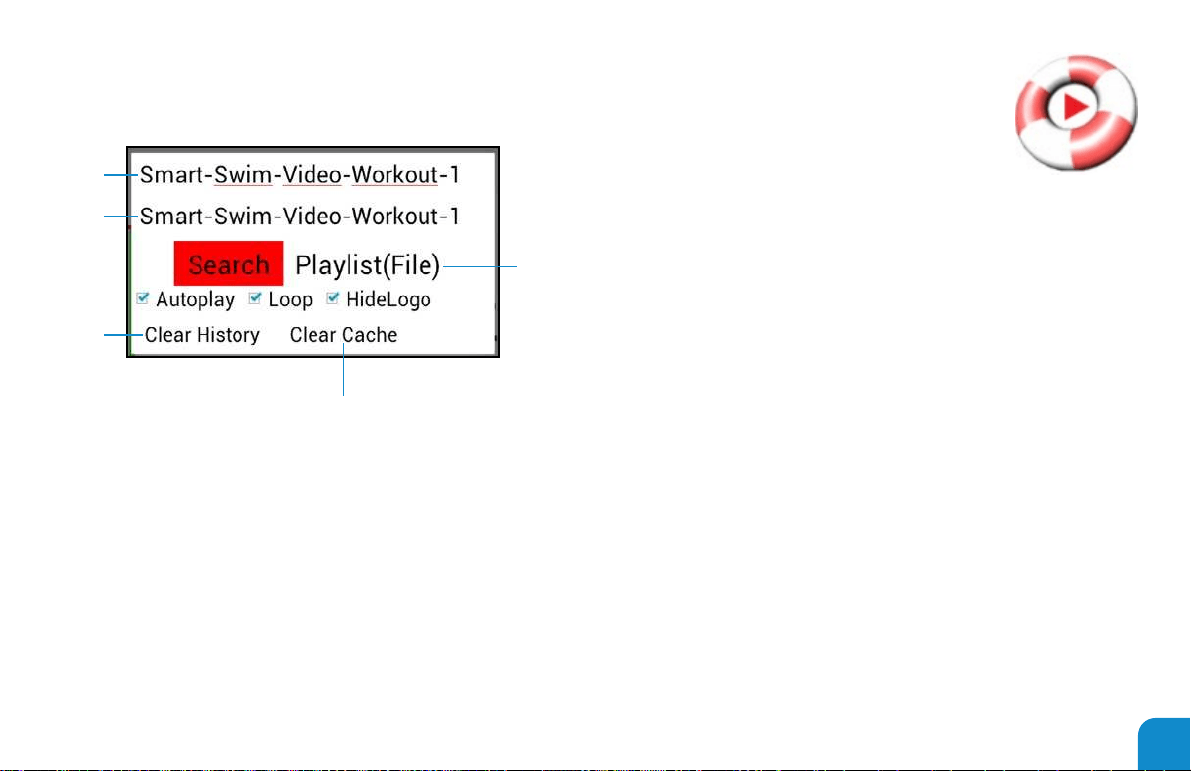
Open the search dialog by double clicking the select button
1
3
4
5
2
1. Enter a new search string.
― Top edit box uses keyboard or pairing app to erase
and type in a new search string.
2. Select a previously searched search string.
― Using the drop-down list in the second search box.
3. Select your own uploaded playlist. Using the Playlist(File)
option. You can upload playlists using the pairing app.
4. You can Clear the Search History fully and start with no
search strings or you can Clear to system dened default
search strings.
5. Here you can also clear the browser cache.
― Warning: this will erase ALL prior search and login
information.
When the search results are returned scroll down to the video
of your choosing.
41
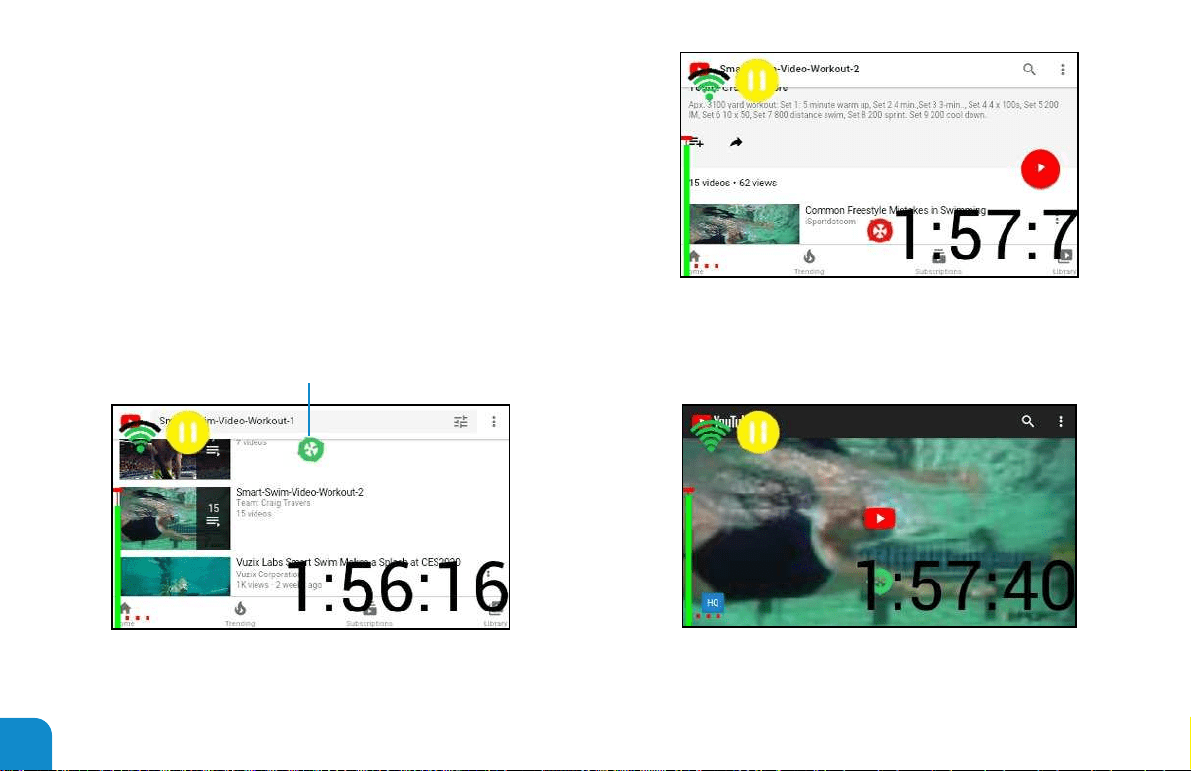
CURSOR COLORS FLASH
Button A = up/left by single or double clicking the button.
Button B = down/right by single or double clicking the button.
This will move the cursor appropriately. Move the cursor over
the video of your choice, then press select. When the video
rst loads after a search you must then press select again to
start the video playback process.
Example of video search and loading sequence.
Step 1: First search for results
Step 2: Selecting a video may bring up another linked page
Step 3: Move cursor over video and select. Once selected the
video will load.
Step 4: Press select again to start video playback. After this
auto play and looping will continue playing videos.
42
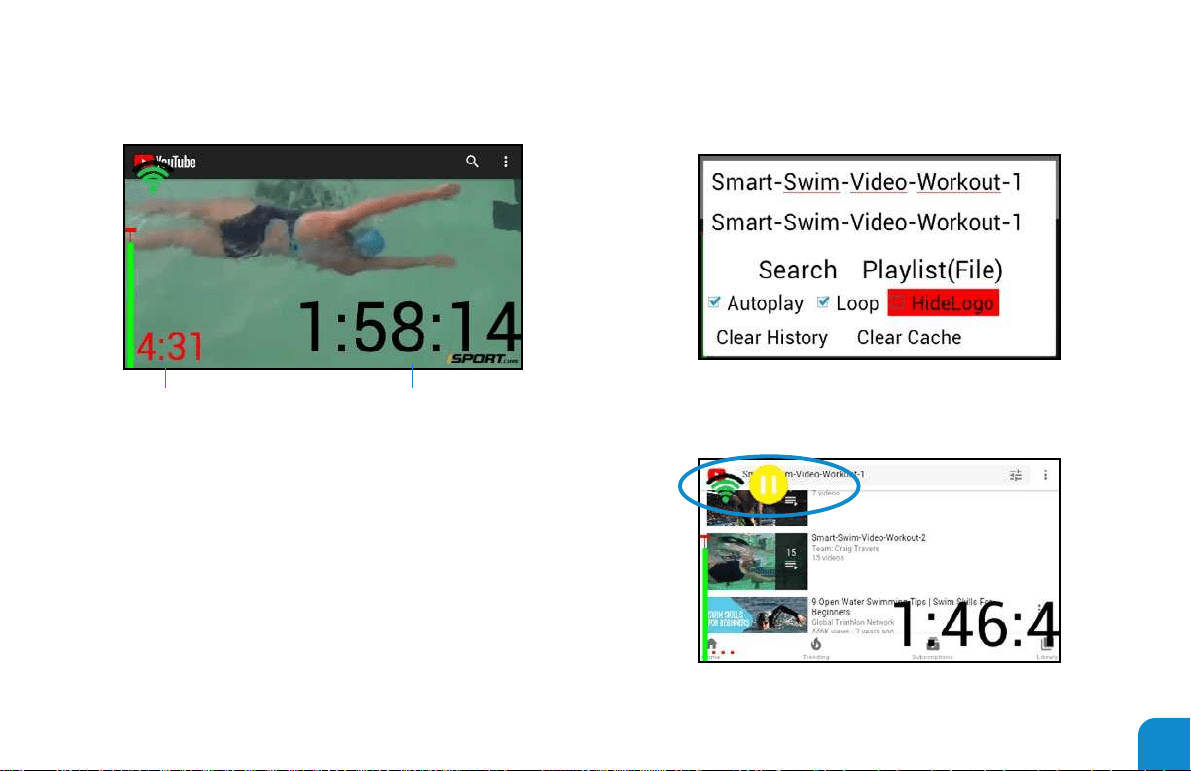
Wi-Fi Signal Status: Green = ok, Yellow = disconnected,
Red = Access required
TOTAL SESSION TIMEVIDEO COUNTDOWN TIMER
• There will be a 15 second delay time if Wi-Fi is lost
during an access time. The App will reload and seek to
the last position when wi- access was lost.
• Stopping at the end of video sequences will ensure the
next sequence fully loads prior to any loss of network
connection.
• Once the cache lls, there will be enough time for
intermittent WIFI during continuous sessions.
• Select a video to play
Steps to login to your YouTube Account
• Open Search dialog
• Enable Show Logo option
• Perform a Video Search
43
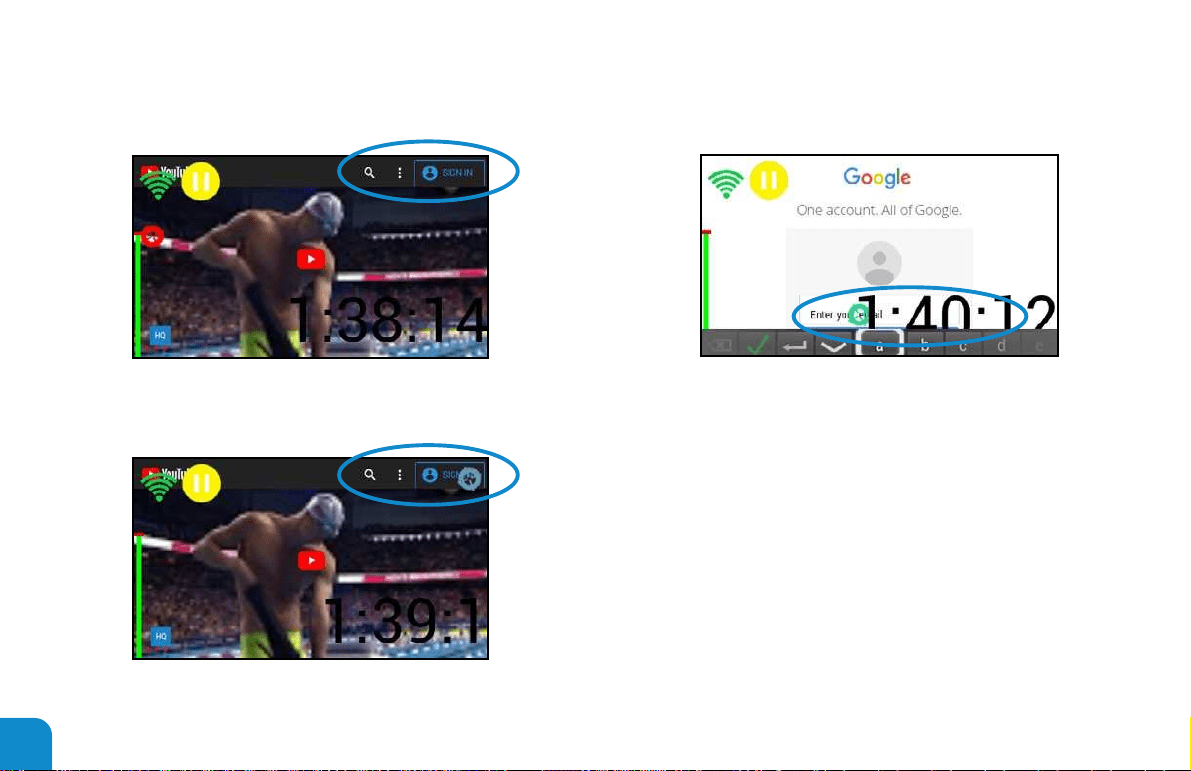
• Press select to open the login option
• Move the circular cursor up to the upper right blue login option • Move the cursor over the email id and press Select to open
the keyboard. (Use the paring app to assist in sending your
email address to ll the email id box)
― NOTE: You may need to dismiss the search dialog box
using the back button after pressing select. (Press and
hold Select to dismiss search dialog)
• Move cursor over sign in box and press select.
44
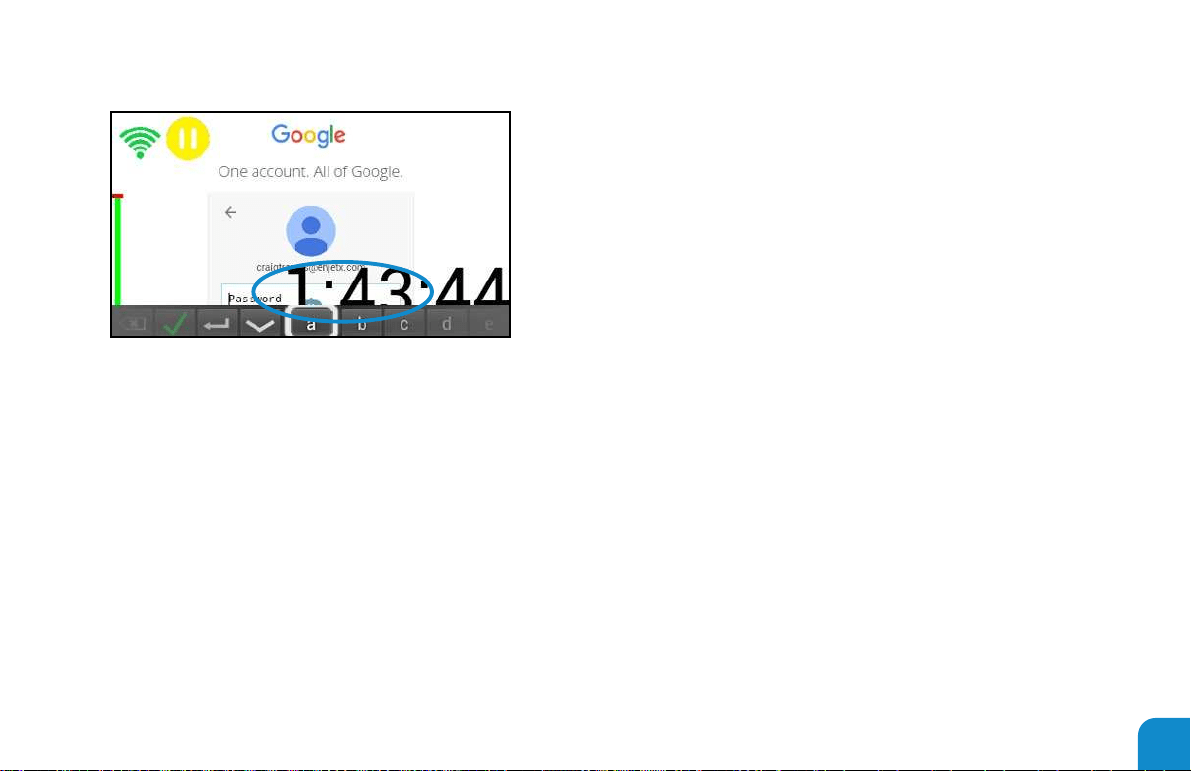
• Move the cursor over the password id and press Select to
open the keyboard. (Use the paring app to assist in sending
your password).
― NOTE: You may need to dismiss the search dialog box
using the back button after pressing select. (Press and
hold Select to dismiss search dialog)
• Move cursor over sign in box and press select.
• You are now logged into your you tube account. The
system will forever remember your login information. See
clear Cache above.
45

Playlist for the You Tuber streamer app are simple text-based les with a version header record. The system currently supports 3
video string formats. See included playlist samples as a template to get you started.
Format 1:
StreamVideos(v)-1.0Smart Swim™ Streamer (v1.0.7)
https://youtu.be/-BjZmE2gtdo
https://youtu.be/IeDMnyQzS88
Format 2:
StreamVideos(v)-1.0Smart Swim™ Streamer (v1.0.7)
https://www.youtube.com/watch?v=luDxN1Pz6G8&list=PLw234Mpa3AvyqBKCIr6fQZa2EDrNiJvqv&index=2&t=0s
https://www.youtube.com/watch?v=hE5ohVhZWho&list=PLw234Mpa3AvyqBKCIr6fQZa2EDrNiJvqv&index=3&t=0s
https://www.youtube.com/watch?v=5N9KyCfBbEQ&list=PLw234Mpa3AvyqBKCIr6fQZa2EDrNiJvqv&index=4&t=0s
Format 3
StreamVideos(v)-1.0Smart Swim™ Streamer (v1.0.7)
https://m.youtube.com/watch?v=-BjZmE2gtdo
https://m.youtube.com/watch?v=IeDMnyQzS88
8. STREAMER PLAYLIST FORMATS
46

Use the following steps to retrieve a playlist template to build your own playlist:
• Open the Smart Swim Pairing App.
• Select the “Download” button.
• Select the “Stream Workouts” option.
• Select the “PLAY-MPSwims Gold.txt” playlist session.
• This will download and open a playlist in your text editor.
• Save this playlist as your personal playlist session le in the “Download” folder
of your phone.
• Add your own playlists to this new playlist session le.
• Save your changes.
• Exit the editor, this will reopen the Smart Swim pairing app.
• Press the Upload button.
• Select the Stream Playlist option.
• Select your personal playlist from the listed playlist session les.
*You can now load this playlist from the youtube streamer app.
47
• Requires Wi-Fi connection
• Renders Sport DV Camera image
• allows image horizontal stabilization
• Allows Zoom to horizon line
• Allows congure of Wi-Fi credentials
• If no Wi-Fi is connected on startup app will open wi-
settings
• If “SQ23_” or “SQ13_” Wi-Fi networks are not connected
the app will wait for their connection to arrive
• If an alternate wi- network is connected a warning will
be displayed. User must walk outside of range of “said”
wi- at this point the Sport DV camera will connect and
the APP will auto connect and render cameras image.
• Sport DV wi- must be congured under wi- settings.
See settings app.
9. SPORT DV CAMERA
Button-Chart
(Single Press)
Button B: Zoom out on cameras image.
Button A: Zoom in on cameras image.
Select: Restart session time from 00:00.
(Double Press)
Button B: n/a (TBD)
Button A: Re-center Image correction to horizon line.
Select: Show User Camera Settings dialog.
(Triple Press)
Button B: Show Date-Time.
Button A: Restart and initialize Camera Stream.
Select: Show user credentials user-id and password dialog.
*** Press and hold Select to exit app.
Theme-Settings
BackGroundColor, CountDownColor, StopWatchColor, FontSelect,
HidePowerState, TotalDistanceSize, AnalogScale, ClockHorizontal,
ClockVertical, HideHeading, HideSwimState, ClockName, AnalogColor,
AnalogCountDownColor, AnalogSecondColor, AnalogMinuteColor,
AnalogHourColor
48
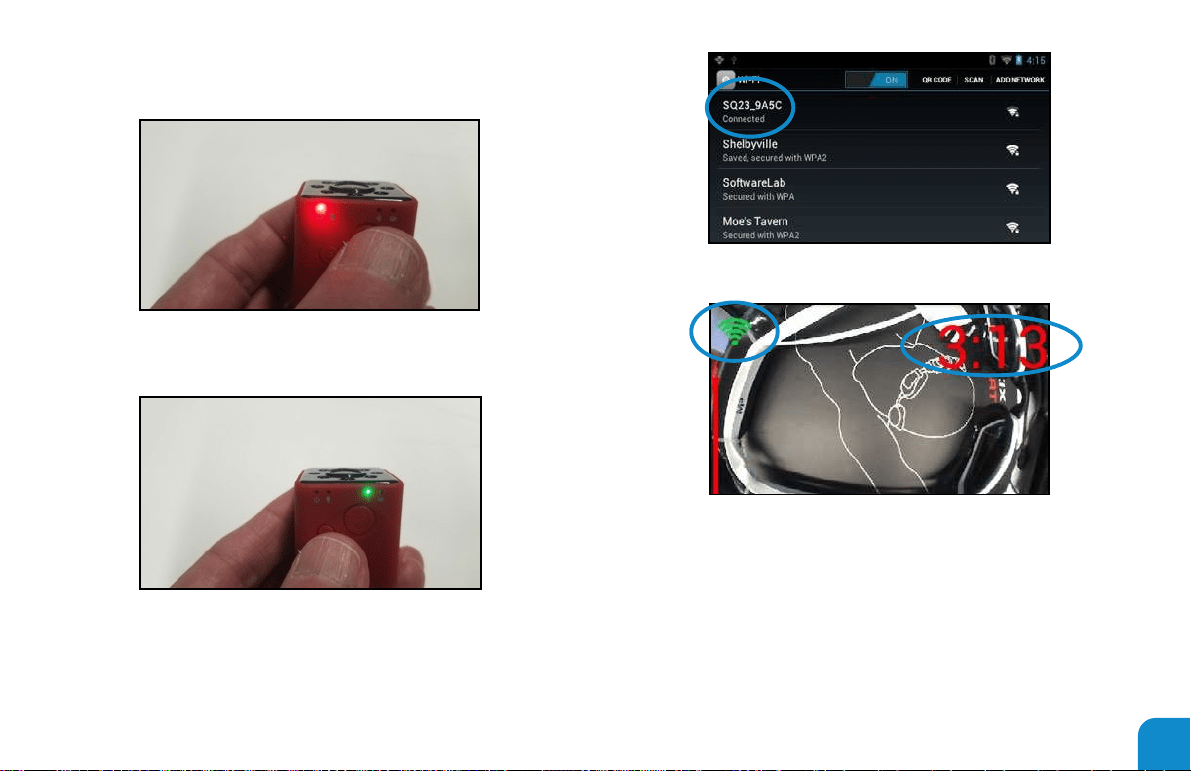
Turn on Sport DV Cameras Wi-Fi mode. Press power on and
see red light.
Press and hold mode button and see green light ashing. Wi-
is now on.
Run the Sport DV Camera App
Camera is found and connected under Wi-Fi settings. Default
password is “12345678”.
Now you see the camera video feed with WIFI signal strength
in the upper left corner. Time since camera session has
started in upper right corner.
* Be sure to use the proper SD Card for the camera. If images and videos
are being overwritten check for proper card format and type.
* There will be some noise levels in the audio feed of the camera. You
may want to use noise reduction of -10 to -15 dBs to remove this noise.
49
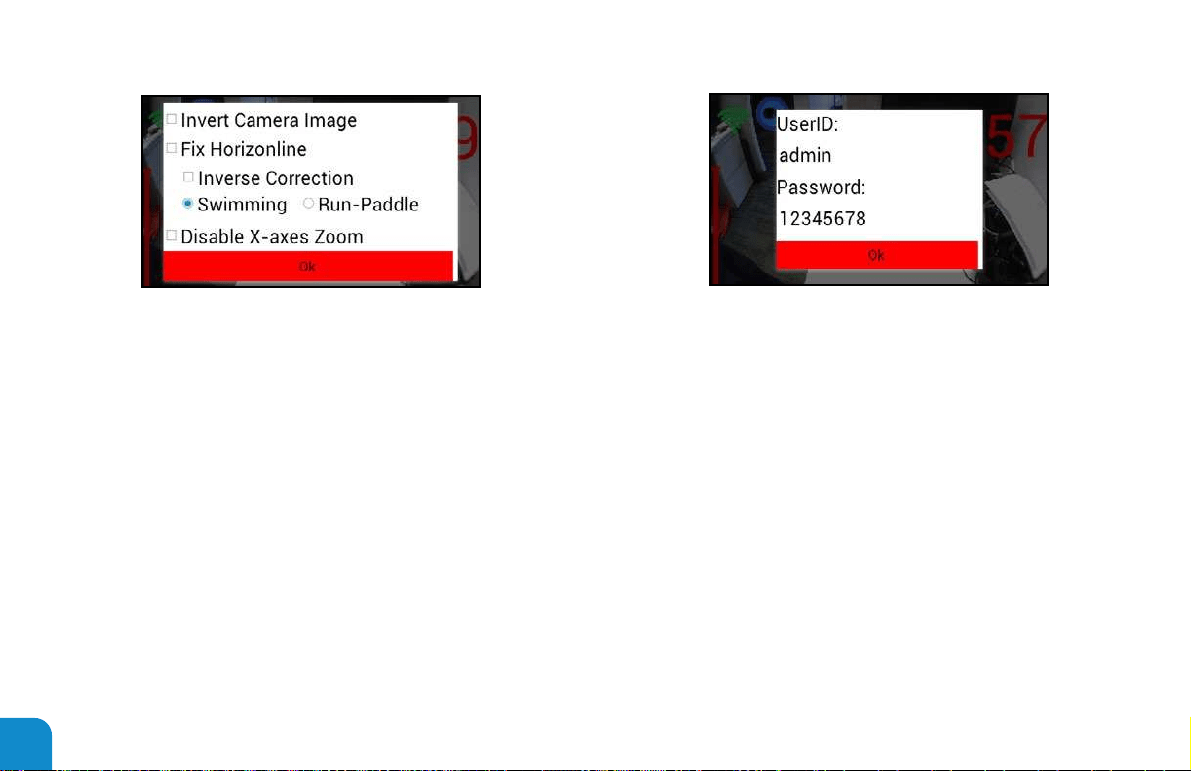
(Double click Button B) Image correction and other camera details
If user has changed their camera login credentials for WIFI
connection to the camera.
(Double click Button A) Camera credentials dialog
• Invert the camera image provides for mounting in left vs right
eye modes or mounting the camera remotely upside down.
• Fix Horizon line – is an experimental option to use if the
user feels the need to keep the horizon line horizontal
when head or body motion is rolling side to side.
• Inverse correction – provides for left vs right eye mounting, etc.
• Swimming vs Run-Paddle will determine if the user is
facing down at feet or up at sky when swimming vs.
looking straight ahead when running or paddling.
• Disable X-Axes Zoom. This is experimental and can be
used to only zoom along the horizon line keeping the
information in the image in the vertical axis. More details
will help to spot objects in the distance.
50
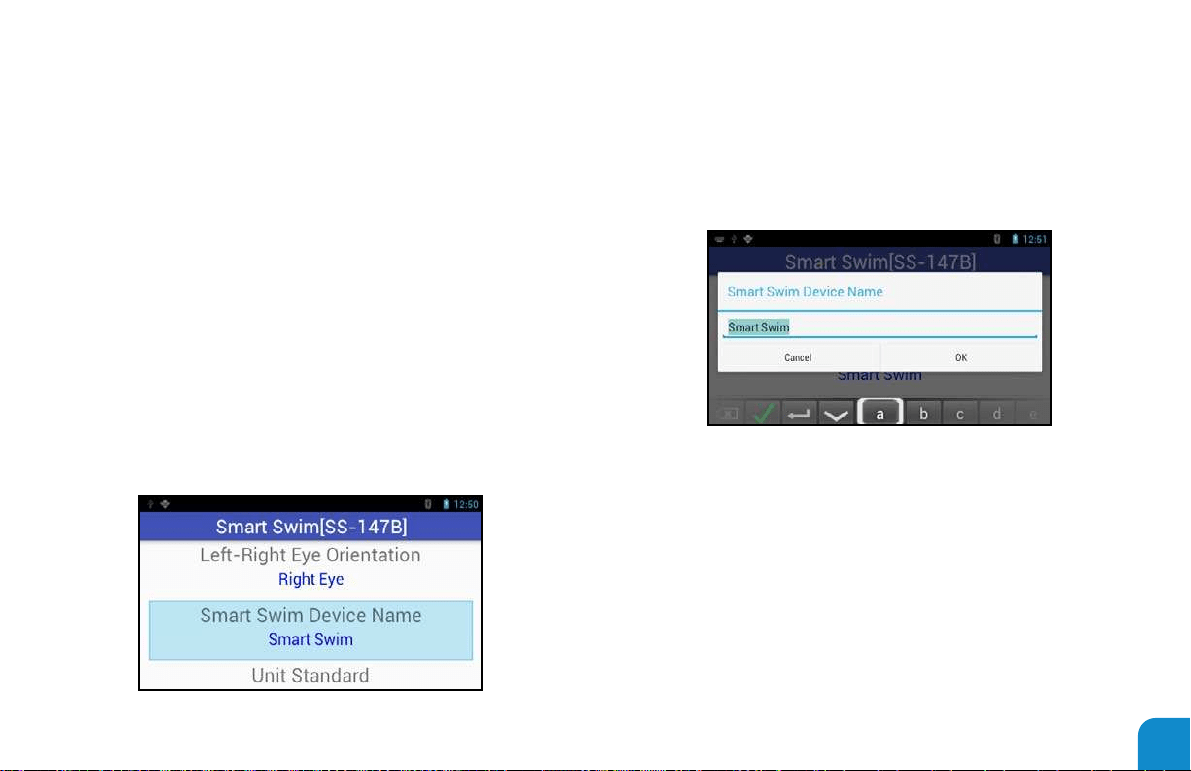
Power on Smart Swim™
Scroll to “System Congure”
Open “System Congure” App
― Your rst time opening the conguration application, your
system will be rebooted. The conguration app will reload
after the reboot is completed.
Select the “Smart Swim Device Name” property.
• Press and hold Button B to switch keyboard mode to
numbers and back to letters.
• Scroll to letters using Button A and Button B. Press Select
button to select the letter.
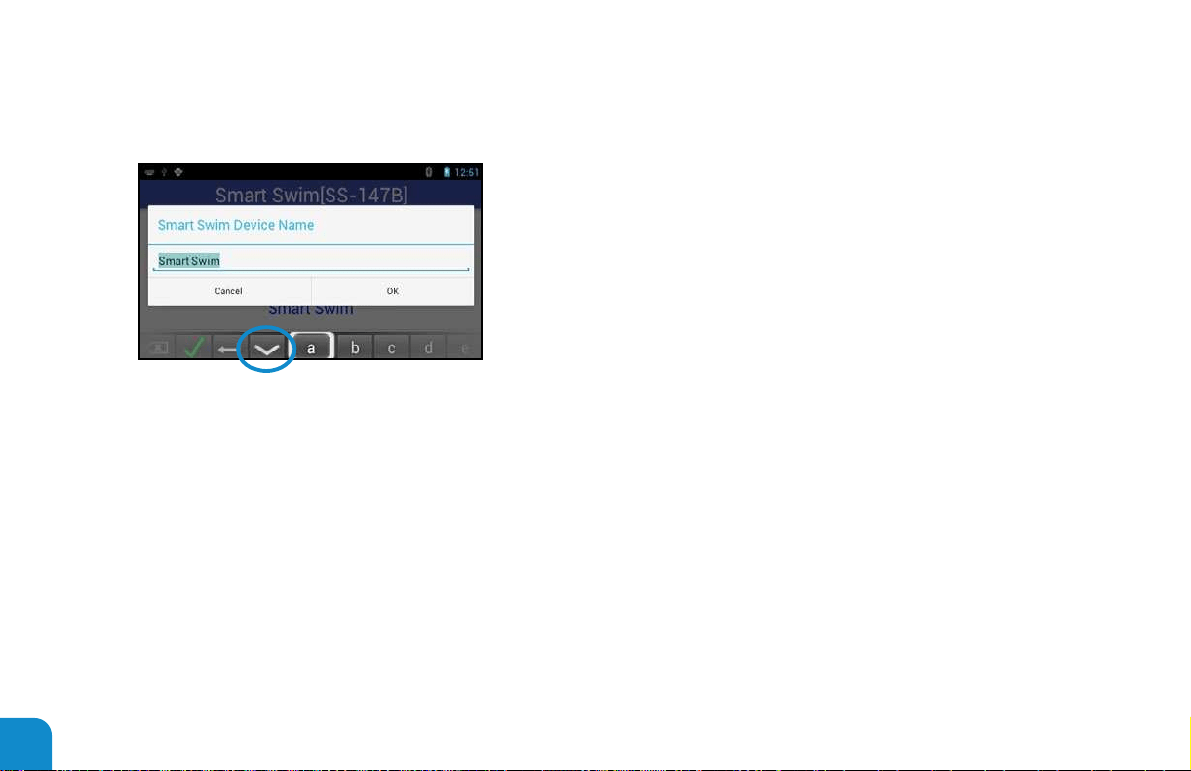
• When nished entering your unique system name scroll
to the down character and select it to exit the software
Keyboard.
Use the soft keyboard to enter your unique “Smart Swim™”
device name.
NAMING YOUR SMART SWIM™
51
• Press Select and the system should now reboot to
complete your unique device name conguration change.
• All your saved session les will be stored in a folder by this
name.
• Note: change your device name infrequently.
Getting Acclimated
• It may take you some time to get acclimated to wearing
and using your Smart Swim™.
• Be aware of your surroundings.
• Start by only viewing the Smart Swim™ Display at random
times during your sessions.
• Gradually you will get accustomed to viewing the Display
more often during your sessions.
• Safety is paramount and keeping your self-awareness is
always critical to a great experience with your Smart Swim™.
• Your rst sessions should be more focused on the people
and places in and around your environment.
• In time the experience will become more natural.
52
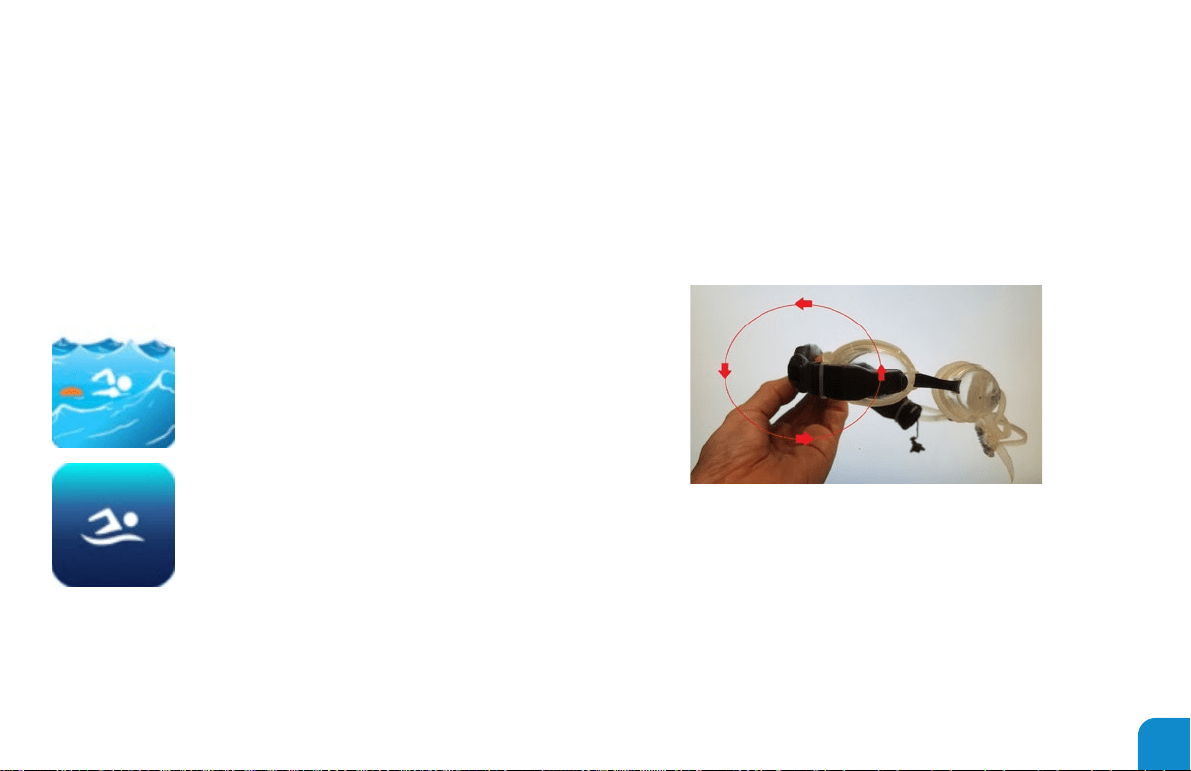
Calibrate Sensors
1. At times you may nd your onboard sensors are not
responding properly
2. Your lap training sessions are not keeping in step with you
3. Your compass heading is out of alignment
4. To re-calibrate your onboard sensors, perform the following:
― While at the environment you will be
using your Smart Swim
― Open the Lap Training application or the
Open Water application
While holding your Smart Swim™ in front of you, level to the
horizon line.
Step 1: rotate the system from your right to your left shoulder.
Around a full circle in front of you. Slowly.
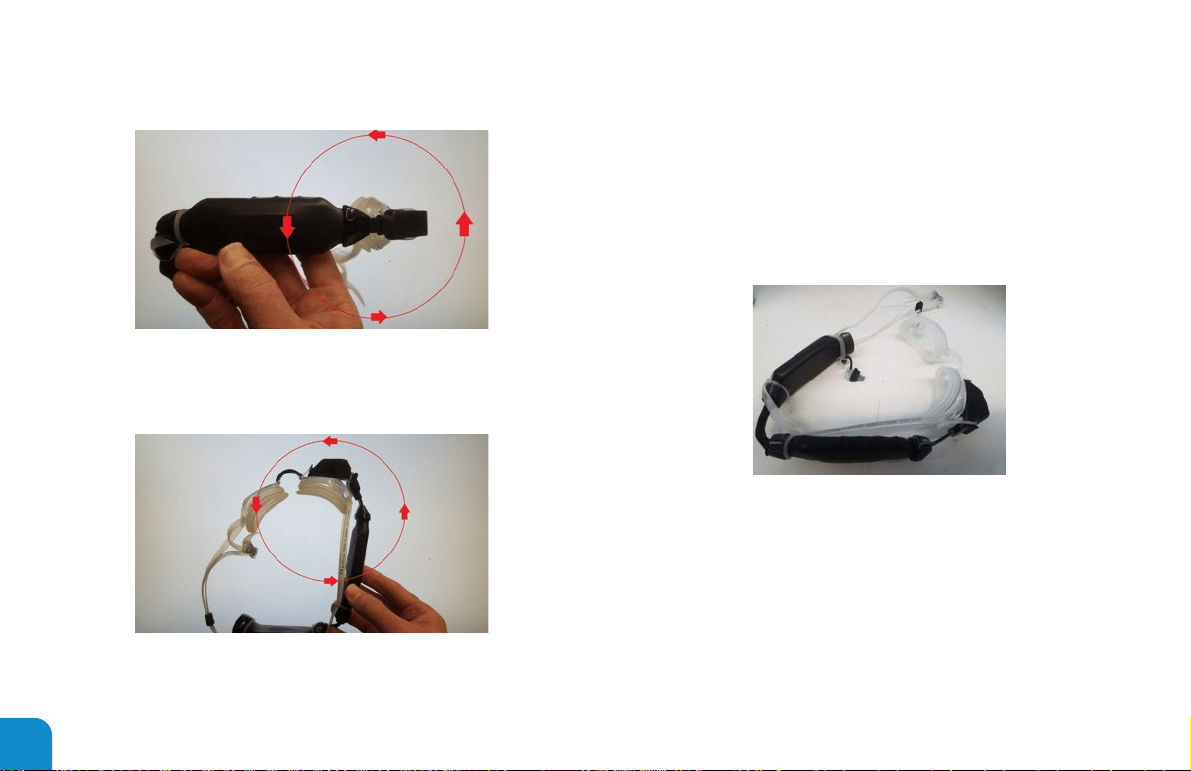
Step 2: rotate the system from the front to the back in a full
circle, pitching up to the sky then down to your feet in a full
circle. Slowly.
53
Step 3: rotate the system around the horizon line, in a full
circle. Slowly.
Calibration completed.
This can be performed at any time.
Step 4: place the system on a at surface and let it rest for up
to 10 seconds.
54

1. You are now ready for your rst swim.
2. With a pool close by the Lap Trainer will be your go to
App.
― Use the conguration app to set your pool distance
and unit standard from the settings page.
― Ex: Unit Standard = Yards.
― Ex: Length of pool = 25.
3. On your rst swim, just take it easy and keep it simple.
Record your session to review when you complete the
swim.
4. If it’s the Open Water App you want. That too will do the
job.
5. Just remember to be aware and get acclimated.
6. Let’s Go!
YOUR FIRST SWIM
NOTE:
ANTI-FOG, NEW GOGGLES YOU WON’T BE TOO CONCERNED
FOR YOUR FIRST FEW SWIMS. AS TIME PROGRESSES YOU WILL
WANT TO CONSIDER A SOLUTION.
55
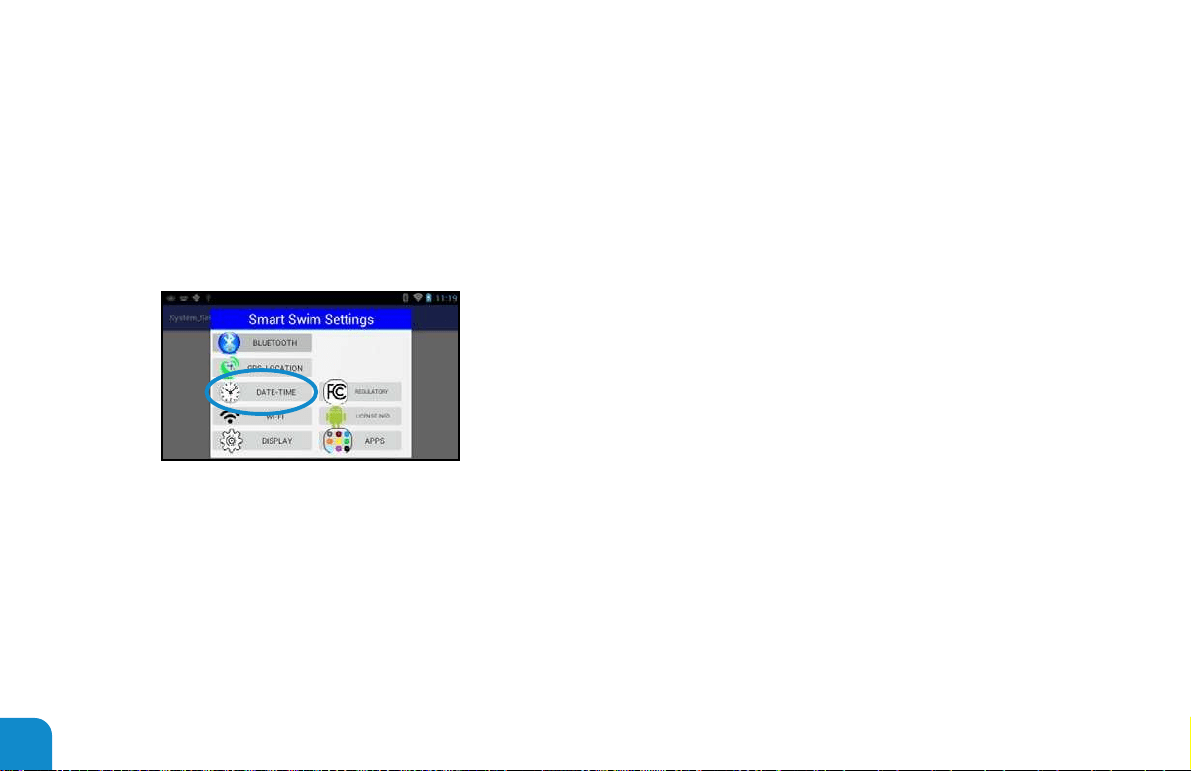
• If Wi-Fi is enabled date and time will be set when Wi-Fi
connection is established
• If pairing with “Vuzix Smart Swim App” date and time will be
set from the paired device based on paired devices date time
• If User requires proper time setting with no blue tooth or
wi- connection the following must be performed
• Open DATE-TIME
• Select Set Date
• Press button A 3x
• Press button B 3x
• Press select and enter new month using soft keyboard
• Select down key icon when completed
• Press button A to highlight day of month
• Press select
• Enter new day of month using soft keyboard
• Press button A to highlight year
• Press select
• Enter new year using soft keyboard
• Press button A until “Set” is highlighted
• Press select to set the new date
• Open Set Time
• Press button A 3x
• Press button B 3x
• Press select and enter new hour using soft keyboard
• Select down key icon when completed
• Press button A to highlight minutes
• Press select
• Enter minutes using soft keyboard.
• Press button A to set AM or PM
• Enter new day of month using soft keyboard
• Press button A until “Set” is highlighted
DATE AND TIME SETTINGS
56
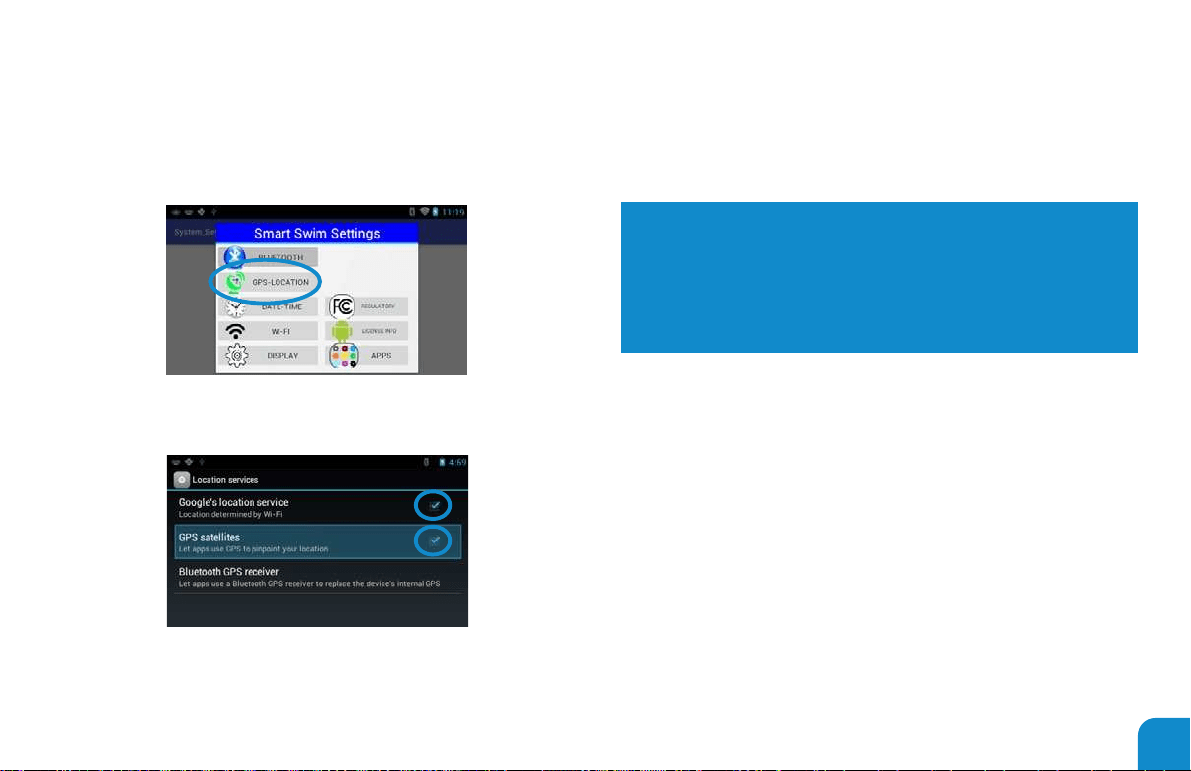
Enable GPS Settings
Check both GPS settings
* Do not use in or around buildings in a city or enclosed spaces
* See the Open Water App for details on GPS connections
NOTE:
SATELLITE CONNECTIONS WILL TAKE AS MUCH AS 7 OR MORE
MINUTES THE FIRST TIME YOU TURN ON YOUR GPS CONNEC-
TION. CONNECTION TIME WILL BE MUCH SHORTER WITH SUC-
CESSIVE CONNECTIONS IN THE FUTURE. BE IN AN OUTSIDE
OPEN SPACE FOR BEST RESULTS.
57
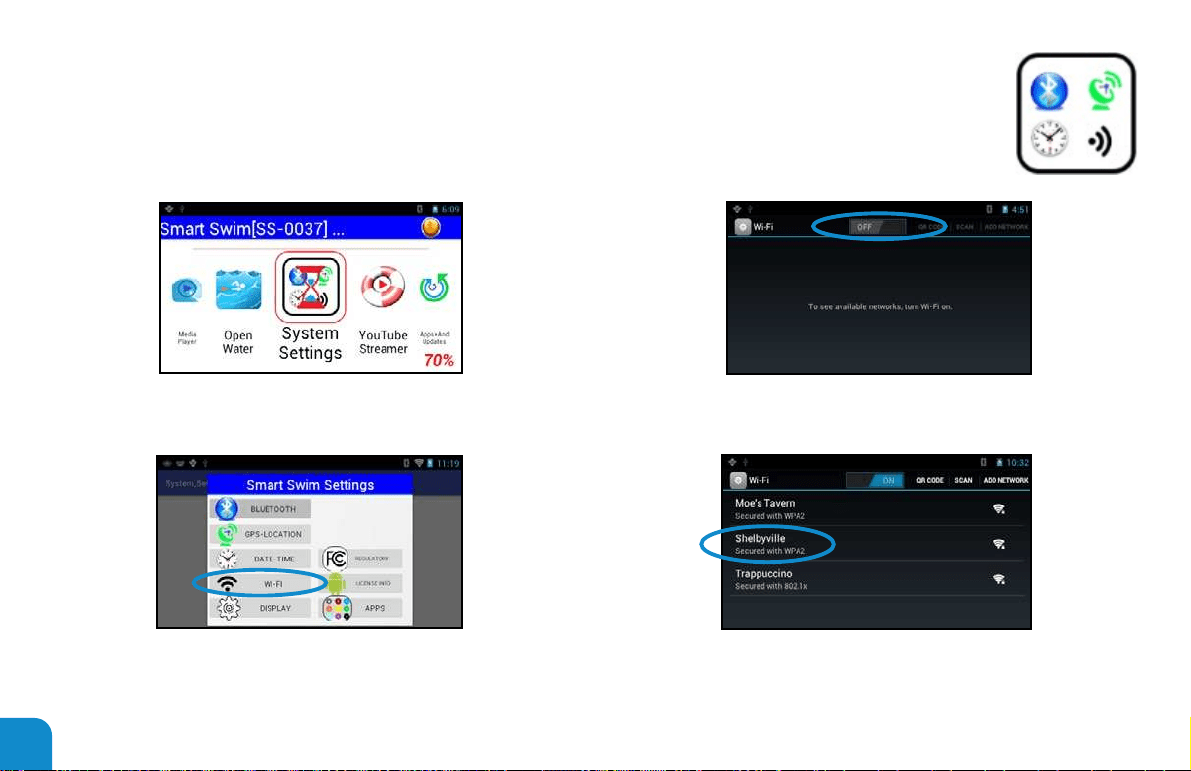
Scroll to And Open Settings Turn on Wi-Fi
Select Wi-Fi option
Verify Wi-Fi is detected
*If the Wi-Fi requires a password you can use the pairing app to assist in
entering it.
ENABLE WI-FI NETWORKS
58
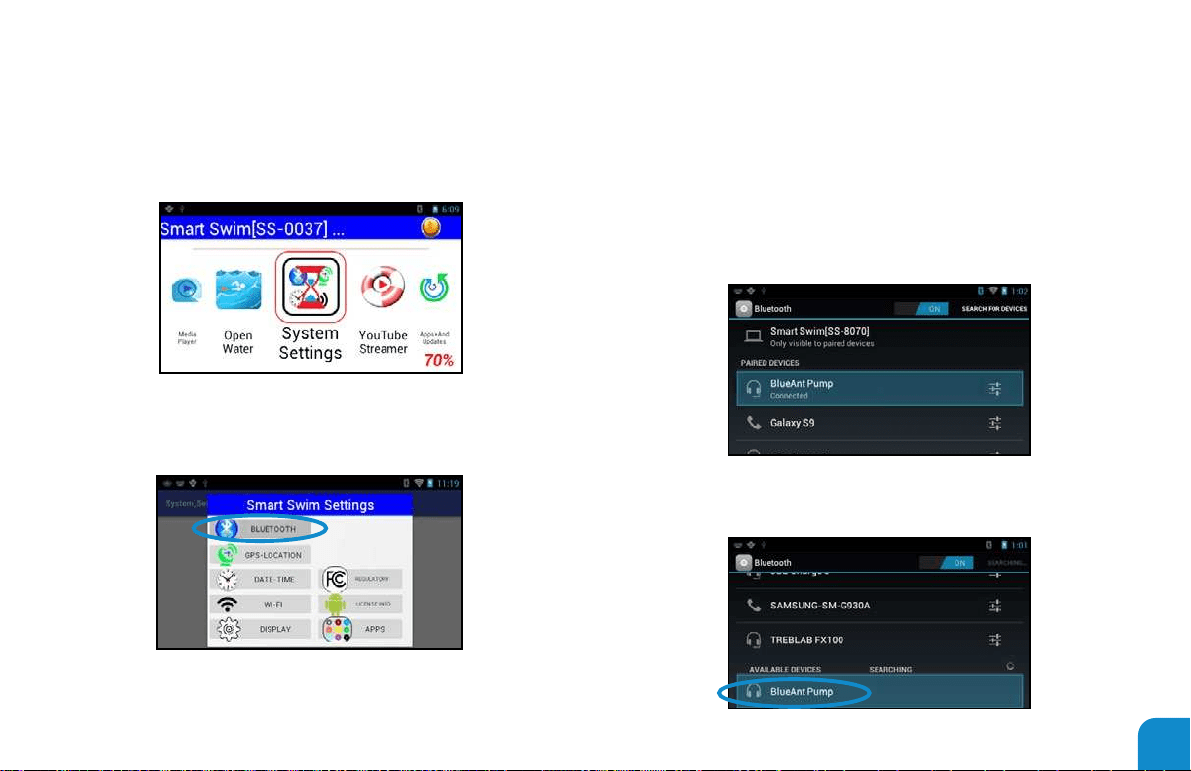
Scroll to And Open Settings Turn on your blue tooth device
Select Scan from the blue tooth settings, Select “Visible to all
nearby Bluetooth Devices” option
Select Blue Tooth
Verify your device is found
PAIRING BLUETOOTH DEVICES
59
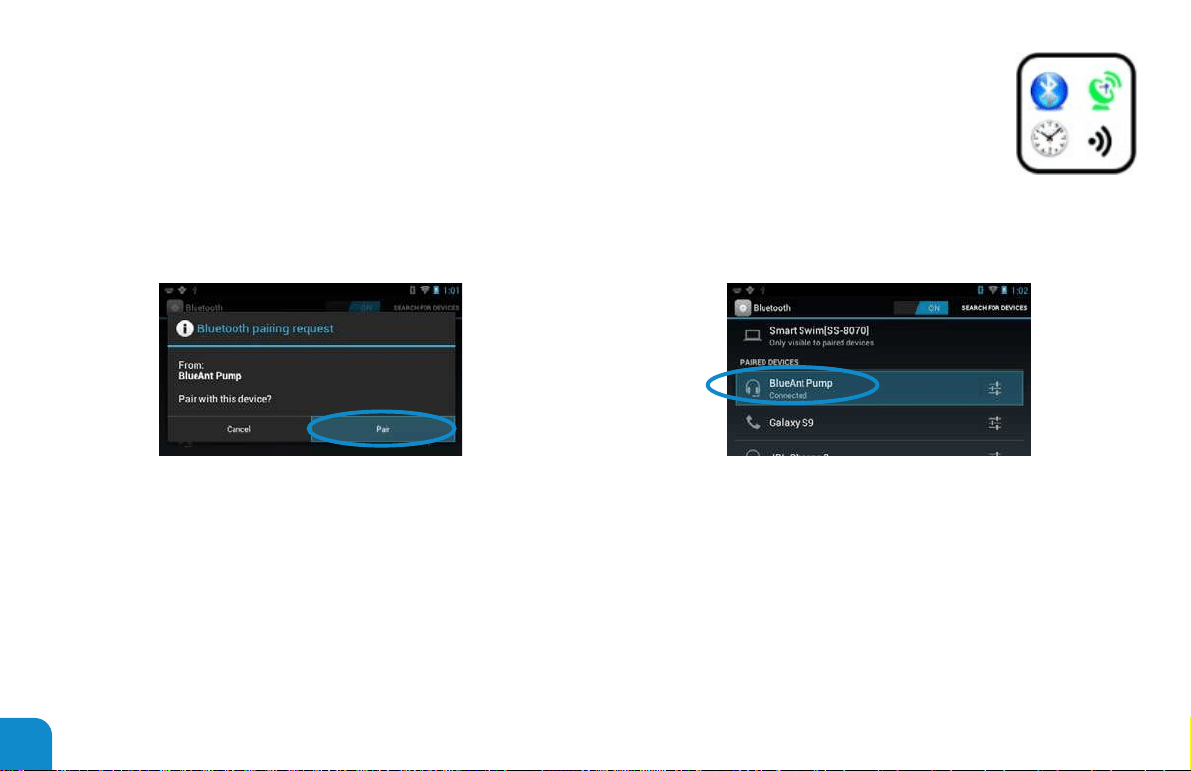
Scroll down with buttons to highlight and then select the device
you want to pair with. Select the Pair button when visible.
Your blue tooth device is now ready and paired.
The system will auto pair with the same device each time you
reboot your Smart Swim. Simply power on your Bluetooth
device before or after you power on your Smart Swim
When pairing with your Phone you will want to change the
visible state from “Not visible to other Bluetooth devices”
to “Visible to all nearby devices”. Once a Scan for Bluetooth
devices is started on your phone your Smart Swim should
soon appear in the pairing list. See below on “Smart Swim™
Phone App“
60
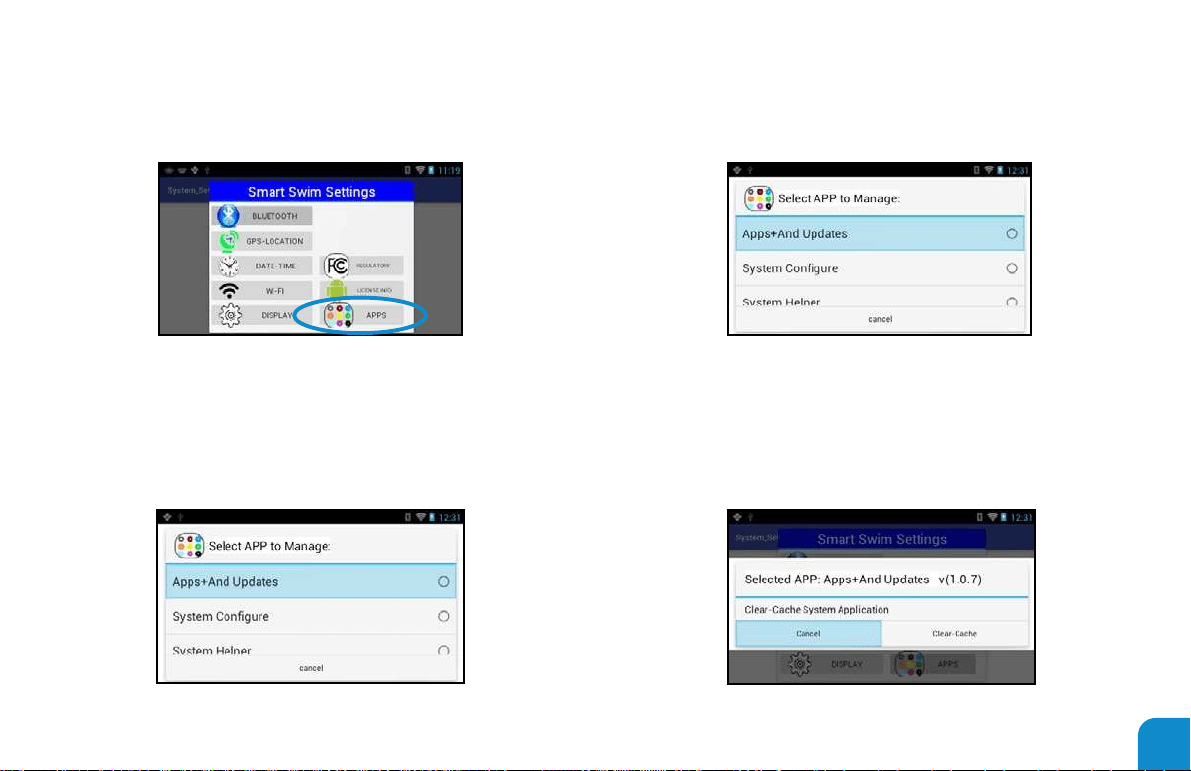
To clear an applications memory or to uninstall an application
select this option. The following dialog will allow you to select the
application you want to manage.
This dialog will then allow you to perform system maintenance
on the selected application.
Selecting a System App:
MANAGING INSTALLED APPLICATIONS
61
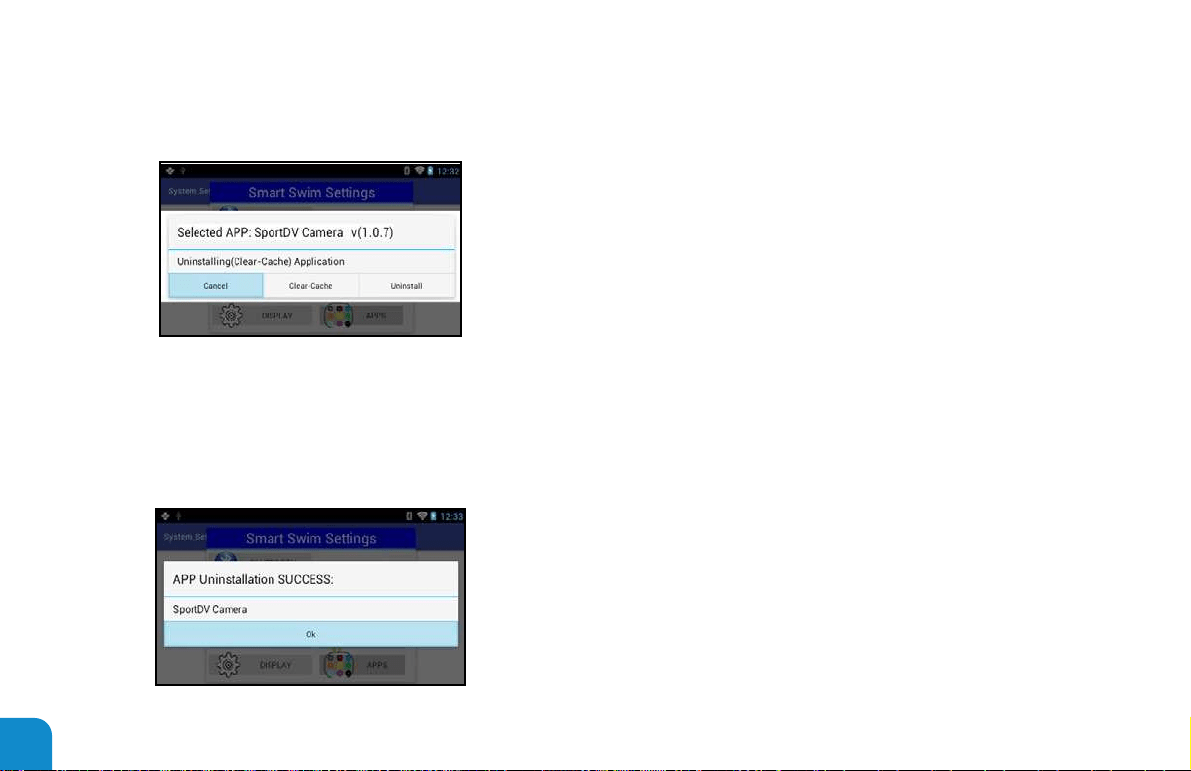
Selecting a Non-System App:
Results from Uninstalling an app:
62
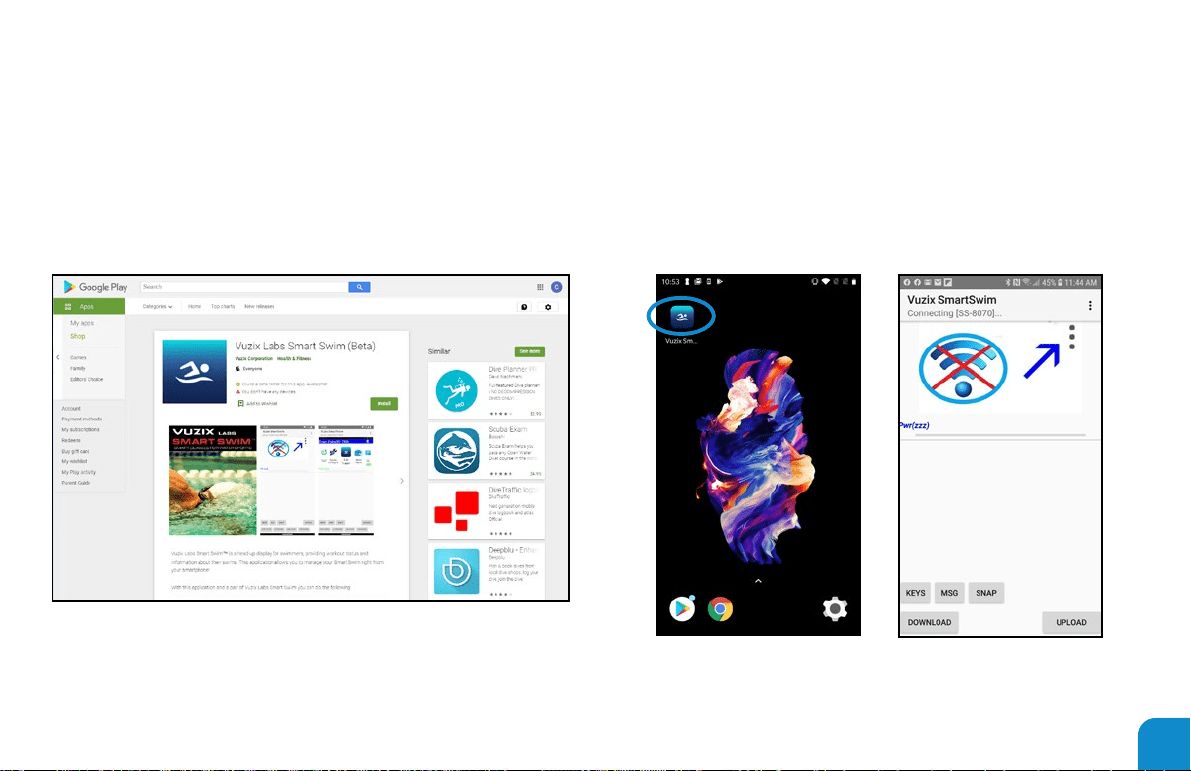
Using the pairing app will greatly enhance your interaction
with smart swim. You can download and install the Vuzix
Smart Swim Companion app from the google play store.
Once installed you will nd the Vuzix Smart Swim App icon
installed in your apps folder on your phone.
SMART SWIM™ PHONE APP
63
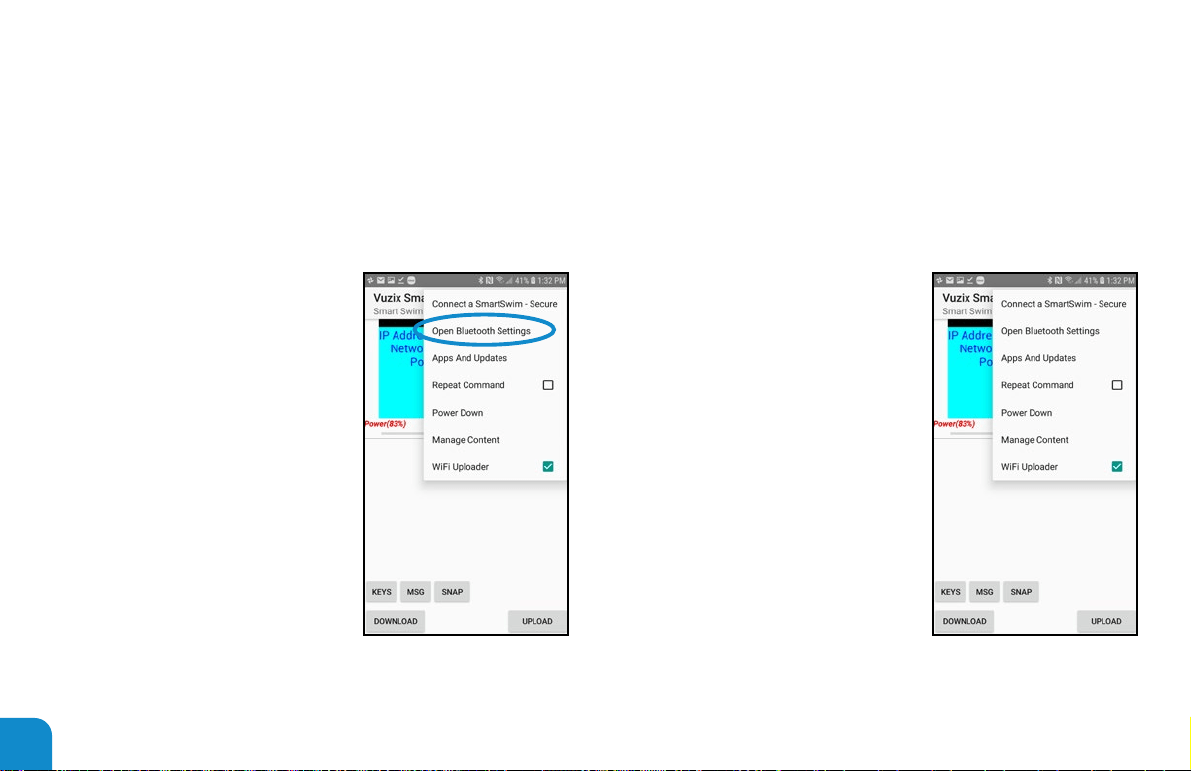
Smart Swim Main Menu Options:
To pair with a Smart Swim open your phones blue tooth
settings. Select the menu options from the upper right. Follow
the pairing guidelines above on
pairing with devices to initially pair
your Smart Swim with your Phone.
Once you have successfully paired
with your Smart Swim from your
phone Bluetooth settings go back to
the Smart Swim pairing app on your
phone. You will have access to the
following commands.
1. Connect a SmartSwim – Secure = Select a Smart Swim
device you already have paired with for communications.
2. Open Bluetooth Settings = Open the Bluetooth settings on
your phone.
3. Apps And Updates = login to the
Vuzix private update server and
check for updates.
4. Repeat Command = check this
box to continuously execute
either the “SNAP” or the “MSG”
commands.
5. Power Down = Power down the
Smart Swim you are connected
to.
6. Manage Content = Provides a
means of deleting content from
your Smart Swim.
64
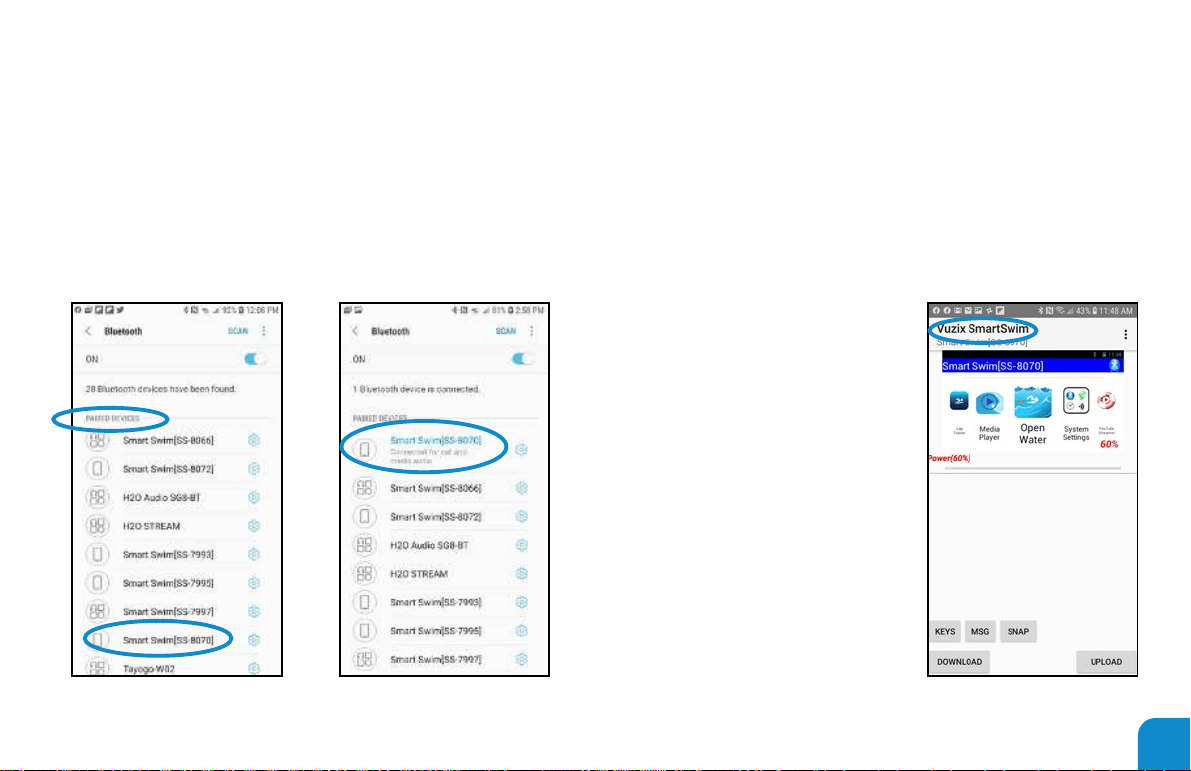
Your phone can be connected to a Smart Swim in either “call
and media audio” or simply listed in the “Paired Devices” list. The
“Vuzix Smart Swim App” will connect and operate in either mode.
The Pairing App is now connected and linked to your Smart
Swim. You should see the display of your Smart Swim on the
pairing apps front window.
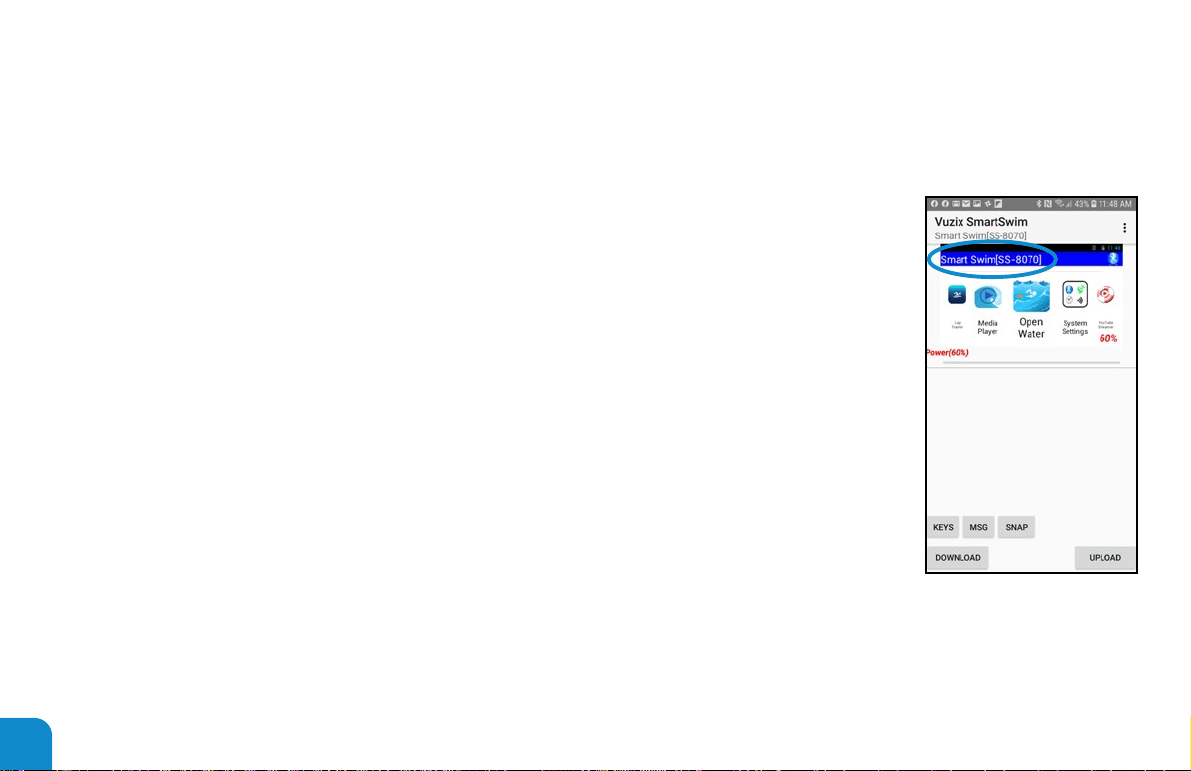
The name of your connected Smart Swim will be displayed in the
status bar. This will include the last 4 digits of the connected Smart
Swims serial number.
KEYS
Sends text entries to Smart Swim.
MSG
Sends text message to Smart Swim.
SNAP
Take a snapshot of what Smart Swim
is currently displaying.
DOWNLOAD
Download content from Smart Swim.
UPLOAD
Upload content to Smart Swim.
“PAIRED ONLY” “CALL AND MEDIA AUDIO”
65
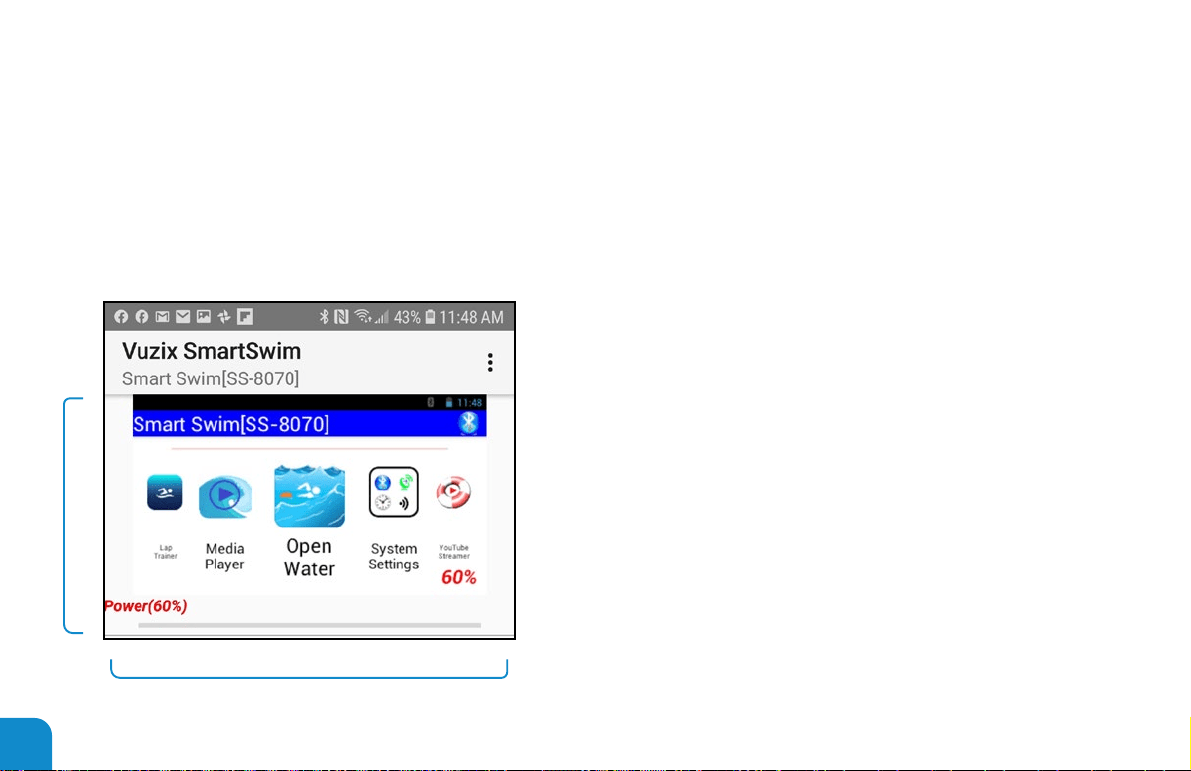
Pairing Apps front control interface window.
SNAP AREAS
1. Tapping on the left side of the SNAP sends the
Button A event.
― Double Tap sends Double Button A
2. Swiping left from the center of SNAP will send
the Button A event.
3. Tapping on the right side of the SNAP sends the
Button B event.
― Double Tap sends Double Button B
4. Swiping right from the center of SNAP will send
the Button B event.
5. Tapping on the center of the SNAP sends the
Select event.
― Double Tap sends Double Select
6. Tap and hold on the very center of the SNAP
sends a BACK event.
7. Power(60%) is message sent when power state
changes or content transfers are executing.
Power(60%) Green indicates System is in the
charging state.
66
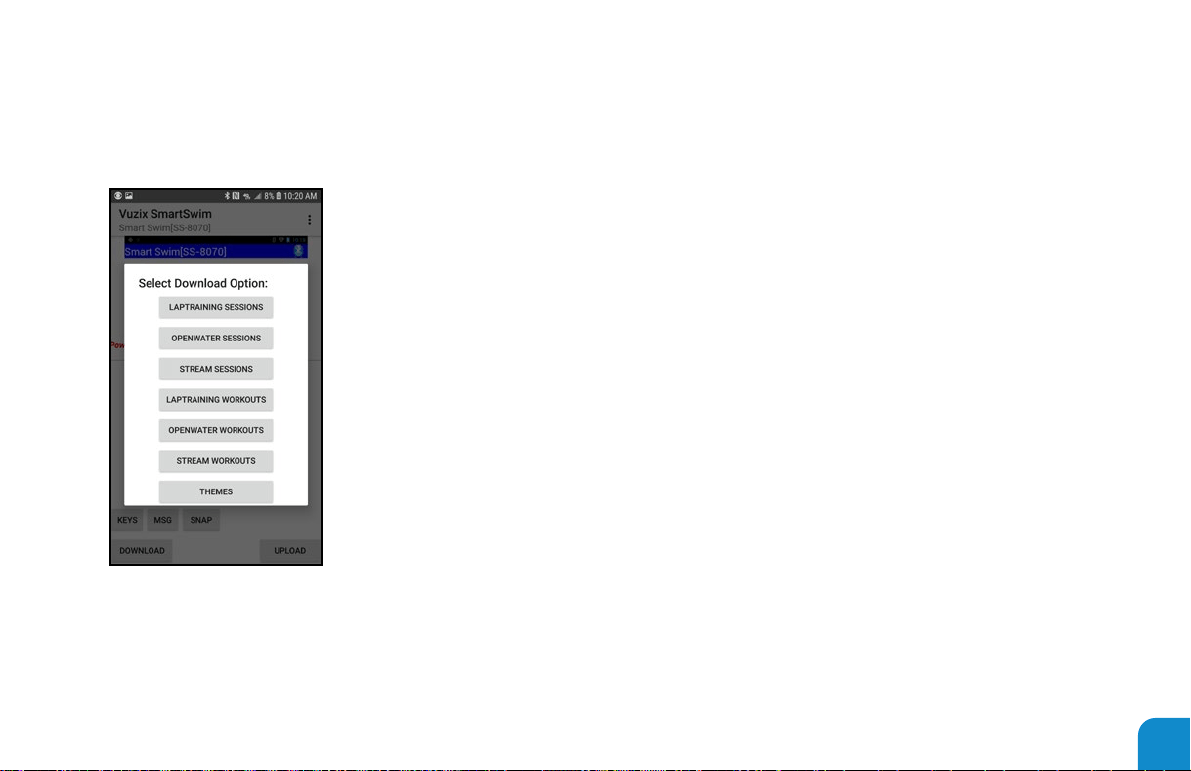
1. Lap Training
…Internal…\SmartSwim\Smart Swim[SS-8070]\LapTrainingSessions
2. Open Water
…Internal…\SmartSwim\Smart Swim[SS-8070]\OpenWaterSessions
3. Stream Sessions
…Internal…\SmartSwim\Smart Swim[SS-8070]\StreamSessions
4. Lap Training Workouts
…Internal…\SmartSwim\Smart Swim[SS-8070]\LapTrainingWorkouts
5. Open Water Workouts
…Internal…\SmartSwim\Smart Swim[SS-8070]\OpenWaterWorkouts
6. Stream Workouts
…Internal…\SmartSwim\Smart Swim[SS-8070]\StreamPlaylists
7. Themes
…Internal…\SmartSwim\Android\data\SSCong\Themes
Selecting “DOWNLOAD” provides downloading content and sample workouts from your Smart Swim to your phone. This content
can be saved or renamed for sharing, storing or uploading to your Smart Swim for another session.
Content downloaded from the above options will be stored at the following locations on your phone:
67
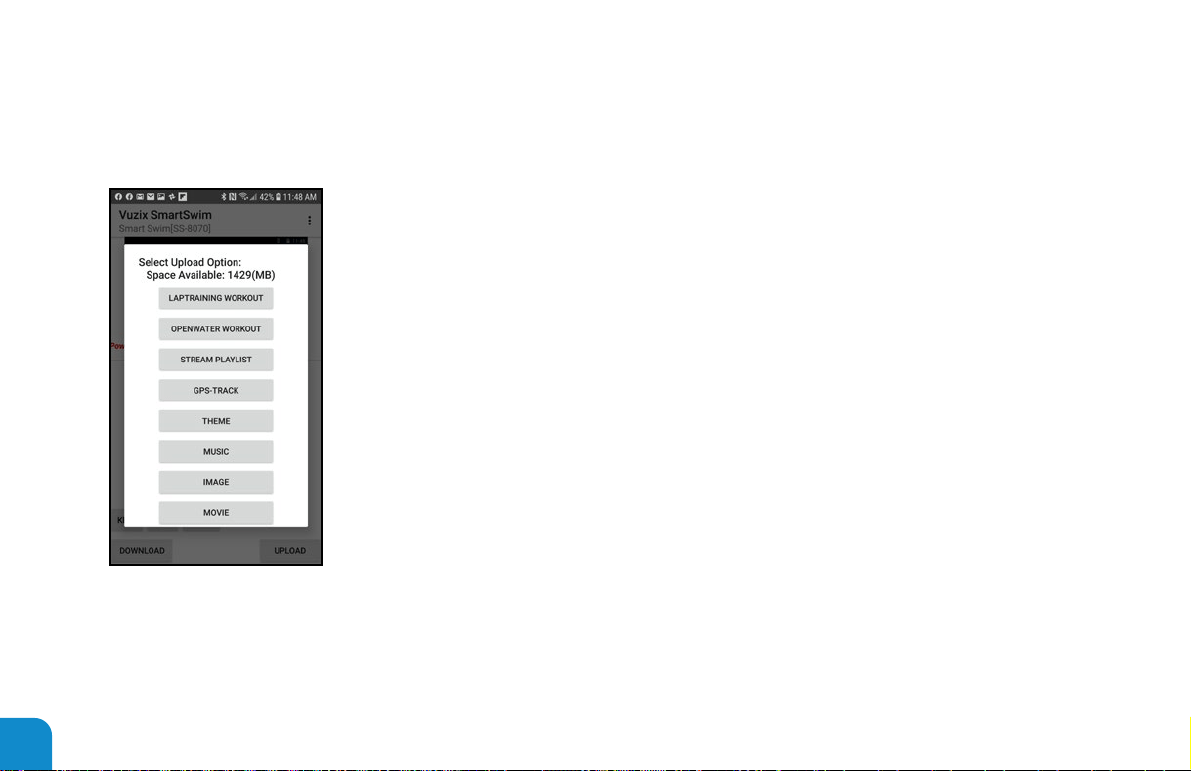
Selecting “UPLOAD” provides uploading content from your phone to your Smart Swim.
Lap Training
Uploaded from either “Download” folder on phone or “Archive” vuzix private server.
Open Water
Uploaded from either “Download” folder on phone or “Archive” vuzix private server
Stream Playlist
Uploaded from “Download” folder on phone
GPS-Track
Uploaded from “Download” folder on phone
Theme
Uploaded from “Download” folder on phone
Music
uploaded from your phones “…\Music”
Image
uploaded from your phones “…\Pictures”
Movie
uploaded from your phones “…\Movie”
68
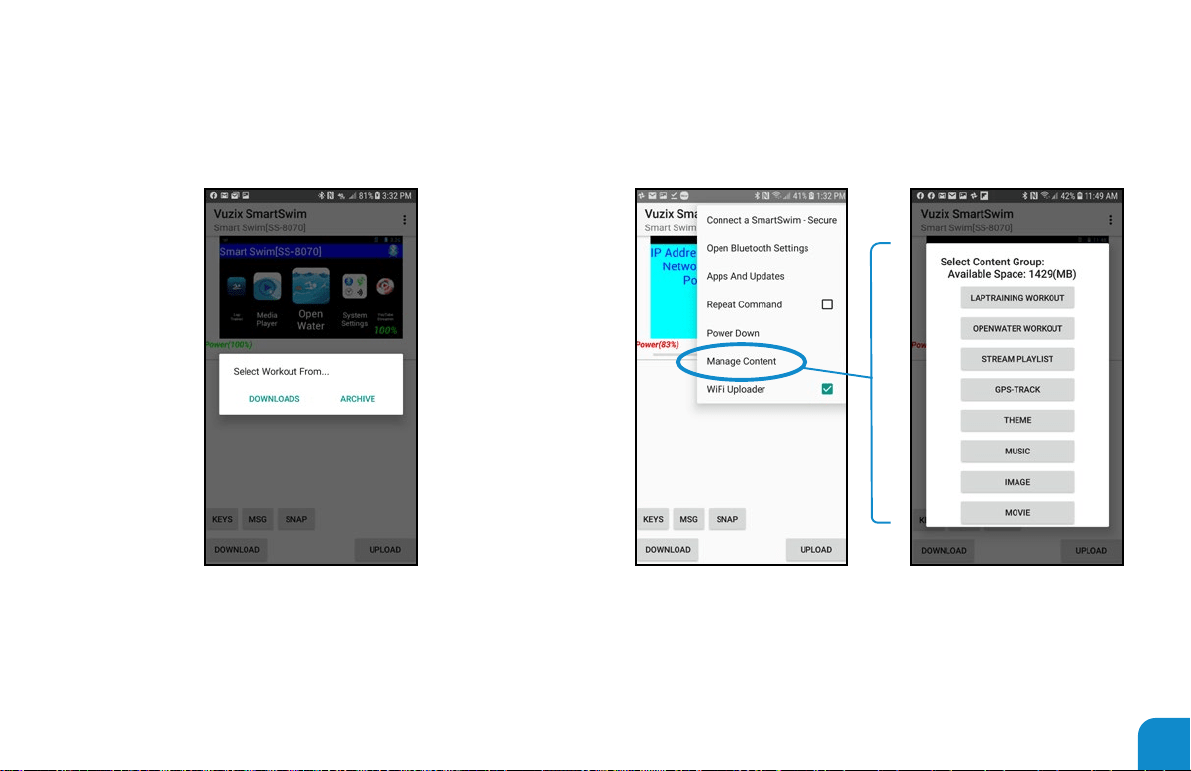
Selecting a workout to upload to your Smart Swim can be
located on your Phones “Download” folder.
You can select a workout from the “Archive” Vuzix Private
server. The following dialog is presented.
Selecting “Manage Content” from the app’s menu, provides
managing/deleting content from your Smart Swim.
Using your phones “Download” folder will allow you to share
workouts created from email sources or other web sources
that offer Smart Swim compatible workouts. Simply download
them to your phone’s “Download” folder. Then use the
“Upload” option to load them into your Smart Swim.
69
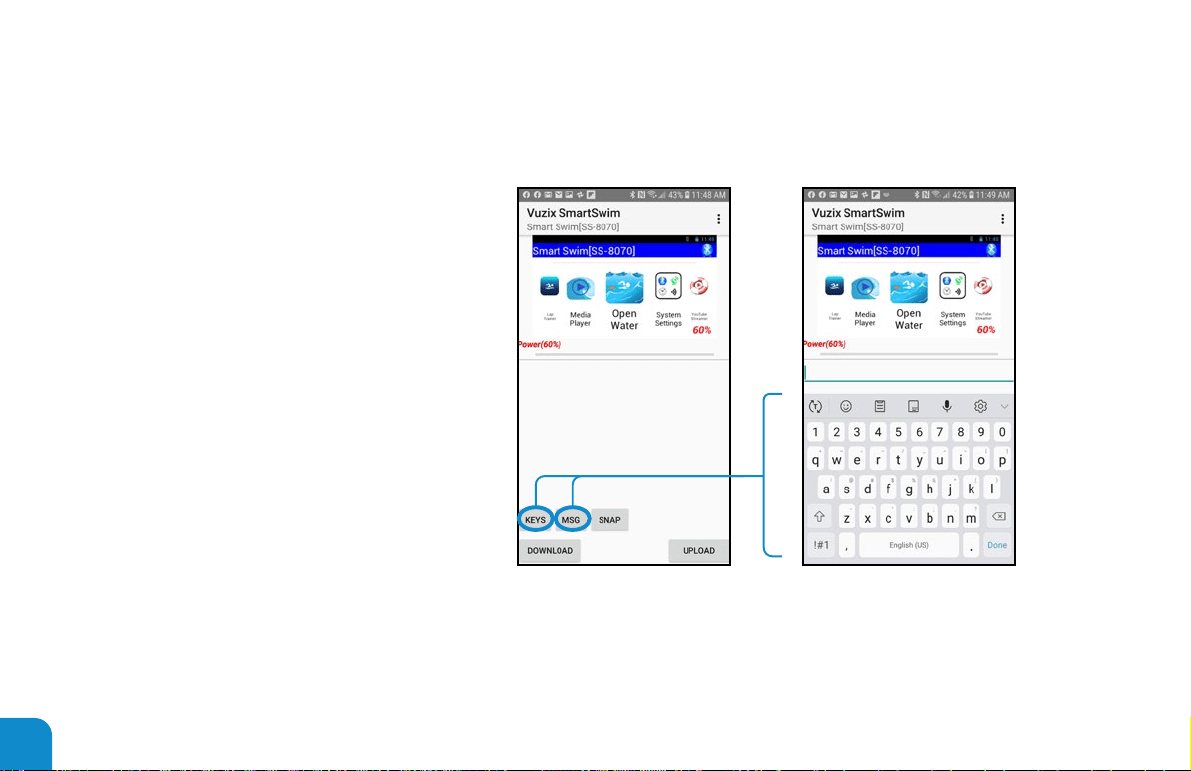
Selecting “KEYS” button from the app’s
main display, provides a means of
sending login and text box entries to
Smart Swim as keyboard events. The
keyboard will open when selecting this
function.
Selecting “MSG” button from the
app’s main display, provides a means
of sending a text message to Smart
Swim. This message will appear over
the current running activity in your
Smart Swim. The keyboard will open
when selecting this function.
70
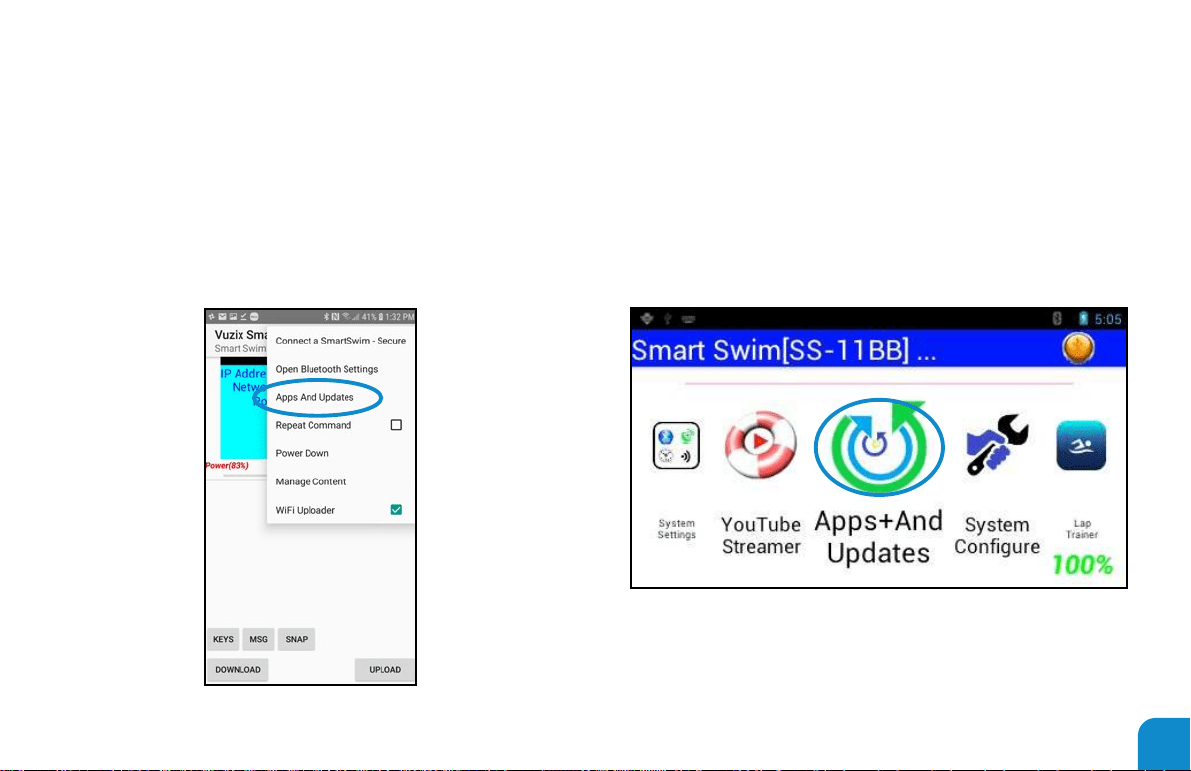
Install the Wi-Fi uploader app on your smart swim. Open the
“Apps & Updates” procedure from either your Smart Swim or
the SmartSwimLink app on your phone
WI-FI UPLOADER
71
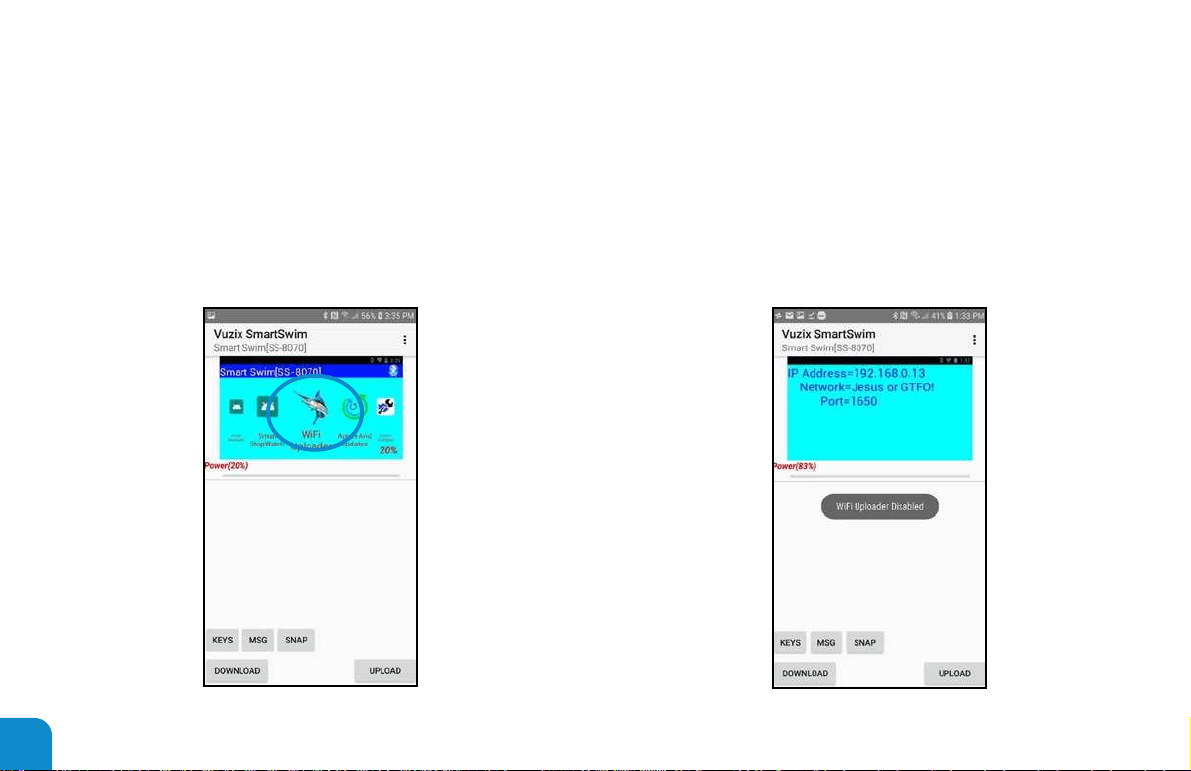
After installation you are required to open the “Wi-Fi Uploader”
app on your smart swim for the rst time.
Once installed and opened you will see the following displayed
on your Smart Swim. You will need to ensure your Wi-Fi is
turned on and enabled on your Smart Swim device. See users
guide for setting up Wi-Fi networks.
72
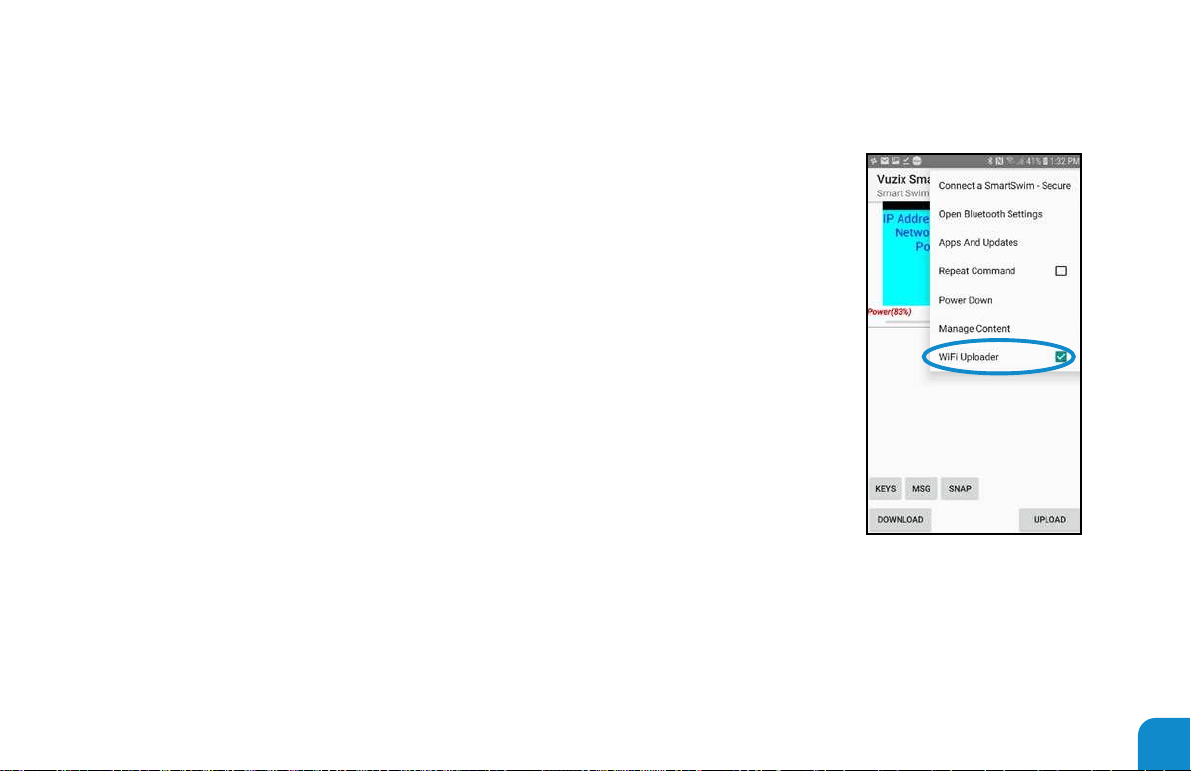
Notice the “IP Address=” the “Network=” and the “Port=” details.
Things you need to know…
a. The “IP Address” must have full access for communications on the network.
b. The “Port=” port must have full access for communications on the network.
c. The Wi-Fi “Network=” on your smart swim must be the same as the Wi-Fi
“Network=” on your phone.
d. Check your rewall settings and your network router settings to ensure the “IP
Address” and “Port=” have full access.
e. Check with your network administrator to ensure your Wi-Fi is not blocking read/
write access for the above details.
To enable the Wi-Fi Uploader once the app is installed on your smart swim, select the
“Wi-Fi Uploader” menu option from the pairing app.
73
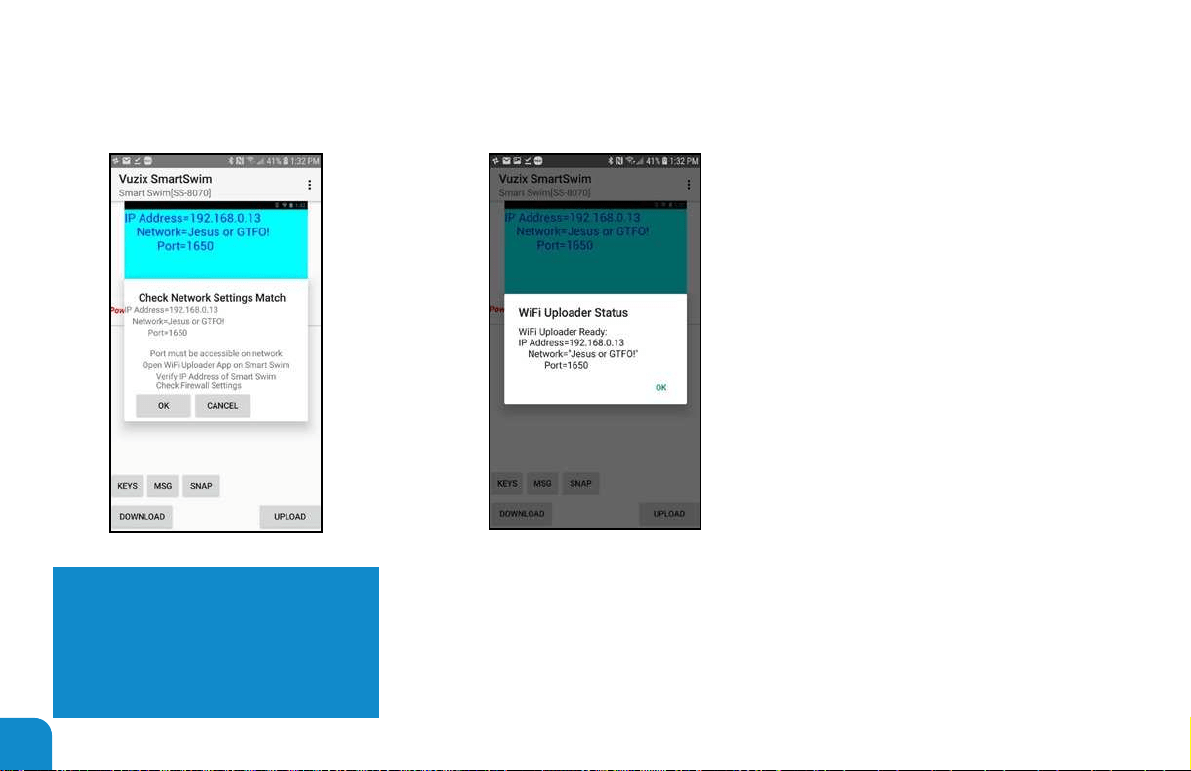
Once selected you will see the following
dialog if all is properly congured.
Selecting “OK” will execute a “ping” message to the Smart Swim device. The system will
now display the following dialog provided the connection is read and write operational.
Both Uploading and Downloading
content will now operate at Wi-Fi
speeds. This can be as much as 50X
increase in performance.
Note: When exiting the pairing app, the
Wi-Fi uploader option will be disabled.
This ensures no uploads or downloads
will fail during application startup. Wi-Fi
access to the same network will not be
continuously present.
Note: If there are any issues during
initialization see the Trouble Shooing
section for more details.
NOTE:
ALL 3 CRITICAL DETAILS ARE THE SAME:
• “IP Address=”
• “Network=”
• “Port=”
74
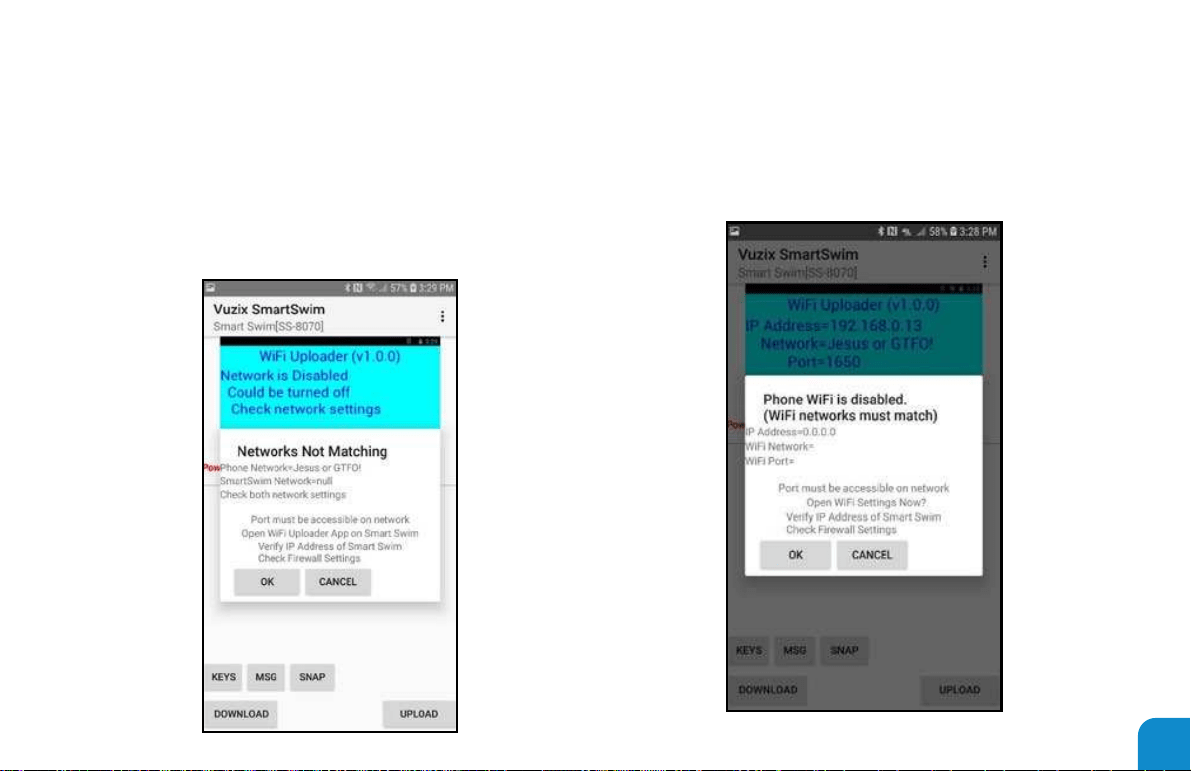
When the Wi-Fi network on the phone is disabled you will see
the following dialog information.
WiFi Uploader - TROUBLE
SHOOTING
When the Wi-Fi network on the smart swim is disabled you will see
the following dialog information. Notice “Network is Disabled”
detail.
75
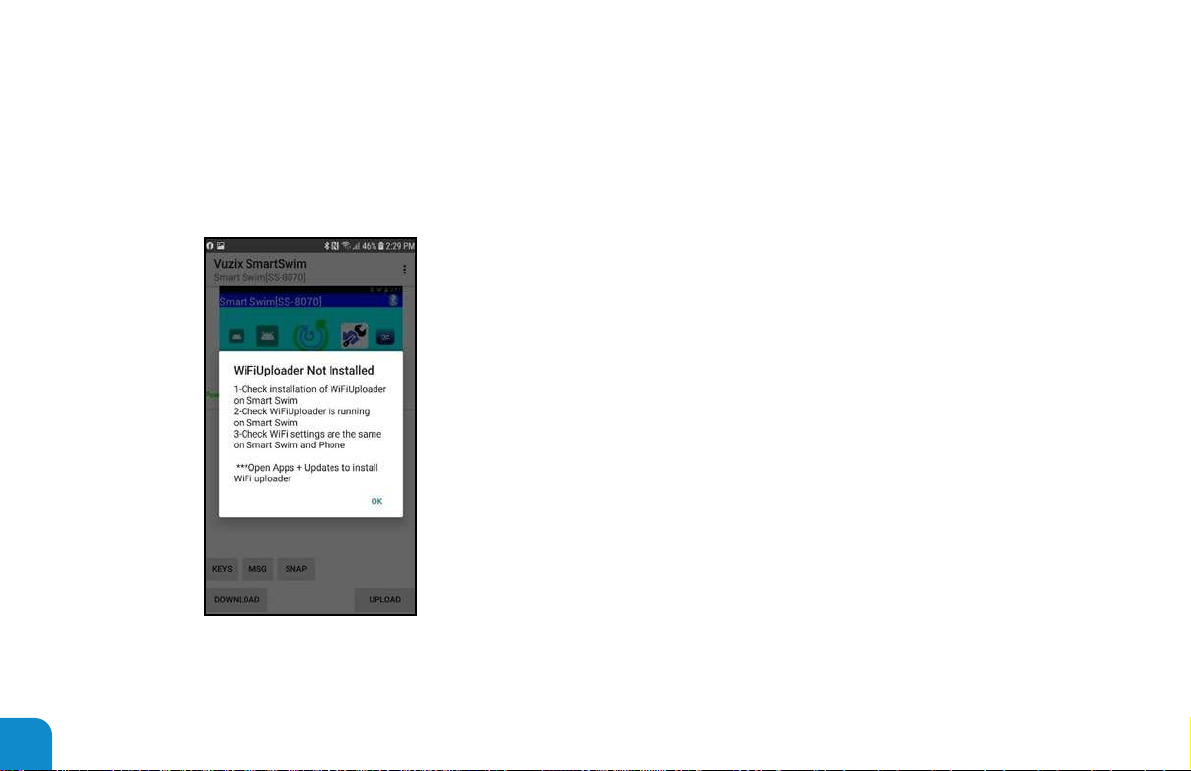
When the Wi-Fi Uploader app is not installed on the Smart
Swim you will see the following dialog information.
• Ensure the Wi-Fi uploader is installed on smart swim.
• Ensure Wi-Fi uploader has been opened at least once on
your smart swim.
• Ensure you are connected to the proper smart swim.
76

SMART SWIM – THEME DESIGN
Themes can be created and modied by the user. You can
design analog clock faces to include with your theme designs.
Simply follow the proper le naming convention and save in
your phones download folder to upload from the smart swim
pairing app.
Ex: mytheme.txt includes the analog clock name of
“ClockName=mytheme”
Will include the following analog clock les:
mytheme_dial.png
mytheme_countdownhand.png
mytheme_hourhand.png
mytheme_minutehand.png
mytheme_secondhand.png
Copy all 6 les to your download folder of your phone. Email them
to your email account then download the attachments to your
phones download folder. Then upload your theme “mytheme” to
your smart swim from the smart swim pairing app.
All theme settings are type checked by the conguration tool
and must be properly formatted.
Examples:
Colors must be “#12345678” 12=Transparency, 34=Red,
56=Green, 78=Blue they are hexadecimal 00 – FF (0 –
255) See example colors in theme le below.
Font sizes must be greater than 10 and less than 200.
If select font name is not available the system default font
will be used.
Themes
“\Android\data\SSCong\Themes”
AnalogClocks
“\Android\data\SSCong\AnalogClocks”
*Theme les can be manually copied to your Smart Swim in the
appropriate folders listed above.
77

Example theme le: “white_background”
// SSG-Theme Version(1.0)
// This theme is a white background
with colored display and specic
font selection
// Possible colors:
// BLACK =#FF000000
// DarKGRAY =#FF444444
// GRAY =#FF888888
// LightTGRAY =#FFCCCCCC
// WHITE =#FFFFFFFF
// RED =#FFFF0000
// GREEN =#FF00FF00
// BLUE =#FF0000FF
// YELLOW =#FFFFFF00
// CYAN =#FF00FFFF
// MAGENTA =#FFFF00FF
// TRANSPARENT =#00000000
// Possible Fonts:
// FontSelect =androidclock
// FontSelect =bungeeshaderegular
// FontSelect =digitaldreamfat “75%”
// FontSelect =gugiregular
// FontSelect =icelandregular “150%”
// FontSelect =kitchensinkgold
// FontSelect =liquidcrystalbold
// FontSelect =metromaestro
// FontSelect =spacemarine “50%”
// FontSelect =spacewham “90%”
// FontSelect =sportsball “65%”
// FontSelect =videodames
// FontSelect =vt323regular “140%”
//
// BackGroundColor = “color of
background”
// DistanceColor = “color of primary
distance elds
// DistanceSize = “set size of digits
(10 - 200)”
// TotalDistanceColor= “color of total
distance eld
// TotalDistanceSize = “set size of
digits (10 - 200)”
// IntervalColor = “color of interval
eld display
// IntervalSize = “set size of digits
(10 - 200)”
// StopWatchColor = “color of
stopwatch”
// StopWatchSize = “set size of digits
(10 - 200)”
// CountDownColor = “color of
countdown timers”
// HideHeading =true “Hide the
compass heading and indicator”
// HideSwimState =true “Hide the
swim state”
// HidePowerState =true “Hide the
power state bar”
// MapLineColor =”Color of tracking
line on GPS Map overlay”
// MapLineThickness =”Thickenss of
tracking line on GPS Map overlay”
// GridColor =”Color of lines on grids”
// SmartColor =”Color of Smart
Tracks or other Smart Indicators”
//
// ClockHorizontal = “x position of
analog clock -1=app dened, 0 =
left, 1=center, 2=right
// ClockVertical = “y position of
analog clock -1=app dened, 0 =
top, 1=center, 2=bottom
//
// Use ClockName to select a user
loaded analog clock face.
// ClockName =clocknumbers
//
FontSelect =systemdefault
BackGroundColor =#FFFFFFFF
DistanceColor =#FF000000
DistanceSize =55
TotalDistanceColor=#FF000000
TotalDistanceSize =75
IntervalColor =#FF0000FF
IntervalSize =75
StopWatchColor =#FF000000
CountDownColor =#FFFF0000
StopWatchSize =100
HideHeading =false
HideSwimState =false
HidePowerState =false
HideWiStatus =false
GridColor =#FF0000FF
GPSLineColor =#FFFF00FF
GPSLineThickness =1
SmartColor =#FFFF0000
SmartLineThickness=2
MapLineColor =#FF00FF00
MapLineThickness =3
AnalogClockColor =#FFFFFFFF
AnalogClockScale =90
AnalogHourColor
=#FFFFFFFF
AnalogMinuteColor
=#FFFFFFFF
AnalogSecondColor
=#FFFFFFFF
AnalogCountDownColor
=#FFFFFFFF
ClockHorizontal =-1
ClockVertical =-1
78

THEME TUTORIAL
1. Open the Pairing app and connect to your Smart Swim.
2. Press the “Download” Button.
3. Select the Themes Category.
4. Select the “master_clock_only.txt” theme.
― This will download the theme into the “SmartSwim/
Android/data/SSCong/Themes” folder.
5. The “master_clock_only.txt” theme should now be opened
in your default text editor.
6. Scroll Down to the “DistanceSize” property and change the
value from a “2” to a “10”.
7. Scroll Down to the “TotalDistanceSize” property and change
the value from a “2” to a “10”.
8. Scroll Down to the “IntervalSize” property and change the
value from a “2” to a “10”.
9. Save the changes to the “master_clock_only.txt” theme.
10. Save or copy the “master_Clock_only.txt” theme to your
phones “/Download” folder.
― To upload any new themes or theme changes the
theme must reside in the /Download folder.
― Any changes made to the default system themes will
be overwritten by a “reset default settings” action.
― Any newly named themes will be untouched by any
system changes.
11. Exit the text editor.
12. This will re-open and reconnect the Vuzix Smart Swim
pairing app to your Smart Swim.
13. Press the “Upload” button.
14. Select the “Theme” option.
15. Select the “master_clock_only.txt” theme with your changes.
16. The theme changes should be uploaded and ready for you
to select from the conguration App.
79
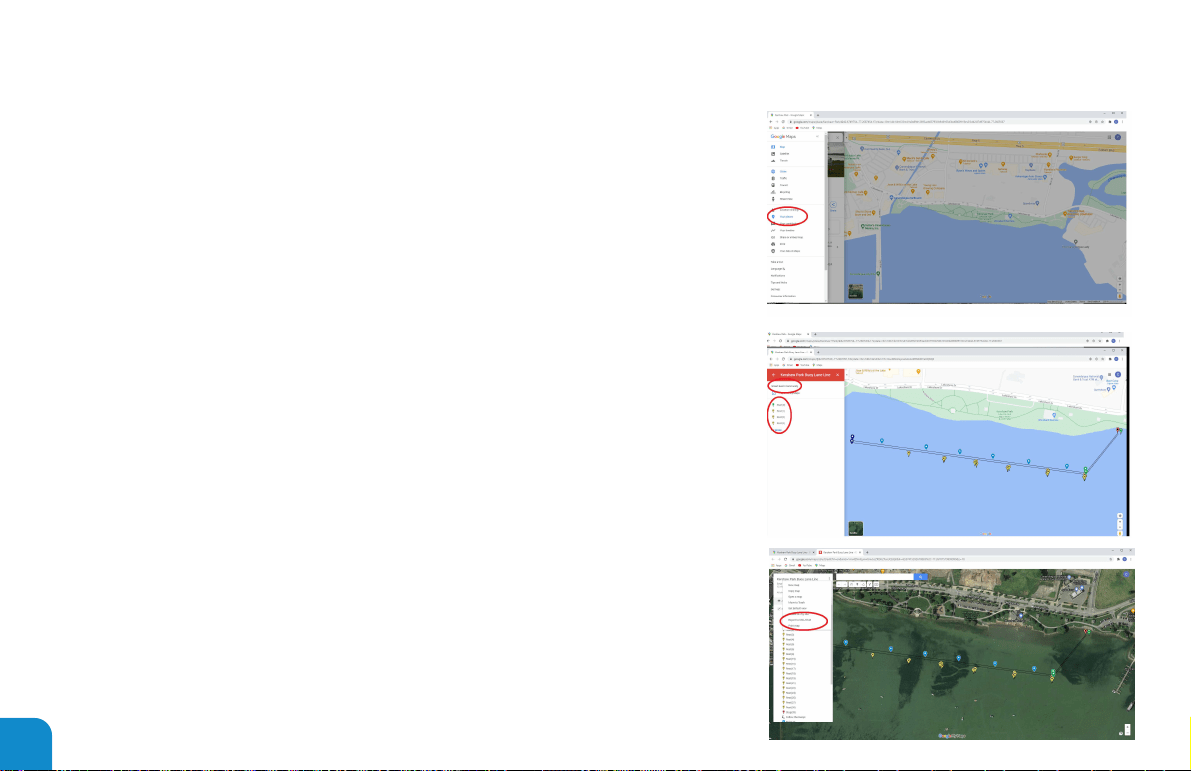
Creating a GPS course map.
1: Open Chrome and select the google "Maps" tab just below the address bar.
2: Select "Your Places" from the menu bar.
3: Select the "Maps" tab.
4: Select "Create Map"
5: Search for the address or go to the location of interest for creating this map.
6: Select the Map name "Untitled Map" and enter a name for this map. Use the
TRK- Prefix code.
Ex: "TRK-Smart Swim at home"
7: Add to your description the following tag: "Smart Swim Community"
This is a critical tag to ensure your map is accepted via the open water app on
smart swim.
8: Now you can begin adding lines and way-point markers to your planned course.
See the Description labels below for options on way-point markers.
9: When your course is completed, export it as a KML file.
The exported map name should be as "TRK-Smart Swim at home.kml" a KML
google earth file.
10: Send via email to your phone.
11: Download the attached "TRK-Smart Swim at home.kml" to your download folder
on your phone.
12: Upload to your Smart Swim as a "GPS Course" map, using the Smart Swim
pairing app.
8
0
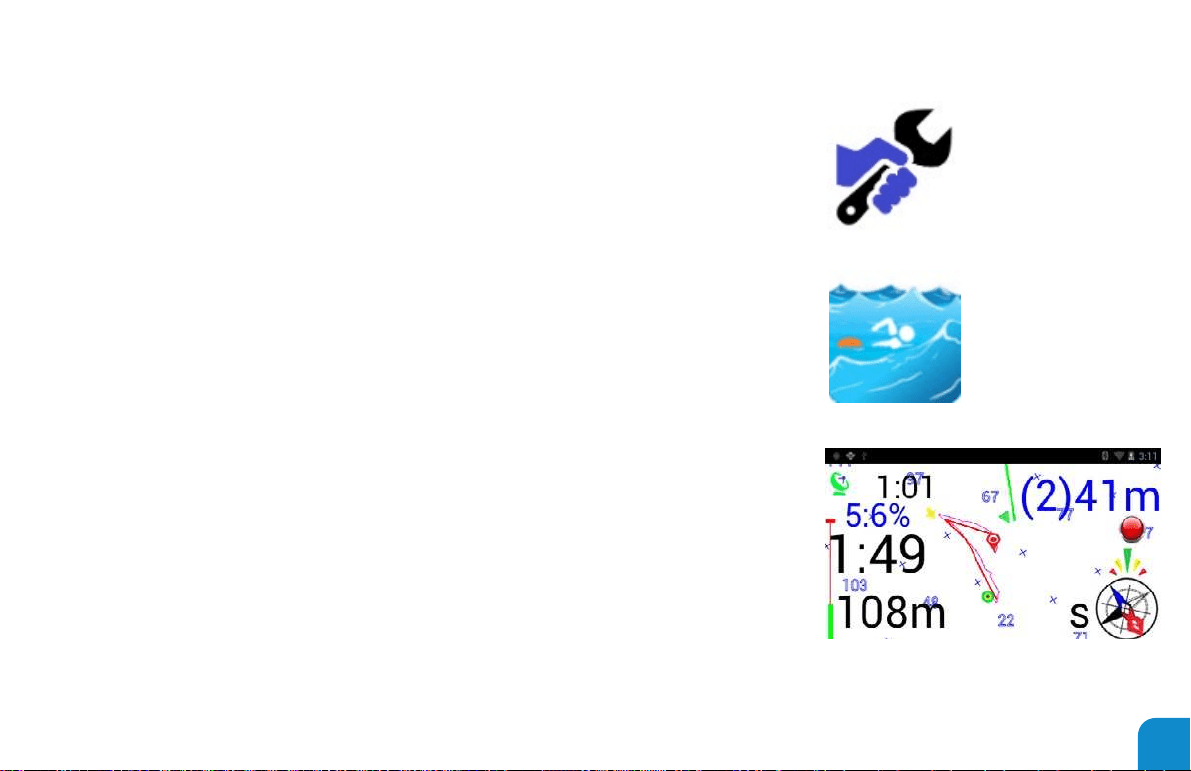
Selecting a GPS course map.
13: Open the Configuration App on your Smart Swim.
14: Select your uploaded GPS course map as your "GPS Course File".
15: Set "GPS Show Tracks" to Yes.
16: Exit the configuration app.
17: Open the Open Water App and you will see your GPS course to follow.
*You must be at the GPS course map location to see your course mapping.
The following Description Labels can be used to change the way-point markers
from the default "Orange" buoy marker.
"Start" - This way-point marker will show as a green buoy marker.
"Stop" - This way-point marker will show as a red buoy marker.
"Direction" - This way-point marker will show as a blue direction change marker.
"Rest" - This way-point marker will show as a yellow buoy marker.
Note: Any way-point marker dropped without these labels will show as an
"Orange" buoy marker.
*Add the labels above to the descriptions of the way-point markers you drop onto
your GPS course in google maps editor.
81

TECHNICAL SPECIFICATIONS
1. Wearable Computer
2. Android Operating System
3. Wi-Fi
4. Bluetooth
5. GPS Sensor
6. 9-Axis Motion Sensors
7. 4-Button User Interface
8. Vibrant Full Color Display
9. Micro USB
10. Built-In Battery (7+ hours, dependent on application)
Battery Life Chart
• (7 hours) Running just a clock
• (5+ hours) Running GPS in accuracy mode
• (3.5 hours) Running Lap Trainer
• (2+ hours) Running Wi-Fi streaming
• (2+ hours) Running Camera App
NOTE: Background audio play will reduce all estimated run times
82

TROUBLE SHOOTING
My Smart Swim is not fully charged.
― You must wait at least 3+ hours for a fully charged battery.
― If you are sharing charging your Smart Swim with
another device, it may take longer.
― A reading of 100% does not mean Smart Swim is fully
charged.
Audio is stuttering or has stopped.
― Reset the Bluetooth connection via the reset button
based on the app you are using. See media player or
you tube streamer.
― If the audio is playing in the background you will need
to power off then power on your connected Bluetooth
headphones.
My theme setting changes will not open.
― When changing your themes in the conguration app
if the theme has errors you will be presented with an
error dialog and the system will revert to the default
system theme “white_background”.
Lap Training App is intermittently missing my lap transitions.
― Recalibrate your 9-axis sensors by following the
calibration steps detailed above.
― Allowing the onboard sensors to heat up prior to
any session will assist in maintaining stability and
calibration during your session.
― Plug in your system to the battery pack. Power on your
system and open the lap trainer or open water app.
Leave the system in this state for a period of 1 hour.
This will maintain its charge state and provide a very
stable calibration state.
System reboots after opening conguration app.
― The rst time the conguration app is opened your
system will reboot.
― Any time you change the name of your device your
system will reboot.
83
My theme setting changes have changed.
― Whenever the conguration app “restores system defaults”
all the default system theme settings will be restored. You
must provide a non-system theme name for your theme.
You must use the proper SD Card for the Sport DV camera.
If images and videos are being overwritten check for proper
card format and type.
Recordings may contain some noise levels in the audio feed
of the camera. You may want to use noise reduction of -10 to
-15 dBs to remove this noise.
GPS is not connecting. do not use in or around buildings in a city
or enclosed space. Go outside in an open space and wait for
connection to satellites. 7+ minutes on the rst connection.
After Zooming in or out with grid mode enable, the Open
Water app is sluggish or non-responsive. Leave the zoom
property to a default state prior to longer session.
My Smart Swim Device Name is not properly displayed in the
paring apps main Window.
― If you change the device
name in the conguration
app. You may need to
unpair and then re-pair
your smart swim to ensure
the new name is properly
synced with the pairing
app.
― If you rename your Smart
Swim and the pairing
app continues to use the
previous name, content
will not be properly
uploaded or downloaded
from your Smart Swim.
84

Learning More
Visit www.vuzix.com/support/smartswim for more information on the Smart Swim™
or contact technical_support@vuzix.com for additional information.
For more information on Smart Swim™
AND accessories, visit:
vuzix.com | vuzix.eu | vuzix.jp
Vuzix Corporation
25 Hendrix Road
West Henrietta, NY 14586
©Vuzix 2020. This User Manual is subject to change.
Please read the included safety information, also at
www.vuzix.com/support/xxx before using this product.
All trademarks belong to respect owners.
467PB0002 (0001) - USER MANUAL, SMART SWIM