

2
Table of Contents
Getting started
4 Device layout and functions
7 Charging the battery
9 Nano-SIM card
11 microSD card
13 Turning the device on and off
14 Initial setup
14 Using networks
14 Samsung account
15 Transferring data from your previous
device (Smart Switch)
16 Understanding the screen
22 Notification panel
23 Quick settings panel
24 Screen capture and screen record
25 Entering text
Apps and features
27 Installing or uninstalling apps
27 Phone
30 Contacts
30 Camera
35 Gallery
37 Bixby
38 Multi window (Using multiple apps
at once)
39 Samsung Browser
40 Samsung Wallet
41 Samsung Health
41 Samsung Notes
42 Samsung Members
43 Samsung Kids
43 Samsung Global Goals
43 Samsung TV Plus
44 Samsung Find
44 Samsung Shop
44 Samsung News
45 Galaxy Store
46 Galaxy Wearable
46 Calendar
46 Voice Recorder
46 My Files (Checking and managing
the files)
47 Clock
47 Calculator
47 Weather
48 Gaming Hub
49 Game Booster (Configuring your
gaming environment)
49 SmartThings
50 Sharing content
50 Smart View (Mirroring on a TV
screen)
51 Google apps

Table of Contents
3
70 Google services
71 Advanced features
72 Digital Wellbeing and parental
controls
73 Device care
74 Apps
74 General management
75 Accessibility
75 Software update
76 Remote management
76 About phone
Usage notices
77 Precautions for using the device
79 Notes on package contents and
accessories
80 Device overheating situations and
solutions
83 How to find the standby power
consumption information for this
product
Appendix
84 Troubleshooting
89 Removing the battery
Settings
52 Introduction
52 Sign in to your Galaxy
52 Connections
54 Wi-Fi
55 Bluetooth
56 Mobile Hotspot
57 Connected devices
58 Modes and Routines
59 Sounds and vibration
59 Notifications
60 Display
61 Battery
62 Wallpaper and style
62 Themes
62 Home screen
63 Lock screen
64 Security and privacy
65 Face recognition
66 Fingerprint recognition
67 Secure Wi-Fi
68 Secure Folder
68 Samsung Pass
69 Location
69 Safety and emergency
70 Accounts and backup
4
Getting started
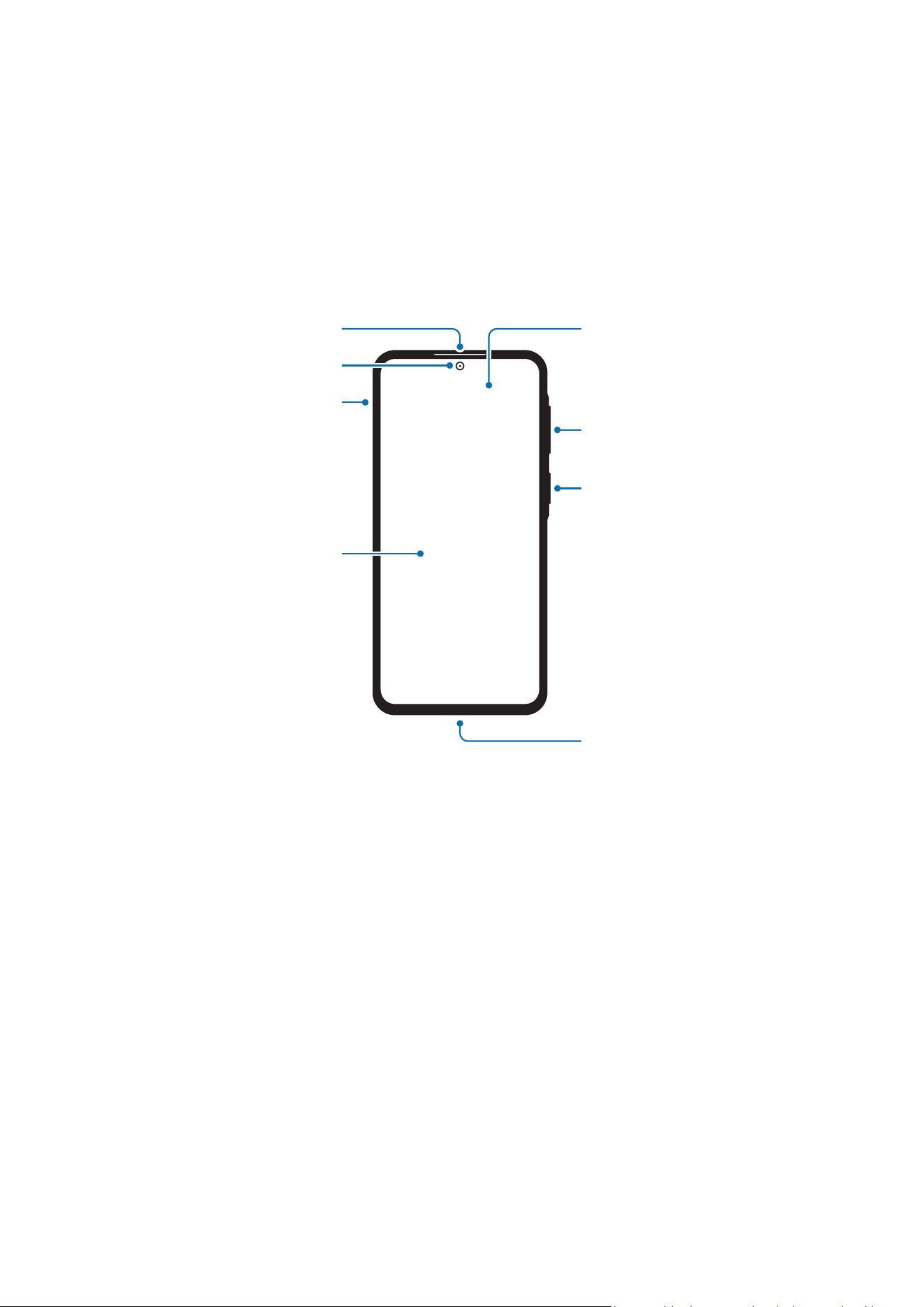
Device layout and functions
Speaker
Side button
(Fingerprint
recognition sensor)
Volume button
Screen
Light sensor
Headphone jack /
Multipurpose jack
(USB Type-C)
Nano-SIM card /
microSD card tray
Front camera
Getting started
5
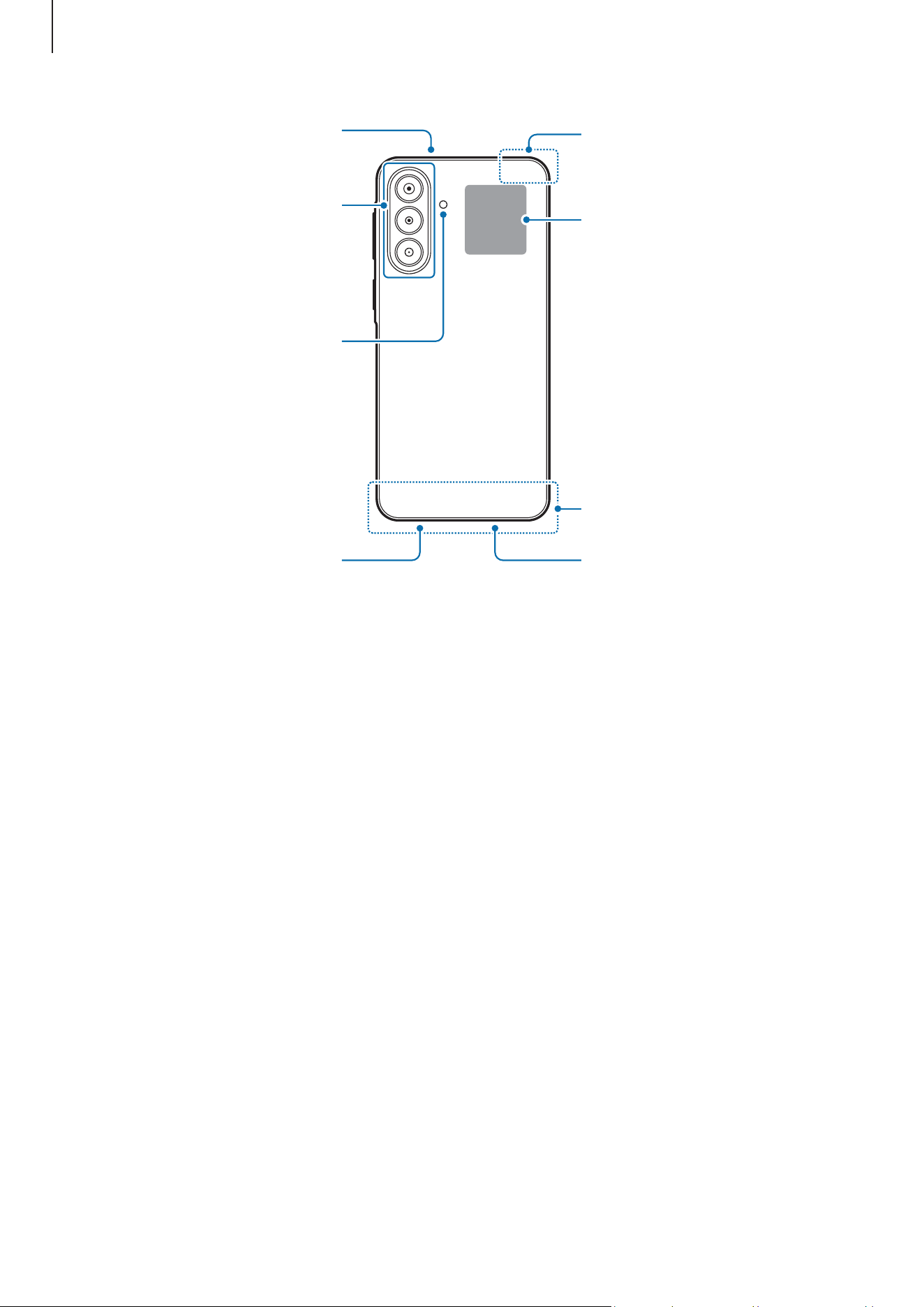
Rear camera
Flash
Microphone
Main antenna
Speaker
Microphone
NFC antenna
GPS antenna
Getting started
6
•
When using the speakers, such as when playing media files or using
speakerphone, do not place the device close to your ears.
•
Be careful not to expose the camera lens to a strong light source, such as direct
sunlight or a laser. If the camera lens is exposed to a strong light source, such as
direct sunlight, the camera image sensor may be damaged. A damaged image
sensor is irreparable and will cause dots or spots in pictures.
•
Do not use the device if any parts are broken or damaged, such as glass or
acrylic body, as this may result in injury. Use only after it has been repaired by a
Samsung Service Centre or an authorised service centre.
•
If dust or foreign materials enter the microphone, speaker, or receiver, or if these
parts are covered, the device’s sound may become quiet or certain features may
not work. If you attempt to remove the dust or foreign materials with a sharp
object, the device may be damaged and its appearance may be affected.
•
Connectivity problems and battery drain may occur in the following situations:
‒
If you attach metallic stickers on the antenna area of the device
‒
If you attach a device cover made with metallic material to the device
‒
If you cover the device’s antenna area with your hands or other objects while
using certain features, such as calls or the mobile data connection
•
Do not cover the light sensor area with accessories, such as stickers or a cover.
Doing so may cause the sensor to malfunction.
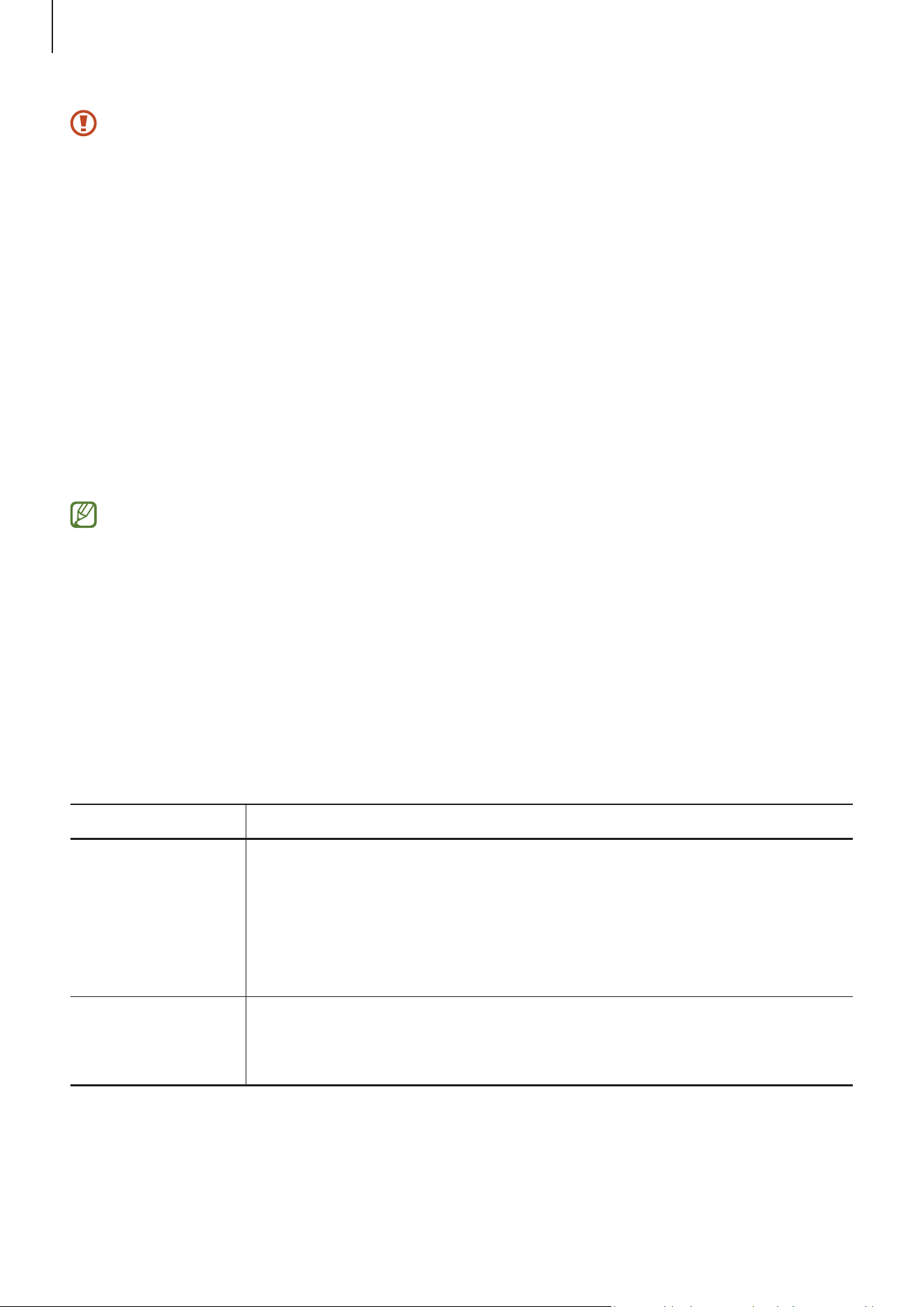
Hard buttons
Button Function
Side button
•
When the device is off, press and hold to turn it on.
•
Press to turn on or lock the screen.
•
Press twice or press and hold to open the app or feature you
set. To change the app or feature, open
Settings
, tap
Advanced
features
→
Side button
, and then select an option you want.
Side button +
Volume Down
button
•
Press simultaneously to capture a screenshot.
•
Press and hold simultaneously to turn off the device.
Getting started
7
Charging the battery
Charge the battery before using it for the first time or when it has been unused for
extended periods.
Wired charging
Connect the USB cable to the USB power adapter and plug the cable into the device’s
multipurpose jack to charge the battery. After fully charging, disconnect the charger
from the device.
Quick charging
Use a super fast charger or fast charger.
You can check the connection status of the charger by opening
Settings
and tapping
Battery
.
•
If fast charging does not work, open
Settings
, tap
Battery
→
Charging settings
,
and then check if the feature you want is turned on. Also, check if the USB cable
and the USB power adapter are connected properly.
•
You can charge the battery more quickly while the device or its screen is turned
off.
Charging other devices
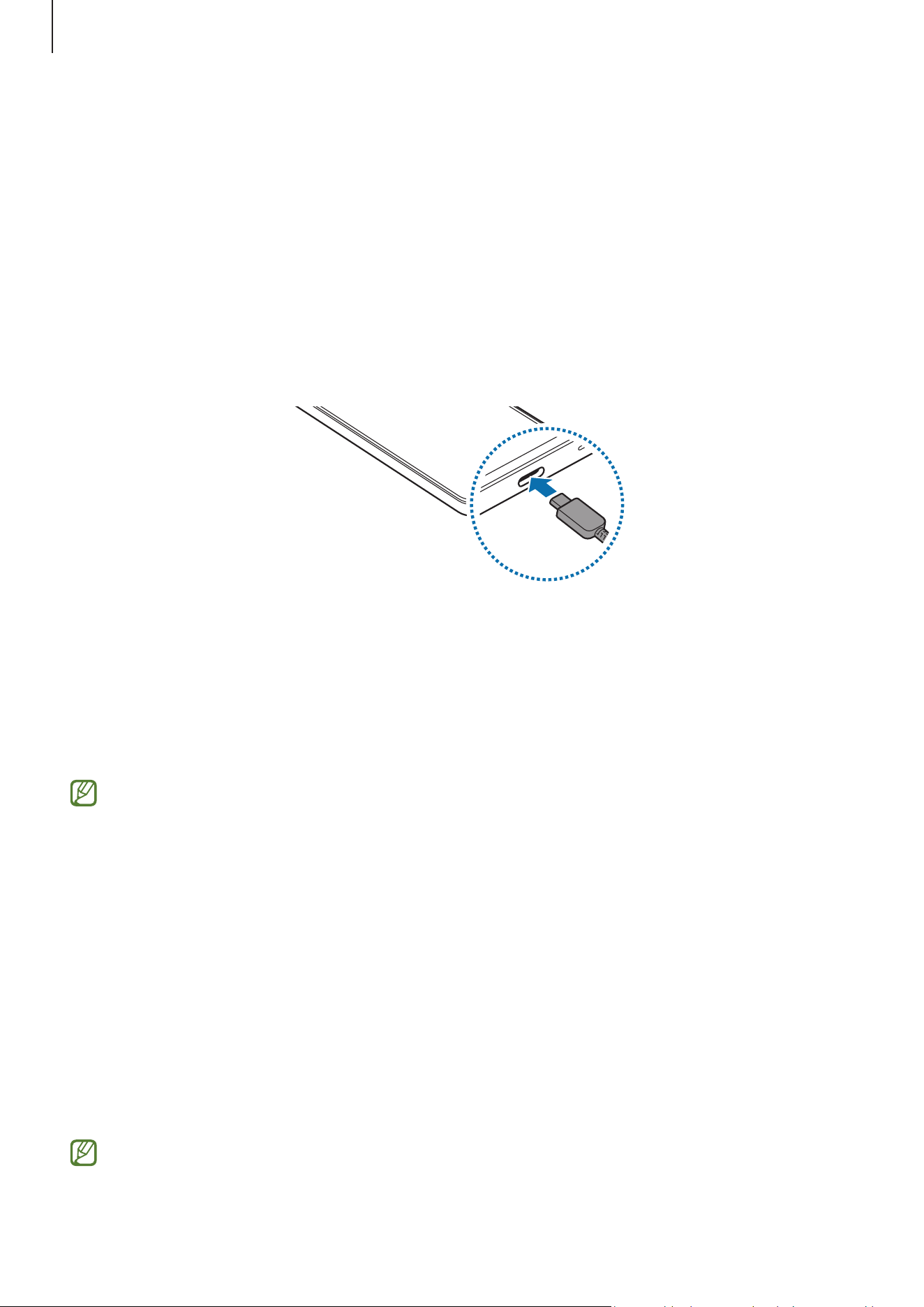
Use the USB cable to charge another mobile device with your phone’s battery.
Connect your phone and the other device using your phone’s USB cable. A USB connector
may be needed depending on the other device.
When charging starts, the battery charging icon will appear on the other device’s screen.
The app selection pop-up window that appears on your phone is for data transfer.
Do not select an app from the pop-up window.
Getting started
8
Battery charging tips and precautions
•
Use only Samsung-approved battery specifically designed for your device.
Incompatible batteries can cause serious injuries or damage to your device.
•
Use of Samsung-approved chargers and cables specifically designed for your
device is recommended. Use of incompatible chargers or cables may result in
injury or damage to the device.
•
Connecting the charger improperly may cause serious damage to the device. Any
damage caused by misuse is not covered by the warranty.
•
Use of the USB Type-C cable supplied with the device is recommended. Using a
Micro USB cable may cause damage to the device.
•
If you charge the device while the multipurpose jack is wet, the device may be
damaged. Thoroughly dry the multipurpose jack before charging the device.
•
To save energy, unplug the charger when not in use. The charger does not have a
power switch, so you must unplug the charger from the electric socket when not
in use to avoid wasting power. The charger should remain close to the electric
socket and easily accessible while charging.
•
Use of a charger approved by Samsung that guarantees charging performance is
recommended.
•
If the battery is completely discharged, the device cannot be turned on
immediately when the charger is connected. Allow a depleted battery to charge
for a few minutes before turning on the device.
•
If you use multiple apps at once, network apps, or apps that need a connection
to another device, the battery will drain quickly. To avoid losing power during a
data transfer, always use these apps after fully charging the battery.
•
Using a power source other than the charger, such as a computer, may result in a
slower charging speed because of a lower electric current.
•
The device can be used while it is charging, but it may take longer to fully charge
the battery.
•
If the device receives an unstable power supply while charging, the screen may
not function. If this happens, unplug the charger from the device.
•
While charging, the device and the charger may heat up. This is normal and
should not affect the device’s lifespan or performance. If the battery gets hotter
than usual, the charger may stop charging.
•
If the device is not charging properly, take the device and the charger to a
Samsung Service Centre or an authorised service centre.
Getting started
9
Nano-SIM card
Insert the nano-SIM card provided by your carrier.
You can insert two nano-SIM cards so you can have two phone numbers or carriers for a
single device.
•
Some services that require a network connection may not be available
depending on the carrier.
•
In some areas, data transfer speeds may be slower if two nano-SIM cards are
inserted in the device than when one nano-SIM card is inserted.
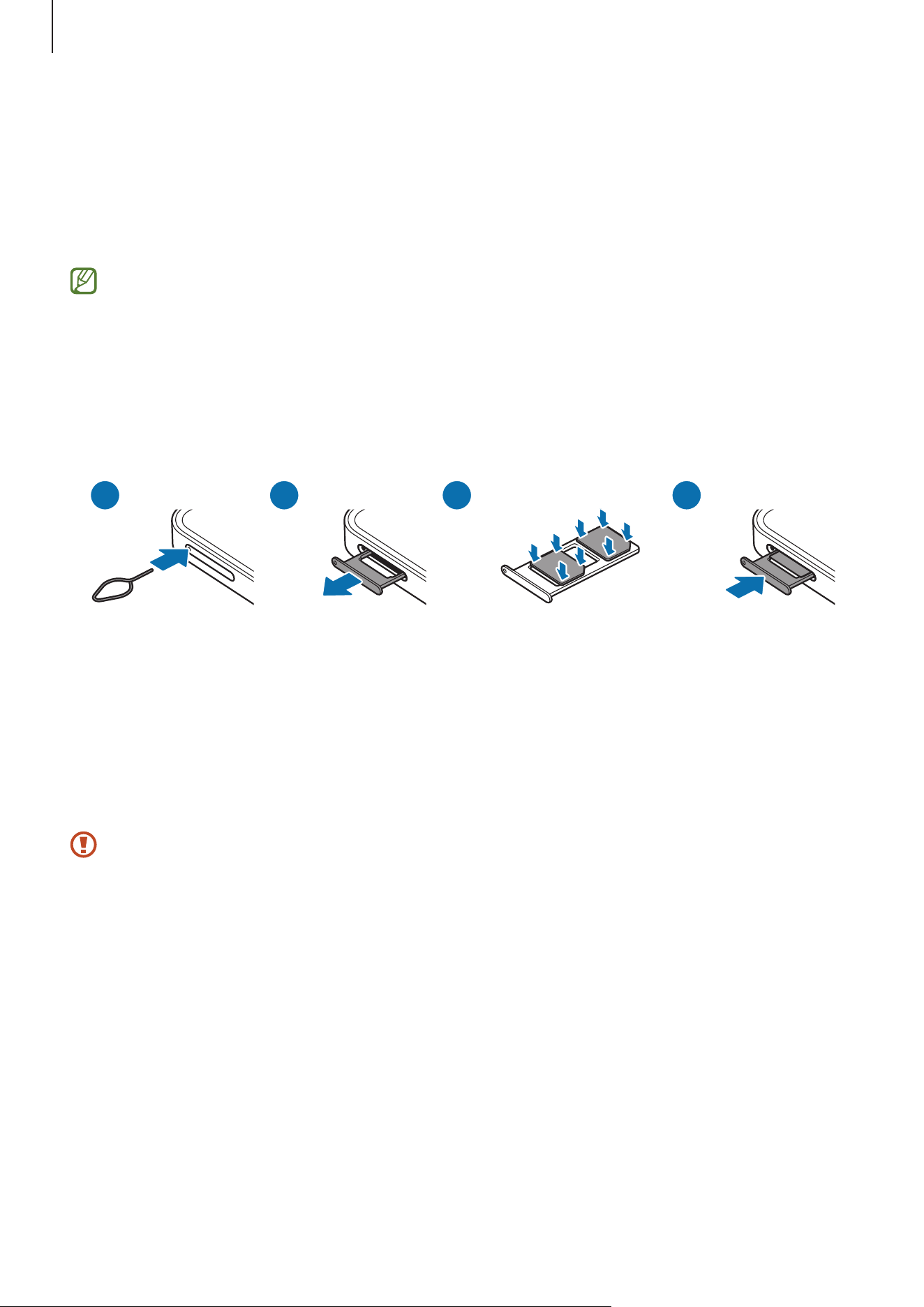
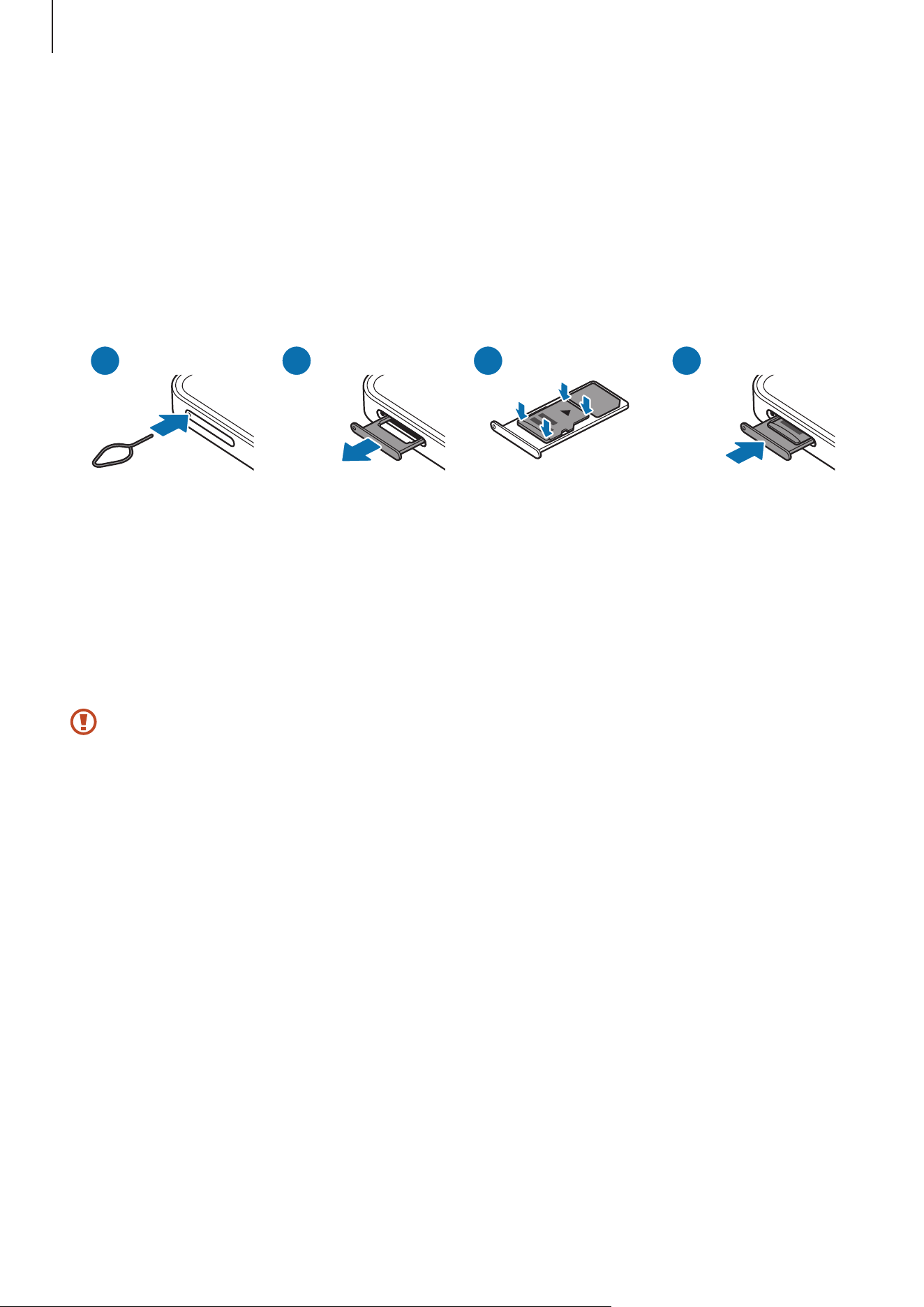
Inserting the nano-SIM card
1 2
43
1 Insert the ejection pin into the hole on the tray to loosen the tray.
2 Pull out the tray gently from the tray slot.
3 Place the nano-SIM card on the tray with the gold-coloured contacts facing
downwards and gently press the nano-SIM card into the tray to secure it.
4 Insert the tray back into the tray slot.
•
Use only a nano-SIM card.
•
Use caution not to lose or let others use the nano-SIM card. Samsung is not
responsible for any damages or inconveniences caused by lost or stolen cards.
•
Ensure that the ejection pin is perpendicular to the hole. Otherwise, the device
may be damaged.
•
If the card is not fixed firmly into the tray, the nano-SIM card may leave or fall
out of the tray.
•
If you insert the tray into your device while the tray is wet, your device may be
damaged. Always make sure the tray is dry.
•
Fully insert the tray into the tray slot to prevent liquid from entering your device.
Getting started
10
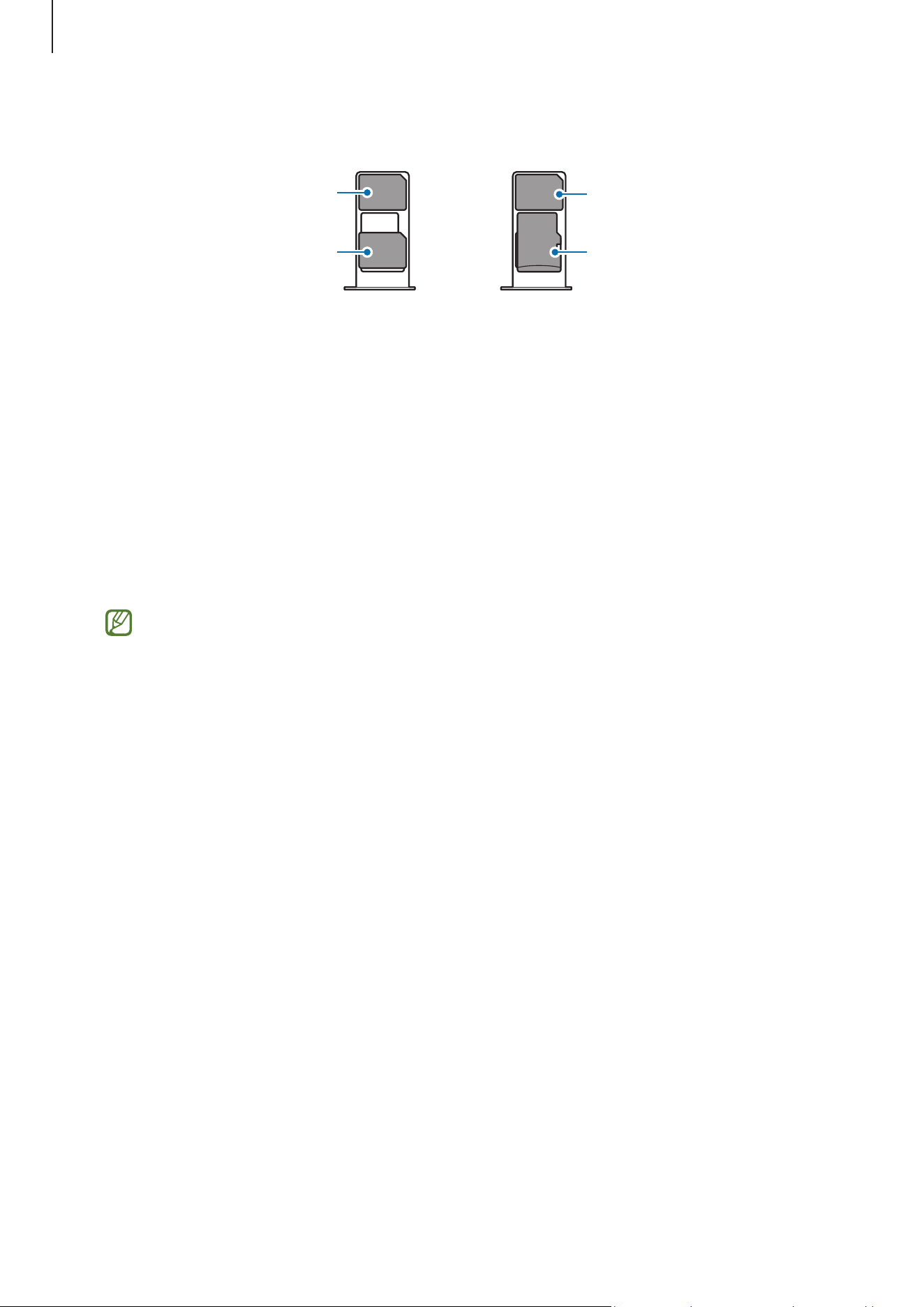
Correct card insertion
Nano-SIM card 1
Nano-SIM card
Nano-SIM card 2
microSD card
Nano-SIM card 1
Nano-SIM card
Nano-SIM card 2
microSD card
SIM manager
Open
Settings
and tap
Connections
→
SIM manager
.
•
SIM cards
: Activate the nano-SIM card to use and customise the nano-SIM card
settings.
•
Preferred SIMs
: Select to use specific SIM cards for some features, such as voice
calls, when two cards are activated.
•
Data switching
: Set the device to use another SIM card for data services if the
preferred SIM card cannot connect to the network.
You may incur additional charges when using this feature.
•
More SIM settings
: Customise additional settings.
Getting started
11
microSD card
Inserting an SD card
Your device’s SD card capacity may vary from other models and some SD cards may not
be compatible with your device depending on the SD card manufacturer and type. To
check out your device’s maximum SD card capacity, refer to the Samsung website.
1 2
43
1 Insert the ejection pin into the hole on the tray to loosen the tray.
2 Pull out the tray gently from the tray slot.
3 Place an SD card on the tray with the gold-coloured contacts facing downwards and
gently press the SD card into the tray to secure it.
4 Insert the tray back into the tray slot.
•
Use only a microSD card.
•
Some SD cards may not be fully compatible with the device. Using an
incompatible card may damage the device, the SD card, or the data stored in it.
•
Use caution to insert the SD card right-side up.
•
Ensure that the ejection pin is perpendicular to the hole. Otherwise, the device
may be damaged.
•
When you remove the tray from the device, the mobile data connection will be
disabled.
•
If the card is not fixed firmly into the tray, the SD card may leave or fall out of the
tray.
•
If you insert the tray into your device while the tray is wet, your device may be
damaged. Always make sure the tray is dry.
•
Fully insert the tray into the tray slot to prevent liquid from entering your device.

Getting started
12
•
The device supports the FAT and the exFAT file systems for SD cards. When
inserting a card formatted in a different file system, the device will ask to
reformat the card or will not recognise the card. To use the SD card, you must
format it. If your device cannot format or recognise the SD card, contact the SD
card manufacturer, a Samsung Service Centre or an authorised service centre.
•
Frequent writing and erasing of data shortens the lifespan of SD cards.
•
When inserting an SD card into the device, the SD card’s file directory appears in
the
My Files
→
SD card
folder.
Removing the SD card
Before removing the SD card, first unmount it for safe removal.
1 Open
Settings
and tap
Device care
→
Storage
.
2 Swipe to the left to access the
SD card
page.
3 Tap the More options icon ( )
→
Unmount
.
Do not remove external storage, such as an SD card or USB storage, while the
device is transferring or accessing information, or right after transferring data.
Doing so can cause data to be damaged or lost or cause damage to the external
storage or phone. Samsung is not responsible for losses, including loss of data,
resulting from the misuse of external storage devices.
Formatting the SD card
An SD card formatted on a computer may not be compatible with the device. Format the
SD card on the device.
1 Open
Settings
and tap
Device care
→
Storage
.
2 Swipe to the left to access the
SD card
page.
3 Tap the More options icon ( )
→
Format
.
Before formatting the SD card, remember to make backup copies of all important
data stored in the SD card. The manufacturer’s warranty does not cover loss of data
resulting from user actions.

Getting started
13
Turning the device on and off
Follow all posted warnings and directions from authorised personnel in areas
where the use of wireless devices is restricted, such as aeroplanes and hospitals.
Turning the device on
Press and hold the Side button for a few seconds to turn on the device.
Turning the device off
1 To turn off the device, press and hold the Side button and the Volume Down button
simultaneously. Alternatively, open the quick settings panel and tap the Power off
icon (
).
2 Tap
Power off
→
Power off
.
If you want to set the device to turn off when you press and hold the Side button,
tap
Side button settings
→
Long press
→
Power off menu
.
Emergency calls and medical information
You can make an emergency call or check the medical information you saved.
Press and hold the Side button and the Volume Down button simultaneously, and then
tap
Emergency call
or
Medical info
. Alternatively, open the quick settings panel and tap
the Power off icon (
)
→
Emergency call
or
Medical info
.
To manage your medical information and emergency contacts, open
Settings
and
tap
Safety and emergency
.

Getting started
14
Initial setup
When you turn on your device for the first time or after performing a data reset, follow
the on-screen instructions to set up your device.
If you do not connect to a Wi-Fi network, you might not be able to set up some
device features during the initial setup.
Using networks
You can use networks, such as a Wi-Fi, Bluetooth, NFC, or mobile network.
Open
Settings
, tap
Connections
, and then tap the switch of the desired network to turn
it on.
For the mobile network, tap
Data usage
and tap the
Mobile data
switch to turn it on.
When not using the network, tap the switch to turn it off.
Some features may not be available depending on the model.
Samsung account
Using the Samsung account, you can use a variety of Samsung services that are provided
through mobile devices, TVs, and the Samsung website.
To check the list of services that can be used with your Samsung account, visit
account.samsung.com.
Open
Settings
and tap
Sign in to your Galaxy
. Alternatively, open
Settings
and tap
Accounts and backup
→
Manage accounts
→
Add account
→
Samsung account
.
When you sign out of your Samsung account, your data, such as contacts or events,
will also be removed from your device.

Getting started
15
Transferring data from your previous device
(Smart Switch)
Transfer data from your previous device with the USB cable or wirelessly. You can also
transfer data from external storage or computer.
Open
Settings
, tap
Accounts and backup
→
Transfer data for device setup
, and then
follow the on-screen instructions to transfer data.
Visit www.samsung.com/smartswitch for details and limitations.
•
To transfer data using external storage, tap the External storage icon ( ).
•
To check the data that has been transferred, tap the More options icon ( )
→
Transfer
result
.
•
This feature may not be supported on some devices or computers.
•
Samsung takes copyright seriously. Only transfer content that you own or have
the right to transfer.
Getting started
16
Understanding the screen
Controlling the screen
•
Tapping: Tap the screen.
•
Touching and holding: Touch and hold the screen for approximately 2 seconds.
•
Dragging: Touch and hold an item and drag it to the target position.
•
Double tapping: Double tap the screen.
•
Swiping: Swipe upwards, downwards, to the left, or to the right.
•
Spreading and pinching: Spread two fingers apart or pinch on the screen.
•
Do not allow the screen to come into contact with other electrical devices.
Electrostatic discharges can cause the screen to malfunction.
•
To avoid damaging the screen, do not tap it with anything sharp or apply
excessive pressure to it with your fingertips or other object.
•
It is recommended not to use fixed graphics on part or all of the screen for
extended periods. Doing so may result in afterimages (screen burn-in) or
ghosting.
The device may not recognise touch inputs close to the edges of the screen, which
are outside of the touch input area.
Navigation bar (soft buttons)
When you turn on the screen, the soft buttons will appear on the navigation bar at the
bottom of the screen. The soft buttons are set to the Recents button, Home button, and
Back button by default. The functions of the buttons can change according to the app
currently being used or usage environment.
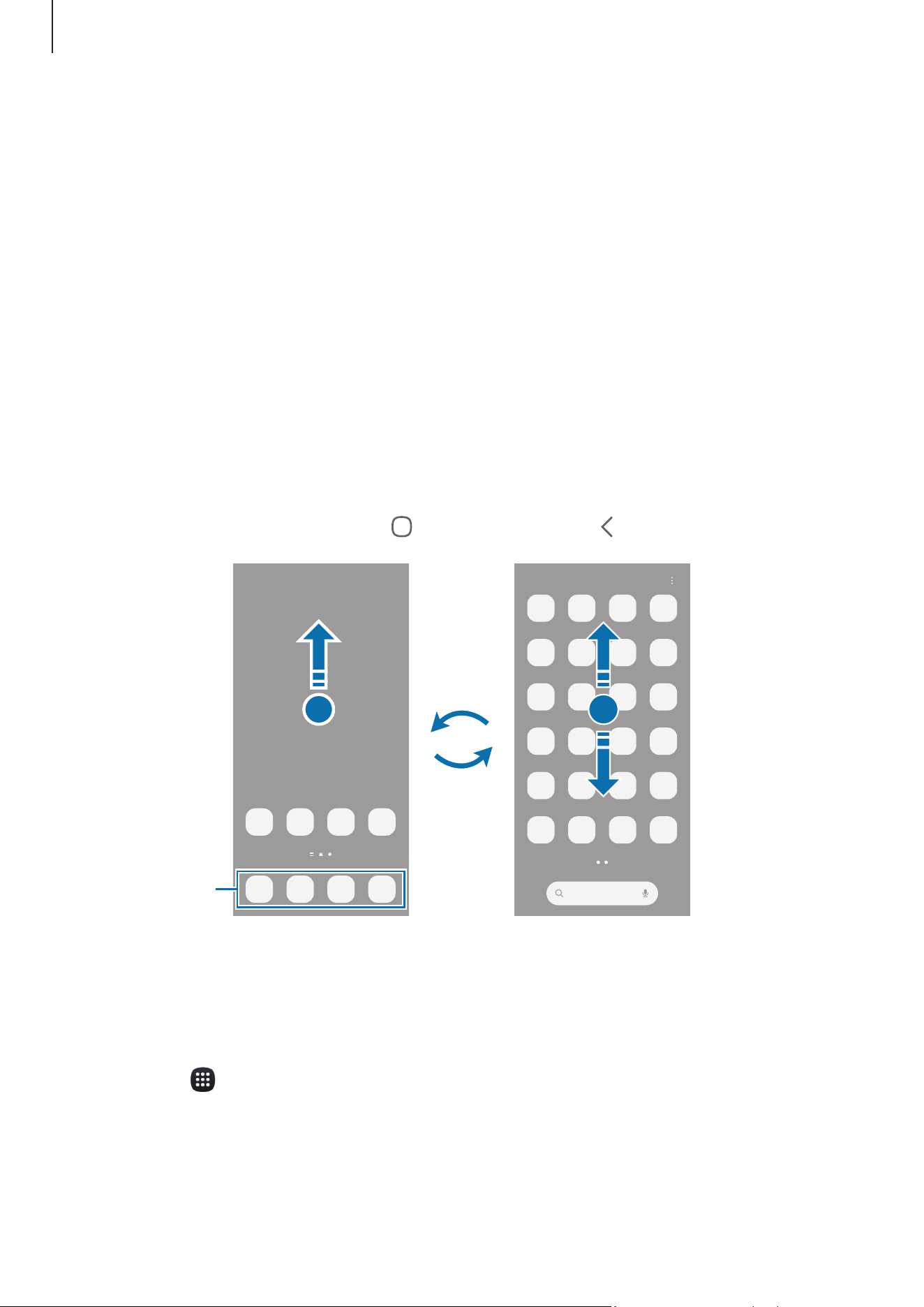
Button Function
Recents (
)
Tap to open the list of recent apps.
Home (
)
•
Tap to return to the Home screen.
•
Touch and hold to launch
Circle to Search
. Tap or draw a circle
around an image or text.
Back (
)
Tap to return to the previous screen.
Getting started
17
Hiding the navigation bar
Check files or use apps on a wider screen by hiding the navigation bar.
Open
Settings
and tap
Display
→
Navigation bar
→
Swipe gestures
.
Home screen and Apps screen
The Home screen is the starting point for accessing all of the device’s features. It
displays widgets, shortcuts to apps, and more.
The Apps screen displays icons for all apps, including newly installed apps.
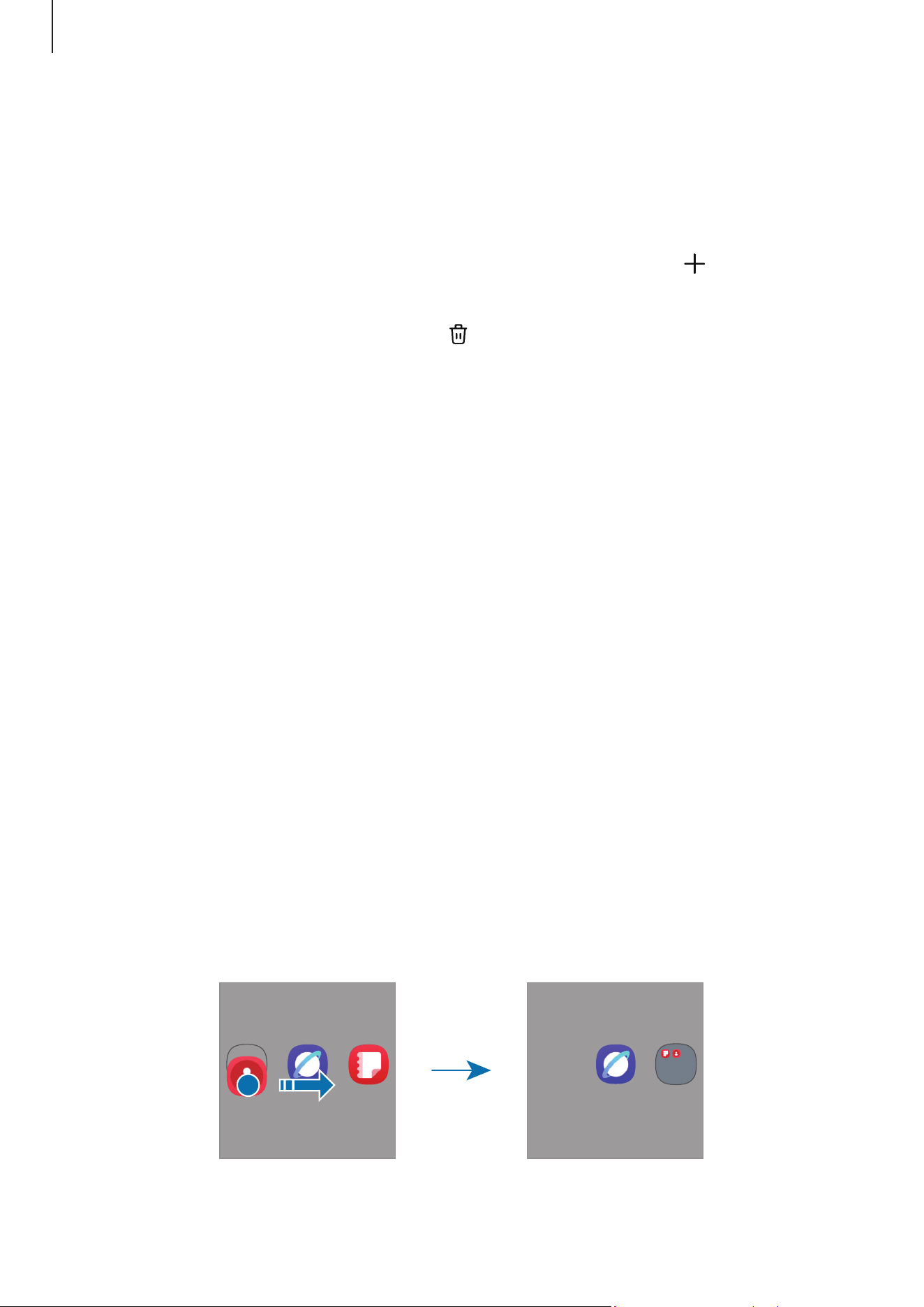
Switching between Home and Apps screens
On the Home screen, swipe upwards to open the Apps screen.
To return to the Home screen, swipe upwards or downwards on the Apps screen.
Alternatively, tap the Home button (
) or the Back button ( ).
Favourite apps
Home screen Apps screen
If you add the Apps button on the Home screen, you can open the Apps screen by
tapping the button. On the Home screen, touch and hold an empty area, tap
Settings
,
and then tap the
Show Apps screen button on Home screen
switch to turn it on. The
Apps button (
) will be added at the bottom of the Home screen.
Getting started
18
Editing the Home screen
On the Home screen, touch and hold an empty area, or pinch your fingers together to
access the editing options. You can set the wallpaper or theme, add widgets, and more.
You can also add, delete, or rearrange Home screen panels.
•
Adding panels: Swipe to the left, and then tap the Add page icon ( ).
•
Moving panels: Drag a panel preview to a new location.
•
Deleting panels: Tap the Remove icon ( ) on the panel.
Displaying all apps on the Home screen
Without using a separate Apps screen, you can set the device to display all apps on the
Home screen. On the Home screen, touch and hold an empty area, and then tap
Settings
→
Home screen layout
→
Home screen only
→
Apply
.
Moving items
Drag an item to a new location. To move the item to another panel, drag it to the side of
the screen. If you touch and hold an item and tap
Select
, you can select more items and
move them together at once.
To add a shortcut to an app on the Home screen, touch and hold an item on the Apps
screen, and then tap
Add to Home
. A shortcut to the app will be added on the Home
screen.
You can also move frequently used apps to the shortcuts area at the bottom of the Home
screen.
Creating folders
On the Home screen or the Apps screen, drag an app over another app.
A new folder containing the selected apps will be created. Tap
Folder name
and enter a
folder name.
Getting started
19
Edge panel
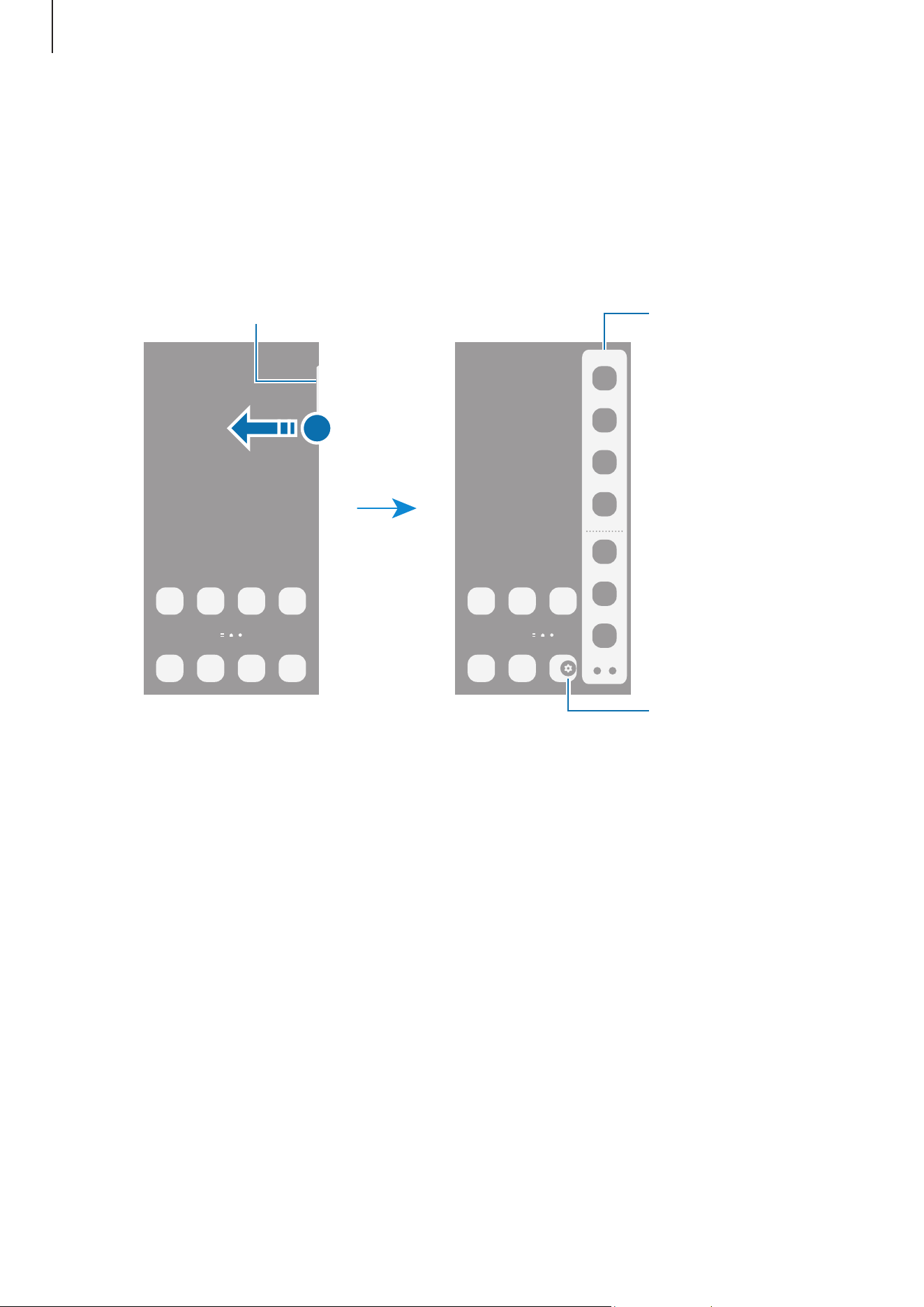
You can access your favourite apps and features from the Edge panels.
Drag the Edge panel handle towards the centre of the screen.
If the Edge panel handle is not visible, open
Settings
, tap
Display
, and then tap the
Edge
panels
switch to turn it on.
Edge panel handle
Edge panel
Edge panel settings
Lock screen
Pressing the Side button turns off the screen and locks it. Also, the screen turns off and
automatically locks if the device is not used for a specified period.
To unlock the screen, swipe in any direction except downwards when the screen turns
on.
If the screen is off, press the Side button to turn on the screen. Alternatively, double tap
the screen.
Getting started
20
Editing shortcuts
You can change the shortcuts at the bottom of the locked screen to other apps or
features you want.
Touch and hold on the locked screen, tap the shortcut icon, select an app or feature you
want, and then tap
Done
.
Changing the screen lock method
To change the screen lock method, open
Settings
, tap
Lock screen
→
Screen lock and
biometrics
, and then select a method.
When you set a pattern, PIN, password, or your biometric data for the screen lock
method, you can protect your personal information by preventing others from accessing
your device. After setting the screen lock method, the device will require an unlock code
whenever unlocking it.
You can set your device to perform a factory data reset if you enter the unlock code
incorrectly several times in a row and reach the attempt limit. Open
Settings
, tap
Lock screen
→
Secure lock settings
, unlock the screen using the preset screen lock
method, and then tap the
Auto factory reset
switch to turn it on.
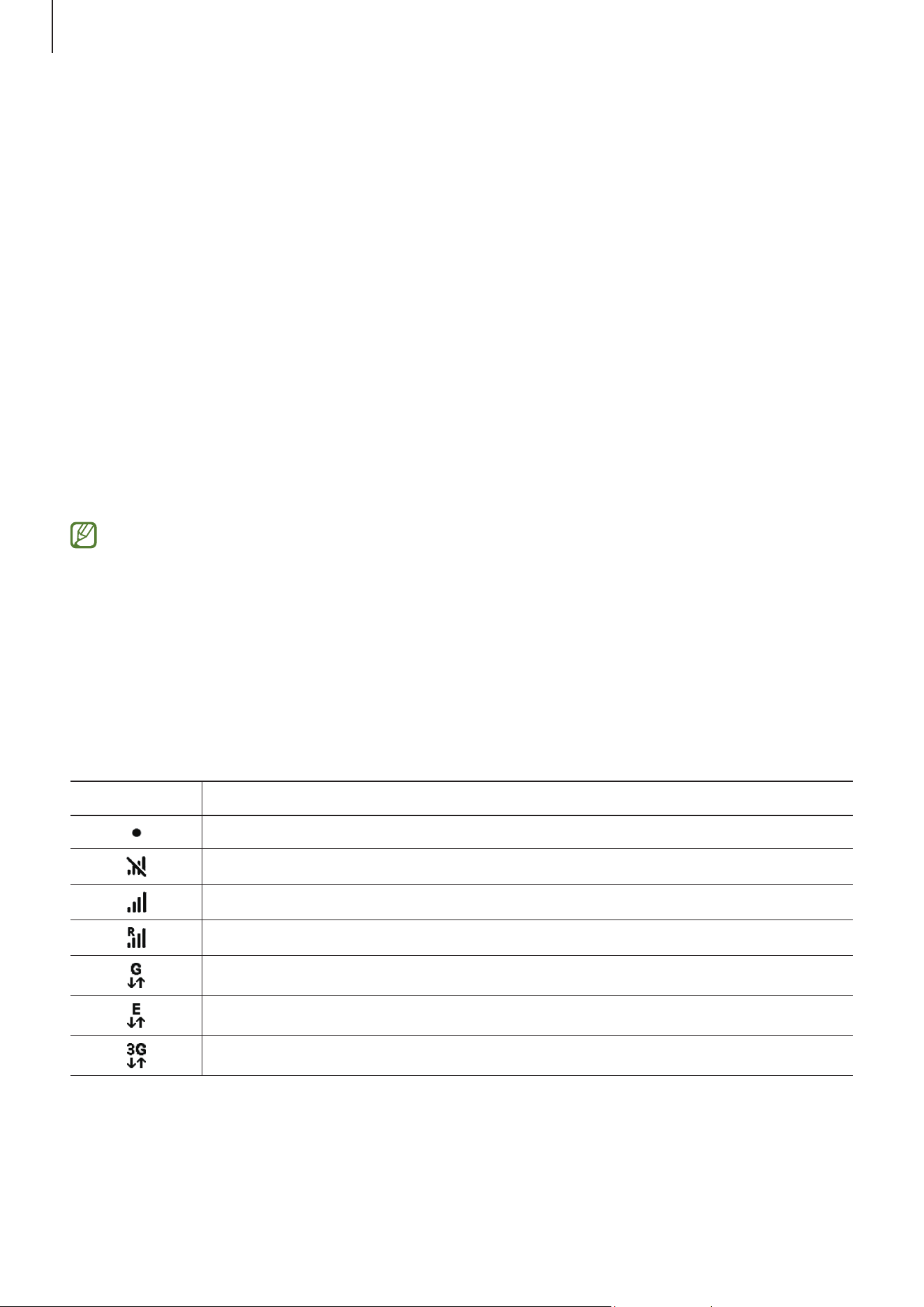
Indicator icons
Indicator icons appear on the status bar at the top of the screen. The icons listed in the
table are most common.
Icon Meaning
New notifications
No signal
Signal strength
Roaming (outside of normal service area)
GPRS network connected
EDGE network connected
UMTS network connected
Getting started
21
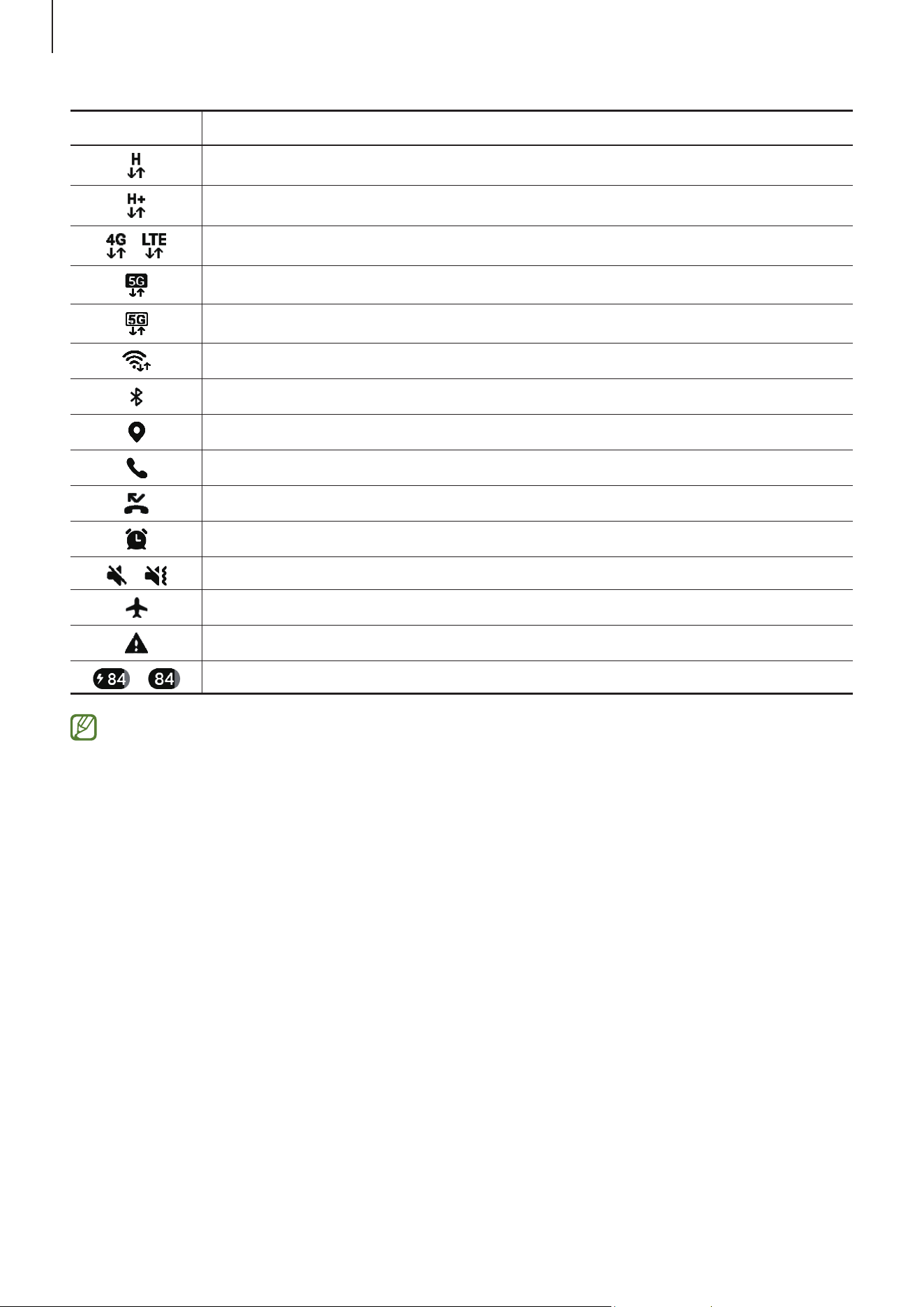
Icon Meaning
HSDPA network connected
HSPA+ network connected
/
LTE network connected
5G network connected
LTE network connected in LTE network that includes the 5G network
Wi-Fi connected
Bluetooth feature turned on
Location services being used
Call in progress
Missed call
Alarm turned on
/ Mute mode / Vibration mode
Flight mode turned on
Error occurred or caution required
/
Battery charging / Battery power level
•
The status bar may not appear at the top of the screen in some apps. To display
the status bar, drag down from the top of the screen.
•
Some indicator icons appear only when you open the notification panel.
•
Some notifications will be displayed as a dot.
•
The indicator icons may appear differently depending on the carrier or model.
Getting started
22
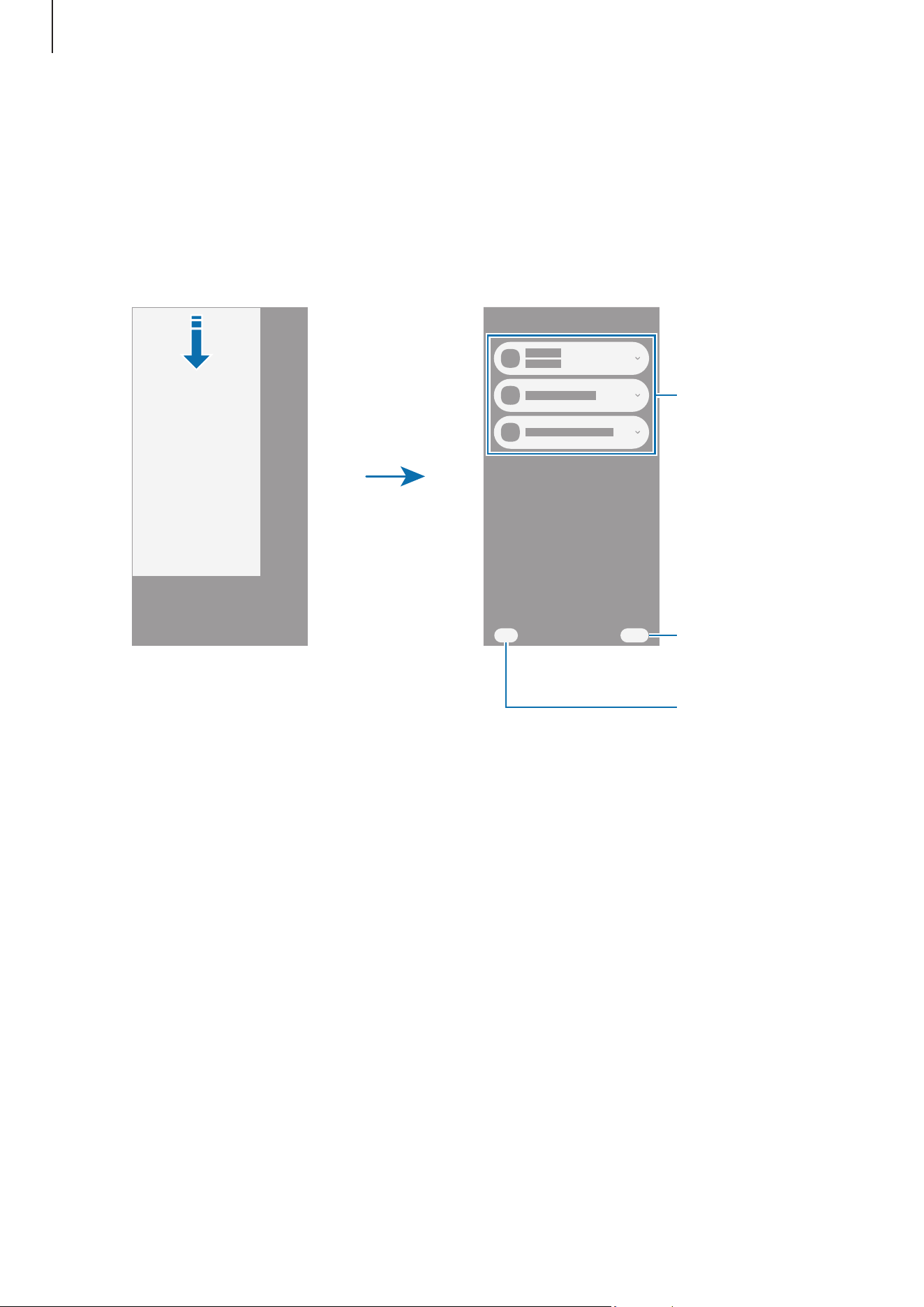
Notification panel
When you receive new notifications, indicator icons appear on the status bar. Open the
notification panel to check the details.
To open the notification panel, swipe downwards from the top of the screen, except for
the right side. To close the notification panel, swipe upwards on the screen.
Check the
notification
details and
perform various
actions.
Clear all
notifications.
Access the
notification
settings.
Getting started
23
Quick settings panel
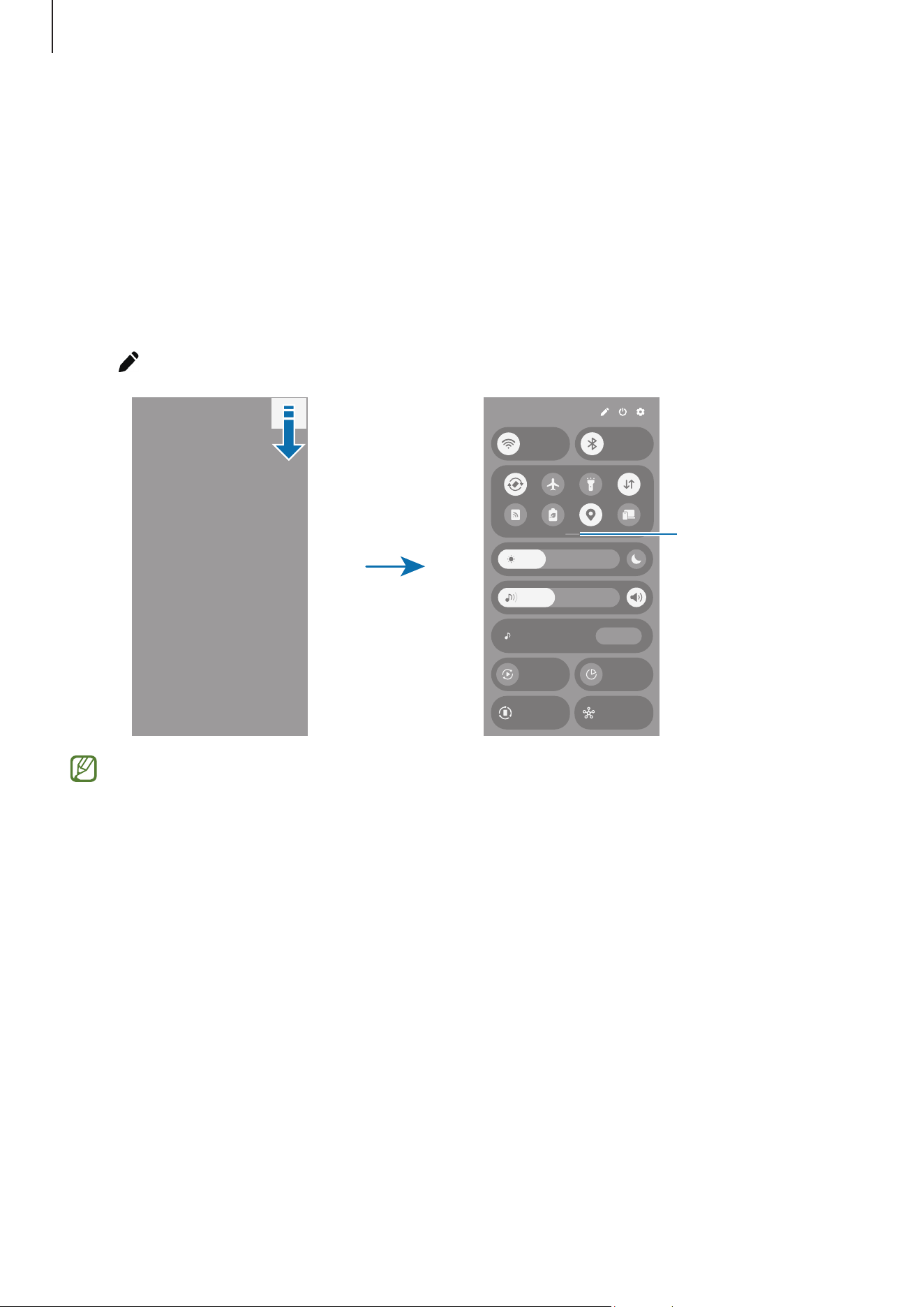
You can turn specific features on or off, such as the Wi-Fi or Bluetooth feature, by
tapping each button. You can also connect to nearby devices, control media, and use the
SmartThings app to control connected devices.
To open the quick settings panel, swipe downwards from the top right side of the screen.
To close the quick settings panel, swipe upwards on the screen.
To access more detailed settings, touch and hold a button. To edit buttons, tap the Edit
icon (
)
→
Edit
.
Check more
buttons.
This image may differ depending on the region or model.
Getting started
24
Screen capture and screen record
Screen capture
Use the following methods to capture a screenshot. You can check the captured
screenshots in
Gallery
.
•
Button capture
Press the Side button and the Volume Down button simultaneously.
•
Swipe capture
With the edge of your hand, swipe your hand to the left or right across the screen.
If capturing a screenshot by swiping is not turned on, open
Settings
, tap
Advanced
features
→
Motions and gestures
, and then tap the
Palm swipe to capture
switch to
turn it on.
It is not possible to capture a screenshot while using some apps and features.
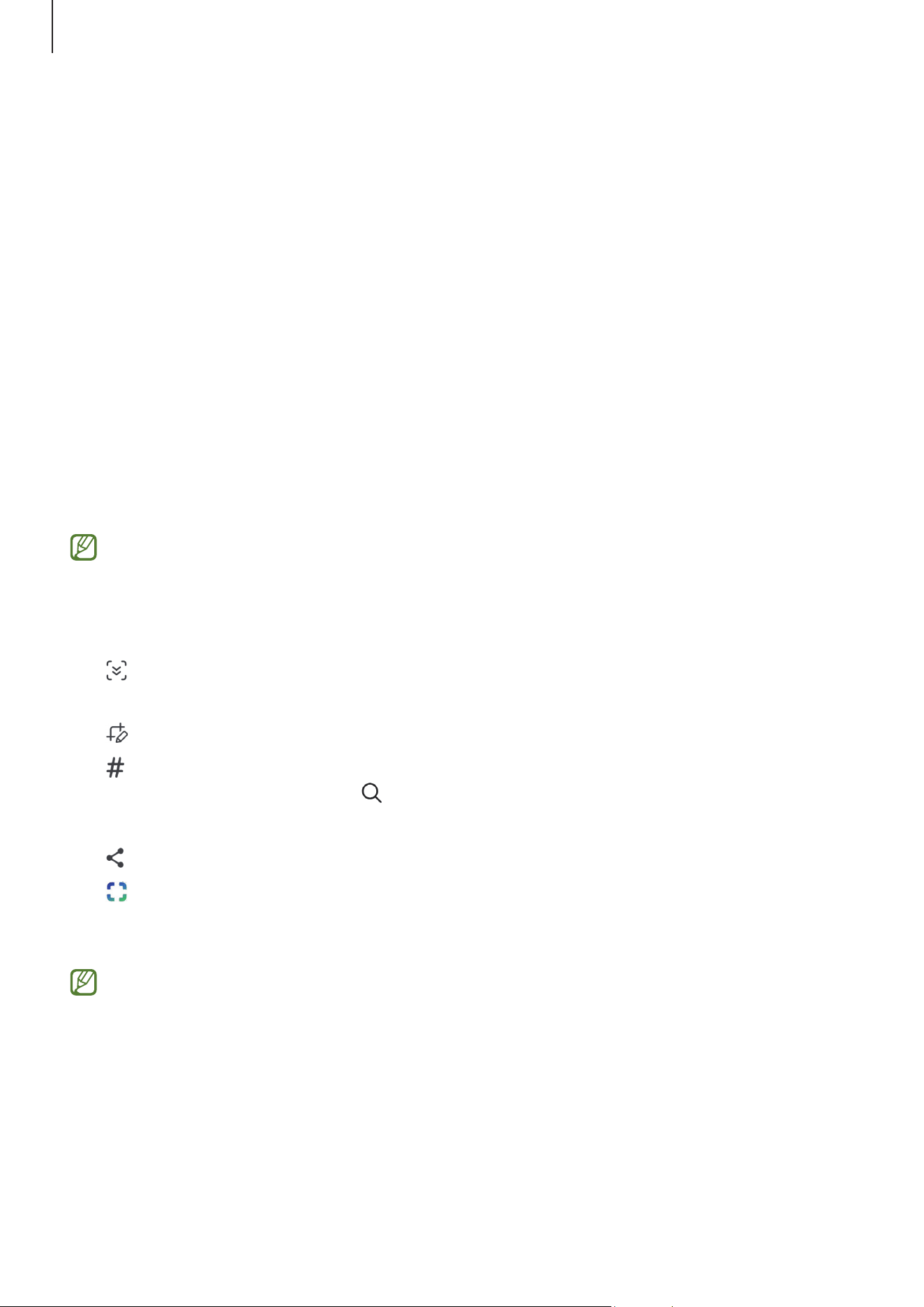
After capturing a screenshot, use the following options on the toolbar at the bottom of
the screen:
•
: Capture the current content and the hidden content on an elongated page, such
as a webpage.
•
: Write or draw on the screenshot or crop a portion from the screenshot.
•
: Add tags to the screenshot. To search for screenshots by tag, open the
Gallery
app and tap the Search icon (
). You can access the tags list and search for the
screenshot you want.
•
: Share the screenshot with others.
•
: Select an area and perform actions, such as sharing or saving. Tap or draw a
circle around the content you want to select. Then, select an option to use with the
selected area.
If the options are not visible on the captured screen, open
Settings
, tap
Advanced
features
→
Screenshots and screen recordings
, and then tap the
Show toolbar
after capturing
switch to turn it on.
Getting started
25
Screen record
1 Open the quick settings panel, tap the Expand icon ( ), and then tap
Screen
recorder
( ).
2 Customise the settings and tap
Start recording
.
After a countdown, recording will start.
•
To write or draw on the screen, tap the Draw icon ( ).
•
To record the screen with a video overlay of yourself, tap the Selfie video icon ( ).
3 When you are finished recording the video, tap the Stop icon (
).
To change the screen recorder settings, open
Settings
and tap
Advanced features
→
Screenshots and screen recordings
.
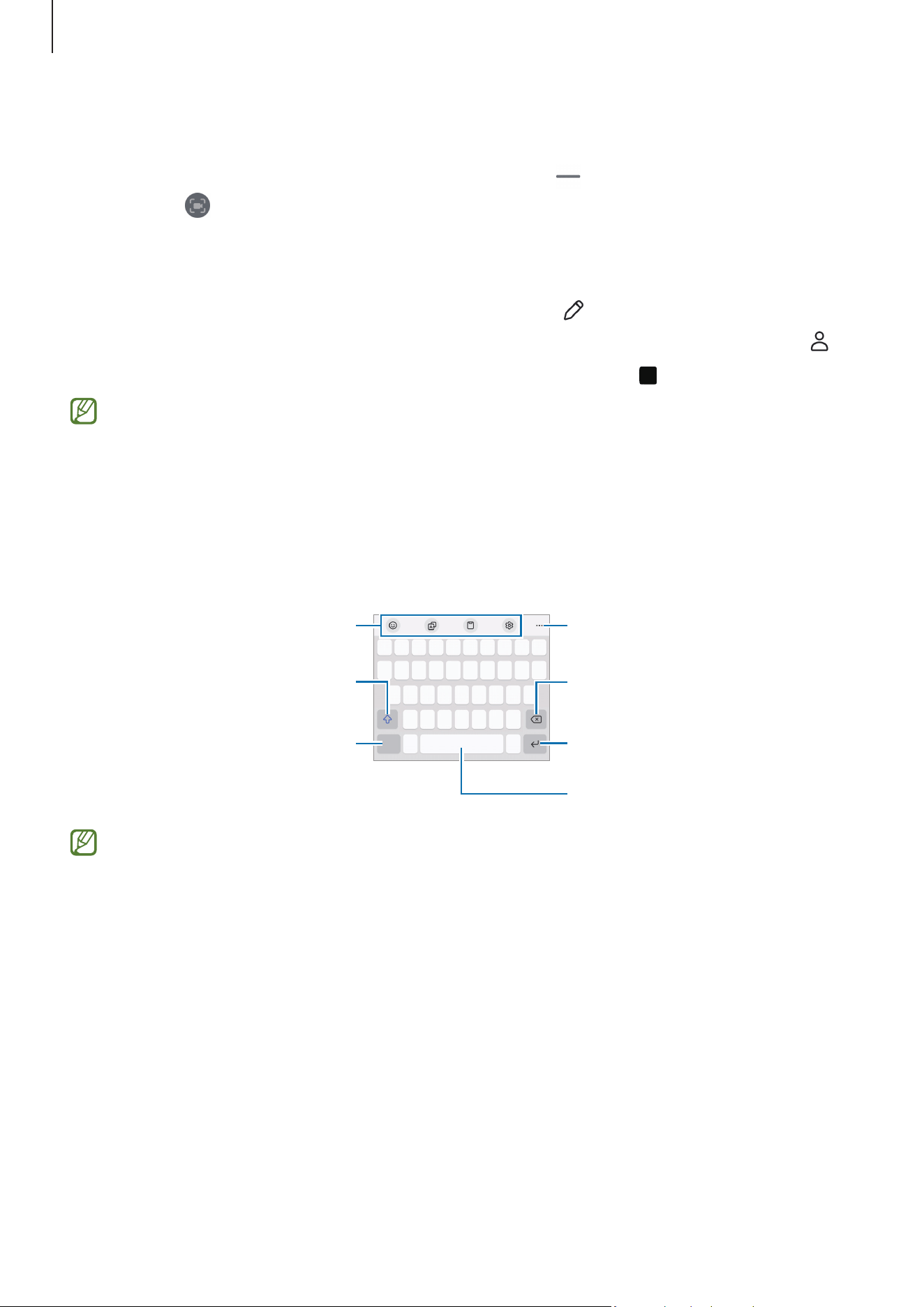
Entering text
A keyboard appears automatically when you enter text.
Break to the next line.
Delete a preceding character.
Enter symbols.
Enter uppercase. For all caps, tap
it twice.
Additional keyboard functions
Enter a space.
Access more keyboard functions.
Text entry is not supported in some languages. To enter text, you must change the
input language to one of the supported languages.

Getting started
26
Changing the input language
Tap the Settings icon ( )
→
Languages and types
→
Manage input languages
and
select the languages to use. When you select two or more languages, you can switch
between the input languages by tapping the Change language icon (
).
To change the keyboard type, tap the Settings icon (
)
→
Languages and types
, select a
language, and then select the keyboard type you want.
On a
3 x 4
keyboard, a key has three or four characters. To enter a character, tap the
corresponding key repeatedly until the desired character appears.
Using the input method button
You can change the text input method by tapping the input method button on the
navigation bar.
To change the input method button on the navigation bar, touch and hold the input
method button and select an option you want.
•
: Enter text by voice.
•
: Change the keyboard.
If the input method button does not appear on the navigation bar, open
Settings
,
tap
General management
→
Keyboard
, and then tap the
Show input method
button on navigation bar
switch to turn it on.

27
Apps and features
Installing or uninstalling apps
Purchase and download apps from
Galaxy Store
or
Play Store
.
Uninstalling or disabling apps
Touch and hold an app and select an option.
•
Uninstall
: Uninstall downloaded apps.
•
Disable
: Disable selected default apps that cannot be uninstalled from the device.
Some apps may not support this feature.
Phone
Introduction
Make or answer voice and video calls.
Making calls
1 Open the
Phone
app and tap
Keypad
.
2 Enter a phone number.
3 Tap the Voice call icon ( ) to make a voice call, or tap the Video call icon ( ) or the
Meet video call icon (
) to make a video call.
Making calls from call logs or contacts list
Open the
Phone
app, tap
Recents
or
Contacts
, and then swipe to the right on a contact
or a phone number to make a call.
If this feature is turned off, tap the More options icon (
)
→
Settings
→
Other call
settings
, and then tap the
Swipe to call or text
switch to turn it on.

Apps and features
28
Using speed dial
To set a number to speed dial, open the
Phone
app, tap
Keypad
→
the More options icon
(
)
→
Speed dial numbers
, select a speed dial number, and then add a phone number.
To make a call, touch and hold a speed dial number on the keypad. For speed dial
numbers 10 and up, tap the first digit(s) of the number, and then touch and hold the last
digit.
For example, if you set the number 123 as a speed dial number, tap 1, tap 2, and then
touch and hold 3.
Making an international call
1 Open the
Phone
app and tap
Keypad
.
2 Touch and hold 0 until the + sign appears.
3 Enter the country code, area code, and phone number, and then tap the Call icon ( ).
Receiving calls
Answering a call
When a call comes in, drag the Answer icon ( ) outside the large circle.
Rejecting a call
When a call comes in, drag the Decline icon ( ) outside the large circle.
To send a message when rejecting an incoming call, drag the
Send message
bar upwards
and select a message to send. If you tap the Reminder icon (
) and send the message,
you can receive a reminder one hour later.
To create various rejection messages, open the
Phone
app and tap the More options icon
(
)
→
Settings
→
Quick decline messages
. Tap the Add icon ( ), enter a message, and
then tap
Save
.

Apps and features
29
Blocking phone numbers
Block calls from specific numbers added to your block list.
Open the
Phone
app, tap the More options icon ( )
→
Settings
→
Block numbers
, and
then select contacts or phone numbers to save in the blocked numbers list.
When blocked numbers try to contact you, you will not receive notifications. The calls
will be logged in the call log.
You can also block incoming calls from people that do not show their caller ID. Tap
the
Block calls from unknown numbers
switch to turn the feature on.
Options during calls
•
: Switch to a video call.
•
Text call
: Communicate with the other party through text. To use this feature, open
the
Phone
app, tap the More options icon ( )
→
Settings
→
Text call
, and then tap
the switch to turn it on.
•
Add call
: Dial a second call. The first call will be put on hold. When you end the
second call, the first call will be resumed.
•
Hold call
: Hold a call.
•
Mute
: Turn off the microphone so that the other party cannot hear you.
•
Bluetooth
: Switch to a Bluetooth headset if it is connected to the device.
•
Speaker
: Turn speakerphone off or on. When using the speakerphone, keep the
device away from your ears.
•
Keypad
/
Hide
: Open or close the keypad.
•
More
: Use additional features.
•
: End the current call.
•
: During a video call, switch to a voice call.
•
: During a video call, lock the screen.
•
Effects
: During a video call, apply various effects.
•
: During a video call, change the screen ratio.
•
Camera
: During a video call, turn off the camera so that the other party cannot see
you.
•
Switch
: During a video call, switch between the front and rear cameras.
Some features may not be available depending on the carrier or model.

Apps and features
30
Contacts
Create new contacts or manage contacts on the device.
Open the
Contacts
app.
•
To add a new contact, tap the Create icon ( ).
•
To delete contacts, touch and hold a contact to delete, then tap
Delete
.
•
To merge duplicate contacts or manage contacts, tap the More options icon ( )
→
Settings
.
Camera
Introduction
Take pictures and record videos using various modes and settings.
Taking pictures
1 Open the
Camera
app.
2 Tap the image on the preview screen where the camera should focus.
•
On the preview screen, swipe upwards or downwards, or tap the Switch to the front
camera icon (
) to switch to the front camera for self-portraits.
•
To zoom in or out while using the rear camera, select the desired zoom icon on the
preview screen.
•
To adjust the brightness of pictures, drag the adjustment bar that appears above or
below the circular frame.
Apps and features
31
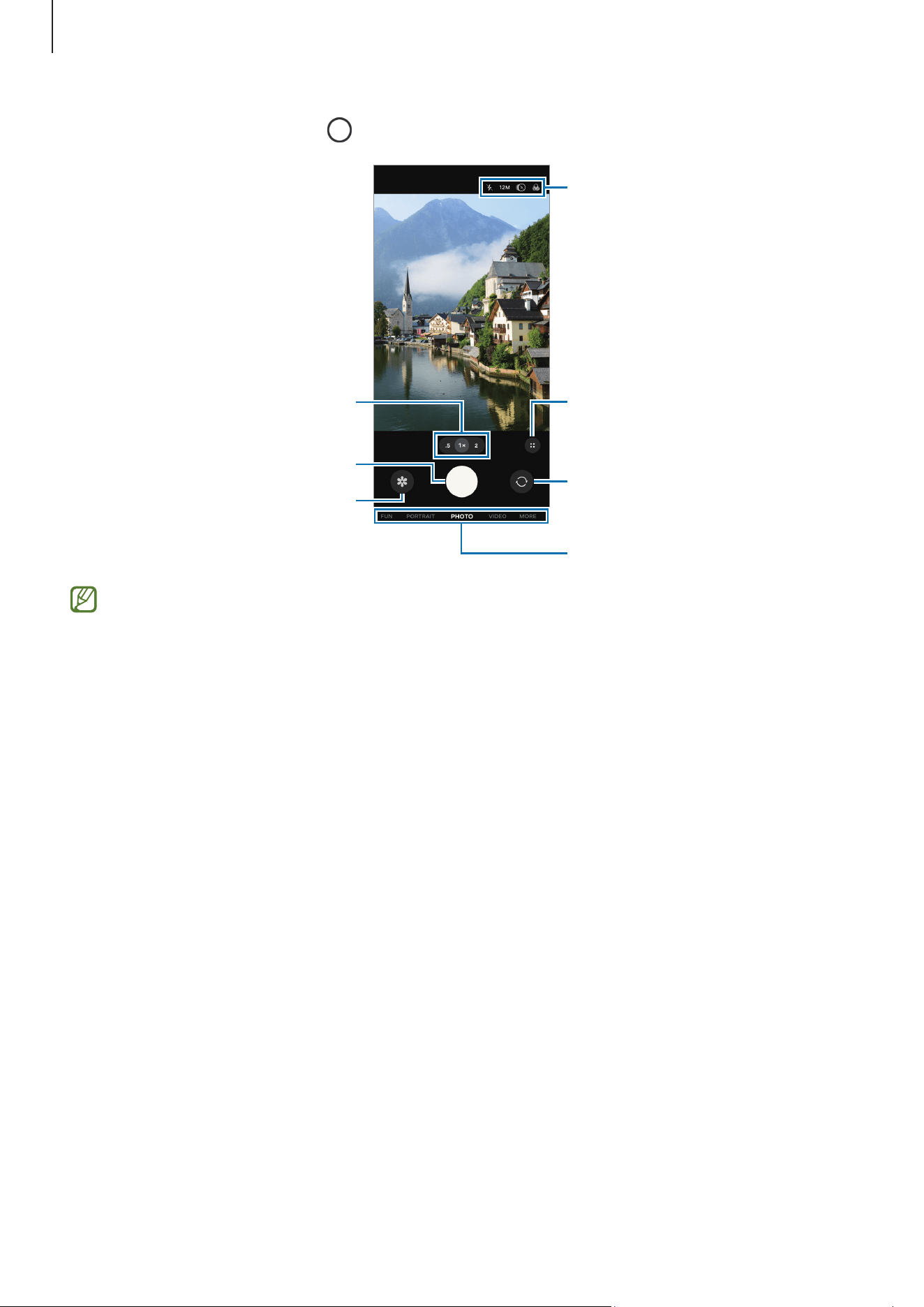
3 Tap the Take picture icon ( ) to take a picture.
Take a picture.
Preview thumbnail
Shooting modes list
Quick controls
Zoom
Switch between the front and
rear cameras.
Options for current shooting
mode
•
The preview screen may vary depending on the shooting mode and which
camera is being used.
•
The focus may not be clear if the subject is close. Take pictures or videos from a
good distance.
•
If pictures you take appear blurry, clean the camera lens and try again.
•
Make sure that the lens is not damaged or contaminated. Otherwise, the device
may not work properly in some modes that require high resolutions.
•
Your device’s camera features a wide-angle lens. Minor distortion may occur
in wide-angle pictures or videos and does not indicate device performance
problems.
•
The camera may fog up or form condensation if the device is exposed to sudden
changes in air temperature, because of the difference in temperature outside
and inside the camera cover. Try to avoid such conditions when planning to use
the camera. If fogging does occur, allow the camera to dry naturally at room
temperature before taking pictures or recording videos, otherwise results may
look blurry.

Apps and features
32
Using the camera button
•
Touch and hold the camera button to record a video.
•
If you drag the camera button to the Lock icon ( ), you can record a video without
holding the button.
•
To take burst shots, swipe the camera button to the edge of the screen and hold it.
•
If you add another camera button, you can move it anywhere on the screen and take
pictures more conveniently. On the preview screen, tap the Quick controls icon (
)
→
the Settings icon ( )
→
Shooting methods
and tap the
Floating Shutter button
switch to turn it on.
Taking videos
1 Open the
Camera
app.
2 On the shooting modes list, tap
VIDEO
and tap the Start recording icon (
) to record
a video.
To capture an image from the video while recording, tap the Capture icon (
).
3 Tap the Stop recording icon ( ) to stop recording the video.
Shooting modes
To change the shooting mode, drag the shooting modes list to the left or right, or swipe
to the left or right on the preview screen. Tap
MORE
to access various shooting modes.
•
PORTRAIT
: Take pictures where the background is blurred and the subject stands
out clearly.
•
FUN
: Take pictures or record videos with various effects.
•
PRO
/
PRO VIDEO
: Capture pictures or videos while manually adjusting various
shooting options, such as exposure value and ISO value.
•
NIGHT
: Take a picture in low-light conditions, without using the flash.
•
FOOD
: Take pictures of food with more vibrant colours.
•
PANORAMA
: Take a series of pictures and then stitch them together to create a wide
scene.
Apps and features
33
•
MACRO
: Take pictures of subjects at close range.
•
SUPER SLOW-MO
: Record a quickly passing moment slowly so that you can
appreciate it later.
•
SLOW MOTION
: Record a video for viewing it in slow motion.
•
HYPERLAPSE
: Record scenes, such as passing people or cars, and view them as
fast-motion videos.
To edit the shooting modes list, tap
MORE
on the list, tap
Edit
, and then drag
modes to where you want.
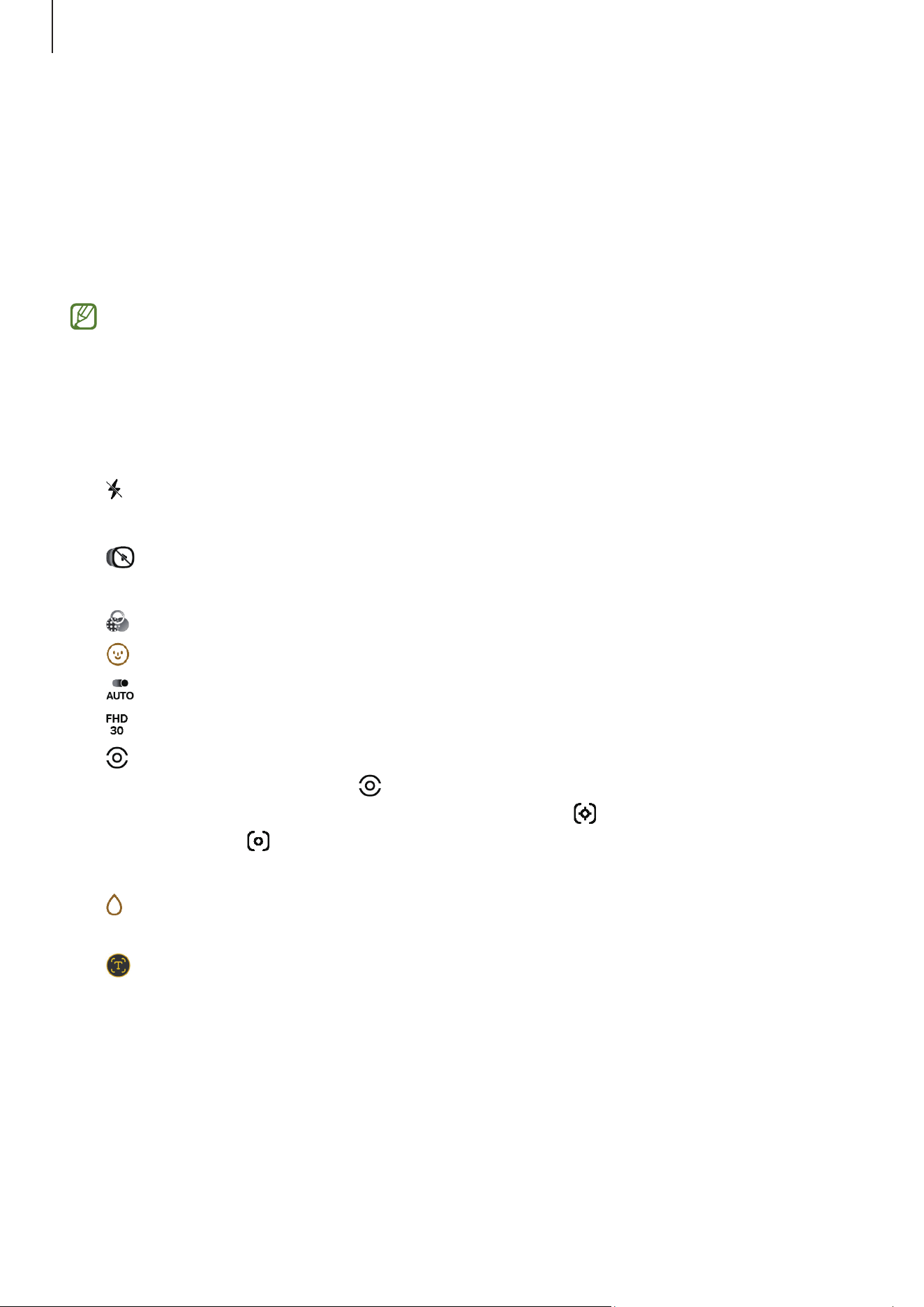
Options for current shooting mode
On the preview screen, use the following options.
•
: Turn the flash on or off.
•
12M
: Select a resolution for pictures.
•
: Turn the motion photo feature on or off. If you turn it on, a video clip will also be
taken from a few seconds before tapping the camera button.
•
: Apply a filter effect.
•
: Apply beauty effects.
•
: Select a frame rate for hyperlapse videos.
•
: Select a resolution for videos.
•
: Select a metering method. This determines how light values are calculated.
Centre-weighted metering
( ) uses the light in the centre portion of the shot to
calculate the exposure of the shot.
Matrix metering
( ) averages the entire scene.
Spot metering
( ) uses the light in a concentrated centre area of the shot to
calculate the exposure of the shot.
•
: In
FOOD
mode, focus on a subject inside the frame and blur the image outside
the frame.
•
: This option appears only when there is a document or text. Scan the document
or text.

Apps and features
34
•
: This option appears only in dark environments. Turn the night shooting feature
on or off.
•
: Switch to a wide-angle shot of the landscape or people when taken with the
front camera.
•
: In
PORTRAIT
mode, drag the background blur adjustment bar to adjust the blur
level.
•
: In
PRO
or
PRO VIDEO
mode, hide the shooting options.
Tap the Quick controls icon (
) to use more shooting options.
•
: Customise camera settings.
•
: Select the length of the delay before the camera automatically takes a picture.
•
3:4
: Select an aspect ratio for pictures.
•
: Change the exposure value.
•
9:16
: Select an aspect ratio for videos.
•
: Turn the auto framing feature on or off. When you turn on this feature, the
device changes the shooting angle and zoom automatically by recognising and
tracking people.
•
: In
PRO
or
PRO VIDEO
mode, select a colour tone and adjust its intensity.
•
: In
FOOD
mode, adjust the colour temperature.
•
: Change the recording time for hyperlapse videos.
The available options may vary depending on the model or shooting mode.
Customising camera settings
On the preview screen, tap the Quick controls icon ( )
→
the Settings icon ( ) and
customise camera settings. For more information, refer to the instructions for each
menu in the camera settings.
Apps and features
35
Gallery
Introduction
Access images and videos stored in your device. You can also manage images and videos
by album or create stories.
Viewing images
Open the
Gallery
app and select an image. You can view other files by swiping to the
left or right on the screen. You can also use additional features to enhance the image by
swiping upwards on the screen.
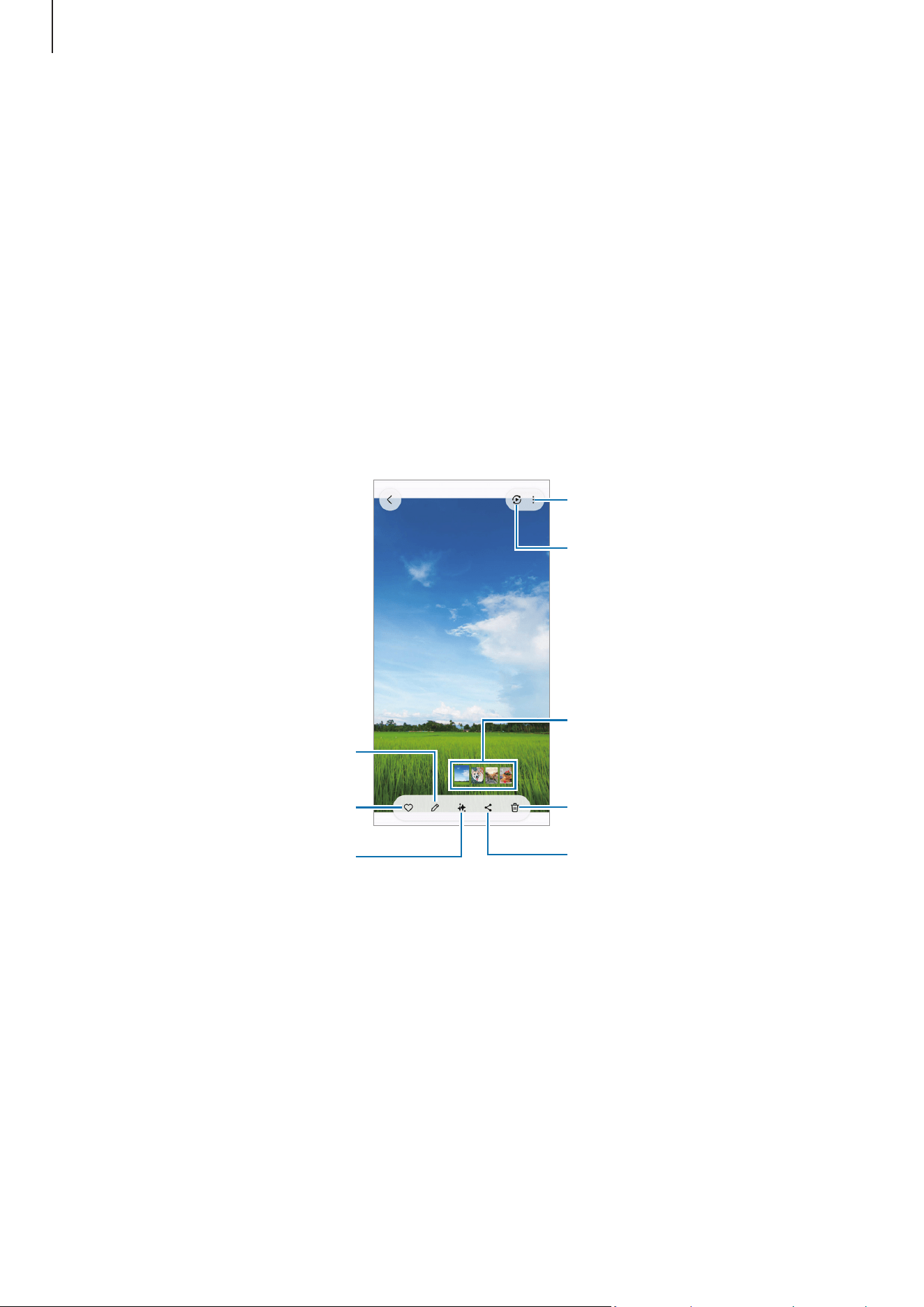
More options
Delete the image.
Share the image with others.
Image and video thumbnail
Modify the image.
Photo assist
View the content on a large
screen using the Smart View
feature.
Add the image to favourites.
Touch and hold on an object in the image or paused video to separate it from the
background and use it in various ways.
To crop the area you want from the image, spread two fingers apart on the area.
Apps and features
36
Viewing videos
Open the
Gallery
app and select a video to play. To view other files, swipe to the left or
right on the screen.
To use more options during playback, tap the More options icon (
)
→
Open in Video
player
.
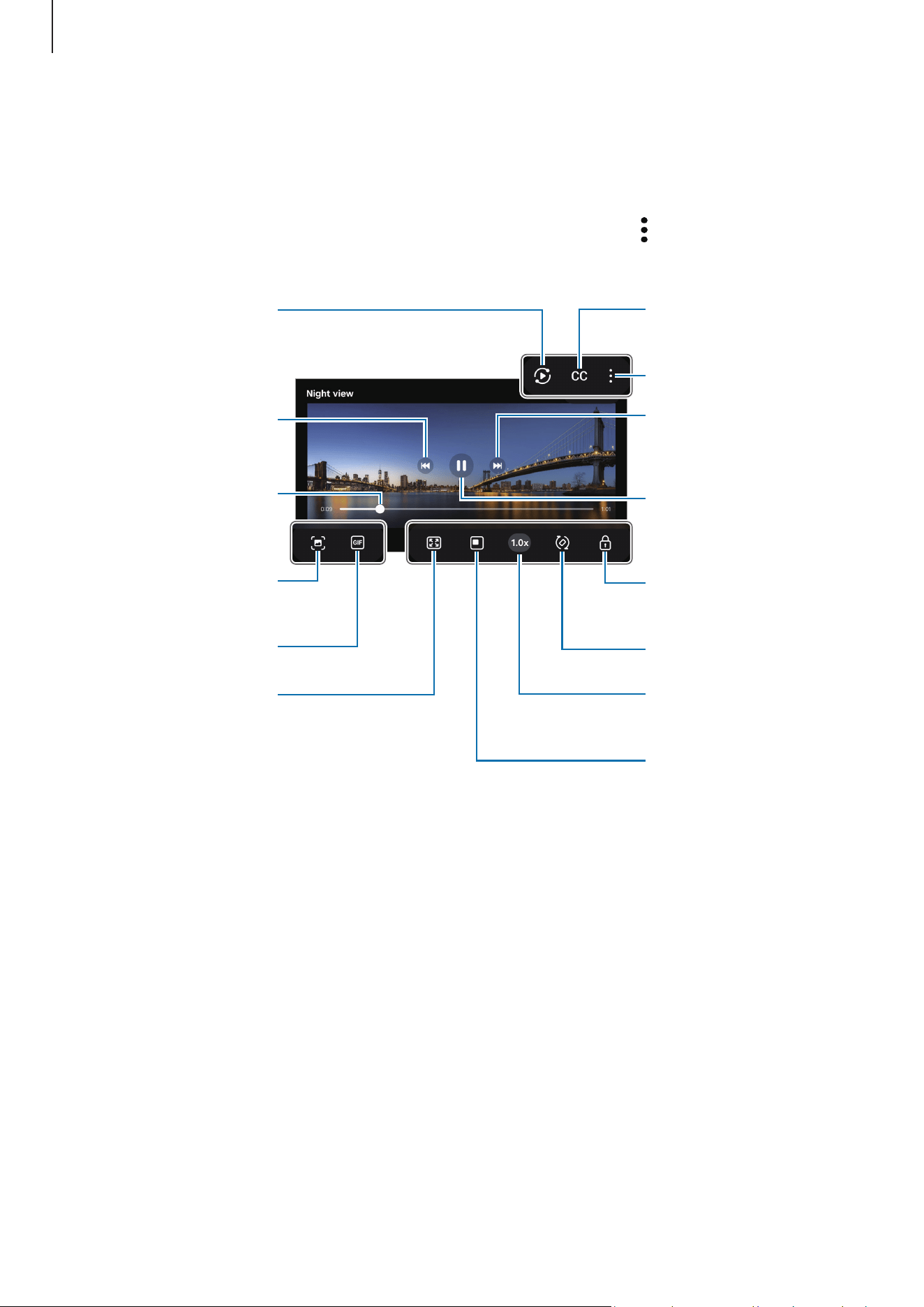
Lock the playback
screen.
Skip to the previous
video. Touch and hold
to rewind.
Capture the current
screen.
Create a GIF.
Configure the caption
settings.
Rewind or fast-forward
by dragging the bar.
Switch to the pop-up
video player.
More options
Rotate the screen.
Change the playback
speed.
Skip to the next video.
Touch and hold to
fast-forward.
Pause and resume
playback.
Change the screen
ratio.
View the content on a
large screen using the
Smart View feature.
Drag up or down on the left side of the playback screen to adjust the brightness, or drag
up or down on the right side of the playback screen to adjust the volume.
To rewind or fast-forward, swipe to the left or right on the playback screen.
Deleting images or videos
Open the
Gallery
app, touch and hold an image, a video, or an album to delete, and then
tap
Delete
. Images and videos you delete will be temporarily stored in the recycle bin.
The files will be deleted after a certain period.
To access files in the recycle bin, open the
Gallery
app and tap
Menu
→
Recycle bin
.

Apps and features
37
Bixby
Bixby is a user interface that helps you use your device more conveniently. You can say
what you want to Bixby. Bixby will launch a feature you request or show the information
you want.
Visit www.samsung.com/bixby for more information.
Bixby is only available in some languages, and it may not be available depending
on the region.
Waking up Bixby
While pressing and holding the Side button, say what you want to Bixby. To use this
feature, open
Settings
and tap
Advanced features
→
Side button
→
Long press
→
Bixby
.
Alternatively, say the wake-up phrase, such as “Hi, Bixby” or “Bixby”, and then say what
you want.
Setting a wake-up phrase
1 Open
Settings
and tap
Advanced features
→
Bixby
→
Voice registration
.
2 Select the wake-up phrase you want under
Voice wake-up
.
When running this app for the first time or restarting it after performing a data
reset, follow the on-screen instructions to complete the initial setup.
Apps and features
38
Multi window
(Using multiple apps at once)
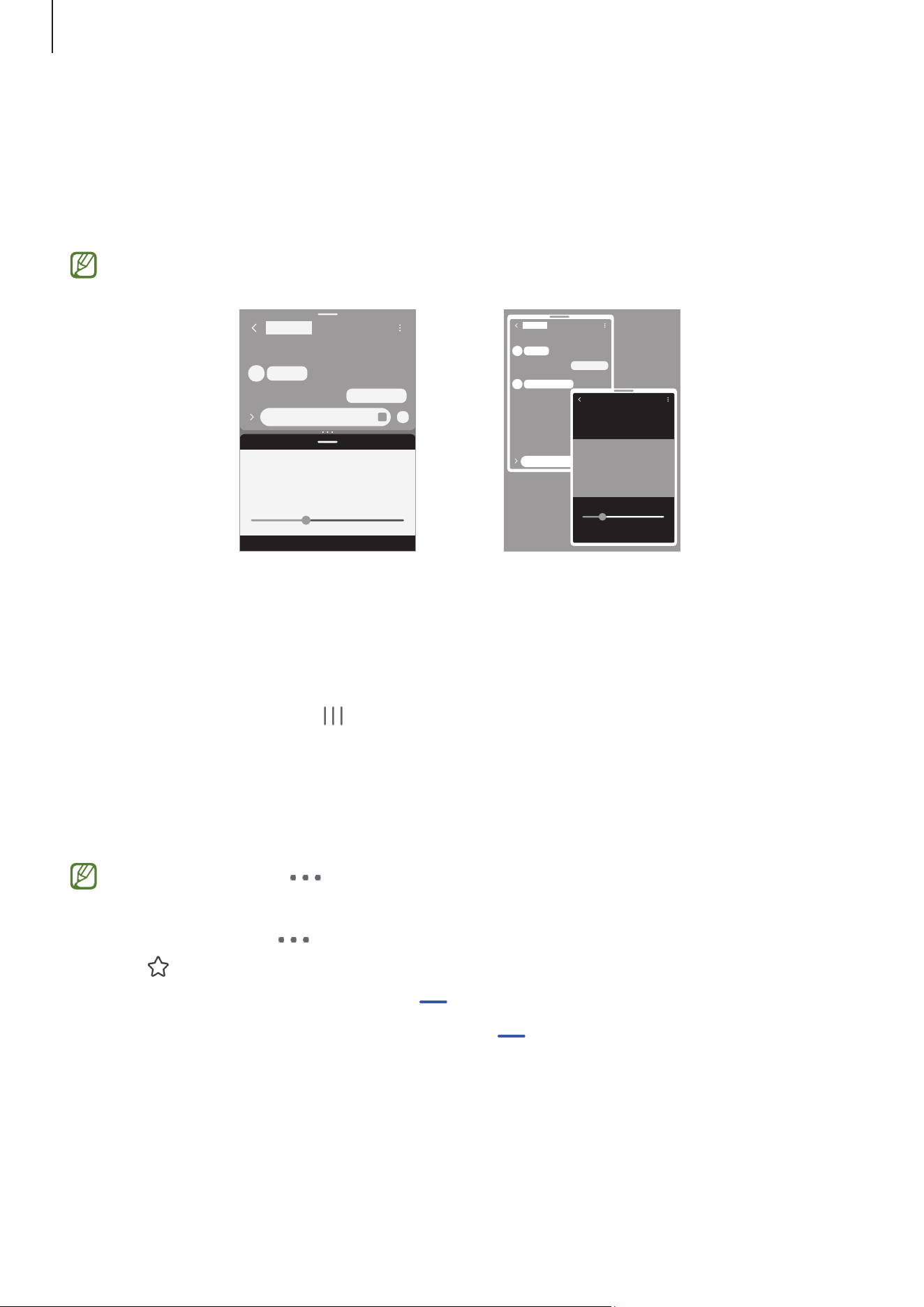
Run apps at the same time in split screen view or multiple apps in the pop-up view.
Some apps may not support this feature.
Split screen view Pop-up view
Launching Multi window
•
Recents button
Tap the Recents button (
), tap an app’s icon, and then tap
Open in split screen
view
or
Open in pop-up view
.
•
Swipe screen
Open
Settings
, tap
Advanced features
→
Multi window
, and then tap the
Swipe for
split screen
or
Swipe for pop-up view
switch to turn it on.
•
Drag the circles ( ) between the app windows to adjust the size of the
windows.
•
Tap the circles ( ) between the app windows and tap the Add app pair icon
(
). The apps you are using in the split screen view will be saved as an app pair.
•
Drag the multi window handle ( ) to a new location to move the app window.
•
When you tap the multi window handle ( ), the available menus will appear.
Apps and features
39
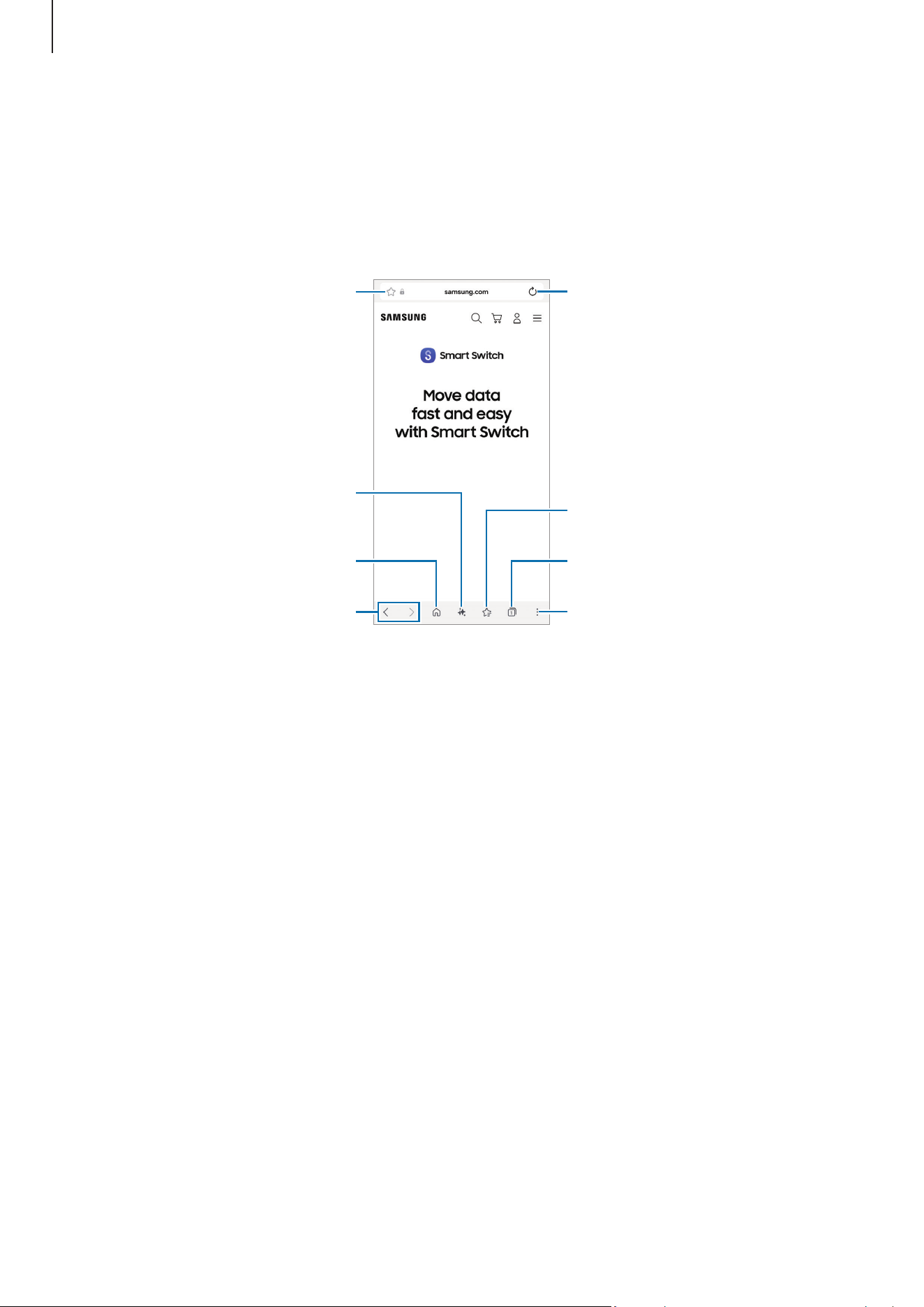
Samsung Browser
Browse the internet to search for information and bookmark your favourite webpages to
access them conveniently.
Open the
Browser
app.
Bookmark the current webpage.
Open the homepage.
Read the webpage aloud.
Move between pages.
More options
Refresh the current webpage.
Manage tabs. / Use Secret mode.
Access your bookmarks.

Apps and features
40
Samsung Wallet
Use various convenient features in Samsung Wallet. You can add payment cards, transit
cards, digital keys, mobile IDs, membership cards, boarding passes, coupons, tickets, and
more to Samsung Wallet and use them securely in one app. You can also use Samsung
Pass to sign in to apps and services with your biometric data.
Visit www.samsung.com/samsung-wallet for more information.
This app may not be available depending on the region.
Starting Samsung Wallet
1 Open the
Wallet
app, or drag a card image at the bottom of the screen upwards.
2 Tap the Add icon ( ) at the top of the screen and select an option you want.
3 Follow the on-screen instructions to complete the registration.
Using Samsung Wallet
•
Payment cards
: Launch Samsung Wallet and select a card to use. Scan your
fingerprint or enter the payment PIN you set, and then touch the NFC antenna area
of your device to the card reader. The payment will be processed.
•
Transport card
/
Digital keys
: Touch the NFC antenna area of the device to the
transit card reader, vehicle, or door lock. The transit card or digital key will be
recognised. It is recommended to use this feature when the screen is off.
•
Memberships
/
Vouchers
/
Event tickets
: Launch Samsung Wallet, select an option
you want, and then tap a barcode or QR code. The barcode or QR code will be
magnified and can be scanned with the scanner.
•
To find out the NFC antenna location of the device, refer to Device layout and
functions.
•
Some features may not be available depending on the region or the model.
Apps and features
41
Samsung Health
Samsung Health helps you manage your wellness and fitness. Set fitness goals, check
your progress, and keep track of your overall wellness and fitness. You can also compare
your step count records with other Samsung Health users and check out health tips.
Open the
Health
app. Visit www.samsung.com/samsung-health for more information.
Samsung Notes
Create notes by entering text from the keyboard or by handwriting or drawing on the
screen. You can also insert images or voice recordings into your notes.
Creating notes
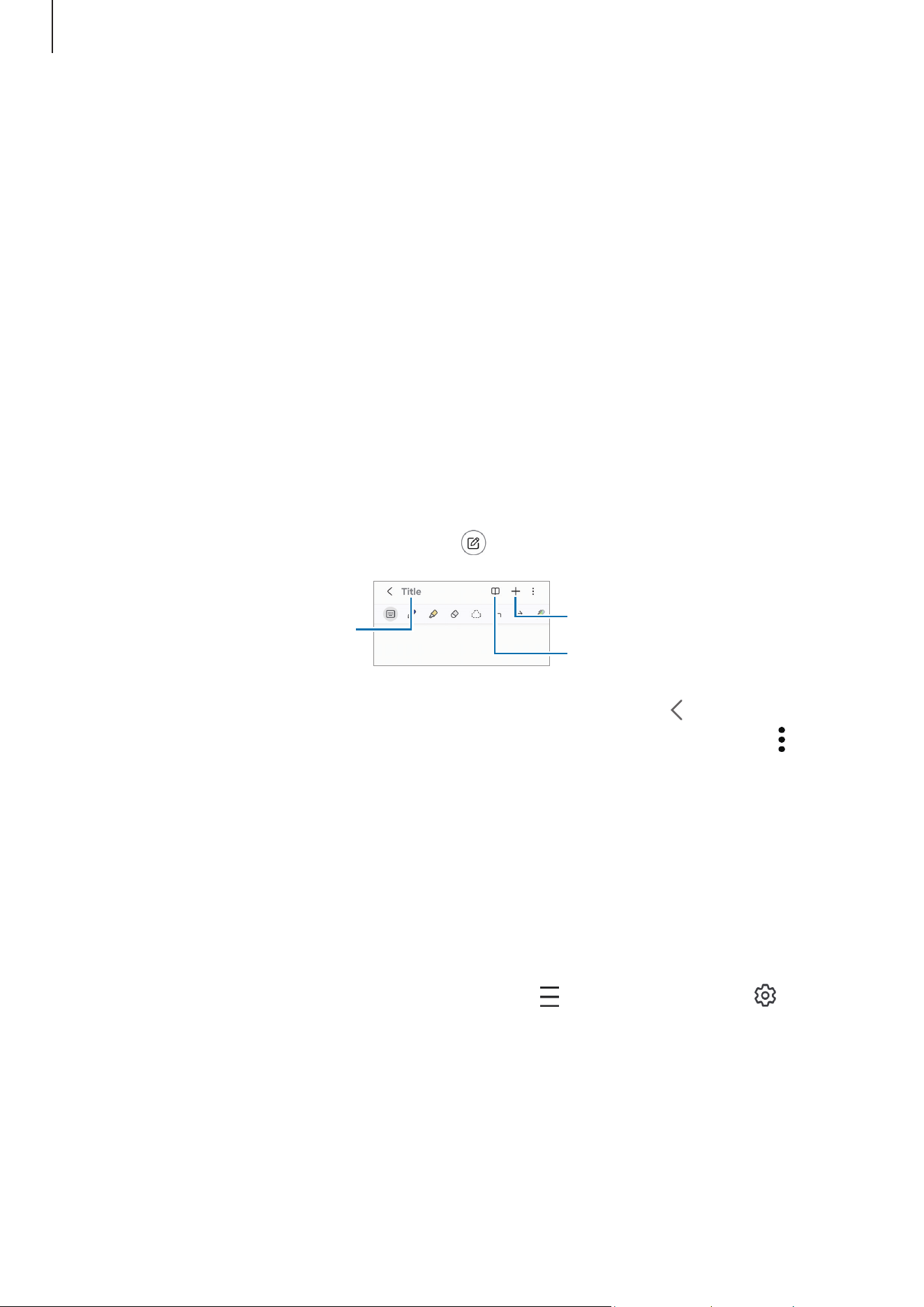
1 Open the
Notes
app, tap the Create icon ( ), and then create a note.
Enter a title.
Insert files or record voice.
Reading mode
2 When you are finished composing the note, tap the Back button ( ) to save it.
If you want to save the note in another file format, tap the More options icon (
)
→
Save as
.
Deleting notes
Touch and hold a note to delete and tap
Delete
.
Syncing notes
You can check and edit notes on all your devices signed in to the same Samsung account.
Open the
Notes
app, tap the Navigation drawer icon ( )
→
the Settings icon ( ), and
then tap the
Sync with Samsung Cloud
switch to turn it on.

Apps and features
42
Samsung Members
Samsung Members offers support services to customers, such as device problem
diagnosis, and lets users submit questions and error reports. You can also share
information with others in the Galaxy users’ community or check the latest news and
tips. Samsung Members can help you solve any problems you might encounter while
using your device.
Open the
Members
app.
If you have questions while using other Samsung apps, access the app’s settings menu
and select the contact us option.
•
Discover
: You can get official information from Samsung, such as Galaxy product
launches and newsletters.
•
Community
: You can communicate with other Galaxy users on various topics and
share information with them.
•
Support
: You can use customer support services, such as feedback or phone
diagnostics, which can help you check if your device is functioning properly.
Available features may vary depending on the device’s software version, app
version, or model.

Apps and features
43
Samsung Kids
You can restrict children’s access to certain apps, set their usage times, and configure
settings to provide a fun and safe environment for children when they use the device.
Open
Settings
and tap
Apps
→
Samsung Kids
→
Open
. When starting Samsung Kids
for the first time or after performing a data reset, follow the on-screen instructions to
complete the setup.
On the Samsung Kids screen, select the app you want to use.
Your preset screen lock method or your created PIN will be used when turning on
the
Parental controls
feature or closing Samsung Kids.
Using parental controls features
You can configure the settings for Samsung Kids and check the usage history.
On the Samsung Kids screen, tap the More options icon (
)
→
Parental controls
and
enter your unlock code.
Samsung Global Goals
The Global Goals, which were set up by the United Nations General Assembly in 2015,
consist of goals that aim to create a sustainable society. These goals have the power to
end poverty, fight inequality, and stop climate change.
With Samsung Global Goals, learn more about the global goals and join the movement
for a better future.
Samsung TV Plus
Select the channels like you would use a TV and enjoy various video content free of
charge.
Open the
TV
app.
This app may not be available depending on the carrier or model.

Apps and features
44
Samsung Find
You can locate your device even if it is not connected to a network. You can also share
your location with other people you preset.
Open the
Find
app.
Samsung Shop
Samsung Shop
is the mobile shopping service provided by Samsung. Get offers or
information about Samsung and its partners’ products and services.
Open the
Samsung Shop
app.
This app may not be available depending on the carrier or model.
Samsung News
Get the headlines and latest news from various sources. You can select and follow
various topics and sources that interest you.
Launch Samsung News using one of these methods.
•
Open the
News
app.
•
Swipe to the right on the Home screen. If the Samsung News screen does not
appear, open
Settings
and tap
Home screen
→
Add media page to Home screen
→
Samsung News
. Alternatively, touch and hold an empty area on the Home screen,
swipe to the right, and then tap
Samsung News
.
•
Tap the News widget on the Home screen. If the widget is not on the Home screen,
on the Samsung News screen, tap the More options icon (
)
→
Settings
→
Add
widget to Home screen
→
Add
. Alternatively, touch and hold an empty area on the
Home screen, tap
Widgets
→
News
, select a widget, and then tap
Add
.
Available features may vary depending on the device’s software version, app
version, or model.

Apps and features
45
Galaxy Store
You can purchase or download various apps, games, themes, or paid services.
Open the
Store
app.
Available features may vary depending on the device’s software version, app
version, or model.
Purchasing or download content
Browse content by category or tap the Search icon (
) to search for a keyword. Then
purchase or download the content you want.
Managing your apps and content
On the Galaxy Store screen, tap
Menu
→
My apps
. You can check your purchased or
downloaded content and reinstall content that has been deleted from your device.
To check for available updates for your apps, tap
Menu
→
Updates
. If you want to update,
tap the Update icon (
) next to the apps you want or tap
Update all
to update all at
once.
By default, auto app updates are set to run only when connected to a Wi-Fi
network. To change the auto update settings, tap
Menu
→
the Settings icon ( )
→
Auto update apps
and select an option.
Adding payment methods or checking your purchase history
On the Galaxy Store screen, tap
Menu
→
Payment methods
and add a payment method,
such as a credit card. You can use the registered payment method to purchase paid
content in
Galaxy Store
.
If you want to check your purchase history, tap
Menu
→
Receipts
.

Apps and features
46
Galaxy Wearable
Using the Galaxy Wearable app, you can manage your wearable devices. When you
connect your phone to the wearable device, you can customise the wearable device’s
settings and apps.
Open the
Wearable
app.
Tap
Start
to connect your phone to the wearable device. Follow the on-screen
instructions to finish the setup. Refer to the wearable device’s user guide for more
information about how to connect and use the wearable device with your device.
Calendar
Manage your schedule by entering upcoming events in your planner.
Open the
Calendar
app and tap the Add event icon (
).
Voice Recorder
Record or play voice recordings.
Open the
Voice Recorder
app, tap the Record icon ( ) to start recording, and then tap
the Stop icon (
) to finish recording.
My Files
(Checking and managing the files)
Access and manage various files stored in the device.
Open the
My Files
app.
To check for unnecessary data and free up the device’s storage, tap
Manage storage
.

Apps and features
47
Clock
Set alarms, check the current time in many cities around the world, time an event, or set
a specific duration.
Open the
Clock
app.
Calculator
Perform basic arithmetic or scientific calculations.
Open the
Calculator
app.
Weather
You can check the weather information for your current location or specific locations you
set.
•
To get the weather information for your current location, you must turn on the
GPS feature and allow the Weather app to collect and use your current location.
•
To get precise weather information, you must allow the Weather app to access
your location.
•
Available features may vary depending on the device’s software version, app
version, or model.
Launching Weather
Launch Weather using one of these methods.
•
Tap the Weather widget on the Home screen. If the widget is not on the screen,
touch and hold an empty area on the Home screen, tap
Widgets
→
Weather
, select a
widget, and then tap
Add
.
•
Open the
Weather
app. If the app icon is not on the screen, tap
Search
on the Apps
screen, search for
Weather
, and then launch the app. If you want to add the app icon
to the Apps screen, on the Weather screen, tap the Weather menu and city list icon
(
)
→
the More options icon ( )
→
Settings
and tap the
Show Weather on Apps
screen
switch to turn it on.

Apps and features
48
Using main features
•
To add locations you want to check the weather for, on the Weather screen, tap the
Search icon (
).
•
To set a primary location to display in the widget, touch and hold the widget, then
tap
Settings
. Then tap
Change
, select the location, and then tap
Save
.
•
To get customised forecasts according to your sleep patterns, activities, and more, on
the Weather screen, tap the Weather menu and city list icon (
)
→
the More options
icon (
)
→
Settings
and tap the
Customisation Service
switch to turn it on.
Gaming Hub
Gaming Hub gathers your downloaded games in one place. You can browse popular
games from different genres and check for the latest trends. You can also play games
without installing them on your device through Instant Plays.
Open the
Gaming Hub
app.
Available features may vary depending on the device’s software version, app
version, or model.
Playing downloaded games
Games downloaded from
Play Store
and
Galaxy Store
will be automatically shown on
the Gaming Hub screen. You can also download games from Gaming Hub by tapping
games with the Download icon (
) on them.
On the Gaming Hub screen, select the game you want.
If your games are not there, tap
My games
→
the More options icon ( )
→
Add games
.
To bookmark content you use often while playing games, such as images or apps, on the
Gaming Hub screen, tap the More options icon (
)
→
Bookmarks
→
the Add bookmark
icon (
).

Apps and features
49
Playing Instant Plays
On the Gaming Hub screen, select the game with the Instant Plays icon ( ) on it.
Checking events
On the Gaming Hub screen, tap the Events icon ( ). You can check notifications about
various game-related events and exclusive benefits for Galaxy Store users.
Game Booster
(Configuring your gaming environment)
You can play games in a better environment with Game Booster. You can use Game
Booster while playing games.
To open the Game Booster panel while playing games, tap the Game Booster icon (
)
at the bottom of the screen. If the icon is hidden, drag upwards from the bottom of the
screen to show it.
SmartThings
Control and manage smart appliances and Internet of Things (IoT) products.
Open the
SmartThings
app. For more information, tap
Menu
→
How to use
.
Connected devices’ own problems or defects are not covered by the Samsung
warranty. When problems or defects occur on the connected devices, contact the
device’s manufacturer.
Apps and features
50
Sharing content
Share content by using various sharing options. The following actions are an example of
sharing images.
1 Open the
Gallery
app and select an image.
2 Tap the Share icon ( ) and select a sharing method you want.
You may incur additional charges when sharing files through the mobile network.
Quick Share
Share content with nearby devices or people in your contacts.
1 On the other device, open
Settings
and tap
Connected devices
→
Quick Share
→
Who
can share with you
→
Your devices
,
Contacts
, or
Everyone
→
Done
.
2 Open the
Gallery
app and select an image.
3 Tap the Share icon (
)
→
Quick Share
and select a device to transfer the image to.
4 Accept the file transfer request on the other device.
Setting who can find your phone
Set who is allowed to find and send content to your phone.
Open
Settings
and tap
Connected devices
→
Quick Share
→
Who can share with you
.
Smart View
(Mirroring on a TV screen)
View your phone’s displayed content on a large screen by connecting your phone to a
screen mirroring-enabled TV or monitor.
1 Open the quick settings panel and tap
Smart View
.
2 Select a device to mirror your phone’s screen.
When you play a video with Smart View, the resolution may vary depending on the
TV model.

Apps and features
51
Google apps
Google provides entertainment, social network, and business apps. You may require a
Google Account to access some apps.
To check out more app information, access each app’s help menu.
•
Chrome
: Search for information and browse webpages.
•
Gmail
: Send or receive emails through the Google Mail service.
•
Maps
: Find your location on the map, search the world map, and access location
information for various places around you.
•
YT Music
: Enjoy various music and videos provided by YouTube Music. You can also
access the music collections stored on your device and play them.
•
Google TV
: Purchase or rent videos, such as movies and TV programmes, from
Play
Store
.
•
Drive
: Store your content on the cloud, access it from anywhere, and share it with
others.
•
YouTube
: Watch or create videos and share them with others.
•
Photos
: Search for, manage, and edit all your pictures and videos from various
sources in one place.
•
Google
: Search for items on the internet or your device.
•
Meet
: Make video calls or create or join video meetings.
•
Messages
: Send and receive messages on your device or computer, and share
various content, such as images and videos.
•
Gemini
: Chat with Gemini to use various features, such as searching for information,
creating custom images, or writing content.
Some apps may not be available depending on the carrier or model.

52
Settings
Introduction
Customise device settings.
On the Apps screen, tap
Settings
. Alternatively, open the quick settings panel and tap
the Settings icon (
).
Sign in to your Galaxy
Sign in to your Samsung account and manage it.
On the Settings screen, tap
Sign in to your Galaxy
.
Connections
Options
Change settings for various connections, such as the Wi-Fi feature and Bluetooth.
On the Settings screen, tap
Connections
.
•
Wi-Fi
: Turn on the Wi-Fi feature to connect to a Wi-Fi network and access the
internet or other network devices. Refer to Wi-Fi for more information.
•
Bluetooth
: Use Bluetooth to exchange data or media files with other
Bluetooth-enabled devices. Refer to Bluetooth for more information.
•
NFC and contactless payments
: Read near field communication (NFC) tags that
contain information about products. You can also use this feature to make payments
and buy tickets for transportation or events after downloading the required apps.

Settings
53
•
Flight mode
: Set the device to turn off all wireless functions on your device. You can
use only non-network services.
Follow the regulations provided by the airline and the instructions of aircraft
personnel. In cases where it is allowed to use the device, always use it in Flight
mode.
•
SIM manager
: Activate your SIM cards and customise the SIM card settings. Refer to
SIM manager for more information.
•
Mobile networks
: Configure your mobile network settings.
•
Data usage
: Keep track of your data usage amount and customise the settings for
the limitation. Set the device to automatically disable the mobile data connection
when the amount of mobile data you have used reaches your specified limit.
You can turn on the data saver feature to prevent some apps running in the
background from sending or receiving data.
You can also set apps to use only a Wi-Fi or mobile data, or both.
•
Mobile Hotspot and Tethering
: Use the phone as a mobile hotspot to share the
phone’s mobile data connection with other devices. For more information about
Mobile Hotspot, refer to Mobile Hotspot.
You may incur additional charges when using this feature.
•
More connection settings
: Customise settings to control other connection features,
such as scanning for nearby devices to connect and connecting to a printer to print
images or documents.
Some features may not be available depending on the model.

Settings
54
Wi-Fi
Turn on the Wi-Fi feature to connect to a Wi-Fi network and access the internet or other
network devices.
Connecting to a Wi-Fi network
1 On the Settings screen, tap
Connections
→
Wi-Fi
and tap the switch to turn it on.
2 Select a network from the Wi-Fi networks list.
Networks with a lock icon require a password.
•
Once the device connects to a Wi-Fi network, the device will reconnect to that
network each time it is available without requiring a password. To prevent the
device from connecting to the network automatically, tap the Settings icon (
)
next to the network and tap the
Auto reconnect
switch to turn it off.
•
If you cannot connect to a Wi-Fi network properly, restart your device’s Wi-Fi
feature or the wireless router.
Wi-Fi Direct
Wi-Fi Direct connects devices directly through a Wi-Fi network without requiring an
access point.
1 On the Settings screen, tap
Connections
→
Wi-Fi
and tap the switch to turn it on.
2 Tap the More options icon ( )
→
Wi-Fi Direct
.
The detected devices are listed.
If the device you want to connect to is not in the list, request that the device turns on
its Wi-Fi Direct feature.
3 Select a device to connect to.
The devices will be connected when the other device accepts the Wi-Fi Direct
connection request.
To end the device connection, select the device to disconnect from the list.
Settings
55
Bluetooth
Use Bluetooth to exchange data or media files with other Bluetooth-enabled devices.
Once the device connects to the other device, the device will reconnect to that device
each time it is available without requiring a verification.
Pairing with other Bluetooth devices
1 On the Settings screen, tap
Connections
→
Bluetooth
and tap the switch to turn it
on.
The detected devices will be listed.
2 Select a device to pair with.
If the device you want to pair with is not on the list, set the device to enter Bluetooth
pairing mode.
Your phone is visible to other devices while the Bluetooth settings screen is open.
3 Accept the Bluetooth connection request on your phone to confirm.
The devices will be connected when the other device accepts the Bluetooth
connection request.
To unpair the devices, tap the Settings icon (
) next to the device name to unpair and
tap
Unpair
.
Precautions for using Bluetooth
•
Samsung is not responsible for the loss, interception, or misuse of data sent or
received through Bluetooth.
•
Always ensure that you share and receive data with devices that are trusted and
properly secured. If there are obstacles between the devices, the operating distance
may be reduced.
•
Some devices, especially those that are not tested or approved by the Bluetooth SIG,
may be incompatible with your device.
•
Do not use the Bluetooth feature for illegal purposes (for example, pirating copies of
files or illegally tapping communications for commercial purposes). Samsung is not
responsible for the repercussion of illegal use of the Bluetooth feature.

Settings
56
Mobile Hotspot
Use your phone as a mobile hotspot to share your phone’s mobile data connection with
other devices.
1 On the Settings screen, tap
Connections
→
Mobile Hotspot and Tethering
→
Mobile
Hotspot
.
2 Tap the switch to turn it on.
You can change the network name, password, and more.
The Hotspot icon (
) appears on the status bar.
3 On the other device’s screen, search for and select your phone from the Wi-Fi
networks list.
Alternatively, tap
QR code
on the Mobile Hotspot screen and scan the QR code with
the other device.
•
If the mobile hotspot is not found, on your phone, set
Band
to
2.4 GHz
, tap
Advanced
, and then tap the
Hidden network
switch to turn it off.
•
If you turn on the
Auto Hotspot
feature, you can share your phone’s mobile data
connection with other devices signed in to your Samsung account.

Settings
57
Connected devices
Change settings for device connections.
On the Settings screen, tap
Connected devices
.
•
Quick Share
: Change the Quick Share settings. Refer to Quick Share for more
information.
•
Music Share
: Play music from your friend’s device through your Bluetooth speaker.
You can also listen to the same music on your Galaxy Buds and another person’s
Galaxy Buds.
•
Auto switch Buds
: Set the Galaxy Buds to switch from another device to your phone
when you make or answer a call, play media, and more. You can use this feature only
when you signed in to the same Samsung account on the other device and you are
wearing your Galaxy Buds.
•
Call & text on other devices
: Connect other devices, such as tablets, to your phone to
use calling and messaging features on those devices using your phone number. You
must sign in to the same Samsung account on connected devices and your phone.
Some calling and messaging features may not be available.
•
Continue on other devices
: Use your phone’s apps and features on other devices
signed in to your Samsung account.
•
Link to Windows
: Use apps and check notifications from your mobile device on
a Windows computer. A Microsoft account is required to use this feature. Visit
https://aka.ms/setupltw for details.
•
Multi control
: Use a mouse and keyboard connected to a Samsung computer that
supports this feature on your phone.
•
Smart View
: View your phone’s displayed content on a large screen by connecting
your phone to a screen mirroring-enabled TV or monitor. Refer to Smart View for
more information.
•
Galaxy Wearable
: When you connect your phone to the wearable device, you can
customise the wearable device’s settings and apps. Refer to Galaxy Wearable for
more information.
•
SmartThings
: Control and manage smart appliances and Internet of Things (IoT)
products. Refer to SmartThings for more information.
•
Android Auto
: Connect your device to a vehicle and control some of your device’s
features on the vehicle’s display.
Some features may not be available depending on the model.

Settings
58
Modes and Routines
Using modes
Add a mode based on your current activity or location. Your device’s settings will change
to match your activity or situation.
1 On the Settings screen, tap
Modes and Routines
→
Modes
.
2 Select a mode you want or tap
Add mode
to add your own modes.
Modes will run automatically when their conditions are detected.
To run modes manually, select the mode you want and tap
Turn on
. Alternatively,
open the quick settings panel, tap
Modes
, and then select a mode to turn it on.
Using routines
Automate your repetitive daily tasks. For example, you can automatically change your
sound settings depending on where you are, optimise your device’s settings for gaming,
and more.
1 On the Settings screen, tap
Modes and Routines
→
Routines
.
2 Tap the Create icon ( ) and add your own routines or tap
Discover
and select a
routine you want.
Auto routines will run automatically when their conditions are detected.
To run routines which you set the running condition as
Start manually
, tap the Start
icon (
) next to the routine.

Settings
59
Sounds and vibration
Change settings for various sounds on the device.
On the Settings screen, tap
Sounds and vibration
.
•
Sound
/
Vibrate
/
Mute
: Set the device to use sound mode, vibration mode, or silent
mode.
•
Vibrate while ringing
: Set the device to vibrate and play a ringtone for incoming
calls.
•
Temporary mute
: Set the device to use silent mode for a certain period.
•
Ringtone
: Change the call ringtone.
•
Notification sound
: Change the notification sound.
•
System sound
: Change the sound to use for certain actions, such as charging the
device.
•
Volume
: Adjust the device’s volume level.
•
Call vibration
: Change the call vibration settings.
•
Notification vibration
: Change the notification vibration settings.
•
System vibration
: Select actions to receive vibration feedback and adjust the
vibration intensity.
•
Vibration intensity
: Adjust the force of the vibration notification.
•
Sound quality and effects
: Set the device’s sound quality and effects.
•
Separate app sound
: Set the device to play media sound from a specific app on
the connected Bluetooth speaker or headset. For example, you can listen to the
Navigation app through your device’s speaker while listening to playback from the
Music app through the vehicle’s Bluetooth speaker.
Some features may not be available depending on the model.
Notifications
Change the notification settings.
On the Settings screen, tap
Notifications
.

Settings
60
Display
Change the display and the Home screen settings.
On the Settings screen, tap
Display
.
•
Light
/
Dark
: Turn Dark mode on or off.
•
Dark mode settings
: Reduce eye strain by applying the dark theme when using the
device at night or in a dark place. You can set a schedule for applying Dark mode.
The dark theme may not be applied in some apps.
•
Brightness
: Adjust the brightness of the display.
•
Adaptive brightness
: Set the device to keep track of your brightness adjustments
and apply them automatically in similar lighting conditions.
•
Motion smoothness
: Change the refresh rate of the screen. When a high refresh rate
is set, the screen will scroll more smoothly.
•
Eye comfort shield
: Reduce eye strain by limiting the amount of blue light emitted
by the screen. You can set a schedule for applying this feature.
•
Screen mode
: Change the screen mode to adjust the display’s colour and contrast.
•
Font size and style
: Change the font size and style.
•
Screen zoom
: Make the items on the screen larger or smaller.
•
Camera cutout
: Set the device to hide the front camera from the screen.
•
Screen timeout
: Set the length of time the device waits before turning off the
display’s backlight.
•
Easy mode
: Switch to easy mode to display larger icons and apply a simpler layout to
the Home screen.
•
Edge panels
: Change the settings for the Edge panel.
•
Navigation bar
: Change the navigation bar settings. Refer to Navigation bar (soft
buttons) for more information.
•
Accidental touch protection
: Set the device to prevent the screen from detecting
touch input when it is in a dark place, such as a pocket or bag.
•
Touch sensitivity
: Increase the touch sensitivity of the screen for use with screen
protectors.

Settings
61
•
Show charging information
: Set the device to display the charging information, such
as the remaining battery percentage when the screen is off.
•
Screen saver
: Set the device to launch a screensaver when the device is charging.
Some features may not be available depending on the model.
Battery
Check the remaining battery power and time to use the device. For devices with low
battery levels, conserve battery power by turning on power saving features.
On the Settings screen, tap
Battery
.
•
Daily usage
: Check the battery level and usage history.
•
Power saving
: Turn on power saving mode to extend the battery’s usage time.
•
Background usage limits
: Limit battery usage for apps that you do not use often.
•
Battery protection
: Set to stop charging when the battery is fully charged or limit
the maximum charge to the preset level.
•
Battery information
: Check out battery information.
You can check the following battery information here. The available
information may vary depending on the region, service provider, or model.
•
Date of battery manufacturing
•
Date of first use
•
Number of full charge/discharge cycles (based on rated capacity)
•
Measured state of health
•
Charging settings
: Configure the charging settings.
•
Auto dim screen
: Dim the screen when the remaining battery power drops below a
certain level.
•
The usage time left shows the time remaining before the battery power runs
out. Usage time left may vary depending on your device settings and operating
conditions.
•
You might not receive notifications from some apps that use power saving
mode.

Settings
62
Wallpaper and style
Change the wallpaper settings for the Home screen and the locked screen.
On the Settings screen, tap
Wallpaper and style
.
Themes
Change your device’s screen to your own style by applying the theme you want.
On the Settings screen, tap
Themes
. The Galaxy Themes screen will appear.
Purchase or download themes, wallpapers, icons, or other items you want and apply
them to your device.
Applying your themes, wallpapers, or icons
If you want to restore the default style or a style you previously downloaded, on the
Galaxy Themes screen, tap
Menu
→
My stuff
and select the category you want.
Adding payment methods or checking your purchase history
On the Galaxy Themes screen, tap
Menu
→
Payment methods
and add a payment
method, such as a credit card. You can use the registered payment method to purchase
paid content in Galaxy Theme.
If you want to check your purchase history, tap
Menu
→
Receipts
.
•
Available features may vary depending on the device’s software version, app
version, or model.
•
When you change the theme, some apps will be closed and unsaved data may be
lost.
Home screen
Configure settings for the Home screen, such as the screen layout.
On the Settings screen, tap
Home screen
.

Settings
63
Lock screen
Change the settings for the locked screen.
On the Settings screen, tap
Lock screen
.
•
Screen lock and biometrics
: Change the screen lock method.
•
Extend Unlock
: Set the device to unlock itself when trusted locations or devices are
detected.
•
Secure lock settings
: Change screen lock settings for the selected lock method.
•
Now bar
: Select items to display on the locked screen.
•
Touch and hold to edit
: Set the device to display the editing options when you touch
and hold the locked screen.
•
Roaming clock
: Change the clock to show both the local and home time zones on
the locked screen when roaming.
•
Contact information
: Set the device to show contact information, such as your email
address, on the locked screen.
•
Show unlock transition effect
: Set to display the unlock transition effect when you
unlock the screen through your biometric data.
•
About Lock screen
: Check out the Lock screen version and legal information.
•
Some features may not be available depending on the carrier or model.
•
The available options may vary depending on the screen lock method selected.

Settings
64
Security and privacy
Options
Check the device’s security and privacy status and change the settings.
On the Settings screen, tap
Security and privacy
.
•
Lock screen
: Change the settings for the locked screen.
•
Account security
: Change the settings for your accounts.
•
Lost device protection
: Turn the Find My Mobile feature on or off. Access
smartthingsfind.samsung.com to track and control your lost or stolen phone. You
can also check the location of the wearable devices connected to this phone. To
prevent others from accessing your device’s apps and data in case your device is
stolen, set to use the
Theft protection
feature.
•
App security
: Scan apps and keep your device safe from malicious software.
•
Updates
: Check the version of your device’s software and check for updates.
•
Screen lock and biometrics
: Change the settings for the locked screen and biometric
data. Refer to Face recognition and Fingerprint recognition for more information.
•
Auto Blocker
: Keep your device safe by blocking threats and other suspicious
activity.
•
Security status of your devices
: Check the security status of your devices that are
signed in to your Samsung account.
•
More security settings
: Configure additional security settings. Refer to Secure Wi-Fi,
Secure Folder, and Samsung Pass for more information.
•
Permissions used in last 24 hours
: Check the app or feature’s permission usage
history.
•
Internet privacy protection
: Check the internet privacy protection history and
change settings. This feature will be added when you use the
Samsung Browser
app.
•
Controls and alerts
: Control access to features such as the microphone and
clipboard.
•
More privacy settings
: Configure additional privacy settings.
Some features may not be available depending on the carrier or model.

Settings
65
Face recognition
You can set the device to unlock the screen by recognising your face.
On the Settings screen, tap
Security and privacy
→
Screen lock and biometrics
→
Face
recognition
and follow the on-screen instructions to register your face. For better face
registration, register your face indoors and out of direct sunlight.
On the locked screen, look at the screen. When your face is recognised, you can
unlock the screen without using any additional screen lock method. If your face is not
recognised, use the preset screen lock method.
•
If you use your face as a screen lock method, your face cannot be used to unlock
the screen for the first time after turning on the device. To use the device,
you must unlock the screen using the pattern, PIN, or password you set when
registering the face. Be careful not to forget your pattern, PIN, or password.
•
If you change the screen lock method to
Swipe
or
None
, which are not secure, all
of your biometric data will be deleted.
•
If unlocking the screen with your face is not working properly, tap
Remove face
data
to remove your registered face and register your face again.
•
To enhance the face recognition, tap
Add alternative appearance to enhance
recognition
and add an alternate appearance.
Precautions for using face recognition
Before using the face recognition to unlock your device, keep the following precautions
in mind.
•
Your device could be unlocked by someone or something that looks like your image.
•
Face recognition is less secure than Pattern, PIN, or Password.

Settings
66
Fingerprint recognition
In order for fingerprint recognition to function, your fingerprint information needs to be
registered and stored in your device.
On the Settings screen, tap
Security and privacy
→
Screen lock and biometrics
→
Fingerprints
and follow the on-screen instructions to register your fingerprint.
On the locked screen, place your finger on the fingerprint recognition sensor and scan
your fingerprint to unlock the screen.
If you turn on the
Fingerprint always on
feature, you can unlock the screen with your
fingerprint when the screen is turned off.
•
This feature may not be available depending on the carrier or model.
•
Fingerprint recognition uses the unique characteristics of each fingerprint to
enhance the security of your device. The likelihood of the fingerprint sensor
confusing two different fingerprints is very low. However, in rare cases where
separate fingerprints are very similar the sensor may recognise them as
identical.
•
If you use your fingerprint as a screen lock method, your fingerprint cannot be
used to unlock the screen for the first time after turning on the device. To use
the device, you must unlock the screen using the pattern, PIN, or password you
set when registering the fingerprint. Be careful not to forget your pattern, PIN, or
password.
•
If your fingerprint is not recognised, unlock the device using the pattern, PIN,
or password you set when registering the fingerprint, and then re-register your
fingerprints. If your pattern, PIN, or password is forgotten, you will not be able to
use the device if you do not reset it. Samsung is not responsible for any data loss
or inconvenience caused by forgotten unlock codes.
•
If you change the screen lock method to
Swipe
or
None
, which are not secure, all
of your biometric data will be deleted.

Settings
67
For better fingerprint recognition
When you scan your fingerprints on the device, be aware of the following conditions that
may affect the feature’s performance:
•
The device may not recognise fingerprints that are affected by wrinkles or scars.
•
The device may not recognise fingerprints from small or thin fingers.
•
To improve recognition performance, register the fingerprints of the fingers used
most often to perform tasks on the device.
•
The Side button has a built-in fingerprint recognition sensor. Ensure that the
fingerprint recognition sensor is not scratched or damaged by metal objects, such as
coins, keys, and necklaces.
•
Covering the fingerprint recognition sensor with accessories, such as stickers, may
decrease the fingerprint recognition rate.
•
Ensure that the fingerprint recognition sensor and your fingers are clean and dry.
•
If you bend your finger or use a fingertip, the device may not recognise your
fingerprints. Make sure to cover the entire fingerprint recognition sensor with your
finger.
•
In dry environments, static electricity can build up in the device. Avoid using this
feature in dry environments or before using the feature, discharge static electricity
by touching a metal object.
Secure Wi-Fi
Secure Wi-Fi is a service that secures your Wi-Fi network connection. For example, when
using an unsecure Wi-Fi network in public places, such as cafes or airports, Secure Wi-Fi
is automatically turned on so that no one can hack your login information or monitor
your activity in apps and websites.
On the Settings screen, tap
Security and privacy
→
More security settings
→
Secure
Wi-Fi
and follow the on-screen instructions to complete the setup. When Secure Wi-Fi is
turned on, the VPN icon (
) will appear on the status bar.
•
Using this feature may result in a slower Wi-Fi network speed.
•
This feature may not be available depending on the Wi-Fi network, carrier, or
model.

Settings
68
Secure Folder
Secure Folder protects your private content and apps, such as pictures and contacts,
from being accessed by others.
Setting up Secure Folder
On the Settings screen, tap
Security and privacy
→
More security settings
→
Secure
Folder
and follow the on-screen instructions to complete the setup. When the setup is
complete, the Secure Folder screen will appear and the Secure Folder app icon (
) will
be added to the Apps screen.
To add an app to use in Secure Folder, tap the Add apps icon (
). You can also move
content, such as pictures and videos, to Secure Folder by tapping the More options icon
(
)
→
Add files
.
When a pop-up window asking whether you want to reset the Secure Folder lock
type with your Samsung account appears, tap
Allow
. If you do not turn on this
feature, you cannot reset the lock type when you have forgotten it.
Uninstalling Secure Folder
You can uninstall Secure Folder, including the content and apps in it.
Open the
Secure Folder
app and tap the More options icon ( )
→
Settings
→
More
settings
→
Uninstall
.
Precautions for using Secure Folder
Secure Folder is a separate, secured storage area. The data in Secure Folder cannot be
transferred to other devices through unapproved sharing methods, such as USB or Wi-Fi
Direct. Attempting to customise the operating system or modifying software will cause
Secure Folder to be automatically locked and inaccessible. Before saving data in Secure
Folder, make sure to back up a copy of the data in another secure location.
Samsung Pass
Verify your identity with Samsung Pass when using services which require your login or
personal information.
On the Settings screen, tap
Security and privacy
→
More security settings
→
Passwords, passkeys, and autofill
→
Samsung Pass
. Follow the on-screen instructions
to complete the setup.

Settings
69
Location
Change settings for location information permissions.
On the Settings screen, tap
Location
.
•
App permissions
: Check the list of apps that have permission to access the device’s
location and edit the permission settings.
•
Location services
: Set the device to use the Wi-Fi or Bluetooth feature to increase
the accuracy of your location information, even when the features are turned off. You
can also check the location services your device is using.
•
Recent access
: Check which apps request your current location information.
Safety and emergency
Manage your medical information and emergency contacts. You can also change
settings for emergency features, such as wireless emergency alerts.
On the Settings screen, tap
Safety and emergency
.
•
Medical info
: Enter your medical information.
•
Emergency contacts
: Add your emergency contacts.
•
Emergency SOS
: Make an emergency call to the preset number when you press the
Side button several times as specified on the settings screen of this feature.
•
Emergency sharing
: Set the device to send information, such as your location or your
device’s lower battery notifications, to your emergency contacts for a certain period
of time.
•
Crisis alerts
: Turn on the crisis alert feature.
•
Silence notifications while driving
: Turn on the Do Not Disturb feature
automatically while driving.
•
Emergency Location Service
: Turn on the Emergency Location Service (ELS) feature.
•
Wireless emergency alerts
: Change the settings for wireless emergency alerts.
•
Earthquake alerts
: Turn on the earthquake alert feature.
•
Unknown tracker alerts
: You will receive a notification if an unknown tracker has
been detected travelling with you.
Some features may not be available depending on the region or the model.

Settings
70
Accounts and backup
Sync, back up, or restore your device’s data using Samsung Cloud. You can also sign in to
accounts, such as your Samsung account or Google Account, or transfer data to or from
other devices through Smart Switch.
On the Settings screen, tap
Accounts and backup
.
•
Manage accounts
: Add your Samsung and Google accounts, or other accounts, to
sync with.
•
Samsung Cloud
: Back up your device’s data to Samsung Cloud and restore it later.
•
Google Drive
: Keep your personal information, app data, and settings safe on your
device. You can back up your sensitive information. You must sign in to your Google
Account to back up data.
•
Smart Switch
: Open Smart Switch and transfer data from your previous device. Refer
to Transferring data from your previous device (Smart Switch) for more information.
Regularly back up your data to a safe location, such as Samsung Cloud or a
computer, so that you can restore it if the data is damaged or lost because of an
unintended factory data reset.
Google services
Configure settings for some features provided by Google.
On the Settings screen, tap
Google services
.

Settings
71
Advanced features
Turn on advanced features and change the settings that control them.
On the Settings screen, tap
Advanced features
.
•
Intelligent features
: Use AI features to help you use your device.
•
Bixby
: Bixby is a user interface that helps you use your device more conveniently.
Refer to Bixby for more information.
•
Labs
: Use new features of the device.
•
Side button
: Select an app or feature to launch using the Side button.
•
Voice wake-up
: Select which AI assistants to launch with your voice.
•
Multi window
: Set how to launch Multi window. You can also configure settings for
Multi window. Refer to Multi window for more information.
•
Motions and gestures
: Set a feature to launch when certain actions or gestures are
detected.
•
One-handed mode
: Turn on one-handed operation mode for your convenience when
using the device with one hand.
•
Screenshots and screen recordings
: Change the settings for screenshots and screen
recorder.
•
Video effects
: Set to use various effects, such as changing the background while
using the camera in certain apps. While using the camera in apps that support this
feature, open the quick settings panel and tap
Video effects
.
This feature is only available in some apps.
•
Game Booster settings
: Configure settings for Game Booster.
•
Galaxy Avatar
: Create avatars any way you want and have fun using them in various
features.
•
Dual Messenger
: Install the second app and use two separate accounts for the same
messenger app. The second app’s icon will be displayed with the Second app icon
(
).
Some features may not be available depending on the carrier or model.

Settings
72
Digital Wellbeing and parental controls
Check the history of your device usage and use features to prevent your device from
interfering with your life. You can also set up parental controls for your children and
manage their digital use.
On the Settings screen, tap
Digital Wellbeing and parental controls
.
•
App timers
: Limit the daily usage time for each app by setting a timer. When you
reach the limit, the app will be turned off and you cannot use it.
•
Screen time goal
: Set goals for how much you use your device a day.
•
Driving monitor
: Turn on the driving monitor to monitor the amount of the time you
use your device while driving.
•
Walking monitor
: Turn on the walking monitor to monitor the amount of the time
you use your device while walking.
•
Volume monitor
: Turn on the volume monitor to protect your hearing.
•
Content restrictions
: Limit the websites that can be accessed or set age restrictions
for apps and games. This feature is only available in the
Samsung Browser
app and
Galaxy Store
app.
•
Parental controls
: Manage your children’s digital use.

Settings
73
Device care
The device care feature provides an overview of the status of your device’s battery,
storage, memory, and system security. You can also optimise the device.
On the Settings screen, tap
Device care
.
•
Optimise now
: Close apps running in the background or using an abnormal amount
of battery and scan for crashed apps and malware to optimise your device.
•
Battery
: Check the remaining battery power and time to use the device. For devices
with low battery levels, conserve battery power by turning on power saving features.
Refer to Battery for more information.
•
Storage
: Check the status of used and available storage and free up storage by
deleting unnecessary files, such as the files in the recycle bin, unused files, or
duplicated files after checking them.
•
The actual available capacity of the internal storage is less than the
specified capacity because the operating system and default apps occupy
part of the storage. The available capacity may change when you update the
device.
•
You can check the available capacity of the internal storage in the
Specification section for your device on the Samsung website.
•
Memory
: Check memory usage or tap
Clean now
to free up memory by stopping
background apps.
•
App protection
: Scan your device for malware and other suspicious activity to stay
safe.
•
Auto optimisation
: Perform auto optimisation by closing background apps or
cleaning up memory, to keep the device running in its best condition.
Tap
Auto restart
to set the device to restart automatically when performance issues
are detected or at a time you set.
•
Software update
: Update your device’s software through the firmware over-the-air
(FOTA) service. You can also schedule software updates.
•
Diagnostics
: Test your device using Samsung Members.
•
Maintenance mode
: Turn on maintenance mode to protect your privacy while
someone else is using your device, such as when you send it for repairs.

Settings
74
Apps
Manage the device’s apps and change their settings. You can check the apps’ usage
information, change their notification or permission settings, or uninstall or disable
unnecessary apps.
On the Settings screen, tap
Apps
.
General management
Customise your device’s system settings or reset the device.
On the Settings screen, tap
General management
.
•
Language
: Select device languages.
•
App languages
: Select the language you want to use for each app.
•
Language packs
: Manage or download language packs for voice input, the text-to-
speech feature, and translation.
•
Date and time
: Access and alter the settings to control how the device displays the
time and date.
If the battery remains fully discharged, the time and date is reset.
•
Samsung Keyboard settings
: Change the settings for the Samsung Keyboard.
•
Keyboard
: Select a keyboard to use by default and change the keyboard settings.
•
Physical keyboard
: Change the settings for an external keyboard.
•
Mouse
: Change the settings for an external mouse.
•
Touchpad
: Change the settings for an external touchpad.
•
Reset
: Reset your device’s settings or perform a factory data reset.
•
Customisation Service
: Set to get personalised service based on your interests and
how you use your device.
•
Contact us
: Ask questions or check the frequently asked questions.

Settings
75
Accessibility
Configure various settings to improve accessibility to the device.
On the Settings screen, tap
Accessibility
.
•
Recommended for you
: Check the accessibility features you are currently using and
check other recommended features.
•
Vision enhancements
: Customise the settings to improve accessibility for visually
impaired users.
•
TalkBack
: Turn on TalkBack, which provides voice feedback. To check help
information to learn how to use this feature, tap
Settings
→
Talkback tutorial
.
•
Hearing enhancements
: Customise the settings to improve accessibility for users
with hearing impairment.
•
Interaction and dexterity
: Customise the settings to improve accessibility for users
who have reduced dexterity.
•
Accessibility shortcuts
: Configure settings for Direct access features.
•
Installed apps
: Check out accessibility services installed on the device.
•
About Accessibility
: Check the Accessibility information.
•
Contact us
: Ask questions or check frequently asked questions.
Software update
Update your device’s software through the firmware over-the-air (FOTA) service. You can
also change the auto download setting.
On the Settings screen, tap
Software update
. Tap
Check for updates
and check for or
install updates manually.
To change the auto download setting, tap the More options icon (
)
→
Auto download
.
If emergency software updates are released for your device’s security and to block
new types of security threats, they will be installed automatically without your
agreement.

Settings
76
Security updates information
Security updates are provided to strengthen the security of your device and
protect your personal information. For security updates for your model, visit
security.samsungmobile.com.
The website supports only some languages.
Remote management
If you have any questions or technical problems with your device, you can get help
through the remote support service.
On the Settings screen, tap
Remote management
.
About phone
Access your device’s information.
On the Settings screen, tap
About phone
.
To change your device’s name, tap
Rename
.
•
Status information
: Check out various device information, such as the SIM card
status, Wi-Fi MAC address, and serial number.
•
Legal information
: Access legal information related to the device, such as safety
information and the open source licence.
•
Software information
: Access the device’s software information, such as its
operating system version and firmware version.
•
Battery information
: Check out battery information.
You can check the following battery information here. The available
information may vary depending on the region, service provider, or model.
•
Date of battery manufacturing
•
Date of first use
•
Number of full charge/discharge cycles (based on rated capacity)
•
Measured state of health

77
Usage notices
Precautions for using the device
Please read this guide when using the device to ensure safe and proper use.
•
Descriptions are based on the device’s default settings.
•
Some content may differ from your device depending on the region, service provider,
model specifications, or device’s software.
•
The device may require a connection to a Wi-Fi or mobile network when using some
apps or features.
•
Content (high quality content) that requires high CPU and memory usage will affect
the overall performance of the device. Apps related to the content may not work
properly depending on the device’s specifications and the environment that it is
used in.
•
Samsung is not liable for performance issues caused by apps supplied by providers
other than Samsung.
•
Samsung is not liable for performance issues or incompatibilities caused by edited
registry settings or modified operating system software. Attempting to customise
the operating system may cause the device or apps to work improperly.
•
Software, sound sources, wallpapers, images, and other media provided with
this device are licensed for limited use. Extracting and using these materials for
commercial or other purposes is an infringement of copyright laws. Users are
entirely responsible for illegal use of media.
•
You may incur additional charges for data services, such as messaging, uploading
and downloading, auto-syncing, or using location services depending on your data
plan. For large data transfers, it is recommended to use the Wi-Fi feature.
•
Default apps that come with the device are subject to updates and may no longer be
supported without prior notice.
•
Modifying the device’s operating system or installing software from unofficial
sources may result in device malfunctions and data damage or loss. These actions
are violations of your Samsung licence agreement and will void your warranty.

Usage notices
78
•
You can see the screen clearly even in strong outdoor sunlight by automatically
adjusting the contrast range based on the surrounding environment. Because of the
nature of the product, displaying fixed graphics for extended periods may result in
afterimages (screen burn-in) or ghosting.
‒
It is recommended not to use fixed graphics on part or all of the screen for
extended periods and turn off the screen when not using the device.
‒
You can set the screen to turn off automatically when you are not using it. Open
Settings
, tap
Display
→
Screen timeout
, and then select the length of time you
want the device to wait before turning off the screen.
‒
To set the screen to automatically adjust its brightness based on the surrounding
environment, open
Settings
, tap
Display
, and then tap the
Adaptive brightness
switch to turn it on.
•
Depending on the region or model, some devices are required to receive approval
from the Federal Communications Commission (FCC).
If your device is approved by the FCC, you can check out the FCC ID of the device. To
access the FCC ID, open
Settings
and tap
About phone
→
Status information
. If your
device does not have an FCC ID, it means that the device has not been authorised for
sale in the U.S. or its territories and may only be brought to the U.S. for the owner’s
personal use.
•
Depending on the region, you can check out the regulatory information on the
device. To access the information, open
Settings
and tap
About phone
→
Regulatory
information
.
•
The bandwidths supported by the device may vary depending on the region or
carrier.
•
5G network availability may vary depending on the model, country, network
provider, and user environment.
•
Your device contains magnets. Keep it away from credit cards, implanted medical
devices, and other devices that may be affected by magnets. In the case of medical
devices, keep your device more than 15 cm apart. Stop using your device if you
suspect any interference with your medical device and consult your physician or your
medical device manufacturer.
Usage notices
79
Instructional icons
Warning: situations that could cause injury to yourself or others
Caution: situations that could cause damage to your device or other equipment
Notice: notes, usage tips, or additional information
Notes on package contents and accessories
Refer to the quick start guide for package contents.
•
The items supplied with the device and any available accessories may vary
depending on the region or carrier.
•
The supplied items are designed only for this device and may not be compatible with
other devices.
•
Appearances and specifications are subject to change without prior notice.
•
You can purchase additional accessories from your local Samsung retailer. Make sure
they are compatible with the device before purchase.
•
Use of Samsung-approved accessories is recommended. Using unapproved
accessories may result in performance issues or malfunctions, which may not be
covered by warranty.
•
Availability of all accessories is subject to change depending entirely on
manufacturing companies. For more information about available accessories, refer
to the Samsung website.
•
Headphones (USB Type-C) that support digital output can be used with the device.
However, the device may not be compatible with headphones that use a different
audio output method or were made by a different manufacturer.
•
The included USB cable supports up to 3A charging. Charger not included.
•
For environmental reasons, this package does not include a charger. This device can
be powered with most USB power adapters and a cable with a USB Type-C plug.
The charger may be supplied with the device depending on the region.

Usage notices
80
Device overheating situations and solutions
When the device heats up while charging the battery
While charging, the device and the charger may become hot. During wireless charging
or fast charging, the device may feel hotter to the touch. This does not affect the device’s
lifespan or performance and is in the device’s normal range of operation. If the battery
becomes too hot, the charging speed may decrease or the charger may stop charging.
Do the following when the device heats up:
•
Disconnect the charger from the device and close any running apps. Wait for the
device to cool down and then begin charging the device again.
•
If the lower part of the device overheats, it may be because of a damaged USB
cable. Replace the USB cable with a new one. A Samsung-approved USB cable is
recommended.
•
When using a wireless charger, do not place foreign materials, such as metal
objects, magnets, and magnetic stripe cards, between the device and the
wireless charger.
The wireless charging or fast charging feature is only available on supported
models.
When the device heats up during use
When you use features or apps that require more power or use them for extended
periods, your device may temporarily heat up because of increased battery consumption.
Close any running apps and do not use the device for a while.
Refer to the following examples of situations in which the device may overheat.
•
During the initial setup after purchase or when restoring data
•
When downloading large files

Usage notices
81
•
When using apps that require more power or using apps for extended periods
‒
When playing high-quality games for extended periods
‒
When recording videos for extended periods
‒
When streaming videos while using the maximum brightness setting
‒
When connecting to a TV
•
While multitasking (or, when running many apps in the background)
‒
When using Multi window
‒
When updating or installing apps while recording videos
‒
When downloading large files during a video call
‒
When recording videos while using a navigation app
•
When using large amount of data for syncing with the cloud, email, or other accounts
•
When using a navigation app in a car while the device is placed in direct sunlight
•
When using the Mobile Hotspot and Tethering feature
•
When using the device in areas with weak signals or no reception
•
When charging the battery with a damaged USB cable
•
When the device’s multipurpose jack is damaged or exposed to foreign materials,
such as liquid, dust, metal powder, and pencil lead
•
When you are roaming
Do the following when the device heats up:
•
Keep the device updated with the latest software.
•
Conflicts between running apps may cause the device to heat up. Restart the
device.
•
Turn off the Wi-Fi, GPS, and Bluetooth features when not using them.
•
Close apps that increase battery consumption or that run in the background
when not in use.
•
Delete unnecessary files or unused apps.
•
Decrease the screen brightness.
•
If the device overheats or feels hot for a prolonged period, do not use it for a
while. If the device continues to overheat, contact a Samsung Service Centre or
an authorised service centre.

Usage notices
82
Precautions for device overheating
If you begin to feel uncomfortable because of the device overheating, stop using the
device.
When the device heats up, the features and performance may be limited or the device
may turn off to cool down. The feature is only available on supported models.
•
If the device overheats, the screen brightness, the screen refresh rate, and the
performance speed will be limited to lower the device’s temperature. Even if the
battery charging indicator icon appears, charging may be slow. When charging stops
because of a rise in the device’s temperature, the battery indicator icon will blink.
•
If the device reaches a certain temperature, a warning message will appear to
prevent device failure, skin irritation and damage, and battery leakage. Running
apps will be closed and all calling and other features will be limited, except for
emergency calls, until the device cools down.
•
If the second message appears because of a further increase of the device’s
temperature, the device will turn off. Do not use the device until the device’s
temperature is within the recommended operating temperature range. If the
second warning message appears during an emergency call, the call will not be
disconnected by a forced termination.
Recommended operating temperature range
The device’s recommended operating temperature is between 0 °C to 35 °C. Using
the device outside of the recommended temperature range may damage the
device or reduce the battery’s lifespan.

Usage notices
83
Precautions for operating environment
Your device may heat up because of the environment in the following conditions. Use
caution to avoid shortening the battery’s lifespan, damaging the device, or causing a fire.
•
Do not store your device in very cold or very hot temperatures.
•
Do not expose your device to direct sunlight for extended periods.
•
Do not use or store your device for extended periods in very hot areas, such as inside
a car in the summertime.
•
Do not place the device in any areas that may overheat, such as on an electric
heating mat.
•
Do not store your device near or in heaters, microwaves, hot cooking equipment, or
high pressure containers.
•
Do not use a cable whose covering is peeled off or damaged, and do not use any
charger or battery that is damaged or malfunctioning.
How to find the standby power consumption
information for this product
•
Access www.samsung.com/global/ecodesign_energy.
•
Search using the product model number.
This feature may not be available depending on the region, carrier, or model.

84
Appendix
Troubleshooting
Before contacting a Samsung Service Centre or an authorised service centre, please
attempt the following solutions. Some situations may not apply to your device.
You can also use Samsung Members to solve any problems you might encounter while
using your device.
When you turn on your device or while you are using the device, it
prompts you to enter one of the following codes:
•
Password: When the device lock feature is turned on, you must enter the password
you set for the device.
•
PIN: When using the device for the first time or when the PIN requirement is turned
on, you must enter the PIN supplied with the nano-SIM card. You can turn off this
feature by using the Lock SIM card menu.
•
PUK: Your nano-SIM card is blocked, usually as a result of entering your PIN
incorrectly several times. You must enter the PUK supplied by your carrier.
•
PIN2: When you access a menu requiring the PIN2, you must enter the PIN2 supplied
with the nano-SIM card. For more information, contact your carrier.
Your device displays network or service error messages
•
When you are in areas with weak signals or poor reception, you may lose reception.
Move to another area and try again. While moving, error messages may appear
repeatedly.
•
You cannot access some options without a subscription. For more information,
contact your carrier.

Appendix
85
Your device does not turn on
When the battery is completely discharged, your device will not turn on. Fully charge the
battery before turning on the device.
Touch recognition works slowly or improperly
•
Touch recognition may not work properly in the following situations:
‒
If you attach a screen protector or optional accessories to the screen
‒
If you are wearing gloves, if your hands are not clean while touching the screen, or
if you tap the screen with a sharp object or your fingertips
‒
In humid conditions or when exposed to water
•
Restart your device to clear any temporary software problems.
•
Ensure that your device software is updated to the latest version.
•
If the screen is scratched or damaged, visit a Samsung Service Centre or an
authorised service centre.
Your device freezes or encounters a fatal problem
Try the following solutions. If the problem is still not resolved, contact a Samsung
Service Centre or an authorised service centre.
Restarting the device
If your device freezes or hangs, you may need to close apps or turn off the device and
turn it on again.
Forcing restart
If your device is frozen and unresponsive, press and hold the Side button and the Volume
Down button simultaneously for more than 7 seconds to restart it.
Resetting the device
If these methods do not solve your problem, perform a factory data reset.
Open
Settings
and tap
General management
→
Reset
→
Factory data reset
→
Reset
→
Delete all
. Before performing the factory data reset, remember to make backup copies
of all important data stored in the device.

Appendix
86
Calls are not connected
•
Ensure that you have accessed the right cellular network.
•
Ensure that you have not set call barring for the phone number you are dialling.
•
Ensure that you have not set call barring for the incoming phone number.
Others cannot hear you speaking on a call
•
Ensure that you are not covering the built-in microphone.
•
Ensure that the microphone is close to your mouth.
•
If you are using headphones, ensure that they are properly connected.
Sound echoes during a call
Adjust the volume by pressing the Volume button or move to another area.
A cellular network or the internet is often disconnected or audio
quality is poor
•
Ensure that you are not blocking the device’s internal antenna.
•
When you are in areas with weak signals or poor reception, you may lose reception.
You may have connectivity problems because of issues with the carrier’s base
station. Move to another area and try again.
•
When using the device while moving, wireless network services may be disabled
because of issues with the carrier’s network.
The battery does not charge properly (For Samsung-approved
chargers)
•
Ensure that the charger is connected properly.
•
Visit a Samsung Service Centre or an authorised service centre and have the battery
replaced. Bring the charger and USB cable you are using for better service support.

Appendix
87
The battery depletes faster than when first purchased
•
When you expose the device or the battery to very cold or very hot temperatures, the
useful charge may be reduced.
•
Battery consumption will increase when you use certain features or apps, such as
GPS, games, or the internet.
•
The battery is consumable and the useful charge will get shorter over time.
Error messages appear when opening the camera
Your device must have sufficient available storage and battery power to operate the
camera app. If you receive error messages when opening the camera, try the following:
•
Charge the battery.
•
Free some storage by transferring files to a computer or deleting files from your
device.
•
Restart the device.
If you are still having trouble with the camera app after trying these tips, contact a
Samsung Service Centre or an authorised service centre.
Picture quality is poorer than the preview
•
The quality of your pictures may vary, depending on the surroundings and the
photography techniques you use.
•
If you take pictures in dark areas, at night, or indoors, image noise may occur or
images may be out of focus.
Error messages appear when opening multimedia files
If you receive error messages or multimedia files do not play when you open them on
your device, try the following:
•
Free some storage by transferring files to a computer or deleting files from your
device.
•
Ensure that the music file is not Digital Rights Management (DRM)-protected. If the
file is DRM-protected, ensure that you have the appropriate licence or key to play the
file.

Appendix
88
•
Ensure that the file formats are supported by the device. If a file format is not
supported, such as DivX or AC3, install an app that supports it. To check the file
formats that your device supports, visit the Samsung website.
•
Your device supports pictures and videos captured with the device. Pictures and
videos captured by other devices may not work properly.
•
Your device supports multimedia files that are authorised by your carrier or providers
of additional services. Some content circulated on the internet, such as ringtones,
videos, or wallpapers, may not work properly.
Bluetooth is not working well
If another Bluetooth device is not located or there are connection problems or
performance malfunctions, try the following:
•
Ensure that the device you wish to connect with is ready to be scanned or connected
to.
•
Ensure that your phone and the other Bluetooth device are within the maximum
Bluetooth range (10 m).
•
On your phone, open
Settings
, tap
Connections
, and then tap the
Bluetooth
switch
to turn it on again.
•
On your phone, open
Settings
, tap
General management
→
Reset
→
Reset Wi-Fi
and Bluetooth settings
→
Reset settings
to reset network settings. You may lose
registered information when performing the reset.
If these tips do not solve the problem, contact a Samsung Service Centre or an
authorised service centre.
A connection is not made when you connect the device to a
computer
•
Ensure that the USB cable you are using is compatible with your device.
•
Ensure that you have the proper driver installed and updated on your computer.
Your device cannot find your current location
GPS signals may be obstructed in some locations, such as indoors. Set the device to use
Wi-Fi or a mobile network to find your current location in these situations.

Appendix
89
Data stored in the device has been lost
Always make backup copies of all important data stored in the device. Otherwise, you
cannot restore data if it is damaged or lost. Samsung is not responsible for the loss of
data stored in the device.
A small gap appears around the outside of the device case
•
This gap is a necessary manufacturing feature and some minor rocking or vibration
of parts may occur.
•
Over time, friction between parts may cause this gap to expand slightly.
There is not enough space in the device’s storage
Delete unnecessary data, such as cache, using the device care feature or manually delete
unused apps or files to free up storage space.
The Home button does not appear
The navigation bar containing the Home button may disappear while using certain apps
or features. To access the navigation bar, drag upwards from the bottom of the screen.
You may hear a rattling sound when shaking the device
For devices with the Optical Image Stabilisation (OIS) feature or the Auto Focus (AF)
feature in their cameras, this sound may occur as related internal components come into
contact. This is a normal phenomenon because of the characteristics of the device.
Removing the battery
•
To remove the battery, contact an authorised service centre. To obtain battery
removal instructions, please visit www.samsung.com/global/ecodesign_energy.
•
For your safety, you must not attempt to remove the battery. If the battery is not
properly removed, it may lead to damage to the battery and device, cause personal
injury, and result in the device being unsafe.
•
Samsung does not accept liability for any damage or loss (whether in contract or
tort, including negligence) which may arise from failure to precisely follow these
warnings and instructions, other than death or personal injury caused by Samsung’s
negligence.

Additional information
Copyright
Copyright © 2026 Samsung Electronics Co., Ltd.
This guide is protected under international copyright laws.
No part of this guide may be reproduced, distributed, translated, or transmitted in any
form or by any means, electronic or mechanical, including photocopying, recording, or
storing in any information storage and retrieval system.
Trademarks
•
Samsung and the Samsung logo are registered trademarks of Samsung Electronics
Co., Ltd.
•
Bluetooth
®
is a registered trademark of Bluetooth SIG, Inc. worldwide.
•
Wi-Fi
®
, Wi-Fi Direct
™
, Wi-Fi CERTIFIED
™
, and the Wi-Fi logo are registered
trademarks of the Wi-Fi Alliance.
•
Manufactured under license from Dolby Laboratories. Dolby, Dolby Atmos, and the
double-D symbol are trademarks of Dolby Laboratories.
•
All other trademarks and copyrights are the property of their respective owners.

