
Operating instructions
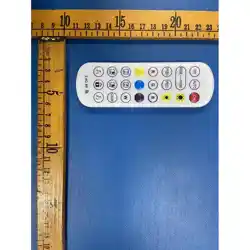
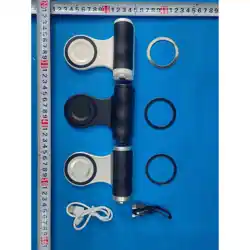
Wireless Romote Controller Model;:4948
Compatible systems: Apple, Android, HarmonyOS
Button description: Two stage shutter button, zoom lever,
system switch toggle switch.
Function Description
1. Handle connection
Remote Control Name Smallrig WR-05
Power on mode (in shutdown state): Press and hold the shutter button for 2 seconds to
turn on the device. The indicator light will flash slowly to enter pairing mode. After
successful pairing, the green light will turn off
(1) Press and hold the shutdown button for 3 seconds to turn off the indicator light
(2) There is a toggle switch on the right side of the remote control for system selection. The left
dial is compatible with IOS Apple system, and the right dial is compatible with
Android/HarmonyOS and other systems. (Before connecting the phone, you need to dial to the
corresponding position of the phone system. If you do not dial to match, the function cannot
be used.)
(3) Pairing your phone: Open your phone's Bluetooth settings, search for "Smallrig WR-05" in
the Bluetooth device list below, and click on pairing
(4) The no pairing status indicator light is flashing slowly green
(5) After automatic shutdown and startup, it will automatically shut down after 3 minutes of no
operation in the unpaired state, or after 20 minutes of no operation in the paired state

(6) In the low battery state, if the remaining battery level is below 10% (i.e. the battery voltage is
below 3.3V), the red indicator light will flash slowly. When the battery level is too low, the
red indicator light will flash quickly for 4 times before automatically shutting down
(7) Charging status: The red light stays on during charging, and the indicator light goes out when
fully charged
(8) Automatic pairing upon startup. After startup, if the Bluetooth of the previously paired phone
is turned on, it will automatically connect directly
(9) When the phone is unbound and connected, the remote control pairing is cancelled on the
Bluetooth settings page of the phone, and the remote control enters a unpaired state
(10)When the distance between the remote control and the phone is too far and disconnected, the
Bluetooth connection will be disconnected, and the remote control will enter a unpaired state
(11)When connecting, turn off the Bluetooth of the phone. When the phone is in a connected state,
the remote control enters a unpaired state after turning off the Bluetooth of the phone
(12)To change the phone connection, unpaired the phone from the same system and directly
connect to another phone. To change the phone from a different system, turn the toggle switch
to the corresponding system before connecting the phone
(13)2. Apple IOS system connection settings
(14)After connecting to an iPhone via Bluetooth, it is essential to make the following settings:
(15)① Go to Apple Settings ->General ->Touchpad and Mouse ->Set tracking speed to 6th gear
(16)② Apple "Settings" → "Accessibility" → "Touch" → Open "Assistive Touch"
(17)Adjust the 'tracking sensitivity' to the lowest level
(18)③ Pull down to open "Control Center" → turn on "Vertical Direction Lock"
(19)3. Handle shooting
(20)In pairing mode, after starting the camera
(21)① Focusing: Press and hold the shutter button for more than 0.3 seconds to focus and
measure light with the center of the image as the focal point.
(22)② Lock focus: Hold down for more than 2 seconds to lock the center focus of the screen.
(23)③ Photo/Shoot: Press the shutter button fully to take a photo or shoot a video.
(24)④ Zoom: Rotate the zoom lever clockwise to the left to enlarge the captured image; Turn the
zoom lever counterclockwise to the right to zoom out the captured image.

FCC Statement
This equipment has been tested and found to comply with the limits for a Class B
digital device, pursuant to part 15 of the FCC rules. These limits are designed to
provide reasonable protection against harmful interference in a residential installation.
This equipment generates, uses and can radiate radio frequency energy and, if not
installed and used in accordance with the instructions, may cause harmful interference
to radio communications. However, there is no guarantee that interference will not
occur in a particular installation. If this equipment does cause harmful interference to
radio or television reception, which can be determined by turning the equipment off
and on, the user is encouraged to try to correct the interference by one or more of the
following measures:
-Reorient or relocate the receiving antenna.
-Increase the separation between the equipment and receiver.
-Connect the equipment into an outlet on a circuit different from that to which the
receiver is connected.
-Consult the dealer or an experienced radio/TV technician for help.
To assure continued compliance, any changes or modifications not expressly
approved by the party.
Responsible for compliance could void the user’s authority to operate this
equipment. (Example- use only shielded interface cables when connecting to
computer or peripheral devices).
This equipment complies with Part 15 of the FCC Rules. Operation is subject to
the following two conditions:
(1) This device may not cause harmful interference, and
(2) This device must accept any interference received, including interference that
may cause undesired operation.
RF warning statement:
The device has been evaluated to meet general RF exposure requirement.
The device can be used in portable exposure condition without restriction.