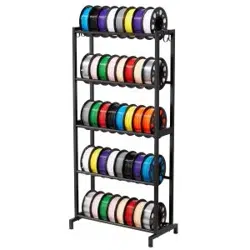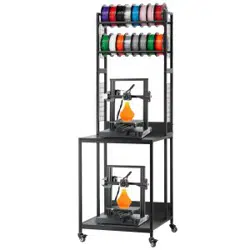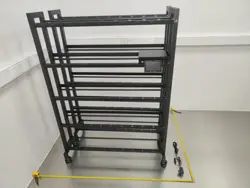

BIQU Vault User Manual • 1
User Manual
Filament Storage Management
BIQU Vault L46
Shenzhen BIQU Innovation Technology Co., Ltd.
Version: V1.0 | English

BIQU Vault User Manual • 2
1. Important Safety Information
Read Before Installation
This product is a floor-standing modular filament management rack. Complete structural assembly and cable
connections with the power disconnected. Do not load filament or connect power until all fasteners are tightened
and the rack is level and stable.
Indoor use only. Place the device on a solid, level, and dry floor. Keep it away from rain, dripping water, heavy
condensation, and corrosive environments.
Before installation, servicing, cable adjustment, or removing/installing electronic modules, turn off the device
and disconnect external power.
Use only the power adapter and connection cables that meet the ratings specified in this manual.
Do not exceed 1.5 kg per storage bay or 70 kg total load per rack. Both limits must be observed at the same
time.
Do not climb, sit, stand, or hang on the rack, or use it as a ladder. Keep children away from climbing areas
unless supervised by an adult.
Route the cable between the main rack and expansion rack naturally. Avoid pulling, pinching, abrasion, or
prolonged contact with sharp metal edges.
If you notice an unusual odor, abnormal heating, smoke, a damaged power cable, or obvious structural
looseness, disconnect power immediately and stop using the product.
2. Product Overview
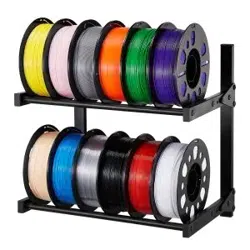
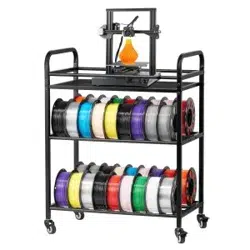
BIQU Vault is a modular smart filament management rack designed for 3D printing filament storage and
inventory management. The system consists of a main rack and optional expansion racks. The main rack
integrates control, display, weighing, NFC identification, local storage, and communication functions, while
expansion racks add filament storage bays, bay status detection, and position guidance.
Users can register filament information through weighing and NFC identification. After filament is placed in an
individual storage bay, the bay trigger detects its occupancy status. When locating filament, the system provides
position guidance through rack-level and bay-level indicator lights. One main rack can connect to up to three
expansion racks.
3. Key Features
Modular expansion: One main rack serves as the control center and supports up to three expansion racks.
Independent bay detection: Each storage bay uses a trigger switch to detect occupied/free status.
Filament weighing: The main rack includes a weighing area with a maximum capacity of 2 kg and 1 g
resolution.
NFC identification: Reads compatible filament tags for filament identification and inventory management.
Position guidance: Rack-level and bay-level indicator lights help users quickly locate target filament.
5-inch touchscreen: Used to view device status, manage filament, and configure basic system settings.
Environmental monitoring: Built-in temperature and humidity sensors record the environment around the
rack.
Local storage and peripheral interface: Supports local storage on a TF/microSD card and provides a USB port
for compatible peripherals or USB flash drives.
4. Product Specifications
Product Name Filament Storage Management
Model BIQU Vault L46

BIQU Vault User Manual • 3
System Configuration 1 Main Rack + 1 Expansion Racks
Main Rack Dimensions 1061 x 280 x 1420 mm (L x W x H)
Expansion Rack Dimensions 1061 x 280 x 1420 mm (L x W x H)
Operating Voltage DC 24 V
Adapter Input 100–240 V~, 50/60 Hz
Adapter Output DC 24 V ⎓ 1 A
Operating Environment Ambient temperature 10-40°C; relative humidity <95%, non-condensing
Max. Load per Bay 1.5 kg
Max. Total Load per Rack 70 kg
Weighing Capacity / Resolution Max. 2 kg / 1 g
Display Approx. 5-inch touchscreen
Filament Identification NFC
Wireless Communication
2.4G Wi-Fi + Bluetooth
Local Storage TF / microSD card
External Interfaces USB, main/expansion rack connection interface, DC power interface, etc.
4.1 Rated Current and Power Reference
Configuration Typical Operating
Current
Estimated Power at 24 V
Main Rack Only 0.32 A 7.68 W (peak: 0.36 A / 8.64 W)
Expansion Rack Only 0.21 A 5.04 W (peak: 0.25 A / 6.00 W)
1 Main + 1 Expansion 0.53 A 12.72 W (peak: 0.61 A / 14.64 W)
5. Product Components and Interfaces
5.1 Main Rack Components
Left and right side frames, base feet, and leveling caster assemblies;
Five crossbars, five round tubes, and three reinforcing panels;
Individual filament storage bays, bay trigger switches, and bay indicator lights;
Weighing and NFC identification module;
5-inch touchscreen module and main control box;
Temperature and humidity sensors, buzzer, and operating status indicators;
TF/microSD card slot, USB port, expansion-rack connection port, and DC power input;
Physical TARE (tare/zero) button.

5.2 Expansion Rack Components
The expansion rack adds filament storage capacity and includes the rack frame, storage bays, trigger switches,
indicator lights, a buzzer, control circuitry, and the main/expansion rack connection interface. It does not
duplicate the main rack's weighing, NFC identification, or primary user-interface modules.
BIQU Vault User Manual • 4
5.3 Interfaces and Labels
TARE Tare/zero the weighing platform. Ensure the platform is ready for the operation.
TF / microSD Stores the local filament database, device parameters, logs, and other data.
USB
Connects compatible external devices (such as TD1S) or a USB flash drive. USB output electrical
specifications are not stated in this manual.
Expansion Rack
Connection Interface
Provides data communication and power between the main rack and expansion rack. Use the
supplied cable.
DC IN
Connect the DC 24 V power adapter.
6. Installation
6.1 Preparation Before Installation
At least two people are recommended. Before installation, check all structural parts, electronic modules, and
fasteners. Prepare a 5 mm hex key, a 13 mm open-end wrench, and tools for the remaining screws.
Keep the device powered off during installation.
Do not load filament until assembly and leveling are complete.
Stop installation if any side frame, crossbar, panel, or electronic module is deformed, cracked, or damaged in
transit.
Do not use screws to force severely misaligned parts into position; this may cause permanent deformation.
6.2 Main Rack Assembly - Steps 01-04
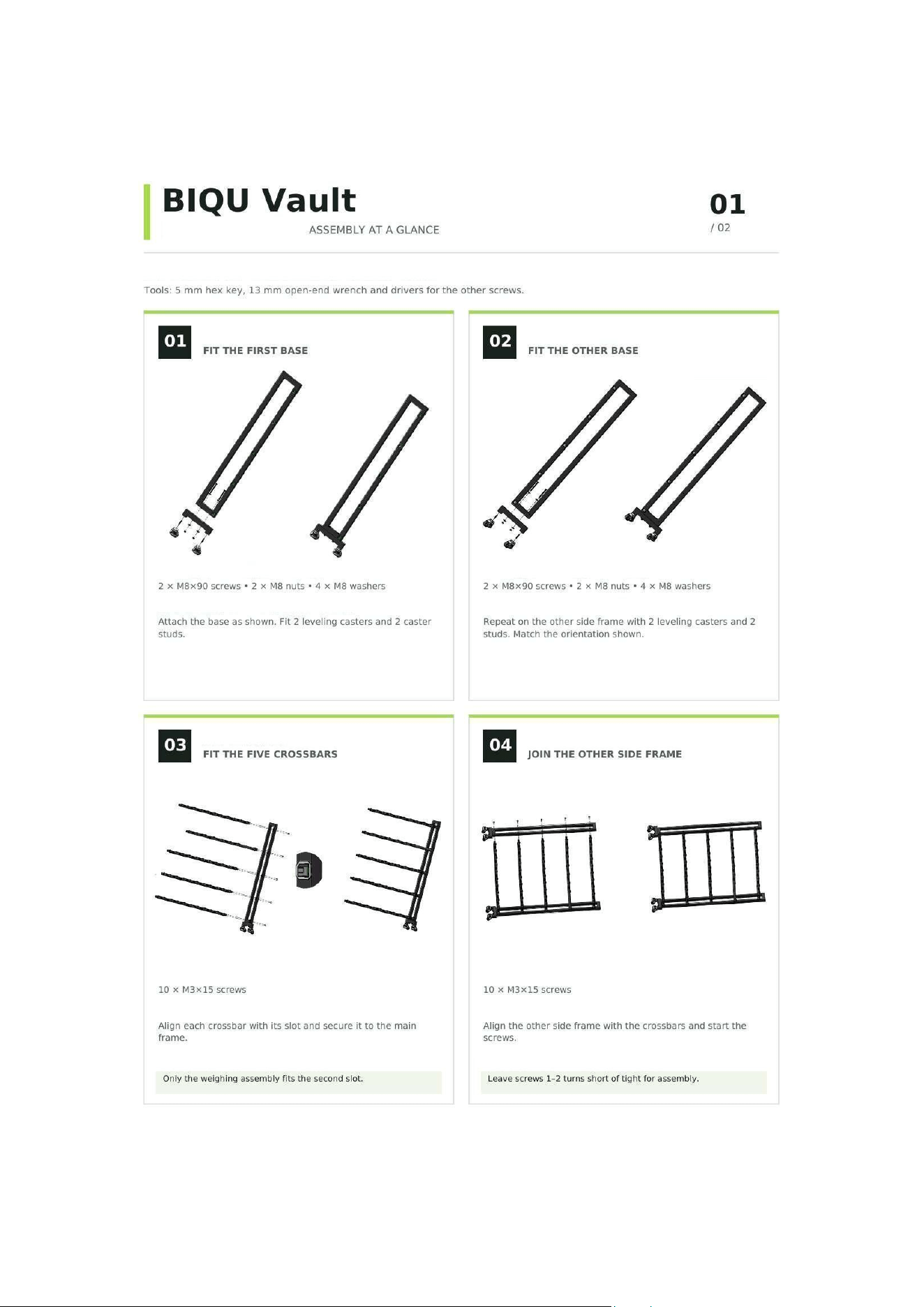
1. Install the first base: Use 2 x M8x90 screws, 2 x M8 nuts, and 4 x M8 washers. Fit the base as shown, then
install 2 leveling casters and 2 studs.
2. Install the other base: Repeat on the other side frame, matching the orientation shown.
3. Install the five crossbars: Secure them with 10 x M3x15 screws, aligning each crossbar with its slot. The
second mounting slot on the main rack is reserved for the weighing module.
4. Attach the other side frame: Use 10 x M3x15 screws. Pre-tighten only, leaving 1-2 turns loose for installation
of the round tubes and panels.
Assembly Ti
p
Do not fully tighten the 10 screws from Step 04. Fully tighten them only after the round tubes and three reinforcing
panels are installed and the frame is aligned.
Steps 01-04: Fasteners and Checkpoints
Step Main Components / Fasteners Checkpoints
01 M8x90 x2; M8 nuts x2; M8 washers x4
Base orientation correct; 2 leveling casters and 2 studs
installed.
02 M8x90 x2; M8 nuts x2; M8 washers x4 Other side orientation matches the illustration.
03 M3x15 x10
All 5 crossbars seated; second main-rack slot reserved for
the weighing module.
04 M3x15 x10
Pre-tighten only; leave 1-2 turns loose. Do not fully tighten
yet.
BIQU Vault User Manual • 6
Assembly Diagram A - Steps 01-04 (Original Assembly Diagram)

BIQU Vault User Manual • 7
6.3 Main Rack Assembly - Steps 05-07
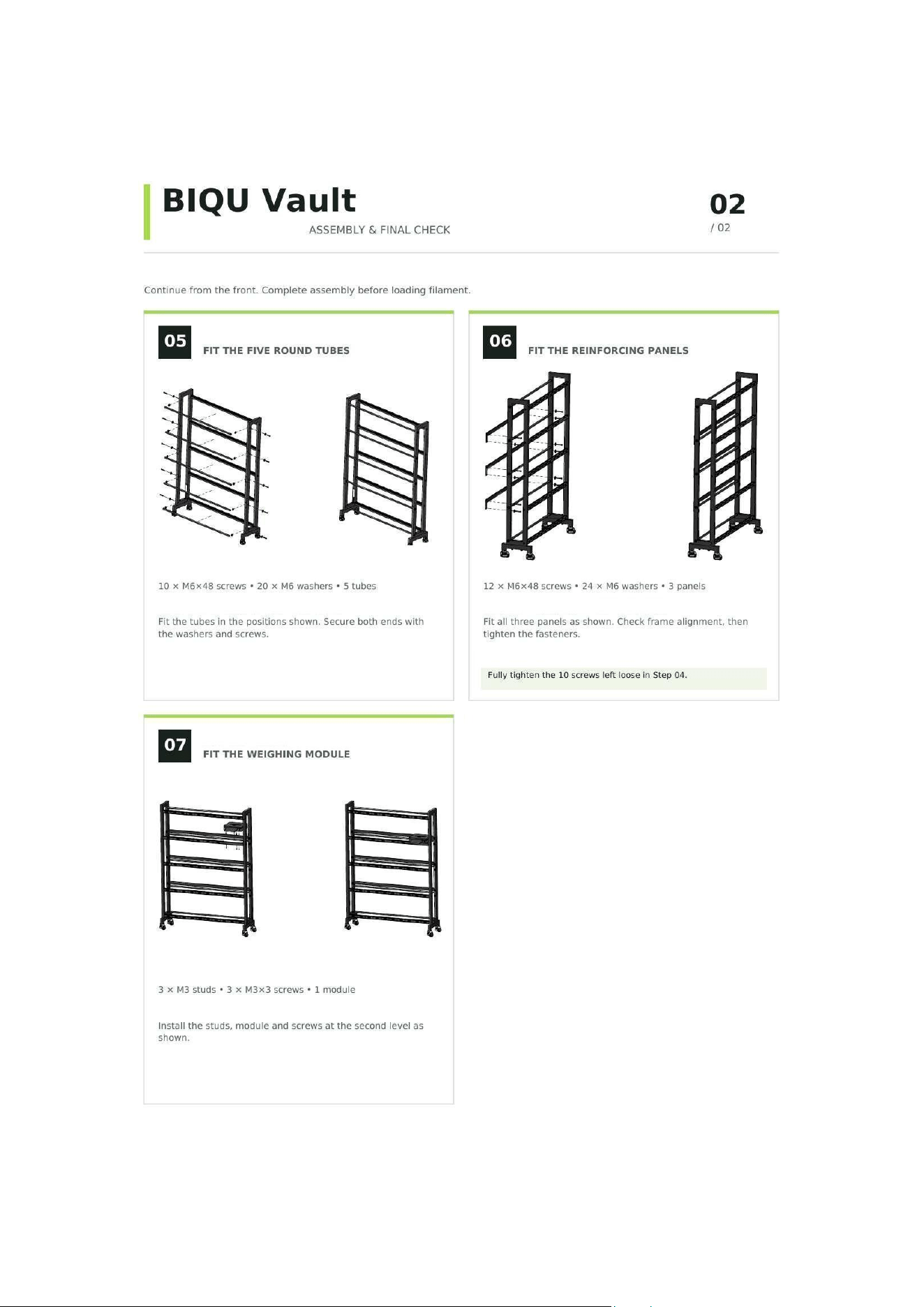
5. Install the five round tubes: Use 10 x M6x48 screws and 20 x M6 washers. Fit the 5 round tubes in the
positions shown and secure both ends with washers.
6. Install the three reinforcing panels: Use 12 x M6x48 screws and 24 x M6 washers. The flat side of each panel
must face inward. It is recommended to let the panel hang naturally first, align the upper hole at one end, and
install one screw while leaving it approximately 1-2 turns loose as a temporary pivot. Then rotate the other
end upward until the panel is horizontal and install the remaining screws. After all three panels are installed
and the frame alignment is confirmed, fully tighten the fasteners.
7. Final tightening: Fully tighten the 10 x M3x15 screws that were left loose in Step 04.
8. Install the weighing module: On the main rack, install the weighing module at the specified position on
the second level using 3 x M3 studs and 3 x M3x3 screws. Do not pinch or bend the load sensor or its cable,
and make sure the weighing platform does not mechanically interfere with surrounding structures.
Note
The weighing module is installed only on the main rack. Do not perform the weighing-module installation step on an
expansion rack. Avoid overtightening the weighing module, as this may deform the module or sensor.
Steps 05-07: Fasteners and Checkpoints
Step
Main Components / Fasteners
Checkpoints
05 M6x48 x10; M6 washers x20; round tubes x5
Secure both ends of each round tube; do not correct severe
misalignment by forcefully tightening fasteners
06 M6x48 x12; M6 washers x24; panels x3
Flat side faces inward; tighten all fasteners only after the
frame is aligned
07 M3 studs x3; M3x3 screws x3; weighing module x1
Main rack only; sensor and cable are not pinched and have
no interference
BIQU Vault User Manual • 8
Assembly Diagram B - Steps 05-07 and Final Check (Original Assembly Diagram)

BIQU Vault User Manual • 9
6.4 Expansion Rack Assembly
Assemble the expansion rack side frames, bases, crossbars, round tubes, and reinforcing panels according to the
corresponding expansion-rack assembly diagram. Do not install the main rack's dedicated weighing/NFC
identification module or primary control-interface module on an expansion rack. If structural parts are shared
between the main and expansion racks, follow the part and interface labels in the expansion-rack package. Do not
force main-rack weighing-module parts onto an expansion rack.
6.5 Connecting the Main Rack and Expansion Rack
Connect the main rack and expansion rack only after mechanical assembly and stability checks are complete. Turn
off the main rack before connecting or disconnecting the main/expansion rack cable.
24 V Power
→
Main Rack
L46
→
Expansion
Rack F50 x1-3
→
End
Connection principle: The main rack is the system control center and supports up to three expansion racks. Use only the
supplied main/expansion rack connection cable. Do not substitute unverified cables.
6.6 Final Installation Check
All Fasteners
Installed and fully tightened, with no obvious looseness
Five Round Tubes
Both ends are securely fastened
Three Reinforcing Panels
Correct orientation and securely fastened
Frame
No obvious skewing or permanent deformation
Weighing Module (Main Rack)
Securely installed with no mechanical interference from surrounding structures
Leveling Casters / Support Feet
Even contact with the floor; no obvious rack wobble
Main/Expansion Rack
Connection Cable
Correct interface, fully inserted, with no pinching or abnormal stress
Bay Switches / Indicator Lights
No obvious damage or structural interference
7. Power Connection and First Startup
9. Confirm that all mechanical assembly and cable connections are complete and that the rack is level with no
obvious wobble.
10. Make sure there are no objects or abnormal external forces on the weighing platform.
11. Connect a power adapter that meets the requirements of this manual to the DC input on the main rack.
12. Connect AC power, turn on the device, and wait for the touchscreen to enter the startup screen.
13. Follow the on-screen prompts to complete basic settings such as language and network. Network setup
may be optional depending on the functions available in the current firmware.
Power Requirements
Adapter input: 100-240 V~, 50/60 Hz; output: DC 24 V
⎓
1 A. Do not use a power supply with an incompatible
output voltage, polarity, or connector.
8. Basic Operation
8.1 Weighing and Tare
If the weighing platform does not display zero when unloaded, press the TARE button to zero/tare the scale. Place
one filament spool steadily in the weighing area and wait for the reading to stabilize before registering or storing it.

BIQU Vault User Manual • 10
Do not exceed the 2 kg weighing capacity, and do not drop or throw filament onto the weighing platform from a
height.
8.2 Filament Identification and Storage
Typical workflow: Identify/weigh filament -> system confirms the filament -> place the filament in an available
storage bay -> the corresponding bay trigger switch activates -> the system records the bay status. Bay detection
includes delay/debounce logic; specific prompts and timing parameters depend on the current firmware version.
8.3 Removing Filament and Position Guidance
After filament is removed from a storage bay, the bay trigger switch is released and the system determines the
actual removal status according to the configured delay parameters. When locating filament, the system can
indicate the target position using rack-level and bay-level indicator lights. The lights are for position/status
indication only and should not be used as the sole basis for device fault diagnosis.
8.4 TF Card and USB
TF / microSD card
Used for local data storage. Insert it in the correct orientation and do not force the card in
backwards.
USB
Used to connect officially supported peripherals or a USB flash drive. USB output
electrical specifications are not declared in this version of the manual. Do not connect
high-power devices that exceed the interface capability or have not been verified.
9. Maintenance and Cleaning
Regularly check screws and the connections at the side frames, crossbars, round tubes, panels, and bases for
looseness.
Regularly check whether the rack is tilted or wobbles abnormally. Re-level it if necessary.
Turn off the device and disconnect power before cleaning. Wipe with a dry or slightly damp soft cloth.
Do not rinse the device with large amounts of water, and do not use highly corrosive solvents to clean the
control box, screen, or sensors.
Promptly remove filament debris, dust, and foreign objects from the storage bays and weighing area.
Protect the weighing platform from impact and from prolonged loads exceeding its rated capacity.
10. Troubleshooting
Device Does Not Power On
Check the AC outlet, power adapter, DC plug, and main-rack power input.
Expansion Rack Offline
Power off, then check cable orientation, connection, and damage.
Abnormal Bay Status
Confirm the filament is positioned correctly and triggers the bay switch. Remove any
obstruction.
Scale Cannot Be Zeroed
Remove all items, ensure the platform does not touch surrounding structures, then press
TARE.
Abnormal Weight Reading
Fluctuation
Check for rack contact, an unstable floor, or structural pressure on the weighing module.
NFC Tag Not Recognized
Reposition the tag in the recognition area and confirm that it is compatible.
TF Card or USB Device Not
Recognized
Check insertion direction, media condition, and compatibility. Power off and reconnect if
needed.

BIQU Vault User Manual • 11
11. Compliance and Manufacturer Information
Manufacturer Shenzhen BIQU Innovation Technology Co., Ltd.
Product Name BIQU Vault
Main Rack Model BIQU Vault L46
Country of Origin Made in China
Target Certifications
RoHS / CE / FCC
Electrical modifications, cable replacements, or structural changes not expressly approved by the manufacturer may
affect safety, function, certification status, and warranty. Certification marks, wireless parameters, nameplate
information, and final ratings are subject to the certification sample and final certification results.