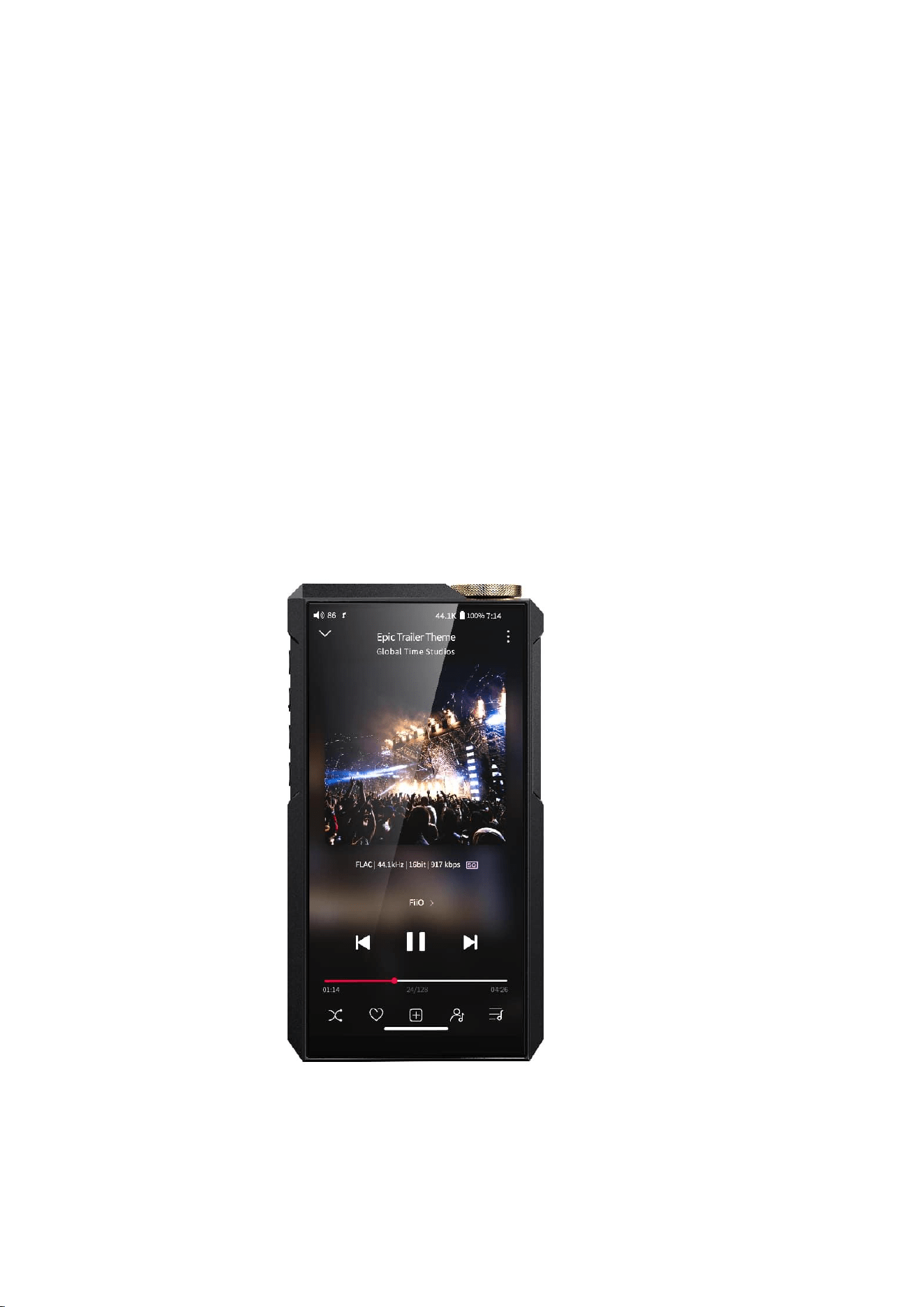
All the pictures below are for illustrations only. Specifics are subject to the actual
product.
M27 Complete User Manual

Foreword
Thank you so much for purchasing FiiO's portable high resolution lossless music
player M27. We have prepared this complete user manual for you. We hope this
manual can help you get the hang of the M27 and unleash its full potential.

Contents
Foreword............................................................................................................................................2
Contents.............................................................................................................................................3
Buttons and ports.......................................................................................................................... 1
1. Pictorial guide to buttons and ports...........................................................................1
2. Instructions for buttons and ports.............................................................................. 2
1.What are the differences between the three USB ports at the bottom of
the M27?.............................................................................................................................4
2.M27 Output priority....................................................................................................5
3.How to use the multifunction button?.................................................................5
4.What TF card is recommended for M27?............................................................6
5.M27's antenna information and precautions.................................................... 6
Status bar and display page.......................................................................................................7
Instructions for entry-level functions..................................................................................... 8
1. Five working modes.......................................................................................................... 8
2. How to access the storage/SD card after connecting the M27 to a
computer?............................................................................................................................... 10
3. How to upgrade the M27?...........................................................................................11
4. How to install third-party apps?................................................................................ 13
5. How to change the language?....................................................................................14
6. How to enable the USB DAC function?................................................................... 14
7. How to use the M27 as a Bluetooth transmitter?............................................... 15

8. How to use the M27 as a Bluetooth transmitter?............................................... 17
9. How to use coaxial/optical function in M27?........................................................18
10. How to use the AirPlay function in M27?............................................................ 19
11. How to use USB audio function to connect the M27 to an external
decoder?.................................................................................................................................. 20
12. Charging and battery life of the M27....................................................................21
13.How to use the D.MODE (Desktop Mode) and Ultra high gain mode on the
M27?..........................................................................................................................................21
14.How to use the FiiO Cast remote control function in M27?...........................23
15.What is the included cooling stand DK1 PLUS used for? Is the stand
required to enable Ultra High Gain Mode?................................................................24
16.What is the sound tuning style of the M27?........................................................25
17.There are two ‘click’ sound when playback starts or after pausing for 2
minutes.....................................................................................................................................26
An introduction to system settings menu..........................................................................27
WiFi............................................................................................................................................27
Bluetooth.................................................................................................................................28
Bluetooth transmitting................................................................................................28
Bluetooth receiving...................................................................................................... 30
Audio.........................................................................................................................................31
Display......................................................................................................................................38
Global........................................................................................................................................40

System...................................................................................................................................... 46
Languages & input.............................................................................................................. 46
Reset options......................................................................................................................... 47
FiiO Music APP..............................................................................................................................47
Instructions for commonly-used functions........................................................................56
1. Screenshot..........................................................................................................................56
2. USB Audio digital output..............................................................................................56
3. FiiO Link Bluetooth control.......................................................................................... 57
4. FiiO Link Wifi control......................................................................................................57
5.How to use the DLNA function?..................................................................................58
Firmware upgrade, factory data reset and technical support .....................................60
1.How to upgrade firmware?........................................................................................... 60
2.Force to reboot..................................................................................................................61
3.Factory data reset............................................................................................................. 61
4.Technical support..............................................................................................................62
1
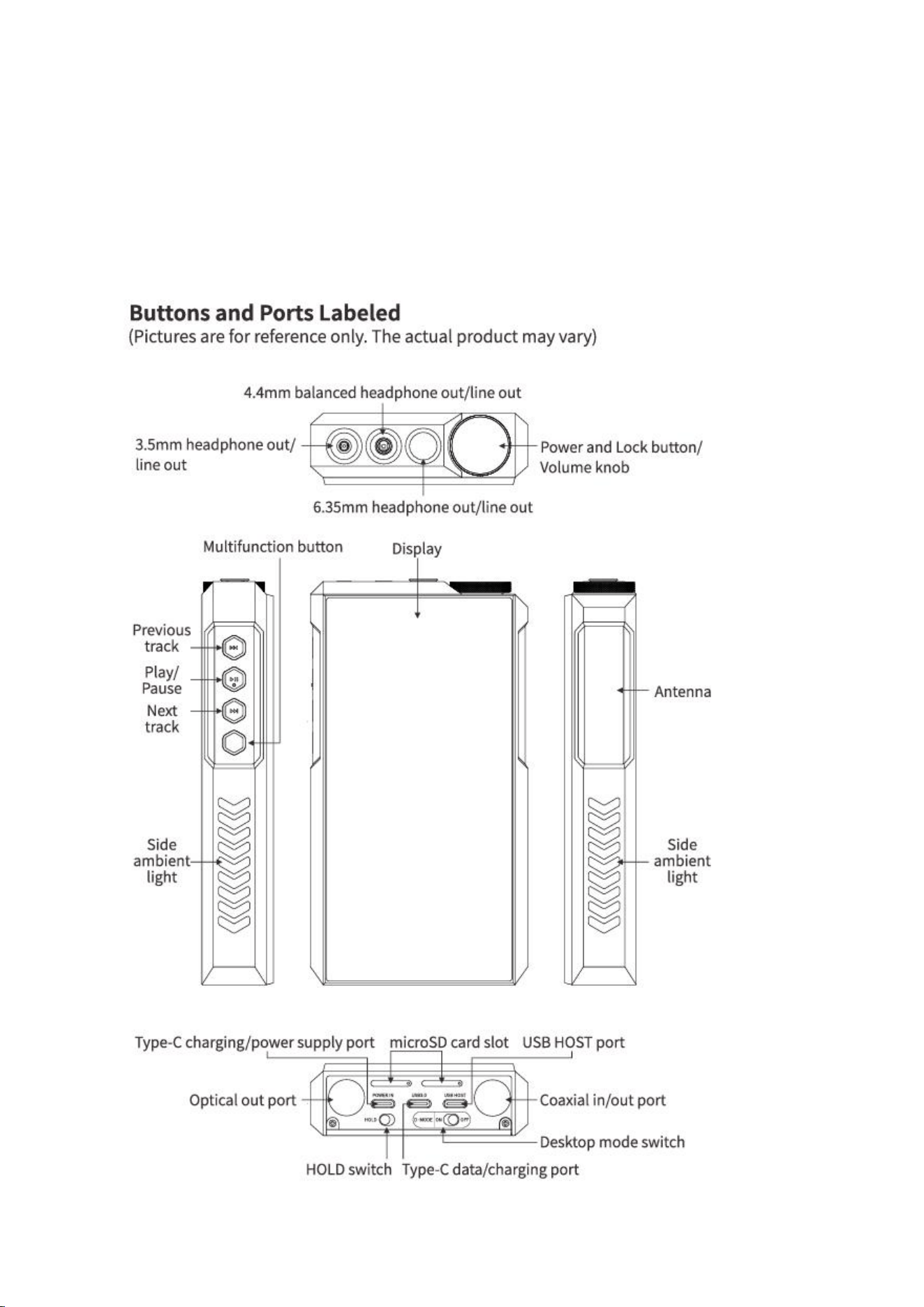
Buttons and ports
1. Pictorial guide to buttons and ports

2
2. Instructions for buttons and ports
1) 5.99-inch 1080P display: menu and other information displayed, used with
physical buttons to operate the device.
2) Power/Lock button/Volume knob: Hold the Power/Lock button to turn on
the M27 while it is off. On its first startup, tap the preferred language onscreen to
enter the main UI. Hold the Power/Lock button while the M27 is on and a
shutdown dialogue will pop up. You can select to turn off or reboot the player.
You can rotate the volume knob to adjust the volume
3) Play/Pause: short press it when music is playing to pause the music; short
press it when music is paused to resume the playback.
4) Previous track: short press to play the previous track; long press to rewind.
5) Next track: short press to play the next track; long press to fast forward.
7) Malfunction button: You can select the functions for this button from system
setting-Global-Multifunction button
8) D.MODE switch: When USB is inserted with D.MODE switch turns ON, the
Desktop Mode will be enabled.
9) Hold switch: If the HOLD switch is turned on, you can enable/disable any
buttons, touch screen.

3
10) micro SD card slot: supports two TF cards (micro SD card), theoretically up
to 2TB expansion.
11) POWER IN port: The Type C port marked POWER IN only supports
charging/power supply but not data transfer with computers. The POWER IN
port only supports PD2.0/3.0 fast charging, while other types are recognized as
normal charging.
12) USB 3.0 port: The Type C port marked USB3.0 supports data transfer,
common charging, USB HOST, USB OTG and so on.
13) USB HOST port: Supports USB Audio output and USB OTG, but does not
support functions such as connecting to a computer or charging.
14)Coaxial in/out:M27 coaxial port supports output and input of coaxial signals.
15)Optical out: M27 optical port supports output of optical signals.
16)4.4mm balanced output: supports 4.4mm balanced headphone/line-out
output. Go to the menu of Settings->Audio->Select 4.4mm output mode to
switch to corresponding modes.
17)3.5mm output: supports 3.5mm standard headphone/line-out output. Go to
the menu of Settings->Audio->Select 3.5mm output mode to switch to
corresponding modes.
18)6.35mm output: supports 6.35mm standard headphone/line-out output.

4
1.What are the differences between the three USB ports at the
bottom of the M27?
USB 3.0
USB
HOST
POWER IN
charging/power supply
√
×
√
USB Audio:USB output
to external decoder
√
√
×
USB OTG:Connect to U
disk/hard disk/keyboard
etc.
√
√
×
USB DAC decoding
√
×
×
Connect to computer for
data transmission
√
×
×
Connect to DK1 Plus
stand
√
Not
recomme
nded
Not recommended
Note
only supports

5
PD2.0/3.0 fast
charging, while
other types are
recogrhized as
normal charging
2.M27 Output priority
USB output>Bluetooth>Coaxial=optical=3.5&4.4&6.35 analog output
The 3.5mm, 4.4mm, and 6.35mm output ports can output audio simultaneously.
However, it is recommended to connect only one port at a time, as multiple connections
may result in some power loss.
3.How to use the multifunction button?
①In Android/pure music mode: Add to Favorites (default option), Play next song
randomly (randomly play the next song according to random play rules), Play/Pause,
Delete currently playing song, Switch filter (cyclically), Switch equalizer (cyclically), Enter
USB DAC Mode, Enter Bluetooth Receiving Mode, Lock screen/Wake up, Enter Cassette
Mode, Open dropdown menu, No function
②In Bluetooth Receiving mode/USB DAC mode, the multifunction button is forcibly set
to: No Function.
Note: This button only responds in Android mode/Pure Music mode, and some

6
functions only apply to FIIO Music.
4.What TF card is recommended for M27?
The M27 supports two microSD cards simultaneously, with each card supporting up to
2TB theoretically. The read/write speed of both slots is nearly identical.
5.M27's antenna information and precautions
The upper left side of the M27 houses the physical control buttons, while the right side
contains the antenna area. Please avoid covering the antenna area with metal objects, as
this can interfere with wireless performance. Normal handheld operation does not affect
signal reception.
7
Status bar and display page
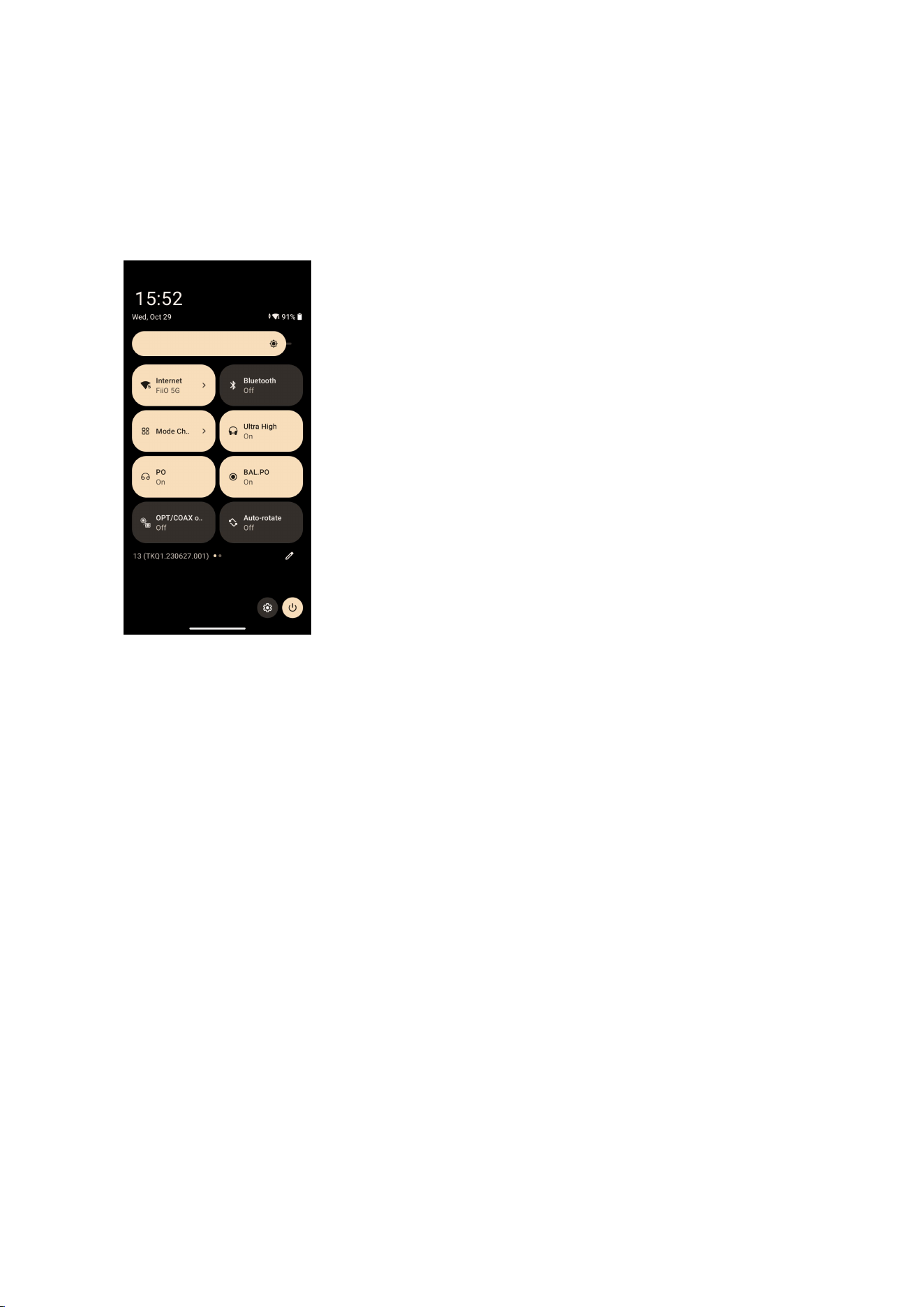
The status bar on the top screen shows the working states of the M27.
8
Instructions for entry-level functions
1. Five working modes
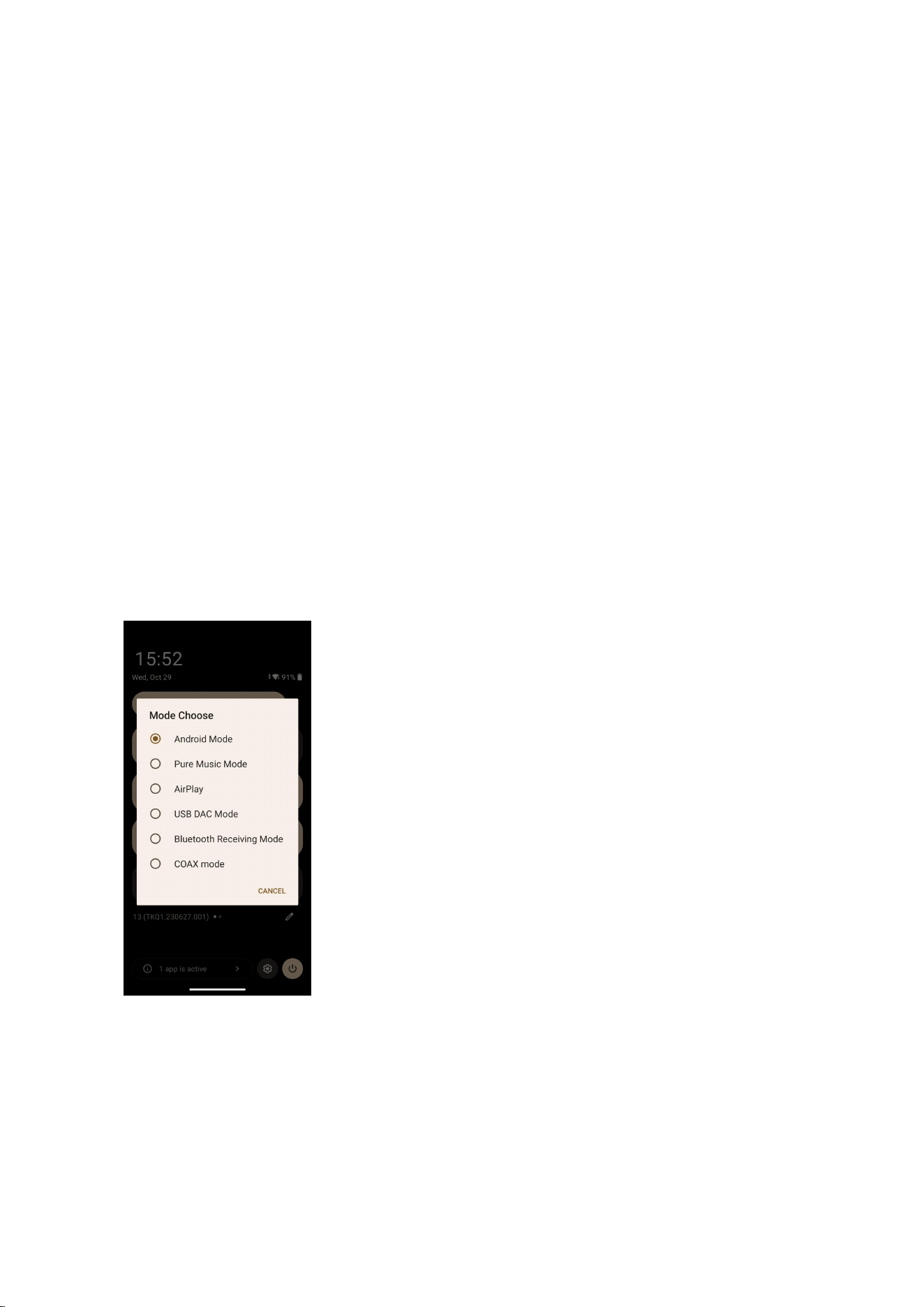
The M27 has 6 independent working modes: Android mode, Pure Music mode,
Bluetooth Receiving mode, USB DAC mode,COAX mode and AirPlay mode. It is
defaulted to be the Android mode, which can be switched to other working
modes in the drop-down menu.
If the player is in other modes but not the Android mode, you can switch it to
other modes through the selection on the display, or tap Settings->Exit to go
back to Android mode.
Android mode

9
Third party applications will be available at will. It can be switched to other
modes on the drop-down or settings menu.
Pure Music mode
Third party applications will be automatically disabled while FiiO Music app will
be auto-enabled. It can be switched to other modes on the drop-down or
settings menu.
AirPlay
The M27 can be connected to Apple devices, receiving audio signals transmitted
from them.
USB DAC mode
In USB DAC mode, the M27 can be connected to other devices like a computer,
working as a USB DAC/Amp. It can be switched to other modes on the
drop-down or settings menu.
Notes: when the M27 is going to work in the USB DAC mode for the first time,
FiiO's exclusive USB DAC driver is required. Please download it on our website
and follow relevant instructions to install it.
Bluetooth Receiving mode

10
The M27 can be connected to Bluetooth transmitting devices like a mobile
phone, working as a Bluetooth DAC/Amp. It can be switched to other modes on
the drop-down or settings menu.
COAX mode
When switching to the COAX mode, the system will automatically enable the
coaxial port as coaxial input mode. At this time, the M27 will start to decode the
input valid coaxial signals.
2. How to access the storage/SD card after
connecting the M27 to a computer?
Windows computers
For Windows computers, it is driver-free. After connecting the M27 to the
computer by the included USB cable, the driver will be automatically installed.
Then the FIIO M27 disk can be directly seen on the computer.
Mac computers need a driver
1. Visit FIIO's official website https://www.fiio.com/Driver_Download to
download the "Android File Transfer.dmg", and drag the file to the desktop of
the computer.
2. Double-click to open Android File Transfer.dmg, then hold the application icon
for Android File Transfer and drag it onto Applications. Release the icon to drop
it. Wait for the copying to finish.

11
3. Use a USB data cable to connect the M27 to the Mac computer.
4. Enter “Applications”, and double click the “Android File Transfer”. Then you
can manage the files stored in the internal storage of the M27 or the micro SD
card.
Notes: The M27 folder will directly pop up the next time it is connected to the
same computer.
3. How to upgrade the M27?
The M27 supports online upgrade and local upgrade.
1) Online upgrade
If a new firmware is available and can be detected (with the M27 connected to an
available internet), an upgrade notification will show up in the notification center.
Tap on it to enter the update menu for the online upgrade. If there's no upgrade
notification showing up, you can go to the "Technical Support->Firmware
Upgrade" menu, and tap the "Check for updates" icon to check manually.
2) Local upgrade
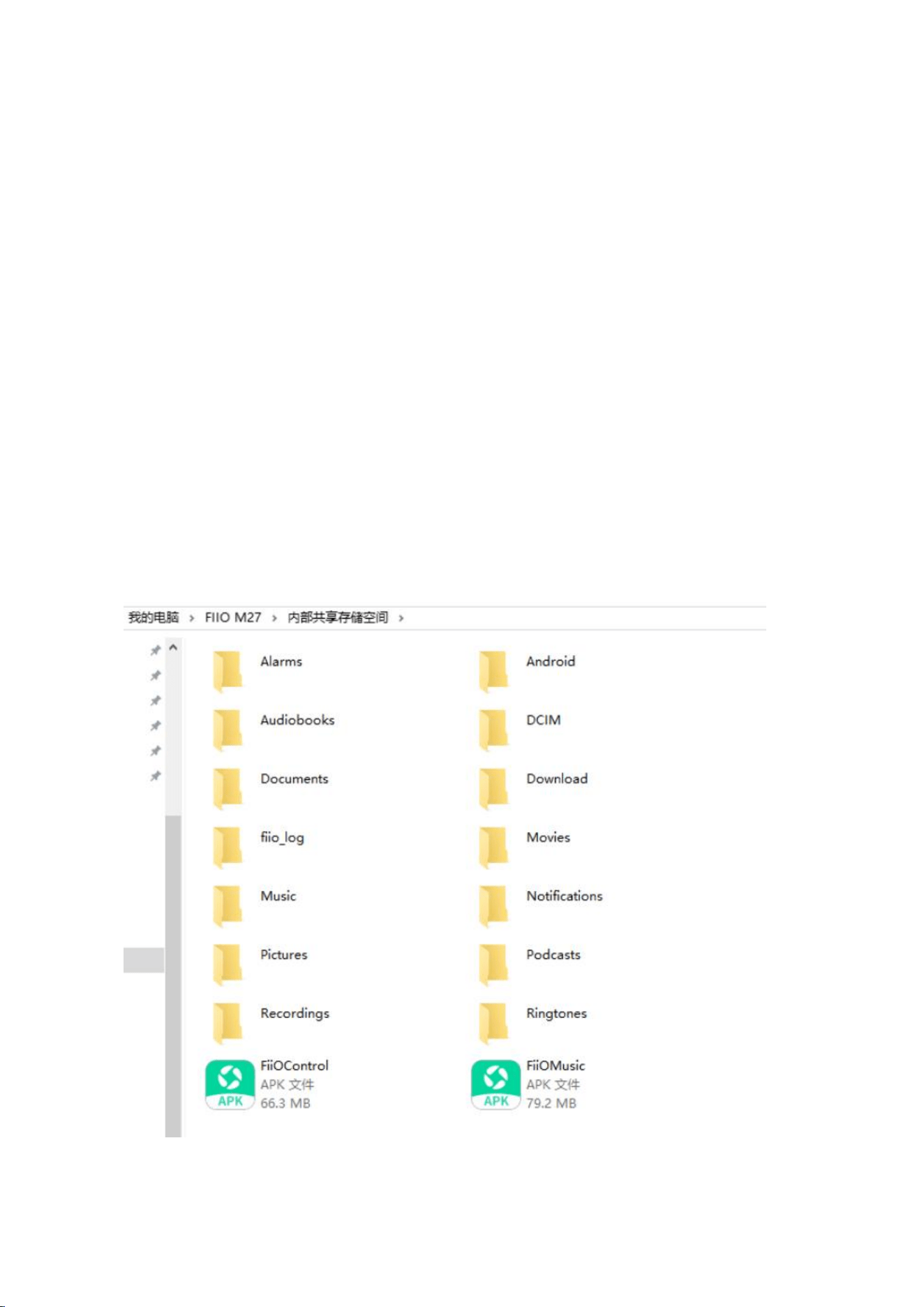
Also, the M27 can be upgraded locally by a firmware package. Download the
firmware package file from FiiO.com, and copy it to the internal storage of the
M27 or an SD card. Go to the "Technical Support->Firmware Upgrade->Local
Upgrade" menu, and find the firmware package file to start the upgrade.

12
Notes:
1) Do not unzip the firmware package file.
2) Before the upgrade, ensure the power of the device is adequate (>30%) so to
avoid upgrade failure.
3) If the device goes to factory mode which cannot detect the firmware, the
reason may be that the firmware file is damaged. At this time, press the power
button to reboot the device. Re-download the firmware file and restart the
upgrade.
3)The problem may occur in updating and the methods for solving
The upgrade process takes about 5 to 20 minutes. After the upgrade, the system
automatic rebooting will take 2 minutes, so please be patient.
1.If you encounter the problem that the system is stuck and cannot boot normally after
the upgrade, please try a forced restart: press and hold the power button for about 10
seconds until the "FiiO" logo appears on the screen.
2.If you are using online update, the system prompts "invalid image", please go to
"built-in storage-android-data-com.android.fiioupdate-files", delete this folder, and try
online update again.
3.If the online upgrade fails, you can also try the local upgrade. If there is an error in the
local upgrade, the copy or download of the installation package is generally damaged.
Please download the installation package again.
13
4.If the factory restore mode shows and the firmware can not be detected, the
installation package is generally damaged. Press the power button to confirm and select
reboot to restart. Then download the installation package to update again.
4. How to install third-party apps?
There are two ways to install applications that are similar to mobile phones'.
1.After connecting the device to a valid WiFi, go to FiiO market, Google Play or
other app markets to download and install the app directly.
2.Local installation: copy the APK file to the M27. Go to the file management
menu to find the file and install it.

14
How to Uninstall Google Play on M27:
Go to System Settings > Apps > All apps and select “Google Play Services”. Tap the
“UNINSTALL” button to complete the removal.
Note: If you need to restore Google Play in the future, you can perform a factory restore
for help.
5. How to change the language?
1.Go to the menu of Settings->System->Languages and input->Languages.
2.Tap "Add a language" to choose the intended one.
3.Press the "=" icon on the right side and drag it to the first line to select the
language successfully.
Note: The language of the FIIO Music app defaults to follow the system's. You
can also go to the FIIO Music app->ME>Languages/语言 to choose the
language independently.
6. How to enable the USB DAC function?
【Mobile phone】
1.Switch the working mode to USB DAC mode for M27
2.Connect your phone to the M27(USB 3.0 port) using an OTG cable.
For iOS/iPadOS users: Please ensure the “iOS device decoding” is enabled in the
settings from the USB DAC page of M27 first.

15
For Android devices users: Please use the OTG cable with direction. Some Android
devices may require you to enable options like “USB Audio Output” or “Disable USB
Audio Routing” within the Developer Options menu.
3.Connect your headphones to the M27. You can now play music from your phone and
enjoy use the M27 as USB DAC.
[MAC]
For Mac computers, the M27 runs driver-free.
【Windows computer】
For Windows computers, please make the settings as the followed steps.
1) Install the FiiO DAC driver in the computer first.
2) Switch the working mode of the M27 to USB DAC mode on the drop-down
menu or go to Settings->Mode choose menu to enter the USB DAC mode.
3) Connect the M27 to the computer by the USB port. Select the M27 as the
audio input both in the computer and the music app, so it can work.
Notes:
When in the USB DAC mode, the M27 does not support Bluetooth transmitting.
7. How to use the M27 as a Bluetooth transmitter?
How to Enter Pairing Mode on the M27?

16
When the M27 enters pairing mode, the screen will display “Waiting for connection…”.
1.The M27 will automatically enter pairing mode the first time you switch to Bluetooth
Receiver Mode.
2.Long-press the Play/Pause button to force the M27 into pairing mode.
3.If your M27 is already connected to a phone, disconnecting the Bluetooth connection
from the phone will cause the M27 to enter pairing mode.
How to Pair and Connect the M27 to a Bluetooth Source (e.g., Mobile Phone)
1.Go to the drop-down or Settings menu of the M27, and choose the Bluetooth
Receiving mode as the working mode.
2.Long-press the Play/Pause button to put the M27 into pairing mode. The screen will
display “Waiting for connection…”.
3.On the Bluetooth transmitting list of the mobile phone, tap the M27 to complete the
connection.
How to Clear Pairing
Method 1: In Bluetooth Receiving Mode page, go to Settings and tap the “Clear Pairing”
option. This will erase all pairing information and the M27 will enter pairing mode,
displaying “Waiting for connection…”.
Method 2: Pressing the Next Track button can also erase all pairing information and the
M27 will enter pairing mode, displaying “Waiting for connection…”.
Notes

17
1.The M27 supports auto-reconnect with previously paired devices. Within range, a short
press of the Play/Pause button can initiate a reconnection.
2.When connected via Bluetooth, the M27’s buttons support play/pause and track
skipping control.
3.Supported Bluetooth Codecs in Bluetooth Receiving mode: SBC, AAC, aptX, aptX
Lossless, aptX HD, aptX Adaptive and LDAC.
8. How to use the M27 as a Bluetooth transmitter?
It is similar to the mobile phone's. Here are the instructions.
1.Go to the Settings->Bluetooth menu to turn on the Bluetooth function.
2.Make the Bluetooth receiving device, such as Bluetooth earphones, enter the pairing
state. (Please refer to the user manual of the Bluetooth receiving device about how to
enter pairing state.)
3.Go to the Bluetooth device list of the M27->Pair new device to complete the
connection.
What can be done if the M27 fails to connect to Bluetooth earphones?
If it fails to connect to Bluetooth earphones for the first time, please make sure the
earphones are under pairing state (the connection will fail if the earphones are under
reconnecting state for the first-time connection). Go to the Bluetooth menu of the M27
to start the connection.

18
What Bluetooth codecs does the M27 support? And how to switch the Bluetooth
codecs?
The M27 supports LHDC,LDAC,aptX Adaptive,aptX HD,aptX,AAC and SBC. You can switch
the codec on the menu of Settings->Audio->Bluetooth Audio Encoder. Note that it
needs to be disconnected and reconnected to enable the new codec after changing it.
What can be done if the volume is too low when the M27 is connected to AirPods?
1.Go to System Settings-Audio and find the Bluetooth volume adjustment mode.
2.Switch the volume adjustment mode to Sync Bluetooth volume.
3.Disconnect and reconnect the Bluetooth device.
9. How to use coaxial/optical function in M27?
How to use the Optical/Coaxial output on M27?
1.When using the optical or coaxial output port, please enable the Optical/Coaxial
Output switch in the Settings - Audio menu, as this feature is turned off by default.
2.Connect one end of the coaxial/optical cable to the square optical output port or RCA
coaxial output port on the M27, and connect the other end to your external DAC or
decoding device.
3.Play music through the M27’s music app to output the signal via the optical and

19
coaxial output ports. Both optical and coaxial signals can be output simultaneously.
Note:
1.The coaxial signal is decoded by the third-party decoding device, while the M27
functions as a digital transport.
2.If there is no audio output,please go to System Settings > Audio > SPDIF OUT and set
it to D2P.
3.Output Priority:
USB Output > Bluetooth > Coaxial = Optical = 3.5mm & 4.4mm Analog Outputs
How to Use the M27 as Coaxial decoder?
The M27 does not support optical input decoding, but it does support coaxial input
decoding. Please follow these steps:
1.Switch the working mode to COAX mode from the drop-down menu or System
Settings >Mode Choose.
2.Connect the M27 to a device with coaxial output using a standard coaxial cable. Then
connect your headphone to M27’s analog output ports (3.5mm, 4.4mm, or 6.35mm) .
3.Play music from the external coaxial output device. The audio data will be decoded and
amplified by the M27.
10. How to use the AirPlay function in M27?

20
The AirPlay function will only be available when connecting the M27 to iOS devices but
not Android devices. There are mainly 3 steps.
1.Make sure the M27 and your iOS devices are connected to the same WiFi network.
2.Switch the M27 to the AirPlay mode.
3.On the drop-down menu of the iOS device, choose the M27 as the playing device. So
the M27 can receive audio signals from the iOS device.
11. How to use USB audio function to connect the
M27 to an external decoder?
The M27 supports external USB audio. The setting steps are as follows.
1.Use an OTG cable to connect the M27(USB 3.0/USB HOST port) to the external
decoder.
2.Open the FIIO Music app or other music applications to use the M27 as a USB digital
output device.
It supports most decoding devices on the market. For those unsupported, you can turn
off the USB output in the FIIO Music app, or unplug and re-plug the USB device after
quitting the FIIO Music app. If it does not work, please contact us by sending an email to

21
12. Charging and battery life of the M27
Fast charging protocols including PD2.0 or above are supported. If the power adapter
does not support neither the above protocol, it will not trigger the fast charging function
and Ultra high gain but just common charging. For non-fast charging adapters, it is
suggested to use the 5V 1A/2A power adapters.
The POWER IN port only supports PD2.0/3.0 fast charging, while other types are
recognized as normal charging. When connected to PD3.0 fast charging via the POWER
IN port, the maximum charging current can reach approximately 6.3A.
Battery capacity: 9200mAh
Battery life:
9 hours (3.5mm standard headphone out)
8hours(4.4mm standard headphone out)
13.How to use the D.MODE (Desktop Mode) and
Ultra high gain mode on the M27?
1.The definition of Desktop Mode:
When D.mode switched turned on with USB inserted, the desktop mode icon will appear
on the M27 screen. At this time, the M27 is powered directly from the USB port, without
charging the M27 battery or consuming battery power.
Note:

22
①If the USB power supply is insufficient, the battery will be required to supply additional
power.
②When the battery level is below 15%, inserting USB will forcibly charge the battery
even it is in Desktop Mode (charging until the battery is full).
2.How to enable the D.MODE (Desktop Mode) on the M27?
①Insert fast charging to POWER IN or USB 3.0 port
②Switch the D.MODE switch at the bottom of M27 to ON to enable the Desktop mode
on M27.
When USB is inserted and D.MODE is displayed ON, it means the Desktop Mode is
enabled.
3.The definition of Ultra High Gain mode:
Super High Gain Mode is an option for Gain. When turned on the headphone will have
more power and greater voltage swing.
Take 4.4 headphone out as example, the output power of each channel is 2250mW@32
Ω in Super high gain mode while output power of each channel is 5000mW@32Ω in
Ultra high gain mode.
4.How to enable the Ultra High Gain mode on the M27?
①Make sure the POWER IN/USB3.0 port is connected to a fast charging adapter (The
output voltage should be 9V/3A,12V/1.67A or above)that supports PD3.0 or PD2.0.
②Pull down the menu and select Ultra high gain in Gain option. Or select the Ultra high

23
gain option from Settings - Audio - Gain.
Note:When fast charging is plugged in POWER IN port and the Desktop Mode is ON, a
prompt will appear asking whether to enable the Super High Gain Mode.
14.How to use the FiiO Cast remote control
function in M27?
1.Install the App: Download and install the FiiO Control app from the app store.
2.Network Connection: Please ensure your phone and M27 are connected to the same
local network.
3.Enable 'FiiO Cast' on M27: On the M27 device, open the 'FiiO Cast' App and tap Start.
(To view the IP address or QR code, tap "Click for more ways to connect".
4.Connect via App:
Open the installed FiiO Control app on your phone.
Tap Add New Device, then select Player from the bottom right.
Search for the M27's IP address and tap to connect.
Alternatively, scan the QR code displayed in Step 3 to establish the connection.
Troubleshooting Guide: M27 Remote Connection Failures
If you experience connection issues after previously successful remote control usage,
please follow these steps:
1.Network Connection Check: Verify whether the network connection between your

24
phone and M27 has changed.
2.Background Service Status: Confirm that the remote control background service hasn't
been cleared.
3.IP Address Verification: Check if the IP address in FiiO Cast has changed.
4.Advanced Troubleshooting
If the background service is running normally and the IP address remains unchanged but
reconnection still fails:
Delete the previously added device from your phone;
Completely close and restart the FiiO Cast on M27;
Re-add the device through FiiO Control app on your phone.
If all above steps fail to resolve the issue, please contact our customer support.
15.What is the included cooling stand DK1 PLUS
used for? Is the stand required to enable Ultra High
Gain Mode?
The included cooling stand DK1 PLUS dock offers the following functions:
1.When connected to an external power source, it activates a fan to cool the M27,
helping to maintain more stable performance.
2.It features support brackets that accommodate both vertical and horizontal
orientations of the M27 for effective heat dissipation.

25
3.When the M27 is connected to the dock via TYPE-C, the player could be charged.
Additionally, the other two USB HOST ports in the DK1 PLUS can output USB AUDIO to
connect to external DAC/amps.
Note: It is recommended to connect the M27 to the DK1 PLUS via the middle USB 3.0
port. To ensure a proper connection for charging and Ultra High Gain Mode, remember
to remove the optical/coaxial dust plugs from the bottom of the M27 first.
The dock is not required to use Ultra High Gain Mode.
While the DK1 PLUS can facilitate this mode with a fast charging adapter for M27, the
M27 can also enter Ultra High Gain Mode directly when connected to a fast-charging
adapter directly.
16.What is the sound tuning style of the M27?
As a reference-grade player, its sound tuning aims for a neutral and robust character
without imposing a strongly personalized sonic signature. This approach ensures the
product can meet the needs of pairing it with various headphones.
Building on this foundation, the M27 offers improved richness compared to the M17,
avoiding a sole focus on high resolution at the expense of listenability. This can be
understood from several aspects:
1.Use of top-tier digital audio components and a ultra-large power reserves system:
crystal oscillators,high-capacity FPGA,40W power system for ensuring sound accuracy
2.The ES9039SPRO DACs utilize a new hyperstream technology, offering better sound

26
density and thickness than the previous generation.
3.Extensive use of high-quality op-amps, film capacitors, and ELNA audio-grade
electrolytic capacitors for tuning, resulting in balanced frequency response and natural
transitions.
4.Multi-stage hardware gain and power supply regulation prevent over-driving sensitive
IEMs while providing ample power for over-ear headphones.
17.There are two ‘click’ sound when playback
starts or after pausing for 2 minutes.
These clicks are the sound of the internal relays operating. When playback starts, it
triggers the relays to engage, producing the clicking sounds. This is a normal
phenomenon
27
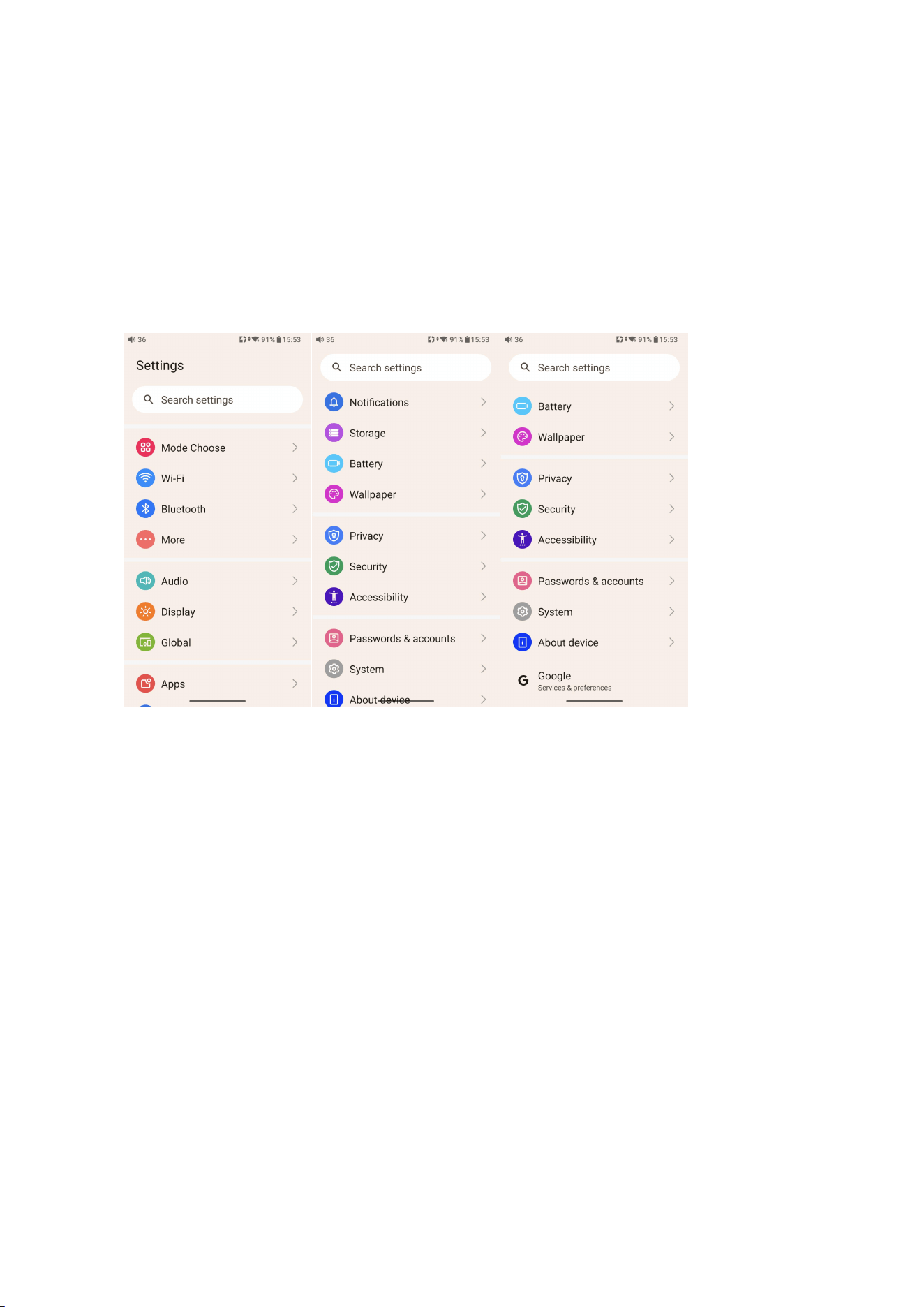
An introduction to system settings
menu
Here is the system settings menu of the M27.
WiFi
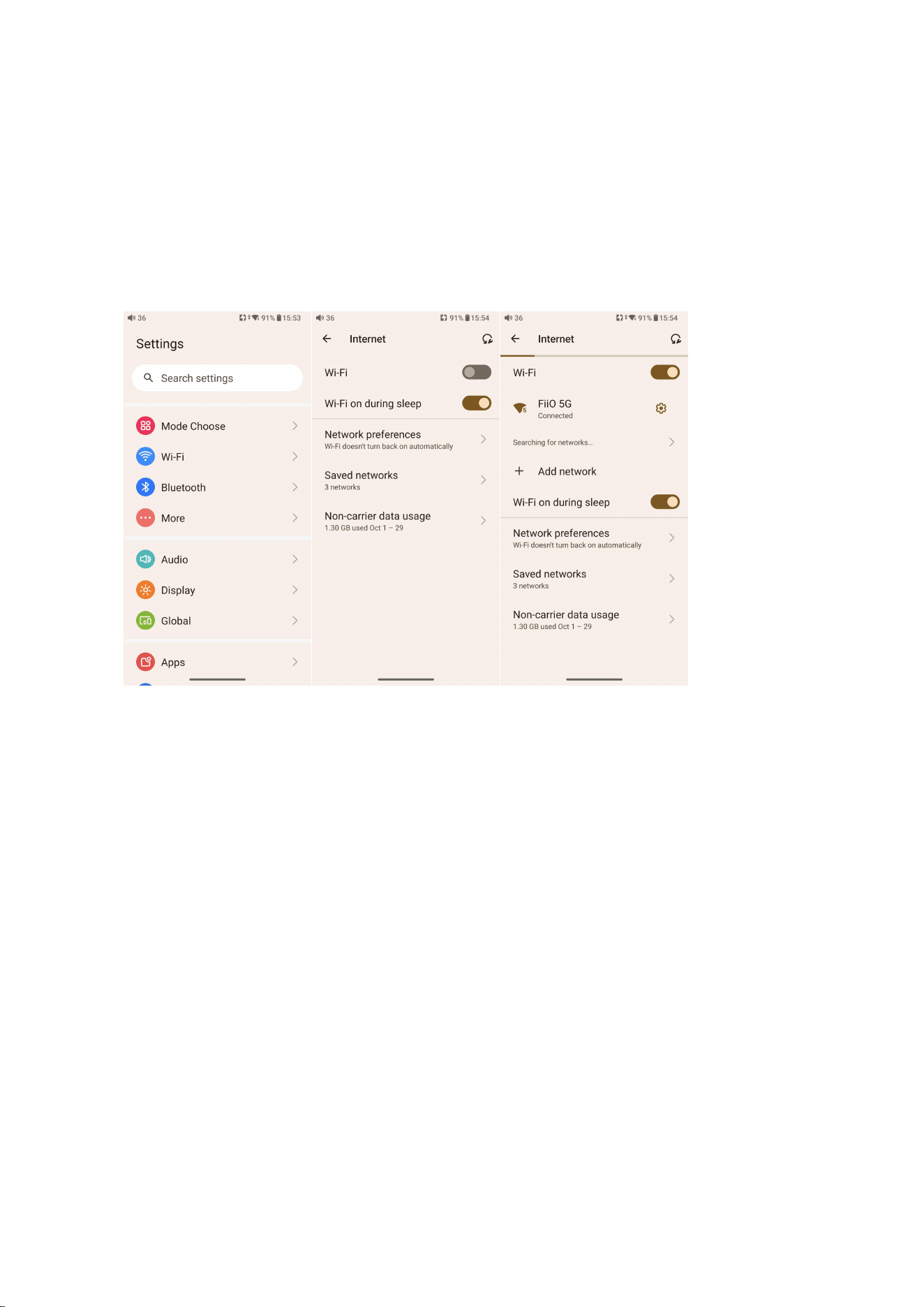
The M27 supports a WiFi connection of 2.4/5G dual-band for music resources
access. Here are the steps to connect the M27 to a new WiFi device.
1) In the settings menu of the M27, tap "WiFi".
2) Turn it on. The M27 will automatically search for and list available WiFi devices
nearby.
3) Tap the intended WiFi device and connect them.
28
Note:When the “Wi-Fi on during sleep” option is disabled (default), WiFi will
automatically turn off during system sleep and reconnect upon wakeup,
significantly reducing power consumption. Enabling this option maintains a WiFi
connection during sleep with moderately higher power usage.
Bluetooth
The M27 supports lots of Bluetooth codecs for both transmission and reception,
allowing for rich wireless connections.
Bluetooth transmitting
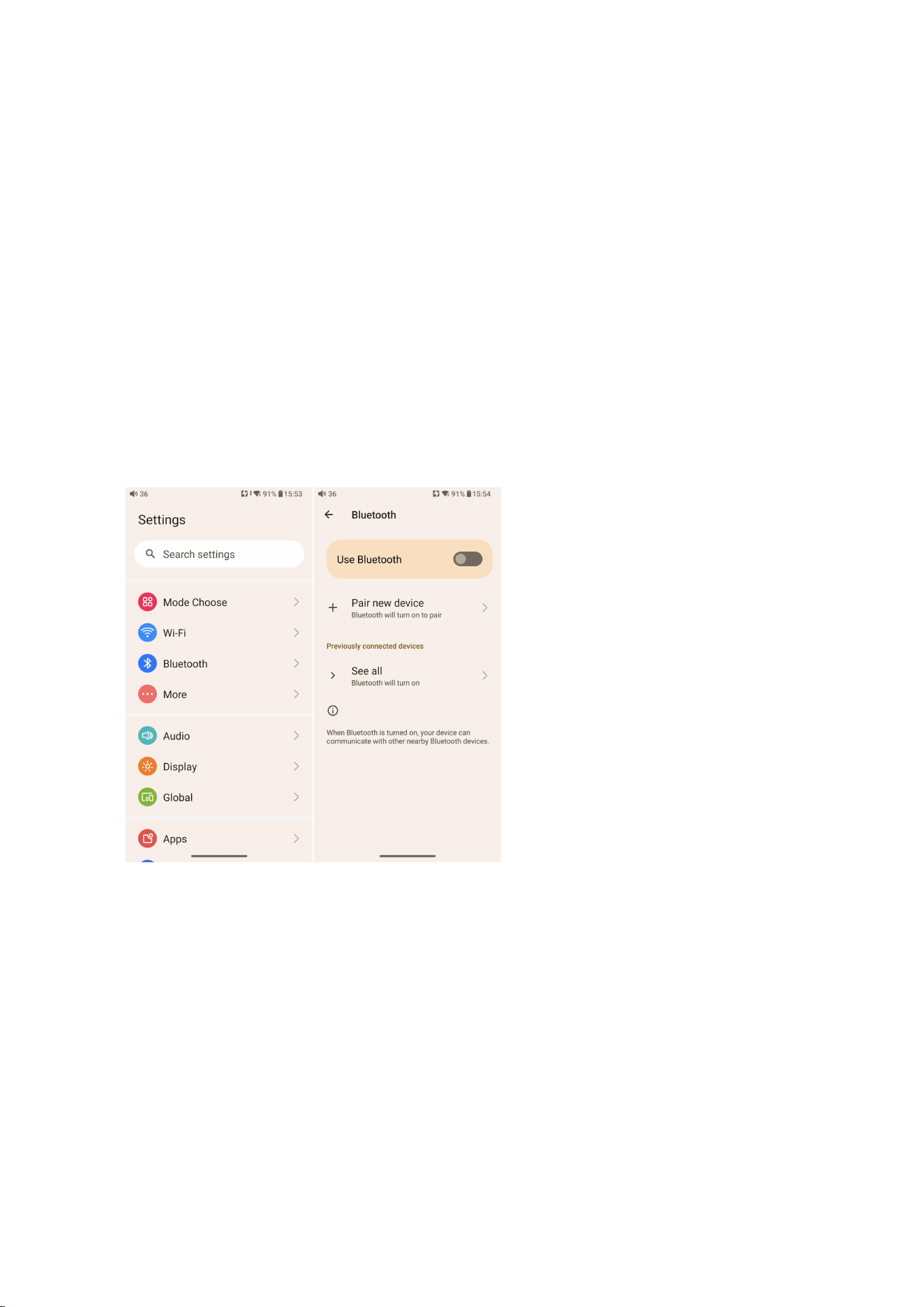
When being a Bluetooth transmitter connecting to new Bluetooth devices (such
as Bluetooth headphones, Bluetooth speakers), the M27 needs to pair with the
Bluetooth device first. Here are the steps.
29
1. Go to the Settings->Bluetooth menu to turn on the Bluetooth function.
2.Make the Bluetooth receiving device, such as Bluetooth earphones, enter the
pairing state. (Please refer to the user manual of the Bluetooth receiving device
about how to enter pairing state.)
3.Go to the Bluetooth device list of the M27->Pair new device to complete the
connection.
What can be done if the M27 fails to connect to Bluetooth earphones?
If it fails to connect to Bluetooth earphones for the first time, please make sure
the earphones are in the pairing state (the connection will fail if the earphones
are in reconnecting state for the first-time connection). Go to the Bluetooth
menu of the M27 to start the connection.

30
What Bluetooth codecs does the M27 support? And how to switch the
Bluetooth codecs?
The M27 supports LHDC,LDAC,aptX Adaptive,aptX HD,aptX,AAC and SBC. You can switch
the codec on the menu of Settings->Audio->Bluetooth Audio Encoder. Note that it
needs to be disconnected and reconnected to enable the new codec after changing it.
What can be done if the volume is too low when the M27 is connected to
AirPods?
1.Go to System Settings-Audio and find the Bluetooth volume adjustment mode.
2.Switch the volume adjustment mode to Sync Bluetooth volume.
3.Disconnect and reconnect the Bluetooth device.
Bluetooth receiving
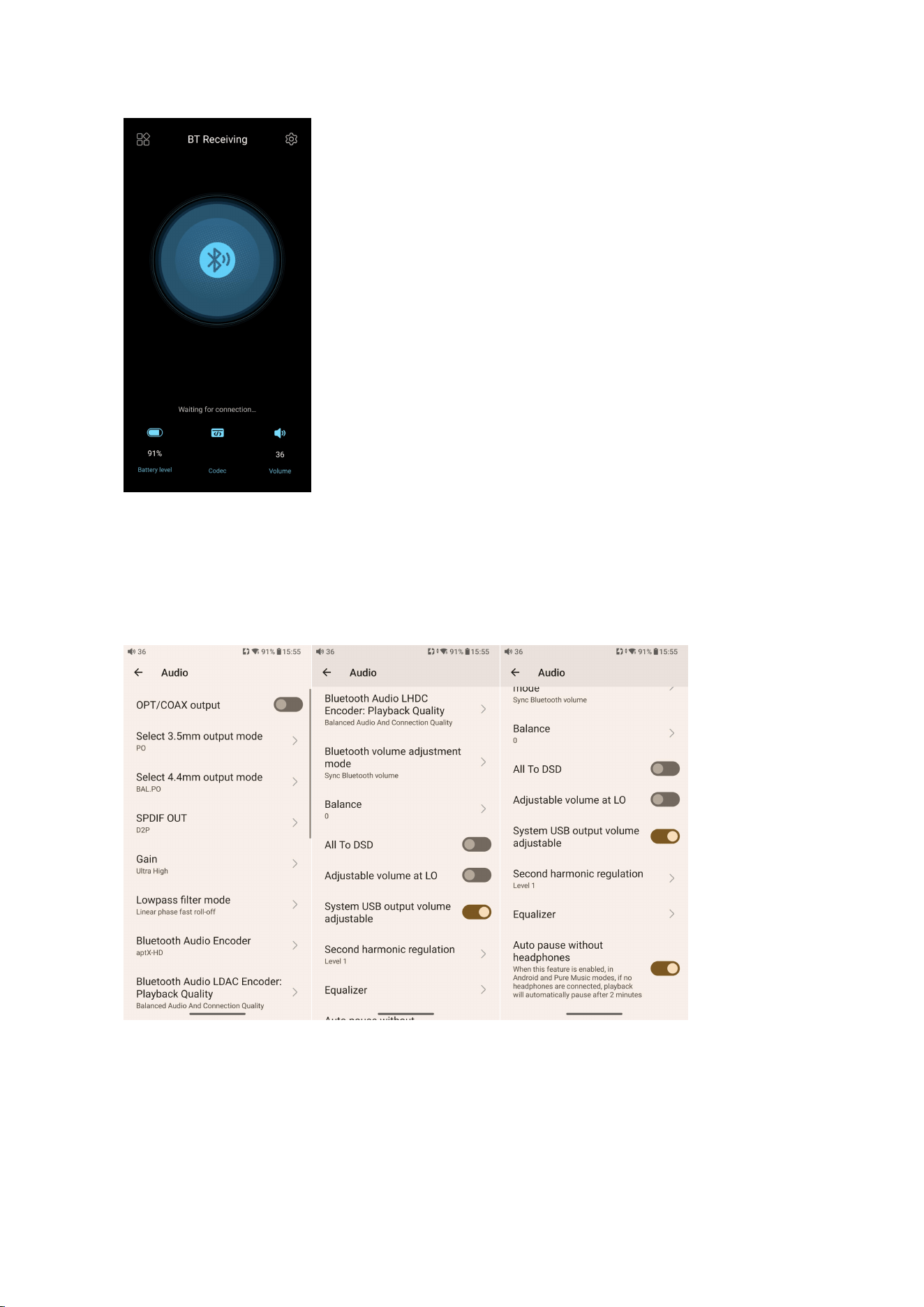
When the M27 is working as a Bluetooth receiver to connect to a new Bluetooth
device, such as a mobile phone, turn on the Bluetooth, go to the Settings
menu-> Mode choose, and select Bluetooth Receiving Mode. When it is enabled,
the M27 will automatically enter the BT Receiving UI.
31
Audio
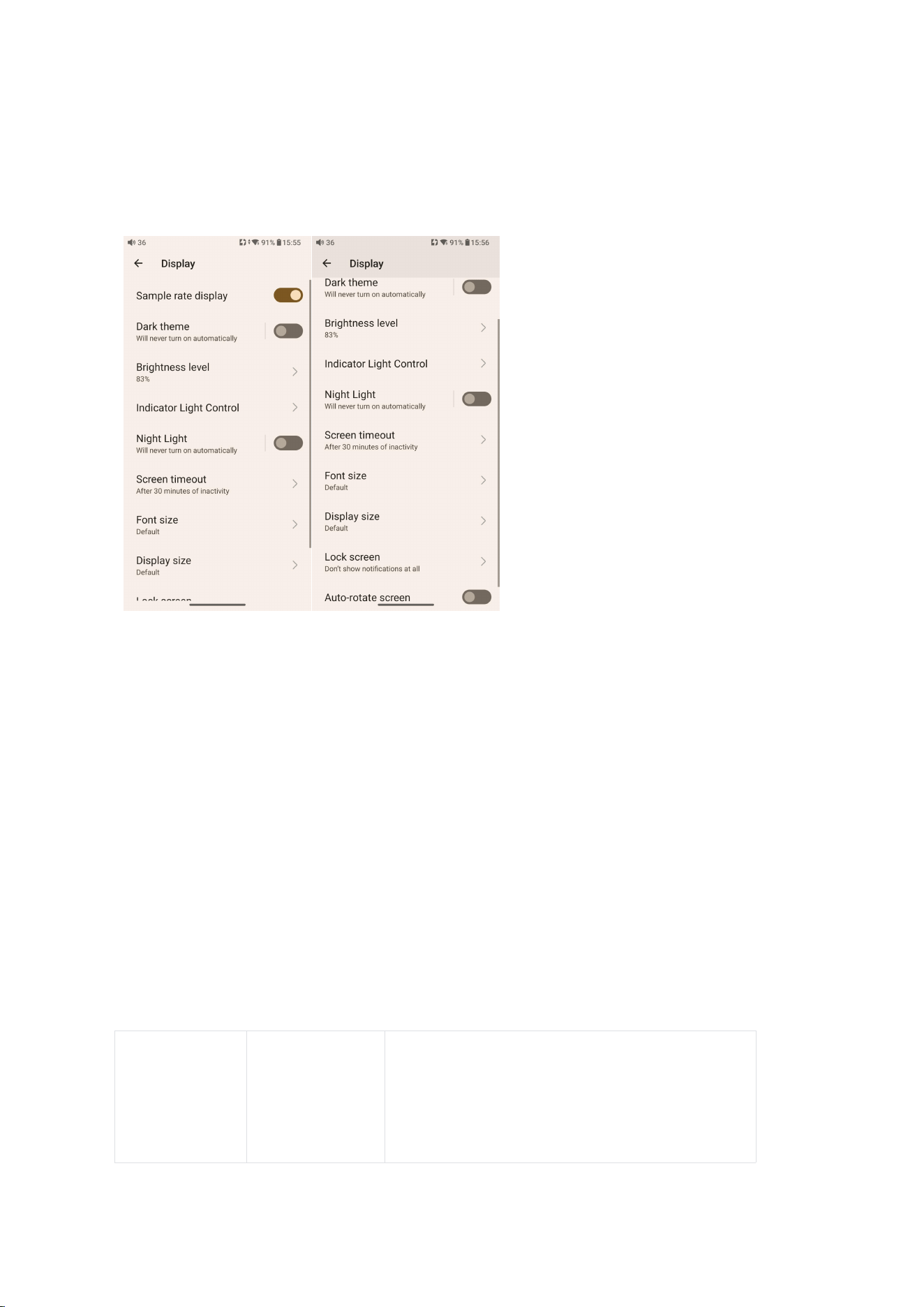
1.Optical/Coaxial output: When using the optical or coaxial output port, please enable

32
the Optical/Coaxial Output switch in the Settings - Audio menu, as this feature is turned
off by default. Once the switch is enabled, playback will follow the standard SPDIF
protocol specifications. The coaxial output supports up to PCM 384kHz and DSD128,
while the optical output supports up to PCM 192kHz. Audio files exceeding these
sampling rates will be processed through SRC (Sample Rate Conversion).
2.3.5 output selection: PO/LO available, PO as default
3.4.4 output selection: BAL/BAL.LO available, BAL as default
Note: When switching to LO/BAL.LO, a pop-up prompt will show up saying that Line
output is not affected by volume control, and switching to line output will set the output
volume to maximum, potentially causing harm to headphones and human hearings!
Please unplug the headphones and select the appropriate device for correct connection
before switching to line output. When turning on "Adjustable volume for line output,"
there is no prompt.
Output priority
3.5&4.4&6.35 analog output could output simultaneously
4.SPDIF OUT: DoP/D2P (DoP output as default)
This setting applies only when playing DSD tracks via coaxial output.
In D2P mode, PCM signals are output in their original PCM format, while DSD signals are
converted to PCM before output. (Currently, DSD64/128 is converted to 88.2kHz PCM,
and DSD256 is converted to 176.4kHz PCM.)

33
In DoP mode, both PCM and DSD signals are output in their native formats. (DoP output
supports up to DSD128.)
Note: DoP is preferred, and D2P needs to be selected if some devices do not support
DoP.
5.Gain
There are five gain levels: ultra high, super high, high, medium, and low gain modes,
corresponding to five levels of output voltage. You can choose different gains according
to your headphones.
Note: The Ultra high gain mode is hidden by default and available only when inserting a
fast charging power supply.
6.Digital filters
There are seven different filters on the M27. You can choose them according to your
listening preference. Filters are some effects that come with the original DAC chip, and
the adjustment is subtle for the sound.
7.Bluetooth codec
When transmitting via Bluetooth, the device will by default connect using the highest
supported codec. You can use this option to manually select the preferred highest
supported codec.

34
The M27 supports LHDC,LDAC,aptX Adaptive,aptX HD,aptX,AAC and SBC. You can switch
the codec on the menu of Settings->Audio->Bluetooth Audio Encoder. Note that it
needs to be disconnected and reconnected to enable the new codec after changing it.
8.Bluetooth audio codec LDAC (playback quality)
Allows switching between different playback quality modes for LDAC, including options
for prioritizing audio quality (990kbps/909kbps), balancing audio and connection quality
(660kbps/606kbps), emphasizing connection quality (330kbps/303kbps), and providing
optimal sound quality whenever possible (Adaptive Bitrate). Only available for Bluetooth
transmission.
9.Bluetooth audio codec LHDC (playback quality)
Allows switching between different playback quality modes for LHDC, including options
for prioritizing audio quality (900kbps), balancing audio and connection quality
(500kbps/560kbps), emphasizing connection quality (400kbps), prioritizing low latency
(256kbps), and providing optimal sound quality whenever possible (Adaptive Bitrate).
Only applicable for Bluetooth transmission.
10.Bluetooth volume adjustment mode
This function is only available for Bluetooth transmission, which features “Sync

35
Bluetooth volume” and “Indep Bluetooth volume”. The Sync Bluetooth volume should
also be supported by the receiving device, otherwise, it will be unavailable. The Indep
Bluetooth volume means the volume adjustment of the receiver and transmitter is
independent of each other. The Sync Bluetooth volume mode can solve the issue of
overly small volume when connecting to some Bluetooth headphones, such as AirPods.
11.Channel balance
Channel balance means, by adjusting the output amplitude of the left or right channel
individually to build up a special listening condition suitable for the users. For users who
have no difference in hearing between left and right ears, there is no need to use this
function, as the output of the left and right channels of the device is balanced. The
default value of channel balance is 0, each of the left and right channels can be adjusted
by 20 levels, and each level has a fixed difference of about 0.5dB.
12.All to DSD
After turning on the All to DSD, the global PCM audio will be converted to DSD for
output, and the sound quality will be further improved.
Principle: The most important thing of All To DSD is to convert the digital signal in PCM
format to DSD format, so that the DSD format can be used when performing D/A
conversion to obtain different styles of sound, more clear and natural sound. In addition,

36
since the lowest DSD format is DSD64, which is 4 times the data of 44.1k/16bit only
calculated from the amount of data, All to DSD is also equivalent to up-sampling the
PCM signal. The effect of All to DSD also supports third-party apps.
Enabling the All to DSD function increases CPU power consumption, which may result
in reduced battery life for the M27 and more noticeable device heating.
If the overall battery life of your M27 is significantly shorter than the official
specifications, please check whether the “All to DSD” function is enabled. It is
recommended to disable this function and retest the battery life under the reference
conditions provided on the official website.
13.Lineout volume adjustable
When Lineout volume adjustable is enabled, the volume during LO will be controlled by
the buttons (including both single-ended and balanced LO).
14.Adjustable system USB output volume
When this option is enabled, the output volume of USB Audio can be adjusted directly
from the M27 device.
15.Second harmonic adjustment
This feature emulates the unique distortion characteristics of tube amplifiers by

37
intentionally adding even-order harmonics (second harmonics) that do not exist in the
original signal. Three levels are available, and changes take effect immediately.
Level 0: Minimum harmonic content, lowest distortion.
Level 1: Moderate harmonic content, medium distortion.
Level 2: Maximum harmonic content, highest distortion.
16.Equalizer
The 31-band global PEQ function supports EQ superposition of the FIIO Music and other
third-party apps. Here are the processes after enabling the PEQ on the system.
(1) Over 192k sampling rate- SRC processing;
(2) Priority: All to DSD>PEQ>MQA.
PEQ is only effective for the analog output in Android, Pure Music, AirPlay, Roon Ready
mode. It does not work with Bluetooth Receiving mode or USB DAC Mode.
17.Auto pause without headphones
When this function is enabled, under Android and Pure music modes, if the M27 is in
music playback state without headphones connected, the system will automatically
pause playback after 2 minutes.
38
Display
1.Sample rate display
With it turned on, the sample rate of the currently playing song will be displayed.
2.Dark theme
With it turned on, the theme will switch from the default white theme to a dark theme.
3.Brightness level
Adjusting the brightness of the M27.
4.Indicator light control
Setting item
Indicator
Instruction

39
Brightness
User-defined
1~9 levels adjustable
Working
Off
Turn off the indicator
Constantly on
Displays other working statuses normally
Pulsing
Pulsing indicator
Rhythm
Pulses in rhythm with the music during
playback. Remains static when playback is
paused or inactive
Light color
Base on audio
format
Default Color (Idle): Blue.
Fixed color
Customizable Colors: Red, Blue, Cyan,
Purple, Yellow, White, Green, Orange,
Rainbow
Repeated
pulsing
On/off with the display: After enabling it, the indicator will on on off synchronously
with the screen

40
5.Night light
The color of the display screen will be adjusted in amber under Night light mode. You
could enable the Night light mode at a custom time , or from sunset to sunrise.
6.Screen timeout
Consistent with the screen saver time. Adding this option to make it easier for users to
adjust the time.
7.Font size
Customize the font size according to your preference.
8.Display size
Make the items on your screen smaller or larger according to your preference.
9.Lock screen
Setting the content to be displayed when the screen is locked.
10.Auto-rotate screen
The M27 has a built-in gravity sensor that supports automatic screen rotation. This
function can be enabled in the dropdown menu or Settings- Display. Once enabled, the
screen will automatically rotate based on device orientation.
Global
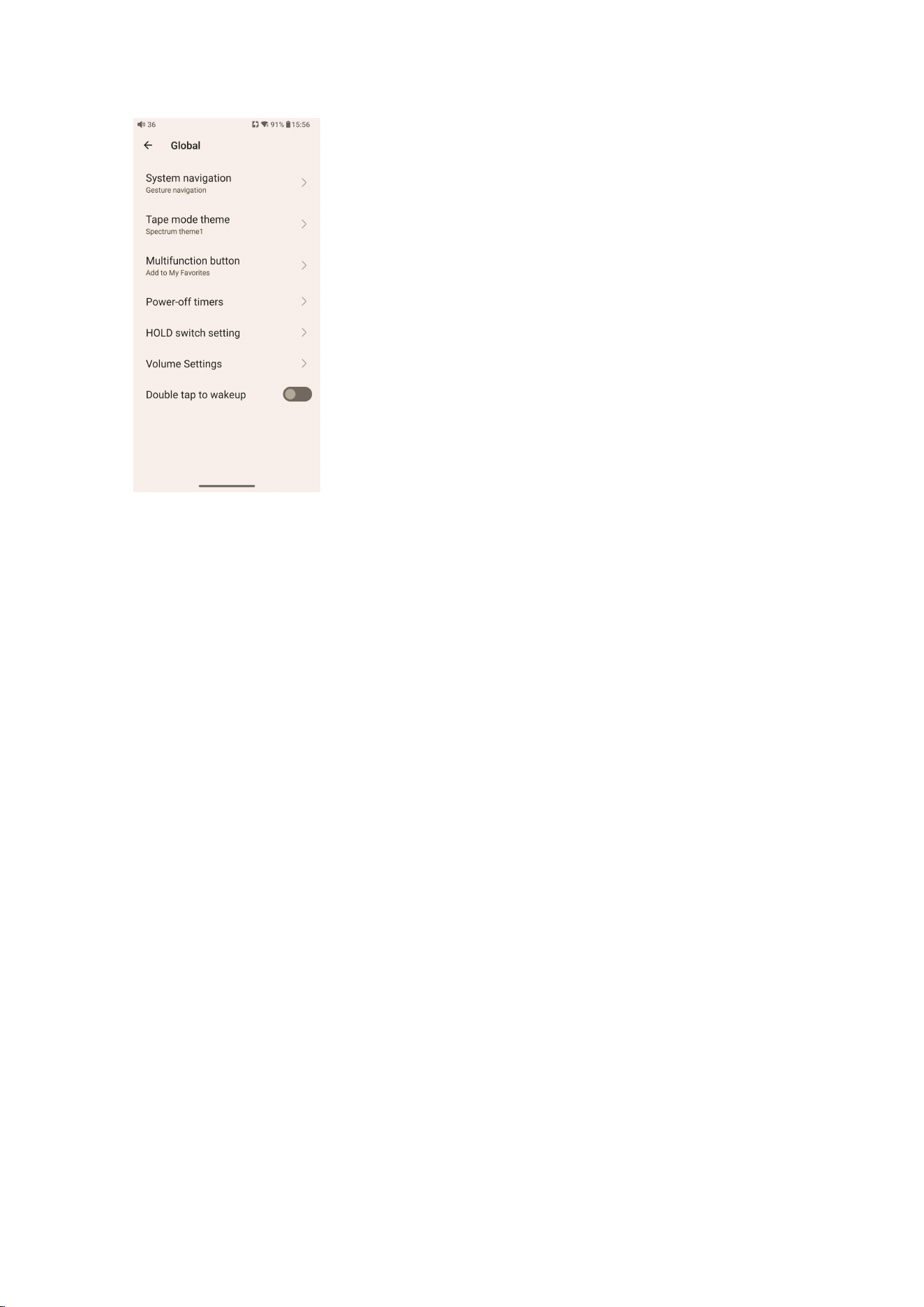
41
1.System navigation
Gesture, 2-button and 3-button navigation are available.
2.Tape mode theme
Select the theme after entering Tape mode.
Cassette theme: 8 themes
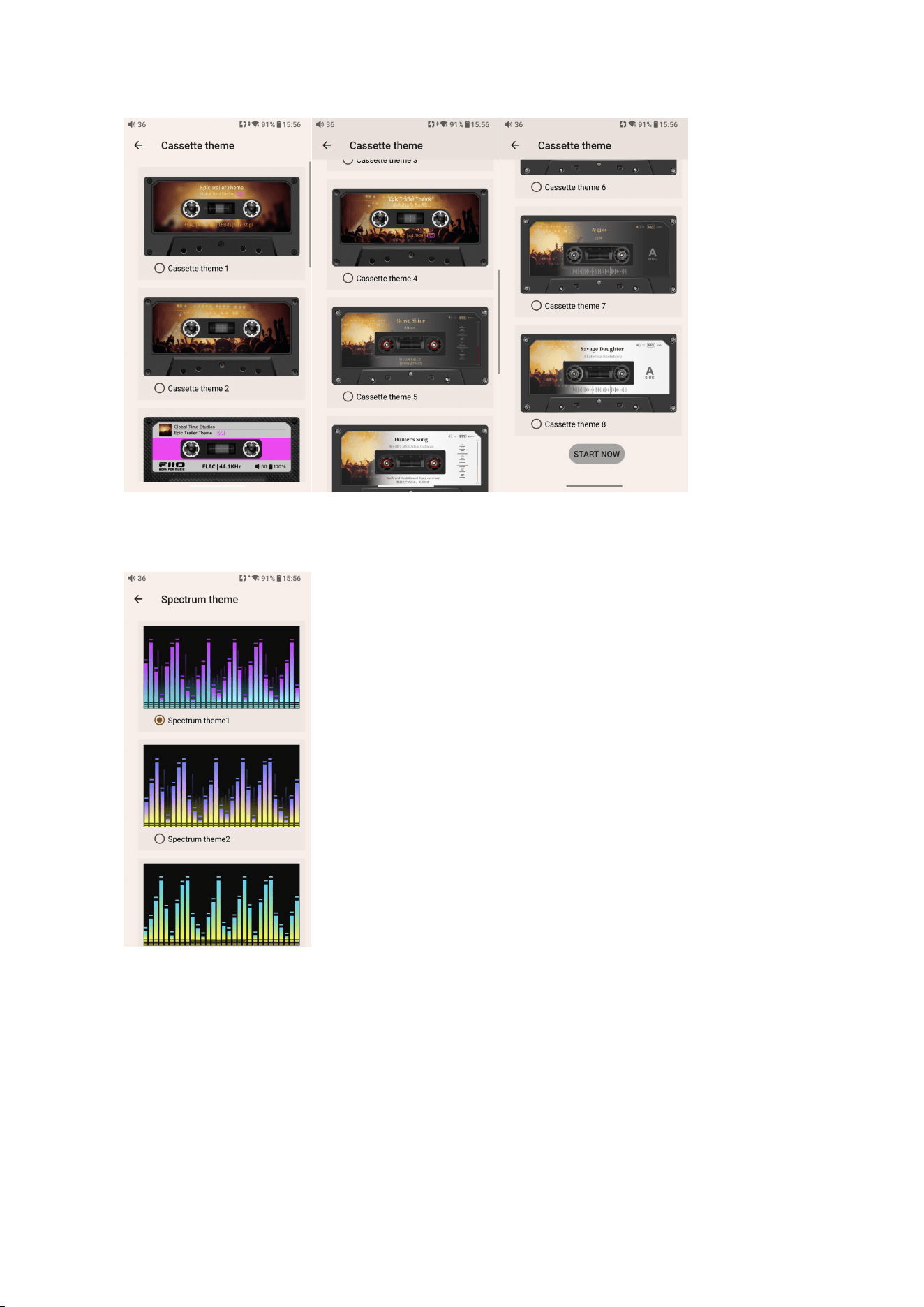
42
Spectrum theme: 3 themes
VU meter theme: 8 themes
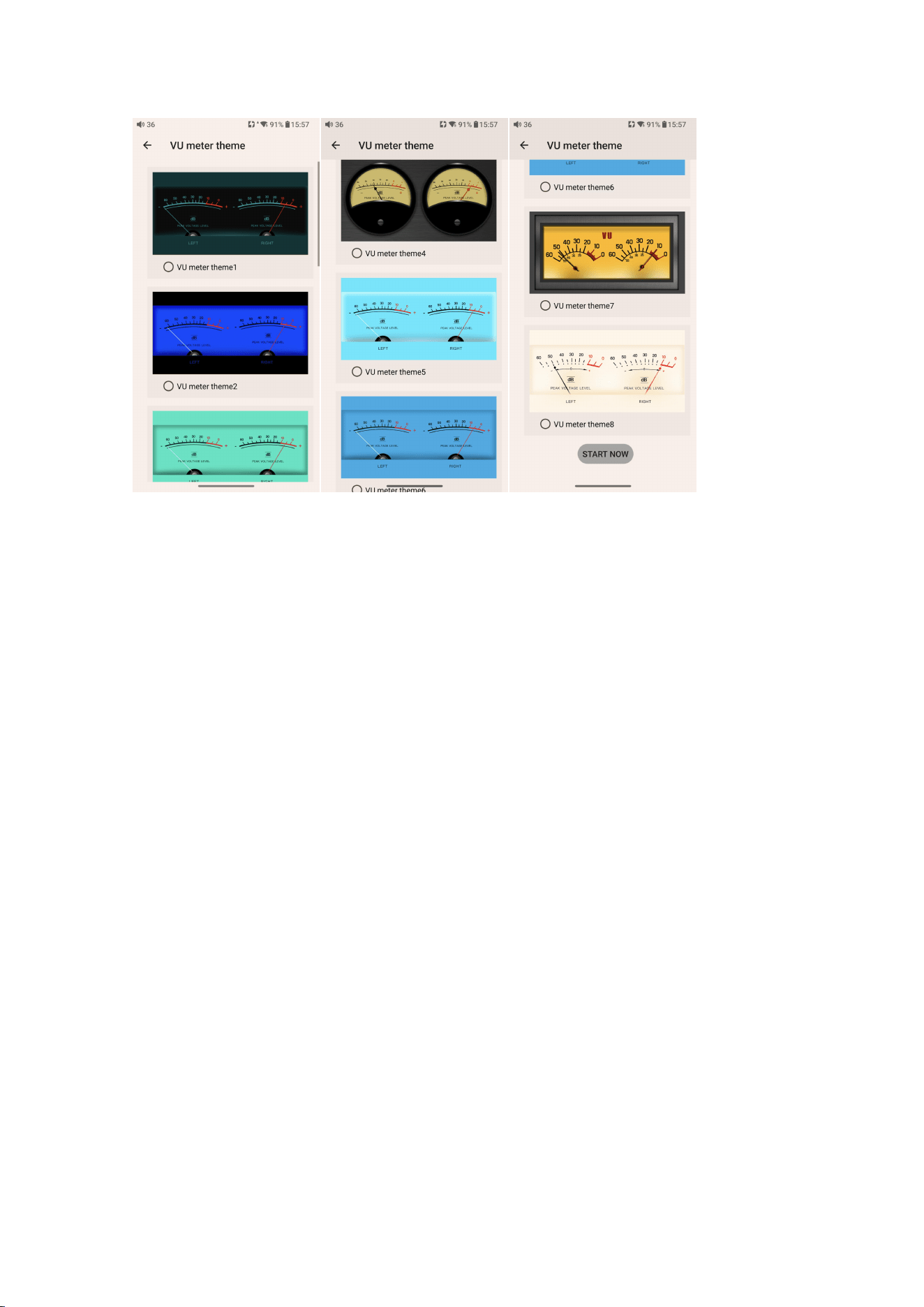
43
M27’s tape mode feature
In Settings - Global - Tape Mode Theme, you can choose from multiple tape-style
themes. Once selected, there are several ways to activate Tape Mode:
1.On the selected theme page, scroll to the bottom and tap Start Now.
2.Tap the Tape Mode app icon on the home screen.
3.Go to Settings - General - Multifunction button, set the button to Enter Tape Mode,
then short press the button to enable.
4.Tap the Tape Mode icon in the dropdown menu.
Note: In Tape Mode, tap the screen to show the exit button in the upper-left corner, or
swipe up from the bottom or swipe left/right from the screen edge to exit.

44
3.Multifunction button
1.In Player mode: Add to Favorites (default option), Play next song randomly (randomly
play the next song according to random play rules), Play/Pause, Delete currently playing
song, Switch filter (cyclically), Switch equalizer (cyclically), Enter USB DAC Mode, Enter
Bluetooth Receiving Mode, Lock screen/Wake up, No function
2.In Bluetooth Receiving mode/USB DAC mode, the multifunction button is forcibly set
to: No Function.
Note: This button only responds in Android mode/Pure Music mode, and some
functions only apply to FIIO Music.
4.Power-off timers
Sleep: when the set time is up, the M27 will turn off automatically. The sleep time can be
set as any integer values between 0 and 120.
Idle poweroff: the M27 will automatically turn off when the timer reaches the set time for
idle poweroff when there is no operation or playback. During this process, the timer will
restart if there is any operation or playback. The idle poweroff time can be set as any
integer values between 5min and 24h. (Note that this function will be disabled when it is
set to OFF.)
5.HOLD switch settings
If the HOLD switch is turned on, you can enable/disable any buttons, touch screen.
How to disable buttons/knobs to prevent accidental operation?

45
The M27 supports a physical HOLD switch. In Settings - General - HOLD Switch, you can
configure which buttons/knobs to disable. After setting it up, toggle the HOLD switch to
the on position to lock them, effectively preventing accidental inputs.
6.Volume setting
a.System Maximum volume setting: all other volumes will be lower than this volume
after setting it.
b.Power-up default setting:set the volume of the system when the device is turned on.
Note: System Maximum volume>Priority:Power-up default setting
7.Double tap to wakeup
If it is enabled, double tap the screen can wake up the M27 when it is under off or in
sleeping states.
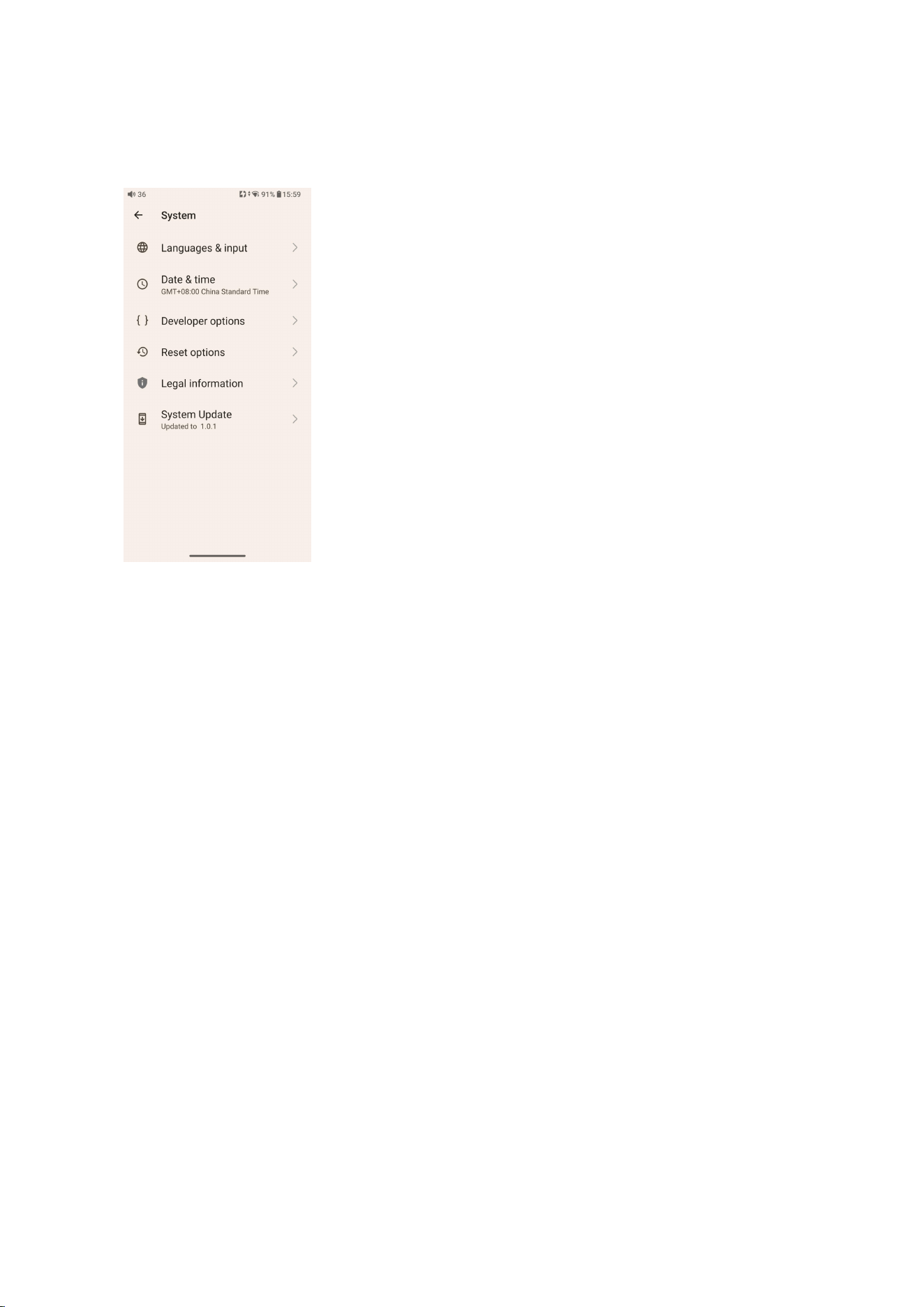
46
System
Languages & input
The first time the device starts up, you can choose an appropriate language from
the prompt.
If you want to choose other languages, you can go to the Settings menu. Here
are the instructions.
1) Go to the menu of Settings-> System-> Languages & input-> Languages;
2) In the Languages page, tap Add a language;
3) Select a language;

47
4) After selecting the language, hold the “=” icon on the right side of the target
language and drag it to the top, so to successfully select the language.
Reset options
"Reset WiFi, mobile & Bluetooth" will reset all network settings, including WiFi
and Bluetooth.
"Reset app preferences" will reset all preferences including the items shown in
the following picture.
"Erase all data", i.e. factory reset, will erase all data from your device's internal
storage, and all settings will be reset to default. Please back up your important
data before resetting.
FiiO Music APP
The M27 has built in the FiiO Music app, a professional audio playing application
specially developing for Android-based system and flagship-grade music players.
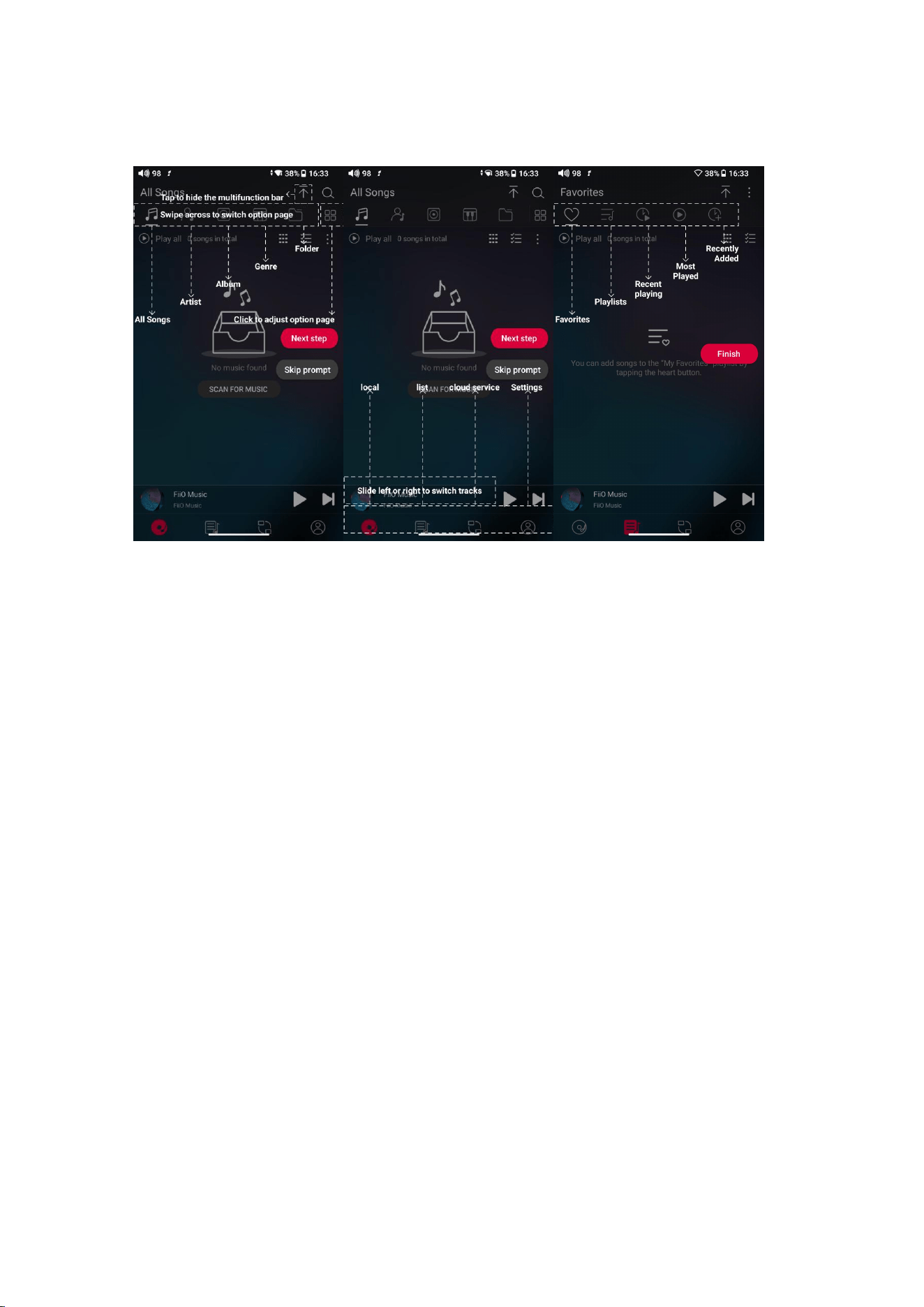
Homepage
FiiO Music APP will enter the homepage once it starts up as shown below.
48
FiiO Music will enter the homepage once it starts up as shown below.
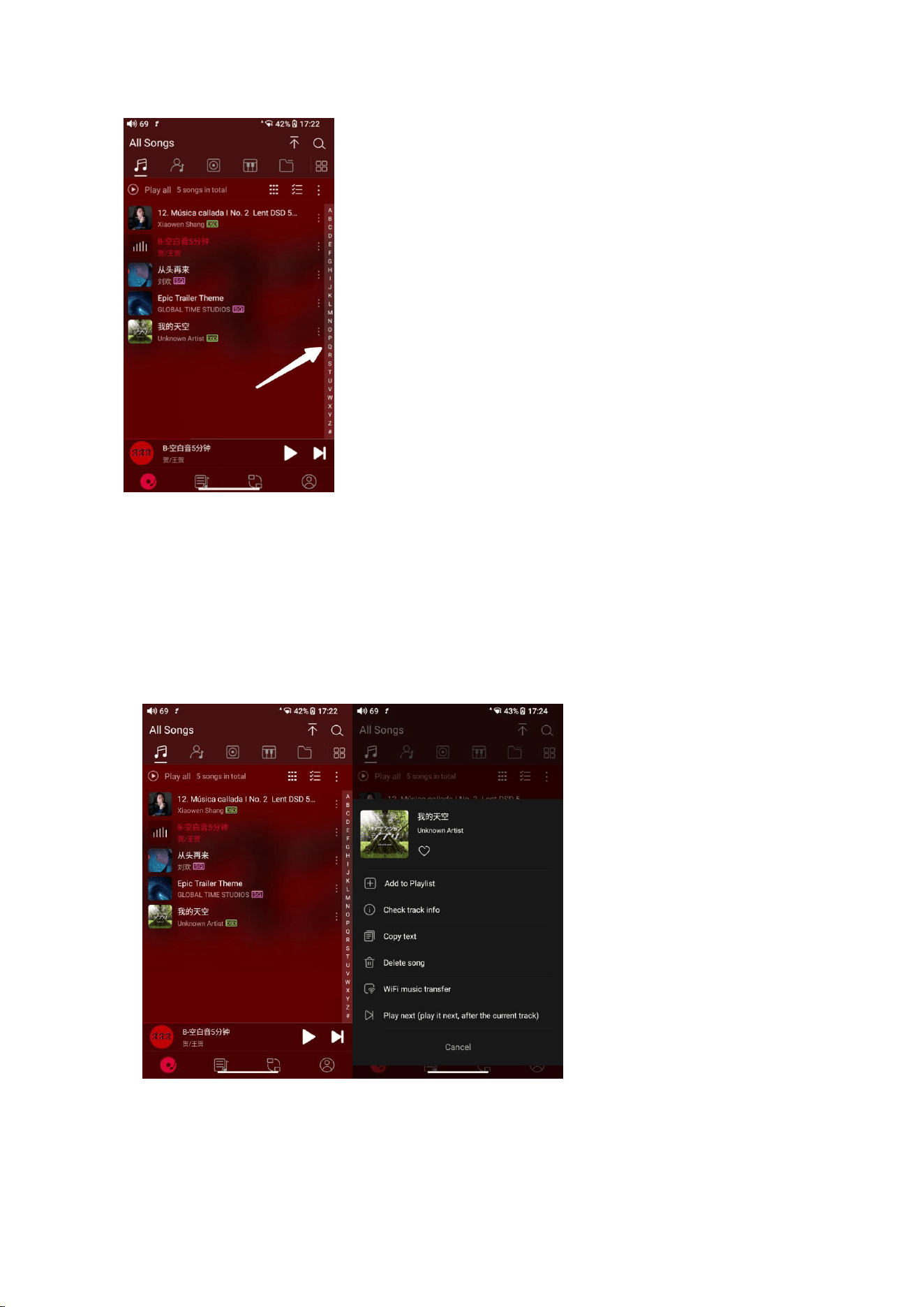
Quickly locate all songs
Slide the screen with your finger on the letter bar at the right side. A quick search
icon will show up in the middle of the screen. Sliding to corresponding initials
and relieving your finger, it will directly jump to the songs starting with the initial
you have chosen.
49
Hidden menu
Tap the ┇ icon at the right corner of each track to wake up the hidden menu.
Then tap the icon in the menu to perform corresponding operations.
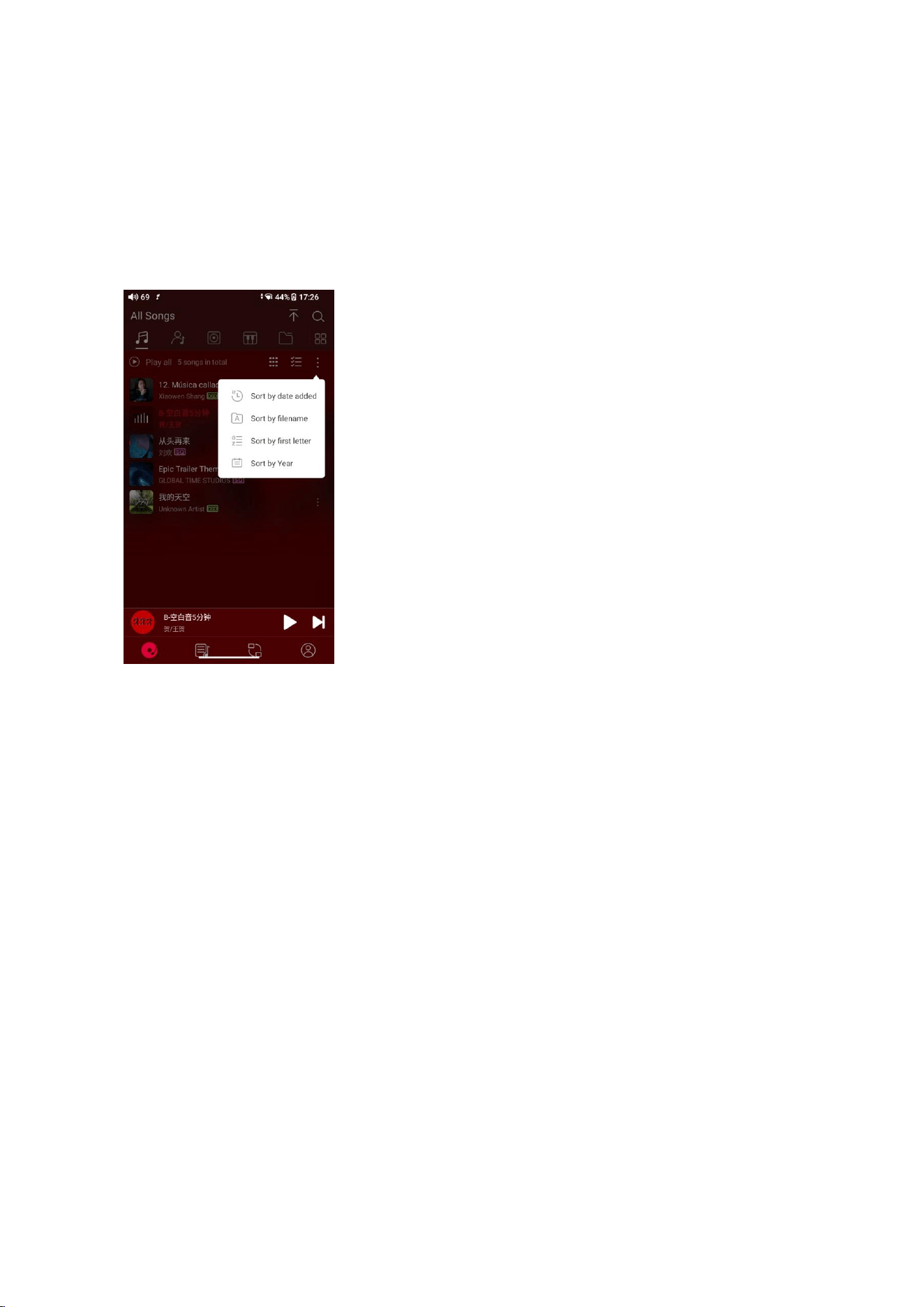
Sort songs
50
Tapping the hidden menu on the upper right corner of the screen, you can
decide the way of songs sorted as Sort by date added, Sort by filename, Sort by
the first letter and Sort by year.
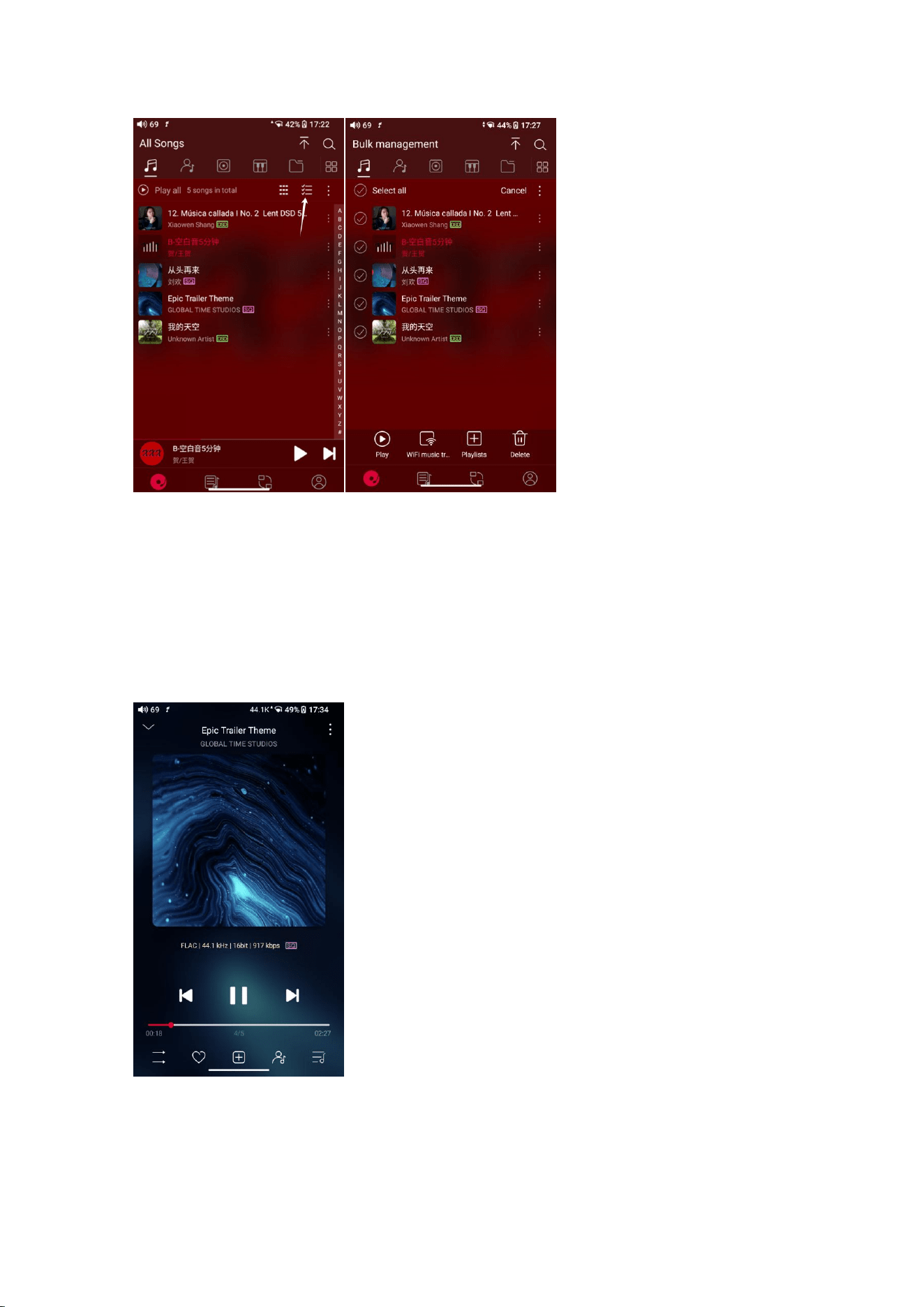
Bulk management
Play music, WiFi music transfer, Add to my favorites, Add to playlists, Delete
selected, and Exit bulk management.
51
Playing page
Tap the album cover in the bottom left corner to enter now playing page.
Switch page
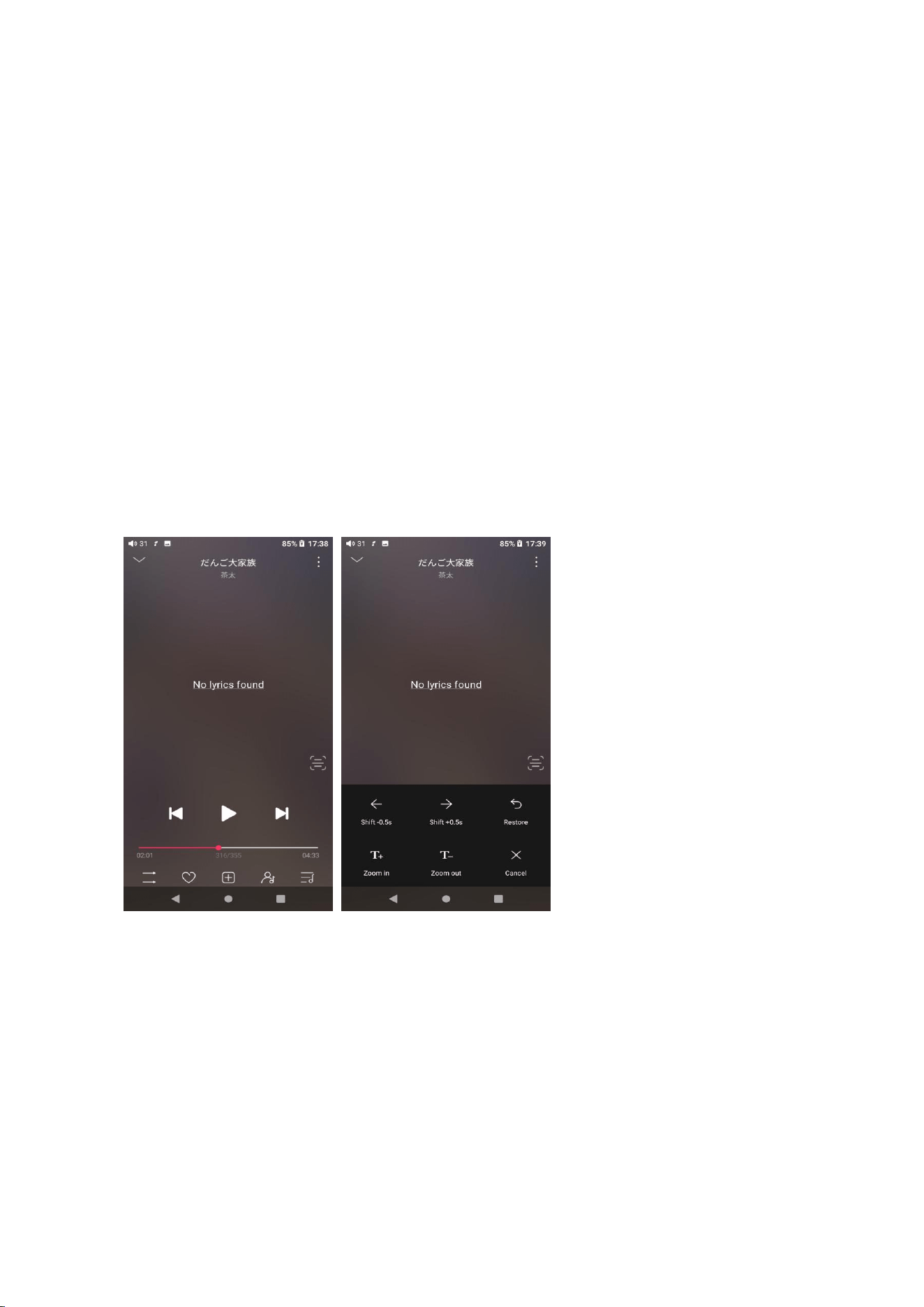
52
By tapping the middle of the album cover, it will switch pages between album
cover and lyrics circularly. Swipe left and right to switch songs.
Playing progress
Slide left and right on the progress bar below the album cover to quickly adjust
the progress of the now playing song.
Notes: on the lyrics display page, you can adjust the song progress, lyrics
timeline and font size.
Equalizer
FiiO Music has a built-in equalizer, on which you can straightly choose the preset
EQ for listening, or adjust it through the 10 frequency bands within 20Hz~20kHz
from -12 to +12 dB, fully meeting personal music tastes.
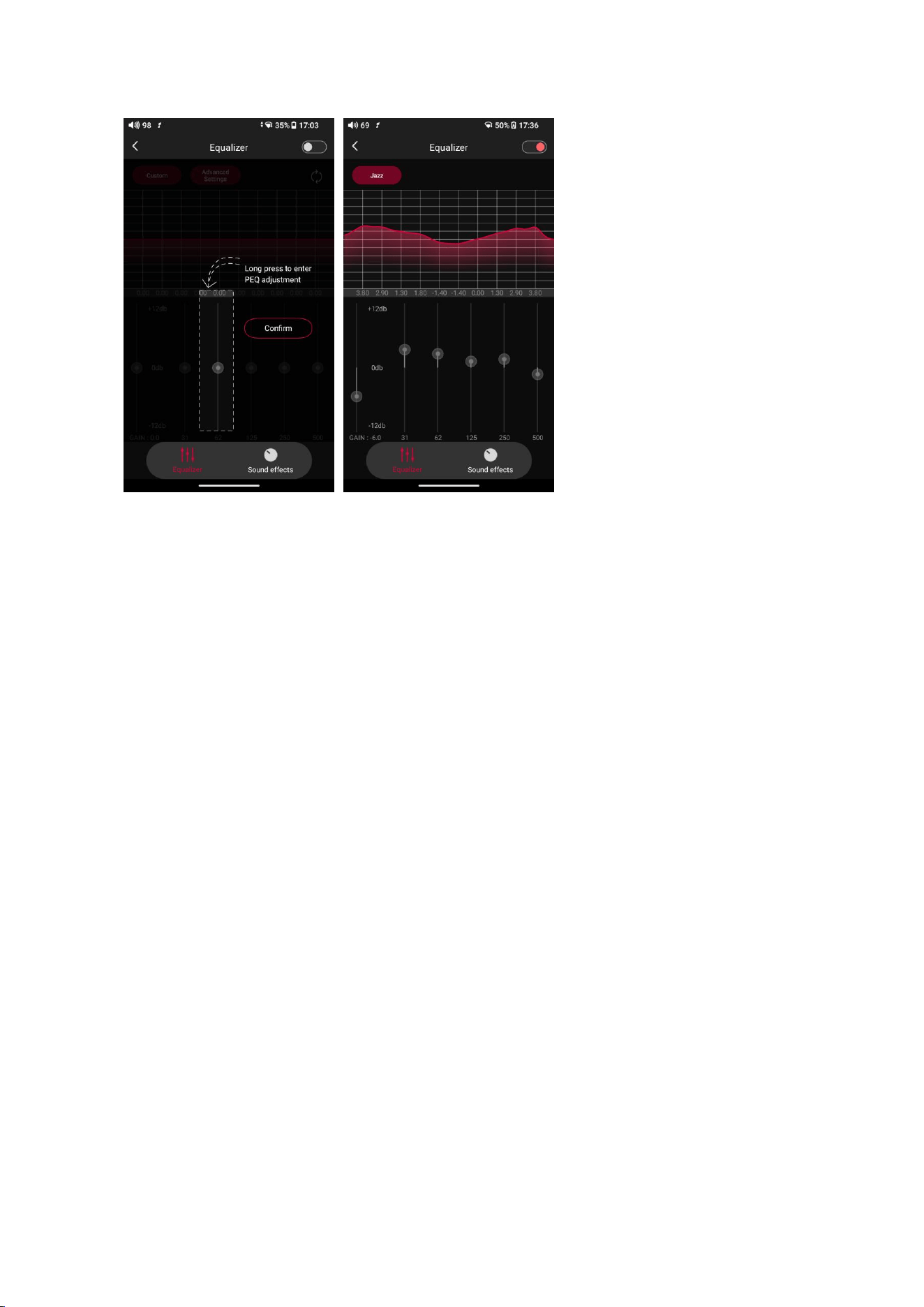
53
Choose preset EQ: swipe left or right on the bottom of the screen to switch
equalizer.
Customized EQ: drag the corresponding frequency band up and down to
slightly adjust the EQ curve (on the bands page, switch left and right to change
the option). Successively adjusting the EQ in need, it will immediately take effect.
Reset EQ: Tap the Reset button at the upper right corner to reset the present EQ.
Notes: if the system is reset to factory mode, all EQ settings will be reset to
default.
UV meter
There is a newly added UV meter (audio meter) with a dB threshold and dynamic
pointer displayed. Closing to the red threshold of 0dB means audio distortion.
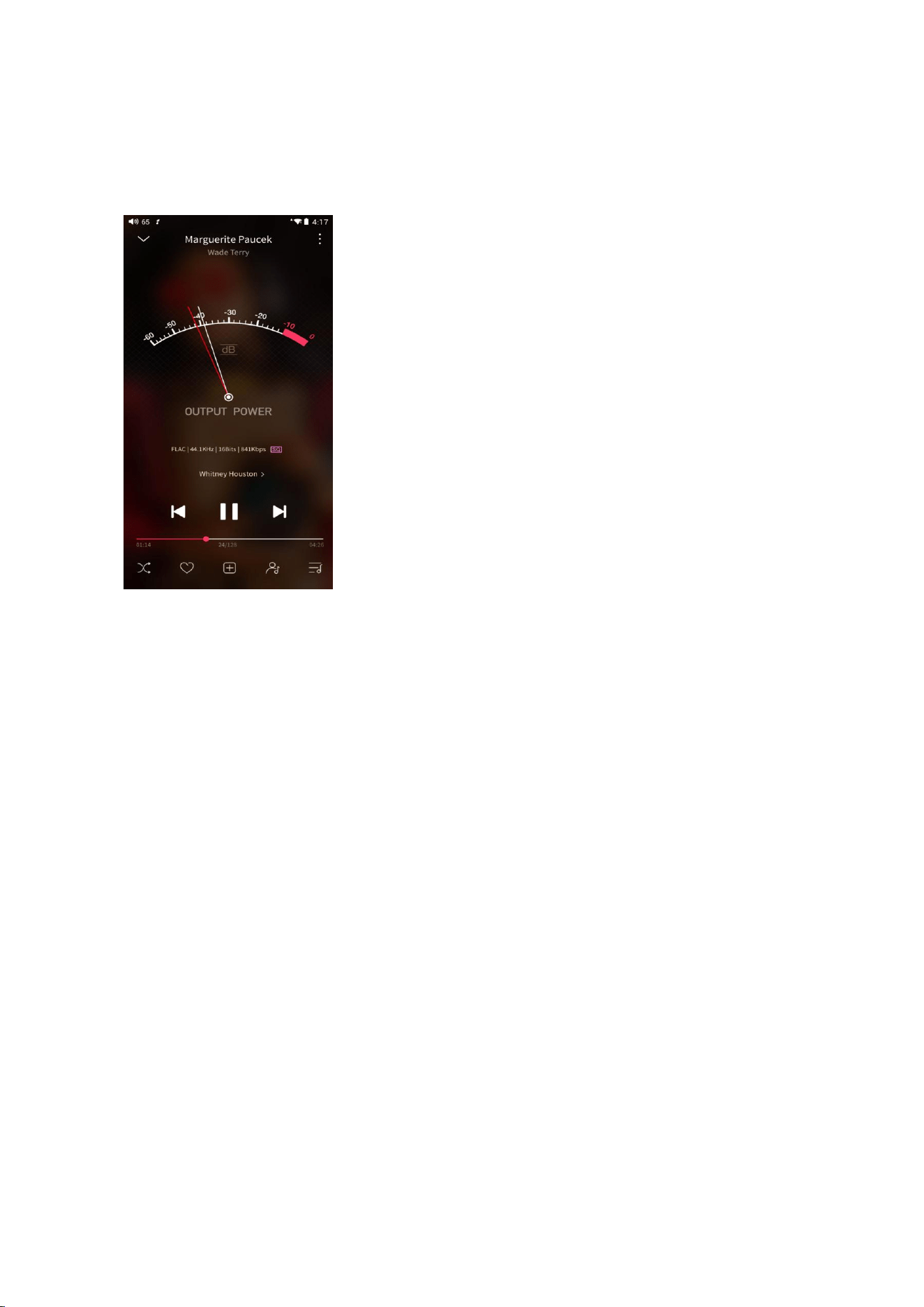
54
How to enable it: tap the song cover on the now playing page to enter the UV
meter displaying page.
Frequency spectrum playing page
There is a newly added frequency spectrum mode in the now playing page, which
has 3 built-in spectrum effects available. Besides, users can self-define Full screen
display or Original display for the spectrum mode.
How to enable it: go to the Settings menu in FiiO Music app->Theme->Now
playing page. Choose Spectrum display.
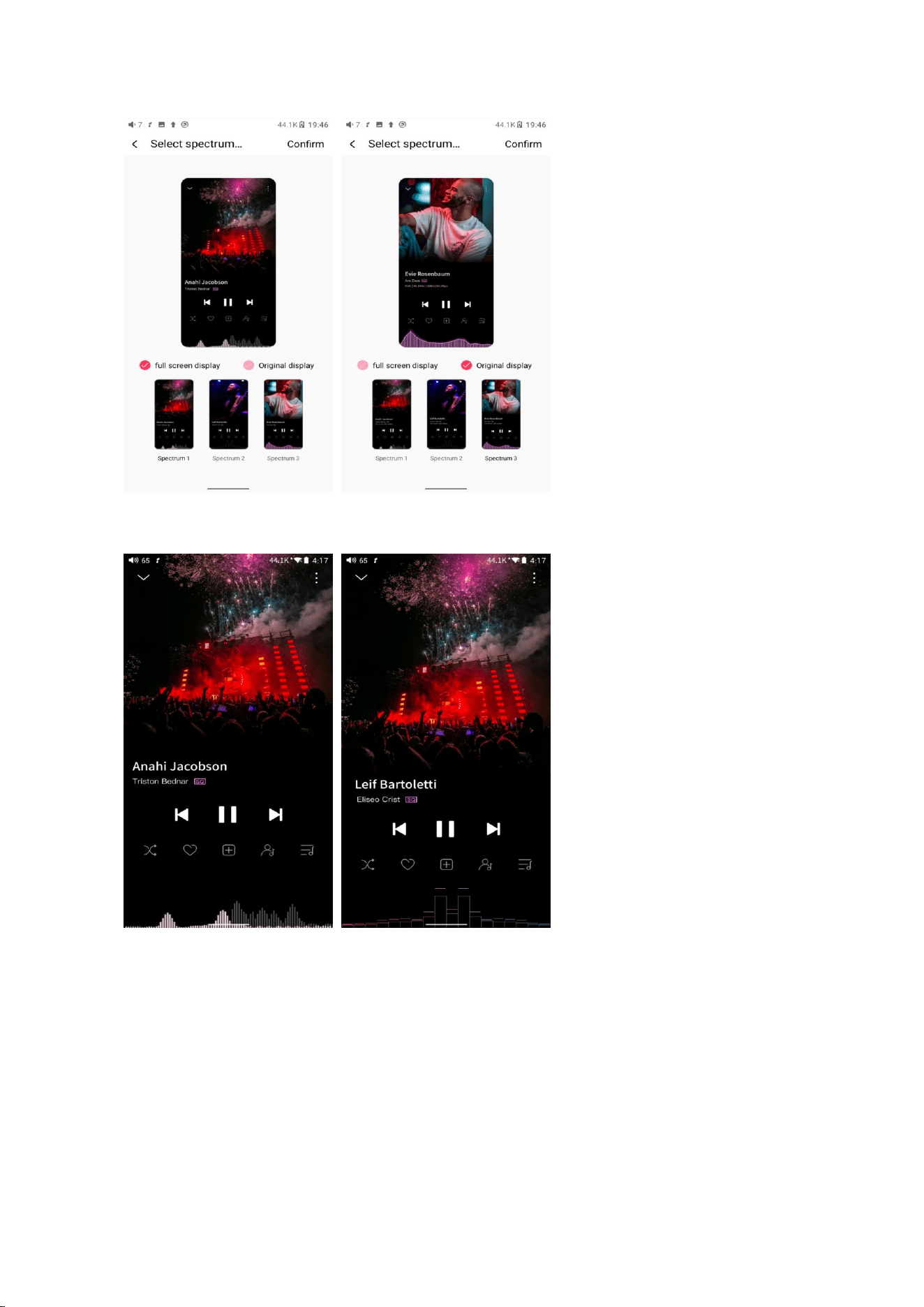
55
Square cover and large cover:
FiiO Music app keeps upgrading and maintaining.

56
Instructions for commonly-used
functions
1. Screenshot
Use 3 fingers to swipe down the screen. Or hold the power button and volume-
button together to get a screenshot.
Where does the screenshot store: FiiO M27\Files\Internal
storage\Pictures\Screenshots
2. USB Audio digital output
The M27 supports USB audio. The setting steps are as follows.
1. Enable ""USB output"" in FiiO Music app of the M27.
2.Use an OTG cable to connect the M27 and the external decoder.
3.Open FiiO Music app or other music applications to use the M27 as a USB
digital output device.
It supports most of the decoding devices on the market. For those unsupported,
you can turn off the USB output in FiiO Music app, or unplug and re-plug the
USB device after quitting the FiiO Music app. If it does not work, please contact
us by sending an email to support@fiio.com for further help.

57
3. FiiO Link Bluetooth control
There are mainly 3 steps.
1) On the FiiO Music app of the M27, Settings->FiiO Link->┆ (on the upper right
corner of the display), choose Bluetooth as the Server.
2) Connect the M27 to the mobile phone through Bluetooth.
3) On the FiiO Music app of the mobile phone, Settings->FiiO Link->┆ (on the
upper right corner of the display), choose Bluetooth as the Client.
Notes: iPhones only support FiiO Link WiFi control but not Bluetooth.
4. FiiO Link Wifi control
There are mainly 3 steps.
1.Make sure the M27 and your mobile phone are connected to the same WiFi
network.
2.On the FiiO Music app of the M27, Settings->FiiO Link->┆ (on the upper right
corner of the display), choosing WiFi as the Server. Now an IP address will show
up.
3. On the FiiO Music app of the mobile phone, Settings->FiiO Link->┆ (on the
upper right corner of the display), choosing WiFi as the Client. Input the IP
address in the pop-up dialog and complete the connection.

58
Notes: iPhones only support FiiO Link WiFi control but not Bluetooth.
5.How to use the DLNA function?
The DLNA function means the M27 can read and receive music files stored on the
device (name it Device A) which supports DLNA function through WiFi.
1. Make sure the M27 and Device A are connected to the same WiFi network.
2.On the FiiO Music app of the M27, tap DLNA on the main menu and search for
Device A to play music of it.
Notes: If there are any devices that cannot use the DLNA function, please give us
feedback for further analysis. FiiO Music app does not support music
transmission at present but only music reception. We will consider adding the
transmission function later.
6.How to use the Optical/Coaxial output on M27?
1.When using the optical or coaxial output port, please enable the Optical/Coaxial
Output switch in the Settings - Audio menu, as this feature is turned off by default.
2.Connect one end of the coaxial/optical cable to the square optical output port or RCA
coaxial output port on the M27, and connect the other end to your external DAC or
decoding device.
3.Play music through the M27’s music app to output the signal via the optical and
coaxial output ports. Both optical and coaxial signals can be output simultaneously.

59
Note:
1.The coaxial signal is decoded by the third-party decoding device, while the M27
functions as a digital transport.
2.If there is no audio output,please go to System Settings > Audio > SPDIF OUT and set
it to D2P.
3.Output Priority:
USB Output > Bluetooth > Coaxial = Optical = 3.5mm & 4.4mm Analog Outputs
60
Firmware upgrade, factory data reset and
technical support
1.How to upgrade firmware?
The M27 supports online upgrade and local upgrade.
Online upgrade
If a new firmware is available and can be detected (with the M27 connected to an
available internet), an upgrade notification will show up in the notification center.
Tap on it to enter the update menu for the online upgrade. If there's no upgrade
notification showing up, you can go to the "Technical Support->Firmware
Upgrade" menu, and tap the "Check for updates" icon to check manually.

61
Local upgrade
Also, the M27 can be upgraded locally by a firmware package. Download the
firmware package file from FiiO website, and copy it to the internal storage of the
M27 or an SD card. Go to the "Technical Support->Firmware Upgrade->Local
Upgrade" menu, and find the firmware package file to start the upgrade.
Notes:
1.Do not unzip the firmware package file.
2.Before the upgrade, ensure the power of the device is adequate (>30%) so to
avoid upgrade failure.
3.If the device goes to factory mode which cannot detect the firmware, the
reason may be that the firmware file is damaged. At this time, press the power
button to reboot the device. Re-download the firmware file and restart the
upgrade.
2.Force to reboot
Please hold the power button for around 10 seconds until the "FiiO"logo shows
up.
3.Factory data reset

62
If there are some problems happened to the device, perform the factory data
reset would help (In the menu of Settings->System->Reset options).
Notes: The "Factory data reset" will erase all data from the internal storage and
reset the device to defaults. Please backup corresponding files in advance.
4.Technical support
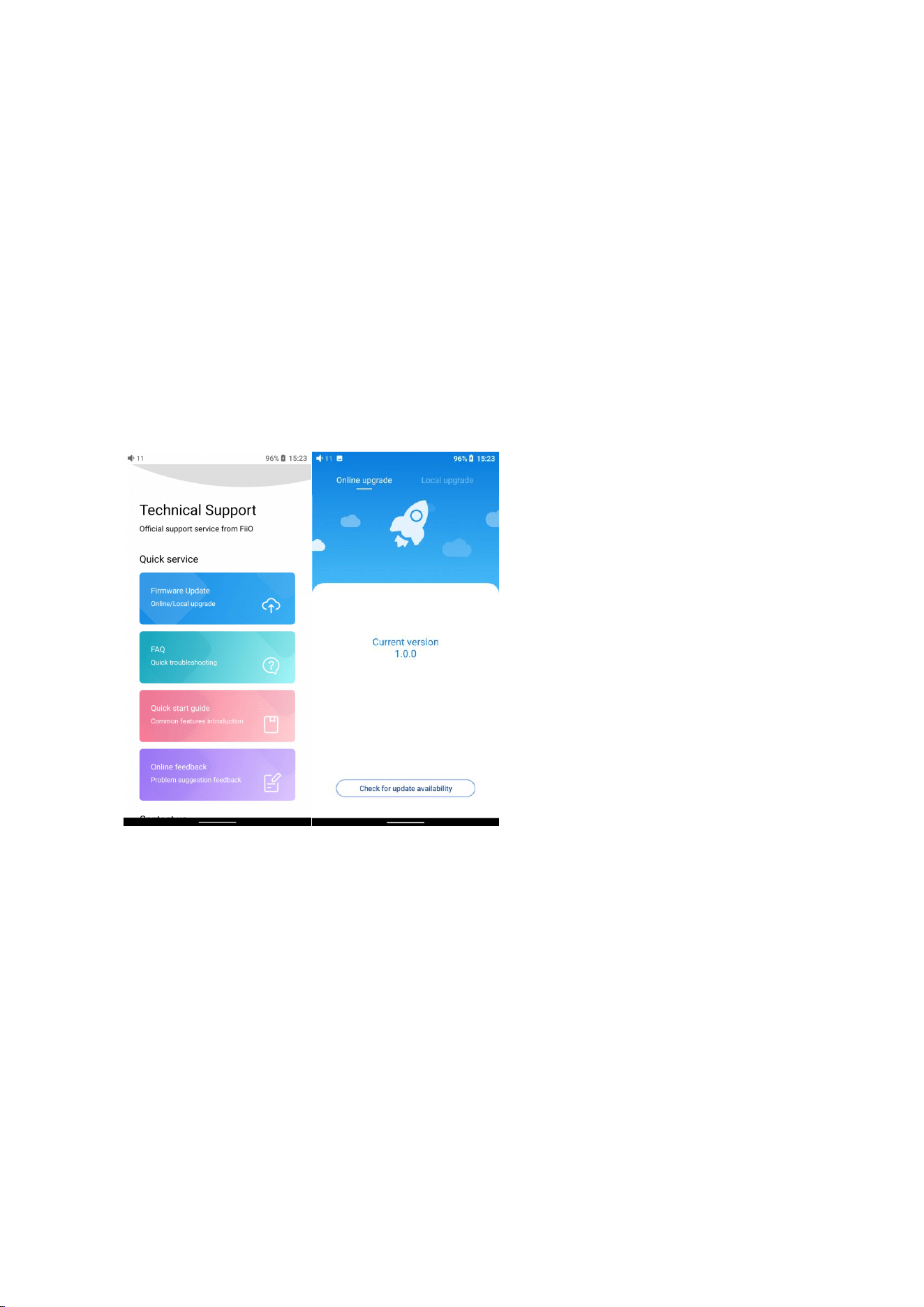
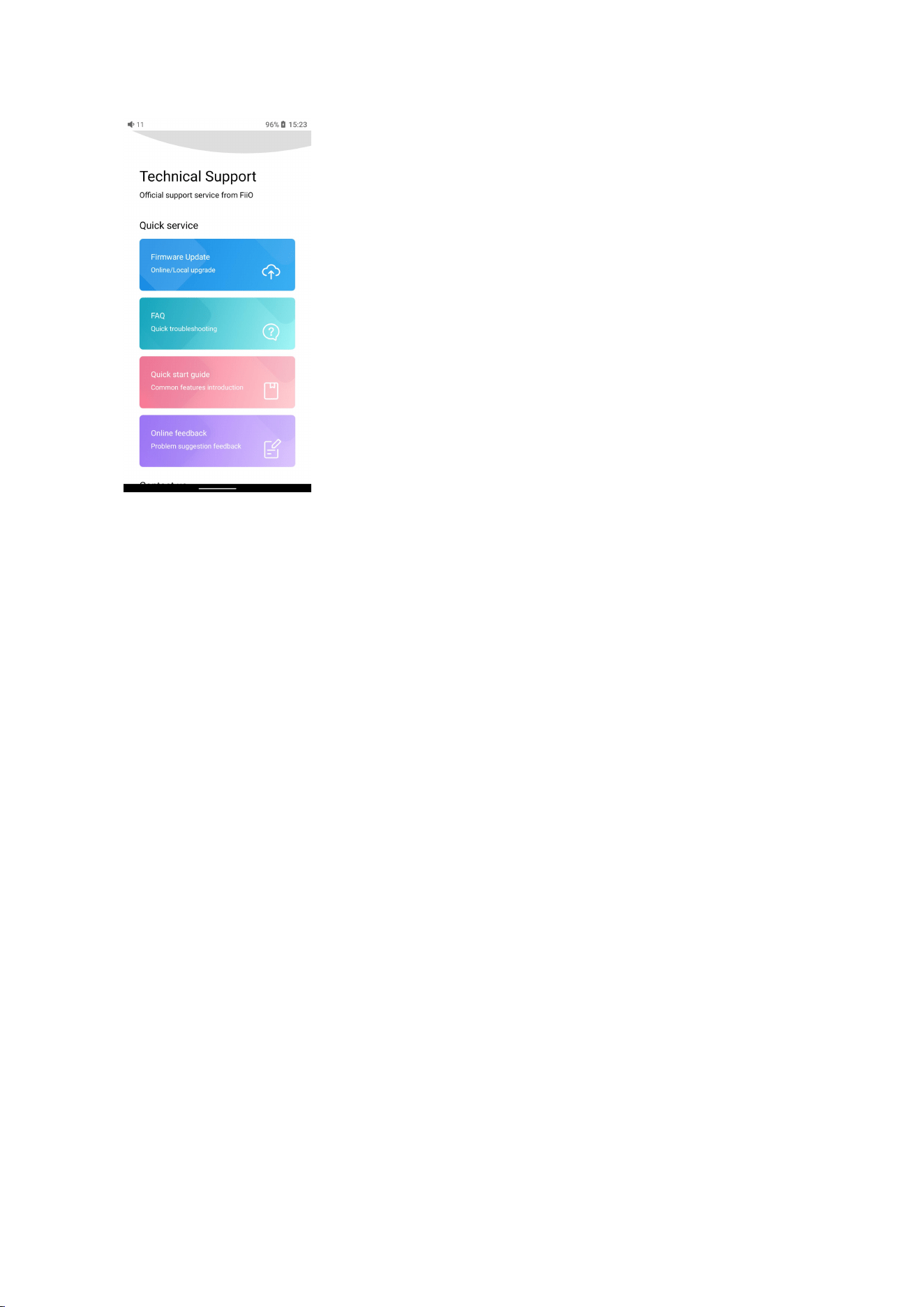
1) On the homepage, tap Technical Support to enter the menu. Here are several
commonly-used functions and our contacts.
2) Firmware update: online and local upgrade are available.
FAQ (frequently asked questions): parts of frequently asked questions and
corresponding measures are listed.
3) Quick start guide: tap to check out the internal quick start guide of the M27.
4) Contact us: here shows our email address, Facebook, Twitter, etc.
63