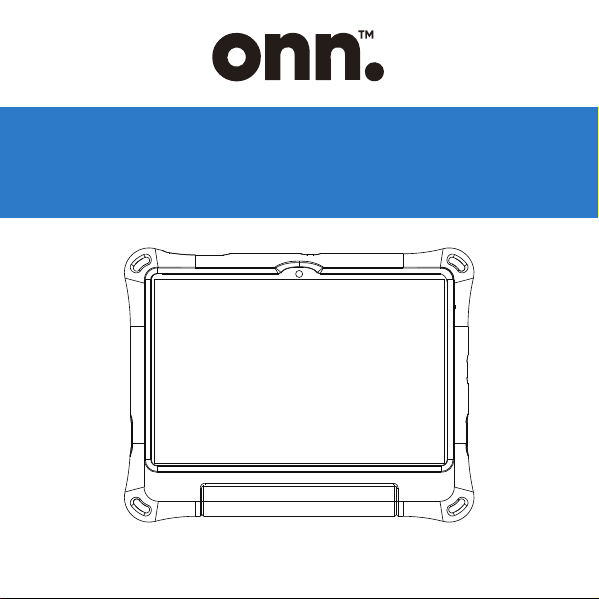
USER GUIDE
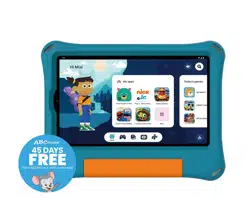
10.1" Kids Tablet
100135920_EN_122520 23

2
Table of contents
Introduction ..........................................................................................4
In The Box ..............................................................................................5
Start Your Tablet..................................................................................6
Storage Card........................................................................................6
Home Screen At-a-Glance.............................................................7
Customize Your Home Screen ........................................................ 8
Gesture Navigation............................................................................ 10
More Gestures......................................................................................11
Screenshots ..........................................................................................13
Screen Recordings.............................................................................. 13
Manage Your Apps............................................................................. 14
Split Screen........................................................................................... 15
Switch Between Apps........................................................................15
Connect to the Internet.................................................................... 16
Connect Bluetooth.............................................................................17
Screen Lock........................................................................................... 18
Magnification ....................................................................................... 18
Factory Reset .......................................................................................19

3
Table of contents
Quick Settings and Notifications................................................... 21
Use the Cameras ................................................................................ 22
Files.......................................................................................................... 23
Google Play Updates........................................................................24
Google Assistant................................................................................. 24
Set up the Google Kids Space.......................................................25
Remove Google Kids Space........................................................... 25
Google Discover..................................................................................26
YouTube Kids ........................................................................................26
Google Play Protect........................................................................... 27
More Google Apps ............................................................................. 27
Technical Specifications................................................................... 28
Safety Instructions.............................................................................. 29
Safety Instructions for Toy Transformer........................................32
Troubleshooting................................................................................... 34
The Fine Print........................................................................................35
Compliance Information ..................................................................37
Certification Information.................................................................. 39
System Updates .................................................................................. 20
Force Shutdown ..................................................................................20
4
Introduction
Thank you for purchasing the onn. tablet with Android 14.
With a responsive octa-core processor, this tablet is perfect for
daily tasks, streaming music and movies, taking photos, checking
emails, and interacting with social media. 2.0 GHz Octa-core
processor can provide better performance when handling
high-load tasks and reduce power consumption under light-load
tasks.
The tablet oers Bluetooth connectivity, mobile productivity services
and 3GB RAM + 32GB ROM capacity, along with a memory card
slot that supports up to 1TB of additional storage.
The following information will help you get the most out of your
tablet.
What You Should Know to Ensure Best Performance:
Fully charge the battery before first use.
When downloading updates in the background, tablet
performance may be aected until completion.
Close unused apps. Open apps that run in the background will
aect overall performance.
TM
5
In The Box
Battery consumption: Playback time for a fully charged battery
will vary depending on your display settings, apps that stay
open, and internet usage (e.g., streaming video content).
It is recommended to use a tablet screen protector and a tablet
case to protect the tablet.
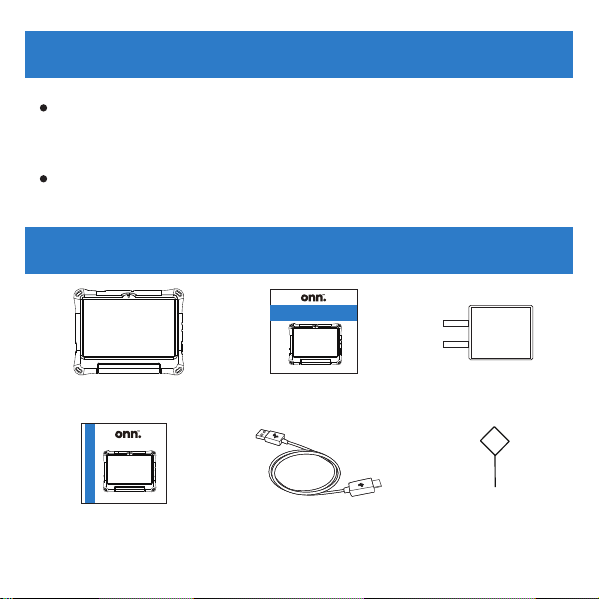
User Guide
Charger
Quick Start Guide USB-C Cable
Memory Card
Ejection Pin
10.1" Kids Tablet
USER GUIDE
10.1" Kids Tablet
QUICK S TART GUI DE
10.1" Kids Tablet

6
Start Your Tablet
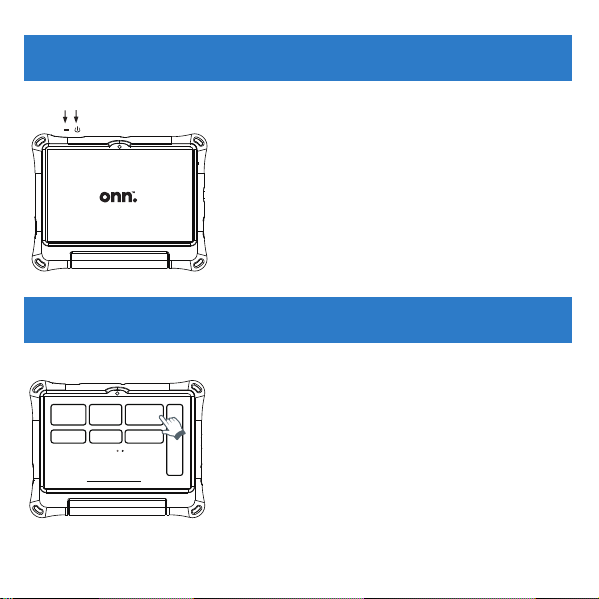
1. Press and hold the Power button for a few seconds.
(If your tablet won't turn on, or if you are instructed to connect a
charger, connect the AC adapter and charge the unit.)
2. At the Start-up screen, swipe up from the bottom of the screen
to unlock.
3. Once you reach the home screen, you can start using your tablet.
Storage Card
Supported card type: Micro SD Card
Maximum capacity: 1 TB
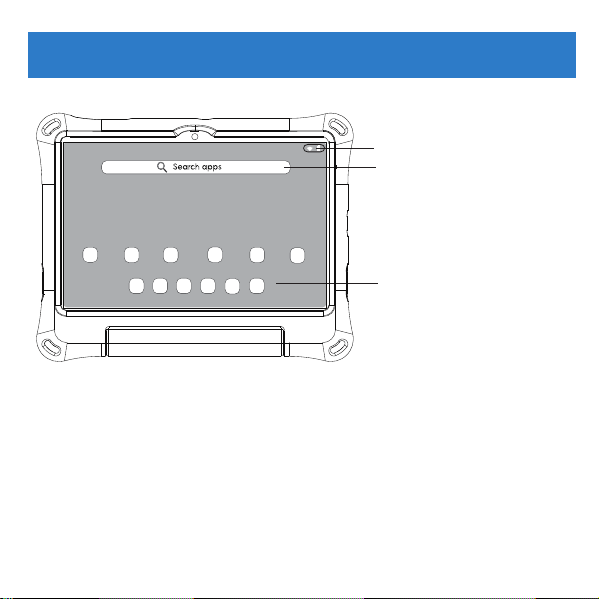
1.Status Bar.
2.Search Box.
3.Favorite apps bar.
7
Home Screen At-a-Glance
Note: on certain screens, the apps pinned to "favorite apps"
will appear in the form of a taskbar for your convenience.
2
1
3
8
Customize Your Home Screen
Home Screen At-a-Glance
The Home Screen is the starting point for using your tablet. For
convenience, the home screen has been set up, but you can
customize your home screen as follows:
Favorite Apps & App Shortcuts
At the bottom of your screen, there is a row of favorite apps.
Above this row are the app shortcuts. You can remove or add
apps in the two components.
Remove an app: Tap and hold the app that you’d like to remove,
then drag it to “Remove” .
Add an app: Swipe up in the middle of the home page to open
app finder. Tap and hold an app, then move it into the desired
spot on the home screen.
X Re m o v e

Shortcut Folders
You can create folders that contain a group of shortcut icons. To
create a shortcut folder, drag an app onto another app. Then
drag other apps into this folder.
Wallpapers
Touch and hold an empty space on the home screen > Tap
“Wallpapers” > Select a picture > Tap “Set wallpaper” > Select
“Home screen”, “Lock screen” or both.
Widgets
Touch and hold an empty space on the home screen > Tap
“Widgets” > Select wanted widget > Drag it to the desired spot.
Home settings
Touch and hold an empty space on the home screen > Tap
“Home settings”.
9
Gesture Navigation
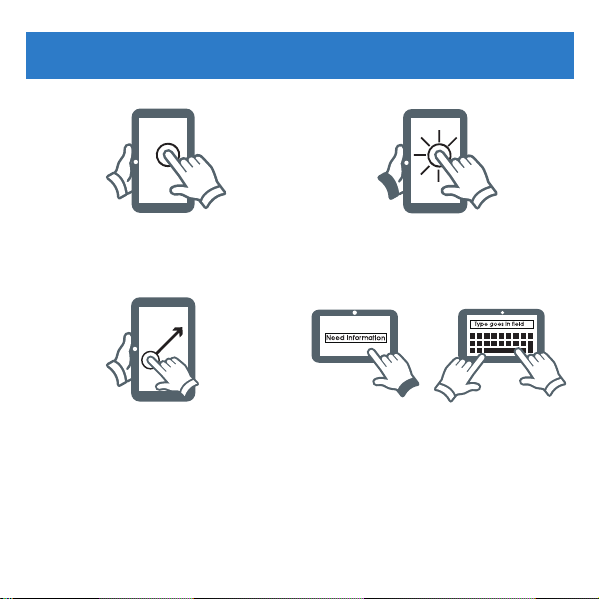
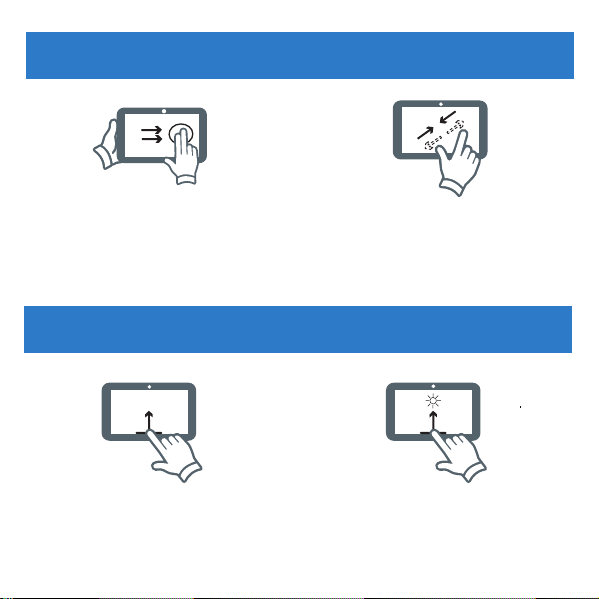
Tap: To select an item, simply tap
once with your fingertip. Some
items may require “double-click“.
Touch and Hold: Keep your finger
on an on-screen item until it glows
or activates an alternate menu.
Drag: Move an app or object by
touching and holding the image,
then moving it to the destination.
To type in a text field (for example,
when you enter your name or web
address), tap the text field. The
on-screen keyboard will appear
and allow you to enter the
information.
10
More Gestures
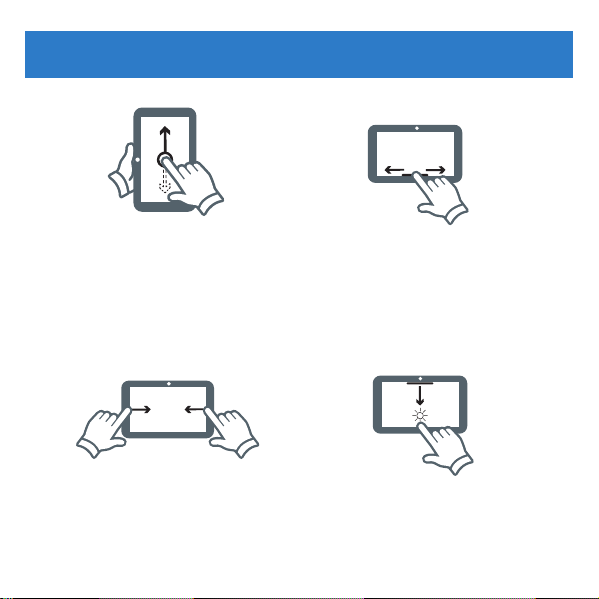
Slide: When there are extra
“screens“ to the side, slide one
or more fingers from one side
to another.
Spread and pinch: Zoom in and
out of websites, photos or other
items.
Swipe up from the bottom edge
and hold: View recent apps.
Swipe up from the bottom:
Go back to the home screen.
11
12
Swipe from the left or right
edge: Go back from the
current screen or exit
current app.
Swipe up in the middle of the
home page: Open app finder.
Swipe left or right at the
bottom edge: Switch among
apps.
Swipe down from the top edge:
Access quick settings or view
all notifications.
13
Screenshots
Screen Recordings
1. Press the power button and volume down
button at the same time.
2. Release both buttons until hear the
promt sound.
3. After taking a screenshot, a visual eect
will temporarily appear in the lower-left
corner of the screen. Tap to open it or
swipe left to dismiss it.
1. Pull down quick settings panel from the
top, then from there swipe left to the second
page and tap “Screen record - Start”.
2. Choose “Record audio” or not and “Show
touches on screen” or not, then tap “Start”.
3. Wait for the 3-second countdown.
4. To stop recording, open quick settings
panel, tap “Screen record - Stop”.
Srreen record
Start/Stop

14
Manage Your Apps
Search for an app
1. Swipe up in the middle of the home screen to see the list of all
apps.
2. Enter keywords in the search bar to search for an app.
Get a new app
1. Connect your tablet to the internet.
2. Go to Google Play Store.
3. Enter keywords to find an app you want.
4. Tap Install (for no-charge apps) or the app’s price.
Uninstall an app
1. Press and drag an app to at the top of the screen, and
release it to uninstall.
2. Or long press an app icon, then tap App info and Uninstall.
Note: the preinstalled apps cannot be uninstalled.
On this tablet, the Split Screen enables you to use two apps
at the same time:
1. Open the apps you want to use.
2. Swipe up from the bottom edge and hold it for a second to
open recent apps.
3. Tap your wanted app’s icon, then tap “Split screen”.
4. Tap another app you want to open.
5. The two apps appear in Split Screen View.
Note: Not all apps support split screen mode.
Switch Between Apps
With Android 14, this tablet enables you to quickly switch between
apps via the taskbar on any screen, including Split Screen:
1. To open the taskbar, swipe up from the bottom edge of the
screen when using an app.
2. Select the app you want to open. Tap All Apps to view apps
that are not pinned to the taskbar.
3. When a new app is selected, the taskbar disappears
automatically.
15
Split Screen
Tips:
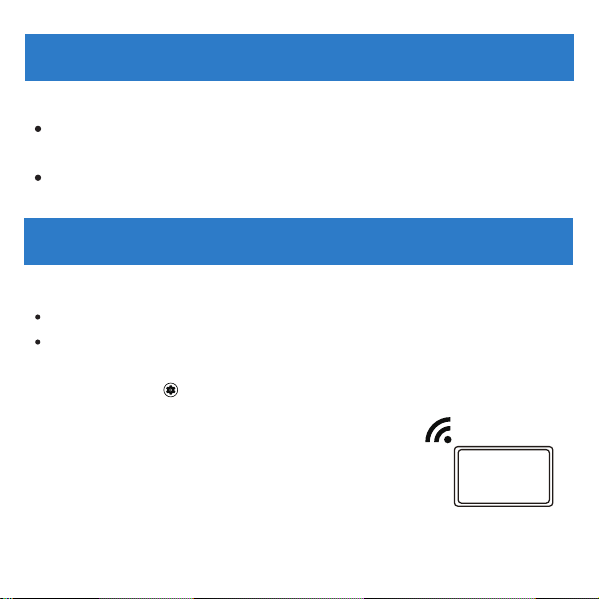
In Split Screen View, tap your wanted app will temporarily exit
the split screen mode.
To continue staying in the split screen mode, tap and drag the
icon of your wanted app to one side of the screen.
In order to connect to the internet, you will need the following:
Wi-Fi router or access point with broadband internet connection.
Your network name (SSID) and password or other credentials, if
your network is secure.
Go to “Settings“ > “Network & Internet” > “Internet”.
Connect to the Internet
Connect to WI-FI
16
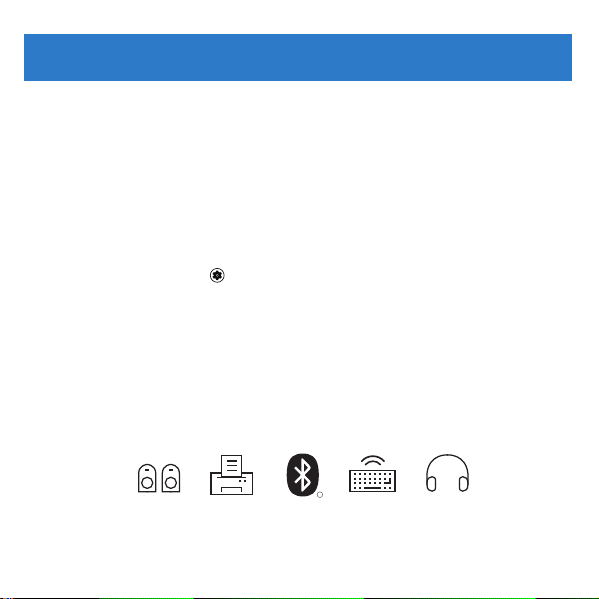
Tap WiFi to activate the Wi-Fi connection. The
tablet will scan for available WiFi networks
within range. A password will be required for a
secure network. Once you have successfully
entered your information, the tablet will
remember your settings.
Connect Bluetooth
Your tablet is compatible with Bluetooth-enabled devices. Once
your tablet has searched for and found your Bluetooth device,
follow the on-screen instructions to initiate pairing your device with
your tablet. Add or "pair" a Bluetooth-compatible device with your
tablet as follows:
1. Turn on the compatible Bluetooth device and make it
discoverable.
2. Open the “Settings” > “Connected Devices” > “Pair new device”.
3. Tap the name of Bluetooth devices you want to pair.
4. A window may appear on the paired device to confirm, follow
the on-screen commands.
5. Once the pairing is successful, the menu will display the
connected devices.
R
17
Screen Lock
To increase tablet security, do the following to set screen lock:
1. Go to “Settings” > “Security & privacy” > “Set a screen lock”.
2. Choose a screen lock method and follow the onscreen
instructions to set it.
Magnification
To make content larger, you can use this feature to magnify the
tablet screen:
1. Go to “Settings” > “Accessibility” > “Display” > “Magnification”.
2. Turn on the “Magnification shortcut” switch.
3. Tap “Accessibility button settings” > Choose “Button” or
“Gesture”.
Use Button:
Tap Magnification Button on the bottom right corner, a
colored frame will appear around the screen.
18
Magnification gestures are enabled, then follow the instructions
to start magnification.

19
Factory Reset
Use Gesture:
Swipe up with two fingers from the bottom edge of the screen,
a colored frame will appear around the screen.
Magnification gestures are enabled, then follow the instructions
to start magnification.
To erase all data from your tablet, you can reset your tablet to
factory settings. Please back up important data before perform-
ing the factory reset.
1. Go to “Settings” > “System” > “Reset options” > “Erase all data
(factory reset)” > Enter your PIN (if previously set).
2. Tap “Erase all data” again > Start the reset process.
20
System Updates
To ensure that the tablet runs smoothly, it is recommended to
perform regular system software updates, especially during the
initial setup of the tablet. From time to time, you may receive
notifications (on the lock screen) about the availability of software
updates. Click the notification that you want to be directed to the
update.
Additional options to access updates:
Click on “Settings“ > “System“ > “System Update“.
Note:
1.
2.
Force Shutdown
Press and hold the Power button and Volume up button (Vol +)
for about 8 seconds to perform a Force Shutdown.
To perform the update, the tablet must be connected to Wi-Fi.
To perform the update, ensure the battery level is at 50% or
higher, or connected to a power source.
Quick Settings and Notifications
Swipe down from the top edge of the screen to access quick
settings panel and view all notifications. Swipe up to close quick
settings panel and notifications panel.
Quick Settings Panel
To enable or disable a function, tap the function icon — Icon’s
color will change when corresponding functions are enabled
and disabled.
To open a function’s setting screen (if provided), touch and
hold the function icon.
Tap to enter edit mode.
Tap to switch accounts.
Tap to Power o, Restart or Lockdown (if provided) your
tablet.
Tap to open Settings.
21
Notifications Panel
To dismiss a notification, swipe it left or right.
To dismiss all notifications, scroll to the bottom of your notifica-
tions and tap “Clear all”.
To manage notifications, tap “Manage” at the bottom left
corner of the Notifications panel.
Use the Cameras
Tap the Camera Icon.
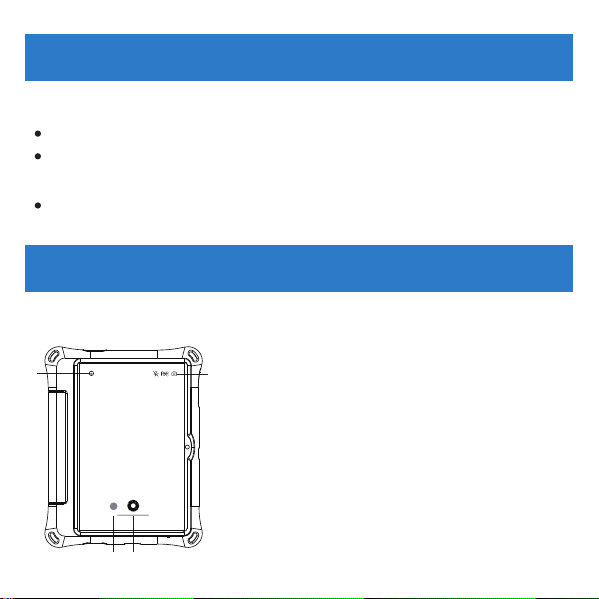
1. Switch Cameras (Front/Rear).
2. Camera Settings (Default is standard).
3. Gallery.
4. Take a photo or record a Video.
22
Picture Video
3
2
1
4
Files
23
Find files faster, free up space, share files oine, and back up files
to the cloud all in Files .
Browse files
Tap “Files“ > “Browse“, then you can do the following:
View recently stored files & View files by category.
Mark files as “Favorites” & Protect files with “Safe folder”.
Tap “Internal Storage”, and view files with folders.
Tap at the top right of the screen, then type in keywords for
searching.
Clean files
Tap “Files” > “Clean” to check available internal storage and clean
up files.
Share files
Tap “Files” > “Share”, then follow the on-screen prompts to send or
receive files.
24
Google Assistant
Get hands-free assistance from Google Assistant .
Enjoy entertainment, get answers, control your home or manage
tasks — all with just your voice:
1. Go to “Settings” > “Google” > “Settings for Google apps” >
“Search, Assistant & Voice” .
2. Tap “Google Assistant” > “General” > Turn on “Google Assistant”.
3. Press the “Power Button” or say “Hey Google”, then ask a
question or say a command.
Google Play Updates
When you sign in to Google Play for the first time, updates
automatically start downloading to your tablet. Installing new apps
while downloading multiple apps can slow down your tablet's
speed and performance. Once all downloads and updates are
installed, the tablet will return to normal operating performance.
To see the progress of a download running in the background,
swipe down from the top edge of the screen.
25
Set up the Google Kids Space
Follow the steps below to set up Google Kids Space :
1. Turn on your tablet and connect to Wi-Fi.
2. When asked who is going to use the device, tap A child. (If you've
previously set up the tablet, click the Google Kids Space icon .)
3. Sign in to your child's existing Google Account or follow the
prompts to create a new Google Account for your child under 13
(or the applicable age in your country).
4. When you're prompted to set up Google Kids Space, tap “Set up”.
5. Edit your child's Google Kids Space settings, then tap “Accept”.
6. Review the settings and apps installed on the device.
7. Choose kid’s interests and create a character, then tap “done”.
Note: these steps might slightly vary depending on the specific
device or any updates to the Kids Space app.
Remove Google Kids Space
1. In the bottom right, press and hold the Parent menu and
then tap "Device settings".
2. Go to Accounts to remove the account from the device.
More details about Kids Space on g.co/KidsSpace.

Google Discover
YouTube Kids
Google Discover, a part of Google Search, is a personalized
content service oered by Google, designed to showcase the
latest news, articles, videos, and other content based on your
individual interests.
To access Google Discover, you can swipe right from your
tablet’s home screen. With Google Discover, you can discover
new content while staying updated with information relevant to
your interests and topics.
YouTube Kids comes preinstalled on your tablet, oering a
safe, entertaining, and educational space for young viewers. By
setting specific restrictions and monitoring, parents and
caregivers can provide better guidance for their children’s
journey as they discover new and exciting interests along the
way. You can follow the on-screen prompts to set up and use
this app.
26
27
Google Play Protect
Google Play Protect regularly checks your apps and device for
harmful behavior. The Play Protect is on by default, but you can
turn it o manually.
Turn on/o Google Play Protect:
1. Go to Google Play Store .
2. Tap the profile icon at the top right corner.
3. Tap “Play Protect” > ”Settings” .
4. Turn “Scan apps with Play Protect” on or o.
More Google Apps
Google apps are preinstalled on your tablet, and more apps
can be obtained from Google Play Store. Visit support.goo-
gle.com for more information.

28
Technical Specifications
Size
Weight
OS
Chipset
Memory
Display
Sensors
Audio
Imaging
Network
Battery & Charge
• 268.8*210.8*26.7 mm±0.5mm
• 744 ± 10 grams
• Android 14
• 2.0 GHz Octa-core Processor
• 3GB RAM/32GB ROM
• 10.1" 1280*800 LCD
• G-sensor
• Light sensor
• Single mic
• Dual speakers
• 5MP FF Rear camera
• LED flash for Rear
• 2MP FF Front camera
• 2.4GHz & 5GHz (802.11 a/b/g/n/ac)
• Bluetooth
• Up to 17 hours playback time
• 5V 2A, Max 10W

29
Safety Instructions
Ports
• Type-C USB2.0 (480 Mbps)
• Headphones: Type-C headphones
• Support USB On-The-Go (OTG) devices
Operating ambient temperature: 0 - 35°C,
Storage and transportation ambient temperature: -20 - 50°C,
altitude not higher than 2000m (air pressure not less than 80kPa),
WARNING:
Replacement of a battery with an incorrect type may defeat a
safeguard.
Disposal of a battery into fire or a hot oven, or mechanically
crushing or cutting of a battery, may result in an explosion.
Leaving a battery in an extremely high temperature surrounding
environment, such as sunshine, fire, or hot surface may result in an
explosion or the leakage of flammable liquid or gas.
A battery subjected to extremely low air pressure may result in an
explosion or the leakage of flammable liquid or gas.
30
We want you to have a safe and enjoyable experience.
Please read the following instructions and precautions before using
the tablet.
Warning: This product may contain a chemical known to the State
of California to cause cancer, birth defects, or other reproductive
harm.
Avoid using the tablet in extremely hot, cold, dusty, and humid
environments.
The tablet is not moisture-proof/waterproof. Avoid using tablets
around water sources.
Avoid dropping or forcibly placing the tablet on a hard surface.
This may damage the screen or internal electronics and void the
warranty.
Do not use alcohol, thinner, or benzene to clean the tablet surface.
Use only cleaning products that are designed for computer tablet
devices.
Do not use the tablet while walking or driving.
CAUTION
Risk of fire or explosion if the battery is replaced by an incorrect
type!
To prevent possible hearing damage, do not listen
at high volumes for long periods of time. When you
are exposed to high sound pressure, a warning will
be displayed on the device.
The images in this guide may dier slightly from the actual
product.
Charge the tablet battery under any of the following
circumstances:
1. The battery level icon indicates low power, by showing a
drained, red battery icon.
2. The tablet powers-o automatically, and continues to do so
even after restarting.
3. On-screen keys do not work.
Do not suddenly disconnect the tablet when formatting,
uploading or downloading data. This can lead to program errors
(e.g., system or screen "freezing")
31
Electrostatic discharge is normal and can occur in electronic
devices, and although it is not life-threatening, it can damage
files or damage memory and its contents.

32
Disposing of the battery in a fire or hot oven, or mechanically crushing or
cutting the battery, may result in an explosion.
Leaving the battery in extremely hot surroundings, such as sunlight, fire, or
hot surfaces, may result in an explosion or leakage of flammable liquid or gas.
Batteries subjected to extremely low air pressure may cause an explosion or
leakage of flammable liquid or gas.
Disassembling the tablet will void the manufacturer's warranty.
Tablet functionality, hardware, software, and warranty information may be
improved or modified by the manufacturer or their respective owners and
are subject to change without notice.
1. READ AND FOLLOW ALL SAFETY INSTRUCTIONS.
2. Read and follow all instructions that are on the product or provided with the
product.
3. The charger is not a toy or child's product. Keep away from children. Charging
shall be operated by the adult-only.
4. Do not use an extension cord.
5. The appliance is suitable for use together used for toy machines appliances.
6. The output power taken from the supply must not exceed the rating given on
the toy transformer.
Safety Instructions for Toy Transformer

33
18. CAUTION – ELECTRIC TOY:
Not recommended for children under 3 years of age.
As with all electric products, precautions should be observed during handling and
use to prevent electric shock.
7. The toy transformer is not intended to be repaired by service personnel in case
of failure or component defect (unit can be thrown away).
8. The socket outlet must be located close to the machine and be easily accessible.
9. The appliance is suitable for moderate climates only.
10. The ventilation must not be impaired by covering the appliance with items
such as newspapers, table cloths, curtains, etc.
11. Naked flame sources, such as candles, must not be placed on the appliance.
12. The appliance and the mains-socket must all times be easily accessible.
13. In case of broken cords or plugs the appliance must be disposed.
14. The appliance does not require much attention. If you want to clean it, please
use only dry cloths or a brush.
15. WARNING: Risk of electric shock.
16. CAUTION: FOR INDOOR USE ONLY.
17. SAVE THESE INSTRUCTIONS - This manual contains important safety and
operating instructions for power units.
34
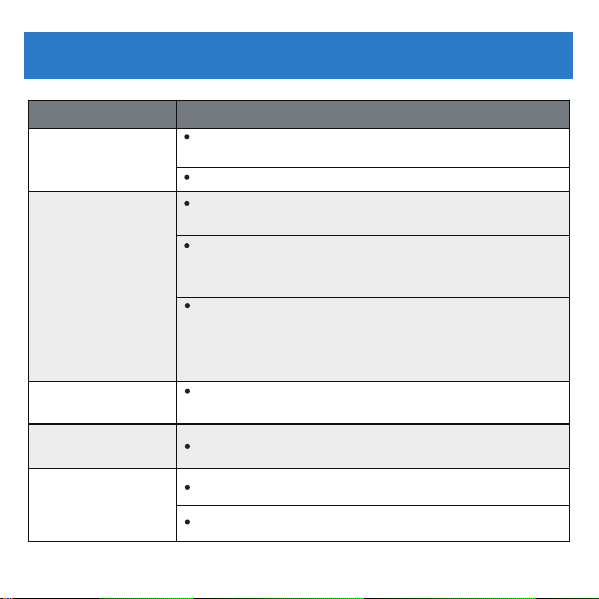
Troubleshooting
Problem Solution/Prevention
Cannot turn my
device on.
Charge the tablet for 10-15 minutes.
My tablet does
not charge.
Use the in-box charger and USB
cable to charge the tablet.
Check that the power outlet is working and
that the charger is properly plugged into the
outlet.
Reconnect the charger to the device and let
it charge for 10-15 minutes. Then press the
power button to check if there is a charging
prompt.
Press and hold the power button for more
than 3 seconds.
Get the tablet close to the router, if it doesn’t
fix the problem, try restart the tablet or the router.
Close or uninstall unwanted applications.
Uninstall third-party programs.
Restore factory settings.
My tablet cannot
connect to Wi-Fi.
My tablet runs
slow.
My tablet's
system is
abnormal.

35
The Fine Print
Walmart warrants this product to be free from defects in materials
or workmanship for a period of two (2) year from the date of original
purchase. During this time, Walmart will replace the defective part
with a new or refurbished part at no cost to you.
If your device is deemed unrepairable, Walmart will, at its sole
discretion, replace the device with a new or refurbished device.
The customer is responsible for paying the company for shipping
costs and insurance, if applicable.
It is the customer's responsibility to retain original packaging or
provide like packaging in order to facilitate the warranty process.
Walmart will incur no liability whatsoever to provide packaging for
warranty items. If the product is damaged due to insucient
packaging, the warranty may be voided. You must receive a
Return Merchandise Authorization Number (RMA #) before you can
send your device in for repair.
The service provided is warranted for the period of the original
warranty or 45 days, whichever is longer.

36
Your Responsibility
Walmart is not responsible for the content on the device. Keep a
copy of the bill of sale to provide proof of purchase.
The warranty applies only to defects in materials or workmanship
limited above and does not apply to cracked screens, damaged
USB or DC ports, cosmetic damage, or any other product, part, or
accessory that has been lost, discarded, damaged by misuse or
accident, negligence, force majeure such as lightning, voltage
surge in the home, improper installation or serial number becoming
illegible. Please contact customer support at 1-888-516-2630 from
7 a.m. to 9 p.m. CST.
You will be instructed on how to process your claim in order to
provide information, including the date of purchase, serial number,
and product issue. If it is determined that the problem is covered
by warranty, you will be provided with a Return Merchandise
Authorization Number (RMA) and instructions.
Proof of purchase must be confirmed prior to any warranty service.
If the claim is not covered by the Limited Warranty, you will be
asked if you wish to provide services for a fee.

37
Compliance Information
FCC NOTICE
The following statement applies to all FCC-approved products.
Applicable products have the FCC logo on the product label and/
or an FCC ID in the format FCC ID: 2APUQWM1091S.
This equipment has been tested and found to comply with the
limits for a Class B digital device, pursuant to Part 15 of the FCC
Rules. These limits are designed to provide reasonable protection
against harmful interference in a residential installation.
This equipment generates uses and radiates radio frequency
energy and may cause harmful interference to radio c
ommunications if not installed and used in accordance with the
instructions.
However, there is no guarantee that interference will not occur in a
particular installation.
If this equipment does cause harmful interference to radio or
television reception, which can be determined by turning the
equipment o and on, the user is encouraged to try to correct the
interference by one or more of the following measures:

38
−Reorient or position the receiving antenna.
−Increase the distance between the device and the receiver.
−Connect the device to an outlet on a circuit dierent from the one
to which the receiver is connected.
−Consult your dealer or an experienced radio/TV technician for
assistance.
WARNING: Changes or modifications to this product not expressly
approved by the party responsible for compliance could void the
user's authority to operate the equipment.
In the All APP interface, click Settings >About Tablet > Regulatory
labels to view the certification information.
Google, Android, Google Play, and other marks are trademarks of
Google LLC.
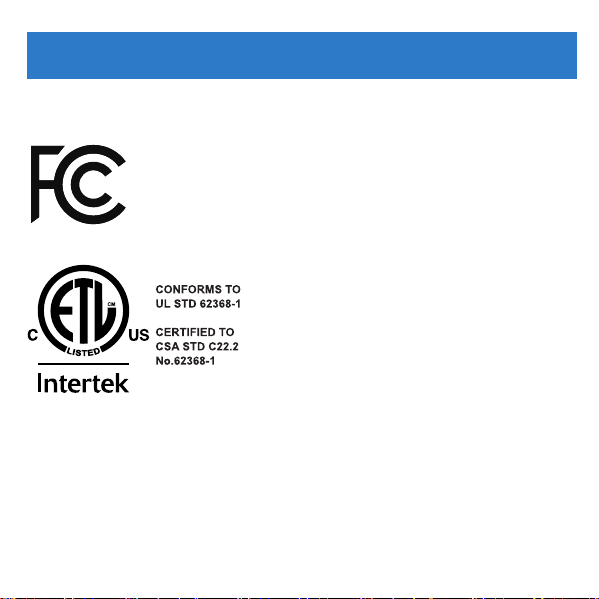
Certification Information
This device complies with Part 15 of the FCC Rules.
The operation must meet the following two
conditions:
This device may not cause harmful interference, and;
This device must accept any interference received,
including interference that may cause undesired
operation.
The FCC's SAR limit is 1.6 W/kg, with a maximum
SAR value of 1.553 W/kg when testing the device for
use on the body. The device was tested at 0 mm
and meets RF exposure requirements.
5 0 1 5 0 1 0
39