
Cut line
Fold line
Copy safe area
Outside bleed
Glue area
Great Wall
100011886_10in Tablet
OPT01
QSG
04.22.20
This document is intended only for use as a reference for the individual or entity to which it is being presented and may contain information which is privileged and confidential. No reproduction or distribution is permitted without the consent of r-pac International Corporation.
386
TBGRY100071485
FRONT
BACK
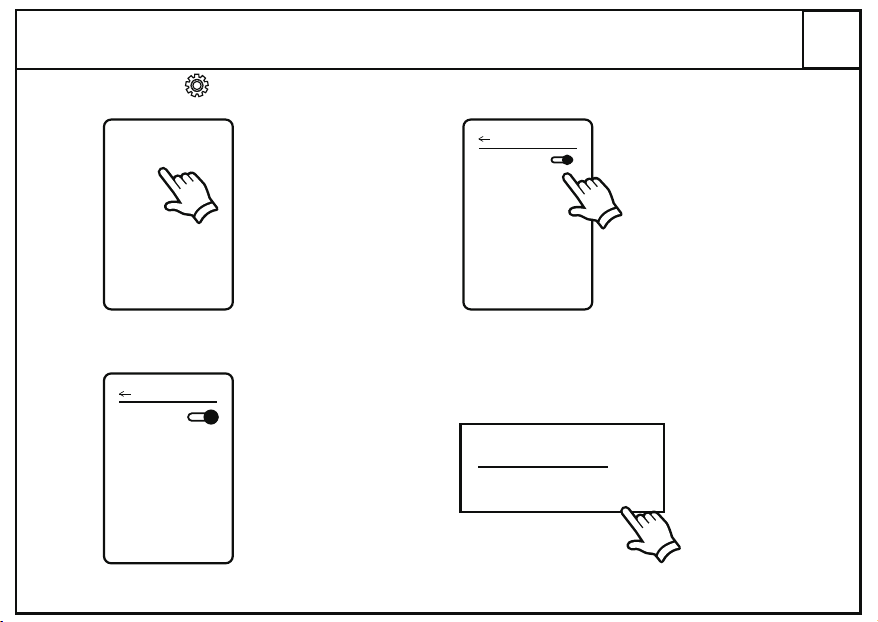
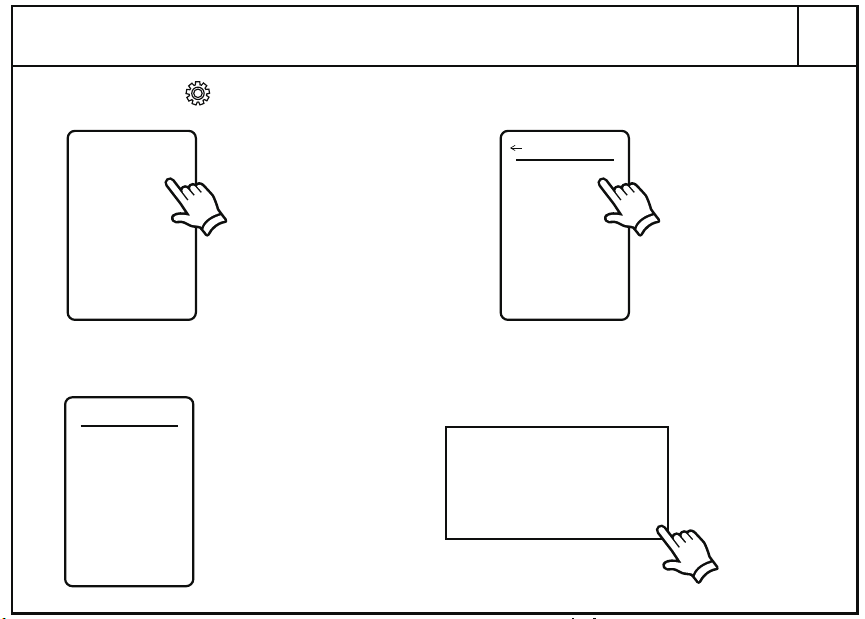
1. Select “Settings” and select the “Network & internet” menu.
2. Select “Internet” and turn on the Wi-Fi switch.
3. Available Wi-Fi networks will be listed here, select your preferred network.
4. Enter the Wi-Fi password and tap “CONNECT” to start the connection.
5. Wi-Fi will be connected automatically next time.
(Step 1) (Step 2)
(Step 3) (Step 4)
Network & internet
internet
01
Wi-Fi
Password
..........
CANCEL CONNECT
Wi-Fi
Use Wi-Fi
AAAAA
BBBBB
CCCCC
Connecting to WIFI
02
Log into or Change Your Google Account
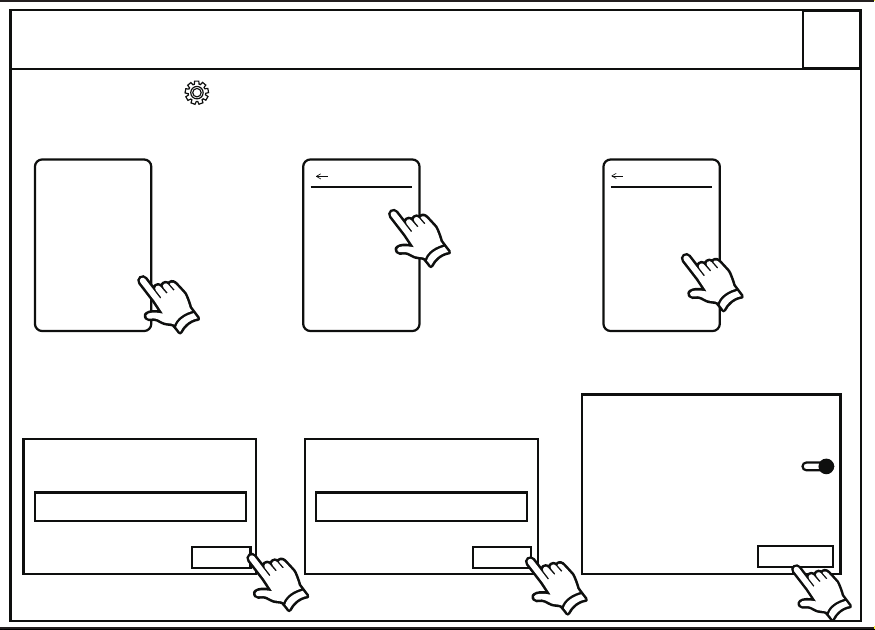
4. Choose account type. Enter account and password in the Sign in window and tap “Next”.
5. Choose to turn on or off “Back up to Google Drive” and then tap “Accept”.
(Step 4) (Step 4) (Step 5)
Google
Sign in
Your Google account
Next
........
Next
Google
Welcome
Google Services
Accept
Back up to Google Drive
2. Select “Add account”.
3. Select “Google” or another account type you'd like to add.
1. Select “Settings” and select the “Pass words & accounts” menu.
(Step 1)
Passwords & accounts
(Step 2)
Passwords & accounts
+ Add account
(Step 3)
Add an account
Google
03
Navigating Apps & Getting New Apps
(Navigating Apps Step 1)
Navigating Apps
Google Play
Sign in to find the latest Android apps, games, movies, music, & more
Sign in
(Getting New Apps Step 2)
(Getting New Apps Step 3)
Z
Search for apps & games
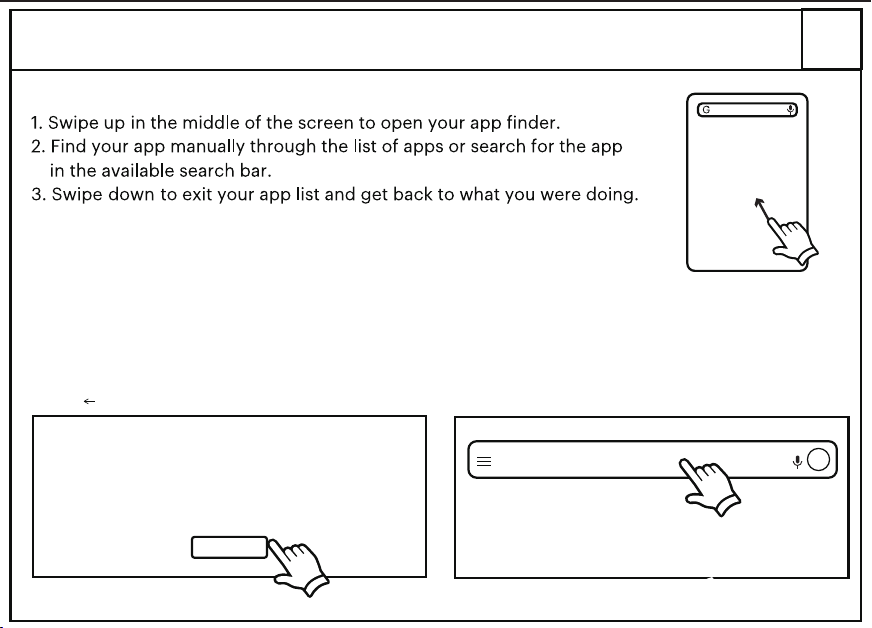
1. Connect the device to the internet. (see “Connecting to WIFI”)
2. Go to the Google Play Store and log in to your Google account.
3. Enter the desired App’s name in the search bar, tap the install button to start the download.
4. After the download is completed, the new app will appear in the app list.
Getting New Apps
04
1. Select “Settings” and tap on the “Connected devices” menu.
2. Select the “Pair new device” menu.
3. Available Bluetooth devices will be listed here, select the name of your device you want to pair.
4. A window may appear on your paired device for confirmation, follow the on screen commands.
5. Menu will show the connected devices after pairing successfully.
(Step 1)
(Step 2)
(Step 3)
(Step 4)
Connected devices
Pair new device
Available devices
AAAAA
BBBBB
CCCCC
Pair with XXXXX?
Buletooth pairing code
XXXXX
CANCEL PAIR
Connected devices
+ Pair new device
Connecting to Bluetooth Devices
Follow the steps below to set up Google Kids Space.
1. When asked who will use the tablet, select “A child”.
(If you’ve previously set up the tablet, tap on the
Google Kids Space icon )
2. Sign into your child’s existing Google Account or
follow the prompts to create a new Google Account
for your child under 13 (or the applicable age in your
country).
3. When prompted to set up Google Kids Space, tap
“Set Up”.
4. Edit your child’s settings and interests.
Remove Google Kids Space
1. In the bottom right, press and hold the
Parent menu and then tap “Device Settings”.
2. Go to Accounts to remove the account from the
device.
More details about Kids Space on g.co/KidsSpace.
Google Kids Space Set up or Remove
05
Google
An adult or a teen
A child
Who‘s going to use this device?
(Setup the Kids Space Step 1)
Free up space
Parental controls
Device settings
Help & feedback
FOR PARENTS
Add more apps
Privacy policy
(Remove the Kids Space Step 1)
Filename: WM_ONN_Great Wall_100011885_8in Tablet_QSG
CHARTREUSE FOREST C M Y K
Date: 22 Apr 2020
Stock: 157g C2S
Size: 28.74" x 4.016"
5.512"
140mm
5.512"
140mm
5.512"
140mm
5.512"
140mm
5.512"
140mm
3.937"
100mm
10.4″Tablet
Quick Start Guide
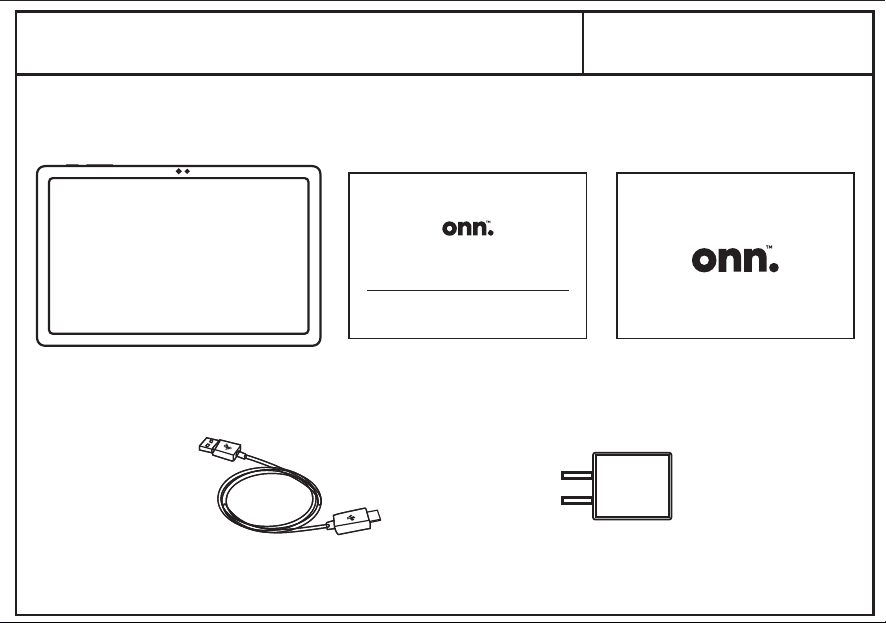
What’s in the Box?
10.4" tablet
Type-C cable
User Manual
QSG
Charger
10.4″ Tablet
Quick Start Guide
PRODUCT GUIDE
Model: TBSPG100110603
10.4
" Tablet
Tablet Pro
With Android
Tablet Pro
With Android
Check to make sure you
have everything below
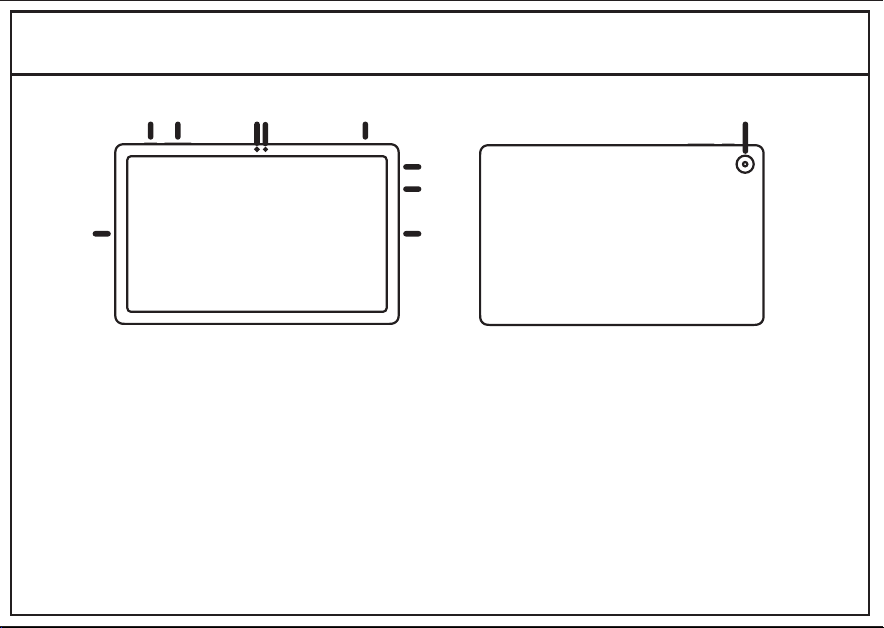
1. Power On/Off
2. Volume Control
3. Camera (Front)
4. Light Sensor
5. Micro SD Card Slot
6. Headset Jack
7. Type-C Port
8. Speakers
9. Camera (Rear)
2
3
4
6
7
9
88
1
Tablet Pro
With Android
06
Entertainment Space Set up
1. Slide the home screen to the right, follow the prompts to log in to Google Play.
2. Enter the Google account and follow the system prompts to enter the main interface of
Entertainment Space.
3. Tap “Update” to search for the latest updates of Entertainment Space.
Google Play
Sign in to find the latest Android apps, games, movies, music, & more
Sign in
(Step 1)
(Step 2)
Entertainment Space
Your favorite entertainment, in
one place
To get started, update Entertainment Space
Update
(Step 1)
Navigation Style
The Fine Print
2. Select “Settings” select “System update”, then tap on the “Check for update” button.
3. After you've searched for new updates, the system will download any available system
updates.
4. After the download is completed, tap the “Restart now” button to restart the tablet and install
1. Connect the device to the internet. (see “Connecting to WIFI”)
System updates help protect your device while providing new features we think you will love.
Updating the System Software
07
(Step 2)
System update
(Step 2)
Your system is up to date
Check for update
(Step 4)
System update available
Restart now
Walmart warrants this product against defects in material or workmanship for a period of one (1) year from the
original date of purchase.During this period, Walmart will replace a defective part with a new or refurbished
part without a charge to you.If your unit is deemed unrepairable, will replace the unit with a new or
refurbished unit at Walmart's sole discretion.The customer is responsible for transportation cost and insurance
charges (if applicable) to Corporate.It is the customer's responsibility to retain original packaging or provide
like packaging in order to facilitate the warranty process. Walmart will incur no liability whatsoever to provide
packaging for warranty items.Should the product be damaged due to insufficient packaging, the warranty may
be voided.You must receive a return authorization number (RMA #) before sending the unit in for service.
Service that is provided is warranted for the duration of the original warranty or 45 days whichever
is greater.
08
09
When set up your device for the first time, follow the on-screen instructions to choose a
navigation style for touch controls.
• Gesture navigation: Swipe, hold, or release the screen or apps for activities.
• 3-button navigation: Go back, Home and switch among apps using buttons at the bottom of the
screen.
Your Responsibility
It is strongly recommended to make a backup copy of the contents on your hard drive in case of operational
failure.Walmart will not be held liable for content that is on the device.Retain a copy of the bill of sale to provide
proof of purchase.The warranty extends only to defects in materials or workmanship as limited above and does
not extend to a cracked screen, damaged USB or DC port, cosmetic damage, or any other products, parts or
accessories that have been lost, discarded, damaged by misuse or accident, neglect, acts of God such as
lightning, voltage surges in the home, improper installation,or serial number rendered illegible. Please contact
Customer Support at 1-888-516-2630 at 7 am to 9 pm CST.
You will be instructed on how your claim will be processed so have information available including date of
purchase, serial number and the problem with the product.Should a problem be determined to be within the
limits of the warranty you will be provided with an (RMA) authorization number and instruction.Proof of purchase
must be confirmed before any warranty service can be provided.Should a claim not be covered by the limited
warranty, you will be asked whether you wish to have service provided for a fee.
1. I cannot turn my device on.
Press and hold the power button for more than 3 seconds or charge the tablet for 10-15 minutes.
2. My tablet does not charge.
Use the in-box charger and USB cable to charge your tablet.
Check whether the power outlet is working, and the charger is correctly plugged into the outlet.
Reconnect the charger to the device and let it charge for 10-15 minutes.Then press the power
button to check if there is a charging prompt.
3. My tablet cannot connect to wifi.
Use your device closer to your router, if this does not solve the issue restart your router.
4. My tablet turns off automatically.
Please charge the tablet.
5. My tablet's touch screen is malfunctioning.
Clean your tablet screen.
6. My tablet runs slow.
Close or uninstall unwanted applications.
7. My tablet’s system is abnormal.
Uninstall third-party programs/restore factory settings.
10But Wait... There’s More!
Get to Know Your Tablet
5
Cut line
Fold line
Copy safe area
Outside bleed
Glue area
Great Wall
100011886_10in Tablet
OPT01
QSG
04.22.20
This document is intended only for use as a reference for the individual or entity to which it is being presented and may contain information which is privileged and confidential. No reproduction or distribution is permitted without the consent of r-pac International Corporation.
386
TBGRY100071485
FRONT
BACK
1. Select “Settings” and select the “Network & internet” menu.
2. Select “Internet” and turn on the Wi-Fi switch.
3. Available Wi-Fi networks will be listed here, select your preferred network.
4. Enter the Wi-Fi password and tap “CONNECT” to start the connection.
5. Wi-Fi will be connected automatically next time.
(Step 1) (Step 2)
(Step 3) (Step 4)
Network & internet
internet
01
Wi-Fi
Password
..........
CANCEL CONNECT
Wi-Fi
Use Wi-Fi
AAAAA
BBBBB
CCCCC
Connecting to WIFI
02
Log into or Change Your Google Account
4. Choose account type. Enter account and password in the Sign in window and tap “Next”.
5. Choose to turn on or off “Back up to Google Drive” and then tap “Accept”.
(Step 4) (Step 4) (Step 5)
Google
Sign in
Your Google account
Next
........
Next
Google
Welcome
Google Services
Accept
Back up to Google Drive
2. Select “Add account”.
3. Select “Google” or another account type you'd like to add.
1. Select “Settings” and select the “Pass words & accounts” menu.
(Step 1)
Passwords & accounts
(Step 2)
Passwords & accounts
+ Add account
(Step 3)
Add an account
Google
03
Navigating Apps & Getting New Apps
(Navigating Apps Step 1)
Navigating Apps
Google Play
Sign in to find the latest Android apps, games, movies, music, & more
Sign in
(Getting New Apps Step 2)
(Getting New Apps Step 3)
Z
Search for apps & games
1. Connect the device to the internet. (see “Connecting to WIFI”)
2. Go to the Google Play Store and log in to your Google account.
3. Enter the desired App’s name in the search bar, tap the install button to start the download.
4. After the download is completed, the new app will appear in the app list.
Getting New Apps
04
1. Select “Settings” and tap on the “Connected devices” menu.
2. Select the “Pair new device” menu.
3. Available Bluetooth devices will be listed here, select the name of your device you want to pair.
4. A window may appear on your paired device for confirmation, follow the on screen commands.
5. Menu will show the connected devices after pairing successfully.
(Step 1)
(Step 2)
(Step 3)
(Step 4)
Connected devices
Pair new device
Available devices
AAAAA
BBBBB
CCCCC
Pair with XXXXX?
Buletooth pairing code
XXXXX
CANCEL PAIR
Connected devices
+ Pair new device
Connecting to Bluetooth Devices
Follow the steps below to set up Google Kids Space.
1. When asked who will use the tablet, select “A child”.
(If you’ve previously set up the tablet, tap on the
Google Kids Space icon )
2. Sign into your child’s existing Google Account or
follow the prompts to create a new Google Account
for your child under 13 (or the applicable age in your
country).
3. When prompted to set up Google Kids Space, tap
“Set Up”.
4. Edit your child’s settings and interests.
Remove Google Kids Space
1. In the bottom right, press and hold the
Parent menu and then tap “Device Settings”.
2. Go to Accounts to remove the account from the
device.
More details about Kids Space on g.co/KidsSpace.
Google Kids Space Set up or Remove
05
Google
An adult or a teen
A child
Who‘s going to use this device?
(Setup the Kids Space Step 1)
Free up space
Parental controls
Device settings
Help & feedback
FOR PARENTS
Add more apps
Privacy policy
(Remove the Kids Space Step 1)
Filename: WM_ONN_Great Wall_100011885_8in Tablet_QSG
CHARTREUSE FOREST C M Y K
Date: 22 Apr 2020
Stock: 157g C2S
Size: 28.74" x 4.016"
5.512"
140mm
5.512"
140mm
5.512"
140mm
5.512"
140mm
5.512"
140mm
3.937"
100mm
10.4″Tablet
Quick Start Guide
What’s in the Box?
10.4" tablet
Type-C cable
User Manual
QSG
Charger
10.4″ Tablet
Quick Start Guide
PRODUCT GUIDE
Model: TBSPG100110603
10.4
" Tablet
Tablet Pro
With Android
Tablet Pro
With Android
Check to make sure you
have everything below
1. Power On/Off
2. Volume Control
3. Camera (Front)
4. Light Sensor
5. Micro SD Card Slot
6. Headset Jack
7. Type-C Port
8. Speakers
9. Camera (Rear)
2
3
4
6
7
9
88
1
Tablet Pro
With Android
06
Entertainment Space Set up
1. Slide the home screen to the right, follow the prompts to log in to Google Play.
2. Enter the Google account and follow the system prompts to enter the main interface of
Entertainment Space.
3. Tap “Update” to search for the latest updates of Entertainment Space.
Google Play
Sign in to find the latest Android apps, games, movies, music, & more
Sign in
(Step 1)
(Step 2)
Entertainment Space
Your favorite entertainment, in
one place
To get started, update Entertainment Space
Update
(Step 1)
Navigation Style
The Fine Print
2. Select “Settings” select “System update”, then tap on the “Check for update” button.
3. After you've searched for new updates, the system will download any available system
updates.
4. After the download is completed, tap the “Restart now” button to restart the tablet and install
1. Connect the device to the internet. (see “Connecting to WIFI”)
System updates help protect your device while providing new features we think you will love.
Updating the System Software
07
(Step 2)
System update
(Step 2)
Your system is up to date
Check for update
(Step 4)
System update available
Restart now
Walmart warrants this product against defects in material or workmanship for a period of one (1) year from the
original date of purchase.During this period, Walmart will replace a defective part with a new or refurbished
part without a charge to you.If your unit is deemed unrepairable, will replace the unit with a new or
refurbished unit at Walmart's sole discretion.The customer is responsible for transportation cost and insurance
charges (if applicable) to Corporate.It is the customer's responsibility to retain original packaging or provide
like packaging in order to facilitate the warranty process. Walmart will incur no liability whatsoever to provide
packaging for warranty items.Should the product be damaged due to insufficient packaging, the warranty may
be voided.You must receive a return authorization number (RMA #) before sending the unit in for service.
Service that is provided is warranted for the duration of the original warranty or 45 days whichever
is greater.
08
09
When set up your device for the first time, follow the on-screen instructions to choose a
navigation style for touch controls.
• Gesture navigation: Swipe, hold, or release the screen or apps for activities.
• 3-button navigation: Go back, Home and switch among apps using buttons at the bottom of the
screen.
Your Responsibility
It is strongly recommended to make a backup copy of the contents on your hard drive in case of operational
failure.Walmart will not be held liable for content that is on the device.Retain a copy of the bill of sale to provide
proof of purchase.The warranty extends only to defects in materials or workmanship as limited above and does
not extend to a cracked screen, damaged USB or DC port, cosmetic damage, or any other products, parts or
accessories that have been lost, discarded, damaged by misuse or accident, neglect, acts of God such as
lightning, voltage surges in the home, improper installation,or serial number rendered illegible. Please contact
Customer Support at 1-888-516-2630 at 7 am to 9 pm CST.
You will be instructed on how your claim will be processed so have information available including date of
purchase, serial number and the problem with the product.Should a problem be determined to be within the
limits of the warranty you will be provided with an (RMA) authorization number and instruction.Proof of purchase
must be confirmed before any warranty service can be provided.Should a claim not be covered by the limited
warranty, you will be asked whether you wish to have service provided for a fee.
1. I cannot turn my device on.
Press and hold the power button for more than 3 seconds or charge the tablet for 10-15 minutes.
2. My tablet does not charge.
Use the in-box charger and USB cable to charge your tablet.
Check whether the power outlet is working, and the charger is correctly plugged into the outlet.
Reconnect the charger to the device and let it charge for 10-15 minutes.Then press the power
button to check if there is a charging prompt.
3. My tablet cannot connect to wifi.
Use your device closer to your router, if this does not solve the issue restart your router.
4. My tablet turns off automatically.
Please charge the tablet.
5. My tablet's touch screen is malfunctioning.
Clean your tablet screen.
6. My tablet runs slow.
Close or uninstall unwanted applications.
7. My tablet’s system is abnormal.
Uninstall third-party programs/restore factory settings.
10But Wait... There’s More!
Get to Know Your Tablet
5
Cut line
Fold line
Copy safe area
Outside bleed
Glue area
Great Wall
100011886_10in Tablet
OPT01
QSG
04.22.20
This document is intended only for use as a reference for the individual or entity to which it is being presented and may contain information which is privileged and confidential. No reproduction or distribution is permitted without the consent of r-pac International Corporation.
386
TBGRY100071485
FRONT
BACK
1. Select “Settings” and select the “Network & internet” menu.
2. Select “Internet” and turn on the Wi-Fi switch.
3. Available Wi-Fi networks will be listed here, select your preferred network.
4. Enter the Wi-Fi password and tap “CONNECT” to start the connection.
5. Wi-Fi will be connected automatically next time.
(Step 1) (Step 2)
(Step 3) (Step 4)
Network & internet
internet
01
Wi-Fi
Password
..........
CANCEL CONNECT
Wi-Fi
Use Wi-Fi
AAAAA
BBBBB
CCCCC
Connecting to WIFI
02
Log into or Change Your Google Account
4. Choose account type. Enter account and password in the Sign in window and tap “Next”.
5. Choose to turn on or off “Back up to Google Drive” and then tap “Accept”.
(Step 4) (Step 4) (Step 5)
Google
Sign in
Your Google account
Next
........
Next
Google
Welcome
Google Services
Accept
Back up to Google Drive
2. Select “Add account”.
3. Select “Google” or another account type you'd like to add.
1. Select “Settings” and select the “Pass words & accounts” menu.
(Step 1)
Passwords & accounts
(Step 2)
Passwords & accounts
+ Add account
(Step 3)
Add an account
Google
03
Navigating Apps & Getting New Apps
(Navigating Apps Step 1)
Navigating Apps
Google Play
Sign in to find the latest Android apps, games, movies, music, & more
Sign in
(Getting New Apps Step 2)
(Getting New Apps Step 3)
Z
Search for apps & games
1. Connect the device to the internet. (see “Connecting to WIFI”)
2. Go to the Google Play Store and log in to your Google account.
3. Enter the desired App’s name in the search bar, tap the install button to start the download.
4. After the download is completed, the new app will appear in the app list.
Getting New Apps
04
1. Select “Settings” and tap on the “Connected devices” menu.
2. Select the “Pair new device” menu.
3. Available Bluetooth devices will be listed here, select the name of your device you want to pair.
4. A window may appear on your paired device for confirmation, follow the on screen commands.
5. Menu will show the connected devices after pairing successfully.
(Step 1)
(Step 2)
(Step 3)
(Step 4)
Connected devices
Pair new device
Available devices
AAAAA
BBBBB
CCCCC
Pair with XXXXX?
Buletooth pairing code
XXXXX
CANCEL PAIR
Connected devices
+ Pair new device
Connecting to Bluetooth Devices
Follow the steps below to set up Google Kids Space.
1. When asked who will use the tablet, select “A child”.
(If you’ve previously set up the tablet, tap on the
Google Kids Space icon )
2. Sign into your child’s existing Google Account or
follow the prompts to create a new Google Account
for your child under 13 (or the applicable age in your
country).
3. When prompted to set up Google Kids Space, tap
“Set Up”.
4. Edit your child’s settings and interests.
Remove Google Kids Space
1. In the bottom right, press and hold the
Parent menu and then tap “Device Settings”.
2. Go to Accounts to remove the account from the
device.
More details about Kids Space on g.co/KidsSpace.
Google Kids Space Set up or Remove
05
Google
An adult or a teen
A child
Who‘s going to use this device?
(Setup the Kids Space Step 1)
Free up space
Parental controls
Device settings
Help & feedback
FOR PARENTS
Add more apps
Privacy policy
(Remove the Kids Space Step 1)
Filename: WM_ONN_Great Wall_100011885_8in Tablet_QSG
CHARTREUSE FOREST C M Y K
Date: 22 Apr 2020
Stock: 157g C2S
Size: 28.74" x 4.016"
5.512"
140mm
5.512"
140mm
5.512"
140mm
5.512"
140mm
5.512"
140mm
3.937"
100mm
10.4″Tablet
Quick Start Guide
What’s in the Box?
10.4" tablet
Type-C cable
User Manual
QSG
Charger
10.4″ Tablet
Quick Start Guide
PRODUCT GUIDE
Model: TBSPG100110603
10.4
" Tablet
Tablet Pro
With Android
Tablet Pro
With Android
Check to make sure you
have everything below
1. Power On/Off
2. Volume Control
3. Camera (Front)
4. Light Sensor
5. Micro SD Card Slot
6. Headset Jack
7. Type-C Port
8. Speakers
9. Camera (Rear)
2
3
4
6
7
9
88
1
Tablet Pro
With Android
06
Entertainment Space Set up
1. Slide the home screen to the right, follow the prompts to log in to Google Play.
2. Enter the Google account and follow the system prompts to enter the main interface of
Entertainment Space.
3. Tap “Update” to search for the latest updates of Entertainment Space.
Google Play
Sign in to find the latest Android apps, games, movies, music, & more
Sign in
(Step 1)
(Step 2)
Entertainment Space
Your favorite entertainment, in
one place
To get started, update Entertainment Space
Update
(Step 1)
Navigation Style
The Fine Print
2. Select “Settings” select “System update”, then tap on the “Check for update” button.
3. After you've searched for new updates, the system will download any available system
updates.
4. After the download is completed, tap the “Restart now” button to restart the tablet and install
1. Connect the device to the internet. (see “Connecting to WIFI”)
System updates help protect your device while providing new features we think you will love.
Updating the System Software
07
(Step 2)
System update
(Step 2)
Your system is up to date
Check for update
(Step 4)
System update available
Restart now
Walmart warrants this product against defects in material or workmanship for a period of one (1) year from the
original date of purchase.During this period, Walmart will replace a defective part with a new or refurbished
part without a charge to you.If your unit is deemed unrepairable, will replace the unit with a new or
refurbished unit at Walmart's sole discretion.The customer is responsible for transportation cost and insurance
charges (if applicable) to Corporate.It is the customer's responsibility to retain original packaging or provide
like packaging in order to facilitate the warranty process. Walmart will incur no liability whatsoever to provide
packaging for warranty items.Should the product be damaged due to insufficient packaging, the warranty may
be voided.You must receive a return authorization number (RMA #) before sending the unit in for service.
Service that is provided is warranted for the duration of the original warranty or 45 days whichever
is greater.
08
09
When set up your device for the first time, follow the on-screen instructions to choose a
navigation style for touch controls.
• Gesture navigation: Swipe, hold, or release the screen or apps for activities.
• 3-button navigation: Go back, Home and switch among apps using buttons at the bottom of the
screen.
Your Responsibility
It is strongly recommended to make a backup copy of the contents on your hard drive in case of operational
failure.Walmart will not be held liable for content that is on the device.Retain a copy of the bill of sale to provide
proof of purchase.The warranty extends only to defects in materials or workmanship as limited above and does
not extend to a cracked screen, damaged USB or DC port, cosmetic damage, or any other products, parts or
accessories that have been lost, discarded, damaged by misuse or accident, neglect, acts of God such as
lightning, voltage surges in the home, improper installation,or serial number rendered illegible. Please contact
Customer Support at 1-888-516-2630 at 7 am to 9 pm CST.
You will be instructed on how your claim will be processed so have information available including date of
purchase, serial number and the problem with the product.Should a problem be determined to be within the
limits of the warranty you will be provided with an (RMA) authorization number and instruction.Proof of purchase
must be confirmed before any warranty service can be provided.Should a claim not be covered by the limited
warranty, you will be asked whether you wish to have service provided for a fee.
1. I cannot turn my device on.
Press and hold the power button for more than 3 seconds or charge the tablet for 10-15 minutes.
2. My tablet does not charge.
Use the in-box charger and USB cable to charge your tablet.
Check whether the power outlet is working, and the charger is correctly plugged into the outlet.
Reconnect the charger to the device and let it charge for 10-15 minutes.Then press the power
button to check if there is a charging prompt.
3. My tablet cannot connect to wifi.
Use your device closer to your router, if this does not solve the issue restart your router.
4. My tablet turns off automatically.
Please charge the tablet.
5. My tablet's touch screen is malfunctioning.
Clean your tablet screen.
6. My tablet runs slow.
Close or uninstall unwanted applications.
7. My tablet’s system is abnormal.
Uninstall third-party programs/restore factory settings.
10But Wait... There’s More!
Get to Know Your Tablet
5
Cut line
Fold line
Copy safe area
Outside bleed
Glue area
Great Wall
100011886_10in Tablet
OPT01
QSG
04.22.20
This document is intended only for use as a reference for the individual or entity to which it is being presented and may contain information which is privileged and confidential. No reproduction or distribution is permitted without the consent of r-pac International Corporation.
386
TBGRY100071485
FRONT
BACK
1. Select “Settings” and select the “Network & internet” menu.
2. Select “Internet” and turn on the Wi-Fi switch.
3. Available Wi-Fi networks will be listed here, select your preferred network.
4. Enter the Wi-Fi password and tap “CONNECT” to start the connection.
5. Wi-Fi will be connected automatically next time.
(Step 1) (Step 2)
(Step 3) (Step 4)
Network & internet
internet
01
Wi-Fi
Password
..........
CANCEL CONNECT
Wi-Fi
Use Wi-Fi
AAAAA
BBBBB
CCCCC
Connecting to WIFI
02
Log into or Change Your Google Account
4. Choose account type. Enter account and password in the Sign in window and tap “Next”.
5. Choose to turn on or off “Back up to Google Drive” and then tap “Accept”.
(Step 4) (Step 4) (Step 5)
Google
Sign in
Your Google account
Next
........
Next
Google
Welcome
Google Services
Accept
Back up to Google Drive
2. Select “Add account”.
3. Select “Google” or another account type you'd like to add.
1. Select “Settings” and select the “Pass words & accounts” menu.
(Step 1)
Passwords & accounts
(Step 2)
Passwords & accounts
+ Add account
(Step 3)
Add an account
Google
03
Navigating Apps & Getting New Apps
(Navigating Apps Step 1)
Navigating Apps
Google Play
Sign in to find the latest Android apps, games, movies, music, & more
Sign in
(Getting New Apps Step 2)
(Getting New Apps Step 3)
Z
Search for apps & games
1. Connect the device to the internet. (see “Connecting to WIFI”)
2. Go to the Google Play Store and log in to your Google account.
3. Enter the desired App’s name in the search bar, tap the install button to start the download.
4. After the download is completed, the new app will appear in the app list.
Getting New Apps
04
1. Select “Settings” and tap on the “Connected devices” menu.
2. Select the “Pair new device” menu.
3. Available Bluetooth devices will be listed here, select the name of your device you want to pair.
4. A window may appear on your paired device for confirmation, follow the on screen commands.
5. Menu will show the connected devices after pairing successfully.
(Step 1)
(Step 2)
(Step 3)
(Step 4)
Connected devices
Pair new device
Available devices
AAAAA
BBBBB
CCCCC
Pair with XXXXX?
Buletooth pairing code
XXXXX
CANCEL PAIR
Connected devices
+ Pair new device
Connecting to Bluetooth Devices
Follow the steps below to set up Google Kids Space.
1. When asked who will use the tablet, select “A child”.
(If you’ve previously set up the tablet, tap on the
Google Kids Space icon )
2. Sign into your child’s existing Google Account or
follow the prompts to create a new Google Account
for your child under 13 (or the applicable age in your
country).
3. When prompted to set up Google Kids Space, tap
“Set Up”.
4. Edit your child’s settings and interests.
Remove Google Kids Space
1. In the bottom right, press and hold the
Parent menu and then tap “Device Settings”.
2. Go to Accounts to remove the account from the
device.
More details about Kids Space on g.co/KidsSpace.
Google Kids Space Set up or Remove
05
Google
An adult or a teen
A child
Who‘s going to use this device?
(Setup the Kids Space Step 1)
Free up space
Parental controls
Device settings
Help & feedback
FOR PARENTS
Add more apps
Privacy policy
(Remove the Kids Space Step 1)
Filename: WM_ONN_Great Wall_100011885_8in Tablet_QSG
CHARTREUSE FOREST C M Y K
Date: 22 Apr 2020
Stock: 157g C2S
Size: 28.74" x 4.016"
5.512"
140mm
5.512"
140mm
5.512"
140mm
5.512"
140mm
5.512"
140mm
3.937"
100mm
10.4″Tablet
Quick Start Guide
What’s in the Box?
10.4" tablet
Type-C cable
User Manual
QSG
Charger
10.4″ Tablet
Quick Start Guide
PRODUCT GUIDE
Model: TBSPG100110603
10.4
" Tablet
Tablet Pro
With Android
Tablet Pro
With Android
Check to make sure you
have everything below
1. Power On/Off
2. Volume Control
3. Camera (Front)
4. Light Sensor
5. Micro SD Card Slot
6. Headset Jack
7. Type-C Port
8. Speakers
9. Camera (Rear)
2
3
4
6
7
9
88
1
Tablet Pro
With Android
06
Entertainment Space Set up
1. Slide the home screen to the right, follow the prompts to log in to Google Play.
2. Enter the Google account and follow the system prompts to enter the main interface of
Entertainment Space.
3. Tap “Update” to search for the latest updates of Entertainment Space.
Google Play
Sign in to find the latest Android apps, games, movies, music, & more
Sign in
(Step 1)
(Step 2)
Entertainment Space
Your favorite entertainment, in
one place
To get started, update Entertainment Space
Update
(Step 1)
Navigation Style
The Fine Print
2. Select “Settings” select “System update”, then tap on the “Check for update” button.
3. After you've searched for new updates, the system will download any available system
updates.
4. After the download is completed, tap the “Restart now” button to restart the tablet and install
1. Connect the device to the internet. (see “Connecting to WIFI”)
System updates help protect your device while providing new features we think you will love.
Updating the System Software
07
(Step 2)
System update
(Step 2)
Your system is up to date
Check for update
(Step 4)
System update available
Restart now
Walmart warrants this product against defects in material or workmanship for a period of one (1) year from the
original date of purchase.During this period, Walmart will replace a defective part with a new or refurbished
part without a charge to you.If your unit is deemed unrepairable, will replace the unit with a new or
refurbished unit at Walmart's sole discretion.The customer is responsible for transportation cost and insurance
charges (if applicable) to Corporate.It is the customer's responsibility to retain original packaging or provide
like packaging in order to facilitate the warranty process. Walmart will incur no liability whatsoever to provide
packaging for warranty items.Should the product be damaged due to insufficient packaging, the warranty may
be voided.You must receive a return authorization number (RMA #) before sending the unit in for service.
Service that is provided is warranted for the duration of the original warranty or 45 days whichever
is greater.
08
09
When set up your device for the first time, follow the on-screen instructions to choose a
navigation style for touch controls.
• Gesture navigation: Swipe, hold, or release the screen or apps for activities.
• 3-button navigation: Go back, Home and switch among apps using buttons at the bottom of the
screen.
Your Responsibility
It is strongly recommended to make a backup copy of the contents on your hard drive in case of operational
failure.Walmart will not be held liable for content that is on the device.Retain a copy of the bill of sale to provide
proof of purchase.The warranty extends only to defects in materials or workmanship as limited above and does
not extend to a cracked screen, damaged USB or DC port, cosmetic damage, or any other products, parts or
accessories that have been lost, discarded, damaged by misuse or accident, neglect, acts of God such as
lightning, voltage surges in the home, improper installation,or serial number rendered illegible. Please contact
Customer Support at 1-888-516-2630 at 7 am to 9 pm CST.
You will be instructed on how your claim will be processed so have information available including date of
purchase, serial number and the problem with the product.Should a problem be determined to be within the
limits of the warranty you will be provided with an (RMA) authorization number and instruction.Proof of purchase
must be confirmed before any warranty service can be provided.Should a claim not be covered by the limited
warranty, you will be asked whether you wish to have service provided for a fee.
1. I cannot turn my device on.
Press and hold the power button for more than 3 seconds or charge the tablet for 10-15 minutes.
2. My tablet does not charge.
Use the in-box charger and USB cable to charge your tablet.
Check whether the power outlet is working, and the charger is correctly plugged into the outlet.
Reconnect the charger to the device and let it charge for 10-15 minutes.Then press the power
button to check if there is a charging prompt.
3. My tablet cannot connect to wifi.
Use your device closer to your router, if this does not solve the issue restart your router.
4. My tablet turns off automatically.
Please charge the tablet.
5. My tablet's touch screen is malfunctioning.
Clean your tablet screen.
6. My tablet runs slow.
Close or uninstall unwanted applications.
7. My tablet’s system is abnormal.
Uninstall third-party programs/restore factory settings.
10But Wait... There’s More!
Get to Know Your Tablet
5
Cut line
Fold line
Copy safe area
Outside bleed
Glue area
Great Wall
100011886_10in Tablet
OPT01
QSG
04.22.20
This document is intended only for use as a reference for the individual or entity to which it is being presented and may contain information which is privileged and confidential. No reproduction or distribution is permitted without the consent of r-pac International Corporation.
386
TBGRY100071485
FRONT
BACK
1. Select “Settings” and select the “Network & internet” menu.
2. Select “Internet” and turn on the Wi-Fi switch.
3. Available Wi-Fi networks will be listed here, select your preferred network.
4. Enter the Wi-Fi password and tap “CONNECT” to start the connection.
5. Wi-Fi will be connected automatically next time.
(Step 1) (Step 2)
(Step 3) (Step 4)
Network & internet
internet
01
Wi-Fi
Password
..........
CANCEL CONNECT
Wi-Fi
Use Wi-Fi
AAAAA
BBBBB
CCCCC
Connecting to WIFI
02
Log into or Change Your Google Account
4. Choose account type. Enter account and password in the Sign in window and tap “Next”.
5. Choose to turn on or off “Back up to Google Drive” and then tap “Accept”.
(Step 4) (Step 4) (Step 5)
Google
Sign in
Your Google account
Next
........
Next
Google
Welcome
Google Services
Accept
Back up to Google Drive
2. Select “Add account”.
3. Select “Google” or another account type you'd like to add.
1. Select “Settings” and select the “Pass words & accounts” menu.
(Step 1)
Passwords & accounts
(Step 2)
Passwords & accounts
+ Add account
(Step 3)
Add an account
Google
03
Navigating Apps & Getting New Apps
(Navigating Apps Step 1)
Navigating Apps
Google Play
Sign in to find the latest Android apps, games, movies, music, & more
Sign in
(Getting New Apps Step 2)
(Getting New Apps Step 3)
Z
Search for apps & games
1. Connect the device to the internet. (see “Connecting to WIFI”)
2. Go to the Google Play Store and log in to your Google account.
3. Enter the desired App’s name in the search bar, tap the install button to start the download.
4. After the download is completed, the new app will appear in the app list.
Getting New Apps
04
1. Select “Settings” and tap on the “Connected devices” menu.
2. Select the “Pair new device” menu.
3. Available Bluetooth devices will be listed here, select the name of your device you want to pair.
4. A window may appear on your paired device for confirmation, follow the on screen commands.
5. Menu will show the connected devices after pairing successfully.
(Step 1)
(Step 2)
(Step 3)
(Step 4)
Connected devices
Pair new device
Available devices
AAAAA
BBBBB
CCCCC
Pair with XXXXX?
Buletooth pairing code
XXXXX
CANCEL PAIR
Connected devices
+ Pair new device
Connecting to Bluetooth Devices
Follow the steps below to set up Google Kids Space.
1. When asked who will use the tablet, select “A child”.
(If you’ve previously set up the tablet, tap on the
Google Kids Space icon )
2. Sign into your child’s existing Google Account or
follow the prompts to create a new Google Account
for your child under 13 (or the applicable age in your
country).
3. When prompted to set up Google Kids Space, tap
“Set Up”.
4. Edit your child’s settings and interests.
Remove Google Kids Space
1. In the bottom right, press and hold the
Parent menu and then tap “Device Settings”.
2. Go to Accounts to remove the account from the
device.
More details about Kids Space on g.co/KidsSpace.
Google Kids Space Set up or Remove
05
Google
An adult or a teen
A child
Who‘s going to use this device?
(Setup the Kids Space Step 1)
Free up space
Parental controls
Device settings
Help & feedback
FOR PARENTS
Add more apps
Privacy policy
(Remove the Kids Space Step 1)
Filename: WM_ONN_Great Wall_100011885_8in Tablet_QSG
CHARTREUSE FOREST C M Y K
Date: 22 Apr 2020
Stock: 157g C2S
Size: 28.74" x 4.016"
5.512"
140mm
5.512"
140mm
5.512"
140mm
5.512"
140mm
5.512"
140mm
3.937"
100mm
10.4″Tablet
Quick Start Guide
What’s in the Box?
10.4" tablet
Type-C cable
User Manual
QSG
Charger
10.4″ Tablet
Quick Start Guide
PRODUCT GUIDE
Model: TBSPG100110603
10.4
" Tablet
Tablet Pro
With Android
Tablet Pro
With Android
Check to make sure you
have everything below
1. Power On/Off
2. Volume Control
3. Camera (Front)
4. Light Sensor
5. Micro SD Card Slot
6. Headset Jack
7. Type-C Port
8. Speakers
9. Camera (Rear)
2
3
4
6
7
9
88
1
Tablet Pro
With Android
06
Entertainment Space Set up
1. Slide the home screen to the right, follow the prompts to log in to Google Play.
2. Enter the Google account and follow the system prompts to enter the main interface of
Entertainment Space.
3. Tap “Update” to search for the latest updates of Entertainment Space.
Google Play
Sign in to find the latest Android apps, games, movies, music, & more
Sign in
(Step 1)
(Step 2)
Entertainment Space
Your favorite entertainment, in
one place
To get started, update Entertainment Space
Update
(Step 1)
Navigation Style
The Fine Print
2. Select “Settings” select “System update”, then tap on the “Check for update” button.
3. After you've searched for new updates, the system will download any available system
updates.
4. After the download is completed, tap the “Restart now” button to restart the tablet and install
1. Connect the device to the internet. (see “Connecting to WIFI”)
System updates help protect your device while providing new features we think you will love.
Updating the System Software
07
(Step 2)
System update
(Step 2)
Your system is up to date
Check for update
(Step 4)
System update available
Restart now
Walmart warrants this product against defects in material or workmanship for a period of one (1) year from the
original date of purchase.During this period, Walmart will replace a defective part with a new or refurbished
part without a charge to you.If your unit is deemed unrepairable, will replace the unit with a new or
refurbished unit at Walmart's sole discretion.The customer is responsible for transportation cost and insurance
charges (if applicable) to Corporate.It is the customer's responsibility to retain original packaging or provide
like packaging in order to facilitate the warranty process. Walmart will incur no liability whatsoever to provide
packaging for warranty items.Should the product be damaged due to insufficient packaging, the warranty may
be voided.You must receive a return authorization number (RMA #) before sending the unit in for service.
Service that is provided is warranted for the duration of the original warranty or 45 days whichever
is greater.
08
09
When set up your device for the first time, follow the on-screen instructions to choose a
navigation style for touch controls.
• Gesture navigation: Swipe, hold, or release the screen or apps for activities.
• 3-button navigation: Go back, Home and switch among apps using buttons at the bottom of the
screen.
Your Responsibility
It is strongly recommended to make a backup copy of the contents on your hard drive in case of operational
failure.Walmart will not be held liable for content that is on the device.Retain a copy of the bill of sale to provide
proof of purchase.The warranty extends only to defects in materials or workmanship as limited above and does
not extend to a cracked screen, damaged USB or DC port, cosmetic damage, or any other products, parts or
accessories that have been lost, discarded, damaged by misuse or accident, neglect, acts of God such as
lightning, voltage surges in the home, improper installation,or serial number rendered illegible. Please contact
Customer Support at 1-888-516-2630 at 7 am to 9 pm CST.
You will be instructed on how your claim will be processed so have information available including date of
purchase, serial number and the problem with the product.Should a problem be determined to be within the
limits of the warranty you will be provided with an (RMA) authorization number and instruction.Proof of purchase
must be confirmed before any warranty service can be provided.Should a claim not be covered by the limited
warranty, you will be asked whether you wish to have service provided for a fee.
1. I cannot turn my device on.
Press and hold the power button for more than 3 seconds or charge the tablet for 10-15 minutes.
2. My tablet does not charge.
Use the in-box charger and USB cable to charge your tablet.
Check whether the power outlet is working, and the charger is correctly plugged into the outlet.
Reconnect the charger to the device and let it charge for 10-15 minutes.Then press the power
button to check if there is a charging prompt.
3. My tablet cannot connect to wifi.
Use your device closer to your router, if this does not solve the issue restart your router.
4. My tablet turns off automatically.
Please charge the tablet.
5. My tablet's touch screen is malfunctioning.
Clean your tablet screen.
6. My tablet runs slow.
Close or uninstall unwanted applications.
7. My tablet’s system is abnormal.
Uninstall third-party programs/restore factory settings.
10But Wait... There’s More!
Get to Know Your Tablet
5
Cut line
Fold line
Copy safe area
Outside bleed
Glue area
Great Wall
100011886_10in Tablet
OPT01
QSG
04.22.20
This document is intended only for use as a reference for the individual or entity to which it is being presented and may contain information which is privileged and confidential. No reproduction or distribution is permitted without the consent of r-pac International Corporation.
386
TBGRY100071485
FRONT
BACK
1. Select “Settings” and select the “Network & internet” menu.
2. Select “Internet” and turn on the Wi-Fi switch.
3. Available Wi-Fi networks will be listed here, select your preferred network.
4. Enter the Wi-Fi password and tap “CONNECT” to start the connection.
5. Wi-Fi will be connected automatically next time.
(Step 1) (Step 2)
(Step 3) (Step 4)
Network & internet
internet
01
Wi-Fi
Password
..........
CANCEL CONNECT
Wi-Fi
Use Wi-Fi
AAAAA
BBBBB
CCCCC
Connecting to WIFI
02
Log into or Change Your Google Account
4. Choose account type. Enter account and password in the Sign in window and tap “Next”.
5. Choose to turn on or off “Back up to Google Drive” and then tap “Accept”.
(Step 4) (Step 4) (Step 5)
Google
Sign in
Your Google account
Next
........
Next
Google
Welcome
Google Services
Accept
Back up to Google Drive
2. Select “Add account”.
3. Select “Google” or another account type you'd like to add.
1. Select “Settings” and select the “Pass words & accounts” menu.
(Step 1)
Passwords & accounts
(Step 2)
Passwords & accounts
+ Add account
(Step 3)
Add an account
Google
03
Navigating Apps & Getting New Apps
(Navigating Apps Step 1)
Navigating Apps
Google Play
Sign in to find the latest Android apps, games, movies, music, & more
Sign in
(Getting New Apps Step 2)
(Getting New Apps Step 3)
Z
Search for apps & games
1. Connect the device to the internet. (see “Connecting to WIFI”)
2. Go to the Google Play Store and log in to your Google account.
3. Enter the desired App’s name in the search bar, tap the install button to start the download.
4. After the download is completed, the new app will appear in the app list.
Getting New Apps
04
1. Select “Settings” and tap on the “Connected devices” menu.
2. Select the “Pair new device” menu.
3. Available Bluetooth devices will be listed here, select the name of your device you want to pair.
4. A window may appear on your paired device for confirmation, follow the on screen commands.
5. Menu will show the connected devices after pairing successfully.
(Step 1)
(Step 2)
(Step 3)
(Step 4)
Connected devices
Pair new device
Available devices
AAAAA
BBBBB
CCCCC
Pair with XXXXX?
Buletooth pairing code
XXXXX
CANCEL PAIR
Connected devices
+ Pair new device
Connecting to Bluetooth Devices
Follow the steps below to set up Google Kids Space.
1. When asked who will use the tablet, select “A child”.
(If you’ve previously set up the tablet, tap on the
Google Kids Space icon )
2. Sign into your child’s existing Google Account or
follow the prompts to create a new Google Account
for your child under 13 (or the applicable age in your
country).
3. When prompted to set up Google Kids Space, tap
“Set Up”.
4. Edit your child’s settings and interests.
Remove Google Kids Space
1. In the bottom right, press and hold the
Parent menu and then tap “Device Settings”.
2. Go to Accounts to remove the account from the
device.
More details about Kids Space on g.co/KidsSpace.
Google Kids Space Set up or Remove
05
Google
An adult or a teen
A child
Who‘s going to use this device?
(Setup the Kids Space Step 1)
Free up space
Parental controls
Device settings
Help & feedback
FOR PARENTS
Add more apps
Privacy policy
(Remove the Kids Space Step 1)
Filename: WM_ONN_Great Wall_100011885_8in Tablet_QSG
CHARTREUSE FOREST C M Y K
Date: 22 Apr 2020
Stock: 157g C2S
Size: 28.74" x 4.016"
5.512"
140mm
5.512"
140mm
5.512"
140mm
5.512"
140mm
5.512"
140mm
3.937"
100mm
10.4″Tablet
Quick Start Guide
What’s in the Box?
10.4" tablet
Type-C cable
User Manual
QSG
Charger
10.4″ Tablet
Quick Start Guide
PRODUCT GUIDE
Model: TBSPG100110603
10.4
" Tablet
Tablet Pro
With Android
Tablet Pro
With Android
Check to make sure you
have everything below
1. Power On/Off
2. Volume Control
3. Camera (Front)
4. Light Sensor
5. Micro SD Card Slot
6. Headset Jack
7. Type-C Port
8. Speakers
9. Camera (Rear)
2
3
4
6
7
9
88
1
Tablet Pro
With Android
06
Entertainment Space Set up
1. Slide the home screen to the right, follow the prompts to log in to Google Play.
2. Enter the Google account and follow the system prompts to enter the main interface of
Entertainment Space.
3. Tap “Update” to search for the latest updates of Entertainment Space.
Google Play
Sign in to find the latest Android apps, games, movies, music, & more
Sign in
(Step 1)
(Step 2)
Entertainment Space
Your favorite entertainment, in
one place
To get started, update Entertainment Space
Update
(Step 1)
Navigation Style
The Fine Print
2. Select “Settings” select “System update”, then tap on the “Check for update” button.
3. After you've searched for new updates, the system will download any available system
updates.
4. After the download is completed, tap the “Restart now” button to restart the tablet and install
1. Connect the device to the internet. (see “Connecting to WIFI”)
System updates help protect your device while providing new features we think you will love.
Updating the System Software
07
(Step 2)
System update
(Step 2)
Your system is up to date
Check for update
(Step 4)
System update available
Restart now
Walmart warrants this product against defects in material or workmanship for a period of one (1) year from the
original date of purchase.During this period, Walmart will replace a defective part with a new or refurbished
part without a charge to you.If your unit is deemed unrepairable, will replace the unit with a new or
refurbished unit at Walmart's sole discretion.The customer is responsible for transportation cost and insurance
charges (if applicable) to Corporate.It is the customer's responsibility to retain original packaging or provide
like packaging in order to facilitate the warranty process. Walmart will incur no liability whatsoever to provide
packaging for warranty items.Should the product be damaged due to insufficient packaging, the warranty may
be voided.You must receive a return authorization number (RMA #) before sending the unit in for service.
Service that is provided is warranted for the duration of the original warranty or 45 days whichever
is greater.
08
09
When set up your device for the first time, follow the on-screen instructions to choose a
navigation style for touch controls.
• Gesture navigation: Swipe, hold, or release the screen or apps for activities.
• 3-button navigation: Go back, Home and switch among apps using buttons at the bottom of the
screen.
Your Responsibility
It is strongly recommended to make a backup copy of the contents on your hard drive in case of operational
failure.Walmart will not be held liable for content that is on the device.Retain a copy of the bill of sale to provide
proof of purchase.The warranty extends only to defects in materials or workmanship as limited above and does
not extend to a cracked screen, damaged USB or DC port, cosmetic damage, or any other products, parts or
accessories that have been lost, discarded, damaged by misuse or accident, neglect, acts of God such as
lightning, voltage surges in the home, improper installation,or serial number rendered illegible. Please contact
Customer Support at 1-888-516-2630 at 7 am to 9 pm CST.
You will be instructed on how your claim will be processed so have information available including date of
purchase, serial number and the problem with the product.Should a problem be determined to be within the
limits of the warranty you will be provided with an (RMA) authorization number and instruction.Proof of purchase
must be confirmed before any warranty service can be provided.Should a claim not be covered by the limited
warranty, you will be asked whether you wish to have service provided for a fee.
1. I cannot turn my device on.
Press and hold the power button for more than 3 seconds or charge the tablet for 10-15 minutes.
2. My tablet does not charge.
Use the in-box charger and USB cable to charge your tablet.
Check whether the power outlet is working, and the charger is correctly plugged into the outlet.
Reconnect the charger to the device and let it charge for 10-15 minutes.Then press the power
button to check if there is a charging prompt.
3. My tablet cannot connect to wifi.
Use your device closer to your router, if this does not solve the issue restart your router.
4. My tablet turns off automatically.
Please charge the tablet.
5. My tablet's touch screen is malfunctioning.
Clean your tablet screen.
6. My tablet runs slow.
Close or uninstall unwanted applications.
7. My tablet’s system is abnormal.
Uninstall third-party programs/restore factory settings.
10But Wait... There’s More!
Get to Know Your Tablet
5
Cut line
Fold line
Copy safe area
Outside bleed
Glue area
Great Wall
100011886_10in Tablet
OPT01
QSG
04.22.20
This document is intended only for use as a reference for the individual or entity to which it is being presented and may contain information which is privileged and confidential. No reproduction or distribution is permitted without the consent of r-pac International Corporation.
386
TBGRY100071485
FRONT
BACK
1. Select “Settings” and select the “Network & internet” menu.
2. Select “Internet” and turn on the Wi-Fi switch.
3. Available Wi-Fi networks will be listed here, select your preferred network.
4. Enter the Wi-Fi password and tap “CONNECT” to start the connection.
5. Wi-Fi will be connected automatically next time.
(Step 1) (Step 2)
(Step 3) (Step 4)
Network & internet
internet
01
Wi-Fi
Password
..........
CANCEL CONNECT
Wi-Fi
Use Wi-Fi
AAAAA
BBBBB
CCCCC
Connecting to WIFI
02
Log into or Change Your Google Account
4. Choose account type. Enter account and password in the Sign in window and tap “Next”.
5. Choose to turn on or off “Back up to Google Drive” and then tap “Accept”.
(Step 4) (Step 4) (Step 5)
Google
Sign in
Your Google account
Next
........
Next
Google
Welcome
Google Services
Accept
Back up to Google Drive
2. Select “Add account”.
3. Select “Google” or another account type you'd like to add.
1. Select “Settings” and select the “Pass words & accounts” menu.
(Step 1)
Passwords & accounts
(Step 2)
Passwords & accounts
+ Add account
(Step 3)
Add an account
Google
03
Navigating Apps & Getting New Apps
(Navigating Apps Step 1)
Navigating Apps
Google Play
Sign in to find the latest Android apps, games, movies, music, & more
Sign in
(Getting New Apps Step 2)
(Getting New Apps Step 3)
Z
Search for apps & games
1. Connect the device to the internet. (see “Connecting to WIFI”)
2. Go to the Google Play Store and log in to your Google account.
3. Enter the desired App’s name in the search bar, tap the install button to start the download.
4. After the download is completed, the new app will appear in the app list.
Getting New Apps
04
1. Select “Settings” and tap on the “Connected devices” menu.
2. Select the “Pair new device” menu.
3. Available Bluetooth devices will be listed here, select the name of your device you want to pair.
4. A window may appear on your paired device for confirmation, follow the on screen commands.
5. Menu will show the connected devices after pairing successfully.
(Step 1)
(Step 2)
(Step 3)
(Step 4)
Connected devices
Pair new device
Available devices
AAAAA
BBBBB
CCCCC
Pair with XXXXX?
Buletooth pairing code
XXXXX
CANCEL PAIR
Connected devices
+ Pair new device
Connecting to Bluetooth Devices
Follow the steps below to set up Google Kids Space.
1. When asked who will use the tablet, select “A child”.
(If you’ve previously set up the tablet, tap on the
Google Kids Space icon )
2. Sign into your child’s existing Google Account or
follow the prompts to create a new Google Account
for your child under 13 (or the applicable age in your
country).
3. When prompted to set up Google Kids Space, tap
“Set Up”.
4. Edit your child’s settings and interests.
Remove Google Kids Space
1. In the bottom right, press and hold the
Parent menu and then tap “Device Settings”.
2. Go to Accounts to remove the account from the
device.
More details about Kids Space on g.co/KidsSpace.
Google Kids Space Set up or Remove
05
Google
An adult or a teen
A child
Who‘s going to use this device?
(Setup the Kids Space Step 1)
Free up space
Parental controls
Device settings
Help & feedback
FOR PARENTS
Add more apps
Privacy policy
(Remove the Kids Space Step 1)
Filename: WM_ONN_Great Wall_100011885_8in Tablet_QSG
CHARTREUSE FOREST C M Y K
Date: 22 Apr 2020
Stock: 157g C2S
Size: 28.74" x 4.016"
5.512"
140mm
5.512"
140mm
5.512"
140mm
5.512"
140mm
5.512"
140mm
3.937"
100mm
10.4″Tablet
Quick Start Guide
What’s in the Box?
10.4" tablet
Type-C cable
User Manual
QSG
Charger
10.4″ Tablet
Quick Start Guide
PRODUCT GUIDE
Model: TBSPG100110603
10.4
" Tablet
Tablet Pro
With Android
Tablet Pro
With Android
Check to make sure you
have everything below
1. Power On/Off
2. Volume Control
3. Camera (Front)
4. Light Sensor
5. Micro SD Card Slot
6. Headset Jack
7. Type-C Port
8. Speakers
9. Camera (Rear)
2
3
4
6
7
9
88
1
Tablet Pro
With Android
06
Entertainment Space Set up
1. Slide the home screen to the right, follow the prompts to log in to Google Play.
2. Enter the Google account and follow the system prompts to enter the main interface of
Entertainment Space.
3. Tap “Update” to search for the latest updates of Entertainment Space.
Google Play
Sign in to find the latest Android apps, games, movies, music, & more
Sign in
(Step 1)
(Step 2)
Entertainment Space
Your favorite entertainment, in
one place
To get started, update Entertainment Space
Update
(Step 1)
Navigation Style
The Fine Print
2. Select “Settings” select “System update”, then tap on the “Check for update” button.
3. After you've searched for new updates, the system will download any available system
updates.
4. After the download is completed, tap the “Restart now” button to restart the tablet and install
1. Connect the device to the internet. (see “Connecting to WIFI”)
System updates help protect your device while providing new features we think you will love.
Updating the System Software
07
(Step 2)
System update
(Step 2)
Your system is up to date
Check for update
(Step 4)
System update available
Restart now
Walmart warrants this product against defects in material or workmanship for a period of one (1) year from the
original date of purchase.During this period, Walmart will replace a defective part with a new or refurbished
part without a charge to you.If your unit is deemed unrepairable, will replace the unit with a new or
refurbished unit at Walmart's sole discretion.The customer is responsible for transportation cost and insurance
charges (if applicable) to Corporate.It is the customer's responsibility to retain original packaging or provide
like packaging in order to facilitate the warranty process. Walmart will incur no liability whatsoever to provide
packaging for warranty items.Should the product be damaged due to insufficient packaging, the warranty may
be voided.You must receive a return authorization number (RMA #) before sending the unit in for service.
Service that is provided is warranted for the duration of the original warranty or 45 days whichever
is greater.
08
09
When set up your device for the first time, follow the on-screen instructions to choose a
navigation style for touch controls.
• Gesture navigation: Swipe, hold, or release the screen or apps for activities.
• 3-button navigation: Go back, Home and switch among apps using buttons at the bottom of the
screen.
Your Responsibility
It is strongly recommended to make a backup copy of the contents on your hard drive in case of operational
failure.Walmart will not be held liable for content that is on the device.Retain a copy of the bill of sale to provide
proof of purchase.The warranty extends only to defects in materials or workmanship as limited above and does
not extend to a cracked screen, damaged USB or DC port, cosmetic damage, or any other products, parts or
accessories that have been lost, discarded, damaged by misuse or accident, neglect, acts of God such as
lightning, voltage surges in the home, improper installation,or serial number rendered illegible. Please contact
Customer Support at 1-888-516-2630 at 7 am to 9 pm CST.
You will be instructed on how your claim will be processed so have information available including date of
purchase, serial number and the problem with the product.Should a problem be determined to be within the
limits of the warranty you will be provided with an (RMA) authorization number and instruction.Proof of purchase
must be confirmed before any warranty service can be provided.Should a claim not be covered by the limited
warranty, you will be asked whether you wish to have service provided for a fee.
1. I cannot turn my device on.
Press and hold the power button for more than 3 seconds or charge the tablet for 10-15 minutes.
2. My tablet does not charge.
Use the in-box charger and USB cable to charge your tablet.
Check whether the power outlet is working, and the charger is correctly plugged into the outlet.
Reconnect the charger to the device and let it charge for 10-15 minutes.Then press the power
button to check if there is a charging prompt.
3. My tablet cannot connect to wifi.
Use your device closer to your router, if this does not solve the issue restart your router.
4. My tablet turns off automatically.
Please charge the tablet.
5. My tablet's touch screen is malfunctioning.
Clean your tablet screen.
6. My tablet runs slow.
Close or uninstall unwanted applications.
7. My tablet’s system is abnormal.
Uninstall third-party programs/restore factory settings.
10But Wait... There’s More!
Get to Know Your Tablet
5
Cut line
Fold line
Copy safe area
Outside bleed
Glue area
Great Wall
100011886_10in Tablet
OPT01
QSG
04.22.20
This document is intended only for use as a reference for the individual or entity to which it is being presented and may contain information which is privileged and confidential. No reproduction or distribution is permitted without the consent of r-pac International Corporation.
386
TBGRY100071485
FRONT
BACK
1. Select “Settings” and select the “Network & internet” menu.
2. Select “Internet” and turn on the Wi-Fi switch.
3. Available Wi-Fi networks will be listed here, select your preferred network.
4. Enter the Wi-Fi password and tap “CONNECT” to start the connection.
5. Wi-Fi will be connected automatically next time.
(Step 1) (Step 2)
(Step 3) (Step 4)
Network & internet
internet
01
Wi-Fi
Password
..........
CANCEL CONNECT
Wi-Fi
Use Wi-Fi
AAAAA
BBBBB
CCCCC
Connecting to WIFI
02
Log into or Change Your Google Account
4. Choose account type. Enter account and password in the Sign in window and tap “Next”.
5. Choose to turn on or off “Back up to Google Drive” and then tap “Accept”.
(Step 4) (Step 4) (Step 5)
Google
Sign in
Your Google account
Next
........
Next
Google
Welcome
Google Services
Accept
Back up to Google Drive
2. Select “Add account”.
3. Select “Google” or another account type you'd like to add.
1. Select “Settings” and select the “Pass words & accounts” menu.
(Step 1)
Passwords & accounts
(Step 2)
Passwords & accounts
+ Add account
(Step 3)
Add an account
Google
03
Navigating Apps & Getting New Apps
(Navigating Apps Step 1)
Navigating Apps
Google Play
Sign in to find the latest Android apps, games, movies, music, & more
Sign in
(Getting New Apps Step 2)
(Getting New Apps Step 3)
Z
Search for apps & games
1. Connect the device to the internet. (see “Connecting to WIFI”)
2. Go to the Google Play Store and log in to your Google account.
3. Enter the desired App’s name in the search bar, tap the install button to start the download.
4. After the download is completed, the new app will appear in the app list.
Getting New Apps
04
1. Select “Settings” and tap on the “Connected devices” menu.
2. Select the “Pair new device” menu.
3. Available Bluetooth devices will be listed here, select the name of your device you want to pair.
4. A window may appear on your paired device for confirmation, follow the on screen commands.
5. Menu will show the connected devices after pairing successfully.
(Step 1)
(Step 2)
(Step 3)
(Step 4)
Connected devices
Pair new device
Available devices
AAAAA
BBBBB
CCCCC
Pair with XXXXX?
Buletooth pairing code
XXXXX
CANCEL PAIR
Connected devices
+ Pair new device
Connecting to Bluetooth Devices
Follow the steps below to set up Google Kids Space.
1. When asked who will use the tablet, select “A child”.
(If you’ve previously set up the tablet, tap on the
Google Kids Space icon )
2. Sign into your child’s existing Google Account or
follow the prompts to create a new Google Account
for your child under 13 (or the applicable age in your
country).
3. When prompted to set up Google Kids Space, tap
“Set Up”.
4. Edit your child’s settings and interests.
Remove Google Kids Space
1. In the bottom right, press and hold the
Parent menu and then tap “Device Settings”.
2. Go to Accounts to remove the account from the
device.
More details about Kids Space on g.co/KidsSpace.
Google Kids Space Set up or Remove
05
Google
An adult or a teen
A child
Who‘s going to use this device?
(Setup the Kids Space Step 1)
Free up space
Parental controls
Device settings
Help & feedback
FOR PARENTS
Add more apps
Privacy policy
(Remove the Kids Space Step 1)
Filename: WM_ONN_Great Wall_100011885_8in Tablet_QSG
CHARTREUSE FOREST C M Y K
Date: 22 Apr 2020
Stock: 157g C2S
Size: 28.74" x 4.016"
5.512"
140mm
5.512"
140mm
5.512"
140mm
5.512"
140mm
5.512"
140mm
3.937"
100mm
10.4″Tablet
Quick Start Guide
What’s in the Box?
10.4" tablet
Type-C cable
User Manual
QSG
Charger
10.4″ Tablet
Quick Start Guide
PRODUCT GUIDE
Model: TBSPG100110603
10.4
" Tablet
Tablet Pro
With Android
Tablet Pro
With Android
Check to make sure you
have everything below
1. Power On/Off
2. Volume Control
3. Camera (Front)
4. Light Sensor
5. Micro SD Card Slot
6. Headset Jack
7. Type-C Port
8. Speakers
9. Camera (Rear)
2
3
4
6
7
9
88
1
Tablet Pro
With Android
06
Entertainment Space Set up
1. Slide the home screen to the right, follow the prompts to log in to Google Play.
2. Enter the Google account and follow the system prompts to enter the main interface of
Entertainment Space.
3. Tap “Update” to search for the latest updates of Entertainment Space.
Google Play
Sign in to find the latest Android apps, games, movies, music, & more
Sign in
(Step 1)
(Step 2)
Entertainment Space
Your favorite entertainment, in
one place
To get started, update Entertainment Space
Update
(Step 1)
Navigation Style
The Fine Print
2. Select “Settings” select “System update”, then tap on the “Check for update” button.
3. After you've searched for new updates, the system will download any available system
updates.
4. After the download is completed, tap the “Restart now” button to restart the tablet and install
1. Connect the device to the internet. (see “Connecting to WIFI”)
System updates help protect your device while providing new features we think you will love.
Updating the System Software
07
(Step 2)
System update
(Step 2)
Your system is up to date
Check for update
(Step 4)
System update available
Restart now
Walmart warrants this product against defects in material or workmanship for a period of one (1) year from the
original date of purchase.During this period, Walmart will replace a defective part with a new or refurbished
part without a charge to you.If your unit is deemed unrepairable, will replace the unit with a new or
refurbished unit at Walmart's sole discretion.The customer is responsible for transportation cost and insurance
charges (if applicable) to Corporate.It is the customer's responsibility to retain original packaging or provide
like packaging in order to facilitate the warranty process. Walmart will incur no liability whatsoever to provide
packaging for warranty items.Should the product be damaged due to insufficient packaging, the warranty may
be voided.You must receive a return authorization number (RMA #) before sending the unit in for service.
Service that is provided is warranted for the duration of the original warranty or 45 days whichever
is greater.
08
09
When set up your device for the first time, follow the on-screen instructions to choose a
navigation style for touch controls.
• Gesture navigation: Swipe, hold, or release the screen or apps for activities.
• 3-button navigation: Go back, Home and switch among apps using buttons at the bottom of the
screen.
Your Responsibility
It is strongly recommended to make a backup copy of the contents on your hard drive in case of operational
failure.Walmart will not be held liable for content that is on the device.Retain a copy of the bill of sale to provide
proof of purchase.The warranty extends only to defects in materials or workmanship as limited above and does
not extend to a cracked screen, damaged USB or DC port, cosmetic damage, or any other products, parts or
accessories that have been lost, discarded, damaged by misuse or accident, neglect, acts of God such as
lightning, voltage surges in the home, improper installation,or serial number rendered illegible. Please contact
Customer Support at 1-888-516-2630 at 7 am to 9 pm CST.
You will be instructed on how your claim will be processed so have information available including date of
purchase, serial number and the problem with the product.Should a problem be determined to be within the
limits of the warranty you will be provided with an (RMA) authorization number and instruction.Proof of purchase
must be confirmed before any warranty service can be provided.Should a claim not be covered by the limited
warranty, you will be asked whether you wish to have service provided for a fee.
1. I cannot turn my device on.
Press and hold the power button for more than 3 seconds or charge the tablet for 10-15 minutes.
2. My tablet does not charge.
Use the in-box charger and USB cable to charge your tablet.
Check whether the power outlet is working, and the charger is correctly plugged into the outlet.
Reconnect the charger to the device and let it charge for 10-15 minutes.Then press the power
button to check if there is a charging prompt.
3. My tablet cannot connect to wifi.
Use your device closer to your router, if this does not solve the issue restart your router.
4. My tablet turns off automatically.
Please charge the tablet.
5. My tablet's touch screen is malfunctioning.
Clean your tablet screen.
6. My tablet runs slow.
Close or uninstall unwanted applications.
7. My tablet’s system is abnormal.
Uninstall third-party programs/restore factory settings.
10But Wait... There’s More!
Get to Know Your Tablet
5
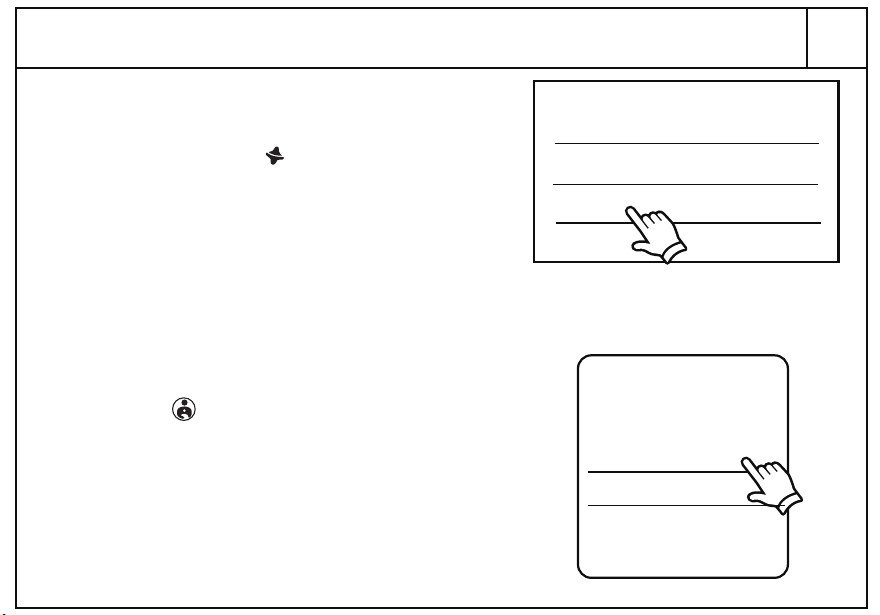
Cut line
Fold line
Copy safe area
Outside bleed
Glue area
Great Wall
100011886_10in Tablet
OPT01
QSG
04.22.20
This document is intended only for use as a reference for the individual or entity to which it is being presented and may contain information which is privileged and confidential. No reproduction or distribution is permitted without the consent of r-pac International Corporation.
386
TBGRY100071485
FRONT
BACK
1. Select “Settings” and select the “Network & internet” menu.
2. Select “Internet” and turn on the Wi-Fi switch.
3. Available Wi-Fi networks will be listed here, select your preferred network.
4. Enter the Wi-Fi password and tap “CONNECT” to start the connection.
5. Wi-Fi will be connected automatically next time.
(Step 1) (Step 2)
(Step 3) (Step 4)
Network & internet
internet
01
Wi-Fi
Password
..........
CANCEL CONNECT
Wi-Fi
Use Wi-Fi
AAAAA
BBBBB
CCCCC
Connecting to WIFI
02
Log into or Change Your Google Account
4. Choose account type. Enter account and password in the Sign in window and tap “Next”.
5. Choose to turn on or off “Back up to Google Drive” and then tap “Accept”.
(Step 4) (Step 4) (Step 5)
Google
Sign in
Your Google account
Next
........
Next
Google
Welcome
Google Services
Accept
Back up to Google Drive
2. Select “Add account”.
3. Select “Google” or another account type you'd like to add.
1. Select “Settings” and select the “Pass words & accounts” menu.
(Step 1)
Passwords & accounts
(Step 2)
Passwords & accounts
+ Add account
(Step 3)
Add an account
Google
03
Navigating Apps & Getting New Apps
(Navigating Apps Step 1)
Navigating Apps
Google Play
Sign in to find the latest Android apps, games, movies, music, & more
Sign in
(Getting New Apps Step 2)
(Getting New Apps Step 3)
Z
Search for apps & games
1. Connect the device to the internet. (see “Connecting to WIFI”)
2. Go to the Google Play Store and log in to your Google account.
3. Enter the desired App’s name in the search bar, tap the install button to start the download.
4. After the download is completed, the new app will appear in the app list.
Getting New Apps
04
1. Select “Settings” and tap on the “Connected devices” menu.
2. Select the “Pair new device” menu.
3. Available Bluetooth devices will be listed here, select the name of your device you want to pair.
4. A window may appear on your paired device for confirmation, follow the on screen commands.
5. Menu will show the connected devices after pairing successfully.
(Step 1)
(Step 2)
(Step 3)
(Step 4)
Connected devices
Pair new device
Available devices
AAAAA
BBBBB
CCCCC
Pair with XXXXX?
Buletooth pairing code
XXXXX
CANCEL PAIR
Connected devices
+ Pair new device
Connecting to Bluetooth Devices
Follow the steps below to set up Google Kids Space.
1. When asked who will use the tablet, select “A child”.
(If you’ve previously set up the tablet, tap on the
Google Kids Space icon )
2. Sign into your child’s existing Google Account or
follow the prompts to create a new Google Account
for your child under 13 (or the applicable age in your
country).
3. When prompted to set up Google Kids Space, tap
“Set Up”.
4. Edit your child’s settings and interests.
Remove Google Kids Space
1. In the bottom right, press and hold the
Parent menu and then tap “Device Settings”.
2. Go to Accounts to remove the account from the
device.
More details about Kids Space on g.co/KidsSpace.
Google Kids Space Set up or Remove
05
Google
An adult or a teen
A child
Who‘s going to use this device?
(Setup the Kids Space Step 1)
Free up space
Parental controls
Device settings
Help & feedback
FOR PARENTS
Add more apps
Privacy policy
(Remove the Kids Space Step 1)
Filename: WM_ONN_Great Wall_100011885_8in Tablet_QSG
CHARTREUSE FOREST C M Y K
Date: 22 Apr 2020
Stock: 157g C2S
Size: 28.74" x 4.016"
5.512"
140mm
5.512"
140mm
5.512"
140mm
5.512"
140mm
5.512"
140mm
3.937"
100mm
10.4″Tablet
Quick Start Guide
What’s in the Box?
10.4" tablet
Type-C cable
User Manual
QSG
Charger
10.4″ Tablet
Quick Start Guide
PRODUCT GUIDE
Model: TBSPG100110603
10.4
" Tablet
Tablet Pro
With Android
Tablet Pro
With Android
Check to make sure you
have everything below
1. Power On/Off
2. Volume Control
3. Camera (Front)
4. Light Sensor
5. Micro SD Card Slot
6. Headset Jack
7. Type-C Port
8. Speakers
9. Camera (Rear)
2
3
4
6
7
9
88
1
Tablet Pro
With Android
06
Entertainment Space Set up
1. Slide the home screen to the right, follow the prompts to log in to Google Play.
2. Enter the Google account and follow the system prompts to enter the main interface of
Entertainment Space.
3. Tap “Update” to search for the latest updates of Entertainment Space.
Google Play
Sign in to find the latest Android apps, games, movies, music, & more
Sign in
(Step 1)
(Step 2)
Entertainment Space
Your favorite entertainment, in
one place
To get started, update Entertainment Space
Update
(Step 1)
Navigation Style
The Fine Print
2. Select “Settings” select “System update”, then tap on the “Check for update” button.
3. After you've searched for new updates, the system will download any available system
updates.
4. After the download is completed, tap the “Restart now” button to restart the tablet and install
1. Connect the device to the internet. (see “Connecting to WIFI”)
System updates help protect your device while providing new features we think you will love.
Updating the System Software
07
(Step 2)
System update
(Step 2)
Your system is up to date
Check for update
(Step 4)
System update available
Restart now
Walmart warrants this product against defects in material or workmanship for a period of one (1) year from the
original date of purchase.During this period, Walmart will replace a defective part with a new or refurbished
part without a charge to you.If your unit is deemed unrepairable, will replace the unit with a new or
refurbished unit at Walmart's sole discretion.The customer is responsible for transportation cost and insurance
charges (if applicable) to Corporate.It is the customer's responsibility to retain original packaging or provide
like packaging in order to facilitate the warranty process. Walmart will incur no liability whatsoever to provide
packaging for warranty items.Should the product be damaged due to insufficient packaging, the warranty may
be voided.You must receive a return authorization number (RMA #) before sending the unit in for service.
Service that is provided is warranted for the duration of the original warranty or 45 days whichever
is greater.
08
09
When set up your device for the first time, follow the on-screen instructions to choose a
navigation style for touch controls.
• Gesture navigation: Swipe, hold, or release the screen or apps for activities.
• 3-button navigation: Go back, Home and switch among apps using buttons at the bottom of the
screen.
Your Responsibility
It is strongly recommended to make a backup copy of the contents on your hard drive in case of operational
failure.Walmart will not be held liable for content that is on the device.Retain a copy of the bill of sale to provide
proof of purchase.The warranty extends only to defects in materials or workmanship as limited above and does
not extend to a cracked screen, damaged USB or DC port, cosmetic damage, or any other products, parts or
accessories that have been lost, discarded, damaged by misuse or accident, neglect, acts of God such as
lightning, voltage surges in the home, improper installation,or serial number rendered illegible. Please contact
Customer Support at 1-888-516-2630 at 7 am to 9 pm CST.
You will be instructed on how your claim will be processed so have information available including date of
purchase, serial number and the problem with the product.Should a problem be determined to be within the
limits of the warranty you will be provided with an (RMA) authorization number and instruction.Proof of purchase
must be confirmed before any warranty service can be provided.Should a claim not be covered by the limited
warranty, you will be asked whether you wish to have service provided for a fee.
1. I cannot turn my device on.
Press and hold the power button for more than 3 seconds or charge the tablet for 10-15 minutes.
2. My tablet does not charge.
Use the in-box charger and USB cable to charge your tablet.
Check whether the power outlet is working, and the charger is correctly plugged into the outlet.
Reconnect the charger to the device and let it charge for 10-15 minutes.Then press the power
button to check if there is a charging prompt.
3. My tablet cannot connect to wifi.
Use your device closer to your router, if this does not solve the issue restart your router.
4. My tablet turns off automatically.
Please charge the tablet.
5. My tablet's touch screen is malfunctioning.
Clean your tablet screen.
6. My tablet runs slow.
Close or uninstall unwanted applications.
7. My tablet’s system is abnormal.
Uninstall third-party programs/restore factory settings.
10But Wait... There’s More!
Get to Know Your Tablet
5
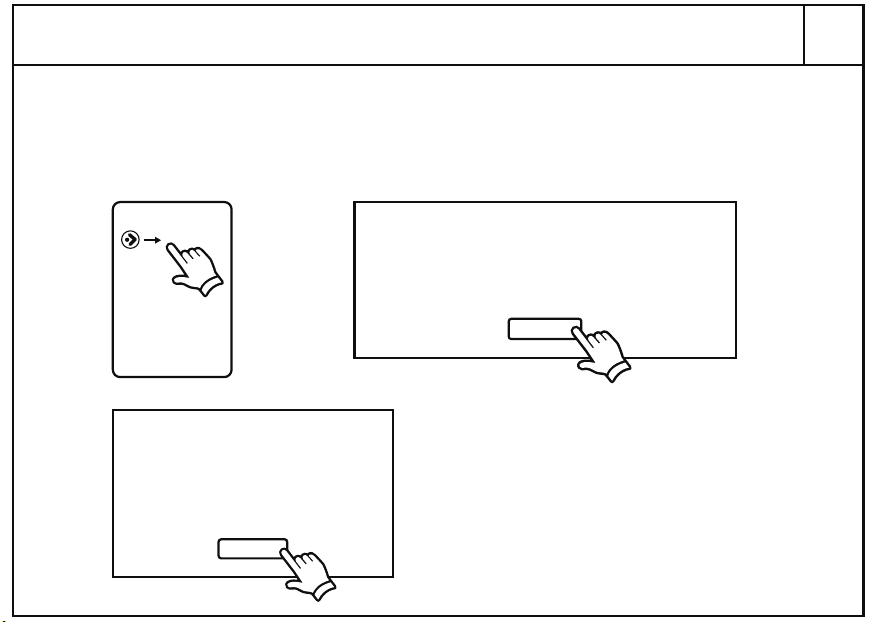
Cut line
Fold line
Copy safe area
Outside bleed
Glue area
Great Wall
100011886_10in Tablet
OPT01
QSG
04.22.20
This document is intended only for use as a reference for the individual or entity to which it is being presented and may contain information which is privileged and confidential. No reproduction or distribution is permitted without the consent of r-pac International Corporation.
386
TBGRY100071485
FRONT
BACK
1. Select “Settings” and select the “Network & internet” menu.
2. Select “Internet” and turn on the Wi-Fi switch.
3. Available Wi-Fi networks will be listed here, select your preferred network.
4. Enter the Wi-Fi password and tap “CONNECT” to start the connection.
5. Wi-Fi will be connected automatically next time.
(Step 1) (Step 2)
(Step 3) (Step 4)
Network & internet
internet
01
Wi-Fi
Password
..........
CANCEL CONNECT
Wi-Fi
Use Wi-Fi
AAAAA
BBBBB
CCCCC
Connecting to WIFI
02
Log into or Change Your Google Account
4. Choose account type. Enter account and password in the Sign in window and tap “Next”.
5. Choose to turn on or off “Back up to Google Drive” and then tap “Accept”.
(Step 4) (Step 4) (Step 5)
Google
Sign in
Your Google account
Next
........
Next
Google
Welcome
Google Services
Accept
Back up to Google Drive
2. Select “Add account”.
3. Select “Google” or another account type you'd like to add.
1. Select “Settings” and select the “Pass words & accounts” menu.
(Step 1)
Passwords & accounts
(Step 2)
Passwords & accounts
+ Add account
(Step 3)
Add an account
Google
03
Navigating Apps & Getting New Apps
(Navigating Apps Step 1)
Navigating Apps
Google Play
Sign in to find the latest Android apps, games, movies, music, & more
Sign in
(Getting New Apps Step 2)
(Getting New Apps Step 3)
Z
Search for apps & games
1. Connect the device to the internet. (see “Connecting to WIFI”)
2. Go to the Google Play Store and log in to your Google account.
3. Enter the desired App’s name in the search bar, tap the install button to start the download.
4. After the download is completed, the new app will appear in the app list.
Getting New Apps
04
1. Select “Settings” and tap on the “Connected devices” menu.
2. Select the “Pair new device” menu.
3. Available Bluetooth devices will be listed here, select the name of your device you want to pair.
4. A window may appear on your paired device for confirmation, follow the on screen commands.
5. Menu will show the connected devices after pairing successfully.
(Step 1)
(Step 2)
(Step 3)
(Step 4)
Connected devices
Pair new device
Available devices
AAAAA
BBBBB
CCCCC
Pair with XXXXX?
Buletooth pairing code
XXXXX
CANCEL PAIR
Connected devices
+ Pair new device
Connecting to Bluetooth Devices
Follow the steps below to set up Google Kids Space.
1. When asked who will use the tablet, select “A child”.
(If you’ve previously set up the tablet, tap on the
Google Kids Space icon )
2. Sign into your child’s existing Google Account or
follow the prompts to create a new Google Account
for your child under 13 (or the applicable age in your
country).
3. When prompted to set up Google Kids Space, tap
“Set Up”.
4. Edit your child’s settings and interests.
Remove Google Kids Space
1. In the bottom right, press and hold the
Parent menu and then tap “Device Settings”.
2. Go to Accounts to remove the account from the
device.
More details about Kids Space on g.co/KidsSpace.
Google Kids Space Set up or Remove
05
Google
An adult or a teen
A child
Who‘s going to use this device?
(Setup the Kids Space Step 1)
Free up space
Parental controls
Device settings
Help & feedback
FOR PARENTS
Add more apps
Privacy policy
(Remove the Kids Space Step 1)
Filename: WM_ONN_Great Wall_100011885_8in Tablet_QSG
CHARTREUSE FOREST C M Y K
Date: 22 Apr 2020
Stock: 157g C2S
Size: 28.74" x 4.016"
5.512"
140mm
5.512"
140mm
5.512"
140mm
5.512"
140mm
5.512"
140mm
3.937"
100mm
10.4″Tablet
Quick Start Guide
What’s in the Box?
10.4" tablet
Type-C cable
User Manual
QSG
Charger
10.4″ Tablet
Quick Start Guide
PRODUCT GUIDE
Model: TBSPG100110603
10.4
" Tablet
Tablet Pro
With Android
Tablet Pro
With Android
Check to make sure you
have everything below
1. Power On/Off
2. Volume Control
3. Camera (Front)
4. Light Sensor
5. Micro SD Card Slot
6. Headset Jack
7. Type-C Port
8. Speakers
9. Camera (Rear)
2
3
4
6
7
9
88
1
Tablet Pro
With Android
06
Entertainment Space Set up
1. Slide the home screen to the right, follow the prompts to log in to Google Play.
2. Enter the Google account and follow the system prompts to enter the main interface of
Entertainment Space.
3. Tap “Update” to search for the latest updates of Entertainment Space.
Google Play
Sign in to find the latest Android apps, games, movies, music, & more
Sign in
(Step 1)
(Step 2)
Entertainment Space
Your favorite entertainment, in
one place
To get started, update Entertainment Space
Update
(Step 1)
Navigation Style
The Fine Print
2. Select “Settings” select “System update”, then tap on the “Check for update” button.
3. After you've searched for new updates, the system will download any available system
updates.
4. After the download is completed, tap the “Restart now” button to restart the tablet and install
1. Connect the device to the internet. (see “Connecting to WIFI”)
System updates help protect your device while providing new features we think you will love.
Updating the System Software
07
(Step 2)
System update
(Step 2)
Your system is up to date
Check for update
(Step 4)
System update available
Restart now
Walmart warrants this product against defects in material or workmanship for a period of one (1) year from the
original date of purchase.During this period, Walmart will replace a defective part with a new or refurbished
part without a charge to you.If your unit is deemed unrepairable, will replace the unit with a new or
refurbished unit at Walmart's sole discretion.The customer is responsible for transportation cost and insurance
charges (if applicable) to Corporate.It is the customer's responsibility to retain original packaging or provide
like packaging in order to facilitate the warranty process. Walmart will incur no liability whatsoever to provide
packaging for warranty items.Should the product be damaged due to insufficient packaging, the warranty may
be voided.You must receive a return authorization number (RMA #) before sending the unit in for service.
Service that is provided is warranted for the duration of the original warranty or 45 days whichever
is greater.
08
09
When set up your device for the first time, follow the on-screen instructions to choose a
navigation style for touch controls.
• Gesture navigation: Swipe, hold, or release the screen or apps for activities.
• 3-button navigation: Go back, Home and switch among apps using buttons at the bottom of the
screen.
Your Responsibility
It is strongly recommended to make a backup copy of the contents on your hard drive in case of operational
failure.Walmart will not be held liable for content that is on the device.Retain a copy of the bill of sale to provide
proof of purchase.The warranty extends only to defects in materials or workmanship as limited above and does
not extend to a cracked screen, damaged USB or DC port, cosmetic damage, or any other products, parts or
accessories that have been lost, discarded, damaged by misuse or accident, neglect, acts of God such as
lightning, voltage surges in the home, improper installation,or serial number rendered illegible. Please contact
Customer Support at 1-888-516-2630 at 7 am to 9 pm CST.
You will be instructed on how your claim will be processed so have information available including date of
purchase, serial number and the problem with the product.Should a problem be determined to be within the
limits of the warranty you will be provided with an (RMA) authorization number and instruction.Proof of purchase
must be confirmed before any warranty service can be provided.Should a claim not be covered by the limited
warranty, you will be asked whether you wish to have service provided for a fee.
1. I cannot turn my device on.
Press and hold the power button for more than 3 seconds or charge the tablet for 10-15 minutes.
2. My tablet does not charge.
Use the in-box charger and USB cable to charge your tablet.
Check whether the power outlet is working, and the charger is correctly plugged into the outlet.
Reconnect the charger to the device and let it charge for 10-15 minutes.Then press the power
button to check if there is a charging prompt.
3. My tablet cannot connect to wifi.
Use your device closer to your router, if this does not solve the issue restart your router.
4. My tablet turns off automatically.
Please charge the tablet.
5. My tablet's touch screen is malfunctioning.
Clean your tablet screen.
6. My tablet runs slow.
Close or uninstall unwanted applications.
7. My tablet’s system is abnormal.
Uninstall third-party programs/restore factory settings.
10But Wait... There’s More!
Get to Know Your Tablet
5
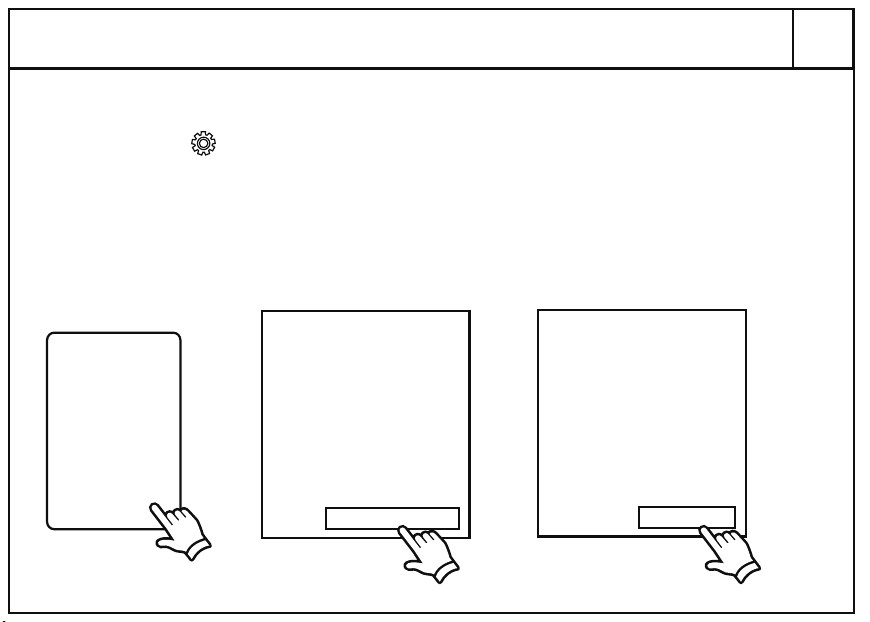
Cut line
Fold line
Copy safe area
Outside bleed
Glue area
Great Wall
100011886_10in Tablet
OPT01
QSG
04.22.20
This document is intended only for use as a reference for the individual or entity to which it is being presented and may contain information which is privileged and confidential. No reproduction or distribution is permitted without the consent of r-pac International Corporation.
386
TBGRY100071485
FRONT
BACK
1. Select “Settings” and select the “Network & internet” menu.
2. Select “Internet” and turn on the Wi-Fi switch.
3. Available Wi-Fi networks will be listed here, select your preferred network.
4. Enter the Wi-Fi password and tap “CONNECT” to start the connection.
5. Wi-Fi will be connected automatically next time.
(Step 1) (Step 2)
(Step 3) (Step 4)
Network & internet
internet
01
Wi-Fi
Password
..........
CANCEL CONNECT
Wi-Fi
Use Wi-Fi
AAAAA
BBBBB
CCCCC
Connecting to WIFI
02
Log into or Change Your Google Account
4. Choose account type. Enter account and password in the Sign in window and tap “Next”.
5. Choose to turn on or off “Back up to Google Drive” and then tap “Accept”.
(Step 4) (Step 4) (Step 5)
Google
Sign in
Your Google account
Next
........
Next
Google
Welcome
Google Services
Accept
Back up to Google Drive
2. Select “Add account”.
3. Select “Google” or another account type you'd like to add.
1. Select “Settings” and select the “Pass words & accounts” menu.
(Step 1)
Passwords & accounts
(Step 2)
Passwords & accounts
+ Add account
(Step 3)
Add an account
Google
03
Navigating Apps & Getting New Apps
(Navigating Apps Step 1)
Navigating Apps
Google Play
Sign in to find the latest Android apps, games, movies, music, & more
Sign in
(Getting New Apps Step 2)
(Getting New Apps Step 3)
Z
Search for apps & games
1. Connect the device to the internet. (see “Connecting to WIFI”)
2. Go to the Google Play Store and log in to your Google account.
3. Enter the desired App’s name in the search bar, tap the install button to start the download.
4. After the download is completed, the new app will appear in the app list.
Getting New Apps
04
1. Select “Settings” and tap on the “Connected devices” menu.
2. Select the “Pair new device” menu.
3. Available Bluetooth devices will be listed here, select the name of your device you want to pair.
4. A window may appear on your paired device for confirmation, follow the on screen commands.
5. Menu will show the connected devices after pairing successfully.
(Step 1)
(Step 2)
(Step 3)
(Step 4)
Connected devices
Pair new device
Available devices
AAAAA
BBBBB
CCCCC
Pair with XXXXX?
Buletooth pairing code
XXXXX
CANCEL PAIR
Connected devices
+ Pair new device
Connecting to Bluetooth Devices
Follow the steps below to set up Google Kids Space.
1. When asked who will use the tablet, select “A child”.
(If you’ve previously set up the tablet, tap on the
Google Kids Space icon )
2. Sign into your child’s existing Google Account or
follow the prompts to create a new Google Account
for your child under 13 (or the applicable age in your
country).
3. When prompted to set up Google Kids Space, tap
“Set Up”.
4. Edit your child’s settings and interests.
Remove Google Kids Space
1. In the bottom right, press and hold the
Parent menu and then tap “Device Settings”.
2. Go to Accounts to remove the account from the
device.
More details about Kids Space on g.co/KidsSpace.
Google Kids Space Set up or Remove
05
Google
An adult or a teen
A child
Who‘s going to use this device?
(Setup the Kids Space Step 1)
Free up space
Parental controls
Device settings
Help & feedback
FOR PARENTS
Add more apps
Privacy policy
(Remove the Kids Space Step 1)
Filename: WM_ONN_Great Wall_100011885_8in Tablet_QSG
CHARTREUSE FOREST C M Y K
Date: 22 Apr 2020
Stock: 157g C2S
Size: 28.74" x 4.016"
5.512"
140mm
5.512"
140mm
5.512"
140mm
5.512"
140mm
5.512"
140mm
3.937"
100mm
10.4″Tablet
Quick Start Guide
What’s in the Box?
10.4" tablet
Type-C cable
User Manual
QSG
Charger
10.4″ Tablet
Quick Start Guide
PRODUCT GUIDE
Model: TBSPG100110603
10.4
" Tablet
Tablet Pro
With Android
Tablet Pro
With Android
Check to make sure you
have everything below
1. Power On/Off
2. Volume Control
3. Camera (Front)
4. Light Sensor
5. Micro SD Card Slot
6. Headset Jack
7. Type-C Port
8. Speakers
9. Camera (Rear)
2
3
4
6
7
9
88
1
Tablet Pro
With Android
06
Entertainment Space Set up
1. Slide the home screen to the right, follow the prompts to log in to Google Play.
2. Enter the Google account and follow the system prompts to enter the main interface of
Entertainment Space.
3. Tap “Update” to search for the latest updates of Entertainment Space.
Google Play
Sign in to find the latest Android apps, games, movies, music, & more
Sign in
(Step 1)
(Step 2)
Entertainment Space
Your favorite entertainment, in
one place
To get started, update Entertainment Space
Update
(Step 1)
Navigation Style
The Fine Print
2. Select “Settings” select “System update”, then tap on the “Check for update” button.
3. After you've searched for new updates, the system will download any available system
updates.
4. After the download is completed, tap the “Restart now” button to restart the tablet and install
1. Connect the device to the internet. (see “Connecting to WIFI”)
System updates help protect your device while providing new features we think you will love.
Updating the System Software
07
(Step 2)
System update
(Step 2)
Your system is up to date
Check for update
(Step 4)
System update available
Restart now
Walmart warrants this product against defects in material or workmanship for a period of one (1) year from the
original date of purchase.During this period, Walmart will replace a defective part with a new or refurbished
part without a charge to you.If your unit is deemed unrepairable, will replace the unit with a new or
refurbished unit at Walmart's sole discretion.The customer is responsible for transportation cost and insurance
charges (if applicable) to Corporate.It is the customer's responsibility to retain original packaging or provide
like packaging in order to facilitate the warranty process. Walmart will incur no liability whatsoever to provide
packaging for warranty items.Should the product be damaged due to insufficient packaging, the warranty may
be voided.You must receive a return authorization number (RMA #) before sending the unit in for service.
Service that is provided is warranted for the duration of the original warranty or 45 days whichever
is greater.
08
09
When set up your device for the first time, follow the on-screen instructions to choose a
navigation style for touch controls.
• Gesture navigation: Swipe, hold, or release the screen or apps for activities.
• 3-button navigation: Go back, Home and switch among apps using buttons at the bottom of the
screen.
Your Responsibility
It is strongly recommended to make a backup copy of the contents on your hard drive in case of operational
failure.Walmart will not be held liable for content that is on the device.Retain a copy of the bill of sale to provide
proof of purchase.The warranty extends only to defects in materials or workmanship as limited above and does
not extend to a cracked screen, damaged USB or DC port, cosmetic damage, or any other products, parts or
accessories that have been lost, discarded, damaged by misuse or accident, neglect, acts of God such as
lightning, voltage surges in the home, improper installation,or serial number rendered illegible. Please contact
Customer Support at 1-888-516-2630 at 7 am to 9 pm CST.
You will be instructed on how your claim will be processed so have information available including date of
purchase, serial number and the problem with the product.Should a problem be determined to be within the
limits of the warranty you will be provided with an (RMA) authorization number and instruction.Proof of purchase
must be confirmed before any warranty service can be provided.Should a claim not be covered by the limited
warranty, you will be asked whether you wish to have service provided for a fee.
1. I cannot turn my device on.
Press and hold the power button for more than 3 seconds or charge the tablet for 10-15 minutes.
2. My tablet does not charge.
Use the in-box charger and USB cable to charge your tablet.
Check whether the power outlet is working, and the charger is correctly plugged into the outlet.
Reconnect the charger to the device and let it charge for 10-15 minutes.Then press the power
button to check if there is a charging prompt.
3. My tablet cannot connect to wifi.
Use your device closer to your router, if this does not solve the issue restart your router.
4. My tablet turns off automatically.
Please charge the tablet.
5. My tablet's touch screen is malfunctioning.
Clean your tablet screen.
6. My tablet runs slow.
Close or uninstall unwanted applications.
7. My tablet’s system is abnormal.
Uninstall third-party programs/restore factory settings.
10But Wait... There’s More!
Get to Know Your Tablet
5
Cut line
Fold line
Copy safe area
Outside bleed
Glue area
Great Wall
100011886_10in Tablet
OPT01
QSG
04.22.20
This document is intended only for use as a reference for the individual or entity to which it is being presented and may contain information which is privileged and confidential. No reproduction or distribution is permitted without the consent of r-pac International Corporation.
386
TBGRY100071485
FRONT
BACK
1. Select “Settings” and select the “Network & internet” menu.
2. Select “Internet” and turn on the Wi-Fi switch.
3. Available Wi-Fi networks will be listed here, select your preferred network.
4. Enter the Wi-Fi password and tap “CONNECT” to start the connection.
5. Wi-Fi will be connected automatically next time.
(Step 1) (Step 2)
(Step 3) (Step 4)
Network & internet
internet
01
Wi-Fi
Password
..........
CANCEL CONNECT
Wi-Fi
Use Wi-Fi
AAAAA
BBBBB
CCCCC
Connecting to WIFI
02
Log into or Change Your Google Account
4. Choose account type. Enter account and password in the Sign in window and tap “Next”.
5. Choose to turn on or off “Back up to Google Drive” and then tap “Accept”.
(Step 4) (Step 4) (Step 5)
Google
Sign in
Your Google account
Next
........
Next
Google
Welcome
Google Services
Accept
Back up to Google Drive
2. Select “Add account”.
3. Select “Google” or another account type you'd like to add.
1. Select “Settings” and select the “Pass words & accounts” menu.
(Step 1)
Passwords & accounts
(Step 2)
Passwords & accounts
+ Add account
(Step 3)
Add an account
Google
03
Navigating Apps & Getting New Apps
(Navigating Apps Step 1)
Navigating Apps
Google Play
Sign in to find the latest Android apps, games, movies, music, & more
Sign in
(Getting New Apps Step 2)
(Getting New Apps Step 3)
Z
Search for apps & games
1. Connect the device to the internet. (see “Connecting to WIFI”)
2. Go to the Google Play Store and log in to your Google account.
3. Enter the desired App’s name in the search bar, tap the install button to start the download.
4. After the download is completed, the new app will appear in the app list.
Getting New Apps
04
1. Select “Settings” and tap on the “Connected devices” menu.
2. Select the “Pair new device” menu.
3. Available Bluetooth devices will be listed here, select the name of your device you want to pair.
4. A window may appear on your paired device for confirmation, follow the on screen commands.
5. Menu will show the connected devices after pairing successfully.
(Step 1)
(Step 2)
(Step 3)
(Step 4)
Connected devices
Pair new device
Available devices
AAAAA
BBBBB
CCCCC
Pair with XXXXX?
Buletooth pairing code
XXXXX
CANCEL PAIR
Connected devices
+ Pair new device
Connecting to Bluetooth Devices
Follow the steps below to set up Google Kids Space.
1. When asked who will use the tablet, select “A child”.
(If you’ve previously set up the tablet, tap on the
Google Kids Space icon )
2. Sign into your child’s existing Google Account or
follow the prompts to create a new Google Account
for your child under 13 (or the applicable age in your
country).
3. When prompted to set up Google Kids Space, tap
“Set Up”.
4. Edit your child’s settings and interests.
Remove Google Kids Space
1. In the bottom right, press and hold the
Parent menu and then tap “Device Settings”.
2. Go to Accounts to remove the account from the
device.
More details about Kids Space on g.co/KidsSpace.
Google Kids Space Set up or Remove
05
Google
An adult or a teen
A child
Who‘s going to use this device?
(Setup the Kids Space Step 1)
Free up space
Parental controls
Device settings
Help & feedback
FOR PARENTS
Add more apps
Privacy policy
(Remove the Kids Space Step 1)
Filename: WM_ONN_Great Wall_100011885_8in Tablet_QSG
CHARTREUSE FOREST C M Y K
Date: 22 Apr 2020
Stock: 157g C2S
Size: 28.74" x 4.016"
5.512"
140mm
5.512"
140mm
5.512"
140mm
5.512"
140mm
5.512"
140mm
3.937"
100mm
10.4″Tablet
Quick Start Guide
What’s in the Box?
10.4" tablet
Type-C cable
User Manual
QSG
Charger
10.4″ Tablet
Quick Start Guide
PRODUCT GUIDE
Model: TBSPG100110603
10.4
" Tablet
Tablet Pro
With Android
Tablet Pro
With Android
Check to make sure you
have everything below
1. Power On/Off
2. Volume Control
3. Camera (Front)
4. Light Sensor
5. Micro SD Card Slot
6. Headset Jack
7. Type-C Port
8. Speakers
9. Camera (Rear)
2
3
4
6
7
9
88
1
Tablet Pro
With Android
06
Entertainment Space Set up
1. Slide the home screen to the right, follow the prompts to log in to Google Play.
2. Enter the Google account and follow the system prompts to enter the main interface of
Entertainment Space.
3. Tap “Update” to search for the latest updates of Entertainment Space.
Google Play
Sign in to find the latest Android apps, games, movies, music, & more
Sign in
(Step 1)
(Step 2)
Entertainment Space
Your favorite entertainment, in
one place
To get started, update Entertainment Space
Update
(Step 1)
Navigation Style
The Fine Print
2. Select “Settings” select “System update”, then tap on the “Check for update” button.
3. After you've searched for new updates, the system will download any available system
updates.
4. After the download is completed, tap the “Restart now” button to restart the tablet and install
1. Connect the device to the internet. (see “Connecting to WIFI”)
System updates help protect your device while providing new features we think you will love.
Updating the System Software
07
(Step 2)
System update
(Step 2)
Your system is up to date
Check for update
(Step 4)
System update available
Restart now
Walmart warrants this product against defects in material or workmanship for a period of one (1) year from the
original date of purchase.During this period, Walmart will replace a defective part with a new or refurbished
part without a charge to you.If your unit is deemed unrepairable, will replace the unit with a new or
refurbished unit at Walmart's sole discretion.The customer is responsible for transportation cost and insurance
charges (if applicable) to Corporate.It is the customer's responsibility to retain original packaging or provide
like packaging in order to facilitate the warranty process. Walmart will incur no liability whatsoever to provide
packaging for warranty items.Should the product be damaged due to insufficient packaging, the warranty may
be voided.You must receive a return authorization number (RMA #) before sending the unit in for service.
Service that is provided is warranted for the duration of the original warranty or 45 days whichever
is greater.
08
09
When set up your device for the first time, follow the on-screen instructions to choose a
navigation style for touch controls.
• Gesture navigation: Swipe, hold, or release the screen or apps for activities.
• 3-button navigation: Go back, Home and switch among apps using buttons at the bottom of the
screen.
Your Responsibility
It is strongly recommended to make a backup copy of the contents on your hard drive in case of operational
failure.Walmart will not be held liable for content that is on the device.Retain a copy of the bill of sale to provide
proof of purchase.The warranty extends only to defects in materials or workmanship as limited above and does
not extend to a cracked screen, damaged USB or DC port, cosmetic damage, or any other products, parts or
accessories that have been lost, discarded, damaged by misuse or accident, neglect, acts of God such as
lightning, voltage surges in the home, improper installation,or serial number rendered illegible. Please contact
Customer Support at 1-888-516-2630 at 7 am to 9 pm CST.
You will be instructed on how your claim will be processed so have information available including date of
purchase, serial number and the problem with the product.Should a problem be determined to be within the
limits of the warranty you will be provided with an (RMA) authorization number and instruction.Proof of purchase
must be confirmed before any warranty service can be provided.Should a claim not be covered by the limited
warranty, you will be asked whether you wish to have service provided for a fee.
1. I cannot turn my device on.
Press and hold the power button for more than 3 seconds or charge the tablet for 10-15 minutes.
2. My tablet does not charge.
Use the in-box charger and USB cable to charge your tablet.
Check whether the power outlet is working, and the charger is correctly plugged into the outlet.
Reconnect the charger to the device and let it charge for 10-15 minutes.Then press the power
button to check if there is a charging prompt.
3. My tablet cannot connect to wifi.
Use your device closer to your router, if this does not solve the issue restart your router.
4. My tablet turns off automatically.
Please charge the tablet.
5. My tablet's touch screen is malfunctioning.
Clean your tablet screen.
6. My tablet runs slow.
Close or uninstall unwanted applications.
7. My tablet’s system is abnormal.
Uninstall third-party programs/restore factory settings.
10But Wait... There’s More!
Get to Know Your Tablet
5
Cut line
Fold line
Copy safe area
Outside bleed
Glue area
Great Wall
100011886_10in Tablet
OPT01
QSG
04.22.20
This document is intended only for use as a reference for the individual or entity to which it is being presented and may contain information which is privileged and confidential. No reproduction or distribution is permitted without the consent of r-pac International Corporation.
386
TBGRY100071485
FRONT
BACK
1. Select “Settings” and select the “Network & internet” menu.
2. Select “Internet” and turn on the Wi-Fi switch.
3. Available Wi-Fi networks will be listed here, select your preferred network.
4. Enter the Wi-Fi password and tap “CONNECT” to start the connection.
5. Wi-Fi will be connected automatically next time.
(Step 1) (Step 2)
(Step 3) (Step 4)
Network & internet
internet
01
Wi-Fi
Password
..........
CANCEL CONNECT
Wi-Fi
Use Wi-Fi
AAAAA
BBBBB
CCCCC
Connecting to WIFI
02
Log into or Change Your Google Account
4. Choose account type. Enter account and password in the Sign in window and tap “Next”.
5. Choose to turn on or off “Back up to Google Drive” and then tap “Accept”.
(Step 4) (Step 4) (Step 5)
Google
Sign in
Your Google account
Next
........
Next
Google
Welcome
Google Services
Accept
Back up to Google Drive
2. Select “Add account”.
3. Select “Google” or another account type you'd like to add.
1. Select “Settings” and select the “Pass words & accounts” menu.
(Step 1)
Passwords & accounts
(Step 2)
Passwords & accounts
+ Add account
(Step 3)
Add an account
Google
03
Navigating Apps & Getting New Apps
(Navigating Apps Step 1)
Navigating Apps
Google Play
Sign in to find the latest Android apps, games, movies, music, & more
Sign in
(Getting New Apps Step 2)
(Getting New Apps Step 3)
Z
Search for apps & games
1. Connect the device to the internet. (see “Connecting to WIFI”)
2. Go to the Google Play Store and log in to your Google account.
3. Enter the desired App’s name in the search bar, tap the install button to start the download.
4. After the download is completed, the new app will appear in the app list.
Getting New Apps
04
1. Select “Settings” and tap on the “Connected devices” menu.
2. Select the “Pair new device” menu.
3. Available Bluetooth devices will be listed here, select the name of your device you want to pair.
4. A window may appear on your paired device for confirmation, follow the on screen commands.
5. Menu will show the connected devices after pairing successfully.
(Step 1)
(Step 2)
(Step 3)
(Step 4)
Connected devices
Pair new device
Available devices
AAAAA
BBBBB
CCCCC
Pair with XXXXX?
Buletooth pairing code
XXXXX
CANCEL PAIR
Connected devices
+ Pair new device
Connecting to Bluetooth Devices
Follow the steps below to set up Google Kids Space.
1. When asked who will use the tablet, select “A child”.
(If you’ve previously set up the tablet, tap on the
Google Kids Space icon )
2. Sign into your child’s existing Google Account or
follow the prompts to create a new Google Account
for your child under 13 (or the applicable age in your
country).
3. When prompted to set up Google Kids Space, tap
“Set Up”.
4. Edit your child’s settings and interests.
Remove Google Kids Space
1. In the bottom right, press and hold the
Parent menu and then tap “Device Settings”.
2. Go to Accounts to remove the account from the
device.
More details about Kids Space on g.co/KidsSpace.
Google Kids Space Set up or Remove
05
Google
An adult or a teen
A child
Who‘s going to use this device?
(Setup the Kids Space Step 1)
Free up space
Parental controls
Device settings
Help & feedback
FOR PARENTS
Add more apps
Privacy policy
(Remove the Kids Space Step 1)
Filename: WM_ONN_Great Wall_100011885_8in Tablet_QSG
CHARTREUSE FOREST C M Y K
Date: 22 Apr 2020
Stock: 157g C2S
Size: 28.74" x 4.016"
5.512"
140mm
5.512"
140mm
5.512"
140mm
5.512"
140mm
5.512"
140mm
3.937"
100mm
10.4″Tablet
Quick Start Guide
What’s in the Box?
10.4" tablet
Type-C cable
User Manual
QSG
Charger
10.4″ Tablet
Quick Start Guide
PRODUCT GUIDE
Model: TBSPG100110603
10.4
" Tablet
Tablet Pro
With Android
Tablet Pro
With Android
Check to make sure you
have everything below
1. Power On/Off
2. Volume Control
3. Camera (Front)
4. Light Sensor
5. Micro SD Card Slot
6. Headset Jack
7. Type-C Port
8. Speakers
9. Camera (Rear)
2
3
4
6
7
9
88
1
Tablet Pro
With Android
06
Entertainment Space Set up
1. Slide the home screen to the right, follow the prompts to log in to Google Play.
2. Enter the Google account and follow the system prompts to enter the main interface of
Entertainment Space.
3. Tap “Update” to search for the latest updates of Entertainment Space.
Google Play
Sign in to find the latest Android apps, games, movies, music, & more
Sign in
(Step 1)
(Step 2)
Entertainment Space
Your favorite entertainment, in
one place
To get started, update Entertainment Space
Update
(Step 1)
Navigation Style
The Fine Print
2. Select “Settings” select “System update”, then tap on the “Check for update” button.
3. After you've searched for new updates, the system will download any available system
updates.
4. After the download is completed, tap the “Restart now” button to restart the tablet and install
1. Connect the device to the internet. (see “Connecting to WIFI”)
System updates help protect your device while providing new features we think you will love.
Updating the System Software
07
(Step 2)
System update
(Step 2)
Your system is up to date
Check for update
(Step 4)
System update available
Restart now
Walmart warrants this product against defects in material or workmanship for a period of one (1) year from the
original date of purchase.During this period, Walmart will replace a defective part with a new or refurbished
part without a charge to you.If your unit is deemed unrepairable, will replace the unit with a new or
refurbished unit at Walmart's sole discretion.The customer is responsible for transportation cost and insurance
charges (if applicable) to Corporate.It is the customer's responsibility to retain original packaging or provide
like packaging in order to facilitate the warranty process. Walmart will incur no liability whatsoever to provide
packaging for warranty items.Should the product be damaged due to insufficient packaging, the warranty may
be voided.You must receive a return authorization number (RMA #) before sending the unit in for service.
Service that is provided is warranted for the duration of the original warranty or 45 days whichever
is greater.
08
09
When set up your device for the first time, follow the on-screen instructions to choose a
navigation style for touch controls.
• Gesture navigation: Swipe, hold, or release the screen or apps for activities.
• 3-button navigation: Go back, Home and switch among apps using buttons at the bottom of the
screen.
Your Responsibility
It is strongly recommended to make a backup copy of the contents on your hard drive in case of operational
failure.Walmart will not be held liable for content that is on the device.Retain a copy of the bill of sale to provide
proof of purchase.The warranty extends only to defects in materials or workmanship as limited above and does
not extend to a cracked screen, damaged USB or DC port, cosmetic damage, or any other products, parts or
accessories that have been lost, discarded, damaged by misuse or accident, neglect, acts of God such as
lightning, voltage surges in the home, improper installation,or serial number rendered illegible. Please contact
Customer Support at 1-888-516-2630 at 7 am to 9 pm CST.
You will be instructed on how your claim will be processed so have information available including date of
purchase, serial number and the problem with the product.Should a problem be determined to be within the
limits of the warranty you will be provided with an (RMA) authorization number and instruction.Proof of purchase
must be confirmed before any warranty service can be provided.Should a claim not be covered by the limited
warranty, you will be asked whether you wish to have service provided for a fee.
1. I cannot turn my device on.
Press and hold the power button for more than 3 seconds or charge the tablet for 10-15 minutes.
2. My tablet does not charge.
Use the in-box charger and USB cable to charge your tablet.
Check whether the power outlet is working, and the charger is correctly plugged into the outlet.
Reconnect the charger to the device and let it charge for 10-15 minutes.Then press the power
button to check if there is a charging prompt.
3. My tablet cannot connect to wifi.
Use your device closer to your router, if this does not solve the issue restart your router.
4. My tablet turns off automatically.
Please charge the tablet.
5. My tablet's touch screen is malfunctioning.
Clean your tablet screen.
6. My tablet runs slow.
Close or uninstall unwanted applications.
7. My tablet’s system is abnormal.
Uninstall third-party programs/restore factory settings.
10But Wait... There’s More!
Get to Know Your Tablet
5
Cut line
Fold line
Copy safe area
Outside bleed
Glue area
Great Wall
100011886_10in Tablet
OPT01
QSG
04.22.20
This document is intended only for use as a reference for the individual or entity to which it is being presented and may contain information which is privileged and confidential. No reproduction or distribution is permitted without the consent of r-pac International Corporation.
386
TBGRY100071485
FRONT
BACK
1. Select “Settings” and select the “Network & internet” menu.
2. Select “Internet” and turn on the Wi-Fi switch.
3. Available Wi-Fi networks will be listed here, select your preferred network.
4. Enter the Wi-Fi password and tap “CONNECT” to start the connection.
5. Wi-Fi will be connected automatically next time.
(Step 1) (Step 2)
(Step 3) (Step 4)
Network & internet
internet
01
Wi-Fi
Password
..........
CANCEL CONNECT
Wi-Fi
Use Wi-Fi
AAAAA
BBBBB
CCCCC
Connecting to WIFI
02
Log into or Change Your Google Account
4. Choose account type. Enter account and password in the Sign in window and tap “Next”.
5. Choose to turn on or off “Back up to Google Drive” and then tap “Accept”.
(Step 4) (Step 4) (Step 5)
Google
Sign in
Your Google account
Next
........
Next
Google
Welcome
Google Services
Accept
Back up to Google Drive
2. Select “Add account”.
3. Select “Google” or another account type you'd like to add.
1. Select “Settings” and select the “Pass words & accounts” menu.
(Step 1)
Passwords & accounts
(Step 2)
Passwords & accounts
+ Add account
(Step 3)
Add an account
Google
03
Navigating Apps & Getting New Apps
(Navigating Apps Step 1)
Navigating Apps
Google Play
Sign in to find the latest Android apps, games, movies, music, & more
Sign in
(Getting New Apps Step 2)
(Getting New Apps Step 3)
Z
Search for apps & games
1. Connect the device to the internet. (see “Connecting to WIFI”)
2. Go to the Google Play Store and log in to your Google account.
3. Enter the desired App’s name in the search bar, tap the install button to start the download.
4. After the download is completed, the new app will appear in the app list.
Getting New Apps
04
1. Select “Settings” and tap on the “Connected devices” menu.
2. Select the “Pair new device” menu.
3. Available Bluetooth devices will be listed here, select the name of your device you want to pair.
4. A window may appear on your paired device for confirmation, follow the on screen commands.
5. Menu will show the connected devices after pairing successfully.
(Step 1)
(Step 2)
(Step 3)
(Step 4)
Connected devices
Pair new device
Available devices
AAAAA
BBBBB
CCCCC
Pair with XXXXX?
Buletooth pairing code
XXXXX
CANCEL PAIR
Connected devices
+ Pair new device
Connecting to Bluetooth Devices
Follow the steps below to set up Google Kids Space.
1. When asked who will use the tablet, select “A child”.
(If you’ve previously set up the tablet, tap on the
Google Kids Space icon )
2. Sign into your child’s existing Google Account or
follow the prompts to create a new Google Account
for your child under 13 (or the applicable age in your
country).
3. When prompted to set up Google Kids Space, tap
“Set Up”.
4. Edit your child’s settings and interests.
Remove Google Kids Space
1. In the bottom right, press and hold the
Parent menu and then tap “Device Settings”.
2. Go to Accounts to remove the account from the
device.
More details about Kids Space on g.co/KidsSpace.
Google Kids Space Set up or Remove
05
Google
An adult or a teen
A child
Who‘s going to use this device?
(Setup the Kids Space Step 1)
Free up space
Parental controls
Device settings
Help & feedback
FOR PARENTS
Add more apps
Privacy policy
(Remove the Kids Space Step 1)
Filename: WM_ONN_Great Wall_100011885_8in Tablet_QSG
CHARTREUSE FOREST C M Y K
Date: 22 Apr 2020
Stock: 157g C2S
Size: 28.74" x 4.016"
5.512"
140mm
5.512"
140mm
5.512"
140mm
5.512"
140mm
5.512"
140mm
3.937"
100mm
10.4″Tablet
Quick Start Guide
What’s in the Box?
10.4" tablet
Type-C cable
User Manual
QSG
Charger
10.4″ Tablet
Quick Start Guide
PRODUCT GUIDE
Model: TBSPG100110603
10.4
" Tablet
Tablet Pro
With Android
Tablet Pro
With Android
Check to make sure you
have everything below
1. Power On/Off
2. Volume Control
3. Camera (Front)
4. Light Sensor
5. Micro SD Card Slot
6. Headset Jack
7. Type-C Port
8. Speakers
9. Camera (Rear)
2
3
4
6
7
9
88
1
Tablet Pro
With Android
06
Entertainment Space Set up
1. Slide the home screen to the right, follow the prompts to log in to Google Play.
2. Enter the Google account and follow the system prompts to enter the main interface of
Entertainment Space.
3. Tap “Update” to search for the latest updates of Entertainment Space.
Google Play
Sign in to find the latest Android apps, games, movies, music, & more
Sign in
(Step 1)
(Step 2)
Entertainment Space
Your favorite entertainment, in
one place
To get started, update Entertainment Space
Update
(Step 1)
Navigation Style
The Fine Print
2. Select “Settings” select “System update”, then tap on the “Check for update” button.
3. After you've searched for new updates, the system will download any available system
updates.
4. After the download is completed, tap the “Restart now” button to restart the tablet and install
1. Connect the device to the internet. (see “Connecting to WIFI”)
System updates help protect your device while providing new features we think you will love.
Updating the System Software
07
(Step 2)
System update
(Step 2)
Your system is up to date
Check for update
(Step 4)
System update available
Restart now
Walmart warrants this product against defects in material or workmanship for a period of one (1) year from the
original date of purchase.During this period, Walmart will replace a defective part with a new or refurbished
part without a charge to you.If your unit is deemed unrepairable, will replace the unit with a new or
refurbished unit at Walmart's sole discretion.The customer is responsible for transportation cost and insurance
charges (if applicable) to Corporate.It is the customer's responsibility to retain original packaging or provide
like packaging in order to facilitate the warranty process. Walmart will incur no liability whatsoever to provide
packaging for warranty items.Should the product be damaged due to insufficient packaging, the warranty may
be voided.You must receive a return authorization number (RMA #) before sending the unit in for service.
Service that is provided is warranted for the duration of the original warranty or 45 days whichever
is greater.
08
09
When set up your device for the first time, follow the on-screen instructions to choose a
navigation style for touch controls.
• Gesture navigation: Swipe, hold, or release the screen or apps for activities.
• 3-button navigation: Go back, Home and switch among apps using buttons at the bottom of the
screen.
Your Responsibility
It is strongly recommended to make a backup copy of the contents on your hard drive in case of operational
failure.Walmart will not be held liable for content that is on the device.Retain a copy of the bill of sale to provide
proof of purchase.The warranty extends only to defects in materials or workmanship as limited above and does
not extend to a cracked screen, damaged USB or DC port, cosmetic damage, or any other products, parts or
accessories that have been lost, discarded, damaged by misuse or accident, neglect, acts of God such as
lightning, voltage surges in the home, improper installation,or serial number rendered illegible. Please contact
Customer Support at 1-888-516-2630 at 7 am to 9 pm CST.
You will be instructed on how your claim will be processed so have information available including date of
purchase, serial number and the problem with the product.Should a problem be determined to be within the
limits of the warranty you will be provided with an (RMA) authorization number and instruction.Proof of purchase
must be confirmed before any warranty service can be provided.Should a claim not be covered by the limited
warranty, you will be asked whether you wish to have service provided for a fee.
1. I cannot turn my device on.
Press and hold the power button for more than 3 seconds or charge the tablet for 10-15 minutes.
2. My tablet does not charge.
Use the in-box charger and USB cable to charge your tablet.
Check whether the power outlet is working, and the charger is correctly plugged into the outlet.
Reconnect the charger to the device and let it charge for 10-15 minutes.Then press the power
button to check if there is a charging prompt.
3. My tablet cannot connect to wifi.
Use your device closer to your router, if this does not solve the issue restart your router.
4. My tablet turns off automatically.
Please charge the tablet.
5. My tablet's touch screen is malfunctioning.
Clean your tablet screen.
6. My tablet runs slow.
Close or uninstall unwanted applications.
7. My tablet’s system is abnormal.
Uninstall third-party programs/restore factory settings.
10But Wait... There’s More!
Get to Know Your Tablet
5