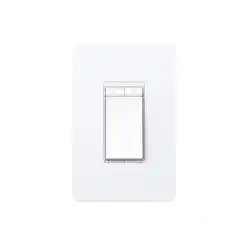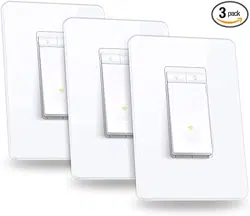
Smart Wi-Fi Light Switch
Quick Start Guide
*Images may dier from your actual product.
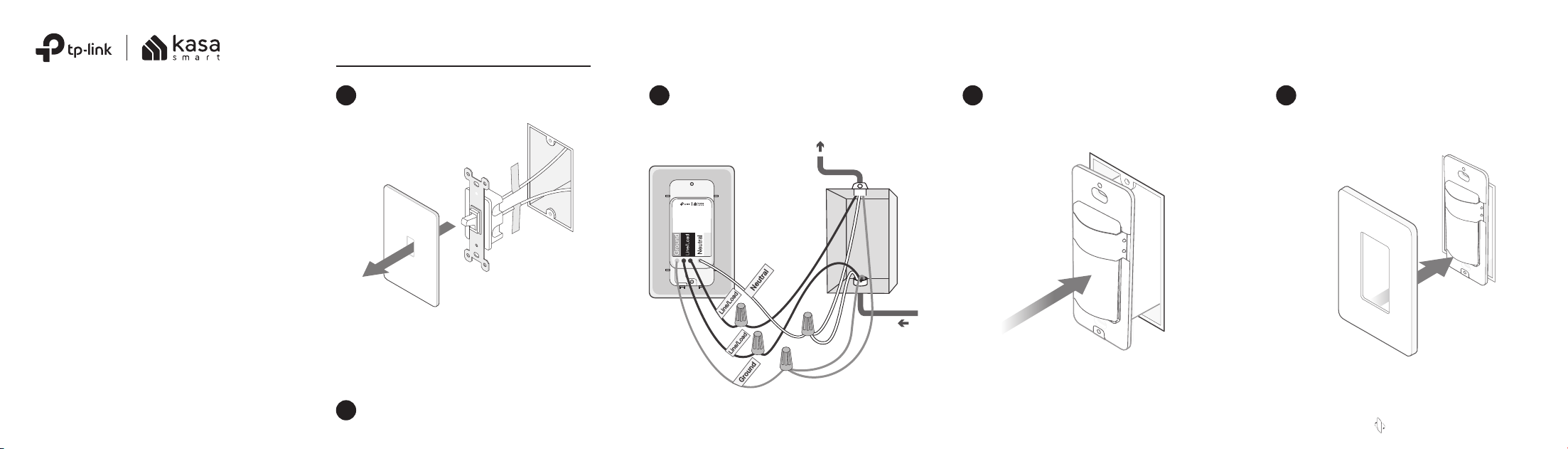
Wire Your Switch
Disconnect wires from the old switch.
Turn o the circuit breaker. Then remove
the old wallplate of the wall switch and
label the wires.
1
2
Connect the wires to the smart switch as
shown below.
Note: No need to distinguish between Line and Load wires.
3
Ground: Usually green or copper.
Neutral: Usually white, not connected to the dumb switch.
Line/Load: Usually black, and connected to the dumb
switch.
If you are unsure, consult a qualied electrician.
Line up the switch with the mounting
holes. Secure it with screws.
4
Attach the wallplate. Then the wiring is
nished.
5
Flip the page over to complete setup.
Power
Source
To Light
7106509393 REV1.1.0 ©2022 TP-Link
Need some help?
?
Visit www.tp-link.com/support
for technical support, user guides, FAQs,
warranty & more
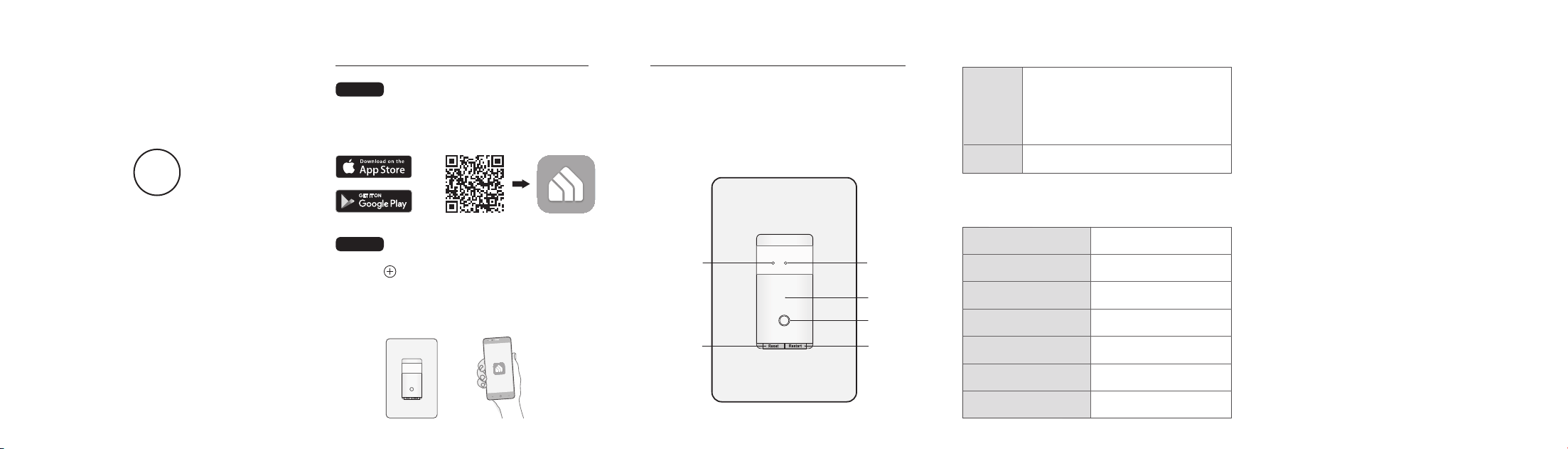
Appearance
The built-in motion and ambient light
sensors work together to realize hands-free
control.
On/O
Button
Motion
Sensor
Restart
LED
Reset
Ambient
Light
Sensor
Set Up Your Switch
STEP 2
SET UP
Tap the button in the app and select Smart
Switches. Then follow the step-by-step app
instructions to set up your smart switch.
DOWNLOAD APP
Get the Kasa Smart app from the App Store or
Google Play.
STEP 1
OR
Button Explanations Specications
Safety Notice
Before installing, servicing or removing the switch, read and follow all
safety precautions including the following:
• CAUTION – Risk of Electric Shock – More than one disconnect
switch may be required to de-energize the equipment before
servicing. A circuit breaker which disconnects the Line and Neutral
conductor simultaneously is suitable. Ensure power is o at the
circuit breaker before removing or installing any switch. Use a
non-contact voltage tester to ensure the power is o.
• The Smart Switch must be installed and used in accordance with the
National Electric Code (NEC) or your local electrical code. If you are
unfamiliar with these codes and requirements, or are uncomfortable
performing the installation, consult a qualied electrician.
• Do not install the Smart Switch with wet hands or when standing on
wet or damp surfaces.
• Install only in a suitable UL Listed outlet box (suitable dimensions:
H > 2.95 in./75 mm, W > 1.81 in./46 mm, D > 2 in./51 mm).
Rating: 120V~ 60Hz
Load: 600W Incandescent, 1/6 HP Motor
Operation temperature: 0~40℃
Method of mounting included: Independently mounted
(Vertically position only);
Operating control, Type 1.C action
Pollution Degree 2, Rated Impulse Voltage 2500 V
Software Class A, NEMA Type 1
Restart
Reset
Press and hold for about 5s to reset
Wi-Fi while keeping other settings.
Press to restart your switch.
Press and hold for about 10s to restore
your switch to factory default settings.
LED Status
Starting up.Flashing red
Flashing amber
Flashing green
White
Solid red
Stay green for 30s
Flashing amber & green
Connecting to Wi-Fi.
Ready for setup.
Device resetting.
Light fixture is off.
Disconnected from Wi-Fi.
Connected to Wi-Fi.
High Voltage-Disconnect power supply before servicing
CAUTION