78mm
135mm
FAQ
Getting to know "Smart Life" APP
1. If you cannot add your Smart Device , please check:
1) Whether the Smart Device is powered on.
2) Whether the phone is connected with 2.4GHz Wi-Fi network.
3) Whether the Smart Device is ready for configuration. To get it ready
before configuration, normally you can manually press and hold the
power button for 3-5 seconds. If the WIFI icon on Screen flash 3 times
per second,it means that it is ready for configuration.
4) Please check routers or related: if your router is dual-band, please
select 2.4GHz Wi-Fi network to connect your phone and Smart Plug.
5) Setting up Wi-Fi router: setting encryption method as WPA2-PSK
and authorization type as AES, or set both as auto. Wireless mode
cannot be 11n only.
6) Please use English and numbers to name your Wi-Fi router.
Otherwise our Smart Plug may not recognize it when you try to add it
into Smart Life.
7) To stay strong Wi-Fi connection, please keep smart device close to
router.
8) Whether connected devices have reached the maximum number of
router’s connections. If so, please turn off some devices connected to
the router and try again.
2. If you cannot add the device in Quick Connection, please choose
“Adding device in AP Mode”.
3. If you would like to reset the device, please press and hold the power
button for 3-5 seconds. Once you have reset the smart device, you will
find that the WIFI icon on Screen will flash 3 times per second.
4. If you cannot add the device after choosing 2.4G Wi-Fi network,
please make sure that your Wi-Fi password is correct.
5. Router’s wireless MAC filtering function is enabled. Remove the
device from the filter list and make sure that router is not prohibiting
device from connection.
6. If you cannot log in the app, please make sure that your password and
ID are correct.
6 7
8
9
5
10 11 12
4
How to Download Smart Life App
1. Scan the QR code to download and install Smart Life app for iOS or
Android phone.
2. If you cannot download Smart Life app, please search “Smart Life”
on Google Play (for Android phone) or Apple Store (for iOS phone) to
download.
STEP 2
How to Sign Up an Account
You will need to sign up for an account after downloading the app.
There are two ways to sign up for an account, using your cell phone
number or your email address. Select the country you living in, and enter
your cell phone number or email whichever makes you feel comfortable.
1. If cell phone number is entered, you will receive a text message with
registration code. Type the code, your password and confirm.
2. If you enter email, you will be asked to create a password and then
Confirm. Tap “Next” to continue.
Introduction
Product Description
Specifications
1 32
Thank you for purchasing your smart home product.
Ready to get started?
Download the Smart Life app to manage your smart home products (and
all other smart devices) straight from your phone or tablet.
Easily connect to your home Wi-Fi and control multiple devices
with the touch of your fingertips.
Power Plug: US Standard
Socket Panel: AC Socket in accordance with US Standard
Power Button: can be used as a wifi pairing button
Model: SOP20
Power Voltage: AC100-250V, 50/60Hz
Rated Current: 10A Max
Temperature measurement Range: -30~105 °C / -22~221 ° F
Wireless Frequency: 2.4GHz
APP Control: Smart Life APP (Android 4.4/IOS 8.0 or above)
NOTE:
Before installing Smart Lift App, please check your home network
setting as following:
1.Check your home routers or related: please use 2.4G Wi-Fi network.
Recommend set your 2.4G network and 5G network different names.
2. Your phone is connected with your home 2.4G Wi-Fi network.
3. To stay strong Wi-Fi connection, please keep smart device close to
router.
4. Whether connected devices have reached the maximum number of
router connections, If so, remove the device from the filter list and make
sure that router is not prohibiting device from connection.
5. Please use English and numbers to name your Wi-Fi router. Otherwise
the Smart Device may not recognize it when you try to add it into Smart
Life.
③
①
Power Plug
• Plug and play design, easy to use - two steps to complete
• Control Your Device From Anywhere - Control your device from
wherever you are with the free smart life app.
•
•
•
Group Control - Create a group to control different home devices at
the sametime.
•
•
Share devices: You can share the devices with your family, and then
different people can control it without setting up again.
13
4. Once you enter your Wi-Fi password, the system will take a moment
to connect.
STEP 3
How to Add a Device via Quick Connection
1. Open the Smart Life app and click the button “+” at the top right
corner to add device.
2. Plug your Smart Temperature Controller into an electrical outlet. Make
sure your smart phone is connected with your home 2.4G Wi-Fi network.
please press and hold the power button for 3-5 seconds to reset the
device. Then, the WIFI icon on Screen will flash 3 times per second when
it is ready to pair. select “Socket(Wi-Fi)” and “Confirm indicator rapidly
blink” to add your device
3.You will be asked to enter your Wi-Fi password after step 3. (Note:
our Smart Device supports 2.4GHz Wi-Fi network only. Please confirm
your home network before connecting it), choose 2.4GHz Wi-Fi network
to connect your phone and the Smart Device.
5. After successfully connecting, you can modify the Smart Device’s
name.
STEP 1
At a Glance
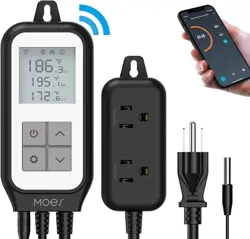
Digital Temperature
Controller
Model: SOP20
SOP20 is an easy-to-use, safe and reliable dual relay output
temperature controller.
It can be used as overtemperature protection and automatic
temperature control system for various electric appliances such as
equipment for home-brew, pet breeding,incubation, seedling heat mats,
terrestrial heat control, constant temperature cycle of heating pump,
culture fermentation, accelerating germination, electric radiator, electric
oven, etc.
Dual relay output - Be able to connect with refrigeration and heating
equipment at the same time
LED Display - Be able to show measured temperature and set
temperature at the same time
Temperature Unit - Supports Centigrade or Fahrenheit
High and low temperature alarms are available
•
•
Delay protection for cooling
②
①
③
④
⑤
⑥
⑦
⑧
⑨
⑩
②
Temperature Senor
③
Current temperature
④
High temperature
Low Temperature
⑤
Power Button
⑥
⑦
Setting Button
Increase Button
⑧
Decrease Button
⑨
⑩
Heating output Socket
11
11
Cooling Output Socket
Decrease Button: Long press 3S to turn off the buzzer
Setting Button: can be switch Centigrade or Fahrenheit unit
Type of temperature probe: R25=10K Ω ±1% B25/85=3435K±1%
Temperature Accuracy: 1%
15
Control Function Instructions
1. Turn ON / Turn OFF
2. Maximum Temperature Setting
1. Heating Mode
When the measured temperature PV < LV(Low Temperature Value),
the controller will enter the heating state, the is on, HEATING output
works.
When the measured temperature PV ≥ HV-2℃(High Temperature
Value), the is off and the HEATING output turns off.
2. Cooling Mode
When the measured temperature PV > HV (High Temperature Value) ,
The controller will enter the cooling state, the is on, COOLING
output works;
When measured temperature PV ≤ LV+2℃ (Low Temperature Setting
Value), The is off and the COOLING output turns off
3. Normal Mode
For example, setting HV=26.0℃,LV=23.0℃,
when the PV > 26.0℃,the controller will enter the Cooling state;
when the PV< 25.0℃, the cooling will stop
when the PV < 23.0℃, the controller will enter the Heating state;
when the PV> 24.0℃,the Heating will stop
4. Alarm High /Low Temperature Limit
When measured temperature > AH (high temperature limit alarm), the
buzzer will bi-bi-Bii"alarm, until the temperature < AH, buzzer off. Or
press any button to turn the buzzer alarm off only.
When measured temperatures < AL(low temperature limit alarm), The
buzzer will "bi-bi Bii “ alarm, until the temperature >AL, buzzer off Or
press any button to turn the buzzer alarm off only.
Press the screen will be displayed; Press the screen & socket turn off
2.1 High temperature setting
Long press the setting key 3s, the decimal place will be flash,
click the setting key could choose the number of digits,
long press could be turn up or turn down. Press the setting key to
confirm.
2.2 Minimum Temperature Setting
Long press the setting key 3s, the decimal place will be flash,click
could choose the number of digits,
Long press could be turn up or turn down. long press the setting key
3s to exit the setup
The machine do not work while the measured temperature is between
HV/LV, the icon is not display
3. C/F Switch
Press the setting key, switching between C/F
4. Turn ON/OFF the Buzzer
Can turn on/off the buzzer by long press the the down key.
will be show the state.
Cooling delay switch
Delay time
High temperature
alarm switch
High temperature alarm
Low temperature
alarm switch
Low temperature alarm
Temperature Calibration
Temperature unit switch
Device
Information
Back to
Home Page
PV:Current
Temperature
Control Mode
Menu Setting
Temperature
Trend Diagram
Power Switch
High Temperature
Low Temperature
14
Button Operation Instructions
5. Other Function
5.1 When the temperature sensor circuit is short-circuited or open-
circuit fault, the controller starts the probe fault mode, it will close
all execution states, the buzzer sounds , then press any button to
eliminate the buzzer sound, after the fault is removed, it will return
to the normal working mode.
5.2 When the controller is powered off or in the state of disconnected,
the mobile APP will still show online state ,and the disconnected
state will be showed after 1~3 minutes.
Note: The next mode will be started in 15s
16 17
For any inquiries comments concerning to our products, please do no
hesitate to send us email, and we will respond to you as soon as possible.
We appreciate your support!
Contact us
4.1 when the device is connected WiFI
4.2 when the device is unconnect the WIFI
When measured temperature > HV+9℉, the buzzer will bi-bi-Bii"alarm,
until the temperature < HV+9℉, buzzer off . Or press any button to turn
the buzzer alarm off When measured temperatures < HV+9℉ The
buzzer will "bi-bi Bii “ alarm, until the temperature >LV-9℉, buzzer off
Or press any button to turn the buzzer alarm off
.
Enjoy Our Smart Life
Download Smart Life APP
Thank you for your support and purchase at we Moes,we are
always here for your complete satisfaction,just feel free to share
your great shopping experience with us.
If you have any other need,please do not hesitate to contact us
first,we will try to meet your demand.
moes
@moessmart
@moes_smart
@moes_smart
@moes_smart
moes.net
WENZHOU NOVA NEW ENERGY CO.,LTD
Address: Power Science and Technology Innovation Center, NO.238, Wei 11 Road,
Yueqing Economic Development Zone, Yueqing, Zhejiang, China
Tel:+86-577-57186815
Email:[email protected]
AMZLAB GmbH
Laubenhof 23, 45326 Essen
Made in China
210514
HEATING
COOLING