nonser
Phone setup
View full video setup tutorial at:
https://www.nonser.net
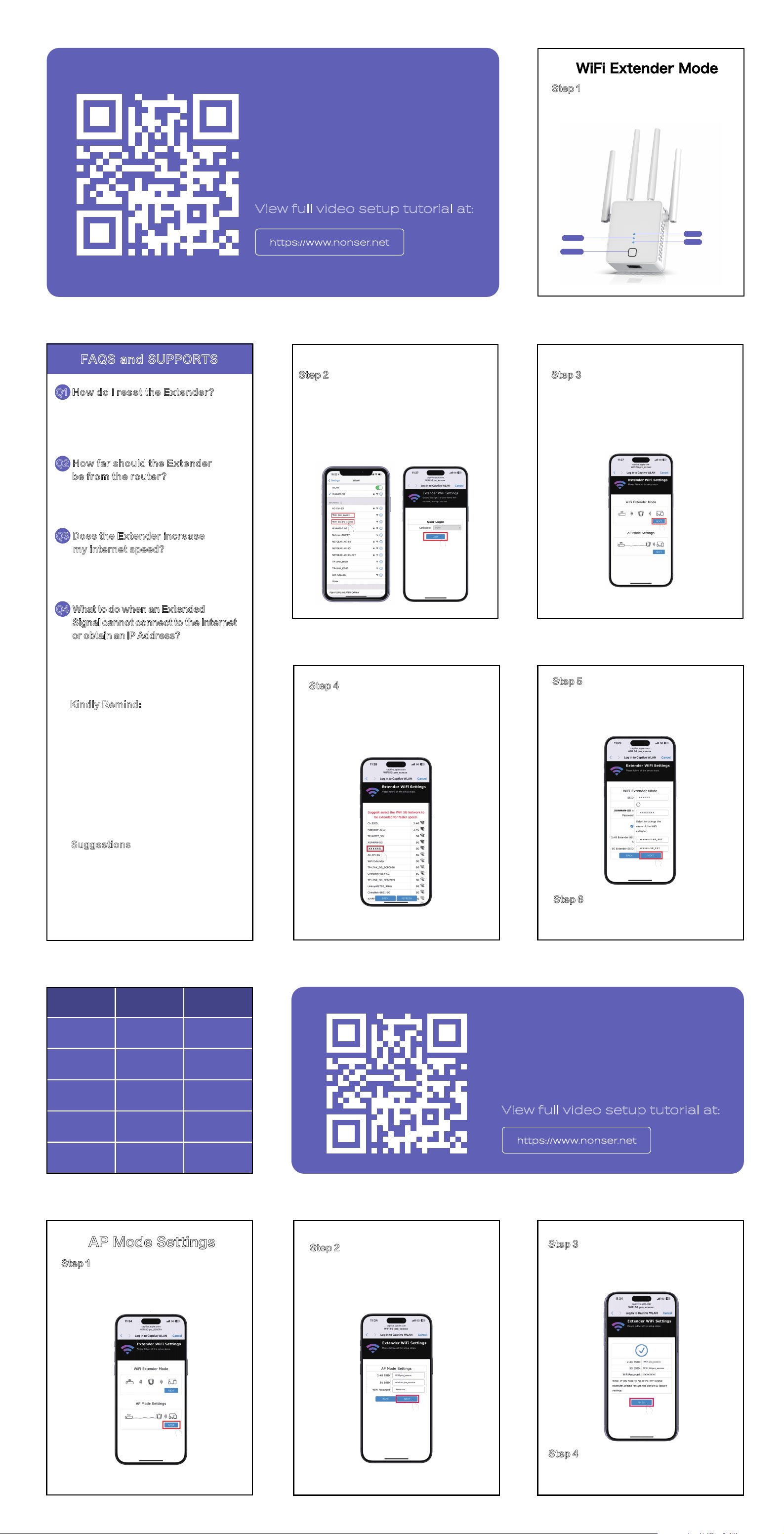
Plug the Extender into a power outlet near your existing Wi-Fi
Router. And then wait until the Power LED turns flashing slowly.
Step 1
Go to your Phone settings. Open Wi-Fi, and turn
it ON. Search for the network name “WiFi pro_xxxxxx”
or “WiFi 5G pro_xxxxxx” and click on it to connect
and LOGIN. (If it does not jump to the settings login
page, please go to the browser and enter
192.168.11.1 to the settings login page)
Step 2
Click “WiFi Extender Mode” to the next step.
And then wait for available networks.
Step 3
Click on the name of the existing Wi-Fi Network
you want to extend. (If the WiFi you want does
not appear, please scroll to the end and click
"Manual Setup" to add it)
Step 4
Type the same password as your router. Click the “
NEXT” button, and then click the “Finish” button;
Wait 40s and the WiFi list will appear.
Step 5
Finally, select the WiFi(with -EXT) that has been
extended to connect and then complete the settings.
Step 6
nonser
Phone setup
View full video setup tutorial at:
https://www.nonser.net
AP Mode Settings
Click “AP Mode Settings” to the next step.
Note: Please complete the configuration on your
mobile phone before plugging in the network cable.
Step 1
Please set the 2.4G/5G SSID name and password
according to your personal preferences
Step 2
Click the "Finish" button. Wait 40 seconds and the
WiFi list will appear.
Step 3
Finally, Select the new WiFi name to connect and then
complete the settings.
Step 4
Action
Plug in about
for 30s
Ethernet Port
Connect the
network cable
Reset
successfully
WPS button
LED fixed turns
flash slowly
LED flash slowly
turns fixed
Press Reset
button about for 5s
LED flash quickly
turns fixed turns
flash slowly
Turn on
Extension
successful
WPS enable
LED solid on
LED fast blinking
Indication Status
FAQS and SUPPORTS
Q1 How do I reset the Extender?
Q2 How far should the Extender
be from the router?
A2: Plug in the extender about halfway between
your router and the Wi-Fi dead zone. The location
you choose must be within the range of your router.
Q3 Does the Extender increase
my internet speed?
Kindly Remind:
Suggestions
A3: No, it increases the range of your Wi-Fi Network.
Sometimes, the WiFi speed may reduce due to exter-
nal influences, such as microwave oven or thick wall.
Q4 What to do when an Extended
Signal cannot connect to the Internet
or obtain an lP Address?
A4: Please log in to the router's admin interface
and change the wireless encryption mode to
WPA-PSK/WPA2-PSK.
Before configuring the extender, please go into the
router settings and change the wireless channel
(2.4G/5G) from Auto to Fixed mode, which helps
maintain the signal stability of the extender. If there
is an issue with the extended network, reset the WiFi
Extender to factory settings and set it up again.
▲Do not attempt to disassemble, repair, or modify
the device.
▲The socket-outlet shall be installed near the
equipment and shall be easily accessible.
▲Keep the device away from water, fire, humidity
or hot environments.
▲If the product encounters any problems during use,
please feel free to contact us with email:
A1: Press the “Reset” button about 5 seconds.
When the LED indicator changes from flash quickly
to solid on to flash slowly then you setup the
extender again.
Power
LAN
Extender
WPS/RTS