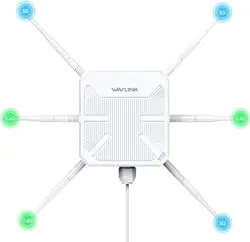
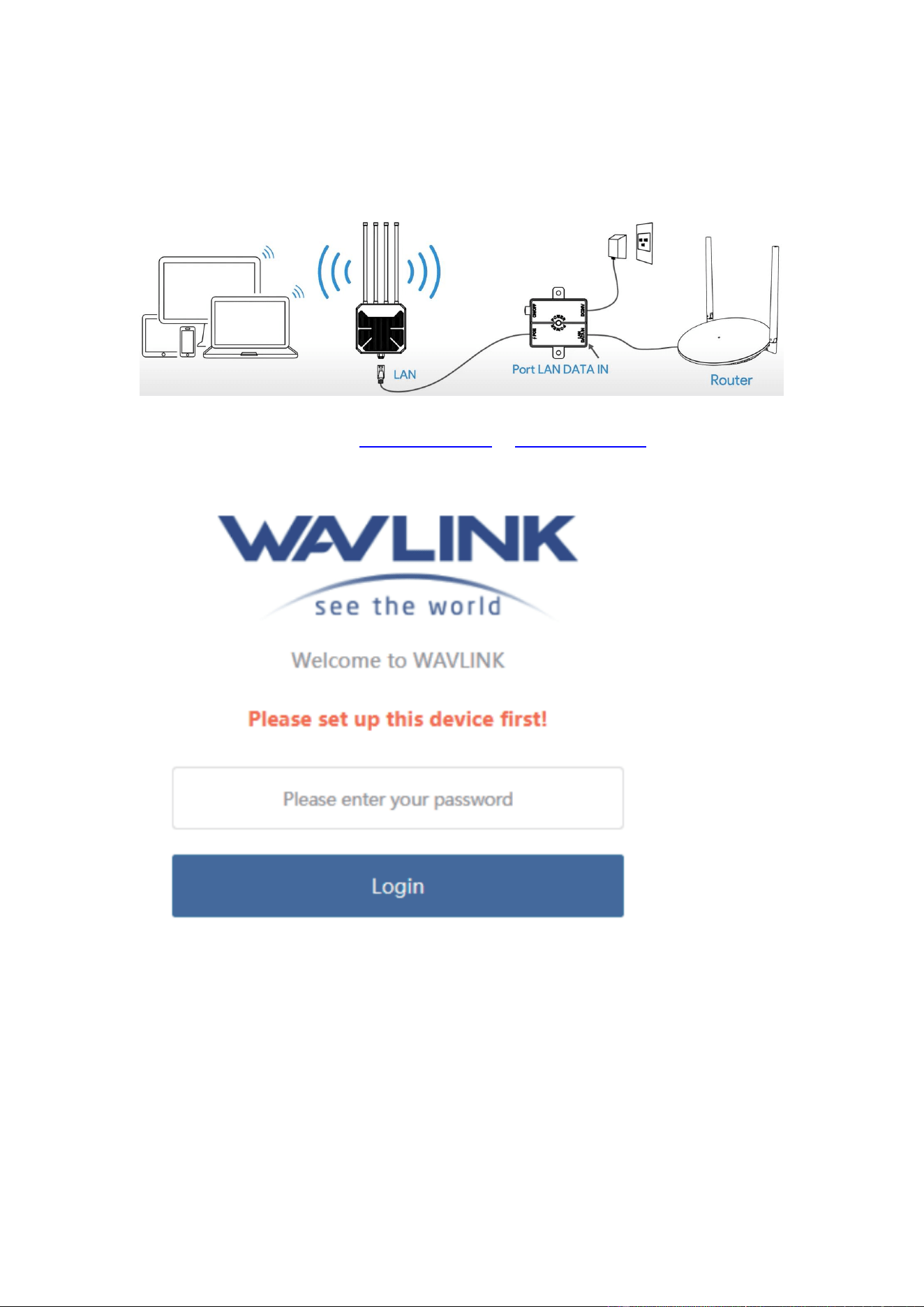
AP mode configuration.
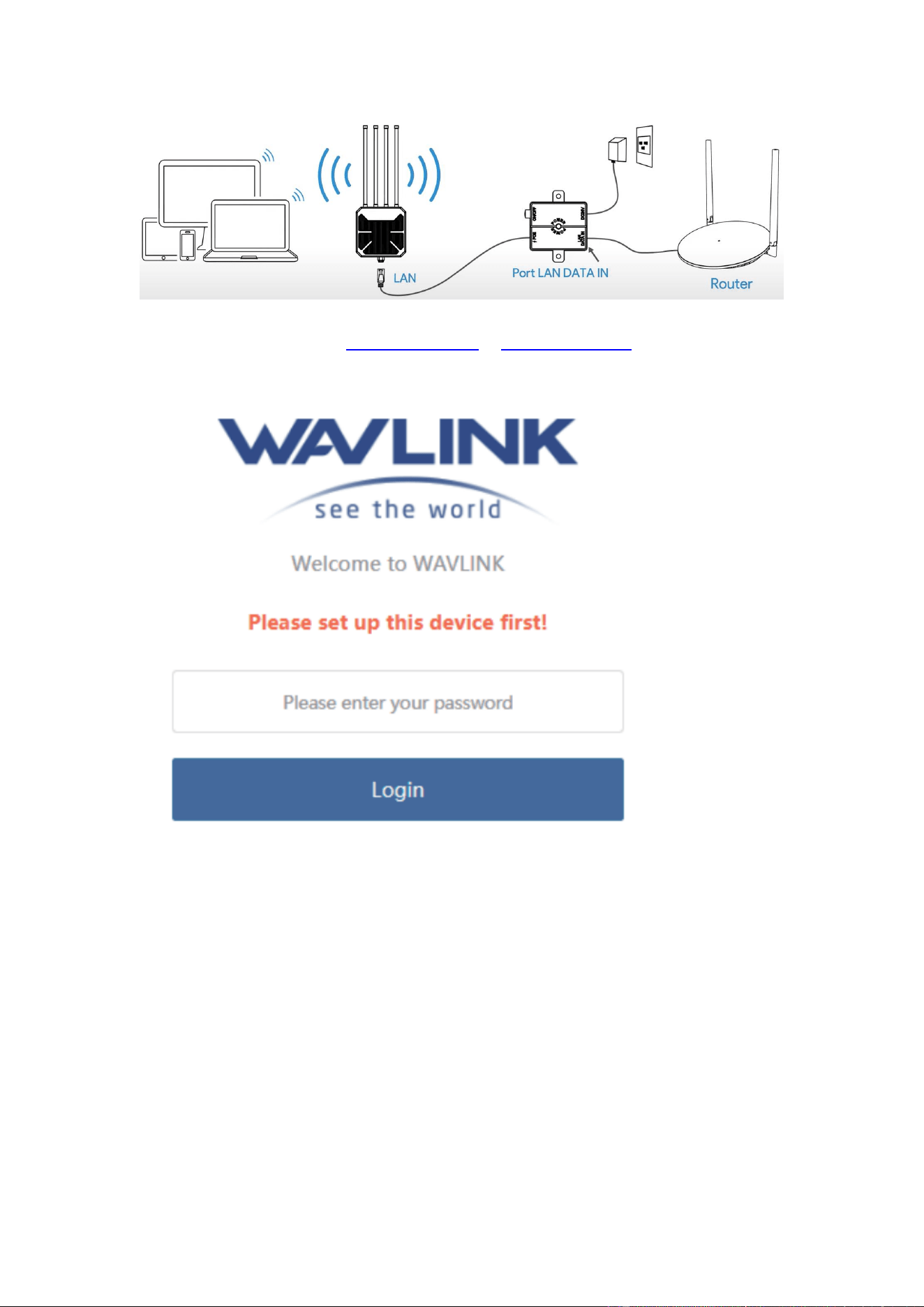
In ap mode,you could connect the wavlink device to the host router/modem via Ethernet cable.
After configuration,the clients could get internet from the wifi signal of wavlink device.
1. Please connect the wifi signal of wavlink device,it should be WAVLINK-xxxxx
2. Open the browser and enter http://waplogin.link or http://192.168.30.1 ,you will get the log
in page shown as below,next please enter ‘admin’ to log in.
3. Select the the country/region and time zone.Next create the management page password.
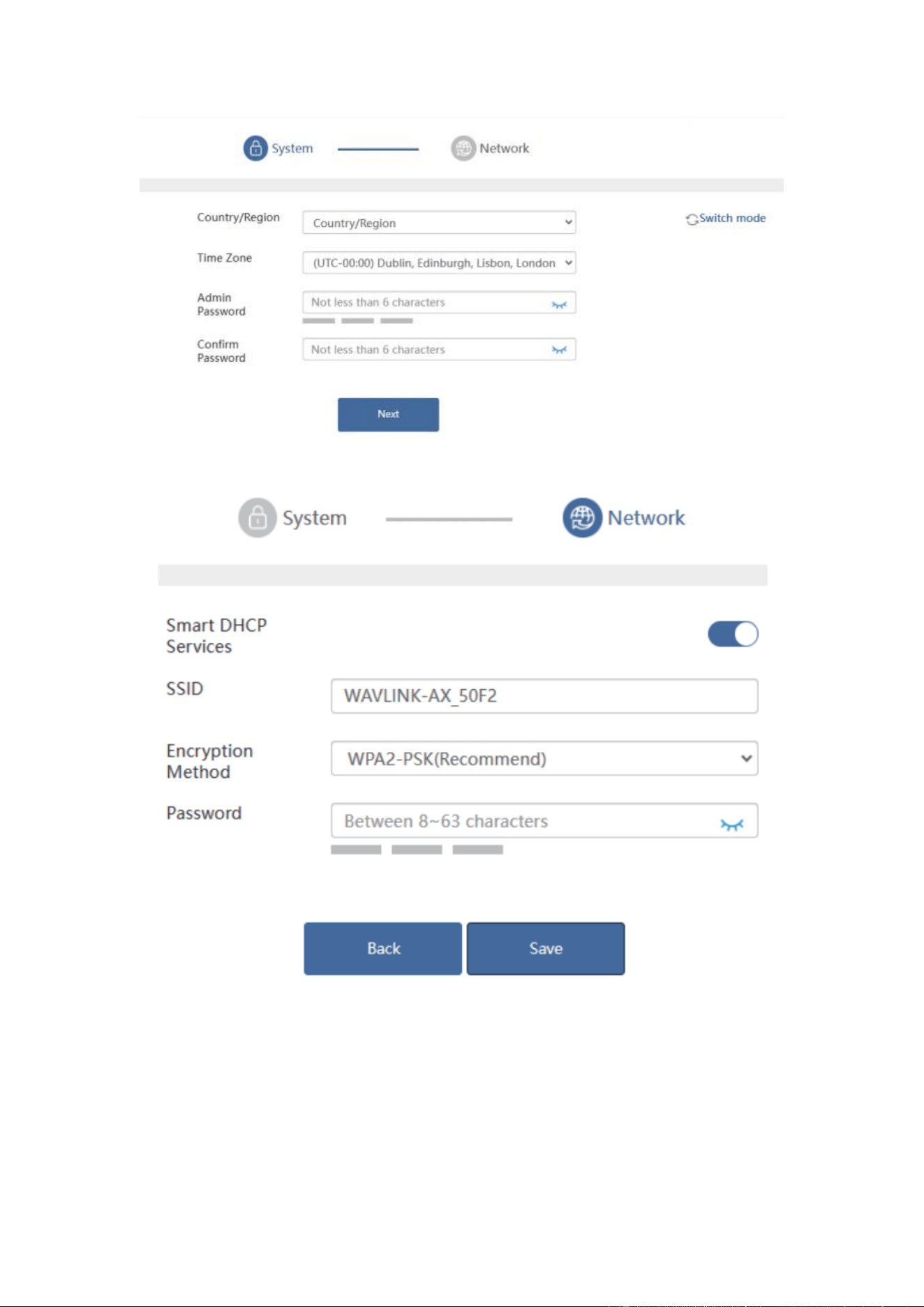
4. Then please create the wifi password for wavlink device and click save.
Next please check if you could get internet from the wifi signal of wavlink device.
Router mode configuration
In router mode,you could connect the wavlink device to the host router/modem via Ethernet
cable.
After configuration,the clients could get internet from the wifi signal of wavlink device.
4.Select the the country/region and time zone.Next create the management page password.
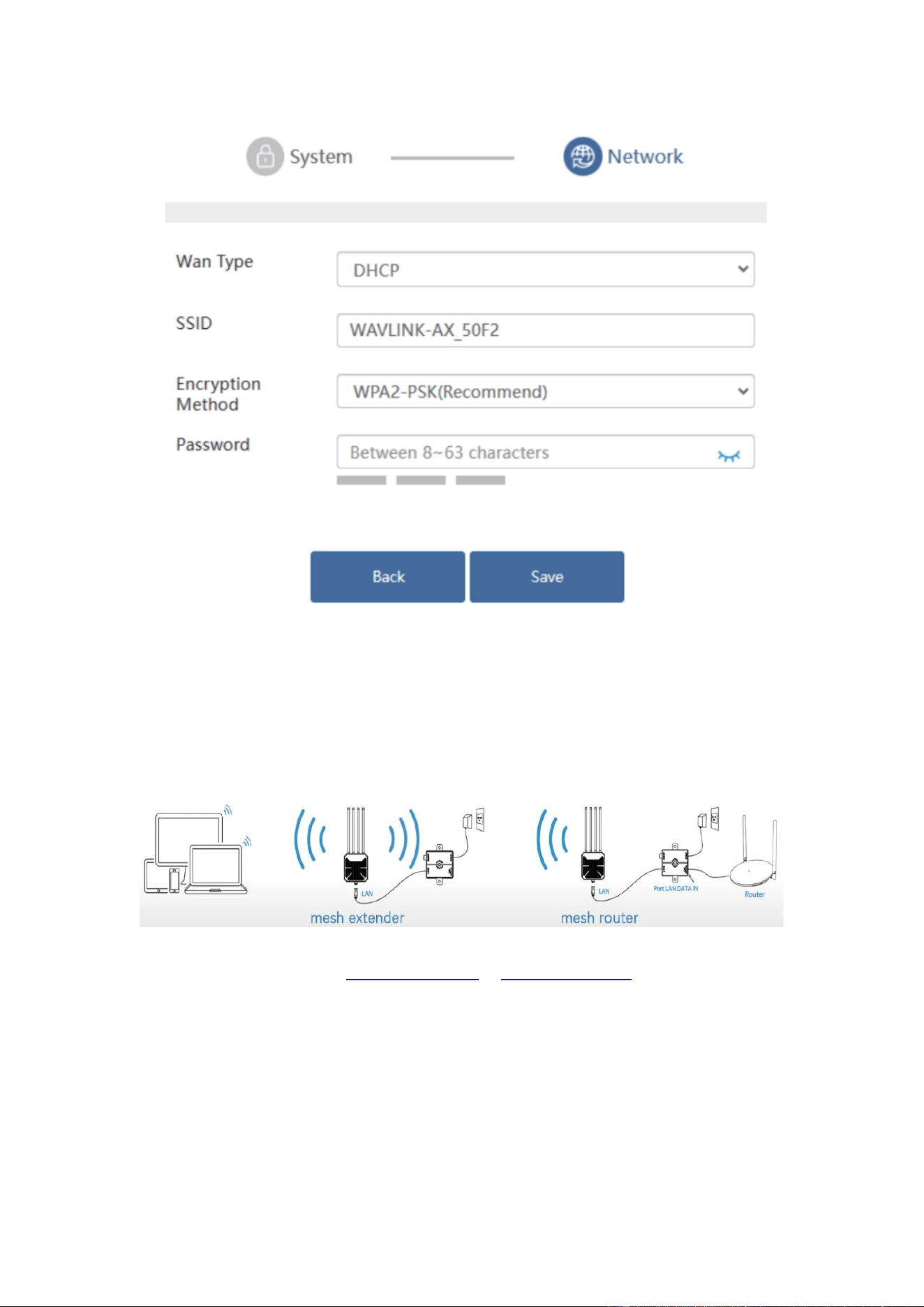
5.Choose the correct wan type and create the wifi password for wavlink device.(If you are not
sure which wan type to select.Please connect the pc to your modem via Ethernet cable and check
if you could get internet,if you could get internet,please select dhcp if you could not get
internet,please select pppoe.If you still meet some problem,please be free to contact our support
team)
Repeater mode configuration
In repeater mode,the wavlink device will build a wireless connection with the host router then
create two wifi signal to help you get a larger wifi coverage.
1.Please connect the wifi signal of wavlink device,it should be WAVLINK-xxxxx
2.Open the browser and enter http://waplogin.link or http://192.168.30.1 ,you will get the log in
page shown as below,next please enter ‘admin’ to log in.
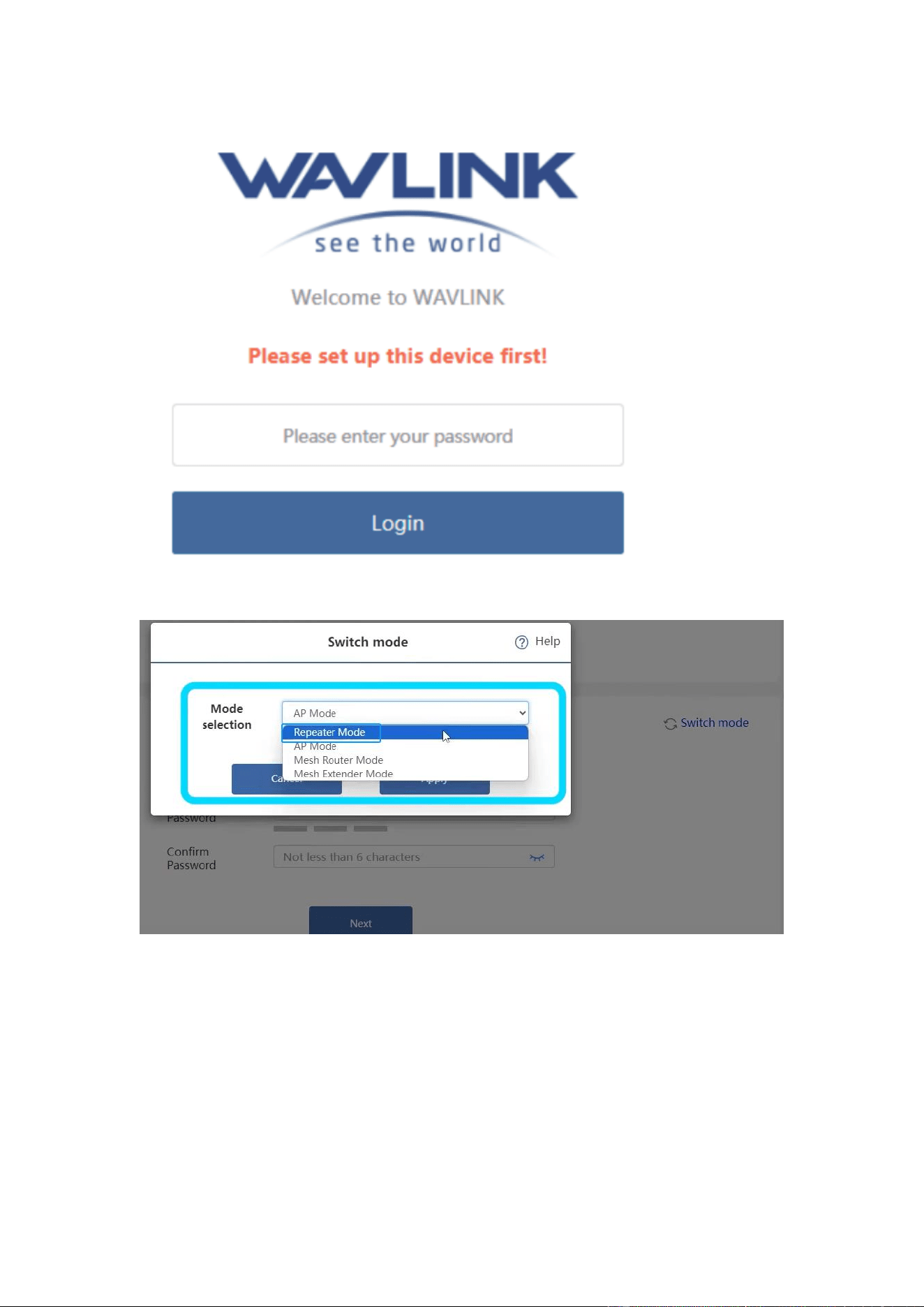
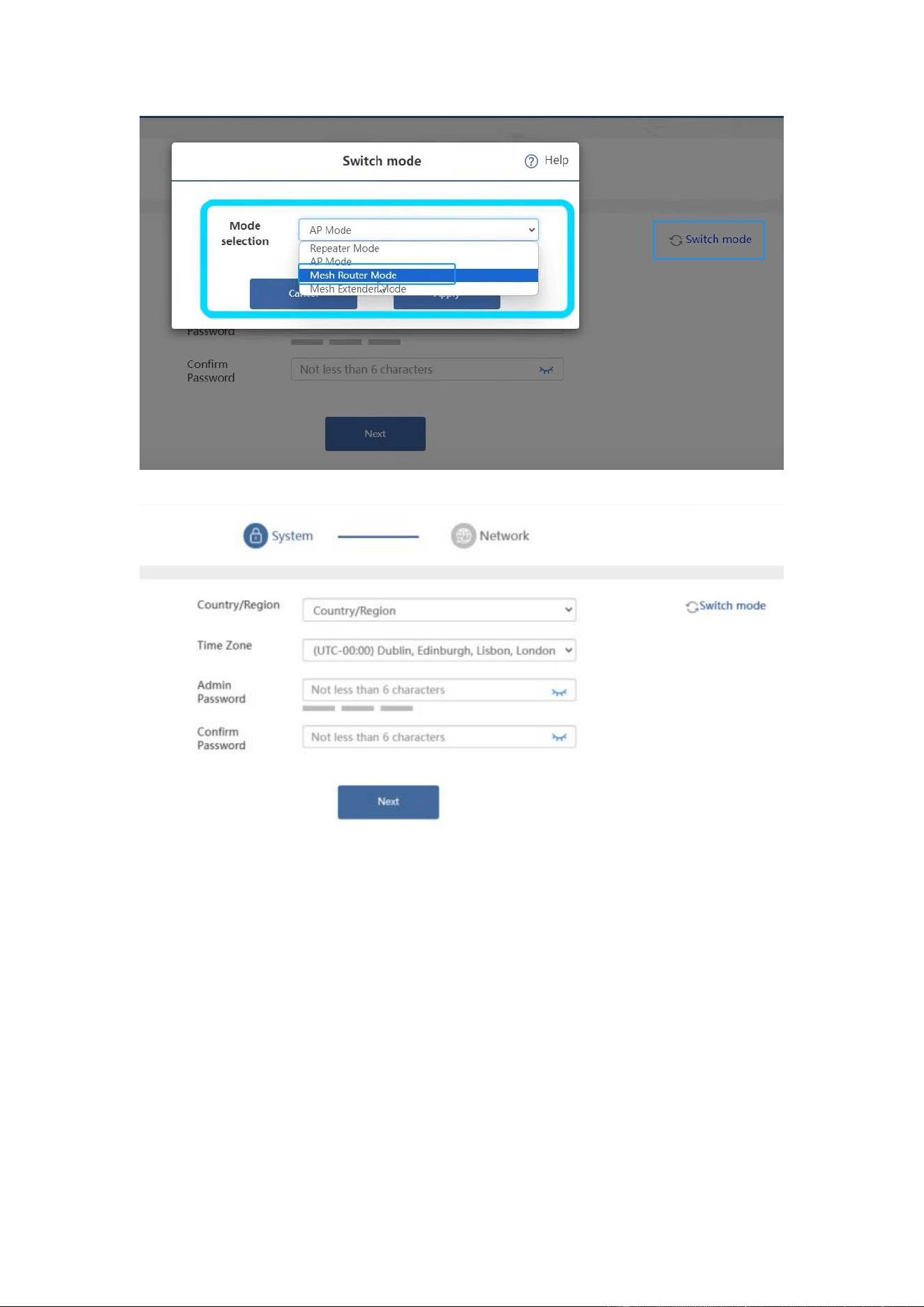
3.Click switch mode and then choose repeater mode then click save.
4.Select the the country/region and time zone.Next create the management page password.
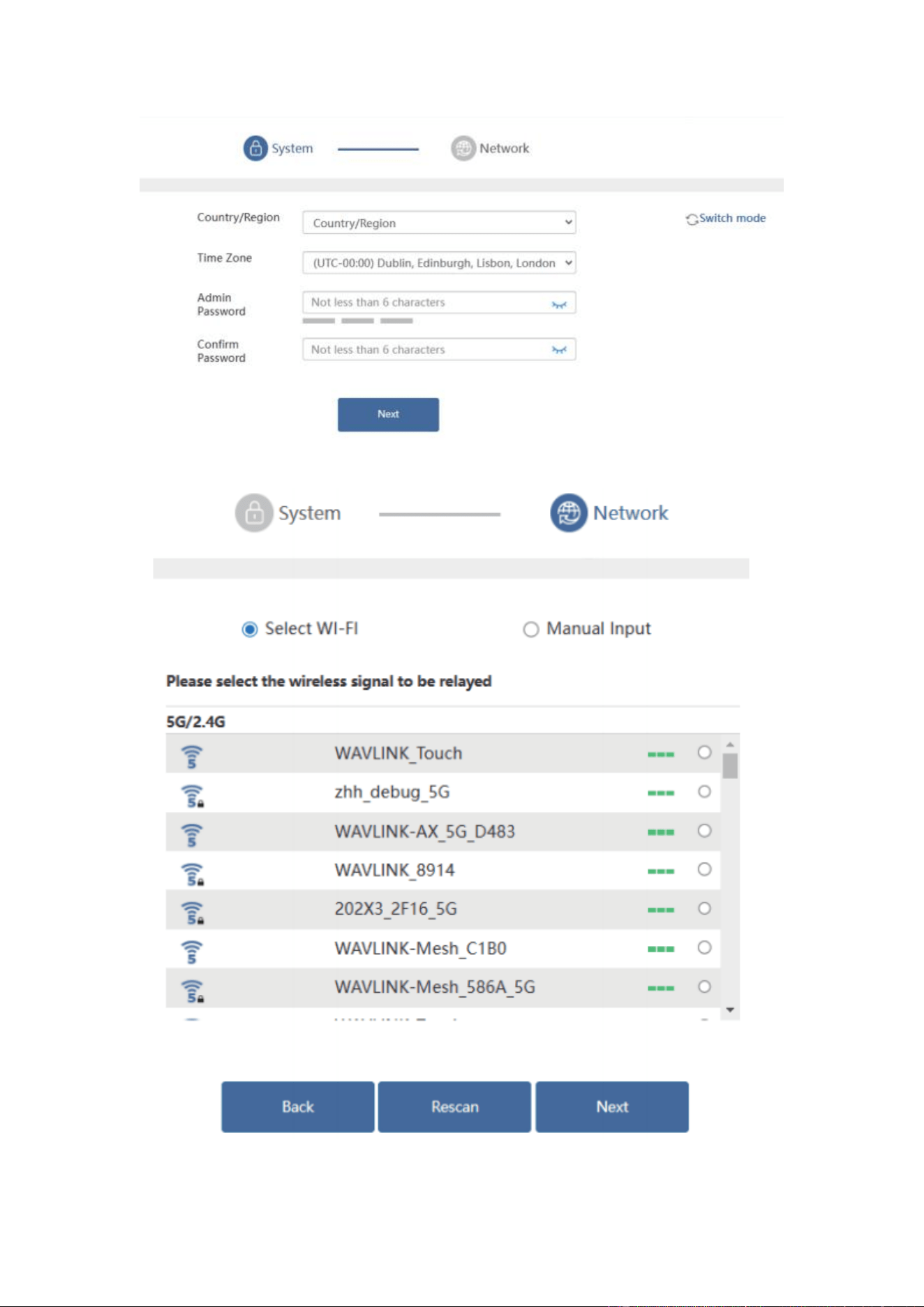
5.Click the wifi signal of your router then click next.
6.Enter the wifi password of the router and then create wifi password for 2.4g and 5g signal then
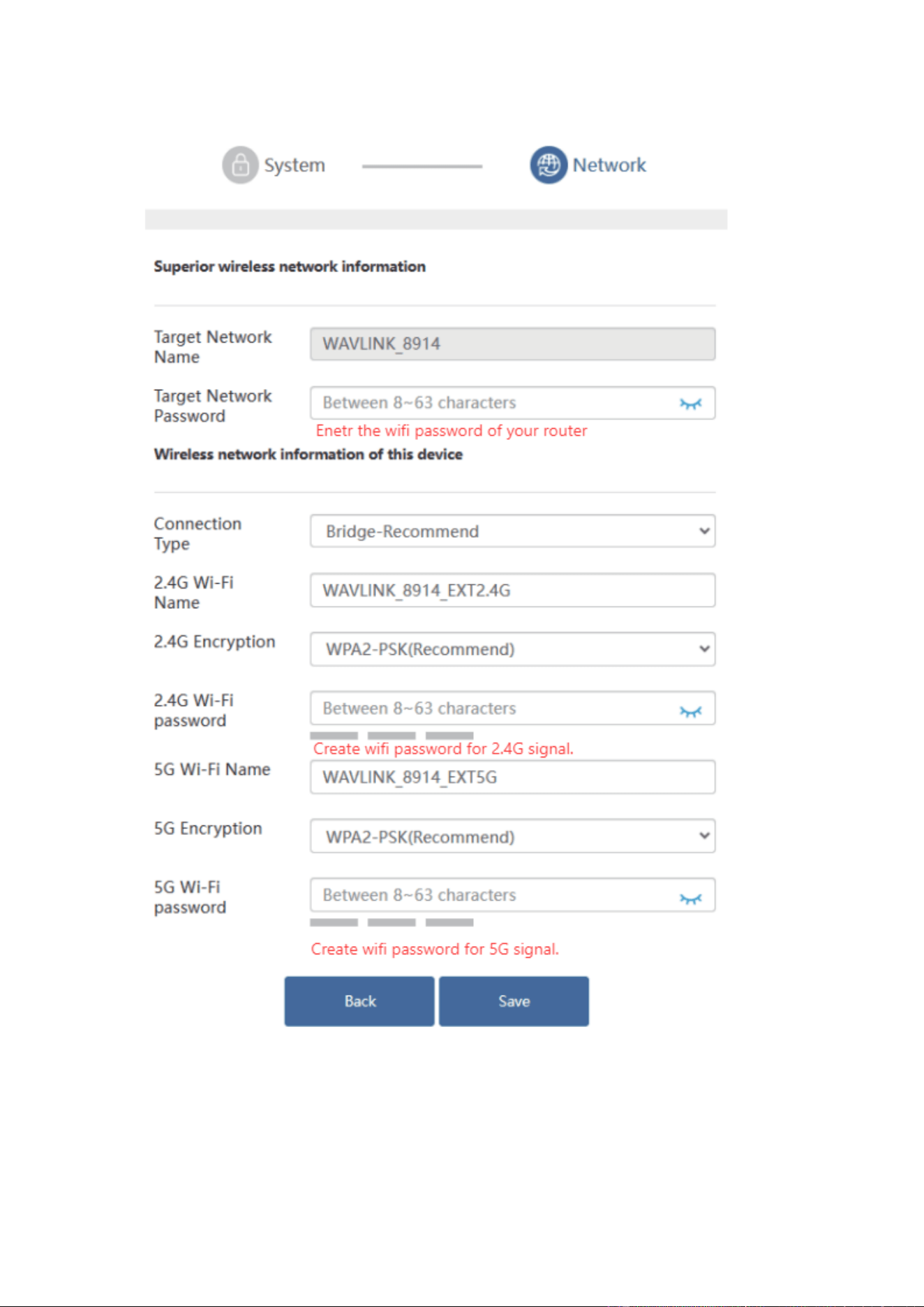
click save.
Then connect the wifi signal of wavlink device again and check if you could get internet.
Mesh extender mode
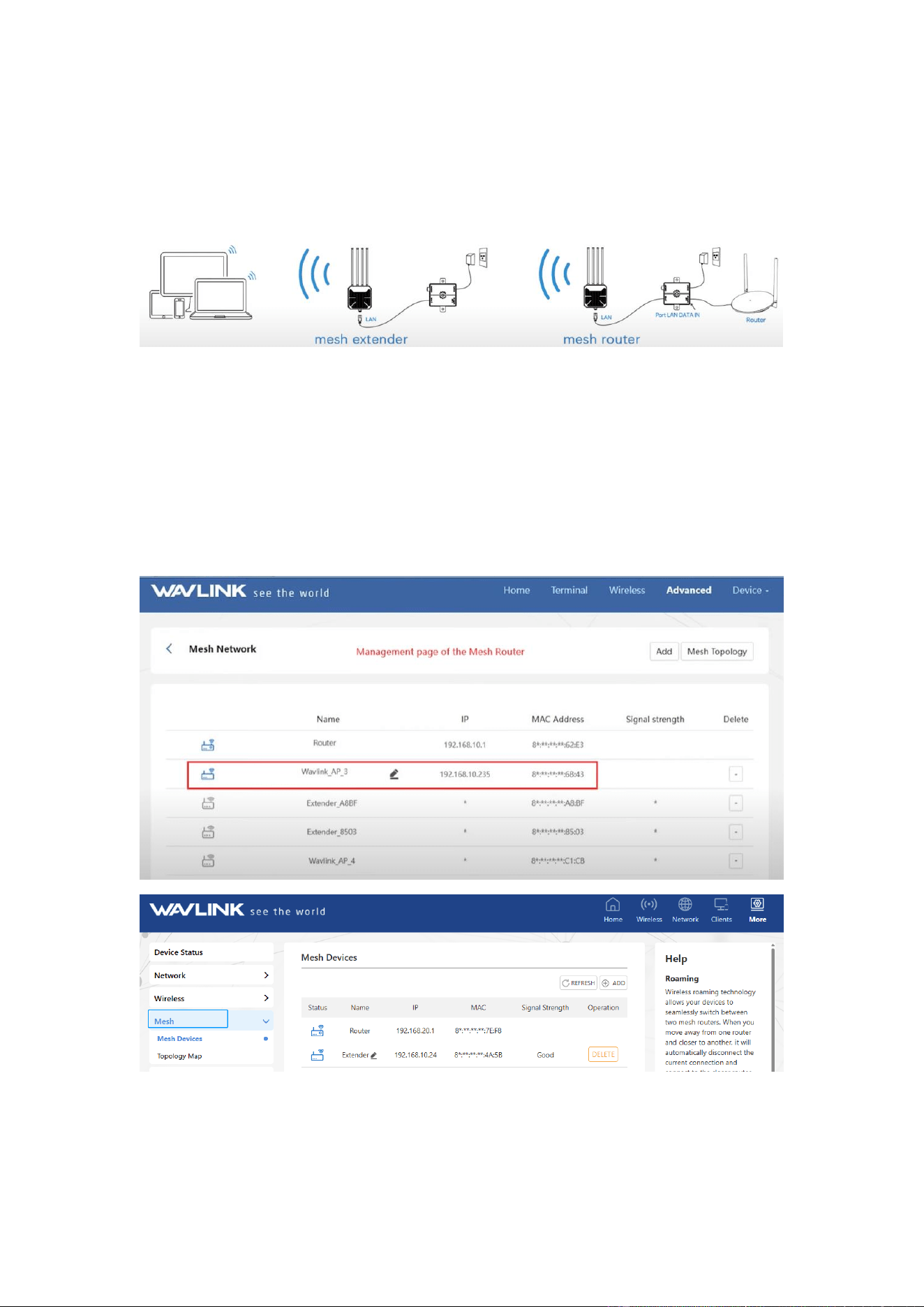
In mesh extender mode, 588HX3 could form mesh system with existing
specific wavlink mesh device.
And it could form mesh system with itself as well.
1. Make the mesh extender in factory status,if you are not sure,please reset it by pressing the
reset button for 6s.
2. Make sure the mesh router is configured already,and you should get internet from the wifi
signal of the mesh router.
3. Please press the pair button of the mesh router,then the led of the mesh router will
change.Next press the pair button of the mesh extender for about 2s,the led status should
change as well.
4. After about 2-3 minutes,please log in the management page of the mesh router and check if
the mesh extender is added successfully.
If you meet any problem,please be free to contact our support team:
E-mail:postsales@wavlink.com or contact@wavlink.com
Phone:+1 8889730883