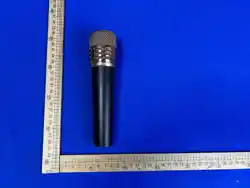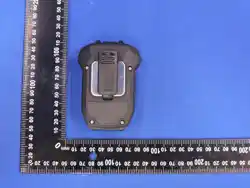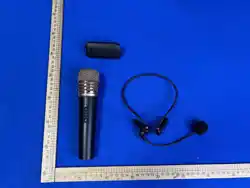




VENUCAST VMC-01 Freemic w/ Duo

Product's Documents

Below are documents related to this product, you can read online or download:

User Manual

This is the main product document for model VMC-01. Additionally, the document applies to other VENUCAST models: VMC-02, WJ5-MIC01, WJ5-MIC02

The file format is pdf, 14 pages, you can download this manual here .

background
Interactive UserGuide
Version 2.3
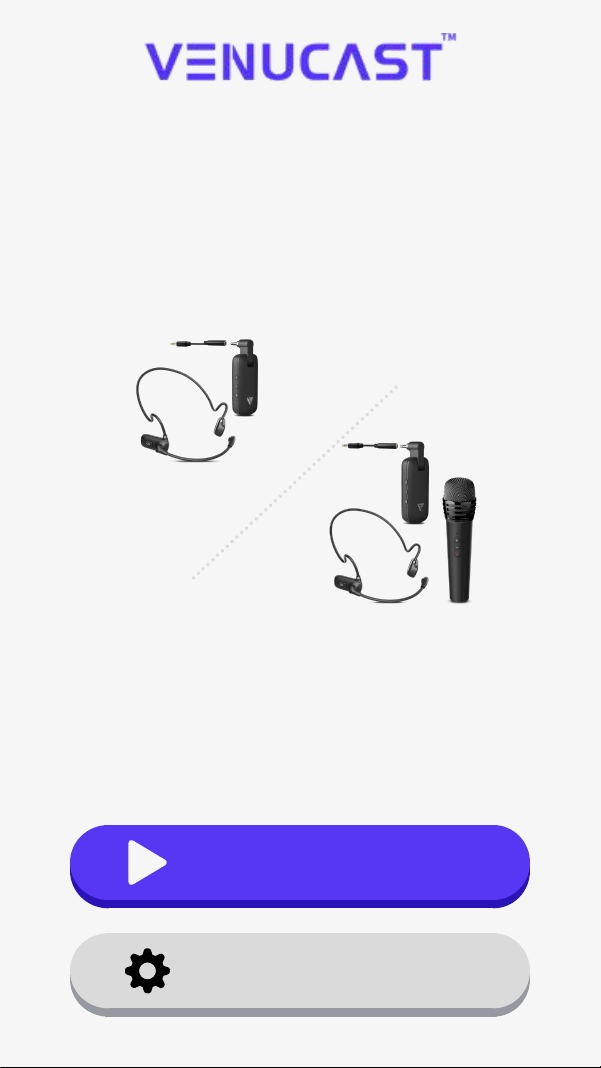
FreeMic W / Duo
Wireless Headset
(& Handheld) Microphone Kit
Troubleshooting
First Time Setup
VMC-01
FreeMic W
FCC ID:WJ5-MIC01
VMC-02
FreeMic Duo
FCC ID:WJ5-MIC02
background
< Back
Main Menu
Next
Main Menu
1.Before You Start
8. Register & Support
2. Check Compatibility
7. Troubleshooting
3. Connect to Transmitter
Connect to Mixer
4. Other Connections
5. Use the Microphone
Connect to Speaker
6. Power & Charging
background
1. Before You Start
< Back
Next
Menu
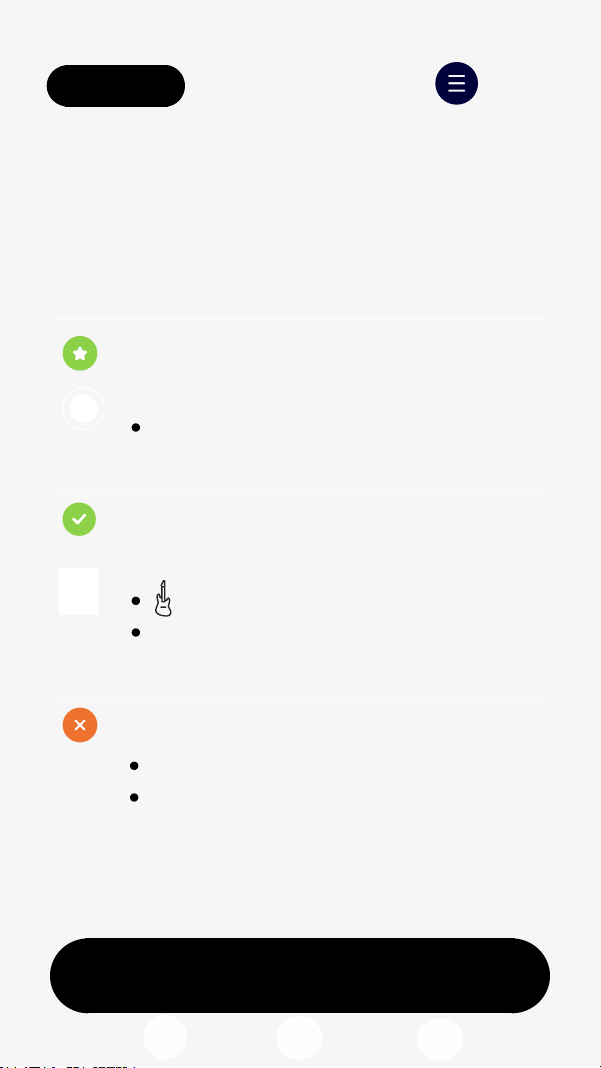
Wireless mic for AUX audio systems
Best for:
Teaching / presentations
Meetings / small events
Use with Venucast transmitters
Check compatibility before use.
background
Menu
Next
< Back
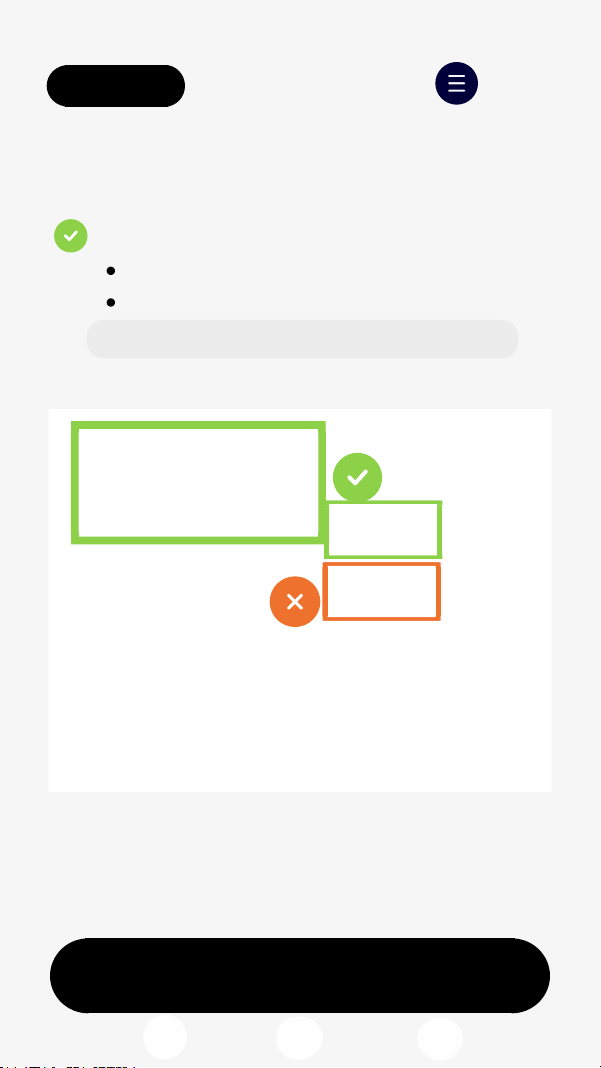
Find the right audio input on your
device.
Works best
3.5mm
AUX IN
Also works
6.35 mm
 IN or MIC IN with a volume knob
LINE/MIC Combo (Mixer)
LINE IN (Mixer)
MIC IN without a volume knob
Not Supported
2. Check Compatibility
background
Menu< Back
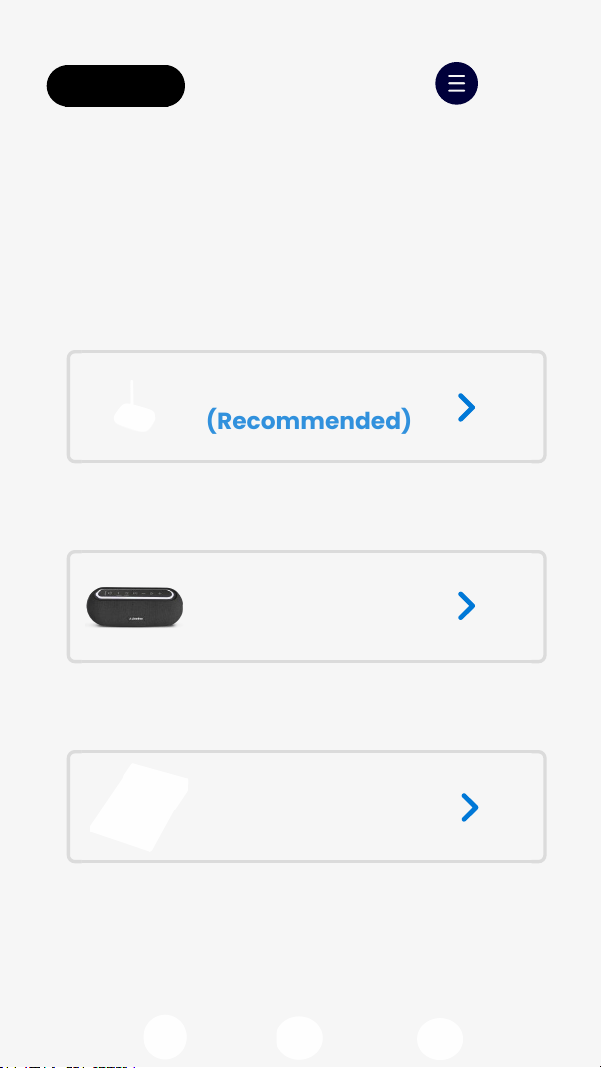
Choose your device
Select the device you'll usewith the
wireless mic kit.
Transmitter
(Recommended)
Speaker
Mixer
background
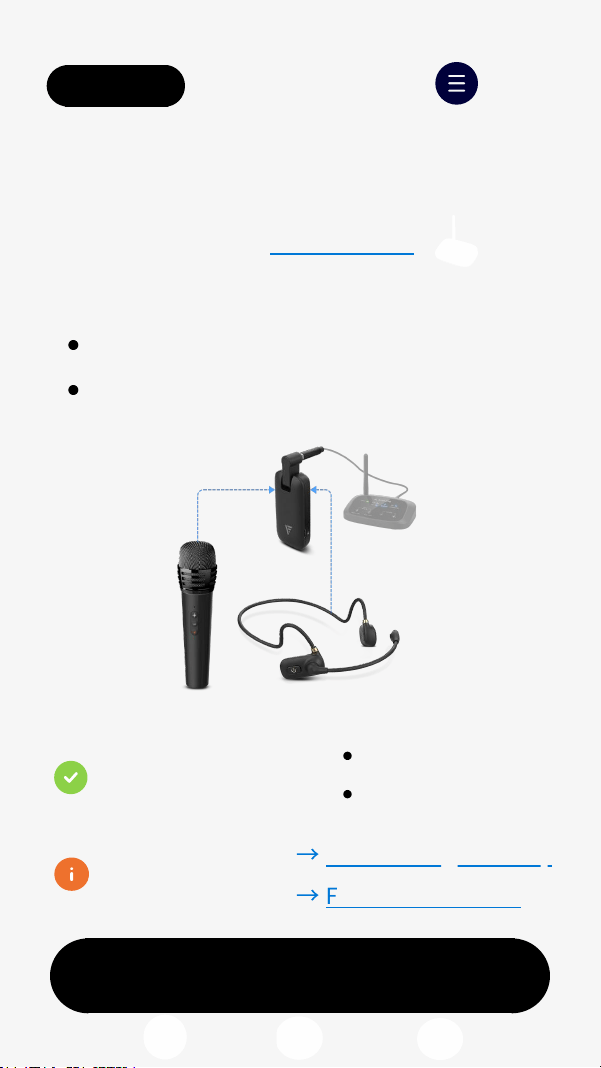
Get full volume & stable sound:
Use included 3.5mm cable
Keep the receiver and transmitter
apart
3. Connect to Transmitter
Menu
Next
< Back
Recommended: Oasis Aura
What to expect:
With Headphones:
With Speakers:
Auto-connect
Auto-connect
Normal slight delay
Feedback noise?
Clear sound
Low latency
background
Menu
4. Other Connections
Next
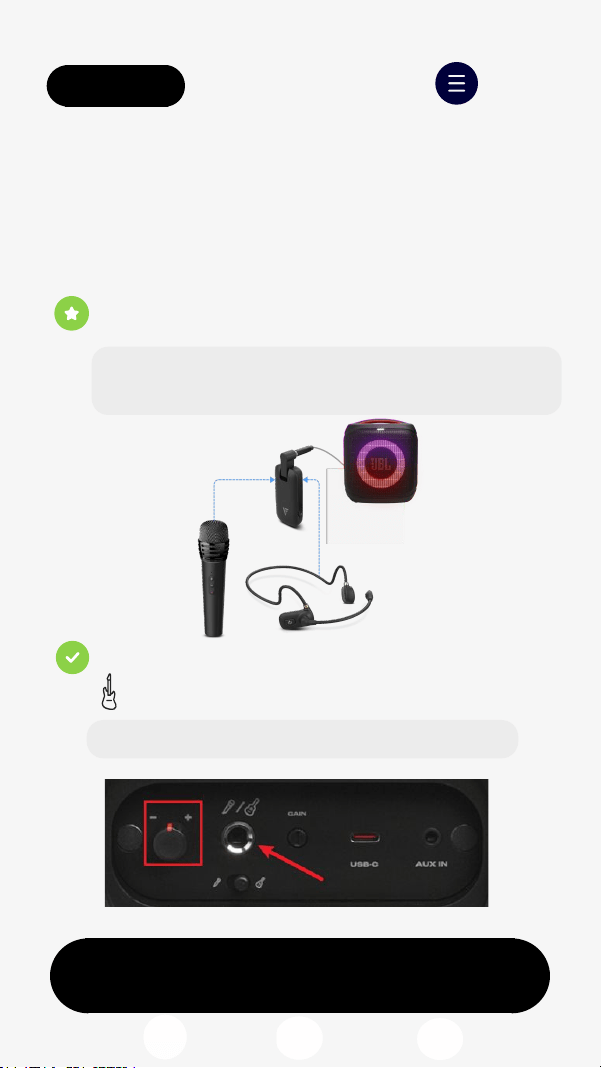
4.1 Connect to Speaker
< Back
Works best:AUX IN 3.5mm
Get full volume & best sound:Use the
included 3.5mm stereo to mono cable
Also works:
   IN or MIC IN with a volume knob
Use the included 6.35mm adapter
background
Menu
Next
4.2 Connect to Mixer
< Back
Works with
MIC IN
LINE/MIC Combo
Use the included 6.35mm adapter
background
Next
5. Use the Microphone
< Back
Simple controls for everyday use.
Power & Connect
On both mic & receiver, hold Power
to turn on
Auto-connect (LEDs turn solid)
Volume
Press + / - on mic or receiver
Range
Up to 20 m (65 ft)
Menu
background
Next
6. Power & Charging
< Back Menu
Use the USB-C cable(5V, 1-2.4A).
Charging:LED stays red
Fully charged: LED turns off
(~3h)
Playtime:
  48h
    11.5h
  11.5h
background
< Back
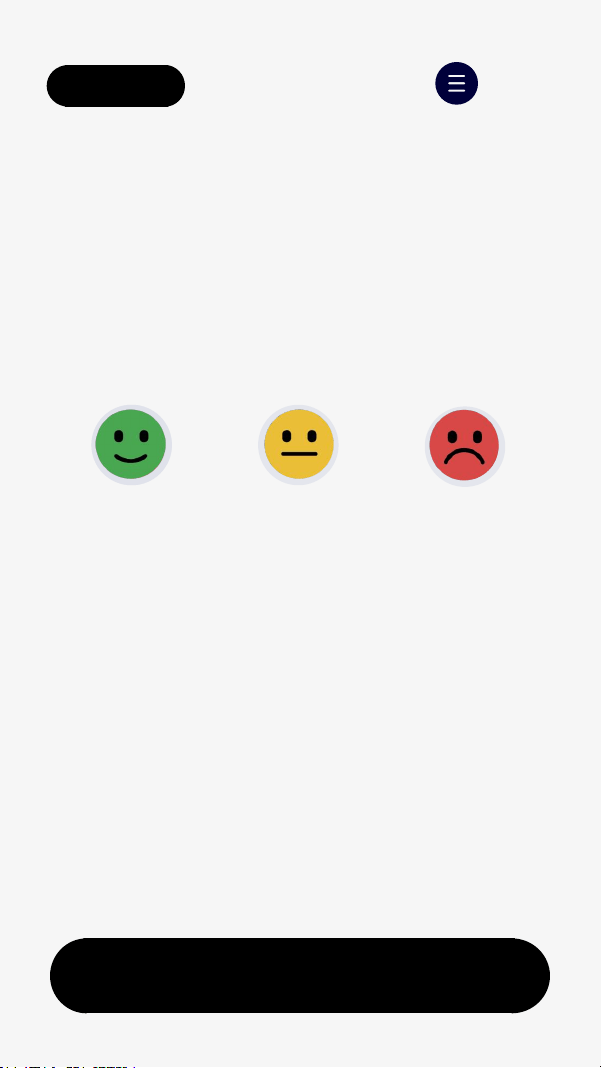
Rate This Guide
Next
Your feedback helps us improve this
guide for everyone.
It only takes a moment.
Menu
background
< Back
Next
Menu
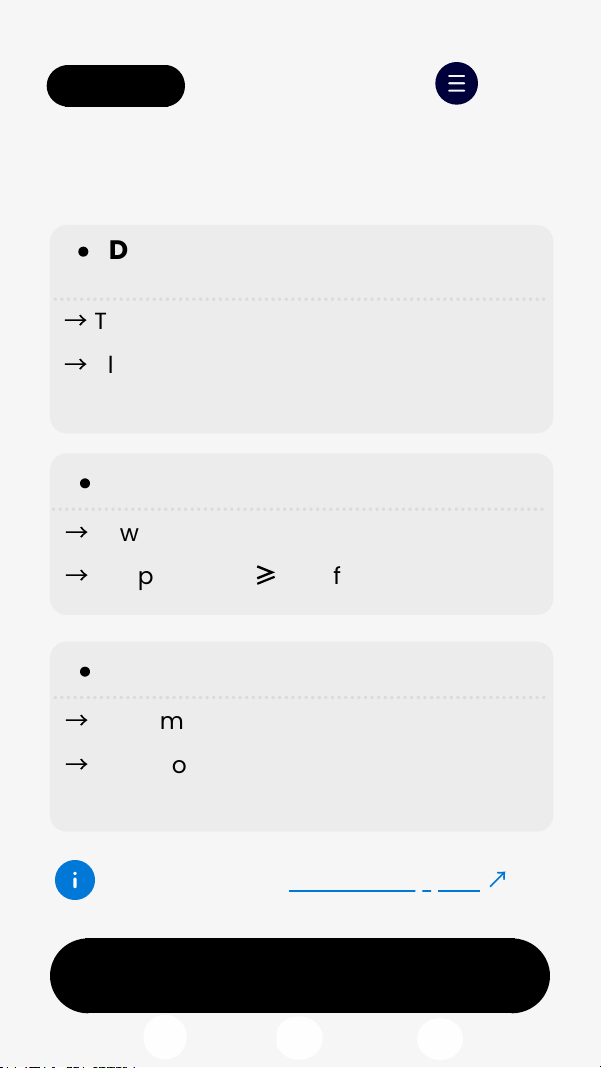
7. Troubleshooting
Still need help?Contact support
Delay
This is normal with Auracast systems
Place the speaker further away from
  you
Hear your own voice
with a slight delay?
Feedback
Lower the volume
Keep the mic
5 m from the speaker
High-pitchednoise?
Audio cuts out?
Keep mic closer to the receiver   
Keep some distance between
  the transmitter and receiver
background
< Back Menu
8. Register & Support
Register Your Product
Agent Support
Extended warranty & get updates.
Need help? We’re here.
Email Call Chat
Get 36M Warranty
background
FCC Requirement
Any changes or modifications not expressly approved by the party
responsible for compliance could void the users authority to operate
the equipment.
This device complies with Part 15 of the FCC Rules. Operation is
subject to the following two conditions:
(1) this device may not cause harmful interference, and
(2) this device must accept any interference received, including
interference that may cause undesired operation.
Note: This equipment has been tested and found to comply with the
limits for a Class B digital device, pursuant to Part 15 of the FCC Rules.
These limits are designed to provide reasonable protection against
harmful interference in a residential installation. This equipment
generates, uses, and can radiate radio frequency energy, and if not
installed and used in accordance with the instructions, may cause
harmful interference to radio communications. However, there is no
guarantee that interference will not occur in a particular installation. If
this equipment does cause harmful interference to radio or television
reception, which can be determined by turning the equipment off and
on, the user is encouraged to try to correct the interference by one or
more of the following measures:
Reorient or relocate the receiving antenna.
Increase the separation between the equipment and receiver.
Connect the equipment into an outlet on a circuit different from
that to which the receiver is connected.
Consult the dealer or an experienced radio/TV technician for help.

Specifications

Indexed Terms: Microphone, Wireless

VENUCAST VMC-01 Questions and Answers

Questions and Answers

Related Products

Product VENUCAST MIC02 image
VENUCAST MIC02 Freemic Duo
2026-06-02 1 docs
Product VENUCAST MIC02 image
VENUCAST MIC02 Freemic Duo
2026-06-02 1 docs