
CONTENT
1. FOREWORD.............................................................................
............................... 4
1.1 Notes on documentation................................................................................
.............................................4
2. SAFETY, OPERATION & MAINTENANCE ...............................
............................... 5
2.1
Explanation of the safety symbols.............................................................................................................5
2.2
Basicsecurity measures...............................................................................................................................6
2.3
Duty of careforthe operator......................................................................................................................7
2.4
Requirements for the operating personnel ............................................................................................7
2.5
GeneralWarning............................................................................................................................................7
3. WARRANTY.............................................................................
............................... 8
3.1
Warranty claims & repair .............................................................................................................................8
3.2
Life support policy warning .........................................................................................................................9
3.3
In case ofdefect................................................................................................
.............................................9
4. Product Description........................................................................................... 10
4.1 Appropriate use
....................................................................................................................................
10
4.2 Interfaces & Features
...........................................................................................................................
11
4.3 Scope of delivery
..................................................................................................................................
14
5. Installation Instructions ......................................................
............................. 15
5.1
Transportation..............................................................................................................................................15
5.2
Unpacking
15
5.3
Connecting
the device................................................................................................................................
16
5.4
Driver insta
llations.......................................................................................................................................
17
6. Operating Instructions.........................................................
............................. 18
6.1 Initial power-up and driver installation
.............................................................................................
18
6.2 BIOS settings
.........................................................................................................................................
18
6.3 Troubleshooting
...................................................................................................................................
19
6.4 FAQs
.......................................................................................................................................................
19
2/22
FAYTECH
® installation, safety and user manual © 2026 | www.faytech.com

installation, safety and user manual © 2026 | www.faytech.com
7. Service and Support
.........................................................................................................
20
7.1 Service
....................................................................................................................................................
20
7.2 Contact
...................................................................................................................................................
20
8. Appendix ............................................................................................................. 21
8.1 CE and UKCA - Declaration of Conformity .............................................................................................21
3/22

installation, safety and user manual © 2026 | www.faytech.com
1. FOREWORD
Please read this manual carefully prior to use of the product, and keep it properly.
1.1 Notes on documentation
This description is intended exclusively for trained specialists in controlling and automation technology
who are familiar with the applicable national standards. For installation and commissioning of the
components it is absolutely necessary to observe the following notes and explanations. The qualified
personnel must ensure that the application or use of the described products meets all safety
requirements, including all applicable laws, regulations, provisions and standards.
Disclaimer
This documentation has been carefully prepared. However, the products described are subject to
continuous further development. Therefore, the documentation is not always completely checked for
compliance with the described performance data, standards or other features. If it contains technical or
editorial errors, we reserve the right to make changes at any time and without notice. The information,
illustrations and descriptions in this documentation do not constitute grounds for claims for changes to
products already supplied.
Copyright
© faytech
Passing on and reproduction of this document, use and communication of its contents are prohibited
unless expressly permitted. All rights reserved in case of patent, utility model or design patent
registration.
State of delivery
All components are delivered in specific hardware and software configurations depending on the
application requirements. Changes to the hardware or software configuration, which go beyond the
documented possibilities are not permitted and result in the exclusion of liability of faytech.
Notice on waste recycling
If this Product is no longer needed or reaches its service life, it shall be submitted to the qualified
recycling pants recognized by state in accordance with the relevant laws and regulations for recycling of
waste electric products in order to care and protect our earth.
4/22
installation, safety and user manual © 2026 | www.faytech.com
2. SAFETY, OPERATION & MAINTENANCE
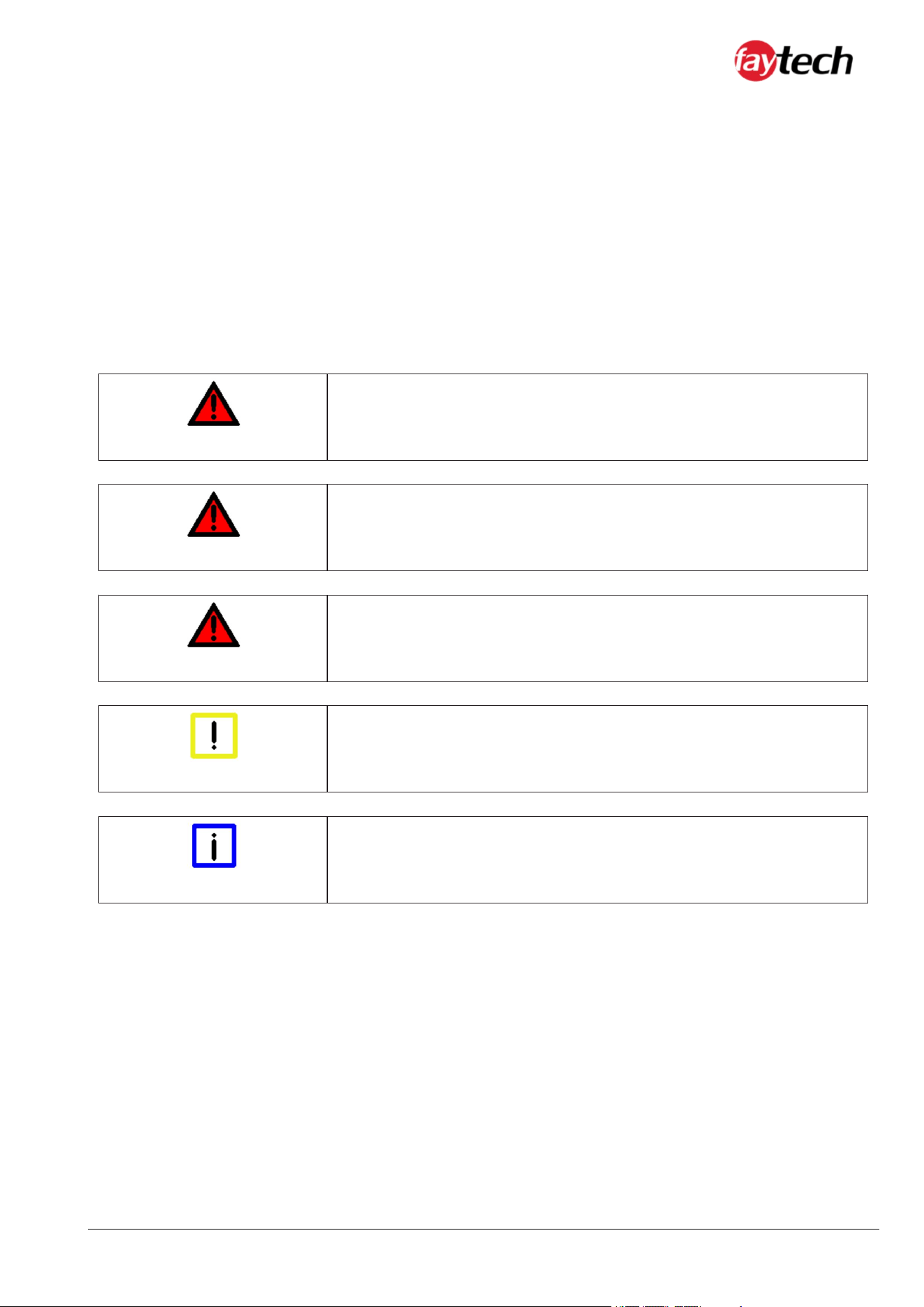
2.1 Explanation of the safety symbols
The following safety symbols are used in these operating instructions. These symbols are primarily
intended to draw the reader's attention to the text of the adjacent safety instructions.
DANGER
Acute danger of injury!
If the safety instruction next to this symbol is not observed, there is an
immediate danger to life and health of persons.
WARNING
Caution Risk of injury!
If the safety instruction next to this symbol is not observed, there is a
danger to life and health of persons.
CAUTION
Injury to persons!
If the safety instruction next to this symbol is not observed, persons may
be injured.
Attention
damage to the environment or equipment
If the note next to this symbol is not observed, the environment or
equipment may be damaged.
Note
Tip or pointer
This symbol indicates information that contributes to better understanding.
5/22
installation, safety and user manual © 2026 | www.faytech.com
2.2 Basic security measures
Below are some basic security measures to ensure proper operation of the Touch Kiosks.
Attention
Switch off all system components, then disconnect the fieldbus
Before opening the Touch Kiosk housing and whenever the Touch Kiosk
is not used for control purposes, for example during the functional test
after a repair, all system parts must first be switched off and then the
Touch Kiosk must be disconnected from the system.
Switched off system parts must be secured against being switched on
again.
Attention
Do not replace any parts when under voltage
When installing and removing components, the supply voltage must be
switched off.
Damage can occur during installation in the Touch Kiosk:
• If metal objects such as screws or tools are placed in the circuit
boards.
• If PC internal connection cables are pulled off or plugged in
during operation.
6/22
installation, safety and user manual © 2026 | www.faytech.com
2.3 Duty of care for the operator
The operator must ensure that:
• The Touch Kiosk is only used for its intended purpose (see chapter Product Description).
• The Touch Kiosk is only operated in a faultless, fully functional condition.
• The operating manual is always available in a legible condition and complete at the place of use
of the Touch Kiosk.
• Only sufficiently qualified and authorized personnel operate, maintain and repair the Touch
Kiosk.
• This personnel is regularly instructed in all applicable questions of occupational safety and
environmental protection, and the operating manual and in particular the information contained
therein contained in the safety instructions.
• All safety and warning notices attached to the Touch Kiosk are not removed and stay legible.
Depending on the type of machine and system in which the Touch Kiosk is used, there are national
regulations for the control of such machines and systems which the operator must comply with. These
regulations regulate, among other things, the intervals at which the controller must be checked.
The operator must arrange for this inspection within a certain period of time.
Attention
Only qualified personnel may open the housing of the Touch
Monitor
The operator must ensure that only trained electrical specialists
open the housing of the Monitor. In this case the warranty will
become invalid.
In the event of faults on the Touch Kiosk, the list in the Troubleshooting section can be used to
determine which measures should be taken.
2.4 Requirements for the operating personnel
Every user of the Touch Kiosk must have read this operating manual.
2.5 General Warning
If you notice a burning smell or the device is making noise, disconnect it from the power supply
immediately.
Note
Cleaning
To clean the device, switch it off and use a dry, soft cloth with light
pressure.
7/22

installation, safety and user manual © 2026 | www.faytech.com
3. WARRANTY
3.1 Warranty claims & repair
faytech devices are produced following the most modern production and test processes. Carefully
selected components and accurate production ensure reliable operation and long life. faytech warrants
to the original purchaser that each faytech display delivered shall be free from defects in material
or workmanship at time of shipment, and that each such module delivered will meet the published
specifications for a period of 24 months as measured from the date of original shipment. faytech's
obligation under the Warranty contained herein is limited to the repair or replacement of any faytech
touch monitor that does not meet the specifications, provided that said product is returned to faytech,
transportation charges pre-paid, and provided that upon faytech's examination, the product, when
tested within the specified ratings and in accordance with good engineering practice, does not meet
the specifications as defined. THIS WARRANTY IS IN LIEU OF ALL OTHER WARRANTIES, EXPRESSED
OR IMPLIED, INCLUDING WITHOUT LIMITATION THE WARRANTY OF MERCHANTABILITY AND THE
WARRANTY OF FITNESS FOR A PARTICULAR PURPOSE.
All claims under warranty must be made promptly after occurrence of circumstances giving rise thereto
and must be received within the applicable warranty period by faytech or its authorized representative.
Such claims should include the Product type and serial numbers and a full description of the
circumstances giving rise to the claim. Before any Products are returned for repair and/or adjustment,
written authorization from faytech or its authorized representative for the return and instructions
as to how and where these Products should be shipped must be obtained. Any product returned to
faytech for examination shall be sent prepaid via the means oftransportation indicated as acceptable
by faytech. faytech reserves the right to reject any warranty claim not promptly reported and any
warranty claim on any item that has been altered or has been shipped by non-acceptable means of
transportation. When any Product is returned for examination and inspection, or for any other reason,
Customer will be responsible for all damage resulting from improper packing or handling and for loss
in transit, notwithstanding any defect or nonconformity in the Product. In all cases faytech has sole
responsibility for determining the cause and nature of failure, and faytech's determination with regard
thereto shall be final. If it is found that faytech's Product has been returned without cause and is still
8/22

installation, safety and user manual © 2026 | www.faytech.com
serviceable, customer will be notified and the Product returned at Customer's expense. In addition, a
charge for testing and examination may, in faytech's sole discretion, be made on Products so returned.
SELLER'S LIABILITY FOR DAMAGES SHALL NOT EXCEED THE PAYMENT, IF ANY, RECEIVED BY SELLER
FOR THE UNIT OF PRODUCT OR SERVICE FURNISHED OR TO BE FURNISHED AS THE CASE MAY
BE WHICH IS THE SUBJECT OF CLAIM OR DISPUTE. IN NO EVENT SHALL SELLER BE LIABLE FOR
INCIDENTAL, CONSEQUENTIAL OR SPECIAL DAMAGES. LIABILITY TO THIRD PARTIES, FOR BODILY
INJURY INCLUDING DEATH, RESULTING FROM SELLER'S PERFORMANCE SHALL BE DETERMINED IN
ACCORDANCE WITH APPLICABLE LAW AND THE TOTAL LIABILITY LIMITATION STATED ABOVE SHALL
NOT BE CONSTRUED AS A LIMITATION ON SELLER FOR DAMAGES FOR ANY SUCH BODILY INJURY,
INCLUDING DEATH.
WARRANTY FOR ITEMS REPLACED UNDER WARRANTY Whenever a failed module is replaced under
Warranty, the greater of the balance of the original Warranty Period or 90 days will constitute the
remaining warranty period. The replaced unit does not carry a new Warranty.
3.2 Life support policy warning
LIFE SUPPORT POLICY “WARNING: DO NOT USE IN LIFE SUPPORT” SELLER'S PRODUCTS ARE NOT
AUTHORIZED FOR USE AS CRITICAL COMPONENTS IN LIFE SUPPORT DEVICES OR SYSTEMS WITHOUT
THE EXPRESS PRIOR WRITTEN APPROVAL OF THE CEO OF FAYTECH. As used herein, “Life Support
Devices or Systems” are devices which support or sustain life and whose failure to perform when
properly used in accordance with instructions for use provided in the labeling can be reasonably
expected to result in a significant injury to the user. A “Critical Component” is any component in a life
support device or system whose failure to perform can be reasonably expected to cause the failure of
the life support device or system or to affect its safety or effectiveness.
3.3 In case of defect
Ifyour device does have a defect within the warranty period, please contact faytech directly. The
warranty period is 24 months from the date of purchase under the following conditions:
• All warranties are void if the unit has been opened or disassembled without faytech's prior
approval.
• Damage caused by improper handling or operation, by incorrect installation or storage, through
improper connections, as well as due to force majeure or other external influences are not covered
by the warranty.
• For warranty claim, we reserve the right to replace the defective components or to exchange the
device.
• Exchanged components or devices become the property of faytech.
• Claims for damages are excluded in so far as they are not based on intent or gross negligence
of the manufacturer.
• After expiration of the warranty period, warranty claims can no longer be pursued.
• Any warranty claim must be accompanied by proof of purchase (receipt or invoice).
9/22
installation, safety and user manual © 2026 | www.faytech.com
4. PRODUCT DESCRIPTION
4.1 Appropriate use
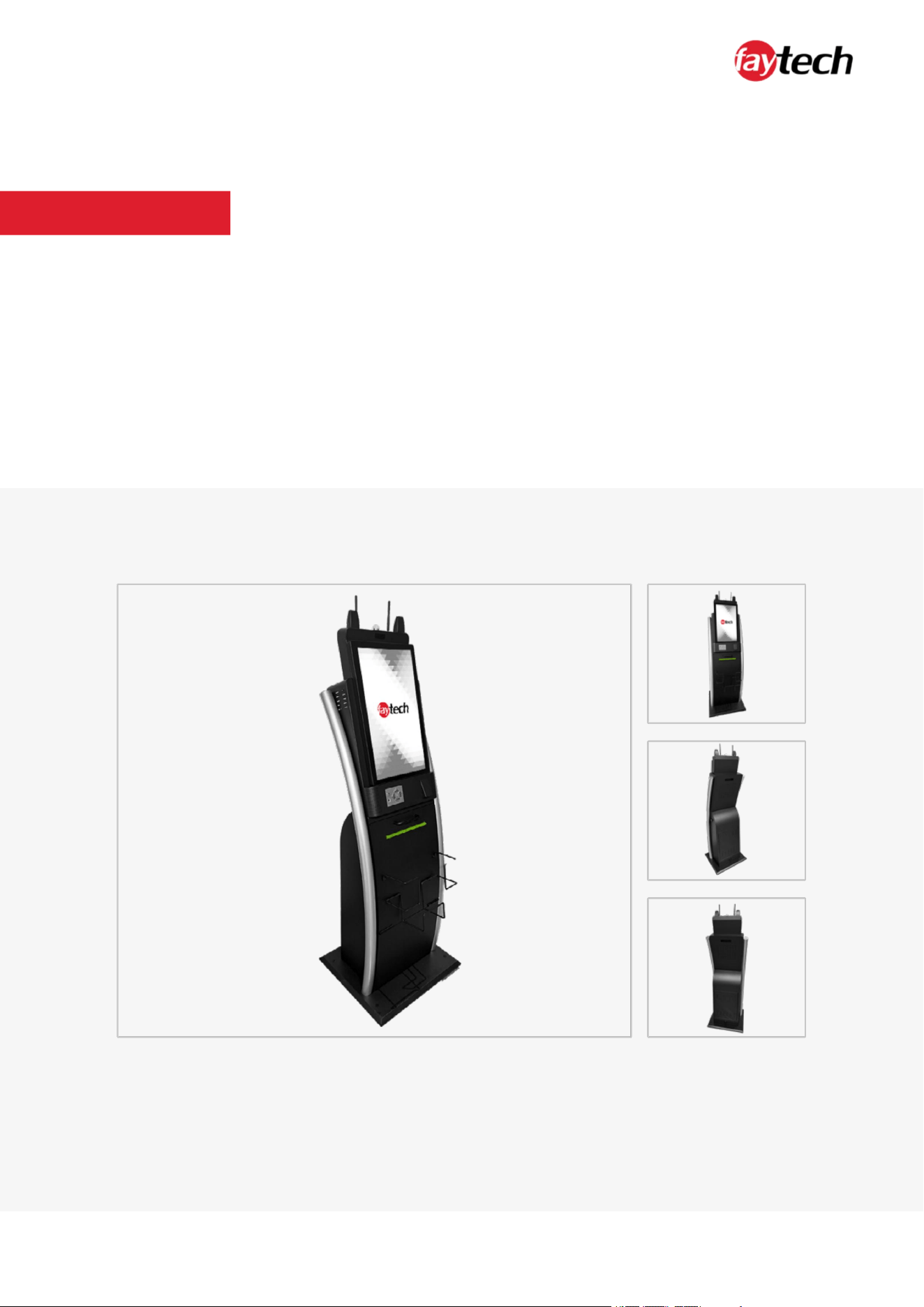
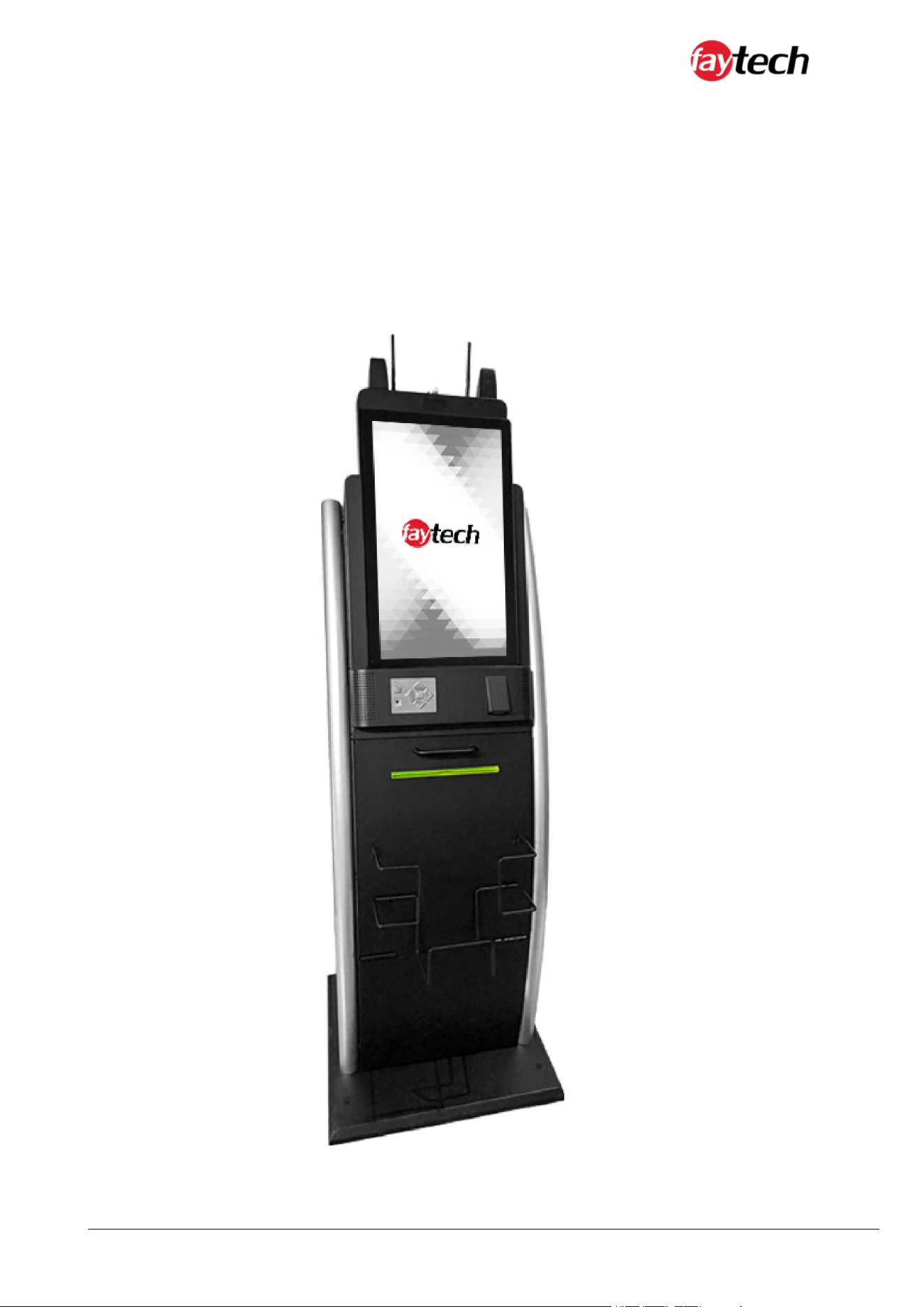
The faytech Capacitive Touch Kiosks are used in many different application areas, such as but not
limited to: industrial, medical and retail applications.
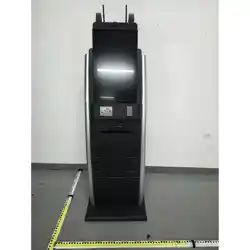
Front of the 21.5" Floor-
Standing Kiosk Solution
10/22
installation, safety and user manual © 2026 | www.faytech.com
4.2 Interfaces & Features
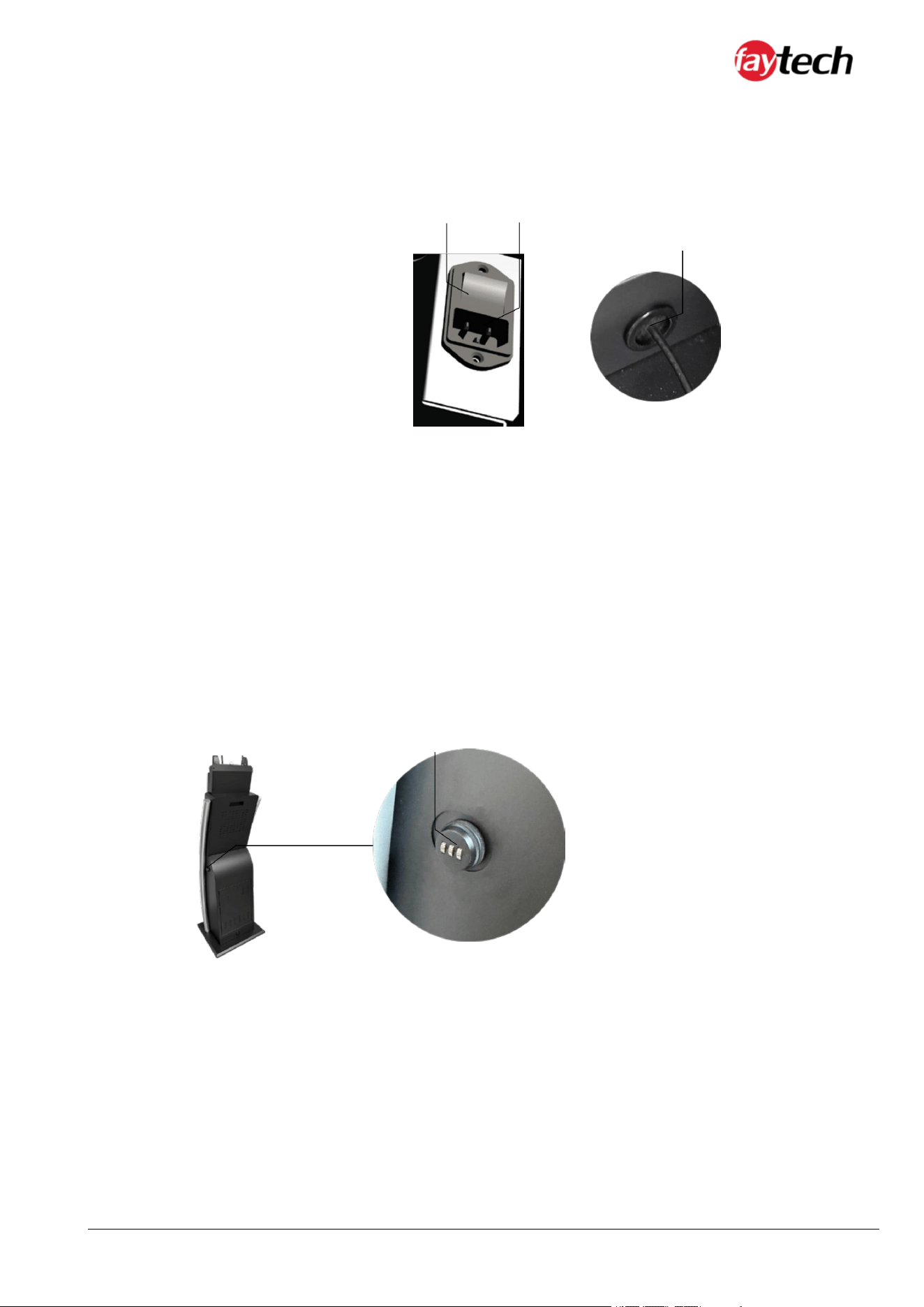
Interfaces of the Capacitive Touch Kiosks
On / Off switch
2
1
3
Bottom Connectors of the 21.5"
Floor Standing Kiosk Solution
With the button (1) the printer can be switched on and off. There is an optional USP, which allows for a
switch to the entirety of the kiosk, it is located at the base internally of the kiosk.
Power supply
The power supply of the Touch Kiosk is established via the socket (2). The AC-In input is 180~264V AC.
Cable Cover Hole
This cable cover (3) is located at the bottom back of the kiosk and allows for easy cable management with
the single power cable.
4
Side view Connectors of the 21.5"
Floor Standing Kiosk Solution
3-Digit Lock
The side of the kiosk has a 3-digit lock (4) which can be configured to any combination as needed. Once
locks the front is unable to be opened. The front allows access to open the back plates respectively.
11/22
FAYTECH
® installation, safety and user manual © 2026 | www.faytech.com
LED Light Indicator
9
10
12
6
7
1
1
8
12/2
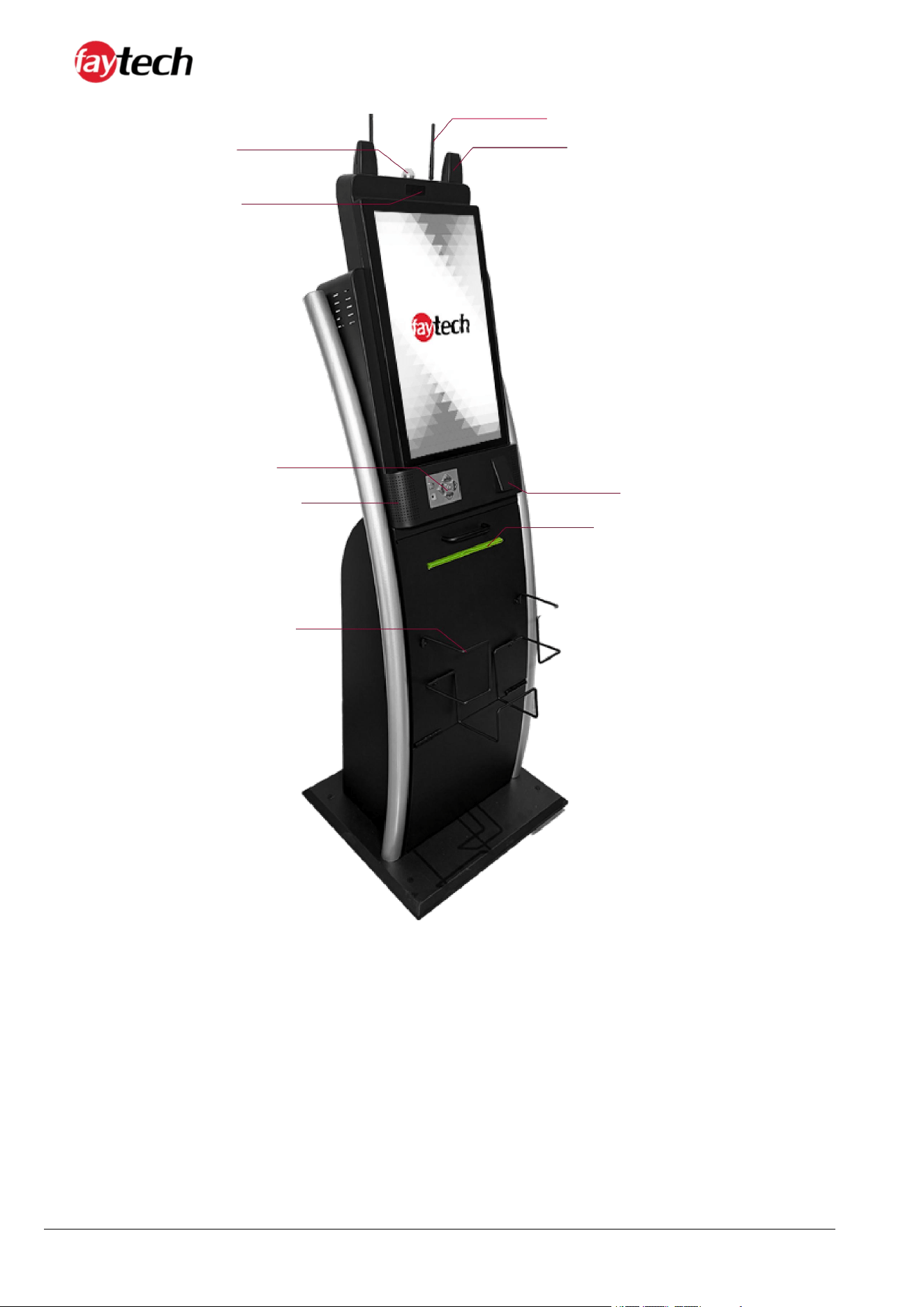
This LED light indicator (5), shows the status of the kiosk, and is either red (off but connected to power),
blue (connected & working).
W-LAN antenna connector
There are 2 antenna connectors on the top (5), these allow for connection via W-LAN with the supplied
antenna. Frequency band: 2.4GHz, Gain: 2dBi (±0.5). Max. Transmission power: 20.65mW
(with suppliedantenna)
Plate Holder
The top of the kiosk has 2 plate holders (7) for banner, brand or information placement, such as
cardboard, plastic or metal signs.
2
Front-side of the 21.5" Floor
-
Standing Kiosk Solution
5
installation, safety and user manual © 2026 | www.faytech.com
Front-facing Motion Radar
This font facing motion sensor/radar (8), allows the kiosk to detect wheter someone is standing infront
of it, and is ready to operate the kiosk.
ADA Keypad
The ADA keypad (9) is designed for accessibility, featuring large, tactile buttons that allow users to easily
navigate the kiosk's functions, providing an inclusive interface for all users.
Audio Speakers
The kiosk is equipped with high-quality audio speakers (10) that deliver clear sound for audio
instructions or promotional content.
Scanner
This scanner (11) allows for the reading of barcodes or QR-codes. Either a Honeywell3680 or
ZebraSe2707 is intalled, based on the individual requirements.
A4 Document Printer
An A4 document printer (12) is integrated into the kiosk, enabling users to print documents directly
from the interface. This printer supports various paper types and ensures fast, high-quality prints,
making it ideal for generating receipts, tickets, or promotional materials. KPM216HIII or KM216IIIare
installed, based on request (optional).
Flyer Holder
The flyer holder (13) is located on the front of the kiosk and is designed to hold promotional flyers or
brochures securely. This holder can accommodate various sizes of printed materials.
Status LED
No LED
The Touch Kiosk is switched off.
Green LED
The Touch Kiosk is switched on.
Attention
Moving or cleaning the device
Make sure that you only clean or move the device when the LED light is off.
13/22
installation, safety and user manual © 2026 | www.faytech.com
4.3 Scope of delivery
14/2
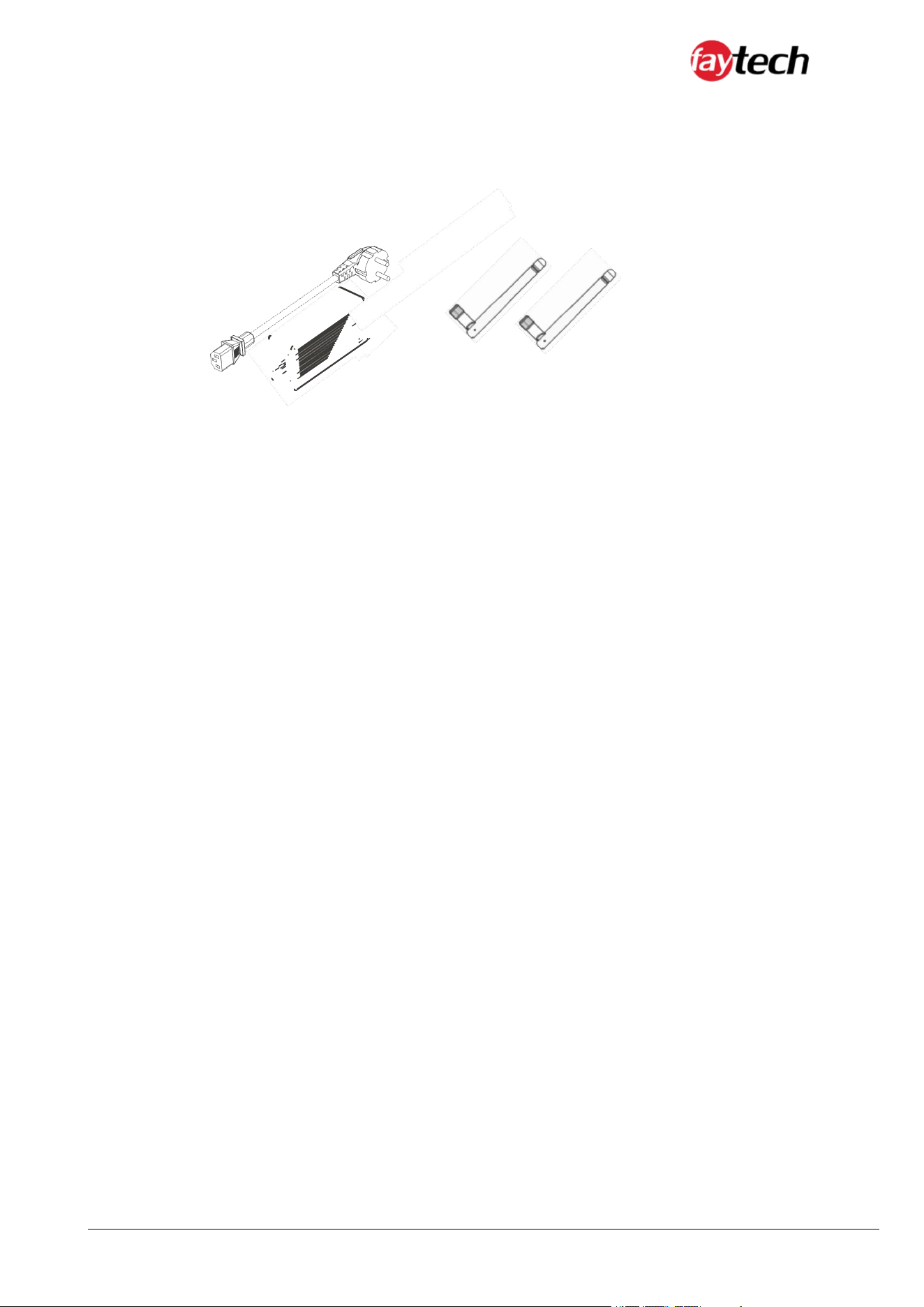
Power supply unit
The supplied AC cable (1) has a 3-pin connection. The power supply is 180~264V AC.
W-LAN antenna
The supplied W-LAN antennas (2) can be screwed onto the W-LAN connector to connect the Touch
Kiosk to a wireless network (Internet). The antenna included in the package has an RP-SMA female
connector. Frequency band: 2.4GHz / Max. Transmission power: 20.65mW
2
2
1
installation, safety and user manual © 2026 | www.faytech.com
5. INSTALLATION INSTRUCTIONS
5.1 Transportation
Despite the robust design, the built-in components are sensitive to strong vibrations and shocks.
Therefore, protect your Touch Kiosk from high mechanical stress during transport. Use the original
packaging for shipping.
Attention
Risk of damage to the device
When transporting the device in cold weather or if the device is exposed
to extreme temperature fluctuations, make sure that no moisture
(condensation) condenses on or in the device.
Allow the device to slowly adjust to room temperature before putting it
into operation. If there is condensation, the unit may only be switched on
after a waiting period of about 12 hours.
5.2 Unpacking
Proceed as follows when unpacking the device:
1. Remove the packaging.
2. Do not throw away the original packaging. Keep it for re-transport.
3. Check the delivery for completeness based on your order.
4. Please keep the documents supplied with the device; they contain important information about
the device and on how to use it.
5. Check the package contents for visible transport damage.
6. Ifyou notice transport damage or discrepancies between the contents ofthe package and your
order, please inform the faytech service team.
15/22
installation, safety and user manual © 2026 | www.faytech.com
5.3 Connecting the device
The connectors are located at the rear of the Touch Kiosk and are documented in the chapter Product
Description. To start the device, connect with the supplied AC cable. For all power information see the
respective product label.
CAUTION
Fire or smoke
lf the appliance catches fire or starts smoking, immediately unplug the
appliance and then extinguish with powder or nitrogen.
16/22
installation, safety and user manual © 2026 | www.faytech.com
5.4 Driver installations
In order to fully utilize all functions of the faytech Touch Kiosks, it is recommended to download the
required drivers from the faytech website in the download section (www.faytech.com/downloads/).
While the below Linux and Windows drivers are available for download, they are not suggested. Instead,
the native OS drivers should be used (Plug and Play).
Capacitive Touch Driver - Linux/Debian
This is the capacitive touch driver to work with the Debian and Linux operating systems.
Capacitive Touch Driver - All OS (except Linux)
This is the capacitive touch driver to work with all operating systems, except Linux.
OS’s included: Android, MS-DOS, macOS, QNX and Windows.
Note
Debian/Linux Preinstalled
If a current Ubuntu is preinstalled on your Touch-PC with integrated SSD,
the username is "User" and the password "user123".
Ifyou want to change the password, open a terminal. Type "sudo su",
"enter". The password is still "user123". Then "passwd user" and enter the
new password.
17/22
installation, safety and user manual © 2026 | www.faytech.com
6. OPERATING INSTRUCTIONS
6.1 Initial power-up and driver installation
To turn the unit on, press the power button on the back or side of the unit. When you turn on the
Touch Kiosk for the first time, the pre-installed operating system (Debian, Linux or Windows) will start.
To get the most out ofyour device, you must download the correct drivers for your device. You can
find these drivers on the website under Downloads: www.faytech.com/downloads. This series uses
the Elkhart Lake and Tiger Lake U mainboards and therefore requires the appropriate drivers for this
specific series.
Attention
First shut down, then switch off
If the Touch Kiosk is switched off while the software is writing a file to
the hard disk, this file will be destroyed. Control software usually writes
something to the hard disk on its own at intervals of a few seconds, so
the probability of causing damage by switching off while the software is
running is very high.
6.2 BIOS settings
Details on how to get into the BIOS is explained below. Please note that this is a special BIOS for
integrated monitor PC solutions. Accordingly, after adjustments in the BIOS, you may not be able to see
an image on your Touch Kiosk screen. For this reason only experienced users should make changes to
the BIOS. If the system is adjusted, proceed as follows: Press "Del" on a connected keyboard (even if
you do not see an image) until you are sure that you are in the BIOS. Then press F5, Enter, F10, Enter.
The system will reboot and you should have a picture on your display again.
18/22

installation, safety and user manual © 2026 | www.faytech.com
6.3 Troubleshooting
No image
1. First check whether the power supply is correctly connected and working (green LED on power
supply unit).
2. When installing new graphics card drivers, the BIOS might be changed and no boot screen is visible.
Wait one to two minutes until Windows is loaded.
3. Connect an external keyboard via USB and check whether the Num-Lock LED of the Keyboard lights
up (press Num-Lock). If this lights up, there is usually only an incorrect BIOS. Turn off the computer
again, restart it and press "Del" until you are sure that you are in the BIOS. Set the graphics options in
the BIOS according to the Chapter BIOS Settings.
4. If none of the above points leads to success, please contact our direct Manufacturer service, under
the contact details given on the Service and Support page.
Touch function is not accurate
1. Please download the latest touch drivers from our website www.faytech.com and perform a
recalibration to recalibrate the touch screen.
6.4 FAQs
How do I connect the touch display to the appropriate power supply?
All displays have an external power supply. Therefore you have two possibilities: You can use the 12V
DC power supply unit included in the scope of delivery, or your own suitable power supply capable of
supplying 12V DC power.
The touch function does not work properly, what can I do?
If you have problems with the touch, please check if the driver and all cables are installed correctly.
Otherwise the most common error is caused by the protective foil on the touch display. Please remove
the protective foil to get the best possible use out of the display.
Does the touch functionality affect the image quality?
No, the touch panel is transparent and non-reflective. So you will not notice the additional panel.
19/22

installation, safety and user manual © 2026 | www.faytech.com
7. SERVICE AND SUPPORT
7.1 Service
If you think your faytech product has a defect please always contact us directly. Our
trained after sales service specialists can help you to resolve your problems regarding the device.
Please check the manual and our frequently asked questions before contacting us – you will usually find
an answer to your question.
Please attach your invoice and a detailed description ofthe issues you are facing with your device to
your contact E-mail/fax. In reply, you will receive an e-mail/fax with your RMA number and additional
information. For defective accessories that were content of the original delivery, we usually send you a
replacement before receiving the damaged goods. In case of a defective product, we try to check and
solve the problem within 3 working days after receipt. Make sure that shipping has been paid before
sending the goods back to us. We do not accept postage due packages at our service centers. Anything
shipped with postage due will be rejected. Within the first 30 days after the purchase of a new faytech
product, we will refund the shipping costs for returned defective products. For the rest of the warranty
period, we will only cover shipping costs for repaired or replaced items that we ship back to you (one
way).
For support outside of China, we work with local representatives / local service partners together who
may work on our behalf in our name. For more information, feel free to cotact us under the following
contact details.
7.2 Contact
Global Support: +86 755 89580612
Support Europe: +49 761 4514 0
Support North America: +1 646 843 0877
Support India: +91 9843429654
SupportJapan: +81 366 722 920
Support South Korea: +82 10 8589 7231
Support E-Mail: support@faytech.com
Homepage (Global): https://www.faytech.com/
Support Page: https://www.faytech.com/rma/
Headquarters
faytech Tech. Co., Ltd.
Fl. 2, Bldg. 8, Winlead Intelligent Park,
Bantian, Shenzhen
China
20/22
installation, safety and user manual © 2026 | www.faytech.com
8. APPENDIX
8.1 CE and UKCA - Declaration of Conformity
Hereby faytech declares that the equipment is in compliance with the essential requirements
and other relevant regulations of the directives 2014/30/EU, 2014/35/EU, 2011/65/EU, 2015/863
RoHS, UK SI
2016/1091 and UK SI 2016/1101.
The long version of the CE Declaration of Conformity can be found in English at: www.faytech.com/ce
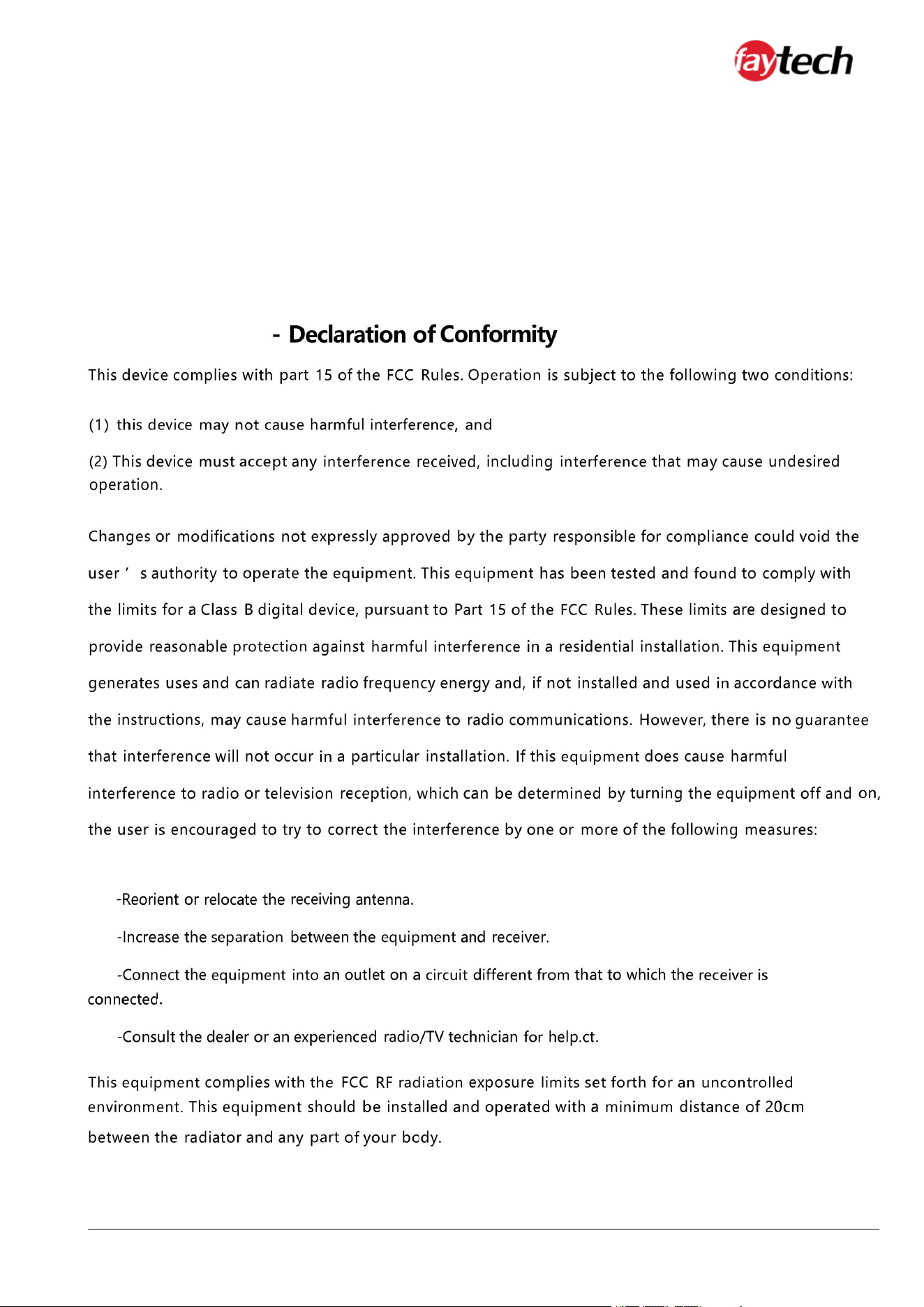
8.2 FCC
21/22