Shell
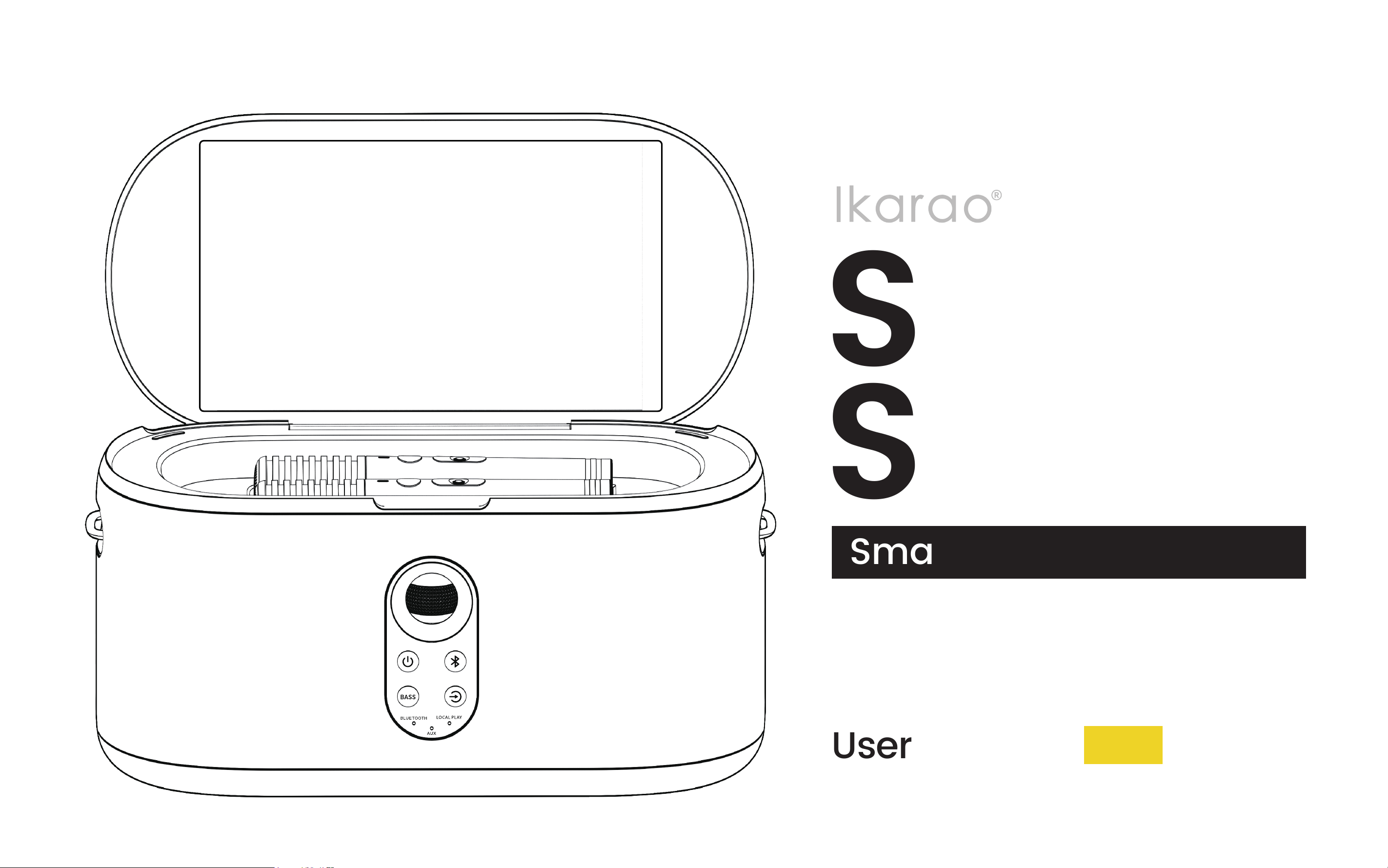
S1
Smart Karaoke Speaker
User Manual EN
Introduction:
Thank you for your purchase of this product. Be sure that you have read this manual and understood its contents before using the product. Keep
the manual where it will be read by all who use the product.
For the Latest Information
The latest versions of the manuals are available from:
https://www.ikarao.com/pages/support
The website can be accessed not only from your computer
but also from smartphones and tablets.

Table of Contents
Before You Begin
•
Parts of the Speaker
..................................................................... 8-14
Foldable Touch Screen............................................................................ 10
Microphone Charging Slot...................................................................... 10
Speaker Strap Ring................................................................................... 10
Volume Roller............................................................................................ 10
Power Button ............................................................................................ 10
Bluetooth Button....................................................................................... 11
Bass Boost Button.................................................................................... 11
Playback Mode Switch Button............................................................... 11
3.5mm Microphone.................................................................................. 13
Aux In.......................................................................................................... 13
OTG............................................................................................................. 13
AUX OUT..................................................................................................... 13
USB.............................................................................................................. 13
HDMI........................................................................................................... 14
USB-C Charging Port............................................................................... 14
•
Parts of the Microphones
........................................................15-16
Microphone Indicator Light.................................................................... 16
Microphone Power Button...................................................................... 16
Microphone Volume Control.................................................................. 16
Microphone Play/Pause Button............................................................ 16
Microphone Wireless Charging Ring.................................................... 16
•
Parts of the Homepage
.......................................................... 17-20
Aux Mode................................................................................................... 18
Bluetooth........................................................... ........................................ 18
WiFi............................................................................................................. 18
Lighting Mode........................................................................................... 18
Volume........................................................................................................ 18
Music Effect...............................................................................................19
Microphone Effect....................................................................................19
Settings...................................................................................................... 19
Ikarao Service............................................................................................ 19
Power Icon................................................................................................. 20
WiFi Icon.................................................................................................... 20
Battery Icon............................................................................................... 20
Time Icon................................................................................................... 20
First Steps
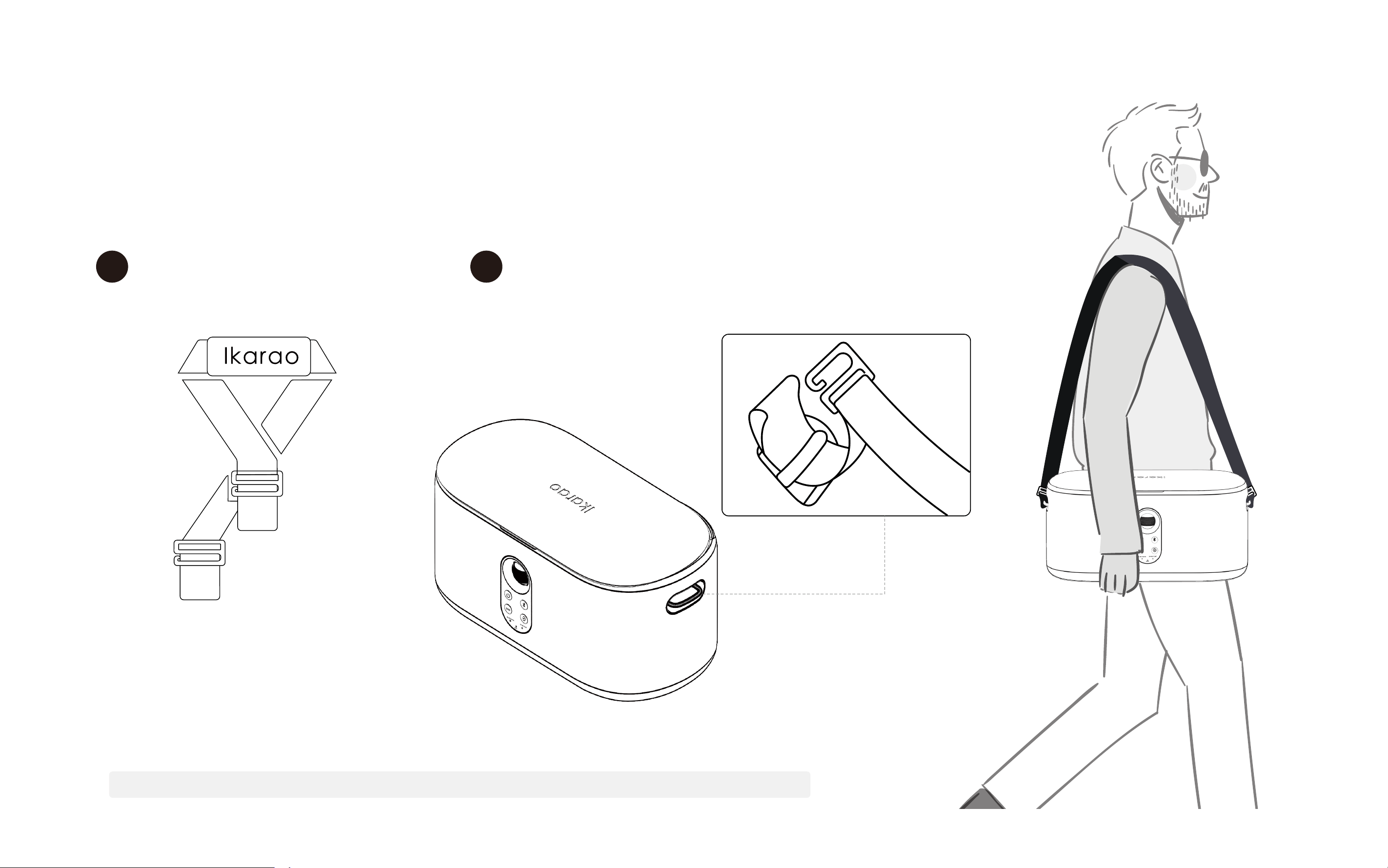
Use Carrying Strap
....................................................................... 22

Speaker Charging
......................................................................... 23
Microphone Charging
............................................................... 24
Power On/Off
.....................................................................................25
•
Basic Settings
.................................................................................. 26-33
About........................................................................................................... 27
Brand Name
Model Name
Serial Number
App Version
Device Version
Version Update
Restore Factory Settings
Display........................................................................................................ 28
Brightness
Key Brightness
Sleep Time
Sound.......................................................................................................... 29
Wireless Mic Volume
Mic Mode
WiFi............................................................................................................. 30
WiFi On/Off
Refresh Available Networks List
Enter Wi-Fi Password
Wi-Fi Basic Information
Storage....................................................................................................... 31
Available Storage
Storage Control
USB Drive
TIME............................................................................................................ 32
Automatic Time Update
24-Hour Format
Timezone
Language................................................................................................... 33
Start to Play
•
Local Media Player
..................................................................... 35-38
Favorites..................................................................................................... 36
Repeat Mode............................................................................................. 36
Play from Beginning................................................................................. 36
Play/Pause................................................................................................. 36
Next Track.................................................................................................. 36
Volume........................................................................................................ 36
Playlist....................................................................................................... 36
Add to Queue............................................................................................. 36
Create Playlist........................................................................................... 36
Batch Create Playlist................................................................................ 37
Page Turning............................................................................................. 37
Quick Jump to Specified Page.............................................................. 37
View Lyrics................................................................................................. 38
Different Display on External Screen.................................................... 38
Call Up Control Bar................................................................................... 38

•
Bluetooth Instructions
............................................................. 39-40
Enter Bluetooth Mode.............................................................................. 39
Connect Bluetooth.................................................................................... 39
Disconnect Bluetooth.............................................................................. 40
Display Lyrics in Bluetooth Mode.......................................................... 40
View Current Bluetooth Connected Devices....................................... 40
•
Play With Third-Party APP
........................................................... 41
Open Control Bar...................................................................................... 41
Return to Homepage from Third-Party App........................................ 41
Troubleshooting
•
Network Issues
................................................................................44-45
What to do if You are Unable to Connect to WiFi?............................. 44
What to do if Wi-Fi is Connected but Unable to
Access the Internet?............................................................................ 44
Why does Wi-Fi Disconnect Automatically?....................................... 44
Why does Music or Video Playback Stutter?...................................... 45
•
Bluetooth Issues
............................................................................ 45-46
Why does the Music Playback Stutter when
Using Bluetooth?...................................................................................... 45
Why can't I Find the Speaker
When Pairing via Bluetooth?.................................................................. 45
Why does the First Connection to the Speaker's Bluetooth Fail Even
Though It Is Found?................................................................................. 46
Why does Bluetooth Fail to Reconnect?.............................................. 46
•
Microphone Issues
.............................................................................. 47
Why is There no Sound from My Microphone?................................. 47
Why does the Speaker's Music Volume Automatically Lower When I
Sing with the Microphone?................................................................... 47
Why can't the Microphone Power on?................................................. 47
•
Local Player Issues
.............................................................................. 48
Should I Use Music Stored on a TF Card, USB Drive, or External
Hard Drive?................................................................................................ 48
Why does My Local Player Not Display Lyrics?.................................. 48
Technical Notes
Safety Usage
............................................................................... 50-51
Battery and Power
.................................................................. 52-53
Screen Usage
................................................................................... 53
Certications and Declarations
.................................. 54-55
Product Technical Specications
............................... 56-57
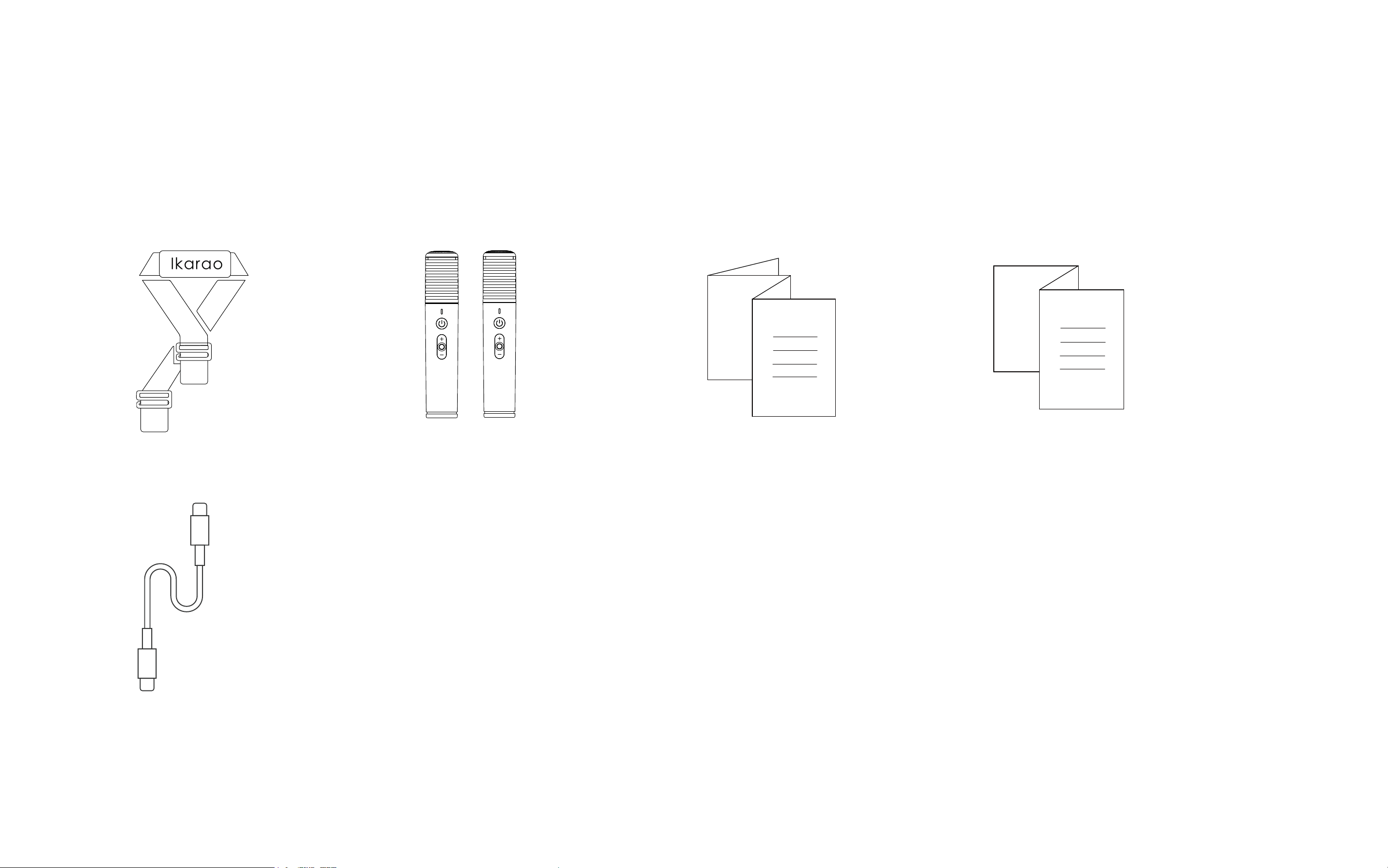
Supplied Accessories
The following are included with the speaker:
Shoulder Strap
Type-C Power Cable
Wireless Microphones * 2 Quick Start Manual Warranty Card

Before
You Begin
01
8
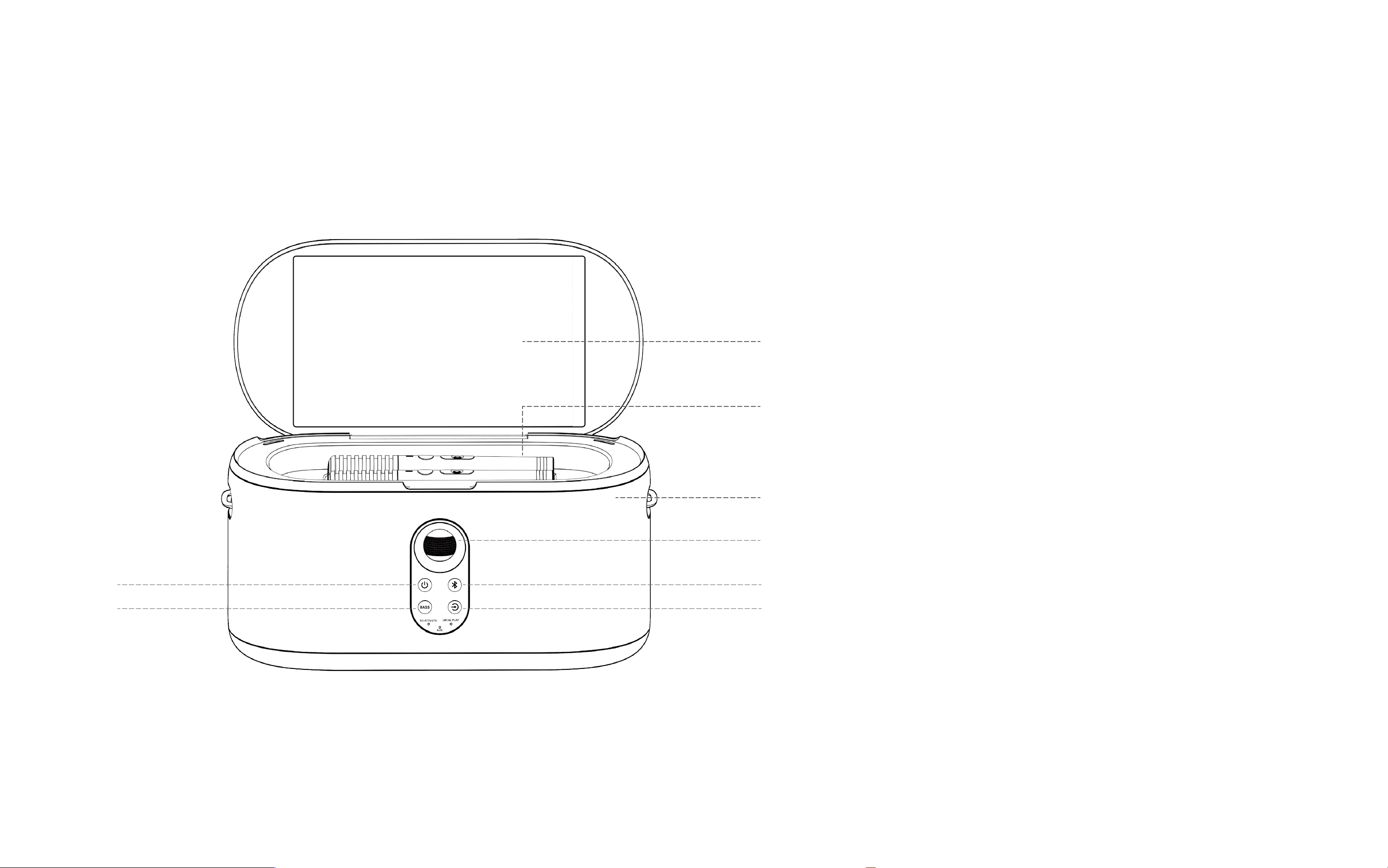
Parts of the Speaker
①
②
④
③
⑤
⑥
⑦
⑧
①
Foldable Touch Screen.................................... 10
②
Microphone Charging Slot............................... 10
③
Speaker Strap Ring........................................... 10
④
Volume Roller................................................... 10
⑤
Power Button.................................................... 10
⑥
Bass Boost Button........................................... 11
⑦
Bluetooth Button.............................................. 11
⑧
Playback Mode Switch Button........................ 11
9
AUX OUTOTG
AUX IN
⑨
⑩
⑪
⑫
⑬
⑨
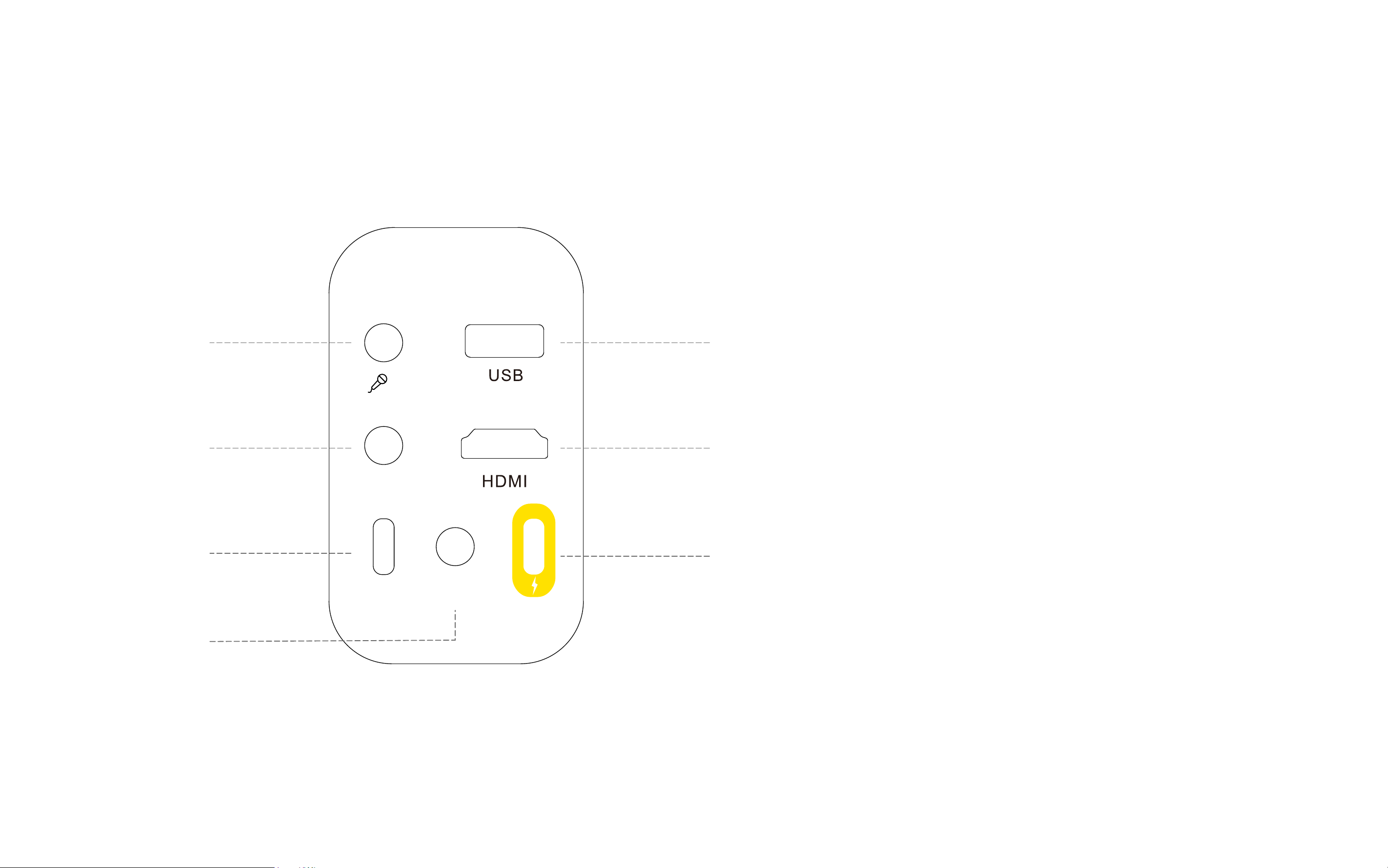
3.5mm Microphone......................................... 13
⑩
Aux In................................................................ 13
⑪
OTG................................................................... 13
⑫
AUX OUT........................................................... 13
⑬
USB................................................................... 13
⑭
HDMI................................................................. 14
⑮
USB-C Charging Port........................................ 14
⑭
⑮

10
Foldable Touch Screen
Supports a 120° fold, multi-point hover
Microphone Charging Slot
Stores and charges the microphones.
Speaker Strap Ring
Used to secure the included shoulder strap
(For instructions on attaching the shoulder strap, please refer to Page 22 - Installing the Shoulder Strap.)
Volume Roller
You can adjust the speaker volume by toggling the left and right volume roller.
Microphone volume is controlled separately and not by this volume roller.
(For microphone volume control, please refer to Page 16 - Microphone Volume Control)
Power Button
Press and hold the power button to turn the device on or off.
When the device is on, pressing the power button once toggles the screen on/off.
(For shutting down, rebooting, or screen operations via the screen, please refer to Page 20 - Power Icon)

11
Bluetooth Button
Single-click the Bluetooth button to enter pairing mode and disconnect from connected Bluetooth devices.
(For playing music via Bluetooth, please refer to Page 39 - Play With Bluetooth)
Bass Boost Button
Pressing the Bass Boost button enhances the bass effect
Playback Mode Switch Button
Pressing the play/pause button allows you to switch between three playback sources: LOCAL PLAY - Bluetooth - AUX.
(For playing music via AUX IN, please refer to Page 13 - Aux In. For playing music via USB, please refer to Page 13 - USB.)
12
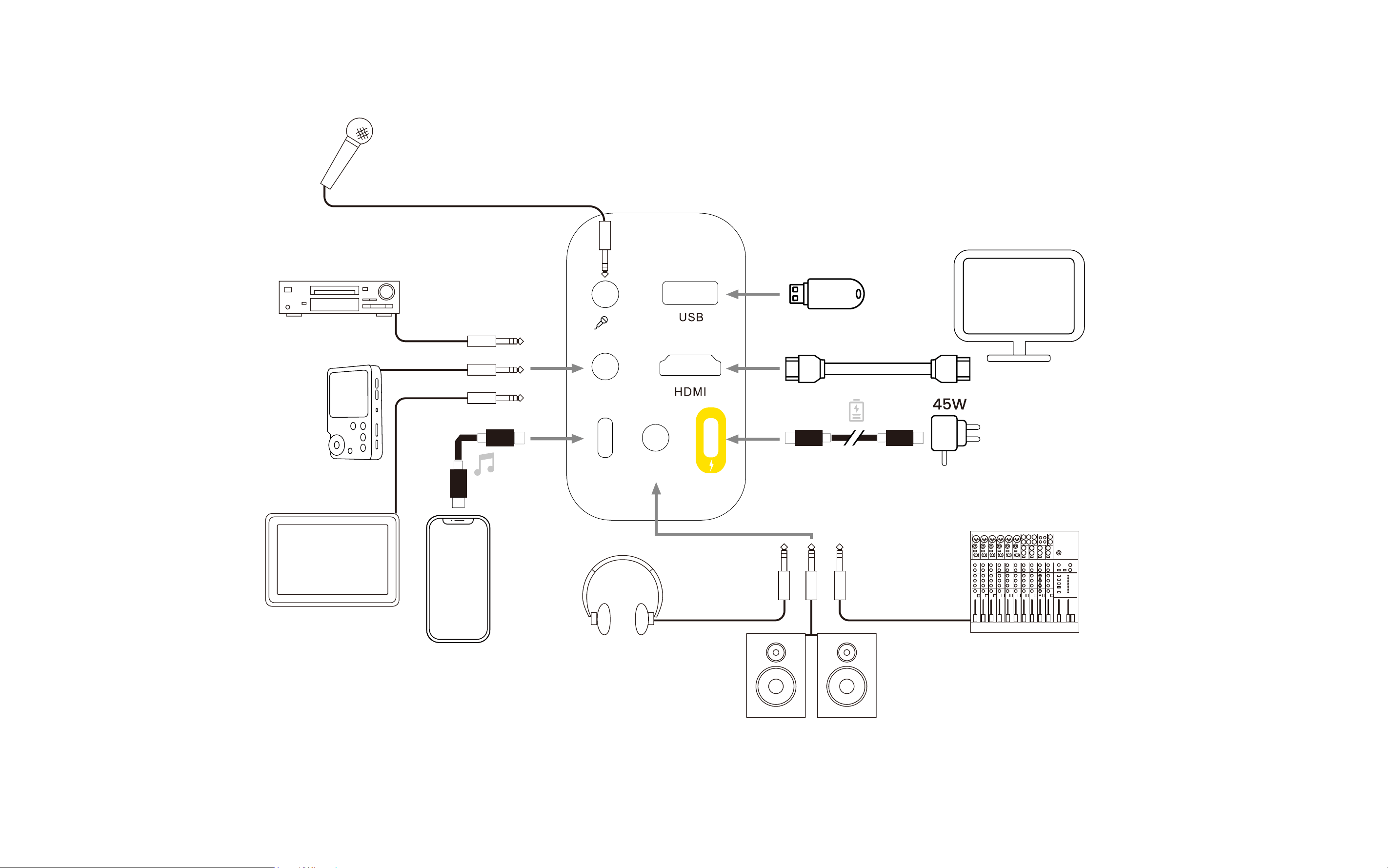
USB flash drive
Television
Headphones
Smartphones
Stereo Speakers
Audio Mixer
Microphone
AUX OUTOTG
AUX IN
CD Player
Hi-Fi Audio Player
PC / iPad /Laptop
13
3.5mm Microphone
Supports connecting wired dynamic microphones via a 3.5mm audio cable.
Aux In
Allows external devices such as PCs, laptops, iPods, CD players, and digital audio players to be used as the Ikarao Speaker's audio source via a
3.5mm audio cable. When a device is detected in the Aux In port, the playback mode automatically switches to LOCAL PLAY
OTG
You can use the randomly included Type-C cable to connect the OTG port with devices such as laptops, smartphones, etc., for audio data
transmission, enabling live streaming, recording, and sound card mode functions. The OTG function supports Android, iOS, Windows, and macOS.
Aux Out
Outputs all sounds, including from the speaker and microphone, via a 3.5mm audio cable. The speaker will be silent during this time. Use Aux Out
to connect the Ikarao speaker to a higher-power sound system or for headphone monitoring.
USB
Supports external storage using USB drives or external hard drives, and provides 5V,1A power supply.
Supported Storage Formats EXFAT/FAT32/NTFS/EXT4
Maximum Supported Memory TF Card: 256GB USB: 1TB
Supported Media Codec Formats
AAC/AC3/APE/FLAC/M4A/MP2/MP3/WMA/OGG/3G2/3GP/AVI/FLV/MKV/MOV/MP4/MPG/
VOB/WMV
14
HDMI Port
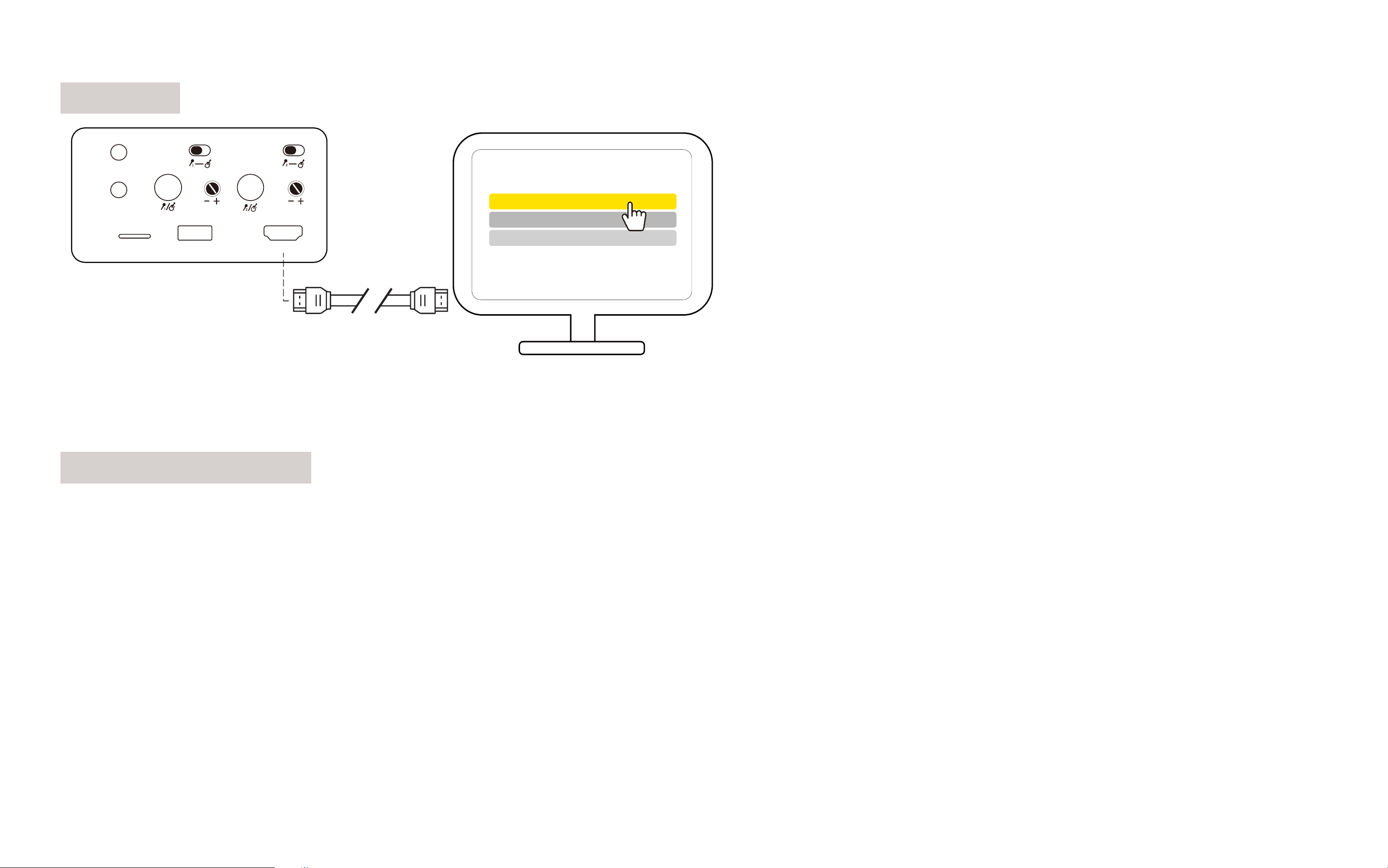
Use HDMI cable to connect to monitors, TVs, or projectors, supporting up to 1080P resolution. Compatible with HDMI protocols HDMI 1.4 and
HDMI 2.0.
USB-C Charging Port
This product is equipped with a Type-C charging port and supports up to a 45W adapter for charging. When using a 45W adapter, you can charge
the speaker while using it for fast charging, ensuring a stable user experience. With a 45W adapter, the charging time is less than 3 hours.
If you use a higher power adapter (over 45W), the speaker remains compatible and can still be charged without causing any damage to the device.
Regardless of the adapter used, the charging performance will meet your daily needs.
HDMI - 1
HDMI - 2
HDMI - 3
HDMI
HDMIUSBTF
AUX OUT
AUX IN
GAIN GAIN
15
Parts of the Microphones
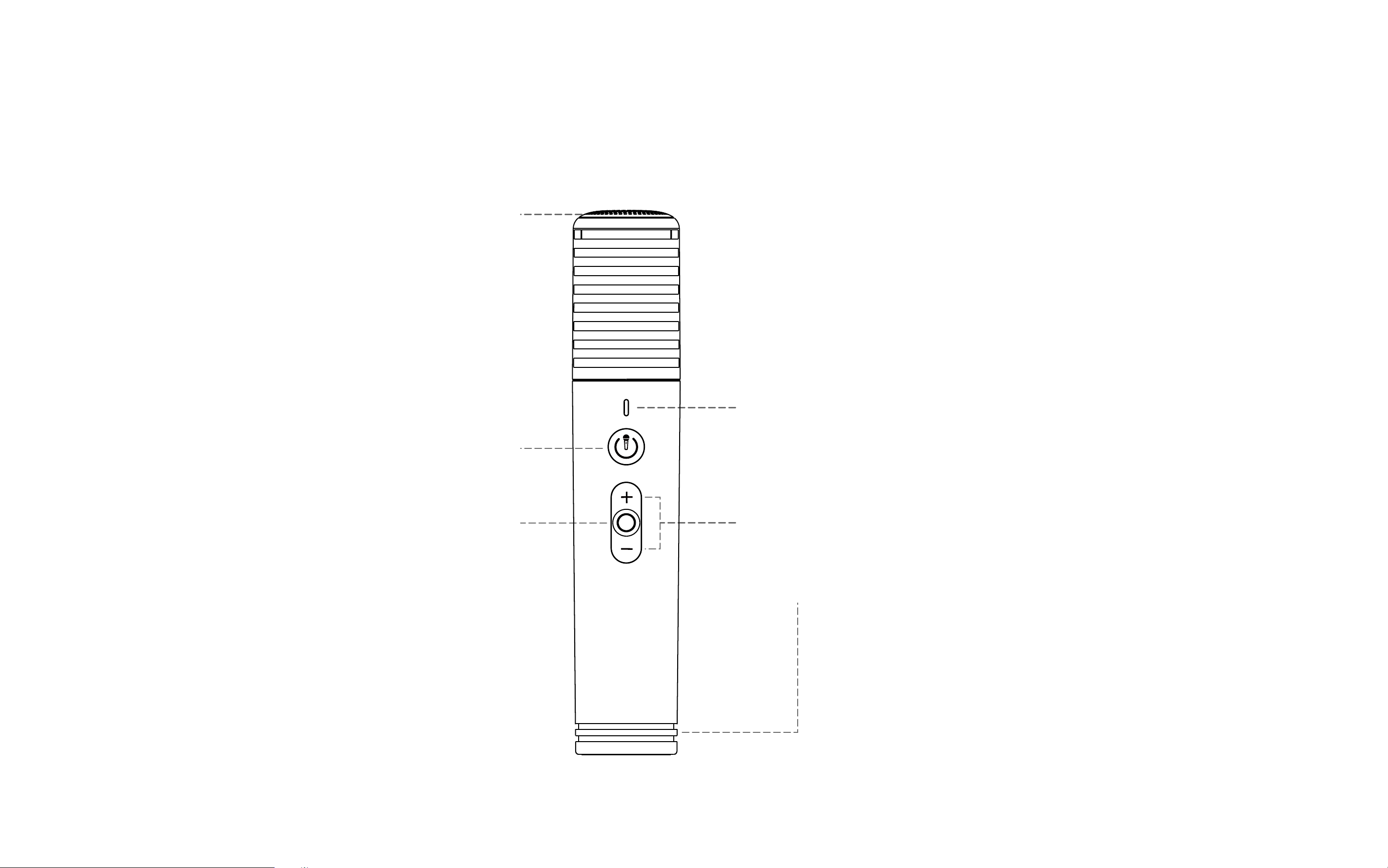
Microphone
Microphone Wireless Charging Ring
Microphone Volume Control
Microphone Indicator Light
Microphone Power Button
Microphone Play/Pause Button
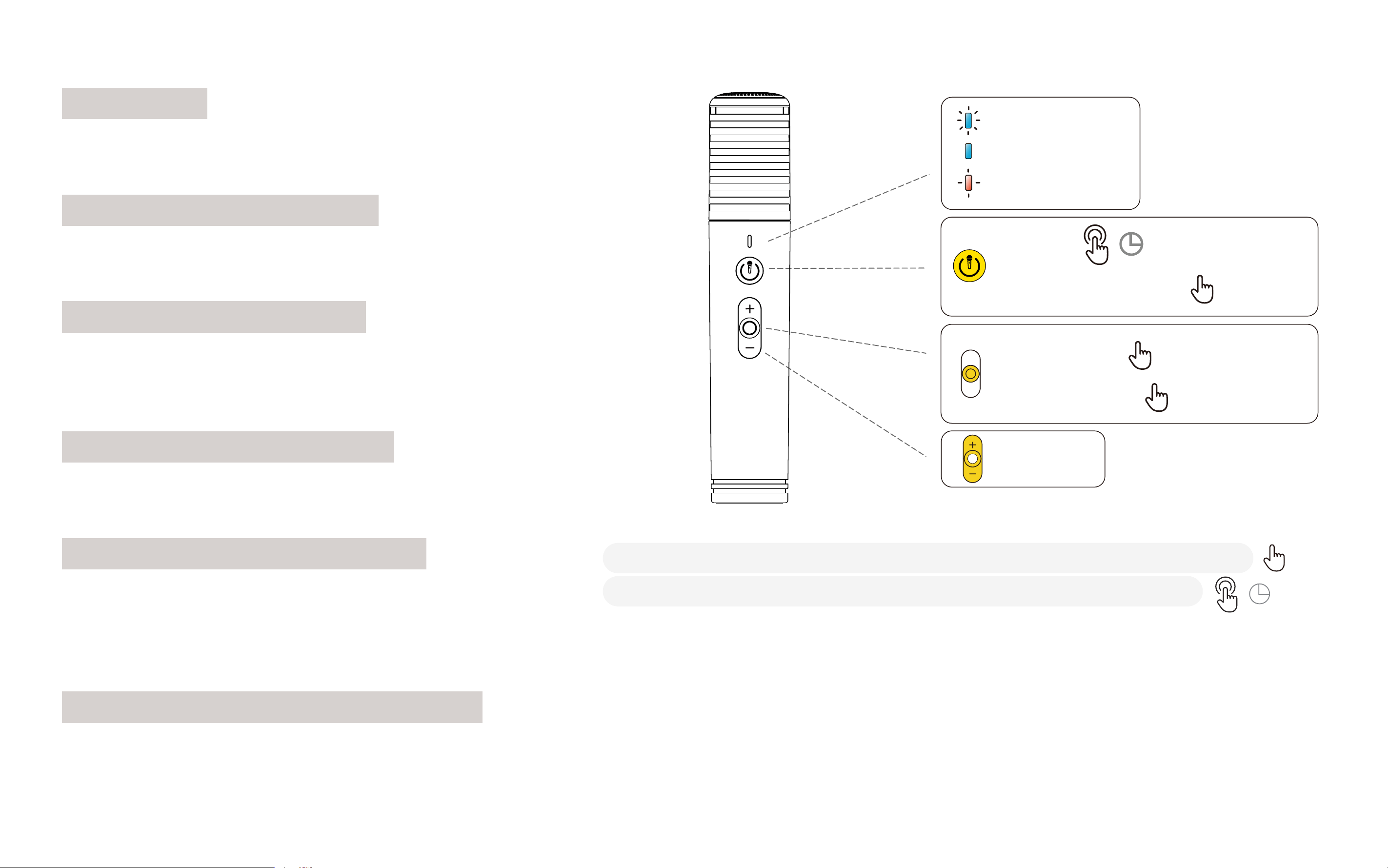
16
Microphone
Dynamic microphone cartridge for picking up sound signals.
Microphone Indicator Light
Displays various microphone statuses.
Microphone Power Button
Press and hold for 2 seconds to power on/off;
Double-press to quickly switch sound effects.
Microphone Volume Control
Adjust the microphone volume.
Microphone Play/Pause Button
Press once to play/pause audio and video
(Bluetooth and Local Media Player).
Press and hold for 2 seconds to skip to the next song.
Microphone Wireless Charging Ring
For wireless charging of the microphone.
NOTE: Avoid spilling liquids on the wireless charging ring.
PLAY/PAUSE
SKIP FORWARD
x1
ON/OFF
CHANGE MIC EFFECT
VOLUME +
VOLUME -
PARING
*FLASHING
CONNECTED
*BRIGHT
LOW BATTERY
*FLASHING
>2S
X2
X2
Change Mic Effect*:This operation will differ due to the version difference :
Skip Forward*:This operation will differ due to the version difference:
X2
>2S
17
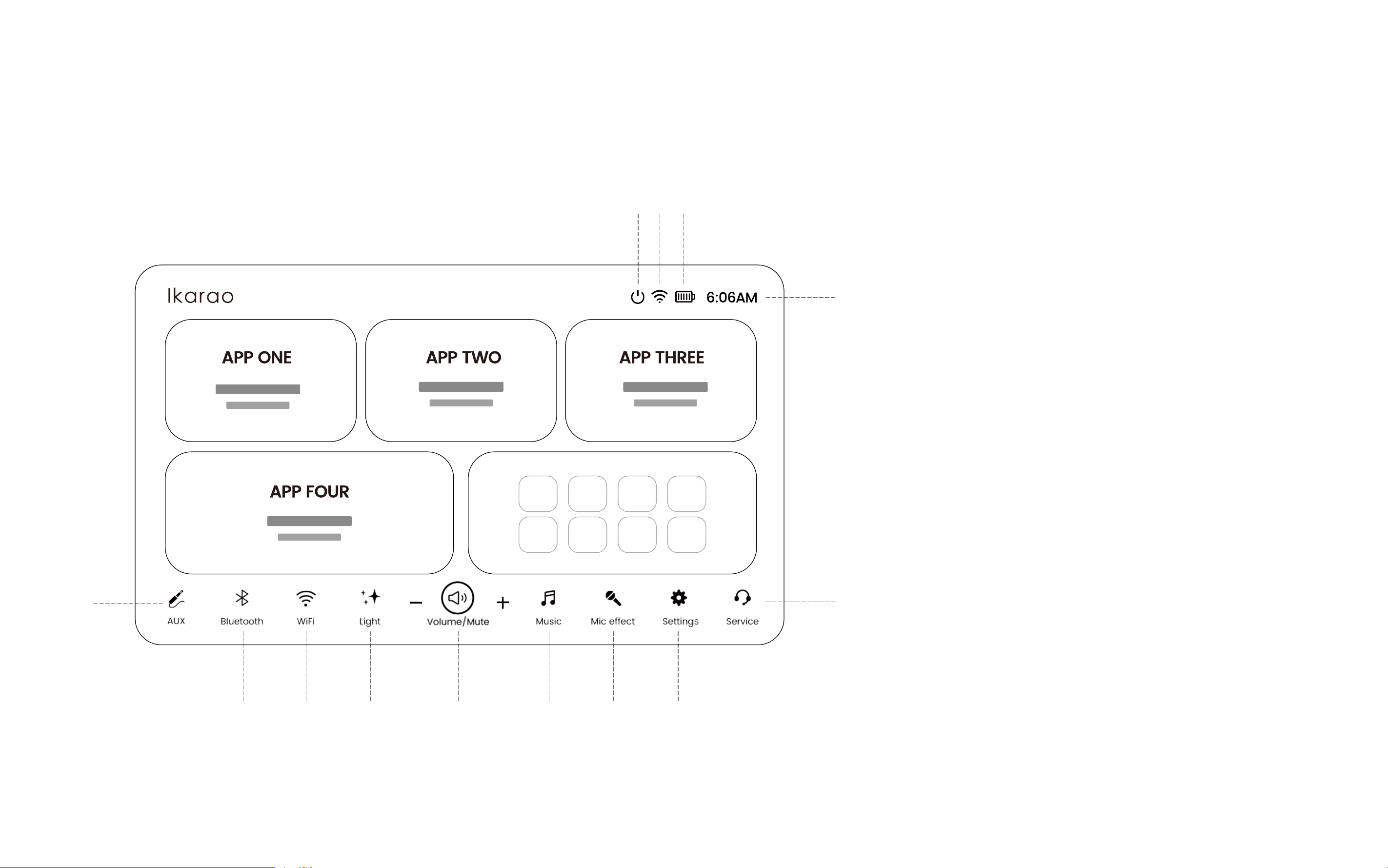
Parts of the Homepage
①
② ③ ④ ⑤ ⑥ ⑦ ⑧
⑨
⑬
⑩⑪ ⑫
①
Aux Mode......................................................... 18
②
Bluetooth.......................................................... 18
③
WiFi................................................................ 18
④
Lighting Mode.................................................. 18
⑤
Volume ............................................................. 18
⑥
Music Effect..................................................... 19
⑦
Microphone Effect........................................... 19
⑧
Settings............................................................. 19
⑨
Ikarao Service................................................... 19
⑩
Power................................................................ 20
⑪
WiFi................................................................ 20
⑫
Battery............................................................... 20
⑬
Time.................................................................. 20

18
Aux Mode
Click to enter Aux Mode. You can also access it via the Playback Mode button. Connecting a device to Aux In will automatically switch to the Aux
Mode page.
Bluetooth
Click to enter Bluetooth Mode. You can also access it via the Playback Mode button.
WiFi
Click to enter WiFi settings. You can also access it through the Settings menu.
Light
Click Light to enter light adjustment.
Volume
Use the +/- buttons to adjust the speaker volume. Tap the center button to mute. You can also adjust the volume with the volume wheel.
(For volume roller adjustments, see Page 10 - Volume Roller)
19
Music Mode
Click to enter Music Mode to control the speaker's sound effects.
Microphone Effect
Click to enter microphone sound effect adjustment.
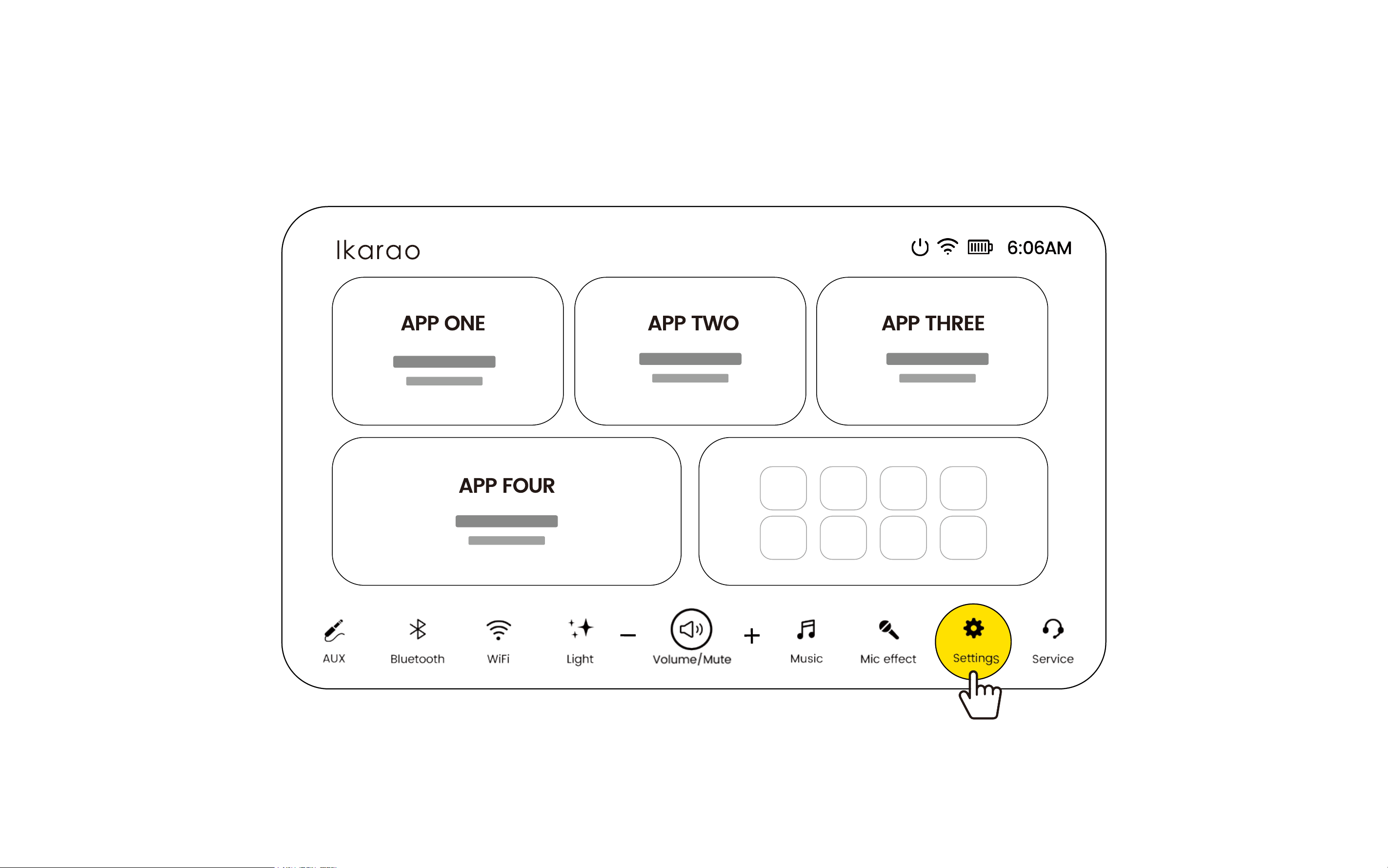
Settings
Click to enter settings.
(For detailed settings, refer to Page 26-33 - Settings.)
Ikarao Service
Ikarao after-sales service page. You can scan the QR code or fill out a form to get technical support.
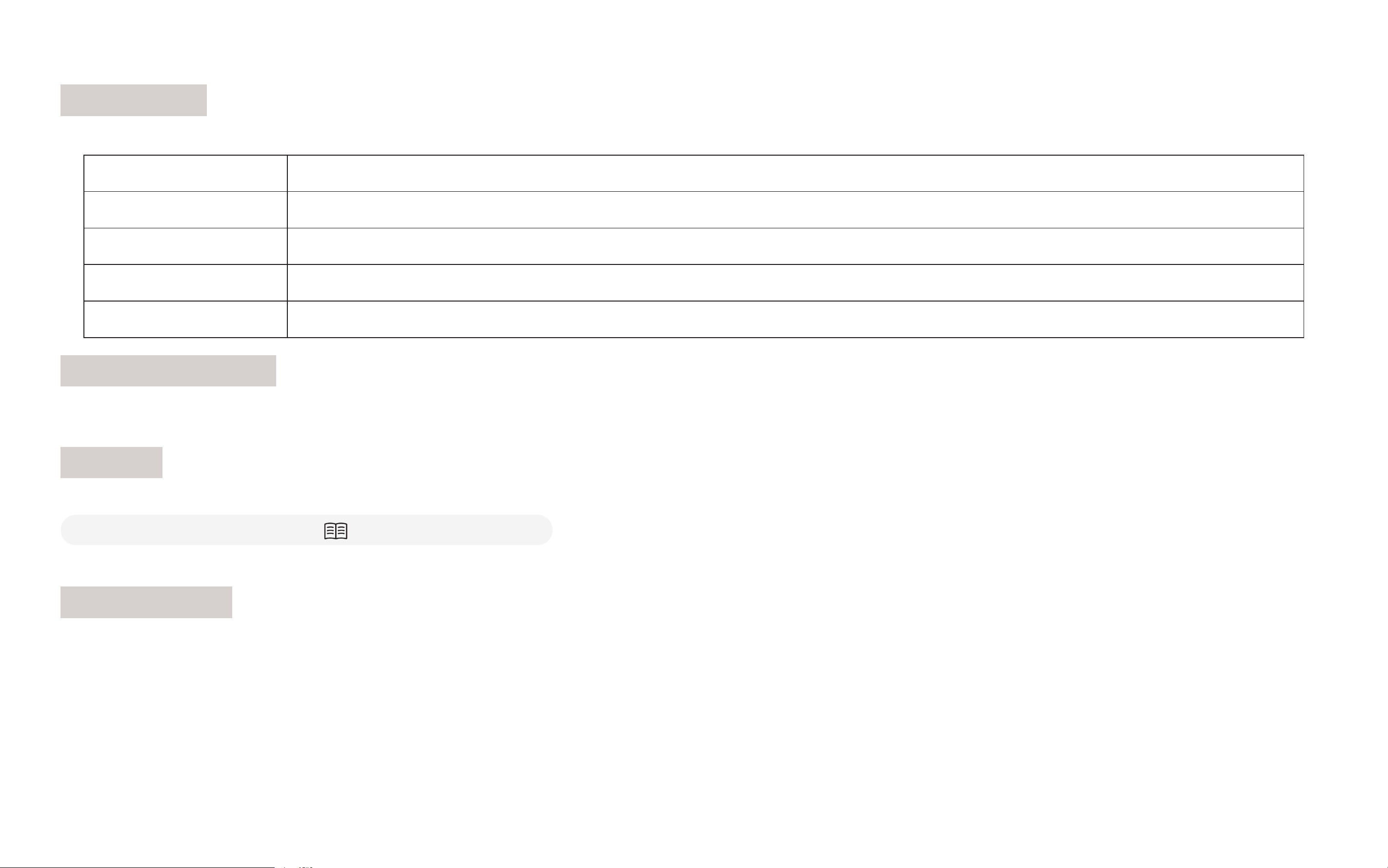
Sound Effect Mode Description.
HiFi Restores the purity of sound, focusing on original details and dynamics.
Light Enhances midrange clarity, suitable for vocal-centric music.
Outdoor Emphasizes bass and treble, effectively increasing loudness for outdoor use.
Bass Boosts low frequencies to energize music, ideal for rhythmic tracks.
20
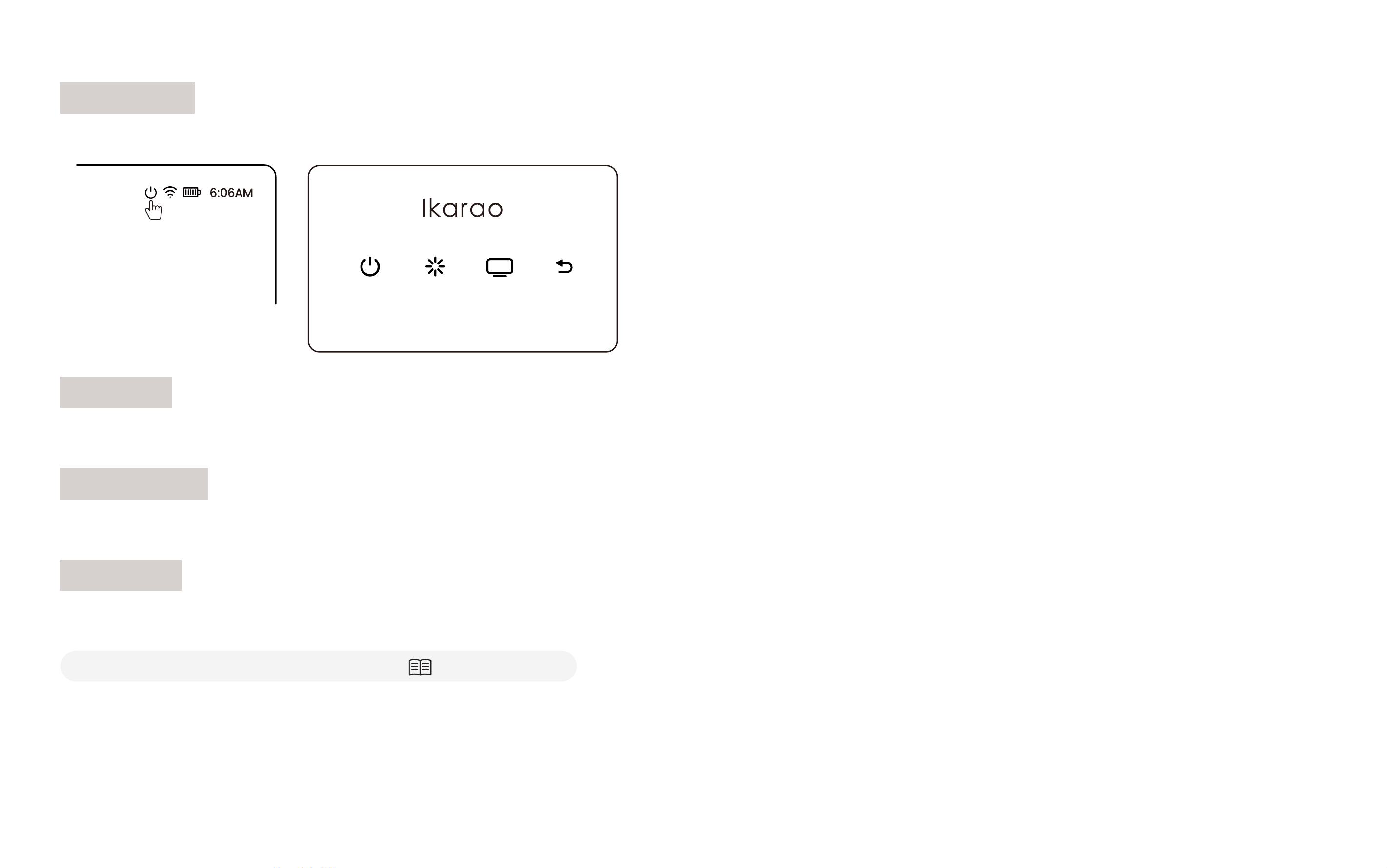
Power Icon
Click the Power icon on the screen to shut down, restart, or turn off the screen.
WiFi Icon
Indicates Wi-Fi is connected.
Battery Icon
Indicates battery status.
Time Icon
Displays the time. For first-time use, the time is automatically set when connected to the internet;
otherwise, configure the time manually.
(For manual time configuration, refer to Page 32 - Time)
Shtdown Reboot Screen Off Exit

First
Steps
02
22
USE Carrying Strap
Buckle up Carrying Strap
2
Take out Carrying Strap1
Carrying Strap
NOTE: Please fasten the strap to ensure your speaker can be carried safely.
23
2
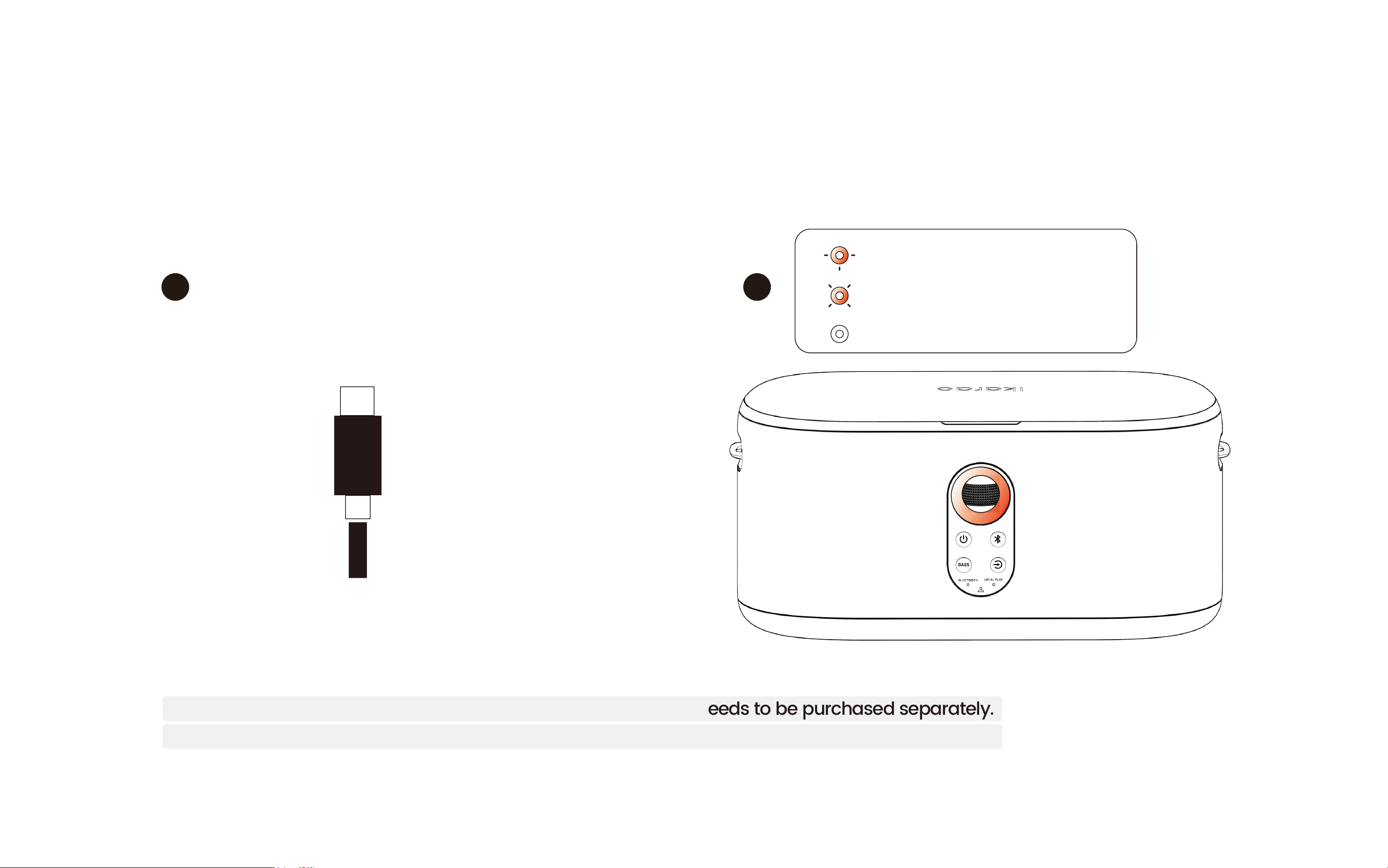
Charge speaker with Type-C cable
NOTE:This product does not include an adapter; the adapter needs to be purchased separately.
We recommend using a 45W Type-C adapter for a better user experience.
1
Type-C
CHARGING
*BREATHING
FULLY CHARGED
*OFF
LOW BATTERY
*SLOW FLASHING
Speaker Charging
2
Charge speaker with Type-C cable
NOTE:This product does not include an adapter; the adapter needs to be purchased separately.
We recommend using a 45W Type-C adapter for a better user experience.
1
Type-C
CHARGING
*BREATHING
FULLY CHARGED
*OFF
LOW BATTERY
*SLOW FLASHING
24
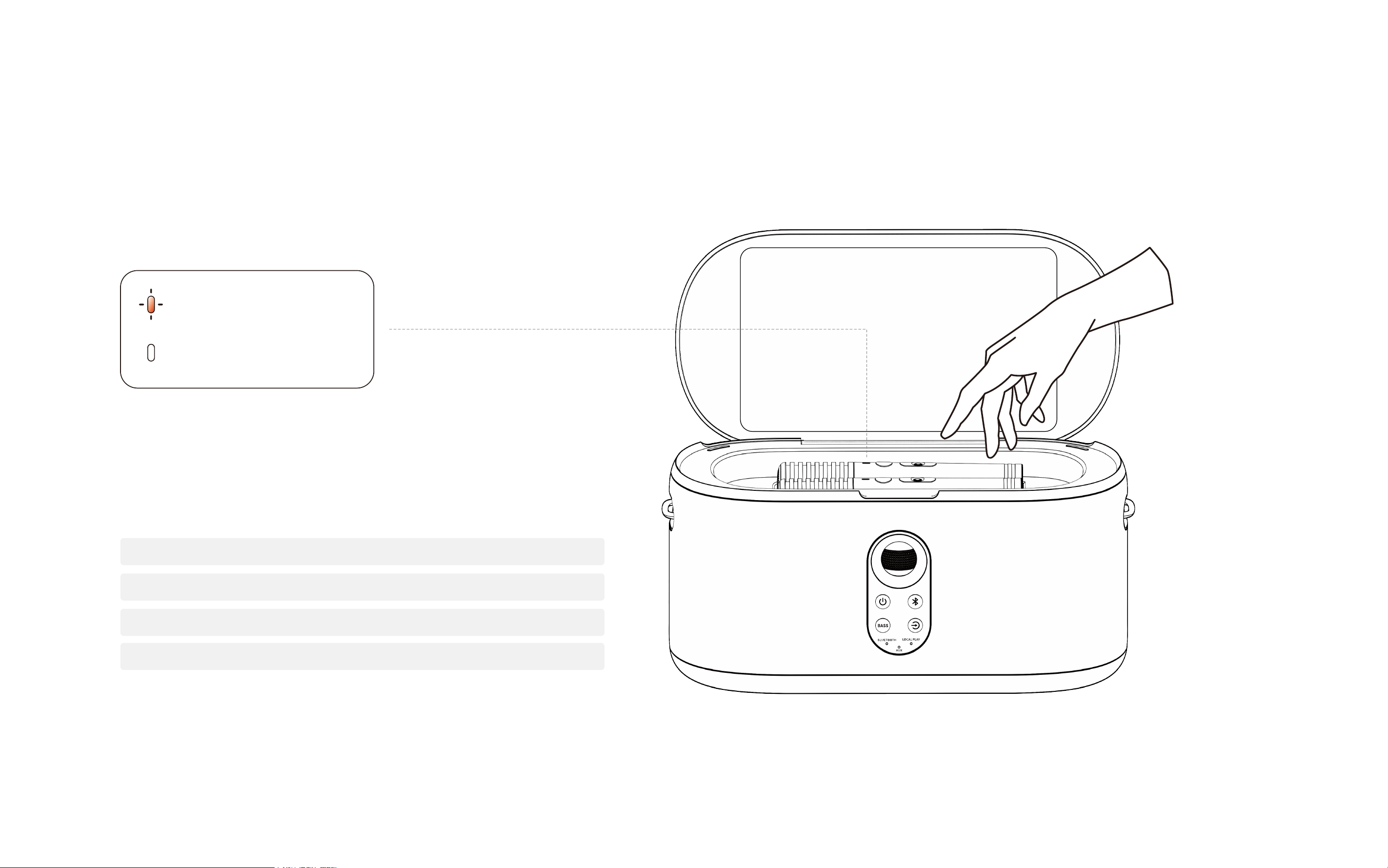
Microphone Charging
*BREATHING
*OFF
CHARGING
FULLY CHARGED
Place mics in magnetic charging slot
NOTE:
1. Microphone has a 20-hour usage
duration with a 5-hour full charge time.
2. The speaker stops charging the microphone
in low power mode (around two battery bars).
25
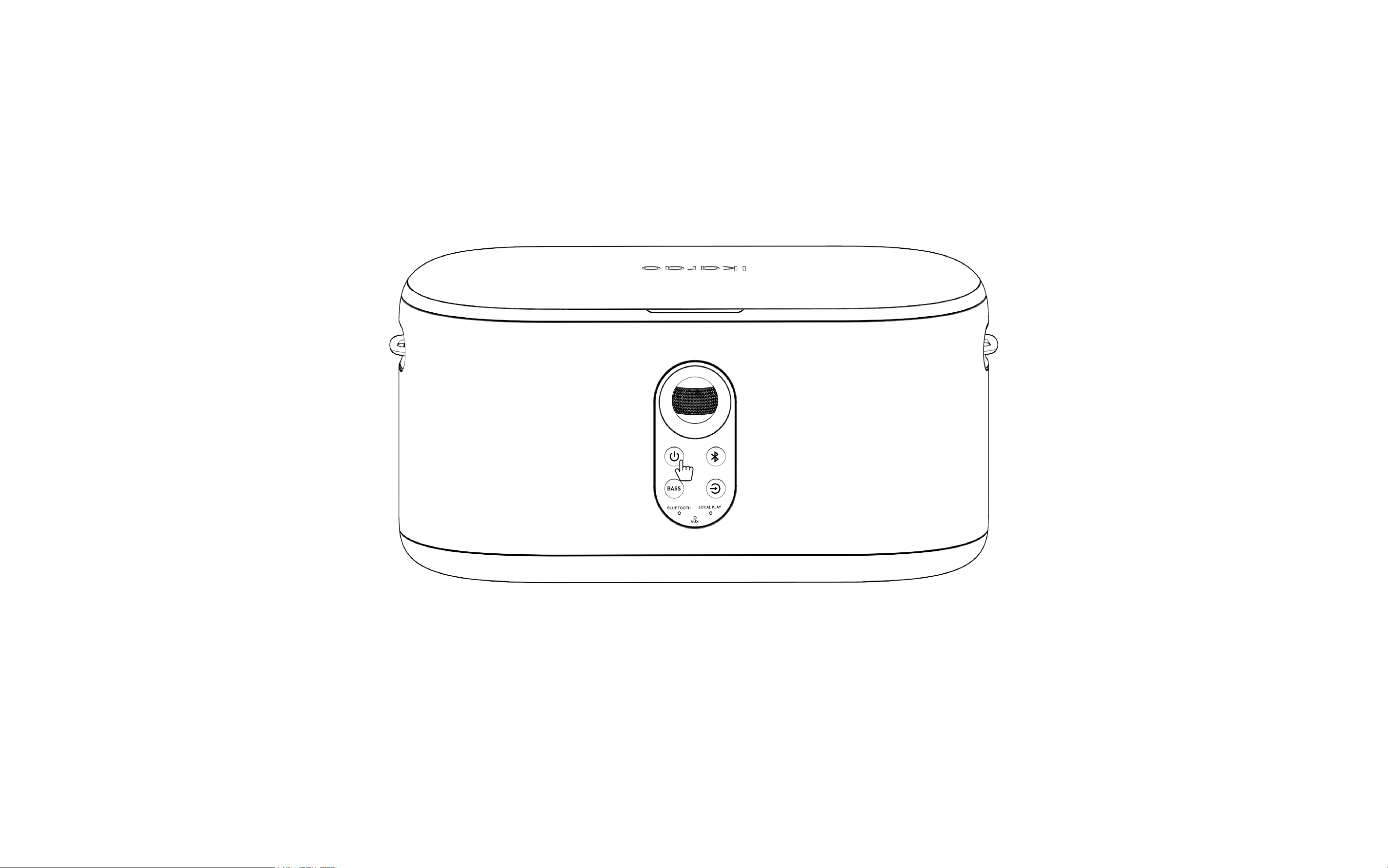
Power On/Off
Press and hold the power button for 3 seconds to turn the device on or off.
When the device is on, single-click the power button to turn the screen off or on.
26
Basic Settings

27
Version Update
Click "Detect New Version" to update the version. To ensure a successful
upgrade, please connect to a power source or ensure the battery is
above 50% before upgrading.
Restore Factory Settings
Click "Restore Factory Settings" to revert to factory settings.
Please Note:
1. This action will erase all user data.
2. After restoring factory settings, the speaker will automatically
restart. The restart process takes about 2-3 minutes. Please keep
the speaker connected to a power source, do not perform any
operations, and wait patiently for the speaker to complete the
startup process.
Brand Name
Displays the product name - Ikarao
Model Name
Displays the model of the device
Serial Number
The unique identifier for Ikarao products
App Version
The current system version
Device Version
The current device version
About
28
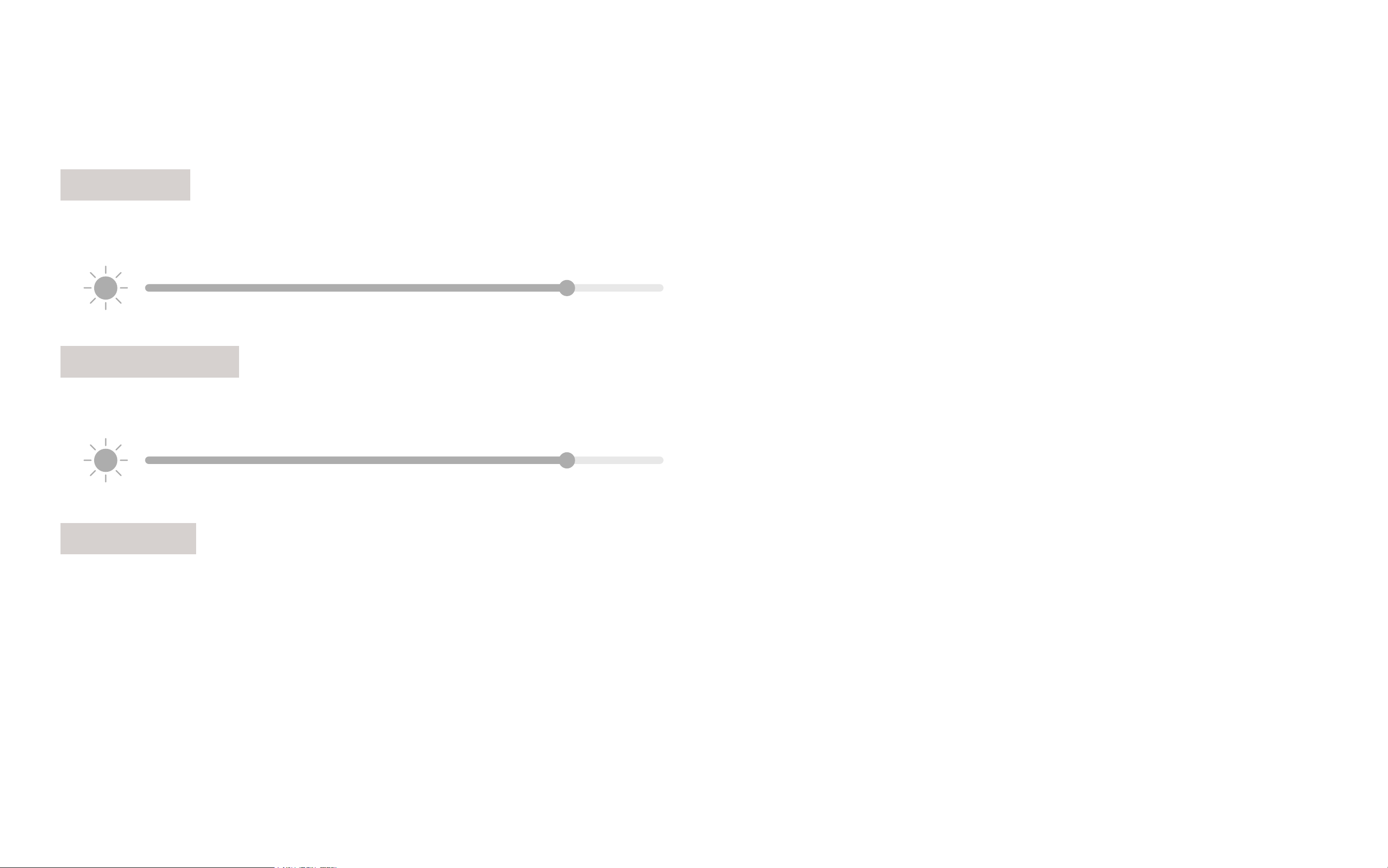
Brightness
Drag the slider left or right to adjust the screen brightness.
Key Brightness
Drag the slider left or right to adjust the backlight brightness of the keys.
Sleep Time
Select the number of minutes of inactivity after which the device will automatically shut down.
Display
29
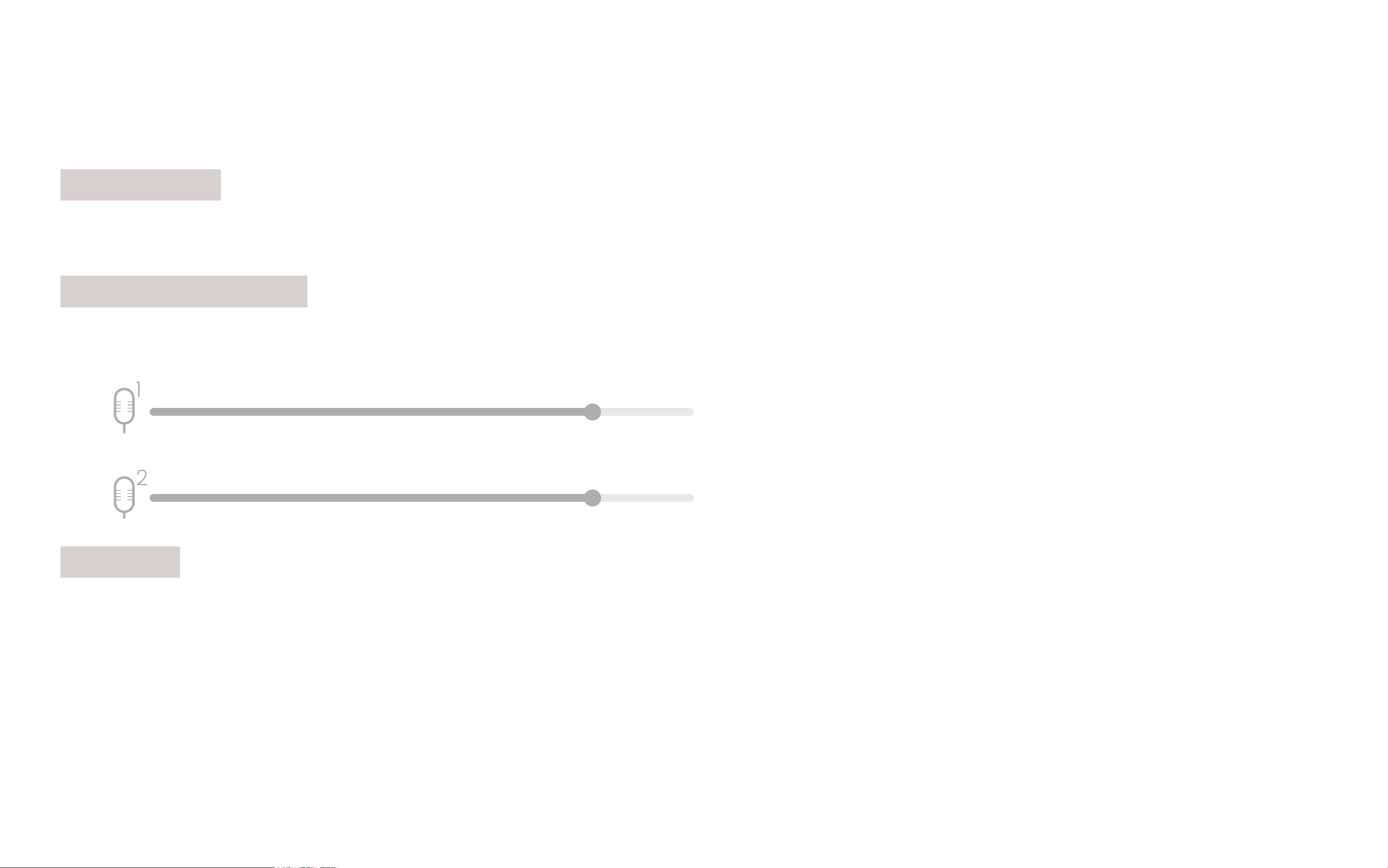
Tone Volume
To control the volume of the prompt tone
Wireless Mic Volume
Indicates the connection status and volume of the wireless microphone
Mic Mode
Microphone mode switch
Sound
30
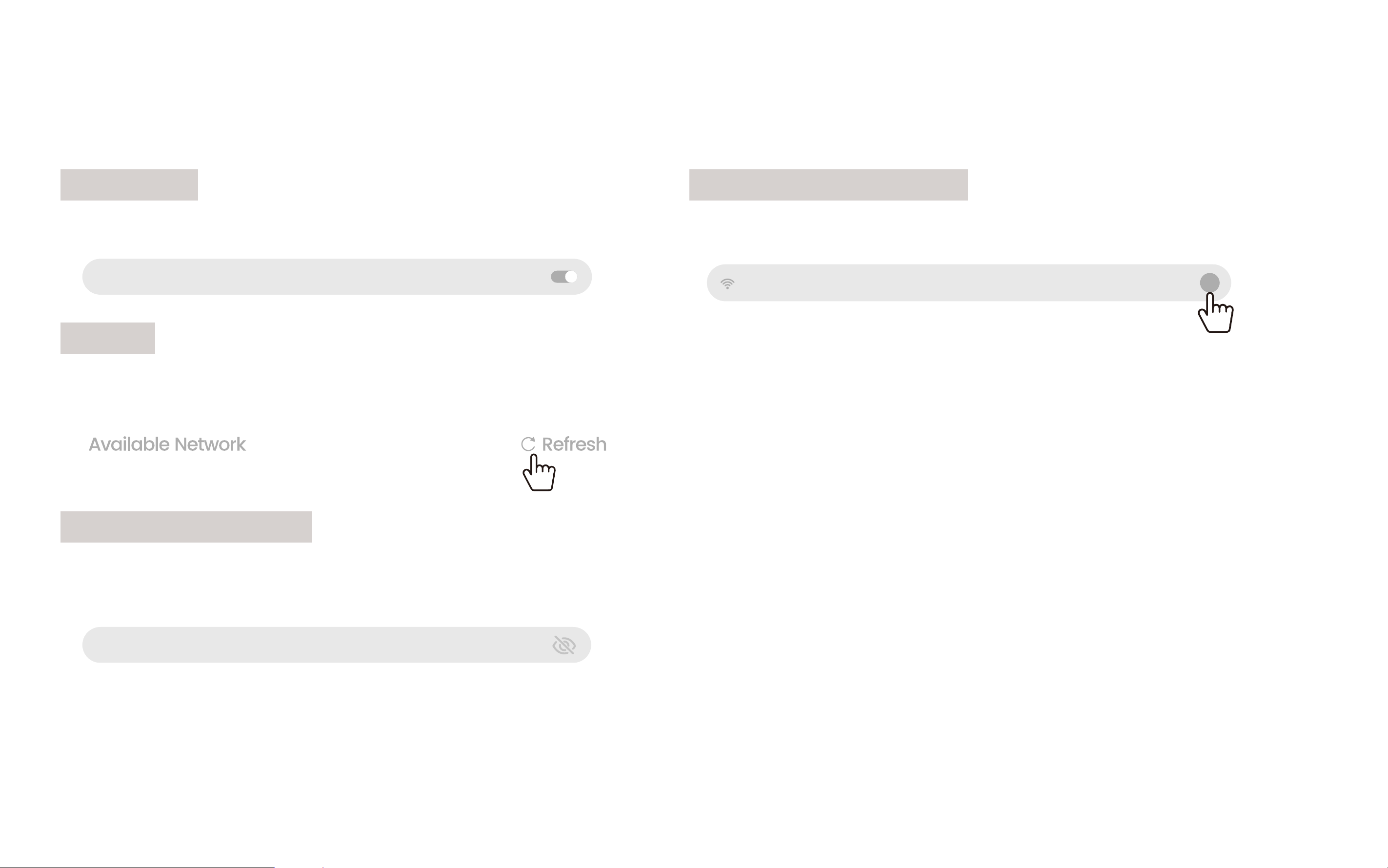
WiFi Switch
Click the button to turn the WiFi on or off.
Refresh
If your WiFi name is not found, click Refresh to update the available
network list.
Enter Wi-Fi Password
1. Wi-Fi Password Display, Displays the entered Wi-Fi password.
2. Connects to the selected Wi-Fi network.
WiFi
WLAN
WiFi Enter WiFi password.
Wi-Fi Basic Information
Displays basic information about the current Wi-Fi connection.
1. Connection Speed
Shows the maximum bandwidth of the connected Wi-Fi.
2. Signal Frequency
Indicates the frequency band of the current Wi-Fi.
3. Security
Indicates the encryption protocol of the current Wi-Fi.
4. IP Address
Displays the IP address of the current Wi-Fi.
WiFi
i
31
Storage
Displays the current used storage and total storage.
Storage Control
Cleanup Acceleration
Cache **MB indicates the storage space occupied by the current cache.
One-Click Cleaning clears the cache with one click.
USB Drive
If you insert an external storage device, the used capacity/available capacity of the external storage device will be displayed here.
Storage
Cache xx.xxMB
Storage Control
One-Click Cleaning

32
Automatic Time Update
Automatically updates the current time.
24-Hour Format
Enables 24-hour time format.
Timezone
Select your region and timezone.
Time
If Automatic Time Update is off, you can manually set the time.
Date
If Automatic Date Update is off, you can manually set the date.
Time
33
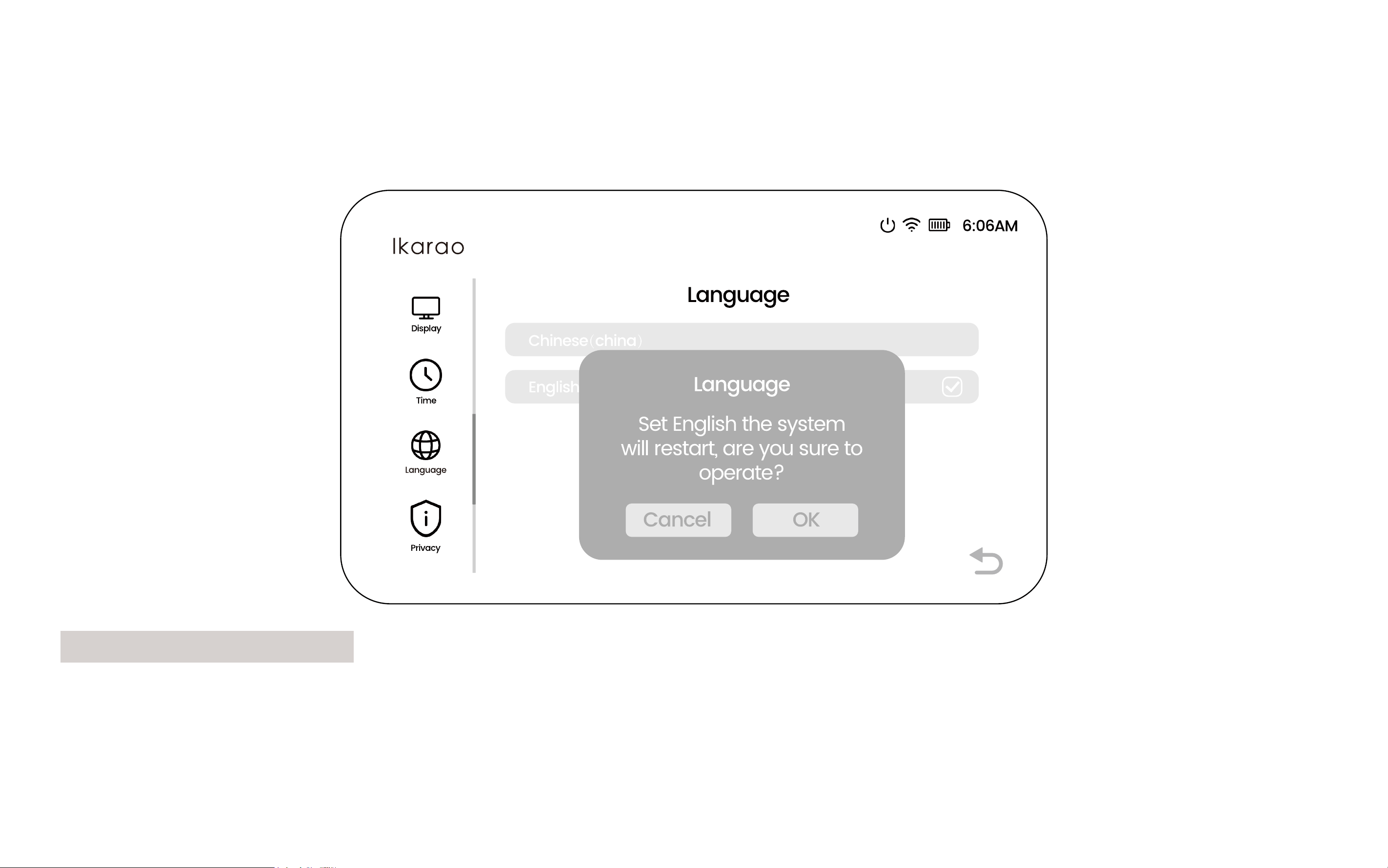
Select System Language
When switching languages, the Shell S1 will restart.
Please do not perform any other operations on the speaker during the restart.
Language

Start
to Use
03
35
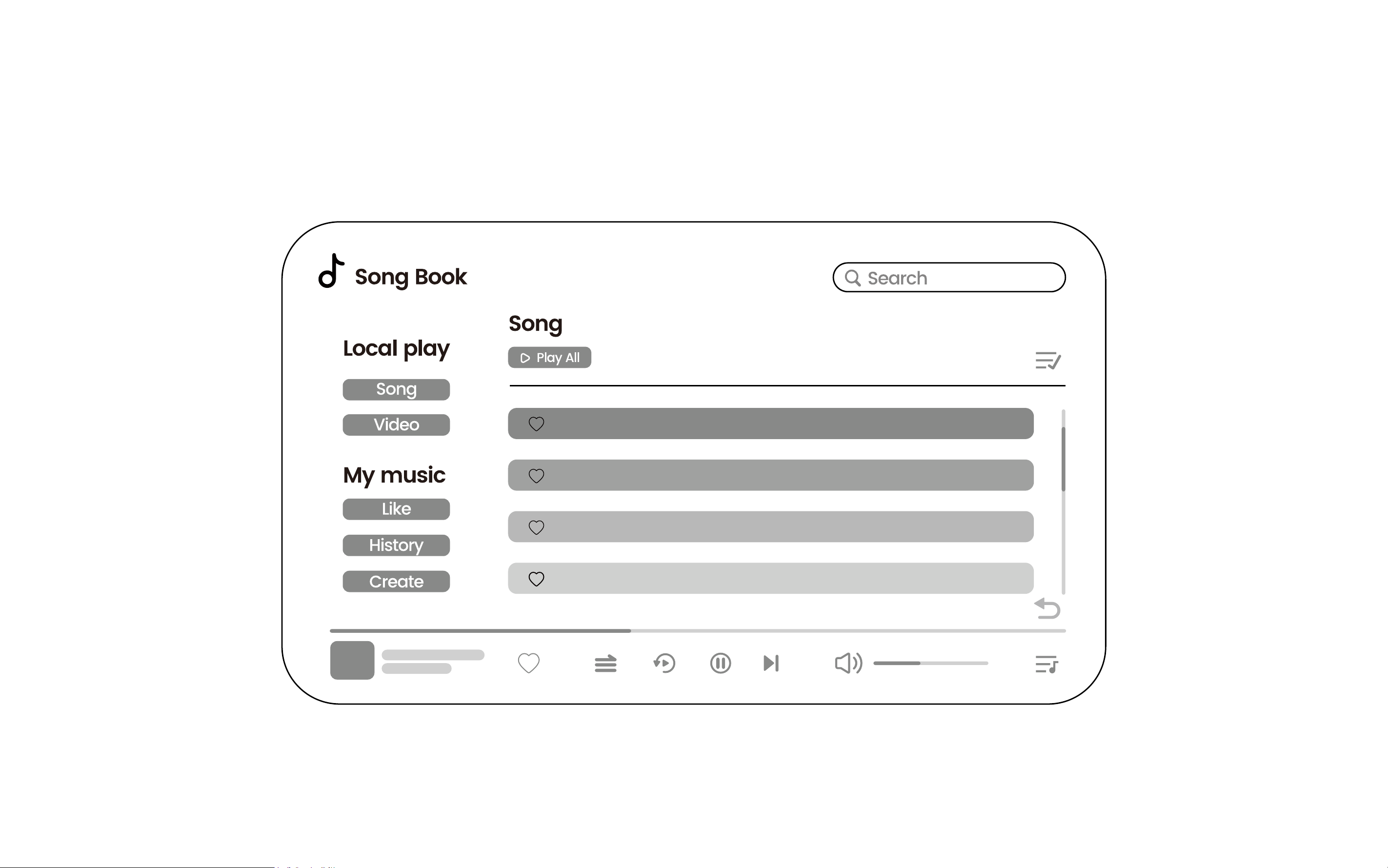
Local Media Player
< 1 / 2 >
Song
cover
36
Favorites
Click the heart icon to add music to your favorites.
View favorites in the Like section.
Repeat Mode
Single repeat - Shuffle - Sequence play
Play From Beginning
Click to play from the start.
Play/Pause
Click to play or pause.
Next Track
Click to skip to the next song.
Volume
Drag to adjust the volume.
Playlist
Displays the current Playlist.
Add to Queue
Click the plus icon to add songs to the Playlist.
Create Playlist
Click Create on the Add to Queue page or in My Music to create a Playlist.
Name: Enter the Playlist name.
Description: Describe the Playlist.
Create
Name:
Describe:
37
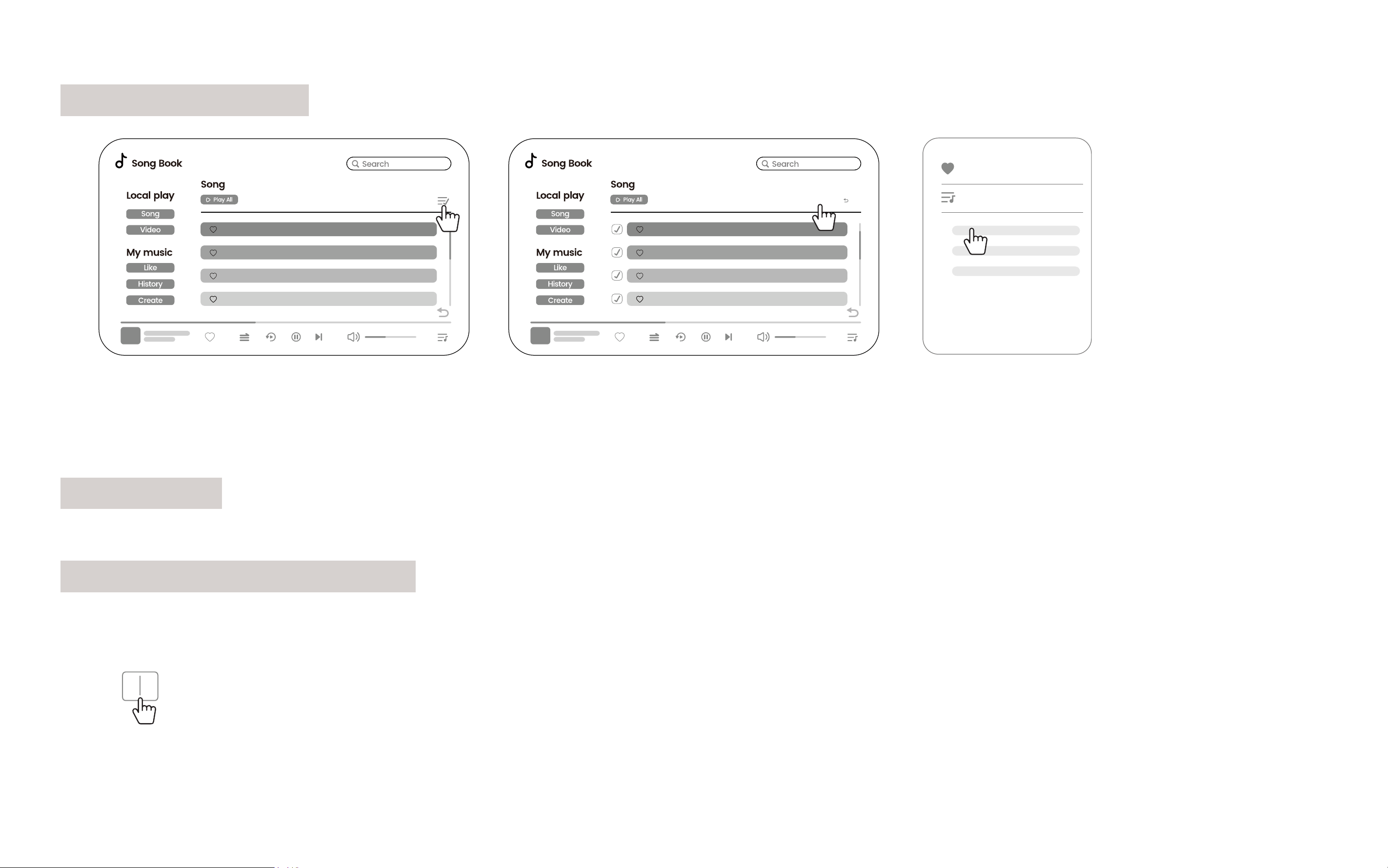
Batch Create Playlist
1. Long press on a song or click the list icon in the top right corner to activate batch selection mode.
2. Click the add icon.
3. Select the Playlist to add the tracks.
Page Turning
Click left or right to turn pages.
Quick Jump to Specied Page
Click the page number, enter the page number, and click OK to jump to the specified page.
< 1 / 2 >
Song
cover
< 1 / 2 >
Song
cover
+ Add to Exit
Like
Play List
1.
2.
3.
< / 6 >
38
View Lyrics
Click the song cover on the bottom status bar to enter the song playback page. If an LRC. lyrics file is in the song folder, lyrics will be displayed.
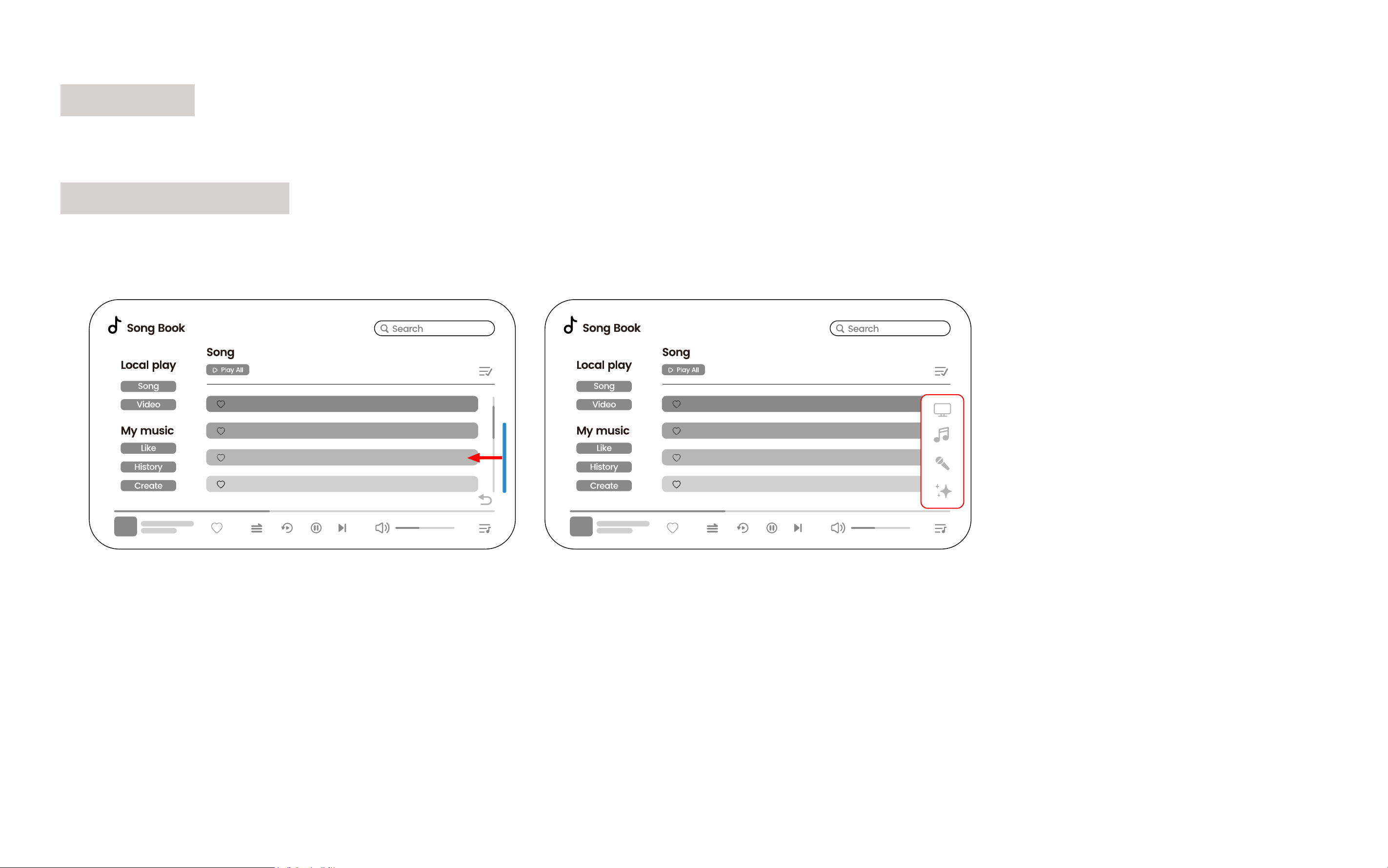
Call Up Control Bar
Swipe left on the blue vertical bar on the right to call up quick controls for Display, Music Mode, Sound, and Lighting Mode.
< 1 / 2 >
Song
cover
< 1 / 2 >
Song
cover
39
Bluetooth Instructions
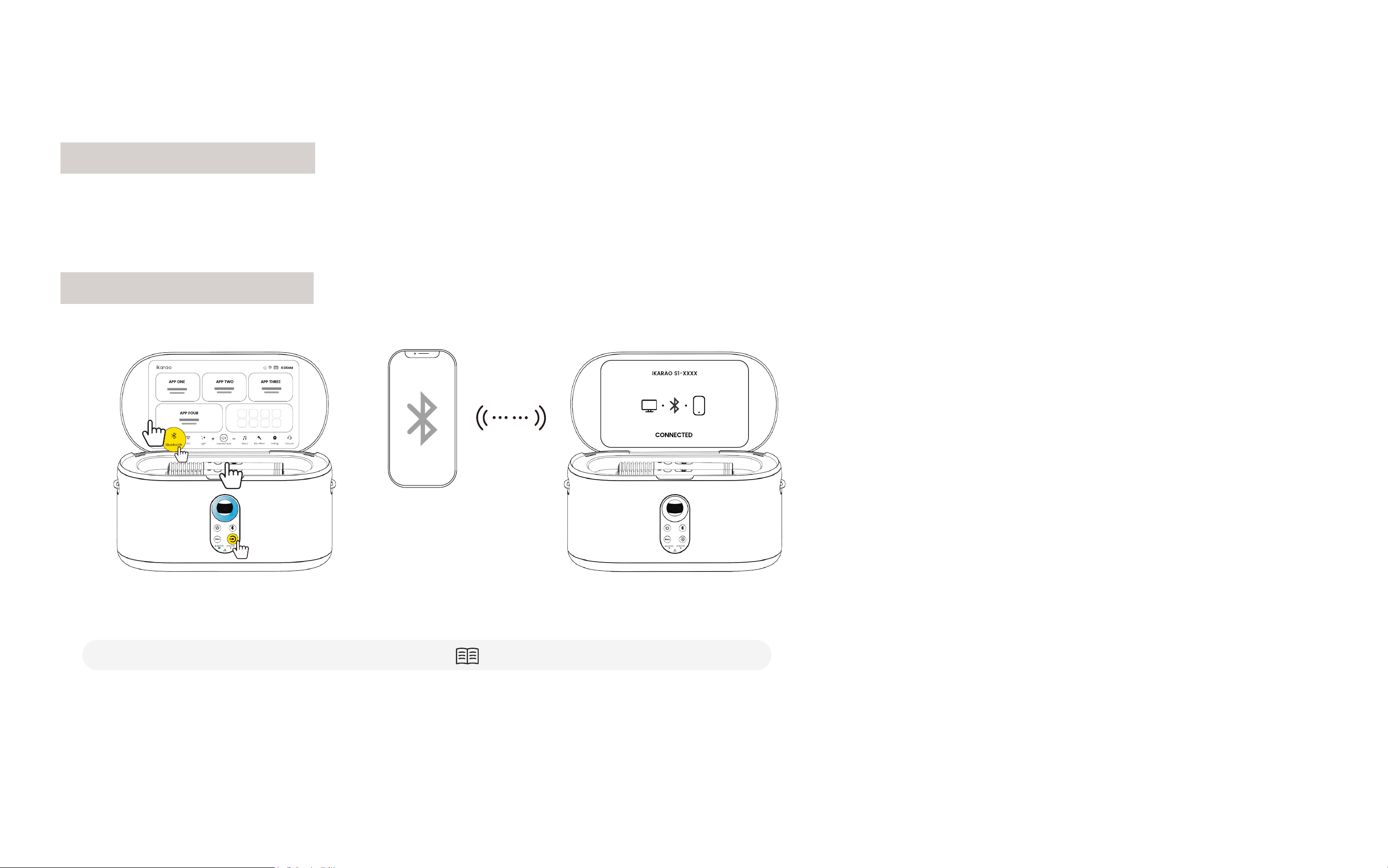
Enter Bluetooth Mode
Click the Bluetooth icon on the screen or press the Playback Mode button to switch to Bluetooth mode. The device will automatically reconnect to
previously paired devices within one minute and remain in pairing mode for 10 minutes.
Connect to Bluetooth
1. Ensure the Bluetooth status is "Bluetooth Pairing".
(if it shows "Bluetooth Connected," refer to Page 40 - Disconnect Bluetooth).
2. Turn Bluetooth on your device (iPhone, Android, Laptop, iPad, etc.) and find "Ikarao S1-xxxx" to pair.
3. If the connection times out and the indicator light turns off, short-press the Bluetooth button to re-enter pairing mode.
4. Once paired, the status will change to "Bluetooth Connected."

40
Disconnect Bluetooth
Press the Bluetooth button on the speaker to disconnect the current Bluetooth connection, changing the status to "Bluetooth Pairing." You can
also short press the button to enter pairing mode without accessing the Bluetooth Mode.
Bluetooth Playback With Lyrics Display
If supported by the music app, lyrics will be displayed automatically. Note that many major Western music apps (Apple Music, Spotify, YouTube
Music, Amazon Music, Tidal) do not support this feature due to copyright issues.
View Current Bluetooth Connection Device
Enter the Bluetooth mode settings to see the currently connected device and modify the Bluetooth name if needed.
41
Third-Party APP
Once connected to Wi-Fi, you can use pre-installed third-party apps for Karaoke, listening to music, watching videos, and more.
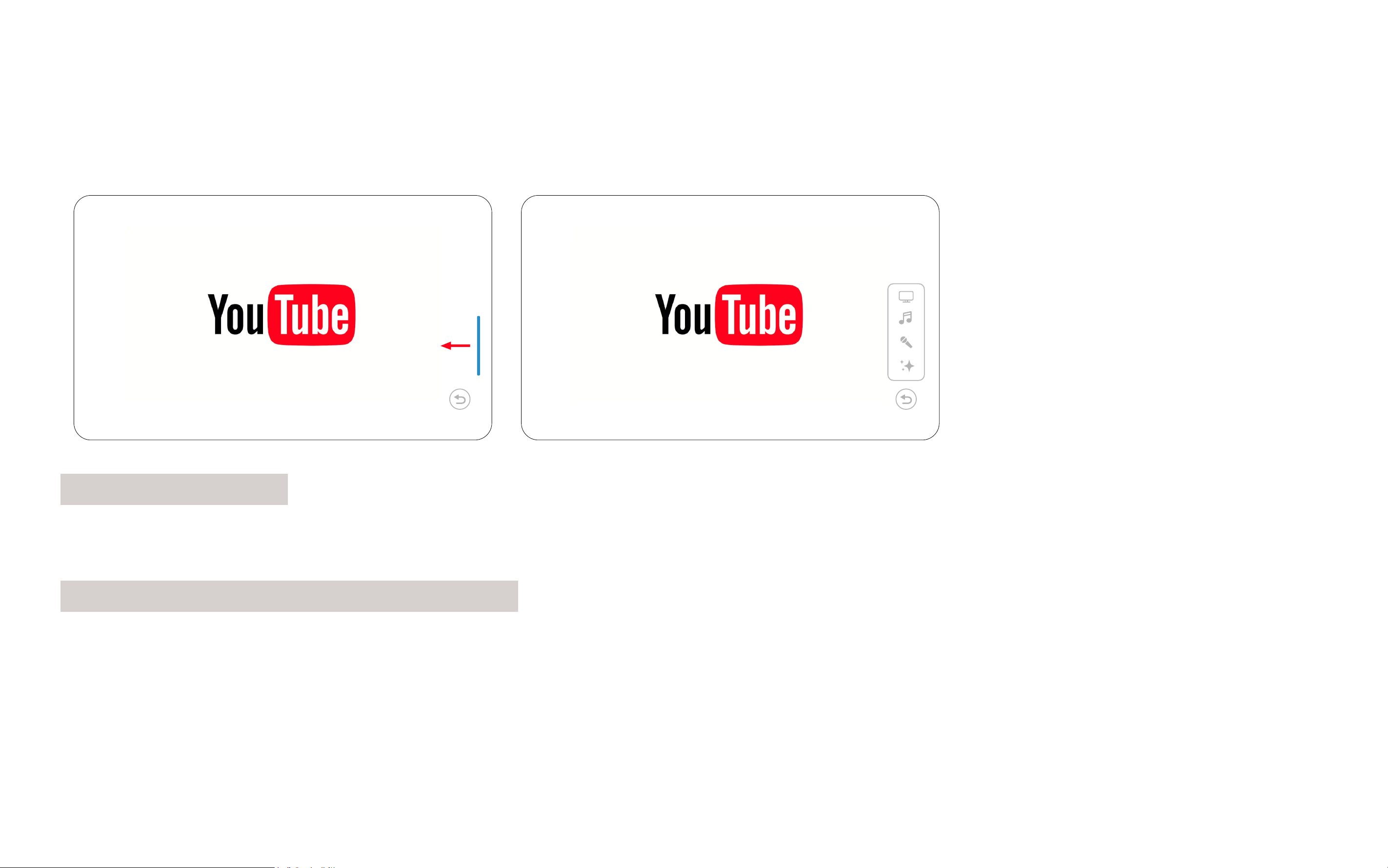
Access Control Bar
Slide the blue vertical bar on the right side of the screen to the left to access quick controls for Display, Music Mode, Sound, and Lighting Mode.
Return to Home From Third-Party Apps
Find the blue return button at the bottom right of the screen. Single-click to go back to the previous page, long-press to return to the home screen.
Note: You can drag the return button to any location on the screen.

Discover
Repair fault
04
43
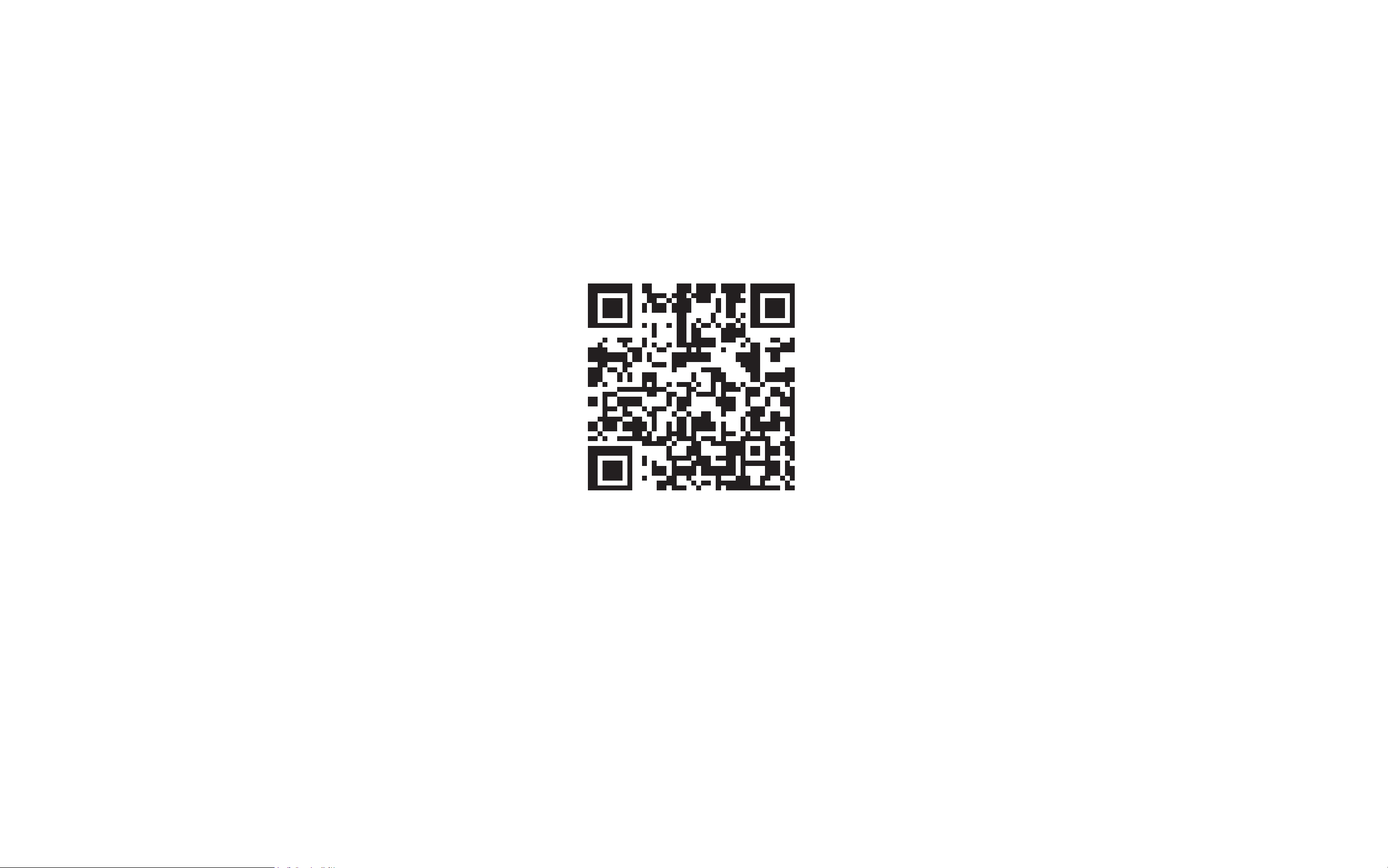
For more after-sales service and information
please visit: www.ikarao.com/pages/support

44
Network Issues
What to do if Wi-Fi Connection Fails
1. Ensure the router password is correct.
(enable password visibility settings, refer to Page 30 - WiFi)
2. Place the router and the speaker closer together, avoiding walls.
3. Connect the speaker to a personal hotspot on your phone to check for router compatibility and network issues.
4. If certain routers have compatibility issues, modify the SSID (wireless network name) and password in the router's management settings to a
combination of letters and numbers. Also, check the router's whitelist and blacklist settings. Then, reset the speaker and configure the network
again.
What to do if Wi-Fi Connects but can't Access the Internet
This might be due to network fluctuations or issues with your modem. Follow these steps:
1. Check if other devices on the same Wi-Fi can connect to the internet. If they can, contact your network administrator or access the router's
management settings to see if there are any restrictions.
2. If other devices also can't connect to the internet, check if the router's connections are loose and if the indicator lights are normal (refer to the
router manual).
3. Verify that your broadband service is not overdue for payment.
Why does Wi-Fi Disconnect Automatically?
The speaker will attempt to reconnect to Wi-Fi if the network is temporarily lost. If the network recovers quickly, it might be due to router or
network provider fluctuations. If the network remains disconnected for a long time, follow these steps:
1. Ensure the router's power is functioning properly.
2. Check if the router's WAN port is properly connected.

45
3. Confirm if other devices can connect to Wi-Fi and the internet normally.
4. Verify if the router password has changed.
5. Ensure the router and the speaker are not too far apart or separated by walls. Place them closer together if necessary.
6. If none of the above resolves the issue, try restarting the speaker.
Music or Video Playback Stuttering
1. Check Wi-Fi signal strength. Move the speaker closer to the router if the signal is weak.
2. Ensure the Wi-Fi connection is on the 5G frequency band.
(refer to Page 30 for instructions)
3. Use another device on the same network to access the content. If it still stutters, the issue may be with the source.
Bluetooth Issues
Music Stuttering over Bluetooth
1. Ensure the source device is playing offline music. Online music might stutter due to network speed or buffering issues.
2. Check the distance between the source device and the speaker. The effective Bluetooth range is generally 10m. Too much distance or a wall
can cause stuttering.
3. Ensure there are not too many 2.4GHz devices (e.g., 2.4GHz Wi-Fi routers, phones, smart home devices) nearby, as they can cause interference.
4. Try turning Bluetooth off and on again on the source device, then reconnect.
Unable to Find the Speaker When Pairing Bluetooth
1. Ensure the speaker is powered on and in normal working condition.
2. Make sure the speaker is in Bluetooth audio mode by pressing the Bluetooth button or switching to Bluetooth mode.

46
3. Ensure there are not too many devices connected to a 2.4GHz Wi-Fi band in the room. Interference can occur. Try connecting the speaker to a
5GHz band.
4. Restart the phone’s Bluetooth and try again if there is a system issue.
Bluetooth Fails to Connect Initially Despite Finding the Speaker
1. Check if the speaker is already connected to another Bluetooth device.
(Refer to Page 39 for detailed steps.)
2. Press the Bluetooth button to re-enter pairing mode and try connecting again.
Bluetooth Reconnection Fails
If the phone previously connected to the speaker but now fails to reconnect, go to the phone's settings: Settings > Bluetooth > My Devices, forget
the previously connected speaker, and try connecting again.
Displaying Lyrics via Bluetooth
Displaying lyrics over Bluetooth requires music app support. Most major music apps in Western regions do not support this feature due to
copyright issues, including Apple Music, Spotify, YouTube Music, Amazon Music, and Tidal.

47
Microphone Issues
No Sound from Microphone
1. Check if the microphone is successfully connected. A solid blue indicator light, a microphone icon on the screen, and the ability to switch
microphone effects by pressing the power button indicate a successful connection.
2. If not connected, restart the microphone and try reconnecting. If connected but still no sound, try moving the main unit away from other 2.4GHz
devices and restart.
Music Volume Drops When Singing with Microphone
Check if the Music Ducking feature is accidentally enabled
Microphone Won’t Turn On
1. Ensure you are holding the power button for at least 2 seconds.
2. If it still won’t turn on, try charging the microphone. Ensure the speaker has sufficient battery or is connected to a power source. The charging in
dicator on the microphone should light up while charging.

48
Local Media Player Issues
Playing Music from TF Card, USB Drive, or External Hard Drive
1. Insert the TF card, USB drive, or external hard drive into the corresponding port.
2. A prompt will appear on the screen: “USB Drive: The machine detects the insertion of USB, do you want to enter the local media?” Click Yes.
3. If you accidentally click No, go to MUSIC > LOCAL MEDIA to access the local media player.
No Lyrics in Local Media Player
The local media player requires an LRC file to display lyrics. Ensure the LRC file name matches the music file name except for the extension. For
example, if the music file is named "Love The Way You Lie.mp3," the lyrics file should be named "Love The Way You Lie.lrc."

Techincal
Notes
05

50
Safety Instructions
Ensure proper use of the product. Please read your User Manual carefully before use,
especially the following safety instructions.
General Safety Tips:
1. Avoid extreme high or low temperatures.
2. Keep away from moisture, rain, or other liquids.
3. Do not expose to direct sunlight.
4. Avoid dropping or severe impacts.
Battery and Charging:
1. Use the specified charger and power cable.
2. Keep away from flammable materials while charging.
3. Do not attempt to replace the battery yourself.
4. Avoid overcharging or completely discharging the battery.
Electrical Safety:
1. Ensure the power outlet meets the product requirements.
2. Avoid contact with live electrical parts.
3. Do not use in a damp environment.
Health and Environment:
1. Prolonged use may cause eye strain or other health issues; take regular breaks.
2. Do not use while driving or operating machinery.

51
3. Do not dispose of it improperly; follow local recycling regulations.
Child Safety:
1. Small parts may pose a choking hazard; keep away from children.
2. Children should use the product under adult supervision.
Radiation and Interference:
1. The product may cause electromagnetic interference; avoid using it near sensitive equipment.
2. Comply with local regulations regarding RF devices.
Maintenance and Cleaning:
1. Turn off the power and unplug before cleaning.
2. Do not use corrosive cleaning agents.
Emergency Handling:
1. If the product emits smoke, odor, or shows any abnormal condition, stop using it immediately and disconnect the power.
2. If the battery swells or leaks, avoid direct contact and follow local disposal regulations.

52
Battery and Power
This section describes the correct usage of the battery and methods to extend its lifespan. Improper use can
shorten battery life or cause leakage, overheating, re, or explosion.
Battery Usage
1. Idle batteries gradually lose charge. Recharge the battery within a day or two before use. Turn off the product when not in use to extend battery
life.
2. Battery performance declines in cold environments; low-charge batteries may not work properly in cold conditions.
Charging
1. Use the provided adapter or power cable for charging. Charging time increases when the temperature is below +10°C or above +35°C. Do not
charge the product when the temperature is above +40°C or below +5°C.
2. It is normal for the product to heat up during charging or after use.
3. To maintain battery health, charge the battery at least once every three months.
Battery Life
1. When the product’s battery life noticeably decreases, the battery has reached the end of its life and needs to be replaced. Contact the Ikarao
support team or a dealer for replacement.
2. Long periods without charging can degrade battery quality. Regularly charge the battery.

53
Storage
For long-term storage, charge the battery to about 1/2 to 2/3 capacity and store it at room temperature.
Screen Use
1. If the display screen is damaged, avoid contact with the liquid crystal. In case of any of the following incidents, take the specified emergency
measures.
2. Skin Contact: Clean the area with a cloth, apply soap, and wash thoroughly with water.
3. Eye Contact: Rinse the affected eye with clean water for at least 15 minutes and seek medical help.
4. Ingestion: Rinse your mouth thoroughly with water, drink a large amount of water to induce vomiting, and seek medical help.

54
Certications and Declarations
Tested To Comply With FCC Standards
FOR HOME OR OFFICE USE
Contains FCC ID:2BCRN-Shell S1
FCC Statement:This device complies with Part 15 of the FCC Rules. Operation is subject to the following two conditions:
1. This device may not cause harmful interference,
2. And this device must accept any interference received, including interference that may cause undesired operation.
FCC WARNING:Changes or modifications not expressly approved by the party responsible for compliance could void the user’s authority to
operate this equipment.
Radiation Exposure Statement(Only for speaker):This equipment complies with FCC radiation exposure limits set forth for uncontrolled
environment. This equipment should be installed and operated with minimum distance of 20 cm between the radiation &your body.
Dongguan Aika Electronic Technology Co., Ltd. Declares that this product is in compliance with Directives 2014/53EU and all other applicable
EU directivce requirements. The complete declaration of conformity can be found at: www.ikarao.com

55
The Bluetooth® word mark and logos are registered trademarks owned by Bluetooth SIG, Inc. and any use of such marks by Dongguan Aika
Electronic Technology Co., Ltd. is under license. Other trademarks and trade names are those of their respective owners.
This symbol means the product must not be discarded as household waste, and should be delivered to an appropriate collection facility for
recycling. Follow local rules and never dispose of the product and rechargeable batteries with normal household waste. Correct disposal of old
products and rechargeable batteries helps prevent negative consequences for the environment and human health.
The KC (KoreaCertification) marksignifies compliance with Korea's product safety requirements for electrical and electronic equipmentand is
issued by Korea-based certification bodies that have been approved by the Korea Standards Association.
The UL markshows the product is tested by UL and meets UL Standardsof Safety for the U.S.

56
Technical Specications
Dimensions: 35.3*17.5*17cm
Weight: Approx. 5.3 kg, including two wireless microphones
Speaker Dimensions: Woofer: 3.5 inches * 2 | Tweerter: 1 inches * 2
Frequency Response: 50HZ-18KHz
Speaker SPL: 104dB
Suitable for areas 15-80 m² 150-800 ft²
Output Power: 50W
Bluetooth Version: V5.4
Wi-Fi Protocol: 802.11ac/b/g/n
Signal-to-Noise Ratio (20K LPF):
≥
85dBA(Rated power)
Screen Size: 10.1 inch
CPU: Quad-core Cortex-A35
RAM: 2GB
EMMC: 32GB
DC Input: 5-20V
⎓
1A-2.25A(45W Max)
Standby Power Consumption :
≥
0.5W

57
Speaker Charging Time:
≤
3H (45W quick charge)
Speaker Battery Life:
≥
9H(screen on),
≥
12H(screen off)
Microphone Charging Time:
≤
5H
Microphone Battery Life:
≥
20H
Microphone Type: Dynamic
Microphone Size: 2*Φ35×H183mm
Microphone Battery Capacity: 1500mAH
Microphone Distortion:
≤
1%
Microphone Frequency Response(By-Pass) 60Hz-12KHz (±1.5dB )
NOTE:Specifications and performance are subject to change without notice. Ikarao will not be held liable for any errors this manual may cortain.
The appearance of the product may differ from that described in this manual.