1
V20240508
Wi & Bluetooth
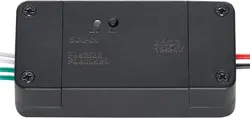
Gate Opener Controller
Safety Information
• Use this controller only in accordance with
your gate opener's separate manual and
all applicable local and national laws and
regulations concerning automatic door and
gate openers.
•
ONLY
permit children to use this device under
close and constant supervision.
•
ONLY
use the controller when the gate can be
clearly seen and there are no obstructions to
its path of travel. Cease use
IMMEDIATELY
if
any irregularity occurs during use. Recalibrate,
repair, or replace problematic parts before
further use.
•
ALWAYS
fully disconnect this device from
power during installation and maintenance.
Warning!
Specications
Material
ABS Plastic
Dimensions
3.5×1.6×0.9 in. 8.8×4.2×2.3 cm
Rated Voltage
12–24 V AC/DC
Signal Frequency
2.4 GHz Wi
Bluetooth Range
98 ft. 30 m
IEEE Standard
802.11 b/g/n
Net Weight
1.8 oz. 50 g
Parts List
1 ×
Gate Opener Controller
1 ×
Double-Sided Adhesive
Installation
1. Use the provided double-sided adhesive to attach the control system receiver to a convenient and
accessible location for you to wire it to your power supply and control signal wires. Either install the
controller within the range of the wifi network you want to connect it to or do not secure it to any
surface before pairing it with your app. It is important to ensure that the control system receiver is
installed in a safe and secure location, away from any sources of water or other potentially hazardous
materials.
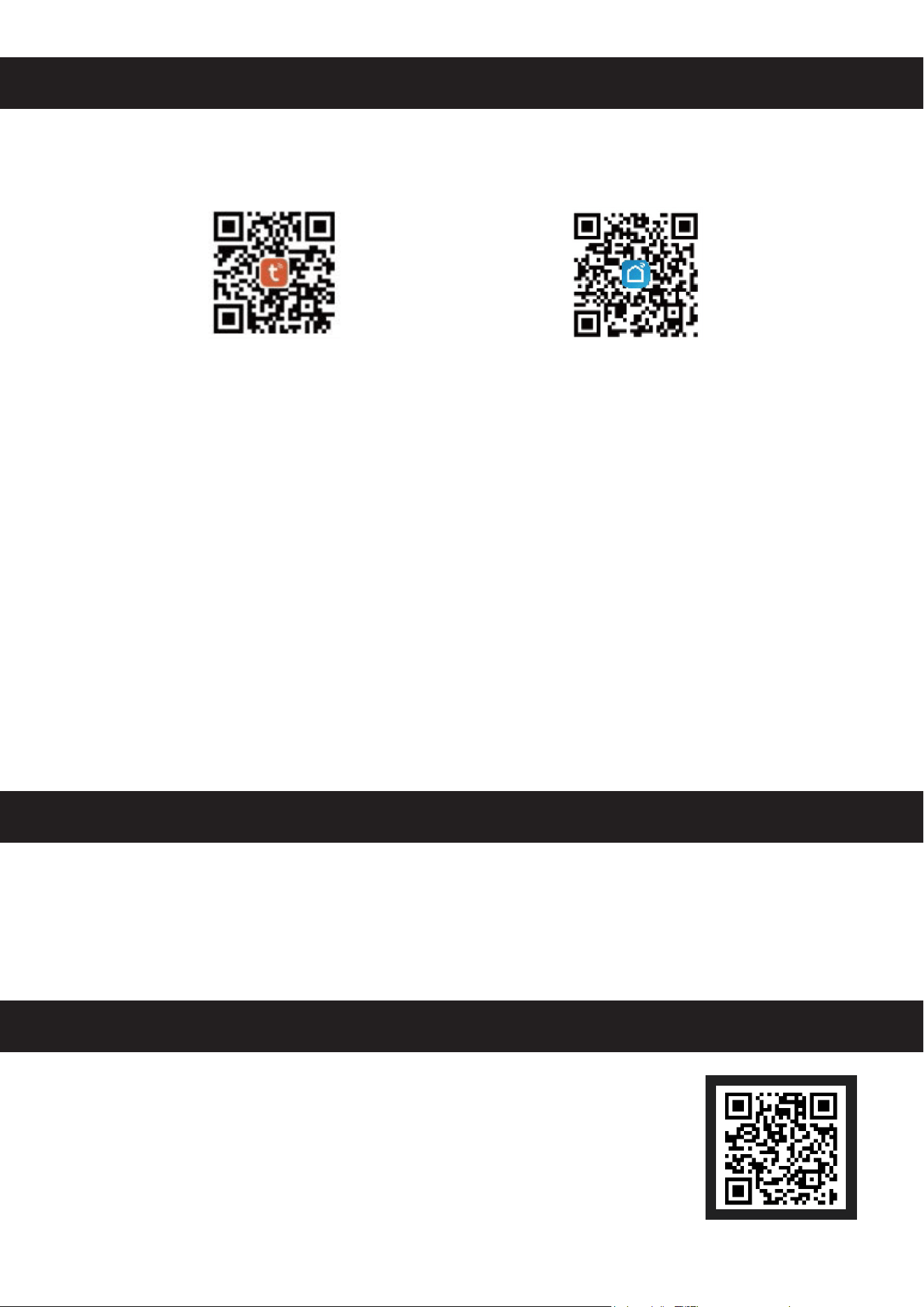
2. Run the wiring from the module to the opener according to the diagram below. When using DC power
sources, attach the red wire to the positive terminal and the black wire to the negative terminal. For
AC power, the order won't matter to the device.
Note:
If the gate opener does not have the limit function, the green wires do not need to be connected.
Here is a possible wiring. The specic wiring will depend on the circuit board you have. Refer to the gate
opener's manual.
Output
(White)
12–24 V AC/DC
(Red)
12–24 V AC/DC
(Black)
Feedback
(Green)
Green
Black
COM
Limit Signal
OSC
Red
White
2
Operation
Pairing a Device
1. Scan one of the QR codes below to download either the Tuya or Smart Life app or directly download
one of them from your device’s app store.
2. Make sure your device is connected to a 2.4GHz wi network. Open the app and click
Add Device
.
3. Select
Electrical
and then select
Garage Door Opener (BLE+Wi-Fi)
.
4. Press and hold the reset button on the wi controller until the indicator light starts ashing. The app
should detect the device. Click on
Add Device
. The indicator light should ash slowly.
5. Click on
Confirm the indicator is blinking
and then choose
Blink Quickly
. Wait for the app to
nd the sliding door wi controller and then select it to connect to it. Your phone’s Bluetooth will also
automatically be paired, so you can operate your gate opener without connecting to your wi.
6. To control your gate, use the power symbol. You can view the history of previous openings/closings
by selecting
History
and change your app's
settings
by going to
Settings
. Use
Schedule
to set a
time for your gate to open or close or
Countdown
to set a stopwatch.
Schedule
and
Countdown
are
not available with Bluetooth.
Note:
If you want to link multiple devices to the same wi controller, make sure that all your devices have
been added to the same account in your device’s
Home Management
settings.
Deleting a Device
1. Open your app and choose the gate opener controller you want to delete.
2. Select
Remove Device
and then select
Conrm
.
Maintenance
• Periodically remove any detritus from the surface of the receiver with a dry brush or cloth.
• Periodically check the wiring connections of the receiver and ensure that they are tight and secure. If
you nd any loose wiring connections, disconnect their power, reattach them properly, and reconnect
their power.
Contact Us
Thank you for choosing our products! If you have any questions or comments,
contact us at
and we'll resolve your issue ASAP!
For a .pdf copy of the latest version of these instructions, use the appropriate app
on your smartphone to scan the QR code to the right.
AGO-WA00-0Z
Rev. 8 May 2024
Code for
Tuya
Code for
Smart Life