英
FCC Statement
This device complies with part 1
5
of the FCC
R
ules. Operation is sub
j
ect
to the following two conditions
:
(1
)
This device may not cause harmful
interference, and (2
)
this device must accept any interference received,
including interference that may cause undesired operation.
N
ote
:
This e
q
uipment has been tested and found to comply with the
limits for a Class B digital device, pursuant to part 1
5
of the FCC
R
ules.
These limits are designed to provide reasonable protection against
harmful interference in a residential installation. This e
q
uipment
generates, uses and can radiate radio fre
q
uency energy and, if not
installed and used in accordance with the instructions, may cause
harmful interference to radio communications. However, there is no
guarantee that interference will not occur in a particular installation. If
this e
q
uipment does cause harmful interference to radio or television
reception, which can be determined by turning the e
q
uipment off and
on, the user is encouraged to try to correct the interference by one or
more of the following measures
:
—Reorient or relocate the receiving antenna.
—
Increase the separation between the e
q
uipment and receiver.
—
Connect the e
q
uipment into an outlet on a circuit different from that
to which the receiver is connected.
—
Consult the dealer or an experienced radio/TV technician for help.
N
ote
:
The
G
rantee is not responsible for any changes or modifications
not expressly approved by the party responsible for compliance. such
modifications could void the user's authority to operate the e
q
uipment.
The device has been evaluated to meet general
R
F exposure re
q
uirement.
To maintain compliance with FCC
'
s
R
F exposure guidelines, the distance
must be at least 20 cm between the radiator and your body, and fully
supported by the operating and installation configurations of the
transmitter and its antenna(s
)
.
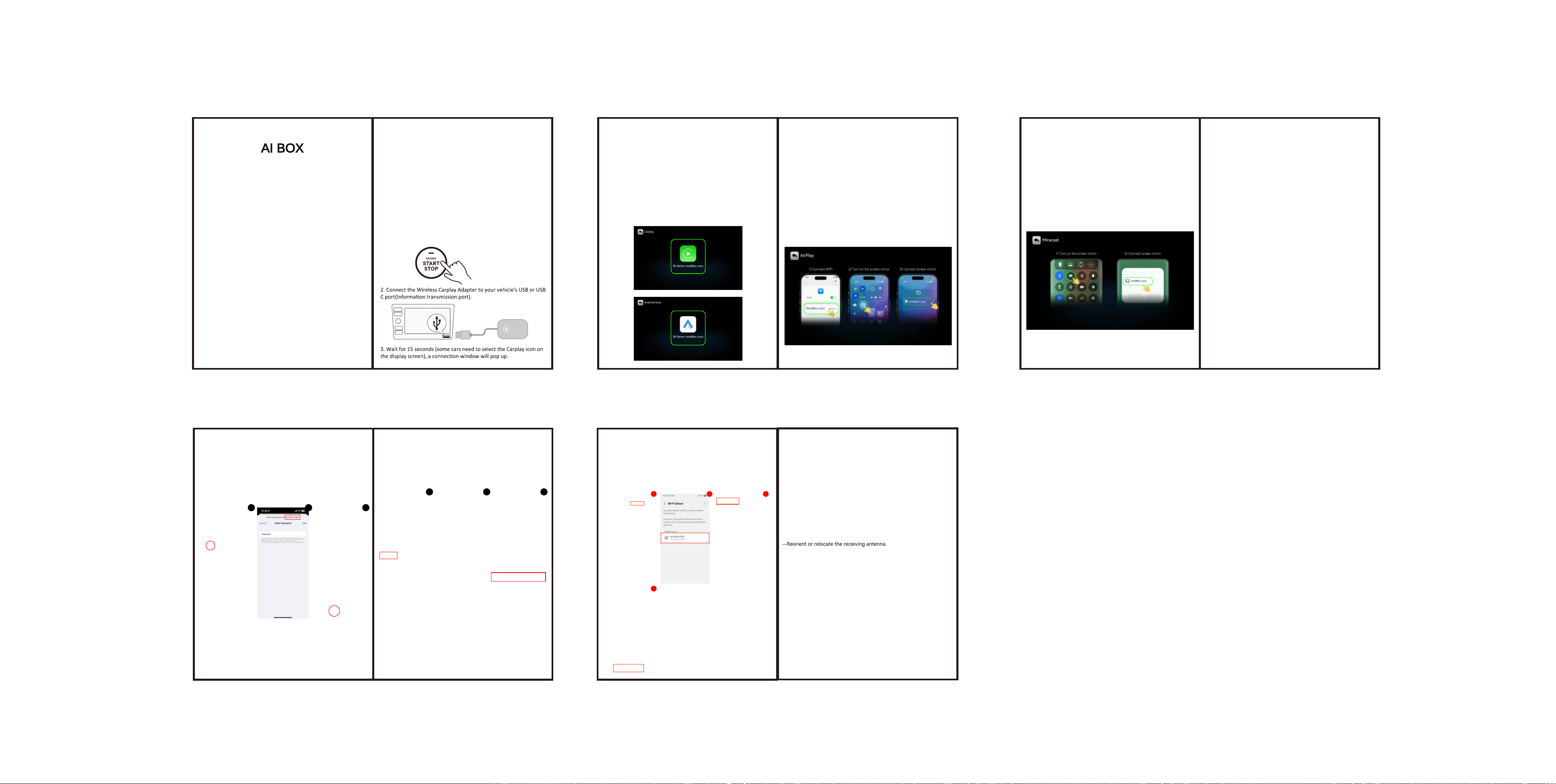
AirPlay connection steps
Product Features
Steps to connect the original vehicle
Instructions for use
AirPlay Connection Inteace
Step 1: First, connect the Internet Box.Step 1: Connect the Internet Box rst.
It is recommended to update your phone to the
latest version or use it with iOS 18 or above
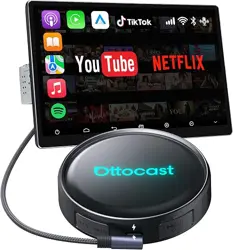
This product is designed to conve the original wired CarPlay system into
wireless CarPlay, Android Auto, AirPlay, and Miracast.
Instructions for use conditions: It must be the original car infotainment
system and suppo wired carplay for use in the vehicle model. To conrm
whether this product can be used, please refer to the vehicle manual or
consult the car dealer to conrm whether the vehicle has wired carplay.
You can also check whether the original car infotainment system
application has the carplay logo
Compatible phone models: Apple phone iOS 6 or above, Android phone
Android 11 or above, Miracast. Android phone with built-in wireless
screen mirroring function is required for use.
1. Sta the car.
Step 3: Open the mobile WIFI, match the box model, and
enter the password 88888888.
Step 2: Click on wireless screen mirroring.
Step 4:
Find the wireless screen projection entrance on
your phone (usually available in the drop-down menu
function list) or search for it in the settings.
Step 5: Find the device name of the box in the wireless
screen list, click on the device name and connect to it, and
then cast the screen for use.
AI BOX
4-in-1 system
Intelligent Interconnection Box Manual
Carplay
Android Auto
Airplay
Mirror link
Carplay/Android Auto connection steps
Product launch inteace
Carplay/Android Auto Connection Inteace
Step 3: Make sure your phone is connected to Bluetooth.
Step 2: Click on the CP/AA icon on the inteace.
Step 4:
Turn on Bluetooth and WiFi on your phone.
Step 5:
Search for Bluetooth on your phone for pairing.
Step 6:
After connecting to Bluetooth, it will automatically
recognize and connect to Carplay/Android Auto.
Notice: This product enables access to streaming apps.
These should only be used when the car is stationa.
These user assumes all responsibility for compliance with
local laws. The seller accepts no liability for the misuse of
this product.
OTA upgrade
Need to upgrade OTA in case of connection failure
or disconnection.
Step 1: Turn on your phone's WiFi.
Step 4: Enter the website address "192.168.1.101".
Step 5: Enter the OTA upgrade inteace.
Step 6: Pull down the upgrade inteace, click "Update",
and after loading the box, the upgrade is complete.
Step 2: Connect to WIFI, name: “SmaBox-xxxx”,
Password: “88888888”.
Step 3: Open the mobile browser.
1
2
3
4
5
6
Attention: We are unable to screen copyrighted
apps, and some copyrighted videos cannot be
played. We apologize for any inconvenience
caused
Mirror link connection steps
Mirror link Connection Inteace
Step 1: Turn on WIFI on your phone.
Step 3: Find the wireless screen projection entrance on
your phone (usually available in the drop-down menu
function list) or search for it in the settings.
Step 2: Click on wireless screen mirroring.
Step 4: Find the device name of the box in the wireless
screen casting list.
Step 5: Click on the device name to connect and cast
the screen for use.
1
4
2 3
Step 1: Open the WiFi connection details on your phone, click on the
three dots in the upper right corner, select WiFi direct connection, nd
the corresponding box name, and click connect.
Step 2: Open the built-in browser on your phone and enter
192.168.1.101 to enter the OTA upgrade inteace. Click on the upgrade
option at the bottom.
PS: Do not disconnect the box or power during the update process
OTA update