
Troubleshooting FAQ | USB Headset H390
Does the H390/H391 headset work with a USB extension cord?
To get the best experience with your H390/H391 USB COMPUTER HEADSET, we
recommend you avoid using any extension cords.
Simply plug the USB-A or USB-C connector into your computer and you’re ready to
talk, listen to music or game.
What connection types are supported by my H390/H391 headset?
H390/H391 offers two versions with different connection types:
● USB-A
● USB-C
You can choose a version that best matches your setup.
Do I need to install drivers to use my H390/H391 headset?
Your H390/H391 headset uses the native drivers on your computer and doesn't
require additional software to run — it is a plug-and-play headset. Nevertheless, it
is recommended that you keep your computer software and drivers up-to-date.
H390/H391 headset microphone quality is bad and I can’t be heard clearly
Here are some things to check:
● Make sure your microphone boom is down, and that it stays in front of your
mouth.
● In your calling platform and system settings, check if you have selected
H390/H391 (Logi USB Headset) as your input device, and adjust the input
volume to maximum.
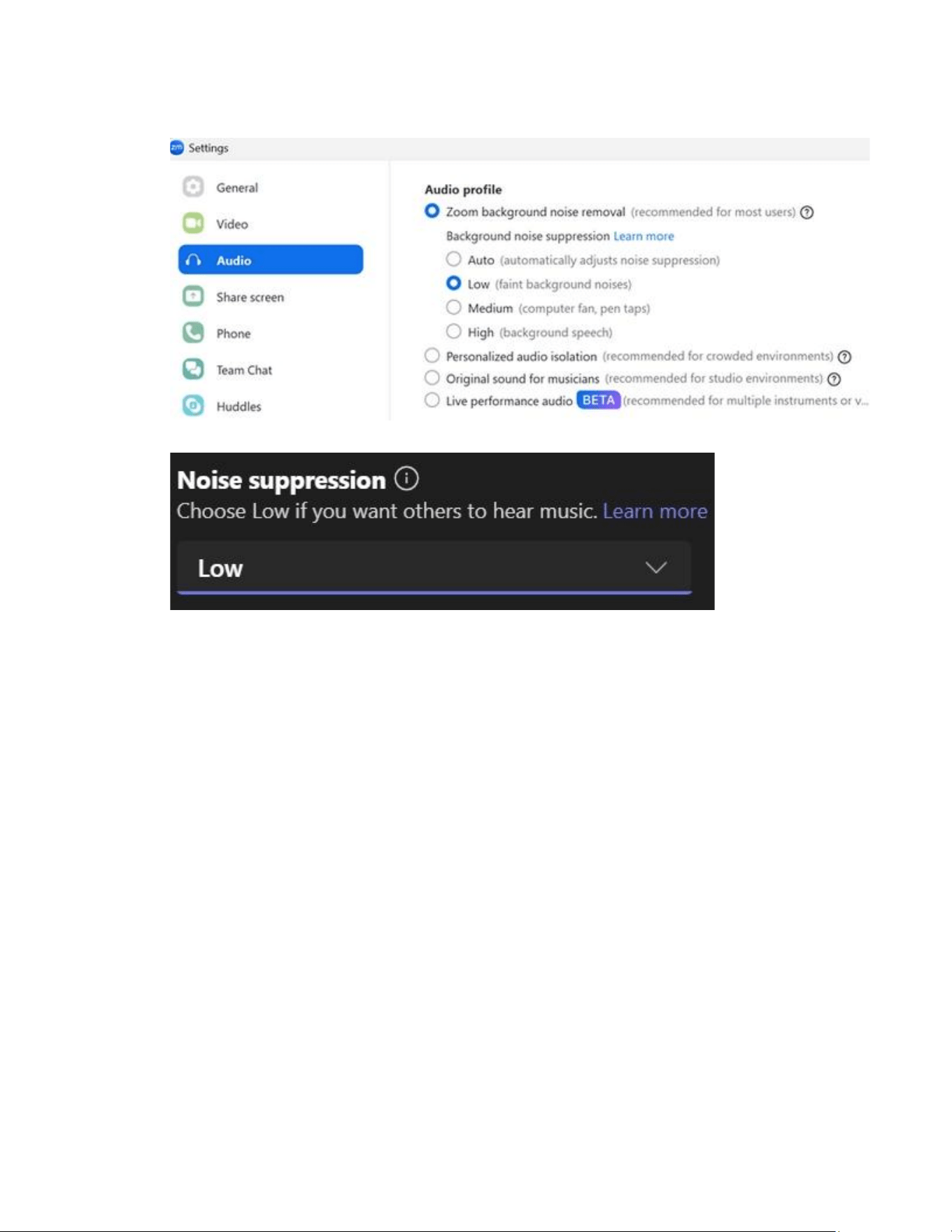
● If you are in a quiet environment, check your calling platform settings and
try to lower the noise suppression settings.
Shown: Examples of noise suppression settings in Zoom and Microsoft
Teams.
How do I adjust the volume on the H390/H391 headset?
You can adjust the volume using your headset’s inline volume control, on your
computer's operating system, or within the calling platform you are using.
I hear an echo or feedback when using the H390/H391 headset
This can sometimes occur if the microphone picks up audio from the speakers. Try
lowering the speaker volume or adjusting the microphone sensitivity in your
computer's audio settings.
My H390/H391 headset is not recognized by my computer
If your headset isn't recognized, try the following:
● Unplug the headset and plug it back in.
● Restart your computer.
● Check for any driver updates for your computer's USB ports.
● If using a USB hub, try connecting the headset directly to the computer.

The calling platforms on my computer do not reflect the mute status even
when I mute the H390/H391 headset the inline control button
H390/H391 does not support mute synchronization with calling platforms, so the
mute status may not be reflected. However, as long as the mute light on your inline
controls flashes red, the headset microphone will be muted.
If you are looking for headsets with mute synchronization and a flip-to-mute mic
boom, you may consider our Zone 305 headset, which is certified for calling
platforms.
The mute light on the inline controls of my H390/H391 headset does not
work
Although the mute light indicates mute status, the H390/H391 does not support
mute synchronization with calling platforms. However, as long as the mute light on
your inline controls flashes red, the headset microphone will be muted.
Windows 8 and Windows 10 product support and device compatibility
To check if your Logitech product works with Windows 8 or Windows 10, first select
the appropriate product category from the list below.
● Mice and keyboards
● Tablet and laptop accessories
● Gaming products
● Harmony remotes
● Speakers
● Headphones and headsets
● Smart radios
● Squeezebox network music players
● Alert security cameras
● WiLife security cameras
● Webcams