The camera
’
S WIFI hot spot will turn off automatically if it is not
connected in 5 mins to 『e duce bae.
3. Open AiKUCAM APP (P2-P3). Click
“
Add New Camera"
国
国
哼
AiKUCAM
( P2)
。
…
l
( P3)
4. Select
”
Wi-Fi Connect
”
(P4)
Cancel
Add new camera
weeo yo" alceacvcm ectto camern by Wi Fi
’
.
.
,
&
叫-Fi Connect ·,
·
.
..
圃
,
Fm oew camm, ,ac th, camm '"'°°'" bl,etoot同
阳附energy.
Bluetooth Pair
( P4)
5.How t。 stastop video recording?
When camera is connected to M1A2+ timer:
Press the sta吐buon (left buon) of timer to sta叫recording.
Press the powe「buon (right buon) to stop recording.
6.H。w t。 view and download videos and pictures?
Preview
。
牵
制
’
Click to view and downl口ad photos and videos
0
•
.
-4-
7. Image Stabilization Mode
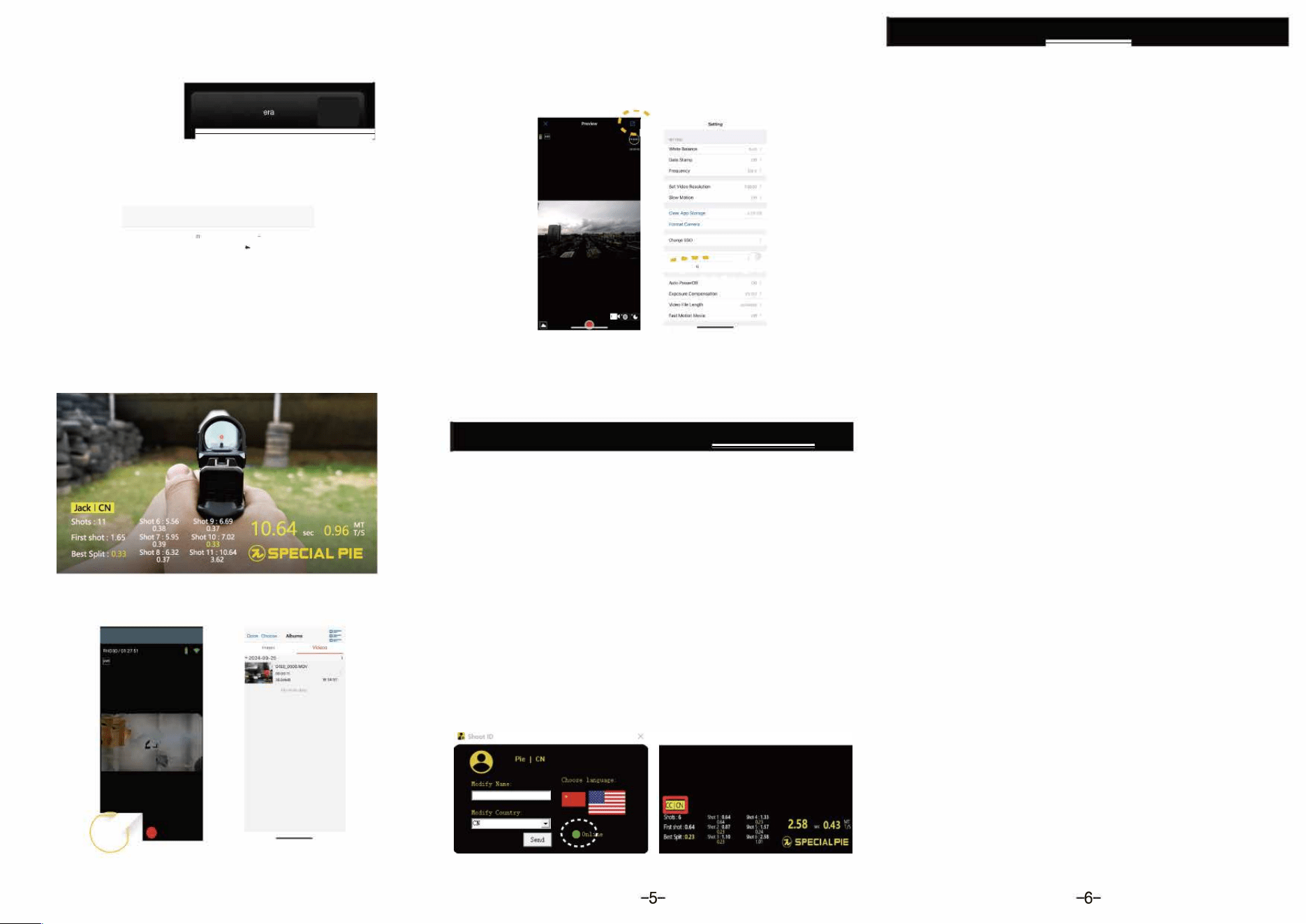
Connect your phone to the action camera via Wi-Fi. Open the
AiKUCAM app and select the camera. Enter the p「eview inteace,
tap the blue settings icon in the top right corner, and enable
Image Stabilization in the settings.
,
町
,
a
茸
茸
由
国
··
旦
旦
且
』
’
阳’S
i M
《〉二,
-·
.
.
.....
.
,
8. Computer Vide。 Download
Connect the powered-on camera to computer via USB-C cable
The camera will appea「as an eernal drive
Open the drive and copy video files to your computer
I Change the Name and Nati。nality
This only works when the ShotCam Camera connects to the
M才A2+ Timer via Blueto。th.
1. Use an USB-C data cable to connect the M1A2+ time「to your
compute『(Windows OS). Then,『un the "Shoot ID
”
soare and
ensure the timer is successfully connected to the computer.
(The
”
Online
”
status should be displayed)
2. Modify the name and count「y.
(The national flag stands fo「the language)
3. Afte「modifying the information, click the
”
Send
”
button.
4. Open the AiKUCAM APP on your phone and connect to the ShotCam
came『a via Wi-Fi. Ente『the use『information page to check if the
modifications a「e complete.
5. Download the ShootlD software f「om www.special314.com,
home-ShootlD, or click the link to download it to you『compue『,
http:www.special314.com/download/Shootl D.exe
I Cauti。ns
1. If the yellow light on the camera flashes rapidly, the camera has not
detected a memo臼rd. Please check if the memoca『d is inseed correctly
and ensu「e the「e is enough sto「age space.
2. If there are many Bluetooth devices at the same place, please wait patiently
fo「 the device pai「ing via Bluetooth.
3. The flashing green light of the came『a indicates that it is 『unning out of
power, please cha『ge it ASAP.
4. Try to keep the distance between the time『 and the camera within 10
meters and minimize obstacles that may inte』pt data t『ansmission.
5. If you want to download videos by connecting your phone to the camera,
please connect the WiFi hot spot of the camera in your phone seings first.
6. If the camera is found to be dead, press the Power key and Reco『d key
at the same time to force it to shut down.
FCC Statement
This equipment has been tested and found to comply with the limits for a Class B
digital device, pursuant to part 15 of the FCC Rules. These limits are designed to
p『ovidereasonable p『otection against harmful interfe「·ence in a 『·esidential installation.
This equipment generates, uses and can radiate radio frequency ene『·gy and, if not
installed and used in acco「dance with the inst「uctions, may cause harmful interference
to radio communications. Howeve『,there is no guarantee that interfe「ence will not
occu「 in a particula『 installation. If this equipment does cause harmful inte『ference
to radio or television 『eception, which can be dete『mined by turning the equipment
off and on, the user is encouraged to try to correct the interference by one or more
of the following measures:
•Reorient o『 「elocate the receiving antenna.
e 1ncrease the separation between the equipment and receiver.
•connect the equipment into an outlet on a circuit different from that to
which the receiver is connected.
•consult the dealer or an experienced 『adio汀V technician for help.
Caution: Any changes or modi fi cations to this device not explicitly approved by
manufacture『 could void your autho『ity to ope『ate this equipment.
This device complies with part才5 of the FCC Rules. Operation is subject to the
following two conditions: (1) This device may not cause harmful interference, and
(2) this device must accept any interference received, inclding interference that
may cause undesired operation.
RF Exposure Information
The device has been evaluated to meet general RF exposure requirement. The device
can be used in portable exposure condition without restriction.