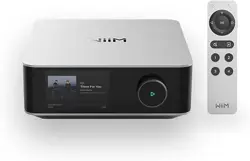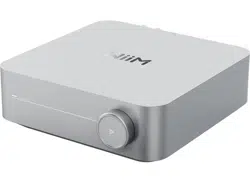
WiiM Amp User Manual Version 1.3.5 9/24/2025
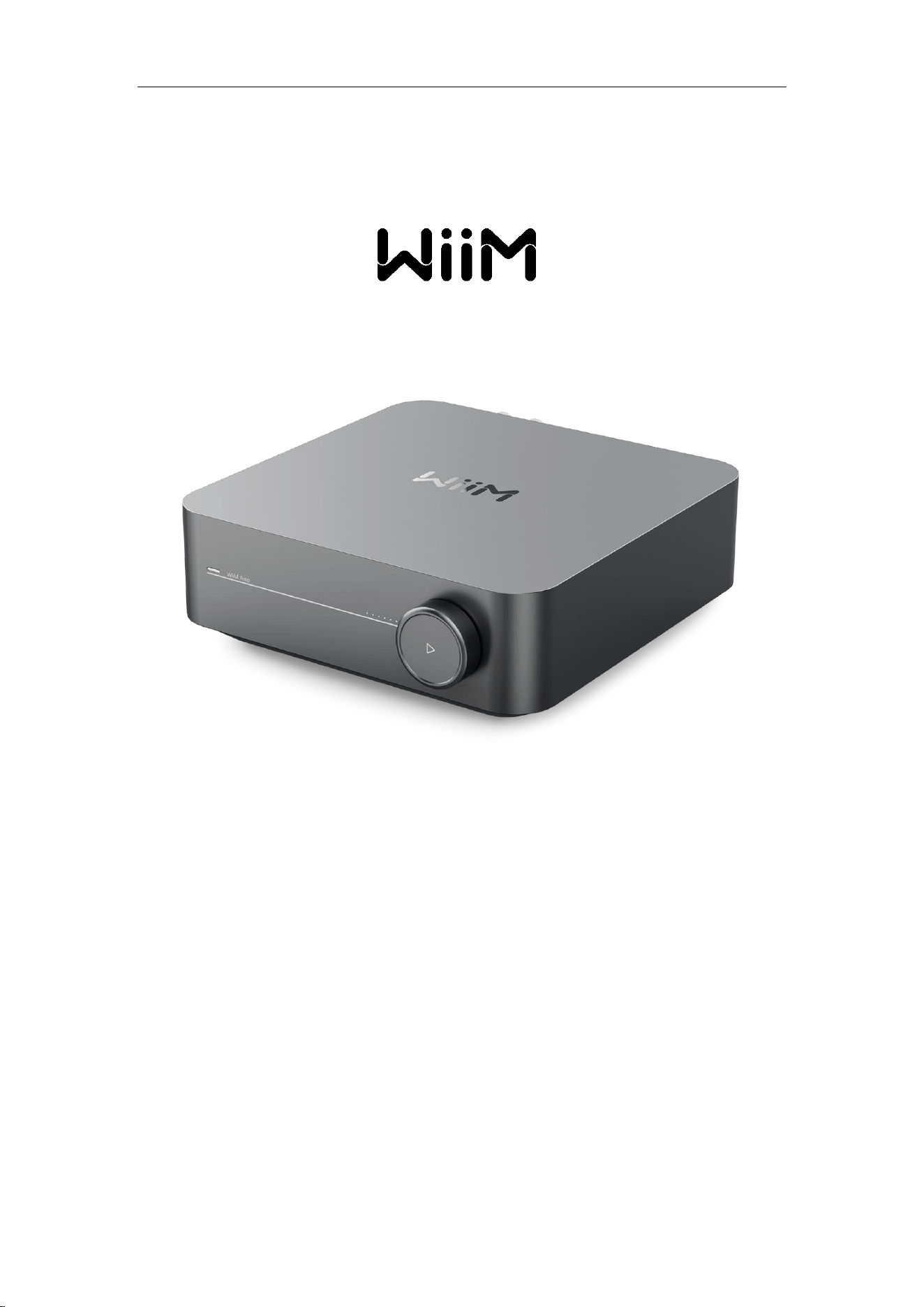
WiiM Amp: Stereo Streaming Amplifier
Stream Elegance, Amplify Brilliance
Model Name: WiiM Amp
Model Number: AMP001

WiiM Amp User Manual Version 1.3.5 9/24/2025
1
Table of Contents
1. Introduction ................................................................................................................ 3
Typical Use Cases .................................................................................................. 4
Other Devices Needed to Use the WiiM Amp ......................................................... 5
Audio Devices Work with the WiiM Amp ................................................................. 6
2. What's in the Box ....................................................................................................... 7
3. Technical Specifications ........................................................................................... 8
4. WiiM Amp Controls, Interfaces, and Lights .......................................................... 10
Front Panel Controls and Lights............................................................................ 10
Back Panel Interfaces ........................................................................................... 11
WiiM Voice Remote ............................................................................................... 13
LED Status Lights .................................................................................................. 15
5. How to Get Started ................................................................................................... 16
Connect the WiiM Amp's Audio Output ................................................................. 17
Connect the WiiM Amp's Audio Input.................................................................... 22
Power On the WiiM Amp ....................................................................................... 28
Download and Install the WiiM Home App............................................................ 29
Set Up the WiiM Amp ............................................................................................ 30
Configure the WiiM Amp in the WiiM Home App .................................................. 40
Fill Your Home with Sound .................................................................................... 41
6. WiiM Amp Configuration ......................................................................................... 42
Select Audio Input Source and Configure Audio Input ......................................... 42
Select Audio Output Interface ............................................................................... 43
Adjust Audio Output Settings ................................................................................ 45
Adjust Subwoofer Settings .................................................................................... 46
Room Correction ................................................................................................... 47
Equalizer (EQ) ....................................................................................................... 48
7. Audio Output/Input via Bluetooth .......................................................................... 49
Audio Input via Bluetooth ...................................................................................... 49
Audio Output via Bluetooth ................................................................................... 50
8. USB Media Library ................................................................................................... 52
9. Voice Control ............................................................................................................ 53
10. Direct Control via Your Favorite App ..................................................................... 54
Spotify Connect ..................................................................................................... 54

WiiM Amp User Manual Version 1.3.5 9/24/2025
2
AirPlay 2 ................................................................................................................ 55
TIDAL Connect ...................................................................................................... 56
Alexa Cast ............................................................................................................. 57
Google Cast Audio ................................................................................................ 58
DLNA ..................................................................................................................... 59
11. All Music in One App ............................................................................................... 60
12. Multi-room Audio and Stereo Pairing .................................................................... 61
WiiM Multi-room Audio/Stereo Pairing .................................................................. 61
AirPlay 2 Multi-room Audio .................................................................................... 63
Alexa Multi-room Audio ......................................................................................... 64
Google Cast Multi-room Audio .............................................................................. 65
13. Advanced Features .................................................................................................. 66
Firmware Updates ................................................................................................. 66
Use Ethernet Instead of Wi-Fi ............................................................................... 66
14. FAQ and Support...................................................................................................... 67
FAQ ....................................................................................................................... 67
Support .................................................................................................................. 69
15. Public Network Interfaces and Services ................................................................ 70
LAN Interface......................................................................................................... 70
Wi-Fi Interface ....................................................................................................... 71
Bluetooth Interface ................................................................................................ 72
16. Important Safety Instructions ................................................................................. 73
17. CE/FCC/IC/TELEC Statements ................................................................................ 75

WiiM Amp User Manual Version 1.3.5 9/24/2025
3
1. Introduction
At WiiM, our goal is to offer you the simplest and most affordable Hi-Fi, lossless audio
systems. Every product we create showcases top-tier design and an intuitive user interface.
With our patented audio streaming solution integrated into all our premium products and
user-friendly mobile apps, you can effortlessly enjoy music throughout your entire home.
Introducing the WiiM Amp, the heart of your home audio system. Designed to refine the
way you experience music, movie, and more, the WiiM Amp combines power, versatility,
and simplicity like never before. Whether you're an audiophile or a home theater enthusiast,
the WiiM Amp delivers exceptional sound quality, reliable connectivity, and intuitive control.
With support for streaming services, voice assistants, and automatic software updates, it's
the amplifier that keeps getting smarter. Elevate your audio experience with the WiiM Amp
and unlock a world of immersive sound that's tailored to your unique preferences.
It features an ESS Sabre premium DAC, leveraging ESS patented 32-bit HyperStream
DAC architecture to deliver industry-leading low distortion and wide dynamic range. It
boasts a Signal-to-Noise Ratio (SNR) of 135 dB (A-wt) and a Total Harmonic Distortion
plus Noise (THD+N) of -120 dB across sample rates from 44.1k to 192k, courtesy of its
ultra-low noise clock and optimized power and circuit design. Additionally, it features a
cutting-edge TI Burr-Brown PCM1861 ADC, which achieves a 110 dB SNR for analog-to-
digital conversion, making it the go-to choice for input sources like turntables, MP3 players,
or TVs.
Simply add your speaker to the WiiM Amp, and control it using the user-friendly WiiM Home
app, or other popular platforms like Spotify, TIDAL, or any Google Cast-enabled apps.
Voice control is also a breeze through iPhone, HomePod, compatible Echo and Google
Home devices, as well as the included voice remote.
Create synchronized groups with HomePods, Echoes, Google Home, AirPlay 2 devices,
Alexa-compatible devices, or additional WiiM devices, and play the same music throughout
your home or different songs in separate rooms.
Elevate your passive speaker with the smart and amplification capabilities of the WiiM Amp,
delivering high-fidelity, gapless music and enhanced TV audio, all encapsulated within the
exceptional innovation of WiiM.

WiiM Amp User Manual Version 1.3.5 9/24/2025
4
Typical Use Cases
The WiiM Amp is designed to simply add your speaker and bring it the wireless streaming
capabilities and smart features. Here are a few common use cases for the WiiM Amp:
⚫ Connect and Power your Favorite Passive Speakers: Connect and power your
traditional wired speakers, including bookshelf, floor-standing, in-wall, in-ceiling
or outdoor speakers, integrating them into the wireless streaming system for an
elevated audio experience.
⚫ Streaming Music and Music Libraries: Stream music using Apple AirPlay 2,
Google Cast, Alexa Cast, Spotify Connect or WiiM streaming platform, allowing
you to access hundreds of streaming services such as Spotify, or TIDAL. Plus,
stream your personal music library stored on a computer or network-attached
storage device for seamless playback.
⚫ Podcasts and Internet Radio: In addition to streaming music, the WiiM Amp
provides access to a wide range of podcasts and internet radio stations. You can
browse through different genres, podcasts, or specific radio stations to enjoy on
your existing audio system.
⚫ High-Quality Audio: It supports bit-perfect, high-resolution audio up to 192k/24-
bit and delivers rich, clear, and undistorted sound at higher volumes.
⚫ Multi-Room Audio: The WiiM Amp is compatible with other 3
rd
party popular
smart speakers and components, or other WiiM devices, allowing you to create a
whole-home audio system with synchronized music playback in multiple rooms.
⚫ Smart Home Integration: The WiiM Amp supports voice control through
platforms like Apple Siri, Alexa or Google Assistant, allowing you to control your
music hands-free and integrate with other smart home devices.
⚫ Vinyl or CD Integration: If you have a turntable or CD player that you want to
incorporate into your WiiM system, the WiiM Amp can connect to the analog or
digital outputs of these devices. This enables wireless audio streaming to other
speakers via another WiiM compatible device, allowing you to relish the sound
throughout your entire home, all in sync.
⚫ Home Theater Integration: Elevate your entertainment experience effortlessly
with the WiiM Amp's HDMI ARC port. Plug in your TV and immerse yourself in
rich stereo sound for shows, movies, and video games. Craving that extra oomph?
Simply add a powered subwoofer to take your audio to cinematic levels. With
minimal setup required, the WiiM Amp offers a seamlessly integrated AV system
that turns your living room into a home theater paradise.

WiiM Amp User Manual Version 1.3.5 9/24/2025
5
Other Devices Needed to Use the WiiM Amp
To use the WiiM Amp, you will need a few essential devices and components. Here's a list
of what you'll need:
• Passive Speakers: The WiiM Amp is designed to connect to your passive
speakers such as bookshelf, floor-standing, in-wall, in-ceiling or outdoor speakers.
Make sure you have the appropriate speakers in place.
• Wi-Fi Network: The WiiM Amp requires a stable Wi-Fi network connection to
function. Ensure that you have a reliable Wi-Fi network available in the area where
you plan to set up the WiiM Amp. You'll need the Wi-Fi network credentials during
the setup process.
• Smartphone or Tablet: You'll need a compatible smartphone or tablet (iOS or
Android) with the WiiM Home app installed. The WiiM Home app is used for initial
setup, configuration, and control of the WiiM Amp.
• Power Source: The WiiM Amp needs to be connected to a power source using
the included power cable. Ensure that you have an electrical outlet nearby to power
the device.
• Ethernet Cable (optional): While the WiiM Amp primarily connects to your Wi-Fi
network, it also has an Ethernet port. If you prefer a wired connection for added
stability, you can use an Ethernet cable to connect the WiiM Amp directly to your
router or network switch.
These are the core components required to use the WiiM Amp. It's important to have a pair
of speakers that you want to integrate with the Amp, a stable Wi-Fi network, and a
compatible device with the WiiM Home app for setup and control.
WiiM Amp User Manual Version 1.3.5 9/24/2025
6
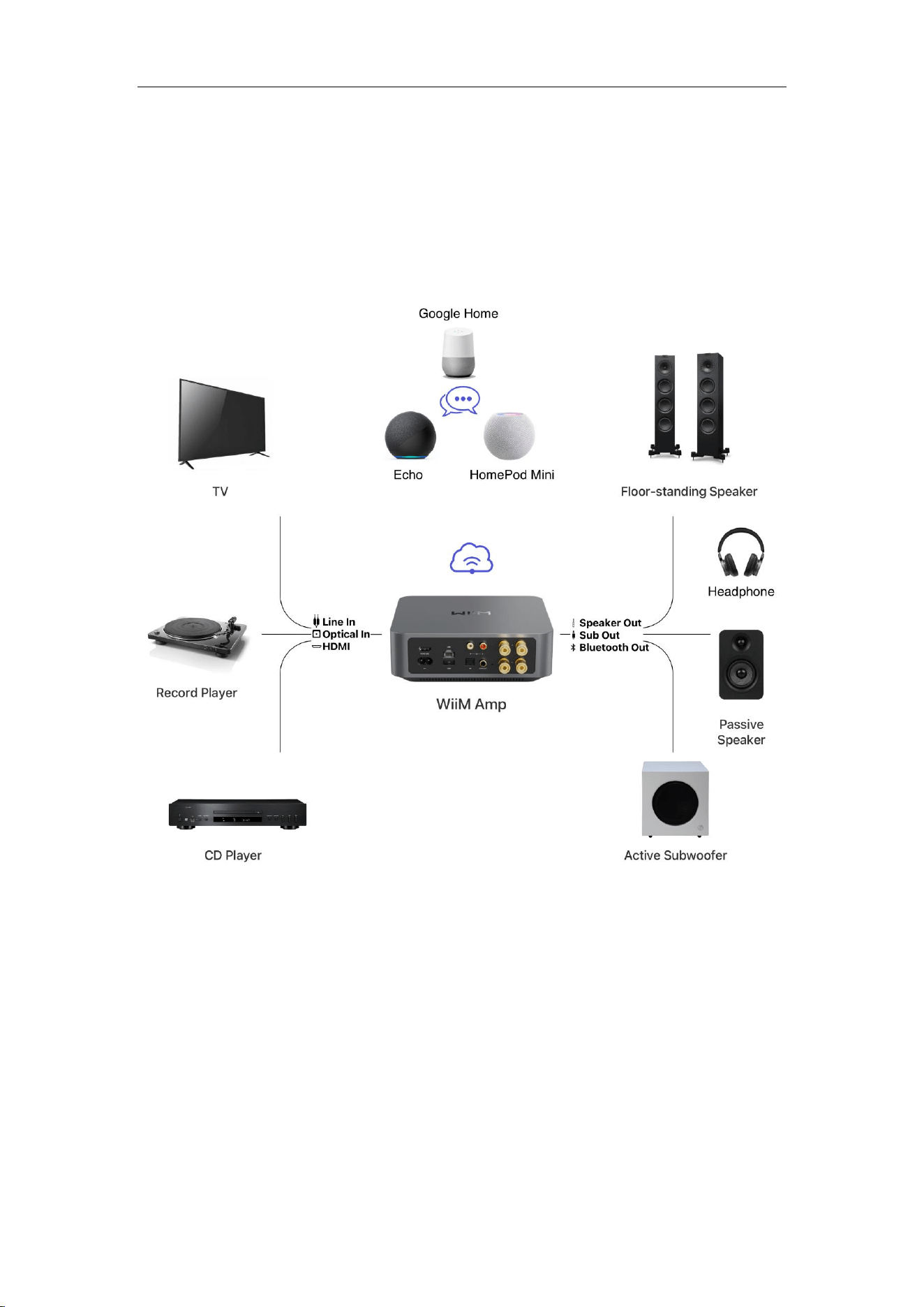
Audio Devices Work with the WiiM Amp
The WiiM Amp can work with your passive speakers, including bookshelf, floor-standing,
in-wall, in-ceiling or outdoor speakers. Besides the network and Bluetooth streaming music,
it can play audio from TV, record player and MP3 player.
WiiM Amp User Manual Version 1.3.5 9/24/2025
7
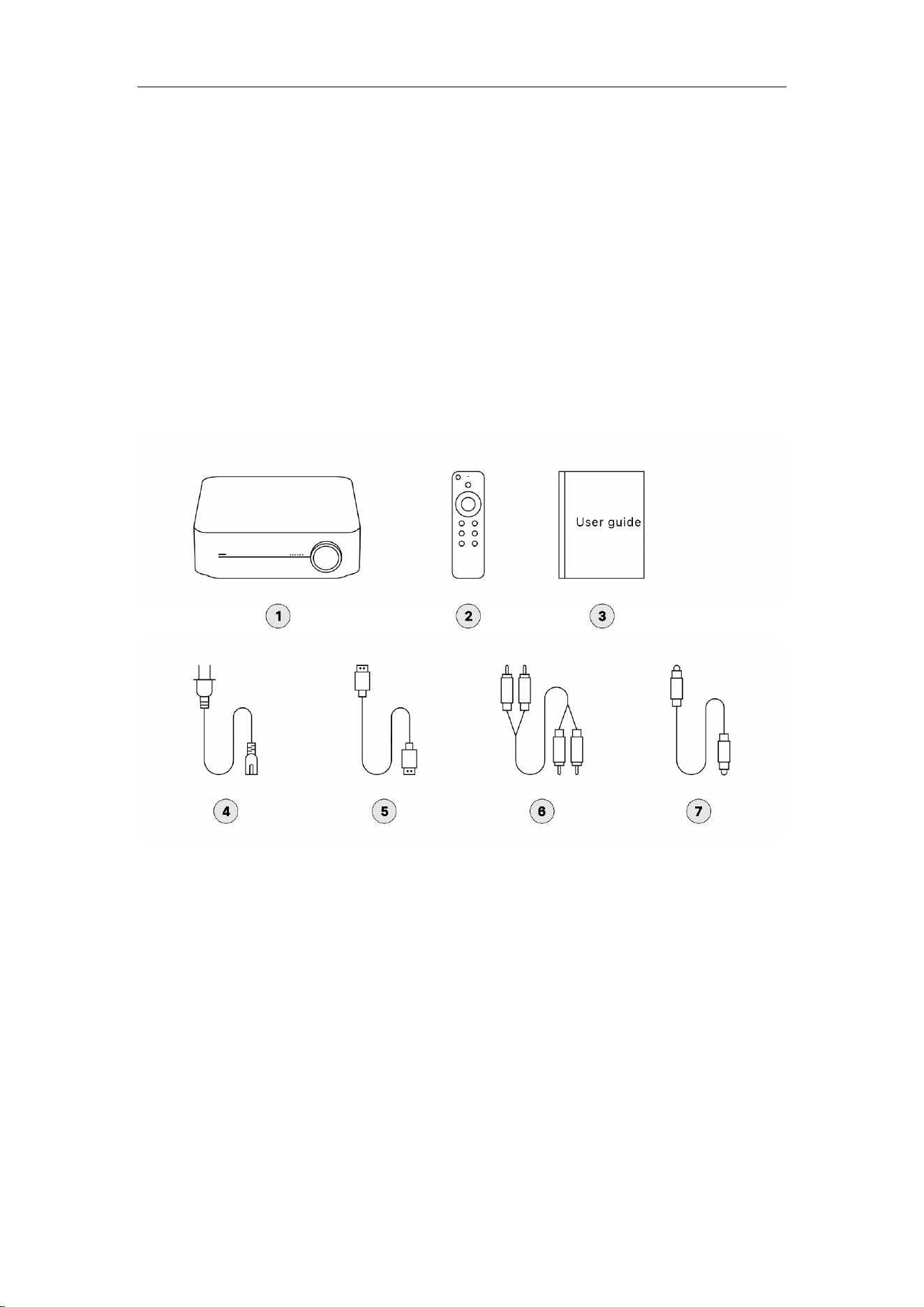
2. What's in the Box
1.
WiiM Amp
x 1
2.
WiiM Voice Remote
x 1
3.
Quick start guide
x 1
4.
100~240V AC power cable (1.5m)
x 1
5.
HDMI cable (1.5m)
x 1
6.
RCA audio cable (1.5m)
x 1
7.
Optical audio cable (1.5m)
x 1

WiiM Amp User Manual Version 1.3.5 9/24/2025
8
3. Technical Specifications
Category
Specification
Audio Amplification
TI TPA3255
Main Purpose
Connected to passive speaker for streaming
Pair with a Sub
Yes
USB Port (Storage/Audio
Out)
Yes
Wireless Connectivity
Wi-Fi 5
Bluetooth
BT 5.0
Ethernet
Yes
DAC IC
ESS 9018 K2M
Analog Out SNR
108 dB
THD+N (Analog Out)
-92dB (0.0025%) at 5W
Analog Input (ADC)
Up to 192k, 24 bit
Google Cast Audio
Yes
Group with Nest Speakers
and Display
Yes
Group with Echo Speakers
and Display
Yes
Alexa Multi-room with UHD
Yes
Group with HomePods
Yes
Work with Alexa
Yes
Work with Google
Yes
Work with Siri
Yes
Group with WiiM Devices
Yes
AirPlay 2
Yes
2-Way Bluetooth
Yes
Roon Ready
Yes
DLNA
Yes
Spotify Connect & TIDAL
Connect
Yes

WiiM Amp User Manual Version 1.3.5 9/24/2025
9
Gapless Playback
Yes
10-Band Graphic and
Parametric EQ
Yes
RoomFit
TM
Room Correction
Yes
WiiM Music Streaming
Platform
Yes
CPU
Quad Core A53
DRAM
512 MB
Flash
512 MB
Audio Input Port
HDMI ARC:
⚫ Up to 192kHz/24-bit.
⚫ Supports Stereo PCM (Dolby Digital and
DTS are not supported).
Optical In:
⚫ Up to 192kHz/24-bit.
⚫ Supports Stereo PCM (Dolby Digital and
DTS are not supported).
Line In:
⚫ 2 Vrms
⚫ Analog signal, converted to digital via
ADC (up to 192kHz/24-bit)
Audio Output Port
Passive Speaker Terminals/Banana (x2)
USB Out:
⚫ Up to 192kHz/24-bit
⚫ UAC 2.0
⚫ DC 5V/1.5A power output
Sub Out (2.0 Vrms)
External USB Storage
Access personal media library and use it as a media
server for other WiiM and DLNA devices. Support
FAT32, NTFS, and EXT4 file systems.
LED
⚫ Three-color status LED - Red, Green, and White
⚫ Six volume LEDs
Control
Volume knob, play/pause, setup, and more
Weight
1.84 kg (4.1 lbs)
Dimension
7.48" x 7.48" x 2.48" (190 mm x 190mm x 63 mm)
Power Input
100-240V, 50/60Hz AC Power
WiiM Amp User Manual Version 1.3.5 9/24/2025
10
4. WiiM Amp Controls, Interfaces, and Lights
Front Panel Controls and Lights
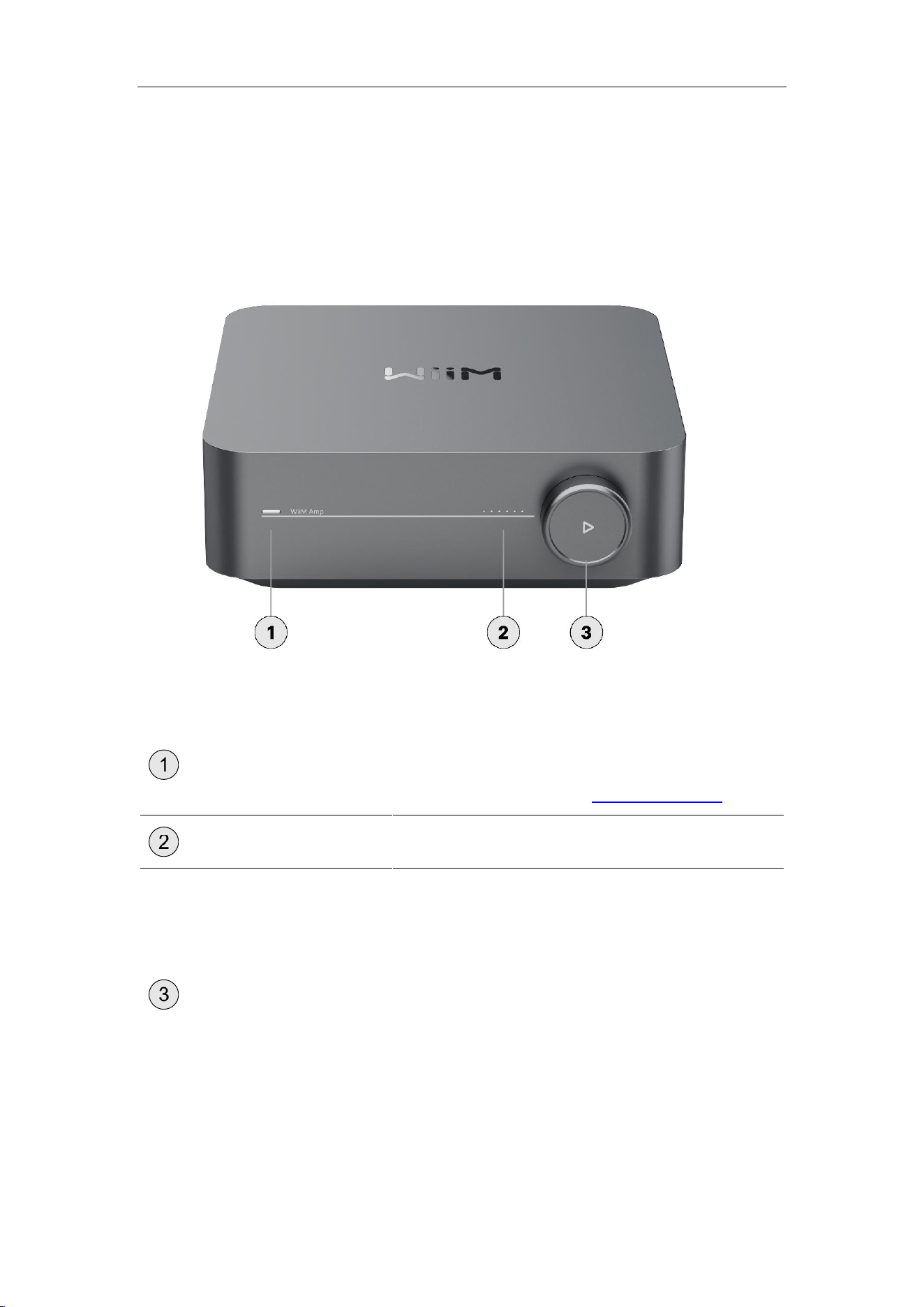
Each numbered control or light on the front panel is explained below:
Status LED
A three-color LED (RGW) indicator to display the
operational status of the WiiM Amp.
For more information, see LED Status Lights.
Volume LED
Six LEDs indicate the volume level of the WiiM Amp.
Volume Knob
Push:
⚫ Play/Pause
⚫ Wi-Fi setup (push and hold for 3
seconds)
⚫ Restore to the factory setting (push
and hold for 10 seconds)
Turn clockwise: Increase volume
Turn anti-clockwise: Decrease volume
WiiM Amp User Manual Version 1.3.5 9/24/2025
11
Back Panel Interfaces
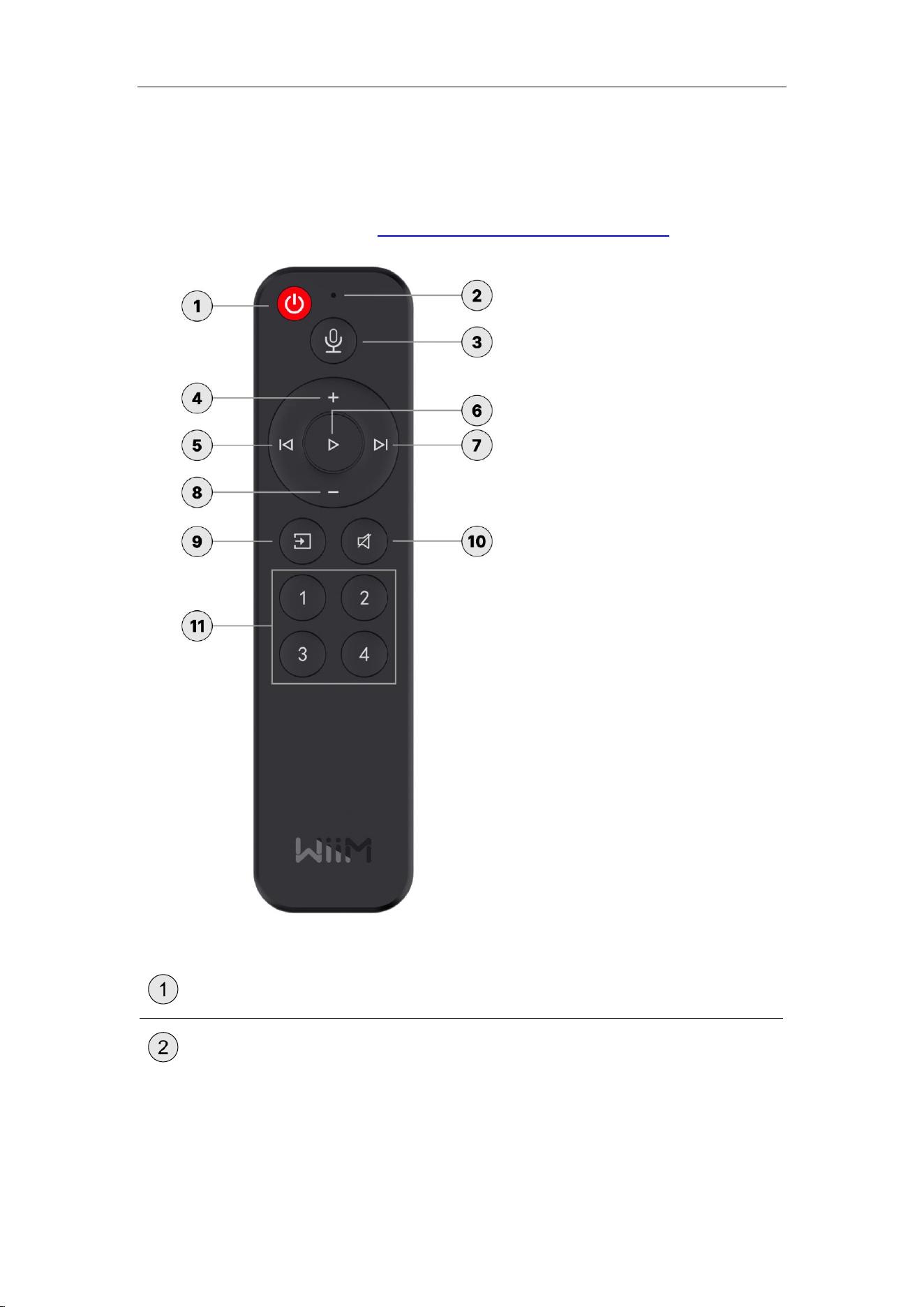
Each numbered interface on the back panel is explained below:
HDMI ARC
Connects to a TV for audio input.
It supports Stereo PCM (Dolby Digital and DTS are
not supported).
LAN
10/100Mbps Ethernet port
LINE IN
Connects to external audio sources such as CD
players, audio players, and TVs for analog audio
input.
Speaker Out
Connects to passive speakers using bare wire,
spade connectors, or banana plugs (L, R).
Power Input
100-240V AC input, 50/60 Hz, 4A Max
USB
USB IN: Allows connection to USB storage devices
for playing audio files directly.

WiiM Amp User Manual Version 1.3.5 9/24/2025
12
Note: USB audio input is not supported.
USB OUT: Outputs high quality audio to an external
DAC or other audio device with a USB audio input.
Note: Use a USB hub to connect both USB IN and
USB OUT simultaneously.
OPTICAL IN
Connects to external audio sources, such as a TV or
PC, for digital audio input. It supports audio input of
up to 192 kHz/24-bit.
SUB OUT
Connects to a powered subwoofer and outputs a
signal at 2.0 Vrms.
WiiM Amp User Manual Version 1.3.5 9/24/2025
13
WiiM Voice Remote
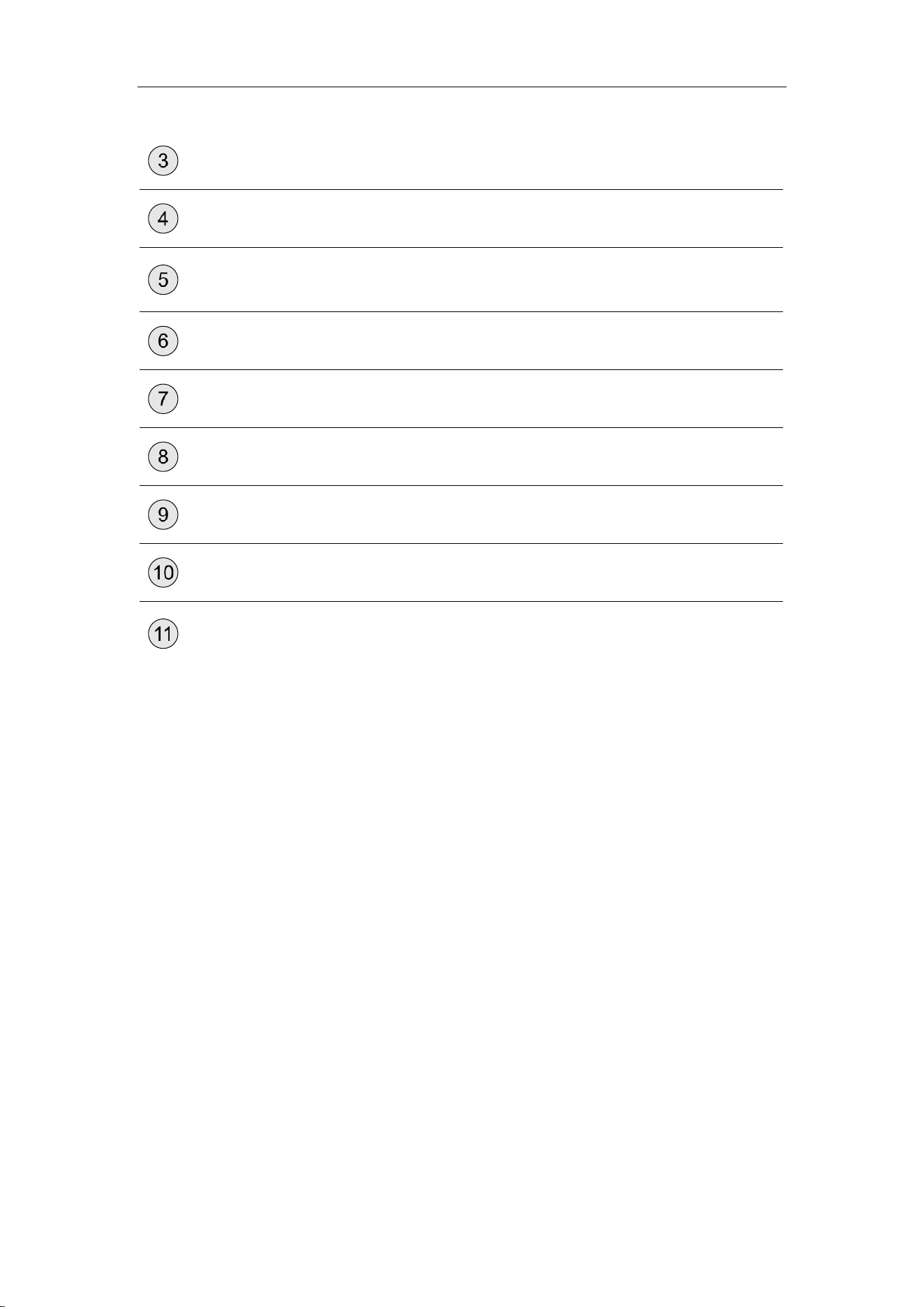
You can use the provided WiiM Voice Remote to effortlessly control the WiiM Amp.
For detailed instructions, refer to How to Set Up Your WiiM Voice Remote.
Each numbered control on the WiiM Voice Remote is explained below:
Standby
Press to put the WiiM Amp into standby mode.
Microphone
Capture voice commands
WiiM Amp User Manual Version 1.3.5 9/24/2025
14
Voice Control
Press and hold to give voice commands.
Volume Up
Press to increase the speaker volume.
Previous
Press to return to the previous playback or restart the
current playback.
Play/Pause
Press to start or pause the current playback.
Next
Press to skip to the next playback.
Volume Down
Press to decrease the speaker volume.
Source Switch
Press to change the input source.
Mute/Unmute
Press to mute or unmute the speakers.
Preset Shortcuts
Press buttons 1~4 to play the corresponding
presets.
WiiM Amp User Manual Version 1.3.5 9/24/2025
15
LED Status Lights
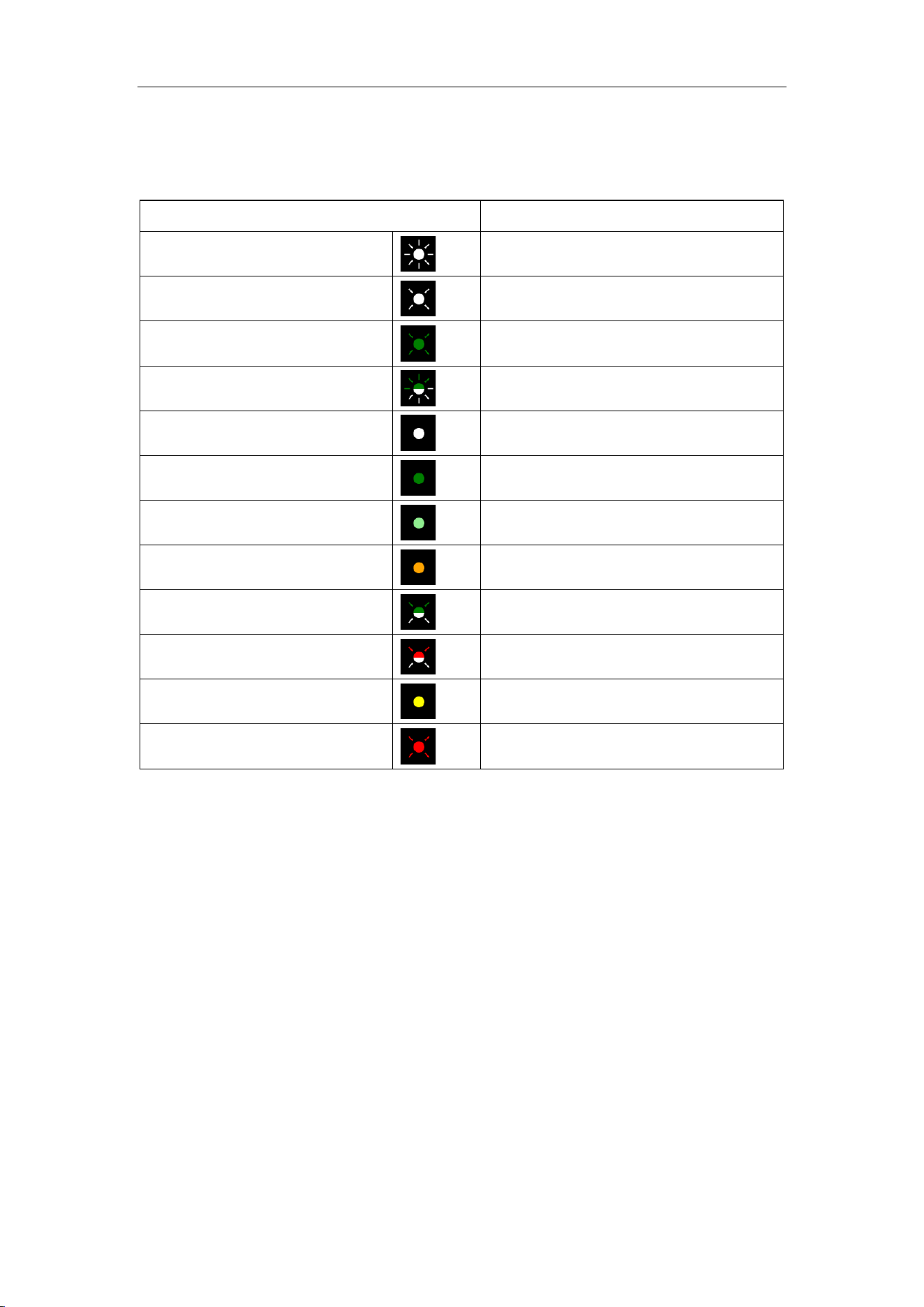
LED Color/Pattern
State
Fast Flashing White
Boot-up
Slow Flashing White
OOBE/Ready to setup
Slow Flashing Green
Bluetooth ready to pair
Fast Flashing White and Green
Connecting to Wi-Fi
Solid White
Connected to Wi-Fi
Solid Green
Bluetooth mode, paired
Solid Light Green
Line-in mode
Solid Orange
Optical-in mode/TV mode
Slow Flashing White and Green
OTA update
Slow Flashing White and Red
Restore to factory settings
Solid Yellow
No network
Slow Flashing Red
Faulty error

WiiM Amp User Manual Version 1.3.5 9/24/2025
16
5. How to Get Started
Before using your WiiM Amp, follow these main steps to set it up:
1. Connect the WiiM Amp to your audio device.
2. Power on the WiiM Amp.
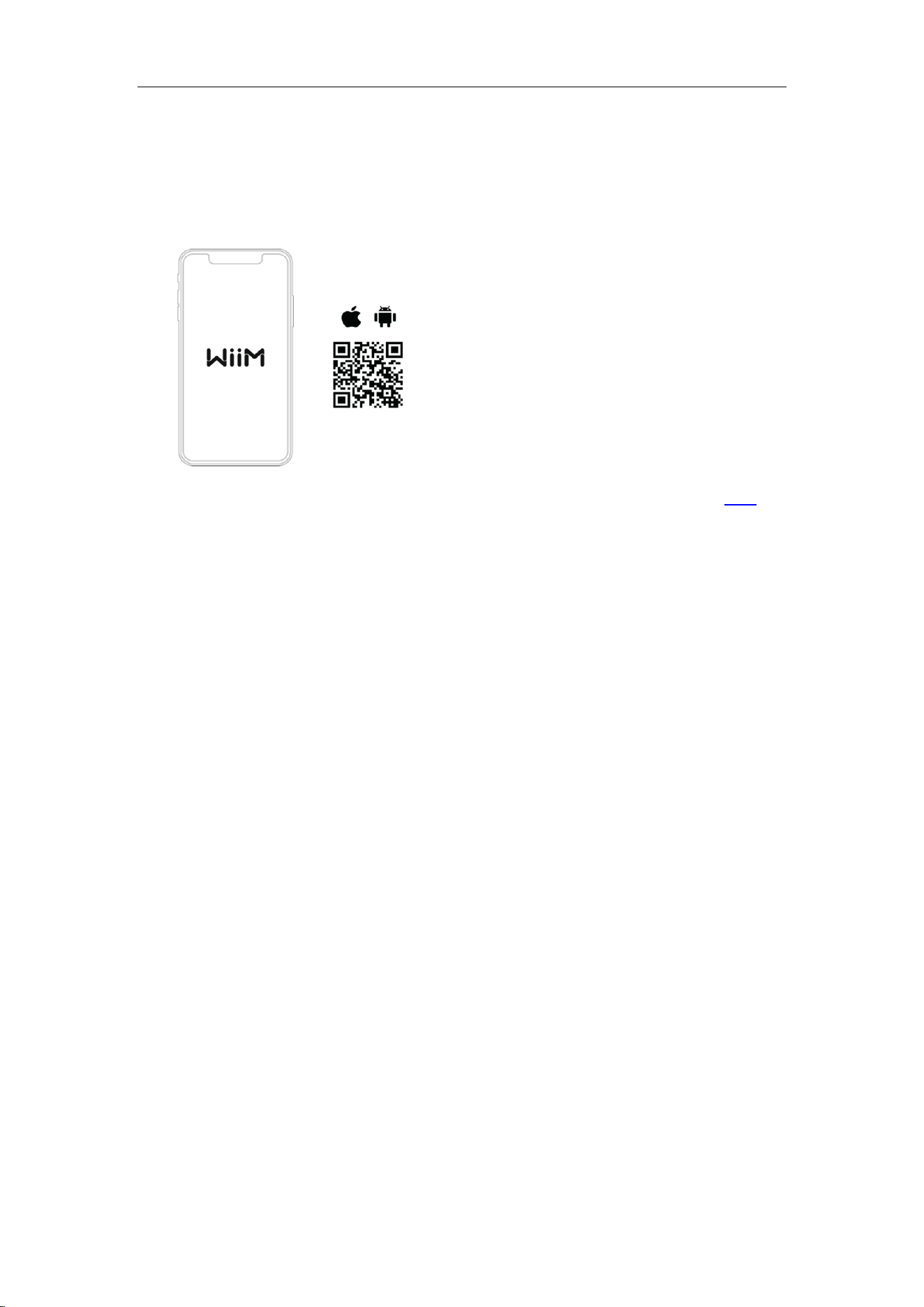
3. Download and install the WiiM Home app on your mobile device.
4. Use the WiiM Home app to connect the WiiM Amp to your network.
5. Configure the WiiM Amp in the WiiM Home app to suit your preferences.
By completing these steps, your WiiM Amp will be ready for use. The following sub-
chapters will provide detailed instructions for each step.

WiiM Amp User Manual Version 1.3.5 9/24/2025
17
Connect the WiiM Amp's Audio Output
The WiiM Amp features three distinct audio output interfaces:
⚫ Speaker Out
⚫ Sub Out
⚫ USB Out
Primarily, the WiiM Amp is used to connect to passive speakers via the Speaker Out
interface and to a powered subwoofer through the Sub Out interface.
Additionally, if you want to connect a USB DAC or an amplifier with USB Audio Input, the
WiiM Amp can function as a preamp using the USB Out interface
Besides audio output via the above physical interfaces, the WiiM Amp can also output
audio via Bluetooth. For detailed instructions, see Audio Output via Bluetooth.
Notes:
⚫ The WiiM Amp outputs audio to only one of these interfaces at a time, aside from
the optional Sub Out.
⚫ Selecting the appropriate audio output port is crucial to ensure sound output.
Incorrect selection may result in no audio.
⚫ For bit-perfect audio output, opt for the digital audio output and activate Fixed
Volume Output, disable EQ and mono audio in the WiiM Home app's device
settings.
⚫ You have two ways to control the volume of your system:
o Control the volume directly from your AV receiver or amplifier when Fixed
Volume Output is set on the WiiM Amp.
o Control the volume through the WiiM Home app, but make sure to disable
Fixed Volume Output. (Recommended Method)
WiiM Amp User Manual Version 1.3.5 9/24/2025
18
Scenario 1: Speaker Out (Passive Speakers)
The Speaker Out port on the WiiM Amp connects to the passive speakers.
Cable Requirement: Use two speaker cables.
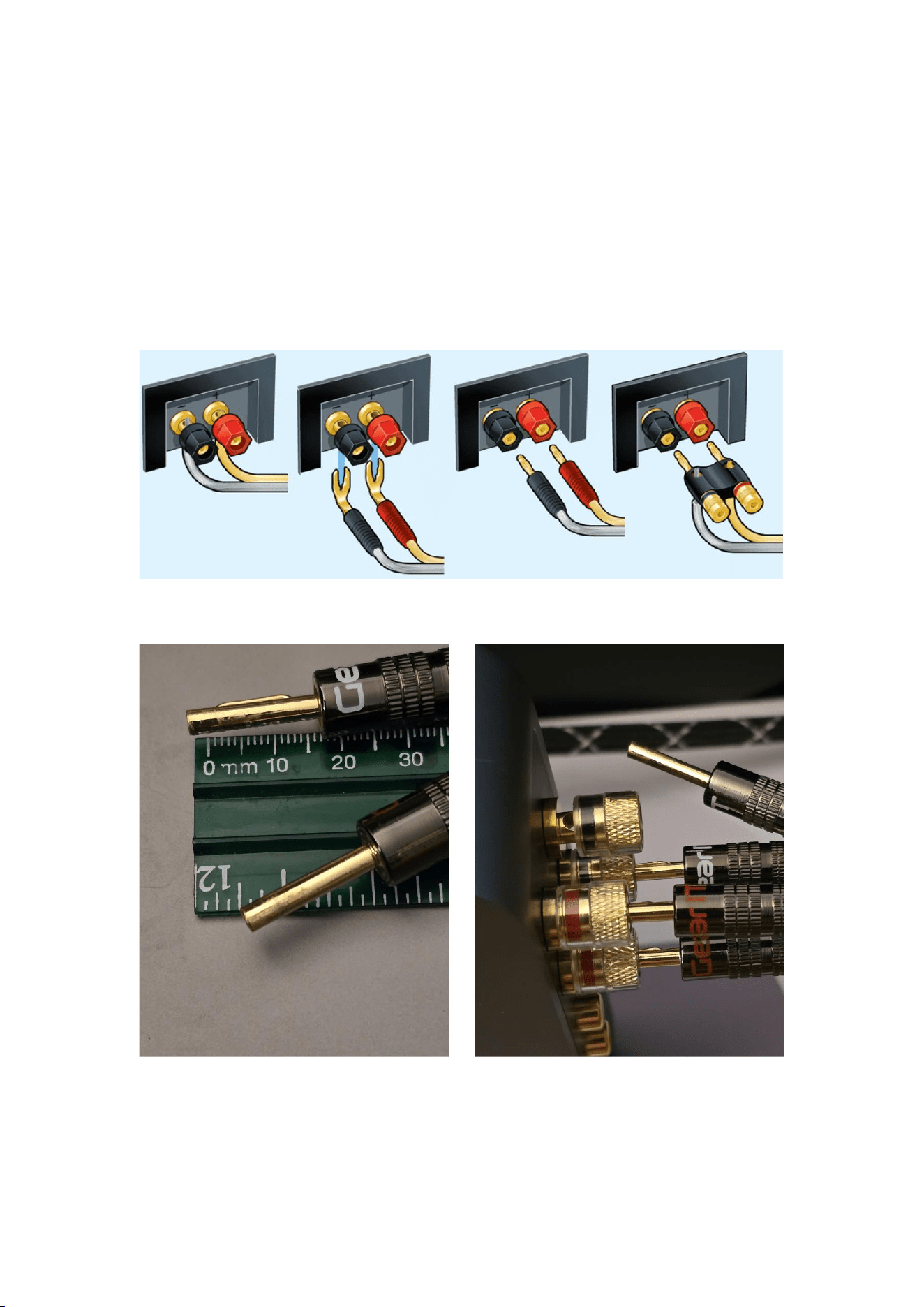
There are multiple ways to connect speaker cables to your passive speakers to the WiiM
Amp, i.e., bare wire, spade connectors, or banana plugs. Here are some connector
examples (credit: Crutchfield).
Note: Banana plugs (as figure below) are recommended for the best sound and more
reliable performance.
Cable Connection Steps:
WiiM Amp User Manual Version 1.3.5 9/24/2025
19
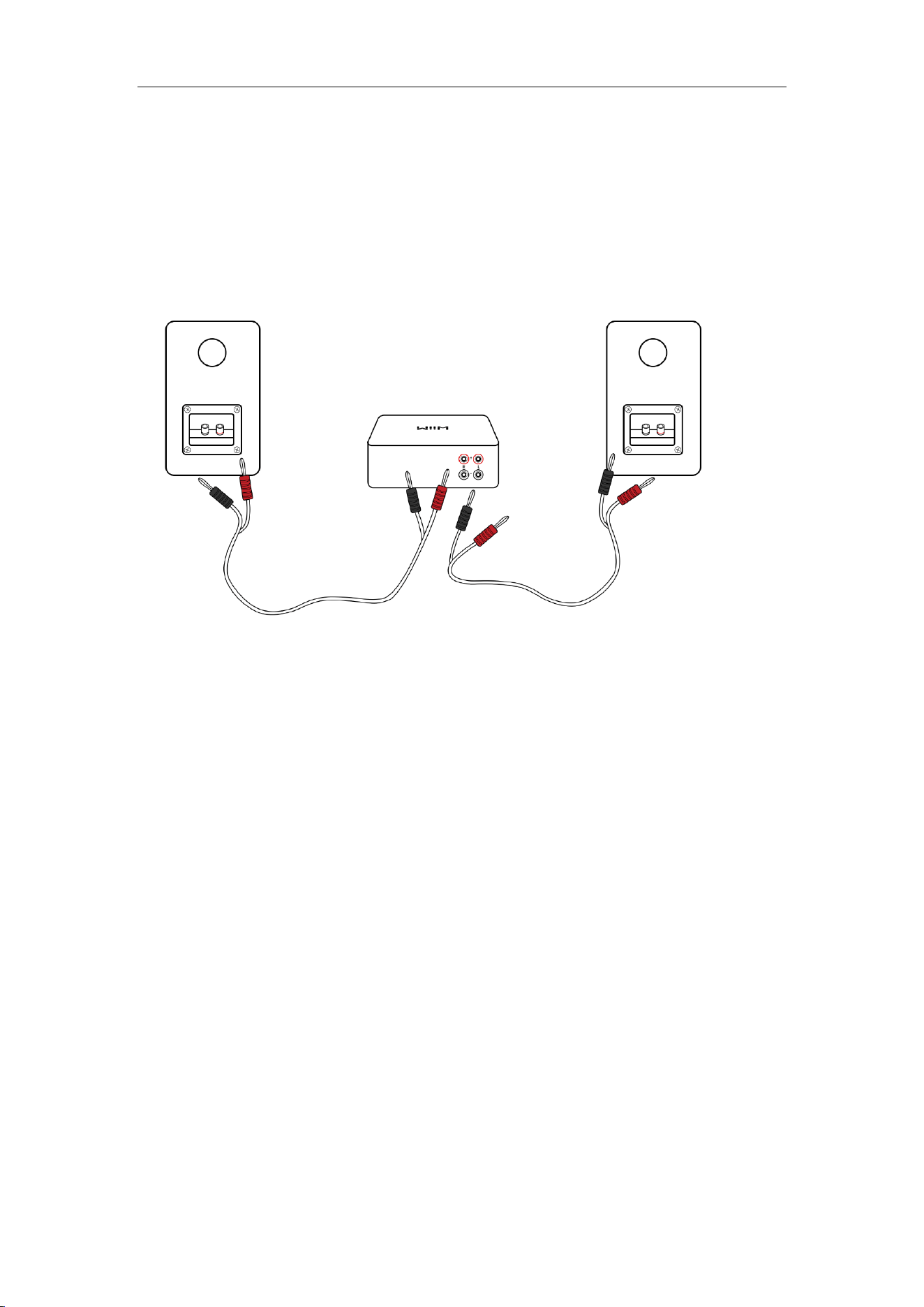
1. Use one speaker cable to connect the left passive speaker to the left (L) terminals
on the WiiM Amp.
2. Use the other speaker cable to connect the right passive speaker to right (R)
terminals on the WiiM Amp.
Note: Ensure that the connector colors (red and black) match the corresponding terminals
on the WiiM Amp and the speakers.
WiiM Amp User Manual Version 1.3.5 9/24/2025
20
Scenario 2: Sub Out (Powered Subwoofer)
The Sub Out interface on the WiiM Amp connects to a powered subwoofer for enhanced
bass.
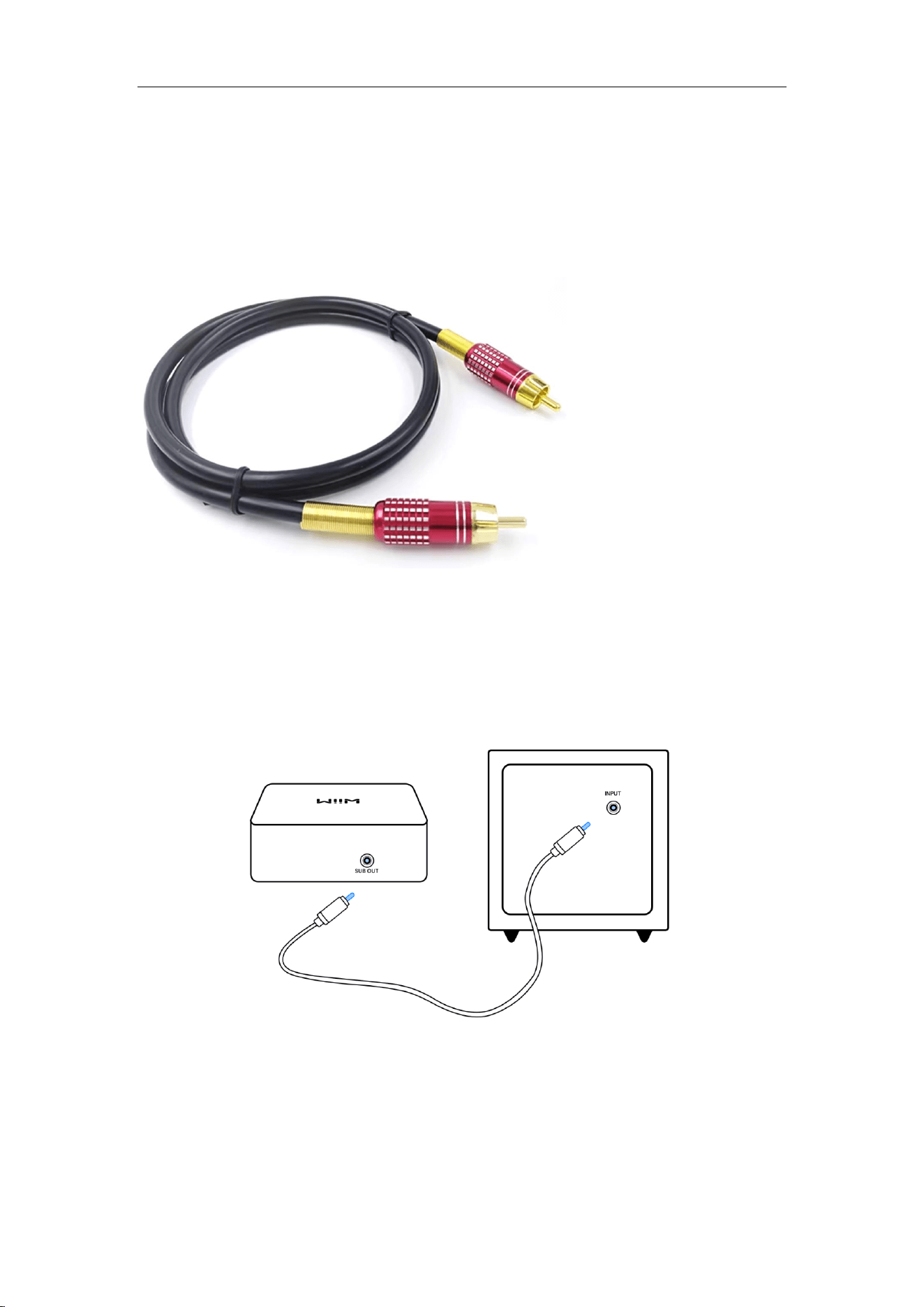
Cable Requirement: Use an RCA mono cable with 75-ohm impedance:
Cable Connection Steps:
1. Connect one end of an RCA cable to the Sub Out port on the WiiM Amp.
2. Connect the other end of the RCA cable to the input on your powered subwoofer.
If your subwoofer has two RCA inputs, opt for the one marked LFE or Mono.
WiiM Amp User Manual Version 1.3.5 9/24/2025
21
Scenario 3: USB Out (DACs or Amplifiers)
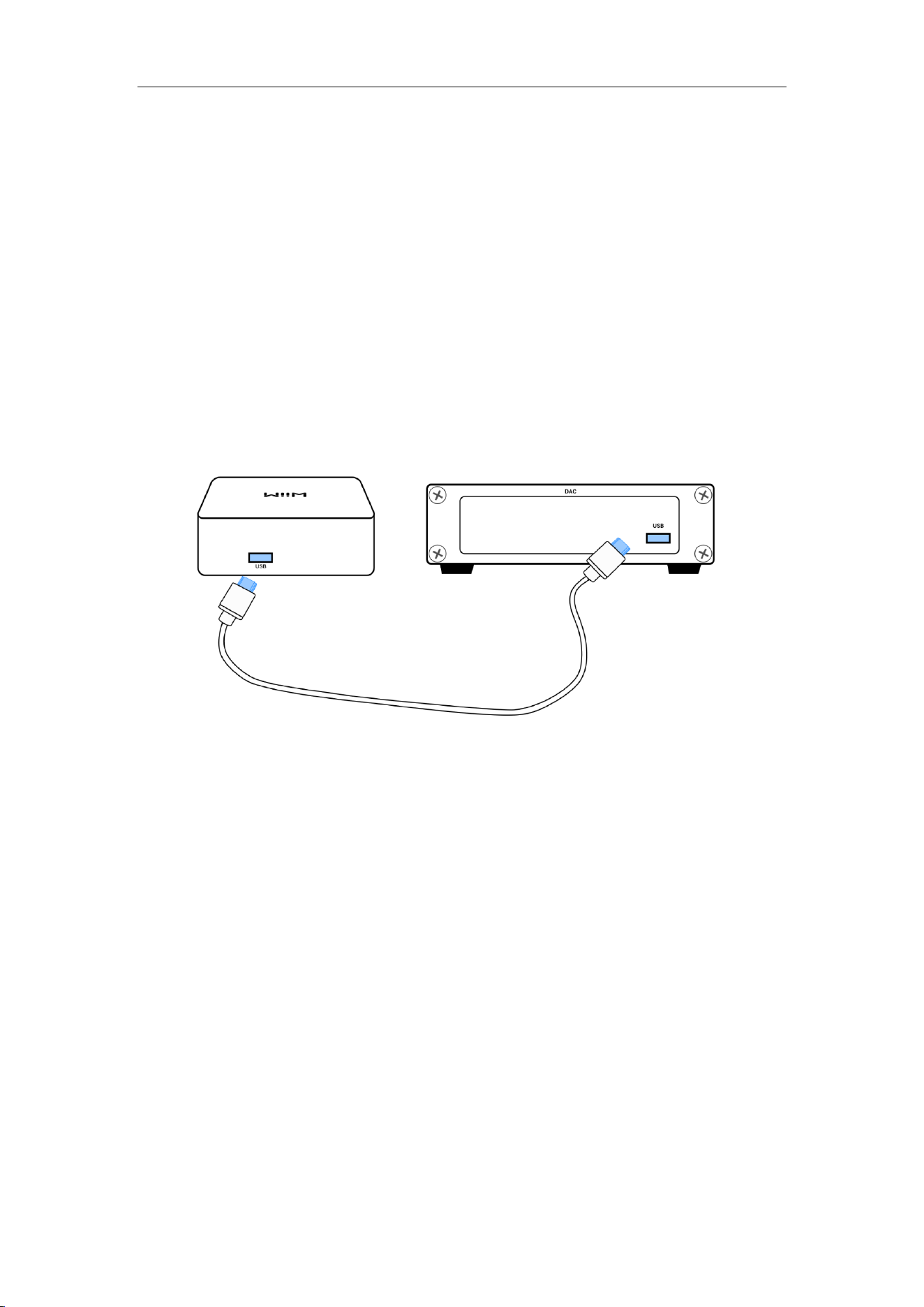
The USB Out port on the WiiM Amp typically connects to the external device, e.g., DACs
or amplifiers that support USB audio input.
Cable Requirement: Use a USB cable
Cable Connection Steps:
1. Plug one end of the USB cable into the USB port on the WiiM Amp.
2. Plug the other end of the cable into the USB input port of the DAC or amplifier.

WiiM Amp User Manual Version 1.3.5 9/24/2025
22
Connect the WiiM Amp's Audio Input
The WiiM Amp features three distinct audio input interfaces:
⚫ Analog Line In
⚫ Digital Optical In (TOSLINK)
⚫ HDMI ARC
The WiiM Amp functions as both an amplifier and a network audio transmitter through Wi-
Fi or Ethernet. You have the capability to stream analog audio input from sources such as
CD players, vinyl players, TVs, or computers to other WiiM devices, either individually or
in multiple combinations.
In addition to physical input interfaces mentioned above, you can also stream audio from
an external device (e.g., smartphones or tablets) to the WiiM Amp via Bluetooth. For
detailed instructions, see Audio Input via Bluetooth.
Notes:
⚫ The Optical In and HDMI ARC interfaces on the WiiM Amp only support PCM
audio format. Please ensure that the audio source device connected to the WiiM
Amp is set to output audio in PCM format. Otherwise, you may not hear sound.
⚫ To connect your TV to the WiiM Amp using an HDMI cable, select HDMI port on
your TV labeled HDMI ARC. Please note that connecting to other HDMI ports will
not transmit sound to the WiiM Amp.
⚫ You can also enable the Auto-sensing feature on the WiiM Amp to automatically
play your Line In, Optical In, or HDMI ARC source when the WiiM Amp detects
a signal. You can enable this feature from the WiiM Home app.
⚫ The WiiM Amp has a built-in EQ to process the audio input based on your taste.
You can also control the audio volume using the WiiM Home app remotely without
altering the input source volume.
⚫ Some source devices may require a preamp. For example, some turntables do not
have a built-in preamp, so you will need to connect your turntable to an external
preamp first, and then connect the preamp to the WiiM Amp.
WiiM Amp User Manual Version 1.3.5 9/24/2025
23
Scenario 1: Analog Line In Audio Source Input (CD Player, Turntable with
a Built-in Preamp, or PC)
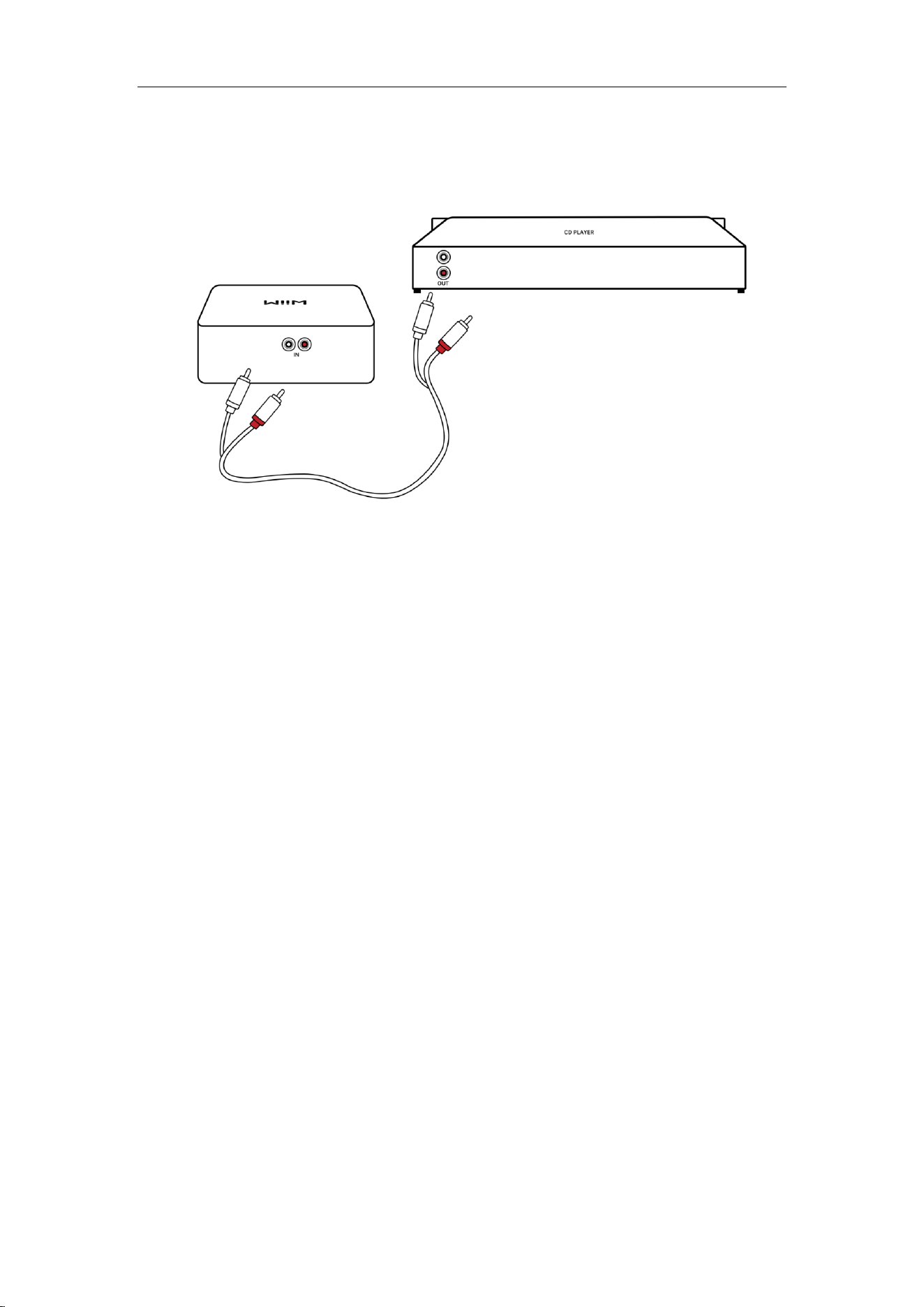
The Line In interface on the WiiM Amp is typically used to connect to a CD Player,
Turntable with a built-in preamp, or PC to receive analog audio input.
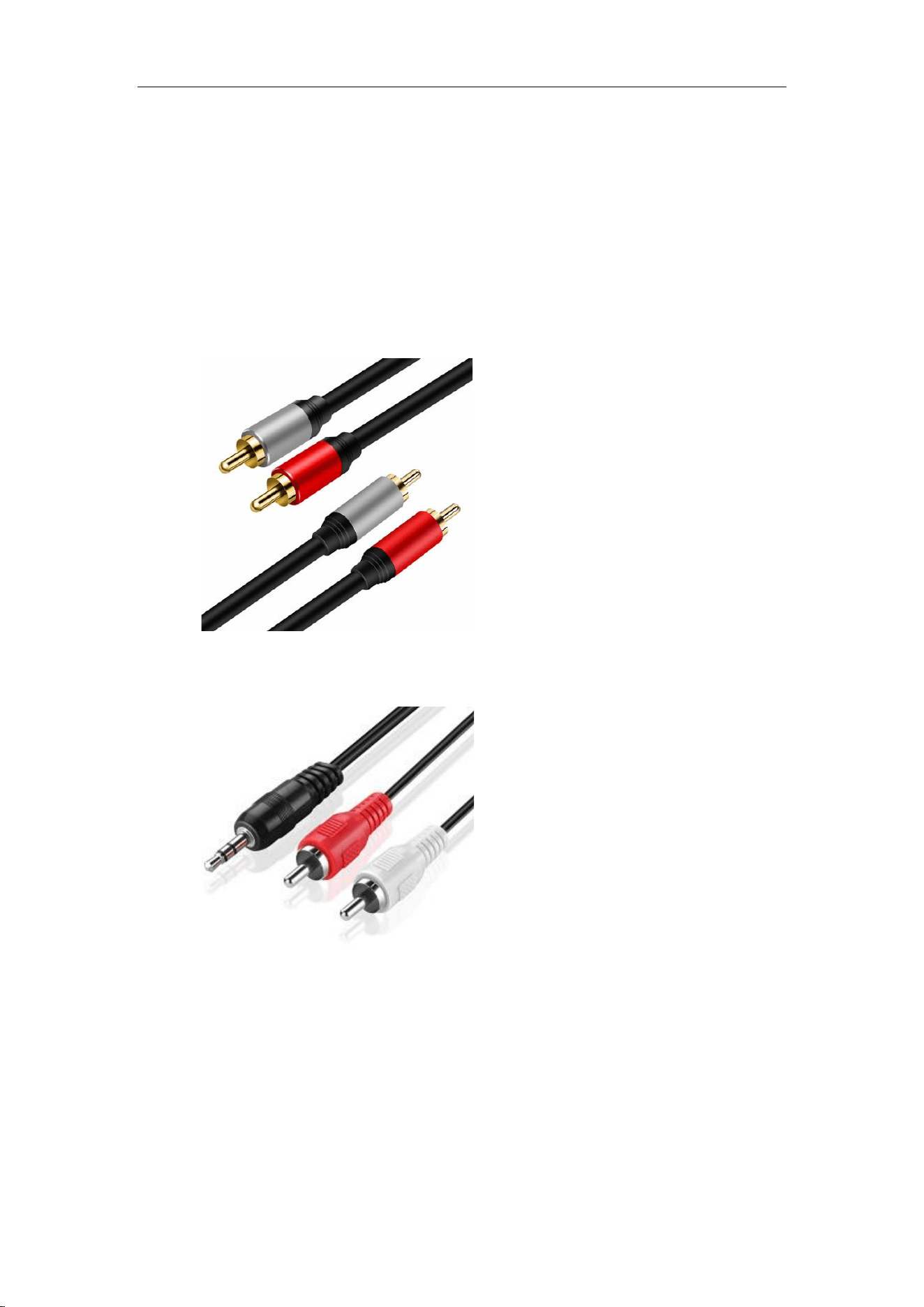
Cable Requirement: One of the following two types of cables might be used.
⚫ An RCA-to-RCA cable as below:
⚫ An Aux-to-RCA cable as below:
Cable Connection Steps:
1. Plug RCA connectors on one end of the cable into the Line In port on the WiiM
Amp.
2. Plug the other end of the cable into the AUX or Line Out port on your audio
WiiM Amp User Manual Version 1.3.5 9/24/2025
24
source (CD player, turntable, TV, or PC).
WiiM Amp User Manual Version 1.3.5 9/24/2025
25
Scenario 2: Optical In Audio Source Input (TV or PC)
The Optical In interface on the WiiM Amp is typically used to connect to a TV or PC to
receive audio input.
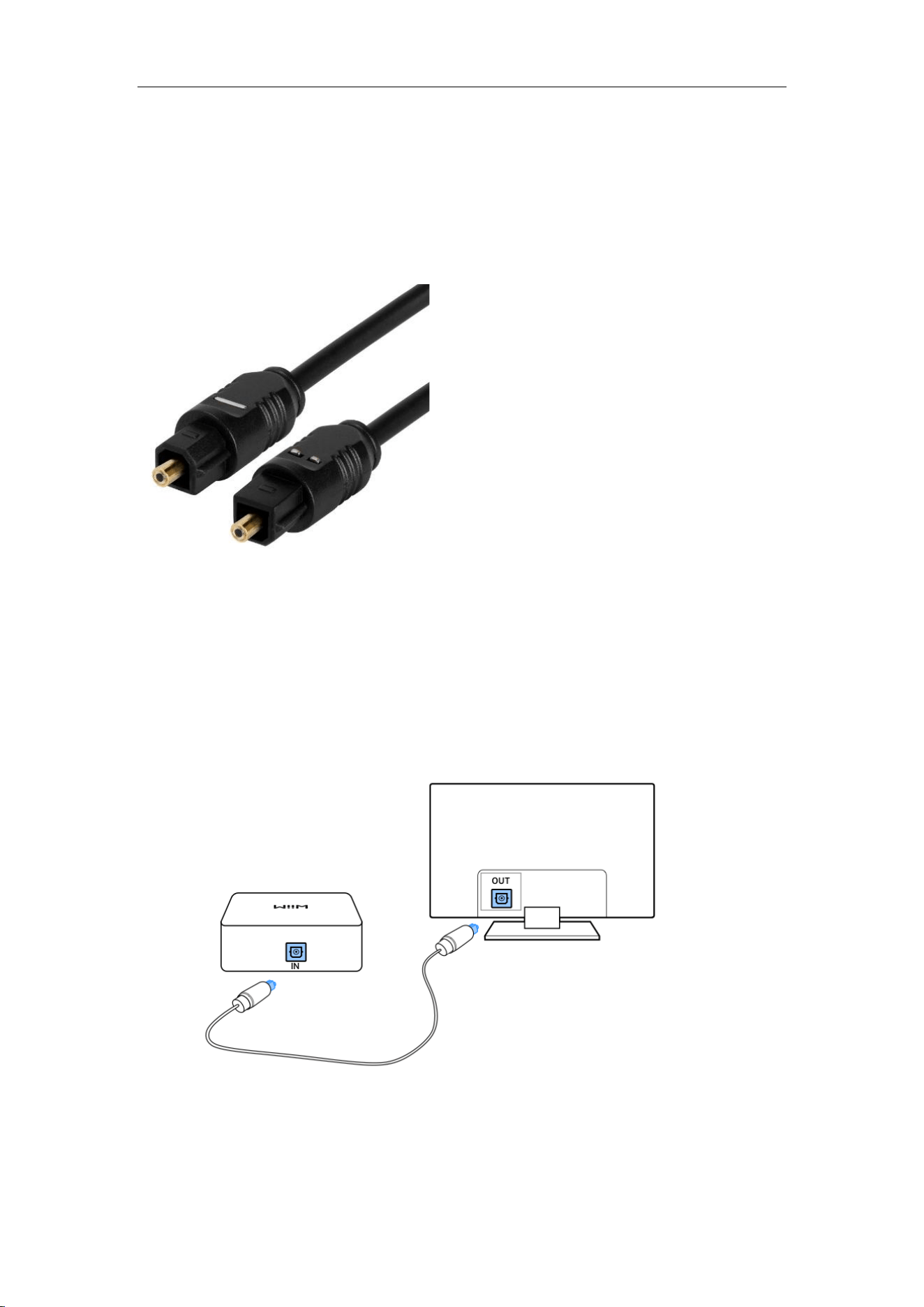
Cable Requirement: use a TOSLINK optical cable as below:
Cable Connection Steps
1. Plug one end of the optical cable into the Optical In port on the WiiM Amp.
Note: Please ensure the insertion direction of the optical cable matches the port.
Incorrect insertion may damage the optical door.
2. Plug the other end of the optical cable into the Optical Out port on the TV or PC.
Note: The Optical In interface on the WiiM Amp only supports PCM audio format. Please

WiiM Amp User Manual Version 1.3.5 9/24/2025
26
ensure that the audio source device connected to the WiiM Amp is set to output audio in
PCM format. Otherwise, you may not hear sound.
WiiM Amp User Manual Version 1.3.5 9/24/2025
27
Scenario 3: HDMI ARC Audio Source Input (TV)
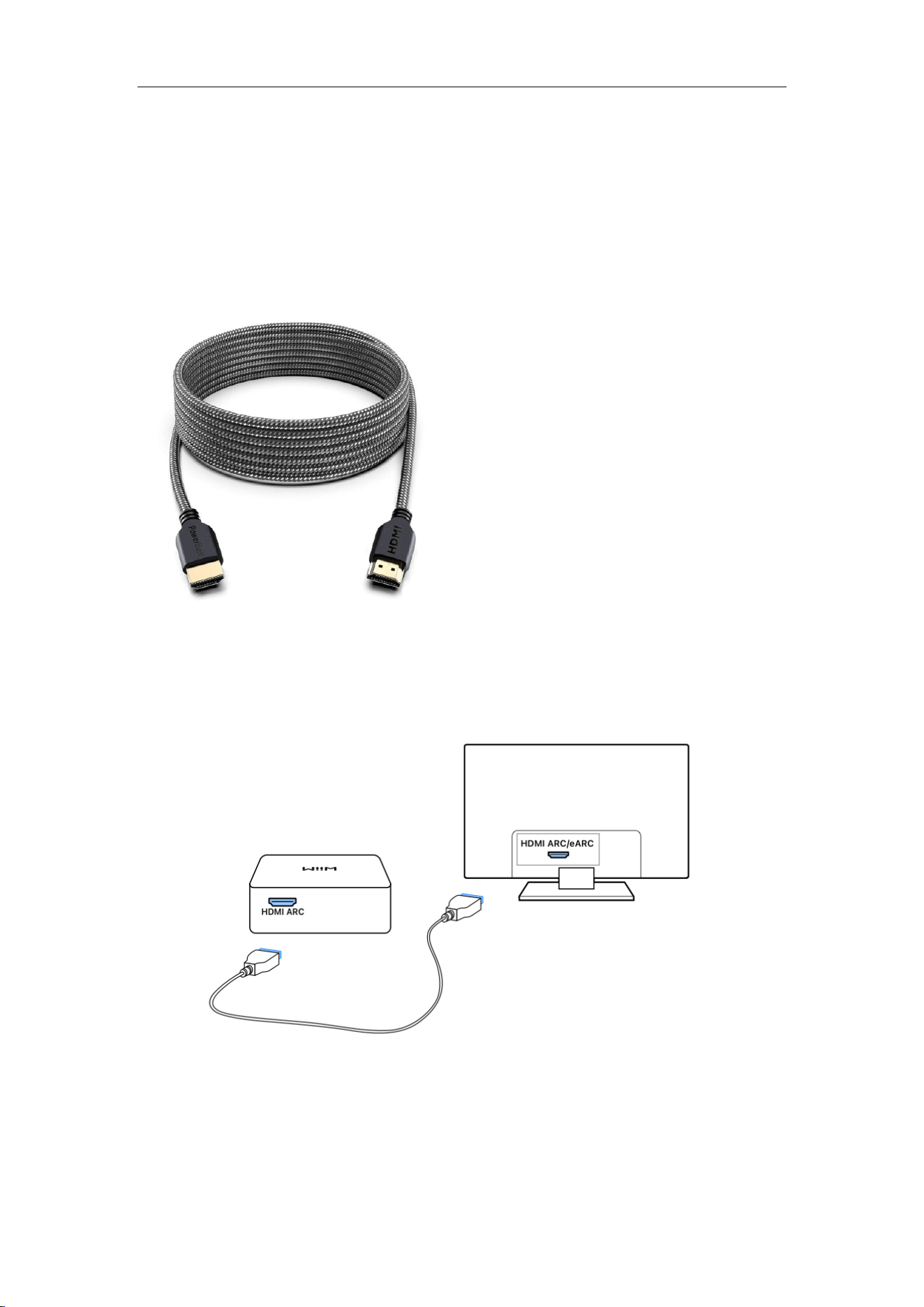
The HDMI ARC interface on the WiiM Amp is typically used to connect to a TV to receive
audio input.
Cable Requirement: use an HDMI cable as below:
Cable Connection Steps
1. Plug one end of the HDMI cable to the HDMI ARC port on the WiiM Amp.
2. Plug the other end of the cable to the HDMI ARC/eARC port on the TV.
Note: The HDMI ARC interface on the WiiM Amp only supports PCM audio format. Please
ensure that the audio source device connected to the WiiM Amp is set to output audio in
PCM format. Otherwise, you may not hear sound.

WiiM Amp User Manual Version 1.3.5 9/24/2025
28
Power On the WiiM Amp
Important Safety Warning: Before connecting the power to the WiiM Amp, it is crucial to
first connect your speakers and any other audio ports. This sequence is important to
safeguard both your equipment and the quality of your audio experience. By following this
procedure, you ensure a safe and efficient setup process for the WiiM Amp.
For optimal performance of the WiiM Amp, please ensure to use the AC power cable that
is included with your device. This cable is specifically designed to support a wide range of
voltages, accommodating 100-240V AC with a maximum current of 4A. This flexibility
ensures that the WiiM Amp can be safely and effectively powered in various locations.
After powering on the WiiM Amp, wait 30 seconds for it to fully boot up before starting the
setup process.

WiiM Amp User Manual Version 1.3.5 9/24/2025
30
Set Up the WiiM Amp
You can set up the WiiM Amp via Wi-Fi or Ethernet using the WiiM Home app. If you
choose to connect via Wi-Fi, make sure you have the network password ready. This will
ensure a smooth and efficient setup process.
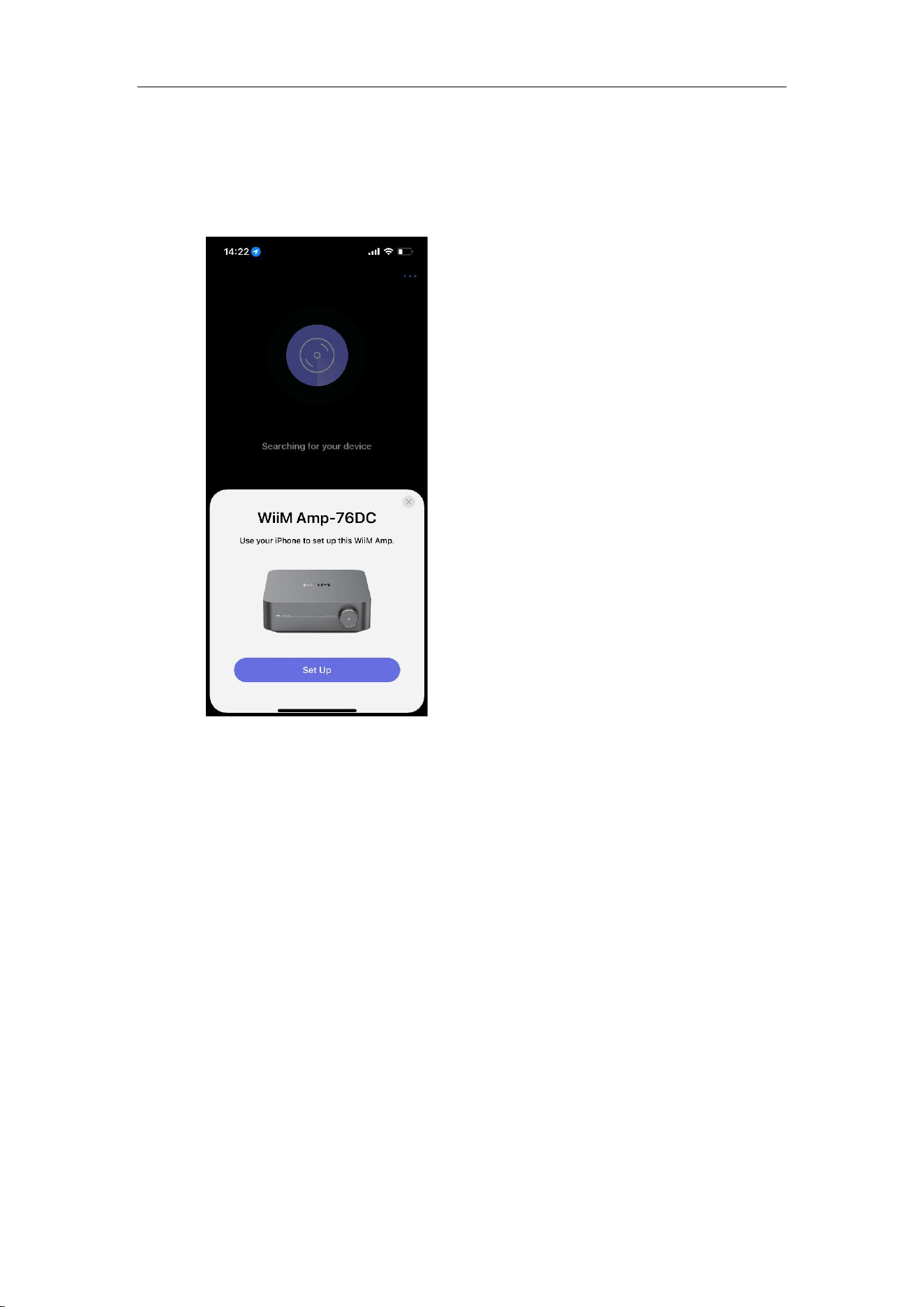
If you use an iOS device, you can also use the Apple Wireless Accessary Configuration
(WAC) protocol or the Apple Home app to set up the WiiM Amp.
WiiM Amp User Manual Version 1.3.5 9/24/2025
31
WiiM Amp Setup via Wi-Fi Using WiiM Home App
1. Open the WiiM Home app on your smartphone or tablet.
2. When the Set Up pop-up appears in the app, tap it to start the setup.
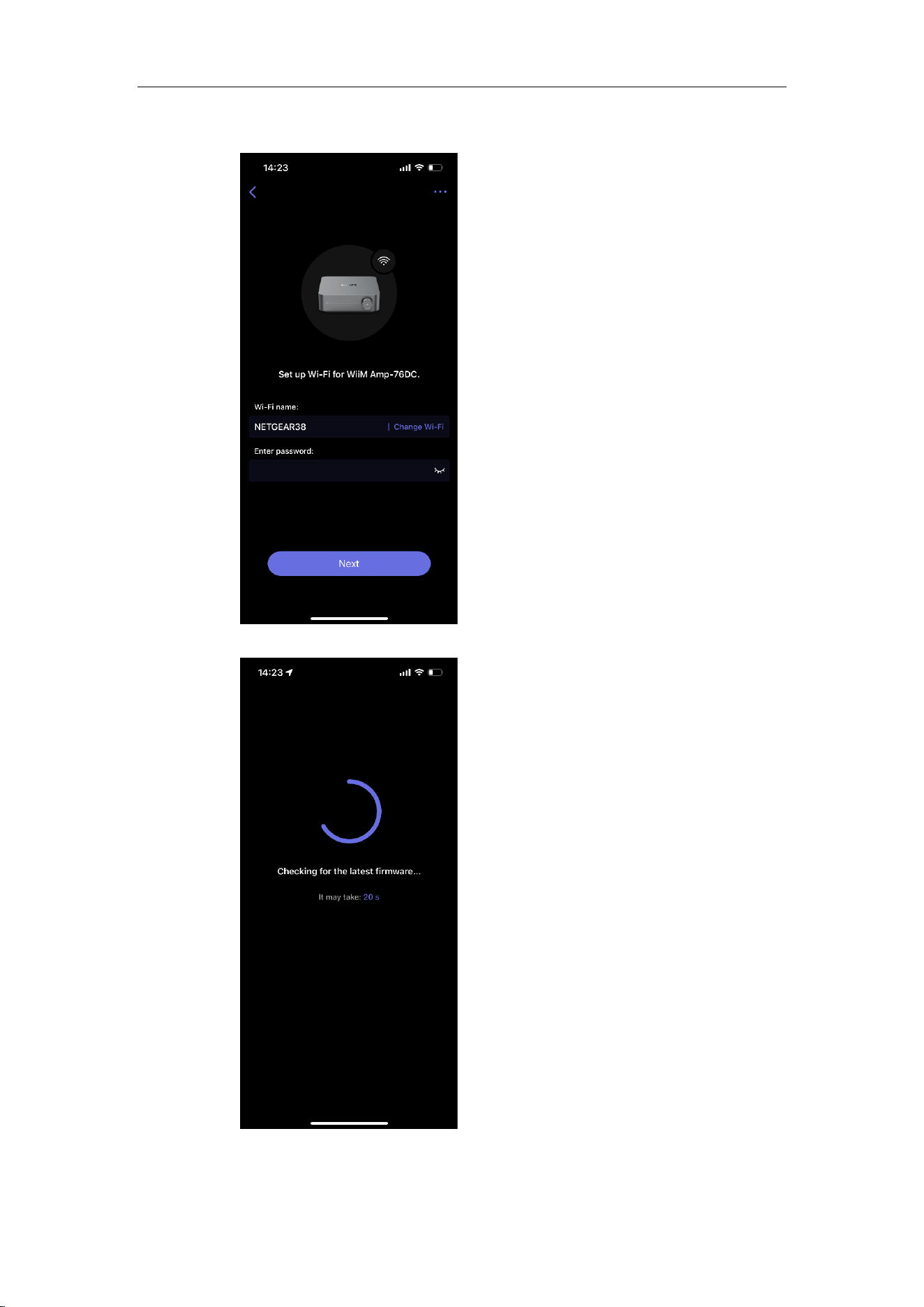
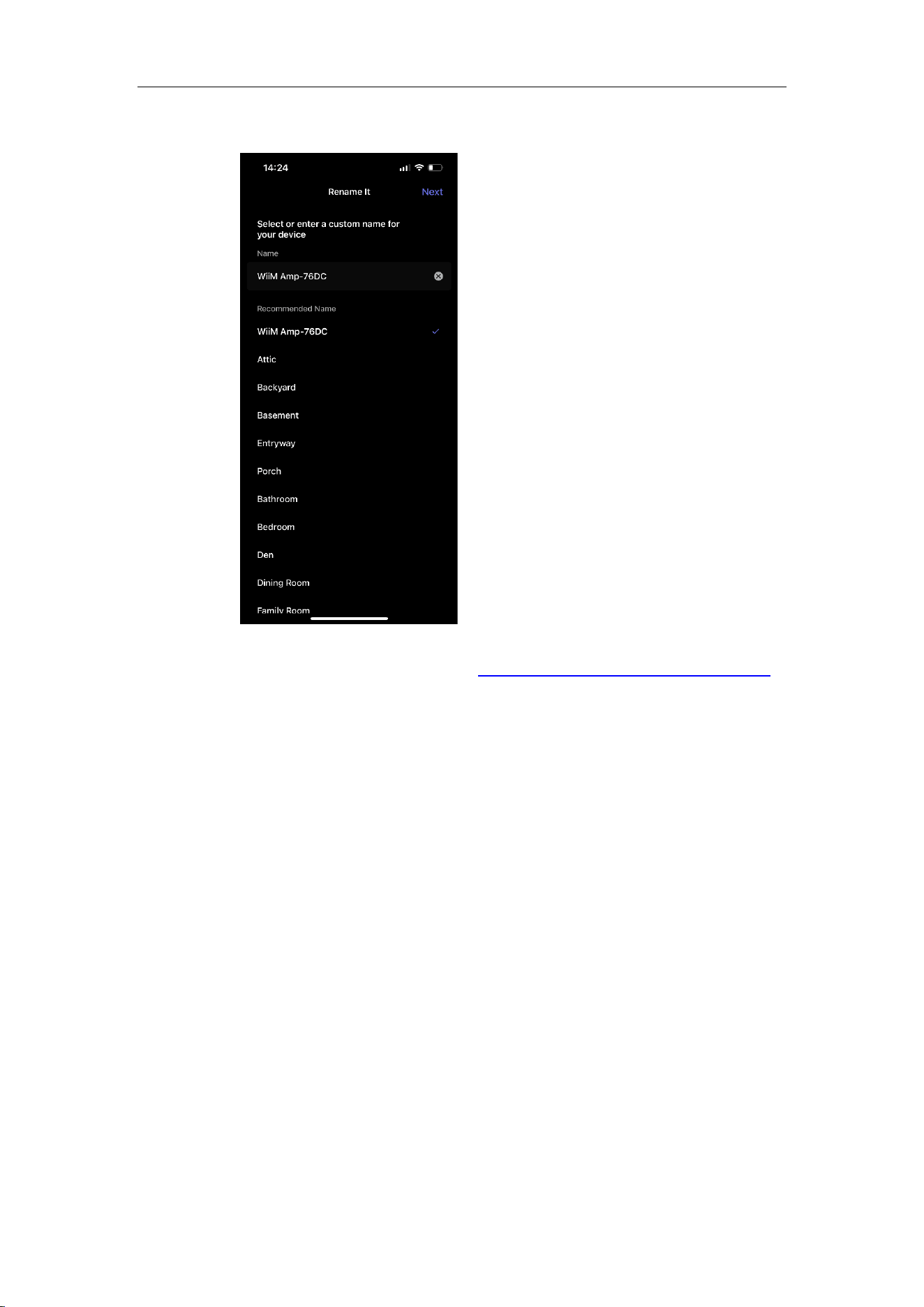
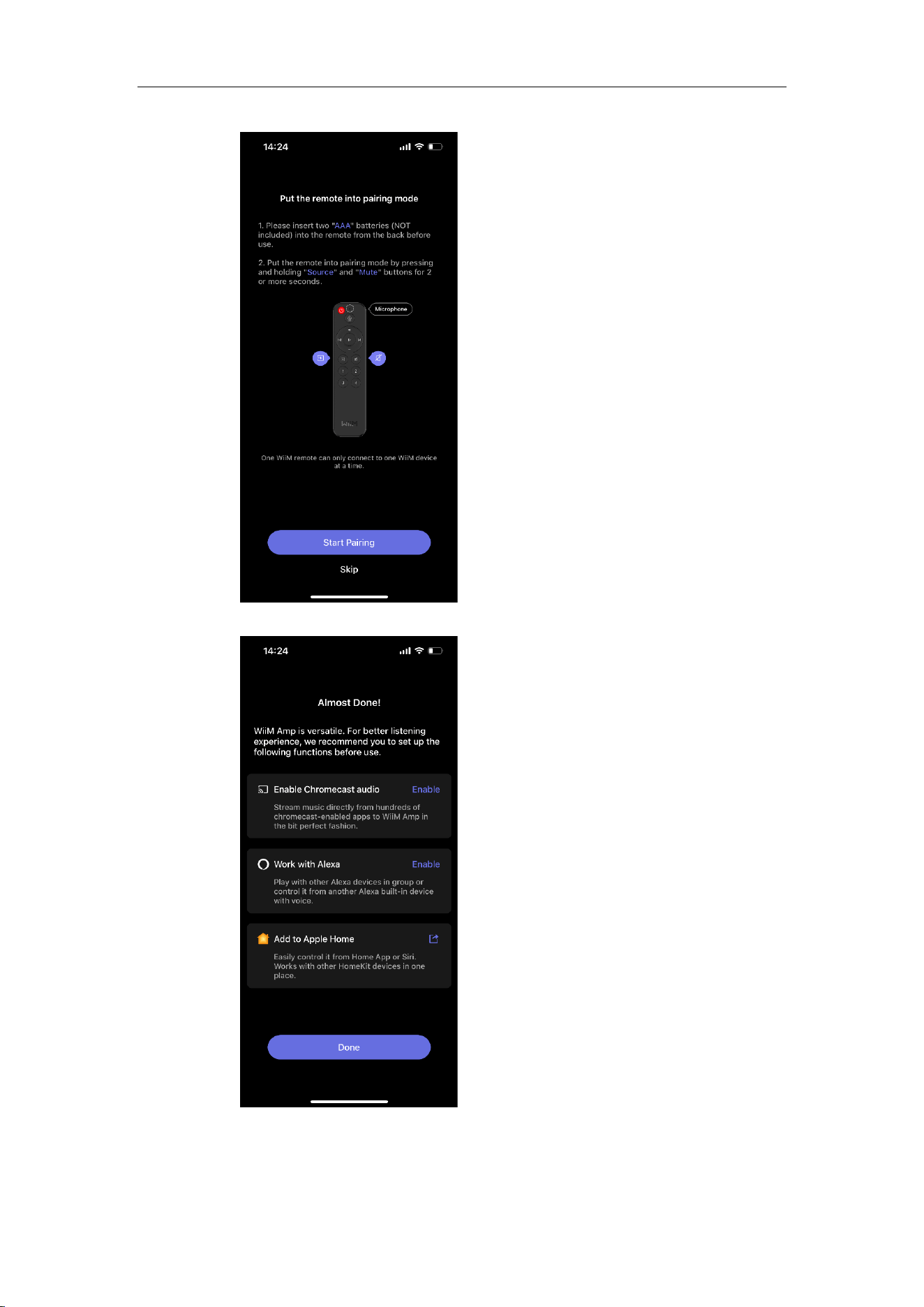
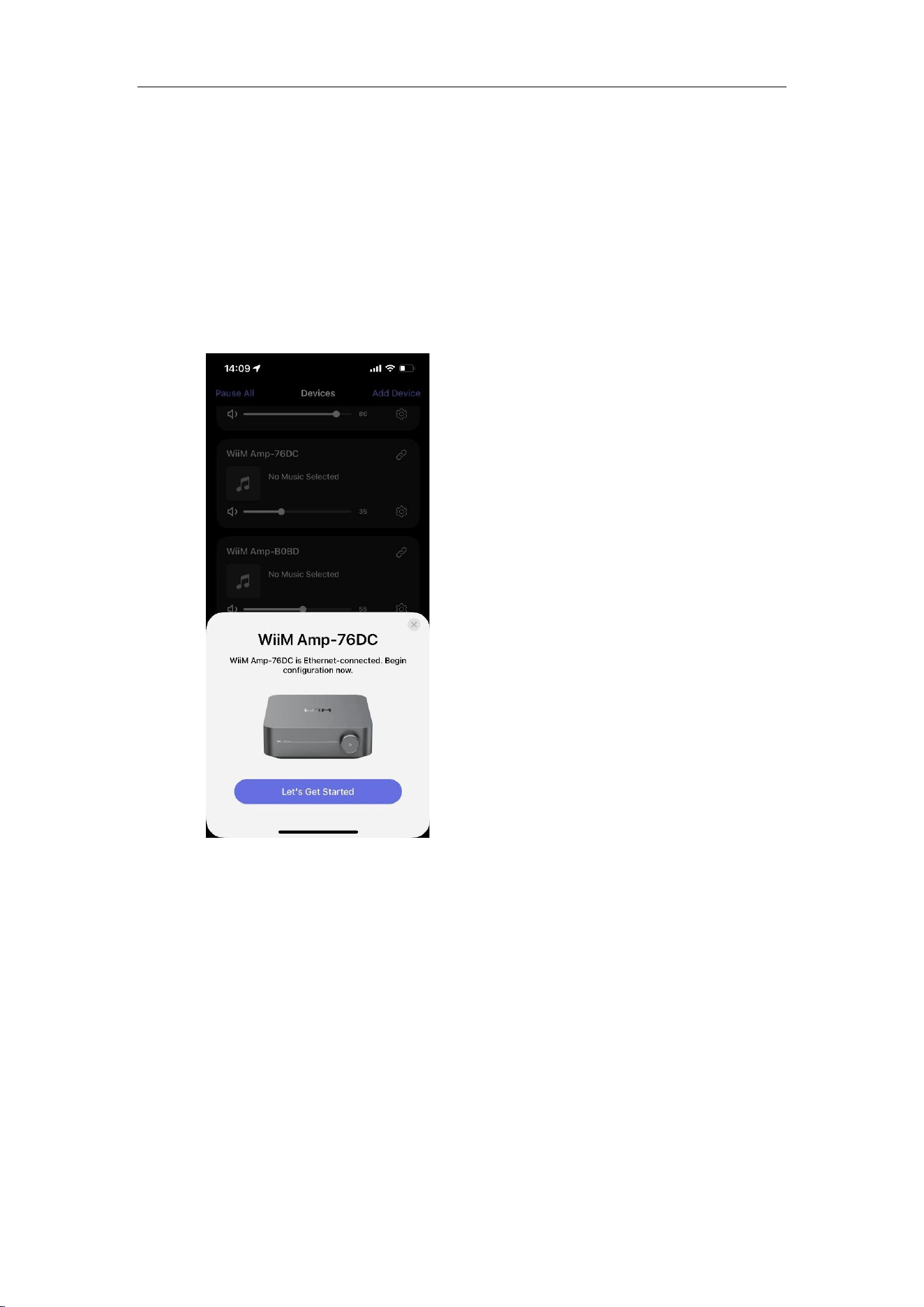
3. Follow the on-screen instructions to complete the setup:
WiiM Amp User Manual Version 1.3.5 9/24/2025
32
a) Connect the WiiM Amp to the same Wi-Fi network as the WiiM Home app.
b) Check and update the firmware.
WiiM Amp User Manual Version 1.3.5 9/24/2025
34
e) Set up Google Cast and Alexa.
WiiM Amp User Manual Version 1.3.5 9/24/2025
35
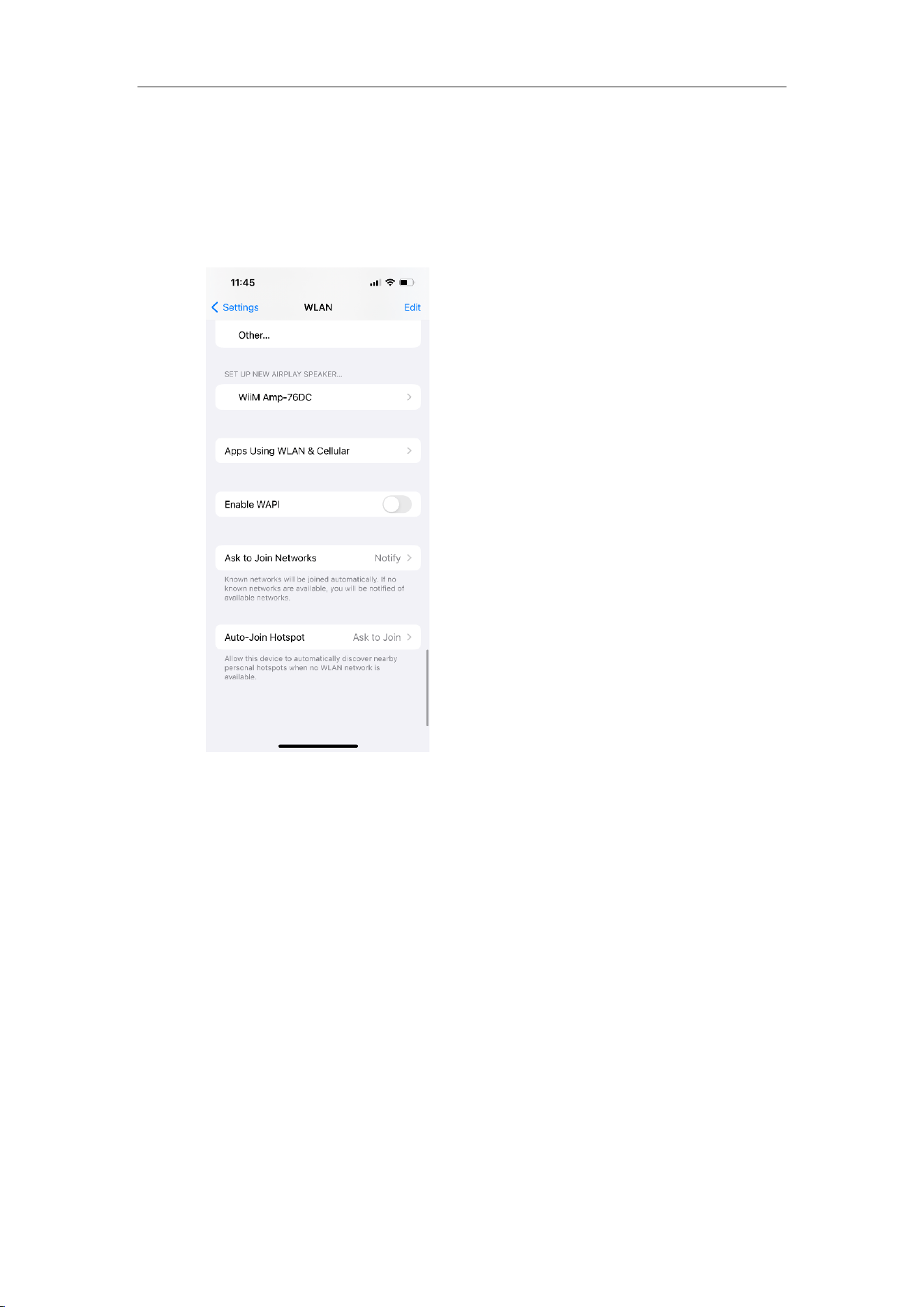
WiiM Amp Setup via Ethernet Using WiiM Home App
1. Connect an Ethernet cable to the WiiM Amp.
2. Open the WiiM Home app on your smartphone or tablet.
3. When the Let’s Get Started pop-up appears in the app, tap it to start the setup.
Note: If the Let’s Get Started pop-up does not appear, tap Add Device in the
top-right corner to trigger it.
4. Follow the on-screen instructions to complete the setup.
WiiM Amp User Manual Version 1.3.5 9/24/2025
36
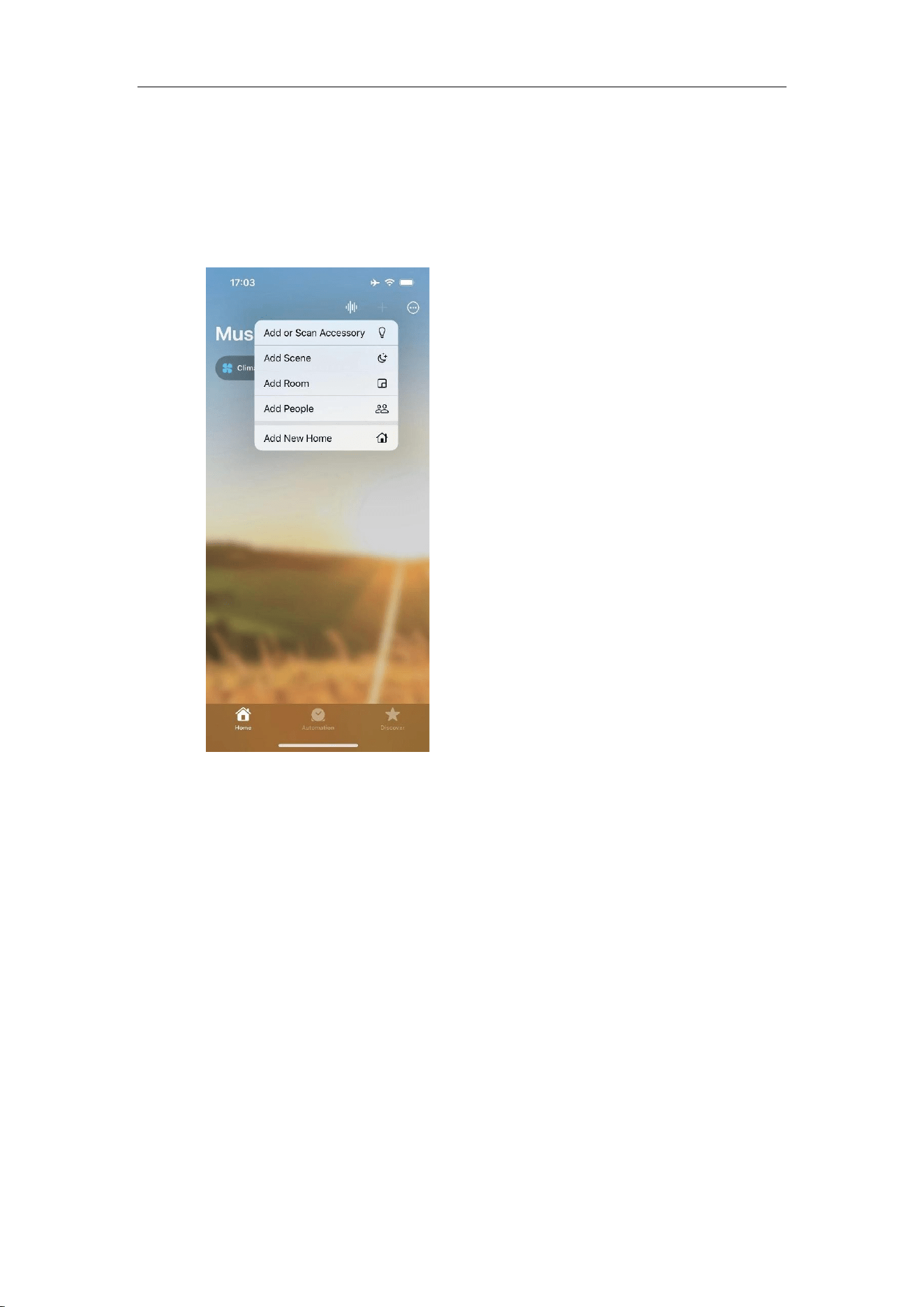
WiiM Amp Setup Using Apple WAC
1. Open the Settings app on your iOS device.
2. Tap the WLAN option.
3. Select the WiiM Amp under the SET UP NEW AIRPLAY SPEAKER section.
4. Follow the on-screen instructions to complete the setup.
WiiM Amp User Manual Version 1.3.5 9/24/2025
37
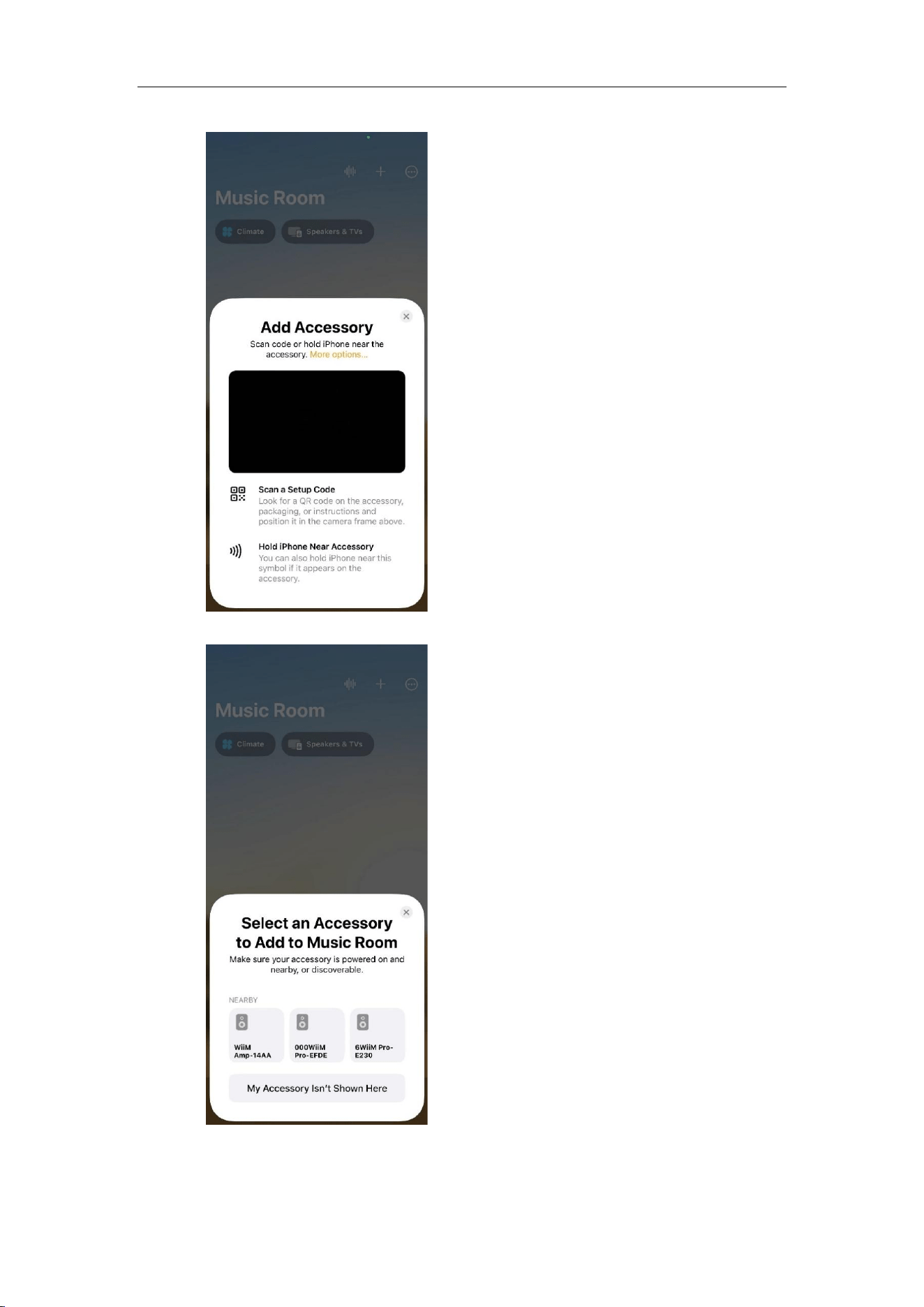
WiiM Amp Setup Using Apple Home App
1. Open the Home app on your iOS device.
2. Tap the + icon in the top-right corner of the screen. A new menu will pop up.
3. Select the Add or Scan Accessory option from the menu.
4. Select More options... in orange.
WiiM Amp User Manual Version 1.3.5 9/24/2025
38
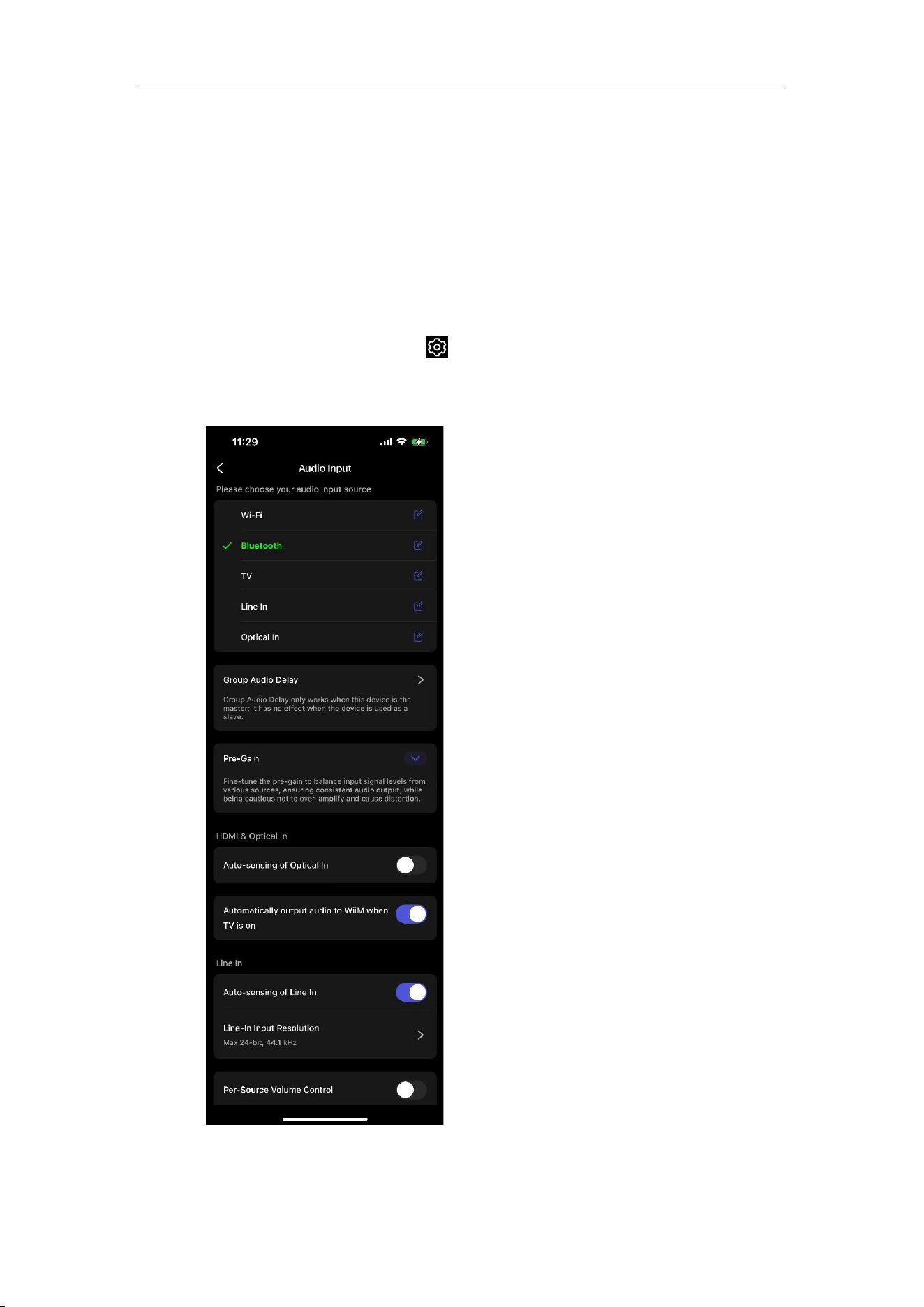
5. Choose the WiiM Amp from the list.

WiiM Amp User Manual Version 1.3.5 9/24/2025
39
6. Follow the on-screen instructions to complete the setup.

WiiM Amp User Manual Version 1.3.5 9/24/2025
40
Configure the WiiM Amp in the WiiM Home App
Once the WiiM Amp is set up, configure it in the WiiM Home app, including settings for
audio input, audio output, subwoofer, room correction, and EQ adjustments.
For detailed instructions, see WiiM Amp Configuration.

WiiM Amp User Manual Version 1.3.5 9/24/2025
41
Fill Your Home with Sound
Now, play music from your favorite audio sources, including a TV, amplified turntable, CD
player, or MP3 player. Alternatively, enjoy seamless streaming of your favorite music and
radio stations over Wi-Fi or Bluetooth.
The WiiM Amp can be grouped with other WiiM devices to create a synchronized music
experience across your home. You can further expand your listening experience by
grouping the WiiM Amp with AirPlay 2-enabled, Alexa-enabled, or Google Cast-enabled
devices, enabling a seamless multi-room audio system. For more information, see Multi-
room Audio and Stereo Pairing.
WiiM Amp User Manual Version 1.3.5 9/24/2025
42
6. WiiM Amp Configuration
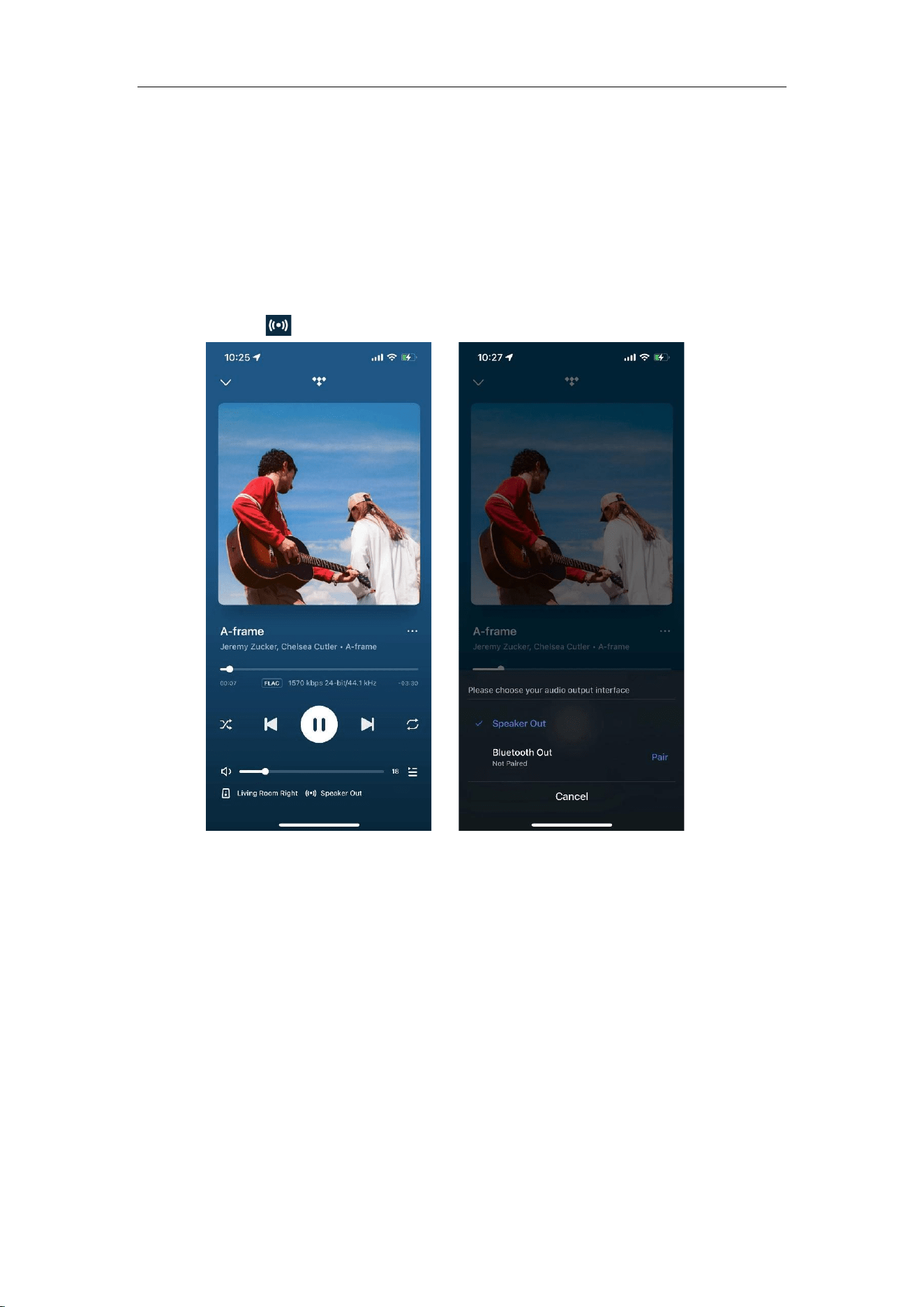
Select Audio Input Source and Configure Audio Input
1. Open the WiiM Home app.
2. Navigate to the Devices tab.
3. Tap the Device Settings icon of the WiiM Amp.
4. Under the Sound section, select Audio Input.
5. Select the audio input source and adjust related settings.
WiiM Amp User Manual Version 1.3.5 9/24/2025
43
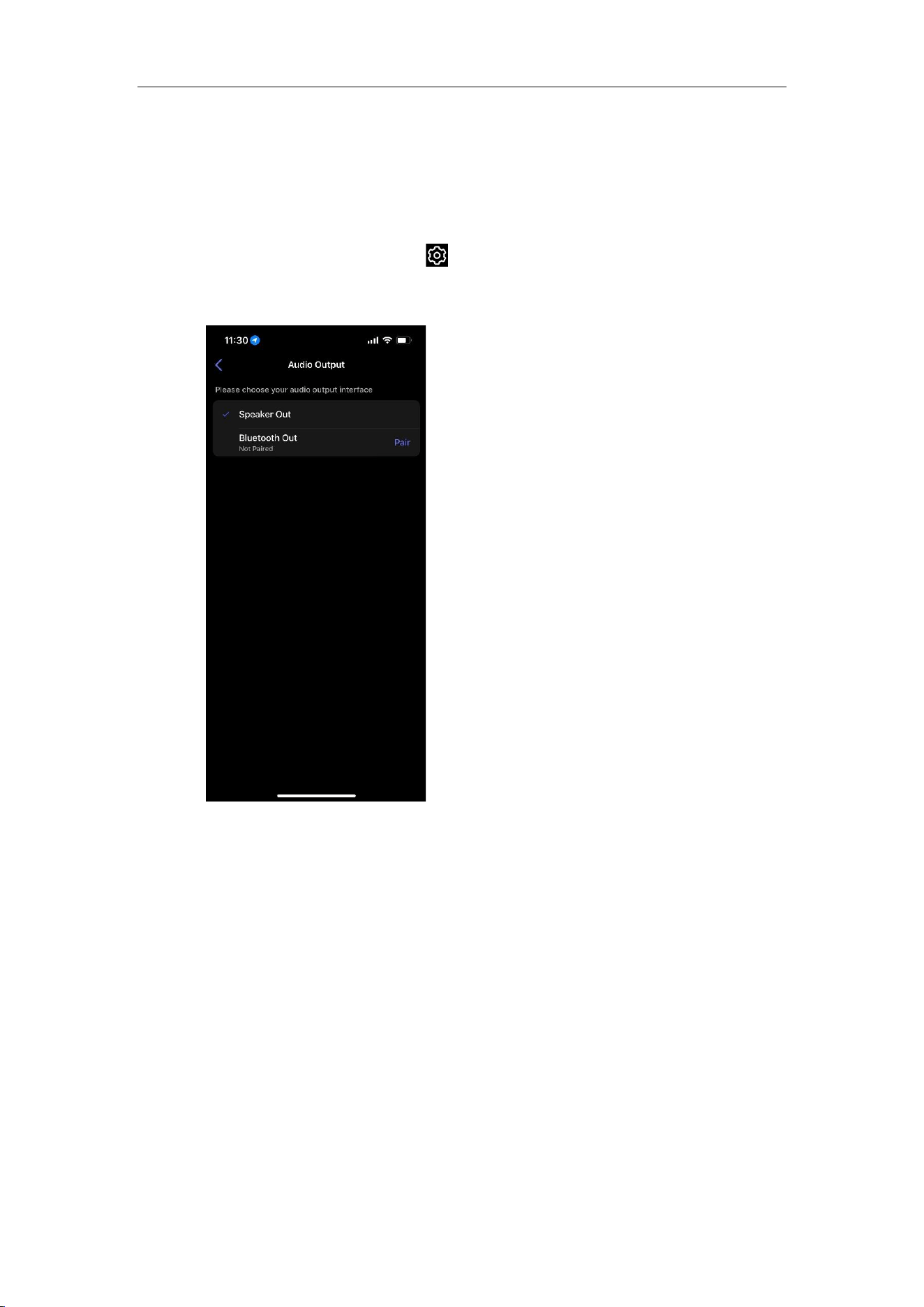
Select Audio Output Interface
Option 1: Select Audio Output Interface from Now Playing
1. Open the WiiM Home app.
2. Go to the Now Playing page.
3. Tap the icon at the bottom and select the output interface.
WiiM Amp User Manual Version 1.3.5 9/24/2025
44
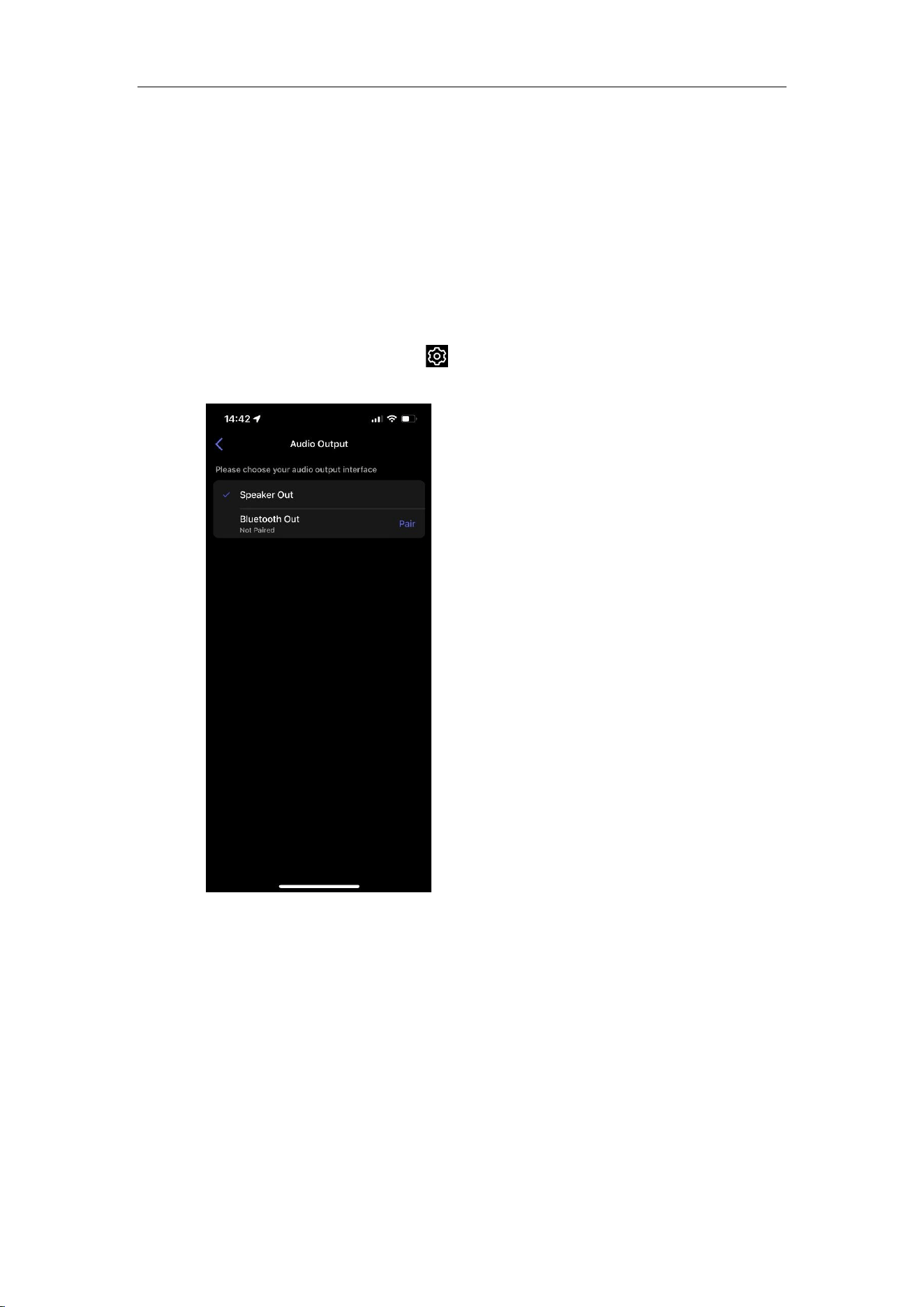
Option 2: Select Audio Output Interface from Device Settings
1. Open the WiiM Home app.
2. Navigate to the Devices tab.
3. Tap the Device Settings icon of the WiiM Amp.
4. Under the Sound section, tap Audio Output.
5. Select the output interface.
WiiM Amp User Manual Version 1.3.5 9/24/2025
45
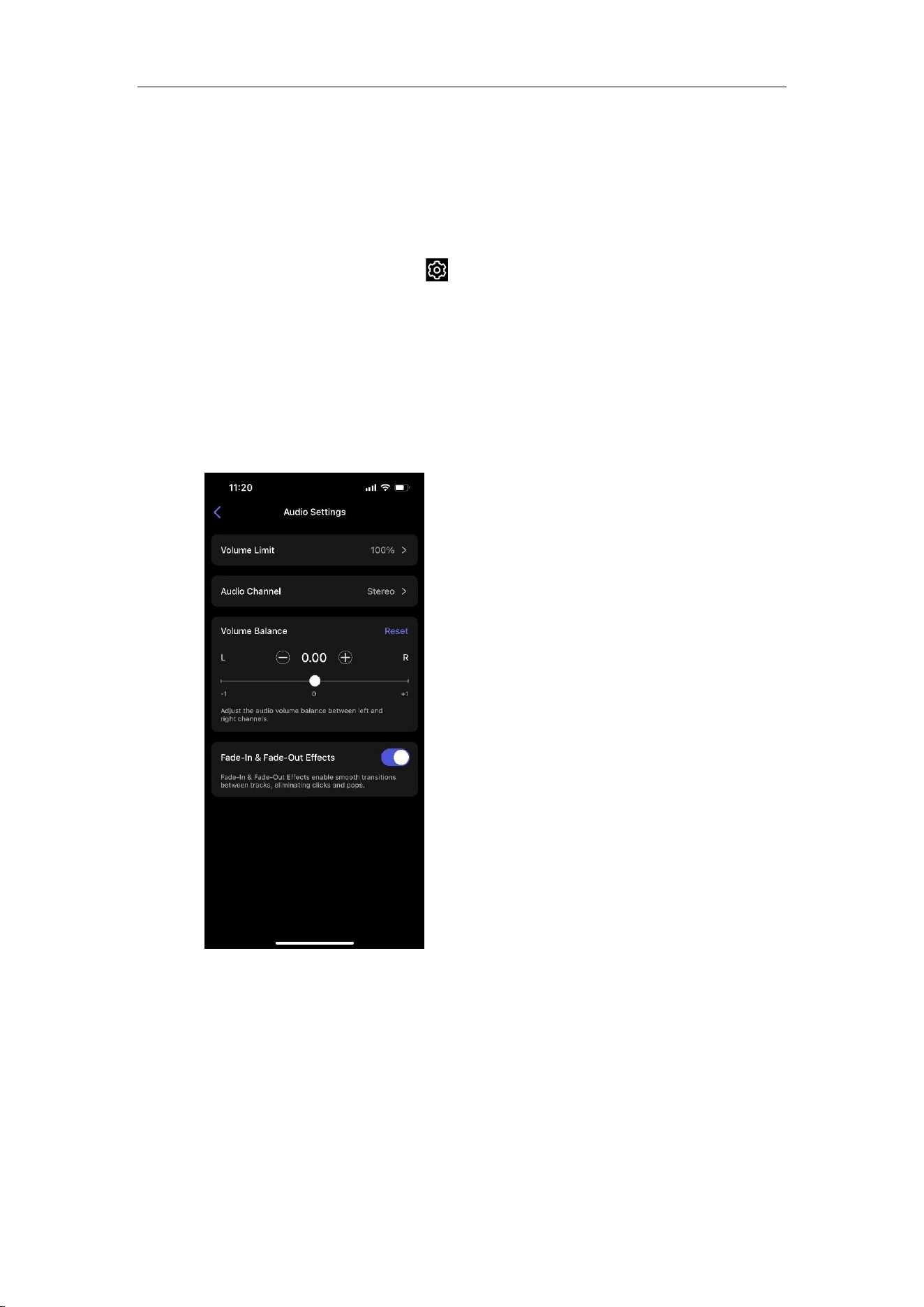
Adjust Audio Output Settings
1. Open the WiiM Home app.
2. Navigate to the Devices tab.
3. Tap the Device Settings icon of the WiiM Amp.
4. Under the Sound section, select Audio Settings.
5. Adjust audio output settings depending on your preference and output interface:
⚫ Volume Limit
⚫ Audio Channel
⚫ Volume Balance
⚫ Fade-In and Fade-Out effects

WiiM Amp User Manual Version 1.3.5 9/24/2025
46
Adjust Subwoofer Settings
If you connect a subwoofer to the WiiM Amp, navigate to Device Settings > Subwoofer
in the WiiM Home app to enable and adjust the subwoofer settings. This will ensure the
subwoofer operates seamlessly with your audio system for optimal sound quality.
For detailed instructions, refer to Tutorial: Tuning Subwoofer Settings on WiiM Devices for
Optimal Sound Quality.

WiiM Amp User Manual Version 1.3.5 9/24/2025
47
Room Correction
You can use the Room Correction feature in the WiiM Home app to enhance audio quality
by adapting to your room's unique acoustic properties. This feature minimizes unwanted
audio issues such as echoes, reflections, and standing waves, delivering a more balanced
and accurate listening experience.
For detailed instructions, see Room Correction Guide.

WiiM Amp User Manual Version 1.3.5 9/24/2025
48
Equalizer (EQ)
You can enhance your audio experience with the Per-Source EQ feature in the WiiM Home
app.
Choose from 24 preset EQ settings for quick adjustments, utilize the 10-band Graphic EQ
(GEQ) for intuitive control, or fine-tune your sound with the 10-band Parametric EQ (PEQ)
for precise and detailed customization.
For detailed instructions, see EQ Guide.

WiiM Amp User Manual Version 1.3.5 9/24/2025
49
7. Audio Output/Input via Bluetooth
Audio Input via Bluetooth
With Bluetooth, you can stream tunes from various devices like smartphones, tablets, TVs,
and laptops. To start streaming, first pair your device with the WiiM Amp.
You can select any of the following options to pair your device with the WiiM Amp:
⚫ Option 1: Bluetooth Pairing Using WiiM Voice Remote
Press and hold the Play button on the WiiM Voice Remote for 3 seconds to initiate
pairing mode.
⚫ Option 2: Bluetooth Pairing Using WiiM Home App
If the WiiM Amp is connected to your network, you can initiate Bluetooth pairing
mode in the WiiM Home app by selecting Bluetooth as source input in the Browse
tab.
In this case, if there’s no device connected to the WiiM Amp, the app will initiate
pairing mode for the WiiM Amp automatically.
Note: The Bluetooth feature is compatible with A2DP and AVRCP profiles, and supports
both SBC and AAC codecs.
WiiM Amp User Manual Version 1.3.5 9/24/2025
50
Audio Output via Bluetooth
You can use the WiiM Amp as a Bluetooth source device, enabling seamless pairing with
your Bluetooth speaker, headphone, or earphone.
Follow these steps to complete the Bluetooth pairing procedure for audio output:
1. Open the WiiM Home app on your iOS or Android device.
2. Select the Devices tab.
3. Tap the Device Settings icon of the WiiM Amp.
4. Select Audio Output, then tap Pair next to Bluetooth Out to initiate pairing.
5. Select the desired external Bluetooth device (e.g., a speaker) to pair.


WiiM Amp User Manual Version 1.3.5 9/24/2025
52
8. USB Media Library
The USB port on the WiiM Amp allows you to play music directly from a connected USB
drive or HDD, enabling convenient access to your stored music library.
For more details, refer to Building and Managing Your Advanced USB Media Library.

WiiM Amp User Manual Version 1.3.5 9/24/2025
53
9. Voice Control
Navigate and control the WiiM Amp with voice commands to search, play, stop, or skip
music and more.
The WiiM Amp supports the following voice control services:
⚫ Alexa
Refer to How to Use Alexa with Your WiiM Device for instructions.
⚫ Siri
Refer to Using Siri to Play Music on Your WiiM Device for instructions.
⚫ Google Voice Assistant
Refer to How to Control WiiM Device via Google Assistant for instructions.

WiiM Amp User Manual Version 1.3.5 9/24/2025
54
10. Direct Control via Your Favorite App
You can stream from your favorite apps directly to your WiiM Amp with the following
approaches.
Depending on your mobile devices and music service, there may be multiple ways to
stream from your music app to WiiM devices. For example, if you use the Spotify app on
an iOS device, you can use either Spotify Connect or AirPlay 2. However, Spotify Connect
gives you better audio quality compared with AirPlay 2 and liberate your phone for other
tasks.
Spotify Connect
Spotify Connect is a way of playing Spotify through your wireless-compatible device over
Wi-Fi or Ethernet. That means you can play your favorite tunes anywhere in the house
without the need for convoluted Bluetooth pairing between devices whenever you want to
listen to music.
Spotify Connect works from smart phone, tablet or PC that functions as a remote control
for Spotify. Both free and premium account are supported. For more information, visit
Spotify Connect.
Using Spotify Connect ensures the best audio quality and streaming experience on the
WiiM Amp.
Multi-room and Stereo Pairing
To use Spotify Connect for multi-room or stereo pairing, follow these instructions:
1. Group multiple WiiM devices in the WiiM Home app. For instructions, see WiiM
Multi-room Audio/Stereo Pairing.
2. Stream Spotify to the grouped WiiM devices. The group name will match the
group lead device.
License Information
The Spotify Software is subject to third-party licenses found here:
https://www.spotify.com/connect/third-party-licenses

WiiM Amp User Manual Version 1.3.5 9/24/2025
55
AirPlay 2
With the support of AirPlay 2, the WiiM Amp turns your speaker into an AirPlay 2-enabled
speaker to stream the music you love from iOS, Mac, and PC devices or stream audio from
Apple TV. It’s an easy and affordable way to connect your Apple devices to your favorite
audio equipment and upgrade it to an AirPlay 2 receiver.
How to Use AirPlay 2
AirPlay 2 lets you stream music from your iOS, Mac, PC, and Apple TV to the WiiM Amp
over Wi-Fi or Ethernet.
For instructions, refer to How to Stream Audio with AirPlay on WiiM Devices.
AirPlay 2 Multi-room Audio
For instructions, refer to AirPlay 2 Multi-room Audio.
Notes:
⚫ To use AirPlay 2, you need an Apple device running iOS 11.4 or later.
⚫ Your Apple device and WiiM device must be connected to the same Wi-Fi network.
⚫ For more information about AirPlay 2, visit https://www.apple.com/airplay.

WiiM Amp User Manual Version 1.3.5 9/24/2025
56
TIDAL Connect
TIDAL is a global music streaming platform bringing fans closer to artists through unique
experiences and the highest sound quality. Stream your favorite music seamlessly from
the TIDAL app straight to your devices in the highest possible quality.
TIDAL Connect allows you to stream music from the TIDAL app to compatible devices. It's
similar to Apple AirPlay and Spotify Connect in that it lets users stream music to connected
devices from within the app. This means you can use your smartphone or computer as a
controller to play music on the WiiM Amp.
How to Use TIDAL Connect
1. Launch the TIDAL app on your mobile device.
2. Play a song and go to the Now Playing screen.
3. Tap the Cast icon at the top right.
4. Select your WiiM device from the list.

WiiM Amp User Manual Version 1.3.5 9/24/2025
57
Alexa Cast
Alexa Cast is a feature that allows you to play and control music on any of your Alexa
devices from your Alexa Music iOS or Android app. You can discover all your Alexa devices
from your music app. Your devices do not need to be on the same Wi-Fi network as your
mobile device. You can target any device from anywhere. Once you pick a target device,
the music you selected on your app will start playing on the chosen device. You can now
follow along on your app. When you tap skip on your app, your device skips to the next
track. Your app becomes a remote control for the device.
WiiM Amp and Alexa Cast
The WiiM Amp is one of the first devices that support Alexa Cast with bit-perfect output up
to 192 kHz/24-bit. You can stream Ultra HD music directly from the native Alexa Music app
to the WiiM Amp, delivering the highest possible audio quality.
How to Use Alexa Cast
1. Log In: Ensure you are logged into your Alexa account on the WiiM Home app.
2. Update: Have the latest version of the Alexa Music app.
3. Cast Music: On the Now Playing screen, tap the Casting icon in the top right.
4. Select Device: Choose the WiiM Amp from the list.
Control Options
⚫ Voice Control: Use voice commands to control music on the device.
⚫ App Control: Switch between voice and app control for convenience.
⚫ Stop Casting: To stop casting and resume playing on your phone, open the
device list and tap the Disconnect button.
Alexa Multi-room Audio
Alexa can also be used for multi-room audio, allowing you to play music in sync on multiple
speakers from compatible brands and the WiiM Amp using the Alexa app.
For detailed instructions, see Alexa Multi-room Audio.

WiiM Amp User Manual Version 1.3.5 9/24/2025
58
Google Cast Audio
Google Cast audio allows you to instantly stream your favorite music, radio, or podcasts
from Google Cast-enabled apps on your mobile device to your speakers over Wi-Fi or
Ethernet.
Setting Up Google Cast
1. Enable Google Cast:
⚫ Once you have set up the WiiM Amp, enable Google Cast from the WiiM
Home app.
2. Stream Music:
⚫ Open a compatible app (e.g., Spotify, Apple Music, TIDAL, YouTube Music,
Deezer) on your mobile device and tap the Cast button.
⚫ Select the WiiM Amp and start streaming audio.
3. Use Chrome Browser:
⚫ Cast any audio from your Chrome browser by selecting the Cast option in
the menu.
Google Cast Multi-room Audio
Google Cast can also be used for multi-room audio, allowing you to play music in sync on
multiple speakers from compatible brands and WiiM Amp using the Google Home app.
For detailed instructions, see Google Cast Multi-room Audio.

WiiM Amp User Manual Version 1.3.5 9/24/2025
59
DLNA
DLNA (Digital Living Network Alliance) sets standards for home networking devices to
communicate and share media files seamlessly. The WiiM Amp is a DLNA-compatible
digital media renderer (DMR). When a USB drive is plugged to the WiiM Amp, it also
functions as a Digital Media Server (DMS), allowing any DLNA-enabled client to access
the music stored on the drive.
How It Works
When connected to the same network as your other DLNA devices or apps, the WiiM Amp
automatically appears in the menus of these networked components. Your computer and
other media devices will discover and recognize the WiiM Amp without any additional setup.
Controlling and Streaming
You can control the WiiM Amp from other DLNA digital media players or controllers.
Additionally, you can stream content from DLNA digital media servers directly to the WiiM
Amp, with no extra configuration required.

WiiM Amp User Manual Version 1.3.5 9/24/2025
60
11. All Music in One App
With the free WiiM Home app, you can control your content and WiiM devices from one
place. The app supports many popular music streaming services such as Spotify,
iHeartRadio, TIDAL, SoundCloud, Qobuz, Pandora, Deezer, TuneIn, and more.
The WiiM Home app offers the follow features:
⚫ Stream from Any Source: Enjoy seamless playback from streaming services,
NAS, or other connected storage.
⚫ All-in-One Control: Manage your music services and devices effortlessly in a
single app for complete, centralized control.
⚫ Customized Listening Experience: Tailor your listening experience with
adjustable EQ settings, sleep timers, and scheduled music alarms.
⚫ Effortless Discovery: Instantly find and save your favorite tracks using WiiM’s
universal search, scanning through all your music sources.
⚫ Whole Home Music: Enjoy multi-room music by grouping devices for
synchronized playback or play different music on each speaker.
⚫ Built-in Support Center Access: Quickly access our Support Center directly
within the app, giving you instant assistance whenever you need it.
For more information, refer to WiiM Home App User Manual.

WiiM Amp User Manual Version 1.3.5 9/24/2025
61
12. Multi-room Audio and Stereo Pairing
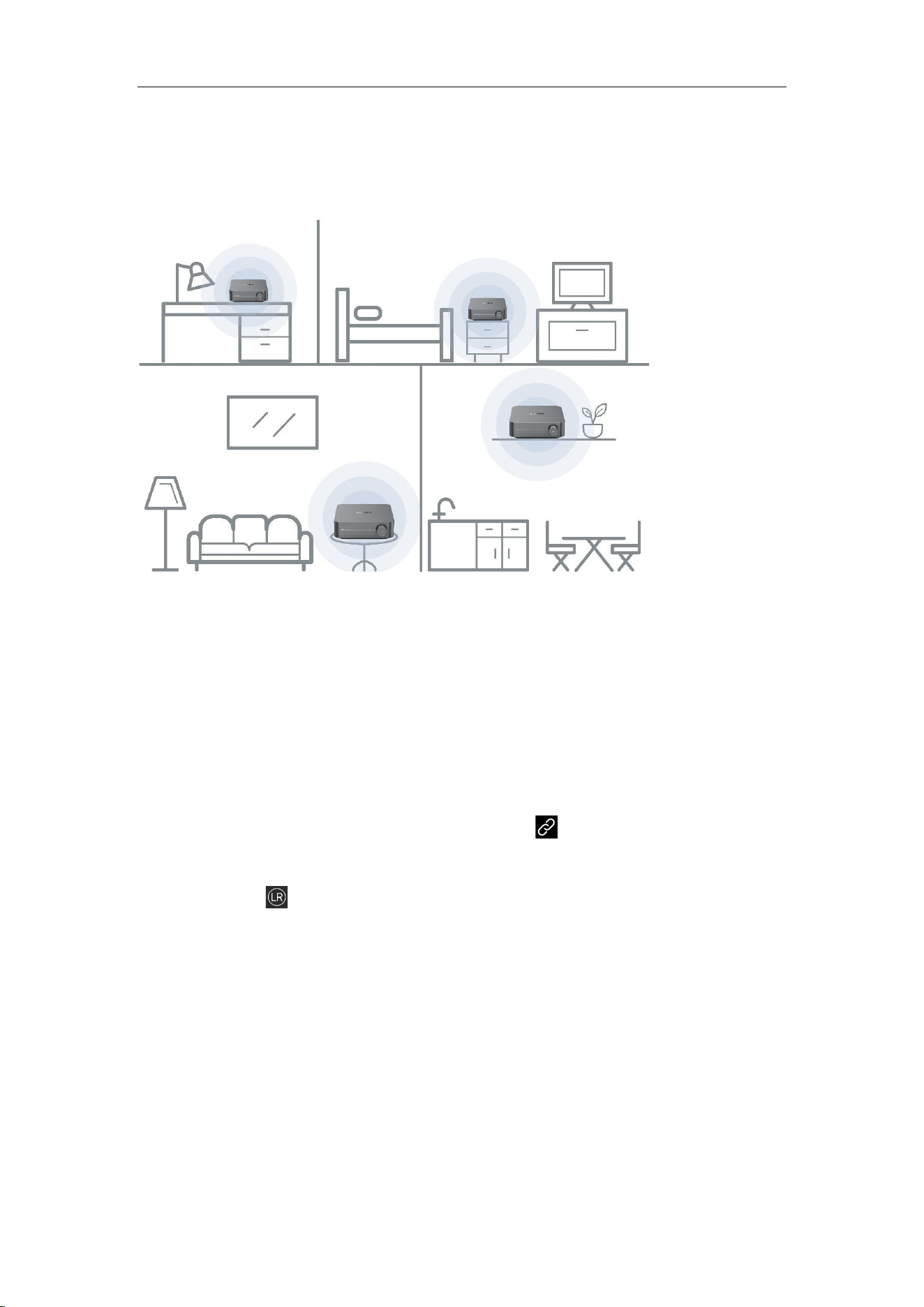
With the WiiM Amp, it’s easy to build your wireless multi-room sound system with other
AirPlay 2 speakers, Echo (or Alexa built-in devices) or Google Home. You can create an
even more flexible multi-room sound system with multiple WiiM devices and your existing
audio devices.
Notes:
⚫ Alexa and Google Cast multi-room must be set up using the Alexa app and Google
Home app, respectively.
⚫ Alexa and Google Cast multi-room features support network-based music services
only.
⚫ To enable multi-room audio for other input sources, such as Line-In, Optical-In,
HDMI, or Bluetooth, the multi-room group must consist exclusively of WiiM
devices.
WiiM Multi-room Audio/Stereo Pairing
With our proprietary multi-room technology, the WiiM Amp supports all types of audio
inputs—Wi-Fi/Ethernet, Bluetooth, analog Line In, digital SPDIF In, and HDMI ARC—as
sources for your multi-room system.
WiiM Multi-room Setup
For example, to set up a multi-room system with the Line In source input, follow the steps
below:
1. Insert the line-in cable into the Line In port on the WiiM Amp.
2. Connect the other end of the cable to the Line Out port on your source device,
e.g. a record player.
3. Open the WiiM Home app.
4. Go to the Browse tab, then under the Source Input section, select Line In as
the audio source.
5. Set up a multi-room music group with the WiiM Amp:
a) Go to the Devices tab and select the WiiM Amp connected to your source
device.
b) Tap the Group icon in the upper right corner of the device box.
c) Choose other desired WiiM devices to include in the multi-room audio group.
Now, the music from the connected device will play across your multi-room music group.
WiiM Amp User Manual Version 1.3.5 9/24/2025
62
You can follow the same procedure to set up a WiiM multi-room system with any other
source input supported by your source device.
WiiM Stereo Pairing
In addition, you can group two speakers connected to two WiiM devices as a stereo pair
for a wider, more immersive sound stage. This feature supports all input options, ensuring
compatibility with virtually every music listening preference.
To use stereo pairing, follow the steps below:
1. Set up two WiiM devices.
2. Open the WiiM Home app.
3. Select a WiiM device and tap the Group icon in the upper right corner.
4. Select the other WiiM device, then tap Done.
5. Tap the icon and set the two WiiM devices to L and R, respectively.
6. Go to the Browse tab, then select your music to play.


WiiM Amp User Manual Version 1.3.5 9/24/2025
64
Alexa Multi-room Audio
1. Open the Alexa app on your smartphone or tablet.
2. Tap Devices at the bottom of the screen.
3. Tap the + icon in the top right corner of the screen.
4. In the menu that appears, choose Combine speakers, then select Multi-room
music.
5. Select the Echo and WiiM devices you want to include in your multi-room music
setup, then tap Next.
6. Assign a group name for the multi-room music setup (e.g., "Bedroom").
7. Follow the on-screen prompts to complete the setup.
Note: When used with Echo or other compatible devices, the WiiM Amp functions as an
audio receiver and cannot transmit its physical audio inputs (e.g., Line In or Optical In) to
these devices over Wi-Fi.
WiiM Amp User Manual Version 1.3.5 9/24/2025
65
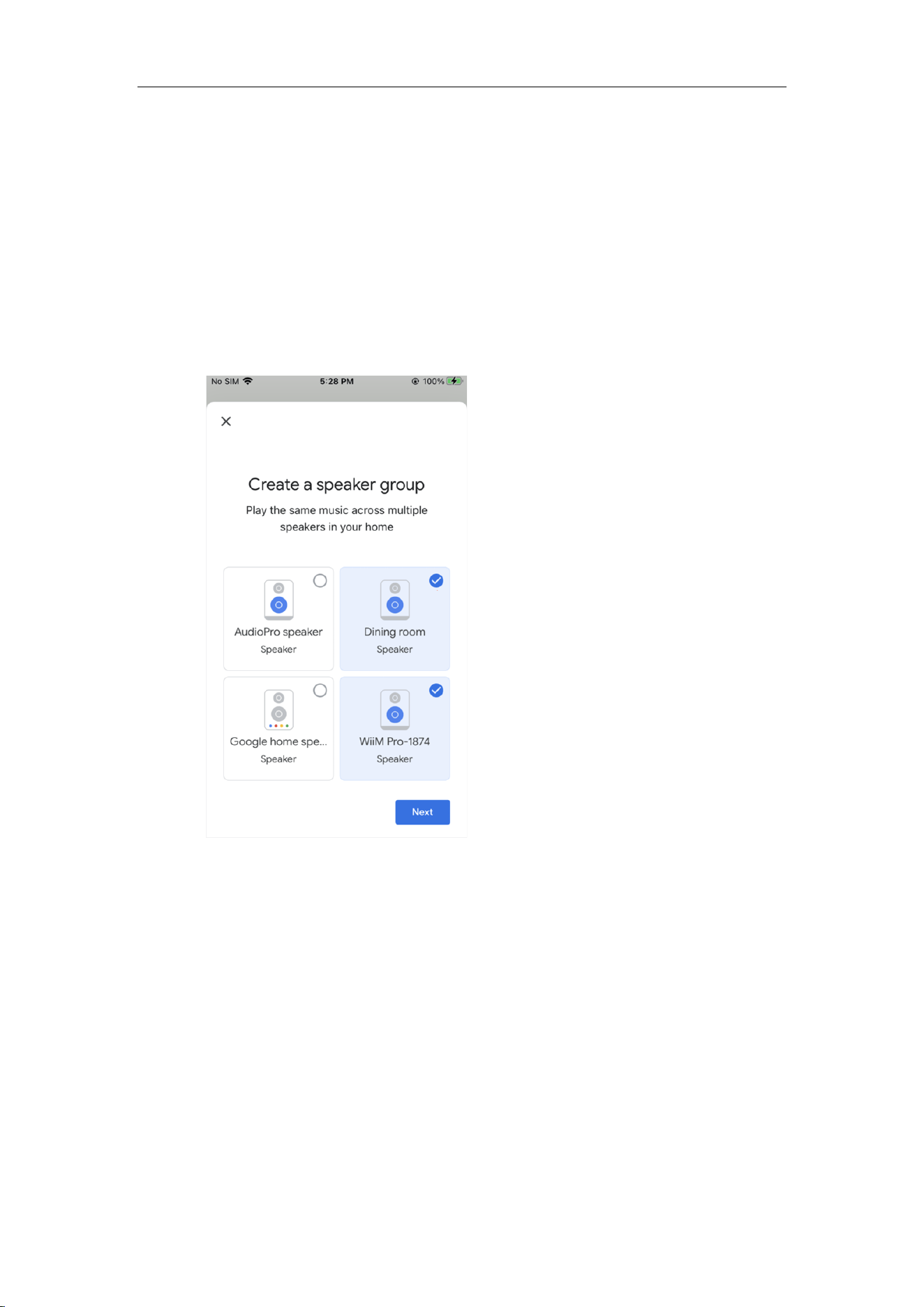
Google Cast Multi-room Audio
You can group the WiiM Amp with other Google Home or Google Cast enabled devices to
play the same music on all devices via the Google Home app.
1. Open the Google Home app.
2. Tap the + icon in the top left corner.
3. Tap Create speaker group to create a speaker group.
4. Select the devices that are in the same network.
5. Assign a name to your group (e.g., "Living Room").
6. Stream music to the group.
Note: When using with Google Cast audio devices, the WiiM Amp functions as an audio
receiver and cannot transmit its physical audio inputs (e.g., Line In or Optical In) to these
Google Cast audio devices.

WiiM Amp User Manual Version 1.3.5 9/24/2025
66
13. Advanced Features
Firmware Updates
⚫ The WiiM Amp updates automatically when connected to your network
⚫ Updates occur silently between 2:00 a.m. and 5:00 a.m. local time, with no sound
or notifications during the process. Upon opening the app after the upgrade, you’ll
see the latest updates applied to the WiiM Amp.
Use Ethernet Instead of Wi-Fi
When an Ethernet cable is connected, the WiiM Amp will automatically switch off Wi-Fi to
use the Ethernet network.
To confirm the active connection:
1. Open the WiiM Home app.
2. Go to the Devices tab and tap the Device Settings icon of the WiiM Amp.
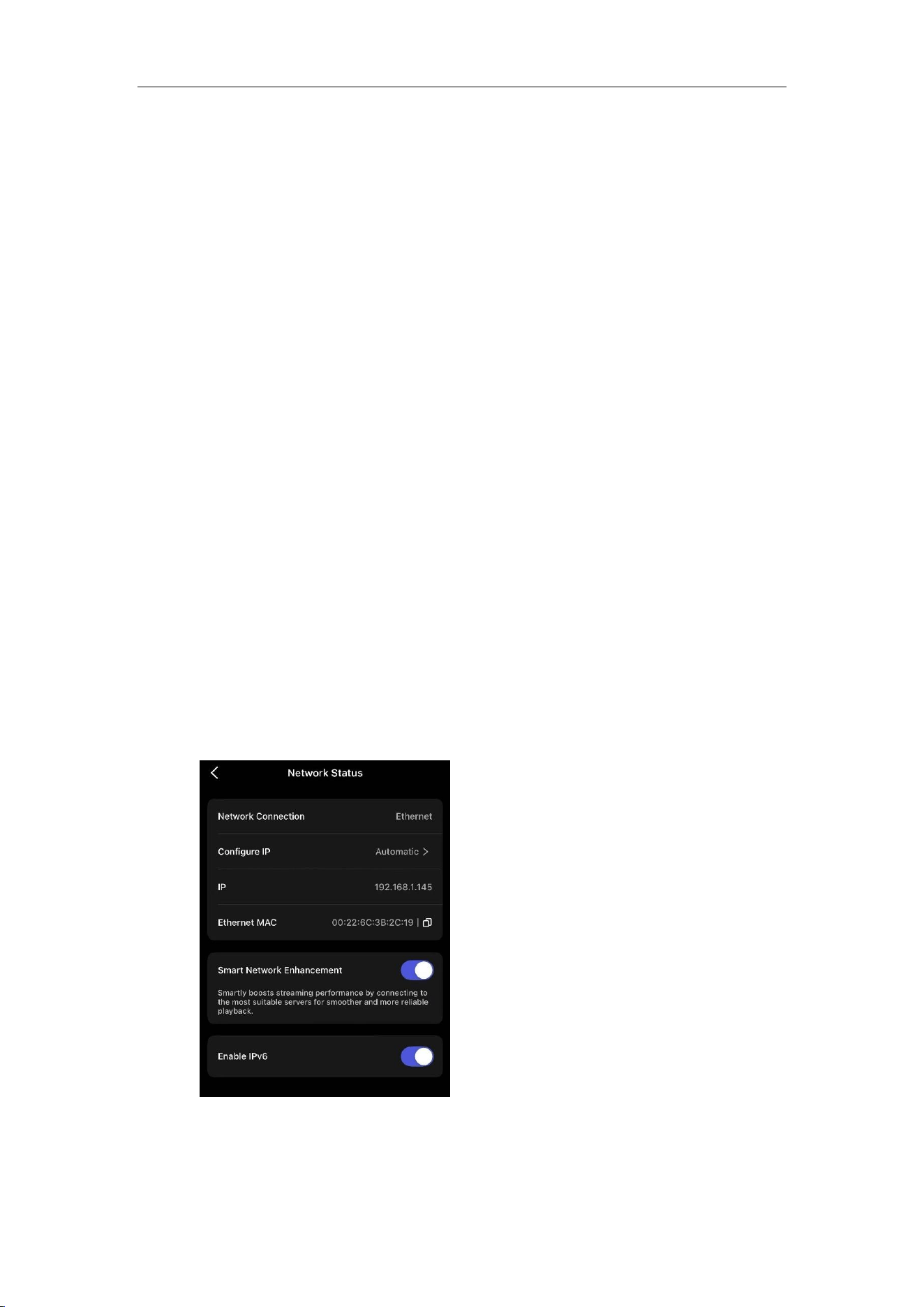
3. Select Network Status to view the current network connection.

WiiM Amp User Manual Version 1.3.5 9/24/2025
67
14. FAQ and Support
FAQ
If you experience problems with the audio streamer, try these solutions first:
⚫ What can I do if my device has Wi-Fi connection issues during setup?
Please see Troubleshooting: How to Resolve Wi-Fi Connection Issues During WiiM Setup
for step-by-step solutions.
⚫ What can I do if my WiiM Home app can’t find the device?
o Make sure your network is available and the device is powered on properly.
o Check the LED on the device is solid white.
o Make sure your smartphone/tablet and WiiM Amp are connected to the same
Wi-Fi network.
o Make sure you have the latest version of the WiiM Home app on your device.
o Try restarting your smartphone/tablet, WiiM Amp, and router.
o If still can’t find, reconfigure the device to the network.
For details, see Troubleshooting: WiiM Device Not Found in WiiM Home App for step-
by-step solutions.
⚫ What can I do if my device has no sound?
If you are not getting any sound from your WiiM Amp, make sure you have checked
the following things:
o Volume Levels: Ensure that the volume is turned up both in the WiiM Home
app and on your external device (e.g., AV receiver) connected to the WiiM
Amp.
o Input Source: Make sure the correct input source is selected on your receiver
or device that corresponds to the output of the WiiM Amp.
o Audio Output Selection: Confirm that the correct audio output is selected in
the WiiM Home app.
o Physical Connections: Verify that all physical connections between the WiiM
Amp and your receiver or device are plugged in correctly and securely.

WiiM Amp User Manual Version 1.3.5 9/24/2025
68
⚫ Audio dropout or no sound on AirPlay 2?
If you experience no sound with AirPlay 2 but has sound with other service, follow
these steps to troubleshoot the issue:
o Check the music app: Ensure the progress bar in the music app on your
Apple device is moving during playback.
o Check network connectivity: Ensure the signal of your WiiM Amp and your
streaming device are strong. Move your WiiM Amp and the streaming device
closer to your wireless router or access point to improve the signal strength.
o Restart your network devices: Power cycle your router, modem, WiiM Amp,
and any streaming devices. This simple step can often resolve connectivity
issues.
o Update firmware and software: Ensure that your WiiM Amp and all devices
involved in the AirPlay 2 setup have the latest firmware and software updates
installed. Additionally, update your streaming device (e.g., iPhone, iPad, Mac)
to the latest version of iOS, iPadOS or macOS.
o Reset your WiiM Amp: As a last resort, you can try performing a factory reset
on your WiiM Amp and set it up again.
⚫ How can I reset my device?
o Press and hold the volume knob for 10 seconds until you will hear the voice
prompts of “Restore to factory setting” and see the light flashing red and white.
o Factory reset clears all source, volume, and network settings for the WiiM Amp
and returns it back to the original factory settings.
⚫ What can I do if my device cannot power on normally?
o Check the device LED status and ensure it’s on.
o Ensure the original power cable is used.

WiiM Amp User Manual Version 1.3.5 9/24/2025
69
Support
If you are unable to resolve your issue, please follow one of the methods below to reach
out to us for assistance:
⚫ WiiM Home app: Go to More > Feedback or More > FAQ to submit a ticket. You
will receive email response from WiiM Support in the next 24 hours.
⚫ FAQ Website: Find more FAQ at https://faq.wiimhome.com/en/support/solutions.
⚫ Email: Send an email to support@wiimhome.com for assistance.
⚫ WiiM Amp Support Website: Visit https://wiimhome.com/support/wiimAmp.
WiiM Amp User Manual Version 1.3.5 9/24/2025
70
15. Public Network Interfaces and Services
This chapter describes the public network interfaces (LAN, Wi-Fi, and Bluetooth) on the
WiiM Amp and the services they support.
LAN Interface
The LAN interface allows the device to connect to a wired network via an Ethernet cable,
providing a stable and high-speed connection for reliable streaming and control.
Note: When connected via Ethernet, the WiiM Amp will automatically disable the Wi-Fi
connection to prioritize the wired network. If the Ethernet cable is disconnected, the device
will automatically reconnect to the Wi-Fi network.
⚫ Physical Port: An RJ-45 Ethernet port (10/100 Mbps).
⚫ Supported Protocols/Services:
o DHCP: By default, when connecting the WiiM Amp to the LAN using an
Ethernet cable, the device will automatically configure the network
connection via DHCP (Dynamic Host Configuration Protocol) to obtain an IP
address.
o mDNS: Allows the WiiM Amp to be discovered within the local network.
o UPnP/DLNA: Enables media sharing and control with compatible devices.
⚫ Configuration: Once connected, you can view the connection status and adjust
network settings using the WiiM Home app.
WiiM Amp User Manual Version 1.3.5 9/24/2025
71
Wi-Fi Interface
The Wi-Fi interface allows the device to connect to a wireless network, providing flexible
setup and streaming options without the need for a wired connection.
⚫ Supported Standards: IEEE 802.11a/b/g/n/ac (2.4GHz and 5GHz bands)
⚫ Supported Protocols/Services:
o Wi-Fi Client Mode: By default, the WiiM Amp is set to Wi-Fi Client Mode,
automatically connecting to a known Wi-Fi network.
o AP Mode: Allows the WiiM Amp to be set up via Wi-Fi. The AP mode is
automatically enabled when the WiiM Amp enters setup mode.
o mDNS: Allows the WiiM Amp to be discovered within the local network.
o UPnP/DLNA: Enables media sharing and control with compatible devices.
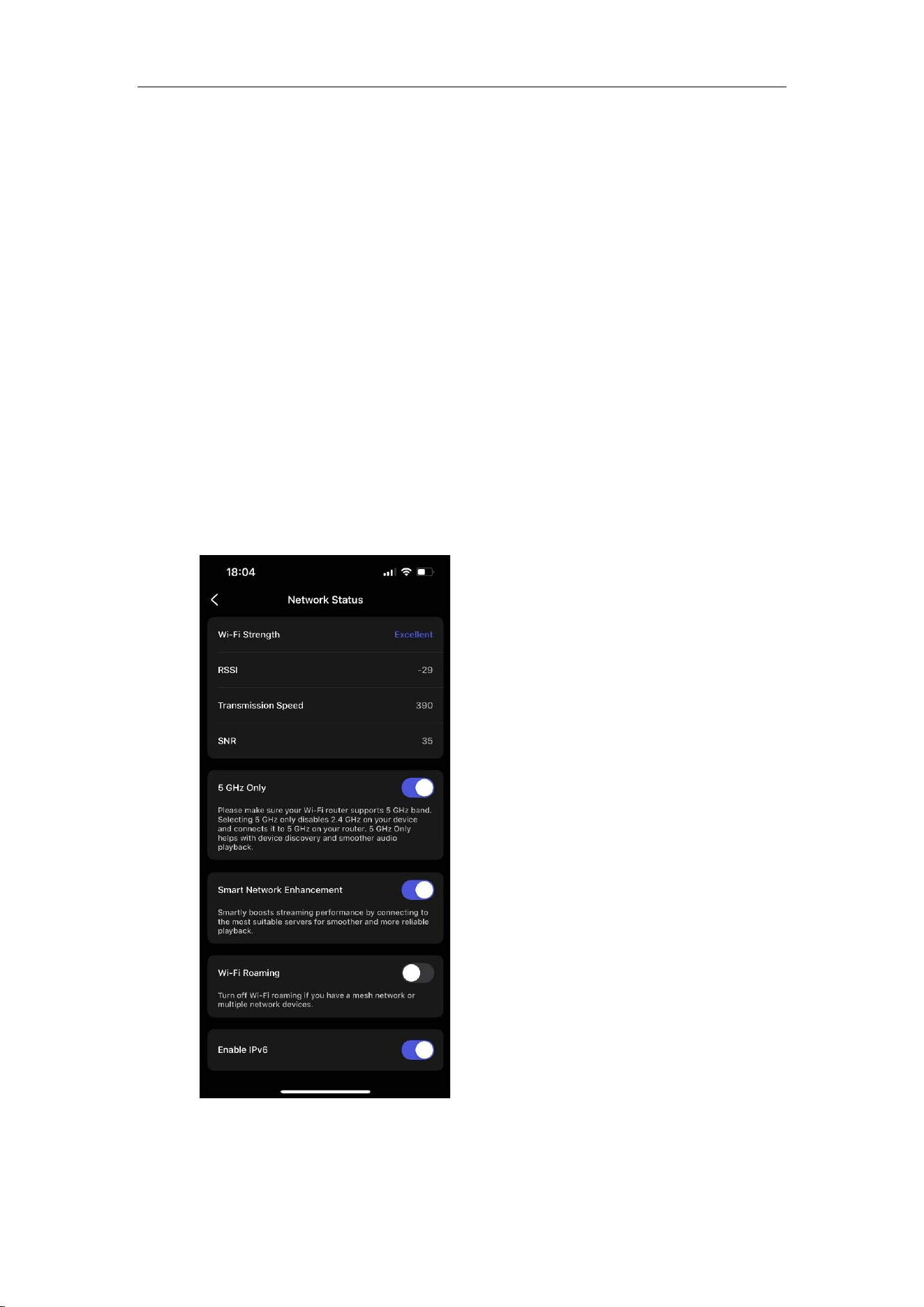
⚫ Configuration: Once connected via Wi-Fi, check connection status and modify
Wi-Fi settings using the WiiM Home app.

WiiM Amp User Manual Version 1.3.5 9/24/2025
72
Bluetooth Interface
The Bluetooth interface is used for both Wi-Fi setup and audio streaming.
⚫ Supported Protocols/Services: Bluetooth 5.0 LE (A2DP Sink and A2DP Source)
o BLE Broadcasting: BLE broadcasting is automatically enabled during Wi-Fi
setup, allowing the WiiM Home app to discover the device and connect it to
the Wi-Fi network. For details, see WiiM Amp Setup via Wi-Fi.
o A2DP Sink: Supports receiving audio streams from mobile devices, tablets,
etc., for audio playback via Bluetooth.
o A2DP Source: Output audio to Bluetooth speakers or headphones for
wireless audio streaming.
⚫ Configuration: Bluetooth pairing is required for audio streaming. For details, see
Audio Output/Input via Bluetooth.

WiiM Amp User Manual Version 1.3.5 9/24/2025
73
16. Important Safety Instructions
IMPORTANT: RETAIN FOR FUTURE REFERENCE, READ CAREFULLY
1. Read these instructions. Keep these instructions. Heed all warnings. Follow all
instructions.
2. Do not use this apparatus near water.
3. Clean only with a dry cloth.
4. Do not block any ventilation openings. Install in accordance with the
manufacturer’s instructions.
5. Protect the power cord from being walked on or pinched particularly at plugs,
convenience receptacles, and the point where they exit from the apparatus.
6. Only use attachments/accessories specified by the manufacturer.
7. Unplug this apparatus during lightning storms or when unused for long periods of
time
8. Refer all servicing to qualified personnel. Servicing is required when the
apparatus has been damaged in any way, such as external power supply, power-
supply cord or plug is damaged, liquid has been spilled or objects have fallen into
the apparatus, the apparatus has been exposed to rain or moisture, does not
operate normally, or has been dropped.
9. To reduce the risk of fire or electrical shock, do NOT expose this product to rain,
liquids or moisture.
10. Do NOT expose this product to dripping or splashing, and do not place objects
filled with liquids, such as vases, on or near the product.
11. Keep the product away from fire and heat sources. Do NOT place naked flame
sources, such as lighted candles, on or near the product.
12. Do NOT make unauthorized alterations to this product.
13. Do NOT use in vehicles or boats.
14. Use this product only with the power supply provided.
15. Where the mains plug or an appliance coupler is used as the disconnect device,
the disconnect device shall remain readily operable.
16. Due to ventilation requirements, does not recommend placing the product in a
confined space such as in a wall cavity or in an enclosed cabinet.
17. Contains small parts which may be a choking hazard. Not suitable for children
under age 3.
18. This product contains magnetic material. Consult your physician on whether this
might affect your implantable medical device.

WiiM Amp User Manual Version 1.3.5 9/24/2025
74
19. Do not place or install the bracket or product near any heat sources, such as
fireplaces, radiators, heat registers, or other apparatus (including amplifiers) that
produce heat.

WiiM Amp User Manual Version 1.3.5 9/24/2025
75
17. CE/FCC/IC/TELEC Statements
FCC/IC Statement
RF Exposure Information: The equipment complies with FCC/IC RSS-102 radiation
exposure limits set forth for an uncontrolled environment. The equipment should be
installed and operated with minimum distance 20cm between the radiator & your body.
This device complies with Part 15 of the FCC Rules and contains license-exempt
transmitter(s)/receiver(s) that comply with Innovation, Science and Economic Development
Canada’s licence-exempt RSS standard(s). Operation is subject to the following two
conditions:
(1) this device may not cause harmful interference, and
(2) this device must accept any interference received, including interference that may
cause undesired operation.
NOTE: The manufacturer is not responsible for any radio or TV interference caused by
unauthorized modifications or changes to this equipment. Such modifications or changes
could void the user’s authority to operate the equipment.
NOTE: This equipment has been tested and found to comply with the limits for a Class B
digital device, pursuant to part 15 of the FCC Rules. These limits are designed to provide
reasonable protection against harmful interference in a residential installation. This
equipment generates uses and can radiate radio frequency energy and, if not installed and
used in accordance with the instructions, may cause harmful interference to radio
communications. However, there is no guarantee that interference will not occur in a
particular installation. If this equipment does cause harmful interference to radio or
television reception, which can be determined by turning the equipment off and on, the
user is encouraged to try to correct the interference by one or more of the following
measures:
‐ Reorient or relocate the receiving antenna.
‐ Increase the separation between the equipment and receiver.
‐Connect the equipment into an outlet on a circuit different from that to which the receiver
is connected.
‐Consult the dealer or an experienced radio/TV technician for help.
For radio equipment operates in 5150-5850MHz
High power radars are allocated as primary users of the 5.25 to 5.35 GHz and 5.65 to 5.85
GHz bands. These radar stations can cause interference with and/or damage to LE LAN
(Licence-Exempt Local Area Network) devices. No configuration controls are provided for
this wireless equipment allowing any change in the frequency of operations outside the
FCC grant of authorization for US operation according to Part 15.407 of the FCC rules.

WiiM Amp User Manual Version 1.3.5 9/24/2025
76
The device for operation in the band 5150-5250 MHz is only for indoor use to reduce the
potential for harmful interference to co-channel mobile satellite systems; for devices with
detachable antenna(s), the maximum antenna gain permitted for devices in the bands
5250-5350 MHz and 5470-5725 MHz shall be such that the equipment still complies with
the e.i.r.p. limit; for devices with detachable antenna(s), the maximum antenna gain
permitted for devices in the band 5725-5850 MHz shall be such that the equipment still
complies with the e.i.r.p. limits specified for point-to-point and non-point-to-point operation
as appropriate.
Transmitters in the 5.925-7.125 GHz band are prohibited from operating to control or
communicate with unmanned aircraft systems.
Énoncé d’exposition aux rayonnements FCC/IC
L’équipement est conforme aux limites d’exposition aux rayonnements FCC/IC RSS-102
établies pour un environnement non contrôlé. L’équipement doit être installé et utilisé avec
une distance minimale de 20cm entre le radiateur et votre corps.
L’émetteur/récepteur exempt de licence contenu dans le présent appareil est conforme
aux CNR d’Innovation, Sciences et Développement économique Canada applicables aux
appareils radio exempts de licence.
L'exploitation est autorisée aux deux conditions suivantes:
(1) l'appareil ne doit pas produire de brouillage, et
(2) l'appareil doit accepter tout brouillage radioélectrique subi, même si le brouillage est
susceptible d'en compromettre le fonctionnement.
Les radars de puissance élevée sont attribués comme utilisateurs principaux des
fréquences de 5,25 à 5,35 GHz et Bandes de 5,65 à 5,85 GHz. Ces stations radar peuvent
causer des interférences avec Et/ou dommages aux périphériques LE LAN (réseau Local
exempté de licence). Non non Des contrôles de configuration sont fournis pour cet
équipement sans fil permettant toute Modification de la fréquence des opérations en
dehors du FCC octroi d’autorisation Pour les opérations américaines conformément à la
partie 15.407 des règles de la FCC.
Les dispositifs fonctionnant dans la bande 5150-5250 MHz sont réservés uniquement pour
une utilisation à l’intérieur afin de réduire les risques de brouillage préjudiciable aux
systèmes de satellites mobiles utilisant les mêmes canaux; le gain maximal d’antenne
permis pour les dispositifs utilisant les bandes 5250-5350 MHz et 5470-5725 MHz doit se
conformer à la limite de p.i.r.e.; le gain maximal d’antenne permis (pour les dispositifs
utilisant la bande 5725-5850 MHz) doit se conformer à la limite de p.i.r.e. spécifiée pour
l’exploitation point à point et non point à point, selon le cas.
Il est interdit d’utiliser les émetteurs de la bande de 5,925 à 7,125 GHz pour contrôler les
systèmes d’aéronef sans pilote ou communiquer avec eux.
CAN ICES-003(B)/NMB-003(B)
WiiM Amp User Manual Version 1.3.5 9/24/2025
77
IC: 30828-AMP001
FCC ID: 2BABF-AMP001
CE Statement
RF exposure information: The Maximum Permissible Exposure (MPE) level has been
calculated based on a distance of d=20 cm between the device and the human body. To
maintain compliance with RF exposure requirement, use product that maintain a 20cm
distance between the device and the human body.
Do not use the device in the environment at too high or too low temperature, never expose
the device under strong sunshine or too wet environment. The suitable temperature for the
product and accessories is 0℃-40℃.
Operating frequency range and maximum transmit power
Bluetooth: 2402MHz ~ 2480MHz, <9.11 dBm EIRP
WLAN 2.4GHz: 2412MHz ~ 2472MHz, <20 dBm EIRP
WLAN 5GHz: 5150MHz ~ 5725MHz, <20 dBm EIRP
5745MHz ~ 5825MHz, <13.98 dBm EIRP
This product can be used across EU member states.
The device for operation in the band 5150-5350 MHz is only for indoor use to reduce the
potential for harmful interference to co-channel mobile satellite systems.
EU Regulatory Conformance
Hereby, Linkplay Technology Inc. Corporation declares that this device is in compliance with
the essential requirements and other relevant provisions of Directive 2014/53/EU.
For the declaration of conformity, see wiimhome.com/wiimAmp/Doc_RED.
TELEC Statements

WiiM Amp User Manual Version 1.3.5 9/24/2025
78
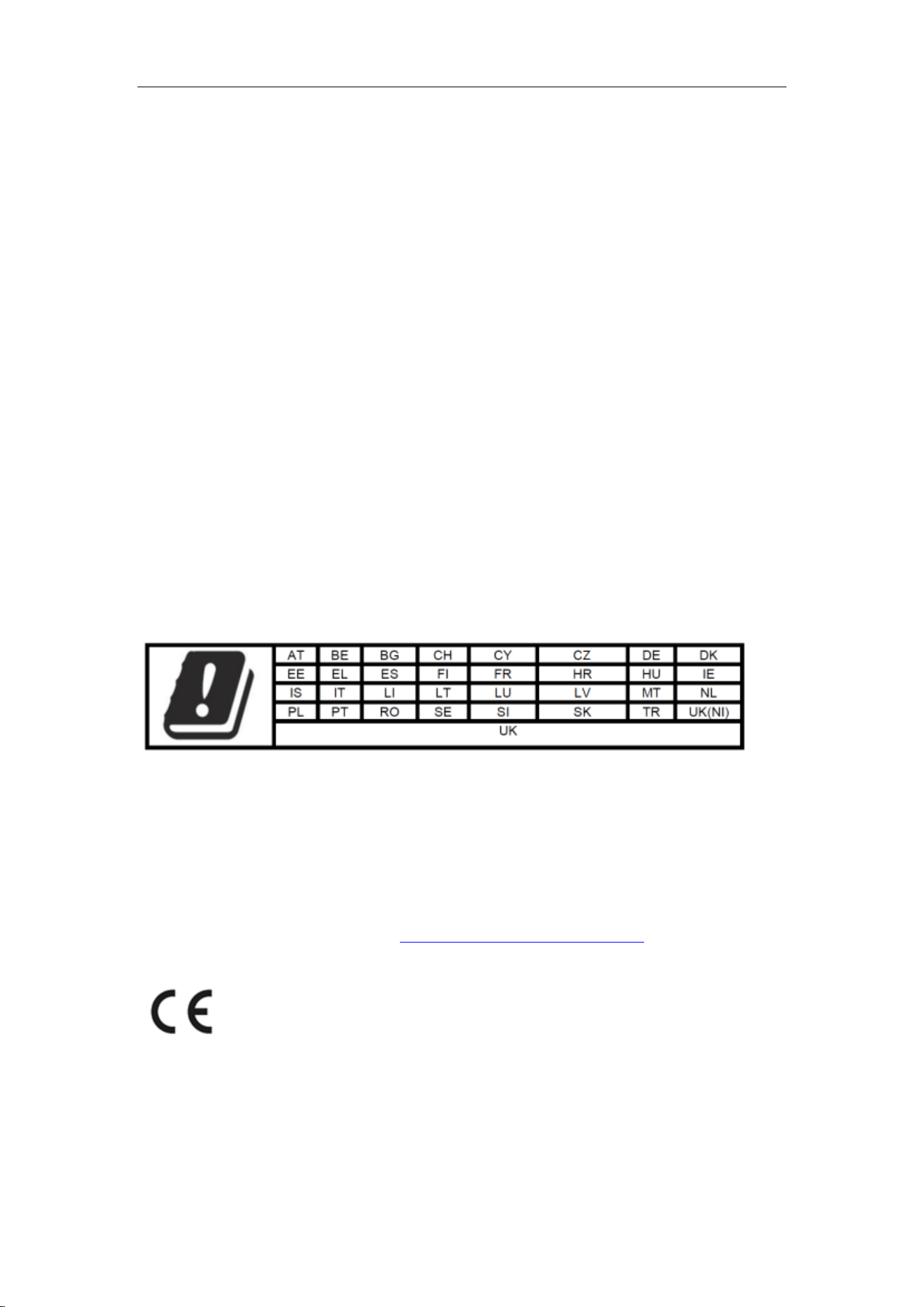
According to radio law, the 5.2/5.3/6GHz band is limited to indoor use.
電波法により 5.2/5.3/6 GHz 帯は屋内使用に限ります.
Declaration of Compliance
The manufacturer declares that the product is compliant with:
• The deemed security requirements specified in Schedule 1 of The Product Security and
Telecommunications Infrastructure (Security Requirements for Relevant Connectable
Products) Regulations 2023 ("Security Requirements").
Visit the web site: PSTI Statement of Compliance.
KC Certification
전자파적합등록번호: R-R-L8P-AMP001
제품명칭: WiiM Amp
모델명: AMP001
정격입력: 100-240V AC, 50/60Hz
제조업체: Linkplay Technology Inc. 중국
제조년월: 별도표시