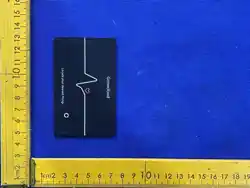

Works with
Apple Find My
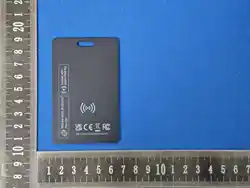
Card Finder
Thank you for choosing the Slimcard Bluetooth
finder. Please read this manual carefully before
use to avoid damage caused by improper use.
Quick instructions
1.Turn on the device
Press and hold the button for 3 seconds, and the
device will beep and turn on.Double press the
button, A chime will sound.
Note:To turn off, double-click the device first,
then quickly press the button 5 times within 2
seconds, a long beep will sound.
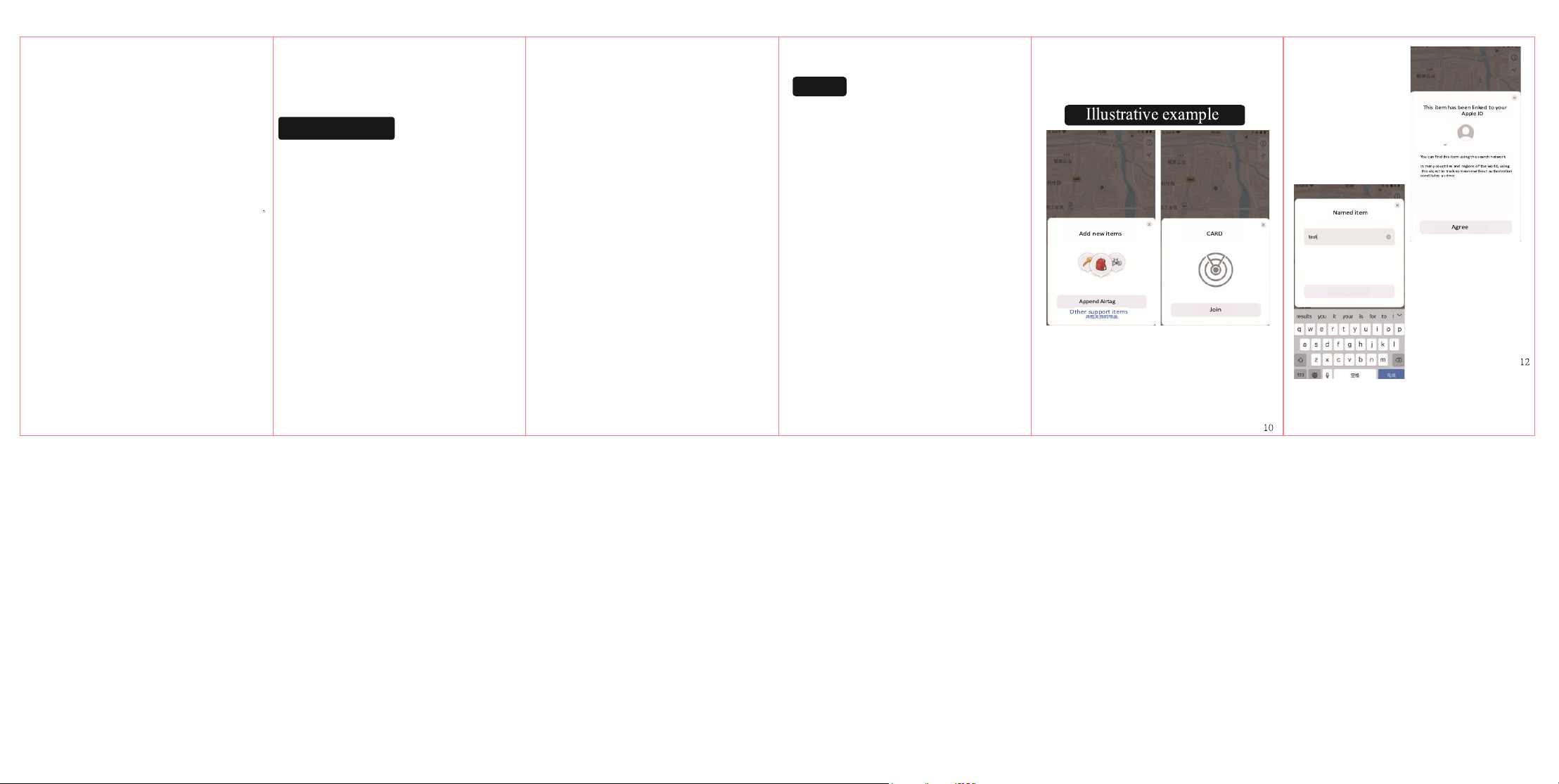
2.Pair the device
·Open the Find My app.
·Hold the device close to your iPhone,tap the Items
tab,tap+and then Add Other Item.
·Tap Connect.
·Type a name for your device,select an
emoji. ·Tap Agree to acknowledge that this
item will be linked to your Apple ID. ·Tap
Finish.
3.Enable Lost Mode
·Open the Find My app, tap the Items tab,then tap
your item.
·Under Lost Mode, tap Enable.
·Read the instructions, tap Continue and enter a
phone number or email address.
·Confirm the information, customize the lost
message,and tap Activate to complete the setup.
4.Remove the device
·Openthe Find My app,tap the Items tab,then tap
your item.
·Tap Remove Item and then tap Remove to complete
the operation.
Note:After removing the device in the app,the
device will beep,it will not turn off and will be in
the pairing mode.If there is no re-pairing within
10 minutes,the device will enter the sleep
state,and it is diffcult to pair at this time.If you
need to pair the device,you need to click the
device button twice quick,and then the device will
beep,at this point,the device enters the pairing
state and can be re-paired with the app.
Main Functions
1.Locate your item
If your missing item isn't nearby,the Find My
app can still help you track it down using the
FindMy network—hundreds of millions of
iphone,ipad,and mac devices around the
world.Nearby devices securely send the location
of your missing device to iCloud,then you can
see where it is in the Find My app.It's all
anonymous and encrypted to protect everyone's
privacy.
2.Play Sound
Open the Find My app, tap the Items tab,then tap
your item.
Click Play Sound,and the device will beep,so you
can find the item easily.
Instructions for device button
1.Power on
Press and hold the button for 3 seconds,the device
will be turned on.
2.Device status conrmaon
Double-click the device button,the device will
beep,indicating that the device is working. If the
device does not ring,the device is off. Long press
the button for 3 seconds to turn it on.
Note:Two different types of beep might appear
depending on the device status.
(1) A light music will sound if the device is
unpaired and ready to get paired.
(2) short 3 beeps will sound if the device is
already paired.
3.The device enters the pairing state again After
removing the device in the app,the device will
beep,it will not turn off and will be in the pairing
mode.If there is no re-pairing within 10
minutes,the device will enter the sleep state,and
it is difficult to pair at this time.If you need to
pair the device,you need to click the device
button twice quick,and then the device will beep,
at this point,the device enters the pairing state
and can be re-paired with the app.
4.Factory Reset
First,remove the item from Find My app then,
after the device is powered on,double-click the
device button.The device will beep.Long press
the device button for five seconds,device
beep,continue to press three seconds until the
device beeps again.Release the button to
complete factory reset.The device can now be
paired.
5.Power o
When the device is on,press the device button 5
times in 2 seconds.The device will beep,the
device will be powered off.
FAQ
1.When can the device be located?
When an item is separated fromits owner for a period of time,it can
be found by other Apple devices that are part of the Find My net
work,and the owner can start to get the location of the device.
1
2
3
4
5
2.How to conrm whether the device has been turned on?
Double-click the device buon,the device will beep,indicang that the
device is working.If the device does not ring,the device is o.Long press
the buon for 3 seconds to turn it on.
3.How is the device designed to discourage unwanted tracking?
If any Find My network accessory separated from its owner is seen
moving with you over me,you'll be noed in one of two ways:
1.If you have an iPhone,iPad,or iPod touch, Find My will send a
nocaon to your Apple device.This feature is available on iOS or iPad
OS 14.5 or later.
2.If you don't have an iOS device or a smartphone,aFind My network
accessory that isn't with it's owner for a period of me will emit a
sound when it's moved.These features were created specically to
discourage people from trying to track you without your knowledge.
4.How is my privacy protected?
Only you can see where your item is.Your locaon data and history are
never stored on the item itself.Devices that relay the locaon of your
item also stay anonymous,and that locaon data is encrypted every
step of the way.So not even Apple knows the locaon of your device or
the identy of the device that helps nd it.
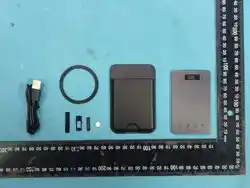
5.How to charge the device?
Place the device on the wireless charger,adjust the card posion ll the
red light is on, the device will be in a charging state. Please pay
aenon to the wireless charging indicator on the surface of the device
and ensure that the device is placed in the correct way.
6.What is the Find My network?And how does it work?
The Apple Find My network provides an easy,secure
way to locate compable personal items on a map using the Find My
app on your iPhone,iPad,iPod touch,Mac,or the Find .
6
Items app on Apple Watch.Simply pair your compable product with
the Apple Find My app to view it right along side your Apple devices.If
your item ever goes missing,you can put it in Lost Mode to display a
message and contact informaon to anyone who might nd it.The Find
My network is encrypted and anonymous,so no one else,not even
Apple,can view its locaon.
Important tips
When pairing a device with Find my app,the phone will link to the
Apple server.Pairing may fail because of network problems.The
following acons are recommended:
1.Factory Reset for the device:When the device is powered on,double-
click the device buon.The device will beep,Long press the device
buon for ve seconds,device beep and connue to press three
seconds unl the device beeps again.Release the buon to complete
factory reset.
FCC Warning Statement
Changes or modicaons not expressly approved by the party
responsible for compliance could void the user’s authority to operate
the equipment. This equipment has been tested and found to comply
with the limits for a Class B digital device, pursuant to Part 15 of the
FCC Rules. These limits are designed to provide reasonable
protection against harmful interference in a residential installation.
This equipment generates uses and can radiate radio frequency
energy and, if not installed and used in accordance with the
instrucons, may cause harmful interference to radio communicaons.
However, there is no guarantee that interference will not occur in a
particular installation. If this equipment does cause harmful
interference to radio or television reception.
7
which can be determined by turning the equipment o and on,
the user is encouraged to try to correct the interference by one
or more of the following measures:
‐‐ Reorient or relocate the receiving antenna
‐‐ Increase the separaon between the equipment and
receiver
‐‐Connect the equipment into an outlet on a circuit dierent
from that to which the receiver is connected
‐‐ Consult the dealer or an experienced radio/TV technician
for help
This device complies with part 15 of the FCC Rules. Operaon is
subject to the following two condions: (1) This device may not
cause harmful interference, and (2) this device must accept any
interference received, including interference that may cause
undesired operaon.
The device has been evaluated to meet general RF exposure
requirement. The device can be used in portable exposure
condion without restricon.
8
NOTE
Slimcard Bluetooth finder has been designed to
work specifically with the technology identified
in the badge and has been certified by the
product manufacturer to meet Apple Find My
network product specifications and
requirements.Apple is not responsible for the
operation of this device or use of this product or
its compliance with safety and regulatory
standards.
To use the Apple Find My app to locate this
item,the latest version of iOS,iPadOS,watchOS
or macOS is recommended.Apple,Apple W a t c
h , w a t c h O S , i P a d , i P a d O S , i P o d
touch,Mac,and macOS are trademarks of Apple
Inc., registered in the U.S.and other countries.
IOS is a trademark or registered trademark of
Cisco in the U.S.and other countries and issued
under license.
9
1. Tap the "Findmy" app, tap u to add articles,
tap or other supported items, enter the search
status and find the product.
2. Click "Connect", enter the name of any
element, click Continue, select any emoji, and
then click Continue to go to the linked page.
Add the name of this item
Continue