2
User Manual
English
Note
⚠ Important consideration
Recommendation
We recommend that users watch tutorial videos and read the user manual first to
understand the usage process.
https://www.obsbot.com/download
Reading Guide
Tutorial Video
Users can access and watch tutorial videos through the following link and QR code
to learn how to use the product correctly.
https://www.obsbot.com/explore/obsbot-tiny-2-lite
v1.0
43
About Tiny 2 Lite
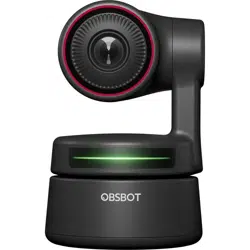
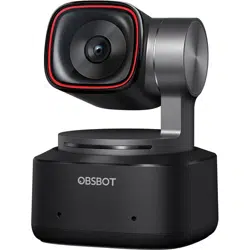
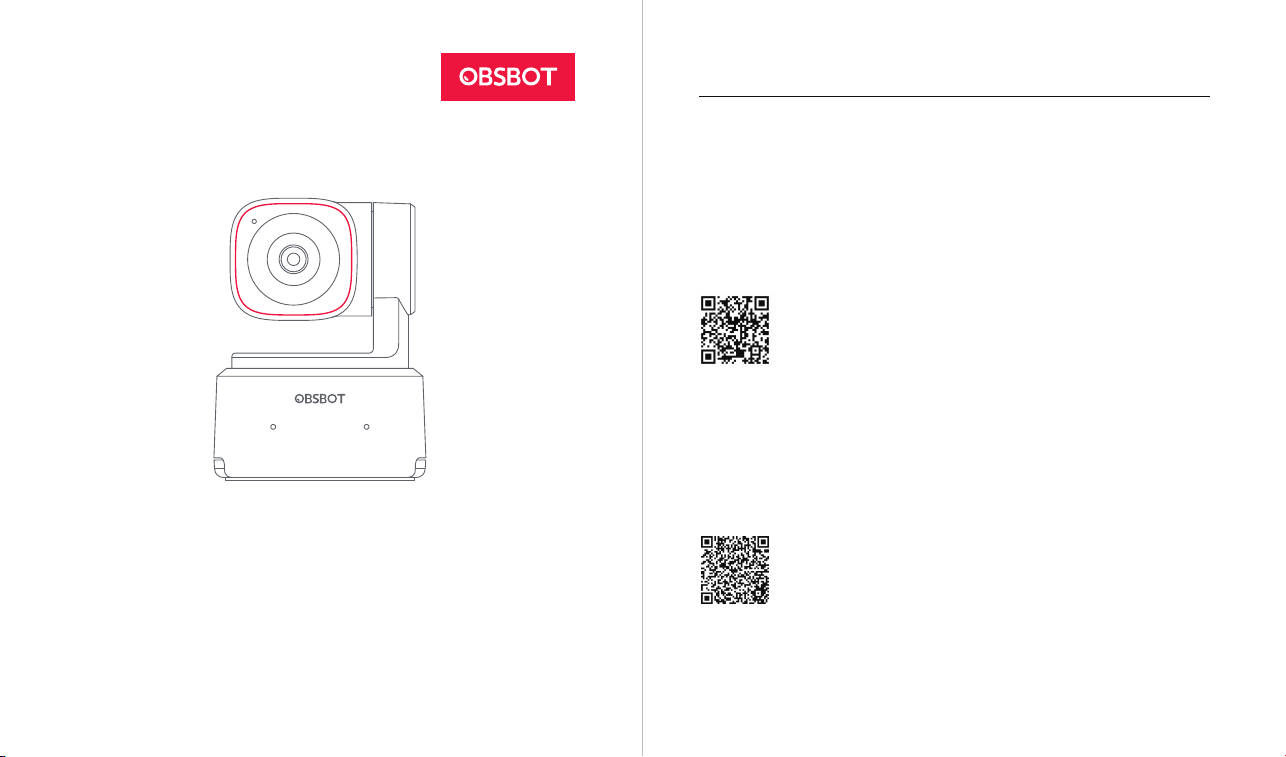
OBSBOT Tiny 2 Lite is an AI-powered PTZ webcam equipped with a two-axis gimbal.
It supports a variety of intelligent shooting modes and is supplemented by a variety
of gesture control function to meet users’ needs from different scenarios.
OBSBOT Tiny 2 Lite is connected to the computer via USB, plug and play. It also
comes with OBSBOT Center software to expand more advanced functions.
⚠ System Requirements
Windows 10 (64-bit) or later
macOS 11.0 or later
⚠ Recommended for 1080p 60fps and 4K
Recommended Apple computers:
① MacBook Pro (2018, 8th Gen Intel® Core™ i5 Processors or later)
② MacBook Air (2018, 8th Gen Intel® Core™ i5 Processors or later)
③ iMac Retina (2019, 8th Gen Intel® Core™ i5 Processors or later)
Recommended PC configuration:
① CPU: 7th Gen Intel® Core™ i5 Processors or later
② RAM: 8GB
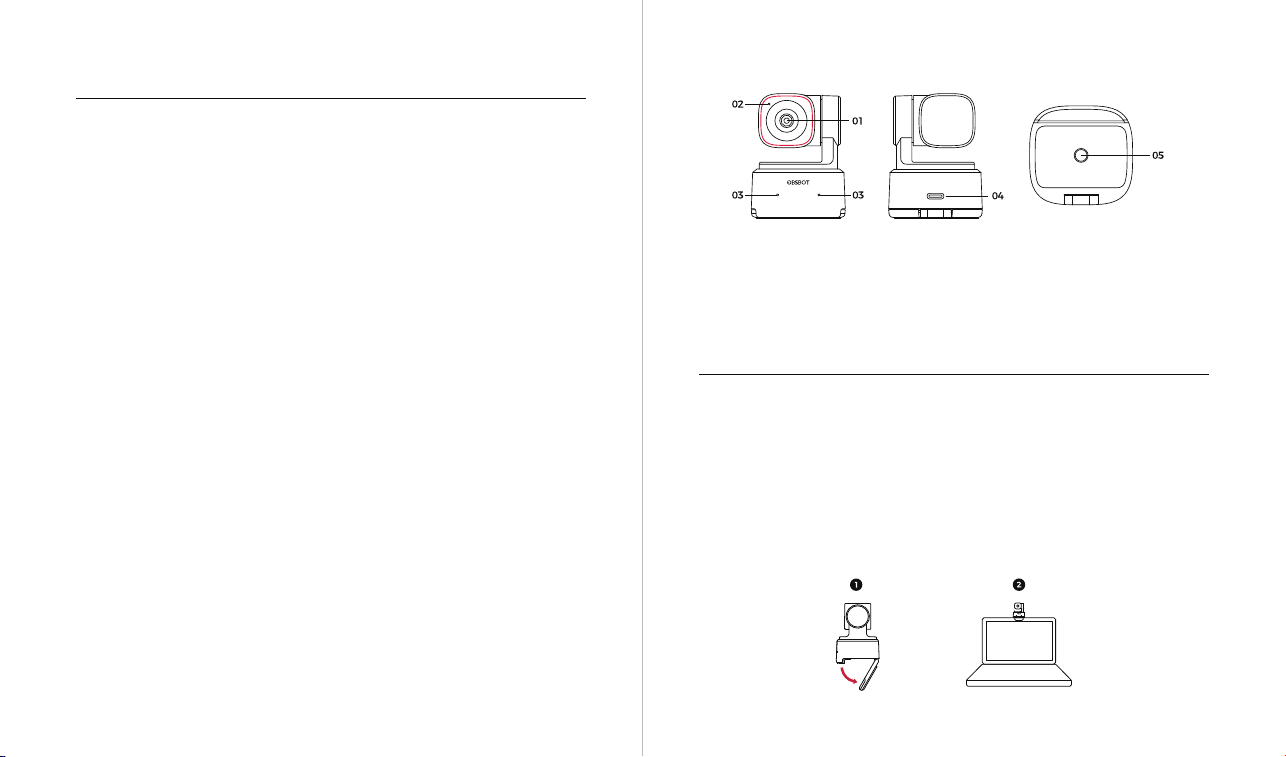
OBSBOT Tiny 2 Lite Overview
Placement Instructions
1. Placement on a Monitor
Please operate as shown in the following figure:
① Open the built-in stand at the bottom of Tiny 2 Lite.
② Place Tiny 2 Lite on the monitor.
③ Adjust the angle of the stand to make the base as parallel as possible to the
horizontal plane.
Setting Up Tiny 2 Lite
Parts Info
01. 4K Ultra HD lens
02. Camera Indicator
03. Dual Microphones
04. USB-C Port
05. UNC 1/4-20 Interface
65
2. Placement on a Desktop
Place Tiny 2 Lite directly on your desktop.
3. Placement on a Tripod
OBSBOT Tiny 2 Lite is equipped with a standard UNC 1/4-20 nut connector on the
base for mounting the camera to a stand/tripod.
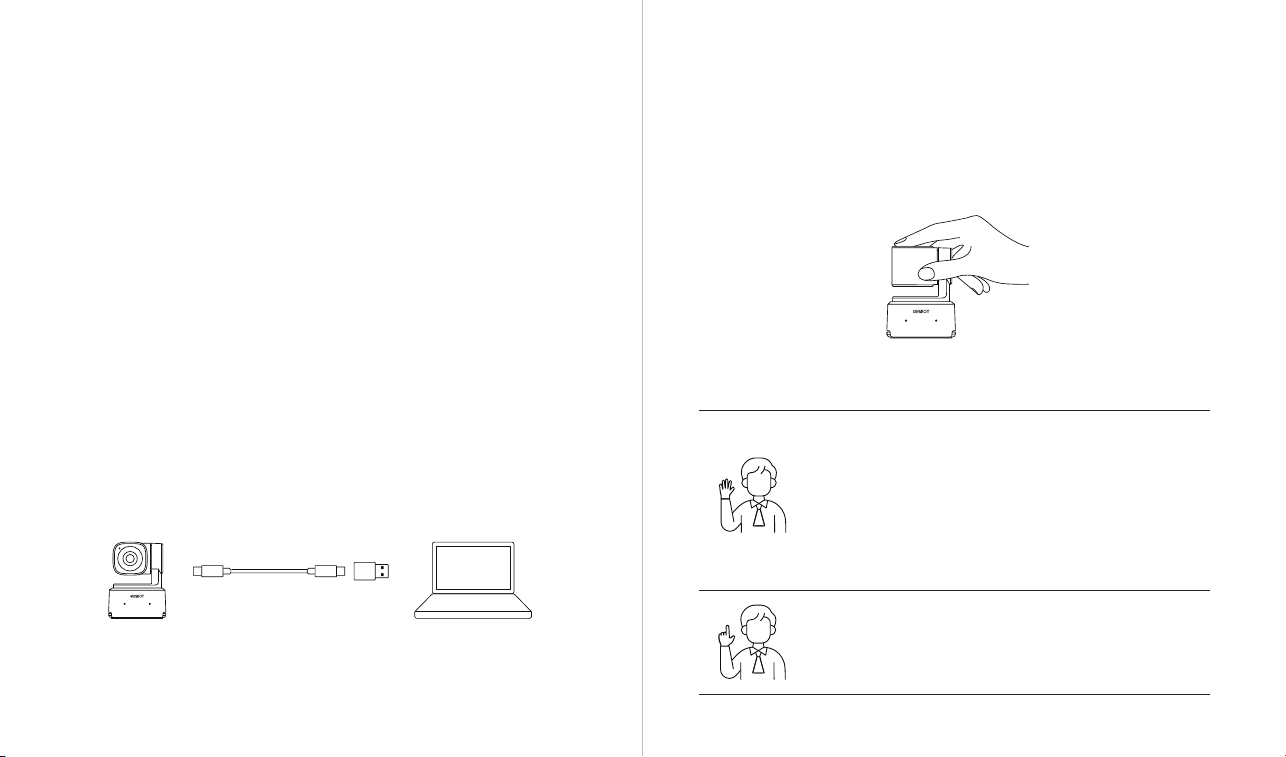
Connect to the Computer
OBSBOT Tiny 2 Lite is compatible with both Windows and Mac computers. To set up
your OBSBOT Tiny 2 Lite, use the standard data cable to connect it to the USB port
on your laptop or desktop computer. If necessary, use the provided USB-C to USB-A
adapter. The webcam will automatically install on your device. Please wait a few
seconds for the installation to finish before attempting to access the webcam. After
the installation is complete, you can use popular video call platforms such as Zoom,
Microsoft Teams, Skype, or Google Meet to start streaming with your Tiny 2 Lite.
⚠
① If the product is in working condition for a long time, the bottom of the product
will heat up, which is normal situation.
② To avoid compatibility problems, be sure to use the standard data cable to
connect the computer.
③To prevent the product from malfunctioning due to insucient power supply,
please connect it directly to your computer or use an expansion dock with an
independent power supply.
④ 4K streaming requires compatible third-party software.
Gimbal
OBSBOT Tiny 2 Lite is equipped with a 2-axis brushless motor gimbal. The
controllable rotation range for the pan is ±140°, and for the tilt is 30° to -70°.
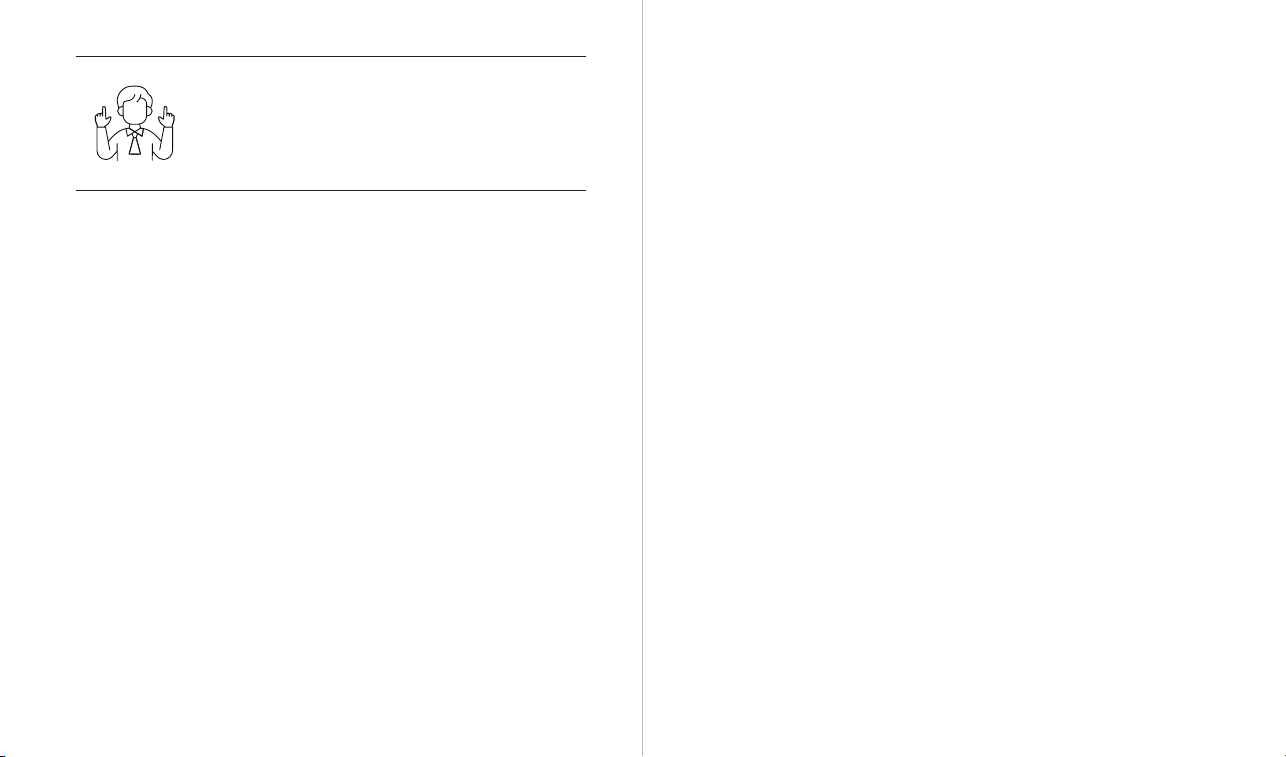
Zoom to 2x (default) / Cancel
Perform the gesture control as shown in the figure. The status
light will flash twice continuously to indicate that the zoom
in/out operation has been performed.
Sleep Mode
① Manual Sleep
Please adjust the lens to point straight down. If the indicator light is off, it means that
the sleep mode is activated.
② Device Auto Sleep
You can use OBSBOT Center software to set the sleep time so that it automatically
enters sleep mode as needed.
Gesture Control 2.0
Turn On/Off Human Tracking
To enter human tracking mode, perform the gesture as shown
in the figure. The current status light will flash twice in
succession and then turn to a steady blue state, indicating
that you have successfully entered human tracking mode.
To exit human tracking mode, perform the same gesture
again. The blue status light will flash twice continuously and
then turn to a steady green state, indicating that you have
successfully exited human tracking mode.
87
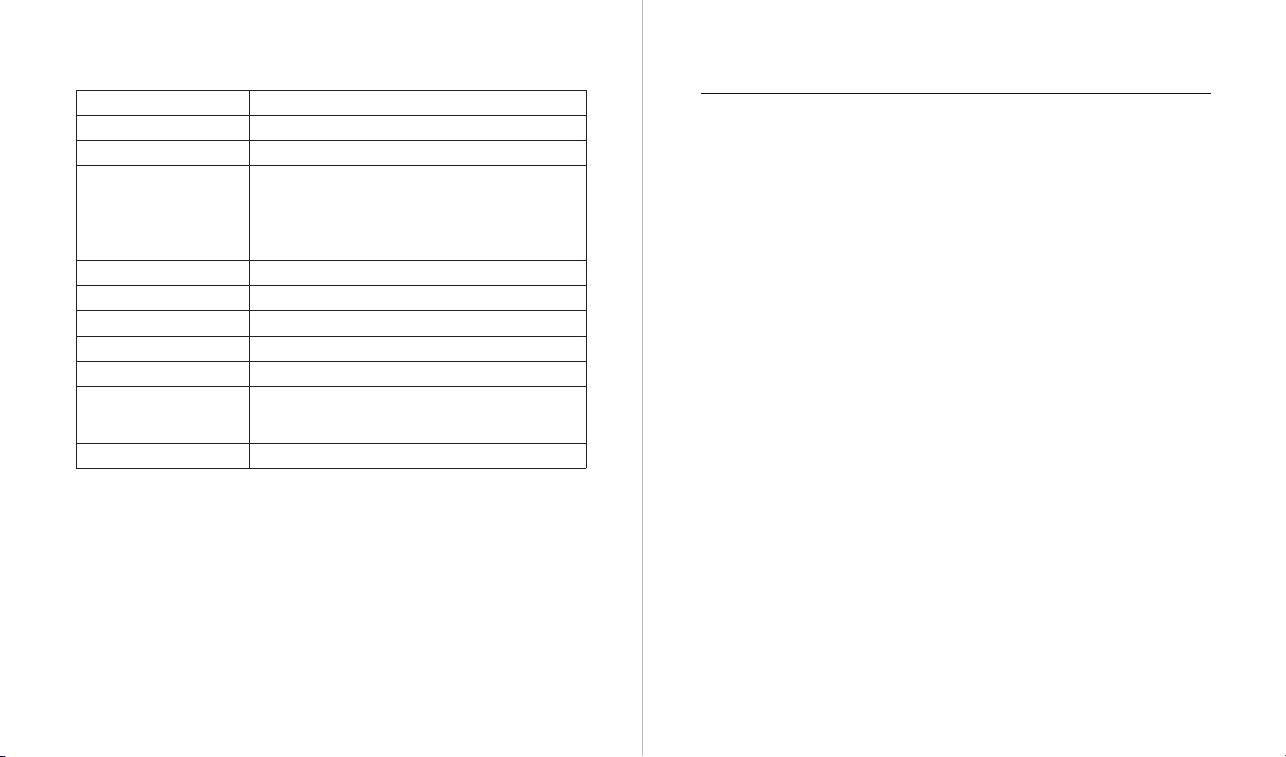
Dynamic Zoom
Perform gesture control as shown in the figure until the status
light starts flashing, at which means the dynamic zoom
function is activated. Zoom in or out as the distance between
your hands changes, until no gesture is detected or the zoom
status can no longer be adjusted.
⚠ Please be careful not to cover your face with your hands and keep your fingers
open for the gesture control.
⚠ Please go to the link below to find the tutorial video
for gesture control.
https://www.obsbot.com/explore/obsbot-tiny-2-lite
The OBSBOT Tiny 2 Lite offers three shooting modes, with landscape mode being the
default.
① Landscape shooting
This mode is suitable for conventional mounted cameras.
② Portrait shooting
By horizontally placing the camera through an external accessory, it will automatically
enter into the portrait mode.
⚠ The automatic rotation feature can only be used in software that supports it, such
as OBS, etc. Some other software may require manual rotation.
③ Up-side-down shooting
The camera can be installed upside down, and the screen will automatically rotate for
use.
Zoom
OBSBOT Tiny 2 Lite supports 4x digital zoom.
① Gesture Control
By default, the zoom setting is 2x. Users can create customized gesture zoom
settings from 1x to 4x via OBSBOT Center software.
② Manual Control
Users can do the manual control for zoom settings from 1x to 4x via OBSBOT Center
software.
Focus
The OBSBOT Tiny 2 Lite supports two focusing methods.
① Auto-Focus
Utilizing OBSBOT's advanced AI technology, the auto-focus feature intelligently
adjusts the lens in real time, ensuring that you remain in focus at all times,
regardless of your proximity to the camera.
② Manual Focus
Users can disable the auto-focus feature and manually adjust focus when using
OBSBOT Center software.
Various Shooting Modes
HDR
By default, HDR feature is disabled. However, users have the option to enable HDR
on the OBSBOT Center software to enhance their appearance on video, even in low
light or direct sunlight.
Human Tracking
Activate human tracking using gesture control or OBSBOT Center software. OBSBOT
Tiny 2 Lite will automatically track and ensure that the figure is in the best
composition position.
Group Mode
When you activate the group mode, the view will automatically adjust as
participants join or leave the image. This ensures that everyone is properly covered
and visible. By using the group more, the view will always focus on the right amount
of the view.
9 10
Firmware upgrading Blue/yellow flash alternately
Firmware upgrade failed Red light flashes slowly
Indicator Description
Equipment Status Indicator status
Power-on initialization
Blue light flashes slowly
No target is selected Green light keeps on
Execute gesture control
The indicator for the current state blinks twice in
succession,it will either switch to the post-recogni-
tion indicator state upon successful recognition or
maintain the pre-recognition indicator state in case
of recognition failure
Enable human tracking Blue light keeps on
Target losing Yellow light keeps on
Enable group mode Purple light keeps on
Device in fault, such as
gimbal failure, AI errors,
etc.
Red light keeps on
Sleep mode Light off
Firmware Upgrade
OBSBOT Tiny 2 Lite upgrades through OBSBOT Center software. When firmware is
available for update, there will be corresponding prompts after connecting the
device. Please follow the info on prompts.
⚠ Do not disconnect the camera during firmware upgrade process.
Download and Installation
Download and install OBSBOT Center through
https://www.obsbot.com/download to further enhance your user experience.
Software Overview
OBSBOT Tiny 2 Lite provides advanced users of Windows and Mac with a control
software for OBSBOT Center, which allows you to perform a series of extended
operations on the camera, such as controlling the motion trajectory of the pan-tilt,
selecting or canceling tracking targets, setting presets or expanding various creative
gameplay.
OBSBOT Center